Skypower Wireless MBA23011 Bluetooth Cell Phone Adapter User Manual combo user guide020926 copy eps
Skypower Wireless Ltd. Bluetooth Cell Phone Adapter combo user guide020926 copy eps
Manual
User Guide
Bl
uetoot
h
Wireless
Adaptor
http://www.skypower.com
Skypower Wireless Ltd.
Unit 508, Tower B, New Mandarin Plaza TST East,
Kowloon, Hong Kong
1
3
2
May require plug adaptor for some models.
1
Product Overview
Introduction
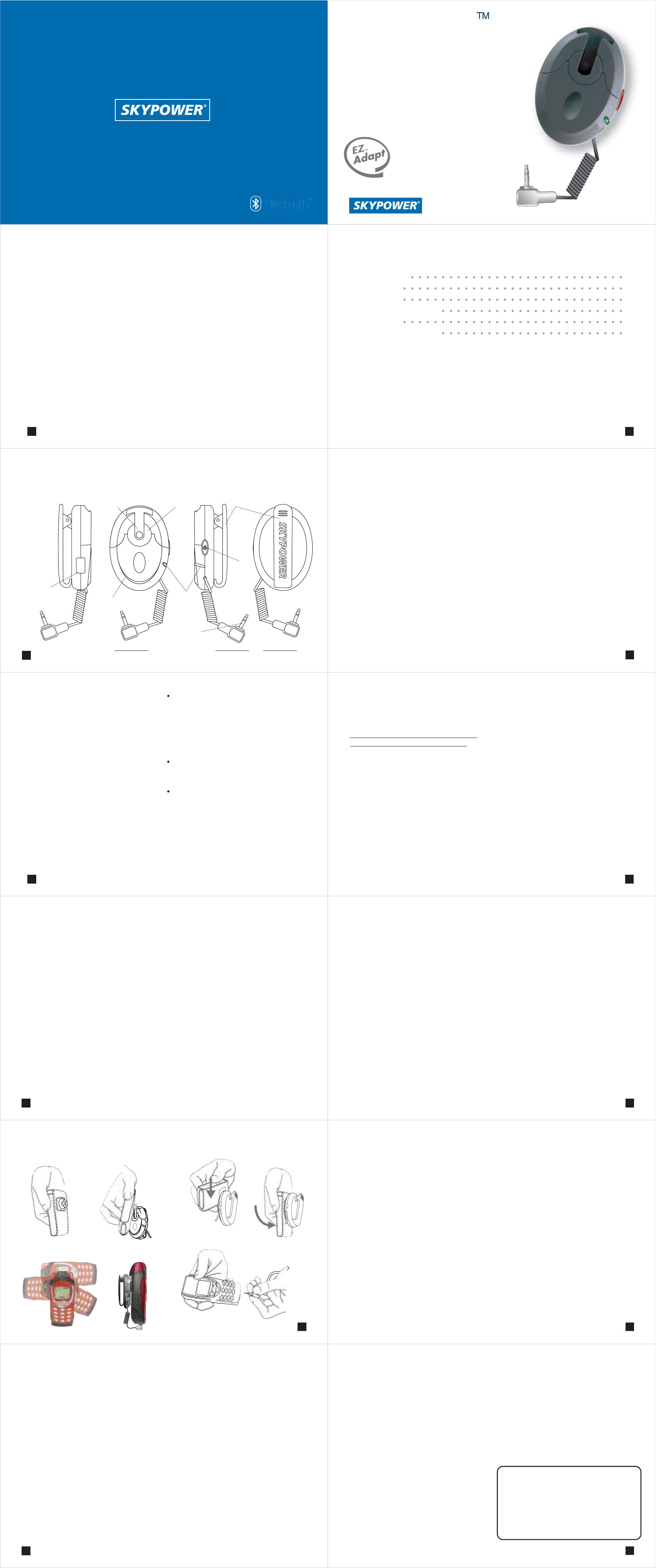
EZadapt™ - Mobile Phone Bluetooth Adaptor
Skypower's Bluetooth Headsets are truly certified
Bluetooth V1.1 Headsets. They link to any mobile
phone that is truly Bluetooth V1.1 compatible,
allowing you full flexibility to choose your own
preferred Bluetooth mobile phone.
If your mobile phone does not support Bluetooth -
you still can connect Skypower's Headset to the
mobile phone by 'Bluetooth-enabling' your mobile
phone with Skypower's Bluetooth adaptor - the
EZadapt™.
EZadapt™ - connects to almost any mobile phone
and at the same time acts as your mobile phone click-
on-belt holder.
1
Table of Content - English
Product Review
Introduction
Quick Start
Recharging the Battery
Using EZclip
Additional Information
2
3
4
4
5
8
Using EZadapt
Pairing - Headset with EZadapt™
'Pairing' is a Bluetooth common term for the simple
setup of matching your Headset with your phone, so
that your Headset will 'listen' only to your mobile
phone (through the EZadapt™), and your mobile
phone will 'talk' only to your Headset (and no one
else can listen to your conversation).
To pair - proceed as follows:
1. Make sure that both the Headset and EZadapt™
are switched OFF.
2. Press and hold button ON on the Headset for more
than 8 sec. At first you see the LED blinking
YELLOW, but after about 5 sec it changes to blinking
RED and GREEN alternatively. Now release the
button.
3. Press and hold the single button on the EZadapt™
for more than 8 sec. At first you see the LED blinking
YELLOW, but after about 5 sec it changes to blinking
RED and GREEN alternatively. Now release the
button.
4. Wait and watch for a few seconds. If the LEDs on
both Headset and EZadapt™ change to blinking
green - the pairing is successful, both ready for taking
and making calls.
Switch ON
If the EZadapt™ is OFF and you wish to switch it
ON - press and hold button ON for about 3 sec. until
you see the LED blinking YELLOW. Then release the
button.
Now EZadapt™ tries to link with the Bluetooth
Headset. If the Headset has been switched on
beforehand, and if that Headset and the EZadapt™
were already paired previously - then the Bluetooth
link will be established automatically and the LEDs
on both Headset and EZadapt™ will blink GREEN.
If linking is not successful, the LEDs in both
EZadapt™ and Headset continue to blink YELLOW.
If after 3 minutes the Headset and EZadapt™ are still
unsuccessful to link - each will shut down eventually
(to conserve battery).
Switch OFF
Press and hold the button for about 3 sec. until the
LED goes off (no more blinking).
5
11
12
Note :
8
Additional Information
Limited Warranty
Skypower warrants this Product to be free from
defects in material and workmanship at the time of its
original purchase by a consumer, and for a
subsequent period of one (1) year.
If, during the warranty period, this Product fails to
operate under normal use and service, due to
improper materials or workmanship, Skypower
subsidiaries, authorized distributors or Skypower
Service Partners will, at their option, either repair or
replace the Product in accordance with the terms and
conditions stipulated herein.
Conditions
The warranty is valid only if the original receipt
issued to the original purchaser by the dealer,
specifying the date of purchase and serial number, is
presented with the Product to be repaired or replaced.
Skypower reserves the right to refuse warranty
service if this information has been removed or
changed after the original purchase of the Product
from the dealer.
This warranty does not cover any failure of the
Product due to normal wear and tear, or due to
misuse, including but not limited to use in other than
the normal and customary manner, in accordance
with Skypower's instructions for use and maintenance
of the Product. Nor does this warranty cover any
failure of the Product due to accident, modification or
adjustment, acts of God, improper ventilation or
damages resulting from liquid.
This warranty does not cover Product failure due to
improper repair installations, modifications or service
performed by a non-Skypower Service Partner or
opening of the Product by non certified persons.
THERE ARE NO EXPRESS WARRANTIES,
WHETHER WRITTEN OR ORAL, OTHER THAN
THIS PRINTED LIMITED WARRANTY. ALL
IMPLIED WARRANTIES, INCLUDING
WITHOUT LIMITATION THE IMPLIED
WARRANTIES OF MERCHANTABILITY OR
FITNESS FOR A PARTICULAR PURPOSE, ARE
LIMITED TO THE DURATION OF THIS LIMITED
WARRANTY. IN NO EVENT SHALL
SKYPOWER BE LIABLE FOR INCIDENTAL OR
CONSEQUENTIAL DAMAGES OF ANY
10
NATURE WHATSOEVER, INCLUDING BUT NOT
LIMITED TO LOST PROFITS OR COMMERCIAL
LOSS, TO THE FULL EXTENT THOSE
DAMAGES CAN BE DISCLAIMED BY LAW.
Some countries/states do not allow the exclusion or
limitation of incidental or consequential damage, or
limitation of the duration of implied warranties, so
the preceding limitations or exclusions may not apply
to you.
The warranty provided does not affect the
consumer’s statutory rights under national legislation
in force, nor does it affect the consumer’s rights
against the dealer arising from their sales/purchase
contract.
FCC statement
This device complies with part 15 of FCC rules.
Operation is subject to he following two conditions :
(1) this device may not cause harmful interference and
(2) this device must accept any interference received
including interference hat may cause undesired operation.
Caution: Changes or modifications not expressly approved by
Skypower will void the user's authority to operate the equipment.
NOTE: This equipment has been tested and found to comply with the
limits for a Class B digital device, pursuant to Part 15 of the FCC
Rules. These limits are designed to provide reasonable protection
against harmful interference in a residential installation. This
equipment generates, uses and can radiate radio frequency energy and,
if not installed and used in accordance with the instructions, may cause
harmful interference to radio communications. However, there is no
guarantee that interference will not occur in a particular installation. If
this equipment does cause harmful interference to radio or television
reception, which can be determined by turning the equipment off and
on, the user is encouraged to try to correct the interference by one or
more of the following measures:
-- Reorient or relocate the receiving antenna.
-- Increase the separation between the equipment and receiver.
-- Connect the equipment into an outlet on a circuit different from that
to which the receiver is connected.
-- Consult the dealer or an experienced radio/TV technician for help.
All right reserved.
Skypower Wireless Ltd.
Publication number: UG-23011-020926
9
Quick Start
Recharging the battery
A high density Li Polymer battery allows you
maximum talk time between recharges.
To recharge the EZadapt™ - connect the AC/DC
adaptor to the socket on the EZadapt™. The LED
will light RED continuously until the battery is fully
charged. When the LED turns GREEN - the battery is
fully charged and you may disconnect the charger.
Note: If the LED blinks RED or GREEN (rather than
being continuous) - it shows you that the EZadapt™
is ON, ready to receive calls (even while being
recharged).
4
6
User Guide
Low battery indication
When the battery is low and requires recharging, the
LED flashes RED (rather than GREEN).
Lost connection - automatic re-link
If, for whatever reason, the connection between the
Headset and EZadapt™ is lost - the LED flashes
YELLOW on the EZadapt™. You cannot make or
take calls then with your Headset.
Reconnection -
- If the Headset recognizes the lost link (LED on
Headset blinks yellow), then simply wait for a short
while (no more than 20 seconds) till the link is re-
established. Then the LEDs on both EZadapt™ and
Headset will blink green (or blink red, if the battery is
low).
- If the Headset does not recognize the lost link (LED
on Headset still blinks green) - simply switch OFF
the Headset, and after a few seconds switch back to
ON. Then the LEDs on both EZadapt™ and Headset
blink YELLOW at first, and after re-pairing
successfully will blink green again (or blink red, if
the battery is low).
If no Bluetooth link is restored within 3 minutes, then
each the Headset and EZadapt™ shuts OFF
automatically.
7
Making a call
Press shortly twice button ON. You hear a
confirmation tone (low tone followed by high tone).
Thereafter -
- If the mobile phone has the feature of voice dialing -
simply 'voice dial' as you normally would (but talk to
the Headset's microphone rather than the phone's
microphone). Alternatively,
- Dial from the mobile phone as you normally would
(key-in the number, or dial from phone's memory).
When the other party answers - simply talk.
Ending a call
When you finish your call and wish to 'hang-up' -
press once button ON. You hear 2 confirmation beeps.
Both the Headset and the phone 'hang-up'.
IMPORTANT: Do not end the call using the mobile
phone button, because in such case the Headset will
not 'know' that the call ended, the Bluetooth link will
remain active and the batteries of both Headset and
EZadapt will be drained fast.
Receiving a call
When an incoming call arrives - you will be alerted
by your mobile phone (not by the Headset).
To take the call - press twice button ON of the
Headset. Wait a few seconds (for the Bluetooth link
to get active), and thereafter talk. Low battery
indication
When the battery is low and requires recharging, the
LED flashes RED (rather than GREEN).
Important notice! This User Guide is updated to
the date of its printing. There may have been new
software releases requiring certain changes in the
product operation from what is described above.
Therefore, in the event that you notice a difference
between what the response of the Headset is,
compared to what this guide says, then please refer
to the most updated User Guide available on our
Internet Site - www.skypower.com
Item#:
23011
LED
indicator
2.5mm
stereo jack
Clip to attach
to belt
ON/OFF
button
Bluetooth
module
USB
connector
Space for the phone
pouch fixture
Skypower patented
release system
(1) Notch on
the standard
phone pouch
(2) Slide in
EZadapt
(4) Can wear Vertically
or Horizontally
(3) Slides and Rotate
Skypower patented
release system
Front view Side view Back view
How to fit EZadapt to your
phone