Skyroam Technology GMATE2012 Mobile Terminal User Manual 1 User s Manual

Skyroam Technology Co., Ltd. Mobile Terminal 1 User s Manual

Users Manual

   1  Gmate+ User's Manual English Edition 1.0.0    iOS and Android Platform
   2                   Contents  SECTION 1: OVERVIEW .............................................................................................................3 GMATE+ FEATURES.....................................................................................................................................3 FOR MORE INFORMATION..............................................................................................................................3  SECTION 2: GMATE+ QUICK START.......................................................................................3 BUTTONS AND COMPONENTS ..........................................................................................................................3 PACKAGE CONTENTS....................................................................................................................................4 INSTALLING SIM CARD ..............................................................................................................................5 GMATE+ STATUS LIGHT ..............................................................................................................................5 POWER ON/OFF, RESET TO FACTORY SETTINGS.............................................................................................6  SECTION 3: GMATE CLIENT QUICK START (IOS)..............................................................7 CLIENT DOWNLOAD AND INSTALLATION..........................................................................................................7 CLIENT CONNECTION TO GMATE+.................................................................................................................8 VOICE CALLING ........................................................................................................................................9 SMS...................................................................................................................................................... 11 INTERNET............................................................................................................................................... 11 UPDATING GMATE CLIENT .........................................................................................................................13 UPDATING GMATE+ FIRMWARE ....................................................................................................................13 MANUALLY CHECK FOR UPDATES .................................................................................................................13  SECTION 4: GMATE CLIENT QUICK START (ANDROID)................................................14 CLIENT DOWNLOAD AND INSTALLATION........................................................................................................14 CLIENT CONNECTION TO GMATE+...............................................................................................................16 VOICE CALLING ......................................................................................................................................17 SMS......................................................................................................................................................18 INTERNET...............................................................................................................................................19 UPDATING GMATE CLIENT .........................................................................................................................20 UPDATING GMATE+ FIRMWARE ....................................................................................................................21 MANUALLY CHECK FOR UPDATES .................................................................................................................21
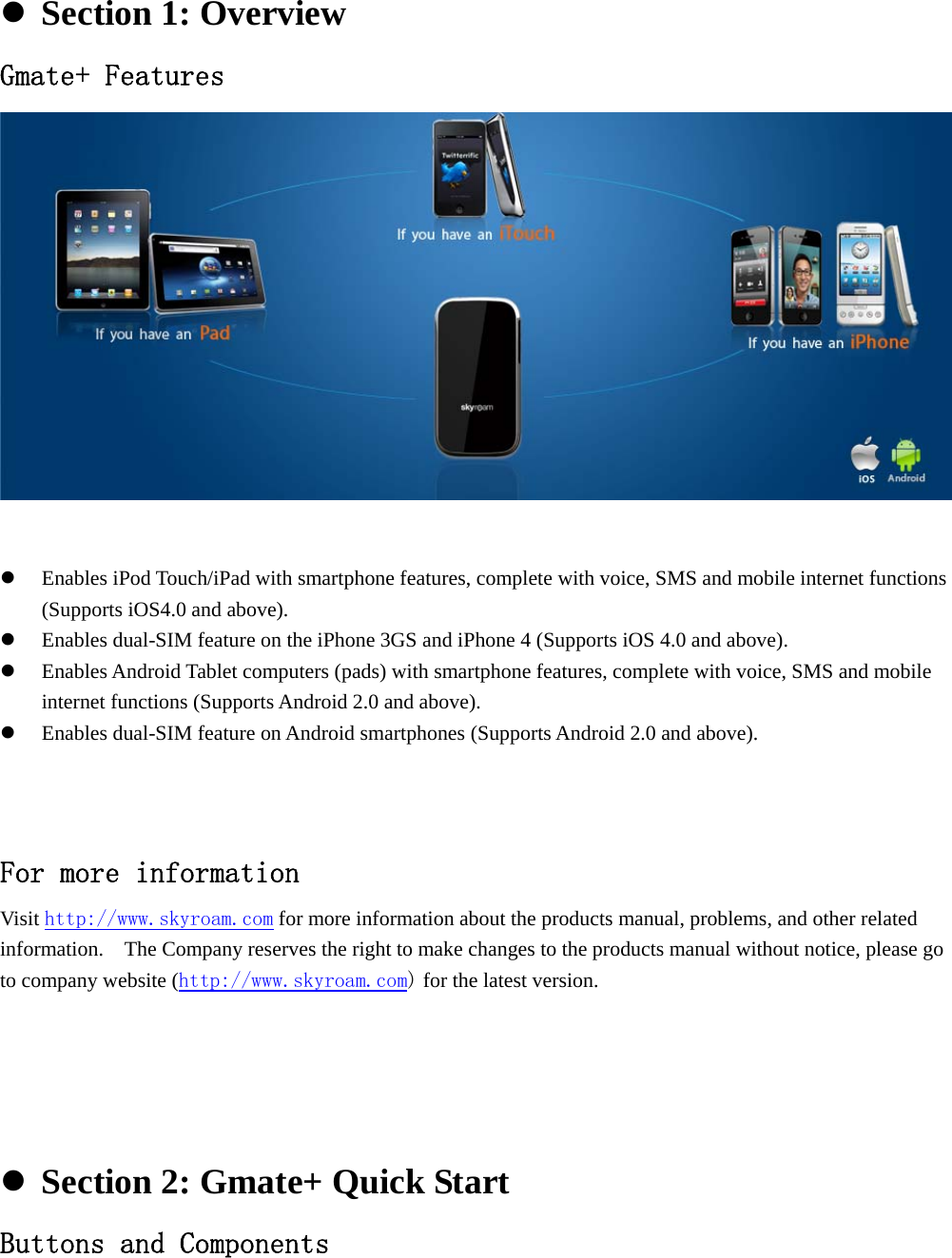
              Section 1: Overview Gmate+ Features   Enables iPod Touch/iPad with smartphone features, complete with voice, SMS and mobile internet functions (Supports iOS4.0 and above).  Enables dual-SIM feature on the iPhone 3GS and iPhone 4 (Supports iOS 4.0 and above).  Enables Android Tablet computers (pads) with smartphone features, complete with voice, SMS and mobile internet functions (Supports Android 2.0 and above).  Enables dual-SIM feature on Android smartphones (Supports Android 2.0 and above).    For more information  Visit http://www.skyroam.com for more information about the products manual, problems, and other related information.    The Company reserves the right to make changes to the products manual without notice, please go to company website (http://www.skyroam.com) for the latest version.       Section 2: Gmate+ Quick Start Buttons and Components
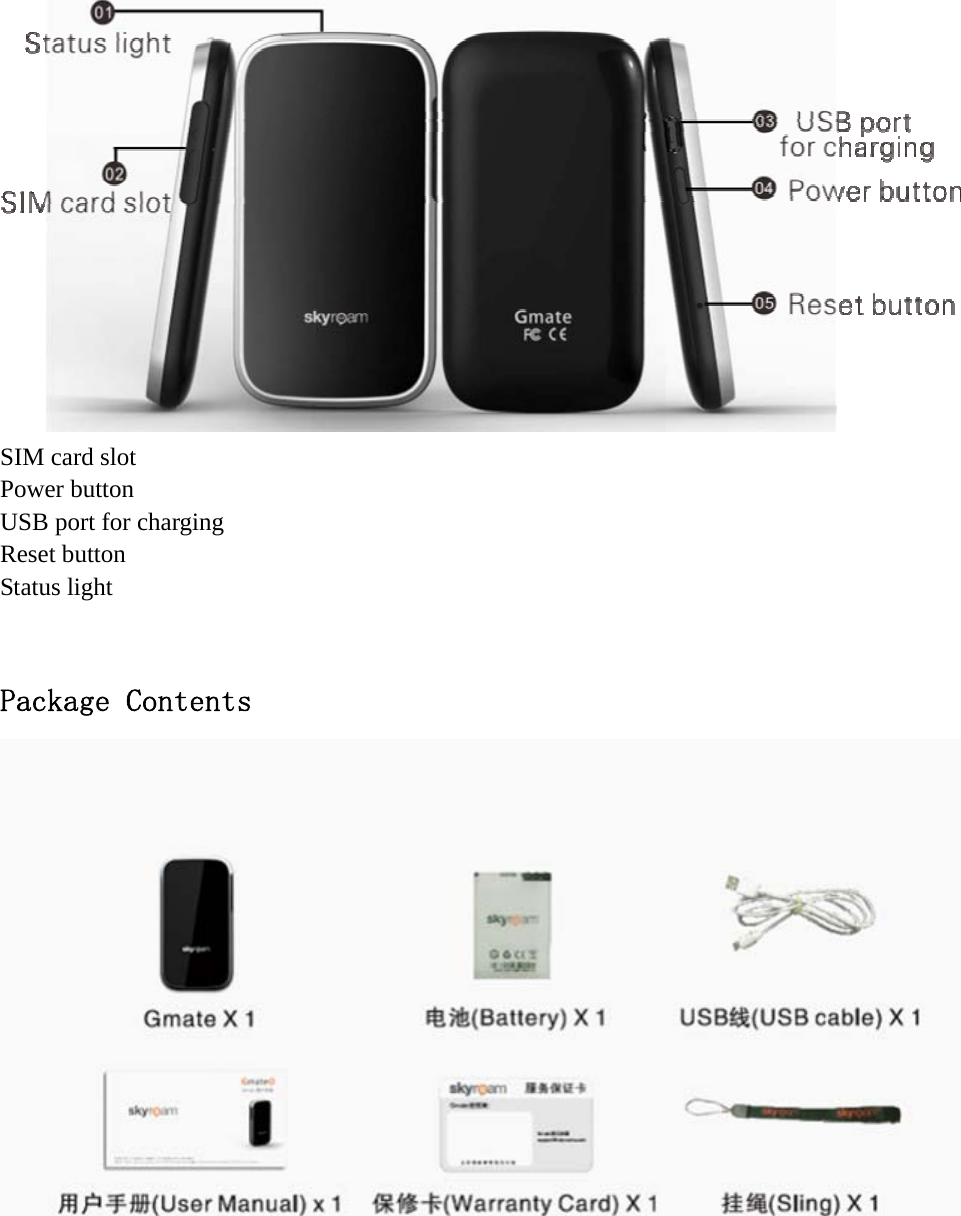
   SIM card slot Power button USB port for charging Reset button Status light  Package Contents
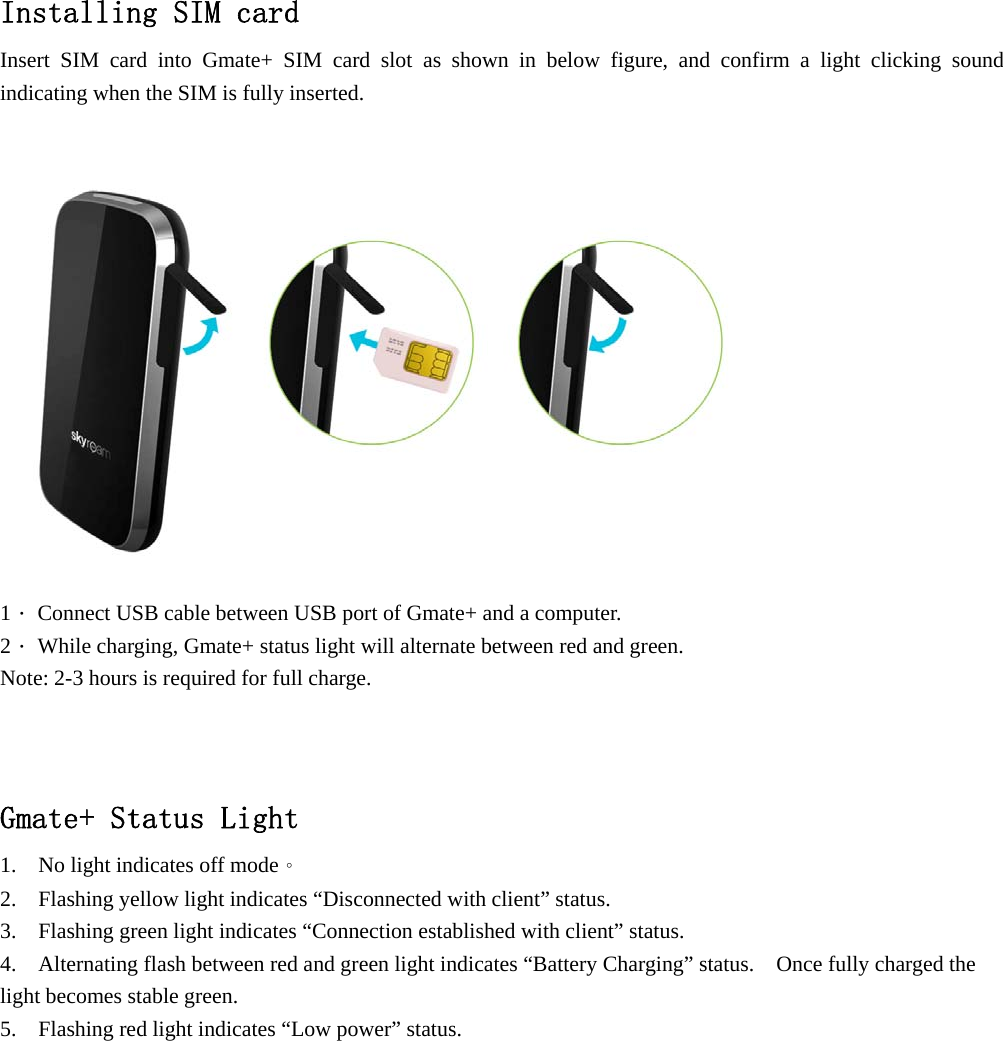
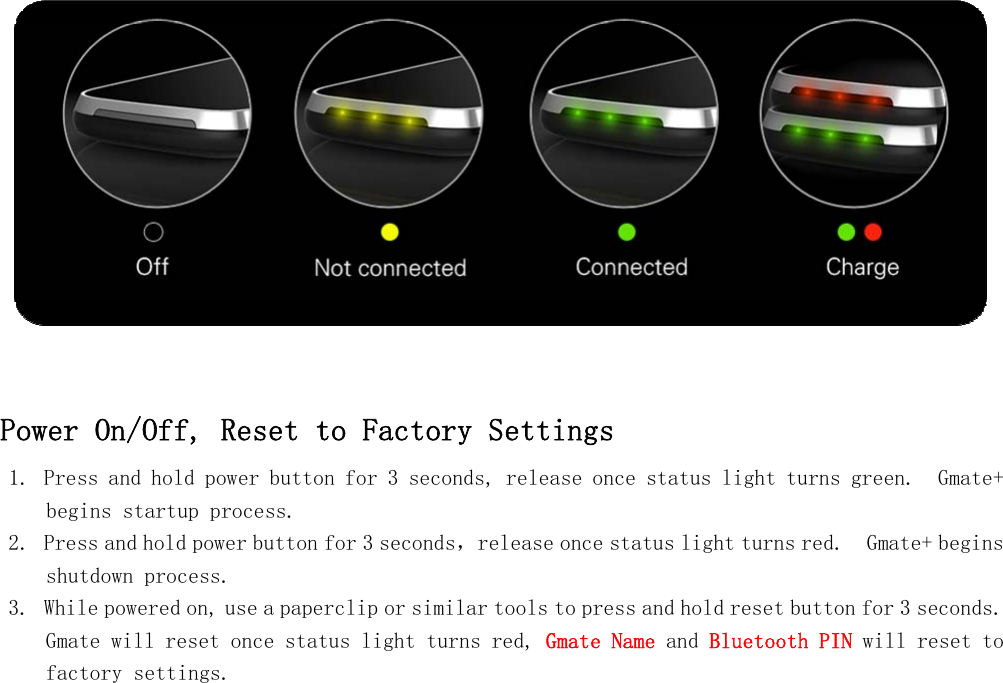
  Installing SIM card Insert SIM card into Gmate+ SIM card slot as shown in below figure, and confirm a light clicking sound indicating when the SIM is fully inserted.    1. Connect USB cable between USB port of Gmate+ and a computer. 2. While charging, Gmate+ status light will alternate between red and green. Note: 2-3 hours is required for full charge.  Gmate+ Status Light 1.    No light indicates off mode。 2.    Flashing yellow light indicates “Disconnected with client” status. 3.    Flashing green light indicates “Connection established with client” status. 4.    Alternating flash between red and green light indicates “Battery Charging” status.    Once fully charged the light becomes stable green. 5.    Flashing red light indicates “Low power” status. 
   Power On/Off, Reset to Factory Settings 1. Press and hold power button for 3 seconds, release once status light turns green.  Gmate+ begins startup process. 2. Press and hold power button for 3 seconds,release once status light turns red.  Gmate+ begins shutdown process. 3. While powered on, use a paperclip or similar tools to press and hold reset button for 3 seconds.  Gmate will reset once status light turns red, Gmate Name and Bluetooth PIN will reset to factory settings.
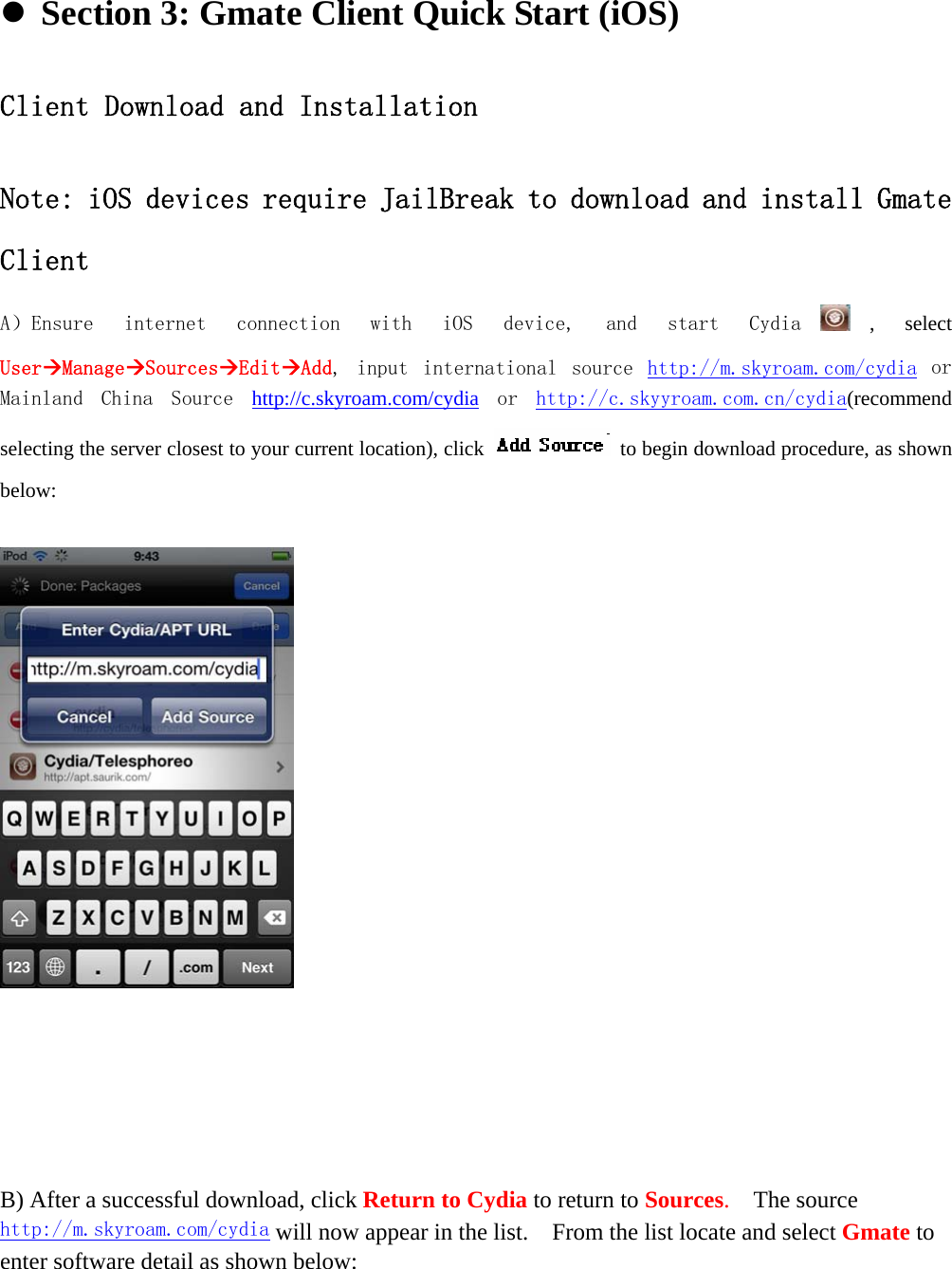
    Section 3: Gmate Client Quick Start (iOS)                             Client Download and Installation  Note: iOS devices require JailBreak to download and install Gmate Client A)Ensure  internet  connection  with  iOS  device,  and  start  Cydia , select UserManageSourcesEditAdd,  input  international  source  http://m.skyroam.com/cydia or Mainland  China  Source  http://c.skyroam.com/cydia or  http://c.skyyroam.com.cn/cydia(recommend selecting the server closest to your current location), click    to begin download procedure, as shown below:           B) After a successful download, click Return to Cydia to return to Sources.  The source http://m.skyroam.com/cydia will now appear in the list.    From the list locate and select Gmate to enter software detail as shown below:
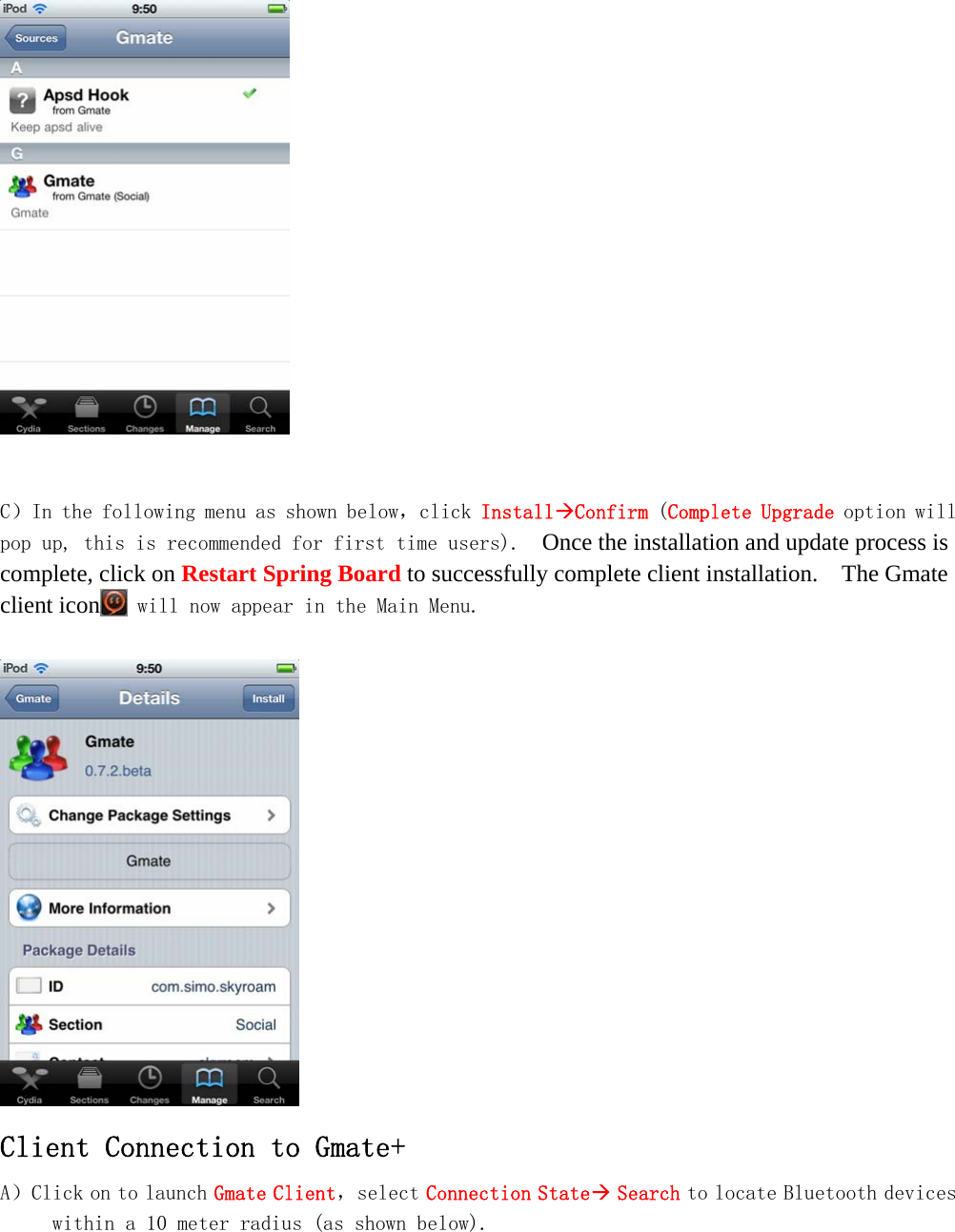
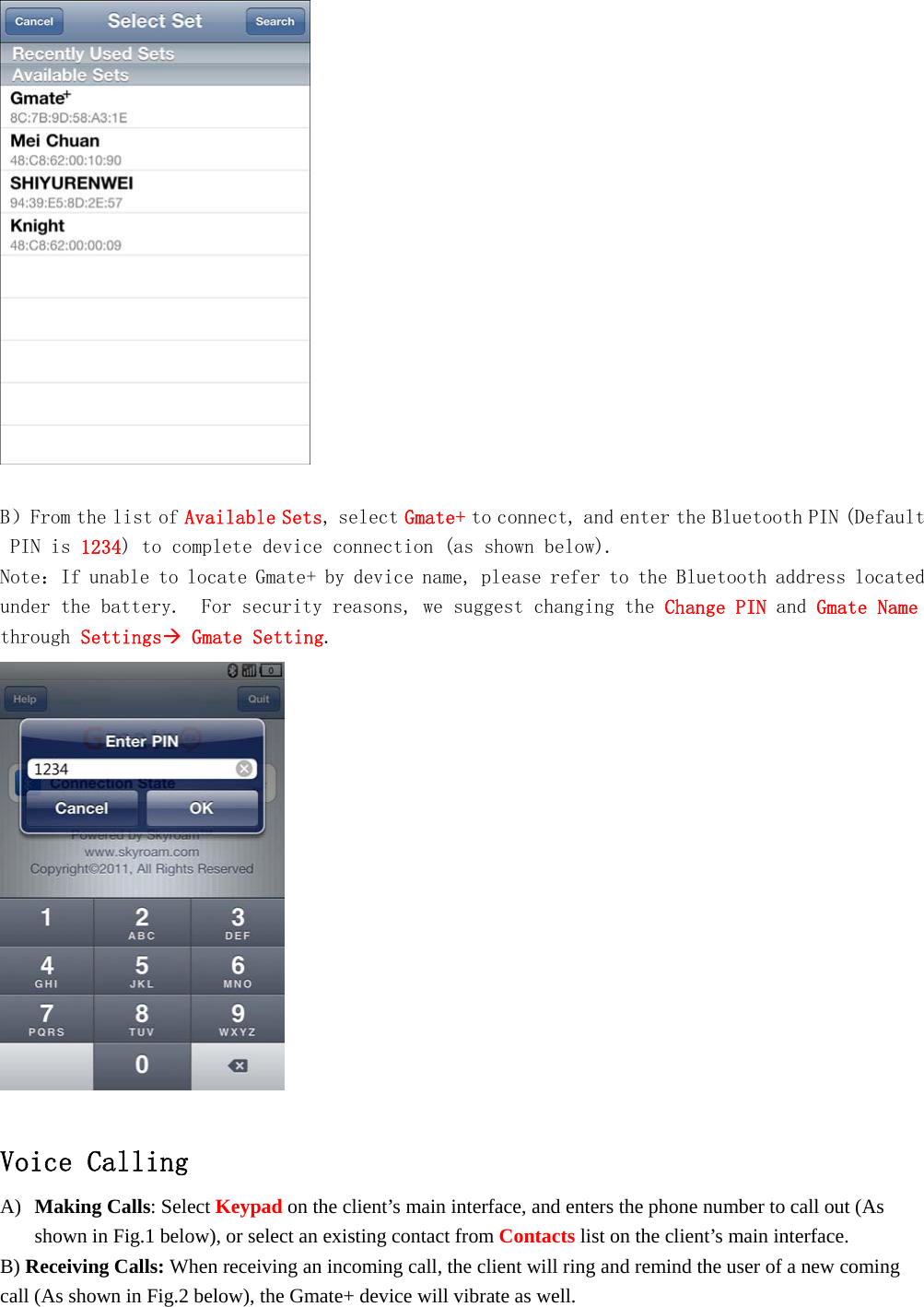
      C)In the following menu as shown below,click InstallConfirm (Complete Upgrade option will pop up, this is recommended for first time users).  Once the installation and update process is complete, click on Restart Spring Board to successfully complete client installation.    The Gmate client icon  will now appear in the Main Menu.   Client Connection to Gmate+ A)Click on to launch Gmate Client,select Connection State Search to locate Bluetooth devices within a 10 meter radius (as shown below).
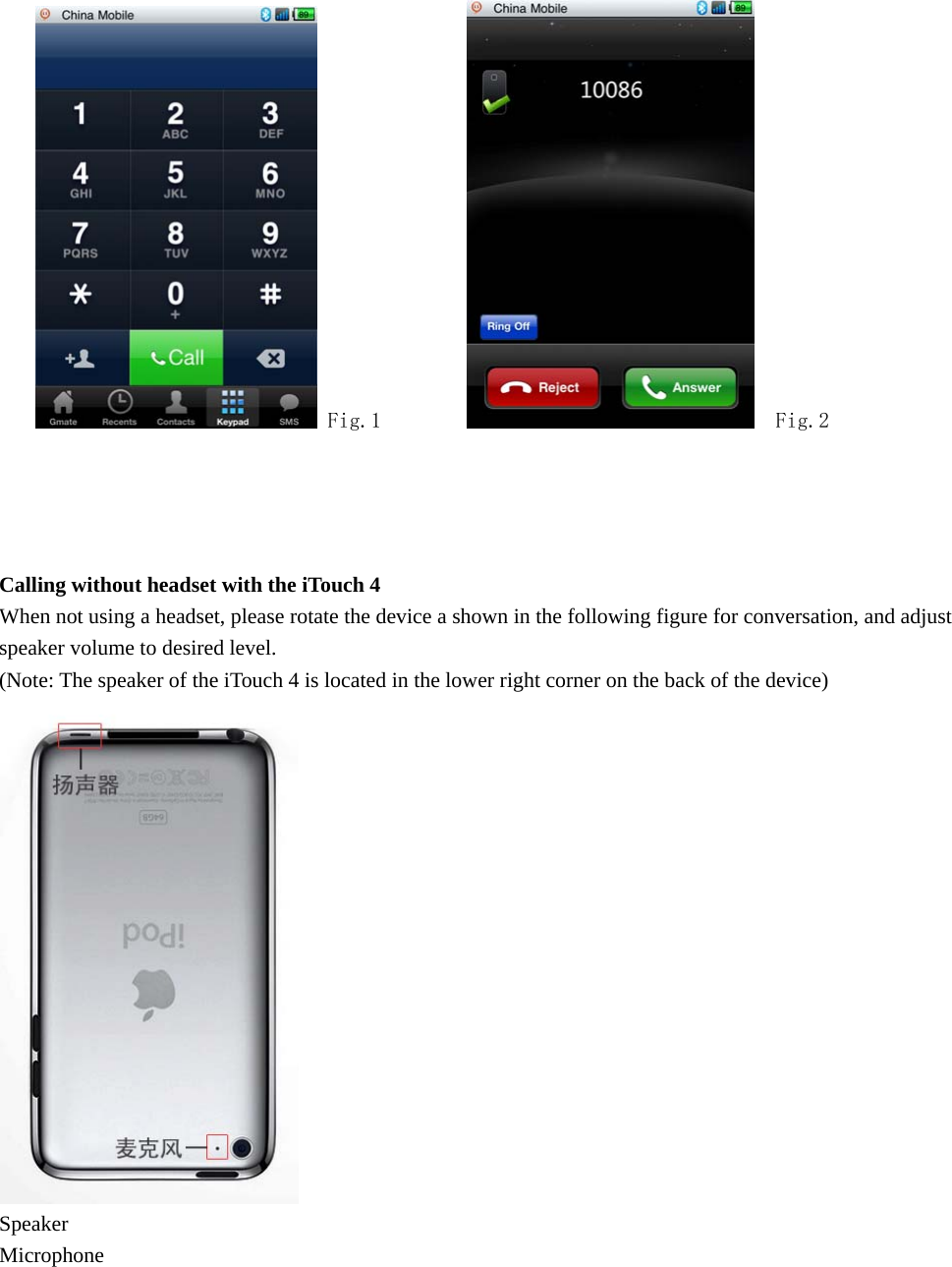
    B)From the list of Available Sets, select Gmate+ to connect, and enter the Bluetooth PIN (Default PIN is 1234) to complete device connection (as shown below). Note:If unable to locate Gmate+ by device name, please refer to the Bluetooth address located under the battery.  For security reasons, we suggest changing the Change PIN and Gmate Name through Settings Gmate Setting.    Voice Calling A) Making Calls: Select Keypad on the client’s main interface, and enters the phone number to call out (As shown in Fig.1 below), or select an existing contact from Contacts list on the client’s main interface. B) Receiving Calls: When receiving an incoming call, the client will ring and remind the user of a new coming call (As shown in Fig.2 below), the Gmate+ device will vibrate as well.
   Fig.1           Fig.2     Calling without headset with the iTouch 4 When not using a headset, please rotate the device a shown in the following figure for conversation, and adjust speaker volume to desired level. (Note: The speaker of the iTouch 4 is located in the lower right corner on the back of the device)  Speaker Microphone
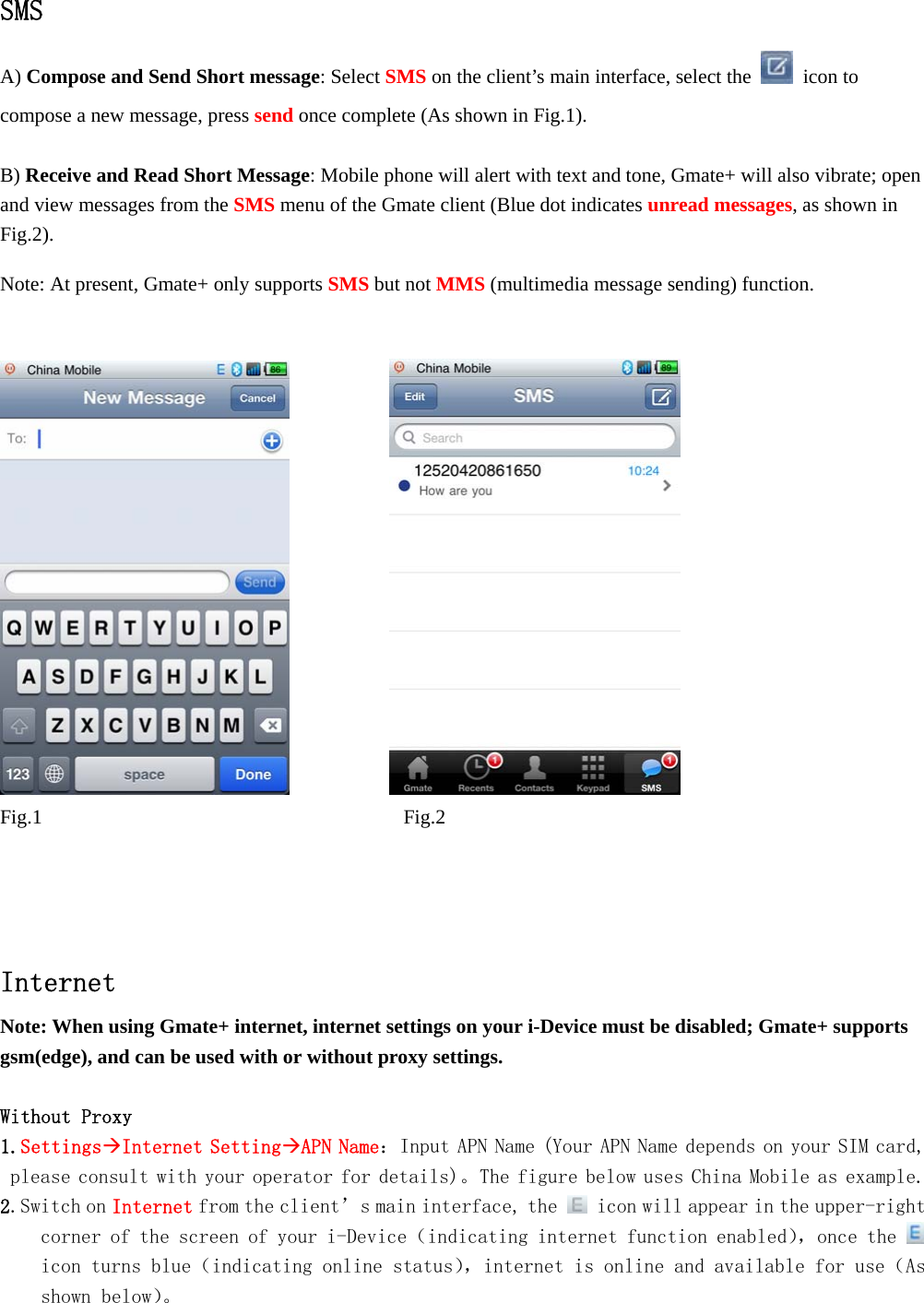
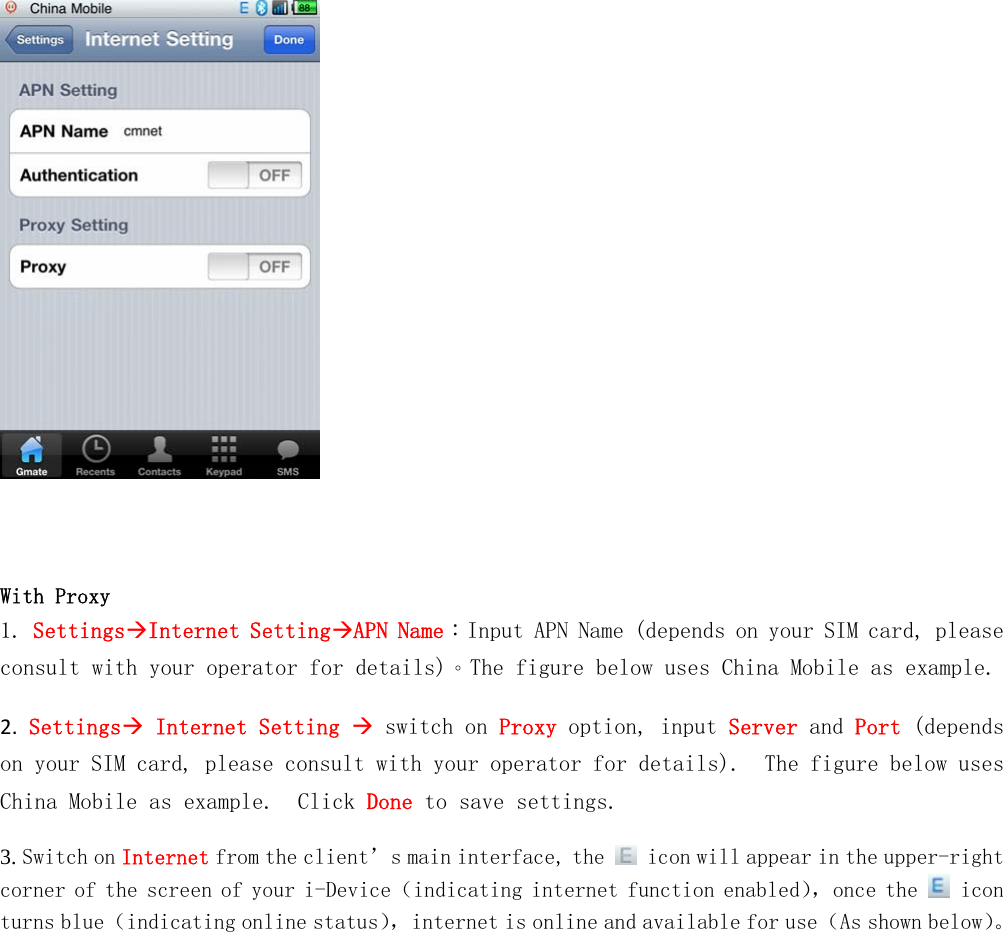
  SMS A) Compose and Send Short message: Select SMS on the client’s main interface, select the   icon to compose a new message, press send once complete (As shown in Fig.1).    B) Receive and Read Short Message: Mobile phone will alert with text and tone, Gmate+ will also vibrate; open and view messages from the SMS menu of the Gmate client (Blue dot indicates unread messages, as shown in Fig.2).  Note: At present, Gmate+ only supports SMS but not MMS (multimedia message sending) function.                  Fig.1         Fig.2     Internet Note: When using Gmate+ internet, internet settings on your i-Device must be disabled; Gmate+ supports gsm(edge), and can be used with or without proxy settings.  Without Proxy  1.SettingsInternet SettingAPN Name:Input APN Name (Your APN Name depends on your SIM card, please consult with your operator for details)。The figure below uses China Mobile as example. 2.Switch on Internet from the client’s main interface, the   icon will appear in the upper-right corner of the screen of your i-Device(indicating internet function enabled),once the   icon turns blue(indicating online status),internet is online and available for use(As shown below)。
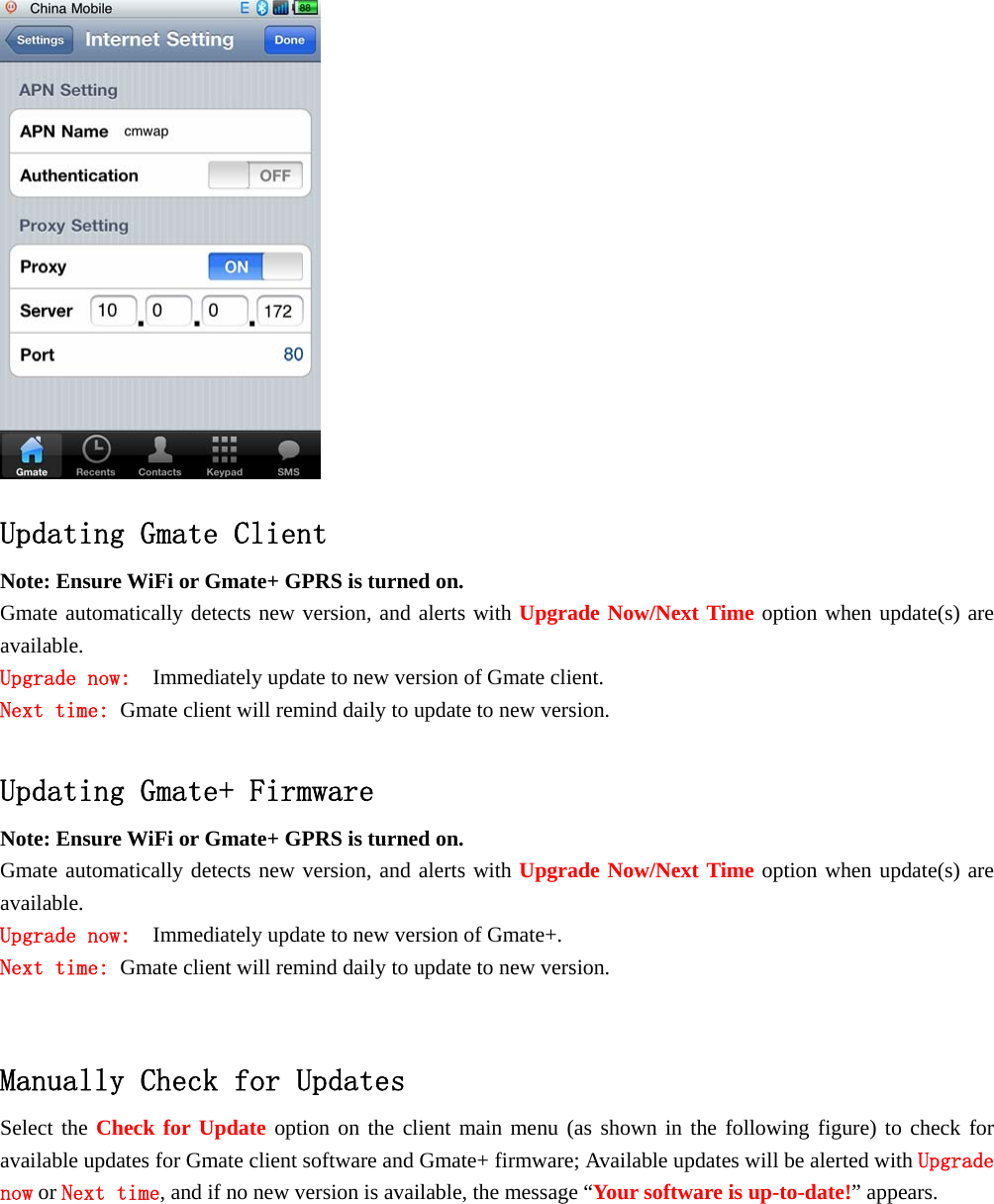
       With Proxy 1. SettingsInternet SettingAPN Name:Input APN Name (depends on your SIM card, please consult with your operator for details)。The figure below uses China Mobile as example. 2. Settings Internet Setting  switch on Proxy option, input Server and Port (depends on your SIM card, please consult with your operator for details).The figure below uses China Mobile as example.  Click Done to save settings. 3. Switch on Internet from the client’s main interface, the   icon will appear in the upper-right corner of the screen of your i-Device(indicating internet function enabled),once the   icon turns blue(indicating online status),internet is online and available for use(As shown below)。
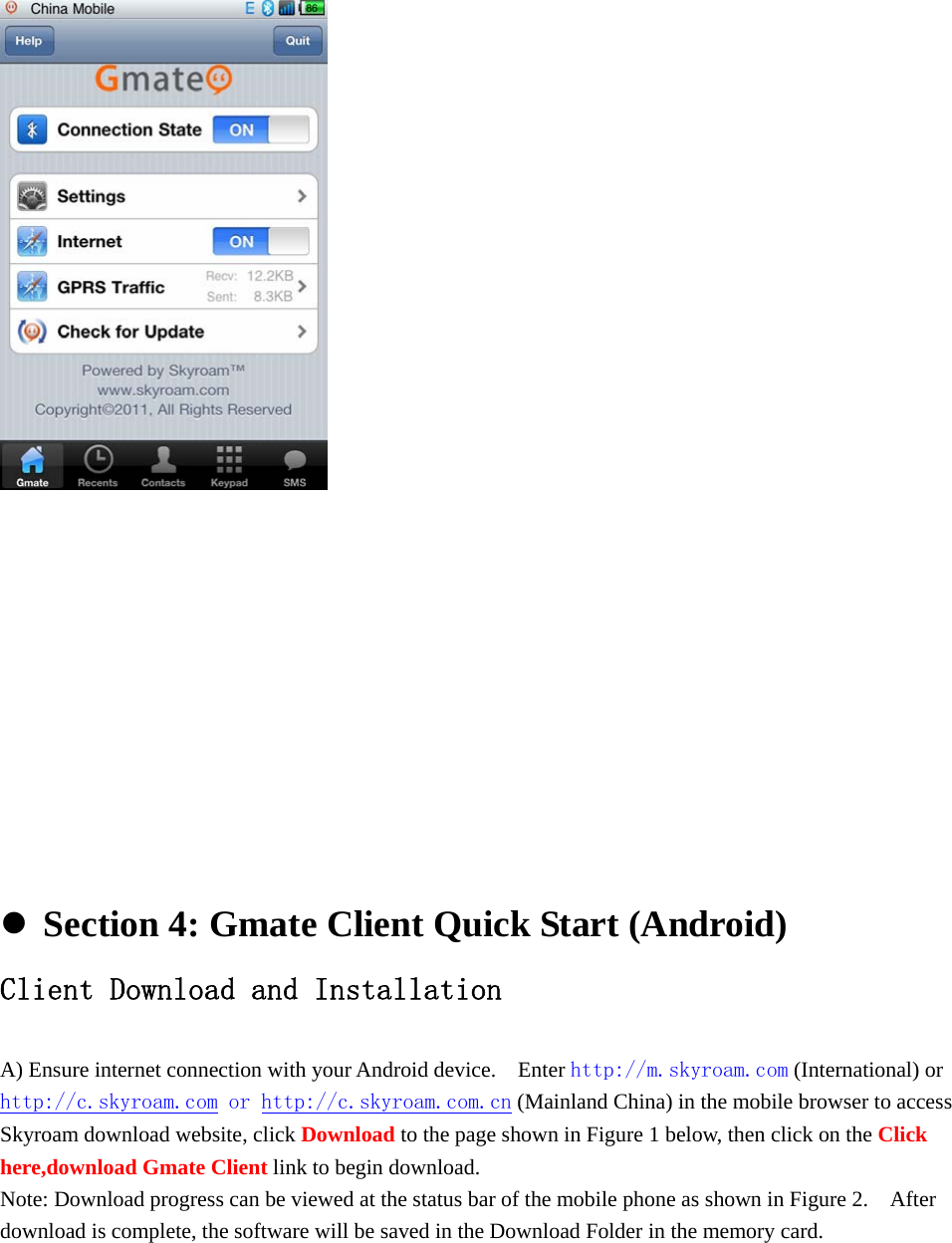
  Updating Gmate Client  Note: Ensure WiFi or Gmate+ GPRS is turned on. Gmate automatically detects new version, and alerts with Upgrade Now/Next Time option when update(s) are available.  Upgrade now:  Immediately update to new version of Gmate client. Next time: Gmate client will remind daily to update to new version.  Updating Gmate+ Firmware Note: Ensure WiFi or Gmate+ GPRS is turned on. Gmate automatically detects new version, and alerts with Upgrade Now/Next Time option when update(s) are available.  Upgrade now:  Immediately update to new version of Gmate+. Next time: Gmate client will remind daily to update to new version.   Manually Check for Updates Select the Check for Update option on the client main menu (as shown in the following figure) to check for available updates for Gmate client software and Gmate+ firmware; Available updates will be alerted with Upgrade now or Next time, and if no new version is available, the message “Your software is up-to-date!” appears.
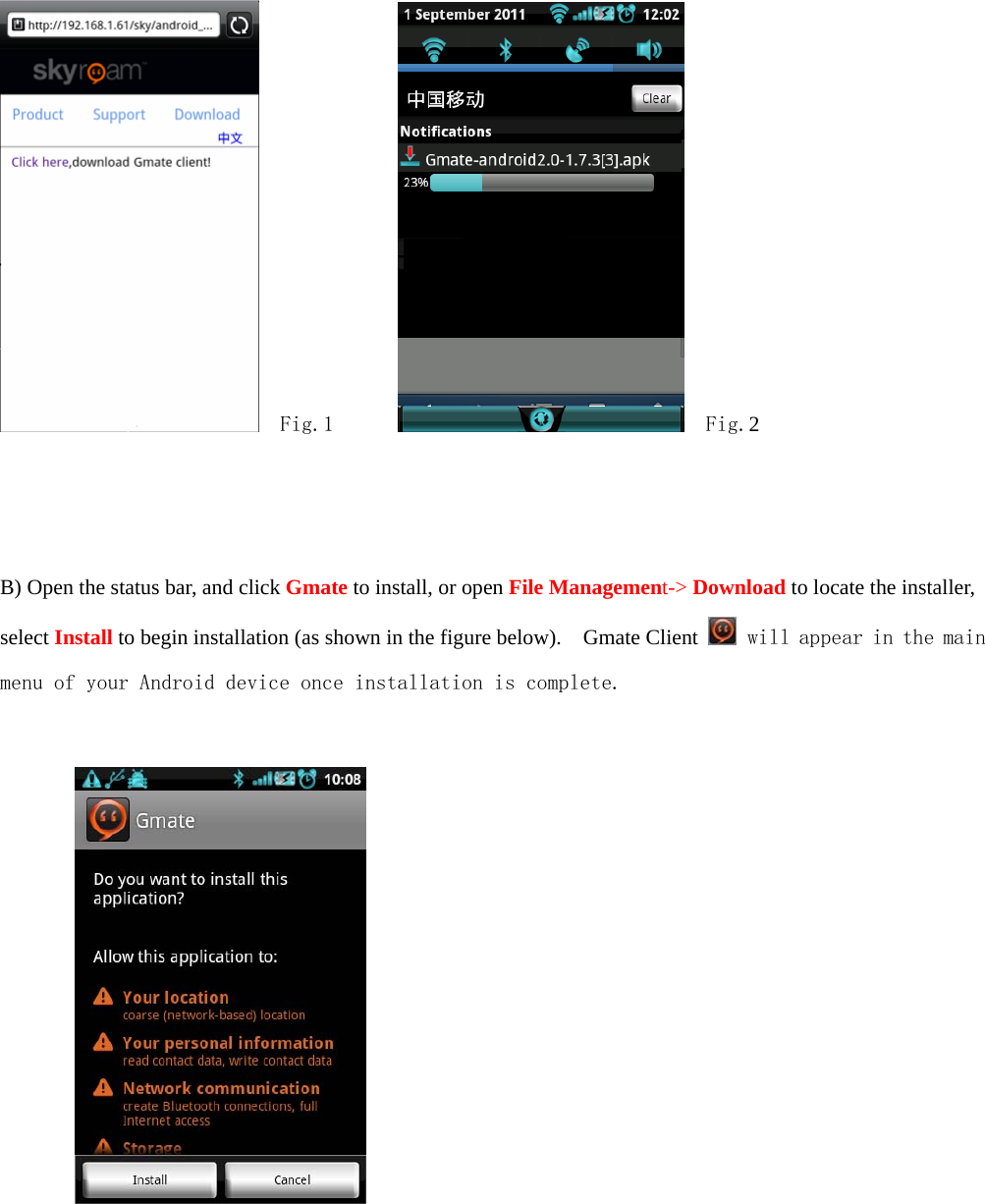
          Section 4: Gmate Client Quick Start (Android) Client Download and Installation  A) Ensure internet connection with your Android device.    Enter http://m.skyroam.com (International) or http://c.skyroam.com or http://c.skyroam.com.cn (Mainland China) in the mobile browser to access Skyroam download website, click Download to the page shown in Figure 1 below, then click on the Click here,download Gmate Client link to begin download.   Note: Download progress can be viewed at the status bar of the mobile phone as shown in Figure 2.    After download is complete, the software will be saved in the Download Folder in the memory card.
    Fig.1         Fig.2     B) Open the status bar, and click Gmate to install, or open File Management-> Download to locate the installer, select Install to begin installation (as shown in the figure below).    Gmate Client   will appear in the main menu of your Android device once installation is complete.
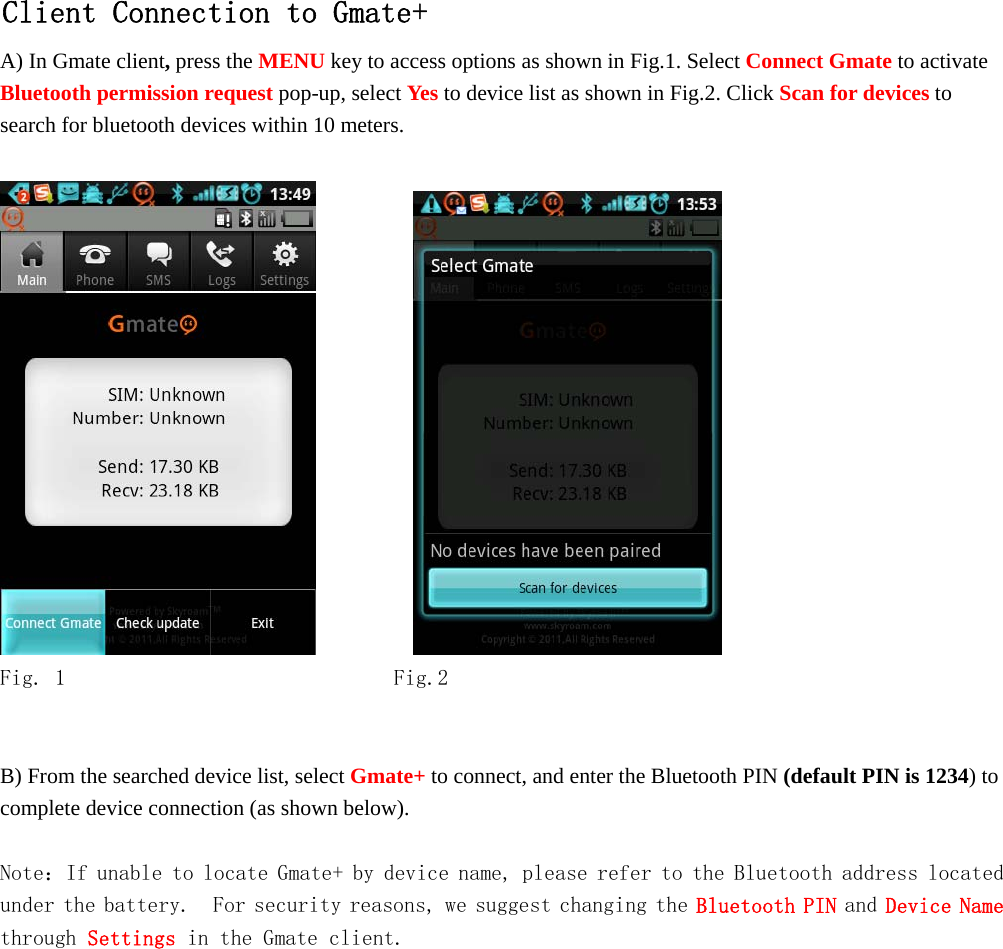
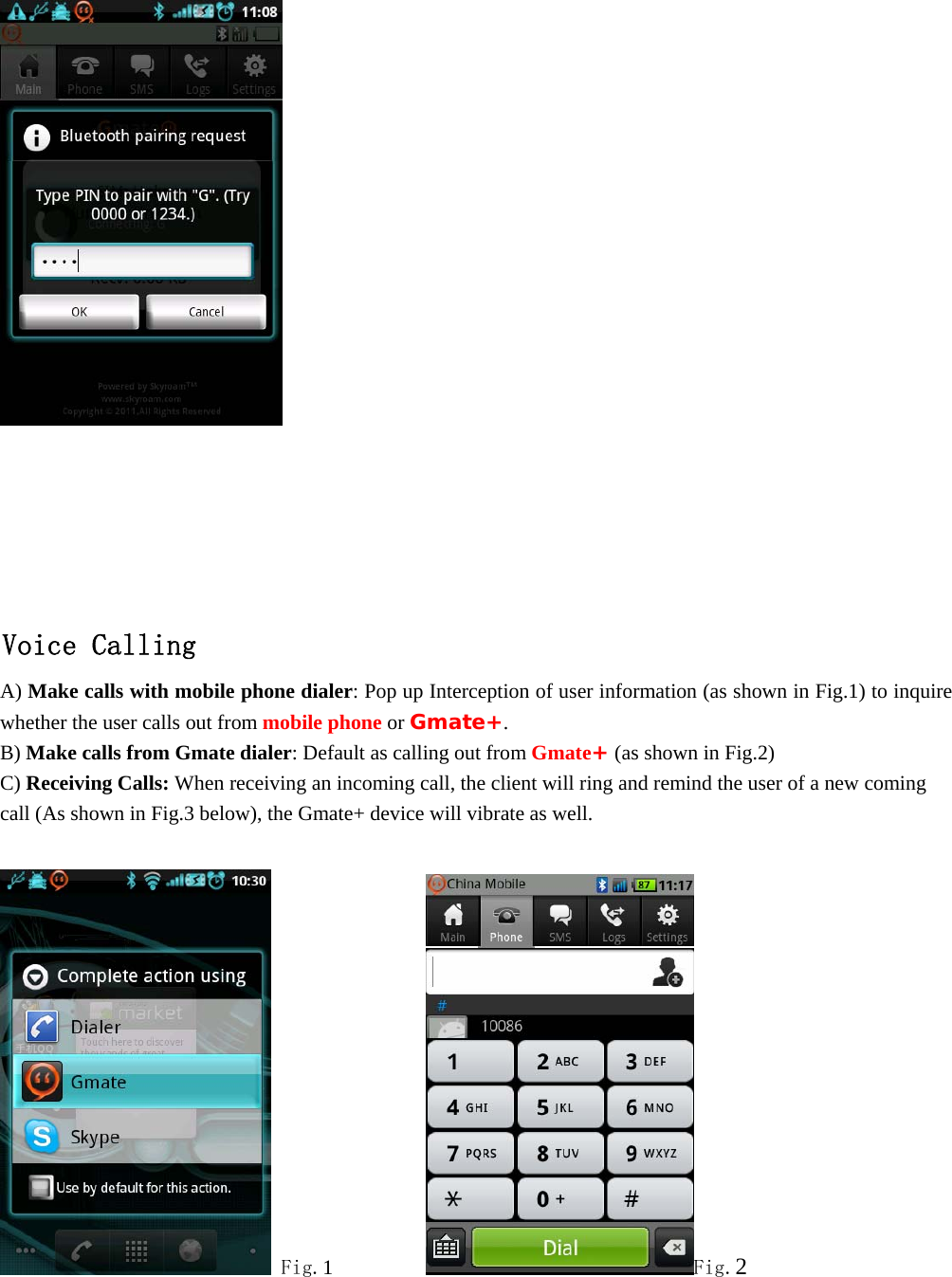
  Client Connection to Gmate+ A) In Gmate client, press the MENU key to access options as shown in Fig.1. Select Connect Gmate to activate Bluetooth permission request pop-up, select Yes to device list as shown in Fig.2. Click Scan for devices to search for bluetooth devices within 10 meters.               Fig. 1        Fig.2   B) From the searched device list, select Gmate+ to connect, and enter the Bluetooth PIN (default PIN is 1234) to complete device connection (as shown below).  Note:If unable to locate Gmate+ by device name, please refer to the Bluetooth address located under the battery.  For security reasons, we suggest changing the Bluetooth PIN and Device Name through Settings in the Gmate client.
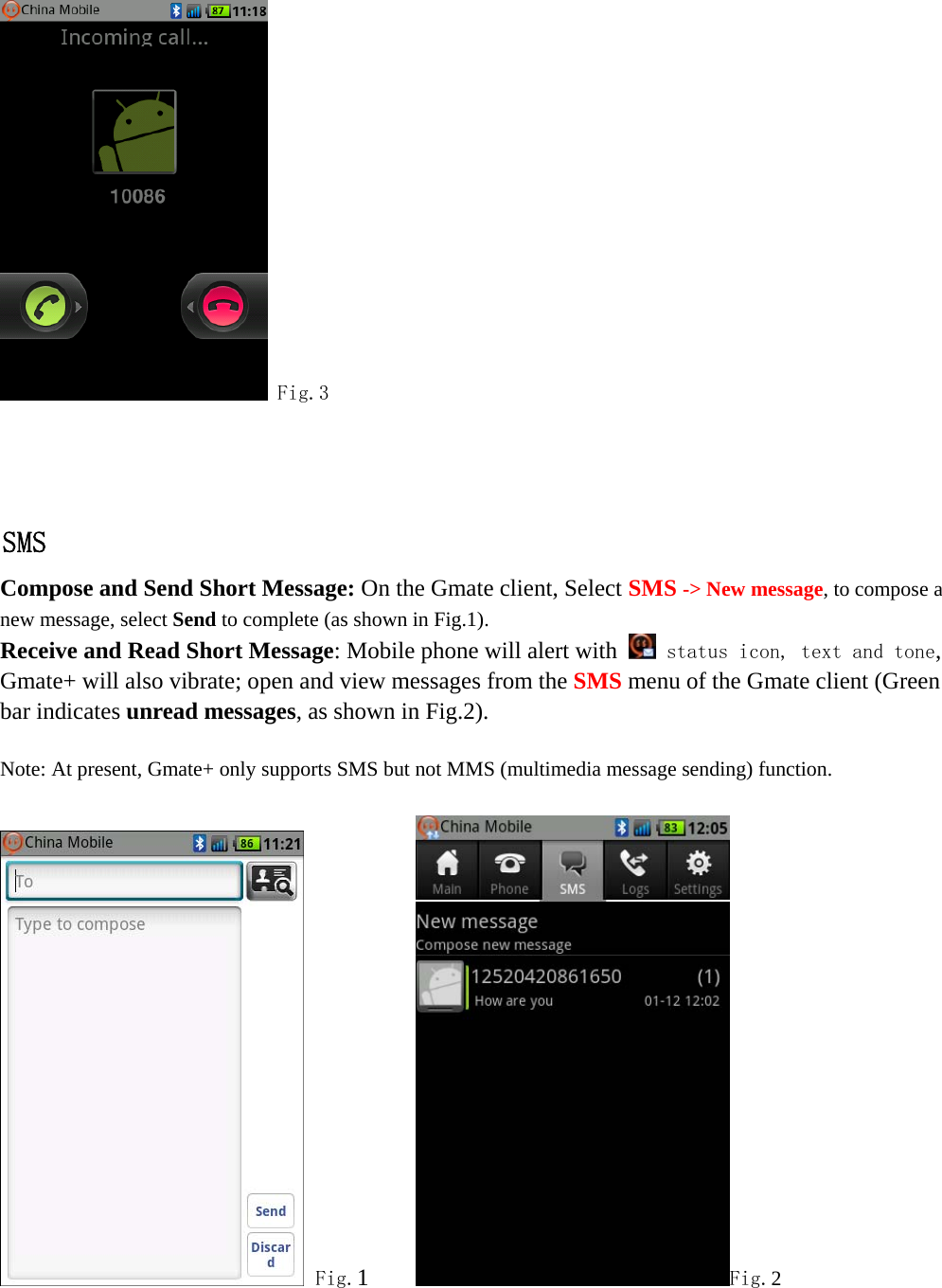
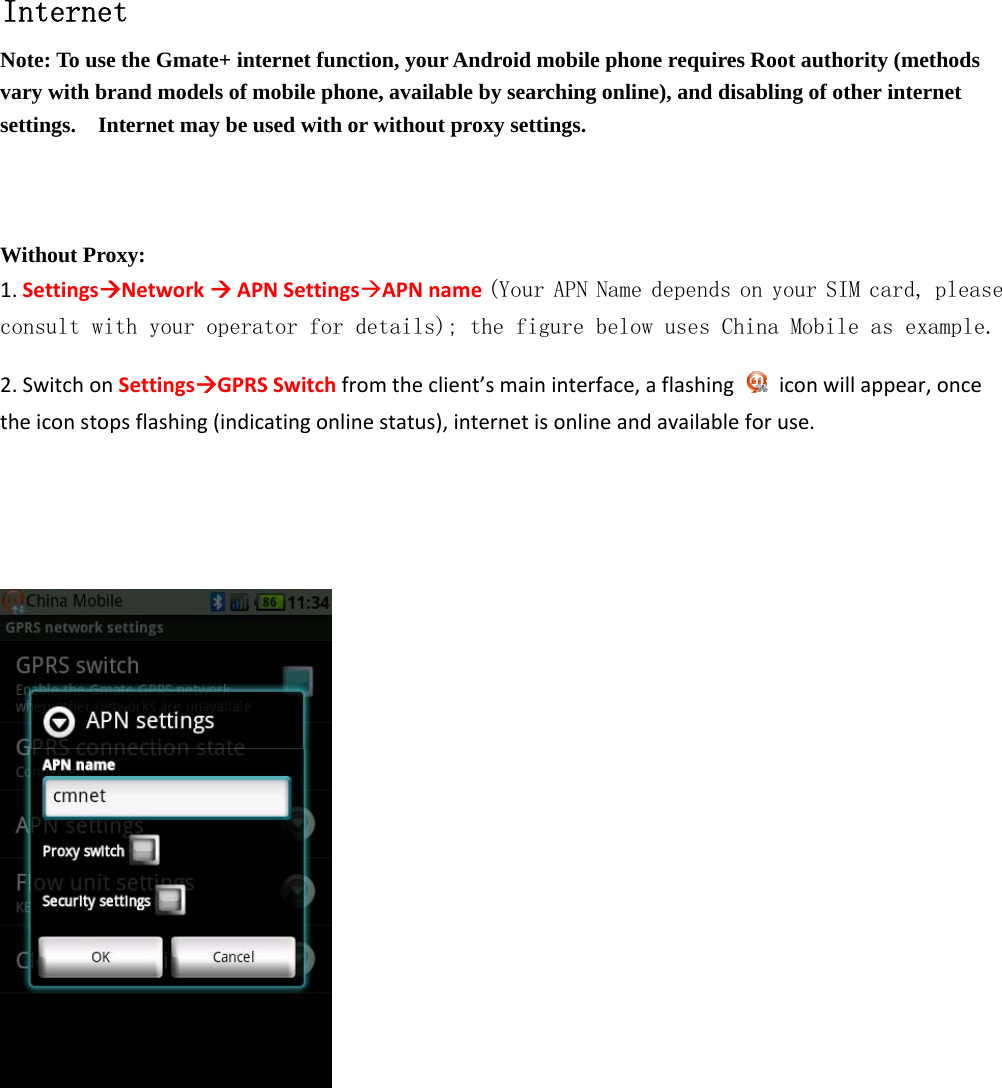
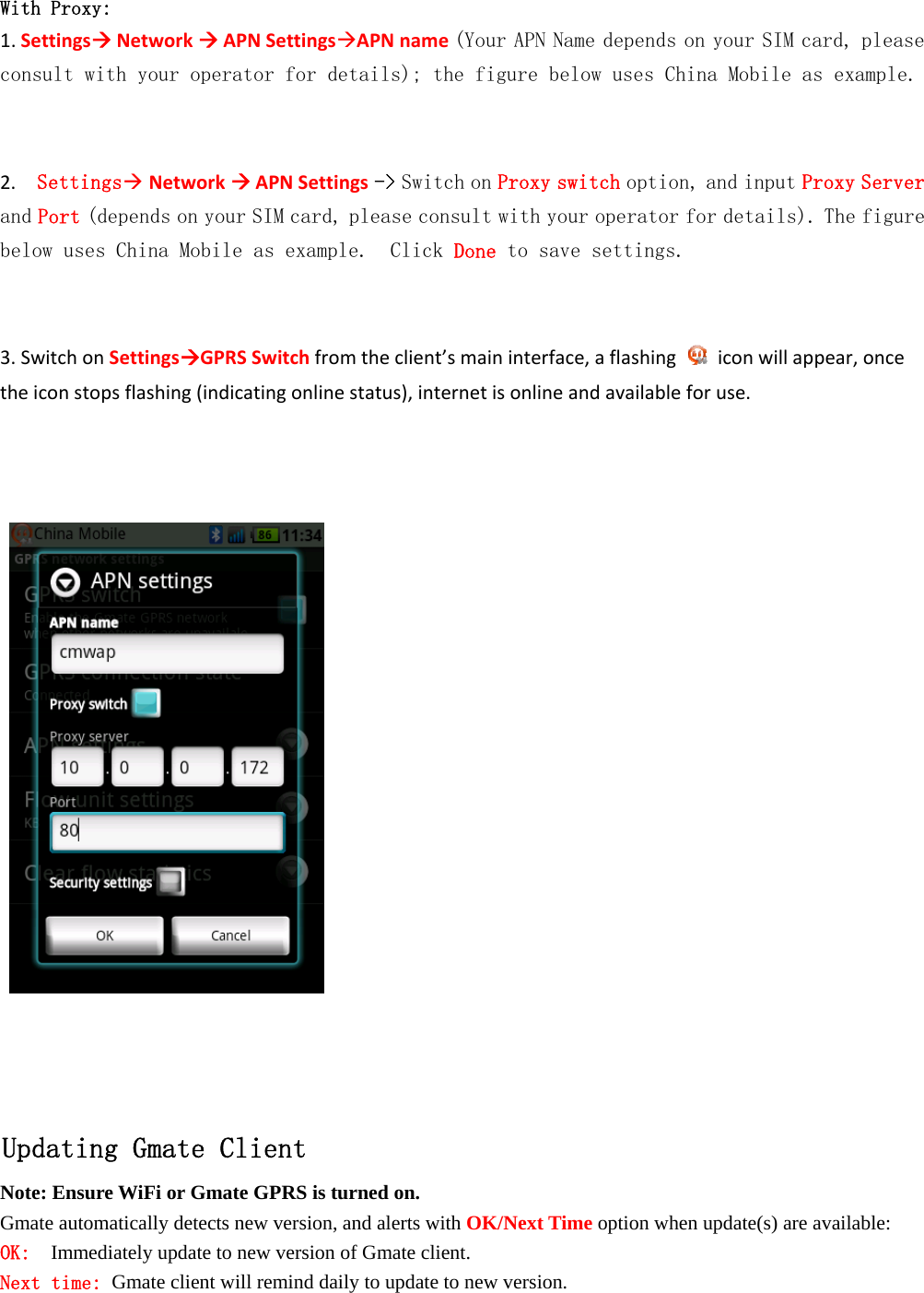
      Voice Calling A) Make calls with mobile phone dialer: Pop up Interception of user information (as shown in Fig.1) to inquire whether the user calls out from mobile phone or Gmate+. B) Make calls from Gmate dialer: Default as calling out from Gmate+ (as shown in Fig.2)   C) Receiving Calls: When receiving an incoming call, the client will ring and remind the user of a new coming call (As shown in Fig.3 below), the Gmate+ device will vibrate as well.   Fig.1          Fig.2
   Fig.3   SMS Compose and Send Short Message: On the Gmate client, Select SMS -> New message, to compose a new message, select Send to complete (as shown in Fig.1).   Receive and Read Short Message: Mobile phone will alert with   status icon, text and tone, Gmate+ will also vibrate; open and view messages from the SMS menu of the Gmate client (Green bar indicates unread messages, as shown in Fig.2).  Note: At present, Gmate+ only supports SMS but not MMS (multimedia message sending) function.     Fig.1     Fig.2
      Internet Note: To use the Gmate+ internet function, your Android mobile phone requires Root authority (methods vary with brand models of mobile phone, available by searching online), and disabling of other internet settings.    Internet may be used with or without proxy settings.        Without Proxy: 1.SettingsNetworkAPNSettingsAPNname(Your APN Name depends on your SIM card, please consult with your operator for details); the figure below uses China Mobile as example. 2.SwitchonSettingsGPRSSwitchfromtheclient’smaininterface,aflashingiconwillappear,oncetheiconstopsflashing(indicatingonlinestatus),internetisonlineandavailableforuse.
  With Proxy: 1.SettingsNetworkAPNSettingsAPNname(Your APN Name depends on your SIM card, please consult with your operator for details); the figure below uses China Mobile as example.  2.Settings NetworkAPNSettings -> Switch on Proxy switch option, and input Proxy Server and Port (depends on your SIM card, please consult with your operator for details). The figure below uses China Mobile as example.  Click Done to save settings.  3.SwitchonSettingsGPRSSwitchfromtheclient’smaininterface,aflashingiconwillappear,oncetheiconstopsflashing(indicatingonlinestatus),internetisonlineandavailableforuse.       Updating Gmate Client Note: Ensure WiFi or Gmate GPRS is turned on. Gmate automatically detects new version, and alerts with OK/Next Time option when update(s) are available: OK:  Immediately update to new version of Gmate client. Next time: Gmate client will remind daily to update to new version.
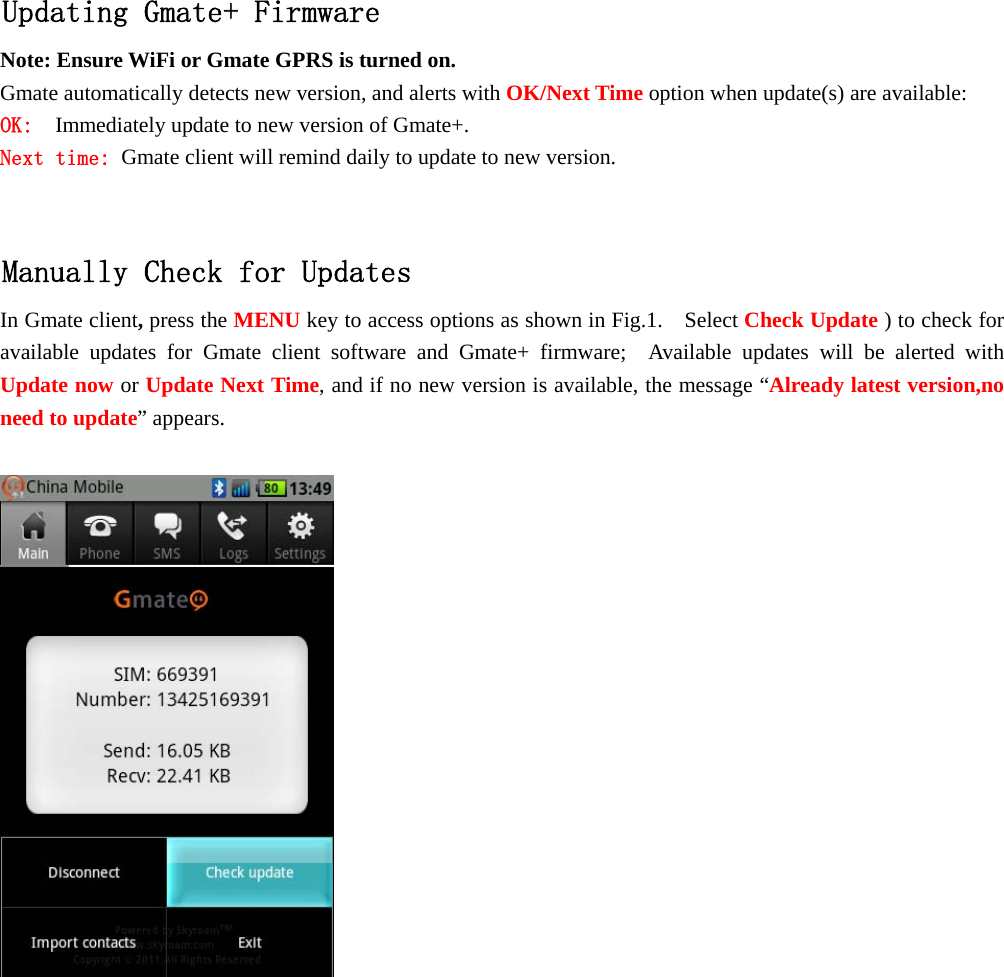
   Updating Gmate+ Firmware Note: Ensure WiFi or Gmate GPRS is turned on. Gmate automatically detects new version, and alerts with OK/Next Time option when update(s) are available: OK:  Immediately update to new version of Gmate+. Next time: Gmate client will remind daily to update to new version.  Manually Check for Updates In Gmate client, press the MENU key to access options as shown in Fig.1.    Select Check Update ) to check for available updates for Gmate client software and Gmate+ firmware;  Available updates will be alerted with Update now or Update Next Time, and if no new version is available, the message “Already latest version,no need to update” appears.
  FCC Caution: Any Changes or modifications not expressly approved by the party responsible for compliance could void the user’s authority to operate the equipment. This device complies with part 15 of the FCC Rules. Operation is subject to the following two Conditions: (1) This device may not cause harmful interference, and (2) this device must Accept any interference received, including interference that may cause undesired operation.  Specific Absorption Rate (SAR) information  This wireless phone meets the government’s requirements for exposure to radio waves. The guidelines are based on standards that were developed by independent scientific organizations through periodic and thorough evaluation of scientific studies. The standards include a substantial Safety margin designed to assure the safety of all persons regardless of age or health.  The exposure standard for Mobile phone accessory employs a unit of measurement known as the Specific Absorption Rate, or SAR, The SAR limit set by the FCC is 1.6 W/Kg.

Navigation menu