Sony BDV N7100W User Manual DVD HOME THEATER SYSTEM Manuals And Guides 1308201L
User Manual: Sony BDV-N7100W BDV-N7100W SONY DVD HOME THEATER SYSTEM - Manuals and Guides View the owners manual for your SONY DVD HOME THEATER SYSTEM #BDVN7100W. Home:Electronics Parts:Sony Parts:Sony DVD HOME THEATER SYSTEM Manual
Open the PDF directly: View PDF  .
.
Page Count: 88
Blu-ray DiscTM/
DVD Home Theatre
System
Do not install the appliance in a confined
space, such as a bookcase or built-in cabinet.
To reduce the risk of fire, do not cover the
ventilation opening of the appliance with
newspapers, tablecloths, curtains, etc.
Do not expose the appliance to naked flame
sources (for example, lighted candles).
Do not expose batteries or appliances with
battery-installed to excessive heat, such as
sunshine and fire.
To prevent in iury, this apparatus must be
securely attached to the floor/wall in
accordance with the installation instructions.
Indoor use only.
CAUTION
The use of optical instruments with this
product will increase eye hazard.
As the laser beam used in this Blu-ray Disc/
DVD Home Theatre System is harmtul to
eyes, do not attempt to disassemble the
cabinet.
Refer servicing to qualified personnel only.
CAUTION c ASSSRVISI8EANDINVISIgLEASEI_RAI}IA_ION
WIEN OPEN AVOIDDI£_OT _YE XPOSU££
VORSICHT KLASS[ 3RSICHTBARE8NO UNSICHTBA_£
LASERS{'_,HLUNG WEN;'IG OFFN r
UNMI _ LBN d AdS dKON_K_ VE,_,I£1D N
ADVARSEL SYNLIGOg LSYNLIG LAS_SiRA INSA KLASSE3R
VII) ABNING 8['11}(i_AI SEOIR KTEPAS/RA N
ADVARSEL SYNLIGOGUSYd IGLt_SERS/P_INGIK t,SgE3R'qA_
OEKS[!A_]_ESJt_GA 91_EK KSPON/_IrG A_'_YN_l[
VARNING KAss3RSY IGOCHOSYqIG ASEaSTR,_INING
NAR DENNA DEL AR OPT'dAD U_ DVIKATT DIREKT
£XPO ERA OGONEN FOR STRALNI_GEr
VARO! AVATUdALUOKAN8RdAKYV#&JANAKYM,_TONTA
AS RS),ElY_ _At_ F4TS? SUOR_AA rlS}X'aSll_
Pick-up unit of this appliance is classified as a
CLASS 3R LASER product. Visible and
invisible laser radiation is emitted when the
laser protective housing is opened, so be sure
to avoid direct eye exposure.
This marking is located on the bottom
exterior.
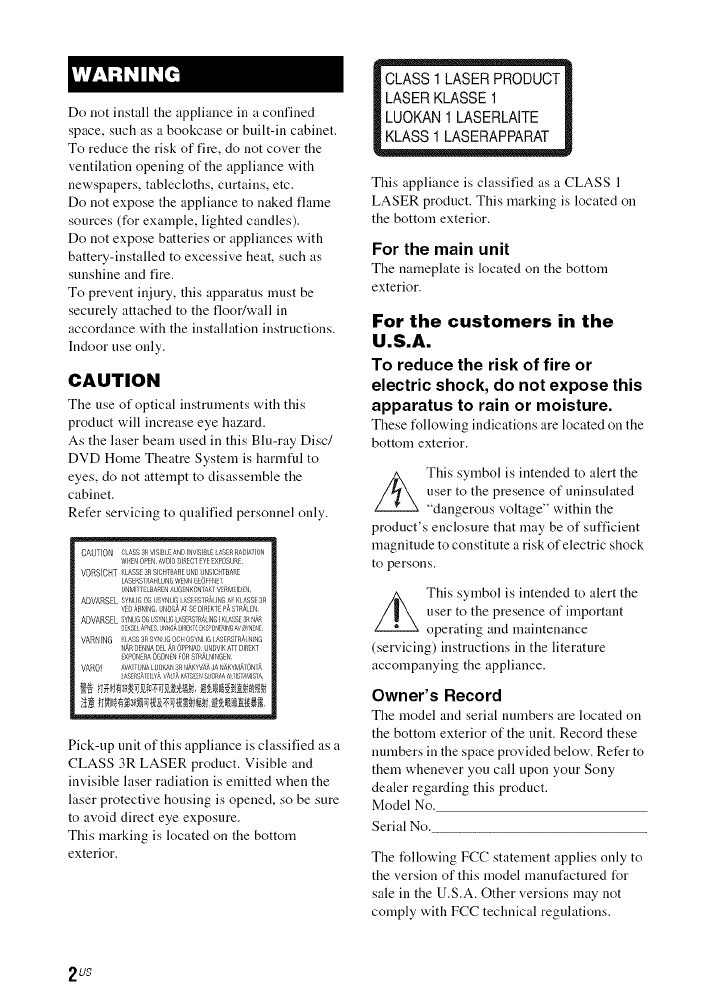
CLASS 1 LASER PRODUCT
LASER KLASSE 1
LUOKAN 1 LASERLAITE
KLASS 1 LASERAPPARAT
This appliance is classified as a CLASS 1
LASER product. This marking is located on
the bottom exterior.
For the main unit
The nameplate is located on the bottom
exterior.
For the customers in the
U,S,A,
To reduce the risk of fire or
electric shock, do not expose this
apparatus to rain or moisture.
These t_llowing indications are located on the
bottom exterior.
This symbol is intended to alert the
user to the presence of uninsulated
"dangerous voltage" within the
product's enclosure that may be of sufficient
magnitude to constitute a risk of electric shock
to persons.
This symbol is intended to alert the
user to the presence of important
operating and maintenance
(servicing) instructions in the literature
accompanying the appliance.
Owner's Record
The model and serial numbers are located on
the bottom exterior of the unit. Record these
numbers in the space provided below. Refer to
them whenever you call upon your Sony
dealer regarding this product.
Model No.
Serial No.
The following FCC statement applies only to
the version of this model manufactured t_r
sale in the U.S.A. Other versions may not
comply with FCC technical regulations.
2u$
NOTE:
This equipment has been tested and found to
comply with the limits for a Class B digital
device, pursuant to Part 15 of the FCC Rules.
These limits are designed to provide
reasonable protection against harmfld
interference in a residential installation. This
equipment generates, uses, and can radiate
radio frequency energy and, if not installed
and used in accordance with the instructions,
may cause harmful interference to radio
communications. However, there is no
guarantee that interference will not occur in a
particular installation. If this equipment does
cause harmfld interference to radio or
television reception, which can be determined
by turning the equipment off and on, the user
is encouraged to try to correct the interference
by one or more of the following measures:
Reorient or relocate the receiving antenna
(aerial).
Increase the separation between the
equipment and receiver.
Connect the equipment into an outlet on a
circuit different from that to which the
receiver is connected.
Consult the dealer or an experienced radio/
TV technician t_r help.
CAUTION
You are cautioned that any changes or
modifications not expressly approved in this
manual could void your authority to operate
this equipment.
Properly shiekted and grounded cables and
connectors must be used for connection to
host computers and/or peripherals in order to
meet FCC emission limits.
Blu-ray Disc/DVD receiver
(HBD-N9100W/H BD-N8100W/
HBD-N7100W)
This equipment must not be co-located or
operated in conjunction with any other
antenna or transmitter.
This equipment complies with FCC radiation
exposure limits set forth for an uncontrolled
environment and meets the FCC radio
t_equency (RF) Exposure Guidelines in
Supplement C to OET65.
This equipment should be installed and
operated keeping the radiator at least 20cm or
more away from person's body (excluding
extremities: hands, wrists, feet and ankles).
For the wireless transceiver
(EZW-RT50)
This de_.ice complies with part 15 of the FCC
rules. Operation is subject to the following
two conditions: (1) this device may not cause
harmfid interference, and (2) this device must
accept any interference received, including
interference that may cause undesired
operation.
This equipment must not be co-located or
operated in conjunction with any other
antenna or transmitter.
This equipment complies with FCC radiation
exposure limits set forth for an uncontrolled
environment and meets the FCC radio
t_equency (RF) Exposure Guidelines in
Supplement C to OET65.
This equipment should be installed and
operated keeping the radiator at least 20cm or
more away from person's body (excluding
extremities: hands, wrists, feet and ankles).
3US
Important Safety
Instructions
1) Read these instructions.
2) Keep these instructions.
3) Heed all warnings.
4) Follow all instructions.
5) Do not use this apparatus near water.
6) Clean only with dry cloth.
7) Do not block any ventilation openings.
Install in accordance with the
manufacturer' s instructions.
8) Do not install near any heat sources snch
as radiators, heat registers, stoves, or other
apparatus (including amplifiers) that
produce heat.
9) Do not defeat the safety purpose of the
polarized or grounding-type plug. A
polarized plug has two blades with one
wider than the other. A grounding type
plug has two blades and a third grounding
prong. The wide blade or the third prong
are provided for your safety. If the
provided plug does not fit into your outlet,
consult an electrician t_r replacement of
the obsolete outlet.
1O) Protect the power cord t_om being walked
on or pinched particularly at pings,
convenience receptacles, and the point
where they exit from the apparatus.
11 ) Only use attachments/accessories
specified by the manufacturer.
12) Use only with the cart, stand, tripod,
bracket, or table specified by the
manufacturer, or soM with the apparatus.
When a cart is used, use caution when
moving the cart/apparatus combination to
avoid injury from tip-over.
13) Unplug this apparatus during lightning
storms or when unused for long periods of
time.
14) Refer all servicing to qualified service
personnel. Ser_.icing is required when the
apparatus has been damaged in any way,
such as power-supply cord or plug is
damaged, liquid has been spilled or
objects have fallen into the apparatus, the
apparatus has been exposed to rain or
moisture, does not operate normally, or
has been dropped.
For the customers in
Canada
To reduce the risk of fire or electric shock, do
not expose this appliance to dripping or
splashing, and do not place objects filled with
liquids, such as vases, on the appliance.
Properly shieMed and grounded cables and
connectors must be used for connection to
host computers and/or peripherals.
For the main unit
The serial number is located on the bottom
exterior.
Blu-ray Disc/DVD receiver
(HB D-N9100W/H BD-N8100W/
HBD-N7100W)
Operation is subject to the tUllowing two
conditions: (1) this device may not cause
interference, and (2) this device must accept
any interference, including interference that
may cause undesired operation of this device.
This equipment complies with IC radiation
exposure limits set forth tUr an uncontrolled
environment and meets RSS-102 of the IC
radio frequency (RF) Exposure rules.
This equipment shouM be installed and
operated keeping the radiator at least 20cm or
more away from person's body (excluding
extremities: hands, wrists, feet and ankles).
4u$
For the wireless transceiver
(EZW-RT50)
This Class B digital apparatus complies with
Canadian ICES-003.
Operation is subject to the following two
conditions: (1) this device may not cause
interference, and (2) this device must accept
any interference, including interference that
may cause undesired operation of this device.
This equipment complies with IC radiation
exposure limits set t_rth for an uncontrolled
environment and meets RSS-102 of the IC
radio frequency (RF) Exposure rules.
This equipment should be installed and
operated keeping the radiator at least 20cm or
more away from person's body (excluding
extremities: hands, wrists, feet and ankles).
Precautions
On power sources
•The unit is not disconnected from the mains
as long as it is connected to the AC outlet,
even if the unit itself has been turned off.
• As the main plug is used to disconnect the
unit from the mains, connect the unit to an
easily accessible AC outlet. Should you
notice an abnormality in the unit, disconnect
the main plug from the AC outlet
immediately.
On watching 3D video
images
Some people may experience disconffort
(such as eye strain, fatigue, or nausea) while
watching 3D video images. Sony recommends
that all viewers take regular breaks while
watching 3D video images. The length and
frequency of necessary breaks will vary from
person to person. You must decide what works
best. If you experience any discomt_rt, you
should stop watching the 3D video images
until the discomt_rt ends; consult a doctor if
you believe necessary. You should also
review (i) the instruction manual and/or the
caution message of any other device used
with, or Blu-ray Disc contents played with this
product and (ii) our website
(http://esupport.sony.com/) for the latest
int_rmation. The vision of young children
(especially those under six years old) is still
under development. Consult your doctor (such
as a pediatrician or eye doctor) bet_re
allowing young children to watch 3D video
images.
Adults should supervise young children to
ensure they t_llow the recommendations
listed above.
Copy Protection
• Please be ad_.ised of the ad_.anced content
protection systems used in both Blu-ray Disc
and DVD media. These systems, called
AACS (Advanced Access Content System)
and CSS (Content Scramble System), may
contain some restrictions on playback,
analog output, and other similar features.
The operation of this product and the
restrictions placed may vary depending on
the date of purchase, as the governing board
of the AACS may adopt or change its
restriction rules alter the time of purchase.
5US
• Cinavia Notice
This product uses Cinavia technology to
limit the use of unauthorized copies of some
commercially-produced fihn and videos and
their soundtracks. When a prohibited use of
an unauthorized copy is detected, a message
will be displayed and playback or copying
will be interrupted.
More ini_rmation about Cinavia technology
is provided at the Cinavia Online Consumer
Information Center at
http://www.cinavia.com. To request
additional information about Cinavia by
mail, send a postcard with your mailing
address to: Cinavia Consumer Information
Center, P.O. Box 86851, San Diego, CA,
92138, USA.
Copyrights and Trademarks
• This system incorporates with Dolby '_
Digital and Dolby Pro Logic adaptive matrix
surround decoder and the DTS ':* Digital
Surround System.
": Manufactured under license from
Dolby Laboratories. Dolby, Pro Logic,
and the double-D symbol are
trademarks of Dolby Laboratories.
":'_Manufactured under license under
U.S. Patent Nos: 5,956,674;
5,974,380; 6,226,616; 6,487,535;
7,212,872; 7,333,929; 7,392,195;
7,272,567 & other U.S. and worktwide
patents issued & pending. DTS-HD,
the Symbol, & DTS-HD and the
Symbol together are registered
trademarks of DTS, Inc. Product
includes software. 4) DTS, Inc. All
Rights Reserved.
• This system incorporates High-Definition
MuNmedia Interface (HDMI TM)
technology.
The terms HDMI and HDMI High-
Definition Multimedia Interface, and the
HDMI Logo are trademarks or registered
trademarks of HDMI Licensing LLC in the
United States and other countries.
• Java is a trademark of Oracle and/or its
affiliates.
• "DVD logo" is a trademark of DVD Format/
Logo Licensing Corporation.
• "Blu-ray Disc", "Bhl-ray", "Blu-ray 3D',
"BD-LIVE", "BONUSVIEW", and logos
are trademarks of the Blu-ray Disc
Association.
• "Blu-ray Disc", "DVD+RW", "DVD-RW",
"DVD+R', "DVD-R", "DVD VIDEO", and
"CD" logos are trademarks.
• "Super Audio CD" is a trademark.
• "BRAVIA" is a trademark of Sony
Corporation.
• "AVCHD 3D/Progressive" and the
"AVCHD 3D/Progressive" logo are
trademarks of Panasonic Corporation and
Sony Corporation.
• "i"°, "XMB", and "xross media bar" are
trademarks of Sony Corporation and Sony
Computer Entertainment Inc.
• "PlayStation" is a registered trademark of
Sony Computer Entertainment Inc.
• "Sony Entertainment Network logo" and
"Sony Entertainment Network" are
trademarks of Sony Corporation.
6us
• Music and video recognition technology and
related data are provided by Gracenote °_.
Gracenote is the industry standard in music
recognition technology and related content
delivery. For more int_rmation, please visit
www.gracenote.com.
CD, DVD, Blu-ray Disc, and nmsic and
video-related data from Gracenote, Inc.,
copyright 4) 2000-present Gracenote.
Gracenote Software, copyright Q 2000-
present Gracenote. One or more patents
owned by Gracenote apply to this product
and ser_.ice. See the Gracenote website for a
nonexhaustive list of applicable Gracenote
patents. Gracenote, CDDB, MusicID,
MediaVOCS, the Gracenote logo and
logotype, and the "Powered by Gracenote"
logo are either a registered trademark or a
trademark of Gracenote, Inc. in the United
States and/or other countries.
9m,graoenot, e
® ®
• Wi-Fi , Wi-Fi Protected Access * and Wi-Fi
Alliance ® are registered marks of the Wi-Fi
Alliance.
• Wi-Fi CERTIFIED TM, WPA TM, WPA2 TM
and Wi-Fi Protected Setup TM are marks of
the Wi-Fi Alliance.
• The N Mark is a trademark or registered
trademark of NFC Forum, Inc. in the United
States and in other countries.
• Android is a trademark of Google Inc.
• The Bluetooth ® word mark and logos are
registered trademarks owned by Bluetooth
SIG, Inc. and any use of such marks by Sony
Corporation is under license. Other
trademarks and trade names are those of their
respective owners.
• MPEG Layer-3 audio coding technology and
patents licensed from Fraunhofer IIS and
Thomson.
• This product incorporates proprietary
technology under license from Verance
Corporation and is protected by U.S. Patent
7,369,677 and other U.S. and worldwide
patents issued and pending as well as
copyright and trade secret protection tbr
certain aspects of such technology. Cinavia
is a trademark of Verance Corporation.
Copyright 2004-2010 Verance Corporation.
All rights reserved by Verance. Reverse
engineering or disassembly is prohibited.
• Windows Media is either a registered
trademark or trademark of Microso_l
Corporation in the United States and/or other
countries.
This product is protected by certain
intellectual property rights of Microsoft
Corporation. Use or distribution of such
technology outside of this product is
prohibited without a license from Microsoft
or an authorized Microsoll subsidiary.
Content owners use Microsoll ®
PlayReady TM content access technology to
protect their intellectual property, including
copyrighted content. This device uses
PlayReady technology to access PlayReady-
protected content and/or WMDRM-
protected content. If the device fails to
properly enforce restrictions on content
usage, content owners may require
Microsoft to revoke the device's ability to
consume PlayReady-protected content.
Revocation should not affect unprotected
content or content protected by other content
access technologies. Content owners may
require you to upgrade PlayReady to access
their content. If you decline an upgrade, you
will not be able to access content that
requires the upgrade.
• DLNA TM, the DLNA Logo and DLNA
CERTIFIED TM are trademarks, ser_.ice
marks, or certification marks of the Digital
Living Network Alliance.
7us
• Opera ® Devices SDK t'rom Opera Software
ASA. Copyright 1995-2013 Opera Software
ASA. All rights reserved.
POWERED
BY OPERA®
• All other trademarks are trademarks of their
respective owners.
• Other system and product names are
generally trademarks or registered
trademarks of the manufacturers. TMand ®
marks are not indicated in this document.
End User License
Information
Gracenote ®End User License
Agreement
This application or de_.ice contains software
from Gracenote, Inc. of Emeryville, Calit_rnia
("Gracenote"). The software from Gracenote
(the "Gracenote Software") enables this
application to pert_rm disc and/or file
identification and obtain music-related
information, including name, artist, track, and
title int_rmation ("Gracenote Data") from
online servers or embedded databases
(collectively, "Gracenote Servers") and to
perform other fimctions. You may use
Gracenote Data only by means of the intended
End-User fimctions of this application or
device.
You agree that you will use Gracenote Data,
the Gracenote Software, and Gracenote
Ser_.ers t_r your own personal non-
commercial use only. You agree not to assign,
copy, transfer or transmit the Gracenote
Software or any Gracenote Data to any third
party. YOU AGREE NOT TO USE OR
EXPLOIT GRACENOTE DATA, THE
GRACENOTE SOFTWARE, OR
GRACENOTE SERVERS, EXCEPT AS
EXPRESSLY PERMITTED HEREIN.
You agree that your non-exclusive license to
use the Gracenote Data, the Gracenote
Software, and Gracenote Servers will
terminate if you violate these restrictions. If
your license terminates, you agree to cease
any and all use of the Gracenote Data, the
Gracenote Software, and Gracenote Servers.
Gracenote reserves all rights in Gracenote
Data, the Gracenote Software, and the
Gracenote Ser_.ers, including all ownership
rights. Under no circumstances will Gracenote
become liable for any payment to you for any
information that you provide. You agree that
Gracenote, Inc. may ent_rce its rights under
this Agreement against you directly in its own
name.
The Gracenote service uses a unique identifier
to track queries for statistical purposes. The
purpose of a randomly assigned numeric
identifier is to allow the Gracenote service to
count queries without knowing anything about
who you are. For more information, see the
web page for the Gracenote Privacy Policy t_r
the Gracenote service.
The Gracenote Software and each item of
Gracenote Data are licensed to you "AS IS."
Gracenote makes no representations or
warranties, express or implied, regarding the
accuracy of any Gracenote Data from in the
Gracenote Ser_.ers. Gracenote reserves the
right to delete data from the Gracenote Servers
or to change data categories t_r any cause that
Gracenote deems sufficient. No warranty is
made that the Gracenote Software or
Gracenote Ser_.ers are error-tree or that
functioning of Gracenote Software or
Gracenote Ser_.ers will be uninterrupted.
Gracenote is not obligated to provide you with
new enhanced or additional data types or
categories that Gracenote may provide in the
future and is tree to discontinue its services at
any time.
8US
GRACENOTE DISCLAIMS ALL
WARRANTIES EXPRESS OR IMPLIED,
INCLUDING, BUT NOT LIMITED TO,
IMPLIED WARRANTIES OF
MERCHANTABILITY, FITNESS FOR A
PARTICULAR PURPOSE, TITLE, AND
NON-INFRINGEMENT. GRACENOTE
DOES NOT WARRANT THE RESULTS
THAT WILL BE OBTAINED BY YOUR
USE OF THE GRACENOTE SOFTWARE
OR ANY GRACENOTE SERVER. IN NO
CASE WILL GRACENOTE BE LIABLE
FOR ANY CONSEQUENTIAL OR
INCIDENTAL DAMAGES OR FOR ANY
LOST PROFITS OR LOST REVENUES.
a,)Gracenote, Inc. 2009
About These Operating
Instructions
•The instructions in these Operating
Instructions describe the controls on the
remote control. You can also use the controls
on the main unit if they have the same or
similar names as those on the remote control.
• In this manual, "disc" is used as a general
reference for BDs, DVDs, Super Audio CDs,
or CDs unless otherwise specified by the text
or illustrations.
•The instructions in this manual are for
BDV-N9100W, BDV-N8100W and
BDV-N7100W. BDV-N9100W is the model
used f_r illustration purposes. Any
difference in operation is clearly indicated in
the text, for example, "BDV-N9100W only".
• Some illustrations are presented as
conceptual drawings, and may be different
from the actual products.
•The items displayed on the TV screen may
vary depending on the area.
• The default setting is underlined.
9u$
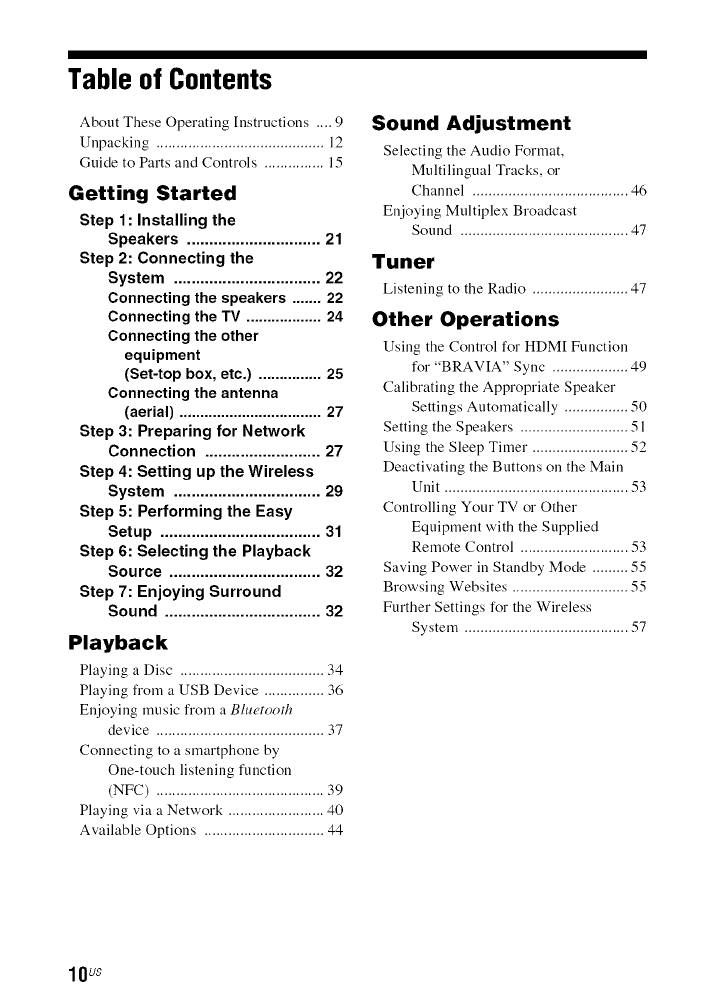
Table of Contents
About These Operating Instructions .... 9
Unpacking .......................................... 12
Guide to Parts and Controls ............... 15
Getting Started
Step 1 : Installing the
Speakers .............................. 21
Step 2: Connecting the
System ................................. 22
Connecting the speakers ....... 22
Connecting the TV .................. 24
Connecting the other
equipment
(Set-top box, etc.) ............... 25
Connecting the antenna
(aerial) .................................. 27
Step 3: Preparing for Network
Connection .......................... 27
Step 4: Setting up the Wireless
System ................................. 29
Step 5: Performing the Easy
Setup .................................... 31
Step 6: Selecting the Playback
Source .................................. 32
Step 7: Enjoying Surround
Sound ................................... 32
Playback
Playing a Disc .................................... 34
Playing from a USB Device ............... 36
Enjoying music from a Blu('tooth
device .......................................... 37
Connecting to a smartphone by
One-touch listening function
(NFC) .......................................... 39
Playing via a Network ........................ 40
Available Options .............................. 44
Sound Adjustment
Selecting the Audio Format,
Multilingual Tracks, or
Channel ....................................... 46
Enjoying Multiplex Broadcast
Sound .......................................... 47
Tuner
Listening to the Radio ........................ 47
Other Operations
Using the Control for HDM[ Function
for "BRAVIA" Sync ................... 49
Calibrating the Appropriate Speaker
Settings Automatically ................ 50
Setting the Speakers ........................... 51
Using the Sleep Timer ........................ 52
Deactivating the Buttons on the Main
Unit .............................................. 53
Controlling Your TV or Other
Equipment with the Supplied
Remote Control ........................... 53
Saving Power in Standby Mode ......... 55
Browsing Websites ............................. 55
Further Settings for the Wireless
System ......................................... 57
10uS
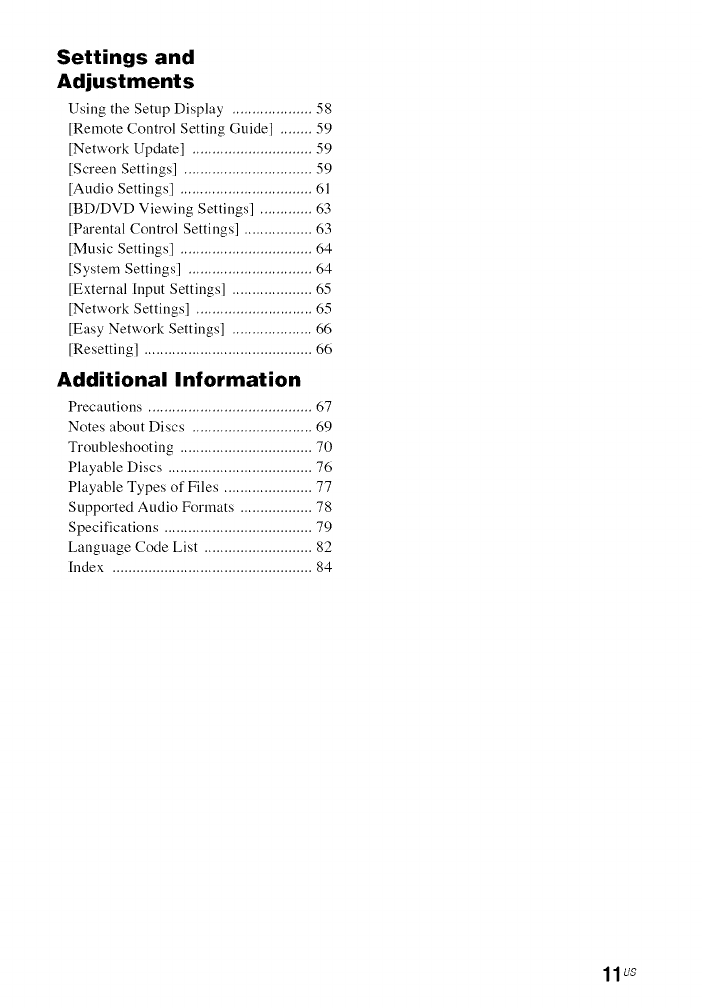
Settings and
Adjustments
Using the Setup Display .................... 58
[Remote Control Setting Guide] ........ 59
[Network Update] .............................. 59
[Screen Settings] ................................ 59
[Audio Settings] ................................. 61
[BD/DVD Viewing Settings] ............. 63
[Parental Control Settings] ................. 63
[Music Settings] ................................. 64
[System Settings] ............................... 64
[External Input Settings] .................... 65
[Network Settings] ............................. 65
[Easy Network Settings] .................... 66
[Resetting] .......................................... 66
Additional Information
Precautions ......................................... (77
Notes about Discs .............................. 69
Troubleshooting ................................. 70
Playable Discs .................................... 76
Playable Types of Files ...................... 77
Supported Audio Formats .................. 78
Specifications ..................................... 79
Language Code List ........................... 82
hldex .................................................. 84
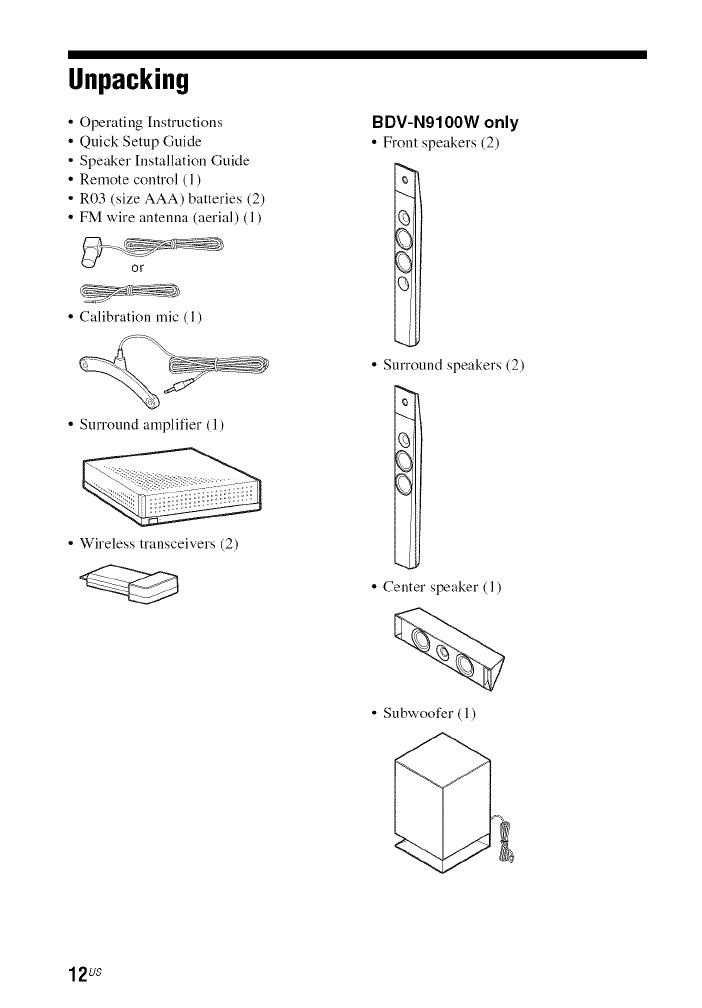
Unpacking
• Operating [nstructions
• Quick Setup Guide
• Speaker [nstallation Guide
• Remote control (1)
• R03 (size AAA) batteries (2)
• FM wire antenna (aerial) (1)
B DV-N9100W only
•Front speakers (2)
¢3
O(
•Calibration rnic (1)
•Surround amplifier (1)
• Wireless transceivers (2)
• Surround speakers (2)
• Center speaker (1)
• Subwoofer (1)
12uS
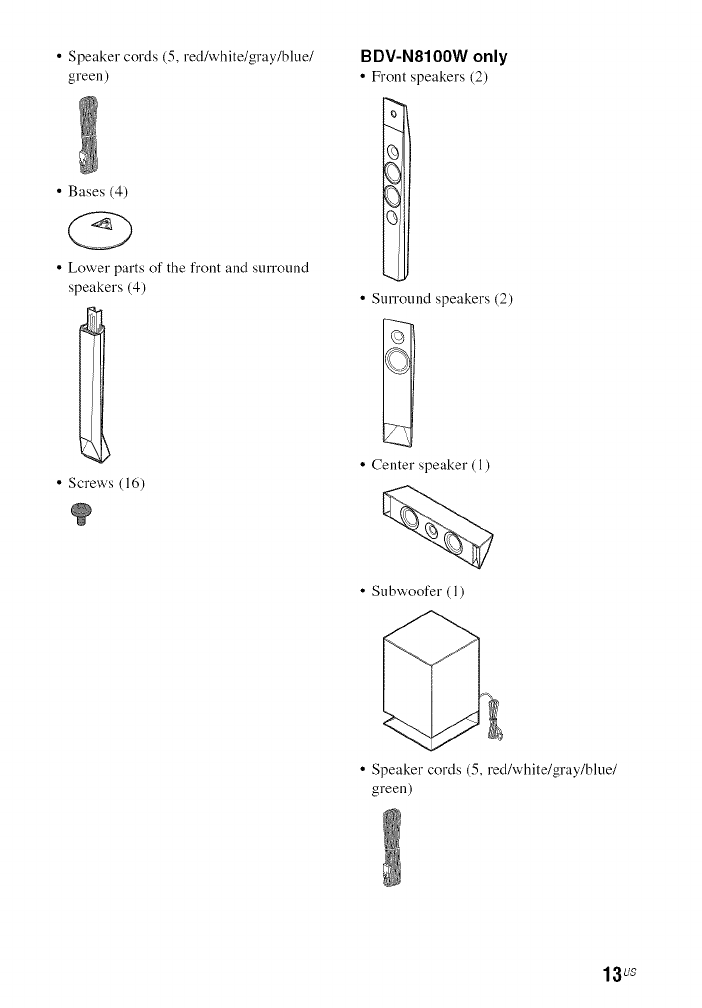
• Speaker cords (5, red/white/gray/blue/
green)
• Bases (4)
@
• Lower parts ofthefront and surround
speakers (4)
• Screws (16)
BDV-N8100W only
•Front speakers (2)
Q}i
• Surround speakers (2)
• Center speaker (1)
• Subwoofer (1)
• Speaker cords (5, red/white/gray/blue/
green)
13us
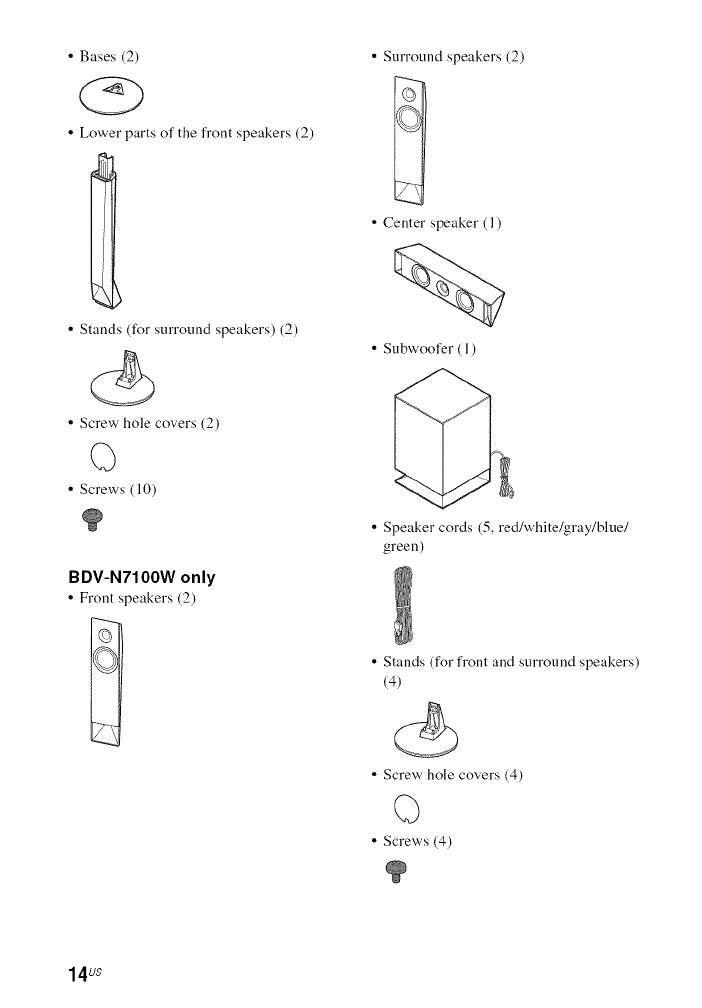
• Bases (2)
<Z>
• Lower parts of the front speakers (2)
I
• Stands (for surround speakers) (2)
• Surround speakers (2)
• Center speaker (1)
• Subwoofer (1)
• Screw hole covers (2)
(3
• Screws (10)
B DV-N7100W only
• Front speakers (2)
• Speaker cords (5, red/white/gray/blue/
green)
• Stands (for front and surround speakers)
(4)
<5
• Screw hole covers (4)
(3
• Screws (4)
14uS
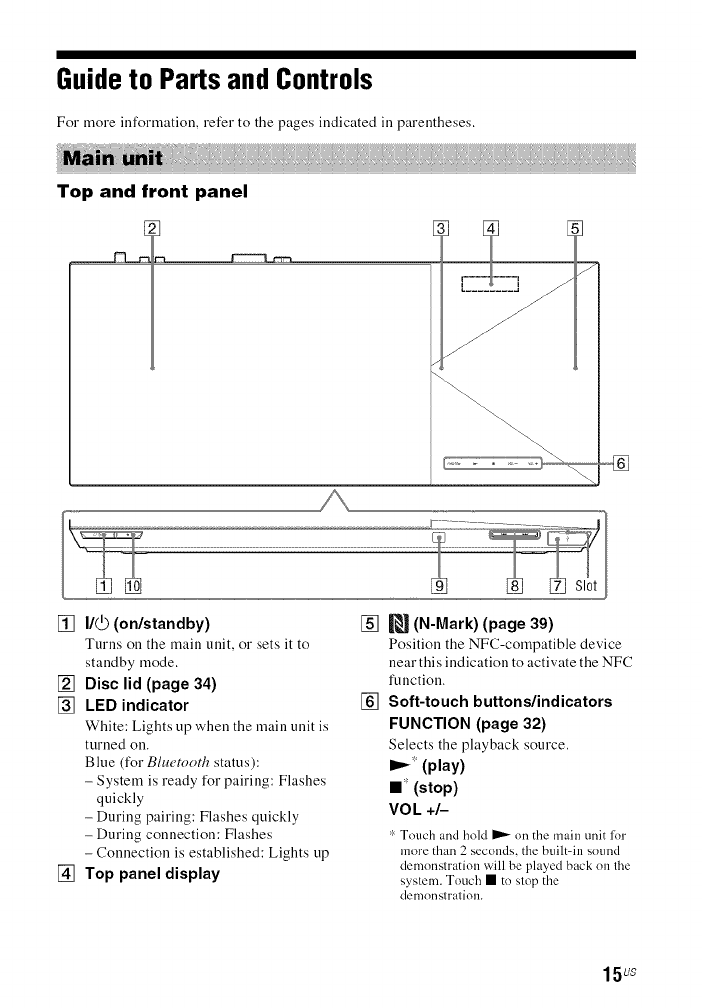
Guide to Parts and Controls
For more information, refer to the pages indicated ill parentheses,
Top and front panel
J
J
/
[] I/_) (on/standby)
Turns on the main unit, or sets it to
standby mode.
[] Disc lid (page 34)
[] LED indicator
White: Lights up when the main unit is
turned on.
Blue (for Bluetooth status):
- System is ready for pairing: Flashes
quickly
- During pairing: Flashes quickly
- During connection: Flashes
- Connection is established: Lights up
[] Top panel display
[]
[]
(N-Mark) (page 39)
Position the NFC-compatible device
near this indication to activate the NFC
function.
Soft-touch buttons/indicators
FUNCTION (page 32)
Selects the playback source.
IP'-':(play)
II _(stop)
VOL +l--
r"Touch and hold _ on the main unit lor
more than 2 seconds, the built=in sound
demonstration will be played back on the
system. Touch • to stop the
demonstration.
15 us
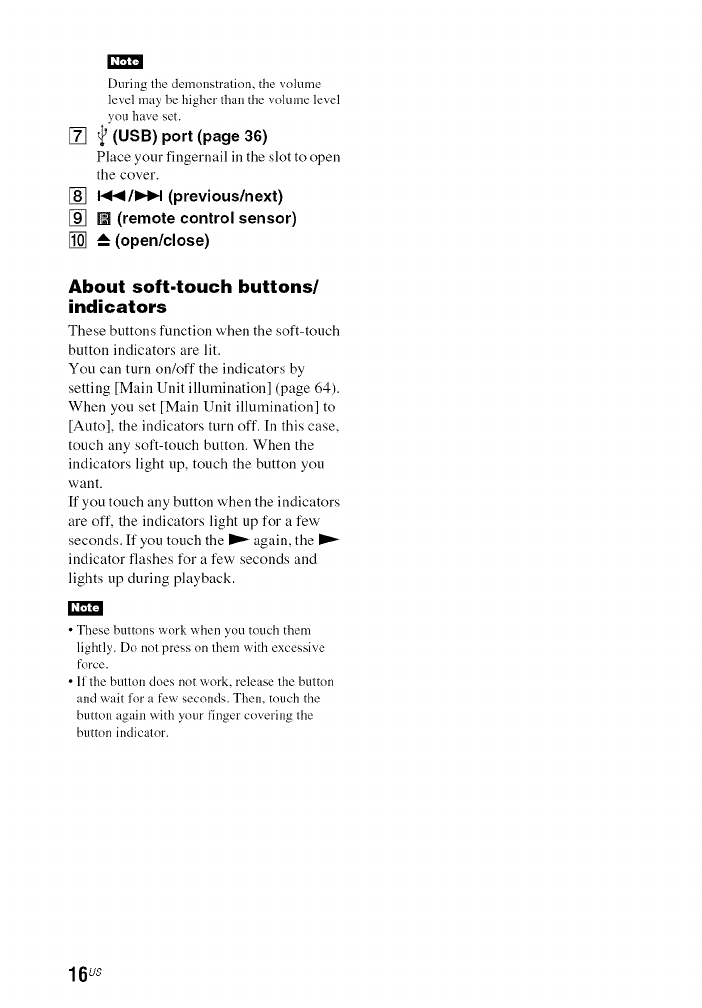
During the demonstration, the volume
level may be higher than the vnlume level
ynu have set.
[] _ (USB) port (page 36)
Place your fingernail ill the slot to open
the cover.
[] I<<I/IHIH (previous/next)
[] [] (remote control sensor)
[] --_ (open/close)
About soft-touch buttons/
indicators
These buttons function when the soft-touch
button indicators are lit.
You can turn on/off the indicators by
setting [Main Unit illumination] (page 64).
When you set [Main Unit illumination] to
[Auto], the indicators turn off. [n this case,
touch any soft-touch button. When the
indicators light up, touch the button you
want.
If you touch any button when the indicators
are off, the indicators light up for a few'
seconds. If you touch the _ again, the
indicator flashes for a few seconds and
lights up during playback.
•These buttons wnrk when you touch them
lightly. Dn not press on them with excessive
force.
• If the button does nnt work, release the button
and wait for a few seconds. Then, touch the
button again with your finger covering the
button indicator.
16us
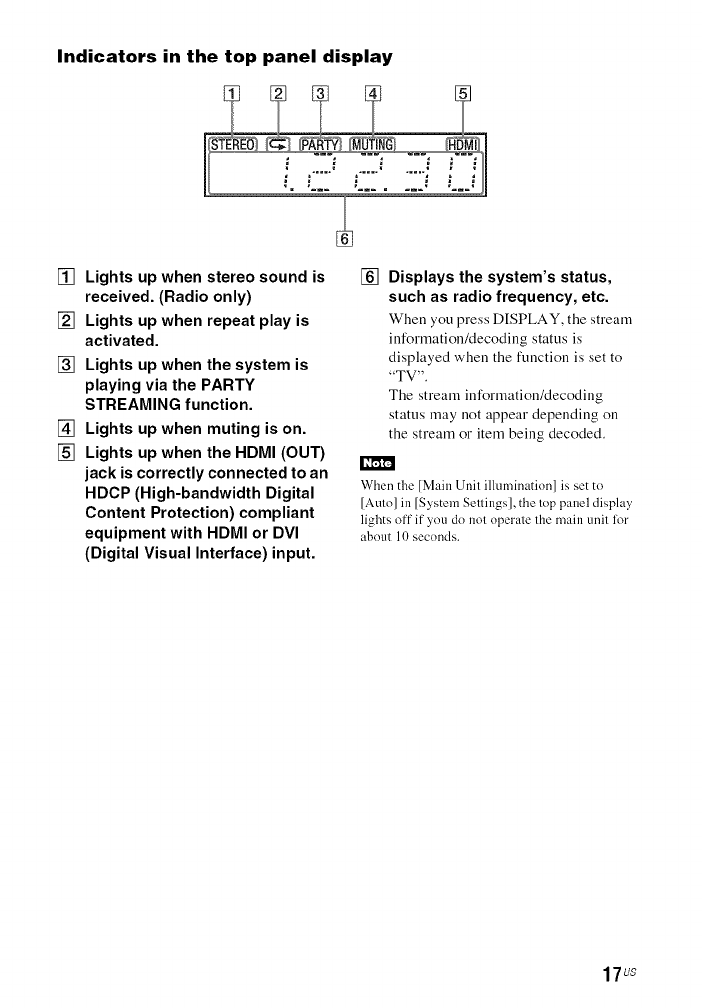
Indicators in the top panel display
[] Lights up when stereo sound is
received. (Radio only)
[] Lights up when repeat play is
activated.
[] Lights up when the system is
playing via the PARTY
STREAMING function.
[] Lights up when muting is on.
[] Lights up when the HDMI (OUT)
jack is correctly connected to an
HDCP (High-bandwidth Digital
Content Protection) compliant
equipment with HDMI or DVI
(Digital Visual Interface) input.
[] Displays the system's status,
such as radio frequency, etc.
When you press DISPLAY, the stream
information/decoding status is
displayed when the function is set to
"TV'.
The stream information/decoding
status may not appear depending on
the stream or item being decoded.
When the [Main Unit illumination] is set to
[Auto] in [System Settings], the top panel display
lights off if ynu do not operate the main unit for
about 10 seconds.
17us
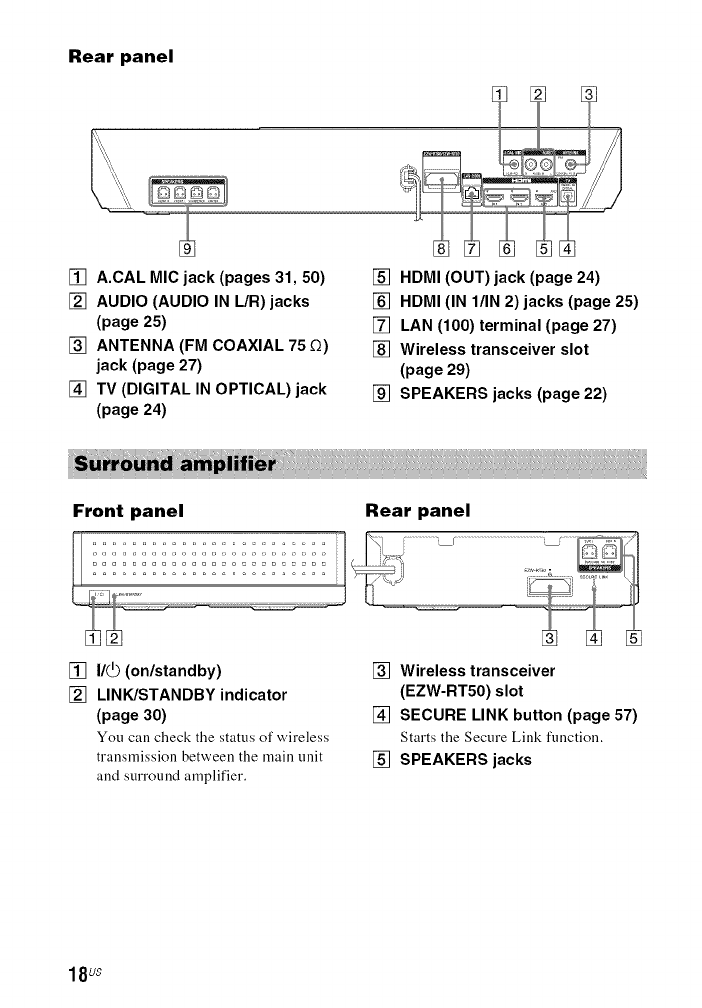
Rear panel
[] A.CAL MIC jack (pages 31, 50)
[] AUDIO (AUDIO IN L/R) jacks
(page 25)
[] ANTENNA (FM COAXIAL 75 £_)
jack (page 27)
[] TV (DIGITAL IN OPTICAL) jack
(page 24)
[] HDMI (OUT) jack (page 24)
[] HDMI (IN l/IN 2) jacks (page 25)
[] LAN (100) terminal (page 27)
[] Wireless transceiver slot
(page 29)
[] SPEAKERS jacks (page 22)
Front panel Rear panel
[] I/_ (on/standby)
[] LINK/STANDBY indicator
(page 30)
You call check the status of w'ireless
transmission between the main unit
and surround amplifier.
[] Wireless transceiver
(EZW-RTS0) slot
[] SECURE LINK button (page 57)
Starts the Secure Link function.
[] SPEAKERS jacks
18uS
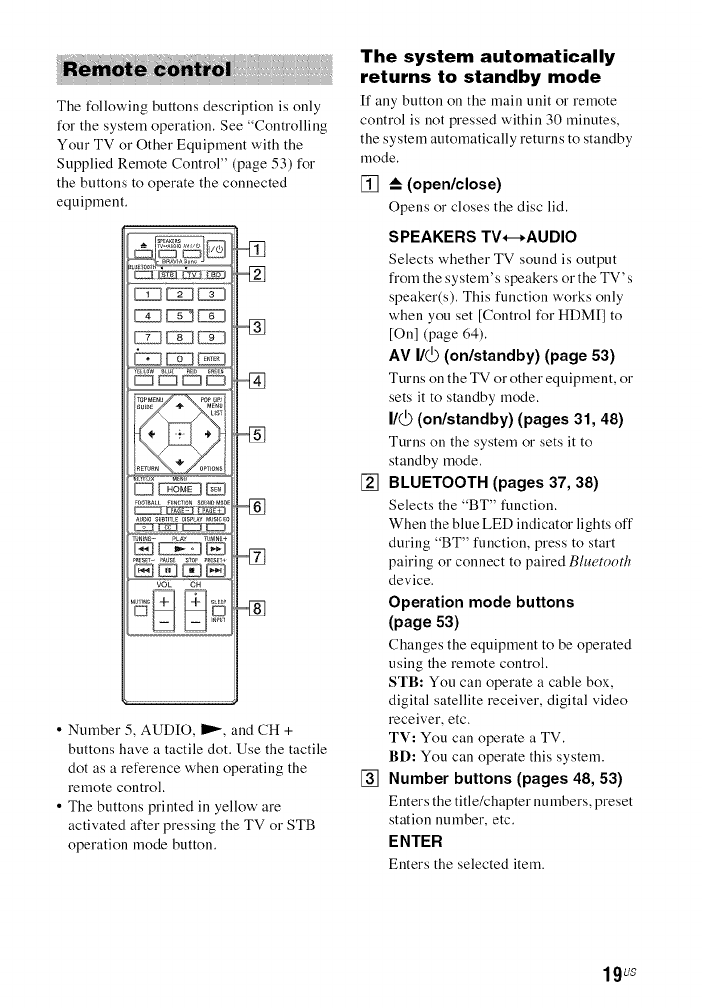
!
The following buttons description is only
for the system operation. See "Controlling
Your TV or Other Equipment with the
Supplied Remote Control" (page 53) for
the buttons to operate the connected
equipment.
ir0__E_u P0_UP/
_sum_ 4" ME_
_IST
D_D
AUDI0SUBnTLE_ISPLmM_SmE_
I_ _ IZ2ZI C22_
VOL CH
• Number 5, AUDIO, _, and CH +
buttons have a tactile dot. Use the tactile
dot as a reference when operating the
remote control.
• The buttons printed in yellow' are
activated after pressing the TV or STB
operation mode button.
The system automatically
returns to standby mode
[f any button on the main unit or remote
control is not pressed within 30 minutes,
the system automatically returns to standby
mode.
[] --_(open/close)
Opens or closes the disc lid.
[]
[]
SPEAKERS TV*-*AUDIO
Selects whether TV sound is output
from the system' s speakers or the TV' s
speaker(s). This function works only
when you set [Control for HDM[] to
[On] (page 64).
AV I/_ (on/standby) (page 53)
Turns on the TV or other equipment, or
sets it to standby mode.
I/_ (on/standby) (pages 31, 48)
Turns on the system or sets it to
standby mode.
BLUETOOTH (pages 37, 38)
Selects the "BT" function.
When the blue LED indicator lights off
during "BT" function, press to start
pairing or connect to paired Bluetooth
device.
Operation mode buttons
(page 53)
Changes the equipment to be operated
using the remote control.
STB: You can operate a cable box,
digital satellite receiver, digital video
receiver, etc.
TV: You can operate a TV.
BD: You can operate this system.
Number buttons (pages 48, 53)
Enters the title/chapter numbers, preset
station number, etc.
ENTER
Enters the selected item.
19us
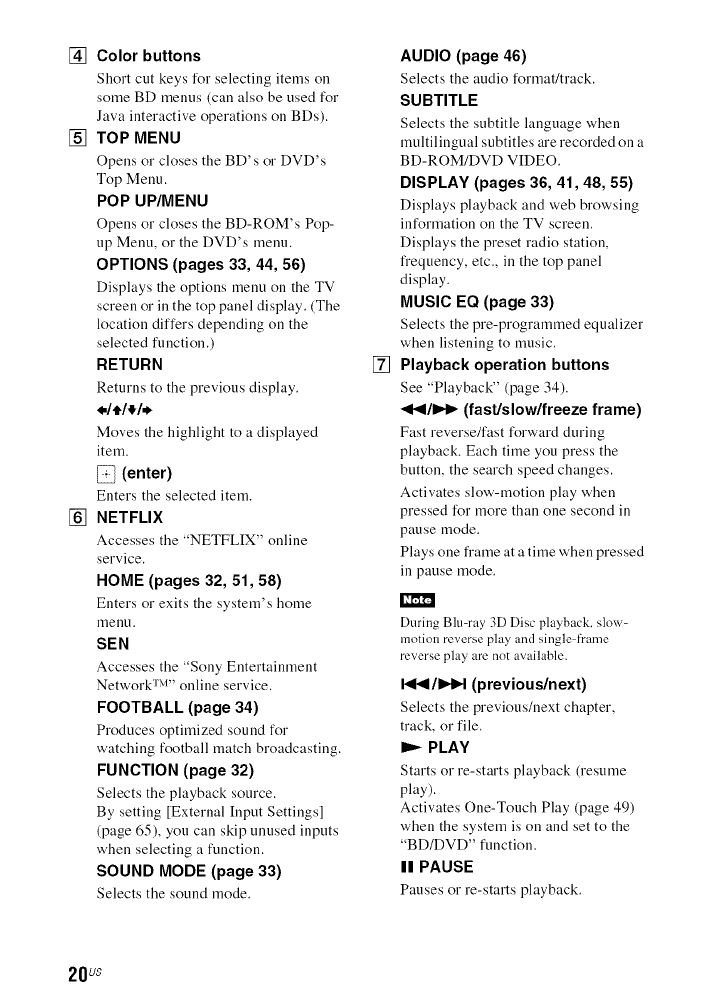
[] Color buttons
Short cut keys for selecting items on
some BD menus (call also be used for
Java interactive operations on BDs).
[] TOP MENU
Opens or closes the BD's or DVD's
Top Menu.
POP UP/MENU
Opens or closes the BD-ROM's Pop-
up Menu, or the DVD's menu.
OPTIONS (pages 33, 44, 56)
Displays the options menu on the TV
screen or in the top panel display. (The
location differs depending on the
selected function.)
RETURN
Returns to the previous display.
Moves the highlight to a displayed
item.
_} (enter)
Enters the selected item.
[] NETFLIX
Accesses the "NETFLIX" online
service.
HOME (pages 32, 51, 58)
Enters or exits the system's home
menl.1.
SEN
Accesses the "Sony Entertainment
Network sv'' online service.
FOOTBALL (page 34)
Produces optimized sound for
watching football match broadcasting.
FUNCTION (page 32)
Selects the playback source.
By setting [External [nput Settings]
(page 65), you can skip unused inputs
when selecting a function.
SOUND MODE (page 33)
Selects the sound mode.
[]
AUDIO (page 46)
Selects the audio format/track.
SUBTITLE
Selects the subtitle language when
multilingual subtitles are recorded on a
BD-ROM/DVD VIDEO.
DISPLAY (pages 36, 41, 48, 55)
Displays playback and web browsing
information on the TV screen.
Displays the preset radio station,
frequency, etc., in the top panel
display.
MUSIC EQ (page 33)
Selects the pre-programmed equalizer
when listening to music.
Playback operation buttons
See "Playback" (page 34).
<</1_1_ (fast/slow/freeze frame)
Fast reverse/fast forward during
playback. Each time you press the
button, the search speed changes.
Activates slow-motion play when
pressed for more than one second in
pause mode.
Plays one frame at a time when pressed
in pause mode.
I_'ml"4
During Blu-ray 3D Disc playback, slow-
motion reverse play and single-fl'ame
reverse play are not available.
I<</I_IIH (previous/next)
Selects the previous/next chapter,
track, or file.
I_ PLAY
Starts or re-starts playback (resume
play).
Activates One-Touch Play (page 49)
when the system is on and set to the
"BD/DVD" function.
II PAUSE
Pauses or re-starts playback.
20us
•STOP
Stops playback and remembers the
stop point (resume point). The resume
point for a title/track is the last point
you played or the last photo for a photo
folder.
Stops the built-in sound
demonstration.
Radio operation buttons
See "Tuner" (page 47).
TUNING +/-
PRESET +/-
[] MUTING
Turns off the sound temporarily.
VOL +/-
Adjusts the volume.
SLEEP (page 52)
Sets the sleep timer.
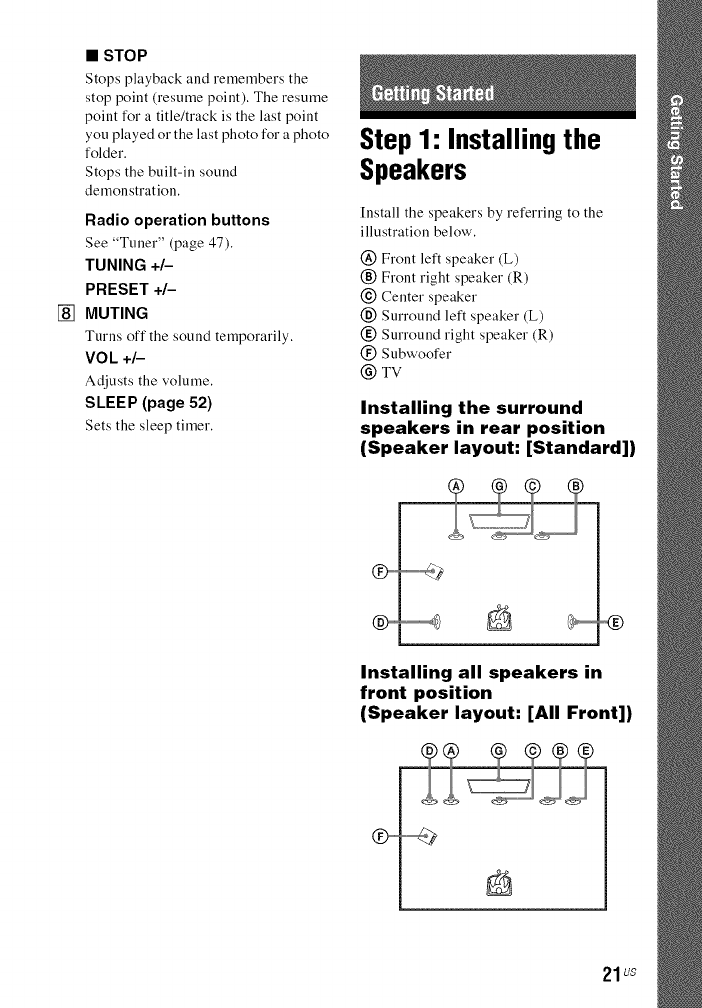
Step1: Installingthe
Speakers
[nstall the speakers by referring to the
illustration below'.
@ Front left speaker (L)
(_) Front right speaker (R)
@ Center speaker
(_) Surround left speaker (L)
(_) Surround right speaker (R)
(_) Subwoofer
@ TV
Installing the surround
speakers in rear position
(Speaker layout: [Standard])
Installing all speakers in
front position
(Speaker layout: [All Front])
21us
• Be sure to select the speakers laynut setting
(page 51 ) according to ynur speakers
placement.
• Use caution when placing the speakers and/nr
speaker stands attached to the speakers oll a
specially treated (waxed, oiled, polished, etc.)
floor, as staining or discoloration may result.
•Do not lean or hang on a speaker, as it may fall
down.
• The speakers of this system are nnt magnetically
shielded. This may result in color irregularity
when they are placed near a CRT TV or
projector.
batrl
• In order tn output more efli_ctive sound when
[All Front] setting is selected, we recommend
you to install your frnnt speakers and surround
speakers closer to each other.
• You can install the speakers on a wall. For
details, refer to the supplied "Speaker
Installation Guide".
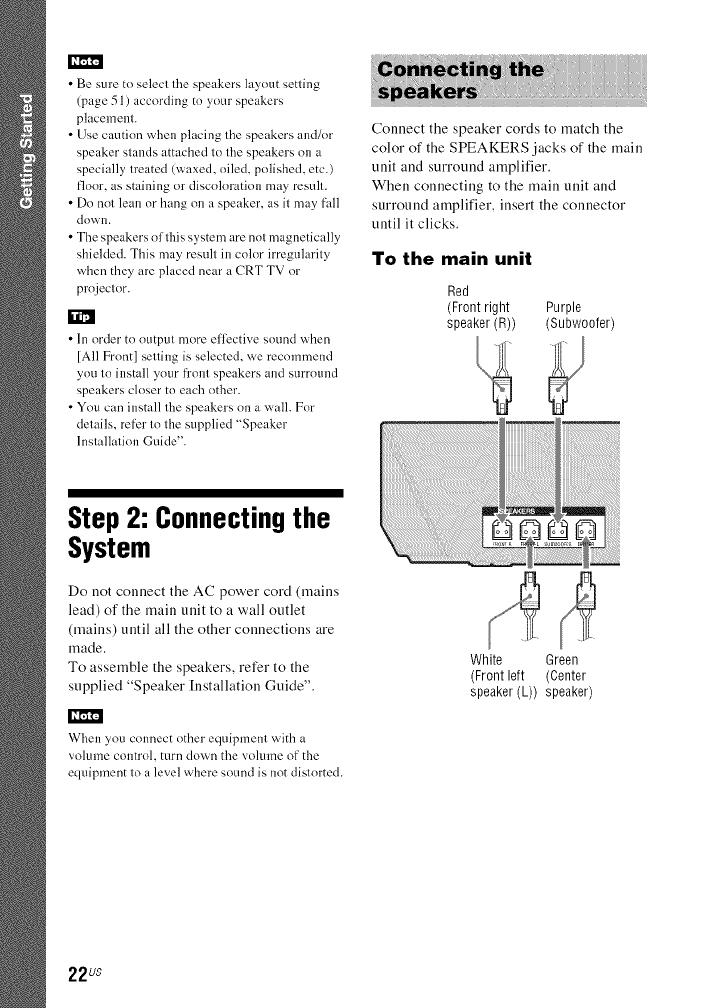
Connect the speaker cords to match the
color of the SPEAKERS jacks of the main
unit and surround amplifier.
When connecting to the main unit and
surround amplifier, insert the connector
until it clicks.
To the main unit
Red
(Front right Purple
speaker (R)) (Subwoofer)
Step 2: Connecting the
System
Do not connect the AC power cord (mains
lead) of the main unit to a wall outlet
(mains) until all the other connections are
made.
To assemble the speakers, refer to the
supplied "Speaker [nstallation Guide".
When you connect nther equipment with a
volume control, turn clown the volume nf the
equipment to a level where sound is not distnrted.
White Green
(Front left (Center
speaker (L)) speaker)
22us
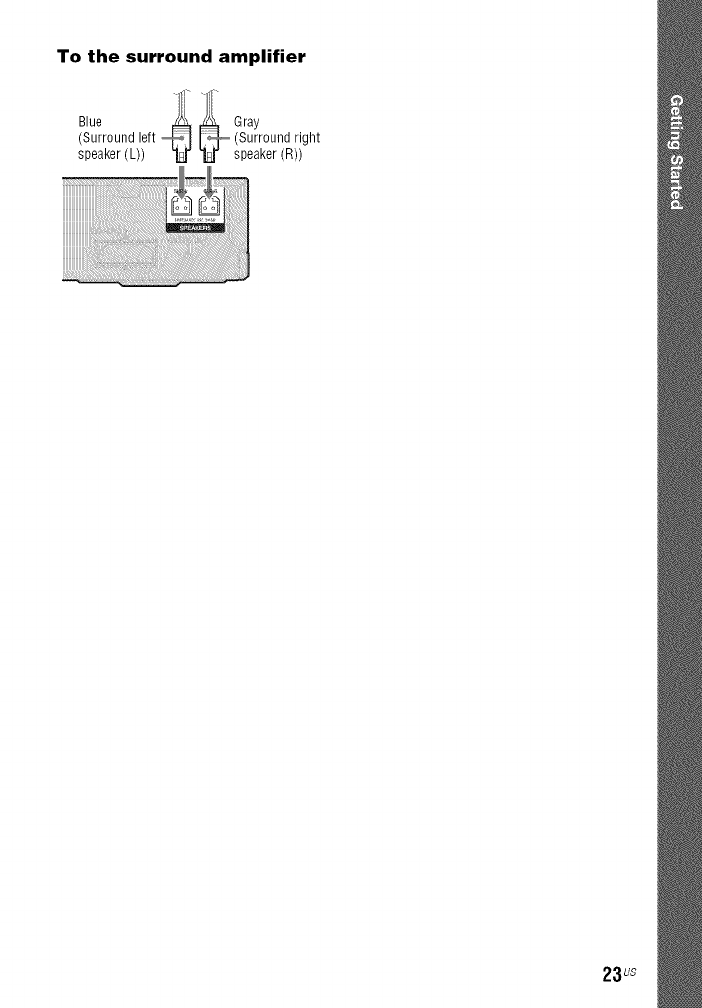
To the surround amplifier
(Surround left (Surround right
speaker (L)) speaker (R))
23us
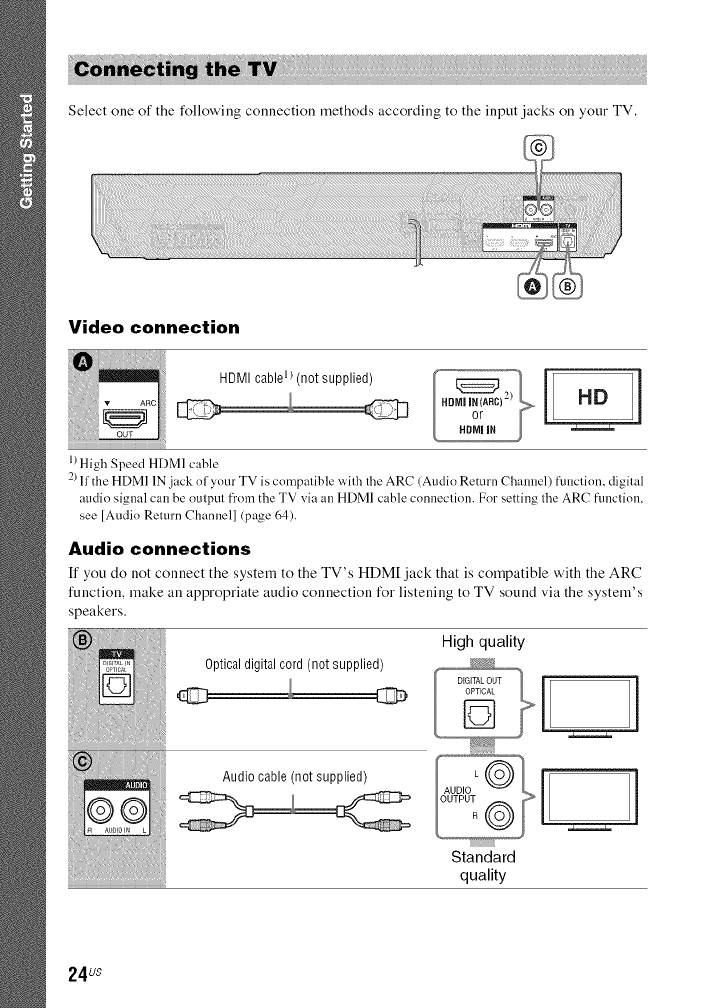
Select one of the following connection methods according to the input jacks on your TV.
Video connection
1)High Speed HDMI cable
2)If the HDMI 1Njack of your TV is compatible with the ARC (Audio Return Channel) function, digital
audio signal can be output from the TV via an HDMI cable connection. For setting the ARC function,
see [Audio Return Channel] (page 64).
Audio connections
If you do not connect the system to the TV's HDM[ jack that is compatible with the ARC
function, make an appropriate audio connection for listening to TV sound via the system's
speakers.
High quality
Optical digital cord (not supplied)
Audio cable (not supplied)
Standard
quality
24us
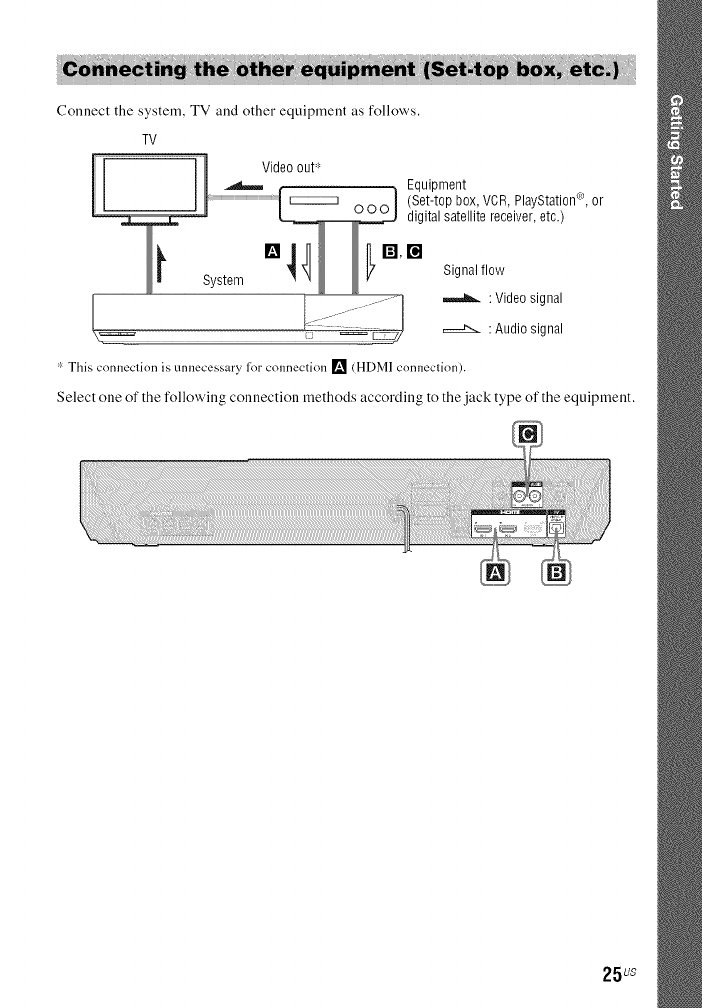
!£!_! _! ii_ _!i i
Connect the system, TV and other equipment as follows.
TV
Video out*
,_ Equipment
_ mr,r-, I (Set-top box, VCR, PlayStation_'),or
digital satellite receiver, etc.)
s_stem°'4_i1_°" s,o=,,,o,_
: Video signal
: Audio signal
"- This connection is unnecessary l_)rc'olmectiol] [] (HDMI connection).
Select one of the following connection methods according to the .jack type of the equipment.
25us
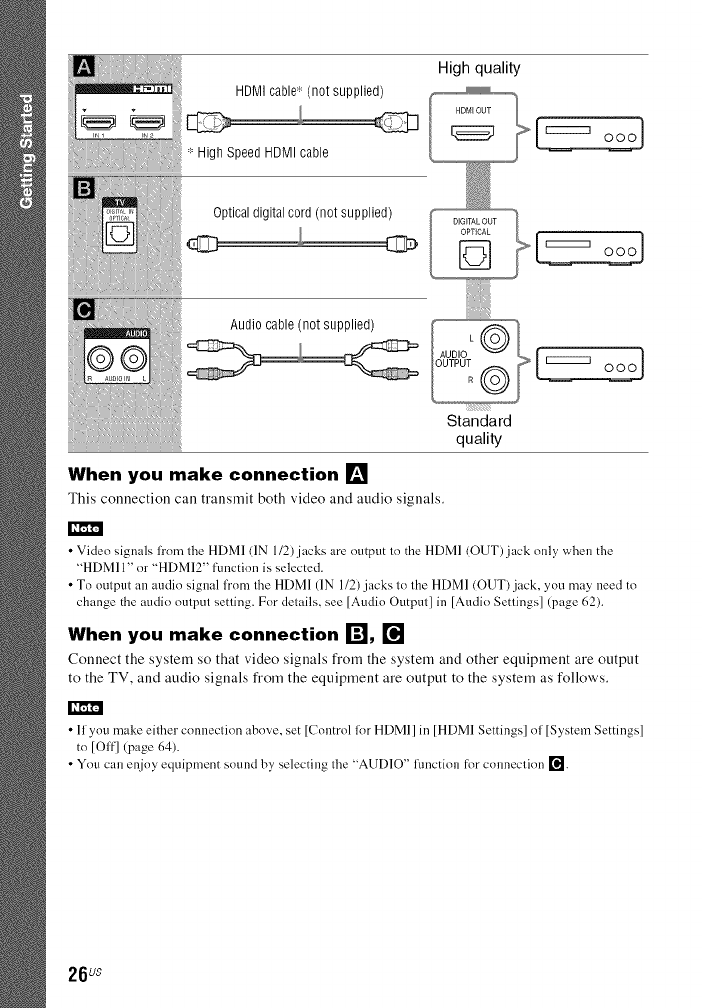
High quality
HDMI cable" (not supplied)
High Speed HDMI cable
Optical digital cord (not supplied)
Audio cable (not supplied)
__ DIGITAL OUT
L oooi
Standard
quality
When you make connection []
This connection call transmit both video and audio signals.
•Video signals from the HDMI (IN 1/2) jacks are output to the HDMI (OUT) jack only when the
"HDMII" or "HDMI2" fimctinn is selected.
• To output an audio signal fi'om the HDMI (IN 1/2) jacks to the HDMI (OUT) jack, you may need to
ch:mge the audio output setting. For details, see [Audio Output] in [Audio Settings] (page 62).
When you make connection i'_, []
Connect the system so that video signals from the system and other equipment are output
to the TV, and audio signals from the equipment are output to the system as follows.
[k'ml'_
•11 ynu make eilher conneclinn above, set [Control for HDMI] in [HDMI Settings] nl [System Settings]
to [Off] (page 64).
• You can enjoy equipment snund by, selecting lhe "AUDIO" function [k>r cnuneclinn re].
26us
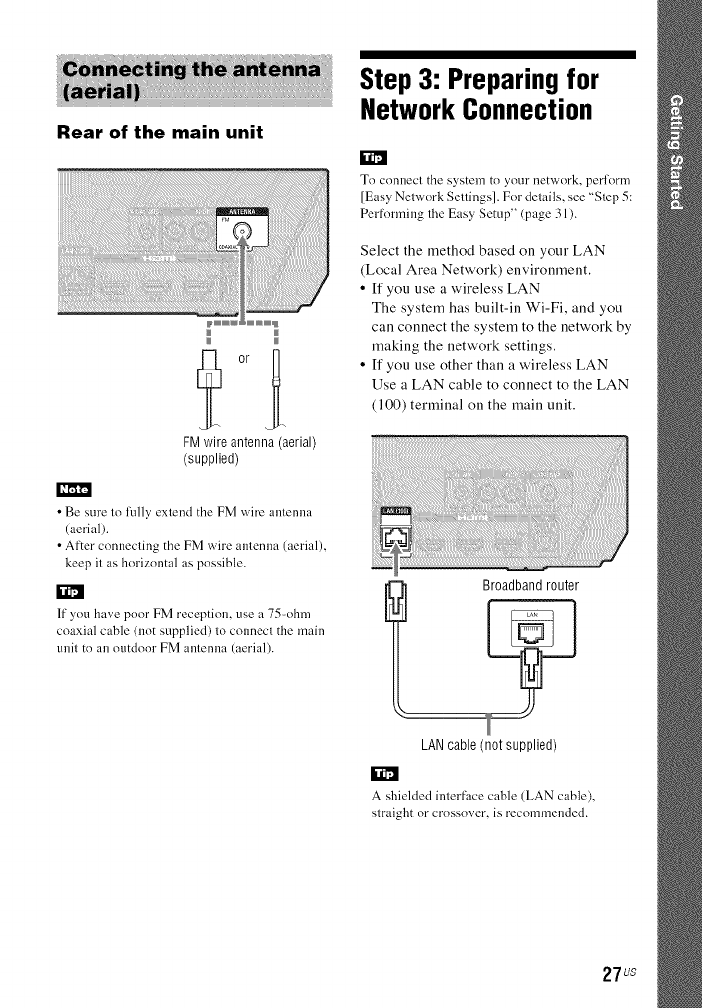
Rear of the main unit
k_
FM wire antenna (aerial)
(supplied)
Step 3: Preparing for
Network Connection
To connect the system to your network, perform
[Easy Network Settings]. For details, see "Step 5:
Performing the Easy Setup" (page 31 ).
Select the method based on your LAN
(Local Area Network) environment.
• If you use a wireless LAN
The system has built-in Wi-Fi, and you
call connect the system to the network by
making the network settings.
• If you use other than a wireless LAN
Use a LAN cable to connect to the LAN
(100) terminal on the main unit.
•Be sure to lully extend the FM wire antenna
(aerial).
• After connecting the FM wire antenna (aerial),
keep it as horizontal as possible.
If you have poor FM reception, use a 75-ohm
coaxial cable (not supplied) to connect the main
unit to an outdoor FM antenna (aerial). lBroadband router
LAN cable (not supplied)
A shielded interface cable (LAN cable),
straight or crossover, is recommended.
27us
Before performing the
network settings
When your wireless LAN router (access
point) is Wi-Fi Protected Setup (WPS)-
compatible, you can easily set the network
settings with the WPS button.
If not, check the following information ill
advance, and record it ill the space provided
below.
• The network name (SSID*) that
identifies your network**.
• ff security is set on your wireless
network, the security key (WEP key,
WPA key)**.
':' SS1D (Service Set Identifier) is a name that
identifies a particular wireless network.
'1'_r"YOU need to check the settings of your wireless
LAN muter to get the in[k>rmatinn abnut SS1D
and security key. For details:
visit the lbllnwing website:
http://www.snny.com/blurayhtsuppnr t/
re[izr to the operating instructions supplied
with the wireless LAN rnuter
consult the mamffactm'er of the wireless
LAN router
About wireless LAN
security
Since communication via the wireless LAN
function is established by radio waves, the
wireless signal may be susceptible to
interception. To protect wireless
communication, this system supports
various security functions. Be sure to
correctly configure the security settings in
accordance with your network
environment.
•No Security
Although you can easily make settings,
anyone can intercept wireless
communication or intrude into your
wireless network, even without any
sophisticated tools. Keep in mind that there
is a risk of unauthorized access or
interception of data.
•WEP
WEP applies security to communications
to prevent outsiders from intercepting
communications or intruding into your
wireless network. WEP is a legacy security
technology that enables older devices
which do not support TKIP/AES to be
connected.
•WPA-PSK (TKIP), WPA2-PSK
(TKIP)
TKIP is a security technology developed in
response to the deficiencies of WEP. TKIP
assures a higher security level than WEP.
•WPA-PSK (AES), WPA2-PSK
(AES)
AES is a security technology that uses an
advanced security method distinct from
WEP and TKIP. AES assures a higher
security level than WEP or TKIP.
28vs
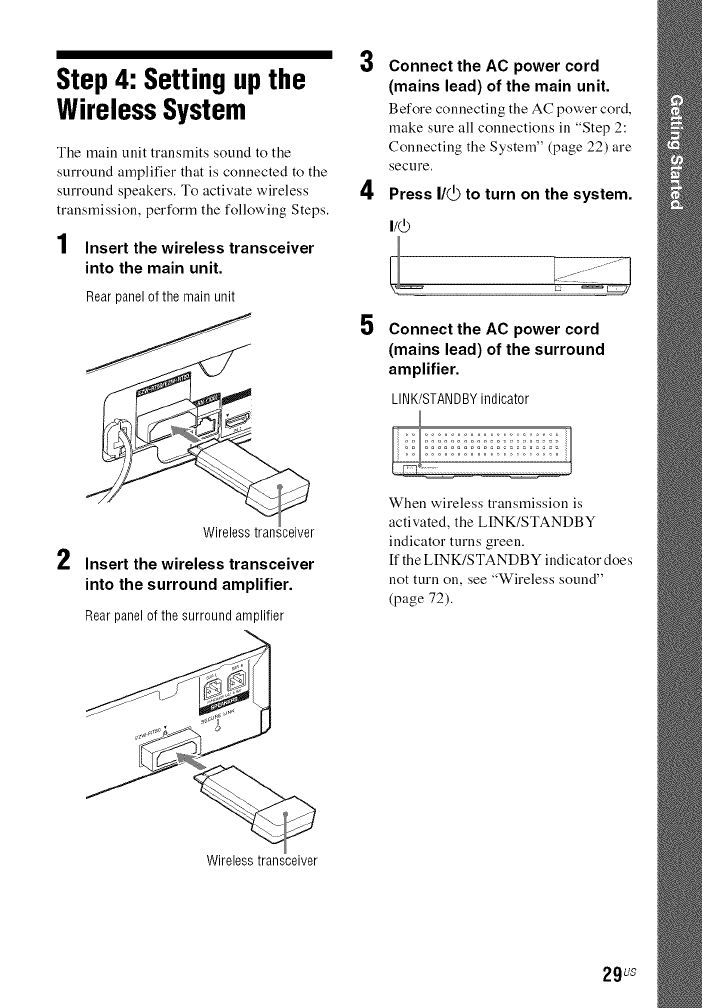
Step 4: Setting upthe
Wireless System
The main unit transmits sound to the
surround amplifier that is connected to the
surround speakers. To activate wireless
transmission, perform the following Steps.
4
| Insert the wireless transceiver
into the main unit.
Rear panel of the main unit
2Wirelesstransceiver
Insert the wireless transceiver
into the surround amplifier.
Rearpanelof thesurroundamplifier
3
4
Connect the AC power cord
(mains lead) of the main unit.
Before connecting the AC power cord,
make sure all connections in "Step 2:
Connecting the System" (page 22) are
secure.
Press I/@ to turn on the system.
5Connect the AC power cord
(mains lead) of the surround
amplifier.
LINK/STANDBYindicator
When wireless transmission is
activated, the LINK/STANDBY
indicator turns green.
If the LINK/STANDBY indicator does
not turn on, see "Wireless sound"
(page 72).
Wirelesstransceiver
29us
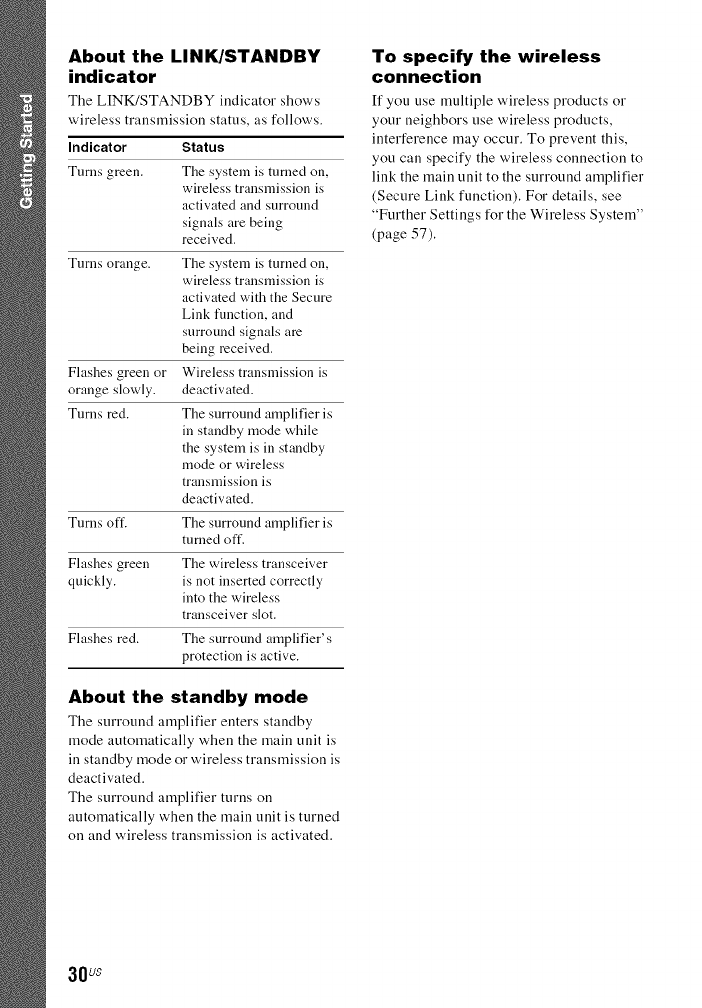
About the LINK/STANDBY
indicator
The LINK/STANDBY indicator shows
wireless transmission status, as follows,
Indicator Status
Turns green. The system is turned on,
wireless transmission is
activated and surround
signals are being
received.
Turns orange. The system is turned on,
wireless transmission is
activated with the Secure
Link function, and
surround signals are
being received.
Flashes green or Wireless transmission is
orange slowly, deactivated.
Turns red. The surround amplifier is
in standby mode while
the system is in standby
mode or wireless
transmission is
deactivated.
Turns oft'. The surround amplifier is
turned oft'.
Flashes green The wireless transceiver
quickly, is not inserted correctly
into the wireless
transceiver slot.
Flashes red. The surround amplifier's
protection is active.
About the standby mode
The surround amplifier enters standby
mode automatically when the main unit is
in standby mode or wireless transmission is
deactivated.
The surround amplifier turns on
automatically when the main unit is turned
on and wireless transmission is activated.
To specify the wireless
connection
If you use multiple wireless products or
your neighbors use wireless products,
interference may occur. To prevent this,
you can specify the wireless connection to
link the main unit to the surround amplifier
(Secure Link function). For details, see
"Further Settings for the Wireless System"
(page 57).
30us
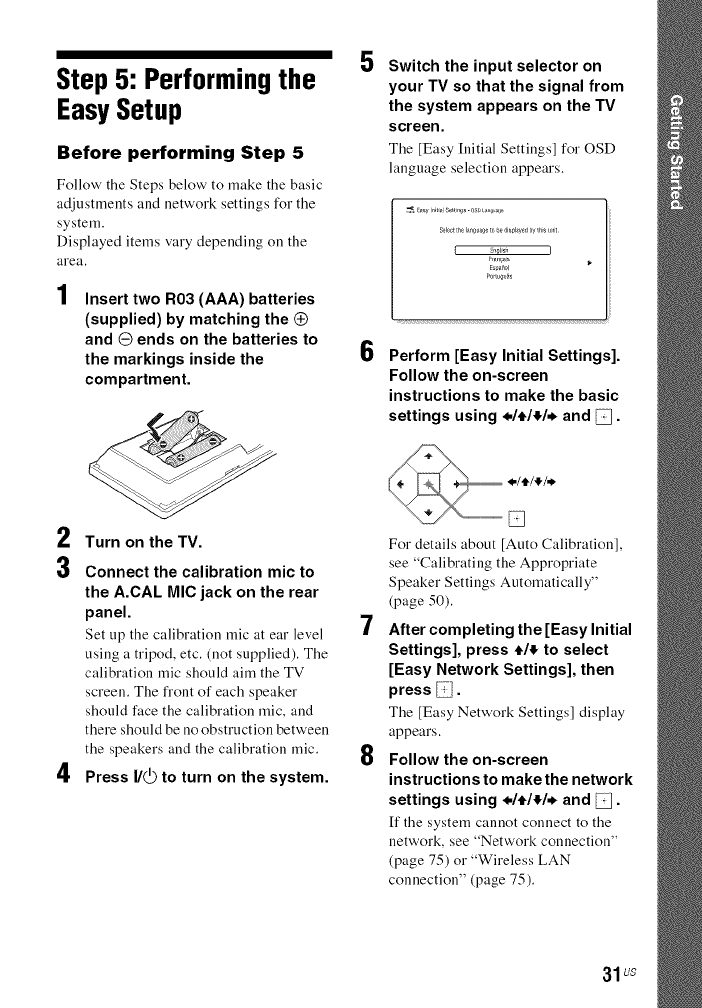
Step 5: Performing the
Easy Setup
Before performing Step 5
Follow' the Steps below to make the basic
adjustments and network settings for the
system.
Displayed items vary depending on the
area.
1Insert two R03 (AAA) batteries
(supplied) by matching the Q
and Oends on the batteries to
the markings inside the
compartment.
2
3
4
Turn on the TV.
5
6
Connect the calibration mic to
the A.CAL MIC jack on the rear
panel. .7
Set up the calibration mic at ear level /
using a tripod, etc. (not supplied). The
calibration mic should aim the TV
screen. The flout of each speaker
should face the calibration mic, and
there should be no obstruction betweeu
the speakers aud the calibration mic. R
Press I/_ to turn on the system.
Switch the input selector on
your TV so that the signal from
the system appears on the TV
screen.
The [Easy [nitial Settings] for OSD
language selection appears.
E_syInit_1Settn_s-0SBL_n,_
Selectthelan_lag_t_r:edisplayedby_hsHit
Perform [Easy Initial Settings].
Follow the on-screen
instructions to make the basic
settings using ./4,/_/, and _.
For details about [Auto Calibration],
see "Calibrating the Appropriate
Speaker Settings Automatically"
(page 50).
After completing the [Easy Initial
Settings], press t/_ to select
[Easy Network Settings], then
press/:i.
The [Easy Network Settings] display
appears.
Follow the on-screen
instructions to make the network
settings using ./4,/_/, and _.
[f the system cauuot connect to the
network, see "Network connection"
(page 75) or "Wireless LAN
connection" (page 75).
31us
To recall the [Easy Network
Settings] display
1 Press HOME,
The home menu appears on the TV
screen,
2Press *1. to select _ [Setup]
3 Press th!, to select [Easy Network
Settings], then press
Step6: Selectingthe
PlaybackSource
k_
Press FUNCTION repeatedly until
the function you want appears in the
top panel display.
When you press FUNCTION once, the
current function appears in the top panel
display, then each time you press
FUNCTION, the function changes
cyclically as follows.
"BD/DVD" ---* "USB" ---*"FM" ---*
"HDM[I" ---* "HDM[2" ---* "TV" ---*
"BT" ---+ "AUDIO"
Function and playback source
"BD/DVD"
Disc or network de_,ice to be played by the
system
"USB"
USB device that is connected to the (USB)
port (page 15)
"FM"
FM radio (page 47)
"HDMI]"/"HDMI2"
Equipment that is connected to the HDMI
(IN 1) or HDMI (IN 2) jack (page 25)
Function and playback source
"TV"
Equipment (TV, etc.) that is connected to the
TV (DIGITAL IN OPTICAL)jack, or a TV
compatible with the Audio Return Channel
function that is connected to the HDMI
(OUT) jack (page 24)
"BT"
Audio contents of a Bluetooth device
"AUDIO"
Equipment that is connected to the AUDIO
(AUDIO IN L/R)jacks (page 25)
•Some lhnctions may be changed via the TV
screen by pressing FUNCTION. t/,t, and _.
• You can also press BLUETOOTH on the
remote control to select "BT" fimction.
Step 7: Enjoying
SurroundSound
After performing the previous Steps and
starting playback, you can easily enjoy pre-
programmed sound modes that are tailored
to different kinds of sound sources. They
bring the exciting and powerful sound into
your home.
32us
Press SOUND MODE repeatedly
during playback until the mode you
want appears in the top panel
display or on the TV screen.
Auto
The system automatically selects [Movie] or
[Music] to produce the sound effect
depending on the disc or sound stream.
• 2-channel source: The system sinmlates
surround sound from 2-channel sources and
outputs sound from the 5.1 channel
speakers.
• Multi-channel source: The system outputs
sound from the speakers as it was recorded.
Movie
The system pro_.ides tile optimized sound t_r
watching movies.
Music
The system pro_.ides tile optimized sound t_r
listening to nmsic.
Digital Music Enhancer
[Digital Music]
The system reproduces an enhanced sound
t_r compressed audio.
3D Surround
[3D Surround] is a unique Sony algorithm
that provides a 3D sound experience with
depth and presence by creating a virtual
sound field close to your ears.
Berlin Philharmonic Hall
[Philharmonic Hall]
The system reproduces the sound
characteristics of a Berlin philharmonic hall
t_r listening to a 2-channel stereo source
such as CDs.
Night
Suitable t_r watching movies at night by
reducing loud sounds while maintaining
clear dialog.
Demo Sound
The system provides ear-catching sound,
suitable for demonstration.
• If you set the sound mode to [Auto] and play
1mernet content of the Berlin Philharmonic, the
[Philharmonic Hall] sound mode is
automatically selected (only for areas that are
oflizred the service).
• When the speaker layout is set to [All Front] and
you play back multi-channel source, select
[Auto] or [3D Surround] to enjoy virttml
surround sot/nd.
To select the sound mode
from the option menu
1Press OPTIONS and ,J/c, to select
[Sound Mode], then press _,
2 Press ,J/c, to select the sound mode,
then press _,
To select the pre-
programmed music
equalizer
Press MUSIC EQ repeatedly during
playback,
You can select the sound to suit your
preference.
Each time you press the button, the setting
changes cyclically as follows.
[Standard] ---+ ]Rock] ---+ [Hiphop] ---+
[Electronica]
You can also select the music equalizer by
using the option menu in ]Music] sound
mode.
el,,1"31'_
The sound mode can be selected only when
[Sound Efli_ct] is set to [Sound Mode On]
(page 62). When [Sotmd Effect[ is set to other
than [Sound Mode On], the sound mode setting
does not apply.
To en))y 2-channel source such as a CD in multi-
channel output, we recommend you to select
[Auto].
33us
Press FOOTBALL while watching a
football match broadcast.
You call experience a feeling of presence in
the stadium when watching the football
match broadcast.
• [Football : Narration On]: You call enjoy
an immersive feeling of being ill a
football stadium through enhanced
stadiuru cheers.
• [Football : Narration Off]: You call enjoy
a more iruruersive feeling of being in a
football stadium by miuimiziug the
volume level of narration in addition to
the enhancement of cheers.
• [Football Off]: The football mode is
turned off.
[k't'W_
• We recommend you to select the football mode
when watching a loothall match broadcast.
• If you hear unnatural sound in the content when
[Football : Narration Off] is selected,
[Football : Narration On] is recommended.
• The lootball mode will be turned off when you
turn off the system.
• This featm'e does not support monam'al sound.
• You can also select the li)otball mode fl'om the
option menu.
• If 5.1 channel audio stream is available, we
recommend you to select it on your TV or set-
top box.
Playing a Disc
For playable discs, see "Playable Discs"
(page 76).
1
2
Switch the input selector on
your TV so that the signal from
the system appears on your TV
screen.
Press -_, and place a disc on the
disc compartment until it clicks.
3Press -_ to close the disc lid.
Playback starts.
ff playback does not start
automatically, select tO in the
[Video], _ [Music], or
[Photo] category, and press _.
34us
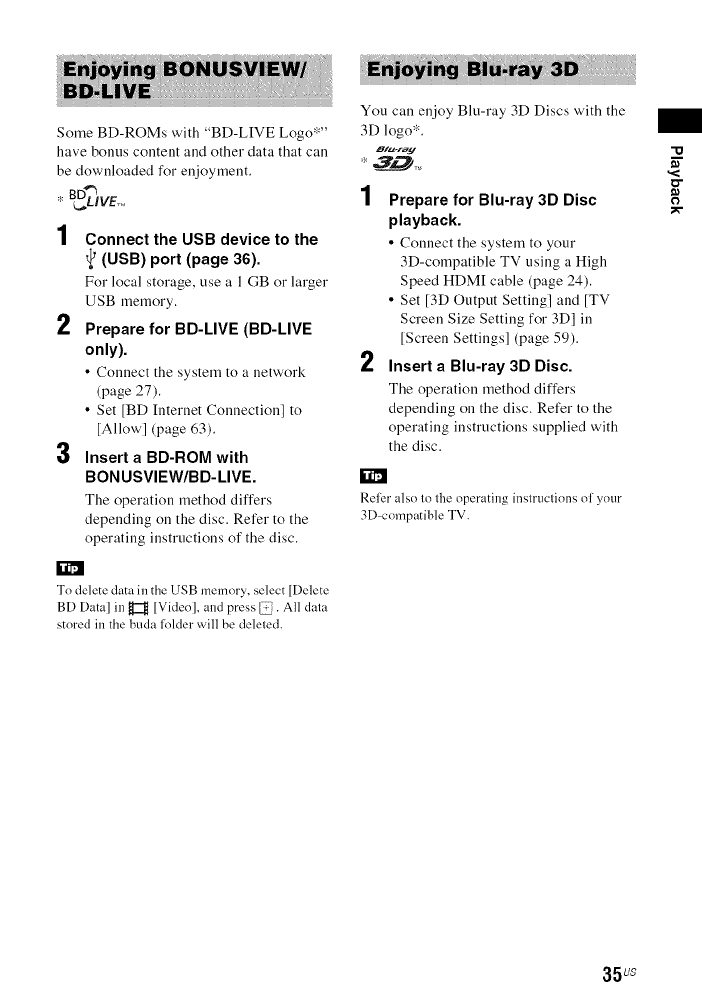
Some BD-ROMs with "BD-LIVE Logo*"
have bonus content and other data that call
be downloaded for enjoyment.
* BD?IvE,_
1
2
3
Connect the USB device to the
(USB) port (page 36).
For local storage, use a l GB or larger
USB memory.
Prepare for BD-LIVE (BD-LIVE
only).
•Connect the system to a network
(page 27).
• Set [BD Internet Connection] to
[Allow] (page 63).
Insert a BD-ROM with
BONUSVIEW/BD-LIVE.
The operation method differs
depending on the disc. Refer to the
operating instructions of the disc.
You can enjoy Blu-ray 3D Discs with the
3D logo*.
1 Prepare for Blu-ray 3D Disc
playback.
•Connect the system to your
3D-compatible TV using a High
Speed HDM[ cable (page 24).
• Set [3D Output Setting] and [TV
Screen Size Setting for 3D] in
[Screen Settings] (page 59).
Insert a Blu-ray 3D Disc.
The operation method differs
depending on the disc. Refer to the
operating instructions supplied with
the disc.
r_
Refer also 1o lhe operating inslruclions ol your
3D-compatible TV.
O
To delete data in the USB memory, select [Delete
BD Data] in _Z_ [Video]. and press _. All dala
stored in the buda folder will be deleled.
35us
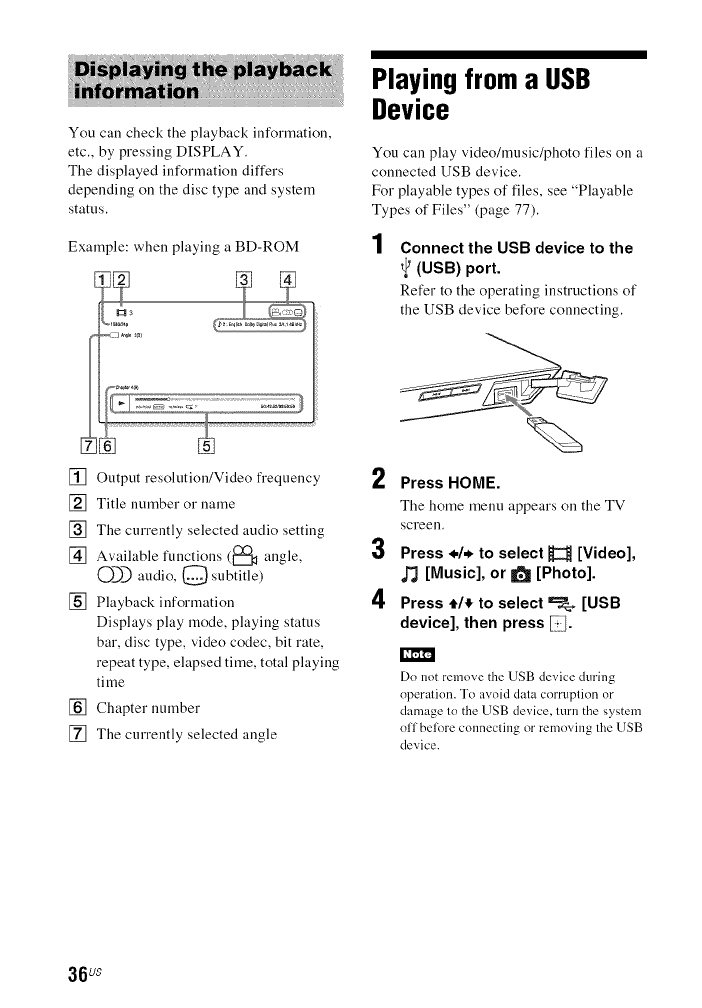
You can check the playback information,
etc., by pressing DISPLAY.
The displayed information differs
depending on the disc type and system
status.
Example: when playing a BD-ROM
[] Output resolution/Video frequency
[] Title number or name
[] The currently selected audio setting
[] Available functions (_1_ angle,
O_) audio, Q subtitle)
[] Playback information
Displays play mode, playing status
bar, disc type, video codec, bit rate,
repeat type, elapsed time, total playing
time
[] Chapter number
[] The currently selected angle
Playing from a USB
Device
You can play video/music/photo files on a
connected USB device.
For playable types of files, see "Playable
Types of Files" (page 77).
1Connect the USB device to the
(USB) port.
Refer to the operating instructions of
the USB device before connecting.
2
3
4
Press HOME.
The home menu appears on the TV
screen.
Press */* to select H[Video],
[Music], or _[Photo].
Press tit to select _[USB
device], then press _1.
Do not remove the USB device during
operation. To avoid data corruption or
damage to the USB device, turn the system
off belore colmecting or removing the USB
device.
36us
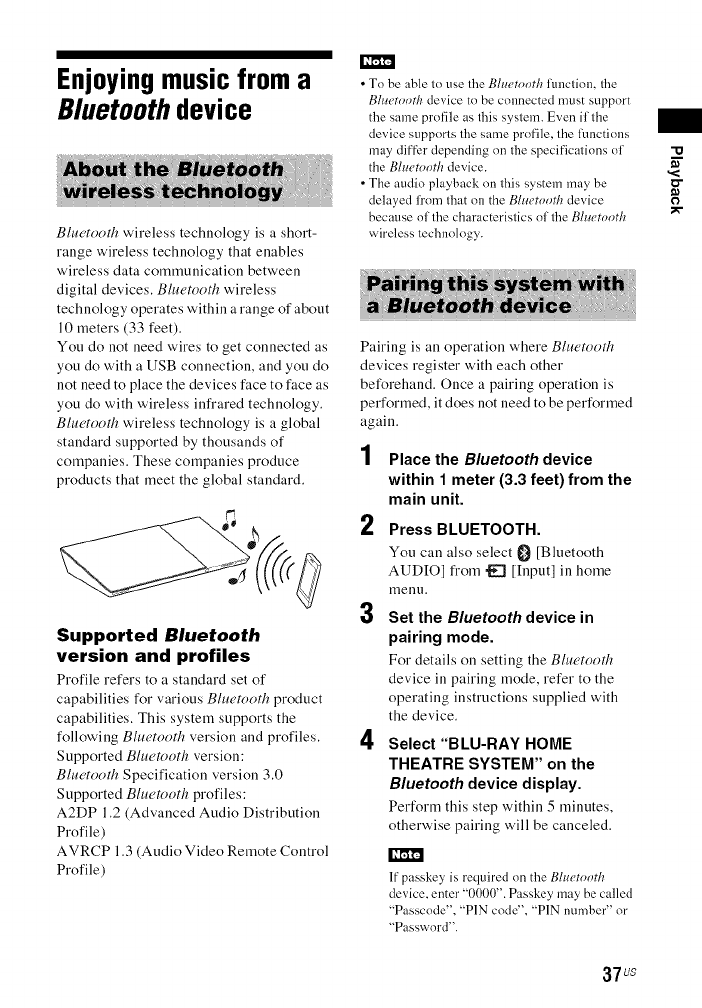
Enjoyingmusicfroma
Bluetoothdevice
Bluetooth wireless technology is a short-
range wireless technology that enables
wireless data communication between
digital devices. B/u(,tooth wireless
technology operates within a range of about
10 meters (33 feet).
You do not need wires to get connected as
you do with a USB connection, and you do
not need to place the devices face to face as
you do with wireless infi'ared technology.
Blu(,tooth wireless technology is a global
standard supported by thousands of
companies. These companies produce
products that meet the global standard.
Supported Bluetooth
version and profiles
Profile refers to a standard set of
capabilities for various B/uetooth product
capabilities. This system supports the
following Bluetooth version and profiles.
Supported B/uetooth version:
B/uetooth Specification version 3.0
Supported B/uetooth profiles:
A2DP 1.2 (Advanced Audio Distribution
Profile)
AVRCP 1.3 (Audio Video Remote Control
Profile)
•To be able to use the Bluetnoth function, the
Bluetnoth device to be connected must support
the same profile as this system. Even if the
device supports the same profile, the Rmctious
may differ depending on the specifications of
the Blueu_oth device.
• The audio playback on this system may be
delayed li'om that on the Bluetnoth device
because of the characteristics of the Bluetnoth
wireless technology.
Pairing is an operation where Bluetooth
devices register with each other
beforehand. Once a pairing operation is
performed, it does not need to be performed
again.
1Place the Bluetooth device
within 1 meter (3.3 feet) from the
main unit.
2 Press BLUETOOTH.
You can also select _ [Bhletooth
AUDIO] from "!_ [Input] in home
menl.1.
3Set the Bluetooth device in
pairing mode.
For details on setting the Blu('tooth
device in pairing mode, refer to the
operating instructions supplied with
the device.
4Select"BkU-RAg HOME
THEATRE SYSTEM" on the
Bluetooth device display.
Perform this step within 5 minutes,
otherwise pairing will be canceled.
If passkey is required on the BInetnorh
device, enter "0000". Passkey may be called
"Passcode". "PIN code". "PIN number" or
"P_,ssword".
,<
0
37us
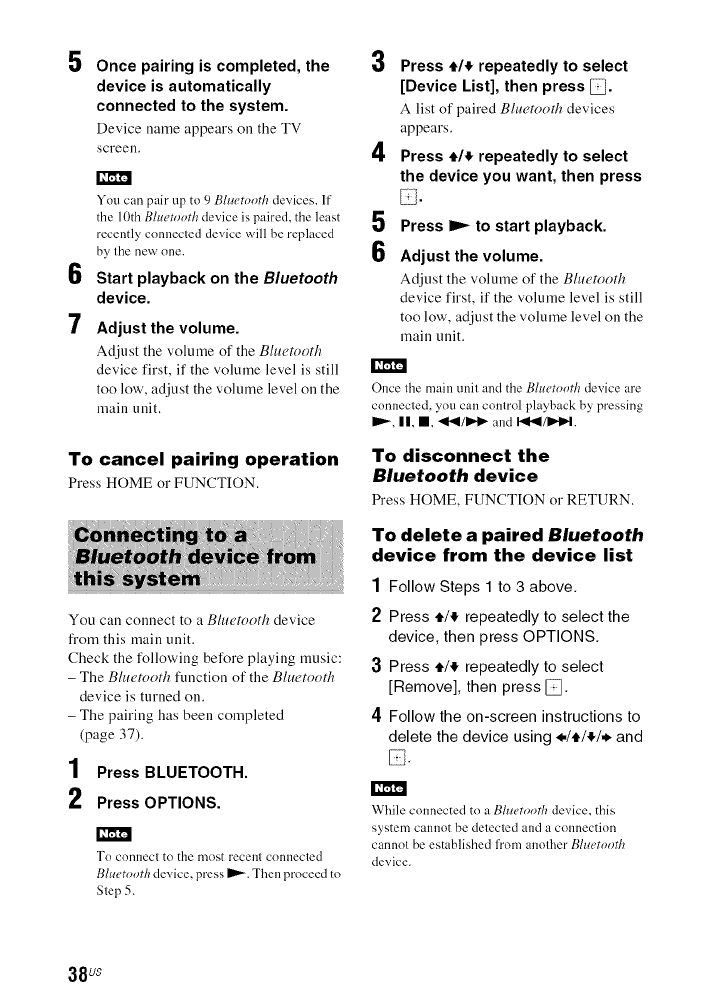
5Once pairing is completed, the
device is automatically
connected to the system.
Device name appears on the TV
screen.
I_'m'l'l
6
7
You can pail" up to 9 Bluemofll devices. If
tile 10th BI,etootk device is paired, tile least
recently connected device will be replaced
by tile new one.
Start playback on the Bluetooth
device.
Adjust the volume.
Adjust the volume of the Bluetootk
device first, if the volume level is still
too low', adjust the volume level on the
main unit.
To cancel pairing operation
Press HOME or FUNCTION.
You call connect to a Bluetooth device
from this main unit.
Check the following before playing music:
- The Bhwtooth function of the Bhu'tooth
device is turned on.
-The pairing has been completed
(page 37).
1Press BLUETOOTH.
2 Press OPTIONS.
I_'m'l'l
To connecl to the most recent connecled
Bhwtooth device, press mt,,_. Then proceed to
Step 5.
3
4
5
6
Press t/_ repeatedly to select
[Device List], then press _.
A list of paired Blu(,tooth devices
appears.
Press t/_ repeatedly to select
the device you want, then press
Press ID_ to start playback.
Adjust the volume.
Adjust the volume of the Bluetootk
device first, if the volume level is still
too low', adjust the volume level on the
main unit.
Once tile main unit and tile Bltmtootk device are
connecled, you can comrol playback by pressing
I="-,II, I, _I_I/_D' '_ and I"_11_.
To disconnect the
Bluetooth device
Press HOME, FUNCTION or RETURN.
To delete a paired Bluetooth
device from the device list
1 Follow Steps 1 to 3 above.
2 Press ,J/,t repeatedly to select the
device, then press OPTIONS.
3Press ,J/,t repeatedly to select
[Remove], then press _.
4 Follow the on-screen instructions to
delete the device using ./,J/,t/. and
While connected to a Bluemofll device, this
system cannot be detected and a connection
cannot be established from another BItcetootk
device.
38us
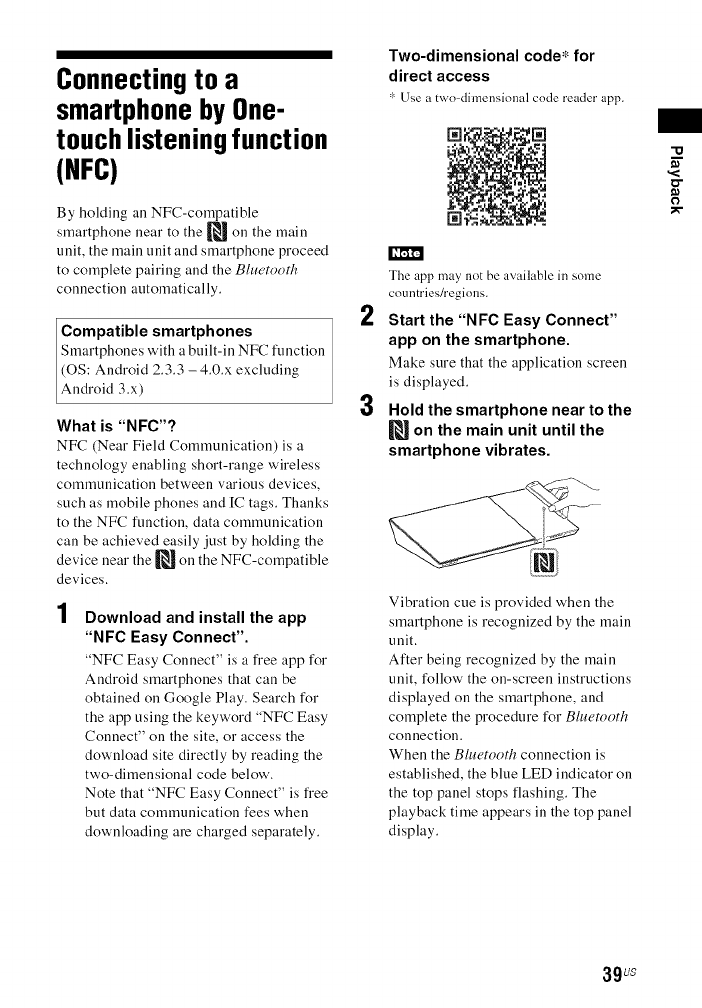
Connecting to a
smartphone by One-
touch listening function
(NFC)
By holding all NFC-compatible
smartphone near to the _ on the main
unit, the main unit and smartphone proceed
to complete pairing and the B/u(,tooth
connection automatically.
,'['rll_
Compatible smartphones
Smartphones with a built-in NFC function
(OS: Android 2.3.3 - 4.0.x excluding
Android 3.x)
What is "NFC'?
NFC (Near Field Communication) is a
technology enabling short-range wireless
communication between various devices,
such as mobile phones and [C tags. Thanks
to the NFC function, data communication
can be achieved easily just by holding the
device near the _ on the NFC-compatible
devices.
1Download and install the app
"NFC Easy Connect".
"NFC Easy Connect" is a free app for
Android smartphones that can be
obtained on Google Play. Search for
the app using the keyword "NFC Easy
Connect" on the site, or access the
download site directly by reading the
two-dimensional code below.
Note that "NFC Easy Connect" is free
but data communication fees when
downloading are charged separately.
Two-dimensional code* for
direct access
Use a two-dimensional code reader app.
The app may not be available in some
countries/regions.
Start the "NFC Easy Connect"
app on the smartphone.
Make sure that the application screen
is displayed.
Hold the smartphone near to the
[_ on the main unit until the
smartphone vibrates.
Vibration cue is provided when the
smartphone is recognized by the main
unit.
After being recognized by the main
unit, follow the on-screen instructions
displayed on the smartphone, and
complete the procedure for Blu(,tooth
connection.
When the Bhwtooth connection is
established, the blue LED indicator on
the top panel stops flashing. The
playback time appears in the top panel
display.
'1:1
.<
o"
O
39us
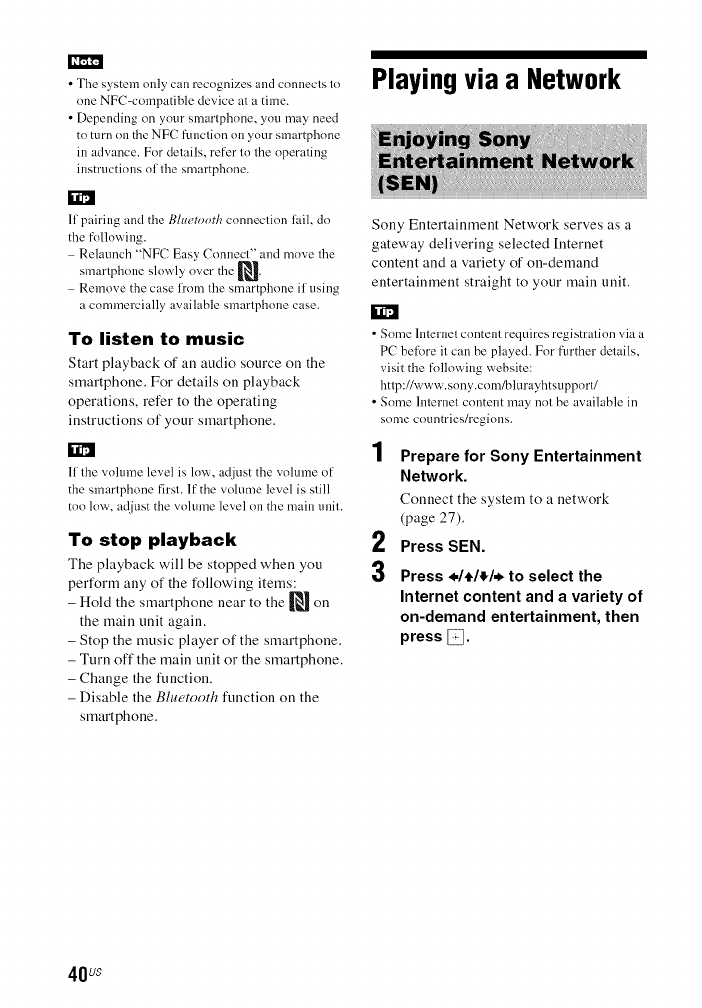
• The system only can recognizes and connects to
one NFC-compatible device at a time.
• Depending on ynm" smartphnne, you may need
to turn on the NFC function on your smartphone
in advance. For details, refer to the nperating
instructinns nf the smartphnne.
Playing via a Network
k_
If pairing and the P,hwtondl connection lhil, do
the following.
Relaunch "NFC Easy Connect" and move the
smarlphone slowly over the _.
Remove the case from the smartphone if using
a commercially available smartphone case.
To listen to music
Start playback of an audio source on the
smartphone. For details on playback
operations, refer to the operating
instructions of your smartphone.
If the vohnne level is low, adjust the volume of
the smartphone first. If the volume level is still
too low. adjust the vohnne level on the main unit.
To stop playback
The playback will be stopped when you
perform any of the following items:
- Hold the smartphone near to the _ on
the main unit again.
- Stop the music player of the smartphone.
- Turn off the main unit or the smartphone.
- Change the function.
- Disable the Bhwtooth function on the
smartphone.
Sony Entertainment Network serves as a
gateway delivering selected [nternet
content and a variety of on-demand
entertainment straight to your main unit.
r_
• Some lnternet content requires registration via a
PC be[k>re it can be played. For further details,
visit the fnllowing website:
http://www.snny.com/blurayhtsuppnr t/
• Some lnternet content may not be available in
some countries/regions.
1
2
3
Prepare for Sony Entertainment
Network.
Connect the system to a network
(page 27).
Press SEN.
Press */e/_/* to select the
Internet content and a variety of
on-demand entertainment, then
press _.
40us
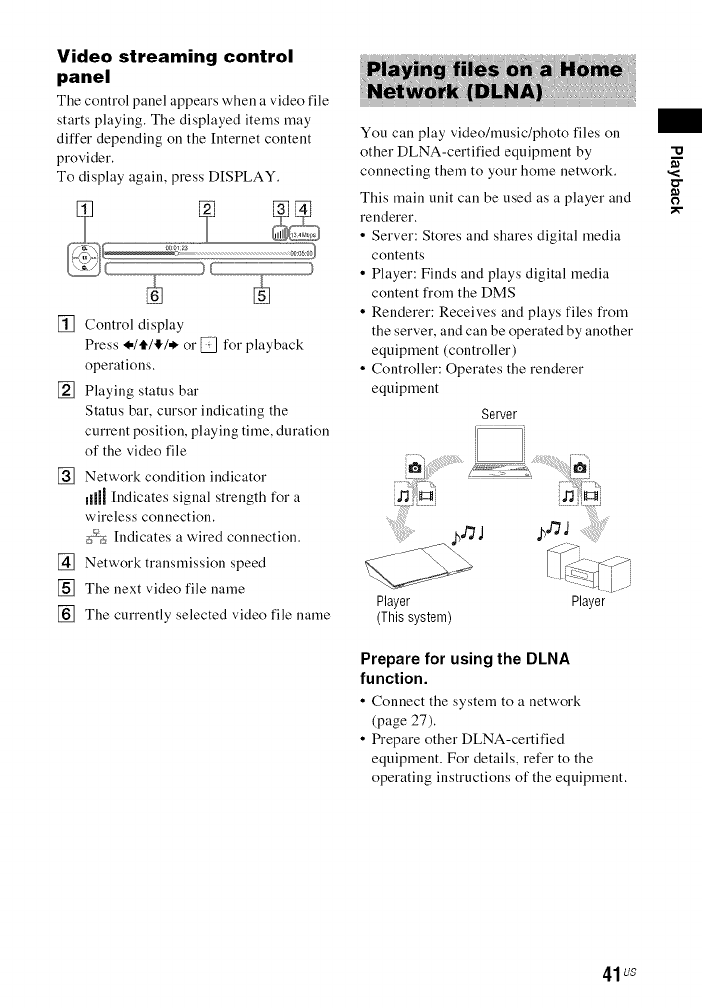
Video streaming control
panel
The control panel appears when a video file
starts playing. The displayed items may
differ depending on the [nternet content
provider.
To display again, press DISPLAY.
[] Control display
Press *ltl!l,! or _ for playback
operations.
[] Playing status bar
Status bar, cursor indicating the
current position, playing time, duration
of the video file
[] Network condition indicator
dill [ndicates signal strength for a
wireless connection.
_5_i_<iIndicates a wired connection.
[] Network transmission speed
[] The next video file name
[] The currently selected video file name
You can play video/music/photo files on
other DLNA-certified equipment by
connecting them to your home network.
This main unit can be used as a player and
renderer.
• Server: Stores and shares digital media
contents
• Player: Finds and plays digital media
content from the DMS
• Renderer: Receives and plays files from
the server, and can be operated by another
equipment (controller)
• Controller: Operates the renderer
equipment
Server
.....
Player Player
(Thissystem)
Prepare for using the DLNA
function.
• Connect the system to a network
(page 27).
• Prepare other DLNA-certified
equipment. For details, refer to the
operating instructions of the equipment.
41us
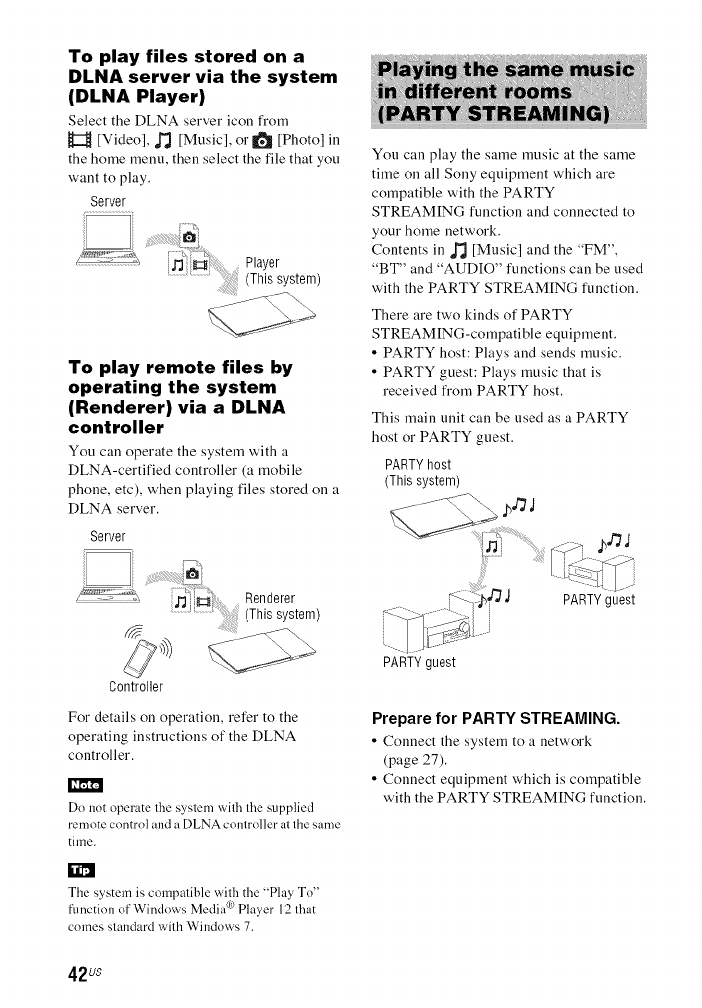
To play files stored on a
DLNA server via the system
(DLNA Player)
Select the DLNA server icon froru
H [Video], d_ [Music], or I]_ [Photo] in
the home menu, then select the file that you
want to play.
Server
Player
...................... (This system)
To play remote files by
operating the system
(Renderer) via a DLNA
controller
You call operate the system with a
DLNA-certified controller (a mobile
phone, etc), when playing files stored on a
DLNA server.
Server
.......Renderer
.........................(This system)
Controller
For details on operation, refer to the
operating instructions of the DLNA
controller.
Do not operate lhe syslem wid_ lhe supplied
remote control and a DLNA comroller al lhe same
time.
You can play the same music at the same
time on all Sony equipment which are
compatible with the PARTY
STREAMING function and connected to
your home network.
Contents in _ [Music] and the "FM",
"BT" and "AUDIO" functions can be used
with the PARTY STREAMING function.
There are two kinds of PARTY
STREAMING-compatible equipment.
• PARTY host: Plays and sends music.
• PARTY guest: Plays music that is
received from PARTY host.
This main unit can be used as a PARTY
host or PARTY guest.
PARTY host
(This system)
.bgJ
PARTY guest
PARTY guest
Prepare for PARTY STREAMING.
• Connect the system to a network
(page 27).
• Connect equipment which is compatible
with the PARTY STREAMING function.
The system is compalible wilh the "Play To"
function of Windows Media ® Player 12 that
comes slandard wi|h Windows 7.
42us
To use the system as the
PARTY host
Select a track ill J_J [Music], a radio station
in _ [Radio], '_ [AUDIO] or
0 [Bluetooth AUDIO] ill _ [Input],
press OPTIONS. Then select [Start
PARTY] to start.
To close, press OPTIONS, then select
[Close PARTY].
II_'[':I1_
If contenl thal is not compalible wi:h the PARTY
STREAMING function is played, the system
closes PARTY automalically.
To use the system as a
PARTY guest
Select ¢_?" [PARTY] ill _ [Music], then
select the PARTY host device icon.
To leave the PARTY, press OPTIONS,
then select [Leave PARTY].
To close the PARTY, press OPTIONS,
then select [Close PARTY].
3
4
Press 4,/. to select _[Video] or
[Music].
Press tit to select _[Video
Search] or _[Music Search].
The content information (such as title,
cast, track, or artist), [Playback
History] and [Search History] are
displayed.
• [Playback History]
Displays a list of previously played
BD-ROM/DVD-ROM/CD-DA
(music CD) titles. Select a title to
acquire content information.
• [Search History]
Displays a list of previous searches
performed via the [Video Search] or
[Music Search] function.
To search for further related
information
Select an item in the lists, then select the
service for searches.
"o
o"
0
The sale and product lineup of producls that are
compatible wilh lhe PARTY STREAMING
ffmction dilfer depending on the area.
You can acquire content information using
Gracenote technology and search for
related information.
1
2
Connect the system to a network
(page 27).
Insert a disc with content about
which you want to search.
You can perform a video search from a
BD-ROM or DVD-ROM, and a music
search from a CD-DA (music CD).
TV SideView is a free mobile application
for the remote device (smartphone, etc). By
using the TV SideView with this system,
you can easily enjoy the system by the
operation on your remote device.
You can launch a service or application
directly from the remote device and view'
the disc information during the disc
playback. The TV SideView also can be
used as a remote control and software
keyboard.
Before you use the TV SideView device
with this system for the first time, be sure to
register the TV SideView device.
Follow the on-screen instructions on the
TV SideView device for registration.
_,'["31'_
The registration will be possible only when home
metal appears on the TV screen.
43us
Available Options
Various settings and playback operations
are available by pressing OPTIONS. The
available items differ depending on the
situation.
Common options
[Sound Mode]
Changes the sound mode setting (page 33).
[Football]
Selects the t_otball mode (page 34).
[Repeat Setting]
Sets repeat playback.
[3D Menu]
[Simuhtted 3D]: Adjusts the simulated 3D
effect.
[3D Depth Adjustment]: Adjusts the depth of
3D images.
[2D Playback]: Sets playback to 2D image.
[Play/Stop]
Starts or stops playback.
[Play from beginning]
Plays the item from the beginning.
[Start PARTY]
Starts :t party with the selected source.
This item may not appear depending on the
source.
[Leave PARTY]
Leaves a party which the system is
participating in. The PARTY STREAMING
function continues anaong other participating
equipment.
[Close PARTY]
For PARTY host: Closes :t party.
For PARTY guest: Closes a party which the
system is participating in. The PARTY
STREAMING flmction ends t_r all other
participating equipment.
[Change Category]
Switches among the H [Video], _ ]Music]
and It_ [Photol category in "BD/DVD" (t_r
disc only) or "USB" function. This item only
available when the display list is available
for the category.
H[Video] only
[A/V SYNC]
Adjusts the time gap between picture and
sound (page 46).
[3D Output Setting]
Sets whether or not to output 3D x.ideo
automatically.
3[) vide() fl'om the HDMI (IN 1) or HDMI (IN 2)
jack is output regardless of this setting.
[Video Settings]
•[Picture Quality Mode]: Selects the picture
settings. [Auto], [Customl], and [Custom2]
are available for HDMI connections.
• ]Texture Remaster]: Adjusts the sharpness
and detail of the edges.
• ]Super Resolution]: hnproves the
resolution.
• [Smoothing]: Reduces on-screen banding
by smoothing gradations on flat areas.
•]Contrast Remaster]: Automatically
arranges the black and white levels so that
the screen is not too dark and the image is
modulated.
• ]Clear Black[: Adjusts the display of the
clark elements of the image. All shading is
not suppressed; it allows beautifidly
reproduced black tones.
[Pause]
Pauses playback.
[Top Menu]
Displays the BD's or DVD's Top Menu.
[Menu/Popup Menu]
Displays the BD-ROM's Pop-up Menu or
DVD' s menu.
[Title Search]
Searches tbr :t title on BD-ROMs!DVD
VIDEOs and starts playback from the
beginning.
[Chapter Search]
Searches t_r :t chapter and starts playback
from the beginning.
[Audio]
Selects the audio format/track.
44us
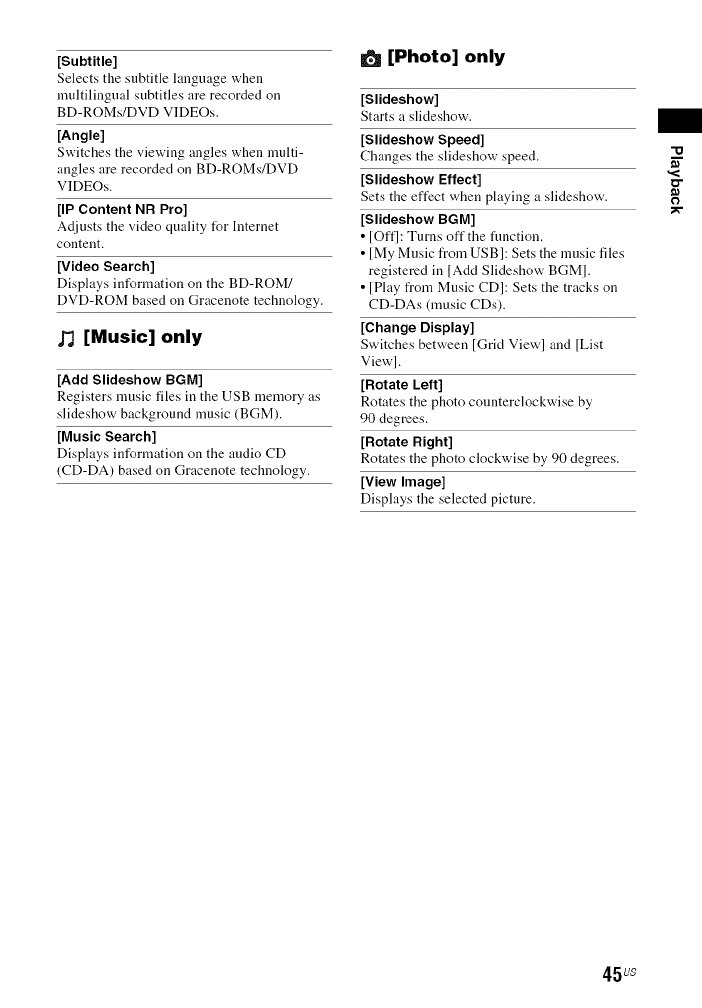
[Subtitle]
Selects the subtitle language when
multilingual subtitles are recorded on
BD-ROMs/DVD VIDEOs.
[Angle]
Switches the viewing angles when nmlti-
angles are recorded on BD-ROMs!DVD
VIDEOs.
[IP Content NR Pro]
Adjusts the _,ideo quality for Interuet
content.
[Video Search]
Displays information oil tlle BD-ROM/
DVD-ROM based on Gracenote technology.
[Music] only
[Add Slideshow BGM]
Registers music files ill the USB memory as
slideshow background music (BGM).
[Music Search]
Disphtys information on the audio CD
(CD-DA) based on Gracenote technology.
[Photo] only
[Slideshow]
Starts a slideshow.
[Slideshow Speed]
Changes the slideshow speed.
[Slideshow Effect]
Sets the effect when playing a slideshow.
[Slideshow BGM]
•IOft'l: Turns off the flmction.
• [My Music from USB]: Sets the music files
registered in [Add Slideshow BGM].
• [Play from Music CD]: Sets the tracks on
CD-DAs (music CDs).
[Change Display]
Switches between [Grid View] and [List
View].
[Rotate Left]
Rotates tile photo counterclockwise by
90 degrees.
[Rotate Right]
Rotates the photo clockwise by 90 degrees.
[View Image]
Displays the selected picture.
O
45us
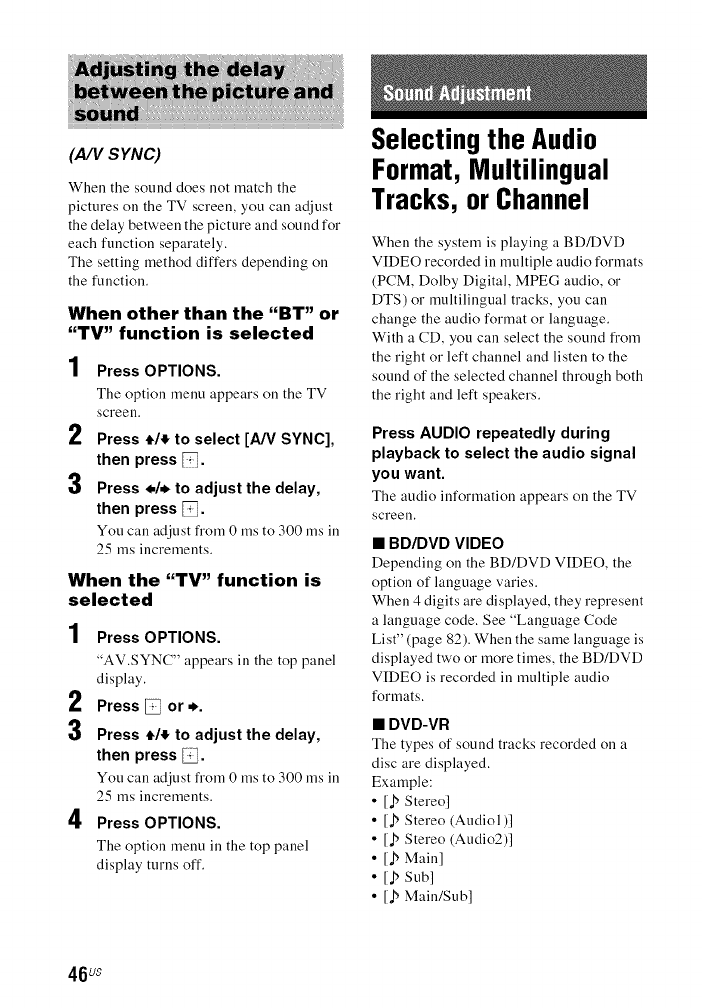
(A/V S YNC)
When the sound does not match the
pictures on the TV screen, you call adjust
the delay between the picture and sound for
each function separately.
The setting method differs depending on
the function.
When other than the "BT" or
"TV" function is selected
1Press OPTIONS.
The option menu appears on the TV
screen.
rl
£. Press */_ to select [A/V SYNC],
then press.
3 Press */* to adjust the delay,
then press _.
You call adjust from 0 ms to 300 ms in
25 ms increments.
When the "TV" function is
selected
1Press OPTIONS.
"AV.SYNC" appears in the top panel
display.
2Press _or,.
3 Press _/4_ to adjust the delay,
then press _.
You can adjust from 0 ms to 300 ms in
25 ms increments.
4Press OPTIONS.
The option menu in the top panel
display turns off.
Selecting the Audio
Format, Multilingual
Tracks, or Channel
When the system is playing a BD/DVD
VIDEO recorded in multiple audio formats
(PCM, Dolby Digital, MPEG audio, or
DTS) or multilingual tracks, you can
change the audio format or language.
With a CD, you can select the sound from
the right or left channel and listen to the
sound of the selected channel through both
the right and left speakers.
Press AUDIO repeatedly during
playback to select the audio signal
you want.
The audio information appears on the TV
screen.
• BD/DVD VIDEO
Depending on the BD/DVD VIDEO, the
option of language varies.
When 4 digits are displayed, they represent
a language code. See "Language Code
List" (page 82). When the same language is
displayed two or more times, the BD/DVD
VIDEO is recorded in multiple audio
formats.
• DVD-VR
The types of sound tracks recorded on a
disc are displayed.
Example:
•[b Stereo]
• [b Stereo (Audiol)]
• [b Stereo (Audio2)]
•[J_ Main]
• [J_ Sub]
• [j5 Main/Sub]
46us
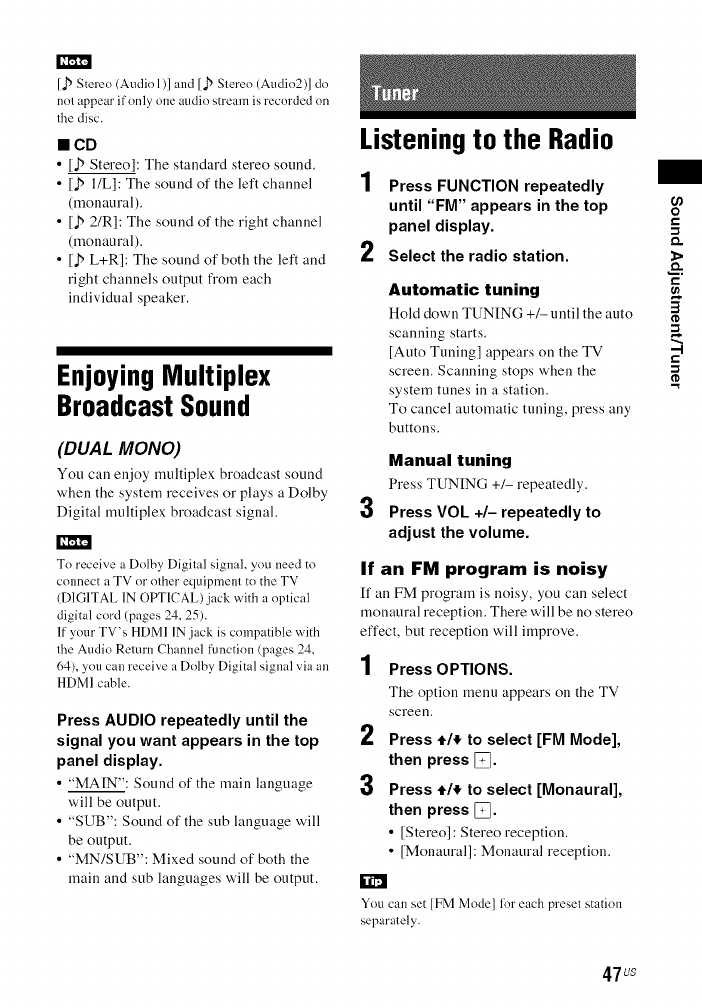
[_ Stereo (Audiol)] and [b Stereo (Audio2)] do
nol appear if only one audio stream is recorded on
lhe disc.
•CD
• [a5 Stereo]: The standard stereo sound.
• [Jb ILL]: The sound of the left channel 1
(monaural).
• [b 2/R]: The sound of the right channel
(monaural).
• [.b L+R]: The sound of both the left and L
right channels output from each
individual speaker.
Enjoying Multiplex
Broadcast Sound
(DUAL MONO)
You can enjoy multiplex broadcast sound
when the system receives or plays a Dolby
Digital multiplex broadcast signal.
To receive a Dolby Digital signal, you need to
connect a TV or other equipment to the TV
(D1GITAL 1N OPTICAL)jack with a optical
digital cord (pages 24, 25).
If your TV's HDMI 1N jack is compatible with
the Audio Return Channel function (pages 24,
64), you can receive a Dolby Digital signal via an
HDMI cable.
Press AUDIO repeatedly until the
signal you want appears in the top
panel display.
• "MAIN": Sound of the main language
will be output.
• "SUB": Sound of the sub language will
be output.
• "MN/SUB": Mixed sound of both the
main and sub languages will be output.
Listening to the Radio
Press FUNCTION repeatedly
until "FM" appears in the top
panel display.
Select the radio station.
Automatic tuning
Hold down TUNING +/- until the auto
scanning starts.
[Auto Tuning] appears on the TV
screen. Scanning stops when the
system tunes in a station.
To cancel automatic tuning, press any
buttons.
3
Manual tuning
Press TUNING +1- repeatedly.
Press VOL +/- repeatedly to
adjust the volume.
If an FM program is noisy
If an FM program is noisy, you can select
monaural reception. There will be no stereo
effect, but reception will improve.
1Press OPTIONS.
The option menu appears on the TV
screen,
2Press e/_ to select [FM Mode],
then press _.
3Press t/_ to select [Monaural],
then press _.
• [Stereo]: Stereo reception.
• [Monaural]: Monaural reception.
You can set [FM Mode] for each presel station
separalely.
if)
o
I2
-1
&
12
-1
-t
I2
-1
47us
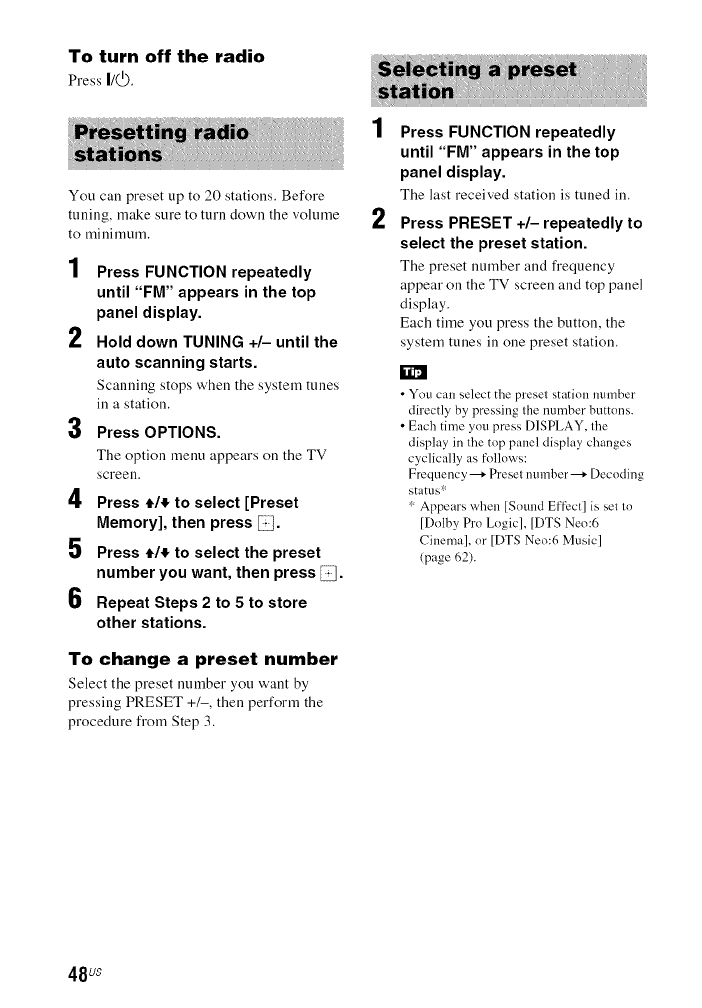
To turn off the radio
Press I/(_.
You call preset up to 20 stations. Before
tuning, make sure to turn down the volume
to minimum.
1
2
3
4
5
6
Press FUNCTION repeatedly
until "FM" appears in the top
panel display.
Hold down TUNING +/- until the
auto scanning starts.
Scanning stops when the system tunes
ill a station.
Press OPTIONS.
The option menu appears on the TV
screen,
Press t/_ to select [Preset
Memory], then press _.
Press ,/€ to select the preset
number you want, then press I_.
Repeat Steps 2 to 5 to store
other stations.
To change a preset number
Select the preset number you want by
pressing PRESET +/-, then perform the
procedure from Step 3.
1
2
Press FUNCTION repeatedly
until "FM" appears in the top
panel display.
The last received station is tuned in.
Press PRESET +/- repeatedly to
select the preset station.
The preset number and frequency
appear on the TV screen and top panel
display.
Each time you press the button, the
system tunes in one preset station.
•You can select the preset station immber
directly bypressing the number buttons.
•Eachtime you press DISPLAY, the
display in the top panel display changes
cyclically as follows:
Frequency --+ Preset number--+ Decoding
status'::
:" Appearswhen [SoundEffi_ct]is set to
[Dolby Pro Logic], [DTSNeo:6
Cinema], or [DTS Neo:6 Music]
(page 62).
48us
Usingthe Control for
HDMI Function for
"BRAVIA" Sync
This function is available on TVs with the
"BRAVIA" Sync function.
By connecting Sony equipment that is
compatible with the Control for HDM[
function via all HDM[ cable, operation is
simplified.
To use the "BRAVIA" Sync function, be sure lo
lUI'llO11the system and all connecled equipment
after completed the HDMI connection.
Control for HDMI - Easy
Setting
You can set the system's [Control for
HDM[] function automatically by enabling
the corresponding setting on the TV.
For details about the Control for HDM[
function, see "[HDM[ Settings]" (page 64)
System Power Off
You can turn the system off in sync with the
TV.
The syslem does nol turn off aulomatically while
playing music or when "FM" function is selected.
One-Touch Play
When you press _ on the remote control,
the system and TV turn on, and the TV's
input is switched to the HDM[ input which
the system is connected.
System Audio Control
You can enjoy the sound from TV or other
equipment by a simple operation.
You can use the System Audio Control
function as follows:
• When the system is turned on, the sound
of the TV or other equipment can be
output from the speakers of the system.
• When sound from the TV or other
equipment is output via the speakers of
the system, you can switch the sound to
output from the TV speakers by pressing
SPEAKERS TV_-+AUDIO.
• When sound from the TV or other
equipment is output via the speakers of
the system, you can adjust the volume
and turn off the sound of the system by
operating the TV.
Audio Return Channel
You can enjoy TV sound via the system by
using just one HDM[ cable. For details of
the setting, see "[Audio Return Channel]"
(page 64).
Language Follow
When you change the language for the
on-screen display of the TV, the system's
on-screen display language is also changed
after turning off and on the system.
Routing Control
When you perform One-Touch Play on the
connected equipment, the system turns on
and sets the system's function to "HDMII"
or "HDM[2" (depending on the HDM[
input jack in use), and your TV's input is
automatically set to the HDM[ input to
which the system is connected.
o
o
"O
49us
Calibrating the
Appropriate Speaker
Settings Automatically
[Auto Calibration]
D.C.A.C. DX (Digital Cinema Auto
Calibration DX) brings you the ideal sound
experience by automatically adjusting the
setting of the speakers' distance, location,
and acoustic.
]k' m'l'_
•The system outputs a loud test sound when
[Auto Calibration] starts. You cannot turn the
volume down. Give consideration to children
and neighbors.
• Before [Auto Calibration], make sure that all the
speakers are connected to the main unit and
surround amplifier. I_'m'l'l
1Press HOME.
The home menu appears on the TV
screen,
2Press */* to select _[Setup].
3Press )/) to select [Audio
Settings], then press _.
4Press )/) to select [Auto
Calibration], then press _.
The [Select speaker layout.] display
appears.
5 Press )/) to select setting
according to your speakers
placement, then press _.
•[Standard]: The surround speakers
are installed in the rear position.
•[All Front]: All speakers are installed
in the front position.
The confirmation display for [Auto
Calibration] appears.
6
7
8
Connect the calibration mic to
the A.CAL MIC jack on the rear
panel.
Set up the calibration mic at ear level
using a tripod, etc. (not supplied). The
calibration mic should aim the TV
screen. The front of each speaker
should face the calibration mic, and
there should be no obstruction between
the speakers and the calibration mic.
Press t/,t to select [OK].
To cancel, select [Cancel].
Press _.
[Auto Calibration] starts.
The system adjusts the speaker settings
automatically.
Be quiet during the measurement.
9
• Be[k>re[AutoCalibration], make sure that
the surround amplifier isturned on and you
have installed the surround amplifier in an
appropriate location to ensure wireless
comlectionwith it.
• While [Auto Calibration] is in progress,do
notoperate the system.
Confirm the result of [Auto
Calibration].
The distance and level for each speaker
appear on the TV screen.
I_'m'l'l
II measurement lails, follow the message
then retry [Auto Calibralion].
I0Press )/) to select [OK] or
[Cancel], then press _.
•The measurement is OK.
Disconnect the calibration mic, then
select [OK]. The result is
implemented.
•The measurement is not OK.
Follow the message, then select [OK]
to retry.
50 Us
You can change the unit ol measurement (feel or
meters) by pressing the color button (RE[)).
8 Press ,*/* and _to confirm the
settings.
Check the following settings.
Setting the Speakers
[Speaker Settings]
To obtain optimum surround sound, set the
speakers' distance fi'om your listening
position. Then use the test tone to adjust the
balance of the speakers.
1Press HOME.
The home menu appears on the TV
screen.
2Press */* to select _[Setup].
3Press )/) to select [Audio
Settings], then press _.
4Press )/) to select [Speaker
Settings], then press _.
The [Select speaker layout.] display
appears.
5 Press )/) to select setting
according to your speakers
placement, then press _.
•[Standard]: The surround speakers
are installed in the rear position.
•[All Front]: All speakers are installed
in the front position.
_'ml'l
All settings are reset to deli.mlt settings each
time you change the speaker layout setting.
6Press t/,t to select the item, then
press _.
7 Press )/) to adjust the
parameter.
•[Distance]
When you move the speakers, be sure to set
the parameters of the distance from the
listening position to the speakers.
You can set the parameters from 0 to
23 feet (0.0 to 7.0 meters).
[Front Left/Right] 10 ft/3.0 m: Set the front
speaker distance.
[Center] 10 ft/3.0 m: Set the center speaker
distance.
[Surround Left/Right] 10 ft/3.0 m: Set the
surround speaker distance.
[Subwoofer] 10 ft/3.0 m: Set the subwoofer
distance.
You Call change the unit of nleasuremenl (feet or
meters) by, pressing file color button (RE[)).
•[Level]
You can adjust the sound level of the
speakers. You can set the parameters from
-6.0 dB to +6.0 dB. Be sure to set [Test
Tone] to [On] for easy adjustment.
[Front Left/Right] 0.0 dB: Set the front
speaker level.
[Center] 0.0 dB: Set the center speaker
level.
[Surround Left/Right I 0.0 dB: Set the
surround speaker level.
[Subwoofer] 0.0 dB: Set the subwoofer
level.
O
O
"o
-1
51us
•[Relocation]
You call correct the speaker position
virtually to improve the surround effect.
[On]: You call hear sound from a virtually
relocated speaker position determined by
[Auto Calibration].
[Off]: You call hear sound from the actual
speaker position.
• This setting is only reflected after perlorming
[Auto Calibration].
• You cannot select this flmction when the
speaker layout is set to [All Front].
•[Test Tone]
The speakers will emit a test tone to adjust
[Level].
[Off]: The test tone is not emitted from the
speakers.
[On]: The test tone is emitted from each
speaker in sequence while adjusting level.
When you select one of the [Speaker
Settings] items, the test tone is emitted
from each speaker in sequence.
Adjust the sound level as follows.
] Set [Test Tone] to [On].
2Press 4,/,_ to select [Level], then
press [7_ii,
3Press 4,/,t to select the speaker type
you want, then press _.
4 Press ./. to select the left or right
speaker, then press ,J/,!,to adjust the
level,
5Press _.
6 Repeat Steps 3 to 5.
7 Press RETURN.
The system returns to the previous
display.
8Press 4,/,t to select [Test Tone], then
press _,
9 Press 4,/,t to select [Off], then press
The test tone signals are not output from the
HDMI (OUT) jack.
To adjust the volume of all the speakers at one
time, press VOL +_.
Usingthe Sleep Timer
You can set the system to turn off at a
preset time, so you can fall asleep listening
to music. The time can be preset in intervals
of 10 minutes.
Press SLEEP.
Each time you press SLEEP, the minutes
display (the remaining time) in the top
panel display changes by 10 minutes.
When you set the sleep timer, the
remaining time appears every 5 minutes.
When the remaining time is less than
2 minutes, "SLEEP" flashes in the top
panel display.
To check the remaining
time
Press SLEEP once.
To change the remaining
time
Press SLEEP repeatedly.
52us
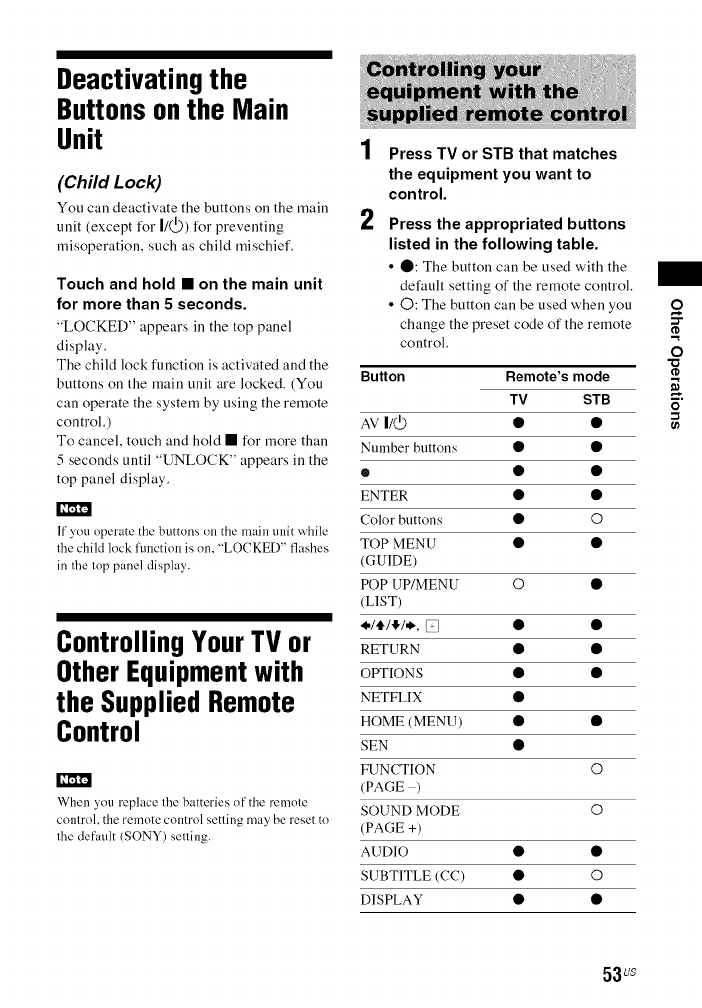
Deactivating the
Buttons on the Main
Unit
(Child Lock)
You call deactivate the buttons on the main
unit (except for [/(_)) for preventing
misoperation, such as child mischief.
Touch and hold •on the main unit
for more than 5 seconds.
"LOCKED" appears ill the top panel
display.
The child lock function is activated and the
buttons on the main unit are locked. (You
can operate the system by using the remote
control.)
To cancel, touch and hold • for more than
5 seconds until "UNLOCK" appears in the
top panel display.
If you operate the buttons on the main unit while
the child lock lunction is on, "LOCKED" flashes
in the lop panel display.
Controlling Your TV or
Other Equipmentwith
the Supplied Remote
Control
When you replace the batteries of the remole
control, the remote comrol setting may be reset to
the default (SONY) selling.
1
2
Press TV or STB that matches
the equipment you want to
control.
Press the appropriated buttons
listed in the following table.
• O: The button can be used with the
default setting of the remote control.
• C): The button can be used when you
change the preset code of the remote
control.
Button Remote's mode
TV STB
AV I/_ • •
Number buttons • •
• • •
ENTER • •
Color buttons •O
TOP MENU • •
(GUIDE)
POP UP/MENU O •
(LIST)
•/'Jib'I*, {:1 • •
RETURN • •
OtYFIONS • •
NETFLIX •
HOME (MENU) • •
SEN •
FUNCTION O
(PAGE)
SOUND MODE O
(PAGE +)
AUDIO • •
SUBTITLE (CC) •©
DISPLAY • •
o
53us
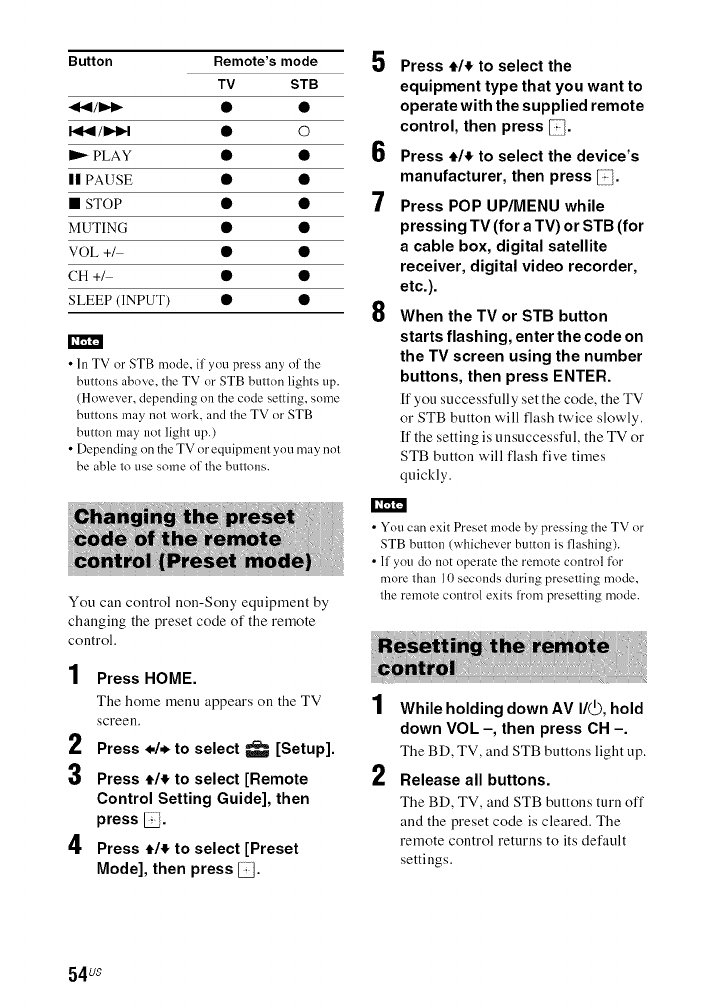
Button Remote's mode
TV STB
-_t.4/i_1_ • •
i._r_l/l_,!_l •0
I1_ PLAY • •
II PAUSE • •
•STOP • •
MUTING • •
VOL +_ • •
CH +_ • •
SLEEP (INPUT) • •
•In TV or STB mode, if you press any of the
buttons above, the TV or STB button lights up.
(However, depending oll the code setting, some
buttons may not work, and the TV or STB
button may not light up.)
•Depending on the TV or equipment yon n/;.t_ riot
be able to use some of the buttons.
5
6
7
8
Press t/! to select the
equipment type that you want to
operate with the supplied remote
control, then press _.
Press t/! to select the device's
manufacturer, then press _.
Press POP UP/MENU while
pressing TV (for a TV) or STB (for
a cable box, digital satellite
receiver, digital video recorder,
etc.).
When the TV or STB button
starts flashing, enter the code on
the TV screen using the number
buttons, then press ENTER.
If you successfully set the code, the TV
or STB button will flash twice slowly.
If the setting is unsuccessful, the TV or
STB button will flash five times
quickly.
You call control non-Sony equipment by
changing the preset code of the remote
control.
1
2
3
4
Press HOME.
The home menu appears on the TV
screen.
Press ./, to select _[Setup].
Press t/! to select [Remote
Control Setting Guide], then
press _.
Press t/! to select [Preset
Mode], then press _.
•You can exit Preset mode by pressing the TV or
STB button (whichever button is flashing).
•If you do not operate the remote control for
more than 10 seconds during presetting mode,
the remote control exits from presetting mode.
1
2
While holding down AV I/@, hold
down VOL -, then press CH -.
The BD, TV, and STB buttons light tip.
Release all buttons.
The BD, TV, and STB buttons turn off
and the preset code is cleared. The
remote control returns to its default
settings.
54us
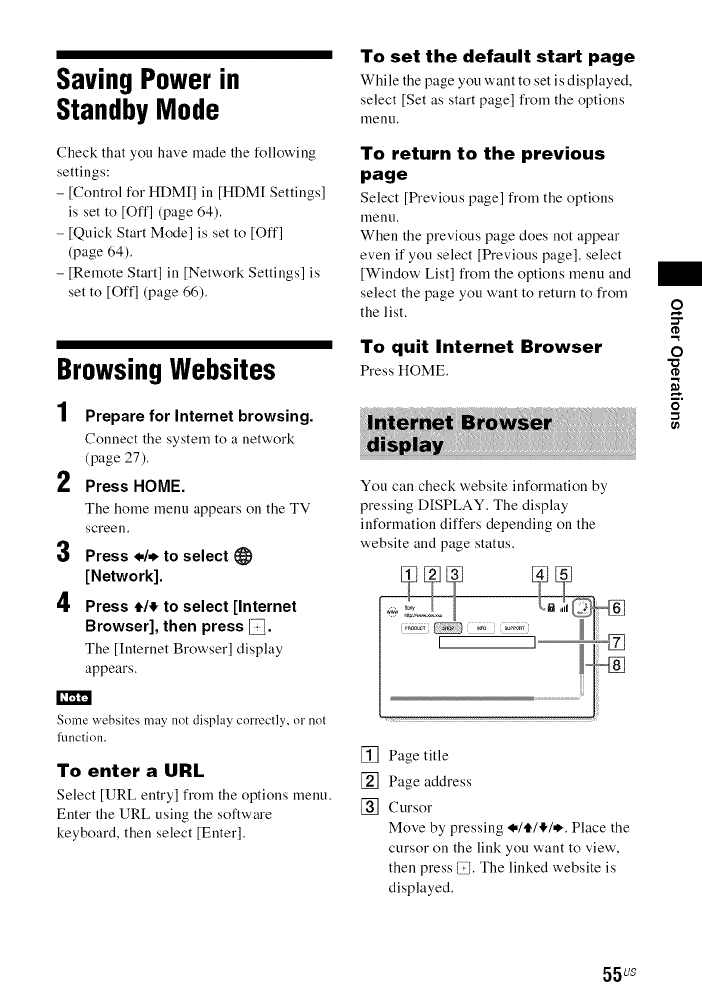
Saving Power in
Standby Mode
Check that you have made the following
settings:
- [Control for HDM[I in [HDM[ Settings]
is set to [Off] (page 64).
- [Quick Start Mode] is set to [Off]
(page 64).
- [Remote Start] in [Network Settings] is
set to [Off] (page 66).
BrowsingWebsites
1Prepare for Internet browsing.
Connect tile system to a network
(page 27).
2Press HOME.
Tile home menu appears on tile TV
screen.
3Press */* to select
[Network].
4Press t/_ to select [Internet
Browser], then press _.
Tile [Internet Browser] display
appears.
To set the default start page
While tile page you want to set is displayed,
select [Set as start page] from the options
menu,
To return to the previous
page
Select [Previous page] from tile options
lllenU,
When the previous page does not appear
even if you select [Previous page], select
[Window List] l_om the options menu and
select the page you want to return to l_om
the list.
To quit Internet Browser
PressHOME.
You can check website information by
pressing DISPLAY. The display
information differs depending on the
website and page status.
o
O
"o
Some websites may not display correclly, or nol
l_mction.
To enter a URL
Select [URL entry] from tile options menu.
Enter the URL using the software
keyboard, then select [Enter].
[] Page title
[] Page address
[] Cursor
Move by pressing .*/ill!,/*. Place the
cursor on the link you want to view',
then press lili. The linked website is
displayed.
55 us
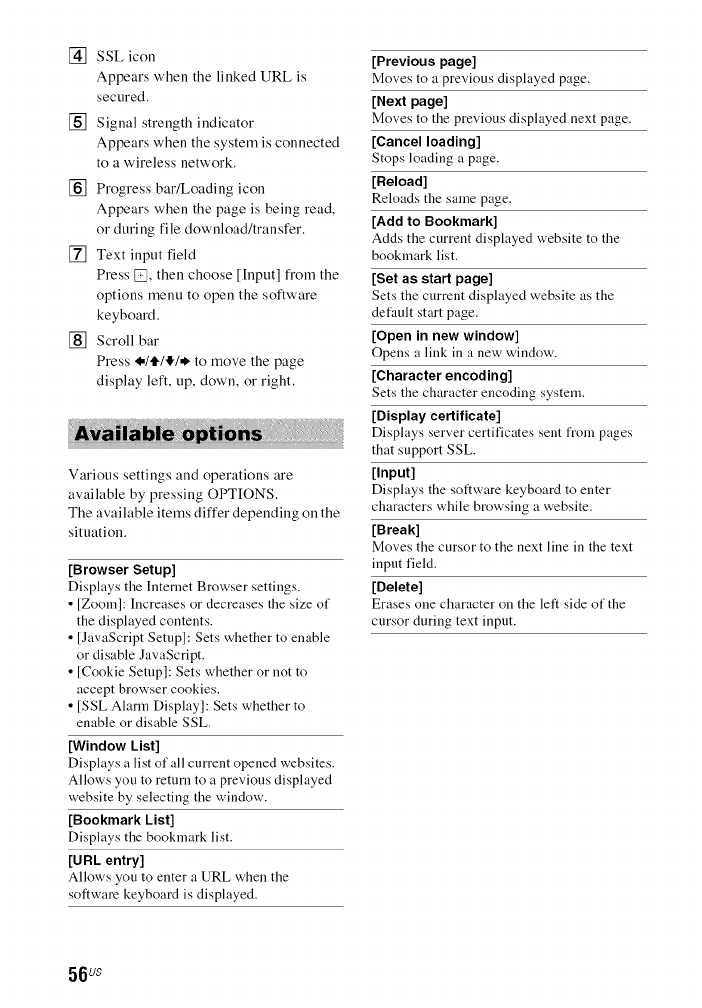
[] SSL icon
Appears when the linked URL is
secured.
[] Signal strength indicator
Appears when the system is connected
to a wireless network.
[] Progress barlLoading icon
Appears when the page is being read,
or during file download/transfer.
[] Text input field
Press D, then choose [Input] fi'om the
options menu to open the software
keyboard.
[] Scroll bar
Press .*lt/l!'/* to move the page
display left, up, down, or right.
Various settings and operations are
available by pressing OPTIONS.
The available items differ depending on the
situation.
[Browser Setup]
Displays the lnternet Browser settings.
• [Zoom]: Increases or decreases the size of
the displayed contents.
• [JavaScript Setup]: Sets whether to enable
or disable JavaScript.
• [Cookie Setup]: Sets whether or not to
accept browser cookies.
• [SSL Alarm Display]: Sets whether to
enable or disable SSL.
[Window List]
Displays a list of all current opened websites.
Allows you to return to a previous displayed
website by selecting the window.
[Bookmark List]
Displays the bookmark list.
[URL entry]
Allows you to enter a URL when the
software keyboard is displayed.
[Previous page]
Moves to a previous displayed page.
[Next page]
Moves to the previous displayed next page.
[Cancel loading]
Stops loading a page.
[Reload]
Reloads the same page.
[Add to Bookmark]
Acids the current displayed website to the
bookmark list.
[Set as start page]
Sets the current disphtyed website as the
default start page.
[Open in new window]
Opens a link in a new window.
[Character encoding]
Sets the character encoding system.
[Display certificate]
Displays serx, er certificates sent from pages
that support SSL.
[Input]
Displays the software keyboard to enter
characters while browsing a website.
[Break]
Mox, es the cursor to the next line in the text
input fiekt.
[Delete]
Erases one character on the left side of the
cursor during text input.
56 Us
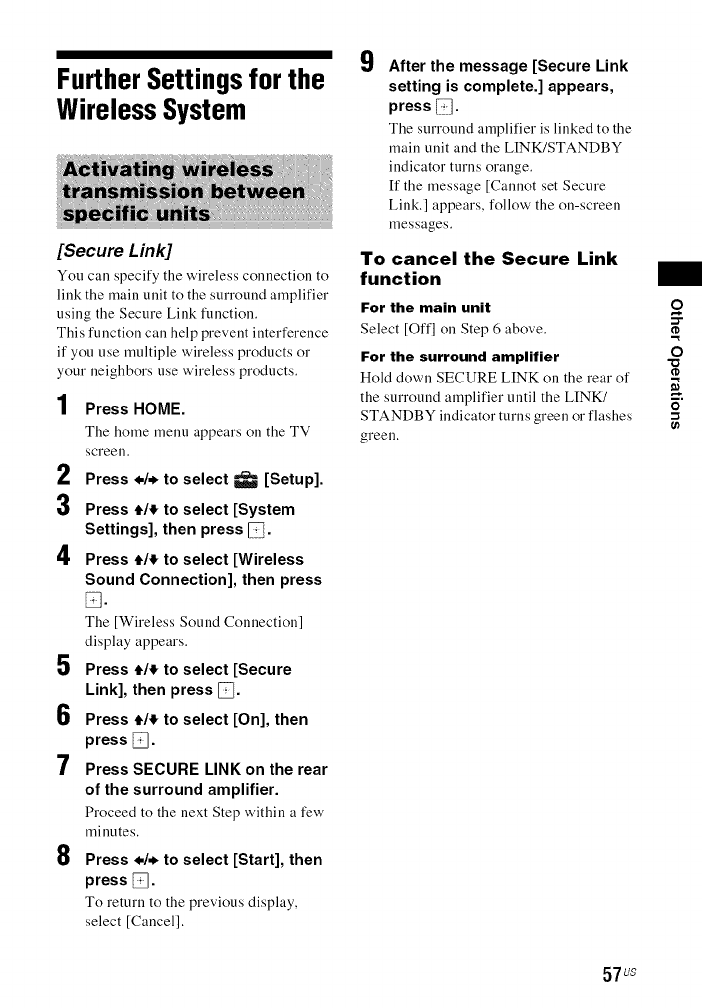
Further Settings for the
Wireless System
[Secure Link]
You call specify the wireless connection to
link the main unit to the surround amplifier
using the Secure Link function,
This function call help prevent interference
if you use multiple wireless products or
your neighbors use wireless products,
1Press HOME.
The home menu appears on the TV
screen.
2Press */* to select _[Setup].
3 Press 4,/# to select [System
Settings], then press _.
4Press 4,/# to select [Wireless
Sound Connection], then press
The [Wireless Sound Connection]
display appears.
5 Press 4,/_ to select [Secure
Link], then press [_.
6Press 4'/,1" to select [On], then
press _.
7 Press SECURE LINK on the rear
of the surround amplifier.
Proceed to the next Step within a few'
minutes.
8Press ./. to select [Start], then
press.
To return to the previous display,
select [Cancel].
9After the message [Secure Link
setting is complete.] appears,
press _.
The surround amplifier is linked to the
main unit and the LINK/STANDBY
indicator turns orange.
[f the message [Cannot set Secure
Link.] appears, follow' the on-screen
messages.
To cancel the Secure Link
function
For the main unit 0
:3"
Select [Off] on Step 6 above.
For the surround amplifier -o0
Hold down SECURE LINK on the rear of ¢
the surround amplifier until the LINK/ _.
STANDBY indicator turns green or flashes =
green.
57 us
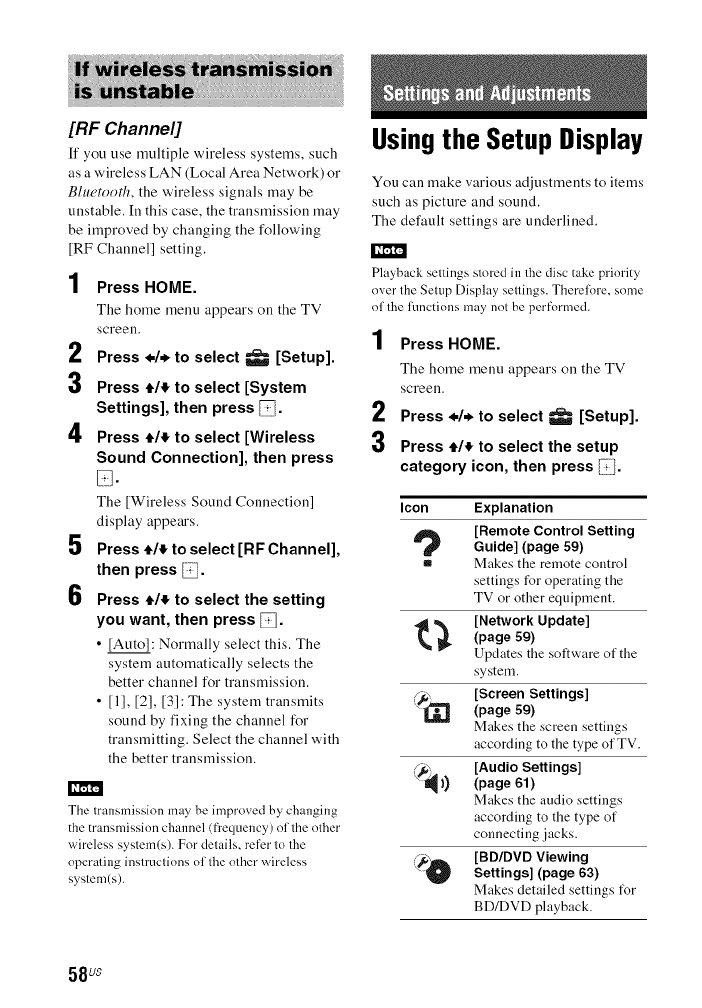
[[:IF Channel]
[f you use multiple wireless systems, such
as a wireless LAN (Local Area Network) or
Bhwtooth, the wireless signals may be
unstable. [n this case, the transmission may
be improved by changing the following
[RF Channel] setting.
1
2
3
4
5
6
Press HOME.
The home menu appears on the TV
screeu.
Press */* to select _[Setup].
Press tit to select [System
Settings], then press.
Press tit to select [Wireless
Sound Connection], then press
IZI.
The [Wireless Sound Connection]
display appears.
Press 4,/_ to select [RF Channel],
then press/7i.
Press 4,/_ to select the setting
you want, then press _.
• [Auto]: Normally select this. The
system automatically selects the
better channel for transmission.
• [1], [2], [3]: The system transmits
sound by fixing the channel for
transmitting. Select the channel with
the better transmission.
The transmission may be improved by changing
the transmission channel (fl'equency) of the other
wireless system(s). For details, refer to the
operating instructions of the other wireless
system(s).
Usingthe Setup Display
You can make various adjustments to items
such as picture and sound.
The default settings are underlined.
Playback sellings slored in the disc take priority
over the Selup Display sellings. Therefore, some
ol lhe functions may nol be performed.
1
2
3
Press HOME.
The home menu appears on the TV
screeu.
Press */. to select _[Setup].
Press tit to select the setup
category icon, then press _.
Icon Explanation
[Remote Control Setting
Guide] (page 59)
I= Makes the remote control
settings for operating the
TV or other equipment.
[Network Update]
t'_ (page 59)
Updates the software of the
system.
[Screen Settings]
" _ (page 59)
Makes the screen settings
according to the type of TV.
/_; [Audio Settings]
_)) (page 61)
Makes the audio settings
according to the type of
connecting jacks.
_,_,_ [BD/DVD Viewing
_-_ Settings] (page 63)
Makes detailed settings t_r
BD/DVD playback.
58 Us

Icon Explanation
,_ _ [Parental Control
_'=_ Settings] (page 63)
Makes detailed settings for
the Parental Control
function.
[Music Settings]
_(page 64)
Makes detailed settings for
Super Audio CD playback.
[System Settings]
_--i (page 64)
Makes the system-related
settings.
_ [External Input Settings]
_(page 65)
Sets the input skip setting
for each external input.
[Network Settings]
_(_ (page 65)
Makes detailed settings for
lnternet and network.
[Easy Network Settings]
=_ (page 66)
t-2-3 Runs [Easy Network
Settings] to make the basic
network settings.
[Resetting] (page 66)
,_ Resets the system to tile
factory settings.
II,,['rli'_
[Remote Control
Setting Guide]
•[Preset Mode]
You can change the preset code of the
remote control for controlling non-Sony
equipment. For details, see "Changing the
preset code of the remote control (Preset
mode)" (page 54).
[Network Update]
By updating your software to the latest
version, you can take advantage of the
newest functions.
For information about update functions,
refer to the following website:
http://www.sony.com/blurayhtsupport/
During a software update, "UPDATE"
appears in the top panel display. After the
update completes, the main unit
automatically turns off.
While the updating operation is in progress,
do not turn on or off the main unit, or
operate the main unit or TV. Wait for the
software update to complete.
[Screen Settings]
•[3D Output Setting]
[Auto]: Normally select this.
[Off]: Select this to display all contents in
2D.
3D video from the HDMI (IN 1) or HDMI (IN 2)
jack is output regardless of this setting.
•[TV Screen Size Setting for 3D]
Sets the screen size of your 3D-compatible
TV.
This setting does nol work lot 3[) video from the
HDMI {IN 1) or HDMI (1N 2)jack.
O_
-1
tO
g.
&
€-
3
o
-1
59 Us
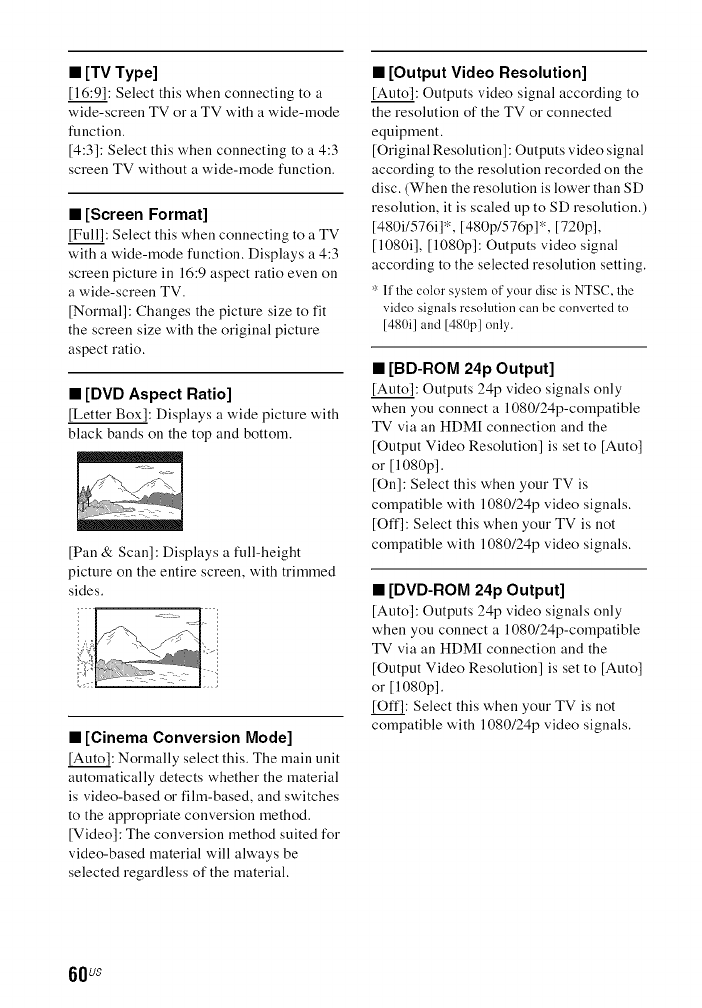
• [TV Type]
[ 16:9]: Select this when connecting to a
wide-screen TV or a TV with a wide-mode
function.
[4:3]: Select this when connecting to a 4:3
screen TV without a wide-mode function.
• [Screen Format]
[Full]: Select this when connecting to a TV
with a wide-mode function, Displays a 4:3
screen picture in 16:9 aspect ratio even on
a wide-screen TV.
[Normal]: Changes the picture size to fit
the screen size with the original picture
aspect ratio.
•[DVD Aspect Ratio]
[Letter Box]: Displays a wide picture with
black bands on the top and bottom.
[Pan & Scan]: Displays a full-height
picture on the entire screen, with trimmed
sides.
•[Cinema Conversion Mode]
[Auto]: Normally select this. The main unit
automatically detects whether the material
is video-based or fihn-based, and switches
to the appropriate conversion method.
[Video]: The conversion method suited for
video-based material will always be
selected regardless of the material.
•[Output Video Resolution]
[Auto]: Outputs video signal according to
the resolution of the TV or connected
equipment.
[Original Resolution]: Outputs video signal
according to the resolution recorded on the
disc. (When the resolution is lower than SD
resolution, it is scaled up to SD resolution.)
[480i1576i]*, [480p/576p]*, [720p],
[ 1080i], [1080p]: Outputs video signal
according to the selected resolution setting.
* If the color system of your disc is NTSC, the
video signals resolution can be converted to
[480i] and [480p1 only.
•[BD-ROM 24p Output]
[Auto]: Outputs 24p video signals only
when you connect a 1080/24p-compatible
TV via an HDM[ connection and the
[Output Video Resolution] is set to [Auto]
or [1080p].
[On]: Select this when your TV is
compatible with 1080/24p video signals.
[Offl: Select this when your TV is not
compatible with 1080/24p video signals.
•[DVD-ROM 24p Output]
[Auto]: Outputs 24p video signals only
when you connect a 1080/24p-compatible
TV via an HDM[ connection and the
[Output Video Resolution] is set to [Auto]
or [1080p].
[Offl: Select this when your TV is not
compatible with 1080/24p video signals.
60 us
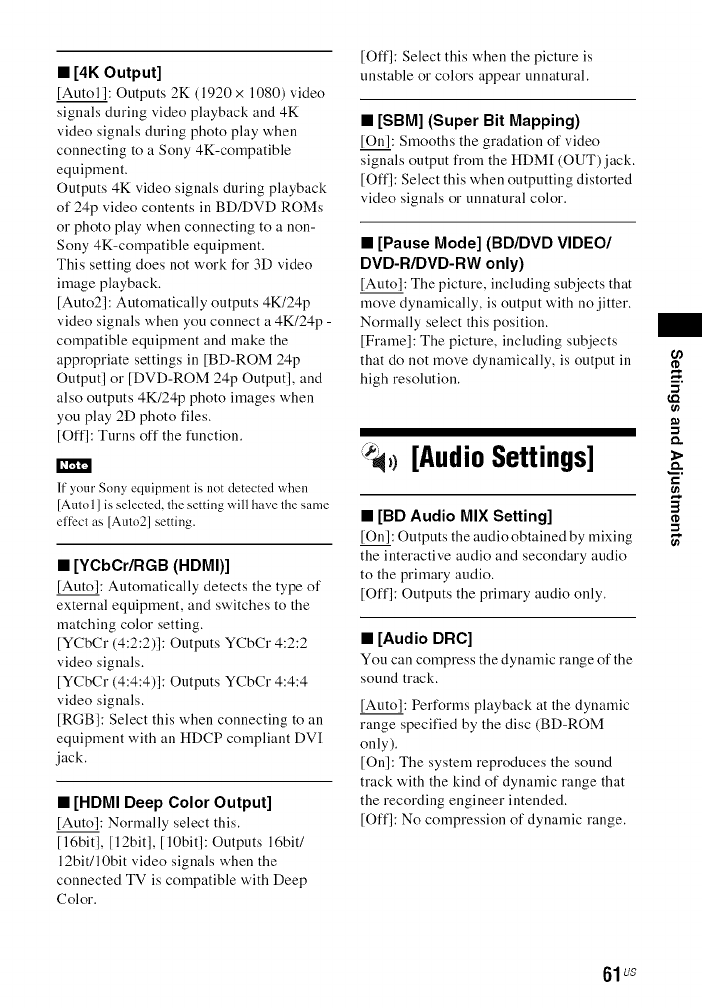
•[4K Output]
[Autol]: Outputs 2K (1920 x 1080) video
signals during video playback and 4K
video signals during photo play when
connecting to a Sony 4K-compatible
equipment.
Outputs 4K video signals during playback
of 24p video contents in BD/DVD ROMs
or photo play when connecting to a non-
Sony 4K-compatible equipment.
This setting does not work for 3D video
image playback.
[Auto2]: Automatically outputs 4K/24p
video signals when you connect a 4K/24p -
compatible equipment and make the
appropriate settings in [BD-ROM 24p
Output] or [DVD-ROM 24p Output], and
also outputs 4K/24p photo images when
you play 2D photo files.
[Off]: Turns off the function.
If your Sony equipment is not detected when
[Auto 1] is selected, the setting will have the same
el'fbct as [Auto2] setting.
•[YCbCr/RGB (HDMI)]
[Auto]: Automatically detects the type of
external equipment, and switches to the
matching color setting.
[YCbCr (4:2:2)]: Outputs YCbCr 4:2:2
video signals.
[YCbCr (4:4:4)]: Outputs YCbCr 4:4:4
video signals.
[RGB]: Select this when connecting to an
equipment with an HDCP compliant DVI
jack.
•[HDMI Deep Color Output]
[Auto]: Normally select this.
[ 16bit], [12bit], [10bit]: Outputs 16bit/
12bit/10bit video signals when the
connected TV is compatible with Deep
Color.
[Off]: Select this when the picture is
unstable or colors appear unnatural.
•[SBM] (Super Bit Mapping)
[On]: Smooths the gradation of video
signals output from the HDM[ (OUT)jack.
[Off]: Select this when outputting distorted
video signals or unnatural color.
•[Pause Mode] (BD/DVD VIDEO/
DVD-R/DVD-RW only)
[Auto]: The picture, including subjects that
move dynamically, is output with no jitter.
Normally select this position.
[Frame]: The picture, including subjects
that do not move dynamically, is output in
high resolution.
[Audio Settings]
•[BD Audio MIX Setting]
[On]: Outputs the audio obtained by mixing
the interactive audio and secondary audio
to the primary audio.
[Offl: Outputs the primary audio only.
•[Audio DRC]
You can compress the dynamic range of the
sound track.
[Auto]: Performs playback at the dynamic
range specified by the disc (BD-ROM
only).
[On]: The system reproduces the sound
track with the kind of dynamic range that
the recording engineer intended.
[Offl: No compression of dynamic range.
tci
€-
3
61us
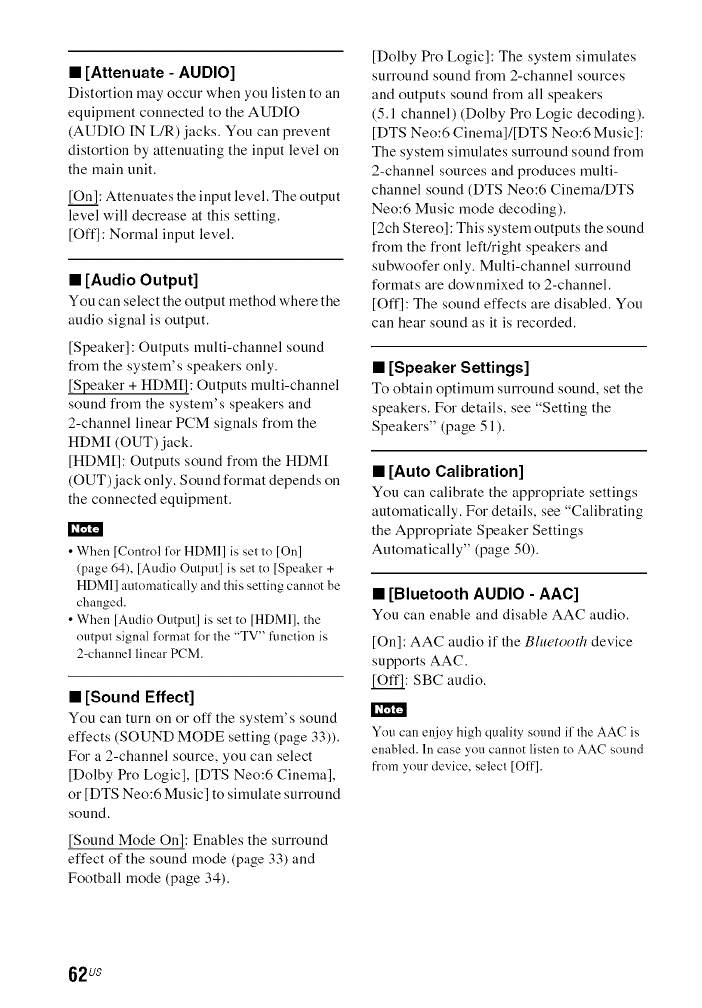
•[Attenuate - AUDIO]
Distortion may occur when you listen to an
equipment connected to the AUDIO
(AUDIO IN L/R) jacks. You can prevent
distortion by attenuating the input level on
the main unit.
[On]: Attenuates the input level. The output
level will decrease at this setting.
[Off]: Normal input level.
•[Audio Output]
You can select the output method where the
audio signal is output.
[Speaker]: Outputs multi-channel sound
from the system's speakers only.
[Speaker + HDM[]: Outputs multi-channel
sound from the system's speakers and
2-channel linear PCM signals from the
HDM[ (OUT) jack.
[HDM[I: Outputs sound from the HDM[
(OUT)jack only. Sound format depends on
the connected equipment.
• When [Control ff_r HDMI] is set to [On]
(page 64), [Audio Output] is set to [Speaker +
HDMI] automatically and this setting cannot be
changed.
• When [Audio Ouqmt] is set to [HDMI], the
output signal format lor the "TV" function is
2-channel linear PCM.
•[Sound Effect]
You can turn on or off the system's sound
effects (SOUND MODE setting (page 33)).
For a 2-channel source, you can select
[Dolby Pro Logic], [DTS Neo:6 Cinema],
or [DTS Neo:6 Music] to simulate surround
sound.
[Sound Mode On]: Enables the surround
effect of the sound mode (page 33) and
Football mode (page 34).
[Dolby Pro Logic]: The system simulates
surround sound from 2-channel sources
and outputs sound from all speakers
(5.1 channel) (Dolby Pro Logic decoding).
[DTS Neo:6 Cinema]/[DTS Neo:6 Music]:
The system simulates surround sound from
2-channel sources and produces multi-
channel sound (DTS Neo:6 Cinema/DTS
Neo:6 Music mode decoding).
[2ch Stereo]: This system outputs the sound
from the front left/right speakers and
subwoofer only. Multi-channel surround
formats are downmixed to 2-channel.
[Off]: The sound effects are disabled. You
can hear sound as it is recorded.
•[Speaker Settings]
To obtain optimum surround sound, set the
speakers. For details, see "Setting the
Speakers" (page 51 ).
•[Auto Calibration]
You can calibrate the appropriate settings
automatically. For details, see "Calibrating
the Appropriate Speaker Settings
Automatically" (page 50).
•[Bluetooth AUDIO - AAC]
You can enable and disable AAC audio.
[On]: AAC audio if the Bluetooth device
supports AAC.
[Off]: SBC audio.
You can enjoy high quality sound if the AAC is
enabled. In case you cannot listen to AAC sound
frnm your device, select [Off].
62us
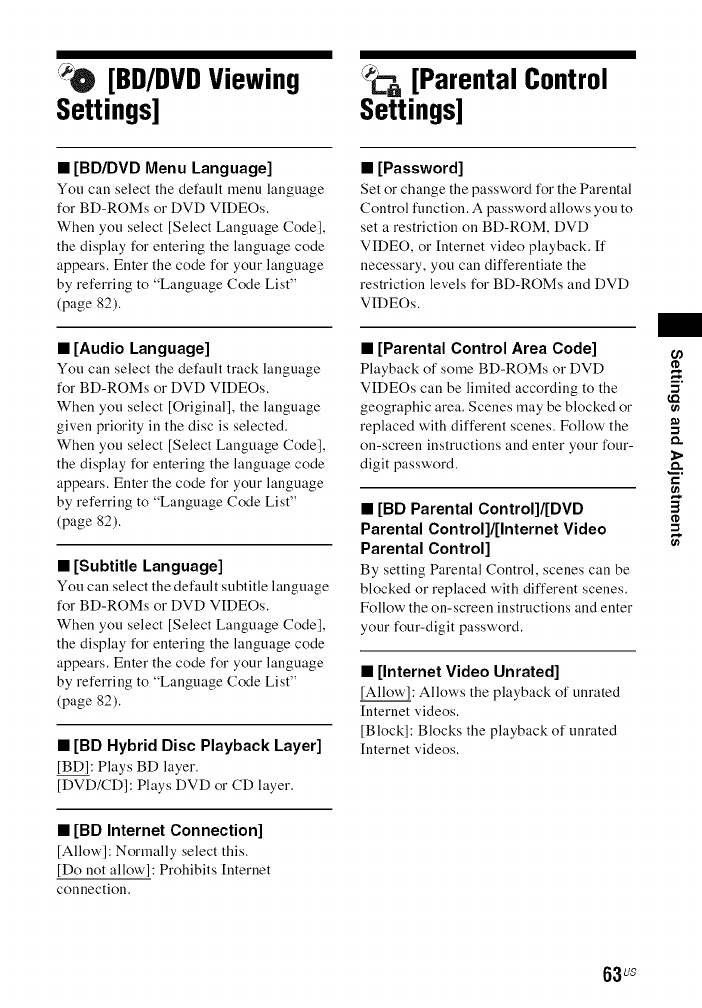
[BD/DVDViewing
Settings] [Parental Control
Settings]
•[BD/DVD Menu Language]
You call select the default menu language
for BD-ROMs or DVD VIDEOs.
When you select [Select Language Code],
the display for entering the language code
appears. Enter the code for your language
by referring to "Language Code List"
(page 82).
•[Audio Language]
You call select the default track language
for BD-ROMs or DVD VIDEOs.
When you select [Original], the language
given priority in the disc is selected.
When you select [Select Language Code],
the display for entering the language code
appears. Enter the code for your language
by referring to "Language Code List"
(page 82).
•[Subtitle Language]
You can select the default subtitle language
for BD-ROMs or DVD VIDEOs.
When you select [Select Language Code],
the display for entering the language code
appears. Enter the code for your language
by referring to "Language Code List"
(page 82).
•[BD Hybrid Disc Playback Layer]
[BD]: Plays BD layer.
[DVD/CD]: Plays DVD or CD layer.
•[BD Internet Connection]
[Allow]: Normally select this.
[Do not allow']: Prohibits [nternet
connection.
•[Password]
Set or change the password for the Parental
Control function. A password allows you to
set a restriction on BD-ROM, DVD
VIDEO, or [nternet video playback. If
necessary, you can differentiate the
restriction levels for BD-ROMs and DVD
VIDEOs.
•[Parental Control Area Code]
Playback of some BD-ROMs or DVD
VIDEOs can be limited according to the
geographic area. Scenes may be blocked or
replaced with different scenes. Follow' the
on-screen instructions and enter your four-
digit password.
•[BD Parental Control]/[DVD
Parental Control]/[Internet Video
Parental Control]
By setting Parental Control, scenes can be
blocked or replaced with different scenes.
Follow the on-screen instructions and enter
your four-digit password.
•[Internet Video Unrated]
[Allow]: Allows the playback of unrated
[nternet videos.
[Block]: Blocks the playback of unrated
[nternet videos.
-1
o,.
1>
&
€-
3
-1
63us
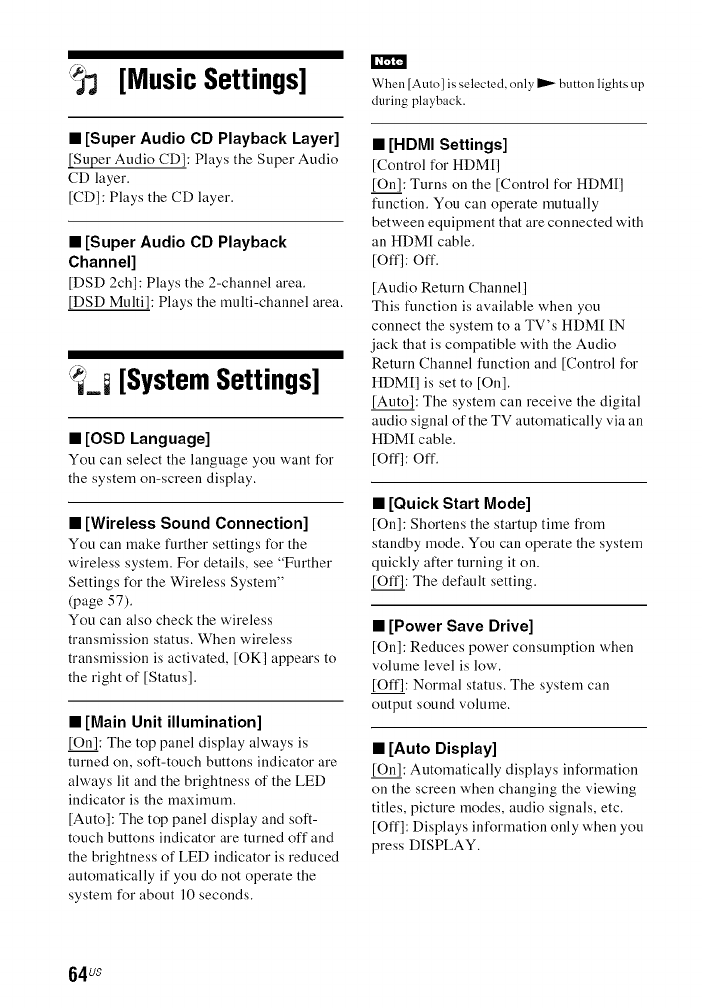
[Music Settings]
•[Super Audio CD Playback Layer]
[Super Audio CD]: Plays the Super Audio
CD layer,
[CD] : Plays the CD layer,
•[Super Audio CD Playback
Channel]
[DSD 2ch]: Plays the 2-channel area.
[DSD Multi]: Plays the multi-channel area.
[SystemSettings]
•[OSD Language]
You call select the language you want for
the system on-screen display.
•[Wireless Sound Connection]
You can make further settings for the
wireless system. For details, see "Further
Settings for the Wireless System"
(page 57).
You can also check the wireless
transmission status. When wireless
transmission is activated, [OK] appears to
the right of [Status].
•[Main Unit illumination]
[On]: The top panel display always is
turned on, soft-touch buttons indicator are
always lit and the brightness of the LED
indicator is the maximum.
[Auto]: The top panel display and soft-
touch buttons indicator are turned off and
the brightness of LED indicator is reduced
automatically if you do not operate the
system for about 10 seconds.
When [Auto] is selected, only _ button lights up
during playback.
•[HDMI Settings]
[Control for HDM[]
[On]: Turns on the [Control for HDM[]
function. You can operate mutually
between equipment that are connected with
an HDM[ cable.
[Offl: off.
[Audio Return Channel]
This function is available when you
connect the system to a TV's HDM[ IN
jack that is compatible with the Audio
Return Channel function and [Control for
HDM[] is set to [On].
[Auto]: The system can receive the digital
audio signal of the TV automatically via an
HDM[ cable.
[Offl: off.
•[Quick Start Mode]
[On]: Shortens the startup time from
standby mode. You can operate the system
quickly after turning it on.
[Offl: The default setting.
• [Power Save Drive]
[On]: Reduces power consumption when
volume level is low'.
[Offl: Normal status. The system can
output sound volume.
•[Auto Display]
[On]: Automatically displays information
on the screen when changing the viewing
titles, picture modes, audio signals, etc.
[Off]: Displays information only w'hen you
press DISPLAY.
64us
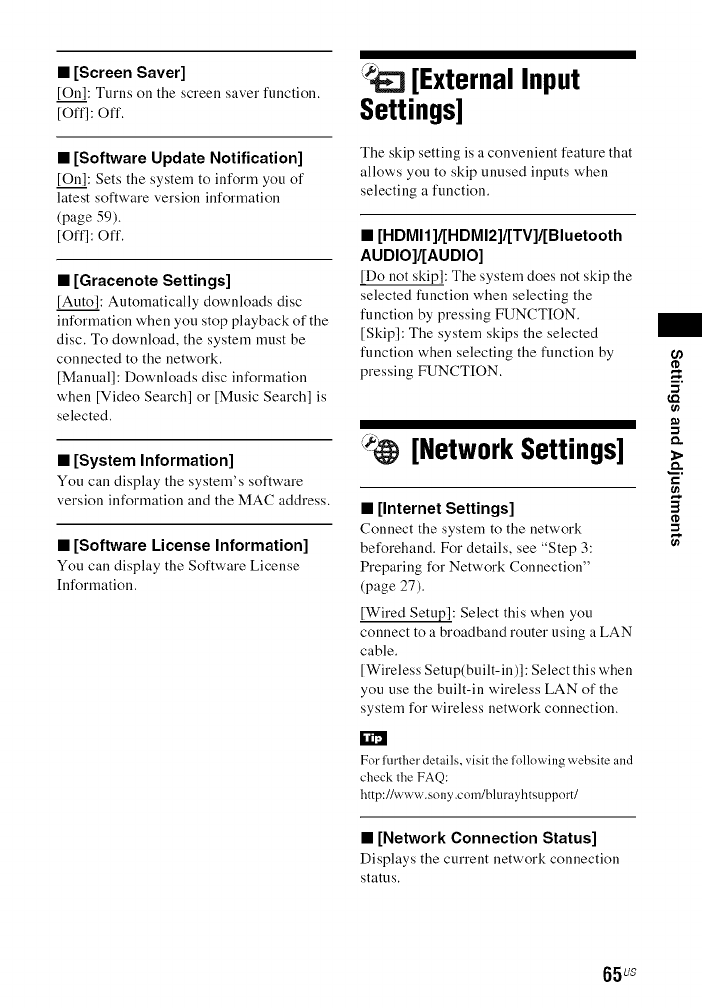
• [Screen Saver]
[On]: Turns on the screen saver function.
[Off]: Off.
•[Software Update Notification]
[On]: Sets the system to inform you of
latest software version information
(page 59).
[Offl: off.
•[Gracenote Settings]
[Auto]: Automatically downloads disc
information when you stop playback of the
disc. To download, the system must be
connected to the network.
[Manual]: Downloads disc information
when [Video Search] or [Music Search] is
selected.
•[System Information]
You can display the system's software
version information and the MAC address.
•[Software License Information]
You can display the Software License
Information.
[ExternalInput
Settings]
The skip setting is a convenient feature that
allows you to skip unused inputs when
selecting a function.
•[HDMI1 ]l[HDMI2]l[TV]l[Bluetooth
AUDIO]/[AUDIO]
[Do not skip]: The system does not skip the
selected function when selecting the
function by pressing FUNCTION.
[Skip]: The system skips the selected
function when selecting the function by
pressing FUNCTION.
[NetworkSettings]
•[Internet Settings]
Connect the system to the network
beforehand. For details, see "Step 3:
Preparing for Network Connection"
(page 27).
[Wired Setup]: Select this when you
connect to a broadband router using a LAN
cable.
[Wireless Setup(built-in)]: Select this when
you use the built-in wireless LAN of the
system for wireless network connection.
00
-I
to
o..
€-
3
-I
For further details, visit the lollowing website and
check the FAQ:
http://www.sony.com/blurayhtsupport/
•[Network Connection Status]
Displays the current network connection
status.
65 us
•[Network Connection
Diagnostics]
You call run the network diagnostic to
check if the network connection has been
made properly,
•[Connection Server Settings]
Sets whether o1"not to display the
connected DLNA server.
•[Renderer Options]
[Auto Access Permission]: Sets whether or
not to allow automatic access from a newly
detected DLNA controller.
[Smart Select]: Allows a Sony DLNA
controller to find the system as the target
equipment to operate by using the infrared
ray. You can set this function to on or off.
[Renderer Name]: Displays the system's
name as it is listed on other DLNA devices
on the network.
•[Renderer Access Control]
Sets whether or not to accept commands
from DLNA controllers.
•[PARTY Auto Start]
[On]: Starts a PARTY or joins an existing
PARTY at the request of a networked
device compatible with the PARTY
STREAM[NG function.
[Offl: off.
•[Registered Remote Devices]
Displays a list of your registered remote
devices.
•[Remote Start]
[On]: Allows turn on the system by a
device linked via network when the system
is in standby mode.
[Offl: The system cannot be turned on by a
device linked via network.
•,c [EasyNetwork
t-2-3
Settings]
Runs [Easy Network Settings] to make the
basic network settings. Follow' the on-
screen instructions.
Z23 [Resetting]
•[Reset to Factory Default Settings]
You can reset the system settings to the
factory default by selecting the group of
settings. All the settings within the group
will be reset.
•[Initialize Personal Information]
You can erase your personal information
stored in the system.
66us
Precautions
On safety
•Should ally solid object or liquid fall into
the cabinet, unplug the system and have it
checked by qualified personnel before
operating it ally further.
• Do not touch the AC power cord (mains
lead) with wet hands. Doing so may cause
all electric shock.
On power sources
[fyou are not going to use the system for a
long time, be sure to disconnect the system
from the wall outlet. To disconnect the AC
power cord (mains lead), grasp the plug
itself; never pull the cord.
On placement
• Place the system in a location with
adequate ventilation to prevent heat
build-up in the system.
• Although the system heats up during
operation, this is not a malfunction. If you
continuously use this system at a large
volume, the cabinet temperature of the
top, side and bottom rises considerably.
To avoid burning yourself, do not touch
the cabinet.
• Do not place the system on a soft surface
(rugs, blankets, etc.) that might block the
ventilation holes.
• Do not install the system near heat
sources such as radiators, air ducts, or in
a place subject to direct sunlight,
excessive dust, mechanical vibration, or
shock.
• Do not install the system in an inclined
position. It is designed to be operated in a
horizontal position only.
•Keep the system and discs away from
components with strong magnets, such as
microwave ovens, or large loudspeakers.
• Do not place heavy objects on the system.
• Do not place metal objects in front of the
front panel. It may limit reception of
radio waves.
• Do not place the system in a place where
medical equipment is in use. It may cause
a malfunction of medical equipment.
• If you use a pacemaker or other medical
device, consult your physician or the
manufacturer of your medical device
before using the wireless LAN function.
On operation
If the system is brought directly from a cold
to a warm location, or is placed in a very
damp room, moisture may condense on the
lenses inside the main unit. Should this
occur, the system may not operate properly.
[n this case, remove the disc and leave the
system turned on for about half an hour
until the moisture evaporates.
On adjusting volume
Do not turn up the volume while listening
toa section with very low level inputs or no
audio signals. If you do, the speakers may
be damaged when a peak level section is
suddenly played.
On cleaning
Clean the cabinet, panel, and controls with
a soft cloth slightly moistened with a mild
detergent solution. Do not use any type of
abrasive pad, scouring powder or solvent
such as alcohol or benzine.
On cleaning discs, disc/lens
cleaners
Do not use cleaning discs or disc/lens
cleaners (including wet or spray types).
These may cause the apparatus to
malfunction.
o.
O
5"
3
o
67 us
On replacement of parts
[n the events that this system is repaired,
repaired parts may be retained for reuse or
recycling purposes.
On your TV's color
If the speakers cause the color irregularity
on your TV screen, turn off the TV then
turn it on after 15 to 30 minutes. If color
irregularity persist, place the speakers
further away from the TV set.
IMPORTANT NOTICE
Caution: This system is capable of
holding a still video image or on-screen
display image on your TV screen
indefinitely. If you leave the still video
image or on-screen display image
displayed on your TV for an extended
period of time, you risk permanent
damage to your TV screen. Plasma
display panel televisions and projection
televisions are especially susceptible to
this.
On moving the system
Before moving the system, make sure that
there is no disc inserted, and disconnect the
AC power cord (mains lead) from the wall
outlet (mains).
On Bluetooth
communication
•Blue'tooth devices should be used within
approximately 10 meters (33 feet)
(unobstructed distance) of each other.
The effective communication range may
become shorter under the following
conditions.
-When a person, metal object, wall or
other obstruction is between the devices
with a Bhu, tooth connection
- Locations where a wireless LAN is
installed
-Around microwave ovens that are in
use
- Locations where other electromagnetic
waves occur
•Bluetooth devices and wireless LAN
(IEEE 802.1 I b/g) use the same frequency
band (2.4 GHz). When using your
Bluetooth device near a device with
wireless LAN capability, electromagnetic
interference may occur. This could result
in lower data transfer rates, noise, or
inability to connect, ff this happens, try
the following remedies:
-Use this main unit at least 10 meters
(33 feet) away from the wireless LAN
device.
- Turn off the power to the wireless LAN
equipment when using your Bluetooth
device within 10 meters (33 feet).
-[nstall this main unit and Bluetooth
device as closer to each other as
possible.
• The radio waves broadcast by this main
unit may interfere with the operation of
some medical devices. Since this
interference may result in malfunction,
always turn off the power on this main
unit and Bluetooth device in the
following locations:
-[n hospitals, on trains, in airplanes, at
gas stations, and any place where
flammable gasses may be present
- Near automatic doors or fire alarms
68 us
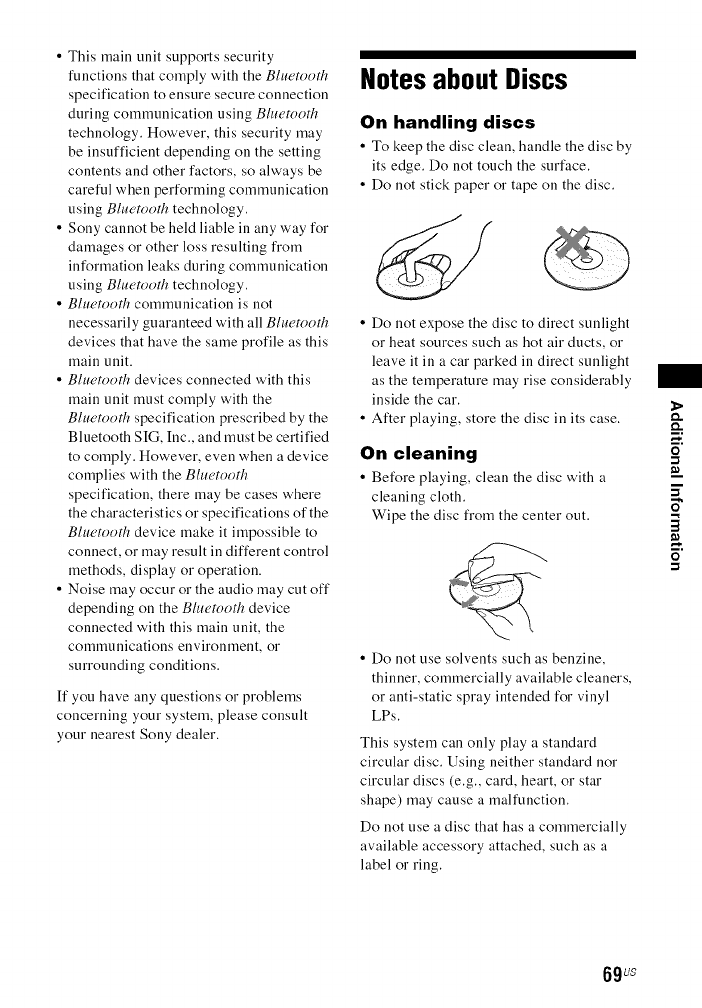
• This main unit supports security
functions that comply with the Bluetood_
specification to ensure secure connection
during communication using Blu¢,tooth
technology. However, this security may
be insufficient depending on the setting
contents and other factors, so always be
careful when performing communication
using Blue'tooth technology.
• Sony cannot be held liable in any way for
damages or other loss resulting from
information leaks during communication
using Bluetooth technology.
•Bhu, tooth communication is not
necessarily guaranteed with all Bluetooth
devices that have the same profile as this
main unit.
•Bluetooth devices connected with this
main unit must comply with the
Bluetooth specification prescribed by the
Bluetooth SIG, Inc., and must be certified
to comply. However, even when a device
complies with the Bluetooth
specification, there may be cases where
the characteristics or specifications of the
Bluetooth device make it impossible to
connect, or may result in different control
methods, display or operation.
• Noise may occur or the audio may cut off
depending on the Bluetooth device
connected with this main unit, the
communications environment, or
surrounding conditions.
[f you have any questions or problems
concerning your system, please consult
your nearest Sony dealer.
Notes about Discs
On handling discs
• To keep the disc clean, handle the disc by
its edge. Do not touch the surface.
• Do not stick paper or tape on the disc.
• Do not expose the disc to direct sunlight
or heat sources such as hot air ducts, or
leave it in a car parked in direct sunlight
as the temperature may rise considerably
inside the car.
• After playing, store the disc in its case.
On cleaning
• Before playiug, clean the disc with a
cleaning cloth.
Wipe the disc from the center out.
• Do not use solvents such as benzine,
thinner, commercially available cleaners,
or anti-static spray intended for vinyl
LPs.
This system can only play a standard
circular disc. Using neither standard nor
circular discs (e.g., card, heart, or star
shape) may cause a malfunction.
Do not use a disc that has a commercially
available accessory attached, such as a
label or ring.
0
-1
a"
3
o
-1
69us
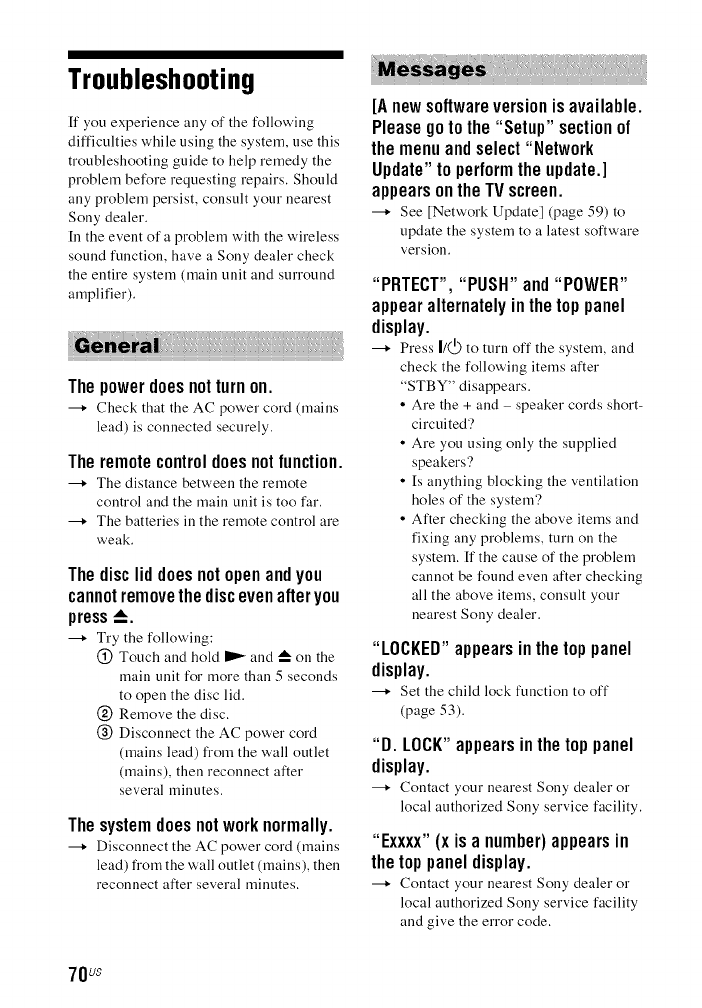
Troubleshooting
If you experience ally of the following
difficulties while using the system, use this
troubleshooting guide to help remedy the
problem before requesting repairs. Should
ally problem persist, consult your nearest
Sony dealer.
[n the event of a problem with the wireless
sound function, have a Sony dealer check
the entire system (main unit and surround
amplifier).
Thepowerdoesnotturnon.
Check that the AC power cord (mains
lead) is connected securely.
Theremotecontroldoesnotfunction.
The distance between the remote
control and the main unit is too far.
The batteries in the remote control are
weak.
Thediscliddoesnotopenandyou
cannotremovethediscevenafteryou
press_.
Try the following:
@ Touch and hold I_ and _ on the
main unit for more than 5 seconds
to open the disc lid.
@ Remove the disc.
@ Disconnect the AC power cord
(mains lead) from the wall outlet
(mains), then reconnect after
several minutes.
Thesystemdoesnotworknormally.
Disconnect the AC power cord (mains
lead) from the wall outlet (mains), then
reconnect after several minutes.
[Anewsoftwareversionisavailable.
Pleasegoto the"Setup" sectionof
themenuandselect"Network
Update"to performtheupdate.]
appearsontheTVscreen.
See [Network Update] (page 59) to
update the system to a latest software
version.
"PRTECT","PUSH"and"POWER"
appearalternatelyinthetoppanel
display.
---* Press I/(_) to turn off the system, and
check the following items after
"STBY" disappears.
• Are the + and - speaker cords short-
circuited'?
• Are you using only the supplied
speakers'?
• [s anything blocking the ventilation
holes of the system?
• After checking the above items and
fixing any problems, turn on the
system. If the cause of the problem
cannot be found even after checking
all the above items, consult your
nearest Sony dealer.
"LOCKED"appearsinthetoppanel
display.
---* Set the child lock function to off
(page 53).
"D. LOCK"appearsinthetoppanel
display.
---* Contact your nearest Sony dealer (51"
local authorized Sony service facility.
"Exxxx"(x isa number)appearsin
thetoppaneldisplay.
---* Contact your nearest Sony dealer (51"
local authorized Sony service facility
and give the error code.
70us
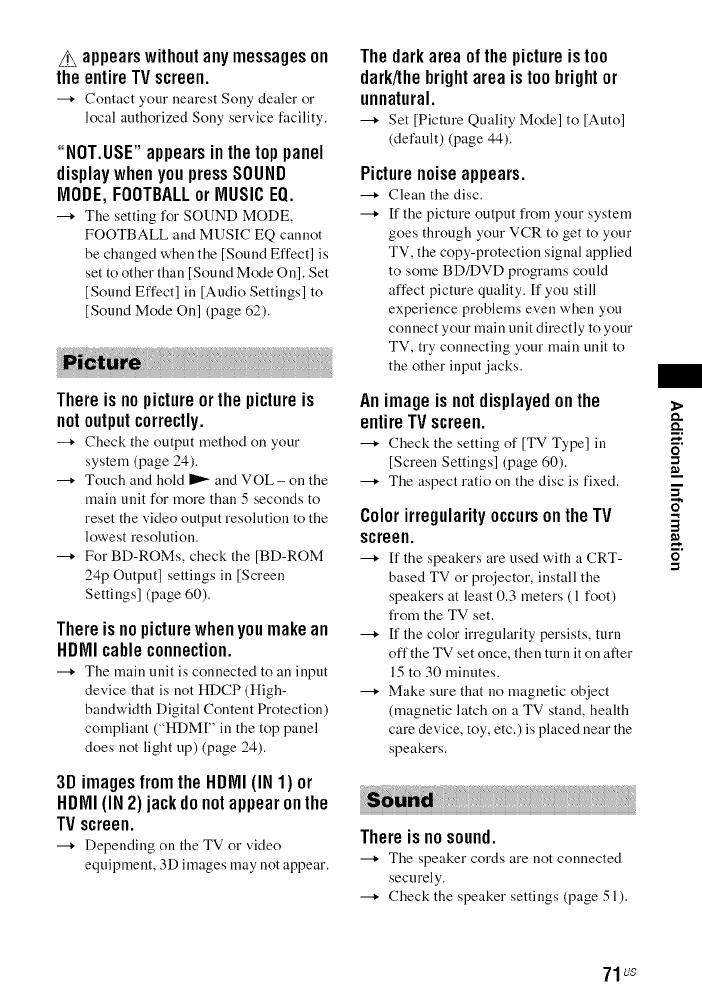
Z_ appearswithoutanymessageson
theentireTVscreen.
---4 Contact your nearest Sony dealer or
local authorized Sony service facility.
"NOT.USE"appearsinthetoppanel
displaywhenyoupressSOUND
MODE,FOOTBALLor MUSICEQ.
---4 The setting for SOUND MODE,
FOOTBALL and MUSIC EQ cannot
be changed when the [Sound Effect] is
set to other than [Sound Mode On]. Set
[Sound Effect] in [Audio Settings] to
[Sound Mode On] (page 62).
Thereisnopictureorthe pictureis
notoutputcorrectly.
---4 Check the output method on your
system (page 24).
Touch and hold I_ and VOL - on the
main unit for more than 5 seconds to
reset the video output resolution to the
lowest resolution.
For BD-ROMs, check the [BD-ROM
24p Output] settings ill [Screen
Settings] (page 60).
Thereisnopicturewhenyoumakean
HDIVIIcableconnection.
The main unit is connected to an input
device that is not HDCP (High-
bandwidth Digital Content Protection)
compliant ("HDM[" in the top panel
does not light up) (page 24).
3D imagesfromthe HDIVII(IN1) or
HDIVII(IN2) jackdonotappearonthe
TVscreen.
Depending on the TV or video
equipment, 3D images may not appear.
Thedarkareaofthe pictureistoo
dark/thebrightareaistoobrightor
unnatural.
---4 Set [Picture Quality Mode] to [Auto]
(default) (page 44).
Picturenoiseappears.
Clean the disc.
---4 ff the picture output from your system
goes through your VCR to get to your
TV, the copy-protection signal applied
to some BD/DVD programs could
affect picture quality, ff you still
experience problems even when you
connect your main unit directly to your
TV, try connecting your main unit to
the other input jacks.
Animageis notdisplayedonthe
entireTVscreen.
Check the setting of [TV Type] in
[Screen Settings] (page 60).
The aspect ratio on the disc is fixed.
ColorirregularityoccursontheTV
screen.
[f the speakers are used with a CRT-
based TV or projector, install the
speakers at least 0.3 meters (1 foot)
from the TV set.
If the color irregularity persists, turn
off the TV set once, then turn it on after
15 to 30 minutes.
Make sure that no magnetic object
(magnetic latch on a TV stand, health
care device, toy, etc.) is placed near the
speakers.
Thereis nosound.
The speaker cords are not connected
securely.
Check the speaker settings (page 51 ).
O
-1
3
o
-1
71us
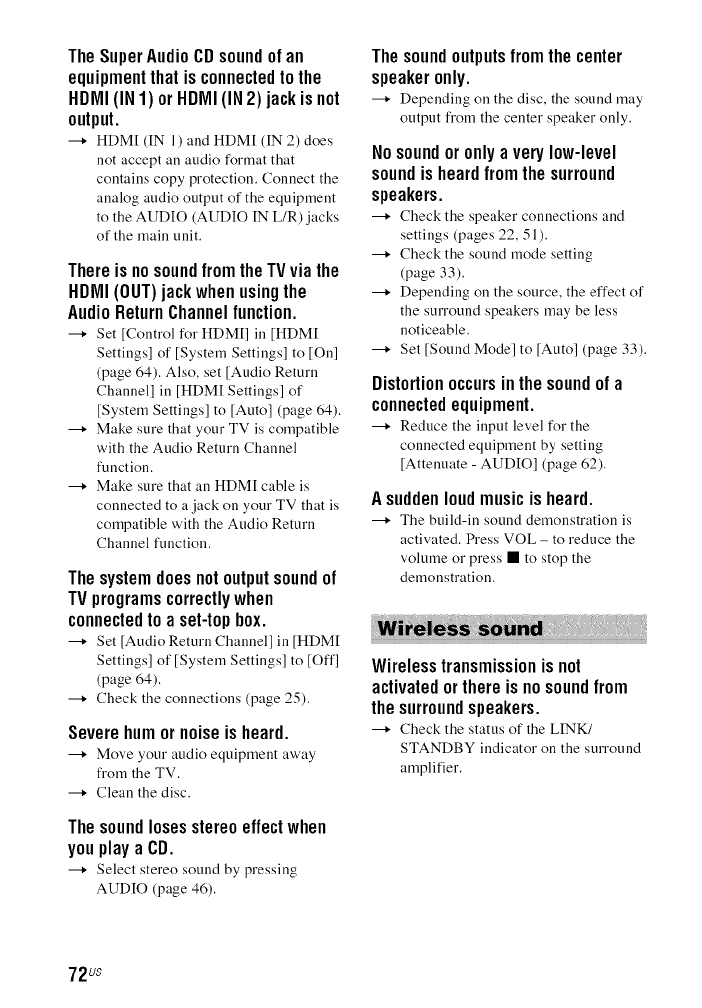
TheSuperAudioCDsoundof an
equipmentthatisconnectedto the
HDIVII(IN1) orHDIVII(IN2)jack isnot
output.
--+ HDM[ (IN 1) and HDM[ (IN 2) does
not accept an audio format that
contains copy protection. Connect the
analog audio output of the equipment
to the AUDIO (AUDIO IN L/R) jacks
of the main unit.
Thereis nosoundfromtheTVviathe
HDMI(OUT)jackwhenusingthe
AudioReturnChannelfunction.
--+ Set [Control for HDMI] in [HDM[
Settings] of [System Settings] to IOn]
(page 64). Also, set ]Audio Return
Channel] in [HDM[ Settings] of
[System Settings] to [Auto] (page 64).
--+ Make sure that your TV is compatible
with the Audio Return Channel
function.
--+ Make sure that an HDM[ cable is
connected to ajack on your TV that is
compatible with the Audio Return
Channel function.
Thesystemdoesnotoutputsoundof
TVprogramscorrectlywhen
connectedto aset-topbox.
--+ Set [Audio Return Channel] in [HDM[
Settings] of [System Settings] to [Off]
(page 64).
--+ Check the connections (page 25).
Severehumor noiseisheard.
--+ Move your audio equipment away
from the TV.
--+ Clean the disc.
Thesoundlosesstereoeffectwhen
youplay aCD.
--+ Select stereo sound by pressing
AUDIO (page 46).
Thesoundoutputsfromthe center
speakeronly.
--+ Depending on tile disc, tile sound may
output from the center speaker only.
Nosoundor onlya verylow-level
soundisheardfromthe surround
speakers.
---+ Check tile speaker connections and
settings (pages 22, 51).
--+ Check the sound )node setting
(page 33).
--+ Depending on the source, the effect of
the surround speakers )nay be less
noticeable.
--+ Set [Sound Mode] to [Auto] (page 33).
Distortionoccursinthesoundof a
connectedequipment.
---+ Reduce tile input level for tile
connected equipment by setting
[Attenuate - AUDIO] (page 62).
Asuddenloudmusicis heard.
--+ Tile build-in sound demonstration is
activated. Press VOL - to reduce the
volume or press • to stop the
demonstration.
Wirelesstransmissionis not
activatedorthereis nosoundfrom
thesurroundspeakers.
--+ Check tile status of tile LINK/
STANDBY indicator on the surround
amplifier.
72us
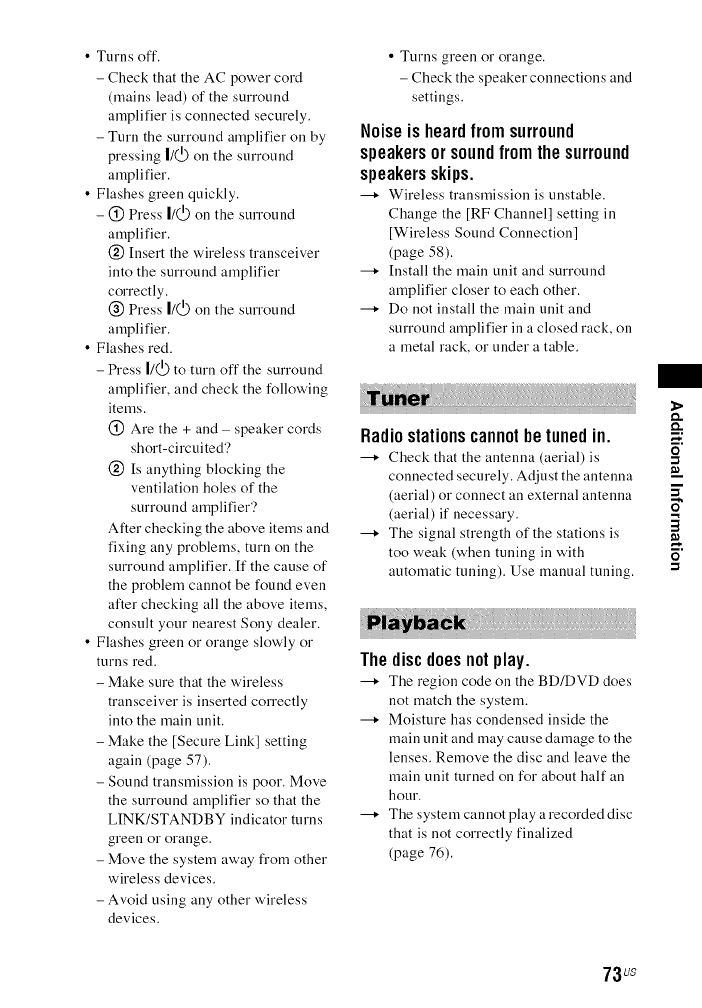
•Turns off.
- Check that the AC power cord
(mains lead) of the surround
amplifier is connected securely.
- Turn the surround amplifier on by
pressing 1/(_) on the surround
amplifier.
• Flashes green quickly.
- @ Press l/Q) on the surround
amplifier.
@ Insert the wireless transceiver
into the surround amplifier
correctly.
@ Press l/Q) on the surround
amplifier.
• Flashes red.
- Press |/(_) to turn off the surround
amplifier, and check the following
items.
@ Are the + and - speaker cords
short-circuited?
@ Is anything blocking the
ventilation holes of the
surround amplifier?
After checking the above items and
fixing any problems, turn on the
surround amplifier. If the cause of
the problem cannot be found even
after checking all the above items,
consult your nearest Sony dealer.
• Flashes green or orange slowly or
turns red.
- Make sure that the wireless
transceiver is inserted correctly
into the main unit.
- Make the [Secure Link] setting
again (page 57).
- Sound transmission is poor. Move
the surround amplifier so that the
LINK/STANDBY indicator turns
green or orange.
- Move the system away from other
wireless devices.
- Avoid using any other wireless
devices.
• Turns green or orange.
- Check the speaker connections and
settings.
Noiseis heardfromsurround
speakersorsoundfromthesurround
speakersskips.
---+ Wireless transmission is unstable.
Change the [RF Channel] setting in
[Wireless Sound Connection]
(page 58).
--+ Install the main unit and surround
amplifier closer to each other.
--+ Do not install the main unit and
surround amplifier in a closed rack, on
a metal rack, or under a table.
Radiostationscannothetunedin.
---+ Check that tile antenna (aerial) is
connected securely. Adjust the antenna
(aerial) or connect an external antenna
(aerial) if necessary.
--+ The signal strength of the stations is
too weak (when tuning in with
automatic tuning). Use manual tuning.
Thediscdoesnotplay.
--+ Tile region code on tile BD/DVD does
not match the system.
--+ Moisture has condensed inside the
main unit and may cause damage to the
lenses. Remove the disc and leave the
main unit turned on for about half an
hour.
--+ The system cannot play a recorded disc
that is not correctly finalized
(page 76).
O
-1
£
3
o
-1
73us
Filenamesarenotdisplayed
correctly.
--_ The system call only display [SO
8859-1 compliant character formats.
Other character formats may be
displayed differently.
--_ Depending on the writing software
used, the input characters may be
displayed differently.
A discdoesnotstartplayingfromthe
beginning.
Resume play has been selected. Press
OPTIONS and select [Play from
beginning], then press _.
Playbackdoesnotstartfromthe
resumepointwhereyoulaststopped
playing.
The resume point may be cleared from
memory depending on the disc when
•you open the disc lid.
• you disconnect the USB device.
• you play other content.
• you turn off the main unit.
Thelanguageforthe soundtrack/
subtitleor anglescannotbe changed.
---* Try using the BD's or DVD's menu.
Multi-lingual tracks/subtitles or multi-
angles are not recorded on the BD or
DVD being played.
Bonuscontentsorotherdatathatare
containedina BD-ROMcannotbe
played.
Try the following:
@ Remove the disc.
@ Turn the system off.
@ Remove and reconnect the USB
device (page 36).
@ Turn the system on.
(_) [nsert the BD-ROM with
BONUSVIEW/BD-LIVE.
TheUSBdeviceisnotrecognized.
Try the following:
@ Turn the system off.
@ Remove and reconnect the USB
device.
@ Turn the system on.
Make sure that the USB device is
securely connected to the _ (USB)
port.
Check if the USB device or a cable is
damaged.
---* Check if the USB device is on.
If the USB device is connected via a
USB hub, disconnect it and connect
the USB device directly to the main
unit.
Thepicture/soundispoor/certain
programsdisplaywithalossof detail,
especiallyduringfast-motionordark
scenes.
Picture/sound quality may be poor
depending on [nternet content
providers.
Picture/sound quality may be
improved by changing the connection
speed. Sony recommends a connection
speed of at least 2.5 Mbps for standard-
definition video and 10 Mbps for high-
definition video.
Not all videos contain sound.
Thepictureissmall.
---* Press It" to zoom in.
74us
The[ControlforHDIVII]functiondoes
notwork("BRAVIA"Sync).
--_ Check that [Control for HDM[] is set
to [On] (page 64).
---+ [f you change the HDM[ connection,
turn the system off and on again.
---+ [f power failure occurs, set [Control
for HDM[] to [Off], then set [Control
for HDM[] to [On] (page 64).
---+ Check the following and refer to the
operating instructions supplied with
the equipment.
• The connected equipment is
compatible with the [Control for
HDM[] function.
• The connected equipment' s setting
for the [Control for HDM[] function
is correct.
Thesystemcannotconnecttothe
network.
---+ Check the network connection
(page 27) and the network settings
(page 65).
YoucannotconnectyourPCtothe
Internetafter[Wi-FiProtectedSetup
(WPS)]is performed.
---+ The wireless settings of the router may
change automatically if you use the
Wi-Fi Protected Setup function before
adjusting the settings of the router. [n
this case, change the wireless settings
of your PC accordingly.
Thesystemcannotconnecttothe
networkorthenetworkconnectionis
unstable.
--+ Check if the wireless LAN router is on.
---+ Check the network connection
(page 27) and the network settings
(page 65).
---+ Depending on the usage environment,
including the wall material, radio wave
reception conditions, or obstacles
between the system and the wireless
LAN router, the possible
communication distance may be
shortened. Move the system and the
wireless LAN router closer to each
other.
---+ Devices that use a 2.4 GHz frequency
band, such as a microwave, Bluetooth,
or digital cordless device, may
interrupt communication. Move the
main unit away from such devices, or
turn off such devices.
---+ The wireless LAN connection may be
unstable depending on the usage
environment, especially while using
the Blu(,tooth function of the system.
[n this case, adjust the usage
environment.
Thewirelessrouteryouwantis not
showninthewirelessnetworklist.
---+ Press RETURN to return to the
previous screen, and try [Wireless
Setup(built-in)] again. If the wireless
router you want is still not detected,
select [Add a new' address.] from the
network list, then select [Manual
Registration] to input a network name
(SSID) manually.
o.
O
-i
a"
3
m
o
-i
75us
iii i;i!illii!iiliillii!llii!llii!llii!llii!llii!llii/
Pairingcannothe done.
----* Move the Bhu'tooth device closer to
the main unit.
----* Pairing may not be possible if other
Bluetooth devices are present around
the main unit. In this case, turn off the
other Bluetooth devices,
----* Delete the system from your Bluetooth
device and perform pairing again
(page 37).
Connectingcannothedone.
The pairing registratiou iuformatiou
has been erased. Perform the pairing
operation again (page 37).
Thereis nosound.
---* Make sure this system is uot too far
from the B/uetooth device, or this
system is not receiving interference
from a Wi-Fi network, other 2.4 GHz
wireless device, or microwave oven.
Check that the Bluetooth connection is
made properly between this system
and the Bluetooth device.
Pair this system and the B/uetooth
device again.
Keep the system away from metal
objects or surfaces.
---* Make sure "BT" function is selected.
Adjust the volume of the B/uetooth
device first, if the volume level is still
too low', adjust the volume level on the
main unit.
Thesoundskipsor fluctuates,orthe
connectionis lost.
---+ The maiu uuit aud the Bhu, tooth device
are too far apart.
If there are obstacles between the main
unit and your B/uetooth device,
remove or avoid the obstacles.
---* ff there is equipment that generates
electromagnetic radiation, such as a
wireless LAN, other B/uetooth device,
or a microwave oven nearby, move
them away.
Playable Discs
Blu-ray Disc BD-ROM l/
BD-R/BD-RE 2)
DVD 3) DVD-ROM
DVD-R/DVD-RW
DVD+R/DVD+RW
CD 3) CD-DA (Music CD)
CD-ROM
CD-R/CD-RW
Super Audio CD
I) Since Blu-ray Disc specilications are new and
evolving, some discs may not be playable
depending on the disc type and version. Also,
the audio output differs depending on the
source, connected nutput jack, and selected
audio settings.
2) BD-RE: Ver.2.1
BD-R: Ver. l.1, 1.2, 1.3 including organic
pigment type B[)-R (LTH type)
BD-Rs recorded on a PC cannot be played if
postscripts are recordable.
3) A CD or DVD disc will nol play it'it has not
been correctly finalized. For more infornaation,
refer to the operating instructions supplied with
the recording device.
Discs that cannot be played
•BDs with cartridge
• BDXLs
• DVD-RAMs
• HD DVDs
• DVD Audio discs
• PHOTO CDs
• Data part of CD-Extras
• Super VCDs
• Audio material side on DualDiscs
76us
• For U.S.A. and Canada models: A disc
recorded ill a color system other than
NTSC, such as PAL (This system
conforms to the NTSC color system.)
Notes on discs
This product is designed to play back discs
that conform to the Compact Disc (CD)
standard.
DualDiscs and some music discs encoded
with copyright protection technologies do
not conform to the Compact Disc (CD)
standard. Therefore, these discs may not be
compatible with this product.
Note on playback
operations of a BD/DVD
Some playback operations of a BD/DVD
may be intentionally set by software
producers. Since this system plays a
BD/DVD according to the disc contents the
software producers designed, some
playback features may not be available.
Note on double-layer
BDs/DVDs
The playback picture and sound may be
momentarily interrupted when the layers
switch.
Region code (BD-ROM/DVD
VIDEO only)
Your system has a region code printed on
the bottom of the main unit and will only
play a BD-ROM/DVD VIDEO (playback
only) labeled with identical region codes or
@
Playable Types of Files
Video
MPEG-I Video _1 PS .mpg, .mpeg
MPEG-2 Video _2 PS _3 .mpg, .mpeg
TS .4 .m2ts, .rots
Xvid AVI .avi
MKV .inky
MPEG4/AVC _5 MKV _1 .inky
MP4 '_1 .rap4, .m4v
TS *1 .m2ts, .rots
Quick .mov
Tilne '_0
3gpp/% .3gp, .392,
3gppU { .3gpp, .3gp2
VC 1_1 ZS .m2ts, .rots
WMV9 *1 ASF .wmv, .asf
Motion JPEG '_6 Quick .mov
Time
AVI .avi
Music
MP3 (MPEG-I Audio .rap3, .mka _°
Layer III)
AAC _1 .m4a, .aac _°, .mka _°
WMA9 Standard *1 .wma
LPCM .wav, .mka *(_
FLAC % .flac, .fla
AC3 % .ac3, .mka
77us
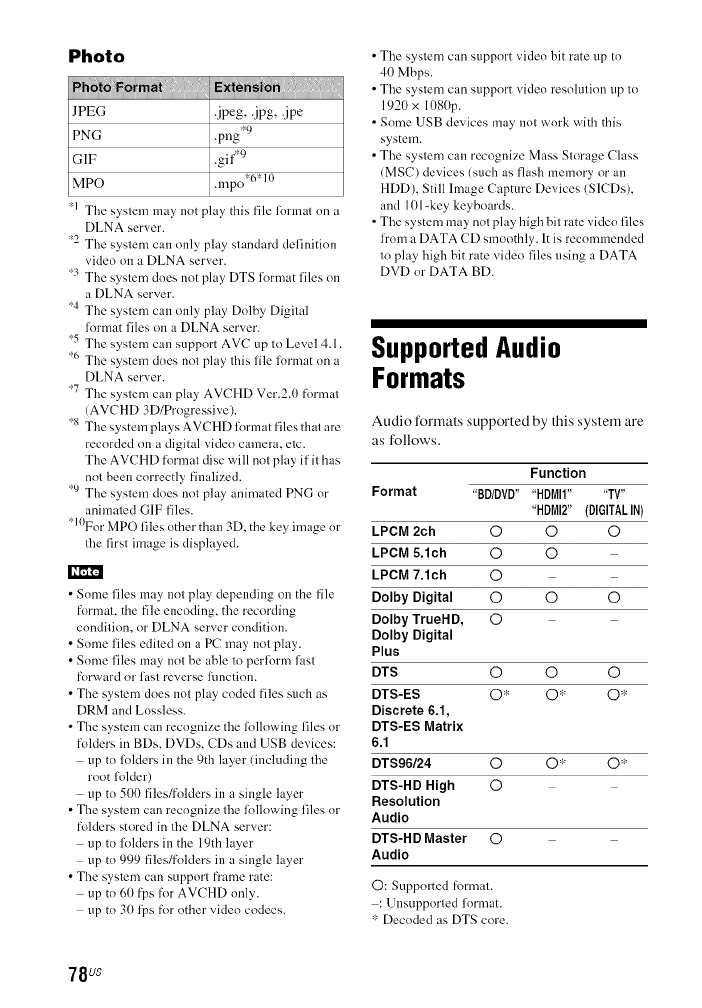
Photo
! !!!!',,1 i!ii!ii!ii!!'
JPEG .jpeg, .jpg, .jpe
PNG .png _9
GIF .gif .9
MPO .mpo*6*l°
•1 The syslem may not play' this file fi)rmal on a
DLNA server.
•2 The syslem call only play slandard delinition
video on a DLNA server.
•3 The syslem does not play' DTS fi_rmat files on
a DLNA server.
•4 The syslem can only play Dolby Digilal
lorrnat files on a DLNA server.
•5 The syslern call support AVC up lo Level 4.1.
•6 The system does nol play' Ibis lile fi_rmat on a
DLNA server.
•7 The syslem can play AVCHD Ver.2.0 fitrmal
(AVCHD 3D/Prngressive).
•s The system play's AVCHD fi)rmat files thai are
recorded on a digital video camera, etc.
The AVCHD format disc will not play if it has
not been correctly finalized.
•9 The syslem does nol play* animated PNG or
animated GIF files.
•10For MPO files other than 3D, the key' image or
the first image is displayed.
•Some files may not play depending on the file
format, the file encoding, the recording
condition, or DLNA server condition.
• Some files edited on a PC may not play.
• Some files may not be able to perli)rm last
fitrward or fast reverse function.
• The system does not play coded files such as
DRM and Lossless.
• The system can recognize the lollowing files or
folders in BDs, DVDs, CDs and USB devices:
up to folders ill the 9th layer (including the
root folder)
up to 500 files/folders ill a single layer
• The system can recognize the lollowing files or
folders stored in the DLNA server:
- up to folders ill the 19th layer
up to 999 files/folders ill a single layer
• The system can support fi'ame rate:
- up to 60 fps for AVCHD only.
up to 30 li_s for other video cndecs.
• The system can support video bit rate up to
40 Mbps.
• The system can support video resolution up to
1920 x 1080p.
• Some USB devices may not work with this
system.
• The system call recognize Mass Storage Class
(MS(?) devices (such as flash memory or all
HDD), Still Image Capture Devices (S1CDs),
and 101-key keyboards.
• The system may not play high bit rate video files
from a DATA CD smoothly. It is recommended
to play high bit rate video files using a DATA
DVD or DATA BD.
SupportedAudio
Formats
Audio formats supported by this system are
as follows.
Format
Function
"BD/DVD" "HDMI1.... TV"
"HDMI2" (DIGITALIN)
LPCM 2ch O O O
LPCM 5.1ch O O
LPCM 7.1ch O
Dolby Digital O O O
Dolby TrueHD, 0
Dolby Digital
Plus
DTS 0 0 0
DTS-ES O '_ O* O*
Discrete 6.1,
DTS-ES Matrix
6.1
DTS96/24 0 O* O*
DTS-HD High O
Resolution
Audio
DTS-H D Master O
Audio
O: Supported fktrmat.
: Unsupported format.
':' Decoded as DTS core.
78us
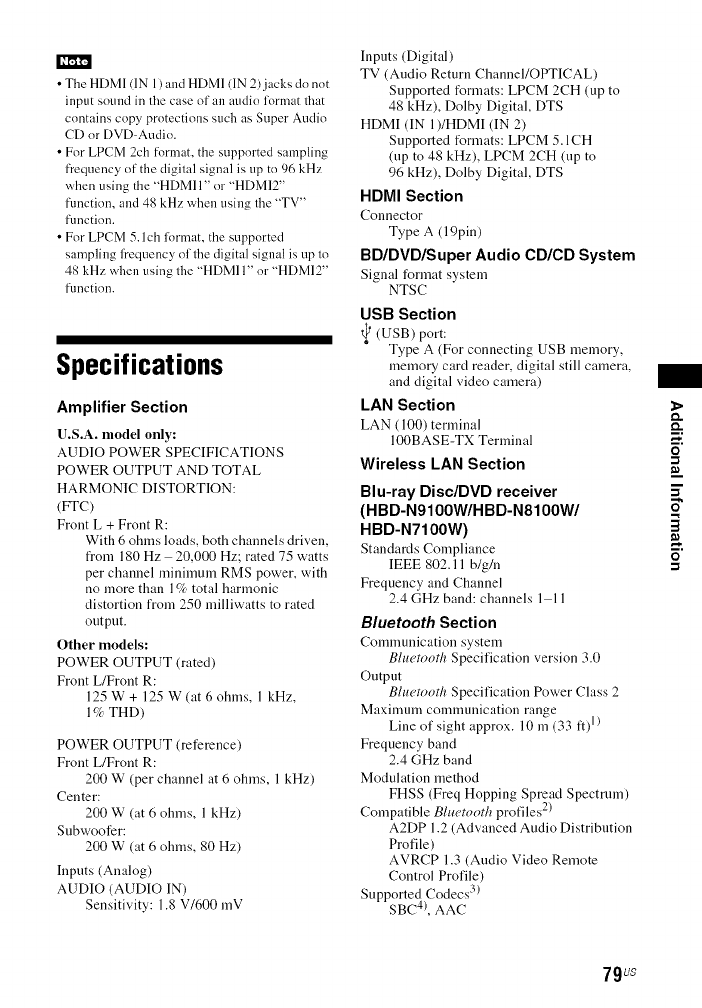
•The HDMI (IN 1) and HDMI (IN 2) jacks do not
input sound in the case of an audio format that
contains copy protections such as Super Audio
CD or DVD-Audio.
• For LPCM 2ch ti>rmat, the supported sampling
frequency of the digital signal is up to 96 kHz
when using the "HDMI 1" or "HDMI2"
fimction, and 48 kHz when using the "TV"
function.
• For LPCM 5. lch lormat, the supported
sampling fl'equency of the digital signal is up to
48 kHz when using the "HDMI 1" or "HDMI2"
function.
Specifications
Amplifier Section
U.S.A. nmdel only:
AUDIO POWER SPECIFICATIONS
POWER OUTPUT AND TOTAL
HARMONIC DISTORTION:
(Frc)
Front L + Front R:
With 6 ohms loads, both channels driven,
from 180 Hz 20,000 Hz; rated 75 watts
per channel minimum RMS power, with
no more than 1% total harmonic
distortion from 250 milliwatts to rated
output.
Other models:
POWER OUTPUT (rated)
Front L/Front R:
125 W + 125 W (at 6 ohms, 1 kHz,
1% THD)
POWER OUTPUT (reference)
Front L/Front R:
200 W (per channel at 6 ohms, 1 kHz)
Center:
200 W (at 6 ohms, 1 kHz)
Subwoofer:
200 W (at 6 ohms, 80 Hz)
Inputs (Analog)
AUDIO (AUDIO IN)
Sensitivity: 1.8 V/600 mV
Inputs (Digital)
TV (Audio Return ChanneI/OPTICAL)
Supported formats: LPCM 2CH (up to
48 kHz), Dolby Digital, DTS
HDMI (IN I)/HDMI (IN 2)
Supported formats: LPCM 5.1CH
(up to 48 kHz), LPCM 2CH (up to
96 kHz), Dolby Digital, DTS
HDMI Section
Connector
Type A (19pin)
BD/DVD/Super Audio CD/CD System
Signal format system
NTSC
USB Section
t_ (USB) port:
Type A (For connecting USB memory,
memory card reader, digital still camera,
and digital video camera)
EAR Section
LAN (lO0) terminal
100BASE-TX Termimd
Wireless LAN Section
Blu-ray Disc/DVD receiver
(HBD-N9100W/HBD-N8100W/
HBD-N7100W)
Standards Compliance
IEEE 802.11 b/g/n
Frequency and Channel
2.4 GHz baud: channels 1 11
Bluetooth Section
Communication system
Bluetooth Specification version 3.0
Output
Bluetooth Specification Power Class 2
Maximum comnmnication range
Line of sight approx. 10 m (33 It) l)
Frequency band
2.4 GHz band
Modulation method
FHSS (Freq Hopping Spread Spectrum)
Compatible Bluetooth profiles 2)
A2DP 1.2 (Advanced Audio Distribution
Profile)
AVRCP 1.3 (Audio Video Remote
Control Profile)
Supported Codecs 3)
SBC 4), AAC
1>
O.
O
-1
3
o
-1
79us
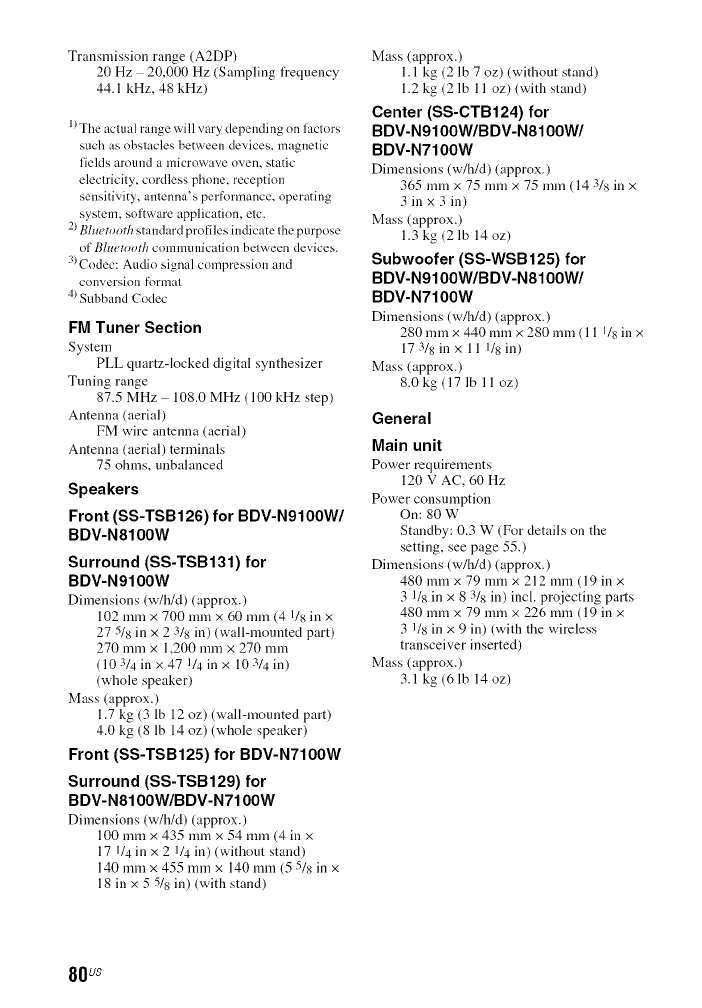
Transmission range (A2DP)
20 Hz 20,000 Hz (Sampling frequency
44.1 kHz, 48 kHz)
1)The actual range will vary depending on lactors
such as obstacles between devices, magnetic
fields around a microwave oven, static
electricity, cordless phone, reception
sensitivity, amenna's performance, operating
system, software application, etc.
2)P,h¢etonth standard profiles indicate the purpose
of Bluetnoth communication between devices.
3)Codec: Audio signal compression and
collversioi1 fktrnrat
4) Subband Codec
FM Tuner Section
System
PLL quartz-locked digital synthesizer
Tuning range
87.5 MHz 108.0 MHz (100 kHz step)
Antenna (aerial)
FM wire antenna (aerial)
Antenna (aerial) terminals
75 ohms, unbalanced
Speakers
Front (SS-TSB126) for BDV-N9100W/
BDV-N8100W
Surround (SS-TSB131) for
BDV-N9100W
Dimensions (w/h/d) (approx.)
102 mmx 700 mmx 60 mm (4 118in x
27 518 in x 2 318 in) (wall-mounted part)
270 mm x 1,200 mmx 270 mm
(10314inx47114inx10314in)
(whole speaker)
Mass (approx.)
1.7 kg (3 lb 12 oz) (wall-mounted part)
4.0 kg (8 lb 14 oz) (whole speaker)
Front (SS-TSB125) for BDV-N7100W
Surround (SS-TSB129) for
BDV-N8100W/BDV-N7100W
Dimensions (w/h/d) (approx.)
100 toni x 435 rain x 54 nnn (4 in x
17 1/4 in x 2 1/4 in) (without stand)
140 mmx 455 mmx 140 mm (5 5/8 in x
18 in x 5 5/8 in) (with stand)
Mass (approx.)
l.l kg (2 lb 7 oz) (without stand)
1.2 kg (2 lb 11 oz) (with stand)
Center (SS-CTB124) for
BDV-N9100W/BDV-N8100W/
BDV-N7100W
Dimensions (w/h/d) (approx.)
365 mmx 75 mm x 75 mm (14 3/8 in x
3 in x 3 in)
Mass (approx.)
1.3 kg (2 lb 14 oz)
Subwoofer (SS-WSB 125) for
BDV-N9100W/BDV-N8100W/
BDV-N7100W
Dimensions (w/h/d) (approx.)
280 mmx 440 mill X 280 mm (11 118in x
17 3/8in x 11 1/8 in)
Mass (approx.)
8.0 kg (17 lb 11 oz)
General
Main unit
Power requirements
120 V AC, 60 Hz
Power consumption
On: 80 W
Standby: 0.3 W (For details on the
setting, see page 55.)
Dimensions (w/h/d) (approx.)
480 mmx 79 mmx 212 mm (19 in x
3 1/8 in x 8 3/8 in) incl. projecting parts
480 mmx 79 mm x 226 mm (19 in x
3 I/8 in x 9 in) (with the wireless
transceiver inserted)
Mass (approx.)
3.1 kg (6 lb 14oz)
80 us
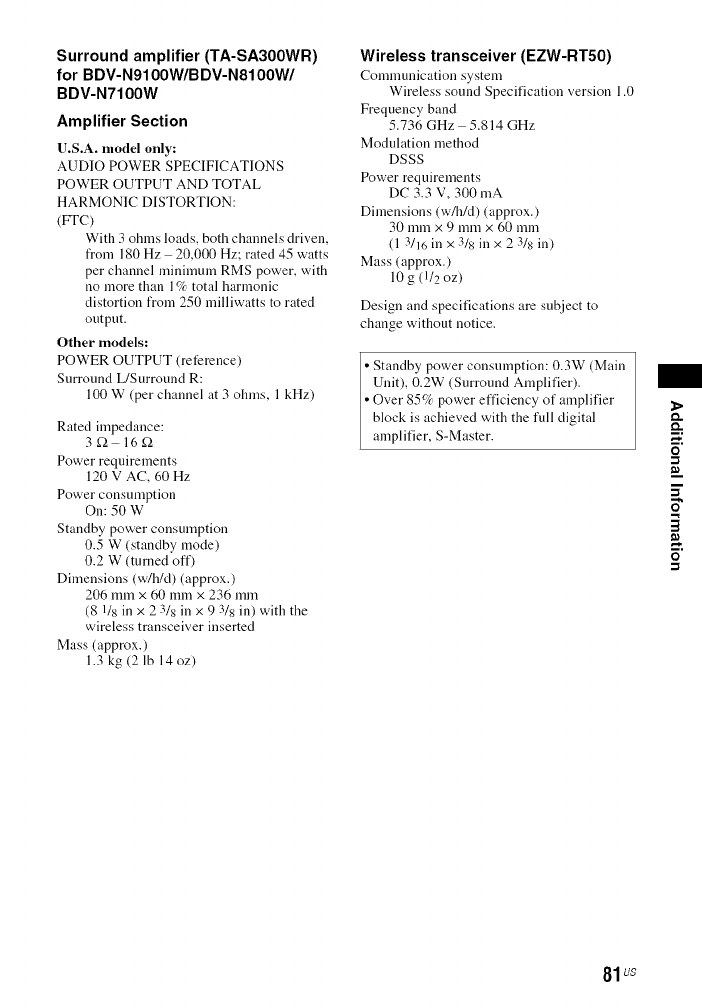
Surround amplifier (TA-SA300WR)
for BDV-N9100W/BDV-N8100W/
BDV-N7100W
Amplifier Section
U.S.A. model only:
AUDIO POWER SPECIFICATIONS
POWER OUTPUT AND TOTAL
HARMONIC DISTORTION:
(FFC)
With 3 ohms loads, both channels driven,
from 180 Hz 20,000 Hz; rated 45 watts
per channel minimum RMS power, with
no more than 1% total harmonic
distortion from 250 milliwatts to rated
outpnt.
Other models:
POWER OUTPUT (reference)
Surround L/Surround R:
100 W (per channel at 3 ohms, 1 kHz)
Rated impedance:
3_-2 16_-2
Power requirements
120 V AC, 60 Hz
Power consumption
On: 50 W
Standby power consumption
0.5 W (standby mode)
0.2 W (turned oft')
Dimensions (w/h/d) (approx.)
206 mm x 60 mmx 236 mm
(8 118in x 2 318 in x 9 318 in) with the
wireless transceiver inserted
Mass (approx.)
1.3 kg (2 lb 14oz)
Wireless transceiver (EZW-RT50)
Communication system
Wireless sound Specification version 1.0
Frequency band
5.736GHz 5.814GHz
Modulation method
DSSS
Power requirements
DC 3.3 V, 300 mA
Dimensions (w/h/d) (approx.)
30 mmx 9 mm x 60 mm
(1 3/16 in x 3/8 in x 2 3/8 in)
Mass (approx.)
10 g (1/20Z)
Design and specifications are subject to
change without notice.
Standby power consumption: 0.3W (Main
Unit), 0.2W (Surround Amplifier).
Over 85c/_ power efficiency of amplifier
block is achieved with the full digital
amplifier, S-Master.
3
o
81us

Language Code List
The language spellings conform to the [SO (739:1988 (E/F) standard.
Code Language Code Language Code Language
1027 Afar 1183 Irish 1347 Maori
1028 Abkhazian 1186 Scots Gaelic 1349 Macedonian
1032 Afrikaans 1194 Galician 1350 Malayalam
1039 Amharic 1196 Guarani 1352 Mongolian
1044 Arabic 1203 Gujarati 1353 Moldavian
1045 Assamese 1209 Hausa 1356 Marathi
1051 Aymara 1217 Hindi 1357 Malay
1052 Azerbaijani 1226 Croatian 1358 Maltese
1053 Bashkir 1229 Hungarian 1363 Burmese
1057 Byelorussian 1233 Armenian 1365 Nauru
Code Language
1507 Samoan
1508 Shona
1509 Somali
1511 Albanian
1512 Serbian
1513 Siswati
1514 Sesotho
1515 Sundanese
1516 Swedish
1517 Swahili
1059 Bulgarian 1235 Interlingua
1060 Bihari 1239 Interlingue
1061 Bislama 1245 Inupiak
1066 Bengali; 1248 Indonesian
Bangla 1253 Icelandic
1067 Tibetan 1254 Italian
1070 Breton 1257 Hebrew
1079 Catalan 1261 Japanese
1093 Corsican 1269 Yiddish
1097 Czech 1283 Javanese
1103 Welsh 1287 Georgian
1105 Danish 1297 Kazakh
1109 German 1298 Greenlandic
1130 Bhutani 1299 Cambodian
1142 Greek 1300 Kannada
1144 English 1301 Korean
1145 Esperanto 1305 Kashmiri
1149 Spanish 1307 Kurdish
1150 Estonian 1311 Kirghiz
1151 Basque 1313 Latin
1157 Persian 1326 Lingala
1165 Finnish 1327 Laothian
1166 Fiji 1332 Lithuanian
1171 Faroese 1334 Latvian;
1174 French Lettish
1181 Frisian 1345 Malagasy
1369 Nepali 1521 Tamil
1376 Dutch 1525 Telugu
1379 Norwegian 1527 Tajik
1393 Occitan 1528 Thai
1403 (Afan)Oromo 1529 Tigrinya
1408 Oriya 1531 Turkmen
1417 Punjabi 1532 Tagalog
1428 Polish 1534 Setswana
1435 Pashto; 1535 Tonga
Pushto 1538 Turkish
1436 Portuguese 1539 Tsonga
1463 Quechua 1540 Tatar
1481 Rhaeto- 1543 Twi
Romance 1557 Ukrainian
1482 Kirundi 1564 Urdu
1483 Romanian 1572 Uzbek
1489 Russian 1581 Vietnamese
1491 Kinyarwanda 1587 VolapQk
1495 Sanskrit 1613 Wolof
1498 Sindhi 1632 Xhosa
1501 Sangho 1665 Yoruba
1502 Serbo-Croatian 1684 Chinese
1503 Singhalese 1697 Zulu
1505 Slovak
1506 Slovenian
1703 Not specified
82us
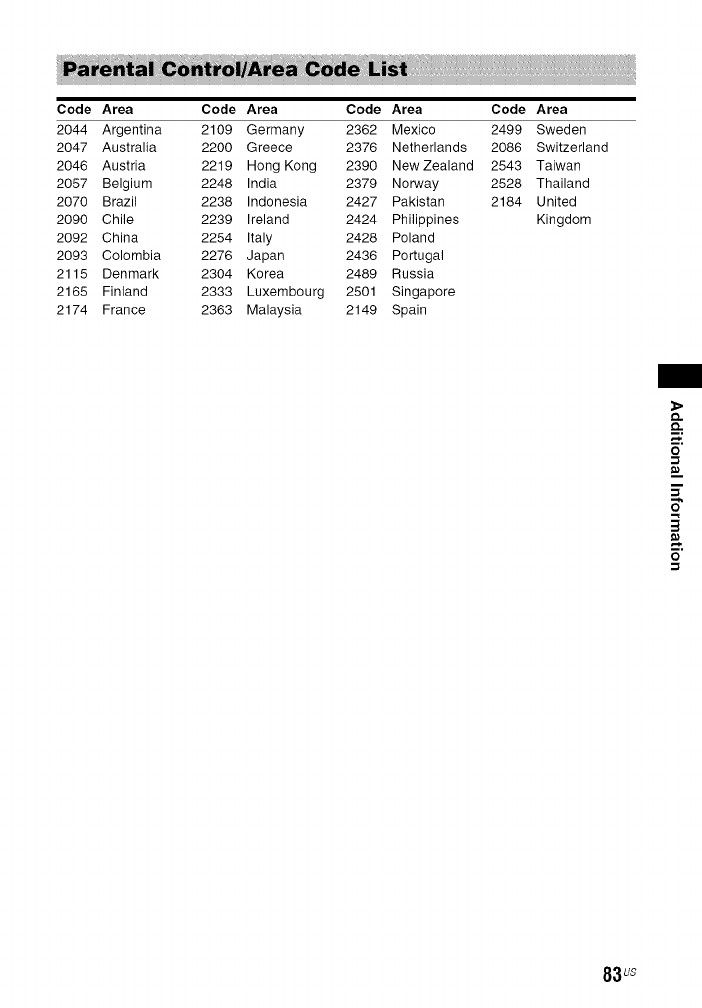
Code Area Code Area Code Area Code Area
2044 Argentina 2109 Germany 2362 Mexico 2499 Sweden
2047 Australia 2200 Greece 2376 Netherlands 2086 Switzerland
2046 Austria 2219 Hong Kong 2390 New Zealand 2543 Taiwan
2057 Belgium 2248 India 2379 Norway 2528 Thailand
2070 Brazil 2238 Indonesia 2427 Pakistan 2184 United
2090 Chile 2239 Ireland 2424 Philippines Kingdom
2092 China 2254 Italy 2428 Poland
2093 Colombia 2276 Japan 2436 Portugal
2115 Denmark 2304 Korea 2489 Russia
2165 Finland 2333 Luxembourg 2501 Singapore
2174 France 2363 Malaysia 2149 Spain
t_
O
5"
3
o
83us
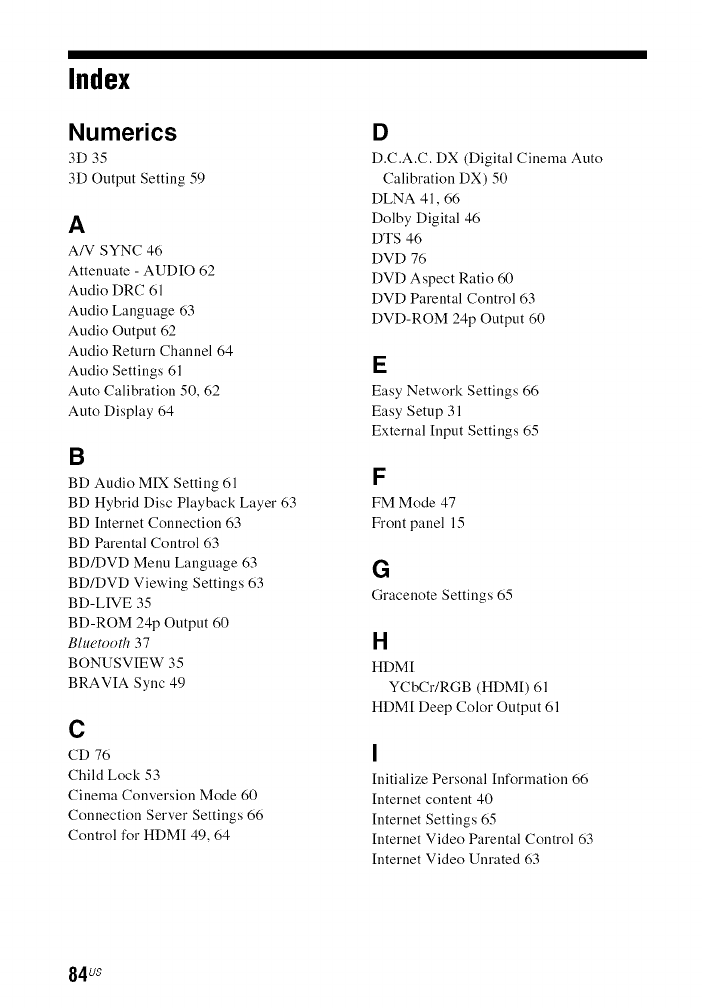
Index
Numerics
3D 35
3D Output Setting 59
A
A/V SYNC 46
Attenuate - AUDIO 62
Audio DRC 61
Audio Language 63
Audio Output 62
Audio Return Channel 64
Audio Settings 61
Auto Calibration 50, 62
Auto Display 64
B
BD Audio MIX Setting 61
BD Hybrid Disc Playback Layer 63
BD Internet Connection 63
BD Parental Control 63
BD/DVD Menu Language 63
BD/DVD Viewing Settings 63
BD-LIVE 35
BD-ROM 24p Output 60
Bluetooth 37
BONUSVIEW 35
BRAVIA Sync 49
C
CD 76
Child Lock 53
Cinema Conversion Mode 60
Connection Server Settings 66
Control for HDM[ 49, 64
D
D.C.A.C. DX (Digital Cinema Auto
Calibration DX) 50
DLNA 41, 66
Dolby Digital 46
DTS 46
DVD 76
DVD Aspect Ratio 60
DVD Parental Control 63
DVD-ROM 24p Output 60
E
Easy Network Settings 66
Easy Setup 31
External Input Settings 65
F
FM Mode 47
Front panel 15
G
Gracenote Settings 65
H
HDM[
YCbCr/RGB (HDM[) 61
HDM[ Deep Color Output 61
I
Initialize Personal Information 66
[nternet content 40
[nternet Settings 65
[nternet Video Parental Control 63
[nternet Video Unrated 63
84us
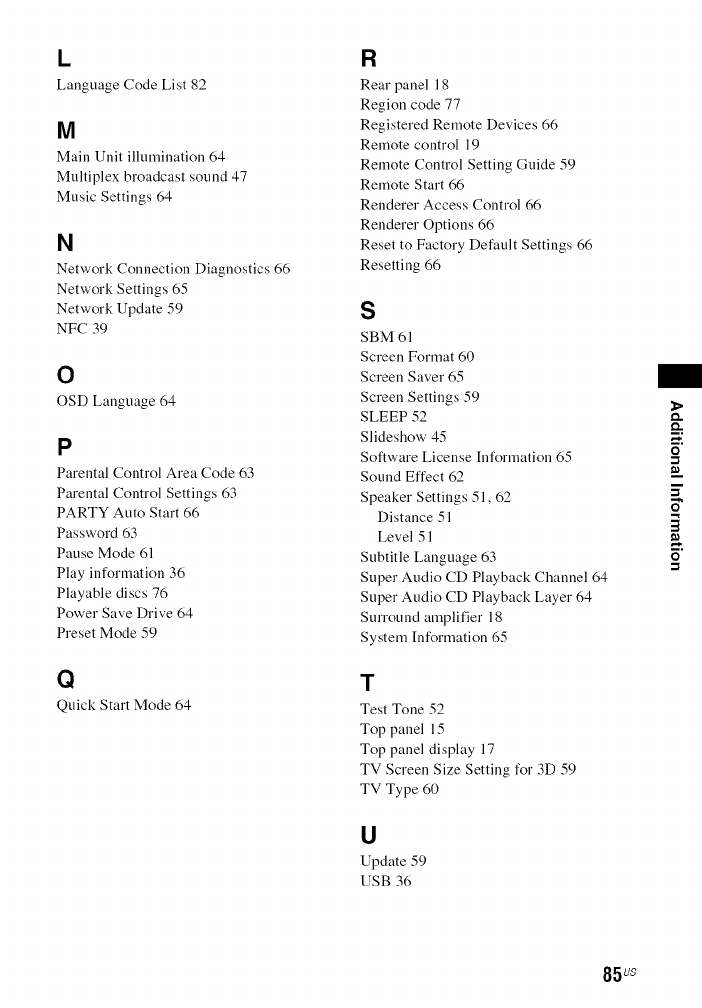
I_
Language Code List 82
M
Main Unit illumination 64
Multiplex broadcast sound 47
Music Settings 64
N
Network Connection Diagnostics 66
Network Settings 65
Network Update 59
NFC 39
O
OSD Language 64
p
Parental Control Area Code 63
Parental Control Settings 63
PARTY Auto Start 66
Password 63
Pause Mode 61
Play information 36
Playable discs 76
Power Save Drive 64
Preset Mode 59
t:)
Quick Start Mode 64
FI
Rear panel 18
Region code 77
Registered Remote Devices 66
Remote control 19
Remote Control Setting Guide 59
Remote Start 66
Renderer Access Control 66
Renderer Options 66
Reset to Factory Default Settings 66
Resetting 66
S
SBM 61
Screen Format 60
Screen Saver 65
Screen Settings 59
SLEEP 52
Slideshow 45
Software License [nformation 65
Sound Effect 62
Speaker Settings 51, 62
Distance 51
Level 51
Subtitle Language 63
Super Audio CD Playback Channel 64
Super Audio CD Playback Layer 64
Surround amplifier 18
System [nformation 65
T
Test Tone 52
Top panel 15
Top panel display 17
TV Screen Size Setting for 3D 59
TV Type 60
U
Update 59
USB 36
o.
O
-1
3
o
-1
85 us
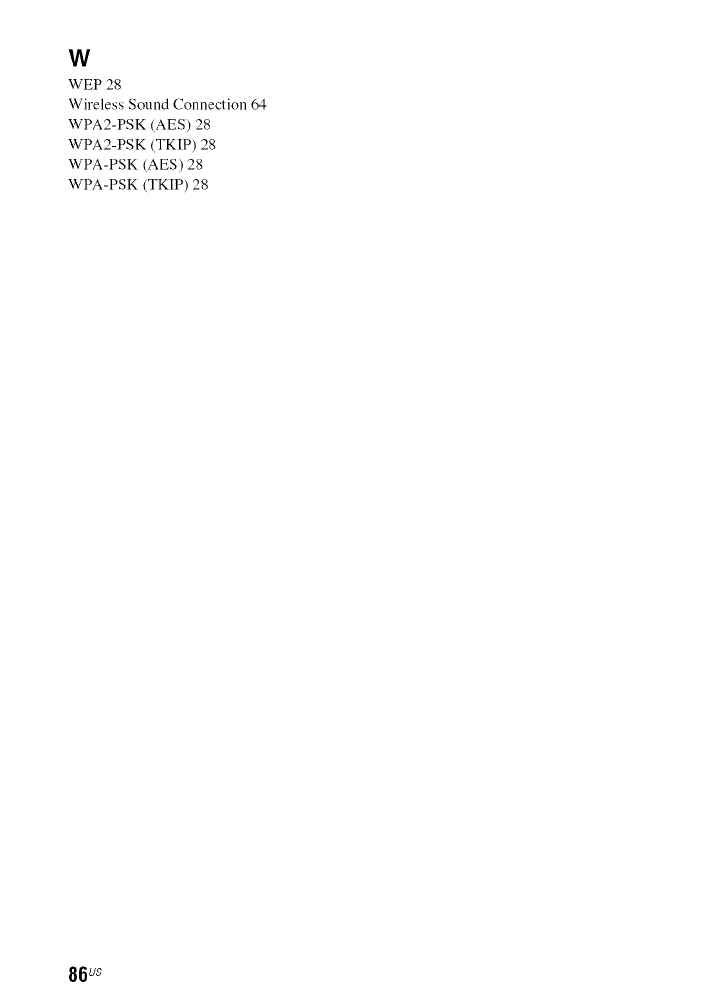
W
WEP 28
Wireless Sound Connection 64
WPA2-PSK (AES) 28
WPA2-PSK (TKIP) 28
WPA-PSK (AES) 28
WPA-PSK (TKIP) 28
86us

The software of this system may be updated in the future. To find out details on any
available updates, please visit the following URL.
http://www.sony.com/blurayhtsupport/
_41_:31[Ti1| _dJTn,a qm, gracenobe
SUPER AUDIO CD _J_'f_'_iSC
http://www.sony.net/
Java
POWERED
©2013 Sony Corporation Printed in Malaysia
"445633412"(1)
