Sony CCD TRV12 User Manual VIDEO CAMERA RECORDER Manuals And Guides L0606332
SONY 8mm Camcorder Manual L0606332 SONY 8mm Camcorder Owner's Manual, SONY 8mm Camcorder installation guides
User Manual: Sony CCD-TRV12 CCD-TRV12 SONY VIDEO CAMERA RECORDER - Manuals and Guides View the owners manual for your SONY VIDEO CAMERA RECORDER #CCDTRV12. Home:Electronics Parts:Sony Parts:Sony VIDEO CAMERA RECORDER Manual
Open the PDF directly: View PDF  .
.
Page Count: 56
SOIg 3-8 ooo7..i
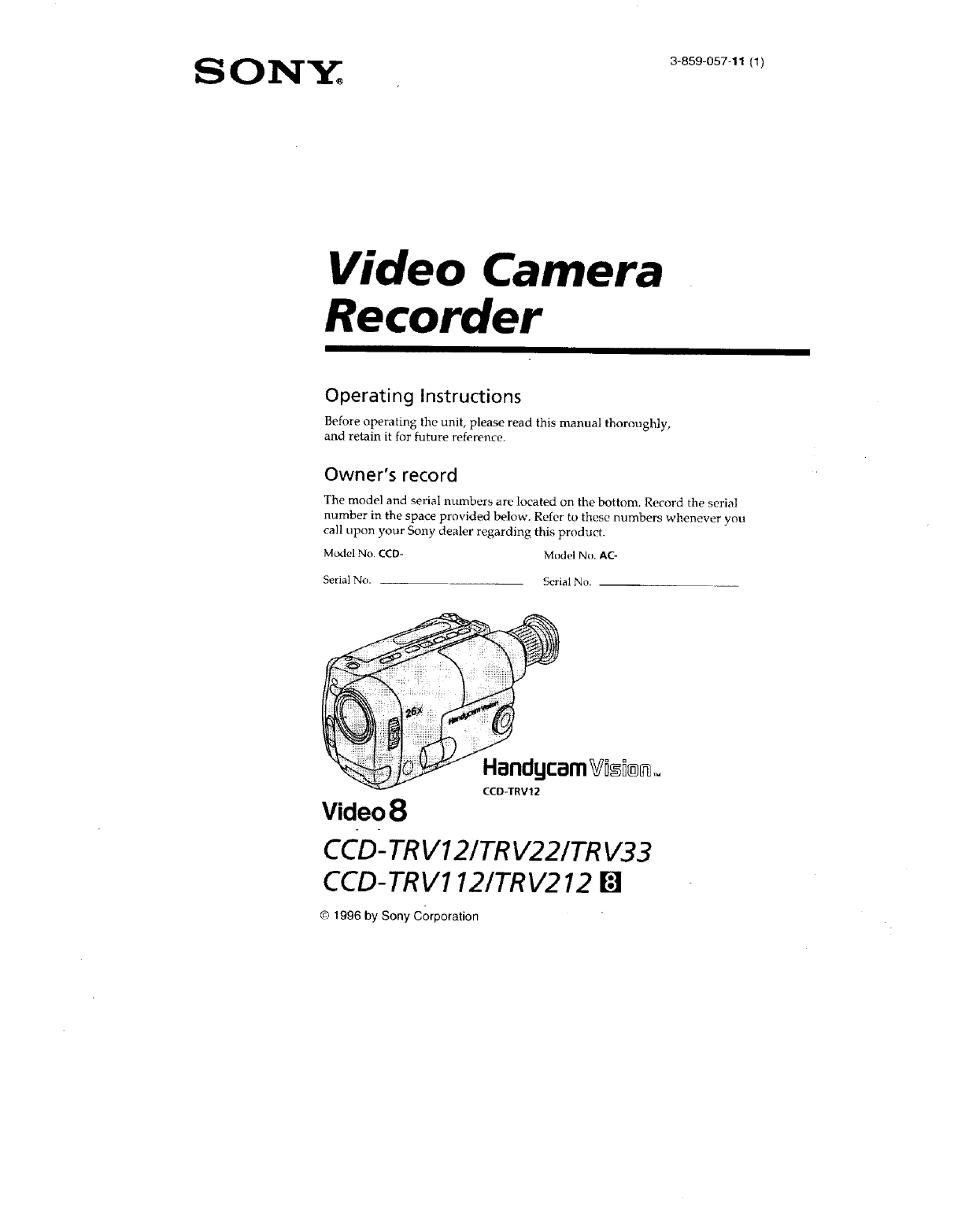
Video Camera
Recorder
Operating Instructions
Before operating the unit, please read this manual thoroughly,
and retain it for future reference.
Owner's record
The model and serial numbers are located on the bottom. Record the serial
number in the space provided below. Refer to these numbers whenever you
call upon your Sony dealer regarding this product.
Model No. CCD- Miidel No. AC-
Serial No. Serial No.
HanducamVi_D®_To
CCD-TRV12
Video8
CCD- TRV12/TR V22/TR V33
CCD-TRV1121TRV212 []
© 1996 by Sony Gorporation
Welcome !
Congratulations on your purchase of this Sony Handycam Vision TM camcorder. With your
Handycam Vision, you can capture life's precious moments with superior picture and sound
qualily. Your Handycam Vision is loaded with advanced features, but at the same time it is
very easy to use. You will soon be producing home video that you can enjoy for years to come.
To prevent fire or shock hazard, do
not expose the unit to rain or
moisture.
For the Sony ,Service Center nearest you cal!
1-800-222-SONY (United States only).
For the Factory Service Center nearest you call
416-499-SONY (Canada only).
Caution: Do not handle damaged or leaking nickel-
cadmium batteries.
This symbol is intended to alert the
user to the presence of uninsulated
"dangerous voltage" within the
product's enclosure that may be of
sufficient magnitude to constitute
a risk ot electric shock to persons
This symbol is intended to alert the
user to the presence of important
operating and maintenance
(servicing) instructions in the
literature accompanying the
appliance..
RECYCLING NICKEL-CADMIUM
BATTERIES "
_NICKEL-CADMIUM
BATTERY.
MUST BE DISPOSED OF
PROPERLY.
Nickel-Cadmium batteries are
Ni-Cd recyclabie. You can help preserve
our environment by returning your
unwanted batteries to your nearest
Sony Service Center or Factory
Servk'e Center h_r et_lleetion,
recycling or proper disposal.
Note: In some areas the dispcasal of nickel-cadminm
batteries in household or business trash may
be prohibited.
WARNING
This equipment has been tested and found to comply
with the limits lot a Class B digital device, pursuant
to Part 15 ot the FUC Rules. These limits are designed
to provide reasonable protection against harmful
interference in a residential installation. This
equipment generates, uses, and can radiate _adio
frequency energy and, if not installed and used in
accordance with the instructions, may cause harmful
interference to radio communications. However,
there is no guarantee that interference will not _K4ur
in a particular installation. If this equipment does
cause harmful interference to radio or television
reception, which can be determined by turning tbe
equipment off and on, the user is encouraged to try
to correct the interference by one or more of the
following measures:
- Reorient or relocate the receiving antPnlla.
-- Increase the separation between the equipment
and receiver
-- Connect the equipment into all outlet on a circuit
different from that to which the receiver is
connected.
-- Consult the dealer or an experienced radio/TV
technician for help.
You are cautioned that any changes or modifications
not expressly approved in this mantml could w_id
your authority to operate this equipment.
TO PREVENT ELECTRIC SHOCK, IX3 NOI-
USE THIS I-K)LARIZED AC PLUG WITH AN
EXTENSION CORD, RECEPTACLE OR
OTHER OUTLET UNLESS THE BLADES
CAN BE FULLY INSERTED TO PREVENT
BLADE EXPOSURE.
2
Before you begin
Using this manual ................................... 4
Checking supplIied accessories ............ 5
Getting started
Charging and installing the ba_tPry
pack ..................................................... 6
Inserting a cassette .................................. 8
Basic operations
Camera recording .................................... 9
UMng the zoom feature ................. 11
Shooting with the LCD screen ..... 12
Hints for better shooting ..................... 13
Checking the recorded picture ........... 15
Playing back a tape ............................... 16
Searching for the end of the picture ... 18
Advanced operations
Using alternative power sources ....... 19
Letting the subject monitor the shot. 21
Recording with the date or time ......... 22
Shooting with backlighting ................. 23
Using the PROGRAM AE function ,,., 24
Selecting the START/STOP mode ..... 25
Superimposing a title ............................ 26
Using the STEADY SHOT function .., 27
(CCD-TRV22 iTRV33/TRV212 only)
Using the CINEMA mode function
(CCD-TRV33 only) .......................... 27
Changing the mode settings ............... 28
Watching on a TV screen .._.................. 29
Editing onto another tape .................... 30
Additional information
Changing the lithium battery in the
camcorder ........................................ 31
Resetting the date and time ................. 33
Playback modes ..................................... 34
Tips for using the battery pack ........... 34
Maintenance information and
precautions ...................................... 38
Using your camcorder abroad ............ 42
Trouble check ........................................ _43
Specifications ......................................... 46
Identifyii_g the parts .............................. 47
Warning indicators ................................ 55
Index ....................................... back cover
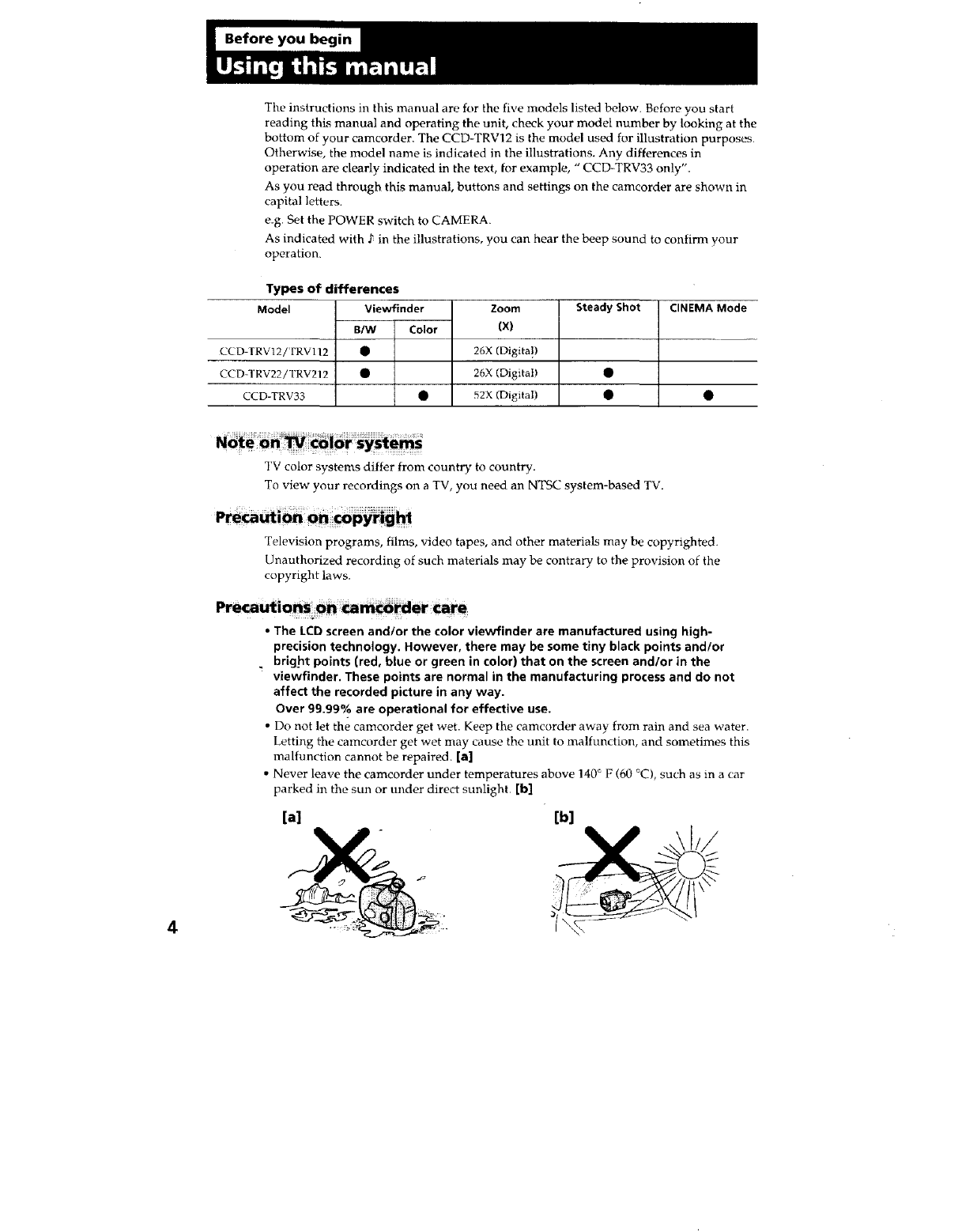
The instructions in this manual are fnr the five mt_clelslisted below. Before you start
reading this manual and operating the unit, check your model number by looking at the
bottom of your camcorder. The CCD-TRVI2 is the model used for illustration purposes.
Otherwise, the model name is indicated in the illustrations. Any differences in
operation are clearly indicated in the text, forexample, "CCD-TRV33 only".
As you read through this manual, buttons and settings on the camcorder are shown in
capital letters.
e.g. Set the POWER switch to CAMERA.
As indicated with t in the illustrations, you can hear the beep sound to confirm your
operation.
CCD l'RV12/FRV112
CCD-TRV22/TRV212
CCD-TRV33
Types of differences
Model Viewfinder
B/W Color
Zoom
{X}
26X (Digita!)
26X (Digital)
52X (Digital}
Steady Shot CINEMA Mode
TV color systems differ from count D" to country.
To view your recordings on a TV, you need an NTSC system-based TV.
Television programs, films, video tapes, and other materials may be copyrighted.
Unauthorized recording of such materials may be contrary to the provision of the
copyright laws.
•The I_CD screen andlor the color viewfinder are manufactured using high-
precision technology. However, there may be some tiny black points and/or
• bright points (red, blue or green in color) that on the screen and/or in the
viewfinder. These points are normal in the manufacturing process and do not
affect the recorded picture in any way.
Over 99.99% are operational for effective use.
• Do not let the camcorder get wet. Keep the camcorder away from rain and sea water.
Letting tile camcorder get wet may cause the unit to malfunction, and sometimes this
malfunction cannot be repaired. [a]
• Never leave the camcorder under temperatures above 140° F (60 °C), such as in a car
parked in the sun or under direct sunlight. [b]
[a] [b]
4
[]
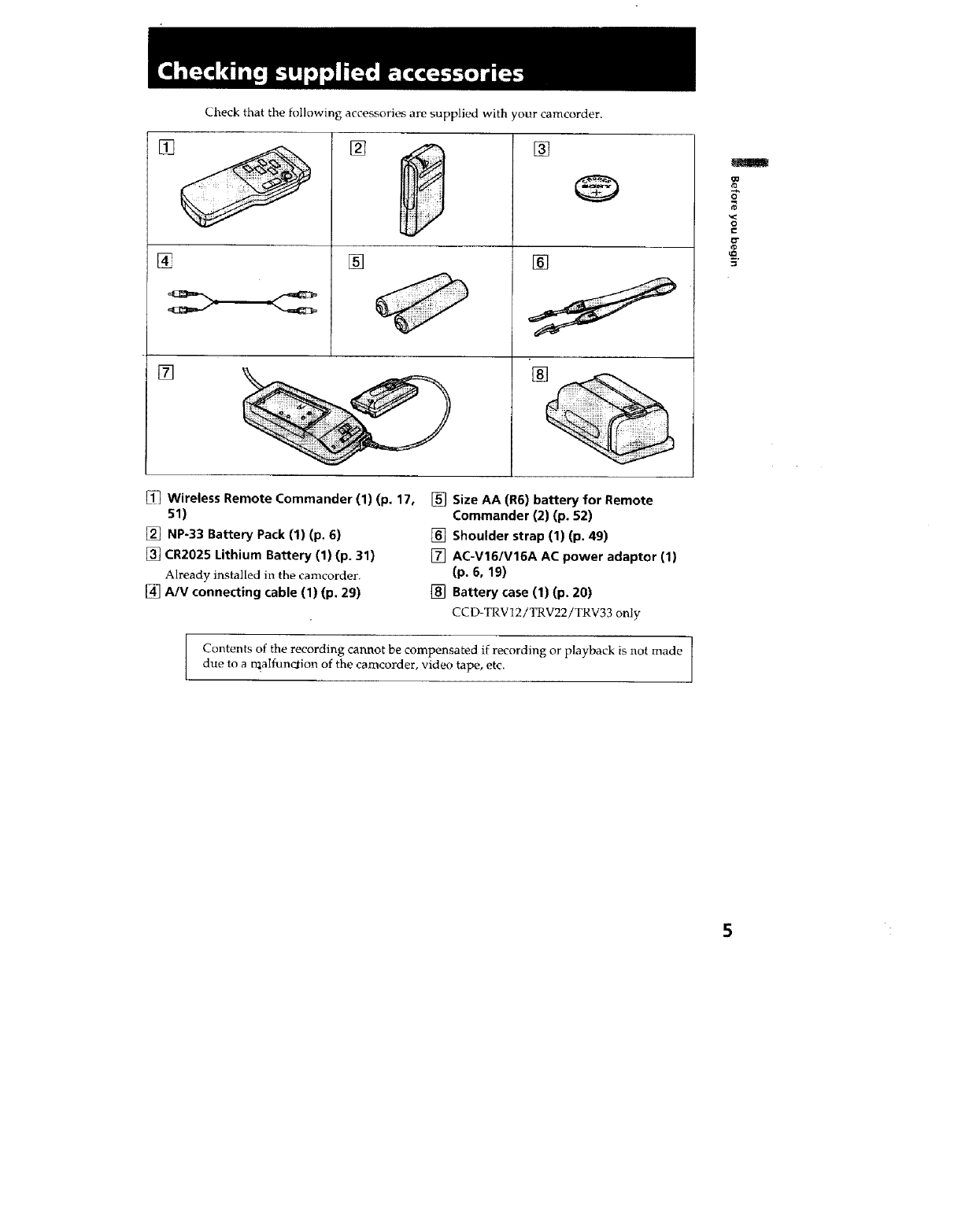
Check that the following accessories are supplied with your camcorder.
[]
[]
[]
[]
[]
0
0"
Eli Wireless Remote Commander (1) (p. 17, [] Size AA (R6) battery for Remote
sl)
[] NP-33 Battery Pack (1) (p. 6)
[] CR2025 Lithium Battery (1) (p. 31)
Already installed in the camcorder.
[] A/V connecting cable (1) (p, 29)
Commander (2) (p, 52)
[] Shoulder strap (1) (p. 49)
[] AC-V16/V16A AC power adaptor (1)
(p. 6, 19)
[] Battery case (1) (p. 20)
CCD-TRV12 iTRV22/TRV33 only
Contents of the recording cannot be compensated if recording or playback is not made
due to a n_alfunciion of the camcorder, video tape, etc.
5
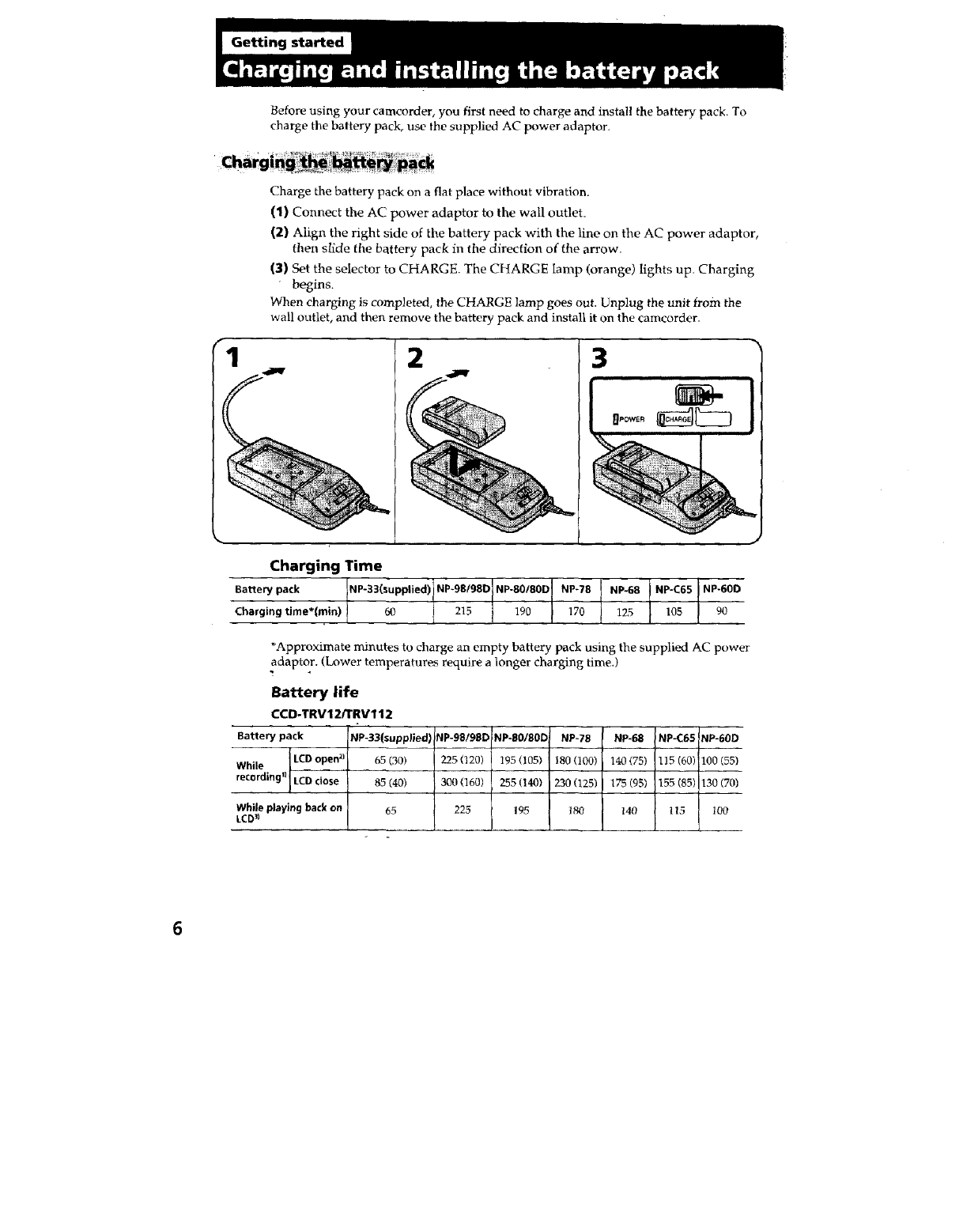
Before using your camcorder, you first need to charge and install the battery pack. To
charge the battery pack, use the supplied AC power adaptor.
1
Charge the batter]," pack on a flat place without vibration.
(1) Connect the AC power adaptor to the wall outlet.
(2} Align the right side of the battery pack with the line on the AC power adaptor,
then slide the battery pack in the direction of the arrow.
(3) Set the selector to CHARGE. The CHARGE lamp (orange) lights up. Charging
begins.
When charging is completed, the CHARGE lamp goes out. Unplug the unit from the
wall outlet, and then remove the battery pack and install it on the camcorder.
2 3
.jw
Charging Time
Battery pack NP-33(su)plied)lNP_0D] NP_78 INP-68 ) NP-C65 INP-60D
Charging time*(min) _ 215 190 170 125 105 90
*Approximate minutes to charge an empty battery pack using the supplied AC power
adaptor. (Lower temperatures require a longer charging time.)
Battery life
CCD-TRV12/TRV112
Battery pack
While LCD open 21
recording" LCD dose
While playing back on
LCD_I
NP-33(suppliedJ _P-98/98D NP-g0/BOD NP-78 NP-68 NP-C65 NP-60D
65 (30) 225 (120) 195 (t05) 180 (100) 140 (75) 115 (60) 100 (55)
85 (40) 300 (160) 255 (140) 230 (125) 175 (95) 155 (85) 130 (70)
65 225 195 180 140 115 100
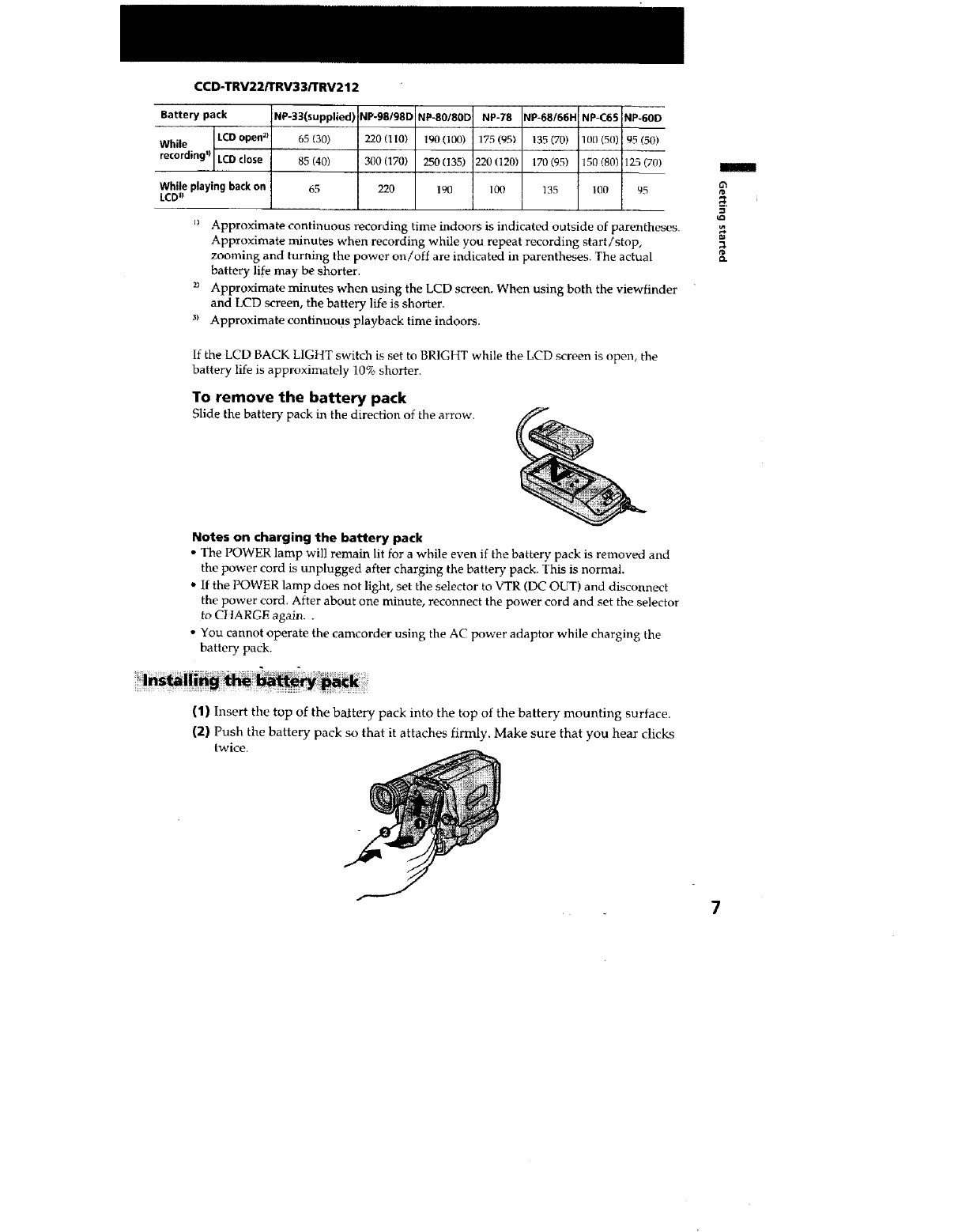
CCD-TRV22_RV33_RV212
Battery pack
While LCD open 21
recording'_ LCD close
While playing back on
LCD_
NP-33(supplied) NP-98/98D! NP-80/80D NP-78
65(30) 220(110) 190(100) 175(95)
85(40) 300(170) 250 (135) 220(120)
65 220 190 100
NP_68/66H NP-C65 NP_60D
135 (70) 100 (50) 95 (50)
170 (95) 150 (80) 125 (70)
]35 100 95
'_ Approximate continuous recording time indoors is indicated outside of parentheses.
Approximate minutes when recording while you repeat recording start/stop,
zooming and turning the power on/off are indicated in parentheses. The actual
battery life may be shorter.
2_ Approximate minutes when using the LCD screen. When using both the viewfinder
and LCD screen, the battery life is shorter.
3_ Approximate continuous playback time indoors.
If the LCD BACK LIGHT switch is set to BRIGHT while the LCD screen is open, the
battery life is approximately 10% shorter.
To remove the battery pack
Slide the battery pack in the direction of the arrow.
Notes on charging the battery pack
• The POWER lamp will remain lit for a while even if the battery pack is removed and
the power cord is unplugged after charging the batter), pack. This is normal.
• If the POWER lamp does not light, set the selector to VTR (DC OUT) and disconnect
the power cord. After about one minute, reconnect the power cord and set the selector
to CtIARGE again..
• You cannot operate the camcorder using the AC power adaptor while charging the
battery pack.
m
63
¢D
m
O.
(1) Insert the top of the battery pack into the top of the batter),, mounting surface.
(2) Push the battery pack so that it attaches firmly. Make sure that you hear clicks
twice.
1
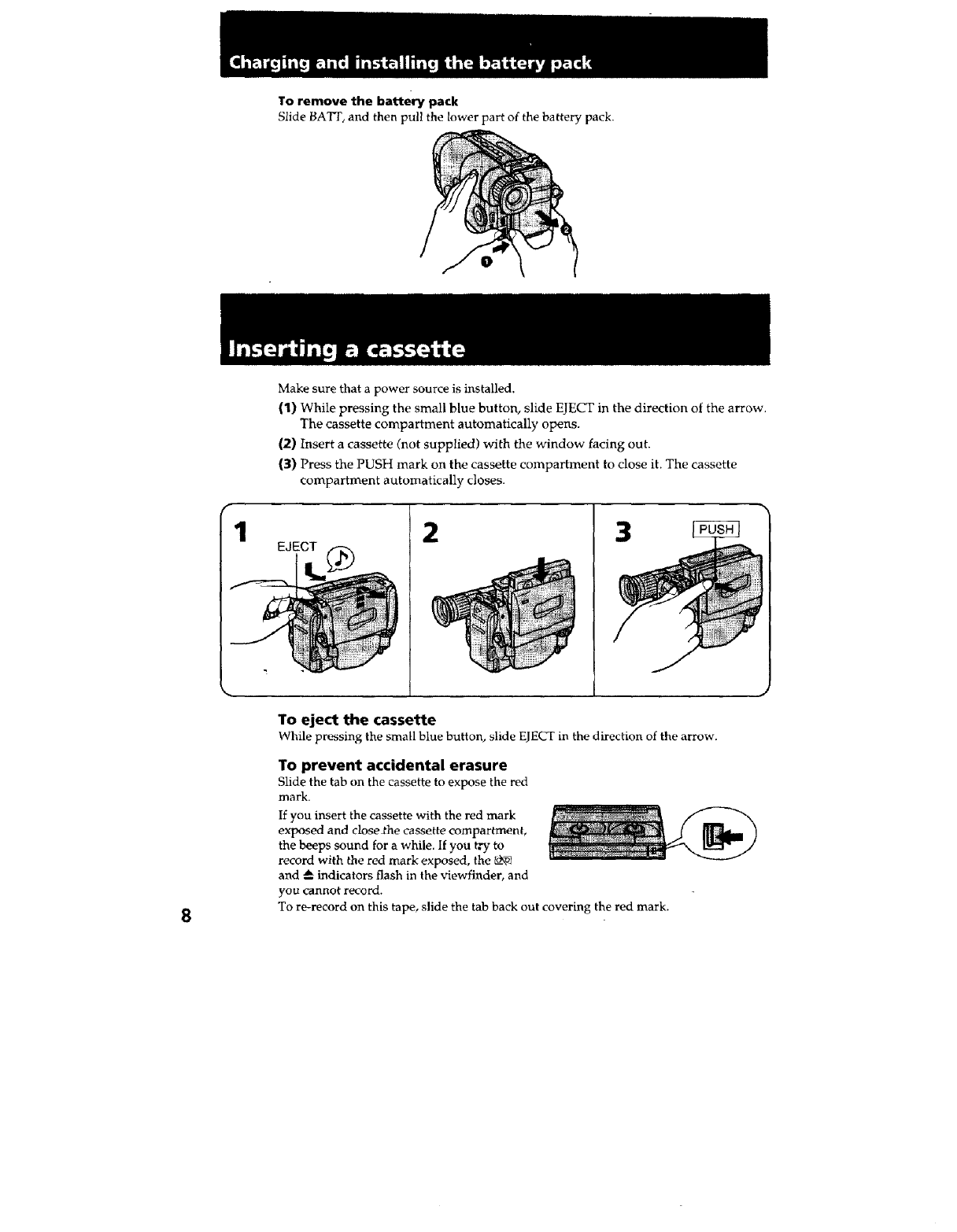
To remove the battery pack
Slide BATT, and then pull the lower part of the bakery pack.
Make sure that a power source is installed.
(1) While pressing the small blue button, slide EJECT in the direction of the arrow.
The cassette compartment automatically opens.
(2) Insert a cassette (not supplied) with the window facing out.
(3) Press the PUSH mark on the cassette compartment to close it. The cassette
compartment automatically closes.
To eject the cassette
While pressing the small blue button, slide EJECT in the direction of the arrow.
To prevent accidental erasure
Slide the tab on the cassette to expose the red
mark.
If you insert the cassette with the red mark
exposed and closed'he cassette compartment,
the beeps sound for a while. If you t."y to
record with the red mark exposed, the
and _ indicators flash in the viewfinder, and
you cannot record.
To re-record on this tape, slide the tab back out covering the red mark.
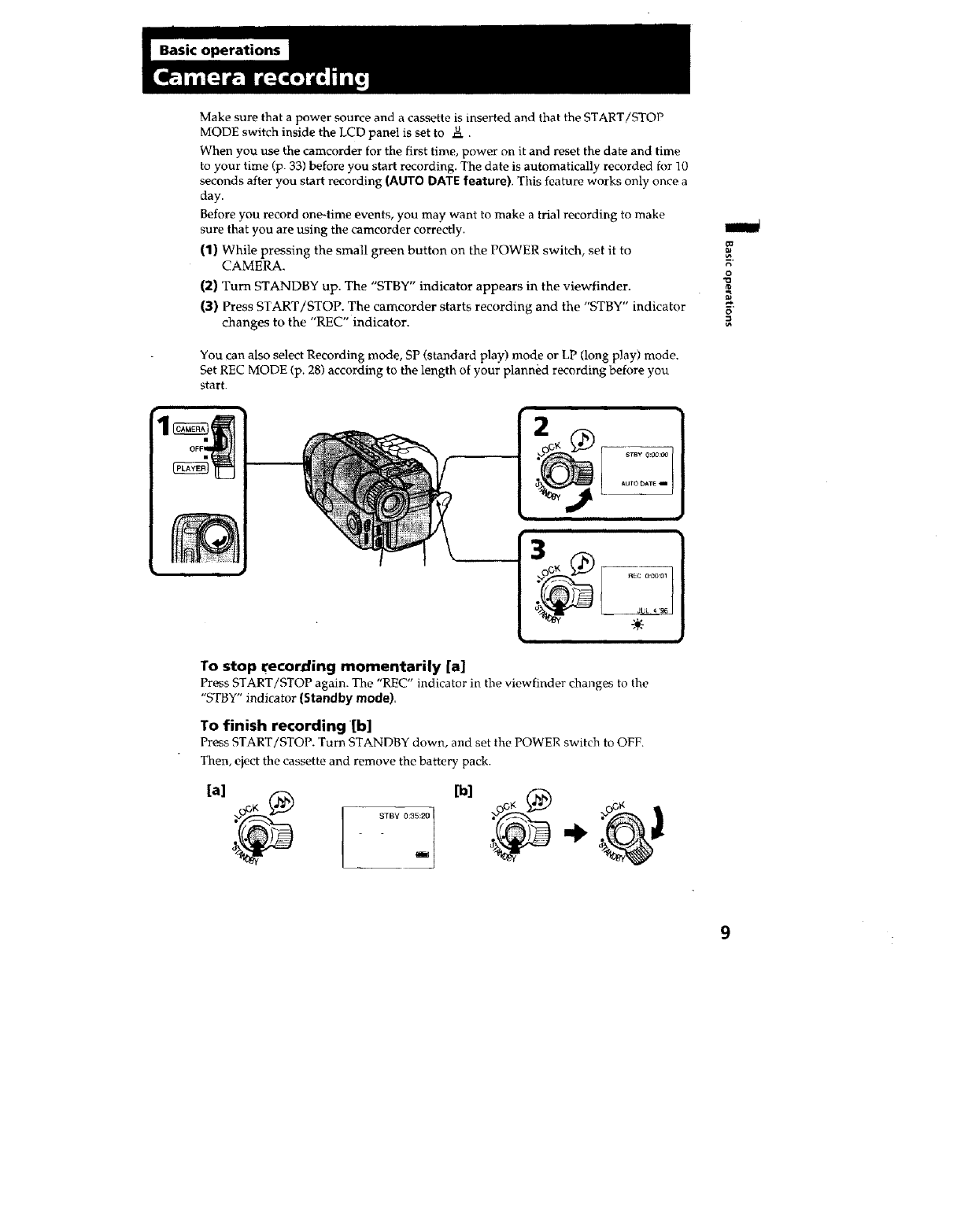
MakesurethatapowersourceandacassetteisinsertedandthattheSTART/STOP
MODEswitchinsidetheLCDpanelissetto u.
Whenyouusethecamcorderforthefirsttime,poweronitandresetthedateandtime
toyourtime(p.33)beforeyoustartrecording.Thedateisautomaticallyrecordedfor10
secondsafteryoustartrecording(AUTO DATE feature). This feature works only once a
day.
Before you record one-time events, you may want to make a trial recording to make
sure that you are using the camcorder correctly.
(1) While pressing the small green button on the POWER switch, set it to
CAMERA.
(2) Turn STANDBY up. The "STBY" indicator appears in the viewfinder.
(3) Press START/STOP. The camcorder starts recording and the "STBY" indicator
changes to the "REC" indicator.
You can also select Recording mode, SP (standard play) mode or LP (long play) mode.
Set REC MODE (p. 28) according to the length of your planned recording before you
start.
_a
o
B"
To stop recording momentarily [a]
Press START/STOP again. The "REC" indicator in the viewfinder changes to the
"STBY" indicator (Standby mode).
To finish recording [b]
Press START/STOP. Turn STANDBY down, and set the POWER switch to OFF.
Then, eject the cassette and remove the battery pack.
[a]
9
Note on standby mode
If you leave the camcorder for 5 minutes or more with a cassette inserted in Standby
mode, the camcorder goes off automatically. This prevents wearing down the battery
and wearing out the tape. To resume Standby mode, turn STANDBY down once and
turn it up again. To start recording, press START/STOP.
Notes on the recording mode
• This camcorder records and plays back in SP (standard play) mode and in LP (long
play) mode.
The playback quality in LP mode, however, will not be as good as that in SP mode.
• When a tape recorded on this camcorder in LP mode is played back on other types of
8 mm camcorders or VCRs, the playback quality may not be as good as that on this
camcorder.
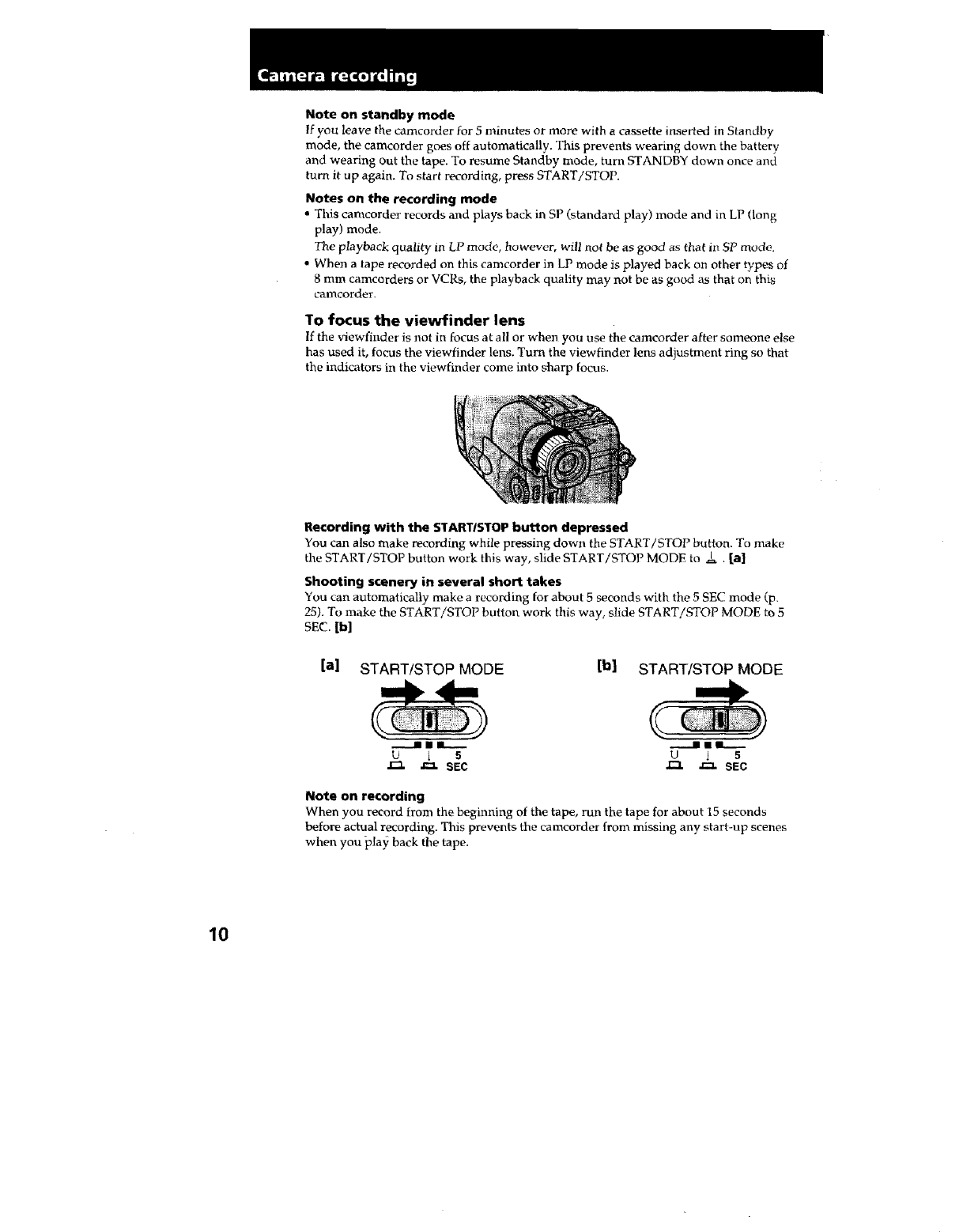
To focus the viewfinder lens
If the viewfinder is not in focus at all or when you use the eameorder after someone else
has used it, focus the viewfinder lens. Turn the viewfinder lens adjustment ring so that
the indicators in the viewfinder come into sharp focus.
Recording with the START/STOP button depressed
You can also make recording while pressing down the START/STOP button. To make
the START/STOP button work this way, slide START/STOP MODE to I . [a]
Shooting scenery in several short takes
You can automatically make a recording for about 5 seconds with the 5 SEC mode (p.
25). To make the START/STOP button work this way, slide START/STOP MODE to 5
SEC.[hi
[a] STARTtSTOP MODE [b] START/STOP MODE
u 1 5u l 5
r-1 j;_ SEC J_- _SEC
Note on recording
When you record from the beginning of the tape, run the tape for about 15 seconds
before actual recording. This prevents the camcorder from missing any start-up scenes
when you play back the tape.
10
Notes on the tape counter
• The tape counter indicates the recording or playback time. Use it as a guide. There will
be a time lag of several seconds from the actual time. To set the counter to zero, press
COUNTER RESET.
•If the tape is recorded in SP and LP modes mixed, the tape counter shows incorrect
recording time. When you intend to edit the tape using the tape counter as a guide,
record in same (SP or LP) mode.
Note on beep sound
As indicated with _ in the illustrations, a beep sounds when you turn the power on or
when you start recording and two beeps sound when yon stop recording, confirming
the operation. Several beeps also sound as a warning of any unusual condition of the
camcorder. Note that the beep sound is not recorded on the tape. If you do not want to
hear the beep sound, change the BEEP setting to OFF.
Note on the AUTO DATE feature
The clock is set to East Coast Standard Time at the factor}'. You can reset the clock.
The AUTO DATE feature shows the date automatically once a day. However, the date
may automatically appear more than once a day when:
-yon reset the date and time.
- you eject and insert the tape again.
- you stop recording within 10 seconds.
m
o
X_
ca
o
.=
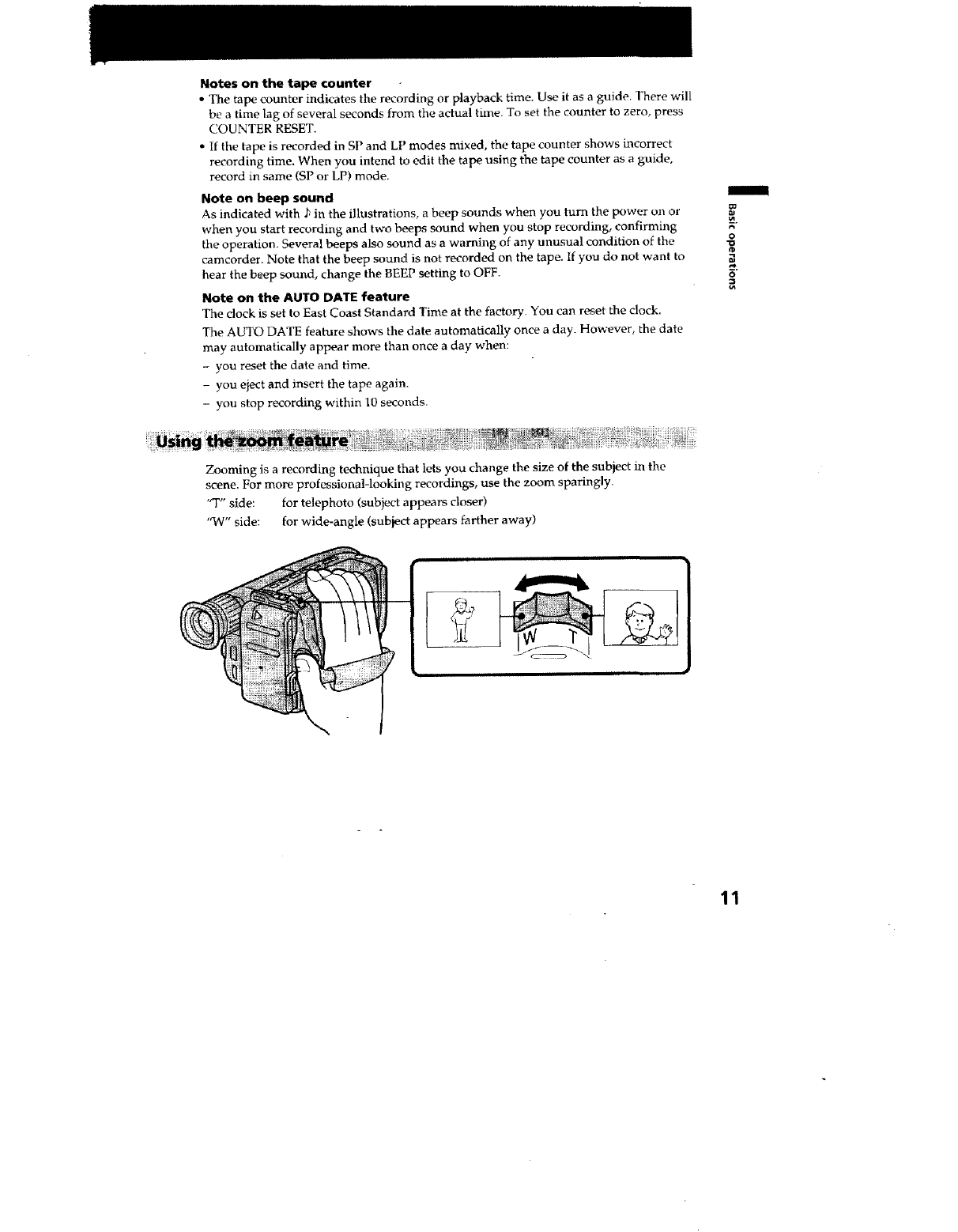
Zooming is a recording technique that lets you change the size of the subject in the
scene. For more professional-looking recordings, use the zoom sparingly.
"T" side: for telephoto (subject appears closer)
'q_'/" side: for wide-angle (subject appears farther away)
11
Zooming speed (Variable speed zooming)
Turn the power zoom lever fully for a high-speed zoom. Turn it lightly for a relatively
slow zoom,
When you shoot a subject using a telephoto zoom
If you cannot get a sharp focus while in extreme telephoto zoom, move the power
zoom lever to the "W" side until the focus is sharp.
You can shoot a subject that is at least 2.6 feet (about 80 cm) away from the lens surface
in the telephoto position, or 1/2 inches (about 1 cm) in the wide-angle position.
.Notes on digital zoom
" More than 13x zoom is performed digitally, and the picture quality deteriorates as
you go toward the "T" side. If you do not want to use the digital zoom, set the D
ZOOM function to OFF.
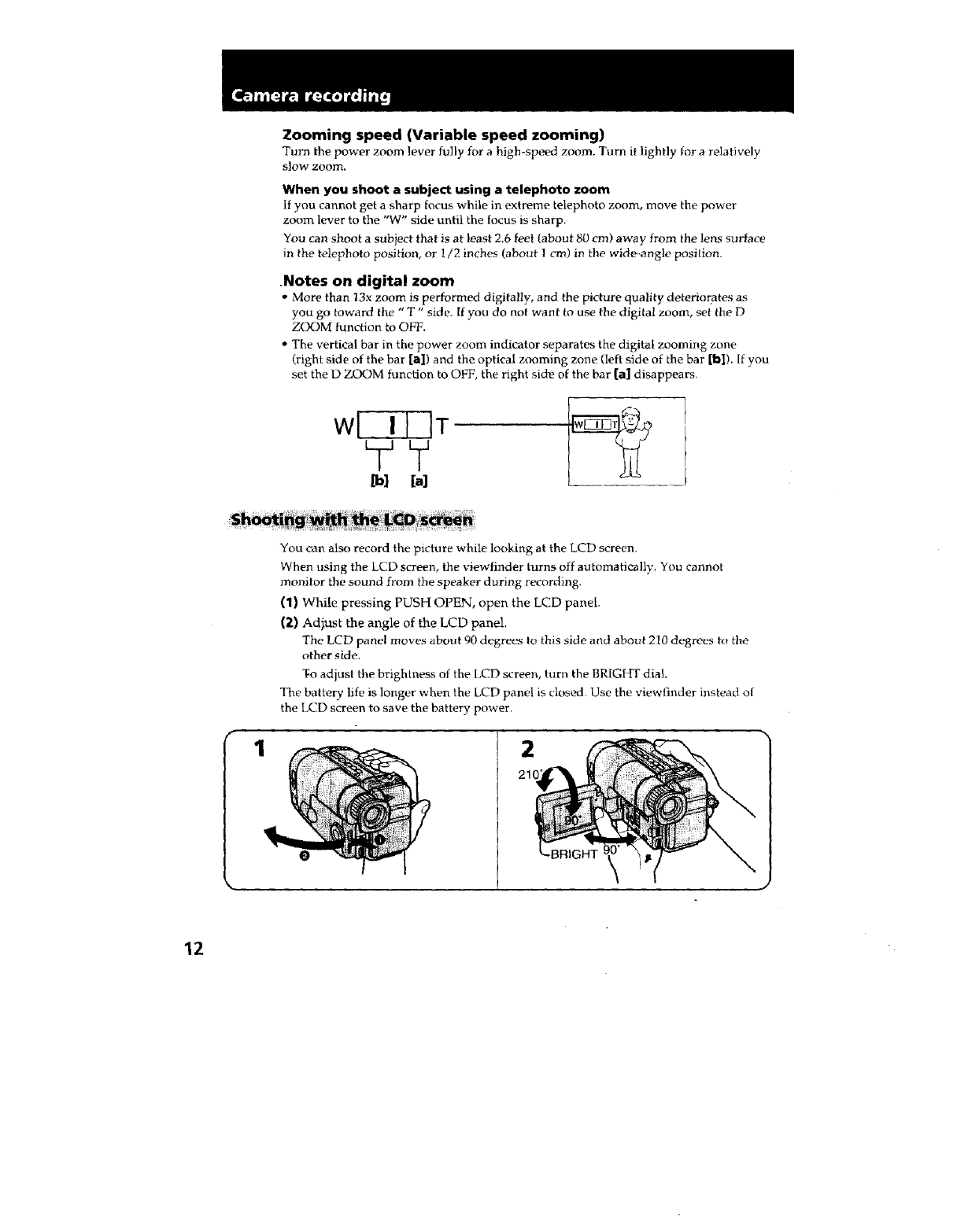
• The vertical bar in the power zoom indicator separates the digital zooming zone
(right side of the bar [a]) and the optical zooming zone (left side of the bar [b]). If you
set the D ZOOM function to OFT, the right sidle of the bar [a] disappears.
wl I I IT
[b] In]
You can also record the picture while looking at the LCD screen.
When using the LCD screen, the viewfinder turns off automatically. You cannot
monitor the sound from the speaker during recording.
(1) While pressing PUSH OPEN, open the LCD panel.
(2) Adjust the angle of the LCD panel.
The LCD panel moves about 90 degrees to this side and about 210 degroes to the
other side.
To adjust the brightness of the LCD screen, turn the BRIG[_T dial.
The battery life is longer when the LCD panel is closed. Use the viewfinder instead of
the LCD screen to save the battery power.
2
21,
12
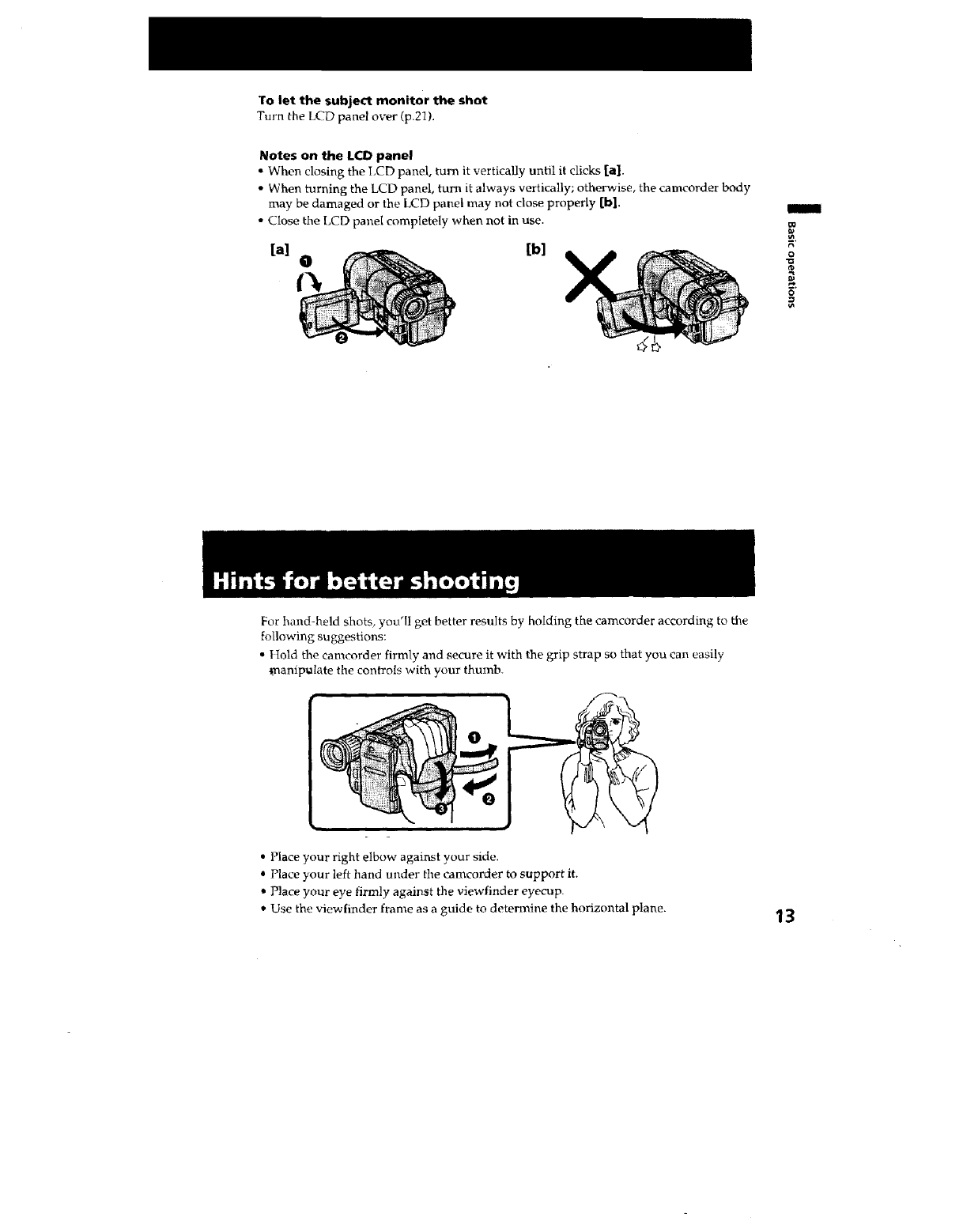
To let the subject monitor the shot
Turn the LCD panel over (p.21).
Notes on the LCD panel
" When closing the LCD panel, turn it vertically until it clicks [a].
•When turning the LCD panel, turn it always vertically; otherwise, the camcorder body
may be damaged or the LCD panel may not close properly [b].
• Close the LCD panel completely when not in use.
[b]
/
€_
0
0
For hand-held shots, you'II get better results by holding the camcorder according to the
following suggestions:
• Hold the eamcorder firmly and secure it with the grip strap so that you can easily
_)aanipulate the controls with your thumb.
• Place your right elbow against your side.
*Place your left hand under the camcorder to support it.
•Place },our eye firmly against the viewfinder eyecup.
• Use the viewfinder frame as a guide to determine the horizontal plane. 13
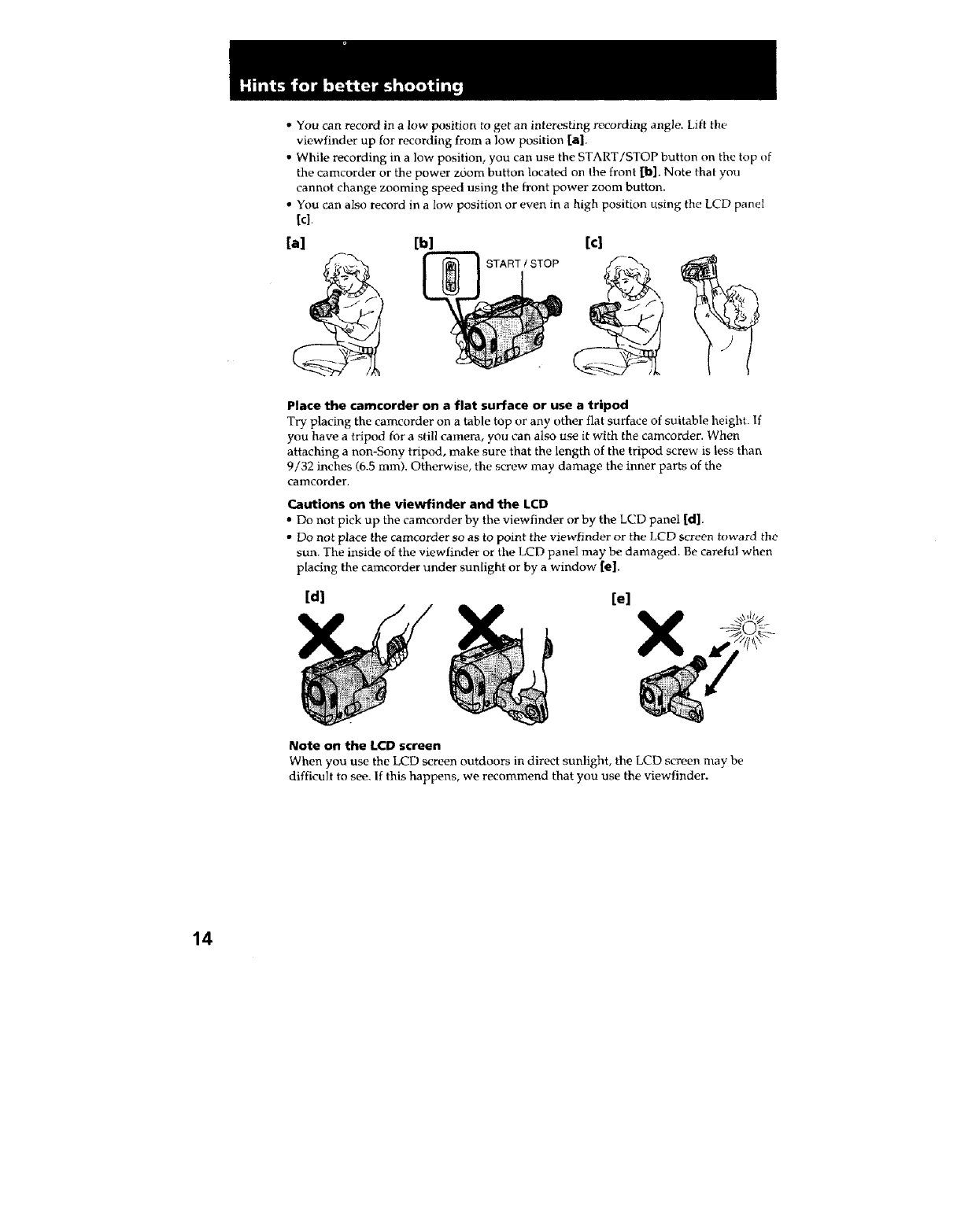
• You can record in a low position to get an interesting recording angle. Lift the
viewfinder up for recording from a low position [a].
• While recording in a low position, you can use the START/STOP button on the top of
the camcorder or the power zoom button located on the front [b]. Note that you
cannot change zooming speed using the fn, nt power zoom button.
• You can also record in a low position or even in a high position using the LCD panel
[el.
[a] [b] [el
START /STOP
Place the camcorder on a flat surface or use a tripod
Try placing the camcorder on a table top or any other flat surface of suitable height. If
you have a tripod for a still camera, you can also use it with the camcorder. When
attaching a non-Sony tripod, make sure that the length of the tripod screw is less than
9/32 inches (6.5 mm). Otherwise, the screw may damage the inner parts of the
camcorder.
Cautions on the viewfinder and the LCD
* Do not pick up the camcorder by the viewfinder or by the LCD panel [d].
• Do not place the camcorder so as to point the viewfinder or the LCD screen tuward the
sun. The inside of the viewfinder or the LCD panel may be damaged. Be careful when
placing the carncorder under sunlight or by a window [e].
[d) [el X
Note on the LCD screen
When you use the LCD screen outdoors in direct sunlight, the LCD screen may be
difficult to see. If this happens, we recommend that you use the viewfinder.
14
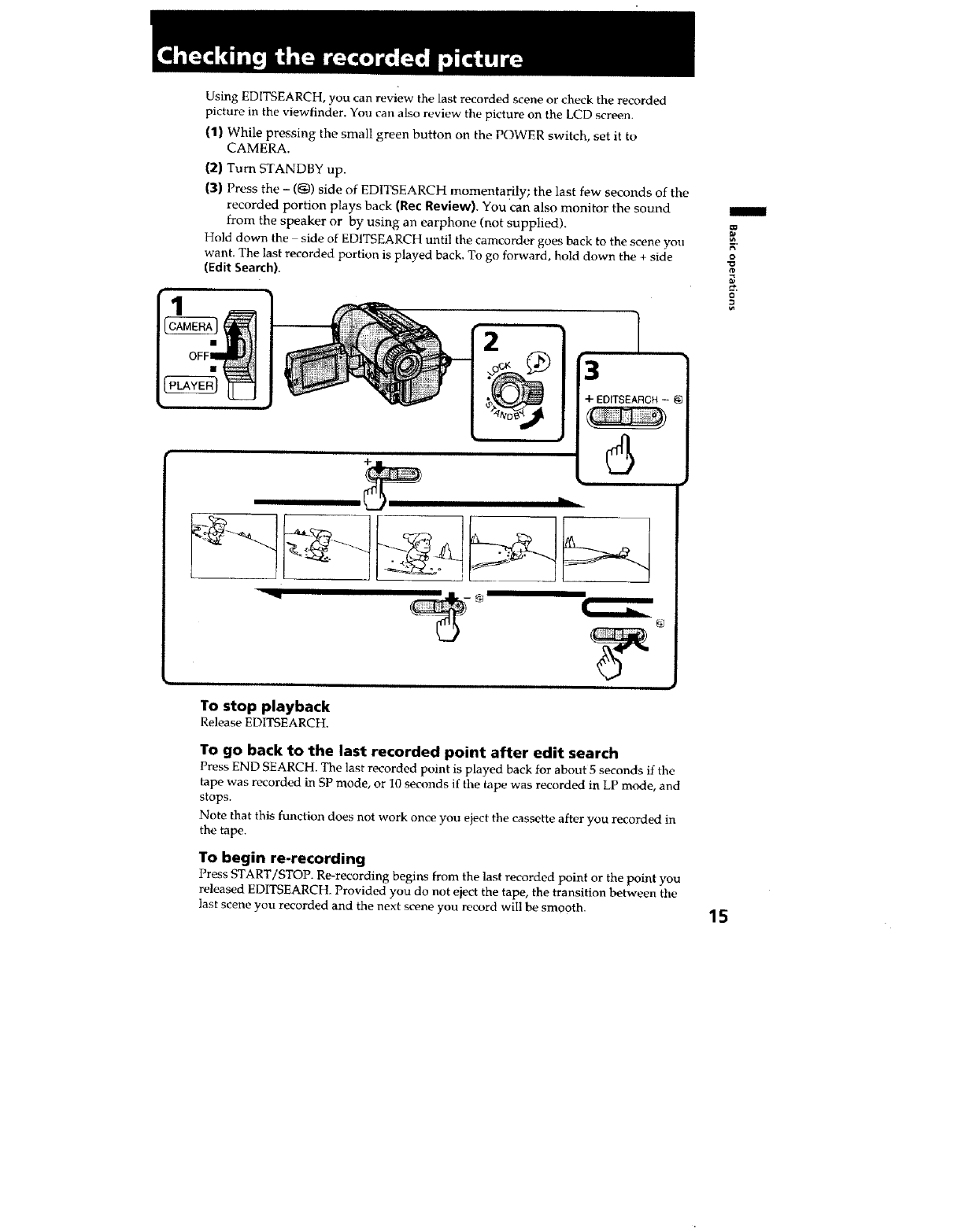
Using EDITSEARCH, you can review the last recorded scene or check the recorded
picture in the viewfinder. You can also review the picture on the LCD screen.
(1) While pressing the small green button on the POWER switch, set it to
CAMERA.
(2) Turn STANDBY up.
(3) Press the - (@) side of EDITSEARCH momentarily; the last few seconds of the
recorded portion plays back (Rec Review). You can also monitor the sound
from the speaker or by using an earphone (not supplied).
Hold down the side of EDITSEARCH until Ihe carncorder goes back to the scene you
want. The last recorded portion is played back. To go forward, hold down the + side
(Edit Search).
1
3
4- EDITSEARCH -
F,"
0
To stop playback
Release EDtTSEARCH.
To go back to the last recorded point after edit search
Press END SEARCH. The last recorded point is played back for about 5 seconds if the
tape was recorded in SP mode, or 10 seconds if the tape was recorded in LP mode, and
stops.
Note that this function does not work once you eject the cassette after you recorded in
the tape.
To begin re-recording
Press START/STOP. Re-recording begins from the last recorded point or the point you
released EDITSEARCH Provided you do not eject the tape, the transition between the
last scene you recorded and the next scene you record wilt be smooth. 15
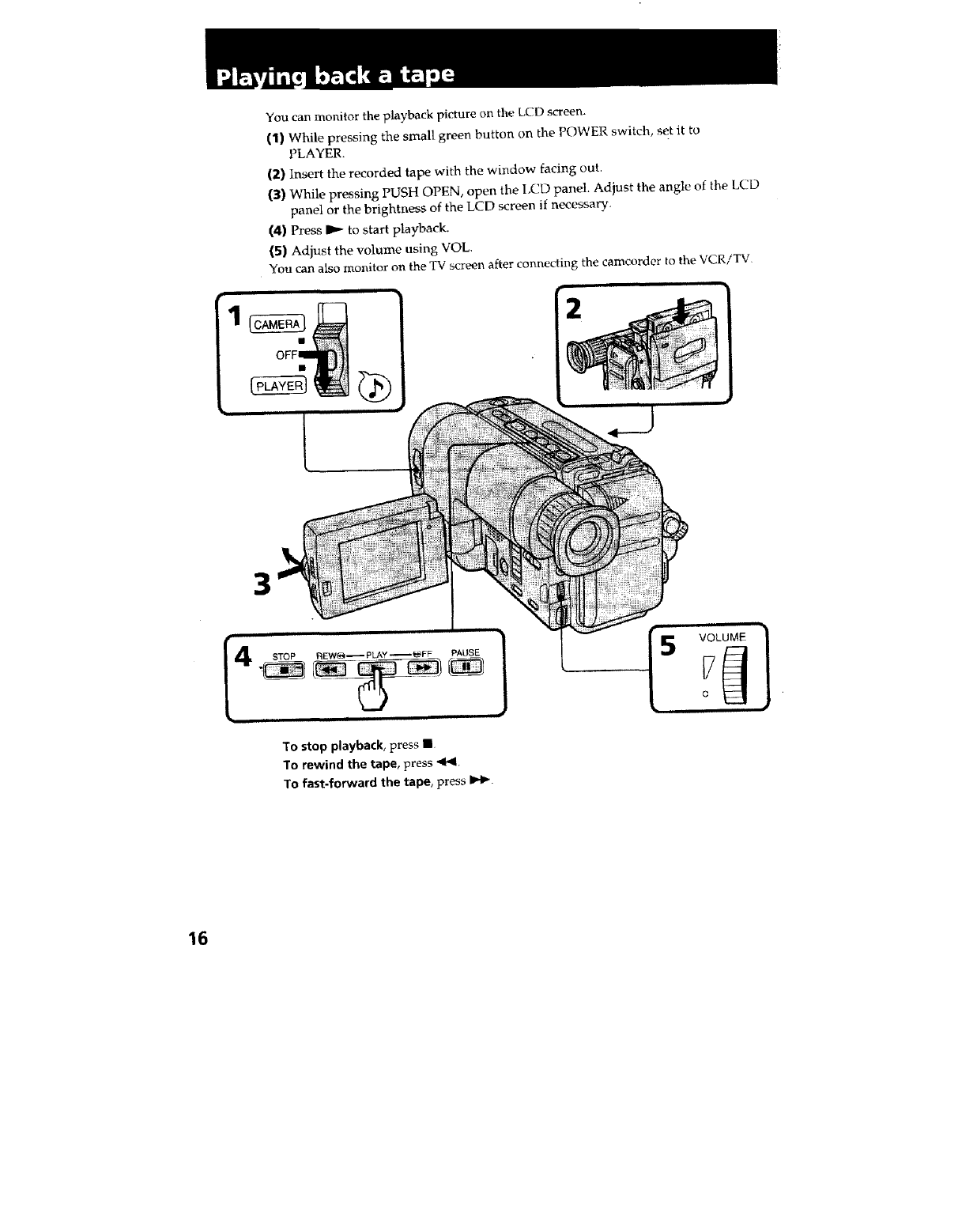
You can monitor the playback picture on the LCD screen.
(1) While pressing the small green button on the POWER switch, set it to
PLAYER.
(2) Insert the recorded tape with the window facing out,
(3) While pressing PUSH OPEN, open the LCD panel. Adjust the angle of the t,CD
panel or the brightness of the LCD screen if necessary.
(4) Press I_ to start playback.
(5) Adjust the volume using VOL.
You can also monitor on the TV screen after connectiz_g the camcorder to the VCR/TV
2
3
To stop playback, press •
To rewind the tape, press 4F41.
To fast-forward the tape, press IH_.
16
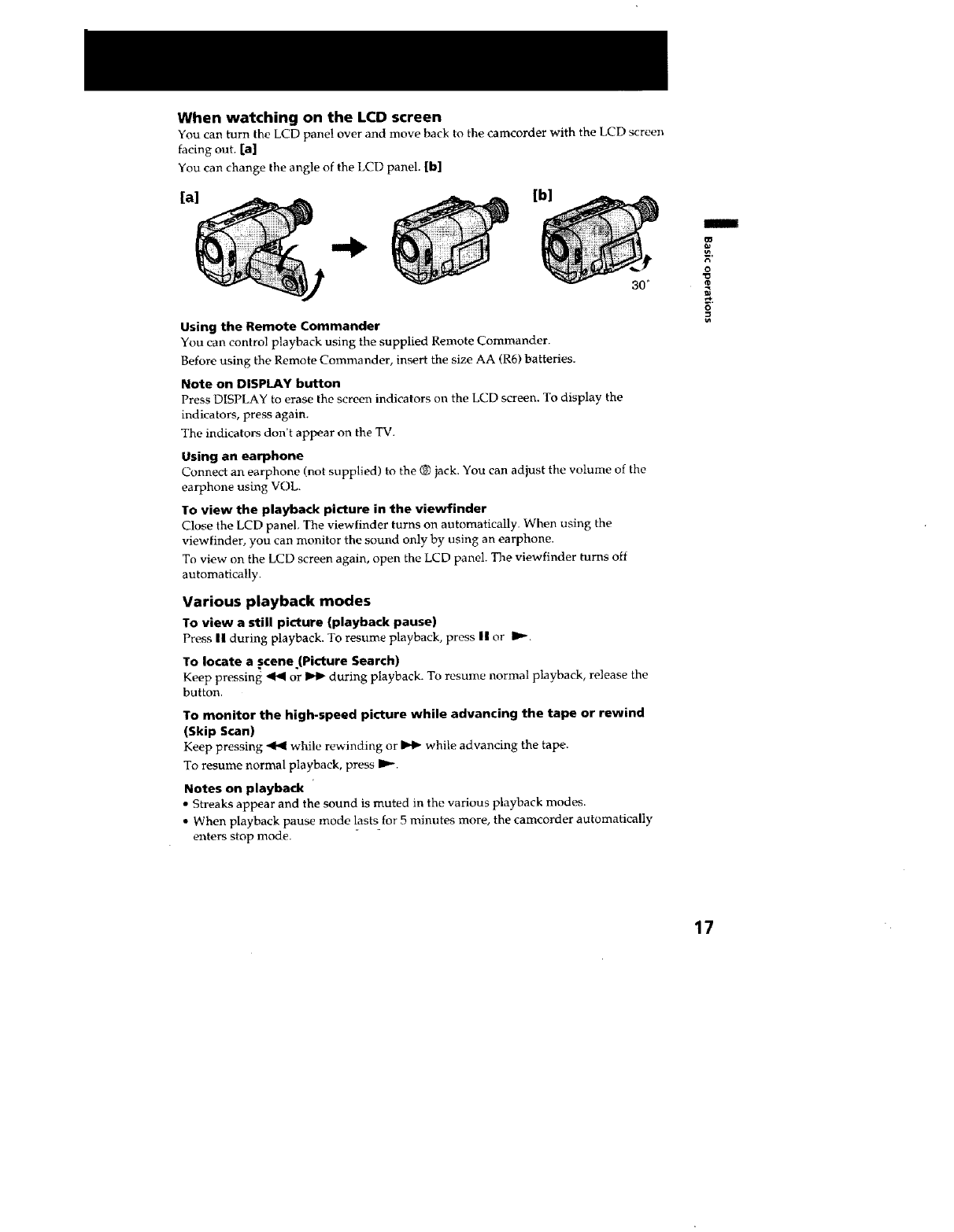
When watching on the LCD screen
You can turn the LCD pane! over and move back to the camcorder with the LCD screen
facing out. [a]
You can change the angle of the LCD panel. [b]
[a] [b]
Using the Remote Commander
You can control playback using the supplied Remote Commander.
Before using the Remote Commander, insert the size AA (R6) batteries.
Note on DISPLAY button
Press DISPLAY to erase the screen indicators on the LCD screen. To display the
indicators, press again.
The indicators don't appear on the TV.
Using an earphone
Connect an earphone (not supplied) to the ® jack. You can adjust the volume of the
earphone using VOL.
To view the playback picture in the viewfinder
Close the LCD panel The viewfinder turns on automatically. When using the
viewfinder, you can monitor the sound only by using an earphone.
To view on the LCD screen again, open the LCD panel. The viewfinder turns off
automatically.
Various playback modes
To view a still picture (playback pause)
Press II during playback. To resume playback, press II or I_.
TO locate a scene (Picture Search)
Keep pressing _ or _ during playback. To resume normal playback, release the
button.
To monitor the high-speed picture while advancing the tape or rewind
(Skip Scan)
Keep pressing _ while rewinding or _ while advancing the tape.
To resume normal playback, press IP'-.
Notes on playback
•Streaks appear and the sound is muted in the various playback modes.
• When playback pause mode lasts for 5 minutes more, the cameorder automatically
enters stop mode.
m
o
17 •
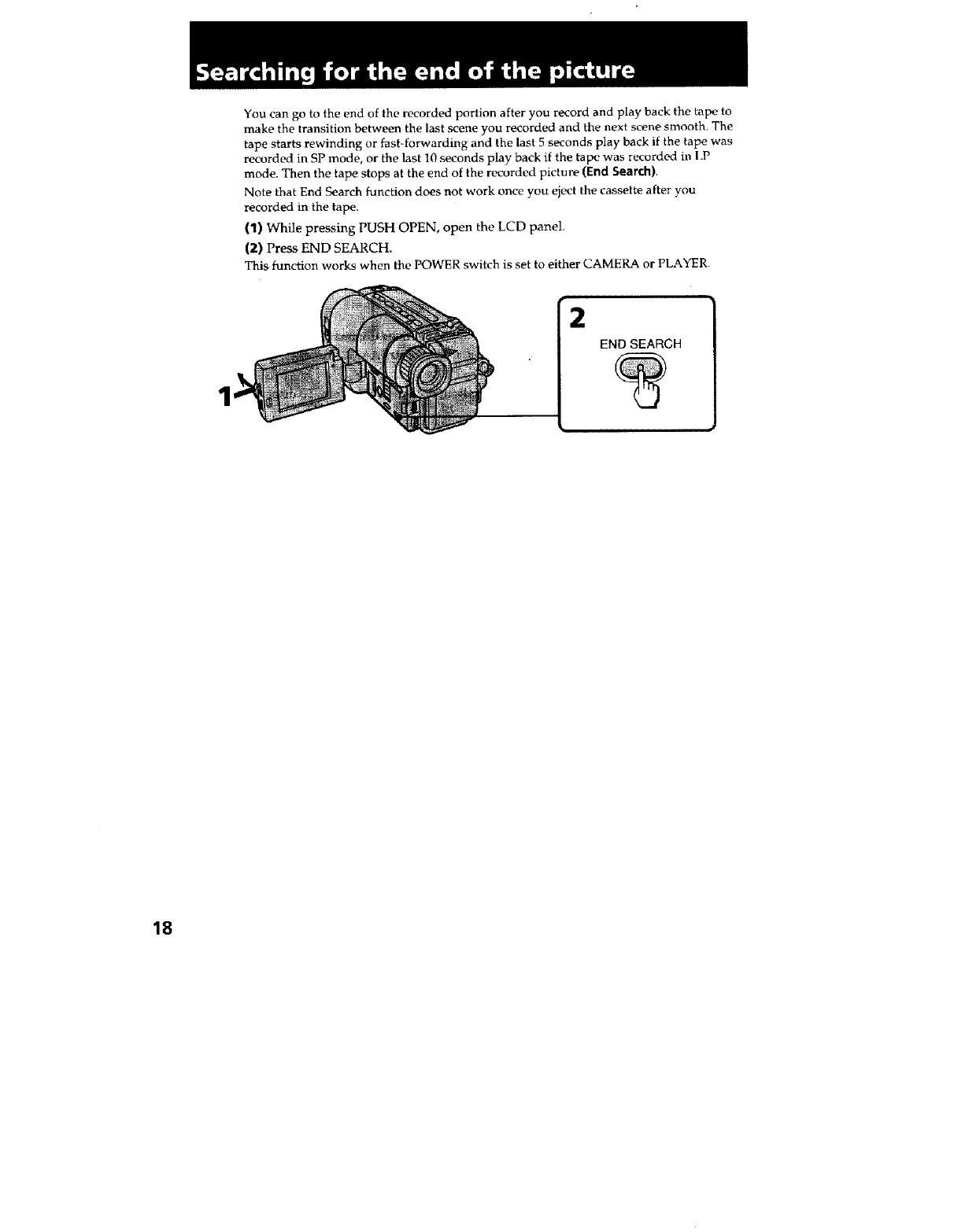
You can go to the end of the recorded portion after you record and play back the tape to
make the transition between the last scene you recorded and the next scene smooth. The
tape starts rewinding or fast-forwarding and the last 5 seconds play back if the tape was
recorded in SP mode, or the last 10 seconds play back if the tape was recorded in l,P
mode. Then the tape stops at the end of the recorded picture (End Search).
Note that End Search function does not work once you eject the cassette after you
recorded in the tape.
(1) While pressing PUSH OPEN, open the LCD panel.
(2) Press END SEARCH.
This function works when the POWER switch is set to either CAMERA or PLAYER.
2
END SEARCH
18
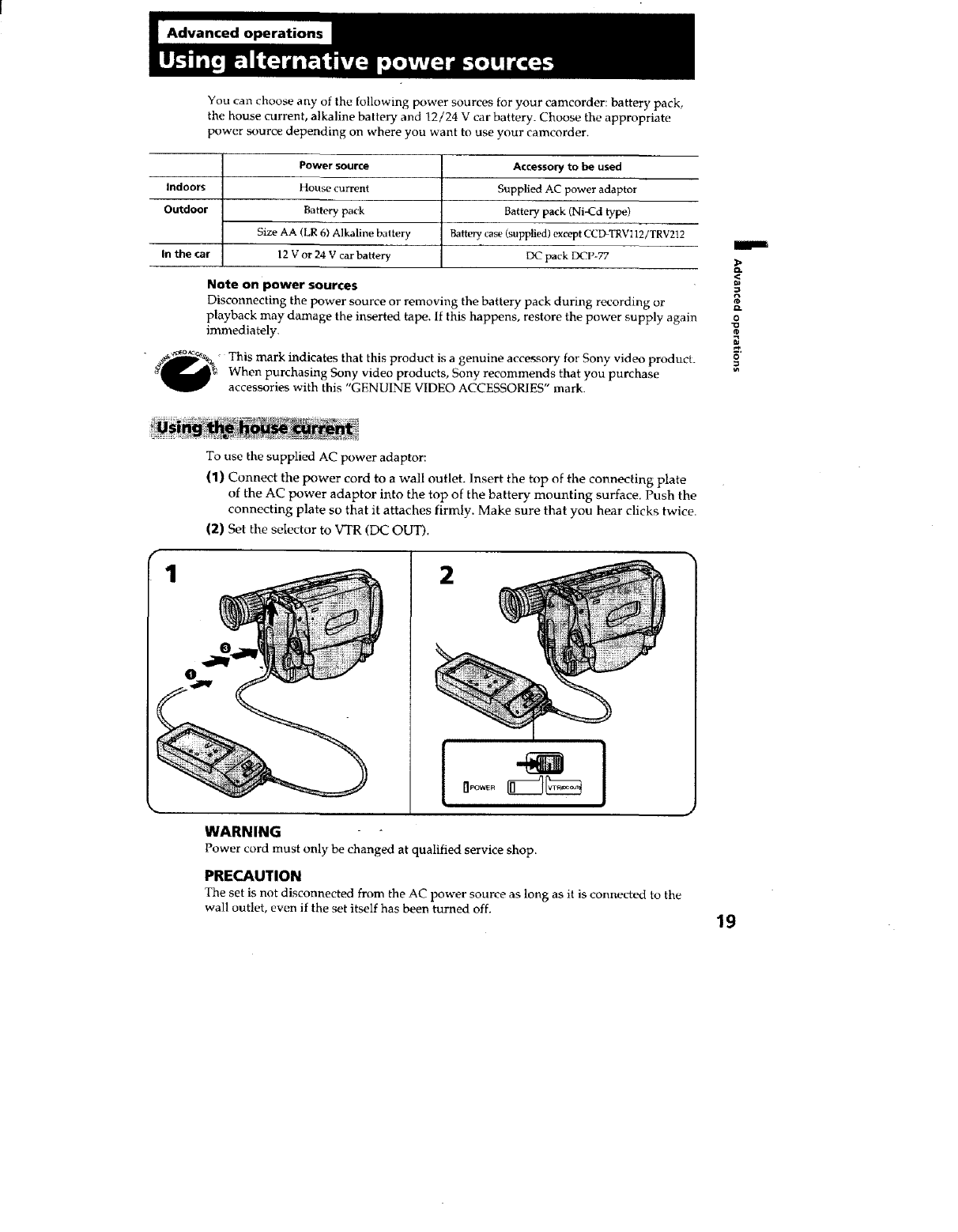
You can choose any of the following power sources for your camcorder: battery pack,
the house current, alkaline battery and 12/24 V car battery. Choose the appropriate
power source depending on where you want to use your cameorder.
Power source
Indoors House current
Outdoor Battery pack
Size AA (LR 6) Alkaline baitery
In the car 12 V or 24 V car battery
Note on power sources
Accessory to be used
Supplied AC power adaptor
Battery pack (Ni-Cd type)
Battery case (supplied) except CCD TRV112/TRV2!2
DC pack DCP-77
Disconnecting the power source or removing the battery pack during recording or
playback may damage the inserted tape. If this happens, restore the power supply again
immediately.
This mark indicates that this product is a genuine accessory for Sony video product.
When purchasing Sony video products, Sony recommends that you purchase
accessories with this "GENUINE VIDEO ACCESSORIES" mark.
P
3*
D.
o
"O
o
1
O
To use the supplied AC power adaptor:
(1) Connect the power cord to a wall outlet. Insert the top of the connecting plate
of the AC power adaptor into the top of the battery mounting surface. Push the
connecting plate so that it attaches firmly. Make sure that you hear clicks twice.
(2) Set the selector to VTR (DC OUT).
2
WARNING
Power cord must only be changed at qualified service shop.
PRECAUTION
The set is not disconnected from the AC power source as long as it is connectL_t to the
wall outlet, even if the set itself has been turned off. 19
1
Notes on the POWER lamp
•The IaOWER lamp ,hill remain lit for a while even if the unit is unplugged after use.
This is normal.
• If the I_OWER lamp does not light, set the selector to VTR (DC OUT) and disconnect
the power cord. After about one minute, reconnect the power cord.
To remove the adaptor
The adaptor is removed in the same way as the battery pack.
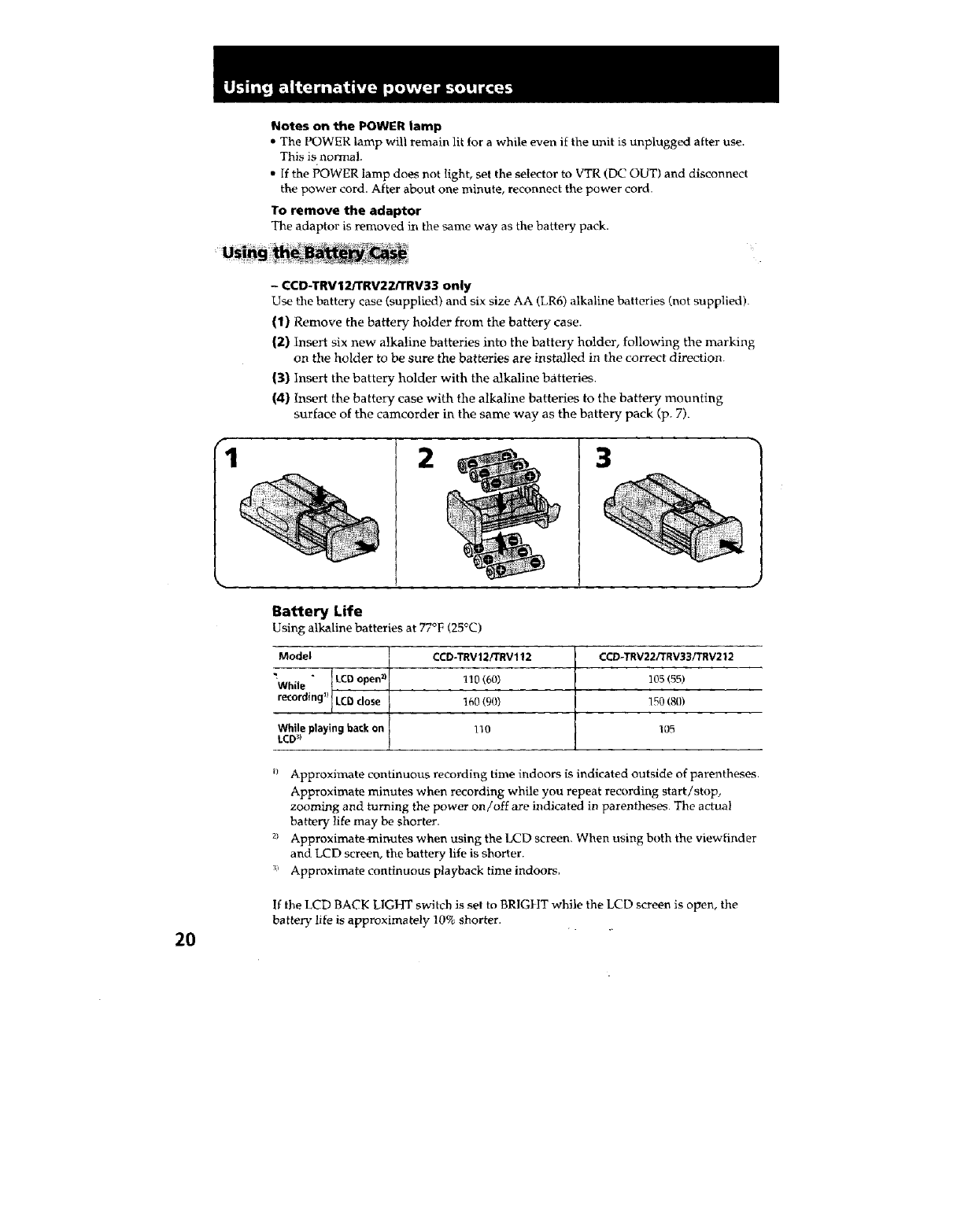
-CCD-TRV12frRV2ZtTRV33 only
Use the battery case (supplied) and six size AA (LR6) alkaline batteries (not supplied).
(1) Remove the battery holder from the battery case.
(2) Insert six new alkaline batteries into the battery holder, following the marking
on the holder to be sure the batteries are installed in the correct direction.
(3) Insert the battery holder with the alkaline batteries.
(4) Insert the battery case with the alkaline batteries to the battery mounting
surface of the camcorder in the same way as the battery pack (p. 7).
2 3
Battery Life
Using alkaline batteries at 77°F (25°C)
Model
While LCD open _
rec°rding_ LCDclose
While playingbackon
LCD_I
CCD-TRV12/TRV112
110 (60)
160 (90)
110
CCD-TRV22iTRV33/TRV212
105155)
150 (8_)
105
_/ Approximate continuous recording time indoors is indicated outside of parentheses.
Approximate minutes when recording while you repeat recording start/stop,
zooming and turning the power on/off are indicated in parentheses. The actual
battery life may be shorter.
2_ Approximateminutes when using the LCD screen. When using both the viewfinder
and LCD screen, the battery life is shorter.
3_ Approximate continuous playback time indoors.
If the LCD BACK LIGHT switch is set to BRIGHT while the LCD screen is open, the
batte D-life is approximately 10% shorter.
20
Notes
• The above battery lives are estimates. The battery life may be shorter depending on
the storage condition of the batte D,before being purchased and temperature.
• You may not use the battery case in cold enviromnent,
To remove the battery case
The battery ease is removed in the same way as the battery pack (p. 7).
When you replace the batteriesr be sure to remove the battery case from the camcorder
to prevent malfunction,
Use Sony DCP-77 DC pack (not supplied). Connect the cord of the i9(2 pack to the
cigarette lighter socket of the car {12 V or 24 V). Connect the DC pack to the battery
mounting surface of the camcorder.
To remove the DC pack
The DC pack is removed in the same way as the battery pack.
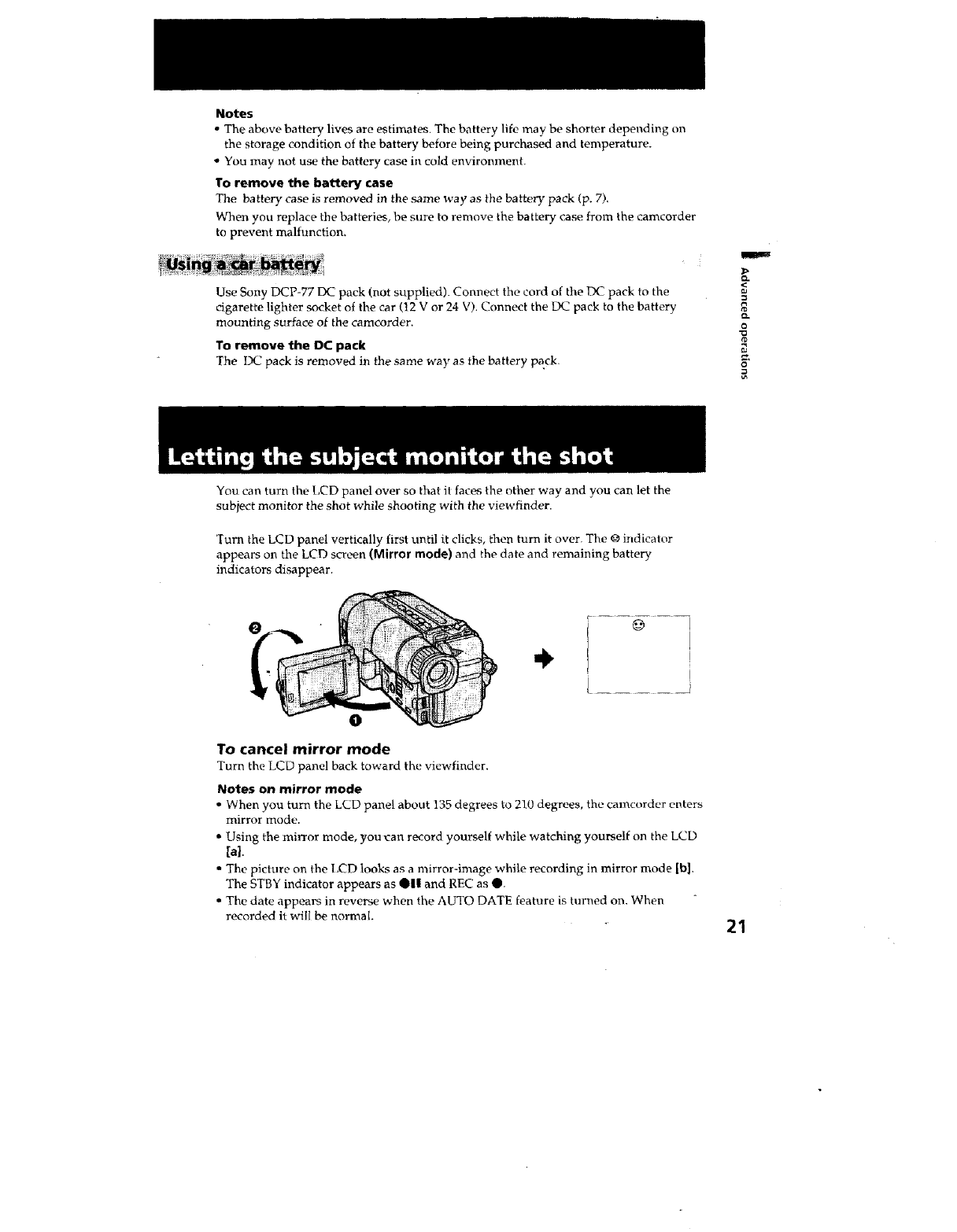
You can turn the LCD panel over so that i! faces the other way and you can let the
subject monitor the shot while shooting with the viewfinder.
O.
PD
CL
o
"O
¢p
O
Turn the LCD panel vertically first until it clicks, then turn it over. The @ indicator
appears on the LCD screen (Mirror mode) and the date and remaining battery
indicators disappear.
'I
To cancel mirror mode
Turn the LCD panel back toward the viewfinder.
Notes on mirror mode
• When you turn the LCD panel about 135 degrees to 210 degrees, the camcorder enters
mirror mode.
•Using the mirror mode, you ,can record yourself while watching yourself on the LCD
[a].
• The picture on tbe 1,CD looks as a mirror-image while recording in mirror mode [b].
The STBY indicator appears as QII and REC as Q.
• The date appears in reverse when the AUTO DATE feature is turned on. When
recorded it will be normal. 21
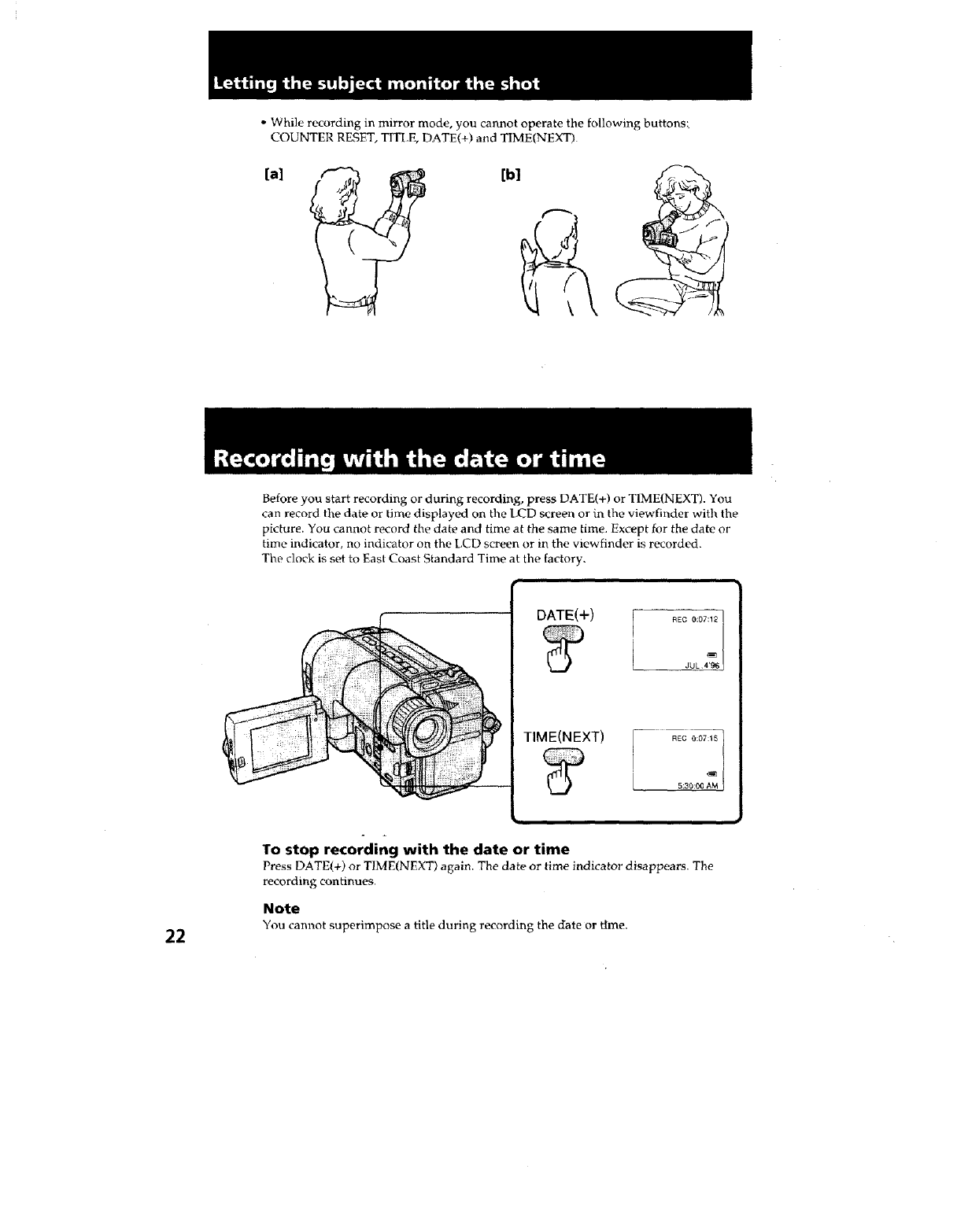
• While recording in mirror mode, you cannot operate the following buttons;
COUNTER RESET, TITLE, DATE(+) and TIME[NEXT)
[a]
Before you start recording or during recording, press DATE(+) or TIME(NEXT). You
can record the date or time displayed on the LCD screen or in the viewfinder with the
picture. You cannot record the date and time at the same time. Except for the date or
time indicator, no indicator on the LCD screen or in the viewfinder is recorded.
The clock is set to East Coast Standard Time at the factory.
DATE(+)
I REC 0:07:12 /
i -
JUL 4'96
To stop recording with the date or time
Press DATE(+) or TIME(NEXT) again. The date or time indicator disappears. The
recording continues.
Note
22 You cam_ot superimpose a title during recording the date or time.
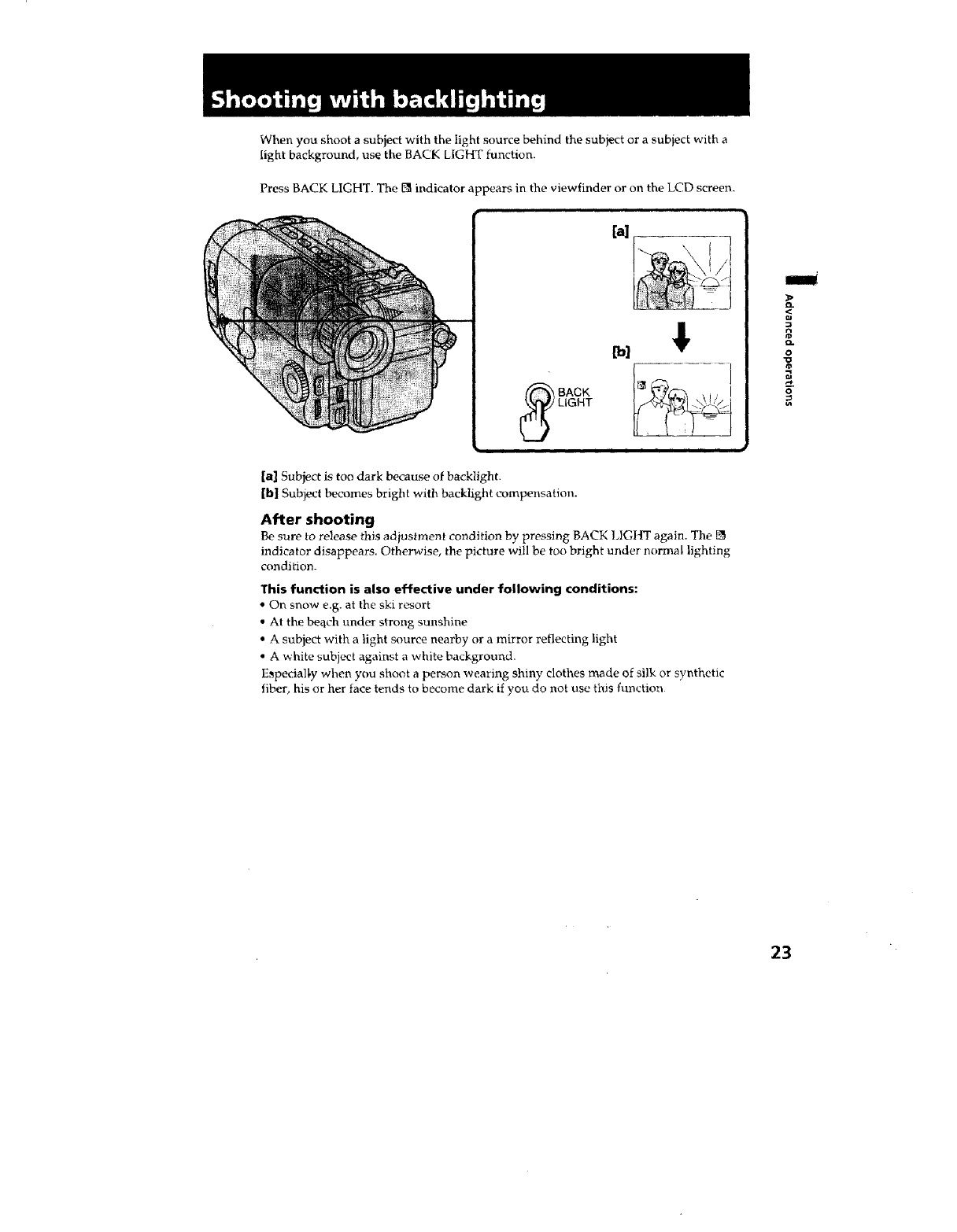
When you shoot a subject with the light source behind the subject or a subject with a
light background, use the BACK EIGHT function.
Press BACK LIGHT. The [] indicator appears in the viewfinder or on the LCD screen.
ct.
o
3"
[a] Subject is too dark because of backlight.
[b] Subject becomes bright with backlight compensation.
After shooting
Be sure to release this adjustment condition by pressing BACK LIGItT again. The []
indicator disappears. Otherwise, the picture will be too bright under normal lighting
condition.
This function is also effective under following conditions:
• On snow e.g. at the ski resort
• At the beach under strong sunshine
• A subject with a light source nearby or a mirror reflecting light
• A white subject against a white background.
E_pecial_y when you shoot a person wearing shiny clothes made of silk or synthetic
fiber, his or her face tends to become dark if you do not use this function
k
23
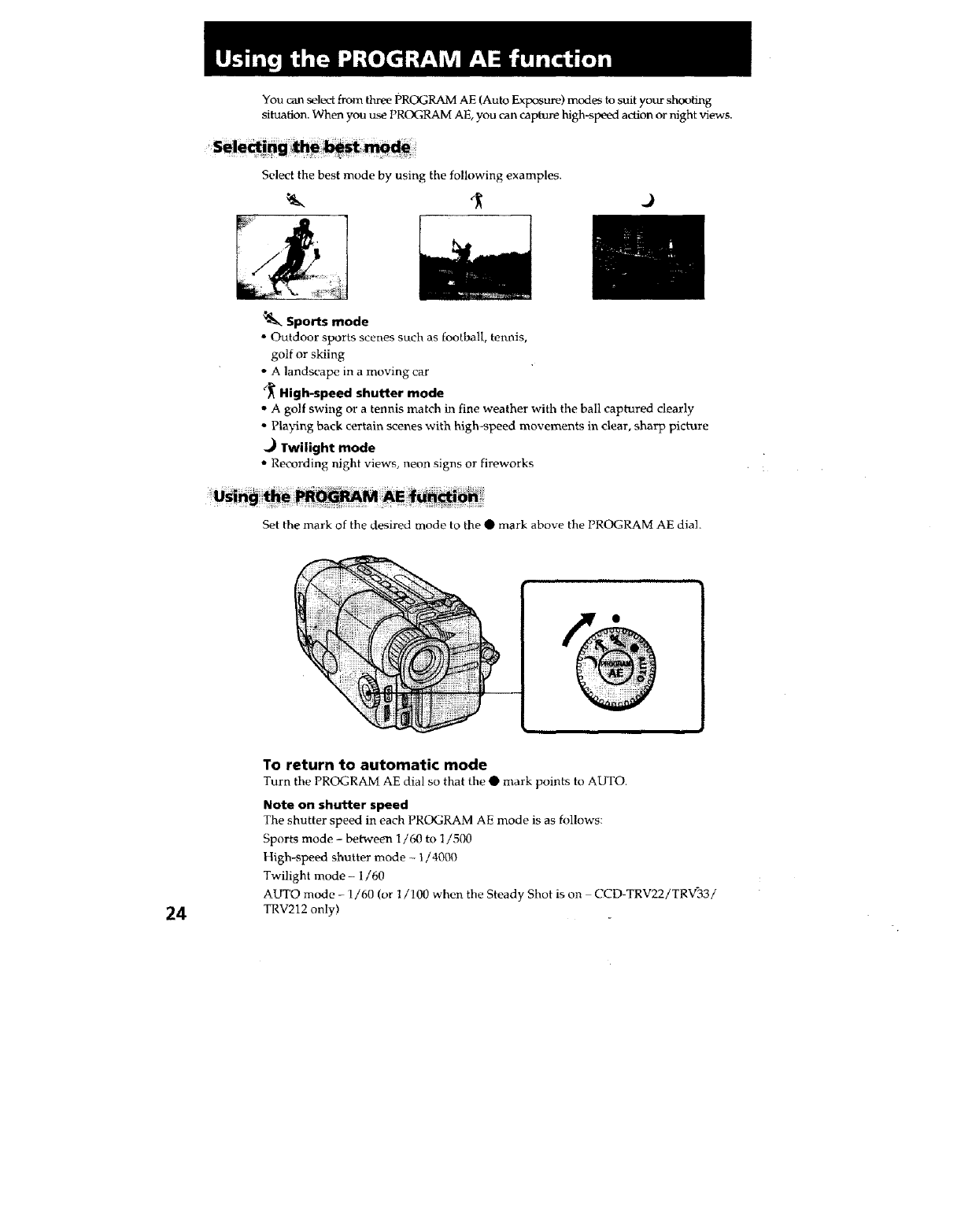
You can select from three PROGRAM AE (Auto Exposure) modes to suit your shooting
situation. When you u_ PROGRAM AE, you can capture high-speed action or night views.
Select the best mode by using the following examples.
.)
_. Sports mode
•Outdoor sports scenes such as football, tennis,
golf or skiing
• A landscape in a moving car
(_ High-speed shutter mode
•A golf swing or a tennis match in fine weather with the ball captured clearly
• Playing back certain scenes with high-speed movements in clear, sharp picture
._ Twilight mode
•Recording night views, neon signs or fireworks
Set the mark of the desired mode to the • mark above the PROGRAM AE dial.
24
To return to automatic mode
Turn the PROGRAM AE dial so that the • mark points to AUTO.
Note on shutter speed
The shutter speed in each PROGRAM AE mode is as follows:
Sports mode - between 1/60 to l/500
High-speed shutter mode - 1/4000
Twilight mode - 1/60
AUTO mode -1/60 (or 1/100 when the Steady Shot is on CCD-TRV22iTRV'33!
TRV212 only)
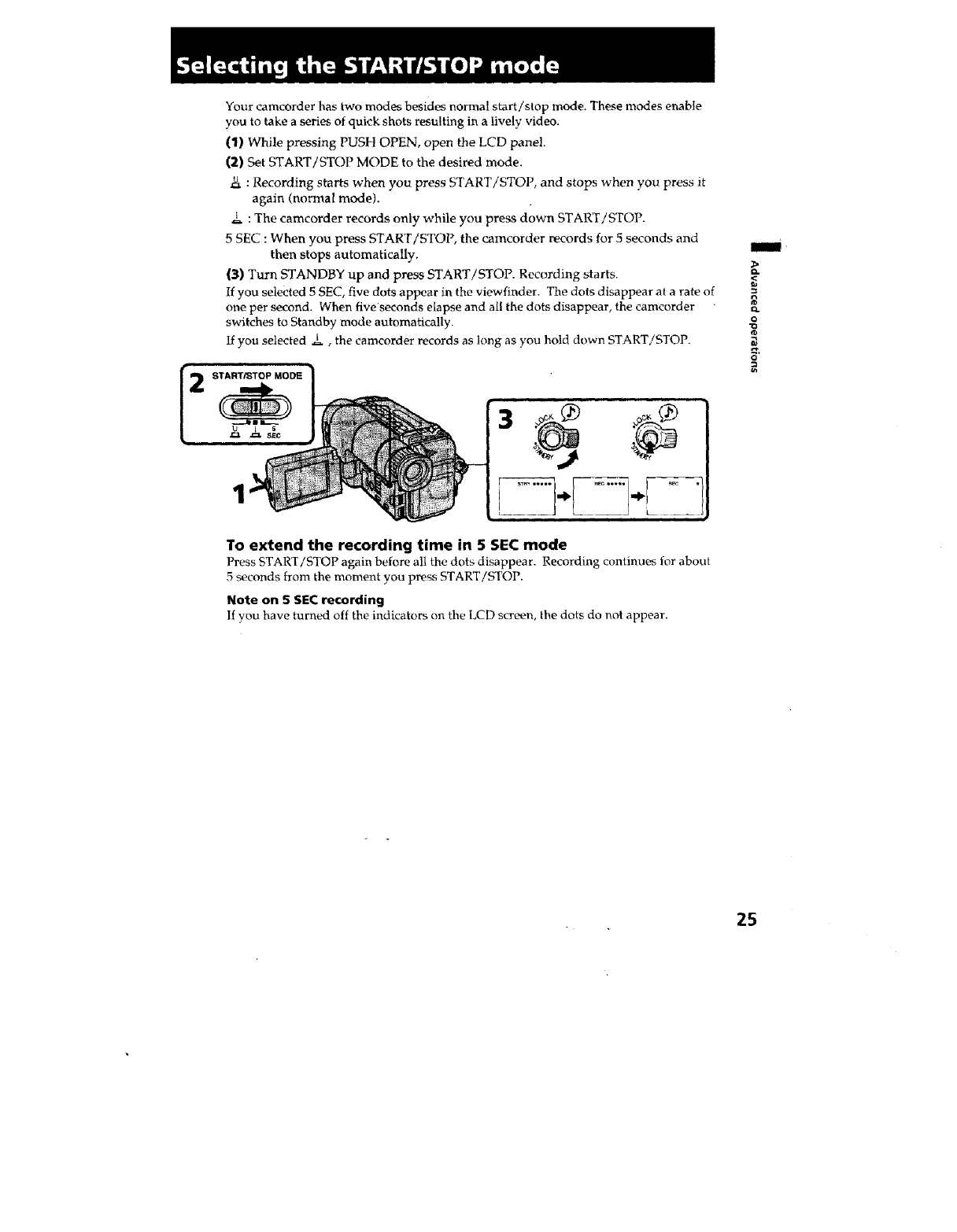
Your camcorder has two modes besides normal start!stop mode. These modes enable
you to take a series of quick shots resulting in a lively video.
(1) While pressing PUSH OPEN, open the LCD panel.
(2) Set START/STOP MODE to the desired mode.
b_ : Recording starts when you press START/STOP, and stops when you press it
again (normal mode).
I,L : The camcorder records only while you press down START!STOP.
5 SEC : When you press START/STOP, the camcorder records for 5 seconds and
then stops automatically.
(3) Turn STANDBY up and press START/STOP. Recording starts.
If you selected 5 SEC, five dots appear in the viewfinder. The dots disappear at a rate of
one per second. When five seconds elapse and all the dots disappear, the cameorder
switches to Standby mode automatically.
If you selected ._l, the camcorder records as long as you hold down START/STOP.
3
To extend the recording time in 5 SEC mode
Press START/STOP again before all the dots disappear. Recording continues for about
5 seconds from the moment you press START/STOP.
Note on 5 SEC recording
If you have turned off the indicators on the LCD screen, the dots do not appear.
Q.
O
"O
O
25
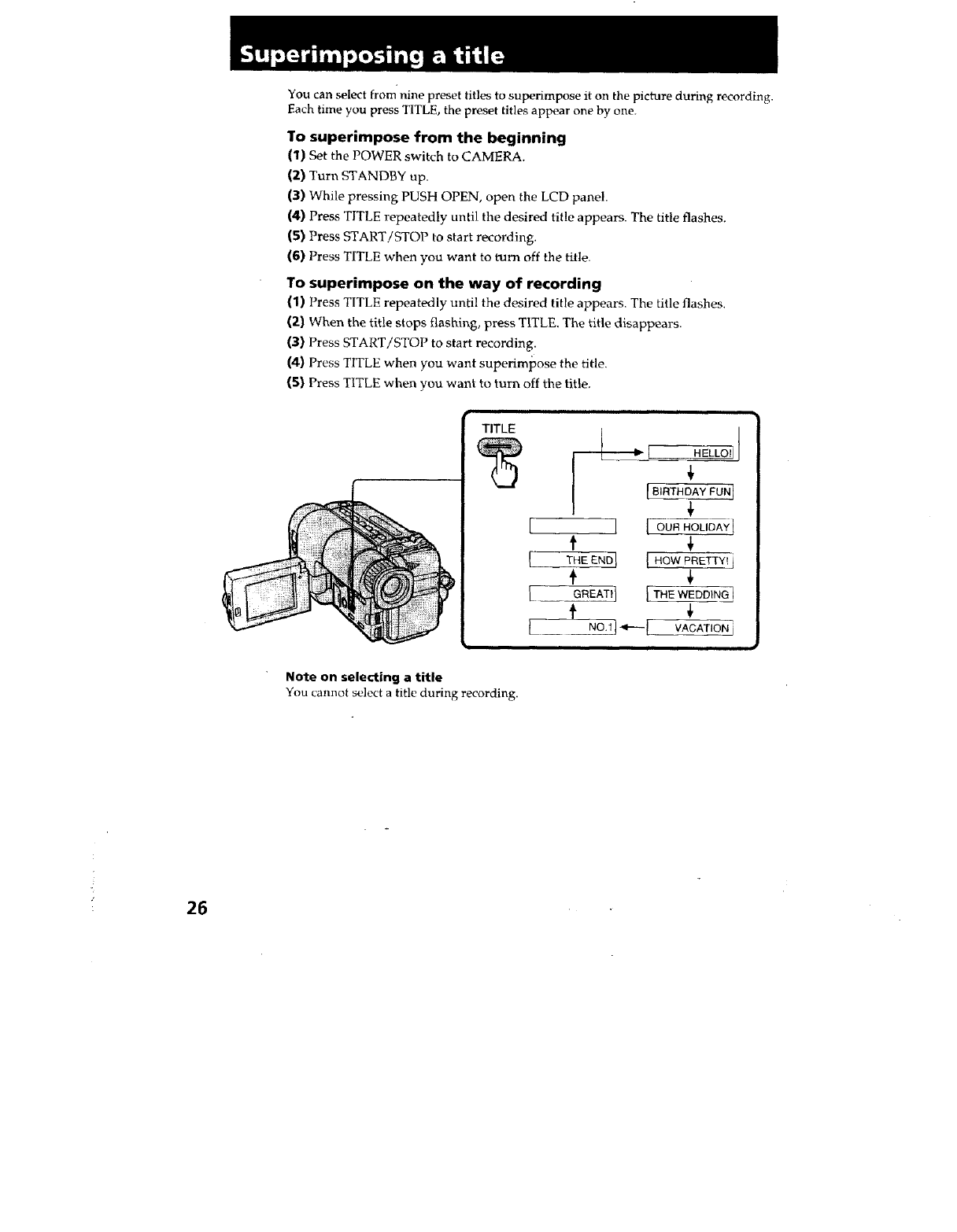
You can select from nine preset titles to superimpose it on the picture during recording.
Each time you press TITLE, the preset titles appear one by one.
To superimpose from the beginning
(1) Set the POWER switch to CAMERA.
(2) Turn STANDBY up.
(3) While pressing PUSH OPEN, open the LCD panel.
(4) Press TITLE repeatedly until the desired title appears. The title flashes.
(5) Press START/STOP to start recording.
(6) Press TITLE when you want to turn off the title.
To superimpose on the way of recording
(1) Press TITLE repeatedly until the desired title appears. The title flashes.
(2) When the title stops flashing, press TITLE. The title disappears.
(3) Press START/STOP to start recording.
(4) Press TITLE when you want superimpose the title.
(5) Press TITLE when you want to turn off the title,
TITLE
L
[
[
I"l HELLOFIJ
I '
[BIRTHDAY FUNJ
f
I [ ou_,oL,oA_I
t
THEENDJ [ HOWPRETTY! i
tGREAT_][THEWEDD_.GI
t
NO.t] _---[ VACATION j
Note on selecting a title
You cannot select a title during recording.
26
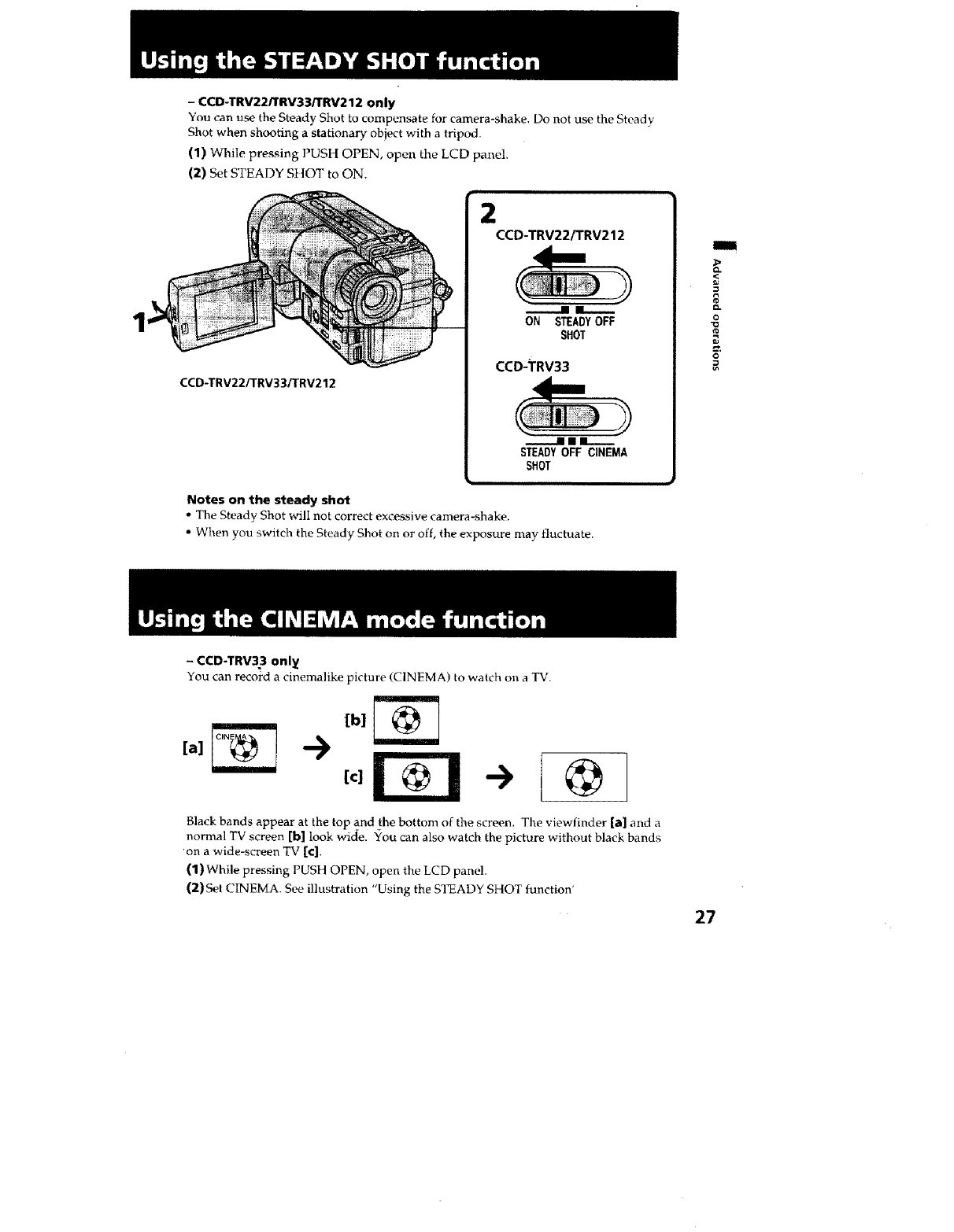
- CCD-TRV22/TRV33/TRV212 only
You can use the Steady Shot to compensate for camera-shake. Do not use the Steady
Shot when shooting a stationary object with a tripod.
(1) While pressing PUS|] OPEN, open the LCD panel.
(2) Set STEADY SHOT to ON.
CCD-TRV22/TRV33iTRV212
CCD-TRV22/TRV212
n i_._.
ON STEADYOFF
SHOT
CCD-TRV33
nllm
STEADYOFF CINEMA
SHOT
Notes on the steady shot
• The Steady Shot will not correct excessive camera-shake.
• When you switch the Steady Shot on or off, the exposure may fluctuate.
i
<
o-
o
@
- CCD-TRV33 onl_
You can record a cinemalike picture (CINEMA) to watch on a TV.
[c] -> @
Black bands appear at the top a_nd the bottom of the screen. The viewfinder [a] and a
normal TV screen [b] look wide. You can also watch the picture without black bands
on a wide-screen TV [c].
(1) While pressing PUSH OPEN, open the LCD panel.
(2) Set CINEMA. See illustration "Using the STEADY SHOT function'
27 •
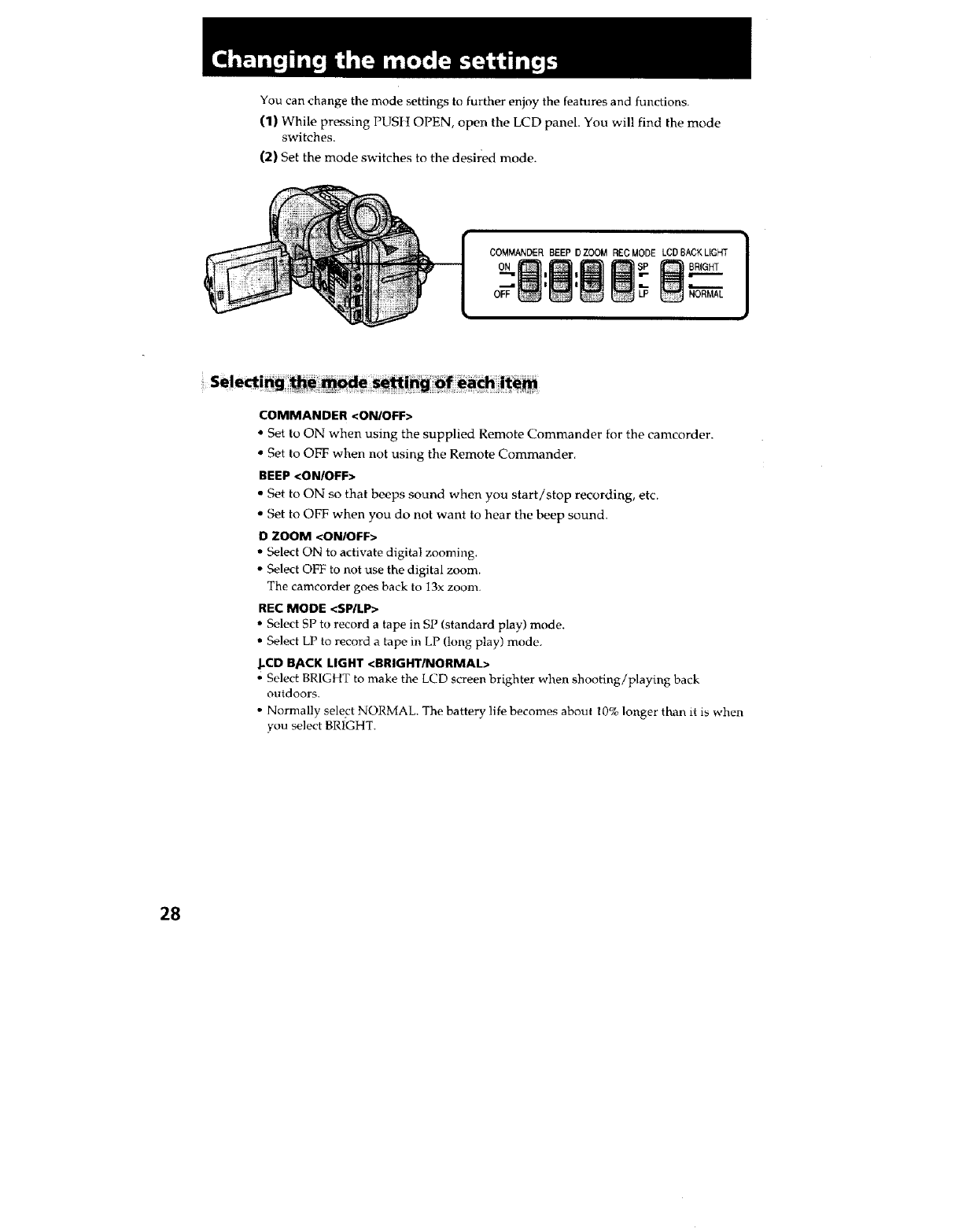
You can change the mode settings to further enjoy the features and functions.
(1) While pressing PUStI OPEN, open the LCD panel. You will find the mode
switches.
(2) Set the mode switches to the desired mode.
1
COMMANDER BEEP DZOOM RECMODE LCD BACK LIGHT I
I
_'F _ NORMAL
COMMANDER <ON/OFF>
°Set to ON when using the supplied Remote Commander for the camcorder.
•Set to OFF when not using the Remote Commander.
BEEP <ONIOFF>
• Set to ON so that beeps sound when you start/stop recording, etc.
• Sot to OFF when you do not want to hear the beep sound.
DZOOM <ONIOFF>
• Select ON to activate digital zooming.
• Select OFF to not use the digital zoom.
The camcorder goes back to 13x zoom.
REC MODE <SPILP>
•Select SP to record a tape in SP (standard play) mode.
• Select LP to record a tape in LP (long play) mode
.LCD BACK LIGHT <BRIGHTINORMAL>
• Select BRIGHT to make the LCD screen brighter when shooting/playing back
outdoors.
• Normally select NORMAL. The battery life becomes about 10% longer than it is when
you select BRIGHT.
28
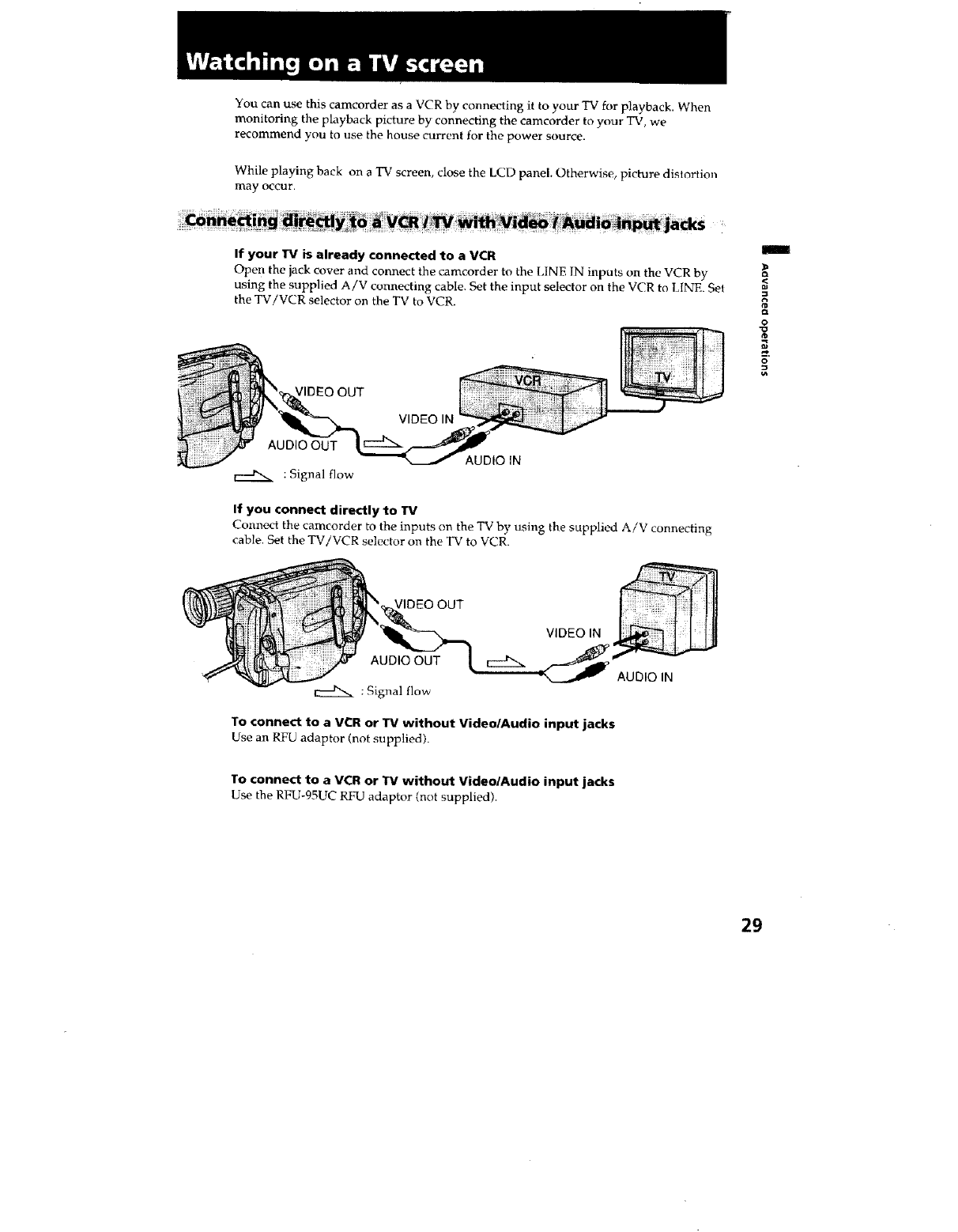
You can use this camcorder as a VCR by connecting it to your TV for playback. When
monitoring the playback picture by connecting the camcorder to your TV, we
recommend you to use the house current for the power source.
While playing back on a "IV screen, close the LCD panel. Otherwise, picture distortion
may occur,
If your W _ already connected to a VCR
Ope n the jack cover and connect the camcorder to the ldNE IN inputs on the VCR by
using the supplied A/V connecting cable. Set the input selector on the VCR to LINE. Set
the TV/VCR selector on the TV to VCR.
¢IDEO OUT
AUDIO OUT
VIDEO IN
AUDIO IN
If you connect directly to W
Coxmect the camcorder to the inputs on the TV by using the supplied A/V connecting
cable. Set the TV/VCR selector on the TV to VCR.
R
r_
o
o
VIDEO OUT
AUDIO OUT
: Signal flow
VIDEO IN
AUDIO IN
To connect to a VCR or Wwithout Video/Audio input jacks
Use an RFU adaptor (not supplied).
TO connect to a VCR or TV without Video/Audio input jacks
Use the RFU-95UC RFU adaptor (not supplied).
29 •
You can create your own video program by editing with any other • 8 mm, Hi• t ti8,
VHS, ,_USj S-VHS, _ VH_, S_ S-VHSC, • Betamax or _ ED Betamax
VCR that has video/audio inputs.
Turn down the volume of the camcorder while editing. Otherwise, picture distortion
may occur.
After connecting the camcorder to the VCR,
(1) Set the POWER switch to PLAYER.
(2) Insert a blank tape (or a tape you want to record over) into the VCR and insert
your recorded tape into the camcorder.
(3) Play back the recorded tape on the camcorder until you locate the point where
you want to start editing, then press | | to put the camcorder in playback pau_
mode.
(4) On the VCR, locate the recording start point and put the VCR in recording
pause mode.
(5) Press I| on the camcorder and VCR simultaneously to start editing.
To edit more scenes
Repeat steps 3 to 5,
To stop editing
Press • on both the carncorder and VCR.
3O
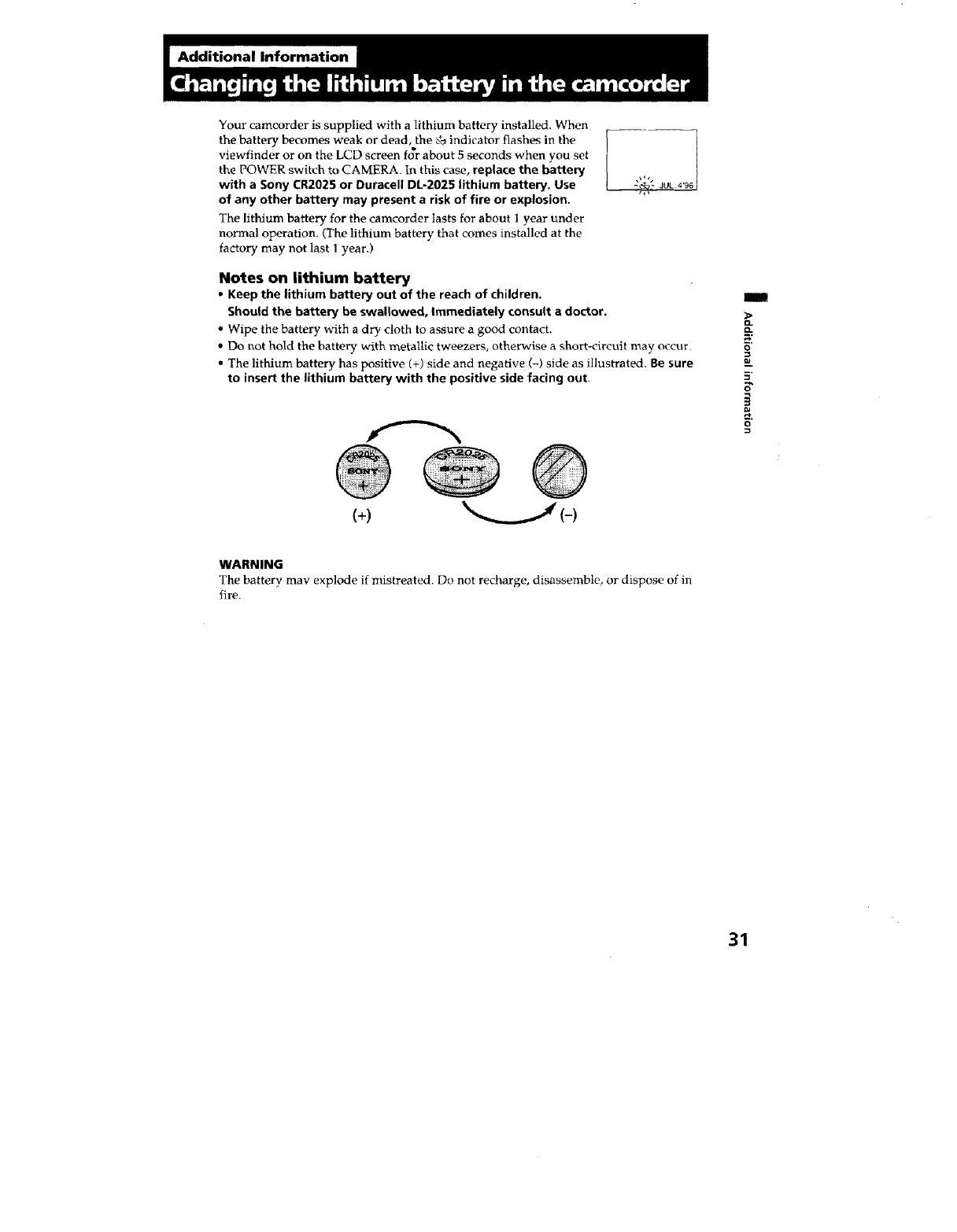
Your camcorder is supplied with a lithium battery installed. When
the battery becomes weak or dead, the ,% indicator flashes in the
viewfinder or on the LCD screen f_r about 5 seconds when you set
the POWER switch to CAMERA. In this case, replace the battery
with a Sony CR2025 or Durecell DL-2025 lithium battery, Use
of any other battery may present a risk of fire or explosion.
The lithium battery for the camcorder lasts for about I year under
normal operation. (The lithium battery that comes installed at the
factory may not last ! year.)
_e_ IJUL 4'96
",q,'
Notes on lithium battery
• Keep the lithium battery out of the reach of children.
Should the battery be swallowed, Immediately consult a doctor.
• Wipe the battery with a dry cloth to assure a good contact.
• Do not hold the battery witll metallic tweezers, otherwise a short-circuit may occur
• The lithium battery has positive (+) side and negative (-) side as illustrated. Be sure
to insert the lithium battery with the positive side facing out
m
3>
O-
O-
O
==
5"
o
(+) (-)
WARNING
The battery may explode if mistreated. Do not recharge, disassemble, or dispose of in
fire.
31
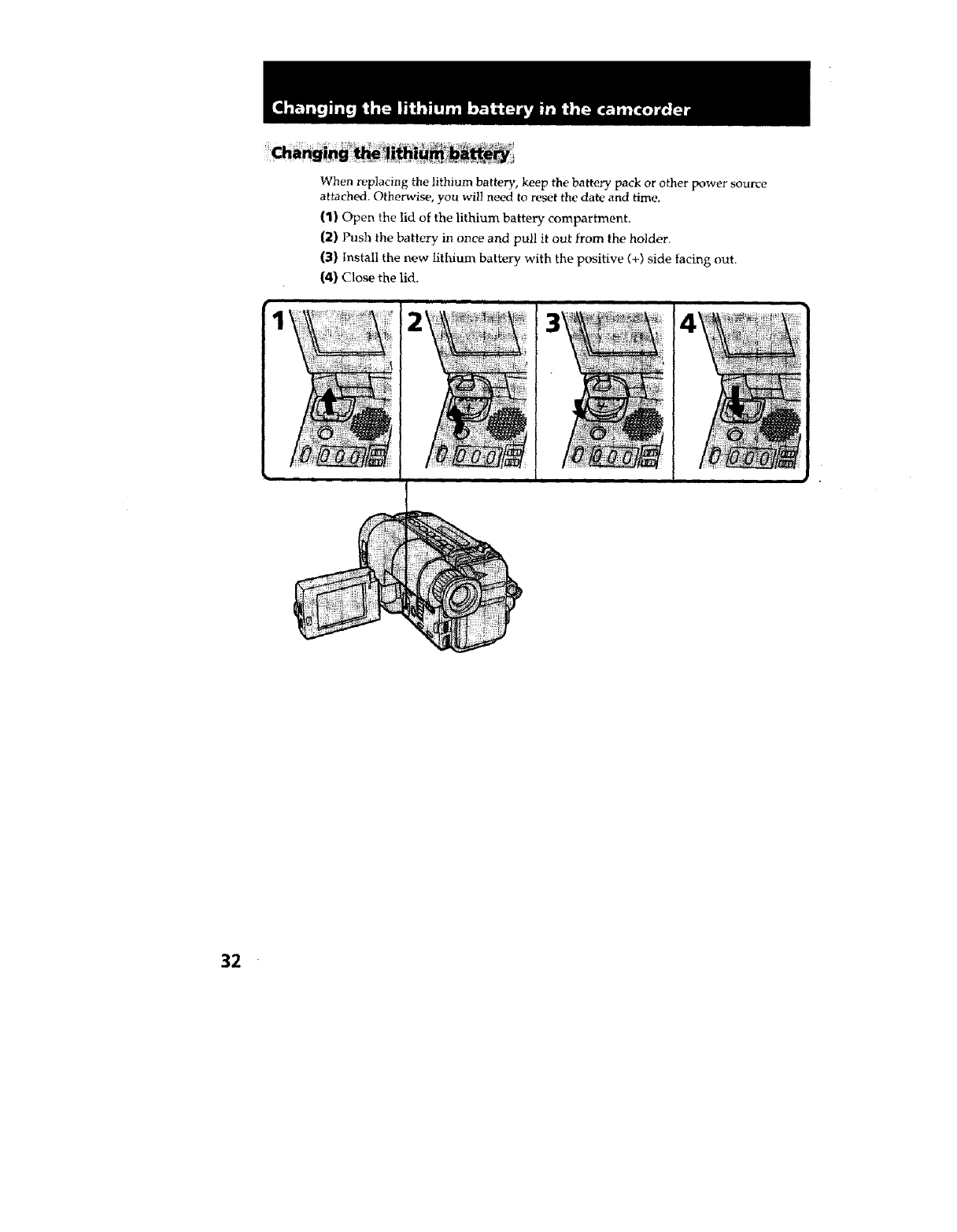
When replacing the lithium battery, keep the battery pack or other power source
attached. Otherwise, you will need to reset the date and time,
(1) Open the lid of the lithium battery compartment,
[2) Push the battery in once and pull it out from the holder.
{3} Install the new lithium battery with the positive (+) side facing out.
{4) Close the lid.
24
32
p.-
1
3
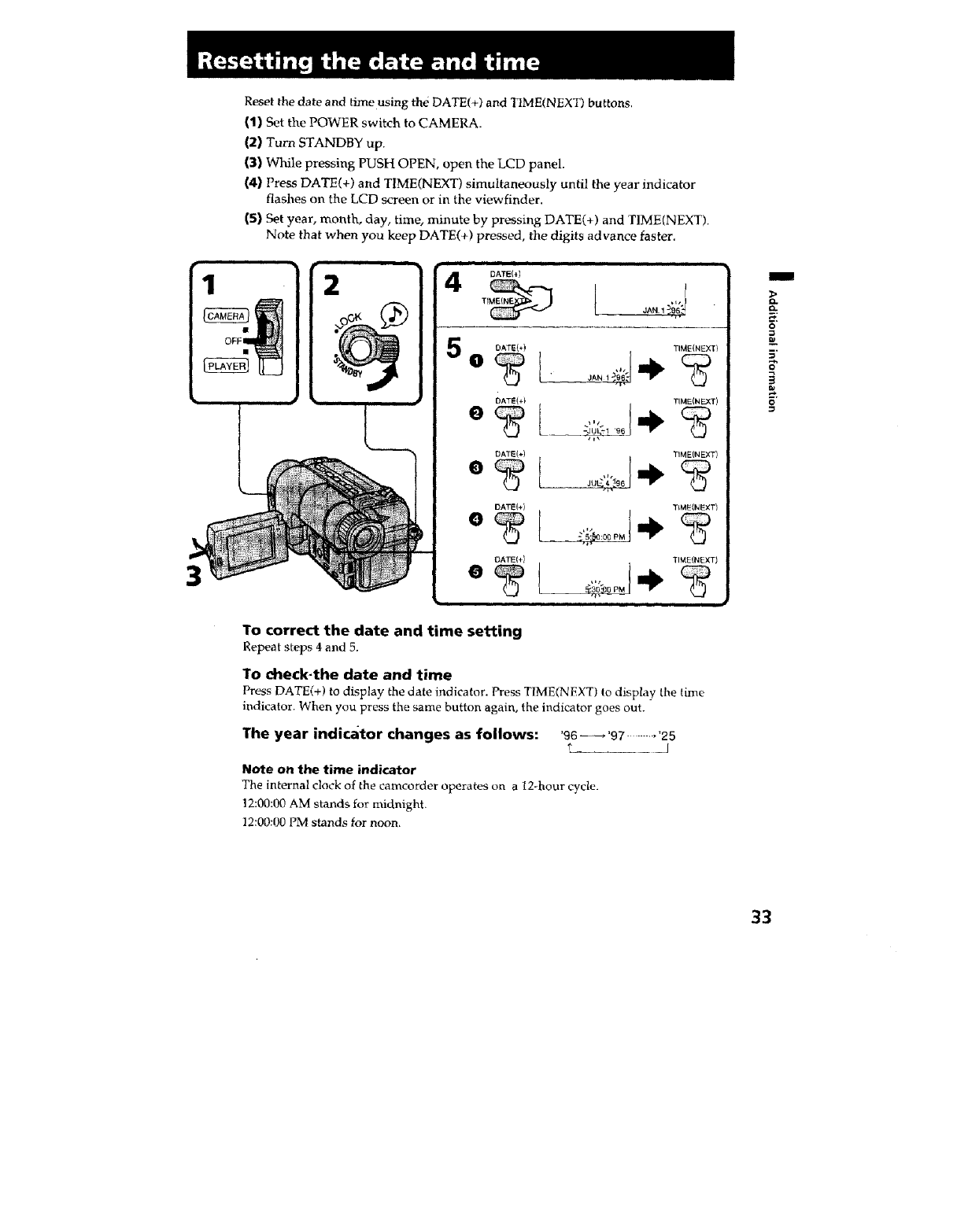
Reset the date and time using the DATE(+) and TIME(NEXT) buttons.
(1) Set the POWER switch to CAMERA.
(2) Turn STANDBY up.
(3) While pressing PUSH OPEN, open the LCD panel.
(4) Press DATE(+) and TIME(NEXT) simultaneously until the year indicator
flashes on the LCD screen or in the viewfinder.
(5) Set year, month, day, time, minute by pressing DATE(+) and TIME(NEXT).
Note that when you keep DATE(+) pressed, the digits advance faster.
OFF
24
5
DATEI_)
DATE(+) TIME(NEXT)
DATE(+) TIME(NEXT)
DATE(+) TIME(NEXT)
DATE(+} TSME(NEXT)
DATE(;J TIME(NEXT)
To correct the date and time setting
Repeat steps 4 and 5,
TO dleck-the date and time
Press DATE(+) to display the date indicator. Press TIME(NEXT) to display the time
indicator. When you press the same button again, the indicator goes out.
The year indicator changes as follows: '96 _'97 ......... '25
I
Note on the time indicator
The internal clock of the camcorder operates on a 12-hour cycle.
12:00:00 AM stands for midnight.
12:00:00 PM stands for noon.
I
D.
o
O
g
33
The playback mode (SP/LP) is selected automatically according to the recording system
in which the tape has been recorded. The quality of the recorded picture in LP mode,
however, will not be as good as that in SP mode.
Recording mode
When you play back a tape recorded in LP mode, the LP indicator lights up in the
viewfinder or on the LCD screen.
Foreign 8 mm video
You cannot play back tapes recorded on a different TV color system. Because the TV
color systems differ from country to country, you may not be able to play back foreign
prerecorded tapes. Refer to the list of "Using your camcorder abroad" to check the TV
color system of foreign countries.
34
This section shows you how you can get the most out of your battery pack.
Always carry additional batteries
Have sufficient battery pack power to do 2to 3 times as much recording as you have
planned.
Battery life is shorter in cold environment
Battery efficiency is decreased, and the battery will be used up more quickly, if you are
recording in cold environment.
To save battery power
Turn the STANDBY switch on the camcorder down when not recording to save battery
power.
A smooth transition between scenes can be made even if recording is stopped and
started again. While positioning the subject, selecting an angle, or looking through the
viewfinder lens or on the LCD screen, the lens moves automatically and the battery is
used. The battery is also used when a cassette is inserted or removed.
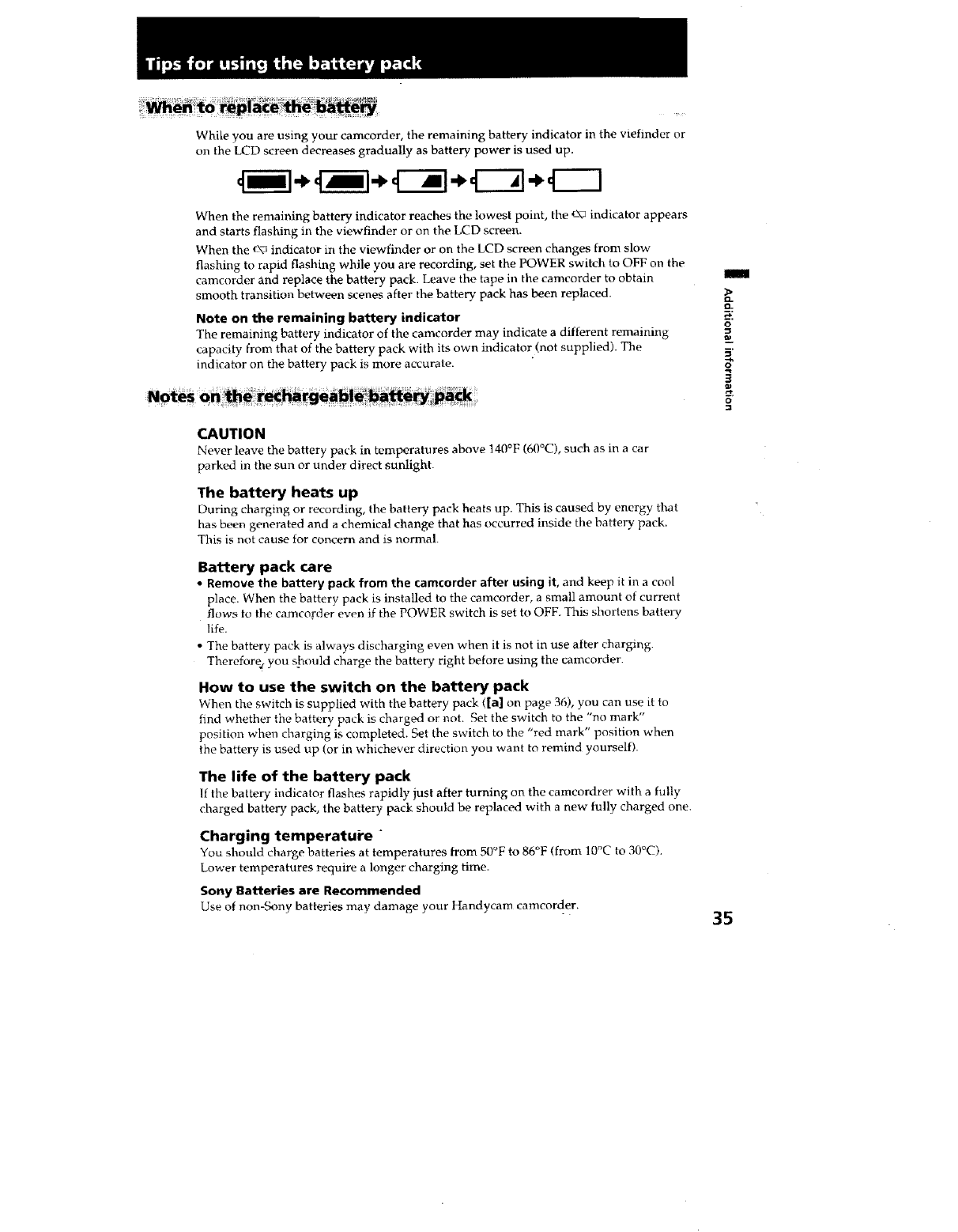
Whileyouareusingyourcamcorder,theremainingbatteryindicatorintheviefinderor
olltheLCDscreendecreasesgraduallyasbatterypowerisusedup.
4 1- il÷ 4-il* 4--51- 4----]
When the remaining battery indicator reaches the lowest point, the _-\_indicator appears
and starts flashing in the viewfinder or on the LCD screen.
When the r\_ indicator in the viewfinder or on the LCD screen changes from slow
flashing to rapid flashing while you are recording, set the POWER switch to OFF on the
camcorder and replace the battery pack. Leave the tape in the camcorder to obtain
smooth transition between scenes after the batte D "pack has been replaced.
Note on the remaining battery indicator
The remaining battery indicator of the camcorder may indicate a different remaining
capacity from that of the battery pack with its own indicator (not supplied). The
indicator on the battery pack is more accurate.
CAUTION
Never leave the battery pack in temperatures above 140°F (60°C), such as in a car
parked in the sun or under direct sunlight.
The battery heats up
During charging or recording, the battery pack heats up. This is caused by energy that
has been generated and a chemical change that has occurred inside the battery pack.
This is not cause for concern and is normal.
Battery pack care
• Remove the battery pack from the camcorder after using it, and keep it in a cool
place. When the battery pack is installed to timecamcorder, a small amount of current
flows to the camcorder even if the POWER switch is set to OFF This shortens battery
life.
• The battery pack is always discharging even when it is not in use after charging.
Therefore; you should charge the batte D' right before using the camcorder.
How to use the switch on the battery pack
When the switch is supplied with the battery pack ([a] on page 36), you can use it to
find whether the battery pack is charged or not. Set the switch to the "no mark"
position when charging is completed. Set the switch to time"red mark" position when
the battery is used up (or in whichever direction you want to remind yourself).
The life of the battery pack
If the battery indicator flashes rapidly just after turning on the camcordrer with a fully
charged battery pack, the battery pack should be replaced with a new fully charged one.
Charging temperature "
You should charge batteries at temperatures from 50°F to 86°F (from 10°C to 30°C).
Lower temperatures require a longer charging time.
Sony Batteries are Recommended
Use of non-Sony batteries may damage your Handycam camcorder.
m
n.
o
5"
O
35
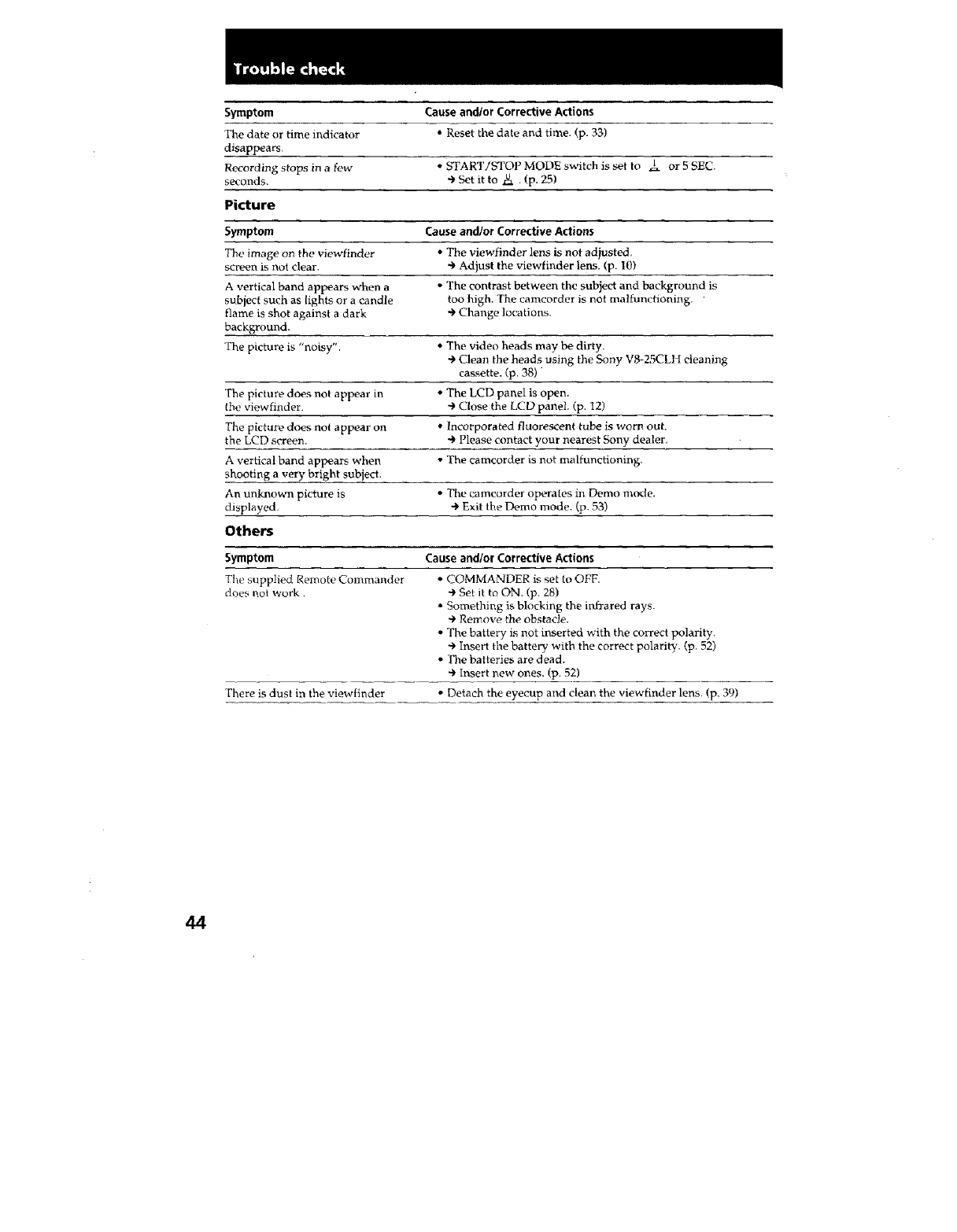
Symptom Cause and/or Corrective Actions
The date or time indicator •Reset the date and time. (p. 33)
disappears.
Recording stops in a few ,, START/STOP MODE switch is set to 1 or 5 SEC.
seconds. _ Set it to N, . (p. 25)
Picture
Symptom Cause and/or Corrective Actions
The iraage on the viewfinder •The viewfinder lens is not adjusted.
screen is not clear. "-_Adjust the viewfinder lens, (p. 10)
A vertical band appears when a • The contrast between the subject and background is
subject such as lights or a candle too high. The caracorder is not maltunctioning.
flame is shot against a dark + Change locations.
background,
The picture is "noisy". • The video heads may be dirty.
+ Clean the heads using the Sony V8-25CLH cleaning
cassette. (p. 38)"
The picture does not appear in • The LCD panel is open.
lhe viewfinder. "9Close the LCD panel, (p. 12)
The picture does not appear on • Incorporated fluorescent tube is worn out.
the LCD screen, + Please contact your nearest Sony dealer.
A vertical band appears when • The camcorder is not malfunctioning.
shooting a very bright subject.
An unknown picture is •The camcorder operates in Demo mru_te.
displayed. + Exit the Demo mode. (p. 53)
Others
Symptom Cause and/or Corrective Actions
Tlw supplied Remote Commander
does not work.
There is dust in the viewfinder
• COMMANDER is set to OFF.
+ Set il to ON. (p. 28)
• Something is blocking the infrared rays.
+ Remove the obstacle.
• The battery is not inserted with the correct polarity.
Insert the battery with the correct polarity. (p. 52)
•The batteries are dead.
Insert new ones. (p. 52)
• Detach the eyecup and clean the viewfinder lens. (p. 39)
44
- CCD-TRV12/TRV22/TRV33 only
•Use only with alkaline batteries. You cannot use the battery case with
manganese batteries or size AA rechargeable NiCd batteries.
• Battery life is remarkably shorter in a cold environment (lower than 50°F/10°C).
• Keep the metal part clean. If it gets dirty, wipe it with a soft cloth.
• Do not disassemble or convert the battery case.
• Do not expose the battery case to any mechanical shock.
•During recording, the battery case heats up. This is not cause for concern.
• Prevent the electrode in the batter), case from coming in contact with a metal object.
• If you will not use the battery case for a long time, detach the battery case from the
camcorder and remove the batteries from the battery case.
>
o
To avoid possible damage from battery leakage or corrosion, observe the following.
• Be sure to insert the batteries in the correct direction.
• Alkaline batteries are not rechargeable.
• Do not use a combination of new and old batteries.
• Do not use different types of batteries.
• The batteries slowly discharge while not in use.
', Do not use a battery that is leaking.
If battery leakage occurred
• Wipe off the liquid in the batter}, case carefully before replacing the batteries.
• If you touch the liquid, wash it off with water.
• If the liquid get into your eyes, wash your eyes with a lot of water and then consult a
doctor.
3
O
37
If the camcorder is brought directly from a cold place to a warm place, moisture may
condense inside the camcorder, on the surface of the tape, or on the lens. In this
condition, the tape may stick to the head drum and be damaged or the camcorder may
not operate correctly. To prevent possible damage under these circumstances, the
camcorder is furnished with moisture sensors. Take the following precautions.
Inside the camcorder
If there is moisture inside tlle camcorder, the beep sounds and the [] indicator flashes. If
this happens, none of the function except cassette ejection will work. Open the cassette
compartment, turn off the camcorder, and leave it about 1 hour. When _" indicator
flashes at the _me time, the cassette is inserted in the eamcorder. Eject the cassette, turn
off the camcorder, and leave also the cassette about 1 hour. The camcorder can be used
again if the [] indicator does not appear when the power is turned on again.
On the lens
If moisture condenses on the lens, no indicator appears, but the picture becomes dim.
Turn off the power and do not use the camcorder for about I hour.
How to prevent moisture condensation
When bringing the camcorder from a cold place to a warm place, put the camcorder in a
plastic bag and allow it to adapt to room conditions over a period of time.
(1) Be sure to tightly seal the plastic bag containing the camcorder.
(2) Remove the bag when the air temperature inside it has reached the
temperature surrounding it (after about 1 hour).
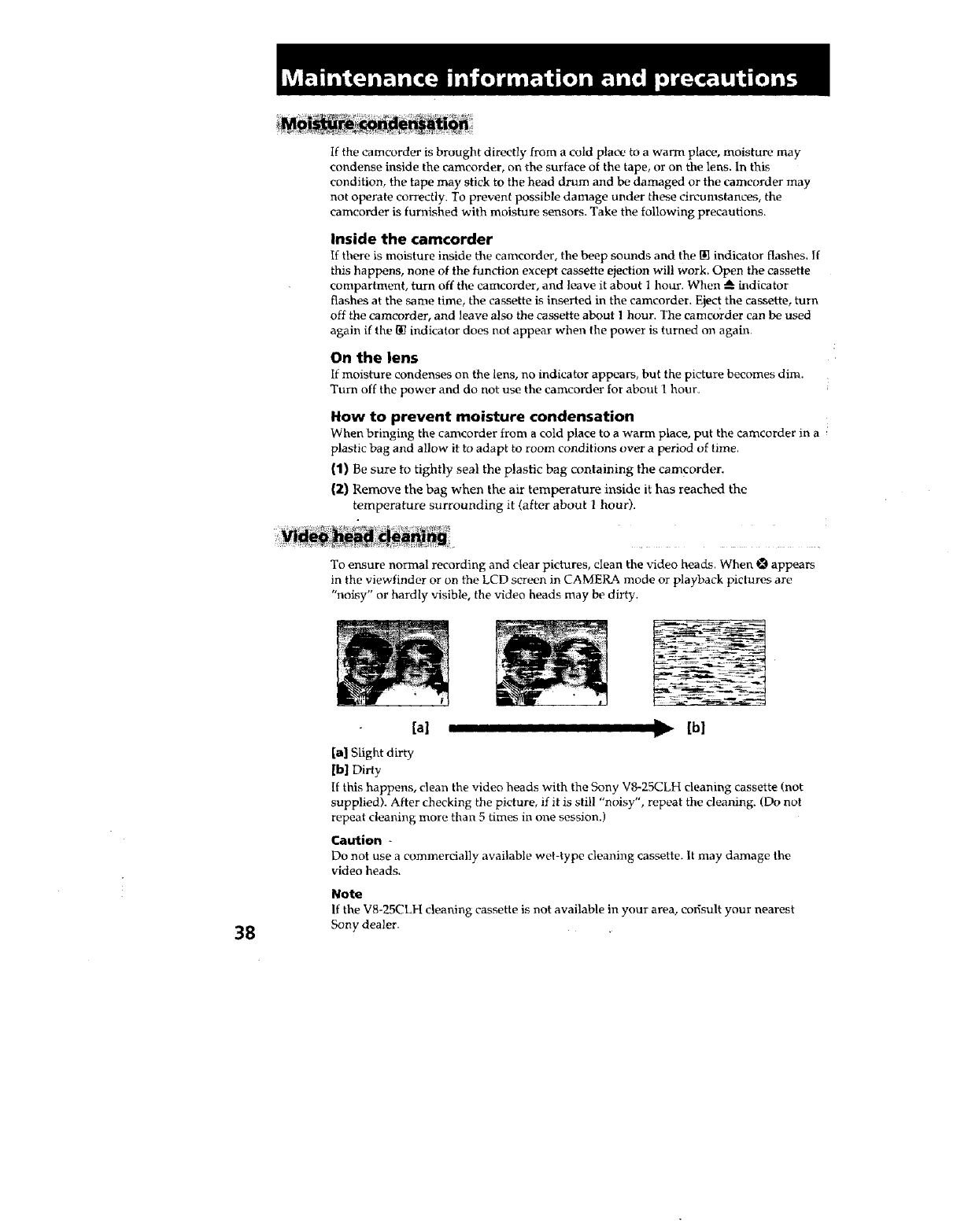
To ensure normal recording and clear pictures, clean the video heads. When _ appears
in the viewfinder or on the LCD screen in CAMERA mode or playback pictures are
"noisy" or hardly visible, the video heads may be dirty.
38
[a] , II [b]
[a] Slight dirty
[b] Dirty
If this happens, clean the video heads with the Sony VS-25CLH cleaning cassette (not
supplied). After checking the picture, if it is still "noisy", repeat tile cleaning. (Do not
repeat cleaning more than 5 times in one session.)
Caution -
Do not ttse a commercially available wet-type cleaning cassette. It may damage the
video heads.
Note
If the V8-25CLH cleaning cassette is not available in your area, corisult your nearest
Sony dealer.
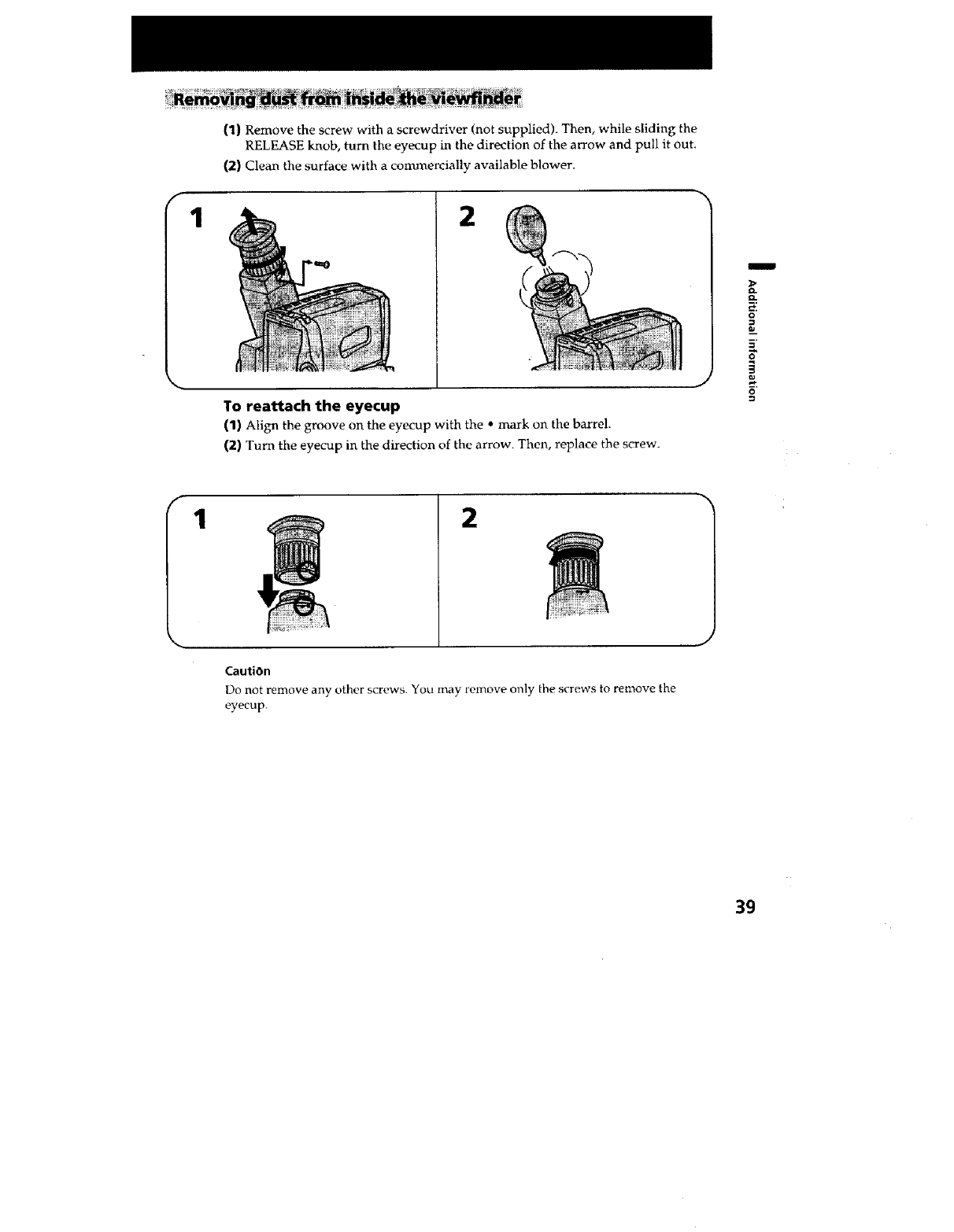
1
(1} Remove the screw with a screwdriver (not supplied). Then, while sliding the
RELEASE knob, turn the eyecup in the direction of the arrow and pull it out.
(2) Clean the surface with a commercially available blower.
2
To reattach the eyecup
(1) Align the groove on the eyecup with the • mark on the barrel.
(2) Turn the eyecup in the direction of the arrow. Then, replace the screw.
m
D.
0.
O
12
CautiOn
Do not remove any other screws. You may remove only the screws to remove the
eyecup.
39
Camcorder operation
• Operate the camcorder using 6.0 V (battery pack), or 7.5 V (AC power adaptor).
• For DC or AC operation, use only recommended accessories.
" Should any solid object or liquid fall into the casing, unp}ug the camcorder and have it
checked by your nearest Sony dealer before operating it any further.
• Avoid rough handling or mechanical shock. Be particularly careful of the lens.
• Keep the POWER switch set to OFF when not using the camcorder.
• Do not wrap up the camcorder and operate it since heat may build up internally.
• Keep the camcorder away from strong magnetic fields or mechanical vibration.
• Do not push the LCD screen.
• If the camcorder is used in a cold place, a residual image may appear on the LCD
screen.
This is not a malfunction.
'• While using the camcorder, the bac]_ of the LCD screen may heat up. This is not a
malfuncfion_
On handling tapes
Do not insert anything in the small holes on the rear of the cassette. These holes are
used to sense the type of tape, thickness of tape, and if the recording tab is out or in.
Camcorder care
• When the eamcorder is not to Be used for a long time, disconnect the power source
and remove the cassette. Periodically turn on the power, operate the camera and
player sections and play back a tape for about 3 minutes.
• Clean the lens with a soft brush to remove dust. If there are fingerprints on the LCD
screen or lens, remove them with a soft cloth or LCD cleaning kit (not supplied).
• Clean the camcorder body with a soft dry, cloth, or a soft cloth lightly moistened with
a mild detergent solution. Do not use any type of solvent which may damage the
finish.
• Do not let sand get into the camcorder. When you use the camcorder on a sandy
beach or in a dusty place, protect it from the sand or dust. Sand or dust may cause the
unit to malfunction, and sometimes this malfunction cannot be repaired.
4O
AC power adaptor
Charging
• Attach the battery pack firmly.
• Place the battery, pack on a flat surface without vibration during charging.
Others
• Unplug the unit from the wall outlet when not in use for a long time. To disconnect
the power cord, pull it out by the plug. Never pull the cord itself.
• Do not operate the unit with a damaged cord or if the unit has been dropped or
damaged.
• Do not bend the AC power cord forcibly, or put a heavy object on it. This will damage
the cord and may cause a fire or an electrical shock.
• Be sure that nothing metallic comes into contact with the metal parts of the connecting
plate. If this happens, a short may occur and the unit may be damaged.
• Always keep the metal contacts clean.
• Do not disassemble the unit.
• Do not apply mechanical shock or drop the unit.
• While the unit is in use, particularly during charging, keep it away from AM receivers
and video equipment because it will disturb AM reception and video operation
• The unit becomes warm while in use. This is normal.
• Do not place the unit in locations that are:
- Extremely hot or cold
- Dusty or dirty
- Very humid
Vibrating
If any difficult), should arise, unplug the unit and contact your nearest Sony dealer.
I
Q.
o
5'
8"
41
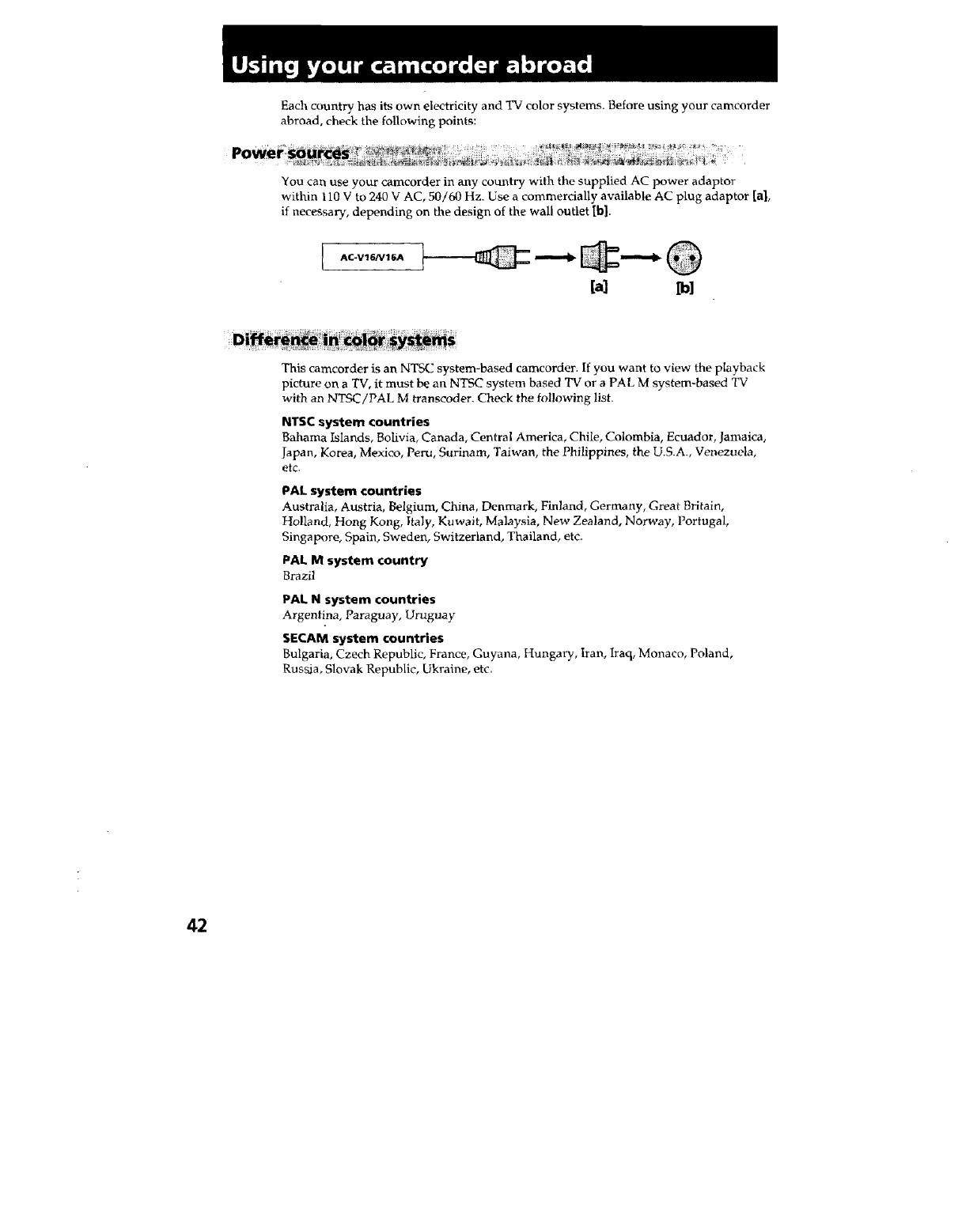
Each country has its own electricity and TV color systems. Before using your camcorder
abroad, check the following points:
You can use your eamcorder in any country, with the supplied AC power adaptor
within 110 V to 240 V AC, 50/60 Hz. Use a commercially available AC plug adaptor [a],
if neces_ry, depending on the design of the wall outlet [hi.
IAC-V16/VIGA
This camcorder is an NTSC system-based camcorder. If you want to view the playback
picture on a TV, it must be an NTSC system based 'IX7or a PAL M system-based TV
with an NTSC!PAL M transcoder. Check the following list.
NTSC system countries
Bahama Islands, Bolivia, Canada, Central America, Chile, Colombia, Ecuador, Jamaica,
Japan, Korea, Mexico, Peru, Surinam, Taiwan, the Philippines, the U.S.A., Venezuela,
etc.
PAL system countries
Australia, Austria, Belgium, China, Denmark, Finland, Germany, Great Britain,
Holland, Hong Kong, Italy, Kuwait, Malaysia, New Zealand, Norway, Portugal,
Singapore, Spain, Sweden, Switzerland, Thailand, etc.
PAL M system country
Brazil
PAL N system countries
Argentina, Paraguay, Uruguay
SECAM system countries
Bulgaria, Czech Republic, France, Guyana, Hungary, Iran, Iraq, Monaco, Poland,
Rusaia, Slovak Republic, Ukraine, etc.
42
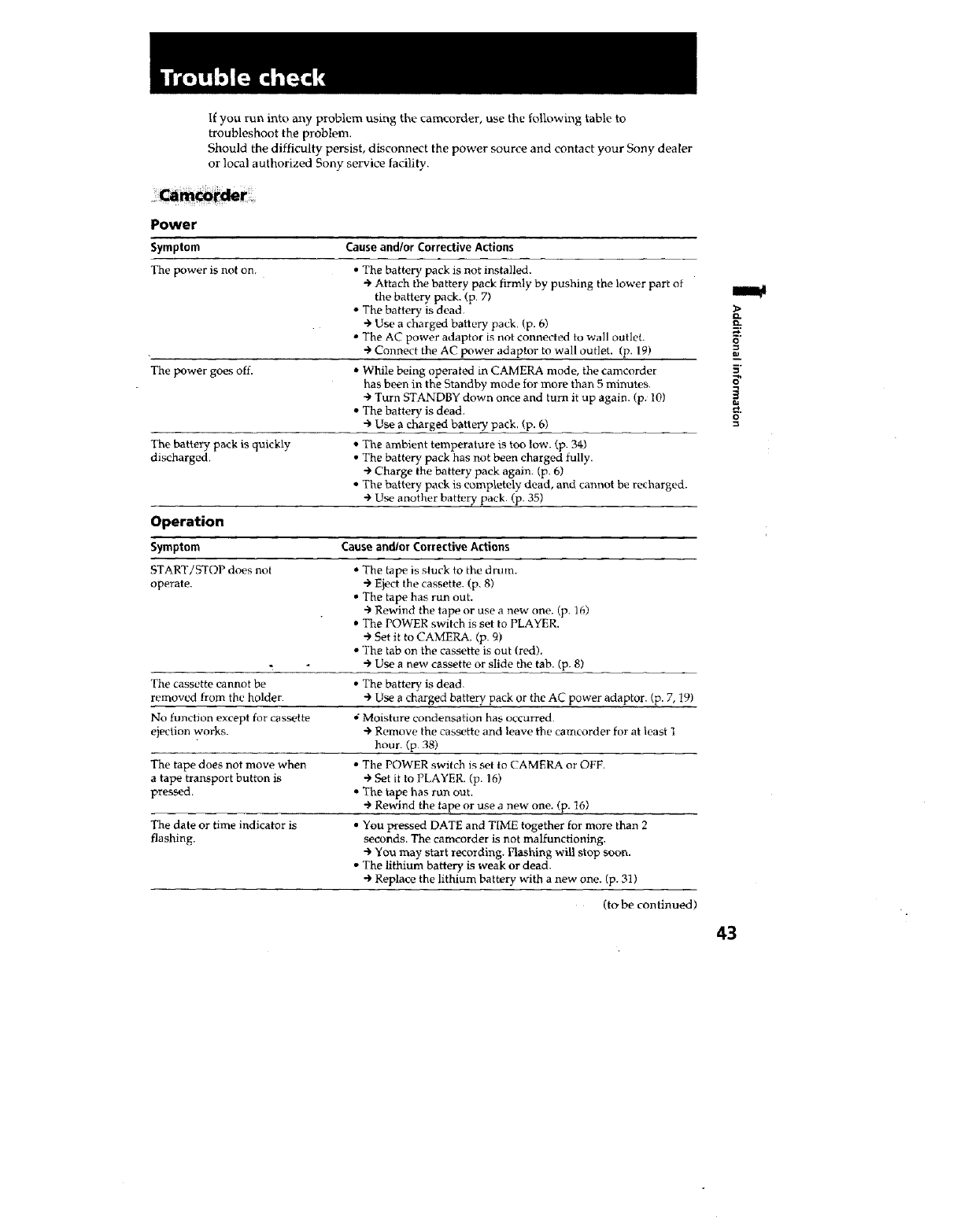
If you run into any problem using the camcorder, use the following table to
troubleshoot the problem.
Should the difficulty persist, disconnect the power source and contact your Sony dealer
or local authorized Sony service facility.
Power
Symptom Cause and/or Corrective Actions
The power is not on. • The battery pack is not installed.
Attach the battery pack firmly by pushing the lower part of
the battery pack. (p 7)
• The battery is dead.
"_ Use a charged battery pack (p. 6)
• The AC power adaptor is not connected to wall outlet.
4" Connect the AC power adaptor to wall outlet. (p. 19)
The power goes off. • While being operated in CAMERA mode, the camcorder
has been in the Standby mode for more than 5 minutes.
4, Turn STANDBY down once and turn it up again. (p. 101
• The battery is dead.
•_ Use a ct_arged battery, pack, (p. 6)
The battery pack is quickly • The ambient temperature is too low. (p. 34)
discharged. • The battery pack has not been charged fully.
•'_ Charge the battery pack again. (p. 6)
• The battery pack is completely dead, and cannot be recharged.
4, Use another battery pack. (p. 35)
Operation
Symptom Cause and/or Corrective Actions
START/STOP does not
operate.
The cassette cannot be
removed from the holder.
No function except for c_ssette
ejection works.
The tape does not move when
a tape transport button is
pressed.
The date or time indicator is
flashing,
• The tape is stuck to the drum.
4, Eject the cassette, (p, 8)
• The tape has run out,
4" Rewind the tape or use a new one_ (p. 16)
• The POWER switch is set to PLAYER.
4" Set it to CAMERA. (p. 50
• The tab on the cassette is out (red).
4" Use a new cassette or slide the tab. (p. 8)
• The battery_ is dead,
4, Use a charged hatte D, pack or the AC power adaptor. (p. 7, 19)
Moisture condensation has occurred.
+ Remove the cassotte and leave tile camcorder for at least 1
hour. (p 38)
• The POWER switch is set to CAMERA or OFF.
--) Set it to PLAYER. (p. 16)
• The tape has run out.
4, Rewind the tape or use a new one. (p. 16)
• You pressed DATE and TIME together for more than 2
seconds. The cameorder is not malfunctioning.
•_ You may start recording. Flashing will stop soon.
• The lithium battery is weak or dead.
•€ Replace the lithium battery with a new one. (p. 31)
(to be continued
O.
It.
O
.=
5"
=o
43
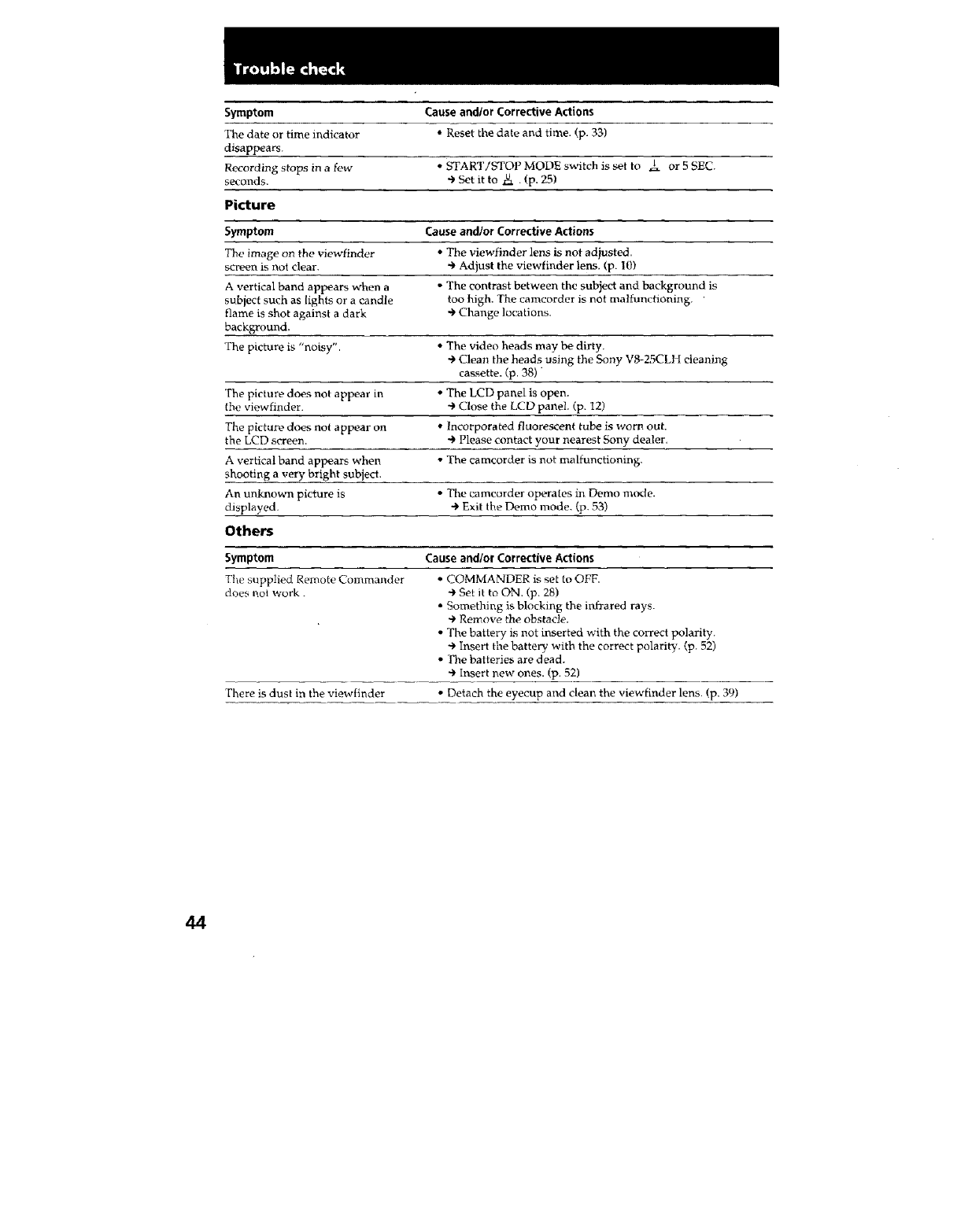
Symptom Cause and/or Corrective Actions
The date or time indicator •Reset the date and time. (p. 33)
disappears.
Recording stops in a few ,, START/STOP MODE switch is set to 1 or 5 SEC.
seconds. _ Set it to N, . (p. 25)
Picture
Symptom Cause and/or Corrective Actions
The iraage on the viewfinder •The viewfinder lens is not adjusted.
screen is not clear. "-_Adjust the viewfinder lens, (p. 10)
A vertical band appears when a • The contrast between the subject and background is
subject such as lights or a candle too high. The caracorder is not maltunctioning.
flame is shot against a dark + Change locations.
background,
The picture is "noisy". • The video heads may be dirty.
+ Clean the heads using the Sony V8-25CLH cleaning
cassette. (p. 38)"
The picture does not appear in • The LCD panel is open.
lhe viewfinder. "9Close the LCD panel, (p. 12)
The picture does not appear on • Incorporated fluorescent tube is worn out.
the LCD screen, + Please contact your nearest Sony dealer.
A vertical band appears when • The camcorder is not malfunctioning.
shooting a very bright subject.
An unknown picture is •The camcorder operates in Demo mru_te.
displayed. + Exit the Demo mode. (p. 53)
Others
Symptom Cause and/or Corrective Actions
Tlw supplied Remote Commander
does not work.
There is dust in the viewfinder
• COMMANDER is set to OFF.
+ Set il to ON. (p. 28)
• Something is blocking the infrared rays.
+ Remove the obstacle.
• The battery is not inserted with the correct polarity.
Insert the battery with the correct polarity. (p. 52)
•The batteries are dead.
Insert new ones. (p. 52)
• Detach the eyecup and clean the viewfinder lens. (p. 39)
44
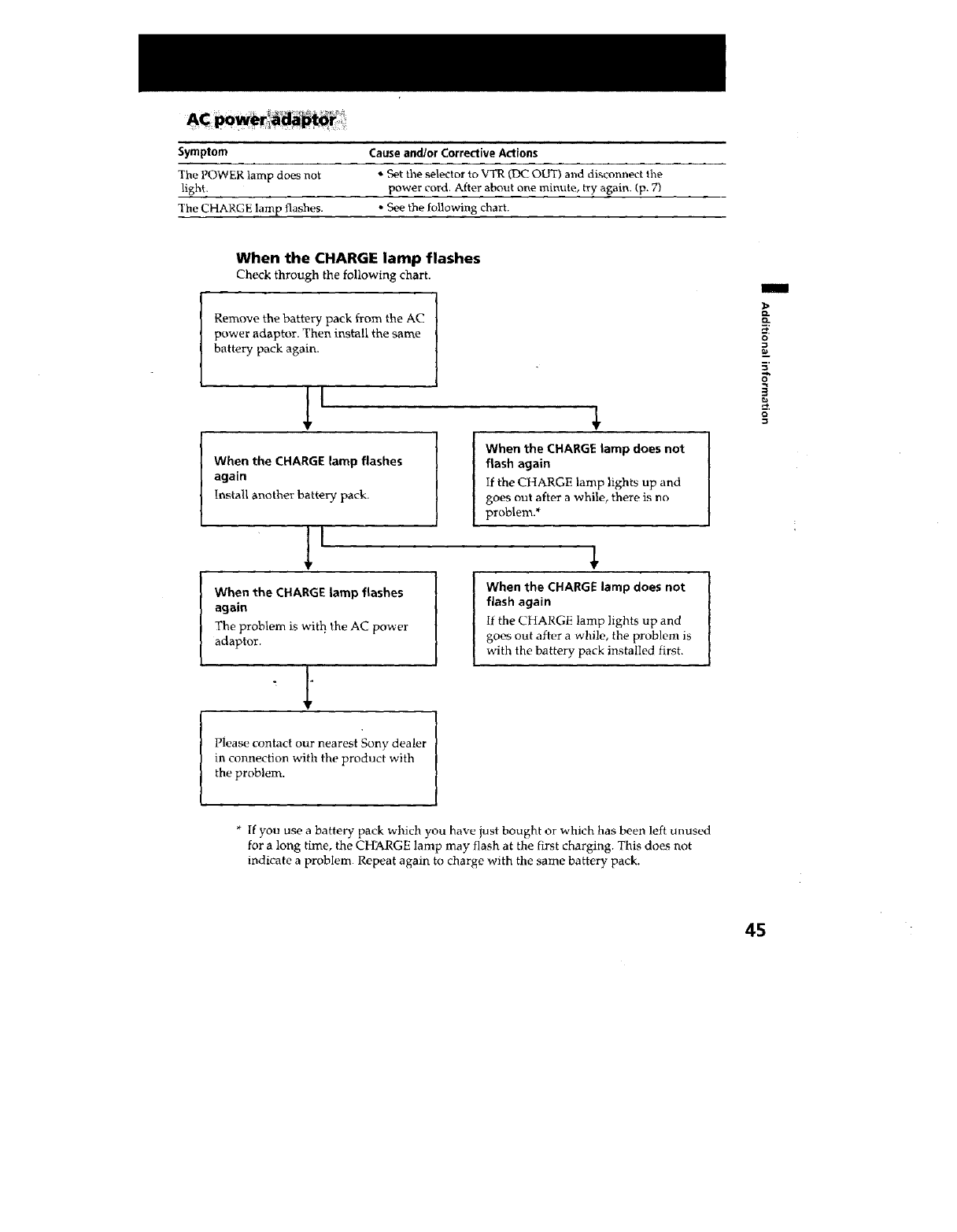
Symptom Cause and/or Corrective Actions
The POWER lamp does not • Set the selector to VTR (DC OUT) al_d disconnect the
light, power cord. After about one minute, try again. (p. 7}
The CHARGE lamp flashes. • See the following chart.
When the CHARGE lamp flashes
Check through the following chart.
Remove the battery pack from the AC
power adaptor. Then install the same
battery pack again.
1
When the CHARGE lamp flashes
again
Install another battery pack.
When the CHARGE lamp flashes
again
The problem is with. the AC power
adaptor.
When the CHARGE lamp does not
flash again
If the CHARGE lamp lights up and
goes out after awhile, there is no
problem.*
When the CHARGE lamp does not
flash again
If the CHARGE lamp lights up and
goes out after a while, the problem is
with the battery pack installed first.
Please contact our nearest Sony dealer
in connection with the product with
the problem.
m
o-
=o
8"
Q
* If yon use a battery pack which you have just bought or which has been left unused
for a long time, the CHARGE lamp may flash at the first charging. This does not
indicate a problem. Repeat again to charge with the same battery pack.
45
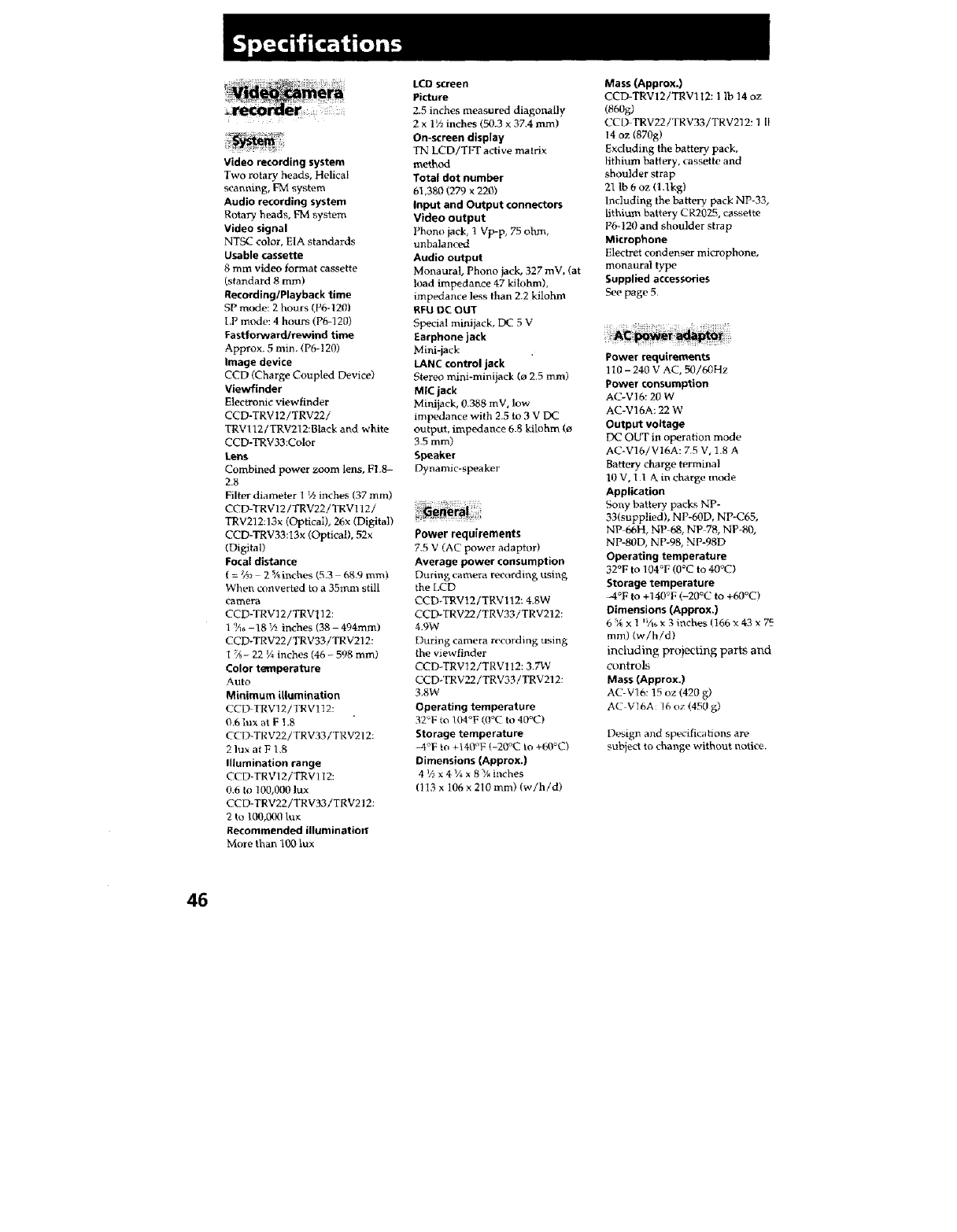
Video recording system
Two rotary heads, Helical
scanning, FM system
Audio recording system
Rotary heads, FM system
Video signal
NTSC color, EIA standards
Usable cassette
8 mm video format cassette
(standard 8 ram)
Recording/Playback time
SP frame: 2 hours (P6-120)
LP mode: 4 hours (P6-120)
Fastforward/rewind time
Approx. 5 rain. (P6q20)
image device
CCD (Charge Coupled Device)
Viewfinder
Electronic viewfinder
CCD-TRV12/TRV22/
TRV112/TRV212:Black and white
CCD-TRV33:Color
Lens
Combined power zoom lens, F1.8-
2.8
FiltL-r diameter 1 V2inches (37 ram)
CCD-TRV12/TRV22!TRV112/
TRV212:13x (Optical), 26x (Digital)
CCD-TRV33:13x (Optical), 52x
(Digital)
Focal distance
f = %_ 2%inches (5.3 6.8.9 ram)
When converted to a 35into still
camera
CCD-TRV12/TRVI12:
1%6 -18 V2 inches (38- 494mm)
CCD-TRV22iTRV33/TRV212:
1 _- 22 9i inches (46 - 598 ram)
Color temperature
Auto
Minimum illumination
CCD TRV12iTRV112:
0.6 hlx at F ! .8
CCD-TRV22!TRV33/TRV212:
2 lux at F 1.8
Illumination range
CCD-TRV12!TRV112:
0.6 to ! 00,000 lux
CCD-TRV22/TRV33/TRV212:
2to li}0,(llR1 lu×
Recommended illumination"
More than 100 lux
LCD screen
Picture
2.5 inches measured diagonally
2 x 1L'2inches (50.3 x 37.4 ram)
On-screen display
TN LCDiTFT active matrix
methed
Total dot number
61,380 (279 x _O)
Input and Output connectors
Video output
Phono jack, 1 Vp-p, 75 ohm,
unbalanced
Audio output
Monaural, Phono jack, 327 mV, (at
load impedance 47 kilohm),
impedance less than 2.2 kilohm
RFU DC OUT
Special minijack, DC 5 V
Earphone jack
Mini-jack
LANC control jack
Stereo mini-minijack (o 2.5 ram)
MIC jack
Minijack, 0.388 mV, low
impedance with 2.5 to 3 V DC
output, impedance 6.8 kilohm (o
3.5 mm)
Speaker
Dynamic-speaker
Power requirements
7.5 V (AC power adaptor)
Average power consumption
During camera recording using
the LCD
CCD-TRV12/TRV112: 48W
CCD-TRV22/TRV33!TRV212:
4.9W
During camera recording using
the viewfinder
CCD-TRV12iTRV112: 3.7W
CCD.TRV22/TRV33/TRV212:
3.8w
Operating temperature
32'F t_ 104_'F ((l°C to 40°C)
Storage temperature
M°F to +I40°F (-20°C to +60°C)
Dimensions (Approx.)
4V_x4V_x 8"Y_inches
1113 x 106 x 210 ram) (w/h/d)
Mass (Approx.)
CCD-TRV12iTRVII2:1 lb 14 oz
(860g)
CCD-TRV22/TRV33iTRV212:1 11
14 oz (870g)
Excluding the battery pack,
lithium battery, cassette and
shoulder strap
21 lb 6 oz (l.lkg)
Including the battery pack NP-33,
lithium battery CR2025, c_ssette
P6-120 and shoulder strap
Microphone
Electret condenser microphone,
monaural type
Supplied accessories
See page 5.
Power requirements
110 - 240 V AC, 50/60Hz
Power consumption
AC-VI6:20 W
AC-V16A: 22 W
Output voltage
DC OUT in operation mode
AC-V16/V16A: 7.5 V, 1.8 A
Battery charge terminal
10 V, 1 1 A in charge m_Kle
Application
Sony battery packs NP-
33(supplied), NP40D, NP-C65,
NP 6bH, NP-68, NP 78, NP-80,
NP-80D, NP-98, NP-98D
Operating temperature
32°F to 104°F (0°C to 40°0
Storage temperature
_4°F to +140°F (-20°C to 460°C)
Dimensions (Approx.)
6%x ! "A* x 3 inches (166 x 43 x 7_
ram) (w/h/d)
including projecting parts and
controls
Mass (Approx.)
AC-V16:15 oz (420 g)
AC VI6A: !6 oz (450 g)
Design and specifications are
subject to change without notice.
46
[]
[]
[]
[]
[]
[]
[]
[]
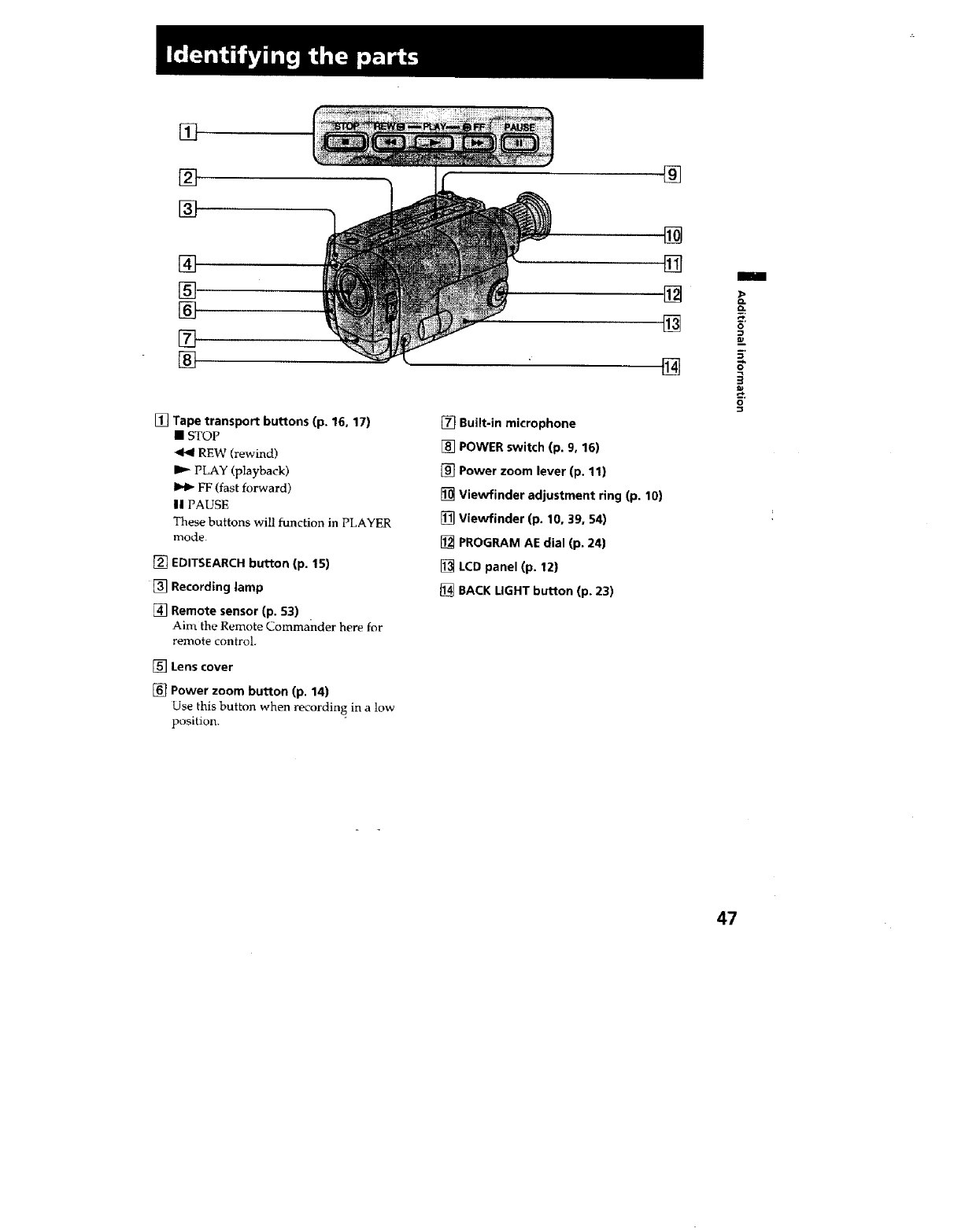
[] Tape transport buttons (p. 16, 17)
•STOP
REW (rewind)
PLAY (playback)
FF (fast forward)
II PAUSE
These buttons wilt function in PLAYER
mode.
[] EDITSEARCH button (p. 15)
[] Recording lamp
_] Remote sensor (p. 53)
Aim the Remote Commander here for
remote control.
[_]Lens cover
[] Power zoom button (p. 14)
Use this button when recording in a low
position.
[] Built-in microphone
[] POWER switch (p. 9, 16)
[] Power zoom lever (p. 11)
[] Viewfinder adjustment ring (p. 10)
[] Viewfinder (p. 10, 39, 54)
[] PROGRAM AE dial (p. 24)
[] LCD panel (p. 12)
[] BACK LIGHT button (p. 23)
[]
[]
.[]
[]
@
i
0.
o
5"
0
47 •
[]
[]
[]
[]
[]
[]
CCD-TRV33
[]
[]
[]
[]
[]
[]
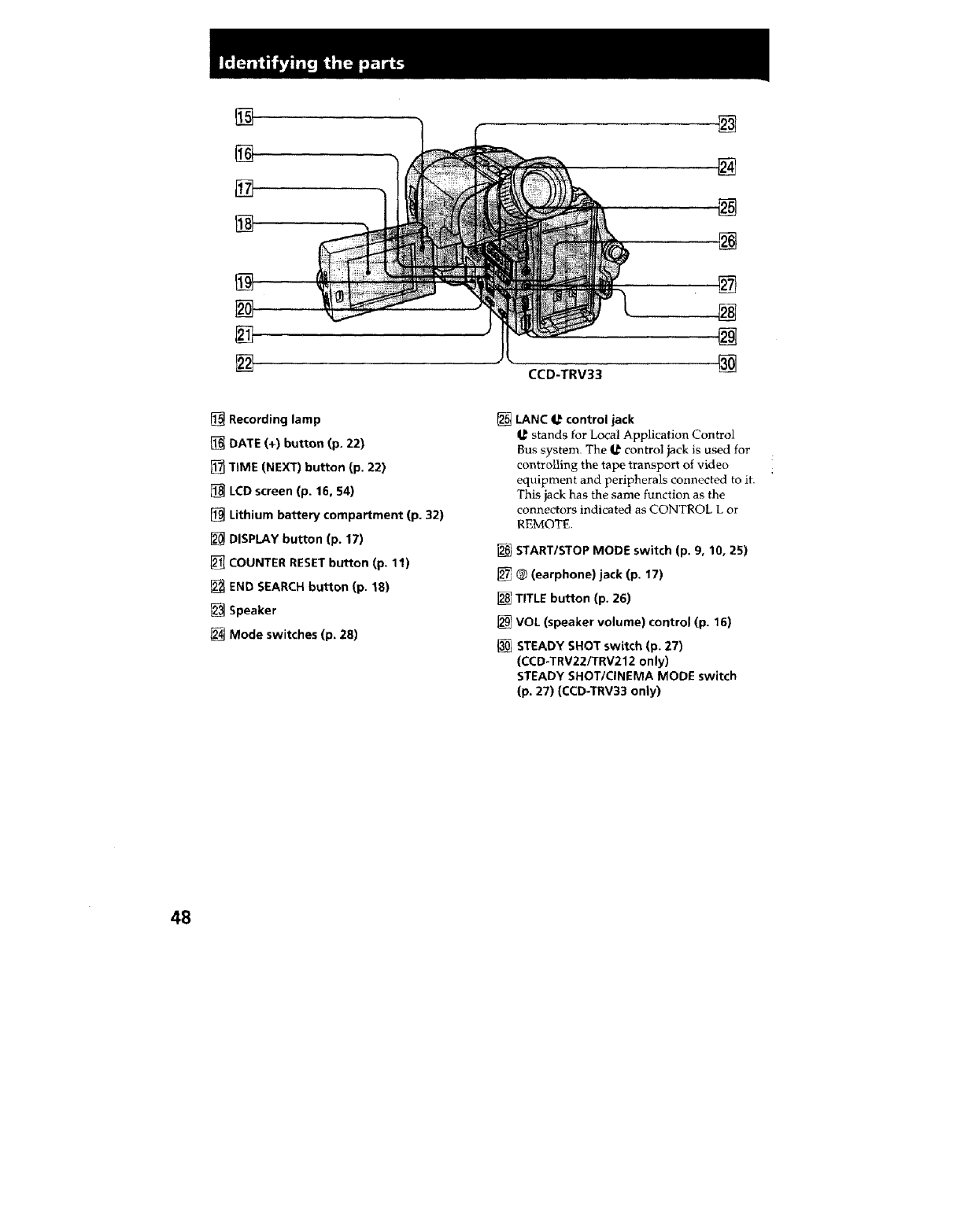
[] Recording lamp
[] DATE (+) button (p, 22)
TIME (NEXT) button (p. 22)
[] LCD screen (p. 16, 54)
Lithium battery compartment (p. 32)
[] DISPLAY button (p. 17)
_-_ COUNTER RESET button (p. 11)
[] END SEARCH button (p. 18)
[] Speaker
Mode switches (p. 28)
[] LANC e control jack
stands for Local Application Control
Bus system. The _ control jack is used for
controlling the tape transport of video
equipment and peripherals connected to it.
This jack has the same function as the
connectors indicated as CONTROL L or
REMOTE,
[] START/STOP MODE switch (p. 9, 10, 25)
@(earphone) jack (p. 17)
[] TITLE button (p. 26)
[] VOL (speaker volume) control (p. 16)
STEADY SHOT switch (p. 27)
(CCD-TRV22/TRV212 only)
STEADY SHOT/CINEMA MODE switch
(p. 27) (CCD-TRV33 only)
48
[]
[]
[]
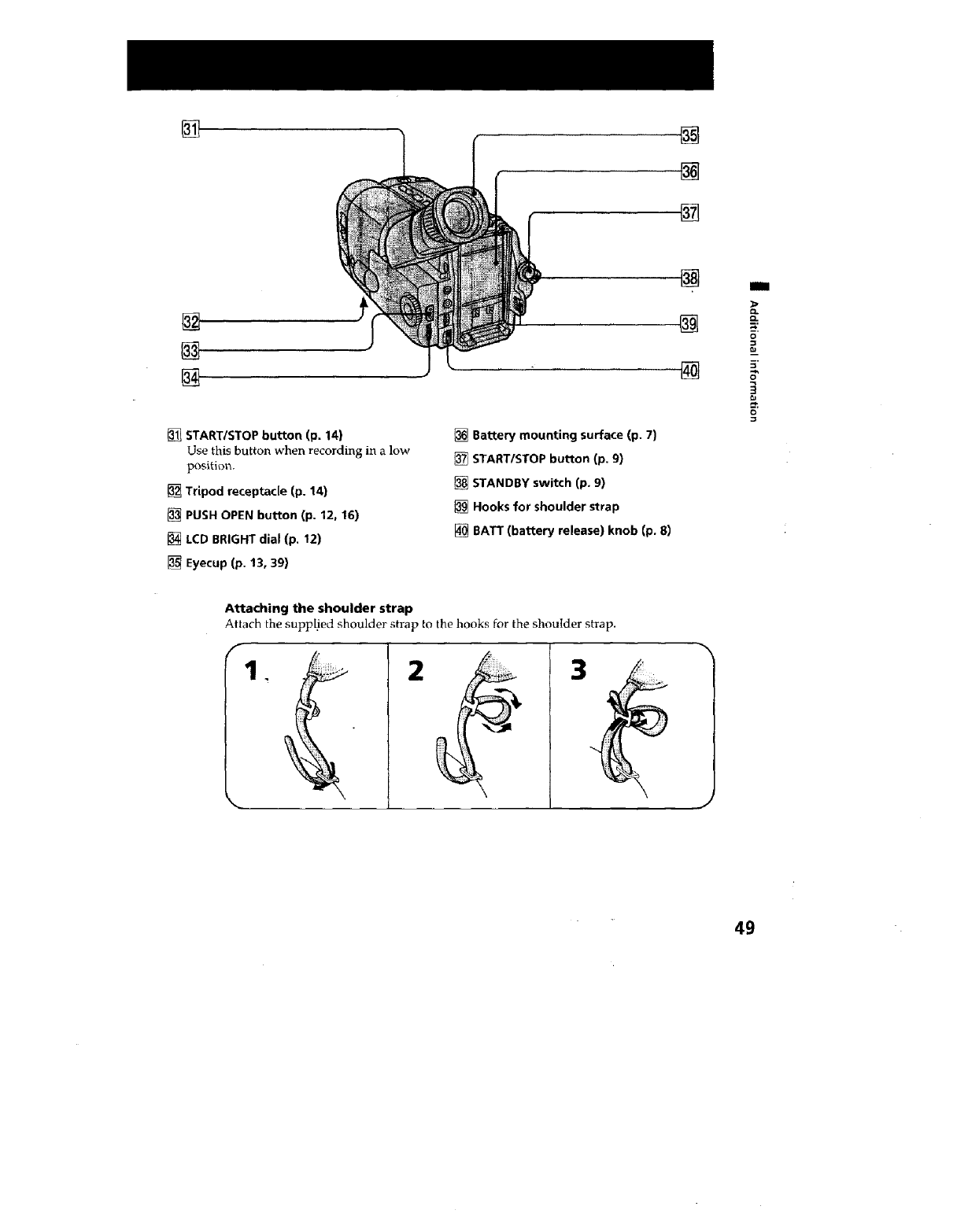
[] START/STOP button (p, 14)
Use this button when recording in a low
position.
[] Tripod receptacle (p. 14)
[] PUSH OPEN button (p. 12, 16)
[] LCD BRIGHT dial (p. 12)
[_ Eyecup (p. 13, 39)
[] Battery mounting surface (p. 7)
START/STOP button (p. 9)
[] STANDBY switch (p. 9)
[] Hooks for shoulder strap
[] BATT (battery release) knob (p. 8)
[]
[]
@
m
o
5"
O
Attaching the shoulder strap
Attach the suppl.ied shoulder strap to the hooks for the shoulder strap.
1. 2 3
49
[]
[]
[]
[]
[]
[]
[]
[]
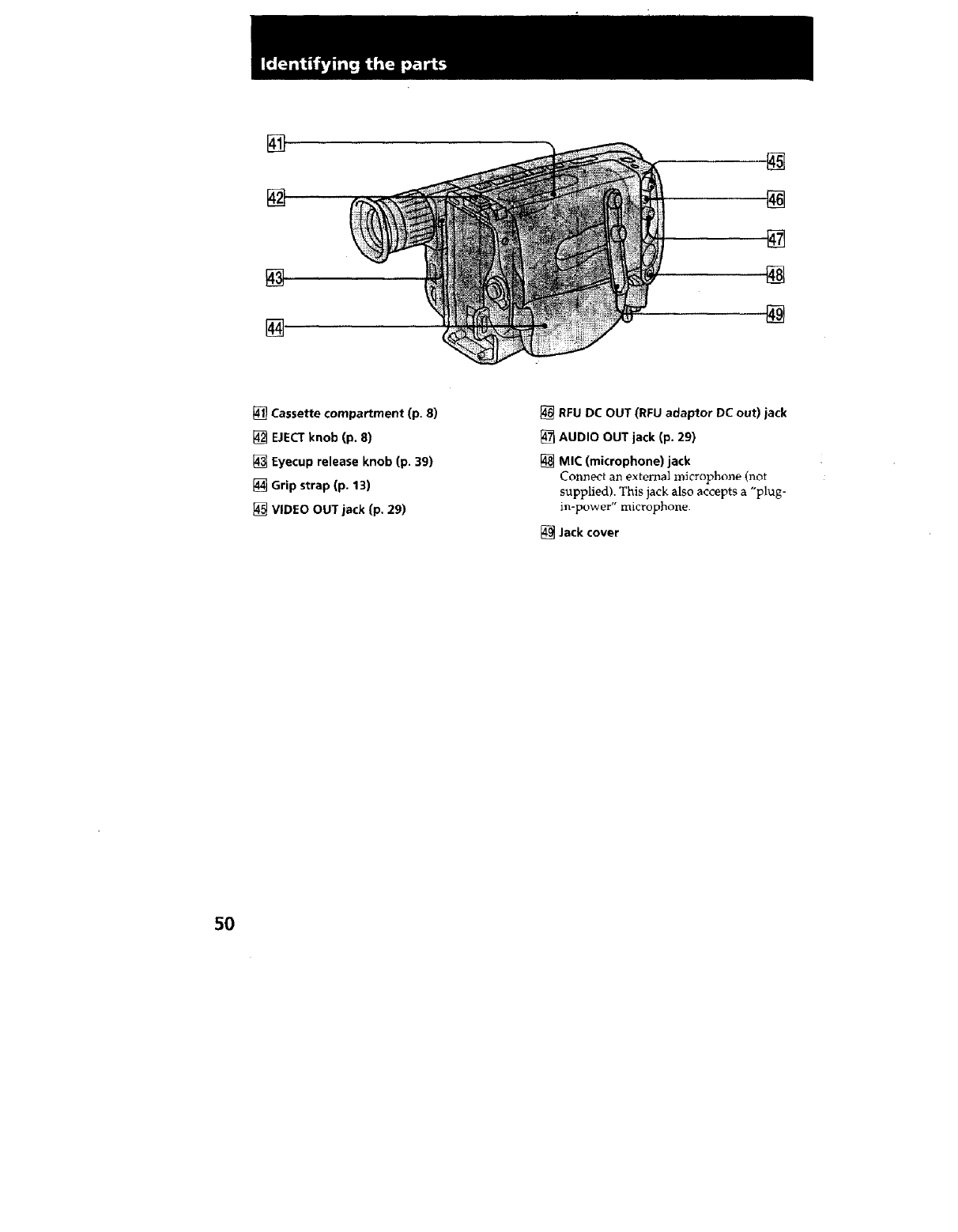
Cassette compartment (p. 8)
EJECTknob (p. 8)
Eyecup release knob (p. 39)
Grip strap (p. 13)
VIDEO OUT jack (p. 29)
[] RFU DC OUT (RFU adaptor DC out) jack
AUDIO OUT jack (p. 29)
[] MIC (microphone) jack
Connect an exten_al microphone (]rot
supplied). This jack also accepts a "plug-
in-power" microphone.
Jack cover
5O
[]
[]
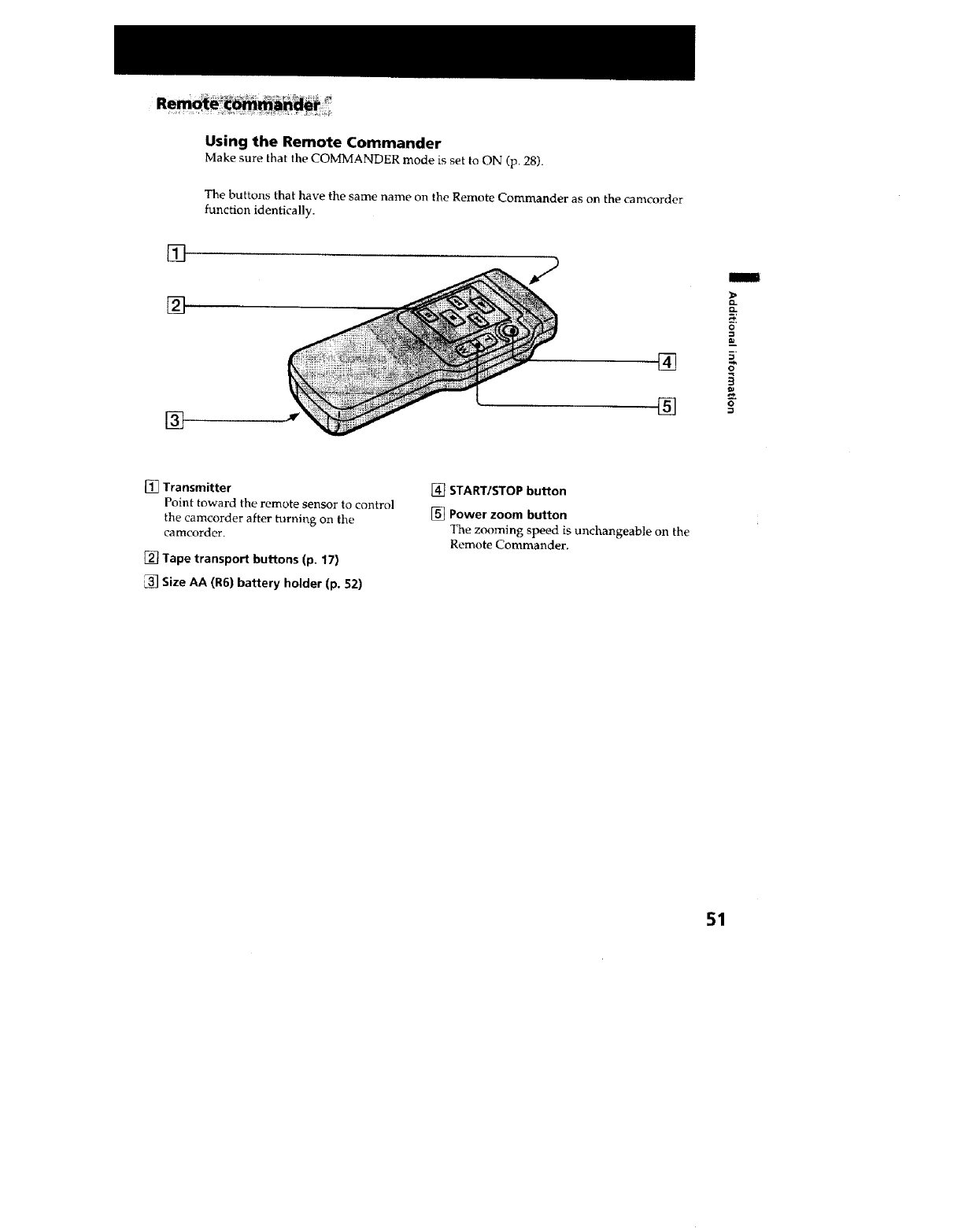
Using the Remote Commander
Make sure that the COMMANDER mode is set to ON (p. 28).
The buttons that have the same name on the Remote Commander as on the cameorder
function identically.
[]
[]
[]
I
o
[] Transmitter
Point toward the remote sensor to control
the camcorder after turning on the
camcorder.
[] Tape transport buttons (p. 17)
Size AA (R6) battery holder (p. 52)
[] START/STOP button
[] Power zoom button
The zooming speed is unchangeable on the
Remote Commander.
51
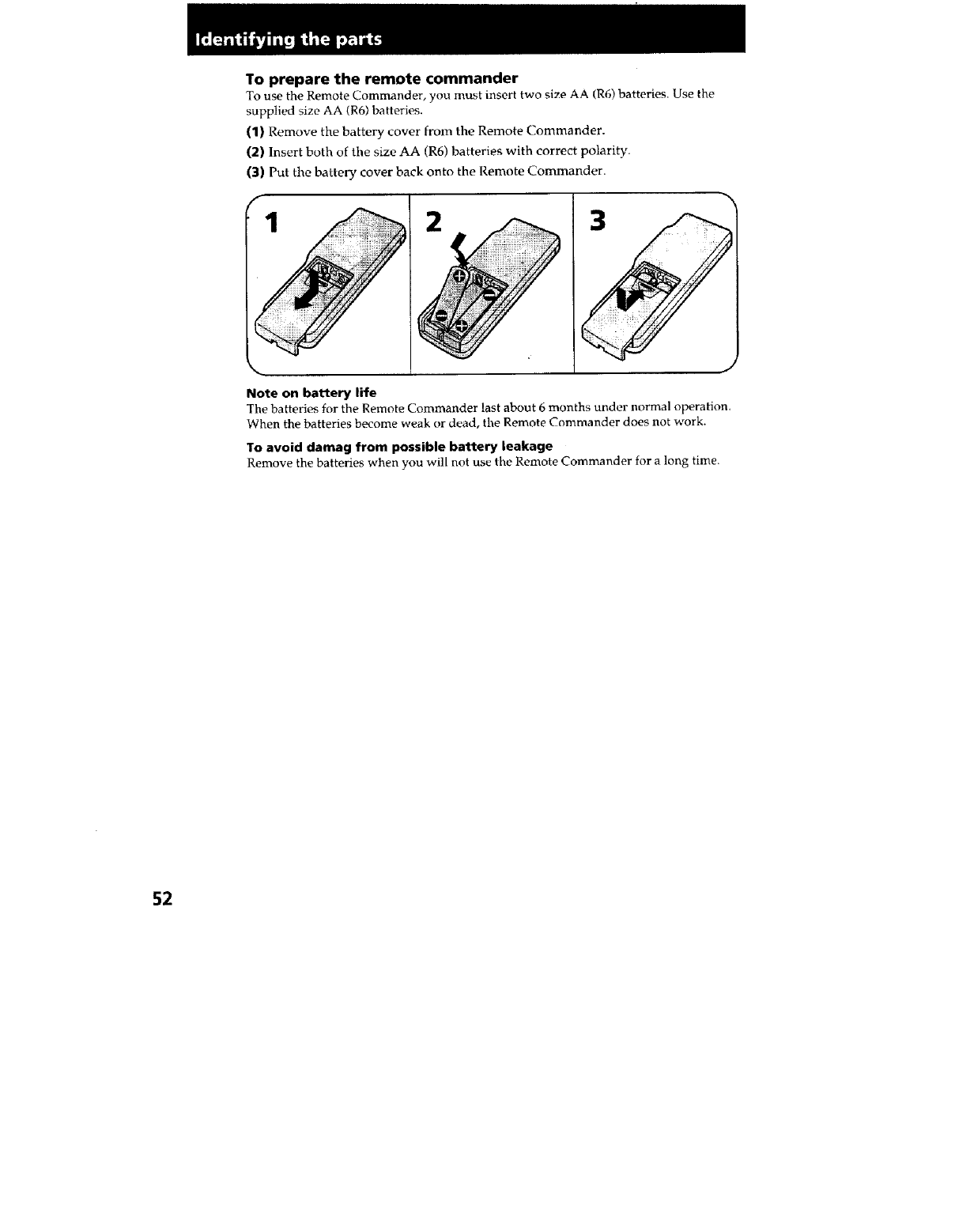
To prepare the remote commander
To use the Remote Commander, you inust insert two size AA (R6) batteries. Use the
supplied size AA (R6) batteries.
(1) Remove the battery cover from the Remote Commander.
(2} Insert both of the size AA (R6) batteries with correct polarity.
(3) Put the batter?, cover back onto the Remote Commander.
12 3
Note on battery life
The batteries for the Remote Commander last about 6 months under normal operation.
When the batteries become weak or dead, the Remote Commander does not work.
To avoid damag from possible battery leakage
Remove the batteries when you will not use the Remote Commander for a long time.
52
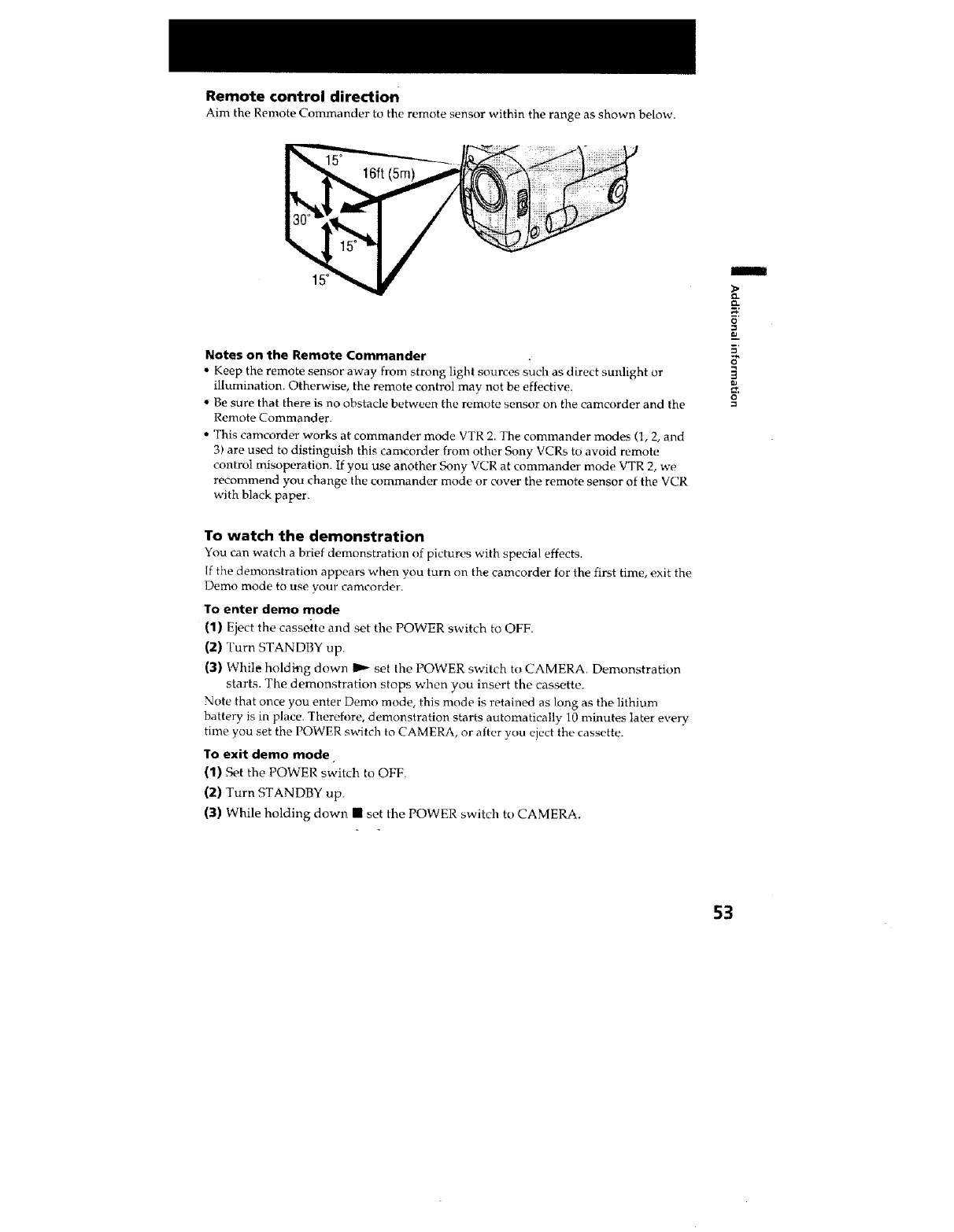
Remote control direction
Aim the Remote Commander to the remote sensor within the range as shown below.
Notes on the Remote Commander
• Keep the remote sensor away from strong light sources such as direct sunlight or
illumination. Otherwise, the remote control may not be effective.
• Be sure that there is no obstacle between the remote sensor on the camcorder and the
Remote Commander.
• This camcorder works at commander mode VTR 2. The commander modes (1, 2, and
3) are used to distinguish this cameorder from other Sony VCRs to avoid remote
control misoperation. If you use another Sony VCR at commander mode VTR 2, we
recommend you change the commander mode or cover the remote sensor of the VCR
with black paper.
To watch the demonstration
You can watch a brief demonstration of pictures with special effects.
If the demonstration appears when you turn on the camcorder for the first time, exit the
Demo mode to use your carncorder.
To enter demo mode
(1) Eject the cassette and set the POWER switch to OFF.
(2) Turn STANDBY up.
(3) While holding down I1_ set the POWER switch to CAMERA. Demonstration
starts. The demonstration stops when you insert the cassette.
Note that once you enter Demo mode, this mode is retained as long as the lithium
battery is in place. Therefore, demonstration starts automatically 10 minutes later every
time you set the POWER switch to CAMERA, or after you eject the cassette.
To exit demo mode
(1) F_t the POWER switch to OFF.
(2) Turn STANDBY up.
(3) While holding down • set the POWER switch to CAMERA.
m
CL
O.
O
m
8"
O
53
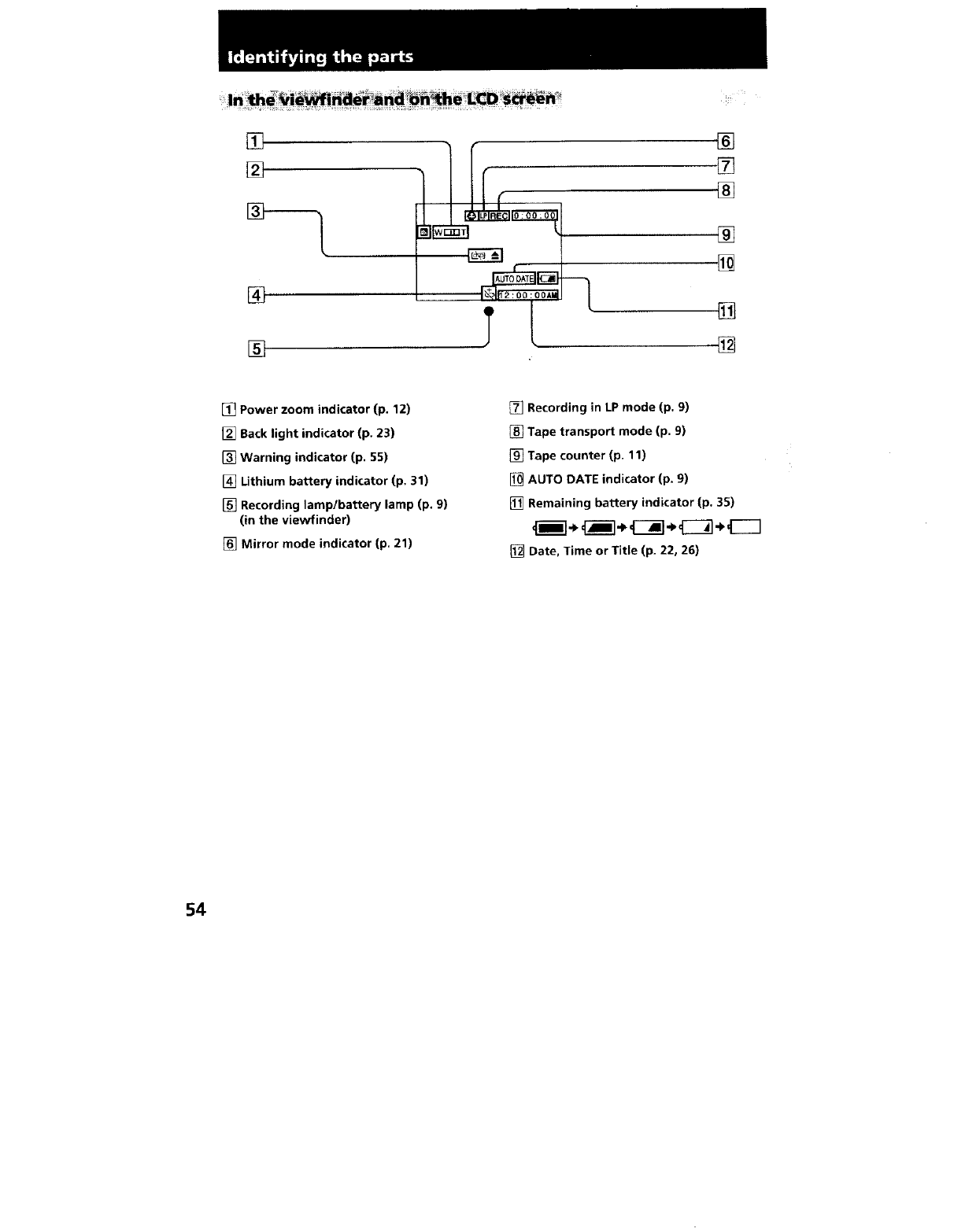
[]
[]
[]
[]
[]
[]
[]
[]
[]
[]
[] Power zoom indicator (p. 12)
[] Back light indicator (p. 23)
Warning indicator (p. 55)
[] Lithium battery indicator (p. 31)
[] Recording lamp/battery lamp (p. 9)
(in the viewfinder)
[] Mirror mode indicator (p, 21)
Recording in LP mode (p. 9)
[] Tape transport mode (p. 9)
[] Tape counter (p. 11)
[] AUTO DATE indicator (p. 9)
[] Remaining battery indicator (p, 35)
_i] • _--I÷ _] ÷_--_1÷_----I
[] Date, Time or Title (p. 22, 26)
54
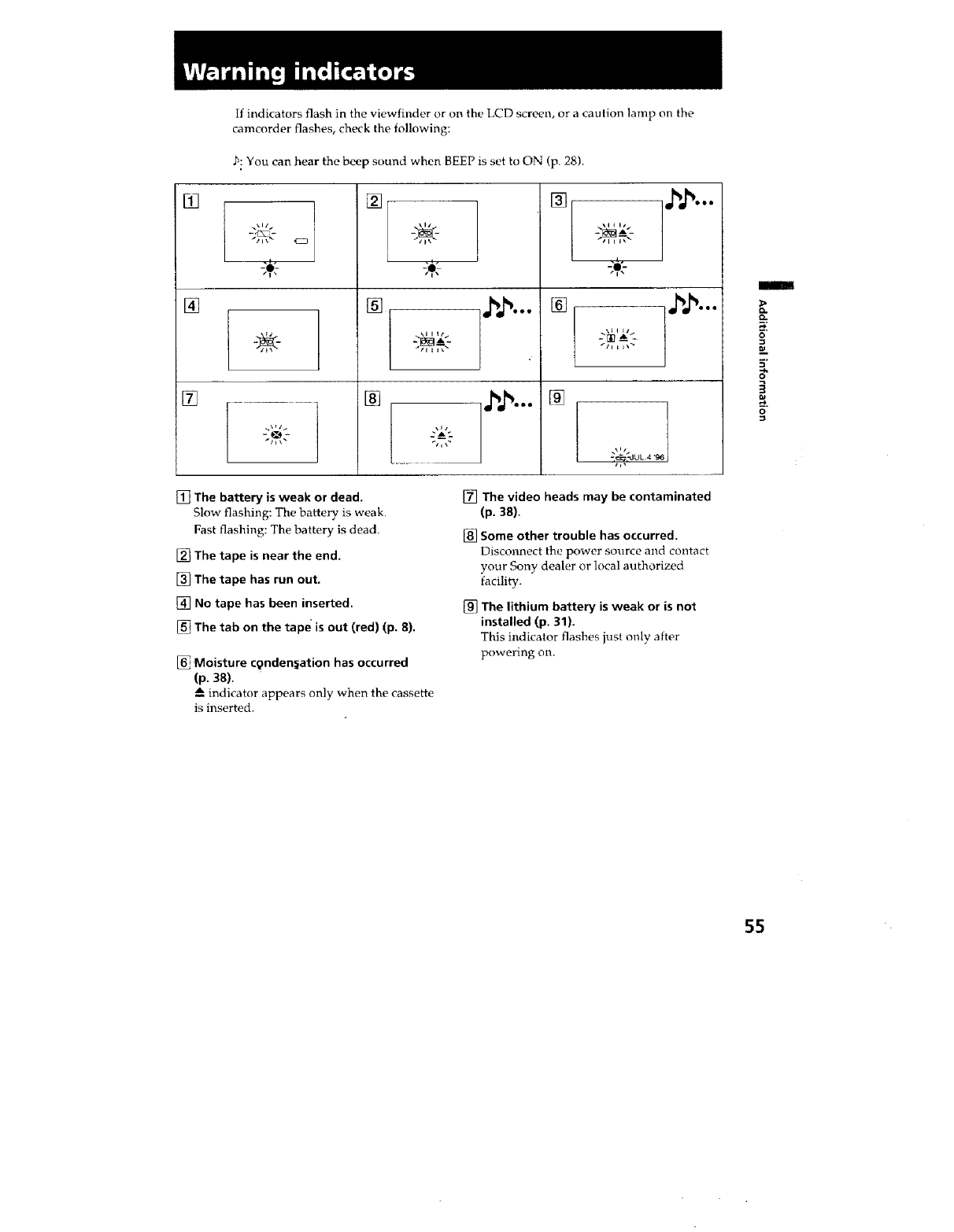
If indicators flash in the viewfinder or on the LCD screen, or a caution lamp on the
camcorder flashes, check the following:
3: You can hear the beep sound when BEEP is set to ON (p. 28).
[]
[]
_q2g2 -
_/l_ _
÷i
[]
_\1 i _t /
-A-
.,,_,,,-.
_eoe
[]
®
®
_11 _ i_ _
÷
,j,
_eoe
_eee
[] The battery is weak or dead,
Slow flashing: The battery is weak.
Fast flashing: The battery is dead.
I_ The tape is near the end.
[] The tape has run out,
[] No tape has been inserted.
The tab on the tape is out (red) (p. 8).
Moisture condenIiation has occurred
(p. 38).
indicator appears only when the cassette
is inserted.
[] The video heads may be contaminated
(p, 38).
Some other trouble has occurred.
Disconnect the power source and contact
your Sony dealer or local authorized
facili W.
_] The lithium battery is weak or is not
installed (p. 31).
This indicator flashes just only after
powering on.
m
Q.
o
5"
O
55
A
Adjusting viewfinder ........ 10
AUTO DATE ...................... 11
B
BACK I.IGHT ..................... 23
BEEP .............................. 11, 28
C
Camera recording ................ 9
Car battery .......................... 21
Charging battery .................. 6
CINEMA mode ........... _.._. 27
Cleaning video heads ........ 38
COUNTER RESET ............. 11
D
DATE/TIME ...................... 22
DEMO mode ...................... 53
E
Ediling ................................. 30
EDITSEARCH .................... 15
EJECT ..................................... 8
END SEARCH .................... 18
F,G,H
Fast-forward ....................... 16
5 sec, recording .................. 25
High-speed shutter mode. 24
House current ..................... 19
I, J, K, L
LANC ................................. 48
Lithium battery .................. 31
M, N, O, P
MIC (microphm_e) jack ...:. 50
Playback on TV .................. 56
Playback pause ................... 17
Power sources .................... 19
Power zoom ........................ 11
PROGRAM AE ................... 24
Q, R
REC MODE ......................... 28
Rec. Review ........................ 15
Remote Commander ......... 51
Remote control jack (LANC)
............................................... 48
Rewind ................................ 16
S
Shoulder strap .................... 49
Sports mode ........................ 24
STANDBY ....................... 9, I0
Standby mode .................... 10
STEADY SHOT .................. 27
Supplied accessories ............ 5
T,U,V
Tape counter ....................... !1
Title ...................................... 26
Tripod mounting ............... 14
Trouble check ..................... 43
Twilight mode .................... 24
W, X, Y, Z
Zoom ................................... 11
Sony Corporation Printed in Japan
