Sony DPF D82 D82/D92 User Manual Read This First DPFD82 Rtf
User Manual: Sony DPF-D82 Read This First
Open the PDF directly: View PDF  .
.
Page Count: 2
Digital Photo Frame
Read This First
Welcome to the Sony DPF-D82/D92 Digital Photo Frame.
This leaet explains preparations and basic viewing procedures.
To enjoy a variety of viewing options or customize your photo frame,
please read the operating instructions also supplied.
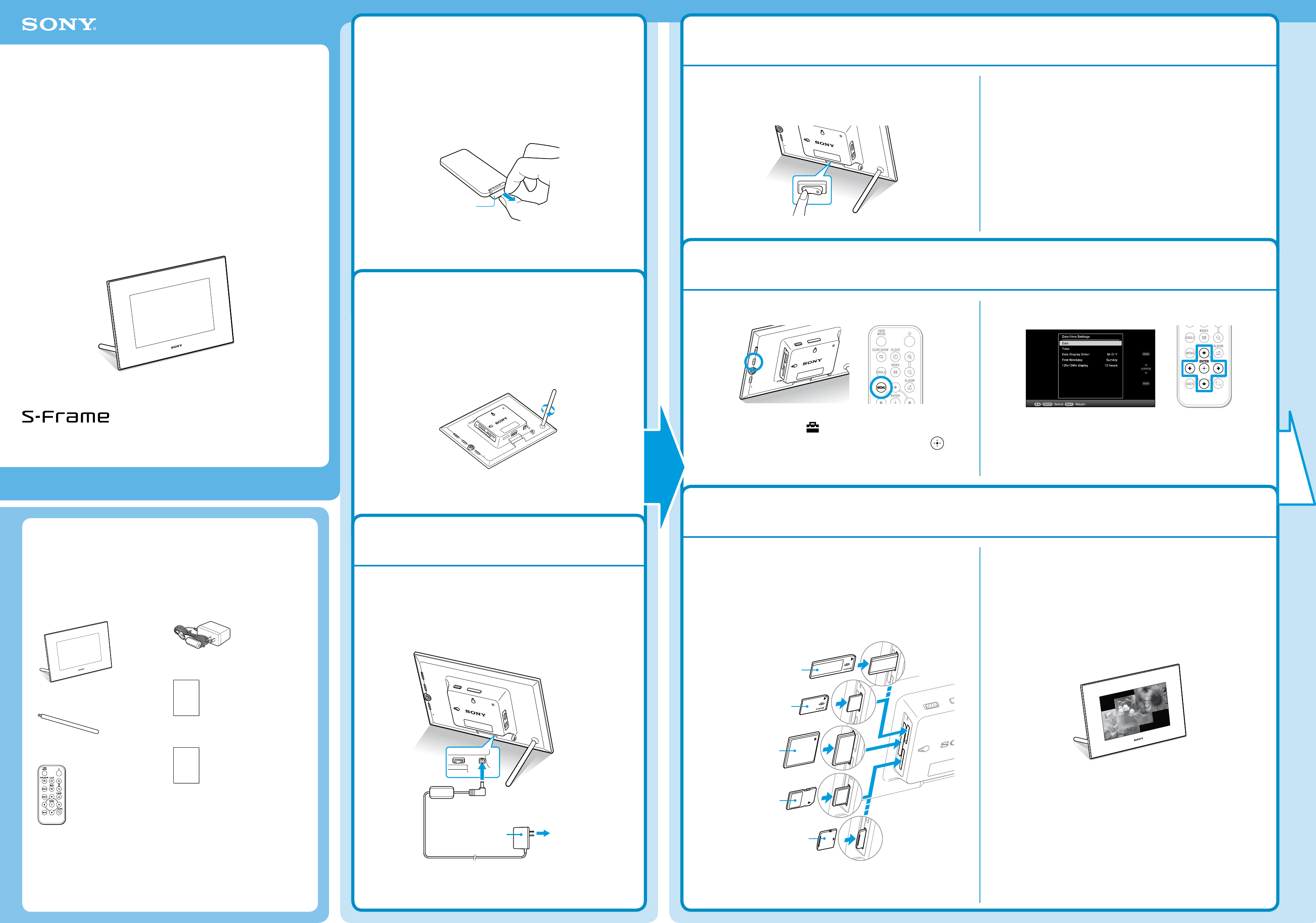
Checking the contents of the package
(The illustrations are of the DPF-D92. The locations and names of buttons and connectors of
the DPF-D82 are identical to those of the DPF-D92, although the LCD screen size and shape
is different.)
Digital photo frame (1)
Stand (1)
Remote control (1)
AC adaptor (1)
Operating Instructions (1)
Read This First (this manual) (1)
Warranty (1)
(In some regions, the warranty is not supplied.)
1
Preparing the remote control.
The supplied lithium battery (CR2025) has already been inserted into
the remote control.
Pull out the protective sheet before use as shown in the gure.
2
Preparing the photo frame.
Screw the stand supplied with the photo frame into the screw hole
rmly until the stand stops turning (when you use the photo frame
as a photo stand).
3
Connecting to the AC power source.
1
Insert the plug of the AC adaptor into the DC IN 12 V jack on the
rear of the photo frame.
2
Connect the AC adaptor to the wall outlet.
4
Turn the photo frame on.
1
Set to the POWER switch to ON.
The standby indicator turns green and the Sony logo on the
front panel lights up.
Tips
Keep the POWER set to ON, when you use the alarm function or the auto power on/o function.
The value of the following settings are returned to their factory settings if you turn the photo frame to
OFF, and leave it o for a long time.
the setting value of [Date/time settings]
the setting time of the alarm function and the auto power on/o function
5
Set the current time.
1
Press MENU.
2
Press to select the (Settings) tab.
3
Press to select [Date/time settings] and then press .
4
Set the current time following the guidance on the screen.
6
Insert a memory card into the slot.
1
Insert a memory card rmly into the corresponding slot.
The access lamp ashes when the memory card is inserted
correctly. Reinsert the memory card after checking the label
side of the memory card if the access lamp does not ash.
The status of each memory card is as follows.
Note
All memory cards have a back-side and front-side, and an insertion direction. Refer to the following
illustration and insert the memory card while you take note of its shape and the appropriate slot.
It may cause malfunction if you insert the card in the wrong direction.
2
The slideshow of the memory card you inserted starts
automatically.
You can enjoy a variety of slideshow styles. ()
DPF-D82/D92
© 2009 Sony Corporation printed in China 4-129-233-11(1)
P/N7525000015A
Protective sheet
“Memory Stick”
“Memory Stick Duo”
CompactFlash card
SD memory card
xDPicture Card
To the DC IN 12 V jack
AC adaptor To wall outlet
1
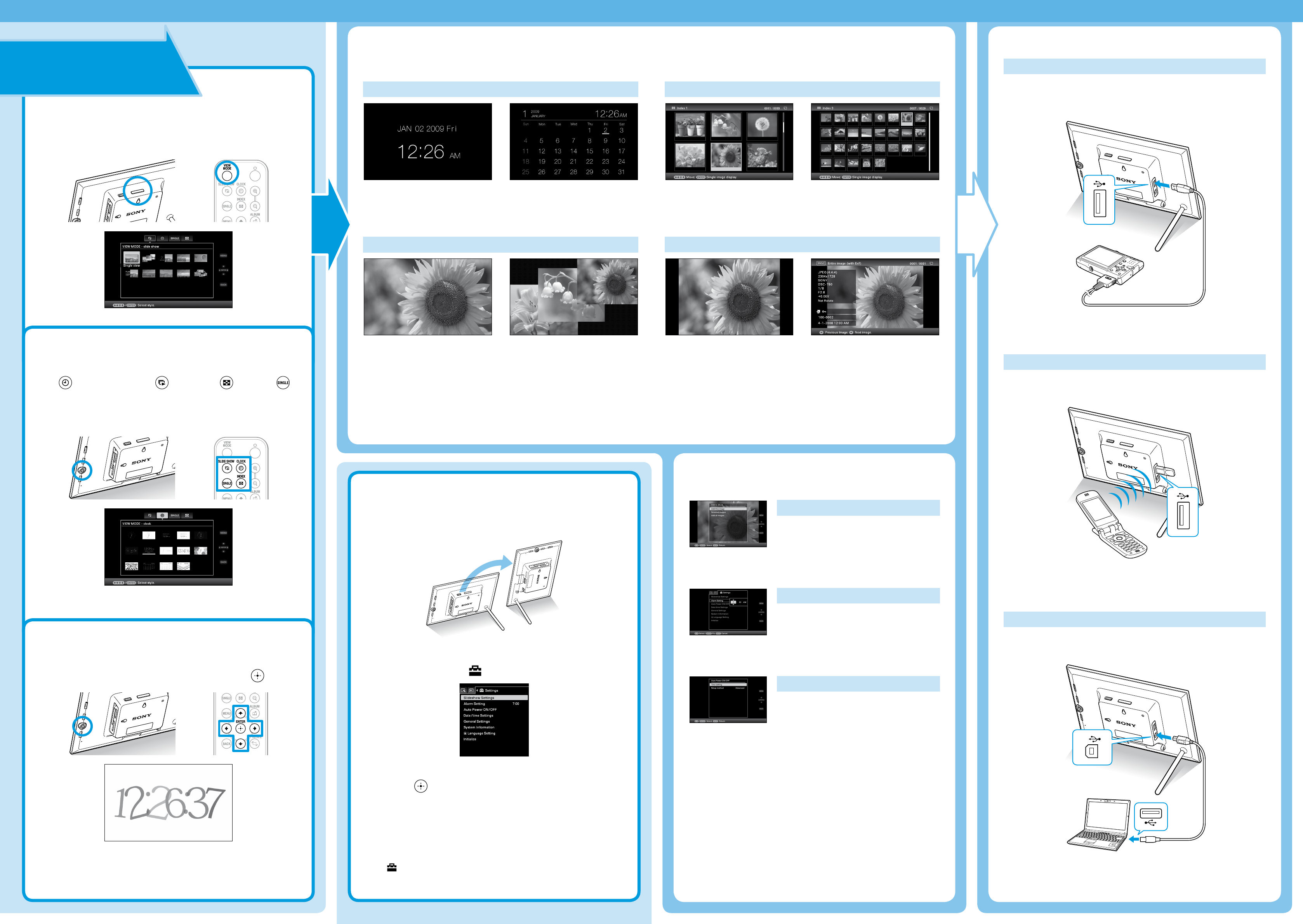
Press VIEW MODE.
The view mode screen is displayed.
2
Select the group you want.
Press (Clock and calendar), (Slideshow), (Index), or
(Single) on the remote. Or press to move the cursor to
group area and then press on the photo frame to select the
group you want.
3
Select the style you want.
Press to select the style you want, the press .
Tip
The image illustration is the view mode screen of the slideshow. Clock and calendar, index, and single
has each view mode screen.
Let's use various functions
The displaying screen
Refer to “Changing the display” on the operating instruction.
Clock and Calendar display
Note
You cannot perform the setting operation of the menu when you display the clock and calendar display.
Slideshow
Tips
You can set the playback order in [Listing Order] on [General Settings].
Refer to the “Changing the settings” in the operating instructions.
When you select [Time Machine] in a slideshow mode, the day when the image is shot or the day the le
was updated is displayed.
Index image display
Tip
The listing order of the images is same as the one you selected in [Listing Order] on [General Settings].
Single view mode
Various functions
Adding image to the internal memory
Refer to “Adding image to the internal memory” in
the operating instructions.
Setting the alarm
Refer to “Using the alarm function” in the operating
instructions.
Auto power on/off
Refer to “Changing the settings of the auto power
on/off function” in the operating instructions.
Enjoying the photo frame with other device
Transmitting the image from external device
Refer to “Operating an external device connected to the photo frame” in the operating
instructions.
Using the photo frame with a Bluetooth device
Refer to “Connecting to a Bluetooth device” in the operating instructions.
Connecting to a computer
Refer to “Connecting to a computer” in the operating instructions.
About the display orientation
You can set the photo frame to portrait or landscape orientation by rotating it without
moving the stand. You can also use this function when you display the photo frame on the
wall.
1
Press MENU.
2
Press to select the (Settings) tab.
3
Press to select [ON] in [Auto display orientation],
the press .
Notes
Check whether the stand is stable. If the stand is not set properly, the photo frame may fall over.
Store the stand in the storage slot when you display the photo frame on the wall.
When the photo frame is rotated to the portrait orientation, the Sony logo doesn't light up.
The photo frame does not detect and rotate the orientation of images when [Auto display orientation]
on the (Settings) tab is set to [OFF].
