Sony KD 34XS955 XS User Manual Operating Instructions For KD34XS955
KD-30XS955 KD-30XS955
KD-36XS955 KD-36XS955
KD-34XS955 KD-34XS955
Sony KD-36XS955 KD36XS955
User Manual: Sony KD-34XS955 Operating Instructions for KD34XS955
Open the PDF directly: View PDF  .
.
Page Count: 107 [warning: Documents this large are best viewed by clicking the View PDF Link!]
- Important Safeguards
- Contents
- Introducing the FD Trinitron Wega
- Setting Up the TV
- Using the Remote Control
- Using the Features
- Using the Memory Stick Viewer
- Using the Menus
- Other Information

KD-30XS955 I KD-34XS955 I KD-36XS955
Operating Instructions
© 2004 Sony Corporation
Sony Corporation http://www.sony.net Printed in U.S.A.
4-102-728-21 (1)
Pantone 279C
TV.MANUAL 04_revised
Sony Design Center 04.01.04
Black
1
WARNING
To reduce the risk of fire or shock hazard, do not expose the TV to
rain or moisture.
This symbol is intended to alert the user to the
presence of uninsulated “dangerous voltage”
within the product’s enclosure that may be of
sufficient magnitude to constitute a risk of
electric shock to persons.
This symbol is intended to alert the user to the
presence of important operating and maintenance
(servicing) instructions in the literature
accompanying the appliance.
CAUTION
TO PREVENT ELECTRIC SHOCK, MATCH WIDE BLADE OF
PLUG TO WIDE SLOT, FULLY INSERT.
CAUTION
When using TV games, computers, and similar products with your
TV, keep the brightness and contrast functions at low settings. If a
fixed (non-moving) pattern is left on the screen for long periods of
time at a high brightness or contrast setting, the image can be
permanently imprinted onto the screen. Continuously watching
the same program can cause the imprint of station logos onto the
TV screen. These types of imprints are not covered by your
warranty because they are the result of misuse.
Warning (KD-34XS955 only)
The CRT in this product employs a protective film on the face. This
film must not be removed as it serves a safety function and
removal will increase the risk of serious injury.
Note on Caption Vision
This television receiver provides display of television closed
captioning in accordance with §15.119 of the FCC rules.
Note on Cleaning the TV
Clean the TV with a soft, dry cloth. Never use strong solvents such
as thinner or benzine, which might damage the finish of the
cabinet.
Note to CATV System Installer
This reminder is provided to call the CATV system installer’s
attention to Article 820-40 of the National Electrical Code (NEC)
that provides guidelines for proper grounding and, in particular,
specifies that the cable ground shall be connected to the grounding
system of the building, as close to the point of cable entry as
practical.
Use of this television receiver for other than private viewing of
programs broadcast on UHF or VHF or transmitted by cable
companies for the use of the general public may require
authorization from the broadcaster/cable company and/or
program owner.
NOTIFICATION
This equipment has been tested and found to comply with the
limits for a Class B digital device pursuant to Part 15 of the FCC
Rules. These limits are designed to provide reasonable protection
against harmful interference in a residential installation. This
equipment generates, uses, and can radiate radio frequency energy
and, if not installed and used in accordance with the instructions,
may cause harmful interference with radio communications.
However, there is no guarantee that interference will not occur in a
particular installation. If this equipment does cause harmful
interference to radio or television reception, which can be
determined by turning the equipment off and on, the user is
encouraged to try to correct the interference by one or more of the
following measures:
❑Reorient or relocate the receiving antennas.
❑Increase the separation between the equipment and receiver.
❑Connect the equipment into an outlet on a circuit different
from that to which the receiver is connected.
❑Consult the dealer or an experienced radio/TV technician for
help.
You are cautioned that any changes or modifications not
expressly approved in this manual could void your authority
to operate this equipment.
Installing
❑To prevent internal heat buildup, do not block the ventilation
openings.
❑Do not install the TV in a hot or humid place, or in a place
subject to excessive dust or mechanical vibration.
❑The AC power cord is attached to the rear of the TV with
hooks. Do not attempt to remove the cord from these hooks.
Doing so could cause damage to the TV.
Owner’s Record
The model and serial numbers are provided on the front of this
instruction manual and at the rear of the TV. Refer to them
whenever you call upon your Sony dealer regarding this product.
Note
This digital television is capable of receiving analog basic, digital
basic and digital premium cable television programming by direct
connection to a cable system providing such programming. A
security card provided by your cable operator is required to view
encrypted digital programming. Certain advanced and interactive
digital cable services such as video-on-demand, a cable operator's
enhanced program guide and data-enhanced television services
may require the use of a set-top box. For more information call
your local cable operator.
This television also includes a QAM demodulator which should
allow you to receive unscrambled digital cable television
programming via subscription service to a cable service provider.
Availability of digital cable television programming in your area
depends on the type of programming and signal provided by your
cable service provider.
RISK OF ELECTRIC SHOCK
DO NOT OPEN
RISQUE DE CHOC ELECTRIQUE,
NE PAS OUVRIR
ATTENTION
CAUTION
PRECAUCION
RIESGO DE CHOQUE ELECTRICO
NO ABRIR
CAUTION: TO REDUCE THE RISK OF ELECTRIC SHOCK,
DO NOT REMOVE COVER (OR BACK).
NO USER-SERVICEABLE PARTS INSIDE.
REFER SERVICING TO QUALIFIED SERVICE PERSONNEL.
XS.book Page 1 Tuesday, June 8, 2004 1:40 PM
2
IMPORTANT SAFEGUARDS
For your protection, please read these instructions completely, and
keep this manual for future reference.
Carefully observe and comply with all warnings, cautions and
instructions placed on the set, or described in the operating
instructions or service manual.
WARNING
To guard against injury, the following basic safety precautions
should be observed in the installation, use, and servicing of the set.
Use
Power Sources
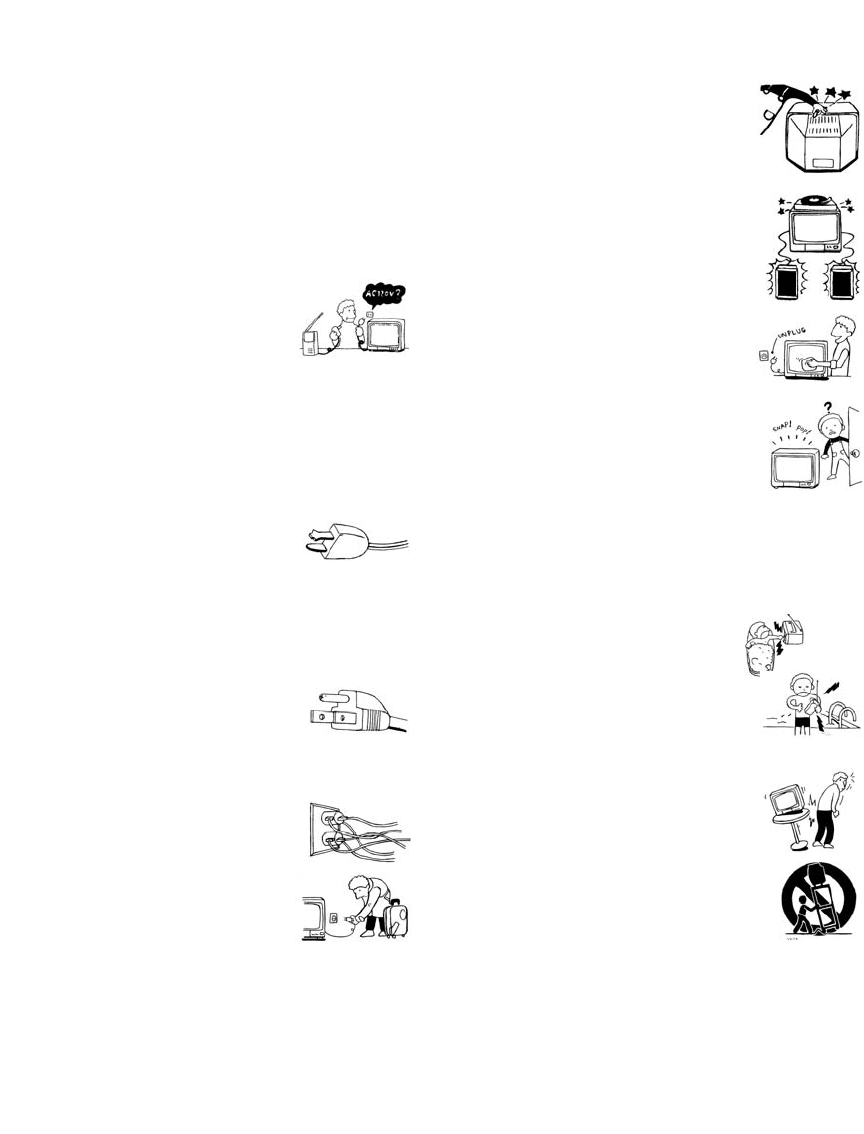
This set should be operated only from the type
of power source indicated on the serial/model
plate. If you are not sure of the type of electrical
power supplied to your home, consult your
dealer or local power company. For those sets
designed to operate from battery power, refer
to the operating instructions.
Grounding or Polarization
This set is equipped with a polarized AC power cord plug (a plug
having one blade wider than the other), or with a three-wire
grounding type plug (a plug having a third pin for grounding).
Follow the instructions below:
For the set with a polarized AC power cord plug
This plug will fit into the power outlet only one
way. This is a safety feature. If you are unable to
insert the plug fully into the outlet, try reversing
the plug. If the plug should still fail to fit, contact your electrician to
have a suitable outlet installed. Do not defeat the safety purpose of
the polarized plug by forcing it in.
Alternate Warning
For the set with a three-wire grounding type AC plug
This plug will only fit into a grounding-type
power outlet. This is a safety feature. If you are
unable to insert the plug into the outlet, contact
your electrician to have a suitable outlet installed.
Do not defeat the safety purpose of the grounding plug.
Overloading
Do not overload wall outlets, extension cords or
convenience receptacles beyond their capacity,
since this can result in fire or electric shock.
Always turn the set off when it is not to be
used. When the set is left unattended and
unused for long periods of time, unplug it
from the wall outlet as a precaution against
the possibility of an internal malfunction that
could create a fire hazard.
Do not disconnect the antenna or the power cord during a heavy
storm. Lightning may strike while you are holding the cable or
cord, causing serious injury. Turn off your TV and wait for the
weather to improve.
Memory Stick
To protect small children from injury from Memory Stick Media,
remove all Memory Stick media from the TV’s Memory Stick slot
and store it in a safe location when it is not in use.
Object and Liquid Entry
Never push objects of any kind into the set
through the cabinet slots as they may touch
dangerous voltage points or short out parts that
could result in a fire or electric shock. Never spill
liquid of any kind on the set.
Attachments
Do not use attachments not recommended by the
manufacturer, as they may cause hazards.
Do not place any objects, especially heavy objects,
on top of the set. The object may fall from the set,
causing injury.
Cleaning
Unplug the set from the wall outlet before
cleaning or polishing it. Do not use liquid
cleaners or aerosol cleaners. Use a cloth lightly
dampened with water for cleaning the exterior
of the set.
If a snapping or popping sound from a TV set is
continuous or frequent while the TV is operating,
unplug the TV and consult your dealer or service
technician. It is normal for some TV sets to make
occasional snapping or popping sounds,
particularly when being turned on or off.
Installation
Always use two or more people to lift or move the set. The set is
heavy and the bottom surface is flat. Serious injury can result from
trying to move the set by yourself alone, or from unsteady
handling. Install the set on a stable, level surface.
Water and Moisture
Do not use power-line operated sets near
water — for example, near a bathtub,
washbowl, kitchen sink, or laundry tub, in a
wet basement, or near a swimming pool, etc.
Accessories
Do not place the set on an unstable cart, stand,
tripod, bracket, table or shelf. The set may fall,
causing serious injury to a child or an adult, and
serious damage to the set. Use only a cart or stand
recommended by the manufacturer for the
specific model of TV. Any mounting of the
product should follow the manufacturer’s
instructions, and should use a mounting
accessory recommended by the manufacturer. An
appliance and cart combination should be moved
with care. Quick stops, excessive force, and
uneven surfaces may cause the appliance and cart
combination to overturn.
Disconnect all cables and cords from the set before attempting to
move the set.
Do not allow children or pets to climb up onto, or push against, the
set. The set may fall, causing serious injury.
XS.book Page 2 Tuesday, June 8, 2004 1:40 PM
3
Ventilation
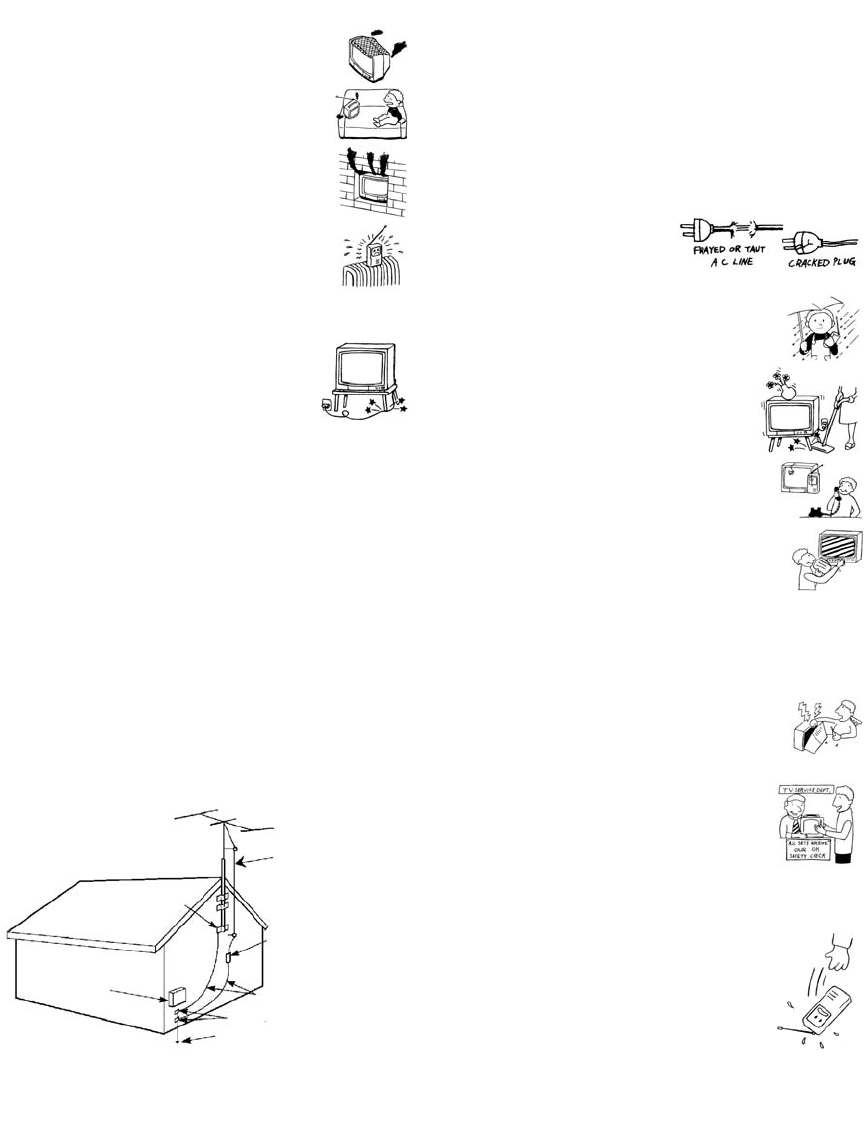
The slots and openings in the cabinet and in the
back or bottom are provided for necessary
ventilation. To ensure reliable operation of the set,
and to protect it from overheating, these slots and
openings must never be blocked or covered.
❑Never cover the slots and openings with a
cloth or other materials.
❑Never block the slots and openings by
placing the set on a bed, sofa, rug or other
similar surface.
❑Never place the set in a confined space, such
as a bookcase, or built-in cabinet, unless
proper ventilation is provided.
❑Do not place the set near or over a radiator
or heat register, or where it is exposed to direct sunlight.
Power Cord Protection
Do not allow anything to rest on or roll over the
power cord, and do not place the set where the
power cord is subject to wear or abuse.
Antennas
Outdoor Antenna Grounding
If an outdoor antenna is installed, follow the precautions below. An
outdoor antenna system should not be located in the vicinity of
overhead power lines or other electric light or power circuits, or
where it can come in contact with such power lines or circuits.
WHEN INSTALLING AN OUTDOOR ANTENNA SYSTEM,
EXTREME CARE SHOULD BE TAKEN TO KEEP FROM
CONTACTING SUCH POWER LINES OR CIRCUITS AS
CONTACT WITH THEM IS ALMOST INVARIABLY FATAL.
Be sure the antenna system is grounded so as to provide some
protection against voltage surges and built-up static charges.
Section 810 of the National Electrical Code (NEC) in USA and
Section 54 of the Canadian Electrical Code in Canada provide
information with respect to proper grounding of the mast and
supporting structure, grounding of the lead-in wire to an antenna
discharge unit, size of grounding conductors, location of antenna
discharge unit, connection to grounding electrodes, and
requirements for the grounding electrode.
Antenna Grounding According to the National
Electrical Code, ANSI/NFPA 70
Lightning
For added protection for this television receiver during a lightning
storm, or when it is left unattended and unused for long periods of
time, unplug it from the wall outlet and disconnect the antenna.
This will prevent damage to the receiver due to lightning and
power line surges.
Service
Damage Requiring Service
Unplug the set from the wall outlet and refer servicing to qualified
service personnel under the following conditions:
❑When the power cord or plug
is damaged or frayed.
❑If liquid has been spilled into
the set or objects have fallen into the
product.
❑If the set has been exposed to rain or
water.
❑If the set has been subject to excessive
shock by being dropped, or the cabinet
has been damaged.
❑If the set does not operate normally when
following the operating instructions.
Adjust only those controls that are
specified in the operating instructions.
Improper adjustment of other controls
may result in damage and will often
require extensive work by a qualified
technician to restore the set to normal
operation.
❑When the set exhibits a distinct change in performance, it
indicates a need for service.
Servicing
Do not attempt to service the set yourself since
opening the cabinet may expose you to dangerous
voltage or other hazards. Refer all servicing to
qualified service personnel.
Replacement Parts
When replacement parts are required, be sure the
service technician certifies in writing that he has
used replacement parts specified by the
manufacturer that have the same characteristics as
the original parts.
Unauthorized substitutions may result in fire, electric shock or
other hazards.
Safety Check
Upon completion of any service or repairs to the
set, ask the service technician to perform routine
safety checks (as specified by the manufacturer) to
determine that the set is in safe operating
condition, and to so certify. When the set reaches
the end of its useful life, improper disposal could
result in a picture tube implosion. Ask a qualified
service technician to dispose of the set.
Ground clamp
Antenna lead-in wire
Antenna discharge unit
Grounding conductors
Ground clamps
Power service grounding electrode
NEC: National Electrical Code
Electric service
(NEC Section 810-20)
system (NEC Art 250 Part H)
equipment (NEC Section 810-21)
XS.book Page 3 Tuesday, June 8, 2004 1:40 PM

4
Trademark Information
WOW, TruSurround and the symbol are trademarks of SRS
Labs, Inc. WOW and TruSurround technology are incorporated
under license from SRS Labs, Inc.
Manufactured under license from Dolby
Laboratories Licensing Corporation. Dolby
and the double-D symbol are trademarks of
Dolby Laboratories Licensing Corporation.
Manufactured under license from BBE Sound, Inc. Licensed by BBE
Sound, Inc. under USP4638258, 5510752 and 5736897. BBE and BBE
symbol are registered trademarks of BBE Sound, Inc.
This TV incorporates High-Definition
Multimedia Interface (HDMI™)
technology. HDMI, the HDMI logo and
High-Definition Multimedia Interface are trademarks or registered
trademarks of HDMI Licensing LLC.
CableCARD™ is a trademark of Cable Television Laboratories, Inc.
Wega, FD Trinitron, Steady Sound, Digital Reality Creation,
CineMotion, Memory Stick, Memory Stick Duo, Memory Stick
PRO, Memory Stick PRO Duo, MagicGate, Super Fine Pitch, MID,
Clear Edge, ClearEdge VM and HD Detailer are trademarks of
Sony Corporation.
XS.book Page 4 Tuesday, June 8, 2004 1:40 PM

5
Contents
Introducing the FD Trinitron Wega
Overview .......................................................................................................9
Presenting the FD Trinitron Wega ............................................................... 9
Package Contents..............................................................................9
Features ............................................................................................9
Setting Up the TV
Overview .....................................................................................................11
About the AC Power Cord...............................................................11
TV Controls and Connectors.......................................................................12
Front Panel .....................................................................................12
Rear Panel .......................................................................................13
Basic Connections: Connecting a Cable or Antenna.................................15
About Using CableCARD .................................................................15
Cable or Antenna Only ....................................................................16
Cable and Antenna Only .................................................................17
Cable Box and Cable Only ...............................................................18
Cable Box Only ................................................................................19
Connecting Optional Equipment ...............................................................20
Making Video Connections..............................................................21
About Using S VIDEO ......................................................................21
VCR and Cable ................................................................................22
VCR and Cable Box .........................................................................24
Two VCRs for Tape Editing ..............................................................26
Satellite Receiver..............................................................................28
Satellite Receiver and VCR ...............................................................30
DVD Player with Component Video Connectors...............................32
DVD Player with S VIDEO and Audio Connectors .............................34
Camcorder ......................................................................................35
Audio Receiver ................................................................................36
DVI-Equipped Device .......................................................................37
HDMI-Equipped Device ....................................................................38
Connecting a Device with an Optical IN Connector .................................39
Using the CONTROL S Feature ...................................................................40
Using CableCARD ........................................................................................41
About Using CableCARD .................................................................41
Activating CableCARD Service .........................................................41
Removing the CableCARD ...............................................................42
Setting Up the Channel List .......................................................................43
Using Initial Setup............................................................................43
XS.book Page 5 Tuesday, June 8, 2004 1:40 PM

6
Other Info SETUP WelcomeSETUP SETUPSETUP
Using the Remote Control
Overview .....................................................................................................45
Inserting Batteries.......................................................................................45
Button Descriptions ....................................................................................46
Programming the Remote Control ............................................................49
Using the Features
Overview .....................................................................................................51
Watching TV ................................................................................................52
Using the Program Guide ...........................................................................53
Using Additional Program Guide Options.........................................54
Using Screen Mode (models KD-30/34XS955 Only)..................................55
Using Screen Mode (models KD-36XS955 Only).......................................57
Using Favorite Channels .............................................................................58
Using the Channel Menu.................................................................58
Using the Favorite Channels Guide ..................................................58
Using Other Equipment with Your TV Remote Control...........................59
All Equipment..................................................................................59
Operating a VCR .............................................................................59
Operating a Satellite Receiver ..........................................................59
Operating a Cable Box.....................................................................60
Operating a DVD Player ...................................................................60
Operating a DVD/VCR Combination Unit .........................................60
Using the Memory Stick Viewer
About Memory Stick ...................................................................................61
Features ..........................................................................................61
Memory Stick Compatibility .............................................................62
Memory Stick Functionality ..............................................................62
File Compatibility .............................................................................63
Trademark Information ....................................................................63
Inserting and Removing a Memory Stick ..................................................64
Inserting a Memory Stick .................................................................64
Removing a Memory Stick ...............................................................65
Using the Memory Stick Index ...................................................................66
Using the Memory Stick Index .........................................................67
Viewing Photos ...........................................................................................68
Photo Controls ................................................................................68
Photo Menu Bar Options .................................................................69
Using Zoom and Pan .......................................................................70
Using Rotate....................................................................................70
Playing Movies ............................................................................................71
Movie Controls................................................................................71
Movie Menu Bar Options.................................................................72
Memory Stick Index Menu Bar Options ....................................................73
Slide Show Menu Options ...............................................................73
Contents Menu Options ..................................................................74
Memory Stick Menu ........................................................................74
Notes on Using Memory Stick Media ........................................................75
About DCF File Names .....................................................................75
Memory Stick Precautions................................................................76
XS.book Page 6 Tuesday, June 8, 2004 1:40 PM

7
Welcome SETUP Other InfoSETUP SETUPSETUP
Using the Menus
Overview .....................................................................................................77
Navigating Through Menus .......................................................................77
Using the Video Menu ................................................................................78
Using the Audio Menu ...............................................................................80
Using the Screen Menu (models KD-30/34XS955 Only) ...........................82
Using the Screen Menu (model KD-36XS955 Only)..................................83
Using the Channel Menu ............................................................................84
Using the Parent Menu...............................................................................86
Using the Setup Menu ................................................................................89
Using the Applications Menu.....................................................................92
Other Information
Overview .....................................................................................................95
Glossary .......................................................................................................96
Contacting Sony ..........................................................................................97
Troubleshooting..........................................................................................97
Remote Control ...............................................................................97
Channels .........................................................................................98
CableCARD .....................................................................................98
Memory Stick ..................................................................................99
Audio ............................................................................................100
Video ............................................................................................101
General ......................................................................................... 101
Specifications ............................................................................................103
Optional Accessories......................................................................104
Index ..........................................................................................................105
XS.book Page 7 Tuesday, June 8, 2004 1:40 PM
XS.book Page 8 Tuesday, June 8, 2004 1:40 PM

9
Introducing the FD Trinitron Wega
Overview
This chapter describes the contents of the package in which the TV is
shipped and provides an overview of the features of your Wega TV.
Presenting the FD Trinitron Wega
The FD Trinitron Wega (pronounced VAY-GAH) is characterized by
outstanding contrast, uncompromising accuracy, and corner-to-
corner detail.
You will recognize the superiority of Wega technology almost
immediately. The first thing you will probably notice is minimal glare
from the flat picture tube. This flat-screen technology improves
picture detail without distortion, unlike conventional curved screens.
The FD Trinitron delivers outstanding image detail not only at the
screen center, but also at the corners — so you can enjoy a bright,
clear picture from any location in a room.
Package Contents Along with your new Trinitron TV, the packing box contains a remote
control and two AA (R6) batteries. These items are all you need to set
up and use the TV.
Features Some of the features that you will enjoy with your new TV include:
❑Built-in Digital Television Receiver: You can watch digital
television programs and enjoy the improved audio/video quality
offered by these programs. With high-definition signal reception,
you can watch TV signals broadcast in HDTV for the clearest
possible broadcast picture.
❑CableCARD slot: Provides cable subscribers with access to
digitally encrypted cable channels — without the need for a set-
top box — that will enable you to receive not only standard
definition but also high definition television. The CableCARD,
which is provided by your cable TV company, is inserted into the
TV’s rear panel CableCARD slot. After the service is activated
with your cable TV company, the card replaces the need for a
separate set-top box. (Check with your cable TV company about
CableCARD service details, limitations, pricing, and availability.
For more information about CableCARD in this manual, see
pages 15 and 41.)
XS.book Page 9 Tuesday, June 8, 2004 1:40 PM

10
SETUP SETUP WelcomeSETUP SETUPSETUP
❑Screen Mode: Enables you to resize the picture.
❑Super Fine Pitch CRT: Created especially for displaying high
resolution pictures, the new Super Fine Pitch CRT — along with a
new electron gun and high intensity luminescent phosphor —
improves image resolution, providing the highest picture quality
reproduction from corner to corner.
❑DRC® (Digital Reality Creation) Multifunction: Unlike
conventional line doublers, the DRC Multifunction feature
replaces the signal’s NTSC waveform with the near-HD
equivalent, while doubling the number of vertical and horizontal
lines. This results in four times the density for quality sources,
such as DVD, satellite, and digital camcorders. The Video Menu
allows you to select interlaced, progressive, or CineMotion™
output.
❑Favorite Channels: Allows you to select from 16 of your favorite
channels.
❑ClearEdge VM™ Velocity Modulation: Sharpens picture
definition by enhancing vertical lines.
❑Steady Sound®: Equalizes volume levels so there is consistent
output between programs and commercials.
❑Memory Stick® Viewer: Lets you watch digital photo (JPEG) and
movie (MPEG1) files that are stored on Memory Stick media.
❑Component Video Inputs: Offers the best video quality for DVD
(480p, 480i), and digital set-top box (HD1080i, 720p) connections.
❑HD Detailer™: Wideband video amplifier has a high bandwidth
frequency rating, which allows it to send more video information
to the screen, resulting in finer picture quality, especially for HD
sources.
❑CineMotion™: Reverse 3-2 pulldown processing provides
optimal picture quality for film-based sources (media originally
shot in 24 frames-per-second format).
❑Parental Control: V-Chip technology allows parents to block
unsuitable programming from younger viewers.
❑HDMI (High-Definition Multimedia Interface): Provides an
uncompressed, all-digital audio/video interface between this TV
and any HDMI-equipped audio/video component, such as a set-
top box, DVD player, and A/V receiver. HDMI supports
enhanced, or high-definition video, plus two-channel digital
audio.
Introducing
XS.book Page 10 Tuesday, June 8, 2004 1:40 PM
11
Setting Up the TV
Overview
This chapter includes illustrated instructions for setting up your TV.
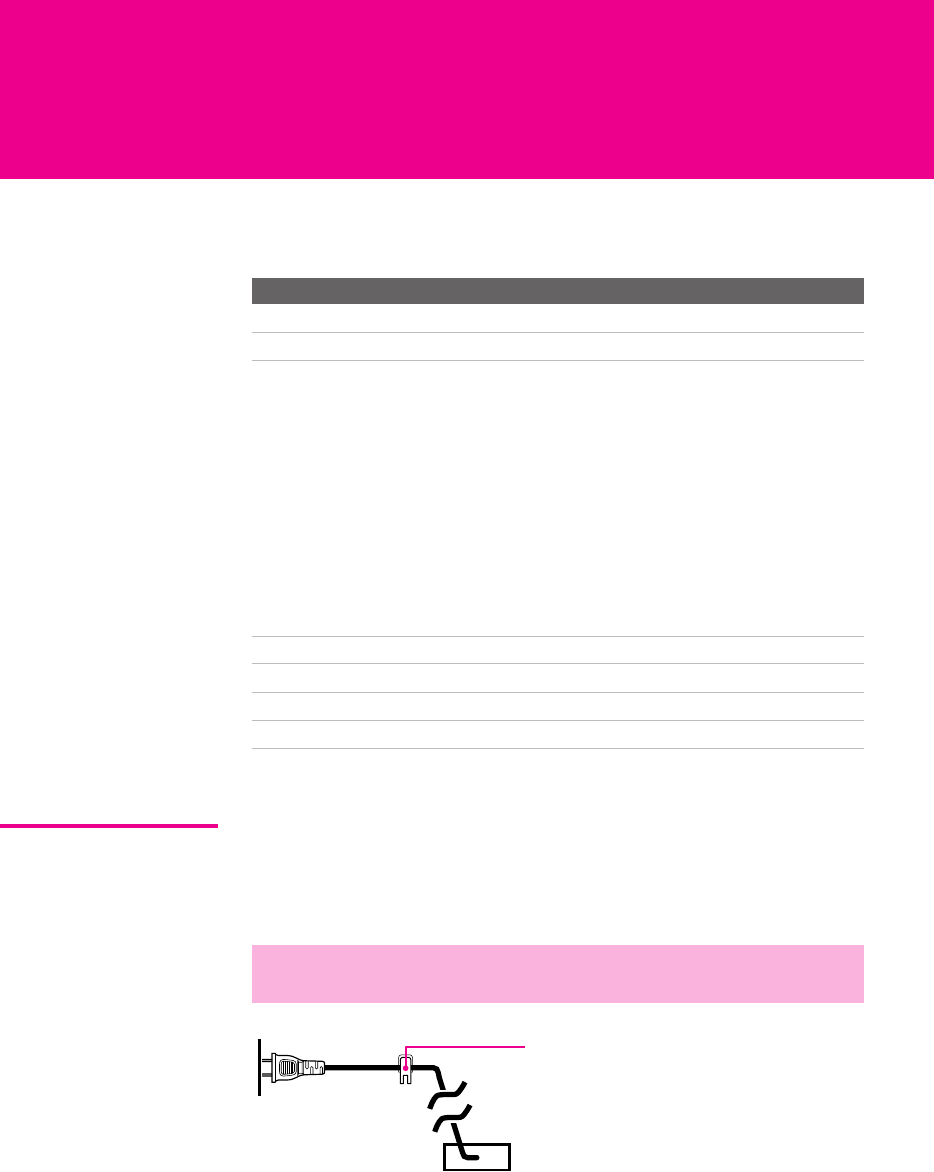
About the AC
Power Cord
The AC power cord is attached to the rear of the TV with a hook. Use
caution when removing the AC plug from its holder. Gently slide the
plug upward to remove it from the hook. Once removed, the AC
power plug should automatically disengage from its stored location.
Topic Page(s)
TV Controls and Connectors 12-14
Basic Connections: Connecting a Cable or Antenna 15-19
Connecting Optional Equipment
VCR and Cable
VCR and Cable Box
Two VCRs for Tape Editing
Satellite Receiver
Satellite Receiver and VCR
DVD Player with Component Video Connectors
DVD Player with S VIDEO and Audio Connectors
Camcorder
Audio Receiver
DVI-Equipped Device
HDMI-Equipped Device
22
24
26
28
30
32
34
35
36
37
38
Connecting a Device with an Optical IN Connector 39
Using the CONTROL S Feature 40
Using CableCARD 41
Setting Up the Channel List 43
✍Do not plug in the AC power cord until you have made all other
connections.
You can detach
the cord from
this hook
AC power cord
XS.book Page 11 Tuesday, June 8, 2004 1:40 PM
12
SETUP SETUP SETUPSETUP SetupSETUP
TV Controls and Connectors
Front Panel
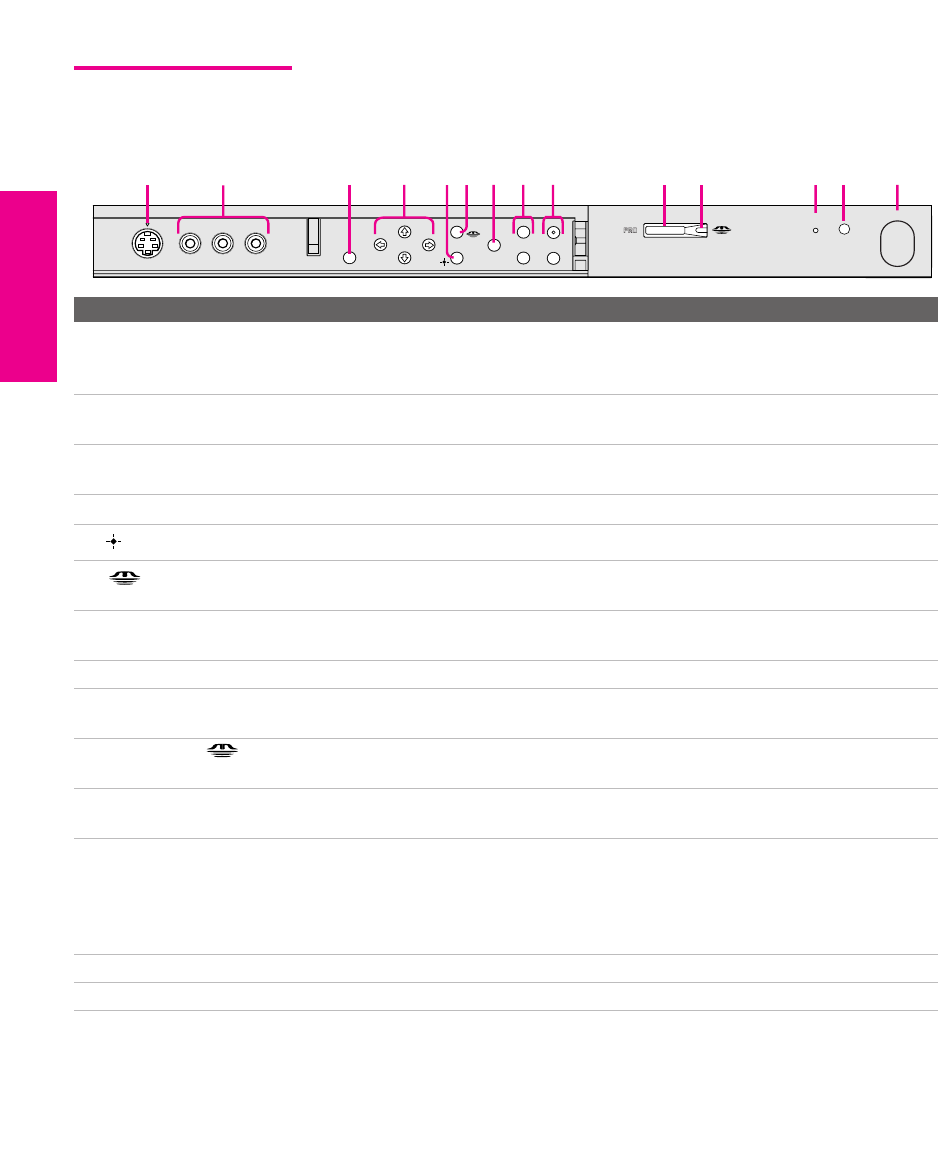
Item Description
1S VIDEO
VIDEO 2 INPUT
Connects to the S VIDEO OUT jack on your camcorder or other video
equipment that has S VIDEO. Provides better picture quality than composite
video (2).
2VIDEO/L(MONO)-AUDIO-R
VIDEO 2 INPUT
Connects to the composite A/V output jacks on your camcorder or other video
equipment.
3MENU Press to display the Menu. Press again to exit from the Menu. For details, see
“Using the Menus” on page 77.
4Vv B b Press Vv B b to move the TV’s on-screen cursor.
5Press to select an item in the TV’s Menu.
6Press to display the Memory Stick Menu. For details, see “Using the Memory
Stick Viewer” on page 61.
7TV/VIDEO Press repeatedly to cycle through the video equipment connected to the TV’s
video inputs.
8-VOLUME + Press to adjust the volume.
9-CHANNEL+ Press to scan through channels. To scan quickly through channels, press and
hold down either CHANNEL button.
0PRO STD/DUO Memory Stick insertion slot. For details, see “Inserting and Removing a Memory
Stick” on page 64.
qa Memory Stick LED When lit, indicates that the Memory Stick is being read. (Do not remove the
Memory Stick when the indicator is lit.)
qs TIMER/STAND BY LED Blinks when the TV is turned on, then shuts off when the picture is displayed. If
the LED blinks continuously, this may indicate the TV needs service (see
“Contacting Sony” on page 97). When lit, indicates one of the timers is set. When
the timer is set, this LED will remain lit even if the TV is turned off. For details,
see page 92.
qf Infrared Receiver (IR) Receives IR signals from the TV’s remote control.
qg POWER Press to turn on and off the TV.
S VIDEO
VOLUME
STAND BY
TIMER
POWER
VIDEO L(MONO) – AUDIO – R
VIDEO 2 INPUT
CHANNEL
TV/VIDEO
+
_
MENU
STD/DUO
3
127
49qs qf
qd
8
56qa
q;
XS.book Page 12 Tuesday, June 8, 2004 1:40 PM
13
SETUP Setup SETUPSETUP SETUPSETUP
Rear Panel
3
4
1
2
5
6
78
9
q;
qa
XS.book Page 13 Tuesday, June 8, 2004 1:40 PM

14
SETUP SETUP SETUPSETUP SetupSETUP
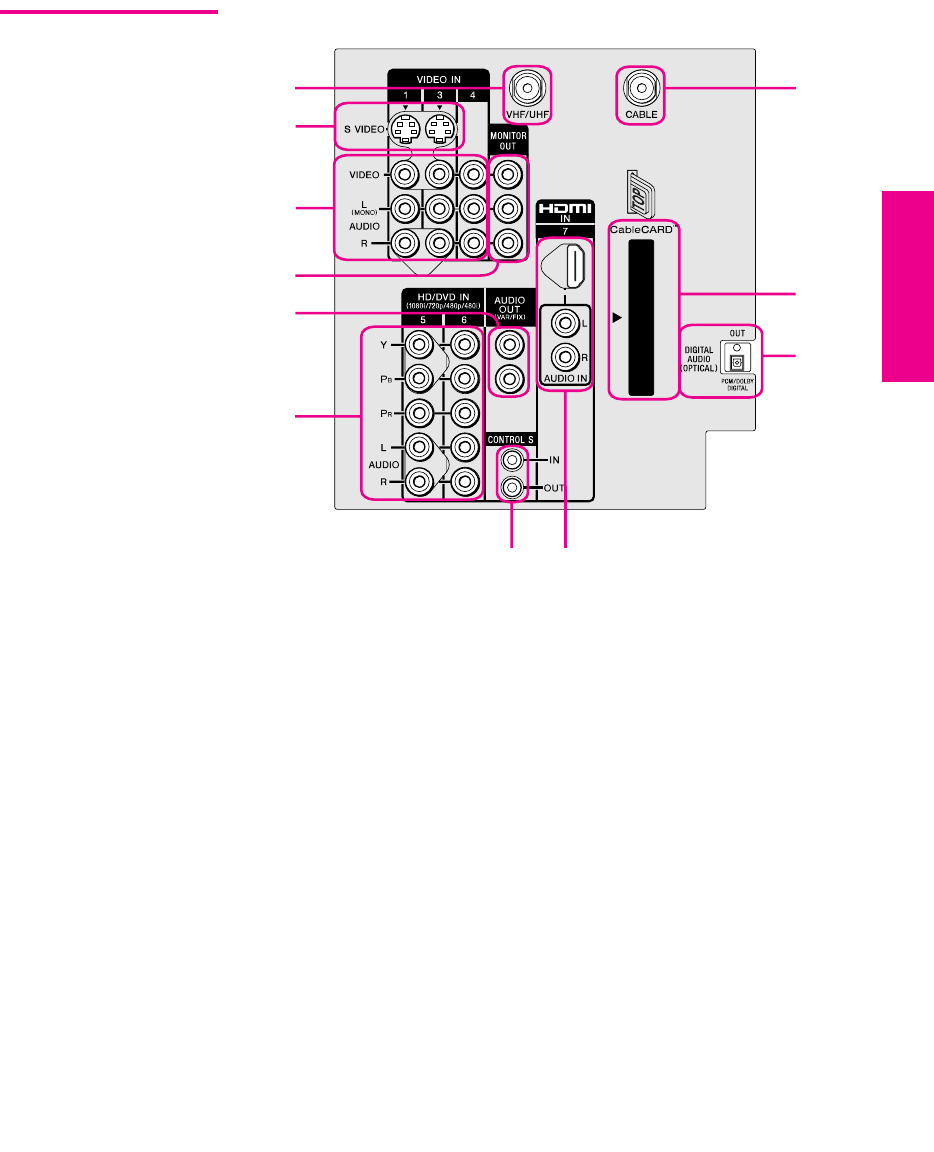
Jack Description
1VHF/UHF RF input that connects to your VHF/UHF antenna or cable box.
2S VIDEO IN 1/3 Connects to the S VIDEO OUT jack of your VCR or other video equipment that has
S VIDEO. S VIDEO provides better picture quality than either composite video (3)
or VHF/UHF (1) connections.
3VIDEO IN 1/3/4
VIDEO/L(MONO)
-AUDIO-R
Connect to the composite A/V output jacks on your VCR or other video
component. A fourth component A/V input jack (VIDEO 2) is located on the front
panel of the TV. This video connection provides better picture quality than the
VHF/UHF (1) connection.
4MONITOR OUT Lets you record the program you are watching to a VCR. When two VCRs are
connected, you can use the TV as a monitor for tape-to-tape editing (not available
with digital channels or with 480i, 480p, 720p, or 1080i when the input is set to
VIDEO 5, 6, or 7).
5AUDIO OUT (VAR/FIX) Connects to the left and right audio input jacks of your audio or video equipment.
You can use these outputs to listen to your TV’s audio through your stereo system.
6HD/DVD IN 5/6
(1080i/720p/480p/480i)
Connect to your DVD player’s or digital set-top box’s component video (Y, PB, PR)
and audio (L/R) jacks. Component video provides better picture quality than 1,
2, or 3).
7CONTROL S
IN/OUT
Allows the TV to receive (IN) and send (OUT) remote control signals to other Sony
infrared-controlled audio or video equipment that has the CONTROL S function.
8HDMI
(VIDEO 7 IN)
HDMI (High-Definition Multimedia Interface) provides an uncompressed, all-
digital audio/video interface between this TV and any HDMI-equipped
audio/video component, such as a set-top box, DVD player, and A/V receiver.
HDMI supports enhanced, or high-definition video, plus two-channel digital audio.
9DIGITAL AUDIO OPTICAL
OUTPUT
(DOLBY DIGITAL PCM)
Connect to the optical audio input of an audio component that is Dolby* Digital and
PCM compatible.
0CableCARD Slot Provides cable subscribers with access to digitally encrypted cable channels —
without the need for a set-top box — that will enable you to receive not only
standard definition but also high definition television. The CableCARD, which is
provided by your cable TV company, is inserted into this slot. After the service is
activated with your cable TV company, the card replaces the need for a separate set-
top box. Check with your cable TV company about CableCARD service details,
limitations, pricing, and availability. For more information, see page 41.
qa Cable RF input that connects to your cable signal.
* Dolby and the double-D symbol are trademarks of Dolby Laboratories Licensing Corporation.
XS.book Page 14 Tuesday, June 8, 2004 1:40 PM

15
SETUP Setup SETUPSETUP SETUPSETUP
Basic Connections: Connecting a Cable or Antenna
The way in which you will connect your TV varies, depending on
how your home receives a signal (cable, cable box, antenna) and
whether or not you plan to connect a VCR.
If you are connecting a VCR
❑See the connections described on pages 22 and 24.
If You Are Connecting See Page
Cable or Antenna Only
❏No cable box or VCR
16
Cable and Antenna Only
❏No cable box or VCR
17
Cable Box and Cable Only
❏Cable box unscrambles only some
channels (usually premium channels)
❏No VCR
18
Cable Box Only
❏Cable box unscrambles all channels
❏No VCR
19
About Using CableCARD
If you are planning to use a separate cable box for digital cable TV services, you may be able
to receive programming using this TV with the CableCARD instead — except in the following
circumstances:
❑Your cable TV company does not provide CableCARD service in your viewing area.
❑You want to access your cable company’s interactive or advanced features (such as video-
on-demand or, in some cases, pay-per-view). At this time, these services require a
bidirectional link, which are only available through the use of a separate set-top box.
CableCARD is currently a unidirectional device only, and cannot provide these advanced
services.
Check with your cable TV company for CableCARD service details, limitations, pricing, and
availability, all of which are determined by your cable TV company — not Sony. For
information on installing and activating CableCARD, see “Using CableCARD” on page 41.
XS.book Page 15 Tuesday, June 8, 2004 1:40 PM
16
SETUP SETUP SETUPSETUP SetupSETUP
Cable or Antenna
Only
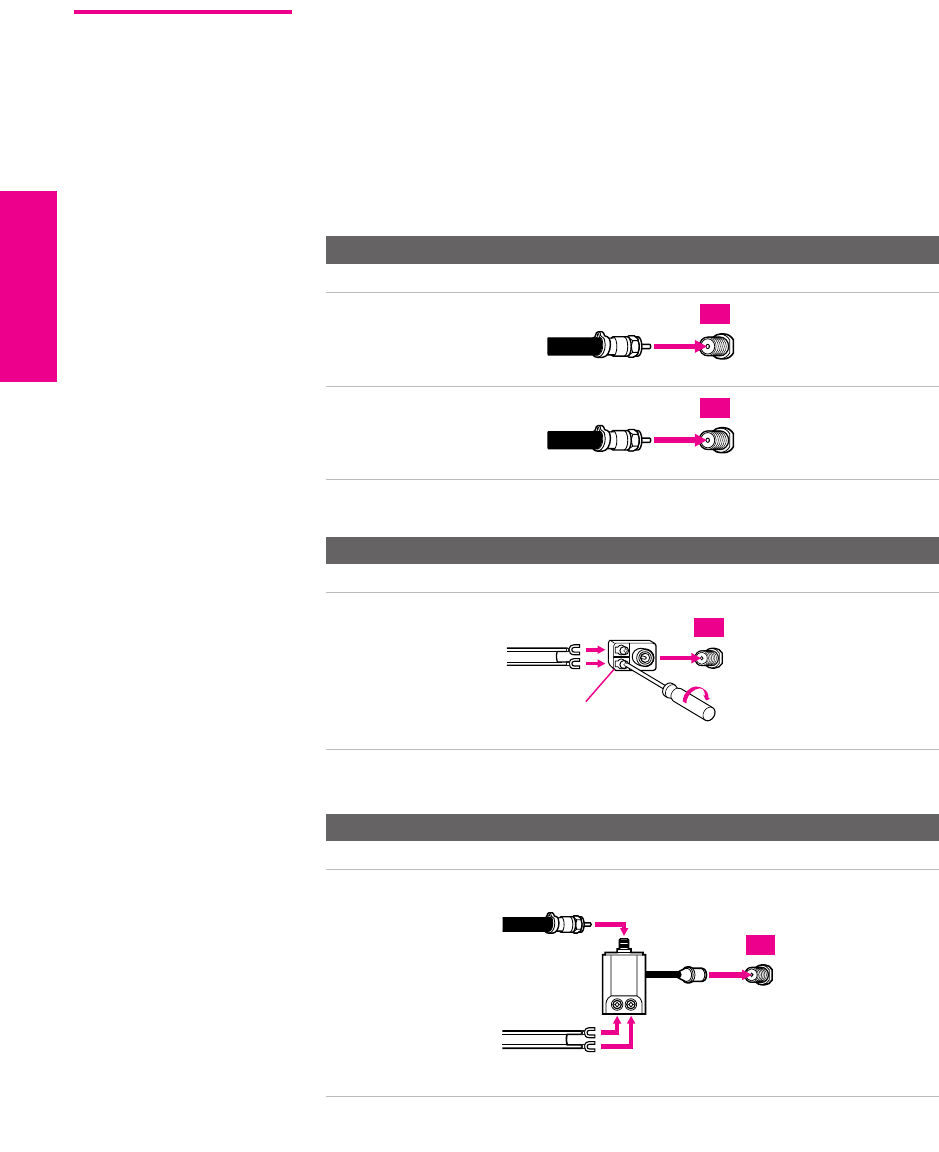
For best results, use one of the following connections if you are connecting a
cable or an antenna and you:
❑Do not need a cable box to unscramble channels. (If you have a
cable box, see pages 18-19.)
❑Do not intend to connect a VCR. (If you have a VCR, see pages 22
and 24.)
The connection you choose depends on the cable type you have in
your home, as described below.
75-ohm coaxial cable (usually found in newer homes)
Cable Type Connect As Shown
VHF Only or
combined
VHF/UHF
Cable
300-ohm twin lead cable (usually found in older homes)
Cable Type Connect As Shown
VHF Only or
UHF Only or
combined
VHF/UHF
75-ohm coaxial and 300-ohm twin lead cable (found in some homes)
Cable Type Connect As Shown
VHF and UHF
75-ohm
VHF/UHF
coaxial
cable
TV
75-ohm
CABLE
coaxial
cable
TV
300-ohm twin
lead cable
Antenna connector
VHF/UHF
(not supplied)
TV
75-o
h
m
VHF/UHF
coaxial cable
300-ohm twin
lead cable
U/V mixer
(not supplied)
TV
XS.book Page 16 Tuesday, June 8, 2004 1:40 PM
17
SETUP Setup SETUPSETUP SETUPSETUP
Cable and Antenna
Only
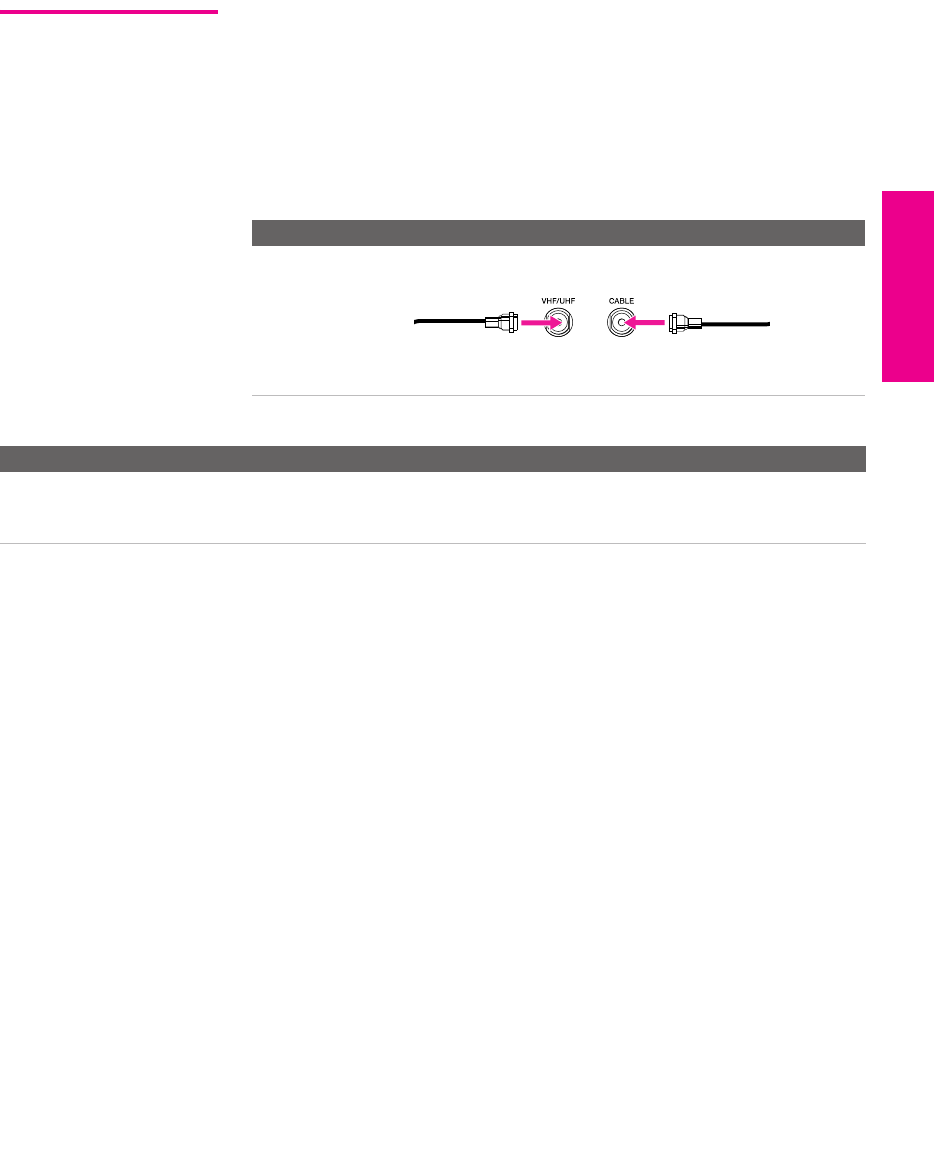
For best results, use this connection if you:
❑Have a cable and an antenna.
(This is convenient if you are using a separate rooftop antenna to
receive additional channels that are not provided by your cable
company.)
❑Do not have a cable box or VCR. (If you have a cable box, see
pages 18 to 19. If you have a VCR, see pages 22 and 24.)
Notes on Using This Connection
Cable Type Connect As Shown
Cable TV (CATV)
and Antenna Antenna cable CATV cable
To Do This ... Do This ...
Switch the TV’s input
between the cable and
antenna
Press ANT to switch back and forth between the TV’s VHF/UHF and CABLE
inputs.
XS.book Page 17 Tuesday, June 8, 2004 1:40 PM
18
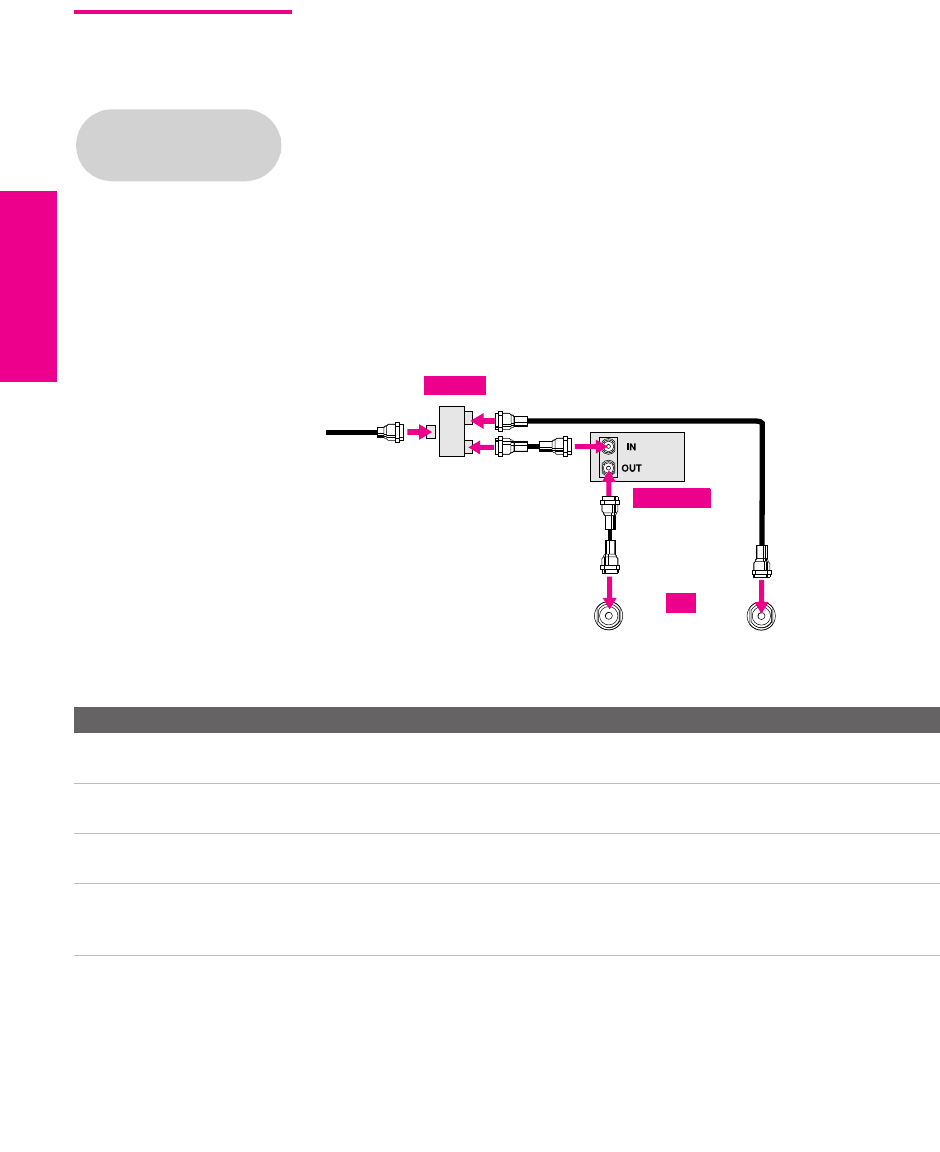
SETUP SETUP SETUPSETUP SetupSETUP
Cable Box and
Cable Only
For best results, use this connection if:
❑Your cable company scrambles some channels, such as premium
channels (which requires you to use a cable box), but does not
scramble all channels.
❑You do not have a VCR. (If you have a VCR, see pages 22 and 24.)
With this connection you can:
❑Use the TV remote control to change channels coming through
the cable box to the TV’s VHF/UHF input jack. (You must first
program the remote control for your specific cable box; see
“Programming the Remote Control” on page 49.)
❑Use the TV remote control to change channels coming directly
into the TV’s CABLE input. (The TV’s tuner provides a better
signal than the cable box.)
Notes on Using This Connection
Before connecting a cable
box, see “About Using
CableCARD” on page 15.
CABLE
VHF/UHF
Coaxial cable
CATV cable
Cable box
Coaxial cable
Coaxial cable
Splitter
TV
To Do This ... Do This ...
Use the cable box Tune the TV to the channel the cable box is set to (usually channel 3 or 4)
and then use the cable box to switch channels.
Set up the TV remote control
to operate the cable box
Program the remote control. See “Programming the Remote Control” on
pages 49-50.
Activate the remote control to
operate the cable box
Press SAT/CABLE FUNCTION.
Switch the TV’s input
between the cable box and
cable
Press ANT to switch back and forth between the TV’s VHF/UHF (scrambled
channels) and CABLE (unscrambled) inputs.
XS.book Page 18 Tuesday, June 8, 2004 1:40 PM
19
SETUP Setup SETUPSETUP SETUPSETUP
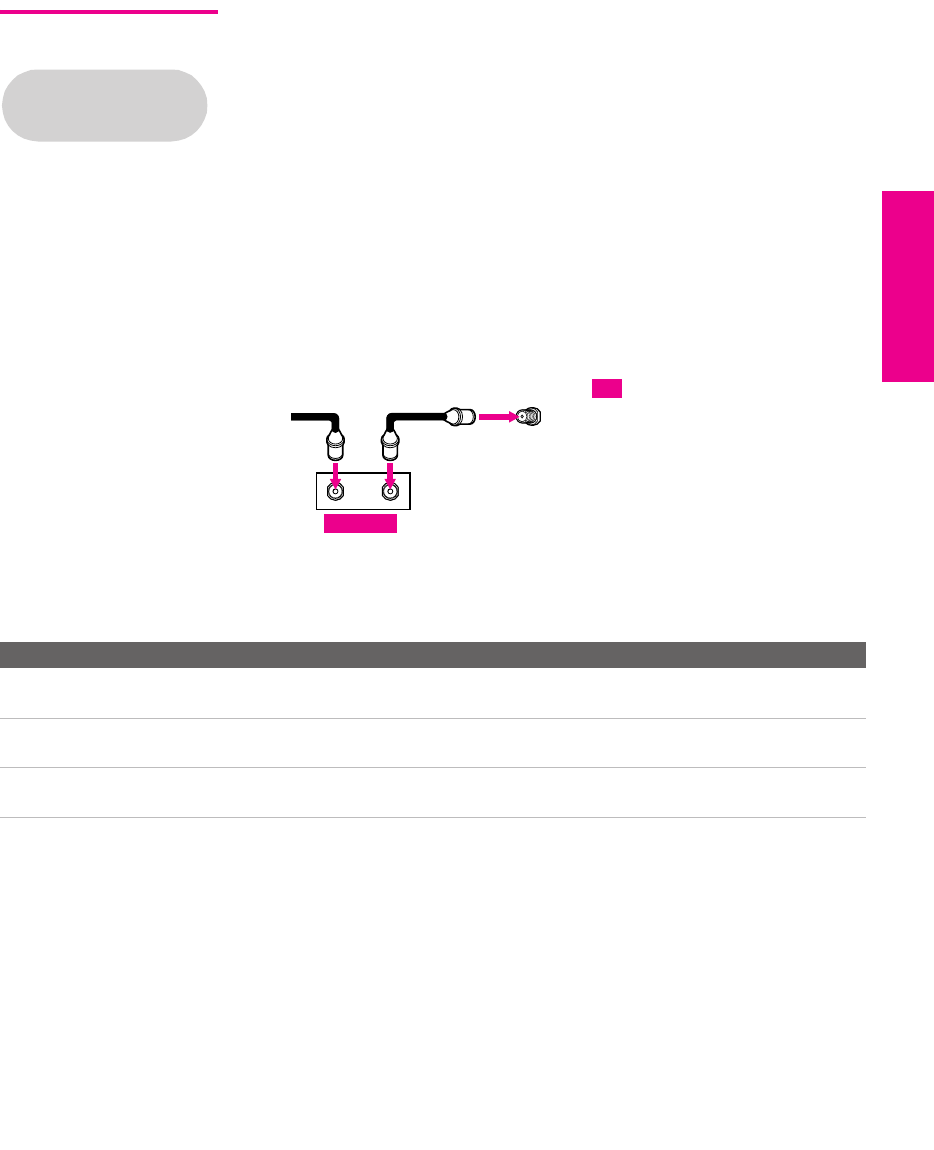
Cable Box Only For best results, use this connection if:
❑Your cable company scrambles all channels, which requires you
to use a cable box.
❑You do not have a VCR. (If you have a VCR, see pages 22 and 24.)
With this connection you can:
❑Use the TV remote control to change channels coming through
the cable box to the TV’s VHF/UHF jack. (You must first
program the remote control for your specific cable box.)
To connect the cable box
1Connect the CATV cable to the cable box’s input jack.
2Use a coaxial cable to connect the cable box’s output jack to the
TV’s VHF/UHF jack.
3Run Auto Program, as described in “Setting Up the Channel List”
on page 43.
Notes on Using This Connection
Before connecting a cable
box, see “About Using
CableCARD” on page 15.
12
OUT
IN
VHF/UHF
cable
CATV Coaxial cable TV
Cable box
To Do This ... Do This ...
Use the cable box Tune the TV to the channel the cable box is set to (usually channel 3 or 4)
and then use the cable box to switch channels.
Set up the TV remote control
to operate the cable box
Program the remote control. See “Programming the Remote Control” on
pages 49.
Activate the remote control to
operate the cable box
Press SAT/CABLE FUNCTION.
XS.book Page 19 Tuesday, June 8, 2004 1:40 PM

20
SETUP SETUP SETUPSETUP SetupSETUP
Connecting Optional Equipment
Use the directions in this section to connect the following optional
equipment:
If You Are Connecting See Page
VCR and Cable 22
VCR and Cable Box 24
Two VCRs for Tape Editing 26
Satellite Receiver 28
Satellite Receiver and VCR 30
DVD Player with Component Video
Connectors
32
DVD Player with S VIDEO and Audio
Connectors
34
Camcorder 35
Audio Receiver 36
DVI-Equipped Device 37
HDMI-Equipped Device 38
XS.book Page 20 Tuesday, June 8, 2004 1:40 PM
21
SETUP Setup SETUPSETUP SETUPSETUP
Making Video
Connections
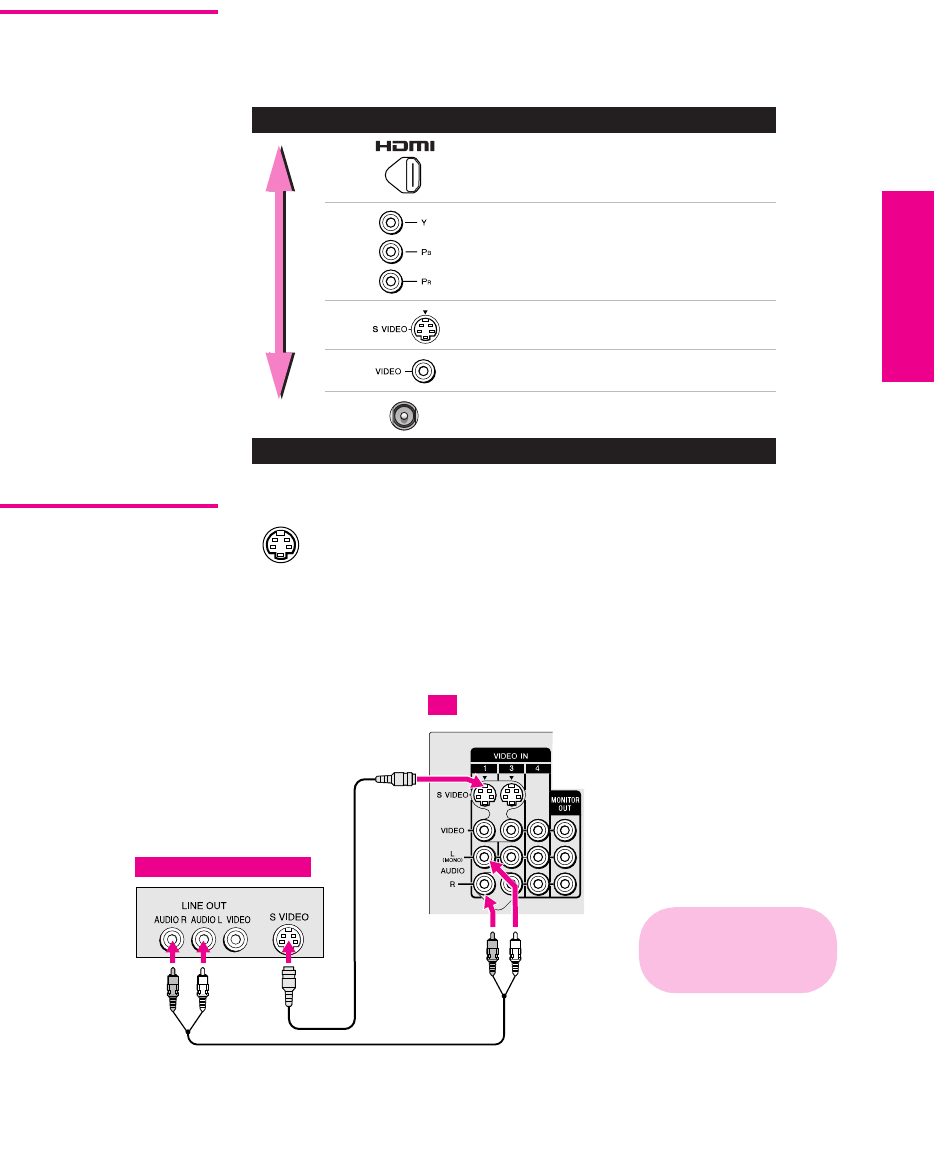
Your TV includes several types of video inputs. When connecting
your TV, use the inputs that are available on your components that
provide the best video performance, as described below.
About Using
SVIDEO
If the optional equipment you are connecting has an S VIDEO
jack (shown at left), you can use an S VIDEO cable for
improved picture quality (compared to an A/V cable).
Because S VIDEO carries only the video signal, you also need
to connect audio cables for sound, as shown below.
Example of an S VIDEO Connection
Best Video Performance
HDMI (High-Definition
Multimedia Interface)
Component video
S VIDEO
Composite video
RF/Coaxial
Good Video Performance
Audio cable
S VIDEO
cable
TV
Cables are often
color-coded to connectors.
Connect red to red,
white to white, etc.
Equipment with S VIDEO
XS.book Page 21 Tuesday, June 8, 2004 1:40 PM
22
SETUP SETUP SETUPSETUP SetupSETUP
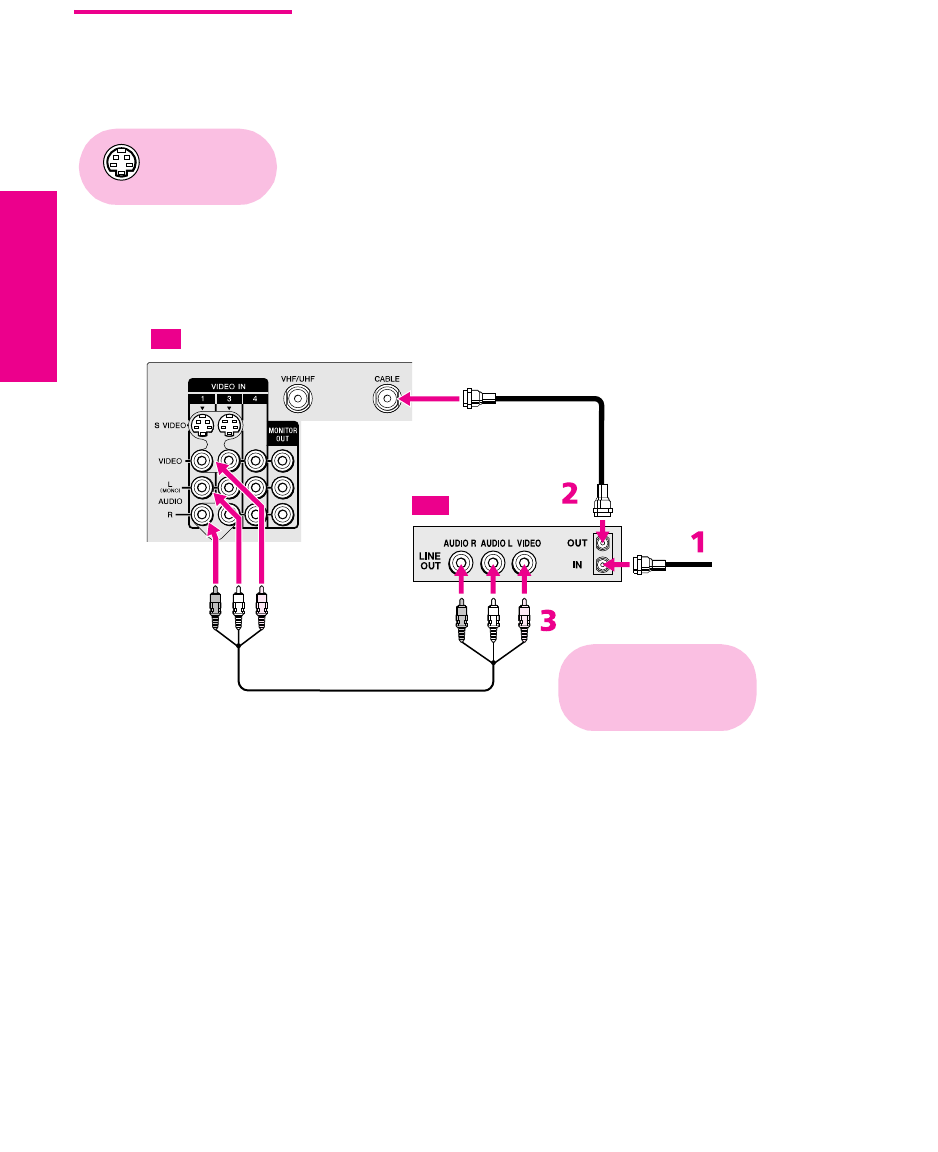
VCR and Cable For best results, use this connection if:
❑Your cable company does not require you to use a cable box.
To connect the VCR and cable
1Connect the CATV cable to the VCR’s VHF/UHF input jack.
2Use a coaxial cable to connect the VCR’s VHF/UHF output jack
to the TV’s CABLE jack.
3Use an A/V cable to connect the VCR’s A/V output jacks to the
TV’s A/V input jacks.
4Run Auto Program, as described in “Setting Up the Channel List”
on page 43.
Using
S VIDEO jacks?
See page 21.
CATV cable
Coaxial cable
A/V cable
TV
VCR
Cables are often
color-coded to connectors.
Connect red to red,
white to white, etc.
XS.book Page 22 Tuesday, June 8, 2004 1:40 PM

23
SETUP Setup SETUPSETUP SETUPSETUP
Notes on Using This Connection
To Do This ... Do This ...
Watch the VCR Press TV/VIDEO repeatedly to select the VCR input (VIDEO 1 in the
illustration).
Watch cable channels Press TV/VIDEO repeatedly to select the cable input (CABLE in the
illustration).
Set up the TV remote control
to operate the VCR
If you have a non-Sony VCR, you must program the remote control. See
“Programming the Remote Control” on pages 49-50.
Activate the TV remote
control to operate the VCR
Press VCR/DVD FUNCTION.
Control VCR functions with
the TV remote control
See “Operating a VCR” on page 59.
Label video inputs to easily
identify equipment connected
to the TV
See the instructions for setting up Video Labels on page 90.
XS.book Page 23 Tuesday, June 8, 2004 1:40 PM

24
SETUP SETUP SETUPSETUP SetupSETUP
VCR and Cable Box For best results, use this connection if:
❑Your cable company scrambles some channels, such as premium
channels (which requires you to use a cable box), but does not
scramble all channels.
With this connection you can:
❑Use the TV remote control to change channels coming through
the cable box. (You must first program the remote control for
your specific cable box; see “Programming the Remote Control”
on page 49.)
❑Use the TV remote control to change channels coming directly
into the TV’s CABLE jack. (The TV’s tuner provides a better
signal than the cable box.)
❑Record channels coming through the cable box and channels
coming directly into the TV.
To connect a VCR and cable box, you need:
❑A splitter, which is a small, inexpensive device that you can
purchase at your local electronics store.
❑Four coaxial cables.
❑Two A/V cables or two S VIDEO cable with audio cables.
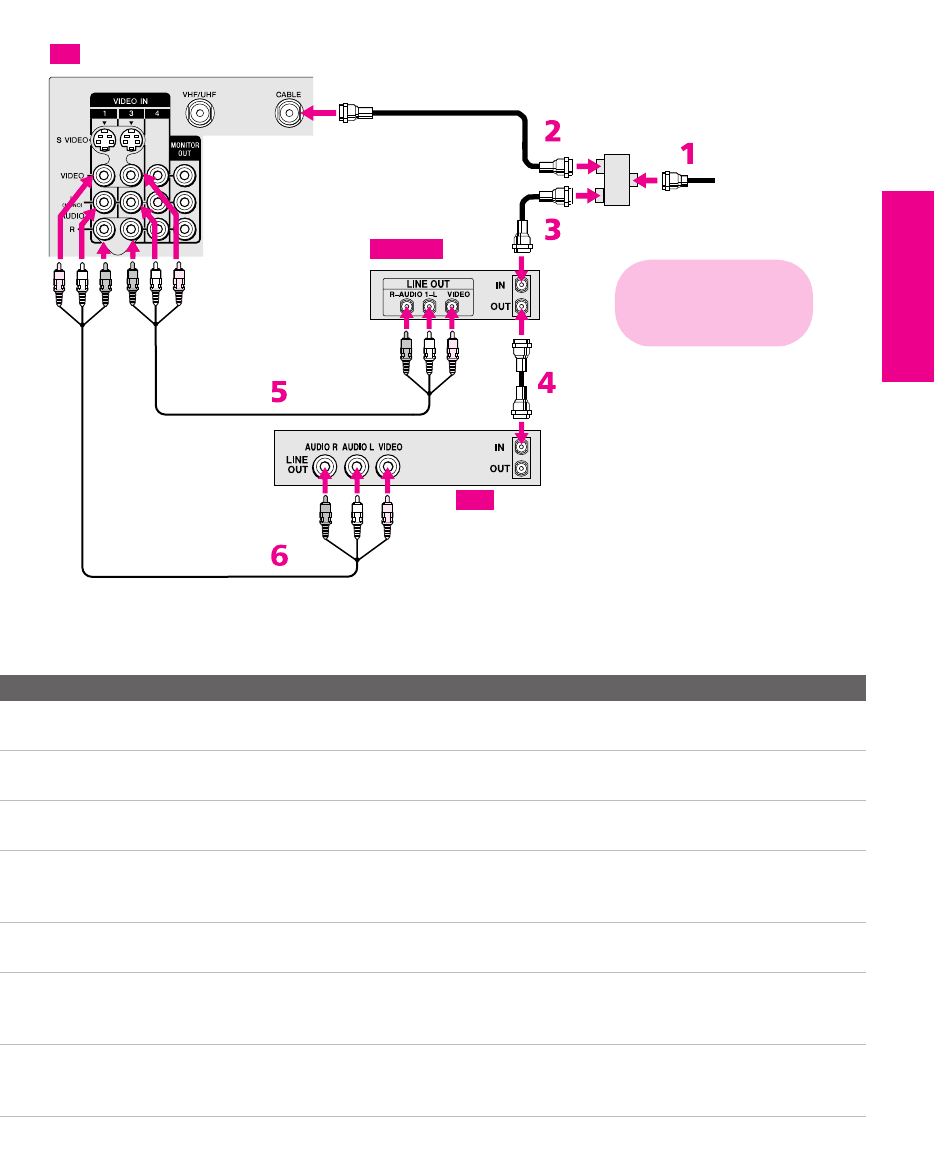
To connect the VCR and cable box
1Connect the CATV cable to the single (input) jack of the splitter.
2Use a coaxial cable to connect one of the splitter’s two output
jacks to the TV’s CABLE jack.
3Use a coaxial cable to connect the splitter’s other output jack to
the cable box’s input jack.
4Use a coaxial cable to connect the cable box’s output jack to the
VCR’s RF input jack.
5Use an A/V cable to connect the cable box’s A/V output jacks to
the TV’s A/V input jacks.
6Use an A/V cable to connect the VCR’s A/V output jacks to the
TV’s A/V input jacks.
7Run Auto Program, as described in “Setting Up the Channel List”
on page 43.
Before connecting a cable
box, see “About Using
CableCARD” on page 15.
Using
S VIDEO jacks?
See page 21.
XS.book Page 24 Tuesday, June 8, 2004 1:40 PM
25
SETUP Setup SETUPSETUP SETUPSETUP
Notes on Using This Connection
To Do This ... Do This ...
Watch cable (unscrambled)
channels
Press TV/VIDEO repeatedly to select the cable input (CABLE in the
illustration).
Watch cable box (scrambled)
channels
Press TV/VIDEO repeatedly to select the cable box input (VIDEO 3 in the
illustration). Use the cable box to change channels.
Watch the VCR Press TV/VIDEO repeatedly to select the VCR input (VIDEO 1 in the
illustration).
Set up the TV remote control
to operate the cable box or
VCR
If you have a non-Sony VCR, you must program the remote control. See
“Programming the Remote Control” on pages 49-50.
Activate the remote control to
operate the cable box or VCR
For the cable box, press SAT/CABLE FUNCTION. For the VCR, press VCR/DVD
FUNCTION.
Control specific cable box and
VCR functions with the TV
remote control
See “Operating a Cable Box” on page 60 and “Operating a VCR” on page 59.
Label video inputs to easily
identify equipment connected
to the TV
See the instructions for setting up Video Labels on page 85.
CATV
Coaxial
cable
A/V cable
cable
Splitter
(not supplied)
Coaxial
cable
TV
Cable box
VCR
Cables are often
color-coded to connectors.
Connect red to red,
white to white, etc.
A/V cable
Coaxial
cable
XS.book Page 25 Tuesday, June 8, 2004 1:40 PM
26
SETUP SETUP SETUPSETUP SetupSETUP
Two VCRs for Tape
Editing
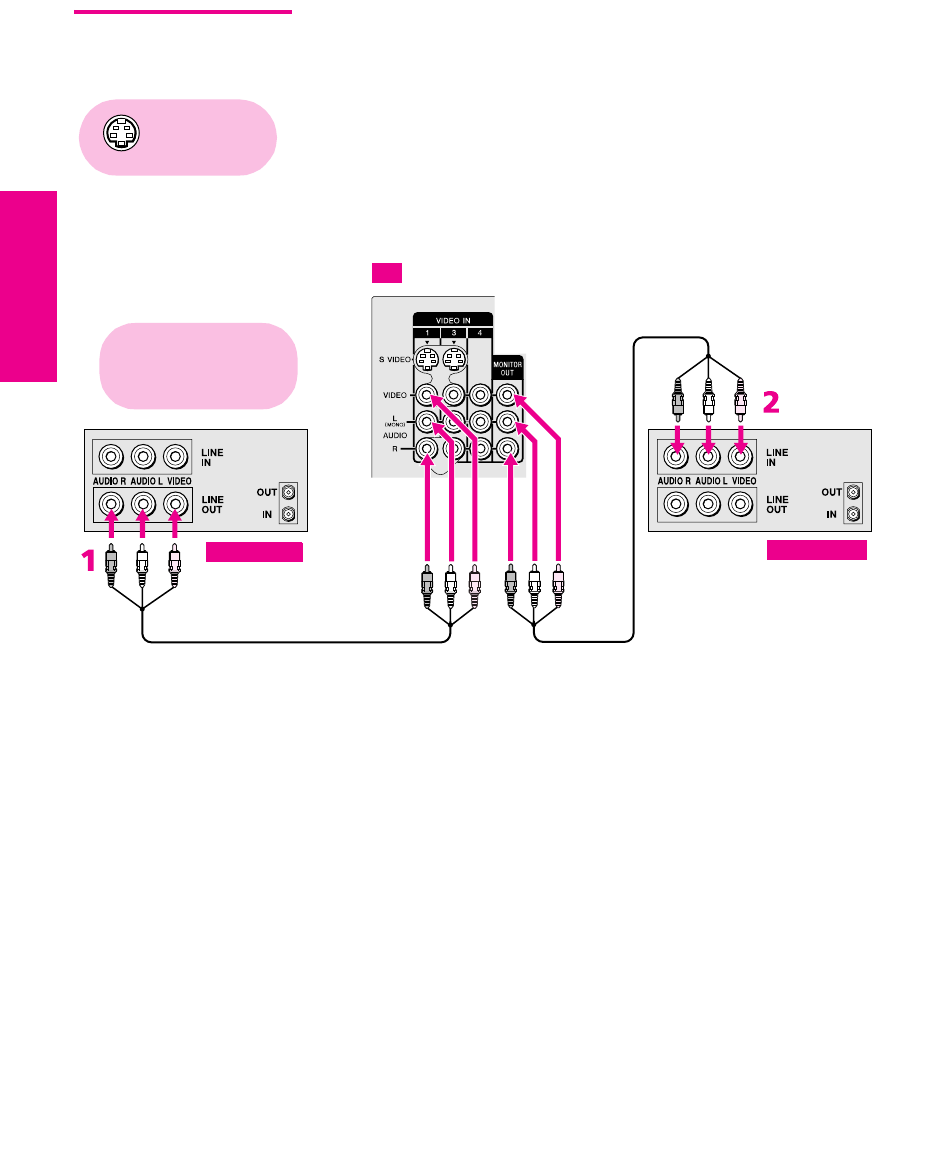
Connecting two VCRs lets you record from one VCR to the other. By
connecting them as shown below, you can view (monitor) what is
being recorded.
To connect two VCRs for tape editing
1Use an A/V cable to connect the playback VCR’s A/V output
jacks to the TV’s A/V input jacks.
2Use an A/V cable to connect the recording VCR’s A/V input
jacks to the TV’s MONITOR OUT jacks.
Using
S VIDEO jacks?
See page 21.
A/V cable A/V cable
TV
Playback VCR Recording VCR
Cables are often
color-coded to connectors.
Connect red to red,
white to white, etc.
XS.book Page 26 Tuesday, June 8, 2004 1:40 PM

27
SETUP Setup SETUPSETUP SETUPSETUP
Notes on Using This Connection
To Do This ... Do This ...
View (monitor) what is being
recorded
Press TV/VIDEO repeatedly to select the VCR input (VIDEO 1 in the
illustration above).
Set up the TV remote control
to operate the VCR(s)
If you have a non-Sony VCR, you must program the remote control. See
“Programming the Remote Control” on pages 49-50.
Activate the TV remote
control to operate the VCR(s)
Press VCR/DVD FUNCTION.
Control VCR functions with
the TV remote control
See “Operating a VCR” on page 59.
Label video inputs to easily
identify equipment connected
to the TV
See the instructions for setting up Video Labels on page 90.
XS.book Page 27 Tuesday, June 8, 2004 1:40 PM
28
SETUP SETUP SETUPSETUP SetupSETUP
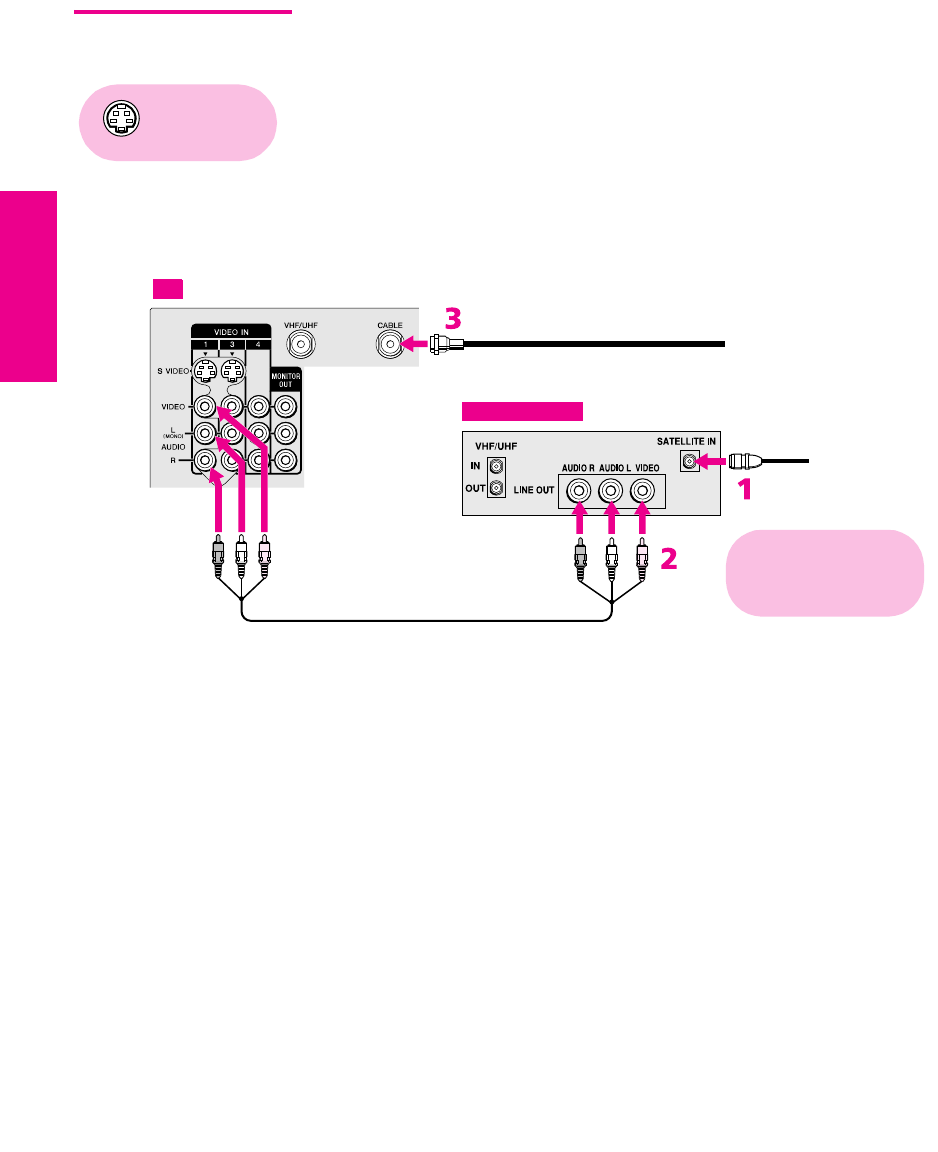
Satellite Receiver To connect a satellite receiver
1Connect the satellite antenna cable to the satellite receiver’s
satellite input jack.
2Use an A/V cable to connect the satellite receiver’s A/V output
jacks to the TV’s A/V input jacks.
3Connect a CATV cable from your cable or antenna to the TV’s
CABLE jack.
4Run Auto Program, as described in “Setting Up the Channel List”
on page 43.
Using
S VIDEO jacks?
See page 21.
Satellite antenna
cable
A/V cable
CATV cable
TV
Satellite receiver
Cables are often
color-coded to connectors.
Connect red to red,
white to white, etc.
XS.book Page 28 Tuesday, June 8, 2004 1:40 PM

29
SETUP Setup SETUPSETUP SETUPSETUP
Notes on Using This Connection
To Do This ... Do This ...
Watch the satellite receiver Press TV/VIDEO repeatedly to select the satellite receiver input
(VIDEO 1 in the illustration).
Set up the TV remote control to operate the
satellite receiver
If you have a non-Sony satellite receiver, you must program
the remote control. See “Programming the Remote Control”
on pages 49-50.
Activate the TV remote control to operate
the satellite receiver
Press SAT/CABLE FUNCTION.
Control satellite receiver functions with the
TV remote control
See “Operating a Satellite Receiver” on page 59.
Label video inputs to easily identify
equipment connected to the TV
See the instructions for setting up Video Labels on page 90.
XS.book Page 29 Tuesday, June 8, 2004 1:40 PM
30
SETUP SETUP SETUPSETUP SetupSETUP
Satellite Receiver
and VCR
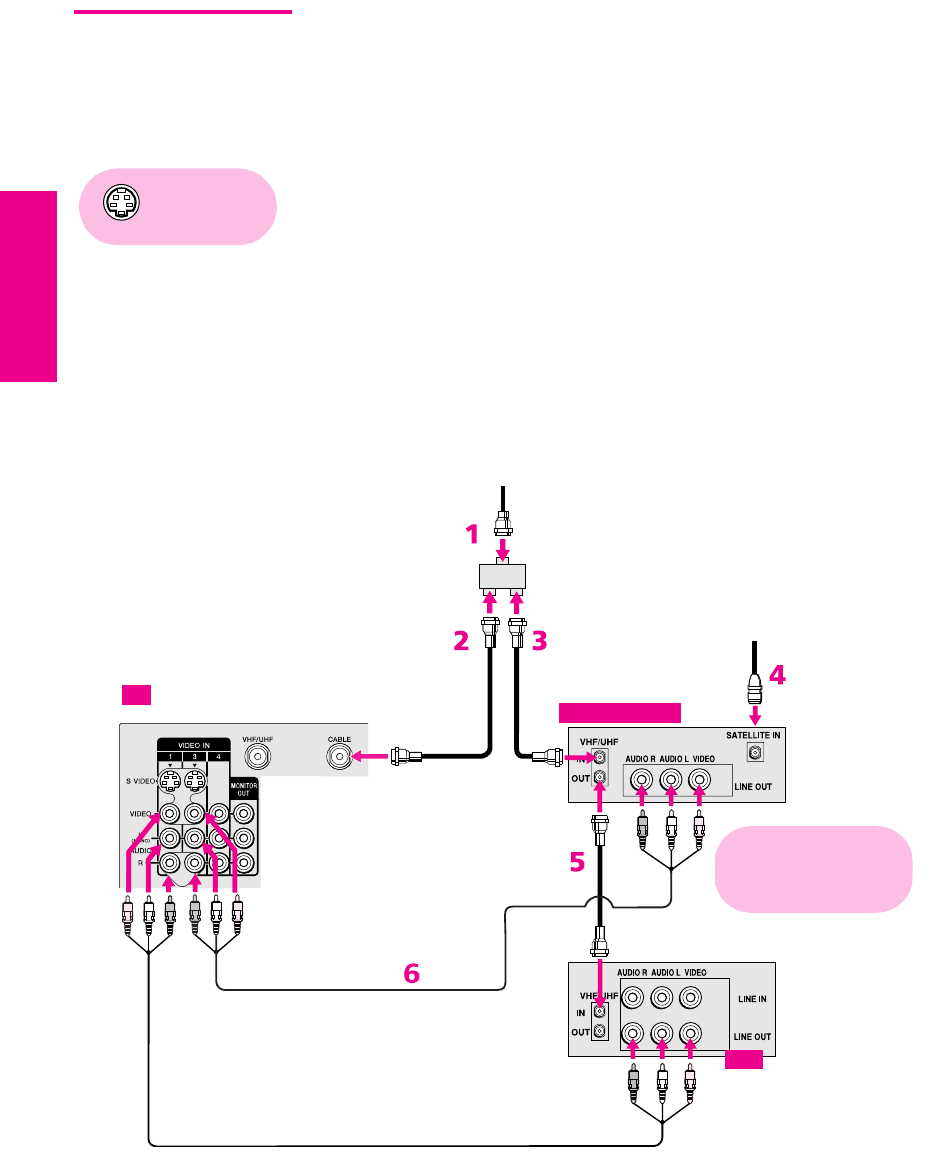
To connect a satellite receiver and VCR
1Connect the CATV cable to the single (input) jack of the splitter.
2Use a coaxial cable to connect one of the splitter’s two output
jacks to the TV’s CABLE jack.
3Use a coaxial cable to connect the splitter’s other output jack to
the satellite receiver’s VHF/UHF input jack.
4Connect the satellite antenna cable to the satellite receiver’s
satellite input jack.
5Use a coaxial cable to connect the satellite receiver’s VHF/UHF
output jack to the VCR’s VHF/UHF input jack.
6Use an A/V cable to connect the satellite receiver’s A/V output
jacks to the TV’s A/V input jacks.
7Use an A/V cable to connect the VCR’s A/V output jacks to the
TV’s A/V input jacks.
8Run Auto Program, as described in “Setting Up the Channel List”
on page 43.
Using
S VIDEO jacks?
See page 21.
7
A/V cable
Coaxial
cable
cable
Satellite antenna
cable
CATV
TV
VCR
Satellite receiver
Cables are often
color-coded to connectors.
Connect red to red,
white to white, etc.
Coaxial
cable
Coaxial
cable
A/V cable
Splitter
(not supplied)
XS.book Page 30 Tuesday, June 8, 2004 1:40 PM

31
SETUP Setup SETUPSETUP SETUPSETUP
Notes on Using This Connection
To Do This ... Do This ...
Watch the satellite receiver Press TV/VIDEO repeatedly to select the VCR input (VIDEO 3 in the
illustration).
Watch the VCR Press TV/VIDEO repeatedly to select the input to which the VCR is connected
(VIDEO 1 in the illustration).
Set up the TV remote control
to operate the satellite
receiver or VCR
If you have a non-Sony VCR or satellite receiver, you must program the
remote control. See “Programming the Remote Control” on pages 49-50.
Activate the TV remote
control to operate the satellite
receiver or VCR
For the satellite receiver, press SAT/CABLE FUNCTION. For the VCR, press
VCR/DVD FUNCTION.
Control satellite receiver and
VCR functions with the TV
remote control
See “Operating a Satellite Receiver” on page 59 and “Operating a VCR” on
page 59.
Label video inputs to easily
identify equipment connected
to the TV
See the instructions for setting up Video Labels on page 90.
XS.book Page 31 Tuesday, June 8, 2004 1:40 PM
32
SETUP SETUP SETUPSETUP SetupSETUP
DVD Player with
Component
Video Connectors
For best results, use this connection if your DVD player has
component video (Y, PB, PR) jacks.
To connect a DVD player with component video connectors
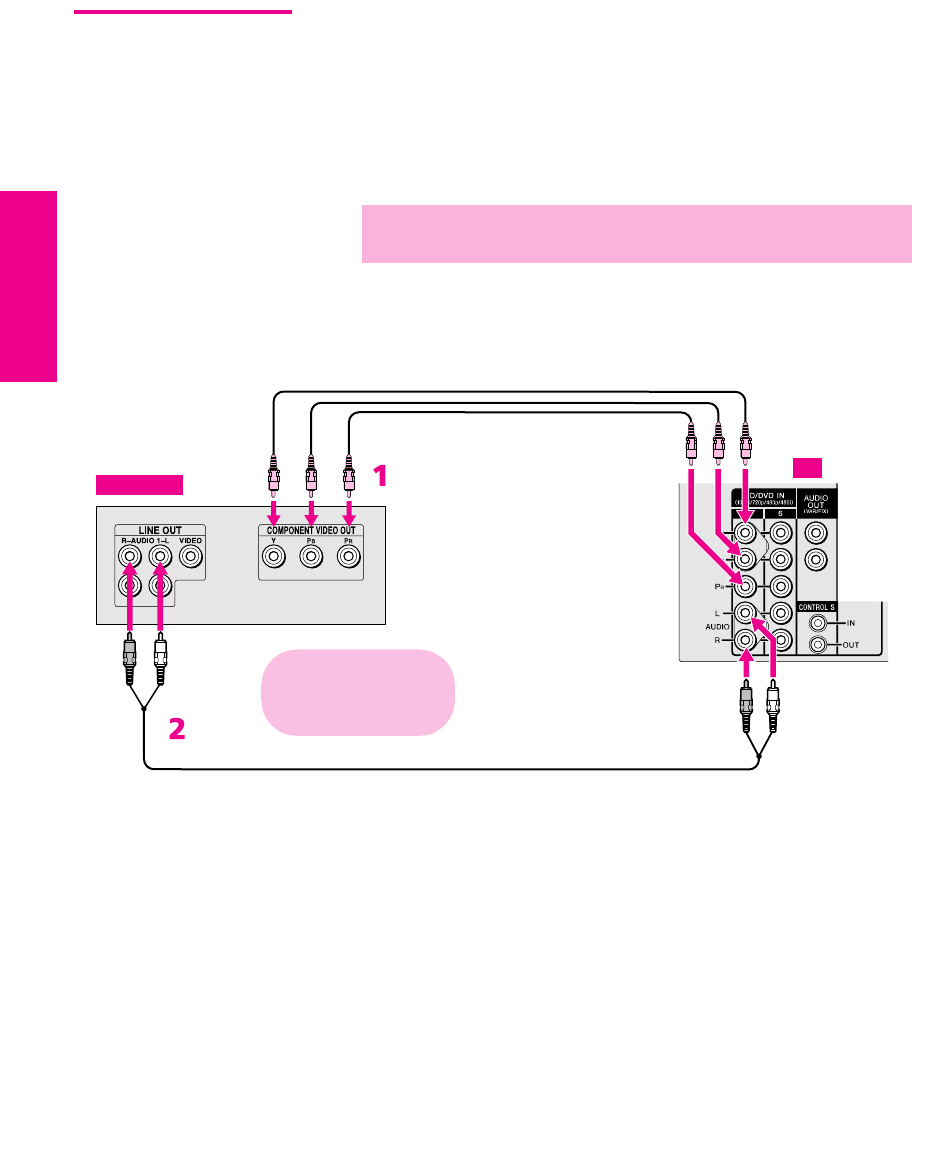
1Use three separate component video cables to connect the DVD
player’s Y, PB and PR jacks to the Y, PB and PR jacks (VIDEO 5) on
the TV.
2
Use an audio cable to connect the DVD player’s audio output
jacks to the TV’s VIDEO 5 audio input jacks.
✍The Y, PB and PR jacks on your DVD player are sometimes labeled Y,
CB and CR, or Y, B-Y and R-Y. If so, connect the cables to like colors.
Component video cables
Audio cable
TV
DVD player
Cables are often
color-coded to connectors.
Connect red to red,
white to white, etc.
XS.book Page 32 Tuesday, June 8, 2004 1:40 PM

33
SETUP Setup SETUPSETUP SETUPSETUP
Notes on Using This Connection
To Do This ... Do This ...
Watch the DVD player Press TV/VIDEO repeatedly to select the DVD input (VIDEO 5 in the
illustration).
Set up the TV remote control
to operate the DVD player
If you have a non-Sony DVD player, you must program the remote control.
See “Programming the Remote Control” on pages 49-50.
Activate the TV remote
control to operate the DVD
player
Press VCR/DVD FUNCTION.
Control DVD functions with
the TV remote control
See “Operating a DVD Player” on page 60.
Label video inputs to easily
identify equipment connected
to the TV
See the instructions for setting up Video Labels on page 90.
✍You cannot record the signal from any equipment connected into the Y, PB,
PR jacks.
XS.book Page 33 Tuesday, June 8, 2004 1:40 PM
34
SETUP SETUP SETUPSETUP SetupSETUP
DVD Player with
S VIDEO and Audio
Connectors
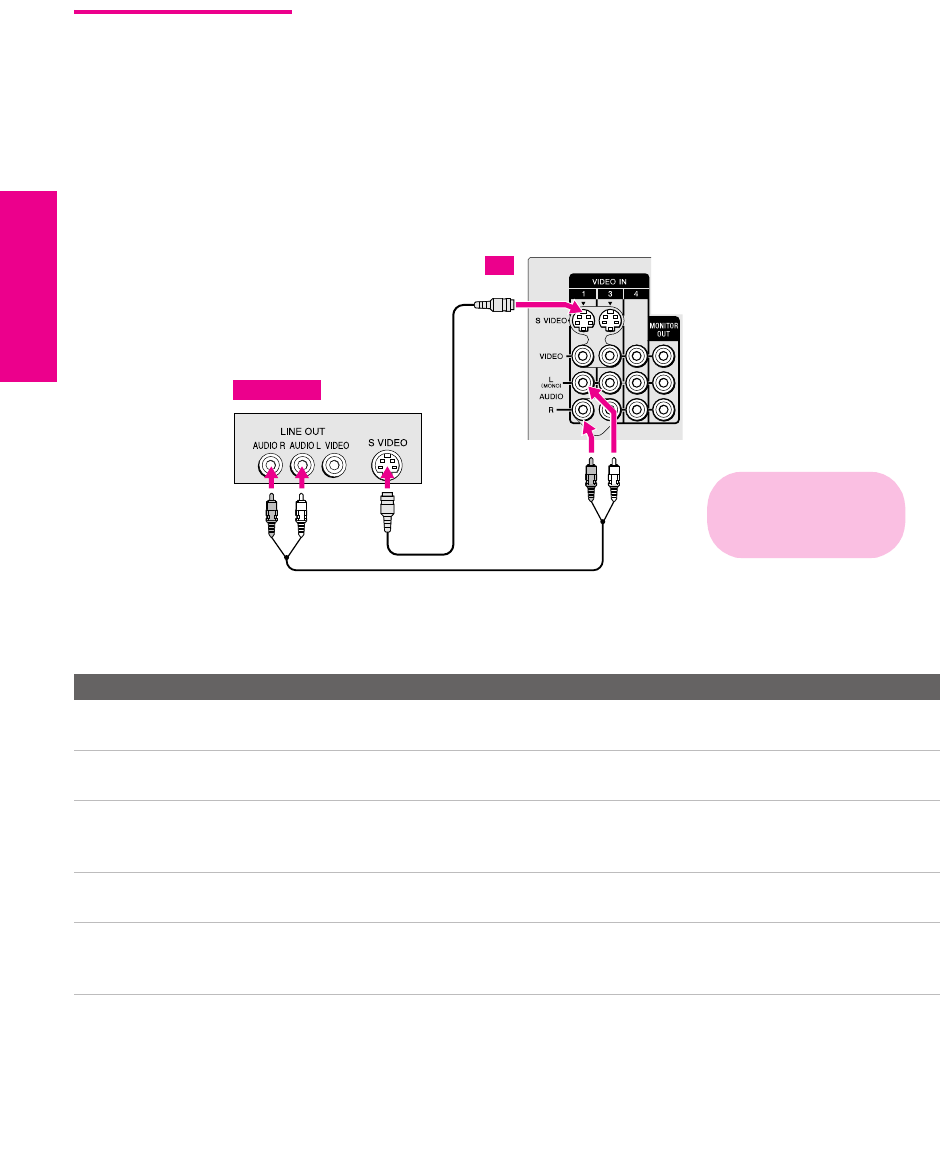
Use this connection if your DVD player does not have component
video (Y, PB, PR) jacks.
To connect a DVD player with A/V connectors
1Use an audio cable to connect the DVD player’s audio output
jacks to the TV’s audio input jacks.
2Use an S VIDEO cable to connect the DVD player’s S VIDEO
jack to the TV’s S VIDEO jack.
Notes on Using This Connection
To Do This ... Do This ...
Watch the DVD player Press TV/VIDEO repeatedly to select the DVD input (VIDEO 1 in the
illustration).
Set up the TV remote control
to operate the DVD player
If you have a non-Sony DVD player, you must program the remote control.
See “Programming the Remote Control” on pages 49-50.
Activate the TV remote
control to operate the DVD
player
Press VCR/DVD FUNCTION.
Control DVD functions with
the TV remote control
See “Operating a DVD Player” on page 60.
Label video inputs to easily
identify equipment connected
to the TV
See the instructions for setting up Video Labels on page 90.
Audio cable
S VIDEO
cable
TV
DVD player
Cables are often
color-coded to connectors.
Connect red to red,
white to white, etc.
XS.book Page 34 Tuesday, June 8, 2004 1:40 PM
35
SETUP Setup SETUPSETUP SETUPSETUP
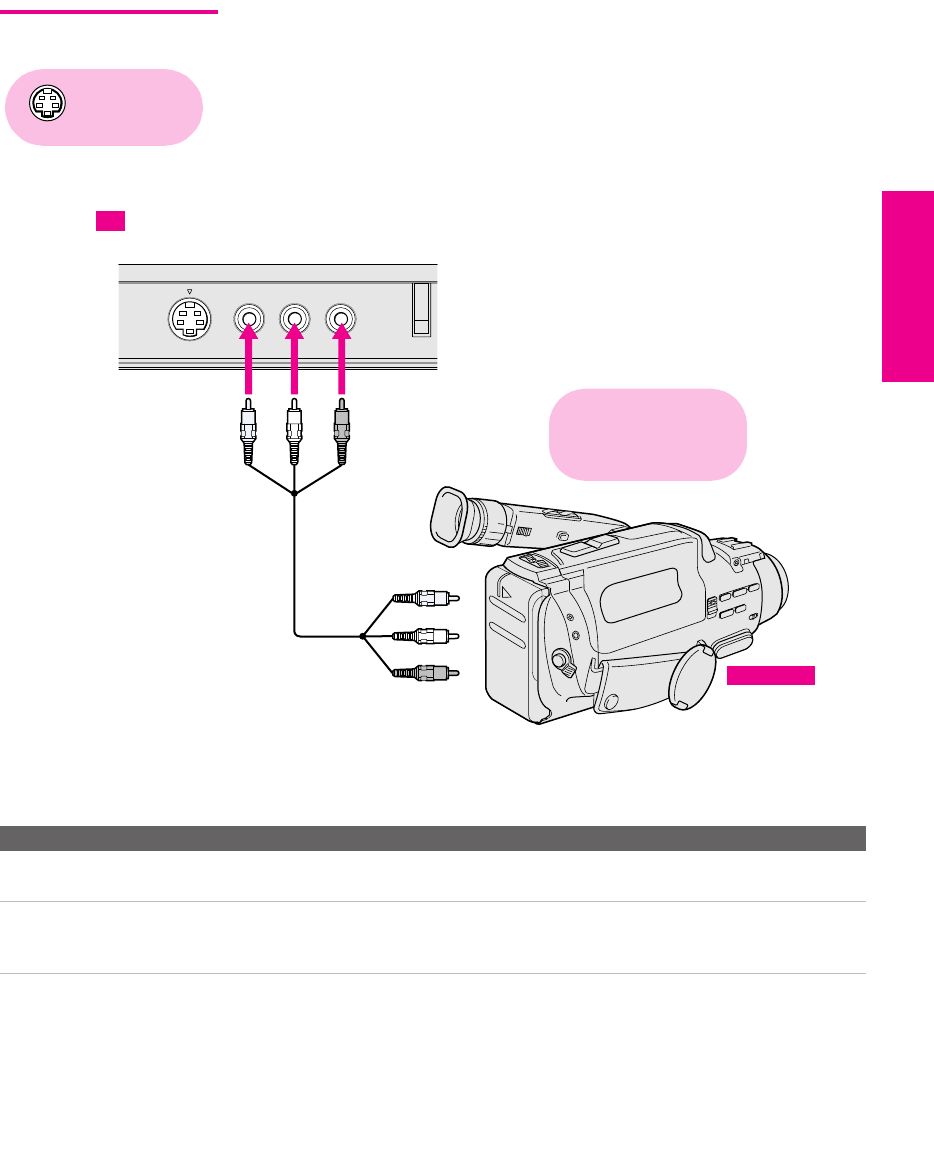
Camcorder For easy connection of a camcorder, the TV has front A/V input jacks.
If you prefer, however, you can connect the camcorder to the TV’s
rear A/V input jacks.
To connect a camcorder
1Use A/V cables to connect the camcorder’s A/V output jacks to
the TV’s A/V input jacks.
If you have a mono camcorder, connect its audio output jack to the
TV’s L MONO audio jack.
Notes on Using This Connection
Using
S VIDEO jacks?
See page 21.
S VIDEO VIDEO L(MONO) – AUDIO – R
VIDEO 2 INPUT
To A/V output
TV
Camcorder
A/V cable
Cables are often
color-coded to connectors.
Connect red to red,
white to white, etc.
To Do This ... Do This ...
Watch the camcorder Press TV/VIDEO repeatedly to select the camcorder input (VIDEO 2 in the
illustration).
Label video inputs to easily
identify equipment connected
to the TV
See the instructions for setting up Video Labels on page 90.
XS.book Page 35 Tuesday, June 8, 2004 1:40 PM
36
SETUP SETUP SETUPSETUP SetupSETUP
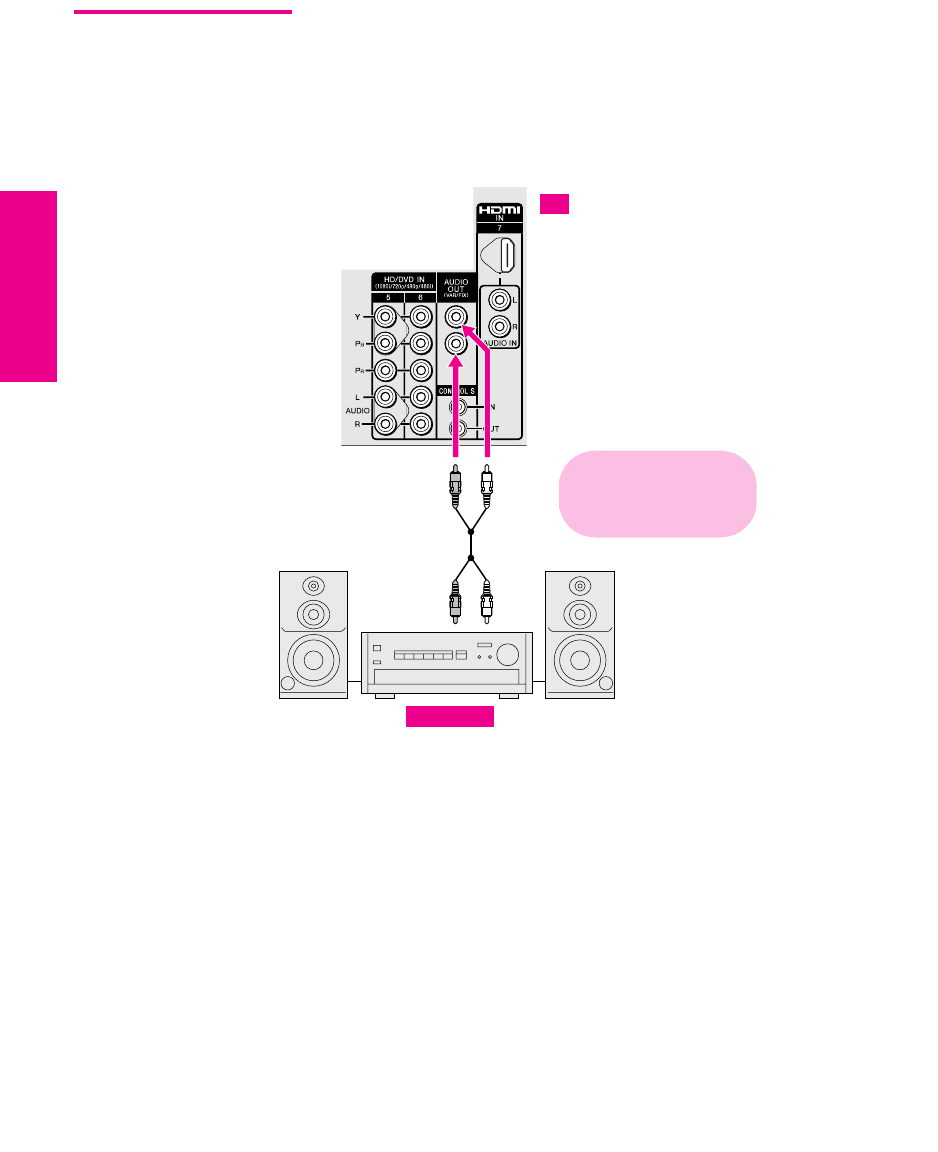
Audio Receiver For improved sound quality, you may want to play the TV’s audio
through your stereo system.
To connect an audio system
1Use an audio cable to connect the TV’s audio output jacks to the
audio receiver’s line input jacks.
2Using the TV’s Audio Menu, set the Speaker option to Off. Then set
the Audio Out option to Fixed or Variable, depending on how you want
to control the volume. For details, see “Using the Audio Menu”
on page 80.
3Turn on the audio receiver, and then set the receiver’s line input
to the jack into which you connected the TV.
To line input
Audio cable
TV
Receiver
Cables are often
color-coded to connectors.
Connect red to red,
white to white.
XS.book Page 36 Tuesday, June 8, 2004 1:40 PM
37
SETUP Setup SETUPSETUP SETUPSETUP
DVI-Equipped
Device
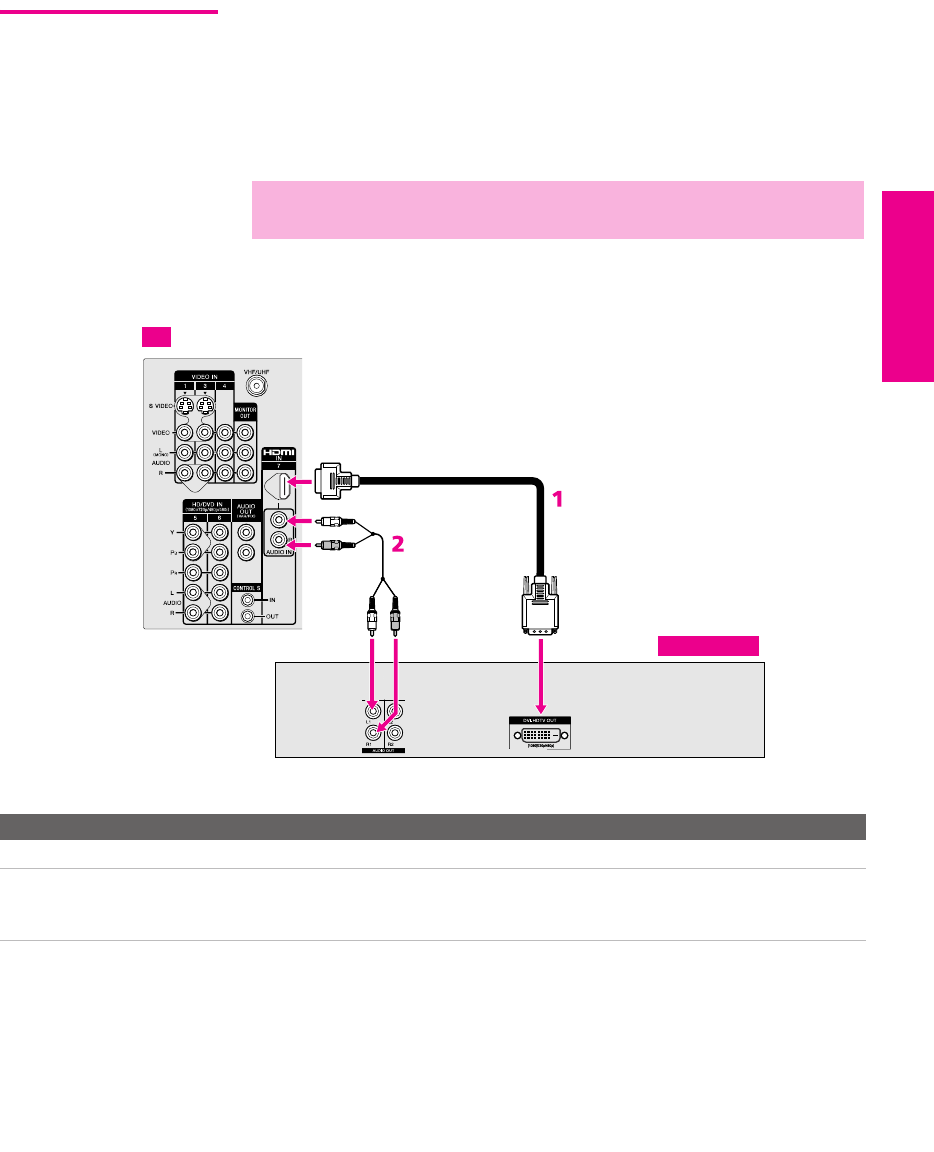
If you have a device, such as an HDTV receiver, that has DVI (Digital
Video Interface) output, use the following connection.
To connect a device that has DVI OUT:
1Use an HDMI-to-DVI cable to connect the device’s DVI OUT jack
to the TV’s HDMI IN jack.
2Use an audio cable to connect the device’s audio output jacks to
the TV’s HDMI analog audio input jacks.
Note on Using This Connection
✍You can purchase HDMI cables (or cable adapters) at your local electronics
store.
To Do This ... Do This ...
Watch the DVI device Press TV/VIDEO repeatedly to select the VIDEO 7 input.
Label video inputs to easily
identify equipment connected
to the TV
See the instructions for setting up Video Labels on page 90.
TV
HDTV Receiver
HDMI-to-DVI cable
Audio cable
XS.book Page 37 Tuesday, June 8, 2004 1:40 PM
38
SETUP SETUP SETUPSETUP SetupSETUP
HDMI-Equipped
Device
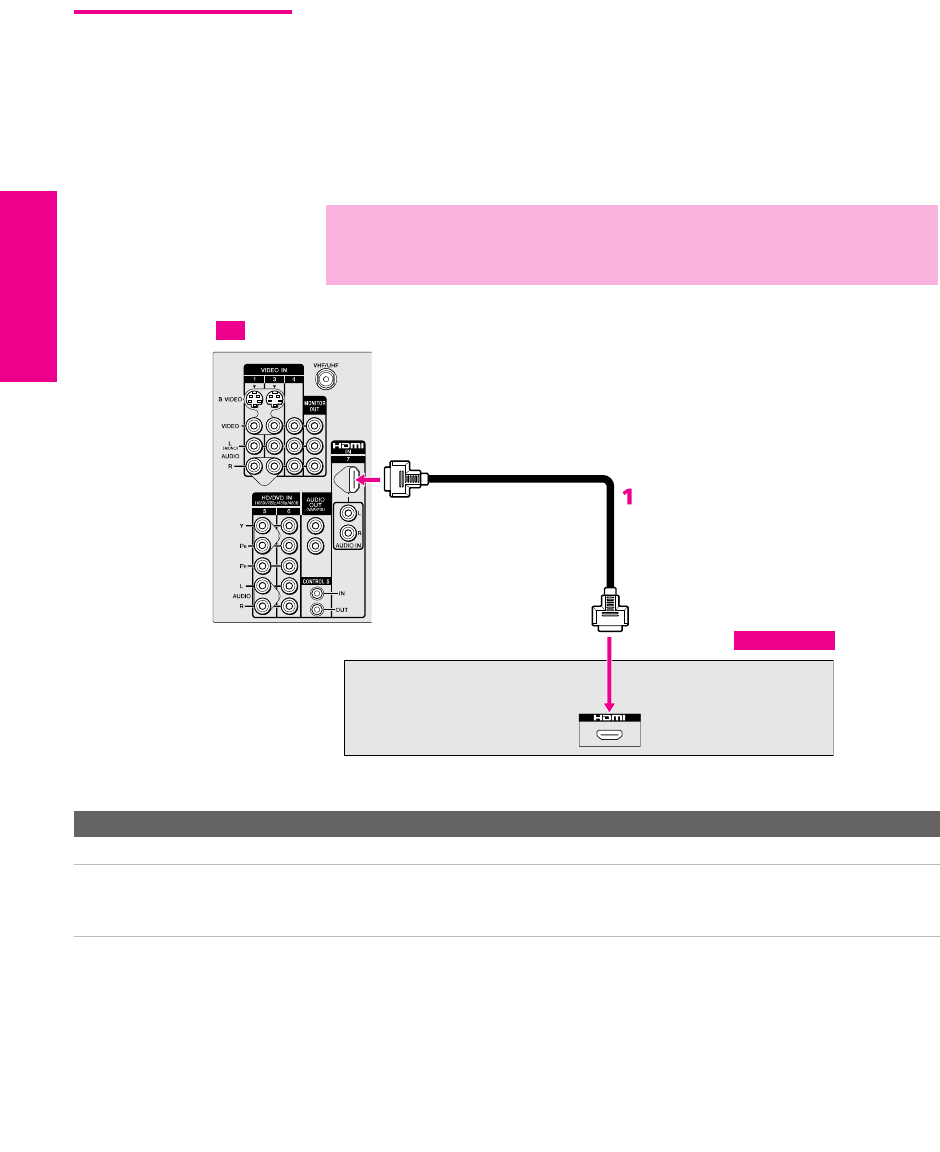
If you have a device, such as an HDTV receiver, that has a High-
Definition Multimedia Interface (HDMI), use the following
connection.
To connect a device that has HDMI OUT:
1Use the HDMI cable that came with your device to connect the
device’s HDMI OUT jack to the TV’s HDMI IN jack.
Note on Using This Connection
✍HDMI cables transmit both audio and video signals. (Separate audio cables
are not necessary.) You can purchase HDMI cables at your local electronics
store.
To Do This ... Do This ...
Watch the HDMI device Press TV/VIDEO repeatedly to select the VIDEO 7 input.
Label video inputs to easily
identify equipment connected
to the TV
See the instructions for setting up Video Labels on page 90.
TV
HDTV Receiver
HDMI cable
XS.book Page 38 Tuesday, June 8, 2004 1:40 PM
39
SETUP Setup SETUPSETUP SETUPSETUP
Connecting a Device with an Optical IN Connector
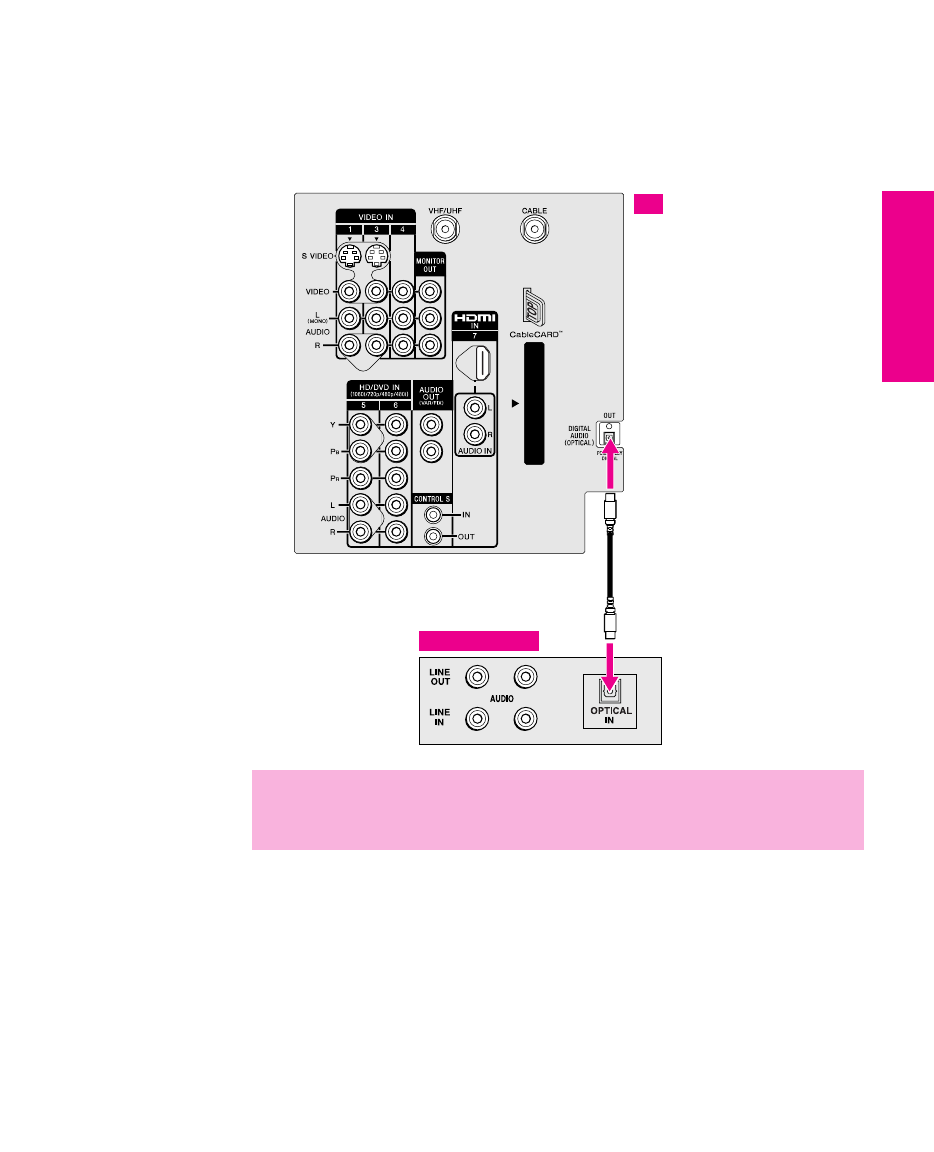
You can use the TV’s DIGITAL AUDIO OPTICAL output jack to
connect an audio device that is Dolby Digital and PCM compatible,
such as an audio amplifier.
❑Using an optical cable, connect the TV’s DIGITAL AUDIO
OPTICAL output jack to the device’s audio optical input jack.
Audio Amplifier
TV
Optical audio cable
✍Because all equipment does not output digital audio, you should also
connect the TV’s analog audio output jacks to the amplifier’s analog audio
input jacks, as described on page 36.
XS.book Page 39 Tuesday, June 8, 2004 1:40 PM
40
SETUP SETUP SETUPSETUP SetupSETUP
Using the CONTROL S Feature
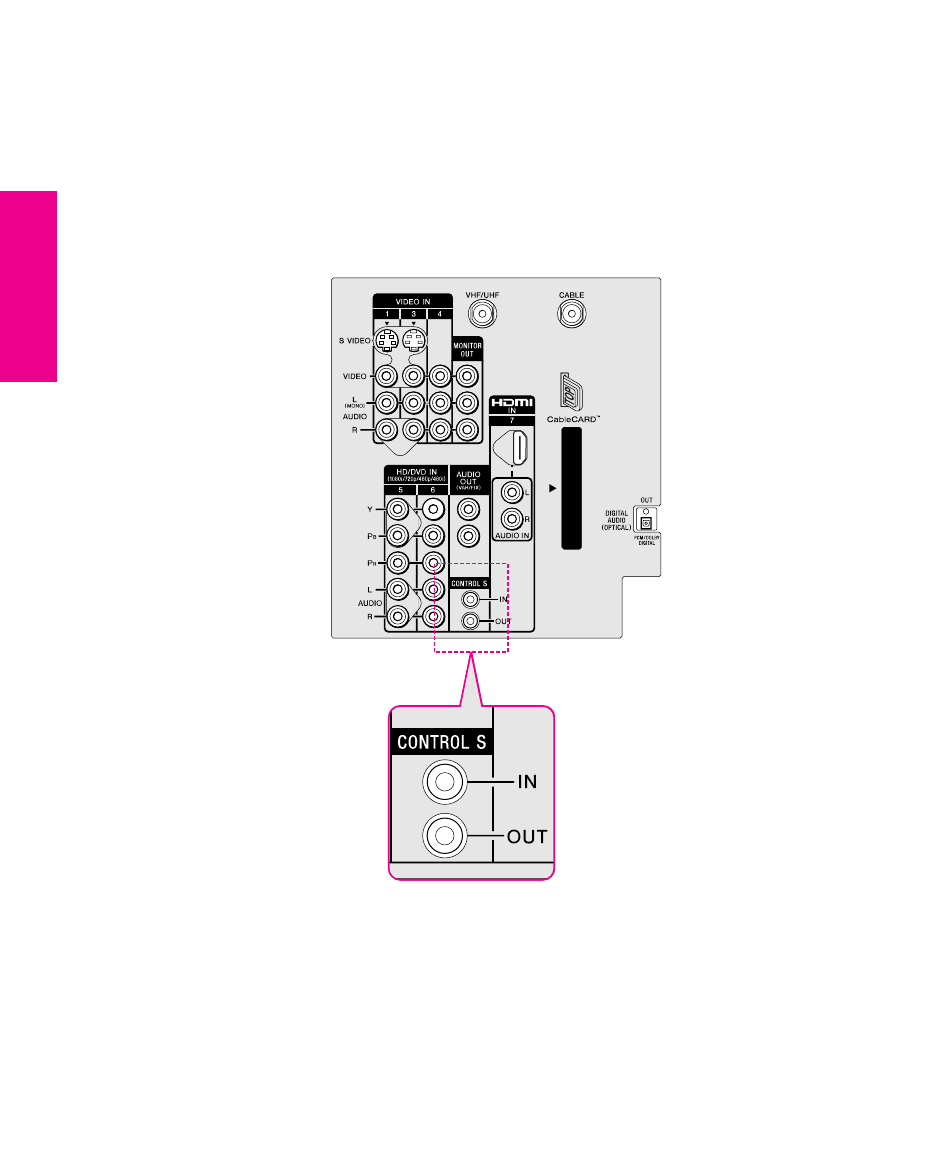
CONTROL S allows you to control your system and other Sony
equipment with one remote control. In addition to allowing you to
control multiple devices with one remote control, the CONTROL S
feature allows you to always point your remote control at your TV,
instead of having to point it at the other equipment, which might be
hidden or out of direct line of sight.
Use CONTROL S IN to send signals to the TV.
Use CONTROL S OUT to send signals to connected equipment.
XS.book Page 40 Tuesday, June 8, 2004 1:40 PM
41
SETUP Setup SETUPSETUP SETUPSETUP
Using CableCARD
CableCARD provides cable subscribers with access to digitally
encrypted cable channels — without the need for a set-top box — that
will enable you to receive not only standard definition but also high
definition television. The CableCARD, which is provided by your
cable TV company, is inserted into the TV’s rear panel CableCARD
slot. After the service is activated with your cable TV company, the
card replaces the need for a separate set-top box.
Activating
CableCARD Service
Before you can use CableCARD service, you need to insert the
CableCARD (supplied by your cable TV company) and activate the
service, as described below:
1Turn off the TV.
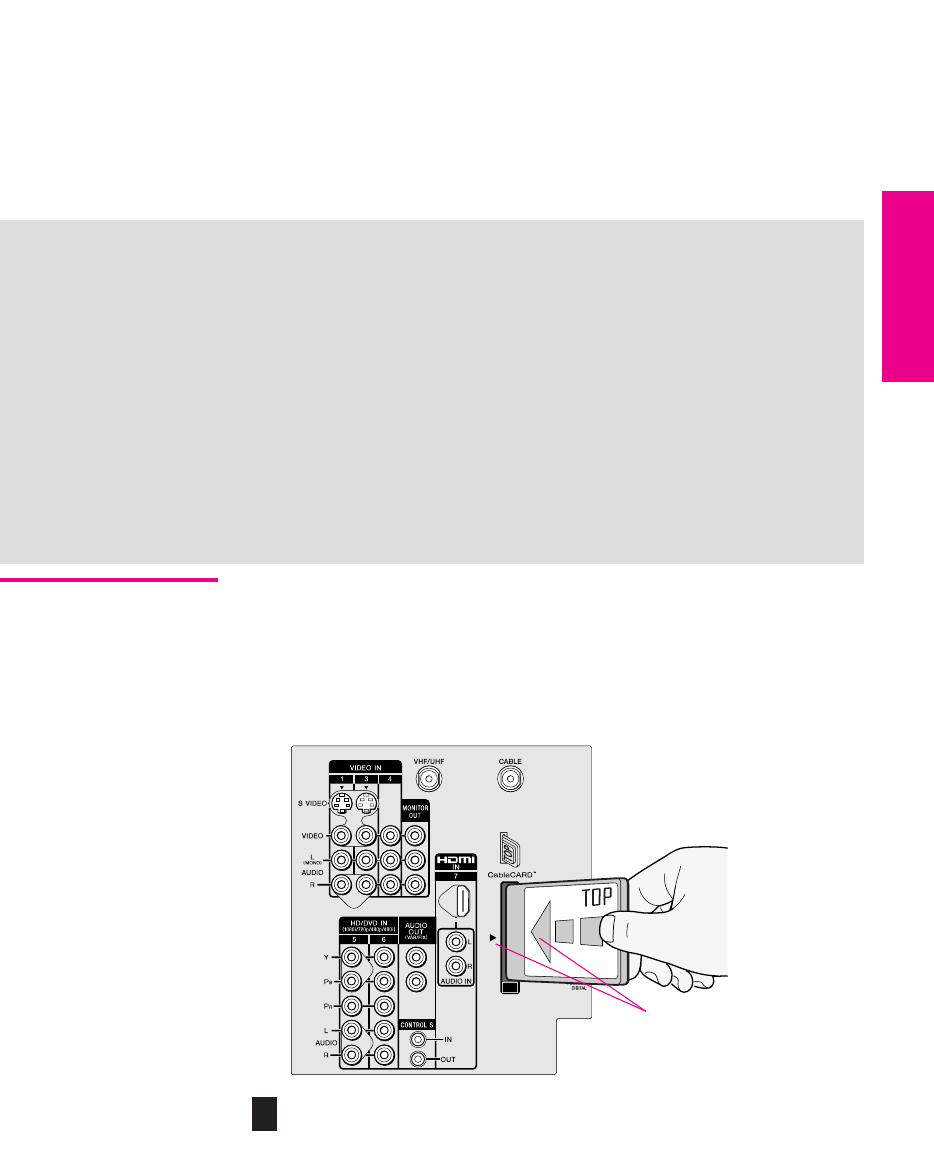
2Insert the CableCARD into the TV’s CableCARD slot.
CAUTION: Inserting the CableCARD incorrectly may result in permanent
damage to the card and the TV.
About Using CableCARD
If you are planning to use a separate cable box for digital cable TV services, you may be able
to receive programming using this TV with the CableCARD instead — except in the following
circumstances:
❑Your cable TV company does not provide CableCARD service in your viewing area.
❑You want to access your cable company’s interactive or advanced features (such as video-
on-demand or, in some cases, pay-per-view). At this time, these services require a
bidirectional link, which are only available through the use of a separate set-top box.
CableCARD is currently a unidirectional device only, and cannot provide these advanced
services.
Check with your cable TV company for CableCARD service details, limitations, pricing, and
availability, all of which are determined by your cable TV company — not Sony.
Top of CableCARD is on same
side as indicator on slot
!
XS.book Page 41 Tuesday, June 8, 2004 1:40 PM
42
SETUP SETUP SETUPSETUP SetupSETUP
3Gently push the card into the slot until it locks into place.
4Turn on the TV. After 1-2 minutes, the CableCARD setup screen is
displayed. This screen includes information your cable TV
company will request before they can activate your service.
5Follow the displayed instructions: Phone your cable company. A
representative will guide you through the activation process.
6After your CableCARD is activated, your cable TV company will
download the service information, including the channel list, to
the CableCARD.
After the CableCARD has acquired channels from your cable TV
company, the TV tunes to the lowest available channel.
Removing the
CableCARD
In the event you want to cancel your service, contact your cable TV
company.
1Turn off the TV.
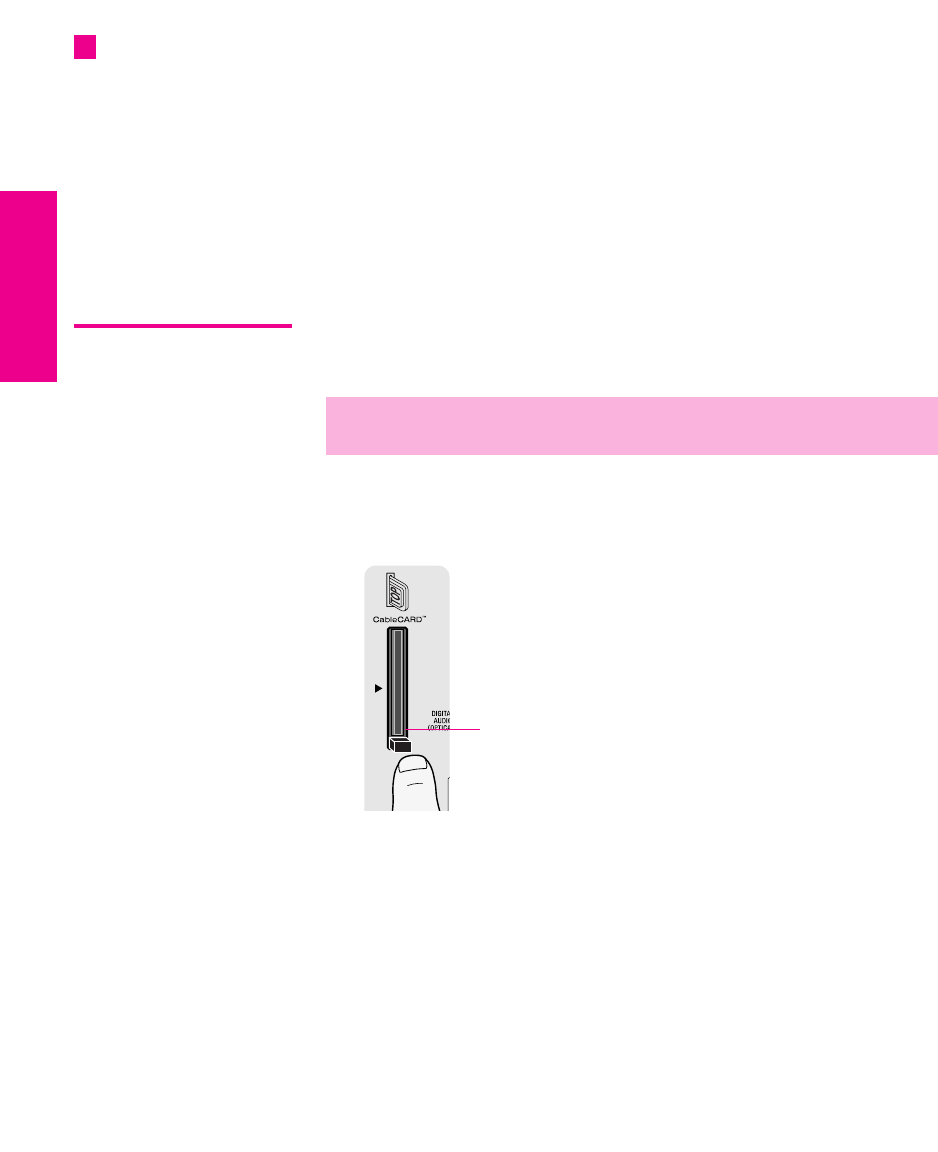
2Push the eject button on the TV’s CableCARD slot to release the
card.
3Pull the CableCARD straight out of the slot to remove it.
To install a different CableCARD, follow the instructions in
“Activating CableCARD Service” on page 41.
You can also access
information about your
CableCARD in the Applications
Menu (see page 93).
z
✍Once the CableCARD is removed, your TV will no longer decrypt digital
cable TV programming services that require CableCARD.
Eject button
XS.book Page 42 Tuesday, June 8, 2004 1:40 PM
43
SETUP Setup SETUPSETUP SETUPSETUP
Setting Up the Channel List
After you finish connecting the TV, you need to run the Initial Setup
feature, which automatically creates a list of available analog and
digital channels and lets you correct tilt and vertical correction
settings. The Initial Setup screens appear when you turn on your TV
for the first time after hooking it up.
Using Initial Setup To run Initial Setup
1Press POWER to turn on the TV.
The Initial Setup screen appears.
Using the remote control, move the highlight to the desired
language, then press to select that language. The Tilt
Correction screen appears.
2Press B b to correct any tilt of the picture. You can choose a
correction between +7 and -7. When finished, press .
3 The Vertical Correction screen appears. Press V
v to make a vertical correction to the picture. You can choose a
correction between +5 and -5. When finished, press .
4The next screen instructs you to connect your cable/antenna.
Check that you’ve connected your signal source correctly.
To start Auto Program, highlight Yes and then press .
Auto Program automatically creates a list of receivable analog
and digital channels. Auto Program may take 50 minutes or more
to complete. A progress bar is displayed while the channel list is
being created.
When Auto Program is finished, the lowest numbered channel is
displayed.
To run Auto Program again at a later time
❑Use the Auto Program feature as described on page 84.
To add individual digital channels
Use the Digital Channel feature as described on page 84.
To reset the TV to factory settings
1Press POWER to turn on the TV.
2Hold down RESET on the remote control.
3Press TV POWER on the TV. (The TV will turn itself off, then back
on.)
4Release RESET.
For more details on using
Tilt Correction and Vertical
Correction, see pages 89-90.
z
KD-30/34XS955 Only
To exit the Tilt Correction
and Vertical Correction screens,
press the MENU button.
z
If you are using a
CableCARD, Auto Program is
disabled for the CABLE input.
z
XS.book Page 43 Tuesday, June 8, 2004 1:40 PM
XS.book Page 44 Tuesday, June 8, 2004 1:40 PM
45
Using the Remote Control
Overview
This chapter describes how to set up, program, and use the TV’s
remote control.
Inserting Batteries
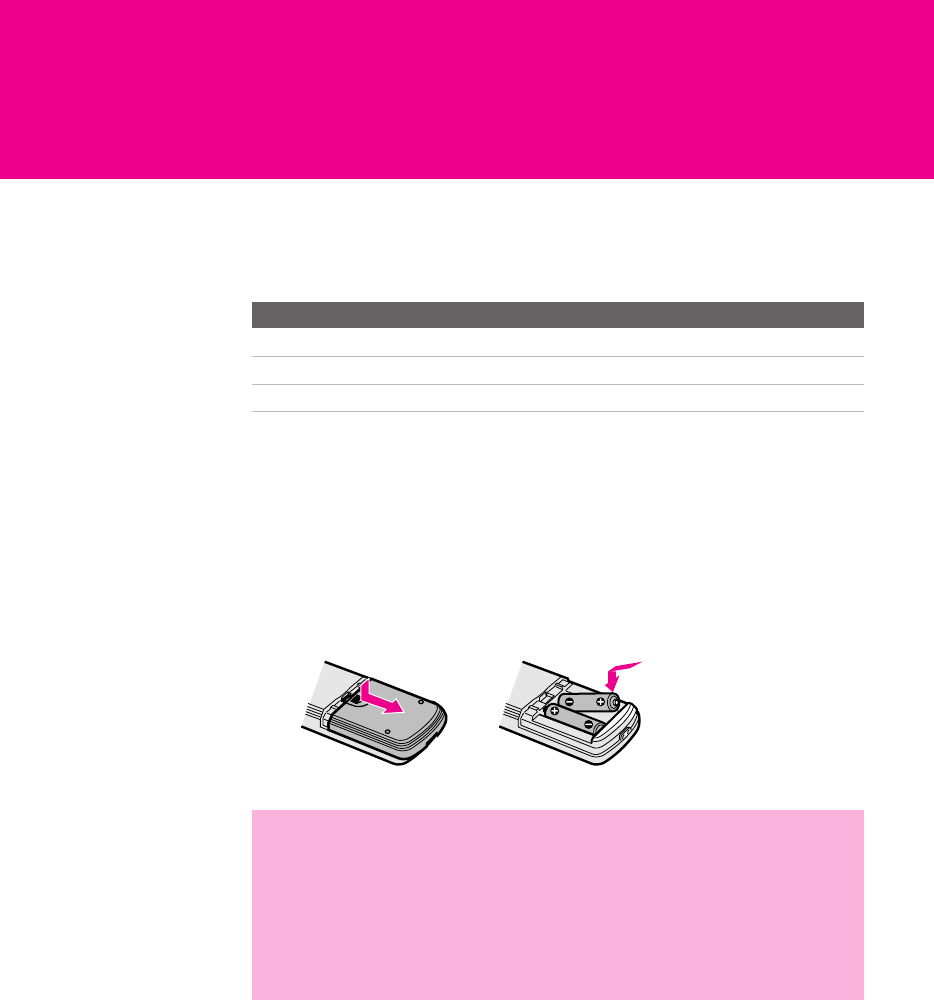
1Remove the battery cover from the remote control.
2Insert two size AA (R6) batteries (supplied) by matching the e
and E terminals on the batteries to the diagram inside the battery
compartment.
3Replace the battery cover.
Topic Page
Inserting Batteries 45
Button Descriptions 46
Programming the Remote Control 49
✍Remove the batteries to avoid damage from possible battery leakage
whenever you anticipate that the remote control will not be used for an
extended period.
Handle the remote control with care.
Avoid dropping it, getting it wet, placing it in direct sunlight, near a heater,
or where the humidity is high.
12
XS.book Page 45 Tuesday, June 8, 2004 1:40 PM
46
SETUP SETUP SETUPSETUP SETUPRemote Control
Button Descriptions
1
5
qa
qd
qh
ql
wd
7
2
9
qs
q;
qf
qj
qk
w;
ws
wa
3
6
8
4
qg
XS.book Page 46 Tuesday, June 8, 2004 1:40 PM

47
SETUP SETUP SETUPRemote Control SETUPSETUP
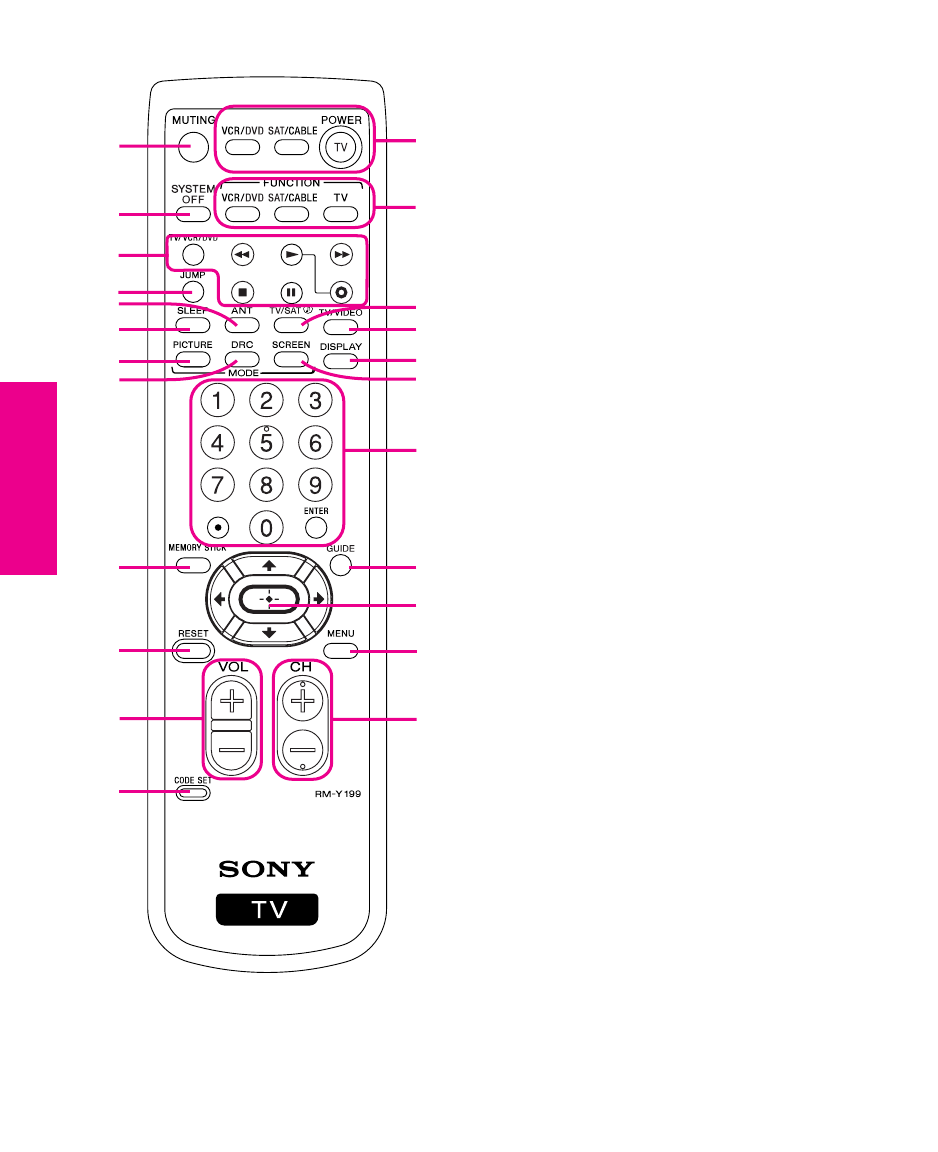
Button Description
1MUTING Press to mute the sound. Press again or press VOL+ to restore the sound.
2SYSTEM OFF Press to turn off all Sony brand audio/video equipment at once. (May not function
with older Sony equipment. Does not function with DVD/VCR combination unit.)
3TV/VCR/DVD Press to change the VHF/UHF output of the VCR (or DVD/VCR combination unit).
Transport
Buttons
m Rewind
N Play
z Record (press together with N)
x Stop
M Fast forward
X Pause
4JUMP Press to jump back and forth between two channels. The TV alternates between the
current channel and the last channel that was selected.
5ANT Press to switch between the sources connected to the TV’s VHF/UHF and CABLE
inputs.
6SLEEP Press repeatedly until the TV displays the time in minutes (15, 30, 45, 60, or 90) that
you want the TV to remain on before shutting off automatically. To cancel press until
Sleep Off appears. While the Sleep feature is set, press once to display the remaining
time.
7PICTURE MODE Press repeatedly to cycle through the available video picture modes: Vivid, Standard,
Movie, Pro. Also available in the Video Menu. For details, see “Selecting Video Options”
on page 78.
8DRC MODE Press repeatedly to cycle through the available Digital Reality Creation modes:
Interlaced, Progressive, CineMotion. Also available in the Video Menu. For details, see
“Selecting Video Options” on pages 78-79.
9MEMORY STICK Press to display the Memory Stick Menu. For details, see “Using the Memory Stick
Viewer” on page 61. Also available in the Applications Menu (page 92).
0RESET Press to reset the settings to the factory defaults. See pages 43, 79, and 81. Also used to
clear Favorite Channels (see page 58).
qa VOL +/- Press to adjust the volume.
qs CODE SET Press to program the remote control to operate non-Sony video equipment. For details,
see “Programming the Remote Control” on page 49.
qd POWER
Buttons
VCR/DVD: Press to turn on and off the VCR or DVD player.
SAT/CABLE: Press to turn on and off the satellite receiver or cable box.
TV: Press to turn on and off the TV.
qf FUNCTION
Buttons
The indicator lights up momentarily when pressed to show which equipment the
remote control is operating:
VCR/DVD: Press to have the remote control operate the VCR or DVD player.
SAT/CABLE: Press to have the remote control operate the satellite receiver or cable box.
TV: Press to have the remote control operate the TV.
qg TV/SAT When the remote control is set to operate the satellite receiver, press to switch between
the satellite receiver’s TV and SAT (satellite) inputs.
When the remote control is set to operate the TV, press repeatedly to step through the
Audio Effect options. Also available in the Audio Menu. For details, see page 80.
XS.book Page 47 Tuesday, June 8, 2004 1:40 PM
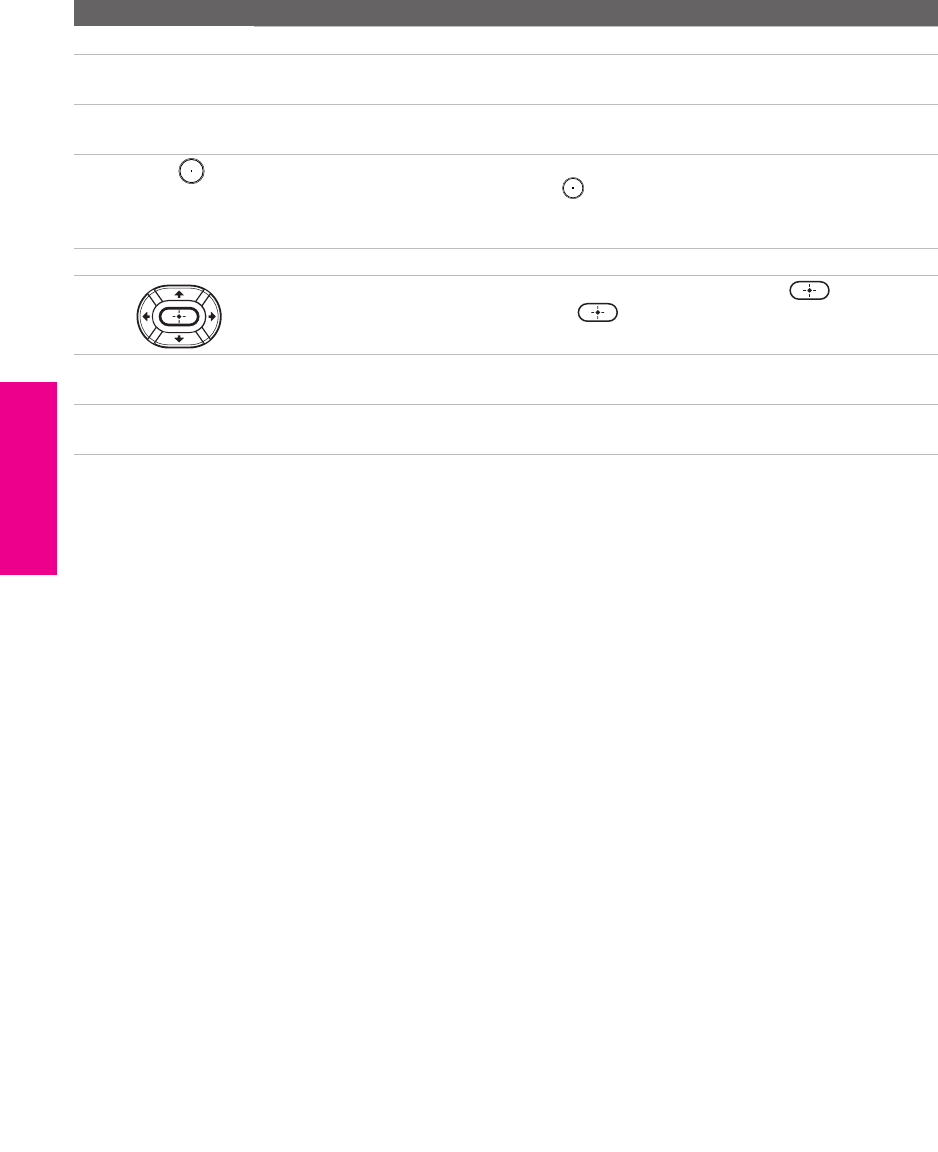
48
SETUP SETUP SETUPSETUP SETUPRemote Control
qh TV/VIDEO Press repeatedly to cycle through the TV’s video inputs.
qj DISPLAY Press once to display the current channel number, current time, and channel label (if
set) and other information. Press again to turn Display off.
qk SCREEN MODE Press to toggle between the Screen Mode options. For details on using Screen Mode,
see pages 55-57. Also available in the Screen Menu (pages 82-83).
ql 0 - 9
ENTER
Press 0 - 9 to select a channel; the channel changes after 3 seconds. Press ENTER to
change channels immediately. Use the button with 0-9 and ENTER buttons to select
digital channels (for example, 2.1). For details on selecting digital channels, see
page 52.
w; GUIDE Press to display the program guide of your satellite program provider.
wa Press Vv B b to move the on-screen cursor. To select an item, press .
When no menus are displayed, pressing displays the Favorite Channels screen.
(For more information about Favorite Channels, see page 58.)
ws MENU Press to display the Menu. Press again to exit from the Menu. For details, see “Using
the Menus” on page 77.
wd CH +/- Press to scan through channels. To scan quickly through channels, press and hold
down either CH button.
Button Description
XS.book Page 48 Tuesday, June 8, 2004 1:40 PM

49
SETUP SETUP SETUPRemote Control SETUPSETUP
Programming the Remote Control
If you have video equipment other than Sony brand (or if you have a
Sony DVD/VCR combination unit) that you want to control with the
TV’s remote control, use the following procedure to program the
remote control.
1Turn to the list of “Manufacturer’s Codes” on page 50, and find
the three-digit code number for the manufacturer of your
equipment. (If more than one code number is listed, use the
number listed first.)
2Press CODE SET.
3Press the VCR/DVD FUNCTION or SAT/CABLE FUNCTION button.
4Using the 0-9 buttons, enter the three-digit manufacturer’s code
number.
5Press the ENTER button.
6To check if the code number works, aim the TV’s remote control
at the equipment and press the POWER button that corresponds
with that equipment. If it responds, you are done. If not, try using
another code listed for that manufacturer.
Notes ❑If more than one code number is listed, try entering them one by
one until you come to the correct code for your equipment.
❑If you enter a new code number, the code number you previously
entered at that setting is erased.
❑In some cases, you may not be able to operate your equipment
with the supplied remote control. In such cases, use the
equipment’s own remote control.
❑Whenever you remove the batteries to replace them, the code
numbers may revert to the factory setting and must be
reprogrammed.
✍The equipment must have infrared (IR) remote capability in order to be used
with the remote control.
✍You must do step 5 within 10 seconds of step 4, or you must redo
steps 2 through 5.
XS.book Page 49 Tuesday, June 8, 2004 1:40 PM

50
SETUP SETUP SETUPSETUP SETUPRemote Control
Manufacturer’s Codes
VCRs
Manufacturer Code
Sony 301, 302, 303
Admiral
(M. Ward)
327
Aiwa 338, 344
Audio Dynamic 314, 337
Broksonic 319, 317
Canon 309, 308
Citizen 332
Craig 302, 332
Criterion 315
Curtis Mathes 304, 338, 309
Daewoo 341, 312, 309
DBX 314, 336, 337
Dimensia 304
Emerson 319, 320, 316,
317, 318, 341
Fisher 330, 335
Funai 338
General Electric 329, 304, 309
Go Video 322, 339, 340
Goldstar 332
Hitachi 306, 304, 305, 338
Instant Replay 309, 308
JC Penney 309, 305, 304,
330, 314, 336, 337
JVC 314, 336, 337,
345, 346, 347
Kenwood 314, 336, 332, 337
LXI (Sears) 332, 305, 330,
335, 338
Magnavox 308, 309, 310
Marantz 314, 336, 337
Marta 332
Memorex 309, 335
Minolta 305, 304
Mitsubishi/
MGA
323, 324, 325, 326
Multitech 325, 338, 321
NEC 314, 336, 337
Olympic 309, 308
Optimus 327
Orion 317
Panasonic 308, 309, 306, 307
Pentax 305, 304
Philco 308, 309
Philips 308, 309, 310
Pioneer 308
Quasar 308, 309, 306
RCA/
PROSCAN
304, 305, 308,
309, 311, 312, 313,
310, 329
Laserdisc Players
DVD/VCR Combination Units
Realistic 309, 330, 328,
335, 324, 338
Sansui 314
Samsung 322, 313, 321
Sanyo 330, 335
Scott 312, 313, 321,
335, 323, 324,
325, 326
Sharp 327, 328
Signature 2000
(M. Ward)
338, 327
SV2000 338
Sylvania 308, 309, 338, 310
Symphonic 338
Tash iro 332
Tatung 314, 336, 337
Teac 314, 336, 338, 337
Technics 309, 308
Toshiba 312, 311
Wards 327, 328, 335,
331, 332
Yamaha 314, 330, 336, 337
Zenith 331
Manufacturer Code
Sony 701
Panasonic 704, 710
Pioneer 702
Manufacturer Code
Sony 601
Broksonic 605
JVC 604
Panasonic 609
Samsung 603
To s hi b a 6 02
Manufacturer Code
DVD Players
Cable Boxes
Satellite Receivers
Manufacturer Code
Sony 751
Apex 762
General Electric 755
Hitachi 758
JVC 756
Magnavox 757
Mitsubishi 761
Oritron 759
Panasonic 753
Philips 757
Pioneer 752
RCA/Proscan 755
Samsung 758
To s hi ba 75 4
Zenith 760
Manufacturer Code
Sony 230
Hamlin/Regal 222, 223, 224,
225, 226
Jerrold/G. I./
Motorola
201, 202, 203,
204, 205, 206,
207, 208, 218
Oak 227, 228, 229
Panasonic 219, 220, 221
Pioneer 214, 215
Scientific Atlanta 209, 210, 211
Tocom 2 16, 21 7
Zenith 212, 213
Manufacturer Code
Sony 801
Dish Network 810
Echostar 810
General Electric 802
Hitachi 805
Hughes 804
Mitsubishi 809
Panasonic 803
RCA/
PROSCAN
802, 808
Toshiba 806, 807
XS.book Page 50 Tuesday, June 8, 2004 1:40 PM

51
Using the Features
Overview
This chapter describes how to use the features of your TV.
Topic Page
Watching TV 52
Using the Program Guide 53
Using Screen Mode (models KD-30/34XS955 Only) 55
Using Screen Mode (models KD-36XS955 Only) 57
Using Favorite Channels 58
Using Other Equipment with Your TV Remote Control 59
XS.book Page 51 Tuesday, June 8, 2004 1:40 PM
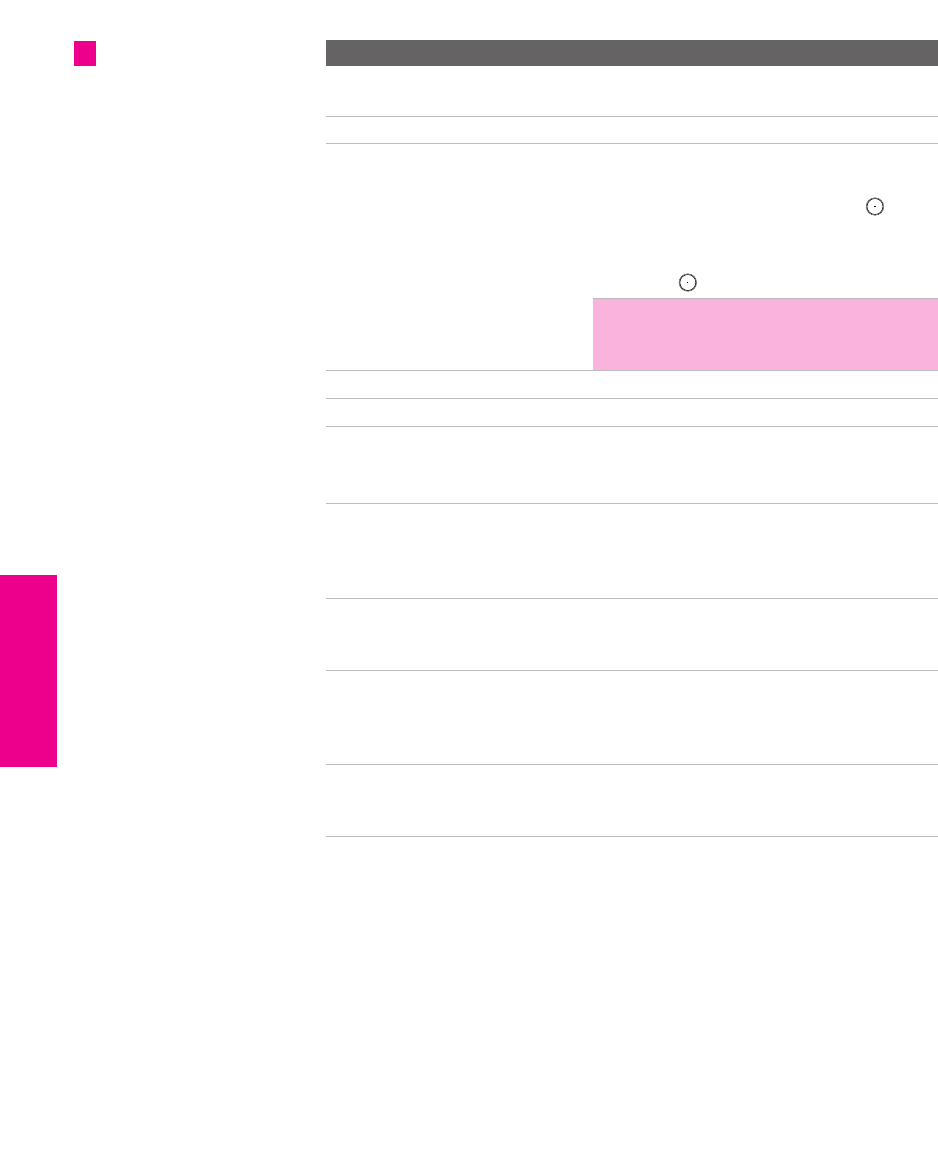
52
SETUP SETUP SETUPFeatures SETUPSETUP
Watching TV
To Do This ... Do This ...
Activate the remote control to
operate the TV
Press TV FUNCTION
Turn on/off the TV Press TV POWER
Tune directly to a channel To tune to analog channels, press 0-9 and
then ENTER.
For digital subchannels, press 0-9, ,
press 0-9 again, and then ENTER.
For example, to select subchannel 21.13,
press 2+1++1+3, and then press ENTER.
✍You can also select channels using the
program guide. See pages 53 for
details.
Adjust the volume Press VOL +/-
Mute the sound Press MUTING (press again to unmute)
Alternate back and forth
between two channels
Press JUMP
The TV alternates between the current
channel and the last channel tuned.
Display the current channel
number (and other information)
Press DISPLAY once to display the channel
number, current time, and channel label
(if set). Press DISPLAY again to turn Display
off.
Switch the TV’s input to the
VCR, DVD player, or other
connected equipment
Press TV/VIDEO repeatedly to cycle through
the video equipment connected to the
TV’s video inputs.
Change video and audio
options, customize the TV’s
setup, set parental controls, and
more
Press MENU to display the Menu. For
details, see “Using the Menus” on
page 77.
Switch the TV’s input between
sources connected to the TV’s
VHF/UHF and CABLE inputs
Press ANT to alternate between sources
connected to the TV’s VHF/UHF and
CABLE inputs.
For a complete list of all
the functions of the remote
control, see pages 45-50.
z
XS.book Page 52 Tuesday, June 8, 2004 1:40 PM
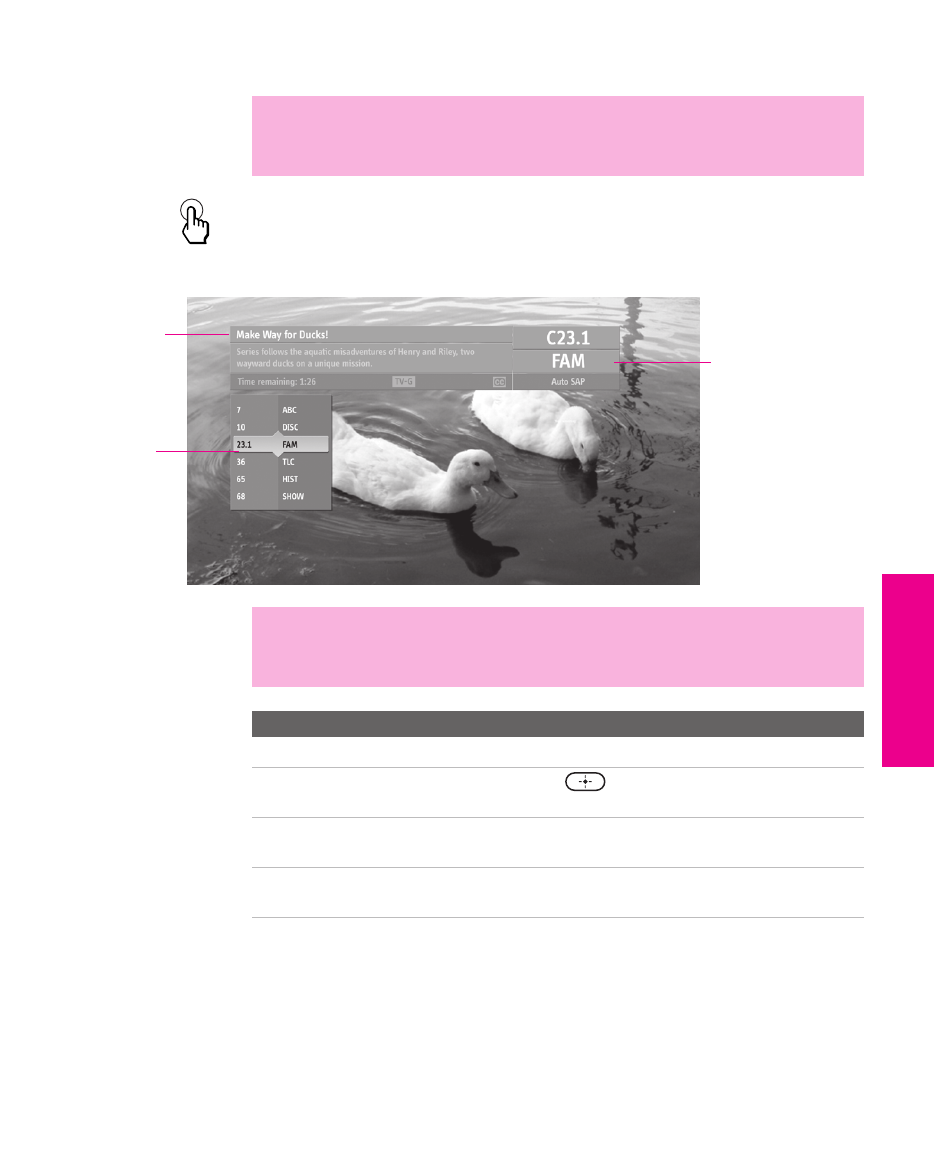
53
SETUP SETUP SETUPSETUP SETUPFeatures
Using the Program Guide
The program guide lets you review program information and select
both analog and digital channels.
To display the program guide:
Press GUIDE on the TV’s remote control. The program guide appears,
with the currently selected program showing in the background.
✍The Program Guide cannot be displayed when the TV is tuned to one of the
video inputs or if the Channel Fix option is set to anything other than Off
(see page 84).
GUIDE
Program title and
description, program
duration, time
remaining, rating
information, closed-
caption availability, etc.
Channel number, call
letters, etc.
Selectable channel list
✍Program information in the guide is provided by the broadcasters. As a
result, it may sometimes include only the channel number, without a
program title or description.
To Do This ... Do This ...
Scroll through the channel list Press V v
Select the currently displayed
channel and exit the guide
Press .
Display additional options Press b. See “Using Additional Program
Guide Options” on page 54.
Exit the Guide (without
changing channels)
Press GUIDE
XS.book Page 53 Tuesday, June 8, 2004 1:40 PM
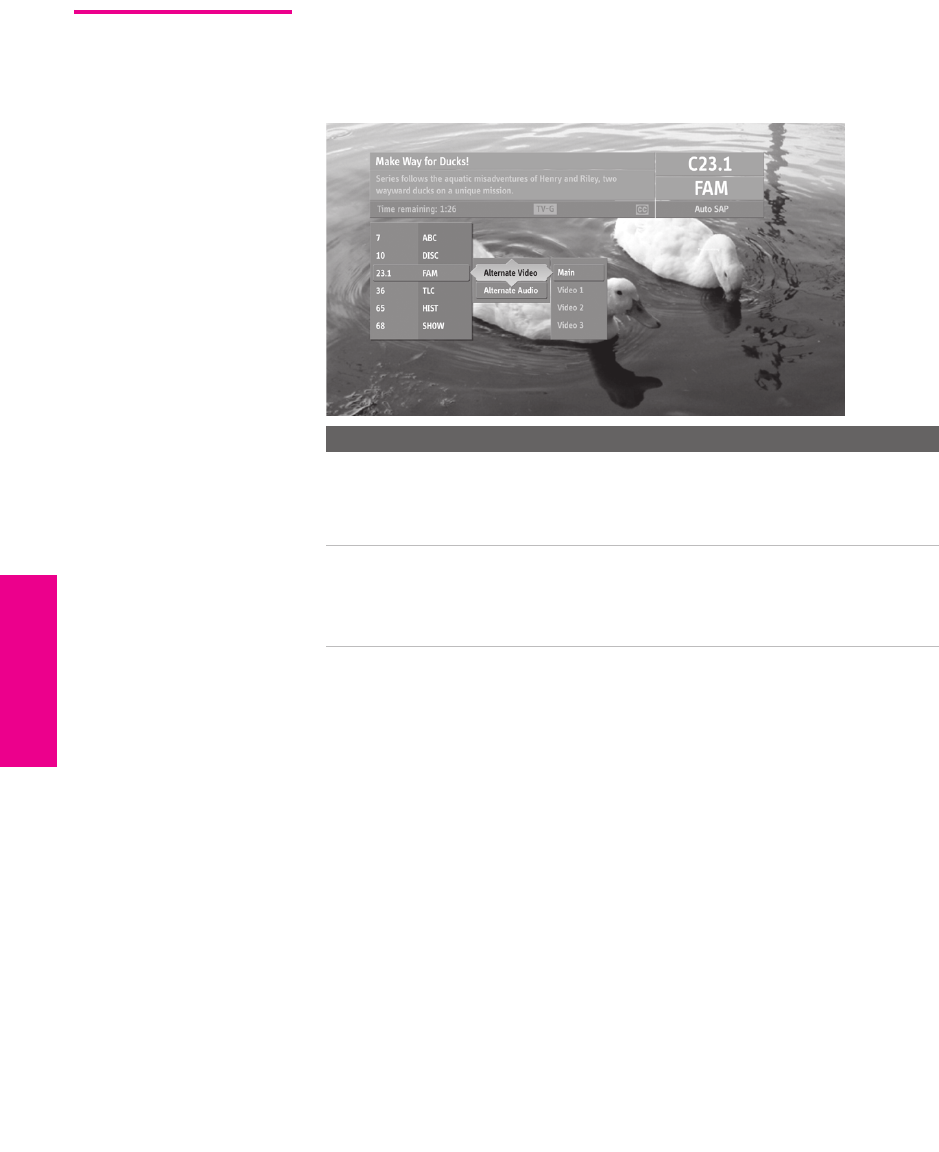
54
SETUP SETUP SETUPFeatures SETUPSETUP
Using Additional
Program Guide
Options
Press b while in the program guide’s channel list to display the
following options, which allow you to customize the settings of the
program on the currently tuned channel.
Option Description
Alternate Video
(when
available)
Each program has a main video stream (the video that you
see when the channel is first tuned), and may have
alternate video streams. This option allows you to switch
among these alternate video streams.
Alternate Audio
(when
available)
Each program has a main audio stream (the audio that you
hear when the channel is first tuned). This option allows
you to switch among these alternate audio streams (e.g.,
for different languages).
XS.book Page 54 Tuesday, June 8, 2004 1:40 PM
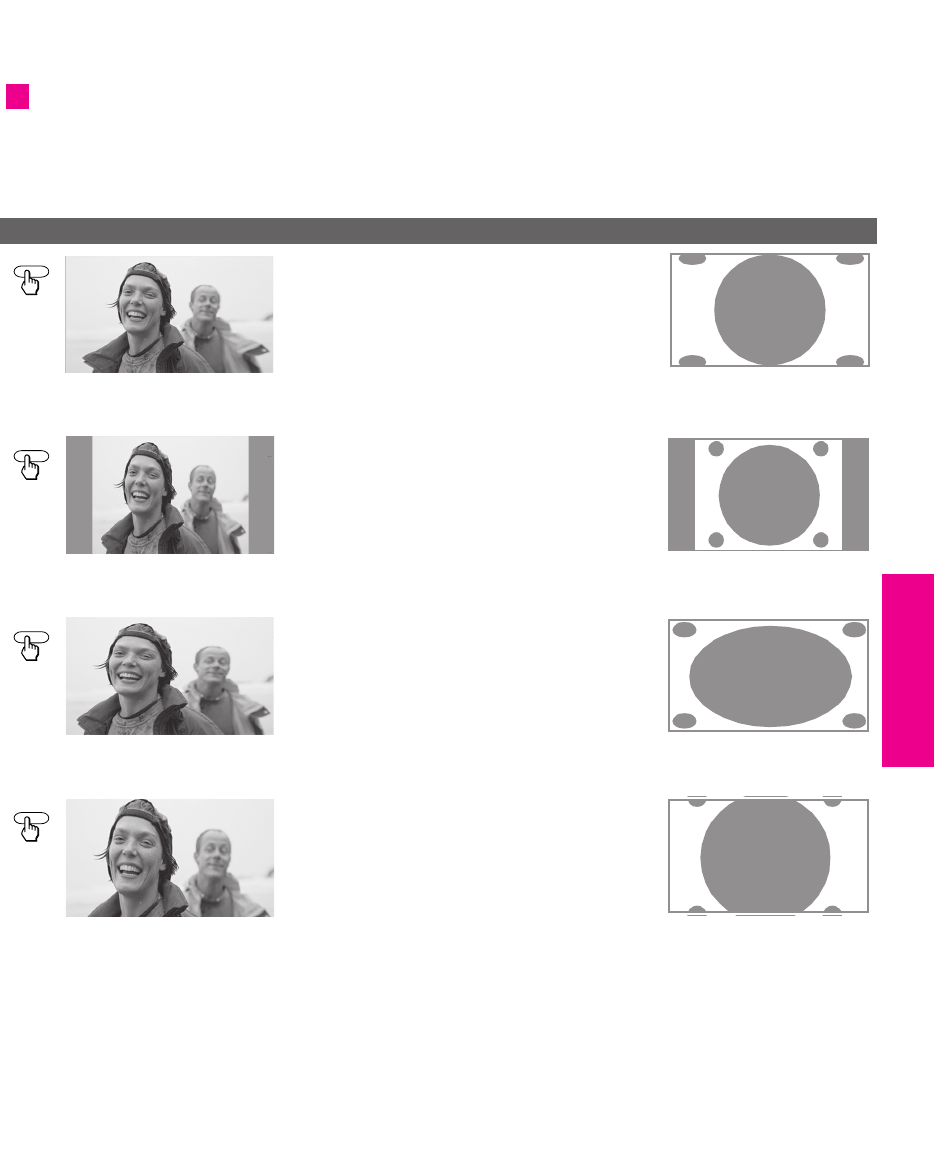
55
SETUP SETUP SETUPSETUP SETUPFeatures
Using Screen Mode (models KD-30/34XS955 Only)
The Screen Mode feature lets you change the picture size for both
standard-definition (480i/480p) and high-definition (720p/1080i)
sources.
❑Press SCREEN MODE repeatedly to toggle through the following
Screen Mode settings.
Using Screen Mode with Standard Definition (480i/480p) Sources
When you change channels or inputs, the Screen Mode settings revert
to the 4:3 Default setting in the Screen Menu. To retain the current
Screen Mode setting as channels and inputs are changed, set 4:3 Default
to Off. For details, see page 82.
You can also access the Screen
Mode settings in the Screen Menu.
For details, see page 82.
z
Example Description
‘Wide Zoom enlarges the center portion of the
picture proportionately. The left and right
edges of the picture are stretched to fill the
16:9 screen.
m
Normal displays the 4:3 picture in its original
size. Bars are shown to fill the 16:9 screen.
m
Full stretches the 4:3 picture horizontally, to fill
the 16:9 screen.
m
Zoom enlarges the 4:3 picture proportionately
to fill the 16:9 screen. Some clipping may
occur. Zoom is useful for watching Letterbox
movies.
SCREEN
Wide Zoom
SCREEN
Normal
SCREEN
Full
SCREEN
Zoom
XS.book Page 55 Tuesday, June 8, 2004 1:40 PM
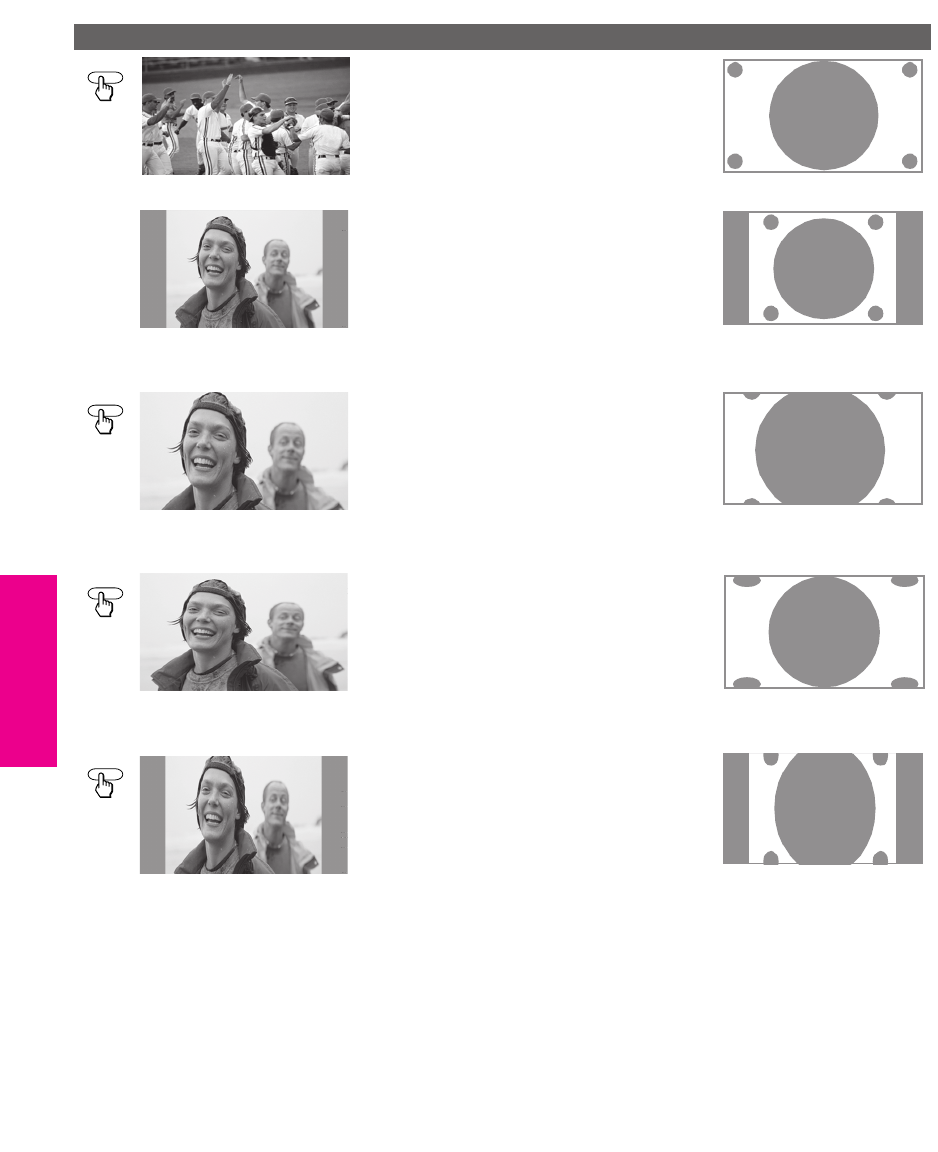
56
SETUP SETUP SETUPFeatures SETUPSETUP
Using Screen Mode with High-Definition (720p/1080i) Sources
Example Description
Full displays the picture at its original size.
If the source is a 16:9 high-definition
(720p/1080i) signal, the picture fills the
screen.
If the source is a 4:3 standard-definition
signal that has been upconverted, bars are
shown to fill the 16:9 screen.
m
Zoom enlarges the picture proportionately,
both vertically and horizontally. Some
clipping may occur.
m
Horizontal Expand stretches the picture
horizontally. Some clipping may occur.
m
Vertical Expand stretches the picture
vertically. Some clipping may occur.
SCREEN
Full (native 16:9)
Full (upconverted 4:3)
SCREEN
Zoom
SCREEN
Horizontal Expand
SCREEN
Vertical Expand
XS.book Page 56 Tuesday, June 8, 2004 1:40 PM
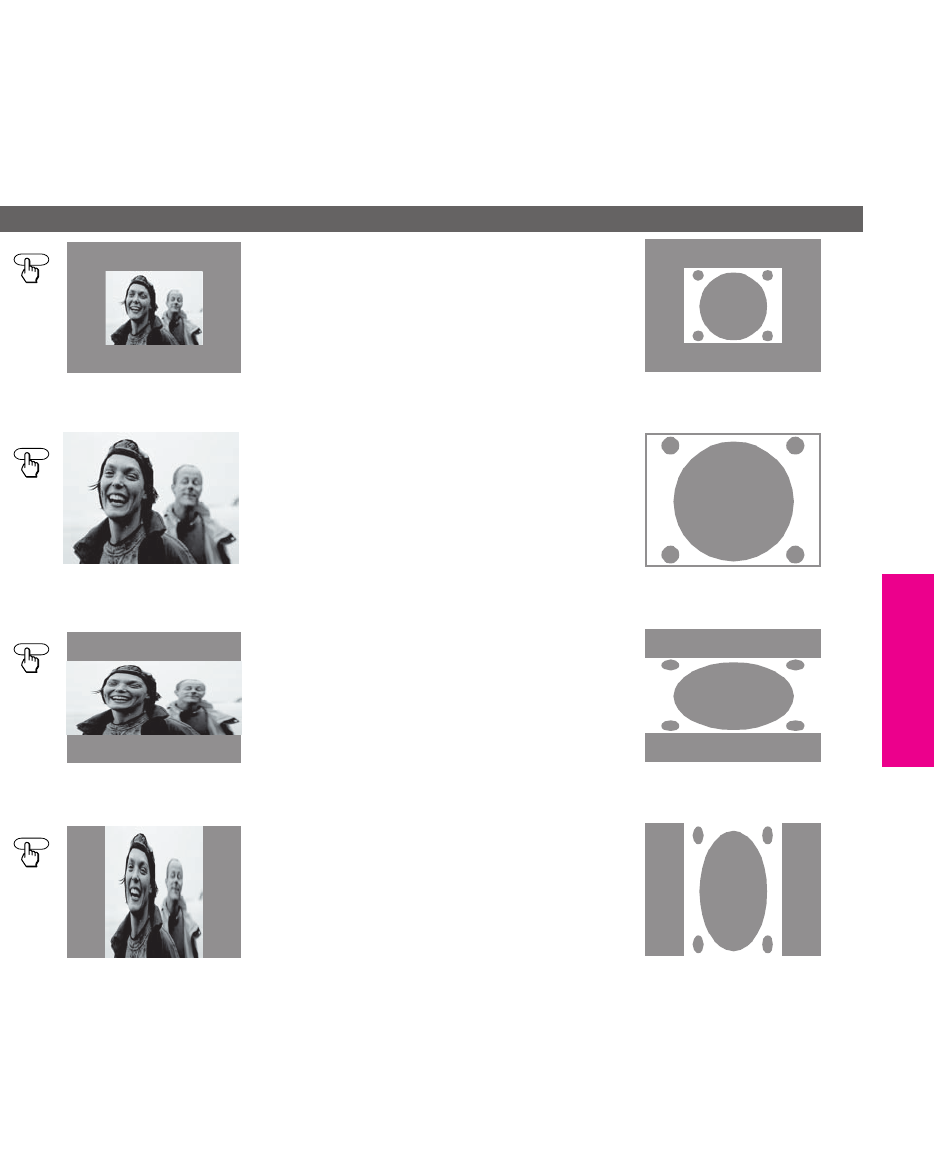
57
SETUP SETUP SETUPSETUP SETUPFeatures
Using Screen Mode (models KD-36XS955 Only)
The Screen Mode feature is useful when a 480i signal has been
upconverted to a 720p or 1080i signal, which results in undesirable
“black bars” appearing on all four sides of the picture. Using the
Screen Mode feature, you can enlarge these pictures, minimizing the
size of the black bars.
Using Screen Mode with High Definition (720p/1080i) Sources
Example Description
Full displays a 480i signal that has been
upconverted to 720p or 1080i with black bars
visible at left, right, top, and bottom sides.
m
Zoom enlarges the picture, minimizing the size
of the black bars.
m
Horizontal Expand stretches the picture
horizontally. Some clipping may occur.
m
Vertical Expand stretches the picture vertically.
Some clipping may occur.
SCREEN
Full
SCREEN
Zoom
SCREEN
Horizontal Expand
SCREEN
Vertical Expand
XS.book Page 57 Tuesday, June 8, 2004 1:40 PM
58
SETUP SETUP SETUPFeatures SETUPSETUP
Using Favorite Channels
The Favorite Channels feature lets you select programs from a list of
up to 16 favorite channels that you specify. You can create a list using
the Favorite Channel option in the Channel Menu, or by using the
Add to Favorites feature in the Favorite Channels guide.
Using the Channel
Menu
1Press MENU to display the Menu.
2Press V or v to highlight the Channel icon and press .
3Press to select Favorite Channels.
4Use the 0-9 and ENTER buttons to enter the channel number that
you want to assign to the Favorite Channel number. Press to
select that channel as a Favorite Channel.
5To add more channels to your favorites list, repeat step 4.
To clear a Favorite Channel, press V or v to highlight the channel
you want to clear. Press and then press RESET.
6Press MENU to exit the Menu.
Using the Favorite
Channels Guide
1During normal viewing (with no menus on screen), press .
The Favorite Channels list appears.
2Press V or v to highlight the channel you want to watch.
To add the current channel to the list of Favorite Channels,
highlight Add to Favorites and press .
To change your Favorite Channels list, highlight Edit Favorites and
press .
3Press to select the channel you want to watch.
✍To enter digital channel numbers in step 4, use the 0-9, , and ENTER
buttons.
For details on using the
Channel Menu, see page 84.
z
XS.book Page 58 Tuesday, June 8, 2004 1:40 PM
59
SETUP SETUP SETUPSETUP SETUPFeatures
Using Other Equipment with Your TV Remote Control
All Equipment
Operating a VCR
Operating a
Satellite Receiver
To Do This ... Do This ...
Switch the TV’s input to the
VCR, DVD player, or other
connected equipment
Press TV/VIDEO repeatedly to cycle through
the video equipment connected to the
TV’s video inputs.
Set up the TV remote control to
operate non-Sony equipment
(and Sony DVD/VCR
combination unit)
You must program the remote control the
first time you use it. See “Programming
the Remote Control” on page 49.
To Do This ... Press
Activate the remote control
to operate the VCR
VCR/DVD FUNCTION
Turn on/off VCR/DVD POWER
Change channels CH +/- (using tuner)
Adjust tracking CH +/- (during tape playback)
Record N and z simultaneously
Play N
Stop x
Fast forward M
Rewind the tape m
Pause X
Search the picture forward
or backward
M or m during playback
(release to resume normal playback)
To Do This ... Press
Activate the remote control
to operate the satellite
receiver
SAT/CABLE FUNCTION
Turn on/off SAT/CABLE POWER
Select a channel 0-9, ENTER
Change channels CH +/-
Back to previous channel JUMP
Display channel number DISPLAY
Display SAT Guide GUIDE
Display SAT Menu MENU
Move highlight (cursor) V v B b
Select item
XS.book Page 59 Tuesday, June 8, 2004 1:40 PM
60
SETUP SETUP SETUPFeatures SETUPSETUP
Operating a Cable
Box
Operating a DVD
Player
Operating a
DVD/VCR
Combination Unit
To Do This ... Press
Activate the remote control
to operate the cable box
SAT/CABLE FUNCTION
Turn on/off SAT/CABLE POWER
Select a channel 0-9, ENTER
Change channels CH +/-
Back to previous channel JUMP
To Do This ... Press
Activate the remote control
to operate the DVD
VCR/DVD FUNCTION
Turn on/off VCR/DVD POWER
Play N
Stop x
Pause X
Step through different
tracks of the disc
M to step forward or m to step backward
Step through different
chapters of a video disc
CH+ to step forward or CH- to step backward
Select tracks directly 0-9, B b (to move cursor), ENTER
Display the DVD menu MENU
Move highlight (cursor) V v B b
Select item SELECT
To Do This ... Press
Activate the remote control
to operate the DVD/VCR
VCR/DVD FUNCTION
Turn on/off VCR/DVD POWER
Switch between the DVD
player and VCR
TV/VCR/DVD
Display the DVD menu MENU
Play N
Stop x
Pause X
Search the picture forward
or backward
M or m during playback
Move highlight (cursor)
and select (DVD)
V v B b
Record (VCR) N and z simultaneously
Change channels (VCR) CH +/- or 0-9, ENTER (using tuner)
Adjust tracking (VCR) CH +/- (during tape playback)
When the VCR is not
playing, TV/VCR/DVD switches
between the DVD player and
the VCR’s tuner.
z
XS.book Page 60 Tuesday, June 8, 2004 1:40 PM

61
Using the Memory Stick Viewer
About Memory Stick
Memory Stick (sold separately) is a compact, portable, and versatile
Integrated Circuit recording medium with a data capacity that makes
it perfect for portable applications, such as digital photography.
Memory Stick is specially designed for sharing digital data among
Memory Stick compatible products such as digital cameras and
digital video cameras. Because it is removable, Memory Stick can also
be used for external data storage.
The Memory Stick Viewer on your TV allows you to view files that
are stored on Memory Stick media. You can view:
❑Digital photos (JPEG files)
❑Movies (MPEG1 files)
You can also play slide show background music using MP3 files (or
m3u playlists) stored on your Memory Stick.
For more information about handling Memory Stick media, see
“Notes on Using Memory Stick Media” on page 75.
Features With the Memory Stick Viewer, you can:
❑View photo (JPEG) and movie (MPEG1) files in a thumbnail
index or Slide Show
❑Set customized Slide Show options, including transitions and
background audio
❑Pan, zoom, and rotate photos
❑Mark photos and set quantities of prints to be output when the
Memory Stick is inserted into your photo printer (not supplied)
❑Lock (protect) or delete files on the Memory Stick
XS.book Page 61 Tuesday, June 8, 2004 1:40 PM

62
SETUP Memory Stick SETUPFeatures SETUPSETUP
Memory Stick
Compatibility
This television is compatible with the following Sony brand Memory
Stick media types:
❑Memory Stick Media
❑Memory Stick Duo and PRO Duo Media (without the Memory
Stick adaptor)
❑Memory Stick Media with Memory Select Function
❑Memory Stick PRO Media
About Memory Stick PRO Media
Memory Stick PRO media features vary by and are dependent upon
the design of host hardware devices. Memory Stick PRO in this
television has been tested to support up to 1 GB media capacity and
does not support high-speed transfer, MagicGate copyright
protection technology, or access control security features.
Memory Stick
Functionality
Sony cannot guarantee or assure the Memory Stick functionality on
this television in the following cases:
❑You are using non-Sony brand Memory Stick media.
❑You are using video or audio clips that have been processed on a
computer.
❑You are using files that were obtained from the Internet or from a
printed film processing center.
❑The Memory Stick has been formatted on a personal computer.
Sony recommends that you back up all data stored on Memory Stick
media to avoid potential data loss. In the above two cases, in order to
avoid potential data corruption that may occur, be sure to back up
data prior to use with the TV’s Memory Stick Viewer. Sony cannot
accept responsibility in the event that data recorded to Memory Stick
media is lost or damaged. For certain non-Sony brand Memory Stick
media, you can view images, but you cannot rotate, delete or
protect/unprotect images on the television. An error message will
occur if you attempt any of these operations. This is a result of the
unique file directory structure on these particular flash memory
media and is not a malfunction of the television.
✍The Memory Stick slot on your TV has been designed to accommodate
standard and compact versions of Memory Stick. It is not necessary to use
an adapter for Memory Stick Duo and Memory Stick PRO Duo. If you use an
adapter it may damage the adapter and Memory Stick slot.
XS.book Page 62 Tuesday, June 8, 2004 1:40 PM

63
SETUP SETUP SETUPSETUP Memory StickFeatures
File Compatibility The Memory Stick Viewer is compatible with JPEG images taken with
Sony digital still cameras and MPEG1* movies taken with Sony
digital cameras and camcorders. In order to be viewable in the
Memory Stick Viewer, the files must have the following file name
extensions:
Trademark
Information
Memory Stick, Memory Stick Duo, Memory Stick PRO, Memory Stick
PRO Duo, and MagicGate are trademarks of Sony Corporation.
*Some variations of MPEG1 movies may not play back correctly.
File Type Supported File Name Extensions
JPEG .jpg
.jpeg
MPEG1 .mpg
.mpeg
XS.book Page 63 Tuesday, June 8, 2004 1:40 PM
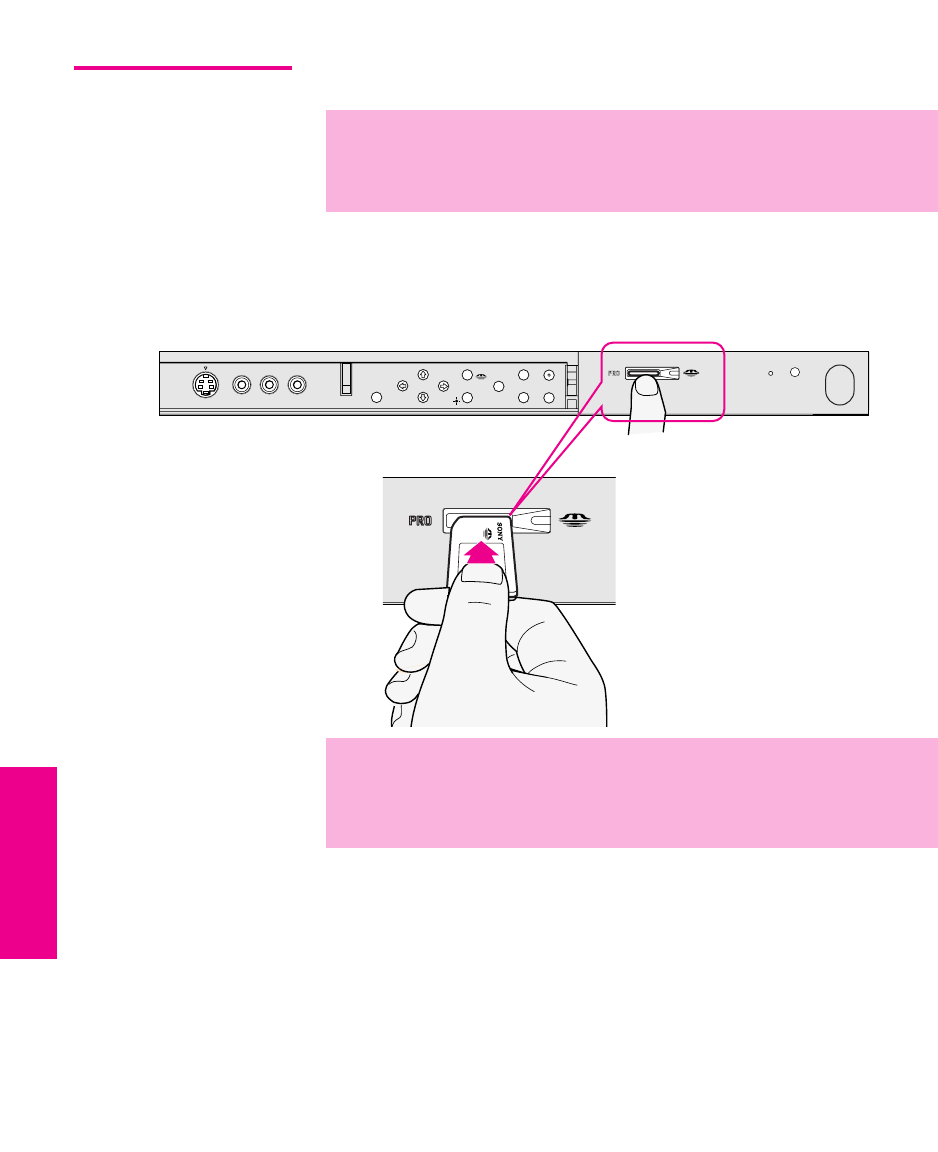
64
SETUP Memory Stick SETUPFeatures SETUPSETUP
Inserting and Removing a Memory Stick
Inserting a
Memory Stick
1Locate the Memory Stick slot (see page 12) and insert the
Memory Stick into the Memory Stick slot as illustrated below.
When inserted properly, it should slide in with little resistance
and click into place.
To remove the Memory Stick, see “Removing a Memory Stick” on
page 65.
✍The Memory Stick slot on your TV has been designed to accommodate
standard and compact versions of Memory Stick. It is not necessary to use
an adapter for Memory Stick Duo and Memory Stick PRO Duo. If you use an
adapter it may damage the adapter and Memory Stick slot.
S VIDEO
VOLUME
STAND BY
TIMER
POWER
VIDEO L(MONO) – AUDIO – R
VIDEO 2 INPUT
CHANNEL
TV/VIDEO
+
_
MENU
STD/DUO
STD/DUO
✍Be sure to insert the Memory Stick in the correct direction. If the Memory
Stick is forced in the wrong way, it may become damaged.
Insert only Memory Stick media into the Memory Stick slot. Attempting to
insert other objects into the slot may damage the TV.
XS.book Page 64 Tuesday, June 8, 2004 1:40 PM

65
SETUP SETUP SETUPSETUP Memory StickFeatures
Removing a
Memory Stick
To remove a Memory Stick
1Check that the Memory Stick indicator is off. (When the light is
on, this indicates that the TV is reading data from the Memory
Stick.)
2Push the Memory Stick gently into the slot, and then release it.
The Memory Stick media is ejected.
3Pull the Memory Stick completely out of the slot.
✍Removing the Memory Stick while a file is being accessed (when the
Memory Stick LED on the TV’s front panel is lit) may damage the Memory
Stick or its contents.
✍Do not pull out the Memory Stick without first pushing it in; otherwise, the
TV’s locking mechanism may become damaged.
✍To protect small children from injury from Memory Stick Media, remove all
Memory Stick media from the TV’s Memory Stick slot and store it in a safe
location when it is not in use.
XS.book Page 65 Tuesday, June 8, 2004 1:40 PM
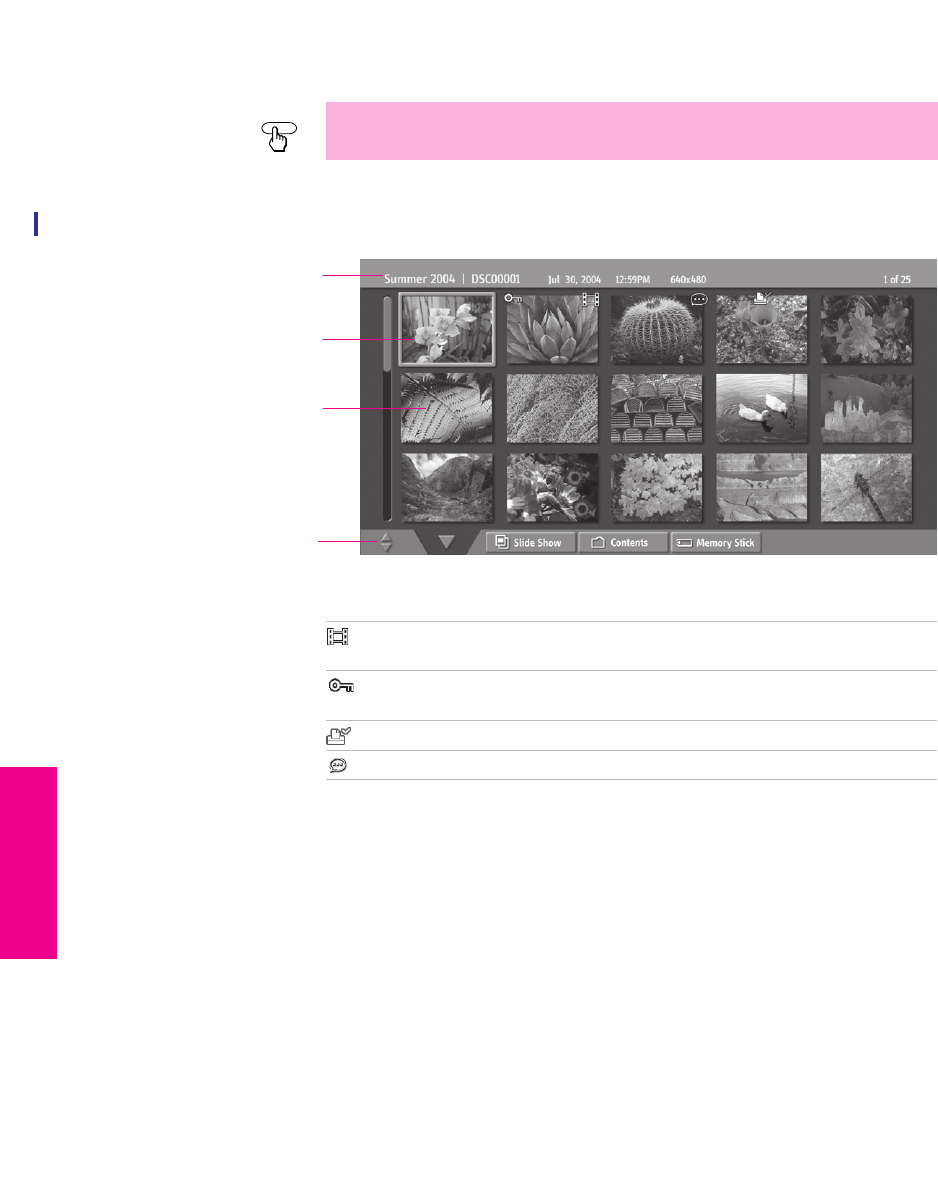
66
SETUP Memory Stick SETUPFeatures SETUPSETUP
Using the Memory Stick Index
Turn on the TV and insert a Memory Stick that contains the photo or
movie files you want to view. For details, see page 64.
The Memory Stick Index appears, which displays thumbnail images
of the files stored on the Memory Stick.
About the Icons on the Thumbnail Images
✍If the Memory Stick Index does not appear, press the MEMORY STICK button
on the remote control.
MEMORY STICK
Thumbnails of photos and
movies
Memory Stick Menu bar
Information about the
highlighted photo or movie
Highlighted thumbnail
Indicates the thumbnail is a movie (MPEG1) file instead of a photo
(JPEG) file.
Indicates the thumbnail is locked. Locked files cannot be changed
or deleted. For details, see “Protect” on page 69.
Indicates that the photo is marked to be printed.
Indicates that the photo has an associated voice memo.
XS.book Page 66 Tuesday, June 8, 2004 1:40 PM
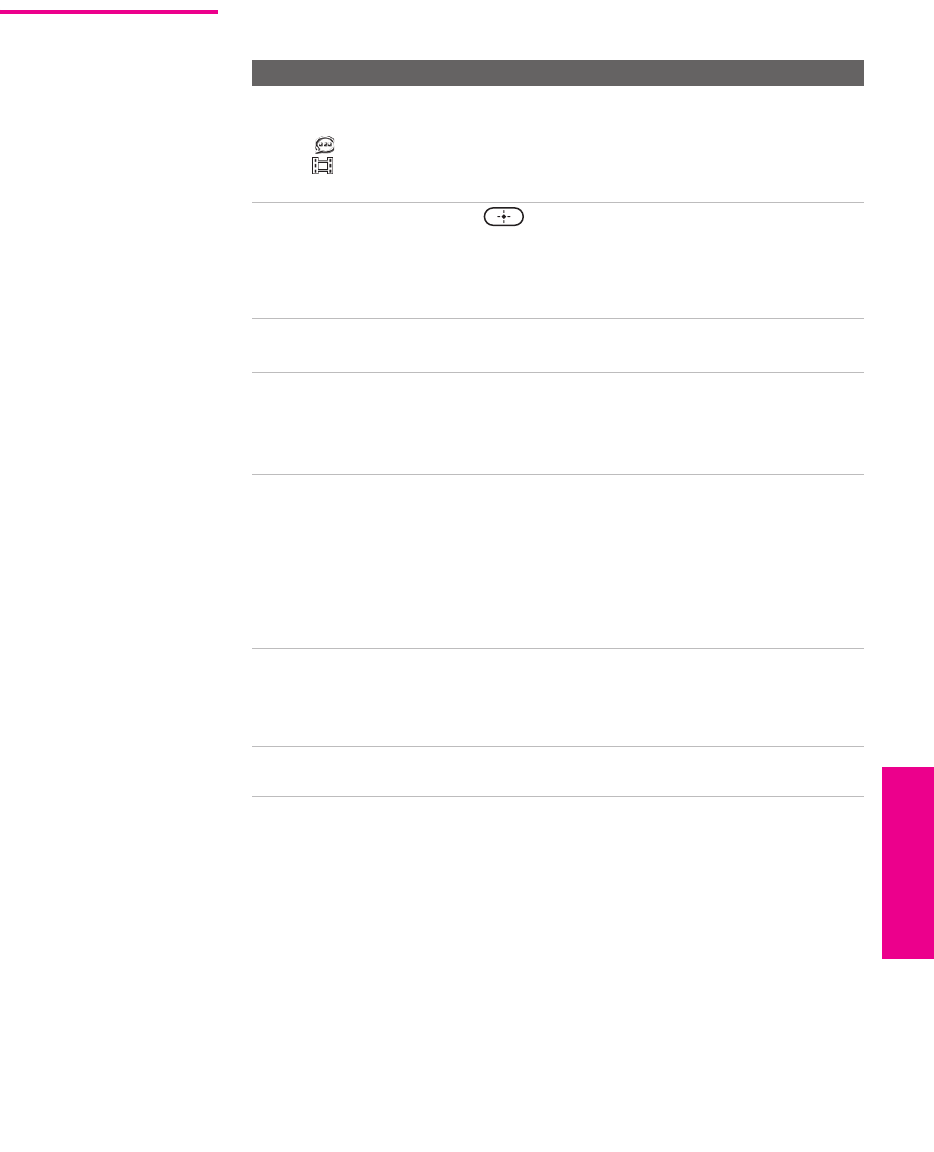
67
SETUP SETUP SETUPSETUP Memory StickFeatures
Using the Memory
Stick Index
The following describes how to use the Memory Stick Index.
To Do This ... Do This ...
Move the highlight
to a photo, voice
memo ( ), or
movie ( )
thumbnail
Press V v B b.
Display the
highlighted photo,
voice memo, or
movie file full
screen
Press . For details, see “Viewing Photos” on
page 68 and “Playing Movies” on page 71.
Display the next
page of thumbnails
1Press v to select V.
2Press v to display the next page of thumbnails.
Display the
previous or next
page of thumbnails
1Press v to select V.
2Press B to select .
3To go to the previous page, press V.
To go to the next page, press v.
Use the Memory
Stick Menu bar to
access additional
options
1Press v to select V.
2Press B or b to select Slide Show, Contents, or
Memory Stick.
3Press V or v to select the option you want to
change.
For details on these options, see “Memory Stick
Index Menu Bar Options” on page 73.
Move the highlight
from the Memory
Stick Menu bar back
to the thumbnails
1Press B or b to select V.
2Press V to return to the currently displayed
thumbnails, or v to display the next page of
thumbnails.
Exit Memory Stick
Viewer
Press the MEMORY STICK button on the remote
control.
Y
XS.book Page 67 Tuesday, June 8, 2004 1:40 PM
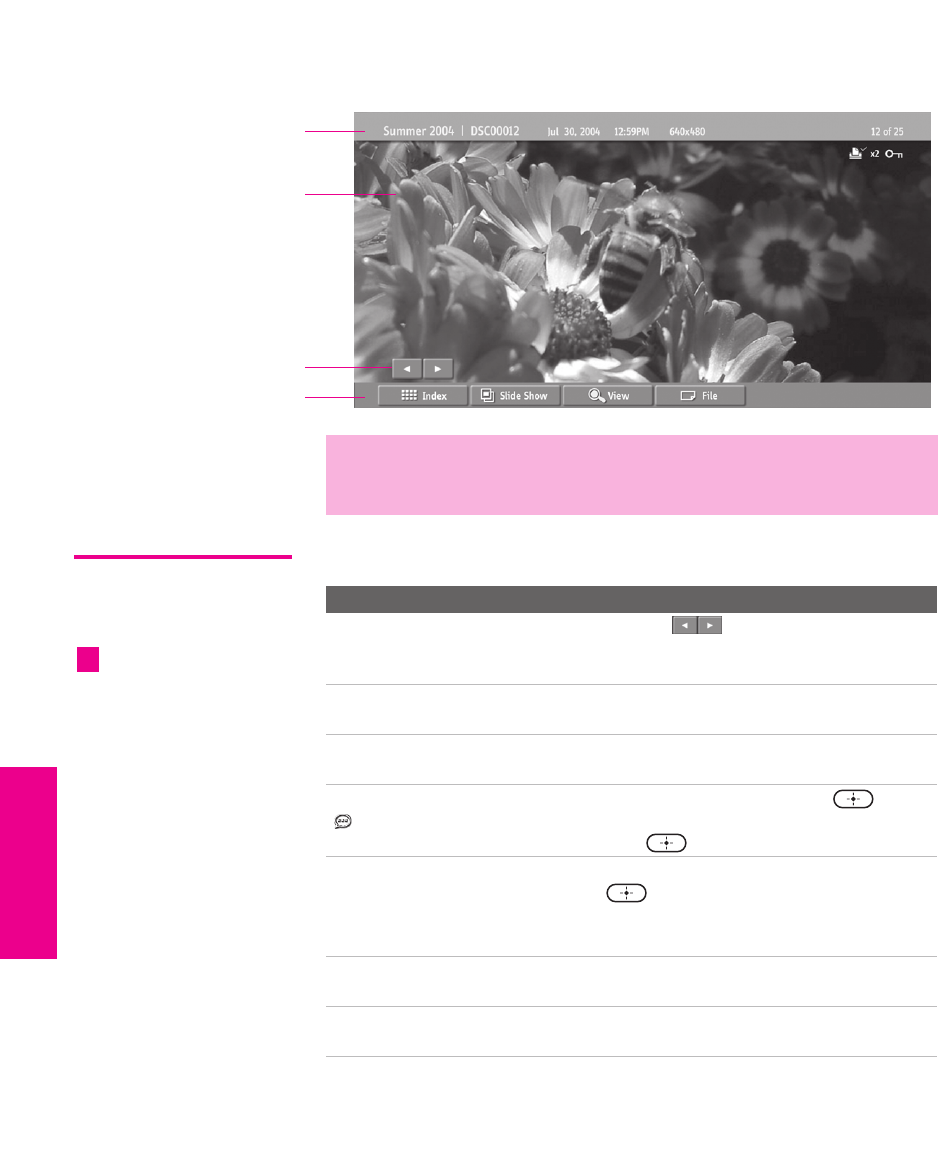
68
SETUP Memory Stick SETUPFeatures SETUPSETUP
Viewing Photos
When you select a photo from the Memory Stick Index (described on
page 66), it displays as shown below, with the following controls.
Photo Controls
Photo Menu bar
Information about
selected photo
Selected photo
Previous/next buttons
✍JPEGs captured using a digital video camera may appear to display motion
in full screen. This is a result of the way digital video cameras record still
images, and is not a result of a malfunction with the TV.
To Do This ... Do This ...
Display the next or
previous file on the
Memory Stick
Highlight the (Previous/Next) button.
Then press B to go to the previous file, or b to
go to the next file.
Hide the Photo Menu bar,
displaying only the photo
With the highlight in the Photo Menu bar, press
v.
Display the hidden Photo
Menu bar
Press V.
Play the JPEG voice memo
( files only)
Highlight B (Play) and then press . To
pause the voice memo, highlight X (Pause) and
then press .
Display the Memory Stick
Index again
Highlight Index in the Photo Menu bar and
press .
For details on the Memory Stick Index, see
page 67.
Access additional options
in the Photo Menu bar
See “Photo Menu Bar Options” on page 69.
Exit Memory Stick Viewer Press the MEMORY STICK button on the remote
control.
When the Menu is hidden,
pressB or b to go to the
previous or next photo.
z
XS.book Page 68 Tuesday, June 8, 2004 1:40 PM
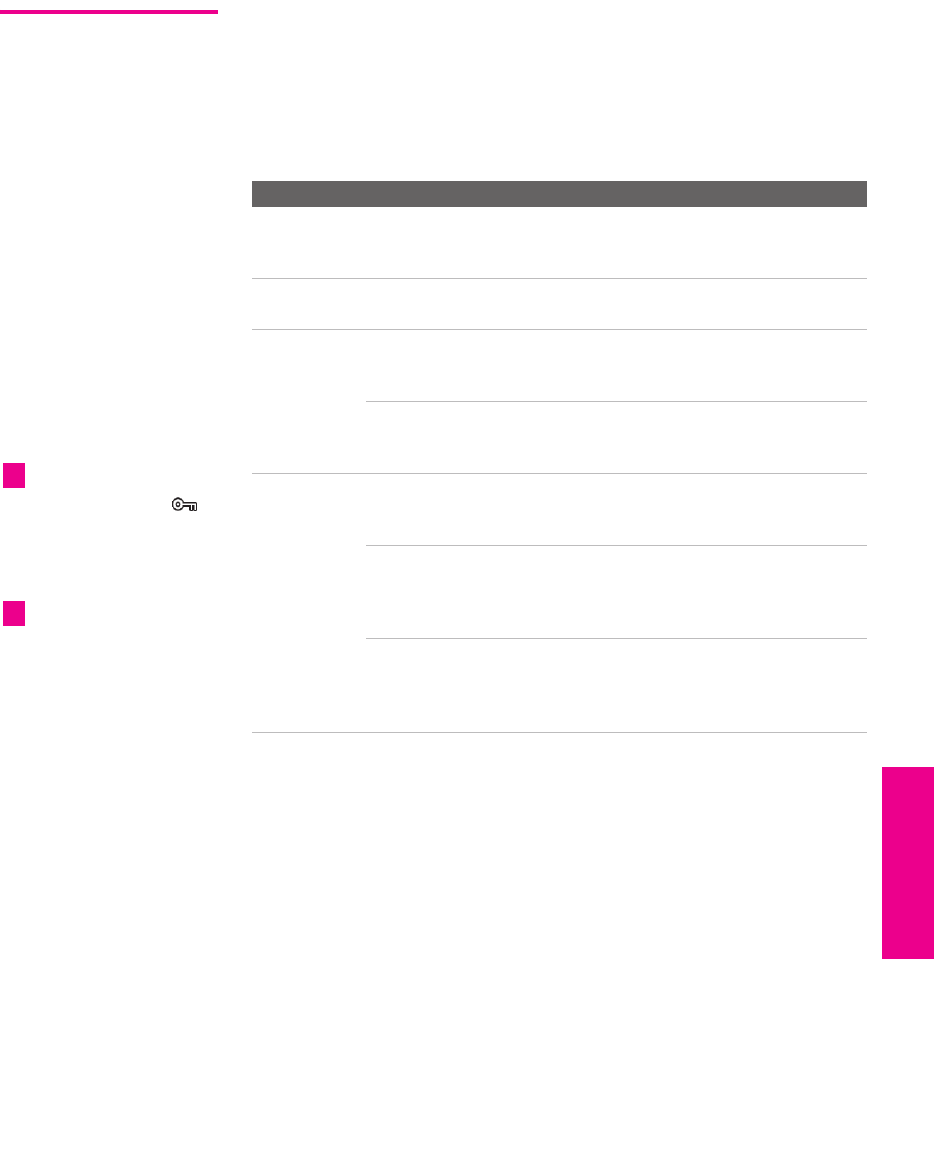
69
SETUP SETUP SETUPSETUP Memory StickFeatures
Photo Menu
Bar Options
The Photo Menu bar lets you access additional photo viewing
options.
To access the Photo Menu bar
1Press B or b to select Slide Show, View, or File.
2Press to select the desired option.
Option Description
Index Displays the Memory Stick Index, with the highlight on the
thumbnail of the currently displayed photo. For details, see
“Using the Memory Stick Index” on page 66.
Slide Show Displays the Slide Show Menu. For details, see “Slide Show
Menu Options” on page 73.
View Rotate Allows you to rotate the photo in 90 degree
increments clockwise or counterclockwise. For
details, see “Using Rotate” on page 70.
Zoom/Pan Allows you to magnify and pan across the
photo. For details, see “Using Zoom and Pan”
on page 70.
File Protect
Allows you to the protect the JPEG file from
any changes. When a JPEG file is protected, it
cannot be rotated or deleted. Select On or Off.
Print Quantity Allows you to indicate the number of prints to
make of the specific photo when the Memory
Stick is inserted into a compatible photo
printer (not supplied).
Delete Deletes the JPEG file from the Memory
Stick.You cannot delete a JPEG file that has
been protected (or if the Memory Stick is
locked).
JPEG files that are protected
are indicated by the Lock
icon.
z
The Print Quantity feature is
also known as DPOF (Digital
Print Order Format).
z
XS.book Page 69 Tuesday, June 8, 2004 1:40 PM
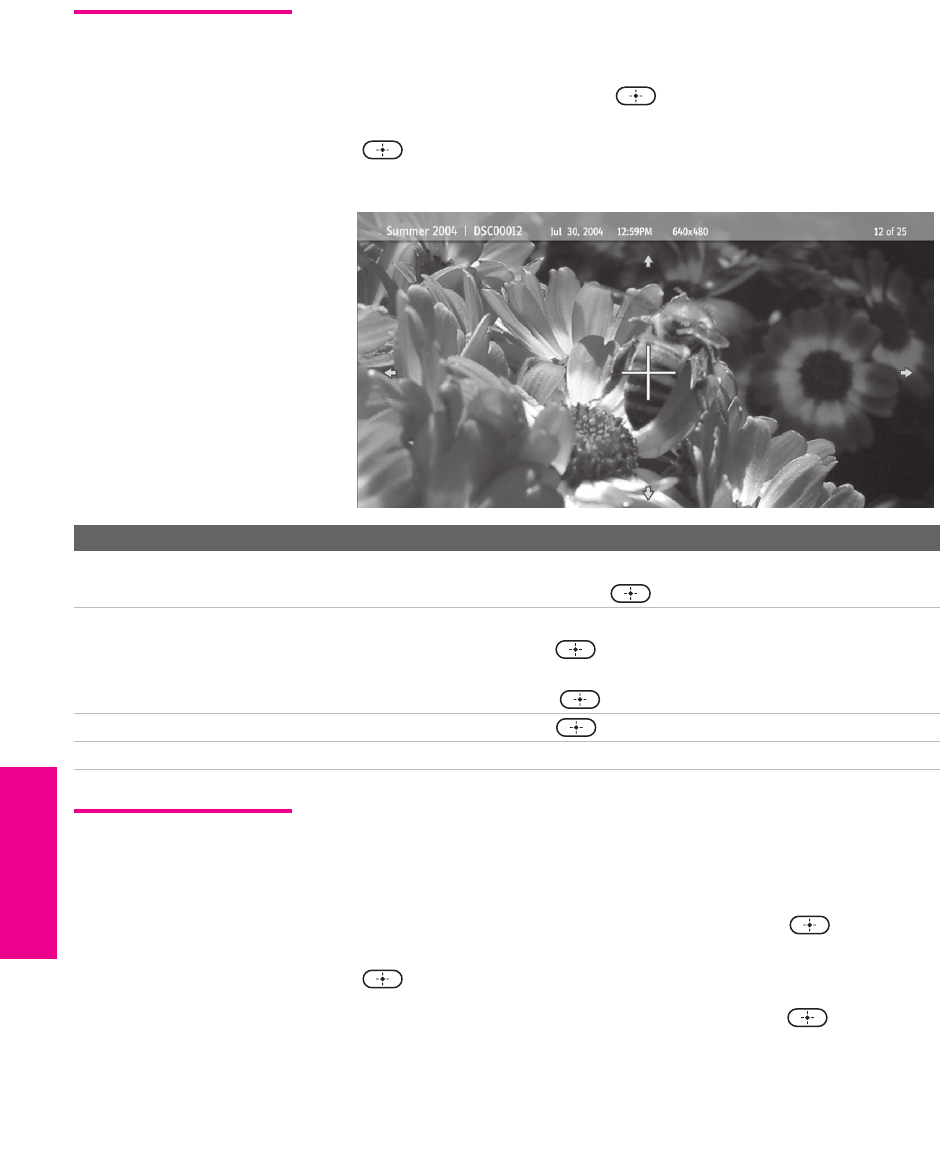
70
SETUP Memory Stick SETUPFeatures SETUPSETUP
Using Zoom
and Pan
To Zoom and Pan a photo
1In the Photo Menu bar, highlight View.
2Highlight Zoom/Pan and press .
3Specify the zoom center point by pressing B b V v ; then press
to set the center.
The Zoom and Pan controls are displayed.
Using Rotate To Rotate a p hoto
1In the Photo Menu bar, highlight View.
2Highlight Rotate.
3To rotate clockwise, highlight Clockwise and press .
To rotate counterclockwise, highlight Counterclockwise and press
.
The photo is rotated 90 degrees each time you press .
To Do This ... Do This ...
Zoom in (increase magnification)
or out (decrease magnification)
Highlight Zoom and press V to zoom in or v to zoom out.
For help on using Zoom, press .
Pan (move the photo left,
right, up, down)
(You can use Pan only when the photo is magnified using Zoom.)
Highlight Pan and press . Then press B b V v to pan around the
photo.
To stop using Pan, press .
Exit the Zoom/Pan controls Highlight Exit and press .
Exit Memory Stick Viewer Press the MEMORY STICK button on the remote control.
XS.book Page 70 Tuesday, June 8, 2004 1:40 PM
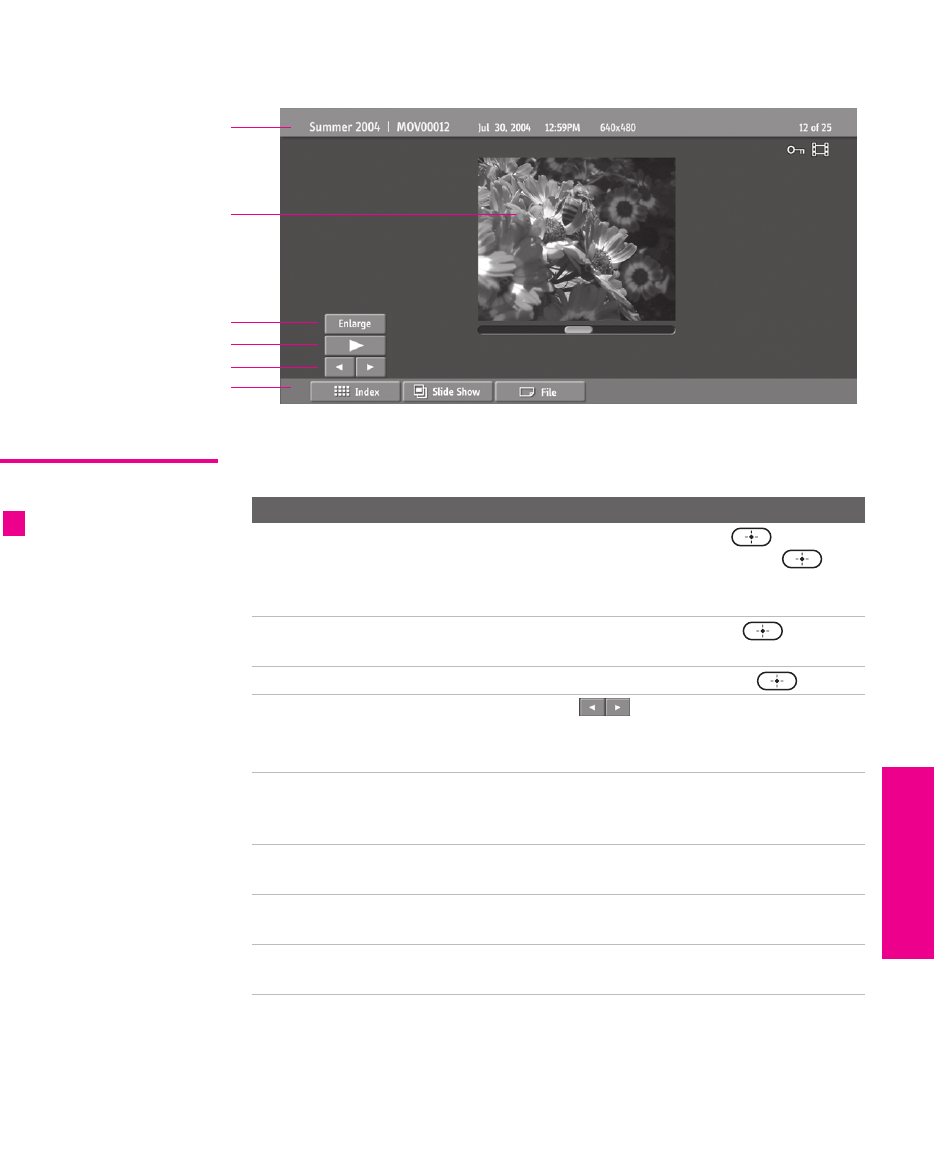
71
SETUP SETUP SETUPSETUP Memory StickFeatures
Playing Movies
When you select a movie from the Memory Stick Index (described on
page 66), it displays as shown below, with the following controls.
Movie Controls
Movie Menu bar
Information about
selected movie
Selected movie
Previous/next buttons
Enlarge button
Play/pause button
To Do This ... Do This ...
Enlarge the movie
window
Highlight Enlarge, and then press . To
display the movie controls again, press .
When the movie ends, the movie controls are
displayed again.
Play the movie with the
movie controls displayed
Highlight B (Play) and then press .
Pause the movie Highlight X (Pause) and then press .
Display the previous or
next file on the Memory
Stick
Highlight the (Previous/Next) button.
Then press B to go to the previous file, or b to
go to the next file.
Hide the Movie Menu
bar, displaying only the
movie
With the highlight in the Movie Menu bar, press
v.
Display the hidden
Movie Menu bar
Press V.
Access additional options
in the Movie Menu bar
See “Movie Menu Bar Options” on page 72.
Exit Memory Stick
Viewer
Press the MEMORY STICK button on the remote
control.
The quality of the movie
when enlarged depends on the
resolution of the MPEG1 file. See
your camera’s instruction manual
for details.
z
XS.book Page 71 Tuesday, June 8, 2004 1:40 PM

72
SETUP Memory Stick SETUPFeatures SETUPSETUP
Movie Menu
Bar Options
To access the Movie Menu bar
1Highlight Index in the Movie Menu bar.
2Press B or b to select Index, Slide Show, or File.
3Select the desired option.
Option Description
Index Displays the Memory Stick Index, with the highlight on the
thumbnail of the currently displayed movie.
Slide Show Displays the Slide Show Menu. For details, see “Slide Show
Menu Options” on page 73.
File Protect
Allows you to the protect the MPEG1 file from
any changes. When an MPEG1 file is
protected, it cannot be deleted. Select On or Off.
Delete Deletes the MPEG1 file from the Memory
Stick.You cannot delete an MPEG1 file that has
been protected (or if the Memory Stick is
locked).
MPEG1 files that are
protected are indicated by the
Lock icon.
z
XS.book Page 72 Tuesday, June 8, 2004 1:40 PM

73
SETUP SETUP SETUPSETUP Memory StickFeatures
Memory Stick Index Menu Bar Options
Slide Show Menu
Options
The Slide Show Menu includes the following options:
Option Description
Start Starts the Slide Show.
Music Allows you to select background audio to play during the
Slide Show.
Off No additional background audio is played
during the Slide Show. Audio that is associated
with the JPEG or MPEG1 files will play.
Play Memory
Stick
Plays all MP3 files on the Memory Stick. The
Piano MP3 file and any MP3 file playlists are
not played.
Piano (built-in) Plays the MP3 file stored in the TV’s internal
memory.
(List of MP3
Files and
Playlists)
Displays a list of all MP3 files and MP3 file
playlists found at the top level (root) of the
Memory Stick. To show additional MP3 files
stored in other folders on the Memory Stick,
select Complete List.
Complete
List
Displays a list of all available MP3 files.
Transition
Effect
Allows you to select an effect to be used when advancing to
the next file in the Slide Show.
Slide Advance Allows you to specify when to advance to the next slide.
Fast Slide advances after about 3 seconds.
Medium Slide advances after about 6 seconds.
Slow Slide advances after about 12 seconds.
Manual Slide advances only after you press B or b.
File
Information
Determines whether file information is shown when the file is
displayed full screen. Select On or Off.
Repeat On Slide Show continuously loops.
Off Slide Show plays once through all files and
ends.
The Slide Show Menu is the
same whether you select it from
the Memory Stick Index
(page 66), Photo (page 68), or
Movie (page 71) Menus.
z
When you select Complete
List, it may take a moment to
display the list of all MP3 files.
z
Some JPEG files may take
longer to display than others,
which may make it seem longer
than the interval you selected for
Slide Advance.
z
You can also display file
information using the
DISPLAY button on the remote
control.
XS.book Page 73 Tuesday, June 8, 2004 1:40 PM

74
SETUP Memory Stick SETUPFeatures SETUPSETUP
Contents Menu
Options
The Contents Menu includes the following options:
Memory Stick
Menu
The Memory Stick Menu displays the current status of the Memory
Stick, including total capacity, used capacity, and free capacity.
Option Description
Select Folder Allows you to select different folders to view in the
Memory Stick Viewer.
Digital Camera
Folders
Selects all folders within the directories
defined by the DCF rules used by Sony
digital cameras (see page 75). JPEG and
MPEG1 files in those directories are
recognized even if they do not conform
to the DCF file naming rules.
Select a Folder Allows you to access individual folders
on the Memory Stick.
File Order Allows you to change the order in which the Memory
Stick files are displayed.
Date Order Displays files in chronological order by
modification date.
Date Order Reverse Displays files in reverse chronological
order by modification date.
Alphabetical Displays files in alphabetical order by
filename.
Filter Allows you to selectively display specific file types
within the selected folder.
Show Photos and
Movies
Displays all readable files.
Show Photos Only Displays only photo (JPEG) files.
Show Movies Only Displays only movie (MPEG1) files.
Show All Print
Marks
Displays all files that are marked for
printing. For details, see “Print
Quantity” on page 69.
The Rotate function does not
change the file’s modification
date.
z
XS.book Page 74 Tuesday, June 8, 2004 1:40 PM

75
SETUP SETUP SETUPSETUP Memory StickFeatures
Notes on Using Memory Stick Media
About DCF File
Names
Most Sony brand digital still and video cameras automatically record
still photo and movie files using DCF compliant directory and file
names.
If you selected the Digital Camera Folders option, as described on page 74,
you might want to have your digital camera’s instruction manual
handy in order to check how files and directories are organized for
your specific model of digital camera.
DCF stands for “Design Rules for Camera File Systems,” which are
specifications established by the Japan Electronic Industry
Development Association (JEIDA).
XS.book Page 75 Tuesday, June 8, 2004 1:40 PM
76
SETUP Memory Stick SETUPFeatures SETUPSETUP
Memory Stick
Precautions
When using Memory Stick media, follow these precautions:
❑To avoid permanent damage to still image data, do not turn
off the TV or remove Memory Stick media from the insertion
slot while data is being read (as indicated by the Memory
Stick indicator light being on).
❑Avoid touching the terminal of Memory Stick media or
bringing it into contact with a metal object.
❑Do not drop, bend, or submit Memory Stick media to external
shock.
❑Do not disassemble or modify Memory Stick media.
❑Avoid getting liquid on Memory Stick media.
❑Apply labels only within the designated label area.
❑To avoid permanent damage to still image data, do not use or
store Memory Stick media in a location subject to:
❑High temperature (such as near a heater or inside a hot
car)
❑High humidity
❑Direct sunlight
❑Corrosive substances
❑Magnetic fields
❑Excessive dust
❑Static electricity or electric noise
❑Electric surges
❑Store and carry Memory Stick media in its original case to
ensure protection of stored data.
❑Save a backup of stored data.
Label Area
XS.book Page 76 Tuesday, June 8, 2004 1:40 PM
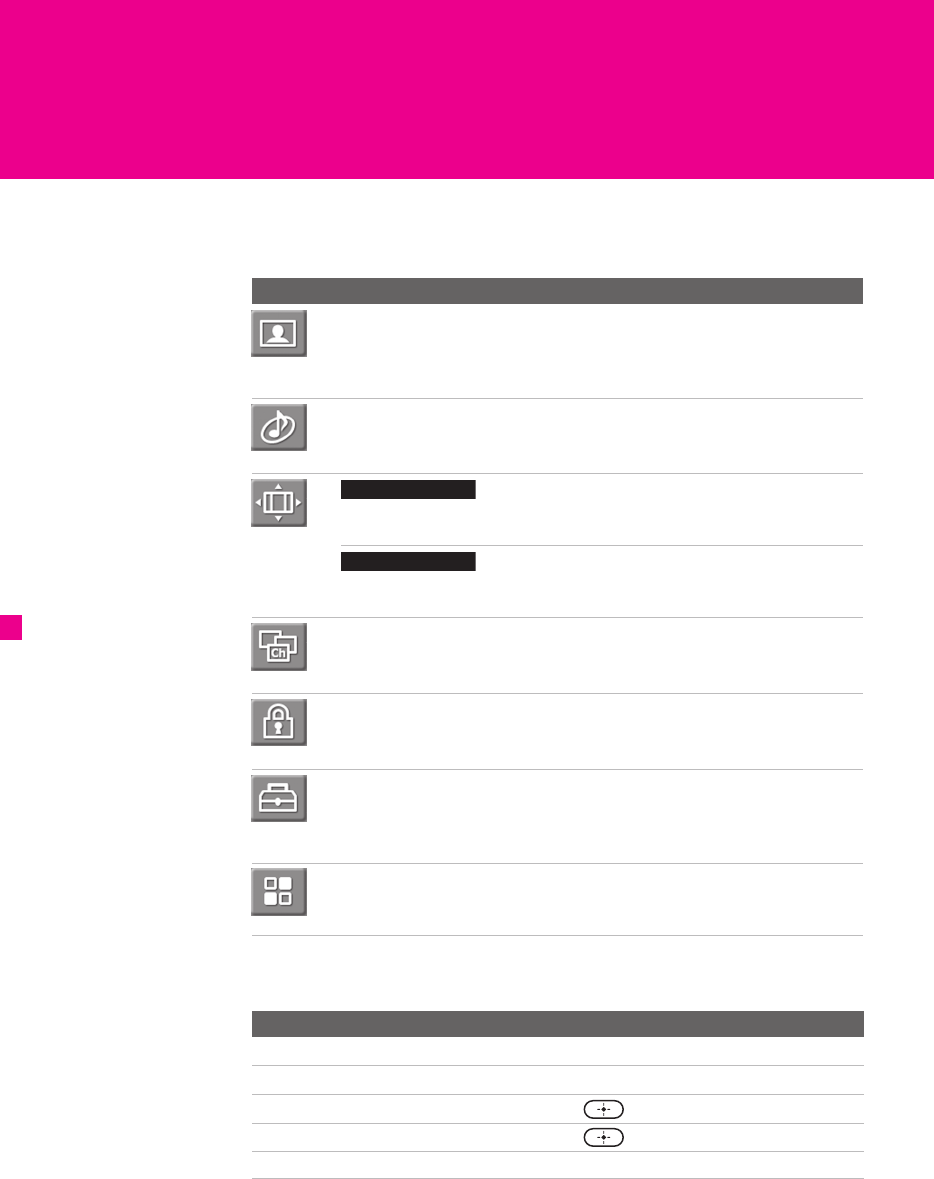
77
Using the Menus
Overview
The Menu gives you access to the following features:
Navigating Through Menus
Menu Description Page
The Video Menu allows you to make adjustments to
your picture settings. It also allows you to customize
the Picture Mode based on the type of program you are
viewing, select Advanced Video options, and more.
78
The Audio Menu Offers enhanced audio options such
as listening to second audio programming (SAP) or
customizing the Effect of the sound on your TV.
80
The Screen Menu allows you to make
Screen Mode adjustments and make changes to the
screen’s vertical center and size.
82
The Screen Menu allows you to make
Screen Mode adjustments and select options from the
Analog 16:9 and Digital 16:9 features.
83
The Channel Menu allows you to set up a Favorite
Channel list, run the Auto Program function, label
channels, and more.
84
The Parental Lock Menu lets you control the viewing of
programs based on their ratings.
86
The Setup Menu provides options for setting up your
system, including selecting closed caption modes,
labeling video inputs, selecting the language and color
of the on-screen Menus, and more.
89
The Applications Menu lets you display the Memory
Stick Viewer, set on/off Timers, access CableCARD
and diagnostics information, and more.
92
KD-30/34XS955 Only
KD-36XS955 Only
Press MENU to enter and
exit Menus.
z
To Do This ... Press
Display the Menu MENU
Move through the Menus V v B b
Select an option to change
Select (confirm) changed setting or B
Exit the Menu MENU
XS.book Page 77 Tuesday, June 8, 2004 1:40 PM
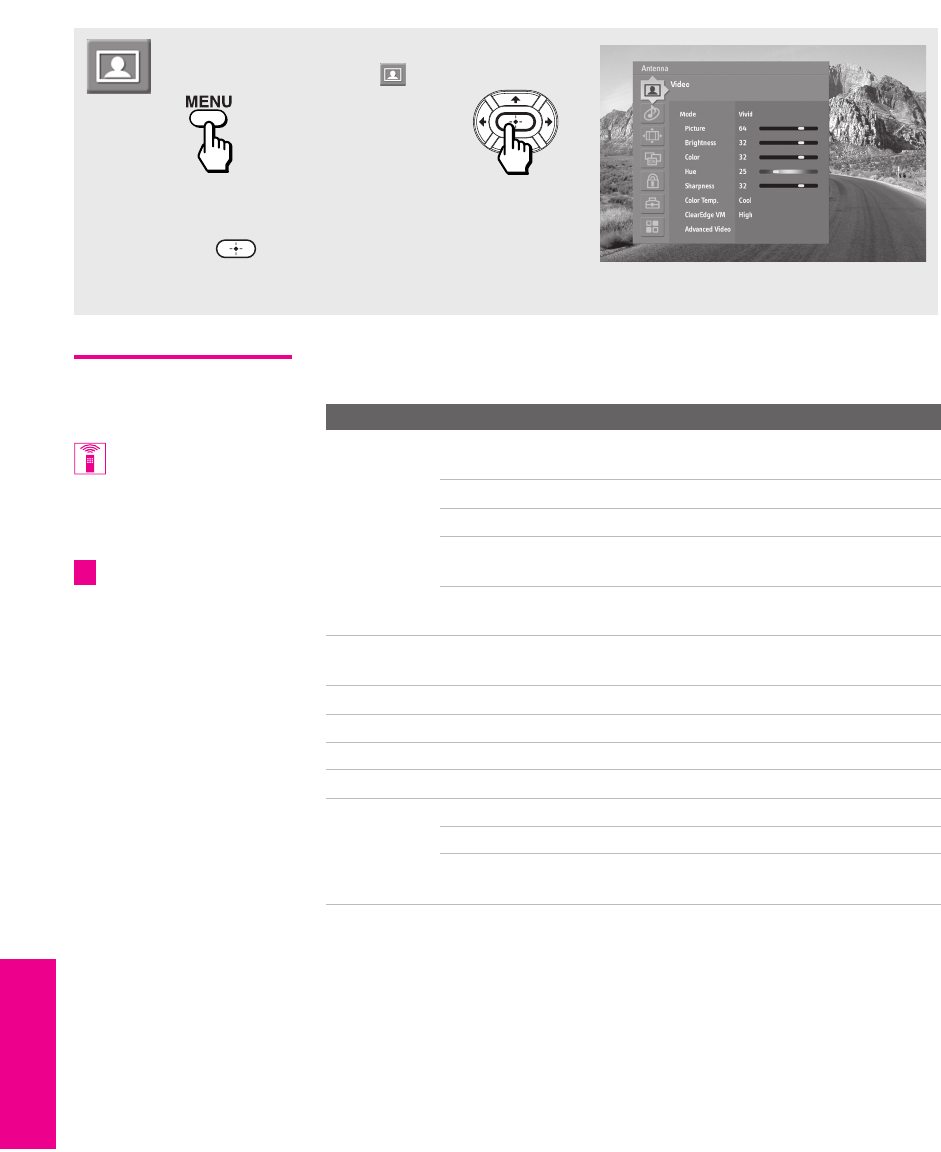
78
Menus Menus MenusSETUP SETUPSETUP
Using the Video Menu
Selecting Video
Options
The Video Menu includes the following options:
To access the Video Menu, follow these steps:
To change settings, press V v B b.
Press to confirm the selection.
To exit the Menu, press MENU.
1. Display Menu 2. Highlight 3. Press to select
You can also change the
Mode setting using the
PICTURE MODE button on the
remote control.
You can alter the Video
Menu settings (Picture,
Brightness, Color, etc.) for each
Mode.
z
Option Description
Mode
Customized
picture
viewing
Vivid Select for enhanced picture contrast and
sharpness.
Standard Select for standard picture settings.
Movie Select to display a softer picture.
Pro Select to display a picture with minimum
enhancements.
To control how the Mode settings (Vivid, Standard, Movie, Pro) are
applied to each video input, see Mode Memory on page 79.
Picture Adjust to increase picture contrast and deepen the color, or
decrease picture contrast and soften the color.
Brightness Adjust to brighten or darken the picture.
Color Adjust to increase or decrease color intensity.
Hue Adjust to increase or decrease the green tones.
Sharpness Adjust to sharpen or soften the picture.
Color Temp.
White
intensity
adjustment
Cool Select to give the white colors a blue tint.
Neutral Select to give the white colors a neutral tint.
Warm Select to give the white colors a red tint
(NTSC-Standard).
XS.book Page 78 Tuesday, June 8, 2004 1:40 PM

79
Menus SETUP MenusSETUP MenusSETUP
To restore the factory default settings for Video settings:
❑Press RESET on the remote control when in the Video Menu.
ClearEdge VM
Veloci ty
Modulation
Sharpens picture definition to give every object a sharp, clean
edge. Select from High, Medium, Low, Off.
Advanced
Video
Select Program to choose among the Advanced Video options.
DRC Mode Creates a high-resolution picture with 4x
density, for high quality sources (i.e., DVD
player, satellite receiver).
Interlaced Recommended for moving
pictures.
Progressive Recommended for still images and
text.
CineMotion Provides an optimized display by
automatically detecting film
content and applying a reverse 3/2
pulldown process. Moving
pictures will appear clearer and
more natural-looking.
Color Axis Allows you to control the emphasis of red
tones.
Default Emphasizes red tones.
Monitor De-emphasizes red tones.
Mode Memory Allows you to control how the Mode settings
(Vivid, Standard, Movie, Pro) are applied to TV
viewing, Memory Stick viewing, and each
video input. For details about Mode settings,
see page 78.
Off Set to Off to apply the same Mode
settings to all video inputs.
Changing inputs does not change
the Mode setting.
On Set to On to customize Mode
settings for each video input.
Changing inputs might change the
Mode setting.
Option Description
You can also change the
DRC Mode using the DRC
MODE button on the remote
control.
XS.book Page 79 Tuesday, June 8, 2004 1:40 PM
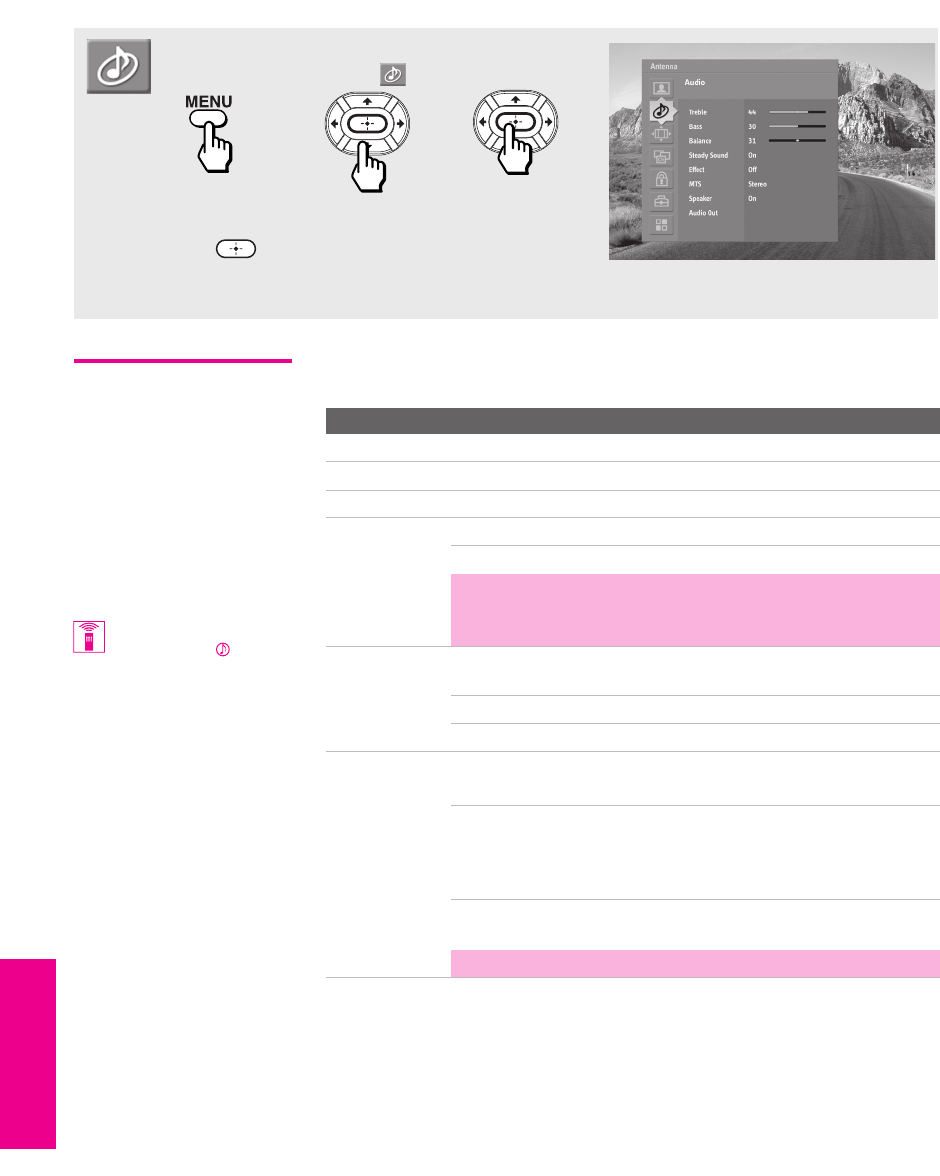
80
Menus Menus MenusSETUP SETUPSETUP
Using the Audio Menu
Selecting Audio
Options
The Audio Menu includes the following options:
To access the Audio Menu, follow these steps:
To change settings, press V v B b.
Press to confirm the selection.
To exit the Menu, press MENU.
1. Display Menu 2. Highlight 3. Press to select
Option Description
Treble Adjust to decrease or increase higher-pitched sounds.
Bass Adjust to decrease or increase lower-pitched sounds.
Balance Adjust to emphasize left or right speaker balance.
Steady Sound Auto Select to stabilize the volume.
Off Select to turn off Steady Sound.
✍The Steady Sound option is not available (it is grayed out)
if the Effect option is set to TruSurround or Simulated. To
use Steady Sound, set Effect to Off.
Effect TruSurround Select for surround sound (for stereo programs
only).
Simulated Adds a surround-like effect to mono programs.
Off Normal stereo or mono reception.
MTS
Enjoy stereo,
bilingual and
mono programs
Stereo Select for stereo reception when viewing a
program broadcast in stereo.
Auto SAP Select to automatically switch the TV to second
audio programs when a signal is received. (If no
SAP signal is present, the TV remains in Stereo
mode.)
Mono Select for mono reception. (Use to reduce noise
during weak stereo broadcasts.)
✍MTS is available only with analog programs.
You can also change the
Effect using the button
on the remote control.
XS.book Page 80 Tuesday, June 8, 2004 1:40 PM

81
Menus SETUP MenusSETUP MenusSETUP
To restore the factory default settings for Treble, Bass, and Balance
❑Press RESET on the remote control when in the Audio Menu.
Speaker On Select to turn on the TV speakers.
Off Select to turn off the TV speakers and listen to
the TV's sound only through your external
audio system speakers.
Audio Out
Easy control of
volume
adjustments
This option can be set only when the Speaker option is set
to Off.
Variable The TV’s speakers are turned off, but the
volume output from your audio system can still
be controlled by the TV’s remote control.
Fixed The TV’s speakers are turned off and the
volume output of the TV is fixed. Use your
audio receiver’s remote control to adjust the
volume through your audio system.
Option Description
XS.book Page 81 Tuesday, June 8, 2004 1:40 PM
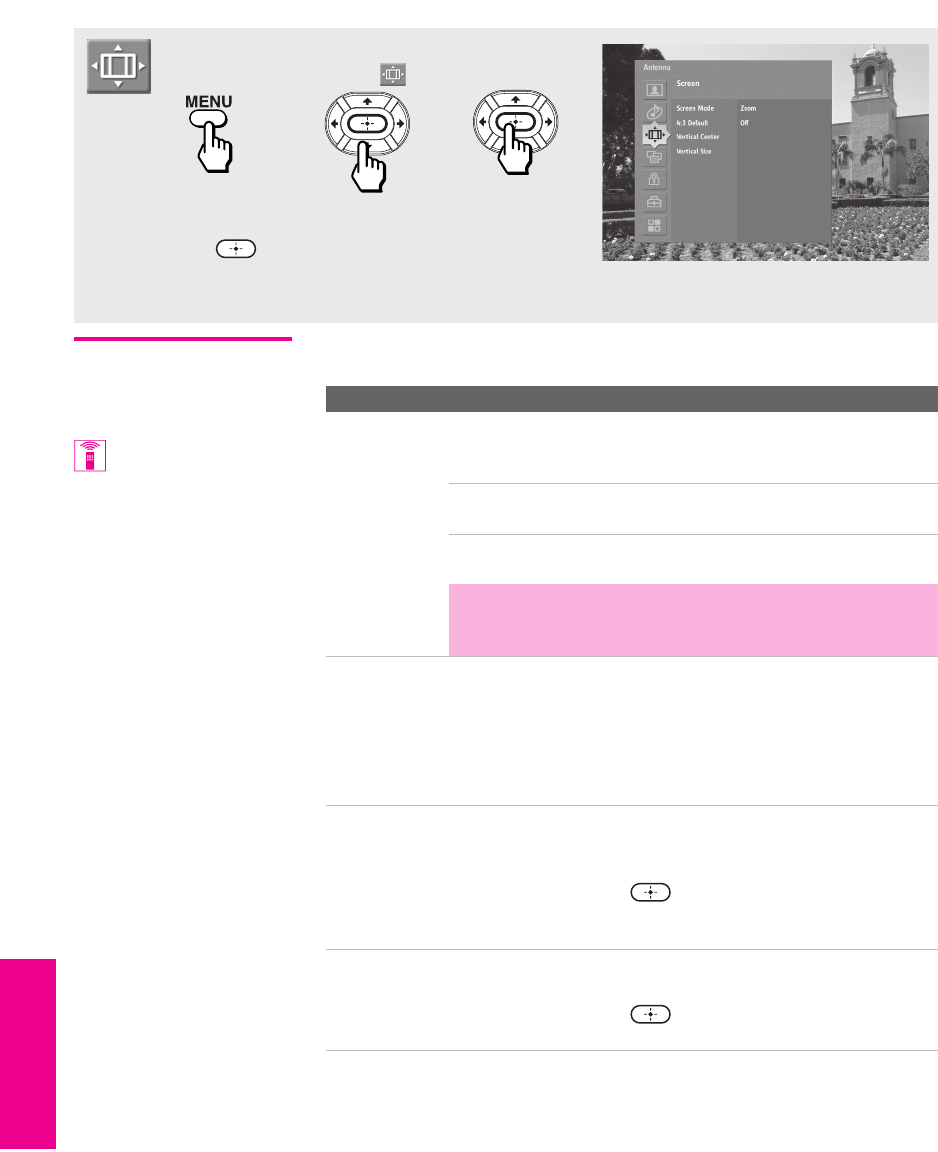
82
Menus Menus MenusSETUP SETUPSETUP
Using the Screen Menu (models KD-30/34XS955 Only)
Selecting Screen
Mode Options
The Screen Menu includes the following options:
To access the Screen Menu, follow these steps:
To change settings, press V v B b.
Press to confirm the selection.
To exit the Menu, press MENU.
1. Display Menu 2. Highlight 3. Press to select
Option Description
Screen Mode Enables you to change the picture size for both standard-
definition (480i/480p) and high-definition (720p/1080i)
sources.
For 480i/480p
sources
Select from: Wide Zoom, Normal, Full, Zoom.
For details, see page 55.
For 720p/1080i
sources
Select from: Full, Zoom, Horizontal Expand,
Vertical Expand. For details, see page 56.
✍In some cases, wide-screen programs will be shown in
aspect ratios that require the display of bars at the top and
bottom of your 16:9 screen. For more details, see page 101.
4:3 Default Select the default Screen Mode to use for 4:3 sources.
To select a Screen Mode to use when channels or inputs are
changed, select from: Wide Zoom, Normal, Full, Zoom. For
details, see page 55.
To continue using the current Screen Mode setting when the
channel or input is changed, select Off.
Vertical Center Allows you to move the position of the picture up and down
in the window. (Available only in Wide Zoom and Zoom
modes.)
Press V or v and press to choose a correction between
+15 and -15 (Zoom mode), and +5 and -5 (Wide Zoom
mode).
Vertical Size Allows you to adjust the vertical size of the picture.
(Available only in Wide Zoom and Zoom modes.)
Press V or v and press to choose a correction between
+7 and -7.
You can also change the
Screen Mode using the
SCREEN MODE button on the
remote control.
XS.book Page 82 Tuesday, June 8, 2004 1:40 PM
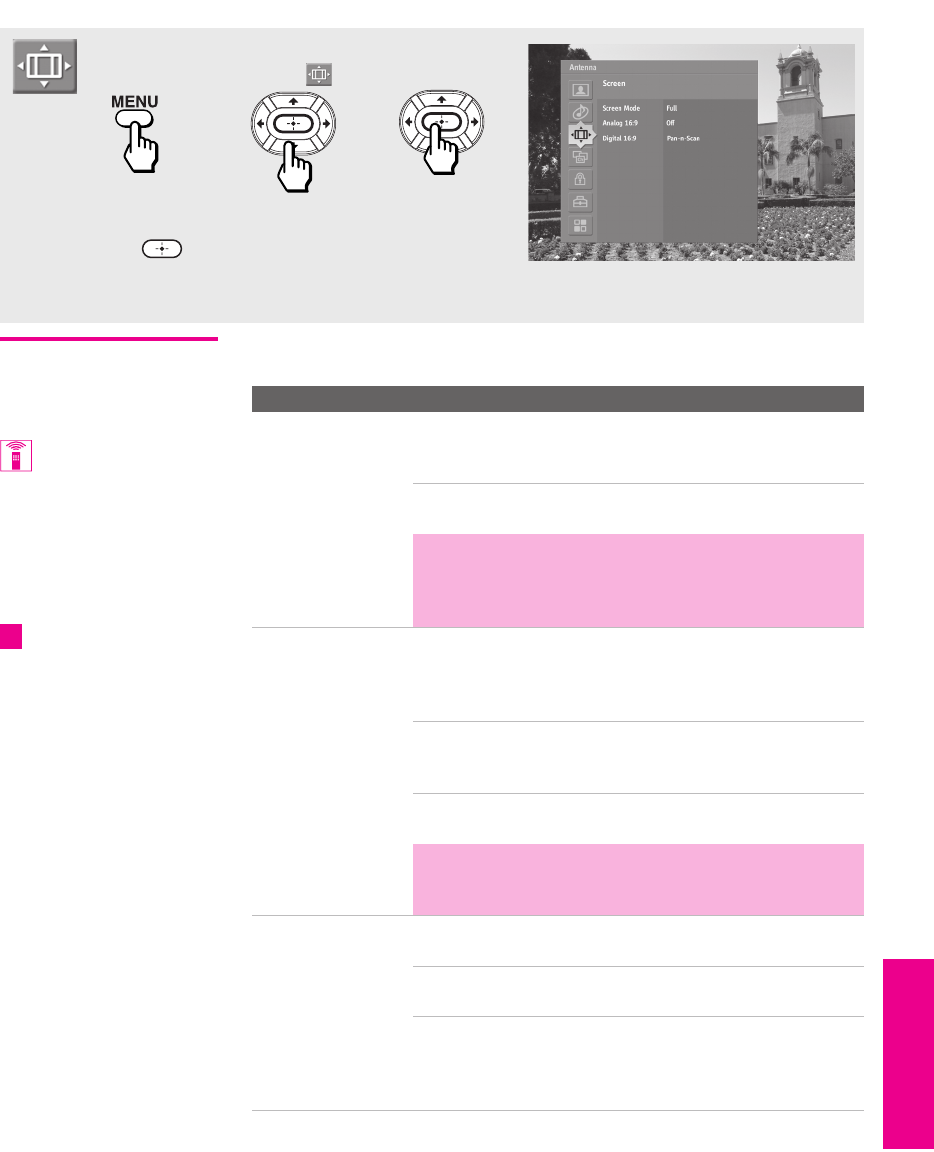
83
Menus SETUP MenusSETUP MenusSETUP
Using the Screen Menu (model KD-36XS955 Only)
Selecting Screen
Mode Options
The Screen Menu includes the following options:
To access the Screen Menu, follow these steps:
To change settings, press V v B b.
Press to confirm the selection.
To exit the Menu, press MENU.
1. Display Menu 2. Highlight 3. Press to select
Option Description
Screen Mode Enables you to change the picture size for both
standard-definition (480i/480p) and high-definition
(720p/1080i) sources.
Select from: Full, Normal, Horizontal Expand, Vertical Expand.
For details, see page 57.
✍In some cases, wide-screen programs will be shown in
aspect ratios that require the display of bars at the
top and bottom of your 16:9 screen. For more details,
see page 101.
Analog 16:9 Provides enhanced picture resolution for widescreen
(anamorphic) sources, such as selected DVD titles. This
option is available only when the TV is set to
VIDEO 1-7.
On To activate manually. Returns to Auto
when you switch to another video
input or change channels.
Auto To activate automatically when a 16:9
signal is received.
✍If the Auto setting does not automatically detect the
16:9 signal from your DVD player, select On to
manually turn on the 16:9 Enhanced feature.
Digital 16:9 Allows you to determine the formatting for digital 16:9
pictures.
Pan-n-Scan The left and right sides of the picture
are clipped to fit the 4:3 screen.
Letterbox The picture is made smaller so that the
left and right edges fit the 4:3 screen.
No clipping results, but bars appear at
the top and bottom of the picture.
You can also change the
Screen Mode using the
SCREEN MODE button on the
remote control.
To use Analog 16:9 with
widescreen DVDs, set your DVD
player to 16:9 aspect ratio.
(Aspect ratio is the ratio of width
to height of the screen. 16:9 is
also referred to as widescreen
format.)
z
XS.book Page 83 Tuesday, June 8, 2004 1:40 PM
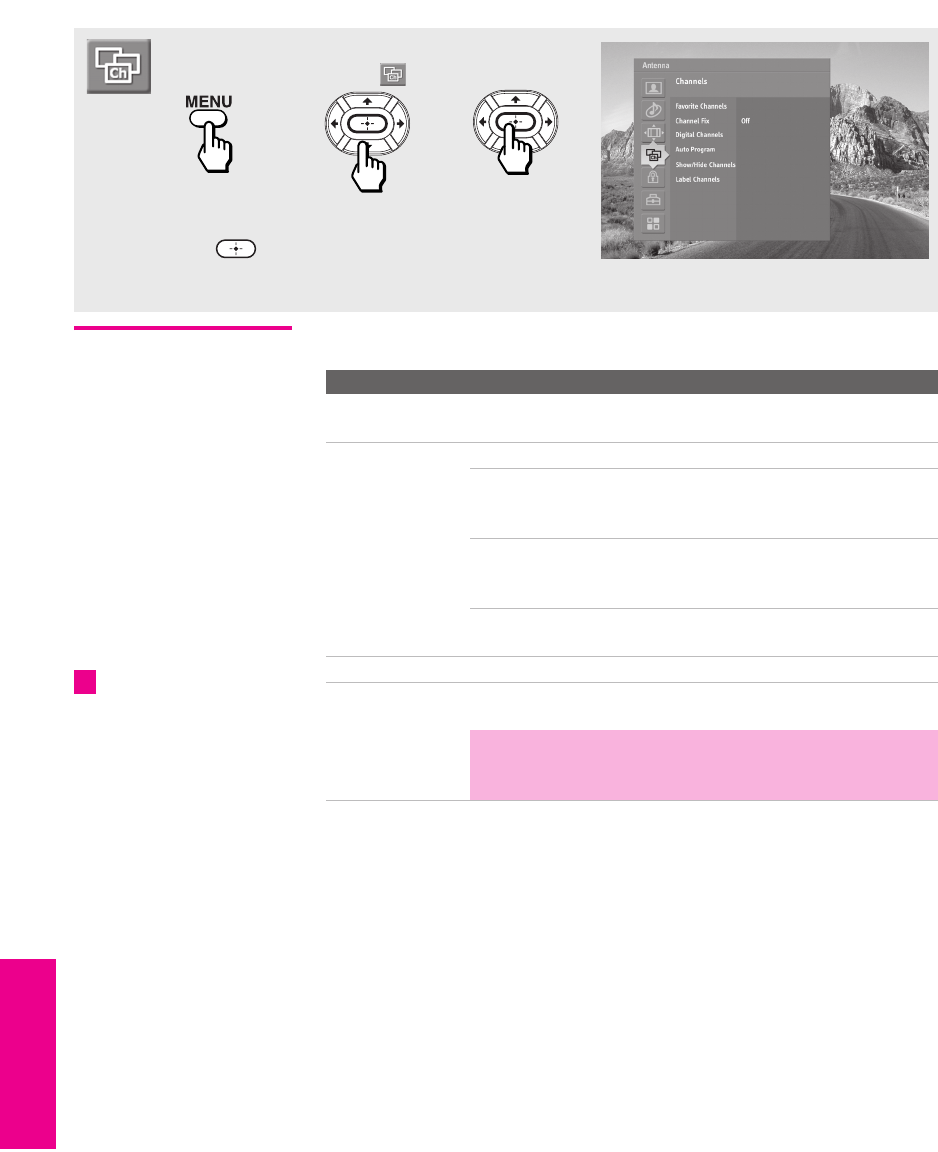
84
Menus Menus MenusSETUP SETUPSETUP
Using the Channel Menu
Selecting Channel
Options
The Channel Menu includes the following options:
To access the Channel Menu, follow these steps:
To change settings, press V v B b.
Press to confirm the selection.
To exit the Menu, press MENU.
1. Display Menu 2. Highlight 3. Press to select
Option Description
Favorite Channels Lets you set up a list of your favorite channels. For
details, see “Using Favorite Channels” on page 58.
Channel Fix Off Turns off Channel Fix.
2-6 “Fix” your TV’s channel setting to 2–6
(VHF/UHF input) and use the cable box
or satellite receiver to change channels.
C2-C6 “Fix” your TV’s channel setting to C2–C6
(CABLE input) and use the cable box or
satellite receiver to change channels.
Video 1 Use this setting if you have connected the
equipment to the A/V input jacks.
Digital Channels Add Select to add digital channels.
Auto Program Automatically sets up the channel list on the TV for all
receivable channels.
✍Auto Program may take up to 30 minutes to complete.
A progress bar will display the approximate progress of
the Auto Program and Digital Channels/Add sequences.
If you are using a
CableCARD, Auto Program is
disabled for the CABLE input.
However, you can run Auto
Program for the VHF/UHF
input.
z
XS.book Page 84 Tuesday, June 8, 2004 1:40 PM
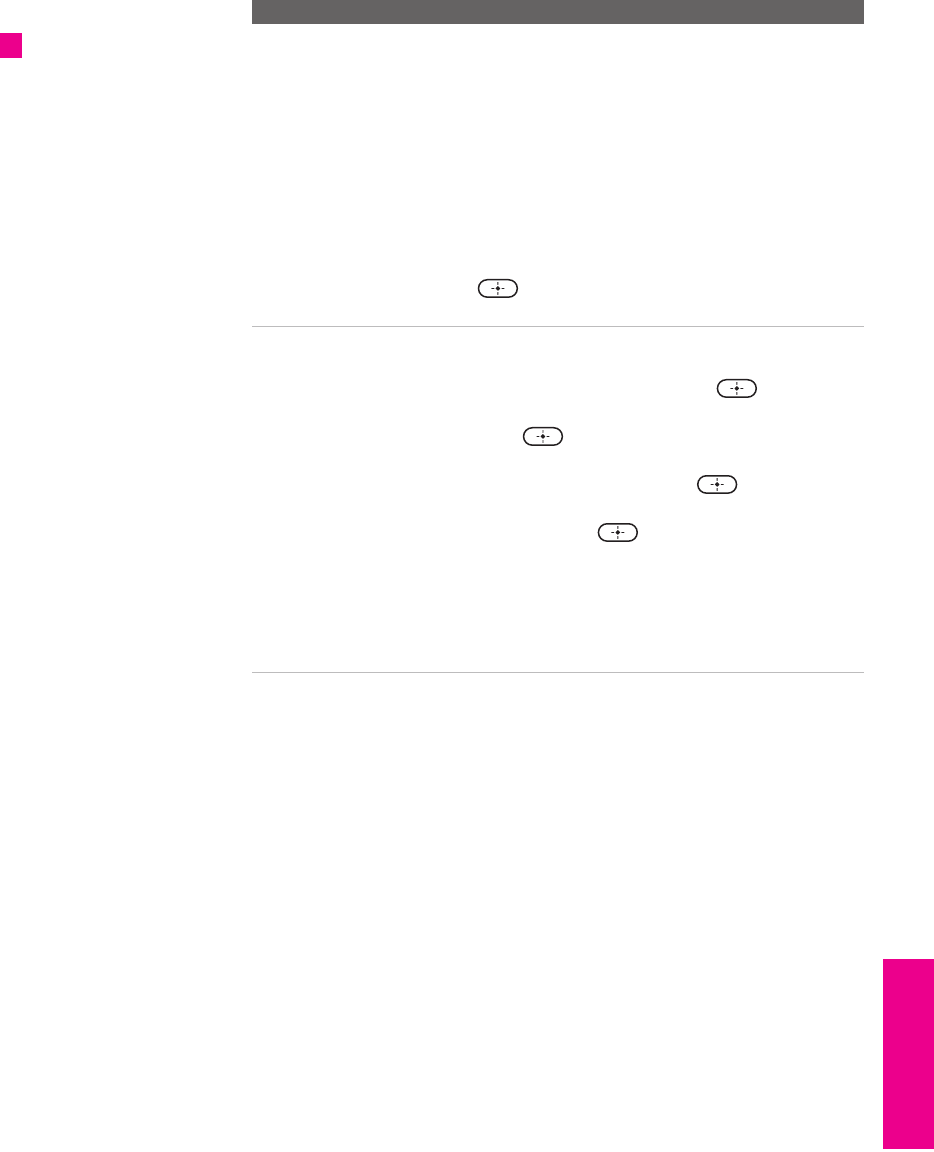
85
Menus SETUP MenusSETUP MenusSETUP
Show/Hide
Channels
Allows you to show or hide channels that appear in the
Program Guide (page 53) and when you use the CH+/-
buttons to channel surf. Channels that are set to Hidden do
not appear in the Program Guide or when you use the
CH+/- buttons.
1Press V or v to highlight the channel that you want
to show or hide.
To move between the Major and Digital subchannel
lists, press B or b.
2To change a channel’s setting to Shown or Hidden,
press .
3To show or hide more channels, repeat steps 1 and 2.
Label Channels Allows you to assign labels (such as station call letters) to
channel numbers.
1Press to highlight Channel and press .
2Press V v to scroll through the channel numbers.
Then press to select the channel number that
you want to assign a label.
3Press to highlight Label and press .
4Press V v to scroll through the label characters (A-Z,
0-9, etc.). Then press to select the highlighted
character.
Repeat to add characters to the label.
5To assign labels to more channels, repeat steps 1-4.
6Press B to return to the Channel Menu, or press
MENU to exit the Menus.
Option Description
Channels that you set to
Hidden can be accessed only
with the 0-9 buttons.
z
XS.book Page 85 Tuesday, June 8, 2004 1:40 PM
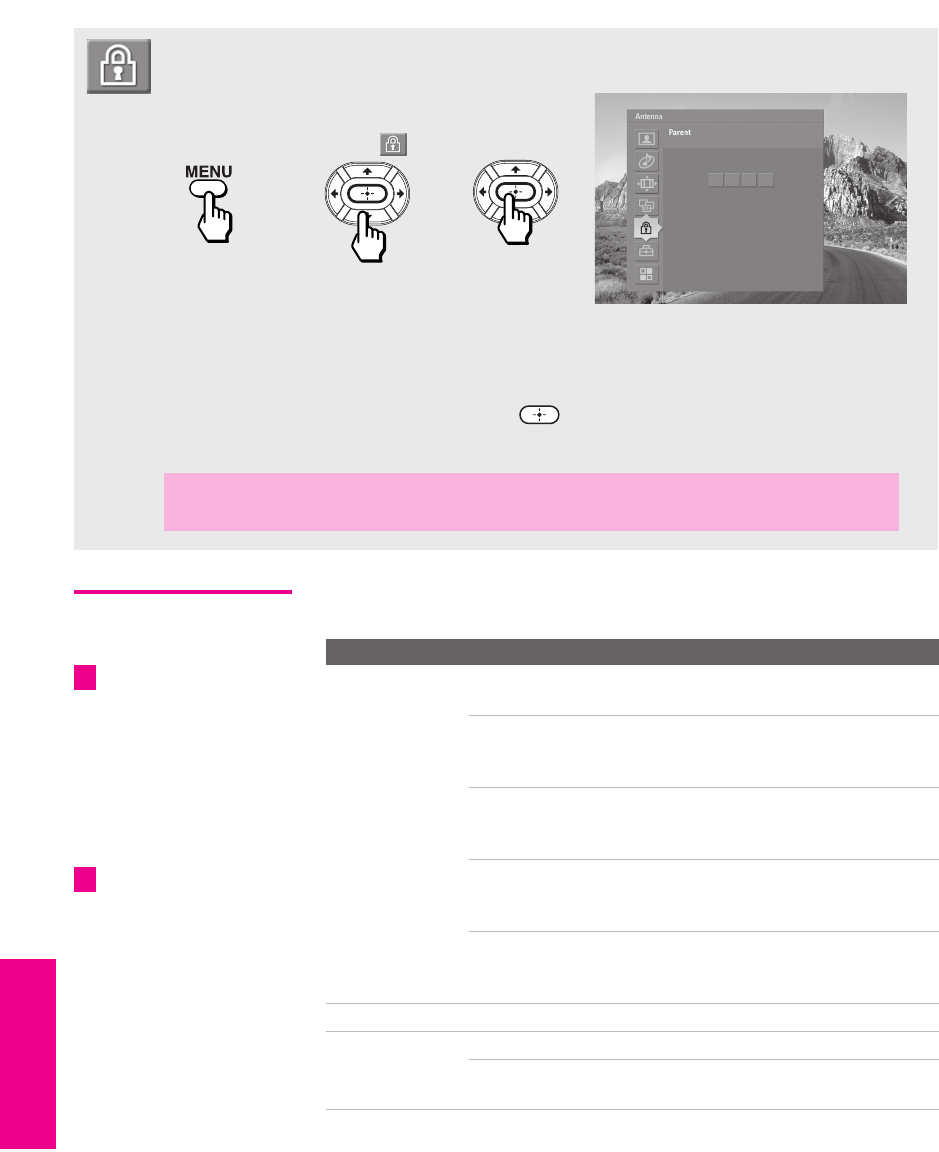
86
Menus Menus MenusSETUP SETUPSETUP
Using the Parent Menu
Selecting Parent
Menu Options
The Parent Menu includes the following options:
The Parent Menu allows you to set up the TV to block programs according to their
content and rating levels.
To access the Parent Menu, follow these steps:
Use the 0-9 buttons on the remote control to
enter a four-digit password.
If this is the first time you are creating this password, confirm the password by
entering it again. (The Parent Menu options appear.)
To change settings, press V v B b. Press to confirm the selection.
To exit the Menu, press MENU.
1. Display Menu 2. Highlight 3. Press to select
✍You need your password for any future access into the Parent Menu. If you lose your
password, see “Lost password” on page 101.
If you are not familiar with
the Parental Guideline rating
system, you should select Child,
Youth, or Young Adult to help
simplify the rating selection. To
set more specific ratings, select
Custom.
z
Option Description
Parental Lock
Turn ratings
on/off and select a
rating system
Off Parental lock is off. No programs are
blocked from viewing.
Child Maximum ratings permitted are:
❏US: TV-Y, TV-G, G
❏Canada: C, G, TV-Y
Youth Maximum ratings permitted are:
❏US: TV-PG, PG
❏Canada: C8+, PG, 8 ans+, TV-PG
Y. A d u l t Maximum ratings permitted are:
❏US: TV-14, PG-13
❏Canada: 14+, 13 ans+, TV-14
Custom Select to set ratings manually.
❏US: See page 87 for details.
❏Canada: See page 88 for details.
Change Password For changing your password.
Select Country U.S.A. Select to use USA ratings (see page 87).
Canada Select to use Canadian ratings (see
page 88).
For descriptions of Child,
Youth, and Young Adult
ratings, see page 87.
z
XS.book Page 86 Tuesday, June 8, 2004 1:40 PM

87
Menus SETUP MenusSETUP MenusSETUP
US Models:
Selecting Custom
Rating Options
For US models, the Custom Rating Menu includes the following
options. (For Canadian models, see page 88.)
Viewing Blocked
Programs
You can view blocked programs by entering the password. Press the
ENTER button when tuned to a blocked program, then enter the
password. This temporarily switches off the Parental Lock. To
reactivate the Parental Lock settings, turn off the TV. When the TV is
turned on again, your Parental Lock settings are reactivated.
Option Description
Movie Rating G All children and General Audience.
PG Parental Guidance suggested.
PG-13 Parental Guidance for children under 13.
RRestricted viewing, parental guidance is
suggested for children under 17.
NC-17
and X
No one 17 or under allowed.
TV Rating
Block programs
by their rating,
content or both
Age-Based Ratings
TV-Y All children.
TV-Y7 Directed to children age 7 and older.
TV-G General Audience.
TV-PG Parental Guidance suggested.
TV-14 Parents Strongly cautioned.
TV-MA Mature Audience only.
Content-Based Ratings
FV Fantasy Violence.
DSuggestive Dialogue.
LStrong Language.
SSexual situations.
VViolence.
Unrated
Block programs
or movies that
are broadcast
without a rating
Block Blocks all programs and movies that are
broadcast without a rating.
Allow Allows programs and movies that are
broadcast without a rating.
The Content-Based Ratings
are linked to the level of the
Age-Based Rating. For example,
a program with an Age-Based
Rating of TV-PG V (Violence)
rating may contain moderate
violence, while a TV-14 V
(Violence) rating may contain
more intense violence.
To ensure maximum
blocking capability, set the Age-
Based Ratings.
If you block unrated TV
programs, be aware that the
following types of programs
may be blocked: emergency
broadcasts, political programs,
sports, news, public service
announcements, religious
programs and weather.
z
z
z
XS.book Page 87 Tuesday, June 8, 2004 1:40 PM

88
Menus Menus MenusSETUP SETUPSETUP
Canadian Models:
Selecting Custom
Rating Options
For Canadian models, the Custom Rating Menu includes the
following options. (For US models, see page 87.)
Viewing Blocked
Programs
You can view blocked programs by entering the password. Press the
ENTER button when tuned to a blocked program, then enter the
password. This temporarily switches off the Parental Lock. To
reactivate the Parental Lock settings, turn off the TV. When the TV is
turned on again, your Parental Lock settings are reactivated.
Option Description
English Rating C All children.
C8+ Children 8 years and older.
GGeneral programming.
PG Parental Guidance.
14+ Viewers 14 and older.
18+ Adult programming.
French Rating G General programming.
8 ans+ Not recommended for young children.
13 ans+ Not recommended for ages under 13.
16 ans+ Not recommended for ages under 16.
18 ans+ Programming restricted to adults.
U.S.A. Rating See “US Models” on page 87 for details.
XS.book Page 88 Tuesday, June 8, 2004 1:40 PM
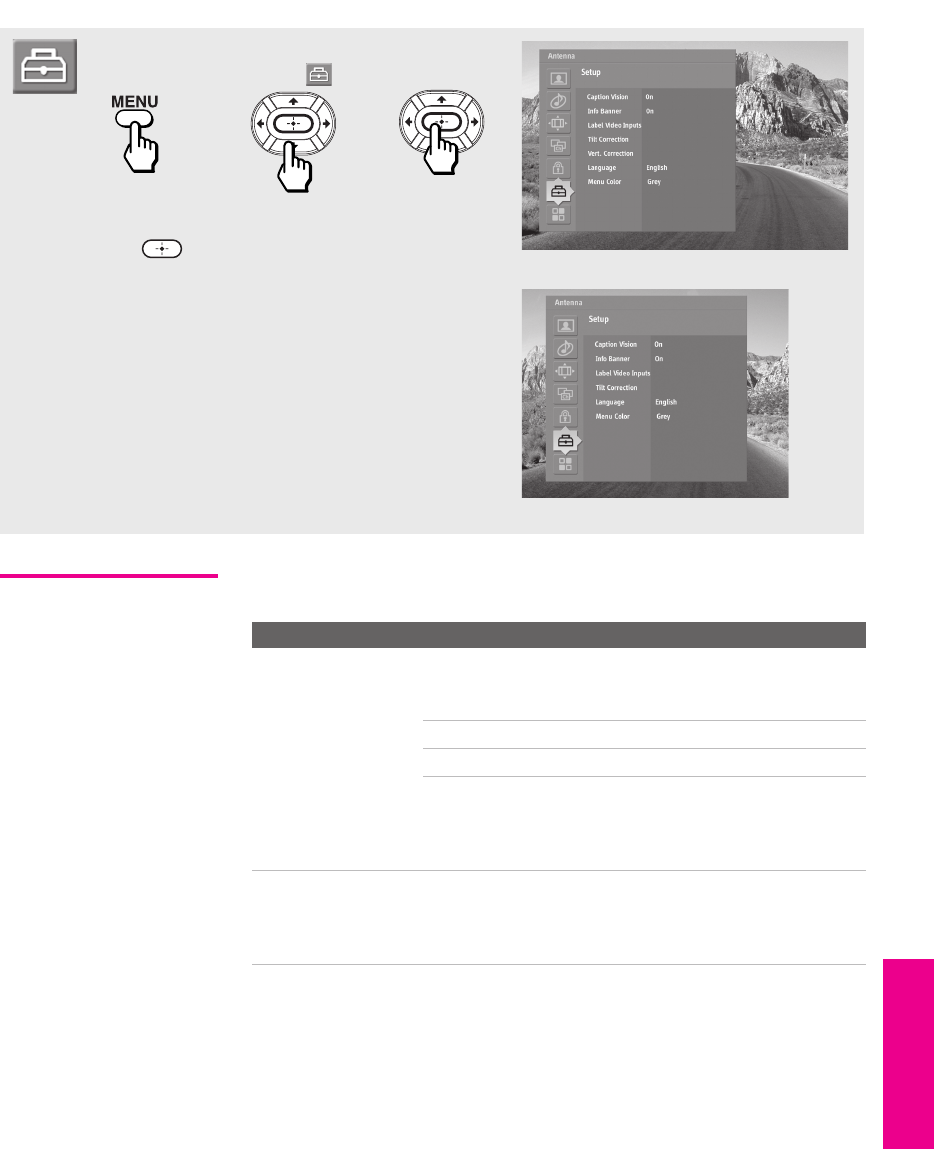
89
Menus SETUP MenusSETUP MenusSETUP
Using the Setup Menu
Selecting
Setup Options
The Setup Menu includes the following options:
To access the Setup Menu, follow these steps:
To change settings, press V v B b.
Press to confirm the selection.
To exit the Menu, press MENU.
1. Display Menu 2. Highlight 3. Press to select
Setup Menu for KD-36XS955
Setup Menu for KD-30/34XS955
Option Description
Caption Vision Allows you to select from several closed caption
modes (for programs that are broadcast with closed
caption).
On Caption Vision is turned on.
Off Caption Vision is turned off.
Program Allows you to set basic and advanced
Caption Vision options. See
“Programming Caption Vision” on
page 91.
Info Banner Set to On or Off. When on, displays the program name,
time remaining and other information (if the
broadcaster offers this service). Displays when the
channel is changed or the DISPLAY button is pressed.
XS.book Page 89 Tuesday, June 8, 2004 1:40 PM
90
Menus Menus MenusSETUP SETUPSETUP
Label Video Inputs Allows you to identify A/V equipment you connected
to the TV, such as a VCR, DVD, etc. For example, if
you have a DVD player connected to the VIDEO 5
jack, you can select the label DVD for the VIDEO 5
input. Then when you press the TV/VIDEO button to
change inputs, the Video Label you assigned to that
input appears on screen.
1Press V or v to highlight the video input (VIDEO
1-7) to which you want to assign a label. Then
press to select the input.
2Press V or v to highlight one of the displayed
labels. Then press to select the label.
You can select from the following labels for each input:
Video 1-7 VHS, DVD, Receiver, Satellite, Cable Box, 8mm,
DTV, Game, LD, Web, Beta, HD, PVR, Skip
✍If you select Skip, your TV skips this input when you
press the TV/VIDEO button.
Tilt Correction Allows you to correct any tilt of the picture.
Press B or b to choose a correction between +7 and -7
and press .
Vertical Correction Allows you to make a vertical correction to the
picture.
Press V or v to choose a correction between +5 and -5
and press .
Language Select to display all on-screen Menus in your language
of choice.
Menu Color Enables you to select a specific color for the on-screen
menus.
Option Description
The Skip label is useful for
inputs that do not have
equipment connected to
them.
z
Normally, Tilt Correction
and Vertical Correction only
need to be adjusted the first
time you turn on the unit and
after the unit is moved to a
new location.
z
KD-30/34XS955 Only
XS.book Page 90 Tuesday, June 8, 2004 1:40 PM

91
Menus SETUP MenusSETUP MenusSETUP
Programming
Caption Vision
If you selected the Program option under Caption Vision (see page 89), you
can change the following settings:
Basic Allows you to select basic analog (EIA-608) closed caption
options.
CC1, CC2,
CC3, CC4
Displays a printed version of the dialog or
sound effects of a program. (Should be set
to CC1 for most programs.)
Text1,Text2,
Text3,Text4
Displays network/station information
presented using either half or the whole
screen (if available). For closed captioning,
set to CC1.
Advanced Allows you to select advanced digital (EIA-708) closed
caption options. Select from the available options.
Override Allows you to “force” the close captioning to analog (EIA-
608). This setting is in effect only until you change
channels, inputs, or turn off the TV.
Set to On or Off.
Advanced
Settings
Allows you to make additional settings for digital (EIA-
708) closed caption options.
As Broadcast
Large Text
Small Text
Custom ... Allows you to customize the following
settings:
Character Size Small, Standard, Large
Character Style Style 1-7
Character Color None, Color 1-8
Edge Color Color 1-8
Edge Type None, Raised,
Depressed, Outline,
Left shadow,
Right shadow
Background Color None, Color 1-8
Window Color None, Color 1-8
XS.book Page 91 Tuesday, June 8, 2004 1:40 PM
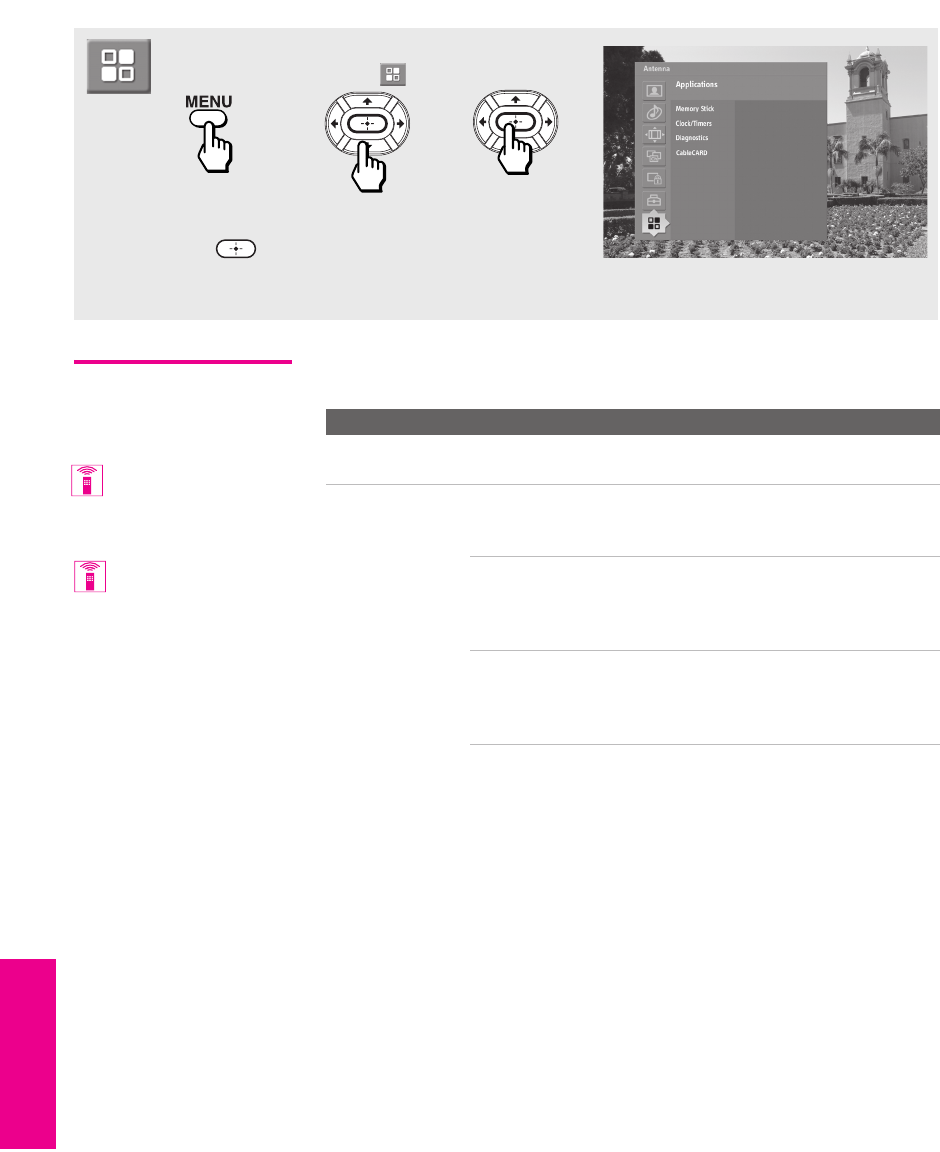
92
Menus Menus MenusSETUP SETUPSETUP
Using the Applications Menu
Selecting
Applications
Options
The Applications Menu includes the following options:
To access the Applications Menu, follow these steps:
To change settings, press V v B b.
Press to confirm the selection.
To exit the Menu, press MENU.
1. Display Menu 2. Highlight 3. Press to select
Option Description
Memory Stick Displays the Memory Stick Viewer. For details, see
page 61.
Clock/Timers Select to set the clock, set the Sleep timer, and to program
your TV to turn on and off at two scheduled viewing
times.
Sleep Set the time in minutes (15min,
30min, 45min, 60min, 90min, or Off)
that you want the TV to remain on
before shutting off automatically.
Timer 1
Timer 2
You can use the Timers to program
the TV to turn on and off and tune
to a specific channel at two
scheduled viewing times.
You can also use the
MEMORY STICK buttons on
the remote control or front panel.
You can also change the
Sleep options using the
SLEEP button on the remote
control.
XS.book Page 92 Tuesday, June 8, 2004 1:40 PM
93
Menus SETUP MenusSETUP MenusSETUP
Timer 1 and Timer 2 are not available to be set until you set
the Current Time.
1Press V or v to highlight Timer 1 or Timer 2. To set the
timer, press b.
2Press V or v to highlight one of the following options,
then press .
Program Select to set the Timer by day,
time, duration, and channel.
Off Select to turn off the Timer. (Your
previous settings are saved.)
3If you selected Program in step 2, Press V and v to set
the day(s), hour, minute, duration, and channel
number. Press or b to confirm each setting and
move to the next setting. Press B to go back to the
previous setting.
4Press MENU to exit the Menu. An LED on the front
panel will light, indicating the timer has been set.
Current Time
1Press to select Current Time.
2Press V and v to set the current time (day, hour, and
minute). Press or b to confirm each setting and
move to the next setting. Press B to go back to the
previous setting.
3Press MENU to exit the Menu.
Diagnostics Displays the strength of the terrestrial digital broadcast
signal, to help you adjust your antenna to optimize signal
reception.
CableCARD This list of selectable CableCARD options will vary,
depending on your cable service provider.
Option Description
To go directly to
programming Timer 1 or 2,
press instead of
pressing b.
z
To return to the Timer
Menu after programming one
of the Timers, press
when the highlight is in the
channel number field.
z
To return to the Timer
Menu after setting the
Current Time, press
when the highlight is in the
minute field.
z
XS.book Page 93 Tuesday, June 8, 2004 1:40 PM
XS.book Page 94 Tuesday, June 8, 2004 1:40 PM

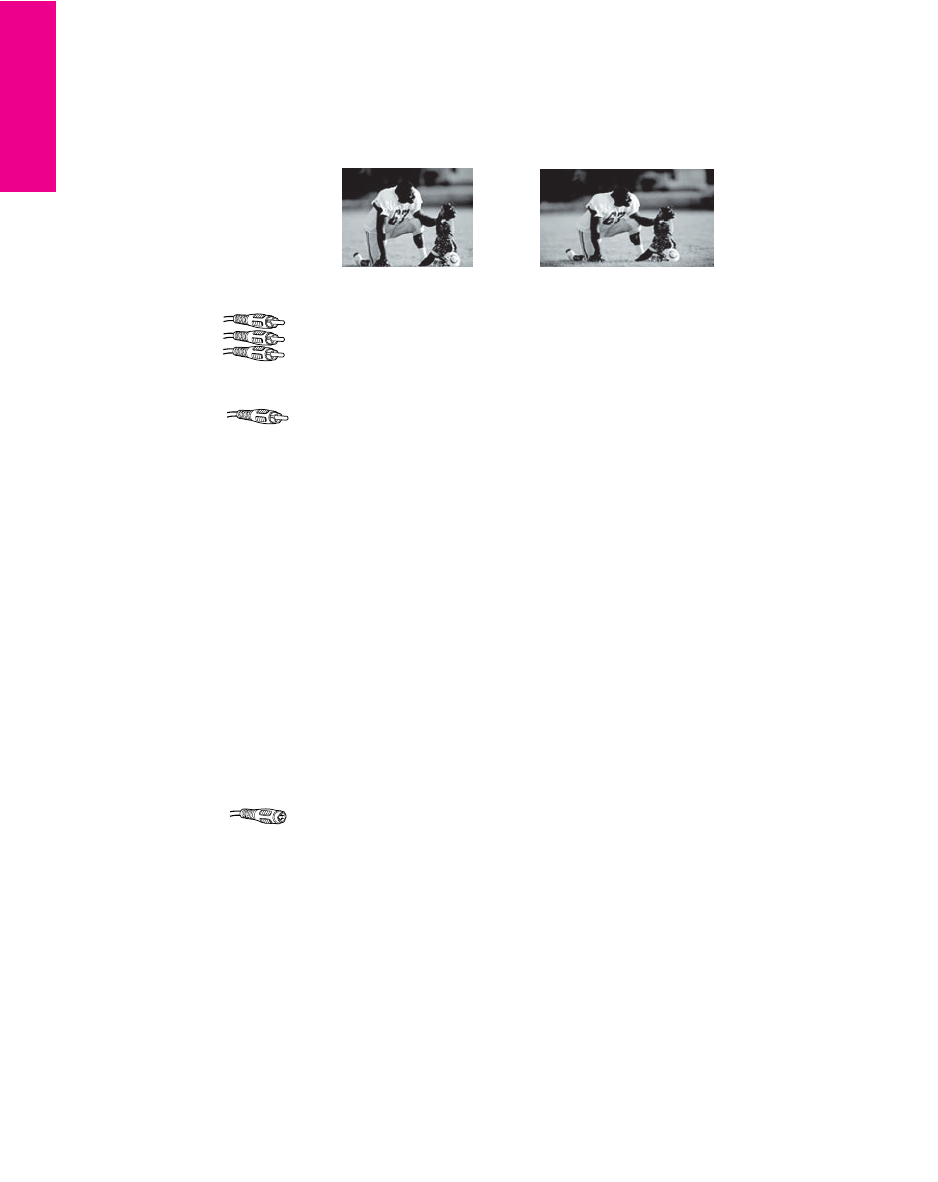
96
Other Info SETUP Other InfoSETUP OtherSETUP
Glossary
analog signal A signaling method that uses continuous changes in the amplitude or frequency of an
electronic transmission to convey information.
aspect ratio Refers to the ratio between the width and height of the screen. KD-36XS955 models have a
4:3 aspect ratio; KD-30/34XS955 models have a a 16:9 (widescreen) aspect ratio.
component video Component video is sent through three cables: two color shade (chrominance) signals and one
brightness (luminance) signal. Component video achieves greater color accuracy than
composite video or S VIDEO by splitting chrominance into two separate portions.
composite video Composite video is sent through a single cable. Composite video combines the color shade
(chrominance) and brightness (luminance) information into one video signal.
degauss A process that demagnetizes the metal components in the TV monitor, which eliminates image
distortion that can result from magnetic charges acquired by the TV’s components. Your TV
degausses automatically when it is turned on.
digital television (DTV) A new technology for transmitting and receiving broadcast television signals. DTV provides
clearer resolution and improved sound quality over analog television.
HDMI (High-Definition
Multimedia Interface)
Provides an uncompressed, all-digital audio/video interface between this TV and any HDMI-
equipped audio/video component, such as a set-top box, DVD player, and A/V receiver. HDMI
supports enhanced, or high-definition video, plus two-channel digital audio.
National Television System
Committee (NTSC)
A unit of the Federal Communications Commission, Washington, DC, that establishes
television standards in the United States, such as NTSC Color, the standard used in this TV.
RF Radio Frequency. That part of the frequency spectrum that is used to transmit TV and radio
signals.
S VIDEO S VIDEO requires a single cable, which carries the brightness (luminance) and color
(chrominance) signals of the picture separately. S VIDEO provides better resolution than
composite video, which carries the signals together.
VHF/UHF VHF (Very High Frequency) is the part of the frequency spectrum from 30 to 300 megahertz.
UHF (Ultra High Frequency) is the part of the frequency spectrum from 300 to 3,000
megahertz.
480i (SD) Provides 480 lines of resolution. Displays images using interlaced scanning, which first
transmits all the odd lines on the TV screen and then the even lines.
480p (SD) Provides 480 lines of resolution. Displays images using progressive scanning, which transmits
each line from top to bottom.
720p (HD) Provides 720 lines of resolution. Displays images using progressive scanning, which transmits
each line from top to bottom.
1080i (HD) Provides 1080 lines of resolution. Displays images using interlaced scanning, which first
transmits all the odd lines on the TV screen and then the even lines. 1080i is one of the
formats used by HDTV (High Definition TV).
16:9 aspect ratio
4:3 aspect ratio
XS.book Page 96 Tuesday, June 8, 2004 1:40 PM

97
Other Info Other Other InfoSETUP SETUPSETUP
Contacting Sony
If, after reading these operating instructions, you have additional
questions related to the use of your Sony television, please call our
Customer Information Services Center at 1-800-222-SONY (7669) (US
residents only) or (416) 499-SONY (7669) (Canadian residents only).
Before calling Sony customer support, please write down the model
and serial numbers of your TV. You’ll find this information on the
front cover of this manual.
Troubleshooting
Remote Control
Problem Possible Remedies
Remote control
does not operate
❏The batteries could be weak. Replace the batteries.
❏Check the orientation of the batteries.
❏Press the TV FUNCTION button. You may have inadvertently pressed the
SAT/CABLE FUNCTION button, which changes the remote control to SAT or
CABLE mode.
❏Make sure the TV’s power cord is connected securely to the wall outlet.
❏Locate the TV at least 3-4 feet away from fluorescent lights.
Cannot change channels
with the remote control
❏If you are using the TV to change channels, first press the TV FUNCTION
button.
❏If you are using another device to change channels, be sure you have not
inadvertently switched your TV from the channel 3 or 4 setting. Use the
Channel Fix option to “fix” the channel based on the hookup you used (see
page 84).
❏
If you are using another device to change channels, be sure to press the
FUNCTION
button for that device. For example, if you are using your cable box
to change channels, be sure to press the
SAT/CABLE FUNCTION
button.
Remote control
does not operate non-Sony
video equipment
❏If you replaced the batteries to the remote recently, the code numbers for
the video equipment may need to be reset.
❏There may be more than one code for the equipment that you are
attempting to operate.
❏There is a possibility that some non-Sony equipment cannot be operated by
your Sony TV remote.You may need to use the equipment’s original
remote control.
XS.book Page 97 Tuesday, June 8, 2004 1:40 PM

98
Other Info SETUP Other InfoSETUP OtherSETUP
Channels
CableCARD
Problem Possible Remedies
Cannot receive upper
channels (UHF) when
using an antenna
❏Use Auto Program in the Channel Menu to add receivable channels that are
not presently in the TV’s memory (see page 84).
TV is fixed to one channel ❏Use Auto Program in the Channel Menu to add receivable channels that are
not presently in the TV’s memory (see page 84).
❏Check your Channel Fix settings (see page 84).
Cannot receive any
channels when using
cable TV
❏Use Auto Program in the Channel Menu to add receivable channels that are
not presently in the TV’s memory (see page 84).
Cannot receive or select
channels
❏Use Auto Program in the Channel Menu to add receivable TV channels that
are not presently in TV memory (see page 84).
Some digital cable channels
are not being displayed
❏Certain cable TV companies have limitations on the broadcast of digital
cable channels. Check with your cable TV company for more information.
❏Check with your cable TV company if the channels are scrambled or
encrypted. You will need a CableCARD or a separate set-top box to view
those channels.
❏Some optional digital cable broadcast formats may not be supported. If
your cable TV company is broadcasting digital signals in unsupported
broadcast formats, you will need a separate set-top box provided by your
cable TV company to view those channels.
❏The digital cable channel may be set to Hide in the Channel Menu (see
page 85).
❏Use the Digital Channels feature to search for new digital channels (see
page 84).
Problem Possible Remedies
Problems using
CableCARD or
CableCARD services
❏Check that the CableCARD is inserted properly (see pages 41-42).
❏The CableCARD must be activated by your local cable TV provider before
you can receive digital cable TV services. See the activation instructions on
pages 41-42.
❏Check the Diagnostics and CableCARD menu options (see page 93). (This can
be useful in providing information to an authorized technician or repair
person.)
❏Contact your cable TV company.
XS.book Page 98 Tuesday, June 8, 2004 1:40 PM

99
Other Info Other Other InfoSETUP SETUPSETUP
Memory Stick
Problem Possible Remedies
Image does not
display/Cannot see all files
❏Make sure the image file is a JPEG (.jpg, .jpeg) file or an MPEG1 (.mpg,
.mpeg) file.
❏Make sure the Memory Stick is inserted properly (see page 64).
❏Check the Filter option setting (see page 74).
❏Check the Select Contents setting (see page 74) and ensure that files are either
in DCF directories if Digital Camera Folders is selected (see page 74), or in the
currently selected folder if Select a Folder is selected (see page 74).
❏The maximum number of files the Memory Stick Viewer can display is
2,000 files total, including all JPEG, MPEG1, and MP3 files.
❏If you are using a Memory Stick with the Memory Select function, try
changing the position of the A/B select switch.
JPEG image displays
undesirable motion or flicker
in full screen
❏JPEGs captured using a digital video camera may appear to display motion
in full screen. This is a result of the way digital video cameras record still
images, and is not a result of a malfunction with the TV.
Rotation not saved after
Memory Stick is ejected or
Memory Stick Viewer is
closed
❏The Memory Stick might be locked. Unlock the Memory Stick and try
rotating the image again.
❏The file might not have information (EXIF data) that is usually generated
when a digital camera records a photo. In this case, it is not possible to save
the rotation.
❏There might be insufficient space on the Memory Stick to save the rotated
file. Try deleting one or more files and rotating the image again.
Cannot Rotate, Zoom, Pan or
Print Mark MPEG files
❏These functions are available only for JPEG files.
Cannot show (or hide) file
information in full screen or
Slide Show
❏Set the File/Information option to On or Off (see page 73).
Cannot set print quantity ❏The Memory Stick might be locked. Unlock the Memory Stick and try
setting the print quantity again.
Cannot see Menu ❏Press V to display the Menu again.
Cannot hear audio while
using Memory Stick
❏Check the TV’s volume or Speaker (page 81) settings.
❏To hear JPEG voice memo in full screen view, select the Digital Camera Folders
option and set the Filter option to Show All.
❏Check that the Music option is not to set to Off (see page 73).
Not all MP3 files on Memory
Stick are included when the
Music /Complete List option is
selected (page 73)
❏The Memory Stick Viewer can display a maximum of 2,000 files total,
including all JPEG, MPEG1, and MP3 files.
❏Make sure that the file is named with the file extension (.mp3).
Cannot see MP3 list to play
music
❏MP3 files on your Memory Stick only can be played as background music
during a Slide Show (see page 73).
MP3 file does not play back
correctly
❏The Memory Stick Viewer supports only MP3 files with a fixed data rate of
128 kbps (kilobits per second).
MP3 files on the Memory
Stick are not listed
❏Only MP3 files that are named with the file extension (.mp3) are displayed
in the list.
Music files are playing in
wrong order
❏MP3 files are played in alphabetical order, according to the folder in which
they are stored. If you want to change the playing order, rename your files
alphabetically in the order in which you want them to play or create an
MP3 playlist (.m3u file) on a PC.
XS.book Page 99 Tuesday, June 8, 2004 1:40 PM
100
Other Info SETUP Other InfoSETUP OtherSETUP
Audio
MPEG1 movie does not
play back correctly
❏Some variations of MPEG1 movies may not be compatible with the
Memory Stick Viewer.
MPEG1 quality is poor when
enlarged (page 71)
❏The quality of the movie when enlarged depends on the resolution of the
MPEG1 file. See your camera’s instruction manual for details.
Error message
is displayed
❏No Memory Stick There is no Memory Stick in the slot.
❏Memory Stick
Locked
The lock mechanism on the Memory Stick is
engaged.
❏Memory Stick Error The Memory Stick in the slot might be damaged;
try a different Memory Stick.
❏Format Error The Memory Stick may have been formatted using
a PC or other device that is not compatible with
cameras.
Error icon is displayed The file is not a valid MPEG1 or JPEG format.
The thumbnail is not DCF-compatible.
The file is a JPEG or an MPEG1, but the thumbnail
is unreadable.
The file is unreadable.
Problem Possible Remedies
Problem Possible Remedies
Good picture,
no sound
❏Press MUTING so that the word Muting disappears from the screen (see page
47).
❏Make sure the Speaker option is set to On in the Audio Menu (see page 81).
❏Make sure the MTS option is set to Stereo or Mono (see page 80).
Cannot gain enough volume
when using a cable box
❏Increase the volume of the cable box using the cable box’s remote control.
Then press TV FUNCTION and adjust the TV’s volume.
Sound seems weak or
insufficient
❏The TV’s audio might be set to Auto SAP or Mono, when it might be better set
to Stereo. In the Audio Menu (see page 80), set the MTS setting to Stereo. If
already set to Stereo, switch to Mono (which may reduce background noise
during weak stereo broadcasts).
Cannot raise the volume on
external audio speakers
❏If the Speaker option is set to Off and the Audio Out option is set to Fixed (in
order to output the sound to your audio system) use your audio receiver to
adjust the sound (see page 80). Or, to use the TV remote control, set the
Audio Out option to Variable.
❏To turn on the TV speakers, set the Speaker option to On (see page 80).
XS.book Page 100 Tuesday, June 8, 2004 1:40 PM
101
Other Info Other Other InfoSETUP SETUPSETUP
Video
General
Problem Possible Remedies
No picture
(screen not lit), no sound
❏If your TV does not turn on, and a red light keeps flashing, your TV may
need service. Call your local Sony Service Center.
❏Make sure the power cord is plugged in.
❏Press the POWER button on the front of the TV.
❏Press the TV/VIDEO button to cycle through the connected video sources.
❏Try another channel; it could be station trouble.
Dark, poor or no
picture (screen lit),
good sound
❏Adjust the Picture option in the Video Menu (see page 78).
❏Adjust the Brightness option in the Video Menu (see page 78).
❏Check the antenna/cable connections.
No color ❏Adjust the Color option in the Video Menu (see page 78).
Only snow and noise
appear on the screen
❏Check the antenna/cable connections.
❏Try another channel; it could be station trouble.
❏Press ANT to change the input mode (see page 47).
Dotted lines
or stripes
❏Adjust the antenna.
❏Move the TV away from noise sources such as cars, neon signs, or hair-
dryers.
Double images or ghosts ❏Using a highly directional outdoor antenna or a cable may solve the
problem.
“Black box” on screen ❏You have selected a text option in the Setup Menu and no text is available.
(See page 89 to reset Setup selections.) To turn off this feature, set the
Caption Vision option to Off. If you were trying to select closed captioning,
select CC1 instead of TEXT 1-4.
Bars appear at the
top and bottom of the screen
❏Some wide-screen programs are filmed in aspect ratios that are greater
than 16:9, such as 2.35:1. (This is especially common with theatrical
releases). Your TV will show these programs with bars at the top and
bottom of the screen. For more details, check the documentation that came
with your DVD (or contact your program provider).
Problem Possible Remedies
How to reset TV to
factory settings
❏Turn on the TV. While holding down the RESET button on the remote
control, press the POWER button on the TV. (The TV will turn itself off, then
back on again.) Release the RESET button.
How to restore Video settings
to factory settings
❏Press the RESET button on the remote control while in the Video Menu (see
page 78).
How to restore Audio
settings to factory settings
❏Press the RESET button on the remote control while in the Audio Menu (see
page 80).
Cannot cycle through the
other video equipment
connected to the TV
❏Be sure the Video Label option is not set to Skip (see page 90).
Cannot operate Menu ❏If a Menu option appears in gray, this indicates that the TV is in a state in
which the Menu option is not available.
Lost password ❏In the password screen (see page 86), enter the following master password:
4357. The master password clears your previous password; it cannot be
used to temporarily unblock channels.
XS.book Page 101 Tuesday, June 8, 2004 1:40 PM

102
Other Info SETUP Other InfoSETUP OtherSETUP
TV makes “popping” sound
when turned on
❏This is a normal sound that results from the TV automatically degaussing
each time it is turned on.
TIMER/STAND BY LED on
front panel is lit
❏The LED (see page 12) blinks when the TV is turned on, then shuts off
when the picture is displayed. If the LED blinks for more than a minute,
this may indicate the TV needs service. When lit, indicates that the timer is
set (page 92). When the timer is set, this LED will remain lit even when the
TV is turned off.
Digital cable box does not
work
❏If you are connecting a VCR and digital cable box using a splitter, as
described on page 24, you must use a special bi-directional splitter that is
designed to work with your digital cable box. Contact your cable TV
company for details.
Cannot record digital
channels to VCR
❏Only analog channels can be recorded to your VCR.
Problem Possible Remedies
XS.book Page 102 Tuesday, June 8, 2004 1:40 PM

103
Other Info Other Other InfoSETUP SETUPSETUP
Specifications
Picture Tube FD Trinitron® tube
Antenna 75 ohm external terminal for VHF/UHF
Television System NTSC American TV Standard
ATSC (8VSB terrestrial) ATSC compliant 8VSB
QAM on cable ANSI/SCTE 07 2000
Channel Coverage Terrestrial (analog) 2-69
Cable TV (analog) 1-125
Terrestrial (digital) 2-69
Cable TV (digital) 1-135
Power Requirements 120V, 60 Hz
Inputs/Outputs
HDMI IN Video 1080i, 720p, 480p, 480i
Audio Two channel linear PCM 32, 44.1 and 48 kHz, 16,
20 and 24 bit
Video (IN) 4 total (1 on front panel) 1 Vp-p, 75 ohms unbalanced, sync negative
S Video (IN) 3 total (1 on front panel) Y: 1 Vp-p, 75 ohms unbalanced, sync negative
C: 0.286 Vp-p (Burst signal), 75 ohms
Audio (IN) 7 total (1 on front panel) 500 mVrms (100% modulation)
Impedance: 47 kilohm
Component Video Input 2 (Y, PB, PR) Y: 1.0 Vp-p, 75 ohms unbalanced, sync negative;
PB: 0.7 Vp-p, 75 ohms
PR: 0.7 Vp-p, 75 ohms
CONTROL S (IN/OUT) 1
Variable/Fixed Audio (OUT) 1 More than 408 mVrms at the maximum volume
setting (Variable)
More than 408 mVrms (Fixed)
Impedance (output): 2 kilohms
Digital Audio Optical Output
PCM/Dolby Digital
1Optical Rectangular
CableCARD Slot PCMCIA Type I/II
Supplied Accessories Remote Control RM-Y199
AA (R6) Batteries 2 supplied for remote control
Visible Screen Size
(picture measured diagonally)
KD-30XS955 30 in (762 mm)
KD-34XS955 34 in (863.6 mm)
KD-36XS955 36 in (914.4 mm)
Actual CRT Size
(picture measured diagonally)
KD-30XS955 32 in (812.8 mm)
KD-34XS955 36 in (914.4 mm)
KD-36XS955 38 in (965.2 mm)
Speaker Output 7.5 W x 2 + 15 W subwoofer
Dimensions (W x H x D) KD-30XS955 898 x 604 x 564.5 mm
(35 3/8 x 23 3/4 x 22 1/4 in)
KD-34XS955 994 x 654 x 604 mm (39 1/8 x 25 3/4 x 23 3/4 in)
KD-36XS955 994 x 776.5 x 634 mm (39 1/8 x 30 5/8 x 25 in)
Mass KD-30XS955 67 Kg (148 lbs)
KD-34XS955 93 Kg (205 lbs)
KD-36XS955 108.2 Kg (238.5 lbs)
XS.book Page 103 Tuesday, June 8, 2004 1:40 PM

104
Other Info SETUP Other InfoSETUP OtherSETUP
Design and specifications are subject to change without notice.
Optional
Accessories
Power Consumption KD-30XS955 In Use: 220 W
In Standby: 3 W
In CableCARD Standby: 20 W
KD-34XS955 In Use: 250 W
In Standby: 3 W
In CableCARD Standby: 20 W
KD-36XS955 In Use: 270 W
In Standby: 3 W
In CableCARD Standby: 20 W
Accessory Description Model Number
Cables Audio/Video VMC-810/820/830 HG
Audio RKC-515HG
Component Video VMC-10/30 HG
TV Stands KD-30XS955 SU-30HX1
KD-34XS955 SU-34HX1
KD-36XS955 SU-36HX1
XS.book Page 104 Tuesday, June 8, 2004 1:40 PM

105
Index
0-9 buttons 48, 52
4:3 Default settings 82, 83
A
Advanced Video 79
Alternate Audio 54
Alternate Video 54
ANT button 52
antenna, connecting 16
aspect ratio 83
Audio Menu 77
Audio Out 81
AUDIO OUT jack 14
audio receiver, connecting 36
Auto Program (channel setup)
43, 84
Auto SAP, MTS setting 80
B
balance, adjusting 80
bass, adjusting 80
batteries, inserting in remote 45
bilingual audio 80
blocking programs. See ratings.
brightness, adjusting 78
Built 9
C
cable
connecting 16
with VCR, connecting 22
cable box
connecting with VCR 24
using with TV remote
control 60
CABLE jack, described 14
CableCARD 9, 14, 15, 41
CableCARD slot 14, 41, 42
CableCARD, activating 41
CableCARD, inserting card 41
CableCARD, removing card 42
Caption Vision 89
CATV. See cable
CH buttons 12, 48
Channel Fix 84
channel list, setting up 43
Channel Menu 77
Channel Skip/Add 85
CineMotion 10, 47, 79
ClearEdge VM 79
ClearEdge VM Velocity
Modulation 10
clearing, Favorite Channels 58
closed caption modes 77, 89
CODE SET button 47
color, adjusting 78
Component Video Inputs 10
CONTROL S 40
CONTROL S IN/OUT jacks,
described 14
Cool, Color Temperature 78
D
degauss 102
DIGITAL AUDIO OPTICAL jack
14
digital channels, adding 84
Digital Reality Creation 10
DISPLAY button 52
DRC Mode 79
DRC MODE button 47
DRC. See Digital Reality Creation.
DVD player
using with TV remote
control 60
with A/V connectors,
connecting 34
E
Effect button 47
ENTER button 48, 52
error messages, Memory Stick
100
F
Fast-forward button 47
Favorite Channels 10
clearing 58
in Channel Menu 84
using 58
features 9
Fixed audio setting 81
Full 56
Full (Screen Mode) 55, 56
G
GUIDE button 48, 53
H
HD Detailer 10
HD/DVD IN
(1080i/720p/480p/480i)
jacks, described 14
High-Definition Multimedia
Interface (HDMI) 10, 37, 38,
96
Horizontal Expand (Screen
Mode) 56, 57
hue, adjusting 78
I
Info Banner 89
Initial Setup 43
interlaced 10, 47, 79, 96
J
JUMP button 47, 52
L
Language, setting 90
M
Memory Stick
button 47
features 61
Index 66
indicator (LED) 12
inserting 64
insertion slot 12
panning photos 70
photo options 69
playing movies 71
precautions 76
removing 65
XS.book Page 105 Tuesday, June 8, 2004 1:40 PM

106
Other Info SETUP WelcomeSETUP IndexSETUP
rotating photos 70
slide show options 73
troubleshooting 99
viewing photos 68
zooming photos 70
Memory Stick button 12
Memory Stick Viewer 10
MENU button 12, 48, 52, 58, 77
Menus
Audio 77
Channel 77
Parent 77, 86
Setup 89
Video 77
MONITOR OUT 14
Mono, MTS setting 80
Movie mode 78
movies
viewing thumbnails 66
MTS 80
MUTING button 47, 52
N
Neutral, Color Temperature 78
Normal (Screen Mode) 55
O
off, turning off the TV 12
on, turning on the TV 12
P
Parent Menu 77, 86
parental control, described 10
password, changing 86
Pause button 47
photos
viewing thumbnails 66
PIC MODE button 47
picture contrast, adjusting 78
Play button 47
POWER button 12
power cord, removing from
holder 11
powering on/off, the TV 12
presetting channels 84
Pro (Video) mode 78
problems, troubleshooting 97–
102
Program Guide 53
program guide 53
progressive 10, 47, 79, 96
R
ratings, setting 86–88
ratings, viewing blocked
programs 87, 88
Record buttons 47
remote control
inserting batteries 45
programming 49–50
removing, Favorite Channels 58
RESET button 47, 58
resetting
Audio options 81
Video options 79
Rewind button 47
S
S VIDEO jack, described 12, 14
SAT/CABLE FUNCTION button
47
SAT/CABLE POWER button 47
satellite receiver, using with TV
remote control 59
Screen Mode 55, 57, 82, 83
SCREEN MODE button 55
Setup Menu 89
sharpness, adjusting 78
Simulated, Effect 80
SLEEP button 47
speakers
turning on/off 81
using external speakers 81
specifications 104
Standard mode 78
Steady Sound, described 10
Steady Sound, setting 80
Stereo, MTS setting 80
Stop button 47
Super Fine Pitch 10
surround sound 80
SYSTEM OFF button 47
T
Tilt Correction 43, 90
tilt, correcting 43, 90
TIMER indicator 102
transport buttons 47
treble, adjusting 80
troubleshooting 97–102
TruSurround 80
TruSurround, Effect 80
turning on/off the TV 12
TV FUNCTION button 47, 52
TV POWER button 47, 52
TV/VIDEO button 48, 52
V
Variable audio setting 81
VCR
using with TV remote
control 59
with cable box, connecting
24
with cable, connecting 22
with satellite receiver,
connecting 30
Vertical Center 82
Vertical Correction 43, 90
Vertical Expand (Screen Mode)
56, 57
Vertical Size, adjusting 82
VHF/UHF jack, described 14
VIDEO (L/R)/AUDIO jacks,
described 14
Video Menu 77
Video modes, selecting 78
Vivid mode 78
VOL buttons 12, 47, 52
W
Warm, Color Temperature 78
Wega, described 9
Wide Zoom 55
widescreen 10, 83
Z
Zoom (Screen Mode) 55, 56
XS.book Page 106 Tuesday, June 8, 2004 1:40 PM
