Sony KDF E42A10 User Manual LCD PROJECTION TELEVISION Manuals And Guides L0523059
SONY LCD Television Manual L0523059 SONY LCD Television Owner's Manual, SONY LCD Television installation guides
User Manual: Sony KDF-E42A10 KDF-E42A10 SONY LCD PROJECTION TELEVISION - Manuals and Guides View the owners manual for your SONY LCD PROJECTION TELEVISION #KDFE42A10. Home:Electronics Parts:Sony Parts:Sony LCD PROJECTION TELEVISION Manual
Open the PDF directly: View PDF  .
.
Page Count: 100

2-B97-544-12(1 )
LCD Projection TV
HD-TV
Operating instructions
WEGA ENGINE_M
© 2005 Sony Corporation
Owner's Record
Tile model and seri+d num6ers arc Ioc+tted +tllhe rear ol tile TV. Record
these numbers in tile spaces pro_ ided below. Relcr to them whene_ er
you call upon your Sony dealer regarding lhis product.
Model No.
Serial No.
Contacting Sony
|t, alter reading tile following instruction_, you have additional
es Is elaed o le seoly trS 1_ TV, ple sec llole I le
Ik_llowingnunlbers.
CiistOli/ers ill the conlhlenl,_t] United Slates contact the Direcl
tespon_ (_'¢nlerat:
1-800-222-SONY (7669)
or visit http://www.sonystyle.conl/tv/
(_'llSlOll/ers ill (_'_tllada COlllacl the (_'llStOll/er Relations Cenler al:
1-877-g99-SONY (7669)
or visit http:/!www+sonystyle+ca]tv/
2
WARNING
To reduce the risk ol fire or electric shock, do not expose Ibis apparatus to
l'_l]n or inoisture.
Declaration of Conformity
Trade Name: SONY
Model: KDF-E42A 10/KDF-E50A 10
Responsible ParD': Sony Electronics Inc,
Address: 16450 W. Bemardo Dr.,
San Diego, CA 92127 U.S.A.
Telephone Nmnber: 858-942-2230
This device complies with part 15 of the FCC rifles. Operation is subject
to the lollowing two conditions: (1) Tbis device may not cause hamlfid
interlerence, and (2) this device nmst accept any interlcmnce received.
including interlemnce that may cause undesired operation.
Tiffs symbol is intended to alert the u_r to tile presence
of uninsulated "dangerous voltage" within the
product's enclosure that may be of sufficient
magnitude to constitute a risk of eleclric shock lo
persons.
This symbol is intended to alert tile u_r to tile presence
of ilnpoltant operating and maintenance (selvicing)
instructions in the lileralure accompanying the
appliance.
Tile apparatus shall not be exposed to dripping or splashing and no objects
filled with lk]ukls, such as vases, shall be placed on the apparatus.
CAUTION
To pl'e_ent electric shock, do not use tilts polarized AC phlg with an
extension cord, receptacle or other outlet unless the blades cml be fiflly
inserted to prevent blade exposure.
CAUTION
When using TV gaines, colnpulers, and silnihlr products with your
protection TV, keep tile brighmess and contrast fimctions al low settings. I1
_lfixed (non-moving) pattern is left on tile screen lor long periods of time
at a high brighmess or COlmastsetting, tile image can be permanently
inlprint_donto the screen. Conthmous]y watching tile same progrmn can
cause tile imprinl ol statkm logos onto tile TV screen. Tbe_ types of
inlprints are not covered by your warranty becau_ riley are tile result of
Inisuse.
Note on Caption Vision
This TV provides display ol TV closed captioning in accordance with
]5, l 19 of lhe FCC rules.
For Customers in the United States
If you have any questions about tiffs product, you may call; Sony
Customer Infimnatkm Services Center 1-800-222-7669 or
http://www,sony,com/
NOTIFICATION
This equipmcnl has been tested and Iound to conlply with the lilnits lor a
Class B digital device, pursuant to Part 15 <if the FCC Rules. These limits
am designed to pwvide reasonable protection against harmfld interlPrence
in a residential installatkm. This equipment generates, u_s and can radiate
radio ficquency energy and, if not instzflled and used in accordance with the
instructions, lnay cause harnlJ/d inlerfirrence to radio conltllUnicalions.
However, lbere is no guaranlee thai intertcrence will nol occur in a
particular installation. If lhis equipmenl does cause hamlfifl inlericrence to
radio or televiskm reception, which can be delermined by turning file
equipnlenl off and <in,lhe user is encouraged to tW to correcl the
intellcrence by one or morn of file lollowing measures:
[] Reorienl or relocale tile receiving antenna.
[] lncmase tile separalion between lhe equipnlent and receiver.
[] Connect file equipment inlo an outlel (in a circuil diltcrenl ]]'Oli]lhat
to which the receiver is connected.
[] ConsulI tile dealer or an experienced radio/TV teclmician Ior help,
You are cautkmed that any changes or modifications not expressly
approved in Ibis manual could void your authority to operate this
equipmenl.
For Customers in Canada
This Class B digital aplxlratus complies with Canadian ICES-003,
Safety
[] Operate tile TV only on 120 V AC.
[] Use tile AC power cord specilied by Sony and suitable Ior tile
\ olklge where you use it,
[] The phlg is designed, fi)r salcty purposes, to fit into the wall outlet
only one way. If you are unable to insert the plug hdly imo the outlet,
contacl your dealer.
[] If any liquid or solid object stlould l,dl inside the cabinel, unplug tile
TV immediately and have il checked by qualified service personnel
belom operaling il timber.
[] If you will not be using tile TV Ior _veral days, disconnect lhe power
by pulling file plug ilselL Never pull <in file cord.
[] For details concerning salPty precautions, see "hnportanl Salcly
lnslruclions" on page 5.
Installing
[] Tile TV shouM be installed near an easily accessible power outlet,
[] To prcvenl internal heat buildup, do not block the _entilation
openings.
[] Do not install tile TV in a hot or humid place, or in a place subject to
excessive dust or mechanical vibration.
[] Avoid operating tile TV at lemperaturcs below 41 °F (5°C).
[] If tile TV is transported direclly flom a cold to a warm location, or if
tile room temperature changes suddenly, tile picture may be blurred
or show poor color due to lllOisturc condensation. In this case, please
wait a low hours to ]el lhe nloislure evaporate bell)re lurning Oil tile
TV.
(Continued)
3
[] To obtain tile best picture, do not expose file screen to dirccl
ilhunination or direct sunlight. It is rcconnnended to use spot
lighting directed down fl'om tile ceiling or to cover tile windows thai
I_Lce the screen with opaque drapery. It is desirable to install tile TV
hi a room wher_ tile I'h)or alld walls arc not el a reflectP, e lllatcria].
[] See pages 13 and 14 lot inore ink)rlnation on tile installation.
CAUTION
Use tile lollowing Sony appliance(s) only with tile lollowing TV STAND.
Use with other TV STAND may cause instability and possibly result in
illiury.
SONY APPLIANCE MODEL NO.
KDF-E42A 10
KDF-E50A 10
SONY TV STAND MODEL NO.
SU-RG] IS (KDF-E42A]0)
SU-RC-;] ]M {KDF-E50A]0)
To Customers
Sufficient expertise is required tot installing tile specilied product. Be sure
tit subcontract the installation to Sony dealers or licensed contraclors and
pay adequate attention to sal_:ly dtlring tile installation.
For Customers in the United States
This product contains mercury. Disposal ol this product may be lvgulated
il sold in tile United States. For disposal or recycling intbl'mation, please
contnct your loc_d mlthol'ities or tile Electronics Industries Alliance
(http://www.eiae.org).
Note
This digital television is capable of lvcei_ ing analog basic, digital basic
and digital plemium c_lble tele_ ision plogranlnfing by direct connection tit
a cable system pro_ iding such progl_mmdng, A security card pro_ ided by
your cable operator is required tit _iew encrypted digitld plogr_mnning.
Certain advanced and intel'aCd_e digital cane sel_qcessuch as
xideo-on-demand, a cable operators enhanced program guide and
dat_L-enh_mced tele_ ision selvices m_,yrequire tile use of a set-top box. For
more intbrm_aion c_dl your loc_dcane operator.
This tele_ ision also inchldes a QAM demodulator which should _dlow you
to recei_ e unscrmnbled digital cable television programming _ia
subscription service tit _Lcane sel_ ice pro_ider. A_aih_bility ot digital
cable tele_ision programming in your al_a dependson tile type oi_
plogr_mnning and signal provided by your cable sel'_ice pro_ider.
Trademark Information
C_LbleCARD _'f is a trademark ol C_dqe Television Laboratories, hie.
TruSurround XT, SRS and the (O) _symbol are trademarks of SRS Labs,
lnc. TruSurround XT technology is incorporated under license flom SRS
Labs, Inc.
Licensed by BBE Sound, Inc. under USP4638258, 4482866. "BBE" and
BBE symbol am trademarks of BBE Sound, Inc.
Macintosh is a trademark licensed to Apple Computer, lnc., registered ill
the U,S.A and other countries,
WEGA, Grand WEGA, WEGA GATE, Steady Sound, Digital Reality
Crcadon and CineMotion are registered trademarks of Sony Corporation.
"PlayStadon" is a trademark of Sony Computer EntertainmenL Inc.
r_[_ _ This TV is lnanulacmred under license Iboln Dolby
Laboratories. "Dolby" and the double-D symbol are
D | G|TA L trademarksofDolbyLaboratories.
rn IThis TV incorporates High-Delinitkm
Multimedia Intert_tce (HDMP M) technology.
HDMI, the HDMI logo and High-Definition Multimedia Interlace are
trademarks or registered trademarks of HDMI Licensing LLC.
4
Important Safety Instructions
I ) Read tlaese instluctions.
2) Keep tiles instructions.
3) Heed all warnings.
4) Follow all instructions.
5) Do nol u_ this apparatus near water.
12) Use only with tile cart, stand, tripod, bracket, or
lable specified by tile manul, Lcturer, or sold with
file appar_mls. When a cart is usvd, use caution
when nloving tile carl!apparatUs con/bin_Jlkm 1o
avoid injmy fi'om tip-over.
6) Clean only with dly clotll.
Do not block any ventilatkm openings. Install in
accordance wilh the nlanul]lcturer's
illstructiOllS,
13) Unplug lids apparatus during ligllming stornls
(51when unused lbr long periods of lime.
14) Reli'+r all servicing to qualified service _-
personnel. Servicing is required when tile
apparatus has been dalnaged ill any way, such
as power-supply cord or phlg is dalnaged,
liqukl llas been spilled or objects llave lhllen
into tile apparatus, tile apparatlls has been
exposed to rain or lnoisture, does not operale
normally, or has been dropped.
Do not inslall near any heat sources such as
radialors, heat regislers, sloves, or other
apparatus (including amplifiers) lhal produce
befit,
Do not deleat the salPty purpose of the polarized
or grounding-type plug. A polarized plug has
two blades wilh one wider lhan die oilier. A
grounding type plug has two blades and a third
groulldillg prong. Tile wide blade (51"tile lllird i_ ]_.¢a
prong are provided R_r your salety. If the
provided phlg does not fit into your outlet,
consult an electrician for replacement ol the
obsolete outlet,
10) Protect file power cord from being walked on or
pinched particularly at plugs, convenience
receptacles, and tile poim wllerc they exit bom
tile apparatus.
[] Be sure to obsel_'e tile TV's "For SalPty"
section on page 6.
Antennas
Outdoor Antenna Grounding
It an outdoor antenna is installed. Iollow tile plvcautions below. An
outdoor antenna _yslenl sllould not be located in tile vicinity of o_ el'head
power lilies or other electric ligllt or power circuits, or wllere it can conle
in contact with such power lilies or circuits.
WHEN INSTALLING AN OUTDOOR ANTENNA SYSTEM,
EXTREME CARE gHOUL[) BE TAKEN TO KEEP FROM
CONTACTING SUCH POWER LINES OR CIRCUITS AS CONTACT
WITH THEM IS ALMOST INVARIABLY FATAL.
Be sure file antelllla systcnl is grounded so as to provide some protection
against voltage surges and built-up static charges.
Section 810 of the National Electrical Code (NEC) in USA and Section 54
of the Canadian Electrical Code in Canada provkles inlbrnlatkm with
respect to proper grounding of the tllasl and supporting structure,
grounding of file lead-in wire to an alllcnna discllarge unit, size of
grounding conductors, location of antenna discharge unit, connection to
grounding electrodes, and rcquircnlents lot tile grounding electrode.
I 1) Only tl_ attachnlents/accessories specified by ,L.......... J
the manu_tcturer. _
(Continued)
5
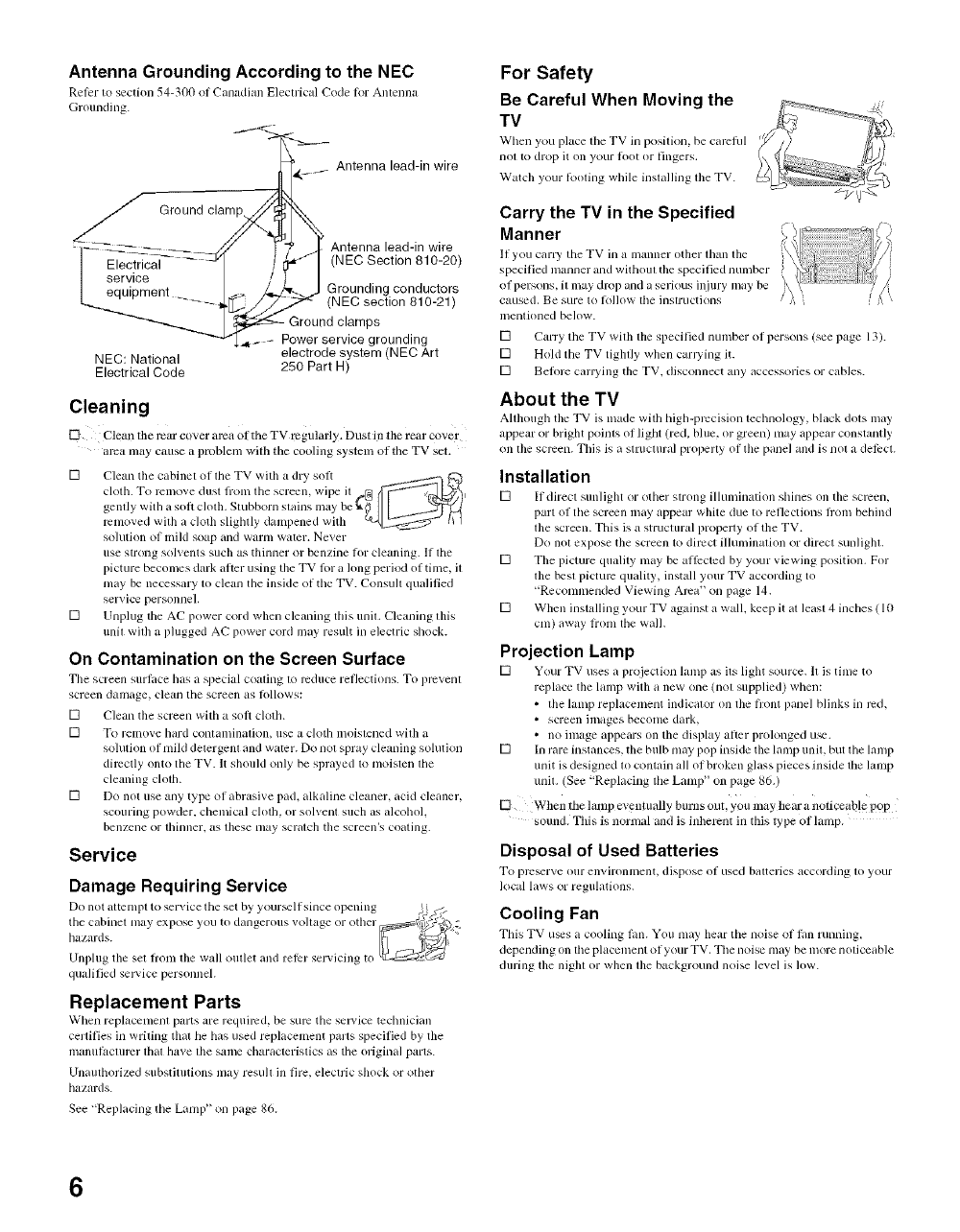
Antenna Grounding According to the NEC
Relcr to section 54-300 of Canadiml Electrical Code tor Antenna
Grounding.
----'<L v____
_ j Antenna lead-in wire
_ Ground clamp/_ ,__
//
_ Antenna lead-in wire
|l Electri_a_ -- _ !I _1 (NEOSection 810-20)
service /
| equipment ....... /_- _. J Grounding conductors
_-- _ // ;;_'_ (NEC section 810-21)
-""_1_I - Power service grounding
NEC: National electrode system (NEC Art
Electrical Code 250 Part H)
Cleaning
{_ CleallrherearcoverareaoftheTgregularly. DLlstintherearcovcr
alva may cause a problem with the cooling system of the TV seT.
[] Clean the cabinel ol lhe TV with a dry solt
cloth. To relnove dust lboln the screen, wipe il N _ )_;_
gently with a soft ch)th, Stubborll snfi .......... Ybe¢_/]I ---_/
relnoved wilh a clofl_ slighlly dampened wifl_ _ tl I
solution of lni]d soap and wartn water. Never
use strong solvents such as thinner or benzine lor cleaning. If the
picture becomes dark alter using the TV lor a king period of time, il
may be necessary to clean tile inside of the TV. Consull qualified
service personneh
[] Unplug the AC power cord when cleaning this unil. Cleaning lhis
unil wilh a phlgged AC power cord may result in electric shock.
On Contamination on the Screen Surface
The screen surlace has a special coaling 1o reduce reflections. To prcvenl
screen damage, clean the screen as lhllows:
[] Clean the screen with a soft cloth.
[] To remove hard contaminalion, use a cloth moislened wilh a
solution of mild delergenl and waler. Do nol spray cleaning solution
directly onto the TV. It should only be sprayed 1o moislen lhe
cleaning ch)lh.
[] Do not use any type of abrasive pad, alkaline cleaner, acid cleaner,
scouring powder, chemical cloth, or solvent such as alcohol,
benzene or thinner, as these lnay scralch the screen's coating.
Service
Damage Requiring Service
Do not attelnpl to service the set by your_ll since opening _9.A:r_i
the cabinel may expose you to dangerous voltage or other _7_
Unphlg the set h'oln the wall outlet and rellzr servicing to [_
qualified service personneh
Replacement Parts
When replacemenl pro'Is are requilvd, be sure the set, ice tcchlfician
certifies in writing that he h_ls used replacemela paris specified by the
ii/anul_lcnlrcr lhal have lhe same characlerislics as the original parts.
Unauthorized substitutions may result in fire, electric shock or other
hazards.
See "Replacing the Lamp" on page 86.
For Safety
Be Careful When Moving the
TV
When you place the TV in position, be carehll
no110 drop it on your Loot or Lingers.
Watch your R)oling while inslalling lhe TV.
Carry the TV in the Specified
Manner
II you carry tile TV in a lnalmer other lhall the
specitied rammer and withoul the specified number
ol persons, il may drop and aserious injury may be
caused. Be sure to tolh)w lhe instructions i
mentioned below.
[] Carry the TV wilh lhe specified number of persons (see page 13).
[] Hold the TV tighlly when canting it.
[] Belhre carlTing the TV, disconnect any accessories or cables.
About the TV
Although the TV is made with high-precision lechnoh)gy, black dots may
appear or bright points o1 light (red, blue, or green) may appear constmltly
on the screen. This is it stl uctural properly ol the panel and is not a detect.
Installation
[] If direct suldight or other strong ilhunination shines on the screen,
part ol the screen may appear white due to reflections fiom behind
the screen. This is a structural property of the TV.
Do nol expose the screen to direct illuminalion or direct sunlighl,
[] The picture quality may be atlPcted by your viewing position. For
lhe besl picture quality, install your TV according to
"Recommended Viewing Alva" on page 14.
[] When installing your TV against a wall. keep it at leasl 4 inches ( 10
cm) away from lhe wall.
Projection Lamp
[] Your TV uses a projection lamp as its light source. It is tinle to
replace the lamp with a new one (not supplied) when:
• the lalnp replacement indicator on the hxmt panel blinks in red.
• screen ilnages become dark,
• no linage appears on the display atler prolonged u_e.
[] In rare instances, the bulb may pop inside the lamp unit, but the lamp
unit is designed lo contain all of broken glass pieces inside the lamp
unit. (See "Replacing the Lamp" on page 86.)
[_ When me lmnp cvenhlally burns out, you may hear a noticeab!e pop
Disposal of Used Batteries
To prowl're our en_,'ironll/ent, dispose ol used blu_eries ac','ordhlg n) your
local laws or regulations.
Cooling Fan
This TV u_s a cooling l,m. You may hear the noise of l,m running,
depending on the placement ol your TV. The noise may be lnOl'enoticeable
during the night or when the background noise level is h)w.
6
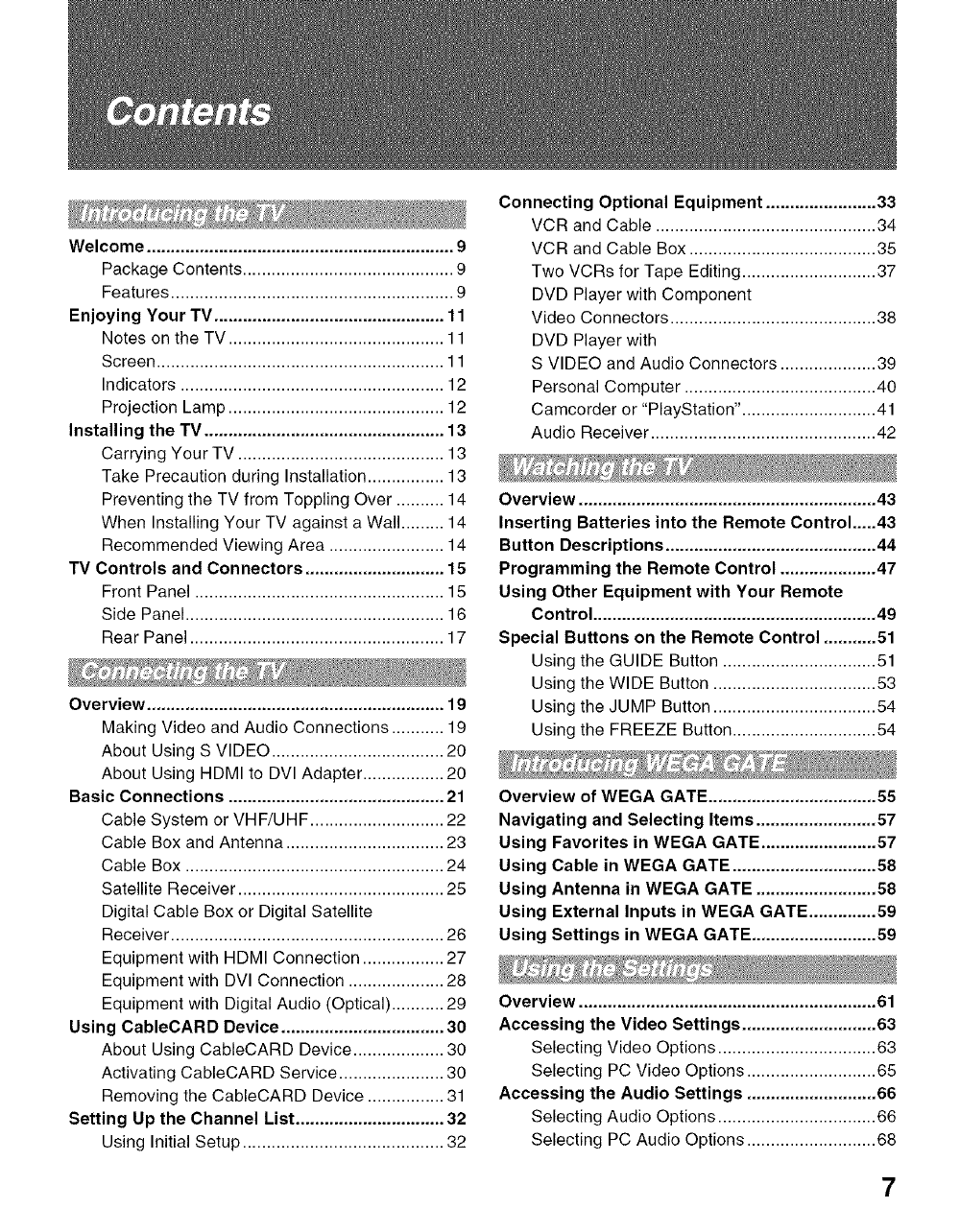
Welcome ................................................................ 9
Package Contents ............................................ 9
Features ........................................................... 9
Enjoying Your TV ................................................ 11
Notes on the TV ............................................. 11
Screen ............................................................ 11
Indicators ....................................................... 12
Projection Lamp ............................................. 12
Installing the TV .................................................. 13
Carrying Your TV ........................................... 13
Take Precaution during Installation................ 13
Preventing the TV from Toppling Over .......... 14
When Installing Your TV against a Wall ......... 14
Recommended Viewing Area ........................ 14
TV Controls and Connectors ............................. 15
Front Panel .................................................... 15
Side Panel ...................................................... 16
Rear Panel ..................................................... 17
Overview .............................................................. 19
Making Video and Audio Connections ........... 19
About Using S VIDEO .................................... 20
About Using HDMI to DVI Adapter ................. 20
Basic Connections ............................................. 21
Cable System or VHF/UHF ............................ 22
Cable Box and Antenna ................................. 23
Cable Box ...................................................... 24
Satellite Receiver ........................................... 25
Digital Cable Box or Digital Satellite
Receiver ......................................................... 26
Equipment with HDMI Connection ................. 27
Equipment with DVI Connection .................... 28
Equipment with Digital Audio (Optical) ........... 29
Using CableCARD Device .................................. 30
About Using CableCARD Device ................... 30
Activating CableCARD Service ...................... 30
Removing the CableCARD Device ................ 31
Setting Up the Channel List ............................... 32
Using Initial Setup .......................................... 32
Connecting Optional Equipment ....................... 33
VCR and Cable .............................................. 34
VCR and Cable Box ....................................... 35
Two VCRs for Tape Editing ............................ 37
DVD Player with Component
Video Connectors ........................................... 38
DVD Player with
S VIDEO and Audio Connectors .................... 39
Personal Computer ........................................ 40
Camcorder or "PlayStation". ........................... 41
Audio Receiver ............................................... 42
Overview .............................................................. 43
Inserting Batteries into the Remote Control.....43
Button Descriptions ............................................ 44
Programming the Remote Control .................... 47
Using Other Equipment with Your Remote
Control ........................................................... 49
Special Buttons on the Remote Control ........... 51
Using the GUIDE Button ................................ 51
Using the WIDE Button .................................. 53
Using the JUMP Button .................................. 54
Using the FREEZE Button .............................. 54
Overview of WEGA GATE ................................... 55
Navigating and Selecting Items ......................... 57
Using Favorites in WEGA GATE ........................ 57
Using Cable in WEGA GATE .............................. 58
Using Antenna in WEGA GATE ......................... 58
Using External Inputs in WEGA GATE .............. 59
Using Settings in WEGA GATE .......................... 59
Overview .............................................................. 61
Accessing the Video Settings ............................ 63
Selecting Video Options ................................. 63
Selecting PC Video Options ........................... 65
Accessing the Audio Settings ........................... 66
Selecting Audio Options ................................. 66
Selecting PC Audio Options ........................... 68
7
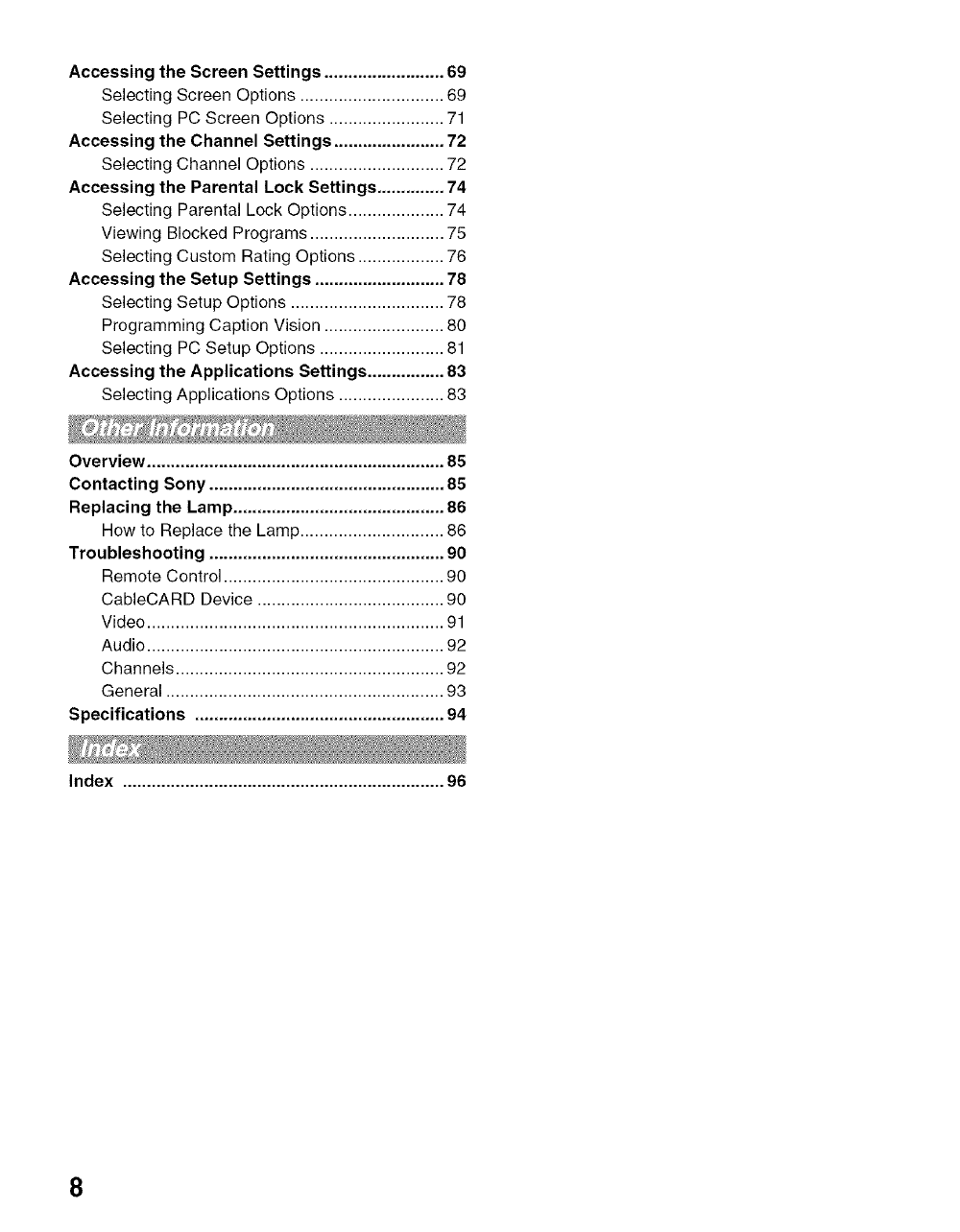
Accessing the Screen Settings ......................... 69
Selecting Screen Options .............................. 69
Selecting PC Screen Options ........................ 71
Accessing the Channel Settings ....................... 72
Selecting Channel Options ............................ 72
Accessing the Parental Lock Settings .............. 74
Selecting Parental Lock Options .................... 74
Viewing Blocked Programs ............................ 75
Selecting Custom Rating Options .................. 76
Accessing the Setup Settings ........................... 78
Selecting Setup Options ................................ 78
Programming Caption Vision ......................... 80
Selecting PC Setup Options .......................... 81
Accessing the Applications Settings ................ 83
Selecting Applications Options ...................... 83
Overview .............................................................. 85
Contacting Sony ................................................. 85
Replacing the Lamp ............................................ 86
How to Replace the Lamp .............................. 86
Troubleshooting ................................................. 90
Remote Control .............................................. 90
CableCARD Device ....................................... 90
Video .............................................................. 91
Audio .............................................................. 92
Channels ........................................................ 92
General .......................................................... 93
Specifications .................................................... 94
Index ................................................................... 96
8
Welcome
Package Contents
Features
Thank you for purchasing this Sony's HD LCD projection TV. This manual
is for models KDF-E42AI0 and KDF-E50AI0.
Along with your new TV, the packing box contains a remote control and two
AA (R6) batteries. See page 95 for the complete list of packaging contents.
Some of the features that you will enjoy with your new TV include:
[] WEGA GATE'X_: WEGA GATE is a new feature that allows you to
easily navigate to the most convenient TV functions: favorite channels,
cable channels, antenna channels, external input list or settings.
[] WEGA Engine: Delivers superb picture quality fiom any video source
by minimizing the signal deterioration caused by digital-to-analog
conversion and stabilizing the signal processing. This engine features
unique Sony technology, including:
• DRC ® (Digital Reality Creation)-MF Vl: Unlike conventional
line doublers, the DRC Multifunction feature replaces the signal's
NTSC waveform with the near-HD equivalent by digital mapping
processing. The DRC Palette option lets you customize the level of
detail (Reality) and smoothness (Clarity) to create up to three
custom palettes.
[] Integrated HDTV: You can watch digital television programs and
enjoy the improved audio/video quality offered by these programs.
[] Wide Screen Mode: Allows you to watch 4:3 normal broadcasts in
wide screen mode (16:9 aspect ratio).
[] Advanced Iris: This advanced iris shutter works automatically open
and close according to the incoming signal level to create brighter
whites and better contrast in dark scenes.
[] CineMotion®: Using the reverse 3-2 pull down technology, the
CineMotion feature provides smoother picture movement when playing
back movies or other video sources on film.
[] Parental Control: V-Chip technology allows parents to block
unsuitable programming from younger viewers.
[] CableCARD _x_slot: Provides cable subscribers with access to digitally
encrypted cable channels -- without the need for a set-top box -- that
will enable you to receive not only standard definition but also high
definition television. The CableCARD device, which is provided by
your cable TV company, is inserted into the TV's rear panel
2.
",-I
(Continued)
9
Introducing the TV
CableCARD slot. After the service is activated with your cable TV
company, the card replaces the need for a sepalate set-top box. (Check
with your cable TV company about CableCARD service details,
limitations, pricing, and availability. For more information about the
CableCARD device in this manual, see page 30.)
[] Component Video Inputs: Offers the best video quality for DVD
(480p, 480i) and digital set-top box (1080i, 720p, 480p, 480i)
connections.
[] S VIDEO Inputs: Provides a high-quality image from connected
equipment.
[] Favorite Channels: With the WEGA GATE function, it allows you to
navigate a list of up to 16 favorite channels without leaving the current
channel.
[] Steady Sound®: Equalizes volume levels so there is consistent output
between proglams and commercials.
[] HDMI (High-Definition Multimedia Interface): Provides an
uncompressed, all-digital audio/video interface between this TV and
any HDMI-equipped audio/video component, such as a set-top box,
DVD player, and A/V receiver. HDMI supports enhanced, or high-
definition video, plus two-channel digital audio.
10
Enjoying Your TV
Introducing the TV
To enjoy your TV for years to come and maintain its original picture quality,
you should perform periodic maintenance.
Notes on the TV To enjoy clear picture
[] Prevent sunlight or other light sources from shining directly on to the
screen. _.
[] The screen surface is easily scratched. Do not rub, touch, or tap it with ,._
sharp or abrasive objects (see "On Contamination on the Screen r=
"-,.I
Surface" on page 6).
When not using the TV for a long period of time
[] Unplug tile AC power cord from tile outlet if you anticipate not using
the TV for more than a week.
When turning off the power
[] The cooling fan will continue to operate for about two minutes. Allow
several minutes before unplugging from the outlet or switching the
breaker off.
On moisture condensation
[] If your TV is moved directly fi'om a cold to a warm location or is placed
in a humid room, or if the room temperature changes suddenly, the
picture may blur or show poor coloc This is caused by moisture
condensation on the lenses inside. Wait a few hours to let the moisture
evaporate before turning on the TV. When the condensation has
evaporated, the picture will return to normal.
Screen To minimize reflection, tile screen surface has a special coating.
Inappropriate cleaning methods could damage the screen surface. Special
care is required.
Cleaning the Screen Surface
Dust and dirt on the screen can affect the picture quality. To dust off the
screen use a soft cloth. Be sure to follow the cleaning instruction on page 6
for stubborn stains and dirt.
11
Introducing the TV
Indicators
Screen
Indicators
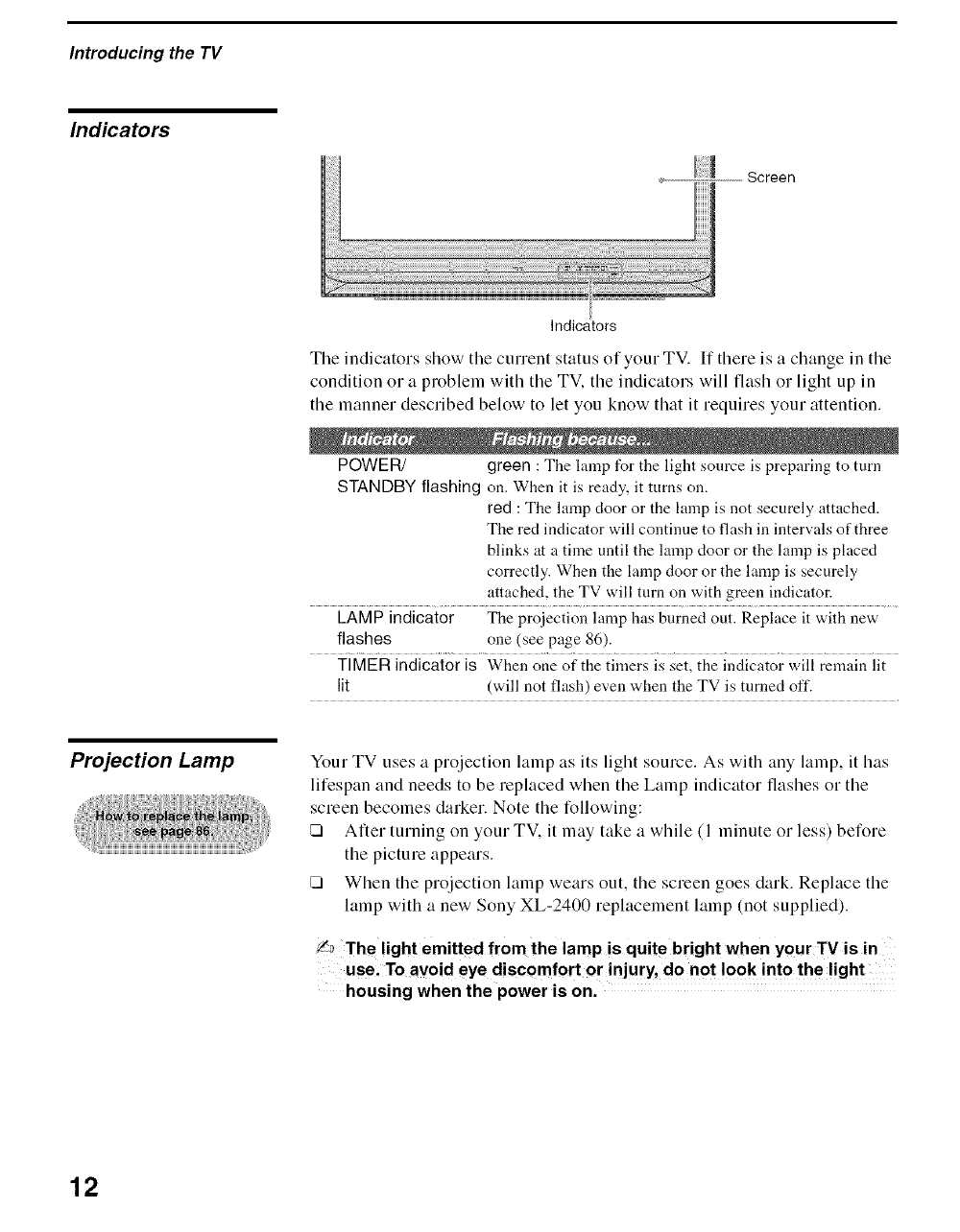
The indicators show the current status of your TV. If there is a change in the
condition el a problem with the TV, the indicators will flash el light up in
the manner described below to let you know that it requires your attention.
POWER/ green : The lamp for the light source is preparing to turn
STANDBY flashing on. When it is ready, it turns on.
red : The lamp door or the lamp is not securely attached.
The red indicator will continue to flash in intervals of three
blinks at a time until the lamp door or the lalnp is placed
correctly. When the lamp door or the lamp is securely
attached, the TV will turn on with green indicator.
LAMP indicator The proiection lamp has burned out. Replace it with new
flashes one (see page 86).
TIMER indicator is When one of the timers is set, the indicator will remain lit
lit (will not flash) even when the TV is turned off.
Projection Lamp Your TV uses a projection lamp as its light source. As with any lamp, it has
lifespan and needs to be replaced when the Lamp indicator flashes or the
screen becomes darker. Note the following:
[] After turning on your TV. it may take a while (l minuteorless) before
the picture appears.
[] When the projection lamp wears out, the screen goes dark. Replace the
lamp with a new Sony XL-2400 replacement lamp (not supplied).
L_ The light emitted from the lamp is quite bright when your TVis in
use, To avoid eye discomfort or injury, do not look into the light
housing when the power is on.
12
Introducing the TV
Installing the TV
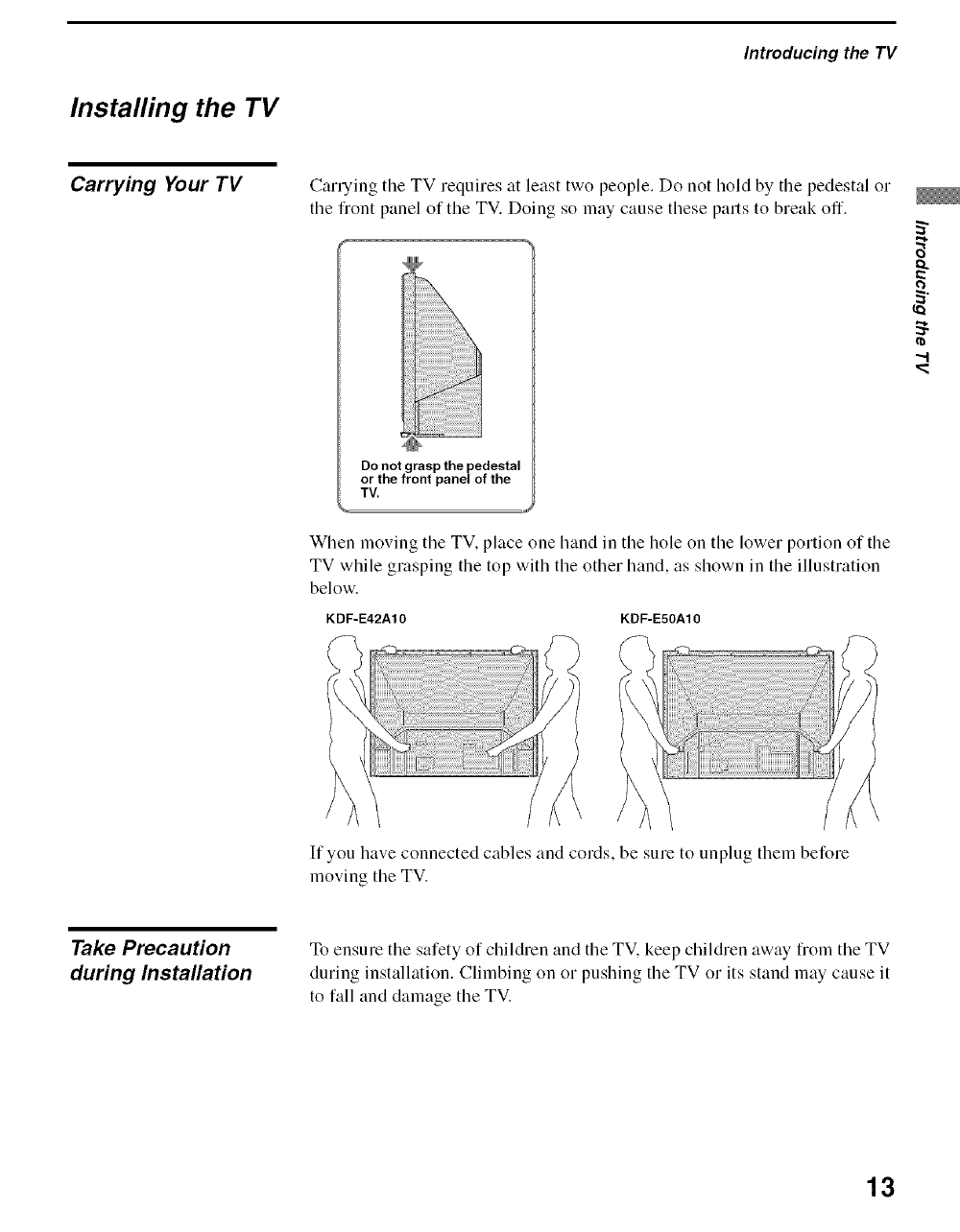
Carrying Your TV Carrying tile TV requires at least two people. Do not hold by the pedestal or
the front panel of the TV. Doing so may cause these parts to break off.
Do not grasp the pedestal
or the front panel of the
TV.
,,,,#
When moving tile TV, place one hand in tile hole on tile lower portion of tile
TV while grasping tile top with the other hand, as shown in the illustration
below.
KDF-E42A10 KDF-E50A10
2.
If you have connected cables and cords, be sure to unplug them before
moving the TV.
Take Precaution
during Installation
To ensure the safety of children and tile TV. keep children away flom tile TV
during installation. Climbing on or pushing the TV or its stand may cause it
to fall and damage the TV.
13
Introducing the TV
Preventing the TV
from Toppling Over
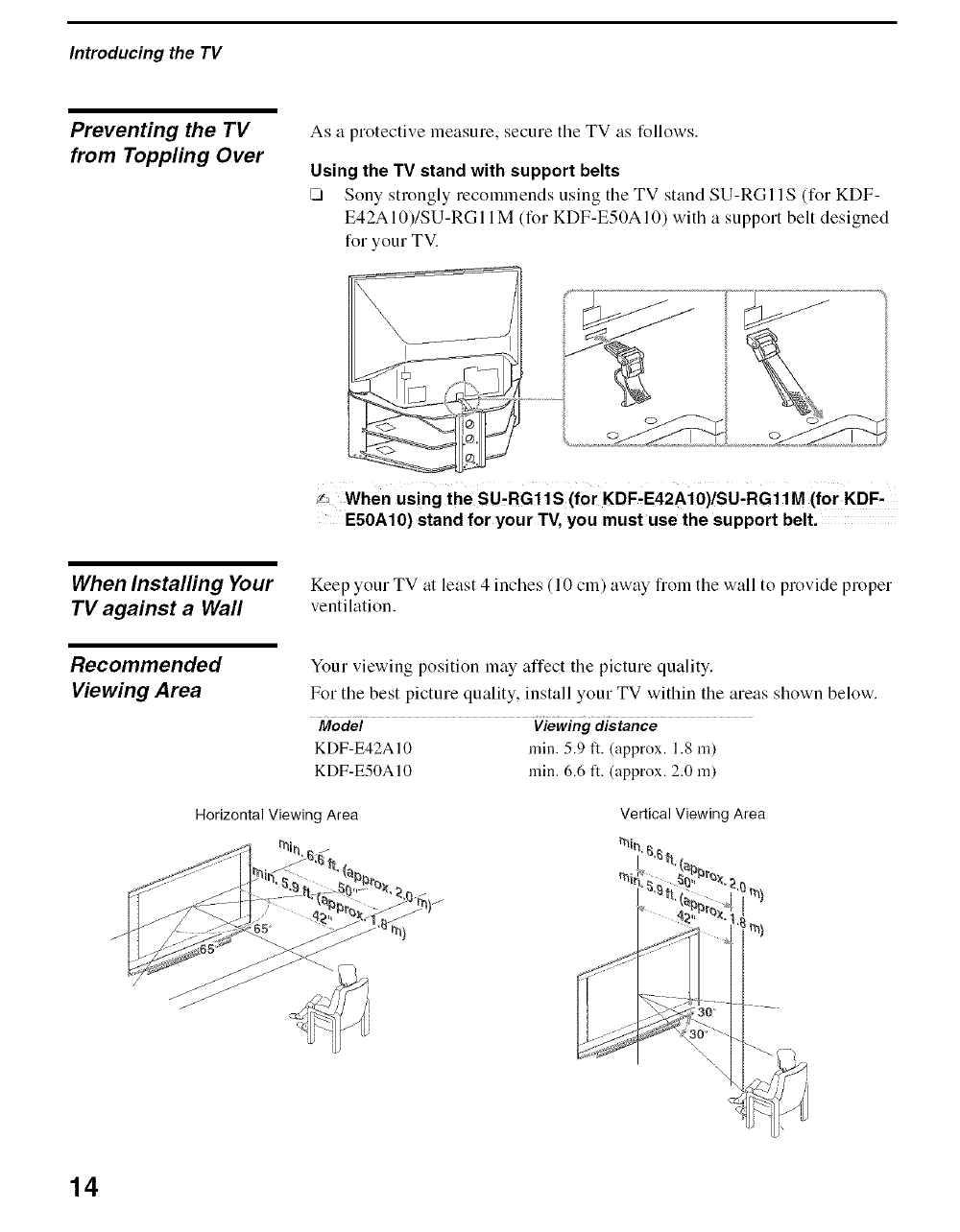
As a protective measure, secure tile TV as follows.
Using the TV stand with support belts
[] Sony strongly recommends using the TV stand SU-RGl IS (for KDF-
E42AI0)/SU-RGI I M (for KDF-E50AI0) with a support belt designed
for your TV.
when using the SU-RGllS (f0r KDF.E42Ai0)/SU,RG11M (for KDF-
E50A10) stand for your TV, you must use the support belt.
When Instalfing Your
TV against a Wall
Keep your TV at least 4 inches (10 cm) away fiom tile wall to provide proper
ventilation.
Recommended
Viewing Area
Your viewing position may affect tile picture quality.
For the best picture quality, install your TV within the areas shown below.
Model Viewingdistance
KDF-E42AI0 rain. 5.9 ft. (approx. 1.8 m)
KDF-E50AI0 rain. 6.6 ft. (approx. 2.0 m)
Horizontal Viewing Area Vertical Viewing Area
\\
14
Introducing the TV
TV Controls and Connectors
Front Panel
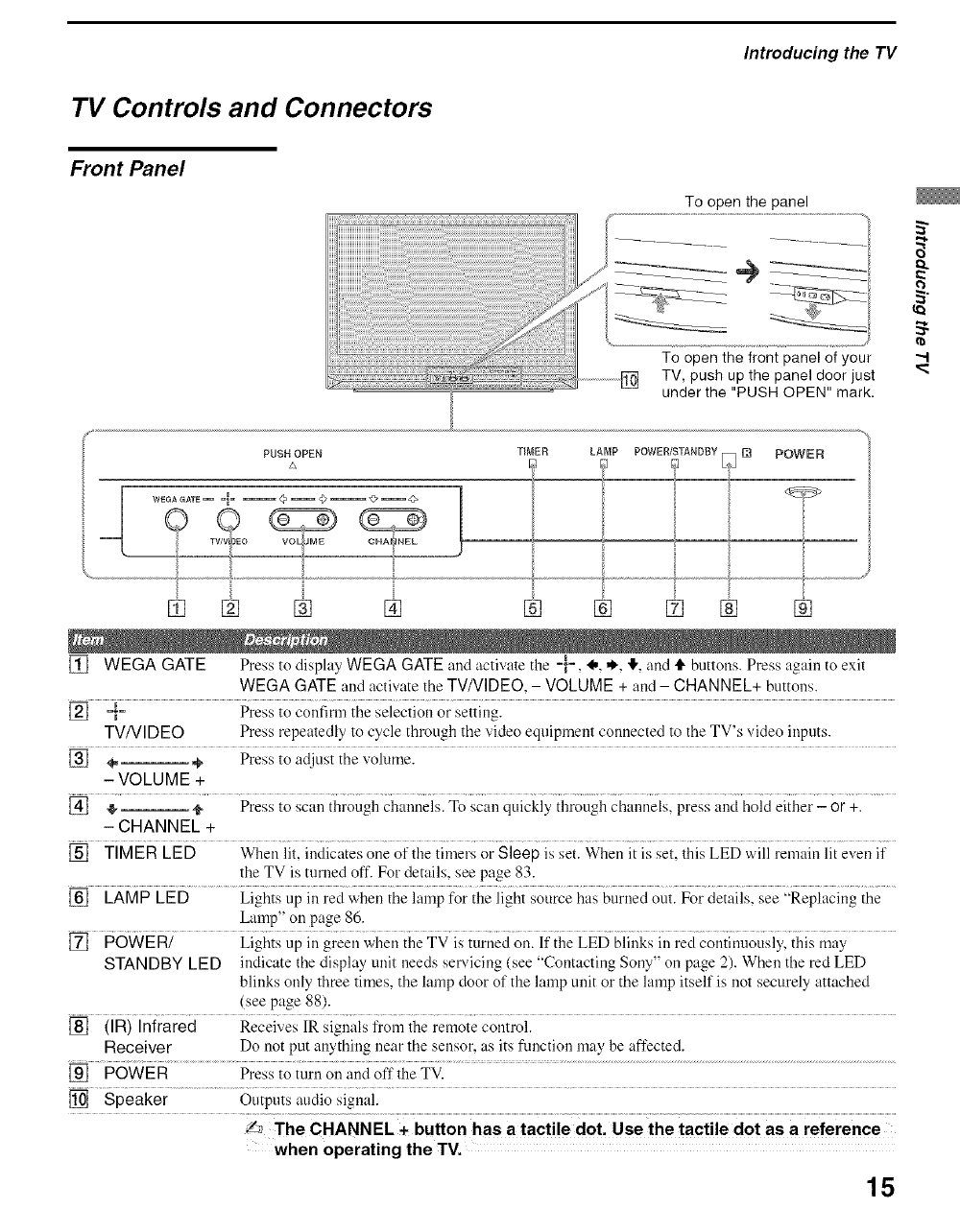
To open the panel
To open the front panel of your
TV, push up the panel door just
under the "PUSH OPEN" mark.
PUSH OPEN TIr_EH_ LAMPE] POWER/STANDBYo_ D POWER
[] WEGA GATE Press to display WEGA GATE and activate the -}-, _,, ,_, ,1!,,and t1"buttons. Press again to exit
WEGA GATE and activate the TV/VIDEO, - VOLUME + and - CHANNEL+ buttons.
[] -*_-_ Press to confirm the selection or setting.
TVNIDEO Press repeatedly to cycle through tile video equipment connected to the TV's video inputs.
[] 4--- ÷ Press to adjust the volume.
- VOLUME +
[] ,_ _ Press to scan through channels. To scan quickly through channels, press and hold either- or +.
- CHANNEL +
[] TIMER LED When lit, indicates one of the timel_ or Sleep is set. When it is set, this LED will remain lit even if
the TV is turned off. For details, see page 83.
[] LAMP LED Lights up in red when the lamp for the light source has burned out. For details, see "Replacing the
Lamp" on page 86.
[] POWER/ Lights up in green when the TV is turned on. If the LED blinks in red continuously, this may
STANDBY LED indicate the display unit needs servicing (see "Contacting Sony" on page 2). When the red LED
blinks only three times, the lamp door of the lamp unit or the lamp itself is not securely attached
(see page 88).
[] (IR) Infrared Receives IR signals from the remote control.
Receiver Do not put anything near the sensor, as its function may be affected.
[] POWER Press to turn on and off the TV.
[] Speaker Outputs audio signal.
when operating the TV.
15
Introducing the TV
Side Panel
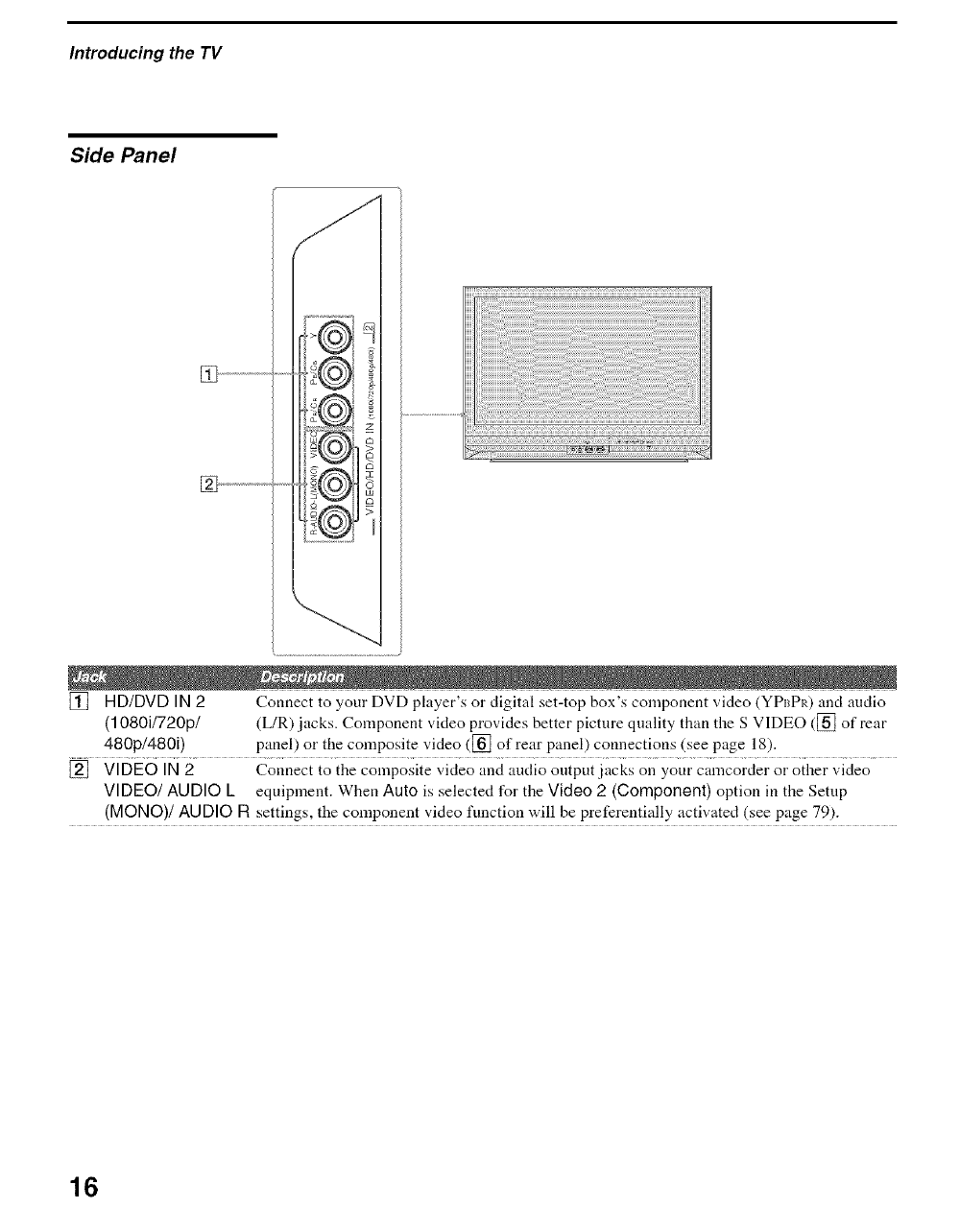
[] HD/DVD IN 2Connect to your DVD player's or digital set-top box's component video (YPI_PI0 and audio
(1080i1720p1 (L/R) .jacks. Component video provides better picture quality than the S VIDEO ([_ of rear
480p1480i) panel) or the composite video ([_] of rear panel) connections (see page 18).
[] VIDEO IN 2Connect to the composite video and audio output jacks on your camcorder or other video
VIDEO/AUDIO L equipment. When Auto is selected for the Video 2(Component) option in the Setup
(MONO)/AUDIO Ft settings, the component video function will be preferentially activated (see page 79).
16
Introducing the TV
Rear Panel
/CABLE VHF/UHF
::::::::::::::::::::::::::::::::
iil
T/.........................
91Q
.................................................!_"::,
i+, .....................................................! .....
W
i6
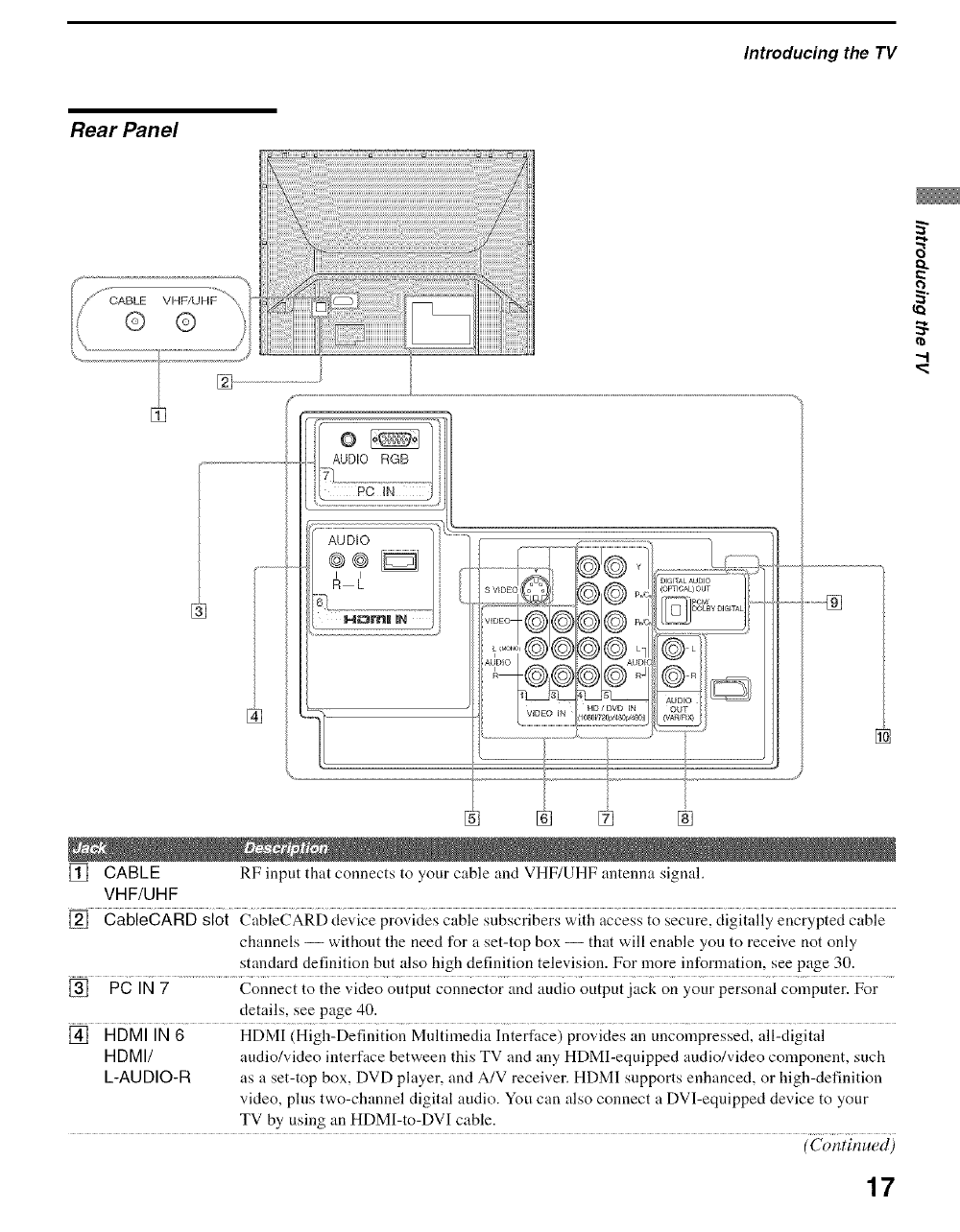
[] CABLE RF input that connects to your cable and VHF/UHF antenna signal.
VHF/UHF
[] CableCAFID slot CableCARD device provides cable subscribers with access to secure, digitally encrypted cable
channels -- without the need for a set-top box -- that will enable you to receive not only
standard definition but also high definition television. For more information, see page 30.
[] PC IN 7 Connect to the video ontpnt connector and audio output jack on your personal computer. For
details, see page 40.
[] HDMI IN 6 HDMI (High-Definition Multimedia Interface) provides an uncompressed, all-digital
HDMI/ audio/video interface between this TV and any HDMI-equipped audio/video component, such
L-AUDIO-R as a set-top box, DVD player, and A/V receiver. HDMI supports enhanced, or high-definition
video, plus two-chamlel digital audio. You can also connect a DVI-eqnipped device to your
TV by using an HDMI-to-DVI cable.
(Continued)
i
.
17
Introducing the TV
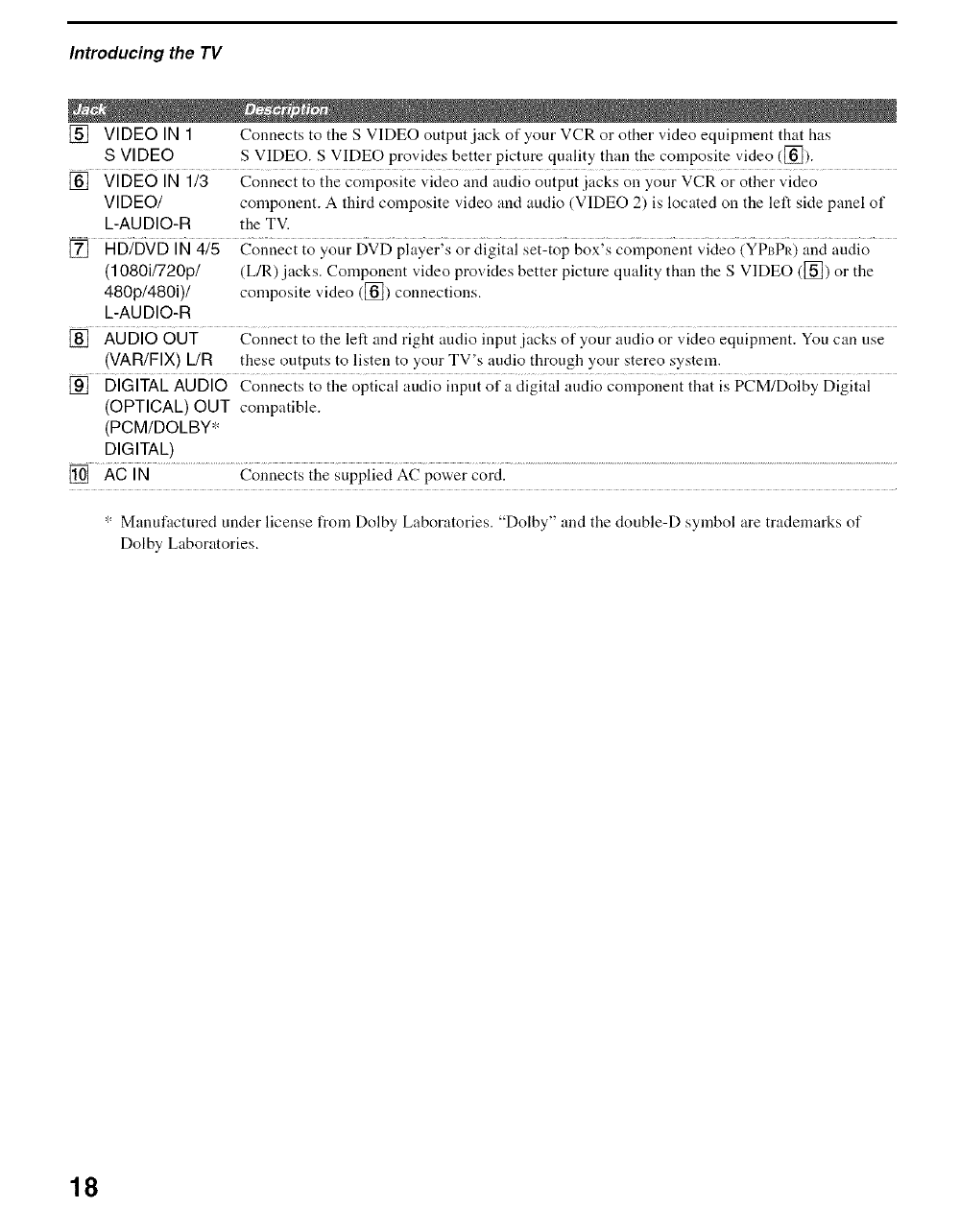
[] VIDEO IN 1 Connects to the S VIDEO output jack of your VCR or other video equipment that has
S VIDEO S VIDEO. S VIDEO provides better picture quality than the composite video ([_]).
[] VIDEO IN 1/3 Connect to the composite video and audio output .jacks on your VCR or other video
VIDEO/ component. A third composite video and audio (VIDEO 2) is located on the left side panel of
L-AUDIO-R the TV.
[] HD/DVD IN 4/5 Conuect to your DVD player's or digital set-top box's component video (YPL_PI0 and audio
(1080i/720p/ (L/R) jacks. Component video provMes better picture quality than the S VIDEO ([_]) or the
480p/480i)/ composite video ([]) connections.
L-AUDIO-R
[] AUDIO OUT Connect to the left and right audio input jacks of your audio or video equipment. You can rise
(VAR/FIX) L/R these outputs to listen to your TV's audio through your stereo system.
[] DIGITAL AUDIO Connects to the optical audio input of a digital audio component that is PCM/Dolby Digital
(OPTICAL) OUT compatible.
(PCM/DOLBY*
DIGITAL)
[] AC IN Connects the supplied AC power cord.
* Manufactured under license from Dolby Laboratories. "Dolby" and the double-D symbol are trademarks of
Dolby Laboratories.
18
Overview
Your new LCD projection TV can receive both analog and digital
broadcasting signals fiorn antenna, satellite and cable TV.
To display clear crisp pictures, you must connect your TV correctly and
choose tile correct display forlnat (see " s"
U.'mg tile WIDE Button" on page
53). It is strongly recommended to connect the antenna using a 75-ohm _"
coaxial cable to receive optimum picture quality signal. A 300-ohm twin ._
lead cable can be easily affected by radio noise and tile like, resulting in "4
signal deterioration. If you use a 300-ohm twin lead cable, keep it as far _:
away as possible from the TV.
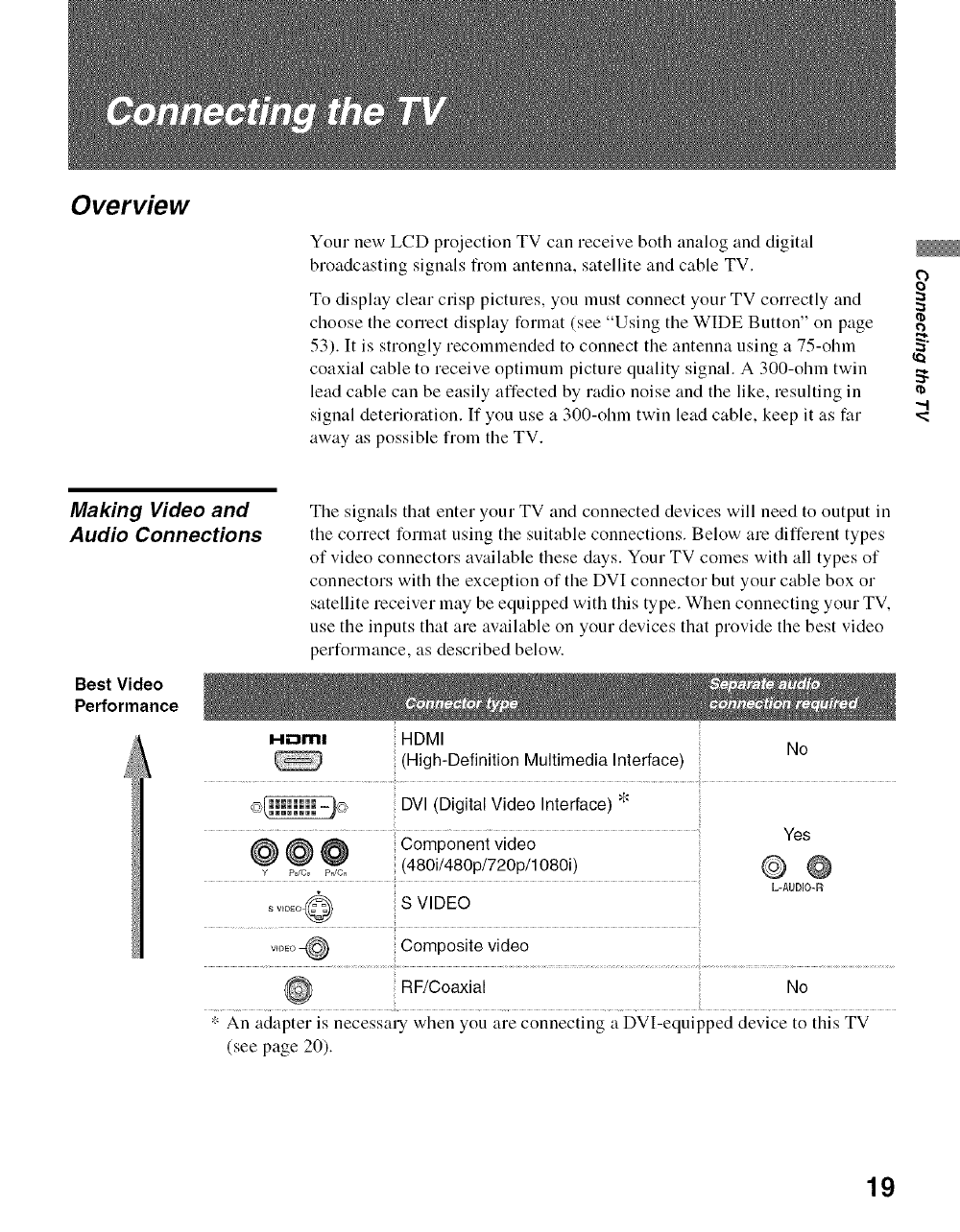
Making Video and
Audio Connections The signals that enter your TV and connected devices will need to output in
the correct format using the suitable connections. Below are different types
of video connectors available these days. Your TV comes with all types of
connectors with the exception of the DVI connector but your cable box or
satellite receiver may be equipped with this type. When connecting your TV.
use the inputs that are available on your devices that provide the best video
performance, as described below.
Best Video
Performance
HDml HDMI No
(High-Definition Multimedia Interface)
DVI (Digital Video Interface) *
@ @ @ Component video Yes
,/ P_c_P_c. (480i/480p/720p/1080i)
L-AUDIO-R
__,o_o_ S VIDEO
Composite video
RF/Coaxial No
• An adapter is necessary when you are connecting a DVI-equipped device to this TV
(see page 20).
19
ConnecUng_e TV
About Using
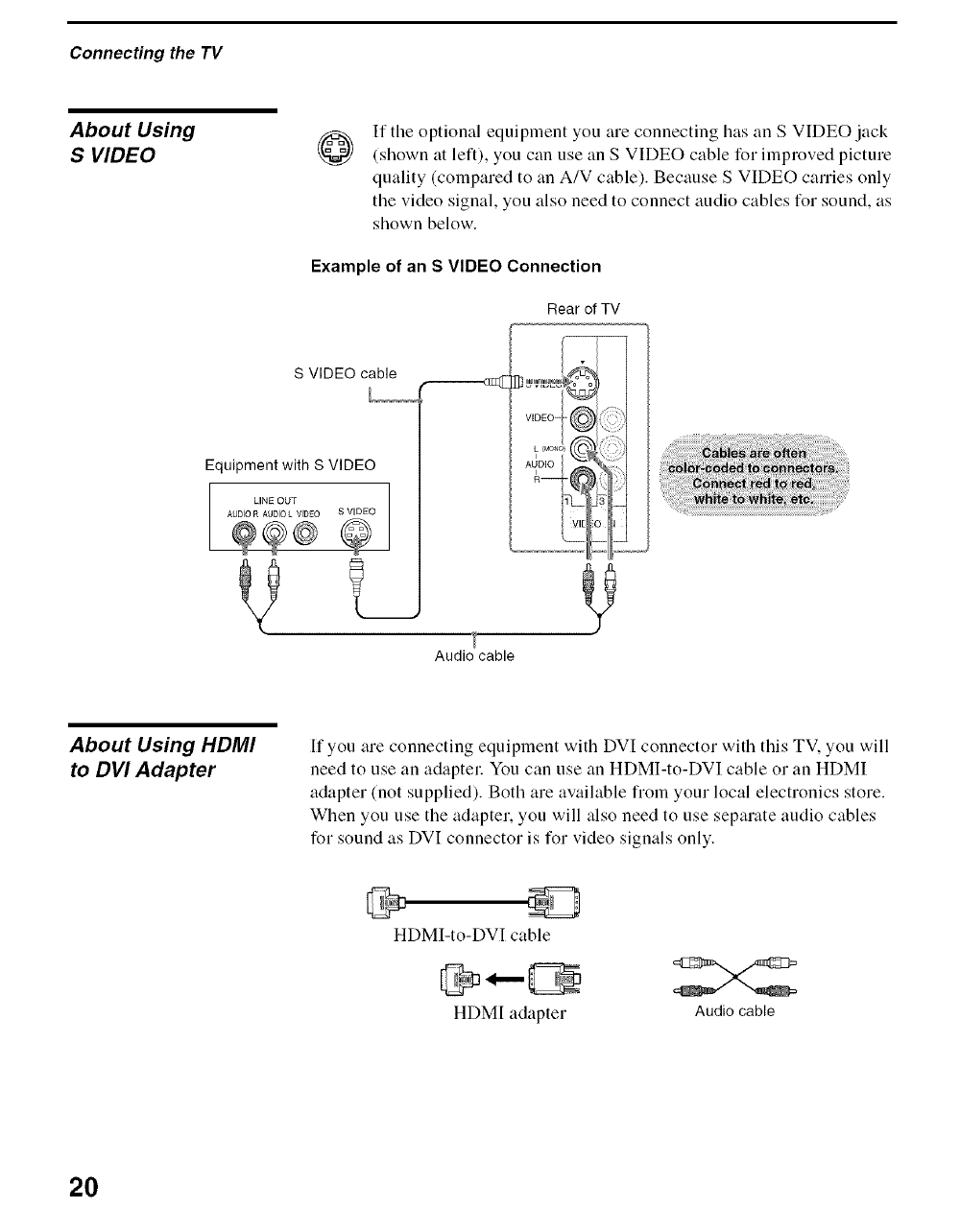
SVIDEO @If the optional equipment you are connecting has an S VIDEO jack
(shown at left), you can use an S VIDEO cable for improved picture
quality (compared to an A/V cable). Because S VIDEO carries only
the video signal, you also need to connect audio cables for sound, as
shown below.
Example of an S VIDEO Connection
Rear of TV
S VIDEO cable
Equipmentwith S VIDEO
LINE OUT
Audio cable
About Using HDMI
to DVI Adapter
If you are connecting equipment with DVI connector with this TV. you will
need to use an adapter You can use an HDMI-to-DVI cable or an HDMI
adapter (not supplied). Both are available from your local electronics store.
When you use the adapter, you will also need to use separate audio cables
for sound as DVI connector is for video signals only.
HDMI-to-DVI cable
HDM[ adapter Audio cable
20
Connecting the TV
Basic Connections
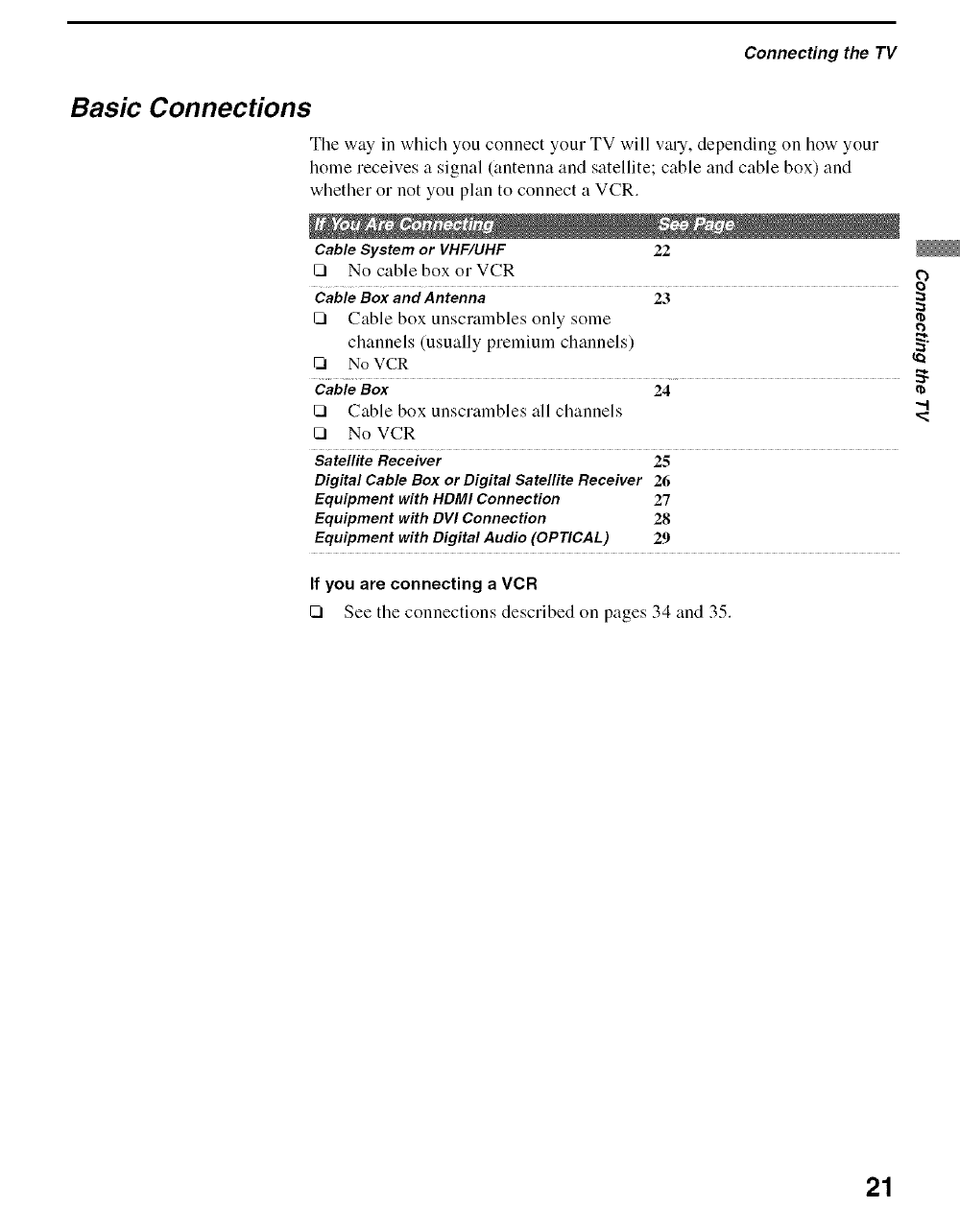
The way in which you connect your TV will vary, depending on how your
holne receives a signal (antenna and satellite; cable and cable box) and
whether or not you plan to connect a VCR.
CableSystem or VHF/UHF 22
[] No cable box orVCR o
CableBox and Antenna 23
[] Cable box unscrambles only some
channels (usually premium channels)
NoVCR
Cable Box 24
[] Cable box unscrambles all channels
[] No VCR
Satellite Receiver 25
Digital Cable Box or Digital Satellite Receiver 26
Equipment with HDMI Connection 27
Equipment with DVI Connection 28
Equipment with Digital Audio (OPTICAL) 29
If you are connecting a VCR
[] See tile connections described on pages 34 and 35.
21
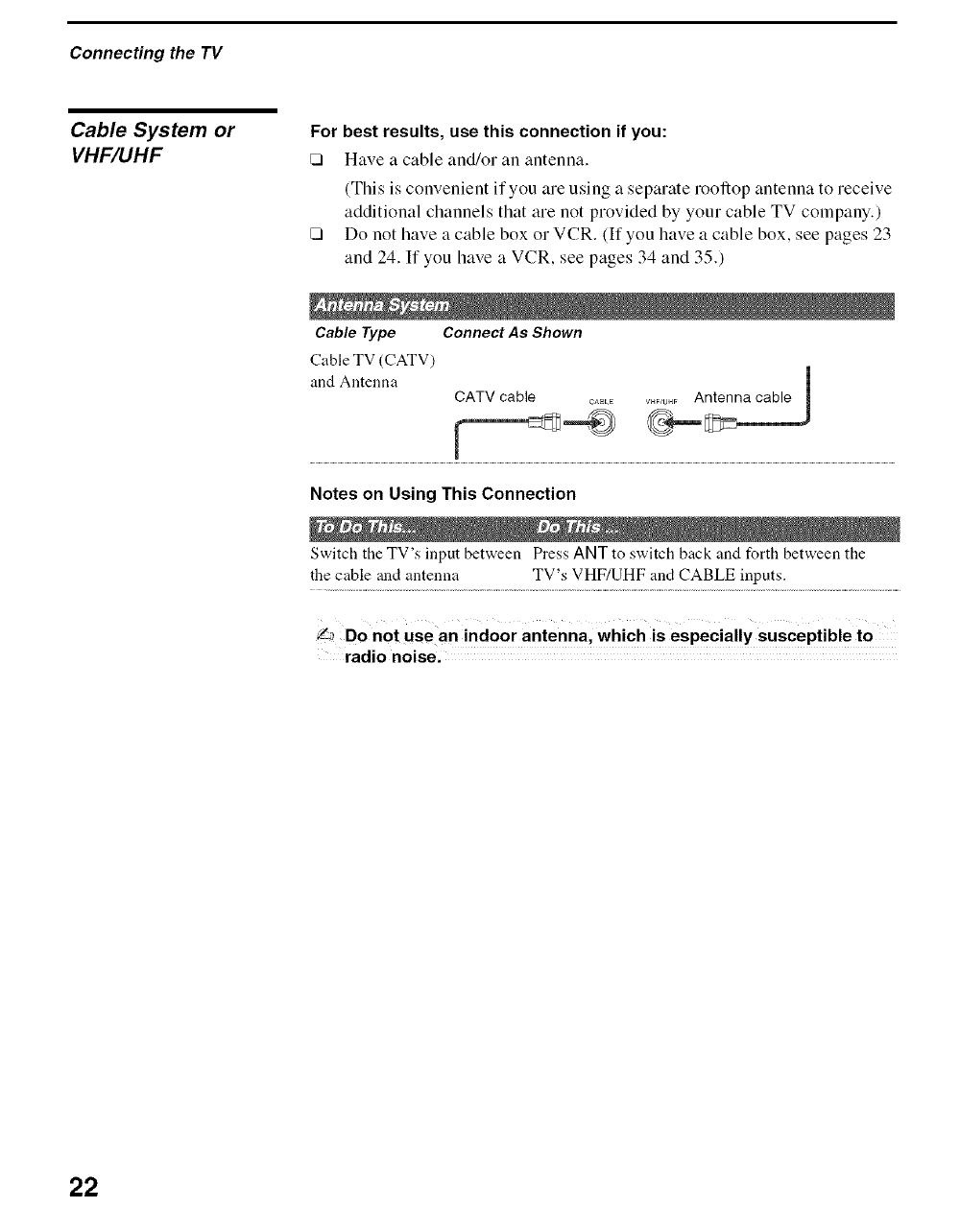
ConnecUng_e TV
Cable System or
VHF/UHF For best results, use this connection if you:
[] Have a cable and/or an antenna.
(This is convenient if you are using a separate rooftop antenna to receive
additional channels that are not provided by your cable TV company.)
[] Do not have a cable box or VCR. (If you have a cable box, see pages 23
and 24. If you have a VCR, see pages 34 and 35.)
ConnectAs Shown
Cable Type
Cable TV (CATV)
and Antenna CATV cable _J,_LE V._U.FAntenna cable
Notes on Using This Connection
Switch the TV's input between Press ANT to switch back and forth between the
the cable and antenna TV's VHF/UHF and CABLE inputs.
radio noise.
22
Connecting the TV
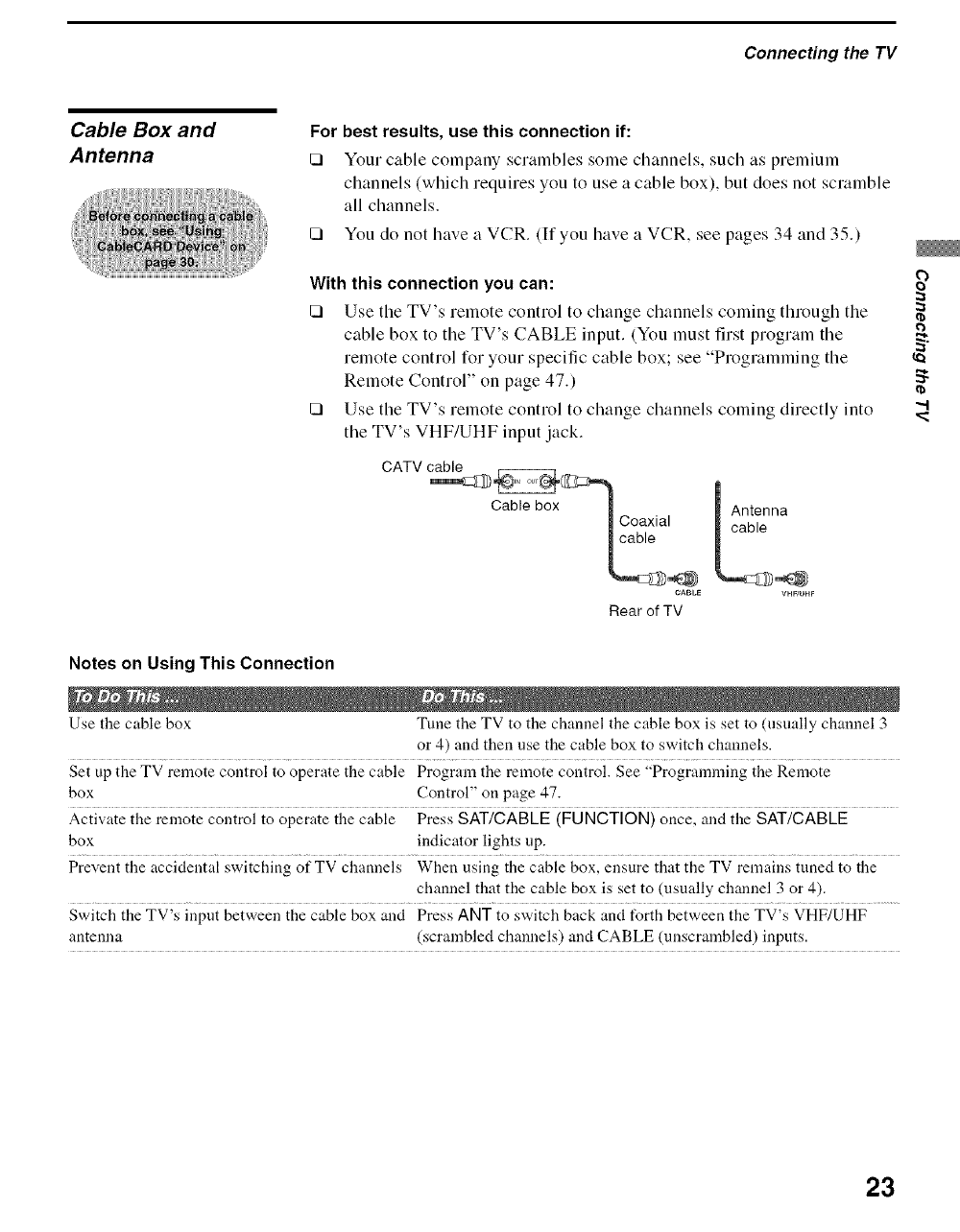
Cable Box and
Antenna For best results, use this connection if:
[] Your cable company scrambles some channels, such as premium
channels (which requires you to use a cable box), but does not scramble
all channels.
[] You do not have a VCR. (If you have a VCR, see pages 34 and 35.)
With this connection you can:
[] Use tile TV's remote control to change channels coming through tile
cable box to tile TV's CABLE input. (You must first program tile
remote control for your specific cable box; see "Programming the _"
Remote Control" on page 47.) ,_
[] Use tile TV's remote control to change channels coming directly into
the TV's VHF/UHF input jack.
CATV cable
CaMe box_ Coaxial
CABLE
Rear of TV
Antenna
cable
V}IF/t_HF
Notes on Using This Connection
Use the cable box Tune the TV to the channel the cable box is set to (usually chamlel 3
or 4) and then use the cable box to switch channels.
Set up the TV remote control to operate the cable Program the remote control. See "Programming the Remote
box Control" on page 47.
Activate the remote control to operate the cable Press SAT/CABLE (FUNCTION) once, and the SAT/CABLE
box indicator lights up.
Prevent the accidental switching of TV channels When using the cable box, ensure that the TV remains tuned to the
channel that the cable box is set to (usually channel 3 or 4).
Switch the TV's input between the cable box and Press ANT to switch back and t%rth between the TV's VHF/UHF
antenna (scrambled channels) and CABLE (unscrambled) inputs.
23
ConnecUng_e TV
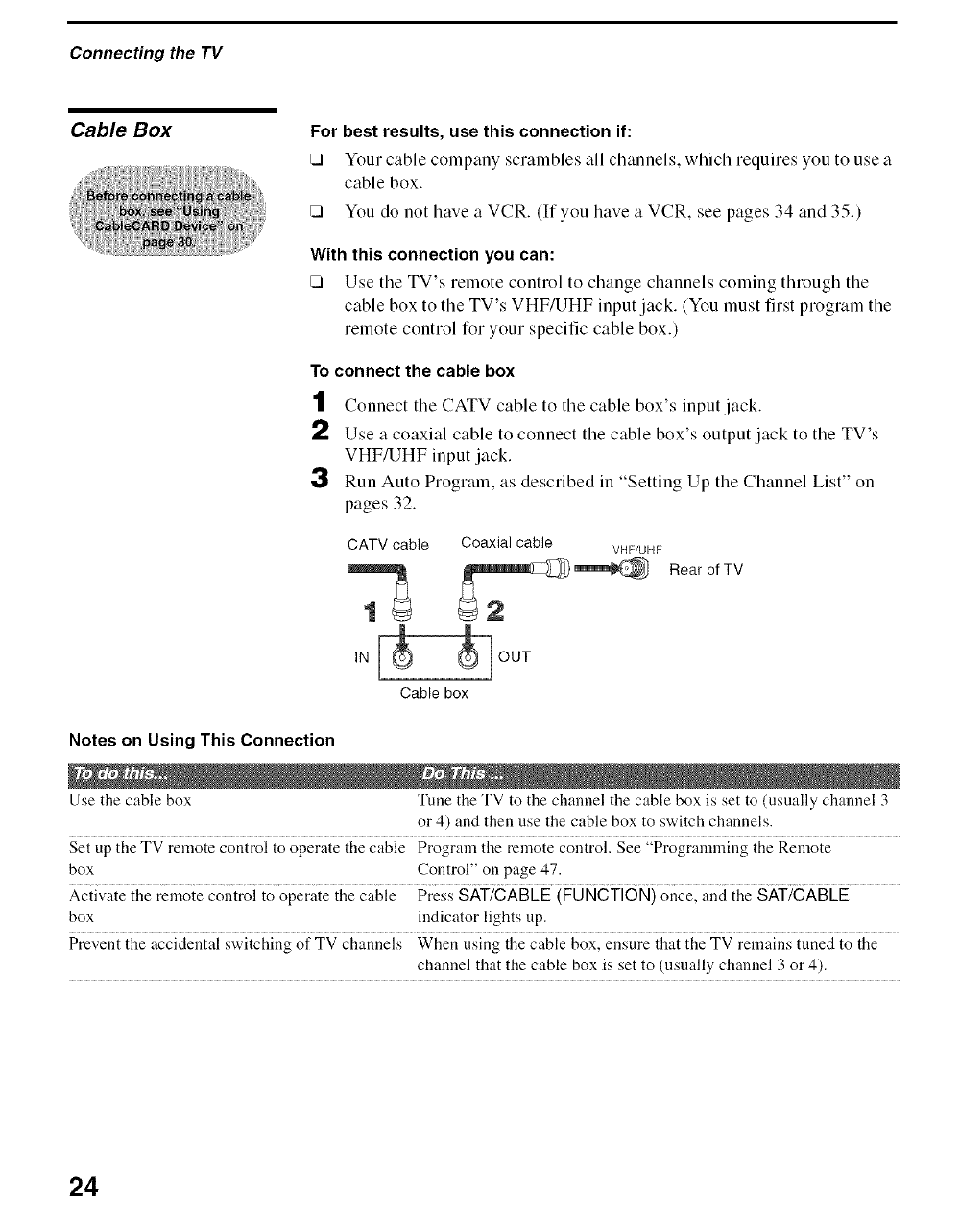
Cable Box For best results, use this connection if:
[] Your cable colnpany scralnbles all channels, which requires you to use a
cable box.
[] You do not have a VCR. (If you have a VCR, see pages 34 and 35.)
With this connection you can:
[] Use the TV's remote control to change channels coming through the
cable box to the TV's VHF/UHF input jack. (You must first program the
remote control for your specific cable box.)
To connect the cable box
t Connect tile CATV cable to tile cable box's input jack.
a,) Use a coaxial cable to connect the cable box's output jack to the TV's
VHF/UHF input jack.
3Run Auto Program, as described in "Setting Up the Channel List" on
pages 32.
CATV cable Coaxial cable VHF/UHF
RearofTV
IN
Cable box
Notes on Using This Connection
Use the cable box Tune the TV to the channel the cable box is set to (usually channel 3
or 4) and then use the cable box to switch channels.
Set up the TV remote control to operate the cable Program the remote control. See "Programnaing the Remote
box Control" on page 47.
Activate the remote control to operate the cable Press SAT/CABLE (FUNCTION) once, and the SAT/CABLE
box indicator lights up.
Prevent the accidental switching of TV channels When using the cable box, ensure that the TV remains tuned to the
channel that the cable box is set to (nsually channel 3 or 4).
24
Connecting the TV
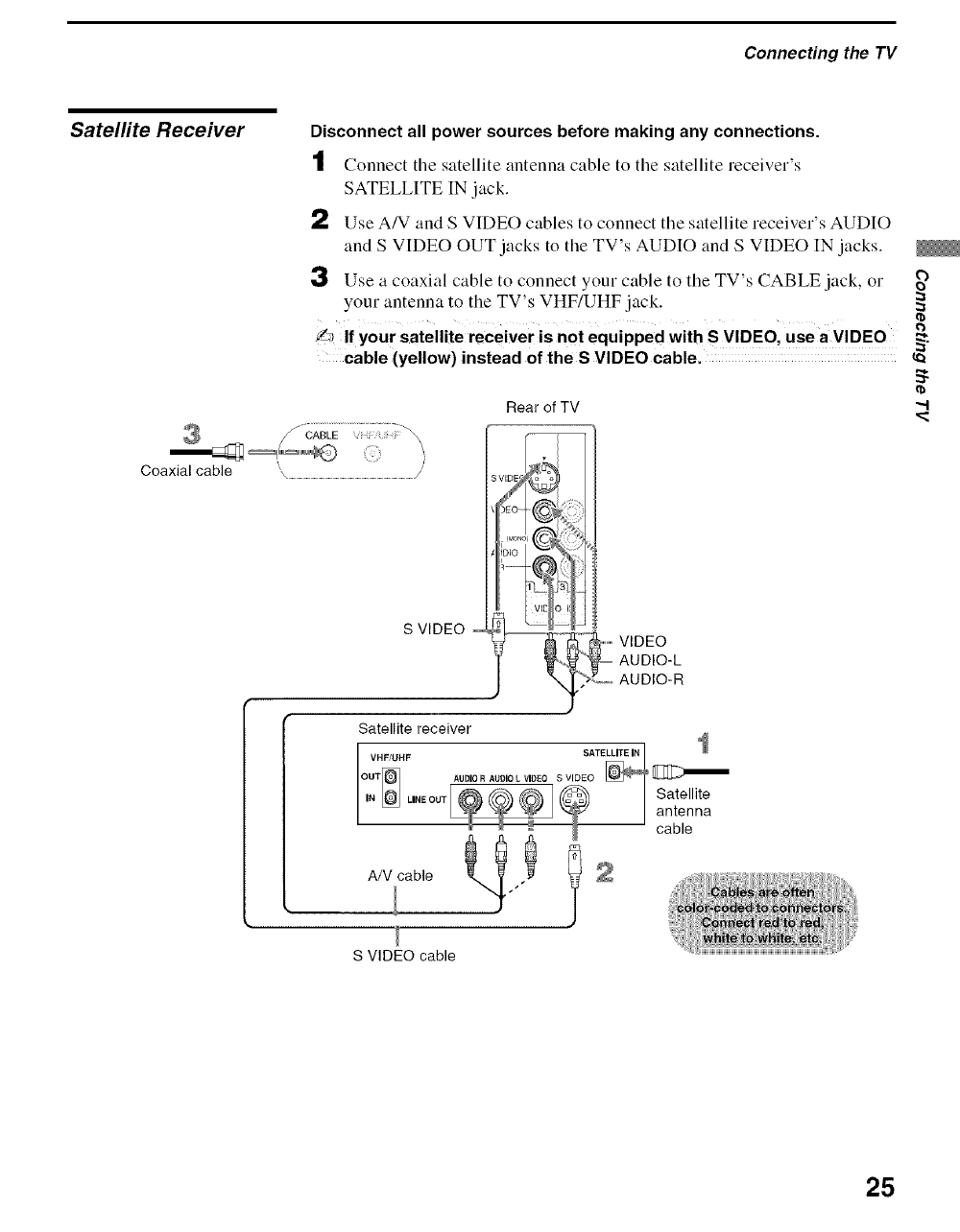
Satellite Receiver Disconnect all power sources before making any connections.
tConnect the satellite antenna cable to the satellite receiver's
SATELLITE IN jack.
_') Use A/V and S VIDEO cables to connect the satellite receiver's AUDIO
and S VIDEO OUT jacks to the TV's AUDIO and S VIDEO IN jacks.
;3 Use a coaxial cable to connect your cable to the TV's CABLE jack, or
your antenna to the TV's VHF/UHF jack.
L_ If y0ur satellite receiver isnot equipped with s VIDEO, use a VIDEO
cable (yellow)instead of the S VIDEO cable.
_!_,_ ....
Coaxial cable '\ /
Rear of TV
S VIDEO VIDEO
AUDIO-L
AUDIO-R
-,-.I
Satellite receiver
S VIDEO cable
25
ConnecUng_e TV
Digital Cable Box or
Digital Satelfite
Receiver
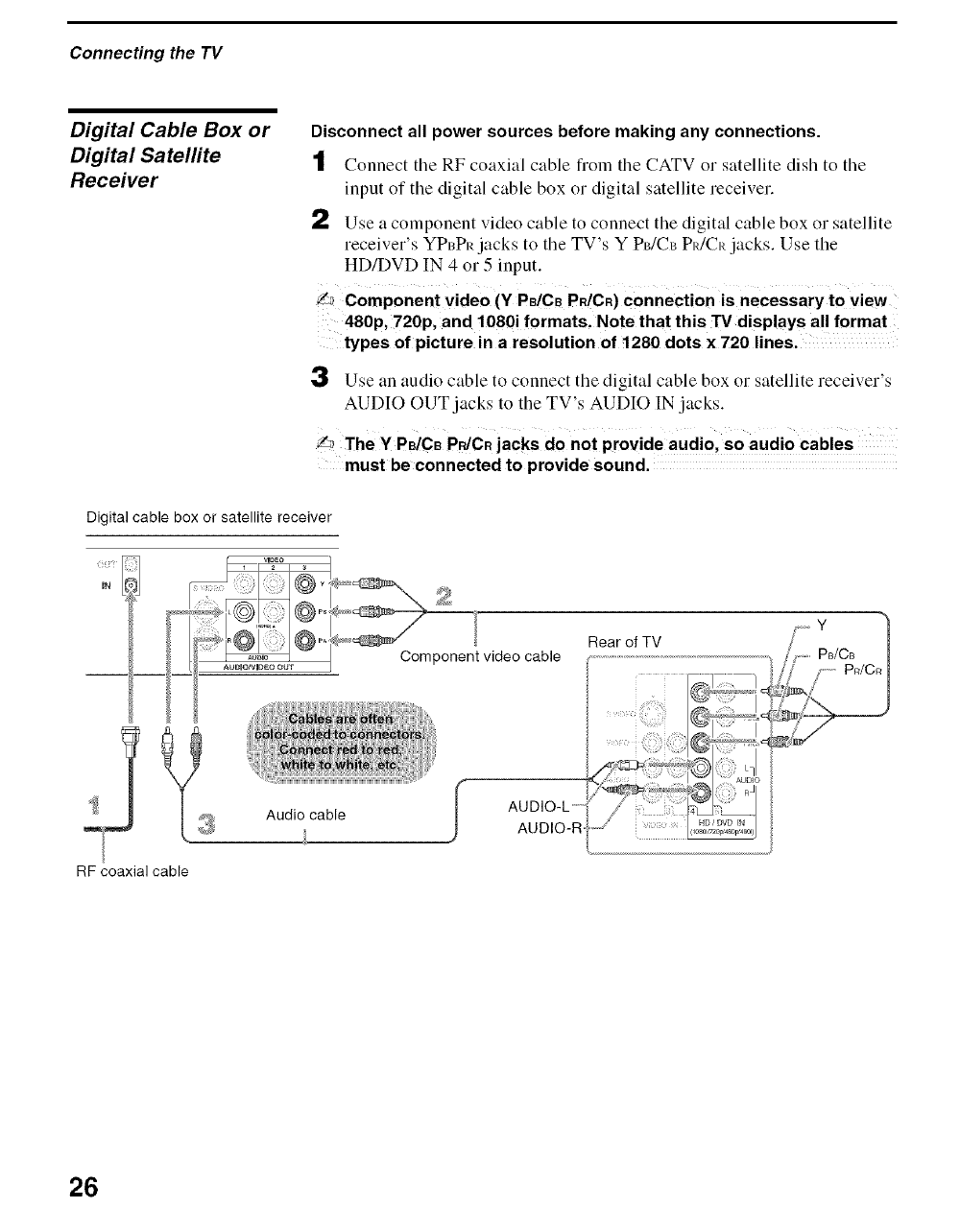
Disconnect all power sources before making any connections.
tConnect tile RF coaxial cable from the CATV or satellite dish to tile
input of the digital cable box or digital satellite receiver.
2Use a component video cable to connect the digital cable box o1 satellite
receiver's YP_PI_ jacks to the TV's Y PdCt_ PIdCR jacks. Use the
HD/DVD IN 4 o1 5 input.
_component Video (V P./C. PP./C.) Connection is necessary to view
480p, 720p, and 1080! formats, Note that this TV displays all format
types of picture in a resolution of 1280 dots x 720 lines.
3Use an audio cable to connect the digital cable box or satellite receiver's
AUDIO OUT jacks to the TV's AUDIO IN jacks,
Y_ TheY PBiCBPR/CRjacks do not provide audiol so audio Cables
must be connected to provide sound.
Digital cable box or satellite receiver
mN
Rear of TV
RF coaxial cable
Audio cable I
26
Connecting the TV
Equipment with
HDMI Connection
";_"The HDMI jack
provides both video
and audio signals, so it
is not necessary to
connect an audio cable.
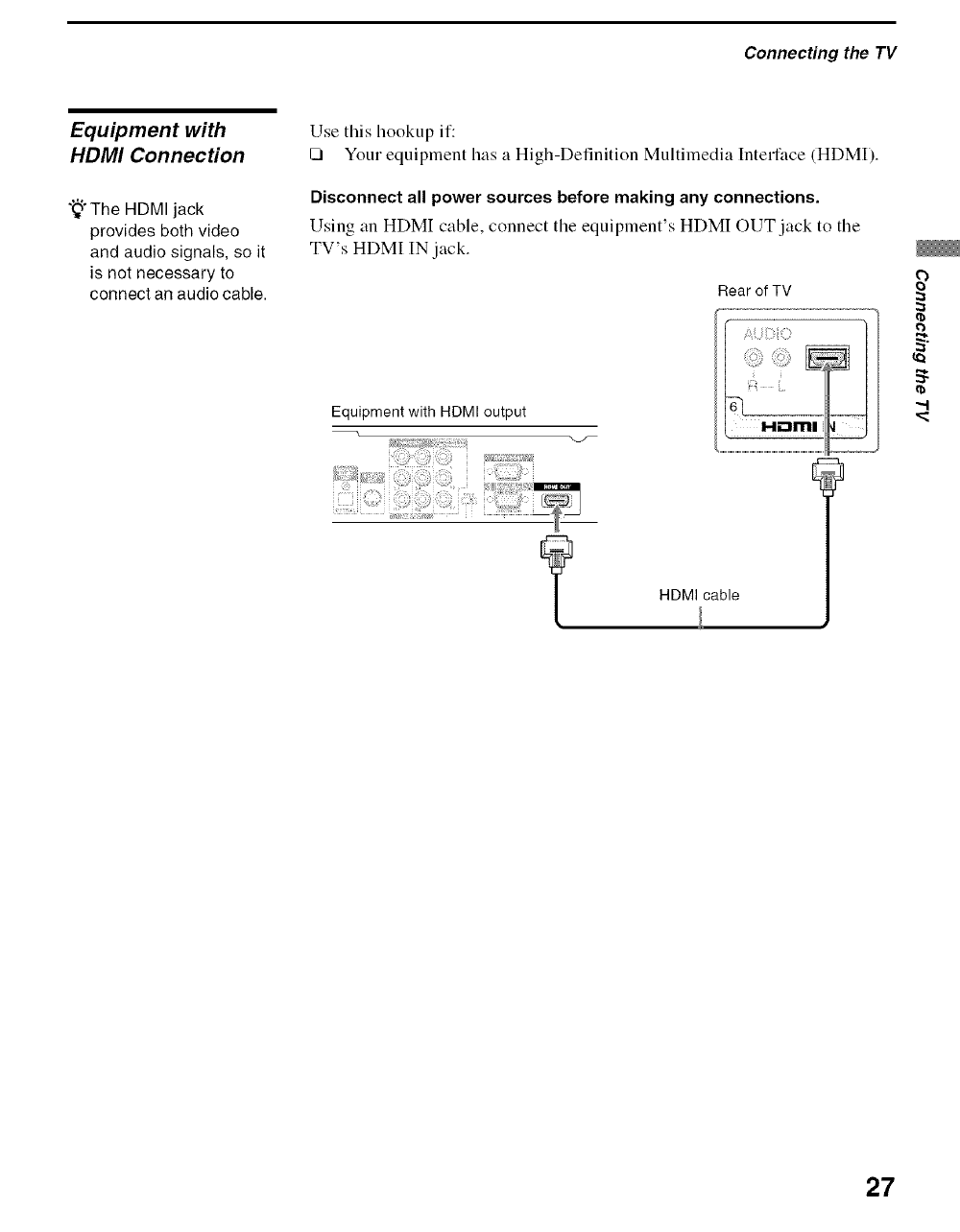
Use this hookup if:
[] Your equipment has a High-Definition Multimedia Interface (HDMI).
Disconnect all power sources before making any connections.
Using an HDMI cable, connect tile equiplnent's HDMI OUT jack to tile
TV's HDMI IN jack.
Rear of TV
Equipmentwith HDMI output
g
YHDMI cable
---I
27
ConnecUng_e TV
Equ_ment with DW
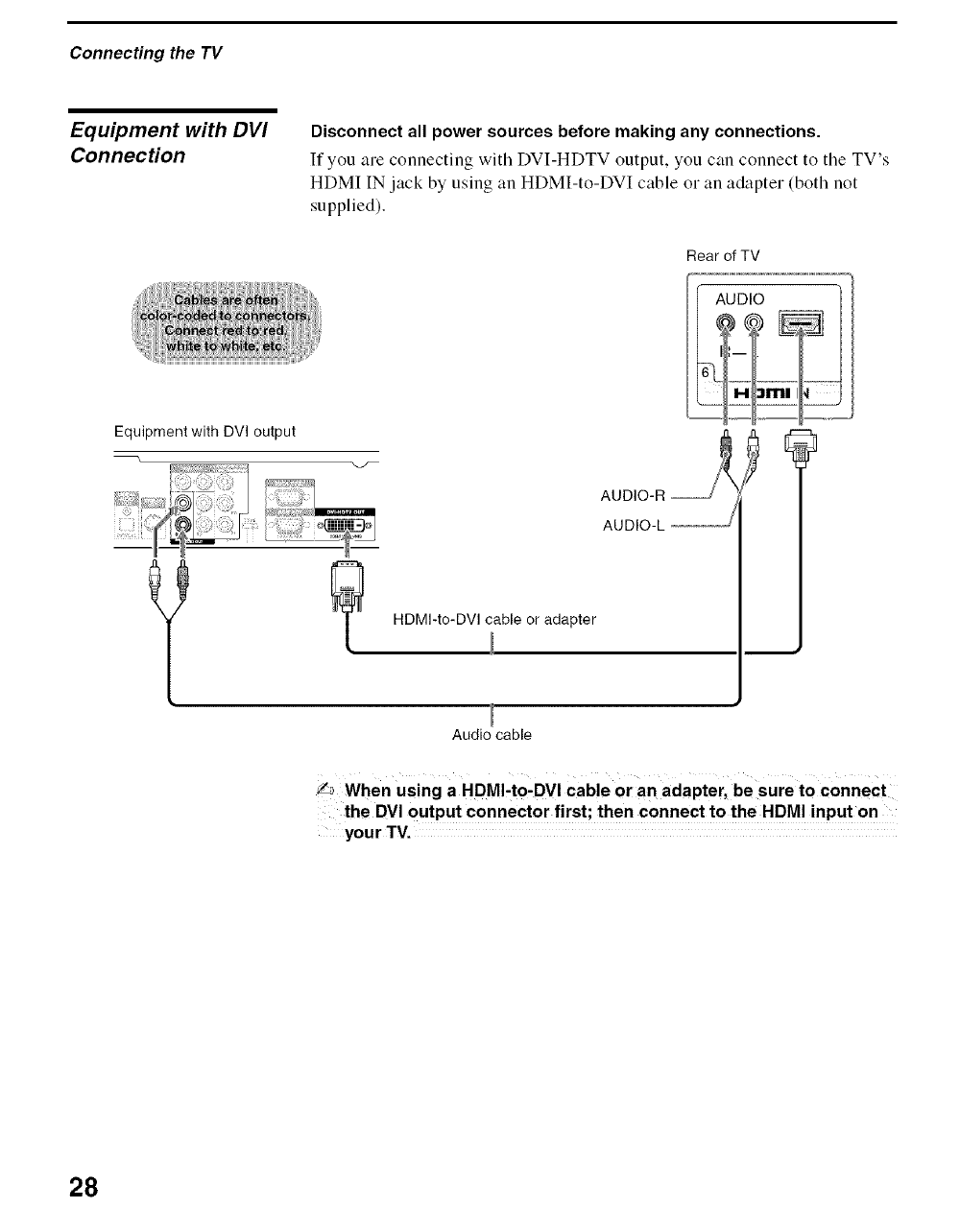
ConnecHon Disconnect all power sources before making any connections.
If you are connecting with DVI-HDTV output, you can connect to the TV's
HDMI IN jack by using an HDMI-to-DVI cable or an adapter (both not
supplied).
Rear of TV
Equipment with DVI output
AUDIO-L
HDMI-to-DVI cable or adapter
Audio cable
_When using a HDMI,to-DVI cable or an adapter, be sure to connect
the DVI output connector first; then connect to the HDMI input on
your TV.
28
Connecting the TV
Equipment with
Digital Audio
(Optical)
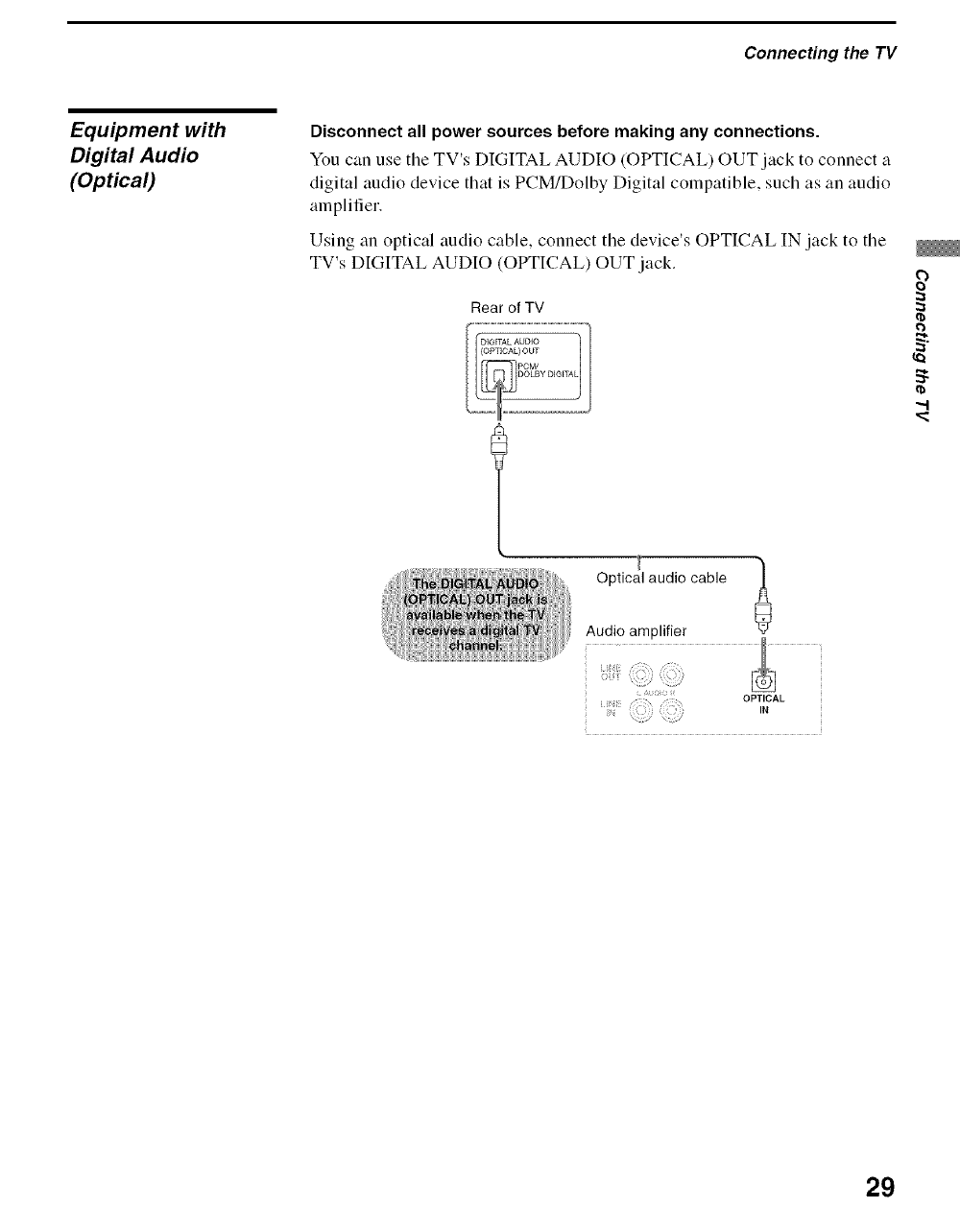
Disconnect all power sources before making any connections.
You can use the TV's DIGITAL AUDIO (OPTICAL) OUT jack to connect a
digital audio device that is PCM/Dolby Digital compatible, such as an audio
amplifier.
Using an optical audio cable, connect the device's OPTICAL IN jack to tile
TV's DIGITAL AUDIO (OPTICAL) OUT jack.
Rear of TV
2
Optical audio cable
Audio amplifier
OPTICAL
: IN
29
ConnecUng_e TV
Using CableCARD
About Using
CableCARD Device
Activating
CableCARD Service
Device
The CableCARD device provides cable subscribers with access to digitally
encrypted cable channels -- without the need for a set-top box -- that will
enable you to receive not only standard definition but also high definition
television. The CableCARD device, which is provided by your cable TV
company, is inserted into the TV's rear panel CableCARD slot. After the
service is activated with your cable TV company, the card replaces the need
for a separate set-top box.
If you are planning to use a separate cable box for digital cable TV services,
you may be able to receive programming using this TV with the
CableCARD device instead -- except in the following circumstances:
[] Your cable TV company does not provide CableCARD service in your
viewing area.
[] You want to access your cable TV company's interactive or advanced
features (such as video-on-demand or. in some cases, pay-per-view). At
this time, these services require a bidirectional link, which are only
available through the use of a separate set-top box. CableCARD device
is currently a unidirectional device only, and cannot provide these
advanced services.
Check with your cable TV company for CableCARD service details,
limitations, pricing, and availability, all of which are determined by your
cable TV company -- not Sony.
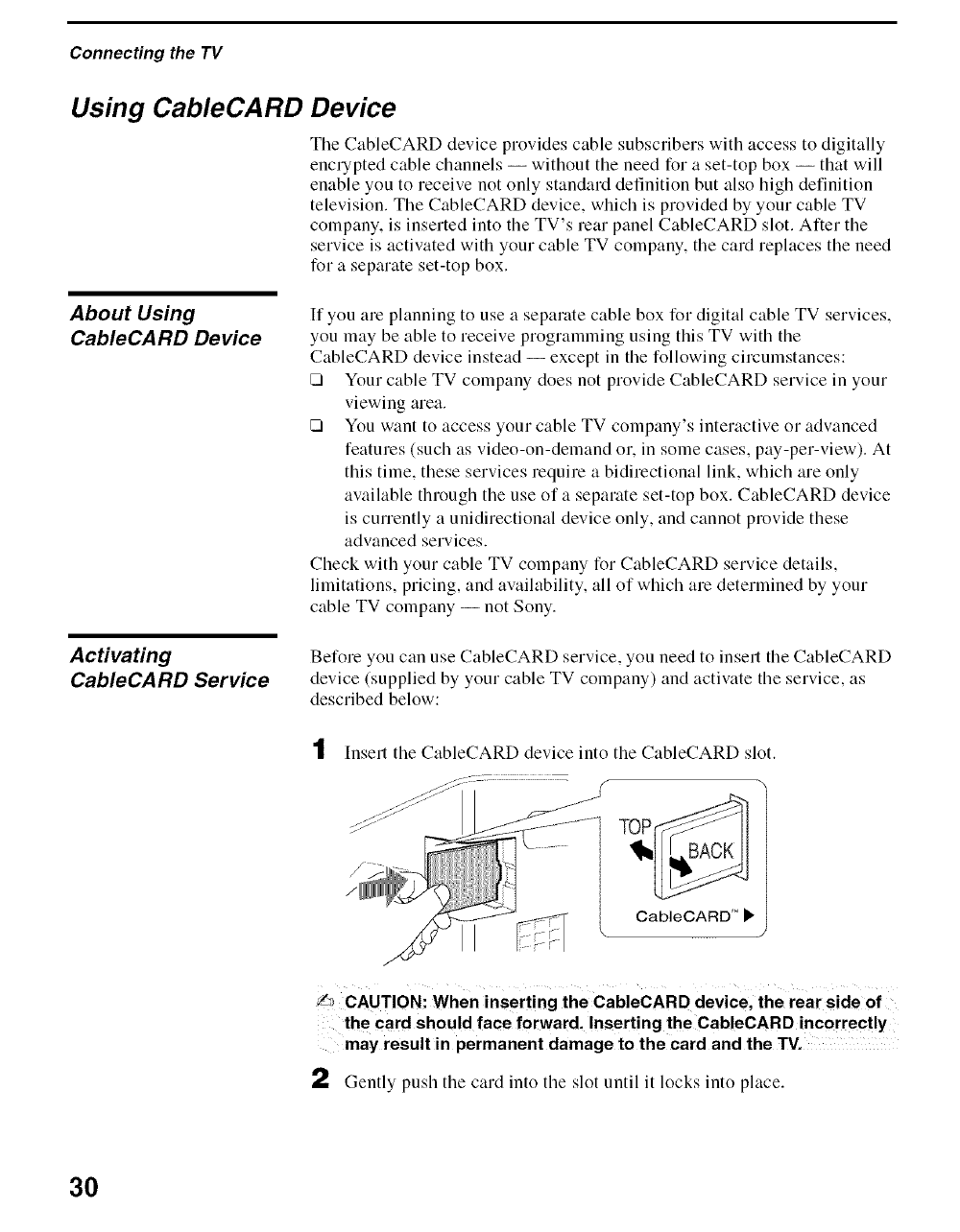
Before you can use CableCARD service, you need to insert the CableCARD
device (supplied by your cable TV company) and activate the service, as
described below:
tInsert the CableCARD device into the CableCARD slot.
CableCARD" _"
L_ CAUTION: When inserting the CableCARD device, the rear side of
the card should face forward. Inserting the CableCARD incorrectly
may result in permanent damage to the card and the TV.
2Gently push the card into the slot until it locks into place.
30
"_°You can also access
information about your
CableCARD device in
the Applications settings
(see page 84).
Removing the
CableCARD Device
3
4
5
Connecting the TV
Alter 1-2 minutes, the CableCARD device setup screen is automatically
displayed. This screen includes information your cable TV company
will request before they can activate your service.
Follow the displayed instructions: Phone your cable TV company. A
representative will guide you through the activation process.
After your CableCARD device is activated, your cable TV company
will download the service information, including the channel list, to the
CableCARD device. After the CableCARD device has acquired
channels from your cable TV company, the TV tunes to the lowest
available channel.
In tile event you want to cancel your service, contact your cable TV
company.
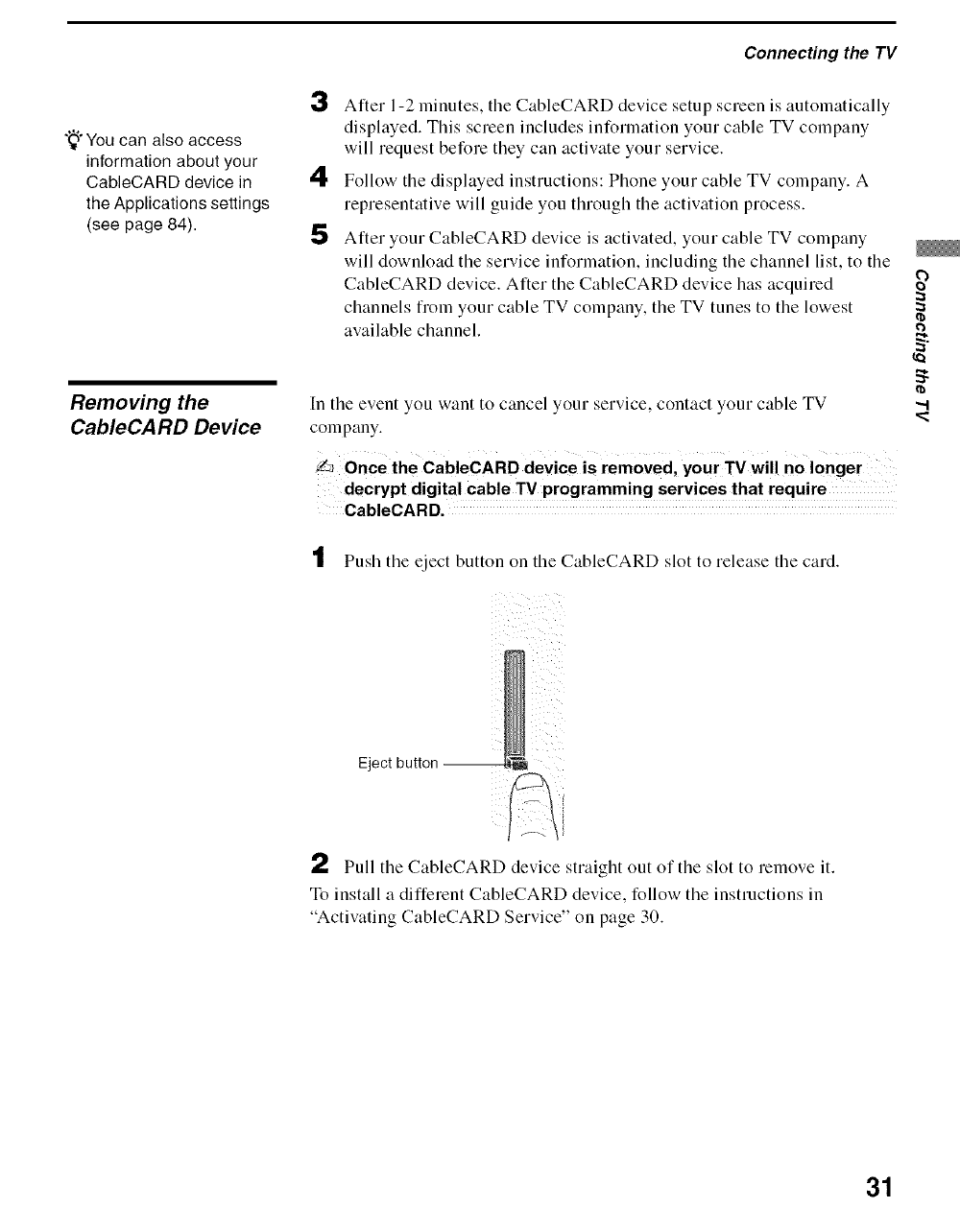
_once the CableCARD device is removed, your TV will no longer
decrypt digital cable TV programming services that require
CableCARD.
tPush tile eject button on the CableCARD slot to release tile card.
"..I
Eject button
2Pull tile CableCARD device straight out of the slot to remove it.
To install a different CableCARD device, follow the instructions in
"Activating CableCARD Service" on page 30.
31
ConnecUng_e TV
Setting Up the Channel List
Ariel you finish connecting the TV. you can run tile Initial Setup to create a
list of available analog and digital channels. The Initial Setup screen appears
when you turn on tile TV for tile first time after hooking it up. If you choose
to set up the channels at a later time, select the Auto Program option in the
Channel setting to scan available channels (see below).
_The Initial Setup feature does not apply for installations that use a
cable box for all channel selection.
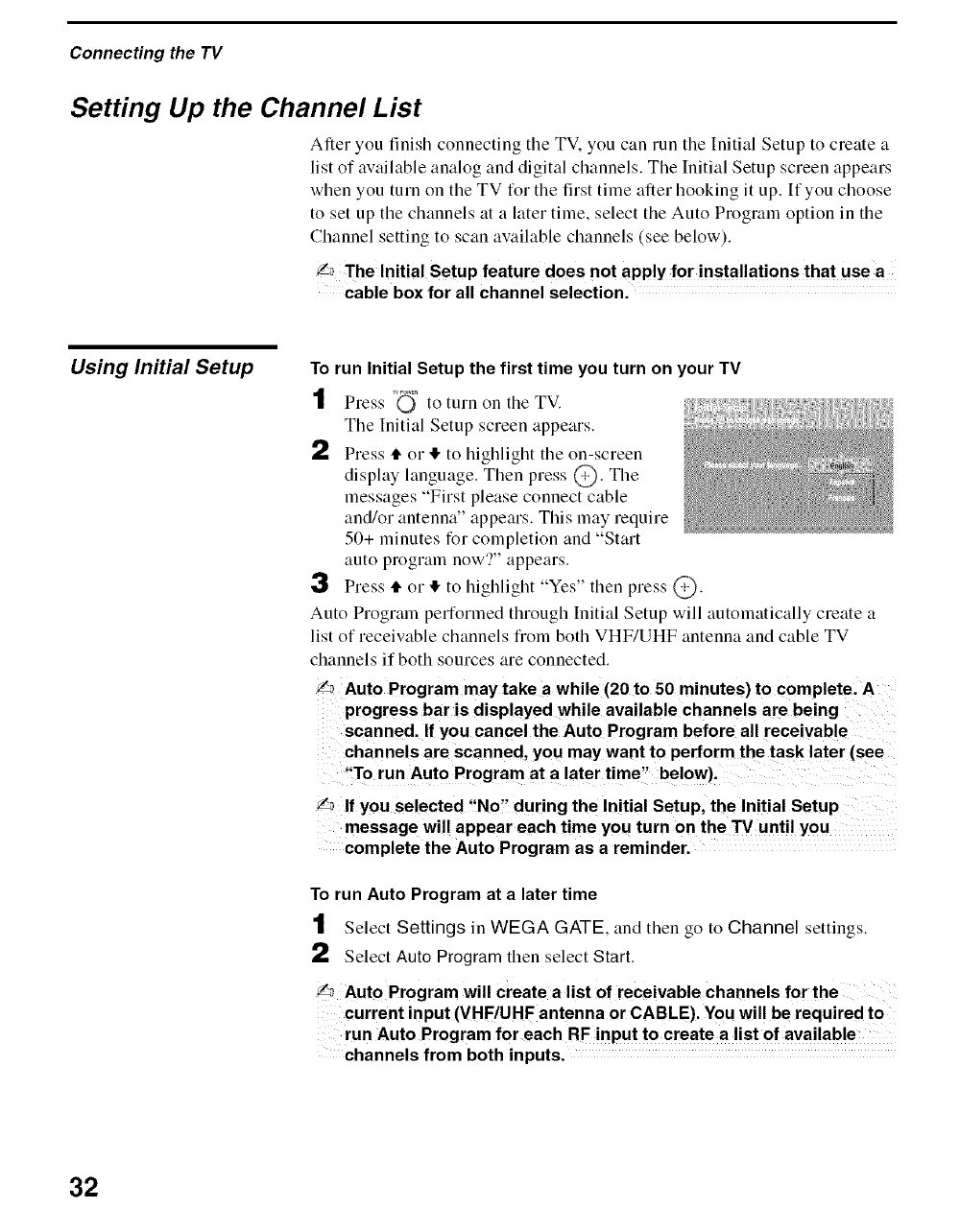
Using Initial Setup To run Initial Setup the first time you turn on your TV
1Press Q° to turn on tile TV.
The Initial Setup screen appears.
2Press '1"or ,!, to highlight the on-screen
display language. Then press @. The
messages Fm't please connect cable
and/or antenna" appears. This may require
50+ minutes for completion and "Start
auto progrmn now'?" appears.
3Press 4" or ,!, to highlight "Ye.'s" then press @.
Auto Program performed through Initial Setup will automatically create a
list of receivable channels from both VHF/UHF antenna and cable TV
channels if both sources are connected.
_: Auto Program may take a while (20 to 50 minutes) to complete. A
progress bar is displayed while available channels are being
scanned. If you cancel the Auto Program before all receivable
channels are scanned, you may want to perform the task later (see
"To run Auto Program at a later time" below).
_: If you selected "No" during the Initial Setup, the Initial Setup
message will appear each time you turn on the TV until you
complete the Auto Program as a reminder.
To run Auto Program at a later time
tSelect Settings in WEGA GATE, and then go to Channel settings.
2Select Auto Program then select Start.
Y_ Auto Program will create a list of receivable Channels for the
current input (VHF/UHF antenna or CABLE). You wig be required to
run Auto Program for each RF input to create a list of available
channels from both inputs.
32
Connecting the TV
Connecting Optional Equipment
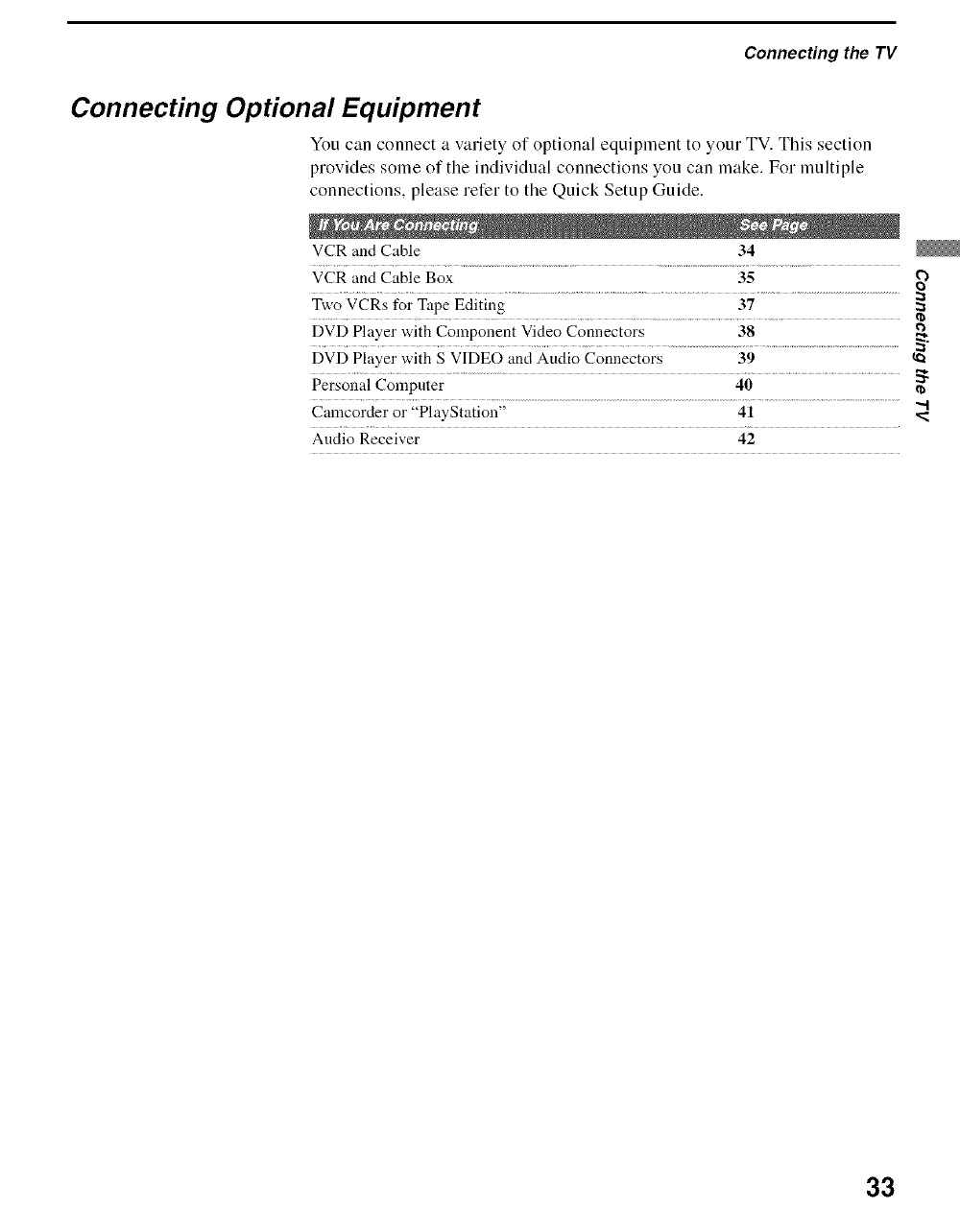
You can connect a variety of optional equipment to your TV. This section
provides some of the individual connections you can make. For multiple
connections, please refer to the Quick Setup Guide.
VCR and Cable 34
VCR and Cable Box 35
Two VCRs for Tape Editing 37
DVD Player with Component Video Connectors 38 e_
DVD Player with S VIDEO and Audio Connectors 39
Persoi_al Computer ........................... 40 ........................................
Camcorder or "PlayStation" 41
Audio Receiver 42
33
ConnecUng_e TV
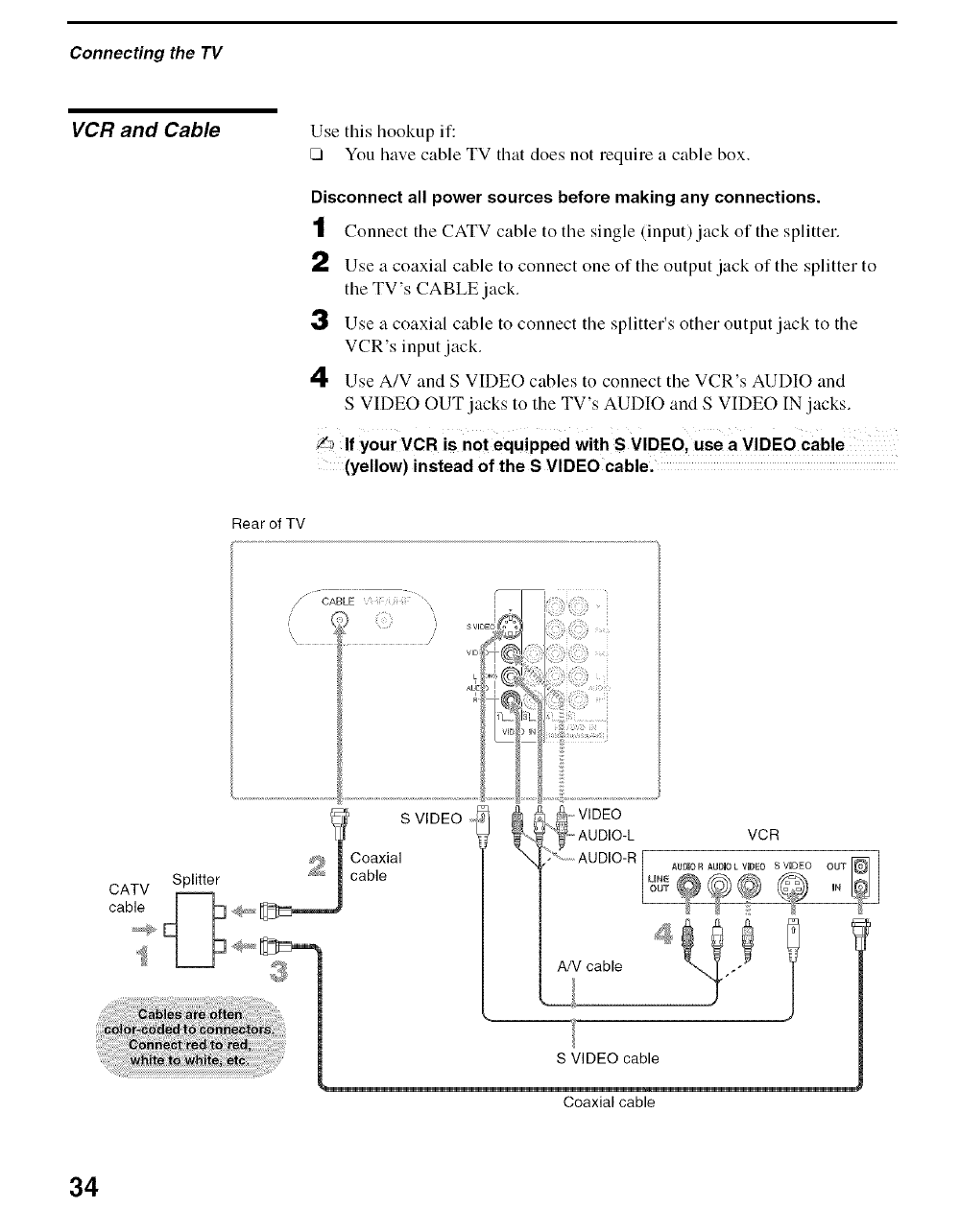
VCR and Cable Use tiffs hookup if:
[] You have cable TV that does not require a cable box.
Disconnect all power sources before making any connections.
tConnect tile CATV cable to tile single (input) jack of tile splitter.
a,_ Use a coaxial cable to connect one of the output jack of the splitter to
the TV's CABLE jack.
;3 Use a coaxial cable to connect tile splitter's other output jack to tile
VCR's input jack.
4 Use A/V and S VIDEO cables to connect the VCR's AUDIO and
S VIDEO OUT jacks to the TV's AUDIO and S VIDEO IN jacks.
/,_ If your VCR is not equipped with S VIDEO, use a VIDEO cable
(yellow) instead of the S VIDEO cable.
Rear of TV
/" CABLE i[ ;:;;
/
i
SVlDEO!
CATV Splitter
S VIDEO
Coaxial
cable
AN cable
S VIDEO cable
Coaxial cable
34
Connecting the TV
VCR and Cable Box Use this hookup if:
[] Your cable TV company scrambles some channels, but not all of them
(pay channels vs. regular cable channels) and you need to use a cable
box.
With this connection you can:
[] Use tile TV's relnote control to change channels on your cable box
when the signal is scralnbled. To program your Sony remote control to o_
operate your cable box, see "Programming tile Remote Control" on
page 47.
[] Use tile TV's remote control to change channels on your TV when tile _"
signal is not scrambled. Your TV's tuner provides a better picture ._
quality than tile output of your cable box. r=
"..I
Disconnect all power sources before making any connections.
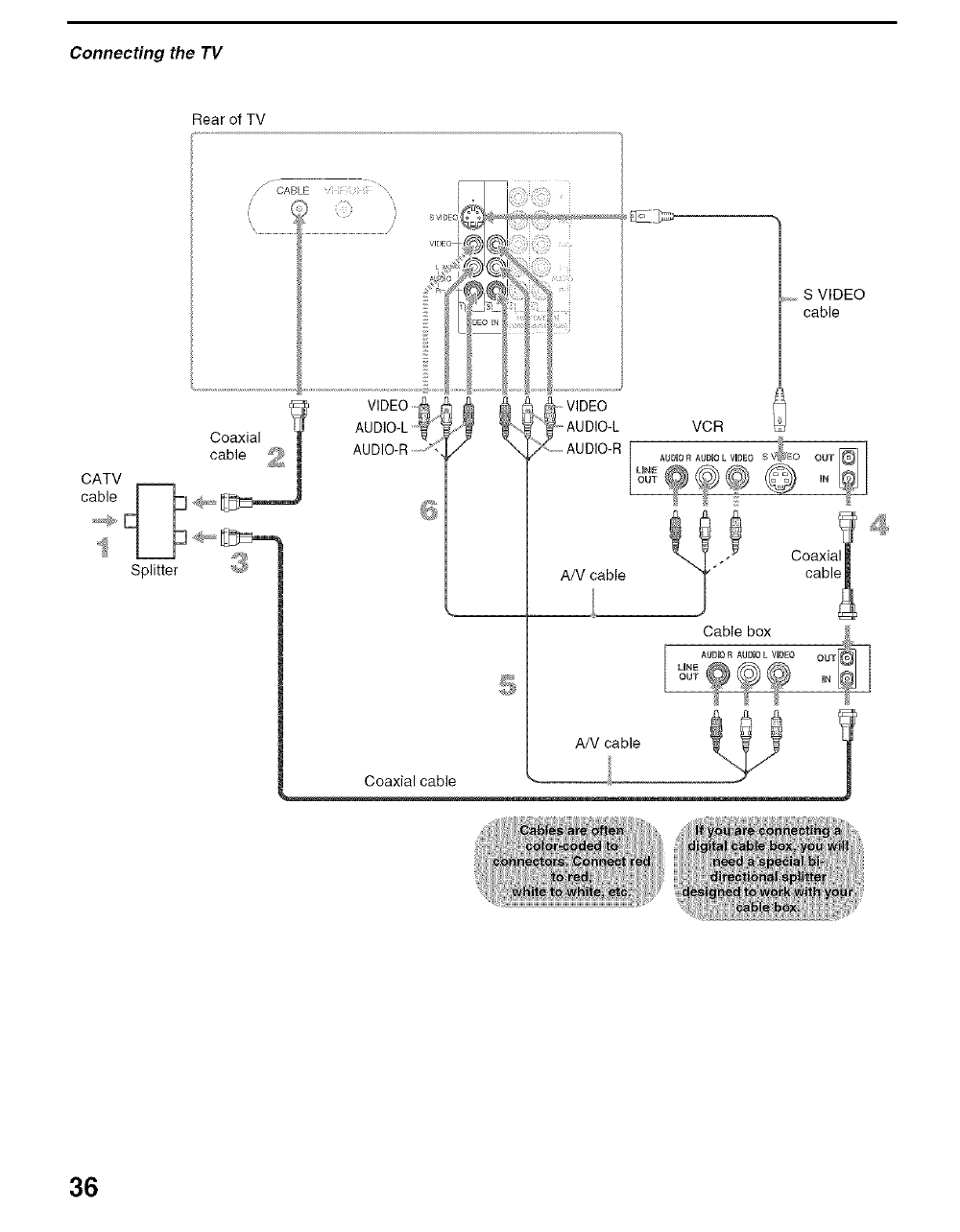
tConnect tile CATV cable to tile single (input) jack of tile splitter.
2Use a coaxial cable to connect one of the output jack of the splitter to
the TV's CABLE jack.
;3 Use a coaxial cable to connect tile splitter's other output jack to tile
cable box's input jack.
4Use a coaxial cable to connect the cable box's output jack to the VCR's
RF input jack.
5 Use an A/V cable to connect tile cable box's A/V output jacks to tile
TV's A/V input jacks.
6Use an A/V and S VIDEO cables to connect tile VCR's AUDIO and S
VIDEO OUT jacks to the TV's AUDIO and S VIDEO IN jacks.
L_ If your VCR is not equipped with S VIDEO, use a VIDEO Cable
(yellow) instead of the S VIDEO cable.
7 Run Initial Setup, as described in "Setting Up tile Channel List" on page
32.
Y_ To view scrambled Channels. tune the TV to the channel the Cable
box is set to (usually channel 3 or 4) and then use the cable box to
switch channels.
(Continued)
35
ConnecUng_e TV
Rear of TV
VIDEO
AUDIO-L "_
AUDIO-R_,7 _bVIDEO
'_" AUDIO-L
Y AUDIO-R
A/V cable
_,,,,S VIDEO
cable
VCR
AUDHOR AUDHOL VHDEO S_EO
c°tx_p2l
,,_Vcab,e_ _
Coaxial cable _ _ m
36
Connecting the TV
Two VCRs for Tape
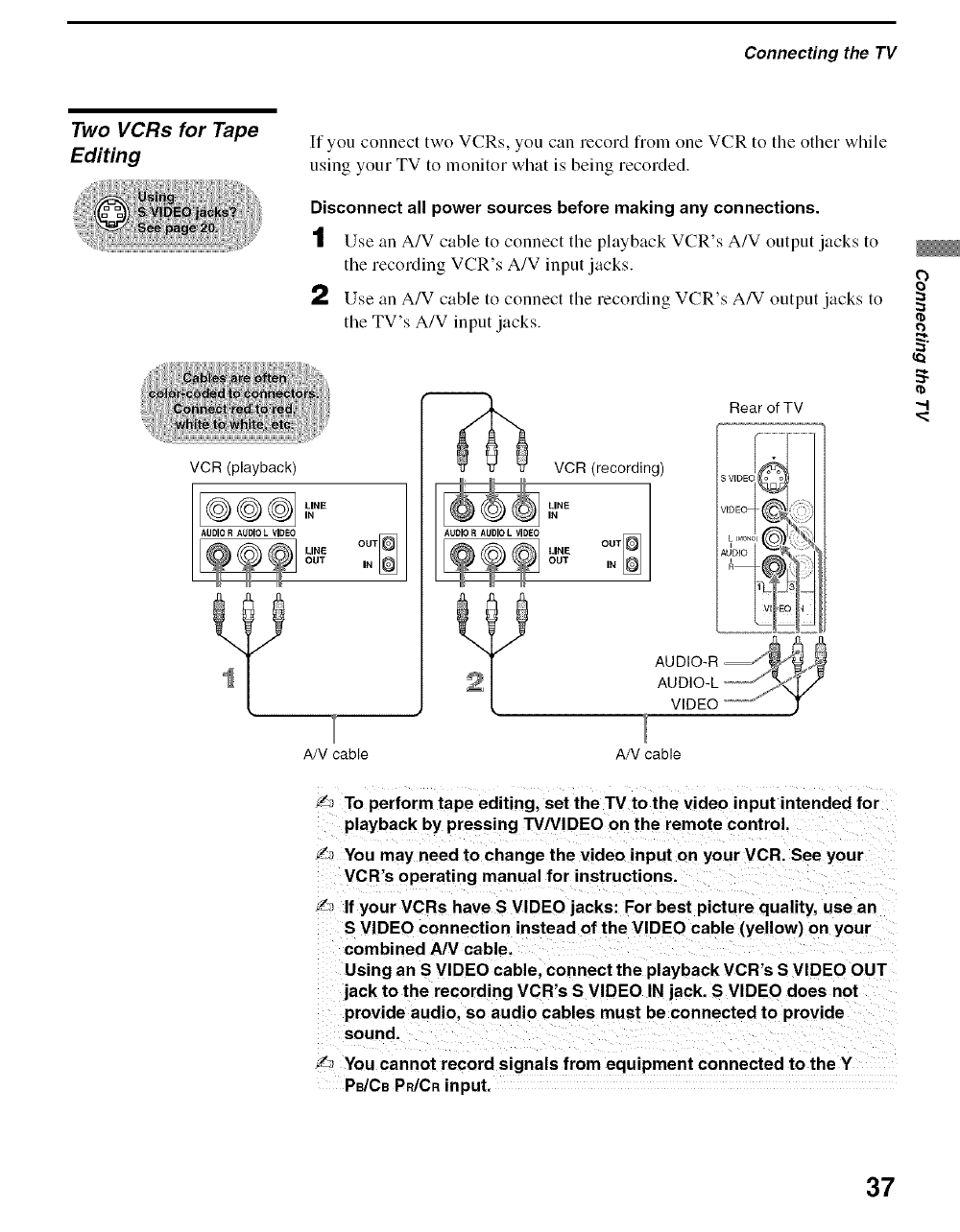
Editing If you connect two VCRs, you can record fiom one VCR to tile other while
using your TV to monitor what is being recorded.
Disconnect all power sources before making any connections.
tUse an A/V cable to connect tile phtyback VCR's A/V output jacks to
the recording VCR's A/V input jacks.
2Use an A/V cable to connect the recording VCR's A/V output jacks to
the TV's A/V input jacks.
VCR (playback)
OUT
LINE
OUT IN
VCR (recording)
LINE
IN
AUDIO R AUDIO L VIDEO
LINE OllT_OUT IN
Rear of TV
OD,O-
AUDIO-L _ ,)_<"{7"
VIDEO _J"
A/V cable A/V cable
2
"..-I
_To perform tape editing, set the TV to the video input intended for
playback by pressing TV/VIDEO on the remote control.
J_ You may need to change the video input on your VCR. See your
VCR's operating manual for instructions.
L. If your VCRs have S VIDEO jacks: For best picture quality, use an
S VIDEO connection instead of the VIDEO cable (yellow) on your
combined A/V cable.
Using an S VIDEO cable, connect the playback VCR's S VIDEO OUT
jack to the recording VCR's S VIDEO iN jack. S VIDEO does not
provide audio, so audio cables must be connected to provide
sound.
L; You cannot record signals from equipment connected to the Y
PB/CBPR./CRinput.
37
ConnecUng_e TV
DVD Player with
Component
Video Connectors
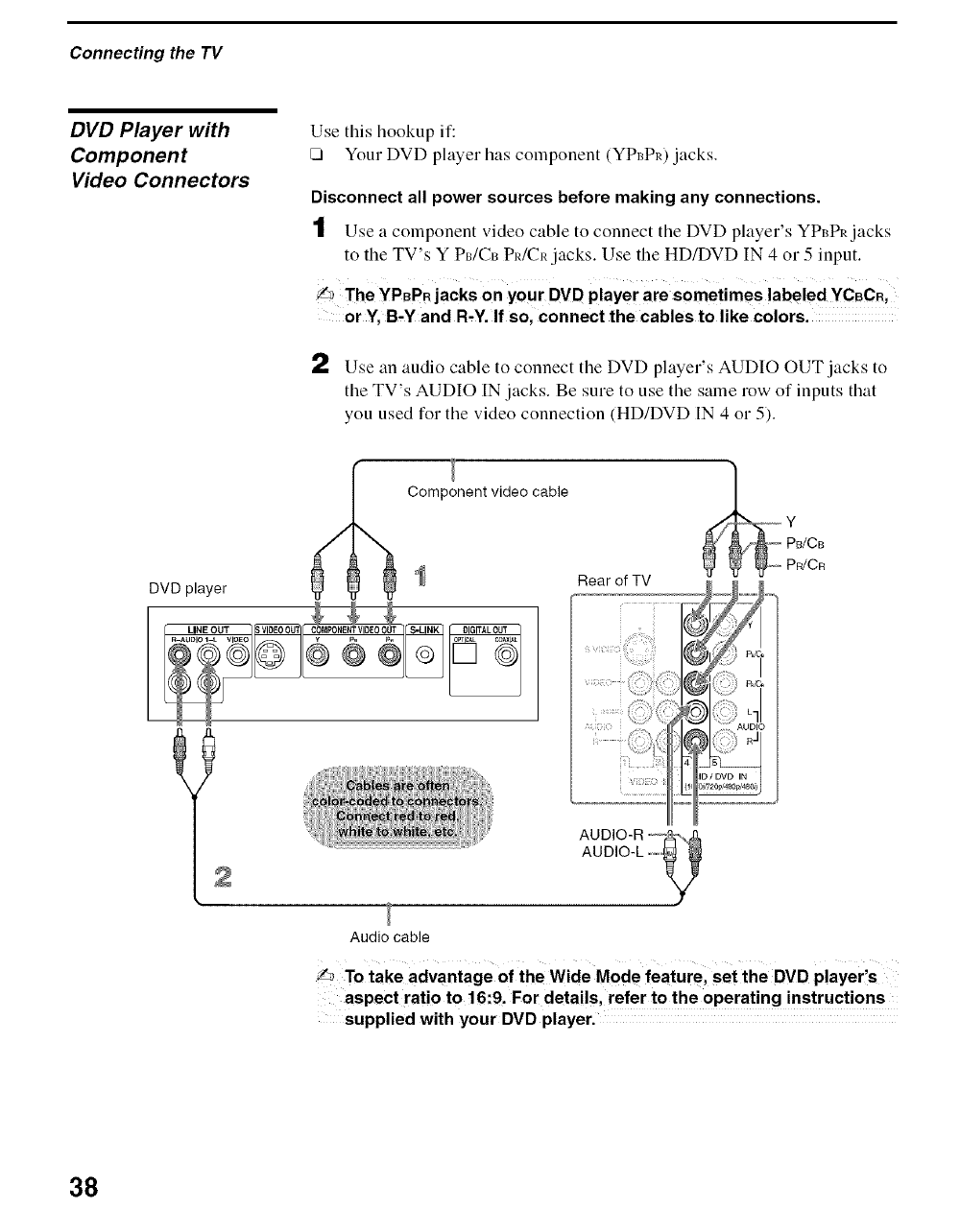
Use this hookup if:
[] Your DVD player has component (YPI3PI0jacks.
Disconnect all power sources before making any connections.
tUse a colnponent video cable to connect tile DVD player's YP_3PRjacks
to the TV's Y PdCt_ PIdCR jacks. Use the HD/DVD IN 4 or 5 input.
J_ The YPBPR jacks on your DVD playe r are sometimes labeled YCBCR,
or Y, B.Y and R.Y. If so, connect the cables to like colors.
a,_ Use an audio cable to connect tile DVD player's AUDIO OUT jacks to
the TV's AUDIO IN jacks. Be sure to use the same row of inputs that
you used for the video connection (HD/DVD IN 4 or 5).
DVD player
Component video cable
Rear of TV
__Y PB/CB
Audio cable
To take advantage of the Wide Mode feature, set the DVD player's
aspect ratio to 16:9. For details, refer to the operating instructions
supplied with your DVD player.
38
Connecting the TV
DVD Player with
SVIDEO andAudio
Connectors
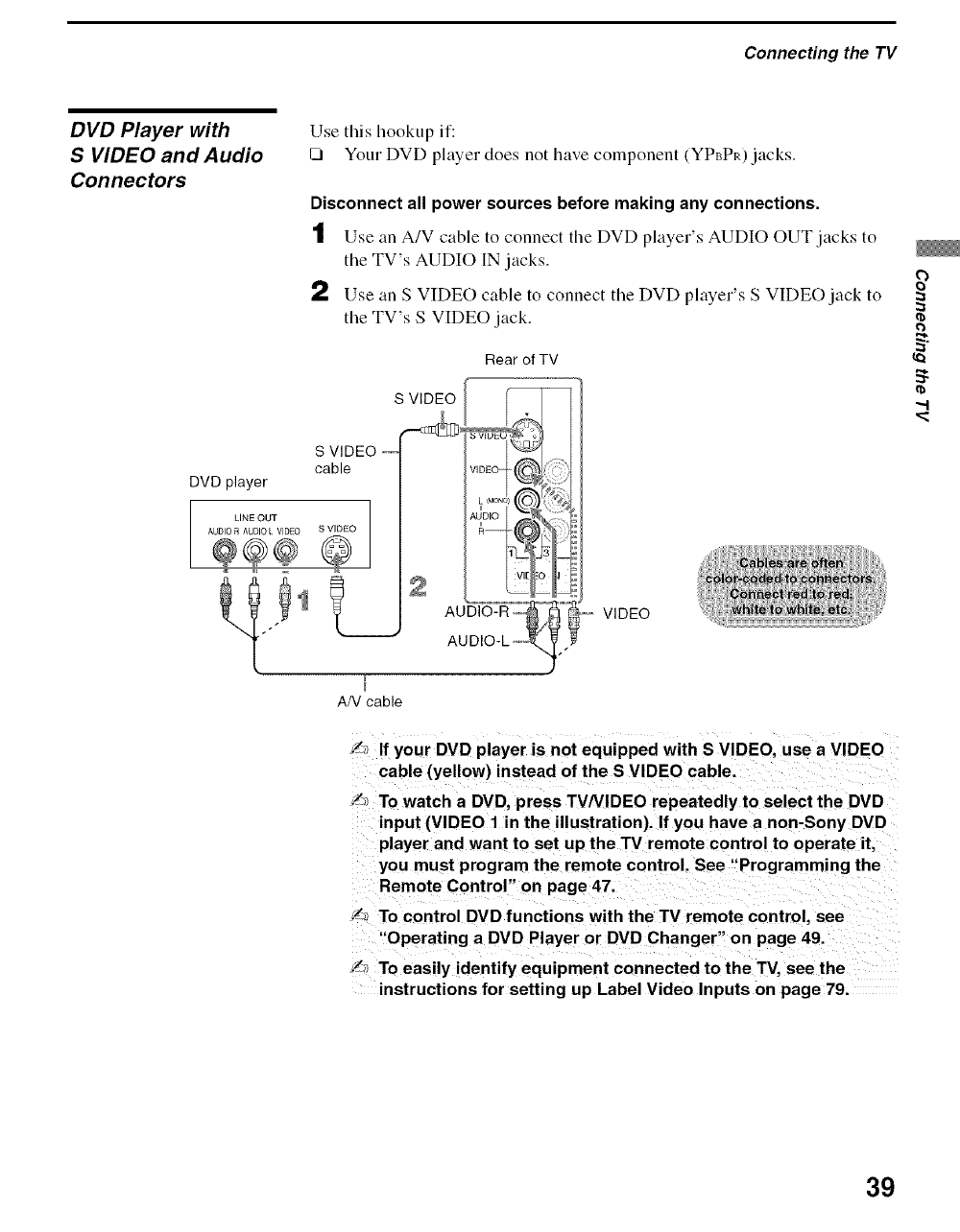
Use tiffs hookup if:
[] Your DVD player does not have component (YPBPI0 jacks.
Disconnect all power sources before making any connections.
tUse an A/V cable to connect the DVD player's AUDIO OUT jacks to
the TV's AUDIO IN jacks.
2Use an S VIDEO cable to connect the DVD player's S VIDEO jack to
the TV's S VIDEO jack.
Rear of TV
S VIDEO
DVD player
S VIDEO --
cable
AN cable
VIDEO
L,_ If your DVD player is not equipped with S VIDEO, use a VIDEO
cable (yellow) instead of the S VIDEO cable.
_ To watch aDVD, press TVNIDEO repeatedly to select the DVD
input (VIDEO 1 in the illustration). If you have anon-Sony DVD
player and want to set up the TV remote control to operate it,
you must program the remote control. See "Programming the
Remote Control" on page 47.
_,_ To control DVD functions with the TV remote control, see
"Operating aDVD Player or DVD Changer" on page 49.
y,7 To easily identify equipment connected to the TV, see the
instructions for setting up Label Video Inputs on page 79.
2
q}
"4
39
Connecting the TV
Personal Computer
";_'When connecting to an
Apple Macintosh
computer, use the
HD15-HD15 cable to
connect PC IN of the
TV to video output
connector of the
computer. For some
Apple Macintosh
computers, it may be
necessary to use an
adapter (not supplied).
If this is the case,
connect the adapter to
the computer before
connecting the HD15-
HD15 cable.
"_° If the picture is noisy or
flickering, adjust the
Phase and Pitch in the
Screen settings on
page 71.
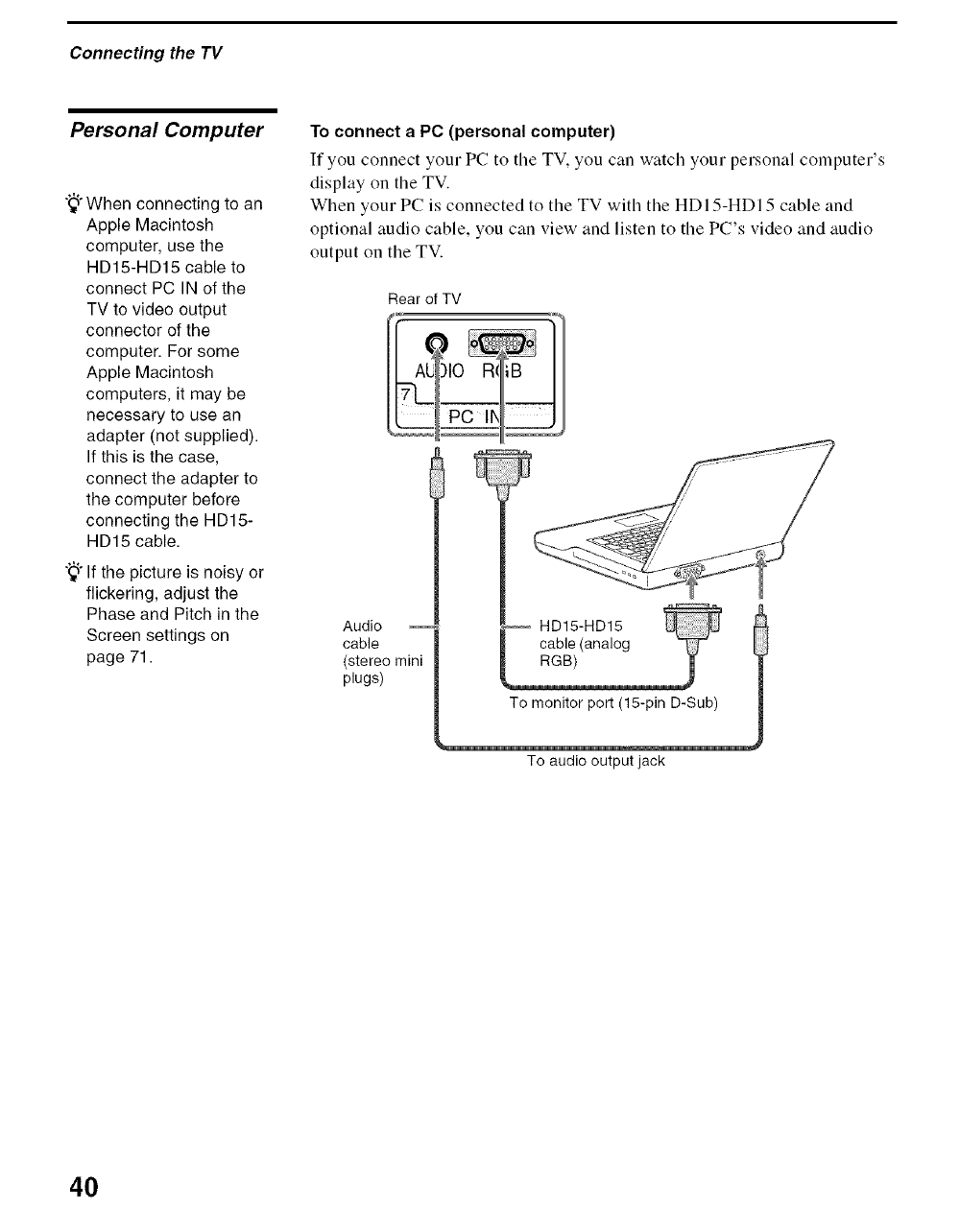
To connect a PC (personal computer)
If you connect your PC to the TV, you can watch your personal computer's
display on the TV.
When your PC is connected to the TV with the HDI 5-HDI 5 cable and
optional audio cable, you can view and listen to the PC's video and audio
output on the TV.
Rear of TV
Audio
cable
(stereo mini
plugs)
To monitor port (15-pin D-Sub)
To audio output jack
4O
Connecting the TV
Camcorder or
"PlayStation"
Rear of TV
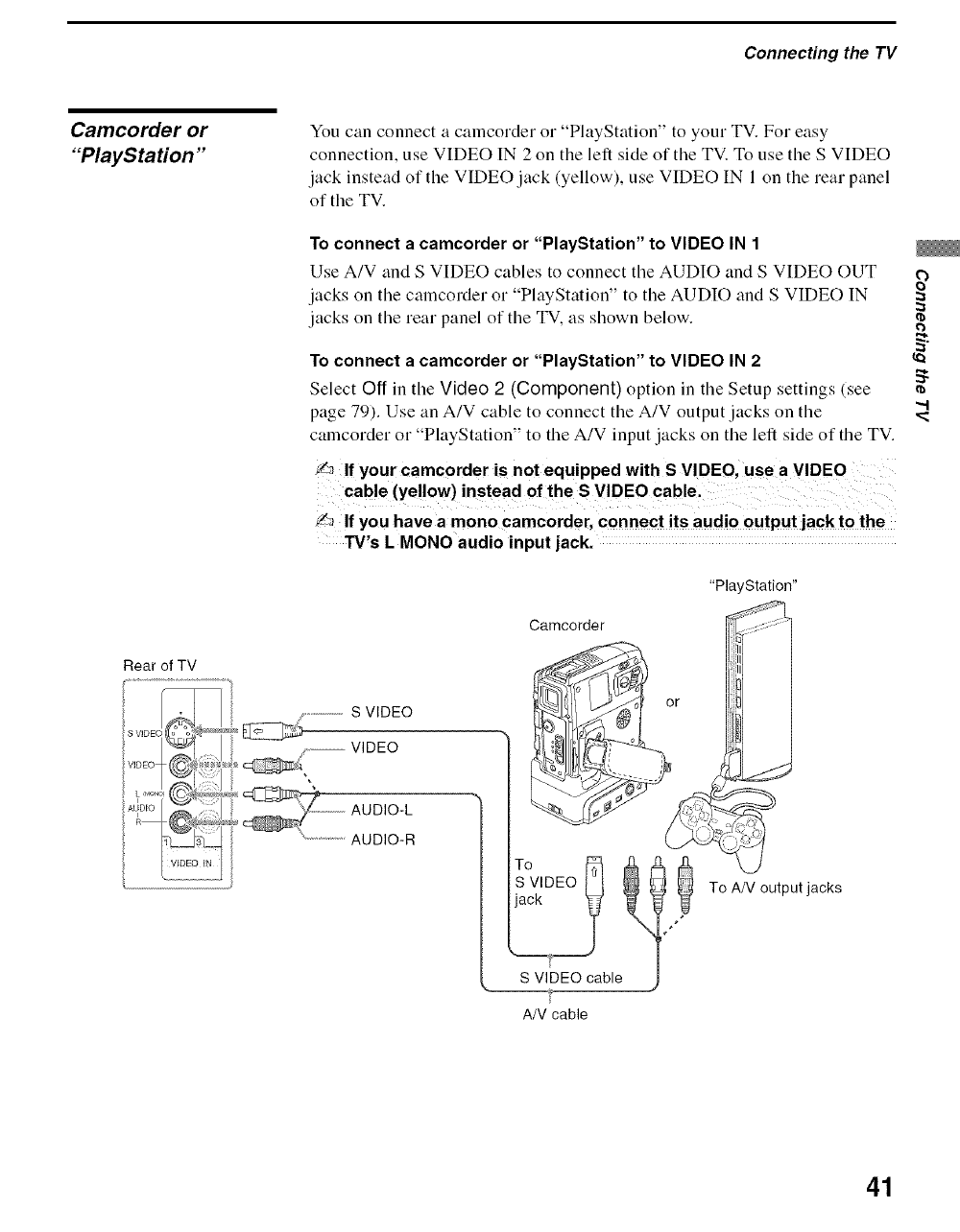
You can connect a camcorder or "PlayStation" to your TV. For easy
connection, use VIDEO IN 2 on the left side of the TV. To use the S VIDEO
jack instead of the VIDEO jack (yellow), use VIDEO IN 1 on the rear panel
of the TV.
To connect a camcorder or "PlayStation" to VIDEO IN 1
Use A/V and S VIDEO cables to connect the AUDIO and S VIDEO ()tiT
jacks on the camcorder or "PlayStation" to the AUDIO and S VIDEO IN
jacks on the rear panel of the TV, as shown below.
To connect a camcorder or "PlayStation" to VIDEO IN 2
Select Off in the Video 2 (Component) option in the Setup settings (see
page 79). Use an A/V cable to connect the A/V output jacks on the
camcorder or "PlayStation" to the A/V input jacks on the left side of the TV.
_a If your eameorder is not equipped with S VIDEO, usea VIDEO
_a If you have a mono camcorder, connect its audio output jack to the
TV's L MONO audio input jack.
Camcorder
....................S VIDEO
VIDEO
AUDIO-L
AUDIO-R
TVIDEO _:_ _ _ _
S VIDEO cable)
"t
A/V cable
"PlayStation"
To AN output jacks
2
--.I
41
Connecting the TV
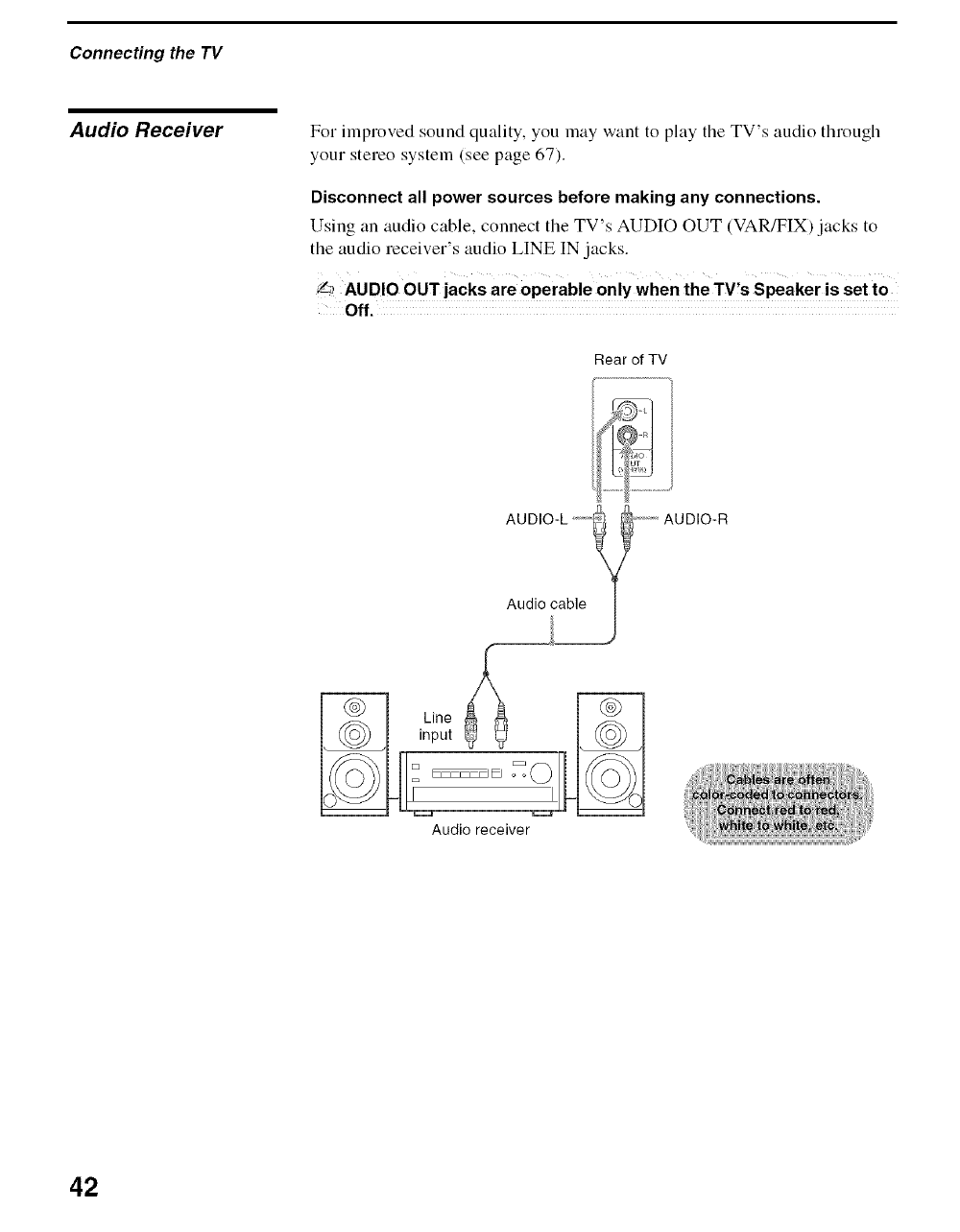
Audio Receiver For improved sound quality, you may want to play the TV's audio through
your stereo system (see page 67).
Disconnect all power sources before making any connections.
Using an audio cable, connect the TV's AUDIO OUT (VAR/FIX) jacks to
the audio receiver's audio LINE IN jacks.
Y_ AUDIO OUT jacks are operable only when the TV,s Speaker is set to
off.
Rear of TV
AUDIO-R
Audio receiver
42
Overview
Inserting Batteries
The table on the next page describes the buttons on the remote control.
Inserting Batteries into the Remote Control 43
Button Descriptions 44
Programming the Remote Control 47
Manufacturer's Codes ....................................................................................................................................48 .................................................
Using Other Equipment with Your Remote Co;_troi 49 ............................. _"
Special Buttons on the Remote Control 51 .._
into the Remote Control
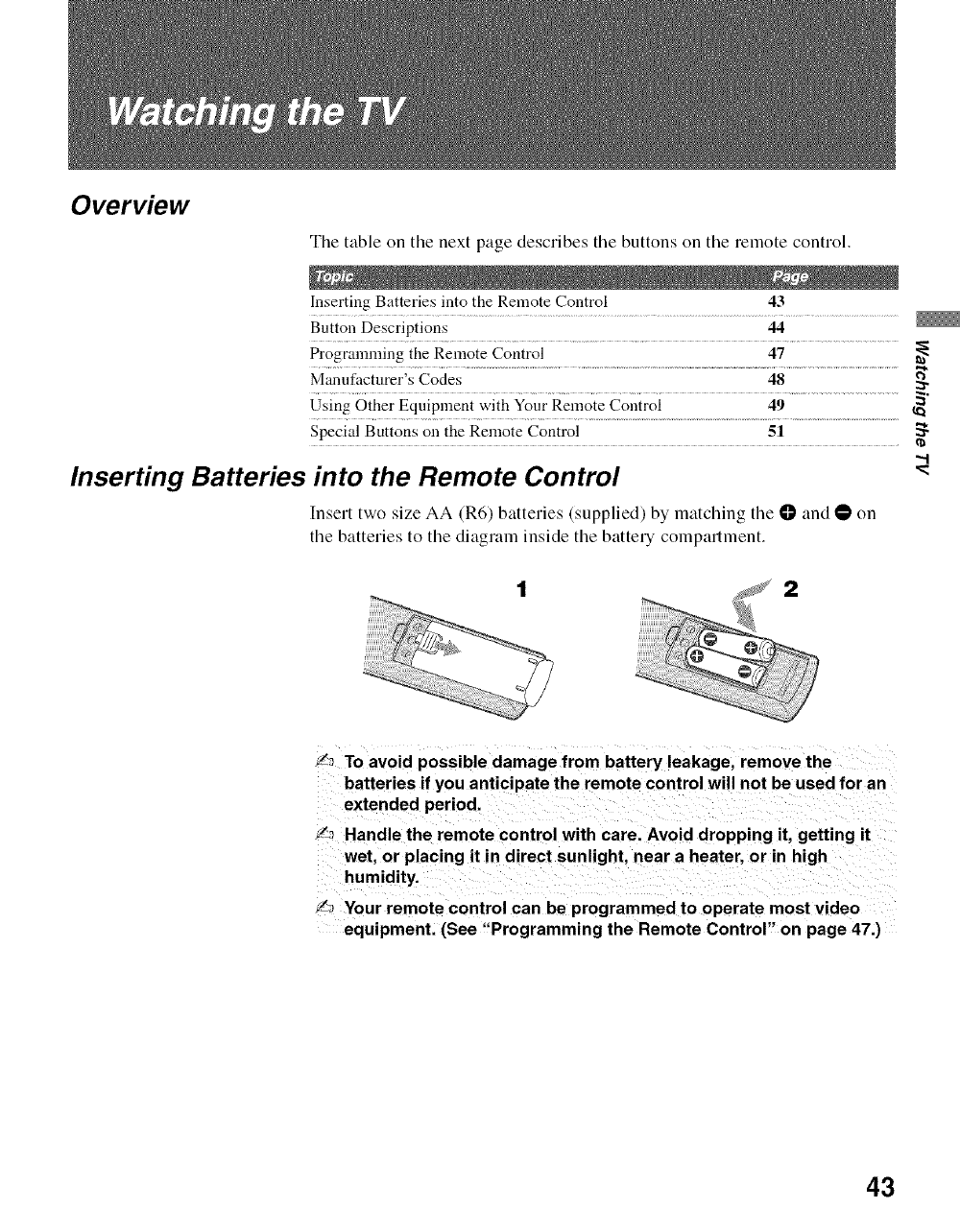
Insert two size AA (R6) batteries (supplied) by matching the O and • on
the batteries to the diagraln inside the battely colnpartment.
_: To avoid possible damage from battery leakage, remove the
batteries if you anticipate the remote control will not be used for an
extended period.
l: Handle the remote control with care. Avoid dropping it, getting it
wet, or placing it in direct sunlight, near a heater, or in high
humidity.
I_ Your remote control can be programmed to operate most video
equipment. (See "Programming the Remote Control" on page 47.)
43
Watching the TV
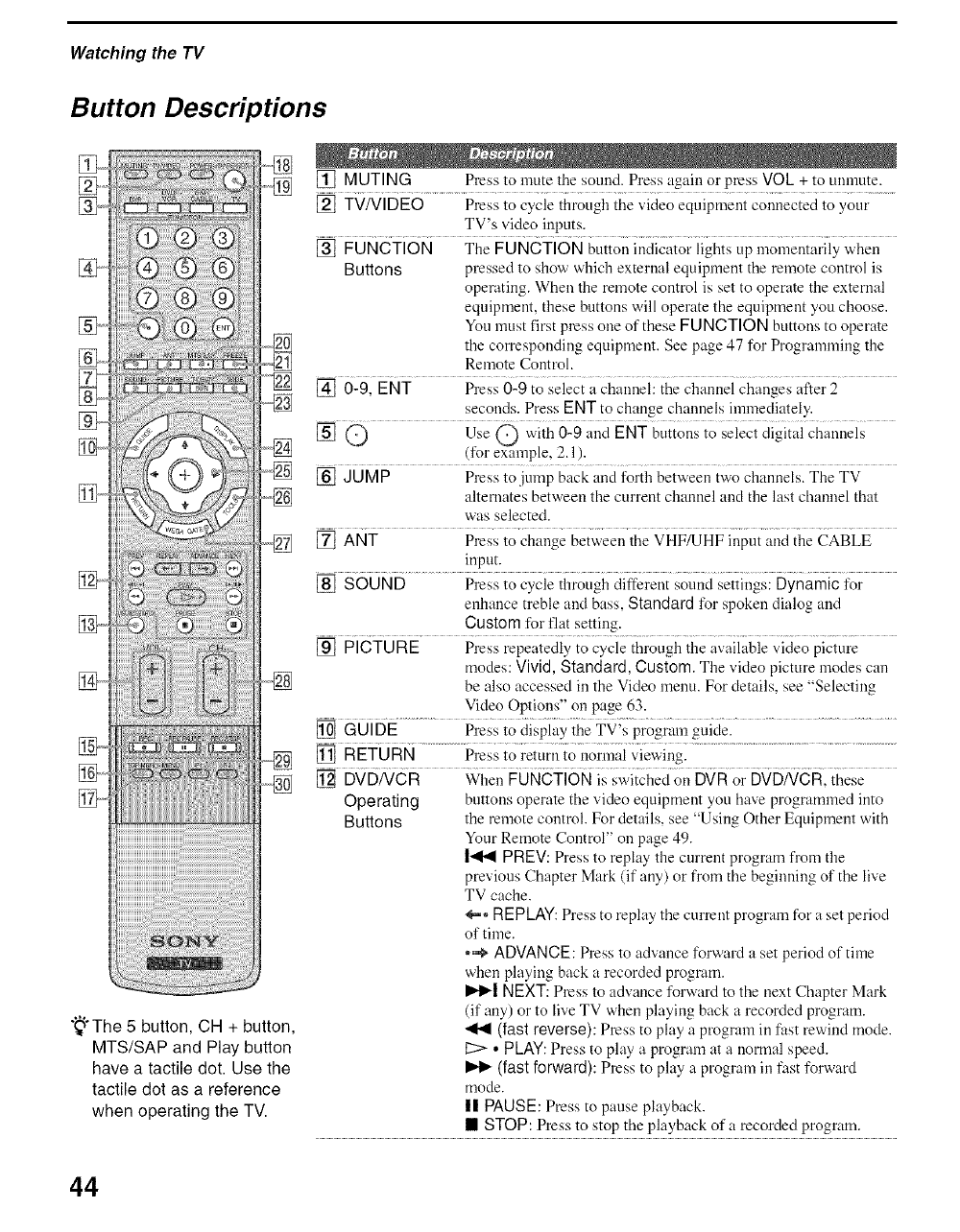
Button Descriptions
_,???????_
"_°The 5 button, CH + button,
MTS/SAP and Play button
have a tactile dot. Use the
tactile dot as a reference
when operating the TV.
[] MUTING Press to mute the sound. Press again or press VOL + to unnmte.
[] TV/VIDEO Press to cycle through the video equipment connected to your
TV's video inputs.
[] FUNCTION The FUNCTION button indicator lights tip momentarily when
Buttons pressed to show which external equipment the remote control is
operating. When the remote control is set to operate the external
equipment, these buttons will operate the equipment you choose.
You must first press one of these FUNCTION buttons to operate
the corresponding equipment. See page 47 for Programming the
Remote Control.
[] 0-9, ENT Press 0-9 to select a channel: the channel changes after 2
seconds. Press ENT to change channels immediately.
[] O Use O with 0-9 and ENT buttons to select digital channels
(for example, 2.1 ).
[] JUMP Press to jump back and forth between two channels. The TV
alternates between the current channel and the last channel that
was selected.
[] ANT Press to change between the VHF/UHF input and the CABLE
input.
[] SOUND Press to cycle through different sound settings: Dynamic for
enhance treble and bass, Standard for spoken dialog and
Custom for flat setting.
[] PICTURE Press repeatedly to cycle through the available video picture
modes: Vivid, Standard, Custom. The video picture modes can
be also accessed in the Video menu. For details, see "Selecting
Video Options" on page 63.
[] GUIDE Press to display the TV's program guide.
[] RETURN Press to return to normal viewing.
[] DVDNCR When FUNCTION is switched on DVR or DVDNCR, these
Operating buttons operate the video equipment you have programmed into
Buttons the remote control. For details, see "Using Other Equipment with
Your Remote Control" on page 49.
|<1<1 PREV: Press to replay the current program from the
previous Chapter Mark (if any) or from the beginning of the live
TV cache.
_*-- REPLAY: Press to replay the current program for a set period
of time.
*,_ ADVANCE: Press to advance forward a set period of time
when playing back a recorded program.
I1,,_| NEXT: Press to advance forward to the next Chapter Mark
(if any) or to live TV when playing back a recorded program.
(fast reverse): Press to play a program in fast rewind mode.
. PLAY: Press to play a program at a normal speed.
(fast forward): Press to play a program in fast forward
mode.
II PAUSE: Press to pause playback.
• STOP: Press to stop the playback of a recorded program.
44
Watching the TV
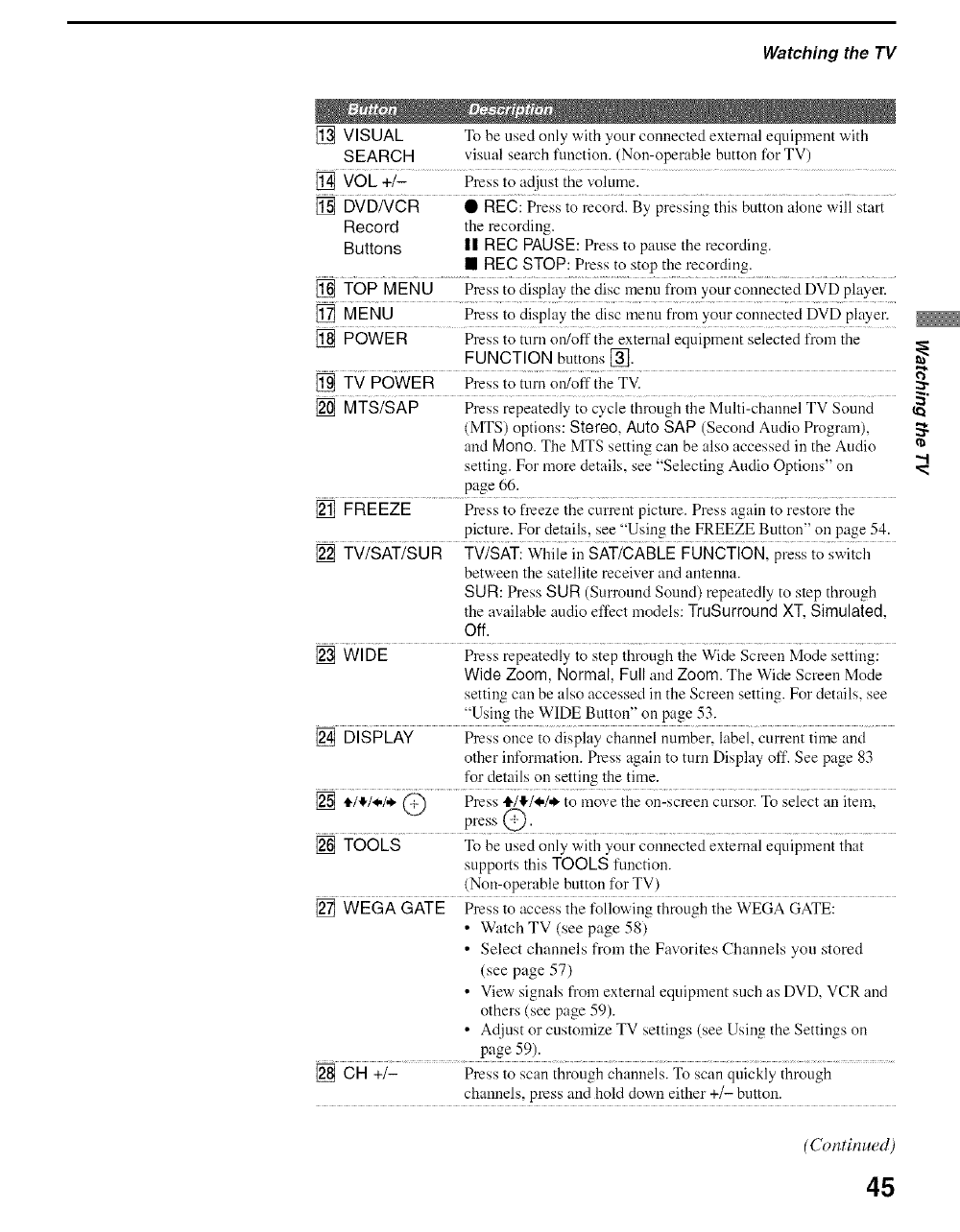
[] VISUAL To be used only with your connected external equipment with
SEARCH visual search function. (Non-operable button for TV)
[] VOL +/- Press to adjust the volume.
[] DVDNCR • REC: Press to record. By pressing this button alone will start
Record the recording.
Buttons I! REC PAUSE: Press to pause the recording.
• REC STOP: Press to stop the recoMing.
[] TOP MEN U Press to display the disc menu from your connected DVD player.
[] MENU Press to display the disc menu from Your connected DVD player.
[] POWER Press to turn on/off the external equipment selected from the
FUNCTION buttons [_].
[] TV POWER Press to turn on/off the TV.
[] MTS/SAP Press repeatedly to cycle through the Multi-channel TV Sound
(MTS) options: Stereo, Auto SAP (Second Audio Program),
and Mono. The MTS setting can be also accessed in the Audio
setting. For more details, see "Selecting Audio Options" on
page 66.
[] FREEZE Press to freeze the current picture. Press again to restore the
picture. For details, see "Using the FREEZE Button" on page 54.
[] TV/SAT/SUR TV/SAT: While in SAT/CABLE FUNCTION, press to switch
between the satellite receiver and antenna.
SUR: Press SUR (Surround Sound) repeatedly to step through
the available audio effect models: TruSurround XT, Simulated,
Off.
[] WIDE Press repeatedly to step through the Wide Screen Mode setting:
Wide Zoom, Normal, Full and Zoom. The Wide Screen Mode
setting can be also accessed in the Screen setting. For details, see
"Using the WIDE Button" on page 53.
[] DISPLAY Press once to display channel number, label, current time and
other information. Press again to turn Display off. See page 83
for details on setting the time.
[] )1,)/4,/,*, @ Press 4,/!!,/@/,_ to move the on-screen cursor. To select an item,
..............................pre s@. ...........................................................
[] TOOLS To be used only with your connected external equipment that
supports this TOOLS function.
(Non-operable button for TV)
[] WEGA GATE Press to access the following through the WEGA GATE:
• Watch TV (see page 58)
• Select channels from the Favorites Channels you stored
(see page 57)
• View signals from external equipment such as DVD, VCR and
others (see page 59).
• Adjust or customize TV settings (see Using the Settings on
page 59).
[] CH +/- Press to scan through channels. To scan quickly through
channels, press and hold clown either +/- bntton.
(Continued)
",.I
45
Watching the TV
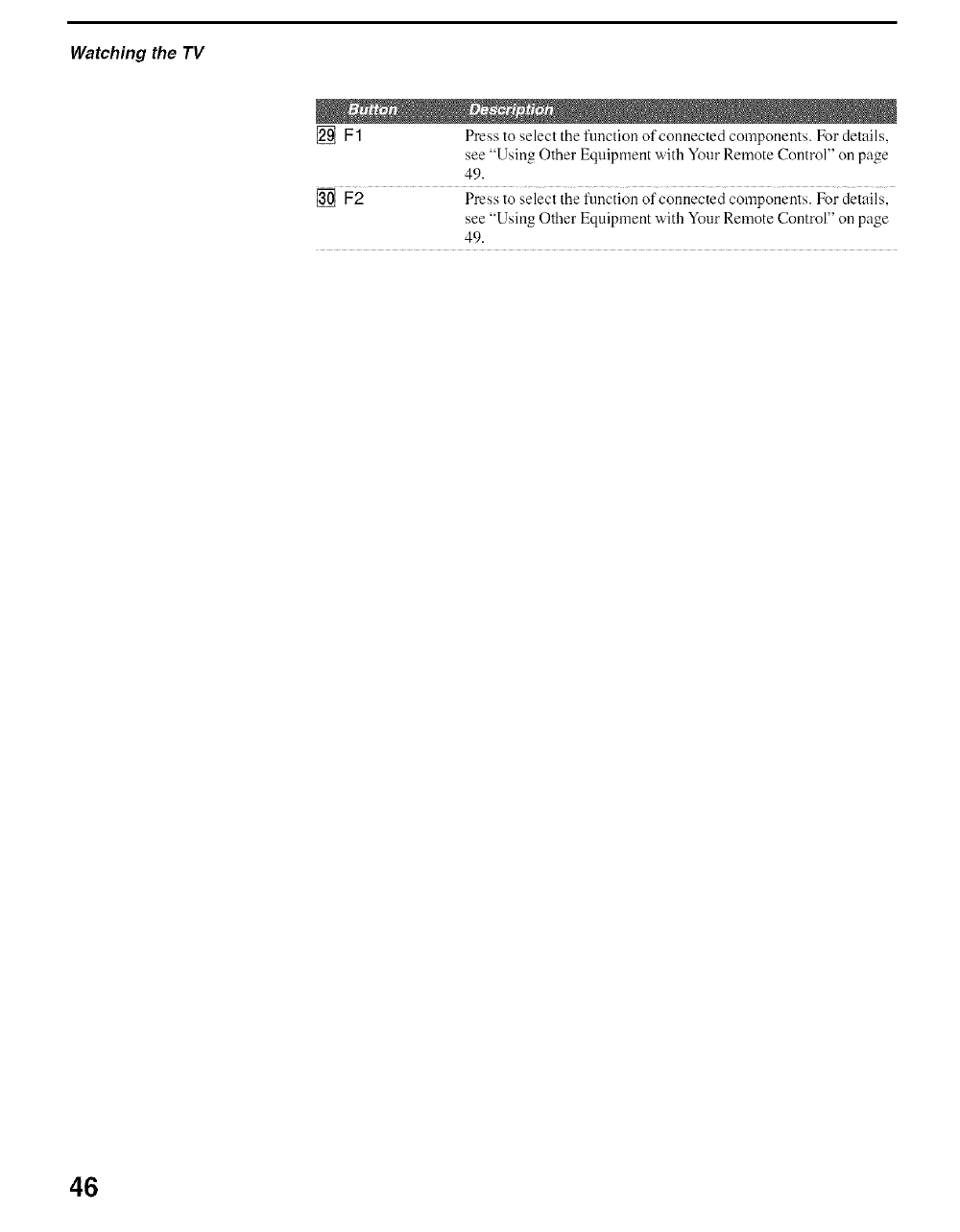
[] [::1 Press to select the function of connected components. For details,
see "Using Other Equipment with Your Remote Control" on page
49.
[] [::2 Press to select the function of connected components. For details,
see "Using Other Equipment with Your Remote Control" on page
49.
46
Watching the TV
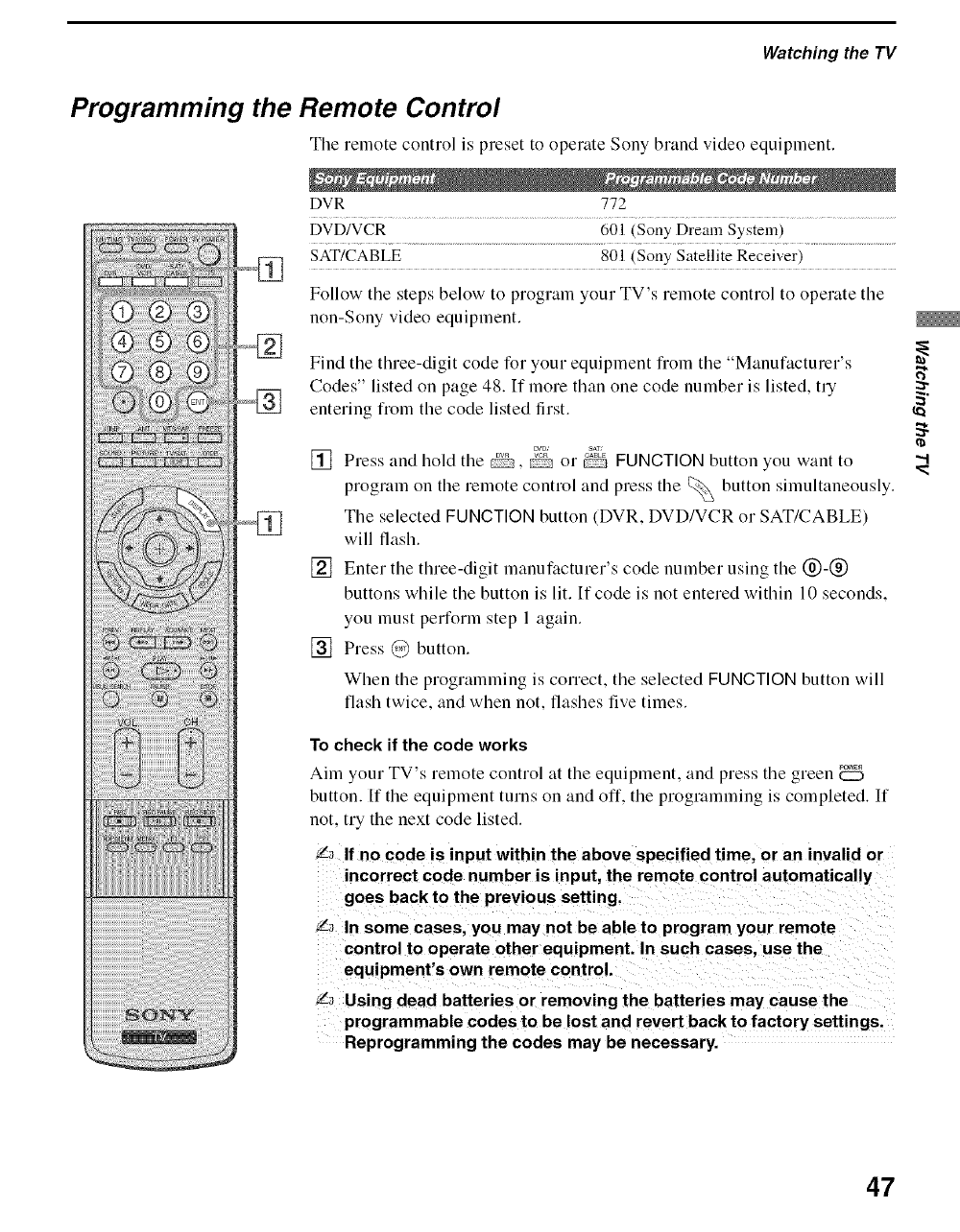
Programming the Remote Control
The remote control is preset to operate Sony brand video equiplnent.
DVR 772
DVD/VCR 601 (Sony Drealn System)
SAT/CABLE 801 (Sony Satellite Receiver)
Follow tile steps below to program your TV's relnote control to operate tile
non-Sony video equipment.
ii - 'S
Find tile three-digit code for your equipment fiTom the Manutacturer .'
Codes" listed on page 48. If more than one code number is listed, try
entering from the code listed first.
_'D,' S_T,'
[] Press and hold the _, _ or _ FUNCTION button you want to
prograln on the remote control and press the _ button simultaneously.
The selected FUNCTION button (DVR, DVD/VCR or SAT/CABLE)
will flash.
[] Enter the three-digit manufacturer's code number using the (_)-(_)
buttons while the button is lit. If code is not entered within 10 seconds,
you must perform step 1 again.
[] Press @ button.
When the programming is correct, the selected FUNCTION button will
flash twice, and when not, flashes five times.
To check if the code works
Aim your TV's remote control at the equipment, and press the green
button. If the equipment turns on and off, the programming is completed. If
not, try the next code listed.
,2"7If no code is input within the above specified time, or an invalid or
incorrect code number is input, the remote control automatically
goes back to the previous setting.
,2"7In some cases, you may not be able to program your remote
control to operate other equipment. In such cases, use the
equipment's own remote control.
Z7 Using dead batteries or removing the batteries may cause the
programmable codes to be lost and revert back to factory settings.
Reprogramming the codes may be necessary.
47
Watching the TV
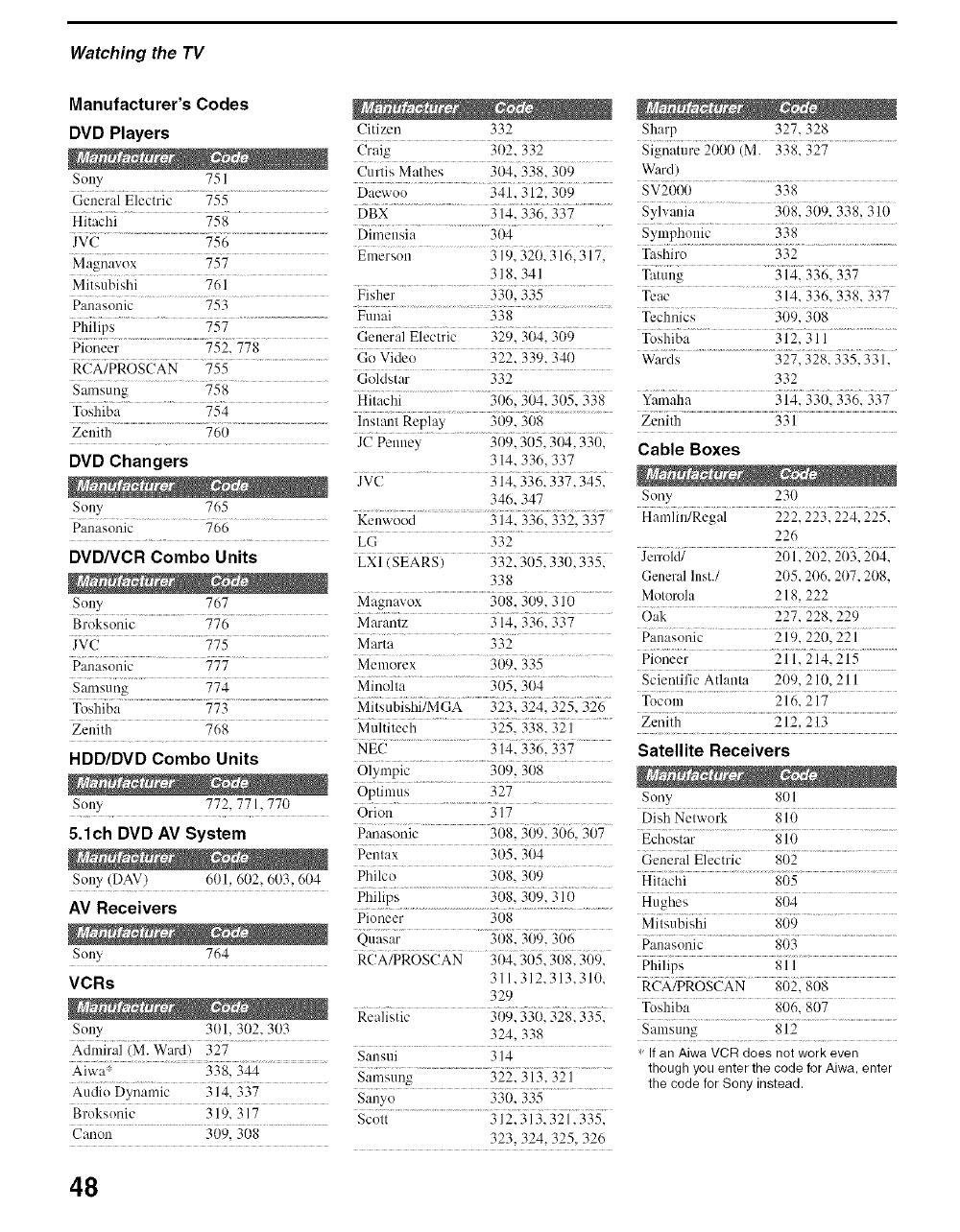
Manufacturer's Codes
DVD Players Citizen 332 Sharp 327, 328
(jllaig 3021 332 Signature 2000 (M. 338. 327
_},":iisM.ii_Ls 30413gg,31i9 Wa,-_!).................................
Se W 751 Daewoe ........ 34K 312, 309 SV20(X) 338
General Electric 755 DBX ..........................................313_ 3363357 ........................Syl'¢a,fia .......... 318. 309 338. 310
Hitachi 758 Oi£_ensia ..............................3(14....... Symphonic 338
JVC 756 ..... 3 i913211131613 N71 Tashiro 332
...................... Elllersen
Magnavox 757 318,341 Ta{ui_g ....... 3 i4, 3361 3'37 ....
Mitsubishi 761 ............................................................. 3i2ii 3361 3381 337
..................................... Fisher 330, 335 Teac
Panasonic 753 FUiiai ..............................................338 ............................................Technics ...... 30q, 3(38 ......
Philips 757 General Electric 329, 304, 309 Toshiba 312, 311
Pioneer 752, 778 Go Video .......... 322,339, 340 Wargis ................................................32'71328, 3.352331, ....
RCA/PROSCAN 755 Goidstar ........... 332 ................. 332
S:,m_.ng 758 ...................................................._{ig368131_?i5_s ._-:,ii_aha 31ai330._361337....
............................. Hitachi
Toshiba 754 insiant Replay .............309, 308 ................................Ze_{}th.................................................................................33'i....................................................................................
Zenith 760 ................................... 3{i9131J5 3{J41331i
............... JC Penney Cable Boxes
DVD Changers 314. 336. 337
jr( ............. 3i_ 33633713_i
34(,. 347 Seny .... 235{.................
Senv 765 ...............................................3i4 33{]332 33{.....Hamlin/Regal )22 2"_3 9_4 9_5
"..................................... Uenv, ood - ' --'_- '--- '
P:masoi:dc................... 766 LG: 332......... 22(,
DVD/VCR Combo Units LX] (SEARS) 332,305,330,335, Jerrold/ 2(/1,202, 203,204,
338 Genel_d Inst./ 205, 2116,207,208
..................................................................................................Metorola 218. 222
767 Magnavox 308. 309.310 ...................................................................
S()!Iy ................................................................................................... Oak 227, 228, 229
Broksonic 776 Marantz.......... 314. 336. 337 Fii{is{;;{ic...... :5i9. 220, 221........
JV(J ............... 775 ..............................................Marta 332 ...........................................................................
Panaso_lic 777 ......... Melnorex ........... 309, 335 ..... Pioneer 211,214, 215
.............................................................................................Scientific Atlanta 209. 211). 211
Smns(iiig ........... 774 ..... Minolta 305, 3(14 ................................................................
..........................................................................................Tecoln 216,217
Toshiba{..................................773.........................................Mitsubishi/MGA 323 324. 325 326 .................................................................................................................................................
Zenith .... 768 ..... Meltileci{ ........... 3251 3'58. 321 ....... Zenith 212, 213
......................................... NEC 5i3 33gi 357 Satellite Receivers
HDD/DVD Combo Units Olympic ................................309, 3{58
Oi;{]i{{,,s.................. 32"7........................ 801
, ..... Seny
s{!ny ..... 772 771,770 .... Orion 317 Disi{ Neiwol.k ....... 8J0 .........
Panasonic Echostar 810
5.1ch DVD AV System ......... 308 31191566256/
p&ax .... 3115,31i4 _i&i&:aiEi_i_k, gii2 ....................
Sony (DAV) 6 )1 602 603, (,1t4 Pl{ilco 308.3(59 .... Hii;,ci_i ...................g(i5.................................
.................. Philips 308, 309, 310 Hughes 804
AV Receivers Pi0i{eer......................................3()8.............................................Miis.l_iqfi 860........................
_,;ig2_r.......... ?i)i_2J(i_23{ig Fgiiiaso}_ic.........................._i33...................................
Seny 764 ..... Rg!X/pR6g{ KN .... 31i4131J.513iJ8131J91 Pi{i]ip; 8..................
VCRs 311.312.313.311, RCX/PRGgCKN g{i22g0g .....
329 ...............
Re i]}siic .... 31J_){3'3?)i32813351 Toshiba 806. 807
Sony 301. 302. 303 324, 338
Aiwa: 338, 344 Samsung 322, 313, 321
Aud _Dvnamic M4 _7 _. 33" _35
f " _ "" ..... 5allyo _ _ !3, ___
Broks(iiiic 319, 317 Sc()i( ................................3 ]23i Jl
Canon...................................3{)9] 398 ......................... 323, _,24........3")5 3")6
Samsung 812
* If an Aiwa VCR does not work even
though youenter the code for Aiwa, enter
the code for Sony instead.
48
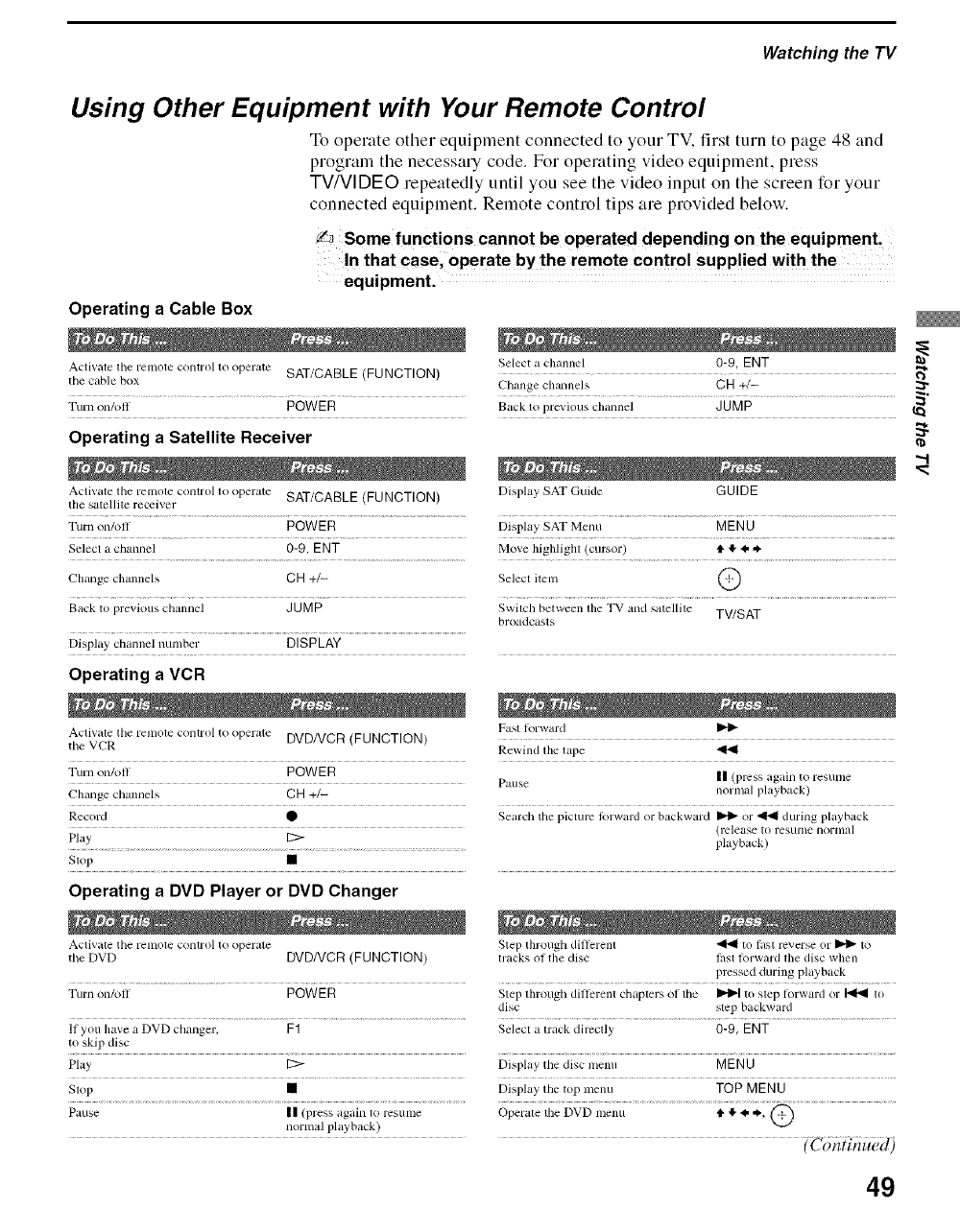
Watching the TV
Using Other Equipment with Your Remote Control
To operate other equipment connected to your TV. first turn to page 48 and
prograln the necessary code. For operating video equipment, press
TV/VIDEO repeatedly until you see the video input on the screen for your
connected equipment. Remote control tips are provided below.
f_ Some functions cannot be operated depending on the equipment.
In that case, operate by the remot e control supplied with the
equipment.
Operating a Cable Box
Activate the relnote control to operate SAT/CABLE (FUNCTION) Select a channel 0-9, ENT
tile cable box Change cll_umels CH +/-
Tttt'll oil/off POWER Back to previous chmmel J U M P
Operating a Satellite Receiver
Activate the lelnote control to operate SAT/CABLE (FUNCTION) Display SAT Guide GUIDE
the satellite receiver
Turn on/oll POWE R Display SAT Menu MEN U
Select a channel 0-9. ENT Move higlflight (cursor) ti. I!.<. *.
chmmels OH +/- Select item @
Challge
Back to previous channel JUMP Swilch between tim TV alld satellite TV/SAT
broadcasts
Display' channel lmmber DISPLAY
Operating a VCR
Activate lhe remole control to operate DVD/VCR (FUNCTION) Fast lorward
tile VCR Rewind the tape
Turn on/off POWER II (press again to resume
.... Patlse
Challge cbanllels CH +/-- norlnal playback)
Record O Search the picture lbrward or backward _1_ or _ during playback
(release 1o resullle llOrlllal
Play [2:> playback)
Stop •
Operating a DVD Player or DVD Changer
Activate tile relnole C()lltrol lo operate Step tllrough dil]erent _ to last le'_'el_ or _ to
tile DVD DVD/VCR (FUNCTION) mlcks of the disc lhst l_lrward tile disc wllen
pressed dtlring playback
Turll o11/ol] POWER Step tllrough different chapters ol tile _ to slep forward or _ 1o
disc step backward
If you have a DVD changer, F1 Select a track directly 0-9, ENT
to skip disc
Play [2:> Display tile disc nlenu MENU
Stop • Display the top menu TOP MENU
Pause II (press again to resulne Operate the DVD menu 41,!, 4, ,_,
normal playback) {c aiiaaea)
"-1
49
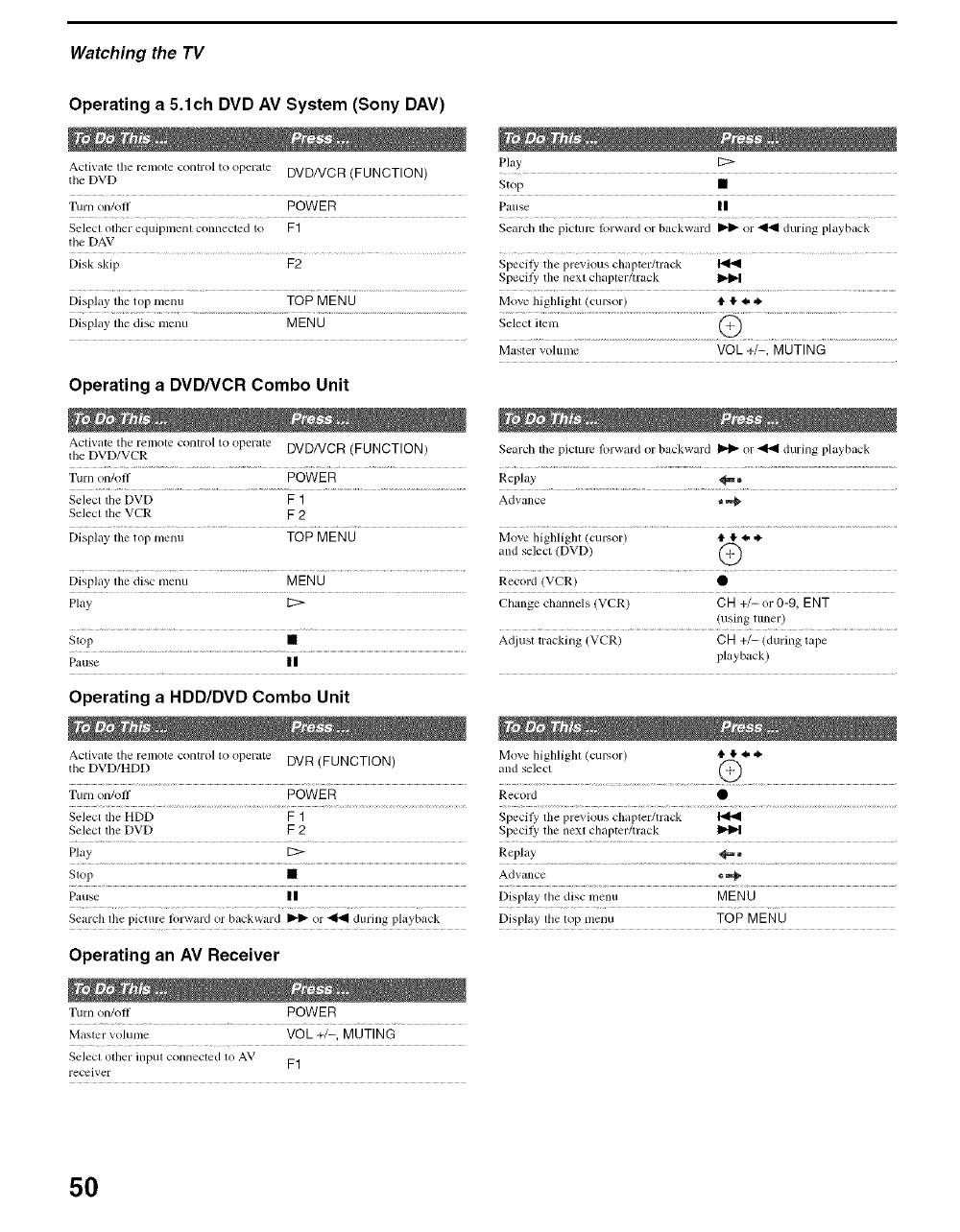
Watching the TV
Operating a 5.1ch DVD AV System (Sony DAV)
Activate tile remole control to operate DVD/VCR (FUNCTION) Pla_' I:::>
tile DVD Stop •
Turn Oll/oll POWER Pause II
Select other equipmenl connected to F1 Search tile picture l_n-ward or backward _ or _ during playback
the DAV
Disk skip F2 Specify tile previous chapter/lrack I_
Specily tile next chapter/track
Display' tile top menu TOP MENU Move highlight (cursor) tl, ,I, 4, ,_
Display' tile disc lIlelitl MENU Select item _-i-')
Operating a DVD/VCR Combo Unit
Activate tile relnole control to operate DVDNCR (FUNCTION)
the DVD/VCR
Master volume VOL+/-, MUTING
Search the picture lbrward or backward _ or _ during playback
Turn on/oll POWER Replay _®
Select tile DVD F 1 Advance o,_
Select tile VCR F 2
Display' tile top menu TOP MENU Move highlighl (cursor) € ,I, 4, ,k.
and select (DVD) @
Display tile disc menu MENU Record (VCR) •
Play [2:> Change chmmels (VCR) CH +/- or 0-9, ENT
(using tuner)
Stop • At[lust tracking (VCR) CH +/- (during tape
Ptuse ...................................................................iI ............................................................................................................................................playback)
Operating a HDD/DVD Combo Unit
Activate tile relnote control to operate DVR (FUNCTION) Move highlight (cursor) € ,! 4, ,k.
the DVD/HDD and select
Ttlrn on/ofl POWE R Record O
Select tile HDD F 1 Specily tile previous chapler/track
Select tile DVD F 2 Specil}' tile next chapter/track
Play [2:> Replay _*
Stop • Adv_mce * ,_
Pause HDisplay tile disc melm MENU
Search tile picture forward or backward _ or _ dllrillg playback Display tile top l/lellu TOP MENU
Operating an AV Receiver
Turn on/off POWER
Master volume VOL +/-, MUTING
Selecl other input connected to AV F1
receiver
5O
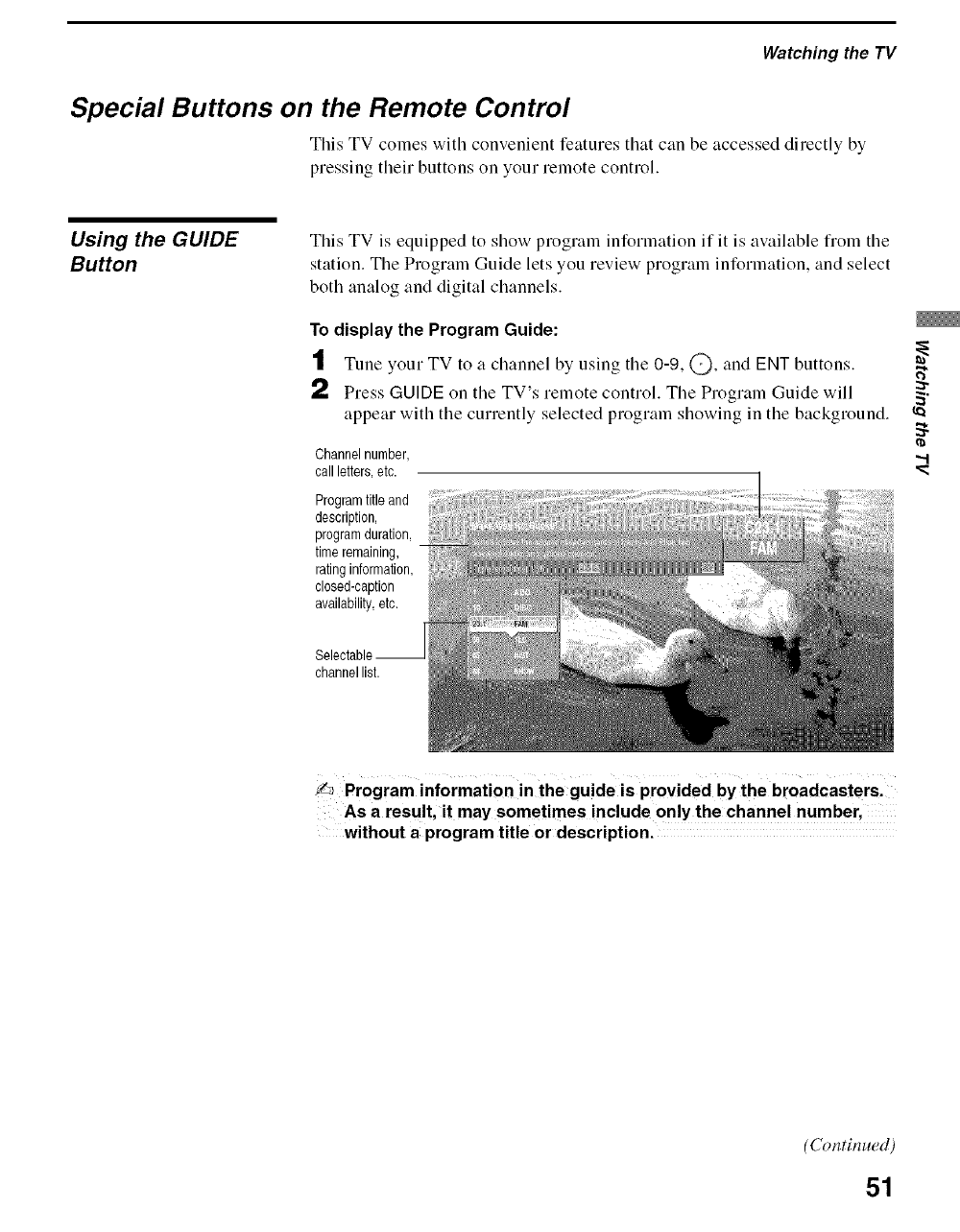
Watching the TV
Special Buttons on the Remote Control
This TV colnes with convenient features that can be accessed directly by
pressing their buttons on your remote control.
Using the GUIDE
Button
This TV is equipped to show program information if it is available froln tile
station. The Program Guide lets you review program information, and select
both analog and digital channels.
To display the Program Guide:
J'11 Tune your TV to a channel by using tile 0-9, @, and ENT buttons.
f. Press GUIDE on tile TV's remote control. The Program Guide will _,
appear with the currently selected program showing in the background.
r_
"...I
Channelnumber,
callletters,etc.
Programtitle and
description,
programduration,
timeremaining,
ratinginformation,
closed-caption
availability,etc,
channellist.
_Program information in the guide is provided by the broadcasters.
As a result, it may sometimes include only the channel number,
without a program title or description.
(Continued)
51
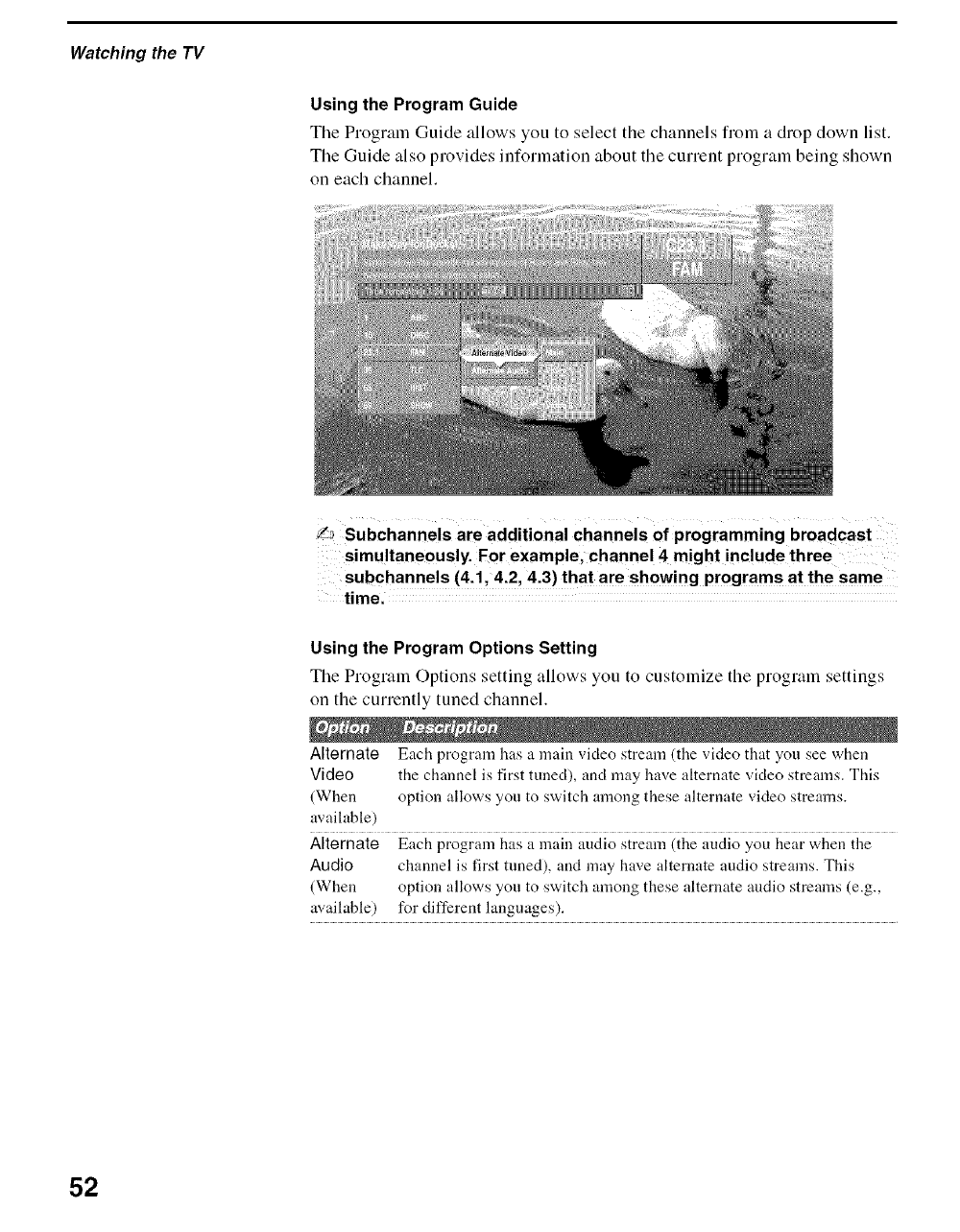
Watching the TV
Using the Program Guide
The Program Guide allows you to select the channels from a drop down list.
The Guide also provides information about the cunent program being shown
on each channel.
La Subchannels are additional channels of programming broadcast
simultaneously. For example, channel 4 might include three
subchannels (4.1, 4.2, 4.3) that are showing programs at the same
time.
Using the Program Options Setting
Tile Program Options setting allows you to customize the program settings
on the currently tuned channel.
Alternate Each program has a main video stream (the video that you see when
Video the channel is first tuned), and may have alternate video streams. This
(When option allows yon to switch among these alternate vMeo streams.
available)
Alternate Each program has a main audio stream (the audio you hear when the
Audio channel is first tuned), and may have alternate audio streams. This
(When option allows you to switch among these alternate andio strealns (e.g.,
available) for different langnages).
52
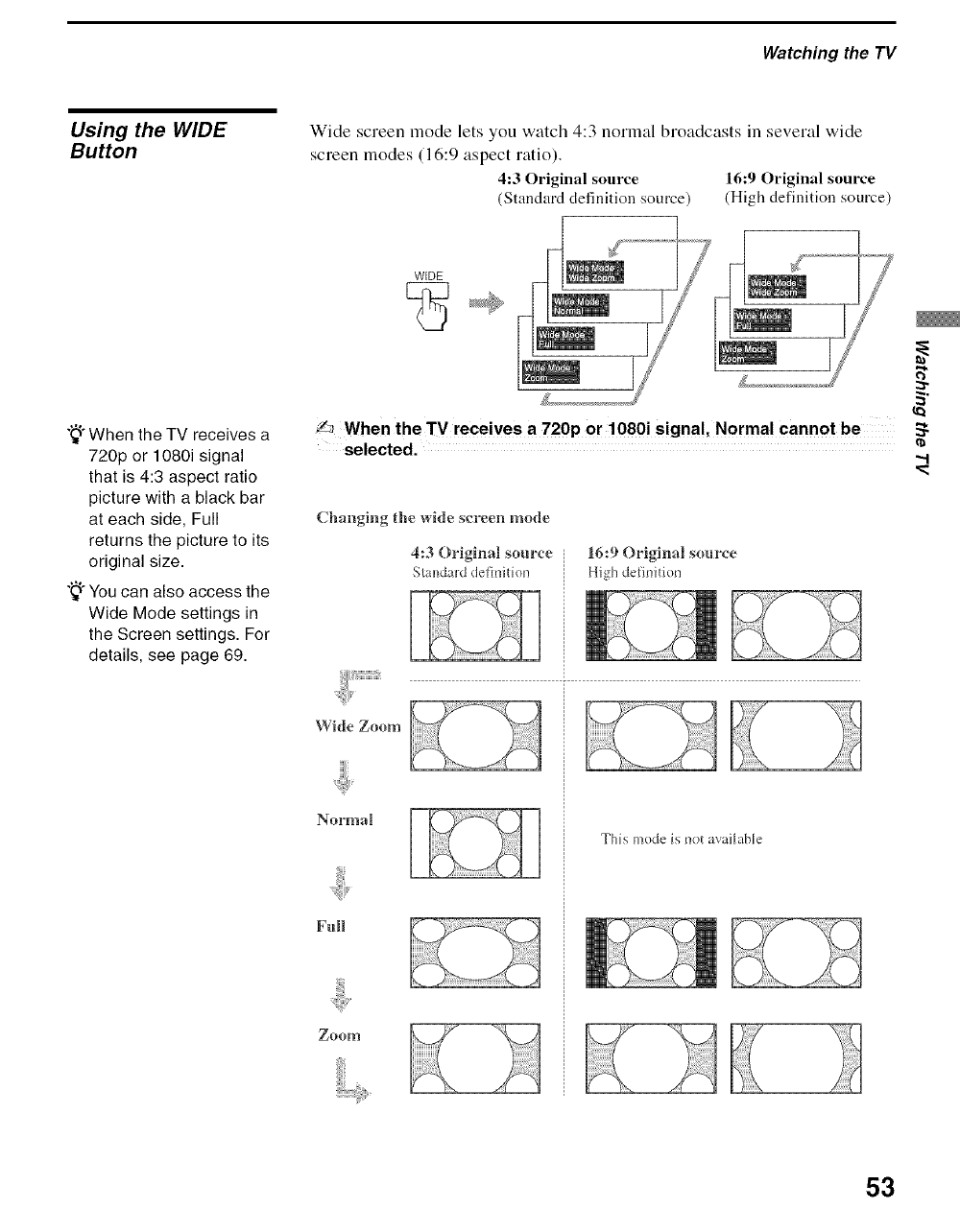
Watching the TV
Using the WIDE
Button Wide screen mode lets you watch 4:3 normal broadcasts in several wide
screen modes (16:9 aspect ratio).
4:3 Original source 16:9 Original source
(Standard definition source) (High definition source)
"_" When the TV receives a
720p or 1080i signal
that is 4:3 aspect ratio
picture with a black bar
at each side, Full
returns the picture to its
original size.
"_" You can also access the
Wide Mode settings in
the Screen settings. For
details, see page 69.
WiDE
_ When the TV receives a 720p or 1080i signal, Normal cannot be
selected.
Changing the wide screen mode
4:3 Originall somoee
Standard definition
Wide Zoom
Normal
Full
Zoom
16:9 Original source
High definition
This mode is no_ available
2.
--,t
53
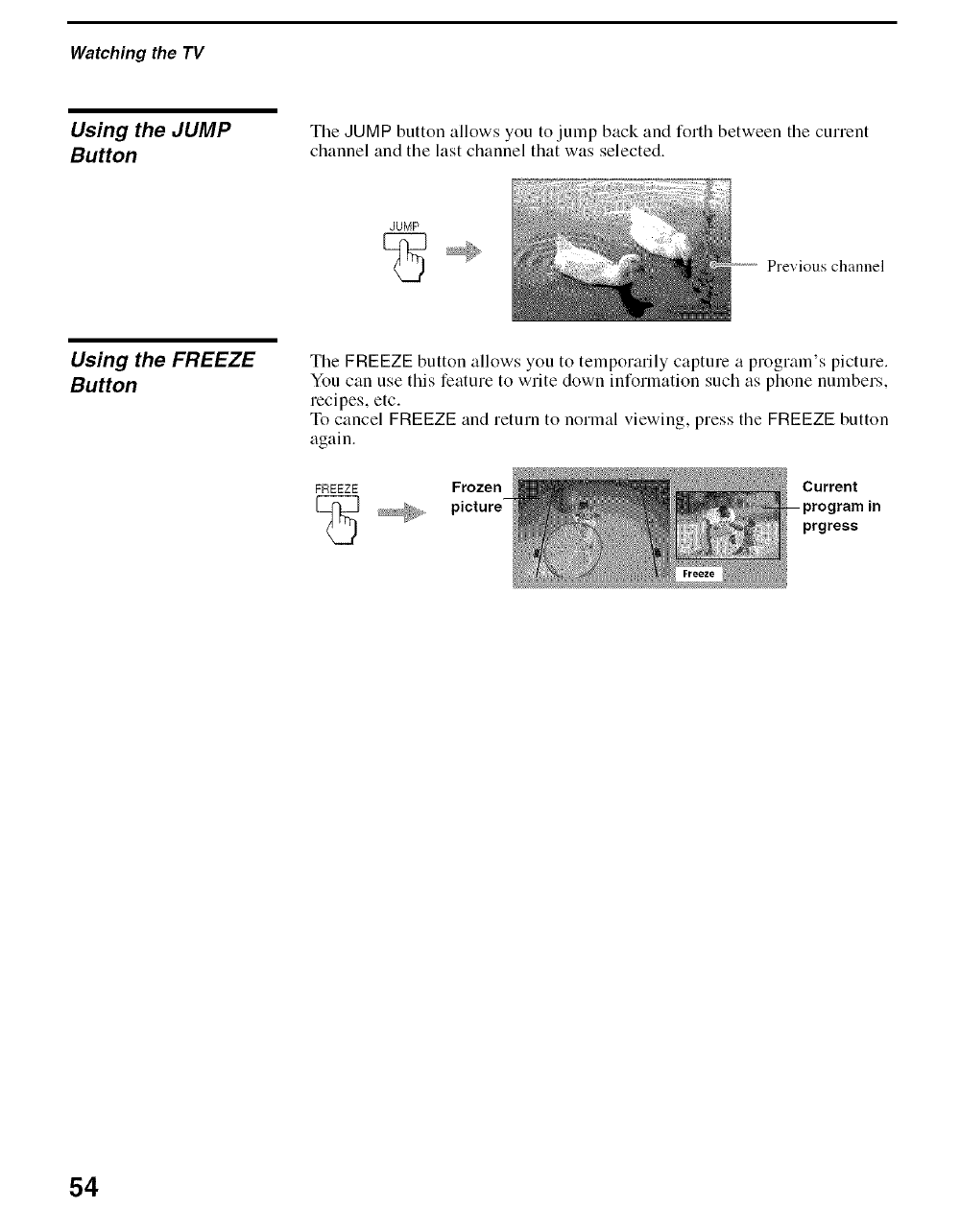
Watching the TV
Using the JUMP
Button
Tile JUMP button allows you to jump back and forth between tile current
channel and the last channel that was selected.
JUMP
Previous channel
Using the FREEZE
Button
The FREEZE button allows you to temporalily capture a program's picture.
You can use this feature to write down information such as phone numbers,
recipes, etc.
To cancel FREEZE and return to normal viewing, press the FREEZE button
again.
FREEZE Frozen
[_ picture-
Current
ram in
prgress
54
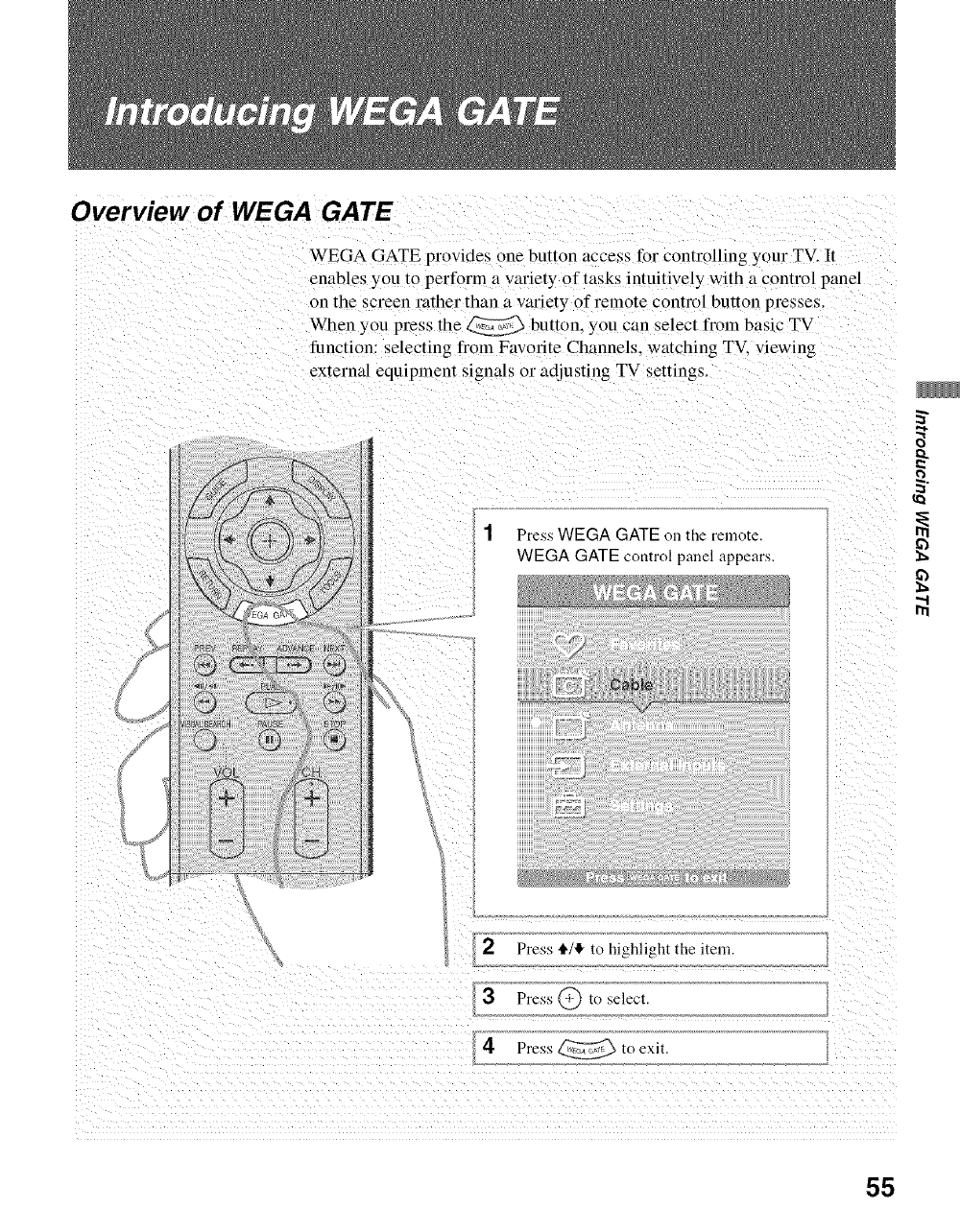
Overview of WEGA GATE
WEGA GATE provides one button access for controlling your TV. It
enables you to perform a variety of tasks intuitively with a control panel
on me screen rather than a variety of remote control button presses.
When you press the _ button, you can select t)'otn basic TV
function: selecting from Favorite Channels. watching TV. viewing
external equipment signals or adjusting TV settings.
1Press WEGA GATE on the remote
WEGA GATE control panel appears.
2Press t_/€, to highlight the item.
3Press @ to select.
4Press _ to exit.
55
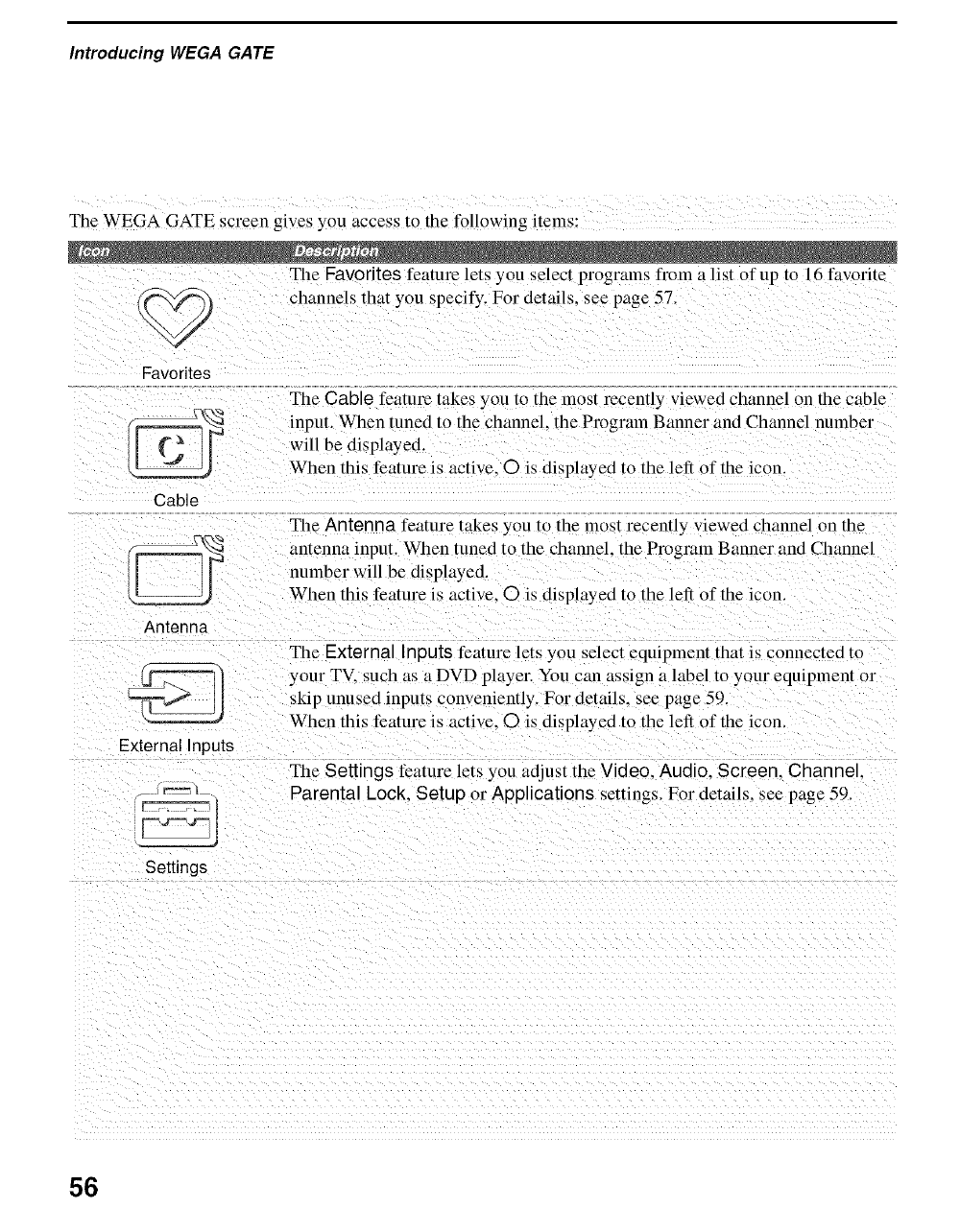
Introducing WEGA GATE
The WEGA GATE screen gives you access to the following items:
The Favorites feature lets vou selec! programs from a list of up to 16 favorite
\._ channels that you specify. For details, see page 57.
Favorites
Cable
Antenna
External Inputs
C22
The Cable feature takes you to the most recentl} viewed channel on the cable
input. When tuned to the channel, the Program Banner and Channel number
will be dis played.
When this feature is active. © is displayed to the left of the icon.
The Antenna feature takes you to the most recently viewed channel on the
antenna input. When tuned to the channel, the Program Banner and Channel
nmnber will be displayed.
When this feature is active. O is displa 3ed to the left of the icon.
The External Inputs featme lets you select equipment that is connected to
your TV. such as a DVD player. You can assign a label to your equipment or
ski p unused inputs conveniently. For detail s. see page 59.
When this feature is active. O is displayed to the left of the icon.
The Settings feature lets you adjust the Video. Audio. Screen. Channel.
Parental Lock. Setup or Applications settings. For details, seepage59.
Settings
56
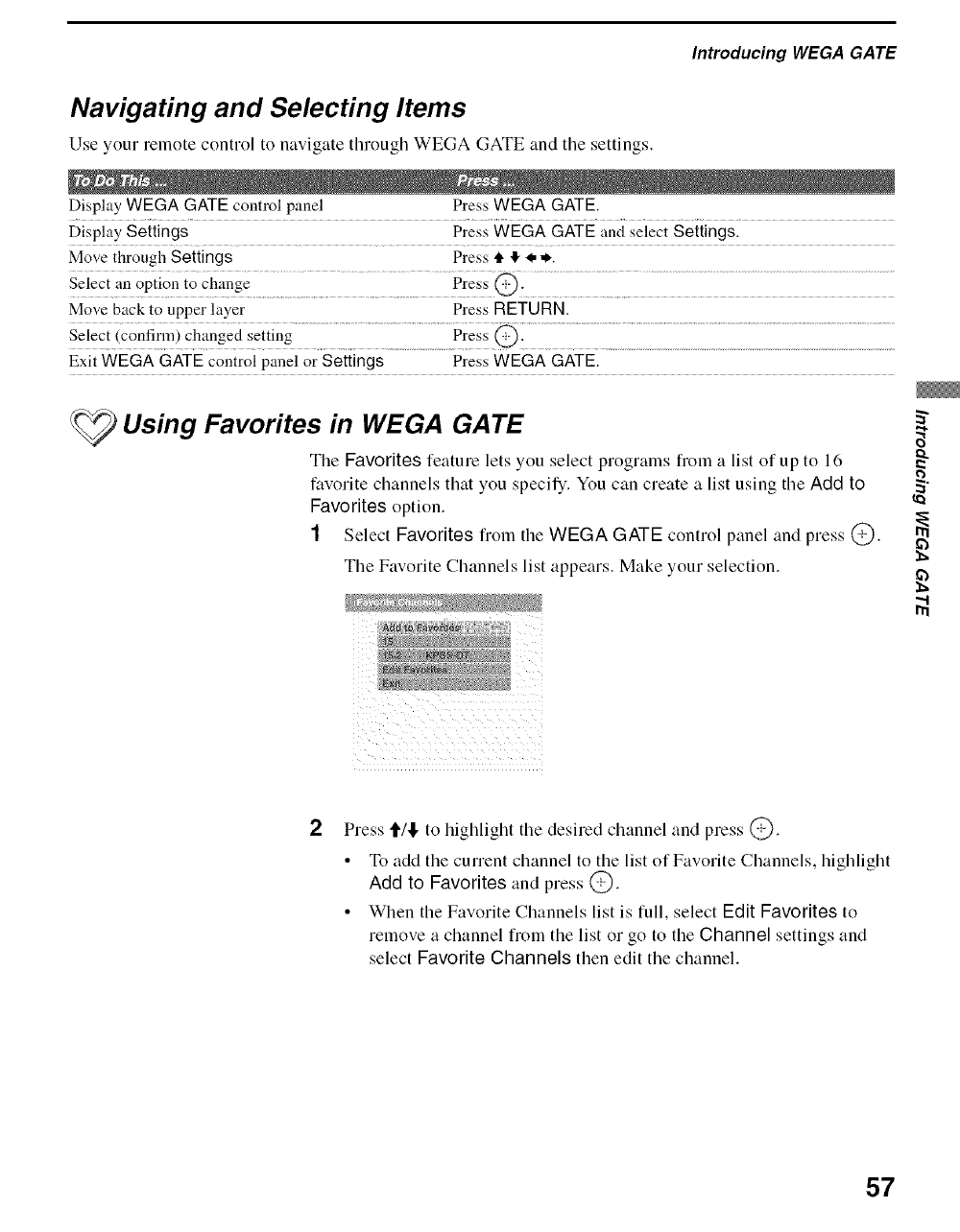
Introducing WEGA GATE
Navigating and Selecting Items
Use your remote control to navigate through WEGA GATE and tile settings.
Display WEGA GATE control panel Press WEGA GATE.
Display Settings Press WEGA GATE and select Settings.
Move through Settings Press tl. !l_I, ,_,.
Select an oPtion to chang e................................................................Press @. .................
Move back to upper layer Press RETURN.
Selec t (confirm)changed Setting ....................................................Press @: ..................................................................................................................................................................................
Exit WEGA GATE control panel or Settings Press WEGA GATE.
Using Favorites in WEGA GATE
The Favorites feature lets you select progranls fronl a list of up to 16
favorite channels that you specify. You can create a list using the Add to _"
Favorites option.
1Select Favorites from the WEGA GATE control panel and press @.
The Favorite Channels list appears. Make your selection.
,,I
Press tt'/l, to highlight the desired channel and press @.
• To add the current channel to the list of Favorite Channels, highlight
Add to Favorites and press @.
• When the Favorite Channels list is full, select Edit Favorites to
remove a channel from the list or go to the Channel settings and
select Favorite Channels then edit the channel.
57
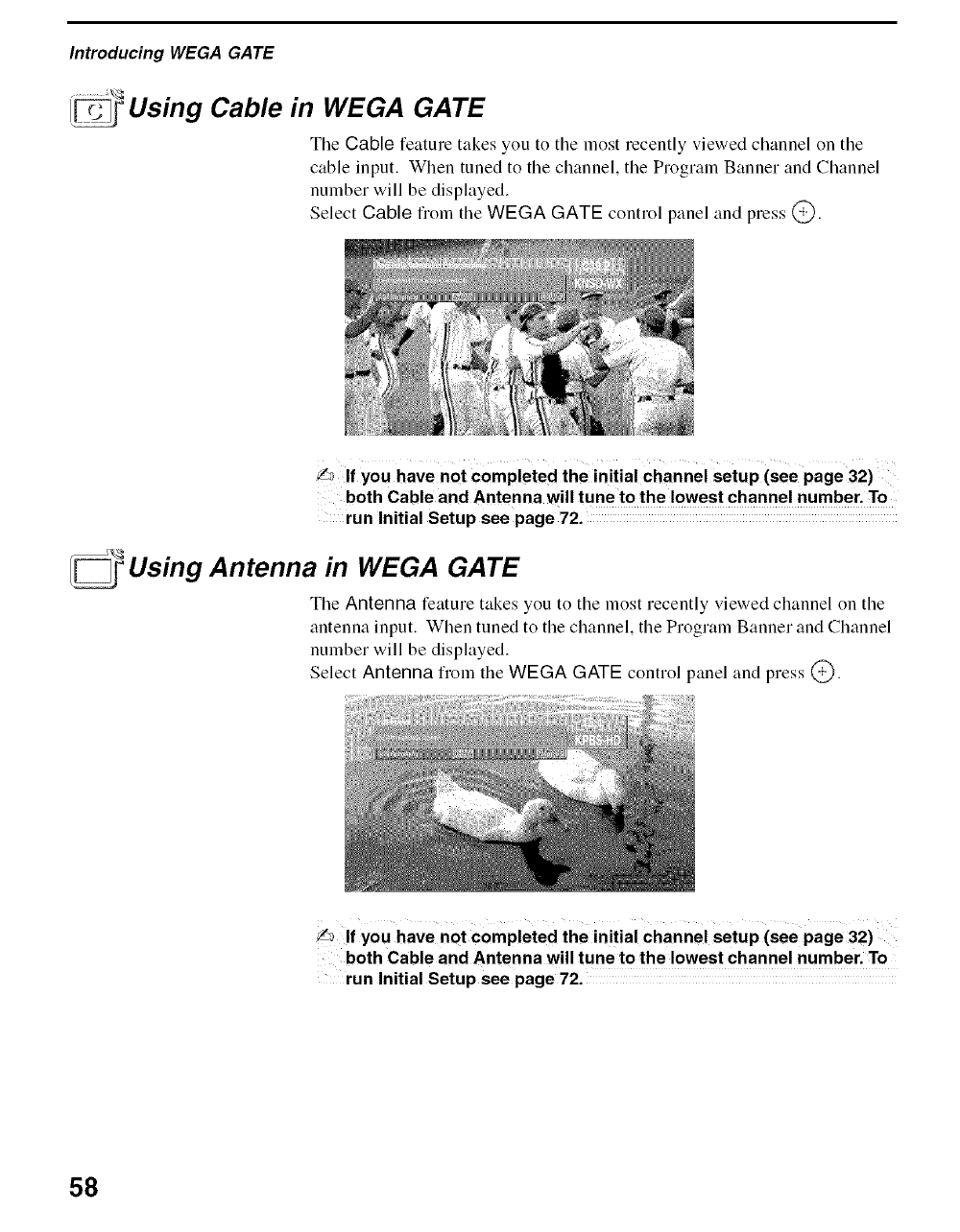
Introducing WEGA GATE
I_ Using Cable in WEGA GATE
The Cable feature takes you to tile most recently viewed channel on tile
cable input. When tuned to the channel, the Prograln Banner and Channel
number will be displayed.
Select Cable from the WI:::GA GATE control panel and press @.
L_ If you have not Completed the initial channel setup (see page 32)
both Cable and Antenna will tune to the lowest channel number. To
run Initial Setup see page 72.
_Using Antenna in WEGA GATE
The Antenna feature takes you to tile most recently viewed channel on tile
antenna input. When tuned to the channel, the Program Banner and Channel
number will be displayed.
Select Antenna froln the WI:::GA GATE control panel and press @.
If you have not completed the initial Channel setup (see page 32)
both Cable and Antenna will tune to the lowest channel number. To
run Initial Setup see page 72.
58
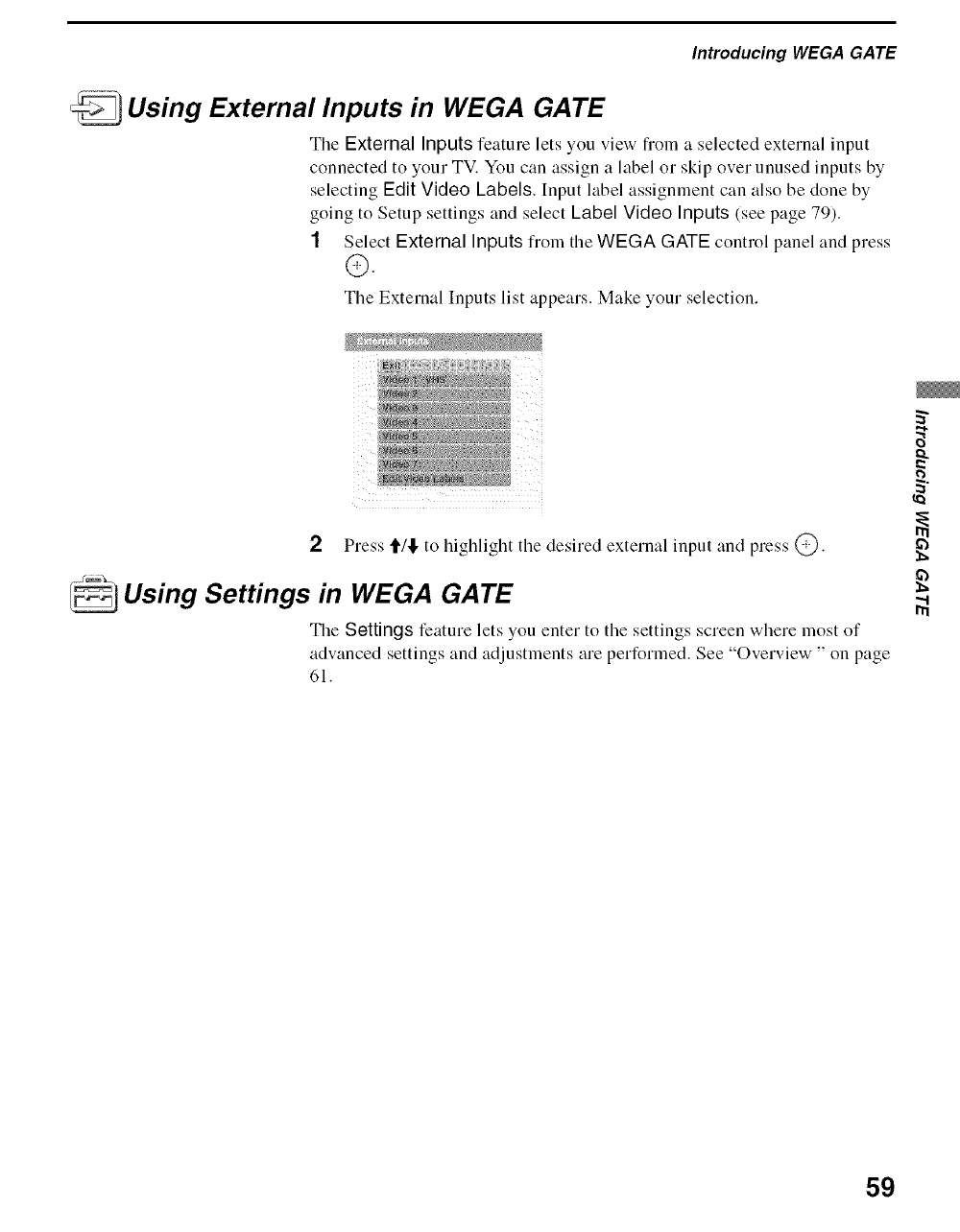
Introducing WEGA GATE
Using External Inputs in WEGA GATE
The External Inputs feature lets you view froln a selected external input
connected to your TV. You can assign a label or skip over unused inputs by
selecting Edit Video Labels. [nput label assignment can also be done by
going to Setup settings and select Label Video Inputs (see page 79).
1Select External Inputs from the WEGA GATE control panel and press
O.
The External Inputs list appears. Make your selection.
2Press t/!, to highlight tile desired external input and press @.
Using Settings in WEGA GATE
The Settings feature lets you enter to tile settings screen where most of
advanced settings and adjustments are performed. See "Overview " on page
61.
2
59

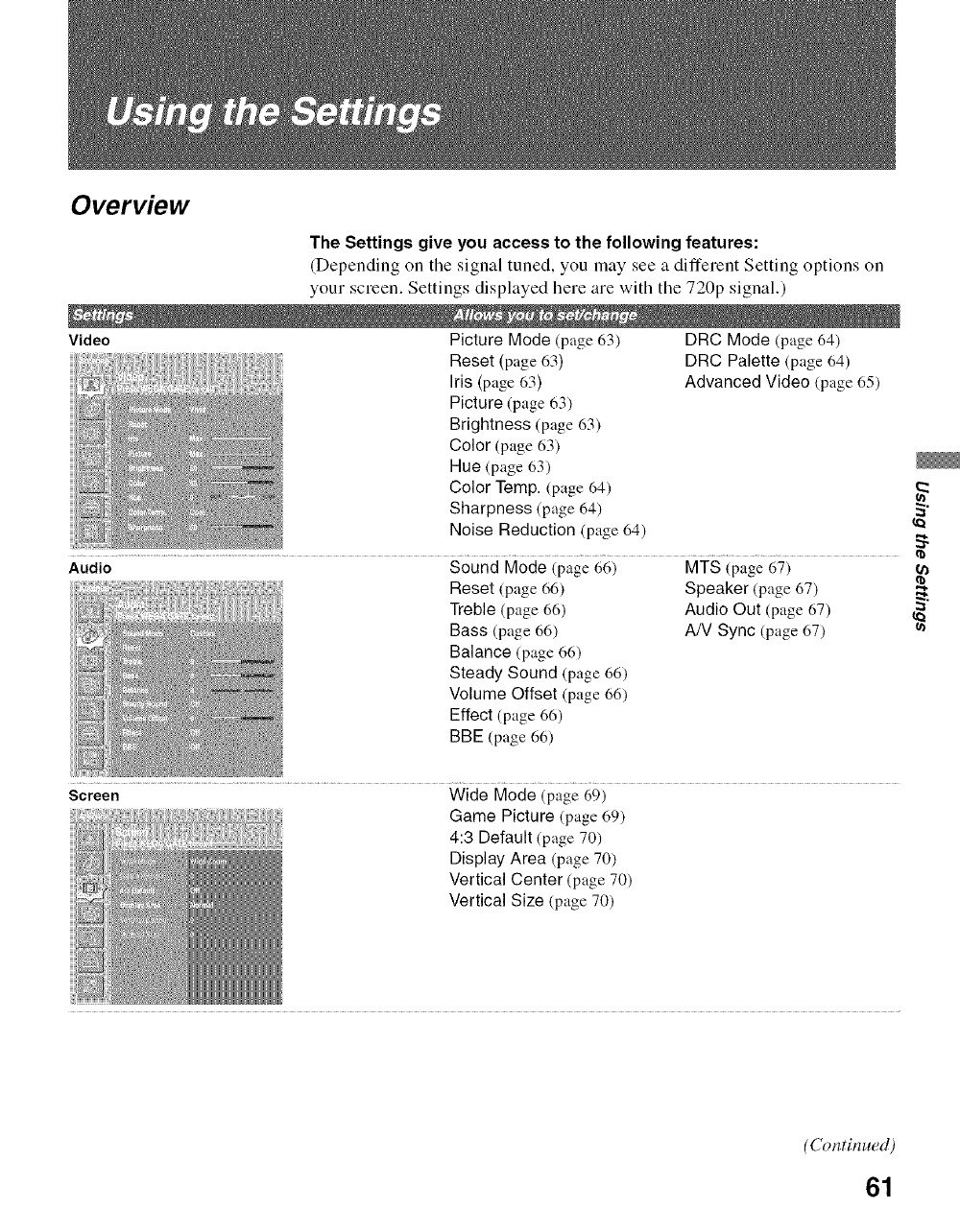
Overview
The Settings give you access to the following features:
(Depending on the signal tuned, you may see a different Setting options on
your screen. Settings displayed here are with the 720p signal.)
Video Picture Mode (page 63) DRC Mode (page 64)
Reset (page (,3) DRC Palette (page 64)
Iris (page 63) Advanced Video (page (,5)
Picture (page (,3)
Brightness (page 63)
Color (page 63)
Hue (page 63)
Color Temp. (page 64)
Sharpness (page 64) ,_"
Noise Reduction (page 64) '_.._
Audio Sound Mode (page 66)
Reset (page 66)
Treble (page 66)
Bass (page 66)
Balance (page 66)
Steady Sound (page 66)
Volume Offset (page 66)
Effect (page 66)
BBE (page 66)
MTS (page 67)
Speaker (page 67)
Audio Out (page 67) _"
AN Sync (page 67)
Screen Wide Mode (page 69)
Game Picture (page 69)
4:3 Default (page 70)
Display Area (page 70)
Vertical Center (page 70)
Vertical Size (page 70)
(Continued)
61
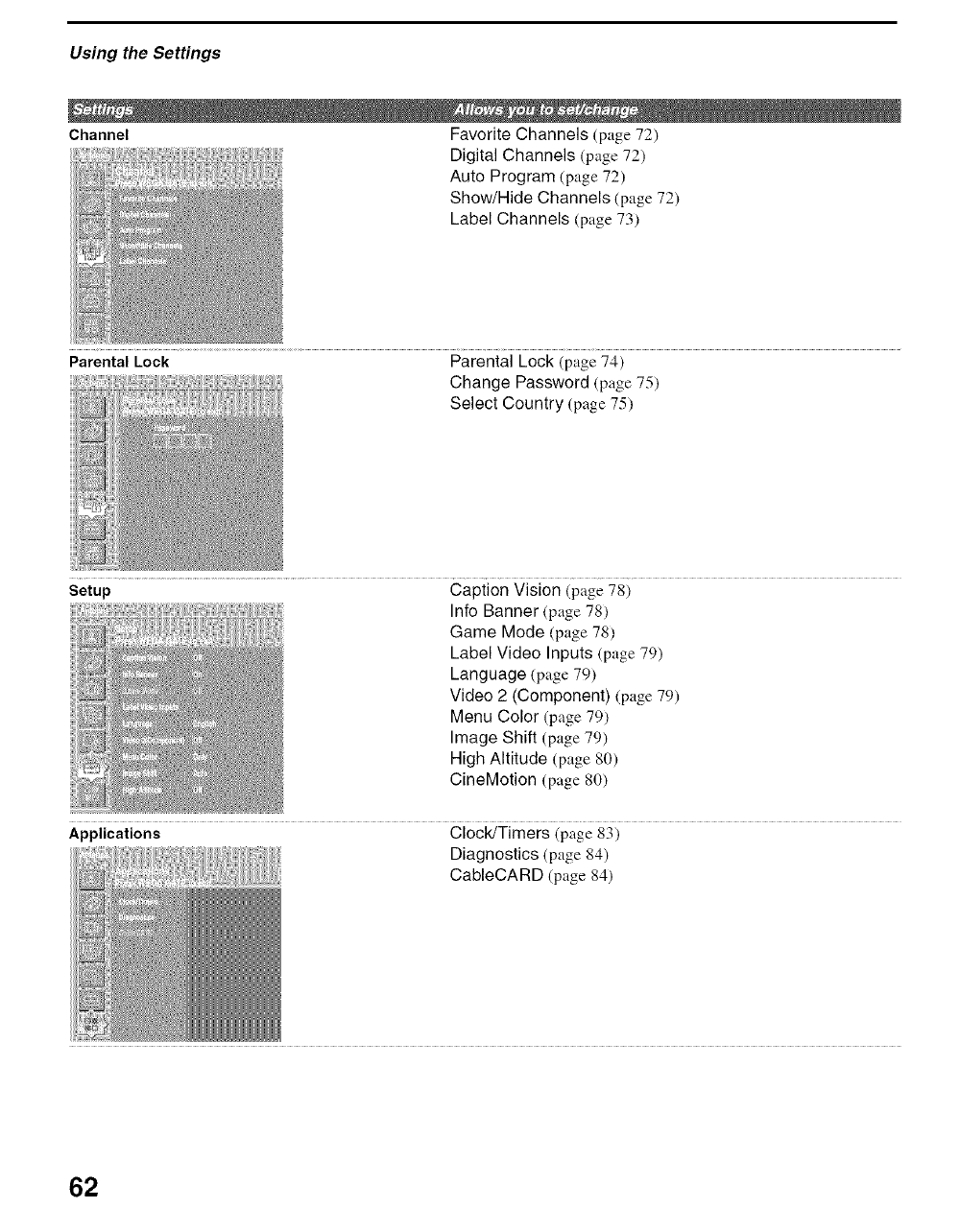
Using the Settings
Channel Favorite Channels (page 72)
Digital Channels (page 72)
Auto Program (page 72)
Show/Hide Channels (page 72)
Label Channels (pt_ge73)
Parental Lock Parental Lock (page 74)
Change Password (page 75)
Select Country (page 75)
!!i_,
R
Setup Caption Vision (page 78)
Info Banner (page 78)
Game Mode (page 78)
Label Video Inputs (page 79)
Language (page 79)
Video 2 (Component) (page 79)
Menu Color (page 79)
Image Shift (page 79)
High Altitude (page 80)
CineMotion (page 80)
Applications Clock/Timers (page 83)
Diagnostics (page 84)
CableCARD (page 84)
62
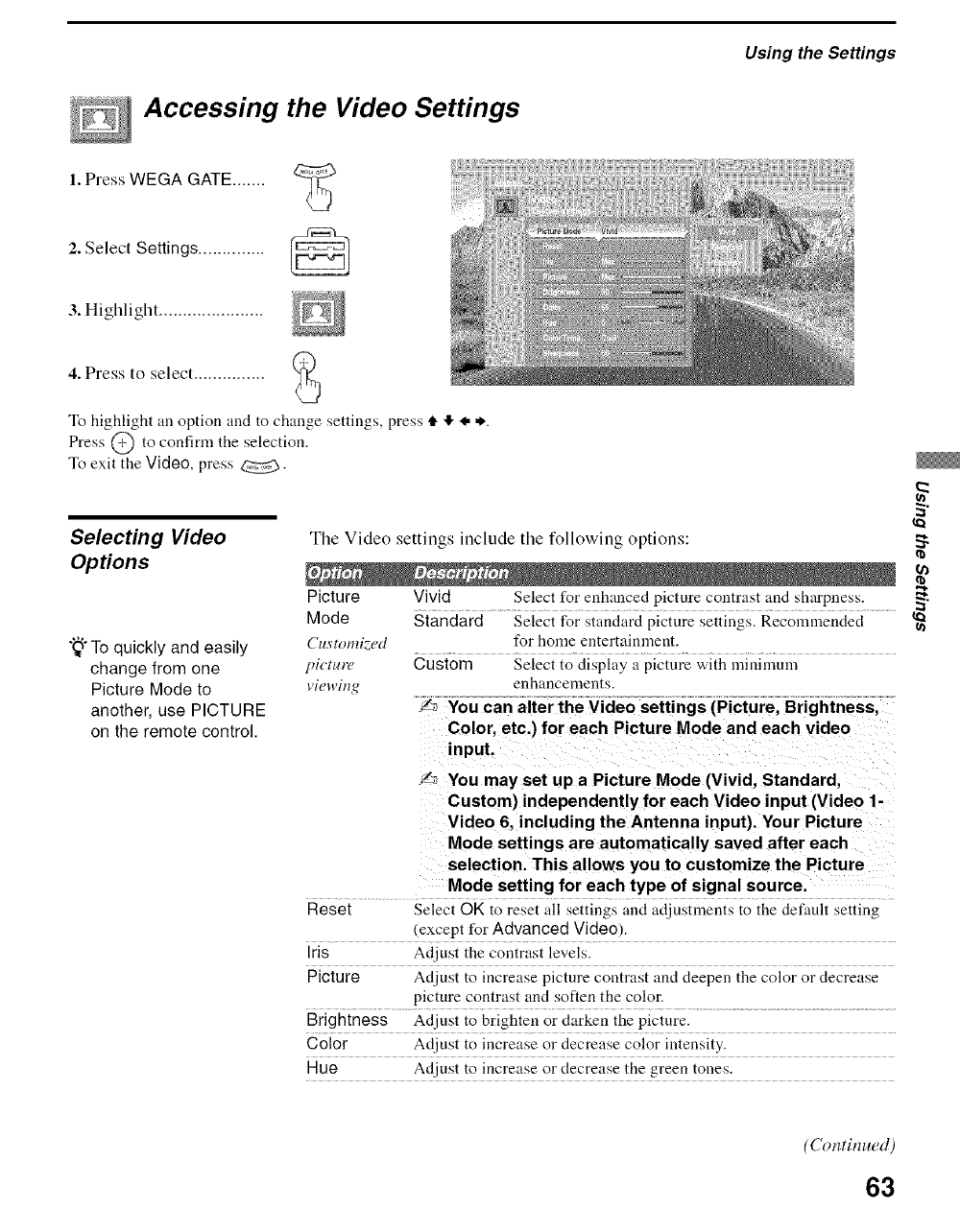
Accessing the Video Settings
1. Press WEGA GATE .......
Using the Settings
2. Select Settings .............. ____
3. Highlight ......................
4. Press to select ...............
To highlight an option and to change settings, press tl. ,I, I. *.
Press @ to confinn the selection.
To exit the Video, press _.
Selectmg Wdeo
OpHons
"_°To quickly and easily
change from one
Picture Mode to
another, use PICTURE
on the remote control.
The Video settings include the following options:
Picture
Mode
Custom_ed
pict_ow
viewing
Vivid Select for enhanced picture contrast and sharpness.
Standard Select for standard picture settings. Recommended
for home entertainment.
Custom Select to display a picture with mininmn_
enhancements.
_/3 You can alter the Video settings (Picture, Brightness,
Color. etc.) for each Picture Mode and each video
input.
S_ You may set up a Picture Mode (Vivid, Standard,
Custom) independently for each Video input (Video 1-
Video 6, including the Antenna input). Your Picture
Mode settings are automatically saved after each
selection. This allows you to customize the Picture
Mode setting for each type of signal source.
Reset Select OK to reset all settings and adjustmel:lts to the default setting
(except for Advanced Video).
Iris Adjust the contrast levels.
Picture Adiust to increase picture contrast and deepen the color or decrease
picture contrast and soften the color,
Brightness Adjust to brighten or darken the picture.
Color A_[iust to increase or decrease color intensity.
Hue Adjust to increase or decrease the green tones.
(Continued)
63
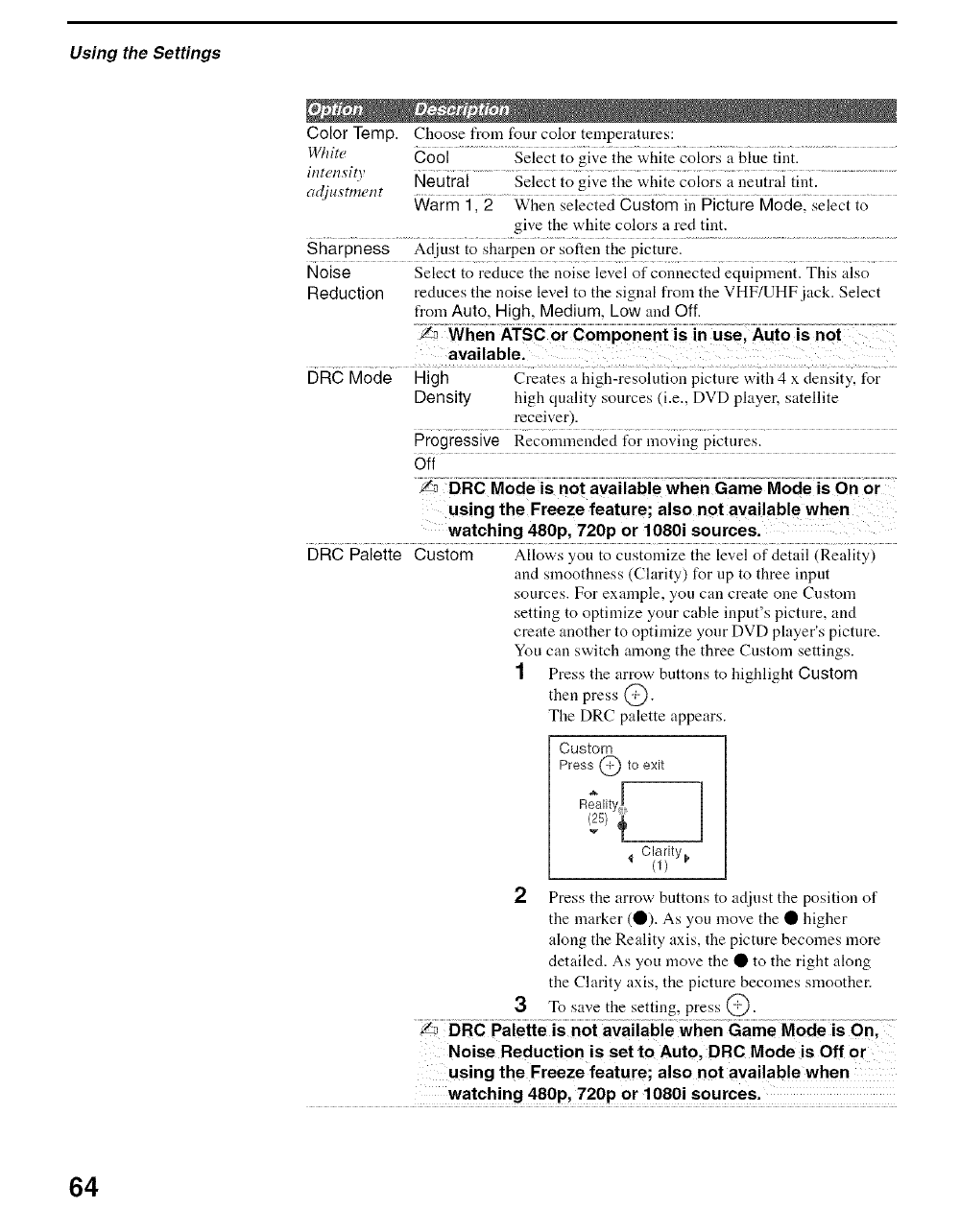
Using the Settings
Color Temp. Choose from four color temperatures:
White Cool .........................Select to give the white col0rs i; biue iint. ..................
inter_sity ...........................................................................................................
adjuxtmer, t Neutral .................Select to g!ve tl}e whi!e colors a neutraI ti!}t"
Warm 1,2 When selected Custom in Picture Mode, select to
give the white colors a red tint.
Sharpness Adjust to sharpen or soften the picture.
Noise Select to reduce the noise level of connected equipment. This also
Reduction reduces the noise level to the signal from the VHF/UHF jack. Select
from Auto, High, Medium, Low and Off.
DRC Mode High Creates a high-resolution picture with 4 x density, for
Density high quality sources (i.e., DVD player, satellite
receiver).
Progressive Recommended tbr nroving pictures.
off
using the Freeze feature; also not available when
watching 480p, 720p or 1080i sources.
DRC Palette Custom Allows you to customize the level of detail (Reality)
and smoothness (Clarity) for up to three input
sources. For example, you can create one Custom
setting to optimize your cable input's picture, and
create another to optinrize your DVD player's picture.
You can switch among the three Ctlstom settings.
1 Press the arrow buttons to highlight Custom
then press @.
The DRC palette appears.
Custom
Press @ to exit
Reality[
Clarity
'_ (1) _
Press the arrow buttons to adjust the position of
the marker (O). As you move the • higher
along the Reality axis, the picture becomes more
detailed. As you move the • to the right along
the Clarity axis, the picture becomes smoother.
To save the setting, press @.
Noise Reduction is set to Auto, DRC Mode is Off or
using the Freeze feature; also not available when
watching 480p, 720p or 1080i sources.
64
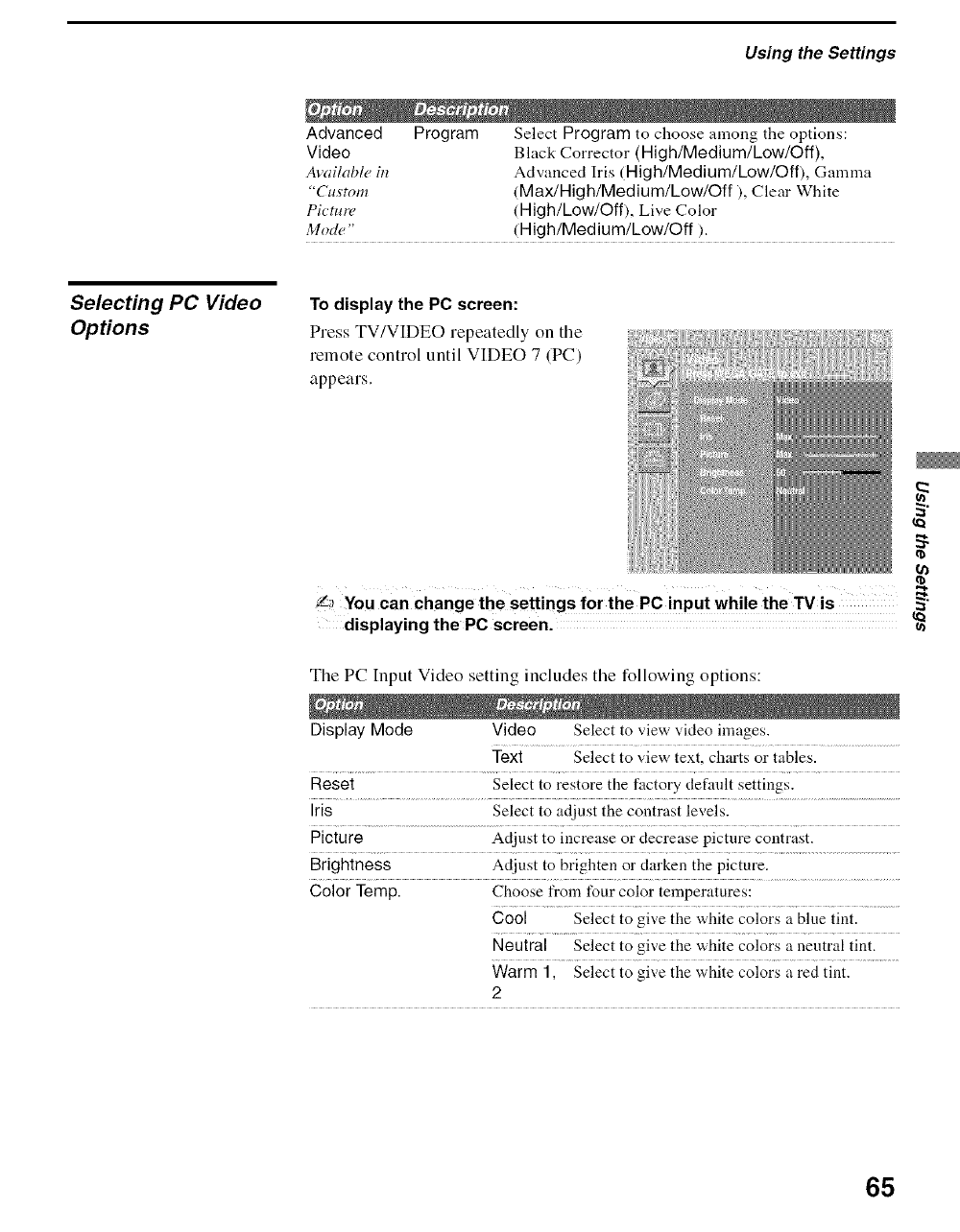
Using the Settings
Advanced Program Select Program to choose among the options:
Video Black Corrector (High/Medium/Low/Off),
Available in Advanced Iris (High/Medium/Low/Off), Gamma
"Custom (Max/High/Medium/Low/Off), Clear White
Picture (High/Low/Off), Live Color
Mode" (High/Medium/Low/Off).
Selecting PC Video
Options
To display the PC screen:
Press TV/VIDEO repeatedly on the
remote control until VIDEO 7 (PC)
appears.
Y_ You Can Change the settings for the PC input While the TV is
displaying the PC screen.
Tile PC Input Video setting includes tile following options:
Display Mode Video Select to view video images.
Text Select to view text, charts or tables.
Reset Select to restore the factory default settings.
Iris Select to adjust the coutrast levels.
Picture Adjust to increase or decrease picture contrast.
Brightness Adjust to brighten or darken the picture.
Color Temp. Choose from four color temperatures:
Cool Select to give the white colors a blue tint.
Neutral Select to give the white colors a neutral tint.
Warm 1, Select to give the white colors a red tint.
2
65
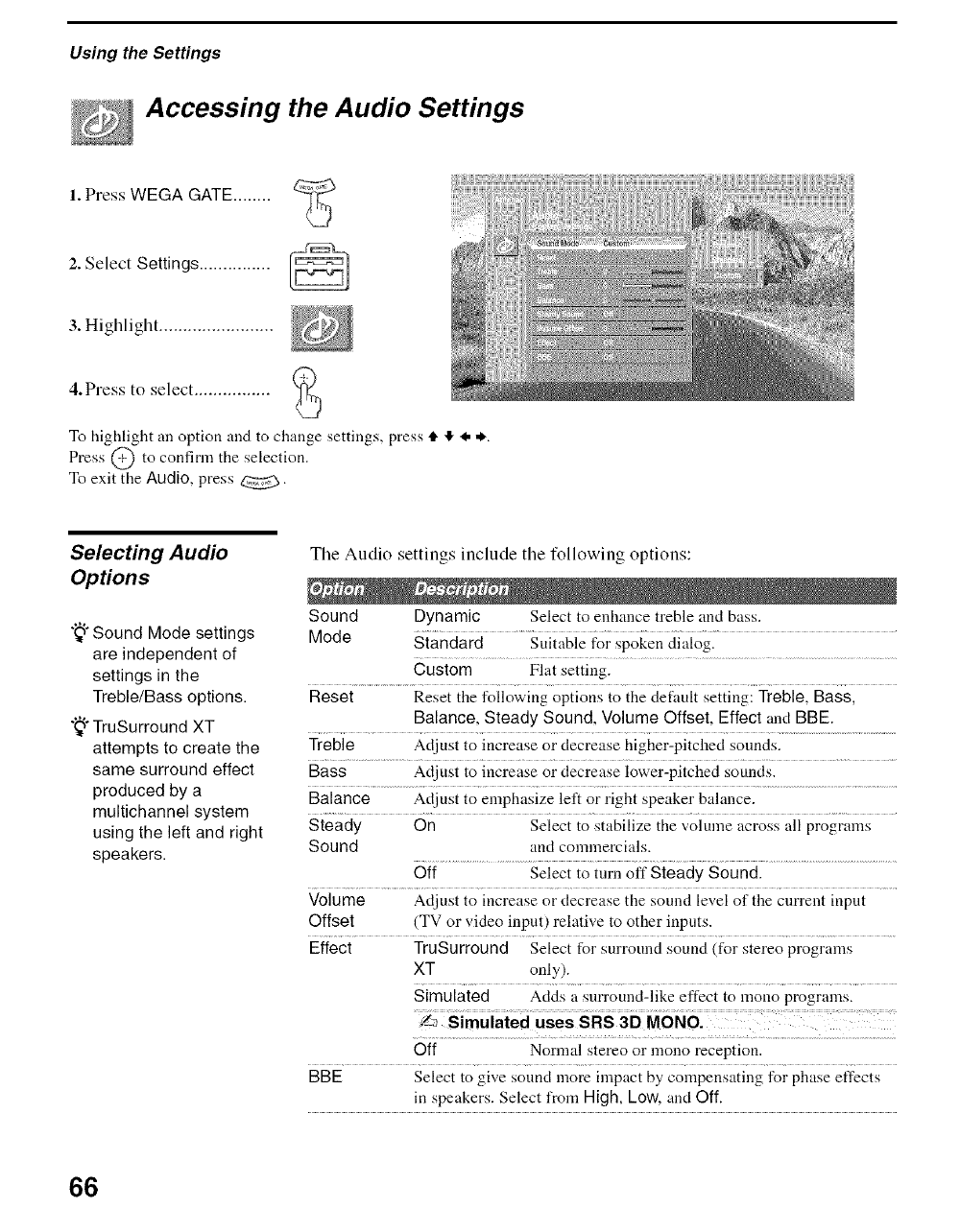
Using the Settings
Accessing the Audio Settings
1. Press WEGA GATE ........
2. Select Settings ............... _
3. Highlight ........................
4.Press to select ................
To highlight an option and to change settings, press tl. !1,I. *.
Press @ to confirm the selection.
To exit the Audio, press _._.
Selectmg Audio
OpHons
"_° Sound Mode settings
are independent of
settings in the
Treble/Bass options.
"_° TruSurround XT
attempts to create the
same surround effect
produced by a
multichannel system
using the left and right
speakers.
Tile Audio settings include tile following options:
Sound Dynamic Select to enhance treble and bass.
Mode Standard Suitable for spoken dialog.
Custom Flat setting.
Reset Reset the following options to the defimlt setting: Treble, Bass,
Balance, Steady Sound, Volume Offset, Effect and BBE.
Treble Adjust to increase or decrease higher-pitched sounds.
Bass Adjust to increase or decrease lower-pitched sounds.
Balance Adjust to emphasize left or right speaker balance.
Steady On Select to stabilize the volume across all programs
Sound and commercials.
Off Select to turn off Steady Sound.
Volume Adjust to increase or decrease tile sound level of tile current input
Offset (TV or video input) relative to other inpnts.
Effect TruSurround Select for surround sound (for stereo programs
XT only).
Simulated Acids a surround-like effect to lnono programs.
Off Normal stereo or mono reception.
BBE Select to give sound more impact by compensating for phase effects
in speakers. Select from High, Low, and Off.
66
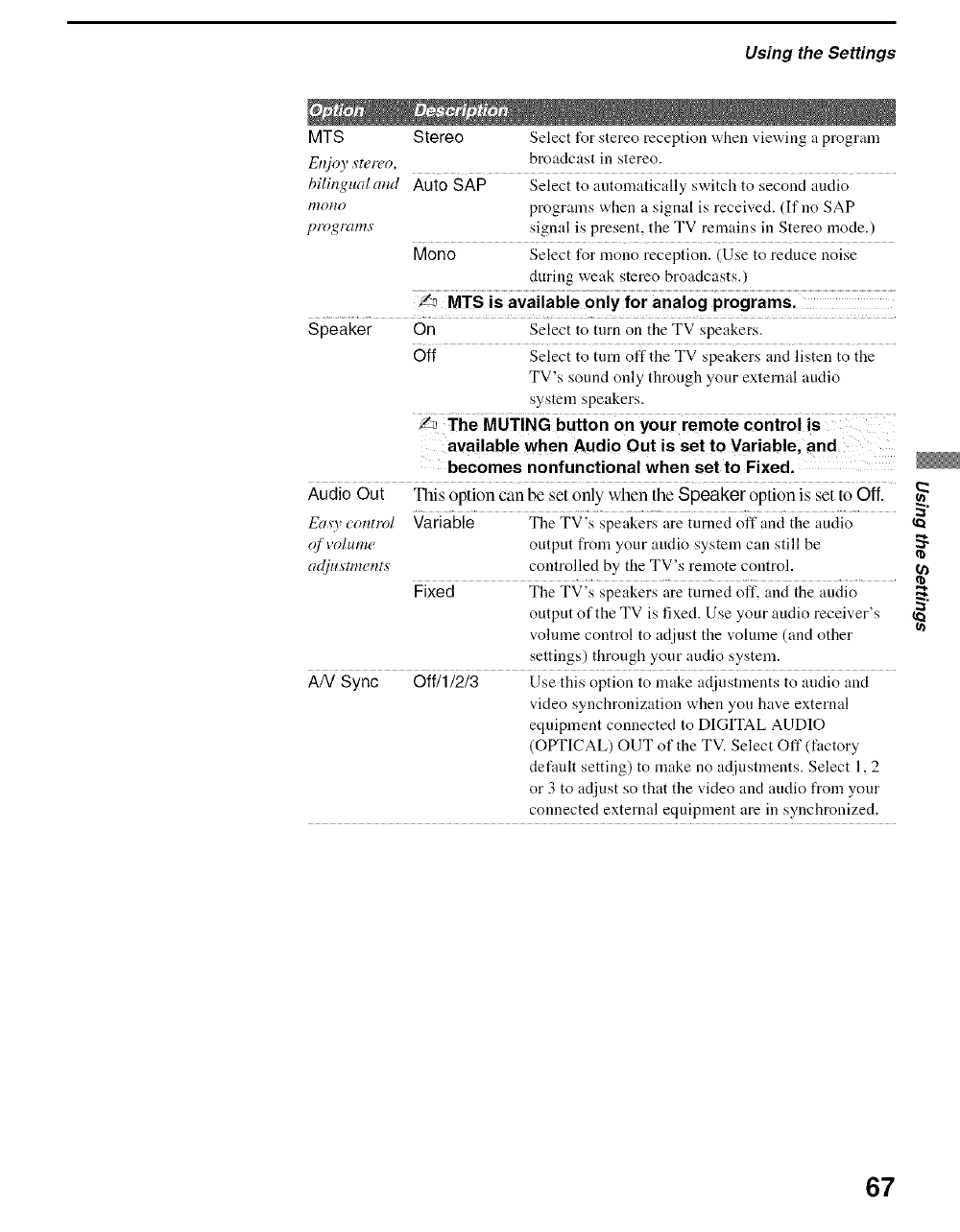
Using the Settings
MTS Stereo Select for stereo reception when viewing a program
Enjoy stereo, broadcast in stereo.
bilingual and Auto SAP Select to automatically switch to second audio
/mmo programs when a signal is received. (If no SAP
programs' signal is present, the TV remains in Stereo mode.)
Mono Select for mono reception. (Use to reduce noise
during weak stereo broadcasts.)
_MTS is available only for analog programs.
Speaker On Select to turn on the TV speakers.
Off Select to turn off the TV speakers :rod listen to the
TV's sound only through your external audio
system speakers.
/_ The MUTING buttonon your remote controi is
available when Audio Out is set to Variable, and
becomes nonfunctional when set to Fixed.
Audio Out This option can be set only when tbe Speaker option is set to Off.
Ea.s'y control Variable The TV's speakers are turned off and the audio
(€'volume output from your audio system can still be
(z_tjusmwnts controlled by the TV's remote control.
Fixed The TV's speakers are turned off, and the audio
output of the TV is fixed. Use your audio receiver's
volume control to adjust the volume (and other
settings) through your audio system.
AN Sync Off/1/2/3 Use this option to make adjustments to andio and
video synchronization when you have external
equipment connected to DIGITAL AUDIO
(OPTICAL) OUT of the TV. Select Off (factory
default setting) to make no adjustments. Select 1,2
or 3 to adjust so that the video and audio from your
connected external equipment are in synchronized.
67
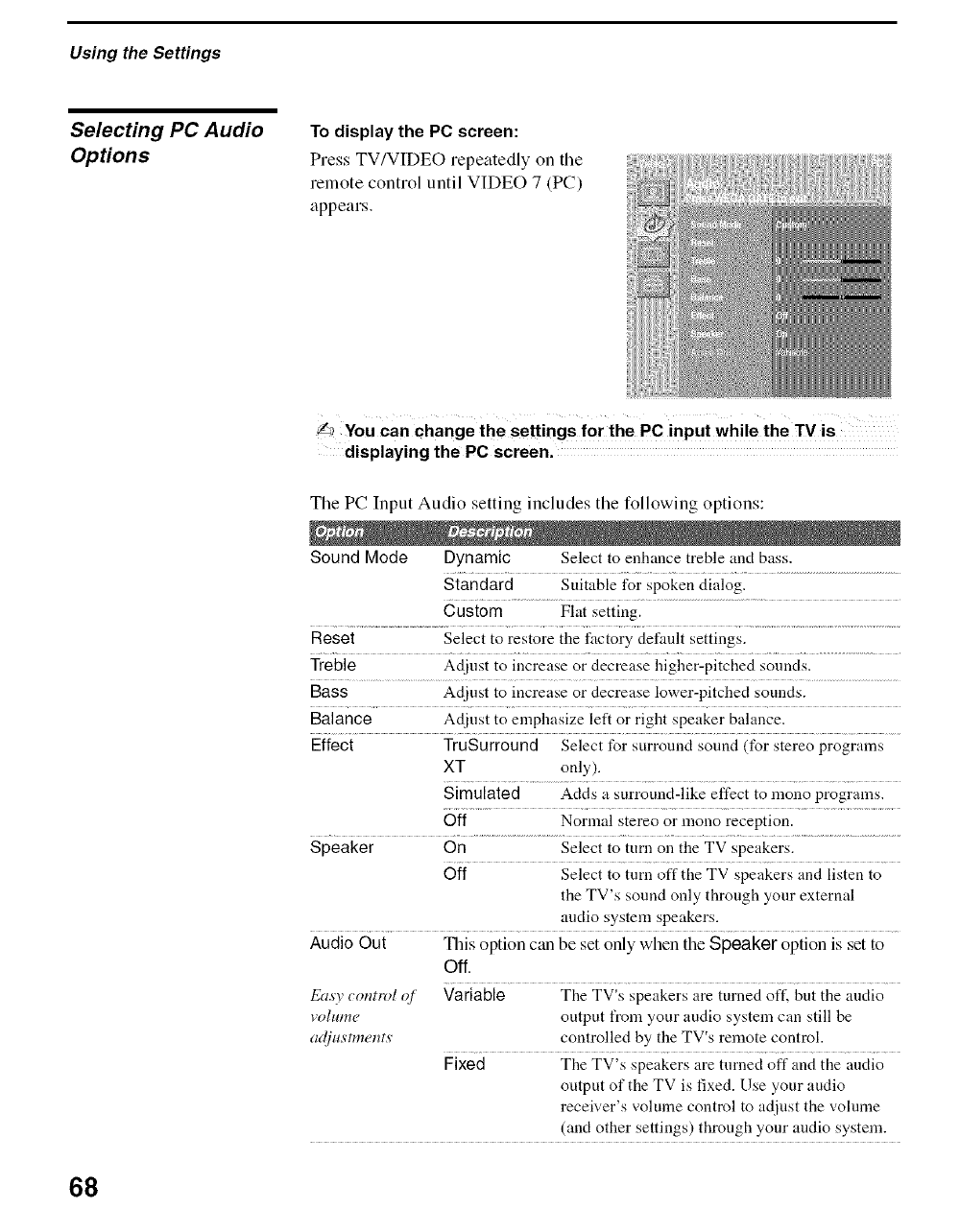
Using the Settings
Selecting PC Audio
Options
To display the PC screen:
Press TV/VIDEO repeatedly on the
remote control until VIDEO 7 (PC)
appears.
L_ You can change the settings for the PC input while the rv is
displaying the PC screen.
Tile PC Input Audio setting includes tile following options:
Sound Mode Dynamic Select to enhance treble and bass.
Standard Suitable for spoken dialog.
Custom Flat setting.
Reset Select to restore the factory default settings.
Treble Adjust to iucrease or decrease higher-pitched sounds.
Bass Adjust to increase or decrease lower-pitched sounds.
Balance Adjust to emphasize left or right speaker balance.
Effect TruSurround Select for surrouud sound (for stereo programs
XT only).
Simulated Acids a surround-like effect to mono programs.
Off Normal stereo or mono reception.
Speaker On Select to turn on the TV speakers.
Off Select to turn off the TV speakers and listen to
the TV's sound only through your external
audio system speakers.
Audio Out This option c_m be set only when the Speaker option is set to
Off.
Easy tontrol q[ Variable The TV's speakers are turned oftL but the audio
volume output from your audio system can still be
ad/_'mu:nts controlled by the TV's remote control.
Fixed The TV's speakers are turned off and the audio
output of the TV is fixed. Use your audio
receb,,'er's volume coutrol to adjust the volume
(and other settings) through your audio system.
68
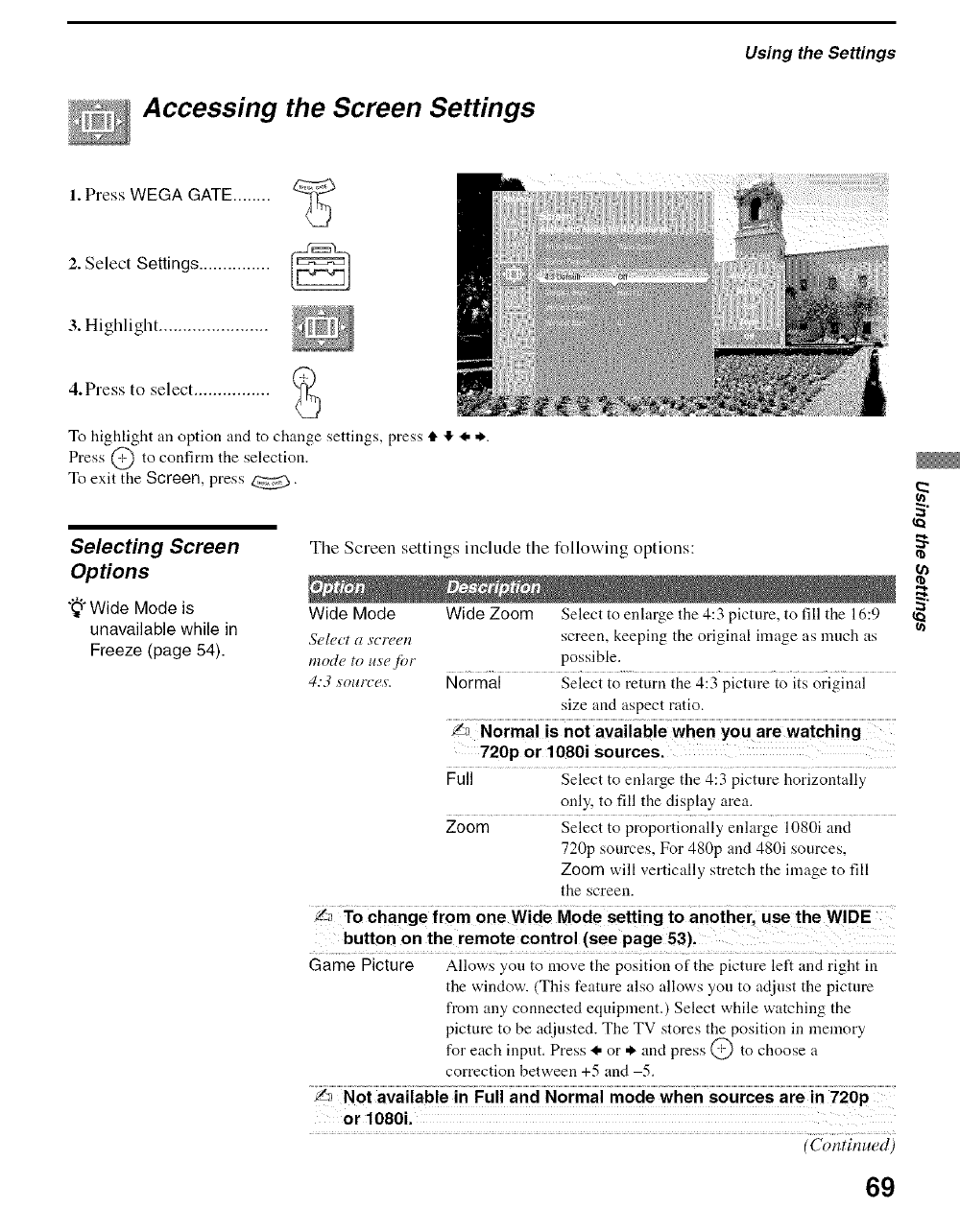
Accessing the Screen Settings
Using the Settings
1. Press WEGA GATE ........
2. Select Settings ............... [_
3. Highlight .......................
4.Press to select ................
To highlight an option and to change settings, press 4, ,I, I. *.
Press @ to confirm the selection.
To exit the Screen, press _.,_.
Selecting Screen
Options
";_"Wide Mode is
unavailable while in
Freeze (page 54).
Tile Screen settings include tile following options:
Wide Mode Wide Zoom Select to enlarge the 4:3 picture, to fill the 16:9
Select a screen screen, keeping the original image as much as
mode to us'e fi_r possible.
4:3 sources. Normal Select to return the 4:3 picture to its original
size and aspect ratio.
720p or 1080i sources.
Full Select to enlarge the 4:3 picture horizontally
only, to fill the display area.
Zoom Select to proportionally enlarge 1080i and
720p sources, For 480p and 480i sources,
Zoom will vertically stretch the image to fill
the screen.
button on the remote control (see page 53),
Game Picture Allows you to move the position of the picture left and right in
the window. (This feature also allows you to adjust the picture
from any connected equipment.) Select while watching the
picture to be at[lusted. The TV stores the position in memory
for each input. Press I. or * and press @ to choose a
correction between +5 and 5.
or 10801.
(Continued)
69
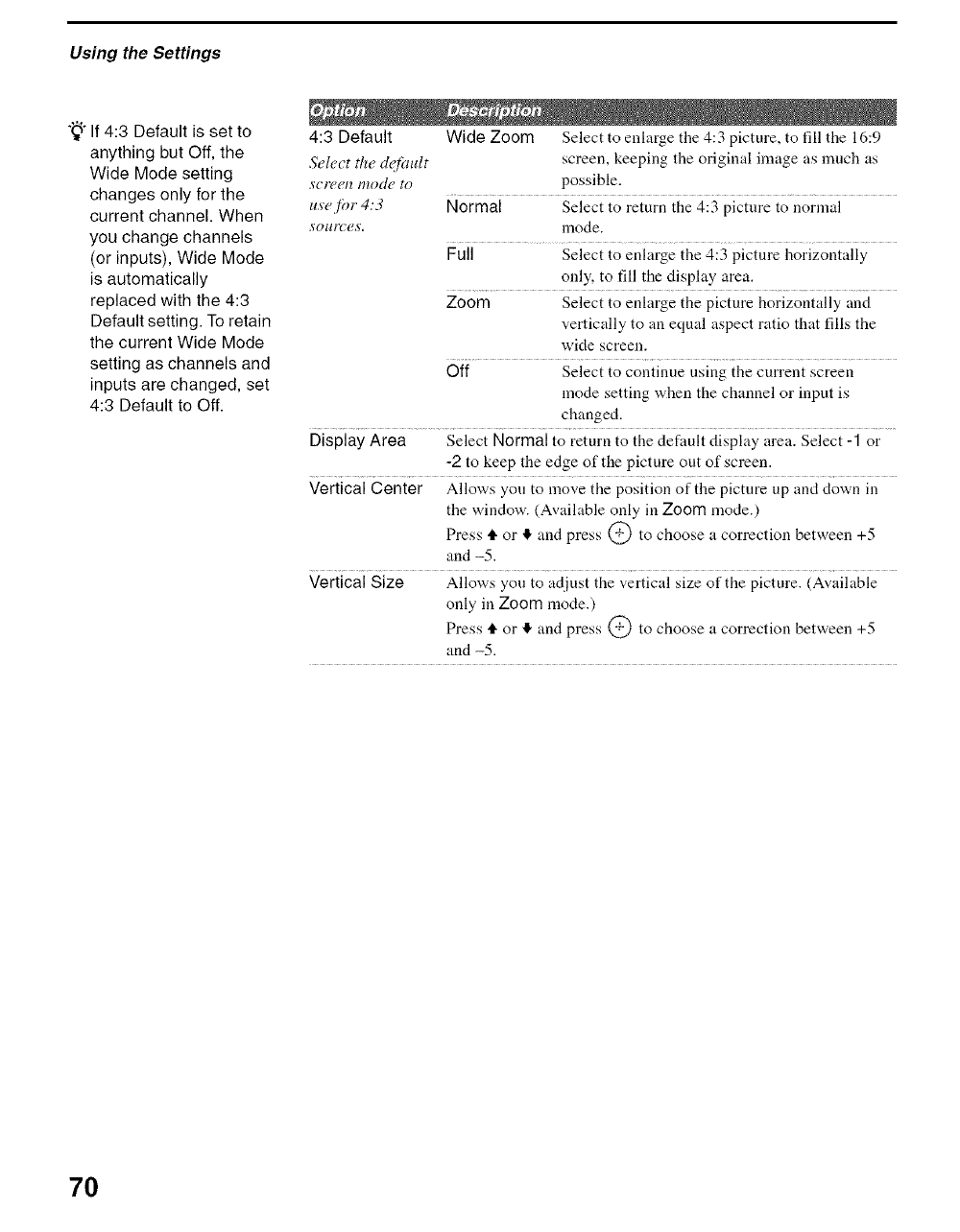
Using the Settings
"_° If 4:3 Default is set to
anything but Off, the
Wide Mode setting
changes only for the
current channel. When
you change channels
(or inputs), Wide Mode
is automatically
replaced with the 4:3
Default setting. To retain
the current Wide Mode
setting as channels and
inputs are changed, set
4:3 Default to Off.
4:3 Default Wide Zoom Select to enlarge the 4:3 picture, to fill the 16:9
Select the d@mlt screen, keeping the original image as much as
s'creen mode to possible.
use for 4:3 Normal Select to return the 4:3 picture to normal
s'ources, mode.
Full Select to enlarge the 4:3 picture horizontally
only, to fill the display area.
Zoom Select to enlarge the picture horizontally and
vertically to an equal aspect ratio that fills the
wide screen.
Off Select to continue using the current screen
mode setting when the channel or input is
changed.
Display Area Select Normal to return to the default display area. Select -1 or
-2 to keep the edge of the picture out of screen.
Vertical Center Allows you to move the position of the picture up and down in
the window. (Available only in Zoom mode.)
Press tl. or II, and press @ to choose a correction between +5
and -5.
Vertical Size Allows you to adjust the vertical size of the picture. (Available
only in Zoom mode.)
Press tl. or ,I, and press @ to choose a correction between +5
and -5.
7O
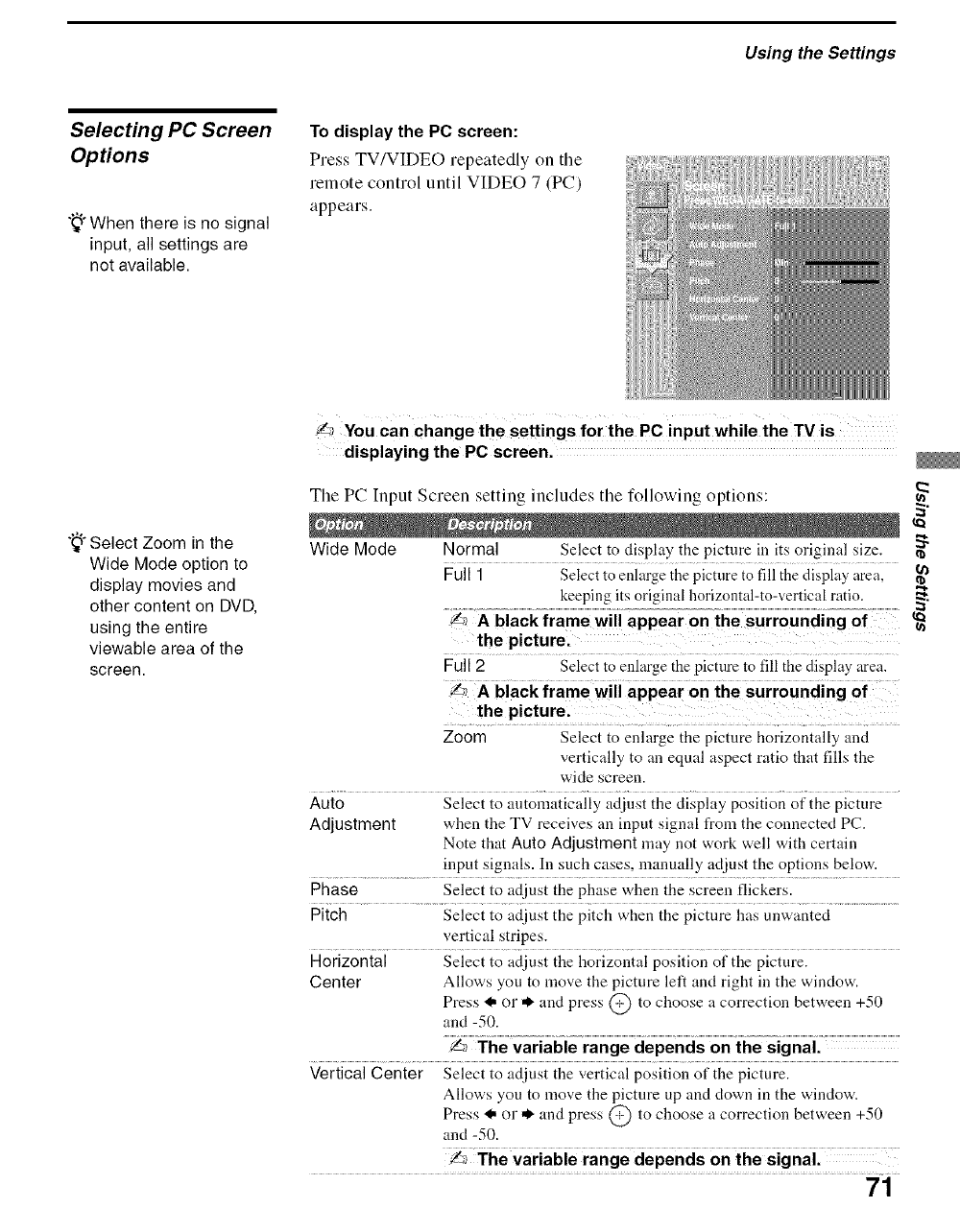
Using the Settings
Selecting PC Screen
Options
"_°When there is no signal
input, all settings are
not available.
To display the PC screen:
Press TV/VIDEO repeatedly on the
remote control until VIDEO 7 (PC)
appears.
";_°Select Zoom in the
Wide Mode option to
display movies and
other content on DVD,
using the entire
viewable area of the
screen.
La You can change the settings for the PC input while the TV is
displaying the PC screen.
The PC Input Screen setting includes tile following options: 2
Wide Mode Normal Select to display the picture in its original size. "_
Full 1 Select to enlarge the picture to fill tile display' area,
keeping its original horizontal-to-vertical ratio. ._
the picture.
Full 2 Select to enlarge the picture to fill the display area.
Zoom Select to enlarge the picture horizontally and
vertically to an equal aspect ratio that fills the
wide screen.
Auto Select to automatically adjust the display position of the picture
Adjustment when the TV receives an input signal from the connected PC.
Note that Auto Adjustment may not work well with certain
input signals. In such cases, manually adjust the options below.
Phase Select to adjust the phase ,,,hen the screen flickers.
Pitch Select to adjust the pitch when the picture has unwanted
vertical stripes.
Horizontal Select to adjust the horizontal position of the picture.
Center Allows you to move the picture left and right in the window.
Press <, or ,1, and press @ to choose a correction between +50
and -50.
Ya The variable range depends on the signal.
Vertical Center Select to adjust the vertical position of the picture.
Allows you to move the picture up and down in the window.
Press <, or ,1, and press @ to choose a correction between +50
and -50.
,Z_ The variable range depends on the signal.
71
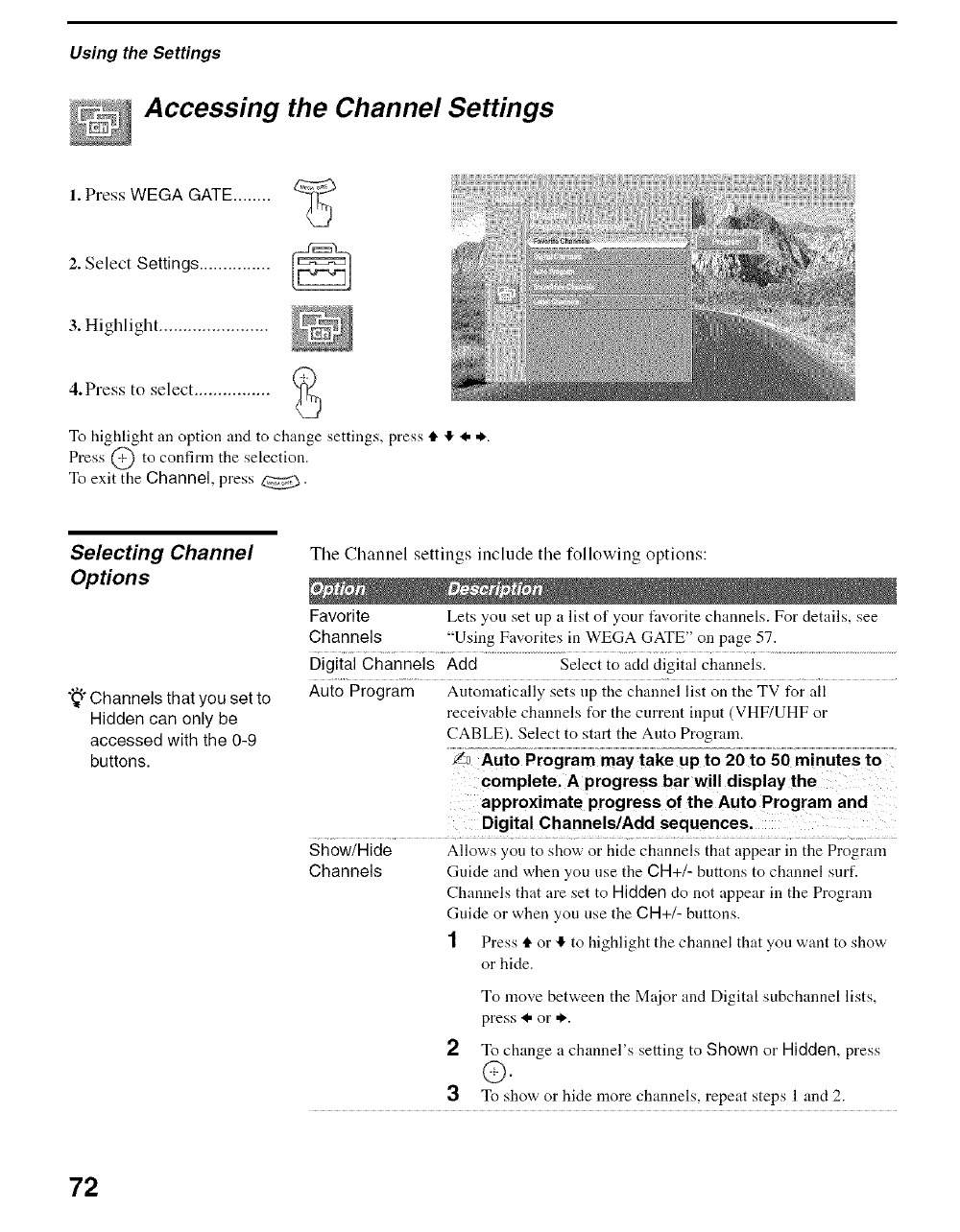
Using the Settings
Accessing the Channel Settings
1. Press WEGA GATE ........
2. Select Settings ............... _==J
3. Highlight .......................
4.Press to select ................
To highlight an option and to change settings, press tl. ,I, <. *.
Press @ to confirm the selection.
To exit the Channel, press _.
Selectmg Channel
OpHons
"_°Channels that you set to
Hidden can only be
accessed with the 0-9
buttons.
Tile Channel settings include tile following options:
Favorite Lets you set up a list of your ti_vorite channels. For details, see
Channels "Using Favorites in WEGA GATE" on page 57.
Digital Channels Add Select to add digital channels.
Auto Program Automatically sets up the channel list on the TV f___rall
receivable channels for the current input (VHF/UHF or
CABLE). Select to start the Auto Program.
€omplete, A progress bar will display the
approximate progress of the Auto Program and
Digital Charmels/Add sequences.
Show/Hide Allows you to show or hide channels that appear in the Program
Channels Guide and when you use the CH+/- buttons to channel surf.
Channels that are set to Hidden do not appear in the Program
Guide or when you use the CH+/- buttons.
1 Press tl. or ,I, to highlight the channel that you want to show
or hide.
To move between the Major and Digital subchannel lists,
press <. or *.
2To change a channel's setting to Shown or Hidden, press
@.
3To show or hide more channels, repeat steps 1 and 2.
72
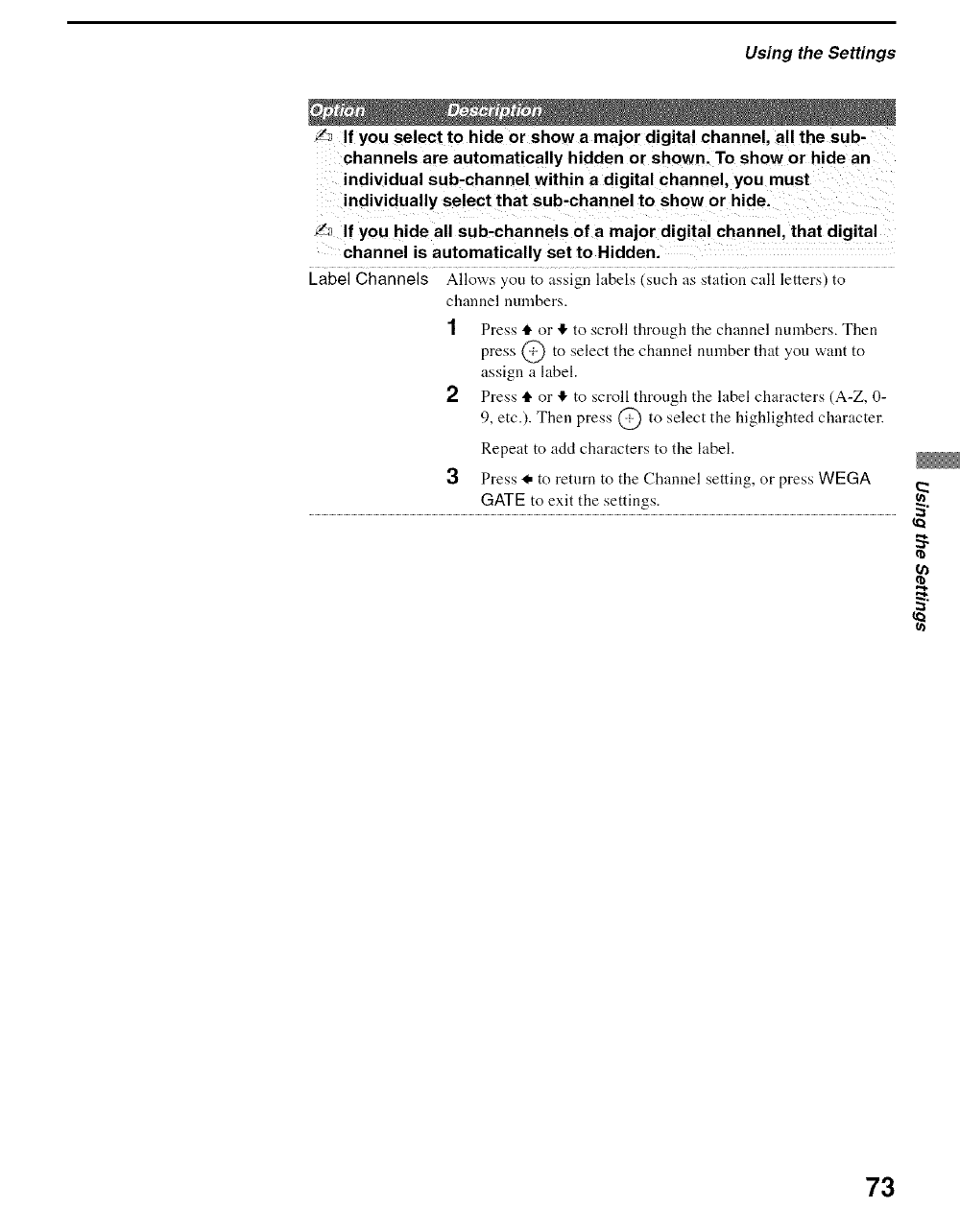
Using the Settings
Y_ If you select to hide or show a major digital channel, all the sub-
channels are automatically hidden or shown. To show or hide an
individual sub-channel within a digital channel, you must
_If you hide all sub-channels of a major digital channel, that digital
channel is automatically set to Hidden.
Label Channels Allows you to assign labels (such as station call letters) to
channel nmnbers.
1Press tF or ,!, to scroll through the channel nmnbers. Then
press @ to select the channel number that you want to
assign a label.
2Press tF or tf, to scroll through the label characters (A-Z, 0-
9, etc.). Then press @ to select the highlighted character.
Repeat to add characters to the label.
3Press I. to return to the Channel setting, or press WEGA
GATE to exit the settings. 2
73
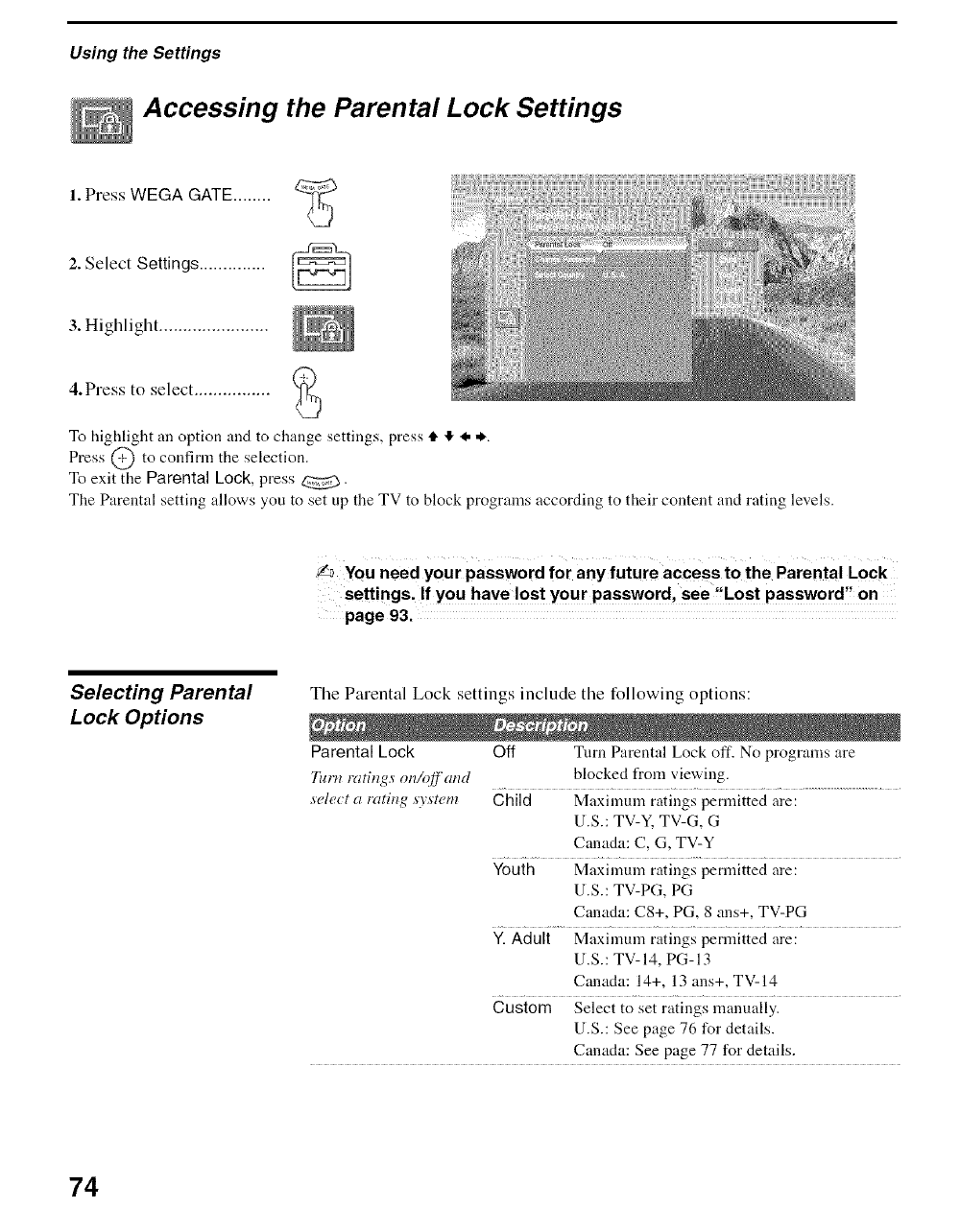
Using the Settings
Accessing the Parental Lock Settings
1. Press WEGA GATE ........
2. Select Settings .............. ___===J
3. Highlight .......................
4.Press to select ................
To highlight an option and to change settings, press i. ,I, <. *.
Press @ to confirm the selection.
To exit the Parental Lock, press _.
The Parental setting allows you to set up the TV to block programs according to their content and rating levels.
L_ You need your password for any future access to the Parental Lock
settings. If you have lost your password, see "Lost password" on
page 93.
Selecting Parental
Lock Options
Tile Parental Lock settings include the following options:
Parental Lock Off Turn Parental Lock off. No programs are
Turn rating_ on/q_'cmd blocked from viewing.
select a rating system Child Maximum ratings permitted are:
U.S.: TV-Y. TV-G, G
Canada: C, G, TV-Y
Youth Maximum ratings permitted are:
U.S.: TV-PG, PG
Canada: C8+, PG, 8 ans+, TV-PG
Y. Adult Maximum ratings permitted are:
U.S.: TV-14, PG-13
Canada: 14+, 13 ans+, TV-14
Custom Select to set ratings manually.
U.S.: See page 76 for details.
Canada: See page 77 for details.
74
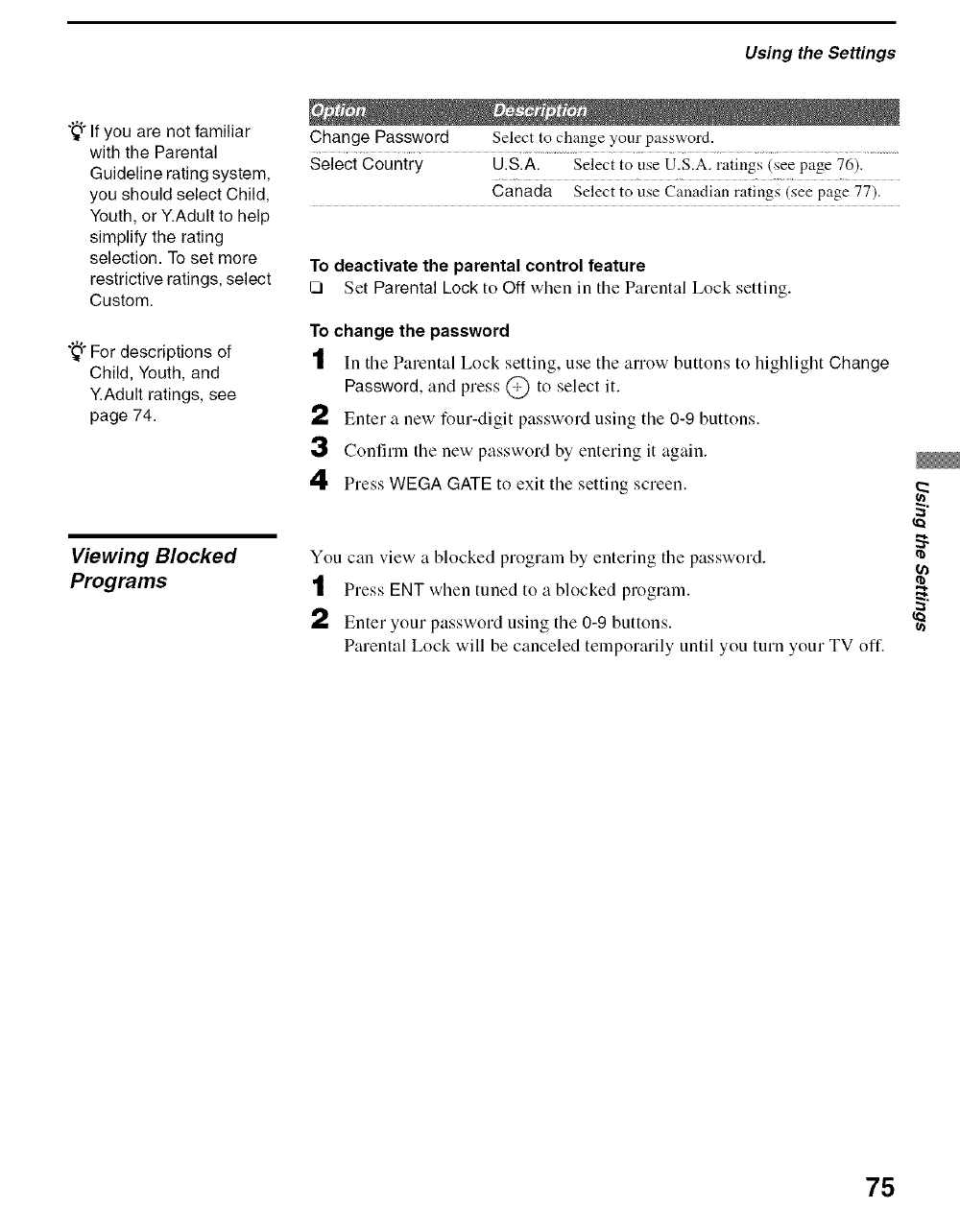
Using the Settings
"_°If you are not familiar
with the Parental
Guideline rating system,
you should select Child,
Youth, or Y.Adult to help
simplify the rating
selection. To set more
restrictive ratings, select
Custom.
";_"For descriptions of
Child, Youth, and
Y.Adult ratings, see
page 74.
Viewing Blocked
Programs
Change Password Select to change your password.
Select Country U.S.A. Select to use U.S.A. ratings (see page 76).
Canada Select to use Canadian ratings (see page 77).
To deactivate the parental control feature
[] Set Parental Lock to Off when in tile Parental Lock setting.
To change the password
tIn the Parental Lock setting, use the arrow buttons to highlight Change
Password, and press @ to select it.
a,_ Enter a new four-digit password using the 0-9 buttons.
3Confirm the new password by entering it again.
4Press WEGA GATE to exit the setting screen.
You can view a blocked program by entering the password.
tPress ENT when tuned to a blocked prograln.
a,_ Enter your password using the 0-9 buttons.
Parental Lock will be canceled telnporarily until you turn your TV off.
2
75
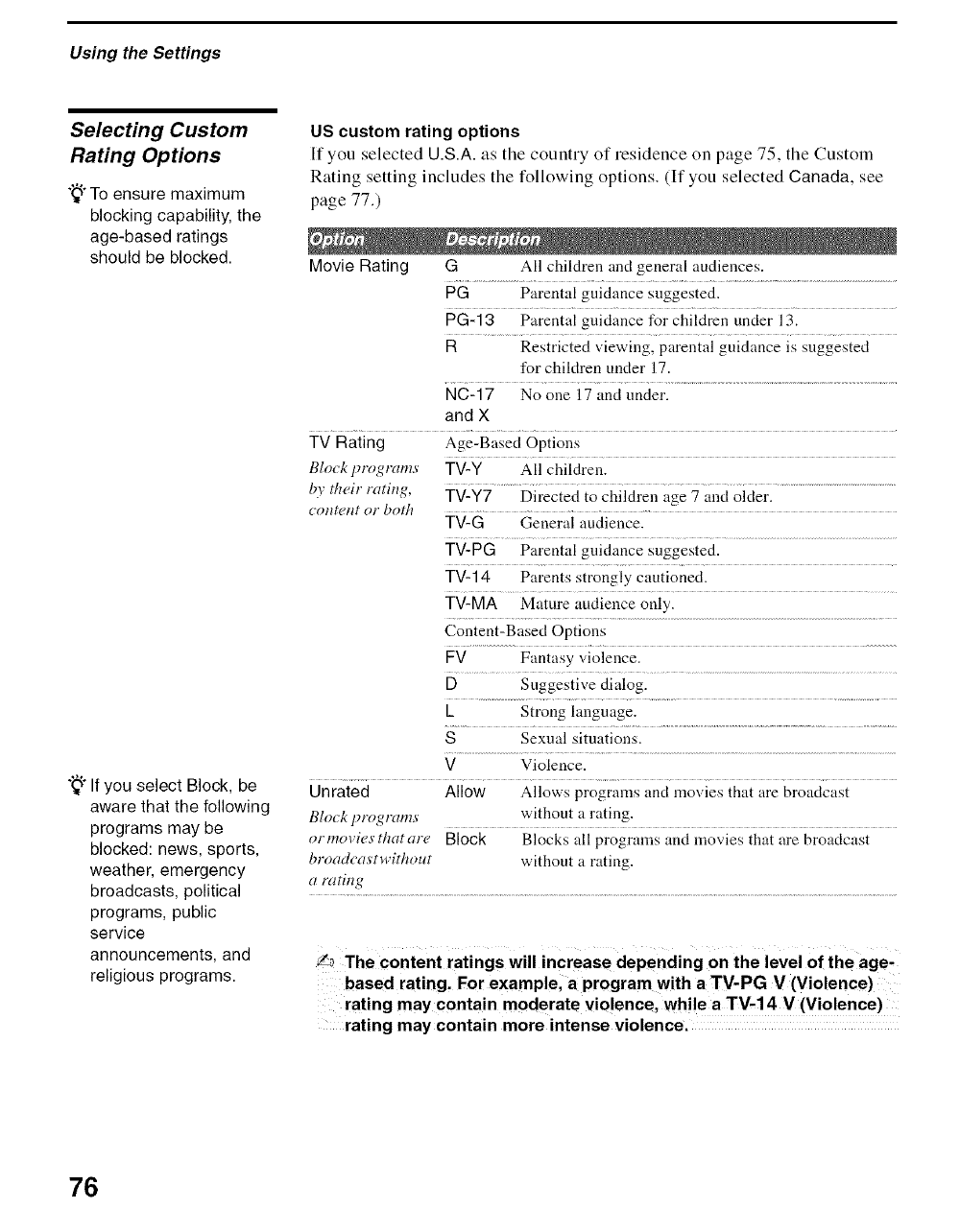
Using the Settings
Selecting Custom
Rating Options
"_'To ensure maximum
blocking capability, the
age-based ratings
should be blocked.
"_° If you select Block, be
aware that the following
programs may be
blocked: news, sports,
weather, emergency
broadcasts, political
programs, public
service
announcements, and
religious programs.
US custom rating options
If you selected U.S.A. as the country of residence on page 75, the Custom
Rating setting includes the following options. (If you selected Canada, see
page 77.)
Movie Rating G All children and general audiences.
PG Parental guidance suggested.
PG-13 Parental guidance for children under 13.
RRestricted viewing, parental guidance is suggested
for children under 17.
NC-17 No one 17 and tinder.
and X
TV Rating Age-Based Options
Blockl)rogra_ ' TV-Y All children.
by their rating, TV-Y7 ........Directed to children age 7 aud older. ................................................................
_ontent o1"both TV-G General audience.
TV-PG Parental guidance suggested.
TV-14 Parents strongly cautioned.
TV-MA Mature audience only.
Content-Based Options
FV Fantasy violence.
DSuggestive dialog.
L Strong language.
SSexual situations.
V Violence.
Unrated Allow Allows programs and movies that are broadcast
Blo_k programs' without a rating.
ormovies'thatare Block Blocks all programs and movies that are broadcast
broadcas'twithout without a rating.
a rating
L_ The Content ratings will increase depending on the level of the age'
based rating. For example, a program with a TV-PG V (Violence)
rating may contain moderate violence, while a TV-14 V (Violence)
rating may contain more intense violence.
76
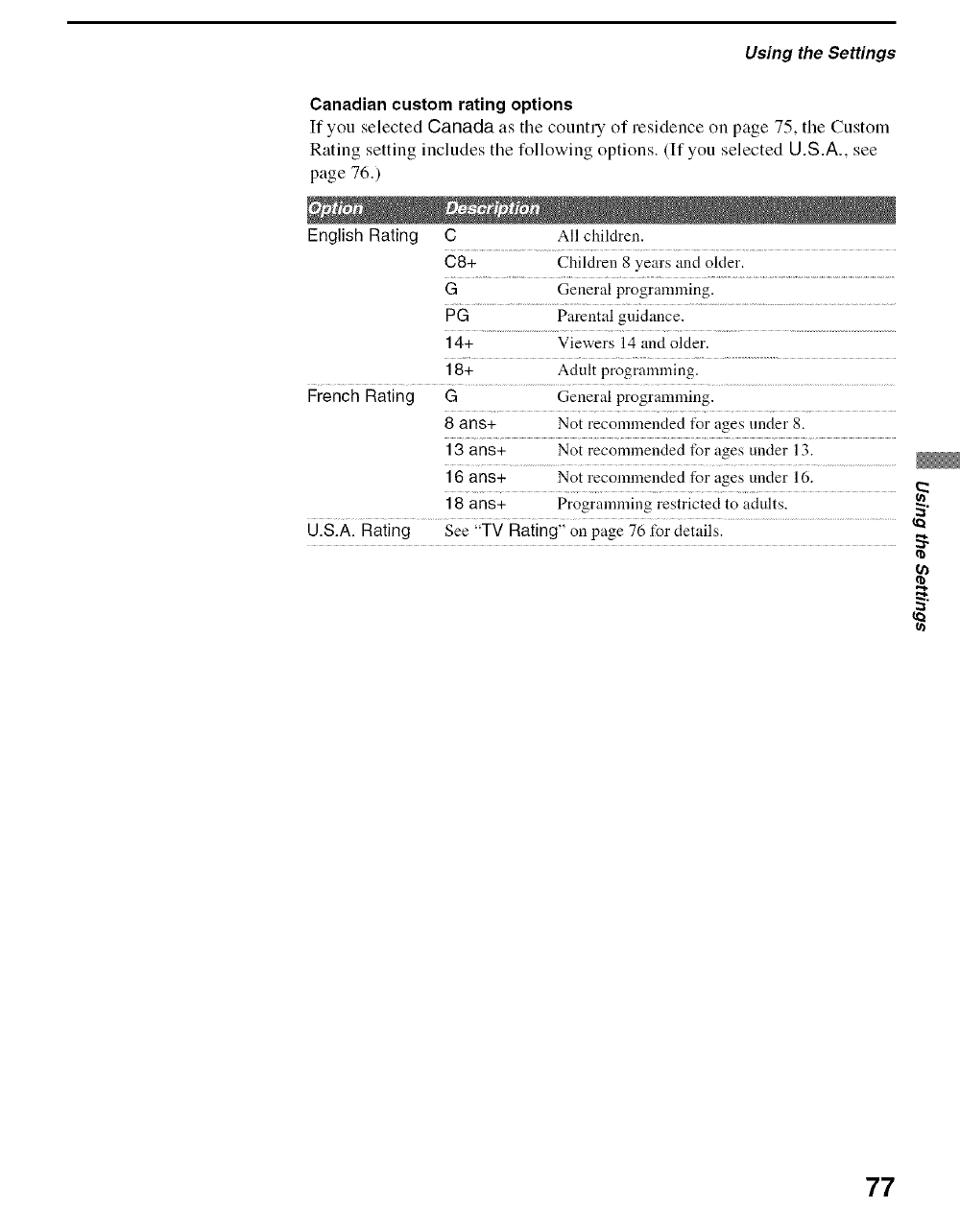
Using the Settings
Canadian custom rating options
If you selected Canada as tile country of residence on page 75, the Custom
Rating setting includes the following options. (If you selected U.S.A., see
page 76.)
English Rating C All children.
08+ Children 8 years and older.
GGeneral programming.
PG Parental guidance.
14+ Viewers 14 and older.
18+ Adult progralnming.
French Rating G General programlning.
8 ans+ Not recommended t_r ages under 8.
13 ans+ Not recommended for ages under 13.
16 ans+ Not recommended for ages under 16.
18 ans+ Programming restricted to adults.
U.S.A. Rating See "TV Rating" on page 76 t_r details. 2
77
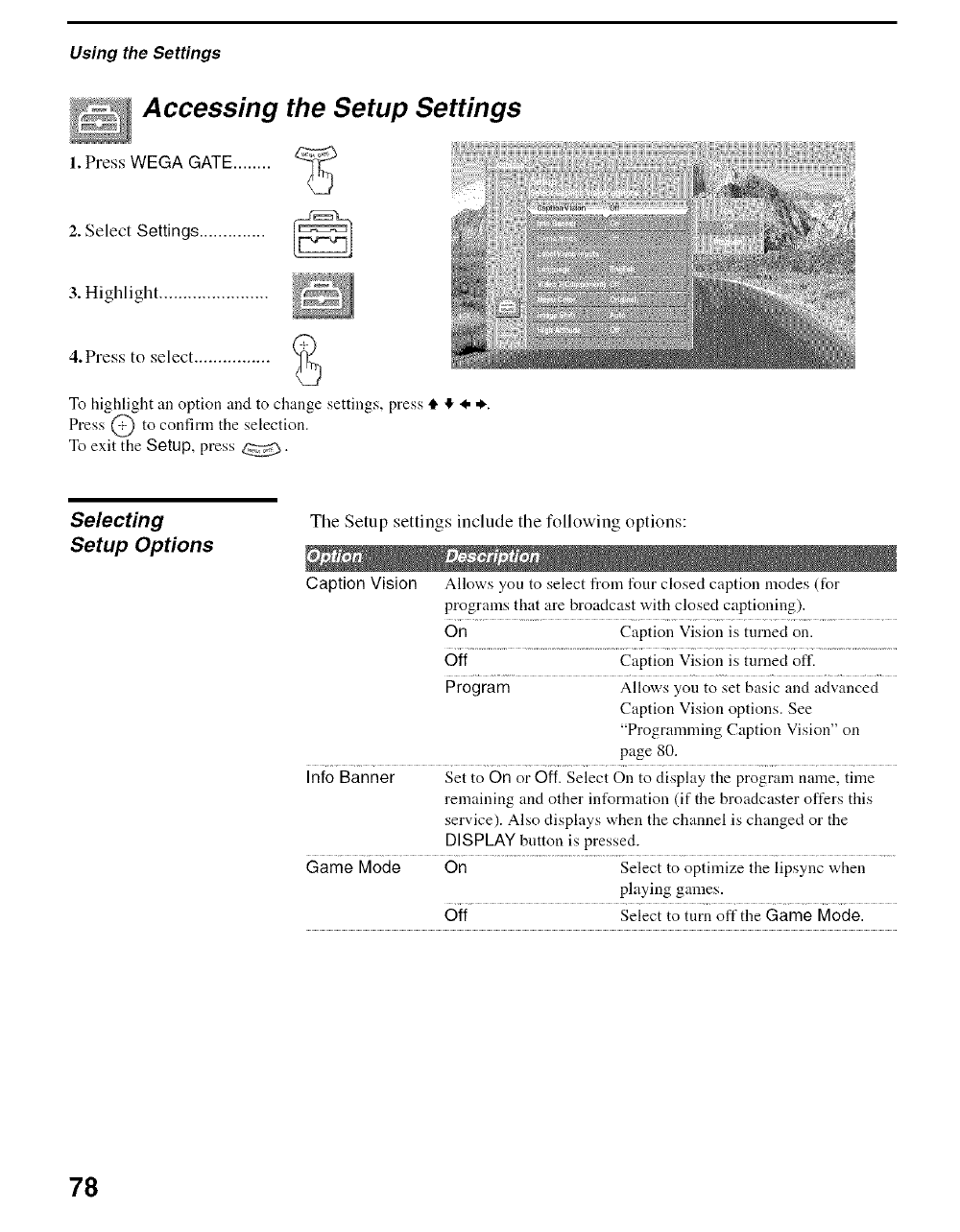
Using the Settings
Accessing the Setup Settings
1. Press WEGA GATE ........
2. Select Settings ..............
3. Highlight .......................
4.Press to select ................
To highlight an option and to change settings, press tl. ,!, I. *.
Press @ to confirm the selection.
To exit the Setup, press _.
Selecting
Setup Options
The Setup settings include the following options:
Caption Vision Allows you to select from four closed caption modes (for
progrmns that are broadcast with closed captioning).
On Caption Vision is turned on.
Off Caption Vision is turned off.
Program Allows you to set basic and advanced
Caption Vision options. See
"Programming Caption Vision" on
page 80.
Info Banner Set to On or Off. Select On to display the program name, time
remaining and other information (if the broadcaster offers this
service). Also displays when the channel is changed or the
DISPLAY button is pressed.
Game Mode On Select to optimize the lipsync when
playing games.
Off Select to turn off the Game Mode.
78
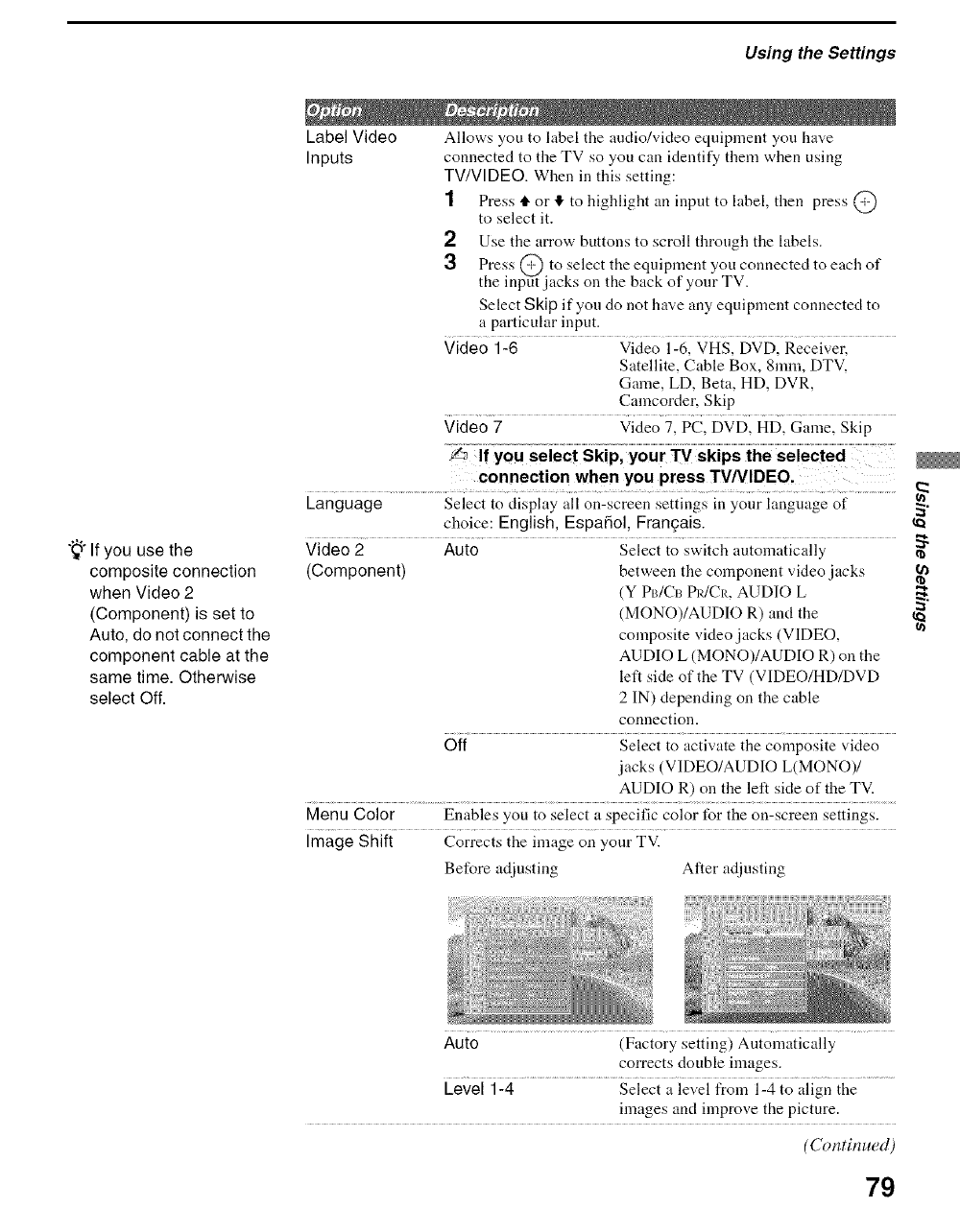
"_° If you use the
composite connection
when Video 2
(Component) is set to
Auto, do not connect the
component cable at the
same time. Otherwise
select Off.
Using the Settings
Label Video Allows you to label the audio/video equipment you have
Inputs connected to the TV so you can identify them when using
TV/VIDEO. When in this setting:
1Press tF or If, to highlight an input to label, then press @
to select it.
2Use the arrow buttons to scroll through the labels.
3Press @ to select the equipment you connected to each of
the input jacks on the back of your TV.
Select Skip if you do not have any equipment connected to
a particular input.
Video 1-6 Video 1-6, VHS, DVD, Receiver,
Satellite, Cable Box, 8ram, DTV,
Game, LD, Beta, HD, DVR,
Camcorder, Skip
Video 7 Video 7, PC, DVD, HD, Game, Skip
connection when you press TV/VIDEO.
Language Select to disphty all on-screen settings in your hmguage of
choice: English, Espafiol, Fran_ais.
Video 2 Auto Select to switch automatically
(Component) between the component video jacks
(Y PB/CL_ PR/CR, AUDIO L
(MONO)/AUDIO R) and the
composite video.jacks (VIDEO,
AUDIO L (MONO)/AUDIO R) on the
left side of the TV (VIDEO/HD/DVD
2 IN) depending on the cable
connection.
Off Select to activate the composite video
.jacks (VIDEO/AUDIO L(MONO)/
AUDIO R) on the left side of the TV.
Menu Color Enables you to select a specific color for the on-screen settings.
Image Shift Corrects the image on your TV.
Before adjusting After adjusting
Auto (Factory setting) Automatically
corrects double images.
Level 1-4 Select a level from 1-4 to align the
images and improve the picture.
(Continued)
79
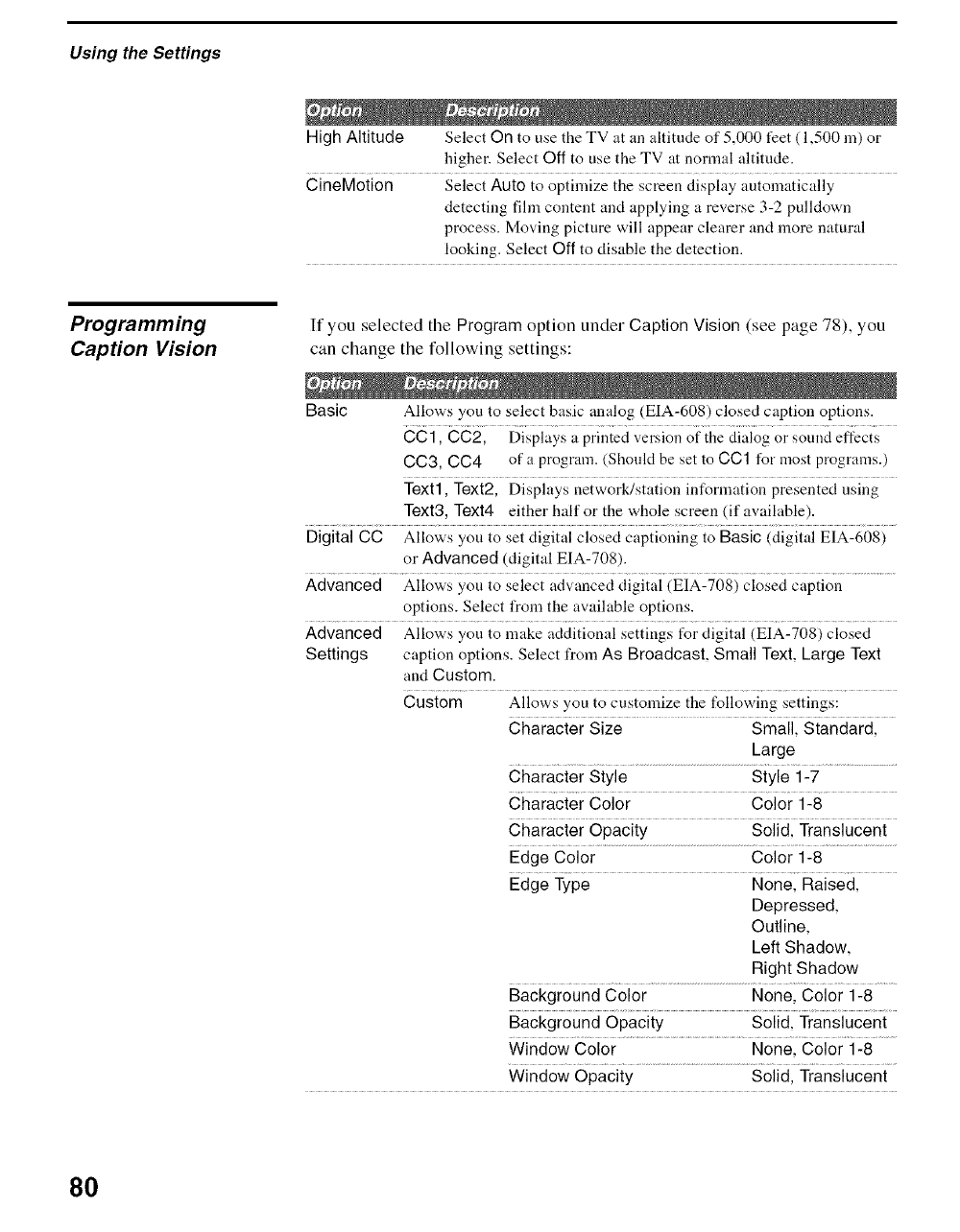
Using the Settings
High Altitude Select On to use the TV at an altitude of 5,000 feet ( 1,500111)or
higher. Select Off to use the TV at nonnal altitude.
CineMotion Select Auto to optimize the screen display automatically
detecting fihn content and applying a reverse 3-2 pulldown
process. Moving picture will appear clearer and more natural
looking. Select Off to disable the detection.
Programming
Caption Vision
If you selected tile Program option under Caption Vision (see page 78), you
can change the following settings:
Basic Allows you to select basic analog (EIA-608) closed caption options.
CCl, Cc2; Displays a prinied version ofihe _iiai0g or sound effecis
CC3, CC4 of a program. (Shonld be set to CC1 for most programs.)
Text1, Text2, Displays network/station information presented using
Text3, Text4 either half or the whole screen (if available).
Digital CO Allows you to set digital closed captioning to Basic (digital EIA-608)
or Advanced (digital EIA-708).
Advanced Allows you to select advanced digital (EIA-708) closed caption
options. Select t¥om the available options.
Advanced Allows you to make additional settings t_r digital (EIA-708) closed
Settings caption options. Select from As Broadcast, Small Text, Large Text
and Custom.
Custom Allows you to customize the following settings:
Smai[ S{andaidl
Character Size
Large
Character Style Style 1-7
Character Color Color 1-8
Character Opacity Soiid: Transiucen{
Edge Color Color 1-8
Edge........ Type Nonel Raisedl
Depressed,
Outline,
Left Shadow,
Right Shadow
Background.................................................Color Nonel Coior i -8 ...........
gackgiound Opaciiy soiid Transiucen{
Window...................................................................Color None: 6oior i-8 ..........
Window Opacity Solid, Translucent
8O
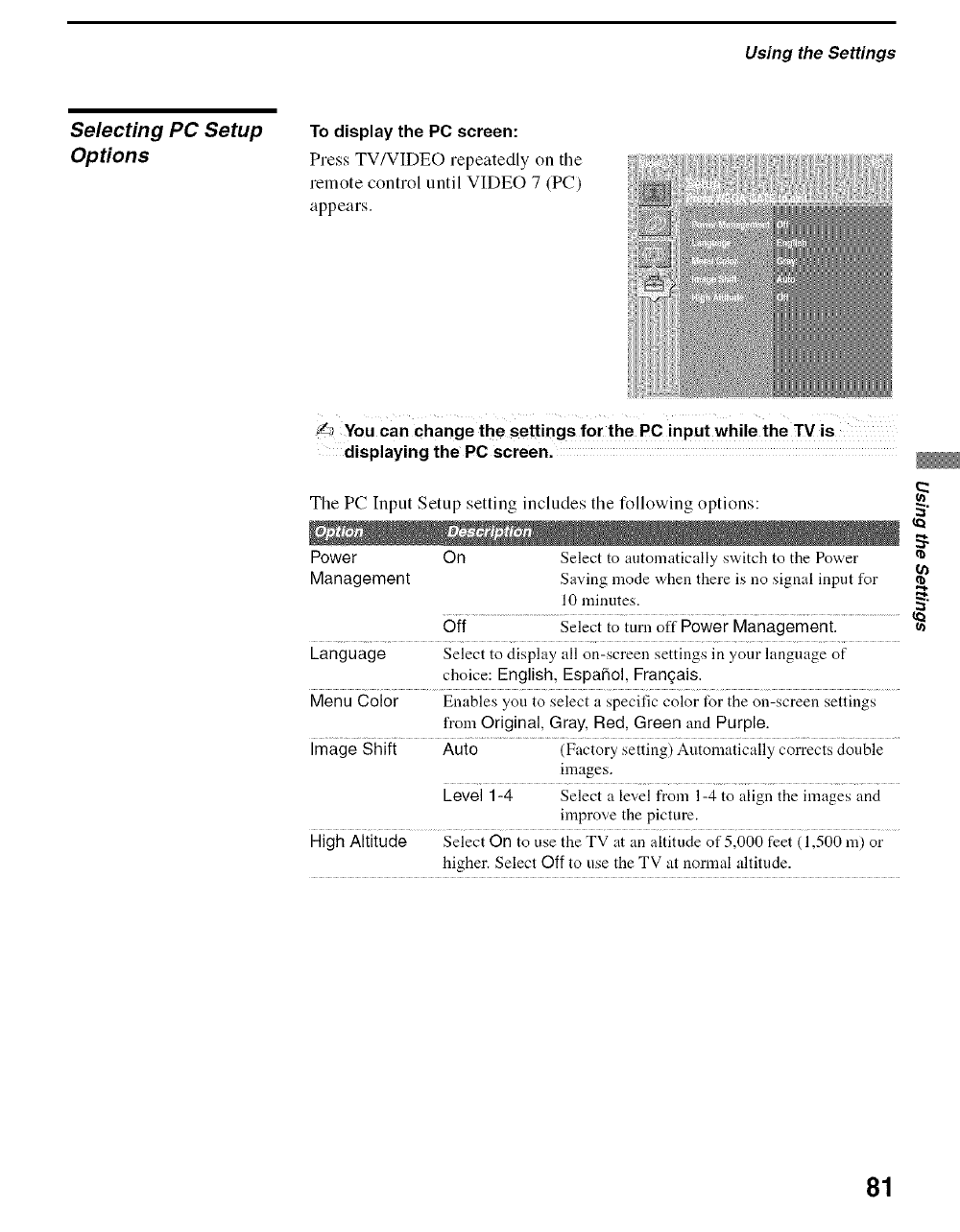
Using the Settings
Selecting PC Setup
Options
To display the PC screen:
Press TV/VIDEO repeatedly on the
remote control until VIDEO 7 (PC)
appears.
L_ You can change the settings for the PC input while the rv is
displaying the PC screen.
Tile PC Input Setup setting includes tile following options: 2
Power On Select to automatically switch to the Power
Management Saving mode when there is no signal input for
l 0 minutes. _"
Off..........................................Selectto turn oft"Power Managementl.................................
Language Select to display all on-screen settings in your hmgu:tge of
choice: English, Espafiol, Frangais.
Menu Color Enables you to select a specific color for the on-screen settings
t¥om Original, Gray, Red, Green and Purple.
Image Shift Auto (Factory setting) Automatically corrects double
images.
Level 1-4 Select a level from 1-4 to align the images and
improve the picture.
High Altitude Seiect 0n to use the TV at :m altitude of 5000 feet (i ,500 m) or
higher. Select Off to use the TV at nonnal altitude.
81
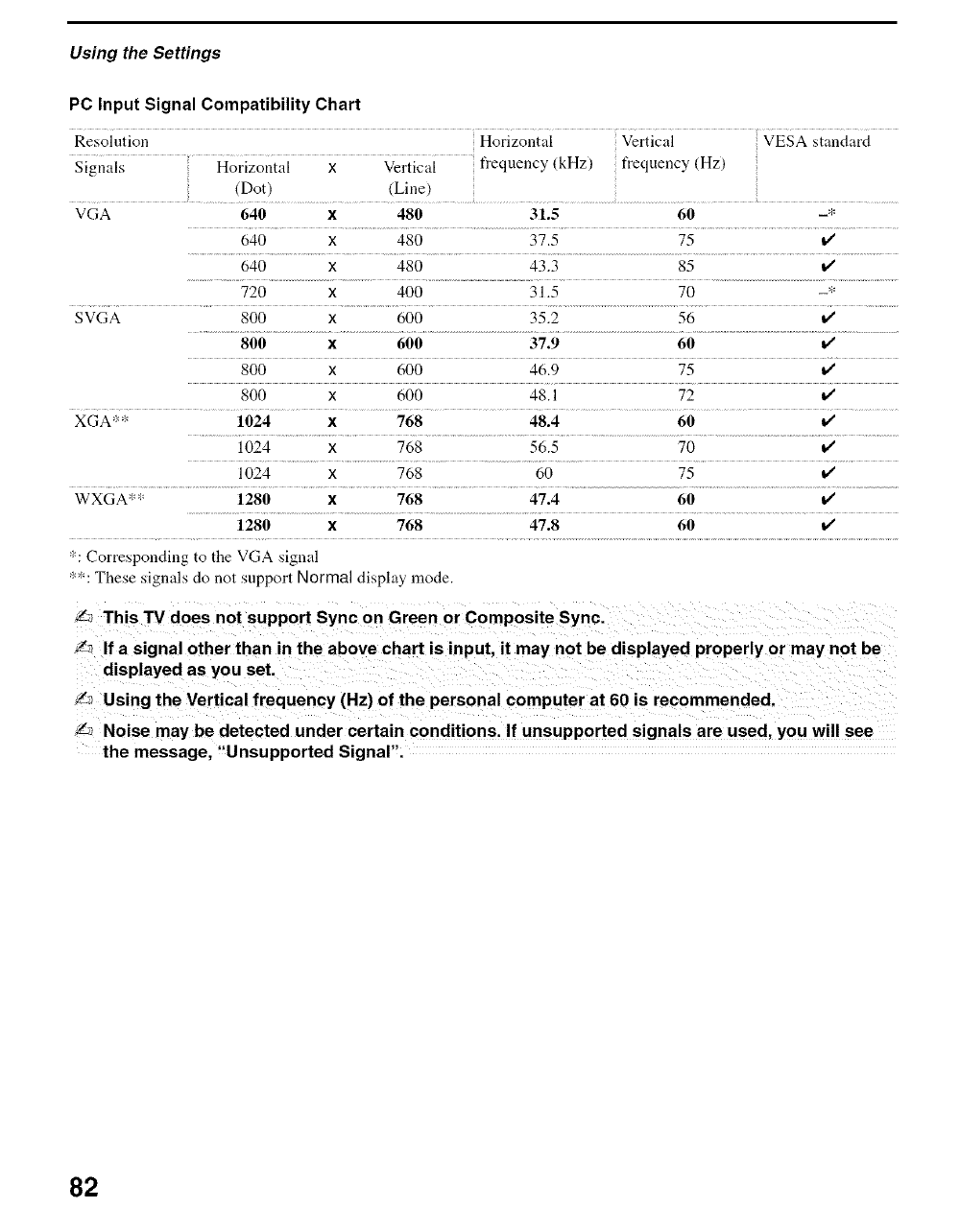
Using the Settings
PC Input Signal Compatibility Chart
Resolution Horizontal Vertical VESA standard
Signals Horizontal x Vertical frequency (kHz) t_equency (Hz)
(Dot) (Line)
VGA 640 x480 31.5 60 -*
640 x 480 37.5 75
640 x 480 43.3 85 i/
..............................................................................................................................................................720 x 400 31.5 70 .................................
SVGA 800 x 600 35.2 56 v'
800 x600 37.9 60
800 x600 46.9 75 v'
800 x 600 48.1 72 v'
XGA** 1024 x768 48.4 60
1024 x 768 56.5 70 i/
1024 x 768 60 75 v'
WXGA** 1280 X768 47.4 60 I/
1280 x768 47.8 60 I/
*: Corresponding to tile VGA signal
**: These signals do not support Normal display mode.
_This TV does not support Sync on Green or Composite Sync.
_If a signal other than in the above chart is input, it may not be displayed properly or may not be
displayed as you set.
!_ Using the Vertical frequency (Hz) of the personal computer at 60 is recommended.
Noise may be detected under certain conditions. If unsupported signals are used, you will see
the message, "Unsupported Signal".
82
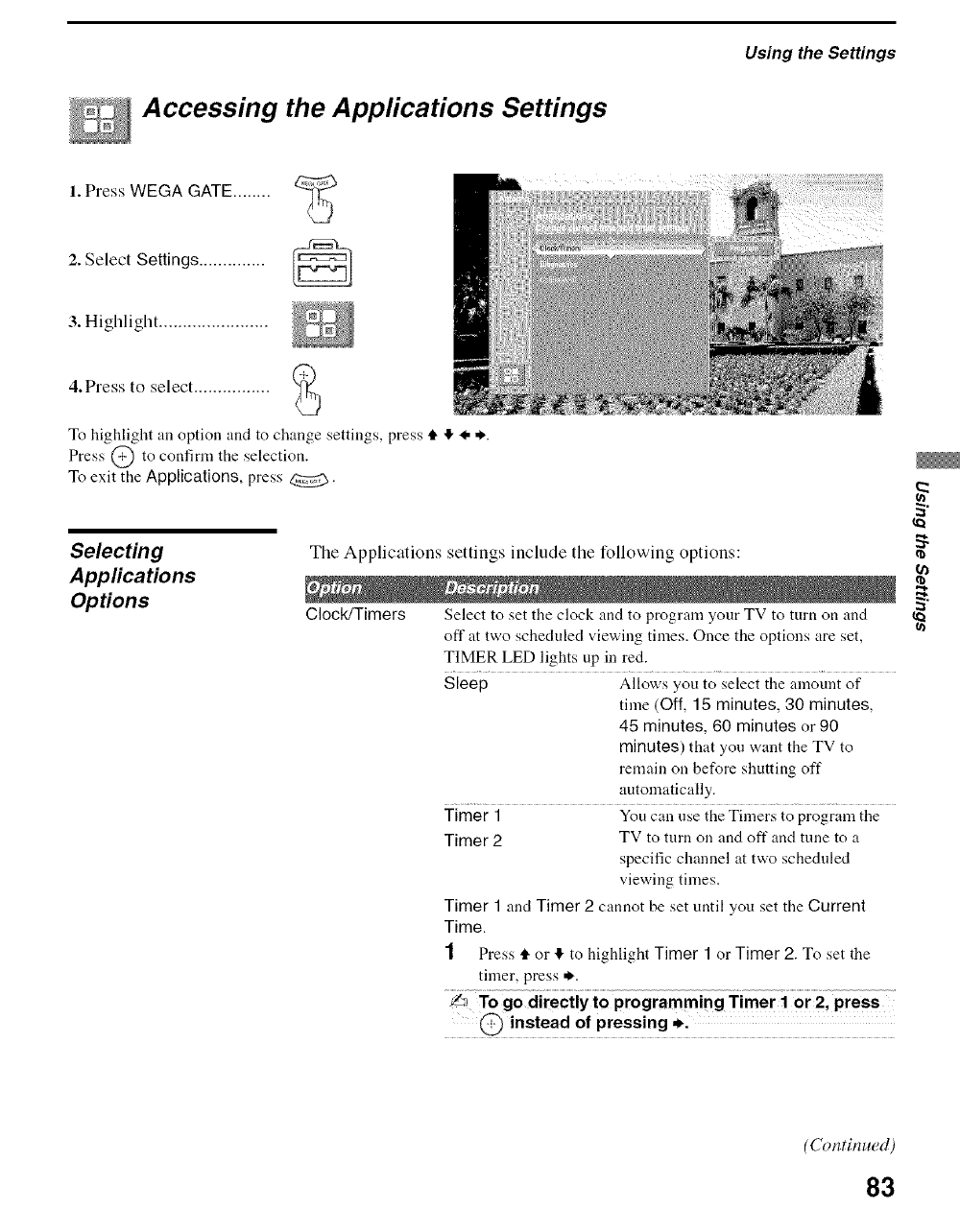
Accessing the Applications Settings
Using the Settings
1. Press WEGA GATE........
2. Select Settings ..............
3. Highlight .......................
4.Press to select ................
To highlight an option and to change settings, press tl. ,!, I. *.
Press @ to confirm the selection.
To exit the Applications, press _.
Selecting
Appfications
Options
The Applications settings include the following options:
Clock/Timers Select to set the clock and to program your TV to turn on and
off at two scheduled viewing times. Once the options are set,
TIMER LED lights up in red.
Sleep Allows you to select the amount of
time (Off, 15 minutes, 30 minutes,
45 minutes, 60 minutes or 90
minutes) that you want the TV to
remain on before shutting off
automatically.
Timer 1 You can use the Timers to program the
Timer 2TV to turn on and offand tune to a
specific channel at two scheduled
viewing times.
Timer 1 and Timer 2 cannot be set until you set the Current
Time.
1Press tl. or I!, to highlight Timer 1 or Timer 2. To set the
timer, press *.
J_ To go directly to programming Timer I or 2, press
@instead of pressing *.
2
_0
(Continued)
83
Using the Settings
2Press tF or 4 to highlight one of the following options, then
press @.
Program
Off
Select to set the Timer by clay, time,
duration, and channel.
Select to turn off the Timer. (Your
previous settings are saved.)
3If you selected Program in step 2, press tF and tf, to set the
day(s), hour, minute, AM/PM, duration, and channel
number. Press @ or press * to confirm each setting and
move to the next setting.
Press I. to go back to the previous setting.
4 Press WEGA GATE to exit the setting screen. An LED on
the front panel will light, indicating the Timer has been set.
Current Time You can set the current time.
1 Press @ to select Current Time.
2 Press tF and I_,to set the current time (clay, hour, minute,
and AM/PM). Press @ (or press *) to confirm each
setting and move to the next setting. Press _, to go back the
previous setting.
3 Press WEGA GATE to exit the setting screen.
Diagnostics Display diagnostics information about the TV. This can be
nseful in providing information to an authorized technician or
repair person.
CableCARD This list of selectable CableCARD options will vary, depending
on your cable service provider.
84
Overview
Contacting Sony
This chapter includes the following topics:
Contacting Sony 85
Replacing the Lamp 86
Troubleshooting 90
Specifications 94
Optional accessories 95
Index 96
If, ariel" reading these operating instructions, you have additional questions
related to the use of your Sony television, please call our Custolner
Information Services Centel:
For US residents: 1-800-222-SONY (7669)
or visit: http://www.sonystyle.com/tv/ _.
For Canadian residents: 1-877-899-SONY (7669) _'
or visit: http://www.sonystyle.ca/tv/
o
Before calling Sony customer support, please write down the model and
serial numbers of your TV. You'll find this information on the front cover of
this manual.
85
Other Information
Replacing the Lamp
The projection lamp, which illuminates the picture, has a limited life.
If tile screen becomes dark, tile color looks unusual, or the LAMP indicator
on the front of the TV flashes, it is time to replace the lamp with a new one
(not supplied).
_\ WARNING
Electric appliances can cause fire or high temperature, resulting in
injury or death. Be sure to follow the instructions below.
[] Use a Sony XL-2400 replacement lamp (not supplied) for replacement.
Use of any other lamp may damage the TV.
[] Do not remove the lamp for any purpose other than replacement. Doing
so may cause injury or fire.
[] Do not put flammable materials and metal objects inside the lamp
receptacle of the TV after removing the lamp. Doing so may cause fire
or electrical shock. Do not touch the lamp receptable once the lamp has
been removed.
[] When the lamp eventually burns out, you may heal a noticeable pop
sound. This is normal and it is inherent to this type of lamp.
[] In rare instances, the bulb may pop inside the lamp unit, but the lamp
unit is designed to contain all of the broken glass pieces inside the lamp
unit.
[] The lamps contain mercury. For proper disposal of the used lamps,
follow and observe the local ordinances. See page 89.
How to Replace the
Lamp
t
2
3
Turn off the power on the main unit. Wait several minutes, then unplug
the power cord.
(The cooling fan will continue to operate for about two minutes after
turning the power off.)
Wait at least 30 minutes alter unplugging the power cord to allow the
lamp to cool down before replacing it. To avoid being burned, do not
touch the lamp receptable once the lamp has been removed.
Take the new lamp out of the box.
Do not touch the glass portion of the new lamp.
L_ Do not shake the lamp_ Vibration can damage the lamp or
shorten its life.
L_ Avoid touching the front glass of a new lamp or the glass of
the lamp receptacle. This may reduce Picture qualitY or lamp
life.
86
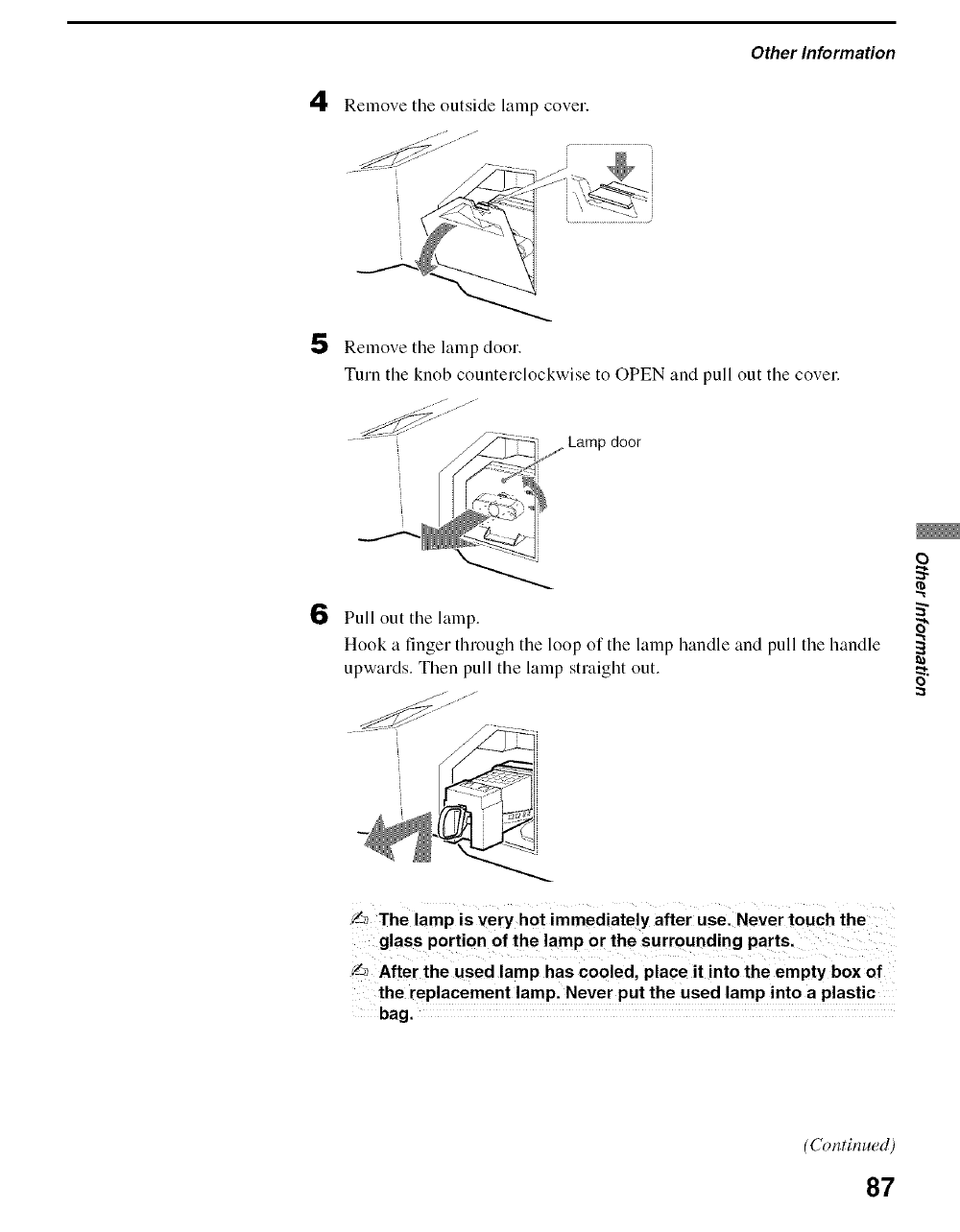
4Remove the outside lamp cover.
J
Other Information
5 Remove tile lamp door.
Turn tile knob counterclockwise to OPEN and pull out tile covel:
..... door
6Pull out tile lamp.
Hook a finger through tile loop of the lamp handle and pull the handle
upwards. Then pull the lamp straight out.
0
o
L_The lamp is Very hot immediately after usel Never touch the
glass portion of the lamp or the surr0unding partsl
_After the used lamp has cooled, place it into the empty box of
the replacement lamp. Never put the used lamp into a plastic
bag.
(Continued)
87
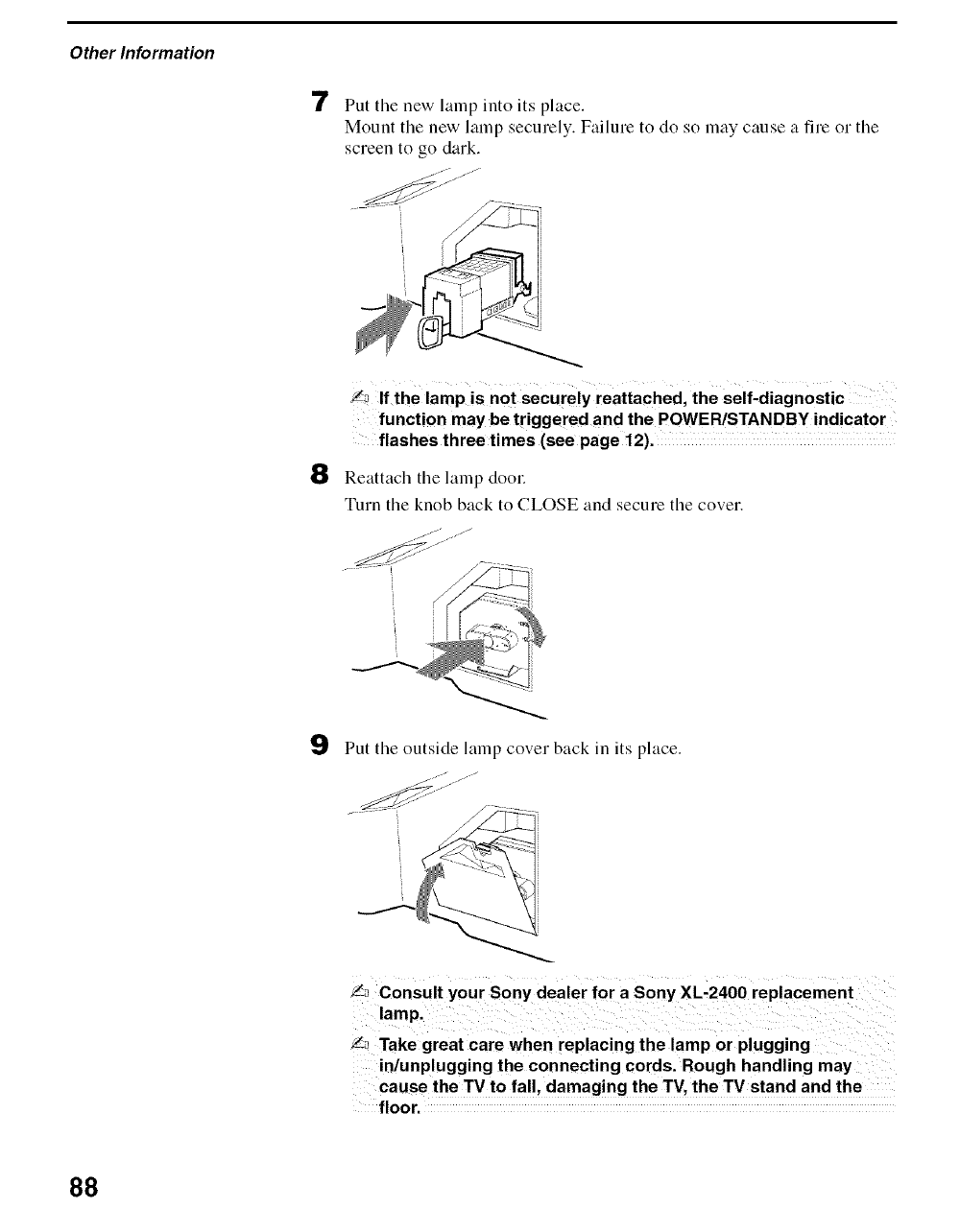
Other Information
7 Put tile new lamp into its place.
Mount tile new lamp securely. Failure to do so may cause a fire or tile
screen to go dark.
/_ If the lamp is not securely reattached, the self-diagnostic
function may be triggered and the POWER/STANDBY indicator
flashes three times (see page 12).
8Reattach the lamp dool:
Turn tile knob back to CLOSE and secure tile cover.
9Put tile outside lamp cover back in its place.
_Take great care when replacing the lamp or plugging
in!unplugging the connecting cords. Rough handling may
cause the TV to fall, damaging the TV, the TV stand and the
floor.
88
Other Information
The used lamp
This product contains mercury. Disposal of this product may be regulated if
sold in the United States. For disposal or recycling information, please
contact your local authorities or the Electronics Industries Alliance
(htt p://www.eiae.org).
[] Do not leave the used lamp near flammable materials or within the
reach of children.
[] Do not pour water onto the used lamp or put any object inside the lamp.
Doing so may cause the lamp to burst.
For replacement lamp information visit:
U. S. residents: http://www.sonystyle.confftv/
Canadian residents: http://www.sonystyle.ca/tv/
o
5"
o
89
Other Information
Troubleshooting
Remote Control
Remote control does not [_ The batteries could be weak. Replace the batteries.
operate [_ Check the orientation of the batteries.
[_ Press TV (FUNCTION) once, and the TV indicator lights up. You may have
inadvertently pressed SAT/CABlE (FUNCTION), which changes the remote
control to SAT or CABLE mode.
[_ Make sure this nnit's power cord is connected securely to the wall outlet.
[_ Install the unit at least 3-4 feet away from fluorescent lights.
[_ If the "High Temperature Warning !" message appears, turn off the TV and wait
until the TV's projection lamp cools clown (approximately 5 minutes). If the
remote control still does not work, make sure to dust the ventilation slots on the
rear of the TV and the cooling fan to provide adeqnate ventilation around the TV.
Cannot change channels with [_ If you are using the TV to change channels, first press TV (FUNCTION) once,
the remote control and the TV indicator lights up.
[_ If you are using another device to change channels, be sure you have not
inadvertently switched yonr TV from the channel 3 or 4 setting.
[_ If you are using another device to change channels, be sure to press FUNCTION
for that device. For example, if you are using your cable box to change channels,
be sure to press SAT/CABlE (FUNCTION) once, and the SAT/CABLE indicator
lights up.
Remote control does not [_ If you replaced the batteries to the remote recently, the code numbers for the video
operate non-Sony video eqnipment may need to be reset.
equipment [_ There may be more than one code for the equipment that you are attempting to
operate.
I_ There is a possibility that some non-Sony eqnipment cannot be operated by your
Sony TV remote. You may need to use the equipment's original remote control.
CableCARD Device
Problems using CableCARD I_ Check that the CableCARD is inserted properly (see pages 30-31).
device or CableCARD services [_ The CableCARD device must be activated by your local cable TV provider before
you can receive digital cable TV services. See the activation instructions on pages
pages 30-31.
I_ Check the Diagnostics and CableCARD setting options (see page 84). (This can
be useful in providing information to an authorized technician or repair person.)
[21 Contact your c_ble TV provider.
90
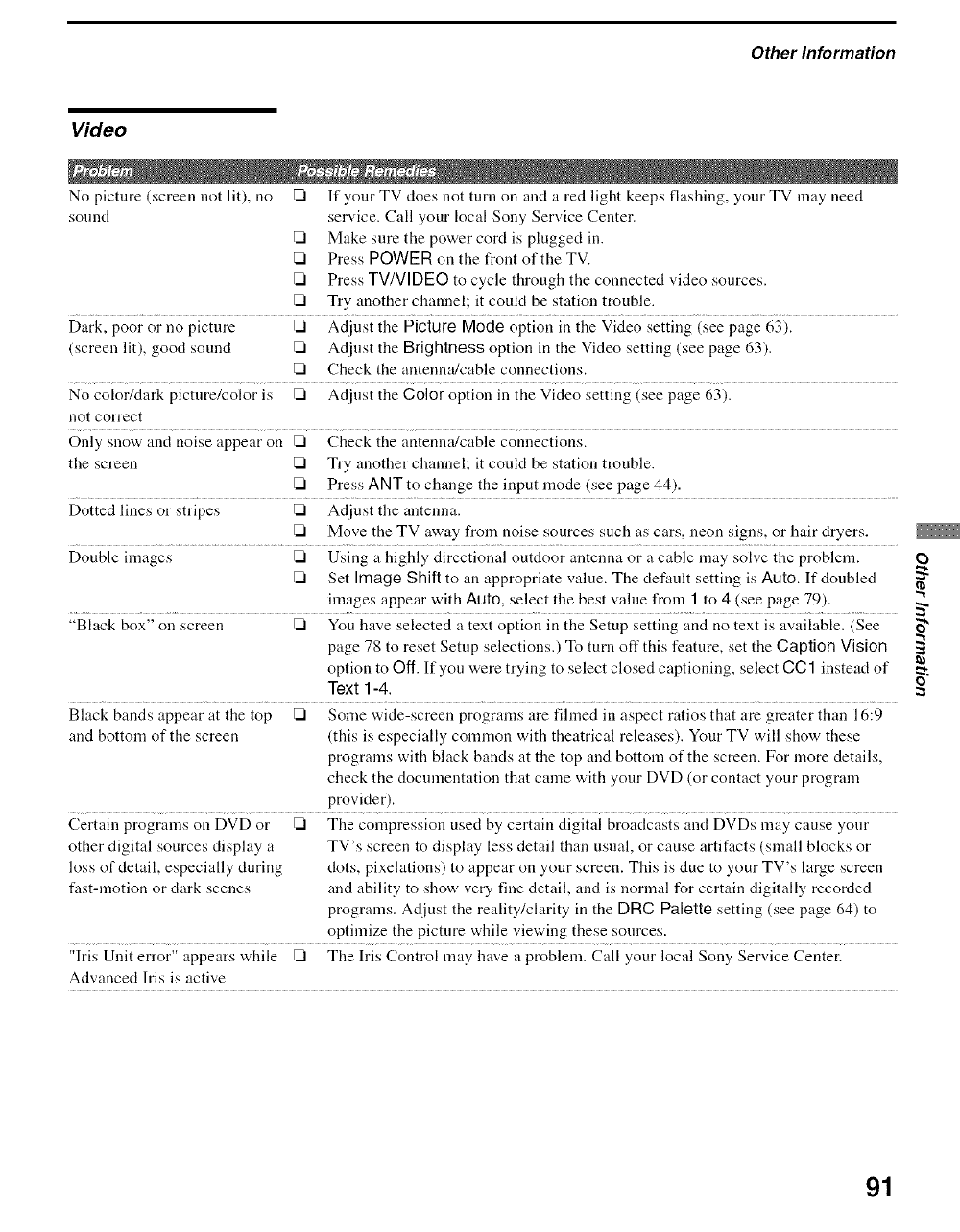
Other Information
Video
No picture (screen not lit), no _ If your TV does not turn on and a red light keeps flashing, your TV may need
sound service. Call your local Sony Service Center.
Make sure the power cord is plugged in.
Press POWER on the front of the TV.
[_ Press TV/VI DEO to cycle through the connected video sources.
[_ Try another channel; it could be station trouble.
Dark, poor or no picture _ Adjust the Picture Mode option in the Video setting (see page 63).
(screen lit), good sound _ Adjust the Brightness option in the Video setting (see page 63).
Check the antenna/cable connections.
No color/dark picture/color is _ Adjust the Color option in the Video setting (see page 63).
not correct
Only snow and noise appear on _ Check the antenna/cable connections.
the screen [_ Try another channel; it coukt be station trouble.
[_ Press ANT to change the input mode (see page 44).
Dottedlines or stripes _ Adjust the antenna.
[_ Move the TV away l¥om noise sources such as cars, neon signs, or hair dryers.
Double images _ Using a highly directional outdoor antenna or a cable may soh.'e the problem.
[_ Set Image Shift to an appropriate value. The default setting is Auto. If doubled
images appear with Auto, select the best value l¥om ] to 4 (see page 79).
"Black box" on screen _ You have selected a text option in the Setup setting and no text is available. (See
page 78 to reset Setup selections.) To turn off this feature, set the Caption Vision
option to Off. If you were trying to select closed captioning, select CC] instead of
Text 1-4.
Black bands appear at the top _ Some wide-screen programs are fihned in aspect ratios that are greater than 16:9
and bottom of the screen (this is especially common with theatrical releases). Your TV will show these
programs with black bands at the top and bottom of the screen. For more details,
check the documentation that came with your DVD (or contact your program
provider).
Certain programs on DVD or _ The compression used by certain digital broadcasts and DVDs may cause your
other digital sources display a TV's screen to display less detail than usual, or cause artifacts (small blocks or
loss of detail, especially during clots, pixelations) to appear on your screen. This is due to your TV's large screen
fast-motion or clark scenes and ability to show very fine detail, and is normal for certain digitally recorded
programs. Adjust the reality/clarity in the DRC Palette setting (see page 64) to
optimize the picture while viewing these sources.
"Iris Unit error" appears while _ The Iris Control may have a problem. Call your local Sony Service Center.
Advanced Iris is active
O
o
91
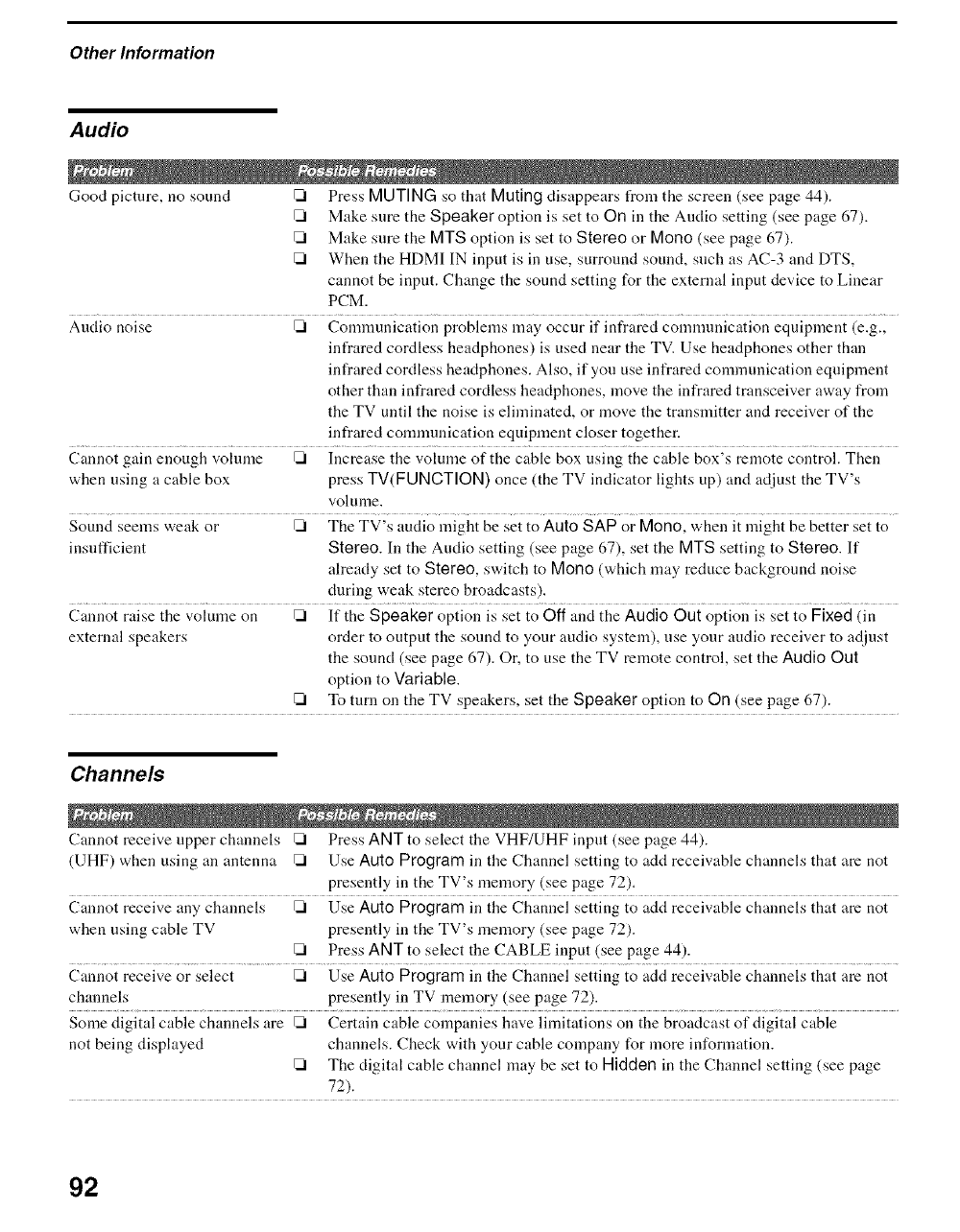
Other Information
Audio
Good picture, no sound [_ Press MUTING so that Muting disappears t}om the screen (see page 44).
[_ Make sure the Speaker option is set to On ill the Audio setting (see page 67).
[_ Make sure the MTS option is set to Stereo or Mono (see page 67).
I_ When the HDMI IN input is in use, surround sound, such as AC-3 and DTS,
cannot be input. Change the sound setting for the external input device to Linear
PCM.
Audio noise [_ Communication problems may occur if infrared conmmnication equipment (e.g.,
infrared cordless headphones) is used near the TV. Use headphones other than
infrared cordless headphones. Also, if you use infrared communication equipment
other than infrared cordless headphones, move the infrared transceiver away from
the TV until the noise is eliminated, or move the transmitter and receiver of the
infrared communication equipment closer together.
Cannot gain enough volume [_ Increase the volume of the cable box using the cable box's remote control. Then
when using a cable box press TV(FUNCTION) once (the TV indicator lights up) and adjust the TV's
volume.
Sound seems weak or [_ The TV's audio nfight be set to Auto SAP or Mono, when it might be better set to
insufficient Stereo. In the Audio setting (see page 67), set the MTS setting to Stereo. If
already set to Stereo, switch to Mono (which may reduce background noise
during weak stereo broadcasts).
Cannot raise the volume on [_ If the Speaker option is set to Off and the Audio Out option is set to Fixed (in
external speakers order to output the sound to your audio system), use your audio receiver to adjust
the sound (see page 67). Or, to use the TV remote control, set the Audio Out
option to Variable.
[21 To turn on the TV speakers, set the Speaker option to On (see page 67).
Channels
Cannot receive upper channels [_ Press ANT to select the VHF/UHF input (see page 44).
(UHF) when using an antenna [_ Use Auto Program in the Channel setting to add receivable channels that are not
presently in the TV's memory (see page 72).
Cannot receive any channels [_ Use Auto Program in the Channel setting to add receivable channels that are not
when using cable TV presently in the TV's memory (see page 72).
[21 Press ANT to select the CABLE input (see page 44).
Cannot receive or select I_ Use Auto Program in the Channel setting to add receivable channels that are not
channels presently in TV memory (see page 72).
Some digital cable channels are [_ Certain cable companies have limitations on the broadcast of digital cable
not being displayed channels. Check with your cable company for more information.
[_ The digital cable channel may be set to Hidden in the Channel setting (see page
72).
92
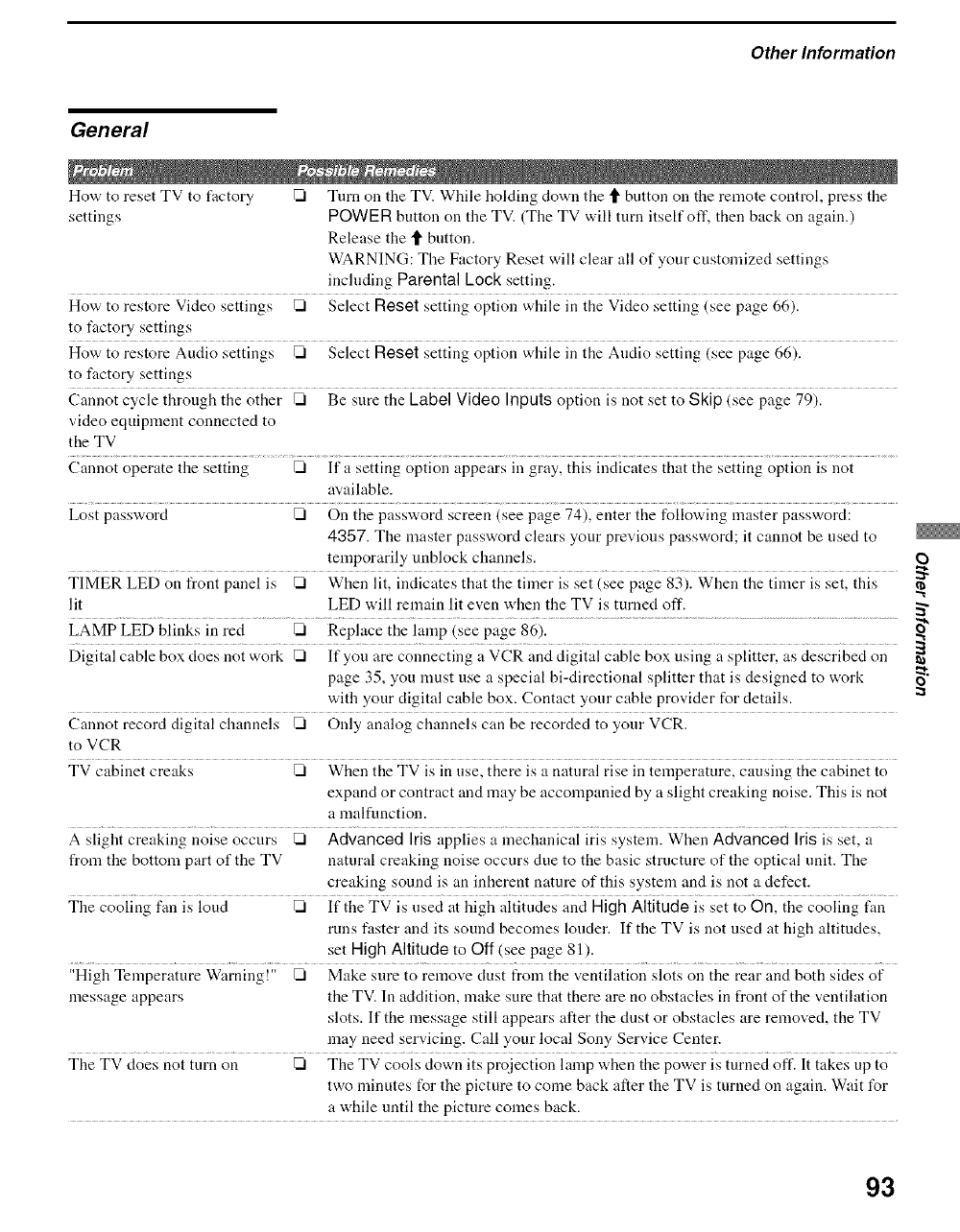
Other Information
General
How to reset TV to Ii_ctory _ Turn on the TV. While holding down the t button on the remote control, press the
settings POWER button on the TV. (The TV will turn itself off, then back on again.)
Release the t button.
WARNING: The Factory Reset will clear all of your customized settings
including Parental lock setting.
How to restore Video settings _ Select Reset setting option while in the Video setting (see page 66).
to Ii/ctory settings
How to restore Audio settings _ Select Reset setting option while in the Audio setting (see page 66).
to factory settings
Cannot cycle through the other _ Be sure the Label Video Inputs option is not set to Skip (see page 79).
video equipment connected to
the TV
Cannot operate the setting _ If a setting option appears in gray, this indicates that the setting option is not
available.
Lost password _ On the password screen (see page 74), enter the following master password:
4:357. The master password clears your previous password; it cannot be used to
temporarily unblock channels.
TIMER LED on front panel is _ When lit, indicates that the timer is set (see page 83). When the timer is set, this
lit LED will remain lit even when the TV is turned off.
LAMP LED blinks in red _ Replace the !!}111p(see puge 86). ...................
Digital cable box does not work _ If you are connecting a VCR and digital cable box using a splitter, as described on
page .35, you must use a special bi-directioual splitter that is designed to work
with your digital cable box. Contact your cable provider for details.
Cannot record digital channels _ Only analog channels can be recorded to your VCR.
to VCR
TV cabinet creaks _ When the TV is in use, there is a natural rise in temperature, causing the cabinet to
expand or contract and may be accompanied by a slight creaking noise. This is not
a malfunction.
A slight creaking noise occurs _ Advanced Iris applies a mechanical iris system. When Advanced Iris is set, a
from the bottom part of the TV natural creaking noise occurs due to the basic structure of the optical unit. The
cre_tking sound is an inherent nature of this system and is not a defect.
The coolingf.n is ioud _ if ihe TV is ;;seciai high _,iiiiiicies;_n_iHigh Aiiiiud; is sei io 6nl ihe cooiin_f_,n
runs faster and its sound becomes louder. If the TV is not used at high altitndes,
set High Altitude to Off (see page 81).
"High Temperature Warning!" _ Make sure to remove (lust from the ventilation slots on the rear and both sides of
message appears the TV. In addition, make sure that there are no obstacles in front of the ventilation
slots. If the message still appears aller the dust or obstacles are removed, the TV
may need servicing. Call your local Sony, Service Center.
The TV does n0i turn on a The TV cools d0;,n its projection lmnp when the power is turned oft'. It takes Up to
two minutes for the picture to come back after the TV is turned on again. Wait for
a while until the picture comes back.
O
o
93
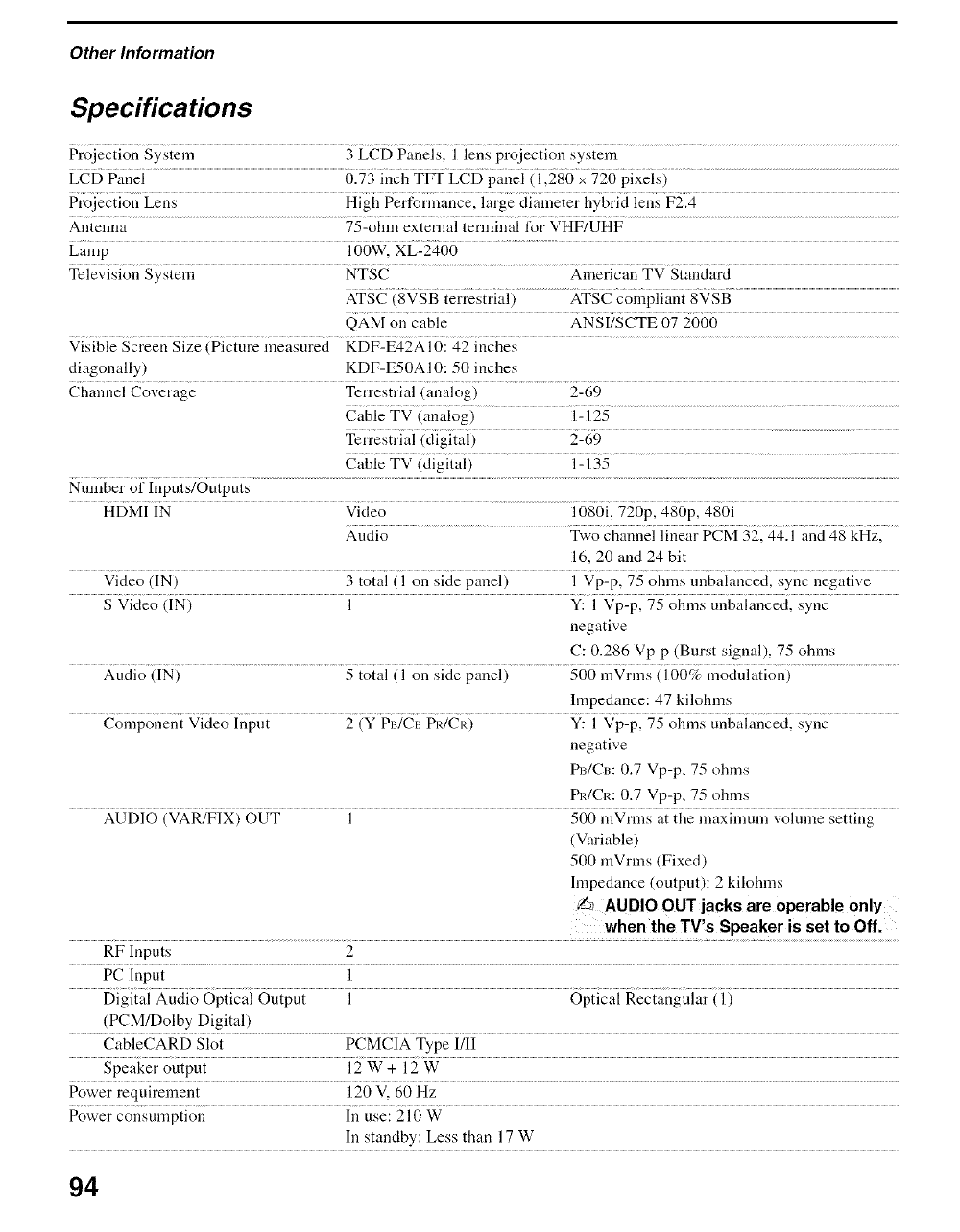
Other Information
Specifications
Projection System 3 LCD Paneisl i iens projeciion sysiei_a ........
LCD Panel 0.73 inch TFT LCD panel (1,280 x 720 pixels)
Projection Lens High Perfonnance, large diameter hybrid lens F2.4
Antenna 75-ohm external terminal %r VHF/UHF
Lamp..... i00Wl X_2_00 ..................................
Television System NTSC American TV Standard
ATSC (8VSB terrestrial) ATSC compliant 8VSB
QAM on cable ANSI/SCTE 07 2000
diagonally) KDF-E50A 10:50 inches
Channel Coverage Terrestrial (analog) 2-69
Cable TV (analog) 1-125
Terrestrial (digital) 2-69
Cable TV (digital) 1- 135
Nnmber of Inpnts/Outputs
.................................................... i6_6i "Z26pl4_6pi 4S6i
HDMI IN Video
Audio T_;o chiinnei ihlear PCM 3_ 44 i and 48 kHz
16, 20 and 24 bit
Video.... (IN) 3{o{ai{i on sidepanei) i %2p275_oIn_{s{;;qg_,i;{ncecisyncnega{i<:e
S Vkteo (IN) 1 Y: I Vp-p, 75 ohms unbalanced, sync
negative
C: 0.286 Vp-p (Burst signal), 75 ohms
Audio...................................................................................(IN) g{o{iii{i on sidepaneii............................566;i{Vri{_s{i66g ;i_o_iGi.{ioni.............................................................
hnpedance: 47 kilohms
Component Video Input 2 (Y PB/CI_PR/CR) Y: I Vp-p, 75 ohms unbalanced, sync
negative
P_#Cm 0.7 Vp-p, 75 ohms
PR/CR: 0.7 Vp-p, 75 ohms
AUDIO (VAR/FIX) OUT 1 500 mVrms at the maximum volume setting
(Variable)
500 mVrms (Fixed)
hnpedance (outpnt): 2 kilohms
_'_ AUDIO OUT jacks are operable only
when the TV,s Speaker is set to Off.
RF Inputs 2
PC Input 1
Digital Audio Optical Output 1 Optical Rectangular ( 1)
(PCM/Dolby Digital)
CableCARD Slot PCMCIA Type IIII
Speaker output 12 W + 12 W
Power.................................................requirement i 20 V. 60 Hz ..................................................................................................................................................................
Power consumption In use: 210 W
In standby: Less than 17 W
94
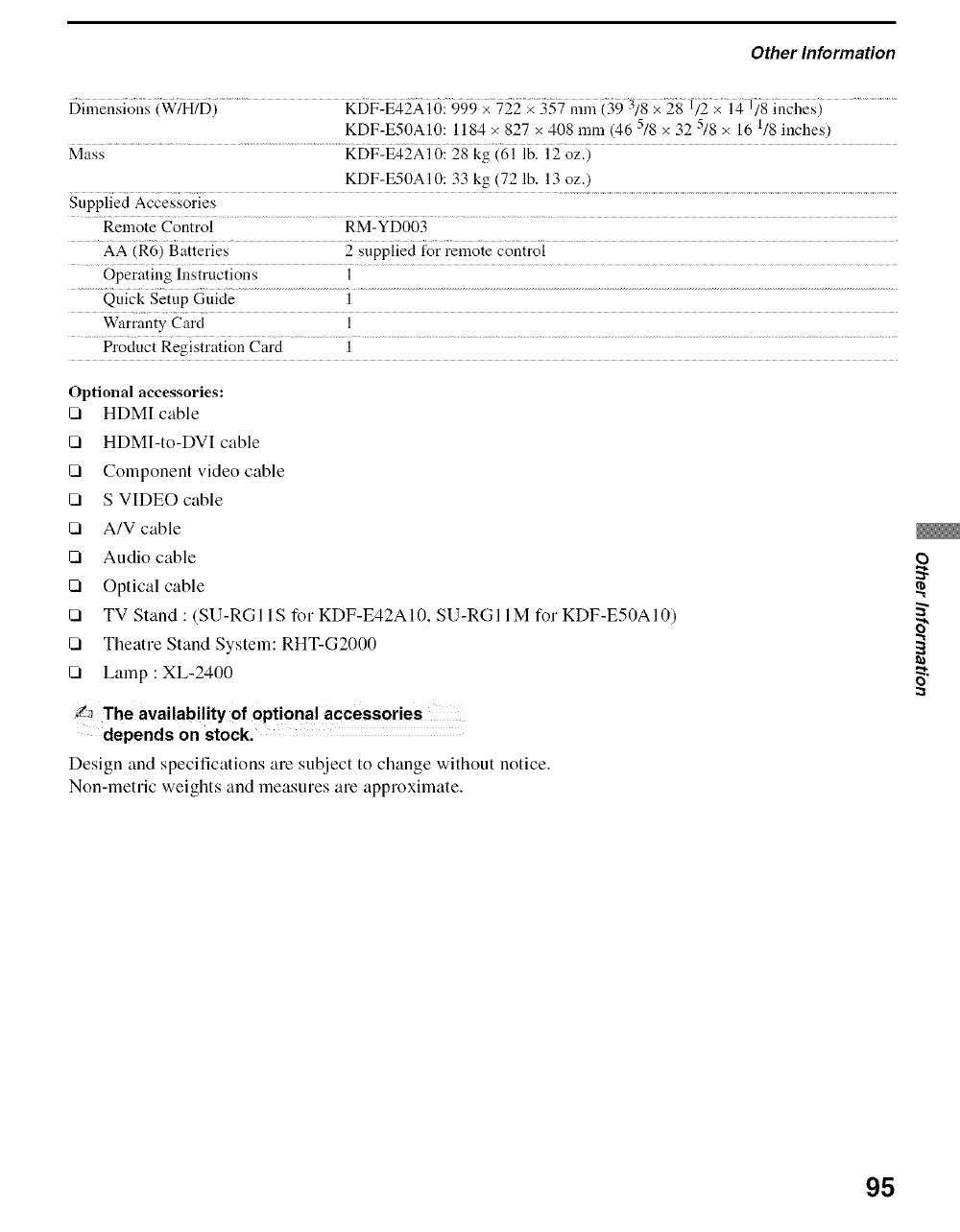
Other Information
Dimensions.........................................(W/H/D) K[)F:_2Ai0:999 ii_il_ (39 3_8 i)8 inci{esi ......................
KDF-E50AI0:1184 × 827 x 408 mm (46 5/8 x 32 5/8 × 16 1/8 inches)
Mass KDF-E42AI0:28 kg (61 lb. 12 oz.)
KDF-E50AI0:33 kg (72 lb. 13 oz.)
Supplied Accessories
Remote Control RM-YD003
AA (R6) Batteries 2 supplied tbr remote control
Operating Instructions 1
Qnick Setup Guide 1
Warranty Card 1
Product Registration Card 1
Optional accessories:
[]
[]
[]
[]
[]
[]
[]
[]
[]
[]
HDMI cable
HDMI-to-DVI cable
Component video cable
S VIDEO cable
A/V cable
Audio cable
Optical cable
TV Stand : (SU-RG 11S for KDF-E42A 10, SU-RG 11M for KDF-E50A 10)
Theatre Stand System: RHT-G2000
Lamp : XL-2400
Y_ The availability of optional accessor es
depends on stock.
Design and specifications are subject to change without notice.
Non-metric weights and measures are approximate.
O
o
95
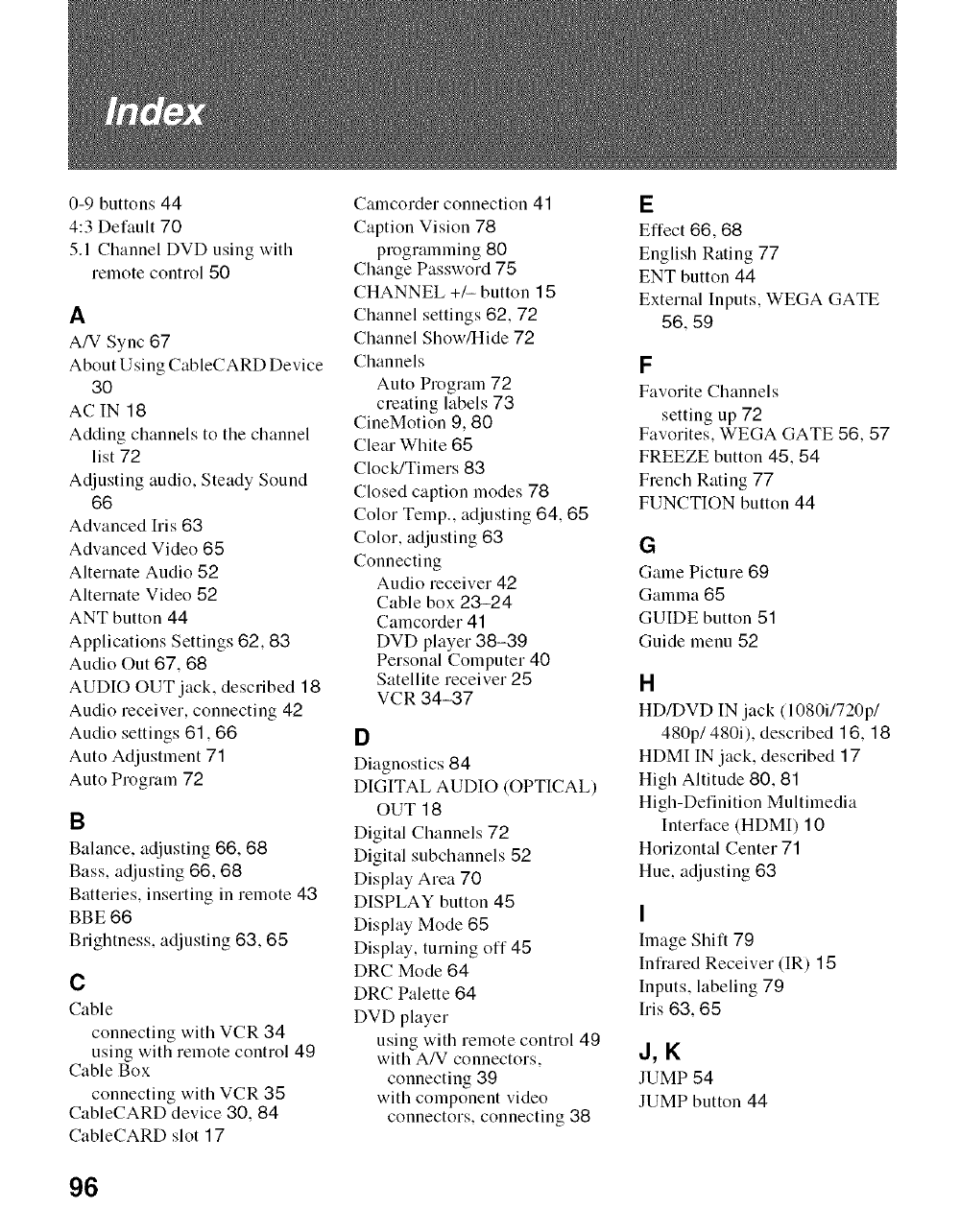
0-9 buttons 44
4:3 Default 70
5.1 Channel DVD using with
remote control 50
A
A/V Sync 67
About Using CableCARD Device
30
AC IN 18
Adding channels to the channel
list 72
Adjusting audio, Steady Sound
66
Advanced Iris 63
Advanced Video 65
Alternate Audio 52
Alternate Video 52
ANT button 44
Applications Settings 62, 83
Audio Out 67, 68
AUDIO OUT jack, described 18
Audio receiver, connecting 42
Audio settings 61,66
Auto Adjustment 71
Auto Program 72
B
Balance, adjusting 66, 68
Bass, adjusting 66, 68
Batteries, inserting in remote 43
BBE 66
Brightness, adjusting 63, 65
C
Cable
connecting with VCR 34
using with remote control 49
Cable Box
connecting with VCR 35
CableCARD device 30, 84
CableCARD slot 17
Camcorder connection 41
Caption Vision 78
programming 80
Change Password 75
CHANNEL +/- button 15
Channel settings 62, 72
Channel Show/Hide 72
Channels
Auto Program 72
creating labels 73
CineMotion 9, 80
Clear White 65
Clock/Timers 83
Closed caption modes 78
Color Temp., adjusting 64, 65
Color, adjusting 63
Connecting
Audio receiver 42
Cable box 23-24
Camcorder 41
DVD player 38-39
Personal Computer 40
Satellite receiver 25
VCR 34-37
D
Diagnostics 84
DIGITAL AUDIO (OPTICAL)
OUT 18
Digital Channels 72
Digital subchannels 52
Display Area 70
DISPLAY button 45
Display Mode 65
Display, turning off 45
DRC Mode 64
DRC Palette 64
DVD player
using with remote control 49
with A/V connectors,
connecting 39
with component video
connectors, connecting 38
E
Effect 66, 68
English Rating 77
ENT button 44
External Inputs, WEGA GATE
56, 59
F
Favorite Channels
setting up 72
Favorites, WEGA GATE 56, 57
FREEZE button 45, 54
French Rating 77
FUNCTION button 44
G
Game Picture 69
Gamma 65
GUIDE button 51
Guide menu 52
H
HD/DVD IN jack (1080i1720p1
480p1480i), described 16, 18
HDMI IN jack, described 17
High Altitude 80, 81
High-Definition Multimedia
Interface (HDM[) 10
Horizontal Center 71
Hue, adjusting 63
I
Image Shift 79
Infiared Receiver (IR) 15
Inputs, labeling 79
Iris 63, 65
J,K
JUMP 54
JUMP button 44
96
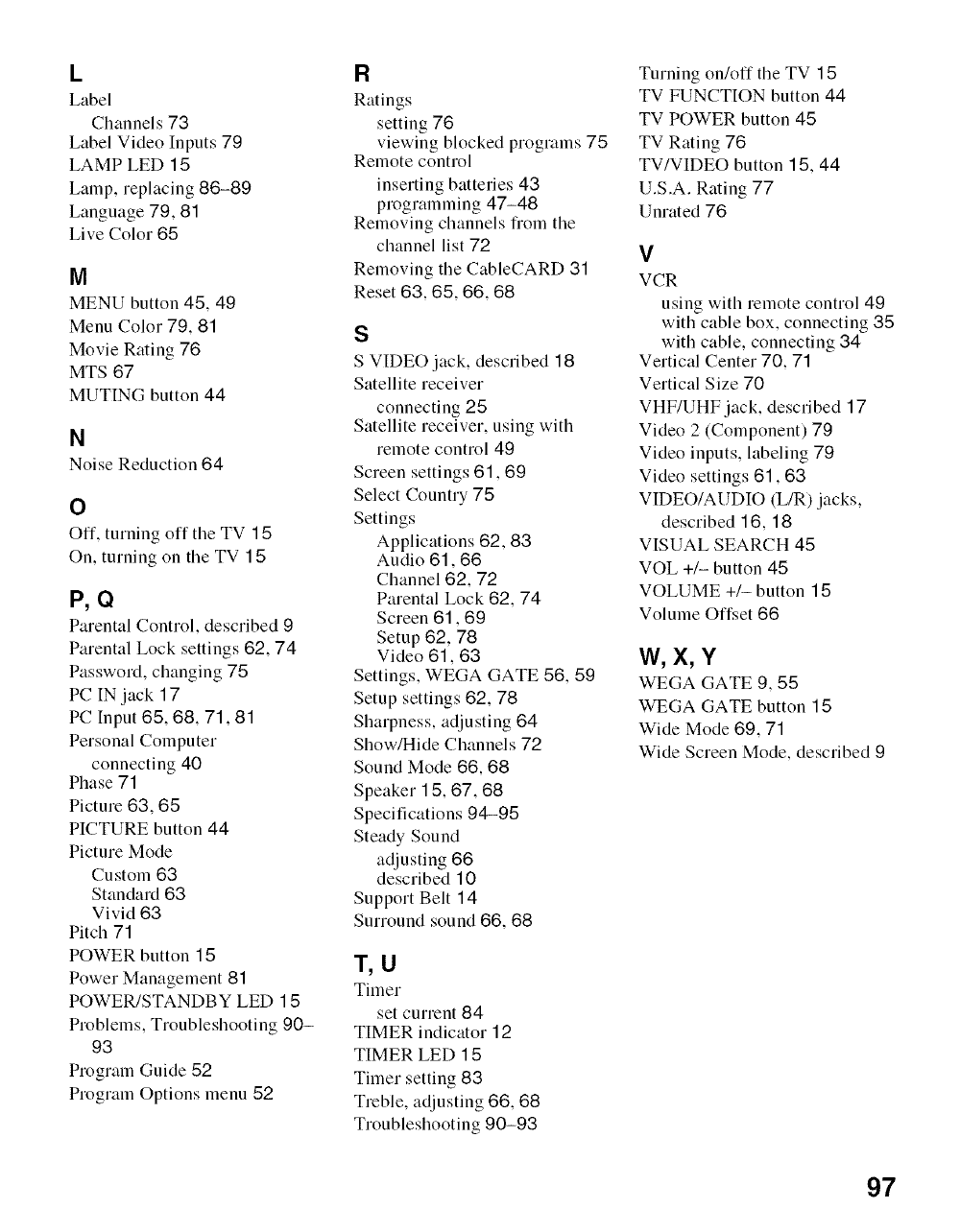
L
Label
Channels 73
Label Video Inputs 79
LAMP LED 15
Lamp, replacing 86-89
Language 79, 81
Live Color 65
IV!
MENU button 45, 49
Menu Color 79, 81
Movie Rating 76
MTS 67
MUTING button 44
N
Noise Reduction 64
O
Off, turning off the TV 15
On, turning on the TV 1 5
P, Q
Parental Control, described 9
Parental Lock settings 62, 74
Password, changing 75
PC IN jack 17
PC Input 65, 68, 71,81
Personal Computer
connecting 40
Phase 71
Picture 63, 65
PICTURE button 44
Picture Mode
Custom 63
Standard 63
Vivid 63
Pitch 71
POWER button 15
Power Management 81
POWER/STANDBY LED 15
Problems, Troubleshooting 90-
93
Program Guide 52
Program Options menu 52
R
Ratings
setting 76
viewing blocked programs 75
Remote control
inserting batteries 43
programming 47-48
Removing channels tiom the
channel list 72
Removing the CableCARD 31
Reset 63, 65, 66, 68
$
S VIDEO jack, described 18
Satellite receiver
connecting 25
Satellite receiver, using with
remote control 49
Screen settings 61,69
Select Country 75
Settings
Applications 62, 83
Audio 61, 66
Channel 62, 72
Parental Lock 62, 74
Screen 61,69
Setup 62, 78
Video 61,63
Settings, WEGA GATE 56, 59
Setup settings 62, 78
Sharpness, adjusting 64
Show/Hide Channels 72
Sound Mode 66, 68
Speaker 15, 67, 68
Specifications 94-95
Steady Sound
adjusting 66
described 10
Support Belt 14
Surround sound 66, 68
T, U
Timer
set current 84
TIMER indicator 12
TIMER LED 15
Timer setting 83
Treble, adjusting 66, 68
Troubleshooting 90-93
Turning on/off the TV 15
TV FUNCTION button 44
TV POWER button 45
TV Rating 76
TV/VIDEO button 15, 44
U.S.A. Rating 77
Unrated 76
V
VCR
using with remote control 49
with cable box, connecting 35
with cable, connecting 34
Vertical Center 70, 71
Vertical Size 70
VHF/UHF jack, described 17
Video 2 (Component) 79
Video inputs, labeling 79
Video settings 61,63
VIDEO/AUDIO (L/R) jacks,
described 16, 18
VISUAL SEARCH 45
VOL +/- button 45
VOLUME +/- button 15
Volume Offset 66
W, X, Y
WEGA GATE 9, 55
WEGA GATE button 15
Wide Mode 69, 71
Wide Screen Mode, described 9
97



2597544121 http ://www. sony. net/
Printed in U,S,A,
