Sony KDL 40HX800 User Manual LCD TELEVISION Manuals And Guides 1006930L
User Manual: Sony KDL-40HX800 KDL-40HX800 SONY LCD TELEVISION - Manuals and Guides View the owners manual for your SONY LCD TELEVISION #KDL40HX800. Home:Electronics Parts:Sony Parts:Sony LCD TELEVISION Manual
Open the PDF directly: View PDF  .
.
Page Count: 24
S ON'&r_ 4-180-193-11 (1)
LCD
Digital Color TV
Setting up your TV
To watch TV
Additional Information
BR IA
Sony Customer Support
U.S.A.: www.sony.com/tvsupport
Canada: www.sony.ca/support
United States Canada
1.800.222.SONY 1.877.899.SONY
Please Do Not Return
the Product to the Store
Owner's Record
The inli)rmation label are located on the
rear of the TV. Record model name and
serial numbers on the infimnation label
in the spaces provided below. Relier to
them whenever you call upon your
Sony dealer regarding this TV.
Model Name
Serial No,
CAUTION
To prevent electric shock and blade exposure,
do not use this polarized AC plug with an
extension cord, receptacle or other outlet
unless the blades can be lhlly inserted.
• Operate the TV only on 110-240 V
AC (U.S.A./Canada 120 V AC)
• Avoid operating the TV at
temperatures below 41°F (5°C).
• Some people may experience
discomfort (such as eye strain,
fatigue, or nausea) while watching
3D video images or playing 3D
video games. Sony recommends that
all viewers take regular breaks while
watching 3D video images or
playing 3D video gaines. The length
and frequency of necessary breaks
will vary from person to person. You
must decide what works best. If you
experience any discomfort, you
should stop watching the 3D video
images or playing 3D video games
until the discomfort ends; consult a
doctor if you believe necessary. You
should also review (i) the instruction
manual of any other device or media
used with this television and (ii) our
website (www.sony.com/tvsupport)
for the latest information. The vision
of young children (especially those
under six years old) is still under
development. Consult your doctor
(such as a pediatrician or eye doctor)
before allowing young children to
watch 3D video images or play 3D
video gaines. Adults should
supervise young children to ensure
they follow the recommendations
listed above.
• When using the simulated 3D
function, please note that the
displayed image is modified from
the original due to the conversion
done by this television.
Licensing Information
Macintosh is a trademark of Apple Inc.,
registered in the U.S. and other countries.
HDMI. the HDMI Logo, and High-Definition
Multimedia Interface are trademarks or
registered trademarks of HDMI Licensing
LLC in the United Stales and other countries.
Fergason Patent Properties, LLC:
U.S. Pment No. 5,717,422
U.S. Pment No. 6,816,141
Manufhctured under license l?om Dolby
Laboratories. Dolby and the double-D
symbol are tradenmrks of Dolby
Laboratories.
In the United States, TV Guide and TV Guide
On Screen are registered tradenmrks of TV
Guide Enterlainment Group, Inc. and/or its
subsidiaries or affiliates, and are used under a
license by Gemstar-TV Guide International,
Inc. and/or its subsidiaries. In Canada, TV
Guide is a registered mark of
Transcontinental lnc., and is used under a
license by Gemstar-TV Guide International,
Inc. and/or its subsidiaries.
The TV Guide On Screen system is
manulhctured under license from Gemstar-
TV Guide International, Inc. and/or its
subsidiaries.
The TV Guide On Screen system is protected
by one or more of the lbllowing United States
patents 6,498,895; 6,850,693; 6,396,546;
5,940,073; 6,239,794 to Gemstar-TV Guide
International. Inc. and/or its subsidiaries.
Gemstar-TV Guide International, Inc. andk)r
its related affiliates are not in any way liable
lbr the accuracy or availabiliu of the program
schedule inlbrmation or other data in the TV
Guide On Screen system and cannot
guarantee service availability in your area. In
no event shall Gemsmr-TV Guide
International, Inc. and/or its related affiliates
be liable fk)rany damages in connection with
the accuracy or availability of the program_
schedule inlbrmation or other data in the TV
Guide On Screen system.
Blu-ray Disc is a trademark.
"BRAVIA" and B RAV IA, S-Force,
Motionflow, BRAVIA Sync, and [] are
trademarks or registered marks of Sony
Corporalion.
"XMB_"and "xross media bar" are
tradenmrks of Sony Corporation and Sony
Computer Entertainment Inc.
"PlayStation" is a registered trademark and
"PS3" is a trademark of Sony Computer
Entertainment Inc.
DLNA _),the DLNA Logo and DLNA
CERTIFIED _)are tradenmrks, service marks,
or certificalion marks of the Digital Living
Network Alliance. moo,BYo
........................... D|G|TAL ]
HE:3m|
Your BRAVIA TV is
ENERGY STAR° qualified
in the "Home" mode.
It meets strict energy
efficiency guidelines set by :l_NIt_'Ig'if.'!ll
the U.S. Environmental
Protection Agency and
Department of Energy. ENERGY STAR is a
joint program of these govermnent agencies.
designed to promote energy efficient products
and practices.
Changes to certain ligatures, settings, and
fimctionalities of this TV (i.e. TV Guide,
Picture/Sound, Light Sensor, Power Savings)
can increase or change the power
COllSunlptioi1.
Depending upon such changed settings, the
power consumption may exceed the limits
required [k)r the ENERGY STAR
qualification in the "Home" mode.
The 55 class has a 54.6 inch viewable
image size (measured diagonally).
• The illustrations of the remote
control used in this manual are of the
RM-YD040 unless otherwise stated.
• The illustrations used in this manual
may differ depending on your TV
model.
2
Table of Contents
Checking the accessories .............................................................................................................. 4
Inserting batteries into the remote control ..................................................................................... 4
Setting up your TV
Attaching the Table-Top Stand ...................................................................................................... 6
Connecting the TV ......................................................................................................................... 8
Securing the TV ........................................................................................................................... 12
Organizing the AC power cord .................................................................................................... 13
Running initial setup .................................................................................................................... 14
Detaching the Table-Top Stand from the TV ............................................................................... 14
Using a Wall-Mount Bracket ........................................................................................................ 15
Installing the TV Against a Wall or Enclosed Area ...................................................................... 15
To watch TV
To watch programs ...................................................................................................................... 16
To use the TV features ................................................................................................................ 16
To use i-Manual ........................................................................................................................... 17
Additional Information
Troubleshooting ........................................................................................................................... 18
Specifications .............................................................................................................................. 20
* Operating instructions are built into your BRAVIA TV. Refer to "To use i-Manual" for operation (page 17).
* Retain this manual for future reference.
The BRAVIA ®Full HDTV Experience
Thank you for choosing Sony! Your new BRAVIA °_TV
opens the door to the "Full HDTV Experience." This
document will help you get the most out of your TV.
Please take a moment to register your TV at:
U.S.A.: http://productregistration.sony.com
Canada: http://www.SonyStyle.ca/registration
Four Steps to a Full HD Experience
Set, Source, Sound, and Setup.
1 set
Now that you have made the best selection in LCD TV
technology, be sure to remove all accessory contents
fi'om the packaging before setting up your TV.
2Source
To experience the stunning detail of your BRAVIA TV,
ou need access to HD programming.
Upgrade your signal or content source to high-
definition (HD) by contacting your HD service
provider.
• Receive over-the-air HD broadcasts with an HD-
quality antenna connected directly to the back of your
TV.
Visit www.antennaweb.org for more
information on antenna selection and setup.
• Discover the wealth of entertainment now available
on super-high resolution Blu-ray Disc "IVplayer and
other Sony HD equipment.
3Sound
Complete the high-definition experience with a
BRAVlA Sync TM surround sound system or A/V
receiver from Sony.
4Setup
Install your TV and connect your sources. See page 8 for
sample connection diagrams.
To help assure the highest quality for your HD experience,
use Sony HDMI (High-Definition Multimedia Interface)
cables.
To learn more about HDTV, visit:
U.S.A.: http://www.sony.com/HDTV
Canada: http://www.SonyStyle.ca/hd
7his TV displays all video input signals in a resolution of 1,920 dots x 1,080 lines.
3
Checking the accessories
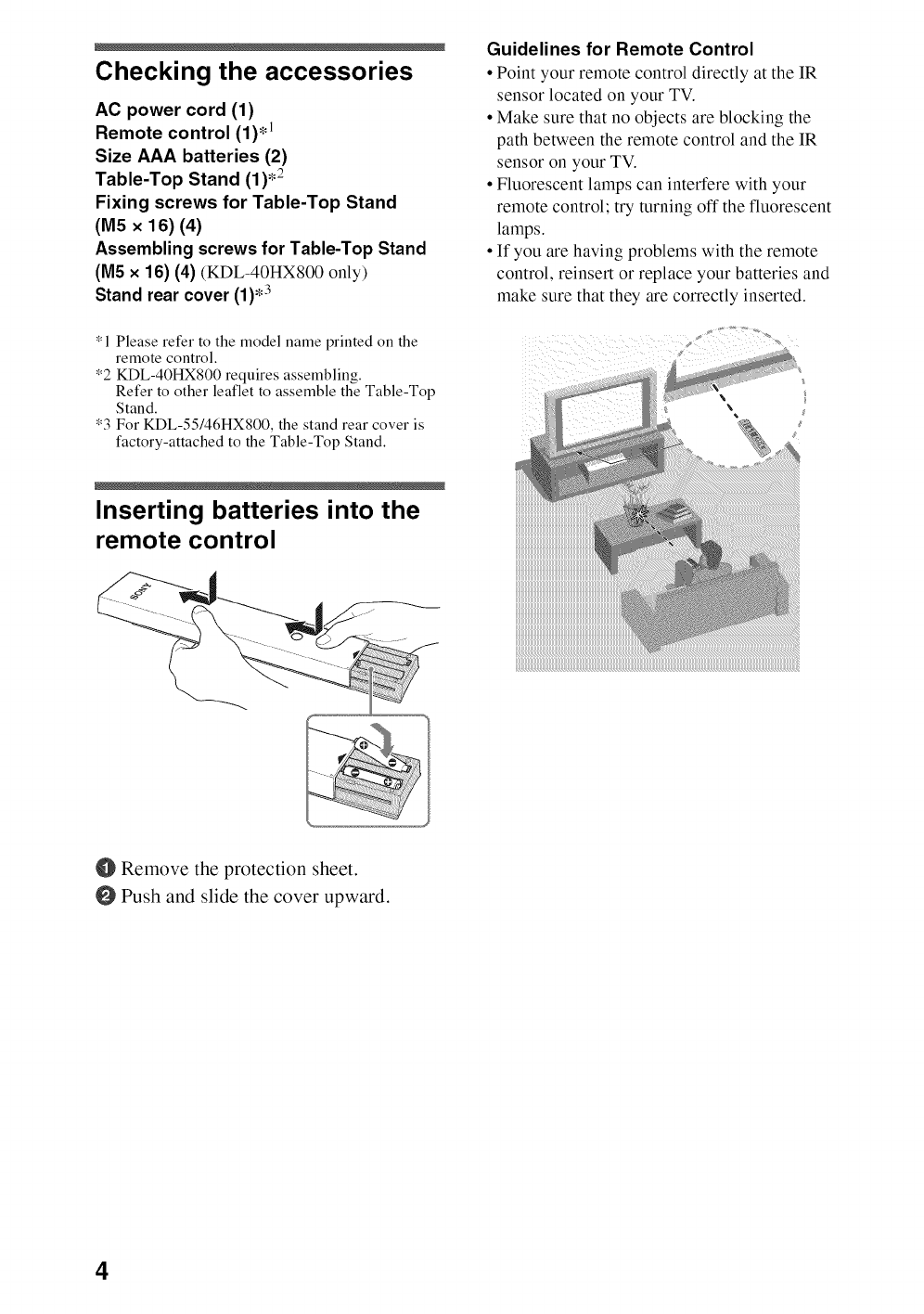
AC power cord (1)
Remote control (1)*_
Size AAA batteries (2)
Table-Top Stand (1),2
Fixing screws for Table-Top Stand
(M5 x 16) (4)
Assembling screws for Table-Top Stand
(M5 x 16) (4) (KDL-40HX800 only)
Stand rear cover (1)*3
*1 Please refer to the model name printed on the
remote control.
*2 KDL-40HX800 requires assembling.
Refer to other leaflet to assemble the Table-Top
Stand.
*3 For KDL-55146HXS00, the stand rear cover is
factory-attached to the Table-Top Stand.
Guidelines for Remote Control
• Point your remote control directly at the IR
sensor located on your TV.
• Make sure that no objects are blocking the
path between the remote control and the IR
sensor on your TV.
• Fluorescent lamps can interfere with your
remote control; try turning off the fluorescent
lamps.
• If you are having problems with the remote
control, reinsert or replace your batteries and
make sure that they are correctly inserted.
Inserting batteries into the
remote control
O Remove the protection sheet.
Push and slide the cover upward.
4
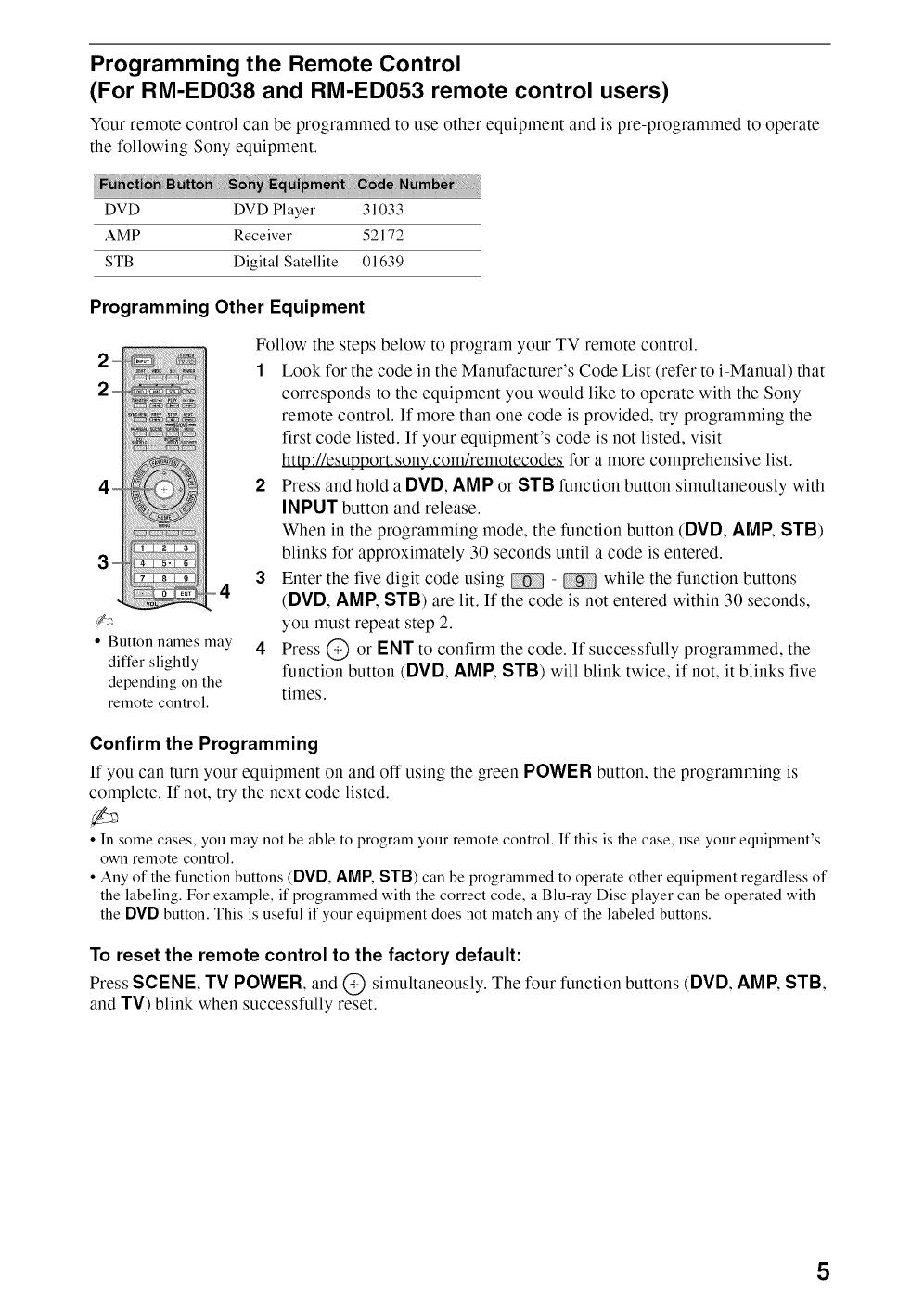
Programming the Remote Control
(For RM-ED038 and RM-ED053 remote control users)
Your remote control can be programmed to use other equipment and is pre-programmed to operate
the following Sony equipment.
DVD DVD Player 31033
AMP Receiver 52172
STB Digital Satellite 01639
Programming Other Equipment
2-- i);i;ii/I
i
3-
_4
I
* Button names may
differ slightly
depending on the
remote control.
Follow the steps below to program your TV remote control.
1Look for the code in the Manufacturer's Code List (refer to i-Manual) that
corresponds to the equipment you would like to operate with the Sony
remote control. If more than one code is provided, try programming the
first code listed. If your equipment's code is not listed, visit
http://esupport.sony.com/remotecodes for a more comprehensive list.
2Press and hold a DVD, AMP or STB function button simultaneously with
INPUT button and release.
When in the programming mode, the function button (DVD, AMP, STB)
blinks for approximately 30 seconds until a code is entered.
3Enter the five digit code using - while the function buttons
(DVD, AMP, STB) are lit. If the code is not entered within 30 seconds,
you must repeat step 2.
4 Press @ or ENT to confirm the code. If successfully programmed, the
function button (DVD, AMP, STB) will blink twice, if not, it blinks five
times.
Confirm the Programming
If you can turn your equipment on and off using the green POWER button, the programming is
complete. If not, try the next code listed.
•In some cases, you may not be able to program your remote control. If this is the case, use your equipment's
own remote control.
• Any of the function buttons (DVD, AMP, STB) can be programmed to operate other equipment regardless of
the labeling. For example, if programmed with the correct code, a Blu-ray Disc player can be operated with
the DVD button. This is useful if your equipment does not match any of the labeled buttons.
To reset the remote control to the factory default:
Press SCENE, TV POWER, and @ simultaneously. The four function buttons (DVD, AMP, STB,
and TV) blink when successfully reset.
5
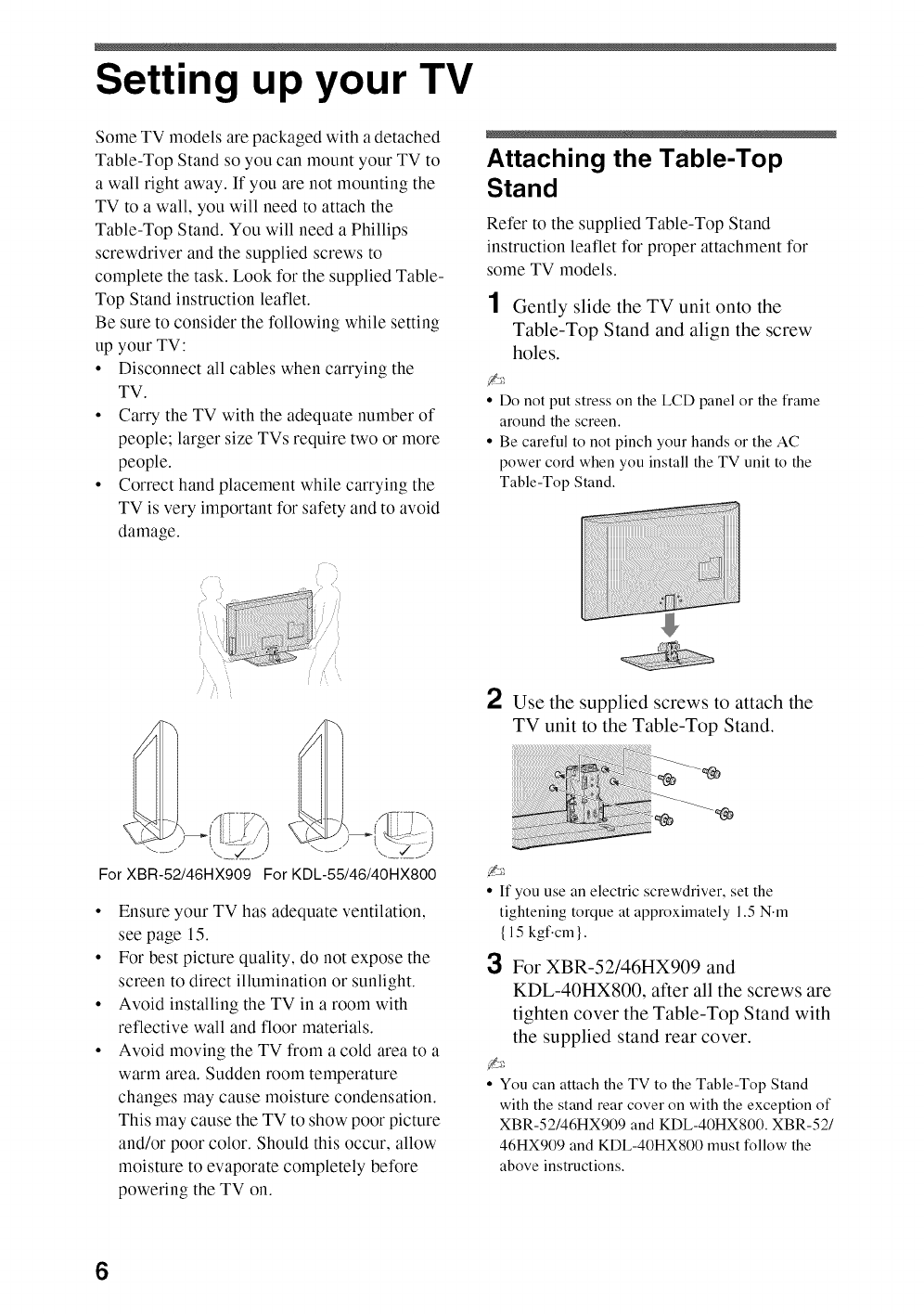
Setting up your TV
Some TV models are packaged with a detached
Table-Top Stand so you can mount your TV to
a wall right away. If you are not mounting the
TV to a wall, you will need to attach the
Table-Top Stand. You will need a Phillips
screwdriver and the supplied screws to
complete the task. Look for the supplied Table-
Top Stand instruction leaflet.
Be sure to consider the following while setting
up your TV:
• Disconnect all cables when carrying the
TV.
• Carry the TV with the adequate number of
people; larger size TVs require two or more
people.
• Correct hand placement while carrying the
TV is very important for safety and to avoid
damage.
Attaching the Table-Top
Stand
Refer to the supplied Table-Top Stand
instruction leaflet for proper attachment for
some TV models.
1Gently slide the TV unit onto the
Table-Top Stand and align the screw
holes.
• Do not put stress on the LCD panel or the frame
around the screen.
° Be careful to not pinch your hands or the AC
power cord when you install the TV unit to the
Table-Top Stand.
2Use the supplied screws to attach the
TV unit to the Table-Top Stand.
For XBR-52/46HX909 For KDL-55/46/40HX800
Ensure your TV has adequate ventilation,
see page 15.
For best picture quality, do not expose the
screen to direct illumination or sunlight.
Avoid installing the TV in a room with
reflective wall and floor materials.
Avoid moving the TV from a cold area to a
warm area. Sudden room temperature
changes may cause moisture condensation.
This may cause the TV to show poor picture
and/or poor color. Should this occur, allow
moisture to evaporate completely before
powering the TV on.
• If you use an electric screwdriver, set the
tightening torque at approximately 1.5N.m
{15kgf.cm}.
3For XBR-52146HX909 and
KDL-40HX800, alter all the screws are
tighten cover the Table-Top Stand with
the supplied stand rear cover,
° You can attach the TV to the Table-Top Stand
with the stand rear cover on with the exception of
XBR-52146HX909and KDL-40HX800. XBR-521
46HX909 and KDL-40HX800 must follow the
above instructions.
6
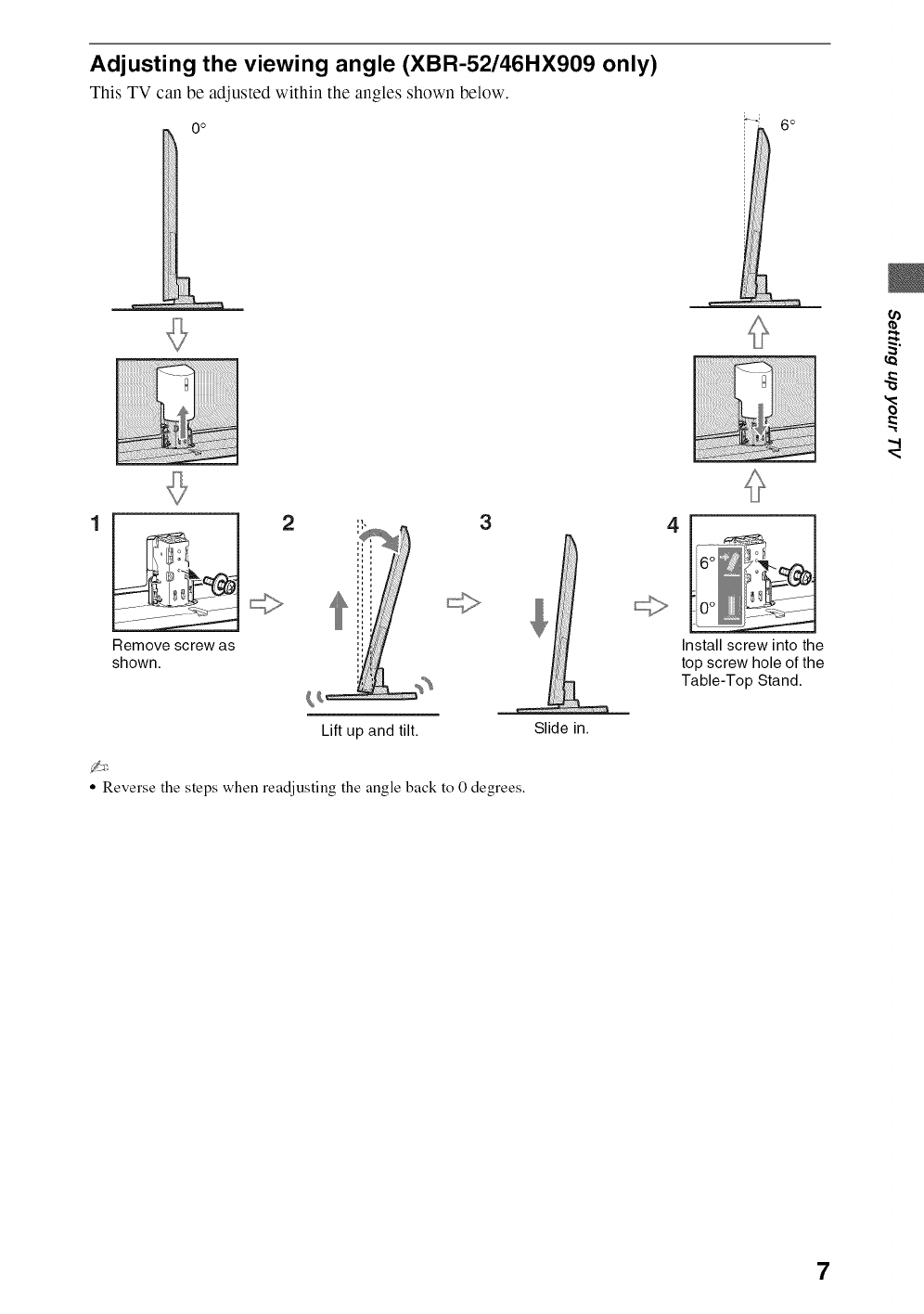
Adjusting the viewing angle (XBR-52/46HX909 only)
This TV can be adjusted within tile angles shown below.
0 o
Remove screw as
shown.
234
Install screw into the
top screw hole of the
Table-Top Stand.
Lift up and tilt.
° Reverse the steps when readjusting the angle back to 0 degrees.
Slide in.
7
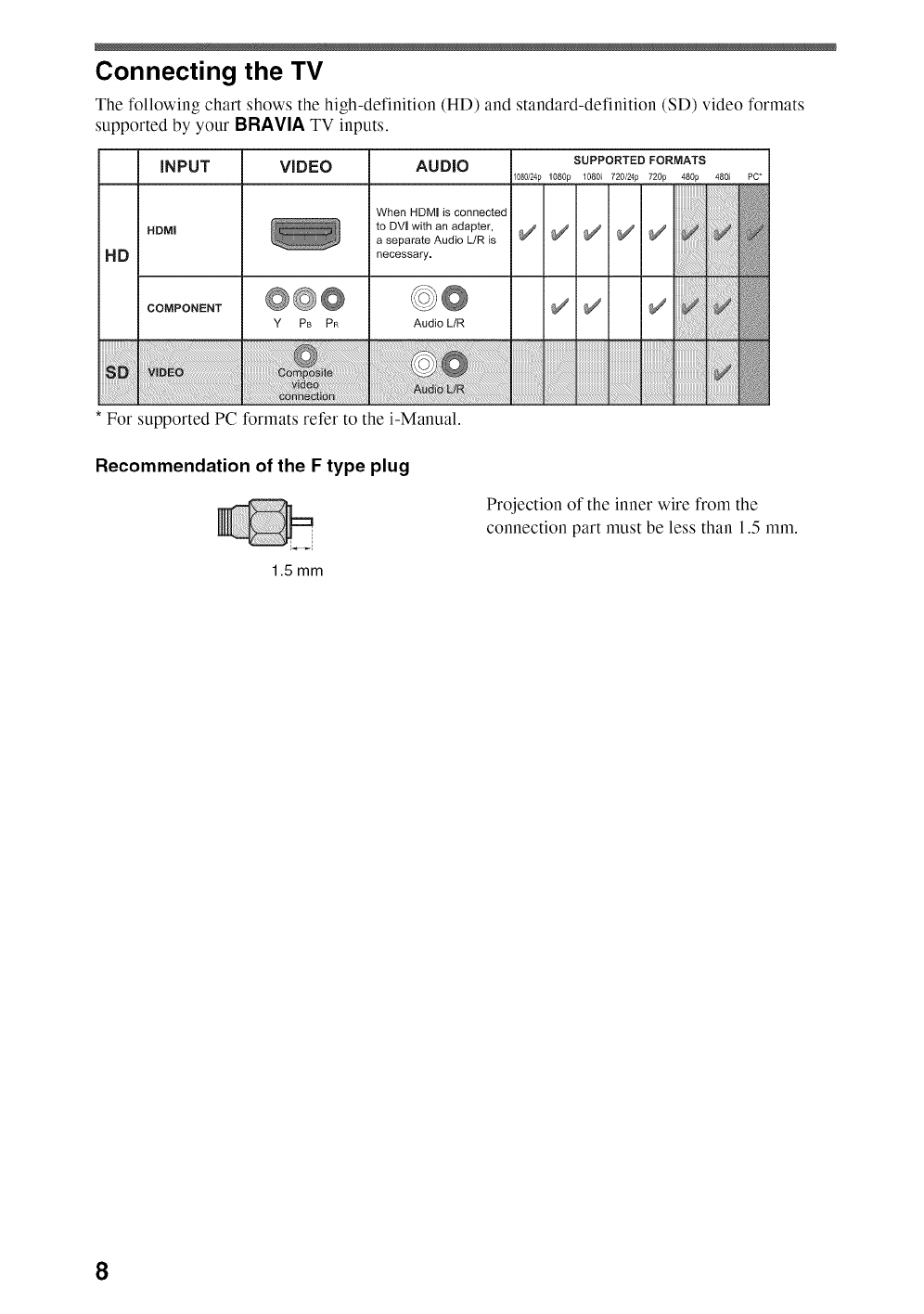
Connecting the TV
Tile following chart shows tile high-definition (HD) and standard-definition (SD) video formats
supported by your BRAVlA TV inputs.
iNPUT VIDEO AUDIO
HDM|
HD
COMPONENT
When HDMI is connected
to DVI with an adapter,
a separate Audio L/R is
necessary,
@@@ ©@
Y PB PR Audio L/R
iiii !iii i !i !i !ii!!il
*For supported PC formats refer to the i-Manual.
SUPPORTED FORMATS
080/2@ 1080p 1080i 720/2@ 720p 480p 480i
iiiiiiiiiiiiiiiiiiiii_
iiiiiiiiiiiiii_i!_i!i_i!i!_!;;!:i:i!i_i
PC*
Recommendation of the F type plug
i
1.5 mm
Projection of the inner wire from the
connection part must be less than 1.5 mm.
8
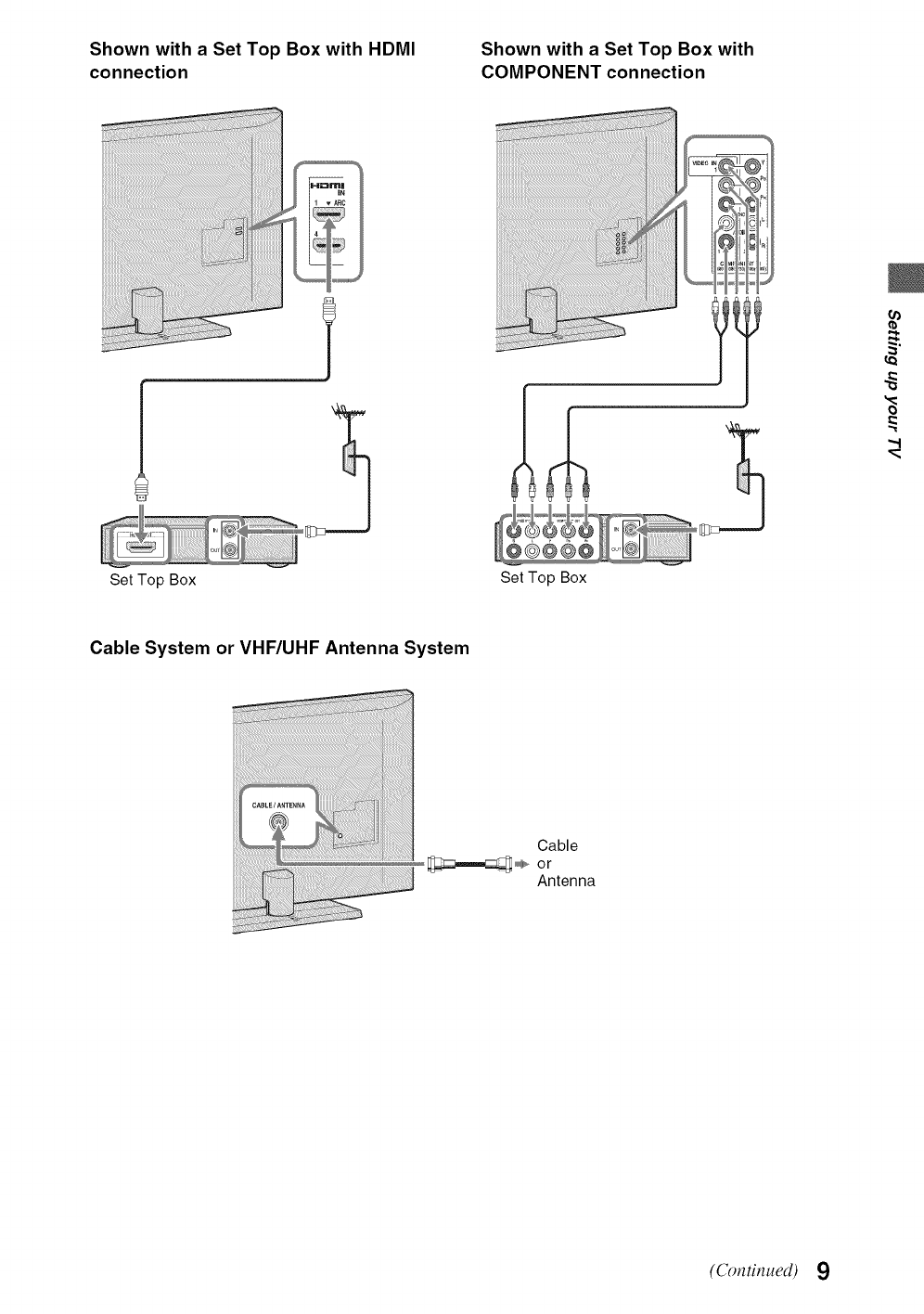
Shown with a Set Top Box with HDMI
connection Shown with a Set Top Box with
COMPONENT connection
i!i!i!i!i!i!i!i!
!,!,!,!,!,!,!,!,
i
Set Top Box Set Top Box
Cable System or VHF/UHF Antenna System
Cable
,,,,_or
Antenna
(Continued) 9
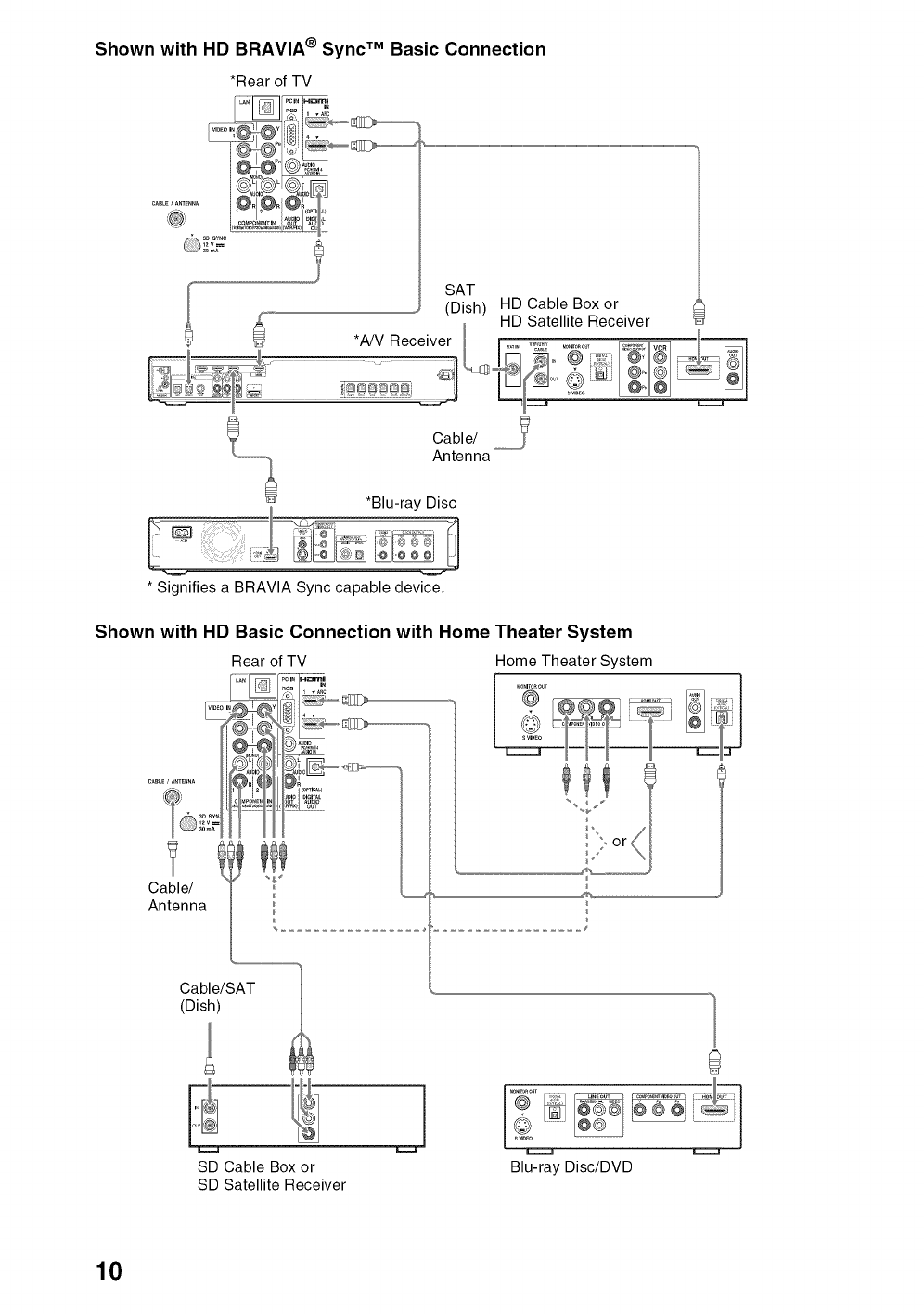
Shown with HD BRAVIA ®Sync TM Basic Connection
*Rear of TV
CAB__A_TE_A
•_DSy_C
(SDAsT, HD Cable Box or
HD Satellite Receiver
_ *A/Vneceiver _ [......... _I
Cable/
.................... Antenna
*Blu-ray Disc
II
....... ......
* Signifies a BRAVIA Sync capable device.
Shown with HD Basic Connection with Home Theater System
Home Theater System
Rear of TV
o
Ca!le/ "_
Antenna
Cable/SAT
(Dish)
J
SD Cable Box or
SD Satellite Receiver
Blu-ray Disc/DVD
10
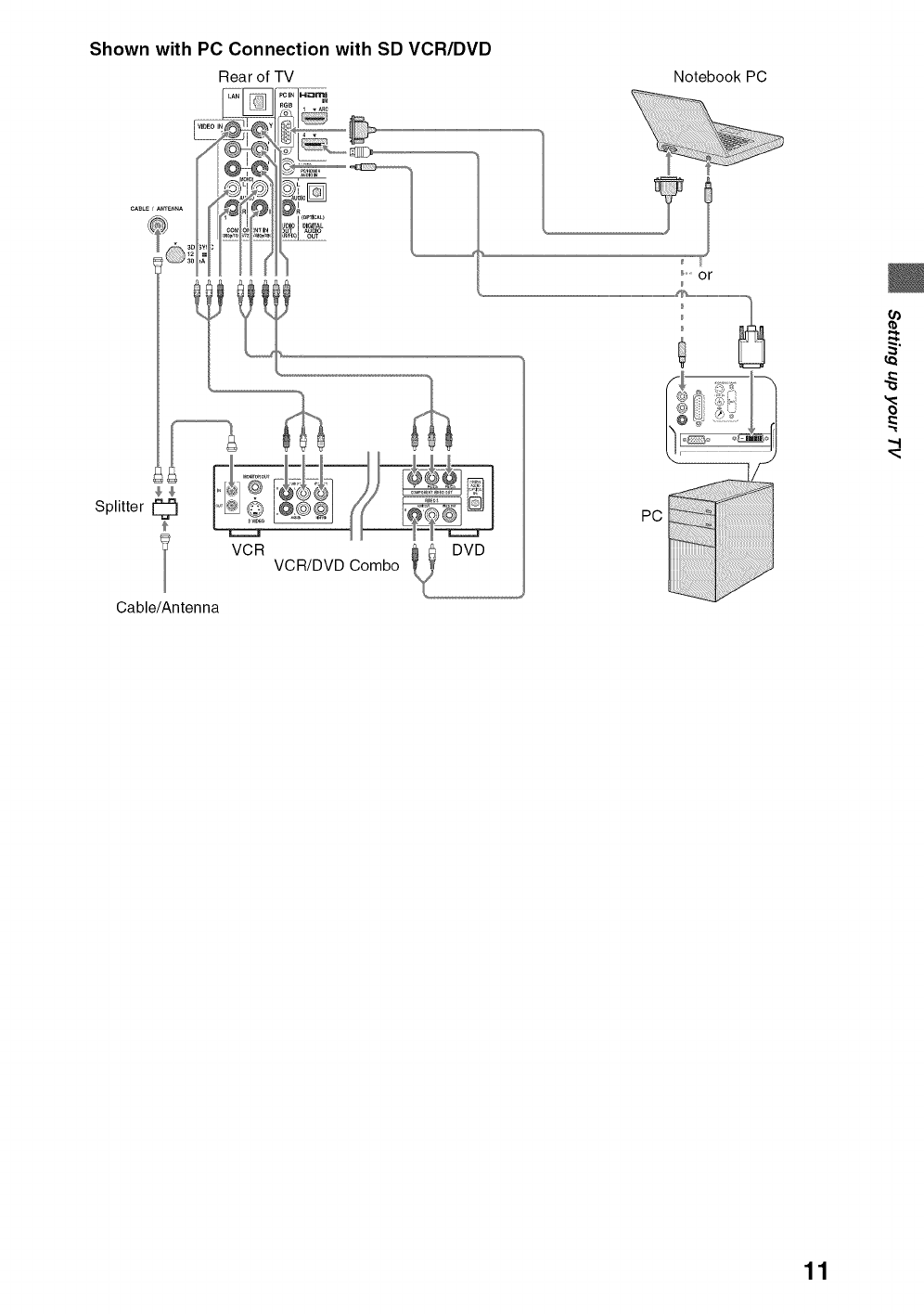
Shown with PC Connection with SD VCR/DVD
Rear of TV
iN
• ARC
Splitter ¢
Cable/Antenna
VCR VCR/DVD Combo
PC
Notebook PC
°" or
11
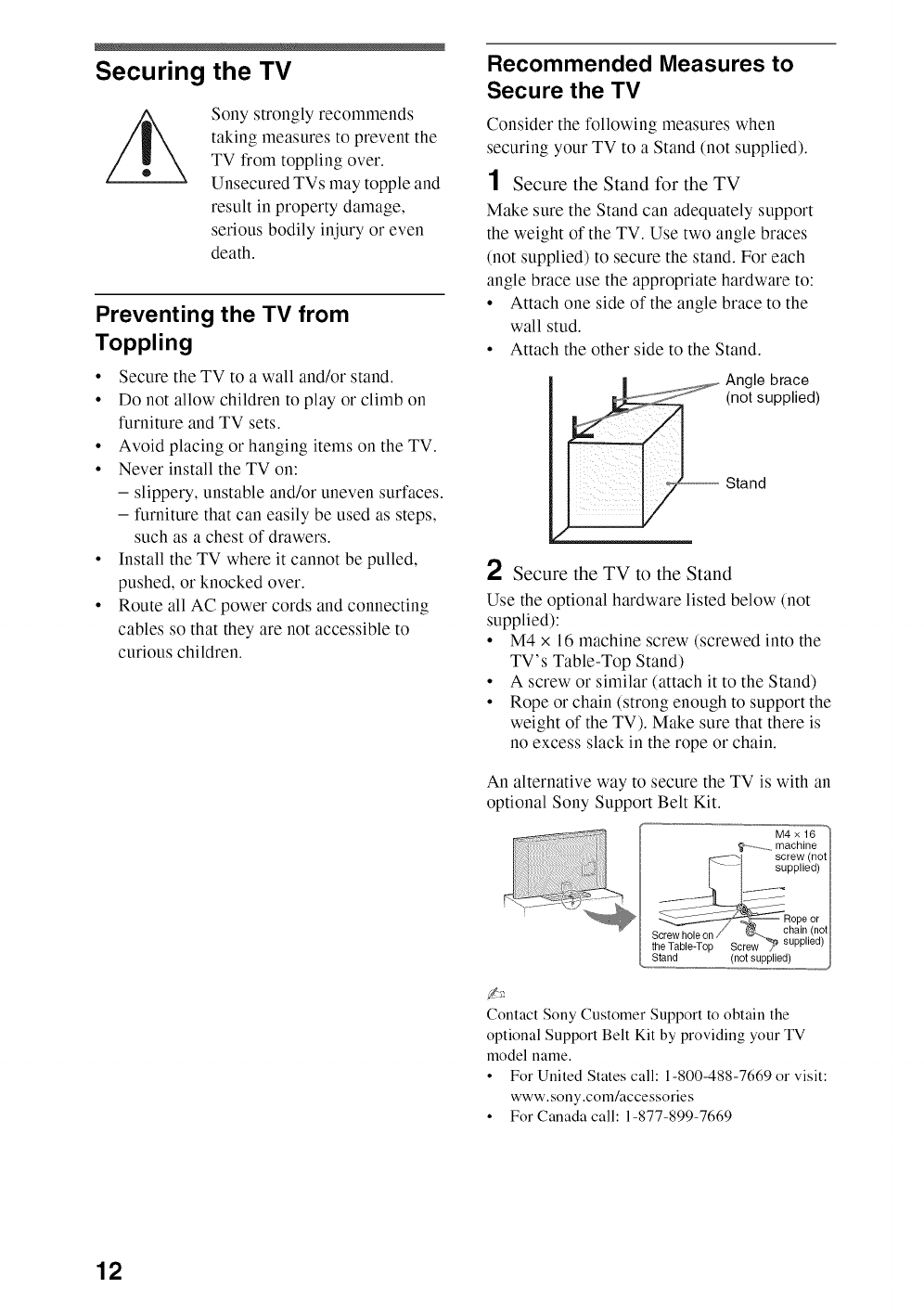
Securing the TV
Sony strongly recommends
taking measures to prevent the
TV from toppling over.
Unsecured TVs may topple and
result in property damage,
serious bodily injury or even
death.
Preventing the TV from
Toppling
• Secure tile TV to a wall and/or stand.
• Do not allow children to play or climb on
furniture and TV sets.
• Avoid placing or hanging items on the TV.
• Never install the TV on:
- slippery, unstable and/or uneven surfaces.
-furniture that can easily be used as steps,
such as a chest of drawers.
• Install the TV where it cannot be pulled,
pushed, or knocked over.
• Route all AC power cords and connecting
cables so that they are not accessible to
curious children.
Recommended Measures to
Secure the TV
Consider the following measures when
securing your TV to a Stand (not supplied).
1Secure the Stand for the TV
Make sure the Stand can adequately support
the weight of the TV. Use two angle braces
(not supplied) to secure the stand. For each
angle brace use the appropriate hardware to:
• Attach one side of the angle brace to the
wall stud.
• Attach the other side to the Stand.
(_gtI_ubpr_li%%)
i
Stand
_) Secure the TV to the Stand
Use the optional hardware listed below (not
supplied):
• M4 x 16 machine screw (screwed into the
TV's Table-Top Stand)
• A screw or similar (attach it to the Stand)
• Rope or chain (strong enough to support the
weight of the TV). Make sure that there is
no excess slack in the rope or chain.
An alternative way to secure the TV is with an
optional Sony Support Belt Kit.
M4x 16
................machine
_"1 screw (not
_pplied)
ope or
chain (not
Screw holeon /@'_----.__ ....
theTable-Top Screw _ supp,ea)
Stand (not supplied)
Contact Sony Customer Support to obtain the
optional Support Belt Kit by providing your TV
model name.
• For United States call: 1-800-488-7669or visit:
www.sony.com/accessories
• For Canadacall: 1-877-899-7669
12
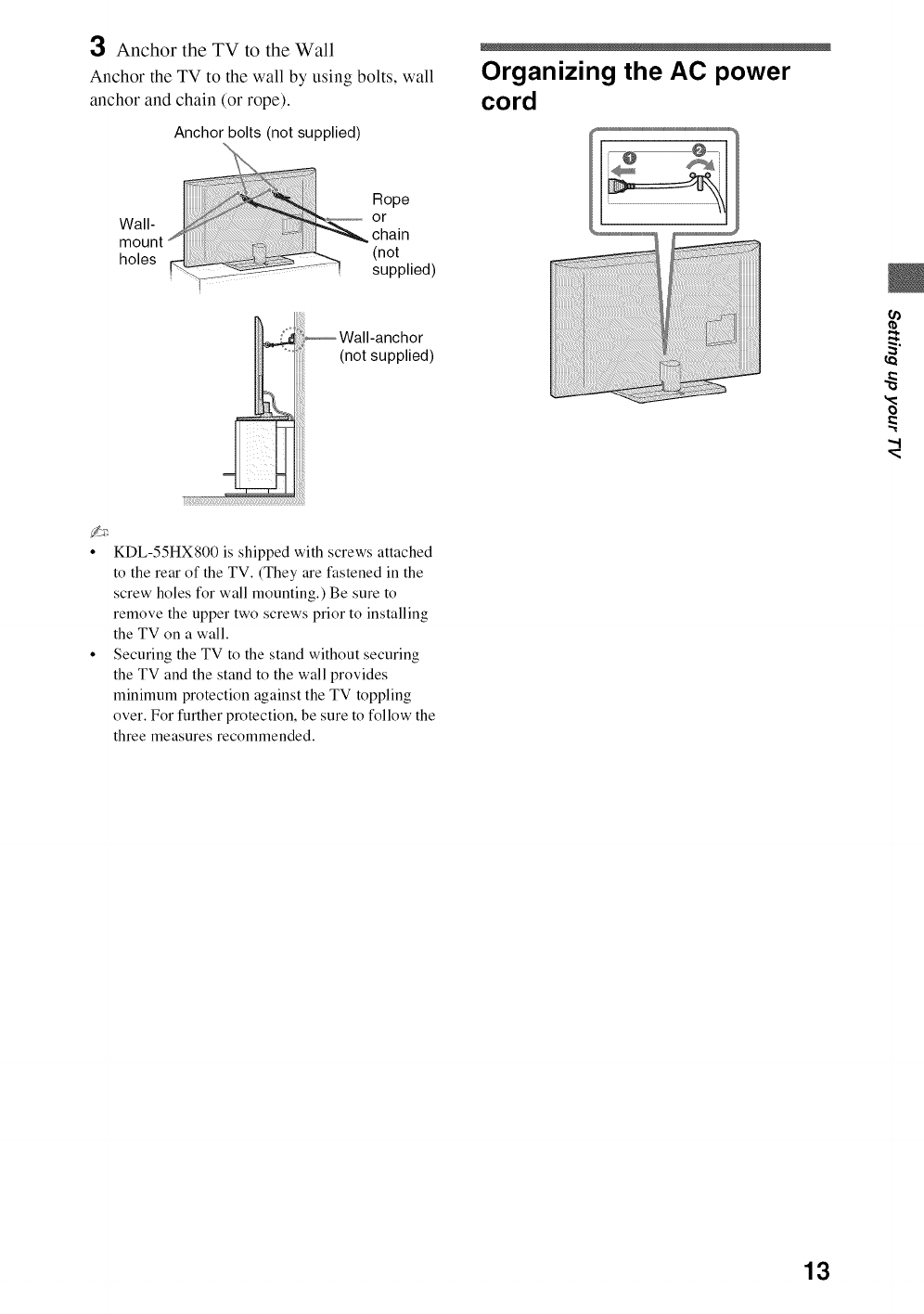
3Anchor the TV to the Wall
Anchor the TV to the wall by using bolts, wall
anchor and chain (or rope).
Anchor bolts (not supplied)
Rope
Wall- c°l_ain
mount (not .
holes
supplied)
Organizing the AC power
cord
{n
"d
ii_;;:_{_{;;?;?;?;?;?;?;?;?;?;?;?;?;?;?;?;?;?;?;?;?;?;?;?;i;il;ii_
• KDL-55HX800 is shipped with screws attached
to the rear of the TV. (They are fastened in the
screw holes for wall mounting.) Be sure to
remove the upper two screws prior to installing
the TV on a wall.
• Securing the TV to the stand without securing
the TV and the stand to the wall provides
minimum protection against the TV toppling
over. For further protection, be sure to follow the
three measures recommended.
13
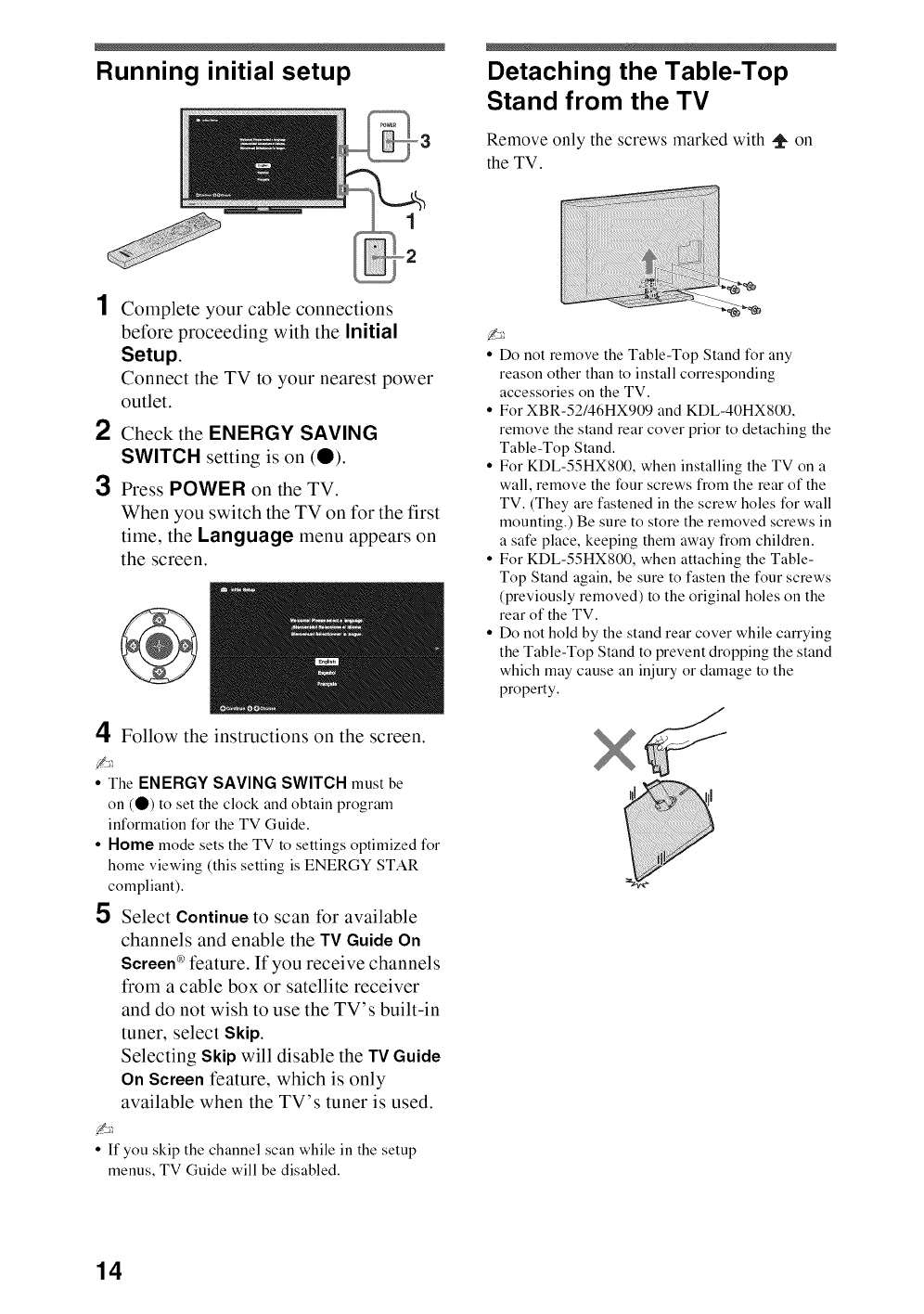
Running initial setup Detaching the Table-Top
Stand from the TV
Remove only the screws marked with _ on
the TV.
1
o2
Complete your cable connections
before proceeding with the Initial
Setup,
Connect the TV to your nearest power
outlet.
2Check the ENERGY SAVING
SWITCH setting is on (O).
3Press POWER on the TV.
When you switch the TV on for the first
time, the Language menu appears on
the screen.
4Follow the instructions on the screen.
* The ENERGY SAVING SWITCH must be
on (O) to set the clock and obtain program
information for the TV Guide.
•Home mode sets the TV to settings optimized for
home viewing (this setting is ENERGY STAR
compliant).
5Select Continue to scan tbr available
channels and enable the TV Guide On
Screen c'_feature. If you receive channels
from a cable box or satellite receiver
and do not wish to use the TV's built-in
tuner, select Skip.
Selecting Skip will disable the TV Guide
On Screen feature, which is only
available when the TV's tuner is used.
• If you skip the channel scan while in the setup
menus, TV Guide will be disabled.
Do not remove the Table-Top Stand for any
reason other than to install corresponding
accessories on the TV.
For XBR-52/46HXg09 and KDL-40HXS00,
remove the stand rear cover prior to detaching the
Table-Top Stand.
For KDL-55HXS00, when installing the TV on a
wall, remove the four screws from the rear of the
TV. (They are fastened in the screw holes for wall
mounting.) Be sure to store the removed screws in
a safe place, keeping them away from children.
For KDL-55HXS00, when attaching the Table-
Top Stand again, be sure to fasten the four screws
(previously removed) to the original holes on the
rear of the TV.
Do not hold by the stand rear cover while carrying
the Table-Top Stand to prevent dropping the stand
which may cause an injury or damage to the
property.
14
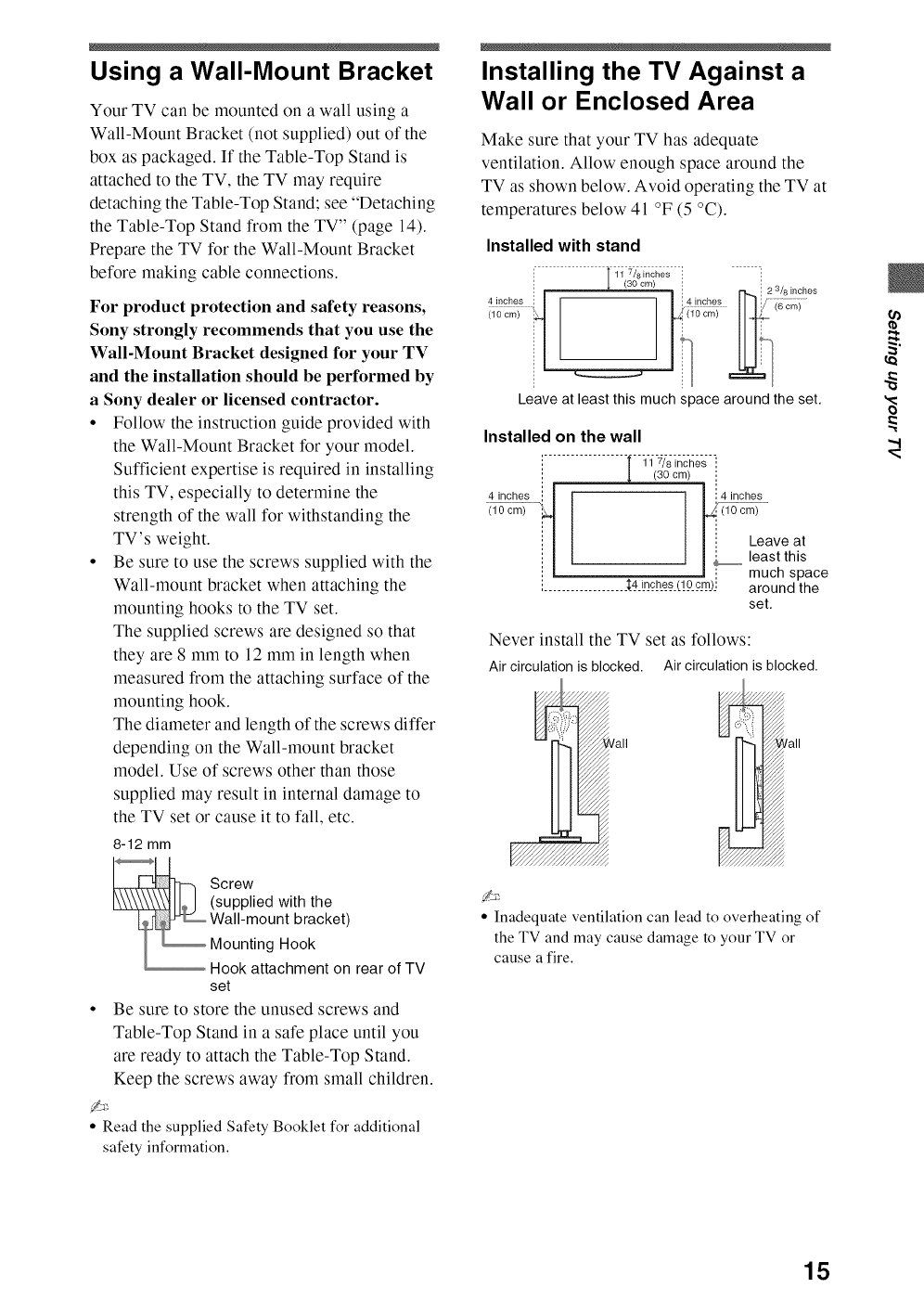
Using a Wall-Mount Bracket
Your TV can be mounted on a wall using a
Wall-Mount Bracket (not supplied) out of the
box as packaged. If the Table-Top Stand is
attached to the TV, the TV may require
detaching the Table-Top Stand; see "Detaching
the Table-Top Stand from the TV" (page 14).
Prepare the TV for the Wall-Mount Bracket
before making cable connections.
For product protection and safety reasons,
Sony strongly recommends that you use the
Wall-Mount Bracket designed for your TV
and the installation should be performed by
a Sony dealer or licensed contractor.
• Follow tile instruction guide provided with
the Wall-Mount Bracket for your model.
Sufficient expertise is required in installing
this TV, especially to determine the
strength of the wall for withstanding the
TV's weight.
• Be sure to use the screws supplied with the
Wall-mount bracket when attaching the
mounting hooks to the TV set.
The supplied screws are designed so that
they are 8 mm to 12 mm in length when
measured from the attaching surface of the
mounting hook.
The diameter and length of the screws differ
depending on the Wall-mount bracket
model. Use of screws other than those
supplied may result in internal damage to
the TV set or cause it to fall, etc.
8-12 mm
Screw
(supplied with the
Wall-mount bracket)
MountingHook
Hookattachmenton rearof TV
set
• Be sure to store the unused screws and
Table-Top Stand in a safe place until you
are ready to attach the Table-Top Stand.
Keep the screws away from small children.
° Read the supplied Safety Booklet for additional
safety information.
Installing the TV Against a
Wall or Enclosed Area
Make sure that your TV has adequate
ventilation. Allow enough space around the
TV as shown below. Avoid operating the TV at
temperatures below 41 °F (5 °C).
Installed with stand
i [ 11 7/ainches '
4 inches
(10 cm)
i t
r_-,_; 23/8 inches
Leave at least this much space around the set,
Installed on the wall
i 11 7/8 inches
(30 cm)
(10 cm) iq _._{iO cm)
il I :: Leave at
i I - I_,_ least this
i I m ', much space
i.................. _{_4_Ln__c[__e__s_(!_0__c_m_)j around the
set.
Never install the TV set as follows:
Air circulationis blocked. Air circulationis blocked.
° Inadequate ventilation can lead to overheating of
the TV and may cause damage to your TV or
cause afire.
".t
15
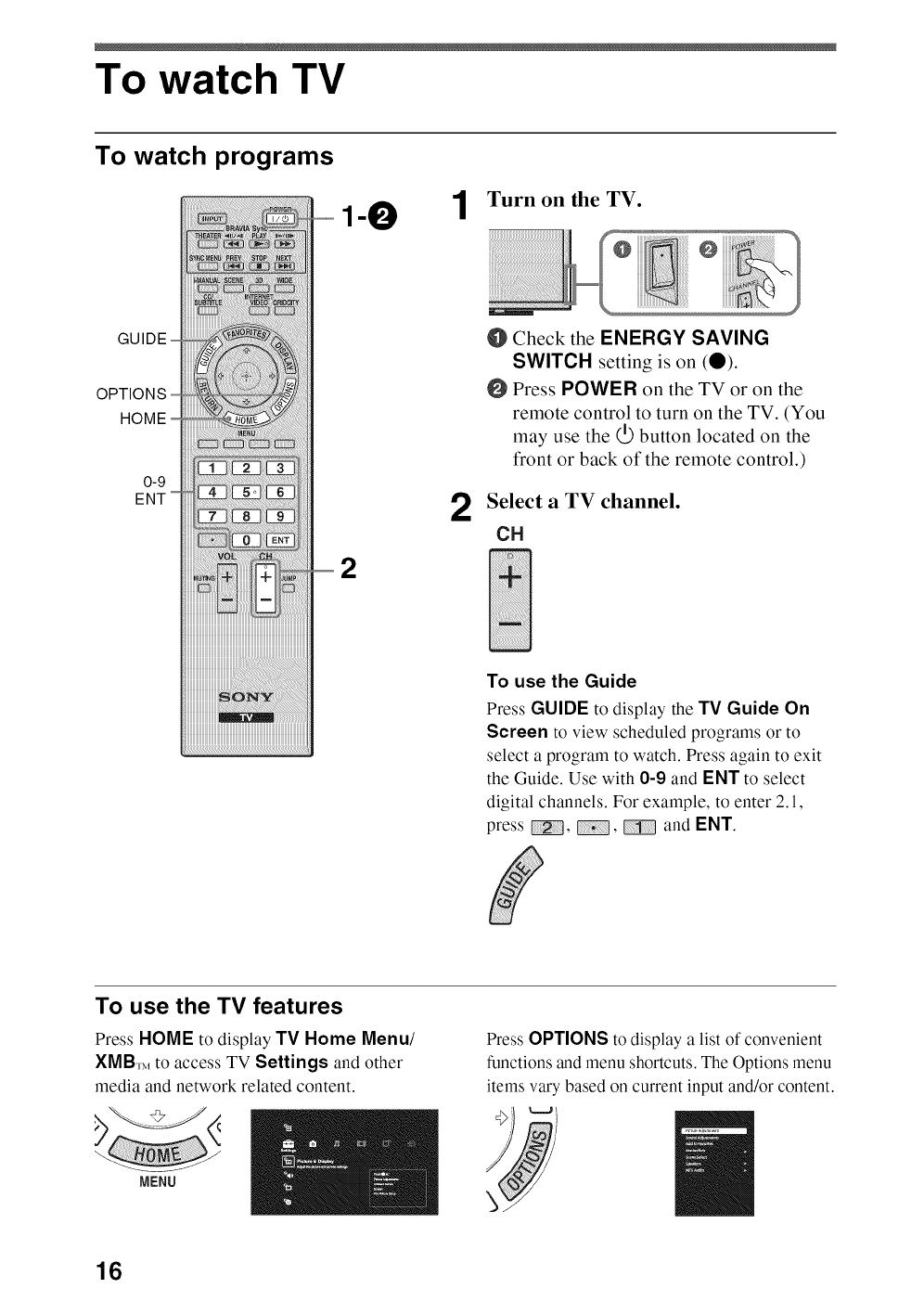
To watch TV
To watch programs
GU
0-9
2
1Turn on the TV.
2
@
0 Check the ENERGY SAVING
SWITCH setting is on (0).
Press POWER on the TV or on the
remote control to turn on the TV. (You
may use the (.Dbutton located on the
front or back of the remote control.)
Select a TV channel.
CH
To use the Guide
Press GUIDE to display the TV Guide On
Screen to view scheduled programs or to
select a program to watch. Press again to exit
the Guide. Use with 0-9 and ENT to select
digital channels. For example, to enter 2.1,
press , , and ENT.
To use the TV features
PressHOME to display TV Home Menu/
XMB,.Mto access TV Settings and other
media and network related content.
MENU
Press OPTIONS to display a list of convenient
functions and menu shortcuts. The Options menu
items vary based on current input and/or content.
i
16
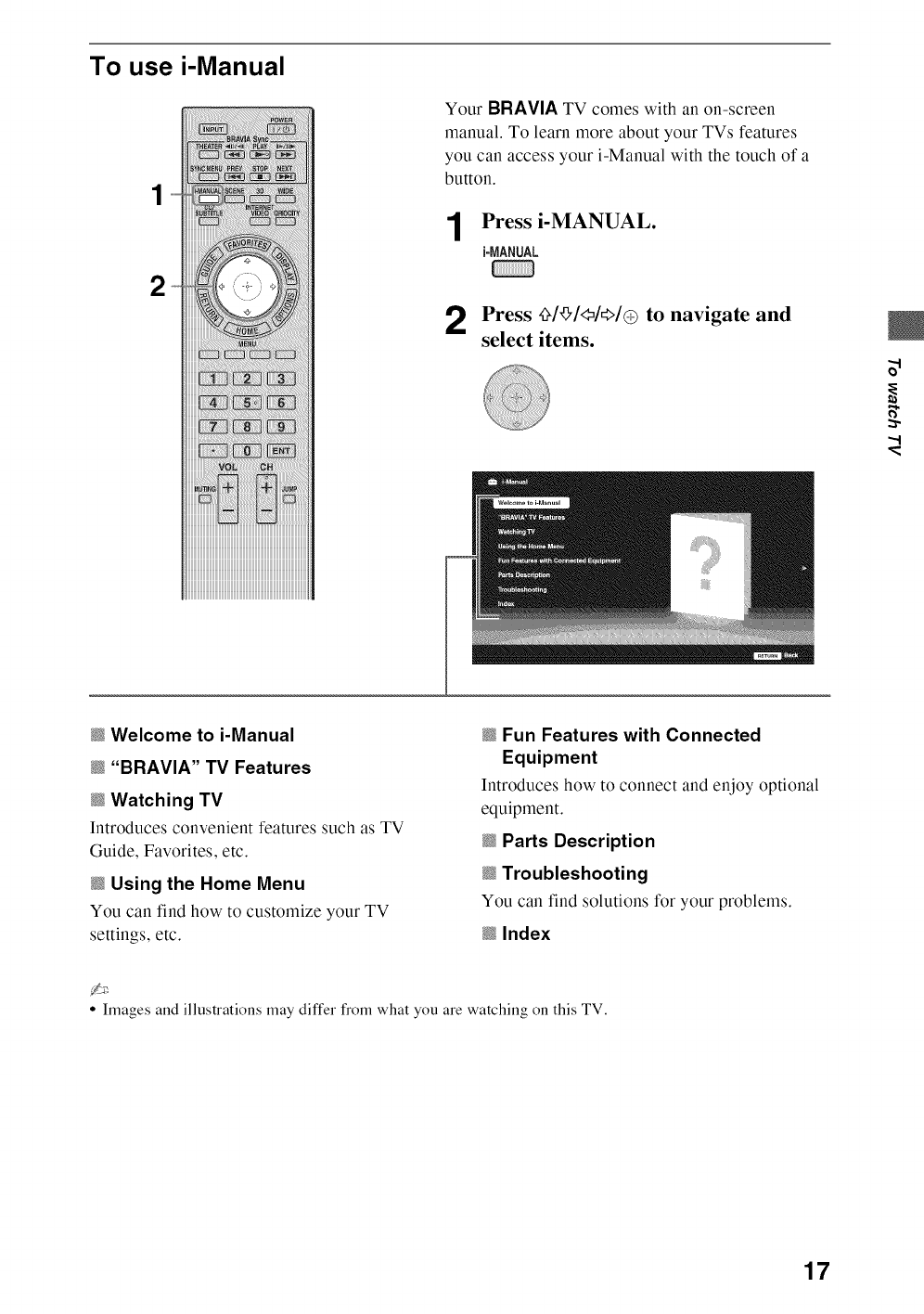
To use i-Manual
1
2
Your BRAVIA TV comes with an on-screen
manual. To learn more about your TVs features
you can access your i-Manual with the touch of a
button.
1Press i-MANUAL.
i-MANUAL
2Press _1_1<4_1@ to navigate and
select items.
o_
:3"
"d
_Welcome to i-Manual
_ "BRAVIA" TV Features
_Watching TV
Introduces convenient features such as TV
Guide, Favorites, etc.
_Using the Home Menu
You can find how to customize your TV
settings, etc.
_Fun Features with Connected
Equipment
Introduces how to connect and enjoy optional
equipment.
_Parts Description
_Troubleshooting
You can find solutions for your problems.
_Index
• Images and illustrations may differ from what you are watching on this TV.
17
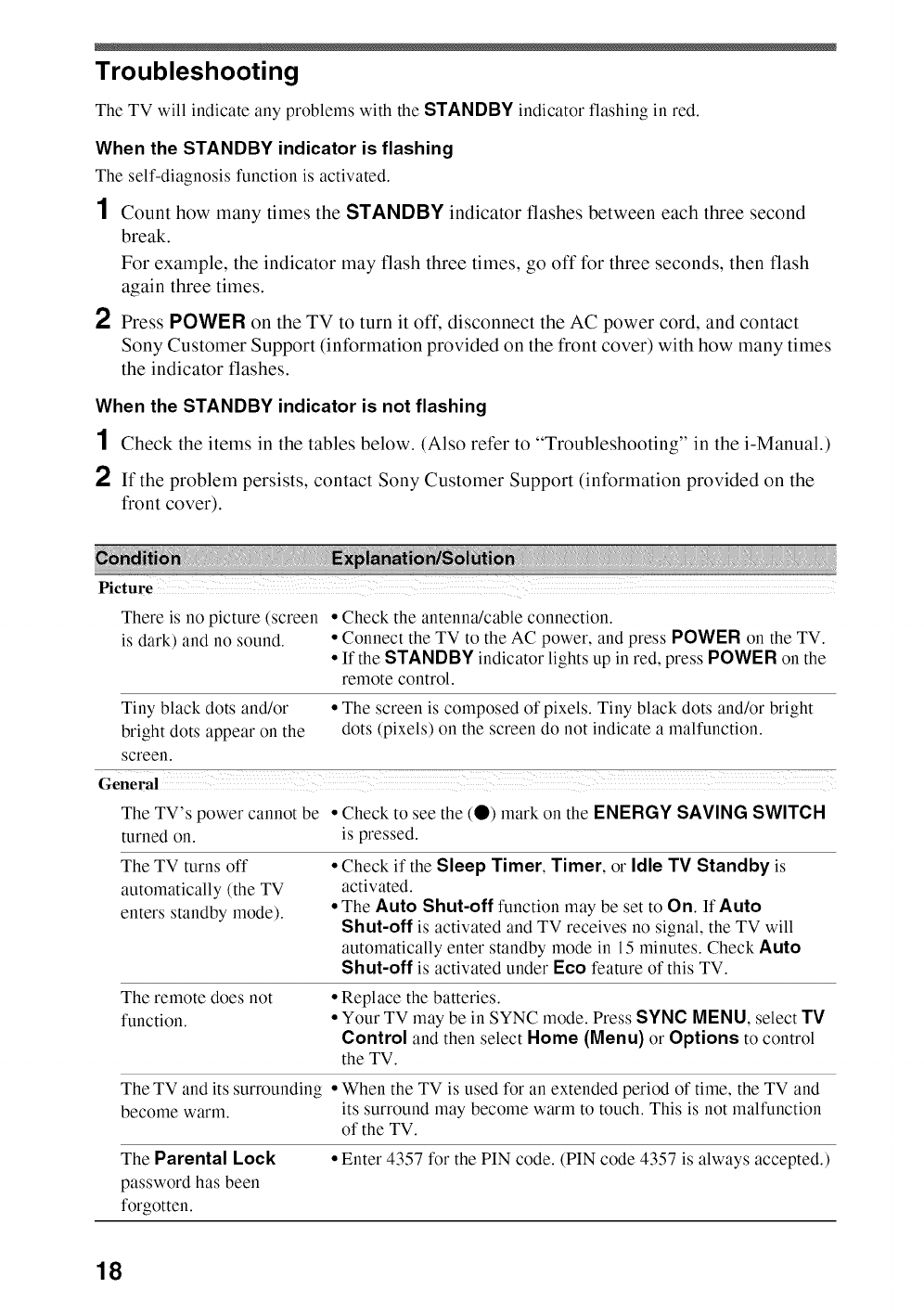
Troubleshooting
The TV will indicate any problems with the STANDBY indicator flashing in red.
When the STANDBY indicator is flashing
The self-diagnosis function is activated.
1Count how many times the STANDBY indicator flashes between each three second
break.
For example, the indicator may flash three times, go off for three seconds, then flash
again three times.
2Press POWER on the TV to turn it off, disconnect the AC power cord, and contact
Sony Customer Support (information provided on the front cover) with how many times
the indicator flashes.
When the STANDBY indicator is not flashing
1Check the items in the tables below. (Also refer to "Troubleshooting" in the i-Manual.)
2If the problem persists, contact Sony Customer Support (information provided on the
front cover).
Picture
There is no picture (screen
is dark) and no sound.
•Check the antenna/cable connection.
•Connect the TV to the AC power, and press POWER on the TV.
• If the STANDBY indicator lights up in red, press POWER on the
remote control.
Tiny black dots and/or • The screen is composed of pixels. Tiny black dots and/or bright
bright dots appear on the dots (pixels) on the screen do not indicate a malfunction.
screen.
The TV's power cannot be •Check to see the (0) mark on the ENERGY SAVING SWITCH
turned on. is pressed.
The TV turns off
automatically (the TV
enters standby mode).
• Check if the Sleep Timer, Timer, or Idle TV Standby is
activated.
• The Auto Shut-off function may be set to On. If Auto
Shut-off is activated and TV receives no signal, the TV will
automatically enter standby mode in 15 minutes. Check Auto
Shut-off is activated under Eco feature of this TV.
The remote does not
function.
• Replace the batteries.
• Your TV may be in SYNC mode. Press SYNC MENU, select TV
Control and then select Home (Menu) or Options to control
the TV.
The TV and its surrounding • When the TV is used for an extended period of time, the TV and
become warm. its surround may become warm to touch. This is not malfunction
of the TV.
The Parental Lock
password has been
forgotten.
• Enter 4357 for the PIN code. (PIN code 4357 is always accepted.)
18
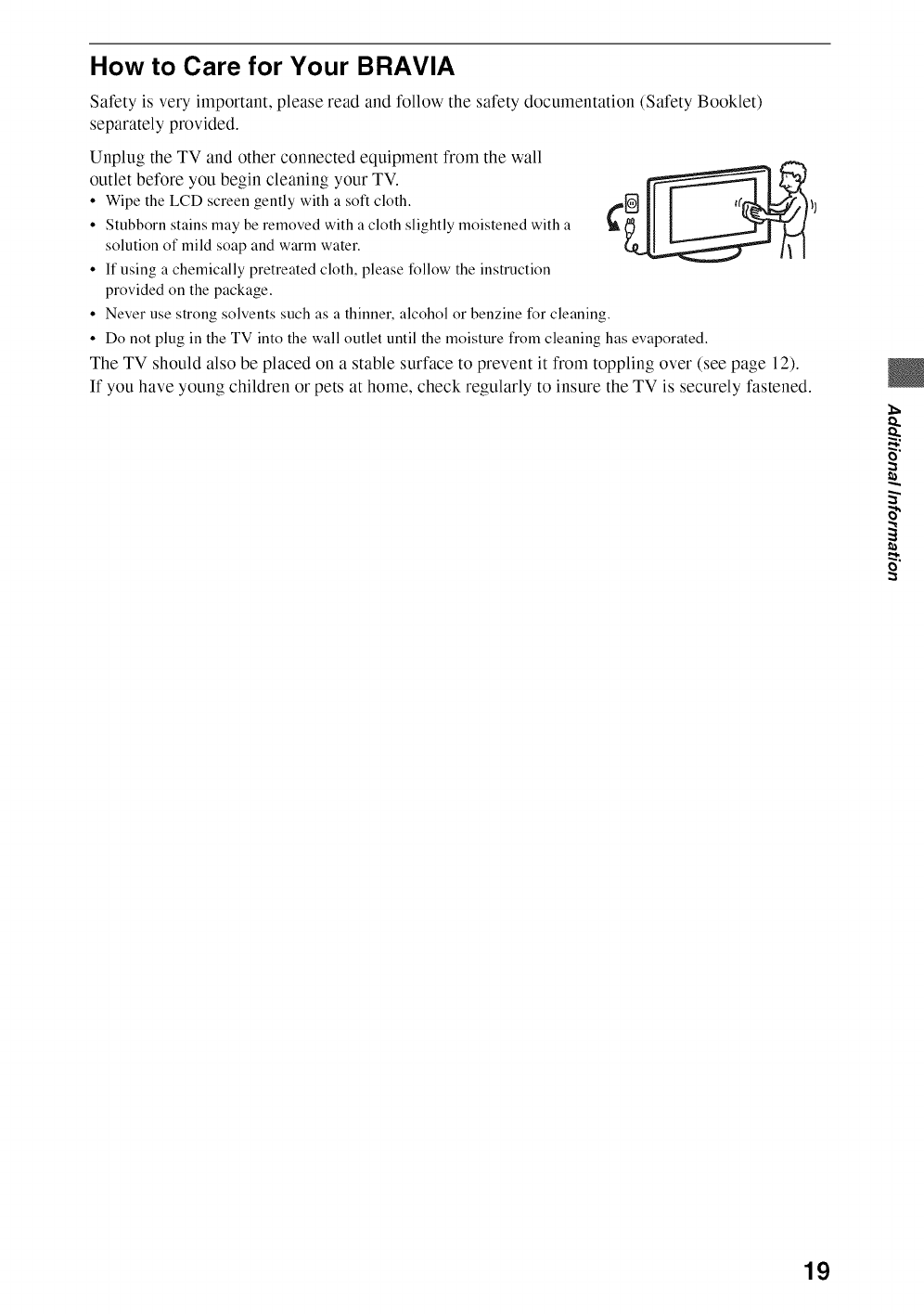
How to Care for Your BRAVIA
Safety is very important, please read and follow the safety documentation (Safety Booklet)
separately provided.
Unplug the TV and other connected equipment from the wall
outlet before you begin cleaning your TV.
• Wipe the LCD screen gently with a soft cloth.
• Stubborn stains may be removed with a cloth slightly moistened with a
solution of mild soap and warm water.
• If using a chemically pretreated cloth, please follow the instruction
provided on the package.
• Never use strong solvents such as a thinner, alcohol or benzine for cleaning.
• Do not plug in the TV into the wall outlet until the moisture from cleaning has evaporated.
The TV should also be placed on a stable surface to prevent it from toppling over (see page 12).
If you have young children or pets at home, check regularly to insure the TV is securely fastened.
O"
B"
19
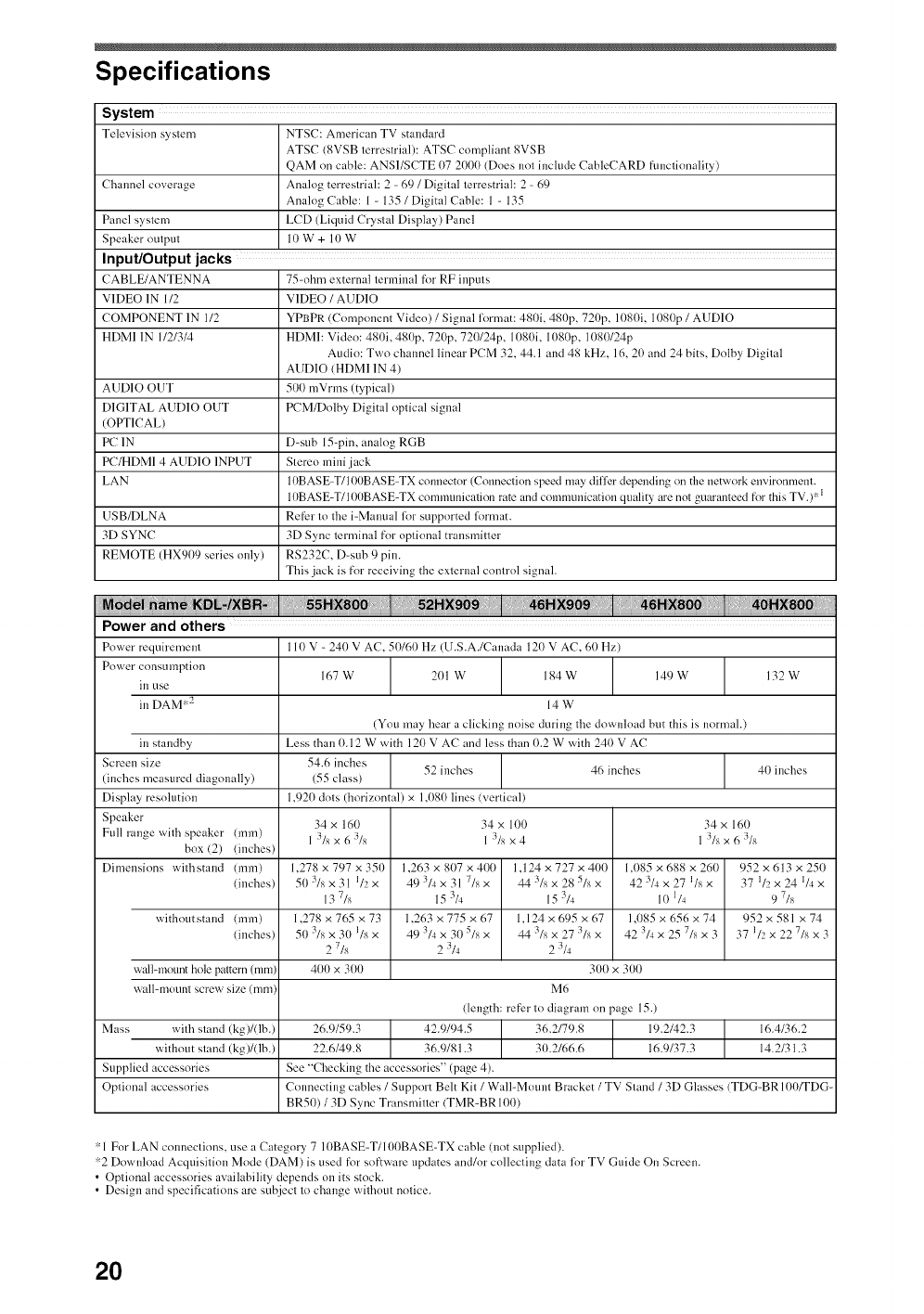
Specifications
System
Television system NTSC: American TV standard
ATSC (SVSB terrestrial): ATSC compliant 8VSB
QAM on cable: ANSI/SCTE 07 2000 (Does nol include CableCARD funclionality)
Channel coverage Analog terrestrial: 2 - 69 /Digital terrestrial: 2 - 69
Analog Cable: 1 - 135 /Digital Cable: 1 - 135
Panel system LCD (Liquid Crystal Display) Panel
Speaker onlpnl 10 W + 10 W
Input/Output jacks
CABLE/ANTENNA 75-ohm external terminal for RF inputs
VIDEO 1N 1/2 VIDEO /AUDIO
COMPONENT 1N 1/2 YPBPR (Component Video) /Signal lormat: 480i, 480p, 720p, 1080i, 1080p /AUDIO
HDMI 1N 1121314 HDMI: Video: 480i, 481)p, 720p, 72(1124p, 1080i, 1080p, 1080124p
Audio: Two channel linear PCM 32, 44.1 and 48 kHz, 16, 20 and 24 bits, Dolby Digital
AUDIO (HDMI 1N 4)
AUDIO OUT 501) mVrms (typical)
DIGITAL AUDIO OUT PCM/Dolby Digital optical signal
(OPTICAL)
PC 1N D-sub 15-pin, analog RGB
PC/HDMI 4 AUDIO INPUT Stereo mini jack
LAN 10BASE-T/100BASE-TX connector (Connection speed may differ depending on the network environment.
10BASE-T/10IIBASE-TX connnunication rate and comnmnication quality are not guaranteed f_)rthis TV.) '_I
USB/DLNA Refer to the i-Manual for supported lormat.
3[) SYNC 3D Sync terminal for optional transmitter
REMOTE (HX909 series only) RS232C, D-sub 9 pin.
This jack is for receiving the external control signal.
Power and others
Power requirement 110 V - 240 V AC. 50/60 Hz (U.S.A./Canada 120 V AC, 60 Hz)
Power consnll_lption 167W 201W 184W 149W 132W
in use
in DAM r:2 14 W
(You may Ileal"a clicking noise during tile downkmd but this is normal.)
in standby Less than 0.12 W wqth 120 V AC and less than 0.2 W with 240 V AC
s ,ze........ 546.,cbesI ] 1(inches measured diagonally) (55 class) 52 inches 46 inches 40 inches
Display resolution 1,920 dols (horizontal) x 1,080 lines (vertical)
Speaker 34 x 160 34 x 100 34 x 160
Full range with speaker (ram) 1 3Is x 6 :_/s 1 3Is x 4 1 3Is x 6 3Is
box (2) dnches)
Dimensions with stand (ram) 1,278 x 797 x 350 1,263 x 807 x 400 ] 1,124 x 727 x 400 1,085 x 688 x 260 952 x 613 x 250
{inches) 5031sx31 l/2x 493/4x317/sx '1 44:_/sx285/sx 42314x271/sx 371/2 x 241/4 x
13 7/s 15 3/4 15 3/4 10 l/4 9 7Is
withoutstaud (ram) 1,278 x 765 x 73 1,263 x 775 x 67 [ 1.124 x 695 x 67 1,085 x 656 x 74 952x581 x74
dnches) 50 3Is x 30 ]Is x 49 714x 30 5Is x 44 :_/sx 27 :;/s x 42 7/4 x 25 7Is x 3 37 1/2 x 22 7Is x 3
2 7/s 2 3/4 2 3/4
wall-mount hole pattern (mm) 400 x 300 31)0x 300
wall-mount screw size from M6
deugth: refer to diagram on page 15.)
M....... ith slaM (kg)/(lb.) 26.9159.3 _ 42.9194.5 J 36.2/79.8 19.2/42.3 16.4/36.2
without stand (kg)/(lb.) 22.6/49.8 / 36.9/81.3 / 31).2/66.6 16.9/37.3 14.2/31.3
Supplied accessories See "Checking the accessories" (page 4).
Optional accessories Connecting cables /Support Belt Kit /Wall-Mount Bracket /TV Stand /3D Glasses (TDG-BR 100/TDG-
BR50) /3[) Sync Transmitter (TMR-BR 10I))
>':1For LAN connections, use a Category 7 10BASE-T/100BASE-TX cable (not supplied).
::2 Download Acquisition Mode (DAM) is used fi>r software updates and/or collecting data lot TV Guide On Screen.
• Optional accessories availability depends on its stock.
• Design and specifications are subject to change without notice.
2O
Declaration of Conformity
Trade Name: SONY
Model: KDL-55HX 800/XBR-52HX909/XBR-46HX909/
KDL-46HX 800/KDL-40HX800
Responsible Party: Sony Electronics [nc.
Address: 16530 Via Esprillo,
San Diego, CA 92127 U,S,A.
Telephone Number: 858-942-2230
This device complies with part 15 of the FCC rules,
Operation is subject to the following two conditions:
(1) This device may not cause harmful interference, and
(2) this device must accept ally interference received,
including interference that may cause undesired
operation.
For customers in Canada
This Class B digital apparatus complies with Canadian
ICES-003.
FCC Related Information
This equipment has been tested and found to comply with
the limits for a Class B digital device, pursuant to Part 15
of the FCC Rules. These limits are designed to provide
reasonable protection against harmful interference in a
residential installation. This equipment generates, uses and
can radiate radio frequency energy and, if not installed and
used in accordance with the instructions, may cause
harmful interference to radio communications. However,
there is no guarantee that interference will not occur in a
particular installation. If this equipment does cause
harmful interference to radio or television reception, which
can be determined by turning the equipment off and on, the
user is encouraged to try to correct the interference by one
or more of the following measures:
[] Reorient or relocate the receiving antenna.
[] Increase the separation between the equipment and
receiver.
[] Connect the equipment into an outlet on a circuit
different fi'om that to which the receiver is connected.
[] Consult the dealer or an experienced radio/TV
technician for help.
Pursuant to FCC regulations, you are cautioned that any
changes or modifications not expressly approved in this
manual could void your authority to operate this
equipment.
Note
This television includes a QAM demodulator which should
allow you to receive unscrambled digital cable television
programming via subscription service to a cable service
provider. Availability of digital cable television
programming in your area depends on the type of
programming and signal provided by your cable service
provider.
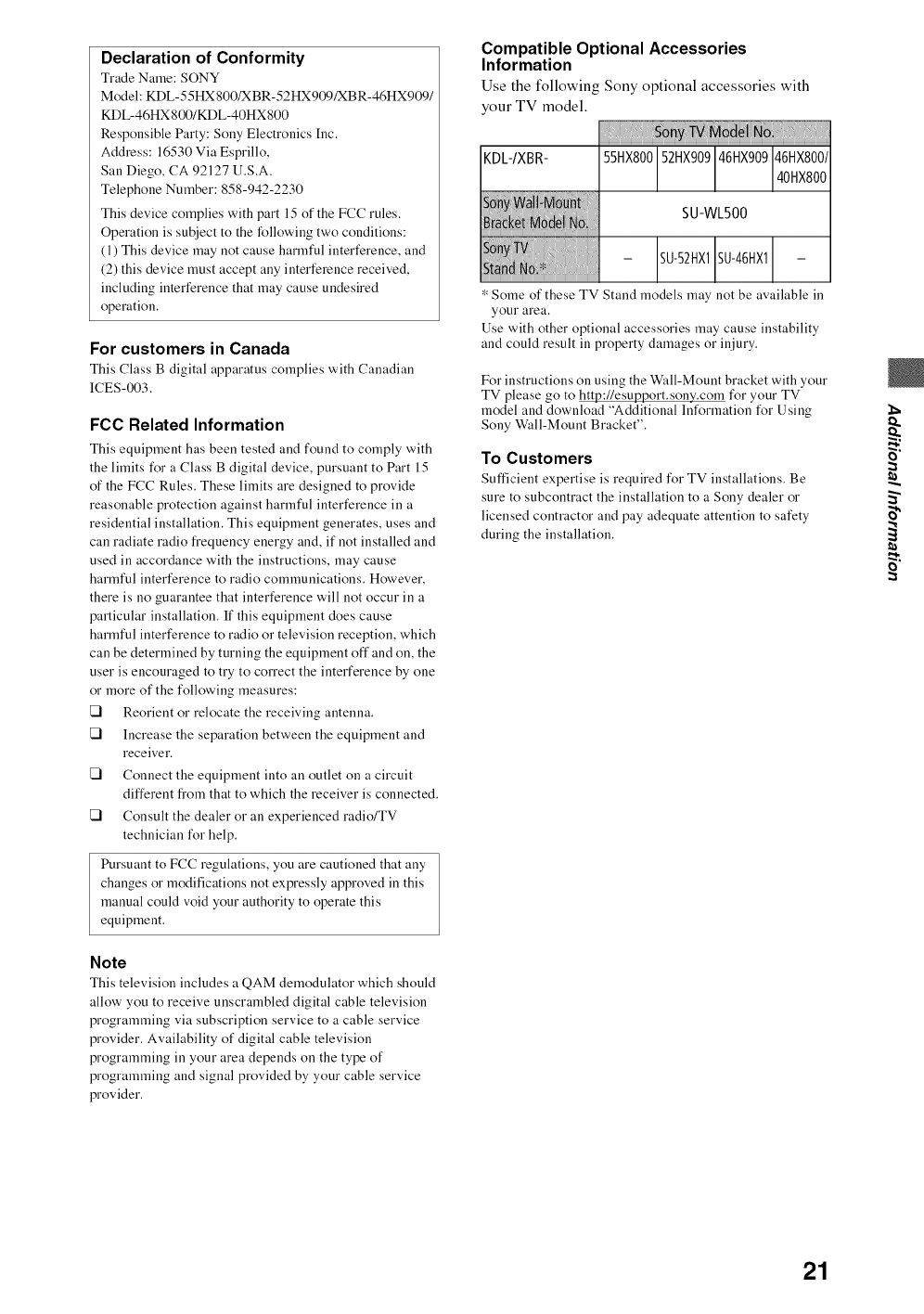
Compatible Optional Accessories
Information
Use the following Sony optional accessories with
your TV model.
KDL-/XBR-
55HX800 52HX90946HX909 46HX800/40HX800
SU-WL500
-SU-52HX1SU-46HX1 -
Some of these TV Stand models may not be available in
your area.
Use with other optional accessories may cause instability
and could result in property damages or injury.
For instructions on using the Wall-Mount bracket with your
TV please go to http://esupport.sony.com for your TV
model and download "Additional Information for Using
Sony Wall-Mount Bracket".
To Customers
Sufficient expertise is required for TV installations. Be
sure to subcontract the installation to a Sony dealer or
licensed contractor and pay adequate attention to safety
during the installation.
O"
21


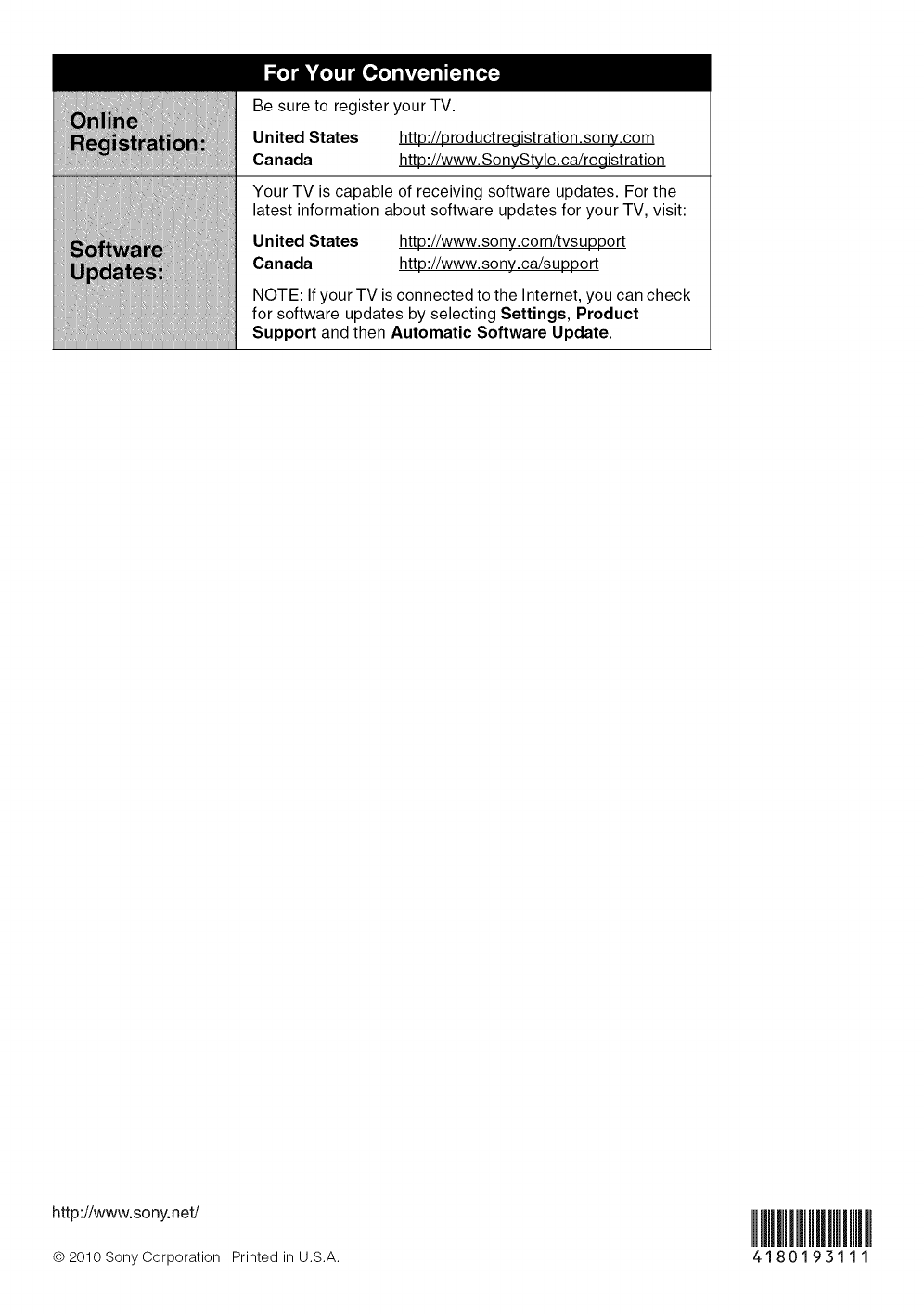
Be sure to register your TV.
United States http://productregistration.sony.com
Canada http://www.SonyStyle.ca/registration
Your TV is capable of receiving software updates. For the
latest information about software updates for your TV, visit:
United States http://www.sony.com/tvsupport
Canada http://www.sony.ca/support
NOTE: If your TV is connected to the Internet, you can check
for software updates by selecting Settings, Product
Support and then Automatic Software Update.
http://www.sony.net/
© 2OlO Sony Corporation Printed in U.S.A. 4180193111
