Sony Cyber Shot Dsc P10 Users Manual P8/P10/P12
DSC-P8 to the manual 1a513a9a-eb14-4d03-b544-ff98629ab708
2015-01-24
: Sony Sony-Cyber-Shot-Dsc-P10-Users-Manual-290670 sony-cyber-shot-dsc-p10-users-manual-290670 sony pdf
Open the PDF directly: View PDF  .
.
Page Count: 120 [warning: Documents this large are best viewed by clicking the View PDF Link!]
- Before using your camera
- Identifying the parts
- Getting started
- Shooting still images
- Viewing still images
- Deleting still images
- Before advanced operations
- Advanced still image shooting
- Choosing an auto focus method
- Setting the distance to the subject
- Adjusting the exposure
- Selecting the metering mode
- Shooting three images with the exposure shifted
- Adjusting color tones
- Adjusting the flash level
- Shooting multiple frames
- Shooting in Multi Burst mode
- Shooting three or two images continuously
- Shooting still images for e-mail
- Shooting still images with audio files
- Shooting according to scene conditions
- Adding special effects
- Advanced still image viewing
- Still image editing
- Enjoying movies
- Enjoying images on your computer
- Troubleshooting
- Additional information
- Index
- Index
- A
- AC Adaptor 10, 13
- Access lamp 17
- AE/AF lock 44
- AE/AF lock indicator 21
- AE/AF lock lamp 9
- AF illuminator 8, 27, 104
- AF Mode 43
- AF range finder frame 42
- Auto adjustment mode 21
- Auto Focus 22, 42
- Auto power�off function 14
- A/V connecting cable 32
- Battery pack
- Beep/shutter sound 105
- Brightness
- Burst 53
- CD-ROM 74
- Charging
- Cleaning 107
- Clip Motion 51
- Clock Set 15
- Computer
- Contrast 101
- Control button 9, 14, 39
- Copying images 79, 85
- DC plug 10, 13
- Deleting images 34, 70
- Divide 72
- DPOF 65
- Editing still images
- E-Mail 53
- Enlarging an image 59
- EV adjustment 45
- Exposure bracket 48
- External power source 13
- File
- Finder 28
- Flash
- Focusing
- Folder
- Format 37
- GIF 51, 83
- Histogram 46
- Image
- Image Transfer 79
- ImageMixer 77
- Index screen 30
- “InfoLITHIUM” battery pack 109
- Installation
- ISO 101
- Jog playback 62
- JPEG 83
- LCD screen
- Memory Stick
- Menu settings 39, 100
- Metering mode
- Mode dial 15, 22
- Moisture condensation 107
- Movie
- MPEG 83
- MPEG Movie 68
- Multi Burst 52
- NR slow shutter 56
- NTSC system 33, 106
- PAL system 33, 106
- Picture effect 57
- Power
- Power Save 12, 105
- Precautions 107
- Print (DPOF) mark 65
- Programmed mode 22
- Protect 63
- Quick Review 23
- Red Eye Reduction 27, 104
- RESET button 87
- Resize 65
- Rotate 61
- Saturation 101
- Scene Selection
- Self-diagnosis display 97
- Self-timer 25
- Setting
- Sharpness 101
- Shooting mode
- Slide show 60
- Spot 47
- Still image shooting
- Still image viewing
- Superimposing the date and time 29
- Trimming 60
- TV color system 32
- USB 74, 79, 85
- Using your camera abroad 13
- Video CD 85
- Viewing images on the LCD screen 30, 69
- Viewing images on your computer 81
- Voice 54
- Warnings and notice messages 95
- White Balance 49
- Zoom
- Index
3-080-892-11(1)
Digital Still Camera
Operating Instructions
Before operating the unit, please read this manual thoroughly, and
retain it for future reference.
Owner’s Record
The model and serial numbers are located on the bottom. Record the
serial number in the space provided below. Refer to these numbers
whenever you call upon your Sony dealer regarding this product.
Model No. DSC-P8/P10/P12
Serial No.
DSC-P8/P10/P12
© 2003 Sony Corporation
Getting started _______________________
_
Shooting still images _________________
_
Viewing still images __________________
_
Deleting still images__________________
_
Before advanced operations ____________
_
Advanced still image shooting___________
_
Advanced still image viewing____________
_
Still image editing _____________________
_
Enjoying movies_______________________
_
Enjoying images on your computer
________
_
Troubleshooting_______________________
_
Additional information __________________
_
Index
_
_______________________________
_
2
To prevent fire or shock hazard, do
not expose the unit to rain or
moisture.
Never expose the battery pack to temperature
above 60°C (140°F), such as in a car parked
in the sun or under direct sunlight.
If you have any questions about this product,
you may call:
Sony Customer Information Center
1-800-222-SONY (7669)
The number below is for the FCC related matters
only.
Regulatory Information
CAUTION
You are cautioned that any changes or
modifications not expressly approved in this
manual could void your authority to operate this
equipment.
Note:
This equipment has been tested and found to
comply with the limits for a Class B digital
device, pursuant to Part 15 of the FCC Rules.
These limits are designed to provide reasonable
protection against harmful interference in a
residential installation. This equipment generates,
uses, and can radiate radio frequency energy and,
if not installed and used in accordance with the
instructions, may cause harmful interference to
radio communications. However, there is no
guarantee that interference will not occur in a
particular installation. If this equipment does
cause harmful interference to radio or television
reception, which can be determined by turning
the equipment off and on, the user is encouraged
to try to correct the interference by one or more of
the following measures:
— Reorient or relocate the receiving antenna.
— Increase the separation between the
equipment and receiver.
— Connect the equipment into an outlet on a
circuit different from that to which the
receiver is connected.
— Consult the dealer or an experienced radio/
TV technician for help.
The supplied interface cable must be used with
the equipment in order to comply with the limits
for a digital device pursuant to Subpart B of Part
15 of FCC Rules.
WARNING
For the Customers in the U.S.A.
This symbol is intended to alert
the user to the presence of
uninsulated “dangerous
voltage” within the product’s
enclosure that may be of
sufficient magnitude to
constitute a risk of electric
shock to persons.
This symbol is intended to alert
the user to the presence of
important operating and
maintenance (servicing)
instructions in the literature
accompanying the appliance.
Declaration of Conformity
Trade Name: SONY
Model No.: DSC-P8
Responsible Party: Sony Electronics Inc.
Address: 680 Kinderkamack Road,
Oradell, NJ 07649 U.S.A.
Telephone No.: 201-930-6972
This device complies with Part 15 of the
FCC Rules. Operation is subject to the
following two conditions: (1) This device
may not cause harmful interference, and
(2) this device must accept any interference
received, including interference that may
cause undesired operation.
Declaration of Conformity
Trade Name: SONY
Model No.: DSC-P10
Responsible Party: Sony Electronics Inc.
Address: 680 Kinderkamack Road,
Oradell, NJ 07649 U.S.A.
Telephone No.: 201-930-6972
This device complies with Part 15 of the
FCC Rules. Operation is subject to the
following two conditions: (1) This device
may not cause harmful interference, and
(2) this device must accept any interference
received, including interference that may
cause undesired operation.
3
RECYCLING LITHIUM-ION
BATTERIES
Lithium-Ion batteries are
recyclable.
You can help preserve our
environment by returning your
used rechargeable batteries to
the collection and recycling location nearest
you.
For more information regarding recycling of
rechargeable batteries, call toll free
1-800-822-8837, or visit
http://www.rbrc.org/
Caution:Do not handle damaged or leaking
Lithium-Ion batteries.
CAUTION
TO PREVENT ELECTRIC SHOCK, DO NOT
USE THIS POLARIZED AC PLUG WITH AN
EXTENSION CORD, RECEPTACLE OR
OTHER OUTLET UNLESS THE BLADES
CAN BE FULLY INSERTED TO PREVENT
BLADE EXPOSURE.
A moulded plug complying with BS 1363 is fitted
to this equipment for your safety and
convenience.
Should the fuse in the plug supplied need to be
replaced, a 5 AMP fuse approved by ASTA or
BSI to BS 1362, (i.e., marked with or
mark) must be used.
If the plug supplied with this equipment has a
detachable fuse cover, be sure to attach the
fuse cover after you change the fuse. Never
use the plug without the fuse cover. If you
should lose the fuse cover, please contact your
nearest Sony service station.
This product has been tested and found compliant
with the limits sets out in the EMC Directive for
using connection cables shorter than 3 meters
(9.8 feet).
Attention
The electromagnetic field at the specific
frequencies may influence the picture and sound
of this camera.
Notice
If static electricity or electromagnetism causes
data transfer to discontinue midway (fail), restart
the application or disconnect and connect the
USB cable again.
Certain countries may regulate disposal of the
battery used to power this product. Please
consult with your local authority.
For the Customers in the U.S.A. and
Canada
THIS DEVICE COMPLIES WITH PART 15
OF THE FCC RULES. OPERATION IS
SUBJECT TO THE FOLLOWING TWO
CONDITIONS:
(1) THIS DEVICE MAY NOT CAUSE
HARMFUL INTERFERENCE, AND
(2) THIS DEVICE MUST ACCEPT ANY
INTERFERENCE RECEIVED,
INCLUDING INTERFERENCE THAT MAY
CAUSE UNDESIRED OPERATION.
THIS CLASS B DIGITAL APPARATUS
COMPLIES WITH CANADIAN ICES-003.
For the Customers in the U.S.A.
and Canada
Notice on the supplied AC
Adaptor for the customers in
the United Kingdom
Attention for the Customers in
Europe
“Memory Stick” and battery
pack

4
Before using your camera
Trial recording
Before you record one-time events, you may want
to make a trial recording to make sure that the
camera is working correctly.
No compensation for contents of the
recording
Contents of the recording cannot be compensated
for if recording or playback is not possible due to
a malfunction of your camera or recording media,
etc.
Back up recommendation
To avoid the potential risk of data loss, always
copy (back up) data to a disk.
Notes on image data compatibility
•This camera conforms with the Design rule for
Camera File system universal standard
established by the JEITA (Japan Electronics
and Information Technology Industries
Association).
•Playback of images recorded with your camera
on other equipment and playback of images
recorded or edited with other equipment on
your camera are not guaranteed.
Precaution on copyright
Television programs, films, video tapes, and other
materials may be copyrighted. Unauthorized
recording of such materials may be contrary to
the provision of the copyright laws.
Do not shake or strike the camera
In addition to malfunctions and inability to record
images, this may render the “Memory Stick”
unusable or image data breakdown, damage or
loss may occur.
LCD screen, LCD finder (only models
with an LCD finder) and lens
•The LCD screen and the LCD finder are
manufactured using extremely high-precision
technology so over 99.99% of the pixels are
operational for effective use. However, there
may be some tiny black points and/or bright
points (white, red, blue or green in color) that
constantly appear on the LCD screen and the
LCD finder. These points are normal in the
manufacturing process and do not affect the
recording in any way.
•Be careful when placing the camera near a
window or outdoors. Exposing the LCD screen,
the finder or the lens to direct sunlight for long
periods may cause malfunctions.
•Do not press the LCD screen hardly. The screen
may be uneven and that may cause a
malfunction.
•Images may be trailed on the LCD screen in a
cold location. This is not a malfunction.
The power zoom lens
This camera is equipped with a power zoom lens.
Be careful not to bump the lens, and be careful
not to apply force to it.
Clean the flash surface before use
The heat of flash emission may cause dirt on the
flash surface to become discolored or to stick to
the flash surface, resulting in insufficient light
emission.
Do not get the camera wet
When taking pictures outdoors in the rain or
under similar conditions, be careful not to get the
camera wet. If moisture condensation occurs, see
page 107 and follow the instructions on how to
remove it before using the camera.
Do not expose the camera to sand or
dust
Using the camera in sandy or dusty locations may
cause malfunction.
Do not aim the camera at the sun or
other bright light
This may cause irrecoverable damage to your
eyes. Or it may cause the malfunction of your
camera.
Notes on the camera locations
•Do not use the camera near a location that
generates strong radio wave or emits radiation.
The camera may not be able to record or play
back properly.
•Do not use the camera near a TV, radio, tuner.
Noise may be caused on the camera.

5
On illustration
Illustrations used in this manual are of DSC-P8
unless noted otherwise.
The pictures used in this manual
The photographs used as examples of pictures in
this manual are reproduced images, and are not
actual images shot using this camera.
Trademarks
•“Memory Stick,” and “MagicGate
Memory Stick” are trademarks of Sony
Corporation.
•“Memory Stick Duo” and
are trademarks of Sony Corporation.
•“Memory Stick PRO” and
are trademarks of Sony Corporation.
•“MagicGate” and are
trademarks of Sony Corporation.
•“InfoLITHIUM” is a trademark of Sony
Corporation.
•Microsoft and Windows are registered
trademarks of the U.S. Microsoft Corporation
in the United States and other countries.
•Macintosh, Mac OS, QuickTime, iBook and
Power Mac are trademarks or registered
trademarks of Apple Computer, Inc.
•Pentium is a trademark or a registered
trademark of Intel Corporation.
•In addition, system and product names used in
this manual are, in general, trademarks or
registered trademarks of their respective
developers or manufacturers. However, the ™
or ® marks are not used in all cases in this
manual.

6
Table of contents
Before using your camera.........................4
Identifying the parts .................................8
Charging the battery pack.......................10
Using an external power source..............13
Using your camera abroad......................13
Turning on/off your camera....................14
How to use the control button.................14
Setting the date and time.........................15
Inserting and removing a
“Memory Stick” .............................17
Setting the still image size ......................18
Image size and quality ............................19
Basic still image shooting (using auto
adjustment mode)...........................21
Checking the last image you shot
— Quick Review............................23
Using the zoom feature.......................23
Shooting close-ups — Macro .............24
Using the self-timer ............................25
Selecting a flash mode........................26
Shooting images with the finder.........28
Inserting the date and time on a still
image ..............................................29
Viewing images on the LCD screen of your
camera............................................ 30
Viewing images on a TV screen............. 32
Deleting images...................................... 34
Formatting a “Memory Stick”................ 37
How to setup and operate your camera .. 39
Changing the menu settings ............... 39
Changing the items in the SET UP
screen ............................................. 39
Deciding the still image quality.............. 40
Creating or selecting a folder ................. 40
Creating a new folder......................... 41
Changing the recording folder ........... 41
Choosing an auto focus method ............. 42
Choosing a focus range finder frame
— AF range finder......................... 42
Choosing a focus operation
—AF Mode .................................... 43
Setting the distance to the subject
— Focus preset .............................. 44
Adjusting the exposure
— EV adjustment ...........................45
Displaying a histogram.......................46
Selecting the metering mode...................47
Shooting three images with the exposure
shifted — Exposure Bracket
(DSC-P10/P12 only).......................48
Adjusting color tones
— White Balance ...........................49
Adjusting the flash level
— Flash Level ................................50
Shooting multiple frames
— Clip Motion ...............................51
Shooting in Multi Burst mode
— Multi Burst.................................52
Shooting three or two images continuously
— Burst 3 (DSC-P10/P12)/
Burst 2 (DSC-P8) ...........................53
Shooting still images for e-mail
— E-Mail........................................53
Shooting still images with audio files
— Voice..........................................54
Shooting according to scene conditions
— Scene Selection..........................55
Adding special effects
— Picture Effect.............................57
Getting started
Shooting still images
Viewing still images
Deleting still images
Before advanced operations
Advanced still image
shooting

7
Selecting the folder and playing back
images — Folder ............................58
Enlarging a portion of a still image.........59
Enlarging an image
— Playback zoom...........................59
Recording an enlarged image
— Trimming...................................60
Playing back successive images
— Slide Show.................................60
Rotating still images
— Rotate.........................................61
Playing back images shot in Multi Burst
mode ...............................................61
Playing back continuously..................62
Playing back frame by frame
— Jog playback ..............................62
Protecting images — Protect...................63
Changing image size — Resize...............65
Choosing images to print
— Print (DPOF) mark ....................65
Shooting movies ..................................... 68
Viewing movies on the LCD screen.......69
Deleting movies...................................... 70
Editing movies........................................ 71
Cutting movies....................................72
Deleting unnecessary portions
of movies........................................ 73
Copying images to your computer
— For Windows users.................... 74
Copying images to your computer
— For Macintosh users.................. 84
Creating a Video CD .............................. 85
Troubleshooting...................................... 87
Warnings and messages.......................... 95
Self-diagnosis display............................. 97
Number of images that can be saved or
shooting time...................................98
Menu items............................................100
SET UP items........................................104
Precautions ............................................107
On “Memory Stick” ..............................108
On “InfoLITHIUM” battery pack .........109
Specifications ........................................110
The LCD screen ....................................112
Index......................................................115
Advanced still image viewing
Still image editing
Enjoying movies
Enjoying images on your
computer
Troubleshooting
Additional information
Index
8
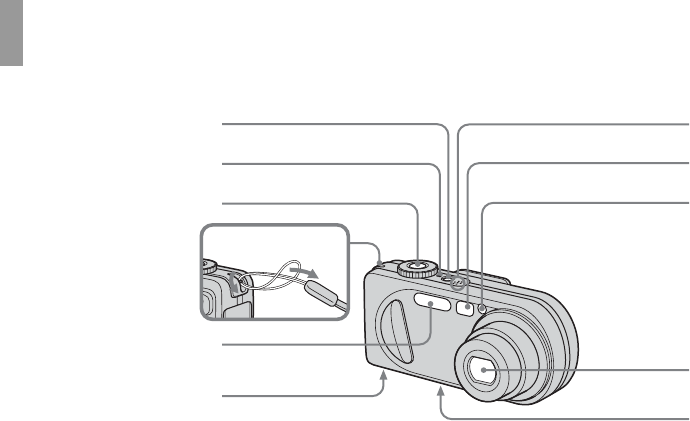
Identifying the parts
See the pages in parentheses for details of operation.
APOWER button (14)
BPOWER lamp (14)
CShutter button (21)
DHook for wrist strap
EFlash (26)
FSpeaker (bottom surface)
GMicrophone
HFinder window
ISelf-timer lamp (25)/
AF illuminator (27, 104)
JLens
KTripod receptacle (bottom
surface)
•Use a tripod with a screw length of less than
5.5 mm (7/32 inch). You will be unable to
firmly secure the camera to tripods having
longer screws, and may damage the camera.
•Do not touch the microphone while recording.
•The “3.2 MEGA PIXELS” indicated on DSC-
P8 shows the number of effective pixels. The
number of actually recorded pixels is maximum
3.1 MEGA PIXELS. The effective pixels
number is determined according to the
recommendation of the JCIA (Japan Camera
Industry Association).
2
3
4
5
6
17
8
9
0
qa
Attaching the strap
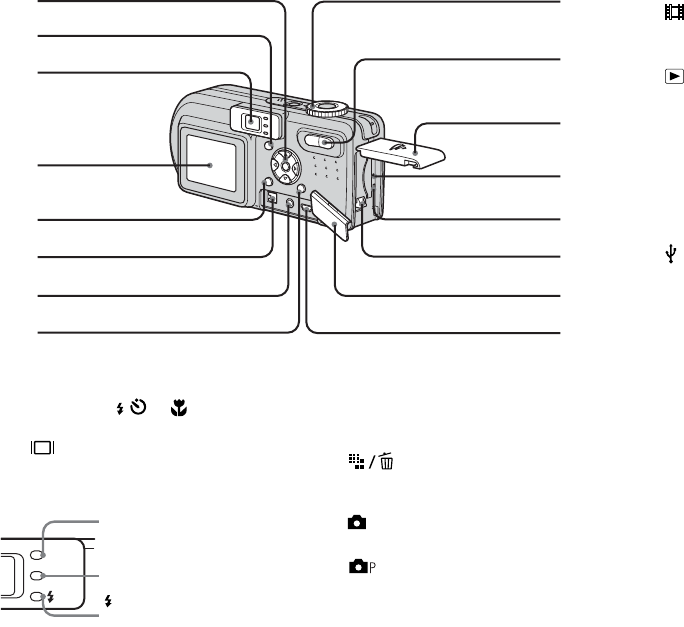
9
AControl button
(Menu on) (v/V/b/B/z) (14)/
(Menu off) ( / /7/) (26, 25, 23,
24)
B (Display/LCD on/off) button
(28)
CFinder (28)
DLCD screen
EMENU button (39, 100)
FDC IN jack (10, 13)
GA/V OUT (MONO) jack (32)
H (Image Size/Delete)
button (18, 34)
IMode dial (15, 22)
: To shoot still images in auto
adjustment mode
: To shoot still images in
programmed mode
SCN: To shoot in the Scene
Selection mode
SET UP: To set the SET UP items
: To shoot movies, Clip
Motion images or Multi
Burst mode images
: To view or edit images
JZoom button (for shooting) (23)/
Index button (for viewing) (31)
KBattery/“Memory Stick” cover
LRESET button (87)
MAccess lamp (17)
NBattery eject lever (10)
OJack cover
P (USB) jack (78)
9
0
qa
qs
qd
qf
qg
qh
1
2
3
4
5
6
7
8
/CHG
Self-timer
(25)
/recording
lamp (red)
(22)
AE/AF lock lamp
(green) (21)
/CHG lamp (orange)
(11, 26)
10
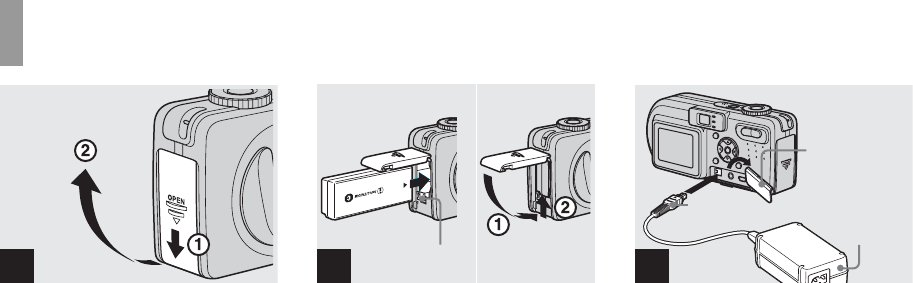
Charging the battery pack
,Open the battery/“Memory
Stick” cover.
Slide the cover in the direction of the arrow.
• Be sure to turn off your camera when
charging the battery pack (page 14).
•Your camera operates with the
“InfoLITHIUM” NP-FC11 battery pack (C
type) (supplied). You can use only C type
battery pack (page 109).
,Install the battery pack, then
close the battery/“Memory
Stick” cover.
Insert the battery pack with the B mark
facing toward the battery compartment as
illustrated.
Make sure the battery pack is firmly
inserted all the way, then close the cover.
•The battery pack is easily inserted by pushing
the battery eject lever at the front of the battery
compartment down.
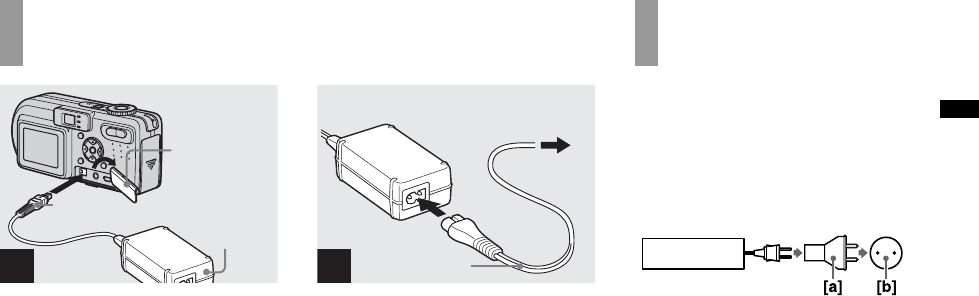
,Open the jack cover and
connect the AC-LS5 AC
Adaptor (supplied) to the DC IN
jack of your camera.
Open the cover in the arrow direction as
illustrated above. Connect the plug with the
v mark facing up.
•Do not short the DC plug of the AC Adaptor
with a metallic object, as this may cause
malfunction.
•Clean the DC plug of the AC Adaptor with a
dry cotton bud. Do not use the dirty plug. Use
of the dirty plug may not properly charge the
battery pack.
12
Battery eject lever
3
DC plug AC
Adaptor
Jack cover
Getting
started
11
Getting started
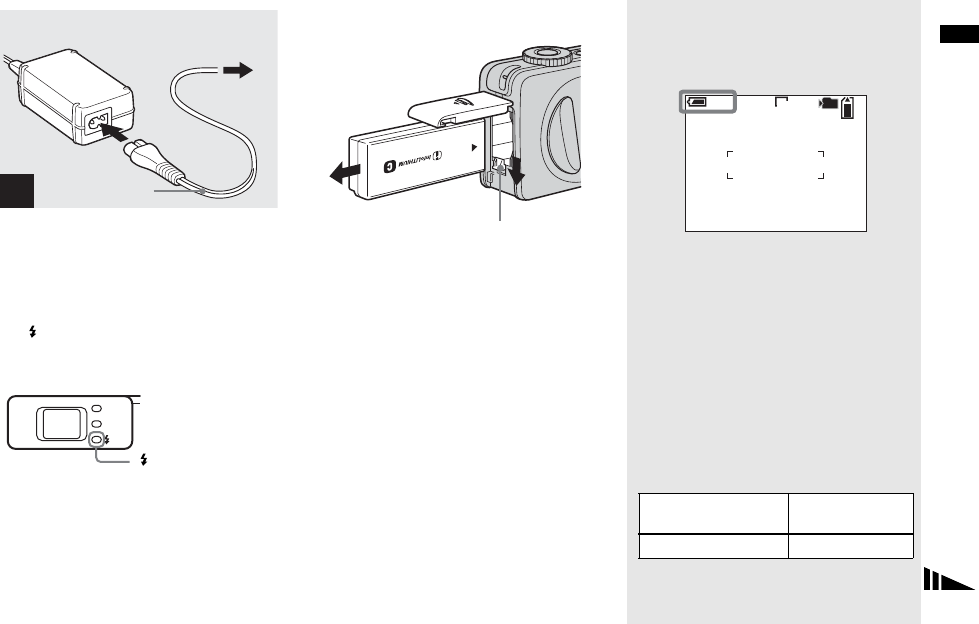
,Connect the power cord (mains
lead) to the AC Adaptor and
then to a wall outlet (wall
socket).
The /CHG lamp (orange) lights up when
charging begins, and goes off when
charging is completed.
•After charging the battery pack, disconnect the
AC Adaptor from the DC IN jack of your
camera.
To remove the battery pack
Open the battery/“Memory Stick” cover.
Slide the battery eject lever in the direction
of the arrow, and remove the battery pack.
•Be careful not to drop the battery pack when
removing it.
Battery remaining indicator
The battery remaining indicator on the LCD
screen shows the remaining shooting or viewing
time.
•The black portion of the battery remaining
indicator in the illustration shows the actual
remaining time.
•When you switch the LCD screen on/off, it
takes about one minute for the correct battery
remaining time to appear.
•The displayed time remaining may not be
correct under certain circumstances or
conditions.
Charging time
Approximate time to charge a completely
discharged battery pack using the AC-LS5 AC
Adaptor at a temperature of 25°C (77°F).
4
Power cord
(mains lead)
2 To wall outlet (wall socket)
1
/CHG
/CHG lamp
Battery eject lever
Battery pack Charging time
(min.)
NP-FC11 (supplied) Approx. 150
4
101
S AF
3.1M
60
min
12
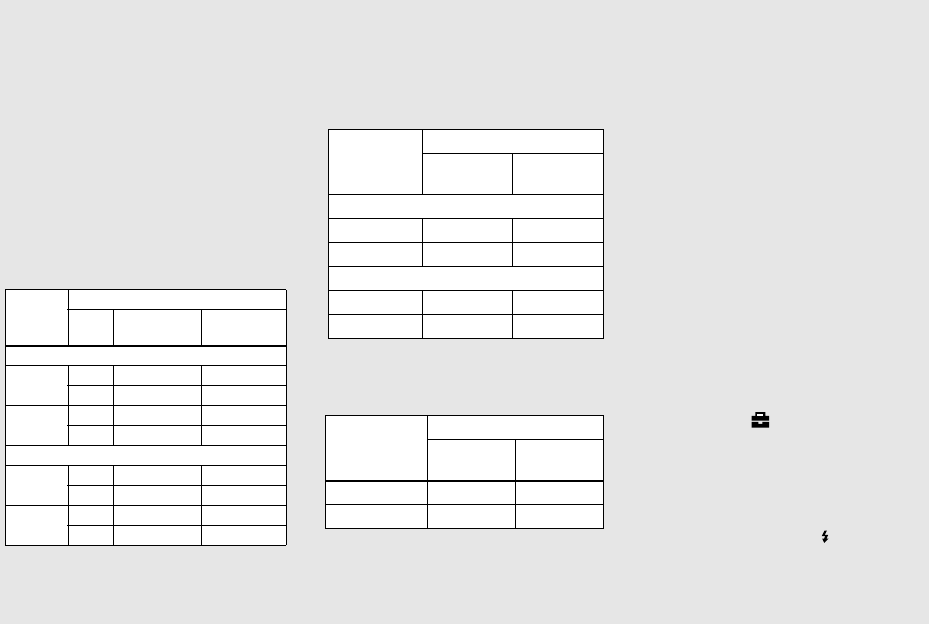
Number of images and battery
life that can be recorded/
viewed
The tables show the approximate number of
images and the battery life that can be recorded/
viewed when you shoot images in normal mode
with a fully charged battery pack at a temperature
of 25°C (77°F). The numbers of images that can
be recorded or viewed take into account changing
the supplied “Memory Stick” as necessary. Note
that the actual numbers may be less than
indicated depending on the conditions of use.
Shooting still images
Under the average conditions1)
1) Shooting in the following situations:
– [P. Quality] is set to [Fine]
– Shooting one time every 30 seconds
– The zoom is switched alternately between
the W and T ends
– The flash strobes once every two times
– The power turns on and off once every ten
times.
Viewing still images2)
2) Viewing single images in order at about three
second intervals
Shooting movies3)
3) Shooting continuously at 160 (Mail) image
size
•The number of images and the battery life that
can be recorded/viewed are decreased under the
following conditions:
– The surrounding temperature is low
– The flash is used
– The camera has been turned on and off many
times
– The zoom is used frequently
– [LCD Backlight] is set to [Bright] in the SET
UP settings
– [Power Save] is set to [Off] in the SET UP
settings
– The battery power is low
The battery capacity decreases as you use it
more and more and as time passes
(page 110).
– [AF Mode] is set to [Monitor] or [Cont] in the
SET UP settings
The Power Save function
When the Power Save function is activated,
you can shoot for a longer period of time.
Set the mode dial to SET UP, and set
[Power Save] in (Setup 1) to [On]. The
factory setting is [Off] (page 105).
•[Power Save] appears only when you use the
camera with the battery back.
When [Power Save] is set to [On]
While charging the flash, the /CHG lamp
flashes and the LCD screen turns off. After the
charging is complete, the lamp goes out and
the LCD screen turns on.
Image
size
NP-FC11 (supplied)
LCD
screen
No. of
images Battery life
(min.)
DSC-P10/P12
5.0M On Approx. 180 Approx. 90
Off Approx. 240 Approx. 120
VGA On Approx. 180 Approx. 90
Off Approx. 240 Approx. 120
DSC-P8
3.1M On Approx. 200 Approx. 100
Off Approx. 250 Approx. 125
VGA On Approx. 200 Approx. 100
Off Approx. 250 Approx. 125
Image size
NP-FC11 (supplied)
No. of
images Battery life
(min.)
DSC-P10/P12
5.0M Approx. 3600 Approx. 180
VGA Approx. 3600 Approx. 180
DSC-P8
3.1M Approx. 3850 Approx. 190
VGA Approx. 3850 Approx. 190
NP-FC11 (supplied)
LCD
screen on LCD
screen off
DSC-P10/P12 Approx. 90 Approx. 135
DSC-P8 Approx. 100 Approx. 145
1
13
Getting started
Using an external power source
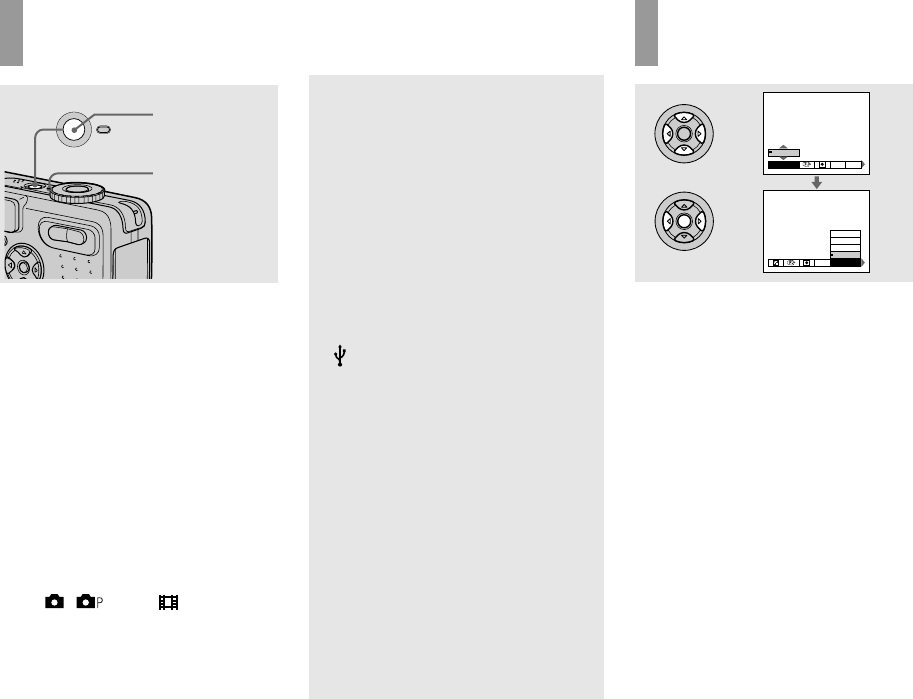
,Open the jack cover and
connect the AC-LS5 AC
Adaptor (supplied) to the DC IN
jack of your camera.
Connect the plug with the v mark facing
up.
•Connect the AC Adaptor to an easily accessible
wall outlet (wall socket) close by. If any trouble
occurs while using the adaptor, immediately
shut off the power by disconnecting the plug
from the wall outlet (wall socket).
,Connect the power cord (mains
lead) to the AC Adaptor and
then to a wall outlet (wall
socket).
•When you have finished using the AC Adaptor,
disconnect it from the DC IN jack of the
camera.
•The set is not disconnected from the AC power
source (mains) as long as it is connected to the
wall outlet (wall socket) even if the set itself has
been turned off.
1
Jack cover
AC
Adaptor
DC plug
2
2 To wall outlet
(wall socket)
Power cord
(mains lead)
1
Using your camera
abroad
Power sources
You can use your camera in any country or
area with the supplied AC Adaptor within
100 V to 240 V AC, 50/60 Hz. Use a
commercially available AC plug adaptor
[a], if necessary, depending on the design of
the wall outlet (wall socket) [b].
•Do not use an electronic transformer (travel
converter), as this may cause a malfunction.
AC-LS5
14
Turning on/off your camera
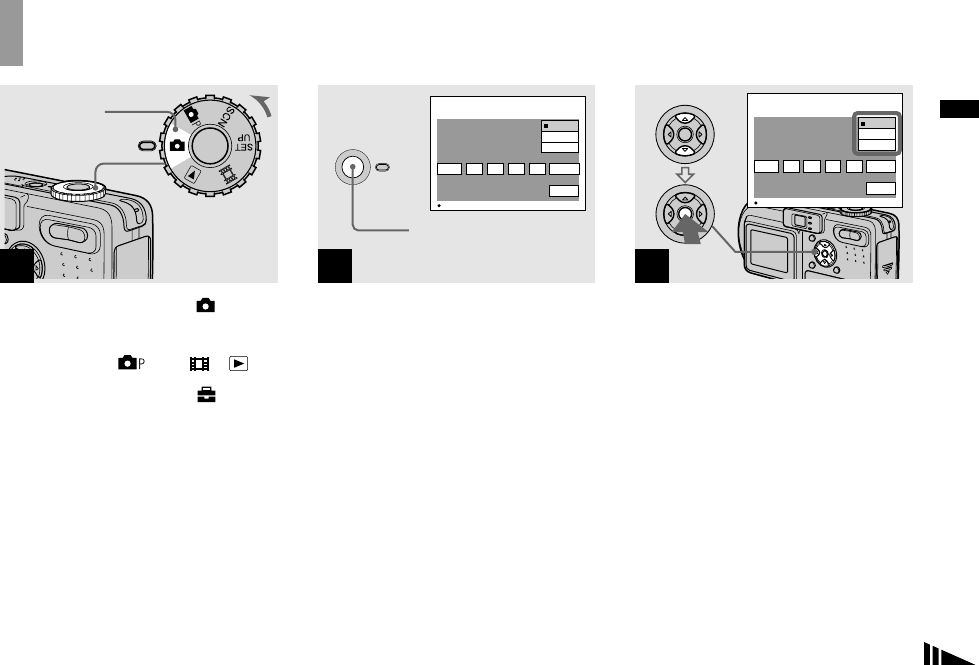
,Press POWER.
The POWER lamp (green) lights up and the
power is on. When you turn on your camera
for the first time, the Clock Set screen
appears (page 15).
Turning off the power
Press POWER again. The POWER lamp
goes out, and the camera turns off.
• Do not remove the battery pack or the
AC Adaptor with the lens portion
extended, as this may cause
malfunction.
•If you turn on the power when the mode dial is
set to , , SCN or , the lens portion
moves. Do not touch the lens portion while it is
operating.
Auto power-off function
If you do not operate the camera for a
while* during shooting or viewing or when
performing SET UP, the camera turns off
automatically to prevent wearing down the
battery. The auto power-off function only
operates when the camera is operating using
a battery pack. The auto power-off function
also will not operate in the following
circumstances.
• When viewing movies
• When playing back a slide show
• When a connector is plugged into the
(USB) jack or the A/V OUT (MONO)
jack.
* When [Power Save] is set to [On]:
approximately 90 seconds
When [Power Save] is set to [Off]:
approximately three minutes
POWER
POWER lamp
POWER button
How to use the
control button
To change the current settings of the
camera, bring up the menu or the SET UP
screen (page 39), and use the control button
to make the changes.
For each item, press v/V/b/B to select the
desired value, then press the center z or
b/B to make the setting.
WB ISO
Auto
100
200
400
0EV
WB
EV ISO
0EV
15
Getting started
Setting the date and time
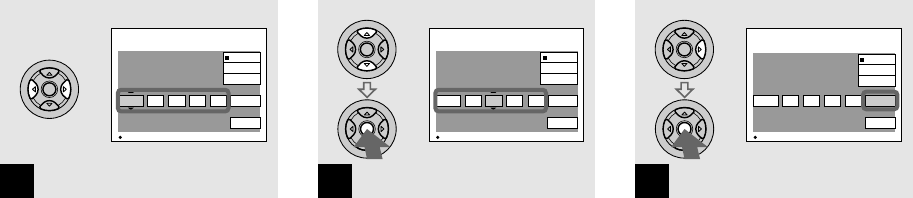
,Set the mode dial to .
•You can also carry out this operation when the
mode dial is set to , SCN, or .
•To change the date and time, set the mode dial
to SET UP, select [Clock Set] in (Setup 1)
(pages 39 and 105), and perform the procedure
from step 3.
,Press POWER to turn on the
power.
The POWER lamp (green) lights up and the
Clock Set screen appears on the LCD
screen.
,Select the desired date display
format with v/V on the control
button, then press z.
Select from [Y/M/D] (year/month/day),
[M/D/Y] (month/day/year) or [D/M/Y]
(day/month/year).
•If the rechargeable button battery, which
provides the power for saving the time data, is
ever fully discharged (page 108), the Clock Set
screen will appear again. When this happens,
reset the date and time, by starting from step 3
above.
1
Mode dial
1
2
2003 /:
/ 1
1 12 00
POWER
OK
Cancel
Clock Set
AM
OK
D/M/Y
M/D/Y
Y/M/D
POWER button
3
2003 /:
/ 1
1 12 00 OK
Cancel
Clock Set
AM
OK
D/M/Y
M/D/Y
Y/M/D
16
,Select the year, month, day,
hour or minute item you want
to set with b/B on the control
button.
The item to be set is indicated with v/V.
,Set the numeric value with v/V
on the control button, then
press z to enter it.
After entering the number, v/V moves to
the next item. Repeat this step until all of
the items are set.
•If you selected [D/M/Y] in step 3, set the time
on a 24-hour cycle.
,Select [OK] with B on the
control button, then press z.
The date and time are entered and the clock
starts to keep time.
•To cancel the date and time setting, select
[Cancel] with v/V/b/B on the control button,
then press z.
4
2003 /:
/ 1
1 12 00 OK
OK
AM
Cancel
Clock Set
D/M/Y
M/D/Y
Y/M/D
5
/:/ 4
7 12 00 OK
OK
2003
AM
Cancel
Clock Set
D/M/Y
M/D/Y
Y/M/D
6
/:/ 4
7 10 30 OK
OK
2003
AM
Cancel
Clock Set
D/M/Y
M/D/Y
Y/M/D
17
Shooting still images
Inserting and removing a “Memory Stick”
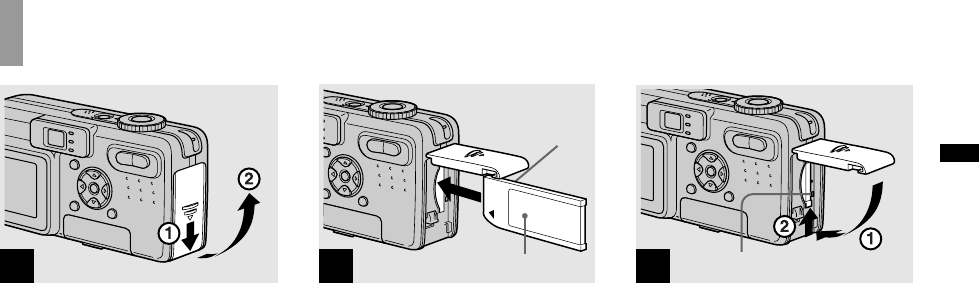
,Open the battery/“Memory
Stick” cover.
Slide the cover in the direction of the arrow.
•For details on “Memory Stick,” see page 108.
,Insert the “Memory Stick.”
Insert a “Memory Stick” all the way in until
it clicks as illustrated.
•Push the “Memory Stick” all of the way in so
that it is securely seated in the connector. If the
“Memory Stick” is not inserted correctly, you
may not be able to record or display images
with the “Memory Stick.”
,Close the battery/“Memory
Stick” cover.
To remove a “Memory Stick”
Open the battery/“Memory Stick” cover,
then push the “Memory Stick” to pop it out.
• Whenever the access lamp is lit, the
camera is recording or reading an
image. Never remove the “Memory
Stick” or turn off the power at this time.
The data may be corrupted.
12
Label side
Terminal Side
3Access lamp
Shooting still image
s
18
Setting the still image size
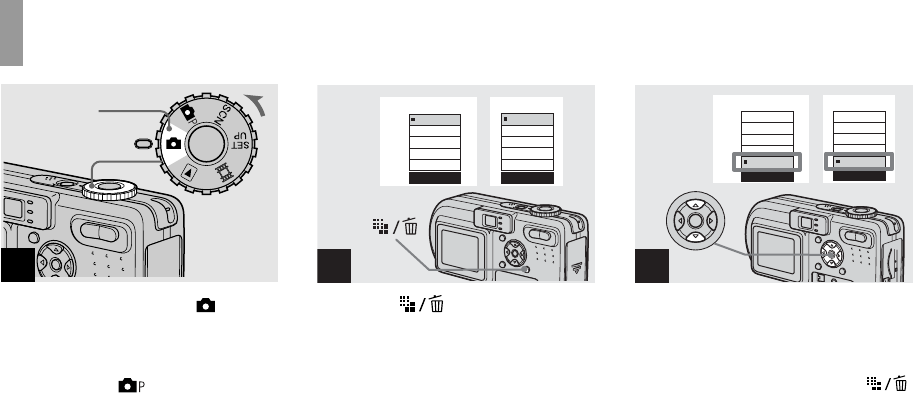
,Set the mode dial to , and
turn on the power.
•You can also carry out this operation when the
mode dial is set to or SCN.
,Press (Image Size).
The Image Size setup appears.
•For details on the image size, see page 20.
,Select the desired image size
with v/V on the control button.
The image size is set.
When the setting is complete, press
(Image Size) so that the Image Size setup
disappears from the LCD screen.
•The image size selected here is maintained even
when the power is turned off.
1
Mode dial
2
VGA
1.2M
2.0M
2.8M(3:2)
3.1M
Image Size
DSC-P8DSC-P10/P12
VGA
1.2M
3.1M
4.5M(3:2)
5.0M
Image Size
3
VGA
1.2M
2.0M
2.8M(3:2)
3.1M
Image Size
DSC-P8DSC-P10/P12
VGA
1.2M
3.1M
4.5M(3:2)
5.0M
Image Size
19
Shooting still images
Image size and quality
You can choose image size (number of
pixels) and image quality (compression
ratio) based on the kind of images you want
to shoot. The larger you make the image
size and the higher you make the image
quality, the better your image, but also the
larger the amount of data needed to preserve
your image. This means you can save fewer
images in your “Memory Stick.”
Choose an image size and quality level
appropriately for the kind of images you
want to shoot.
You can resize the images later (Resize
function, see page 65).
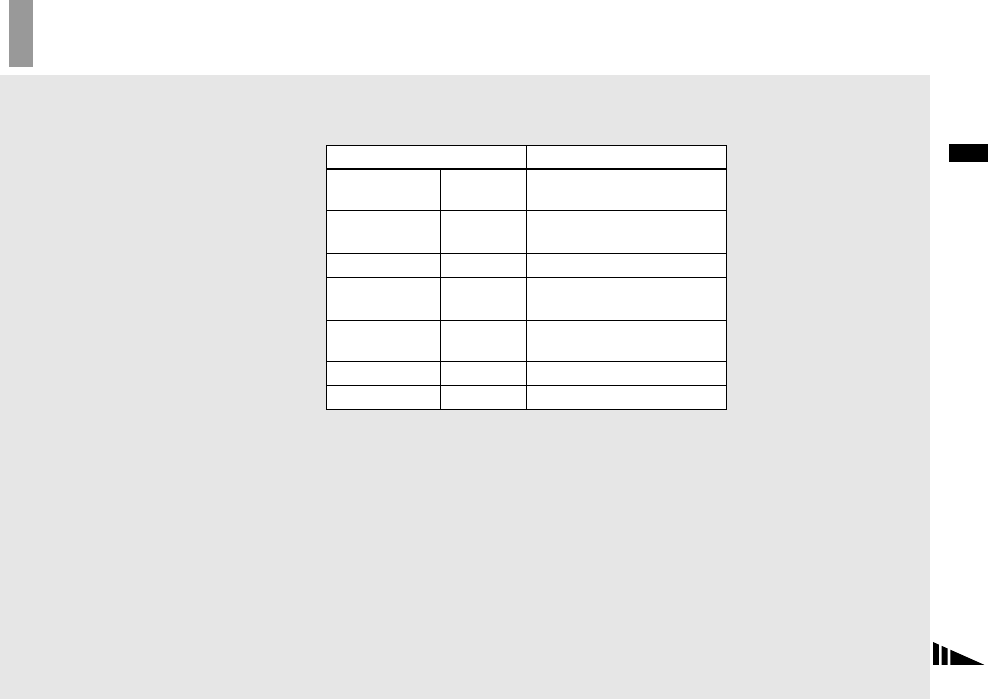
You can choose image size from among the five options in the following tables. The below
image size is a minimum setting for examples. When you want to improve image quality,
select the larger image size.
1) This option records images in a horizontal to vertical proportion of 3:2 to match the size of the print
paper used.
Image size Examples
5.0M
(DSC-P10/P12) 2592×1944 Very fine print
4.5M(3:2)1)
(DSC-P10/P12) 2592 (3:2) 3:2 prints1)
3.1M 2048×1536 Printing A4 size images
2.8M(3:2)1)
(DSC-P8) 2048 (3:2) 3:2 prints1)
2.0M
(DSC-P8) 1632×1224 Printing A5 size images
1.2M 1280×960 Printing postcard size images
VGA 640×480 Creating home pages
20
The number of images that can be saved in a “Memory Stick”2)
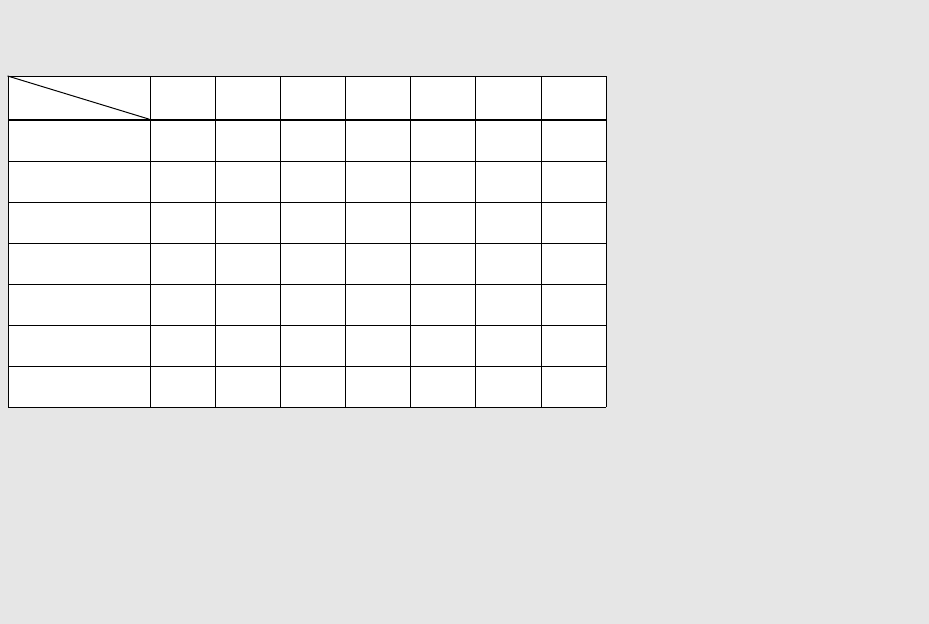
The number of images that can be saved in Fine (Standard)3) mode are shown below.
(Units: number of images)
2) When [REC Mode] is set to [Normal]
For the number of images that can be saved in other modes, see page 98.
3) For more information about the image quality mode, see page 40.
Capacity 16MB 32MB 64MB 128MB MSX-
256 MSX-
512 MSX-1G
Image size
5.0M
(DSC-P10/P12) 6
(11) 12
(23) 25
(48) 51
(96) 92
(174) 188
(354) 384
(723)
4.5M(3:2)
(DSC-P10/P12) 6
(11) 12
(23) 25
(48) 51
(96) 92
(174) 188
(354) 384
(723)
3.1M 10
(18) 20
(37) 41
(74) 82
(149) 148
(264) 302
(537) 617
(1097)
2.8M(3:2)
(DSC-P8) 10
(18) 20
(37) 41
(74) 82
(149) 148
(264) 302
(537) 617
(1097)
2.0M
(DSC-P8) 16
(30) 33
(61) 66
(123) 133
(246) 238
(446) 484
(907) 988
(1852)
1.2M 24
(46) 50
(93) 101
(187) 202
(376) 357
(649) 726
(1320) 1482
(2694)
VGA 97
(243) 196
(491) 394
(985) 790
(1975) 1428
(3571) 2904
(7261) 5928
(14821)
•The “3.2 MEGA PIXELS” indicated on DSC-
P8 shows the number of effective pixels. The
number of actually recorded pixels is maximum
3.1 MEGA PIXELS.
•When 1600×1200 size images recorded using
earlier Sony models are played back on this
camera, “2.0M” indicator appears on the LCD
screen. However, the actual image size is 1.9M
in these cases.
•When the images are viewed on the LCD
screen of the camera, they all look the same
size.
•Number of shooting images can differ from
these values according to shooting conditions.
•When the number of remaining shooting
images is greater than 9999, the “>9999”
indicator appears on the LCD screen.
21
Shooting still images
Basic still image shooting (using auto adjustment mode)
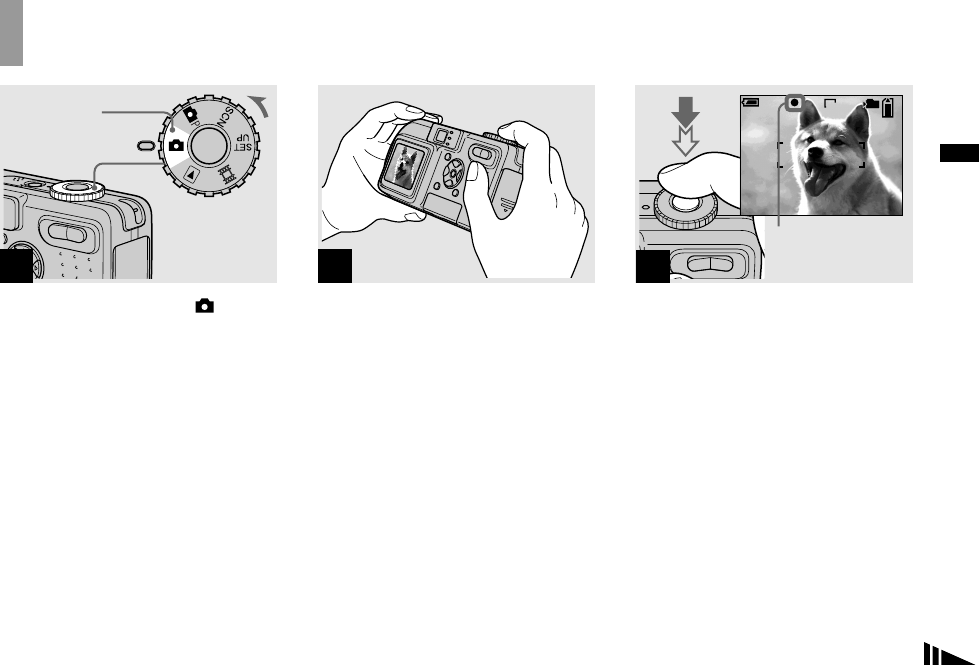
,Set the mode dial to , and
turn on the power.
The name of the folder where the image will
be recorded appears on the LCD screen for
approximately five seconds.
•The lens cover opens when the power is turned
on.
•Do not touch the lens portion while it is
operating, such as when you press POWER to
turn on the power or when the zoom function is
working (page 23).
•This camera can create new folders and select
folders to be stored in the “Memory Stick”
(page 40).
,Hold the camera steadily with
both hands and position the
subject in the center of the
focus frame.
Do not cover the lens, flash or microphone
(page 8) with your fingers.
•The minimum focal distance to a subject is as
follows:
DSC-P10/P12: Approx.50 cm (19 3/4 inches)
(W)/ 60 cm (23 5/8 inches) (T) or more
DSC-P8: Approx. 50 cm (19 3/4 inches) (W/T)
or more
To shoot subjects at distances closer than this,
use the macro mode (page 24).
,Press and hold the shutter
button halfway down.
The beep sounds but the image is not yet
recorded. When the AE/AF lock indicator
changes from flashing to steadily lit, the
camera is ready for shooting.
(The LCD screen may be frozen for a split
second depending on the subject.)
•If you release the shutter button, shooting will
be canceled.
•When the camera does not beep, the AF
adjustment is not complete. You can continue to
shoot, but the AF is not set properly (except in
Continuous AF, page 43).
•The frame indicated on the LCD screen shows
the focus adjustment range (AF range finder,
page 42).
1
Mode dial
23
F2.8
30
96
VGA
FINE
101
S AF
60
min
AE/AF lock indicator
Flashes green t
Light up
22
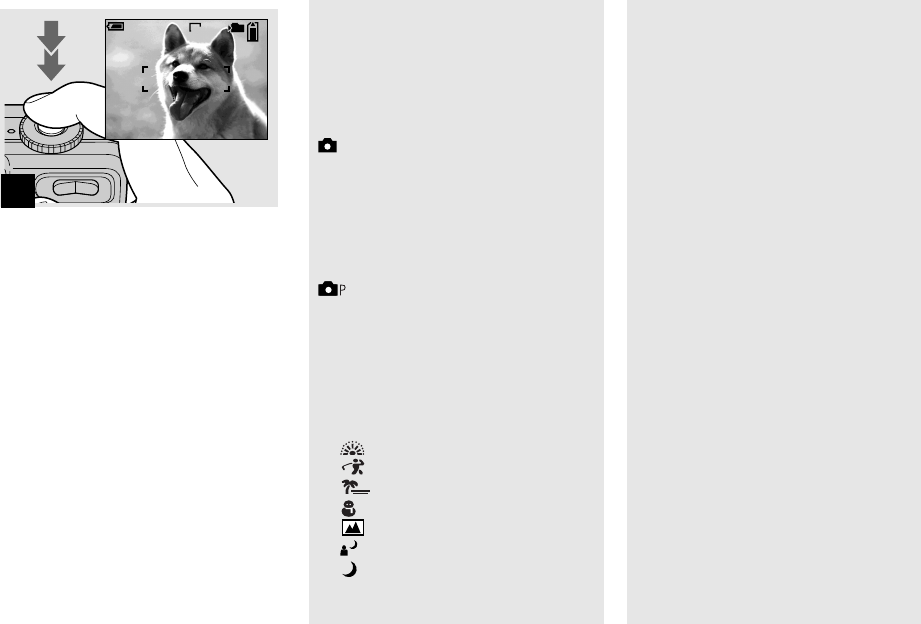
,Press the shutter button fully
down.
The shutter sounds. The image will be
recorded in the “Memory Stick.” When the
recording lamp (page 9) goes out, you can
shoot the next image.
•When operating the camera using a battery
pack, if you do not operate the camera for a
while during recording or playback, the camera
turns off automatically to prevent wearing
down the battery (page 14).
4
S AF
95
VGA
101
60
min
Mode dial for still image
shooting
When shooting still images with your
camera, you can choose from the following
shooting methods.
(Auto adjustment mode)
The focus, exposure and white balance are
automatically adjusted to allow easy
shooting. The image quality is set to [Fine]
and the AF range finder frame is set to
[Multi AF] (page 42).
(Programmed mode)
You can set the desired shooting functions
using menus (pages 42 and 100).
SCN (Scene selection)
You can select from the following modes to
shoot according to the scene conditions
(page 55).
– (Fireworks mode)
– (High-speed shutter mode)
– (Beach mode)
– (Snow mode)
– (Landscape mode)
– (Twilight portrait mode)
– (Twilight mode)
Auto Focus
When you try to shoot a subject that is
difficult to focus on, the AE/AF lock
indicator changes to flashing slowly.
The Auto Focus function may have
difficulty working under the following
conditions. In such cases, release the shutter
button, then recompose the shot and focus
again.
• The subject is distant from the camera
and dark.
• The contrast between the subject and its
background is poor.
• The subject is seen through glass, such as
a window.
• A fast-moving subject.
• The subject reflects or has a lustrous
finish, such as a mirror or a luminous
body.
• A flashing subject.
• A backlit subject.
There are two Auto Focus functions: “AF
range finder frame” which sets the focus
position according to the subject position
and size, and “AF mode” which sets the
focus operation according to the AF
response and the battery consumption.
See page 42 for details.
23
Shooting still images
Checking the last image you
shot — Quick Review
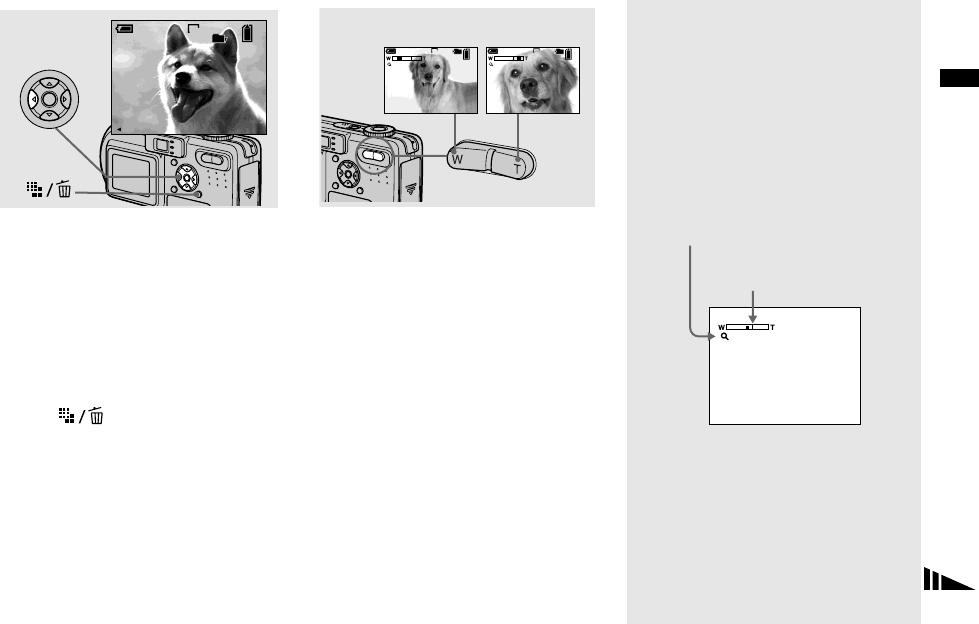
,Press b (7) on the control
button.
To return to the normal shooting mode,
press lightly on the shutter button or press b
(7) again.
To delete the image displayed on the
screen
1Press (Delete).
2Select [Delete] with v on the control
button, then press z.
The image is deleted.
10:30
PM
2003 7 4101-0029
8/8
101
VGA
Review
60
min
RETURN
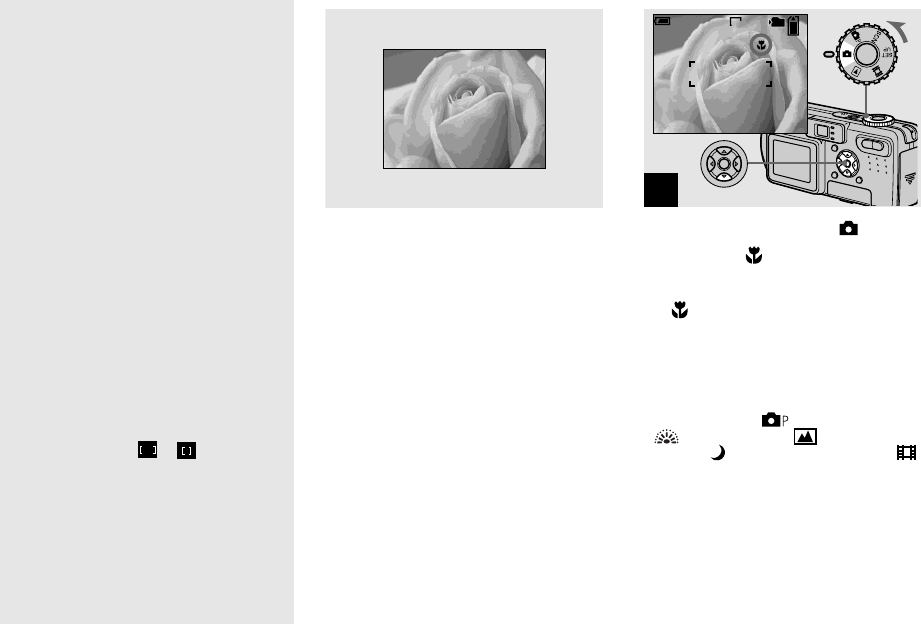
Using the zoom feature
,Press the zoom buttons to
choose the desired image size
for shooting.
The minimum focal distance to the
subject
DSC-P10/P12: Approx. 50 cm
(19 3/4 inches) (W)/60 cm (23 5/8 inches)
(T) from the lens surface
DSC-P8: Approx. 50 cm (19 3/4 inches)
(W/T) from the lens surface
•The lens portion moves during zoom operation.
Do not touch the lens portion while it is
operating.
•The zoom feature cannot be used while
shooting movies (page 68).
Smart zoom
Digital processing lets you zoom in the
image without deterioration.
When the zoom exceeds 3×, enlargement is
carried out using the smart zoom. When the
smart zoom is not needed, set [Smart Zoom]
to [Off] in the SET UP settings (page 104).
When you press the zoom button, the zoom
scaling indicator appears on the LCD
screen.
101 101
96
VGA
S AF
96
VGA
S AF
60
min
60
min
x1.1 x5.0
W (wide-angle) T (telephoto)
x2.5
The T side of this line shows
the extent of smart zoom
Zoom scaling indicator
24
The maximum zoom scale depends on the
image size.
DSC-P10/P12
[3.1M]: 3.8×
[1.2M]: 6.1×
[VGA]: 12×
DSC-P8
[2.0M]: 3.8×
[1.2M]: 4.8×
[VGA]: 9.6×
When the image size is [5.0M] or
[4.5M(3:2)] (DSC-P10/P12)/[3.1M] or
[2.8M(3:2)] (DSC-P8), the smart zoom
does not work.
•You cannot confirm the image with the finder
when using the smart zoom function.
•When using the smart zoom, the image on the
LCD screen may look rough. However, this
phenomenon has no effect on the recorded
image.
•AF range finder is not shown when using the
smart zoom. When 9 (Focus) is set to [Multi
AF] or [Center AF], or flashes and the
centrally-located subject has priority to focus
on.
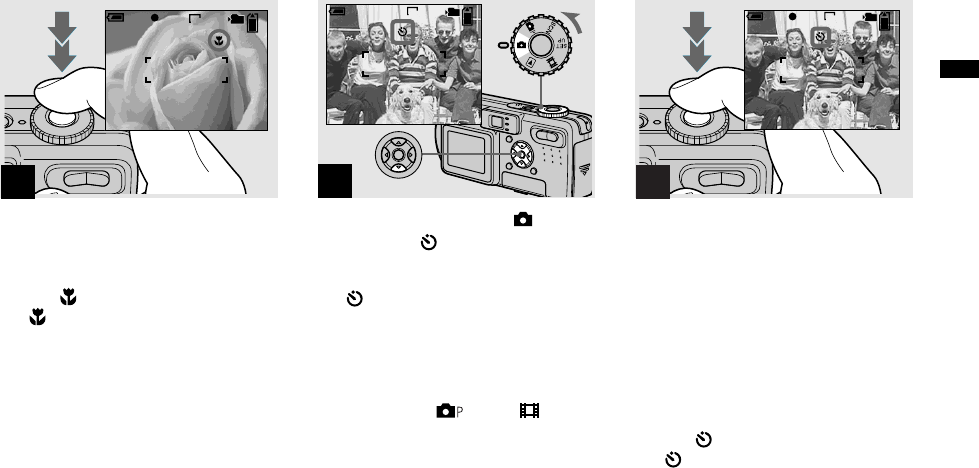
Shooting close-ups — Macro
The macro recording mode is used when
zooming up a small subject, such as flowers
or insects. You can shoot close-ups of
subjects up to the distances specified below.
When the zoom is set all the way to
the W side:
Approx. 10 cm (4 inches) from the lens
surface
When the zoom is set all the way to
the T side:
DSC-P10/P12: Approx. 60 cm
(23 5/8 inches) from the lens surface
DSC-P8: Approx. 50 cm (19 3/4 inches)
from the lens surface
,Set the mode dial to , and
press B ( ) on the control
button.
The (macro) indicator appears on the
LCD screen.
•If the menu is currently displayed, press MENU
first so that the menu disappears.
•You can also carry out this operation when the
mode dial is set to or SCN (other than
(Fireworks mode), (Landscape
mode) or (Twilight mode), page 55) or .
1
96
VGA
101
S AF
60
min
25
Shooting still images
,Center the subject in the frame,
and shoot the image.
To return to normal recording mode
Press B ( ) on the control button again.
The indicator disappears from the LCD
screen.
•Use the LCD screen to shoot when using the
macro feature. If you use the finder, the limits
of what you see and what you actually shoot
may be different.
2
95
VGA
FINE
101
S AF
F2.8
30
60
min
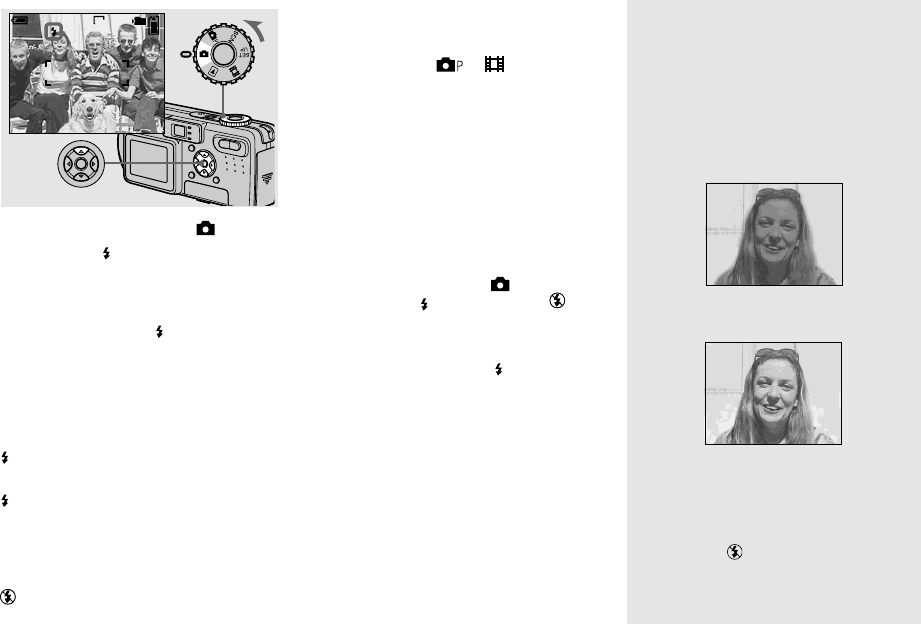
Using the self-timer
,Set the mode dial to , and
press V ( ) on the control
button.
The (self-timer) indicator appears on the
screen.
•If the menu is currently displayed, press MENU
first so that the menu disappears.
•You can also carry out this operation when the
mode dial is set to , SCN or .
,Center the subject in the frame,
and press the shutter button
fully down.
The self-timer lamp (page 8) flashes and a
beep sounds after you press the shutter
button until the shutter operates
(approximately 10 seconds later).
To cancel the self-timer in the middle
of the operation
Press V ( ) on the control button again.
The indicator disappears from the LCD
screen.
•If you press the shutter button while standing in
front of the camera, the focus and the exposure
may not be correctly set.
1
VGA
101
96
S AF
60
min
2
F2.8
30
VGA FINE
101
96
S AF
60
min
26
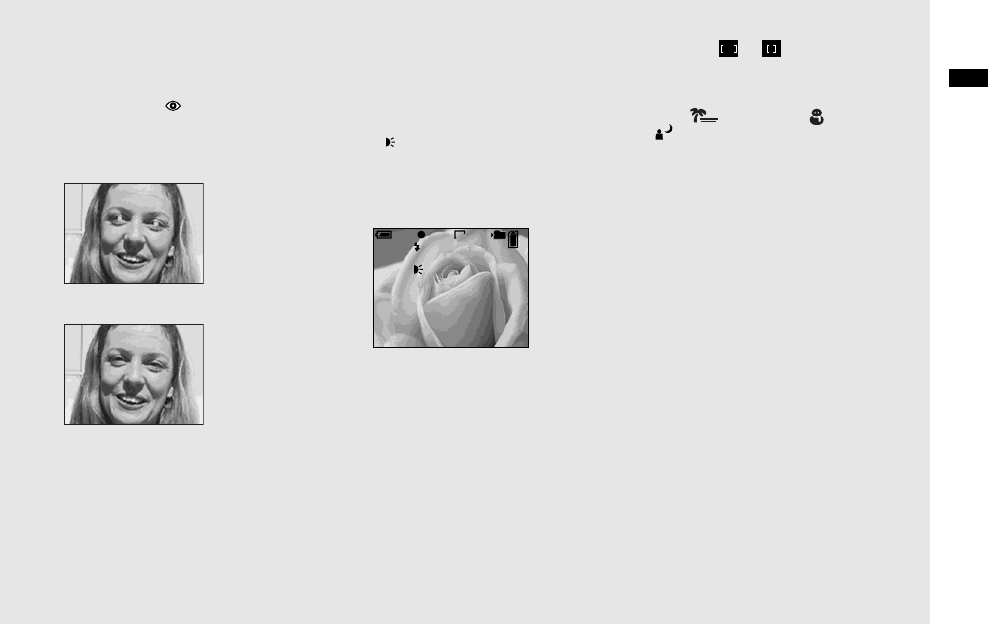
Selecting a flash mode
,Set the mode dial to , and
press v ( ) on the control
button repeatedly to select a
flash mode.
Each time you press v ( ), the indicator
changes as follows.
No indicator (Auto): The flash
automatically strobes when shooting
images in a dark place or against a light
source.
(Forced flash): The flash strobes
regardless of the surrounding brightness.
(Slow synchro): The flash strobes
regardless of the surrounding brightness.
The shutter speed is slow in a dark place, so
you can clearly shoot the background that is
out of flash light.
(No flash): The flash does not strobe.
•If the menu is currently displayed, press MENU
first so that the menu disappears.
•You can also carry out this operation when the
mode dial is set to or (Clip Motion).
•When [ISO] is set to [Auto] in the menu
settings, the recommended shooting distance
using the flash is as follows:
DSC-P10/P12: Approx. 0.5 m to 3.5 m (19 3/4
inches to 11 feet 5 3/16 inches) (W)/0.6 m to
2.5 m (23 5/8 inches to 8 feet 2 7/16 inches) (T)
DSC-P8: Approx. 0.5 m to 3.5 m (19 3/4 inches
to 11 feet 5 3/16 inches) (W)/0.5 m to 2.5 m
(19 3/4 inches to 8 feet 2 7/16 inches) (T)
•You can change the brightness of the flash with
[Flash Level] in the menu settings (page 50).
(You cannot change the brightness of the flash
while the mode dial is set to .)
•When using the (Slow synchro) or (No
flash) mode, the shutter speed becomes slower
in dark places, so using a tripod is
recommended.
•While charging the flash, the /CHG lamp
flashes. After the charging is complete, the
lamp goes out.
•This setting is maintained even when the power
is turned off.
Shooting images against a
light source
In auto adjustment mode, shooting against a
light source automatically strobes even
when there is enough light around the
subject (Daylight synchro).
Before strobed
When strobed
•Daylight synchro may not procedure the
desired effects depending on shooting
conditions.
•When you do not want to use the flash, set the
flash mode to (No flash).
VGA
101
96
S AF
60
min
SL
SL
27
Shooting still images
To reduce the red-eye
phenomenon when shooting
live subjects
Set [Red Eye Reduction] to [On] in the SET
UP settings (page 104). indicator
appears on the LCD screen, and the flash
pre-strobes before shooting to reduce the
red-eye phenomenon.
•Red-eye reduction may not produce the desired
effects depending on individual differences, the
distance to the subject, if the subject does not
see the pre-strobe, or other conditions.
Shooting images with the AF
illuminator
The AF illuminator is fill light to focus
more easily on a subject in dark
surroundings. Set [AF Illuminator]
(page 104) to [Auto] in the SET UP
settings. appears on the LCD screen
and the AF illuminator emits red light when
the shutter button is pressed halfway until
the focus is locked.
•If AF illuminator light does not reach the
subject sufficiently or the subject has no
contrast, focus will not be achieved. (A distance
up to approximately 3.5 m (11 feet 5 3/16
inches) (W)/2.5 m (8 feet 2 7/16 inches) (T) is
recommended.)
•Focus is achieved as long as AF illuminator
light reaches the subject, even if the light is
slightly off the center of the subject.
•When the focus preset distance is set (page 44),
the AF illuminator does not function.
•When 9 (Focus) is set to [Multi AF] or
[Center AF], the AF range finder is not
displayed. or flashes and the
centrally-located subject has priority to focus
on.
•The AF illuminator operates only when SCN is
set to (Beach mode), (Snow mode) or
(Twilight portrait mode) in the menu
settings (page 55).
•The AF illuminator emits very bright light.
Although there are no problems with safety,
directly looking into the AF illuminator emitter
at close range is not recommended, as you may
see residual spots for several minutes
afterwards, such as after looking into a
flashlight.
m
ON
VGA
101
96
F2.8
30
ON
S AF
FINE
60
min
28
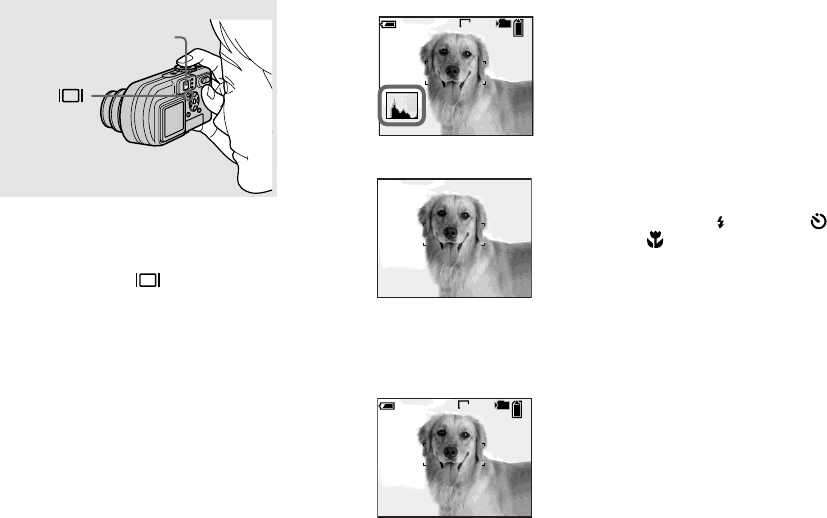
Shooting images with the finder
The finder is convenient when you want to
save battery power, or when it is difficult to
confirm the image using the LCD screen.
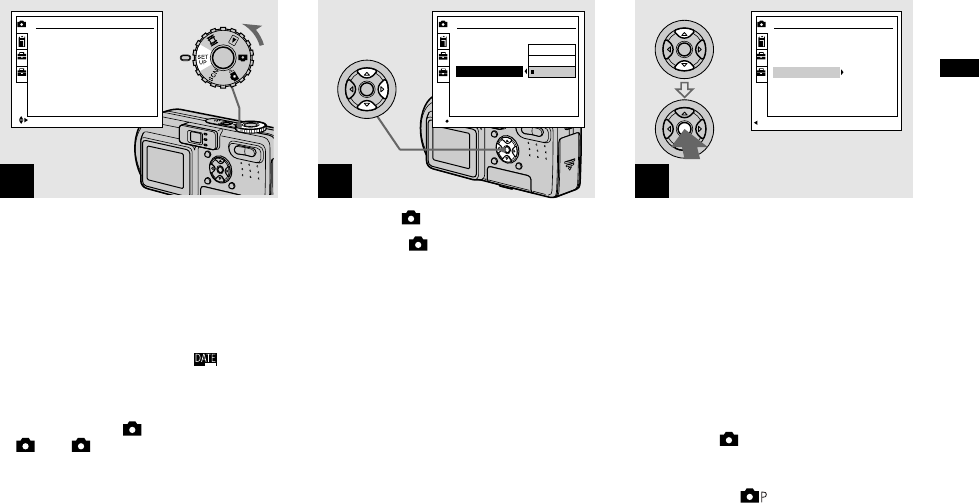
Each time you press , the display
changes in the following order.
Histogram on
r
Indicators off
r
LCD screen off
r
Indicators on
•The image through the finder does not indicate
the actual recordable range. To confirm the
recordable range, use the LCD screen.
•For a detailed description of the indicators, see
page 112.
•Just as with the AE/AF lock indicator on the
LCD screen, when the AE/AF lock lamp of the
finder section stops flashing and remains on,
you can start shooting (page 21).
•When the LCD screen is turned off, the smart
zoom does not function (page 23).
•When the LCD screen is turned off, the AF
Mode is set to [Single] (page 43).
•If you press (Flash mode)/ (Self-timer)/
(Macro) with the LCD screen turned off,
the image will be displayed on the screen for
approximately two seconds so you can check or
change the setting.
•For a detailed description of the histogram, see
page 46.
•This setting is maintained even when the power
is turned off.
Finder
VGA
101
96
S AF
60min
VGA
101
96
S AF
60min
29
Shooting still images
Inserting the date and time on a still image
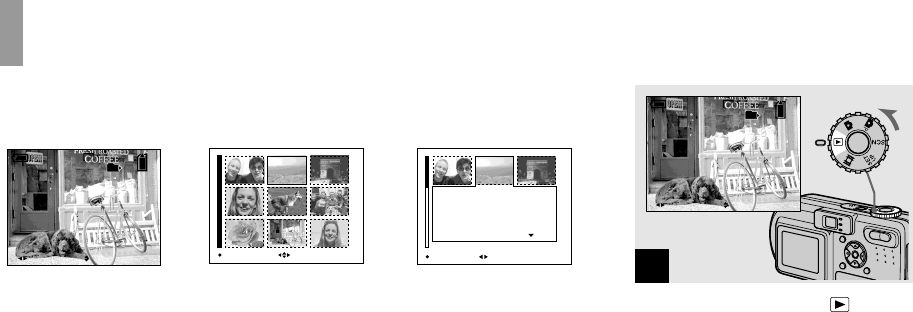
,Set the mode dial to SET UP.
The SET UP screen appears.
•When images are shot with the date and time
superimposed, the date and time cannot be
removed later.
•The date and time do not appear on the LCD
screen during shooting, instead, indicator
appears in the upper left corner of the LCD
screen. The actual date and time appear in red
during playback only.
•On DSC-P10/P12, item is displayed as
and (page 104).
,Select (Camera1) (DSC-P10/
P12) or (Camera) (DSC-P8)
with v on the control button,
then press B.
Select [Date/Time] with v/V,
then press B.
•If you select [Date], the date is superimposed
onto the image in the order selected in “Setting
the date and time” (page 15).
,Select the date and time setting
with v/V on the control button,
then press z.
Day & Time: Superimposes the date, hour,
and minute onto the image.
Date: Superimposes the year, month and
day onto the image.
Off: Does not superimpose the date and
time onto the image.
After the setting has been completed, set the
mode dial to , and shoot the image.
•You can also carry out this operation with the
mode dial set to or SCN.
•This setting is maintained even when the power
is turned off.
1
Camera
Moving Image:
AF Mode:
Smart Zoom:
Date/Time:
Red Eye Reduction
:
AF Illuminator:
MPEG Movie
Single
On
Off
Off
Auto
SELECT
2
1
12
2
OK
Camera
Moving Image:
AF Mode:
Smart Zoom:
Date/Time:
Red Eye Reduction
:
AF Illuminator:
Day&Time
Date
Off
2
1
1
3
PAGE SELECT
Camera
Moving Image:
AF Mode:
Smart Zoom:
Date/Time:
Red Eye Reduction:
AF Illuminator:
MPEG Movie
Single
On
Date
Off
Auto
2
1
30
Viewing images on the LCD screen of your
camera
You can view images shot with your camera
almost immediately on the screen. You can
select the following three methods for
viewing images.
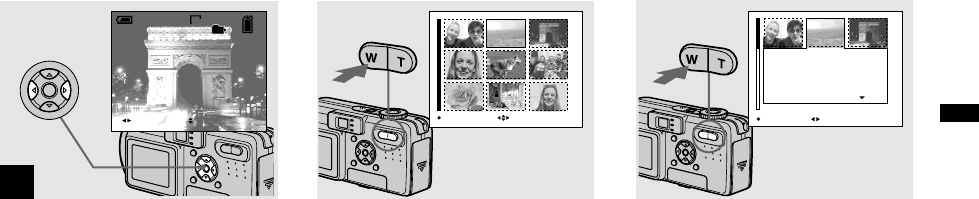
Single (single-image) screen
You can view one image at a time,
displayed over the entire screen.
Index (nine-image) screen
Nine images are displayed simultaneously
in separate panels on the screen.
Index (triple-image) screen
Three images are displayed simultaneously
in separate panels on the screen. Various
image information items are also displayed.
•For details on viewing movies, see page 69.
•For a detailed description of the indicators, see
page 114.
BACK/NEXT VOLUME
10:30
PM
2003 7 4101-0008
8/9
101
VGA
60min
MOVESINGLE DISPLAY
Aperture Value:
Shutter Speed:
Exposure Value:
ISO:
F2.8
1/30
0.0
100
10:30
PM
2003 7 4101-0002
SINGLE DISPLAY
BACK/NEXT
Single (single-image)
screen Index (nine-image)
screen Index (triple-image)
screen
Viewing single images
,Set the mode dial to , and
turn on the power.
The last image in the selected recording
folder (page 58) appears on the screen.
1
BACK/NEXT
10:30
PM
2003 7 4101-0008
VOLUME
8/9
101
60min
VGA
gg
31
Viewing still images
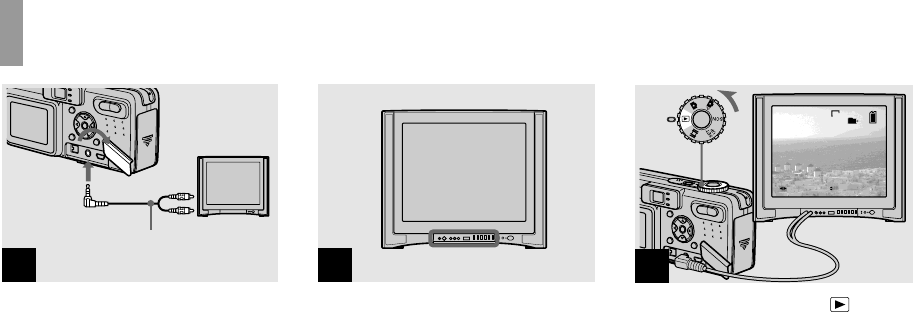
,Select the desired still image
with b/B on the control button.
b : To display the preceding image
B : To display the next image
2
10:30
PM
2003 7 4101-0003
3/9
101
VGA
BACK/NEXT VOLUME
60min
Viewing an index screen (nine-image or triple-image)
,Press the zoom W (index)
button once.
The display switches to the index (nine-
image) screen.
To display the next (previous) index
screen
Press v/V/b/B on the control button to
move the yellow frame up/down/left/right.
,Press the zoom W (index)
button once more.
The display switches to the index (triple-
image) screen.
Press v/V on the control button to display
the remaining image information.
To display the next (previous) index
screen
Press b/B on the control button.
To return to the single-image screen
Press the zoom T repeatedly, or press z on
the control button.
MOVESINGLE DISPLAY
10:30PM2003 7 4101-0002
Aperture Value:
Shutter Speed:
Exposure Value:
ISO:
F2.8
1/30
0.0
100
SINGLE DISPLAY
BACK/NEXT
32
Viewing images on a TV screen
,Connect the supplied A/V
connecting cable to the A/V
OUT (MONO) jack of the
camera and the audio/video
input jacks of the TV.
If your TV has stereo input jacks, connect
the audio plug (black) of the A/V
connecting cable to the left audio jack.
•Turn off both your camera and the TV before
connecting the camera and the TV with the A/V
connecting cable.
,Turn on the TV and set the TV/
Video switch to “Video”.
•The name and location of this switch may differ
depending on your TV. For a details, see the
operating instructions supplied with the TV.
,Set the mode dial to , and
turn on the camera.
Press b/B on the control button to select the
desired image.
•When using your camera abroad, it may be
necessary to switch the video output signal to
match that of your TV system (page 106).
1
A/V OUT
(MONO)
jack
A/V connecting cable
(supplied) 2TV/Video switch
3
VGA
2/9
101
10:30PM2003 7 4101-0002
BACK/NEXT VOLUME

33
Viewing still images
Viewing images on a TV screen
If you want to view images on a TV screen,
you need a TV with a video input jack and
a A/V connecting cable (supplied).
The color system of the TV must match that
of your digital still camera. Check the
following lists:
NTSC system
Bahama Islands, Bolivia, Canada, Central
America, Chile, Colombia, Ecuador,
Jamaica, Japan, Korea, Mexico, Peru,
Surinam, Taiwan, the Philippines, the
U.S.A., Venezuela, etc.
PAL system
Australia, Austria, Belgium, China, Czech
Republic, Denmark, Finland, Germany,
Holland, Hong Kong, Italy, Kuwait,
Malaysia, New Zealand, Norway, Portugal,
Singapore, Slovak Republic, Spain,
Sweden, Switzerland, Thailand, United
Kingdom, etc.
PAL-M system
Brazil
PAL-N system
Argentina, Paraguay, Uruguay
SECAM system
Bulgaria, France, Guiana, Hungary, Iran,
Iraq, Monaco, Poland, Russia, Ukraine, etc.
34
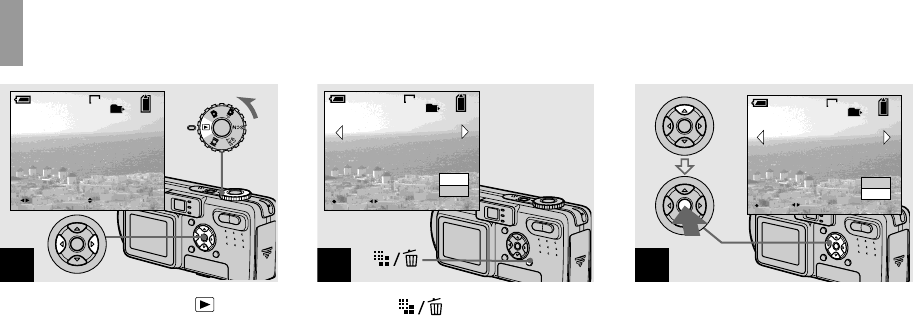
Deleting images
,Set the mode dial to , and
turn on the camera.
Press b/B on the control
button to select the image you
want to delete.
,Press (Delete).
The image has not yet been deleted at this
point.
•You cannot delete the protected image
(page 63).
,Select [Delete] with v on the
control button, then press z.
When the message “Memory Stick access”
disappears, the image has been deleted.
To continue and delete other images
Display the image to be deleted with b/B
on the control button. Then, select [Delete]
with v and press z.
To cancel deleting
Select [Exit] with V on the control button,
then press z.
1
2
/
9
VGA
101
10:30
PM
2003 7 4101-0002
60
min
BACK/NEXT VOLUME
2
VGA
2
/
9
101
OK
Delete
Exit
60
min
BACK/NEXT
3
VGA
2
/
9
101
OK
60
min
Delete
Exit
BACK/NEXT
gg
35
Deleting still images
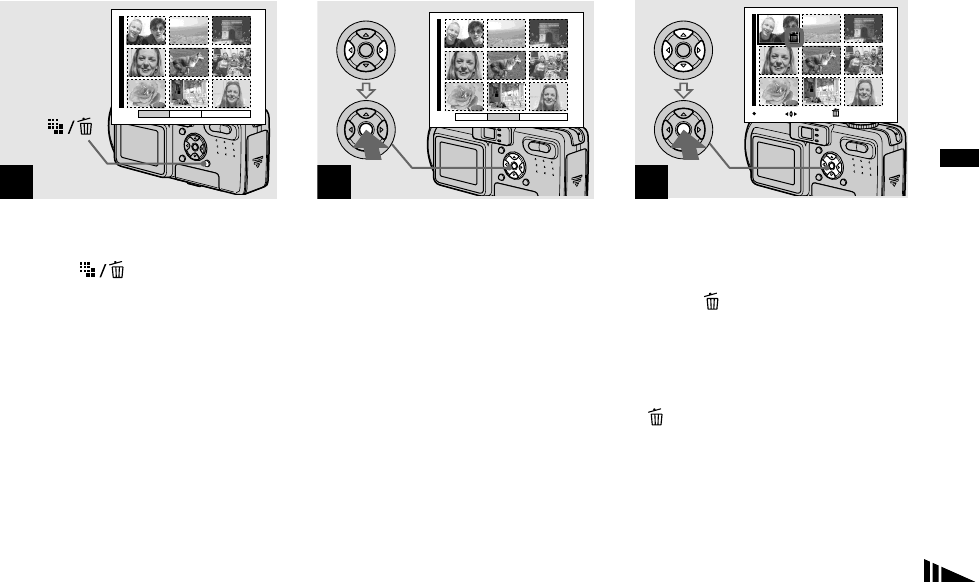
Deleting images in index (nine-image) mode
,While an index (nine-image)
screen (page 31) is displayed,
press (Delete).
,Select [Select] with b/B on the
control button, then press z.
To delete all the images in the folder
Select [All In Folder] with B on the control
button, then press z. Select [OK], then
press z. All of the unprotected images in
the folder are deleted. To cancel deleting,
select [Cancel], then press z.
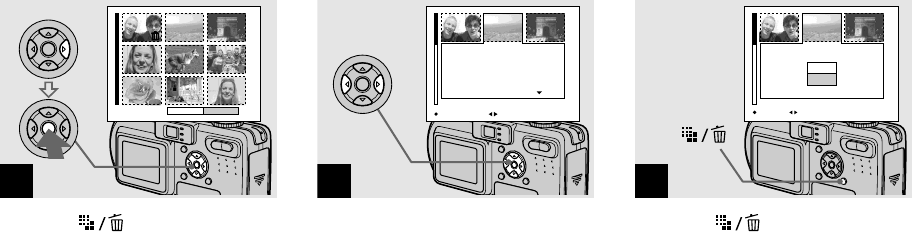
,Select an image you want to
delete with v/V/b/B on the
control button, then press z.
The green (Delete) indicator appears on
the selected image. At this point, the image
has not yet been deleted. Repeat this step for
all of the images you want to delete.
•To cancel a selection, press z again so that the
indicator disappears.
1
Select
All In Folder
Exit
Delete
2
Select
All In Folder
Exit
Delete
3
TO NEXTMOVESELECT
36
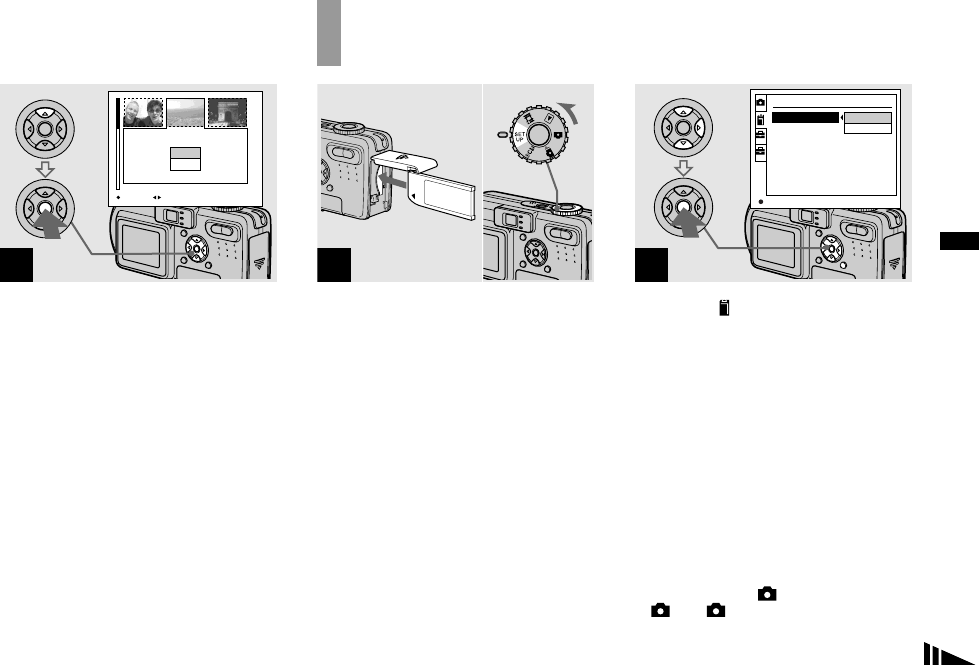
,Press (Delete) and select
[OK] with B on the control
button, then press z.
When the message “Memory Stick access”
disappears, the images have been deleted.
To cancel deleting
Select [Exit] with b on the control button,
then press z.
4
Exit
Delete
OK
Deleting images in index (triple-image) mode
,While an index (triple-image)
screen (page 31) is displayed,
set the image you want to
delete to the center with b/B on
the control button.
,Press (Delete).
The image has not yet been deleted at this
point.
1
10:30PM2003 7 4101-0002
Aperture Value:
Shutter Speed:
Exposure Value:
ISO:
F2.8
1/30
0.0
100
SINGLE DISPLAY
BACK/NEXT
2
10:30PM2003 7 4101-0002
Delete
Exit
BACK/NEXTOK
37
Deleting still images
,Select [Delete] with v on the
control button, then press z.
When the message “Memory Stick access”
disappears, the image has been deleted.
To cancel deleting
Select [Exit] with V on the control button,
then press z.
3
10:30PM2003 7 4101-0002
Delete
Exit
BACK/NEXTOK
Formatting a “Memory Stick”
,Insert the “Memory Stick” you
want to format into the camera.
Set the mode dial to SET UP,
and turn on the power.
•The term “formatting” means preparing a
“Memory Stick” to record images; this process
is also called “initialization.” The “Memory
Stick” provided with this camera, and those
available commercially, are already formatted,
and can be used immediately.
• When you format a “Memory Stick,” be
aware that all data in the “Memory
Stick” will be permanently erased.
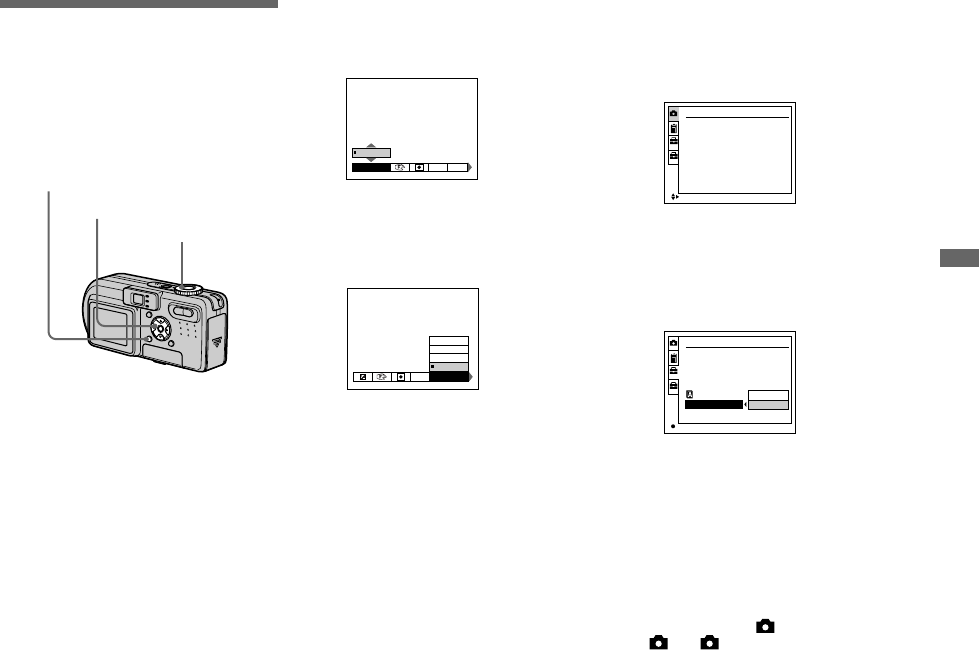
,Select (Memory Stick Tool)
with v/V on the control button.
Select [Format] with B, then
press B.
Select [OK] with v, then press
z.
To cancel the formatting
Select [Cancel] with V on the control
button, then press z.
•Using the AC Adaptor is recommended to
prevent the power from turning off partway
through formatting.
•On DSC-P10/P12, item is displayed as
and (page 104).
12
2
1
Memory Stick Tool
Format:
File Number:
Create REC. folder:
Change REC. folder:
OK
Cancel
OK
12
38
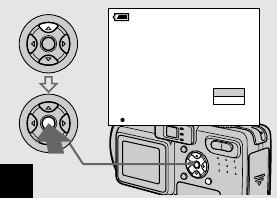
,Select [OK] with v on the
control button, then press z.
The “Formatting” message appears. When
this message disappears, the format is
complete.
3
OK
Ready?
Format
All data will be erased
Cancel
O K
60
min
39
Before advanced operations
How to setup and
operate your camera
The usage of the menus and SET UP screen
items that are most frequently used for
“Advanced operations” is described below.
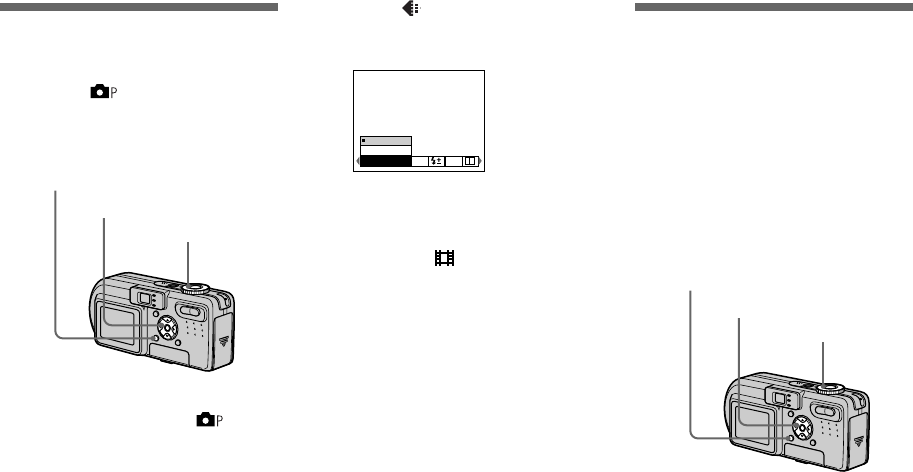
Changing the menu settings
aPress MENU.
The menu appears.
bPress b/B on the control
button to select the item you
want to set.
The selected item turns yellow.
cPress v/V on the control
button to select the desired
setting.
The frame of the selected setting turns
yellow, and the setting is entered.
To turn off the menu display
Press MENU.
Changing the items in the
SET UP screen
aSet the mode dial to SET UP.
The SET UP screen appears.
bPress v/V/b/B on the control
button to select the item you
want to set.
The frame of the selected item turns
yellow.
cPress z on the control button
to enter the setting.
To turn off the SET UP screen
display
Set the mode dial to anything other than
SET UP.
•On DSC-P10/P12, item is displayed as
and (page 104).
Mode dial
Control button
MENU
0EV
WB
EV ISO
0EV
WB ISO
Auto
100
200
400
Camera
Moving Image:
AF Mode:
Smart Zoom:
Date/Time:
Red Eye Reduction
:
AF Illuminator:
MPEG Movie
Single
On
Off
Off
Auto
SELECT
2
1
OK
Setup 1
Power Save:
LCD Brightness:
LCD Backlight:
Beep:
Language:
Clock Set: OK
Cancel
2
1
12
p
40
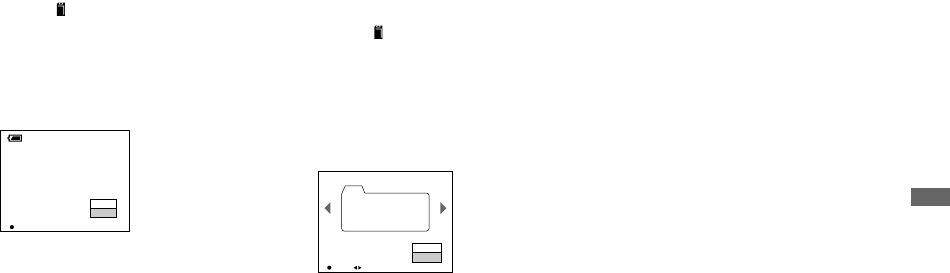
Deciding the still
image quality
Mode dial: /SCN
You can select the still image quality from
[Fine] or [Standard].
aSet the mode dial to or
SCN.
bPress MENU.
The menu appears.
cSelect (P. Quality) with b/B,
then select the desired image
quality with v/V.
•The image quality value selected here is
preserved even when the camera is turned off.
•You can also carry out this operation when the
mode dial is set to (Multi Burst) (page 52).
Creating or selecting
a folder
Mode dial: SET UP
Your camera can create multiple folders
within a “Memory Stick.” You can select
the folder used to store images.
When not creating a new folder,
“101MSDCF” folder is selected as the
recording folder.
You can create folders up to “999MSDCF.”
•Up to 4000 images can be stored in one folder.
When the folder capacity is exceeded, a new
folder is automatically created.
Mode dial
Control button
MENU
FINE
Standard
Fine
P.Quality PFXMode
Mode dial
Control button
MENU
41
Before advanced operations
Creating a new folder
aSet the mode dial to SET UP.
bSelect (Memory Stick Tool)
with v/V, [Create REC. Folder]
with B/v/V, and [OK] with B/v,
then press z.
The following screen appears.
cSelect [OK] with v, then press
z.
A new folder is created with a number
one higher than the largest number in
the “Memory Stick,” and the folder
becomes the recording folder.
To cancel folder creation
Select [Cancel] in step 2 or 3.
•Once you create a new folder, you cannot delete
the new folder with the camera.
•Images are recorded in the newly created folder
until a different folder is created or selected.
Changing the recording
folder
aSet the mode dial to SET UP.
bSelect (Memory Stick Tool)
with v/V, [Change REC.
Folder] with B/v/V, and [OK]
with B/v, then press z.
The recording folder selection screen
appears.
cSelect the desired folder with
b/B, and [OK] with v, then
press z.
To cancel changing the
recording folder
Select [Cancel] in step 2 or 3.
•You cannot select the “100MSDCF” folder as a
recording folder.
•The image is stored in the newly selected
folder. You cannot move images recorded with
this camera to a different folder.
OK
Ready?
O K
Cancel
60min
Create REC. Folder
Creating REC. folder 102MSDCF
Select REC. Folder 2/2
Folder Name:
No. Of Files:
Created:
102MSDCF
0
2003 7 4
1:05:34
AM
102
OK BACK/NEXT
O K
Cancel
42
Choosing an auto
focus method
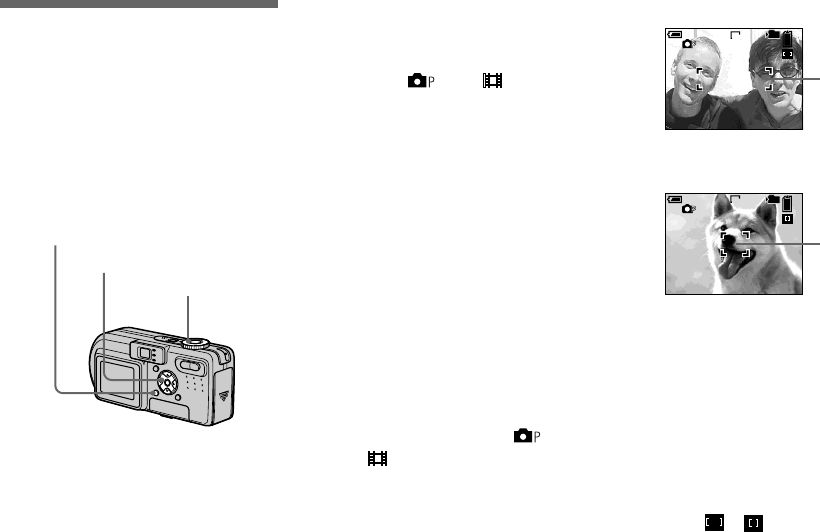
There are two Auto Focus functions: “AF
range finder frame” which sets the focus
position according to the subject position
and size, and “AF mode” which sets the
focus operation according to the AF
response and the battery consumption.
Choosing a focus range
finder frame
— AF range finder
Mode dial: /SCN/
Multipoint AF
The camera calculates the distance in three
areas to the left and right and in the center
of the image, letting you shoot using the
auto focus function without worrying about
the image composition. This is useful for
focusing on a subject when it is not in the
center of the frame. The AF range frame
that was used changes to green after the
focus is achieved.
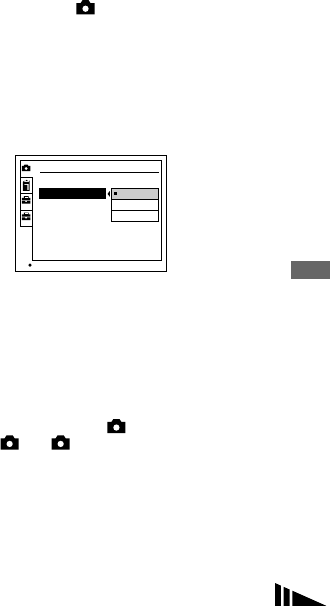
Center AF
This is useful for focusing on a subject near
the center of the frame. Use together with
the AF lock function lets you shoot in the
desired image composition.
aSet the mode dial to , SCN
or .
bPress MENU.
The menu appears.
cSelect 9 (Focus) with b/B,
then select [Multi AF] or
[Center AF] with v/V.
The focus is adjusted automatically.
The color of the AF range finder frame
changes from white to green.
Multipoint AF
Center AF
•When you are shooting movies (MPEG Movie)
and you choose Multipoint AF, the distance to
the center of the screen is estimated as an
average, so the AF works even with a certain
amount of vibration. The Center AF
automatically focuses only on the center of the
image, so it is convenient when you want to
focus only on what you aim at.
•When you use the smart zoom or AF
illuminator, priority AF movement is given to
subjects in or near the center of the frame. In
this case, or flashes and the AF range
finder frame is not displayed.
Mode dial
Control button
MENU
FINE
98
101
60
min
VGA
S AF
AF range
finder frame
FINE
98
101
S AF
60
min
VGA
AF range
finder frame
43
Advanced still image shooting
Choosing a focus operation
—AF Mode
Mode dial: SET UP
You can select from the following three
focus modes for your camera. The factory
setting is Single AF.
Single AF
This mode allows accurate focusing over a
wide range from near to distant subjects,
and is useful for shooting stationary
subjects. The focus is not adjusted before
the shutter button is pressed and held
halfway down. When the shutter button is
pressed and held halfway down and AF lock
is complete, the focus is locked.
Monitoring AF
This shortens the time needed for focusing.
The camera adjusts the focus before the
shutter button is pressed and held halfway
down, letting you compose images with the
focus already adjusted. When the shutter
button is pressed and held halfway down
and AF lock is complete, the focus is
locked.
•Battery consumption may be faster than in
Single AF mode.
Continuous AF
The camera adjusts the focus before the
shutter button is pressed and held halfway
down, and then continues to adjust the focus
even after AF lock is completed. This
allows shooting of moving subjects with
continued focus.
•The focus is not adjusted after the lock is
completed in the following cases, and the C AF
indicator flashes. The camera operates in
Monitoring AF mode.
– When shooting in the dark place
– When shooting with a slow shutter speed
•The AF range finder frame is locked to the
center.
•Focus adjustment may not be able to keep up
when shooting fast moving subjects.
•There is no lock sound when the focus is
adjusted.
•When shooting with the self-timer, press the
shutter button fully down to lock the focus.
•Battery consumption may be faster than in
other AF mode.
aSet the mode dial to SET UP.
bSelect [ ] (Camera) with v/V,
[AF Mode] with B/v/V, and
then select the desired mode
with B/v/V.
When you select [Single] or [Monitor],
also select the AF range finder frame
(page 42).
•When shooting in Macro mode, the AF speed
drops in order to focus accurately on close
subjects. For quicker shooting, using a different
mode than Macro mode is recommended.
•When shooting using the finder with the LCD
screen off, the camera operates in Single AF
mode.
•On DSC-P10/P12, item is displayed as
and (page 104).
OK
2
1
Camera
Moving Image:
AF Mode:
Smart Zoom:
Date/Time:
Red Eye Reduction
:
AF Illuminator:
Single
Monitor
Cont
12
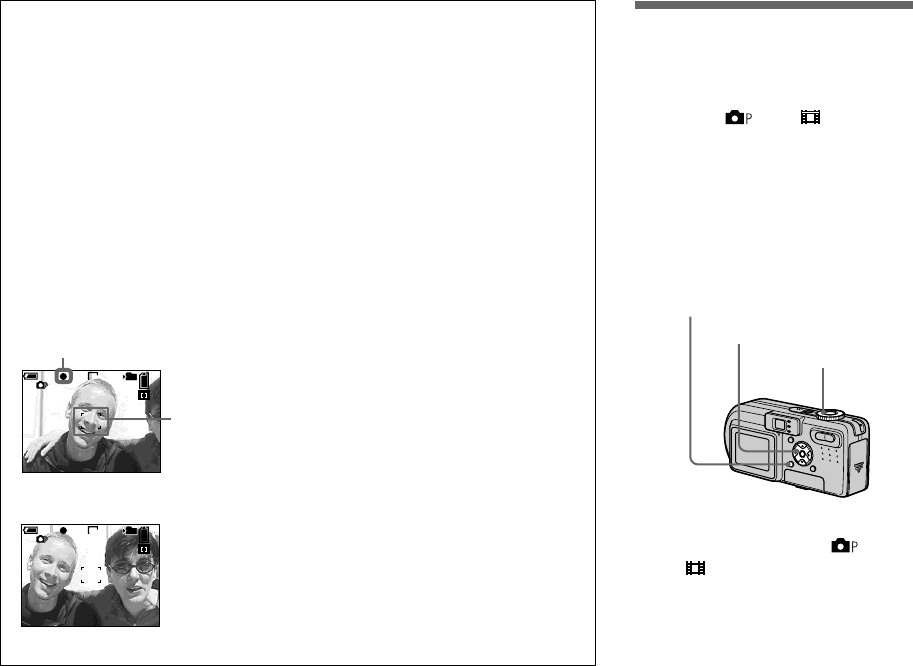
44
Shooting techniques
Even if it is difficult to focus in AF shooting
because the subject is not in the center of the
frame, you can focus in this situation using
Center AF. For example, when you are
shooting two human subjects, and there is a
gap between them, the camera may focus on
the background visible in the gap. In a case like
this, use AF lock to ensure the subjects are in
correct focus. But you cannot use this function
in Continuous AF mode.
Compose the shot so that the subject is
centered in the AF range finder, and press the
shutter button halfway down.
When the AE/AF lock indicator stops flashing
and remains on, return to the fully composed
shot, and press the shutter button fully down.
•When you are using AF lock, you can
capture an image with the correct focus even
if the subject is at the edge of the frame.
•You can carry out the AF lock adjustment
process before you press the shutter button
fully down.
F2.8
30
VGA
FINE
98
101
60
min
S AF
F2.8
30
VGA
FINE
98
101
60
min
S AF
AE/AF lock indicator
AF range
finder frame
m
Setting the distance
to the subject
— Focus preset
Mode dial: /SCN/
When shooting an image using a previously
set distance to the subject, or when shooting
a subject through a net or through window
glass, it is difficult to get the proper focus in
auto focus mode. In these cases, use of the
Focus preset is convenient.
aSet the mode dial to , SCN
or .
bPress MENU.
The menu appears.
Mode dial
Control button
MENU
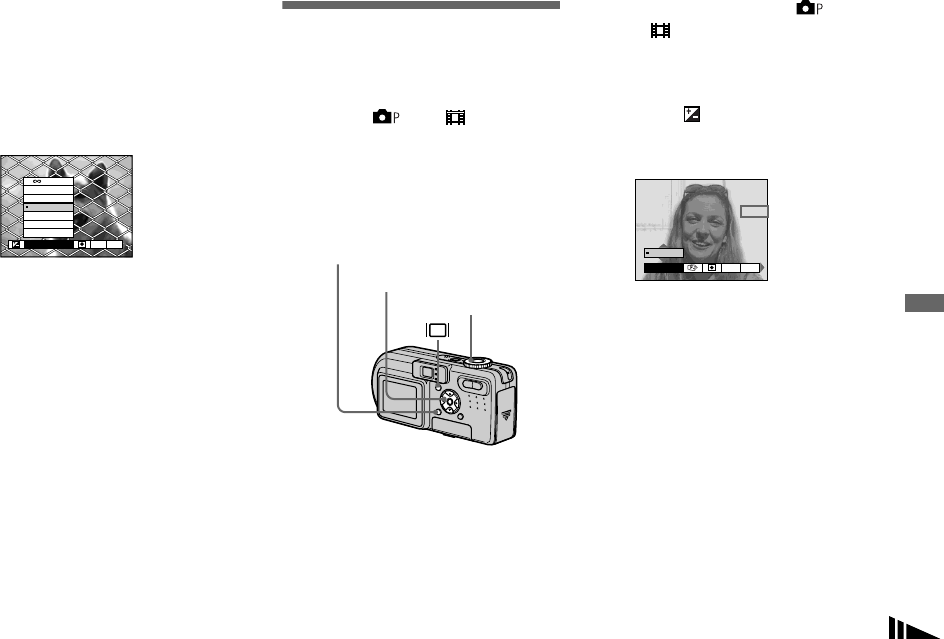
45
Advanced still image shooting
cSelect 9 (Focus) with b/B,
then select the distance to the
subject with v/V.
You can select from the following
distance settings.
0.5m, 1.0m, 3.0m, 7.0m, ∞ (unlimited
distance)
To return to auto focus mode
In step 3, select 9 (Focus), then select
[Multi AF] or [Center AF].
•Focal point information may not show the exact
distance.
•If you point the lens up or down, the error
increases.
•If the focus preset indicator flashes while
[0.5m] is selected, press the zoom W button
until the indicator stops flashing (DSC-P10/P12
only).
Adjusting the
exposure
— EV adjustment
Mode dial: /SCN/
This function lets you adjust the exposure
value which is set by automatic adjustment.
You can select values ranging from +2.0EV
to –2.0EV in steps of 1/3EV.
aSet the mode dial to , SCN
or .
bPress MENU.
The menu appears.
cSelect (EV) with b/B.
The value of the exposure adjustment
is displayed.
dSelect the desired exposure
value.
Select the value with v/V. Adjust the
exposure value while checking the
brightness of the background.
To reactivate auto exposure
Return the exposure adjustment value to
0EV.
•If a subject is being shot in extremely bright or
dark conditions, or the flash is used, the
exposure adjustment may not be effective.
1.0m
WB ISO
Focus
0.5m
1.0m
3.0m
7.0m
Multi AF
Center AF
Mode dial
Control button
MENU
0EV
WB
EV ISO
0EV
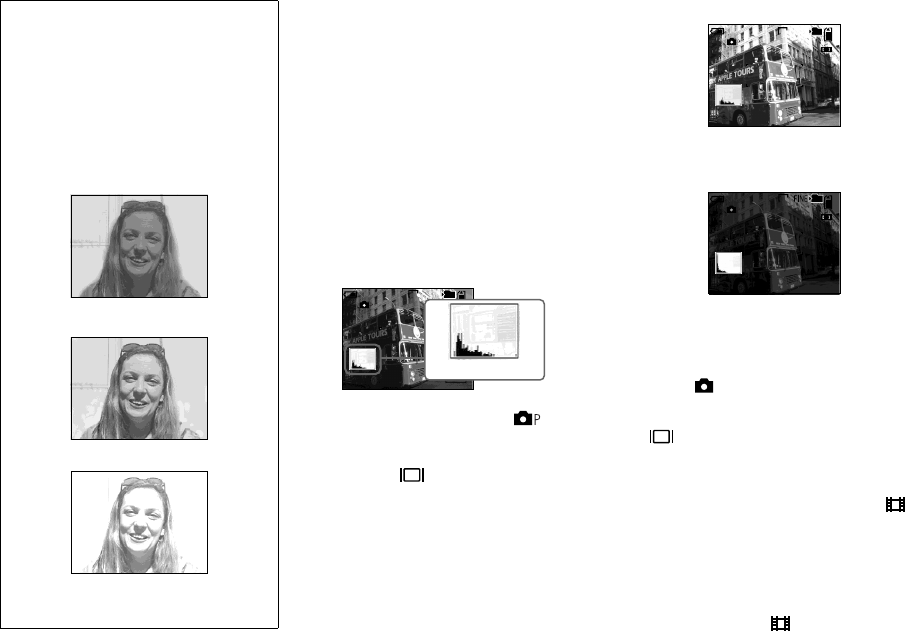
46
Displaying a histogram
A histogram is a graph showing the
brightness of an image. The horizontal axis
shows the brightness, and the vertical axis
shows the number of pixels. The graph
display indicates a bright image when
skewed to the right side, a dark image when
skewed to the left side, and a medium
brightness image when centered.
Using a histogram lets you record images
while checking the brightness level. You
can also display a histogram during
playback.
aSet the mode dial to or
SCN.
bPress to display the
histogram.
cAdjust the exposure based on
the histogram.
Adjusting the exposure to the + side shifts
the histogram to the right side.
Adjusting the exposure to the – side shifts
the histogram to the left side.
•The histogram also appears when the mode dial
is set to , but you cannot adjust the
exposure.
•The histogram also appears when you press
while playing back a single image
(page 30) or during Quick Review (page 23).
•The histogram does not appear in the following
cases:
– When the mode dial is set to SET UP or
– When the menu is displayed
– During Quick Review of an image recorded
in Exposure Bracket mode (DSC-P10/P12
only)
– When using playback zoom
– When playing back an image recorded with
the mode dial set to
Shooting techniques
Normally, the camera automatically adjusts
the exposure. If the image is too dark or too
bright as shown below, we recommend that
you adjust the exposure manually. When
shooting a back-lit subject or a subject
against a white (e.g. snowy) background,
adjust the exposure toward the + side. When
shooting a black subject that fills the screen,
adjust the exposure toward the – side.
Underexposed
t Adjust toward +
Appropriate exposure
Overexposed
t Adjust toward –
S AF
4
0EV
60
min
FINE
VGA
101
BrightDark
96
0EV
FINE
VGA
101
S AF
60
min
0EV
606060
min
VGA
101
S AF
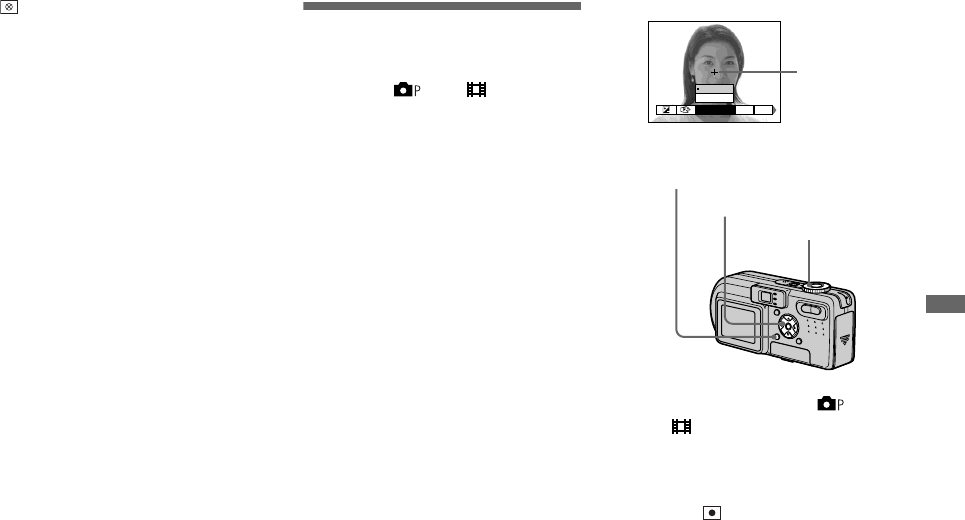
47
Advanced still image shooting
• appears in the following cases:
– When recording in the smart zoom range
– When the image size is [4.5M(3:2)] (DSC-
P10/P12) or [2.8M(3:2)] (DSC-P8)
– When rotating a still image
•The histogram before recording represents the
histogram of the image displayed on the LCD
screen at the time. A difference occurs in the
histogram before and after you press the shutter
button. When this happens, check the histogram
while playing back a single-image or during
Quick Review.
In particular a large difference may appear in
the following cases:
– When the flash strobes
– When [P. Effect] is set to [Solarize]
– When the shutter speed is slow or high
•The histogram may not appear for images
recorded using other cameras.
Selecting the
metering mode
Mode dial: /SCN/
This function enables you to select the
metering mode to suit the shooting
conditions and purpose.
Multi-pattern metering
The image is divided into multiple regions
and metering is performed for each region.
The camera judges the subject position and
background brightness, and determines a
well-balanced exposure.
The camera is set to multi-pattern metering
as the factory setting.
Spot metering
This lets you adjust the exposure to the
subject even when the subject is backlit or
there is strong contrast between the subject
and the background.
Position the spot metering cross hair on one
point of the subject you want to shoot.
To focus on the metering position, setting
9 (Focus) to [Center AF] is recommended
(page 42).
aSet the mode dial to , SCN
or .
bPress MENU.
The menu appears.
cSelect (Metering Mode) with
b/B, then select [Multi] or
[Spot] with v/V.
WB
Metering Mode
Multi
Spot
ISO
Spot metering
cross hair
Mode dial
Control button
MENU
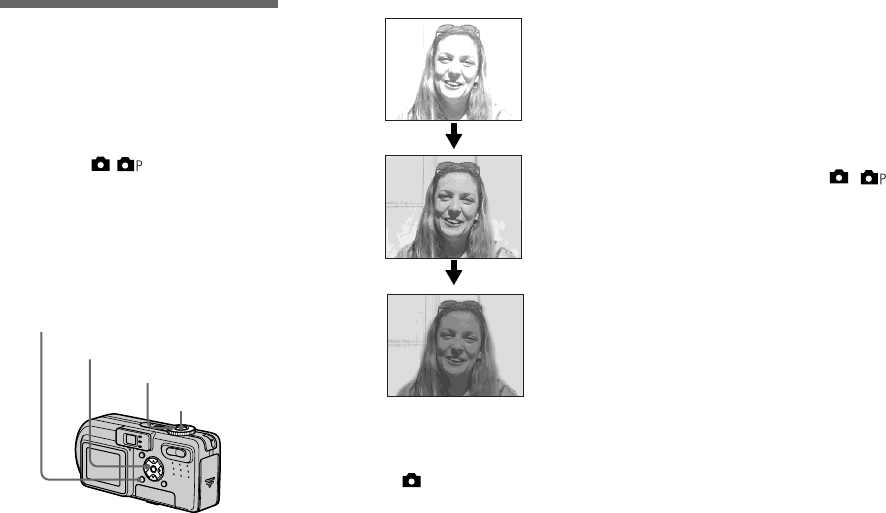
48
Shooting three
images with the
exposure shifted
— Exposure Bracket (DSC-P10/
P12 only)
Mode dial: / /SCN
The camera records three images in
succession, each with the exposure value
shifted. The exposure compensation value
can be set between ±1.0EV from the
appropriate exposure value in 1/3EV steps.
aSet the mode dial to SET UP.
The SET UP screen appears.
bSelect (Camera 2) with v/V
and [Bracket Step] with B,
then press B.
cSelect the desired bracket step
value with v/V, then press z.
±1.0EV: Shifts the exposure value by
plus or minus 1.0EV.
±0.7EV: Shifts the exposure value by
plus or minus 0.7EV.
±0.3EV: Shifts the exposure value by
plus or minus 0.3EV.
dSet the mode dial to , or
SCN.
ePress MENU.
The menu appears.
fSelect [Mode] (REC Mode) with
b/B, then select [Exp Brktg]
with v/V.
gShoot the image.
To return to normal mode
Select [Normal] in step 6.
Shutter
Mode dial
Control button
MENU
2
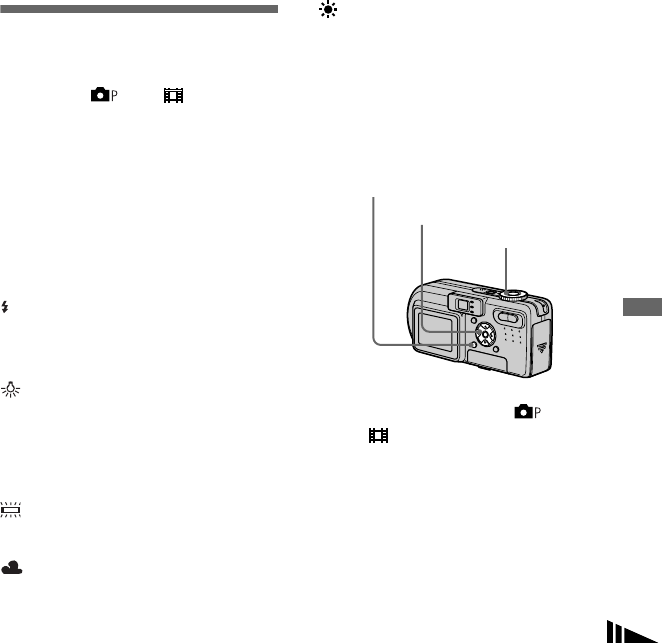
49
Advanced still image shooting
•You cannot use the flash in this mode.
•During shooting in this mode, the images are
not displayed on the screen. Compose the
image before pressing the shutter button.
•The focus and white balance are adjusted for
the first image, and these settings are also used
for the other images.
•When the exposure is manually adjusted
(page 45), the adjusted value is used for the
center value.
•The recording interval is approximately
0.5 second.
•If the subject is too bright or too dark, you may
be unable to shoot properly with the selected
bracket step value.
Adjusting color tones
— White Balance
Mode dial: /SCN/
Normally, when recording with automatic
adjustments, the white balance is
automatically set to Auto and the overall
color balance is adjusted according to the
shooting conditions. However, when you
shoot under fixed conditions or special
lighting conditions, you can manually
adjust the white balance.
(Flash)
Adjusts the white balance only to the flash
conditions
(Incandescent)
• Places where the lighting conditions
change quickly
• Under bright lighting such as
photography studios
(Fluorescent)
Shooting under fluorescent lighting
(Cloudy)
Shooting under a cloudy sky
(Daylight)
Shooting outdoors, shooting night scenes,
neon signs, fireworks or sunrises, or
shooting just before and after sundown
Auto (No indicator)
Adjusts the white balance automatically
aSet the mode dial to , SCN
or .
bPress MENU.
The menu appears.
cSelect [WB] (White Bal) with b/
B, then select the desired
setting with v/V.
To reactivate auto adjustment
Select [Auto] in step 3.
WB
Mode dial
Control button
MENU
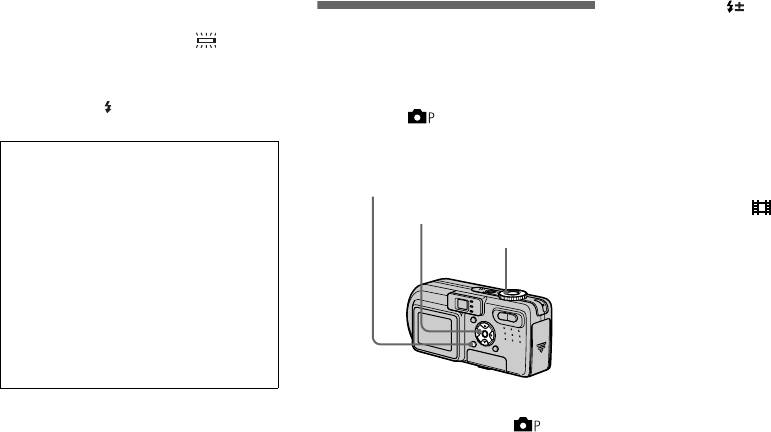
50
•Under fluorescent lights that flicker, the white
balance adjustment function may not work
correctly even though you select
(fluorescent).
•When the flash strobes, the manual setting is
canceled, and the image is recorded in [Auto]
mode (except in (Flash) mode).
Adjusting the flash
level
— Flash Level
Mode dial: /SCN
You can adjust the amout of flash light.
aSet the mode dial to or
SCN.
bPress MENU.
The menu appears.
cSelect [ ] (Flash Level) with
b/B, then select the desired
setting with v/V.
High: Makes the flash level higher
than normal.
Normal: Normal setting.
Low: Makes the flash level lower than
normal.
•You can carry out this operation even when the
mode dial is set to (Clip Motion).
Shooting techniques
The image is affected by the lighting
conditions. For example, the entire image
appears blue under sunlight in the summer,
and white items gain a reddish tint under
incandescent light bulbs, etc. The human eye
can resolve these problems, but digital still
cameras cannot recognize the correct colors
without adjustments. Normally, the camera
makes these adjustments automatically, but
if recorded image colors appear unnatural,
we recommend that you adjust the white
balance.
WB
Mode dial
Control button
MENU
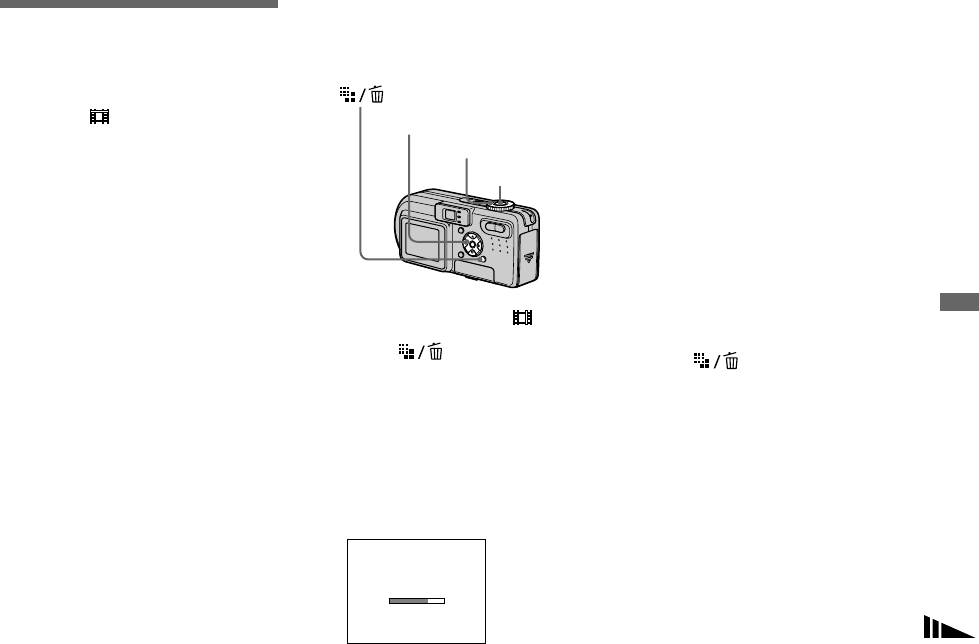
51
Advanced still image shooting
Shooting multiple
frames
— Clip Motion
Mode dial:
You can shoot a number of consecutive still
images (GIF animation). The GIF format
has a small file size, making it convenient
for creating home pages or attaching images
to e-mail.
•Due to the limitations of the GIF format, the
number of colors for Clip Motion images is
reduced to 256 colors or less. Therefore, the
image quality may deteriorate for some images.
Normal (160×120)
Clip Motion of up to 10 frames can be
recorded. This is suitable for use on home
pages, etc.
Mobile (120×108)
Clip Motion of up to two frames can be
recorded. This is suitable for use with
portable data terminals.
•The file size is reduced in Mobile mode, so the
image quality deteriorates.
Before operation
Set [Moving Image] to [Clip Motion] in the
SET UP settings (pages 39 and 104).
aSet the mode dial to .
bPress (Image Size).
The menu appears.
c Select the desired mode with
v/V.
You can select from [Normal] or
[Mobile].
dShoot the image for the first
frame.
eShoot the image for the next
frame.
Press the shutter button to shoot the
next frame, then repeat this operation
until you have shot the desired number
of frames.
fPress z.
All the frame images are recorded on
the “Memory Stick.”
To delete images before
finishing the Clip Motion
recording
1Press b (7) in step 4 or 5.
The frame images you shot are played
back in turn and stop at the last image.
2Press (Delete), and select
[Delete Last], or [Delete All] with b/B,
then press z.
3Select [Delete] with v, then press z.
When [Delete Last] is selected in step 2,
each time you repeat steps 1 through 3,
the last frame you shot is deleted.
Mode dial
Control button
Shutter
Making"Clip Motion"
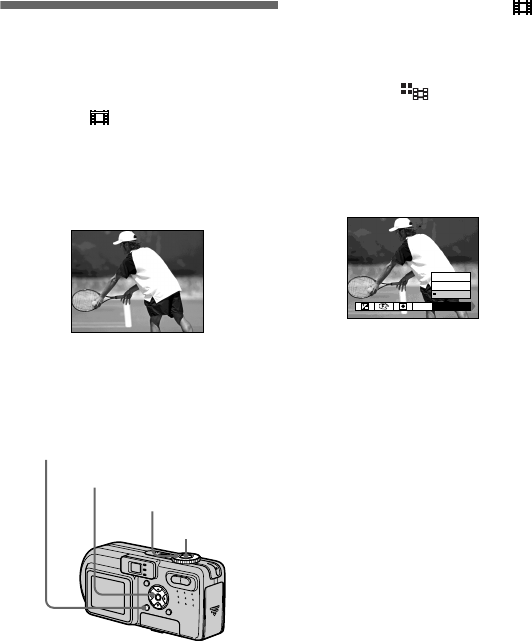
52
•Note that all images are not recorded on the
“Memory Stick” until you carry out step 6.
•For the number of images that can be recorded
in Clip Motion, see page 99.
•The date and time are not superimposed onto
Clip Motion images.
•When viewing an image recorded in Clip
Motion on the index screen, the image may
appear different from the actual image.
•GIF files not created on this camera may not be
displayed correctly.
Shooting in Multi
Burst mode
— Multi Burst
Mode dial:
This mode records 16 frames in succession
each time you press the shutter button. This
is convenient for checking your form in
sports, for example.
Before operation
Set [Moving Image] to [Multi Burst] in the
SET UP settings (pages 39 and 104).
aSet the mode dial to .
bPress MENU.
The menu appears.
cSelect (Interval) with b/B,
then select the desired frame
interval with v/V.
You can choose the frame interval
from the menu settings (pages 39 and
103).
dShoot the image.
The 16 frames are recorded as a single
image (image size: 1.2M).
•See page 61 to play back images recorded in
Multi Burst mode using this camera.
•For the number of images that can be recorded
in Multi Burst mode, see page 99.
•You cannot use the flash in this mode.
•Date and time cannot be superimposed onto
images.
Shutter
Mode dial
Control button
MENU
1/30
Interval
1/30
1/15
1/7.5
WB
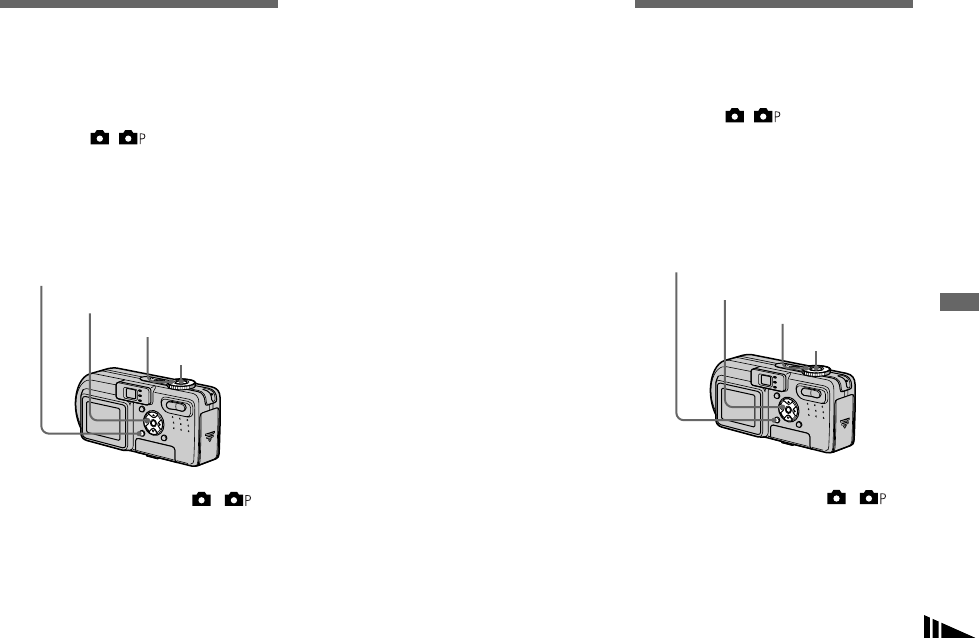
53
Advanced still image shooting
Shooting three or two
images continuously
— Burst 3 (DSC-P10/P12)/
Burst 2 (DSC-P8)
Mode dial: / /SCN
This mode is used for continuous shooting.
Each time you press the shutter button in
this mode, the camera records three (DSC-
P10/P12) or two (DSC-P8) images in
succession.
aSet the mode dial to , or
SCN.
bPress MENU.
The menu appears.
cSelect [Mode] (REC Mode) with
b/B, then select [Burst 3]
(DSC-P10/P12)/[Burst 2] (DSC-
P8) with v/V.
dShoot the image.
When the “Recording” indication
disappears, you can shoot the next
image.
To return to normal mode
Select [Normal] in step 3.
•You cannot use the flash in this mode.
•During shooting in this mode, the images are
not displayed on the screen. Compose the
image before pressing the shutter button.
•The recording interval is approximately
0.5 second.
Shooting still images
for e-mail
— E-Mail
Mode dial: / /SCN
In E-mail mode, a small-size image
(320×240) that is suitable for e-mail
transmission is also recorded at the same
time as recording a normal still image. (See
page 18 for the normal still image sizes.)
aSet the mode dial to , or
SCN.
bPress MENU.
The menu appears.
Shutter
Mode dial
Control button
MENU
Shutter
Mode dial
Control button
MENU
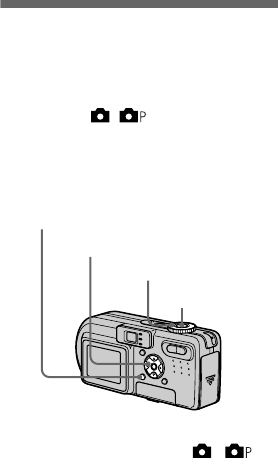
54
cSelect [Mode] (REC Mode) with
b/B, then select [E-Mail] with
v/V.
dShoot the image.
When the “Recording” indication
disappears, you can shoot the next
image.
To return to normal mode
Select [Normal] in step 3.
•For instructions on how to attach images to an
e-mail message, consult the User’s Manual for
your e-mail software.
•For the number of images you can record in
E-mail mode, see page 98.
Shooting still images
with audio files
— Voice
Mode dial: / /SCN
In Voice mode, an audio track is also
recorded at the same time as recording a
normal still image.
aSet the mode dial to , or
SCN.
bPress MENU.
The menu appears.
cSelect [Mode] (REC Mode) with
b/B, then select [Voice] with v.
dShoot the image.
If you press and release the
shutter button, sound is recorded
for five seconds.
If you hold down the shutter
button, sound is recorded until you
release the shutter button for up to
40 seconds.
To return to normal mode
Select [Normal] in step 3.
•To view images recorded in Voice mode, carry
out the same procedure described in “Viewing
movies on the LCD screen” (page 69).
•For the number of images you can record in
Voice mode, see page 98.
Shutter
Mode dial
Control button
MENU
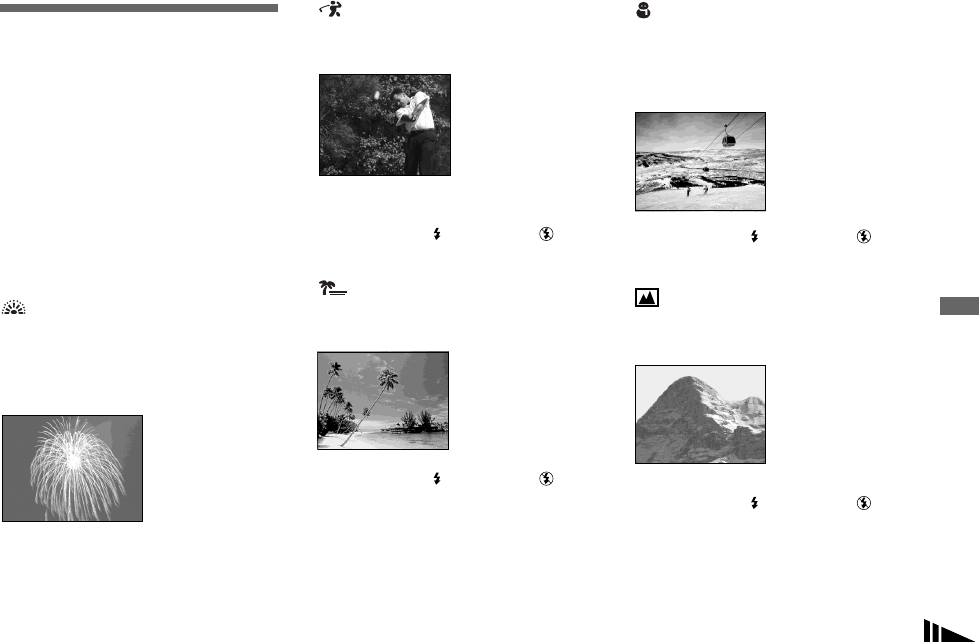
55
Advanced still image shooting
Shooting according to
scene conditions
— Scene Selection
Mode dial: SCN
When shooting night scenes, shooting
people at night, shooting landscapes,
shooting at the shore or snowy scenes,
shooting fireworks, or shooting with
priority on the shutter speed such as motion
scenes, use the modes listed below to
increase the quality of your images.
Fireworks mode
Fireworks are recorded in all their splendor
by setting the focus distance to infinity. The
shutter speed becomes slower, so using a
tripod is recommended.
•You cannot shoot in macro mode.
•You cannot use the flash.
•You can change the shutter speed by setting an
EV adjustment value (page 45).
•You cannot set the white balance.
High-speed shutter mode
Use this mode to shoot moving subjects
outdoors or in other bright places.
•The shutter speed becomes faster, so images
shot in dark places become darker.
•The flash is set to (Force flash) or (No
flash).
Beach mode
When shooting seaside or lakeside scenes,
the blue of the water is clearly recorded.
•The flash is set to (Force flash) or (No
flash).
Snow mode
When shooting snowy scenes or other
places where the whole screen appears
white, use this mode to prevent sunken
colors and record clear and sharp images.
•The flash is set to (Force flash) or (No
flash).
Landscape mode
Focuses only on a distant subject to shoot
landscapes, etc.
•You cannot shoot in macro mode.
•The flash is set to (Force flash) or (No
flash).
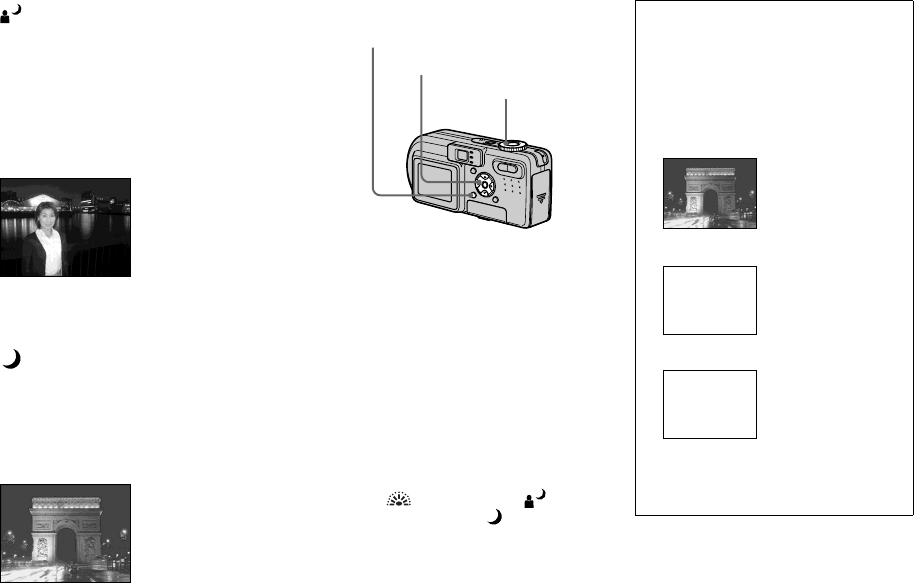
56
Twilight portrait mode
Suitable for shooting portraits in dark
places. Allows you to shoot sharp images of
people in dark places without losing the
dark atmosphere of the surroundings. The
shutter speed becomes slower, so we
recommend that you use a tripod to prevent
shaking.
•The flash strobes regardless of the surrounding
brightness.
Twilight mode
Allows you to shoot night scenes at far
distance without losing the dark atmosphere
of the surroundings. The shutter speed
becomes slower, so we recommend that you
use a tripod to prevent shaking.
•You cannot shoot in macro mode.
•You cannot use the flash.
aSet the mode dial to SCN.
bPress MENU.
The menu appears.
cSelect [SCN] with b, then
select the desired mode with
v/V.
To cancel Scene Selection
Set the mode dial to a different mode.
•If you set (Fireworks mode),
(Twilight portrait mode) or (Twilight
mode) and then record in Exposure Bracket
(DSC-P10/P12 only), Burst 3 (DSC-P10/P12)
or Burst 2 (DSC-P8) mode, the shutter speed
becomes faster, so the image may not be
recorded just as you intended.
•The setting is maintained even when the power
is turned off.
Mode dial
Control button
MENU NR slow shutter
The NR slow shutter mode removes noise
from recorded images, providing clear
images. When the shutter speed is slow, the
camera automatically enters the NR slow
shutter function and “NR” is indicated next
to the shutter speed indicator.
Press the shutter
button fully down.
r
Then the screen
turns black.
rFinally, when
“Processing”
disappears, the
image has been
recorded.
•To eliminate the effects of vibration, use of
a tripod is recommended.
F2.8
NR2
''
Capturing
Processing
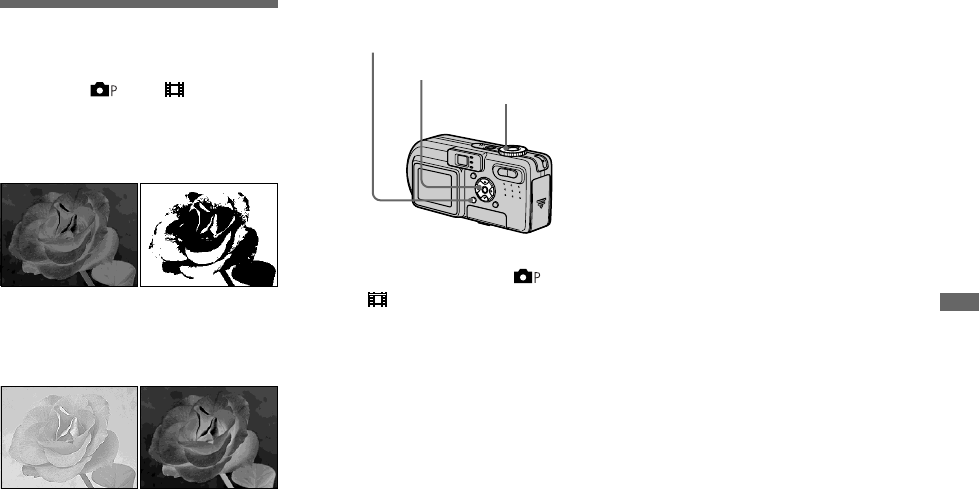
57
Advanced still image shooting
Adding special effects
— Picture Effect
Mode dial: /SCN/
You can digitally process images to obtain
special effects.
aSet the mode dial to , SCN
or .
bPress MENU.
The menu appears.
cSelect [PFX] (P. Effect) with b/
B, then select the desired
mode with v/V.
To cancel Picture Effects
Select [Off] in step 3.
Solarize B&W (DSC-P8 only)
The light contrast is
clearer and the picture
looks like an
illustration.
The picture is
monochrome
(black and white).
Sepia Neg.Art
The picture is sepia-
toned like an old
photograph.
The color and
brightness of the
picture are reversed
as in a negative.
Mode dial
Control button
MENU
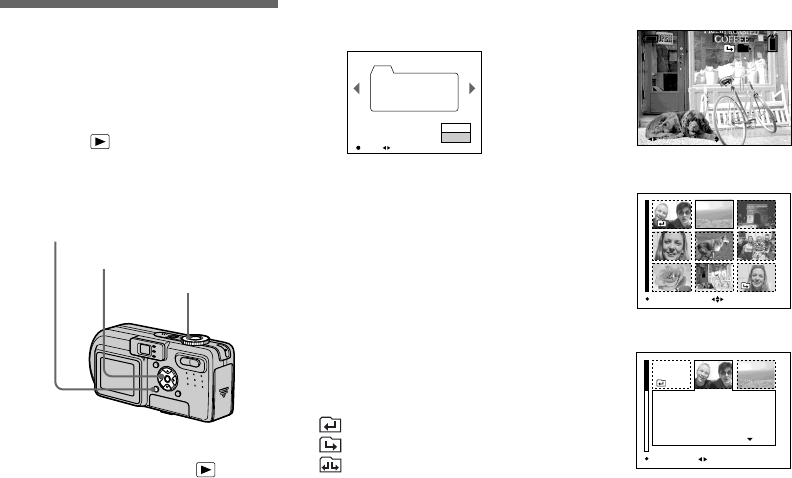
58
Selecting the folder
and playing back
images
— Folder
Mode dial:
Select the folder that images you want to
play back are stored.
aSet the mode dial to .
bPress MENU.
The menu appears.
cSelect [Folder] with b, then
press z.
dSelect the desired folder with
b/B.
eSelect [OK] with v, then press
z.
To cancel the selection
In step 5, select [Cancel].
When multiple folders are
created in the “Memory Stick”
When the first or last image in the folder is
displayed, the following indicators appear
on the screen.
: Moves to the previous folder.
: Moves to the next folder.
: Moves to both the previous and next
folders.
Single screen
Index (nine-image) screen
Index (triple-image) screen
•When no images are stored in the folder, “No
file in this folder” appears.
•You can play back images from a last-shot one
without selecting the folder.
Mode dial
Control button
MENU
Select Folder
Folder Name:
No. Of Files:
Created:
102MSDCF
9
2003 7 4
1:05:34
AM
102
OK BACK/NEXT
O K
Cancel
2/2
10:30
PM
2003 7 4101-0009
9/9
101
VGA
60
min
BACK/NEXT VOLUME
SINGLE DISPLAY MOVE
10:30
PM
2003 7 4101-0001
F2.8
1/30
0.0
100
Aperture Value:
Shutter Speed:
Exposure Value:
ISO:
SINGLE DISPLAY
BACK/NEXT
Ad
vance
d
s
till
i
mage v
i
ew
i
ng
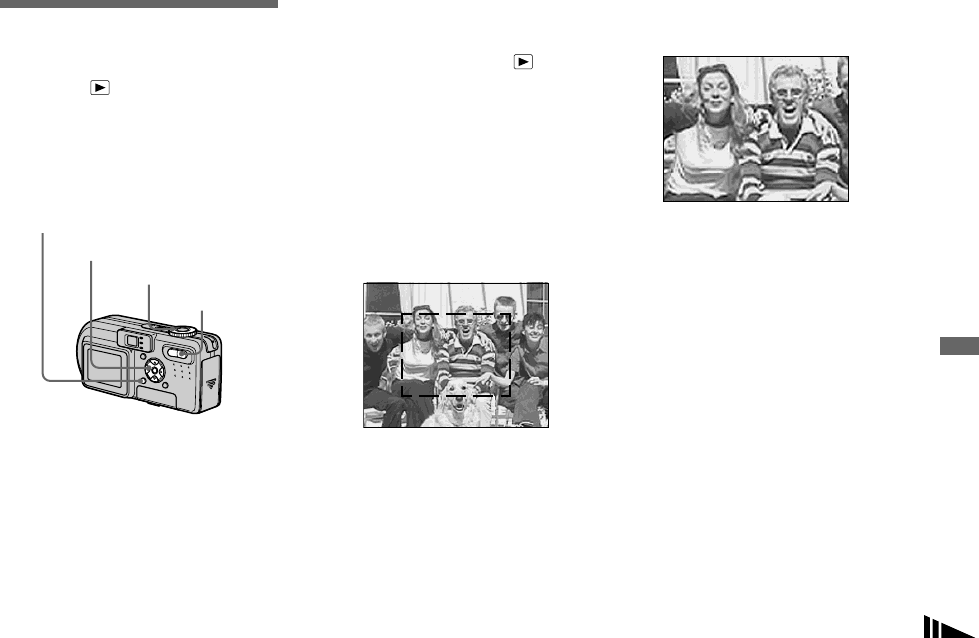
59
Advanced still image viewing
Enlarging a portion of
a still image
Mode dial:
You can enlarge a part of an image up to
five times the original size. You can also
record the magnified image as a new file.
Enlarging an image
— Playback zoom
aSet the mode dial to .
bDisplay the image to be
enlarged.
cPress the zoom T button to
zoom in on the image.
dSelect the desired portion of
the image with v/V/b/B.
v: To view more of the top of the image
V: To view more of the bottom of the
image
b: To view more of the left side of the
image
B:To view more of the right side of the
image
eAdjust the image size with the
zoom W/T button.
To cancel playback zoom
Press z.
•You cannot use playback zoom for movies
(MPEG Movie), Clip Motion images and Multi
Burst images.
•If you press the zoom W button while a non-
enlarged image is displayed, the LCD screen
switches to the index screen (page 31).
•You can enlarge the images displayed with the
Quick Review function (page 23) by
performing steps c to e.
Mode dial
Zoom button
Control button
MENU
Press v
Press V
Press
b
Press
B
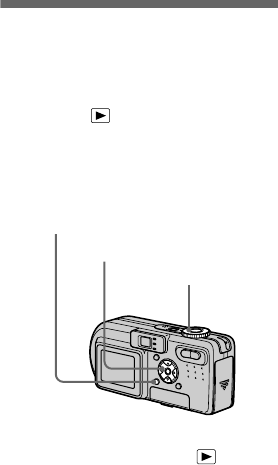
60
Recording an enlarged
image — Trimming
aPress MENU after playback
zoom.
The menu appears.
bSelect [Trimming] with B, then
press z.
cSelect the image size with v/V,
then press z.
The image is recorded, and the image
on the screen returns to the normal size
after recording.
•The trimmed image is recorded as the newest
file in the selected recording folder, and the
original image is retained.
•The quality of trimmed images may deteriorate.
•You cannot trim to an image size of 3:2.
Playing back
successive images
— Slide Show
Mode dial:
You can play back recorded images in
order. This function is useful for checking
your images or for presentations, etc.
aSet the mode dial to .
bPress MENU.
The menu appears.
cSelect [Slide] with b/B, then
press z.
Set the following items with v/V/b/B.
Interval
3 sec/5 sec/10 sec/30 sec/1 min
Image
Folder:Plays back all images in the
selected folder.
All: Plays back all images stored in
the “Memory Stick.”
Repeat
On:Plays back images in a
continuous loop.
Off:After all the images have been
played back, the slide show
ends.
dSelect [Start] with V/B, then
press z.
The slide show begins.
To cancel the slide show setting
Select [Cancel] in step 3.
To stop slide show playback
Press z, select [Exit] with B, then press z
again.
To skip to the next/previous
image during the slide show
Press B (next) or b (previous).
•The interval settings time are just guidelines, so
it may vary depending on the image.
Mode dial
Control button
MENU
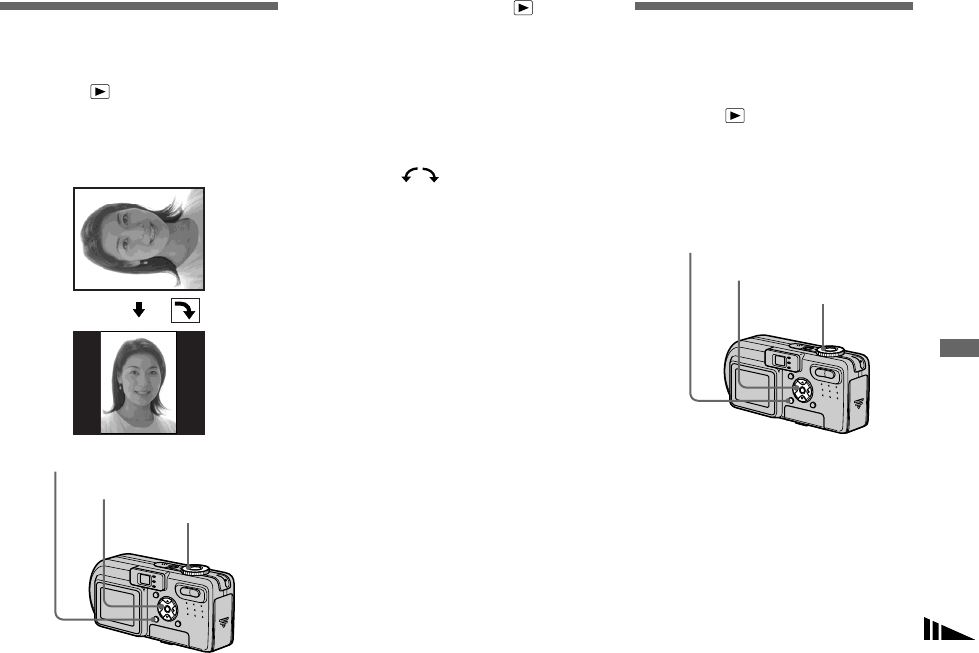
61
Advanced still image viewing
Rotating still images
— Rotate
Mode dial:
You can rotate an image recorded in portrait
orientation and display it in landscape
orientation.
aSet the mode dial to , and
display the image to rotate.
bPress MENU.
The menu appears.
cSelect [Rotate] with b/B, then
press z.
dSelect with v, then rotate
the image with b/B.
eSelect [OK] with v/V, then
press z.
To cancel rotation
Select [Cancel] in step 4 or 5, then press
z.
•You cannot rotate protected images and images
recorded as movies (MPEG Movie), Clip
Motion and Multi Burst images.
•You may not be able to rotate images shot with
other cameras.
•When viewing images on a computer, the
image rotation information may not be
reflected depending on the application
software.
Playing back images
shot in Multi Burst
mode
Mode dial:
You can play back Multi Burst images
continuously or play them back frame by
frame. This function is used for checking
the image.
•When the images are played back on a
computer, the 16 frames you shot will all be
displayed at the same time as part of one image.
•When Multi Burst images are played back on a
camera without the Multi Burst feature, the 16
frames will all be displayed at the same time, as
part of one image, just as they are on a
computer.
Mode dial
Control button
MENU
Mode dial
Control button
MENU
62
Playing back continuously
aSet the mode dial to .
bSelect the Multi Burst image
with b/B.
The selected Multi Burst image is
played back continuously.
To pause playback
Press z. To resume playback, press z
again. The playback starts from the frame
displayed on the LCD screen.
Playing back frame by frame
— Jog playback
aSet the mode dial to .
bSelect the Multi Burst image
with b/B.
The selected Multi Burst image is
played back continuously.
cPress z when the desired
frame is displayed.
“Step” appears.
dAdvance the frame with b/B.
B:A next frame is displayed. When
you keep and press B, the frame
advances.
b:A previous frame is displayed.
When you keep and press b, the
frame advances in the reverse
direction.
To return to the normal playback
Press z in step 4. The playback starts
from the frame displayed on the LCD
screen.
To delete shot images
When using this mode, you cannot delete
only certain frames. When you delete
images, all 16 of the frames are deleted at
the same time.
1Display the desired Multi Burst image to
delete.
2Press (Delete).
3Select [Delete], then press z.
All of the frames are deleted.
10:30
PM
2003 7 4101-0014
14/14
101
BACK/NEXTPAUSE VOLUME
60
min
10:30
PM
2003 7 4101-0014
14/14
101
FRAME BACK/NEXT VOLUME
60
min
12/16
PLAY
Step
63
Still image editing
Protecting images
— Protect
Mode dial:
This function protects images against
accidental erasure. Note that when you
format a “Memory Stick” (page 37), all the
images recorded on that “Memory Stick”
will be deleted even if they are protected.
In single-image mode
aSet the mode dial to .
bDisplay the image you want to
protect with b/B.
cPress MENU.
The menu appears.
dSelect [Protect] with b/B, then
press z.
The displayed image is protected. The
- (protect) indicator appears on the
image.
eTo continue and protect other
images, select the desired
image with b/B, then press z.
To cancel the protection
Press z again in step 4 or 5. The -
indicator disappears.
In index (nine-image) mode
aSet the mode dial to , then
press the zoom W (index) to
display the index (nine-image)
screen.
bPress MENU.
The menu appears.
cSelect [Protect] with b/B, then
press z.
dSelect [Select] with b/B, then
press z.
eSelect the image you want to
protect with v/V/b/B, then
press z.
The green - indicator appears on the
selected image.
fRepeat step 5 to protect other
images.
gPress MENU.
Mode dial
Control button
MENU
Zoom button
101 2/9
VGA
60
min
Protect
Exit
BACK/NEXTOK
SELECT MOVE TO NEXT
MENU
Still image editing
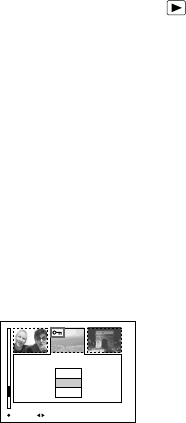
64
hSelect [OK] with B, then press
z.
The - indicator turns white. The
selected images are protected.
To exit the Protect function
Select [Cancel] in step 4 or select [Exit] in
step 8, then press z.
To cancel individual protection
Select the image to be unprotected with
v/V/b/B in step 5, then press z. The -
indicator turns gray. Repeat this operation
for all images that are to be unprotected.
Press MENU, select [OK], and then press
z.
To protect all images in the
folder
Select [All In Folder] in step 4, and press
z. Select [On], then press z.
To cancel protection of all
images in the folder
Select [All In Folder] in step 4, and press
z. Select [Off], then press z.
In index (triple-image) mode
aSet the mode dial to , then
press the zoom W (index)
twice to display the index
(triple-image) screen.
bDisplay the image you want to
protect in the center position
with b/B.
cPress MENU.
The menu appears.
dSelect [Protect] with v/V, then
press z.
The center image is protected. The -
indicator appears on the image.
eTo protect other images,
display the image you want to
protect in the center position
with b/B, and repeat step 4.
To cancel individual set
protection
Select the image to be unprotected, then
press z in step 4. To cancel protection of
all images, repeat this process for each
image.
10:30PM2003 7 4101-0002
Protect
DPOF
Folder
BACK/NEXTOK
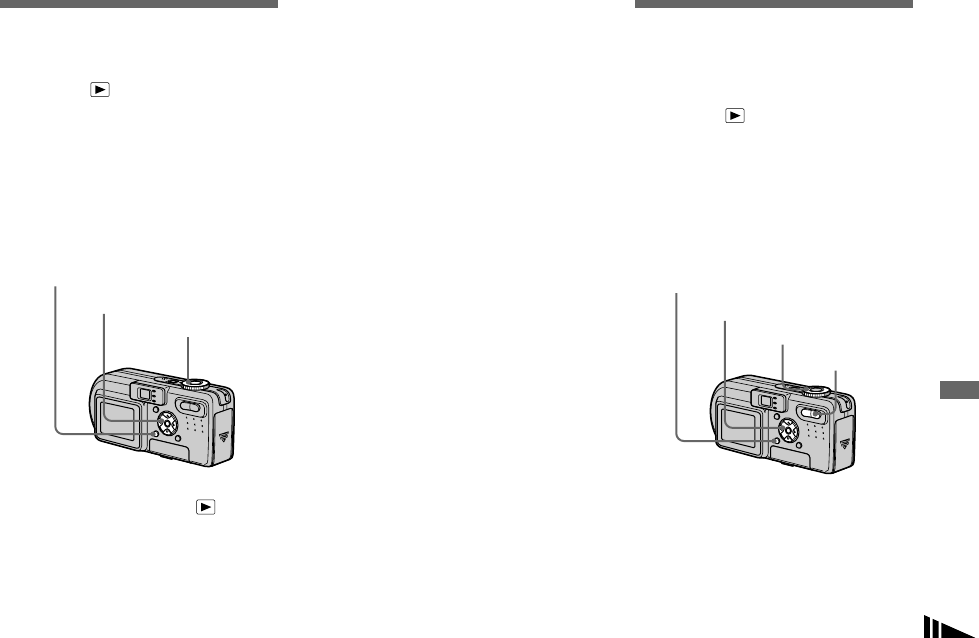
65
Still image editing
Changing image size
— Resize
Mode dial:
You can change the image size of a
recorded image, and save it as a new file.
You can resize to the following sizes.
5.0M (DSC-P10/P12), 3.1M, 2.0M (DSC-
P8), 1.2M, VGA
The original image is retained even after
resizing.
aSet the mode dial to .
bDisplay the image you want to
resize with b/B.
cPress MENU.
The menu appears.
dSelect [Resize] with b/B, then
press z.
eSelect the desired size with v/
V, then press z.
The resized image is recorded in the
recording folder as the newest file.
To cancel resizing
Select [Cancel] in step 5.
•You cannot change the size of movies (MPEG
Movie), Clip Motion or Multi Burst images.
•When you change from a small size to a large
size, the image quality deteriorates.
•You cannot resize to an image size of 3:2.
•When you resize a 3:2 image, the upper and
lower black portions will be displayed on the
screen.
Choosing images to
print
— Print (DPOF) mark
Mode dial:
You can mark still images shot with your
camera that you want to have printed. This
function is convenient when you have
images printed at a shop or using a printer
that conforms with the DPOF (Digital Print
Order Format) standard.
•You cannot mark movies (MPEG Movie) or
Clip Motion images.
•In E-mail mode, a print (DPOF) mark is
marked on the normal size image that is
recorded at the same time.
•When you mark images shot in Multi Burst
mode, all the images are printed on one sheet
divided into 16 panels.
Mode dial
Control button
MENU
Mode dial
Control button
MENU
Zoom button
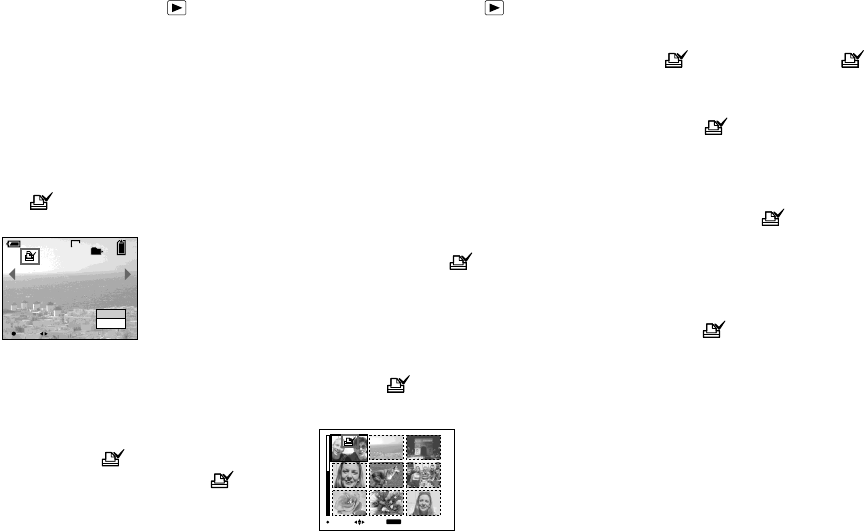
66
In single-image mode
aSet the mode dial to .
bDisplay the image you want to
mark with b/B.
cPress MENU.
The menu appears.
dSelect [DPOF] with b/B, then
press z.
The mark is marked on the
displayed image.
eTo continue and mark other
images, display the desired
image with b/B, then press z.
To unmark the mark
Press z again in step 4 or 5. The
mark disappears.
In index (nine-image) mode
aSet the mode dial to , then
press the zoom W (index) to
display the index (nine-image)
screen.
bPress MENU.
The menu appears.
cSelect [DPOF] with B, then
press z.
dSelect [Select] with b/B, then
press z.
•You cannot mark the mark in [All In
Folder].
eSelect the image you want to
mark with v/V/b/B, then press
z.
The green mark appears on the
selected image.
fRepeat step 5 to mark other
images.
gPress MENU.
hSelect [OK] with B, then press
z.
The mark turns white. The
mark setting is completed.
To unmark marks
Select the images to be unmarked in step
5, then press z.
To unmark all the marks in
the folder
Select [All In Folder] in step 4, then press
z. Select [Off], then press z.
To exit the mark function
Select [Cancel] in step 4 or select [Exit] in
step 8.
101 2/9
VGA
60
min
DPOF
Exit
BACK/NEXTOK
TO NEXT
MENU
MOVESELECT
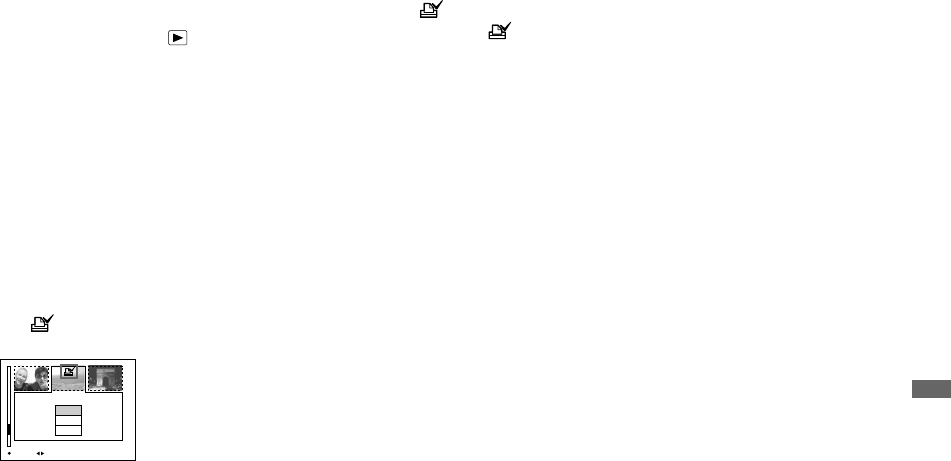
67
Still image editing
In index (triple-image) mode
aSet the mode dial to , then
press the zoom W (index)
twice to display the index
(triple-image) screen.
bDisplay the image you want to
mark in the center position
with b/B.
cPress MENU.
The menu appears.
dSelect [DPOF] with v, then
press z.
The mark is marked on the center
image.
eTo continue and mark other
images, display the image you
want to print in the center
position with b/B, and repeat
step 4.
To unmark the mark
Press z again in step 4. The mark
disappears. Repeat this operation for all the
images you want to unmark.
10:30PM2003 7 4101-0002
Protect
DPOF
Folder
BACK/NEXTOK
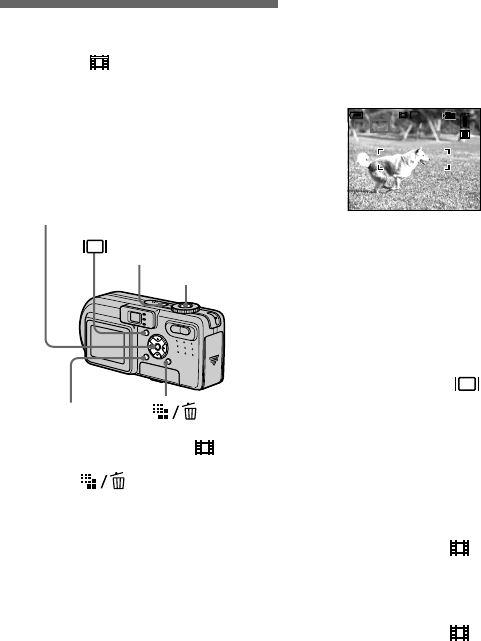
68
Shooting movies
Mode dial:
You can shoot movies using your camera.
Before starting
Set [Moving Image] to [MPEG Movie] in
the SET UP settings (pages 39 and 104).
aSet the mode dial to .
bPress (Image Size).
The Image Size setup appears.
cSelect the desired size with v/
V.
You can choose from 640 (VGA) or
160 (Mail).
For details on the recording time for
each image size, see page 99.
dPress the shutter button fully
down.
“REC” appears on the screen and the
camera starts recording the image and
sound.
•Recording stops when the “Memory
Stick” is full.
ePress the shutter button fully
down again to stop recording.
Indicators during shooting
The screen indicators are not recorded.
Each time you press , the status of the
LCD screen changes as follows: Indicators
off t LCD screen off t Indicators on.
A histogram is not displayed.
For a detailed description of the indicators,
see page 113.
Shooting close-ups (Macro)
Set the mode dial to and follow the
procedure on page 24.
Using the self-timer
Set the mode dial to and follow the
procedure on page 25.
•Do not touch the microphone (page 8) during
shooting movies.
•You cannot use the flash.
•The date and time are not superimposed onto
movies.
•The zoom feature cannot be used while
shooting movies.
Mode dial
Control button
MENU
Shutter
REC
00:00:02[00:10:48]
101
VGA
60
min
Enjoying movie
s
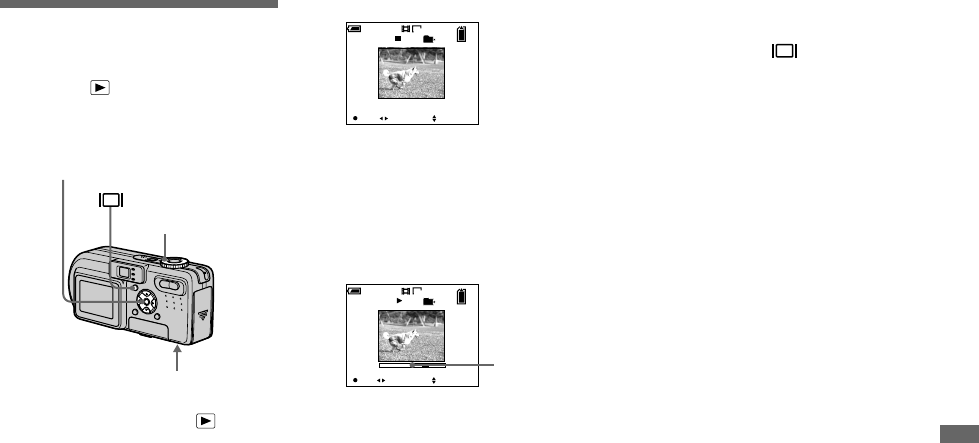
69
Enjoying movies
Viewing movies on
the LCD screen
Mode dial:
You can view movies on the LCD screen
with sound from the speaker.
aSet the mode dial to .
bSelect the desired moving
image with b/B.
Movies with the image size [160
(Mail)] are displayed a size smaller
than still images.
Movies with the image size [640
(VGA)] are displayed on the full
screen.
cPress z.
The movie and sound are played back.
During playback, B (playback)
appears on the screen.
To stop playback
Press z again.
To adjust the volume
Press v/V to adjust the volume.
To advance or rewind the movie
Press B (cue) or b (rev) during playback.
To return to the normal playback, press z.
Indicators during viewing
movies
Each time you press , the status of the
screen changes as follows: Indicators off
t LCD screen off t Indicators on.
A histogram is not displayed.
For a detailed description of the indicators,
see page 114.
•The procedure for viewing movies on a TV is
the same as that for viewing still images
(page 32).
•The moving images recorded using earlier Sony
models may be also displayed a size smaller.
Speaker
Control button
Mode dial
10/10
00:00:00
101
10:30PM2003 7 4101_0010
160
PLAY BACK/NEXT VOLUME
60
min
00:00:03
10:30PM2003 7 4101_0010
10/10
101
160
60
min
STOP REV/CUE VOLUME
Playback bar
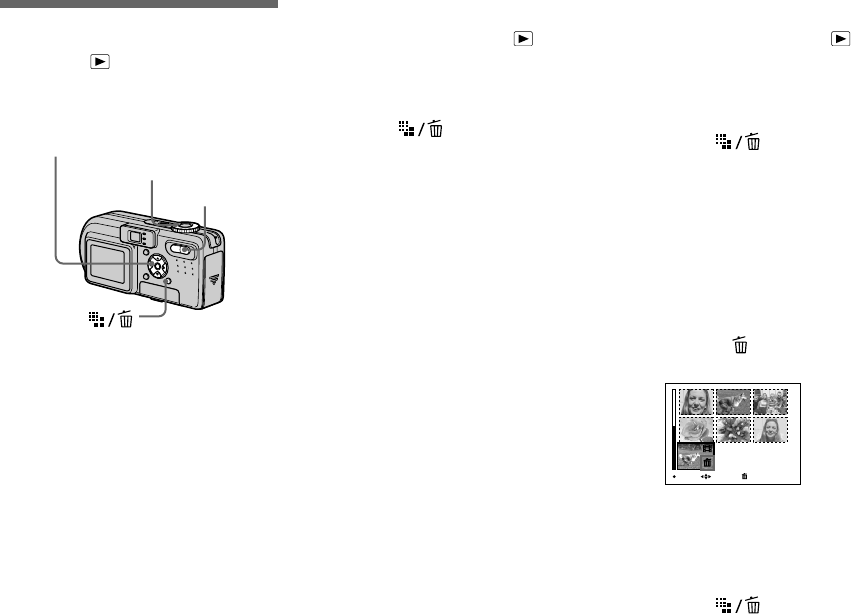
70
Deleting movies
Mode dial:
You can delete unwanted movies.
In single-image mode
aSet the mode dial to .
bDisplay the movie you want to
delete with b/B.
cPress (Delete).
The movie has not yet been deleted at
this point.
dSelect [Delete] with v, then
Press z.
When the message “Memory Stick
access” disappears, the movie has been
deleted.
eTo continue and delete other
movie, display the movie you
want to delete with b/B, then
repeat step 4.
To cancel deletion
Select [Exit] in step 4 or 5.
In index (nine-image) mode
aSet the mode dial to , then
press the zoom W (index) to
display an index (nine-image)
screen.
bPress (Delete).
The movie has not yet been deleted at
this point.
cSelect [Select] with b/B, then
press z.
dSelect the movie you want to
delete with v/V/b/B, then
press z.
The green (Delete) indicator
appears on the selected movie.
The movie has not yet been deleted at
this point.
eRepeat step 4 to delete other
movies.
fPress (Delete).
Mode dial
Control button
Zoom button
TO NEXTMOVESELECT
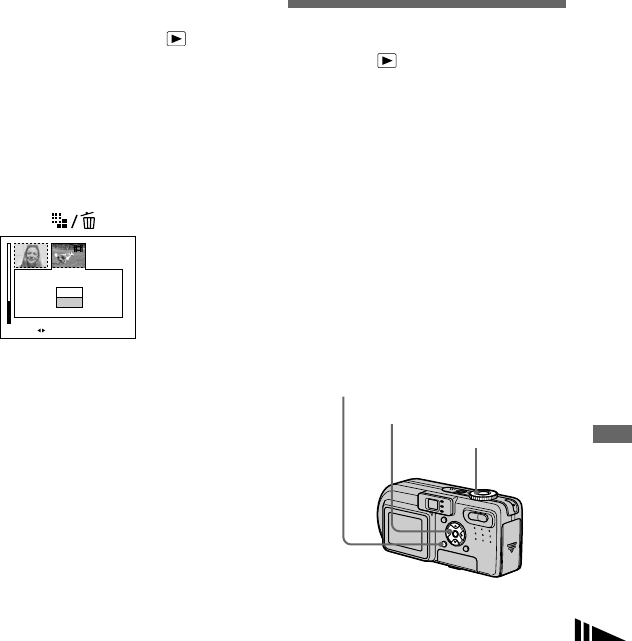
71
Enjoying movies
gSelect [OK] with B, then press
z.
When the message “Memory Stick
access” disappears, the movies have
been deleted.
To cancel deletion
Select [Exit] in step 3 or 7.
To delete all movies in the folder
Select [All In Folder] in step 3, then press
z. To cancel deletion, select [Cancel] with
b, then press z.
In index (triple-image) mode
aSet the mode dial to , then
press the zoom W (index)
twice to display an index
(triple-image) screen.
bDisplay the movie you want to
delete in the center position
with b/B.
cPress (Delete).
The movie has not yet been deleted at
this point.
dSelect [Delete] with v, then
press z.
When the message “Memory Stick
access” disappears, the middle-
positioned movie has been deleted.
To cancel deletion
Select [Exit] in step 4, then press z.
Editing movies
Mode dial:
You can cut movies, or delete unnecessary
portions of movies. This is the
recommended mode to use when the
“Memory Stick” capacity is insufficient, or
when you attach movies to your e-mail
messages.
The file numbers assigned when
movies are cut
The cut movies are assigned new numbers
and recorded as the newest files in the
selected recording folder. The original
movie is deleted, and that number is
skipped.
10:30
PM
2003 7 4101_0010
Exit
Delete
•
OK BACK/NEXT
Mode dial
Control button
MENU
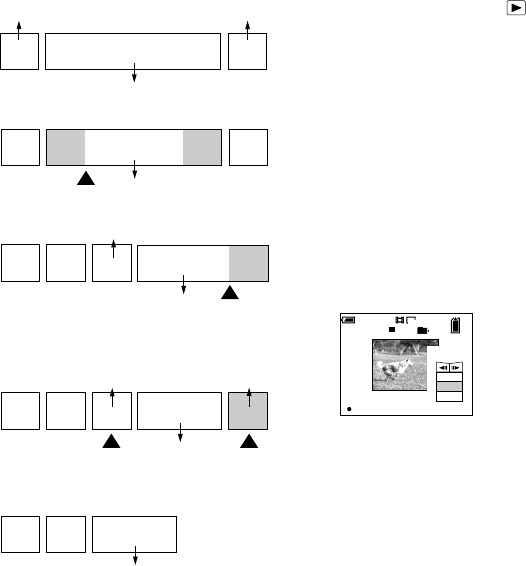
72
<Example> Cutting a movie numbered
101_0002 Cutting movies
aSet the mode dial to .
bSelect the movie you want to
cut using b/B.
cPress MENU.
The menu appears.
dSelect [Divide] with B, then
press z. Next, select [OK] with
v, then press z.
The playback of the movie starts.
eDecide on a cutting point.
Press the center z at the desired
cutting point.
When you want to adjust the cutting
point, use [c/C] (frame forward/
rewind) and adjust the cutting point
using b/B. If you want to change the
cutting point, select [Cancel]. The
playback of the movie starts again.
fWhen you have decided on a
cutting point, select [OK] with
v/V, and press z.
gSelect [OK] with v, then press
z.
The movie is cut.
To cancel cutting
Select [Exit] in step 5 or 7. The movie
appears on the screen again.
•You cannot cut the following images.
– Clip Motion
– Multi Burst
– Still image
– MPEG movie files not long enough to cut
– Protected MPEG movie files
•You cannot restore files once you cut them.
•The original movie is deleted when you cut it.
•The cut movies are recorded as the newest files
in the selected recording folder.
123AB
101_0002
101_0004
123 B
A
101_0005
13
2
101_0006
101_0004 101_0007
AB
13
2
101_0006
12
101_0002
101_0003
3
101_0001
1. Cutting scene A.
3. Deleting scenes A and B if they are
unnecessary.
2. Cutting scene B.
4. Only the desired scenes remain.
Divide point
Divide
point
Delete Delete
00:00:02
10/10
101
160
Divide
60
min
Dividing
Point
OK
O K
Cancel
Exit

73
Enjoying movies
Deleting unnecessary
portions of movies
aCut an unnecessary portion of
a movie (page 72).
bDisplay the portion of the
movie you want to delete.
cPress (Delete).
The image has not yet been deleted at
this point.
dSelect [Delete] with v, then
press z.
The movie currently displayed on the
screen is deleted.

74
Copying images to
your computer
— For Windows users
Recommended computer
environment
OS: Microsoft Windows 98, Windows
98SE, Windows 2000 Professional,
Windows Millennium Edition, Windows
XP Home Edition, or Windows XP
Professional
The above OS must be installed at the
factory. Operation is not assured in an
environment upgraded to the operating
systems described above or in a multi-boot
environment.
CPU: MMX Pentium 200 MHz or faster
USB connector: Provided as standard
Display: 800 × 600 dots or more
High Color (16-bit color, 65,000 colors) or
more
•If you connect two or more USB equipment to
a single computer at the same time, some
equipment, including your camera, may not
operate depending on the type of USB
equipment.
•Operations are not guaranteed when using a
USB hub.
•Operations are not guaranteed for all the
recommended computer environments
mentioned above.
USB mode
There are two modes for a USB connection,
[Normal] and [PTP]* modes. The factory
setting is the [Normal] mode.
* Compatible only with Windows XP. When
connected to a computer, only the data in the
folder selected by the camera is copied to the
computer. To select a folder, perform the
procedure from step 2 on page 58.
Communication with your
computer
When your computer resumes from the
suspend or sleep mode, communication
between your camera and your computer
may not recover at the same time.
When a USB connector is not
provided on your computer
When neither a USB connector nor a
“Memory Stick” slot is provided, you can
copy images using an additional device. See
the Sony Website for details.
http://www.sony.net/
Contents of the CD-ROM
xUSB Driver
This driver is needed in order to connect the
camera to a computer.
•When using Windows XP, you need not install
the USB driver.
xImage Transfer
This application is used to easily transfer
images from the camera to a computer.
xImageMixer
This application is used to display and edit
images that are stored in a computer.
•This section describes the Windows Me screen
as an example. The required operations may
differ depending on your OS.
• Close down all applications running on
the computer before installing the USB
driver and application.
•When using Windows XP or Windows 2000,
log on as Administrators.
•The display settings should be 800 × 600 dots
or more and High Color (16-bit color, 65,000
colors) or more. When set to less than 800 ×
600 dots or 256 colors or less, the model
selection screen does not appear.
E
n
j
oy
i
ng
i
mages on your compu
t
e
r
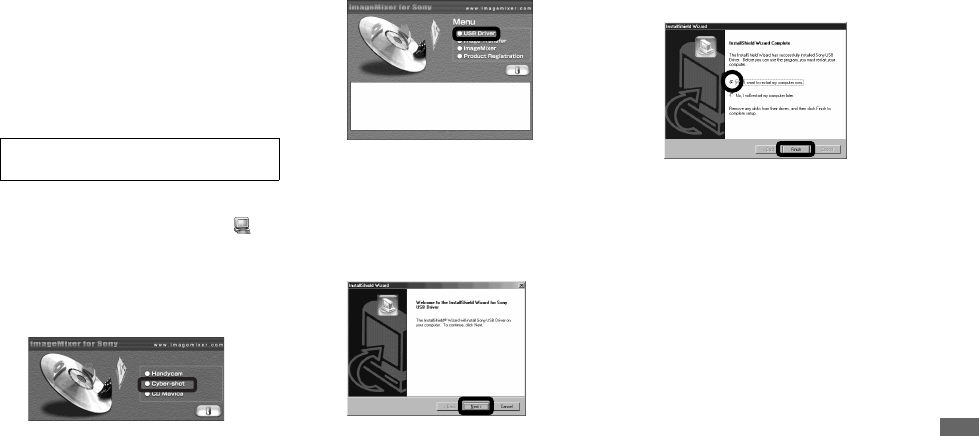
75
Enjoying images on your computer
Installing the USB driver
When using Windows XP, you need not
install the USB driver.
Once the USB driver is installed, you need
not install the USB driver.
aStart up your computer, and
insert the supplied CD-ROM
into the CD-ROM drive.
The model selection screen appears. If
it does not appear, double-click
(My Computer) t [ImageMixer] in
that order.
bClick [Cyber-shot] on the
model selection screen.
The installing menu screen appears.
cClick [USB Driver] on the
installing menu screen.
The “InstallShield Wizard” screen
appears.
dClick [Next]. When the
“Information” screen appears,
click [Next].
The USB driver installation starts.
When the installation is completed, the
screen informs you of completion.
eClick [Yes, I want to restart my
computer now], then click
[Finish].
Your computer restarts. Then, you can
establish USB connection.
Do not connect your camera to
your computer at this time.
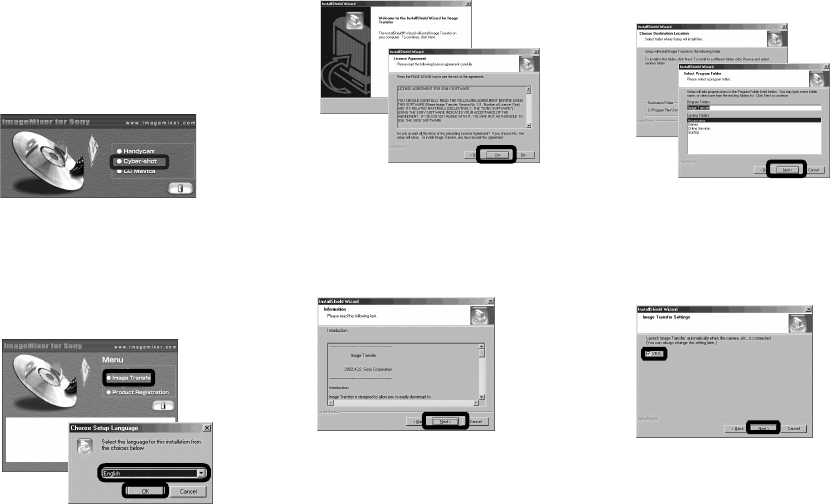
76
Installing “Image Transfer”
You can use the “Image Transfer” software
to copy images to your computer
automatically when you connect the camera
to your computer with the supplied USB
cable.
aClick [Cyber-shot] on the
model selection screen.
The installing menu screen appears.
bClick [Image Transfer] on the
installing menu screen.
Select the desired language,
then click [OK].
The “Welcome to the InstallShield
Wizard” screen appears.
•This section describes the English screen.
cClick [Next]. When “Licence
Agreement” screen appears,
click [Yes].
Read the agreement carefully. If you
accept the terms of the agreement,
proceed with the installation. The
“Information” screen appears.
dClick [Next].
eSelect the folder to be
installed, then click [Next].
Select the program folder, then
click [Next].
fConfirm if the checkbox is
checked on the “Image
Transfer Settings” screen,
then click [Next].
When the installation is completed, the
screen informs you of completion.
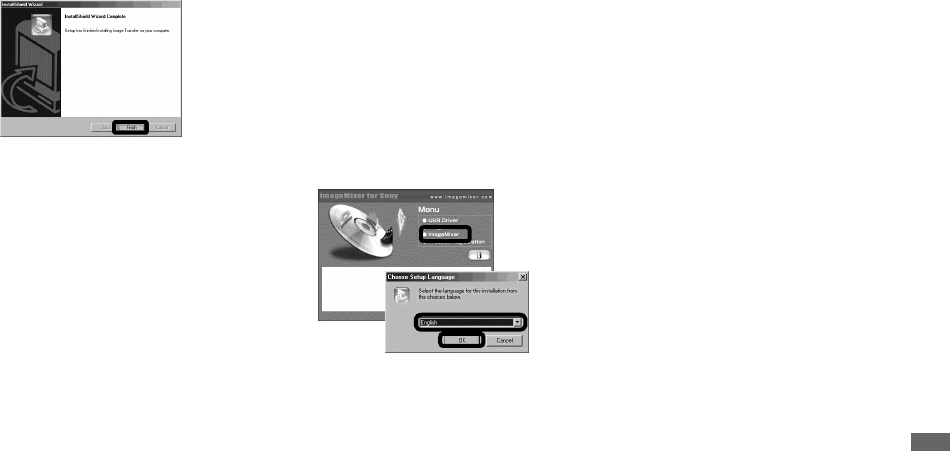
77
Enjoying images on your computer
gClick [Finish].
The “InstallShield Wizard” screen
closes. If you wish to continue with the
installation of “ImageMixer,” click
[ImageMixer] on the installing menu
screen and then follow the procedure.
•The USB driver is needed in order to use
“Image Transfer”. If the necessary driver is not
already installed on your computer, a screen
that asks if you want to install the driver will
appear. Follow the instructions that appear on
the screen.
Installing “ImageMixer”
You can use the “ImageMixer Ver. 1.5 for
Sony” software to copy, view and edit
images. For details, see the software’s help
files.
aClick [ImageMixer] on the
installing menu screen.
Select the desired language,
then click [OK].
The “Welcome to the InstallShield
Wizard” screen appears.
•This section describes the English screen.
bFollow instructions on each
succeeding screen.
Install “ImageMixer” according to the
screen.
•When you use Windows 2000 or Windows XP,
install “WinASPI”.
•If DirectX8.0a or a later version is not installed
in your computer, the “Information” screen
appears. Follow the procedure on the screen.
cRestart your computer
according to the screen.
dRemove the CD-ROM.
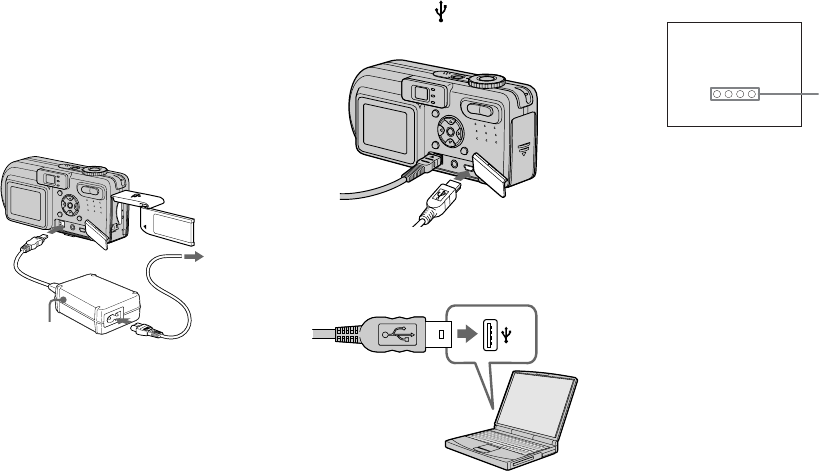
78
Connecting the camera to
your computer
aInsert the “Memory Stick” with
the images you want to copy
into the camera. Connect the
AC Adaptor, and plug the
adaptor into a wall outlet (wall
socket).
•When you copy images to your computer using
the battery pack, copying may be failed or
cause data corruption by battery shutoff. We
recommend that you use the AC Adaptor.
•For further details on the AC Adaptor, see
page 10.
•For further details on the “Memory Stick,” see
page 17.
bTurn on your computer and the
camera.
cOpen the jack cover, and
connect the supplied USB
cable to the (USB) jack of
the camera.
dConnect the USB cable to your
computer.
•When you use a desktop computer, we
recommend that you connect the USB cable to
the USB connector on the rear panel.
•When using Windows XP, the AutoPlay wizard
automatically appears on the desktop. Proceed
to page 81.
“USB Mode Normal” appears on the
LCD screen of the camera. When a
USB connection is established for the
first time, your computer automatically
runs the used program to recognize the
camera. Wait for a while.
*During communication, the access
indicators turn red.
•If “USB Mode Normal” does not appear in step
4, confirm that [USB Connect] is set to
[Normal] in the SET UP settings (page 106).
1
2
3
AC Adaptor
To a wall
outlet
(wall
socket)
USB Mode
Normal
Access
indicators*
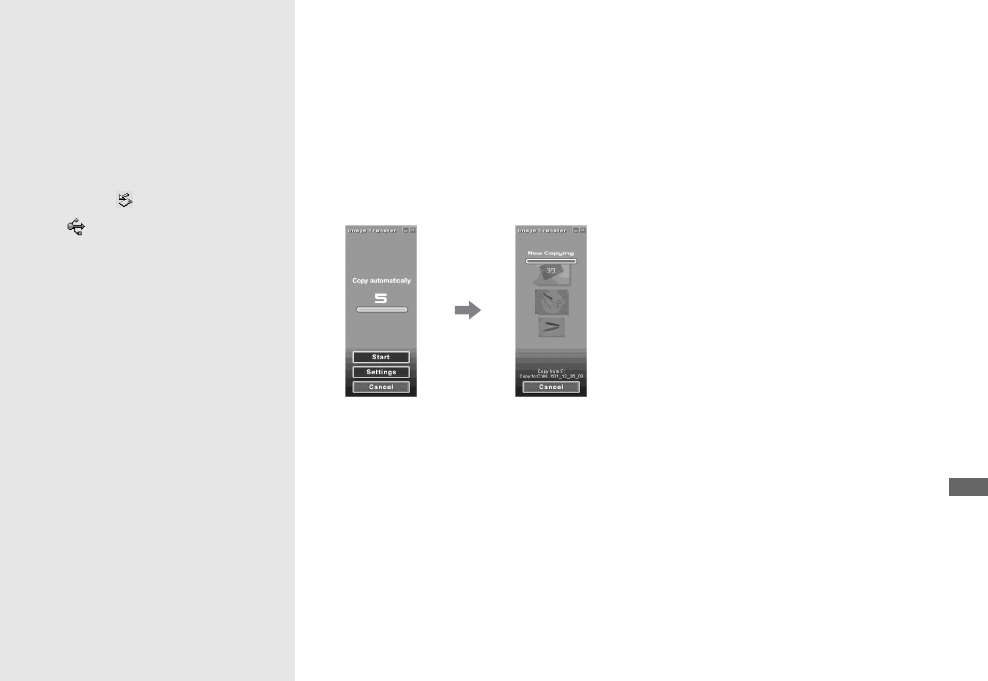
79
Enjoying images on your computer
P Disconnecting the USB
cable from your computer,
removing the “Memory Stick”
from your camera or turning
off the power during USB
connection
For Windows 2000, Me, or XP users
1Double-click on the tasktray.
2Click (Sony DSC), then click [Stop].
3Confirm the device on the confirmation
screen, then click [OK].
4Click [OK].
Step 4 is unnecessary for Windows XP
users.
5Disconnect the USB cable, remove the
“Memory Stick” or turn off the power.
For Windows 98 or 98SE users
Confirm that the access indicators (page 78)
on the LCD screen are turned white and
carry out only Step 5 above.
Copying images using
“Image Transfer”
— Windows 98/98SE/2000/Me
Connect the camera and your
computer with the USB cable.
“Image Transfer” launches and the images
are automatically copied to the computer.
When copying is complete, “ImageMixer”
automatically launches and images appear.
•Normally “Image Transfer” and “Date” folders
are created inside the “My Documents” folder,
and all of the image files recorded with the
camera are copied into these folders.
•You can change the “Image Transfer” settings
(page 80).
— Windows XP
Connect the camera and your
computer with the USB cable.
“Image Transfer” starts up automatically
and the images are automatically copied to
the computer.
Windows XP is set so that the OS AutoPlay
Wizard activates.
If you want to cancel the setting, follow the
procedure below.
aClick [Start], then click [My
Computer].
bRight-click [Sony
MemoryStick], then click
[Properties].
cCancel the setting.
1Click [AutoPlay].
2Set [Content type] to [Pictures].
3Check [Select an action to perform]
under [Actions], select [Take no
action], then click [Apply].
4Set [Content type] to [Video files]
and proceed step 3. Set [Content
type] to [Mixed content] and
proceed step 3.
5Click [OK].
The [Properties] screen closes.
The OS AutoPlay Wizard does not
start up automatically even if the
USB connection is made next time.
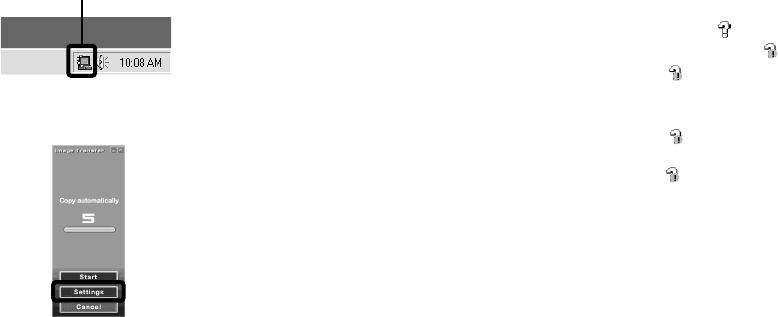
80
Changing “Image Transfer”
settings
You can change “Image Transfer” settings.
Right-click the “Image Transfer” icon on
the tasktray, select [Open Settings]. The
settings you can set are as follows: [Basic],
[Copy], and [Delete].
When the “Image Transfer” starts, the
below window appears.
When you select [Settings] from the above
window, you can only change the [Basic]
setting.
Copying images without
using “Image Transfer”
— Windows 98/98SE/2000/Me
If you do not set to launch “Image Transfer”
automatically, you can copy images as
following procedure.
aDouble-click [My Computer],
then double-click [Removable
Disk].
The contents of the “Memory Stick”
inserted in your camera appear.
•This section describes an example of copying
images to the “My Documents” folder.
•When the “Removable Disk” icon is not shown,
see the following column.
•When using Windows XP, see page 81.
bDouble-click [DCIM], then
double-click the folder which
contains the desired images.
The folder opens.
cDrag and drop the image files
into the “My Documents” folder.
The image files are copied to the “My
Documents” folder.
•When you try to copy an image to a folder in
which an image with the same file name is
stored, the overwrite confirmation message
appears. When you want to overwrite the
existing image with the new one, the original
one is deleted.
When a removable disk icon is not
shown
1Right-click [My Computer], then click
[Properties].
The “System Properties” screen appears.
•When using Windows 2000, click [Hardware]
on “System Properties” screen.
2Confirm if other devices are already
installed.
1Click [Device Manager].
2Double-click [ Other Devices].
3Confirm if there is a “ Sony DSC”
with a mark.
3If you find either of the devices above,
follow the steps below to delete them.
1Click [ Sony DSC].
(When using Windows 2000, right-
click [ Sony DSC].)
2Click [Remove] (or [Uninstall] in
Windows 2000).
The “Confirm Device Removal”
screen appears.
3Click [OK].
The device is deleted.
Try the USB driver installation again using
the supplied CD-ROM (page 75).
Right-click here

81
Enjoying images on your computer
— Windows XP
Copying images using the
Windows XP AutoPlay Wizard
aMake a USB connection
(page 78). Click [Copy pictures
to a folder on my computer
using Microsoft Scanner and
Camera Wizard], then click
[OK].
The “Scanner and Camera Wizard”
screen appears.
bClick [Next].
The images stored on the “Memory
Stick” are displayed.
cClick the checkbox of images
that you do not want to copy to
your computer and remove the
checkmark, then click [Next].
The “Picture Name and Destination”
screen appears.
dSelect a name and destination
for your pictures, then click
[Next].
Image copying starts. When the
copying is completed, the “Other
Options” screen appears.
eSelect [Nothing. I’m finished
working with these pictures],
then click [Next].
The “Completing the Scanner and
Camera Wizard” screen appears.
fClick [Finish].
The wizard closes.
•To continue copying other images, follow the
procedure given under P on page 79 to
disconnect the USB cable and reconnect it.
Then, perform the procedure from step 1
again.
Viewing images on your
computer
aDouble-click [My Documents]
on the desktop.
The “My Documents” folder contents
are displayed.
•This section describes the procedure for
viewing copied images in the “My Documents”
folder.
•When using Windows XP, click [Start] t [My
Documents] in that order.
•You can use the “ImageMixer Ver. 1.5 for
Sony” software to view and edit images on your
computer. For details, see the software’s help
files.
bDouble-click the desired folder
and image file.
The image is displayed.
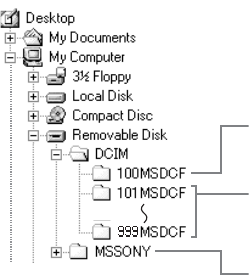
82
Image file storage
destinations and file names
Image files recorded with your camera are
grouped as folders in the “Memory Stick”.
Example: For Windows Me users
•Data in the “100MSDCF” or “MSSONY”
folders is for playback only, and your camera
cannot record images in these folders.
•For more information about the folder, see
page 40.
Folder containing image data recorded using a
camera without the folder creation function
Folder containing image data recorded with this
camera
When no new folders have been created, this is
only “101MSDCF”
Folder containing E-mail mode image data, movie
data and Voice mode audio data recorded using a
camera without the folder creation function
83
Enjoying images on your computer
•ssss stands for any number within the range from 0001 to 9999.
• The numerical portions of the following files are the same.
–A small-size image file shot in E-Mail mode and its corresponding image file
–An audio file shot in Voice mode and its corresponding image file
–An image file shot with Clip Motion and its corresponding index image file
Folder File name File meaning
101MSDCF
up to 999MSDCF DSC0ssss.JPG •Still image files shot in
– Normal mode (page 21)
– Exposure Bracket mode (DSC-P10/P12 only) (page 48)
– Burst 3 (DSC-P10/P12)/Burst 2 (DSC-P8) mode (page 53)
•Image files shot in Multi Burst mode (page 52)
•Still image files recorded simultaneously in
– E-Mail mode (page 53)
– Voice mode (page 54)
DSC0ssss.JPE •Small-size image files shot in E-Mail mode (page 53)
DSC0ssss.MPG •Audio files shot in Voice mode (page 54)
CLP0ssss.GIF •Clip Motion files shot in Normal mode (page 51)
CLP0ssss.THM •Index image files of Clip Motion files shot in Normal mode
MBL0ssss.GIF •Clip Motion files shot in Mobile mode (page 51)
MBL0ssss.THM •Index image files of Clip Motion files shot in Mobile mode
MOV0ssss.MPG •Movie files shot in MPEG Movie mode (page 68)

84
Copying images to
your computer
— For Macintosh users
Recommended computer
environment
OS: Mac OS 8.5.1, 8.6, 9.0, 9.1, 9.2, or
Mac OS X (v10.0/v10.1/v10.2)
The above OS must be installed at the
factory. For the following models, update
your OS to Mac OS 9.0 or 9.1.
– iMac with Mac OS 8.6 installed at the
factory, and a slot loading type CD-ROM
drive
– iBook or Power Mac G4 with the Mac OS
8.6 installed at the factory
USB connector: Provided as standard
Display: 800 × 600 dots or more
32,000-color mode or more
•If you connect two or more USB equipment to
a single computer at the same time, some
equipment, including your camera, may not
operate depending on the type of USB
equipment.
•Operations are not guaranteed when using a
USB hub.
•Operations are not guaranteed for all the
recommended computer environments
mentioned above.
USB mode
There are two modes for a USB connection,
[Normal] and [PTP]* modes. The factory
setting is the [Normal] mode.
* Compatible only with Mac OS X. When
connected to a computer, only the data in the
folder selected by the camera is copied to the
computer. To select a folder, perform the
procedure from step 2 on page 58.
Communication with your
computer
When your computer resumes from the
suspend or sleep mode, communication
between your camera and your computer
may not recover at the same time.
When a USB connector is not
provided on your computer
When neither a USB connector nor a
“Memory Stick” slot is provided, you can
copy images using an additional device. See
the Sony Website for details.
http://www.sony.net/
Steps requires your OS
Follow the steps below, according to your
OS.
aInstalling the USB driver
1Turn on your computer, and set the
supplied CD-ROM into the CD-ROM
drive.
The model selection screen appears.
2Click [Cyber-shot] on the model
selection screen.
The installing menu appears.
3Click [USB Driver].
The “USB Driver” screen appears.
4Double-click the icon of the hard disk
containing the OS to open the screen.
5Drag and drop the following two files
from the screen opened in step 3 into the
System Folder icon in the screen opened
in step 4.
• Sony USB Driver
• Sony USB Shim
6When the message for confirmation is
shown, click “OK.”
7Restart your computer, then remove the
CD-ROM.
bConnecting your camera to
your computer
For details, see page 78.
OS Steps
Mac OS 8.5.1/8.6/9.0 Steps 1 to 4
Mac OS 9.1/9.2/Mac OS X
(v10.0/v10.1/v10.2) Steps 2 to 4
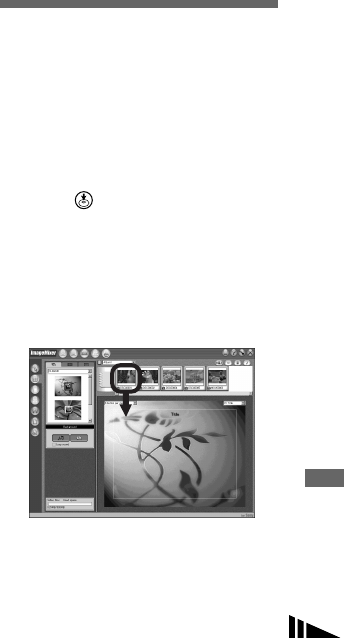
85
Enjoying images on your computer
Removing the USB cable from your
computer, the “Memory Stick” from
your camera or turning off the power
during a USB connection
Drag and drop the drive icon or the
“Memory Stick” icon to the “Trash” icon,
then remove the USB cable or “Memory
Stick” or turn off the power.
•If you are using Mac OS X v10.0, remove the
USB cable, etc., after you have turned your
computer off.
cCopying images
1Double-click the newly recognized icon
on the desktop.
The contents of the “Memory Stick”
inserted in your camera appear.
2Double-click “DCIM.”
3Double-click the folder contained the
desired image file.
4Drag and drop the image files to the hard
disk icon.
The image files are copied to your hard
disk.
•See pages 82 and 83 for details about the image
file storage destinations and file names.
dViewing the images on your
computer
1Double-click the hard disk icon.
2Double-click the desired image file in
the folder containing the copied files.
The image file opens.
• Close down all applications running on
the computer before installing the USB
driver and application.
•You can use the “ImageMixer Ver. 1.5 for
Sony” software to copy images to your
computer and to view images on your
computer. See the operation manual supplied
with the CD-ROM for details about the
installation method, or see the software’s help
files for the operation method.
•“ImageMixer” is not compatible with Mac OS
X.
•“Image Transfer” cannot be used with
Macintosh.
For Mac OS X users
If the “There is no application available to
open the document “DSC0ssss.JPE”.”
screen appears when you click an E-mail
mode image file, make the following
setting.
•The screen display may differ depending on the
version.
1Click [Choose Application...] at the
“There is no application available to
open the document
“DSC0ssss.JPE”.” screen.
2Change “Show” from [Recommended
Applications] to [All Applications].
3Select [QuickTime Player] from the
displayed list of applications, and click
[Open].
Creating a Video CD
You can create a Video CD using your
computer. You can play back created Video
CDs on a Video CD-compatible DVD
player, or on a computer using Video CD
application software.
aStart “ImageMixer”
bClick .
The video CD creating mode turns on.
cDrag and drop the desired file
or album to the menu screen.
The selected image is added to the
menu screen.
•This section describes the English screen.
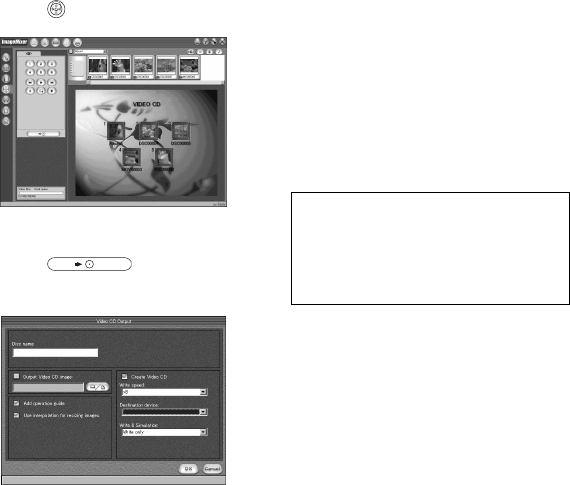
86
dClick .
You can preview the image.
eClick .
The disc creating dialogue appears.
fInsert a blank CD-R into the
CD-R drive and click [OK]
button.
The disc creation starts.
•You cannot use CD-RW discs.
•The CD-R drive is required to create a Video
CD.
For the Macintosh edition
•Roxio-manufactured “Toast” (not
supplied) is required to create a Video CD.
•The playback time of the movie file
becomes shorter on the preview screen.
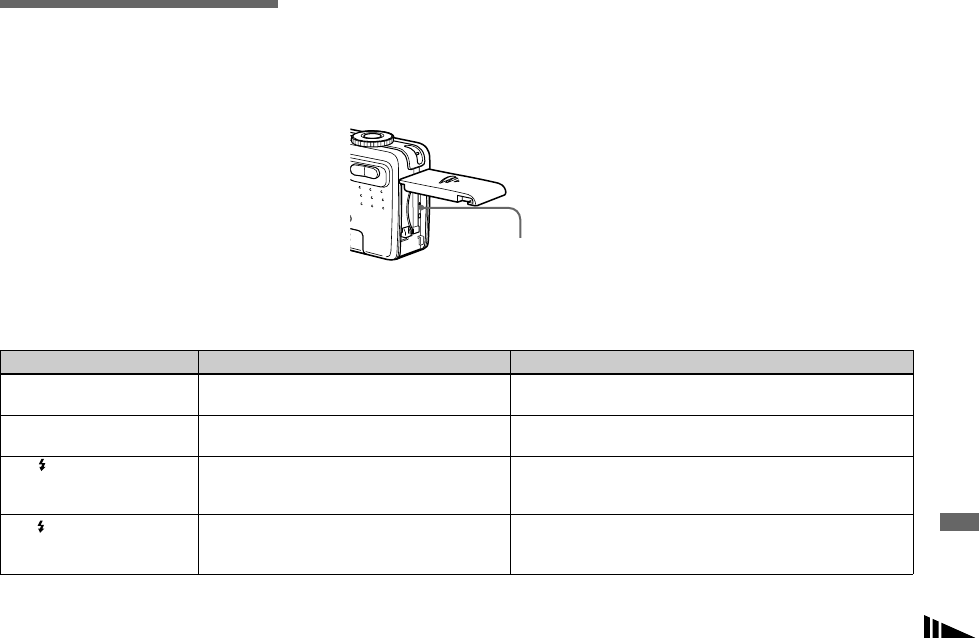
87
Troubleshooting
Troubleshooting
If you experience trouble with your camera,
try the following solutions.
1First check the items on the tables below.
If code displays “C:ss:ss”
appear on the screen, the self-
diagnosis display function is
working (page 97).
2Should your camera still not work
properly, press the RESET button inside
the battery/“Memory Stick” cover using
a fine-tripped object, then turn on the
power again. (All the settings including
date and time are cleared.)
3Should your camera still not work
properly, consult your Sony dealer or
local authorized Sony service facility.
Battery pack and power
RESET button
Symptom Cause Solution
You cannot charge the
battery pack. • The camera is turned on. pTurn the camera off (page 14).
The battery pack cannot
be installed. • The battery pack is not installed correctly. pInstall the battery pack while pushing the battery eject lever
down using the front edge of the battery pack (page 10).
The /CHG lamp flashes. • The battery pack is not installed correctly.
• The battery pack has malfunctioned. pInstall the battery pack correctly (page 10).
pConsult your Sony dealer or local authorized Sony service
facility.
The /CHG lamp does not
light up when charging a
battery pack.
• The AC Adaptor is disconnected.
• The battery pack is not installed correctly.
• The battery pack is completely charged.
pProperly connect the AC Adaptor (page 10).
pInstall the battery pack correctly (page 10).
—
Troubleshooting
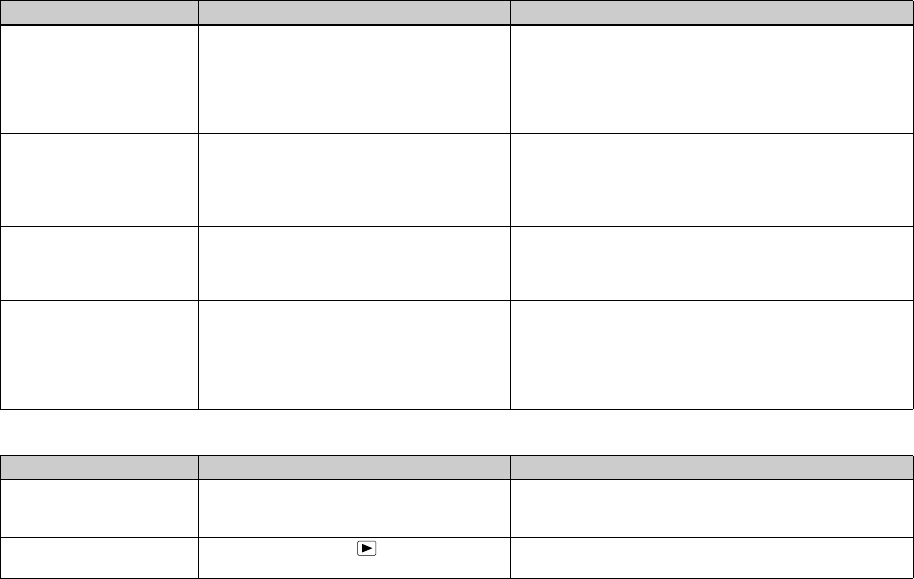
88
Shooting still images/movies
The battery remaining
indicator is incorrect, or
sufficient battery
remaining indicator is
displayed but the power
runs out soon.
• You have used the camera for a long time in an
extremely hot or an extremely cold location.
• A deviation has occurred in the remaining
battery time.
• The battery pack is discharged.
• The battery pack is dead (page 110).
—
pFully discharge and then charge the battery pack so that the
battery remaining indicator functions correctly (page 11).
pInstall a charged battery pack (page 10).
pReplace the battery pack with a new one.
The battery pack runs
down too quickly. • You are shooting/viewing images in an
extremely cold location.
• The DC plug is dirty so the battery pack is not
charged enough.
• The battery pack is dead (page 110).
—
pClean the pins of the AC Adaptor with a cotton swab, etc., and
charge the battery pack (page 10).
pReplace the battery pack with a new one.
You cannot turn on the
camera. • The battery pack is not installed correctly.
• The AC Adaptor is disconnected.
• The battery pack is discharged.
• The battery pack is dead (page 110).
pInstall the battery pack correctly (page 10).
pProperly connect the AC Adaptor (page 13).
pInstall a charged battery pack (page 10).
pReplace the battery pack with a new one.
The power turns off
suddenly. • If you do not operate the camera for about 90
seconds while the power is on, the camera turns
off automatically to prevent wearing down the
battery pack (when [Power Save] is [Off] after
three minutes) (page 14).
• The battery pack is discharged.
pTurn on the camera again (page 14) or use the AC Adaptor
(page 13).
pInstall a charged battery pack (page 10).
Symptom Cause Solution
The LCD screen is not
turned on even when the
power is turned on.
• The power was turned off with the LCD screen
turned off the last time you used the camera. pTurn on the LCD screen (page 28).
The subject is not visible
on the LCD screen. • The mode dial is set to or SET UP. pSet it to other modes (pages 21 and 68).
Symptom Cause Solution
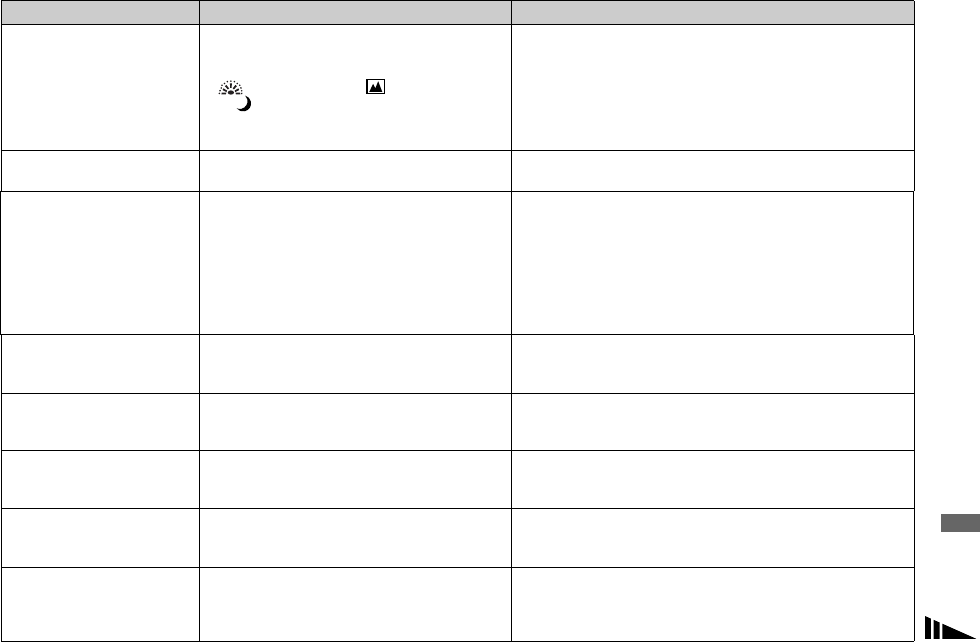
89
Troubleshooting
The image is out of focus. • The subject is too close.
• (Fireworks mode), (Landscape mode)
or (Twilight mode) is selected for the Scene
Selection function.
• The focus preset function is selected.
pRecord in the macro recording mode. Make sure to position the
lens farther away from the subject than the shortest shooting
distance when shooting (page 24).
pSet it to other modes (page 55).
pSet to the auto focus mode (page 44).
Zoom does not work. • The zoom feature cannot be used while shooting
movies (MPEG Movie). —
Smart zoom does not
function. • You cannot use smart zoom while shooting a
movie (MPEG Movie).
• [Smart Zoom] is set to [Off] in the SET UP
settings.
• The LCD screen is turned off.
• The image size is set to [5.0M] or [4.5M(3:2)]
(DSC-P10/P12), or [3.1M] or [2.8M (3:2)]
(DSC-P8).
—
pSet [Smart Zoom] to [On] (pages 23 and 104).
pTurn on the LCD screen (page 28).
pSet image size to other settings except [5.0M] or [4.5M(3:2)]
(DSC-P10/P12), or [3.1M] and [2.8M (3:2)] (DSC-P8)
(page 18).
The image is too dark. • You are shooting a subject with a light source
behind the subject.
• The brightness of the LCD screen is too low.
pAdjust the exposure (page 45).
pAdjust the brightness of the LCD screen (pages 39 and 105).
The image is too bright. • You are shooting a spotlighted subject in a dark
location such as on a stage.
• The brightness of the LCD screen is too bright.
pAdjust the exposure (page 45).
pAdjust the brightness of the LCD screen (pages 39 and 105).
The image is
monochrome (black and
white).
• [PFX] (P. Effect) is set to [B&W] (DSC-P8
only). pCancel the B&W mode (page 57).
Vertical streaks appear
when you are shooting a
very bright subject.
• The smear phenomenon is occurring. pThis is not a malfunction.
Noise appears in the
image when you view the
LCD screen in a dark
place.
• The camera is functioning to increase the
visibility of the LCD screen by temporarily
brightening the image under conditions of low
illumination.
pThere is no effect on the recorded image.
Symptom Cause Solution
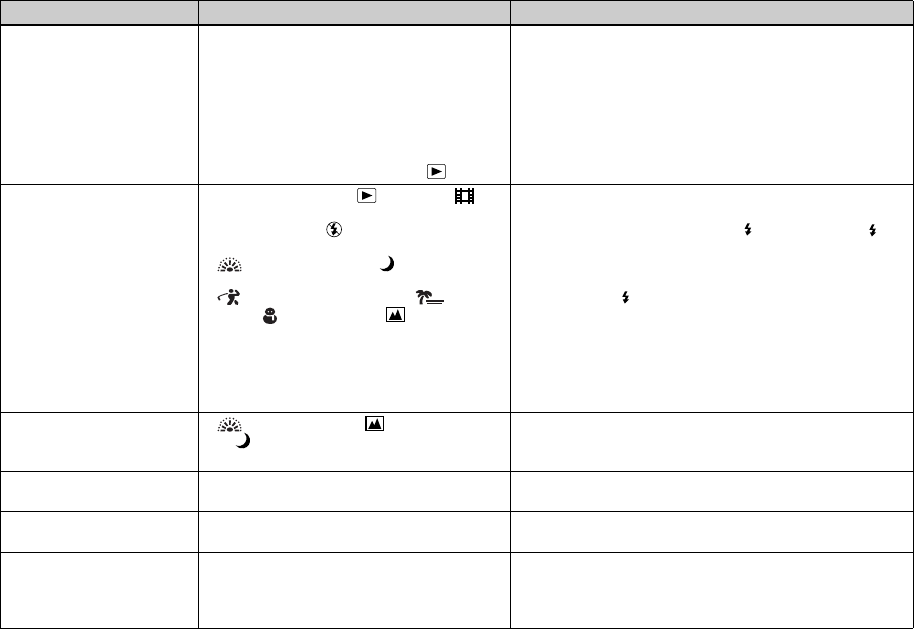
90
Your camera cannot
record images. •No “Memory Stick” has been inserted.
• The capacity of the “Memory Stick” is
insufficient.
• The write-protect switch on the “Memory Stick”
is set to the LOCK position.
• You cannot record images while charging the
flash.
• The mode dial is set to SET UP or .
pInsert a “Memory Stick” (page 17).
pDelete the images saved in the “Memory Stick” (pages 34 and
70), or format it (page 37).
pChange the “Memory Stick” (page 17).
pSet it to the recording position (page 108).
—
pSet it to other modes.
The flash does not work. • The mode dial is set to , SET UP or
(MPEG Movie or Multi Burst).
• The flash is set to (No flash).
• (Fireworks mode) or (Twilight mode)
is selected for the Scene Selection function.
• (High-speed shutter mode), (Beach
mode), (Snow mode) or (Landscape
mode) is selected for the Scene Selection
function.
• [Mode] (REC Mode) is set to [Bracket] (DSC-
P10/P12 only), [Burst 3] (DSC-P10/P12) or
[Burst 2] (DSC-P8).
pSet it to other modes.
pSet the flash to auto (No indicator), (Forced flash) or
(Slow synchro) (page 26).
pCancel the setting (page 55).
pSet the flash to (Forced flash) (page 26).
pSet it to other modes.
The macro function does
not work. • (Fireworks mode), (Landscape mode)
or (Twilight mode) is selected for the Scene
Selection function.
pCancel the setting (page 55).
The eyes of the subject
come out red. —pSet [Red Eye Reduction] in the SET UP settings to [On]
(page 27).
The date and time are
recorded incorrectly. • The date and time are not set correctly. pSet the correct date and time (page 15).
The F value and shutter
speed flash when you
press and hold the shutter
button halfway down.
• The exposure is incorrect. pCorrect the exposure (page 45).
Symptom Cause Solution
SL
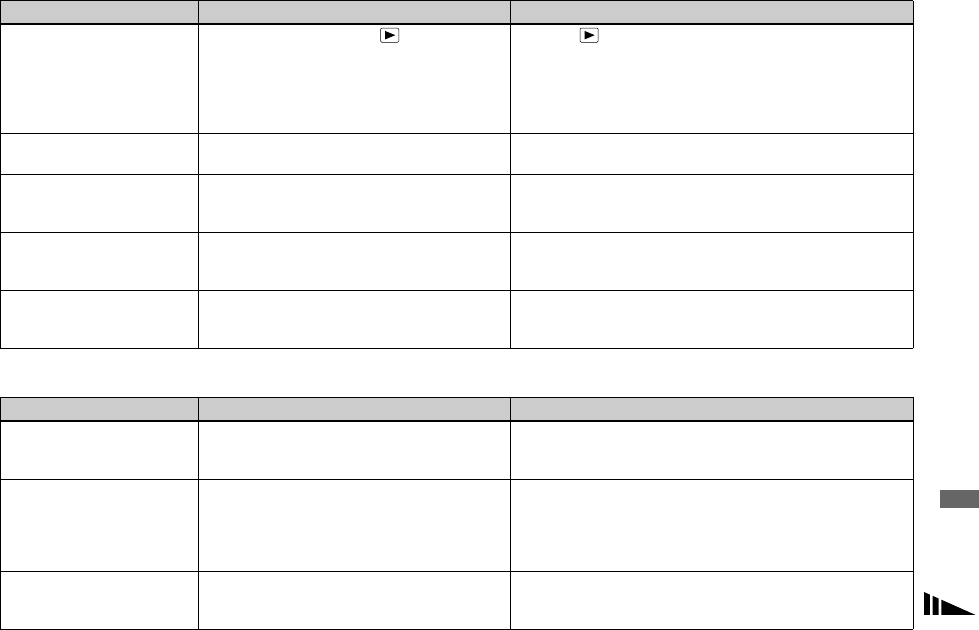
91
Troubleshooting
Viewing images
Deleting/Editing Images
Symptom Cause Solution
Your camera cannot play
back images. • The mode dial is not set to .
• Your camera cannot play back image files
copied from the hard disk of your computer if the
folder/file name has been changed or the image
has been modified.
• The camera is in USB mode.
pSet it to (page 30).
—
pCancel USB communication (page 79).
The image appears rough
right after playback starts. —pThis is not a malfunction.
The image does not
appear on the TV screen. • The video output signal setting of your camera in
the SET UP settings is incorrect.
• The connection is not correct.
pChange the setting (page 106).
pCheck the connection (page 32).
The image cannot be
played back on a
computer.
—pSee page 92.
Unknown beeps are heard
from the camera while
viewing a movie.
• These beeps are heard when the auto focus is
working. pThis is not a malfunction. Shoot the image using the focus preset
(page 44).
Symptom Cause Solution
Your camera cannot
delete an image. • The image is protected.
• The write-protect switch on the “Memory Stick”
is set to the LOCK position.
pCancel the protection (page 63).
pSet it to the recording position (page 108).
You have deleted an
image by mistake. • Once you have deleted an image, you cannot
restore it. pMarking - (protect) will prevent you from deleting images by
mistake (page 63).
pWe recommend that you set the “Memory Stick” write-protect
switch to the LOCK position to prevent accidental erasure
(page 108).
The resizing function
does not work. • You cannot resize movies (MPEG Movie), Clip
Motion and Multi Burst images. —
92
Computers
You cannot display a print
(DPOF) mark. • You cannot display print (DPOF) marks on
movies (MPEG Movie) and Clip Motion. —
You cannot cut a movie. • The movie (MPEG Movie) is not long enough to
cut.
• Protected movie (MPEG Movie), Clip Motion,
Multi Burst files and still images cannot be cut.
—
—
Symptom Cause Solution
Symptom Cause Solution
You do not know if the OS
of your computer is
compatible.
—pCheck “Recommended computer environment” (pages 74 and
84).
You cannot install the
USB driver. —pIn Windows 2000, log on as Administrator (authorized
Administrators) (page 74).
Your computer does not
recognize your camera. • The camera is turned off.
• The battery level is low.
• You are not using the supplied USB cable.
• The USB cable is not connected firmly.
• [USB Connect] is set to [PTP] in the SET UP
settings.
• The USB connectors on your computer are
connected to other equipment besides the
keyboard, the mouse, and your camera.
• The camera is not connected directly to your
computer.
• The USB driver is not installed.
• Your computer does not properly recognize the
device because you connected the camera and
your computer with the USB cable before you
installed the “USB Driver” from the supplied
CD-ROM.
pTurn on the camera (page 14).
pUse the AC Adaptor (page 13).
pUse the supplied USB cable (pages 78 and 84).
pDisconnect the USB cable, and connect it again firmly. Make
sure that “USB Mode” is displayed on the screen (pages 78 and
84).
pSet it to [Normal] (page 106).
pDisconnect all equipment other than your camera from the USB
connectors.
pConnect the camera directly to your computer without passing
through a USB hub or other device.
pInstall the USB driver (pages 75 and 84).
pDelete the erroneously recognized device from your computer,
then install the USB driver (pages 75 and 80).
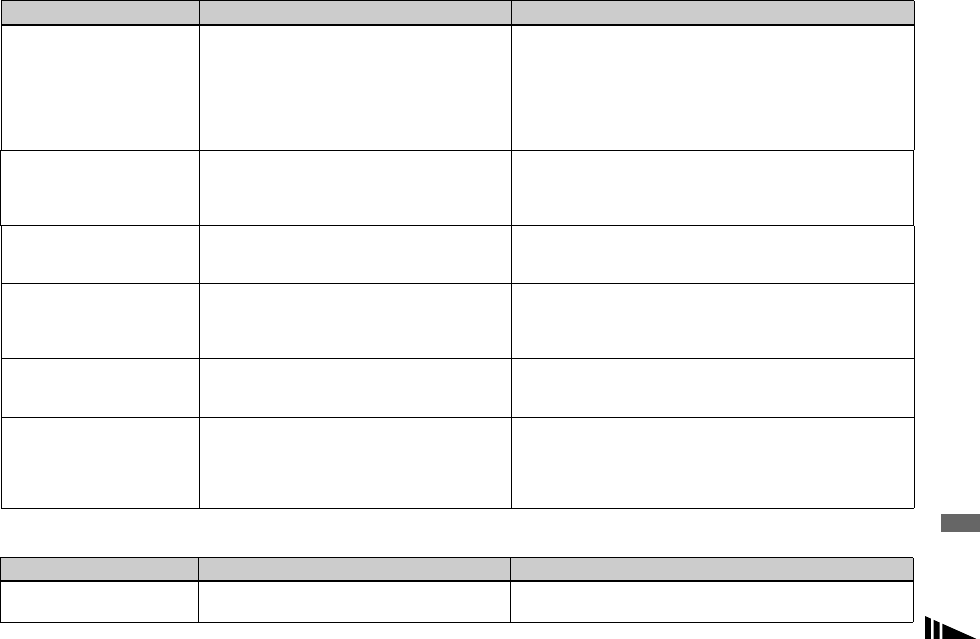
93
Troubleshooting
“Memory Stick”
You cannot copy images. • The camera is not correctly connected to your
computer.
• You are not using the correct copy procedure for
your OS.
—
—
pConnect the camera and your computer correctly using the
supplied USB cable (page 78).
pFollow the designated copy procedure for your OS (pages 79
and 85).
pIf you use the “Image Transfer” software, see page 79.
pIf you are using the “ImageMixer Ver. 1.5 for Sony” application
software, click on HELP.
After making a USB
connection, “Image
Transfer” does not
automatically start.
—
—
pSelect [Launch Image Transfer automatically when your
camera, etc., is connected.] at [Basic] setting (page 80).
pMake a USB connection when the computer is turned on
(page 78).
The image cannot be
played back on a
computer.
—
—
pIf you are using the “ImageMixer Ver. 1.5 for Sony” application
software, click on HELP.
pConsult the computer or software manufacturer.
The image and sound are
interrupted by noise when
you view a movie on a
computer.
• You are playing back the movie directly from the
“Memory Stick”.pCopy the movie to the hard disk of your computer and then play
back the movie from the hard disk (pages 79 and 85).
You cannot print an
image. —
—pCheck the printer settings.
pClick on the HELP for the “ImageMixer Ver. 1.5 for Sony”
application software.
An error message appears
when you set the supplied
CD-ROM in your
computer.
• The computer display is not set correctly. pSet the computer display as follows:
Windows: 800 × 600 dots or more
High Color (16 bits, 65,000 colors) or more
Macintosh: 800 × 600 dots or more
32,000-color or more
Symptom Cause Solution
Symptom Cause Solution
You cannot insert a
“Memory Stick.” • You are inserting it backwards. pInsert it from the right side (page 17).
94
Others
You cannot record on a
“Memory Stick.” • The write-protect switch on the “Memory Stick”
is set to the LOCK position.
• The “Memory Stick” is full.
pSet it to the recording position (page 108).
pDelete unnecessary images (pages 34 and 70).
You cannot format a
“Memory Stick.” • The write-protect switch on the “Memory Stick”
is set to the LOCK position. pSet it to the recording position (page 108).
You have formatted a
“Memory Stick” by
mistake.
• All the data on the “Memory Stick” are deleted
by formatting. You cannot restore them. pWe recommend that you set the “Memory Stick” write-protect
switch to the LOCK position to prevent accidental erasure
(page 108).
Symptom Cause Solution
Symptom Cause Solution
Your camera does not
work. • You are not using an “InfoLITHIUM” battery
pack.
• The battery level is low. (The E indicator
appears.)
• The AC Adaptor is not connected securely.
pUse an “InfoLITHIUM” battery pack (page 109).
pCharge the battery pack (page 10).
pConnect it securely to the DC IN jack of your camera and to a
wall outlet (wall socket) (page 13).
The power is on, but the
camera does not work. • The built-in microcomputer is not working
properly. pDisconnect, and then, after one minute, reconnect all power
sources and turn on the camera. If this does not work, press the
RESET button located inside the battery/“Memory Stick” cover
with a pointed object, then turn the power on again. (This will
clear the date and time settings, etc.)
You cannot identify an
indicator on the screen. —pCheck the indicator (pages 112 to 114).
The lens gets fogged. • Moisture condensation has occurred. pTurn off the camera and leave for about an hour at room
temperature for the moisture to evaporate before use (page 107).
The camera becomes
warm when you use it for
the long time.
—pThis is not a malfunction.
The lens does not move
when you turn off the
camera.
• The battery pack is discharged. pReplace it with a charged battery pack or use the AC Adaptor
(pages 10 and 13).
95
Troubleshooting
Warnings and
messages
The following messages may appear on the screen.
Message Meaning/Corrective Action
No Memory Stick • Insert a “Memory Stick” (page 17).
System error • Turn the power off and on again (page 14).
Memory Stick error • The inserted “Memory Stick” cannot be used in your camera (page 108).
• The “Memory Stick” is damaged, or the terminal section of the “Memory Stick” is dirty.
• Insert the “Memory Stick” correctly (page 17).
Memory Stick type error • The inserted “Memory Stick” cannot be used in your camera (page 108).
Format error • Failed to format the “Memory Stick.” Format the “Memory Stick” again (page 37).
Memory Stick locked
• The write-protect switch on the “Memory Stick” is set to the LOCK position. Set it to the recording position
(page 108).
No memory space
• The capacity of the “Memory Stick” is insufficient. You cannot record images. Delete unnecessary images (pages 34
and 70).
No file in this folder • No images have been recorded in this folder.
Folder error • A folder with the same first three digits number already exists in the “Memory Stick.” (For example: 123MSDCF
and 123ABCDE) Select other folders, or create a new folder.
Cannot create more folders • The folder whose first three digits of the name is “999” exists in the “Memory Stick.” You cannot create any folders.
Cannot record • The camera cannot record images in the selected folder. Select a different folder (page 41).
File error • An error occurred while playing back the image.
File protect • The image is protected against erasure. Release the protection (page 63).
For "InfoLITHIUM" battery
only • The battery pack is not the “InfoLITHIUM” type.
Image size over • You are playing back an image of a size that cannot be played back on your camera.
Can not divide • The movie is not long enough to be divided.
• The file is not a movie (MPEG Movie).
Invalid operation • You are playing back a file that was created on equipment other than this camera.

96
• The battery level is low or zero. Charge the battery pack (page 10). Depending on the conditions of use or the type
of battery pack, the indicator may flash even though there are still 5 to 10 minutes of remaining battery time left.
• The amount of lights is not sufficient, so you are not holding the camera steady enough. Use the flash, mount the
camera on a tripod, or otherwise secure the camera in place.
Turn the power off and on
again • A problem with the lens caused an error.
Message Meaning/Corrective Action
97
Troubleshooting
Self-diagnosis display
– If a code starting with an alphabet
letter appears
Your camera has a self-diagnosis display.
This function displays the camera condition
on the LCD screen with a combination of a
letter and four numerical digits. If this
occurs, check the following code chart and
attempt the corresponding corrective
actions. The last two digits (indicated by
ss) will differ depending on the state of
the camera.
C:32:ss
Self-diagnosis display
If you are unable to solve the problem even
after trying the corrective actions a few
times, contact your Sony dealer or local
authorized Sony service facility and inform
them of the 5-digit code.
Code Cause Countermeasure
C:32: ss There is trouble with your
camera’s hardware. • Turn the power off and on again
(page 14).
C:13: ss The camera cannot read or write
data on the “Memory Stick.” • Re-insert the “Memory Stick” several
times.
An unformatted “Memory Stick”
is inserted. • Format the “Memory Stick” (page 37).
The inserted “Memory Stick”
cannot be used with your camera,
or the data is damaged.
• Insert a new “Memory Stick” (page 17).
E:61: ss
E:91: ss
A camera malfunction that you
cannot reverse has occurred. • Press the RESET button (page 87) located
inside the battery/“Memory Stick” cover,
then turn the power on again.
98
Number of images
that can be saved or
shooting time
The number of images that can be saved and
the shooting time differ, depending on the
capacity of the “Memory Stick,” the image
size, and the image quality. Refer to the
following charts when you choose a
“Memory Stick.”
• The number of images is listed in Fine
(Standard) order.
• The values for the number of images that
can be saved and the shooting time may
vary, depending on the shooting
conditions.
• For normal shooting times and numbers
of images that can be saved, see page 20.
• When the number of remaining shooting
images is greater than 9999, the “>9999”
indicator appears on the LCD screen.
E-Mail (Units: images)
Voice (Units: images)
16MB 32MB 64MB 128MB MSX-256 MSX-512 MSX-1G
5.0M (DSC-
P10/P12) 6 (11) 12 (23) 25 (47) 51 (95) 91 (170) 186 (345) 380 (705)
4.5M(3:2)
(DSC-P10/
P12) 6 (11) 12 (23) 25 (47) 51 (95) 91 (170) 186 (345) 380 (705)
3.1M 10 (18) 20 (36) 40 (73) 81 (146) 145 (255) 296 (518) 604 (1058)
2.8M(3:2)
(DSC-P8) 10 (18) 20 (36) 40 (73) 81 (146) 145 (255) 296 (518) 604 (1058)
2.0M
(DSC-P8) 16 (29) 32 (59) 65 (119) 131 (239) 230 (420) 468 (854) 956 (1743)
1.2M 24 (44) 49 (89) 98 (179) 197 (359) 340 (595) 691 (1210) 1411 (2470)
VGA 88 (194) 178 (392) 358 (788) 718 (1580) 1190 (2381) 2420 (4841) 4940 (9881)
16MB 32MB 64MB 128MB MSX-256 MSX-512 MSX-1G
5.0M (DSC-
P10/P12) 6 (11) 12 (22) 25 (45) 50 (91) 90 (166) 183(337) 375 (689)
4.5M(3:2)
(DSC-P10/
P12) 6 (11) 12 (22) 25 (45) 50 (91) 90 (166) 183(337) 375 (689)
3.1M 9 (17) 19 (34) 39 (69) 79 (138) 142 (246) 290 (500) 592 (1022)
2.8M(3:2)
(DSC-P8) 9 (17) 19 (34) 39 (69) 79 (138) 142 (246) 290 (500) 592 (1022)
2.0M
(DSC-P8) 15 (26) 31 (54) 62 (109) 125 (219) 223 (396) 453 (806) 926 (1646)
1.2M 22 (38) 45 (78) 91 (157) 183 (316) 324 (549) 660 (1117) 1347 (2280)
VGA 69 (121) 140 (245) 281 (492) 564 (987) 1020 (1785) 2074 (3630) 4234 (7410)
Additional informatio
n
99
Additional information
Clip Motion (Units: images)
Normal: When 10 frames are shot
Mobile: When two frames are shot
MPEG Movie (Units: seconds)
Multi Burst (Units: images)
16MB 32MB 64MB 128MB MSX-256 MSX-512 MSX-1G
Normal 88 178 358 718 1190 2420 4940
Mobile 486 982 1971 3951 3571 7261 14821
16MB 32MB 64MB 128MB MSX-256 MSX-512 MSX-1G
640 (VGA) 42 87 176 354 641 1304 2663
160 (Mail) 673 1363 2740 5494 9935 20203 41239
16MB 32MB 64MB 128MB MSX-256 MSX-512 MSX-1G
1.2M 24 (46) 50 (93) 101 (187) 202 (376) 357 (649) 726 (1320) 1482 (2694)
100
Menu items
Menu items that can be modified differ
depending on the position of the mode dial.
The screen shows only the items you can
operate in each specific mode. Factory
settings are indicated with x.
When the mode dial is set to
When the mode dial is set to or SCN
Item Setting Description
Mode (REC Mode) Voice
E-Mail
Exp Brktg (DSC-P10/P12 only)
Burst 3 (DSC-P10/P12)/Burst 2 (DSC-
P8)
xNormal
– Records an audio file (with a still image) in addition to the JPEG file (page 54).
– Records a small-size (320×240) JPEG file in addition to the selected image size
(page 53).
– Records three images with the exposure value of each image slightly shifted
(page 48).
– Records three or two images in succession (page 53).
– Records an image using the normal recording mode.
Item Setting Description
SCN / / / / / /
x
Sets the Scene Selection mode (page 55). (This setting can be made only in SCN
mode.)
(EV) +2.0EV / +1.7EV / +1.3EV /+1.0EV /
+0.7EV / +0.3EV / x0EV / –0.3EV /
–0.7EV / –1.0EV / –1.3EV / –1.7EV /
–2.0EV
Adjusts the exposure (page 45).
9 (Focus) ∞ / 7.0m / 3.0m / 1.0m / 0.5m / Center AF
/ xMulti AF Chooses the auto focus method (page 42), or sets the focus preset distance
(page 44).
(
Metering
Mode)
Spot / xMulti Matches the exposure to the subject you want to shoot (page 47). Set the metering
region.
101
Additional information
When the mode dial is set to (when [Moving Image] is set to [MPEG Movie] in the SET UP settings)
WB (White Bal) / / / / / xAuto Sets the white balance (page 49).
ISO 400 / 200 / 100 / xAuto This selects the ISO sensitivity. Selecting a large number augments the brightness
when recording in dark locations. However, note that increasing the sensitivity may
make recorded images appear coarser. (This setting cannot be made in SCN mode.)
(P.Quality) xFine / Standard Records images with fine/standard quality (page 40).
Mode (REC Mode) Voice
E-Mail
Exp Brktg (DSC-P10/P12 only)
Burst 3 (DSC-P10/P12)/Burst 2 (DSC-
P8)
xNormal
– Records an audio file (with a still image) in addition to the JPEG file (page 54).
– Records a small-size (320×240) JPEG file in addition to the selected image size
(page 53).
– Records three images with the exposure value of each image slightly shifted
(page 48)
– Records three or two images in succession (page 53).
– Records an image using the normal recording mode.
±
(Flash Level) High / xNormal / Low Selects the amount of flash light (page 50).
PFX (P.Effect) Solarize / B&W (DSC-P8 only)/ Sepia /
Neg.Art / xOff Sets the image special effects (page 57).
(Sharpness) + / xNormal / – Adjusts the sharpness of the image. The indicator appears (except when the
setting is Normal). (This setting cannot be made in SCN mode.)
(Saturation) + / xNormal / – Adjusts the saturation of the image. The indicator appears (except when the
setting is Normal.) (This setting can not be made in SCN mode.)
(Contrast) + / xNormal / – Adjusts the contrast of the image. The indicator appears (except when the
setting is Normal.) (This setting cannot be made in SCN mode.)
Item Setting Description
(EV) +2.0EV / +1.7EV / +1.3EV /+1.0EV /
+0.7EV / +0.3EV / x0EV / –0.3EV /
–0.7EV / –1.0EV / –1.3EV / –1.7EV /
–2.0EV
Adjusts the exposure (page 45).
9 (Focus) ∞ / 7.0m / 3.0m / 1.0m / 0.5m / Center
AF / xMulti AF Chooses the auto focus method (page 42), or sets the focus preset distance
(page 44).
Item Setting Description
WB
102
When the mode dial is set to (when [Moving Image] is set to [Clip Motion] in the SET UP settings)
When the mode dial is set to (when [Moving Image] is set to [Multi Burst] in the SET UP settings)
(
Metering
Mode)
Spot / xMulti Matches the exposure to the subject you want to shoot (page 47). Set the metering
region.
WB (White Bal) / / / / / xAuto Sets the white balance (page 49).
PFX (P.Effect) Solarize / B&W (DSC-P8 only)/ Sepia
/ Neg.Art /xOff Sets the image special effects (page 57).
Item Setting Description
(EV) +2.0EV / +1.7EV / +1.3EV /+1.0EV /
+0.7EV / +0.3EV / x0EV / –0.3EV /
–0.7EV / –1.0EV / –1.3EV / –1.7EV /
–2.0EV
Adjusts the exposure (page 45).
9 (Focus) ∞ / 7.0m / 3.0m / 1.0m / 0.5m / Center
AF / xMulti AF Chooses the auto focus method (page 42), or sets the focus preset distance
(page 44).
(
Metering
Mode)
Spot / xMulti Matches the exposure to the subject you want to shoot (page 47). Set the metering
region.
WB (White Bal) / / / / / xAuto Sets the white balance (page 49).
±
(Flash Level) High / xNormal / Low Selects the amount of flash light (page 50).
PFX (P.Effect) Solarize / B&W (DSC-P8 only)/ Sepia
/ Neg.Art /xOff Sets the image special effects (page 57).
Item Setting Description
(EV) +2.0EV / +1.7EV / +1.3EV /+1.0EV /
+0.7EV / +0.3EV / x0EV / –0.3EV /
–0.7EV / –1.0EV / –1.3EV / –1.7EV /
–2.0EV
Adjusts the exposure (page 45).
9 (Focus) ∞ / 7.0m / 3.0m / 1.0m / 0.5m / Center
AF / xMulti AF Chooses the auto focus method (page 42), or sets the focus preset distance
(page 44).
Item Setting Description
WB
WB
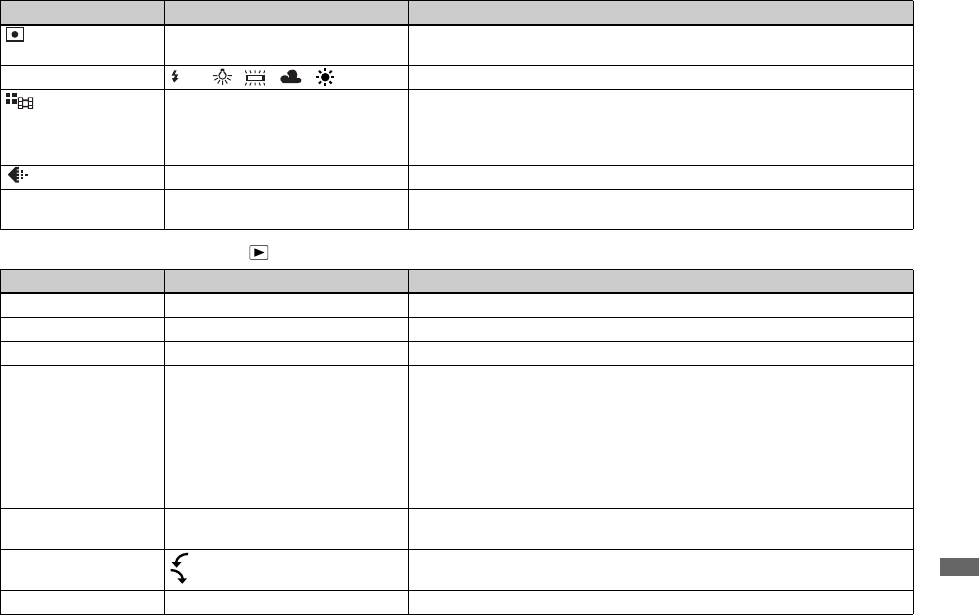
103
Additional information
When the mode dial is set to
(
Metering
Mode)
Spot / xMulti Matches the exposure to the subject you want to shoot (page 47). Set the metering
region.
WB (White Bal) / / / / / xAuto Sets the white balance (page 49).
(Interval) 1/7.5 / 1/15 / x1/30 (NTSC)
1/6.3 / 1/12.5 / x1/25 (PAL) – Selects the Multi Burst shutter interval in NTSC mode.
– Selects the Multi Burst shutter interval in PAL mode.
• The shutter interval settings differ depending on the setting of the [Video Out]
item in the SET UP settings (page 106).
(P.Quality) xFine / Standard Records images with fine/standard quality (page 40).
PFX (P.Effect) Solarize / B&W (DSC-P8 only)/ Sepia
/ Neg.Art /xOff Sets the image special effects (page 57).
Item Setting Description
Folder OK / Cancel Selects the folder containing the image you want to play back (page 58).
Protect — Protects images against accidental erasure (page 63).
DPOF — Marks/unmarks the print (DPOF) mark on still images you want to print (page 65).
Slide Interval
Image
Repeat
Start
Cancel
– Sets the slide show interval (page 60). (Only in single-image mode.)
x3 sec / 5 sec / 10 sec / 30 sec / 1 min
– Sets the range of the playback images.
xFolder / All
– Plays back images repeatedly.
xOn / Off
– Starts the slide show.
– Cancels the slide show.
Resize 5.0M (DSC-P10/P12)/ 3.1M / 2.0M
(DSC-P8)/ 1.2M / VGA / Cancel Changes the recorded still image size (page 65). (Only in single-image mode.)
Rotate (counter clockwise) /
(clockwise) / OK / Cancel Rotates the still image (page 61). (Only in single-image mode.)
Divide OK / Cancel Divides a moving image (page 72). (Only in single-image mode.)
Item Setting Description
WB
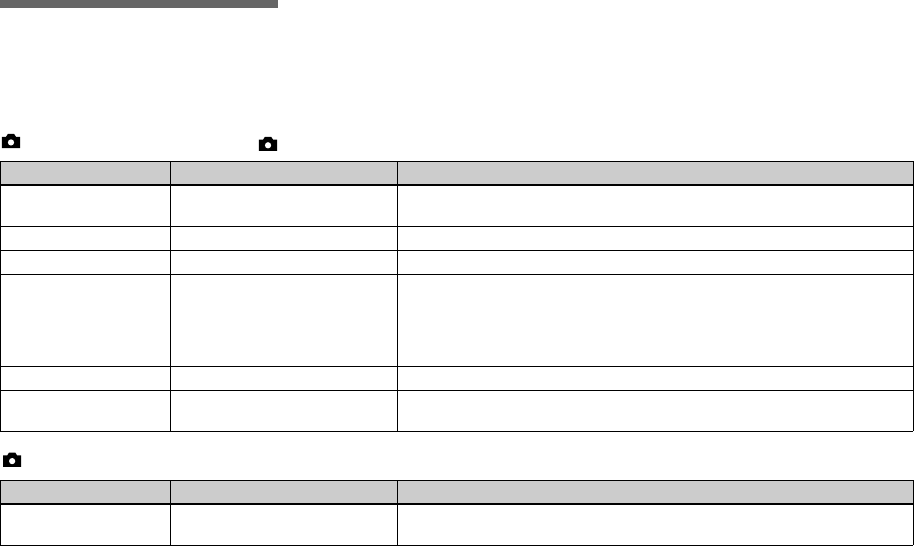
104
SET UP items
Set the mode dial to SET UP. The SET UP
screen appears.
Factory settings are indicated with x.
(Camera 1) (DSC-P10/P12)/ (Camera) (DSC-P8)
(Camera 2) (DSC-P10/P12 only)
Item Setting Description
Moving Image xMPEG Movie / Clip Motion /
Multi Burst Selects the shooting mode (pages 51, 52 and 68).
AF Mode xSingle / Monitor / Cont Selects the focus operation mode (page 43).
Smart Zoom xOn / Off Selects whether to use the smart zoom (page 23).
Date/time Day&Time / Date / xOff Selects whether to insert the date and time into the image (page 29). When shooting
movies (MPEG Movie), or images recorded in Clip Motion/Multi Burst modes, the
date and time cannot be inserted in the image. Also, the date and time will not be
displayed when shooting. The date and time will be displayed when the image is
played back.
Red Eye Reduction On / xOff Reduces the red-eye phenomenon when using a flash (page 27).
AF Illuminator xAuto / Off Selects whether to emit an AF assist light in the dark. Helps when it is hard to focus
on the subject under dark lighting (page 27).
Item Setting Description
Bracket Step ±1.0EV / x±0.7EV / ±0.3EV Sets the exposure compensation value when recording three images with each
sxposure value shifted (page 48).
1
2
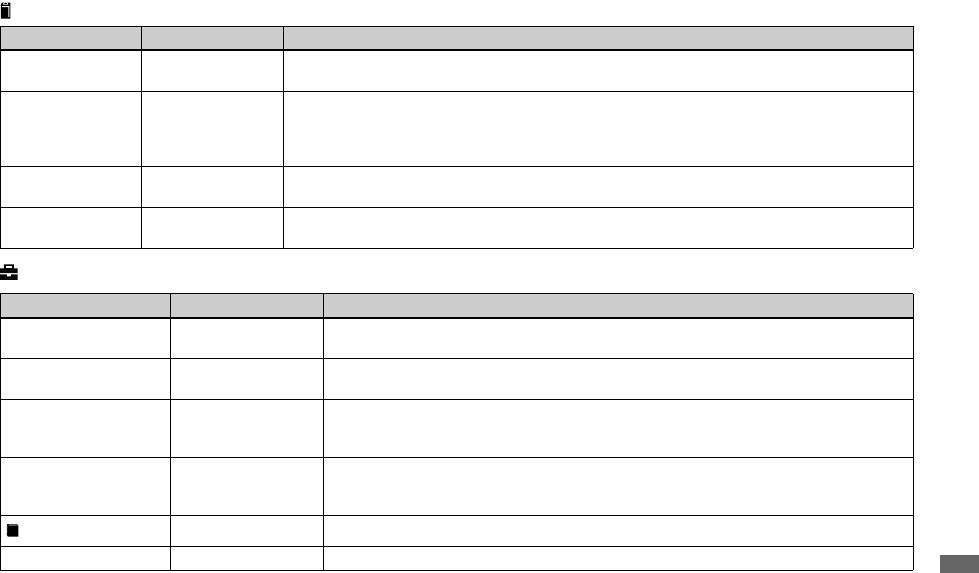
105
Additional information
(Memory Stick Tool)
(Setup 1)
Item Setting Description
Format OK / Cancel Formats the “Memory Stick.” Note that formatting erases all data on a “Memory Stick,” including even
protected images (page 37).
File Number xSeries
Reset
– Assigns numbers to files in sequence even if the “Memory Stick” is changed or the recording folder
is changed.
– Resets the file numbering and starts from 0001 each time the folder is changed. (When the recording
folder contains a file, a number one higher than the largest number is assigned.)
Create REC.
Folder OK / Cancel Creates a folder for recording images (page 41).
Change REC.
Folder OK / Cancel Changes a folder for recording images (page 41).
Item Setting Description
Power Save On / xOff Selects whether to use the Power Save mode (page 12). Displayed only when you are using the
camera with the battery pack.
LCD Brightness Bright / xNormal /
Dark Selects the LCD brightness. This has no effect on the recorded images.
LCD Backlight Bright / Normal /
xDark Selects the brightness of the LCD backlight. Selecting [Bright] makes the screen bright and easy
to see when using the camera outdoors or in other bright locations, but also uses up the battery
charge faster. Displayed only when you are using the camera with the battery pack.
Beep Shutter
xOn
Off
– Turns on the shutter sound when you press the shutter button.
– Turns on the beep/shutter sound when you press the control button/ press the shutter button.
– Turns off the beep/shutter sound.
Language — Displays the menu items, warnings and messages in selected language.
Clock Set OK / Cancel Sets the date and time (pages 15 and 39).
1
A


107
Additional information
Precautions
Do not leave the camera in the
following places
• In extremely hot place, such as in a car
parked in the sun. The camera body may
become deformed or this may cause a
malfunction.
• Under direct sunlight or near a heater.
The camera body may become deformed
or this may cause a malfunction.
• On rocking vibration
• Near strong magnetic place
• In sandy or dusty places, be careful not to
let sand or dust get into the camera. This
may cause the camera to malfunction, and
in some cases this malfunction cannot be
repaired.
On cleaning
Cleaning the LCD screen
Wipe the screen surface with an LCD
cleaning kit (not supplied) to remove
fingerprints, dust, etc.
Cleaning the DC plug
Clean the DC plug of the AC Adaptor with
a dry cotton bud. Do not use the dirty plug.
Use of the dirty plug may not properly
charge the battery pack.
Cleaning the lens
Wipe the lens with a soft cloth to remove
fingerprints, dust, etc.
Cleaning the camera surface
Clean the camera surface with a soft cloth
slightly moistened with water, then wipe
the surface with a dry cloth. Do not use the
following as this may damage the finish or
the casing.
• Thinner
• Benzine
• Alcohol
• Diposable cloth
• Volatile insecticide
• Contact with rubber or vinyl for a long
time
Note on operating temperature
Your camera is designed for use between
the temperatures of 0°C and 40°C (32°F
and 104°F). Shooting in extremely cold or
hot places that exceed this range is not
recommended.
On moisture condensation
If the camera is brought directly from a cold
to a warm location, or is placed in a very
damp room, moisture may condense inside
or outside the camera. This moisture
condensation may cause a malfunction of
the camera.
Moisture condensation occurs easily
when:
• The camera is brought from a cold
location such as a ski slope into a warmly
heated room.
• The camera is taken from an air-
conditioned room or car interior to the hot
outdoors, etc.
How to prevent moisture
condensation
When bringing the camera from a cold
place to a warm place, seal the camera in a
plastic bag and allow it to adapt to
conditions at the new location over a period
of time (about an hour).
If moisture condensation occurs
Turn off the camera and wait about an hour
for the moisture to evaporate. Note that if
you attempt to shoot with moisture
remaining inside the lens, you will be
unable to record clear images.
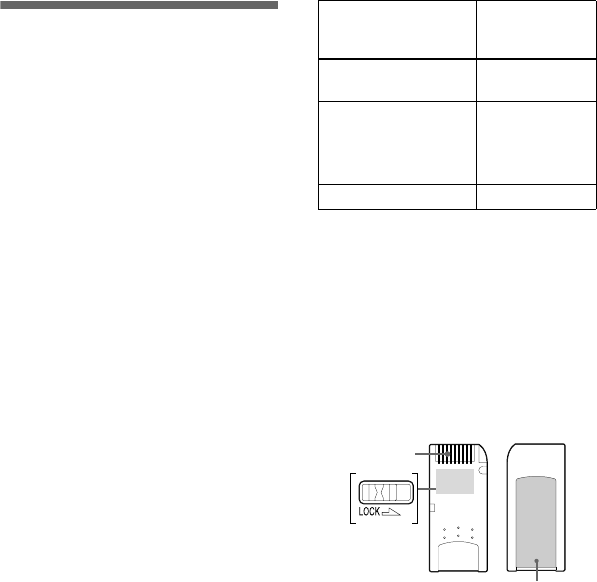
108
On internal rechargeable button
battery
This camera has an internal rechargeable
button battery for maintaining the date and
time and other settings regardless of
whether the power is on or off.
This rechargeable button battery is
continually charged as long as you are using
the camera. However, if you use the camera
for only short periods it discharges
gradually, and if you do not use the camera
at all for about one month it becomes
completely discharged. In this case, be sure
to charge this rechargeable button battery
before using the camera.
However, even if this rechargeable button
battery is not charged, you can still use the
camera as long as you do not record the date
and time.
Charging method
Connect the camera to a wall outlet (mains)
using the AC Adaptor, or install a charged
battery pack, and leave the camera for 24
hours or more with the power off.
On “Memory Stick”
“Memory Stick” is a new compact, portable
and versatile IC recording medium with a
data capacity that exceeds the capacity of a
floppy disk.
In addition to exchanging data between
“Memory Stick” compatible equipment,
you can also use a “Memory Stick” to store
data as a type of detachable external
recording media.
There are two types of “Memory Stick”: an
ordinary “Memory Stick” and a
“MagicGate Memory Stick” that is
equipped with the MagicGate* copyright
protection technology. You can use both
types of “Memory Stick” with your camera.
However, because your camera does not
support the MagicGate standards, data
recorded with your camera is not subject to
MagicGate copyright protection.
In addition, you can also use “Memory
Stick Duo” or “Memory Stick PRO” with
your camera.
* MagicGate is copyright protection technology
that uses encryption technology.
•“Memory Stick” formatted with a computer is
not guaranteed to operate with this camera.
** The camera cannot record or play back the
data needed by the MagicGate function.
All Memory Stick media operations are not
necessarily guaranteed.
Notes on using the supplied
“Memory Stick”
•You cannot record or delete images when the
write-protect switch is set to LOCK.
The position or the shape of the write-protect
switch may differ depending on the “Memory
Stick” you use.
•Do not remove the “Memory Stick” while
reading or writing data.
“Memory Stick” type Recording/
playback with
this camera
Memory Stick
(Memory Stick Duo) a
MagicGate Memory
Stick
(MagicGate Memory
Stick Duo)
a**
Memory Stick PRO a**
Terminal
Write-protect
switch
Labeling position

109
Additional information
•Data may be corrupted in the following cases.
– When the “Memory Stick” is removed or the
camera is turned off during read or write
operation
– When the “Memory Stick” is used in
locations subject to static electricity or
electrical noise
•We recommend backing up important data.
•Do not attach any other material than the
supplied label on the labeling position.
•Attach the label in the prescribed label location,
taking care that the label does not extend from
this location.
•When you carry or store the “Memory Stick,”
put it in the case supplied with it.
•Do not touch the terminal of a “Memory Stick”
with your hand or a metal object.
•Do not strike, bend or drop a “Memory Stick.”
•Do not disassemble or modify a “Memory
Stick.”
•Do not expose the “Memory Stick” to water.
•Do not use or keep the “Memory Stick” under
the following conditions:
– High temperature locations such as the hot
interior of a car parked in direct sunlight
– Locations exposed to direct sunlight
– Humid locations or locations with corrosive
substances
Notes on using “Memory Stick Duo”
(not supplied)
•When using a “Memory Stick Duo” with your
camera, be sure to insert the “Memory Stick
Duo” into a “Memory Stick Duo” Adaptor.
•When inserting a “Memory Stick Duo” into a
“Memory Stick Duo” Adaptor, check to make
sure the “Memory Stick Duo” is inserted facing
the correct direction.
•When using a “Memory Stick Duo” inserted
into a “Memory Stick Duo” Adaptor with this
camera, make sure that the “Memory Stick
Duo” is inserted facing the correct direction.
Note that improper use may damage the
equipment.
•Do not insert a “Memory Stick Duo” without a
“Memory Stick Duo” Adaptor into “Memory
Stick” compatible equipment, as this may cause
equipment trouble.
Note on using “Memory Stick PRO”
(not supplied)
“Memory Stick PRO” with a capacity up to 1GB
can be used with this camera.
On “InfoLITHIUM”
battery pack
What is the “InfoLITHIUM”
battery pack?
The “InfoLITHIUM” battery pack is a
lithium-ion battery pack that has functions
for communicating information related to
operating conditions between your camera
and the AC Adaptor.
The “InfoLITHIUM” battery pack
calculates the power consumption
according to the operating conditions of
your camera, and displays the remaining
battery time in minutes.
Charging the battery pack
We recommend charging the battery pack
in an ambient temperature of between 10°C
to 30°C (50°F to 86°F). You may not be
able to efficiently charge the battery pack
outside of this temperature range.

110
Effective use of the battery pack
• Battery performance decreases in low-
temperature surroundings. So, the time that
the battery pack can be used is shorter in
cold places. We recommend the following
to ensure longer battery pack use:
– Put the battery pack in a pocket close to
your body to warm it up, and insert it in
your camera immediately before you
start shooting.
• Frequently operating the zoom or flash
wears out the battery charge faster.
• We recommend having spare battery
packs handy for two or three times the
expected shooting time, and making trial
shots before taking the actual shots.
• Do not expose the battery pack to water.
The battery pack is not water-resistant.
Remaining battery time indicator
The power may go off although the battery
remaining indicator shows there is enough
power to operate. Use the battery pack up
and charge the battery pack fully again so
that the indication on the battery remaining
indicator is correct. Note, however, that the
correct battery indication sometimes will
not be restored if the camera is used in high
temperatures for a long time or left in a fully
charged state, or the battery pack is
frequently used.
How to store the battery pack
• Even if the battery pack will not be used
for a long time, fully charge it and use it
up once per year. Remove the battery
pack from your camera, then store it in a
dry, cool place. This is to maintain the
battery pack’s functions.
• To use the battery pack up on your
camera, leave the POWER button to on in
slide show playback mode (page 60) until
the power goes off.
Battery life
• The battery life is limited. Battery
capacity decreases little by little as you
use it more and more, and as time passes.
When the battery operating time is
shortened considerably, a probable cause
is that the battery pack has reached the
end of its life. Buy a new battery pack.
• The battery life varies according to how it
is stored and the operating conditions and
environment for each battery pack.
Specifications
xCamera
[System]
Image device
DSC-P10/P12
9.04 mm (1/1.8 type) color CCD
Primary color filter
DSC-P8
6.67 mm (1/2.7 type) color CCD
Primary color filter
Total pixels number of camera
DSC-P10/P12
Approx. 5 250 000 pixels
DSC-P8
Approx. 3 340 000 pixels
Effective pixels number of camera
DSC-P10/P12
Approx. 5 090 000 pixels
DSC-P8
Approx. 3 210 000 pixels
Lens DSC-P10/P12
3× zoom lens
f = 7.9 – 23.7 mm (5/16 –
15/16 inches) (38 – 114 mm
(1 1/2 – 4 1/2 inches) when converted
to a 35 mm still camera)
F2.8 – 5.2
DSC-P8
3× zoom lens
f = 6.0 – 18.0 mm (1/4 –
23/32 inches) (39 – 117 mm
(1 9/16 – 4 5/8 inches) when
converted to a 35 mm still camera)
F2.8 – 5.2
Exposure control
Automatic exposure, Scene selection
(7 modes)

111
Additional information
White balance
Flash, Automatic, Daylight, Cloudy,
Fluorescent, Incandescent
Data format (DCF compliant)
Still images: Exif Ver. 2.2 JPEG
compliant, GIF (for Clip Motion),
DPOF compatible
Audio with still image:
MPEG1 compliant (Monaural)
Moving images:
MPEG1 compliant (Monaural)
Recording media
“Memory Stick”
Flash Recommended distance (ISO set to
Auto):
DSC-P10/P12
0.5 m to 3.5 m (19 3/4 inches to
11 feet 5 3/16 inches) (W)
0.6 m to 2.5 m (23 5/8 inches to 8 feet
2 7/16 inches) (T)
DSC-P8
0.5 m to 3.5 m (19 3/4 inches to
11 feet 5 3/16 inches) (W)
0.5 m to 2.5 m (19 3/4 inches to 8 feet
2 7/16 inches) (T)
[Output connectors]
A/V OUT (MONO) (Monaural)
Minijack
Video: 1 Vp-p, 75 Ω, unbalanced,
sync negative
Audio: 327 mV (at a 47 kΩ load)
Output impedance 2.2 kΩ
USB jack mini-B
[LCD screen]
Used LCD panel
3.8 cm (1.5 type) TFT drive
Total number of dots
123 200 (560×220) dots
[General]
Used battery pack
NP-FC11
Power requirements
3.6 V
Power consumption (during shooting)
DSC-P10/P12
1.6 W
DSC-P8
1.5 W
Operating temperature
0°C to 40°C (32°F to 104°F)
Storage temperature
–20°C to +60°C (–4°F to +140°F)
Dimensions
108×51.5×35.1 mm
(4 3/8×2 1/8×1 7/16 inches)
(W/H/D, excluding maximum
protrusions)
Mass Approx. 200 g (7 oz) (including
battery pack NP-FC11, “Memory
Stick” and wrist strap)
Built-in microphone
Electret condenser microphone
Built-in speaker
Dynamic speaker
Exif Print Compatible
PRINT image matching II Compatible
xAC-LS5 AC Adaptor
Rated input voltage
100 to 240 V AC, 50/60 Hz, 11 W,
0.16 to 0.09 A
Rated output voltage
DC 4.2 V, 1.5 A in operating mode
Operating temperature
0°C to 40°C (32°F to 104°F)
Storage temperature
–20°C to +60°C (–4°F to +140°F)
Dimensions
Approx. 48×29×81 mm
(1 15/16×1 3/16×3 1/4 inches)
(W/H/D)
Mass Approx. 130 g (5 oz)
xNP-FC11 battery pack
Used battery
Lithium-ion battery
Maximum voltage
DC 4.2 V
Nominal voltage
DC 3.6 V
Capacity 2.8 Wh (780 mAh)
Accessories
• NP-FC11 battery pack (DSC-P12: 2, DSC-P8/
P10: 1)
• AC-LS5 AC Adaptor
• Power cord (mains lead)
• A/V connecting cable
• USB cable
• Wrist strap
• “Memory Stick” (DSC-P10/P12: 32MB, DSC-
P8: 16 MB)
• CD-ROM (USB driver SPVD-010)
• Operating instructions
• Soft carrying case (DSC-P12 only)
Design and specifications are subject to change
without notice.
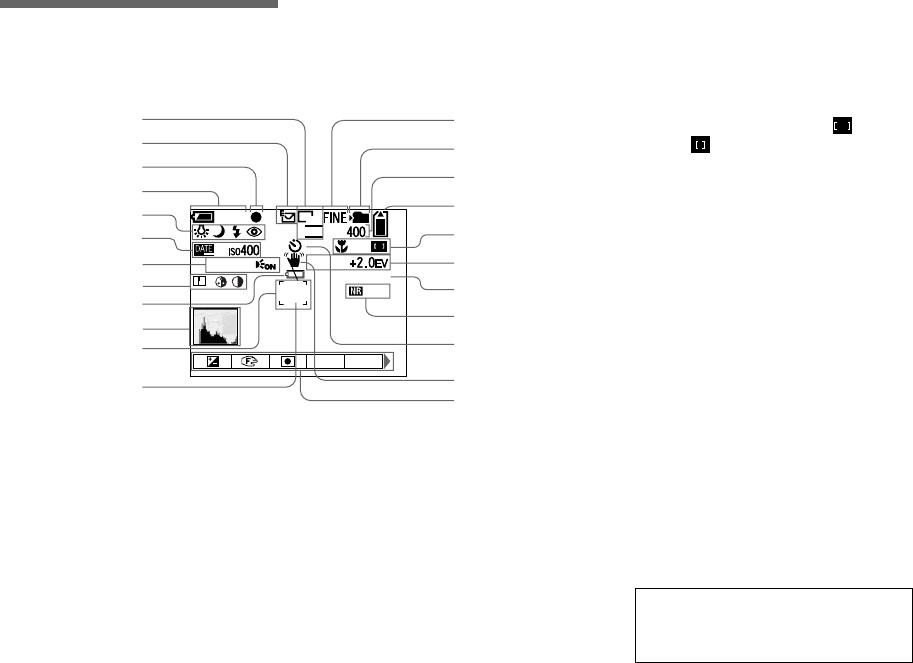
112
The LCD screen
When shooting still images
AImage size indicator (18)
BRecording mode indicator (48,
53-54)
CAE/AF lock indicator (21)
DBattery remaining indicator (11)
EWhite balance indicator (49)/
Mode dial indicator/
Flash mode indicator (26)/
Red-eye reduction indicator (27)
FISO number indicator (101)/
Date/time indicator (29)
+
SOLARIZE
C:32:00
F2.8
125
3:2
101
WB
VGA
S AF
ISO
60min
1
2
3
4
5
6
7
8
9
q;
qa
qs
qd
qf
qg
qh
qj
qk
ql
w;
wa
ws
wd
GPicture effect indicator (57)/
AF illuminator indicator (27)
HSharpness indicator (101)/
Saturation indicator (101)/
Contrast indicator (101)
ILow battery warning indicator
(96)
JHistogram indicator (46)
KAF range finder (42)
LSpot metering cross hair (47)
MImage quality indicator (19, 40)
NRecording folder indicator (40)
ORemaining number of recordable
images indicator (20)
PRemaining “Memory Stick”
capacity indicator
QMacro indicator (24)/AF mode
indicator (43)/Multi AF /Center
AF indicator (42)/Focus
preset value (44)
RSelf-diagnosis display (97)/
EV level indicator (45)
SAperture value indicator
TNR slow shutter indicator (56)/
Shutter speed indicator
USelf-timer indicator (25)
VVibration warning indicator (96)
WMenu/Guide menu (39)
•Pressing MENU switches the menu on/off.
Page numbers in parentheses indicate the
location of additional important
information.
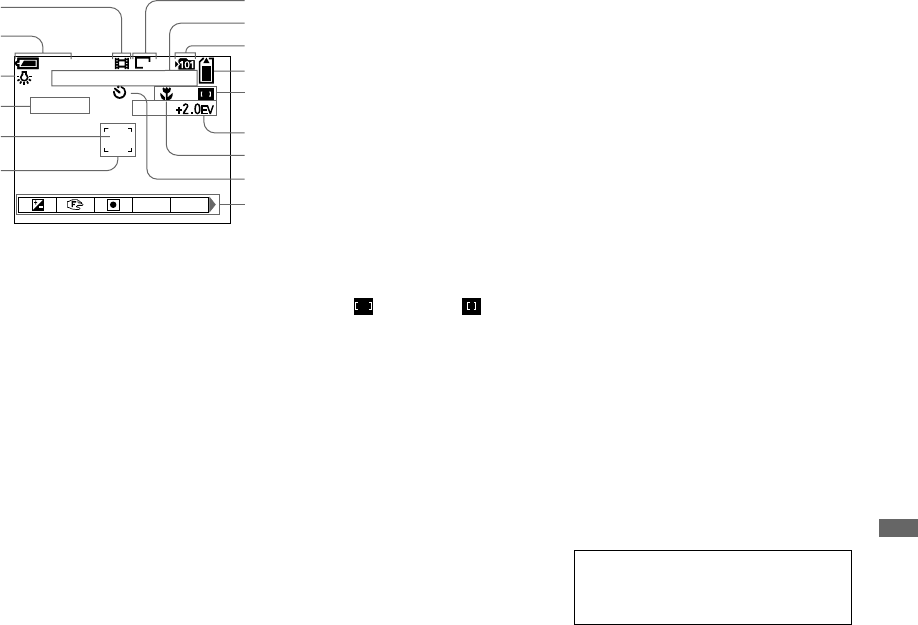
113
Additional information
When shooting movies
ARecording mode indicator (68)
BBattery remaining indicator (11)
CWhite balance indicator (49)
DPicture effect indicator (57)
ESpot metering cross hair (47)
FAF range indicator (42)
GImage size indicator (68)
HRecording time [maximum
recordable time] indicator (99)
IRecording folder indicator (40)
JRemaining “Memory Stick”
capacity indicator
KMulti AF /Center AF
indicator (42)/Focus preset value
(44)
LSelf-diagnosis display (97)/
EV level indicator (45)
MMacro indicator (24)
NSelf-timer indicator (25)
OMenu/Guide menu (39)
•Pressing MENU switches the menu on/off.
+
[00:28:25]
00:00:00
SOLARIZE
STBY
WB PFX
60min
C:32:00
640
1
2
3
4
5
6
qg
7
8
9
q;
qa
qs
qd
qf
Page numbers in parentheses indicate the
location of additional important
information.
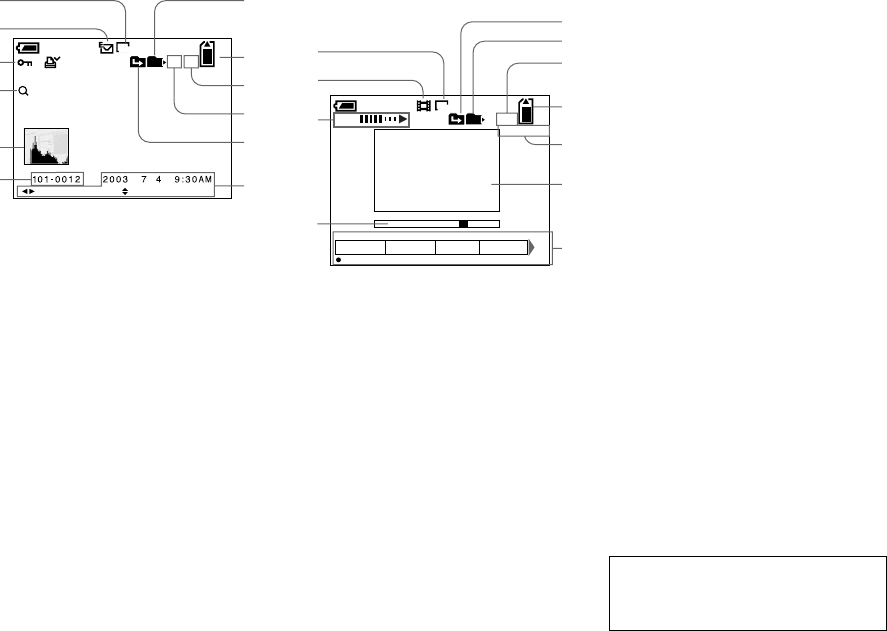
114
When playing back still images
AImage size indicator (18)
B
Recording mode indicator
(48, 53-
54)
CProtect indicator (63)/
Print (DPOF) mark indicator (65)/
Volume indicator (54)
DZoom indicator/Jog playback
indicator (59)
EHistogram indicator (46)
FFolder-file name (82)
GPlayback folder indicator (58)
HRemaining “Memory Stick”
capacity indicator
INumber of images recorded in
selected folder
JImage number
KChange folder indicator (58)
LRecording date/time of the
playback image (15)/Menu/Guide
menu (39)
When playing back moving
images
MImage size indicator (69)
NRecording mode indicator (69)
OVolume indicator (69)/Playback
indicator (69)
PPlayback bar (69)
QChange folder indicator (58)
RPlayback folder indicator (58)
SImage number/Number of
images recorded in selected
folder
TRemaining “Memory Stick”
capacity indicator
UCounter (69)
VPlayback image (69)
WMenu/Guide menu (39)
12/12
VOLUMEBACK/NEXT
101
x1.3
640
60min
1
2
3
4
5
6
7
8
9
0
qs
qa
Folder DPOF
Protect
Slide
00:00:12
OK
8/8
101
160
qd
qf
qg
qh
ql
qk
qj
60min
VOL.
wa
w;
ws
wd
Page numbers in parentheses indicate the
location of additional important
information.

115
Index
Inde
x
Index
A
AC Adaptor ................................................10, 13
Access lamp ......................................................17
AE/AF lock ......................................................44
AE/AF lock indicator .......................................21
AE/AF lock lamp ...............................................9
AF illuminator ......................................8, 27, 104
AF Mode ..........................................................43
AF range finder frame ......................................42
Auto adjustment mode .....................................21
Auto Focus .................................................22, 42
Auto power-off function ...................................14
A/V connecting cable .......................................32
B
Battery pack
battery life ............................................12, 110
charging ...............................................10, 109
charging time ...............................................11
remaining indicator ..............................11, 110
Beep/shutter sound .........................................105
Brightness
image ...........................................................45
LCD screen ................................................105
Burst .................................................................53
C
CD-ROM ......................................................... 74
Charging
battery pack ......................................... 10, 109
charging time .............................................. 11
Cleaning ......................................................... 107
Clip Motion ..................................................... 51
Clock Set ......................................................... 15
Computer
copying images ..................................... 79, 85
Image Transfer ............................................ 76
ImageMixer ................................................ 77
USB cable ................................................... 78
USB driver .................................................. 75
Contrast ......................................................... 101
Control button ........................................ 9, 14, 39
Copying images ......................................... 79, 85
D
DC plug ..................................................... 10, 13
Deleting images ......................................... 34, 70
Divide .............................................................. 72
DPOF ............................................................... 65
E
Editing still images
Print (DPOF) mark ..................................... 65
Protect ......................................................... 63
Resize .......................................................... 65
E-Mail .............................................................. 53
Enlarging an image .......................................... 59
EV adjustment ................................................. 45
Exposure bracket ............................................. 48
External power source ..................................... 13
F
File
file names .................................................... 83
image file storage destinations .................... 82
Finder ............................................................... 28
Flash
Daylight synchro ......................................... 26
Flash Level .................................. 50, 101, 102
Red Eye Reduction ............................. 27, 104
selecting a flash mode ................................. 26
Focusing
AF lock ....................................................... 44
auto focus method ....................................... 42
focus preset ................................................. 44
shooting (using auto adjustment mode) ...... 21
Folder
changing the recording folder ..................... 41
creating a new folder ................................... 41
playback folder ........................................... 58
recording folder .......................................... 41
Format .............................................................. 37
G
GIF ............................................................. 51, 83
H
Histogram ........................................................ 46
116
I
Image
copying images to your computer .. 79, 80, 85
file names .................................................... 83
image file storage destinations ................... 82
image quality ........................................ 19, 40
image size ....................................... 18, 19, 98
Image Transfer ................................................. 79
ImageMixer ..................................................... 77
Index screen ..................................................... 30
“InfoLITHIUM” battery pack ....................... 109
Installation
Image Transfer ............................................ 76
ImageMixer ................................................ 77
USB driver .................................................. 75
ISO ................................................................. 101
J
Jog playback .................................................... 62
JPEG ................................................................ 83
L
LCD screen
brightness .................................................. 105
on/off .......................................................... 28
screen display ........................... 112, 113, 114
M
Memory Stick
formatting a “Memory Stick” ..................... 37
inserting a “Memory Stick” ........................ 17
number of shooting images/time .......... 20, 98
Menu settings .......................................... 39, 100
Metering mode
multi-pattern metering ................................ 47
spot metering .............................................. 47
Mode dial ................................................... 15, 22
Moisture condensation ................................... 107
Movie
cutting movies ............................................. 72
deleting images ........................................... 70
number of images that can be saved or
shooting time .................................... 12, 98
shooting images .......................................... 68
viewing images on the LCD screen ............ 69
viewing images on your computer ........ 81, 85
MPEG .............................................................. 83
MPEG Movie ................................................... 68
Multi Burst ....................................................... 52
N
NR slow shutter ............................................... 56
NTSC system ........................................... 33, 106
P
PAL system .............................................. 33, 106
Picture effect .................................................... 57
Power
AC Adaptor ................................................. 13
battery pack ................................................. 10
on/off ........................................................... 14
Power Save .............................................. 12, 105
Precautions ..................................................... 107
Print (DPOF) mark .......................................... 65
Programmed mode ........................................... 22
Protect .............................................................. 63
Q
Quick Review ...................................................23
R
Red Eye Reduction .................................. 27, 104
RESET button ..................................................87
Resize ............................................................... 65
Rotate ............................................................... 61
S
Saturation ....................................................... 101
Scene Selection
Beach mode .................................................55
Fireworks mode ..........................................55
High-speed shutter mode ............................ 55
Landscape mode ......................................... 55
Snow mode ..................................................55
Twilight mode ............................................. 56
Twilight portrait mode ................................ 56
Self-diagnosis display ...................................... 97
Self-timer .........................................................25
Setting
date and time ...............................................15
image size .......................................18, 19, 98
menu items .......................................... 39, 100
SET UP items ...................................... 39, 104
Sharpness .......................................................101
Shooting mode
auto adjustment mode ................................. 21
Burst ............................................................ 53
Clip Motion .................................................51
E-Mail .........................................................53

117
Index
movie ...........................................................68
Multi Burst ..................................................52
Voice ............................................................54
Slide show ........................................................60
Spot ...................................................................47
Still image shooting
auto adjustment mode ..................................42
EV adjustment .............................................45
image size ..............................................18, 19
metering mode .............................................47
number of images that can be saved or
shooting time ....................................12, 98
picture effect ................................................57
smart zoom ..................................................23
superimposing the date and time .................29
using auto adjustment mode ........................21
using the flash ..............................................26
using the self-timer ......................................25
White Balance .............................................49
Still image viewing
delete ...........................................................34
index screen .................................................31
playback zoom .............................................59
rotate ............................................................61
single image screen .....................................30
slide show ....................................................60
viewing images on a TV screen ...................32
viewing images on the LCD screen .............30
viewing images on your computer ..............81
Superimposing the date and time .....................29
T
Trimming ..........................................................60
TV color system ...............................................32
U
USB ..................................................... 74, 79, 85
USB connection .......................................... 78
Using your camera abroad ............................... 13
V
Video CD ......................................................... 85
Viewing images on the LCD screen .......... 30, 69
Viewing images on your computer .................. 81
Voice ................................................................ 54
W
Warnings and notice messages ........................ 95
White Balance ................................................. 49
Z
Zoom
playback zoom ............................................ 59
using the smart zoom .................................. 23
308089211
Printed on 100% recycled paper
using VOC (Volatile Organic
Compound)-free vegetable oil
based ink.
Additional information on this product and answers to frequent
asked questions can be found at our Customer Support Website.
Sony Corporation Printed in Japan
