Sony Cyber Shot Dsc S930 Instruction Manual
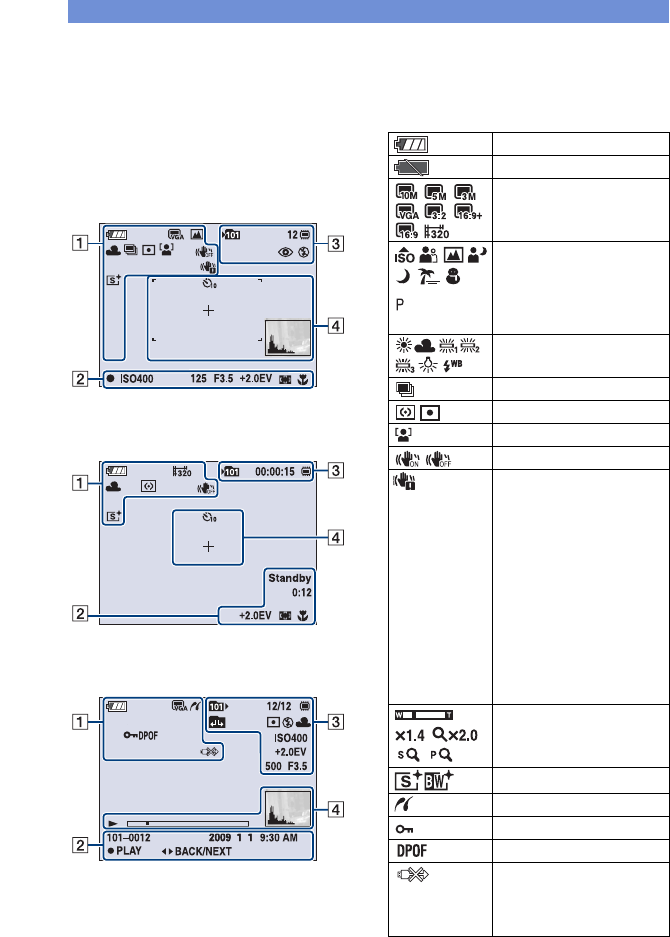
Sony-Dsc-S930-Instruction-Manual-593797 sony-dsc-s930-instruction-manual-593797
DSC-S930 Instruction Manual DSCS930
Cyber-shot DSC-S930 DSCS930
DSC-S930 to the manual ac00f84e-5fe5-4765-a878-8bf5fc81adf8
Cyber Shot DSC-S930 - Instruction Manual DSCS930 Free User Guide for Sony Camera, Manual - page3
2015-08-20
: Sony Sony-Cyber-Shot-Dsc-S930-Instruction-Manual-797423 sony-cyber-shot-dsc-s930-instruction-manual-797423 sony pdf
Open the PDF directly: View PDF  .
.
Page Count: 32
© 2009 Sony Corporation 4-126-520-11(1)
Instruction Manual
DSC-S930
Digital Still Camera
Operating Instructions
Before operating the unit, please read this manual thoroughly, and retain it for future reference.
For details on advanced operations, please read “Cyber-
shot Handbook” (PDF) and “Cyber-shot Step-up
Guide” on the CD-ROM (supplied) using a computer.
GB

2
Owner’s Record
The model and serial numbers are located on the
bottom. Record the serial number in the space
provided below. Refer to these numbers whenever
you call upon your Sony dealer regarding this
product.
Model No. DSC-S930
Serial No. ______________________________
To reduce fire or shock hazard, do
not expose the unit to rain or
moisture.
If you have any questions about this product, you
may call:
Sony Customer Information Center
1-800-222-SONY (7669)
The number below is for the FCC related matters
only.
[Regulatory Information
[CAUTION
You are cautioned that any changes or
modifications not expressly approved in this
manual could void your authority to operate this
equipment.
[Note:
This equipment has been tested and found to
comply with the limits for a Class B digital
device, pursuant to Part 15 of the FCC Rules.
These limits are designed to provide reasonable
protection against harmful interference in a
residential installation. This equipment generates,
uses, and can radiate radio frequency energy and,
if not installed and used in accordance with the
instructions, may cause harmful interference to
radio communications. However, there is no
guarantee that interference will not occur in a
particular installation. If this equipment does
cause harmful interference to radio or television
reception, which can be determined by turning the
equipment off and on, the user is encouraged to
try to correct the interference by one or more of
the following measures:
– Reorient or relocate the receiving antenna.
– Increase the separation between the
equipment and receiver.
– Connect the equipment into an outlet on a
circuit different from that to which the
receiver is connected.
– Consult the dealer or an experienced radio/TV
technician for help.
The supplied interface cable must be used with the
equipment in order to comply with the limits for a
digital device pursuant to Subpart B of Part 15 of
FCC Rules.
Perchlorate Material - special handling may
apply, See
www.dtsc.ca.gov/hazardouswaste/perchlorate
Perchlorate Material: Lithium battery contains
perchlorate.
WARNING
For Customers in the U.S.A.
Declaration of Conformity
Trade Name: SONY
Model No.: DSC-S930
Responsible Party: Sony Electronics Inc.
Address: 16530 Via Esprillo,
San Diego, CA 92127U.S.A.
Telephone No.: 858-942-2230
This device complies with Part 15 of the FCC
Rules. Operation is subject to the following
two conditions: (1) This device may not cause
harmful interference, and (2) this device must
accept any interference received, including
interference that may cause undesired
operation.
For the State of California, USA
only

3
[Notice for the customers in the
countries applying EU Directives
The manufacturer of this product is Sony
Corporation, 1-7-1 Konan Minato-ku Tokyo, 108-
0075 Japan. The Authorized Representative for
EMC and product safety is Sony Deutschland
GmbH, Hedelfinger Strasse 61, 70327 Stuttgart,
Germany. For any service or guarantee matters
please refer to the addresses given in separate
service or guarantee documents.
This product has been tested and found compliant
with the limits set out in the EMC Directive for
using connection cables shorter than 3 meters (9.8
feet).
[Attention
The electromagnetic fields at the specific
frequencies may influence the picture and sound
of this unit.
[Notice
If static electricity or electromagnetism causes
data transfer to discontinue midway (fail), restart
the application or disconnect and connect the
communication cable (USB, etc.) again.
[Disposal of Old Electrical &
Electronic Equipment (Applicable
in the European Union and other
European countries with separate
collection systems)
This symbol on the product or on its packaging
indicates that this product shall not be treated as
household waste. Instead it shall be handed over
to the applicable collection point for the recycling
of electrical and electronic equipment. By
ensuring this product is disposed of correctly, you
will help prevent potential negative consequences
for the environment and human health, which
could otherwise be caused by inappropriate waste
handling of this product. The recycling of
materials will help to conserve natural resources.
For more detailed information about recycling of
this product, please contact your local Civic
Office, your household waste disposal service or
the shop where you purchased the product.
For Customers in Europe

4
[Disposal of waste batteries
(applicable in the European
Union and other European
countries with separate
collection systems)
This symbol on the battery or on the packaging
indicates that the battery provided with this
product shall not be treated as household waste.
By ensuring these batteries are disposed of
correctly, you will help prevent potentially
negative consequences for the environment and
human health which could otherwise be caused by
inappropriate waste handling of the battery. The
recycling of the materials will help to conserve
natural resources.
In case of products that for safety, performance or
data integrity reasons require a permanent
connection with an incorporated battery, this
battery should be replaced by qualified service
staff only.
To ensure that the battery will be treated properly,
hand over the product at end-of-life to the
applicable collection point for the recycling of
electrical and electronic equipment.
For all other batteries, please view the section on
how to remove the battery from the product
safely. Hand the battery over to the applicable
collection point for the recycling of waste
batteries.
For more detailed information about recycling of
this product or battery, please contact your local
Civic Office, your household waste disposal
service or the shop where you purchased the
product.
5
Table of contents
Notes on using your camera .................................................................... 6
Getting started ................................................................................. 7
Checking the accessories supplied ......................................................... 7
1 Inserting the batteries/“Memory Stick Duo” media (sold separately)
................................................................................................................... 8
2 Turning the camera on/setting the clock ............................................. 10
Shooting images easily ................................................................. 11
Shooting mode/Zoom/Flash/Macro/Self-timer/Display/Image size ........ 12
Viewing/deleting images ............................................................... 14
Indicators on the screen ............................................................... 16
Changing the settings – Menu/Setup .......................................... 18
Menu items ............................................................................................. 20
Setup items ............................................................................................. 21
Enjoying your computer ............................................................... 22
Supported Operating Systems for USB connection and application
software (supplied) ................................................................................. 22
Viewing “Cyber-shot Handbook” ............................................................ 23
Battery life and memory capacity ................................................ 24
Battery life and number of images you can record/view ........................ 24
Number of still images and recordable time of movies .......................... 25
Troubleshooting ............................................................................ 26
Batteries and power ............................................................................... 26
Shooting still images/movies .................................................................. 27
Viewing images ...................................................................................... 27
Precautions .................................................................................... 28
Specifications ................................................................................ 29

6
Notes on using your camera
[Internal memory and “Memory
Stick Duo” media back up
Do not turn off the camera, remove the batteries,
or remove the “Memory Stick Duo” media while
the access lamp is lit. Otherwise, the internal
memory data or “Memory Stick Duo” media may
be damaged. Be sure to make a backup copy to
protect your data.
[Notes on recording/playback
• Before you start recording, make a trial
recording to make sure that the camera is
working correctly.
• The camera is neither dust-proof, nor splash-
proof, nor water-proof. Read “Precautions”
(page 28) before operating the camera.
• Avoid exposing the camera to water. If water
enters inside the camera, a malfunction may
occur. In some cases, the camera cannot be
repaired.
• Do not aim the camera at the sun or other bright
light. It may cause the malfunction of the
camera.
• Do not use the camera near a location that
generates strong radio waves or emits radiation.
Otherwise, the camera may not properly record
or play back images.
• Using the camera in sandy or dusty locations
may cause malfunctions.
• If moisture condensation occurs, remove it
before using the camera (page 28).
• Do not shake or strike the camera. It may cause
a malfunction and you may not be able to record
images. Furthermore, the recording media may
become unusable or image data may be
damaged.
• Clean the flash surface before use. The heat of
flash emission may cause dirt on the flash
surface to become discolored or to stick to the
flash surface, resulting in insufficient light
emission.
[Notes on the LCD screen and
lens
• The LCD screen is manufactured using
extremely high-precision technology, so over
99.99% of the pixels are operational for
effective use. However, some tiny black and/or
bright dots (white, red, blue or green) may
appear on the LCD screen. These dots are a
normal result of the manufacturing process, and
do not affect the recording.
• When the battery level becomes low, the lens
might stop moving. Insert new batteries or
charged Nickel-Metal Hydride batteries and turn
on the camera again.
[On image data compatibility
• The camera conforms with DCF (Design rule
for Camera File system) universal standard
established by JEITA (Japan Electronics and
Information Technology Industries
Association).
• Sony does not guarantee that the camera will
play back images recorded or edited with other
equipment, or that other equipment will play
back images recorded with the camera.
[Warning on copyright
Television programs, films, videotapes, and other
materials may be copyrighted. Unauthorized
recording of such materials may be contrary to the
provisions of the copyright laws.
[No compensation for damaged
content or recording failure
Sony cannot compensate for failure to record or
loss or damage of recorded content due to a
malfunction of the camera or recording media,
etc.
7
Getting started
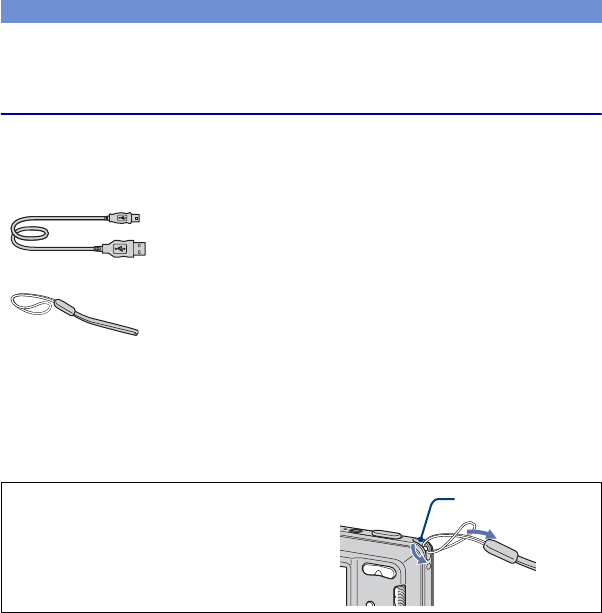
Checking the accessories supplied
• LR6 (size AA) alkaline batteries (2)
• USB cable (1)
• Wrist strap (1)
•CD-ROM (1)
– Cyber-shot application software
– “Cyber-shot Handbook”
– “Cyber-shot Step-up Guide”
• Instruction Manual (this manual) (1)
Attach the strap to prevent the camera
from damage by being dropped.
Hook
8
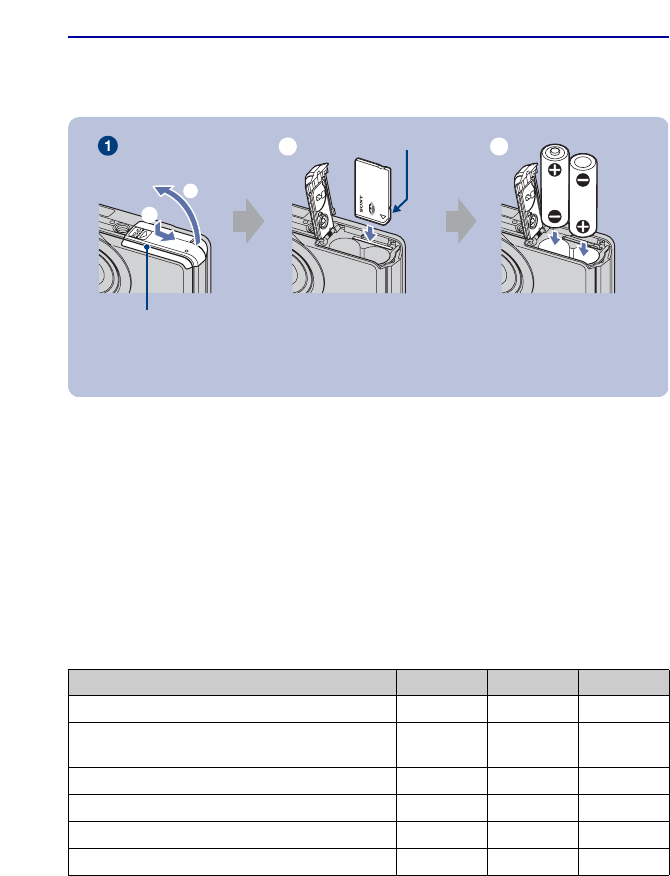
1 Inserting the batteries/“Memory Stick Duo” media (sold
separately)
1Open the battery/“Memory Stick Duo” media cover.
2Insert the “Memory Stick Duo” media (sold separately) all the way in until it
clicks.
3Match +/– and insert.
4Close the battery/“Memory Stick Duo” media cover.
[When there is no “Memory Stick Duo” media inserted
The camera records/plays back images using the internal memory (approx. 12 MB).
[Batteries you can and cannot use with your camera
*Operating performance cannot be ensured if voltage drops or other problems are caused by the nature of
the battery.
2
1
With the terminal side
facing the LCD screen,
insert the “Memory
Stick Duo” media.
Battery/“Memory Stick
Duo” media cover
ɟ ɠ
Terminal side
Battery type supplied supported rechargeable
LR6 (size AA) alkaline batteries aa –
HR 15/51:HR6 (size AA) Nickel-Metal Hydride
batteries
–aa
ZR6 (size AA) Oxy Nickel Primary Battery – a–
Manganese batteries*–––
Lithium batteries*–––
Ni-Cd batteries*–––
9
[WARNING
Battery may explode or leak if mistreated. Do not recharge, disassemble or dispose of in fire.
Check the valid date (month-year) displayed on the batteries.
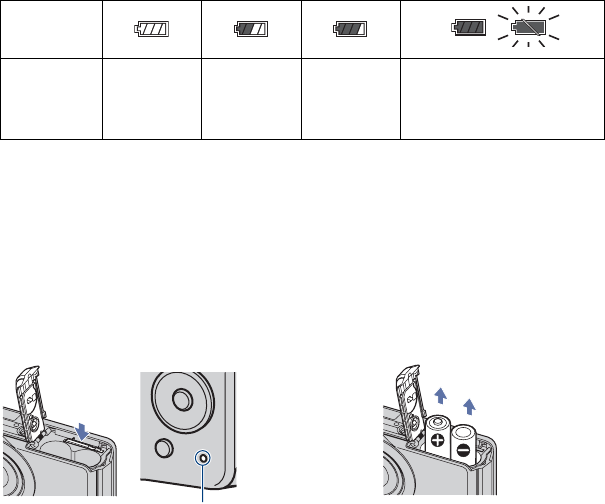
[To check the remaining battery time
Press the ON/OFF (power) button to turn on and check the time on the LCD screen.
• The battery remaining indicator may not be correct depending on conditions of use and circumstances.
• When using alkaline batteries/Oxy Nickel Primary Battery, the battery remaining indicator may not
display the correct information.
[To remove the batteries/“Memory Stick Duo” media
Open the battery/“Memory Stick Duo” media cover.
• Never open the battery /“Memory Stick Duo” media cover or remove the batteries /“Memory Stick Duo”
media, when the access lamp is lit. This may cause damage to data in the “Memory Stick Duo” media/
internal memory.
Battery
remaining
indicator
Battery
remaining
guidelines
Sufficient
power
remaining
Battery half
full
Battery low,
recording/
playback will
stop soon.
Replace the batteries with new
ones, or fully charged Nickel-
Metal Hydride batteries.(The
warning indicator flashes.)
Be sure not to drop the batteries.Make sure that the access lamp is not
lit, then push the “Memory Stick Duo”
media in once.
“Memory Stick Duo” media Batteries
Access lamp
10
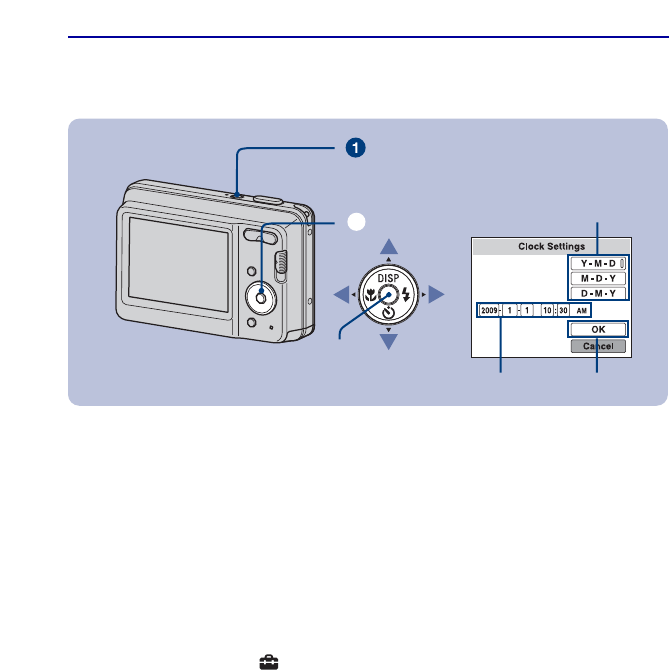
2 Turning the camera on/setting the clock
1Press the ON/OFF (power) button.
2Set the clock with the control button.
1Select the date display format with v/V, then press z.
2Select each item with b/B and set the numeric value with v/V, then press z.
3Select [OK], then press z.
• The camera does not have a feature for superimposing dates on images. By using “PMB” in the CD-ROM
(supplied), you can print or save images with the date.
• Midnight is indicated as 12:00 AM, and noon as 12:00 PM.
[To change the date and time
Select [Clock Settings] in the (Setup) screen (pages 18, 21).
[Notes on when the power is turned on
•Once the batteries are inserted in the camera, it may take time before operation becomes
possible.
•If the camera is running on battery power and you do not operate the camera for about three
minutes, the camera turns off automatically to prevent wearing down the batteries (Auto
power-off function).
1
23
z button
ON/OFF (power) button
Control button
ɟ
11
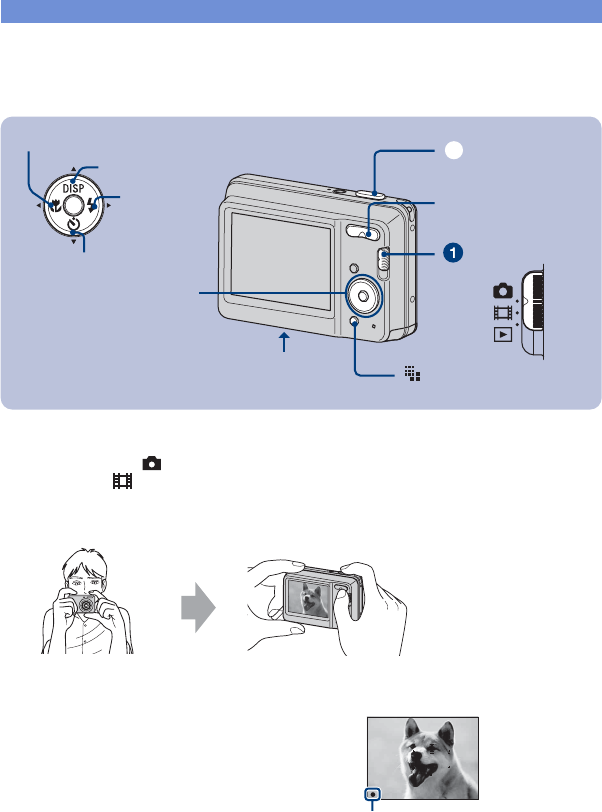
Shooting images easily
1Select a mode with the mode switch.
Still image: Select (Still image).
Movie: Select (Movie).
2Hold the camera steady, keeping your arms at your side.
3Shoot with the shutter button.
Movie:
Press the shutter button fully down.
To stop recording, press the shutter button fully down again.
• The shortest shooting distance is approximately 5 cm (2 inches) (W)/50 cm (1 feet 7 3/4 inches) (T) (from
the front of the lens).
Mode switch
DISP button
Tripod receptacle
(bottom) (Image Size) button
Shutter button
ɠ
Zoom (W/T) button
Control button
Macro button
Flash button
Self-timer button
Position the subject
in the center of the
focus frame.
Still image:
1Press and hold the shutter button
halfway down to focus.
The z (AE/AF lock) indicator (green)
flashes, a beep sounds, the indicator stops
flashing and remains lit.
2Press the shutter button fully down.
The shutter sounds. AE/AF lock indicator
12
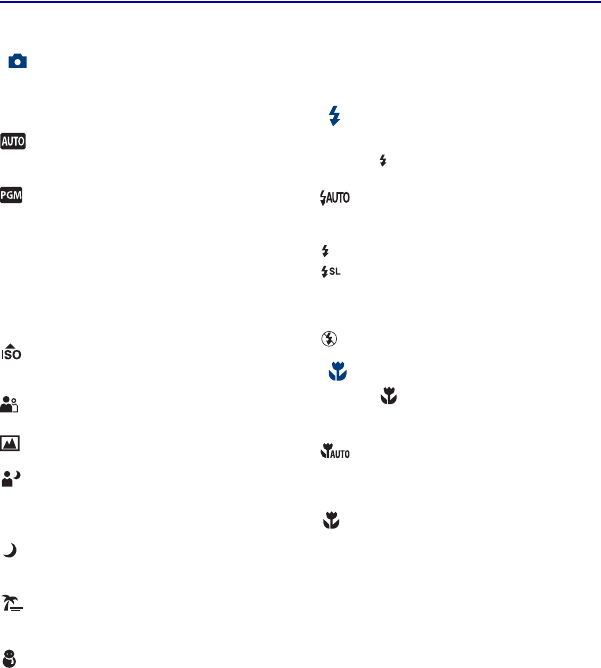
Shooting mode/Zoom/Flash/Macro/Self-timer/Display/Image size
[Selecting the shooting mode
for still images
Press the MENU button and select
[Camera], then select the desired mode.
Auto Adjustment
Allows easy shooting with the settings
adjusted automatically.
Program Auto
Allows you to shoot with the exposure
adjusted automatically (both the shutter
speed and the aperture value). You can adjust
other settings using the menu.
Scene Selection
Allows you to shoot with preset settings
accoring to the scene.
High Sensitivity
Shoots images without a flash even in low
lighting.
Soft Snap
Shoots a person’s skin with a warmer look.
Landscape
Shoots with the focus on a distant subject.
Twilight Portrait
Shoots sharp images of people in a dark
place without losing the nighttime
atmosphere.
Twilight
Shoots night scenes without losing the
nighttime atmosphere.
Beach
Shoots seaside or lakeside scenes with the
blueness of the water captured more vividly.
Snow
Shoots snow scenes in white more clearly.
[W/T Using the zoom
Press T to zoom, press W to undo zoom.
[Flash (Selecting a flash mode
for still images)
Press B ( ) on the control button repeatedly
until the desired mode is selected.
: Flash Auto
Strobes when there is insufficient light
(default setting).
: Flash forced on
: Slow synchro (Flash forced on)
The shutter speed is slow in a dark place to
clearly shoot the background that is out of
flash light.
: Flash forced off
[Macro (Shooting close-up)
Press b ( ) on the control button
repeatedly until the desired mode is
selected.
: Auto
The camera adjusts the focus automatically
from distant subjects to close-up. Normally,
put the camera in this mode.
: Macro
The camera adjusts the focus with priority on
close-up subjects. Set Macro On when
shooting close subjects.
13
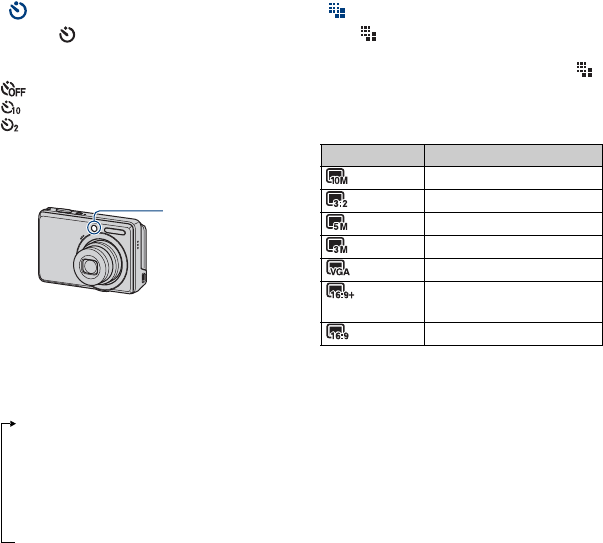
[Using the self-timer
Press V ( ) on the control button
repeatedly until the desired mode is
selected.
: Not using the self-timer
: Setting the 10-second delay self-timer
: Setting the 2-second delay self-timer
When you press the shutter button, the self-
timer lamp flashes and a beep sounds until
the shutter operates.
[DISP Changing the screen
display
Press v (DISP) on the control button.
Each time you press v (DISP), the display
changes as follows:
*The brightness of the LCD Backlight up
[To change the still image size
Press (Image Size), then press b/B to
select the size.
To turn off the Image Size menu, press
again.
For still images
For movie
The image size of a movie is fixed to
320×240.
Self-timer lamp
Indicators off*
Indicators on
r
Histogram on*
r
Indicators on*
r
Image size Guidelines
: 10M Up to A3+/13×19" print
: 3:2 (8M) Match 3:2 Aspect Ratio
: 5M Up to A4/8×10" print
: 3M Up to 13×18cm/5×7" print
: VGA For E-mail
: 16:9
(7M)
Display On 16:9 HDTV
and up to A4/8×10" print
: 16:9 (2M) Display On 16:9 HDTV
14
Viewing/deleting images
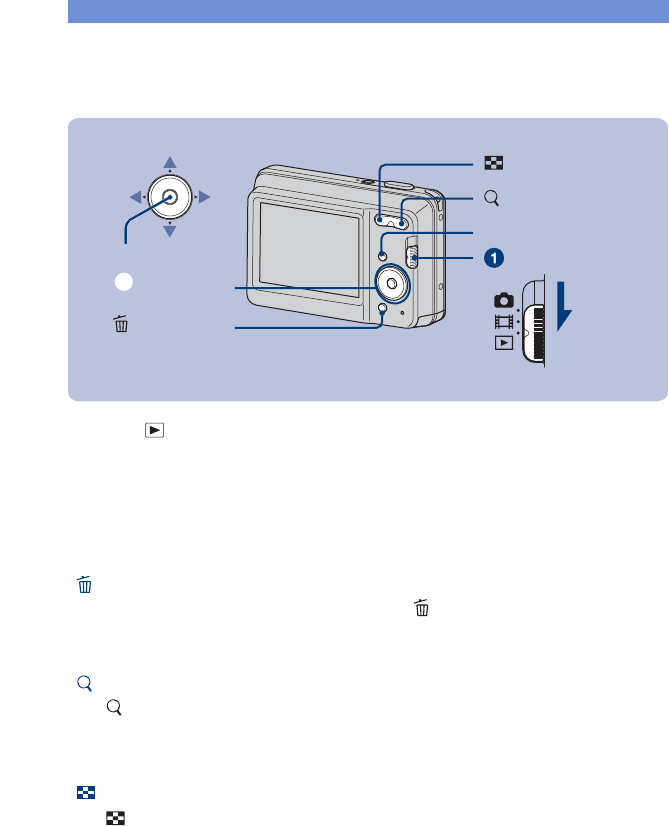
1Select (Playback) with the mode switch.
2Select an image with b/B on the control button.
Movie:
Press z to play back a movie. (Press z again to stop playback.)
Press B to fast forward, b to rewind. (Press z to return to normal playback.)
• You cannot listen to the audio with this camera when a movie is played back.
[To delete images
1Display the image you want to delete and press the (Delete) button.
2Select [This Image] with b/B, then press z.
3Select [OK] with v, then press z.
[To view an enlarged image (playback zoom)
Press (T) while displaying a still image.
To undo the zoom, press W.
Adjust the position with v/V/b/B.
To cancel the playback zoom, press z.
[To view an index screen
Press (Index) and select an image with v/V/b/B.
To return to the single image screen, press z.
(Delete) button
Control button
ɟ
(playback zoom) button
(Index) button
Mode switch
MENU button
v/V/b/B button
z button

15
[To delete images in index mode
1While an index screen is displayed, press the (Delete) button and select [Multiple
Images] with b/B on the control button, then press z.
2Select the image you want to delete with v/V/b/B, then press z.
The mark is checked in the checkbox of the image.
To cancel a selection, select an image you have selected for deletion, then press z again.
3Press the MENU button.
4Select [OK] with v, then press z.
• To delete all the images of a folder, select [All In This Folder] in step 1, then press z.
16
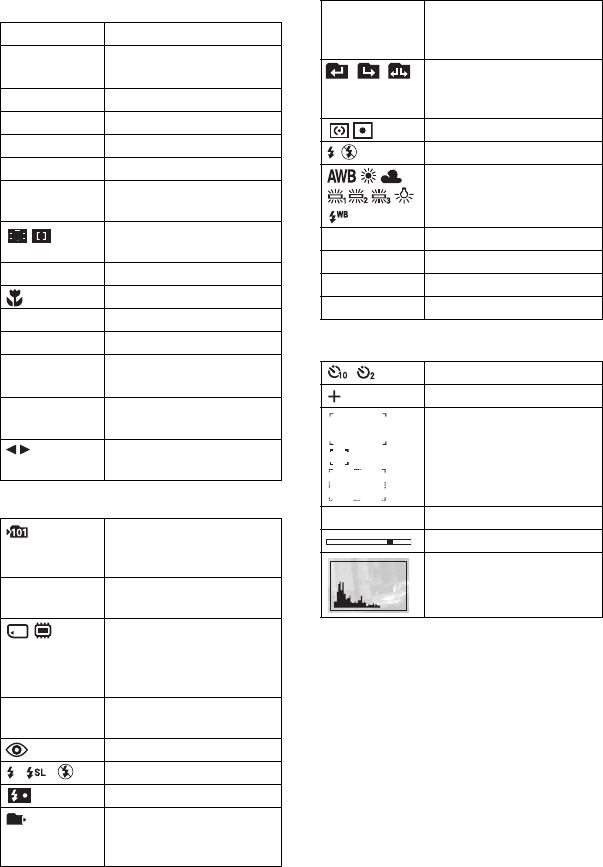
Indicators on the screen
Each time you press v (DISP) on the
control button, the display changes
(page 13).
[When shooting still images
[When shooting movies
[When playing back
A
Battery remaining
Low battery warning
Image size
Camera mode (Scene
Selection)
Camera mode (Program
Auto)
White balance
Burst mode
Metering mode
Face Detection
SteadyShot
Vibration warning
• Indicates vibration may
prevent you from shooting
clear images due to
insufficient lighting. Even if
the vibration warning
appears, you can still shoot
images. However, we
recommend that you set the
anti-blur function to [Auto],
using the flash for better
lighting or using a tripod or
other means to stabilize the
camera.
Zoom scaling
Color mode
PictBridge connecting
Protect
Print order (DPOF) mark
PictBridge connecting
• Do not disconnect the USB
cable while the mark is
displayed.
17
B
C
D
zAE/AF lock
REC
Standby
Recording a movie/Standby
a movie
ISO400 ISO number
125 Shutter speed
F3.5 Aperture value
+2.0EV Exposure Value
0:12 Recording time
(minutes : seconds)
AF range finder frame
indicator
1.0m Focus preset distance
Macro
00:00:12 Counter
101-0012 Folder-file number
2009 1 1
9:30 AM
Recorded date/time of the
playback image
z STOP
z PLAY
Function guide for playing
image
BACK/
NEXT
Selecting images
Recording folder
• This does not appear when
using internal memory.
12 Number of recordable
images
Recording Media/Playback
Media
(“Memory Stick Duo”
media, Internal memory)
00:00:15 Recordable time
(hours : minutes : seconds)
Red-eye reduction
Flash mode
Flash charging
Playback folder
• This does not appear when
using internal memory.
101
12/12 Image number/Number of
images recorded in selected
folder
Changing folder
• This does not appear when
using internal memory.
Metering mode
Flash
White balance
ISO400 ISO number
+2.0EV Exposure Value
500 Shutter speed
F3.5 Aperture value
Self-timer
Spot metering cross hair
AF range finder frame
NPlayback
Playback bar
Histogram
18
Changing the settings – Menu/Setup
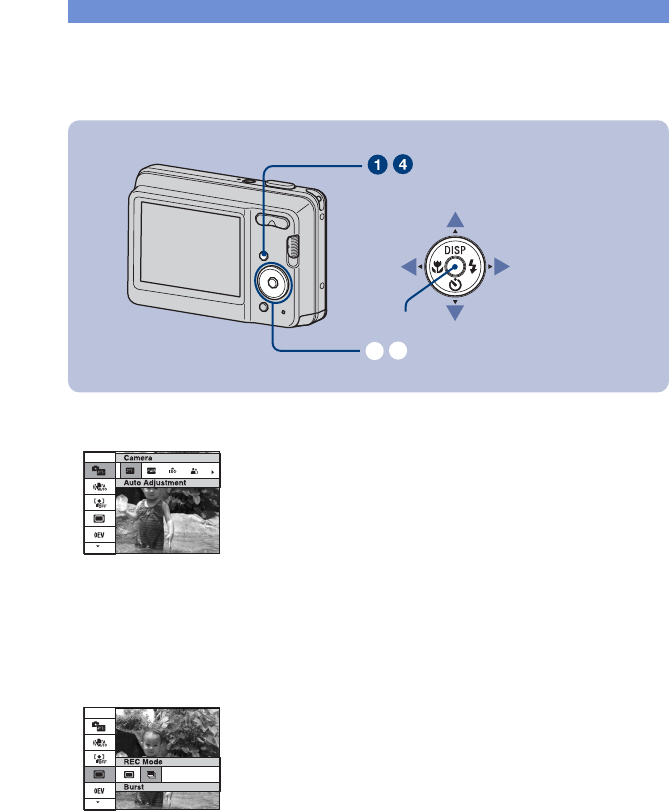
1Press the MENU button to display the menu.
• The menu will be displayed only during shooting and playback mode.
• Different items will become visible depending on the selected mode.
2Select a desired menu item with v/V on the control button.
• If the desired item is hidden, keep pressing v/V until the item appears on the screen.
3Select a setting with b/B.
• If the desired item is hidden, keep pressing b/B until the item appears on the screen.
• Select an item in playback mode, then press z.
4Press the MENU button to turn off the menu.
Control button
MENU button
z button
ɠ
ɟ
20
For details on the operation 1 page 18
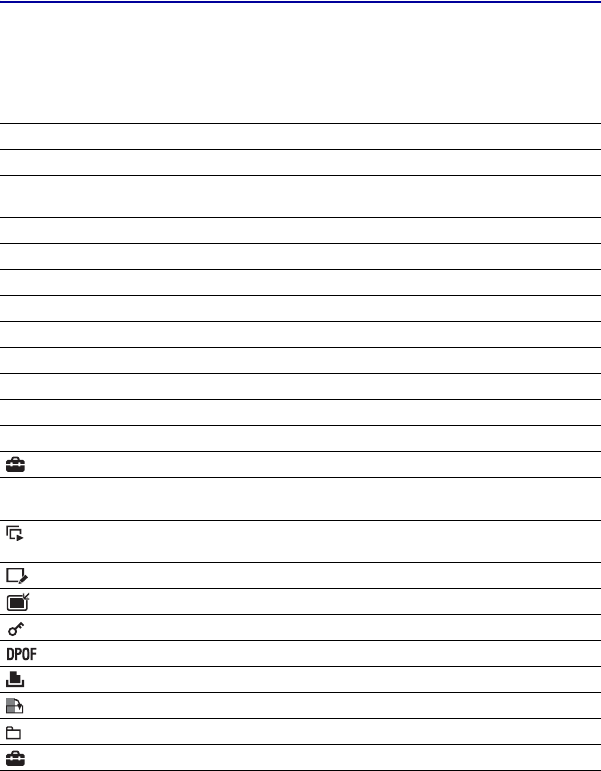
Menu items
The available menu items vary depending on the mode switch position, and the shooting
mode. Only the available items are displayed on the screen.
Shooting menu
Camera Selects the shooting mode.
SteadyShot Selects the anti-blur mode.
Face Detection Selects the priority subject for adjusting the focus when using
face detection.
REC Mode Selects the continuous shooting method.
EV Adjusts Exposure.
ISO Selects a luminous sensitivity.
Metering Mode Selects the metering mode.
Focus Changes the focus method.
White Balance Adjusts the color tones.
Flash Level Adjusts the amount of flash light.
Red Eye Reduction Sets to reduce the red-eye phenomenon.
Color Mode Changes the vividness of the image or adds special effects.
(Setup) Changes Setup items.
Viewing menu
(Slideshow) Sets and performs the Slideshow (playback of a series of
images).
(Retouch) Retouches still images.
(Multi-Purpose Resize) Changes the image size according to usage.
(Protect) Prevents accidental erasure.
Adds a Print order mark on image that you want to print out.
(Print) Prints images using a PictBridge compliant printer.
(Rotate) Rotates a still image.
(Select Folder) Selects the folder for viewing images.
(Setup) Changes Setup items.

21
For details on the operation 1 page 18
Setup items
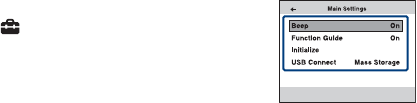
Main Settings
Beep Selects the sound produced when you operate the camera.
Function Guide Displays the description of functions when you operate the
camera.
Initialize Initializes the setting to the default setting.
USB Connect Selects the USB mode to be used when connecting the camera
to a computer or a PictBridge compliant printer using the USB
cable.
Shooting Settings
Grid Line Displays lines to easily set a subject in a horizontal or vertical
position.
Digital Zoom Selects the digital zoom mode.
Auto Review Displays the recorded image on the screen for approximately
two seconds immediately after shooting a still image.
Memory Tool — Memory Stick Tool
Format Formats the “Memory Stick Duo” media.
Create REC.Folder Creates a folder in “Memory Stick Duo” media for recording
images.
Change REC.Folder Changes the folder currently used for recording images.
Copy Copies all images in the internal memory to “Memory Stick Duo”
media.
Memory Tool — Internal Memory Tool
Format Formats the internal memory.
Clock Settings
Clock Settings Sets the date and time.
Language Setting
Language Setting Selects the language to be used in the menu items, warnings,
and messages.

22
Enjoying your computer
You can view images shot with the camera on a computer. By using the software in the CD-
ROM (supplied), you can enjoy still images and movies from the camera more than ever. For
details, refer to “Cyber-shot Handbook” in the CD-ROM (supplied).
Supported Operating Systems for USB connection and application
software (supplied)
• Your computer must be pre-installed with an OS listed above. OS upgrades are not supported.
• If your OS does not support USB connections, copy images by inserting the “Memory Stick Duo” media
into the “Memory Stick” media slot on your computer, or use a commercially available “Memory Stick”
media Reader/Writer.
• For further details on the operating environment of “PMB” Cyber-shot application software, refer to
“Cyber-shot Handbook”.
For Windows users For Macintosh users
USB connection Windows 2000 Professional SP4,
Windows XP*1 SP3, Windows
Vista*2 SP1
Mac OS 9.1/9.2/ Mac OS X (v10.1
to v10.5)
Application software
“PMB (Picture Motion
Browser)”
Windows XP*1 SP3, Windows
Vista*2 SP1
not compatible
*1 64-bit editions are not supported.
*2 Starter (Edition) is not supported.

23
Viewing “Cyber-shot Handbook”
“Cyber-shot Handbook” in the CD-ROM
(supplied) explains how to use the camera
in detail. Adobe Reader is required to view
it.
[For Windows users
1Turn on your computer, and insert the CD-
ROM (supplied) into the CD-ROM drive.
The installation menu screen appears.
When you click the [Cyber-shot Handbook]
button, the screen for copying “Cyber-shot
Handbook” appears.
2Follow the on-screen instructions to copy.
• When you install “Cyber-shot Handbook”,
the “Cyber-shot Step-up Guide” will be
installed automatically.
3After the installation is complete, double-
click the shortcut created on the desktop.
[For Macintosh users
1Turn on your computer, and insert the CD-
ROM (supplied) into the CD-ROM drive.
2Select the [Handbook] folder and copy
“Handbook.pdf” stored in the [GB] folder
to your computer.
3After copying is complete, double-click
“Handbook.pdf”.

24
Battery life and memory capacity
Battery life and number of images you can record/view
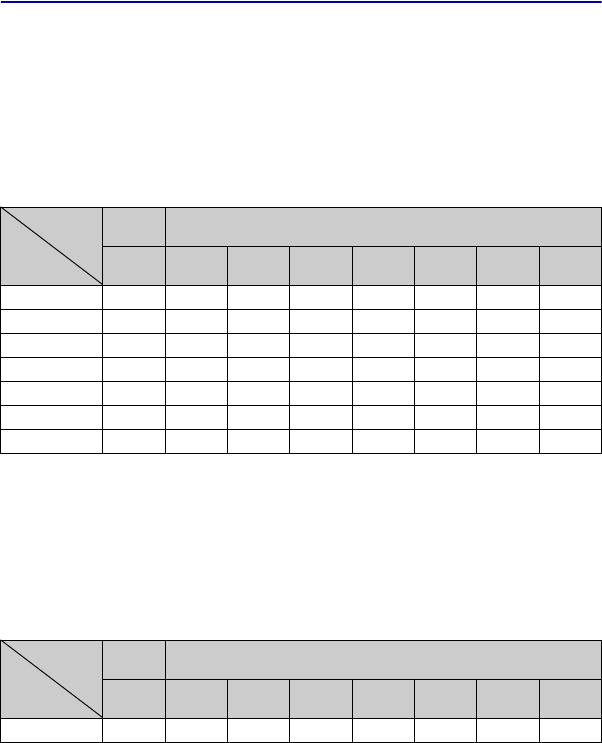
The numbers shown in the following tables
assume new batteries are used at an ambient
temperature of 25°C (77°F). The numbers
shown for images you can record/view are
approximations and allow for changing of
the “Memory Stick Duo”media as
necessary.
Note that the actual numbers may be less
than those indicated in the table depending
on the conditions of use.
[When shooting still images
• The measurement method is based on the CIPA
standard.
(CIPA: Camera & Imaging Products
Association)
• The battery life and the number of images do
not change, regardless of image size.
[When viewing still images
• Viewing single images in order at about three
second intervals
[Notes on the batteries
• The battery capacity decreases as the number of
uses increases and also over time.
• The battery life and the number of images you
can record/view are decreased under conditions
such as the following, etc.:
– The surrounding temperature is low.
– The flash is used frequently.
– The camera has been turned on and off many
times.
– The zoom is used frequently.
– The brightness of LCD Backlight is set to up.
– The battery power is low.
• The values shown for alkaline battery are based
on commercial norms, and do not apply to all
alkaline batteries in all conditions. The values
may vary, depending on the battery
manufacturer/type, environmental conditions,
product setting, etc.
• The supplied alkaline battery is for trial use
only. You may need to purchase an additional
battery for regular camera use.
Battery Battery life
(min.) No. of images
Alkaline Approx.
60
Approx.
120
Battery Battery life
(min.) No. of images
Alkaline Approx.
280
Approx.
5600
25
Number of still images and recordable time of movies
The number of still images and the length of time for movies may vary depending on the
shooting conditions and the recording mediums.
• Even if the capacity of your recording media is the same as the one in the table below, the number of still
images and the length of time for movies may be different.
• For details on the image size, see page 13.
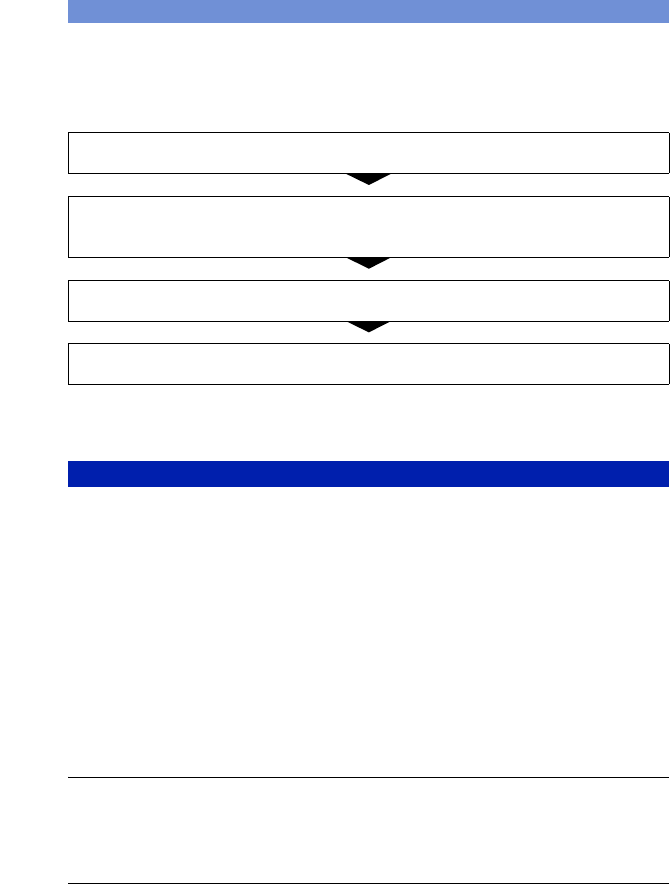
[The approximate recordable number of still images
(Units: Images)
• The number of images listed assume [REC Mode] is set to [Normal].
• When the number of remaining shootable images is greater than 9,999, the “>9999” indicator appears.
• When an image was recorded using an earlier Sony model and is played back on the camera, the image
may not appear in the actual image size.
[The approximate recordable time of movies
The numbers in the table below show the approximate maximum recordable time obtained by
totaling all movie files.
(Units: hour : minute : second)
• The aspect ratio of the movie frame is 320×240
• Recordable movie file size is up to approx. 2 GB for each file. If the file size reaches approx. 2 GB, the
camera stops recording automatically.
• The camera does not support HD recordings or playbacks for movies.
Capacity
Size
Internal
memory “Memory Stick Duo” media formatted with this camera
Approx.
12MB 256MB 512MB 1GB 2GB 4GB 8GB 16GB
10M 2 58 115 230 470 940 1900 3800
3:2 (8M) 2 58 115 230 470 940 1900 3800
5M 4 90 170 350 710 1420 2900 5850
3M 7 148 293 600 1200 2400 4850 9800
VGA 60 1200 2360 4800 9650 19300 38600 77200
16:9 (7M) 3 75 150 300 600 1200 2450 5000
16:9 (2M) 11 230 450 900 1800 3700 7500 15000
Capacity
Size
Internal
memory “Memory Stick Duo” media formatted with this camera
Approx.
12MB 256MB 512MB 1GB 2GB 4GB 8GB 16GB
320×240 0:00:20 0:10:10 0:20:20 0:41:20 1:23:40 2:45:00 5:35:00
11:18:00
26
Troubleshooting
If you experience trouble with your camera, try the following solutions.
Be aware that by sending the camera for repair, you give consent that the contents of the
internal memory may be checked.
The battery remaining indicator is incorrect, or sufficient battery remaining
indicator is displayed but the power runs out too quickly.
•This phenomenon occurs when you use the camera in an extremely hot or cold location.
•When using alkaline batteries/Oxy Nickel Primary Battery (sold separately), the displayed
time remaining may not be correctly indicated.
•The batteries are discharged. Insert new batteries or charged Nickel-Metal Hydride batteries
(sold separately) (page 8).
•When using the Nickel-Metal Hydride batteries, the poles of batteries or the terminals of the
battery cover are dirty so the batteries are not charged sufficiently. Clean them with a cotton
swab, etc.
•When using the Nickel-Metal Hydride batteries, the displayed time remaining differs from the
current one due to the memory effect, etc. Fully discharge and then charge the batteries to
correct the display.
•The batteries are dead. Replace them with new ones (page 8).
The batteries run down too quickly.
•You are using the camera in an extremely cold location.
•The batteries are dead. Replace them with new ones.
•When using the Nickel-Metal Hydride batteries, charge them sufficiently.
Camera power is turned off automatically when you open the battery/“Memory
Stick Duo” media cover.
•This is not a malfunction. Turn off the camera before you open the battery/“Memory Stick
Duo” media cover.
1Check the items below, and refer to “Cyber-shot Handbook” (PDF).
2Remove the batteries, wait for about one minute, re-insert the batteries, then
turn on the power.
3Initialize the settings (page 21).
4Consult your Sony dealer or local authorized Sony service facility.
Batteries and power

27
Cannot turn on the camera.
•Insert the batteries correctly (page 8).
•The batteries are discharged. Insert new batteries or charged Nickel-Metal Hydride batteries
(page 8).
•The batteries are dead. Replace them with new ones.
The power turns off suddenly.
•If you do not operate the camera for about three minutes while the power is on, the camera
turns off automatically to prevent wearing down the batteries. Turn on the camera again
(page 10).
•The batteries are discharged. Insert new batteries or charged Nickel-Metal Hydride batteries
(page 8).
Cannot record images.
•Check the free capacity of the internal memory or “Memory Stick Duo” media (page 25). If it
is full, do one of the following:
–Delete unnecessary images (page 14).
–Change the “Memory Stick Duo” media.
•You cannot record images while charging the flash.
•Set the mode switch to (Still image) when shooting still images.
•Set the mode switch to (Movie) when shooting movies.
Cannot insert dates on images.
•The camera does not have a feature for superimposing dates on images. By using “PMB”, you
can print or save images with the date.
Vertical streaks appear when you are shooting a very bright subject.
•The smear phenomenon is occurring and white, black, red, purple, or other streaks appear on
the image. This phenomenon is not a malfunction.
Cannot play back images.
•Set the mode switch to (Playback) (page 14).
•The folder/file name has been changed on your computer.
•Sony does not guarantee playback of image files on the camera if the files have been
processed using a computer or recorded with another camera.
•The camera is in USB mode. Delete the USB connection.
Shooting still images/movies
Viewing images

28
Precautions
[Do not use/store the camera in
the following places
• In an extremely hot, cold or humid place
In places such as in a car parked in the sun, the
camera body may become deformed and this
may cause a malfunction.
• Under direct sunlight or near a heater
The camera body may become discolored or
deformed, and this may cause a malfunction.
• In a location subject to rocking vibration
• Near strong magnetic place
• In sandy or dusty places
Be careful not to let sand or dust get into the
camera. This may cause the camera to
malfunction, and in some cases this malfunction
cannot be repaired.
[On carrying
Do not sit down in a chair or other place with the
camera in the back pocket of your trousers or
skirt, as this may cause malfunction or damage the
camera.
[ On the battery
• Avoid rough handling, disassembling,
modifying, physical shock, or impact such as
hammering, dropping or stepping on the battery.
• Do not use a deformed or damaged battery.
• Do not mix a used battery together with a new
battery or different types of batteries.
[On cleaning
Cleaning the LCD screen
Wipe the screen surface with an LCD cleaning kit
(sold separately) to remove fingerprints, dust, etc.
Cleaning the lens
Wipe the lens with a soft cloth to remove
fingerprints, dust, etc.
Cleaning the camera surface
Clean the camera surface with a soft cloth slightly
moistened with water, then wipe the surface with
a dry cloth. To prevent damage to the finish or
casing:
• Do not expose the camera to chemical products
such as thinner, benzine, alcohol, disposable
cloths, insect repellent, sunscreen or insecticide.
• Do not touch the camera with any of the above
on your hand.
• Do not leave the camera in contact with rubber
or vinyl for a long time.
[On operating temperatures
Your camera is designed for use under the
temperatures between 0°C and 40°C (32°F and
104°F). Shooting in extremely cold or hot places
that exceed this range is not recommended.
[On moisture condensation
If the camera is brought directly from a cold to a
warm location, moisture may condense inside or
outside the camera. This moisture condensation
may cause a malfunction of the camera.
If moisture condensation occurs
Turn off the camera and wait about an hour for the
moisture to evaporate. Note that if you shoot with
moisture remaining inside the lens, images will
not be clear.
[On the internal rechargeable
backup battery
This camera has an internal rechargeable battery
for maintaining the date and time and other
settings regardless of whether the power is on or
off.
This rechargeable battery is continually charged
as long as you are using the camera. However, if
you use the camera for only short periods, it
discharges gradually, and if you do not use the
camera at all for about one month it becomes
completely discharged. In this case, be sure to
charge this rechargeable battery before using the
camera.
However, even if this rechargeable battery is not
charged, you can still use the camera, but the date
and time will not be indicated.
Charging method of the internal
rechargeable backup battery
Insert batteries with enough power remaining in
the camera, and leave the camera for 24 hours or
more with the power off.

29
Specifications
Camera
[System]
Image device:
7.7 mm (1/2.3 type) color CCD, Primary color
filter
Total pixel number of camera:
Approx. 10.3 Megapixels
Effective pixel number of camera:
Approx. 10.1 Megapixels
Lens: 3× zoom lens f = 6.4 – 19.2 mm (36 –
108 mm (35 mm film equivalent)) F2.9 (W) –
5.4 (T)
Exposure control: Automatic exposure, Scene
Selection (7 modes)
White balance: Automatic, Daylight, Cloudy,
Fluorescent 1, 2, 3, Incandescent, Flash
File format:
Still images: JPEG (DCF Ver. 2.0,
Exif Ver. 2.21 ) compliant, DPOF compatible
Movies: AVI (Motion JPEG)
Recording media: Internal Memory (approx.
12 MB), “Memory Stick Duo” media
Flash: Flash range (ISO sensitivity
(Recommended Exposure Index) set to Auto):
approx. 0.5 to 3.0 m (1 feet 7 3/4 inches to
9 feet 10 1/8 inches) (W)/approx. 0.5 to 1.5 m
(1 feet 7 3/4 inches to 4 feet 11 1/8 inches) (T)
Recording interval of Burst:
Approx. 1.0 seconds
[Input and Output connectors]
USB communication:
Hi-Speed USB (USB 2.0 compliant)
[LCD screen]
LCD panel: 6.0 cm (2.4 type) TFT drive
Total number of dots: 112 320 (480×234) dots
[Power, general]
Power: LR6 (size AA) Alkaline batteries (2), 3 V
HR15/51:HR6 (size AA) Nickel-Metal
Hydride batteries (2) (sold separately), 2.4 V
ZR6 (size AA) Oxy Nickel Primary Battery
(2) (sold separately), 3 V
Power consumption (during shooting):
1.2 W
Operating temperature: 0 to 40°C (32 to 104°F)
Storage temperature: –20 to +60°C (–4 to +140°F)
Dimensions: 89.5×61.0×26.1 mm
(3 5/8 × 2 1/2 × 1 1/16 inches) (W/H/D,
excluding protrusions)
Mass: Approx. 167 g (5.9 oz) (including two
batteries and strap, etc.)
Microphone: Monaural
Buzzer
Exif Print: Compatible
PRINT Image Matching III: Compatible
PictBridge: Compatible
Design and specifications are subject to change
without notice.

30
Trademarks
• The following marks are trademarks of Sony
Corporation;
, “Cyber-shot”, “Memory
Stick”, , “Memory Stick PRO”,
, “Memory Stick Duo”,
, “Memory Stick PRO
Duo”, , “Memory
Stick PRO-HG Duo”,
, “Memory Stick
Micro”, “MagicGate”,
• Microsoft, Windows, DirectX and Windows
Vista are either registered trademarks or
trademarks of Microsoft Corporation in the
United States and/or other countries.
• Macintosh, Mac OS, iMac, iBook, PowerBook,
Power Mac and eMac are trademarks or
registered trademarks of Apple Inc.
• Intel, MMX, and Pentium are trademarks or
registered trademarks of Intel Corporation.
• Adobe and Reader are either registered
trademarks or trademarks of Adobe Systems
Incorporated in the United States and/or other
countries.
• In addition, system and product names used in
this manual are, in general, trademarks or
registered trademarks of their respective
developers or manufacturers. However, the ™
or ® marks are not used in all cases in this
manual.

Additional information on this product and answers
to frequently asked questions can be found at our
Customer Support Website.
Printed in China
Printed on 70% or more recycled paper using VOC
(Volatile Organic Compound)-free vegetable oil based
ink.
