Sony Handycam Dcr Hc26E Users Manual HC23E/HC24E/HC26E/HC35E
Handycam DCR-HC26E 2659812111
2015-01-23
: Sony Sony-Handycam-Dcr-Hc26E-Users-Manual-286413 sony-handycam-dcr-hc26e-users-manual-286413 sony pdf
Open the PDF directly: View PDF  .
.
Page Count: 96
- Read this first
- Getting Started
- Recording/Playback
- Easy Recording/Playback (Easy Handycam)
- Recording
- Playback
- Functions used for recording/playback, etc.
- Recording
- To use zoom 1 qs
- To record in dark places (NightShot plus) 2
- To adjust the exposure for backlit subjects (BACK LIGHT) 7
- To adjust the focus for an off center subject (SPOT FOCUS) qa
- To fix the exposure for the selected subject (Flexible spot meter) qa
- To record in mirror mode qd
- To use a tripod qf
- To use a Shoulder Belt 6
- Playback
- Recording/playback
- Recording
- Indicators displayed during recording/playback
- Searching for the starting point
- Remote Commander (DCR-HC24E/HC35E)
- Playing the picture on a TV
- Using the Menu
- Dubbing/Editing
- Using a Computer
- Troubleshooting
- Additional Information
E:\SONY\2659812111\01GB00Cov_E.fm
DCR-HC23E/HC24E/HC26E/HC35E
2-659-812-11(1)
2-659-812-11(1)
© 2006 Sony Corporation
Digital Video Camera Recorder
Operating Guide
DCR-HC23E/HC24E/
HC26E/HC35E
Getting Started 8
Recording/
Playback
20
Using the Menu 36
Dubbing/Editing 51
Using a Computer 58
Troubleshooting 68
Additional Information 83
2
DCR-HC23E/HC24E/HC26E/HC35E
2-659-812-11(1)
E:\SONY\2659812111\01GB01REG_E.fm
Read this first
Before operating the unit, please read this
manual thoroughly, and retain it for future
reference.
To reduce fire or shock hazard, do
not expose the unit to rain or
moisture.
Replace the battery with the
specified type only. Otherwise, fire
or injury may result.
NOTICE ON THE SUPPLIED AC
ADAPTOR
A moulded plug complying with BS1363 is fitted
to this equipment for your safety and
convenience.
Should the fuse in the plug supplied need to be
replaced, a fuse of the same rating as the supplied
one and approved by ASTA or BSI to BS 1362,
(i.e., marked with or mark) must be used.
If the plug supplied with this equipment has a
detachable fuse cover, be sure to attach the fuse
cover after you change the fuse. Never use the
plug without the fuse cover. If you should lose the
fuse cover, please contact your nearest Sony
service station.
ATTENTION
The electromagnetic fields at the specific
frequencies may influence the picture and sound
of this camcorder.
This product has been tested and found compliant
with the limits set out in the EMC Directive for
using connection cables shorter than 3 meters (9.8
feet).
Notice
If static electricity or electromagnetism causes
data transfer to discontinue midway (fail), restart
the application or disconnect and connect the
communication cable (USB, etc.) again.
Disposal of Old Electrical
& Electronic Equipment
(Applicable in the
European Union and other
European countries with
separate collection
systems)
This symbol on the product or on its packaging
indicates that this product shall not be treated as
household waste. Instead it shall be handed over
to the applicable collection point for the recycling
of electrical and electronic equipment. By
ensuring this product is disposed of correctly, you
will help prevent potential negative consequences
for the environment and human health, which
could otherwise be caused by inappropriate waste
handling of this product. The recycling of
materials will help to conserve natural resources.
For more detailed information about recycling of
this product, please contact your local Civic
Office, your household waste disposal service or
the shop where you purchased the product.
Applicable Accessories: Remote Commander
(DCR-HC24E/HC35E)
Your camcorder is supplied with two
kinds of operation guides.
– “Operating Guide” (This manual)
– “First Step Guide” for connecting the
camcorder to a computer and using the
supplied software (stored on the supplied
CD-ROM)
WARNING
CAUTION
FOR CUSTOMERS IN THE
UNITED KINGDOM
FOR CUSTOMERS IN EUROPE
Notes on use
3
E:\SONY\2659812111\01GB01REG_E.fm
DCR-HC23E/HC24E/HC26E/HC35E
2-659-812-11(1)
Types of cassette you can use in your
camcorder
• You can use mini DV cassettes marked
with . Mini DV cassettes with
Cassette Memory are incompatible
(p. 83).
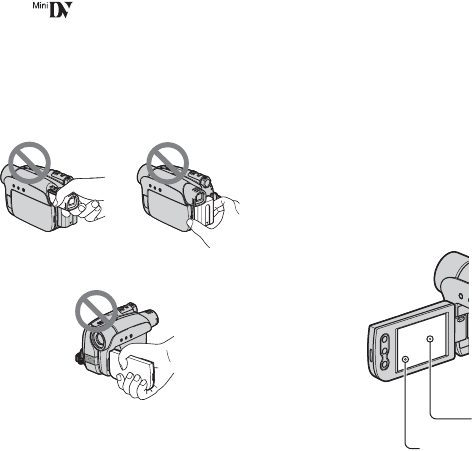
Using the camcorder
• Do not hold the camcorder by the
following parts.
• The camcorder is not dustproof, dripproof
or waterproof.
See “Maintenance and precautions”
(p. 87).
• Before connecting your camcorder to
another device with a USB or i.LINK
cable, be sure to insert the connector plug
the correct way, and not forcibly to avoid
damaging the terminal, or cause a
malfunction of your camcorder.
• For DCR-HC35E:
Disconnect the AC Adaptor from the
Handycam Station holding both the
Handycam Station and the DC plug.
• For DCR-HC35E:
Be sure to slide the POWER switch to
OFF(CHG) when you insert the
camcorder into the Handycam Station or
remove the camcorder from it.
About menu items, LCD panel,
viewfinder, and lens
• A menu item that is grayed out is not
available under the current recording or
playback conditions.
• The LCD screen and the viewfinder are
manufactured using extremely high-
precision technology, so over 99.99% of
the pixels are operational for effective
use. However, there may be some tiny
black points and/or bright points (white,
red, blue, or green in color) that appear
constantly on the LCD screen and the
viewfinder. These points are normal
results of the manufacturing process and
do not affect the recording in any way.
• Exposing the LCD screen, the viewfinder,
or the lens to direct sunlight for long
periods of time may cause malfunctions.
• Do not aim at the sun. Doing so might
cause your camcorder to malfunction.
Take pictures of the sun only in low light
conditions, such as at dusk.
On recording
• Before starting to record, test the
recording function to make sure the
picture and sound are recorded without
any problems.
LCD panel
Battery packViewfinder
Black point
White, red, blue
or green point
Continued ,
4
E:\SONY\2659812111\01GB01REG_E.fm
DCR-HC23E/HC24E/HC26E/HC35E
2-659-812-11(1)
• Compensation for the contents of
recordings cannot be provided, even if
recording or playback is not possible due
to a malfunction of the camcorder, storage
media, etc.
• TV color systems differ depending on the
countries/regions. To view your
recordings on a TV, you need a PAL
system-based TV.
• Television programs, films, video tapes,
and other materials may be copyrighted.
Unauthorized recording of such materials
may be contrary to the copyright laws.
About this manual
• The images of the LCD screen and the
viewfinder used in this manual for
illustration purposes are captured using a
digital still camera, and therefore may
appear different.
• The on-screen displays in each local
language are used for illustrating the
operating procedures. Change the screen
language before using your camcorder if
necessary (p. 49).
• The illustrations used on this manual are
based on the model DCR-HC35E. The
model name is indicated on the bottom of
your camcorder.
• Design and specifications of recording
media and accessories are subject to
change without notice.
About the Carl Zeiss lens
Your camcorder is equipped with a Carl
Zeiss lens, which was developed jointly by
Carl Zeiss, in Germany, and Sony
Corporation, and produces superior images.
It adopts the MTF* measurement system for
video cameras and offers a quality typical
of a Carl Zeiss lens.
*MTF stands for Modulation Transfer
Function. The number value indicates the
amount of light from a subject coming into
the lens.
Read this first (Continued)

5
E:\SONY\2659812111\01GB00BOOKTOC.fm
DCR-HC23E/HC24E/HC26E/HC35E
2-659-812-11(1)
Table of Contents
Read this first ...........................................................................................2
Step 1: Checking supplied items ..............................................................8
Step 2: Charging the battery pack ............................................................9
Step 3: Turning the power on and holding your camcorder firmly ..........14
Step 4: Adjusting the LCD panel and viewfinder ....................................15
Step 5: Using the touch panel ................................................................16
Changing the language setting .................................................................... 16
Checking the screen indicators (Display guide) .......................................... 16
Step 6: Setting the date and time ...........................................................18
Step 7: Inserting a Cassette ...................................................................19
Easy Recording/Playback (Easy Handycam) .........................................20
Recording ...............................................................................................22
Playback .................................................................................................23
Functions used for recording/playback, etc. ...........................................24
Recording
To use zoom
To record in dark places (NightShot plus)
To adjust the exposure for backlit subjects (BACK LIGHT)
To adjust the focus for an off center subject (SPOT FOCUS)
To fix the exposure for the selected subject (Flexible spot meter)
To record in mirror mode
To use a tripod
To use a Shoulder Belt
Playback
To play back the images with added special effects (Picture effect)
Recording/playback
To check the remaining battery (Battery Info)
To turn off the operation confirmation beep (BEEP)
To initialize the settings (RESET)
Other part names and functions
Indicators displayed during recording/playback .....................................26
Searching for the starting point ..............................................................28
Searching for the last scene of the most recent recording
(END SEARCH) .................................................................................. 28
Searching manually (EDIT SEARCH) ........................................................... 28
Reviewing the most recently recorded scenes (Rec review) ....................... 29
Getting Started
Recording/Playback
Continued ,
6
E:\SONY\2659812111\01GB00BOOKTOC.fm
DCR-HC23E/HC24E/HC26E/HC35E
2-659-812-11(1)
Remote Commander (DCR-HC24E/HC35E) ......................................... 30
Searching quickly for a desired scene (Zero set memory) .......................... 30
Searching for a scene by date of recording (Date search) .......................... 31
Searching for a still image (Photo search) ................................................... 31
Playing back still images in sequence (Photo scan) .................................... 31
Playing the picture on a TV .................................................................... 33
Using the menu items ...........................................................36
Operation button items ........................................................................... 38
Menu items ............................................................................................ 43
MANUAL SET menu ...................................................................... 44
– PROGRAM AE/P EFFECT, etc.
CAMERA SET menu ...................................................................... 45
– D ZOOM/WIDE SEL/STEADYSHOT, etc.
PLAYER SET/ VCR SET menu .............................................. 47
– HiFi SOUND/AUDIO MIX
LCD/VF SET menu ........................................................................ 47
– LCD B.L./LCD COLOR/VF B.L., etc
TAPE SET menu ............................................................................48
– REC MODE/AUDIO MODE/REMAIN
SETUP MENU menu ..................................................................... 49
– CLOCK SET/USB STREAM/LANGUAGE, etc.
OTHERS menu .............................................................................. 50
– WORLD TIME/BEEP, etc.
Dubbing to VCR/DVD device, etc. ......................................................... 51
Recording pictures from a TV or VCR/DVD device, etc.
(DCR-HC26E/HC35E) .................................................................. 54
Dubbing sound to a recorded tape ......................................................... 55
Jacks to connect external devices ......................................................... 57
Before referring to the “First Step Guide” on your computer .................. 58
Installing the software and “First Step Guide” on a computer ................ 60
Viewing “First Step Guide” ..................................................................... 64
Creating a DVD (Direct Access to “Click to DVD”) ................................. 65
Using the Menu
Dubbing/Editing
Using a Computer

7
E:\SONY\2659812111\01GB00BOOKTOC.fm
DCR-HC23E/HC24E/HC26E/HC35E
2-659-812-11(1)
Troubleshooting ......................................................................................68
Warning indicators and messages .........................................................80
Using your camcorder abroad ................................................................83
Usable cassette tapes ............................................................................83
About the “InfoLITHIUM” battery pack ....................................................84
About i.LINK ...........................................................................................86
Maintenance and precautions ................................................................87
Specifications .........................................................................................90
Index .......................................................................................................94
Troubleshooting
Additional Information
8
DCR-HC23E/HC24E/HC26E/HC35E
2-659-812-11(1)
E:\SONY\2659812111\01GB02GET_E.fm
Getting Started
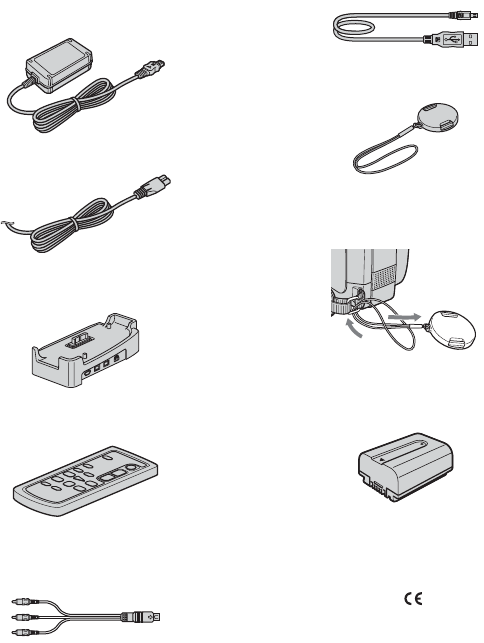
Step 1: Checking supplied items
Make sure that you have following items
supplied with your camcorder.
The number in the parentheses indicates the
number of that item supplied.
• The cassette tape is not supplied. See page
3, 83 for compatible cassettes for your
camcorder.
AC Adaptor (1) (p. 9)
Mains lead (1) (p. 9)
Handycam Station (1)
(DCR-HC35E) (p. 10)
Wireless Remote Commander (1)
(DCR-HC24E/HC35E) (p. 30)
A button-type lithium battery is already installed.
A/V connecting cable (1) (p. 33, 52)
USB cable (1)
(DCR-HC24E/HC35E) (p. 57, 58)
• A USB cable is not supplied with the
DCR-HC23E/HC26E models. If
necessary, buy a USB 2.0 cable (Type A
to Type B-mini.). A Sony product is
recommended.
Lens cap (1) (p. 14, 22)
• To attach the lens cap
Attach the lens cap to the metal fittings of the
grip belt, as illustrated below, using the strap.
Rechargeable battery pack NP-FP30 (1)
(p. 9, 84)
CD-ROM “Picture Package Ver.1.5.1” (1)
(p. 58)
21-pin adaptor (1) (DCR-HC35E) (p. 34)
For the models with the mark printed on their
bottom surfaces only.
Operating Guide (This manual) (1)
9
DCR-HC23E/HC24E/HC26E/HC35E
2-659-812-11(1)
Getting Started
E:\SONY\2659812111\01GB02GET_E.fm
Step 2: Charging the battery pack
You can charge the “InfoLITHIUM”
battery pack (P series) (p. 84) after
attaching it to your camcorder.
For DCR-HC35E:
For DCR-HC23E/HC24E/HC26E:
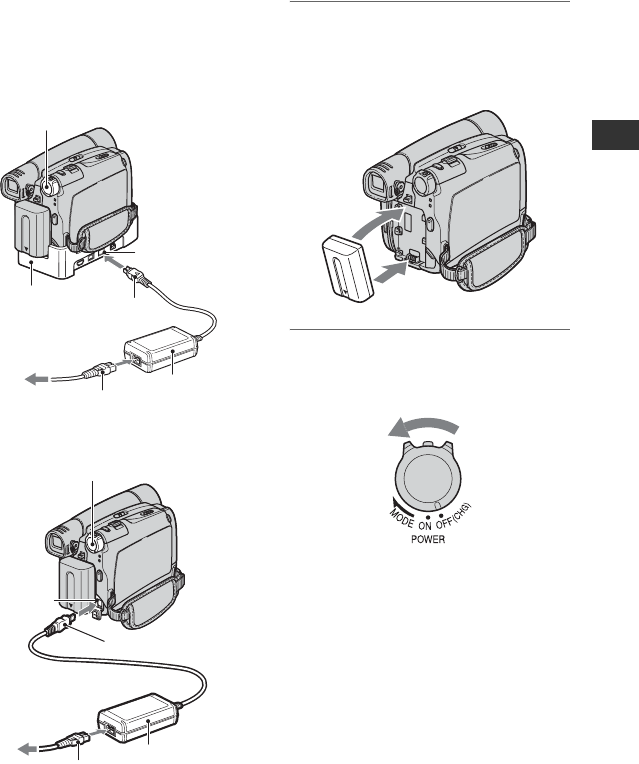
1Align the terminals of the battery
pack and your camcorder 1, then
attach the battery pack and click
it into place 2.
2Slide the POWER switch in the
direction of the arrow to
OFF(CHG) (The default setting).
POWER switch
DC IN jack
DC plug
AC Adaptor
Mains lead
To the wall socket
Handycam
Station
POWER switch
DC IN jack
DC plug
AC Adaptor
Mains lead
To the wall socket
1
2
Continued ,
10
E:\SONY\2659812111\01GB02GET_E.fm
DCR-HC23E/HC24E/HC26E/HC35E
2-659-812-11(1)
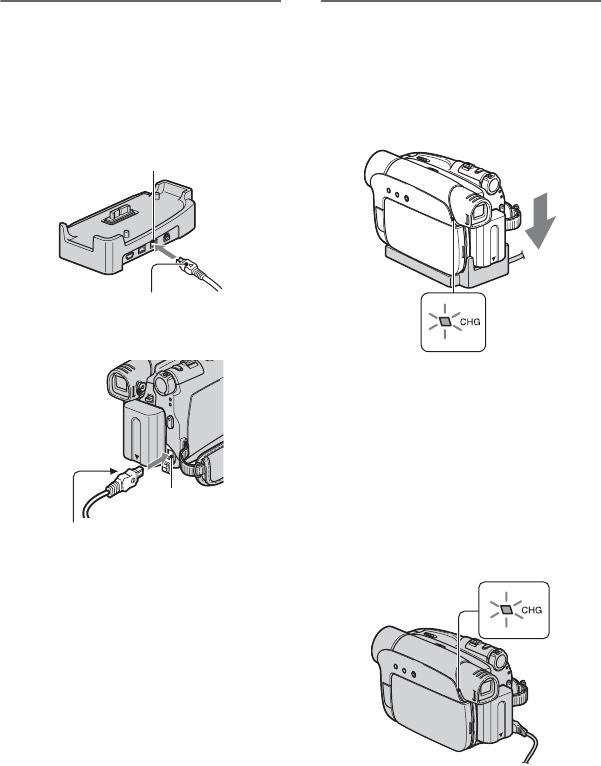
3Connect the AC Adaptor to the
DC IN jack on the Handycam
Station for the DCR-HC35E or on
your camcorder for the DCR-
HC23E/HC24E/HC26E.
For DCR-HC35E:
For DCR-HC23E/HC24E/HC26E:
4For DCR-HC35E:
Connect the mains lead to the AC
Adaptor and the wall socket.
Insert the camcorder into the
Handycam Station securely, all
the way to the bottom.
The CHG (charge) lamp lights up and
charging starts.
• When inserting the camcorder into the
Handycam Station, close the DC IN jack
cover.
For DCR-HC23E/HC24E/HC26E:
Connect the mains lead to the AC
Adaptor and the wall socket.
The CHG (charge) lamp lights up and
charging starts.
With the v mark facing up
DC IN jack
With the v mark facing to the
LCD screen
DC IN jack
CHG (charge) lamp
CHG (charge) lamp
Step2: Charging the battery pack (Continued)
11
E:\SONY\2659812111\01GB02GET_E.fm
DCR-HC23E/HC24E/HC26E/HC35E
2-659-812-11(1)
Getting Started
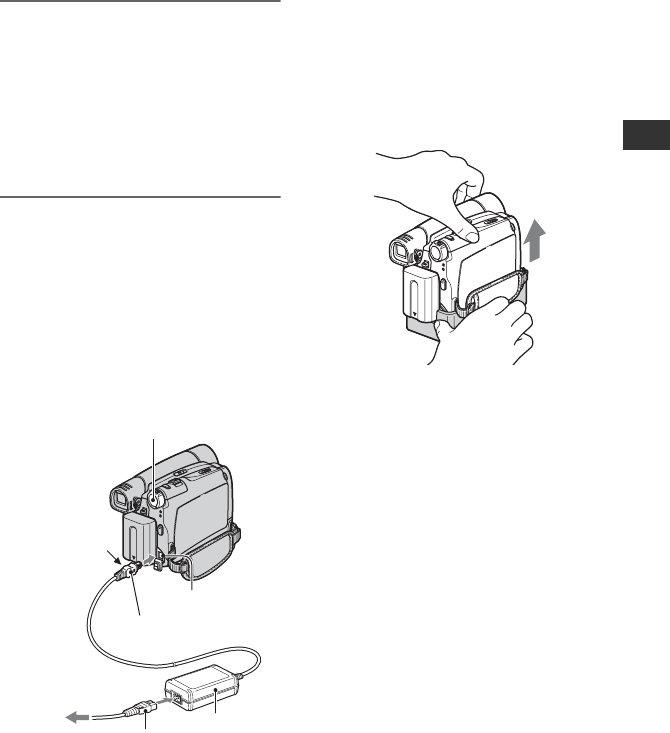
5The CHG (charge) lamp turns off
when the battery is fully charged.
Disconnect the AC Adaptor from
the DC IN jack.
For DCR-HC35E:
Disconnect the AC Adaptor from the
DC IN jack holding both the Handycam
Station and the DC plug.
For DCR-HC35E:
To charge the battery pack using only
the AC Adaptor
Slide the POWER switch to OFF(CHG).
Then connect the AC Adaptor directly to
the DC IN jack on the camcorder.
• You can operate your camcorder connected to a
power source such as a wall socket as shown in
the illustration. The battery pack will not lose its
charge in this case.
For DCR-HC35E:
To remove your camcorder from the
Handycam Station
Turn off the power, then remove the
camcorder from the Handycam Station
holding both your camcorder and the
Handycam Station.
For DCR-HC23E/HC24E/HC26E:
To use an outside power source
You can operate your camcorder using the
power from the wall socket by making the
same connections as you do when charging
the battery pack. The battery pack will not
lose its charge in this case.
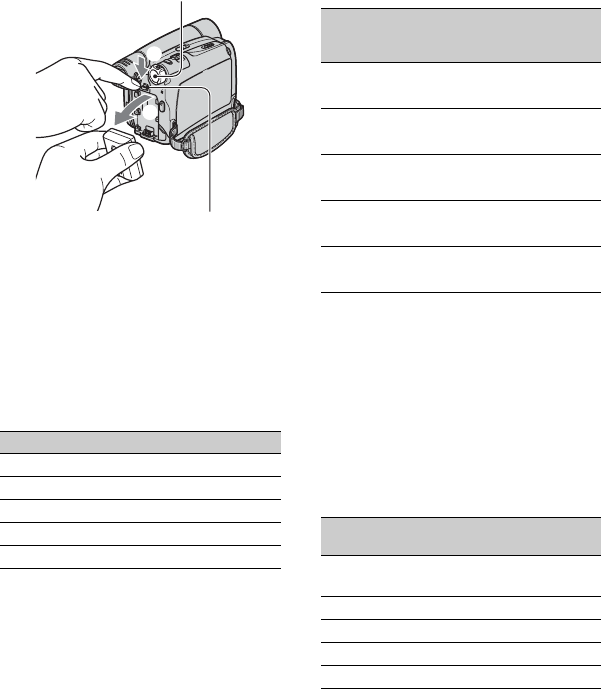
To remove the battery pack
1Slide the POWER switch to
OFF(CHG). Hold down the V
BATT(battery) release lever with one
hand.
POWER switch
DC IN jack
With the v mark
facing to the
LCD screen
AC Adaptor
Mains lead
To the wall socket
DC plug
Continued ,
12
E:\SONY\2659812111\01GB02GET_E.fm
DCR-HC23E/HC24E/HC26E/HC35E
2-659-812-11(1)
2Remove the battery in the direction of
the arrow with the other hand.
When storing the battery pack
Fully discharge the battery before storing it
for an extended period (p. 85).
Charging time
Approximate time (min.) required when
you fully charge a fully discharged battery
pack.
Recording time
Approximate time (min.) available when
you use a fully charged battery pack.
• All times measured under the following
conditions:
Top: Recording with LCD screen.
Bottom: Recording with viewfinder while the
LCD panel closed.
*Typical recording time shows the time when
you repeat recording start/stop, turning the
power on/off and zooming.
Playing time
Approximate time (min.) available when
you use a fully charged battery pack.
Battery pack Charging time
NP-FP30 (supplied) 115
NP-FP50 125
NP-FP70 155
NP-FP71 170
NP-FP90 220
2
1
POWER switch
V BATT (battery)
release lever
Battery pack
Continuous
recording
time
Typical
recording
time*
NP-FP30
(supplied)
95 45
110 55
NP-FP50 135 65
160 80
NP-FP70 280 140
330 165
NP-FP71 330 165
395 195
NP-FP90 500 250
580 290
Battery pack LCD panel
opened
LCD panel
closed
NP-FP30
(supplied) 105 135
NP-FP50 150 190
NP-FP70 310 395
NP-FP71 370 465
NP-FP90 550 705
Step2: Charging the battery pack (Continued)

13
E:\SONY\2659812111\01GB02GET_E.fm
DCR-HC23E/HC24E/HC26E/HC35E
2-659-812-11(1)
Getting Started
On the battery pack
• Before changing the battery pack, slide the
POWER switch to OFF(CHG).
• The CHG (charge) lamp flashes during
charging, or the Battery Info (p. 25) will not be
correctly displayed under the following
conditions.
– The battery pack is not attached correctly.
– The battery pack is damaged.
– The battery pack is worn-out. (For Battery
Info only.)
• The power will not be supplied from the battery
as long as the AC Adaptor is connected to the
DC IN jack of your camcorder or the Handycam
Station supplied with the DCR-HC35E, even
when the mains lead is disconnected from the
wall socket.
On the charging/recording/playback time
• Times measured with the camcorder at 25 °C
(77 °F). (10 to 30 °C (50 °F to 86 °F) is
recommended.)
• The recording and playback time will be shorter
when you use your camcorder in low
temperatures.
• The recording and playback time will be shorter
depending on the conditions under which you
use your camcorder.
On the AC Adaptor
• Use the nearby wall socket when using the AC
Adaptor. Disconnect the AC Adaptor from the
wall socket immediately if any malfunction
occurs while using your camcorder.
• Do not use the AC Adaptor placed in a narrow
space, such as between a wall and furniture.
• Do not short-circuit the DC plug of the AC
Adaptor or battery terminal with any metallic
objects. This may cause a malfunction.
PRECAUTION
• Even if your camcorder is turned off, AC power
(mains) is still supplied to it while connected to
the wall socket via the AC Adaptor.
14
DCR-HC23E/HC24E/HC26E/HC35E
2-659-812-11(1)
E:\SONY\2659812111\01GB02GET_E.fm
Step 3: Turning the power on and holding your
camcorder firmly
To record or play back, slide the POWER
switch repeatedly to turn on the respective
lamp.
When using it for the first time, the
[CLOCK SET] screen appears (p. 18).
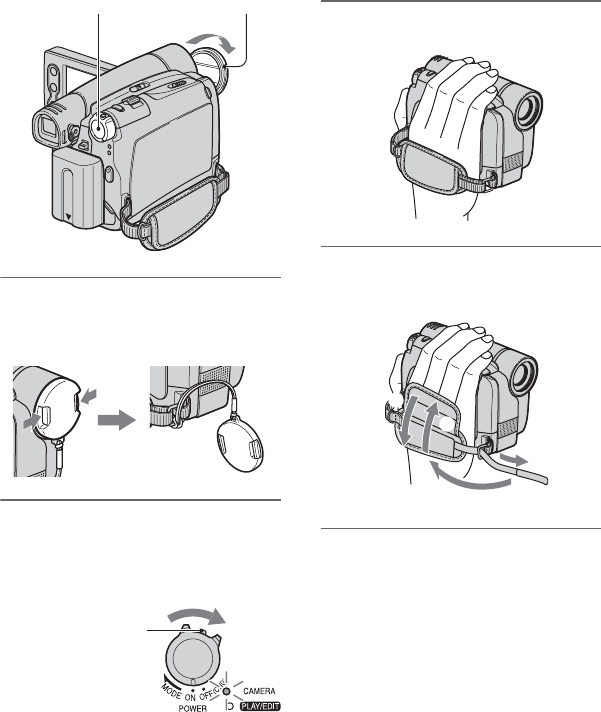
1Remove the lens cap by pressing
both knobs on the sides of the
cap.
2Slide the POWER switch
repeatedly in the direction of the
arrow to turn on the respective
lamp.
Lamps that light up
CAMERA: To record on a tape.
PLAY/EDIT: To play or edit pictures.
• After you have set the date and time
([CLOCK SET], p. 18), the next time you
turn on the power of your camcorder, the
current date and time will be displayed on
the LCD screen for a few seconds.
3Hold the camcorder correctly.
4Ensure a good grip, then fasten
the grip belt.
To turn off the power
1Slide the POWER switch to
OFF(CHG).
2Attach the lens cap.
• At the time of purchase, the power will be set to
turn off automatically if you leave your
camcorder without any operation attempted for
approximately 5 minutes, to save battery power
([A.SHUT OFF], p. 50).
POWER switch Lens cap
If the POWER
switch is set to
OFF(CHG), slide it
while pressing the
green button.
2
1
4
3
15
DCR-HC23E/HC24E/HC26E/HC35E
2-659-812-11(1)
Getting Started
E:\SONY\2659812111\01GB02GET_E.fm
Step 4: Adjusting the LCD panel and viewfinder
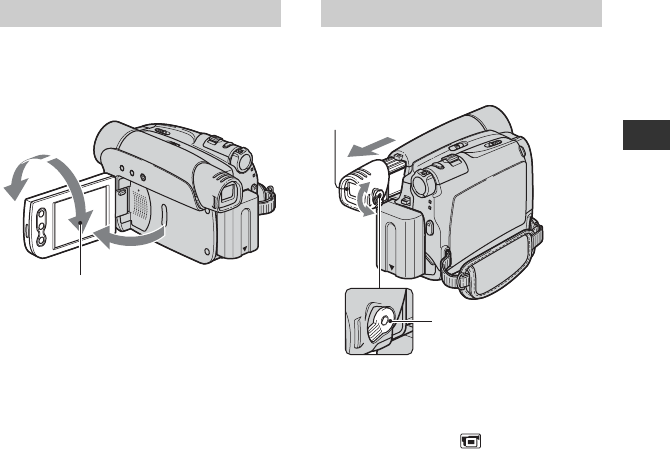
Open the LCD panel 90 degrees to the
camcorder (1), then rotate it to the best
angle to record or play (2).
• Do not press the buttons on the LCD frame
accidentally when you open or adjust the LCD
panel.
• If you rotate the LCD panel 180 degrees to the
lens side, you can close the LCD panel with the
LCD screen facing out. This is convenient
during playback operations.
• See [LCD BRT] (p. 41) to adjust the brightness
of the LCD screen.
You can view pictures using the viewfinder
to avoid wearing down the battery, or when
the picture seen on the LCD screen is poor.
• You can adjust the brightness of the viewfinder
backlight by selecting (LCD/VF SET) -
[VF B.L.] (p. 47).
• You can adjust the [FADER] and the
[EXPOSURE] setting using the viewfinder
(p. 39).
The LCD panel
2
1
180 degrees
(max.)
90 degrees
(max.)
90 degrees to the
camcorder
The viewfinder
Viewfinder lens
adjustment lever
Move it until the picture is
clear.
Viewfinder
16
DCR-HC23E/HC24E/HC26E/HC35E
2-659-812-11(1)
E:\SONY\2659812111\01GB02GET_E.fm
Step 5: Using the touch panel
You can play back recorded pictures
(p. 23), or change the settings (p. 36) using
the touch panel.
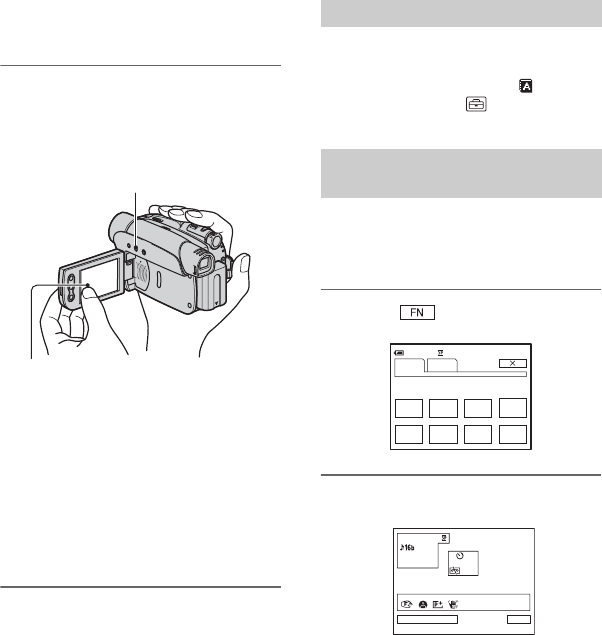
Place your hand on the rear side of
the LCD panel to support it. Then,
touch the buttons displayed on the
screen.
• Perform the same actions as explained above
when you press the buttons on the LCD frame.
• Be careful not to press buttons on the LCD
frame accidentally while using the touch panel.
• If the buttons on the touch panel do not work
correctly, adjust the LCD screen
(CALIBRATION) (p. 88).
• Dots in lines may appear on the LCD screen, but
this is not a malfunction. These dots are not
recorded.
To hide the screen indicators
Press DISP/BATT INFO to toggle the
screen indicators (such as time code) on or
off.
You can change the on-screen displays to
show messages in a specified language.
Select the screen language in [
LANGUAGE] on the (SETUP
MENU) (p. 36, 49).
You can easily check the meaning of each
indicator (p. 27) that appears on the LCD
screen.
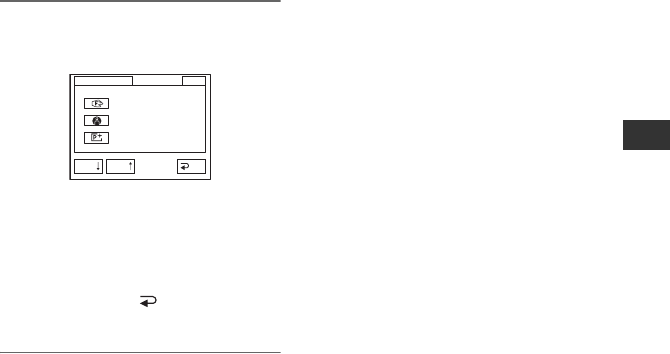
1Touch .
2Touch [DISP GUIDE].
The indicators vary depending on the
settings.
Touch the button on the LCD screen.
DISP/BATT INFO
Changing the language setting
Checking the screen indicators
(Display guide)
SPOT
FOCUS
FOCUS
MENU FADER END
SCH
EXPO–
SURE
SPOT
METER
DISP
GUIDE
PA G E 1 PA G E 2
60min –:––:––
Select area for guide.
DISP GUIDE
END
17
E:\SONY\2659812111\01GB02GET_E.fm
DCR-HC23E/HC24E/HC26E/HC35E
2-659-812-11(1)
Getting Started
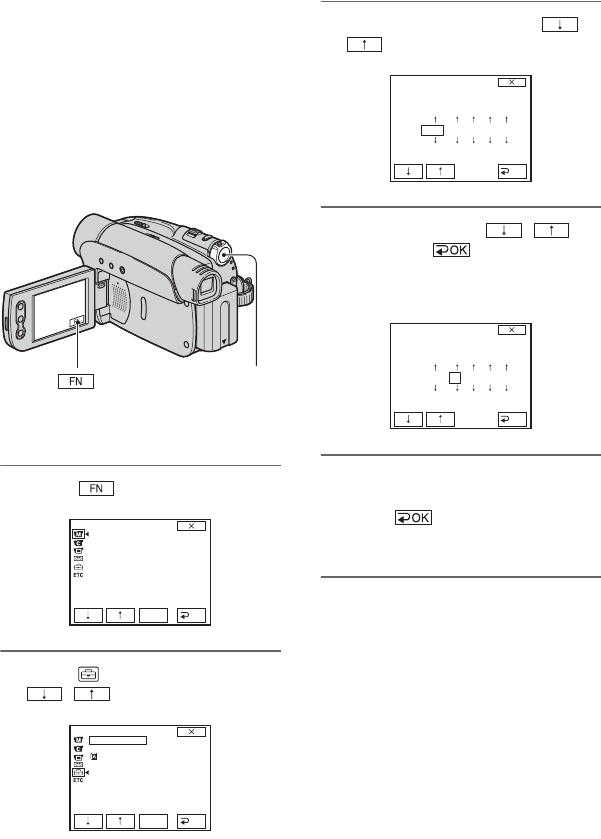
3Touch the area including the
indicator that you want to check.
The meanings of the indicators in the
area are listed on the screen. If you
cannot find the indicator you want to
check, touch [PAGE r]/[PAGE R] to
toggle.
When you touch [ RET.], the screen
returns to the area selecting display.
To finish the operation
Touch [END].
DISP GUIDE END
FOCUS:
MANUAL
PROGRAM AE:
SPOTLIGHT
P EFFECT:
SEPIA
1/2
RET.PAGEPAGE
18
DCR-HC23E/HC24E/HC26E/HC35E
2-659-812-11(1)
E:\SONY\2659812111\01GB02GET_E.fm
Step 6: Setting the date and time
Set the date and time when using this
camcorder for the first time. If you do not
set the date and time, the [CLOCK SET]
screen appears every time you turn on your
camcorder or change the POWER switch
position.
• If you do not use your camcorder for about 3
months, the built-in rechargeable battery gets
discharged and the date and time settings may
be cleared from the memory. In that case,
charge the rechargeable battery and then set the
date and time again (p. 89).
Skip to step 4 when you set the clock for
the first time.
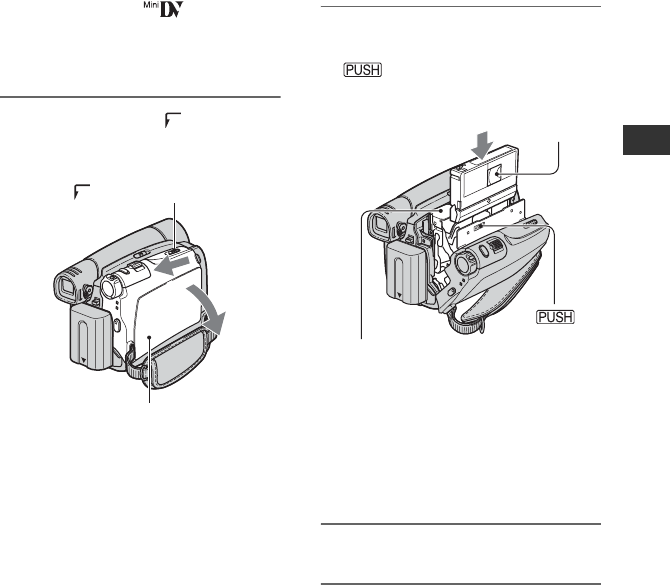
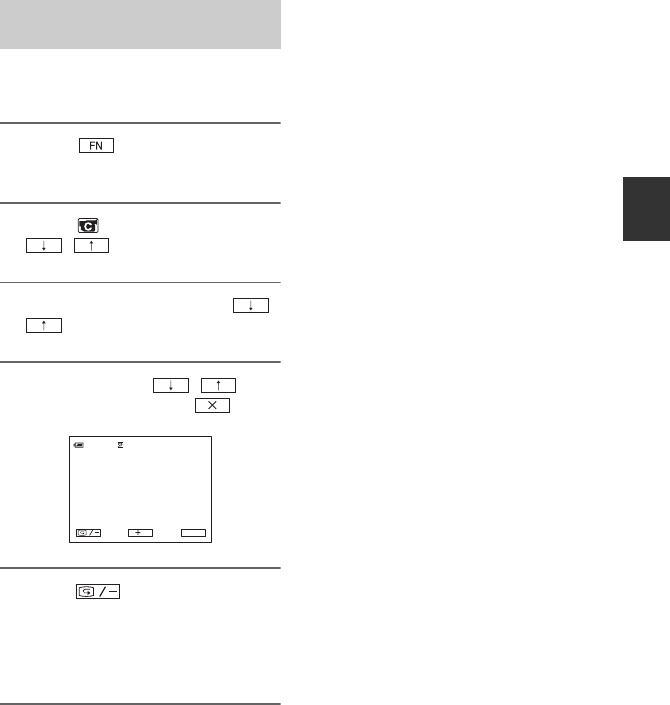
1Touch t [MENU].
2Select (SETUP MENU) with
/ , then touch [EXEC].
3Select [CLOCK SET] with /
, then touch [EXEC].
4Set [Y] (year) with / ,
then touch .
You can set any year up to the year
2079.
5Set [M] (month), [D] (day), [H]
(hour) and [M] (minute), then
touch .
The clock starts.
• The date and time are not displayed while
recording, but they are automatically recorded
as the date and time data to display while
playing back by selecting [DATA CODE] to
[DATE/TIME] (p. 41).
POWER switch
MANUAL SET
PROGRAM AE
P EFFECT
AUTO
SHTR
EXEC
RET.
SETUP MENU
CLOCK SET
USB STREAM
LANGUAGE
DEMO MODE
EXEC
RET.
--
:
--
:
--
CLOCK SET
YMDHM
OK
2006
1
10
:00
CLOCK SET
OK
YMDHM
2006
1
10
:00
19
DCR-HC23E/HC24E/HC26E/HC35E
2-659-812-11(1)
Getting Started
E:\SONY\2659812111\01GB02GET_E.fm
Step 7: Inserting a Cassette
You can use mini DV cassettes only
(p. 83).
• The recordable time varies depending on [REC
MODE] (p. 48).
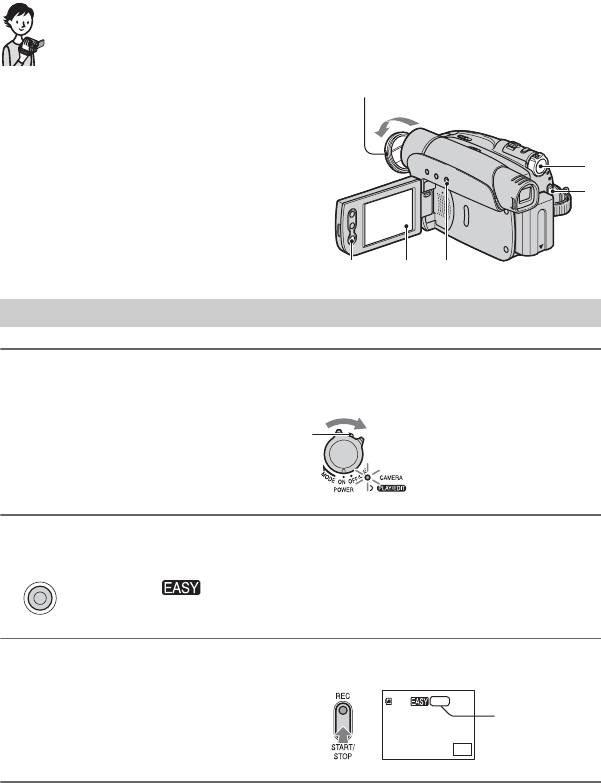
1Slide and hold the OPEN/
EJECT lever in the direction of the
arrow and open the lid.
The cassette compartment automatically
comes out and opens up.
2Insert a cassette with its window
facing outwards, then press
.
The cassette compartment
automatically slides back in.
•Do not force the cassette
compartment closed by pressing the
portion marked while
it is sliding in. It may cause a
malfunction.
3Close the lid.
To eject the cassette
Open the lid following the same procedure
as described in Step 1 and remove the
cassette.
• For DCR-HC35E:
Do not insert/eject the cassette while your
camcorder is on the Handycam Station. This
may cause a malfunction.
OPEN/EJECT lever
Lid
Window
Push the center of the back
of the cassette lightly.
Cassette compartment
{DO NOT PUSH}
20
DCR-HC23E/HC24E/HC26E/HC35E
2-659-812-11(1)
E:\SONY\2659812111\01GB03BAS_E.fm
Recording/Playback
Easy Recording/Playback (Easy Handycam)
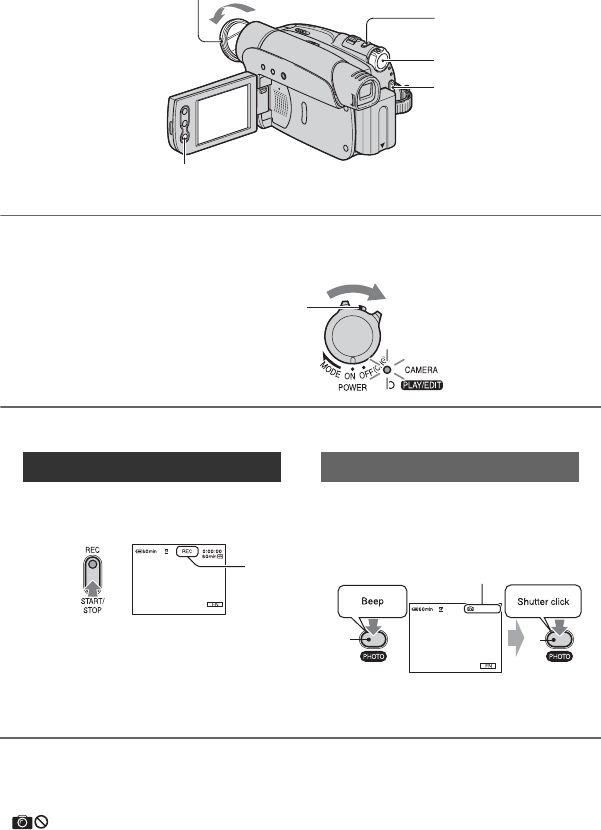
1Slide the POWER switch A in the direction of the arrow repeatedly to turn
on the CAMERA lamp.
2Press EASY C.
3Press REC START/STOP B to start recording.*
*Movies are recorded in SP (Standard Play) mode on a cassette. You can also start/stop recording by
pressing the button E on the LCD frame.
Recording
A
B
ED C
With this Easy Handycam operation, most of
the camera settings are automatically optimally
adjusted, which frees you from detailed
adjustments. The screen font size increases for
easy viewing.
Remove the lens cap (p. 14).
If the POWER switch A is set to OFF(CHG),
slide it while pressing the green button.
EASY
appears on the screen D.
A
0:00:00
REC
FN
60 min
The indicator (A) changes [STBY] to [REC].
To stop recording, press B again.
21
DCR-HC23E/HC24E/HC26E/HC35E
2-659-812-11(1)
Recording/Playback
E:\SONY\2659812111\01GB03BAS_E.fm
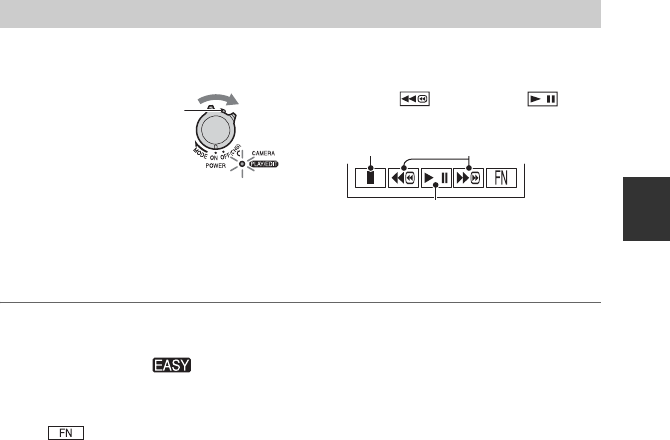
Slide the POWER switch A in the direction of the arrow repeatedly to turn
on the PLAY/EDIT lamp. Touch the buttons on the screen D as follows.
x To cancel Easy Handycam operation
Press EASY C again. disappears from the screen D.
x Adjustable menu settings during Easy Handycam operation
Touch and [MENU] to display adjustable menu settings. See page 36 for details on
setting.
• Almost all the settings return to the default setting automatically (p. 43).
• Cancel Easy Handycam operation if you want to add any effects or settings to the images. Almost all the
settings are returned to the previous situation.
x Unavailable buttons during Easy Handycam
During Easy Handycam operation, the following buttons are unavailable, since the items are
set automatically. [Invalid during Easy Handycam operation.] appears if operations not
available during Easy Handycam are attempted.
• BACK LIGHT button (p. 24)
• PHOTO button (p. 22)
Playback
A
B
C
AStop
BPlay/Pause toggles as you touch it
CRewind/Fast forward
Touch , then touch to
start playback.
If the POWER switch is
set to OFF(CHG), slide it
while pressing the green
button.
22
DCR-HC23E/HC24E/HC26E/HC35E
2-659-812-11(1)
E:\SONY\2659812111\01GB03BAS_E.fm
Recording
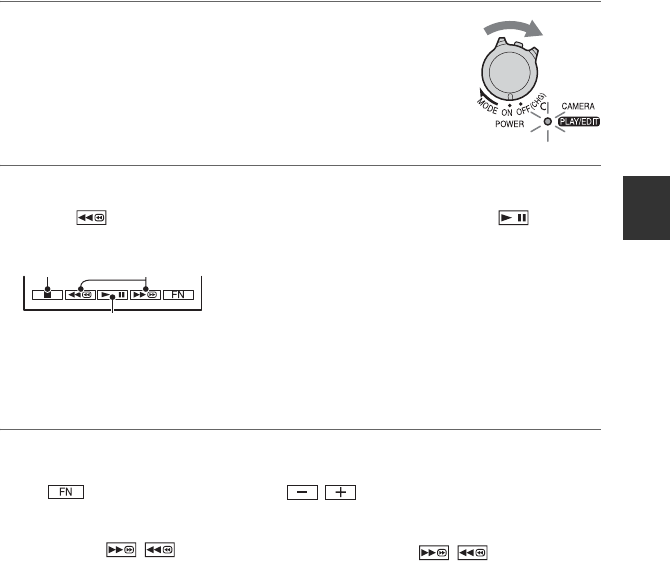
1Slide the POWER switch in the direction of the arrow repeatedly to turn on
the CAMERA lamp.
2Start recording.
To stop movie recording
Press REC START/STOP again.
• appears when the tape photo recording
does not work.
Movies Still images
Press REC START/STOP A (or
B).
The indicator (A) changes [STBY] to
[REC].
Press and hold PHOTO lightly to
check the image (A), then press it
fully (B).
A shutter sound is heard, and the image
is recorded with sound for 7 seconds.
Lens cap
Remove the lens cap by pressing both knobs
on the sides of the cap
PHOTO
REC START/STOP B
POWER switch
REC START/
STOP A
If the POWER switch is set to OFF(CHG),
slide it while pressing the green button.
A
CAPTURE
AB
Indicator appears
23
DCR-HC23E/HC24E/HC26E/HC35E
2-659-812-11(1)
Recording/Playback
E:\SONY\2659812111\01GB03BAS_E.fm
Playback
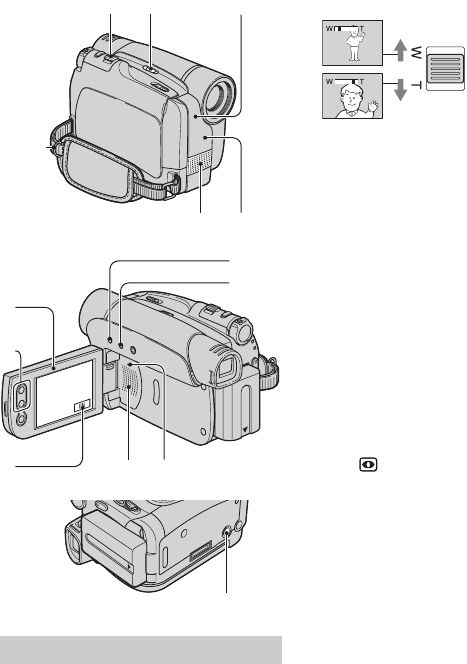
1Slide the POWER switch in the direction of the arrow
repeatedly to turn on the PLAY/EDIT lamp.
2Start playing back.
Touch to rewind the tape to the desired point, then touch to start
playback.
To adjust the volume
Touch t [PAGE1] t [VOL], then / to adjust the volume.
To search for a scene during playback
Touch and hold / during playback (Picture Search), or / while fast
forwarding or rewinding the tape (Skip Scan).
• You can play back in various modes ([V SPD PLAY], p. 42).
A
B
C
AStop
BPlay/Pause toggles as you touch it
• Playback automatically stops if pause is engaged for more than 3 minutes.
CRewind/Fast forward
24
DCR-HC23E/HC24E/HC26E/HC35E
2-659-812-11(1)
E:\SONY\2659812111\01GB03BAS_E.fm
Functions used for recording/playback, etc.
To use zoom...................... 1 qs
Move the power zoom lever 1 slightly for
a slower zoom. Move it further for a faster
zoom.
• You cannot change the zoom speed with the
zoom buttons qs on the LCD frame.
• The minimum possible distance between
camcorder and subject while maintaining sharp
focus is about 1 cm (about 13/32 in.) for wide
angle and about 80 cm (about 2 5/8 feet) for
telephoto.
• You can set [D ZOOM] (p. 45) if you want to
zoom to a level greater than 20 ×.
• Be sure to keep your finger on the power zoom
lever. If you move your finger off the power
zoom lever, the operation sound of the power
zoom lever may also be recorded.
To record in dark places (NightShot
plus) ................................... 2
Set the NIGHTSHOT PLUS switch 2 to
ON. ( and [“NIGHTSHOT PLUS”]
appear.)
• The NightShot plus function uses infrared light.
Therefore, do not cover the infrared port 3
with your fingers or other objects. Remove the
conversion lens (optional) if it is attached.
• Adjust the focus manually ([FOCUS], p. 38)
when it is hard to focus automatically.
• Do not use these functions in bright places. This
may cause a malfunction.
To adjust the exposure for backlit
subjects (BACK LIGHT).............. 7
To adjust the exposure for backlit subjects,
press BACK LIGHT 7 to display .. To
cancel the back light function, press BACK
LIGHT again.
To adjust the focus for an off center
subject (SPOT FOCUS) .............. qa
See [SPOT FOCUS] on page 38.
Recording
12
5
6
4
3
q;
qd
qa
qs
9
7
8
qf
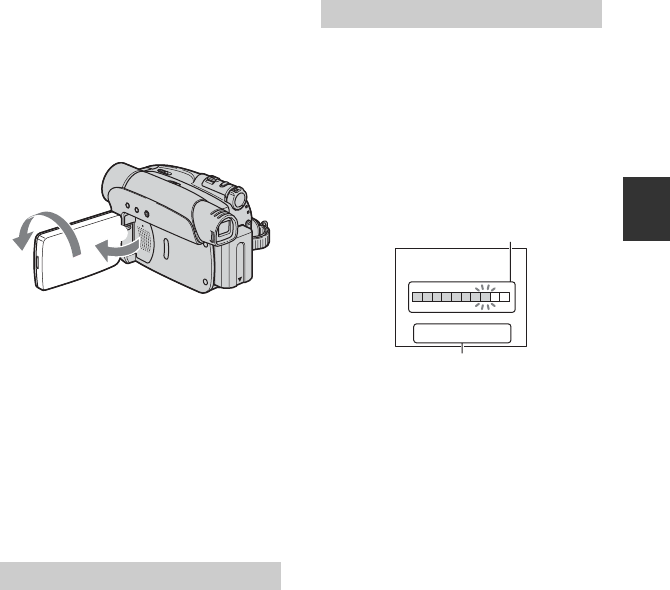
Close view: (Telephoto)
Wider range of view: (Wide angle)
25
E:\SONY\2659812111\01GB03BAS_E.fm
DCR-HC23E/HC24E/HC26E/HC35E
2-659-812-11(1)
Recording/Playback
To fix the exposure for the selected
subject (Flexible spot meter)...... qa
See [SPOT METER] on page 38.
To record in mirror mode .......... qd
Open the LCD panel qd 90 degrees to the
camcorder (1), then rotate it 180 degrees
to the lens side (2).
• A mirror-image of the subject appears on the
LCD screen, but the picture will be normal
when recorded.
To use a tripod....................... qf
Attach the tripod (optional: the length of the
screw must be less than 5.5 mm (7/32 in.))
to the tripod receptacle qf using a tripod
screw.
To use a Shoulder Belt ............. 6
Attach the Shoulder Belt (optional) to its
designated hook 6.
To play back the images with added
special effects (Picture effect) .... qa
See [P EFFECT] on page 44.
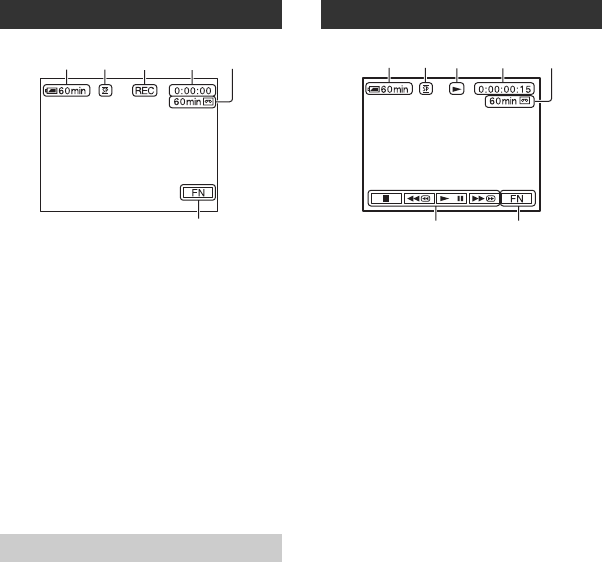
To check the remaining battery
(Battery Info) ......................... 8
Set the POWER switch to OFF(CHG), then
press DISP/BATT INFO 8. The battery
information appears for about 7 seconds.
You can view the battery information for up
to 20 seconds by pressing DISP/BATT
INFO again while the battery information is
displayed.
To turn off the operation confirmation
beep (BEEP) .......................... qa
See [BEEP] on page 50.
To initialize the settings
(RESET)................................ 9
Press RESET 9 to initialize all the
settings, including the setting of the date
and time.
Other part names and functions
DRemote sensor (DCR-HC24E/HC35E)
Point the Remote Commander (p. 30)
towards the remote sensor to operate
your camcorder.
EInternal stereo microphone
JSpeaker
Playback sound comes out from the
speaker.
• For how to adjust the volume, see page 23.
Playback
2
1
Recording/playback
BATTERY INFO
BATTERY CHARGE LEVEL
REC TIME AVAILABLE
LCD SCREEN
VIEWFINDER
:
:
86
99
min
min
0% 50% 100%
Remaining battery (approx.)
Recording capacity (approx.)
26
DCR-HC23E/HC24E/HC26E/HC35E
2-659-812-11(1)
E:\SONY\2659812111\01GB03BAS_E.fm
Indicators displayed during recording/playback
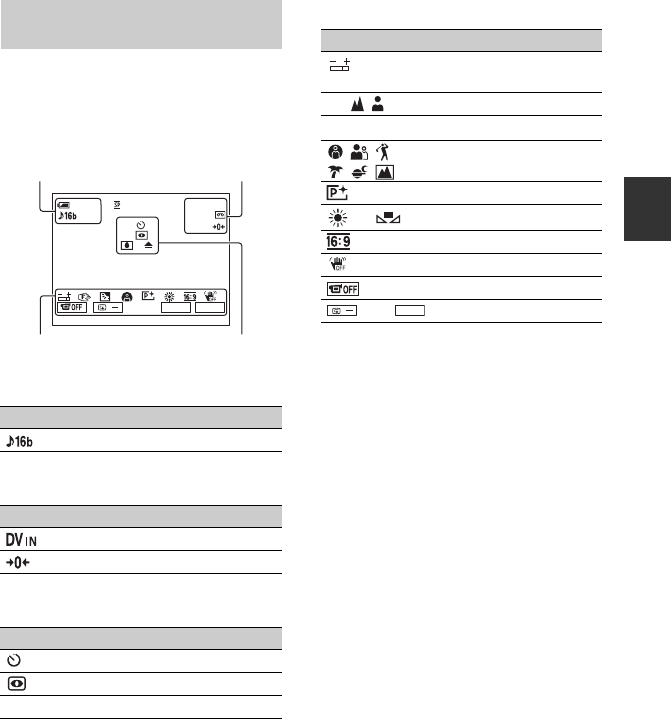
ARemaining battery (approx.)
BRecording mode (SP or LP) (48)
CRecording status ([STBY] (standby) or
[REC] (recording))
DRecording: Tape counter (hour:
minute: second)/Tape photo recording
(22)
Playback: Tape counter (hour: minute:
second)/Time code (hour: minute:
second: frame)
ERecording capacity of the tape (approx.)
(49)
FFunction button (36)
The date/time during recording and the
camera setting data will be recorded
automatically. They do not appear on the
screen during recording, but you can check
them as [DATA CODE] during playback
(p. 41).
GTape transport indicator
HVideo operation buttons (23)
Recording
Data code during recording
123 4 5
6
Viewing
127 4 5
68
27
E:\SONY\2659812111\01GB03BAS_E.fm
DCR-HC23E/HC24E/HC26E/HC35E
2-659-812-11(1)
Recording/Playback
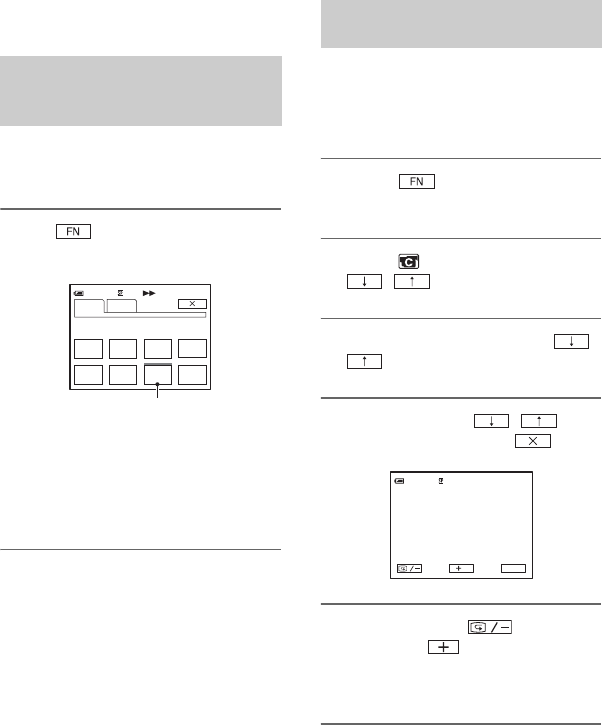
You can use [DISP GUIDE] (p. 16) to
check the function of each indicator that
appears on the LCD screen.
• Some of the indicators may not appear when
you use [DISP GUIDE].
Upper left
Upper right
Center
Bottom
Indicators when you made
changes
Indicator Meaning
AUDIO MODE (48)
Indicator Meaning
DV input (54)
Zero set memory (30)
Indicator Meaning
Self-timer recording (41)
NightShot plus (24)
% ZWarning (80)
0:00:00STBY
FN
+
EDIT
60min
60min
/
Upper left Upper right
Bottom Center
Indicator Meaning
Flexible spot meter (38)/
Manual exposure (40)
9 Manual focus (38)
.Backlight (24)
PROGRAM AE (44)
Picture effect (44)
n White balance (40)
Wide select (46)
SteadyShot off (46)
Panel off (39)
EDITSEARCH (46)
+
EDIT
/
( ) is a reference page.
The indicators during recording will not be recorded.
28
DCR-HC23E/HC24E/HC26E/HC35E
2-659-812-11(1)
E:\SONY\2659812111\01GB03BAS_E.fm
Searching for the starting point
Make sure that the CAMERA lamp
lights up (p. 22).
[END SCH] (END SEARCH) will not
work once you eject the cassette after you
have recorded on the tape.
Touch t [PAGE1], then touch
[END SCH].
The last scene of the most recent
recording is played back for about 5
seconds, and the camcorder enters the
standby mode at the point where the last
recording has finished.
• [END SCH] will not work correctly when
there is a blank section between recorded
sections on the tape.
• This operation is also available when the
POWER switch is set to PLAY/EDIT.
You can search for the start point to start
the next recording while viewing the
pictures on the screen. The sound is not
played back during the search.
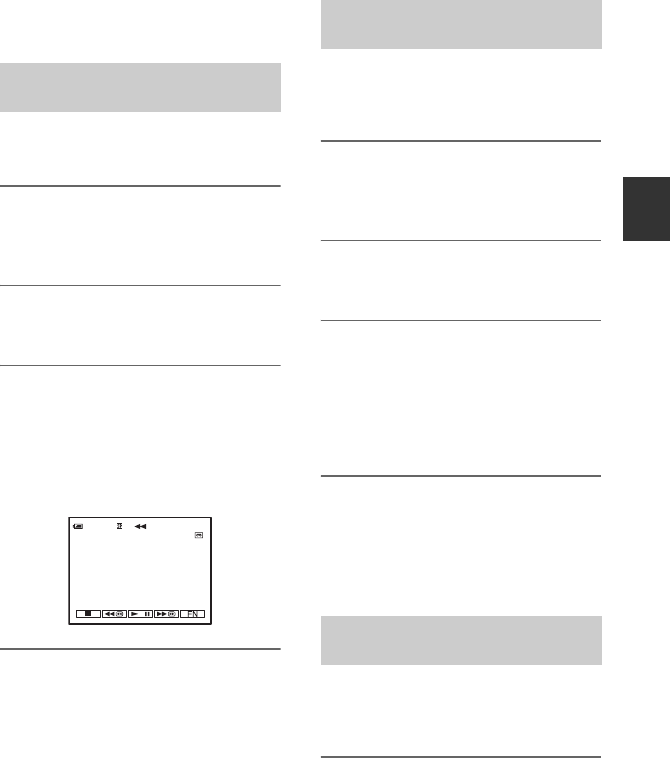
1Touch t [PAGE1] t
[MENU].
2Select (CAMERA SET) with
/ , then touch [EXEC].
3Select [EDITSEARCH] with /
, then touch [EXEC].
4Select [ON] with / ,
then touch [EXEC] t .
5Touch and hold (to go
backward)/ (to go forward)
and release it at the point where
you want the recording to start.
Searching for the last scene of
the most recent recording (END
SEARCH)
0:00:00
SPOT
FOCUS
FOCUS
MENU FADER END
SCH
EXPO–
SURE
SPOT
METER
DISP
GUIDE
PA G E 1 PA G E 2
60min
Touch here again to cancel the operation.
Searching manually
(EDIT SEARCH)
0:00:00STBY60min
EDIT FN
29
E:\SONY\2659812111\01GB03BAS_E.fm
DCR-HC23E/HC24E/HC26E/HC35E
2-659-812-11(1)
Recording/Playback
You can view a few seconds of the scene
recorded just before you stopped the tape.
1Touch t [PAGE1] t
[MENU].
2Select (CAMERA SET) with
/ , then touch [EXEC].
3Select [EDITSEARCH] with /
, then touch [EXEC].
4Select [ON] with / ,
then touch [EXEC] t .
5Touch .
The last few seconds of the most
recently recorded scene are played back.
Then, your camcorder is set to the
standby.
Reviewing the most recently
recorded scenes (Rec review)
0:00:00STBY60min
EDIT FN
30
DCR-HC23E/HC24E/HC26E/HC35E
2-659-812-11(1)
E:\SONY\2659812111\01GB03BAS_E.fm
Remote Commander (DCR-HC24E/HC35E)
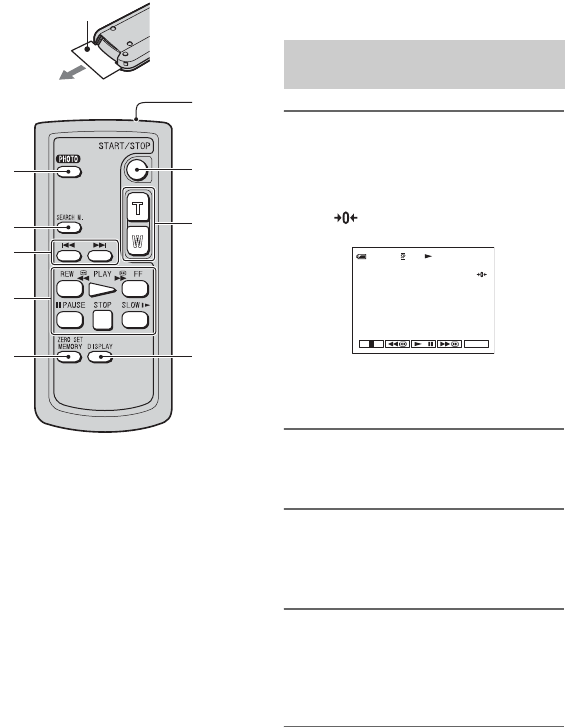
Remove the insulation sheet before using
the Remote Commander.
APHOTO* (p. 22)
The on-screen image when you press this
button will be recorded as a still image.
BSEARCH M.* (p. 31)
C. >*
DVideo control buttons (Rewind,
Playback, Fast-forward, Pause, Stop,
Slow) (p. 23)
EZERO SET MEMORY*
FTransmitter
GREC START/STOP (p. 20, 22)
HPower zoom (p. 24)
IDISPLAY (p. 16)
Press this button to hide the screen indicators.
*These buttons are not available during Easy
Handycam operation.
• Aim the Remote Commander towards the
remote sensor to operate your camcorder
(p. 25).
• To change the battery, see page 89.
1During playback, press ZERO
SET MEMORY 5 at a point you
want to locate later on.
The tape counter is reset to “0:00:00”
and appears on the screen.
If the tape counter is not displayed,
press DISPLAY 9.
2Press STOP 4 when you want to
stop playback.
3Press mREW 4.
The tape stops automatically when the
tape counter reaches “0:00:00.”
4Press PLAY 4.
Playback starts from the point
designated “0:00:00” on the tape
counter.
To cancel the operation
Press ZERO SET MEMORY 5 again.
• There may be a discrepancy of several seconds
between the time code and the tape counter.
1
2
3
4
5
6
7
8
9
Insulation sheet
Searching quickly for a desired
scene (Zero set memory)
0:00:0060min
FN
31
E:\SONY\2659812111\01GB03BAS_E.fm
DCR-HC23E/HC24E/HC26E/HC35E
2-659-812-11(1)
Recording/Playback
• Zero set memory will not function correctly if
there is a blank section between recorded
sections on the tape.
You can locate the point where the
recording date changes.
1Slide the POWER switch
repeatedly to turn on the PLAY/
EDIT lamp.
2Press SEARCH M. 2 to select
[DATE SEARCH].
3Press .(previous)/>(next)
3 to select a recording date.
Each time you press . or >, your
camcorder searches for the previous or
next date from the current point on the
tape.
To cancel the operation
Press STOP 4.
• The Date search will not function correctly
when there is a blank section between recorded
sections on the tape.
Your camcorder can search for the still
image automatically, regardless of the
recording date.
1Slide the POWER switch
repeatedly to turn on the PLAY/
EDIT lamp.
2Press SEARCH M. 2 to select
[PHOTO SEARCH].
3Press .(previous)/>(next)
3 to select a photo.
Each time you press . or >, your
camcorder searches for the still image
before or after the current point on the
tape.
To cancel the operation
Press STOP 4.
• The Photo search will not function correctly if
there is a blank section between recorded
sections on the tape.
You can locate still images one after
another and display each image for 5
seconds automatically.
1Slide the POWER switch
repeatedly to turn on the PLAY/
EDIT lamp.
Searching for a scene by date of
recording (Date search)
30min
60min 0:00:00:00
DATE
-
01
SEARCH
Searching for a still image
(Photo search)
Playing back still images in
sequence (Photo scan)
Continued ,
32
E:\SONY\2659812111\01GB03BAS_E.fm
DCR-HC23E/HC24E/HC26E/HC35E
2-659-812-11(1)
2Press SEARCH M. 2 to select
[PHOTO SCAN].
3Press .(previous)/>(next)
3.
To cancel the operation
Press STOP 4.
• The Photo scan will not function correctly if
there is a blank section between recorded
sections on the tape.
Remote Commander (Continued)
33
DCR-HC23E/HC24E/HC26E/HC35E
2-659-812-11(1)
Recording/Playback
E:\SONY\2659812111\01GB03BAS_E.fm
Playing the picture on a TV
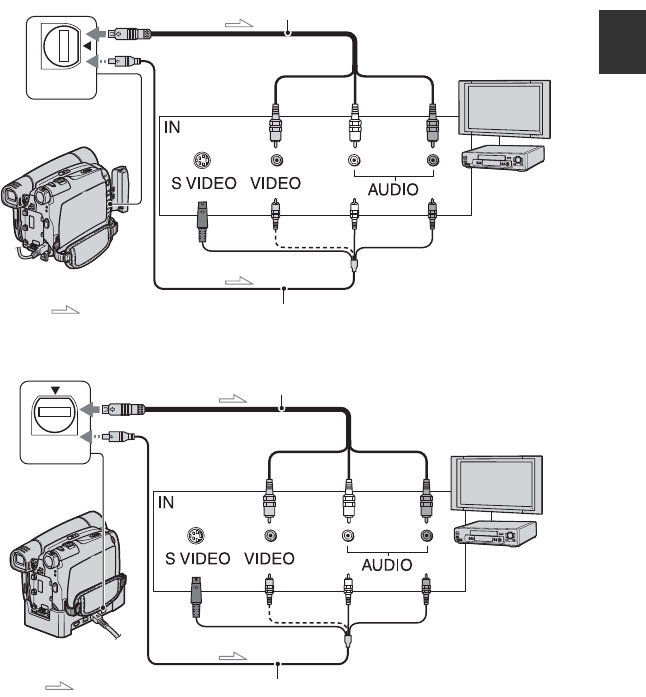
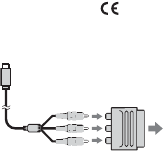
You can connect your camcorder to the input jack of a TV or a VCR using the A/V connecting
cable (1) or the A/V connecting cable with S VIDEO (2). Connect your camcorder to the
wall socket using the supplied AC Adaptor for this operation (p. 9). Refer also to the
instruction manuals supplied with the devices to be connected.
• For DCR-HC35E:
Do not insert/eject the cassette while your camcorder is on the Handycam Station. This may cause a
malfunction.
A/V OUT
2
1
A/V OUT jack (Yellow) (White) (Red)
: Signal flow
VCRs or TVs
D
C
R-H
C
23E/H
C
24E/H
C
26E:
A/V OUT
2
1
A/V OUT jack (Yellow) (White) (Red)
: Signal flow
VCRs or TVs
D
C
R-H
C
35E:
Continued ,
34
E:\SONY\2659812111\01GB03BAS_E.fm
DCR-HC23E/HC24E/HC26E/HC35E
2-659-812-11(1)
AA/V connecting cable (supplied)
For DCR-HC35E:
The Handycam Station and your camcorder
are both equipped with A/V OUT jacks
(p. 57). Connect the A/V connecting cable
either to the Handycam Station or to your
camcorder, depending on your setup.
BA/V connecting cable with S
VIDEO (optional)
When connecting to another device via the S
VIDEO jack, by using the A/V connecting
cable with an S VIDEO cable, pictures can be
reproduced more faithfully than with the
supplied A/V cable connection.
Connect the white and red plugs (left/right
audio) and S VIDEO plug (S VIDEO
channel) of an A/V connecting cable. In this
case, the yellow (standard video) plug
connection is not necessary. S VIDEO
connection only will not output audio.
• You can display the time code on the TV screen
by setting [DISP OUT] to [V-OUT/LCD]
(p. 50).
• For DCR-HC35E:
Do not connect A/V connecting cable to both
the Handycam Station and your camcorder at
the same time, as image disturbance may occur.
When connecting your camcorder to a
TV through a VCR
Connect your camcorder to the LINE IN
input on the VCR. Set the input selector on
the VCR to LINE (VIDEO 1, VIDEO 2,
etc.), if the VCR has an input selector.
When your TV is monaural (Only one
audio input jack)
Connect the yellow plug of the A/V
connecting cable to the video input jack and
connect the white (left channel) or the red
(right channel) plug to the audio input jack
of your TV or VCR.
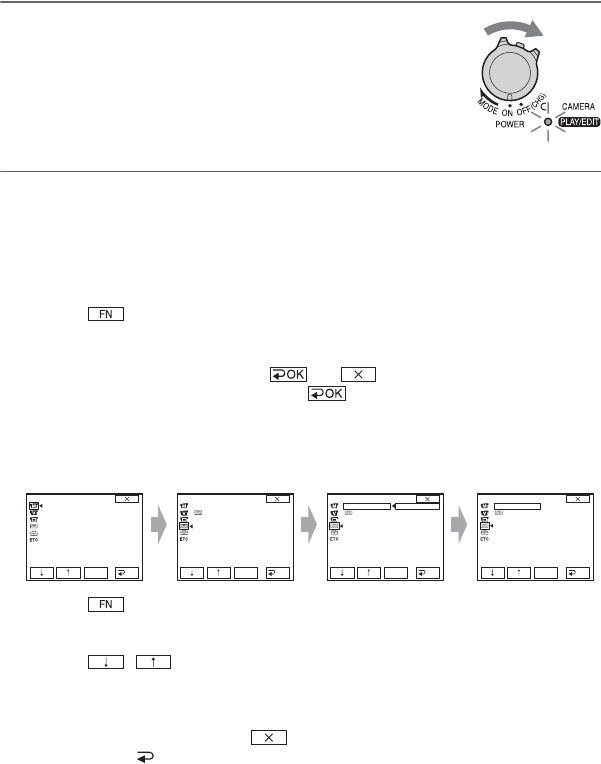
If your TV/VCR has a 21-pin adaptor
(EUROCONNECTOR)
You need the 21-pin adaptor to connect
your camcorder to a TV for viewing
recorded images. This adaptor is designed
for output use only. This output only
adaptor is supplied with the DCR-HC35E
model with the label on the bottom
panel but not with DCR-HC23E/HC24E/
HC26E models.
TV/VCR
Playing the picture on a TV (Continued)

35
DCR-HC23E/HC24E/HC26E/HC35E
2-659-812-11(1)
Recording/Playback
E:\SONY\2659812111\01GB03BAS_E.fm
36
E:\SONY\2659812111\01GB04MEN_E.fm
DCR-HC23E/HC24E/HC26E/HC35E
2-659-812-11(1)
Using the Menu
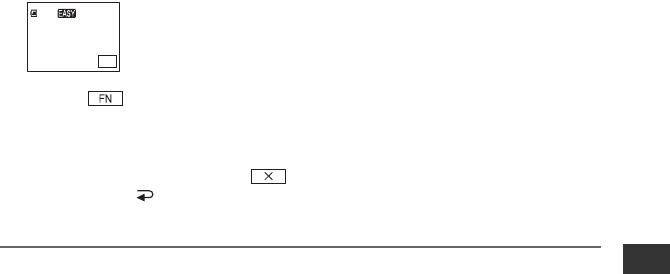
Using the menu items
Follow the instructions below to use each of the menu items listed after this page.
1Slide the POWER switch in the direction of the arrow
repeatedly to turn on the respective lamp.
CAMERA lamp: settings for recording on a tape
PLAY/EDIT lamp: settings for viewing/editing
2Touch the LCD screen to select the menu item.
Unavailable items will be grayed out.
xTo use the operation buttons on PAGE1/PAGE2/PAGE3 during normal
operation
For details of the button items, see page 38.
1Touch .
2Touch the desired page.
3Touch the desired button.
4Select the desired setting, then touch t (Close).
•With some settings, you do not have to touch .
xTo use menu items
For details of the items, see page 44.
1Touch t [MENU] on [PAGE1].
The menu index screen appears.
2Select the desired menu.
Touch / to select the item, then touch [EXEC]. (The process in step 3 and 4
is the same as that in step 2.)
3Select the desired item.
4Customize the item.
After finishing the settings, touch (close) to hide the menu screen.
Each touch of [ RET.] takes you to the previous screen.
1234
MANUAL SET
P EFFECT
EXEC
RET.
TAPE SET
REC MODE
REMAIN
EXEC
RET.
SP
LP
EXEC
RET.
TAPE SET
REC MODE
REMAIN
LP
EXEC
RET.
TAPE SET
REC MODE
REMAIN
37
DCR-HC23E/HC24E/HC26E/HC35E
2-659-812-11(1)
Using the Menu
E:\SONY\2659812111\01GB04MEN_E.fm
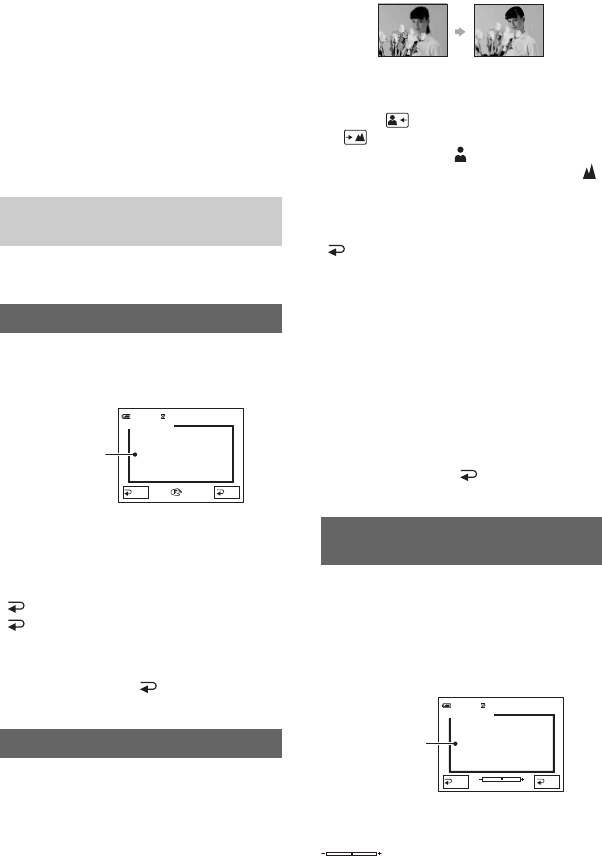
xTo use menu items during Easy Handycam operation
1Touch .
2Select the desired menu.
Touch [MENU] then select the desired menu.
3Change your item setting.
After finishing the settings, touch (close) to hide the menu screen.
Each touch of [ RET.] takes you to the previous screen.
•Cancel Easy Handycam operation to use menu items normally.
0:00:00
STBY
FN
60 min
38
DCR-HC23E/HC24E/HC26E/HC35E
2-659-812-11(1)
E:\SONY\2659812111\01GB04MEN_E.fm
Operation button items
Available operation buttons vary depending
on the position of the lamp and the display
(PAGE).
The default settings are marked with B.
The indicators in parentheses appear when
the items are selected.
The available functions during Easy
Handycam operation are marked with*.
See page 36 for details on selecting
button items.
[PAGE1]
You can select and adjust the focal point to
aim it at a subject not located in the center
of the screen.
Touch the point where you want to focus on
in the frame.
9 appears.
To adjust the focus automatically, touch
[ AUTO] or set [FOCUS] to
[ AUTO].
• If you set [SPOT FOCUS], [FOCUS] is
automatically set to [MANUAL].
• The setting returns to [ AUTO] when you
turn the power off for more than 12 hours.
You can adjust the focus manually. You can
select this function also when you want to
focus on a certain subject intentionally.
1Touch [MANUAL].
9 appears.
2Touch (focusing on close subjects)/
(focusing on distant subjects) to
sharpen the focus. appears when the
focus cannot be adjusted any closer, and
appears when the focus cannot be adjusted
farther away.
To adjust the focus automatically, touch
[ AUTO] in step 1.
• It is easier to focus on the subject by moving the
power zoom lever towards T (telephoto) to
adjust the focus, then towards W (wide angle) to
adjust the zoom for recording. When you want
to record a subject at close range, move the
power zoom lever to W (wide angle), then
adjust the focus.
• The minimum possible distance between
camcorder and subject while maintaining sharp
focus is about 1 cm (about 13/32 in.) for wide
angle and about 80 cm (about 2 5/8 feet) for
telephoto.
• The setting returns to [ AUTO] when you
turn the power off for more than 12 hours.
You can adjust and fix the exposure to the
subject, so that it is recorded in suitable
brightness even when there is strong
contrast between the subject and the
background, such as subjects in the
spotlight on stage.
Touch the point where you want to fix and
adjust the exposure on the screen.
appears.
When the CAMERA lamp lights
up
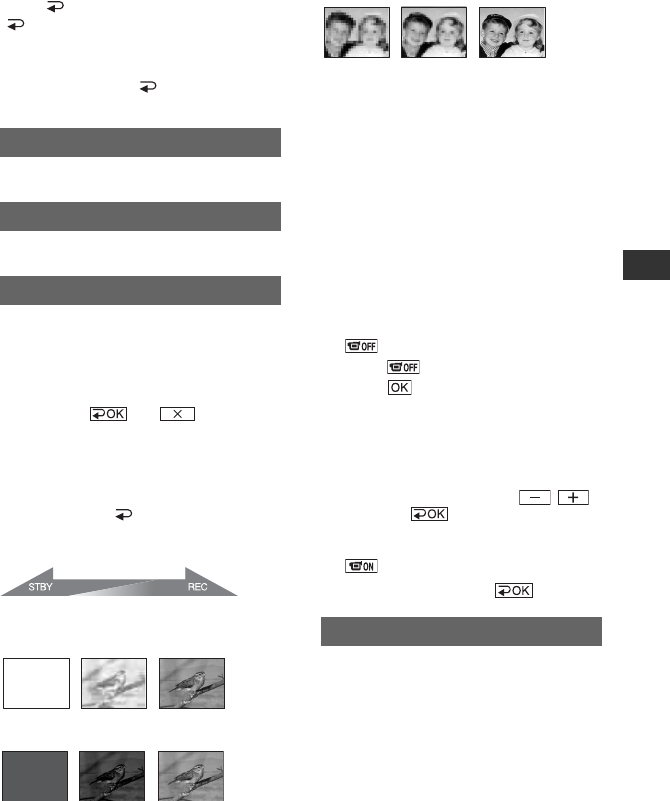
SPOT FOCUS
FOCUS
OK
AUTO
SPOT FOCUS
0:00:00
STBY60min
Touch here
SPOT METER (Flexible spot
meter)
OK
AUTO
SPOT METER
0:00:00
STBY60min
Touch here
39
DCR-HC23E/HC24E/HC26E/HC35E
2-659-812-11(1)
Using the Menu
E:\SONY\2659812111\01GB04MEN_E.fm
To return the setting to automatic exposure,
touch [ AUTO] or set [EXPOSURE] to
[ AUTO].
• If you set [SPOT METER], [EXPOSURE] is
automatically set to [MANUAL].
• The setting returns to [ AUTO] when you
turn the power off for more than 12 hours.
See page 16.
See page 43.
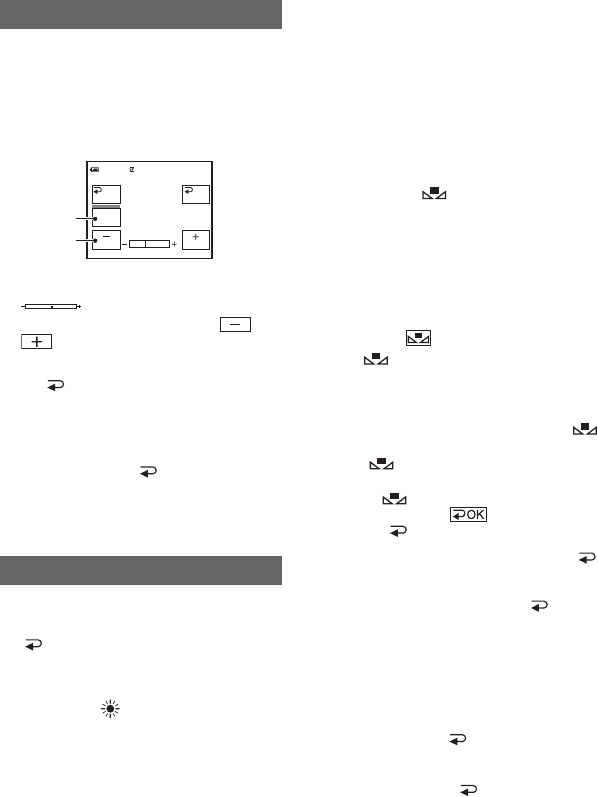
You can add the following effects to
currently recording pictures.
1Select the desired effect in standby mode
(to fade in) or recording mode (to fade out),
then touch t .
2Press REC START/STOP.
The fader indicator stops flashing and
disappears when the fade is complete.
To cancel [FADER] before starting the
operation, touch [ OFF] in step 1.
• If you press REC START/STOP once, the
setting is canceled.
WHITE
BLACK
MOSC. FADER
MONOTONE
When fading in, the picture gradually
changes from black and white to color.
When fading out, it gradually changes from
color to black and white.
Using the viewfinder
You can adjust [EXPOSURE] and
[FADER] while using the viewfinder by
having the LCD panel rotated 180 degrees
and closed with the screen facing out.
1Make sure that the CAMERA lamp lights
up.
2Close the LCD panel with the screen
facing out.
appears.
3Touch .
4Touch .
The LCD screen is turned off.
5Touch the LCD screen while checking the
display in the viewfinder.
[EXPOSURE], etc. are displayed.
6Touch the button you want to set.
[EXPOSURE]: Adjust with / ,
and touch .
[FADER]: Touch it repeatedly to select a
desired effect.
: The LCD screen lights up.
To hide the buttons, touch .
See page 28.
DISP GUIDE (Display Guide)*
MENU*
FADER
Fading out Fading in
END SCH (END SEARCH)
Continued ,
40
DCR-HC23E/HC24E/HC26E/HC35E
2-659-812-11(1)
E:\SONY\2659812111\01GB04MEN_E.fm
You can fix the brightness of a picture
manually. When recording indoors on a
clear day, for instance, you can avoid
backlight shadows on people next to the
window by fixing the exposure to that of
the wall side of the room.
1Touch [MANUAL].
appears.
2Adjust the exposure by touching /
.
To return the setting to automatic exposure,
touch [ AUTO].
• You can adjust [EXPOSURE] and [FADER]
while using the viewfinder by having the LCD
panel rotated 180 degrees and closed with the
screen facing out (p. 39).
• The setting returns to [ AUTO] when you
turn the power off for more than 12 hours.
[PAGE2]
You can adjust the color balance to the
brightness of the recording environment.
B AUTO
The white balance is adjusted
automatically.
OUTDOOR ( )
The white balance is adjusted to be
appropriate for the following recording
conditions:
– Outdoors
– Night views, neon signs and fireworks
– Sunrise or sunset
– Under daylight fluorescent lamps
INDOOR (n)
The white balance is adjusted to be
appropriate for the following recording
conditions:
– Indoors
– At party scenes or studios where the lighting
conditions change quickly
– Under video lamps in a studio, or under
sodium lamps or incandescent-like color
lamps
ONE PUSH ( )
The white balance will be adjusted
according to the ambient light.
1Touch [ONE PUSH].
2Frame a white object such as a piece of
paper, to fill the screen under the same
lighting conditions as you will shoot
the subject.
3Touch .
flashes quickly. When the white
balance has been adjusted and stored in
the memory, the indicator stops
flashing.
•Do not shake your camcorder while
is flashing quickly.
• flashes slowly if white balance
could not be set.
•If keeps flashing even after you
have touched , set [WHT BAL]
to [ AUTO].
• If you have changed the battery pack while [
AUTO] is selected, taken your camcorder
outdoors or brought it indoors after outside use
while using fixed exposure, select [ AUTO]
and aim your camcorder at a nearby white
object for about 10 seconds for better color
balance adjustment.
• Redo the [ONE PUSH] procedure if you change
the [PROGRAM AE] settings, or bring your
camcorder outdoors from inside the house, or
vice versa.
• Set [WHT BAL] to [ AUTO] or [ONE
PUSH] under white or cool white fluorescent
lamps.
• The setting returns to [ AUTO] when you
turn the power off for more than 12 hours.
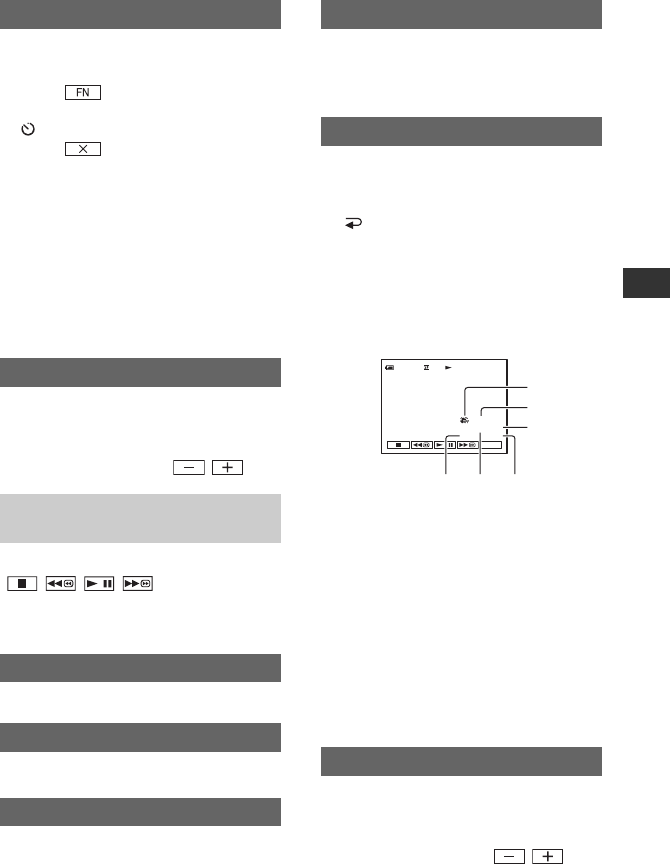
EXPOSURE
WHT BAL (White balance)
AUTO
MANU–
AL
EXPOSURE
OK
0:00:00STBY60min
1
2
Operation button items (Continued)
41
DCR-HC23E/HC24E/HC26E/HC35E
2-659-812-11(1)
Using the Menu
E:\SONY\2659812111\01GB04MEN_E.fm
The self-timer starts recording after about
10 seconds.
1Touch t [PAGE2] t [SELF
TIMER].
appears.
2Touch .
3Press REC START/STOP to record
movies, or PHOTO to record still images.
To cancel the count down during recording
movies, press REC START/STOP.
To cancel [SELF TIMER], redo step 1.
• For DCR-HC24E/HC35E:
You can also set the self-timer with the REC
START/STOP button or PHOTO button of the
Remote Commander (p. 30).
You can adjust the brightness of the LCD
screen. The recorded picture will not be
affected by this operation.
Adjust the brightness with / .
You can use the video operation buttons
( / / / ) on every PAGE.
[PAGE1]
See page 43.
See page 23.
See page 28.
See page 16.
[PAGE2]
During playback, displays information
(data code) recorded automatically at the
time of recording.
B OFF
Data code is not displayed.
DATE/TIME
Displays the date and time.
CAM DATA (below)
Displays camera setting data.
ASteadyShot off
BExposure
CWhite balance
DGain
EShutter speed
FAperture value
• In the [DATE/TIME] data display, the date and
time are displayed in the same area. If you
record a picture without setting the clock, [-- -- -
---] and [--:--:--] will appear.
• During Easy Handycam operation, you can set
[DATE/TIME] only.
You can adjust the brightness of the LCD
screen. The recorded picture will not be
affected by this operation.
Adjust the brightness with / .
SELF TIMER
LCD BRT (LCD bright)
When the PLAY/EDIT lamp lights
up
MENU*
VOL* (Volume)
END SCH (END SEARCH)
DISP GUIDE (Display Guide)*
DATA CODE*
LCD BRT (LCD bright)
FN
0:00:00:0060min
AWB100
9dBF1. 8
AUTO
1
2
3
456
Continued ,
42
DCR-HC23E/HC24E/HC26E/HC35E
2-659-812-11(1)
E:\SONY\2659812111\01GB04MEN_E.fm
When your camcorder is connected to a
Sony VAIO series personal computer, you
can easily burn the picture recorded on the
tape on a DVD (Direct Access to “Click to
DVD”) (p. 65).
When your camcorder is connected to a
personal computer, you can easily burn the
picture recorded on the tape on a CD-R
(Direct Access to Video CD Burn). See
“First Step Guide” in the supplied CD-
ROM for details (p. 64).
[PAGE3]
You can play back in various modes while
viewing movies.
1Touch the following buttons during
playback.
2Touch [ RET.] t .
To return to the normal playback mode,
touch (Play/Pause) twice (once from
frame playback).
• You will not hear the recorded sound. You may
see mosaic-like images of the previously played
picture.
See page 56.
See page 54.
BURN DVD
BURN VCD
V SPD PLAY
(Various speed playback)
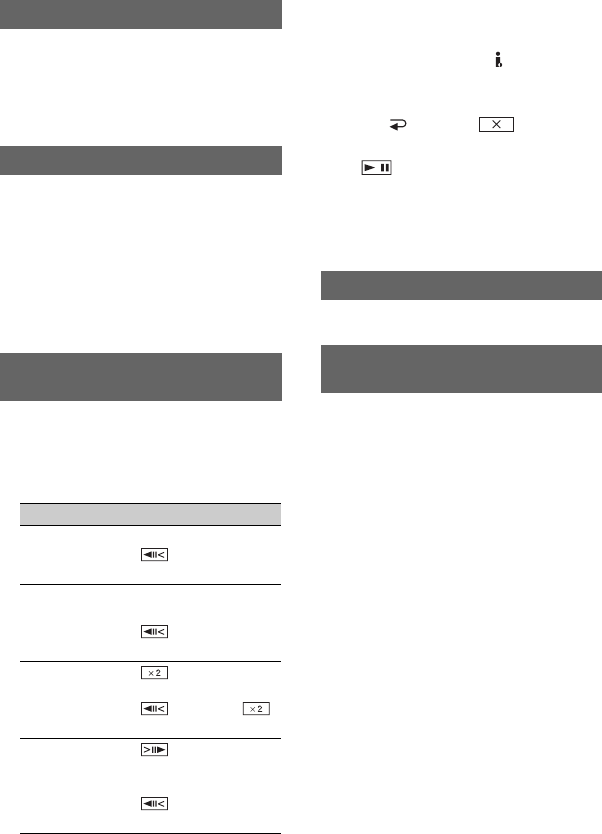
To Touch
change the
playback
direction*
(frame)
play back
slowly**
[ySLOW]
To reverse direction:
(frame) t
[ySLOW]
play back 2
times faster
(double speed)
(double speed)
To reverse direction:
(frame) t
(double speed)
play back frame
by frame
(frame) during
playback pause.
To reverse direction:
(frame) during
frame playback.
*Horizontal lines may appear at the top,
bottom, or in the center of the screen. This
is not a malfunction.
**Pictures output from the DV Interface
(i.LINK) cannot be played back smoothly in
slow mode.
A DUB CTRL (Audio dubbing)
REC CTRL (Recording control)
(DCR-HC26E/HC35E)
Operation button items (Continued)
43
E:\SONY\2659812111\01GB04MEN_E.fm
DCR-HC23E/HC24E/HC26E/HC35E
2-659-812-11(1)
Using the Menu
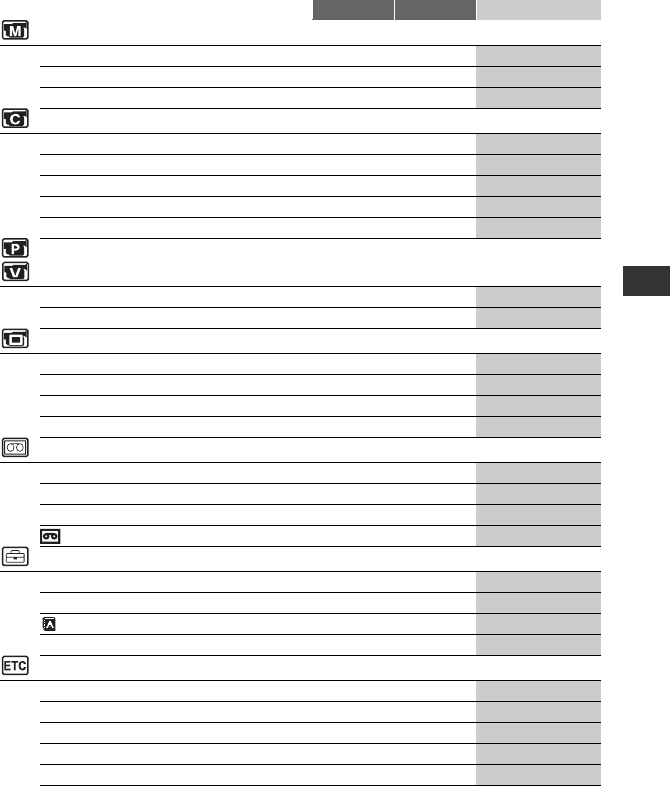
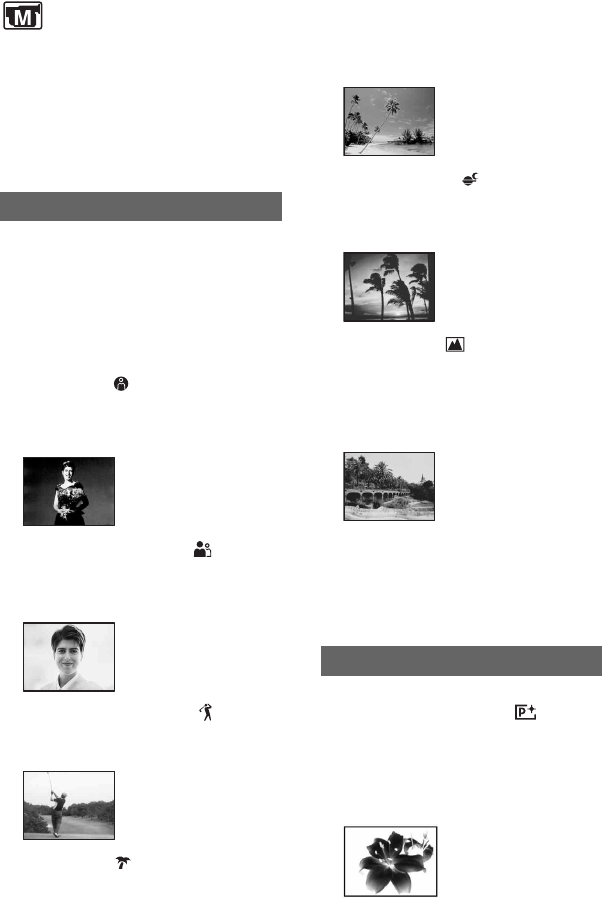
*The value set before Easy Handycam operation will be retained during Easy Handycam operation.
Menu items
• Available menu items (z) vary depending on which lamp is lit.
• During Easy Handycam operation, the following settings are automatically applied (p. 20).
CAMERA PLAY/EDIT Easy Handycam
MANUAL SET menu (p. 44)
PROGRAM AE z–AUTO
P EFFECT zz OFF
AUTO SHTR z–ON
CAMERA SET menu (p. 45)
D ZOOM z–OFF
WIDE SEL z–4:3
STEADYSHOT z–ON
EDITSEARCH z–OFF
N.S.LIGHT z–ON
PLAYER SET (DCR-HC23E/HC24E)/
VCR SET (DCR-HC26E/HC35E) menu (p. 47)
HiFi SOUND – zSTEREO
AUDIO MIX – z–
LCD/VF SET menu (p. 47)
LCD B.L. zz
BRT NORMAL
LCD COLOR zz –
VF B.L. zz
BRT NORMAL
WIDE DISP zz –
TAPE SET menu (p. 48)
REC MODE (DCR-HC23E/HC24E) z–SP
REC MODE (DCR-HC26E/HC35E) zz SP
AUDIO MODE z–12BIT
REMAIN zz AUTO
SETUP MENU menu (p. 49)
CLOCK SET zz z
USB STREAM zz OFF
LANGUAGE zz z
DEMO MODE z–ON
OTHERS menu (p. 50)
WORLD TIME zz –*
BEEP zz z
A.SHUT OFF zz 5min
COMMANDER (DCR-HC24E/HC35E) zz ON
DISP OUT zz LCD
44
DCR-HC23E/HC24E/HC26E/HC35E
2-659-812-11(1)
E:\SONY\2659812111\01GB04MEN_E.fm
MANUAL SET menu
– PROGRAM AE/P EFFECT, etc.
The default settings are marked with B.
The indicators in parentheses appear when
the items are selected.
See page 36 for details on selecting
menu items.
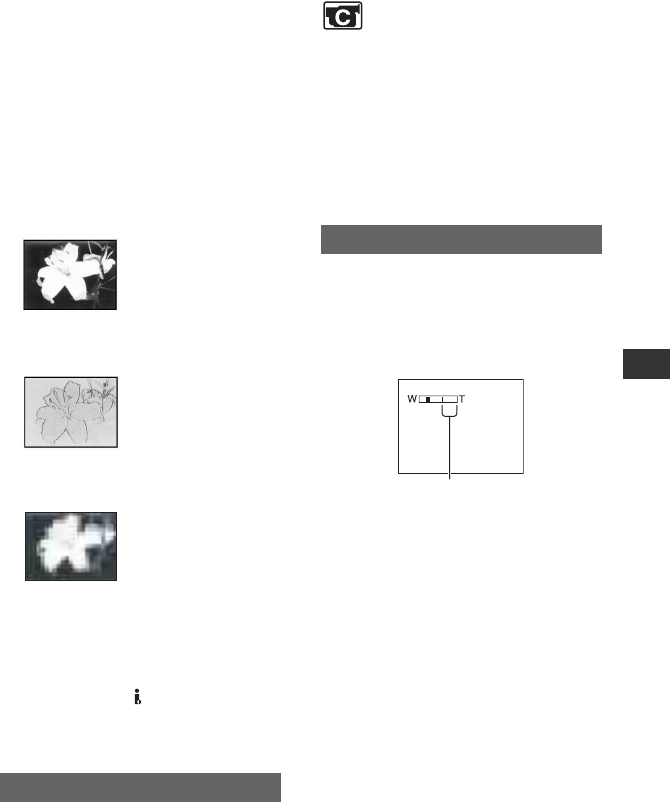
You can record pictures effectively in
various situations with the PROGRAM AE
function.
BAUTO
Select to automatically record pictures
effectively without the [PROGRAM AE]
function.
SPOTLIGHT*( )
Select to prevent people’s faces from
appearing excessively white when subjects
are lit by strong light.
PORTRAIT (Soft portrait) ( )
Select to bring out the subject such as
people or flowers while creating a soft
background.
SPORTS* (Sports lesson) ( )
Select to minimize shake when shooting
fast moving subjects.
BEACH&SKI*( )
Select to prevent people’s faces from
appearing dark in strong light or reflected
light, such as at a beach in midsummer or
on a ski slope.
PROGRAM AE
SUNSETMOON**( )
Select to maintain the atmosphere of
situations such as sunsets, general night
views or fireworks.
LANDSCAPE**( )
Select to shoot distant subjects clearly.
This setting also prevents your camcorder
from focusing on glass or metal mesh in
windows that comes in between the
camcorder and the subject.
• Items with one asterisk (*) can be adjusted
to focus on subjects only a short distance
away. Items with two asterisks (**) can be
adjusted to focus on subjects farther away.
• The setting returns to [AUTO] when you turn
the power off for more than 12 hours.
You can add special effects to a picture
during recording or playback. appears.
BOFF
Does not use [P EFFECT] setting.
NEG.ART
The color and brightness are reversed.
P EFFECT (Picture effect)
45
DCR-HC23E/HC24E/HC26E/HC35E
2-659-812-11(1)
Using the Menu
E:\SONY\2659812111\01GB04MEN_E.fm
SEPIA
Pictures appear in sepia.
B&W
Pictures appear in black and white.
SOLARIZE
Pictures appear as an illustration with
strong contrast.
PASTEL*
Pictures appear as a pale pastel drawing.
MOSAIC*
Pictures appear mosaic-patterned.
• You can record pictures edited with special
effects on another VCR/DVD device, etc.
(p. 51).
• You cannot output playback pictures edited with
picture effects via the DV Interface (i.LINK).
• For DCR-HC26E/HC35E:
You cannot add effects to externally input
pictures.
Automatically activates the electronic
shutter to adjust the shutter speed when
recording in bright conditions if you set it to
[ON] (the default setting).
*Not available during playback.
AUTO SHTR (Auto shutter)
CAMERA SET
menu
– D ZOOM/WIDE SEL/STEADYSHOT, etc.
The default settings are marked with B.
The indicators in parentheses appear when
the items are selected.
See page 36 for details on selecting
menu items.
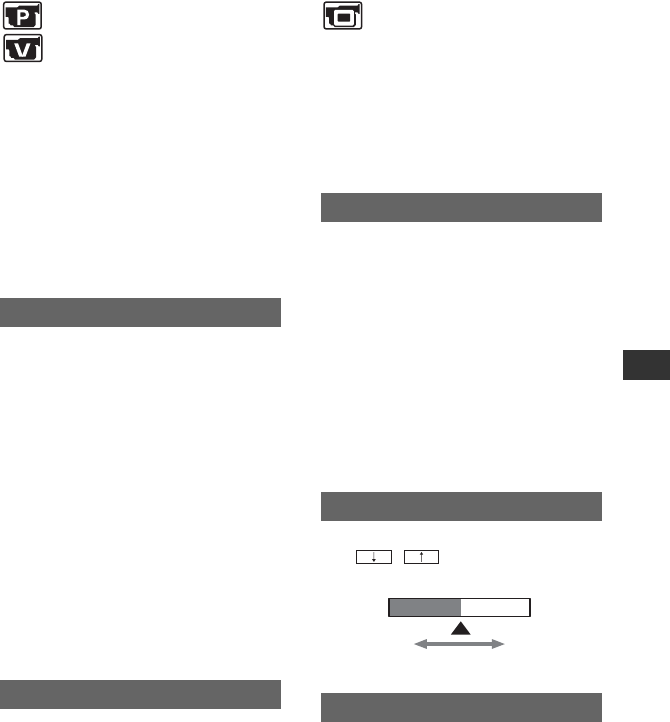
You can select the maximum zoom level in
case you want to zoom to a level greater
than 20 × (the default setting) while
recording on a tape. Note that the image
quality decreases when you are using the
digital zoom.
BOFF
Up to 20 × zoom is performed optically.
40 ×
Up to 20 × zoom is performed optically,
and after that, up to 40 × zoom is
performed digitally.
640 × (DCR-HC23E)
Up to 20 × zoom is performed optically,
and after that, up to 640 × zoom is
performed digitally.
800 × (DCR-HC24E/HC26E/HC35E)
Up to 20 × zoom is performed optically,
and after that, up to 800 × zoom is
performed digitally.
D ZOOM (Digital zoom)
The right side of the bar shows the digital
zooming factor. The zooming zone
appears when you select the zooming
level.
Continued ,
46
DCR-HC23E/HC24E/HC26E/HC35E
2-659-812-11(1)
E:\SONY\2659812111\01GB04MEN_E.fm
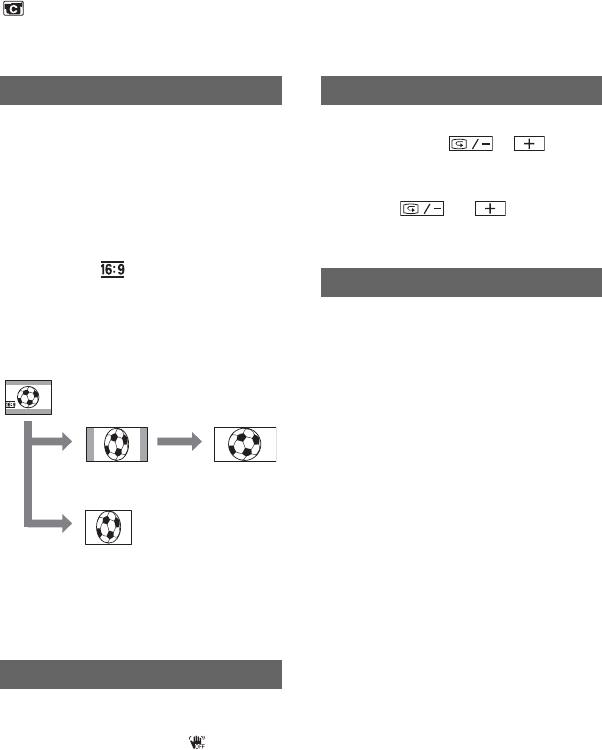
You can record a picture in a ratio suitable
for the screen on which it will be displayed.
Refer also to the operating instructions
supplied with your TV for details.
B4:3
Standard setting (to record pictures to be
played back on a 4:3 TV).
16:9 WIDE ( )
Records pictures to be played back on a
16:9 wide TV in full screen mode.
When viewed on the LCD screen/viewfinder with
[16:9 WIDE] selected.
You can compensate for camera shake (the
default setting is [ON]). Set
[STEADYSHOT] to [OFF] ( ) when
using a tripod (optional) or the conversion
lens (optional), then the image becomes
natural.
BOFF
Does not display or on the
LCD screen.
ON
Displays and on the LCD
screen, and enables the EDIT SEARCH
function and Rec review (p. 28).
When using the NightShot plus (p. 24)
function to record, you can record clearer
pictures by setting [N.S.LIGHT], which
emits infrared light (invisible), to [ON] (the
default setting).
• Do not cover the infrared port with your fingers
or other objects (p. 24).
• Remove the conversion lens (optional) if it is
attached.
• The maximum shooting distance using
[N.S.LIGHT] is about 3 m (10 feet). If you
record subjects in dark places, such as night
scenes or in moonlight, set [N.S.LIGHT] to
[OFF]. You can make the image color deeper
this way.
WIDE SEL (Wide select)
*Picture appears in full screen mode when the
wide-screen TV switches to full mode.
** Played in 4:3 mode. When you play a picture in
the wide mode, it appears as you have seen on
the LCD screen or in the viewfinder.
STEADYSHOT
When viewed on a 16:9 wide
screen TV*
When viewed on a standard
TV**
EDITSEARCH
N.S.LIGHT (NightShot Light)
CAMERA SET menu (Continued)
47
DCR-HC23E/HC24E/HC26E/HC35E
2-659-812-11(1)
Using the Menu
E:\SONY\2659812111\01GB04MEN_E.fm
PLAYER SET/
VCR SET menu
– HiFi SOUND/AUDIO MIX
The PLAYER SET menu is for the DCR-
HC23E/HC24E, and the VCR SET menu is
for the DCR-HC26E/HC35E.
The default settings are marked with B.
The indicators in parentheses appear when
the items are selected.
See page 36 for details on selecting
menu items.
You can select whether to play back audio
recorded using other devices with dual
sound or stereo sound.
BSTEREO
Plays back with main and sub sound (or
stereo sound).
1
Plays back with main sound (or the left
channel sound).
2
Plays back with sub sound (or the right
channel sound).
• You can play back, but cannot record a dual
sound track cassette on your camcorder.
• The setting returns to [STEREO] when you turn
the power off for more than 12 hours.
See page 56.
LCD/VF SET menu
– LCD B.L./LCD COLOR/VF B.L., etc
The default settings are marked with B.
The indicators in parentheses appear when
the items are selected.
See page 36 for details on selecting
menu items.
You can adjust the brightness of the LCD
screen’s backlight. The recorded picture
will not be affected by this operation.
BBRT NORMAL
Standard brightness.
BRIGHT
Brightens the LCD screen.
• When you connect your camcorder to outside
power sources, [BRIGHT] is automatically
selected for the setting.
• When you select [BRIGHT], battery life is
slightly reduced during recording.
You can adjust the color on the LCD screen
with / . The recorded picture
will not be affected by this operation.
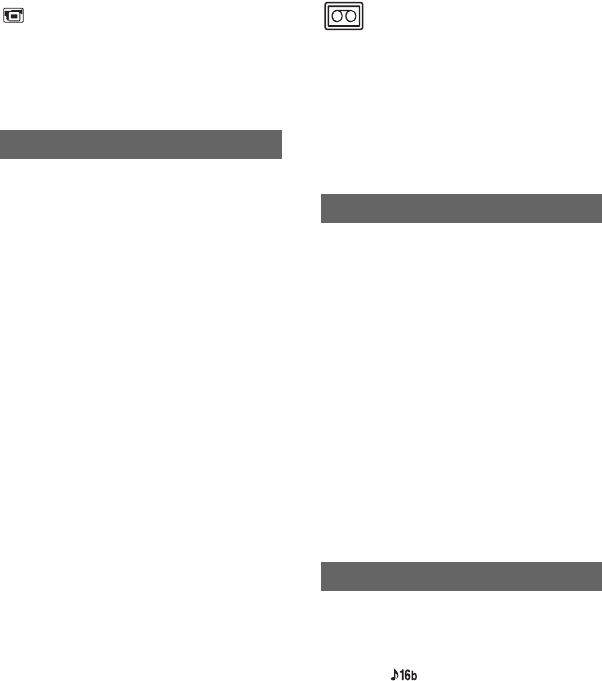
You can adjust the brightness of the
viewfinder. The recorded picture will not be
affected by this operation.
BBRT NORMAL
Standard brightness.
BRIGHT
Brightens the viewfinder screen.
• When you connect your camcorder to outside
power sources, [BRIGHT] is automatically
selected for the setting.
HiFi SOUND
AUDIO MIX
LCD B.L. (LCD back light)
LCD COLOR
VF B.L. (Viewfinder back light)
Low intensity High intensity
Continued ,
48
DCR-HC23E/HC24E/HC26E/HC35E
2-659-812-11(1)
E:\SONY\2659812111\01GB04MEN_E.fm
• When you select [BRIGHT], battery life is
slightly reduced during recording.
You can select how a 16:9 aspect ratio
picture appears in the viewfinder and the
LCD screen by setting [WIDE SEL] to
[16:9 WIDE]. The recorded picture will not
be affected by this operation.
BLETTER BOX
Normal setting (standard type of display)
SQUEEZE
Expands the picture vertically if black
bands at the top and bottom in 16:9 aspect
ratio are undesirable.
WIDE DISP (Wide display)
TAPE SET menu
– REC MODE/AUDIO MODE/REMAIN
The default settings are marked with B.
The indicators in parentheses appear when
the items are selected.
See page 36 for details on selecting
menu items.
BSP (SP)
Records in the SP (Standard Play) mode on
a cassette.
LP (LP)
Increases the recording time to 1.5 times
the SP mode (Long Play).
• You can record about 510 still images in the SP
mode and about 765 still images in the LP mode
on a 60 minutes tape.
• If you record in the LP mode, a mosaic-like
noise may appear or sound may be interrupted
when you play back the tape on other
camcorders or VCRs.
• When you mix recordings in the SP mode and in
the LP mode on one tape, the playback picture
may be distorted or the time code may not be
written properly between the scenes.
B12BIT
Records in the 12-bit mode (2 stereo
sounds).
16BIT ( )
Records in the 16-bit mode (1 stereo sound
with high quality).
REC MODE (Recording mode)
AUDIO MODE
LCD/VF SET menu (Continued)
49
DCR-HC23E/HC24E/HC26E/HC35E
2-659-812-11(1)
Using the Menu
E:\SONY\2659812111\01GB04MEN_E.fm
BAUTO
Displays the remaining tape indicator for
about 8 seconds in situations such as those
described below.
• When you set the POWER switch to PLAY/
EDIT or CAMERA with a cassette inserted.
• When you touch (Play/Pause).
ON
Always displays the remaining tape
indicator.
REMAIN
SETUP MENU
menu
– CLOCK SET/USB STREAM/LANGUAGE,
etc.
The default settings are marked with B.
The indicators in parentheses appear when
the items are selected.
See page 36 for details on selecting
menu items.
See page 18.
You can view the pictures displayed on the
screen of your camcorder on your computer
(USB Streaming) via the USB cable. See
“First Step Guide” in the supplied CD-
ROM for details (p. 64).
You can select the language to be used on
the LCD screen.
• Your camcorder offers [ENG[SIMP]]
(simplified English) for when you cannot find
your native tongue among the options.
The default setting is [ON], allowing you to
view the demonstration in about 10
minutes, after you have removed a cassette
from your camcorder, and slide the
POWER switch repeatedly to turn on the
CAMERA lamp.
• The demonstration will be suspended in
situations such as those described below.
– When you touch the screen during the
demonstration. (The demonstration starts
again after about 10 minutes.)
– When a cassette is inserted.
– When the POWER switch is set to other than
CAMERA.
CLOCK SET
USB STREAM
LANGUAGE
DEMO MODE
50
DCR-HC23E/HC24E/HC26E/HC35E
2-659-812-11(1)
E:\SONY\2659812111\01GB04MEN_E.fm
OTHERS menu
– WORLD TIME/BEEP, etc.
The default settings are marked with B.
The indicators in parentheses appear when
the items are selected.
See page 36 for details on selecting
menu items.
When using your camcorder abroad, you
can set the time difference by touching
/ , the clock will be adjusted in
accordance with the time difference.
If you set the time difference to 0, the clock
returns to the originally set time.
BON
A melody sounds when you start/stop
recording, or operate the touch panel.
OFF
Cancels the melody.
B5min
The camcorder is automatically turned off
when you do not operate your camcorder
for more than approximately 5 minutes.
NEVER
The camcorder is not automatically turned
off.
• When you connect your camcorder to a wall
socket, [A.SHUT OFF] is automatically set to
[NEVER].
The default setting is [ON], allowing you to
use the Remote Commander (p. 30).
• Set to [OFF] to prevent your camcorder from
responding to a command sent by another VCR
remote control unit.
WORLD TIME
BEEP
A.SHUT OFF (Auto shut off)
COMMANDER
(DCR-HC24E/HC35E)
BLCD
Shows displays such as the time code on
the LCD screen and in the viewfinder.
V-OUT/LCD
Shows displays such as the time code on
the TV screen, LCD screen, and in the
viewfinder.
DISP OUT (Display output)
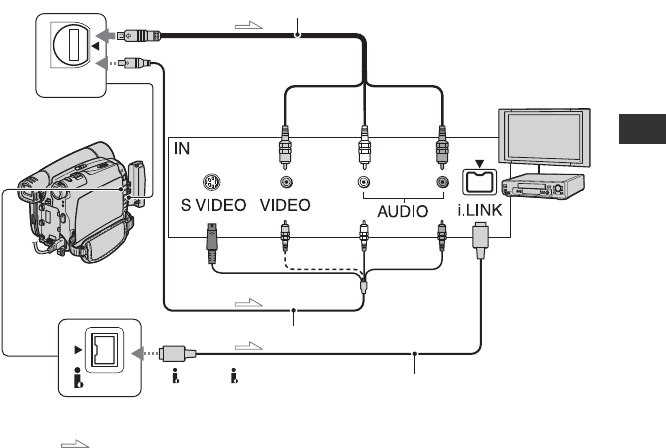
51
E:\SONY\2659812111\01GB05BAS_E.fm
DCR-HC23E/HC24E/HC26E/HC35E
2-659-812-11(1)
Dubbing/Editing
Dubbing/Editing
Dubbing to VCR/DVD device, etc.
You can copy the picture played back on your camcorder to other recording devices (VCR/
DVD device, etc.).
You can connect your camcorder to a VCR/DVD device, etc., using the A/V connecting cable
(1), the A/V connecting cable with S VIDEO (2), or the i.LINK cable (3).
Connect your camcorder to the wall socket using the supplied AC Adaptor for this operation
(p. 9). Refer also to the instruction manuals supplied with the devices to be connected.
• For DCR-HC35E:
Do not insert/eject the cassette while your camcorder is on the Handycam Station. This may cause a
malfunction.
DV
A/V OUT
2
1
3
A/V OUT jack (Yellow) (White) (Red)
: Signal flow
To i.LINK jack
To DV or DV OUT Interface
(i.LINK)
VCR/DVD
device
AUDIO/
VIDEO jacks
D
C
R-H
C
23E/H
C
24E/H
C
26E:
Continued ,
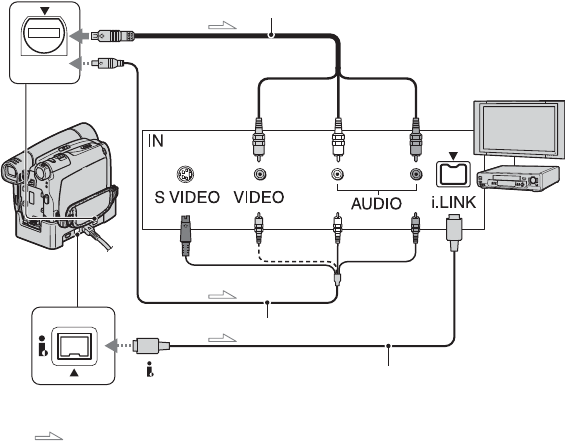
52
DCR-HC23E/HC24E/HC26E/HC35E
2-659-812-11(1)
E:\SONY\2659812111\01GB05BAS_E.fm
AA/V connecting cable (supplied)
For DCR-HC35E:
The Handycam Station and your camcorder
are both equipped with A/V OUT jacks
(p. 57). Connect the A/V connecting cable
either to the Handycam Station or to your
camcorder, depending on your setup.
BA/V connecting cable with S
VIDEO (optional)
When connecting to another device via the S
VIDEO jack, by using the A/V connecting
cable with an S VIDEO cable, pictures can be
reproduced more faithfully than with the
supplied A/V cable connection. Connect the
white and red plugs (left/right audio) and S
VIDEO plug (S VIDEO channel) of an A/V
connecting cable. In this case, the yellow
(standard video) plug connection is not
necessary. S VIDEO connection only will not
output audio.
Ci.LINK cable (optional)
Use an i.LINK cable to connect your
camcorder to another device equipped with an
i.LINK jack. The video and audio signals are
transmitted digitally, producing high quality
pictures and sound. Note that you cannot
output picture and sound separately.
• When you are connecting your camcorder to a
monaural device, connect the yellow plug of the
A/V connecting cable to the video jack, and the
red (right channel) or the white (left channel)
plug to the audio jack on the VCR/TV.
• When you connect a device via an A/V
connecting cable, set [DISP OUT] to [LCD] (the
default setting) (p. 50).
DV
A/V OUT
2
1
3
A/V OUT jack
(Yellow) (White) (Red)
: Signal flow
To i.LINK jack
To DV Interface (i.LINK)
VCR/DVD
device
AUDIO/
VIDEO jacks
D
C
R-H
C
35E:
Dubbing to VCR/DVD device, etc. (Continued)

53
E:\SONY\2659812111\01GB05BAS_E.fm
DCR-HC23E/HC24E/HC26E/HC35E
2-659-812-11(1)
Dubbing/Editing
1Prepare your camcorder for
playback.
Insert the recorded cassette.
Slide the POWER switch repeatedly to
turn on the PLAY/EDIT lamp.
2Prepare your VCR/DVD device for
recording.
When dubbing to the VCR, insert a
cassette for recording.
When dubbing to the DVD recorder,
insert a DVD for recording.
If your recording device has an input
selector, set it to the appropriate input
(such as video input1, video input2).
3Connect your VCR/DVD device to
your camcorder as a recording
device.
Connect your camcorder to the input
jacks of a VCR or a DVD device.
4Start playback on the camcorder,
and recording on the VCR/DVD
device.
Refer to the operating instructions
supplied with your recording device for
details.
5When dubbing is complete, stop
your camcorder and the VCR/DVD
device.
• To record the date/time and camera settings data
when connected by the A/V connecting cable,
display them on the screen (p. 41, 50).
• The following cannot be output via the DV
Interface (i.LINK):
– Indicators
– Pictures edited using [P EFFECT] (p. 44)
• When connected using an i.LINK cable, the
recorded picture becomes rough when a picture
is paused on your camcorder while recording to
a VCR.
• When connected using an i.LINK cable, data
code (date/time/camera settings data) may not
be displayed or recorded depending on the
device or application.
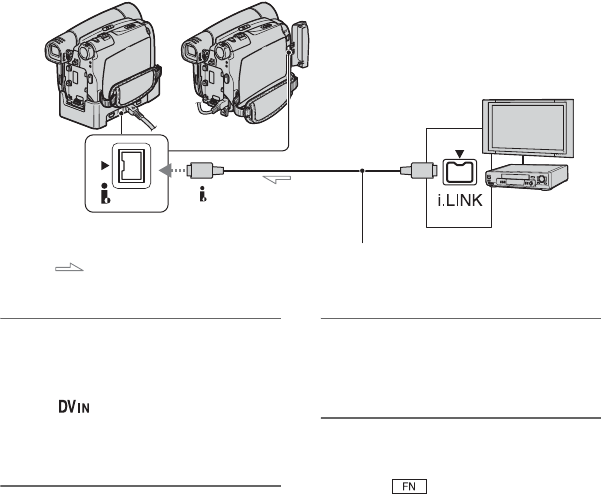
54
E:\SONY\2659812111\01GB05BAS_E.fm
DCR-HC23E/HC24E/HC26E/HC35E
2-659-812-11(1)
Recording pictures from a TV or VCR/DVD
device, etc. (DCR-HC26E/HC35E)
You can record pictures or TV programs from a TV or VCR/DVD device, etc., on a tape.
Be sure to insert a cassette for recording in your camcorder beforehand.
You can connect your camcorder to a TV, VCR/DVD or an i.LINK-compatible device using
the i.LINK cable.
Connect your camcorder to the wall socket using the supplied AC Adaptor for this operation
(p. 9). Refer also to the instruction manuals supplied with the devices to be connected.
1Connect your TV or VCR/DVD
device to your camcorder with an
i.LINK cable.
• The indicator appears when you
connect your camcorder and other devices
via an i.LINK cable. (This indicator may
also appear on the connected device.)
2If you are recording from a VCR/
DVD device, insert a cassette or a
DVD.
3Slide the POWER switch
repeatedly to turn on the PLAY/
EDIT lamp.
4Set your camcorder to recording
pause mode.
Touch t [PAGE3] t [REC
CTRL] t [REC PAUSE].
• You cannot record pictures on your camcorder from a TV or VCR/DVD device that does not have an
i.LINK jack.
• You cannot input picture and sound separately.
• Your camcorder can only record from a PAL source. For example, French system video/broadcasts
(SECAM) will not be recorded correctly. See page 83 for details on TV color systems.
• For DCR-HC35E:
Do not insert/eject the cassette while your camcorder is on the Handycam Station. This may cause a
malfunction.
DV
: Signal flow
To i.LINK jack
To DV Interface (i.LINK) TVs or VCR/
DVD devices
DCR-HC26E
i.LINK cable (optional)
DCR-HC35E
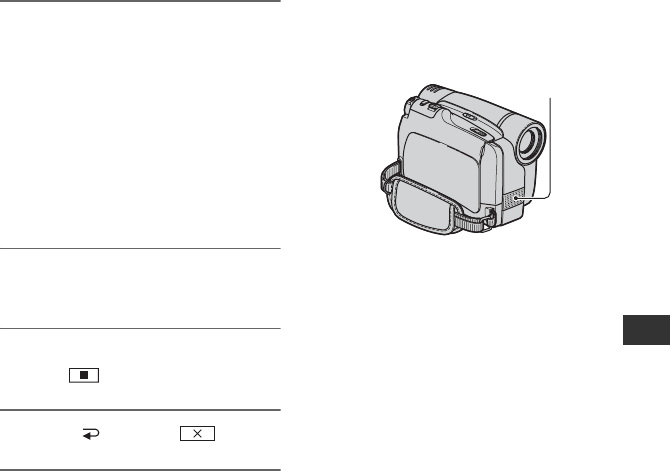
55
DCR-HC23E/HC24E/HC26E/HC35E
2-659-812-11(1)
Dubbing/Editing
E:\SONY\2659812111\01GB05BAS_E.fm
5When recording pictures from a
VCR/DVD device:
Start playing the cassette or the
disc on the VCR/DVD device.
When recording pictures from a
TV:
Select a TV program.
The picture played on the connected
device appears on the LCD screen of
your camcorder.
6Touch [REC START] at the point
you want to start recording.
7Stop recording.
Touch (Stop) or [REC PAUSE].
8Touch [ RET.] t .
Dubbing sound to a
recorded tape
You can add sound to a tape already
recorded in the 12-bit mode (p. 48) without
erasing the original sound.
You can record audio by using the internal
stereo microphone.
• You cannot record additional audio:
– When the tape has been recorded in the 16-bit
mode (p. 48).
– When the tape has been recorded in the LP
mode.
– When your camcorder is connected via an
i.LINK cable.
– When the tape has been recorded in 4CH MIC
mode.
– On blank sections of the tape.
– When the tape has been recorded in a TV
color system other than that of your
camcorder (p. 83).
– When the write-protect tab of the cassette is
set to SAVE (p. 83).
– On sections recorded in HDV format.
• When you add sound, the picture will not be
output from the A/V OUT jack. Check the
picture on the LCD screen or the viewfinder.
• For DCR-HC35E:
Do not insert/eject the cassette while your
camcorder is on the Handycam Station. This
may cause a malfunction.
Internal stereo
microphone
Continued ,
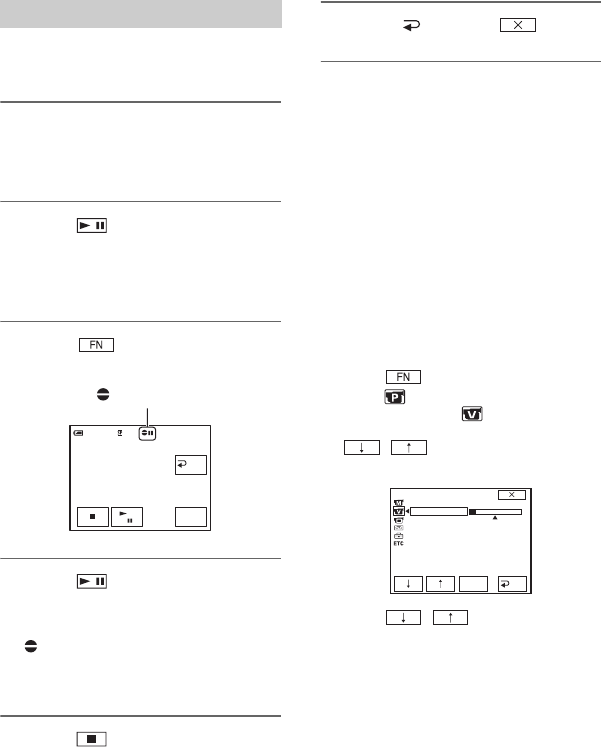
56
DCR-HC23E/HC24E/HC26E/HC35E
2-659-812-11(1)
E:\SONY\2659812111\01GB05BAS_E.fm
Insert a recorded cassette into your
camcorder beforehand.
1Slide the POWER switch
repeatedly to turn on the PLAY/
EDIT lamp.
2Touch (Play/Pause) to play
back the tape, then touch it again
at the point where you want to
start recording the sound.
3Touch t [PAGE3] t [A
DUB CTRL] t [AUDIO DUB].
4Touch (Play) and start
playing back the audio you want
to record at the same time.
appears while recording the new
sound in stereo 2 (ST2) during the
playback of the tape.
5Touch (Stop) when you want
to stop recording.
To dub on other scenes, repeat step 2 to
select scenes, then touch [AUDIO
DUB].
6Touch [ RET.] t .
• You can only record additional audio over a
tape recorded on your camcorder. The sound
may deteriorate when you dub audio on a tape
recorded on other camcorders (including other
camcorders (DCR-HC23E/HC24E/HC26E/
HC35E)).
• For DCR-HC24E/HC35E:
To set the end point for audio dubbing,
beforehand, press ZERO SET MEMORY on the
Remote Commander at the scene at which you
want to stop audio dubbing during playback.
After step 2 to 4, the recording stops
automatically at the selected scene.
To check the recorded sound
1Play back the tape on which you have
recorded audio (p. 23).
2Touch t [PAGE1] t [MENU].
3Select (PLAYER SET) for the DCR-
HC23E/HC24E, or (VCR SET) for
the DCR-HC26E/HC35E, then touch
/ to select [AUDIO MIX],
then touch [EXEC].
4Touch / to adjust the balance
of the original sound (ST1) and the new
sound (ST2), then touch [EXEC].
• The original sound (ST1) is output at the default
setting.
• Audio balance adjustment returns to the default
setting after 12 hours of turning the power off.
Recording sound
RET.
0:00:00:0060min
AUDIO
DUB
0:00:00:0060min
A DUB CTRL
X appears.
ST1 ST2
VCR SET
HiFi SOUND
AUDIO MIX
EXEC
RET.
Dubbing sound to a recorded tape (Continued)
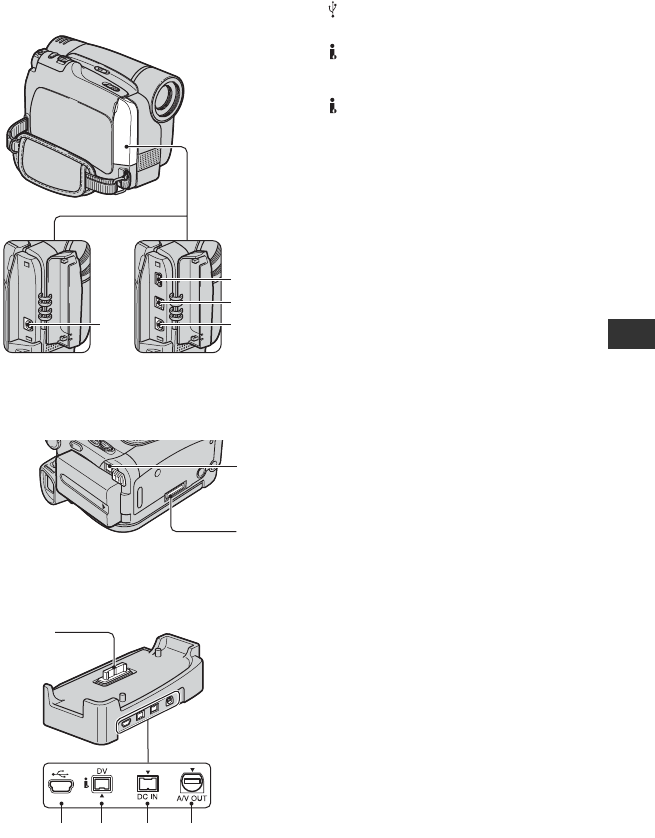
57
E:\SONY\2659812111\01GB05BAS_E.fm
DCR-HC23E/HC24E/HC26E/HC35E
2-659-812-11(1)
Dubbing/Editing
Jacks to connect external devices
Camcorder
Bottom
Handycam Station (DCR-HC35E)
A (USB) jack (p. 58)
BFor DCR-HC23E/HC24E:
DV OUT Interface (i.LINK) (p. 51,
65)
For DCR-HC26E/HC35E:
DV Interface (i.LINK) (p. 51, 54, 65)
CA/V (audio/video) OUT jack (p. 33, 51)
• For DCR-HC35E:
The Handycam Station and your camcorder
are both equipped with A/V OUT jacks.
DDC IN jack (p. 9)
EFor DCR-HC35E:
Interface connector
1
2
3
3
DCR-HC35E DCR-HC23E/
HC24E/HC26E
4
5
1 - 4 ...Open the jack cover.
5
142 3
58
DCR-HC23E/HC24E/HC26E/HC35E
2-659-812-11(1)
E:\SONY\2659812111\01GB06COM_E.fm
Using a Computer
Before referring to the “First Step Guide” on
your computer
When you install the Picture Package
software on a Windows computer from the
supplied CD-ROM, you can enjoy the
following operations by connecting your
camcorder to your computer.
• Software and features available for Macintosh
computers differ from those available for
Windows computers. For details, refer to
chapter 6 of “First Step Guide” on the supplied
CD-ROM. For “First Step Guide,” see page 60.
• There are 2 ways to connect your camcorder to a
computer.
– USB cable
This method is good for copying video and
sound recorded on a tape to the computer. A
USB cable is not supplied with the DCR-
HC23E/HC26E models. If necessary, buy a
USB 2.0 cable (Type A to Type B-mini.). A
Sony product is recommended.
– i.LINK cable
This method is good for copying video and
sound recorded on a tape. Image data is
transferred in more clarity than with a USB
cable.
For details on connection, see “First Step
Guide.”
Viewing video and pictures on PC
You can view the video and still images
copied from your camcorder by selecting
from thumbnails. Video and still images are
saved in folders by date.
Music Video/Slideshow Producer
You can select your favorite video and still
images from video and still images saved
on your computer and easily create an
original short video or original slide show
with added music and visual styles.
Automatic Music Video Producer
You can easily create an original short
video with added music and visual styles
using video recorded on a tape.
Copying tape to Video CD
You can import the entire contents of a tape
to create a video CD.
Save the images on CD-R
You can save video and still images copied
onto a computer to a CD-R.
Burning Video CD
You can compose a video CD with a menu
of videos and slide shows. ImageMixer
VCD2 is compatible with high resolution
still images.
USB Streaming Tool
You can view live or recorded images from
your camcorder on a computer.
Video Capturing Tool
You can import the entire contents of a tape
to a computer.
• The CD-ROM (supplied) includes the following
software:
–USB Driver
– Picture Package Ver.1.5.1
– ImageMixer VCD2
– “First Step Guide”

59
E:\SONY\2659812111\01GB06COM_E.fm
DCR-HC23E/HC24E/HC26E/HC35E
2-659-812-11(1)
Using a Computer
“First Step Guide” is an instruction manual
you can refer to on your computer.
This “First Step Guide” describes basic
operations, from initial hookup of your
camcorder and computer and making
settings, to general operation the first time
you use the software stored on the CD-
ROM (supplied). Install the CD-ROM, read
“Installing the software and “First Step
Guide” on a computer” (p. 60), start the
“First Step Guide,” then follow the
instructions.
The Help guide explains all software
application functions. Refer to the Help
guide for further detailed operations after
reading the “First Step Guide” thoroughly.
To display the Help guide, click the [?]
mark on the screen.
xFor Windows users
When using Picture Package
OS: Microsoft Windows 2000
Professional, Windows Millennium
Edition, Windows XP Home Edition or
Windows XP Professional
Standard installation is required.
Operation is not assured if the above OS
has been upgraded.
CPU: Intel Pentium III 500 MHz or faster
(800 MHz or faster recommended) (For
using ImageMixer VCD2, Intel Pentium
4 1.3 GHz or faster recommended)
Application: DirectX 9.0c or later (This
product is based on DirectX technology.
It is necessary to have DirectX
installed.)
Windows Media Player 7.0 or later
Macromedia Flash Player 6.0 or later
Sound system: 16 bit stereo sound card
and stereo speakers
Memory: 64 MB or more
Hard disk: Available memory required for
installation: 500 MB or more
Available free hard disk space
recommended: 6 GB or more
(depending on the size of the image files
edited)
Display: 4 MB VRAM video card,
Minimum 800 × 600 dots, High Color
(16 bit color, 65,000 colors),
DirectDraw display driver capability
(This product will not operate correctly
at less than 800 × 600 dots, or 256
colors or less.)
Others: USB port (This must be provided
as standard), DV Interface (IEEE1394,
i.LINK) (to connect via an i.LINK
cable), disc drive (You need a CD-R
drive to create a video CD. For the
compatible drive, visit the following
URL: http://www.ppackage.com/)
xFor Macintosh users
When using ImageMixer VCD2
OS: Mac OS X (v10.1.5 or later)
CPU: iMac, eMac, iBook, PowerBook,
Power Mac G3/G4/G5 series
Memory: 128 MB or more
Hard disk: Available memory required for
installation: 250 MB or more
Available free hard disk space
recommended: 4 GB or more
(depending on the size of the image files
edited)
Display: Minimum 1,024 × 768 dots,
32,000 colors (This product will not
operate correctly at 1,024 × 768 dots or
less, or 256 colors or less.)
Application: QuickTime 4 or later
(QuickTime 5 recommended)
Other: Disc drive
About “First Step Guide”
About the help function of the
software
System requirements
Continued ,
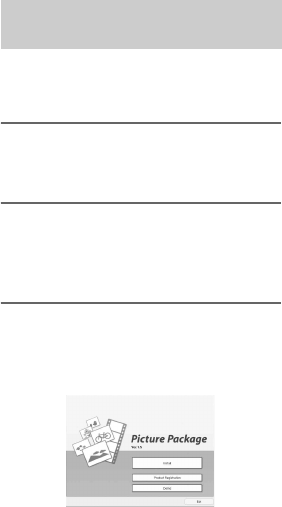
60
DCR-HC23E/HC24E/HC26E/HC35E
2-659-812-11(1)
E:\SONY\2659812111\01GB06COM_E.fm
• When you connect your camcorder to a
Macintosh computer using a USB cable, you
cannot copy pictures recorded on a tape to the
computer. To copy recordings from a tape,
connect your camcorder to the computer with an
i.LINK cable and use the standard software in
the OS.
Installing the
software and “First
Step Guide” on a
computer
You need to install the software etc., with
the supplied CD-ROM on your computer
before connecting your camcorder
and your computer. Once installed, no
further installation will be necessary. The
software to be used varies depending on the
computer’s operating system you are using.
Windows computer: Picture Package
(including ImageMixer VCD2)
Macintosh computer: ImageMixer VCD2
For the details on the software, refer to
“First Step Guide.”
Log on as Administrators for installation
for Windows 2000/Windows XP.
1Confirm that your camcorder is
not connected to the computer.
2Turn on the computer.
Close all applications running on the
computer before installing the software.
3Place the supplied CD-ROM in the
disc drive of your computer.
The installation screen appears.
The software version of Picture Package
is displayed as “1.5.”
If the screen does not appear
Installing on a Windows
computer
Before referring to the “First Step
Guide” on your computer
(Continued)
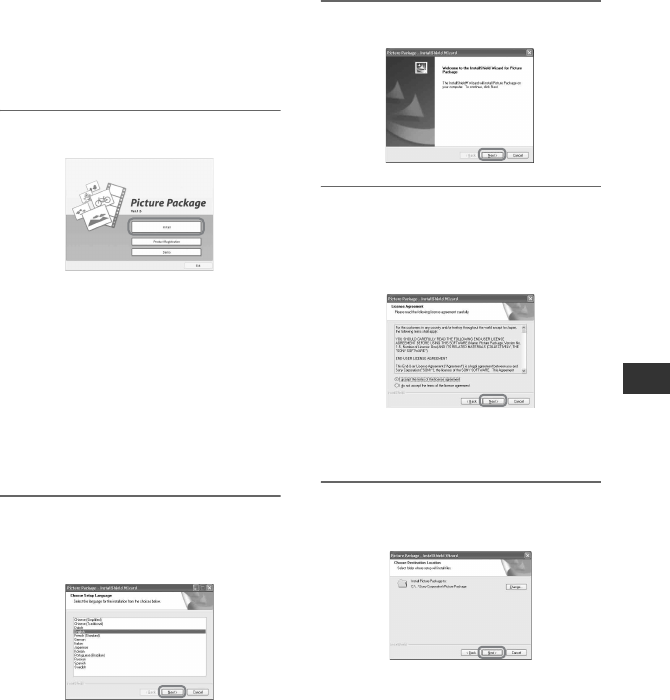
61
E:\SONY\2659812111\01GB06COM_E.fm
DCR-HC23E/HC24E/HC26E/HC35E
2-659-812-11(1)
Using a Computer
1Double-click [My Computer].
2Double-click [PICTUREPACKAGE]
(Disc drive).*
4Click [Install].
The software version of Picture Package
is displayed as “1.5.”
Depending on the computer’s operating
system, a message may appear notifying
you that “First Step Guide” cannot be
installed automatically with the
InstallShield Wizard. In such a case,
manually copy “First Step Guide” to
your computer according to the message
instructions.
5Select the language for the
application to be installed, then
click [Next].
6Click [Next].
7Read [License Agreement], check
[I accept the terms of the license
agreement] if you agree, then
click [Next].
The software version of Picture Package
is displayed as “1.5.”
8Select where to save the
software, then click [Next].
*Drive names (such as (E:)) may vary
depending on the computer.
Continued ,
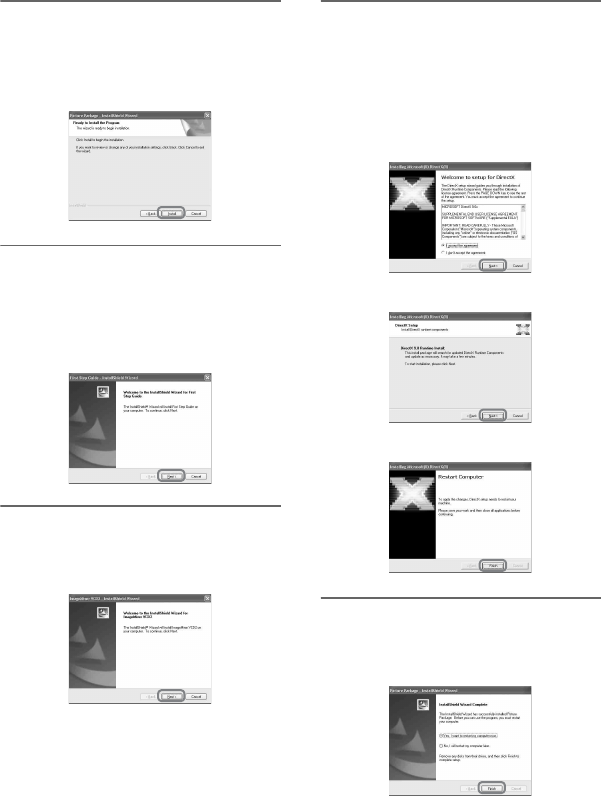
62
E:\SONY\2659812111\01GB06COM_E.fm
DCR-HC23E/HC24E/HC26E/HC35E
2-659-812-11(1)
9Click [Install] on the [Ready to
Install the Program] screen.
The installation of Picture Package
starts.
10Click [Next] to install the “First
Step Guide.”
Depending on the computer, this screen
may not be displayed. In such a case,
skip to step 11.
11Click [Next], then follow the on-
screen instructions to install
ImageMixer VCD2.
12If the [Installing Microsoft(R)
DirectX(R)] screen is displayed,
follow the steps below to install
DirectX 9.0c. If not, skip to step
13.
1Read [License Agreement], then click
[Next].
2Click [Next].
3Click [Finish].
13Make sure [Yes, I want to restart
my computer now.] is checked,
then click [Finish].
Installing the software and “First Step Guide” on a computer (Continued)
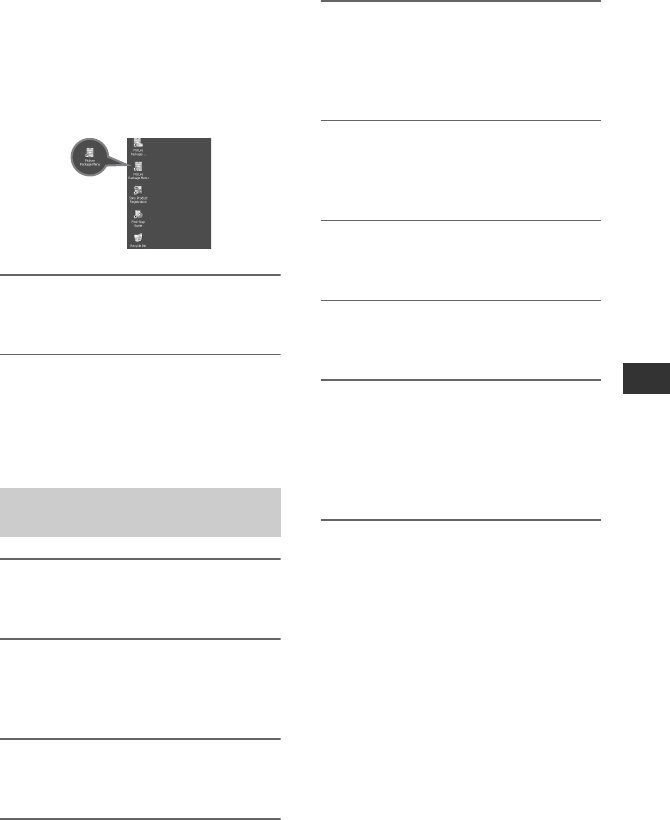
63
E:\SONY\2659812111\01GB06COM_E.fm
DCR-HC23E/HC24E/HC26E/HC35E
2-659-812-11(1)
Using a Computer
The computer turns off once, then starts
up again automatically (Restart). The
short-cut icons for [Picture Package
Menu] and [Picture Package destination
folder] (and “First Step Guide,” if
installed in step 10) appear on the
desktop.
14Remove the CD-ROM from the
disc drive of your computer.
• For details on connecting your camcorder and
computer, see “First Step Guide” on the
supplied CD-ROM (p. 64).
• If you have any questions about Picture
Package, contact information is listed on page
64.
1Confirm that your camcorder is
not connected to the computer.
2Turn on the computer.
Close all applications running on the
computer before installing the software.
3Place the supplied CD-ROM in the
disc drive of your computer.
4Double-click CD-ROM icon.
5Copy “FirstStepGuide.pdf,”
stored in the desired language in
the [FirstStepGuide] folder, to
your computer.
6Copy [IMXINST.SIT] in the [MAC]
folder of the CD-ROM to a folder
of your choice.
7Double-click [IMXINST.SIT] in the
folder it was copied to.
8Double-click the unzipped
[ImageMixerVCD2_Install].
9When the user acceptance screen
is displayed, enter your name and
password.
The installation of ImageMixer VCD2
starts.
• For details on connecting your camcorder and
computer, see “First Step Guide” on the
supplied CD-ROM (p. 64).
• For details on how to use ImageMixer VCD2,
refer to software’s on-line help.
Installing on a Macintosh
computer
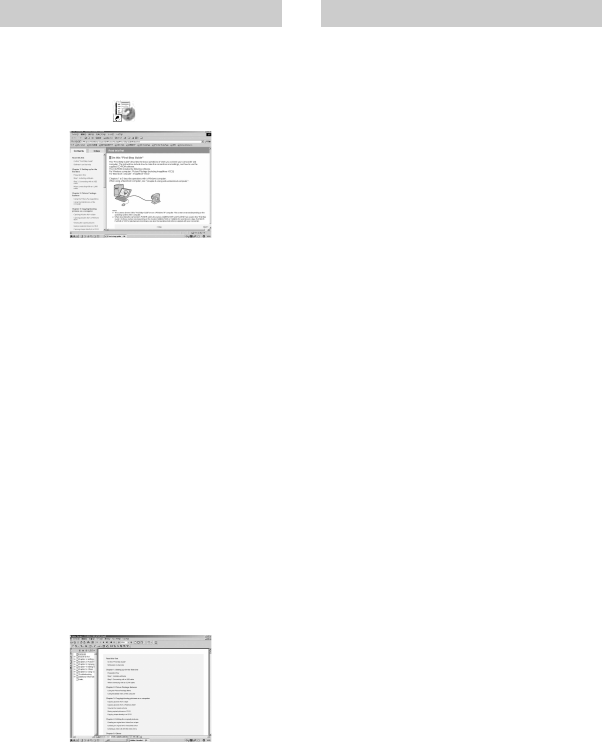
64
DCR-HC23E/HC24E/HC26E/HC35E
2-659-812-11(1)
E:\SONY\2659812111\01GB06COM_E.fm
Viewing “First Step Guide”
Starting up on a Windows computer
Viewing with Microsoft Internet Explorer
Ver.6.0 or later is recommended.
Double-click the icon on the desktop.
You can also start up [First Step Guide]
by selecting [Start], [Programs] ([All
Programs] for Windows XP), [Picture
Package], and [First Step Guide].
• To view “First Step Guide” in HTML
without using automatic installation, copy
the desired language folder from the
[FirstStepGuide] folder on the CD-ROM,
and then double-click “index.html.”
• Refer to “FirstStepGuide.pdf” located in
your desired language folder in the
following cases:
Starting up on a Macintosh computer
Double-click “FirstStepGuide.pdf.”
To view the PDF, Adobe Reader is
needed. If it is not installed on your
computer, you can download it from the
Adobe Systems web page:
http://www.adobe.com/
Pixela User Support Center
Pixela Home Page
Picture Package:
http://www.ppackage.com/
ImageMixer VCD2:
http://www.ImageMixer.com/
– North America (Los Angeles) Telephone:
(Toll-Free) +1-800-458-4029
+1-213-341-0163
– Europe (U.K.) Telephone:
(Toll-Free) UK, Germany, France and
Spain:
+800-1532-4865
Other countries:
+44-1489-564-764
– Asia (Philippines) Telephone:
+63-2-438-0090
On Copyrights
Music works, sound recording or other third
party musical contents you may acquire
from CDs, the Internet or other sources (the
“Music Contents”) are the copyrighted
work of the respective owners thereof and
are protected by copyright laws and other
applicable laws of each country/
region. Except to the extent expressly
permitted by applicable laws, you are not
permitted to use (including, without
limitation, copying, modifying,
reproducing, uploading, transmitting or
placing to the external network accessible
to the public, transferring, distributing,
lending, licensing, selling and publishing)
any of the Music Contents without
obtaining authorization or approval of the
respective owners thereof. License of
Picture Package by Sony Corporation
would not be construed as conferring to you
by implication, estoppel or otherwise, any
license or right to use the Music Contents.
Displaying “First Step Guide”
– When printing “First Step Guide”
– When “First Step Guide” is not displayed
correctly due to the browser setting even
in recommended environment.
– When the HTML version of “First Step
Guide” is not installed automatically.
For inquires about this software
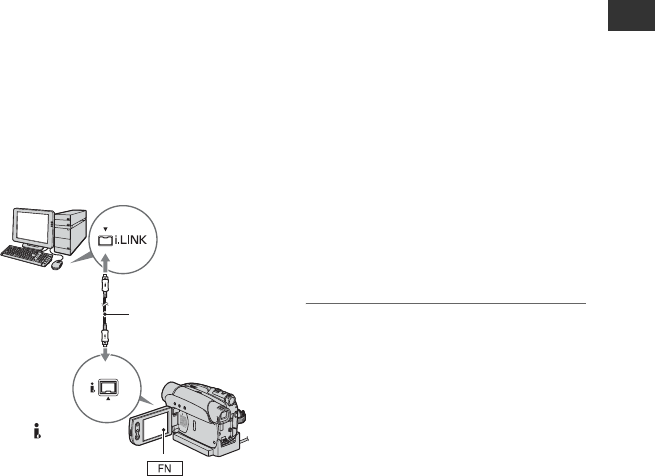
65
DCR-HC23E/HC24E/HC26E/HC35E
2-659-812-11(1)
Using a Computer
E:\SONY\2659812111\01GB06COM_E.fm
Creating a DVD (Direct Access to “Click to
DVD”)
You can create a DVD from a tape with a
Sony VAIO series computer* preinstalled
with “Click to DVD Ver.1.2” (Sony
original software) or later via an i.LINK
cable. The picture is automatically copied
and written to a DVD.
The following procedures describe how to
create a DVD from a recorded tape. For
details on system and operation
requirements, and “Click to DVD,” visit the
following URL:
– Europe
http://www.vaio-link.com/
–USA
http://ciscdb.sel.sony.com/perl/select-p-
n.pl
– Asia Pacific Regional
http://www.css.ap.sony.com/
– Korea
http://scs.sony.co.kr/
–Taiwan
http://vaio-online.sony.com/tw/vaio/
– China
http://www.sonystyle.com.cn/vaio/
– Thailand
http://www.sony.co.th/vaio/index.html
– Latin America
http://www.sony-latin.com/vaio/info/
index.jsp
• You can only use an i.LINK cable for this
operation. You cannot use a USB cable.
• For DCR-HC35E:
Do not insert/eject the cassette while your
camcorder is on the Handycam Station.
This may cause a malfunction.
*Note that you need a computer equipped
with a DVD drive that can write DVDs.
Using the Direct Access to “Click to
DVD” function for the first time
The Direct Access to “Click to DVD”
function enables you to copy pictures
recorded on a tape to a DVD easily if your
camcorder is connected to a computer.
Before operating the Direct Access to
“Click to DVD” function, follow the steps
below to start “Click to DVD Automatic
Mode Launcher.”
1Turn on the computer.
2Click the start menu, then select [All
Programs].
3Select [Click to DVD] from the programs
displayed, then click [Click to DVD
Automatic Mode Launcher].
[Click to DVD Automatic Mode Launcher]
starts up.
• After you start up [Click to DVD
Automatic Mode Launcher] once, from
then on it starts up automatically when
you turn on your computer.
• [Click to DVD Automatic Mode
Launcher] is set up for each Windows XP
user.
1Turn on the computer.
Close all applications running with an
i.LINK.
DV
To i.LINK
connector i.LINK cable
(optional)
To DV Interface
(i.LINK)
Continued ,
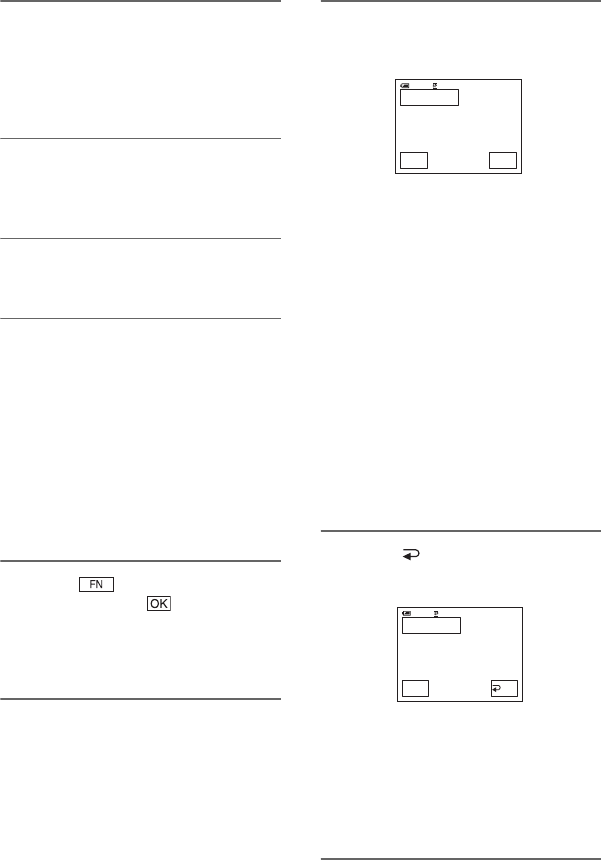
66
E:\SONY\2659812111\01GB06COM_E.fm
DCR-HC23E/HC24E/HC26E/HC35E
2-659-812-11(1)
2Prepare the power source for the
camcorder.
Use the supplied AC Adaptor as the
power source since it takes a few hours
to create a DVD.
3Slide the POWER switch
repeatedly to turn on the PLAY/
EDIT lamp.
4Insert a recorded cassette into
your camcorder.
5Connect your camcorder (DCR-
HC23E/HC24E/HC26E) or the
Handycam Station (DCR-HC35E)
to a computer via an i.LINK cable
(p. 65).
• When you connect your camcorder to a
computer, make sure you insert the
connector in the correct way. If you insert
the connector forcibly, damage may occur
and cause camcorder malfunction.
• For details, see “First Step Guide” (p. 64).
6Touch t [PAGE2] t
[BURN DVD] t .
“Click to DVD” starts up and the on-
screen instructions appear on your
computer.
7Place a writable DVD in the disc
drive of the computer.
8Touch [EXEC] on the screen of
your camcorder.
The status of the operation on your
computer is displayed on the LCD
screen of your camcorder.
[CAPTURING]: The picture recorded
on the tape is being copied to the
computer.
[CONVERTING]: The picture is being
converted to the MPEG2 format.
[WRITING]: The picture is being
written onto the DVD.
• If you use a DVD-RW/+RW which has
other data stored on it, the message [This is
a recorded disc. Delete and overwrite?]
appears on the LCD screen of your
camcorder. When you touch [EXEC], the
existing data is erased and new data is
written.
9Touch [ END] to finish creating
a DVD.
The disc tray comes out automatically.
To create another DVD with the same
content, touch [EXEC].
The disc tray comes out. Place a new
writable DVD in the disc drive. Then,
repeat step 8 and 9.
BURN DVD
START
0:00:00:00
CREATE DVD?
EXEC
CAN-
CEL
60min
BURN DVD
COMPLETED
0:00:00:00
Create another
copy?
Disctray
opens.
EXEC
60min
END
Creating a DVD (Direct Access to “Click to DVD”) (Continued)

67
E:\SONY\2659812111\01GB06COM_E.fm
DCR-HC23E/HC24E/HC26E/HC35E
2-659-812-11(1)
Using a Computer
To cancel the operation
Touch [CANCEL] on the LCD screen on
your camcorder.
• You cannot cancel the operation after
[Finalizing DVD.] is displayed on the LCD
screen of your camcorder.
• Do not disconnect the i.LINK cable or set the
POWER switch to another mode on your
camcorder until the picture is completely copied
to the computer.
• When [CONVERTING] or [WRITING] is
displayed on the screen, capturing of pictures
has already finished. Even if you disconnect the
i.LINK cable or turn off the camcorder at this
stage, DVD creation will continue on your
computer.
• If any of the following occurs, copying of the
picture is canceled. A DVD containing the data
up to the point the operation was canceled is
created. Refer to the help files of “Click to
DVD” for details.
– The tape contains a 10-second blank portion.
– The tape data contains a date before the date
of later images.
– Both normal and wide pictures are recorded
on the same tape (Only for “Click to DVD”
older than Ver.2.2).
• You cannot operate [BURN DVD] in the
following situations:
– While a tape is running.
– When “Click to DVD” is started up from the
computer.
68
DCR-HC23E/HC24E/HC26E/HC35E
2-659-812-11(1)
E:\SONY\2659812111\01GB07TBS_E.fm
Troubleshooting
Troubleshooting
If you run into any problems using your camcorder, use the following table to troubleshoot the
problem. If the problem persists, disconnect the power source and contact your Sony dealer.
The power does not turn on.
• Attach a charged battery pack to the camcorder (p. 9).
• Use the AC Adaptor to connect to a wall socket (p. 9).
• For DCR-HC35E:
Insert your camcorder into the Handycam Station correctly (p. 10).
The camcorder does not operate even when the power is set to on.
• Disconnect the AC Adaptor from the wall socket or remove the battery pack, then reconnect
it after about 1 minute.
• Press the RESET button (p. 25) using a sharp-pointed object. (If you press the RESET button,
all settings are reset.)
Buttons do not work.
• During Easy Handycam operation, not all buttons are functional (p. 21).
You cannot turn Easy Handycam operation on or off.
• During recording or communicating with another device via USB cable, you cannot turn
Easy Handycam operation on or off.
Settings change during Easy Handycam operation.
• During Easy Handycam operation, the settings of the functions that are not displayed on the
screen return to their defaults. Previously made settings are restored when you cancel the
Easy Handycam operation (p. 20, 43).
[DEMO MODE] does not start.
• You cannot view the demonstration together with NightShot plus (p. 24).
• Eject the cassette from your camcorder (p. 19).
The camcorder gets warm.
• The camcorder may get warmer while you use it. This is not a malfunction.
The power abruptly turns off.
• When approximately 5 minutes have elapsed while you do not operate your camcorder, the
camcorder is automatically turned off (A.SHUT OFF). Change the setting of [A.SHUT OFF]
(p. 50), or turn on the power again (p. 14), or use the AC Adaptor.
• Charge the battery pack (p. 9).
Overall operations/Easy Handycam
Batteries/Power sources

69
E:\SONY\2659812111\01GB07TBS_E.fm
DCR-HC23E/HC24E/HC26E/HC35E
2-659-812-11(1)
Troubleshooting
The CHG (charge) lamp does not light while the battery pack is being charged.
• Slide the POWER switch to OFF(CHG) (p. 9).
• Attach the battery pack to the camcorder correctly (p. 9).
• Connect the mains lead to the wall socket properly (p. 9).
• The battery charge is completed (p. 11).
•For DCR-HC35E:
Insert your camcorder into the Handycam Station correctly (p. 10).
The CHG (charge) lamp flashes while the battery pack is being charged.
• Attach the battery pack to the camcorder correctly (p. 9). If the problem persists, disconnect
the AC Adaptor from the wall socket and contact your Sony dealer. The battery pack may be
worn-out.
The power turns off frequently although the remaining battery time indicator
indicates that the battery pack has enough power to operate.
• A problem has occurred in the remaining battery time indicator, or the battery pack has not
been charged enough. Fully charge the battery again to correct the indication (p. 9).
The remaining battery time indicator does not indicate the correct time.
• Ambient temperature is too high or too low, or the battery pack has not been charged enough.
This is not a malfunction.
• Fully charge the battery again. If the problem persists, the battery may be worn-out. Replace
it with a new one (p. 9, 84).
• The indicated time may not be correct in certain circumstances. For example, when you open
or close the LCD panel, it takes about 1 minute to display the correct remaining battery time.
The battery pack discharges too quickly.
• Ambient temperature is too high or too low, or the battery pack has not been charged enough.
This is not a malfunction.
• Fully charge the battery again. If the problem persists, the battery may be worn-out. Replace
it with a new one (p. 9, 84).
A problem occurs when the camcorder is connected to the AC Adaptor.
• Turn off the power, and disconnect the AC Adaptor from the wall socket. Then, connect it
again.
A rippling effect appears on the LCD screen when you touch it.
• This is not a malfunction. Do not press hard on the LCD screen.
LCD screen/viewfinder
Continued ,

70
E:\SONY\2659812111\01GB07TBS_E.fm
DCR-HC23E/HC24E/HC26E/HC35E
2-659-812-11(1)
An unknown picture appears on the LCD screen or viewfinder.
• The camcorder is in [DEMO MODE] (p. 49). Touch the LCD screen or insert a cassette to
cancel [DEMO MODE].
An unknown indicator appears on the screen.
• A warning indicator or message appears on the screen (p. 80).
The picture remains on the LCD screen.
• This occurs if you disconnect the DC plug from your camcorder or remove the battery pack
without turning off the power first. This is not a malfunction.
The buttons do not appear on the touch panel.
• Touch the LCD screen lightly.
• Press DISP/BATT INFO on your camcorder (or DISPLAY on the Remote Commander
supplied with the DCR-HC24E/HC35E) (p. 16, 30).
The buttons on the touch panel do not work correctly or do not work at all.
• Adjust the screen ([CALIBRATION]) (p. 88).
The picture in the viewfinder is not clear.
• Move the viewfinder lens adjustment lever until the picture appears clearly (p. 15).
The picture in the viewfinder has disappeared.
• Close the LCD panel. The picture is not displayed in the viewfinder when the LCD panel is
open (p. 15).
Dots in lines appear on the LCD screen.
• This is not a malfunction. These dots are not recorded.
The cassette cannot be ejected from the compartment.
• Make sure the power source (battery pack or AC Adaptor) is connected correctly (p. 9).
• Remove the battery pack from the camcorder, then attach it again (p. 11).
• Attach a charged battery pack to the camcorder (p. 9).
• Moisture condensation has occurred inside the camcorder (p. 87).
The Cassette Memory indicator or title display does not appear while using a
cassette with Cassette Memory.
• This camcorder does not support Cassette Memory, so the indicator does not appear.
Cassette tapes
Troubleshooting (Continued)
71
E:\SONY\2659812111\01GB07TBS_E.fm
DCR-HC23E/HC24E/HC26E/HC35E
2-659-812-11(1)
Troubleshooting
The remaining tape indicator is not displayed.
• Set [ REMAIN] to [ON] to always display the remaining tape indicator (p. 49).
The cassette is noisier during rewinding or fast-forwarding.
• When using the AC Adaptor, rewind/fast forward speed increases (compared with battery
operation) and therefore increases noise. This is not a malfunction.
Refer also to “Adjusting the image during recording” (p. 72).
The tape does not start when you press REC START/STOP.
• Slide the POWER switch repeatedly to turn on the CAMERA lamp (p. 22).
• The tape has reached the end. Rewind it, or insert a new cassette.
• Set the write-protect tab to REC or insert a new cassette (p. 84).
• The tape is stuck to the drum due to moisture condensation. Remove the cassette and leave
your camcorder for at least 1 hour, then re-insert the cassette (p. 87).
You cannot record a smooth transition on a tape from the last recorded scene
to the next.
• Perform END SEARCH (p. 28).
• Do not remove the cassette. (The picture will be recorded continuously without a break even
when you turn the power off.)
• Do not record pictures in SP mode and LP mode on the same tape.
• Avoid stopping then recording a movie in the LP mode.
The shutter sound is not heard when you record a still image.
• Set [BEEP] to [ON] (p. 50).
[END SCH] does not work.
• Do not eject the cassette after recording (p. 28).
• There is nothing recorded on the cassette.
[END SCH] does not work correctly.
• There is a blank section between recorded sections of the tape. This is not a malfunction.
Recording
Continued ,
72
E:\SONY\2659812111\01GB07TBS_E.fm
DCR-HC23E/HC24E/HC26E/HC35E
2-659-812-11(1)
Refer also to “Menu” (p. 74).
The auto focus does not function.
• Set [FOCUS] to [ AUTO] (p. 38).
• The recording conditions are not suitable for auto focus. Adjust the focus manually (p. 38).
[STEADYSHOT] does not function.
• Set [STEADYSHOT] to [ON] (p. 46).
The BACK LIGHT function does not function.
• In the following settings, the BACK LIGHT function is canceled.
– [MANUAL] of [EXPOSURE]
– [SPOT METER]
• The BACK LIGHT function does not work during Easy Handycam operation (p. 21).
A vertical band appears when recording candlelight or electric light in the dark.
• This occurs when the contrast between the subject and the background is too high. This is not
a malfunction.
A vertical band appears when recording a bright subject.
• This phenomenon is called the smear effect. This is not a malfunction.
The color of the picture is not correctly displayed.
• Deactivate the NightShot plus function (p. 24).
The screen picture is bright, and the subject does not appear on the screen.
• Deactivate the NightShot plus function (p. 24), or cancel the BACK LIGHT function (p. 24).
The picture appears too bright, or flickering or changes in color occurs.
• These anomalies may occur when recording pictures under the discharge tube, such as a
fluorescent lamp, sodium lamp, or mercury lamp, with [PORTRAIT] or [SPORTS]. This is
not a malfunction. Cancel [PROGRAM AE] to reduce the anomaly (p. 44).
Black bands appear when you record a TV screen or computer screen.
• Set [STEADYSHOT] to [OFF] (p. 46).
Adjusting the image during recording
Troubleshooting (Continued)
73
E:\SONY\2659812111\01GB07TBS_E.fm
DCR-HC23E/HC24E/HC26E/HC35E
2-659-812-11(1)
Troubleshooting
You cannot play back tape.
• Slide the POWER switch repeatedly to turn on the PLAY/EDIT lamp.
• Rewind the tape (p. 23).
Horizontal lines appear on the picture. The displayed pictures are not clear or
do not appear.
• Clean the head using the cleaning cassette (optional) (p. 88).
No sound or only a low sound is heard.
• Set [HiFi SOUND] to [STEREO] (p. 47).
• Turn up the volume (p. 23).
• Adjust [AUDIO MIX] from the [ST2] (additional sound) side until the sound is heard
appropriately (p. 56).
• If you are using an S VIDEO plug, make sure the red and white plugs of the A/V connecting
cable are also connected (p. 33).
The sound breaks off.
• Clean the head using the cleaning cassette (optional) (p. 88).
“---” is displayed on the screen.
• The tape you are playing was recorded without setting the date and time.
• A blank section on the tape is being played.
• The data code on a tape with a scratch or noise cannot be read.
Noises appear and is displayed on the screen.
• The tape was recorded in a TV color system other than that of your camcorder (PAL). This is
not a malfunction (p. 83).
is displayed on the screen.
• The tape you are playing was recorded on another device with a 4ch microphone (4CH MIC
REC). Your camcorder is not compatible with 4ch microphone recording.
Date search does not work correctly. (DCR-HC24E/HC35E)
• Be sure to record more than 2 minutes after the date changed. If one day’s recording is too
short, your camcorder may not accurately find the point where the recording date changes.
• There is a blank section in the beginning or between recorded sections of the tape. This is not
a malfunction.
Playback
Continued ,
74
E:\SONY\2659812111\01GB07TBS_E.fm
DCR-HC23E/HC24E/HC26E/HC35E
2-659-812-11(1)
The supplied Remote Commander does not function.
• Set [COMMANDER] to [ON] (p. 50).
• Remove any obstructions between the Remote Commander and the remote sensor.
• Keep strong light sources, such as sunlight or overhead lighting, away from the remote
sensor, otherwise the Remote Commander may not function properly.
• Insert a fresh battery in the compartment with its +/– terminals matching those of the
compartment (p. 89).
• Remove the conversion lens (optional) as the remote sensor may be obstructed by it.
Another VCR malfunctions when you use the supplied Remote Commander.
• Select a commander mode other than VTR 2 for your VCR.
• Cover the sensor of your VCR with black paper.
Menu items are grayed out.
• You cannot select grayed items in the current recording/playback situation.
You cannot use [SPOT FOCUS].
• You cannot use [SPOT FOCUS] together with [PROGRAM AE].
You cannot use [SPOT METER].
• You cannot use [SPOT METER] together with NightShot plus.
• If you set [PROGRAM AE], [SPOT METER] is automatically set to [ AUTO].
You cannot use [FADER].
• You cannot use [FADER] together with [SELF TIMER].
You cannot use [EXPOSURE].
• You cannot use [EXPOSURE] together with NightShot plus.
• If you set [PROGRAM AE], [EXPOSURE] is automatically set to [ AUTO].
You cannot use [WHT BAL].
• You cannot use [WHT BAL] together with NightShot plus.
You cannot use [PROGRAM AE].
• You cannot use [PROGRAM AE] together with NightShot plus.
Remote Commander (DCR-HC24E/HC35E)
Menu
Troubleshooting (Continued)
75
E:\SONY\2659812111\01GB07TBS_E.fm
DCR-HC23E/HC24E/HC26E/HC35E
2-659-812-11(1)
Troubleshooting
Pictures output from the camcorder do not appear on the screen of the
connected device. (DCR-HC35E)
• When attaching the camcorder to the Handycam Station, close the DC IN jack cover on the
camcorder, and then fully insert the camcorder into the Handycam Station in the correct way
securely (p. 10).
Time code and other information appear on the display of the connected
device.
• Set [DISP OUT] to [LCD] while connected with an A/V connecting cable (p. 50).
You cannot dub correctly using the A/V connecting cable.
• The A/V connecting cable is not connected properly. Make sure that the A/V connecting
cable is connected to the input jack of another device for dubbing a picture from your
camcorder (p. 51).
New sound added to a recorded tape is not heard.
• Adjust [AUDIO MIX] from the [ST1] (original sound) side until the sound is heard
appropriately (p. 56).
Pictures from connected devices are not displayed correctly.
• The input signal is not PAL (p. 83).
The picture gets disturbed or dark, or the sounds get distorted. (DCR-HC35E)
• A/V connecting cables are connected to both your camcorder and the Handycam Station.
Disconnect one of the A/V connecting cables.
The computer does not recognize your camcorder.
• Disconnect the cable from the computer and camcorder, then connect it again securely.
• Disconnect USB devices other than the keyboard, the mouse, and the camcorder from the
(USB) jack on the computer.
• Disconnect the cable from the computer and camcorder, restart the computer, then connect
them again correctly.
•For DCR-HC35E:
Insert you camcorder into the Handycam Station correctly (p. 10).
Dubbing/Editing/Connecting to other devices
Connecting to a computer
Continued ,
76
E:\SONY\2659812111\01GB07TBS_E.fm
DCR-HC23E/HC24E/HC26E/HC35E
2-659-812-11(1)
An error message appears when you place the supplied CD-ROM in your
computer.
• Set the computer display as follows:
– Windows: 800 × 600 dots or more, High Color (16 bits, 65,000 colors) or more
– Macintosh: 1,024 × 768 dots or more, 32,000 colors or more
You cannot view the video your camcorder is seeing on the computer.
• Disconnect the cable from the computer, turn on the camcorder, then connect it again.
• Slide the POWER switch repeatedly to turn on the CAMERA lamp on your camcorder, and
set [USB STREAM] to [ON] (p. 49). (Only when connected to the Windows computer with
the USB cable)
You cannot view the video recorded on a tape on the computer.
• Disconnect the cable from the computer, then connect it again.
• Slide the POWER switch repeatedly to turn on the PLAY/EDIT lamp on your camcorder and
set [USB STREAM] to [ON] (p. 49). (Only when connected to the Windows computer with
the USB cable)
You cannot view the video recorded on a tape on the Macintosh computer.
• When you connect your camcorder to a Macintosh computer using a USB cable, you cannot
copy pictures recorded on a tape to the computer. To copy recordings from a tape, connect
your camcorder to the computer with an i.LINK cable and use the standard software in the
OS.
The image on tape does not appear on the screen of the Windows computer
during USB Streaming.
• The USB driver has been registered incorrectly as the computer was connected to your
camcorder before the installation of the USB driver was completed. Follow the procedure
below to install the USB driver correctly.
xFor Windows Me
1Check that your camcorder is connected to a computer.
2Right-click [My Computer], then click [Properties].
The [System Properties] screen appears.
3Click the [Device Manager] tab.
4If the devices below are already installed, right-click them, then click [Remove] to delete
them.
– [USB Audio Device] in the [Sound, video and game controllers] folder
– [USB Device] in the [Other devices] folder
– [USB Composite Device] in the [Universal Serial Bus Controller] folder
5When the [Confirm Device Removal] screen appears, click [OK].
6Turn off the power of your camcorder, disconnect the USB cable, then restart the
computer.
Troubleshooting (Continued)

77
E:\SONY\2659812111\01GB07TBS_E.fm
DCR-HC23E/HC24E/HC26E/HC35E
2-659-812-11(1)
Troubleshooting
7Place the supplied CD-ROM in the disc drive of your computer.
8Follow the steps below and try to install the USB driver again.
1 Double-click [My Computer].
2 Right-click [PICTUREPACKAGE] (Disc drive)*.
*Drive names (such as (E:)) may vary depending on the computer.
3 Click [Open].
4 Double-click [Driver].
5 Double-click [Setup.exe].
• Deleting anything other than [USB Audio Device], [USB Device] and [USB Composite
Device] may cause a malfunction of your computer.
xFor Windows 2000
Log on as Administrator.
1Check that your camcorder is connected to a computer.
2Right-click [My Computer], then click [Properties].
The [System Properties] screen appears.
3Click the [Hardware] tab t [Device Manager] t [View] t [Devices by type].
4If the devices below are already installed, right-click them, then click [Uninstall] to delete
them.
– [USB Composite Device] in the [Universal Serial Bus Controller] folder
– [USB Audio Device] in the [Sound, video and game controller] folder
– [Composite USB Device] in the [Other devices] folder
5When the [Confirm Device Removal] screen appears, click [OK].
6Turn off the power of your camcorder, disconnect the USB cable, then restart the
computer.
7Place the supplied CD-ROM in the disc drive of your computer.
8Follow the steps below and try to install the USB driver again.
1 Double-click [My Computer].
2 Right-click [PICTUREPACKAGE] (Disc drive)*.
*Drive names (such as (E:)) may vary depending on the computer.
3 Click [Open].
4 Double-click [Driver].
5 Double-click [Setup.exe].
• Deleting anything other than [USB Composite Device], [USB Audio Device] and
[Composite USB Device] may cause a malfunction of your computer.
xFor Windows XP
Log on as Administrator.
1Check that your camcorder is connected to a computer.
2Click [Start].
3Right-click [My Computer], then click [Properties].
The [System Properties] screen appears.
Continued ,
78
E:\SONY\2659812111\01GB07TBS_E.fm
DCR-HC23E/HC24E/HC26E/HC35E
2-659-812-11(1)
4Click the [Hardware] tab t [Device Manager] t [View] t [Devices by type].
5If the devices below are already installed, right-click them, then click [Uninstall] to delete
them.
– [USB Composite Device] in the [Universal Serial Bus Controller] folder
– [USB Audio Device] in the [Sound, video and game controller] folder
– [USB Device] in the [Other devices] folder
6When the [Confirm Device Removal] screen appears, click [OK].
7Turn off the power of your camcorder, disconnect the USB cable, then restart the
computer.
8Place the supplied CD-ROM in the disc drive of your computer.
9Follow the steps below and try to install the USB driver again.
1 Double-click [My Computer].
2 Right-click [PICTUREPACKAGE] (Disc drive)*.
*Drive names (such as (E:)) may vary depending on the computer.
3 Click [Open].
4 Double-click [Driver].
5 Double-click [Setup.exe].
• Deleting anything other than [USB Composite Device], [USB Audio Device] and [USB
Device] may cause a malfunction of your computer.
[Cannot start Easy Handycam with USB connected.] appears on the screen of
your camcorder.
• You cannot start the Easy Handycam settings while the USB cable is connected. Disconnect
the USB cable from your camcorder first.
There is no sound when the camcorder is connected to the Windows computer
via a USB cable.
• Change the settings for your computer environment as described in the following procedures:
1Select [Start] t [Programs]([All Programs] for Windows XP) t [Picture Package] t
[Handycam Tools] t [USB Streaming Tool].
2Select another device on the [Select audio device] screen.
3Follow the on-screen instructions, click [Next], then click [Done].
The movie is not smooth during USB Streaming.
• Change the settings as described in the following procedures:
1Select [Start] t [Programs]( [All Programs] for Windows XP) t [Picture Package] t
[Handycam Tools] t [USB Streaming Tool].
2Adjust the slider in the (-) direction on [Select video quality].
3Follow the on-screen instructions, click [Next], then click [Done].
Picture Package does not function correctly.
• Close Picture Package, then restart the computer.
Troubleshooting (Continued)

79
E:\SONY\2659812111\01GB07TBS_E.fm
DCR-HC23E/HC24E/HC26E/HC35E
2-659-812-11(1)
Troubleshooting
An error message appears while operating Picture Package.
• Close Picture Package first, then slide the POWER switch on your camcorder to turn on
another lamp.
The CD-R drive is not recognized or data cannot be written on the CD-R in
Picture Package Auto Video, Producer, CD Backup, or VCD Maker.
• For compatible drives, visit the following URL:
http://www.ppackage.com/
“First Step Guide” is not displayed correctly.
• Follow the procedure below and refer to “First Step Guide” (FirstStepGuide.pdf).
1Place the supplied CD-ROM in the disc drive of your computer.
2Double-click [My Computer].
3Right-click [PICTUREPACKAGE] (Disc drive)*.
*Drive names (such as (E:)) may vary depending on the computer.
4Click [Explorer].
5Double-click [FirstStepGuide].
6Double-click the desired language folder.
7Double-click “FirstStepGuide.pdf.”

80
DCR-HC23E/HC24E/HC26E/HC35E
2-659-812-11(1)
E:\SONY\2659812111\01GB08TBS2_E.fm
Warning indicators and messages
If indicators appear on the LCD screen or in
the viewfinder, check the following.
Some symptoms you can fix by yourself. If
the problem persists even after you have
tried a couple of times, contact your Sony
dealer or local authorized Sony service
facility.
C:(or E:) ss:ss (Self-diagnosis
display)
C:04:ss
• The battery pack is not an
“InfoLITHIUM” battery pack. Use an
“InfoLITHIUM” battery pack (p. 84).
• Connect the DC plug of the AC
Adaptor to the DC IN jack of your
camcorder securely (p. 9).
C:21:ss
• Moisture condensation has occurred.
Remove the cassette and leave your
camcorder for at least 1 hour, then re-
insert the cassette (p. 87).
C:22:ss
• Clean the head using a cleaning
cassette (optional) (p. 88).
C:31:ss / C:32:ss
• Symptoms that are not described above
have occurred. Remove and insert the
cassette, then operate your camcorder
again. Do not perform this procedure if
moisture condensation has occurred
(p. 87).
• Remove the power source. Reconnect it
and operate your camcorder again.
• Change the cassette. Press RESET
(p. 25), and operate your camcorder
again.
E:61:ss / E:62:ss
• Contact your Sony dealer or local
authorized Sony service facility. Inform
them of the 5-digit code, which starts
from “E.”
E (Battery level warning)
• The battery pack is nearly used up.
• Depending on the operating,
environment, or battery conditions, E
may flash, even if there are
approximately 5 to 10 minutes
remaining.
% (Moisture condensation warning)*
• Eject the cassette, remove the power
source, and then leave it for about 1
hour with the cassette lid open (p. 87).
Q (Warning indicators pertaining to
the tape)
Slow flashing:
• There is less than 5 minutes remaining
on the tape.
• No cassette is inserted.*
• The write-protect tab on the cassette is
set to lock (p. 84).*
Fast flashing:
• The tape has run out.*
Z (Eject cassette warning)*
Slow flashing:
• The write-protect tab on the cassette is
set to lock (p. 84).
Fast flashing:
• Moisture condensation has occurred
(p. 87).
• The self-diagnosis display code is
displayed (p. 80).
*You hear a melody when the warning indicators
appear on the screen (p. 50).
Self-diagnosis display/Warning
indicators
81
E:\SONY\2659812111\01GB08TBS2_E.fm
DCR-HC23E/HC24E/HC26E/HC35E
2-659-812-11(1)
Troubleshooting
If messages appear on the screen, follow the
instructions.
xBattery/Power
Use the “InfoLITHIUM” battery pack.
(p. 84)
Battery level is low.
• Change the battery (p. 9, 84).
Old battery. Use a new one. (p. 84)
Z Re-attach the power source. (p. 9)
Use new AC adapter or reinsert. (p. 9)
xMoisture condensation
%Z Moisture condensation. Eject
the cassette (p. 87)
% Moisture condensation. Turn off
for 1H. (p. 87)
xCassette/Tape
Q Insert a cassette. (p. 19)
Z Reinsert the cassette. (p. 19)
• Check if the cassette is damaged.
QZ The tape is locked - check the
tab. (p. 84)
Q The tape has reached the end.
(p. 19, 23)
• Rewind or change the tape.
xOthers
Cannot record due to copyright
protection. (p. 83)
Cannot add audio. Disconnect the
i.LINK cable. (p. 55)
Not recorded in SP mode. Cannot
add audio. (p. 55)
Not recorded in 12-bit audio. Cannot
add audio. (p. 55)
Cannot add audio on the blank
portion of a tape. (p. 55)
Cannot add audio. (p. 55)
• You cannot add sound to a tape
recorded on other devices by 4CH MIC
REC.
x Dirty video head. Use a
cleaning cassette. (p. 88)
Cannot start Easy Handycam.
(p. 20, 68)
Cannot cancel Easy Handycam.
(p. 20, 68)
Cannot start Easy Handycam with
USB connected.
• You cannot start the Easy Handycam
settings while the USB cable is
connected. Disconnect the USB cable
from your camcorder first.
Invalid during Easy Handycam
operation. (p. 21)
Description of warning
messages
Continued ,

82
E:\SONY\2659812111\01GB08TBS2_E.fm
DCR-HC23E/HC24E/HC26E/HC35E
2-659-812-11(1)
USB invalid during Easy Handycam
• You cannot connect the USB cable
during Easy Handycam. Touch .
HDV recorded tape. Cannot
playback.
• Your camcorder cannot play back this
format. Play back the tape with the
equipment that recorded it.
HDV recorded tape. Cannot add
audio.
• Your camcorder does not allow you to
add audio on a section of a tape
recorded in HDV format (p. 55).
Disconnect one AV cable.
• A/V connecting cables are connected to
both the camcorder and the Handycam
Station. Disconnect one of them.
• When the A/V connecting cable is
connected only to your camcorder, your
camcorder is not attached to the
Handycam Station correctly. Attach the
Handycam Station correctly.
Warning indicators and messages (Continued)
83
DCR-HC23E/HC24E/HC26E/HC35E
2-659-812-11(1)
Additional Information
E:\SONY\2659812111\01GB09ADD_E.fm
Additional Information
Using your camcorder
abroad
Power supply
You can use your camcorder in any
country/region using the AC Adaptor
supplied with your camcorder within the
AC 100 V to 240 V, 50/60 Hz range.
On TV color systems
Your camcorder is PAL system, so its
picture can only be viewed on a PAL
system TV with an AUDIO/VIDEO input
jack.
Simple setting of the clock by time
difference
You can easily set the clock to local time
abroad by the time difference you are in.
Select [WORLD TIME] in the
(OTHERS) menu, then set the time
difference (p. 50).
Usable cassette tapes
You can use mini DV format cassettes only.
Use a cassette with the mark.
Your camcorder is not compatible with
cassettes with Cassette Memory.
To prevent a blank section from being
created on the tape
Go to the end of the recorded section using
END SEARCH (p. 28) before you begin the
next recording in the following cases:
• You have played back the tape.
• You have used EDIT SEARCH.
Copyright signal
xWhen you play back
If the cassette you play back on your
camcorder contains copyright signals, you
cannot copy it to a tape in another video
camera connected to your camcorder.
xFor DCR-HC26E/HC35E:
When you record
You cannot record software on your
camcorder that contains copyright control
signals for copyright protection of software.
[Cannot record due to copyright
protection.] appears on the LCD screen, or
on the viewfinder if you try to record such
software. Your camcorder does not record
copyright control signals on the tape when
it records.
Notes on use
xWhen not using your camcorder for a
long time
Remove the cassette and store it.
System Used in
PAL Australia, Austria, Belgium,
China, Czech Republic,
Denmark, Finland, Germany,
Holland, Hong Kong, Hungary,
Italy, Kuwait, Malaysia,
New Zealand, Norway, Poland,
Portugal, Singapore,
Slovak Republic, Spain,
Sweden, Switzerland, Thailand,
United Kingdom, etc.
PAL - M Brazil
PAL - N Argentina, Paraguay, Uruguay.
SECAM Bulgaria, France, Guiana, Iran,
Iraq, Monaco, Russia, Ukraine,
etc.
NTSC Bahama Islands, Bolivia,
Canada, Central America, Chile,
Colombia, Ecuador, Guyana,
Jamaica, Japan, Korea, Mexico,
Peru, Surinam, Taiwan,
the Philippines, the U.S.A.,
Venezuela, etc.
Continued ,
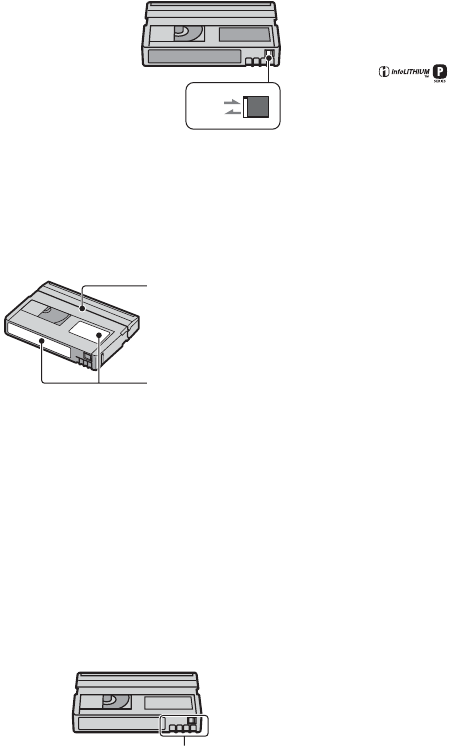
84
DCR-HC23E/HC24E/HC26E/HC35E
2-659-812-11(1)
E:\SONY\2659812111\01GB09ADD_E.fm
xTo prevent accidental erasure
Slide the write-protect tab on the cassette to
set it to SAVE.
xWhen labeling the cassette
Be sure to place the label only on the
locations shown in the following
illustration so as not to cause a malfunction
of your camcorder.
xAfter using the cassette
Rewind the tape to the beginning to avoid
distortion of the picture or the sound. The
cassette should then be put in its case, and
stored in an upright position.
xWhen cleaning the gold-plated
connector
Generally, clean the gold-plated connector
on a cassette with a cotton-wool swab after
every 10 times it has been ejected.
If the gold-plated connector on the cassette
is dirty or dusty, the remaining tape
indicator may not show correctly.
REC
SAVE
REC: The cassette can be
recorded.
SAVE: The cassette cannot be
recorded (write-protected).
Do not put a label
along this border.
Labeling position
Gold-plated connector
About the
“InfoLITHIUM” battery
pack
This unit is compatible with an
“InfoLITHIUM” battery pack (P series).
Your camcorder operates only with an
“InfoLITHIUM” battery pack.
“InfoLITHIUM” P series battery packs
have the mark.
What is an “InfoLITHIUM” battery
pack?
An “InfoLITHIUM” battery pack is a
lithium-ion battery pack that has functions
for communicating information related to
operating conditions between your
camcorder and an optional AC Adaptor/
charger.
The “InfoLITHIUM” battery pack
calculates the power consumption
according to the operating conditions of
your camcorder, and displays the remaining
battery time in minutes.
To charge the battery pack
• Be sure to charge the battery pack before you
start using your camcorder.
• We recommend charging the battery pack in an
ambient temperature of between 10 °C to 30 °C
(50 °F to 86 °F) until the CHG (charge) lamp
turns off. If you charge the battery pack outside
of this temperature range, you may not be able
to charge it efficiently.
• When charging the battery pack while the AC
Adaptor is connected to your camcorder, after
charging is complete, disconnect the cable from
the DC IN jack on your camcorder or remove
the battery pack.
To use the battery pack effectively
• Battery pack performance decreases when the
surrounding temperature is 10 °C (50 °F) or
below, and the length of time you can use the
battery pack becomes shorter. In that case, do
one of the following to use the battery pack for a
longer time.
– Put the battery pack in a pocket to warm it up,
and insert it in your camcorder right before
you start taking shots.
– Use a large capacity battery pack: NP-FP50/
FP70/FP71/FP90 (optional).
Usable cassette tapes (Continued)

85
E:\SONY\2659812111\01GB09ADD_E.fm
DCR-HC23E/HC24E/HC26E/HC35E
2-659-812-11(1)
Additional Information
• Frequent use of the LCD screen or a frequent
playback, fast forward or rewind operation
wears out the battery pack faster.
We recommend using a large capacity battery
pack: NP-FP50/FP70/FP71/FP90 (optional).
• Be sure to set the POWER switch to OFF(CHG)
when not recording or playing back on your
camcorder. The battery pack is also consumed
when your camcorder is in recording standby or
playback pause.
• Have spare battery packs ready for two or three
times the expected recording time, and make
trial recordings before making the actual
recording.
• Do not expose the battery pack to water. The
battery pack is not water resistant.
About the remaining battery time
indicator
• When the power goes off even though the
remaining battery time indicator indicates that
the battery pack has enough power to operate,
charge the battery pack fully again. Remaining
battery time will be indicated correctly. Note,
however, that the battery indication will not be
restored if it is used in high temperatures for a
long time, or if left in a fully charged state, or
when the battery pack is frequently used. Use
the remaining battery time indication as a rough
guide only.
• The E mark that indicates low battery flashes
even if there are still 5 to 10 minutes of battery
time remaining, depending on the operating
conditions or ambient temperature.
About storage of the battery pack
• If the battery pack is not used for a long time,
fully charge the battery pack and use it up on
your camcorder once a year to maintain proper
function. To store the battery pack, remove it
from your camcorder and put it in a dry, cool
place.
• To discharge the battery pack on your
camcorder completely, set [A.SHUT OFF] to
[NEVER] on the (OTHERS) menu and
leave your camcorder in tape recording standby
until the power goes off (p. 50).
About battery life
• Battery capacity decreases over time and
through repeated use. If decreased usage time
between charges becomes significant, it is
probably time to replace it with a new one.
• Each battery’s life is governed by storage,
operating and environmental conditions.
86
DCR-HC23E/HC24E/HC26E/HC35E
2-659-812-11(1)
E:\SONY\2659812111\01GB09ADD_E.fm
About i.LINK
The DV Interface on this unit is an i.LINK-
compliant DV Interface. This section
describes the i.LINK standard and its
features.
What is i.LINK?
i.LINK is a digital serial interface for
transferring digital video, digital audio, and
other data to other i.LINK-compatible
devices. You can also control other devices
using the i.LINK.
i.LINK-compatible devices can be
connected using an i.LINK cable. Possible
applications are operations and data
transactions with various digital AV
devices.
When two or more i.LINK-compatible
devices are daisy-chained with the unit,
operation becomes possible from any
device in the chain. Note that operation
method may vary, or data transactions may
not be possible, depending on specifications
and characteristics of the connected
devices.
• Normally, only one device can be connected to
this unit with an i.LINK cable. When
connecting this unit to an i.LINK-compatible
device having two or more DV Interfaces, refer
to the operating instructions of the device to be
connected.
• i.LINK is a more familiar term for the IEEE
1394 data transport bus proposed by Sony, and
is a trademark approved by many corporations.
• IEEE 1394 is an international standard
standardized by the Institute of Electrical and
Electronics Engineers.
About the i.LINK Baud rate
i.LINK’s maximum baud rate varies
according to the device. There are 3 types.
S100 (approx. 100Mbps*)
S200 (approx. 200Mbps)
S400 (approx. 400Mbps)
The baud rate is listed under
“Specifications” in the operating
instructions of each piece of equipment. It
is also indicated near the i.LINK interface
on some devices.
The baud rate may differ from the indicated
value when the unit is connected to a device
with a different maximum baud rate.
Mbps stands for “megabits per second,” or
the amount of data that can be sent or
received in one second. For example, a
baud rate of 100 Mbps means that 100
megabits of data can be sent in one second.
To use i.LINK functions on this unit
For details on how to dub when this unit is
connected to other video devices having a
DV Interface, see page 51, 54.
This unit can also be connected to other
i.LINK (DV Interface) compatible devices
made by Sony (e.g. a VAIO series personal
computer) as well as to video devices.
Some i.LINK compatible video devices,
such as Digital Televisions, DVD,
MICROMV or HDV recorders/players are
not compatible with DV devices. Before
connecting to other devices, be sure to
confirm whether the device is compatible
with a DV device or not. For details on
precautions and compatible application
software, refer also to the operating
instructions for the device to be connected.
About the required i.LINK cable
Use the Sony i.LINK 4-pin-to-4-pin cable
(during DV dubbing).
* What is Mbps?

87
DCR-HC23E/HC24E/HC26E/HC35E
2-659-812-11(1)
Additional Information
E:\SONY\2659812111\01GB09ADD_E.fm
Maintenance and precautions
On use and care
• Do not use or store the camcorder and
accessories in the following locations.
– Anywhere extremely hot or cold. Never leave
them exposed to temperatures above 60 °C
(140 °F), such as under direct sunlight, near
heaters or in a car parked in the sun. They
may malfunction or become deformed.
– Near strong magnetic fields or mechanical
vibration. The camcorder may malfunction.
– Near strong radio waves or radiation. The
camcorder may not be able to record properly.
– Near AM receivers and video equipment.
Noise may occur.
– On a sandy beach or anywhere dusty. If sand
or dust gets in your camcorder, it may
malfunction. Sometimes this malfunction
cannot be repaired.
– Near windows or outdoors, where the LCD
screen, the viewfinder, or the lens may be
exposed to direct sunlight. This damages the
inside of the viewfinder or the LCD screen.
– Anywhere very humid.
• Operate your camcorder on DC 7.2 V (battery
pack) or DC 8.4 V (AC Adaptor).
• For DC or AC operation, use the accessories
recommended in these operating instructions.
• Do not let your camcorder get wet, for example,
from rain or sea water. If your camcorder gets
wet, it may malfunction. Sometimes this
malfunction cannot be repaired.
• If any solid object or liquid gets inside the
casing, unplug your camcorder and have it
checked by a Sony dealer before operating it
any further.
• Avoid rough handling, disassembling,
modifying, physical shock, or impact such as
hammering, dropping or stepping on the
product. Be particularly careful of the lens.
• Keep the POWER switch setting to OFF(CHG)
when you are not using your camcorder.
• Do not wrap your camcorder with a towel, for
example, and operate it. Doing so might cause
heat to build up inside.
• When disconnecting the mains lead, pull it by
the plug and not the lead.
• Do not damage the mains lead such as by
placing anything heavy on it.
• Keep metal contacts clean.
• Keep the Remote Commander supplied with the
DCR-HC24E/HC35E and button-type battery
out of children’s reach. If the battery is
accidentally swallowed, consult a doctor
immediately.
• If the battery electrolytic liquid has leaked,
– consult your local authorized Sony service
facility.
– wash off any liquid that may have contacted
your skin
– if any liquid gets in your eyes, wash with
plenty of water and consult a doctor.
xWhen not using your camcorder for a
long time
• Periodically turn on the camcorder and play a
cassette for about 3 minutes.
• Use up the battery pack completely before
storing it.
Moisture condensation
If your camcorder is brought directly from a
cold place to a warm place, moisture may
condense inside your camcorder, on the
surface of the tape, or on the lens. In this
state, the tape may stick to the head drum
and be damaged or your camcorder may not
operate correctly. If there is moisture inside
your camcorder, [%Z Moisture
condensation. Eject the cassette] or [%
Moisture condensation. Turn off for 1H.]
appears. The indicator will not appear when
the moisture condenses on the lens.
xIf moisture condensation has occurred
None of the functions except cassette
ejection will work. Eject the cassette, turn
off your camcorder, and leave it for about
one hour with the cassette lid open. Your
camcorder can be used again when both of
the following conditions are met:
• The warning message does not appear when the
power is turned on.
• Neither % or Z flash when a cassette is inserted
and video operation buttons are touched.
If moisture starts to condense, your
camcorder sometimes cannot detect
condensation. If this happens, the cassette is
sometimes not ejected for 10 seconds after
the cassette lid is opened. This is not a
Continued ,
88
E:\SONY\2659812111\01GB09ADD_E.fm
DCR-HC23E/HC24E/HC26E/HC35E
2-659-812-11(1)
malfunction. Do not close the cassette lid
until the cassette is ejected.
xNote on moisture condensation
Moisture may condense when you bring
your camcorder from a cold place into a
warm place (or vice versa) or when you use
your camcorder in a humid place as shown
below.
• When you bring your camcorder from a ski
slope into a place warmed up by a heating
device.
• When you bring your camcorder from an air
conditioned car or room into a hot place outside.
• When you use your camcorder after a squall or a
shower.
• When you use your camcorder in a hot and
humid place.
xHow to avoid moisture condensation
When you bring your camcorder from a
cold place into a warm place, put your
camcorder in a plastic bag and seal it
tightly. Remove the bag when the air
temperature inside the plastic bag has
reached the surrounding temperature (after
about one hour).
Video head
• If the video heads are dirty, video or sound
distortion may be apparent.
• If the following problem occurs, clean the video
heads for 10 seconds with the Sony DVM-
12CLD cleaning cassette (optional).
– Mosaic-pattern noise appears on the playback
picture or the screen is displayed in blue.
– Playback pictures do not move.
– Playback pictures do not appear or the sound
breaks off.
–[x Dirty video head. Use a cleaning
cassette.] appears on the screen during
recording/playback.
• The video heads will wear after long use. If you
cannot obtain a clear image even after using a
cleaning cassette (optional), it might be because
the video heads are worn. Please contact your
Sony dealer or local authorized Sony service
facility to have the video heads replaced.
LCD screen
• Do not exert excessive pressure on the LCD
screen, as it may cause damage.
• If your camcorder is used in a cold place, a
residual image may appear on the LCD screen.
This is not a malfunction.
• While using your camcorder, the back of the
LCD screen may heat up. This is not a
malfunction.
xTo clean the LCD screen
If fingerprints or dust make the LCD screen
dirty, it is recommended you use a soft
cloth to clean it. When you use the LCD
Cleaning Kit (optional), do not apply the
cleaning liquid directly to the LCD screen.
Use cleaning paper moistened with the
liquid.
xOn adjustment of the LCD screen
(CALIBRATION)
The buttons on the touch panel may not
work correctly. If this happens, follow the
procedure below. It is recommended you
connect your camcorder to the wall socket
using the supplied AC Adaptor during the
operation.
1Slide the POWER switch to OFF(CHG).
2Eject the cassette from your camcorder,
then disconnect any connecting cables
except the AC Adaptor from your
camcorder or the Handycam Station
supplied with the DCR-HC35E.
3Slide the POWER switch repeatedly to turn
on the PLAY/EDIT lamp while pressing
DISP/BATT INFO on your camcorder, and
keep pressing down DISP/BATT INFO for
about 5 seconds.
Maintenance and precautions (Continued)
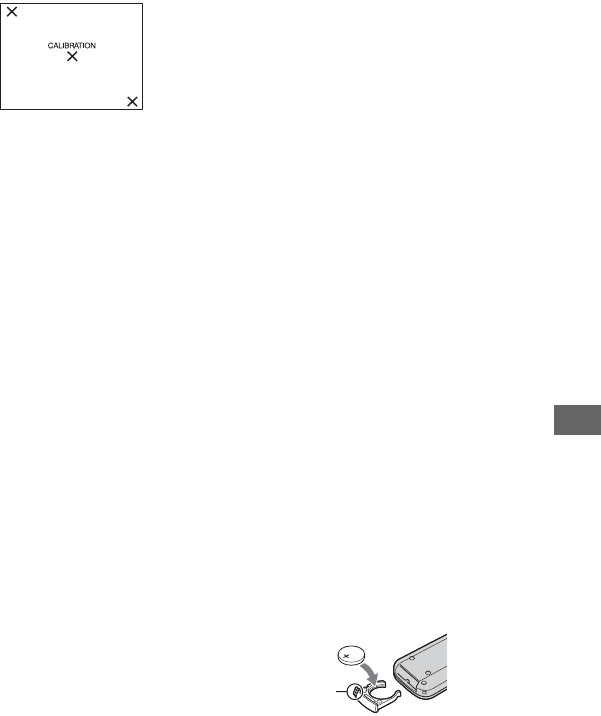
89
E:\SONY\2659812111\01GB09ADD_E.fm
DCR-HC23E/HC24E/HC26E/HC35E
2-659-812-11(1)
Additional Information
4Touch the “×” displayed on the screen with
the corner of the “Memory Stick” or the
like.
The position of the “×” changes. If you did
not press the right spot, start from step 4
again.
• You cannot calibrate the LCD screen if it is
rotated.
On handling the casing
• If the casing is soiled, clean the camcorder body
with a soft cloth lightly moistened with water,
and then wipe the casing with a dry soft cloth.
• Avoid the following to avoid damage to the
finish.
– Using chemicals such as thinner, benzine,
alcohol, chemical cloths, repellent, insecticide
and sunscreen.
– Handling with above substances on your
hands.
– Leaving the casing in contact with rubber or
vinyl objects for a long period of time.
About care and storage of the lens
• Wipe the surface of the lens clean with a soft
cloth in the following instances:
– When there are fingerprints on the lens
surface.
– In hot or humid locations
– When the lens is exposed to salty air such as
at the seaside.
• Store in a well-ventilated location subject to
little dirt or dust.
• To prevent mold, periodically clean the lens as
described above. It is recommended that you
operate your camcorder about once a month to
keep it in optimum state for a long time.
On charging the pre-installed
rechargeable battery
Your camcorder has a pre-installed
rechargeable battery to retain the date, time,
and other settings even when the POWER
switch is set to OFF(CHG). The pre-
installed rechargeable battery is always
charged while your camcorder is connected
to the wall socket via the AC Adaptor or
while the battery pack is attached. The
rechargeable battery will be fully
discharged in about 3 months if you do
not use your camcorder at all without the
AC Adaptor connected or the battery pack
attached. Use your camcorder after
charging the pre-installed rechargeable
battery.
However, even if the pre-installed
rechargeable battery is not charged, the
camcorder operation will not be affected as
long as you are not recording the date.
xProcedures
Connect your camcorder to a wall socket
using the supplied AC Adaptor, and leave it
with the POWER switch set to OFF(CHG)
for more than 24 hours.
To change the battery of the Remote
Commander (DCR-HC24E/HC35E)
1While pressing on the tab, inset your
fingernail into the slit to pull out the battery
case.
2Place a new battery with the + side facing
up.
3Insert the battery case back into the Remote
Commander until it clicks.
Tab
Continued ,

90
DCR-HC23E/HC24E/HC26E/HC35E
2-659-812-11(1)
E:\SONY\2659812111\01GB09ADD_E.fm
WARNING
Battery may explode if mistreated. Do not
recharge, disassemble or dispose of in fire.
• A button-type lithium battery (CR2025) is used
in the Remote Commander. Do not use batteries
other than the CR2025.
• When the lithium battery becomes weak, the
operating distance of the Remote Commander
may shorten, or the Remote Commander may
not function properly. In this case, replace the
battery with a Sony CR2025 lithium battery.
Use of another battery may present a risk of fire
or explosion.
Specifications
System
Video recording system
2 rotary heads, Helical scanning system
Audio recording system
Rotary heads, PCM system
Quantization: 12 bits (Fs 32 kHz, stereo
1, stereo 2), 16 bits (Fs 48 kHz, stereo)
Video signal
PAL color, CCIR standards
Usable cassette
Mini DV cassette with the mark
printed
Tape speed
SP: Approx. 18.81 mm/s
LP: Approx. 12.56 mm/s
Recording/playback time
SP: 60 min (using a DVM60 cassette)
LP: 90 min (using a DVM60 cassette)
Fast forward/rewind time
Approx. 2 min 40 s (using a DVM60
cassette and rechargeable battery pack)
Approx. 1 min 45 s (using a DVM60
cassette and AC Adaptor)
Viewfinder
Electric viewfinder (color)
Image device
3.0 mm (1/6 type) CCD (Charge
Coupled Device)
Gross: Approx. 800 000 pixels
Effective (movie): Approx. 400 000
pixels
Lens
DCR-HC23E:
Carl Zeiss Vario-Tessar
20 × (Optical), 640 × (Digital)
DCR-HC24E/HC26E/HC35E:
Carl Zeiss Vario-Tessar
20 × (Optical), 800 × (Digital)
Focal length
f=2.3 ~ 46 mm (3/32 ~ 1 13/16 in.)
When converted to a 35 mm still
camera
In CAMERA: 44 ~ 880 mm (1 3/4 ~
34 1/32 in.)
Maintenance and precautions
(Continued)

91
E:\SONY\2659812111\01GB09ADD_E.fm
DCR-HC23E/HC24E/HC26E/HC35E
2-659-812-11(1)
Additional Information
F1.8 ~ 3.1
Filter diameter: 25 mm (1 in.)
Color temperature
[AUTO], [ONE PUSH], [INDOOR]
(3 200 K), [OUTDOOR] (5 800 K)
Minimum illumination
5 lx (lux) (F 1.8)
0 lx (lux) (during NightShot plus
function)*1
*1Objects unable to be seen due to the dark
can be shot with infrared lighting.
Input/Output connectors
Audio/Video output
10-pin connector
Video signal: 1 Vp-p, 75 Ω (ohms),
unbalanced
Luminance signal: 1 Vp-p, 75 Ω
(ohms), unbalanced
Chrominance signal: 0.3 Vp-p, 75 Ω
(ohms), unbalanced
Audio signal: 327 mV (at load
impedance 47 kΩ (kilohms)), Output
impedance with less than 2.2 kΩ
(kilohms)
USB jack (DCR-HC23E/HC24E/HC26E)
mini-B
DV input/output (DCR-HC26E)
i.LINK Interface (IEEE1394, 4-pin
connector S100)
DV output (DCR-HC23E/HC24E)
i.LINK Interface (IEEE1394, 4-pin
connector S100)
LCD screen
Picture
6.2 cm (2.5 type)
Total dot number
123 200 (560 × 220)
General
Power requirements
DC 7.2 V (battery pack)
DC 8.4 V (AC Adaptor)
Average power consumption
During camera recording using the
viewfinder 1.8 W
During camera recording using the
LCD 2.1 W
Operating temperature
0 °C to 40 °C (32 °F to 104 °F)
Storage temperature
-20 °C to + 60 °C (-4 °F to + 140 °F)
Dimensions (approx.)
65 × 79 × 113 mm
(2 5/8 × 3 1/8 × 4 1/2 in.) (w/h/d)
Mass (approx.)
DCR-HC23E/HC24E/HC26E:
360 g (12 oz) main unit only
420 g (14 oz) including the NP-FP30
rechargeable battery pack and DVM60
cassette.
DCR-HC35E:
370 g (13 oz) main unit only
430 g (15 oz) including the NP-FP30
rechargeable battery pack and DVM60
cassette.
Supplied accessories
See page 8.
Handycam Station DCRA-C151
Input/Output connectors (DCR-HC35E)
Audio/Video output
10-pin connector
Video signal: 1 Vp-p, 75 Ω (ohms),
unbalanced
Luminance signal: 1 Vp-p, 75 Ω
(ohms), unbalanced
Chrominance signal: 0.3 Vp-p, 75 Ω
(ohms), unbalanced
Continued ,
92
E:\SONY\2659812111\01GB09ADD_E.fm
DCR-HC23E/HC24E/HC26E/HC35E
2-659-812-11(1)
Audio signal: 327 mV (at load
impedance 47 kΩ (kilohms)), Output
impedance with less than 2.2 kΩ
(kilohms)
USB jack
mini-B
DV input/output
i.LINK Interface (IEEE1394, 4-pin
connector S100)
AC Adaptor AC-L25A/L25B
Power requirements
AC 100 - 240 V, 50/60 Hz
Current consumption
0.35 - 0.18 A
Power consumption
18 W
Output voltage
DC 8.4 V*2
Operating temperature
0 °C to 40 °C (32 °F to 104 °F)
Storage temperature
-20 °C to + 60 °C (-4 °F to + 140 °F)
Dimensions (approx.)
56 × 31 × 100 mm (2 1/4 × 1 1/4 × 4 in.)
(w/h/d) excluding the projecting parts
Mass (approx.)
190 g (6.7 oz) excluding the mains lead
*2See the label on the AC Adaptor for
other specifications.
Rechargeable battery pack (NP-FP30)
Maximum output voltage
DC 8.4 V
Output voltage
DC 7.2 V
Capacity
3.6 Wh (500 mAh)
Dimensions (approx.)
31.8 × 18.5 × 45.0 mm
(1 5/16 × 3/4 × 1 13/16 in) (w/h/d)
Mass (approx.)
40 g (1.5 oz)
Operating temperature
0 °C to 40 °C (32 °F to 104 °F)
Type
Lithium ion
Design and specifications are subject to change
without notice.
z Provided
– Not provided
Types of differences
DCR-HC 23E 24E
DV Interface OUT OUT
Remote sensor –z
Handycam Station ––
DCR-HC 26E 35E
DV Interface IN/OUT IN/OUT
Remote sensor –z
Handycam Station –z
Specifications (Continued)

93
E:\SONY\2659812111\01GB09ADD_E.fm
DCR-HC23E/HC24E/HC26E/HC35E
2-659-812-11(1)
Additional Information
On trademarks
• “InfoLITHIUM” is a trademark of Sony
Corporation.
• i.LINK and are trademarks of Sony
Corporation.
• Picture Package is a trademark of Sony
Corporation.
• is a trademark.
• “Handycam” and
are
registered trademarks of Sony Corporation.
• Microsoft, Windows, and Windows Media are
trademarks or registered trademarks of U.S.
Microsoft Corporation in the U.S. and other
countries.
• Windows Media Player is a trademark of
Microsoft Corporation.
• iMac, iBook, eMac, Macintosh, Mac OS,
PowerBook and Power Mac are trademarks of
Apple Computer, Inc in the U.S. and other
countries.
• QuickTime and the QuickTime logo are
trademarks of Apple Computer, Inc.
• Adobe, the Adobe logo, and Adobe Acrobat are
either registered trademarks or trademarks of
Adobe Systems Incorporated in the United
States and/or other countries.
• Roxio is a registered trademark of Roxio, Inc.
• Toast is a trademark of Roxio, Inc.
• Macromedia and Macromedia Flash Player are
trademarks or registered trademarks of
Macromedia, Inc. in the United States and other
countries.
• Pentium is a trademark or registered trademark
of Intel Corporation.
All other product names mentioned herein may be
the trademarks or registered trademarks of their
respective companies. Furthermore, ™ and “®”
are not mentioned in each case in this manual.
94
DCR-HC23E/HC24E/HC26E/HC35E
2-659-812-11(1)
E:\SONY\2659812111\01GB00BOOKIX.fm
Index
Numeric
12BIT....................................48
16BIT....................................48
16:9 WIDE ...........................46
21-pin adaptor.......................34
4:3.........................................46
A
A DUB CTRL
(Audio dubbing) ...................56
AC Adaptor ............................9
Adjusting exposure for back
light.................................24, 72
AUDIO MIX ........................56
AUDIO MODE ....................48
AUTO SHTR
(Auto shutter) .......................45
A.SHUT OFF
(Auto shut off)......................50
A/V connecting cable .....34, 52
A/V OUT jack ................33, 51
B
BACK LIGHT................24, 72
BATT (battery) release lever
..............................................12
Battery
Battery info....................25
Battery pack ....................9
Charging time................12
Playing time ..................12
Recording time ..............12
Remaining battery .........26
BEACH&SKI.......................44
BEEP ....................................50
BLACK ................................39
BURN DVD ...................42, 65
BURN VCD .........................42
Button-type lithium battery
..............................................90
B&W ....................................45
C
CALIBRATION .................. 88
CAM DATA ........................ 41
CAMERA SET menu .......... 45
Cassette .......................... 19, 83
Insert/Eject.................... 19
Write-protect tab........... 84
Cassette compartment.......... 19
CD-ROM ............................. 58
Charging the battery............... 9
Battery pack.................... 9
Pre-installed rechargeable
battery ........................... 89
Charging time ...................... 12
CHG (charge) lamp.............. 10
Click to DVD....................... 65
CLOCK SET........................ 18
COMMANDER ................... 50
Computer ....................... 58, 60
Connect
Computer ...................... 58
TV................................. 33
VCR.................. 33, 51, 54
D
D ZOOM (Digital zoom) ..... 45
DATA CODE ................ 26, 41
Date search........................... 31
DATE/TIME............ 18, 26, 41
DC IN jack ............................. 9
DC plug.................................. 9
DEMO MODE............... 49, 68
DISP GUIDE
(Display guide) .................... 16
DISP OUT
(Display output) ................... 50
Display indicators ................ 26
DISP/BATT INFO button
....................................... 16, 25
Double speed Playback........ 42
Dubbing ......................... 51, 55
DV Interface....... 51, 54, 57, 65
E
EASY button ........................20
Easy Handycam..............20, 37
EDITSEARCH...............28, 46
END SCH
(END SEARCH) ............28, 71
EXPOSURE ...................40, 74
F
FADER...........................39, 74
Fireworks..............................44
First Step Guide..............58, 64
Flexible spot meter
...................See SPOT METER
FN (Function) button...... 26, 36
FOCUS...........................38, 72
Frame-by-frame Playback....42
Full charge............................11
G
Getting started ........................8
Grip belt................................14
H
Handycam Station ..........10, 57
Help ......................................59
HiFi SOUND........................47
Holding the camcorder .........14
I
Icon....... See Display indicators
ImageMixer VCD2...............58
Indicators..............................27
INDOOR ..............................40
“InfoLITHIUM” battery pack
..............................................84
Infrared port..........................24
Initialize (Reset) ...................25
Install....................................60

95
E:\SONY\2659812111\01GB00BOOKIX.fm
DCR-HC23E/HC24E/HC26E/HC35E
2-659-812-11(1)
Additional Information
Insulation sheet .....................30
Interface connector ...............57
Internal stereo microphone ...25
i.LINK...................................86
i.LINK cable .............52, 54, 65
J
Jack .......................................57
L
Label .....................................84
LANDSCAPE.......................44
LANGUAGE ........................49
LCD ......................................50
LCD BRT (LCD bright) .......41
LCD B.L.
(LCD back light)...................47
LCD COLOR........................47
LCD panel.............................15
LCD screen ...........................15
LCD/VF SET menu ..............47
Lens cap......................8, 14, 20
LETTER BOX ......................48
Lid.........................................19
LP (Long Play) .....................48
M
Macintosh .......................59, 63
Main sound ...........................47
Mains lead...............................9
Maintenance..........................87
MANUAL SET menu...........44
Menu.....................................36
CAMERA SET menu ....45
LCD/VF SET menu.......47
MANUAL SET menu ...44
Menu items....................43
OTHERS menu..............50
PLAYER SET menu .....47
SETUP MENU menu ....49
TAPE SET menu...........48
Using the menu............. 36
VCR SET menu ............ 47
Mirror mode .........................25
Moisture condensation ......... 87
MONOTONE....................... 39
MOSAIC .............................. 45
MOSC. FADER ................... 39
Movie
REC MODE
(Recording mode) ......... 48
N
NEG.ART ............................ 44
NightShot plus...................... 24
NIGHTSHOT PLUS switch
.............................................. 24
NTSC ................................... 83
N.S.LIGHT
(NightShot Light)................. 46
O
ONE PUSH ..........................40
OPEN/EJECT lever.............. 19
Operation button .................. 36
Operation confirmation beep
..................................See BEEP
OTHERS menu .................... 50
OUTDOOR .......................... 40
P
P EFFECT (Picture effect) ... 44
PAL ................................73, 83
PASTEL ............................... 45
PHOTO button ............... 22, 30
Photo scan ............................ 31
Photo search ......................... 31
Picture Package.................... 58
Picture Search ......................23
Pixela user support center .... 64
Playback ............................... 23
Double speed.................42
Frame ............................ 42
Reverse..........................42
Slow...............................42
PLAYER SET menu.............47
Playing time..........................12
PORTRAIT (Soft portrait) ...44
POWER switch.................9, 14
Pre-installed rechargeable
battery ...................................89
PROGRAM AE ..............44, 74
R
REC CTRL
(Recording control) ..............54
REC MODE
(Recording mode).................48
Rec review............................29
REC START/STOP button
........................................20, 22
Rechargeable battery pack
............................... See Battery
Recording .............................22
Recording capacity ...............26
Recording time .....................12
REMAIN ..............................49
Remote Commander.............30
Remote sensor ......................25
RESET button.......................25
Reversal Playback ................42
S
S VIDEO cable...............34, 52
S VIDEO jack.................34, 52
Searching for the starting point
..............................................28
SELF TIMER .......................41
Self-diagnosis display...........80
SEPIA ...................................45
Setting the date and time ......18
SETUP MENU menu ...........49
Shoulder Belt........................25
Skip Scan ..............................23
Slow Playback ......................42
Continued ,

E:\SONY\2659812111\01GB00BOOKIX.fm
DCR-HC23E/HC24E/HC26E/HC35E
2-659-812-11(1)
http://www.sony.net/
Printed on 100% recycled paper using
VOC (Volatile Organic Compound)-free
vegetable oil based ink.
Printed in Japan
GB
Additional information on this product and answers
to frequently asked questions can be found at our
Customer Support Website.
Software................................60
SOLARIZE...........................45
SP (Standard Play)................48
Speaker .................................25
Specifications .......................90
SPORTS (Sports lesson) ......44
SPOT FOCUS ................38, 74
SPOT METER
(Flexible spot meter) ......38, 74
SPOTLIGHT ........................44
SQUEEZE ............................48
STEADYSHOT..............46, 72
STEREO...............................47
Sub sound .............................47
SUNSETMOON...................44
System requirements ............59
T
Tape counter .........................26
Tape photo recording............22
TAPE SET menu ..................48
Tape......................See Cassette
Telephoto..............................24
Time code .............................26
Touch panel ..........................16
Trademark ............................93
Transmitter........................... 30
Tripod................................... 25
TV ........................................ 33
TV color systems ................. 83
U
USB jack.............................. 57
USB STREAM .................... 49
USB Streaming .................... 49
Using abroad........................ 83
V
V SPD PLAY
(Various speed playback)..... 42
VCR SET menu ................... 47
VF B.L.
(Viewfinder back light)........ 47
Video control buttons........... 30
Video head ........................... 88
Video operation buttons....... 26
Viewfinder ........................... 15
Back light...................... 47
Viewfinder lens adjustment
lever ..................................... 15
VOL (Volume)............... 23, 41
V-OUT/LCD........................ 50
W
Wall socket.............................9
Warning indicators ............... 80
Warning messages................81
WHITE ................................. 39
WHT BAL
(White balance) ..............40, 74
Wide angle............................24
WIDE DISP
(Wide display)......................48
WIDE SEL
(Wide select) ........................46
Windows.........................59, 60
WORLD TIME ....................50
Write-protect tab ..................84
Z
Zero set memory...................30
ZERO SET MEMORY button
..............................................30
Zoom ....................................24
Zoom lever ...........................24
