Sony Hdr Fx7 Users Manual
Sony-Hdr-Fx7-Operating-Guide-796997 sony-hdr-fx7-operating-guide-796997
HDR-FX7 Operating Instructions HDRFX7
Manual HDRFX7 Sony HDR-FX7 Operating Instructions | Manual Device
User manual HDRFX7 Sony HDR-FX7 Camcorder User Manuals and Instruction Guides
HDR-FX7 - Operating Guide HDRFX7 Free User Guide for Sony HDR Series Camcorder, Manual - page5
2015-01-23
: Sony Sony-Hdr-Fx7-Users-Manual-286741 sony-hdr-fx7-users-manual-286741 sony pdf
Open the PDF directly: View PDF  .
.
Page Count: 131 [warning: Documents this large are best viewed by clicking the View PDF Link!]
- IMPORTANT SAFEGUARDS
- Read this first
- Enjoying pictures with high definition quality
- Getting Started
- Step 1: Checking supplied items
- Step 2: Attaching the lens hood with lens cover
- Step 3: Charging the battery pack
- Step 4: Turning the power on and holding your camcorder properly
- Step 5: Adjusting the LCD panel and viewfinder
- Step 6: Setting the date and time
- Step 7: Inserting a tape or a “Memory Stick Duo”
- Recording/Playback
- Using the Menu
- Dubbing/Editing
- Using a Computer
- Troubleshooting
- Additional Information
- Quick Reference
2-887-514-11(1)
© 2006 Sony Corporation
http://www.sony.net/
Printed on 70% or more recycled paper
using VOC (Volatile Organic Compound)
-free vegetable oil based ink.
Printed in Japan
Additional information on this product and answers
to frequently asked questions can be found at our
Customer Support Website.
US
Digital HD Video Camera Recorder
Operating Guide
HDR-FX7
Enjoying pictures with
high definition quality
12
Getting Started 16
Recording/
Playback
28
Using the Menu 56
Dubbing/Editing 76
Using a Computer 86
Troubleshooting 92
Additional Information 104
Quick Reference 119
2
To reduce fire or shock hazard, do
not expose the unit to rain or
moisture.
This symbol is intended to alert
the user to the presence of
uninsulated “dangerous
voltage” within the product’s
enclosure that may be of
sufficient magnitude to
constitute a risk of electric
shock to persons.
This symbol is intended to alert
the user to the presence of
important operating and
maintenance (servicing)
instructions in the literature
accompanying the appliance.
WARNING

3
IMPORTANT SAFEGUARDS
For your protection, please read these safety
instructions completely before operating
the appliance, and keep this manual for
future reference.
Carefully observe all warnings, precautions
and instructions on the appliance, or the one
described in the operating instructions and
adhere to them.
Power Sources
This set should be operated only from the type of
power source indicated on the marking label. If
you are not sure of the type of electrical power
supplied to your home, consult your dealer or
local power company. For those sets designed to
operate from battery power, or other sources, refer
to the operating instructions.
Polarization
This set may be equipped with a polarized ac
power cord plug (a plug having one blade wider
than the other).
This plug will fit into the power outlet only one
way. This is a safety feature. If you are unable to
insert the plug fully into the outlet, try reversing
the plug. If the plug should still fail to fit, contact
your electrician to have a suitable outlet installed.
Do not defeat the safety purpose of the polarized
plug by forcing it in.
Overloading
Do not overload wall outlets, extension cords or
convenience receptacles beyond their capacity,
since this can result in fire or electric shock.
Object and Liquid Entry
Never push objects of any kind into the set
through openings as they may touch dangerous
voltage points or short out parts that could result
in a fire or electric shock. Never spill liquid of any
kind on the set.
Attachments
Do not use attachments not recommended by the
manufacturer, as they may cause hazards.
Cleaning
Unplug the set from the wall outlet before
cleaning or polishing it. Do not use liquid cleaners
or aerosol cleaners. Use a cloth lightly dampened
with water for cleaning the exterior of the set.
Water and Moisture
Do not use power-line operated sets near water –
for example, near a bathtub, washbowl, kitchen
sink, or laundry tub, in a wet basement, or near a
swimming pool, etc.
Power-Cord Protection
Route the power cord so that it is not likely to be
walked on or pinched by items placed upon or
against them, paying particular attention to the
plugs, receptacles, and the point where the cord
exits from the appliance.
Accessories
Do not place the set on an unstable cart, stand,
tripod, bracket, or table. The set may fall, causing
serious injury to a child or an adult, and serious
damage to the set. Use only a cart, stand, tripod,
bracket, or table recommended by the
manufacturer.
Ventilation
The slots and openings in the cabinet are provided
for necessary ventilation. To ensure reliable
operation of the set, and to protect it from
overheating, these slots and openings must never
be blocked or covered.
– Never cover the slots and openings with a cloth
or other materials.
– Never block the slots and openings by placing
the set on a bed, sofa, rug, or other similar
surface.
– Never place the set in a confined space, such as
a bookcase, or built-in cabinet, unless proper
ventilation is provided.
– Do not place the set near or over a radiator or
heat register, or where it is exposed to direct
sunlight.
Use
Installation
Continued ,

4
Lightning
For added protection for this set during a lightning
storm, or when it is left unattended and unused for
long periods of time, unplug it from the wall
outlet and disconnect the antenna or cable system.
This will prevent damage to the set due to
lightning and power-line surges.
Damage Requiring Service
Unplug the set from the wall outlet and refer
servicing to qualified service personnel under the
following conditions:
– When the power cord or plug is damaged or
frayed.
– If liquid has been spilled or objects have fallen
into the set.
– If the set has been exposed to rain or water.
– If the set has been subject to excessive shock by
being dropped, or the cabinet has been
damaged.
– If the set does not operate normally when
following the operating instructions. Adjust
only those controls that are specified in the
operating instructions. Improper adjustment of
other controls may result in damage and will
often require extensive work by a qualified
technician to restore the set to normal operation.
– When the set exhibits a distinct change in
performance – this indicates a need for service.
Servicing
Do not attempt to service the set yourself as
opening or removing covers may expose you to
dangerous voltage or other hazards.
Refer all servicing to qualified service personnel.
Replacement parts
When replacement parts are required, be sure the
service technician has used replacement parts
specified by the manufacturer that have the same
characteristics as the original parts.
Unauthorized substitutions may result in fire,
electric shock, or other hazards.
Safety Check
Upon completion of any service or repairs to the
set, ask the service technician to perform routine
safety checks (as specified by the manufacturer)
to determine that the set is in safe operating
condition.
Service
IMPORTANT SAFEGUARDS (Continued)

5
Read this first
Before operating the unit, please read this
manual thoroughly, and retain it for future
reference.
Replace the battery with the
specified type only. Otherwise, fire
or injury may result.
RECYCLING LITHIUM-ION BATTERIES
Lithium-Ion batteries are
recyclable. You can help preserve
our environment by returning
your used rechargeable batteries
to the collection and recycling
location nearest you.
For more information regarding recycling of
rechargeable batteries, call toll free 1-800-822-
8837, or visit http://www.rbrc.org/
Caution: Do not handle damaged or leaking
Lithium-Ion batteries.
Owner’s Record
The model and serial numbers are located on the
bottom. Record the serial number in the space
provided below. Refer to these numbers whenever
you call upon your Sony dealer regarding this
product.
If you have any questions about this
product, you may call:
Sony Customer Information Center 1-800-
222-SONY (7669).
The number below is for the FCC related
matters only.
Regulatory Information
CAUTION
You are cautioned that any changes or
modifications not expressly approved in this
manual could void your authority to operate this
equipment.
Note
This equipment has been tested and found to
comply with the limits for a Class B digital
device, pursuant to Part 15 of the FCC Rules.
These limits are designed to provide reasonable
protection against harmful interference in a
residential installation. This equipment generates,
uses, and can radiate radio frequency energy and,
if not installed and used in accordance with the
instructions, may cause harmful interference to
radio communications.
However, there is no guarantee that interference
will not occur in a particular installation. If this
equipment does cause harmful interference to
radio or television reception, which can be
determined by turning the equipment off and on,
CAUTION
For customers in the U.S.A. and
CANADA
Model No. HDR-FX7
Serial No.
Model No. AC-
No.
For customers in the U.S.A.
Declaration of Conformity
Trade Name: SONY
Model No.: HDR-FX7
Responsible Party: Sony Electronics Inc.
Address: 16530 Via Esprillo, San Diego, CA
92127 U.S.A.
Telephone Number: 858-942-2230
This device complies with Part 15 of the FCC
Rules.
Operation is subject to the following two
conditions:
(1) This device may not cause harmful
interference, and (2) this device must accept any
interference received, including interference
that may cause undesired operation.
Continued ,
6
the user is encouraged to try to correct the
interference by one or more of the following
measures:
– Reorient or relocate the receiving antenna.
– Increase the separation between the equipment
and receiver.
– Connect the equipment into an outlet on a
circuit different from that to which the receiver
is connected.
– Consult the dealer or an experienced radio/TV
technician for help.
The supplied interface cable must be used with the
equipment in order to comply with the limits for a
digital device pursuant to Subpart B of Part 15 of
FCC Rules.
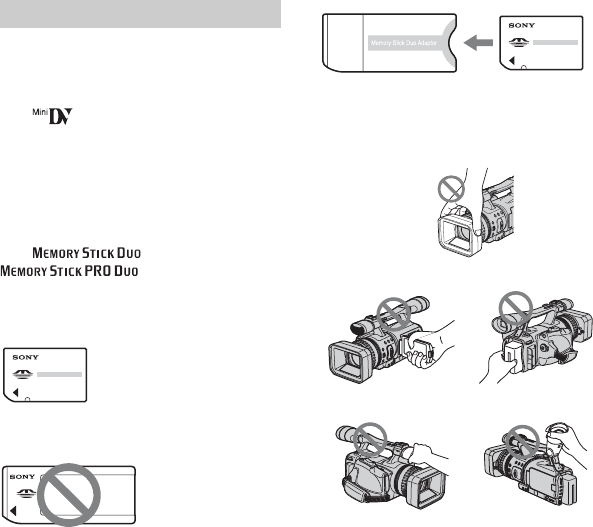
Types of cassette you can use in your
camcorder
You can use mini DV cassettes marked
with . Mini DV cassettes with
Cassette Memory are incompatible (p. 105).
Types of “Memory Stick” you can use
in your camcorder
There are two sizes of “Memory Stick.”
You can use “Memory Stick Duo” marked
with or
(p. 106).
“Memory Stick Duo”
(This size can be used with your
camcorder.)
“Memory Stick”
(You cannot use it in your camcorder.)
bNote
• You cannot use any type of memory card
except “Memory Stick Duo.”
• “Memory Stick PRO” and “Memory Stick
PRO Duo” can be used only with
“Memory Stick PRO” compatible
equipment.
• Do not attach a label or the like on a
“Memory Stick Duo” or a Memory Stick
Duo Adaptor.
When using a “Memory Stick Duo”
with “Memory Stick” compatible
equipment
Be sure to insert the “Memory Stick Duo”
into the Memory Stick Duo Adaptor.
Memory Stick Duo Adaptor
Using the camcorder
• Do not hold the camcorder by the
following part.
Notes on use
LCD panel Battery pack
Microphone Viewfinder
Lens hood
Read this first (Continued)
7
bNote
• The camcorder is not dustproof, dripproof
or waterproof.
See “Maintenance and precautions”
(p. 111).
• Before connecting your camcorder to
another device with an HDMI cable,
component video cable, USB or i.LINK
cable, be sure to insert the connector plug
the correct way, and not forcibly to avoid
damaging the terminal, or cause a
malfunction of your camcorder.
About menu items, LCD panel,
viewfinder, and lens
• A menu item that is grayed out is not
available under the current recording or
playback conditions.
• The LCD screen and the viewfinder are
manufactured using extremely high-
precision technology, so over 99.99% of
the pixels are operational for effective
use. However, there may be some tiny
black points and/or bright points (white,
red, blue, or green in color) that appear
constantly on the LCD screen and the
viewfinder. These points are normal
results of the manufacturing process and
do not affect the recording in any way.
• Exposing the LCD screen, the viewfinder,
or the lens to direct sunlight for long
periods of time may cause malfunctions.
• Do not aim at the sun. Doing so might
cause your camcorder to malfunction.
Take pictures of the sun only in low light
conditions, such as at dusk.
On recording
• Before starting to record, test the
recording function to make sure the
picture and sound are recorded without
any problems.
• Compensation for the contents of
recordings cannot be provided, even if
recording or playback is not possible due
to a malfunction of the camcorder, storage
media, etc.
• TV color systems differ depending on the
countries/regions. To view your
recordings on a TV, you need an NTSC
system-based TV.
• Television programs, films, video tapes,
and other materials may be copyrighted.
Unauthorized recording of such materials
may be contrary to the copyright laws.
On playing back HDV tapes on other
devices
You cannot play back a tape recorded in the
HDV format on DV format video cameras
or on mini DV players.
Check the contents of tapes by playing
them back on this camcorder prior to
playing them back on other devices.
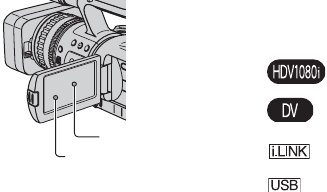
Note on the icons used in this manual
Features available for the HDV
format only
Features available for the DV
format only
This function that can be used when
i.LINK cable is connected.
This function that can be used when
USB cable is connected.
Black point
White, red, blue
or green point
Continued ,

8
About this manual
• The images of the LCD screen and the
viewfinder used in this manual for
illustration purposes are captured using a
digital still camera, and therefore may
appear different.
• The on-screen displays in each local
language are used for illustrating the
operating procedures. Change the screen
language before using your camcorder if
necessary (p. 74).
• Design and specifications of recording
media and other accessories are subject to
change without notice.
About the Carl Zeiss lens
Your camcorder is equipped with a Carl
Zeiss lens, which was developed jointly by
Carl Zeiss, in Germany, and Sony
Corporation, and produces superior images.
It adopts the MTF measurement system for
video cameras and offers a quality typical
of a Carl Zeiss lens. Also, the lens for your
camcorder is T -coated to suppress
unwanted reflections and faithfully
reproduce colors.
MTF= Modulation Transfer Function. The
number value indicates the amount of light
from a subject coming into the lens.
Read this first (Continued)

9
Table of Contents
IMPORTANT SAFEGUARDS ..................................................................3
Read this first ...........................................................................................5
Trying out the new HDV format! .............................................................12
Features of this camcorder .....................................................................13
Handy Functions for Recording ..............................................................14
Viewing video recorded in the HDV format! ...........................................15
Step 1: Checking supplied items ............................................................16
Step 2: Attaching the lens hood with lens cover .....................................17
Step 3: Charging the battery pack ..........................................................18
Step 4:Turning the power on and holding your camcorder properly ......21
Step 5: Adjusting the LCD panel and viewfinder ....................................22
Step 6: Setting the date and time ...........................................................24
Step 7: Inserting a tape or a “Memory Stick Duo” ..................................26
Recording ...............................................................................................28
Playback .................................................................................................31
Changing the settings of your camcorder recordings .............................33
Adjusting the zoom ............................................................................. 33
Adjusting the focus manually.............................................................. 34
Adjusting the EXPOSURE/IRIS............................................................ 35
Adjusting to Natural Color (White balance)......................................... 38
Customizing the picture quality (Picture profile)................................. 39
Assigning the functions to the ASSIGN buttons .....................................42
Focusing on a distant subject (Focus infinity) .................................... 43
Recording an index signal .................................................................. 44
Reviewing the most recently recorded scenes (Rec review).............. 44
Searching for the last scene of the most recent recording
(End search) ....................................................................................... 44
Using the Shot transition .................................................................... 45
Changing/checking the settings in your camcorder ................................47
Changing the screen .......................................................................... 47
Enjoying pictures with high definition quality
Getting Started
Recording/Playback
Continued ,
10
Displaying the settings in your camcorder (Status check) ................. 47
Checking the remaining battery (Battery Info) .................................... 48
Locating a scene on a tape .................................................................... 49
Searching quickly for a desired scene (Zero set memory) ................. 49
Searching for a scene by date of recording (Date search) ................ 49
Searching for a recording start point (Index search) .......................... 50
Playing the picture on a TV .................................................................... 51
Using the menu items ...........................................................56
Menu items ............................................................................................ 57
(CAMERA SET) menu .................................................................... 59
Settings to adjust your camcorder to the recording conditions (EXPOSURE/
IRIS/STEADYSHOT/BACK LIGHT, etc.)
(AUDIO SET) menu .......................................................................64
Settings for the audio recording (AUDIO REC LV/DV AU. MODE, etc.)
(DISPLAY SET) menu ..................................................................... 65
Display settings of the display and the viewfinder (MARKER/VF B.LIGHT/
DATA CODE, etc.)
(IN/OUT REC) menu ....................................................................... 69
Recording settings, input and output settings (VCR HDV/DV/DV REC MODE/
DV WIDE REC/ TV TYPE, etc.)
(MEMORY SET) menu ..................................................................... 71
Settings for the “Memory Stick Duo” (QUALITY/ALL ERASE, etc.)
(OTHERS) menu .............................................................................73
Settings while recording on a tape or other basic settings (USB SELECT/
QUICK REC/BEEP, etc.)
Dubbing to VCR, DVD/HDD device, etc. ............................................... 76
Recording pictures from a VCR .............................................................. 79
Copying movies from tape to “Memory Stick Duo” as still images ......... 82
Deleting recorded pictures from the “Memory Stick Duo” ...................... 82
Printing recorded images (PictBridge compliant printer) ........................ 83
Connecting to a computer ...................................................................... 86
Copying still images to a computer ........................................................ 86
Copying movies on a tape to a computer .............................................. 89
Using the Menu
Dubbing/Editing
Using a Computer

11
Troubleshooting ......................................................................................92
Warning indicators and messages .......................................................101
Using your camcorder abroad ..............................................................104
HDV format and recording/playback ....................................................105
About the “Memory Stick” .....................................................................106
About the “InfoLITHIUM” battery pack ..................................................108
About i.LINK .........................................................................................110
Maintenance and precautions ..............................................................111
Specifications .......................................................................................115
Identifying parts and controls ...............................................................119
Indicators for the LCD screen and viewfinder ......................................124
Index .....................................................................................................127
Troubleshooting
Additional Information
Quick Reference
12
Enjoying pictures with high definition quality
Trying out the new HDV format!
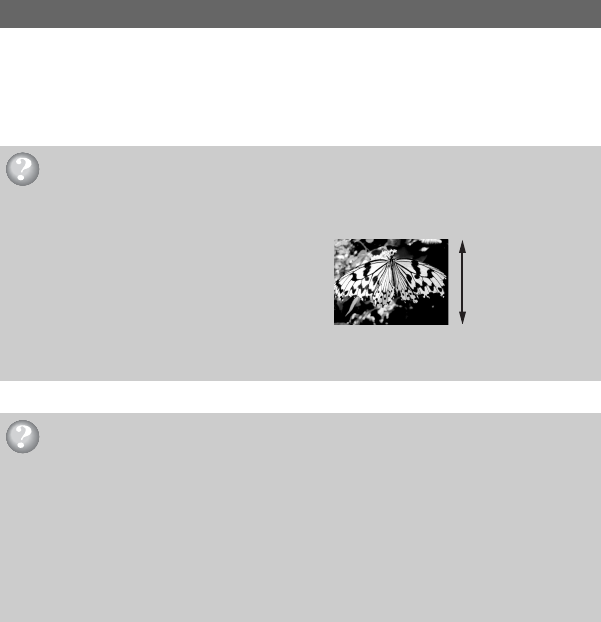
The HDV format has about 2 times the horizontal resolution of a standard TV resulting in
about 4 times the amount of pixels providing high quality images.
Being HDV format compliant, your camcorder is ready to shoot crystal clear, high-definition
images.
High image quality
What is the HDV format?
The HDV format is a new video format for shooting and playing back high definition
images on popular DV standard cassette tapes.
•Your camcorder adopts the HDV1080i
specification, which utilizes 1,080 effective
scanning lines, within the HDV standards, and
records pictures at the image bit rate of about 25 Mbps.
• These operating instructions refer to the HDV1080i specification as HDV format unless there is a need
to specify.
Why shoot in the HDV format?
By moving to digital video, like the rest of the world, you will be able to capture important
moments in your life in high quality digital HDV format, allowing you to relive them.
Your camcorder’s down convert function converts pictures in HDV format to SD (standard
definition) quality for viewing on older wide TV formats, and on 4:3 aspect ratio TVs when
a high definition TV set is not available. This provides an easy path to HDV format video.
• The down convert function converts HDV format video to DV for playback or editing when your
camcorder is connected to a TV or VCR that is not HDV1080i compliant. The resulting image is
displayed in SD (standard definition).
1,080 effective
scanning lines

13
Enjoying pictures with high definition quality
Features of this camcorder
The HDV1080i specification digital HD video camera recorder has the following features to
enable you to record beautiful scenery while traveling, etc., in high definition quality.
1 3-ClearVid CMOS sensor system installed
This camcorder is fitted with the 3-ClearVid CMOS sensor system. Superb spectroscopic
characteristics and high definition are achieved by the use of three ClearVid CMOS sensors
developed by Sony for high definition, enabling reproduction of digital high definition with
excellent sensitivity and color reproducibility.
2 Carl Zeiss Vario-Sonnar T 20X optical zoom lens installed
The Carl Zeiss Vario-Sonnar T 20× optical zoom lens lets you zoom in on distant objects
and record in high definition quality.
3 Realistic sound recording with built-in high performance microphone
The high performance stereo microphone built into this camcorder enables highly realistic
sound recording.
4 Detailed manual settings for serious filming
Extensive manual setting functions allow you to shoot high definition videos with customized
settings.
- The zoom ring, focus ring and EXPOSURE/IRIS dial provide full manual control.
- You can manually fine-adjust the shutter speed, white balance and gain.
5 Connecting to other devices
Superb external connectability is provided by a “Memory Stick Duo” slot, USB port, HDMI
OUT jack, and headphone jack on the left side of your camcorder and an i.LINK (HDV/DV)
jack, COMPONENT OUT jack, A/V OUT jack, and DC IN jack on the right side.

14
Handy Functions for Recording
You can record 1.2M still images on the “Memory Stick Duo” during recording movie.
Moving subjects can be shot in smooth moving slow-motion.
Two settings profiles, including brightness, color, etc., can be saved in your camcorder. This
enables you to use saved settings data to quickly reproduce suitable shooting settings.
You can adjust the brightness using the EXPOSURE/IRIS dial. The EXPOSURE/IRIS dial
can be used to adjust [EXPOSURE], [IRIS] or [AE SHIFT].
Still image Dual Rec (p. 30)
Smooth slow recording (p. 59)
Saving Camera profile (p. 73)
EXPOSURE/IRIS dial (p. 35)

15
Enjoying pictures with high definition quality
Viewing video recorded in the HDV format!
Pictures recorded in the HDV format can be played back as crisp HD (high definition)
picture on a high definition TV.
• For details on HDV1080i specification compliant TVs, see page 53.
Your camcorder can down convert video recorded in the HDV format to SD (standard
definition) quality for playback on a conventional TV.
xConnecting to an HDV1080i specification
An optional i.LINK cable allows you to copy pictures in HD (high definition) quality.
xConnecting to HDV1080i non-compliant specification
Use your camcorder to convert HDV format video to SD (standard definition) quality to
enable copying.
xCopying “Memory Stick Duo” still images to a computer.
xCopying movie from tape to a computer
You can copy movie to a computer, and save to DVD from copying movie.
The computer will need to be set up differently depending on whether HDV or DV format
video is to be copied. See page 89 for details.
Viewing on a high definition TV (p. 51)
Viewing on a 16:9 TV/4:3 TV (p. 51)
Dubbing to other video equipment (p. 76)
Connecting to a computer (p. 86)
16
Getting Started
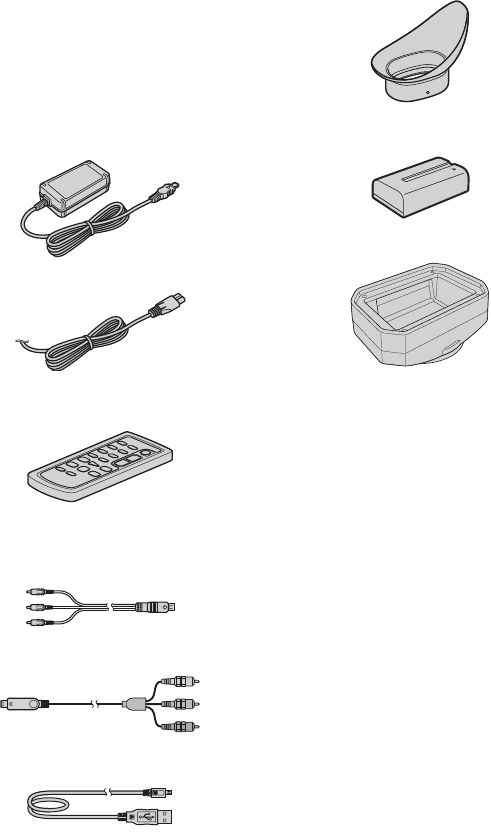
Step 1: Checking supplied items
Make sure that you have following items
supplied with your camcorder.
The number in the parentheses indicates the
number of that item supplied.
• The cassette tape and “Memory Stick Duo” are
not included. See page 26, 105 and 106 for
compatible cassettes and “Memory Stick Duo”
for your camcorder.
AC Adaptor (1) (p. 18)
Power cord (1) (p. 18)
Wireless Remote Commander (1)
(p. 123)
A button-type lithium battery is already installed.
A/V connecting cable (1) (p. 51, 76)
Component video cable (1) (p. 51)
USB cable (1) (p. 86)
Large eyecup(1) (p. 23)
Rechargeable battery pack NP-F570 (1)
(p. 18, 108)
Lens hood with lens cover (1) (p. 17)
Operating Guide (This manual) (1)
17
Getting Started
Step 2: Attaching the lens hood with lens cover
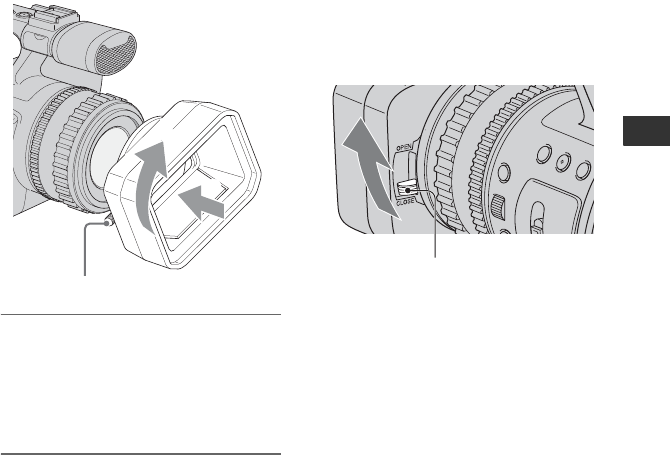
Align the marks on the lens hood to
those on the camcorder, and turn the
lens hood in the direction of the
arrow. Tighten the lens hood fixing
screw.
To remove the Lens hood with lens
cover
Loosen the lens hood fixing screw and turn
the lens hood in the opposite direction of
the arrow in the illustration above.
zTip
• If you attach, remove or adjust an 62mm (2 1/
2in.) PL filter or MC protector, remove the lens
hood.
To open the shutter of the Lens hood
with lens cover
Move the lens cover lever up and down to
open or close the lens cover.
1
2
Lens hood fixing screw
Move the lens cover lever to OPEN
to open the lens cover, and move
the lever to CLOSE to close the lens
cover.
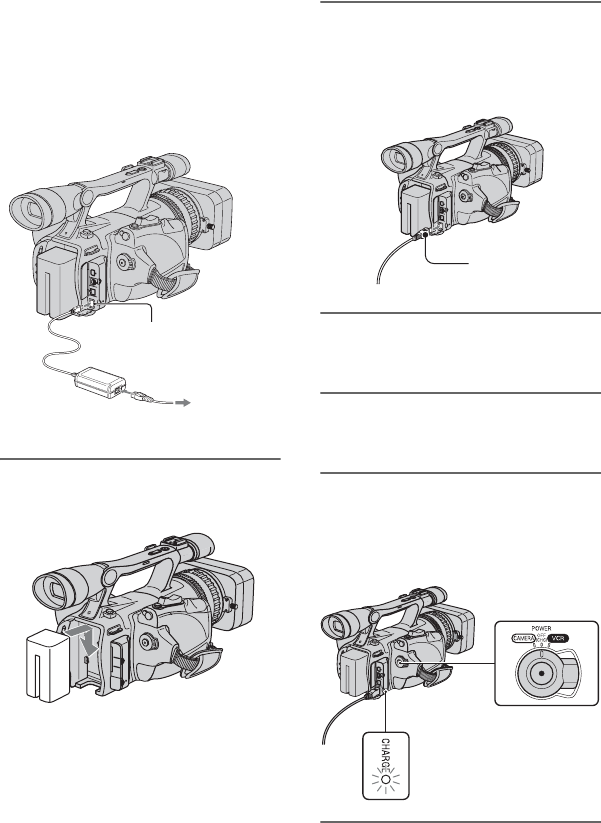
18
Step 3: Charging the battery pack
You can charge the battery by
attaching the “InfoLITHIUM” battery
pack (L series) to your camcorder.
bNote
• You cannot use batteries other than the
“InfoLITHIUM” battery pack (L series)
(p. 108).
1Press the battery pack and slide it
down.
2With the B mark on the DC plug
facing the cassette compartment,
connect the AC Adaptor to the DC
IN jack on your camcorder.
3Connect the power cord to the AC
Adaptor.
4Connect the power cord to the
wall outlet.
5Set the POWER switch to OFF
(CHG).
The CHARGE lamp lights up and
charging starts.
DC IN jack
DC plug
AC Adaptor
Power cord
To the wall
outlet
B mark
19
Getting Started
After charging the battery
The CHARGE lamp turns off when the
battery is fully charged. Disconnect the AC
Adaptor from the DC IN jack.
zTip
• You can check the remaining battery with
Battery info (p. 48).
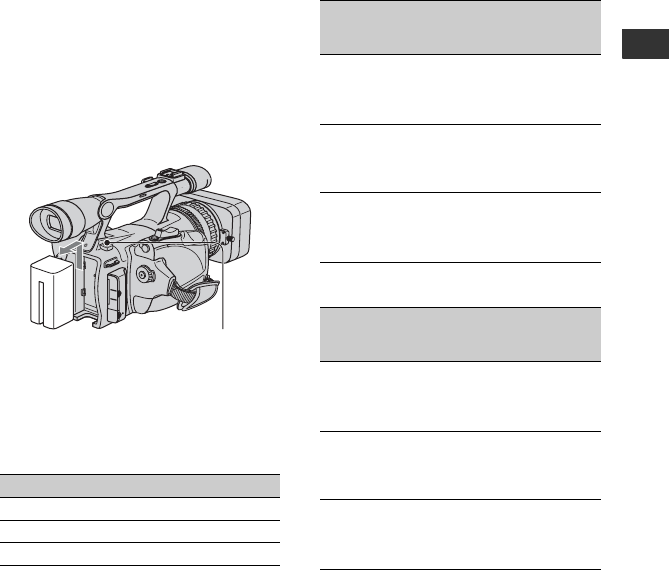
To remove the battery pack
Slide the POWER switch to OFF (CHG).
Push the BATT RELEASE (battery release)
button and remove the battery pack.
Charging time
Approximate time (min.) required when
you fully charge a fully discharged battery
pack.
Recording time
Approximate time (min.) available when
you use a fully charged battery pack.
Recording in the HDV format
Recording in the DV format
Top: When the LCD backlight turns on.
Middle: When the LCD backlight turns off.
Bottom: Recording time when recording with
the viewfinder while the LCD panel is
closed.
*Typical recording time shows the time when
you repeat recording start/stop, turning the
power on/off and zooming.
Battery pack Charging time
NP-F570 (supplied) 260
NP-F770 370
NP-F970 485
BATT RELEASE
(battery release) button
Battery pack
Continuous
recording
time
Typical
recording
time*
NP-F570
(supplied)
155 90
160 95
155 90
NP-F770 320 185
335 195
320 185
NP-F970 480 290
500 300
480 290
Battery pack
Continuous
recording
time
Typical
recording
time*
NP-F570
(supplied)
160 100
165 105
160 100
NP-F770 335 200
350 210
335 200
NP-F970 500 300
520 315
500 300
Continued ,

20
Playing time
Approximate time (min.) available when
you use a fully charged battery pack.
HDV format pictures
DV format pictures
*When the LCD backlight turns on.
On the battery pack
• Before changing the battery pack, slide the
POWER switch to OFF (CHG).
• The CHARGE lamp flashes during charging, or
Battery Info (p. 48) will not be correctly
displayed under the following conditions.
– The battery pack is not attached correctly.
– The battery pack is damaged.
– The battery pack is worn-out (For Battery
Info only).
• The power will not be supplied from the battery
as long as the AC Adaptor is connected to the
DC IN jack of your camcorder, even when the
power cord is disconnected from the wall outlet.
• When attaching an optional video light, it is
recommended that you use a NP-F970 battery
pack.
On the charging/recording/playback time
• Times measured with the camcorder at 25 °C
(77 °F) (10 to 30 °C (50 °F to 86 °F)) is
recommended).
• The recording and playback time will be shorter
when you use your camcorder in low
temperatures.
• The recording and playback time will be shorter
depending on the conditions under which you
use your camcorder.
You can use the AC Adaptor to obtain AC.
While you are using the AC Adaptor, the
battery pack will not lose its charge even
when it is attached to your camcorder.
Connect your camcorder as shown
in Step3:Charging the battery pack
(p. 18).
On the AC Adaptor
• Use the nearby wall outlet when using the AC
Adaptor. Disconnect the AC Adaptor from the
wall outlet immediately if any malfunction
occurs while using your camcorder.
• Do not use the AC Adaptor placed in a narrow
space, such as between a wall and furniture.
• Do not short-circuit the DC plug of the AC
Adaptor or battery terminal with any metallic
objects. This may cause a malfunction.
PRECAUTION
• Even if your camcorder is turned off, AC power
(house current) is still supplied to it while
connected to the wall outlet via the AC Adaptor.
Battery pack LCD panel
opened*
LCD panel
closed
NP-F570
(supplied)
245 245
NP-F770 510 510
NP-F970 760 760
Battery pack LCD panel
opened*
LCD panel
closed
NP-F570
(supplied)
270 270
NP-F770 550 550
NP-F970 830 830
Using an outside power source
Step 3: Charging the battery pack (Continued)
21
Getting Started
Step 4: Turning the power on and holding your
camcorder properly
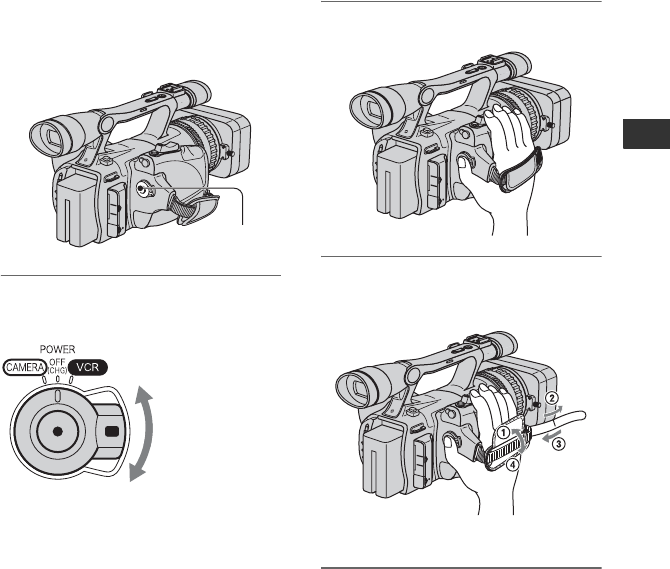
To record or play back, slide the POWER
switch to the respective direction.
When using it for the first time, [CLOCK
SET] screen appears (p. 24).
1While pressing the green button,
set the POWER switch.
CAMERA: To record pictures.
VCR: To play or edit pictures.
bNote
• After you have set the date and time
([CLOCK SET], p. 24), the next time you
turn on the power of your camcorder, the
current date and time will be displayed on
the LCD screen for a few seconds.
2Hold the camcorder properly.
3Ensure a good grip, then fasten
the grip belt.
To turn off the power
Slide the POWER switch to OFF (CHG).
bNote
• If warning messages appear on the screen,
follow the instructions (p. 102).
POWER switch
If the POWER
switch is set to OFF
(CHG), slide it
while pressing the
green button.
22
Step 5: Adjusting the LCD panel and viewfinder
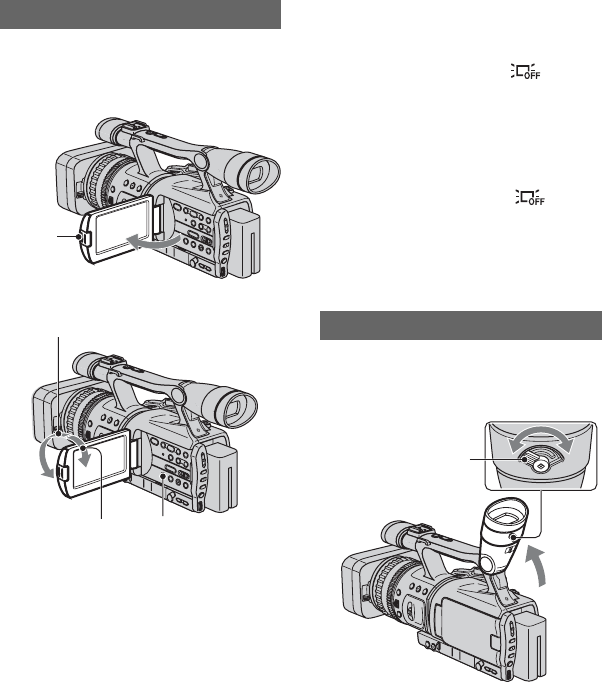
Open the LCD panel while pressing the
OPEN button 90 degrees to the camcorder
(1), then rotate it to the best angle to
record or play (2).
zTips
• If you rotate the LCD panel 180 degrees toward
the lens from the position 1, you can close the
LCD panel with the LCD screen facing outward.
This is convenient during playback operations.
• To close the LCD panel with the LCD screen
inward, rotate the LCD panel to the position 1,
and then close the LCD panel.
To turn off the LCD backlight to make
the battery last longer
Press and hold the DISPLAY/BATT INFO
button for a few seconds until appears.
This setting is practical when you use your
camcorder in bright conditions or where
you want to save battery power. The
recorded picture will not be affected by the
setting. To turn on the LCD backlight, press
and hold the DISPLAY/BATT INFO
button for a few seconds until
disappears.
zTip
• See [LCD BRIGHT] (p. 67) to adjust the
brightness of the LCD screen.
You can view pictures using the viewfinder
to save the battery, or when the picture on
the LCD screen is not clear.
zTip
• You can adjust the brightness of the viewfinder
backlight from [VF B.LIGHT] (p. 67).
The LCD panel
190 degrees to the
camcorder
2180 degrees (max.)
290 degrees
(max.) DISPLAY/BATT INFO
OPEN
button
The viewfinder
Viewfinder
Viewfinder lens
adjustment lever
Move it until the picture
becomes clear.
23
Getting Started
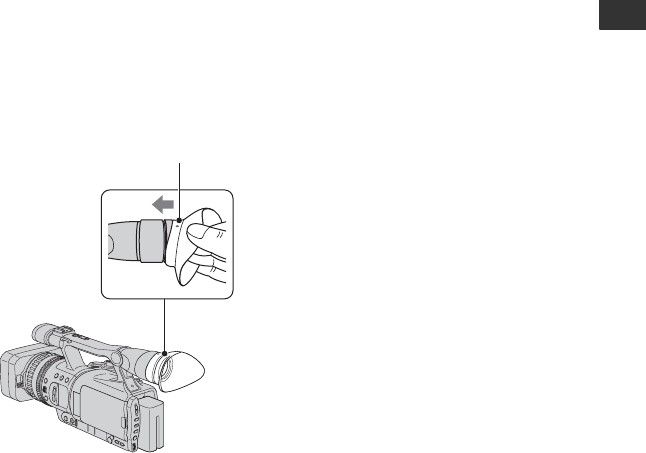
When the picture in the viewfinder is
hard to see
If you cannot see the picture in the
viewfinder clearly under bright
circumstances, use the supplied large
eyecup. To attach the large eyecup, stretch
it slightly and align it with the eyecup
groove in the viewfinder. You can attach
the large eyecup facing either the right or
left side.
bNote
• Do not remove the pre-attached eyecup.
Large eyecup
(supplied)
Attach with the protruding part at
the top.
24
Step 6: Setting the date and time
Set the date and time when using this
camcorder for the first time. If you do not
set the date and time, [CLOCK SET] screen
appears every time you turn on your
camcorder or change the POWER switch
position.
zTip
• If you do not use your camcorder for about 3
months, the built-in rechargeable battery gets
discharged and the date and time settings may
be cleared from the memory. In that case,
charge the rechargeable battery and then set the
date and time again (p. 113).
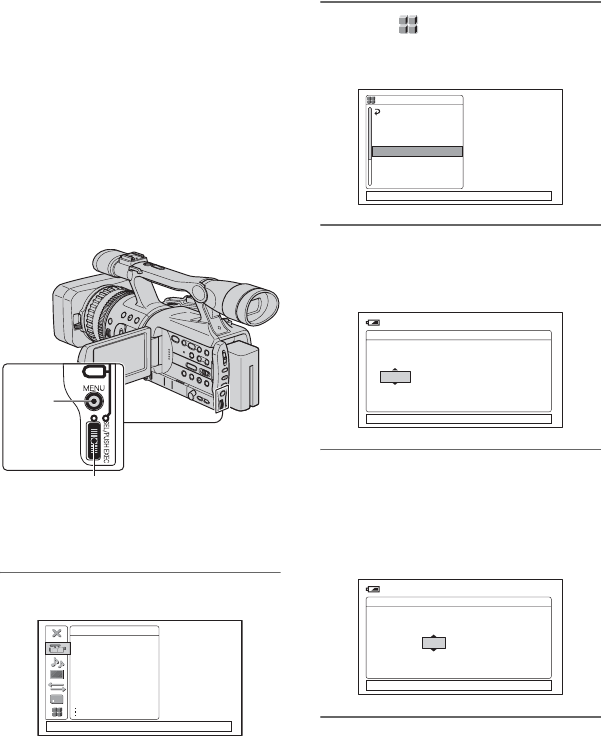
Skip to step 4 when you set the clock for
the first time.
1Press the MENU button.
2Select (OTHERS) by turning
the SEL/PUSH EXEC dial, then
press the dial.
3Select [CLOCK SET] by turning
the SEL/PUSH EXEC dial, then
press the dial.
4Set [Y] (year) by turning the SEL/
PUSH EXEC dial, then press the
dial.
You can set any year up to the year
2079.
5Set [M] (month), [D] (day), hour
and minute, then press the dial.
The clock starts.
For midnight, set it to 12:00 AM.
For midday, set it to 12:00 PM.
SEL/PUSH EXEC dial
MENU
button
CAMERA SET
EXPOSURE/IRIS
SMTH SLW REC
CNTRST ENHCR
STEADYSHOT
COLOR BAR
AF ASSIST
AE SHIFT
[MENU ]: END
OTHERS
RETURN
CAMERA PROF.
ASSIGN BTN
PHOTO/EXP.FOCUS
CLOCK SET
WORLD TIME
LANGUAGE
QUICK REC
[MENU ]: END
120min
CLOCK SET
[MENU ]: CANCEL
AMDMY 12100:JAN2006
-:--:--
120min
CLOCK SET
[MENU ]: CANCEL
AMDMY 12100:JAN2006
-:--:--

25
Getting Started
zTip
• The date and time do not appear during
recording, but they are automatically recorded
on the tape, and can be displayed during
playback ([DATA CODE] (p. 67)).
You can change the on-screen displays to
show messages in a specified language.
Select the screen language in
[LANGUAGE] (p. 74).
Changing the language setting
26
Step 7: Inserting a tape or a “Memory Stick Duo”
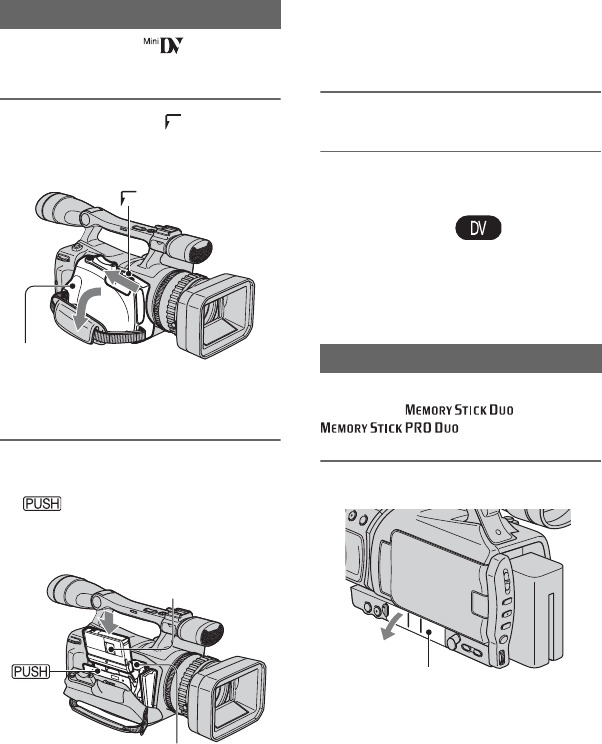
You can use mini DV cassettes only
(p. 105).
1Slide and hold the OPEN/
EJECT lever in the direction of the
arrow and open the lid.
The cassette compartment automatically
comes out and opens up.
2Insert a cassette with its window
facing outwards, then press
.
The cassette compartment automatically
slides back in.
bNote
• Do not push the portion marked
while it is sliding in. It
may cause a malfunction.
3Close the lid.
zTip
• The recordable time varies depending on [DV
REC MODE] (p. 69).
To eject the cassette
Open the lid following the same procedure
as described in step 1 and remove the
cassette.
You can use only a “Memory Stick Duo”
marked with or
(p. 106).
1Open the jack cover.
Cassette tape
OPEN/EJECT lever
Lid
Window
Push the center of the back
of the cassette lightly.
Cassette
compartment
“Memory Stick Duo”
{DO NOT PUSH}
Jack cover
27
Getting Started
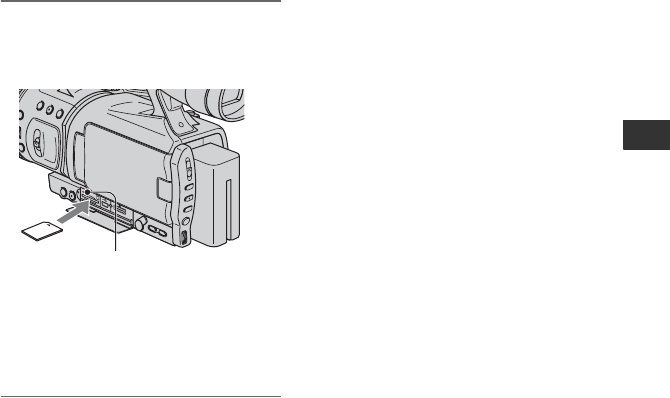
2Insert the “Memory Stick Duo”
into the “Memory Stick Duo” slot
in the right direction until it clicks.
bNote
• If you insert the “Memory Stick Duo” into
the slot in the wrong direction, the “Memory
Stick Duo,” the “Memory Stick Duo” slot,
or image data may be damaged.
To eject a “Memory Stick Duo”
Lightly push the “Memory Stick Duo”
once.
bNotes
• When the access lamp is lit or flashing, your
camcorder is reading/writing data. Do not shake
or knock your camcorder, turn the power off,
eject the “Memory Stick Duo,” or remove the
battery pack. Otherwise, image data may be
damaged.
• When inserting or ejecting the “Memory Stick
Duo,” be careful with the “Memory Stick Duo”
from popping out and dropping.
Access lamp
28
Recording/Playback
Recording
This camcorder records movies on tape and still images on “Memory Stick Duo”. The
procedure for recording movies is below.
• This camcorder can record movies in either HDV or DV format. The factory setting is HDV format ([REC
FORMAT] p. 69).
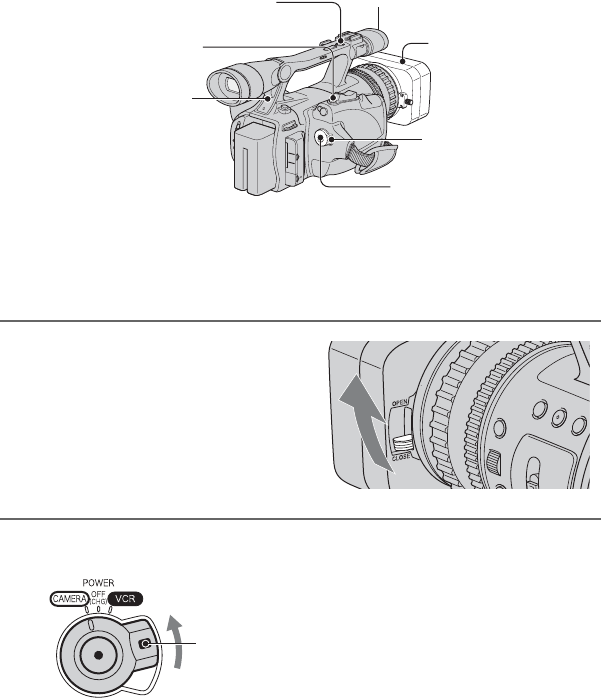
1Open the shutter of the lens hood.
2While pressing the green button, set the POWER switch to CAMERA.
Lens food
REC START/STOP
button B
POWER switch
REC START/STOP
button A
Rec lamp
PHOTO/EXPANDED
FOCUS button
Rec lamp
If the POWER switch
is set to OFF (CHG),
slide it while pressing
the green button.
29
Recording/Playback
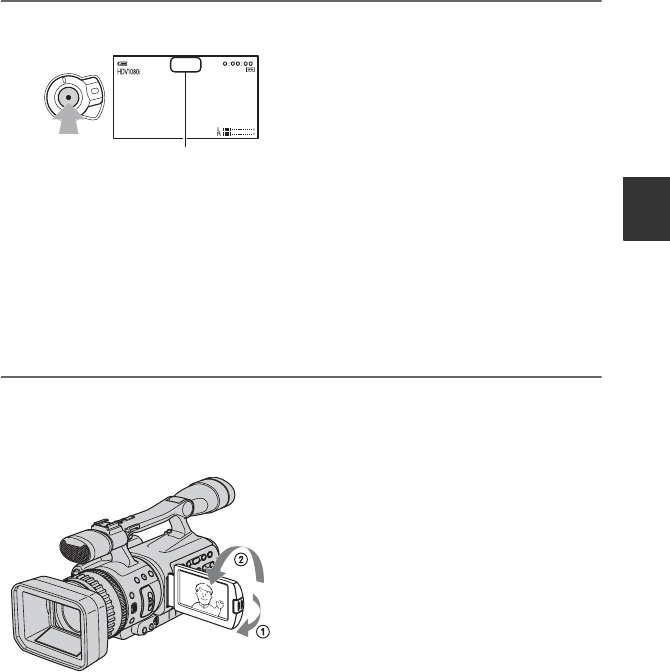
3Press the REC START/STOP button A (or B).
The Rec lamp lights up during recording.
To stop the movie recording, press the REC START/STOP button again.
zTips
• When recording in HDV format, the aspect ratio is fixed to 16:9. When recording in DV format, you
can switch the aspect ratio to 4:3 ([DV WIDE REC] p. 70).
• You can change the screen display during recording (p. 47).
• Indicators displayed on the screen during recording are shown on page 124.
• The recording lamp can be set to stay off ([REC LAMP] p. 75).
• You cannot record the movie on a “Memory Stick Duo”.
To record in mirror mode
Open the LCD panel 90 degrees to the camcorder (1), then rotate it 180 degrees toward the
lens (2).
zTip
• A mirror-image of the subject appears on the LCD screen, but the recorded picture will be normal.
410min
60min
REC
[STBY] t [REC]
Continued ,

30
To record still images
Press the PHOTO/EXPANDED FOCUS button. The image is recorded on a “Memory Stick
Duo.” Recording is complete when disappears. You can also record still images during
movie recording.
zTips
• When you are not recording a movie, you will hear the shutter click.
• The still image size is as follows:
– When recording in HDV or DV (16:9) format: 1.2M (1,440 × 810 dots)
– When recording in DV (4:3) format: 0.9M (1,080 × 810 dots)
• You can change the image quality and number of recordable images ([ QUALITY] (p. 71)).
• Indicators displayed on the screen during shooting are shown on page 124.
• You can set the PHOTO/EXPANDED FOCUS button to start the expanded focus function as you press
the button ([PHOTO/EXP.FOCUS] (p. 74)).
Recording (Continued)
31
Recording/Playback
Playback
You can play back movies as follows.
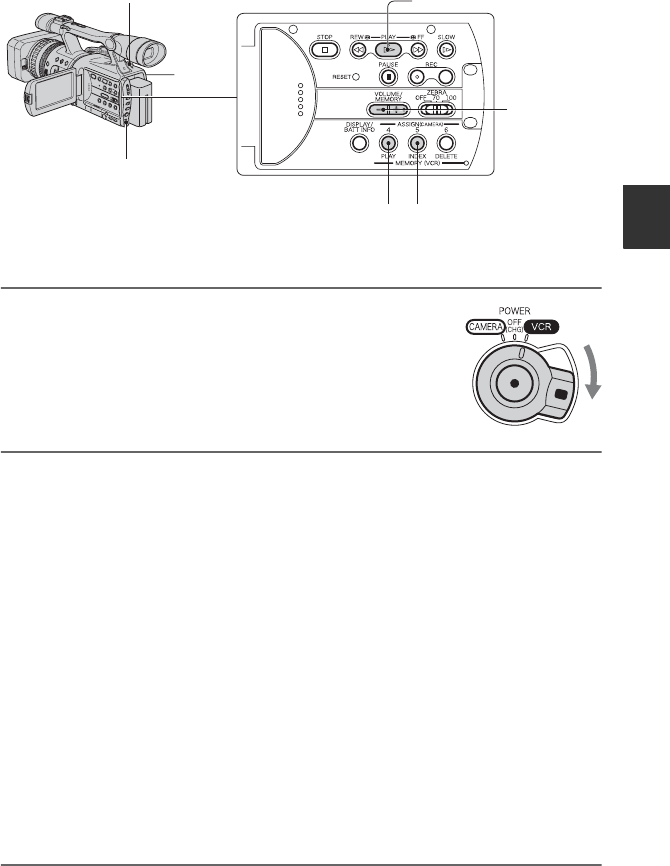
1While pressing the green button, set the POWER
switch to VCR.
2Start playing back.
Press m (rewind) to go to the point you want to view, then press N (play) to start
playback.
•x : Stop
•X : Pause (Press N or X again to restart the playback)
•M m : Forward/Rewind
•y : Slow
bNotes
• Playback automatically stops if pause is engaged for more than 3 minutes.
• When playing back a tape recorded in the HDV and DV formats, and the signal switches between
HDV and DV, the picture and sound disappear temporarily.
• You cannot play back the tape recorded in the HDV format on video cameras of the DV format or
mini-DV players.
zTips
• Indicators displayed on the screen during playback are shown on page 125.
• You can change the screen display during playback (p. 47).
• To play back the tape recorded using an external monaural microphone connected, see [MULTI-
SOUND] (p. 64).
PLAY button
MEMORY/PLAY
button
Zoom lever
SEL/PUSH EXEC dial
MEMORY/INDEX
button
VOLUME/
MEMORY
button
POWER
switch
Continued ,
32
To search for a scene while viewing a movie
Press M/m during playback (Picture Search). To view during fast forward press and hold
M and to view during rewind press and hold m (Skip Scan).
bNote
• Reverse picture search/skip scan is not possible with tapes recorded in HDV format.
To adjust the volume
Adjust using the VOLUME/MEMORY button.
To view still images
1Slide the POWER switch to VCR.
2Press the MEMORY/PLAY button.
3Select still image that you want to look using the VOLUME/MEMORY button.
To stop viewing still images, press the MEMORY/PLAY button once more.
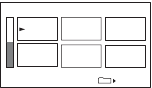
To display the list of still photos (index screen)
1Slide the POWER switch to VCR.
2Press the MEMORY/INDEX button.
3Select a picture by pressing the VOLUME/MEMORY button.
To display a single image, move B to that image and press the MEMORY/PLAY button.
To stop displaying the list of still photos, press the MEMORY/INDEX button again.
1/19
101–0050
101
Playback (Continued)
33
Recording/Playback
Changing the settings of your camcorder
recordings
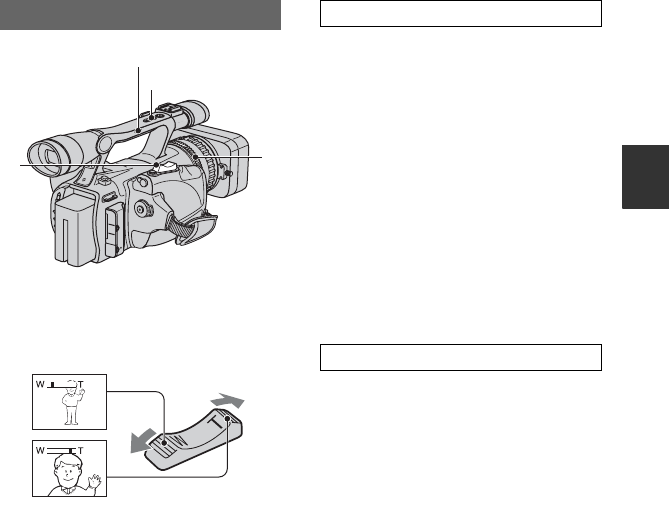
Move the power zoom lever C slightly for
a slower zoom. Move it further for a faster
zoom.
zTips
• The minimum distance required between your
camcorder and the subject for focus is about 1
cm (about 13/32 in.) for wide angle and about
80 cm (about 2 5/8 feet) for telephoto.
• The focus may not be adjusted at certain zoom
positions if the subject is within 80 cm (about 2
5/8 feet) from your camcorder.
• Be sure to keep your finger on the power zoom
lever. If you move your finger off the power
zoom lever, the operation sound of the power
zoom lever may also be recorded.
1Set the handle zoom switch B to H
(high) or L (low).
zTip
• You can set the zoom speed of the handle
zoom lever in [HANDLE ZOOM] (p. 61).
2Press the handle zoom lever A to zoom
in or out.
bNotes
• You cannot adjust the zoom speed by pressing
the handle zoom lever.
• You cannot use the handle zoom lever when the
handle zoom switch is set to OFF.
• You cannot change the zoom speed of the zoom
lever C with the handle zoom switch B.
You can zoom at the desired speed by
turning the zoom ring D. Fine adjustment
is also possible.
bNote
• Turn the zoom ring at a reasonable speed. If you
turn it too fast, the zoom speed may not catch up
with the zoom ring rotating speed.
Adjusting the zoom
A
B
CD
Close view: (Telephoto)
Wide view: (Wide angle)
Using the handle zoom
Using the zoom ring
Continued ,
34
You can adjust the focus manually for
different recording conditions.
Use this function in the following cases.
– To record a subject behind a window covered
with raindrops.
– To record horizontal stripes.
– To record a subject with little contrast between
the subject and its background.
– When you want to focus on a subject in the
background.
– To record a stationary subject using a tripod.
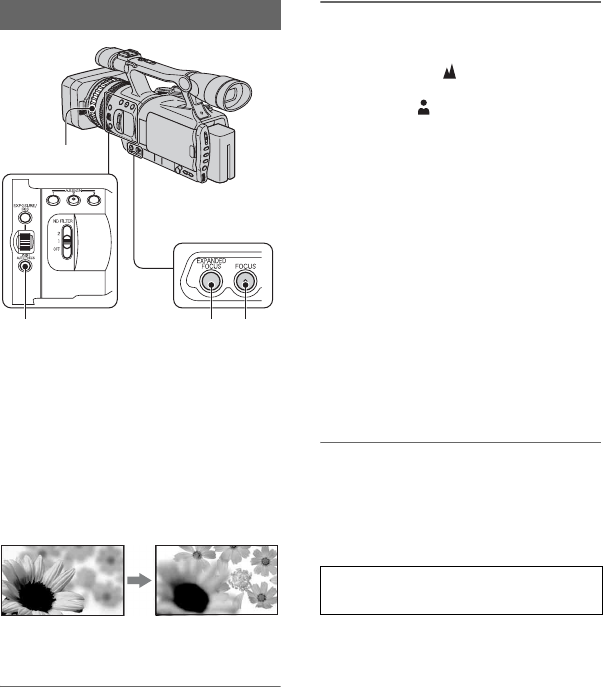
1During recording or standby,
press the FOCUS button A.
9 appears.
2Rotate the focus ring D and
adjust the focus.
9 changes to when the focus
cannot be adjusted any farther. 9
changes to when the focus cannot be
adjusted any closer.
bNote
• The setting returns to automatic adjustment
(default) when you set the POWER switch to
OFF (CHG) for more than 12 hours.
zTips
For focusing manually
• It is easier to focus on the subject when you use
the zoom function. Move the power zoom lever
towards T (telephoto) to adjust the focus, and
then, towards W (wide angle) to adjust the zoom
for recording.
• When you want to record a close-up image of a
subject, move the power zoom lever towards W
(wide angle) to fully magnify the image, then
adjust the focus.
To restore automatic adjustment
Press the FOCUS button A once again.
9 disappears and AUTO FOCUS is
restored.
Record the subject while pressing and
holding the PUSH AUTO FOCUS button
C.
If you release the button, the setting returns
to manual focusing.
Use this function to shift the focus on one
subject to another. The scenes will shift
smoothly.
Adjusting the focus manually
AB
C
D
To use AUTO FOCUS temporarily
(One push auto focus)
Changing the settings of your camcorder recordings (Continued)
35
Recording/Playback
zTip
• The focal distance information (for when it is
dark and hard to adjust the focus) appears for
about 3 seconds in the following cases. (It will
not be displayed correctly if you are using a
conversion lens (optional)).
– When the focus mode is switched from
automatic to manual.
– When you rotate the focus ring.
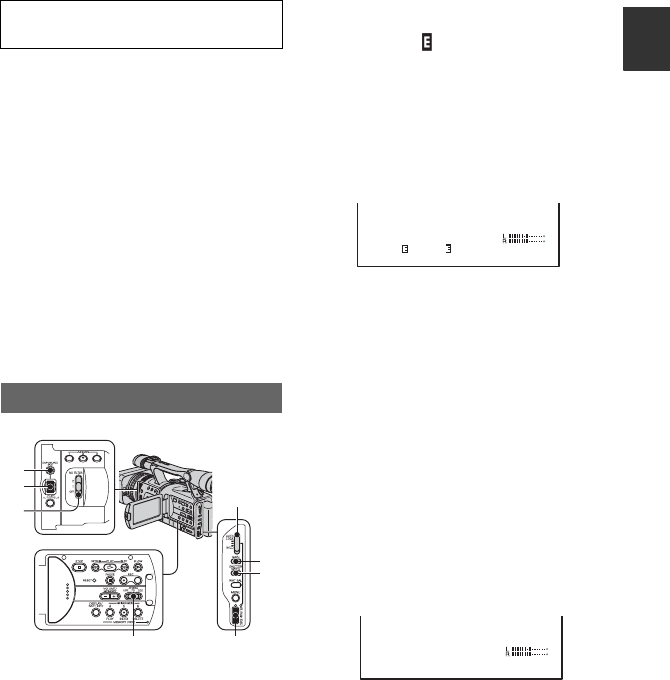
During standby, press the EXPANDED
FOCUS button B.
[EXPANDED FOCUS] appears and the
center of the screen is magnified by about 2
times. It will be easier to confirm the focus
setting during manual focusing. The screen
returns to the original size when you push
the button again.
bNote
• The image returns to the original size when you
press the REC START/STOP button or the
PHOTO/EXPANDED FOCUS button.
zTip
• You can select the type of a picture on
EXPANDED FOCUS ([EXP.FOCUS TYPE]
p. 66).
You can adjust the brightness of a picture
with the EXPOSURE/IRIS dial G.
You can assign any one of [EXPOSURE]
(the default setting), [IRIS] and [AE
SHIFT] to the EXPOSURE/IRIS dial G
from the menu (p. 59).
zTips
• Even if you open the aperture more than F2.8
(i.e. make the iris value smaller, such as F1.6)
during camera EXPOSURE/IRIS setting,
changing the zoom from wide to telephoto will
change the iris to F2.8.
• When the EXPOSURE/IRIS dial is set to
[EXPOSURE], appears next to the values
that can be set with the EXPOSURE/IRIS dial.
xEXPOSURE (the default setting)
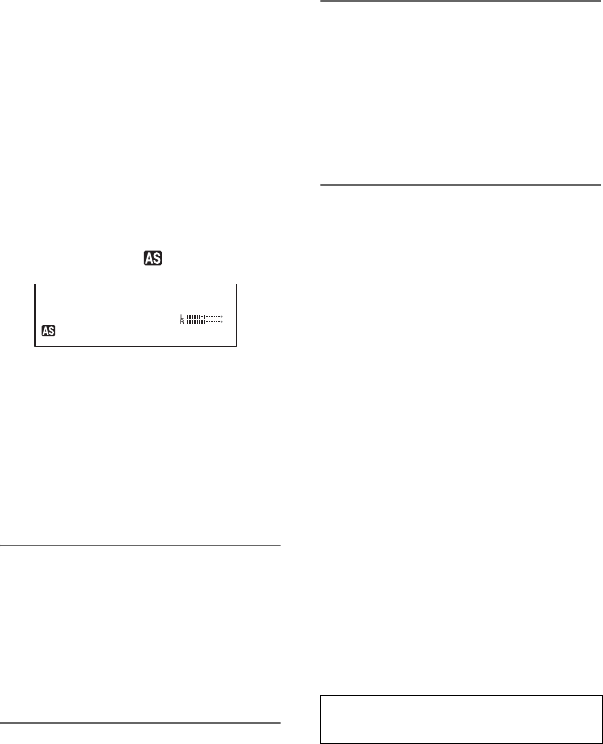
You can adjust the display brightness by
adjusting the iris and gain (the shutter
speed remains fixed).
The iris, gain and shutter speed are
displayed on the screen.
bNote
• The GAIN button and the SHUTTER SPEED
button are inactive.
zTip
• This is handy for changing the brightness of the
screen and setting the desired brightness by dial
operation.
xIRIS
You can manually adjust the light volume
of the light entering the lens between F1.6
and F11 or close the aperture.
As the iris is opened (smaller aperture
values), the light volume increases or the
iris is closed (larger aperture values), the
light volume decreases. The current
aperture value (F) appears on the screen.
To use the expanded focus
(Expanded focus)
Adjusting the EXPOSURE/IRIS
H
G
F
ED
C
B
A
F2.4 0
dB
60
F2.8
Continued ,
36
zTips
• The range of focus, an important effect of the
aperture, is called the depth of field. The depth
of field gets shallower as the aperture is opened,
and deeper as the aperture is closed. Use the
aperture creatively to obtain the desired effect in
your photography.
• This is handy for making the background
blurred or sharp, or when you want to manually
adjust the iris, gain or shutter speed on the
screen.
xAE SHIFT
You can slightly adjust the exposure
between -7 (dark) and +7 (bright) during
the auto recording. appears.
bNotes
• You cannot manually adjust the IRIS.
• [AE SHIFT] does not work when the exposure
is manually set or the iris, gain and shutter speed
are all set manually.
zTip
• You can adjust the AE SHIFT from the menu
(p. 61).
1During recording or standby, set
the AUTO LOCK switch A to the
center position to release the
auto lock mode.
This operation is not required when AE
SHIFT is assigned to the EXPOSURE/
IRIS dial.
2Press the EXPOSURE/IRIS button
H.
The EXPOSURE/IRIS dial G will be
effective.
3Adjust the picture quality by
turning the EXPOSURE/IRIS dial
G.
zTip
• If you set the AUTO LOCK switch A to
HOLD after manual adjustment, the manually
adjusted items are saved.
To restore automatic adjustment
Press the EXPOSURE/IRIS button H, or
set the AUTO LOCK switch A to AUTO
LOCK.
bNotes
• If you set the AUTO LOCK switch A to
AUTO LOCK, other manually adjusted items
(gain, shutter speed, white balance) also become
temporarily automatic.
• As you shift the zoom from W (wide) to T
(telephoto), the aperture value varies from F1.6
to F2.8.
• The setting returns to automatic adjustment
(default) when you set the POWER switch to
OFF (CHG) for more than 12 hours.
zTips
• You can adjust the dial sensitivity of the
EXPOSURE/IRIS dial G by selecting
[EXPOSURE/IRIS] t [DIAL SENS](p. 59),
and the dial operating direction by selecting
[EXPOSURE/IRIS] t [DIAL ROTATE]
(p. 59).
• Settings can also be checked by pressing the
STATUS CHECK button (p. 47).
• See page 62 for [BACK LIGHT].
You can record the subject clearly by using
the ND filter when the recording
environment is too bright.
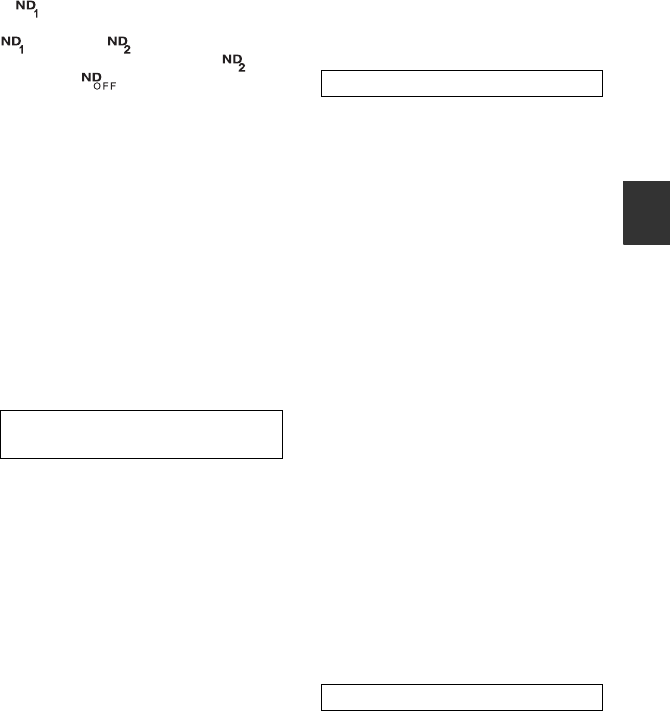
There are 2 levels of ND filter setting. ND
filter 1 reduces the volume of light to about
1/4, and ND filter 2 to about 1/16.
+2
Adjusting the volume of light
(ND filter)
Changing the settings of your camcorder recordings (Continued)
37
Recording/Playback
If flashes during standby mode, set the
ND FILTER switch F to 1 to turn on the
indicator. If flashes, set the ND
FILTER switch to 2 to turn on the
indicator. If flashes, set the ND
FILTER switch to OFF to turn off the
indicator.
bNotes
• If you move the ND FILTER switch during
recording, the picture and sound may be
distorted.
• If you adjust the iris manually, no ND filter
indicator will appear even if the ND filter
should be activated.
zTip
• If you close the iris extensively when recording
a bright subject, diffraction may occur, resulting
in a fuzzy focus (this is a common phenomenon
with video cameras). The ND filter suppresses
this phenomenon and gives better recording
results.
If there is a part of the screen where
brightness is over a certain level, the part
may appear excessively white when played
back. By displaying the zebra pattern on
such a part, you can be reminded to adjust
the brightness before recording.
Select the brightness level to display the
zebra pattern with the ZEBRA switch E,
then the zebra pattern will appear.
Select the brilliance value from [70] or
[100].
If you select [70], the zebra pattern appears
at the part with 70±5 % of the brilliance
signal.
If you select [100], the zebra pattern
appears at the part with 100% or more.
To hide the zebra pattern
• Set the ZEBRA switch E to OFF.
bNote
• The zebra pattern is not recorded on the tape.
zTip
• This is convenient for adjusting the brightness
while a histogram (p. 65) is displayed.
You can adjust the gain manually when
shooting blackish or dark objects if you do
not want the AGC (auto gain control) to be
activated.
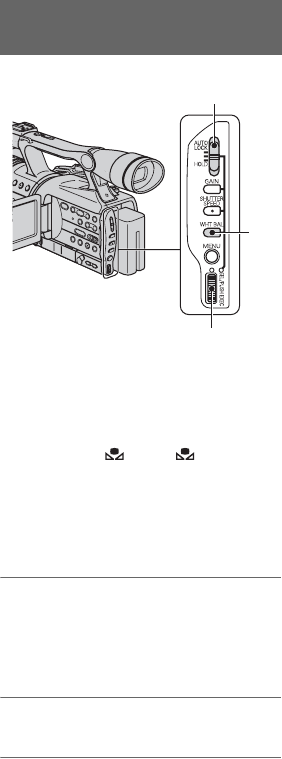
1During recording or standby, set the
AUTO LOCK switch A to the center
position to release the auto lock.
2Press the GAIN button B.
The current gain value appears.
3Adjust the gain by turning the SEL/
PUSH EXEC dial D.
The gain can be adjusted between 0dB
and 18dB by every 3dB.
zTip
• The gain value can be stored temporarily by
setting the AUTO LOCK switch A to HOLD
after the manual adjustment.
To restore automatic adjustment
Press the GAIN button B, or set the
AUTO LOCK switch A to AUTO LOCK.
bNotes
• If you set the AUTO LOCK switch A to
AUTO LOCK, other manually adjusted items
(iris, shutter speed, white balance) also become
temporarily automatic.
• The setting returns to automatic adjustment
when you set the POWER switch to OFF (CHG)
for more than 12 hours.
You can manually adjust and fix the shutter
speed. Depending on the shutter speed, you
can make the subject look still, or
emphasize the fluidity of movement.
1During recording or standby, set the
AUTO LOCK switch A to the center
position to release the auto lock mode.
2Press the SHUTTER SPEED button C.
Displaying the zebra pattern to
adjust the brightness
Adjusting the gain
Adjusting the shutter speed
Continued ,
38
3Adjust the shutter speed by turning the
SEL/PUSH EXEC dial D.
You can set a shutter speed between 1/4
second and 1/10000 second.
The selected shutter speed appears on
the screen. For example, if you select
1/100 second, [100] appears. The larger
the number that appears on the screen,
the faster the shutter speed.
zTip
• The shutter speed can be stored temporarily by
setting the AUTO LOCK switch A to HOLD
after the manual adjustment.
To restore automatic adjustment
Press the SHUTTER SPEED button C, or
set the AUTO LOCK switch A to AUTO
LOCK.
bNotes
• If you set the AUTO LOCK switch A to
AUTO LOCK, other manually adjusted items
(iris, gain, white balance) also become
temporarily automatic.
• The setting returns to automatic adjustment
when you set the POWER switch to OFF (CHG)
for more than 12 hours.
zTips
• It is difficult to focus automatically at a lower
shutter speed. Manual focusing with your
camcorder attached to a tripod is recommended.
• The picture may flicker or change colors under
fluorescent lamps, sodium lamps, or mercury
lamps.
You can adjust the white balance according
to the light of the recording environment.
You can set two sets of white balance
adjustment data separately in memory A
and memory B for two different recording
conditions with A and B. During
recording, you can select the setup data
with the SEL/PUSH EXEC dial. The setup
data will be retained as long as it is not
readjusted even if the power is
disconnected.
1During recording or standby, set
the AUTO LOCK switch A to the
center position to release the
auto lock mode.
2Press the WHT BAL button B.
3Display desired item by turning
the SEL/PUSH EXEC dial C, then
press the dial.
Adjusting to Natural Color
(White balance)
B
C
A
Changing the settings of your camcorder recordings (Continued)
39
Recording/Playback
The display changes. A t B
t (OUTDOOR) t n
(INDOOR)
zTip
• The white balance can be stored temporarily by
setting the AUTO LOCK switch A to HOLD
after the manual adjustment.
To save the adjusted white balance
value in memory A or B
1Select A or B according to step
3 of “Adjusting to Natural Color (White
Balance).”
2Shoot something white (such as a sheet
of paper) full-screen under the same
lighting conditions as the subject.
3Press the SEL/PUSH EXEC dial C.
Pressing the dial switches between
blinking A and B.
When the white balance is adjusted,
A or B stops blinking and remains
on. The adjusted value is now saved in
the selected A or B memory.
To restore the automatic white
balance
Press the WHT BAL button B, or set the
AUTO LOCK switch A to AUTO LOCK.
bNotes
• If you set the AUTO LOCK switch A to
AUTO LOCK, other manually adjusted items
(iris, gain, shutter speed) also become
temporarily automatic.
• The setting returns to automatic adjustment
when you set the POWER switch to OFF (CHG)
for more than 12 hours.
You can customize the picture quality by
adjusting [COLOR LEVEL],
[SHARPNESS], etc. You can set 6 different
picture quality settings depending on the
recording time of day, the weather, or the
camera person, and store them in the
memory.
Connect your camcorder to a TV or
monitor, and adjust the picture quality
while observing the picture on the TV or
monitor screen.
At the default setting, [PP1] through [PP6]
are registered with picture quality settings
for the following recording conditions.
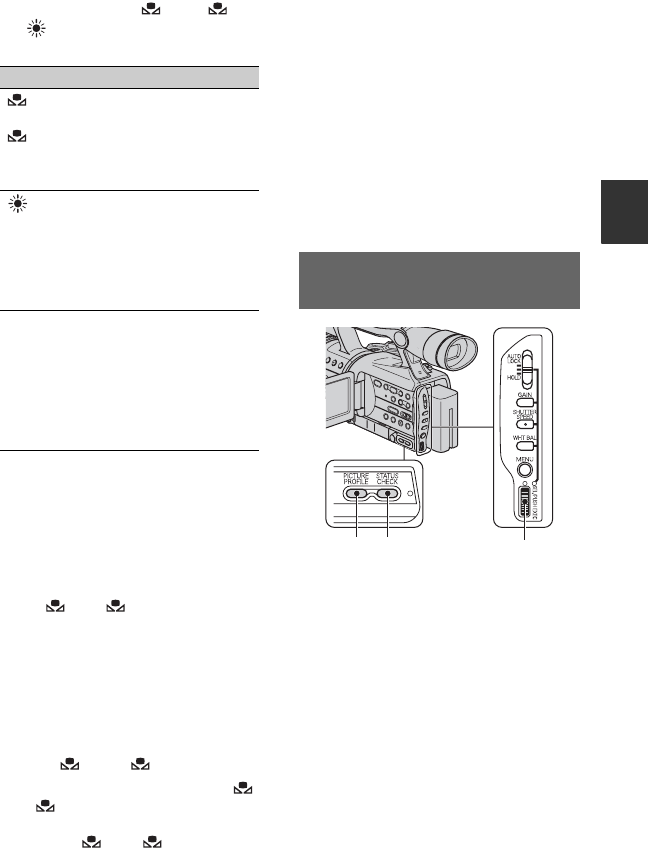
Indicator Shooting conditions
A
(MEMORY A)
B
(MEMORY B)
• White balance values
adjusted for light
sources can be stored
in memory A and
memory B. Follow the
steps below
(Outdoor)
• Recording a sunset/
sunrise, just after
sunset, just before
sunrise, neon signs, or
fireworks.
• Under daylight color
fluorescent lamps
n
(Indoor)
• Under the lighting
condition that changes
quickly
• Under strong light
such as in a
photography studio
• Under sodium lamps
or mercury lamps
Customizing the picture quality
(Picture profile)
CB A
Continued ,

40
1During standby, press the
PICTURE PROFILE button C.
2Select a picture profile number by
turning the SEL/PUSH EXEC dial
A, then press the dial.
[PP1] through [PP6] are available.
You can shoot with the settings of the
selected picture profile.
3Select [OK] by turning the SEL/
PUSH EXEC dial A.
To cancel the picture profile recording
Select [OFF] in step 2, then press the SEL/
PUSH EXEC dial A.
To change the picture profile
You can change the settings in [PP1]
through [PP6].
1Press the PICTURE PROFILE button
C.
2Select the PICTURE PROFILE number
by turning the SEL/PUSH EXEC dial
A, then press the dial.
3Select [SETTING] by turning the SEL/
PUSH EXEC dial A, then press the
dial.
4Select an item to be adjusted by turning
the SEL/PUSH EXEC dial A, then
press the dial.
5Adjust the picture quality by turning the
SEL/PUSH EXEC dial A, then press
the dial.
Picture profile
number (setting
name)
Recording condition
PP1
:PORTRAIT
Appropriate setting to
record people
PP2
:CINEMA
Appropriate setting to
record film-like pictures
PP3
:SUNSET
Appropriate setting to
record sunset
PP4
:MONOTONE
Appropriate setting to
record monotone pictures
PP5
:------
You can assign your own
setting
PP6
:------
You can assign your own
setting.
Item Adjustment
[COLOR
LEVEL]
–7 (low) to +7 (high)
–8 (black and white)
[COLOR
PHASE]
–7 (greenish) to +7
(reddish)
[SHARP-
NESS]
0 (softer) to 15 (clearer)
[SKINTON
E DTL]
To make wrinkles less
noticeable by suppressing
the outlines on the part of
skin color.
[TYPE1] (the color range
recognized as a skin color
is narrow) to [TYPE3] (the
color range recognized as
a skin color is wide)
[OFF]: no adjustment
[WB
SHIFT]
–7 (to make picture bluish)
to +7 (to make white parts
reddish)
[CINEMA-
TONE
GAMMA]
When you set [ON],
pictures are recorded with
the gamma curve that
reproduces the natural
gradation sequence,
similar to that of film
cameras
Changing the settings of your camcorder recordings (Continued)
41
Recording/Playback
6Repeat steps 4 and 5 to adjust other
items.
7Select [ RETURN] by turning the
SEL/PUSH EXEC dial A, then press
the dial.
8Select [OK] by turning the SEL/PUSH
EXEC dial A, then press the dial.
A picture profile indicator appears.
bNote
• In the case of [TYPE3] of [SKINTONE
DTL], the effect may also be applied to a
color that is not a skin color.
To check the picture profile settings
During recording or standby, press the
STATUS CHECK button B (p. 47).
zTip
• You can assign picture profiles to the ASSIGN
buttons and use them to turn the picture profiles
on and off (p. 42).
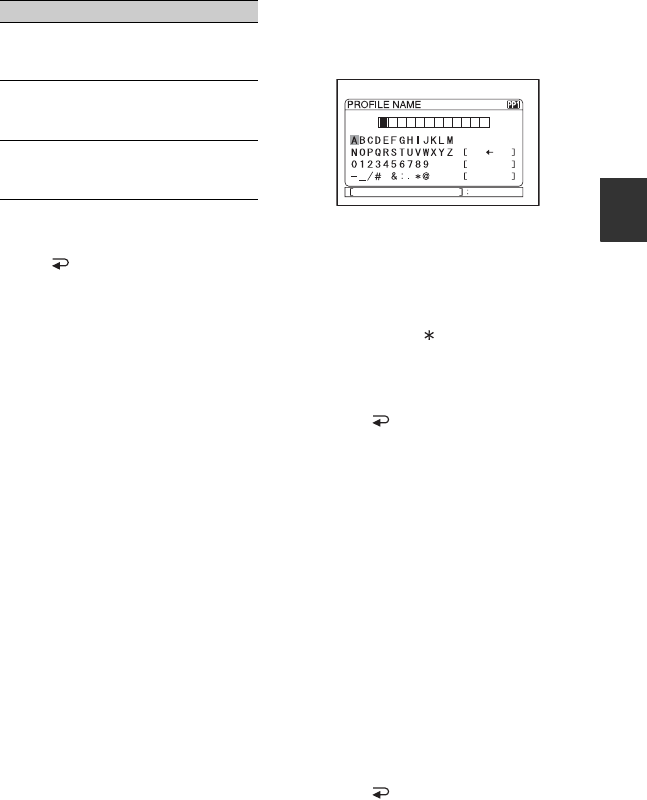
To name the picture profile settings
You can name on picture profile 1~6.
1Press the PICTURE PROFILE button
C.
2Select the picture profile that you want
to name by turning the SEL/PUSH
EXEC dial A, then press the dial.
3Select [SETTING] t [PROFILE
NAME] by the SEL/PUSH EXEC dial
A.
4Select a letter by turning the SEL/PUSH
EXEC dial A, then press the dial.
Repeat this operation until a complete
name is entered.
zTips
• Each name can be up to 12 characters long.
• Characters that can be used in profile
names:
•A~Z
•0~9
• - _ / # & : . @
5Select [OK] by turning the SEL/PUSH
EXEC dial A, then press the dial. The
profile name is changed.
6Select [ RETURN] t [OK] by the
SEL/PUSH EXEC dial A.
To copy the picture profile setting to
other picture profiles
1Press the PICTURE PROFILE button
C.
2Select the picture profile that you want
to copy from by turning the SEL/PUSH
EXEC dial A, then press the dial.
3Select [SETTING] t [COPY] by SEL/
PUSH EXEC dial A.
4Select the number of the picture profile
that you want to copy to by turning the
SEL/PUSH EXEC dial A, then press
the dial.
5Select [YES] by turning the SEL/PUSH
EXEC dial A, then press the dial.
6Select [ RETURN] t [OK] by the
SEL/PUSH EXEC dial A.
[PROFILE
NAME]
To name the set picture
profiles [PP1] through
[PP6] (p. 39)
[COPY] To copy a picture profile
setting to other picture
profiles
[RESET] To restore the default
setting of the picture
profile
Item Adjustment
CANCEL
OK
P I CTURE PROF I LE END
PICT. PROFILE
Continued ,

42
To reset the picture profile settings
You can reset the picture profile settings by
each picture profile number. You cannot
reset all picture profile settings at once.
1Press the PICTURE PROFILE button
C.
2Select the picture profile by turning the
SEL/PUSH EXEC dial A, then press
the dial.
3Select [SETTING] t [RESET] t
[YES] t [ RETURN] t [OK] by
the SEL/PUSH EXEC dial A.
Assigning the
functions to the
ASSIGN buttons
You may need to assign some functions to
the ASSIGN buttons. You can assign a
single function to each the ASSIGN button
1 to 6.
Functions you can assign to the
ASSIGN buttons
• MARKER (p. 66)
• D.EXTENDER (p. 63)
• FOCUS INFNTY (p. 43)
• REC REVIEW (p. 44)
• END SEARCH (p. 44)
• INDEX MARK (p. 44)
• PEAKING (p. 65)
• STEADYSHOT (p. 60)
• COLOR BAR (p. 60)
• SPOTLIGHT (p. 63)
• BACK LIGHT (p. 62)
• FADER (p. 63)
• DISPLAY (p. 47)
• Picture profile (p. 39)
• SHOT TRANS (p. 45)
bNote
• The ASSIGN buttons 4 to 6 are exclusively used
for memory playback when the POWER switch
is set to VCR, and cannot be used as ASSIGN
buttons. You cannot assign functions to the
ASSIGN buttons 4 to 6 while the POWER
switch is set to VCR.
Changing the settings of your
camcorder recordings (Continued)
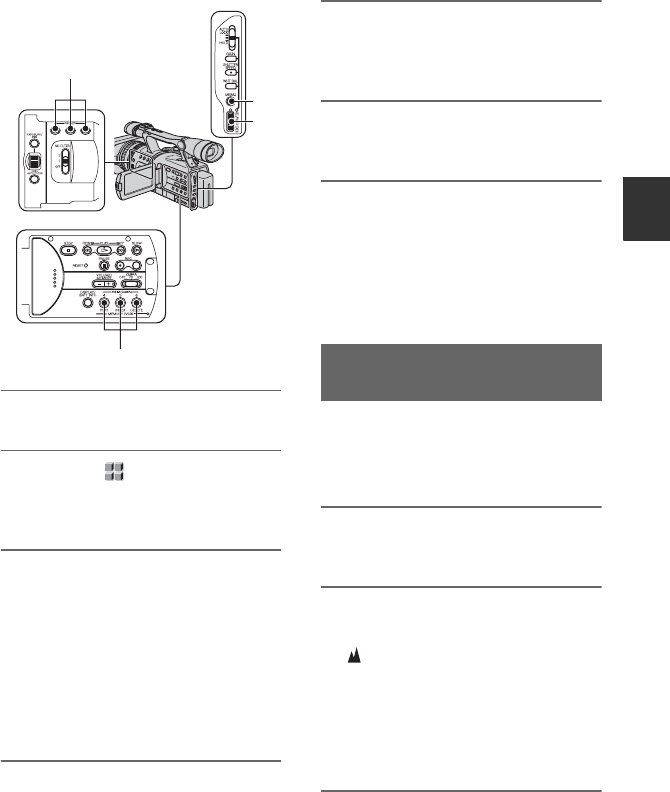
43
Recording/Playback
1Press the MENU button A.
2Select the (OTHERS) t
[ASSIGN BTN] by the SEL/PUSH
EXEC dial B.
3Select the number of the ASSIGN
button (ASSIGN 1-6, [SHOT
TRANS]) you want to assign the
function by turning the SEL/PUSH
EXEC dial B, then press the dial.
• [------] is displayed at the number that no
function is assigned.
• When you select [SHOT TRANS], select
[YES], then proceed to step 6.
4Select the function to be assigned
by turning the SEL/PUSH EXEC
dial B, then press the dial.
5Select [OK] by turning the SEL/
PUSH EXEC dial B, then press
the dial.
6Press the MENU button A to hide
the menu.
zTips
• Shot transition is assigned to the ASSIGN
buttons 1, 2 and 3 (p. 45). Cancel the shot
transition assignment to return to the pre-setting
assignment.
• To cancel the shot transition, select [SHOT
TRANS] t [YES] in step 3.
bNote
• [FOCUS INFNTY] is only available during the
manual focus. It is not available during the auto
focus.
1Assign [FOCUS INFNTY] to one of
the ASSIGN buttons (p. 42).
2Press the ASSIGN button
assigned to [FOCUS INFNTY].
appears.
If you release the switch, it returns to
manual focusing.
Use this function to record a distant
subject when the focus is automatically
set on a close subject.
A
B
ASSIGN button 1-3
ASSIGN button 4-6 Focusing on a distant subject
(Focus infinity)
Continued ,

44
If you make an index for a scene, you can
easily search for the scene later (p. 50).
The index function will make it easier to
check the transition of recording or edit
your pictures using index signals.
1Assign [INDEX MARK] to one of
the ASSIGN buttons in advance
(p. 42).
2Press the ASSIGN button
assigned to [INDEX MARK].
When pressed during recording
appears for about 7 seconds and an
index signal is recorded.
When pressed during standby
flashes.
After you press the REC START/STOP
button to start recording, appears
for about 7 seconds and an index signal
is recorded.
To cancel the operation
Before starting to record, press the ASSIGN
button assigned to [INDEX MARK] again.
bNote
• You cannot record an index signal on a recorded
tape afterward.
You can view about 2 seconds of the scene
recorded just before you stopped the tape.
This is convenient during playback of the
latest scene check.
1 Assign [REC REVIEW] to one of
the ASSIGN buttons in advance.
(p. 42).
2 Press the ASSIGN button
assigned to [REC REVIEW] during
standby mode.
The last 2 seconds (approx.) of the most
recently recorded scene are played back.
Then, your camcorder is set to the
standby.
bNote
• End search will not work correctly when there is
a blank section between recorded sections on
the tape.
1Assign [END SEARCH] to one of
the ASSIGN button in
advance(p. 42).
Recording an index signal Reviewing the most recently
recorded scenes (Rec review)
Searching for the last scene of
the most recent recording
(End search)
Assigning the functions to the ASSIGN buttons (Continued)
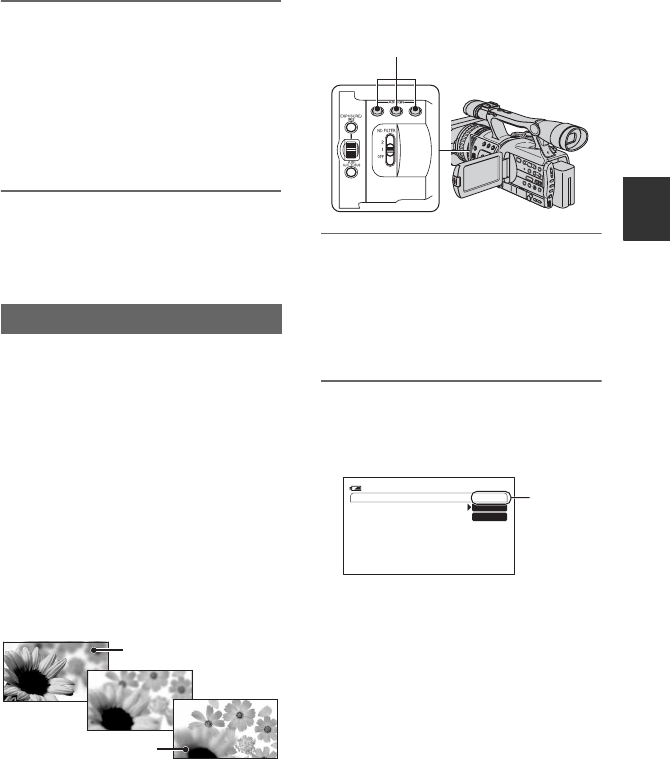
45
Recording/Playback
2 Press the ASSIGN button to
which [END SEARCH] is
assigned.
The last scene of the most recent
recording is played back for about 5
seconds, and the camcorder enters the
standby mode at the point where the last
recording has finished.
bNote
• The End search function will not work correctly
when there is a blank section between recorded
sections on the tape.
You can register the settings of focus,
zoom, iris, gain, shutter speed, and white
balance, and then change the recording
setting from the current one to the
registered one, resulting in a smooth
transition of scenes (Shot transition).
For example, you can shift the focus from
closer objects to farther objects, or change
the depth of field by adjusting the iris. In
addition, you can develop scenes under
different recording conditions smoothly. If
you register the manual adjustment function
of the white balance, the scenes will
develop smoothly between objects indoor
and those outdoor.
Use a tripod to avoid camera-shake.
You can set the transition curve and
duration using [SHOT TRANS] (p. 62).
1Assign [SHOT TRANS] to the
ASSIGN buttons (p. 42).
zTip
• Shot transition is assigned to ASSIGN
buttons 1, 2 and 3.
2Store the settings (shot)
1Press the ASSIGN button 1 repeatedly
to bring up the SHOT TRANSITION
STORE screen.
2Adjust the desired items manually.
See pages 33 to 39 for details on
adjustment.
3Press the ASSIGN button 2 for storing
the setting in SHOT-A, or the ASSIGN
button 3 for storing the setting in
SHOT-B.
bNote
• The setting values assigned to SHOT-A and
SHOT-B are deleted when the POWER
switch is turned to OFF (CHG).
Using the Shot transition
SHOT-A
SHOT-B
ASSIGN button1-3
SHOT TRANS STORE
STBY 0:00:05120
min
SHOT-A
SHOT-B
STORE
Continued ,
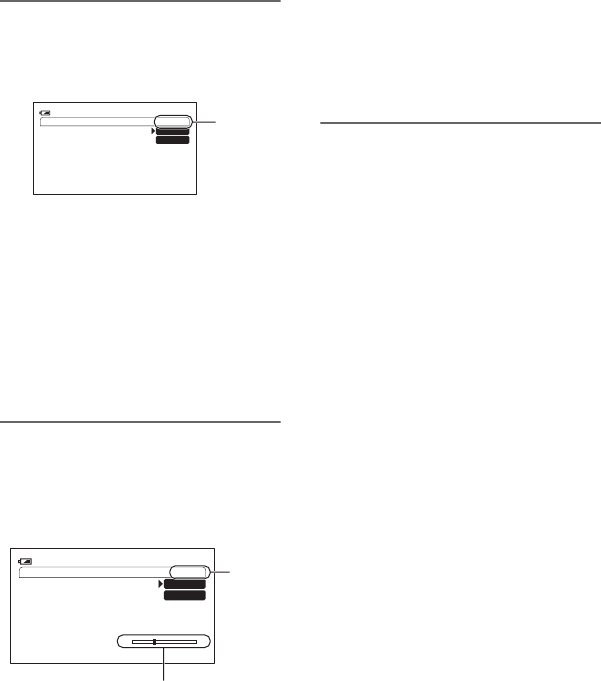
46
3Check the stored settings
1Press the ASSIGN button 1 repeatedly
to bring up the SHOT TRANSITION
CHECK screen.
2Press the ASSIGN button 2 to check
the SHOT-A. Press the ASSIGN button
3 to check the SHOT-B.
The selected setting will take effect on
the picture on the screen. The focus,
zoom, and so on, are automatically
adjusted as stored in the setting.
bNote
• You cannot check the transition time and
curve set using [SHOT TRANS] (p. 62).
4Record using the shot transition
function
1Press the ASSIGN button 1 repeatedly
to bring up the SHOT TRANSITION
EXEC screen.
2Press the REC START/STOP button.
3Press the ASSIGN button 2 to record
movie using the SHOT-A. Press the
ASSIGN button 3 to record movie
using the SHOT-B.
Pictures will be recorded with the
settings that are changed automatically
from the current ones to the stored
ones.
zTip
• Press the ASSIGN button 1 repeatedly to
cancel the SHOT TRANSITION.
bNotes
• You cannot zoom, focus, or adjust manually
while checking or activating the Shot transition.
• When you change [SHOT TRANS] (p. 62),
press the ASSIGN button 1 repeatedly to exit
the shot transition screen.
• You cannot return from the stored SHOT-A or
SHOT-B settings to previous settings after you
activate the shot transition during recording.
• If you press the following buttons during the
shot transition operation, the operation is
canceled:
–PICTURE PROFILE
–MENU
– EXPANDED FOCUS
–STATUS CHECK
zTips
• You can also make a transition from saved
SHOT-A to saved SHOT-B or vice versa. For
example, to make a transition from SHOT-A to
SHOT-B. Display the shot transition CHECK
screen, press the ASSIGN button 2 and press the
REC START/STOP button. Next, display the
shot transition EXEC screen and press the
ASSIGN button 3.
• You can rehearse the shot transition by
pressing the ASSIGN button 2 or 3, in which
the desired setting was stored, before
pressing the REC START/STOP button in step
4.
To cancel the operation
Press the ASSIGN button 1 repeatedly to
exit the shot transition screen.
SHOT TRANS CHECK
STBY 0:00:05120
min
SHOT-A
SHOT-B
CHECK
SHOT TRANS EXEC
ES
STBY 0:00:05120min
SHOT-A
SHOT-B
Transition bar
S: start
E: end
EXEC
Assigning the functions to the ASSIGN buttons (Continued)
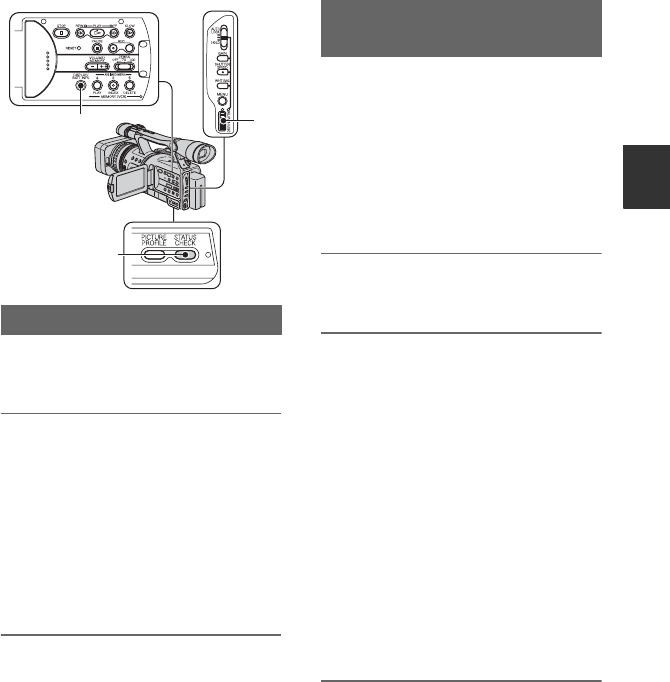
47
Recording/Playback
Changing/checking the settings in your
camcorder
You can turn on and off the display of the
time code, tape counter, and other
information on the screen.
Press the DISPLAY/BATT INFO
button C.
The screen indicators turn on (displayed)
and off (undisplayed) as you press the
button.
zTip
• You can display the screen indicators during
playback on a TV. Select [DISP OUTPUT],
then [V-OUT/PANEL] (p. 68).
You can check the setup value of the
following items.
• Audio setup such as [DV AUDIO MIX] (p. 64)
• Output signal setup ([VCR HDV/DV], etc.)
(p. 69)
• Functions assigned to the ASSIGN buttons
(p. 42)
• Camera setup. (p. 59)
• Picture profile (p. 39)
1Press the STATUS CHECK button
B.
2Turn the SEL/PUSH EXEC dial A
to display the desired item.
When the POWER switch is set to
CAMERA, the items appear in the
following order:
AUDIO t OUTPUT t ASSIGN t
CAMERA t PICT.PROFILE
When the POWER switch is set to
VCR, the items appear in the following
order:
AUDIO t OUTPUT t ASSIGN
bNote
• When [PICT.PROFILE] is set to [OFF], the
settings of PICTURE PROFILE are not
displayed.
To turn off the setup value
• Press the STATUS CHECK button B.
Changing the screen
A
B
C
Displaying the settings in your
camcorder (Status check)
Continued ,
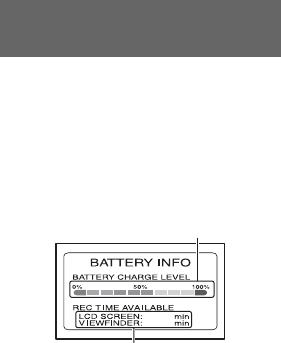
48
Set the POWER switch to OFF (CHG), then
press the DISPLAY/BATT INFO button
C. The approximate recordable time in the
selected format and battery information
appear for about 7 seconds. You can view
the battery information for up to 20 seconds
by pressing the button again while the
information is displayed.
Checking the remaining battery
(Battery Info)
139
139
Remaining battery (approx.)
Recording capacity (approx.)
Changing/checking the settings in your camcorder (Continued)
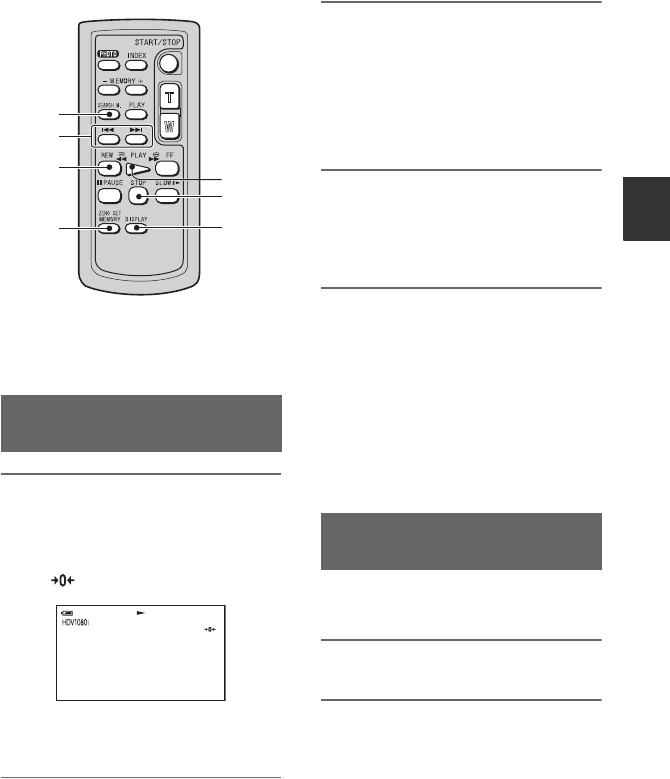
49
Recording/Playback
Locating a scene on a tape
bNote
• See page 123 for details on how to use the
Remote Commander.
1During playback, press ZERO
SET MEMORY 4 at a point you
want to locate later on.
The tape counter is reset to “0:00:00”
and appears on the screen.
If the tape counter is not displayed,
press DISPLAY 7.
2Press STOP 6 when you want to
stop playback.
3Press mREW 3.
The tape stops automatically when the
tape counter reaches “0:00:00.”
The tape counter returns to the time
code display, and the zero set memory
display disappears.
4Press PLAY 5.
Playback starts from the point
designated “0:00:00” on the tape
counter.
To cancel the operation
Press ZERO SET MEMORY 4 again
before rewinding.
bNotes
• There may be a discrepancy of several seconds
between the time code and the tape counter.
• Zero set memory will not function correctly if
there is a blank section between recorded
sections on the tape.
You can locate the point where the
recording date changes.
1Set the POWER switch to VCR.
2Press SEARCH M. 1 on the
Remote Commander repeatedly
to select [DATE SEARCH].
Searching quickly for a desired
scene (Zero set memory)
6
7
1
2
3
4
5
0:00:006 0 min
Searching for a scene by date of
recording (Date search)
Continued ,

50
3Press . (previous)/> (next)
2 on the Remote Commander to
select a recording date.
You can select the previous or the next
date of the present point on the tape.
Playback starts automatically from the
point where the date changes.
To cancel the operation
Press STOP 6 on the Remote
Commander.
bNotes
• If one day’s recording is less than 2 minutes,
your camcorder may not accurately find the
point where the recording date changes.
• The Date search will not function correctly
when there is a blank section between recorded
sections on the tape.
You can locate the point where an index
signal is recorded (p. 44).
1Set the POWER switch to VCR.
2Press SEARCH M. 1 on the
Remote Commander repeatedly
to select [INDEX SEARCH].
3Press . (previous)/> (next)
2 on the Remote Commander to
select an index point.
You can select the index signal of the
point that you want to start playing back
the tape.
Playback starts automatically from the
point where the selected index signal is
recorded.
To cancel the operation
Press STOP 6 on the Remote
Commander.
bNotes
• If index recording is less than 2 minutes, your
camcorder may not accurately find the index
point.
• The Index search will not function correctly
when there is a blank section between recorded
sections on the tape.
Searching for a recording start
point (Index search)
Locating a scene on a tape (Continued)
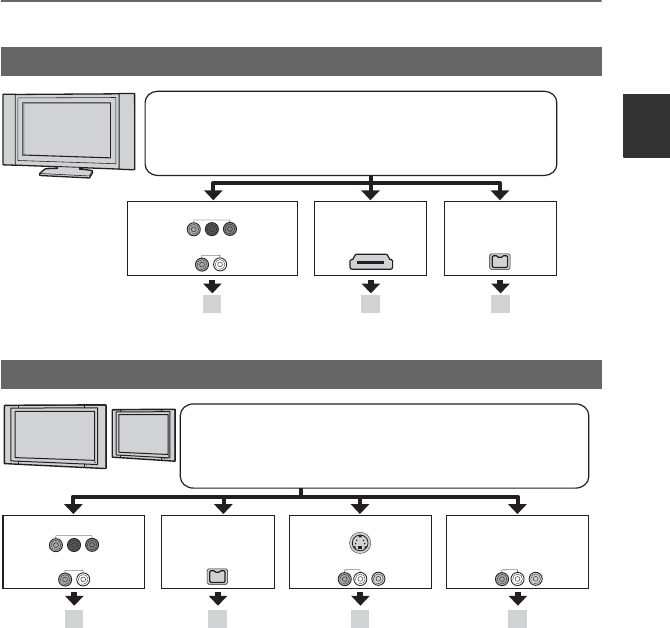
51
Recording/Playback
Playing the picture on a TV
Connection methods and image quality differ depending on what type of TV is connected and
connectors used.
Use the supplied AC Adaptor to obtain AC power (p. 18).
Refer also to the instruction manuals supplied with the device to be connected.
Selecting the connection method according to your TV type and connectors
bNotes
• Make all menu settings on your camcorder before connecting. The TV may not recognize the video signal
properly when changing [VCR HDV/DV] and [i.LINK CONV] settings after connecting with an i.LINK
cable.
*Pictures recorded in the DV format are played back as SD (standard definition) images regardless of the
connection.
High definition TV
16:9 (wide) or 4:3 TV
B CA
HDMI i.LINK
COMPONENT IN
AUDIO
(for HDV1080i)
HD (high definition) image quality*
• An HDV formatted picture is played back as it is
(HD image quality).
• A DV formatted picture is played back as it is (SD image quality).
t (p. 53) t (p. 53)t (p. 52)
E F G
S VIDEO VIDEO/AUDIO
VIDEO/AUDIO
i.LINK
D
COMPONENT IN
AUDIO
t (p. 54)
SD (standard definition) image quality*
• An HDV formatted picture is down converted to DV format
(SD image quality) and played back.
• A DV formatted picture is played back as it is (SD image quality).
t (p. 54) t (p. 55) t (p. 55)
Continued ,
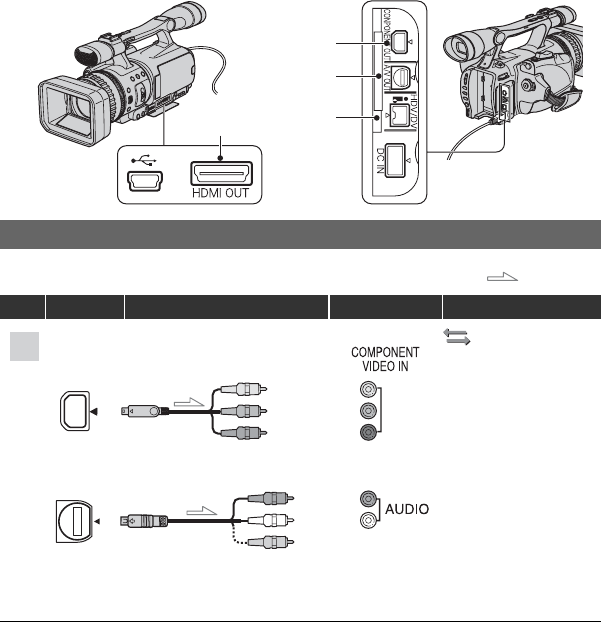
52
Jacks on your camcorder
Open the jack cover and connect the cable.
Connecting to a high definition TV
: Signal flow
Type Camcorder Cable TV Menu Setting
(IN/OUT REC)
menu t
[VCR HDV/DV] t
[AUTO] (p. 69)
[COMPONENT] t
[1080i/480i] (p. 70)
bNote
• An A/V connecting cable is also needed to output audio signals. Connect the white and red plugs of the A/
V connecting cable to the audio input jack of your TV.
1
2
3
4
2
3
A
Component video cable
(supplied)
A/V connecting cable
(supplied)
(Green) Y
(Blue) P
B
/C
B
(Red) P
R
/C
R
(Red)
(White)
(Yellow)
Playing the picture on a TV (Continued)
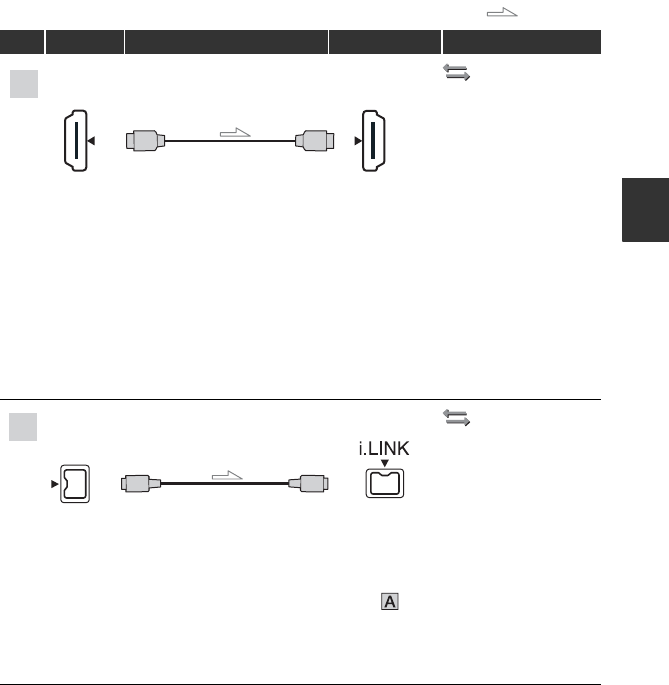
53
Recording/Playback
(IN/OUT REC)
menu t
[VCR HDV/DV] t
[AUTO] (p. 69)
bNotes
• Use an HDMI cable with the HDMI logo.
• Pictures in the DV format are not output from the HDMI OUT jack, if copyright protection signals are
recorded in the pictures.
• DV format pictures input to the camcorder via i.LINK cable (p. 76) cannot be output.
• Your TVs may not function correctly (for example, no sound or image). Do not connect the HDMI OUT
jack of your camcorder and HDMI OUT jack of the external device with the HDMI cable. This may cause
a malfunction.
zTip
• HDMI (High Definition Multimedia Interface) is an interface to send both video and audio signals.
Connecting HDMI OUT jack to an external device supplies high quality images and digital audio to you.
(IN/OUT REC)
menu t
[VCR HDV/DV] t
[AUTO] (p. 69)
[i.LINK CONV] t
[OFF] (p. 70)
bNotes
• Your TV needs to have an i.LINK jack compatible with HDV1080i. For details, confirm the
specifications of your TV.
• If your TV is not compatible with HDV1080i, connect your camcorder and TV with the supplied
component video cable and A/V connecting cable as illustrated in .
• The TV needs to be set so that it recognizes that the camcorder is connected. See the instruction manuals
supplied with your TV.
• This camcorder has a 4-pin i.LINK terminal. Select a cable that fits the terminal on the device to be
attached.
: Signal flow
Type Camcorder Cable TV Menu Setting
HDMI
IN
B
1
HDMI cable (optional)
C4i.LINK cable (optional)
Continued ,
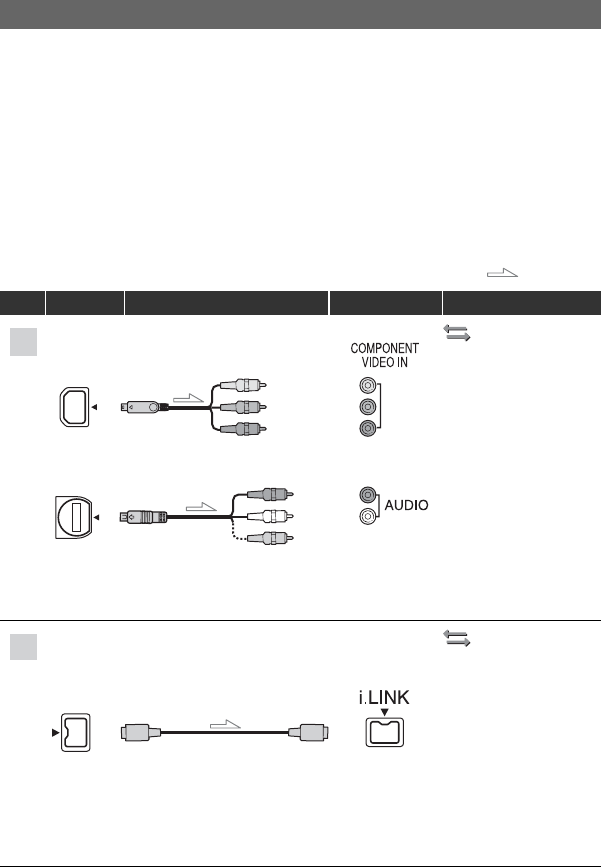
54
To set the aspect ratio according to the connected TV (16:9/4:3)
Change [TV TYPE] setting to match your TV (p. 70).
bNote
• When you play back a tape recorded in the DV format on a 4:3 TV not compatible with the 16:9 signal, set
[DV WIDE REC] to [OFF] on your camcorder when recording a picture (p. 70).
zTip
• When your TV is monaural (When your TV has only one audio input jack), connect the yellow plug of the
A/V connecting cable to the video input jack and connect the white (left channel) or the red (right
channel) plug to the audio input jack of your TV or VCR. When you want to play the sound in monaural
mode, use a connecting cable for that purpose.
Connecting to a 16:9 (wide) or 4:3 TV
: Signal flow
Type Camcorder Cable TV Menu Setting
(IN/OUT REC)
menu t
[VCR HDV/DV] t
[AUTO] (p. 69)
[COMPONENT] t
[480i] (p. 70)
[TV TYPE] t
[16:9]/[4:3]* (p. 70)
bNote
• A/V connecting cable is also needed to output audio signals. Connect the white and red plugs of the A/V
connecting cable to the audio input jack of your TV.
(IN/OUT REC)
menu t
[VCR HDV/DV] t
[AUTO] (p. 69)
[i.LINK CONV] t
[ON] (p. 70)
bNotes
• The TV needs to be set so that it recognizes that the camcorder is connected. See the instruction manuals
supplied with your TV.
• This camcorder has a 4-pin i.LINK terminal. Select a cable that fits the terminal on the device to be
attached.
2
3
D
Component video cable
(supplied)
A/V connecting cable
(supplied)
(Green) Y
(Blue) P
B
/C
B
(Red) P
R
/C
R
(Red)
(White)
(Yellow)
4
E
i.LINK cable (optional)
Playing the picture on a TV (Continued)
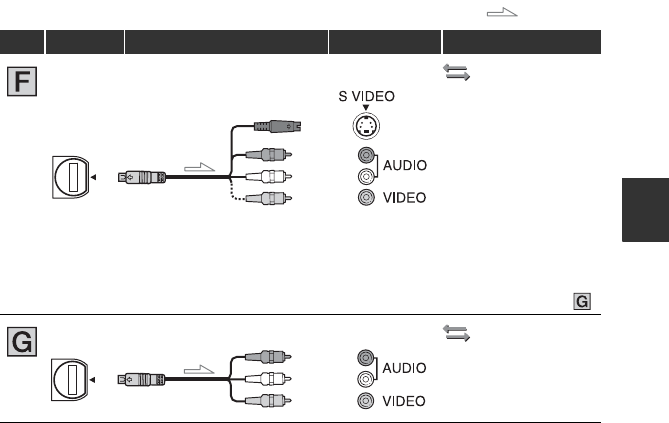
55
Recording/Playback
*Change the settings according to the TV connected.
bNotes
• If you connect your camcorder to your TV using more than one type of cable to output images from a jack
other than the i.LINK jack, the order of priority of the output signals is as follows:
HDMI t component video t SVIDEO t audio/video.
• See page 110 for the details of i.LINK.
When connecting to your TV via a VCR
Select the connecting method on page 76 depending on the input jack of the VCR. Connect
your camcorder to the LINE IN input on the VCR using the A/V connecting cable. Set the
input selector on the VCR to LINE (VIDEO 1, VIDEO 2, etc.).
(IN/OUT REC)
menu t
[VCR HDV/DV] t
[AUTO] (p. 69)
[TV TYPE] t
[16:9]/[4:3]* (p. 70)
bNotes
• When connecting only an S VIDEO plug (S VIDEO channel), audio signals are not output. To output
audio signals, connect the white and red plugs of the A/V connecting cable with an S VIDEO cable to the
audio input jack of your TV.
• This connection produces higher resolution pictures compared with the A/V connecting cable (Type ).
(IN/OUT REC)
[VCR HDV/DV] t
[AUTO] (p. 69)
[TV TYPE] t
[16:9]/[4:3]* (p. 70)
: Signal flow
Type Camcorder Cable TV Menu Setting
3
A/V connecting cable with
S VIDEO (optional)
(Red)
(White)
(Yellow)
3A/V connecting cable
(supplied) (Red)
(White)
(Yellow)
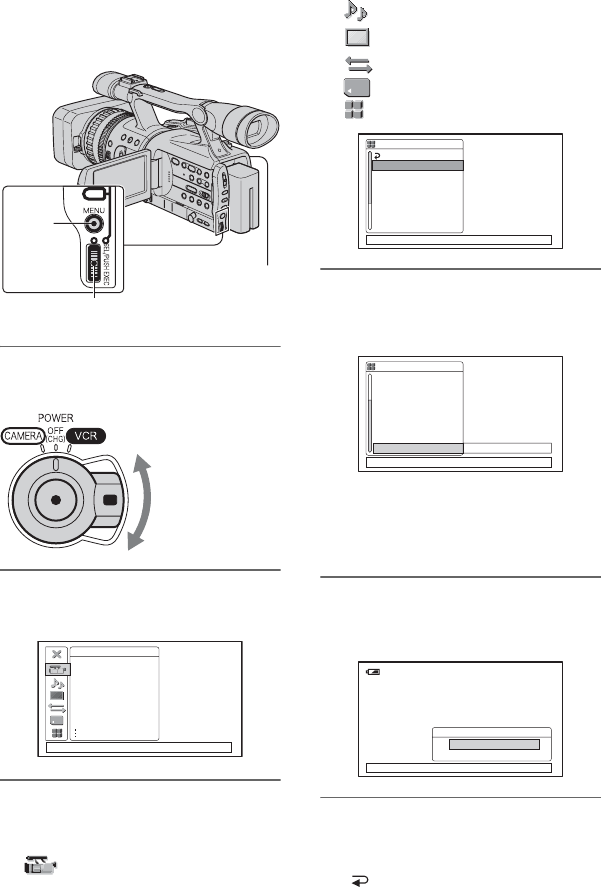
56
Using the Menu
Using the menu items
You can change various settings or make
detailed adjustments using the menu items
displayed on the screen.
1While pressing the green button,
set the POWER switch.
2Press the MENU button to display
the menu index screen.
3Select the icon of the desired
menu by turning the SEL/PUSH
EXEC dial, then press the dial.
CAMERA SET (p. 59)
SEL/PUSH EXEC dial
MENU
button
POWER switch
If the POWER
switch is set to OFF
(CHG), slide it
while pressing the
green button.
CAMERA SET
EXPOSURE/IRIS
SMTH SLW REC
CNTRST ENHCR
STEADYSHOT
COLOR BAR
AF ASSIST
AE SHIFT
[MENU ]: END
AUDIO SET (p. 64)
DISPLAY SET (p. 65)
IN/OUT REC (p. 69)
MEMORY SET (p. 71)
OTHERS (p. 73)
4Select the desired item by turning
the SEL/PUSH EXEC dial, then
press the dial.
The available menu items vary
depending on the power mode of your
camcorder. Unavailable items will be
grayed out.
5Select the desired setting by
turning the SEL/PUSH EXEC dial,
then press the dial.
6Press the MENU button to hide
the menu screen.
To return to the previous screen, select
[ RETURN].
OTHERS
RETURN
CAMERA PROF.
ASSIGN BTN
CLOCK SET
WORLD TIME
LANGUAGE
QUICK REC
[MENU ]: END
PHOTO/EXP.FOCUS
-:--:--
OTHERS
PHOTO/EXP.FOCUS
CLOCK SET
WORLD TIME
LANGUAGE
QUICK REC
BEEP
REC LAMP
REMOTE CTRL OFF
[MENU ]: END
120min
REMOTE CTRL
[MENU ]: END
ON
OFF
-:--:--
57
Using the Menu
.
Menu items Available menu items (z) vary depending on the POWER switch
position.
Position of POWER switch: CAMERA VCR
(CAMERA SET) menu (p. 59)
EXPOSURE/IRIS z–
SMTH SLW REC z–
CNTRST ENHCR z–
STEADYSHOT z–
COLOR BAR z–
AF ASSIST z–
AE SHIFT z–
AE RESPONSE z–
AGC LIMIT z–
AT IRIS LMT z–
AWB SENS z–
FLCKR REDUCE z–
HANDLE ZOOM z–
SHOT TRANS z–
DV FRAME REC z–
BACK LIGHT z–
SPOTLIGHT z–
D.EXTENDER z–
FADER z–
(AUDIO SET) menu (p. 64)
AUDIO REC LV z–
DV AU. MODE z–
MULTI-SOUND – z
DV AUDIO MIX – z
(DISPLAY SET) menu (p. 65)
PEAKING z–
HISTOGRAM z–
MARKER z–
EXP.FOCUS TYPE z–
CAM DATA DSP z–
AU.LVL DISP z–
LCD BRIGHT zz
LCD COLOR zz
LCD BL LEVEL zz
VF B.LIGHT zz
VF POWERMODE zz
DATA CODE – z
LETTER SIZE zz
REMAINING zz
DISP OUTPUT zz
Continued ,
58
(IN/OUT REC) menu (p. 69)
REC FORMAT z–
VCR HDV/DV – z
DV REC MODE zz
DV WIDE REC z–
COMPONENT zz
i.LINK CONV zz
TV TYPE zz
(MEMORY SET) menu (p. 71)
QUALITY zz
ALL ERASE – z
FORMAT zz
FILE NO. zz
NEW FOLDER zz
REC FOLDER zz
PB FOLDER – z
(OTHERS) (p. 73)
CAMERA PROF. zz
ASSIGN BTN zz
PHOTO/EXP.FOCUS zz
CLOCK SET zz
WORLD TIME zz
LANGUAGE zz
USB SELECT – z
PB ZOOM – z
QUICK REC z–
BEEP zz
REC LAMP z–
REMOTE CTRL zz
Position of POWER switch: CAMERA VCR
Menu items (Continued)
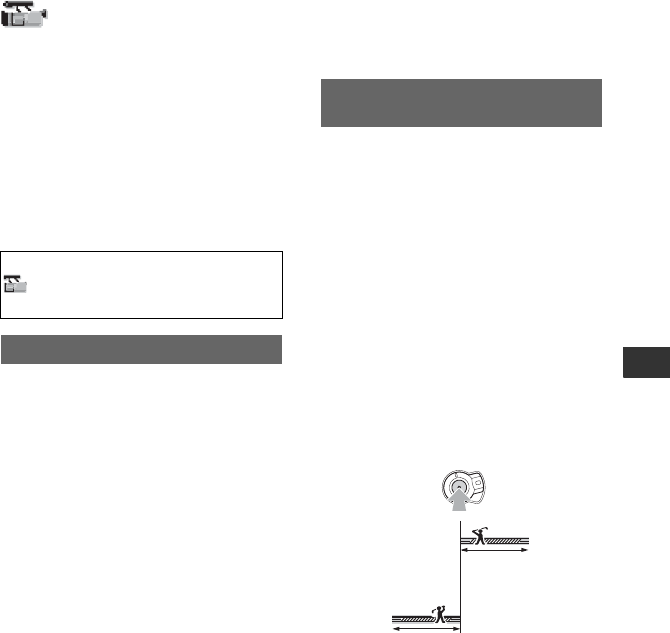
59
Using the Menu
(CAMERA SET)
menu
Settings to adjust your camcorder to the
recording conditions (EXPOSURE/IRIS/
STEADYSHOT/BACK LIGHT, etc.)
The default settings are marked with B.
The indicators in parentheses appear when
the items are selected.
See page 56 for details on selecting
menu items.
xDIAL ASSIGN
You can select assign settings with the
EXPOSURE/IRIS dial from [EXPOSURE]
(default settings), [IRIS] and [AE SHIFT]
(p. 35).
bNote
• If you change the assign function from
EXPOSURE/IRIS to other function, manually
adjusted items (iris, gain, shutter speed) also
become automatic.
xDIAL SENS
You can select the EXPOSURE/IRIS dial
sensitivity from [HIGH], [MIDDLE]
(default settings) or [LOW].
xDIAL ROTATE
You can select the rotation direction of the
EXPOSURE/IRIS dial.
BNORMAL
You can change the screen brightness by
turning the dial up.
OPPOSITE
You can change the screen brightness by
turning the dial down.
Press the MENU button t select the
(CAMERA SET) by turning the SEL/
PUSH EXEC dial.
EXPOSURE/IRIS
Fast moving subjects and actions, which
cannot be captured under the general
shooting conditions, can be shot in smooth
moving slow-motion.
This is useful to shoot fast actions such as a
golf or tennis swing.
Select [EXECUTE], and press the REC
START/STOP button on the [SMTH SLW
REC] screen.
An about-6-second movie is recorded as a
24-second slow-motion movie.
When [Recording···] disappears, recording
is finished.
Select [TIMING] to select one of the
following start points for recording before
pressing the REC START/STOP button.
*The default setting is [6sec AFTER].
To cancel [SMTH SLW REC], press the
MENU button.
bNotes
• Sounds cannot be recorded.
• [SMTH SLW REC] settings are automatically
canceled when you switch off your camcorder.
• Recording time is estimated time. The recording
time may be shorter than the set time according
to recording condition.
SMTH SLW REC (Smooth slow
recording)
[6sec AFTER]*
[6sec BEFORE]
Continued ,
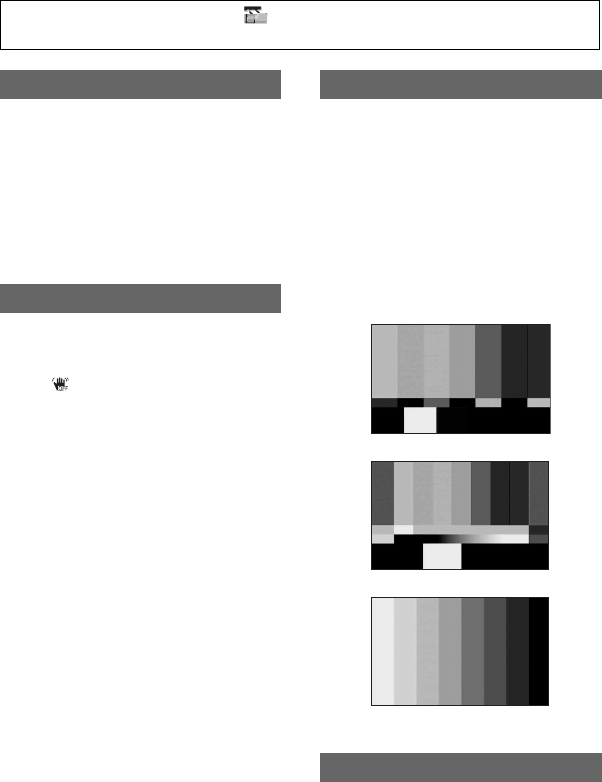
60
.
Since the default setting is [ON], high
contrast images, such as backlit scene
images, are detected and unexposed
shadows of the images are automatically
reduced
bNote
• When you set [BACK LIGHT] to [ON],
[CNTRST ENHCR] is temporarily turned off.
xON/OFF
You can compensate for camera shake (the
default setting is [ON]). Set [ON/OFF] to
[OFF] ( ) when using a tripod (optional),
then the image becomes natural.
xTYPE
You can select the type of the SteadyShot
function that compensates for camera-
shake.
HARD
Select to activate the SteadyShot function
with stronger effect. This mode is not
recommended for recording with camera
pan, tilt technique.
BSTANDARD
Select to activate the standard SteadyShot
function.
SOFT
Select to activate the SteadyShot function
so that it leaves a slight unsteadiness on the
picture so the picture looks natural.
WIDE CONV.
Select when a wide conversion lens
(optional) is attached. This mode is the
most effective with Sony VCL-HG0862
wide conversion lens.
xON/OFF
You can display the color bar or record it on
the tape by setting to [ON]. It is convenient
to adjust the color on the monitor connected
(the default setting is [OFF]).
bNote
• This is automatically set to [OFF] the next time
you switch on the camcorder.
xTYPE
You can select the color bar type.
When you set [AF ASSIST] to [ON], you
can briefly focus manually by turning the
focus ring during the auto focus. (The
default setting is [OFF]).
CNTRST ENHCR
STEADYSHOT
COLOR BAR
AF ASSIST
TYPE 1
TYPE 2
TYPE 3
Press the MENU button t select the (CAMERA SET) by turning the SEL/PUSH EXEC
dial.

61
Using the Menu
You can adjust the exposure between -7
(dark) and +7 (bright) using the SEL/PUSH
EXEC dial. and the setting value appear
when [AE SHIFT] is set to anything other
than the default setting.
bNote
• If you adjust all of the iris, gain, shutter speed
manually, you cannot obtain the effect of [AE
SHIFT].
You can select the speed to adjust the
exposure automatically, in accordance with
the brightness of the subject. [FAST],
[MIDDLE], and [SLOW] are available (the
default setting is [FAST]).
You can select the upper limit for the Auto
Gain Control (AGC) from [OFF] (18dB, the
default setting), [12dB], [6dB] or [0dB].
bNote
• If you adjust the gain manually, you cannot
obtain the effect of [AGC LIMIT].
You can select the highest iris value for the
automatic adjustment from [F11] (the
default settings), [F5.6], [F4].
bNote
• If you adjust the iris manually, you cannot
obtain the effect of [AT IRIS LMT].
You can set the auto white balance
operation under a reddish light source such
as an incandescent lamp or candle, or under
a blueish light source such as in outdoor
shade.
BINTELLIGENT
Adjustment is automatically performed to
achieve a natural atmosphere according to
the brightness of the scene.
HIGH
Redness or blueness will decrease.
MIDDLE
LOW
Redness or blueness will increase.
bNotes
• This is only effective when white balance is
adjusted automatically.
• [AWB SENS] is not effective under a clear sky
or the sun.
BON
Select to record under normal conditions.
Flickering of the screen under a light
source such as fluorescent lamps will be
reduced.
OFF
Select when you do not want to reduce
flickering of the screen.
bNote
• Flickering may not be reduced depending on the
light source.
You can change the zoom speed of handle
zoom switch positions H and L (p. 33).
xH
You can select the zoom speed of position
H of the handle zoom switch from 1 (slow)
through 8 (fast) (the default setting is 6).
xL
You can select the zoom speed of position
L of the handle zoom switch from 1 (slow)
through 8 (fast) (the default setting is 3).
AE SHIFT
AE RESPONSE
AGC LIMIT
AT IRIS LMT
AWB SENS
FLCKR REDUCE
HANDLE ZOOM
Continued ,
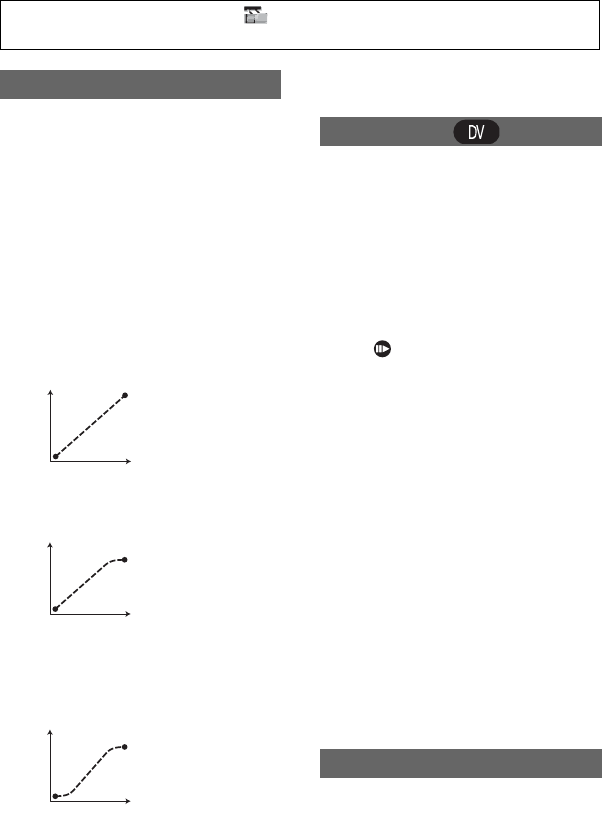
62
Select this setting to set the transition time
and curve. See page 45 for details on using
the shot transition function.
xTRANS TIME
Select transition time ([3.5 sec] to [15.0
sec] seconds, the default setting is [4 sec]).
xTRANS CURVE
Select the transition curve. The transition
curve changes as follows.
*1: parameter level
*2: transition of time
LINEAR
Make the transition linearly.
BSOFT STOP
Make the transition slowly at the end.
SOFT TRANS
Make the transition slowly at the
beginning and end, and linearly in
between.
bNote
• You cannot change [TRANS TIME] and
[TRANS CURVE] settings during store, check,
or execution of [SHOT TRANS]. Cancel
[SHOT TRANS] setting by pressing the
ASSIGN button 1 several times before changing
[TRANS TIME] or [TRANS CURVE] setting.
You can record pictures with a stop-motion
animated effect by alternately recording a
few frames and then moving the subject a
little. Operate your camcorder using the
Remote Commander to prevent camera
shake.
BOFF
Select to record in the standard recording
mode.
ON ( )
Select to record pictures using the DV
FRAME REC function.
1Select [ON] by the SEL/PUSH EXEC
dial.
2Press the MENU button to hide the
menu screen.
3Press the REC START/STOP button.
A picture (approximately 6 frames) is
recorded, and your camcorder enters
the standby mode.
4Move the subject and repeat step 3.
bNote
• When you use frame recording continuously,
the remaining tape time will not be indicated
correctly.
• The last scene will be longer than other scenes.
• You cannot record index signals during frame
recording.
• This is automatically set to [OFF] if you turn the
power off and back on.
When you set [BACK LIGHT] to [ON], .
is displayed and the back light function is
enabled (the default setting is [OFF]).
bNotes
• The back light function is canceled when you
set [SPOTLIGHT] to [ON].
SHOT TRANS
*1
*2
*1
*2
*1
*2
DV FRAME REC
BACK LIGHT
Press the MENU button t select the (CAMERA SET) by turning the SEL/PUSH EXEC
dial.
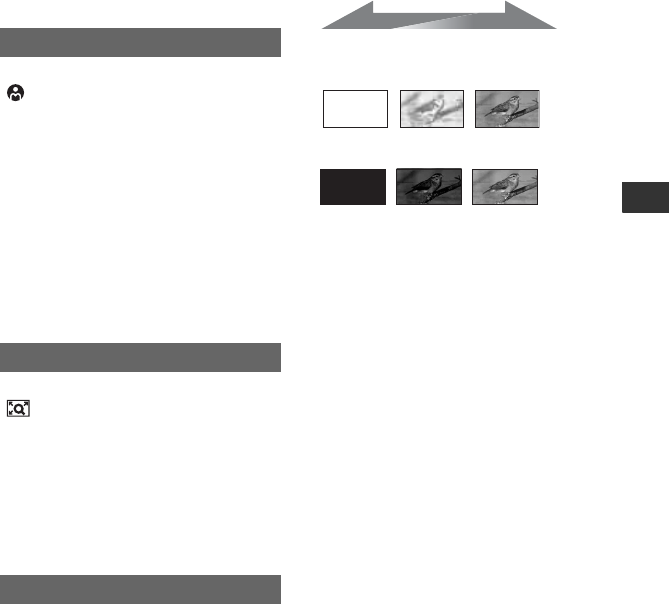
63
Using the Menu
• You cannot use the back light function if 2 or
more items out of iris, gain, and shutter speed
are adjusted manually.
• The setting returns to [OFF] when you set the
POWER switch to OFF (CHG) for more than 12
hours.
When you set [SPOTLIGHT] to [ON]
( ), you can reduce overexposed
highlights on faces of people who are under
strong light, such as on a stage, during
recording (the default setting is [OFF]).
bNotes
• The spotlight function is canceled when you set
[BACK LIGHT] to [ON].
• You cannot use the spotlight function if 2 or
more items out of iris, gain, and shutter speed
are adjusted manually.
• The setting automatically returns to [OFF]
(default) when you set the POWER switch to
OFF (CHG) for more than 12 hours.
When you set [D.EXTENDER] to [ON]
( ), the image is displayed about 1.5
times larger. The picture quality
deteriorates due to the digital process. You
can enlarge images of distant subjects such
as wild birds. (The default setting is [OFF]).
bNote
• This is automatically set to [OFF] if you turn the
power off and back on.
You can record a transition with the
following effects adding to the interval
between scenes.
1Select the desired effect in [STBY] (during
fading in) or [REC] (during fading out)
mode.
2Press the REC START/STOP button.
The fader indicator stops flashing and
disappears when the fade is complete.
To cancel before starting the operation,
select [OFF] in step 1.
Once you press the REC START/STOP
button, the setting is canceled.
WHITE FADER
BLACK FADER
bNote
• This is automatically set to [OFF] if you turn the
power off and back on.
SPOTLIGHT
D.EXTENDER (Digital Extender)
FADER
STBY REC
Fading out Fading in
64
(AUDIO SET) menu
Settings for the audio recording (AUDIO
REC LV/DV AU. MODE, etc.)
The default settings are marked with B.
The indicators in parentheses appear when
the items are selected.
See page 56 for details on selecting
menu items.
You can adjust the recording sound level
manually.
xAUTO/MANUAL
BAUTO
Select [AUTO] to adjust the recording
sound level automatically.
MANUAL( )
Select [MANUAL] to adjust the recording
sound level during recording or standby.
xLEVEL
You can adjust the recording sound level
when you set [AUDIO REC LV] to
[MANUAL]. The recording sound level
increases as the level bars go to the right.
zTips
• Use headphones to monitor the sound when
adjusting it.
• The setting returns to [AUTO] when you set the
POWER switch to OFF (CHG) for more than 12
hours.
B12BIT
Records in the 12-bit mode (2 stereo
sounds).
16BIT ( )
Records in the 16-bit mode (1 stereo sound
with high quality).
Press the MENU button t select the
(AUDIO SET) by turning the SEL/
PUSH EXEC dial.
AUDIO REC LV
DV AU. MODE
(DV Audio mode)
bNote
• When recording in the HDV format, sound is
automatically recorded in [16BIT] mode.
You can select whether to play back audio
recorded using other devices with dual
sound or stereo sound.
BSTEREO
Plays back with main and sub sound (or
stereo sound).
1
Plays back with main sound (or the left
channel sound).
2
Plays back with sub sound (or the right
channel sound).
bNotes
• You can play back, but cannot record a dual
sound track cassette on your camcorder.
• The setting automatically returns to [STEREO]
(default) when you set the POWER switch to
OFF (CHG) for more than 12 hours.
You can monitor the sound recorded on the
tape with audio dubbing or 4ch microphone
recording during playback.
BST1
Select to output only the originally
recorded sound.
MIX
Select to synthesize and output the
originally recorded sound and the sound
added afterwards.
ST2
Select to output only the sound added
afterwards.
MULTI-SOUND
DV AUDIO MIX

65
Using the Menu
bNotes
• You cannot adjust the balance of the sound
recorded on a tape in the 16-bit DV audio mode.
• The setting automatically returns to the default
setting when you set the POWER switch OFF
(CHG) for more than 12 hours.
(DISPLAY SET)
menu
Display settings of the display and the
viewfinder (MARKER/VF B.LIGHT/DATA
CODE, etc.)
The default settings are marked with B.
The indicators in parentheses appear when
the items are selected.
See page 56 for details on selecting
menu items.
xON/OFF
When you set [PEAKING] to [ON], the
outline of the subject on the screen is
enhanced for easier focusing. (The default
setting is [OFF]).
xCOLOR
[WHITE], [RED], [YELLOW] are
available for the outline color. (The default
setting is [WHITE].)
xLEVEL
[HIGH], [MIDDLE], [LOW] are available
for the outline level. (The default setting is
[MIDDLE].)
bNote
• The image with enhanced outline is not
recorded on the tape.
zTip
• This makes focusing easier when used
with expanded focus display (p. 35).
When you set [HISTOGRAM] to [ON],
[HISTOGRAM] (a graph to display a
distribution of tones in your picture)
window appears on the screen (the default
setting is [OFF]).
Press the MENU button t select the
(DISPLAY SET) by turning the SEL/
PUSH EXEC dial.
PEAKING
HISTOGRAM
Continued ,
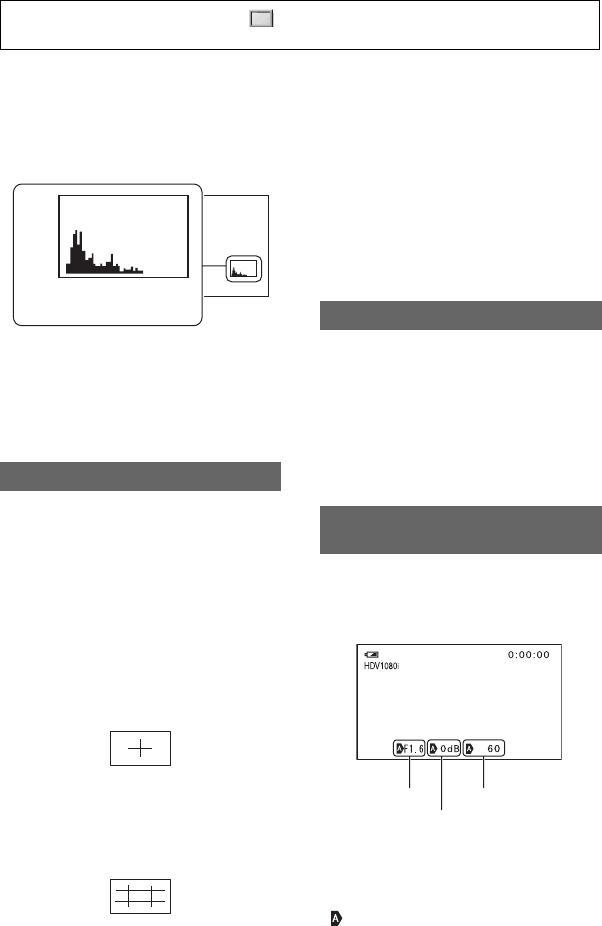
66
This item is useful when you adjust
exposure. You can adjust EXPOSURE/
IRIS while checking [HISTOGRAM]
window (p. 35). [HISTOGRAM] will not
be recorded on a tape or “Memory Stick
Duo.”
zTips
• The left area on the graph shows the darker
areas of the picture while the right area shows
the brighter areas.
• If you set ZEBRA to [70] or [100], the guide is
displayed (p. 37).
When you set [ON/OFF] to [ON], you can
display [CENTER] and [GUIDEFRAME]
markers.
xON/OFF
When you select [ON], a marker is
displayed (the default setting is [OFF]). The
marker is not recorded.
xCENTER
When you set [CENTER] to [ON], the
marker is displayed at the center of the
screen (the default setting is [ON]).
xGUIDEFRAME
When you set [GUIDEFRAME] to [ON],
the marker for checking the horizontal and
vertical positions of the subject is displayed
(the default setting is [OFF]).
bNote
• Screen indicators are not output from the analog
jacks when a marker is displayed.
zTips
• You can display the center marker and the
guideframe marker at the same time.
• You can obtain a balanced composition by
positioning the subject at the cross points of the
guideframe marker.
• Markers are displayed only on the LCD panel
and viewfinder (they are not output from the
jacks).
You can set a type of the expanded focus
display.
BTYPE 1
Simply enlarges images.
TYPE 2
Enlarges and shows images in white and
black.
When you set [CAM DATA DSP] to [ON],
the iris, shutter speed, and gain settings are
constantly displayed (the default setting is
[OFF]).
zTips
• When set to manual, the values are displayed
regardless of the camera data display settings.
• indicates auto settings.
MARKER
80
BrighterDarker
Brightness
Pixels
EXP.FOCUS TYPE
CAM DATA DSP (Camera data
display)
120
min
Iris value
Gain value
Shutter speed
Press the MENU button t select the (DISPLAY SET) by turning the SEL/PUSH
EXEC dial.

67
Using the Menu
• The items displayed by setting [CAM DATA
DSP] to [ON] are different from the items that
will be displayed when [DATA CODE] is set to
[CAMERA DATA] (p. 67).
Since the default setting is [ON], audio
level meter is displayed.
You can adjust the LCD bright using the
SEL/PUSH EXEC dial. The brightness of
recorded pictures is not affected.
zTip
• You can also turn off the LCD backlight (p. 22).
You can adjust the LCD color intensity
using the SEL/PUSH EXEC dial. The color
of recorded pictures is not affected.
You can adjust the brightness of the LCD
screen’s backlight.
BNORMAL
Standard brightness.
BRIGHT
Brightens the LCD screen.
bNotes
• When you connect your camcorder to outside
power sources, [LCD BL LEVEL] is
automatically set to [BRIGHT].
• When you select [BRIGHT], the recordable
time with the battery is slightly reduced.
You can adjust the brightness of the
viewfinder.
BNORMAL
Standard brightness.
BRIGHT
Brightens the viewfinder screen.
bNotes
• When you connect your camcorder to outside
power sources, [BRIGHT] is automatically
selected for the setting.
• When you select [BRIGHT], the recordable
time with the battery is slightly reduced.
BAUTO
When the LCD screen is closed or during
reverse shooting, the finder is lit.
ON
The LCD screen and finder are always lit.
During playback, you can display the
information (data code) recorded
automatically at the time of recording is
displayed.
BOFF
Data code is not displayed.
DATE
Displays the date and time.
CAMERA DATA
Displays camera setting data.
AU.LVL DISP (Audio level display)
LCD BRIGHT
LCD COLOR
LCD BL LEVEL
Audio level meter
VF B.LIGHT
VF POWERMODE
DATA CODE
Continued ,
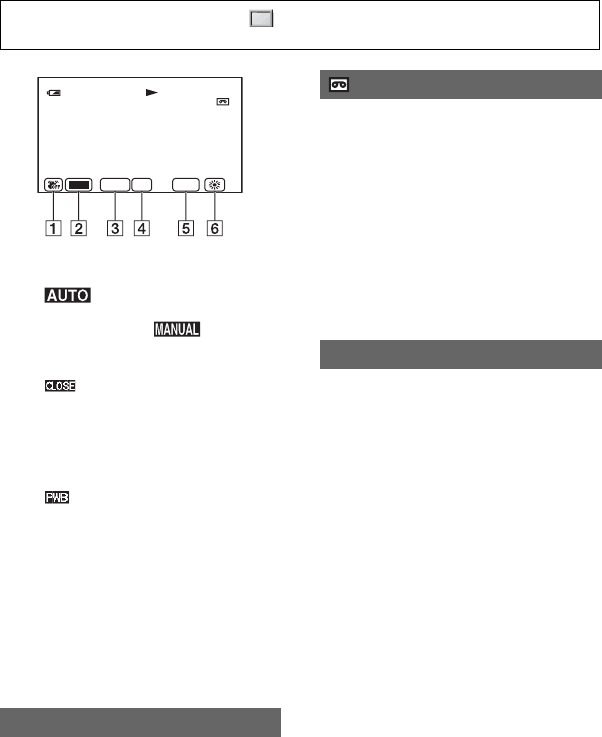
68
ASteadyShot off
BExposure
is displayed when shooting
with automatic adjustment of iris/gain/
shutter speed, and is displayed
when shooting with manual adjustment.
CIris
is displayed in the iris value
display area when you manually set the
iris value to the maximum.
DGain
EShutter speed
FWhite balance
is displayed when you play back
images recorded using shot transition.
bNotes
• The exposure adjustment value (0EV), the
shutter speed, and the iris value appear when
still images on a “Memory Stick Duo” are
played back.
• In the DATE display, the date and time are
displayed in the same area. If you record a
picture without setting the clock, [---- -- --] and
[--:--:--] will appear.
BNORMAL
Select to display the menu screen at
normal size.
2x
Select to display the selected menu item at
double the normal height.
LETTER SIZE
F1.7 1006
dB
0:00:00
AUTO
60
min
60
min
HDV1080i
BAUTO
Displays the remaining tape indicator for
about 8 seconds in situations such as those
described below.
• When you set the POWER switch to VCR
or CAMERA with a cassette inserted.
• When you press N (PLAY) or the
DISPLAY/BATT INFO button.
ON
Always displays the remaining tape
indicator.
BLCD PANEL
Shows displays such as the time code on
the LCD screen and in the viewfinder.
V-OUT/PANEL
Shows displays such as the time code on
the TV screen, LCD screen, and in the
viewfinder.
REMAINING
DISP OUTPUT
Press the MENU button t select the (DISPLAY SET) by turning the SEL/PUSH
EXEC dial.
69
Using the Menu
(IN/OUT REC)
menu
Recording settings, input and output
settings (VCR HDV/DV/DV REC MODE/ DV
WIDE REC/ TV TYPE, etc.)
The default settings are marked with B.
The indicators in parentheses appear when
the items are selected.
See page 56 for details on selecting
menu items.
You can select a recording format.
BHDV1080i ( )
Records in the HDV1080i specification.
DV ( )
Records in the DV format.
bNote
• When you output the recording picture using an
i.LINK cable, set [i.LINK CONV] (p. 70)
accordingly.
You can select the playback signal.
Normally select [AUTO].
When your camcorder is connected to
another device using an i.LINK cable,
select the signal to input/output from the
HDV/DV interface (i.LINK). The selected
signal is recorded or played back.
BAUTO
Switches the signals between HDV and
DV formats automatically when playing
back a tape.
During i.LINK connection, switches the
signals between HDV and DV formats
automatically, and inputs/outputs from the
HDV/DV interface (i.LINK).
HDV ( )
Press the MENU button t select the
(IN/OUT REC) by turning the SEL/
PUSH EXEC dial.
REC FORMAT
VCR HDV/DV
Plays back only the portions recorded in
HDV format.
During i.LINK connection, inputs/outputs
only HDV formatted signals from the
HDV/DV interface (i.LINK), and records/
plays back. You can also select this when
connecting the camcorder to a computer,
etc.
DV ()
Plays back only the portions recorded in
DV format.
During i.LINK connection, inputs/outputs
only DV formatted signals from the
HDV/DV interface (i.LINK), and records/
plays back. You can also select this when
connecting the camcorder to a computer,
etc.
bNotes
• Disconnect the i.LINK cable before changing
[VCR HDV/DV] setting. Otherwise, the
connected device, such as a VCR, may not be
able to recognize the video signal from your
camcorder.
• When [AUTO] is selected and the signal
switches between HDV and DV formats, the
picture and sound are interrupted temporarily.
• When [i.LINK CONV] is set to [ON], pictures
are output as follows:
– at [AUTO], an HDV signal is converted to the
DV format and output; a DV signal is output
as it is.
– at [HDV], an HDV signal is converted to the
DV format and output; a DV signal is not
output.
– at [DV], a DV signal is output as it is; an
HDV signal is not output.
This function is effective only when [REC
FORMAT] is set to [DV].
BSP (SP)
Records in the SP (Standard Play) mode on
a cassette.
DV REC MODE (DV Recording
mode)
Continued ,
70
LP (LP)
Increases the recording time to 1.5 times
the SP mode (Long Play).
bNotes
• If you record in the LP mode, a mosaic-like
noise may appear or sound may be interrupted
when you play back the tape on other
camcorders or VCRs.
• When you mix recordings in the SP mode and in
the LP mode on one tape, the playback picture
may be distorted or the time code may not be
written properly between the scenes.
• You cannot choose the LP mode for the HDV
format recording.
You can select the aspect ratio for recording
according to a type of your TV. Refer also
to the instruction manuals supplied with
your TV.
BON
Records pictures in the size that matches
the full screen of a 16:9 (wide) TV.
OFF ( )
Records pictures in the size that matches
the full screen of a 4:3 TV.
bNotes
• Set [TV TYPE] correctly according to the TV
connected for playback (p. 70).
• When you select HDV format, the image size is
fixed to 16:9. You cannot record in 4:3 size.
You can select the type of connection when
connecting your camcorder to a TV with
the component input jack.
480i
Select when connecting your camcorder to
a TV with the component input jack.
B1080i/480i
Select when connecting your camcorder to
a TV that has the component input jack
and is capable of displaying the 1080i
signal.
You can convert signals in HDV format to
DV format, and output pictures in DV
format from the HDV/DV interface
(i.LINK).
BOFF
Outputs the pictures from the HDV/DV
interface (i.LINK) in accordance with the
settings in [REC FORMAT] and [VCR
HDV/DV].
ON
Pictures in HDV format are converted to
DV format, and pictures in DV format are
output in DV format.
bNotes
• For input signal via an i.LINK connection, see
[VCR HDV/DV] (p. 69).
• Disconnect the i.LINK cable before setting
[i.LINK CONV]. Otherwise, the connected
video device may not be able to recognize the
video signal from your camcorder.
You need to convert the signal depending
on a type of your TV when playing back the
picture. The recorded pictures are played
back as following illustrations.
B16:9
Select to view your pictures on a 16:9
(wide) TV.
DV WIDE REC
COMPONENT
i.LINK CONV
TV TYPE
HDV/DV (16:9)
format pictures
DV (4:3) format
pictures
Press the MENU button t select the (IN/OUT REC) by turning the SEL/PUSH EXEC
dial.
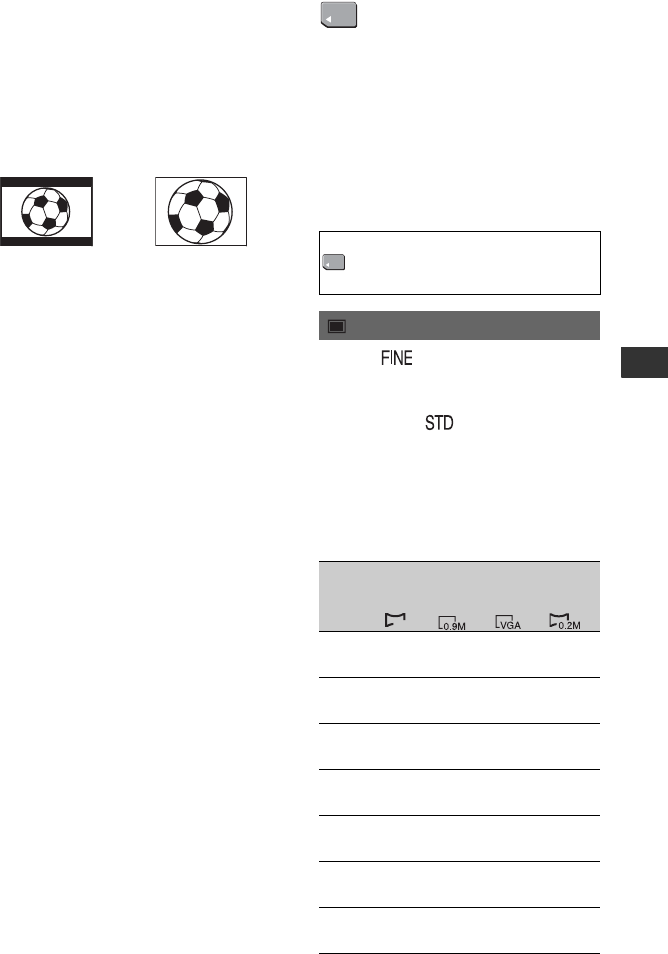
71
Using the Menu
4:3
Select to view your pictures on a 4:3
standard TV.
bNotes
• This is not effective for the i.LINK output.
• When you connect your camcorder to a TV
compatible with the ID-1 system or via an
S VIDEO jack for playing back the tape, set
[TV TYPE] to [16:9]. The TV automatically
switches the aspect ratio according to the
playback picture. Refer also to the manual
supplied with your TV.
HDV/DV (16:9)
format pictures
DV (4:3) format
pictures
(MEMORY SET)
menu
Settings for the “Memory Stick Duo”
(QUALITY/ALL ERASE, etc.)
The default settings are marked with B.
The indicators in parentheses appear when
the items are selected.
See page 56 for details on selecting
menu items.
BFINE ( )
Records still images at the fine image
quality level.
STANDARD ( )
Records still images at the standard image
quality level.
Capacity of the “Memory Stick Duo”
(MB) and the number of recordable
pictures
Press the MENU button t select the
(MEMORY SET) by turning the SEL/
PUSH EXEC dial.
QUALITY
1.2M
1440
×
810
0.9M
1080 ×
810
VGA
640 ×
480
0.2M
640 ×
360
16MB 25 34 96 115
60 80 240 240
32MB 51 69 190 240
120 160 485 485
64MB 100 135 390 490
240 325 980 980
128MB 205 280 780 980
490 650 1970 1970
256MB 370 500 1400 1750
890 1150 3550 3550
512MB 760 1000 2850 3600
1800 2400 7200 7200
1GB 1550 2100 5900 7300
3650 4900 14500 14500
1.2M
Continued ,
72
Top: [FINE] is selected for image quality.
Bottom: [STANDARD] is selected for image
quality.
*Recording: Image size fixed to [ 1.2M] in
HDV or DV format (16:9) and [0.9M] in DV
format (4:3).
Playback: Image size is fixed to [ 1.2M] in
HDV format, [ 0.2M] in DV format (16:9)
and [VGA (0.3M)] in DV format (4:3).
bNote
• The specifications are for the “Memory Stick
Duo” made by Sony Corporation. The number
of recordable pictures varies depending on the
recording environment.
Approximate data size of a picture
(kB)
´
Top: [FINE] is selected for image quality.
Bottom: [STANDARD] is selected for image
quality
You can delete all the pictures on a
“Memory Stick Duo” without image
protection, or in the selected folder.
1Select [ALL FILES] or [CURRNT
FOLDER].
[ALL FILES]: Deletes all the images on
the “Memory Stick Duo.”
[CURRNT FOLDER]: Deletes all the
images in the selected folder.
2Select [YES] t [YES] by using the SEL/
PUSH EXEC dial.
[ Erasing all data...] is displayed.
[Completed] is displayed when all
unprotected images are deleted.
bNotes
• Release the write protect tab on the “Memory
Stick Duo” beforehand when using the
“Memory Stick Duo” with the write-protect tab
(p. 107).
• The folder will not be deleted even when you
delete all the pictures in the folder.
• Do not do any of the following while [
Erasing all data...] is displayed:
– Operate the POWER switch/operation
buttons.
– Eject the “Memory Stick Duo.”
You do not need to format the “Memory
Stick Duo” since it is already formatted at
the factory. If you want to format the
“Memory Stick Duo,” select
[YES]t[YES].
bNotes
• Do not do any of the following while [
Formatting…] is displayed:
– Operate the POWER switch/operation
buttons.
– Eject the “Memory Stick Duo.”
• Formatting erases everything on the “Memory
Stick Duo” including protected image data and
newly created folders.
BSERIES
Assigns file numbers in sequence even if
the “Memory Stick Duo” is replaced with
another one. The file number is reset when
a new folder is created or the recording
folder is replaced with another.
RESET
Resets the file number to 0001 each time
the “Memory Stick Duo” is changed.
2GB 3150 4300 12000 15000
7500 10000 30000 30000
4GB 6300 8500 23500 29500
14500 19500 59000 59000
1.2M 0.9M VGA 0.2M
600 450 150 130
260 190 60 60
ALL ERASE
1.2M
1440
×
810
0.9M
1080 ×
810
VGA
640 ×
480
0.2M
640 ×
360
1.2M
FORMAT
FILE NO.
Press the MENU button t select the (MEMORY SET) by turning the SEL/PUSH
EXEC dial.

73
Using the Menu
When you select [YES], you can create a
new folder (102MSDCF to 999MSDCF) on
a “Memory Stick Duo.” When a folder is
full (a maximum of 9,999 images are
stored), a new folder is automatically
created.
bNotes
• You cannot delete the created folders using your
camcorder. You will have to format the
“Memory Stick Duo” (p. 72), or delete them
using your computer.
• The number of recordable pictures on a
“Memory Stick Duo” may decrease as the
number of folders increases.
You can select the folder to be used for
recording by turning the SEL/PUSH EXEC
dial, then press the dial.
zTips
• As the default setting, pictures are saved in the
101MSDCF folder.
• Once you record a picture in a folder, the same
folder will be set as the default folder for
playback.
You can select the playback folder by
turning the SEL/PUSH EXEC dial, then
press the dial.
NEW FOLDER
REC FOLDER (Recording folder)
PB FOLDER (Playback folder)
(OTHERS) menu
Settings while recording on a tape or other
basic settings (USB SELECT/QUICK REC/
BEEP, etc.)
The default settings are marked with B.
The indicators in parentheses appear when
the items are selected.
See page 56 for details on selecting
menu items.
You can save up to two kinds of camera
setups in your camcorder as camera
profiles. Using these saved profiles lets you
quickly obtain suitable camera settings
later.
zTip
• The items that can be saved in the camera
profile are set values of the menu, the picture
profiles, and the buttons. You can save these set
values all in the camera profile.
xTo save camera profile settings
1Select [SAVE] by the SEL/PUSH
EXEC dial.
2Select [NEW FILE] or an existing
profile name by turning the SEL/PUSH
EXEC dial.
3Select [YES] in the check screen by
turning the SEL/PUSH EXEC dial.
The camera profile settings are saved.
zTips
• If you select [NEW FILE], profile name is set to
[CAM1] or [CAM2].
• If you select an existing camera profile as a
destination, the camera profile is overwritten.
xTo change profile name
You can change the camera profile name.
1Select [PROFILE NAME] by the SEL/
PUSH EXEC dial.
2Select the camera profile that you want
to change the name by the SEL/PUSH
EXEC dial.
[PROFILE NAME] appears.
Press the MENU button t select the
(OTHERS) by turning the SEL/PUSH
EXEC dial.
CAMERA PROF. (Camera profile)
Continued ,

74
3Change the profile name by turning the
SEL/PUSH EXEC dial.
zTip
• The method of inputting the name is the
same as the method of setting the name
of the picture profile (p. 41).
4Select [OK] by turning the SEL/PUSH
EXEC dial, then press the dial.
Profile name is changed.
xTo load camera profile settings
You can load the camera profile settings
and use your camcorder with the settings.
1Select [LOAD] by the SEL/PUSH
EXEC dial.
2Select the camera profile, which you
want to load by the SEL/PUSH EXEC
dial.
3Select [YES] in the check screen.
Your camcorder is restarted and the
selected camera profile becomes
effective.
xTo delete camera profile settings
1Select [DELETE] by the SEL/PUSH
EXEC dial.
2Select the camera profile you want to
delete by the SEL/PUSH EXEC dial.
3Select [YES] in the check screen.
See p. 42.
You can select a function to assign to the
PHOTO/EXPANDED FOCUS button.
BPHOTO
Records a still image (p. 30).
EXP.FOCUS
The PHOTO/EXPANDED FOCUS button
acts the same function as the EXPANDED
FOCUS button (p. 35).
bNote
• If [EXP.FOCUS] is selected, you cannot record
still images with the main unit button. Please
use the PHOTO button on the Remote
Commander.
See p. 24.
When you use your camcorder abroad, you
can adjust the clock to the local time by
setting the time difference with the SEL/
PUSH EXEC dial.
When you set the time difference to 0, the
clock returns to the original setting.
You can select the language to be used on
the LCD screen.
• Your camcorder offers [ENG[SIMP]]
(simplified English) in case that you cannot
find your native tongue among the options.
You can connect the camcorder to a
personal computer with a USB cable and
view pictures on the “Memory Stick Duo”
on the computer (p. 86). You can also
connect the camcorder to a PictBridge
compatible printer (p. 83) using this
function.
B Memory Stick
Select to view pictures on a “Memory
Stick Duo” on the computer or to export
them to the computer.
PictBridge PRINT
Select to connect your camcorder to a
PictBridge compatible printer to print out
directly (p. 83).
ASSIGN BTN
PHOTO/EXP.FOCUS
CLOCK SET
WORLD TIME
LANGUAGE
USB SELECT
Press the MENU button t select the (OTHERS) by turning the SEL/PUSH EXEC dial.

75
Using the Menu
When you set [PB ZOOM] to [ON], you
can enlarge movie images about 1.1 to 5
times (still images about 1.5 to 5 times).
(The default setting is [OFF]). You can
adjust the magnification with the zoom
lever. To end the zoom, press the W side of
the zoom lever.
zTip
• To move the zoom horizontally, press the SEL/
PUSH EXEC dial, then turn the dial. To move
the zoom vertically, press the SEL/PUSH EXEC
dial one more time, then turn the dial.
You can slightly reduce the recording start
point time when resuming recording by
turning the POWER switch from OFF
(CHG) to CAMERA.
BOFF
It takes some time to restart recording from
the state that the drum has stopped
rotating, but the transition from the last
recorded scene is smooth.
ON ( )
The time shortens slightly until recording
restarts from the state that the drum has
stopped rotating, but the transition from
the last recorded scene may not be smooth.
Select this when you do not want to miss a
recording chance.
zTips
• If [QUICK REC] is set to [ON], the interval
between scenes freezes for a moment (editing on
your computer is recommended).
• When the camcorder is left in standby for more
than about 3 minutes, your camcorder exits from
standby (the drum stops rotating) to prevent tape
wear and battery loss. Since the power does not
turn off, you can restart recording by pressing
the REC START/STOP button again.
BON
Activates a melody when you start/stop
recording.
OFF
Cancels the melody.
The camera recording lamp will not light up
during recording when you set this to [OFF]
(the default setting is [ON]).
The default setting is [ON], allowing you to
use the supplied Remote Commander
(p. 123).
zTip
• Set to [OFF] to prevent your camcorder from
responding to a command sent by another VCR
remote control unit.
PB ZOOM (Playback zoom)
QUICK REC
BEEP
REC LAMP (Recording lamp)
REMOTE CTRL (Remote control)

76
Dubbing/Editing
Dubbing to VCR, DVD/HDD device, etc.
Connect your camcorder to the wall outlet using the supplied AC Adaptor for this operation
(p. 18). Refer also to the instruction manuals supplied with the devices to be connected.
The connection method and the image quality will differ depending on the VCR, DVD/HDD
device and the connectors used.
bNote
• You cannot dub pictures using the HDMI cable.
Connecting to external devices
: Signal flow
Camcorder Cable External device
*1Pictures recorded in the DV format are dubbed in the SD (standard definition) quality, regardless of the
connection.
*2When connecting your camcorder to a monaural device, connect the yellow plug of the A/V connecting
cable to the video jack on the device, and connect the white (left channel) or red (right channel) plug to
the audio jack on the device.
2
i.LINK cable (optional)
• i.LINK jack which is compatible with HDV1080i specification is required on the external device.
HDV1080i compatible
device
t HD quality*1
2i.LINK cable (optional) AV device with i.LINK jack
t SD quality*1
1
A/V connecting cable with
S VIDEO (optional)
(Red)
(White)
(Yellow)
AV device with S VIDEO jack
t SD quality*1
1
A/V connecting cable
(supplied) (Red)
(White)
(Yellow)
AV device with audio/video
jacks*2
t SD quality*1
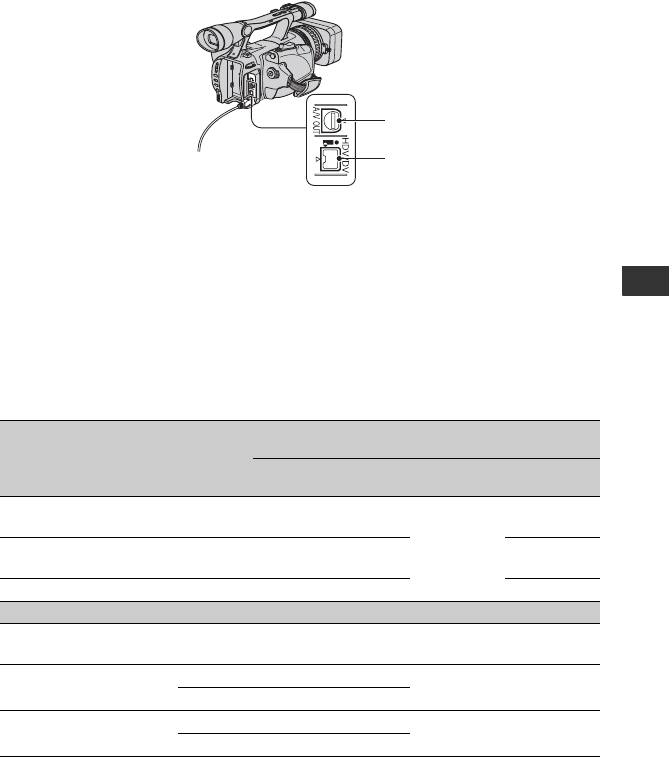
77
Dubbing/Editing
Jacks on your camcorder
Open the jack cover and connect the cable.
Using an i.LINK cable (optional)
The dubbed format (HDV/DV) differs depending on the recording format or the format
supported by the VCR/DVD device. See the table below for selecting the appropriate settings,
and perform necessary menu setting.
bNote
• Disconnect the i.LINK cable before changing these menu settings, otherwise the VCR/DVD device may
not correctly identify the video signal.
zTip
• This camcorder has a 4-pin i.LINK terminal. Select a cable that fits the terminal on the device to be
connected.
Copy format
Camcorder
recording
format
Format supported by the
VCR/DVD device Menu setting
HDV
format*1DV format [VCR HDV/DV]
(p. 69)
[i.LINK CONV]
(p. 70)
Copy HDV recording as
HDV HDV HDV –*3
[AUTO]
[OFF]
Convert HDV recording to
DV HDV DV DV [ON]
Copy DV recording as DV DV DV DV [OFF]
When tape is recorded in both HDV and DV format
Convert both HDV and DV
format to DV HDV/DV DV DV [AUTO] [ON]
Copy only portions
recorded in HDV format
HDV HDV –*3
[HDV] [OFF]
DV –*2–*3
Copy only portions
recorded in DV format
HDV –*2–*2
[DV] [OFF]
DV DV DV
*1Recording device compliant with the HDV1080i specification.
*2The tape advances, but no video or sound is recorded (blank).
*3Picture is not recognized (no recording is made).
1
2
Continued ,

78
bNotes
• When [VCR HDV/DV] is set to [AUTO], and
the signal switches between HDV and DV
formats, the picture and sound are interrupted
temporarily.
• When the recorder is HDR-FX7, set [VCR
HDV/DV] to [AUTO] (p. 69).
• When the player and the recorder are both
HDV1080i compatible devices such as HDR-
FX7 and connected with the i.LINK cable, after
pausing or stopping and then resuming the
recording, the images will be a bit choppy or
rough at that point.
• Set [DISP OUTPUT] to [LCD PANEL] (the
default setting) when connecting with an A/V
connecting cable (p. 68).
When connecting with the A/V
connecting cable with S VIDEO
(optional)
Connect with S VIDEO jack instead of the
video plug (yellow). This connection
produces pictures more faithfully. This
connection produces higher quality DV
format pictures. The audio will not be
output when you connect with the
S VIDEO cable alone.
1Prepare your camcorder for
playback.
Insert the recorded cassette.
Slide the POWER switch to VCR.
Set [TV TYPE] according to the
playback device (TV, etc.) (p. 70).
2Prepare your VCR/DVD device for
recording.
When dubbing to the VCR, insert a
cassette for recording.
When dubbing to the DVD recorder,
insert a DVD for recording.
If your recording device has an input
selector, set it to the appropriate input
(such as video input1 and video input2).
3Connect your VCR/DVD device to
your camcorder as a recording
device.
See page 76 for connection details.
4Start playback on the camcorder,
and recording on the VCR/DVD
device.
Refer to the operating instructions
supplied with your recording device for
details.
5When dubbing is complete, stop
your camcorder and the VCR/DVD
device.
bNotes
• The following cannot be output via the HDV/
DV interface (i.LINK):
– Indicators
– Titles that are recorded on other camcorder
• Pictures recorded in the HDV format are not
output from the HDV/DV interface (i.LINK)
jack during playback pause or in any playback
mode other than normal playback.
• Note the following when connecting with an
i.LINK cable:
– The recorded picture becomes rough when a
picture is paused on your camcorder while
recording to a VCR/DVD device.
– Data codes (date/time/camera settings data)
may not be displayed or recorded depending
on the device or application.
– You cannot record the picture and sound
separately.
Dubbing to another device
Dubbing to VCR, DVD/HDD device, etc. (Continued)
79
Dubbing/Editing
• When dubbing to a DVD recorder from your
camcorder in DV format through an i.LINK
cable, you may not operate your camcorder on
your DVD recorder even its instruction manual
says you can. If you can set the input mode to
DV on your DVD recorder and can input/output
pictures, follow the steps in “Dubbing to another
device.”
zTips
• To record the date/time and camera settings data
when connected by the A/V connecting cable,
display them on the screen.
• When you use an i.LINK cable, the video and
sound signals are transmitted digitally,
producing high quality pictures.
• When an i.LINK cable is connected, the format
of the output signal ( or
) will be indicated on the LCD screen of
your camcorder.
Recording pictures
from a VCR
You can record pictures from a VCR on a
tape. You can record a scene as a still image
on a “Memory Stick Duo.” You can record
pictures in the HDV format by connecting
an HDV1080i specification compatible
device. Be sure to insert a cassette or a
“Memory Stick Duo” for recording in your
camcorder beforehand.
You can connect your camcorder to a VCR
device using an i.LINK cable.
Connect your camcorder to the wall outlet
using the supplied AC Adaptor for this
operation (p. 18). Refer also to the
instruction manuals supplied with the
devices to be connected.
bNotes
• You need an i.LINK cable for this operation.
• You cannot perform this operation with the A/V
connecting cable.
• Your camcorder has a 4-pin i.LINK terminal.
Select a cable that fits the terminal on the device
to be attached.
Continued ,
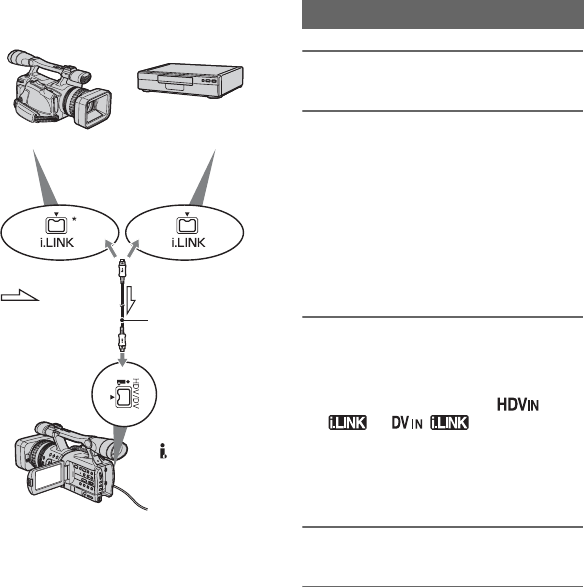
80
*An i.LINK jack which is compatible with
HDV1080i specification is required.
1Set the POWER switch to VCR.
2Set the input signal of your
camcorder.
Set [VCR HDV/DV] to [AUTO] when
recording from an HDV format
compatible device.
Set [VCR HDV/DV] to [DV] or
[AUTO] when recording from a DV
format compatible device (p. 69).
3Connect your VCR as a player to
your camcorder.
When an i.LINK cable is connected, the
format of the input signal (
or ) will be
indicated on the LCD screen of your
camcorder (this indicator may appear on
the screen of the playback device,
however, it will not be recorded).
4Insert a cassette into the VCR.
5Set your camcorder to recording
pause.
While pressing X (PAUSE), press both
z REC (record) buttons
simultaneously.
HDV1080i
compatible device
AV device with
i.LINK jack
t HD quality t SD quality
To i.LINK connector
i.LINK cable
(optional)
To HDV/DV
interface (i.LINK)
: Signal
flow
Recording movies
Recording pictures from a VCR (Continued)
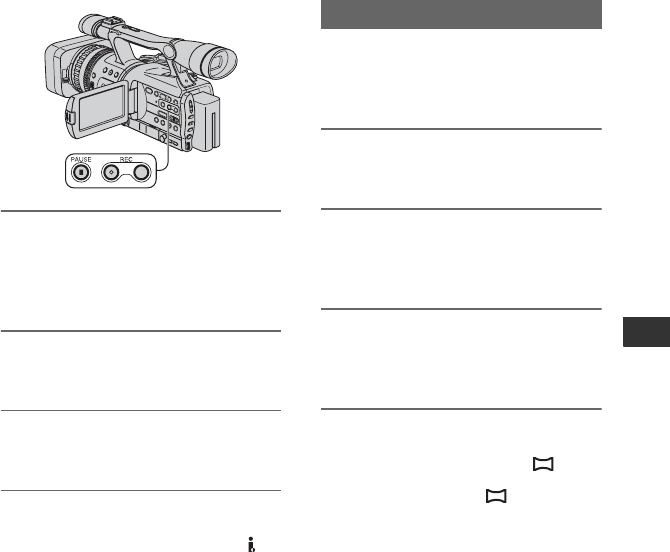
81
Dubbing/Editing
6Start playing the cassette on your
VCR.
The picture played on the VCR appears
on the LCD screen of your camcorder.
7Press X (PAUSE) again at the
point you want to start recording.
8Press x (STOP) to stop
recording.
bNotes
• You cannot record TV programs from the
HDV/DV interface (i.LINK).
• You can record pictures from DV devices only
in the DV format.
• Note the following when connecting with an
i.LINK cable:
– The recorded picture becomes rough when a
picture is paused on your camcorder while
recording to a VCR.
– You cannot record the picture and sound
separately.
– If you pause or stop the recording and restart
it, the picture may not be recorded smoothly.
zTip
• When a 4:3 video signal is input, it appears with
black bands on the right and left sides on the
screen of your camcorder.
Be sure to insert a “Memory Stick Duo” for
recording in your camcorder beforehand,
and set [PHOTO/EXP.FOCUS] to
[PHOTO] (the default setting) (p. 74).
1Perform steps 1 to 4 in
“Recording movies.”
2Start playing the cassette.
The pictures on the VCR appear on the
screen of your camcorder.
3Press the PHOTO/EXPANDED
FOCUS button at the scene you
want to record.
bNote
• Movies will be fixed to image size [ 1.2M]
when playing back in the HDV format. Movies
will be fixed to image size [ 0.2M] (16:9) or
[VGA (0.3M)] (4:3) when playing back in the
DV format.
Recording still images
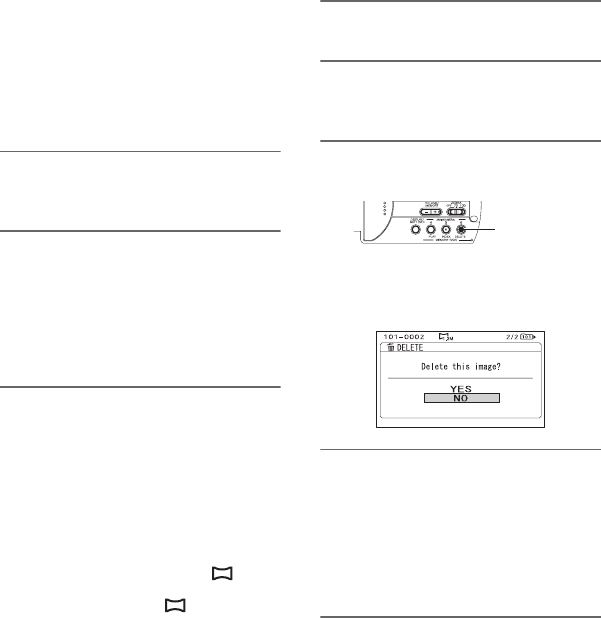
82
Copying movies from
tape to “Memory
Stick Duo” as still
images
You can record still images on a “Memory
Stick Duo.” Be sure to insert a recorded
tape and a “Memory Stick Duo” in your
camcorder, and set [PHOTO/EXP.FOCUS]
to [PHOTO] (the default setting) (p. 74)
beforehand.
1Set the POWER switch to the
VCR.
2Search and record the scene you
want to record.
Press N (Play) to play back the tape,
then press the PHOTO/EXPANDED
FOCUS button at the scene you want to
record.
bNotes
• The date and time at which the picture was
recorded on the tape and the date and time at
which the picture was stored on the “Memory
Stick Duo” are recorded. On your camcorder,
the date and time at which the picture was
recorded on the tape are displayed. Camera
setting data recorded on the tape cannot be
stored on the “Memory Stick Duo.”
• Movies will be fixed to image size [ 1.2M]
when playing back in the HDV format. Movies
will be fixed to image size [ 0.2M] (16:9) or
[VGA (0.3M)] (4:3) when playing back in the
DV format.
• You cannot record still images while using [PB
ZOOM] (p. 75).
Deleting recorded
pictures from the
“Memory Stick Duo”
1Set the POWER switch to VCR.
2Playback a picture you want to
delete (p. 32).
3Press the MEMORY/DELETE
button.
[Delete this image?] will be
displayed.
4Select [YES] by turning the SEL/
PUSH EXEC dial, then press the
dial.
bNote
• The pictures cannot be restored once they
are deleted.
MEMORY/
DELETE
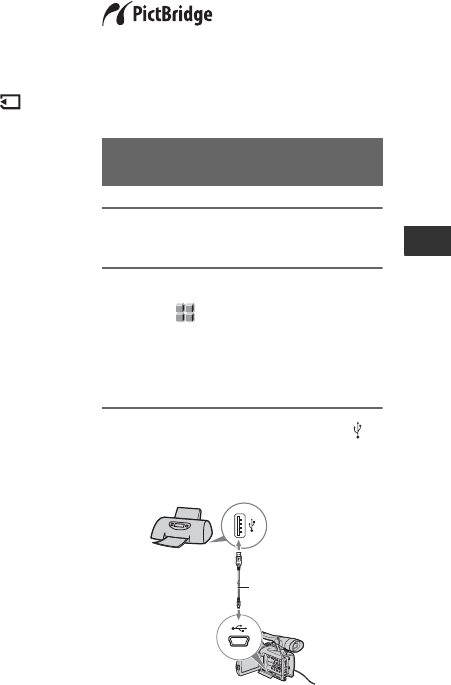
83
Dubbing/Editing
bNote
• Pictures cannot be deleted when a “Memory
Stick Duo” with the write-protect tab is set to
the write-protect position (p. 107), or when the
selected picture is protected (p. 94).
zTips
• To delete images from the index screen, use the
VOLUME/MEMORY button to move the B
mark to the images you want to and perform
steps 3 and 4.
• To delete all pictures at once, select [ ALL
ERASE] (p. 72).
Printing recorded
images (PictBridge
compliant printer)
You can print out pictures using a
PictBridge compliant printer without
connecting the camcorder to a computer.
Connect the AC Adaptor to your camcorder
to obtain power from the wall outlet.
Insert the “Memory Stick Duo”, containing
still images into your camcorder and turn
on the printer.
1Set the POWER switch to VCR.
2Press the MENU button, and
select (OTHERS) menu t
[USB SELECT] t [PictBridge
PRINT] with the SEL/PUSH EXEC
dial.
3Connect the USB cable to the
(USB) jacks of your camcorder
and the printer.
Connecting your camcorder to the
printer
USB cable
(supplied)
Continued ,
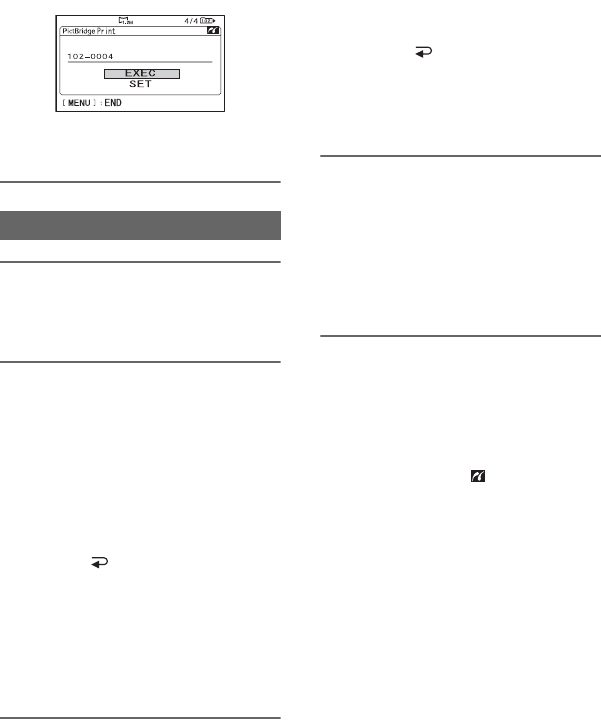
84
One of the images stored on the
“Memory Stick Duo” will be displayed.
1Select the image you want to print
with the VOLUME/MEMORY
button.
2Set the number of copies you
want to print if necessary.
If you do not want to set the number, go
to step 3 (the number will be
automatically set to 1).
1Select [SET] t [COPIES] with the
SEL/PUSH EXEC dial.
2Select the number by turning the SEL/
PUSH EXEC dial, then press the dial.
3Select [ RETURN] by turning the
SEL/PUSH EXEC dial, then press the
dial.
The PictBridge selection screen appears
again.
zTip
• You can set the number up to 20.
3To print the date/time on the
image, set as follows.
If you do not want to print the date/time,
go to step 4.
1 Select [SET] t [DATE/TIME] t
[DATE] or [DAY & TIME] with the
SEL/PUSH EXEC dial.
2 Select [ RETURN] by turning the
SEL/PUSH EXEC dial, then press the
dial.
The PictBridge selection screen appears
again.
4Select [EXEC] t [YES] with the
SEL/PUSH EXEC dial.
When printing is finished, [Printing...]
disappears and the image selection
screen appears again.
Press the MENU button when printing
is completed.
bNotes
• We do not guarantee proper operation when a
PictBridge incompatible device is connected.
• Refer also to the operating instructions for the
printer to be used.
• Do not attempt the following operations when
the printer is connected ( is on the screen).
The operations may not be performed properly.
– Operate the POWER switch.
– Disconnect the USB cable from the printer.
– Remove the “Memory Stick Duo” from your
camcorder.
• If the printer stops working, disconnect the USB
cable, turn the printer off and on again and
restart the operation from the beginning.
• Depending on your printer, the top, bottom or
side edges may be cut. Particularly when
printing a wide (16:9) image, the sides may be
cut significantly.
• Some printer models may not support the date/
time printing function. Refer to your printer’s
operating instructions for details.
• We cannot guarantee the printing of images
recorded with a device other than your
camcorder.
Printing
Printing recorded images (PictBridge compliant printer) (Continued)

85
Dubbing/Editing
zTip
• PictBridge is an industry standard established
by the Camera & Imaging Products Association
(CIPA). You can print still images without using
a computer by connecting a printer directly to a
digital video camera or digital still camera,
regardless of model or manufacturer.

86
Using a Computer
Connecting to a
computer
When connecting your camcorder to a
computer, the following operations are
available:
Copying the still images on a “Memory
Stick Duo” to the computer
t p. 86
Copying the movie on a tape in the HDV
format to the computer
t p. 89
Copying the movie on a tape in the DV
format to the computer
t p. 89
There are 2 ways to connect your
camcorder to a computer:
– USB cable
To copy still images on a “Memory Stick
Duo”
– i.LINK cable
To copy movies on a tape
Notes on connecting to a computer
• When you are using a USB cable or an i.LINK
cable to connect your camcorder to a computer,
make sure to connect the connector in the
correct direction. If you insert the connector
forcibly, it may be damaged, and cause a
malfunction of your camcorder.
• You cannot do the following:
– Copying pictures on a tape to a computer with
a USB cable.
– Copying pictures on a “Memory Stick Duo”
to a computer with an i.LINK cable.
• Remove the USB cable according to the correct
procedure when disconnecting it from the
computer (p. 88).
Copying still images
to a computer
For Windows users
• OS: Windows 2000 Professional/Windows
Millennium Edition/Windows XP Home
Edition/Windows XP Professional
Standard installation is required. Operation is
not assured if the above OS has been upgraded.
• CPU: MMX Pentium 200MHz or faster
• Others: USB port (provided as standard).
For Macintosh users
• OS: Mac OS 9.1/9.2 or Mac OS X (v10.1/v10.2/
v10.3/v10.4)
• Others: USB port (provided as standard).
• You can do this operation with the standard
driver on your computer. You do not need to
install any software.
• If your computer has a Memory Stick slot, insert
the “Memory Stick Duo” on which pictures are
recorded into the Memory Stick Duo adaptor
(optional), then insert it into the Memory Stick
slot on your computer to copy still images to the
computer.
• When using a “Memory Stick PRO Duo” and
your computer is not compatible with it, connect
your camcorder with the USB cable instead of
using the Memory Stick slot on the computer.
About connection
System requirements
Step:1 Using the USB cable
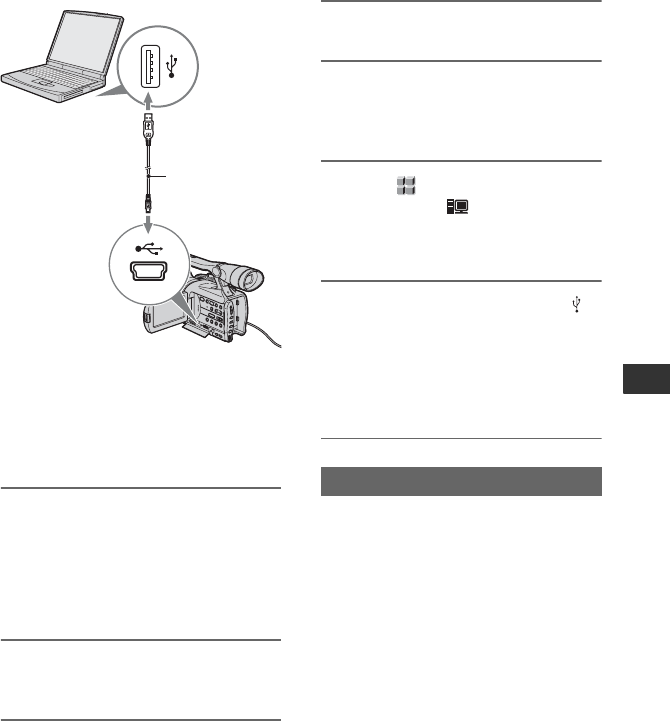
87
Using a Computer
• Do not connect your camcorder to the computer
at this point.
• The computer may not recognize the camcorder
if you connect them with the USB cable before
turning on your camcorder.
• See page 89 for the recommended connection.
1Turn on the computer.
Close down all applications running on
the computer.
For Windows 2000/Windows XP
Log on as an Administrator.
2Insert a “Memory Stick Duo” into
your camcorder.
3Prepare the power source for
your camcorder.
Use the supplied AC Adaptor to obtain
AC power (p. 18).
4Set the POWER switch to VCR.
5Press the MENU button.
The menu index screen is
displayed.
6Select (OTHERS) t [USB
SELECT] t [ Memory Stick]
with the SEL/PUSH EXEC dial
(p. 74).
7Connect the USB cable to the
(USB) jacks on your camcorder
and your computer.
It may take a while until your computer
recognizes your camcorder for the first
time.
For Windows users
Double-click the [Removable Disk] icon
displayed in [My Computer]. Then, drag
and drop a picture in the folder onto the
hard disk drive of your computer.
To USB jack
USB cable
(supplied)
To USB jack
Step:2 Copying the pictures
Continued ,
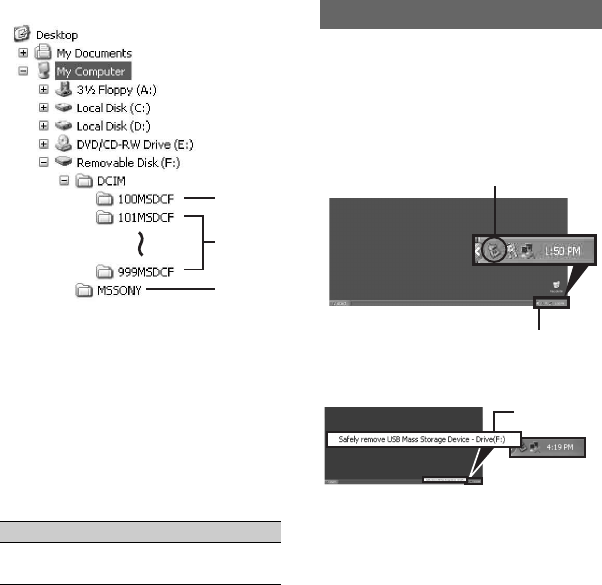
88
AFolder containing image files recorded
by other camcorders without the folder
creation function (for playback only).
BFolder containing image files recorded
by your camcorder when no new folders
have been created, only [101MSDCF] is
displayed.
CFolder containing movie data recorded
by other camcorders without the folder
creation function (for playback only)
ssss are numbers between 0001 and
9999.
For Macintosh users
Double-click the drive icon, then drag and
drop the desired picture file onto the hard
disk of your computer.
For Windows users
If [USB CONNECTING] appears on the
LCD screen, follow the procedure below to
disconnect the USB cable.
1Click the [Unplug or eject hardware] icon
on the task tray.
2Click [Safely remove USB Mass Storage
Device-Drive].
3Click [OK].
4Disconnect the USB cable from the
camcorder and computer.
If [USB CONNECTING] does not appear
on the LCD screen, do only step 4.
bNote
• Remove the USB cable according to the correct
procedure, otherwise files in the “Memory Stick
Duo” may not be updated correctly. Also, this
may cause a malfunction of the “Memory Stick
Duo.”
For Macintosh users
1Close down all applications running on the
computer.
2Drag and drop the drive icon on the
desktop onto the [Trash] icon.
3Disconnect the USB cable from the
camcorder and computer.
Folder File Meaning
101MSDCF (up
to 999MSDCF)
DSC0ss
ss.JPG
Still image
file
1
2
3
Disconnecting the USB cable
Click this icon.
Task tray
Click here.
Copying still images to a computer (Continued)

89
Using a Computer
bNotes
• If you are using Mac OS X, turn off the
computer before disconnecting the USB cable
and ejecting the “Memory Stick Duo.”
• Do not disconnect the USB cable while the
access lamp is lit.
• Make sure to disconnect the USB cable before
turning off your camcorder.
Recommended connection
Observe the following points when
connecting to ensure the camcorder
operates correctly.
• Connect the camcorder to a computer via the
USB cable. Make sure no other USB devices are
connected to the computer.
• If your computer has a USB keyboard and a
USB mouse as standard equipment, leave them
connected and connect the camcorder to an
available USB jack with the USB cable.
• Operation is not guaranteed if you connect two
or more USB devices to the computer.
• Operation is not guaranteed if you connect the
USB cable to the USB jack on a keyboard or
USB hub.
• Make sure to connect the cable to the USB jack
on the computer.
• Operation is not guaranteed even for the
recommended environments.
Copying movies on a
tape to a computer
Connect your camcorder to the computer
with an i.LINK cable.
The computer needs to have an i.LINK
connector and be installed with editing
software that can copy video signals. The
software required depends on the format of
the recorded pictures and the format for
copying to the computer (HDV or DV) as
shown in the table below.
bNotes
• You cannot copy movies using a USB cable.
• Refer to the operating instructions of the
software for the details on image copying.
• Refer to the operating instructions of the editing
software for the recommended connection.
• Some editing software on the computer may not
work correctly.
• You cannot change format DV to HDV.
The required menu settings vary depending
on the recorded images and the format
(HDV or DV) to be copied to the computer.
Recorded
format
Format for
copying to
the computer
Required software
HDV HDV
Editing software
capable of
copying HDV
signal
HDV DV
Editing software
capable of
copying DV
signal
DV DV
Editing software
capable of
copying DV
signal
Recorded
format
Format for
copying to
the computer
Menu setting*
HDV HDV
[VCR HDV/DV]
t [HDV]
[i.LINK CONV]
t [OFF]
Continued ,
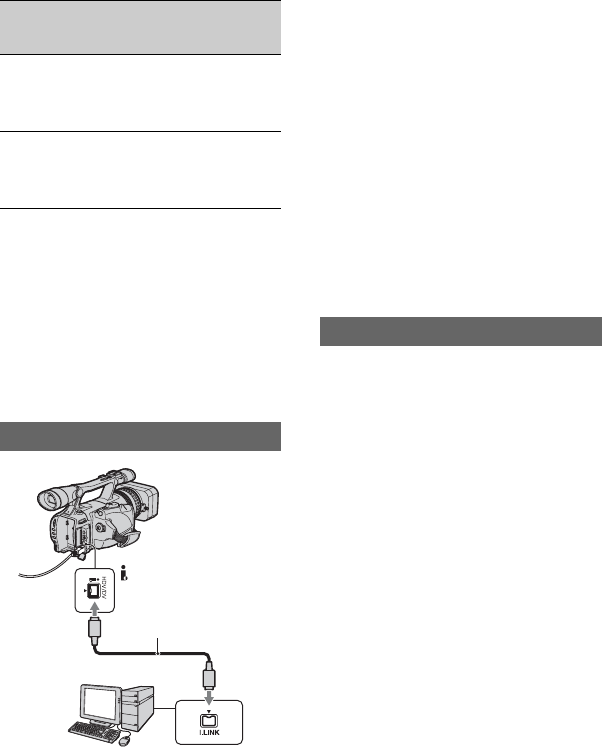
90
*See page 56 for menu settings.
zTips
• To copy HDV format images as they are
without changing their format, an HDV
compatible environment is required.
For details, refer to your software instruction
manual or contact the software manufacturer.
• To play movies by a regular DVD player, you
need to create DVD video in the SD format. the
DVD video is not in the HDV format.
Notes on connecting to the computer
• Connect the i.LINK cable to the computer first,
then to your camcorder. Connecting in the
opposite order may cause static electricity to
build up, resulting in a malfunction of your
camcorder.
• The computer may freeze or may not recognize
the signal from your camcorder in the following
situations.
– Connecting your camcorder to a computer
that does not support the video signal formats
appearing on the LCD screen of your
camcorder display (HDV or DV).
– Changing [VCR HDV/DV] (p. 69) and
[i.LINK CONV] (p. 70) settings while
connected with an i.LINK cable.
– Changing [REC FORMAT] setting while
connected with an i.LINK cable with the
POWER switch set to CAMERA (p. 69).
– Changing the POWER switch position while
connected with an i.LINK cable.
• The format (HDV or DV) of input/output signal
appears on the LCD screen of your camcorder
while connected with an i.LINK cable.
Use the supplied AC Adaptor to obtain AC
power (p. 18).
1Prepare editing software (not provided).
2Turn on your computer.
3Insert a tape into your camcorder and set
the POWER switch to VCR.
4Set the menu of your camcorder.
The menu settings vary depending on
the copying image.
5Copy images to the computer with your
software.
bNotes
• If images are copied in HDV format but not
recognized, your editing software may not
support HDV format. Convert the images to DV
format according to step 4 and copy again.
• A tape recorded in DV format cannot be copied
to a computer in HDV format.
zTips
• Check the specs, features and latest information
of your software on the software manufacturer's
website.
• When images recorded in HDV format are
copied to a computer, the file size is about 2GB
(almost the same as a DV file) for a 10-minute
HDV DV
[VCR HDV/DV]
t [HDV]
[i.LINK CONV]
t [ON]
DV DV
[VCR HDV/DV]
t [DV]
[i.LINK CONV]
t [OFF]
Step:1 Connect an i.LINK cable
Recorded
format
Format for
copying to
the computer
Menu setting*
i.LINK cable (optional)
HDV/DV interface
(i.LINK)
Step:2 Copying the movies
Copying movies on a tape to a computer (Continued)

91
Using a Computer
movie if the video compression format is
MPEG2.
When copying the movie in the HDV
format from the computer to your
camcorder
Set [VCR HDV/DV] to [HDV] and [i.LINK
CONV] to [OFF] (p. 69, 70).
bNote
• To copy an HDV format movie edited on a
computer back onto a tape in HDV format is
possible so long as your editing software
supports copying HDV movies onto tape. For
details, contact the software manufacturer.
When copying the movie in the DV
format from the computer to your
camcorder
Set [VCR HDV/DV] to [DV] (p. 69).
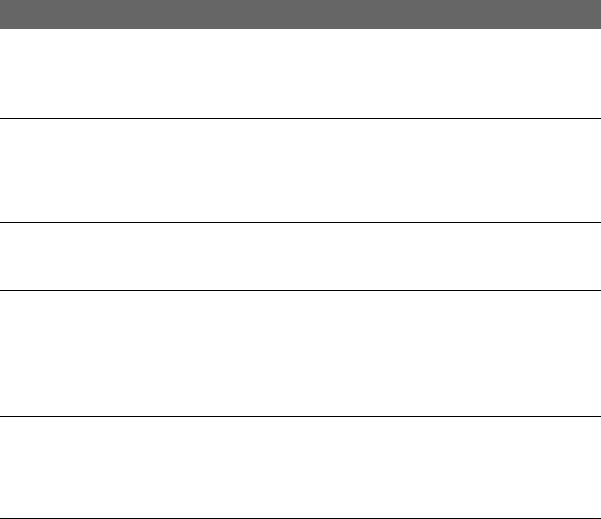
92
Troubleshooting
Troubleshooting
If you run into any problems using your camcorder, use the following table to troubleshoot the
problem. If the problem persists, disconnect the power source and contact your Sony dealer.
• Power sources//LCD screen/Remote Commander···p. 92
• Cassette tapes/“Memory Stick Duo”···p. 93
• Recording···p. 94
• Playback···p. 96
• Connecting to TV···p. 98
• Dubbing/Editing/Connecting to other devices···p. 99
• Connecting to a computer···p. 100
The power does not turn on or abruptly turns off.
• Attach a charged battery pack to the camcorder (p. 18).
• Use the AC Adaptor to connect to a wall outlet (p. 18).
The camcorder does not operate even when the power is set to on.
• Disconnect the AC Adaptor from the wall outlet or remove the battery pack, then reconnect it
after about 1 minute.
• Press the RESET button (p. 122) using a sharp-pointed object.
The camcorder gets warm.
• The camcorder may get warmer while you use it. This is not a malfunction.
The CHARGE lamp does not light while the battery pack is being charged.
• Slide the POWER switch to OFF (CHG) (p. 18).
• Attach the battery pack to the camcorder correctly (p. 18).
• Connect the power cord to the wall outlet properly.
• The battery charge is completed (p. 18).
The CHARGE lamp flashes while the battery pack is being charged.
• Attach the battery pack to the camcorder correctly (p. 18). If the problem persists, disconnect
the AC Adaptor from the wall outlet and contact your Sony dealer. The battery pack may be
damaged.
The remaining battery time indicator does not indicate the correct time.
• Ambient temperature is too high or too low, or the battery pack has not been charged enough.
This is not a malfunction.
• Fully charge the battery again. If the problem persists, the battery may be worn-out. Replace
it with a new one (p. 18, 108).
• The indicated time may not be correct in certain circumstances. For example, when you open
or close the LCD panel, it takes about 1 minute to display the correct remaining battery time.
Power sources//LCD screen/Remote Commander

93
Troubleshooting
The battery pack discharges too quickly.
• Ambient temperature is too high or low, or the battery pack has not been charged enough.
This is not a malfunction.
• Fully charge the battery again. If the problem persists, the battery may be worn-out. Replace
it with a new one (p. 18, 108).
The picture remains on the LCD screen.
• This occurs if you disconnect the DC plug or remove the battery pack without turning off the
power first. This is not a malfunction.
The picture in the viewfinder is not clear.
• Move the viewfinder lens adjustment lever until the picture appears clearly (p. 22).
The picture in the viewfinder has disappeared.
• If you change [VF POWERMODE] to [AUTO], the finder light remains off while the LCD
panel is open (p. 67).
The supplied Remote Commander does not function.
• Set [REMOTE CTRL] to [ON] (p. 75).
• Remove any obstructions between the Remote Commander and the remote sensor.
• Keep strong light sources, such as sunlight or overhead lighting, away from the remote
sensor, otherwise the Remote Commander may not function properly.
• Insert a fresh battery in the compartment with its +/– terminals matching those of the
compartment (p. 123).
Another VCR malfunctions when you use the supplied Remote Commander.
• Select a commander mode other than VTR 2 for your VCR.
• Cover the sensor of your VCR with black paper.
The cassette cannot be ejected from the compartment.
• Make sure the power source (battery pack or AC Adaptor) is connected correctly (p. 18).
• Moisture condensation has occurred inside the camcorder (p. 111).
The Cassette Memory indicator or title display does not appear while using a
cassette with Cassette Memory.
• This camcorder does not support Cassette Memory, so the indicator does not appear.
The remaining tape indicator is not displayed.
• Set [ REMAINING] to [ON] to always display the remaining tape indicator (p. 68).
Cassette tapes/“Memory Stick Duo”
Continued ,
94
The cassette is noisier during rewinding or fast-forwarding.
• When using the AC Adaptor, rewind/fast forward speed increases (compared with battery
operation) and therefore increases noise. This is not a malfunction.
You cannot delete pictures or format the “Memory Stick Duo.”
• Release the lock on the write-protect tab of the “Memory Stick Duo” if there is one (p. 107).
• The pictures are protected. Release the protect function on your computer, etc.
The recording does not start when you press the REC START/STOP button.
• Slide the POWER switch to CAMERA (p. 28).
• The tape has reached the end. Rewind it, or insert a new cassette.
• Set the write-protect tab of the cassette to REC or insert a new cassette (p. 105).
• The tape is stuck to the drum due to moisture condensation. Remove the cassette and leave
your camcorder for at least 1 hour, then re-insert the cassette (p. 111).
The handle zoom does not work.
• Set the handle zoom switch to H or L (p. 33).
You cannot record on the “Memory Stick Duo.”
• Release the lock on the write-protect tab of the “Memory Stick Duo” if there is one (p. 107).
• The “Memory Stick Duo” is full. Delete unnecessary pictures recorded on the “Memory Stick
Duo” (p. 82).
• Format the “Memory Stick Duo” on your camcorder or insert another “Memory Stick Duo”
(p. 72).
• You cannot record still images on the “Memory Stick Duo” with:
– While executing [FADER]
– [SMTH SLW REC]
– When the shutter speed is set to slower than 1/60
– While checking/executing shot transition
• Set [PHOTO/EXP.FOCUS] to [PHOTO](p. 74).
You cannot record a smooth transition on a tape from the last recorded scene
to the next.
• Perform End search (p. 44).
• Do not remove the cassette (the picture will be recorded continuously without a break even
when you turn the power off).
• Do not record pictures in the HDV and DV formats on the same tape.
• Do not record pictures in SP mode and LP mode on the same tape.
• Avoid stopping then recording a movie in the LP mode.
• When [QUICK REC] is set to [ON], you cannot record a smooth transition (p. 75).
Recording
Troubleshooting (Continued)

95
Troubleshooting
The shutter sound is not heard when you record a still image.
• Set [BEEP] to [ON] (p. 75).
• There is no shutter sound while during movie shooting.
End search does not work.
• Do not eject the cassette after recording (p. 44).
• There is nothing recorded on the cassette.
• There is a blank section between recorded sections of the tape. This is not a malfunction.
Auto focus does not function.
• Press the FOCUS button to set to auto focus (p. 34).
• If auto focus is difficult to use, focus manually (p. 34).
Menu items are grayed out or does not work.
• You cannot select gray out display items in the current recording/playback situation.
• There are some functions you cannot activate simultaneously. The following list shows
examples of unworkable combinations of functions and menu items.
Shutter speed, gain, white balance or iris cannot be adjusted manually.
• Set the AUTO LOCK switch to the center position to release the auto lock mode.
Tiny spots in white, red, blue, or green appear on the screen.
• This phenomenon appears when using a slow shutter speed (p. 37). This is not a malfunction.
Cannot use Situation
[BACK LIGHT] [EXPOSURE] is set to manual.
Two or more of iris/gain/shutter speed are set manually.
Iris, gain, and shutter speed are all set manually.
[SPOTLIGHT] [EXPOSURE] is set to manual.
Two or more of iris/gain/shutter speed are set manually.
Iris, gain, and shutter speed are all set manually.
[CNTRST ENHCR] During [BACK LIGHT].
[D.EXTENDER] During [SMTH SLW REC].
[AE SHIFT] [EXPOSURE] is set to manual.
Two or more of iris/gain/shutter speed are set manually.
iris, gain, and shutter speed are all set manually.
[HISTOGRAM] Displaying [COLOR BAR].
[SMTH SLW REC] Displaying [COLOR BAR].
During [SHOT TRANS].
Continued ,
96
The subjects passing by the frame very fast appear crooked.
• This is called the focal plane phenomenon. This is not a malfunction. Because of the way that
the image device (CMOS sensor) reads out image signals, the subjects passing by the frame
rapidly might appear crooked depending on the recording conditions.
The screen picture is bright, and the subject does not appear on the screen.
• Cancel the BACK LIGHT function (p. 62).
The screen picture is dark, and the subject does not appear on the screen.
• Press and hold the DISPLAY/BATT INFO button for a few seconds to turn on the backlight
(p. 22).
The picture appears too bright, or horizontal bands or changes in color occurs.
• This occurs when recording pictures under a fluorescent lamp, sodium lamp, or mercury
lamp. This is not a malfunction.
Black bands appear when you record a TV screen or computer screen.
• This can be improved by changing the shutter speed (p. 37).
Fine patterns flicker, diagonal lines look jagged.
• Adjust [SHARPNESS] to [0] side (p. 40).
If you are playing back pictures stored on a “Memory Stick Duo,” refer also to the Cassette
tapes/“Memory Stick Duo” section (p. 93).
You cannot play back tape.
• Slide the POWER switch to turn on the VCR.
• Rewind the tape (p. 31).
Image data stored on a “Memory Stick Duo” cannot be played back correctly.
• Image data cannot be played back if you have modified file names or folders, or have edited
the data on a computer (In this case, the file name flashes). This is not a malfunction (p. 108).
• Pictures recorded on other devices may not be played back correctly. This is not a
malfunction.
The data file name is displayed incorrectly, or flashing.
• The file is damaged.
• The file format is not supported on your camcorder (p. 106).
• Only the file name is displayed if the directory structure does not conform to the universal
standard.
Playback
Troubleshooting (Continued)
97
Troubleshooting
Horizontal lines appear on the picture. The displayed pictures are not clear or
do not appear.
• Video head is dirty. Clean the head using the cleaning cassette (optional) (p. 112).
You cannot hear the sound recorded with 4CH MIC REC on another camcorder.
• Set [DV AUDIO MIX] (p. 64).
No sound or only a low sound is heard.
• Turn up the volume (p. 32).
• Set [MULTI-SOUND] to [STEREO] (p. 64).
• Set [DV AUDIO MIX] (p. 64).
• Pictures recorded using [SMTH SLW REC] do not have sounds.
The picture or sound breaks off.
• The tape was recorded in both of the HDV and DV formats. This is not a malfunction.
The movies freeze for a while, or the sound breaks off.
• This occurs if the tape or video head is dirty (p. 112).
• Use the Sony mini DV cassette.
“---” is displayed on the screen.
• The tape you are playing was recorded without setting the date and time.
• A blank section on the tape is being played.
• The data code on a tape with a scratch or noise cannot be read.
Noises appear and or is displayed on the screen.
• The tape was recorded in a TV color system other than that of your camcorder (NTSC). This
is not a malfunction.
Date Search does not work correctly.
• Be sure to record more than 2 minutes after the date changed. If one day’s recording is too
short, your camcorder may not accurately find the point where the recording date changes.
• There is a blank section between recorded sections of the tape. This is not a malfunction.
No picture appears during End search or Rec review.
• The tape was recorded in both HDV and DV formats. This is not a malfunction.
Continued ,
98
New sound added to a recorded tape on another camcorder is not heard.
• Adjust [DV AUDIO MIX] from [ST1] (original sound) side until the sound is heard
appropriately (p. 64).
appears on the LCD screen.
• This appears when you play back a tape recorded on other recording devices using a 4ch
microphone (4CH MIC REC). This camcorder does not comply with the 4ch microphone
recording standard.
You cannot view the picture on the TV connected with the i.LINK cable.
• You cannot view the picture in the HD (high definition) quality on the TV if an i.LINK jack
of the TV is not compatible with the HDV1080i specification (p. 51). Refer to the instruction
manuals supplied with your TV.
• Down convert the pictures recorded in HDV format and play back in DV format (SD image
quality) (p. 70).
• Play back pictures using another connecting cable (p. 51).
You cannot hear the sound on the TV connected with the S VIDEO plug
(S VIDEO channel) or component video plug.
• If you are using an S VIDEO plug or component video plug, make sure the red and white
plugs of the A/V connecting cable are also connected (p. 51).
You cannot view the picture or hear the sound on the TV connected with the
component video cable.
• Set [COMPONENT] according to the requirements of the connected device (p. 70).
• When you are using the component video cable, make sure the red and white plugs of the
A/V connecting cable are connected (p. 51).
You cannot view the picture or hear the sound on the TV connected with the
HDMI cable.
• Pictures in the HDV format are not output from the HDMI OUT jack, if copyright protection
signals are recorded in the pictures.
• DV format pictures input to the camcorder via i.LINK cable (p. 76) cannot be output.
• This occurs if you record on a tape in both HDV and DV formats. Disconnect and connect the
HDMI cable, or slide the POWER switch to turn on your camcorder again.
The picture appears distorted on the 4:3 TV.
• This happens when viewing a picture recorded in the 16:9 (wide) mode on a 4:3 TV. Set [TV
TYPE] and play back the picture.
Connecting to TV
Troubleshooting (Continued)

99
Troubleshooting
Black zone appears at top and bottom of a 4:3 TV screen.
• This happens when viewing a picture recorded in the 16:9 (wide) mode on a 4:3 TV. This is
not a malfunction.
Pictures from connected devices cannot be zoomed.
• You cannot zoom pictures from connected devices on your camcorder (p. 33).
Time code and other information appear on the display of the connected
device.
• Set [DISP OUTPUT] to [LCD PANEL] while connected with an A/V connecting cable
(p. 68).
You cannot dub correctly using the A/V connecting cable.
• The A/V connecting cable is not connected properly.
Make sure that the A/V connecting cable is connected to the input jack of the other device for
dubbing a picture from your camcorder.
When connected using an i.LINK cable, no picture appears on the monitor
screen during dubbing.
• Set [VCR HDV/DV] according to the requirements of the connected device (p. 69).
You cannot add sound to the recorded tape.
• You cannot add sound to the recorded tape on this unit.
You cannot dub correctly using the HDMI cable.
• You cannot dub pictures using the HDMI cable.
Still pictures cannot be dubbed from a tape to a “Memory Stick Duo.”
• You cannot capture pictures at all or good-quality pictures from the tape that has been used
repeatedly for recording.
When you copy a movie shot in wide (16:9) format using an i.LINK cable, the
screen stretches vertically.
• You cannot output the aspect ratio setting using an i.LINK cable. Set the aspect ratio of the
TV instead.
• Connect using an AV cable instead.
Dubbing/Editing/Connecting to other devices
Continued ,
100
The computer does not recognize your camcorder.
• Disconnect the cable from the computer and camcorder, then connect it again securely.
• Disconnect USB devices other than the keyboard, the mouse, and the camcorder from the
(USB) jack on the computer.
• Disconnect the cable from the computer and camcorder, restart the computer, then connect
them again correctly.
You cannot view or copy the video recorded on a tape on the computer.
• Disconnect the cable from the computer, then connect it again.
• Connect the i.LINK cable because you cannot copy video with the USB cable.
You cannot view or copy still images recorded on a “Memory Stick Duo” on the
computer screen.
• Insert a “Memory Stick Duo” in the correct direction, then push it all the way in.
• You cannot use an i.LINK cable. Connect the camcorder and the computer using the USB
cable.
• Slide the POWER switch to turn on the VCR and set [USB SELECT] to [ Memory Stick]
(p. 74).
• The computer does not recognize the “Memory Stick Duo” during camcorder operations such
as tape playback or editing. Finish any camcorder operations and then connect the camcorder
to the computer again.
• Disconnect the USB device other than the keyboard, the mouse, and the camcorder from the
(USB) jack on the computer.
Your computer freezes.
• Set [VCR HDV/DV] correctly according to the connected device (p. 69).
• Disconnect the cable from your computer and camcorder. Reboot your computer, and
connect your computer and camcorder following the steps in the correct order (p. 88).
Connecting to a computer
Troubleshooting (Continued)

101
Troubleshooting
Warning indicators and messages
If indicators appear on the LCD screen or in
the viewfinder, check the following.
Some symptoms you can fix by yourself. If
the problem persists even after you have
tried a couple of times, contact your Sony
dealer or local authorized Sony service
facility.
C: (or E:) ss:ss (Self-diagnosis
display)
C:04:ss
• The battery pack is not an
“InfoLITHIUM” battery pack. Use an
“InfoLITHIUM” battery pack (p. 108).
• Connect the DC plug of the AC
Adaptor to the DC IN jack of your
camcorder securely (p. 18).
C:21:ss
• Moisture condensation has occurred.
Remove the cassette and leave your
camcorder for at least 1 hour, then re-
insert the cassette (p. 111).
C:22:ss
• Clean the head using a cleaning
cassette (optional) (p. 112).
C:31:ss / C:32:ss
• Symptoms that are not described above
have occurred. Remove and insert the
cassette, then operate your camcorder
again. Do not perform this procedure if
moisture condensation has occurred
(p. 111).
• Remove the power source. Reconnect it
and operate your camcorder again.
• Change the cassette. Press the RESET
button (p. 122), and operate your
camcorder again.
E:61:ss / E:62:ss / E:91:ss
• Contact your Sony dealer or local
authorized Sony service facility. Inform
them of the 5-digit code, which starts
from “E.”
101-1001(Warning indicator
pertaining to files)
• The file is damaged.
• The file is unreadable (p. 108).
E (Battery level warning)
• The battery pack is nearly used up.
• Depending on the operating,
environment, or battery conditions, E
may flash, even if there are
approximately 5 to 10 minutes
remaining.
% (Moisture condensation warning)*
• Eject the cassette, remove the power
source, and then leave it for about 1
hour with the cassette lid open (p. 111).
(Warning indicator pertaining to
“Memory Stick Duo”)
• A “Memory Stick Duo” is not inserted
(p. 26).
(Warning indicators pertaining to
“Memory Stick Duo” formatting)*
• The “Memory Stick Duo” is damaged.
• The “Memory Stick Duo” is not
formatted correctly (p. 72, 106).
(Warning indicators pertaining to
unsupported “Memory Stick Duo”)
• A “Memory Stick Duo” that cannot be
used in your camcorder is inserted
(p. 106).
Q (Warning indicators pertaining to
the tape)
Slow flashing:
• There is less than 5 minutes remaining
on the tape.
• No cassette is inserted.*
• The write-protect tab on the cassette is
set to lock (p. 105).*
Self-diagnosis display/Warning
indicators
Continued ,
102
Fast flashing:
• The tape has run out.*
Z (Eject cassette warning)*
Slow flashing:
• The write-protect tab on the cassette is
set to lock (p. 105).
Fast flashing:
• Moisture condensation has occurred
(p. 111).
• The self-diagnosis display code is
displayed (p. 101).
- (Warning indicator pertaining
to the write-protect of the “Memory
Stick Duo”)*
• The write-protect tab on the “Memory
Stick Duo” is set to lock (p. 107).
*You hear a melody when the warning indicators
appear on the screen (p. 101).
If messages appear on the screen, follow the
instructions.
xBattery/Power
Use the “InfoLITHIUM” battery pack
(p. 108)
xMoisture condensation
%Z Moisture condensation. Eject
the cassette (p. 111)
% Moisture condensation. Turn off
for 1H. (p. 111)
xCassette/Tape
Z Reinsert the cassette. (p. 26)
• Check if the cassette is damaged.
QZ The tape is locked - check the
tab. (p. 105)
Cannot record due to copyright
protection. (p. 105)
x“Memory Stick Duo”
Incompatible type of Memory
Stick.
• A type of “Memory Stick Duo”
incompatible with your camcorder is
inserted (p. 106).
Protected file.
Cannot delete.
• Cancel file protection using your
computer.
Reinsert the Memory Stick.
(p. 26, 106)
• Reinsert the “Memory Stick Duo” a
few times. If even then the indicator
flashes, the “Memory Stick Duo” might
be damaged. Try with another
“Memory Stick Duo.”
This Memory Stick is not
formatted correctly.
• Check the format, then format the
“Memory Stick Duo” as necessary
(p. 72, 106).
Memory Stick folders are full.
• You cannot create folders exceeding
999MSDCF. You cannot delete created
folders using your camcorder.
• You will have to format the “Memory
Stick Duo” (p. 72), or delete them using
your computer.
Description of warning messages
Warning indicators and messages (Continued)
103
Troubleshooting
Cannot record still images on
Memory Stick.
• You cannot record still images in the
following cases:
– When the shutter speed is 1/60 or less
– While using [FADER]
– While using [SMTH SLW REC]
– While checking or executing shot
transition
xPictBridge compliant printer
Check the connected device.
• Switch off the printer and switch it on
again, then disconnect the USB cable
and reconnect it.
Error. Cancel the task.
• Switch off the printer and switch it on
again, then disconnect the USB cable
and reconnect it.
xOthers
Change to correct tape format.
• The pictures cannot be played back
because of an incompatible format.
No output image in “VCR HDV/DV”.
Change format.
• Stop playback or signal input, or
change [VCR HDV/DV] setting
(p. 69).
x Dirty video head. Use a
cleaning cassette. (p. 112)
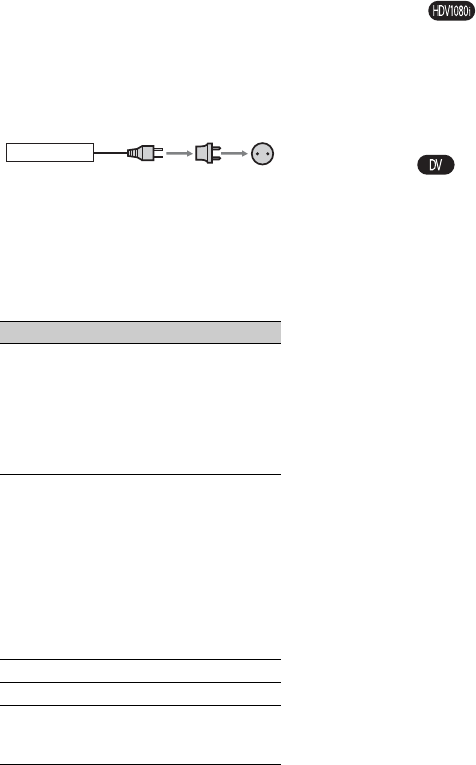
104
Additional Information
Using your camcorder abroad
Power supply
You can use your camcorder in any
country/region using the AC Adaptor
supplied with your camcorder within the
AC 100 V to 240 V, 50/60 Hz range.
Use a commercially available AC plug
adaptor [a], if necessary, depending on the
design of the wall outlet [b].
On TV color systems
Your camcorder is NTSC system, so its
picture can only be viewed on an NTSC
system TV with an AUDIO/VIDEO input
jack.
Viewing HDV format pictures recorded
in HDV format
You need an HDV1080i compatible TV (or
monitor) with a component jack and
AUDIO/VIDEO input jack. A component
video cable and A/V connecting cable are
also needed.
Viewing DV format pictures recorded
in DV format
You need a TV with the AUDIO/VIDEO
input jack. A connecting cable is also
needed.
Simple setting of the clock by time
difference
When you are abroad, you can easily adjust
the clock to the local time by setting the
time difference. Select [WORLD TIME],
then set the time difference (p. 74).
System Used in
NTSC Bahama Islands, Bolivia,
Canada, Central America, Chile,
Colombia, Ecuador, Guyana,
Jamaica, Japan, Korea, Mexico,
Peru, Surinam, Taiwan,
the Philippines, the U.S.A.,
Venezuela, etc.
PAL Australia, Austria, Belgium,
China, Czech Republic,
Denmark, Finland, Germany,
Holland, Hong Kong, Hungary,
Italy, Kuwait, Malaysia,
New Zealand, Norway, Poland,
Portugal, Singapore,
Slovak Republic, Spain,
Sweden, Switzerland, Thailand,
United Kingdom, etc.
PAL - M Brazil
PAL - N Argentina, Paraguay, Uruguay.
SECAM Bulgaria, France, Guiana, Iran,
Iraq, Monaco, Russia, Ukraine,
etc.
AC-L15A [a] [b]
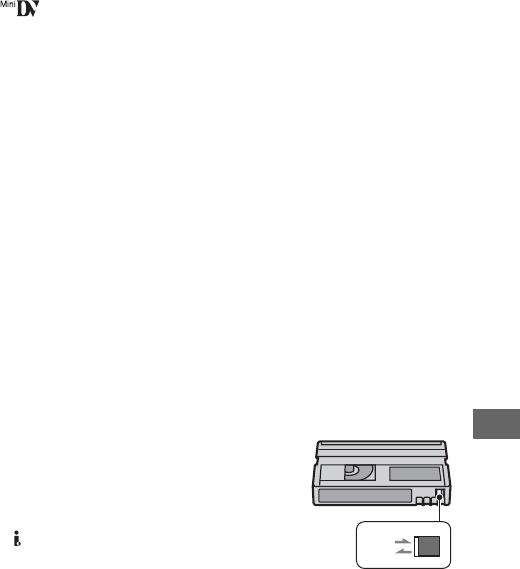
105
Additional Information
HDV format and recording/playback
Your camcorder is capable of recording in
both HDV and DV formats.
You can use mini DV format cassettes only.
Use a cassette with the mark.
Your camcorder is not compatible with
cassettes with Cassette Memory.
What is the HDV format?
The HDV format is a video format
developed to record and play back digital
high definition (HD) video signals on a DV
cassette.
Your camcorder adopts the Interlace mode
with 1,080 effective scan lines of screen
ruling (1080i, number of pixels 1,440 ×
1,080 dots).
The video bit rate for recording is about 25
Mbps.
i.LINK is adopted for the digital interface,
enabling a digital connection with an HDV
compatible TV or computer.
• HDV signals are compressed in MPEG2 format,
which is adopted in BS (broadcast satellite)
digital, terrestrial digital HDTV broadcastings,
in Blu-ray Disc recorders, etc.
Playback
Your camcorder can play back pictures in
both the DV format and HDV1080i
specification.
Your camcorder can play back pictures
recorded in the HDV 720/30p format, but
cannot output it from the HDV/DV
interface (i.LINK).
To prevent a blank section from being
created on the tape
Go to the end of the recorded section using
[END SEARCH] (p. 44) before you begin
the next recording when you have played
back the tape.
Copyright signal
xWhen you play back
If the cassette you play back on your
camcorder contains copyright signals, you
cannot copy it to a tape in another video
camera connected to your camcorder.
xWhen you record
You cannot record software on your
camcorder that contains copyright control
signals for copyright protection of software.
[Cannot record due to copyright
protection.] appears on the LCD screen, or
on the viewfinder if you try to record such
software. Your camcorder does not record
copyright control signals on the tape when
it records.
Notes on use
xWhen not using your camcorder for a
long time
Remove the cassette and store it.
xTo prevent accidental erasure
Slide the write-protect tab on the cassette to
set it to SAVE.
REC
SAVE
REC: The cassette can be
recorded.
SAVE: The cassette cannot be
recorded (write-protected).
Continued ,
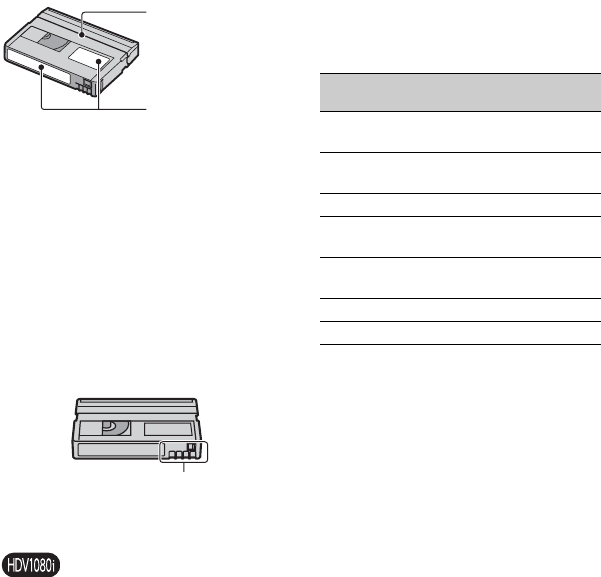
106
xWhen labeling the cassette
Be sure to place the label only on the
locations shown in the following
illustration so as not to cause a malfunction
of your camcorder.
xAfter using the cassette
Rewind the tape to the beginning to avoid
distortion of the picture or the sound. The
cassette should then be put in its case, and
stored in an upright position.
xWhen cleaning the gold-plated
connector
Generally, clean the gold-plated connector
on a cassette with a cotton-wool swab after
every 10 times it has been ejected.
If the gold-plated connector on the cassette
is dirty or dusty, the remaining tape
indicator may not show correctly.
On Sony HDV1080i compliant TVs
An HDV format compatible TV with the
component input jack is required to view
playback pictures recorded in the HDV
format.
Do not put a label
along this border.
Labeling position
Gold-plated connector
About the “Memory
Stick”
A “Memory Stick” is a compact, portable
IC recording medium with a large data
capacity.
You can use only a “Memory Stick Duo,”
which is about the half size of a standard
“Memory Stick” in your camcorder.
However, appearance on the list below does
not guarantee the operation of all types of
“Memory Stick Duo” in your camcorder.
• Still image format: Your camcorder compresses
and records image data in the JPEG (Joint
Photographic Experts Group) format. The file
extension is “.JPG.”
• File names of still images:
– 101- 0001: This file name appears on the
screen of your camcorder.
– DSC00001.JPG: This file name appears on
the display of a computer.
• A “Memory Stick Duo” formatted by a
computer (Windows OS/Mac OS) does not have
guaranteed compatibility with your camcorder.
Types of “Memory Stick” Recording/
Playback
“Memory Stick”
(without MagicGate)
–
“Memory Stick Duo”*1
(without MagicGate)
a
“MagicGate Memory Stick” –
“Memory Stick Duo”*1
(with MagicGate)
a*2*3
“MagicGate Memory Stick
Duo” *1
a*3
“Memory Stick PRO” –
“Memory Stick PRO Duo” *1a*2*3
*1A “Memory Stick Duo” is about half the size of
a standard “Memory Stick.”
*2The types of “Memory Stick” that support high
speed data transfer. The speed of data transfer
varies depending on the device to be used.
*3 “MagicGate” is a copyright protection
technology that records and transfers the
contents in an encrypted format. Note that data
that uses “MagicGate” technology cannot be
recorded or played on your camcorder.
HDV format and recording/
playback (Continued)

107
Additional Information
• Data read/write speed may vary depending on
the combination of the “Memory Stick” and
“Memory Stick” compliant product you use.
On a “Memory Stick Duo” with a
write-protect tab
You can prevent accidental erasure of
images when you slide the write-protect tab
on the “Memory Stick Duo” with a small
tapered object, to the write-protect position.
Notes on use
Damaged or lost image data will not be
compensated for, and may occur in the
following cases:
• If you eject the “Memory Stick Duo,” turn the
power off on your camcorder, or remove the
battery pack for replacement while your
camcorder is reading or writing image files on
the “Memory Stick Duo” (while the access lamp
is lit or flashing).
• If you use the “Memory Stick Duo” near
magnets or magnetic fields.
It is recommended you make a back-up of
important data on the hard disk of a
computer.
xOn handling a “Memory Stick”
Keep the following in mind when handling
a “Memory Stick Duo.”
• Be careful not to apply excessive force when
writing on a memo area on a “Memory Stick
Duo.”
• Do not attach a label or the like on a “Memory
Stick Duo” or a Memory Stick Duo adaptor.
• When you carry or store a “Memory Stick Duo,”
put it in its case.
• Do not touch, or allow metallic objects to come
into contact with the terminals.
• Do not bend, drop or apply strong force to the
“Memory Stick Duo.”
• Do not disassemble or modify the “Memory
Stick Duo.”
• Do not let the “Memory Stick Duo” get wet.
• Be careful to keep “Memory Stick Duo” media
out of the reach of small children. There is
danger that a child might swallow it.
• Do not insert anything other than a “Memory
Stick Duo” into the “Memory Stick Duo” slot.
Doing so may cause a malfunction.
xOn a location for use
Do not use or keep the “Memory Stick
Duo” in the following locations.
• Places subject to extremely high temperature,
such as a car parked outside in the summer.
• Places under direct sunlight.
• Places with extremely high humidity or subject
to corrosive gases.
xOn the Memory Stick Duo adaptor
After inserting a “Memory Stick Duo” into
the Memory Stick Duo adaptor, you can use
it with a standard “Memory Stick”
compliant device.
• When using a “Memory Stick Duo” with a
“Memory Stick” compliant device, be sure to
insert the “Memory Stick Duo” into a Memory
Stick Duo adaptor.
• When inserting a “Memory Stick Duo” into a
Memory Stick Duo adaptor, make sure the
“Memory Stick Duo” is inserted facing in the
correct direction, then insert it all the way in.
Note that improper use may cause a
malfunction. Also, if you force the “Memory
Stick Duo” into the Memory Stick Duo adaptor
in the wrong direction, it may be damaged.
• Do not insert a Memory Stick Duo adaptor
without a “Memory Stick Duo” attached. Doing
so may result in malfunctions of the unit.
xOn a “Memory Stick PRO Duo”
• The maximum memory capacity of a “Memory
Stick PRO Duo” that can be used on your
camcorder is 4 GB.
Continued ,

108
On image data compatibility
• Image data files recorded on a “Memory Stick
Duo” by your camcorder conform to the
“Design rule for Camera File system” universal
standard established by the JEITA (Japan
Electronics and Information Technology
Industries Association).
• On your camcorder, you cannot play back still
images recorded on other devices (DCR-
TRV900 or DSC-D700/D770) that do not
conform to the universal standard (these models
are not sold in some regions).
• If you cannot use a “Memory Stick Duo” that
has been used with another device, format it
with your camcorder (p. 72). Note that
formatting erases all information on the
“Memory Stick Duo.”
• You may not be able to play back images with
your camcorder:
– When playing back image data modified on
your computer.
– When playing back image data recorded with
other devices.
About the
“InfoLITHIUM” battery
pack
This unit is compatible with an
“InfoLITHIUM” battery pack (L series).
Your camcorder operates only with an
“InfoLITHIUM” battery pack.
“InfoLITHIUM” L series battery packs
have the mark.
What is an “InfoLITHIUM” battery
pack?
An “InfoLITHIUM” battery pack is a
lithium-ion battery pack that has functions
for communicating information related to
operating conditions between your
camcorder and an optional AC Adaptor/
charger.
The “InfoLITHIUM” battery pack
calculates the power consumption
according to the operating conditions of
your camcorder, and displays the remaining
battery time in minutes.
With an AC Adaptor/charger, the remaining
battery time and charging time appear.
To charge the battery pack
• Be sure to charge the battery pack before you
start using your camcorder.
• We recommend charging the battery pack in an
ambient temperature of between 10 °C to 30 °C
(50 °F to 86 °F) until the CHARGE lamp turns
off. If you charge the battery pack outside of this
temperature range, you may not be able to
charge it efficiently.
• After charging is complete, disconnect the cable
from the DC IN jack on your camcorder or
remove the battery pack.
To use the battery pack effectively
• Battery pack performance decreases when the
surrounding temperature is 10 °C (50 °F) or
below, and the length of time you can use the
battery pack becomes shorter. In that case, do
one of the following to use the battery pack for a
longer time.
– Put the battery pack in a pocket to warm it up,
and insert it in your camcorder right before
you start taking shots.
About the “Memory Stick”
(Continued)

109
Additional Information
– Use a large capacity battery pack: NP-F770/
F970 (optional).
• Frequent use of the LCD screen or a frequent
playback, fast forward or rewind operation
wears out the battery pack faster.
We recommend using a large capacity battery
pack: NP-F770/F970.
• Be sure to set the POWER switch to OFF
(CHG) when not recording or playing back on
your camcorder. The battery pack is also
consumed when your camcorder is in recording
standby or playback pause.
• Have spare battery packs ready for two or three
times the expected recording time, and make
trial recordings before making the actual
recording.
• Do not expose the battery pack to water. The
battery pack is not water resistant.
About the remaining battery time
indicator
• When the power goes off even though the
remaining battery time indicator indicates that
the battery pack has enough power to operate,
charge the battery pack fully again. Remaining
battery time will be indicated correctly. Note,
however, that the battery indication will not be
restored if it is used in high temperatures for a
long time, or if left in a fully charged state, or
when the battery pack is frequently used. Use
the remaining battery time indication as a rough
guide only.
• The E mark that indicates low battery flashes
even if there are still 5 to 10 minutes of battery
time remaining, depending on the operating
conditions or ambient temperature.
About storage of the battery pack
• If the battery pack is not used for a long time,
fully charge the battery pack and use it up on
your camcorder once a year to maintain proper
function. To store the battery pack, remove it
from your camcorder and put it in a dry, cool
place.
• To discharge the battery pack on your
camcorder completely, leave your camcorder in
tape recording standby until the power goes off
(p. 21).
About battery life
• Battery capacity decreases over time and
through repeated use. If decreased usage time
between charges becomes significant, it is
probably time to replace it with a new one.
• Each battery’s life is governed by storage,
operating and environmental conditions.

110
About i.LINK
The HDV/DV interface on this unit is an
i.LINK-compliant interface. This section
describes the i.LINK standard and its
features.
What is i.LINK?
i.LINK is a digital serial interface for
transferring digital video, digital audio, and
other data to other i.LINK-compatible
devices. You can also control other devices
using the i.LINK.
i.LINK-compatible devices can be
connected using an i.LINK cable. Possible
applications are operations and data
transactions with various digital AV
devices.
When two or more i.LINK-compatible
devices are daisy-chained with the unit,
operation becomes possible from any
device in the chain. Note that operation
method may vary, or data transactions may
not be possible, depending on specifications
and characteristics of the connected
devices.
bNotes
• Normally, only one device can be connected to
this unit with an i.LINK cable. When
connecting this unit to an HDV/DV compatible
device having two or more HDV/DV
interfaces, refer to the operating instructions of
the device to be connected.
• i.LINK is a more familiar term for the IEEE
1394 data transport bus proposed by Sony, and
is a trademark approved by many corporations.
• IEEE 1394 is an international standard
standardized by the Institute of Electrical and
Electronics Engineers.
About the i.LINK Baud rate
i.LINK’s maximum baud rate varies
according to the device. There are 3 types.
S100 (approx. 100Mbps*)
S200 (approx. 200Mbps)
S400 (approx. 400Mbps)
The baud rate is listed under
“Specifications” in the operating
instructions of each piece of equipment. It
is also indicated near the i.LINK interface
on some devices.
The baud rate may differ from the indicated
value when the unit is connected to a device
with a different maximum baud rate.
Mbps stands for “megabits per second,” or
the amount of data that can be sent or
received in one second. For example, a
baud rate of 100 Mbps means that 100
megabits of data can be sent in one second.
To use i.LINK functions on this unit
For details on how to dub when this unit is
connected to other video devices having an
i.LINK interface, see page 78.
This unit can also be connected to other
i.LINK-compatible devices made by Sony
(for example, a VAIO series personal
computer) as well as to video devices.
Some i.LINK compatible video devices,
such as Digital Televisions, DVD,
MICROMV or HDV recorders/players are
not compatible with this unit. Before
connecting to other devices, be sure to
confirm whether the device is compatible
with an HDV/DV device or not. For details
on precautions and compatible application
software, refer also to the operating
instructions for the device to be connected.
bNote
• When connecting a device with an i.LINK
terminal to your camcorder via an i.LINK cable,
switch off the device and unplug it from the
power socket before plugging in or unplugging
the i.LINK cable.
About the required i.LINK cable
Use the Sony i.LINK 4-pin-to-4-pin cable
(during HDV/DV dubbing).
* What is Mbps?

111
Additional Information
Maintenance and precautions
On use and care
• Do not use or store the camcorder and
accessories in the following locations.
– Anywhere extremely hot or cold. Never leave
them exposed to temperatures above 60 °C
(140 °F), such as under direct sunlight, near
heaters or in a car parked in the sun. They
may malfunction or become deformed.
– Near strong magnetic fields or mechanical
vibration. The camcorder may malfunction.
– Near strong radio waves or radiation. The
camcorder may not be able to record properly.
– Near AM receivers and video equipment.
Noise may occur.
– On a sandy beach or anywhere dusty. If sand
or dust gets in your camcorder, it may
malfunction. Sometimes this malfunction
cannot be repaired.
– Near windows or outdoors, where the LCD
screen, the viewfinder, or the lens may be
exposed to direct sunlight. This damages the
inside of the viewfinder or the LCD screen.
– Anywhere very humid.
• Operate your camcorder on DC 7.2 V (battery
pack) or DC 8.4 V (AC Adaptor).
• For DC or AC operation, use the accessories
recommended in these operating instructions.
• Do not let your camcorder get wet, for example,
from rain or sea water. If your camcorder gets
wet, it may malfunction. Sometimes this
malfunction cannot be repaired.
• If any solid object or liquid gets inside the
casing, unplug your camcorder and have it
checked by a Sony dealer before operating it
any further.
• Avoid rough handling, disassembling,
modifying, physical shock, or impact such as
hammering, dropping or stepping on the
product. Be particularly careful of the lens.
• Keep the POWER switch setting to OFF (CHG)
when you are not using your camcorder.
• Do not wrap your camcorder with a towel, for
example, and operate it. Doing so might cause
heat to build up inside.
• When disconnecting the power cord, pull it by
the plug and not the cord.
• Do not damage the power cord such as by
placing anything heavy on it.
• Keep metal contacts clean.
• Keep the Remote Commander and button-type
battery out of children’s reach. If the battery is
accidentally swallowed, consult a doctor
immediately.
• If the battery electrolytic liquid has leaked,
– consult your local authorized Sony service
facility.
– wash off any liquid that may have contacted
your skin.
– if any liquid gets in your eyes, wash with
plenty of water and consult a doctor.
xWhen not using your camcorder for a
long time
• Periodically turn on the camcorder and play a
cassette for about 3 minutes.
• Use up the battery pack completely before
storing it.
Moisture condensation
If your camcorder is brought directly from a
cold place to a warm place, moisture may
condense inside your camcorder, on the
surface of the tape, or on the lens. In this
state, the tape may stick to the head drum
and be damaged or your camcorder may not
operate correctly. If there is moisture inside
your camcorder, [Moisture condensation.
Eject the cassette] or [Moisture
condensation. Turn off for 1H.] appears.
The indicator will not appear when the
moisture condenses on the lens.
xIf moisture condensation has occurred
None of the functions except cassette
ejection will work. Eject the cassette, turn
off your camcorder, and leave it for about
one hour with the cassette lid open. Your
camcorder can be used again when both of
the following conditions are met:
• The warning message does not appear when the
power is turned on.
• Neither % nor Z flashes when a cassette is
inserted and the video operation buttons are
pressed.
If moisture starts to condense, your
camcorder sometimes cannot detect
condensation. If this happens, the cassette is
sometimes not ejected for 10 seconds after
the cassette lid is opened. This is not a
Continued ,
112
malfunction. Do not close the cassette lid
until the cassette is ejected.
xNote on moisture condensation
Moisture may condense when you bring
your camcorder from a cold place into a
warm place (or vice versa) or when you use
your camcorder in a humid place as shown
below.
• When you bring your camcorder from a ski
slope into a place warmed up by a heating
device.
• When you bring your camcorder from an air
conditioned car or room into a hot place outside.
• When you use your camcorder after a squall or a
shower.
• When you use your camcorder in a hot and
humid place.
xHow to avoid moisture condensation
When you bring your camcorder from a
cold place into a warm place, put your
camcorder in a plastic bag and seal it
tightly. Remove the bag when the air
temperature inside the plastic bag has
reached the surrounding temperature (after
about one hour).
Video head
If you play back a tape recorded in HDV
format, the image and sound may freeze for
a while (about 0.5 seconds).
This occurs if the HDV signals cannot be
recorded or played back correctly because
of dirt on the tape or video head. Depending
on the cassette, this fairly infrequently
occurs even if the cassette is brand new or
is not used a lot.
If this freezing point is created while
playing back, you can solve this problem
and see the pictures by rewinding after
slightly forwarding. Such a freezing point
cannot be recovered if it was created while
recording.
To prevent such a problem, use the Sony
mini DV cassette.
• If the following problem occurs, clean the video
heads for 10 seconds with the Sony DVM-
12CLD cleaning cassette (optional).
– Playback pictures do not move.
– Playback pictures do not appear.
– The sound breaks off.
–[x Dirty video head. Use a cleaning
cassette.] appears on the screen during
recording.
– The following phenomenon occurs in HDV
format.
– The following phenomenon occurs in DV
format.
• The video heads will be worn after long use. If
you cannot obtain a clear image even after using
a cleaning cassette (optional), the video heads
may be worn out. Please contact your Sony
dealer or local authorized Sony service facility
to have the video heads replaced.
LCD screen
• Do not exert excessive pressure on the LCD
screen, as it may cause damage.
• If your camcorder is used in a cold place, a
residual image may appear on the LCD screen.
This is not a malfunction.
• While using your camcorder, the back of the
LCD screen may heat up. This is not a
malfunction.
The playback
screen pauses.
The playback screen
goes blank.
(Solid blue screen)
Block-noise
appears.
The playback screen goes blank.
(Solid blue screen)
Maintenance and precautions (Continued)

113
Additional Information
xTo clean the LCD screen
If fingerprints or dust make the LCD screen
dirty, it is recommended you use a soft
cloth to clean it. When you use the LCD
Cleaning Kit (optional), do not apply the
cleaning liquid directly to the LCD screen.
Use cleaning paper moistened with the
liquid.
On handling the casing
• If the casing is soiled, clean the camcorder body
with a soft cloth lightly moistened with water,
and then wipe the casing with a dry soft cloth.
• Avoid the following to avoid damage to the
finish.
– Using chemicals such as thinner, benzine,
alcohol, chemical cloths, repellent, insecticide
and sunscreen.
– Handling with above substances on your
hands.
– Leaving the casing in contact with rubber or
vinyl objects for a long period of time.
About care and storage of the lens
• Wipe the surface of the lens clean with a soft
cloth in the following instances:
– When there are fingerprints on the lens
surface.
– In hot or humid locations
– When the lens is exposed to salty air such as
at the seaside.
• Store in a well-ventilated location subject to
little dirt or dust.
• To prevent mold, periodically clean the lens as
described above. It is recommended that you
operate your camcorder about once a month to
keep it in optimum state for a long time.
On charging the pre-installed
rechargeable battery
Your camcorder has a pre-installed
rechargeable battery to retain the date, time,
and other settings even when the POWER
switch is set to OFF (CHG). The pre-
installed rechargeable battery is always
charged while your camcorder is connected
to the wall outlet via the AC Adaptor or
while the battery pack is inserted. The
rechargeable battery will be fully
discharged in about 3 months if you do
not use your camcorder at all without the
AC Adaptor connected or the battery pack
attached. Use your camcorder after
charging the pre-installed rechargeable
battery.
However, even if the pre-installed
rechargeable battery is not charged, the
camcorder operation will not be affected as
long as you are not recording the date.
xProcedures
Connect your camcorder to a wall outlet
using the supplied AC Adaptor, and leave it
with the POWER switch set to OFF (CHG)
for more than 24 hours.
Continued ,
114
Removing dust from inside the
viewfinder
1Remove the viewfinder.
While sliding the viewfinder release
lever to the left 1, remove the
viewfinder 2.
2Remove dust from inside the
viewfinder and the part shown
below with a blower.
3Attach the viewfinder following
the reverse procedure of step 1.
2
1
Maintenance and precautions (Continued)

115
Additional Information
Specifications
System
Video recording system (HDV)
2 rotary heads, Helical scanning system
Video recording system (DV)
2 rotary heads, Helical scanning system
Still image recording system
Exif Ver. 2.2*1
Audio recording system (HDV)
Rotary heads, MPEG-1 Audio Layer -2,
Quantization: 16 bits (Fs 48 kHz,
stereo)
transfer rate: 384 kbps
Audio recording system (DV)
Rotary heads, PCM system
Quantization: 12 bits (Fs 32 kHz, stereo
1, stereo 2), 16 bits (Fs 48 kHz, stereo)
Video signal
NTSC color, EIA standards
1080/60i specification
Usable cassette
Mini DV cassette with the mark
printed
Tape speed (HDV)
Approx. 18.81 mm/s
Tape speed (DV)
SP: Approx. 18.81 mm/s
LP: Approx. 12.56 mm/s
Recording/playback time (HDV)
60 min (using a DVM60 cassette)
Recording/playback time (DV)
SP: 60 min (using a DVM60 cassette)
LP: 90 min (using a DVM60 cassette)
Fast forward/rewind time
Approx. 2 min 40 s (using a DVM60
cassette and rechargeable battery pack)
Approx. 1 min 45 s (using a DVM60
cassette and AC Adaptor)
Viewfinder
Electric viewfinder (color)
Image device
4.5 mm (1/4 type) 3CMOS sensor
Recording Pixels (HDV/DV16:9 still
recording):
Max. 1.20 Mega (1 440 ×810) pixels *2
Gross: Approx. 1 120 000 pixels
Effective (movie, 4:3):
778 000 pixels
Effective (movie, 16:9):
1 037 000 pixels
Effective (still, 4:3):
778 000 pixels
Effective (still, 16:9):
1 037 000 pixels
Lens
Carl Zeiss Vario-Sonnar T
20 ×(Optical), Approx. 30 ×(Digital,
when [D.EXTENDER] is set to [ON])
Focal length
f=3.9 ~ 78 mm (5/32 ~ 3 1/8 in.)
When converted to a 35 mm still
camera *3
37.4 ~ 748 mm (1 1/2 ~ 29 1/2 in.)
(16:9),
45.7 ~ 914 mm (1 13/16 ~ 36 in.) (4:3)
F1.6 ~ 2.8
Filter diameter: 62 mm (2 1/2 in.)
Color temperature
[INDOOR] (3 200 K),
[OUTDOOR] (5 800 K)
Minimum illumination
4 lx (lux) (F 1.6)
*1“Exif” is a file format for still images,
established by the JEITA (Japan
Electronics and Information Technology
Industries Association). Files in this
format can have additional information
such as your camcorder’s setting
information at the time of recording.
*2The unique pixel array of Sony's
ClearVid CMOS Sensor and image
processing system (new Enhanced
Imaging Processor) allows for still
image resolution equivalent to twice that
Continued ,

116
of the image sensor's effective pixel
count.
*3The focal length figures are actual
figures resulting from wide angle pixel
read out.
Output connectors
AUDIO/VIDEO output
10-pin connector
Video signal: 1 Vp-p, 75 Ω (ohms),
unbalanced
Luminance signal: 1 Vp-p, 75 Ω
(ohms), unbalanced
Chrominance signal: 0.286 Vp-p, 75 Ω
(ohms), unbalanced
Audio signal: 327 mV (at load
impedance 47 kΩ (kilohms)), Output
impedance with less than 2.2 kΩ
(kilohms)
COMPONENT OUT jack
Y: 1 Vp-p, 75Ω (ohms), unbalanced PB/
PR, CB/CR: +/- 350 mVp-p
HDMI OUT jack
TypeA (19-pin)
Input/Output connectors
LANC jack
Stereo mini-minijack (Ø 2.5 mm)
USB jack
mini-B
HDV/DV jack
i.LINK interface (IEEE 1394, 4-pin
connector S100)
LCD screen
Picture
8.8 cm (3.5 type, aspect ratio 16:9)
Total dot number
211 200 (960 ×220)
General
Power requirements
DC 7.2 V (battery pack)
DC 8.4 V (AC Adaptor)
Average power consumption
During camera recording using the
viewfinder with normal brightness:
HDV recording 5.9 W
DV recording 5.7 W
During camera recording using the
LCD with normal brightness:
HDV recording 5.9 W
DV recording 5.7 W
Operating temperature
0 °C to + 40 °C (32 °F to 104 °F)
Storage temperature
-20 °C to + 60 °C (-4 °F to + 140 °F)
Dimensions (approx.)
145 × 156 × 322 mm
(5 3/4 ×61/4×12 3/4 in.) (w/h/d)
including the projecting parts
145 × 156 × 322 mm
(5 3/4 ×61/4×12 3/4 in.) (w/h/d)
including the projecting parts with
batterypack NP-F570
Mass (approx.)
1.4 kg (3 lb 2 oz) main unit only
1.6 kg (3 lb 10 oz) including the NP-
F570 rechargeable battery pack,
cassette, and lens hood with lens cover
Supplied accessories
See page 16.
Specifications (Continued)

117
Additional Information
AC Adaptor AC-L15A
Power requirements
AC 100 - 240 V, 50/60 Hz
Current consumption
0.35 - 0.18 A
Power consumption
18 W
Output voltage
DC 8.4 V*
Operating temperature
0 °C to 40 °C (32 °F to 104 °F)
Storage temperature
-20 °C to + 60 °C (-4 °F to + 140 °F)
Dimensions (approx.)
56 ×31 ×100 mm
(2 1/4 ×11/4×4 in.) (w/h/d)
excluding the projecting parts
Mass (approx.)
190 g (6.7 oz) excluding the power cord
*See the label on the AC Adaptor for other
specifications.
Rechargeable batterypack NP-F570
Maximum output voltage
DC 8.4 V
Output voltage
DC 7.2 V
Capacity
15.8 Wh (2 200 mAh)
Dimensions (approx.)
38.4 ×20.6 ×70.8 mm
(1 9/16 ×13/16 ×2 7/8 in.) (w/h/d)
Mass (approx.)
100 g (3.5 oz)
Operating temperature
0 °C to 40 °C (32 °F to 104 °F)
Type
Lithium ion
Design and specifications are subject to change
without notice.

118
On trademarks
• “Handycam” and
are
registered trademarks of Sony Corporation.
• “Memory Stick,” “ ,” “Memory Stick
Duo,” “ ,” “Memory Stick
PRO Duo,” “ ,”
“MagicGate,” “ ,”
“MagicGate Memory Stick” and “MagicGate
Memory Stick Duo” are trademarks of Sony
Corporation.
• “InfoLITHIUM” is a trademark of Sony
Corporation.
• i.LINK and are trademarks of Sony
Corporation.
• is a trademark.
• Microsoft, Windows, and Windows Media are
trademarks or registered trademarks of U.S.
Microsoft Corporation in the U.S. and other
countries.
• Macintosh and Mac OS are trademarks of Apple
Computer, Inc in the U.S. and other countries.
• HDV and the HDV logo are trademarks of Sony
Corporation and Victor Company of Japan, Ltd.
• HDMI, HDMI logo, and High-Definition
Multimedia Interface are trademarks or
registered trademarks of HDMI Licensing LLC.
• Pentium is a trademark or registered trademark
of Intel Corporation.
All other product names mentioned herein may be
the trademarks or registered trademarks of their
respective companies. Furthermore, ™ and “®”
are not mentioned in each case in this manual.
Notes on the License
ANY USE OF THIS PRODUCT OTHER THAN
CONSUMER PERSONAL USE IN ANY
MANNER THAT COMPLIES WITH THE
MPEG-2 STANDARD FOR ENCODING
VIDEO INFORMATION FOR PACKAGED
MEDIA IS EXPRESSLY PROHIBITED
WITHOUT A LICENSE UNDER APPLICABLE
PATENTS IN THE MPEG-2 PATENT
PORTFOLIO, WHICH LICENSE IS
AVAILABLE FROM MPEG LA, L.L.C., 250
STEELE STREET, SUITE 300, DENVER,
COLORADO 80206.
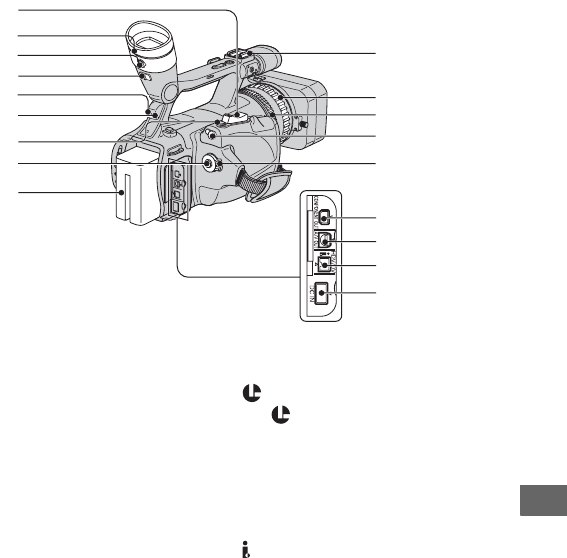
119
Quick Reference
Quick Reference
Identifying parts and controls
The numbers in ( ) are reference pages.
AZoom lever (33)
BViewfinder (22)
CViewfinder lens adjustment lever (22)
DViewfinder release lever (114)
ERemote sensor (back) (123)
FRec lamp (back) (28)
The rec lamp flashes if the remaining
tape or battery is low.
GPHOTO/EXPANDED FOCUS button
(30)
HREC START/STOP button (28)
IBattery pack (18)
JAccessory shoe
KFocus ring (34)
LZoom ring (33)
M LANC jack
The LANC control jack is used for
controlling the tape transport of video
device and peripherals connected to it.
NPOWER switch (21)
OCOMPONENT OUT jack (51)
PA/V OUT jack (51)
Q HDV/DV jack (51)
RDC IN jack (18)
2
3
4
5
6
1
7
9
8
qg
qh
qj
qk
qd
qs
qa
qf
0
Continued ,
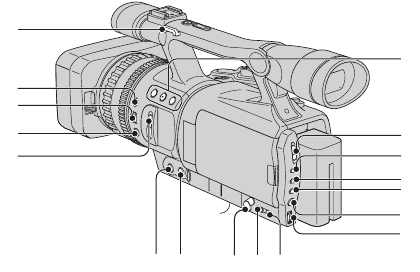
120
AHook for the shoulder strap (121)
BEXPOSURE/IRIS button (35)
CEXPOSURE/IRIS dial (35)
DPUSH AUTO FOCUS button (34)
END FILTER switch (36)
FASSIGN buttons (1/2/3)*(42)
GAUTO LOCK switch (36)
HGAIN button (37)
ISHUTTER SPEED button (37)
JWHT BAL (white balance) button (38)
KMENU button (56)
LSEL/PUSH EXEC dial (24)
MSTATUS CHECK button (47)
NPICTURE PROFILE button (39)
Oi (headphones) jack
When you use headphones, the speaker
on your camcorder is silent.
PTripod receptacle
Make sure that the length of the tripod
screw is less than 5.5 mm (7/32 inch).
Otherwise, you cannot attach the tripod
securely, and it may damage your
camcorder.
QFOCUS button* (34)
REXPANDED FOCUS button (35)
*The ASSIGN button 2, FOCUS button, and
SHUTTER SPEED button have raised tactile
dots for your convenience in locating the
buttons.
1
qk qj
qh
qs
qa
9
q;
6
7
2
4
3
58
qf
qg qd
Identifying parts and controls (Continued)
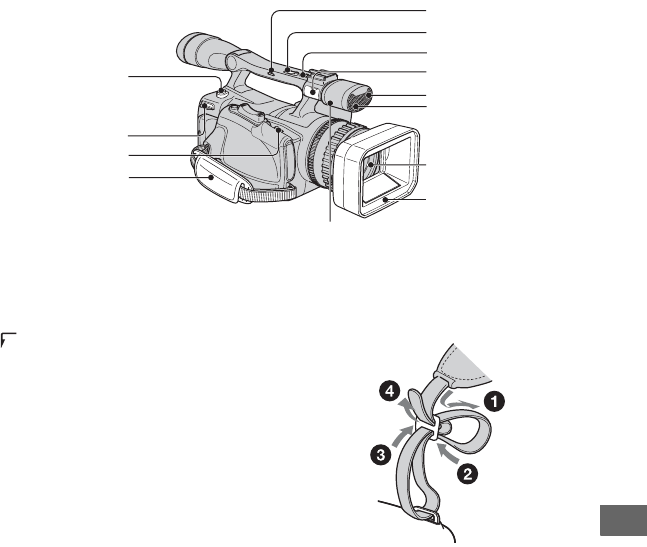
121
Quick Reference
ABATT RELEASE (battery release)
button (19)
BHook for the shoulder strap (121)
C OPEN/EJECT lever (26)
DGrip belt (21)
EHandle zoom switch (H/L/OFF) (33)
FHandle zoom button (33)
GREC START/STOP button (28)
HMIC jack
When a microphone is connected, it is
dominantly used for sound recording
over the internal microphone.
IRec lamp (front) (28)
The rec lamp flashes if the remaining
tape or battery is low.
JRemote sensor (front) (123)
KLens (8)
LLens hood with lens cover (17)
MMicrophone
To attach the shoulder strap
Attach the shoulder strap (optional) to the
hooks for the shoulder strap.
7
8
9
1
3
5
6
2
4
qd
qa
qs
0
Continued ,
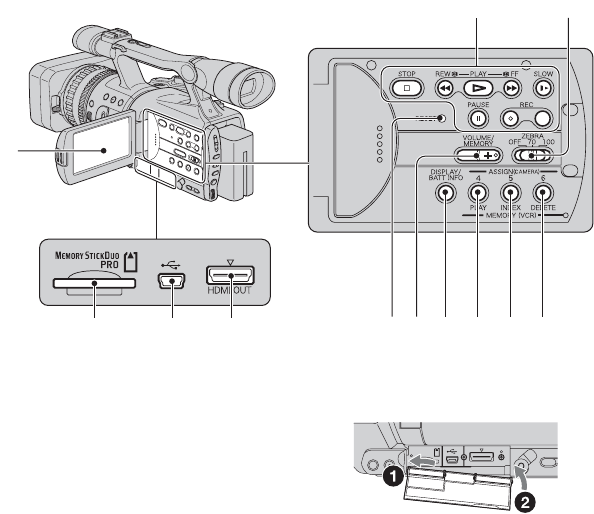
122
ALCD screen (22)
BVideo control buttons (REW, PLAY*,
FF, PAUSE, STOP, SLOW, REC) (31)
CZEBRA switch (37)
DMEMORY/DELETE button (82)
EMEMORY/INDEX button (32)
FMEMORY/PLAY button (32)
GDISPLAY/BATT INFO button (47, 48)
HVOLUME/MEMORY button* (32)
IRESET button
If you press the RESET button, all
settings including the clock setting
(except the Picture profile and Camera
profile settings) return to the default.
JHDMI OUT jack (51)
KUSB jack (83)
L“Memory Stick Duo” slot (26)
*Each of the PLAY button, VOLUME/
MEMORY button and MEMORY/INDEX
button has a raised tactile dot. (The MEMORY/
INDEX button has it on the + side.) Use it to
identify the location of the buttons.
To attach the jack cover
Attach the jack cover as shown in the
illustration.
1
2
456789
3
qaqs 0
Identifying parts and controls (Continued)
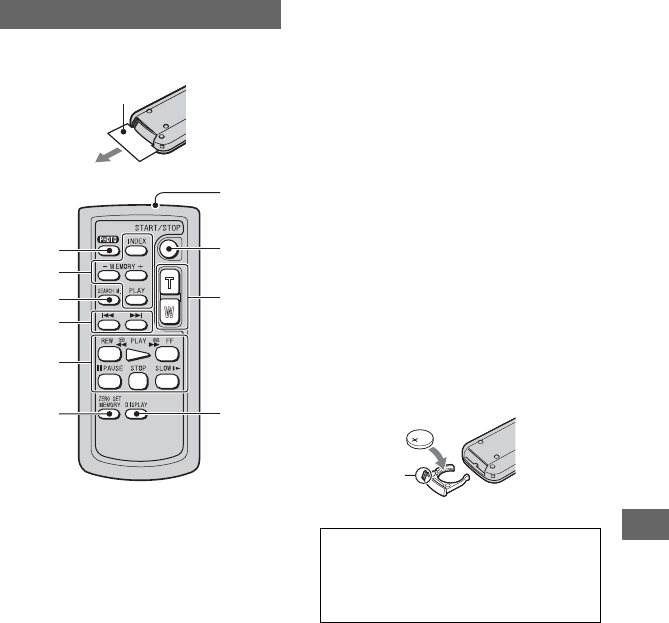
123
Quick Reference
Remove the insulation sheet before using
the Remote Commander.
APHOTO (30)
The on-screen image when you press this
button will be recorded onto the “Memory
Stick Duo” as a still image.
BMemory control buttons (Index, –/+,
Memory/playback) (32)
CSEARCH M. (49)
D. >
EVideo control buttons (Rewind,
Playback, Fast-forward, Pause, Stop,
Slow) (31)
FZERO SET MEMORY (49)
GTransmitter
HSTART/STOP (28, 49)
IPower zoom (33)
JDISPLAY (47)
bNotes
• Aim the Remote Commander towards the
remote sensor to operate your camcorder.
• Point the remote sensor away from strong light
sources such as direct sunlight or overhead
lighting. Otherwise, the Remote Commander
may not function properly.
• When you are operating with the Remote
Commander supplied with your camcorder,
your VCR may also operate. In that case, select
a commander mode other than VTR 2 for your
VCR, or cover the sensor of your VCR with
black paper.
To change the battery of the Remote
Commander
1While pressing on the tab, inset your
fingernail into the slit to pull out the battery
case.
2Place a new battery with the + side facing
up.
3Insert the battery case back into the Remote
Commander until it clicks.
• When the lithium battery becomes weak, the
operating distance of the Remote Commander
may shorten, or the Remote Commander may
not function properly. In this case, replace the
battery with a Sony CR2025 lithium battery.
Use of another battery may present a risk of fire
or explosion.
Remote Commander
7
1
2
3
4
5
6
8
9
0
Insulation sheet
WARNING
Battery may explode if mistreated. Do not
recharge, disassemble or dispose of in
fire.
Tab
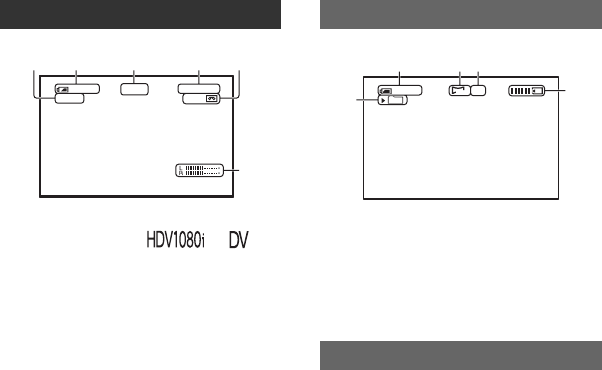
124
Indicators for the LCD screen and viewfinder
The numbers in ( ) are reference pages.
The indicators will not be recorded on the tape during recording.
ARecording format ( or )
(69)
Recording mode (SP or LP) is also displayed
in the DV format.
BRemaining battery (approx.)
CRecording status ([STBY] (standby) or
[REC] (recording))
DDuring recording:
Tape counter (hour: minute: second)
During playback:
Time code (hour: minute: second:
frame)
ERecording capacity of the tape (approx.)
FAudio level display (67)
GRecording folder (73)
HImage size (71)
IQuality ([FINE] or [STD]) (71)
JRecording indicator
The date/time during recording and the
camera setting data will be recorded
automatically. They do not appear on the
screen during recording, but you can check
them as [DATA CODE] during playback
(67).
Recording movies
126
min
REC
HDV1080i
12
min
0:08:13
213 5
6
4
Recording still images
Data code during recording
163
101
1.2M
FINE
min
289
70
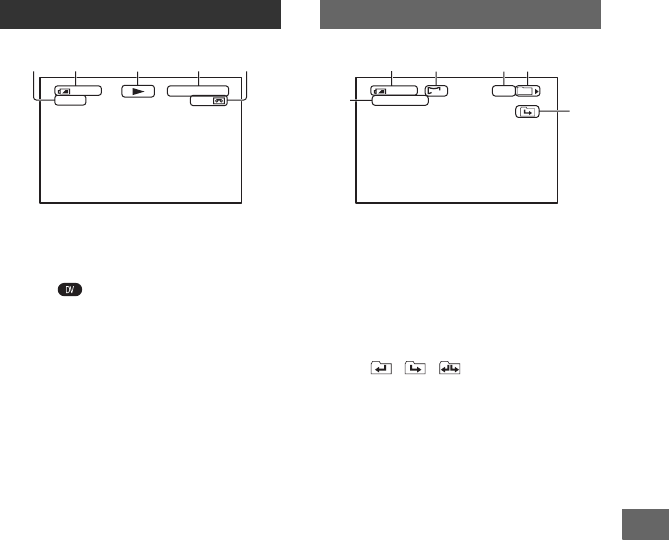
125
Quick Reference
KTape transport indicator
Recording mode (SP or LP) appears when a
tape recorded in the DV format is played
back.
LData file name
MPicture number/Total number of
recorded pictures in the current
playback folder
NPlayback folder (73)
OPrevious/Next folder icon
The , , appear when the first or
last picture of the current folder is displayed
and when there are multiple folders on the
same “Memory Stick Duo.” You can move to
Previous/Next folder with the VOLUME/
MEMORY button.
Viewing movies
120
HDV1080i
12
0:08:12:17
qa
2154
min
min
Viewing still images
125
min
101-0011
1.2M
9/9
101
MEMORY PLAY
8
qs
qd qf
qg
2
Continued ,
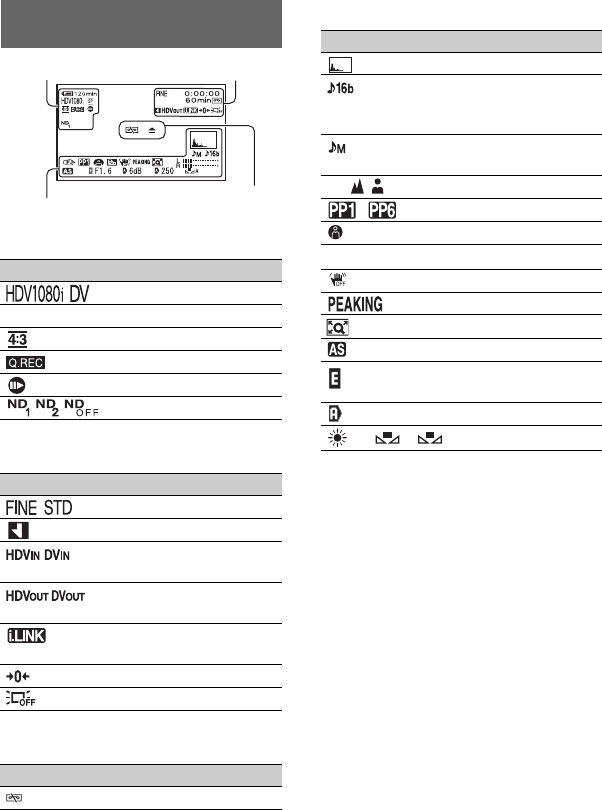
126
Upper left
Upper right
Center
Bottom
Indicators when you made
changes
Indicator Meaning
Recording format (69)
SP LP DV REC MODE (69)*
DV WIDE REC (70)*
QUICK REC (75)**
DV FRAME REC (62)*
ND filter (36)
Indicator Meaning
Still Image quality (71)
INDEX MARK (44)
HDV input/
DV input (80)
HDV output/
DV output (79)
i.LINK connection
(51, 76)
Zero set memory (49)
LCD backlight off (22)
Indicator Meaning
Z Warning (101)
+2
Upper left Upper right
Bottom Center
Indicator Meaning
HISTOGRAM (65)
DV AU. MODE
(DV Audio mode)
(64)*
AUDIO REC LV
(64)
9 Manual focus (34)
~ Picture profile (39)
SPOTLIGHT (63)
.Backlight (62)
SteadyShot off (60)
PEAKING (65)
D.EXTENDER (63)
AE SHIFT (61)
EXPOSURE/IRIS
dial control (34)
Auto setting (66)
n A B White balance (38)
*The settings can be made only for the pictures
in the DV format.
** The setting can be made only for the pictures in
the HDV format.
Indicators for the LCD screen and viewfinder (Continued)

127
Quick Reference
Index
Numeric
1080i/480i .............................70
12BIT....................................64
16BIT....................................64
16:9 (wide) or 4:3 TV...........51
3-ClearVid CMOS sensor
system ...................................13
480i .......................................70
A
AC Adaptor...........................18
Access lamp..........................27
AE RESPONSE....................61
AE SHIFT.......................36, 61
AF ASSIST...........................60
AGC LIMIT..........................61
ALL ERASE.........................72
ALL FILES...........................72
ASSIGN BTN.......................74
ASSIGN buttons ...................42
AT IRIS LMT .......................61
AUDIO REC LV ..................64
AUDIO SET menu ...............64
AUTO LOCK switch............36
AU.LVL DISP
(Audio level display) ............67
AWB SENS ..........................61
A/V connecting cable
........................................52, 76
A/V connecting cable with
S VIDEO.........................55, 76
A/V OUT jack.......................52
B
BACK LIGHT ................62, 95
BATT RELEASE (battery
release) button.......................19
Battery
Battery Info....................48
Battery pack...................18
BEEP ....................................75
BLACK FADER .................. 63
Button-type lithium battery
............................................ 123
C
CAM DATA DSP (Camera
data display) ......................... 66
CAMERA DATA ................ 67
CAMERA PROF.
(Camera profile)...................73
CAMERA SET menu...........59
Cassette
Insert/Eject.................... 26
Tape ............................ 105
Cassette compartment .......... 26
CHARGE lamp ....................18
Charging time....................... 19
CINEMA.............................. 39
CINEMATONE GAMMA
.............................................. 40
CLOCK SET ..................24, 74
CNTRST ENHCR.......... 60, 95
COLOR BAR.......................60
COLOR LEVEL ..................40
COLOR PHASE .................. 40
COMPONENT..................... 70
COMPONENT OUT jack.... 52
Component video cable........52
Computer.............................. 86
Connect
TV ................................. 51
VCR .............................. 76
COPY ................................... 41
CURRNT FOLDER.............72
D
DATA CODE.......................67
DATE ................................... 67
Date search........................... 49
DATE/TIME ................25, 124
DC IN jack ........................... 18
DC plug................................ 18
Deleting camera profile settings
..............................................74
Deleting recorded pictures
..............................................82
DIAL ASSIGN .....................59
DIAL ROTATE....................59
DIAL SENS..........................59
DISP OUTPUT.....................68
DISPLAY SET menu ...........65
DISPLAY/BATT INFO
button........................22, 47, 48
Down convert function .........12
Dubbing ................................76
DV ........................................69
DV AUDIO MIX..................64
DV AU. MODE
(DV Audio mode).................64
DV format.............................69
DV FRAME REC.................62
DV REC MODE
(Recording mode).................69
DV WIDE REC ....................70
D.EXTENDER
(Digital Extender)...........63, 95
E
End search ................44, 95, 97
Expanded focus ....................35
EXPOSURE .........................35
EXPOSURE/IRIS...........35, 59
EXPOSURE/IRIS button......35
EXPOSURE/IRIS dial..........35
EXP.FOCUS TYPE..............66
F
FADER .................................63
FILE NO. (File number).......72
FINE .....................................71
FLCKR REDUCE ................61
Focus.....................................34
FOCUS button......................34
Focus infinity........................43
Continued ,
128
Focus ring.............................34
Folder
NEW FOLDER .............73
PB FOLDER (Playback
folder)............................73
REC FOLDER (Recording
folder)............................73
FORMAT .............................72
G
Gain ......................................37
GAIN button.........................37
Grip belt................................21
GUIDEFRAME....................66
H
HANDLE ZOOM.................61
Handle zoom.........................33
HD (high definition) image
quality...................................51
HDMI cable..........................53
HDMI jack..........................119
HDMI OUT jack ..................52
HDV .....................................69
HDV format..................12, 104
HDV1080i ............................69
Headphones jack.................120
High definition TV ...............51
HISTOGRAM ................65, 95
Hook for the shoulder strap
....................................120, 121
I
INDEX MARK.....................44
Index screen..........................32
Index search..........................50
Index signal ..........................44
Indicators ............................126
Indoor ...................................39
“InfoLITHIUM” battery pack
............................................108
Insulation sheet...................123
INTELLIGENT ................... 61
IN/OUT REC menu ............. 69
IRIS...................................... 35
i.LINK................................ 110
i.LINK cable ............ 53, 79, 89
i.LINK CONV ............... 51, 70
J
Jack cover ............................ 26
JPEG .................................. 106
L
LANC jack......................... 119
LANGUAGE ....................... 74
Large eyecup........................ 23
LCD ..................................... 22
LCD backlight...................... 22
LCD BL LEVEL.................. 67
LCD BRIGHT...................... 67
LCD COLOR....................... 67
Lens hood fixing screw........ 17
Lens hood with lens cover ... 17
LETTER SIZE ..................... 68
LINEAR............................... 62
LP (Long Play)..................... 70
M
Macintosh............................. 86
Maintenance....................... 111
MARKER ............................ 66
MEMORY SET menu ......... 71
Memory Stick ................ 6, 106
Memory Stick Duo....... 26, 107
Insert/Eject.................... 26
Number of recordable
pictures ......................... 71
Write-protect tab......... 107
Memory Stick Duo adaptor
........................................... 107
“Memory Stick Duo” slot .... 27
“Memory Stick PRO Duo” 107
MEMORY/DELETE button
..............................................82
MEMORY/INDEX button ... 31
MEMORY/PLAY button .....31
Menu
AUDIO SET menu........64
CAMERA SET menu ...59
DISPLAY SET menu....65
IN/OUT REC menu ......69
MEMORY SET menu
.......................................71
Menu items....................57
OTHERS menu.............73
Using the menu .............56
MENU button.......................24
Menu items...........................57
MIC jack.............................121
Microphone ........................121
Mirror mode .........................29
MIX ......................................64
Moisture condensation .......111
MONOTONE ....................... 39
MPEG2.................................90
MULTI-SOUND ..................64
N
ND filter ...............................36
NEW FOLDER ....................73
NTSC............................97, 104
O
One push auto focus .............34
OPEN button ........................22
OPEN/EJECT lever..............26
OTHERS menu ....................73
Outdoor.................................39
Outside power source...........20
P
PAL ....................................104
PB FOLDER
Index (Continued)

129
Quick Reference
(Playback folder) .................73
PB ZOOM (Playback
zoom) ....................................75
PEAKING.............................65
PHOTO/EXPANDED FOCUS
button ....................................28
PHOTO/EXP.FOCUS ..........74
PictBridge .......................74, 83
PictBridge PRINT.................74
Picture profile .......................39
PICTURE PROFILE button
..............................................39
Picture search........................31
PLAY button.........................31
Playback................................31
Playing time ..........................20
PORTRAIT...........................39
Power cord............................18
POWER switch.....................21
Pre-installed rechargeable
battery .................................113
Print ......................................83
Printing recorded images ......83
PROFILE NAME .................41
PUSH AUTO FOCUS button...
34
Q
QUALITY.............................71
QUICK REC.........................75
R
REC FOLDER (Recording
folder) ...................................73
REC FORMAT.....................69
REC LAMP (Recording lamp)
........................................28, 75
Rec review ......................44, 97
REC START/STOP button
..............................................28
Recording..............................28
Recording time .....................19
REMAINING .......................68
Remaining battery ................48
Remote Commander .......... 123
REMOTE CTRL (Remote
control) ................................. 75
RESET .........................41, 122
RESET button ....................122
S
S VIDEO jack ................51, 76
SD (standard definition)
image quality ........................ 51
Self-diagnosis display ........ 101
SEL/PUSH EXEC dial......... 24
SHARPNESS ....................... 40
SHOT TRANS ...............42, 62
Shot transition ......................45
Shoulder strap ....................121
Shutter speed........................37
SHUTTER SPEED button ... 37
SKINTONE DTL................. 40
Skip scan ..............................31
SMTH SLW REC (Smooth
slow recording) ..............59, 95
SOFT STOP ......................... 62
SOFT TRANS......................62
SP (Standard Play) ...............69
Specifications ..................... 115
SPOTLIGHT ........................ 63
ST1 ....................................... 64
ST2 ....................................... 64
STANDARD ........................ 71
Status check.......................... 47
STATUS CHECK button..... 47
STEADYSHOT ................... 60
STEREO............................... 64
Still images.....................30, 32
SUNSET............................... 39
Supplied items......................16
System Requirements
Macintosh...................... 86
Windows ....................... 86
T
Tape counter .................49, 124
Tape ......................See Cassette
Telephoto..............................33
Time code ...........................124
TRANS CURVE ..................62
TRANS TIME ......................62
Transmitter .........................123
Tripod receptacle ................119
Troubleshooting....................92
TV.........................................51
TV color systems................104
TV TYPE..............................70
U
USB cable.................16, 83, 86
USB jack.........................83, 86
USB SELECT.......................74
Using the menu items ...........56
Using your camcorder abroad
............................................104
V
VCR HDV/DV .....................69
VF B.LIGHT ........................67
VF POWERMODE ..............67
Video control buttons .........122
Video head..........................112
Viewfinder............................22
Viewfinder lens adjustment
lever ......................................22
Viewfinder release lever.....114
Volume .................................32
VOLUME/MEMORY button
..............................................31
V-OUT/PANEL....................68
W
Warning indicators .............101
Warning messages..............102
WB SHIFT............................40
Continued ,
130
White balance.......................38
WHITE FADER...................63
WHT BAL button.................38
Wide angle............................33
WIDE CONV. ......................60
Windows...............................86
WORLD TIME.....................74
Write-protect tab.........105, 107
Z
Zebra.....................................37
ZEBRA switch .....................37
Zero set memory...................49
ZERO SET MEMORY
button....................................49
Zoom ....................................33
Zoom lever ...........................33
Zoom ring.............................33
Index (Continued)
