Sony Switch Mcs 8M Users Manual
MCS-8M - volume 1 MCS-8M - volume 1
MCS-8M to the manual c3727c7d-0e7f-47e7-b426-3e3b89473389
2015-01-23
: Sony Sony-Sony-Switch-Mcs-8M-Users-Manual-298404 sony-sony-switch-mcs-8m-users-manual-298404 sony pdf
Open the PDF directly: View PDF  .
.
Page Count: 48
- Table of Contents
- About This Manual
- Usage Precautions
- Using the CD-ROM Manual
- Chapter 1 Overview
- Chapter 2 Preparations
- Chapter 3 Basic Operations
- Appendix
- Index
* I - 4296438116*
Multi Format
Compact Switcher
Operating Instructions (Volume I Basic Operation)
Before operating the unit, please read this manual thoroughly and retain it for future reference.
MCS-8M
Software Version 1.00
4-296-438-11 (1)
© 2011 Sony Corporation
I-2
Owner’s Record
The model and serial numbers are located on the bottom.
Record these numbers in the spaces provided below.
Refer to these numbers whenever you call upon your Sony
dealer regarding this product.
Model No. Serial No.
To reduce the risk of fire or electric shock,
do not expose this apparatus to rain or
moisture.
To avoid electrical shock, do not open the
cabinet. Refer servicing to qualified
personnel only.
THIS APPARATUS MUST BE EARTHED.
This symbol is intended to alert the user to
the presence of important operating and
maintenance (servicing) instructions in the
literature accompanying the appliance.
When installing the installation space must be secured in
consideration of the ventilation and service operation.
• Do not block the ventilation slots at the left side and right
side panels, and vents of the fans.
• Leave a space around the unit for ventilation.
• Leave more than 40 cm (15 3/4 in.) of space in the rear of
the unit to secure the operation area.
When the unit is installed on the desk or the like, leave at
least 10 cm (4 in.) of space in the left and right sides.
Leaving 40 cm (15 3/4 in.) or more of space above the unit
is recommended for service operation.
WARNING: THIS WARNING IS APPLICABLE FOR
USA ONLY.
If used in USA, use the UL LISTED power cord specified
below.
DO NOT USE ANY OTHER POWER CORD.
Plug Cap Parallel blade with ground pin
(NEMA 5-15P Configuration)
Cord Type SJT, three 16 or 18 AWG wires
Length Minimum 1.5 m (4 ft. 11 in.),
Less than 2.5 m (8 ft. 3 in.)
Rating Minimum 10 A, 125 V
Using this unit at a voltage other than 120 V may require
the use of a different line cord or attachment plug, or both.
To reduce the risk of fire or electric shock, refer servicing
to qualified service personnel.
WARNING: THIS WARNING IS APPLICABLE FOR
OTHER COUNTRIES.
1. Use the approved Power Cord (3-core mains lead) /
Appliance Connector / Plug with earthing-contacts that
conforms to the safety regulations of each country if
applicable.
2. Use the Power Cord (3-core mains lead) / Appliance
Connector / Plug conforming to the proper ratings
(Voltage, Ampere).
If you have questions on the use of the above Power Cord
/ Appliance Connector / Plug, please consult a qualified
service personnel.
For the customers in the U.S.A.
This equipment has been tested and found to comply with
the limits for a Class A digital device, pursuant to Part 15
of the FCC Rules. These limits are designed to provide
reasonable protection against harmful interference when
the equipment is operated in a commercial environment.
This equipment generates, uses, and can radiate radio
frequency energy and, if not installed and used in
accordance with the instruction manual, may cause
harmful interference to radio communications. Operation
of this equipment in a residential area is likely to cause
harmful interference in which case the user will be
required to correct the interference at his own expense.
You are cautioned that any changes or modifications not
expressly approved in this manual could void your
authority to operate this equipment.
All interface cables used to connect peripherals must be
shielded in order to comply with the limits for a digital
device pursuant to Subpart B of Part 15 of FCC Rules.
This device complies with Part 15 of the FCC Rules.
Operation is subject to the following two conditions: (1)
this device may not cause harmful interference, and (2) this
device must accept any interference received, including
interference that may cause undesired operation.
For the customers in Canada
This Class A digital apparatus complies with Canadian
ICES-003.
WARNING
I-3
For the customers in Europe
This product with the CE marking complies with the EMC
Directive issued by the Commission of the European
Community.
Compliance with this directive implies conformity to the
following European standards:
• EN55103-1 : Electromagnetic Interference (Emission)
• EN55103-2 : Electromagnetic Susceptibility (Immunity)
This product is intended for use in the following
Electromagnetic Environments: E1 (residential), E2
(commercial and light industrial), E3 (urban outdoors), E4
(controlled EMC environment, ex. TV studio).
The manufacturer of this product is Sony Corporation,
1-7-1 Konan, Minato-ku, Tokyo, Japan.
The Authorized Representative for EMC and product
safety is Sony Deutschland GmbH, Hedelfinger Strasse
61, 70327 Stuttgart, Germany. For any service or
guarantee matters please refer to the addresses given in
separate service or guarantee documents.
For kundene i Norge
Dette utstyret kan kobles til et IT-strømfordelingssystem.
For the State of California, USA only
Perchlorate Material - special handling may apply, See
www.dtsc.ca.gov/hazardouswaste/perchlorate
Perchlorate Material : Lithium battery contains
perchlorate.
For the customers in Taiwan only
Afin de réduire les risques d’incendie ou
d’électrocution, ne pas exposer cet
appareil à la pluie ou à l’humidité.
Afin d’écarter tout risque d’électrocution,
garder le coffret fermé. Ne confier
l’entretien de l’appareil qu’à un personnel
qualifié.
CET APPAREIL DOIT ÊTRE RELIÉ À LA
TERRE.
AVERTISSEMENT
1. Utilisez un cordon d’alimentation (câble secteur à 3
fils)/fiche femelle/fiche mâle avec des contacts de mise
à la terre conformes à la réglementation de sécurité
locale applicable.
2. Utilisez un cordon d’alimentation (câble secteur à 3
fils)/fiche femelle/fiche mâle avec des caractéristiques
nominales (tension, ampérage) appropriées.
Pour toute question sur l’utilisation du cordon
d’alimentation/fiche femelle/fiche mâle ci-dessus,
consultez un technicien du service après-vente qualifié.
Pour les clients au Canada
Cet appareil numérique de la classe A est conforme à la
norme NMB-003 du Canada.
Pour les clients en Europe
Ce produit portant la marque CE est conforme à la
Directive sur la compatibilité électromagnétique (EMC)
émise par la Commission de la Communauté européenne.
La conformité à cette directive implique la conformité aux
normes européennes suivantes :
• EN55103-1 : Interférences électromagnétiques
(émission)
• EN55103-2 : Sensibilité électromagnétique (immunité)
Ce produit est prévu pour être utilisé dans les
environnements électromagnétiques suivants : E1
(résidentiel), E2 (commercial et industrie légère), E3
(urbain extérieur) et E4 (environnement EMC contrôlé, ex.
studio de télévision).
Le fabricant de ce produit est Sony Corporation, 1-7-1
Konan, Minato-ku, Tokyo, Japon.
Le représentant autorisé pour EMC et la sécurité des
produits est Sony Deutschland GmbH, Hedelfinger Strasse
61, 70327 Stuttgart, Allemagne. Pour toute question
concernant le service ou la garantie, veuillez consulter les
adresses indiquées dans les documents de service ou de
garantie séparés.
AVERTISSEMENT

I-4
Um die Gefahr von Bränden oder
elektrischen Schlägen zu verringern, darf
dieses Gerät nicht Regen oder
Feuchtigkeit ausgesetzt werden.
Um einen elektrischen Schlag zu
vermeiden, darf das Gehäuse nicht
geöffnet werden. Überlassen Sie
Wartungsarbeiten stets nur qualifiziertem
Fachpersonal.
DIESES GERÄT MUSS GEERDET
WERDEN.
WARNUNG
1. Verwenden Sie ein geprüftes Netzkabel (3-adriges
Stromkabel)/einen geprüften Geräteanschluss/einen
geprüften Stecker mit Schutzkontakten entsprechend
den Sicherheitsvorschriften, die im betreffenden Land
gelten.
2. Verwenden Sie ein Netzkabel (3-adriges Stromkabel)/
einen Geräteanschluss/einen Stecker mit den
geeigneten Anschlusswerten (Volt, Ampere).
Wenn Sie Fragen zur Verwendung von Netzkabel/
Geräteanschluss/Stecker haben, wenden Sie sich bitte an
qualifiziertes Kundendienstpersonal.
Für Kunden in Europa
Dieses Produkt besitzt die CE-Kennzeichnung und erfüllt
die EMV-Richtlinie der EG-Kommission.
Angewandte Normen:
• EN55103-1: Elektromagnetische Verträglichkeit
(Störaussendung)
• EN55103-2: Elektromagnetische Verträglichkeit
(Störfestigkeit)
Für die folgenden elektromagnetischen Umgebungen: E1
(Wohnbereich), E2 (kommerzieller und in beschränktem
Maße industrieller Bereich), E3 (Stadtbereich im Freien)
und E4 (kontrollierter EMV-Bereich, z.B. Fernsehstudio).
Der Hersteller dieses Produkts ist Sony Corporation, 1-7-1
Konan, Minato-ku, Tokyo, Japan.
Der autorisierte Repräsentant für EMV und
Produktsicherheit ist Sony Deutschland GmbH,
Hedelfinger Strasse 61, 70327 Stuttgart, Deutschland. Bei
jeglichen Angelegenheiten in Bezug auf Kundendienst
oder Garantie wenden Sie sich bitte an die in den separaten
Kundendienst- oder Garantiedokumenten aufgeführten
Anschriften.
WARNUNG
Table of Contents I-5
Usage Precautions............................................................I-7
Chapter 1 Overview
Introduction.........................................................................I-8
Names and Functions of Parts ......................................I-9
Chapter 2 Preparations
Connecting Devices........................................................I-15
Configuring System Settings .......................................I-17
Configuring Video Signal Settings .............................I-19
Configuring Audio Signal Settings.............................I-21
Configuring Multi Viewer Settings..............................I-23
Chapter 3 Basic Operations
Switching Video ...............................................................I-25
Cross-Point Button Switching ...................................................I-25
Checking the Preview Video before Switching with the
CUT Button.........................................................................I-25
Applying Effects while Switching (Mix/Effect) .......................I-26
Configuring the Transition Rate................................................I-27
Selecting Effects with the Numeric Keypad
(Direct Selection) ................................................................I-27
Composing Images with Keys .....................................I-28
Composing Images with Luminance Keys................................I-29
Composing Images with Chroma Keys .....................................I-30
Mixing Audio.....................................................................I-32
Snapshots..........................................................................I-34
Saving and Selecting Settings.....................................I-35
Appendix
Effect Pattern List............................................................I-37
Troubleshooting ..............................................................I-38
Maintenance......................................................................I-39
Specifications...................................................................I-39
Index ..................................................................................I-43
Table of Contents
(this manual) Table of Contents
(Volume II Advanced Settings)
(CD-ROM manual)
Chapter 1 Overview
Introduction
Chapter 2 Video Switching
Overview
Setting the Transition Type
General Transition Settings ([Misc] menu)
Bus Delegation
Setting Wipes
Setting DME Wipes
Details on [Effect] Menu
Setting Keys
Details on [Key] Menu
Chapter 3 Audio Mixing
Overview
Details on [Audio Channel] Menu
Chapter 4 Input Image Freezing
and Frame Memory
Overview
Freezing Input Images
Selecting Frame Memory for Use as Frame Memory
Video (FM)
Saving Images to Frame Memory
Importing and Exporting Images
Chapter 5 Importing and Exporting
Files
Importing and Exporting Configuration Data
Importing and Exporting Snapshots
Formatting a USB Flash Drive
I-6 About This Manual
About This Manual
This manual describes the preparations necessary to use
this unit and its basic operations.
Basic video switching and composition operations and
audio mixing can be performed by following the procedure
in this manual.
For details on advanced settings and operations, see the “Operating
Instructions (Volume II Advanced Settings).”
How to Read the Manual
Notes on setting values
Setting values that appear in bold indicate factory default
settings.
Example:
About references
References to the Operating Instructions (Volume II
Advanced Settings) are indicated by the c mark as
follows.
Example 1:
POS (position) button (cAdvanced Settings)
Example 2:
For details, see “Message List” (cAdvanced Settings).
To find information on a specific topic
See “Index” (page I-43) at the end of this manual.
The index indicates whether the information can be found
in “Volume I Basic Operation” or “Volume II Advanced
Settings” and the corresponding page numbers.
Chapter 6 3D System
Overview
Making the Necessary Settings
Chapter 7 Controlling External
Devices
Enabling/Disabling Operation from External Devices
Connecting with External Devices
Details on [GPI/Tally] Menu
Chapter 8 Setup ([Setup] Menu)
Overview
System Setup (System)
Audio Setup (Audio)
Video Input Setup (Video (Input))
Assigning Video Input Signals to the Cross Point
Buttons (Video (XPT))
Video Output Setup (Video (Output))
Setup of Other Video Related Items (Video (Misc))
Displaying Various Information (Information)
Installing Application Software and Firmware
(Install)
Appendix
Message List
Index
Knob Parameter Meaning Setting values
V3Format Signal format 108059, 108050,
720p59, 720p50,
480i59, 576i50,
Te s t 1 , Te st 2 , Te s t 3
V4 Aspect Aspect ratio 16:9, 4:3
I-7
Usage Precautions / Using the CD-ROM Manual
Usage Precautions
Note on Faulty Pixels on the LCD
Panel
The LCD panel fitted to this unit is manufactured with high
precision technology, giving a functioning pixel ratio of at
least 99.99%. Thus a very small proportion of pixels
maybe “stuck”, either always off (black), always on (red,
green, or blue), or flashing. In addition, over a long period
of use, because of the physical characteristics of the liquid
crystal display, such “stuck” pixels may appear
spontaneously. These problems are not a malfunction.
Note that any such problems have no effect on recorded
data.
Using the CD-ROM
Manual
The supplied CD-ROM includes operation manuals
(Japanese, English, French, German, Italian, Spanish,
Simplified Chinese, Korea and Portuguese versions).
Preparations
The following program must be installed on your computer
in order to read the Operating Instructions contained in the
CD-ROM.
• Adobe Reader Version 6.0 or higher
If Adobe Reader is not installed, it may be downloaded
from the following URL:
http://www.adobe.com
Adobe and Adobe Reader are trademarks of Adobe Systems
Incorporated in the United States and/or other countries.
To Read the CD-ROM Manual
To read the operation manual contained in the CD-ROM
disc, do the following:
1
Insert the CD-ROM disc in your CD-ROM drive.
A cover page appears automatically in your browser.
If it does not appear automatically in the browser,
double click the index.htm file on the CD-ROM
disc.
2
Select and click the operation manual that you want to
read.
The selected file opens.
The files may not be displayed properly, depending on the
version of Adobe Reader. In such a case, install the latest
version you can download from the URL mentioned in
“Preparations” above.
If you have lost or damaged the CD-ROM, you can
purchase a new one to replace it. Contact your Sony
service representative.
Memo
Memo
Note
Introduction
I-8
Chapter 1 Overview
Chapter1
Overview
Introduction
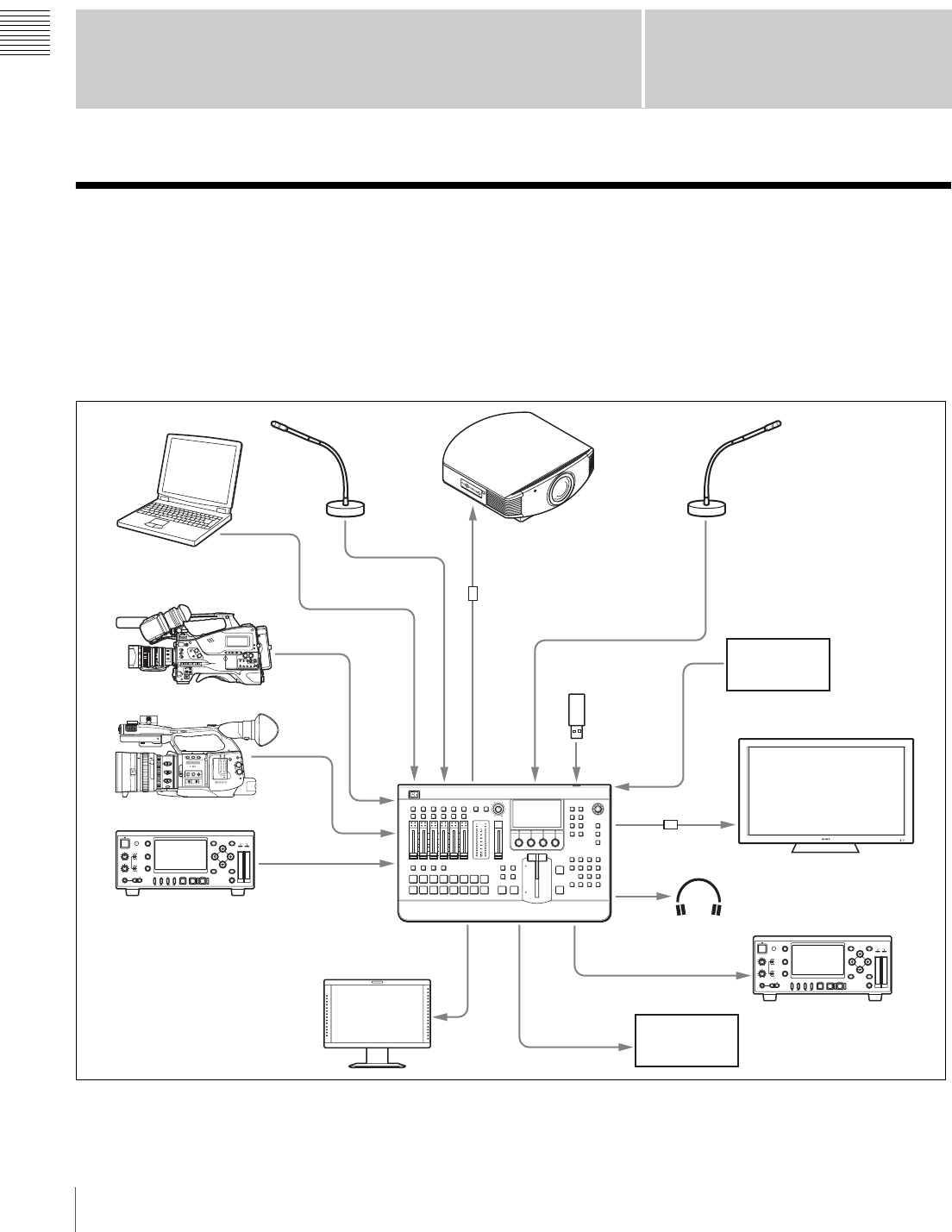
The MCS-8M Multi Format Compact Switcher is a compact switcher that can be
used in SD, HD, and 3D systems. This unit allows you to perform video switching
with added effects and audio mixing via simple operations.
System configuration example: Live recording / production system (HD system)
For details on configurations for SD or 3D systems, see “System Configuration Examples” (cAdvanced Settings).
OPEN
CLOSE
AF/MF Full MF
15 25 40 81.210
310 mm
5
10 30ft
15
5.8
C
MANU AUTO
MANU AUTO
MACRO
FOCUS
PUSH AF
IRIS
OFF ON
85.6 4 2.81.916
AB
123
ASSIGN
LENS INFO BRT DISP HISTOGRAM
ZEBRA PEAKING
GAIN
OFF
2
1
ND
FILTER
B
A
PRST
L
M
H
WHITE BAL
FULL AUTO
SLOT SELECT
S&Q
CH-1
AUDIO
LEVEL
CH-2
CACHE REC
OPEN
Presenter computer
Presenter
microphone
Projector
DVI-D
DVI-D
Host microphone
DVI-I
HD SDI
HDMI
HD SDI
PA, etc.
Multi Viewer display
Headphones
PGM monitoring display
Recording equipment
with HD SDI input
Camera with HD SDI output
Recording equipment with
HD SDI output
CD/DVD
player
HD SDI
USB flash drive
(CG material)
PGM OUT
HD SDI
Camera with HDMI output
MIC
MIC
LINE
DVI⇔HDMI
conversion cable
DVI⇔HDMI
conversion cable
I-9
Names and Functions of Parts
Chapter 1 Overview
Names and Functions of Parts
Front Panel
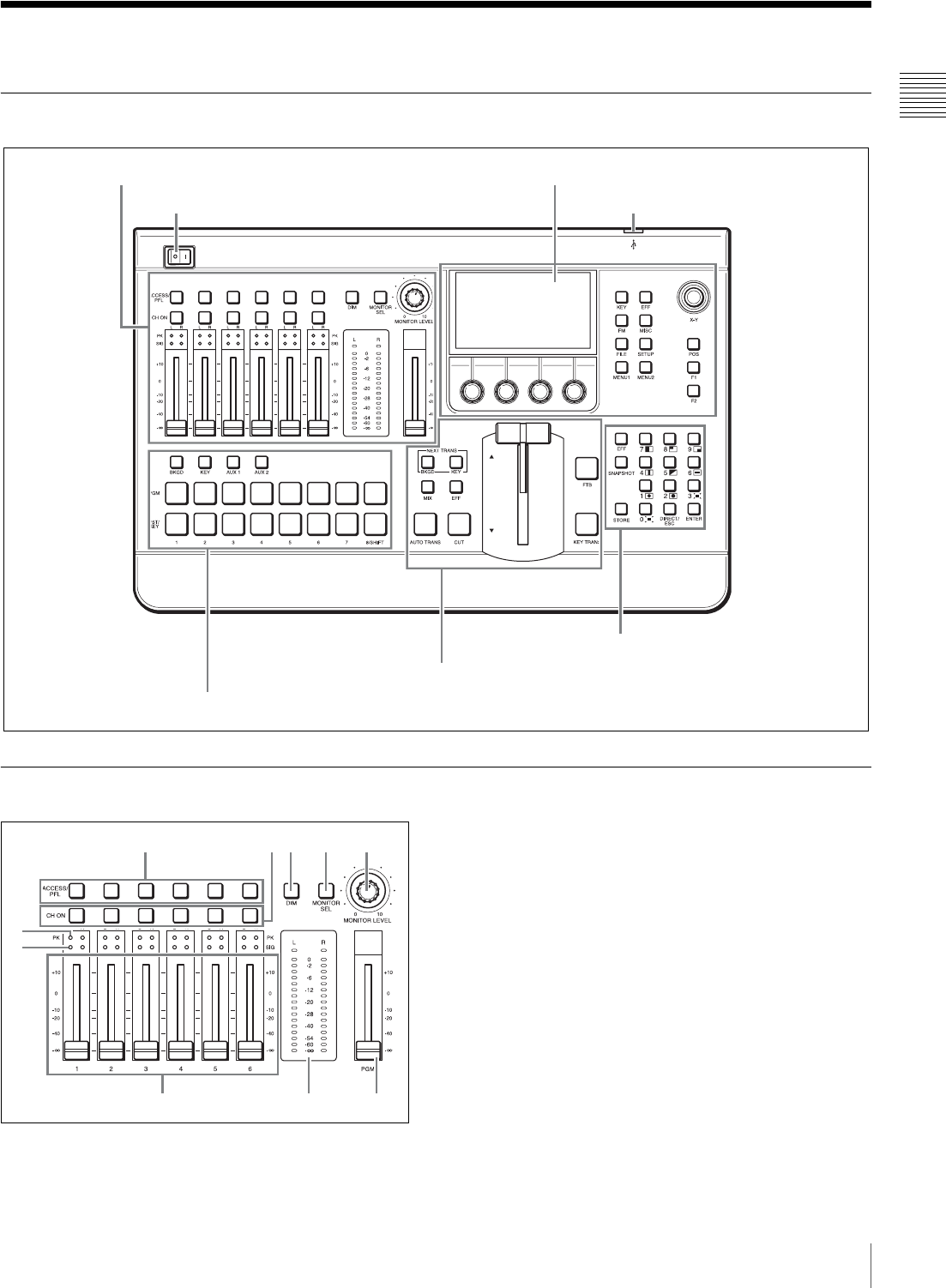
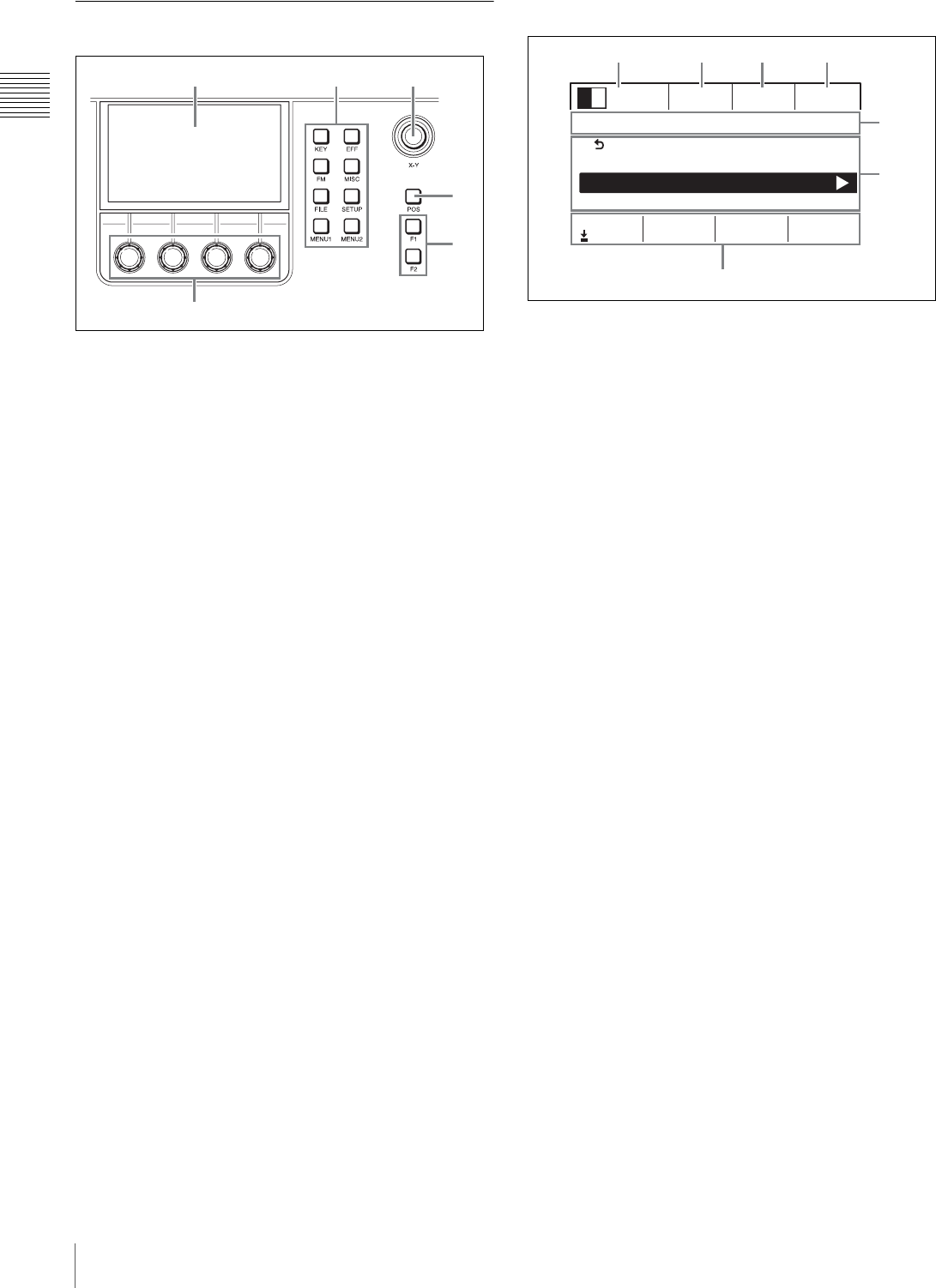
1 Audio Control Block
aACCESS/PFL (access/pre-fade listen) buttons
(page I-33, cAdvanced Settings)
bCH ON (channel on) buttons (page I-32)
cDIM (dimmer) button (page I-33)
dMONITOR SEL (monitor select) button
(page I-33)
eMONITOR LEVEL adjustment knob (page I-33)
fPeak indicator (page I-22)
gInput signal indicator (page I-22)
hChannel faders (pages I-21, I-32)
iAudio level meters (page I-33)
jProgram fader (page I-32)
1 Audio control block (page I-9)2 Menu control block (page I-10)
USB connector (page I-13)Power switch (page I-16)
5 Numeric keypad block (page I-12)
4 Transition control block (page I-11)
3 Cross-point control block (page I-11)
980
6
7
12345
I-10 Names and Functions of Parts
Chapter 1 Overview
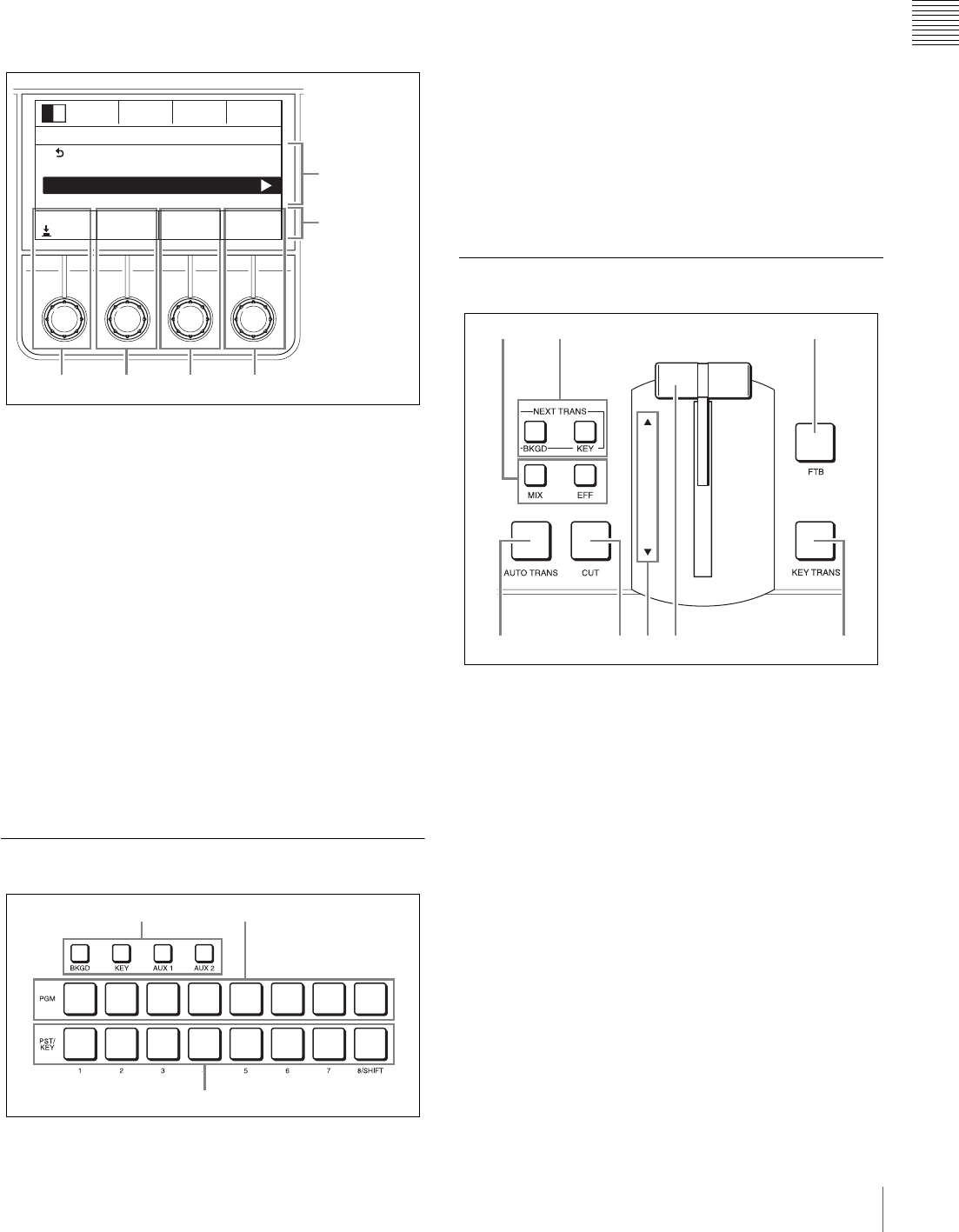
2 Menu Control Block
aMenu display
bMenu selection buttons
Display a menu that corresponds with the button
pressed.
•KEY button (page I-29)
Displays the [Key] menu. (cAdvanced Settings)
• EFF (effect) button
Displays the [Effect] menu. (cAdvanced Settings)
• FM (frame memory) button
Displays the [Frame Memory] menu.
(cAdvanced Settings)
• MISC (miscellaneous) button
Displays the [Misc] menu. (cAdvanced Settings)
• FILE button
Displays the [File] menu. (cAdvanced Settings)
•SETUP button (pages I-17 to I-23)
Displays the [Setup] menu. (cAdvanced Settings)
• MENU1 and 2 buttons (for future expansion)
cX-Y pointer (cAdvanced Settings)
dPOS (position) button (cAdvanced Settings)
eF1 and F2 buttons (for future expansion)
fAdjustment knobs 1 to 4 (V1 to V4) (page I-11)
Viewing the menu screen
aEffect pattern area (page I-37)
Displays the effect pattern icon and number currently
selected for the effect transition.
bTransition rate area (page I-27)
Displays the transition rate of the current effect
transition.
cSnapshot area (page I-34)
dAudio monitor area (page I-33)
eMenu name area
Left: Displays the name of the current menu.
Right: Displays the item number of the currently
selected menu item or a message (cAdvanced
Settings).
fItems area
Displays the menu items.
gParameters area
Displays the parameter names and setting values.
123
6
4
5
0001
Rate SS
11
Mon
PGM
Effect 2/8
Back
Effect Transition
Wipe Adjust
Wipe Edge
Modify Direct PtnNum
Norm 1
30
Enter
7
5
6
1234
I-11
Names and Functions of Parts
Chapter 1 Overview
Menu operations
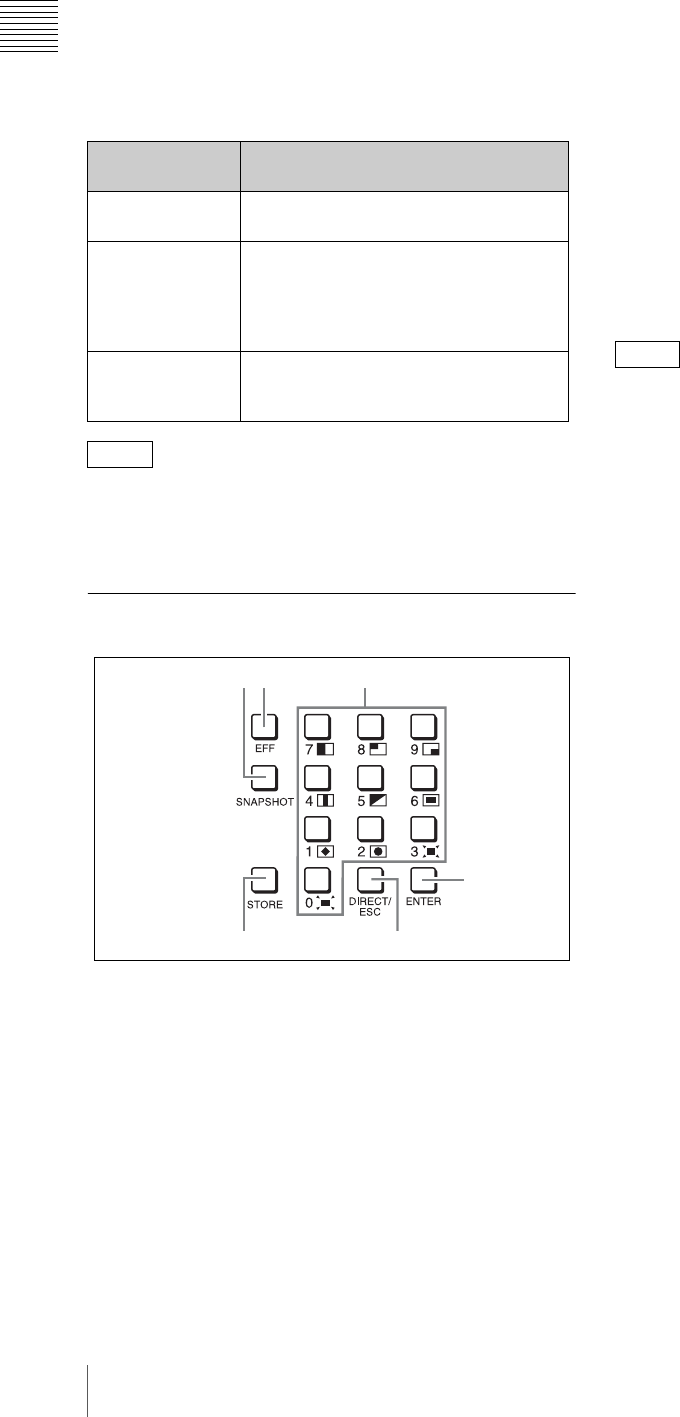
When you press a menu selection button or an ACCESS/
PFL button, setting items and values appear in the
parameters area at the bottom of the screen. You can use
the corresponding adjustment knobs to perform
adjustments and selections.
Basic adjustment knob operations
Items area
Turn the V1 knob left or right to move the cursor up or
down.
If the B icon appears for an item, pressing the V1 knob
moves to the sub menu of that item.
Parameters area
Turn the V2 to V4 knobs left or right to increase, decrease,
or cycle through setting values.
You can make incremental adjustments to parameters in
the [Effect] menu, [Key] menu (excluding some
parameters in the [Resizer] menu), and the [Misc] menu
that include decimal number values by turning the knobs
while pressing them.
If an action (saving, applying of setting values, etc.) is
associated with the respective item, pressing the knob
performs this action.
3 Cross-Point Control Block
aBus delegation buttons
(cAdvanced Settings)
• BKGD (background) button (page I-35)
•KEY button (pages I-29, I-30, I-35)
• AUX 1 and 2 (auxiliary) buttons
(cAdvanced Settings)
bPGM (program) cross-point buttons 1 to 8/
SHIFT (pages I-19, I-25)
cPST/KEY (preset/key) cross-point buttons 1 to
8/SHIFT (pages I-19, I-25)
4 Transition Control Block
aTransition type selection buttons
• MIX button (pages I-26, I-27)
• EFF (effect) button (pages I-26, I-27)
bNext transition selection buttons
• BKGD (background) button (page I-12)
•KEY button (pages I-12, I-29, I-30)
cFTB (fade-to-black) button
When you press the FTB button, the current program
output image will fade out to a black screen. When you
press the FTB button again, the original image will fade
in from the black screen.
dAUTO TRANS (auto-transition) button
(page I-26)
eCUT button (page I-26)
fTransition indicators (page I-27)
0001
Rate SS Mon
PGM
Effect
2/8
Back
Effect Transition
Wipe Adjust
Wipe Edge
Modify Direct PtnNum
Norm 1
3011
Enter
V1 V2 V3V4
Parameters
area
Items area
3
12
123
457 86
I-12 Names and Functions of Parts
Chapter 1 Overview
gFader lever (page I-26)
hKEY TRANS (key transition) button
(cAdvanced Settings)
Using the next transition selection buttons
Turn on (i.e., light) the buttons by pressing them to specify
which part of the video is switched at the next transition.
When the AUX 1 or AUX 2 button is selected (i.e., lit) in
the bus delegation buttons, the next transition is fixed at
BKGD.
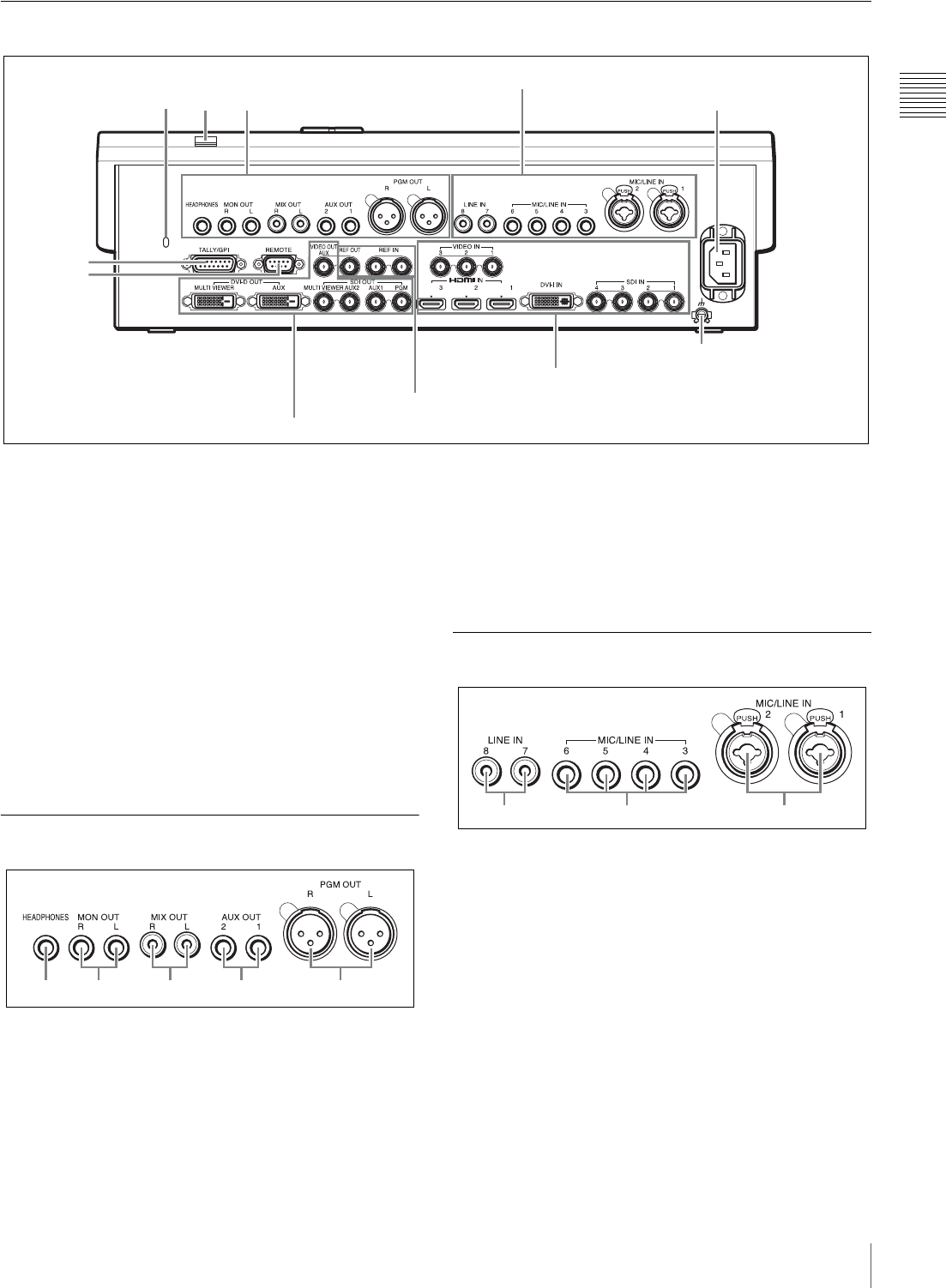
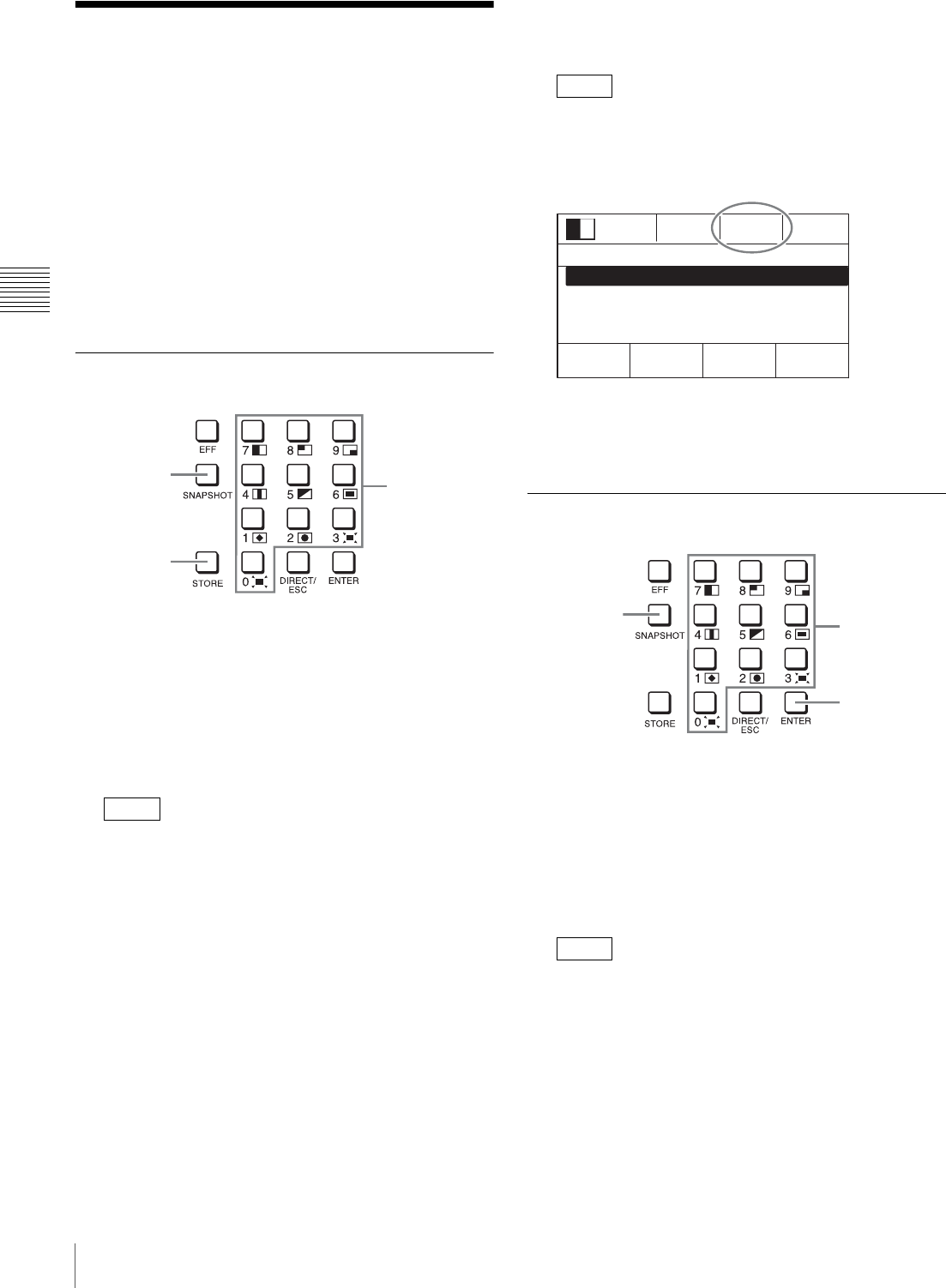
5 Numeric Keypad Block
aSNAPSHOT button (page I-34)
bEFF (effect) button (page I-27)
cNumeric buttons (0 to 9) (page I-27)
dENTER button (pages I-28, I-34)
eSTORE button (page I-34)
fDIRECT/ESC (direct/escape) button (page I-27)
Entering numeric values
The numeric buttons are used to enter numeric values for
operations such as specifying effect pattern numbers and
saving or recalling snapshots.
1Press the EFF button or SNAPSHOT button to light it.
(When specifying an effect pattern number, be sure to
turn off the DIRECT/ESC button.)
2Press the numeric buttons (0 to 9) to enter the numeric value.
The entered value appears in white at the top of the
menu screen.
3Press the ENTER button to confirm.
The numeric value appears in orange after it is
confirmed.
If you press the DIRECT/ESC button before pressing the
ENTER button after entering the numeric value, the value
will be canceled.
Next transition
selection button Operation
BKGD The background video is switched at
the next transition.
KEY The key is inserted or removed at the
next transition. If the key is not currently
inserted, it is inserted at the next
transition. If the key is inserted, it is
removed at the next transition.
BKGD+KEY
(simultaneous)
The background video is switched and
the key is inserted or removed at the
next transition.
Tip
12
5
3
4
6
Tip
I-13
Names and Functions of Parts
Chapter 1 Overview
Rear Panel
aAnti-theft cable slot
Connect a commercially available anti-theft cable
(3 mm × 7 mm) here to prevent theft.
bUSB connector
Connect a USB flash drive here.
cAC IN (power input) connector (page I-16)
dTALLY/GPI connector (15-pin D-sub, male)
(page I-42)
eREMOTE connector (RS-232C, 9-pin D-sub,
male) (page I-42)
fGround connector
Connect the system grounding wire here.
1 Audio Output Block
aHEADPHONES connector (standard stereo
phone) (page I-33)
bMON OUT (monitor output) L and R connectors
(TRS phone) (page I-33)
cMIX OUT (mix output) L and R connectors
(phono jack) (cAdvanced Settings)
dAUX OUT (auxiliary output) 1 and 2 connectors
(TRS phone)
(cAdvanced Settings)
ePGM OUT (program output) L and R
connectors (XLR, male) (page I-33)
2 Audio Input Block
aLINE IN (line input) 7 and 8 connectors (phono
jack) (page I-21)
bMIC/LINE IN (microphone/line input) 3 to 6
connectors (TRS phone) (page I-21)
cMIC/LINE IN (microphone/line input) 1 and 2
connectors (XLR, female/TRS phone combo)
(page I-21)
These do not supply power (e.g., for condenser
microphones).
3
1
4
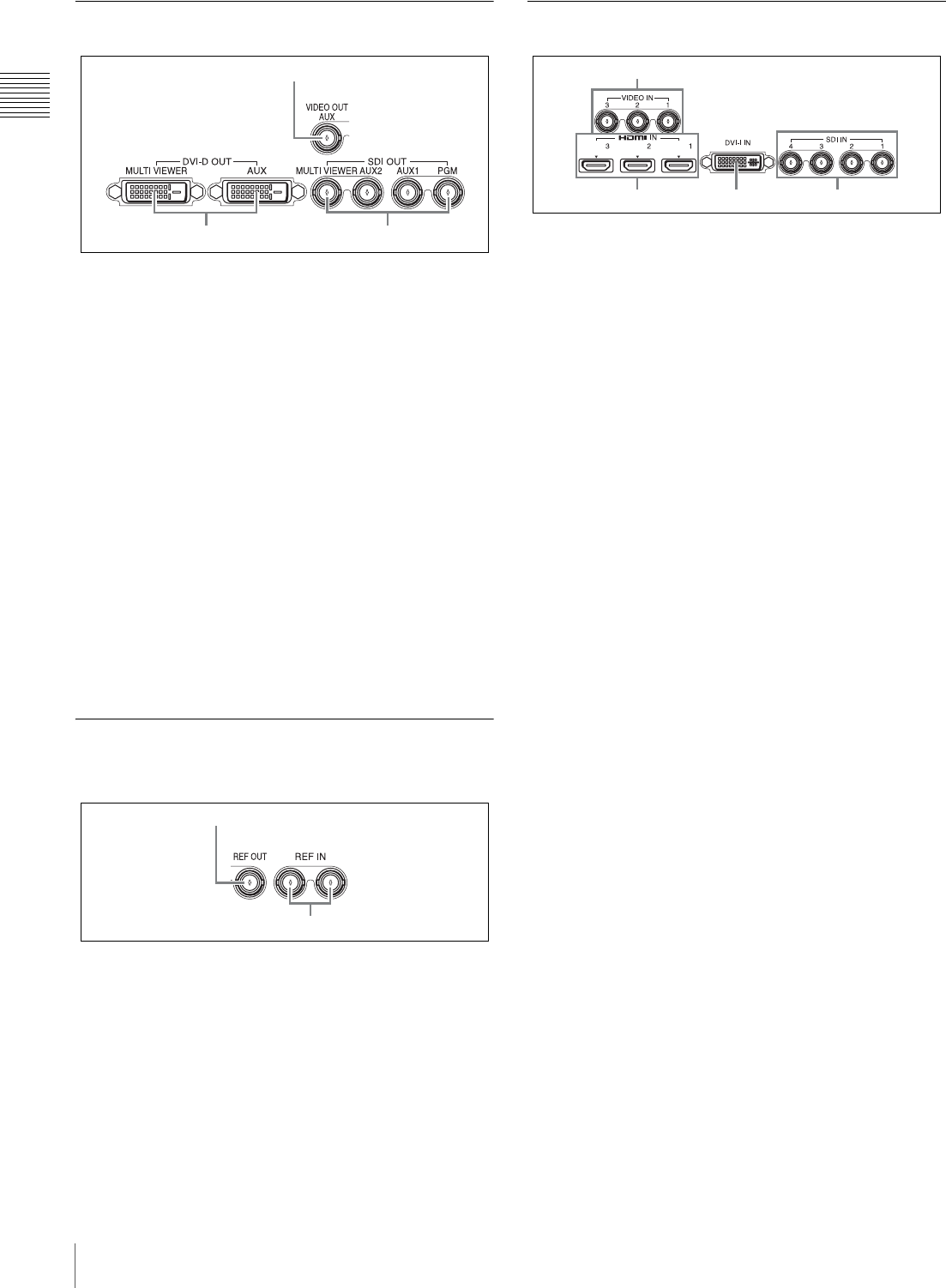
5 Video input block (page I-14)
2
5
1 Audio output block (page I-13)
6
3 Video output block (page I-14)
2 Audio input block (page I-13)
4 Reference signal input/output block (page I-14)
1234 5
12 3
I-14 Names and Functions of Parts
Chapter 1 Overview
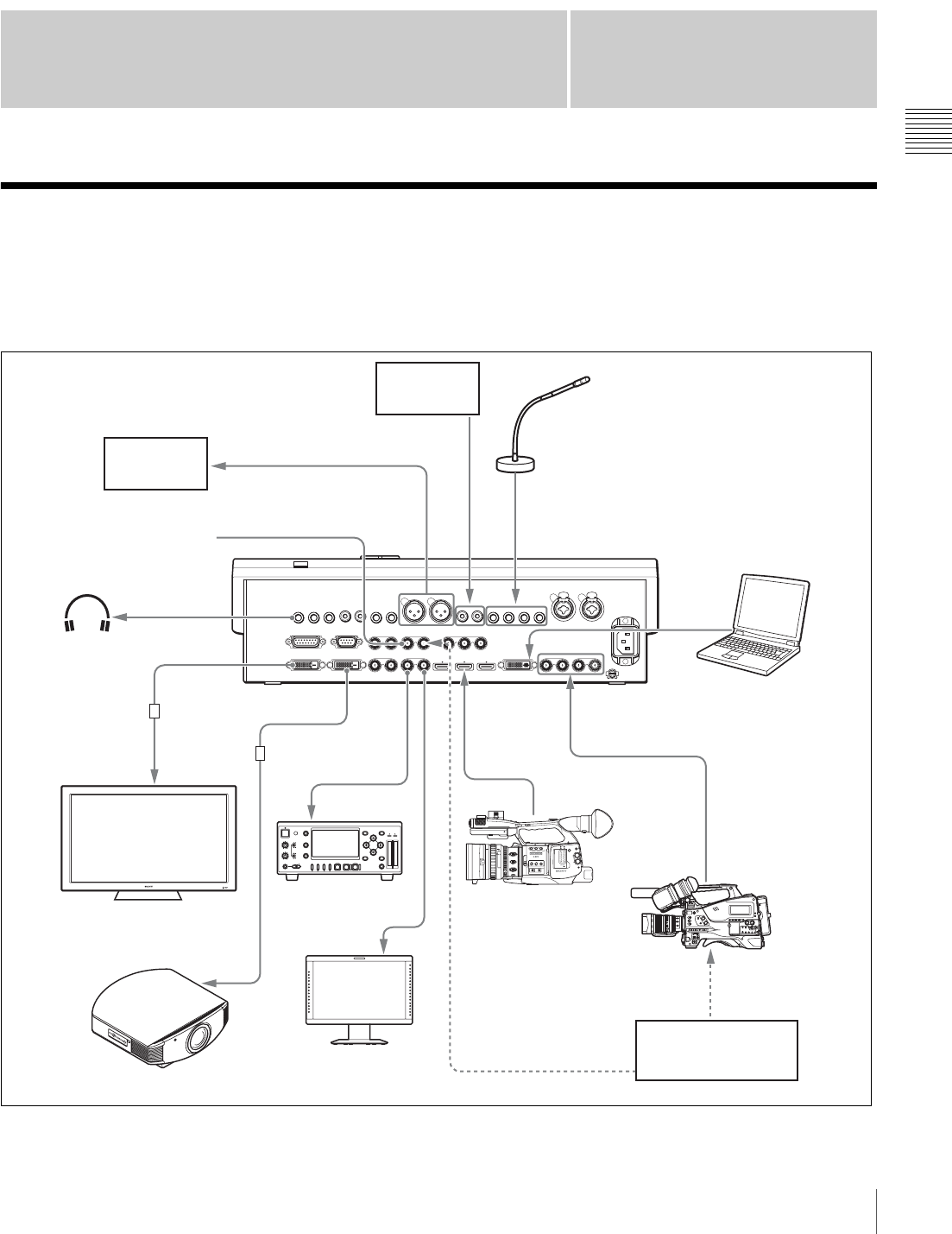
3 Video Output Block
aVIDEO OUT AUX (video output auxiliary)
connector (BNC type) (cAdvanced Settings)
This output is used for confirming video.
bDVI-D OUT (DVI-D output) connectors (DVI-D
type)
• MULTI VIEWER connector (page I-23)
• AUX (auxiliary) connector
(cAdvanced Settings)
Outputs 1080i/59.94, 1080i/50, 720p/59.94, and
720p/50 signals.
cSDI OUT (SDI output) connectors (BNC type)
• MULTI VIEWER connector (page I-23)
• AUX (auxiliary) 1 and 2 connectors
(cAdvanced Settings)
• PGM (program) connector (page I-33)
4 Reference Signal Input/Output
Block
aREF OUT (reference signal output) connector
(BNC type) (cAdvanced Settings)
bREF IN (reference signal input) connectors
(BNC type)
Input an external reference sync signal here. One of the
connectors can be used as a loop-through output
connector. If you will not be using loop-through output,
terminate the connector with a 75 Ω terminator. (page
I-16)
5 Video Input Block
aVIDEO IN (video input) 1 to 3 connectors
(BNC type) (page I-19)
bHDMI IN (HDMI input) 1 to 3 connectors
(page I-19)
cDVI-I IN (DVI-I input) connector (DVI-I type)
(page I-19)
dSDI IN (SDI input) 1 to 4 connectors (BNC type)
(page I-19)
1
23
2
1
342
1
I-15
Connecting Devices
Chapter
Chapter 2 Preparations
2
Preparations
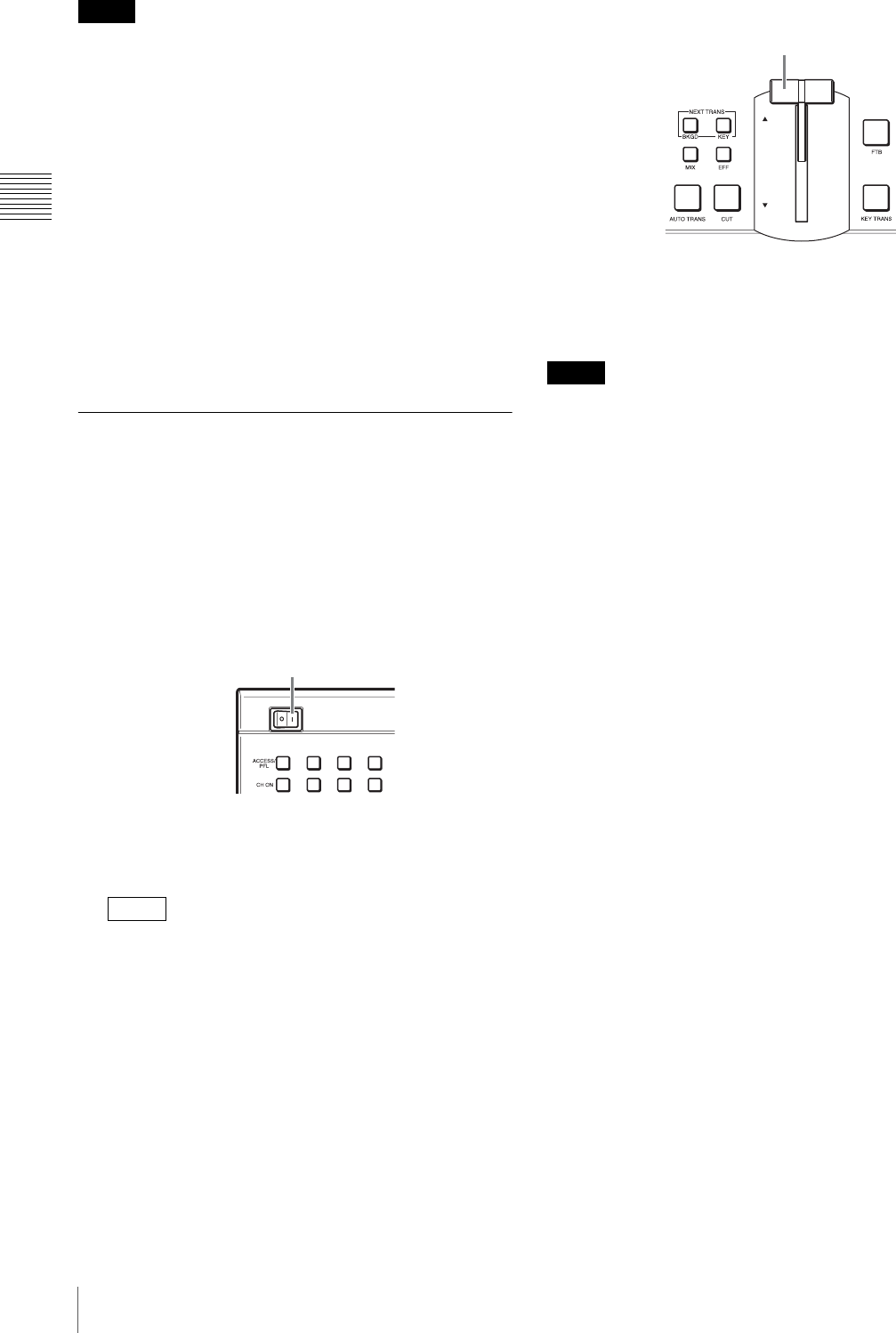
Connecting Devices
Connect each device to the rear panel of the unit.
Connection example: HD system
OPEN
CLOSE
AF/MF Full MF
15 25 40 81.210
310 mm5
10 30ft15
5.8
C
MANU AUTO
MANU AUTO
MACRO
FOCUS
PUSH AF
IRIS
OFF ON
85.6 4 2.81.916
AB
123
ASSIGN
LENS INFO BRT DISP HISTOGRAM
ZEBRA PEAKING
GAIN
OFF
2
1
ND
FILTER
B
A
PRST
L
M
H
WHITE BAL
FULL AUTO
SLOT SELECT
S&Q
CH-1
AUDIO
LEVEL
CH-2
CACHE REC
OPEN
PA
PGM OUT
REF IN
DVI-D OUT
SDI OUT
SDI IN
DVI-I IN
MIC/LINE IN
SDI OUT
HDMI IN
DVI-D OUT
Headphones
Projector PGM monitoring display
REF IN
Camera
Reference signal
input
Camera
Computer
(presenter)
LINE IN
CD/DVD
player
Reference signal
generator
Microphone
Multi Viewer display
75 Ω terminator
HEADPHONE
DVI⇔HDMI
conversion cable
DVI⇔HDMI
conversion cable
I-16 Connecting Devices
Chapter 2 Preparations
• When you are using a reference signal generator, and do
not want to perform loop-through output of the reference
signal input to one of the REF IN connectors of the unit,
attach a 75 Ω terminator to the other connector (see page
I-14). In addition, be sure to install termination resistors
of 75 Ω on each device connected to the unit. For details
on how to install the termination resistors, refer to the
operating instructions for each device.
• When the unit is connected to a device that cannot input
external reference signals, you can enable
synchronization by enabling the frame synchronizer
function of the SDI input connector connected to the
device (default: enabled). For details on configuration,
see the “Operating Instructions (cAdvanced Settings).”
This is always enabled for the VIDEO IN 1 to 3
connectors.
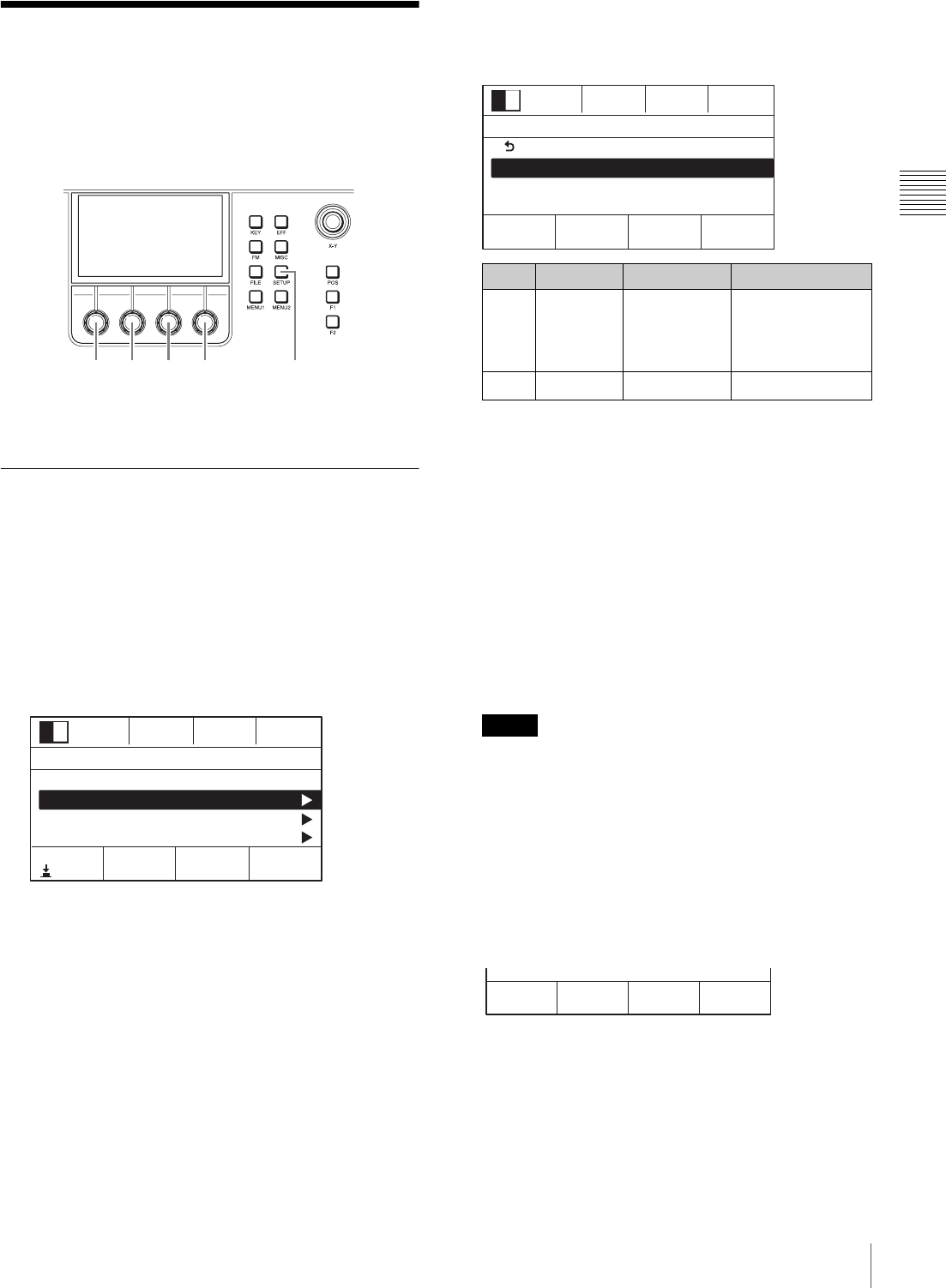
Turning the Unit On/Off
Turning the unit on
1
Connect the power cord (sold separately) to the AC IN
connector on the rear panel of the unit, and connect the
other end of the cord to an AC power supply.
2
Set the power switch to the ? position.
The unit turns on and starts up.
After startup is complete, a menu screen appears in the
menu display and the unit is ready for operations.
The [Misc] (miscellaneous) menu appears after startup
is complete.
3
Raise or lower the fader lever all the way up or down.
Turning the unit off
Set the power switch to the a position.
When you turn off the unit, the configurations for the
current effects, keys, and setup are not saved. To save the
current configurations, perform [Startup Define] in the
[Setup] menu.
For details on this operation, see “Saving Settings” (page I-35).
Notes
Tip
Power switch
Note
Fader lever
I-17
Configuring System Settings
Chapter 2 Preparations
Configuring System
Settings
Configure the system mode, system date and time, and
other system settings in the menu control block.
For details on operations, see “Menu operations” (page I-11).
Configuring the Signal Format and
Aspect Ratio
Specify the image signal format and aspect ratio to be used
by the unit.
1
Press the SETUP button to display the [Setup] menu.
2
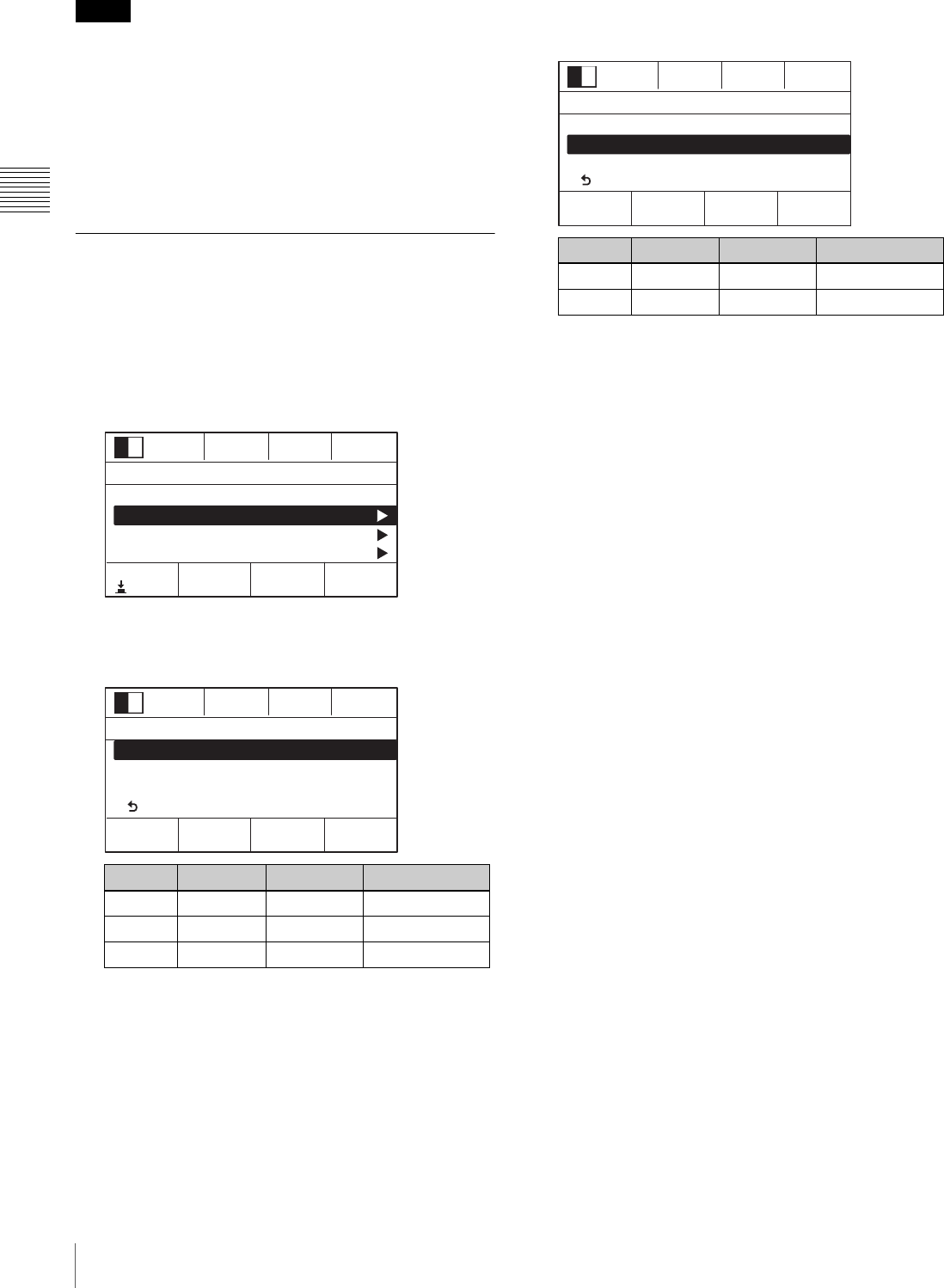
Turn the V1 knob to select [System], and press the
knob.
3
Turn the V1 knob to select [System Format], and
select the signal format and aspect ratio with the
respective knobs.
Notes on setting values
108059: 1080i/59.94 (HD mode)
108050: 1080i/50 (HD mode)
720p59: 720p/59.94 (HD mode)
720p50: 720p/50 (HD mode)
480i59: 480i/59.94 (SD mode)
576i50: 576i/50 (SD mode)
Test1: Used for tests.1)
Test2: Used for tests.
Test3: Used for tests.
1) When [Test1] is selected while VGA signals (640 × 480/
59.94p, 60p) are input to HDMI IN 1 to 3, and you select
HDMI inputs 1 to 3 using the PGM cross-point buttons 6
to 8, 480i/59.94 signals will be output to PGM OUT.
Under normal circumstances, do not use the Test1 to
Test3 settings as they are intended for tests.
Functioning and performance are not guaranteed if
you use Test1 to Test3.
4
Press the V3 or V4 knobs.
A confirmation message appears.
5
Press the V3 knob.
The confirmation message disappears.
6
Turn off the unit and turn it on again.
The unit will restart with the specified signal format
and aspect ratio applied.
V1 V2 V3V4 SETUP
0001
Rate
30
SS Mon
PGM
Setup 2/11
Select
Startup Define
System
Audio
Video (Input)
Enter
Knob Parameter Meaning Setting values
V3Format Signal format 108059, 108050,
720p59, 720p50,
480i59, 576i50,
Te s t 1 , Te s t 2 , Te s t 3
V4 Aspect Aspect ratio 16:9, 4:3
Note
0001
Rate
30
SS Mon
PGM
System 1/8
Select Format Aspect
10805916:9
Back
System Format
3D Mode
System Reference
OK
I-18 Configuring System Settings
Chapter 2 Preparations
• When the signal format is set to an HD mode, the 4:3
aspect ratio cannot be selected.
• To save effects, keys, and other setup configurations,
perform [Startup Define] in the [Setup] menu before
turning off the unit (see page I-35).
• If you want to configure other settings that require a
system restart, configure all of the settings before
restarting the unit.
Configuring the Date and Time
Configure the unit’s internal clock.
1
Press the SETUP button to display the [Setup] menu.
2
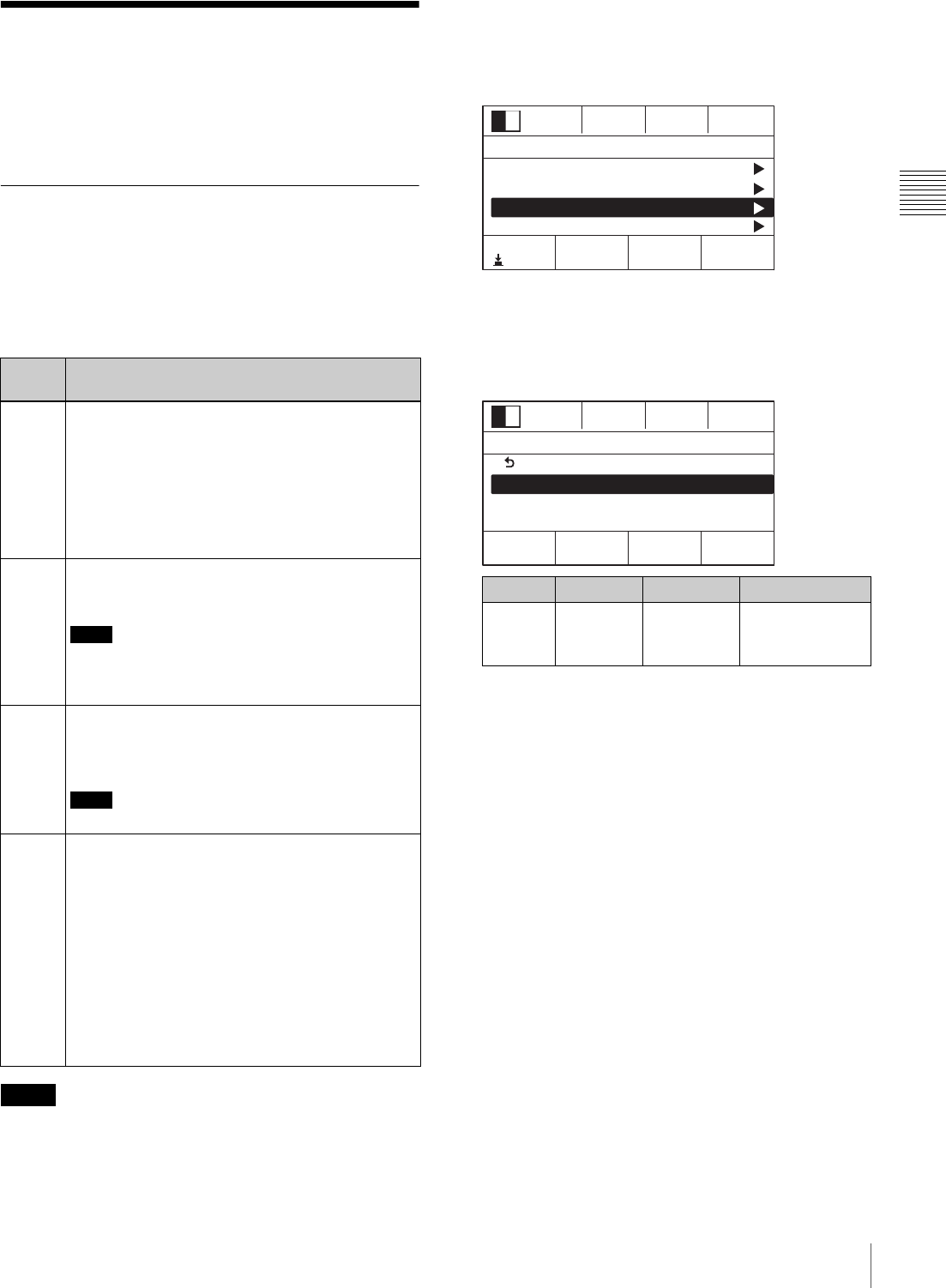
Turn the V1 knob to select [System], and press the
knob.
3
Turn the V1 knob to select [Date], and set the date with
the respective knobs.
4
Press the V2, V3, or V4 knobs.
5
Turn the V1 knob to select [Time], and set the clock
with the respective knobs.
6
Press the V3 or V4 knobs.
Notes
Knob Parameter Meaning Setting values
V2 Year Year 2000 to 2099
V3Month Month 1 to 12
V4 Day Day 1 to 31
0001
Rate
30
SS Mon
PGM
Setup 2/11
Select
Startup Define
System
Audio
Video (Input)
Enter
0001
Rate
30
SS Mon
PGM
System 6/8
Select Month Day
11
Date
Time
LCD Backlight
Back
Year
2011
Knob Parameter Meaning Setting values
V3Hour Hour 0 to 23
V4 Min Minute 0 to 59
0001
Rate
30
SS Mon
PGM
System 7/8
Select Hour Min
12 0
Date
Time
LCD Backlight
Back
I-19
Configuring Video Signal Settings
Chapter 2 Preparations
Configuring Video Signal
Settings
Configure settings for handling video signals on the unit.
Assigning Video Signals to the
Cross-Point Buttons
Assign the video signals that are input to the video input
connectors on the rear panel of the unit and the unit’s
internal signals to cross-point buttons 1 to 8 (PGM and
PST/KEY) in the cross-point control block.
Only signals of the format that is specified under [System
Format] in the [Setup] menu can be input for SDI 1 to 4,
HDMI 1 to 3, and VIDEO 1 to 3.
1
Press the SETUP button to display the [Setup] menu.
2
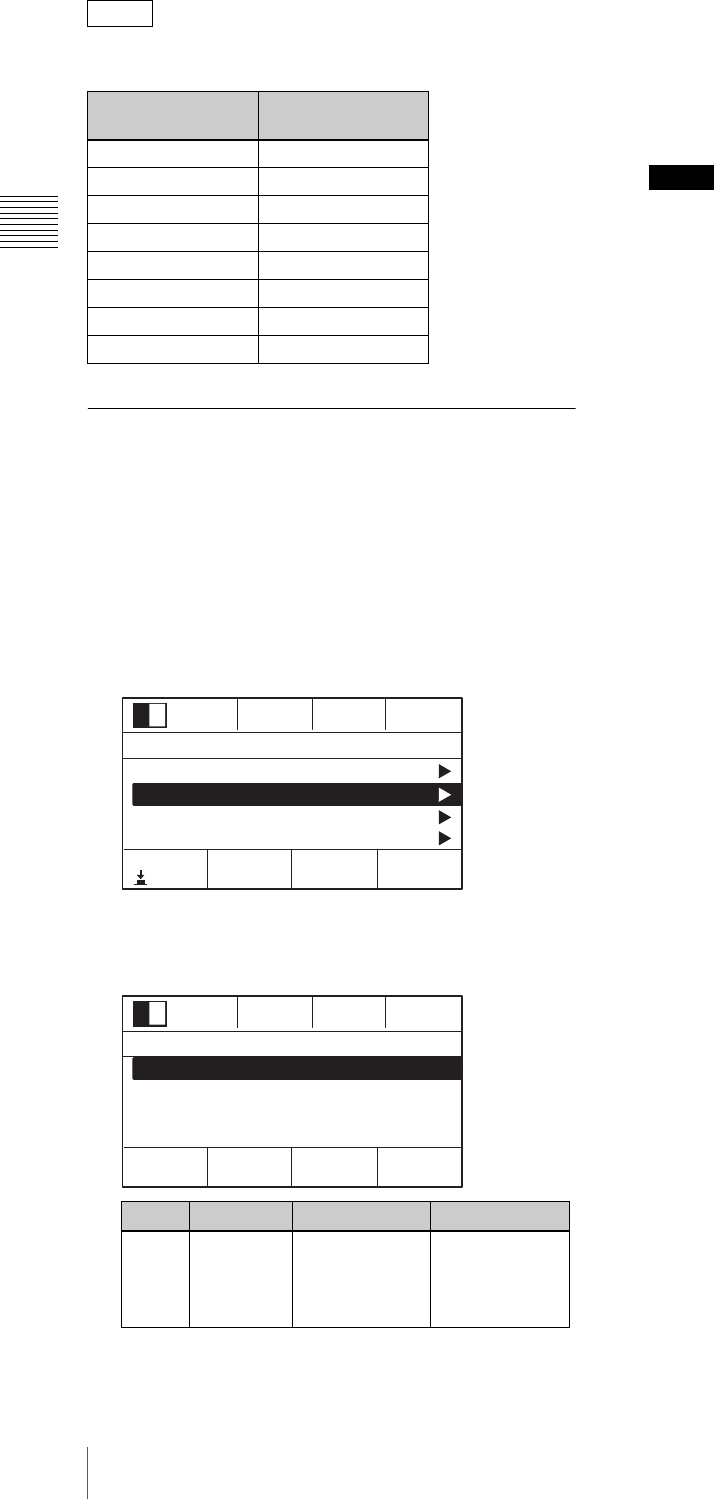
Turn the V1 knob to select [Video (XPT)], and press
the knob.
3
Turn the V1 knob to select the number of the
cross-point button ([XPT Assign 1] to [XPT Assign
14]) to which you want to assign the video signal, and
turn the V4 knob to select the video signal source.
Notes on setting values
Black: Black video
SDI1 to 4: Video input from the SDI IN 1 to 4
connectors
DVI: Video input from the DVI-I IN connector
H/V1 to 3: Video input from the HDMI IN 1 to 3
connectors or VIDEO IN 1 to 3 connectors
ColBg: Color background video
FM: Frame memory video
PGM: Program video output
4
Repeat step 3 for assignments to other buttons.
Signal
name Description
SDI
1 to 4
The signals that are input differ depending on the
system mode.
For SD mode:
Assign the video of the SDI signals that are input
to the SDI IN 1 to 4 connectors.
For HD mode:
Assign the video of the HD SDI signals that are
input to the SDI IN 1 to 4 connectors.
HDMI
1 to 3
For HD mode:
Assign the video of the HDMI signals that are
input to the HDMI 1 to 3 connectors.
Notes
• These signals cannot be used in SD mode.
• Content with High-bandwidth Digital Content
Protection (HDCP) cannot be used.
VIDEO
1 to 3
For SD mode:
Assign the video of the analog composite
signals that are input to the VIDEO 1 to 3
connectors.
Note
These signals cannot be used in HD mode.
DVI-I The signals that are input differ depending on the
system mode.
Assign the video of the DVI-I signals that are input
to the DVI-I connector.
Analog: XGA (1024 × 768) 60 Hz,
SXGA (1280 × 1024) 60 Hz,
WXGA (1280 × 768) 60 Hz
Digital:
When the system format is 720p/59.94, 720p/50,
480i/59.94, 576i/50: Cannot be used.
When the system format is 1080i/59.94,
1080i/50: 1080p/50, 1080p/60
Note
Knob Parameter Meaning Setting values
V4 Source Video signal Black, SDI1 to 4,
DVI, H/V1 to 3,
ColBg, FM, PGM
0001
Rate
30
SS Mon
PGM
Setup 5/11
Select
Audio
Video (Input)
Video (XPT)
Video (Output)
Enter
0001
Rate
30
SS Mon
PGM
Video (XPT) 1/15
Select Source
SDI1
Back
XPT Assign 1
XPT Assign 2
XPT Assign 3
I-20 Configuring Video Signal Settings
Chapter 2 Preparations
The following assignments are set under factory default
settings.
Configuring the Format of the Signal
Input to the DVI-I Connector
To use DVI video inputs, configure the format of the signal
input to the DVI-I connector on the rear panel of the unit.
1
Press the SETUP button to display the [Setup] menu.
2
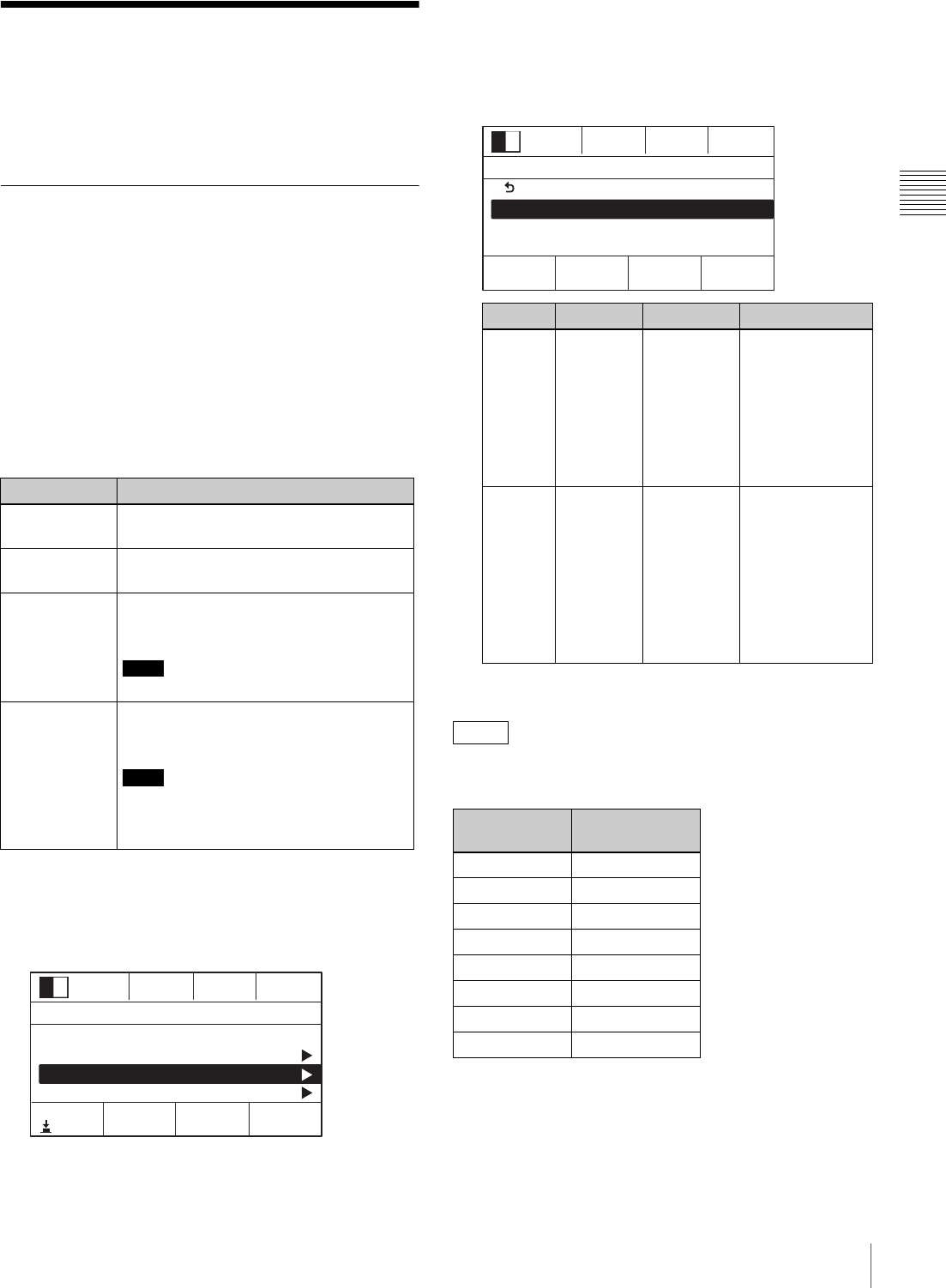
Turn the V1 knob to select [Video (Input)], and press
the knob.
3
Turn the V1 knob to select [DVI], turn the V3 knob to
select the signal format, and press the knob.
Notes on setting values
XGA: Analog, 1024 × 768/60
SXGA: Analog, 1280 × 1024/60
WXGA: Analog, 1280 × 768/60
HDTV50: Digital, 1080p/50
HDTV60: Digital, 1080p/60
Digital signals are not accepted (i.e., not supported) in
720p/59.94, 720p/50, 480i/59.94, or 576i/50 mode.
Tip
PGM, PST/KEY
cross-point button Default setting
1SDI1
2SDI2
3SDI3
4SDI4
5DVI
6H/V1
7H/V2
8H/V3
Knob Parameter Meaning Setting values
V3Format Signal format of
DVI-I video
input
XGA, SXGA,
WXGA,
HDTV50,
HDTV60
0001
Rate
30
SS Mon
PGM
Setup 4/11
Select
Audio
Video (Input)
Video (XPT)
Video (Output)
Enter
0001
Rate 30
SS Mon
PGM
Video (Input) 5/11
Select FormatName
XGA DVI
DVI
HDMI1
HDMI2
HDMI3
Note
I-21
Configuring Audio Signal Settings
Chapter 2 Preparations
Configuring Audio Signal
Settings
Configure settings for handling audio signals on the unit.
Assigning Audio Input Signals to the
Channel Faders
Assign the audio signals that are input to the audio input
connectors on the rear panel of the unit to the channel
faders (1 to 6).
Assigning separate audio to the left and right channels (L/
R) of a fader creates a stereo fader, while assigning the
same audio to the left and right channels creates a
monaural fader.
Audio input signals
1
Press the SETUP button to display the [Setup] menu.
2
Turn the V1 knob to select [Audio], and press the
knob.
3
Turn the V1 knob to select the channel fader number
([Audio Input Assign 1] to [Audio Input Assign 6]) to
which you want to assign the audio signal, and select
the audio signals for L and R with the respective
knobs.
4
Repeat step 3 for assignments to other channel faders.
The following assignments are set under factory default
settings.
Signal Description
MIC/LINE
1 to 6
Assign the audio that is input to the MIC/
LINE IN 1 to 6 connectors.
LINE 7 and 8Assign the audio that is input to the LINE
IN 7 and 8 connectors.
SDI 1 to 4 Assign the embedded audio of the SDI
signals that are input to the SDI IN 1 to 4
connectors.
Note
These signals will be assigned as stereo.
HDMI 1 to 3For HD mode:
Assign the embedded audio that is input
to the HDMI 1 to 3 connectors.
Note
These signals will be assigned as stereo
in HD mode. These signals cannot be
used in SD mode.
0001
Rate
30
SS Mon
PGM
Setup 3/11
Select
Startup Define
System
Audio
Video (Input)
Enter
Knob Parameter Meaning Setting values
V3Left Left audio
signal
NotUse, M/L1,
M/L2, M/L3,
M/L4, M/L5,
M/L6, L7, L8,
SDI1L, SDI2L,
SDI3L, SDI4L,
HDMI1L,
HDMI2L, HDMI3L
V4 Right Right audio
signal
NotUse, M/L1,
M/L2, M/L3,
M/L4, M/L5,
M/L6, L7, L8,
SDI1R, SDI2R,
SDI3R, SDI4R,
HDMI1R,
HDMI2R,
HDMI3R
Tip
Channel
fader (L/R) Default setting
1 (L/R) MIC/LINE IN 1
2 (L/R) MIC/LINE IN 2
3 (L/R) MIC/LINE IN 3
4 (L/R) MIC/LINE IN 4
5 (L) MIC/LINE IN 5
5 (R) MIC/LINE IN 6
6 (L) LINE IN 7
6 (R) LINE IN 8
0001
Rate
30
SS Mon
PGM
Audio 1/20
Select Left Right
M/L1 M/L1
Back
Audio Input Assign 1
Audio Input Assign 2
Audio Input Assign 3
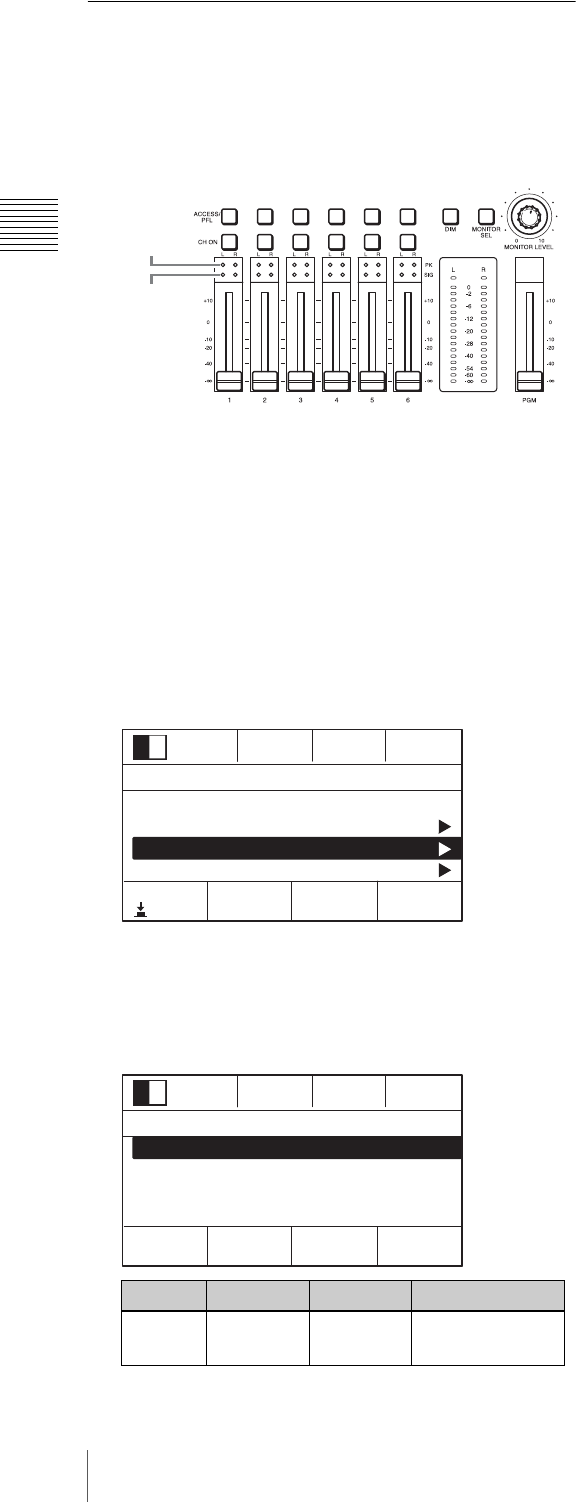
I-22 Configuring Audio Signal Settings
Chapter 2 Preparations
Configuring the Mic/Line Levels for
Audio Inputs
Adjustment of mic/line levels is necessary when the peak
indicators light red, or when the input signal indicators do
not light while audio signal input exists.
When the peak indicators light red
A channel fader’s peak indicator will light red if the audio
signal input is too loud. In this case, since the analog mic/
line level exceeds the input level of the currently selected
line, use the following procedure to adjust it.
1
Press the SETUP button to display the [Setup] menu.
2
Turn the V1 knob to select [Audio], and press the
knob.
3
Turn the V1 knob to select the number of the MIC/
LINE IN connector ([MIC/LINE 1 Level] to [MIC/
LINE 6 Level]) for which you want to configure the
mic/line level, and turn the V4 knob to select the level.
4
Repeat step 3 to configure the levels for the other MIC/
LINE IN connectors.
Setting example:
If a peak indicator lights at the default setting of
[–20 dB], select the [+4 dB] setting. (However, the
peak indicator may also light at the [+4 dB] setting in
some cases.)
When the input signal indicators do not
light
When the input signal indicators do not light even when
audio signals are being input, the reference values for the
mic/line levels are not being met. In such cases, perform
the previous peak indicator procedure, and configure the
lower mic/line levels for the respective channels.
Setting example:
If an input signal indicator does not light at the default
setting of [–20 dB], select the [–44 dB] setting.
Knob Parameter Meaning Setting values
V4 Level Input level –44 dB, –20 dB,
+4 dB
Peak
indicator
Input signal
indicator
0001
Rate
30
SS Mon
PGM
Setup 3/11
Select
Startup Define
System
Audio
Video (Input)
Enter
0001
Rate 30
SS Mon
PGM
Audio 7/20
Select Level
-20dB
MIC/LINE 1 Level
MIC/LINE 2 Level
MIC/LINE 3 Level
MIC/LINE 4 Level
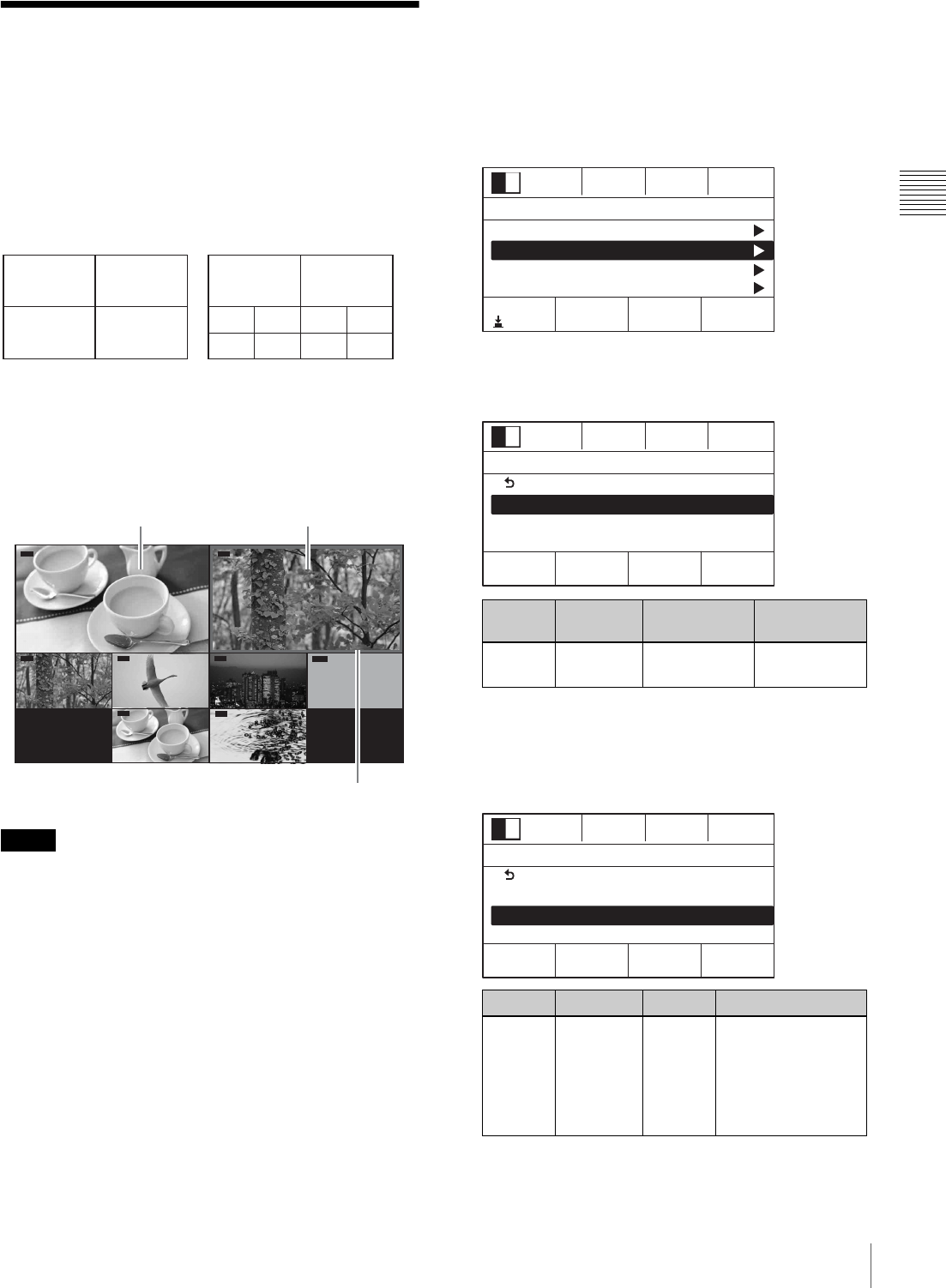
I-23
Configuring Multi Viewer Settings
Chapter 2 Preparations
Configuring Multi Viewer
Settings
The Multi Viewer allows you to display multiple video
inputs, program video outputs, and preview video outputs
simultaneously on a monitor connected to the unit. A
4-screen layout and a 10-screen layout are available.
(The numbers indicate the number assignments for each
sub-screen.)
Multi Viewer output example: 10-screen layout
Red frames indicate the sub-screens for video inputs that
are currently on air (i.e., the program video).
If a frame memory key is on air, the red frame appears in
the [FM-V] (video) sub-screen.
When using the Multi Viewer, specify the video output for
each sub-screen.
1
Press the SETUP button to display the [Setup] menu.
2
Turn the V1 knob to select [Multi Viewer], and press
the knob.
3
Turn the V1 knob to select [Viewer Mode], and turn
the V4 knob to select the split-screen layout.
4
Turn the V1 knob to select the sub-screen ([Signal
Assign 1] to [Signal Assign 10]) to which you want to
assign the video signal, and turn the V4 knob to select
the video signal.
4-screen layout 10-screen layout
Note
12
34
12
35
46
78910
KEY SOURCE
PVW PGM
SDI1 SDI2 SDI3 ColBg
Black
H/V2
DVI H/V1
Preview video Program video
Red frame
Knob Parameter Meaning Setting
values
V4 Split Split-screen
layout
4, 10
Knob Parameter Meaning Setting values
V4 Source Video
signal
Black, SDI1 to 4,
DVI, H/V1 to 3,
ColBg, FM-V, FM-K,
PGM, PVW,
Aux1PG, Aux1PV,
Aux2PG, Aux2PV
0001
Rate
30
SS Mon
PGM
Setup 8/11
Select
Video (Misc)
Multi Viewer
GPI/Tally
Information
Enter
0001
Rate
30
SS Mon
PGM
Multi Viewer 1/11
Select Split
10
Back
Viewer Mode
Signal Assign 1
Signal Assign 2
0001
Rate
30
SS Mon
PGM
Multi Viewer 2/11
Select Source
PVW
Back
Viewer Mode
Signal Assign 1
Signal Assign 2
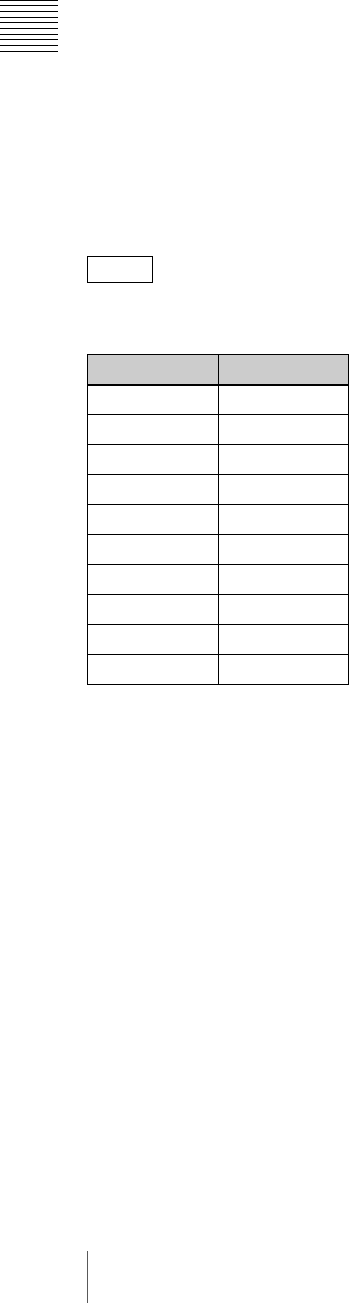
I-24 Configuring Multi Viewer Settings
Chapter 2 Preparations
Notes on setting values
Black: Black video
SDI1 to 4: Video input from the SDI IN 1 to 4
connectors
DVI: Video input from the DVI-I IN connector
H/V1 to 3: Video input from the HDMI IN 1 to 3
connectors or VIDEO IN 1 to 3 connectors
ColBg: Color background video
FM-V: Frame memory video
FM-K: Frame memory key
PGM: Program video output
PVW: Preview video output
Aux1PG: Program video output of the Aux1 bus
Aux1PV: Preview video output of the Aux1 bus
Aux2PG: Program video output of the Aux2 bus
Aux2PV: Preview video output of the Aux2 bus
5
Repeat step 4 to configure the other sub-screens.
The following video signals are assigned to each
sub-screen under factory default settings.
Tip
Sub-screen Video signal
1 PVW
2PGM
3SDI1
4SDI2
5SDI3
6SDI4
7DVI
8H/V1
9H/V2
10 H/V3
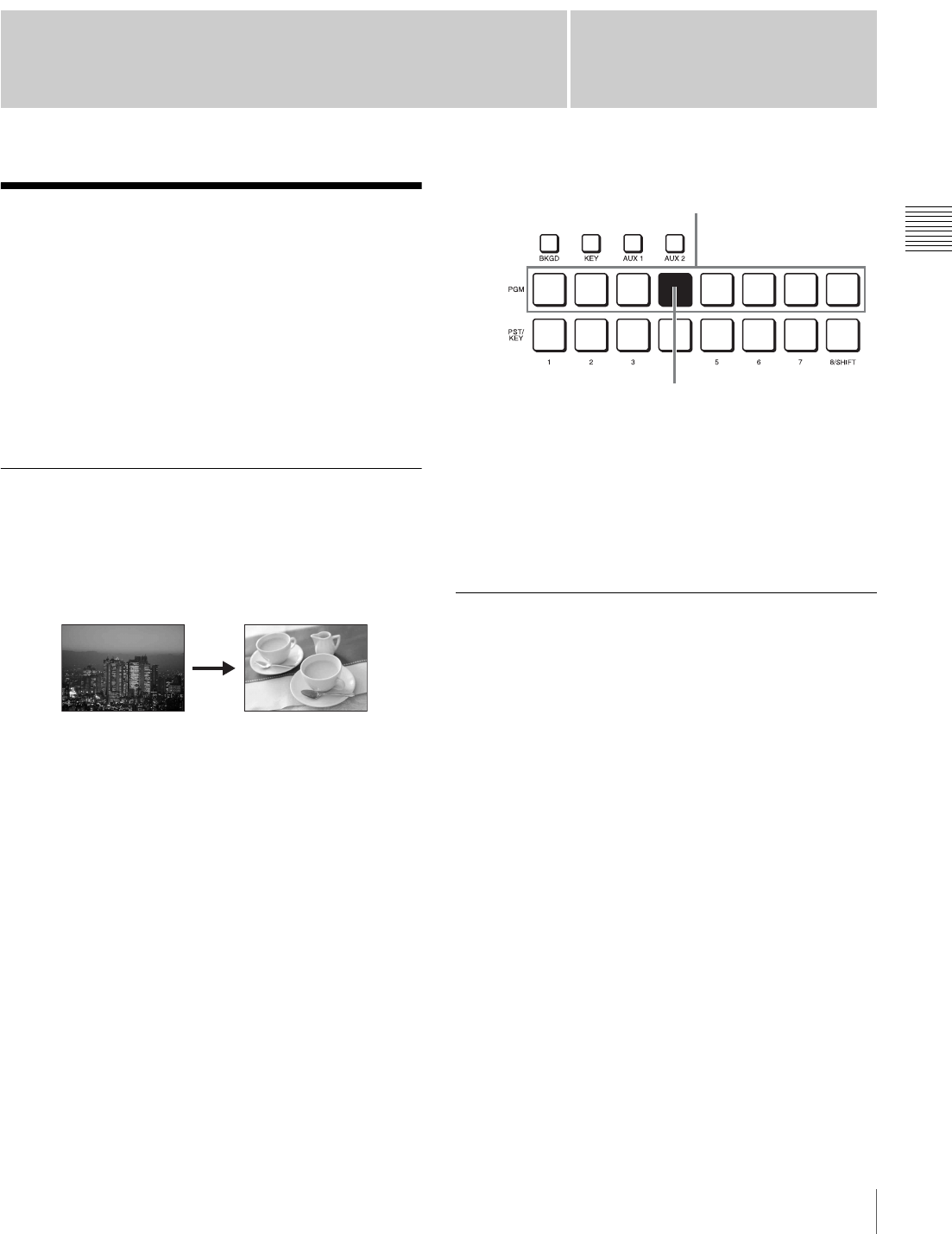
I-25
Switching Video
Chapter
Chapter 3 Basic Operations
3
Basic Operations
Switching Video
Switch between video signals that are input to the unit,
compose images, and output programs from the PGM
output connector.
This section describes simple operations for switching
video and applying effects while switching.
Frequently used effects can be saved as “snapshots” and recalled when
necessary. For details, see “Snapshots” (page I-34).
Cross-Point Button Switching
This is the most basic form of switching. Switching
between video A and video B occurs instantly without
added effects.
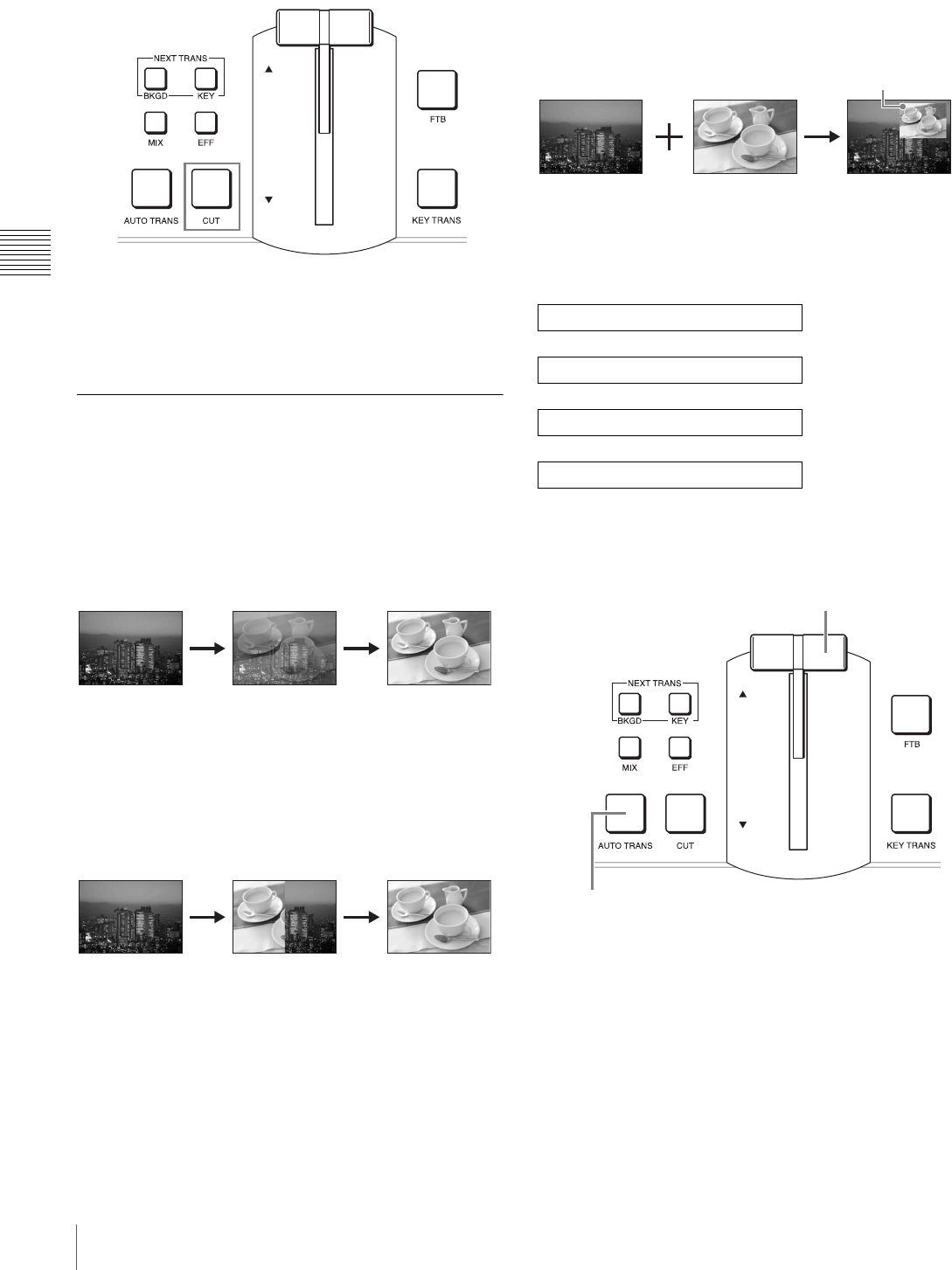
You can cut between videos by pressing a PGM
cross-point button to which a different video is assigned.
1
In the cross-point control block, press the PGM
cross-point button to which the video you want to
switch is assigned.
The button you pressed lights red, and the video is
output as the program output.
2
Determine the next video to be used for program
output, and press the corresponding PGM cross-point
button.
The program video switches.
Checking the Preview Video before
Switching with the CUT Button
Preview the next video that will be used for the program
output before switching.
1
In the cross-point control block, press the PGM
cross-point button to which the video you want to
switch is assigned.
The PGM cross-point button you pressed lights red.
2
Press the PST/KEY cross-point button to which the
next video to be used for program output (i.e., the
target for switching) is assigned.
The PST/KEY cross-point button you pressed lights
orange, and the selected video is used for PVW output.
AB
PGM cross-point buttons
The button that is lit red indicates
the current program video output.
I-26 Switching Video
Chapter 3 Basic Operations
3
Press the CUT button in the transition control block.
The program video interchanges with the preview
video.
The lit PGM cross-point and PST/KEY cross-point
buttons also interchange.
Applying Effects while Switching
(Mix/Effect)
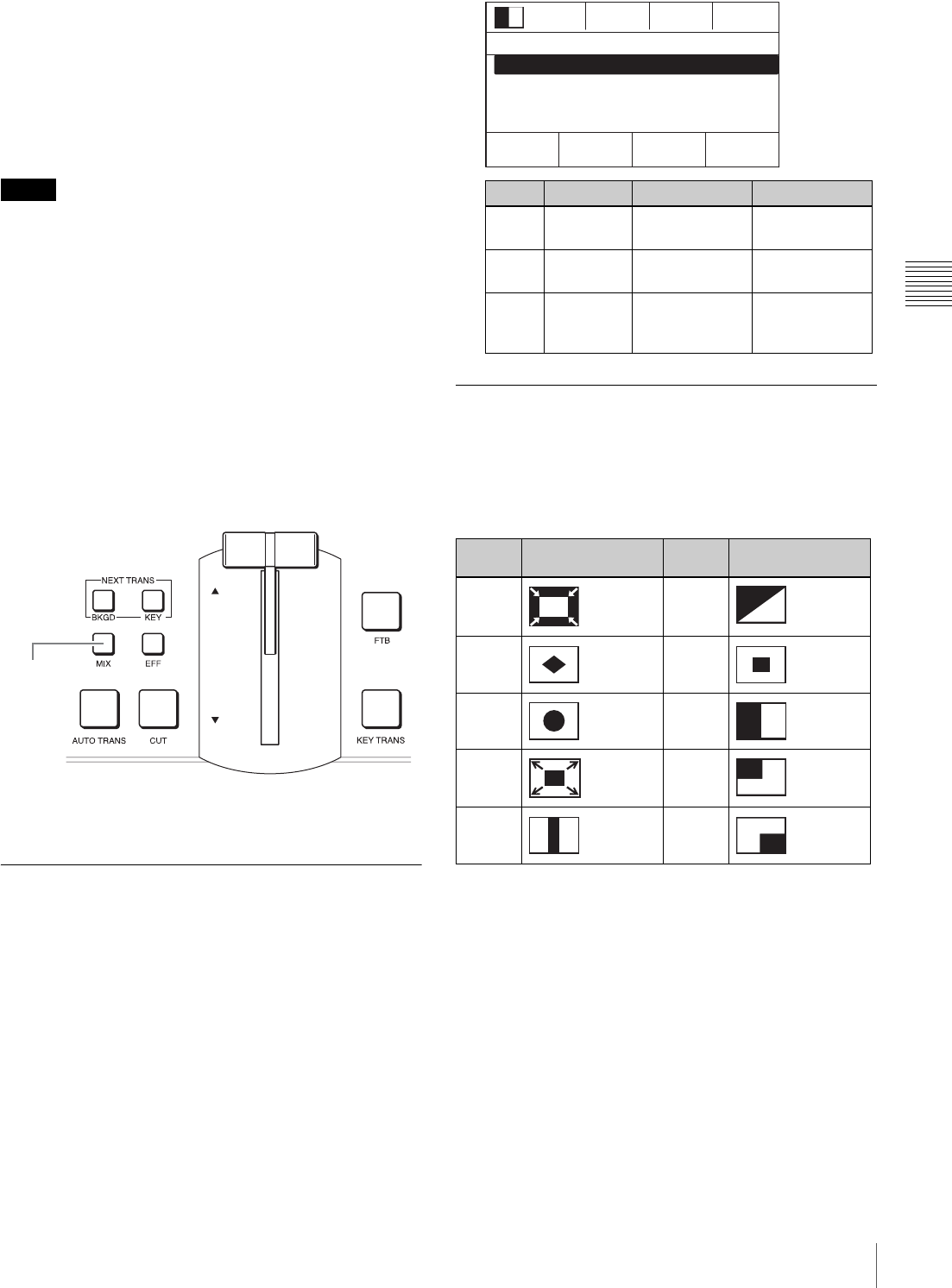
Instead of an instantaneous cut, you can gradually switch
from one video to another through the various effects.
Mix (page I-27)
Transition into the next video by gradually overlapping the
existing image.
Effect
You can use Wipe, NAM (non-additive mix), Slide,
Squeeze, Door, Frame In/Out, Flip Tumble, PinP
(picture-in-picture), Mosaic, and Defocus effects.
Example: Wipe (page I-37)
With this effect, the next video for output replaces the
current program video output as if wiping it away.
Example: Frame In/Out (page I-27)
With this effect, the next video is superimposed as a frame
within the current program video output and gradually
expands to replace the current video.
Multiple patterns may be available for certain effects. For details on the
different patterns, see “Effect Pattern List” (page I-37).
Basic operation flow
To execute the transition
Press the AUTO TRANS button in the transition control
block, or operate the fader lever.
AUTO TRANS button (automatic execution)
The video switches automatically at the current speed
(transition rate) setting.
You can change the transition rate under [Transition Rate (1/2)] in the
[Misc] menu. For details on configuration, see “Configuring the Transition
Rate” (page I-27).
Select the video for program output.
r
Select the next video for output.
r
Select an effect (mix/effect).
r
Execute the transition.
Superimposed
frame
AUTO TRANS button
Fader lever
I-27
Switching Video
Chapter 3 Basic Operations
Fader lever (manual execution)
The video switches over as you move the lever.
Move the lever in the direction of the lit transition
indicator. The transition starts, and proceeds according to
the rate at which you move the lever.
When the lever is completely raised or lowered, the
transition is complete and the transition indicator for the
opposite direction will light.
If both the indicators are lit, completely raise or lower the
fader lever in either direction.
Switching with mix
1
Press the PGM cross-point button of the video for
program output.
2
Press the PST/KEY cross-point button for the next
video for output.
3
Press the MIX button in the transition control block.
The button lights orange.
4
Execute the transition.
Configuring the Transition Rate
You can change the rate at which a video switches over
(i.e., transition rate) when the AUTO TRANS button is
used to execute a transition.
1
Press the MISC button to display the [Misc] menu.
2
Turn the V1 knob to select [Transition Rate (1/2)], and
configure the transition rate with the V2 knob.
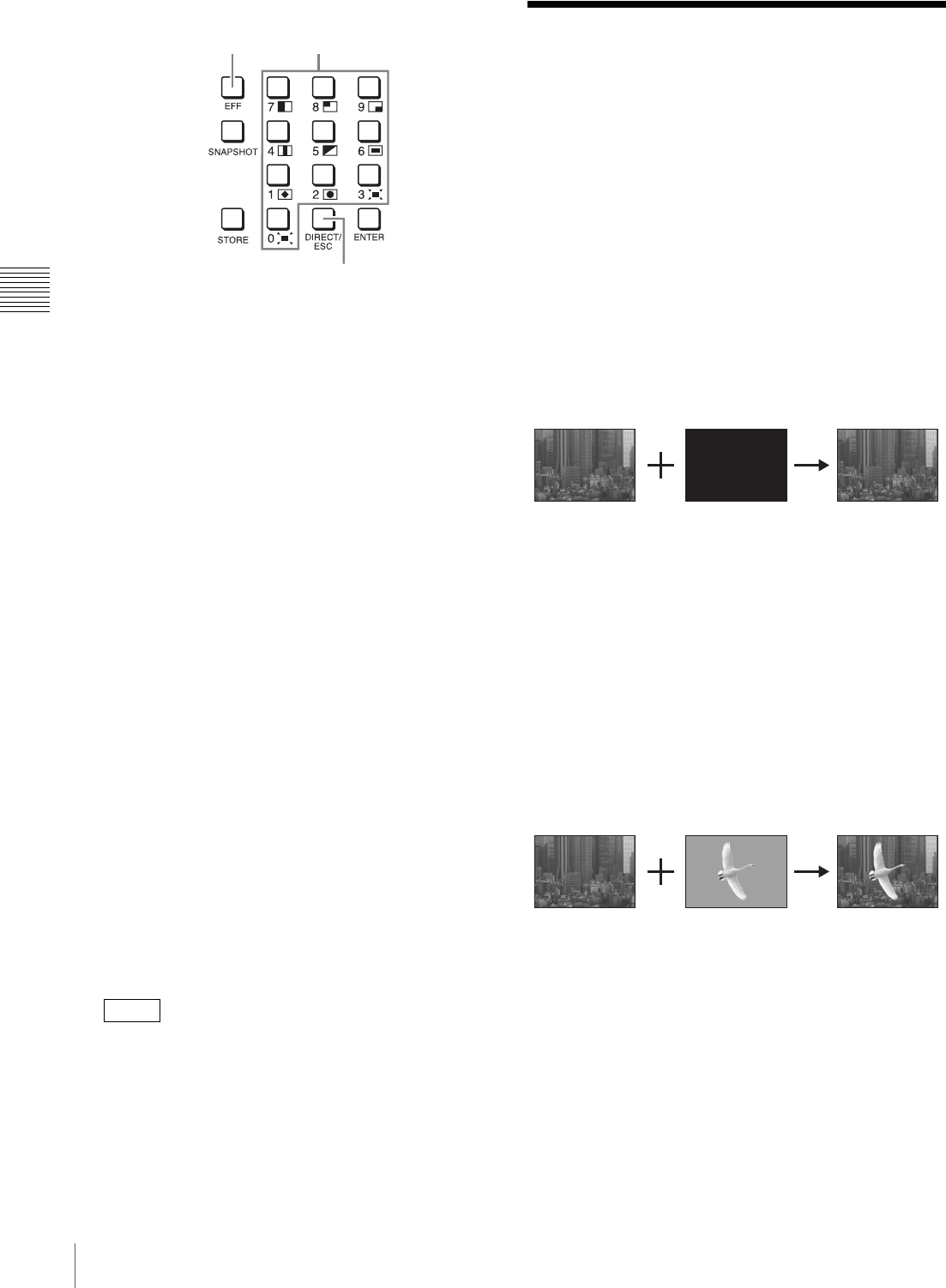
Selecting Effects with the Numeric
Keypad (Direct Selection)
The following effect patterns are pre-assigned to the
numeric buttons (0 to 9) in the numeric keypad block.
These buttons make it easy for you to apply effects.
For details on specifying other effect patterns, see “Specifying effects by
pattern number” (page I-28).
1
Press the PGM cross-point button of the video for
program output.
2
Press the PST/KEY cross-point button for the next
video for output.
Note
MIX
button
Knob Parameter Meaning Setting values
V2 Effect Effect transition 1 to 999 frames
(30)
V3Key Key transition 1 to 999 frames
(30)
V4 FTB FTB
(fade-to-black)
transition
1 to 999 frames
(30)
Numeric
button Effect pattern Numeric
button Effect pattern
01251
(PinP) 50009
(Wipe)
1
0023
(Wipe:
Diamond)
6
0021
(Wipe:
Box)
2
0024
(Wipe:
Circle)
7
0001
(Wipe:
Horizontal)
3
1201
(Frame
In/Out)
80005
(Wipe)
40017
(Wipe) 90007
(Wipe)
0001
Rate
30
SS Mon
PGM
Misc 1/4
Select Key FTB
3030
Transition Rate (1/2)
Transition Rate (2/2)
Color BKGD
Port Enable
Effect
30
I-28 Composing Images with Keys
Chapter 3 Basic Operations
3
Select an effect in the numeric keypad block.
1Press the EFF button to light it.
2If the DIRECT/ESC button is not lit, press the
button to light it.
3Press the numeric button to which the effect pattern
you want to use is assigned.
4
Execute the transition.
Specifying effects by pattern number
Perform the following to specify effects by entering effect
pattern numbers.
For details on pattern numbers, see “Effect Pattern List” (page I-37).
1
Press the EFF button in the numeric keypad block to
light it.
2
If the DIRECT/ESC button is lit, press the button to
turn it off.
3
Use the numeric buttons (0 to 9) to enter the pattern
number.
The pattern number entered appears at the top left of
the menu screen.
4
Press the ENTER button.
The pattern icon of the number entered appears, and
the effect pattern number changes to an orange
display.
If you press the DIRECT/ESC button before pressing
the ENTER button after entering the pattern number,
the entry will be canceled and revert to the original
pattern number.
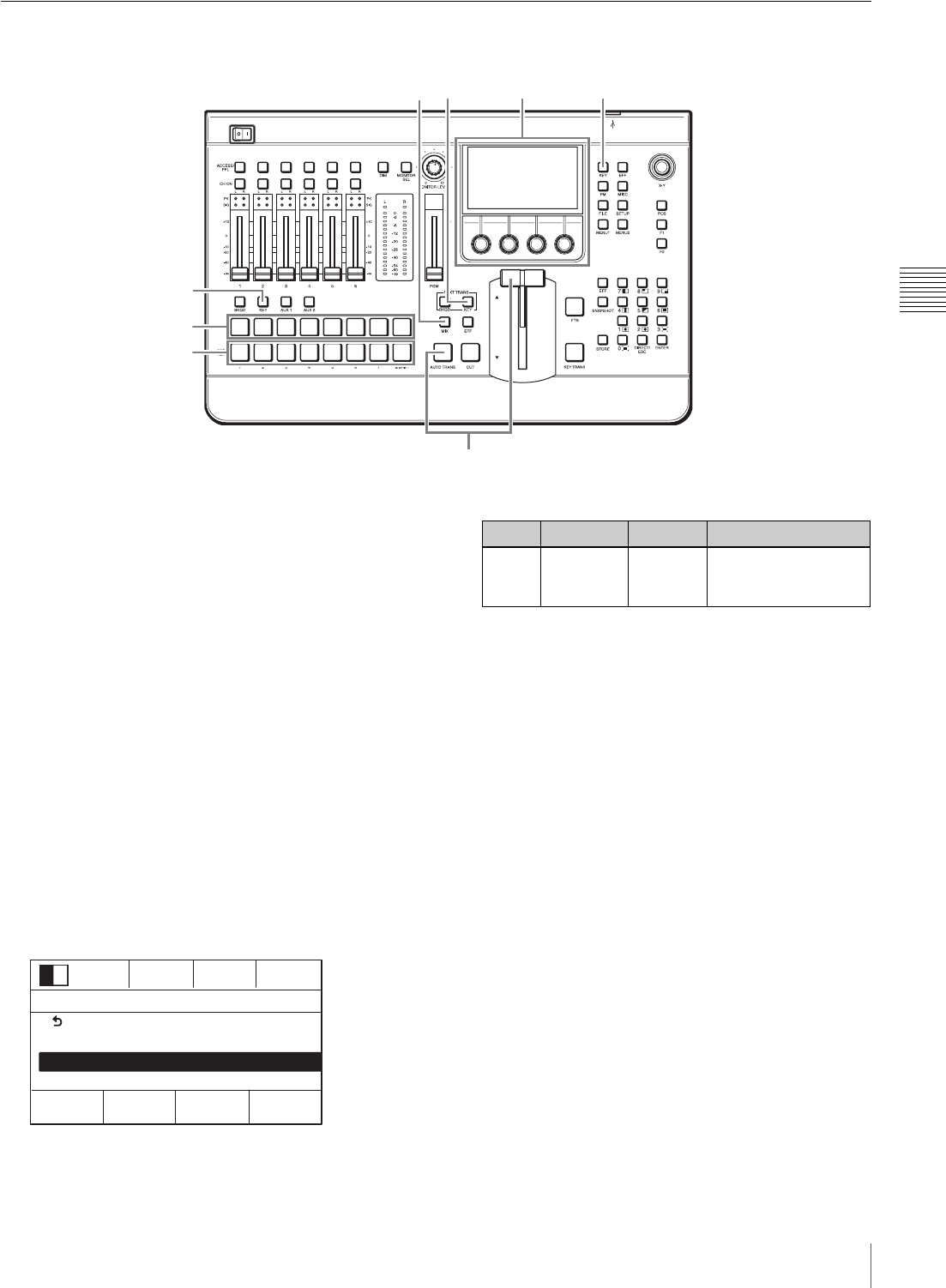
Composing Images with
Keys
Keying is a function in which part of the background
image is replaced by another image or superimposed text.
The following keys can be used with this unit to compose
video.
Luminance key (page I-29)
Based on the brightness (luminance) of the key source1),
key fill1) image B is cut out and superimposed on image A
(i.e., the background).
In this composition example, the same image is selected as
the key source and key fill.
1) The signal for cutting out the background is called a key source, and the
signal for filling the cutout portion is called a key fill.
Linear key
This is a type of luminance key with a reduced variability
in gain that allows more precise adjustment.
For details on operations, see “Making Detailed Adjustments to the Linear
Key” (cAdvanced Settings).
Chroma key (page I-30)
A particular color (chroma) component is removed from
image B, and image B is superimposed on image A (i.e.,
the background). Typically, a subject is shot in front of a
blue screen and the portions of the background that contain
blue components are later removed, leaving only the
subject to be superimposed.
Tip
13
2
World Market World Market
ABAB
ABAB
Background Image to be
superimposed
I-29
Composing Images with Keys
Chapter 3 Basic Operations
Composing Images with Luminance Keys
1
Press the KEY bus delegation button.
2
Press the PGM cross-point button of the video for
program output.
3
Press the PST/KEY cross-point button of the key
material (i.e., the image to be superimposed on the
program video output).
4
Press the KEY next transition selection button.
The selected image in its “key on” state is used for
PVW output.
5
Press the MIX button or EFF button.
6
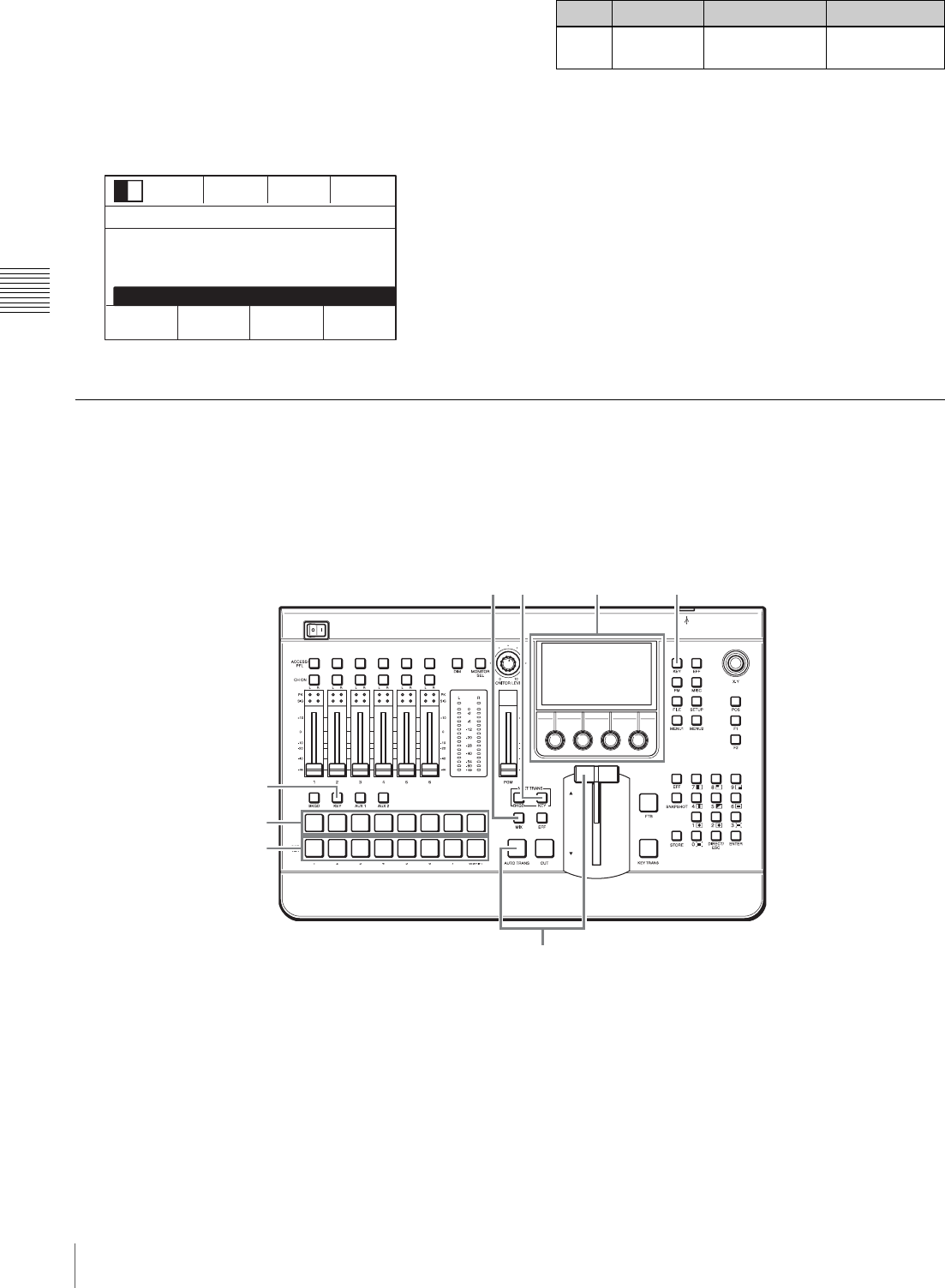
Press the KEY button in the menu control block to
display the [Key] menu.
7
Turn the V1 knob to select [Key Type Select], and turn
the V4 knob to select [Lum].
If necessary, you can also configure the clip value
(brightness), gain value, and key transparency.
For details on configuration, see “Making Detailed Adjustments to the
Luminance Key” (cAdvanced Settings).
8
Execute the transition.
The image of the PST/KEY cross-point button is
superimposed on the program video output.
You can also configure the duration for video composition (transition
rate). For details on configuration, see the “Configuring the Transition
Rate” (page I-27).
Luminance key settings can be saved as “snapshots” and recalled when
necessary. For details, see “Snapshots” (page I-34).
2
3
76
8
45
1
0001
Rate
30
SS Mon
PGM
Key 2/27
Select Type
Lum
Back
Key Transition
Key Type Select
Resizer
Knob Parameter Meaning Setting values
V4 Type Key type
selection
Lum (luminance key),
Lin (linear key),
Chr (chroma key)
I-30 Composing Images with Keys
Chapter 3 Basic Operations
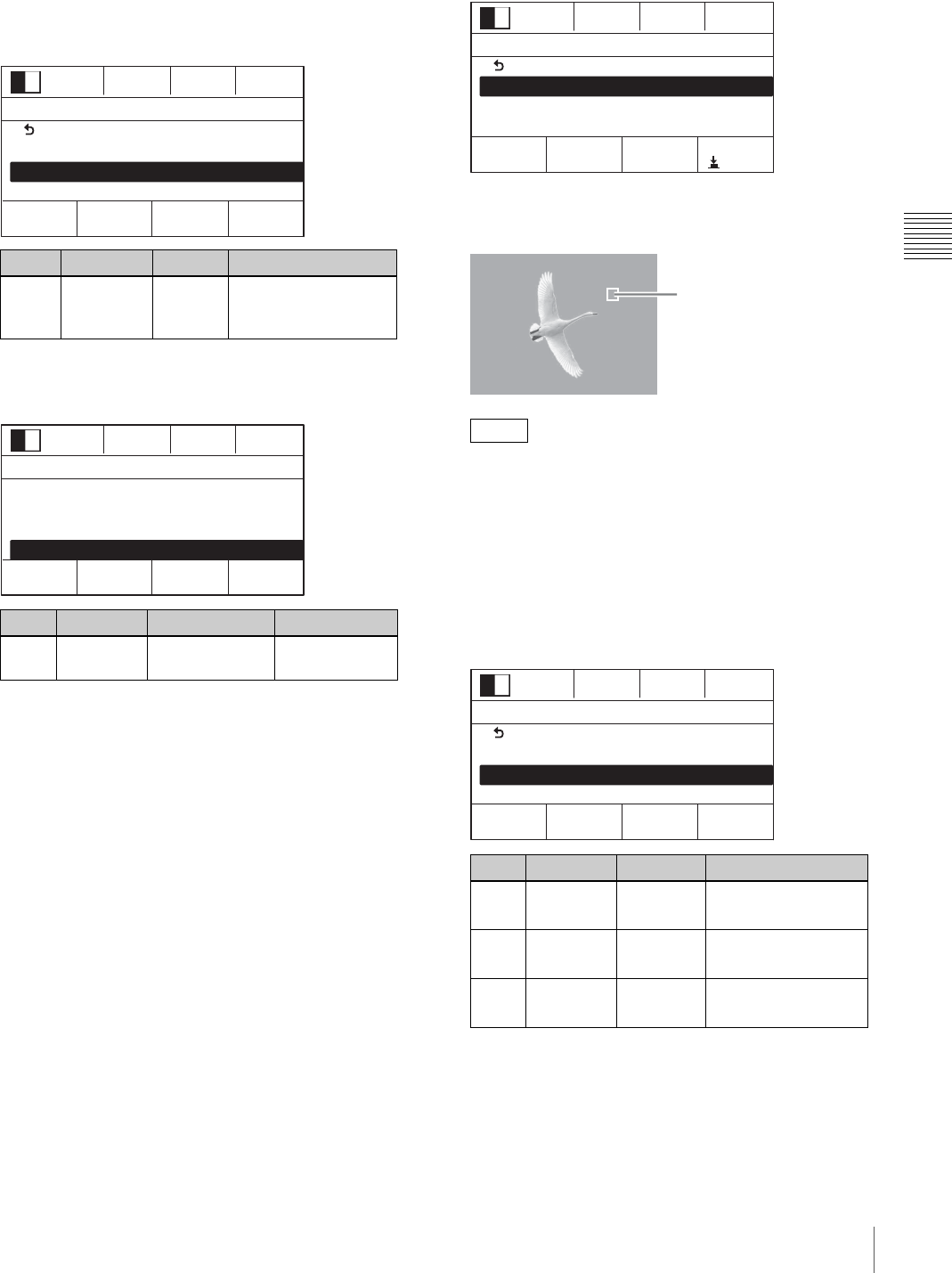
Selecting the key fill and key source
separately
Perform the following between step 7 and 8 of the
previous procedure.
1Turn the V1 knob to select [Key Fill/Src Select], and
turn the V3 knob to select [Split].
2Press the PST/KEY cross-point button to be used for
the key source while holding down the KEY bus
delegation button.
Composing Images with Chroma Keys
This section describes how to perform “auto chroma key”
where you specify a portion of the foreground video (e.g.,
a blue background color) and use it as a reference signal
for creating the chroma key image through automatic
adjustment.
You can also adjust chroma keys manually (manual chroma key).
For details, see “Making Detailed Adjustments to the Chroma Key”
(cAdvanced Settings).
1
Press the KEY bus delegation button.
2
Press the PGM cross-point button of the video for
program output.
3
Press the PST/KEY cross-point button of the key
material (i.e., the image to be superimposed on the
program video output).
4
Press the KEY next transition selection button.
The selected image in its “key on” state is used for
PVW output.
5
Press the MIX button or EFF button.
0001
Rate 30 SS Mon
PGM
Key 4/27
Select Source Fill
Spl it Bus
Key Transition
Key Type Select
Resizer
Key Fill/Src Select
Knob Parameter Meaning Setting values
V3Source Key source
selection mode
Self, Auto, Split
2
3
7 - 11 6
12
45
1
I-31
Composing Images with Keys
Chapter 3 Basic Operations
6
Press the KEY button in the menu control block to
display the [Key] menu.
7
Turn the V1 knob to select [Key Type Select], and turn
the V4 knob to select [Chr].
8
Turn the V1 knob to select [Key Fill/Src Select], and
turn the V3 knob to select [Self].
9
Turn the V1 knob to select [Chromakey Auto Adj],
and press the knob.
The menu changes to the [Auto Chromakey] menu for
automatic chroma key adjustment.
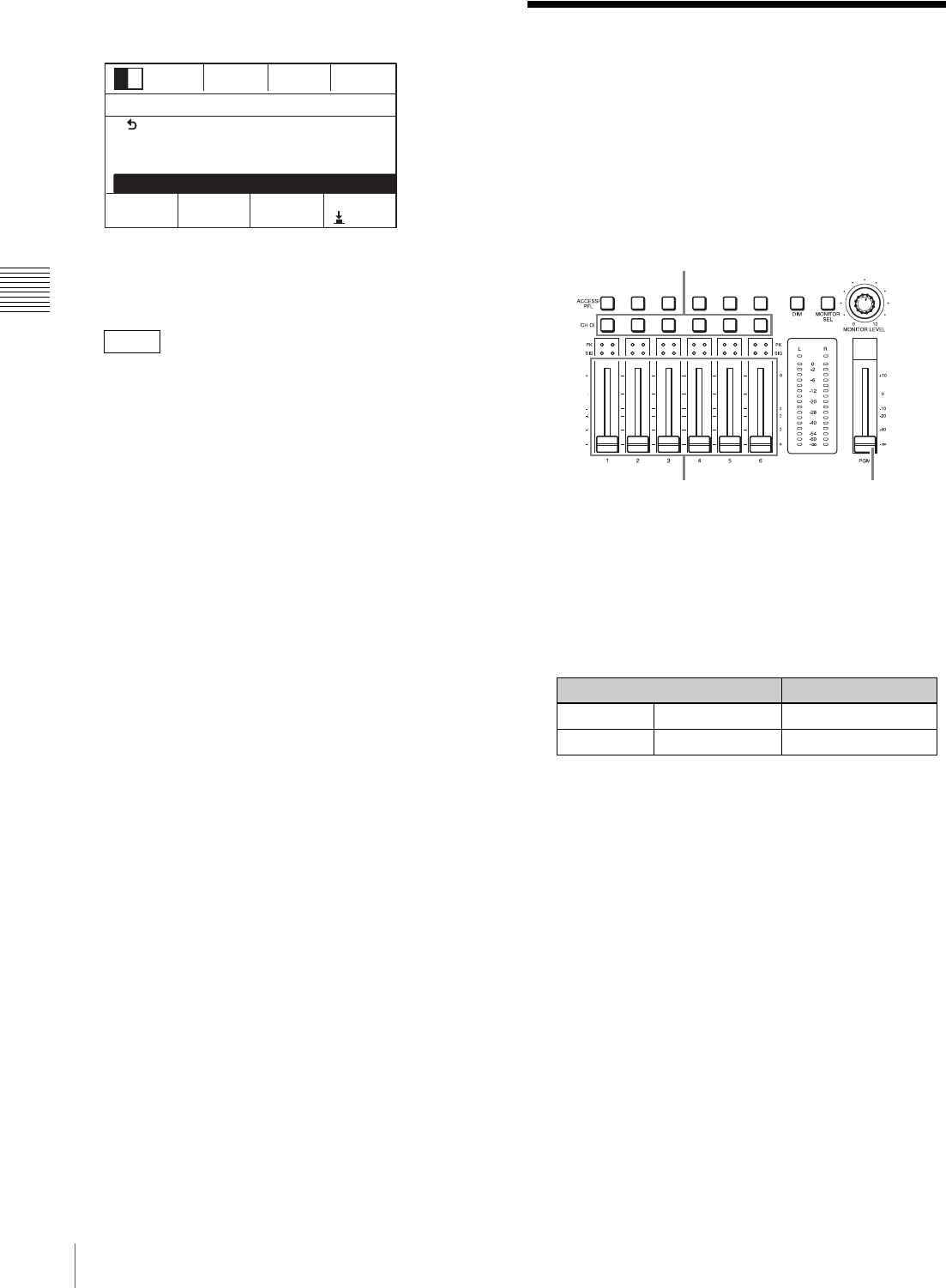
10
Turn the V1 knob to select [Sample Mark], and press
the V4 knob.
Auto chroma key mode is enabled, and a white sample
mark appears in the PVW image.
To disable auto chroma key mode, press the V4 knob
again.
11
Turn the V1 knob to select [Sample Mark Adjust], and
turn the respective knobs to move the sample mark to
specify the color to remove (i.e., the reference signal
for the chroma key).
You can adjust the size and position of the sample
mark using the following knob operations.
1) The setting range will vary depending on the size setting.
Knob Parameter Meaning Setting values
V4 Type Key type
selection
Lum (luminance key),
Lin (linear key), Chr
(chroma key)
Knob Parameter Meaning Setting values
V3Source Key source
selection mode
Self, Auto, Split
0001
Rate
30
SS Mon
PGM
Key 2/27
Select Type
Chr
Back
Key Transition
Key Type Select
Resizer
0001
Rate 30 SS Mon
PGM
Key 4/27
Select Source Fill
Self Bus
Key Transition
Key Type Select
Resizer
Key Fill/Src Select
Tip
Knob Parameter Meaning Setting values
V2 Pos H Horizontal
position –100.00 to +100.001)
(0.00)
V3Pos V Vertical
position –100.00 to +100.001)
(0.00)
V4 Size Size 1.00 to 100.00
(25.00)
0001
Rate
30
SS Mon
PGM
Auto Chromakey 1/3
Select Mark
Back
Sample Mark
Sample Mark Adjust
Auto Adjust Execute
Enter
Sample mark
0001
Rate 30 SS Mon
PGM
Auto Chromakey 2/3
Select Pos V Size
0.00
Back
Sample Mark
Sample Mark Adjust
Auto Adjust Execute
Pos H
0.00 25.00
I-32 Mixing Audio
Chapter 3 Basic Operations
12
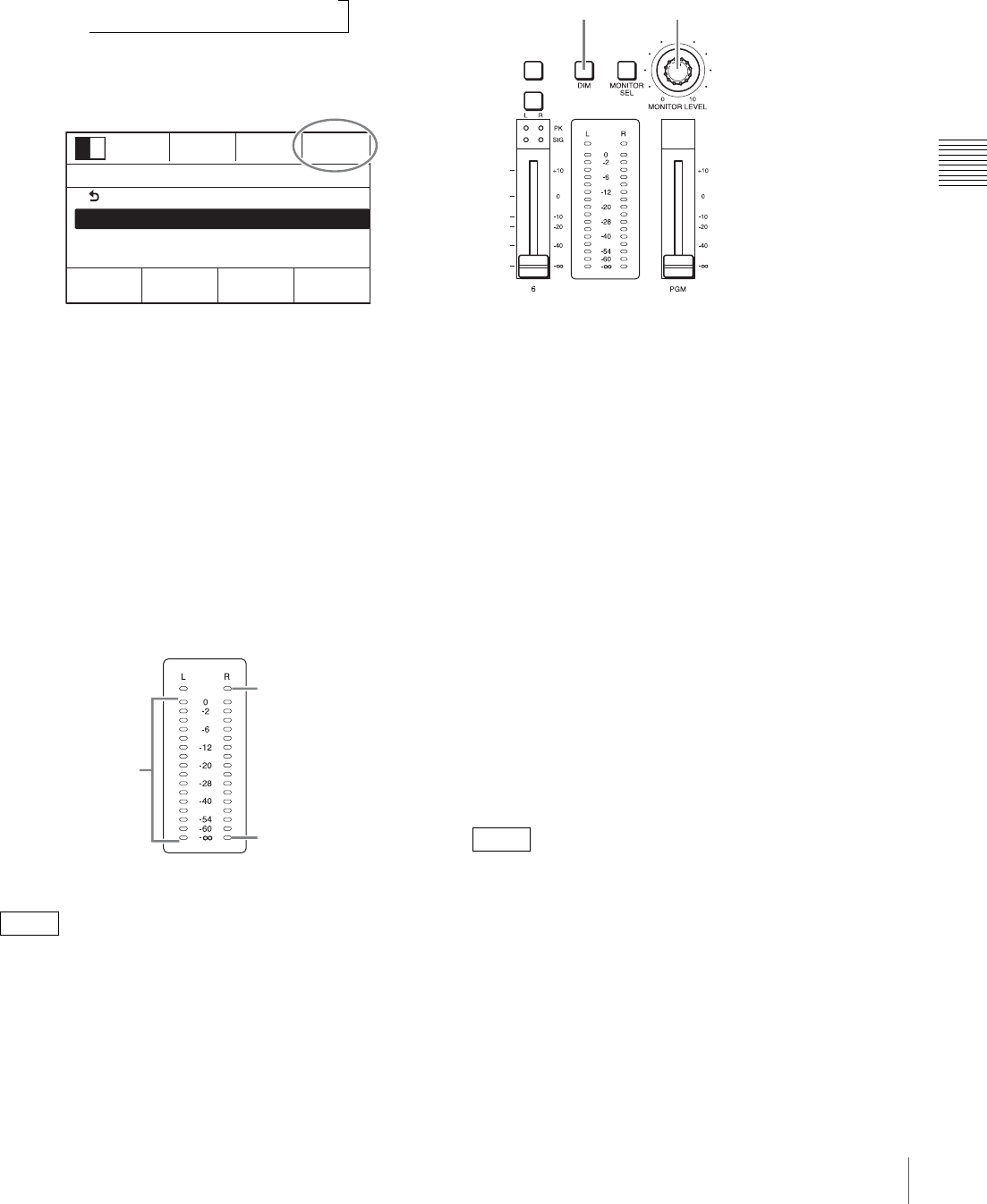
Turn the V1 knob to select [Auto Adjust Execute], and
press the V4 knob.
Auto chroma keying is executed using the color
specified with the sample mark as a reference signal,
and the composed image is output in the PVW area.
After the auto chroma keying is executed, the sample
mark disappears automatically.
13
Execute the transition.
The image of the PST/KEY cross-point button is
superimposed on the program video output.
You can also configure the duration for video composition (transition
rate). For details on configuration, see the “Configuring the Transition
Rate” (page I-27).
Chroma key settings can be saved as “snapshots” and recalled when
necessary. For details, see “Snapshots” (page I-34).
Mixing Audio
Mix audio that is input to the unit, and output the final
audio (i.e., program output) from the PGM OUT connector
of the audio output block.
Input signals must be assigned to the channel faders (1 to 6) in the audio
control block beforehand. For details on configuration, see “Assigning
Audio Input Signals to the Channel Faders” (page I-21).
1
In the audio control block, press the CH ON buttons
for the channels to which the audio signals you want to
mix are assigned to light them.
The button lights green or turns off with each press.
CH ON button status
2
Adjust the audio levels using each channel fader to
perform mixing.
3
Use the program fader to adjust the audio level of the
program output.
If the peak indicators light red or the input signal indicators do not
light, see “Configuring the Mic/Line Levels for Audio Inputs” (page
I-22) and adjust the mic/line levels.
Tip
0001
Rate 30 SS Mon
PGM
Auto Chromakey 3/3
Select Start
Back
Sample Mark
Sample Mark Adjust
Auto Adjust Execute
Enter
Button status Meaning
Lit green On Audio is output
Not lit Off (default) Audio disabled
1
23
I-33
Mixing Audio
Chapter 3 Basic Operations
Switching audio for monitoring
Press the MONITOR SEL button to select [PGM].
The button lights orange for a moment and the audio for
monitoring switches in the following sequence with each
press.
The current selection appears at the top right of the menu
screen.
Audio for monitoring
PGM: Audio output from the PGM OUT L and R
connectors
AUX1: Audio output from the AUX OUT 1 connector
AUX2: Audio output from the AUX OUT 2 connector
MIX: Audio output from the MIX OUT L and R
connectors
Viewing the audio level meters
The audio level meters display the levels of the audio
selected with the MONITOR SEL button within a 0 dB to
–60 dB range (16 levels).
• Peak hold is performed.
• During PFL (pre-fade listen), the PFL audio levels are
displayed.
Adjusting audio levels for monitoring
Use the MONITOR LEVEL adjustment knob and the DIM
button to adjust the level of the audio that is output to
devices connected to the MON OUT L and R connectors
and the HEADPHONES connector.
MONITOR LEVEL adjustment knob
Turn the knob to perform adjustment of the audio level for
monitoring.
DIM button
Pressing the button lights it orange and enables the dimmer
function, which lowers the monitor level 20 dB. Pressing
the button again disables the dimmer function and returns
the original monitor level.
Monitoring the Audio of a Particular
Channel Only
Use the Pre-Fade Listening (PFL) function to check the
audio on a channel without the channel fader adjustments.
You can do this, for example, on the MON OUT L and R
connectors and the HEADPHONES connector.
Hold down the ACCESS/PFL button for the channel you
want to monitor for at least 0.5 seconds. While the button
is held down, the audio for that channel is monitored.
When you release the ACCESS/PFL button, the
monitoring is ended.
• If you press another ACCESS/PFL button for at least 0.5
second during PFL, the sound of the subsequently
specified channel is added.
• This does not affect the program output, AUX output, or
MIX output.
PGM t AUX1 t AUX2 t MIX
Tips
R
0001
Rate
30
SS Mon
PGM
Audio Channel1 1/11
Select Level
0dB
Back
Input Trim
Filter
Equalizer High
The lowest level, –∞,
is always lit green.
Each level lights
green as it is
exceeded.
Over level display
Lights red when the
level reaches 0 dB.
Tips
MONITOR LEVEL adjustment knobDIM button
I-34 Snapshots
Chapter 3 Basic Operations
Snapshots
The snapshot function allows you to save effect and key
settings for specific scenes. By saving frequently used
settings as snapshots, you can quickly recall settings when
necessary. Up to 20 snapshots can be saved.
The following information is stored in a snapshot.
• Cross-point button numbers
• Backgrounds/keys
• Effect patterns
• Key setting status
• Transition status
Saving Snapshots
1
Press the SNAPSHOT button in the numeric keypad
block to light it.
2
Use the numeric buttons to enter the number (1 to 20)
under which to save the snapshot.
The number entered appears as the snapshot number in
the menu screen.
If a snapshot is not currently registered to the number
entered, “E” (empty) will appear to the left of the
number.
3
Press the STORE button.
The snapshot is registered.
If you enter a number that is already in use, the
previous snapshot will be overwritten.
Example: When registered to number 8
Snapshots can be exported to and imported from USB flash drive. For
details on operations, see “Importing Snapshots” (cAdvanced
Settings).
Recalling Snapshots
1
Press the SNAPSHOT button in the numeric keypad
block to light it.
2
Use the numeric buttons to enter the number of the
snapshot to recall.
The number entered appears as the snapshot number in
the menu screen.
If a snapshot is not currently registered to the number
entered, “E” (empty) will appear to the left of the
number.
3
Press the ENTER button.
The snapshot is recalled.
Tip
12
3
Tip
Tip
0001
Rate 30SS Mon
PGM
Misc 1/4
Select Key FTB
Transition Rate (1/2)
Transition Rate (2/2)
Color BKGD
Port Enable
Effect
303030
8
12
3
I-35
Saving and Selecting Settings
Chapter 3 Basic Operations
To recall a snapshot without changing the cross-point,
press the ENTER button while holding down the PGM
cross-point button and/or PST/KEY cross-point
button.
Saving and Selecting
Settings
You can save the current settings for effects, keys, and
setup.
You can also select whether to start up the unit with the
saved settings or with the factory default settings.
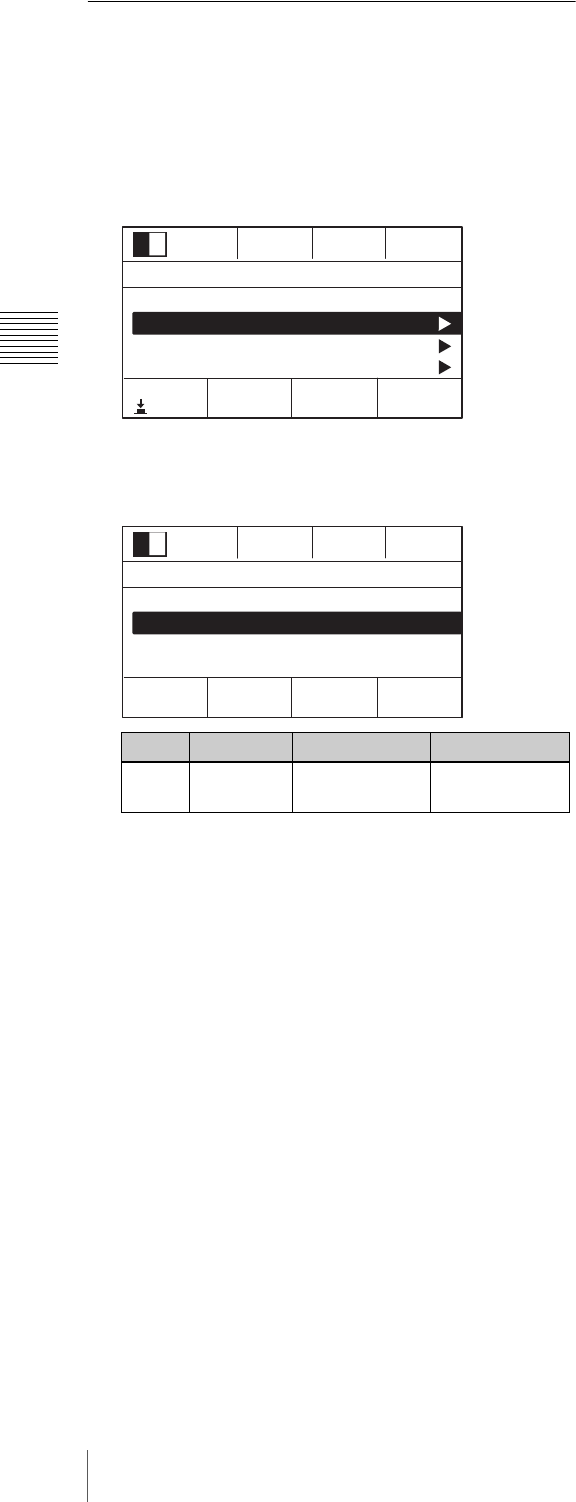
Saving Settings
1
Press the SETUP button to display the [Setup] menu.
2
Turn the V1 knob to select [Startup Define], and press
the V4 knob.
The effect, key, and setup settings are saved.
When settings are saved, the [Startup Mode] automatically
changes to [User].
The current settings will be lost if the unit is turned off
without saving.
Tip
Bus
delegation Cross-point row Unchanged
cross-point
BKGD PGM PGM bus
PST/KEY PST bus
KEY PGM PGM bus
PST/KEY KEY bus (Fill bus
and Source bus)
Tip
Note
0001
Rate
30
SS Mon
PGM
Setup 1/11
Select Store
Startup Define
System
Audio
Video (Input)
Enter
I-36 Saving and Selecting Settings
Chapter 3 Basic Operations
Selecting the Settings Recalled at
Startup
1
Press the SETUP button to display the [Setup] menu.
2
Turn the V1 knob to select [System], and press the
knob.
3
Turn the V1 knob to select [Startup Mode], turn the V4
knob to select the mode, and press the knob.
Notes on setting values
Fact: Factory default settings
User: Saved settings
Knob Parameter Meaning Setting values
V4 Def Recalled
settings
Fact, User
0001
Rate
30
SS Mon
PGM
Setup 2/11
Select
Startup Define
System
Audio
Video (Input)
Enter
0001
Rate 30
SS Mon
PGM
System 5/8
Select Def
User
REF OUT Phase
Startup Mode
Date
Time
I-37
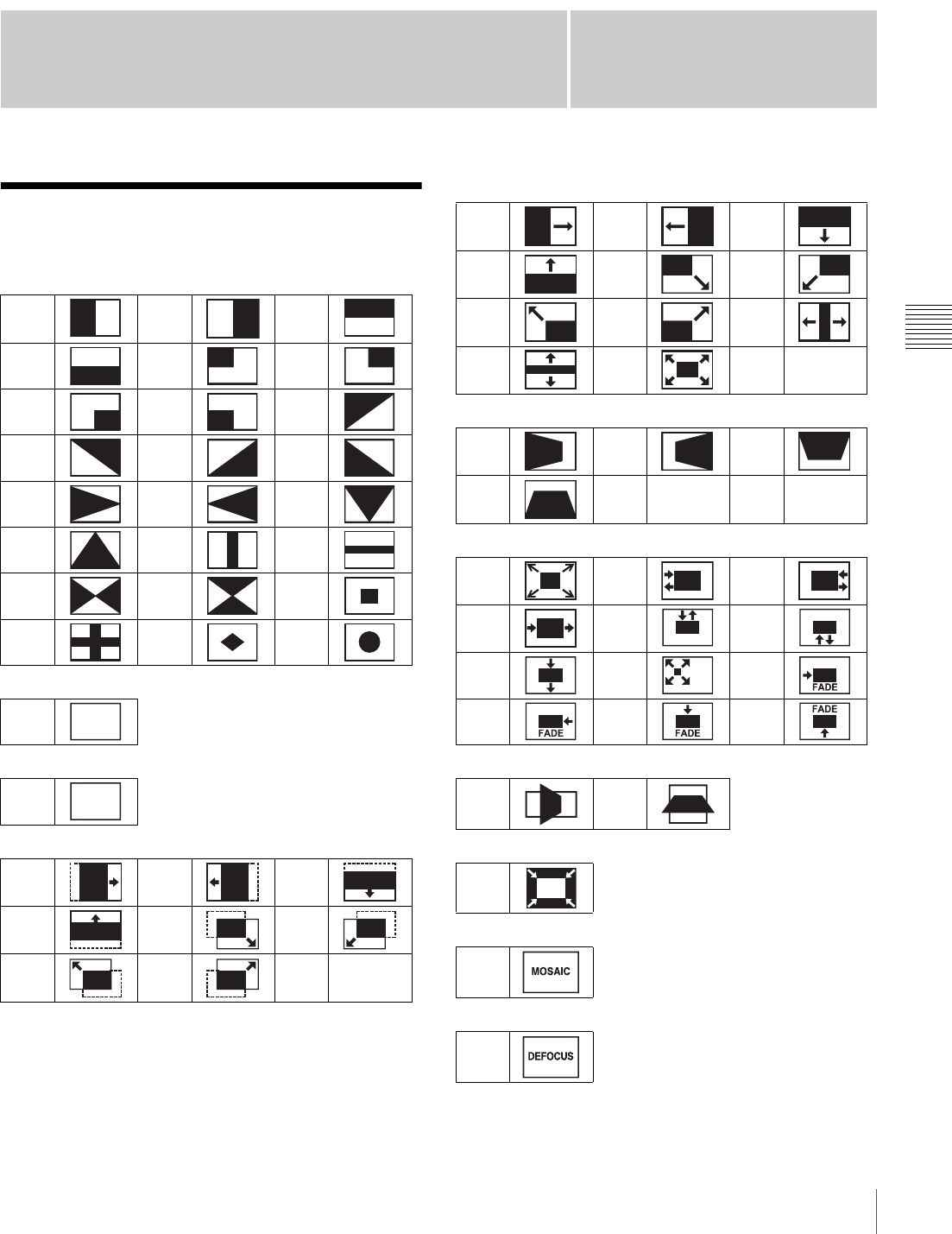
Effect Pattern List
Appendix
Appendix
Effect Pattern List
Wipe
Mix
NAM (non-additive mix)
Slide
Squeeze
Door
Frame In/Out
Flip Tumble1)
PinP (picture-in-picture)1)
Mosaic1)
Defocus1)
1) Can only be used for BKGD transitions.
123
456
789
10 11 12
13 14 15
16 17 18
19 20 21
22 23 24
900
901
1001 1002 1003
1004 1005 1006
1007 1008
MIX
NAM
1021 1022 1023
1024 1025 1026
1027 1028 1029
1030 1031
1041 1042 1043
1044
1201 1202 1203
1204 1205 1206
1207 1208 1221
1222 1223 1224
1101 1102
1251
1701
1702
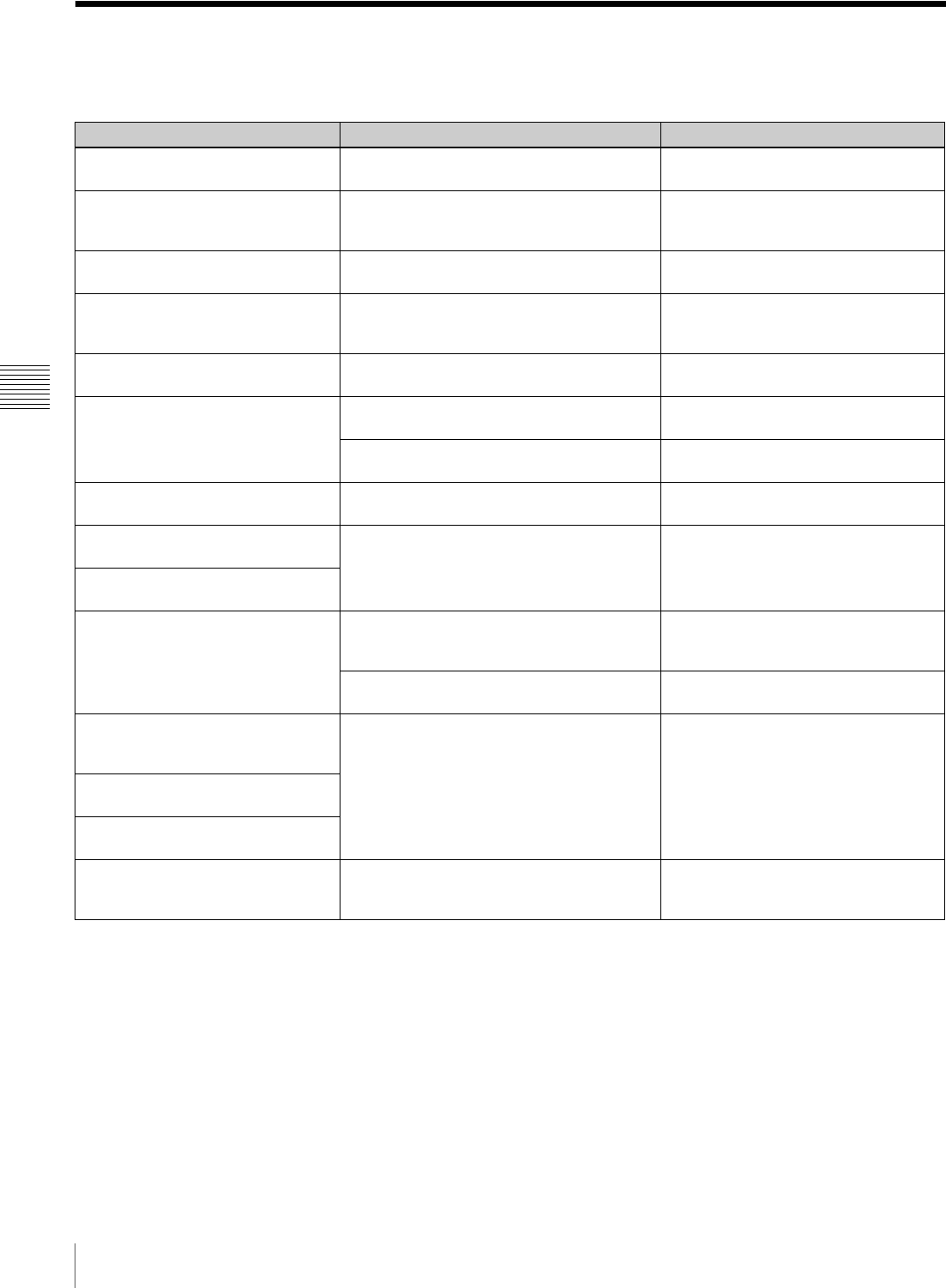
I-38 Troubleshooting
Appendix
Troubleshooting
Please verify the problem again. If the problem persists, contact your local Sony representative.
Problem Possible cause Solution
The video output is not displayed and
the display is black.
The FTB button is lit (on). Turn the FTB button off.
The BKGD and KEY next transition
buttons cannot be selected
simultaneously.
DME wipe is selected for the effect transition
type.
Select an effect transition type other
than DME.
Cannot select DME wipe for the
effect transition type.
DME is selected for the key transition type, or
the resizer function is [On].
Select a key transition type other than
DME, or turn the resizer function [Off].
Cannot select DME wipe for the key
transition type.
DME is selected for the effect transition type,
or the resizer function is [On].
Select an effect transition type other
than DME, or turn the resizer function
[Off].
[Resizer] cannot be turned [On]. DME wipe is selected for the effect transition
or key transition type.
Select an effect transition or key
transition type other than DME.
CG files do not appear in the list. The file is not saved in the import folder. Save the file in the “\Sony\MCS\FM”
folder.
The file name (including the extension)
consists of 26 characters or more.
Edit the file name to 25 characters or
less (including the extension).
Alpha channel video cannot be
imported.
The CG files that include alpha channels
were not created properly.
Create CG files that include alpha
channels in TGA or TIFF format.
The menu selection buttons do not
function.
Entry of an effect pattern number or snapshot
number is in progress in the numeric keypad
block.
Operate the menu after you finish
entering the effect pattern number or
snapshot number.
Movement to sub-menus (lower
menu levels) is disabled.
The FTB button in the transition
control block does not function.
AUX 1 or AUX 2 is delegated to the cross-
point control block (i.e., the AUX 1 or AUX 2
bus delegation button is selected).
Change the bus delegation button
selection to BKGD or KEY.
[Fade To Black] is set to [Disbl] in the [Setup]
menu >[Video (Misc)] menu.
Set [Fade To Black] to [Enbl].
The KEY TRANS button in the
transition control block does not
function.
AUX 1 or AUX 2 is delegated to the cross-
point control block (i.e., the AUX 1 or AUX 2
bus delegation button is selected).
Change the bus delegation button
selection to BKGD or KEY.
The EFF button in the transition
control block does not function.
The KEY next transition button does
not turn on (i.e., light).
After configuring the date and time
settings, the settings appear
incorrectly after restarting the power.
If the date and time appear incorrectly, the
internal battery may be weak.
Contact your local Sony representative.
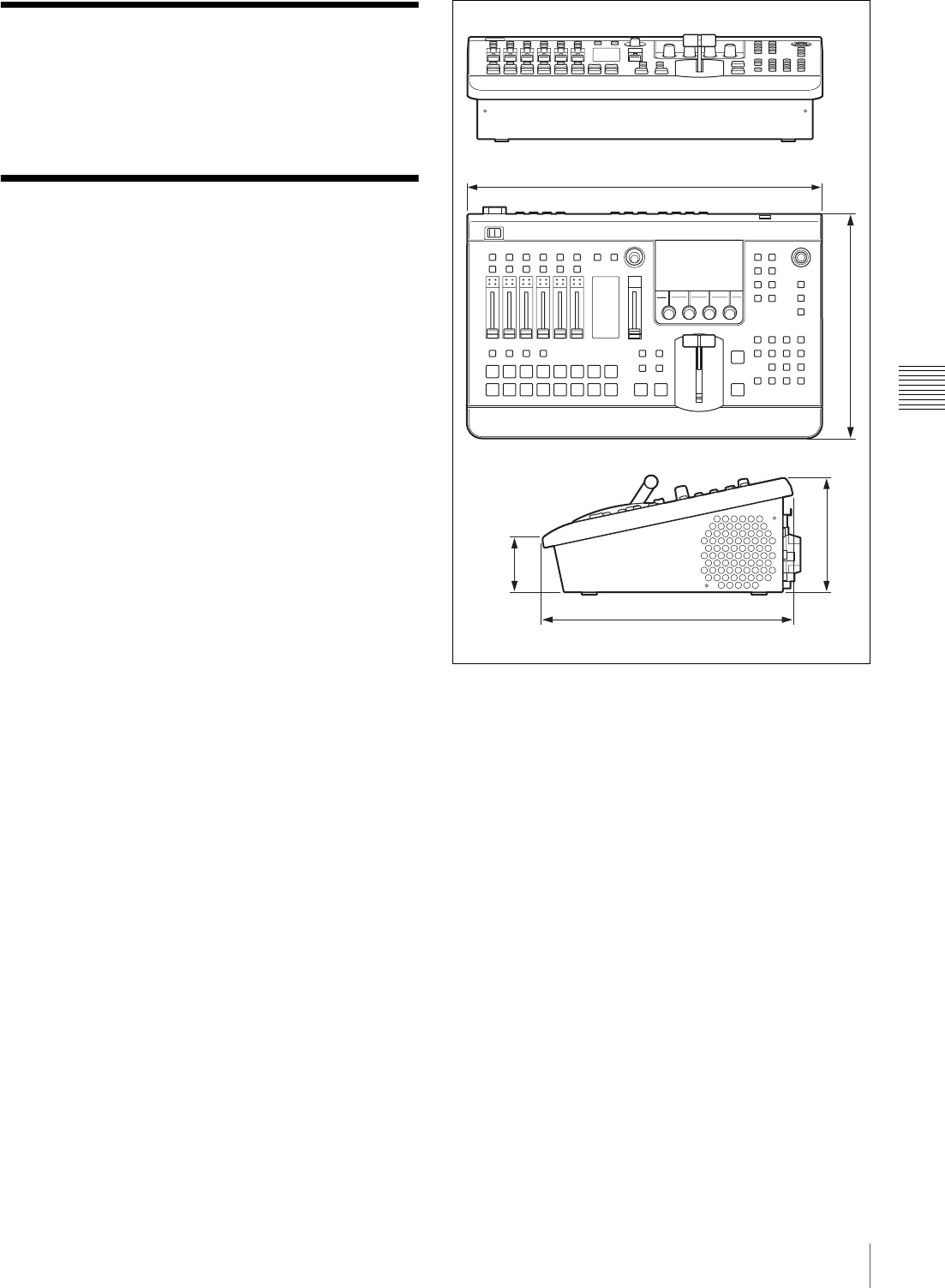
I-39
Maintenance / Specifications
Appendix
Maintenance
Remove dust from the ventilation holes once a month or
whenever the holes are dirty.
Specifications
General
Supported formats
1080i/ 50 Hz, 59.94 Hz
720p/ 50 Hz, 59.94 Hz
480i/ 59.94 Hz
576i/ 50 Hz
Power 100 to 240 V AC ±10%, 50/60 Hz
Power consumption
100 V: 0.7 A, 240 V: 0.3 A
Inrush current (1) Maximum possible inrush current at
initial switch-on (Voltage changes
caused by manual switching):
40 A peak, 10 A r.m.s. (240 V AC)
(2) Inrush current after a mains
interruption of five seconds (Voltage
changes caused at zero-crossing):
10 A peak, 5 A r.m.s. (240 V AC)
Operation guarantee temperature
5 °C to 40 °C (41 °F to 104 °F)
Performance guarantee temperature
10 °C to 35 °C (50 °F to 95 °F)
Storage temperature
–20 °C to +60 °C (–4 °F to +140 °F)
Dimensions 420 × 122 × 265 mm
(16 5/8 × 4 7/8 × 10 1/2 in.)
(WHD, excluding protrusions)
Mass Approx. 5.0 kg (13 lb. 4 oz.)
Video signals
Video input
SDI BNC (4), 75 Ω, 0.8 Vp-p ±10%,
1.5 Gbps, 270 Mbps
SMPTE-292M, SMPTE-299M,
SMPTE-259M-C, SMPTE-272M-A
HDMI HDMI (Type A) (3)
HDCP not supported, CEC not supported
DVI-I DVI (1) (DVI-IN)
HDCP not supported, digital/analog RGB
supported
Composite BNC (3), 1 Vp-p ±2 dB, negative sync
(75 Ω)
Reference BNC (2), loop through 75 Ω
Analog black burst or tri-level sync signal
+6 dB to –3 dB reference value
420 mm (16 5/8 in.)
265 mm (10 1/2 in.)
265 mm (10 1/2 in.)
122 mm (4 7/8 in.)
58 mm
(2 3/8 in.)
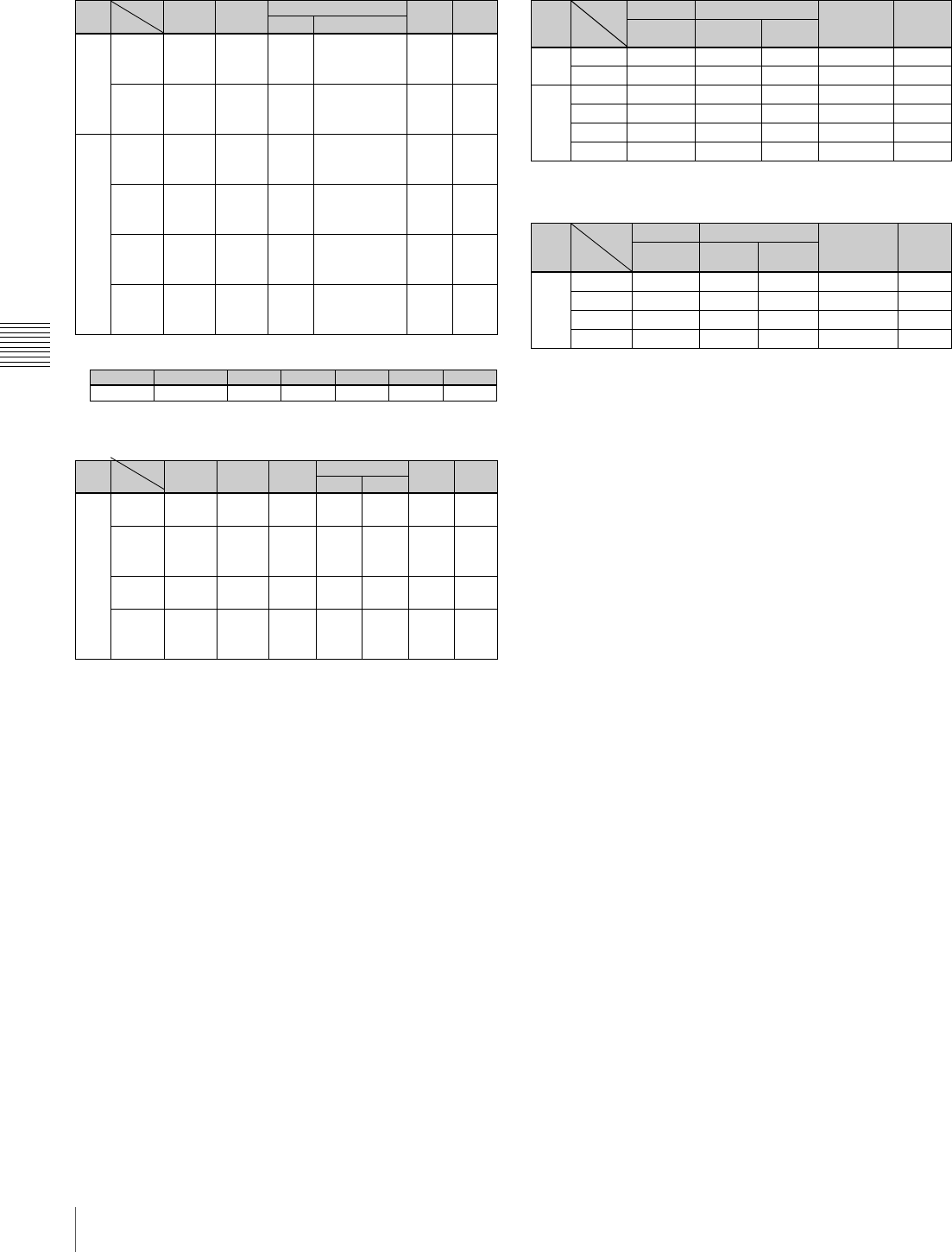
I-40 Specifications
Appendix
Supported input formats
• HD/SD system
1) WXGA (1280 × 768) supports only the following formats.
• 3D system (Single, Dual Stream)
Video output
SDI BNC (4), 75 Ω, 0.8 Vp-p ±10%,
1.5 Gbps, 270 Mbps
SMPTE-292M, SMPTE-299M,
SMPTE-259M-C, SMPTE-272M-A
DVI-D DVI (2) (AUX, MULTI VIEWER)
HDCP not supported
Composite BNC (1), 1 Vp-p ±2 dB, negative sync
(75 Ω)
Output material identical to DVI-D
(AUX) output
Reference BNC (1), 75 Ω
black burst signal,
NTSC: 0.286 Vp-p ±2 dB, negative sync
(75 Ω)
PAL: 0.3 Vp-p ±2 dB, negative sync
(75 Ω)
Supported output formats
• HD/SD system
• 3D system (Single, Dual Stream)
1) MV: MULTI VIEWER
Audio signals
Audio input
Analog input 1 and 2
XLR+TRS combo (2)
(MIC/LINE 1 and 2), male
Reference input level: –44 dBu, –20 dBu,
+4 dBu, input impedance: 3.3 kΩ or
more
Analog input 3 to 6
TRS phone (4) (MIC/LINE 3 to 6)
Reference input level: –44 dBu, –20 dBu,
+4 dBu, input impedance: 3.3 kΩ or
more
Analog input 7 and 8
Phono jack (2) (LINE 7 and 8)
Reference input level: –10 dBu,
input impedance: 10 kΩ or more
Audio output
Analog output 1 and 2
XLR (2) (PGM OUT L and R), female
Reference level: +4 dBu (10 kΩ load),
max. output level: +24 dBu,
output impedance: 150 Ω
Analog output TRS phone (4)
(AUX 1/AUX 2/MON L/MON R)
Reference level: +4 dBu (10 kΩ load),
max. output level: +24 dBu,
output impedance: 150 Ω
Analog output Phono jack (2) (MIX L/MIX R)
Reference level: 10 dBu (10 kΩ load),
max. output level: 10 dBu,
output impedance: 470 Ω
SD/HD Input
Format
SDI IN
1 to 4 HDMI IN
1 to 3 DVI-I IN VIDEO IN
1 to 3 REF IN
Digital Analog1)
SD 576i/50 576i/50 Not
supported
Not
supported
XGA (1024×768) / 60
SXGA (1280×1024) /
60
WXGA) 1280×768) /
60
PAL PAL BB
480i/59.94 480i/59.94 Not
supported
Not
supported
XGA (1024×768) / 60
SXGA (1280×1024) /
60
WXGA) 1280×768) /
60
NTSC NTSC BB
HD 1080i/50 1080i/50 1080i/50 1080p/50 XGA (1024×768) / 60
SXGA (1280×1024) /
60
WXGA) 1280×768) /
60
Not
supported
PA L B B
1080i/50
(tri-level)
1080i/59.94 1080i/59.94 1080i/59.94 1080p/60 XGA (1024×768) / 60
SXGA (1280×1024) /
60
WXGA) 1280×768) /
60
Not
supported
NTSC BB
1080i/
59.94
(tri-level)
720p/50 720p/50 720p/50 Not
supported
XGA (1024×768) / 60
SXGA (1280×1024) /
60
WXGA) 1280×768) /
60
Not
supported
PA L B B
720p/50
(tri-level)
720p/59.94 720p/59.94 720p/59.94 Not
supported
XGA (1024×768) / 60
SXGA (1280×1024) /
60
WXGA) 1280×768) /
60
Not
supported
NTSC BB
720p/
59.94
(tri-level)
Resolution Frequency (Hz) fs (MHz) fH (KHz) fV (Hz) H (pix) V (line)
1280 × 76860 68.250 47.396 59.995 1440 790
SD/HD Input
Format
SDI IN
1 (L) 2 (R) SDI IN
3 (L) 4 (R) HDMI IN
1 to 3 DVI-I IN VIDEO IN
1 to 3 REF IN
Digital Analog
HD 1080i/50 1080i/50 1080i/50 Not
supported
Not
supported
Not
supported
Not
supported
PA L B B
1080i/50
(tri-level)
1080i/59.94 1080i/59.94 1080i/59.94 Not
supported
Not
supported
Not
supported
Not
supported
NTSC
BB
1080i/
59.94
(tri-level)
720p/50 720p/50 720p/50 Not
supported
Not
supported
Not
supported
Not
supported
PA L B B
720p/50
(tri-level)
720p/59.94 720p/59.94 720p/59.94 Not
supported
Not
supported
Not
supported
Not
supported
NTSC
BB
720p/
59.94
(tri-level)
SD/HD Output
Format
SDI OUT DVI-D OUT VIDEO OUT AUX REF OUT
PGM, AUX1,
AUX2, MV AUX MV1)
SD 576i/50 576i/50 Not supported 576i/50 PAL PAL BB
480i/59.94 480i/59.94 Not supported 480i/59.94 NTSC NTSC BB
HD 1080i/50 1080i/50 1080i/50 1080i/50 Not supported PAL BB
1080i/59.94 1080i/59.94 1080i/59.94 1080i/59.94 Not supported NTSC BB
720p/50 720p/50 720p/50 720p/50 Not supported PAL BB
720p/59.94 720p/59.94 720p/59.94 720p/59.94 Not supported NTSC BB
SD/HD Output
Format
SDI OUT DVI-D OUT VIDEO OUT AUX REF OUT
PGM, AUX1,
AUX2 MV1) AUX MV1)
HD 1080i/50 1080i/50 1080i/50 1080i/50 Not supported PAL BB
1080i/59.94 1080i/59.94 1080i/59.94 1080i/59.94 Not supported NTSC BB
720p/50 720p/50 720p/50 720p/50 Not supported PAL BB
720p/59.94 720p/59.94 720p/59.94 720p/59.94 Not supported NTSC BB
I-41
Specifications
Appendix
Headphones output
Standard stereo PHONE (1)
Max. output: 25 mW × 2 (16 Ω load)
Other interfaces
USB Type A (1)
REMOTE 9-pin D-sub (1), male, RS-232C,
38.4 k Baud
TALLY/GPI 15-pin D-sub (1), male
Input: 4 ch, output: 8 ch Open Corrector
(max. current 5 mA or less, max.
voltage 5 V or less)
Supplied accessories
75-Ω termination resistor (1)
Operating Instructions (Volume I Basic Operation)
(Japanese and English, 1 each) (this document)
CD-ROM (Operating Instructions (Volume I Basic
Operation/Volume II Advanced Settings)) (1)
Warranty (1)
Optional accessories
1 AC power code (for USA and Canada)
125 V, 10 A, 2.4 m (7 ft. 10 1/2 in.)
Part number: 1-551-812-31
1 AC power code (for Europe)
250 V, 10 A, 2.5 m (8 ft. 2 1/2 in.)
Part number: 1-782-929-12
1 AC power code (for China)
250 V, 10 A, 1.83 m (6 ft. 1/2 in.)
Part number: 1-830-860-11
2 Holder, Plug (Black)
Part number: 2-990-242-01
Design and specifications are subject to change without
notice.
1
2
AC inlet
(Unit)
• Always make a test recording, and verify that it was
recorded successfully.
SONY WILL NOT BE LIABLE FOR DAMAGES OF
ANY KIND INCLUDING, BUT NOT LIMITED TO,
COMPENSATION OR REIMBURSEMENT ON
ACCOUNT OF FAILURE OF THIS UNIT OR ITS
RECORDING MEDIA, EXTERNAL STORAGE
SYSTEMS OR ANY OTHER MEDIA OR STORAGE
SYSTEMS TO RECORD CONTENT OF ANY
TYPE.
• Always verify that the unit is operating properly before
use. SONY WILL NOT BE LIABLE FOR
DAMAGES OF ANY KIND INCLUDING, BUT
NOT LIMITED TO, COMPENSATION OR
REIMBURSEMENT ON ACCOUNT OF THE LOSS
OF PRESENT OR PROSPECTIVE PROFITS DUE
TO FAILURE OF THIS UNIT, EITHER DURING
THE WARRANTY PERIOD OR AFTER
EXPIRATION OF THE WARRANTY, OR FOR
ANY OTHER REASON WHATSOEVER.
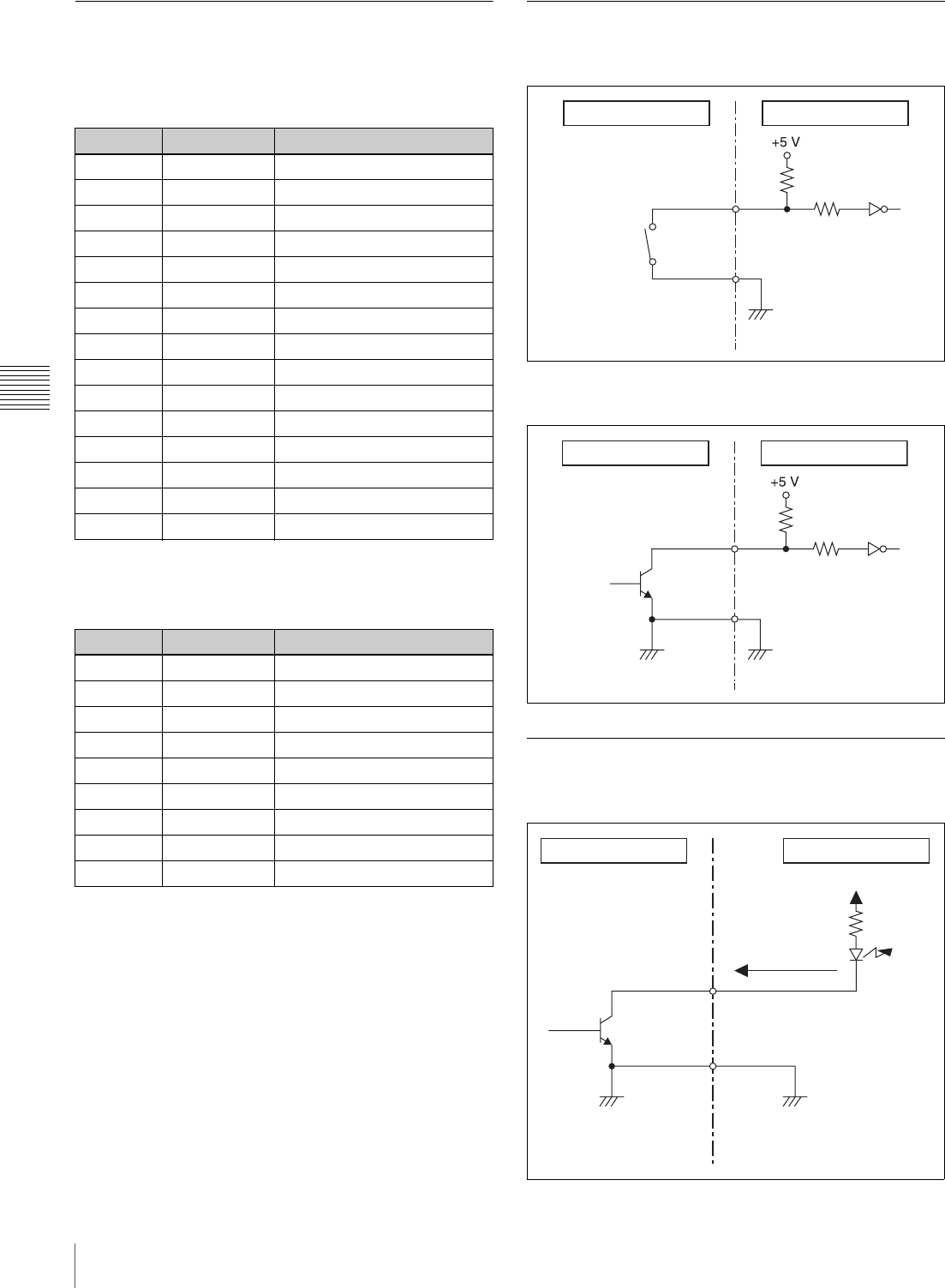
I-42 Specifications
Appendix
Pin Configurations
TALLY/GPI connector
15-pin D-sub, male
REMOTE connector
RS-232C, 9-pin D-sub, male
Example Connection of GPI Input
Switch or relay connection
Open collector connection
Example Connection of Tally/GPI
Output
Pin No. Signal name Description
1 GPO1 GPI output 1 / tally 1
2 GPO2 GPI output 2 / tally 2
3GPO3GPI output 3 / tally 3
4 GPO4 GPI output 4 / tally 4
5 GPO5 GPI output 5 / tally 5
6 GPO6 GPI output 6 / tally 6
7 GPO7 GPI output 7 / tally 7
8GPO8GPI output 8 / tally 8
9GNDGND
10 GND GND
11 GPI1 GPI input 1
12 GPI2 GPI input 2
13GPI3GPI input 3
14 GPI4 GPI input 4
15 GND GND
Pin No. Signal name Description
1 – No Connection
2 RX Received Data
3TX Transmitted Data
4 DTR Data Terminal Ready
5 GND Ground
6 DSR Data Set Ready
7 RTS Request to Send
8CTS Clear to Send
9 – No Connection
External device MCS-8M
10 kΩ
1 kΩ
External device MCS-8M
10 kΩ
1 kΩ
External deviceMCS-8M
Maximum voltage: 5 V
Maximum load
current: 5 mA
Index
I-43
Index
Index
Numerics
3D Mode II-41, II-48
3D System II-40
8/SHIFT I-11
A
ACCESS/PFL Button I-9, I-33, II-31
Adjustment Knobs 1 to 4 I-10
Incremental Adjustment I-11
Aspect II-17, II-26, II-30
Aspect Ratio I-17
Audio I-21, I-32
Mixing I-32
Monitoring I-33
Audio Channel Menu II-31
AUX OUT Assign II-33
Equalizer High II-32
Equalizer Low II-32
Equalizer Mid II-32
Filter II-31
Input Trim II-31
Limiter/Compressor II-32
MIX OUT Assign II-33
Pan II-32
PGM Assign II-33
Audio Control Block I-9
Audio Input Assign I-21, II-49
Audio Input Block I-13
Audio Input Signals I-21
Audio Inputs I-22
Audio Level Meters I-9, I-33
Audio Menu II-49
Audio Input Assign II-49
Audio Output Delay II-50
MIC/LINE Level II-49
Oscillator II-50
Output Level II-50
SDI OUT AUX Assign II-50
SDI OUT MULTI VIEWER
Assign II-50
SDI OUT PGM Assign II-49
Audio Mixing II-31
Audio Monitor I-10
Audio Output Block I-13
Audio Output Delay II-50
Auto Adjust Execute I-32, II-27
Auto Chromakey Menu II-27
Auto Adjust Execute II-27
Sample Mark II-27
Sample Mark Adjust II-27
AUTO TRANS Button I-11, I-26, II-8
AUX 1 and 2 Buttons I-11
AUX OUT Assign II-33
B
BKGD Button I-11, I-12, I-35
Border Adjust II-25
Border Matte Adjust II-25
Bus Delegation II-9
Bus Delegation Button
I-11, I-29, I-35, II-9, II-19
AUX 1 and 2 Buttons I-11, II-9
BKGD Button I-11, I-35, II-9
KEY Button I-11, I-29, I-35, II-9,
II-19, II-20
C
CH ON Button I-9, I-32
Channel Fader I-9, I-21, I-32, II-31
Chr I-31
Chr Key Adjust II-28
Chr Key Window II-28
Chr Key Window Adj II-28
Chroma Key I-28, I-30
Detailed Adjustments II-21
Chromakey Auto Adj I-31, II-24
Chromakey Manual Adj II-24
Color BKGD II-8
Color Cancel II-28
Color Cancel Adjust II-28
Compressor II-32
Configuration Data II-37
Crop H II-18
Crop V II-18
Cropping II-13
Cross-Point Button I-19, I-25
Assigning Video Signals I-19
Switching I-25
Cross-Point Control Block I-11
CUT Button I-11, I-25
D
Date I-18
Date and Time I-18
Defocus I-37
Digital Multi Effect II-7, II-20
DIM Button I-9, I-33
Dimmer I-33
Direct Selection I-27
DIRECT/ESC Button I-12, I-28
DME II-7, II-20
DME Wipe II-13
Basic Operations II-13
Detailed Adjustments II-13
DME Wipe Adjust II-15
DME Wipe Bkgd Color II-16
DME Wipe Edge II-16
DME Wipe Edge Color II-16
DME Wipe Modify Menu II-18
Crop H II-18
Crop V II-18
Positioner II-18
Positioner Adjust II-18
Size II-18
Door I-37
DVI I-20, II-51
DVI Input Signals II-51
DVI OUT AUX Assign II-53
DVI OUT MULTI VIEWER
Assign II-53
DVI Video Inputs I-20
E
EFF Button I-10, I-11, I-12, I-28, I-29,
I-30, II-10, II-15, II-19
Effect I-26
Effect Menu II-15
DME Wipe Adjust II-15
DME Wipe Bkgd Color II-16
DME Wipe Edge II-16
DME Wipe Edge Color II-16
Effect Transition II-15
Wipe Adjust II-15
Wipe Edge II-15
Wipe Edge Color II-15
Effect Pattern List I-37
Effect Transition II-15
Effects I-26
ENTER Button I-12, I-28, I-34
Equalizer II-32
Equalizer High II-32
Equalizer Low II-32
Equalizer Mid II-32
Export II-36
Export Config II-37
Export Snapshot II-38
Exporting II-36, II-37, II-38
Configuration Data II-37
Frame Memory II-36
Snapshot II-38
F
F1 and F2 Buttons I-10
Fade To Black II-54
Fader Lever I-12, I-26
FILE Button I-10, II-37
File Menu II-37, II-38, II-39
Export Config II-37
Export Snapshot II-38
Import Config II-38
Import Snapshot II-39
USB Memory Format II-39
Fine Key II-25
Fine Key Adjust H II-25

I-44 Index
Index
Fine Key Adjust V II-25
Flip Tumble I-37
FM Button I-10, II-34
Formatting USB Flash Drive II-39
Frame In/Out I-26, I-37
Frame Memory II-34
Frame Memory Freeze II-35
Frame Memory Menu
II-34, II-35, II-36
Export II-36
Frame Memory Freeze II-35
Import II-36
Input Freeze II-34
Select II-35
Freezing II-34
Front Panel I-9
FTB Button I-11, II-8, II-54
G
GPI Input I-42, II-43, II-44
GPI Output I-42, II-43
GPI Output/Tally II-45
GPI/Tally Menu II-44
GPI Input II-44
GPI Output/Tally II-45
On Air Source II-46
H
HDMI II-51
I
Import II-36
Import Config II-38
Import Snapshot II-39
Importing II-36, II-38, II-39
Configuration Data II-38
Image II-36
Snapshot II-39
Information II-54
Input Freeze II-34
Input Reference Signals II-47
Input Signal Indicator I-9, I-22
Input Trim II-31
K
Key I-28, II-19
Basic Operations II-19
Detailed Adjustments II-20
KEY Button I-10, I-11, I-12, I-29,
I-35, II-19, II-20, II-23
Key DME Wipe II-24
Key DME Wipe Modify Menu II-30
Positioner II-30
Positioner Adjust II-30
Size II-30
Key Edge Type II-25
Key Fill Mat Adjust II-23
Key Fill/Src Select II-23
Key Invert II-24
Key Mask II-25
Key Mask Box H II-25
Key Mask Box V II-25
Key Menu II-23
Border Adjust II-25
Border Matte Adjust II-25
Chromakey Auto Adj II-24
Chromakey Manual Adj II-24
Fine Key II-25
Fine Key Adjust H II-25
Fine Key Adjust V II-25
Key DME Wipe II-24
Key Edge Type II-25
Key Fill Mat Adjust II-23
Key Fill/Src Select II-23
Key Invert II-24
Key Mask II-25
Key Mask Box H II-25
Key Mask Box V II-25
Key Soft Edge II-25
Key Transition II-23
Key Type Select II-23
Key Wipe II-24
Key Wipe Edge II-24
Lin Key Adjust II-23
Lin Key Mode II-24
Lum Key Adjust II-23
Lum Key Mode II-23
Resizer II-23
Key Soft Edge II-25
KEY TRANS Button
I-12, II-8, II-20, II-23
Key Transition II-20
Key Type II-21
Key Type Select I-29, I-31, II-23
Key Wipe II-24
Key Wipe Edge II-24
Key Wipe Modify Menu II-29
Aspect II-30
Multi II-30
Multi Adjust II-30
Positioner II-29
Positioner Adjust II-29
Rotation II-29
Rotation Adjust II-29
L
LCD Backlight II-48
Limiter II-32
Limiter/Compressor II-32
Lin Key Adjust II-23
Lin Key Mode II-24
Linear Key I-28, II-21
Location II-26
Lum I-29
Lum Key Adjust II-23
Lum Key Mode II-23
Luminance Key I-28, I-29, II-21
M
Manual Chromakey Menu II-28
Chr Key Adjust II-28
Chr Key Window II-28
Chr Key Window Adj II-28
Color Cancel II-28
Color Cancel Adjust II-28
Menu
Operations I-11
Viewing I-10
Menu Control Block I-10
Menu Selection Button I-10
EFF Button I-10, II-15
FILE Button I-10, II-37
FM Button I-10, II-34
KEY Button I-10, II-23
MENU1 and 2 Buttons I-10
MISC Button I-10, II-8
SETUP Button I-10, I-17, I-18,
I-19, I-20, II-47
MENU1 and 2 Buttons I-10
Message List II-55
MIC/LINE Level I-22, II-49
MISC Button I-10, II-8
Misc Menu II-8
Color BKGD II-8
Port Enable II-8
Transition Rate II-8
Mix I-26, I-27, I-37, II-20
MIX Button
I-11, I-27, I-29, I-30, II-19
MIX OUT Assign II-33
MONITOR LEVEL Adjustment
Knob I-9, I-33
MONITOR SEL Button I-9, I-33
Mosaic I-37
Multi II-17, II-30
Multi Adjust II-17, II-30
Multi Viewer I-23
N
NAM I-37, II-7
Next Transition Selection Button I-11
BKGD Button I-11, I-12
KEY Button I-11, I-12
Non-Additive Mix II-7
Numeric Buttons (0 to 9) I-12, I-27
Numeric Keypad I-27
Numeric Keypad Block I-12

Index
I-45
Index
O
On Air Source II-46
Oscillator II-50
Output Level II-50
P
Pan II-32
Peak Indicator I-9, I-22
PFL I-33
PGM Assign II-33
PGM Cross-Point Button
I-11, I-19, I-25
Pin Configurations I-42
PinP I-37, II-13
Port Enable II-8
POS Button I-10, II-11, II-13
Positioner II-16, II-18, II-29
Positioner Adjust
II-16, II-18, II-29, II-30
Pre-Fade Listen I-33
Preview Video I-23
Program Fader I-9, I-32
Program Video I-23
PST/KEY Cross-Point Button
I-11, I-19, I-25
R
REF OUT Phase II-48
Reference Signal Input/Output
Block I-14
Resizer II-23
Resizer Menu II-26
Aspect II-26
Location II-26
Rotation II-27
Rotation Mode II-26
Rotation II-17, II-29
Rotation Adjust II-17, II-29
Rotation Mode II-26
S
Sample Mark I-31, II-27
Sample Mark Adjust I-31, II-27
Saving Settings I-35
SDI II-51
SDI OUT AUX Assign II-50, II-53
SDI OUT MULTI VIEWER
Assign II-50, II-53
SDI OUT PGM Assign II-49, II-53
Select II-35
Setup II-47
SETUP Button
I-10, I-17, I-18, I-19, I-20, II-47
Setup Menu II-44, II-47, II-49, II-51,
II-52, II-53, II-54
Audio II-49
GPI/Tally II-44
Information II-54
Install II-54
Multi Viewer I-23
Startup Define I-35
System II-47
Video (Input) II-51
Video (Misc) II-54
Video (Output) II-53
Video (XPT) II-52
SHIFT II-52
Signal Assign I-23
Signal Format I-17
Size II-18
Slide I-37
Snapshot I-34, II-38
Recalling I-34
Saving I-34
SNAPSHOT Button I-12, I-34
Specifications I-39
Squeeze I-37
Startup Define I-35
Startup Mode II-48
STORE Button I-12, I-34
System Configuration Example
3D System II-6
HD System I-8
SD System II-5
System Format I-17, II-48
System Menu II-48
3D Mode II-48
Date II-48
LCD Backlight II-48
REF OUT Phase II-48
Startup Mode II-48
System Format II-48
System Reference II-48
Time II-48
System Reference II-48
T
Tally Input I-42
Tally Output II-43
Time I-18
Transition Control Block I-11
Transition Indicator I-11, I-27
Transition Rate I-27, II-8
Transition Rate Area I-10
Transition Type II-7
Transition Type Selection Button
I-11
EFF Button
I-11, I-29, I-30, II-10, II-19
MIX Button
I-11, I-27, I-29, I-30, II-19
Troubleshooting I-38
Turning the Unit On/Off I-16
U
USB Memory Format II-39
V
V1 I-11
V2 I-11
V3 I-11
V4 I-11
VIDEO II-51
Video (Input) I-20
Video (Input) Menu II-51
DVI II-51
HDMI II-51
SDI II-51
VIDEO II-51
Video (Misc) Menu II-54
Fade To Black II-54
Switch Timing II-54
Video (Output) Menu II-53
DVI OUT AUX Assign II-53
DVI OUT MULTI VIEWER
Assign II-53
SDI OUT AUX Assign II-53
SDI OUT MULTI VIEWER
Assign II-53
SDI OUT PGM Assign II-53
VIDEO II-53
Video (XPT) I-19
Video (XPT) Menu II-52
XPT Assign II-52
XPT Shift Mode II-52
Video Input Block I-14
Video Output Block I-14
Video Switching I-25, II-7
Viewer Mode I-23
W
Wipe I-26, I-37, II-7, II-10, II-20
Wipe Adjust II-15
Wipe Edge II-12, II-15
Wipe Edge Color II-15
Wipe Modify Menu II-16
Aspect II-17
Multi II-17
Multi Adjust II-17
Positioner II-16
Positioner Adjust II-16
Rotation II-17
Rotation Adjust II-17
Wipe Patterns II-11
X
XPT Assign I-19, II-52

The material contained in this manual consists of
information that is the property of Sony Corporation and is
intended solely for use by the purchasers of the equipment
described in this manual.
Sony Corporation expressly prohibits the duplication of
any portion of this manual or the use thereof for any
purpose other than the operation or maintenance of the
equipment described in this manual without the express
written permission of Sony Corporation.
Trademarks
HDMI, the HDMI logo and High-Definition Multimedia
Interface are trademarks or registered trademarks of
HDMI Licensing LLC.
Other products or system names appearing in this
document are trademarks or registered trademarks of their
respective owners.
Further, the ® or ™ symbols are not used in the text.
Printed in China
Sony Corporation
