Sony Mobile Communications AB Userguide EN C5503 C5502 7 Android5.1
2017-03-07
: Sony Userguide En C5503-C5502 7 Android5.1 userguide_EN_C5503-C5502_7_Android5.1 c5502
Open the PDF directly: View PDF  .
.
Page Count: 136 [warning: Documents this large are best viewed by clicking the View PDF Link!]
- Contents
- Getting started
- Learning the basics
- Downloading applications
- Internet and networks
- Synchronising data on your device
- Basic settings
- Typing text
- Calling
- Contacts
- Messaging and chat
- Music
- FM radio
- Camera
- Photos and videos in Album
- Videos
- Connectivity
- Mirroring the screen of your device on a TV using a cable
- Mirroring the screen of your device wirelessly on a TV
- Sharing content with DLNA Certified™ devices
- Connecting your device to USB mass storage devices
- Connecting your device to a DUALSHOCK™ series wireless controller
- NFC
- Bluetooth® wireless technology
- One-touch setup
- Smart apps and features that save you time
- Travel and maps
- Calendar and alarm clock
- Accessibility
- Support and maintenance
- Support for your device
- Computer tool
- Updating your device
- Finding a lost device
- Finding the identification number of your device
- Memory and storage
- Managing files using a computer
- Backing up and restoring content
- Resetting your applications
- Restarting and resetting your device
- Recycling your device
- Limitations to services and features
- Legal information

User guide
Xperia™ ZR
C5503/C5502
Contents
Getting started............................................................................... 7
About this User guide........................................................................ 7
Device overview.................................................................................7
Assembly........................................................................................... 8
Screen protection............................................................................ 10
Starting your device for the first time...............................................10
Why do I need a Google™ account?...............................................10
Charging your device.......................................................................11
Learning the basics......................................................................13
Using the touchscreen.....................................................................13
Locking and unlocking the screen...................................................14
Home screen....................................................................................15
Application screen........................................................................... 16
Navigating applications....................................................................17
Small apps.......................................................................................18
Widgets............................................................................................19
Shortcuts and folders...................................................................... 19
Background and themes..................................................................20
Battery and power management..................................................... 21
Taking a screenshot.........................................................................22
Notifications.....................................................................................23
Icons in the status bar..................................................................... 25
Application overview........................................................................27
Downloading applications............................................................29
Downloading applications from Google Play™...............................29
Downloading applications from other sources................................29
Internet and networks.................................................................. 30
Browsing the web............................................................................30
Internet and MMS settings ..............................................................30
Wi-Fi® .............................................................................................31
Sharing your mobile data connection..............................................33
Controlling data usage.....................................................................34
Selecting mobile networks...............................................................35
Virtual private networks (VPNs)........................................................36
Synchronising data on your device..............................................37
Synchronising with online accounts................................................ 37
Synchronising with Microsoft® Exchange ActiveSync®.................37
Basic settings...............................................................................39
Accessing settings...........................................................................39
2
This is an Internet version of this publication. © Print only for private use.
Sound, ringtone and volume ...........................................................39
SIM card protection ........................................................................41
Screen settings................................................................................42
Daydream.........................................................................................43
Screen lock......................................................................................43
Unlocking your device automatically...............................................44
Language settings............................................................................48
Date and time...................................................................................48
Mobile BRAVIA® Engine..................................................................48
Enhancing the sound output............................................................49
Multiple user accounts.....................................................................49
Typing text................................................................................... 52
On-screen keyboard........................................................................52
Phonepad.........................................................................................53
Entering text using voice input........................................................ 54
Editing text.......................................................................................54
Personalising the on-screen keyboard............................................55
Calling.......................................................................................... 57
Making calls.....................................................................................57
Receiving calls.................................................................................58
Ongoing calls...................................................................................59
Using the call log............................................................................. 59
Forwarding calls...............................................................................60
Restricting calls................................................................................60
Multiple calls....................................................................................61
Conference calls..............................................................................62
Voicemail..........................................................................................62
Emergency calls...............................................................................62
Contacts ......................................................................................64
Transferring contacts.......................................................................64
Searching and viewing contacts......................................................65
Adding and editing contacts............................................................66
Adding medical and emergency contact information......................67
Favourites and groups.....................................................................68
Sending contact information............................................................69
Avoiding duplicate entries in the Contacts application................... 69
Backing up contacts........................................................................69
Messaging and chat.....................................................................71
Reading and sending messages......................................................71
Organising your messages.............................................................. 72
Calling from a message................................................................... 73
Messaging settings..........................................................................73
3
This is an Internet version of this publication. © Print only for private use.
Instant messaging and video chat...................................................73
Email.............................................................................................74
Setting up email...............................................................................74
Sending and receiving email messages.......................................... 74
Organising your email messages.....................................................75
Email account settings.....................................................................76
Gmail™............................................................................................76
Music ...........................................................................................78
Transferring music to your device .................................................. 78
Listening to music............................................................................78
Music home screen menu................................................................80
Playlists............................................................................................80
Sharing music..................................................................................81
Enhancing the sound.......................................................................81
Visualiser .........................................................................................82
Recognising music with TrackID™..................................................82
FM radio.......................................................................................84
Listening to the radio.......................................................................84
Favourite radio channels..................................................................85
Sound settings.................................................................................85
Camera.........................................................................................86
Taking photos and recording videos............................................... 86
Face detection.................................................................................87
Using Smile Shutter™ to capture smiling faces..............................88
Adding the geographical position to your photos........................... 88
General camera settings..................................................................88
Still camera settings.........................................................................90
Video camera settings..................................................................... 94
Photos and videos in Album........................................................ 97
Viewing photos and videos..............................................................97
Sharing and managing photos and videos......................................98
Editing photos with the Photo editor application.............................99
Editing videos with the Movie Creator application........................ 100
Hiding photos and videos..............................................................100
Album home screen menu.............................................................101
Viewing your photos on a map......................................................102
Videos........................................................................................ 104
Watching videos in the Video application......................................104
Transferring video content to your device ....................................105
Managing video content................................................................ 105
Movie Creator................................................................................ 105
PS Video service............................................................................106
4
This is an Internet version of this publication. © Print only for private use.
Connectivity............................................................................... 107
Mirroring the screen of your device on a TV using a cable............107
Mirroring the screen of your device wirelessly on a TV.................107
Sharing content with DLNA Certified™ devices............................108
Connecting your device to USB mass storage devices................ 110
Connecting your device to a DUALSHOCK™ series wireless
controller........................................................................................111
NFC................................................................................................111
Bluetooth® wireless technology....................................................113
One-touch setup............................................................................115
Smart apps and features that save you time.............................116
Controlling accessories and settings with Smart Connect™........116
Using your device as a wallet........................................................ 118
Travel and maps.........................................................................119
Using location services..................................................................119
Google Maps™ and navigation..................................................... 119
Using data traffic when travelling.................................................. 120
Using your device with a car infotainment system........................120
Airplane mode................................................................................121
Calendar and alarm clock.......................................................... 122
Calendar.........................................................................................122
Alarm and clock.............................................................................123
Accessibility............................................................................... 125
Magnification gestures...................................................................125
Large text.......................................................................................125
Colour correction...........................................................................125
Hearing aid compatibility...............................................................125
TalkBack........................................................................................125
TTY (Teletypewriter) mode.............................................................126
Slow talk........................................................................................ 126
Support and maintenance..........................................................127
Support for your device.................................................................127
Computer tool................................................................................127
Updating your device.....................................................................127
Finding a lost device .....................................................................129
Finding the identification number of your device...........................129
Memory and storage......................................................................129
Managing files using a computer...................................................131
Backing up and restoring content................................................. 132
Resetting your applications........................................................... 134
Restarting and resetting your device.............................................134
Recycling your device....................................................................136
5
This is an Internet version of this publication. © Print only for private use.
Getting started
About this User guide
This is the Xperia™ ZR User guide for the Android™ 5.1 software version. If you're
not sure which software version your device is running, you can check it via the
Settings menu. For more information about software updates, see
Updating your
device
on page 127 .
To check the current software version of your device
1From your Home screen, tap .
2Find and tap Settings > About phone > Android™ version.
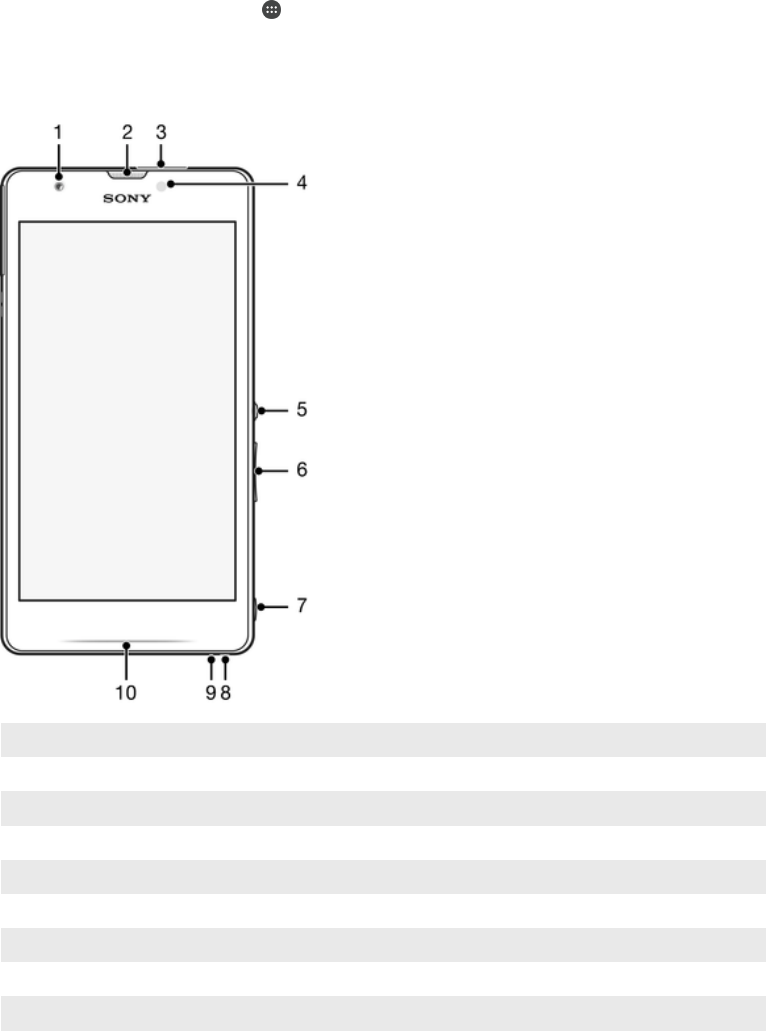
Device overview
1 Front camera lens
2 Ear speaker
3 Headset jack
4 Light sensor
5 Power key
6 Volume/Zoom key
7 Camera key
8 Strap hole
9 Microphone
10 Notification light
7
This is an Internet version of this publication. © Print only for private use.
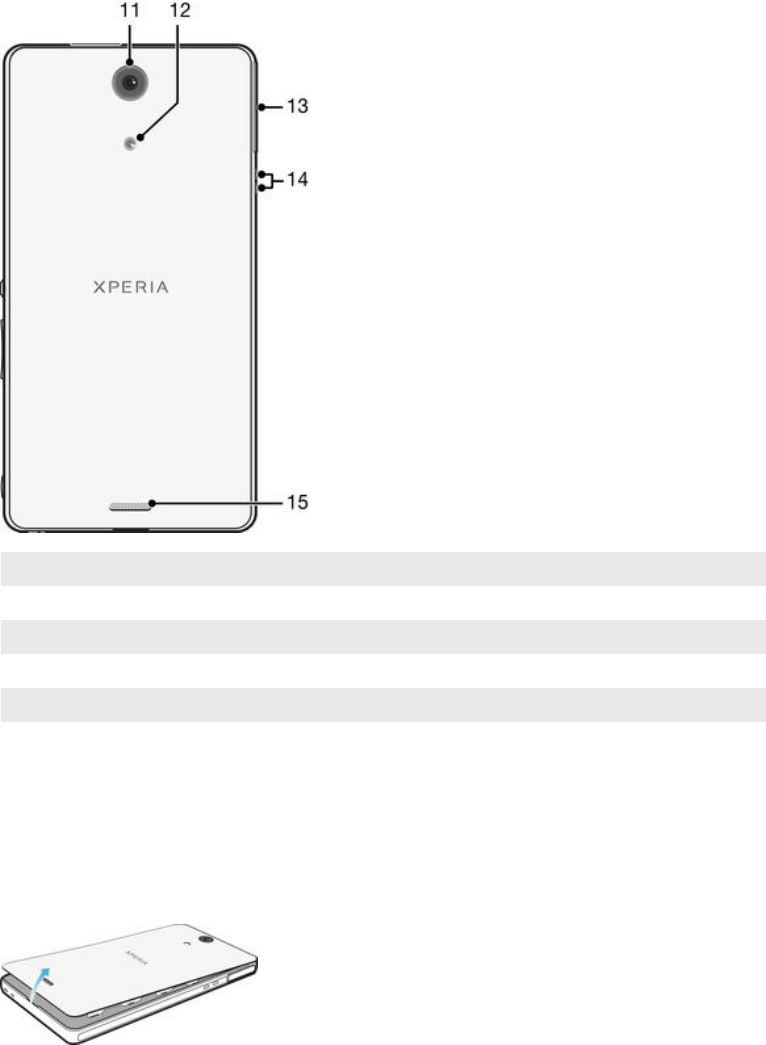
11 Camera lens
12 Camera light
13 Port for charger/USB cable
14 Connector for charging dock
15 Speaker
Assembly
A protective plastic sheet is attached to the screen. You should peel off this sheet
before using the touchscreen. Otherwise, the touchscreen might not function
properly.
To remove the back cover
•Insert a thumbnail into the gap between the back cover and the bottom side of
your device, then lift up the cover.
8
This is an Internet version of this publication. © Print only for private use.
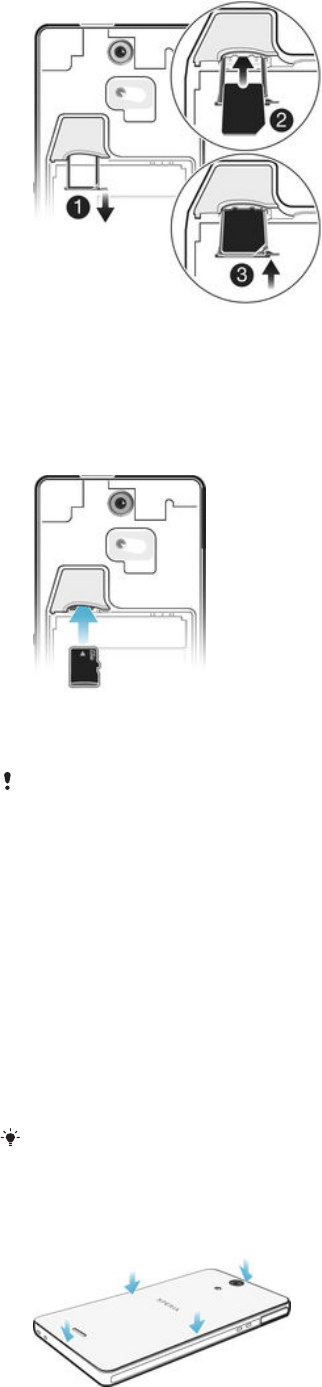
To insert the micro SIM card
1Remove the battery cover and the battery, then pull out the micro SIM card
holder.
2Place the micro SIM card into the micro SIM card holder, with the gold-
coloured contacts facing down.
3Push the micro SIM card and the holder back into the phone.
To insert a memory card
1Remove the back cover and the battery.
2Insert the memory card into the memory card slot, with the gold-coloured
contacts facing down.
The memory card may not be included at purchase in all markets.
To remove the micro SIM card
1Remove the battery cover and the battery, then pull out the micro SIM card
holder.
2Remove the micro SIM card from the micro SIM card holder.
3Push the micro SIM card holder back into the micro SIM card slot until you
hear a clicking sound.
4Re-attach the cover for the micro SIM card slot.
To remove the memory card
1Turn off the device.
2Detach the back cover and the battery.
3Remove the memory card from the memory card slot.
You can also remove the memory card without turning the device off in step 1. To use this
method, you must first unmount the memory card under Settings > Storage > Unmount SD
card, then follow the rest of the instructions above.
To attach the back cover
9
This is an Internet version of this publication. © Print only for private use.
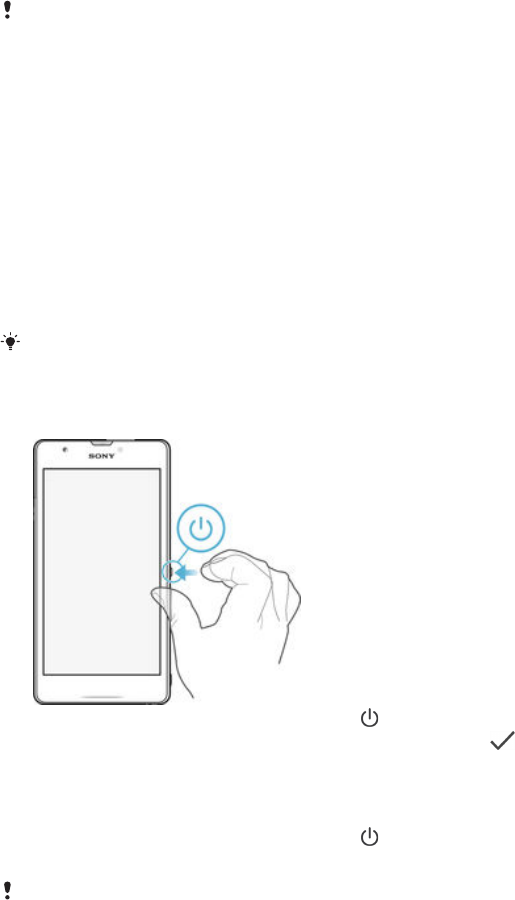
1Place the back cover over the back of the device, then press down on the
bottom corners to lock them into place.
2Moving from bottom to top, press down the sides of the cover until the cover
clicks into place.
Screen protection
Before using your device, remove the transparent protection film by pulling up on the
protruding tab.
It is recommended to protect your device with a Sony-branded screen cover or
protector intended for your Xperia™ model. The use of third party screen protection
accessories may prevent your device from working by covering sensors, lenses,
speakers, or microphones and it can invalidate the warranty.
Starting your device for the first time
The first time you start your device, a setup guide opens to help you configure basic
settings, sign in to online accounts and personalise your device. For example, if you
have a Sony Entertainment Network account, you can sign in to it here and get set up
straight away.
You can also access the setup guide later from the Settings menu. To access the setup guide
on a device with multiple users, you must be logged in as the owner, that is, the primary user.
To turn on the device
1Press and hold down the power key until the device vibrates.
2Enter your SIM card PIN when requested, then tap .
3Wait a while for the device to start.
To turn off the device
1Press and hold down the power key until the options menu opens.
2In the options menu, tap Power off.
It may take a while for the device to shut down.
Why do I need a Google™ account?
Your Xperia™ device from Sony runs on the Android™ platform developed by
Google™. A range of Google™ applications and services is available on your device
when you purchase it, for example, Gmail™, Google Maps™, YouTube™ and the
Play Store™ application, which gives you access to the Google Play™ online store
for downloading Android™ applications. To get the most out of these services, you
need a Google™ account. For example, a Google™ account is mandatory if you want
to:
•Download and install applications from Google Play™.
•Synchronise email, contacts and the calendar using Gmail™.
•Chat with friends using the Hangouts™ application.
10
This is an Internet version of this publication. © Print only for private use.
•Synchronise your browsing history and bookmarks using the Google Chrome™ web
browser.
•Identify yourself as the authorised user after a software repair using Xperia™
Companion.
•Remotely find, lock or clear a lost or stolen device using the my Xperia™ or
Android™ Device Manager services.
For more information about Android™ and Google™, go to
http://support.google.com
.
It is crucial that you remember your Google™ account username and password. In some
situations, you may need to identify yourself for security reasons using your Google™ account.
If you fail to give your Google™ username and password in such situations, your device is
locked. Also, if you have more than one Google™ account, make sure to enter the details for
the relevant account.
To set up a Google™ account on your device
1From your Home screen, tap .
2Find and tap Settings > Accounts > Add account > Google.
3Follow the registration wizard to create a Google™ account, or sign in if you
already have an account.
You can also sign in to or create a Google™ account from the setup guide the first time you
start your device. Or you can go online and create an account at
www.google.com/accounts
.
Charging your device
The battery is partly charged when the device is shipped from the factory. Depending
on how long it was in the box before you purchased it, the battery level may be quite
low. It is therefore recommended that you charge the battery for at least 30 minutes
before starting up your device for the first time. You can still use your device while it
is charging. Read more about how to improve the battery performance in
Battery and
power management
on page 21 .
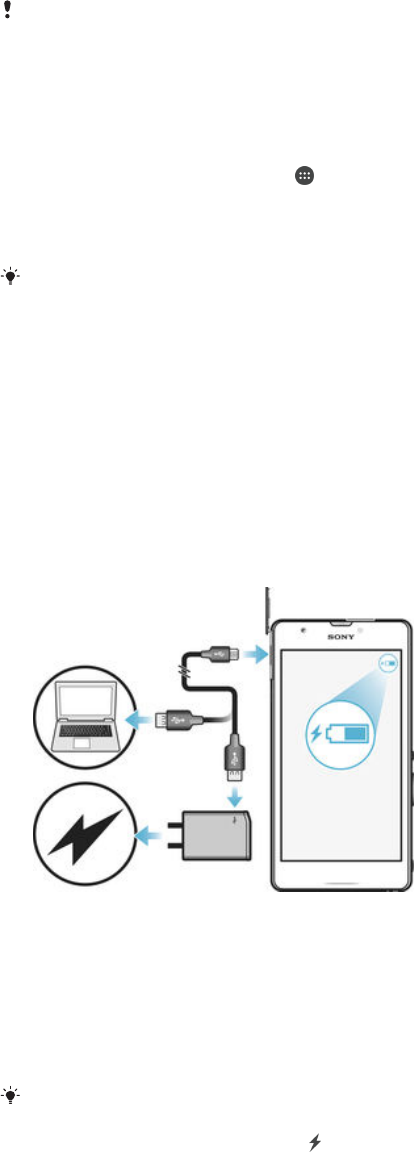
To charge your device
1Plug the charger into a power outlet.
2Plug one end of the USB cable into the charger (or into the USB port of a
computer).
3Plug the other end of the cable into the micro USB port on your device, with
the USB symbol facing up. The notification light illuminates when charging
begins.
4When the device is fully charged, disconnect the cable from your device by
pulling it straight outwards. Make sure not to bend the connector.
Use the charger and USB cable provided with the device to ensure faster charging. If the
battery is completely discharged, it may take a few minutes before the notification light
illuminates and the charging icon appears.
11
This is an Internet version of this publication. © Print only for private use.

Battery notification light status
Green The battery is charging and the battery charge level is greater than 90%
Red The battery is charging and the battery charge level is less than 15%
Orange The battery is charging and the battery charge level is less than 90%
12
This is an Internet version of this publication. © Print only for private use.
Learning the basics
Using the touchscreen
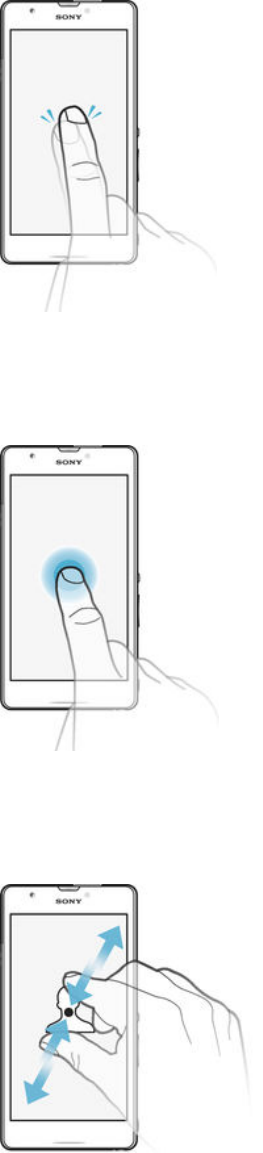
Tapping
•Open or select an item.
•Mark or unmark a checkbox or option.
•Enter text using the on-screen keyboard.
Touching and holding
•Move an item.
•Activate an item-specific menu.
•Activate selection mode, for example, to select several items from a list.
Pinching and spreading
•Zoom in or out on web pages, photos and maps, and when you’re taking photos or
shooting videos.
13
This is an Internet version of this publication. © Print only for private use.

Swiping
•Scroll up or down a list.
•Scroll left or right, for example, between Home screen panes.
Flicking
•Scroll quickly, for example, in a list or on a web page. You can stop the scrolling
movement by tapping the screen.
Locking and unlocking the screen
When your device is on and left idle for a set period of time, the screen darkens to
save battery power and locks automatically. This lock prevents unwanted actions on
the touchscreen when you are not using it. When you buy your device, a basic screen
swipe lock is already set. This means that you have to swipe upwards on the screen
to unlock it. You can change the security settings later and add other kinds of locks.
See
Screen lock
on page 43 .
To activate the screen
•Briefly press the power key .
14
This is an Internet version of this publication. © Print only for private use.
To lock the screen
•When the screen is active, briefly press the power key .
Home screen
The Home screen is the starting point for using your device. It's similar to the desktop
on a computer screen. Your Home screen can have up to seven panes, which extend
beyond the regular screen display width. The number of Home screen panes is
represented by a series of dots at the lower part of the Home screen. The highlighted
dot shows the pane that you are currently in.
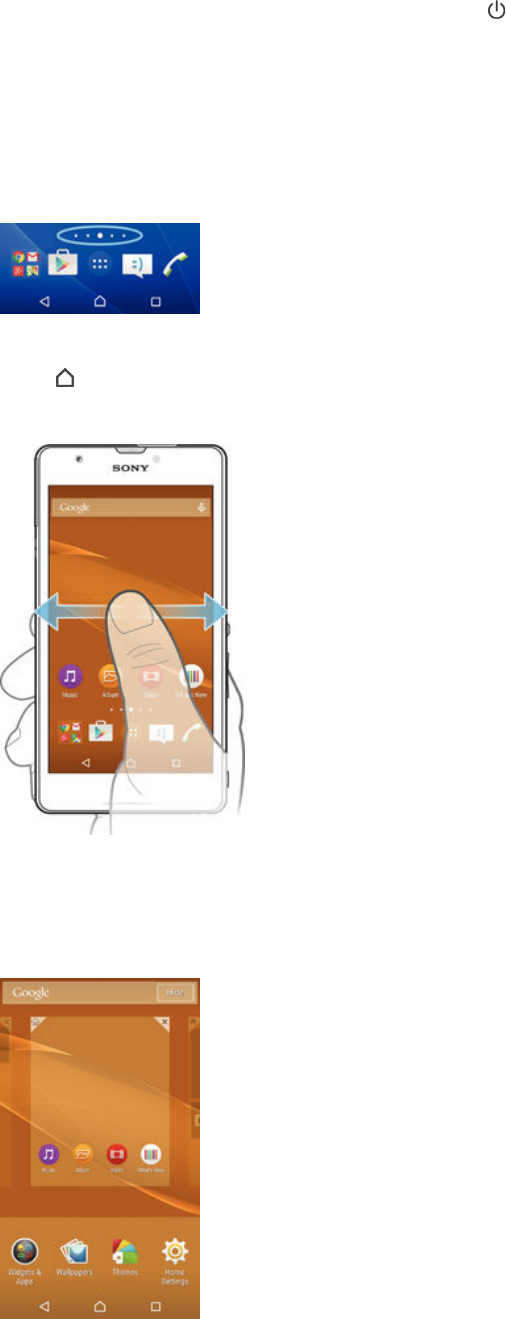
To go to the Home screen
•Press .
To browse the Home screen
Home screen panes
You can add new panes to your Home screen (up to a maximum of seven panes) and
delete panes. You can also set the pane that you want to use as the main Home
screen pane.
15
This is an Internet version of this publication. © Print only for private use.
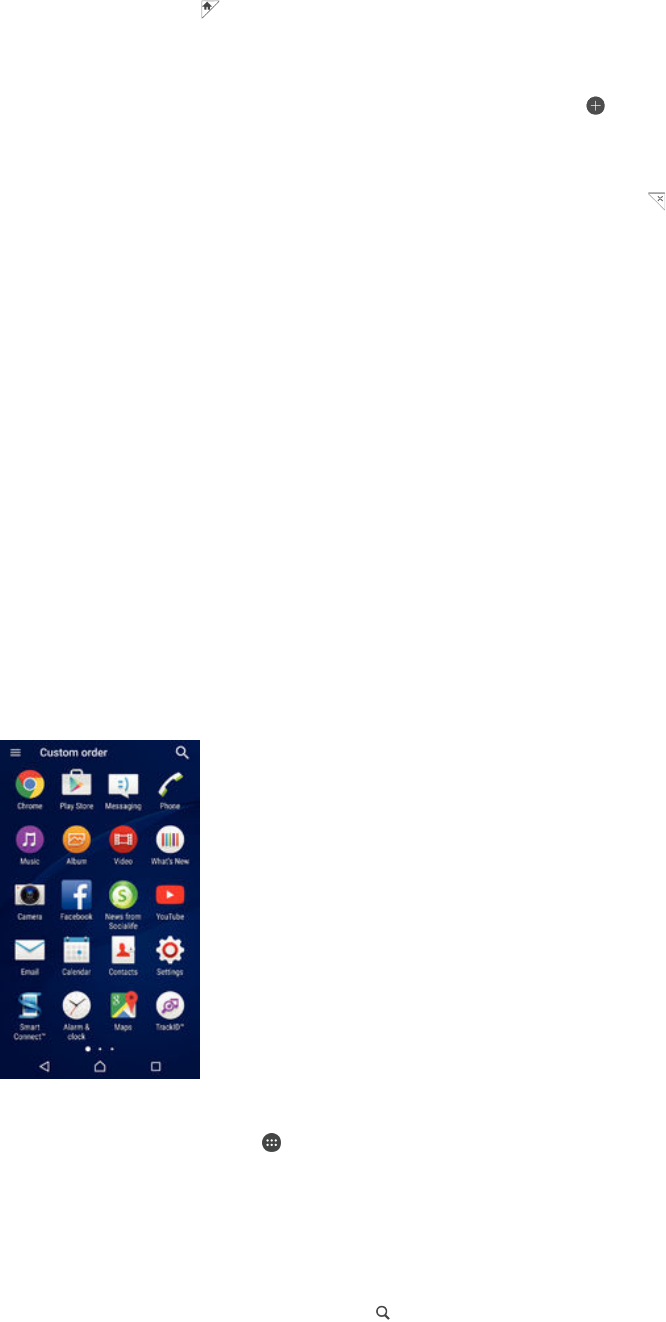
To set a pane as the main Home screen pane
1Touch and hold an empty area on your Home screen until the device vibrates.
2Flick left or right to browse to the pane that you want to set as your main Home
screen pane, then tap .
To add a pane to your Home screen
1Touch and hold an empty area on your Home screen until the device vibrates.
2To browse the panes, flick all the way to the right or left, then tap .
To delete a pane from your Home screen
1Touch and hold an empty area on your Home screen until the device vibrates.
2Flick left or right to browse to the pane that you want to delete, then tap .
Home screen settings
Use the Home Settings shortcut to adjust some basic settings of your Home screen.
For example, you can set your Home screen to auto rotate and adjust the size of
icons.
To set your Home screen to auto rotate
1Touch and hold an empty area on your Home screen until the device vibrates,
then tap Home Settings.
2Drag the slider beside Auto-rotation to the right.
To adjust the size of icons on your Home screen
1Touch and hold an empty area on your Home screen until the device vibrates,
then tap Home Settings.
2Tap Icon size, then select an option.
Application screen
The Application screen, which you open from the Home screen, contains the
applications that come pre-installed on your device as well as applications that you
download.
To view all applications on the Application screen
1From your Home screen, tap .
2Flick left or right on the Application screen.
To open an application from the Application screen
•Flick left or right to find the application, and then tap the application.
To search for an application from the Application screen
1When the Application screen is open, tap .
2Enter the name of the application that you want to search for.
16
This is an Internet version of this publication. © Print only for private use.
To open the Application screen menu
•When the Application screen is open, drag the left edge of the screen to the
right.
To move an application on the Application screen
1To open the Application screen menu, drag the left edge of the Application
screen to the right.
2Make sure that Custom order is selected under SHOW APPS.
3On the Application screen, touch and hold the application until it becomes
selected, then drag it to the new location.
To add an application shortcut to the Home screen
1To open the Application screen menu, drag the left edge of the Application
screen to the right.
2Make sure that Custom order is selected under SHOW APPS.
3On the Application screen, touch and hold an application icon, then drag the
icon to the top of the screen. The Home screen opens.
4Drag the icon to the desired location on the Home screen, then release your
finger.
If Alphabetical or Most used is selected under SHOW APPS instead of Custom order, you can
still add an application shortcut to the Home screen. Just touch and hold the relevant
application icon until the Home screen opens, then drag the icon to the desired location and
release your finger.
To arrange applications on the Application screen
1To open the Application screen menu, drag the left edge of the Application
screen to the right.
2Select the desired option under SHOW APPS.
To uninstall an application from the Application screen
1To open the Application screen menu, drag the left edge of the Application
screen to the right.
2Tap UNINSTALL. All uninstallable applications are indicated by .
3Tap the application that you want to uninstall, then tap OK.
Navigating applications
You can navigate between applications using the navigation keys, the favourites bar,
and the recently used applications window, which lets you switch easily between all
recently used applications. The navigation keys are the Home key, the Recent apps
key and the Back key. Some applications get closed when you press the Home key
to exit while others are paused or continue to run in the background. If an
application is paused or running in the background, you can continue where you left
off the next time you open the application.
17
This is an Internet version of this publication. © Print only for private use.
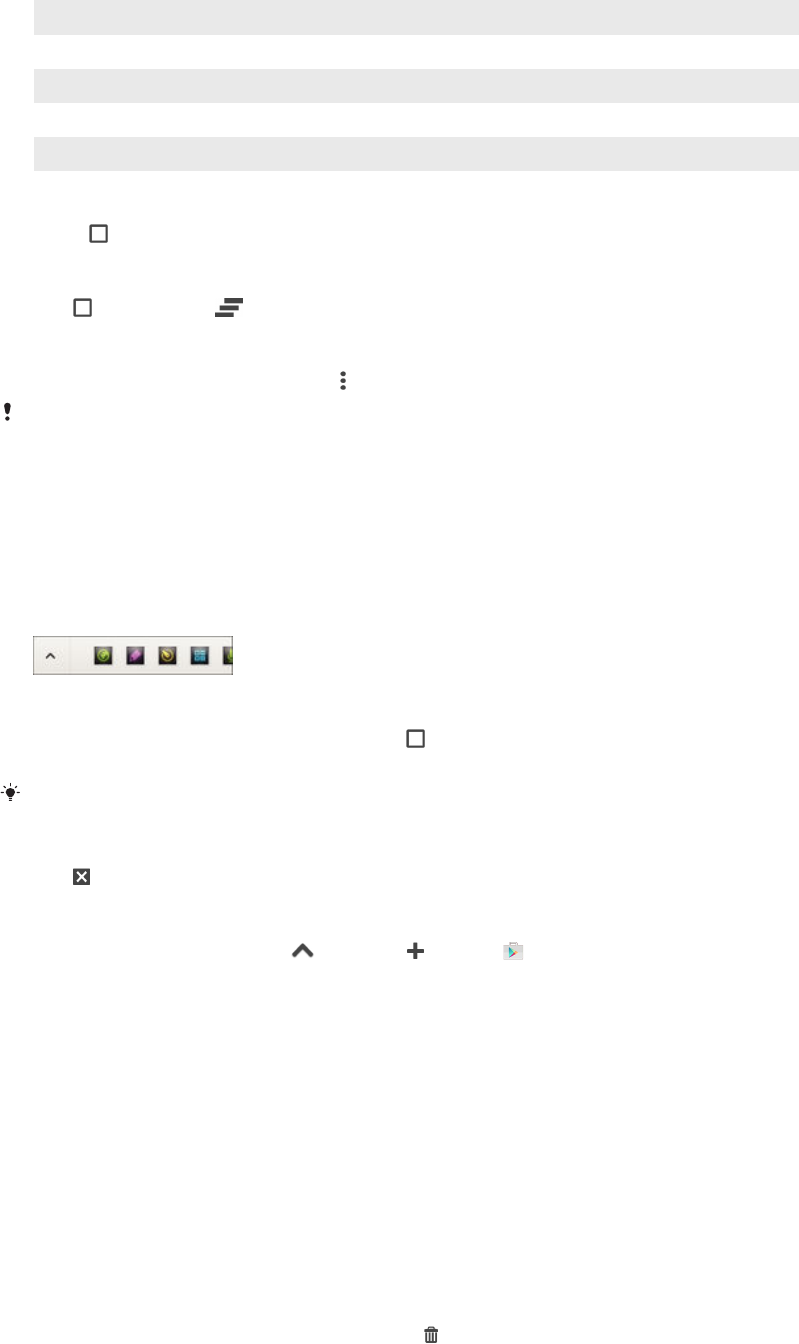
1 Recently used applications window – Open a recently used application
2 Favourites bar – Use a shortcut to access applications or widgets
3 Recent apps key – Open the recently used applications window and the favourites bar
4 Home key – Exit an application and go back to the Home screen
5 Back key – Go back to the previous screen within an application or close the application
To open the recently used applications window
•Press .
To close all the recently used applications
•Tap and then tap .
To open a menu in an application
•While using the application, press .
A menu is not available in all applications.
Small apps
Small apps are miniature apps that run on top of other applications on the same
screen, to enable multi-tasking. For example, you can have a webpage open showing
details of currency exchange rates and then open the Calculator small app on top of
it and perform calculations. You can access your small apps via the favourites bar. To
download more small apps, go to Google Play™.
To open a small app
1To make the favourites bar appear, press .
2Tap the small app that you want to open.
You can open several small apps at the same time.
To close a small app
•Tap on the small app window.
To download a small app
1From the favourites bar, tap , then tap and tap .
2Search for the small app that you want to download, then follow the
instructions to download it and complete the installation.
To move a small app
•When the small app is open, touch and hold the top left corner of the small
app, then move it to the desired location.
To minimise a small app
•When the small app is open, touch and hold the top left corner of the small
app, then drag it to the right edge or to the bottom edge of the screen.
To rearrange the small apps in the favourites bar
•Touch and hold a small app and drag it to the desired position.
To remove a small app from the favourites bar
1Touch and hold a small app, then drag it to .
2Tap OK.
18
This is an Internet version of this publication. © Print only for private use.

To restore a previously removed small app
1Open the favourites bar, then tap .
2Touch and hold the small app that you want to restore, then drag it into the
favourites bar.
To add a widget as a small app
1To make the favourites bar appear, press .
2Tap > > .
3Select a widget.
4Enter a name for the widget, if desired, then tap OK.
Widgets
Widgets are small applications that you can use directly on your Home screen. They
also function as shortcuts. For example, the Weather widget allows you to see basic
weather information directly on your Home screen. But when you tap the widget, the
full Weather application opens. You can download additional widgets from Google
Play™.
To add a widget to the Home screen
1Touch and hold an empty area on your Home screen until the device vibrates,
then tap Widgets & Apps.
2Find and tap the widget that you want to add.
To resize a widget
1Touch and hold a widget until it magnifies and the device vibrates, then release
the widget. If the widget can be resized, for example, the Calendar widget,
then a highlighted frame and resizing dots appear.
2Drag the dots inward or outward to shrink or expand the widget.
3To confirm the new size of the widget, tap anywhere on the Home screen.
To move a widget
•Touch and hold the widget until it magnifies and the device vibrates, then drag
it to the new location.
To delete a widget
•Touch and hold the widget until it magnifies and the device vibrates, then drag
it to .
Shortcuts and folders
Use shortcuts and folders to manage your applications and keep your Home screen
tidy.
19
This is an Internet version of this publication. © Print only for private use.
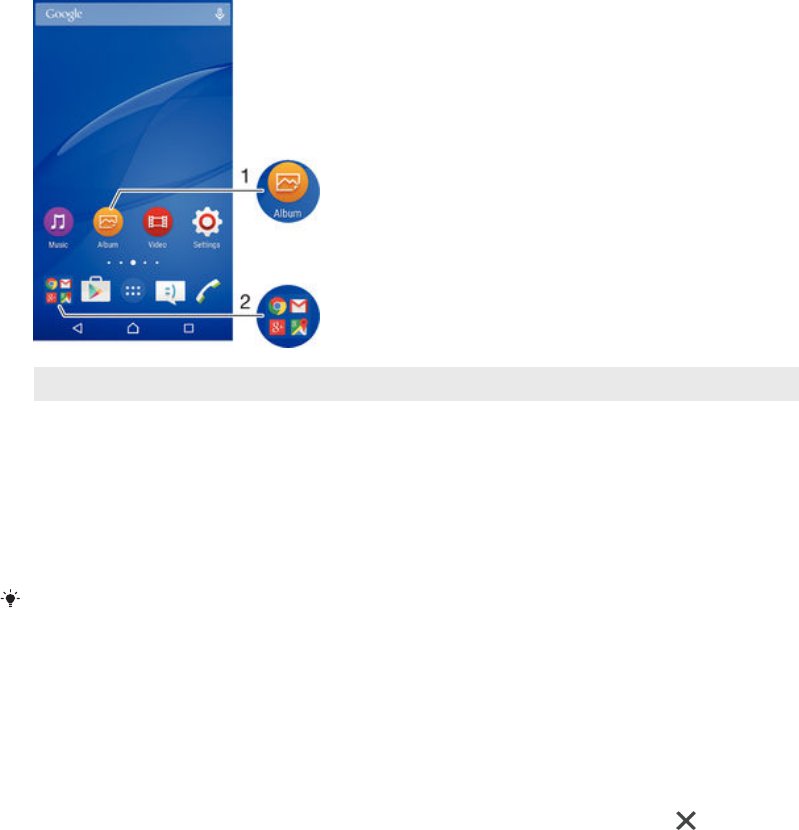
1 Access an application using a shortcut
2 Access a folder containing applications
To add an application shortcut to your Home screen
1Touch and hold an empty area on your Home screen.
2In the customisation menu, tap Widgets & Apps > Apps.
3Scroll through the list of applications and select an application. The selected
application gets added to the Home screen.
In step 3, alternatively, you can tap Widgets & Apps > Shortcuts and then select an application
from the list available. If you use this method to add shortcuts, some of the applications
available allow you to add specific functionality to the shortcut.
To move an item on the Home screen
•Touch and hold the item until it becomes selected, then drag the item to the
new location.
To delete an item from the Home screen
•Touch and hold an item until it becomes selected, then drag the item to .
To create a folder on the Home screen
•Touch and hold an application icon or a shortcut until it becomes selected,
then drag and drop it on top of another application icon or shortcut.
To add items to a folder on the Home screen
•Touch and hold an item until it becomes selected, then drag the item to the
folder.
To rename a folder on the Home screen
1Tap the folder to open it.
2Tap the folder's title bar to show the Folder name field.
3Enter the new folder name and tap Done.
Background and themes
You can adapt the Home screen to your own style using wallpapers and different
themes.
20
This is an Internet version of this publication. © Print only for private use.
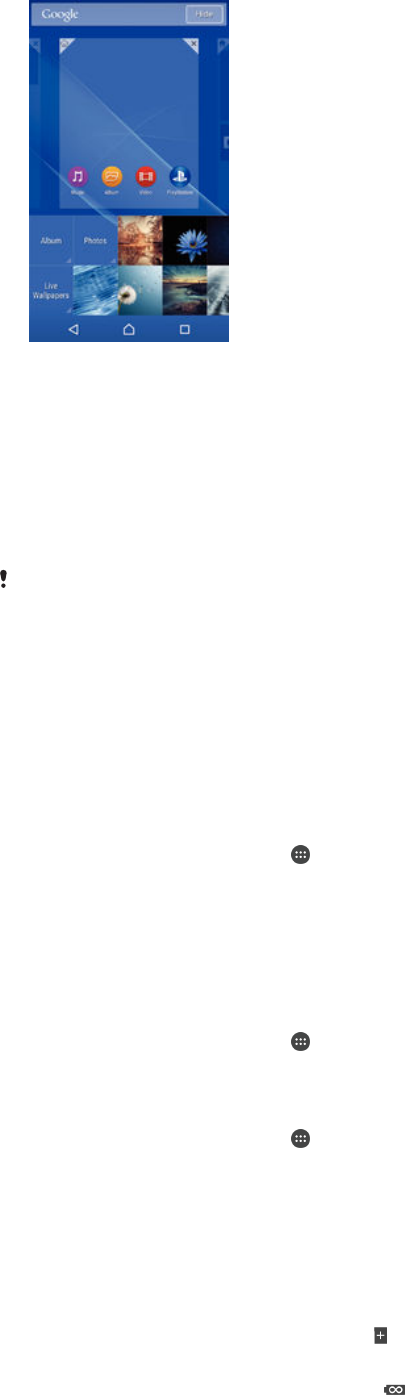
To change your Home screen wallpaper
1Touch and hold an empty area on your Home screen until the device vibrates.
2Tap Wallpapers and select an option.
To set a theme
1Touch and hold an empty area on your Home screen until the device vibrates.
2Tap Themes.
3Select an option and follow the instructions in your device.
When you change a theme, the background also changes in some applications.
Battery and power management
You can keep track of your battery consumption and see which applications are
using the most power. You can remove or restrict apps and activate a number of
power saving modes to get more out of your battery. You can also view an estimate
of how much battery time is left and adjust your battery settings to improve
performance and make your battery last longer.
To manage your battery consumption
1From your Home screen, tap .
2Find and tap Settings > Power management > App power consumption. An
overview appears showing applications that have high data traffic rates or that
you have not used for a long time.
3Review the information, then act as required, for example, to uninstall an
application or restrict its usage.
To view which applications use the most battery power
1From your Home screen, tap .
2Find and tap Settings > Power management > Battery usage.
To view the estimated battery time
1From your Home screen, tap .
2Find and tap Settings > Power management.
Power saving modes
There are several power saving modes available for you to use if you want to make
your battery last longer:
STAMINA mode Disables Wi-Fi® and mobile data when the screen is turned off, and restricts
hardware performance. appears in the status bar when this mode takes effect.
Ultra STAMINA
mode Limits your device’s functionality to core tasks such as making phone calls and
sending SMS messages. appears in the status bar once this mode is
activated.
21
This is an Internet version of this publication. © Print only for private use.

Low-battery mode Modifies your device’s behaviour, for example, to adjust screen brightness and
the screen timeout setting, when the battery level drops below a certain
percentage. appears in the status bar when this mode takes effect.
Queue background
data Optimises outgoing traffic when the screen is off by sending data at pre-defined
intervals.
If you are using a device with multiple users, you may need to log in as the owner, that is, the
primary user, to activate or deactivate a power saving mode.
To activate a power saving mode
1From your Home screen, tap .
2Find and tap Settings > Power management .
3To activate your preferred mode, select the mode name and tap the on-off
switch to activate the chosen mode, if necessary. In some cases, tap Activate
and confirm activation.
STAMINA mode feature overview
STAMINA mode has several features that allow you to optimise your battery
performance:
Extended standby Prevents applications from using data traffic by disabling Wi-Fi® and mobile data
when the screen is off. You can exclude some applications and services from being
paused when this feature is active.
STAMINA clock Keeps network connections paused in situations where you frequently press the
power key to check the time.
Extended usage Restricts hardware performance when you are using your device.
If you are using a device with multiple users, you may need to log in as the owner, that is, the
primary user, to activate or deactivate a STAMINA mode feature.
To activate STAMINA mode features
1From your Home screen, tap .
2Find and tap Settings > Power management , then tap STAMINA mode.
3Activate STAMINA mode if it is deactivated.
4Drag the sliders beside the features that you want to activate, then tap
Activate, if prompted.
To select which applications to run in STAMINA mode
1From your Home screen, tap .
2Find and tap Settings > Power management , then tap STAMINA mode.
3Activate STAMINA mode if it is deactivated.
4Make sure that the Extended standby feature is turned on, then tap Apps active
in standby > Add applications.
5Scroll left or right to view all applications and services, then mark the relevant
checkboxes for the applications that you want to run.
6When you're finished, tap Done.
Taking a screenshot
You can capture still images of any screen on your device as a screenshot.
Screenshots you take are automatically saved in Album.
To take a screenshot
1Press and hold down the power key until a prompt window appears.
2Tap
You can also take a screenshot by pressing and holding the power key and volume down key
at the same time. Once the screenshot is captured, you can release the keys.
22
This is an Internet version of this publication. © Print only for private use.

To view your screenshot
•Drag the status bar fully downwards, then tap the screenshot you want to view.
You can also view your screenshots by opening the Album application.
Notifications
Notifications inform you of events such as new messages and calendar notifications
as well as activities in progress such as file downloads. Notifications appear in the
following places:
•The status bar
•The Notification panel
•The lock screen
To open or close the Notification panel
1To open the Notification panel, drag the status bar downwards.
2To close the Notification panel, drag the panel upwards.
To take action on a notification in the Notification panel
•Tap the notification.
To dismiss a notification from the Notification panel
•Place your finger on a notification and flick left or right.
To expand a notification on the Notification panel
•Drag the notification downwards.
Not all notifications are expandable.
To clear all notifications from the Notification panel
•Tap .
To take action on a notification from the lock screen
•Double-tap the notification.
To dismiss a notification from the lock screen
•Place your finger on the notification and flick left or right.
To expand a notification on the lock screen
•Drag the notification downwards.
Not all notifications are expandable.
23
This is an Internet version of this publication. © Print only for private use.
Managing notifications on the lock screen
You can set up your device so that only selected notifications get displayed on your
lock screen. You can make all notifications and their content accessible, hide
sensitive content for all notifications or specific apps, or choose not to show any
notifications at all.
To select the notifications to display on the lock screen
1From your Home screen, tap .
2Find and tap Settings > Sound & notification > When device is locked.
3Select an option.
Notification display options on the lock screen
Show all notification
content Get all notifications on the lock screen. When you have this setting turned on,
keep in mind that all content (including the content of incoming emails and chats)
will be visible on your lock screen unless you designate the relevant apps as
Sensitive in the App notifications settings menu.
Hide sensitive
notification content You must have a PIN, password, or pattern set up as your screen lock in order for
this setting to be available. Contents hidden is displayed on the lock screen when
sensitive notifications arrive. For example, you'll get a notification for an incoming
email or chat, but the content won't be visible on your lock screen.
Don't show
notifications at all You won't get any notifications on the lock screen.
Setting the notification level for an app
You can set different notification behaviour for individual applications. For example,
you can block all email notifications, prioritise Facebook™ notifications and make the
content of messaging notifications invisible on the lock screen.
To set the notification level for an app
1From your Home screen, tap .
2Find and tap Settings > Sound & notification > App notifications.
3Select the app for which you want to change the notification settings.
4Drag the relevant slider to the right.
Notification levels and options for specific applications
Block Never show notifications for the selected app.
Priority Priority level notification appear on the lock screen above all other notifications.
Sensitive This option is only available if you set up a PIN, password or pattern as your screen lock and
selected Show all notification content under the When device is locked setting. Notifications for
the app appear on your lock screen but their content is not visible.
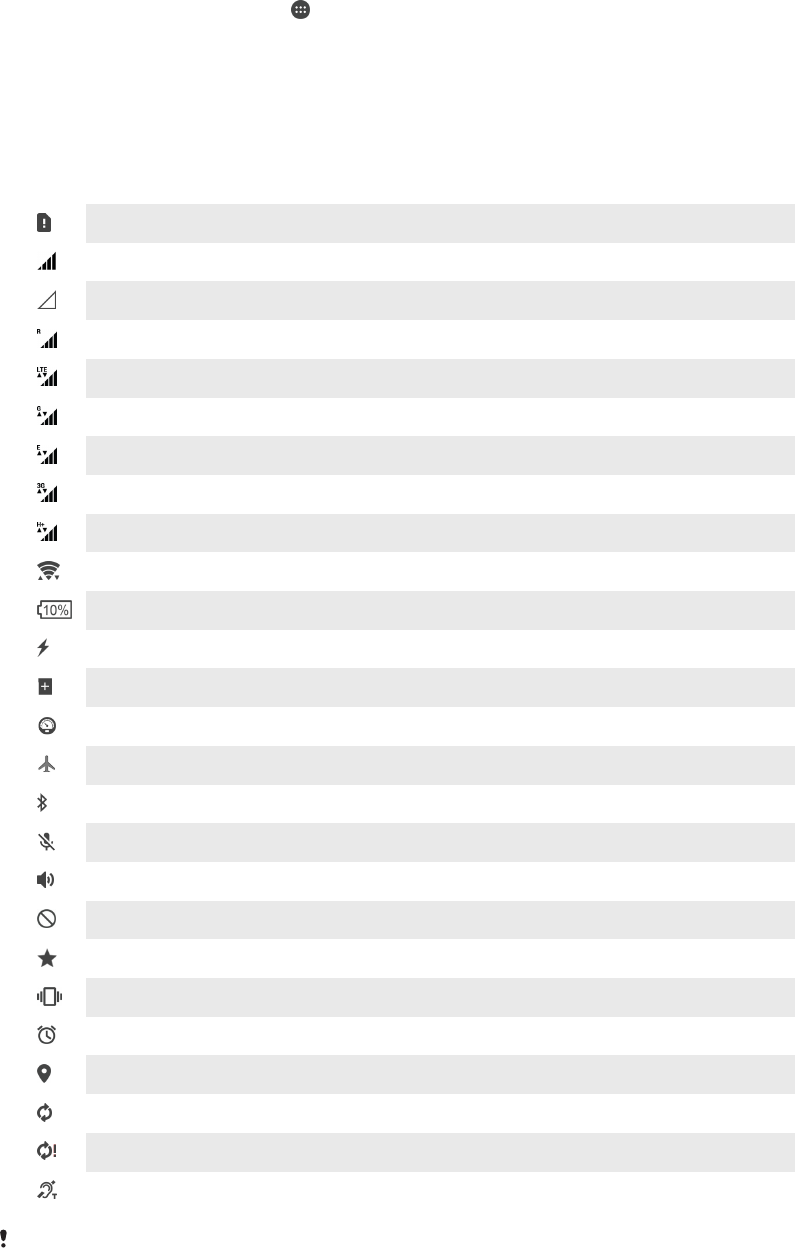
Notification light
The notification light informs you about battery status and some other events. For
example, a flashing white light means there is a new message or a missed call. The
notification light is enabled by default but can be disabled manually.
When the notification light is disabled, it only lights up when there is a battery status warning,
for example, when the battery level goes below 15 percent.
24
This is an Internet version of this publication. © Print only for private use.
To enable the notification light
1From your Home screen, tap .
2Find and tap Settings > Sound & notification .
3Drag the slider beside Notification light to the right.
Icons in the status bar
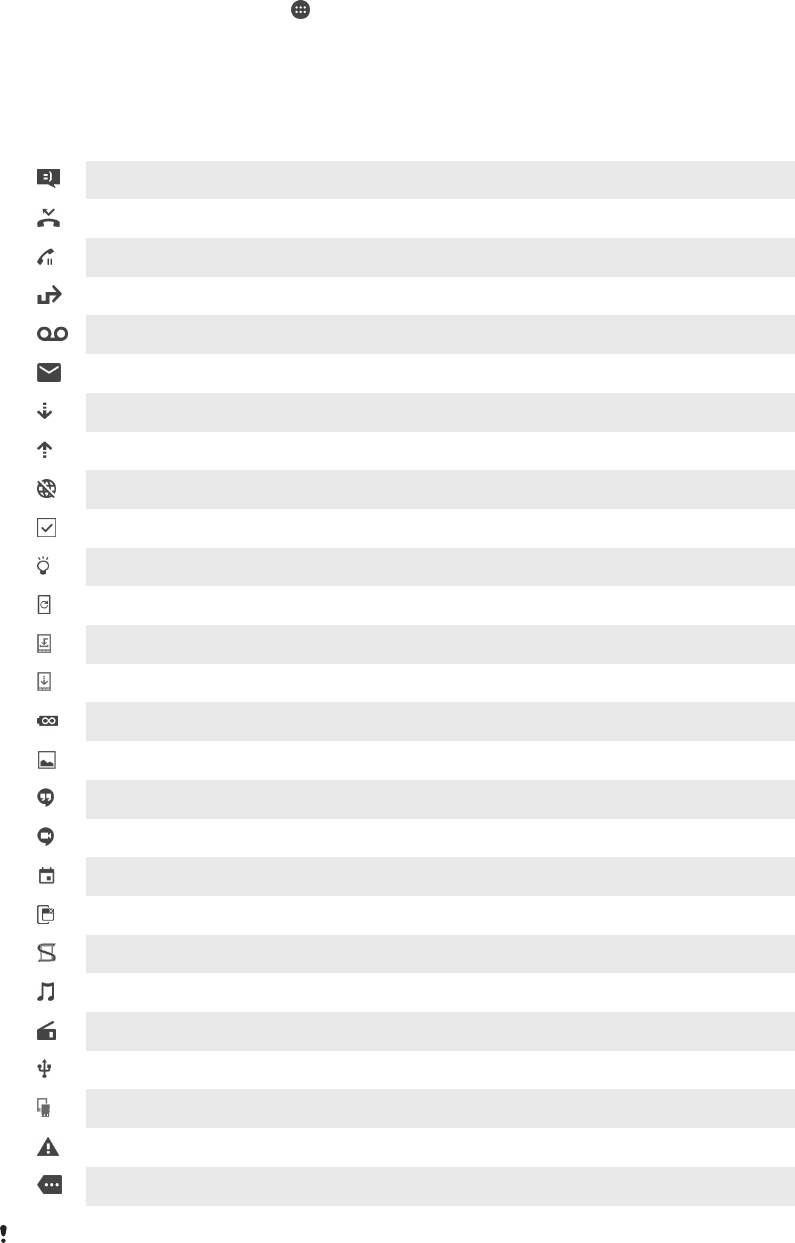
Status icons
No SIM card
Signal strength
No signal
Roaming
Sending and downloading LTE data
Sending and downloading GPRS data
Sending and downloading EDGE data
Sending and downloading 3G data
Sending and downloading mobile data
A Wi-Fi® connection is enabled and data is being transmitted
Battery status
The battery is charging
STAMINA mode is activated
Low battery mode is activated
Airplane mode is activated
The Bluetooth® function is activated
The microphone is muted
The speakerphone is on
Silent mode
Allow exceptions in silent mode
Vibrate mode
An alarm is set
GPS is activated
Synchronisation is ongoing
Problem with sign-in or synchronisation
The Hearing aid function is activated
Depending on your service provider, network and/or region, the functions or services
represented by some icons in this list may not be available.
25
This is an Internet version of this publication. © Print only for private use.
To manage status bar icons
1From your Home screen, tap .
2Find and tap Settings > Personalisation> Status bar icons.
3Mark the checkboxes for the system icons that you want to appear in the
status bar.
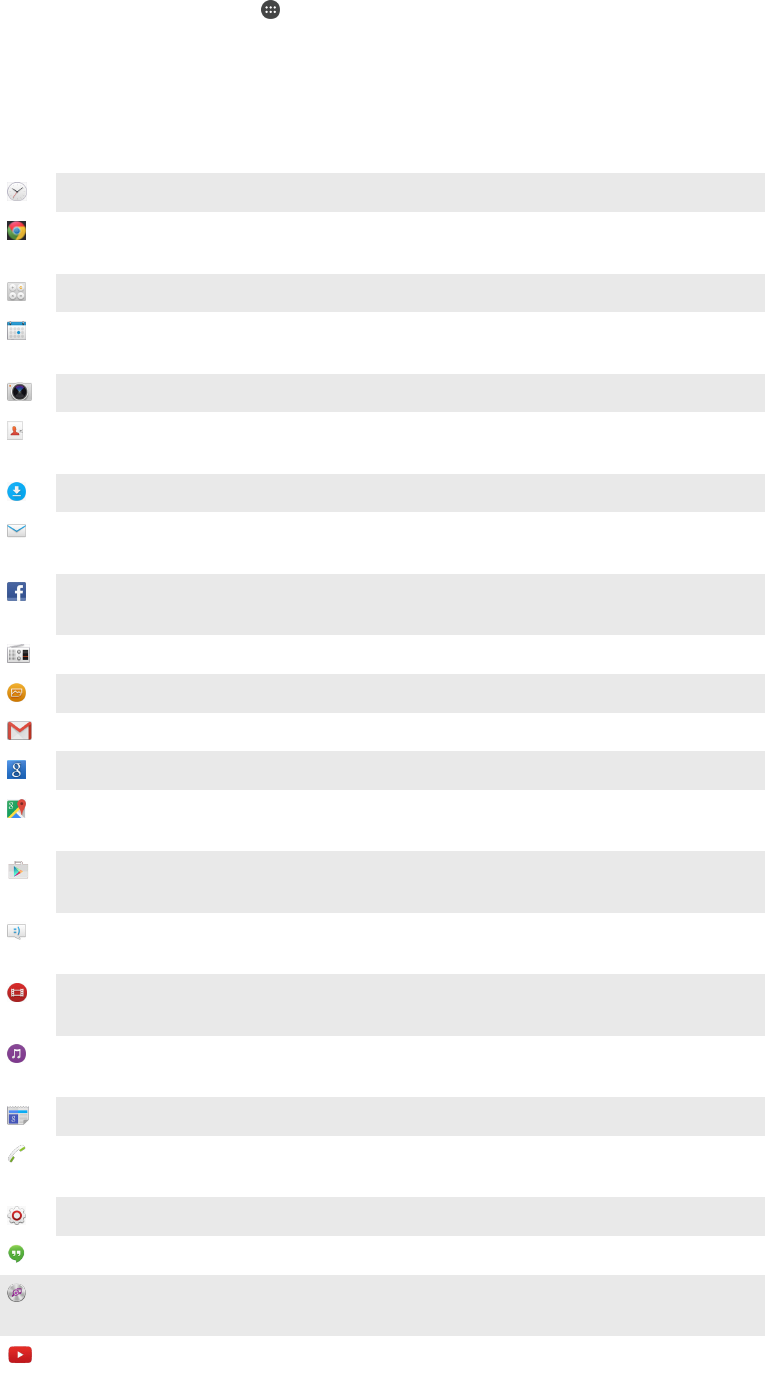
Notification icons
New text message or multimedia message
Missed call
Call on hold
Call forwarding is turned on
New voicemail message
New email message
Downloading data
Uploading data
Mobile data is disabled
Perform a basic setup of your device
A software update is available
System updates are available
Downloading system updates
Tap to install the downloaded system updates
Ultra STAMINA mode is activated
Screenshot captured
New Hangouts™ chat message has arrived
Video chat with friends using the Hangouts™ application
Upcoming calendar event
A small app is running
Smart Connect is activated
A song is playing
The radio is playing
The device is connected to a computer via a USB cable
Internal storage is 75% full. Tap to transfer data to the memory card
Warning
More (undisplayed) notifications
Not all icons that may appear in your device are listed here. These icons are for reference
purposes only, and changes may be made without notice.
26
This is an Internet version of this publication. © Print only for private use.
To block an application from sending notifications
1From your Home screen, tap .
2Find and tap Settings > Sound & notification> App notifications.
3Select an application.
4Drag the slider beside Block to the right.
Application overview
Use the Alarm & clock application to set various kinds of alarms.
Use your web browser to navigate and view web pages, manage bookmarks,
text and images.
Use the Calculator application to perform basic calculations.
Use the Calendar application to keep track of events and manage your
appointments.
Use the camera to take photos and record video clips.
Use the Contacts application to manage phone numbers, email addresses
and other information related to your contacts.
Access your downloaded applications, documents and pictures.
Use the Email application to send and receive emails through both private
and corporate accounts.
Use the Facebook™ application to engage in social networking with friends,
family members and colleagues around the world.
Browse and listen to FM radio stations.
Use the Album application to view and to work with your photos and videos.
Use the Gmail™ application to read, write and organise email messages.
Search for information in your device and on the web.
View your current location, find other locations and calculate routes using
Google Maps™.
Use the Play Store™ application to download free and paid applications for
your device.
Use the Messaging application to send and receive text and multimedia
messages.
Use the Video application to play videos on your device and share content
with your friends.
Use the Music application to organise and play music, audio books and
podcasts.
View news stories and weather forecasts.
Make phone calls by dialling the number manually or by using the smart dial
function.
Optimise settings to suit your own requirements.
Use the Hangouts™ application to chat with friends online.
Identify music tracks that you hear playing in your surroundings, and get
artist, album and other info.
Use YouTube™ to share and view videos from around the world.
27
This is an Internet version of this publication. © Print only for private use.
Use the Backup and restore application to back up or restore content on your
device, such as contacts, text messages, bookmarks, calendar data, etc.
Use the Smart Connect™ application to set what happens in your device
when you connect or disconnect an accessory.
The Xperia™ Movie Creator automatically creates short videos of around 30
seconds in length using existing photos and videos. The application
automatically determines the timeline to create its movie.
Use the Support application to access user support in your device. For
example, you can access a User guide, troubleshooting information, plus tips
and tricks.
Some applications are not supported or listed by all networks and/or service providers in all
areas.
28
This is an Internet version of this publication. © Print only for private use.

Downloading applications
Downloading applications from Google Play™
Google Play™ is the official online Google store for downloading applications,
games, music, movies and books. It includes both free and paid applications. Before
you start downloading from Google Play™, make sure that you have a working
Internet connection, preferably over Wi-Fi® to limit data traffic charges.
To use Google Play™, you need to have a Google™ account. Google Play™ may not be
available in all countries or regions.
To download an application from Google Play™
1From the Home screen, tap .
2Find and tap Play Store.
3Find an item you wish to download by browsing categories, or by using the
search function.
4Tap the item to view its details, and follow the instructions to complete the
installation.
Some applications may need to access data, settings and various functions on your device in
order to work properly. Only install and give permissions to applications that you trust.
You can view the permissions granted to a downloaded application by tapping the application
under Settings > Apps.
Downloading applications from other sources
When your device is set to allow downloads from sources other than Google Play™,
you can download applications directly from other websites by following the relevant
download instructions.
Installing applications of unknown or unreliable origin can damage your device. Only download
applications from reliable sources. Contact the application provider if you have any questions
or concerns.
If you are using a device with multiple users, only the owner, that is, the primary user, can
allow downloads from sources other than Google Play™. Changes made by the owner affect
all other users.
To allow the download of applications from other sources
1From your Home screen, tap .
2Find and tap Settings > Security.
3Drag the slider beside Unknown sources to the right.
4Tap OK.
Some applications may need to access data, settings and various functions on your device in
order to work properly. Only install and give permissions to applications that you trust.
You can view the permissions granted to a downloaded application by tapping the application
under Settings > Apps.
29
This is an Internet version of this publication. © Print only for private use.

Internet and networks
Browsing the web
The Google Chrome™ web browser for Android™ devices comes pre-installed in
most markets. Go to http://support.google.com/chrome and click the "Chrome for
Mobile" link to get more detailed information about how to use this web browser.
To browse with Google Chrome™
1From your Home screen, tap .
2Find and tap .
3If you are using Google Chrome™ for the first time, select to either sign in to a
Google™ account or browse with Google Chrome™ anonymously.
4Enter a search term or web address in the search and address field, then tap
Go on the keyboard.
Internet and MMS settings
To send multimedia messages, or to access the Internet when there is no available
Wi-Fi® network, you must have a working mobile data connection with the correct
Internet and MMS (Multimedia Messaging Service) settings. Here are some tips:
•For most mobile networks and operators, Internet and MMS settings come pre-
installed on your device. You can then start using the Internet and send multimedia
messages right away.
•In some cases, you get the option to download Internet and MMS settings the first
time you turn on your device when a SIM card is inserted. It is also possible to
download these settings later from the Settings menu.
•You can manually add, change or delete Internet and MMS settings on your device at
any time. If you change or delete an Internet or MMS setting by mistake, download
the Internet and MMS settings again.
•If you cannot access the Internet over a mobile network or if multimedia messaging is
not working, even though the Internet and MMS settings have been downloaded
successfully to your device, refer to the troubleshooting tips for your device at
www.sonymobile.com/support/
for network coverage, mobile data, and MMS issues.
If STAMINA mode is activated to save power, all mobile data traffic gets paused when the
screen is off. If this causes connection problems, try excluding some applications and services
from being paused, or deactivate STAMINA mode temporarily. For more information, see
STAMINA mode feature overview
on page 22 .
If you are using a device with multiple users, only the owner, that is, the primary user, can
download Internet and messaging settings from the Settings menu, but the downloaded
settings are applicable to all users.
To download Internet and MMS settings
1From your Home screen, tap .
2Find and tap Settings > More > Internet settings.
3Tap Accept. Once the settings have been downloaded successfully, appears
in the status bar and mobile data is turned on automatically.
If the settings cannot be downloaded to your device, check the signal strength of your mobile
network. Move to an open location free from obstructions or get close to a window and then
try again.
30
This is an Internet version of this publication. © Print only for private use.
To add Internet and MMS settings manually
1From your Home screen, tap .
2Find and tap Settings > More > Mobile networks.
3Tap Access Point Names > .
4Tap Name and enter a name as desired.
5Tap APN and enter the access point name.
6Enter all other information as required. If you don’t know what information is
required, contact your network operator for more details.
7When you're done, tap , then tap SAVE.
To view the downloaded Internet and MMS settings
1From your Home screen, tap .
2Find and tap Settings > More > Mobile networks.
3Tap Access Point Names.
4To view more details, tap any of the available items.
If you have several available connections, the active network connection is indicated by a
marked button .
Wi-Fi®
Use Wi-Fi® connections to surf the Internet, download applications, or send and
receive emails. Once you have connected to a Wi-Fi® network, your device
remembers the network and automatically connects to it the next time you come
within range.
Some Wi-Fi® networks require you to log in to a web page before you can get
access. Contact the relevant Wi-Fi® network administrator for more information.
Available Wi-Fi® networks may be open or secured:
•Open networks are indicated by next to the Wi-Fi® network name.
•Secured networks are indicated by next to the Wi-Fi® network name.
Some Wi-Fi® networks do not show up in the list of available networks because they do not
broadcast their network name (SSID). If you know the network name, you can add it manually
to your list of available Wi-Fi® networks.
To turn on Wi-Fi®
1From your Home screen, tap .
2Find and tap Settings > Wi-Fi.
3Tap the on-off switch to turn on the Wi-Fi® function.
It may take a few seconds before Wi-Fi® is enabled.
To connect to a Wi-Fi® network automatically
1From your Home screen, tap .
2Find and tap Settings > Wi-Fi.
3Tap the on-off switch to turn on the Wi-Fi function. All available Wi-Fi®
networks are displayed.
4Tap a Wi-Fi® network to connect to it. For secured networks, enter the
relevant password. is displayed in the status bar once you are connected.
To search for new available networks, tap , then tap Refresh. If you cannot connect to a Wi-Fi
network successfully, refer to the relevant troubleshooting tips for your device at
www.sonymobile.com/support/
.
31
This is an Internet version of this publication. © Print only for private use.

To add a Wi-Fi® network manually
1From your Home screen, tap .
2Find and tap Settings > Wi-Fi.
3Tap > Add network.
4Enter the Network name (SSID) information.
5To select a security type, tap the Security field.
6If required, enter a password.
7To edit some advanced options such as proxy and IP settings, mark the
Advanced options checkbox and then edit as desired.
8Tap Save.
Contact your Wi-Fi® network administrator to get the network SSID and password.
Wi-Fi® settings
When you are connected to a Wi-Fi® network or when there are Wi-Fi® networks
available in your vicinity, it is possible to view the status of these networks. You can
also enable your device to notify you whenever an open Wi-Fi® network is detected.
If you are not connected to a Wi-Fi® network, your device uses a mobile data
connection to access the Internet (if you have set up and enabled a mobile data
connection on your device). By adding a Wi-Fi® sleep policy, you can specify when
to switch from Wi-Fi® to mobile data.
To enable Wi-Fi® network notifications
1Turn on Wi-Fi®, if it is not already on.
2From your Home screen, tap .
3Find and tap Settings > Wi-Fi.
4Tap > Advanced.
5Drag the slider beside Network notification to the right.
To view detailed information about a connected Wi-Fi® network
1From the Home screen, tap .
2Find and tap Settings > Wi-Fi.
3Tap the Wi-Fi® network that you are currently connected to. Detailed network
information is displayed.
To add a Wi-Fi® sleep policy
1From the Home screen, tap .
2Find and tap Settings > Wi-Fi.
3Tap , then tap Advanced > Keep Wi-Fi on during sleep.
4Select an option.
WPS
WPS (Wi-Fi® Protected Setup) is a wireless networking standard that helps you
establish secure wireless network connections. If you have little background
knowledge of wireless security, WPS makes it easy for you to set up Wi-Fi Protected
Access (WPA) encryption to secure your network. You can also add new devices to
an existing network without entering long passwords.
Use one of these methods to enable WPS:
•Push button method – simply push a button on a WPS-supported device, for
example, a router.
•PIN method – your device creates a random PIN (Personal Identification Number),
which you enter on the WPS-supported device.
32
This is an Internet version of this publication. © Print only for private use.

To connect to a Wi-Fi® network using a WPS button
1From your Home screen, tap .
2Find and tap Settings > Wi-Fi.
3Turn on Wi-Fi® if it is not already on.
4Tap > Advanced > WPS Push Button, then press the WPS button on the
WPS-supported device.
To connect to a Wi-Fi® network using a WPS PIN
1From your Home screen, tap .
2Find and tap Settings > Wi-Fi.
3Turn on Wi-Fi® if it is not already on.
4Tap > Advanced > WPS PIN Entry.
5On the WPS-supported device, enter the PIN that appears on your device.
Sharing your mobile data connection
You can share your mobile data connection with other devices in several ways:
•USB tethering – share your mobile data connection with a single computer using a
USB cable.
•Bluetooth® tethering – share your mobile data connection with up to five other
devices via Bluetooth®.
•Portable Wi-Fi® hotspot – share your mobile data connection simultaneously with up
to 8 other devices, including devices that support WPS technology.
To share your data connection using a USB cable
1Deactivate all USB cable connections to your device.
2Using the USB cable that came with your device, connect your device to a
computer.
3From your Home screen, tap .
4Find and tap Settings > More > Tethering & portable hotspot.
5Drag the slider beside USB tethering to the right, then tap OK if prompted. is
displayed in the status bar once you are connected.
6To stop sharing your data connection, drag the slider beside USB tethering to
the left or disconnect the USB cable.
You cannot share your device's data connection and SD card over a USB cable at the same
time.
To share your mobile data connection with another Bluetooth® device
1Make sure that your device and the Bluetooth® device are paired with each
other and that mobile data traffic is activated on your device.
2Your device: From your Home screen, tap .
3Find and tap Settings > More > Tethering & portable hotspot and then drag the
slider beside Bluetooth tethering to the right.
4Bluetooth® device: Set up the device so that it obtains its network connection
using Bluetooth®. If the device is a computer, refer to the relevant instructions
to complete the setup. If the device runs on the Android™ operating system,
tap the settings icon beside the name of the device that it is paired with under
Settings > Bluetooth > Paired devices, then mark the Internet access checkbox.
5Your device: Wait for to appear in the status bar. Once it appears, the setup
is complete.
6To stop sharing your mobile data connection, drag the slider beside Bluetooth
tethering to the left.
The Bluetooth tethering function is turned off every time you turn off your device or turn off the
Bluetooth® function.
For more information about pairing and turning on mobile data, see
To pair your device with
another Bluetooth® device
on page 114 and
To add a virtual private network
on page 36 .
33
This is an Internet version of this publication. © Print only for private use.

To use your device as a portable Wi-Fi® hotspot
1From your Home screen, tap .
2Find and tap Settings > More > Tethering & portable hotspot.
3Tap Portable Wi-Fi hotspot settings > Configure Wi-Fi hotspot.
4Enter the Network name (SSID) information.
5To select a security type, tap the Security field. If required, enter a password.
6Tap Save.
7Tap and drag the slider beside Portable Wi-Fi hotspot to the right.
8If prompted, tap OK to confirm. appears in the status bar once the portable
Wi-Fi® hotspot is active.
9To stop sharing your data connection via Wi-Fi®, drag the slider beside
Portable Wi-Fi hotspot to the left.
To allow a WPS-supported device to use your mobile data connection
1Make sure that your device is functioning as a portable Wi-Fi® hotspot.
2From your Home screen, tap .
3Find and tap Settings > More > Tethering & portable hotspot > Portable Wi-Fi
hotspot settings.
4Drag the slider beside Discoverable to the right.
5Under Configure Wi-Fi hotspot, make sure that your portable hotspot is
secured by a password.
6Tap WPS Push Button, then follow the relevant instructions. Alternatively, tap
> WPS PIN Entry, then enter the PIN that appears on the WPS-supported
device.
To rename or secure your portable hotspot
1From the Home screen, tap .
2Find and tap Settings > More > Tethering & portable hotspot.
3Tap Portable Wi-Fi hotspot settings > Configure Wi-Fi hotspot.
4Enter the Network name (SSID) for the network.
5To select a security type, tap the Security field.
6If required, enter a password.
7Tap Save.
Controlling data usage
You can keep track of the amount of data transferred to and from your device over
your mobile data or Wi-Fi® connection during a given period. For example, you can
view the amount of data used by individual applications. For data transferred over
your mobile data connection, you can also set data usage warnings and limits to
avoid additional charges.
Adjusting data usage settings can help you keep greater control over data usage but cannot
guarantee the prevention of additional charges.
To turn data traffic on or off
1From your Home screen, tap .
2Find and tap Settings > Data usage.
3Drag the slider beside Mobile data to turn data traffic on or off.
When data traffic is turned off, your device can still establish Wi-Fi®, NFC and Bluetooth®
connections.
To set a data usage warning
1Make sure that mobile data traffic is turned on.
2From your Home screen, tap .
3Find and tap Settings > Data usage.
4To set the warning level, drag the warning line to the desired value. You receive
a warning notification when the amount of data traffic approaches the level you
set.
34
This is an Internet version of this publication. © Print only for private use.

To set a mobile data usage limit
1Make sure that mobile data traffic is turned on.
2From your Home screen, tap .
3Find and tap Settings > Data usage.
4Drag the slider beside Set mobile data limit to the right, then tap OK.
5To set the mobile data usage limit, drag the data limit line to the desired value.
Once your mobile data usage reaches the set limit, mobile data traffic on your device gets
turned off automatically.
To control the data usage of individual applications
1From your Home screen, tap .
2Find and tap Settings > Data usage.
3Tap the application that you want to control, then drag the slider beside
Restrict app background data to the right and tap OK.
4To access more specific settings for the application (if available), tap App
settings and make the desired changes.
The performance of individual applications may be affected if you change the related data
usage settings.
To check your data usage
1From your Home screen, tap .
2Find and tap Settings > Data usage.
3Tap , then tap Show Wi‑Fi.
4To view information about the amount of data transferred via WI-Fi®, tap the
Wi-Fi tab.
5To view the information about the amount of data transferred via mobile data
connection, tap the Mobile tab.
Selecting mobile networks
Your device automatically switches between mobile networks depending on which
mobile networks are available where you are. You can also manually set your device
to use a particular mobile network mode, for example, WCDMA or GSM.
Different status icons are displayed in the status bar depending on the type or mode
of network that you are connected to. Refer to
Status icons
on page 25 to see what
the different status icons look like.
To select a network mode
1From your Home screen, tap .
2Find and tap Settings > More > Mobile networks.
3Tap Preferred network type, then select a network mode.
To select another network manually
1From your Home screen, tap .
2Find and tap Settings > More > Mobile networks > Network operators.
3Tap Search mode, then select Manual.
4Select a network.
If you select a network manually, your device will not search for other networks, even if you
move out of range of the manually selected network.
To activate automatic network selection
1From your Home screen, tap .
2Find and tap Settings > More > Mobile networks > Network operators.
3Tap Search mode, then select Automatic.
35
This is an Internet version of this publication. © Print only for private use.

Virtual private networks (VPNs)
Use your device to connect to virtual private networks (VPNs), which allow you to
access resources inside a secured local network from a public network. For example,
VPN connections are commonly used by corporations and educational institutions for
users who need to access intranets and other internal services when they are outside
of the internal network, for example, when they are travelling.
VPN connections can be set up in many ways, depending on the network. Some
networks may require you to transfer and install a security certificate on your device.
For detailed information about how to set up a connection to your virtual private
network, contact the network administrator of your company or organisation.
If you are using a device with multiple users, you may need to log in as the owner, that is, the
primary user, to adjust the settings for VPN.
To add a virtual private network
1From your Home screen, tap .
2Find and tap Settings > More > VPN.
3Tap .
4Select the type of VPN to add.
5Enter your VPN settings.
6Tap Save.
To connect to a virtual private network
1From your Home screen, tap .
2Find and tap Settings > More > VPN.
3In the list of available networks, tap the VPN that you want to connect to.
4Enter the required information.
5Tap Connect.
To disconnect from a virtual private network
1Drag the status bar downwards.
2Tap the notification for the VPN connection to turn it off.
36
This is an Internet version of this publication. © Print only for private use.

Synchronising data on your device
Synchronising with online accounts
Synchronise your device with contacts, email, calendar events and other information
from online accounts, for example, email accounts such as Gmail™ and Exchange
ActiveSync, Facebook™, Flickr™ and Twitter™. You can synchronise data
automatically for such accounts by activating the auto-sync function. Or you can
synchronise each account manually.
To set up an online account for synchronisation
1From your Home screen, tap .
2Tap Settings > Accounts > Add account, then select the account that you want
to add.
3Follow the instructions to create an account, or sign in if you already have an
account.
To synchronise manually with an online account
1From your Home screen, tap > Settings > Accounts.
2Under Accounts, select the account type, then tap the name of the account
that you want to synchronise with. A list of items appears showing what can be
synchronised with the account.
3Tap the items that you want to synchronise.
To remove an online account
1From your Home screen, tap > Settings > Accounts.
2Under Accounts, select the account type, then tap the name of the account
that you want to remove.
3Tap , then tap Remove account.
4Tap Remove account again to confirm.
Synchronising with Microsoft® Exchange ActiveSync®
If your company uses a Microsoft Exchange ActiveSync account, you can access
your corporate email messages, calendar appointments and contacts directly on your
device. After setup, you can find your information in the Email, Calendar and
Contacts applications.
To set up an EAS account for synchronisation
1Make sure that you have your domain and server details available (as provided
by your corporate network administrator).
2From your Home screen, tap .
3Tap Settings > Accounts > Add account > Exchange ActiveSync.
4Enter your corporate email address and password.
5Tap Next. Your device begins to retrieve your account information. If a failure
occurs, enter the domain and server details for your account manually and
then tap Next.
6Tap OK to allow your corporate server to control your device.
7Select what data you want to sync with your device, such as contacts and
calendar entries.
8If desired, activate the device administrator to allow your corporate server to
control certain security features on your device. For example, you can allow
your corporate server to set password rules and set storage encryption.
9When the setup is done, enter a name for the corporate account.
When you change the login password for an EAS account on your computer, you have to log
in again to the EAS account on your device.
37
This is an Internet version of this publication. © Print only for private use.

To change the settings of an EAS account
1From your Home screen, tap .
2Tap Email, then tap .
3Tap Settings and select an EAS account, then change the settings of the EAS
account as desired.
To set a synchronisation interval for an EAS account
1From your Home screen, tap .
2Tap Email, then tap .
3Tap Settings and select an EAS account.
4Tap Check frequency > Check frequency and select an interval option.
To remove an EAS account
1From your Home screen, tap > Settings > Accounts.
2Under Accounts, tap Exchange ActiveSync, then select the EAS account that
you want to remove.
3Tap , then tap Remove account.
4Tap Remove account again to confirm.
38
This is an Internet version of this publication. © Print only for private use.

Basic settings
Accessing settings
View and change settings for your device from the Settings menu. The Settings menu
is accessible from both the Application screen and the Quick settings panel.
To open the device settings menu from the Application screen
1From your Home screen, tap .
2Tap Settings.
To view information about your device
1From your Home screen, tap .
2Find and tap Settings > About phone.
To open the Quick settings panel
•Using two fingers, drag the status bar downwards.
To select which settings to display on the Quick settings panel
1Using two fingers, drag the status bar downwards, then tap .
2In the bar at the top of the screen, touch and hold the icon for the quick setting
that you want to add, then drag and drop it in the lower part of the screen.
To rearrange the Quick settings panel
1Using two fingers, drag the status bar downwards, then tap .
2Touch and hold an icon, then move it to the desired position.
Sound, ringtone and volume
You can adjust the ringtone volume for incoming calls and notifications as well as for
music and video playback. You can set your device to silent mode and decide how
long your device will be in silent mode manually. You can also preset when your
device will be in silent mode automatically.
To adjust the ringtone volume with the volume key
•Press the volume key up or down.
To adjust the media playing volume with the volume key
•When playing music or watching video, press the volume key up or down even
when the screen is locked.
To turn on vibrate mode
•Press the volume key down or up until appears in the status bar.
To activate silent mode
1Press the volume key down until appears in the status bar.
2Select a time interval.
Silent mode setting options
Indefinitely Keep the device silent until you manually turn the sound back on.
For one hour Keep the device silent for one hour. You can tap the minus and plus icons to adjust the
duration.
39
This is an Internet version of this publication. © Print only for private use.

To schedule silent mode time intervals
1Press the volume key down until appears in the status bar.
2Tap .
3Find and tap Days and mark the checkboxes for the relevant days, then tap
Done.
4To adjust the start time, tap Start time and select a value, then tap OK.
5To adjust the end time, tap End time and select a value, then tap OK. Your
device stays in silent mode during the selected time interval.
Setting exceptions for silent mode
You can select which types of notifications are allowed to sound in silent mode and
you can filter exceptions based on who the notifications come from. The most
common types of exceptions include:
•Events and reminders
•Calls
•Messages
•Alarms
To allow exceptions to sound in silent mode
1Press the volume key down until appears in the status bar.
2Drag the slider beside Allow exceptions to the right.
To set notifications as exceptions in silent mode
1Press the volume key down until appears in the status bar.
2Tap .
3Under Exceptions in silent mode, drag the relevant sliders to the right.
To associate exceptions with specific contact types
1Press the volume key down until appears in the status bar.
2Tap .
3Find and tap Calls/messages from.
4Select an option.
To allow alarms to sound in silent mode
1Press the volume key down until appears in the status bar.
2Drag the slider beside Allow alarm to the right.
To allow exceptions to sound during a pre-set silent mode time interval
1Press the volume key down until appears in the status bar.
2Tap .
3Drag the slider beside Exceptions to the right.
To adjust the volume levels
1From your Home screen, tap .
2Find and tap Settings > Sound & notification.
3Drag the volume sliders to the desired positions.
You can also press the volume key up or down and then tap to adjust the ringtone, media
playback or alarm volume levels separately.
To set your device to vibrate for incoming calls
1From your Home screen, tap .
2Find and tap Settings > Sound & notification.
3Drag the slider beside Also vibrate for calls to the right.
40
This is an Internet version of this publication. © Print only for private use.

To set a ringtone
1From your Home screen, tap .
2Find and tap Settings > Sound & notification > Phone ringtone.
3Select an option from the list or tap and select a music file that is saved to
your device.
4To confirm, tap Done.
To select the notification sound
1From your Home screen, tap .
2Find and tap Settings > Sound & notification > Notification sound.
3Select an option from the list or tap and select a music file that is saved to
your device.
4To confirm, tap Done.
Some applications have their own specific notification sounds, which you can select from the
application settings.
To enable touch tones
1From your Home screen, tap .
2Find and tap Settings > Sound & notification > Other sounds.
3Drag the sliders beside Dialpad tones and Touch sounds to the right.
SIM card protection
You can lock and unlock each SIM card that you use in your device with a PIN
(Personal Identity Number). When a SIM card is locked, the subscription linked to the
card is protected against misuse, meaning that you have to enter a PIN every time
you start your device.
If you enter the PIN incorrectly more times than the maximum number of attempts
allowed, your SIM card will become blocked. You then need to enter your PUK
(Personal Unblocking Key) and a new PIN. Your PIN and PUK are supplied by your
network operator.
To set up a SIM card lock
1From the Home screen, tap .
2Find and tap Settings > Security > Set up SIM card lock.
3Mark the Lock SIM card checkbox.
4Enter the SIM card PIN and tap OK. The SIM card lock is now active and you
will be prompted to enter this lock every time you restart the device.
To remove a SIM card lock
1From the Home screen, tap .
2Find and tap Settings > Security > Set up SIM card lock.
3Unmark the Lock SIM card checkbox.
4Enter the SIM card PIN and tap OK.
To change the SIM card PIN
1From the Home screen, tap .
2Find and tap Settings > Security > Set up SIM card lock.
3Tap Change SIM PIN.
4Enter the old SIM card PIN and tap OK.
5Enter the new SIM card PIN and tap OK.
6Re-type the new SIM card PIN and tap OK.
41
This is an Internet version of this publication. © Print only for private use.

To unlock a blocked SIM card using the PUK code
1Enter the PUK code and tap .
2Enter a new PIN code and tap .
3Re-enter the new PIN code and tap .
If you enter an incorrect PUK code too many times, you need to contact your network operator
to get a new SIM card.
Screen settings
To adjust the screen brightness
1From your Home screen, tap .
2Find and tap Settings > Display > Brightness level.
3Drag the slider to adjust the brightness.
Lowering the brightness level increases battery performance.
To set the screen to vibrate on touch
1From your Home screen, tap .
2Find and tap Settings > Sound & notification > Other sounds.
3Drag the slider beside Vibrate on touch to the right. The screen now vibrates
when you tap soft keys and certain applications.
To adjust the idle time before the screen turns off
1From your Home screen, tap .
2Find and tap Settings > Display > Sleep.
3Select an option.
To turn off the screen quickly, briefly press the power key .
Screen pinning
Use screen pinning to set your device to display only the screen for a specific
application. For example, if you are playing a game and you accidentally touch the
Home navigation key, the screen pinning feature prevents the active game app
screen from being minimised. You can also use this feature when you lend your
device to another person to make it harder for them to access more than one
application. For example, you can lend your device to somebody to take a photo and
pin the screen to the Camera application so that the person can't easily use other
apps such as Email.
Screen pinning is not a security feature and does not fully prevent other users from unpinning
a screen and accessing your device. To protect your data, you should set up your device to
request a screen lock PIN, password or pattern before someone can unpin the screen.
To activate screen pinning
1From your Home screen, tap .
2Find and tap Settings > Security > Screen pinning.
3Drag the slider to the right.
4If you have not set up a pattern, PIN or password screen lock on your device,
drag the slider beside Lock device when unpinning to the right and then select
an option. If you already have a screen lock enabled, then drag the slider to
activate the relevant security option after you activate screen pinning.
A pattern, PIN or password is not mandatory for screen pinning to work.
42
This is an Internet version of this publication. © Print only for private use.

To pin a screen
1Make sure that screen pinning is activated on your device.
2Open an app and go to the screen that you want to pin.
3Tap .
4To display the screen pinning icon , swipe upwards.
5Tap .
6In the popup window that appears, tap Got it.
To unpin a screen
1On the pinned screen, touch and hold and at the same time.
2Release both buttons.
If you selected a security option when you activated the screen pinning function, you have to
enter your pattern, PIN or password to unlock the device before the screen can be unpinned.
Daydream
Daydream is an interactive screen saver that automatically displays colours, photos
or a slideshow while your device is docked or charging and the screen is idle.
On a device with multiple users, each user can have individual Daydream settings.
To activate the Daydream screen saver
1From your Home screen, tap .
2Find and tap Settings > Display > Daydream.
3Drag the slider to the right.
To select content for the Daydream screen saver
1From your Home screen, tap .
2Find and tap Settings > Display > Daydream.
3Drag the slider to the right.
4Select what you want to display when the screen saver is active.
To set when the Daydream screen saver starts
1From your Home screen, tap .
2Find and tap Settings > Display > Daydream.
3Drag the slider to the right.
4To activate the Daydream screen saver immediately, tap , then tap Start now.
5To set automatic activation options, tap , then tap When to daydream and
select an option.
Screen lock
There are several ways to lock the screen. The security level of each lock type is
listed below in order of weakest to strongest:
•Swipe – no protection, but you have quick access to the Home screen
•Pattern – draw a simple pattern with your finger to unlock your device
•PIN – enter a numeric PIN of at least four digits to unlock your device
•Password – enter an alpha-numeric password to unlock your device
It is very important that you remember your screen unlock pattern, PIN or password. If you
forget this information, it may not be possible to restore important data such as contacts and
messages.
If you have set up a Microsoft® Exchange ActiveSync® (EAS) account on your Xperia™
device, the EAS security settings may limit the lock screen type to only a PIN or password.
This occurs when your network administrator specifies a specific lock screen type for all EAS
accounts for enterprise security reasons. Contact the network administrator of your company
or organisation to check what network security policies are implemented for mobile devices.
43
This is an Internet version of this publication. © Print only for private use.

To change screen lock type
1From your Home screen, tap .
2Find and tap Settings > Security > Screen lock.
3Follow the instructions in your device and select another screen lock type.
To create a screen lock pattern
1From your Home screen, tap .
2Find and tap Settings > Security > Screen lock > Pattern.
3Follow the instructions in your device.
If your lock pattern is rejected five times in a row when you try to unlock your device, you must
wait 30 seconds and then try again.
To change the screen lock pattern
1From your Home screen, tap .
2Find and tap Settings> Security > Screen lock.
3Draw your screen unlock pattern.
4Tap Pattern and follow the instructions in your device.
To create a screen lock PIN
1From your Home screen, tap .
2Find and tap Settings > Security > Screen lock > PIN.
3Enter a numeric PIN, then tap Continue.
4Re-enter and confirm your PIN, then tap OK.
5Follow the instructions in your device.
To create a screen lock password
1From your Home screen, tap .
2Find and tap Settings > Security > Screen lock > Password.
3Enter a password, then tap Continue.
4Re-enter and confirm your password, then tap OK.
5Follow the instructions in your device.
Unlocking your device automatically
The Smart Lock feature makes unlocking your device easier by letting you set it to
unlock automatically in certain situations. You can keep your device unlocked, for
example, when it’s connected to a Bluetooth® device or when you’re carrying it with
you.
To prepare your device to unlock automatically, you first need to perform the
following steps in the order given:
•Make sure you have an active Internet connection, preferably a Wi-Fi® connection to
limit data traffic charges.
•Make sure that all your apps are updated using the Play Store™ application in order
to ensure that the Google Play™ services app is updated. Having an up-to-date
Google Play™ services app ensures that you can use the latest Smart Lock features.
•Enable Smart Lock.
•Set when you want your device to unlock automatically.
The Smart Lock feature is developed by Google™ and the exact functionality may change over
time due to updates from Google™.
The Smart Lock feature may not be available in every market, country or region.
44
This is an Internet version of this publication. © Print only for private use.

To enable Smart Lock
1Make sure that you’ve set a pattern, PIN or password for your screen lock.
2From your Home screen, tap .
3Find and tap Settings > Security > Trust agents.
4Drag the slider beside Smart Lock (Google) to the right.
5Tap the back arrow next to Trust agents.
6Find and tap Smart Lock.
7Enter your pattern, PIN or password. You need to enter this screen lock any
time you want to change your Smart Lock settings.
8Select a Smart Lock type.
Setting when to keep the device automatically unlocked
You can set Smart Lock to keep your device unlocked using the following settings:
•Trusted devices — Keep your device unlocked when a trusted Bluetooth® device is
connected.
•Trusted places — Keep your device unlocked when you're in a trusted location.
•On-body detection — Keep your device unlocked when you're carrying your device
with you.
You have to manually unlock your device when you don't use it for 4 hours and after
you restart it.
Connecting to trusted Bluetooth® devices
You can designate a connected Bluetooth® device as a "trusted" device and keep
your Xperia™ device unlocked while it’s connected to it. So if you have Bluetooth®
devices that you connect to regularly, for example, a car speaker or home
entertainment system, a Bluetooth® watch, or a fitness tracker, you can add them as
trusted devices and bypass the added security of a lockscreen to save time. This
feature is suitable if you’re normally in a relatively secure place when you use these
devices. In some cases, you may still need to manually unlock your device before a
trusted device can be connected.
It is not recommended to add devices that are constantly connected to your device as trusted
devices, for example, Bluetooth® keyboards or cases.
As soon as a trusted Bluetooth® device is switched off or moves out of range, your screen
locks and you need your PIN, pattern or password to unlock it.
To add a trusted Bluetooth® device
1Make sure your device is paired and connected to the Bluetooth® device that
you want to add as a trusted device.
2In the Smart Lock menu, tap Trusted devices.
3Tap Add trusted device > Bluetooth.
4Tap a device name to select it from the list of connected devices. Only paired
devices appear in this list.
5Depending on the security of your connection, you may need to manually
unlock your device before the trusted device can keep it unlocked.
To remove a trusted Bluetooth® device
1From your Home screen, tap .
2Find and tap Settings > Security > Smart Lock > Trusted devices.
3Tap the device that you want to remove.
4Tap Remove trusted device.
Making sure you're secure when using trusted devices
Different Bluetooth® devices support different Bluetooth® standards and security
capabilities. There's a possibility that someone could keep your Xperia™ device
unlocked by imitating your Bluetooth® connection, even if your trusted device is no
longer nearby. Your device is not always able to determine whether your connection
is secure from someone trying to imitate it.
45
This is an Internet version of this publication. © Print only for private use.

When your device can't determine that you're using a secure connection, you'll get a
notification on your Xperia™ device and may need to manually unlock it before the
trusted device can keep it unlocked.
Bluetooth® connectivity range can vary depending on factors like the model of your
device, the connected Bluetooth® device, and your environment. Depending on
these factors, Bluetooth® connections can work over distances up to 100 meters. If
someone takes your Xperia™ device while it's near a trusted device, they may be
able to access your Xperia™ device if the trusted device has unlocked it.
Connecting to trusted places
When the Trusted places feature is set up, the lock screen security on your Xperia™
device gets disabled when you are in a designated trusted location. For this feature
to work, you must have an Internet connection (preferably over Wi-Fi®) and allow
your device to use your current location.
To set up trusted places, first make sure that high accuracy location mode or battery-
saving location mode is enabled on your device before you add home or custom
locations.
The exact dimensions of a trusted location are an estimate and may extend beyond the
physical walls of your home or other area that you have added as a trusted location. This
feature can keep your device unlocked within a radius of up to 80 meters. Also be aware that
location signals can be replicated or manipulated. Someone with access to specialised
equipment could unlock your device.
To add your home location
1Make sure location mode is turned on and that you are using either the High
accuracy or Battery saving setting.
2From your Home screen, tap .
3Find and tap Settings > Security > Smart Lock > Trusted places > Home.
4Tap Turn on this location.
To edit your home location
1Make sure location mode is turned on and that you are using either the High
accuracy or Battery saving setting.
2From your Home screen, tap .
3Find and tap Settings > Security > Smart Lock > Trusted places.
4Select your home location.
5Tap Edit.
6In the search bar, enter the location that you want to use as your home
location.
If your home has multiple buildings at the same address, the trusted place that you want to
add might be different from the actual address. To ensure better location accuracy, you can
add the actual location of your home within the building complex as a custom place.
To remove your home location
1Make sure location mode is turned on and that you are using either the High
accuracy or Battery saving setting.
2From your Home screen, tap .
3Find and tap Settings > Security > Smart Lock > Trusted places > Home.
4Tap Turn off this location.
Using custom locations
You can add any location as a trusted, custom place where your device can remain
unlocked.
46
This is an Internet version of this publication. © Print only for private use.

To add a custom place
1Make sure location mode is turned on and that you are using either the High
accuracy or Battery saving setting.
2From your Home screen, tap .
3Find and tap Settings > Security > Smart Lock > Trusted places.
4Tap Add trusted place.
5To use your current location as a trusted, custom place, tap Select this
location.
6Alternatively, to enter another location, tap the magnification glass icon and
type the address. Your device searches for the entered location. To use the
suggested address, tap the address.
7To fine-tune the location, tap the back arrow next to the address, then drag the
location pin to the desired location, and tap Select this location.
To edit a custom place
1Make sure location mode is turned on and that you are using either the High
accuracy or Battery saving setting.
2From your Home screen, tap .
3Find and tap Settings > Security > Smart Lock > Trusted places.
4Select the place that you want to edit.
5Tap Edit address.
6To enter another location, tap the magnification glass icon and type the
address. Your device searches for the entered location. To use the suggested
address, tap the address.
7To fine-tune the location, tap the back arrow next to the address, then drag the
location pin to the desired location, and tap Select this location.
To remove a custom place
1Make sure location mode is turned on and that you are using either the High
accuracy or Battery saving setting.
2From your Home screen, tap .
3Find and tap Settings > Security > Smart Lock > Trusted places.
4Select the place that you want to remove.
5Tap Delete.
Keeping your device unlocked while you’re carrying it
Using the On-body detection feature, you can have your device stay unlocked when
you have it on you, for example, if you're carrying it in your hand, pocket or bag. The
accelerometer in your device keeps your device unlocked when it senses that it's
being carried. The device locks when the accelerometer detects that the device has
been put down.
The On-body detection feature can't distinguish whose body is connected. If you give your
device to someone else while it's unlocked using On-body detection, your device may stay
unlocked for the other user. Keep in mind that On-body detection as a security feature is less
secure than a pattern, PIN, or password.
To enable On-body detection
1From your Home screen, tap .
2Find and tap Settings > Security > Smart Lock > On-body detection.
3Drag the slider beside Off to the right, then tap OK.
Using On-body detection
When you use the On-body detection feature, you need to be aware of the following
behaviours:
•When your device senses that it's on your body, it stays unlocked after you unlock it.
•Any time you put your device down and it senses that it's no longer on your body,
your device locks automatically.
•After you put your device down, for example, if you place it on a table, your device
can take up to one minute to lock.
47
This is an Internet version of this publication. © Print only for private use.

•After you get into a car, bus, train or other land vehicles, your device can take
between 5 and 10 minutes to lock.
•Note that when you get on an airplane or a boat (or other non-land based vehicles),
your device may not lock automatically, so make sure to lock it manually if needed.
•When you pick up your device again or get out of the vehicle, just unlock it once and
your device then stays unlocked for as long as you have it on you.
To turn off On-body detection
1From your Home screen, tap .
2Find and tap Settings > Security > Smart Lock > On-body detection.
3Drag the slider beside On to the right.
Language settings
You can select a default language for your device and change it again at a later time.
You can also change the writing language for text input. See
Personalising the on-
screen keyboard
on page 55 .
To change the language
1From the Home screen, tap .
2Find and tap Settings > Language & input > Language.
3Select an option.
4Tap OK.
If you select the wrong language and cannot read the menu texts, find and tap . Then select
the text beside and select the first entry in the menu that opens. You can then select the
language you want.
Date and time
You can change the date and time on your device.
To set the date manually
1From the Home screen, tap .
2Find and tap Settings > Date & time.
3Drag the slider beside Automatic date & time to the left.
4Tap Set date.
5Scroll up and down to select the desired date.
6Tap OK.
To set the time manually
1From your Home screen, tap .
2Find and tap Settings > Date & time.
3Drag the slider beside Automatic date & time to the left.
4Tap Set time.
5Select the relevant values for the hour and minute.
6Tap OK.
To set the time zone
1From your Home screen, tap .
2Find and tap Settings > Date & time.
3Drag the slider beside Automatic time zone to the left.
4Tap Select time zone.
5Select an option.
Mobile BRAVIA® Engine
Sony's Mobile BRAVIA® Engine technology improves the viewing quality of photos
and videos after you take them, giving you clearer, sharper and more natural images.
48
This is an Internet version of this publication. © Print only for private use.

Mobile BRAVIA Engine is turned on by default, but you can turn it off if you want to
reduce battery consumption.
To turn on Mobile BRAVIA® Engine
1From your Home screen, tap .
2Find and tap Settings > Display.
3Drag the slider beside Mobile BRAVIA Engine 2 to the right.
Enhancing the sound output
You can enhance the sound of your device by manually enabling individual sound
settings such as Equaliser and Surround sound. You can also enable the Dynamic
normaliser to minimise volume differences between songs or videos.
To enhance the sound output manually
1From your Home screen, tap .
2Find and tap Settings > Sound & notification > Audio settings.
3Drag the slider beside ClearAudio+ to the right.
To adjust the sound settings manually
1From the Home screen, tap .
2Find and tap Settings > Sound & notification > Audio settings.
3Drag the slider beside ClearAudio+ to the left.
4Tap Sound effects > Equaliser.
5Adjust the sound settings by dragging the frequency band buttons up or down.
The manual adjustment of sound output settings has no effect on voice communication
applications. For example, there is no change in the voice call sound quality.
To minimise volume differences using the Dynamic normaliser
1From the Home screen, tap .
2Find and tap Settings > Sound & notification > Audio settings.
3Drag the slider beside Dynamic normaliser to the right.
Multiple user accounts
Your device supports multiple user accounts so that different users can log in
separately to the device and use it. Multiple user accounts work well in situations
where you share the same device with other people or lend your device to someone
to use for a while. The user who sets up the device for the first time becomes the
owner of the device. Only the owner can manage the accounts of other users. Apart
from the owner account, there are two different types of accounts:
•Regular User: This account type is suitable for someone who regularly uses your
device.
•Guest User: Enable the guest account option for someone who just wants to use your
device temporarily.
Some features are only available to the owner. For example, only the owner can allow
downloads from sources other than Google Play™.
About the Regular User account
By adding Regular User accounts, you can allow different users to have different
home screens, wallpapers and general settings. They also get separate access to
applications and memory storage for files such as music and photos. You can add up
to three regular user accounts on your device.
49
This is an Internet version of this publication. © Print only for private use.

To add a regular user account
1Make sure you are logged in as the owner, that is, the user who set up the
device for the first time.
2From your Home screen, tap .
3Find and tap Settings > Users > Add user.
4Tap OK. The new account is created.
5Tap SET UP NOW. The screen locks and an icon representing the newly
added user appears in the top right corner.
6Unlock the screen by swiping upwards.
7Follow the on-screen instructions to set up the account for the user.
In cases where the person using the new account wants to set up the account but is not
available at the time, you can tap NOT NOW in step 5. When the user is ready, they can select
Users under Settings and see the new account, which appears as New user. Just tap the
account and follow the instructions to finish setting it up.
You can also add a regular user account from the status bar on any screen. Just drag the
status bar downwards using two fingers and tap the user icon, then tap Add user.
To allow a regular user to make phone calls and use SMS
1Make sure you are logged in as the owner.
2From your Home screen, tap .
3Find and tap Settings > Users.
4Tap beside the name of the relevant user, then drag the slider beside Allow
phone calls and SMS to the right.
To delete a regular user account from your device
1Make sure you are logged in as the owner.
2From your Home screen, tap .
3Find and tap Settings > Users.
4Tap beside the name of the user that you want to delete, then tap Remove
user > Delete .
About the Guest User account
If someone just wants to use your device temporarily, you can enable a guest
account for this user. In guest mode, your device starts up as a freshly installed
system with only the pre-installed apps. Once your guest is finished using your
device, you can wipe the session clean so that the next guest can start fresh. The
guest user account is pre-installed and cannot be deleted.
To set up the guest user account
1Make sure you are logged in as the owner, that is, the user who set up the
device for the first time.
2From your Home screen, tap .
3Find and tap Settings > Users > Guest.
4Follow the on-screen instructions to complete the procedure.
You can also set up a guest user account from the status bar on any screen. Just drag the
status bar downwards using two fingers and tap the user icon, then tap Add guest.
To allow the guest user to make phone calls
1Make sure you are logged in as the owner.
2From your Home screen, tap .
3Find and tap Settings > Users.
4Tap beside Guest, then drag the slider beside Allow phone calls to the right.
50
This is an Internet version of this publication. © Print only for private use.

To clear the guest session data
1Make sure you are logged in to the guest account.
2From your Home screen, tap .
3Find and tap Settings > Users.
4Find and tap Remove guest.
5Tap Remove.
You can also clear the guest session from the status bar on any screen as long as you are
logged in to the guest account. Just drag the status bar downwards using two fingers and tap
the user icon, then tap Remove guest.
Switching between multiple user accounts
To switch between multiple user accounts
1To view the list of users, drag the status bar downwards using two fingers,
then tap the user icon at the top right of the screen.
2Tap the icon representing the user account that you want to switch to. The lock
screen for that user account appears.
When you switch to the guest account, tap Start again if you want to wipe the previous
session or tap Yes, continue to continue the previous session.
Each user can set their own lock screen. See
Screen lock
on page 43 .
Settings for multiple user accounts
There are three different types of settings on devices with multiple users:
•Settings that can be changed by any user and affect all users. Examples include
language, Wi-Fi®, Airplane mode, NFC and Bluetooth®.
•Settings that only affect an individual user account. Examples include automatic data
syncing, screen lock, various accounts added, and wallpaper.
•Settings that are only visible to the owner and affect all users, for example, VPN
settings.
51
This is an Internet version of this publication. © Print only for private use.
Typing text
On-screen keyboard
You can enter text with the on-screen QWERTY keyboard by tapping each letter
individually, or you can use the Gesture input feature and slide your finger from letter
to letter to form words. If you prefer to use a smaller version of the on-screen
keyboard and input text using only one hand, you can activate the one-handed
keyboard instead.
You can select up to three languages for text input. The Smart language detection
feature detects the language that you are using and predicts the words for that
language as you type. Some applications open the on-screen keyboard
automatically, for example, email and text messaging applications.
1 Delete a character before the cursor.
2 Enter a carriage return or confirm text input.
3 Enter a space.
4 Personalise your keyboard. This key disappears after the keyboard is personalised.
5Display numbers and symbols. For even more symbols, tap .
6Switch between lower-case , upper-case and caps . For some languages, this key is used to
access extra characters in the language.
To display the on-screen keyboard to enter text
•Tap a text entry field.
To use the on-screen keyboard in landscape orientation
•When the on-screen keyboard is displayed, turn the device sideways.
You may need to adjust the settings in some applications to enable landscape orientation.
To enter text character by character
1To enter a character visible on the keyboard, tap the character.
2To enter a character variant, touch and hold a regular keyboard character to
get a list of available options, then select from the list. For example, to enter
"é", touch and hold "e" until other options appear, then, while keeping your
finger pressed on the keyboard, drag to and select "é".
To enter a period
•After you enter a word, double-tap the space bar.
52
This is an Internet version of this publication. © Print only for private use.
To enter text using the Gesture input function
1When the on-screen keyboard is displayed, slide your finger from letter to letter
to trace the word that you want to write.
2After you finish entering a word, lift up your finger. A word suggestion appears
based on the letters that you have traced.
3If the word that you want does not appear, tap to see other options and
select accordingly. If the desired option does not appear, delete the entire
word and trace it again, or enter the word by tapping each letter individually.
To change the Gesture input settings
1When the on-screen keyboard is displayed, tap .
2Tap , then tap Keyboard settings .
3To activate or deactivate the Gesture input function, mark or unmark the
Gesture input checkbox.
To use the one-handed keyboard
1Open the on-screen keyboard in portrait mode, then tap .
2Tap , then tap One-handed keyboard.
3To move the one-handed keyboard to the left side or right side of the screen,
tap or accordingly.
To return to using the full on-screen keyboard, tap .
Phonepad
The Phonepad is similar to a standard 12-key telephone keypad. It gives you
predictive text and multi-tap input options. You can activate the Phonepad text input
method via the keyboard settings. The Phonepad is only available in portrait
orientation.
1 Choose a text input option. You can tap each character once and use word suggestions, or keep
tapping the key until the desired character is selected.
2 Delete a character before the cursor.
3 Enter a carriage return or confirm text input.
4 Enter a space.
5 Display symbols and smileys.
6 Display numbers.
7 Change the character case and turn on the caps lock.
To open the Phonepad for the first time
1Tap a text entry field, then tap .
2Tap , then tap Keyboard settings.
3Tap Portrait keyboard, then select the Phonepad option.
53
This is an Internet version of this publication. © Print only for private use.
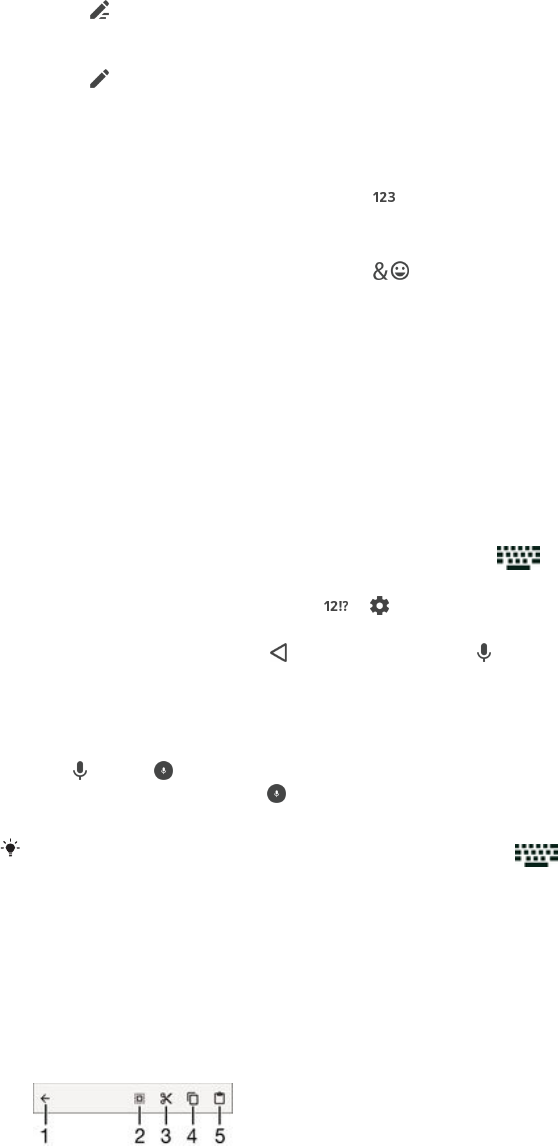
To enter text using the Phonepad
•When appears in the Phonepad, tap each character key only once, even if
the letter you want is not the first letter on the key. Tap and hold the
candidates row to view more word suggestions and select a word from the list.
•When appears in the Phonepad, tap the on-screen key for the character you
want to enter. Keep tapping this button until the desired character is selected.
Then do the same for the next character you want to enter, and so on.
To enter numbers using the Phonepad
•When the Phonepad is displayed, tap . A Phonepad with numbers appears.
To insert symbols and smileys using the Phonepad
1When the Phonepad is displayed, tap . A grid with symbols and smileys
appears.
2Scroll up or down to view more options. Tap a symbol or smiley to select it.
Entering text using voice input
When you enter text, you can use the voice input function instead of typing the
words. Just speak the words that you want to enter. Voice input is an experimental
technology from Google™, and is available for a number of languages and regions.
To enable voice input
1When you enter text using the on-screen keyboard, drag the status bar
downwards to open the Notification panel, then tap .
2Tap Set up input methods, then mark the Google™ voice typing checkbox.
3On the on-screen keyboard, tap > , then tap Keyboard settings.
4Mark the checkbox beside Google™ voice typing key .
5To save your settings, tap . A microphone icon now appears on your on-
screen keyboard.
To enter text using voice input
1Open the on-screen keyboard.
2Tap . When appears, speak to enter text.
3When you're finished, tap again. The suggested text appears.
4Edit the text manually if necessary.
To make the keyboard appear and enter text manually, tap .
Editing text
You can select, cut, copy and paste text as you write. You can access the editing
tools by double-tapping the entered text. The editing tools then become available via
an application bar.
Application bar
1 Close the application bar
2 Select all text
3 Cut text
4 Copy text
54
This is an Internet version of this publication. © Print only for private use.

5 Paste text
only appears when you have text saved on the clipboard.
To select text
1Enter some text, then double-tap the text. The word you tap gets highlighted
by tabs on both sides.
2Drag the tabs left or right to select more text.
To edit text
1Enter some text, then double-tap the entered text to make the application bar
appear.
2Select the text that you want to edit, then use the tools in the application bar to
make your desired changes.
To use the magnifier
•When you enter text, tap and hold on the text field to view the text magnified
and to place the cursor where you want within the text field.
Personalising the on-screen keyboard
When entering text using the on-screen keyboard, you can access keyboard and
other text input settings that help you, for example, to set options for writing
languages, text prediction and correction. You can get word suggestions for one
language at a time by deactivating the Smart language detection feature.
The keyboard can use text that you have written in messaging and other applications
to learn your writing style. There is also a Personalisation guide that runs you through
the most basic settings to get you started quickly. You can select to use other
keyboards and switch between keyboards. For example, you can select the Xperia™
Chinese keyboard or the Xperia™ Japanese keyboard.
To access the on-screen keyboard settings
1When you enter text using the on-screen keyboard, tap .
2Tap , then tap Keyboard settings and change the settings as desired.
3To add a writing language for text input, tap Writing languages and mark the
relevant checkboxes.
4Tap OK to confirm.
To change the word suggestion settings
1When you enter text using the on-screen keyboard, tap .
2Tap , then tap Keyboard settings > Word suggestions.
3Select an option.
To change writing language using the on-screen keyboard
This feature is only available if you have added more than one input language and the Smart
language detection feature is off, or if the languages that you selected include non-Latin
languages.
•When you enter text using the on-screen keyboard, tap the writing language
icon to switch between the selected writing languages. For example, tap
until the desired writing language appears.
To change the Use my writing style settings
1When you enter text using the on-screen keyboard, tap .
2Tap , then tap Keyboard settings > Use my writing style and select an option.
To change the Smart language detection settings
Smart language detection may not be available for all writing languages.
55
This is an Internet version of this publication. © Print only for private use.
1When the on-screen keyboard is displayed, tap .
2Tap , then tap Keyboard settings .
3To activate or deactivate the Smart language detection function, mark or
unmark the Smart language detection checkbox.
To select a keyboard layout variant
Layout variants for the on-screen keyboard may not be available for all writing languages. You
can select different keyboard layouts for each writing language.
1When you enter text using the on-screen keyboard, tap .
2Tap , then tap Keyboard settings.
3Tap Writing languages, then tap beside a writing language.
4Select a keyboard layout variant.
5Tap OK to confirm.
To select a different keyboard
1When you enter text using the on-screen keyboard, tap at the bottom right
of the screen.
2Select an option.
To enable more keyboard options, tap Choose keyboards, then drag the relevant sliders to the
right.
56
This is an Internet version of this publication. © Print only for private use.
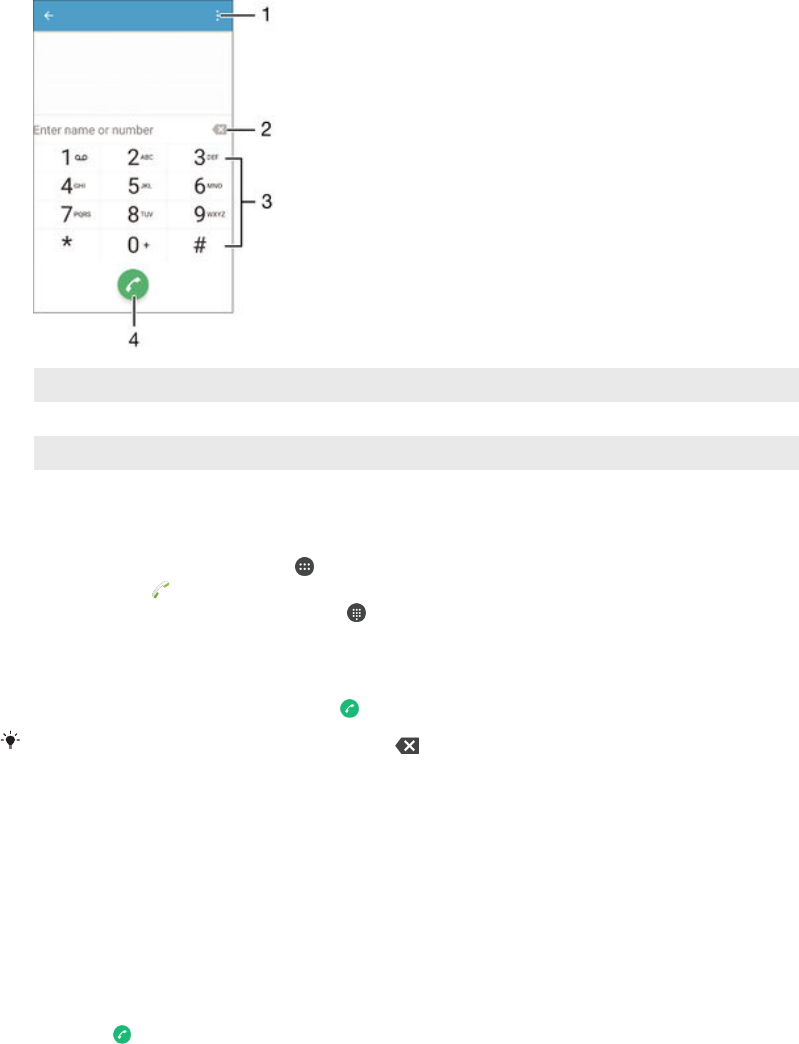
Calling
Making calls
You can make a call by manually dialling a phone number, by tapping a number
saved in your contacts list, or by tapping the phone number in your call log view. You
can also use the smart dial function to quickly find numbers from your contacts list
and call logs by entering part of a contact number or name and selecting from the
suggestions that appear. To make a video call, you can use the Hangouts™ instant
messaging and video chat application on your device. See
Instant messaging and
video chat
on page 73 .
1 View more options
2 Delete number
3 Dialpad
4 Call button
To open the dialpad
1From your Home screen, tap .
2Find and tap .
3If the dialpad does not appear, tap .
To dial a phone number
1Open the dialpad.
2Enter the phone number, then tap .
To delete a number entered by mistake, tap .
To make a call using the smart dial function
1Open the dialpad.
2Enter letters or numbers that correspond to the contact you want to call. As
you enter each letter or number, a list of possible matches appears.
3Tap the contact that you want to call.
To make an international call
1Open the dialpad.
2Touch and hold 0 until a “+” sign appears.
3Enter the country code, area code (without the initial zeros) and phone number,
then tap .
57
This is an Internet version of this publication. © Print only for private use.

To add a direct dial number to your Home screen
1Touch and hold an empty area on your Home screen until the device vibrates
and the customisation menu appears.
2In the customisation menu, tap Widgets & Apps > Shortcuts.
3Scroll through the list of applications and select Direct dial.
4Select the contact and the number that you want to use as the direct dial
number.
Showing or hiding your phone number
You can select to show or hide your phone number on call recipients' devices when
you call them.
To show or hide your phone number
1From the Home screen, tap .
2Find and tap Settings > Call > Additional settings > Caller ID.
Receiving calls
If you receive an incoming call when the device is in sleep mode or the screen is
locked, the phone application opens in fullscreen format. If you receive an incoming
call when the screen is active, the incoming call is displayed as a floating notification,
that is, in a minimised window that floats at the top of whatever screen is open. When
such a notification arrives, you can choose to answer the call and open the phone
application screen, or you can reject the call and stay on the current screen.
To answer an incoming call when the screen is inactive
•Drag to the right.
To answer an incoming call when the screen is active
•In the floating notification that appears at the top of the screen, tap ANSWER.
Instead of answering the call, you can go to the main phone application screen by tapping the
upper part of the floating notification window. Using this method, you get more options to
manage the call. For example, you can decide to reject the call with a message.
To reject an incoming call when the screen is inactive
•Drag to the left.
To reject an incoming call when the screen is active
•In the floating notification that appears at the top of the screen, tap DECLINE.
Instead of rejecting the call, you can go to the main phone application screen by tapping the
upper part of the floating notification window. Using this method, you get more options to
manage the call. For example, you can decide to reject the call with a message.
To mute the ringtone for an incoming call
•When you receive the call, press the volume key.
Rejecting a call with a text message
You can reject a call with a text message. When you reject a call with such a
message, the message is automatically sent to the caller and stored in the Messaging
conversation with the contact.
You can select from a number of predefined messages available on your device, or
you can create a new message. You can also create your own personalised
messages by editing the predefined ones.
58
This is an Internet version of this publication. © Print only for private use.
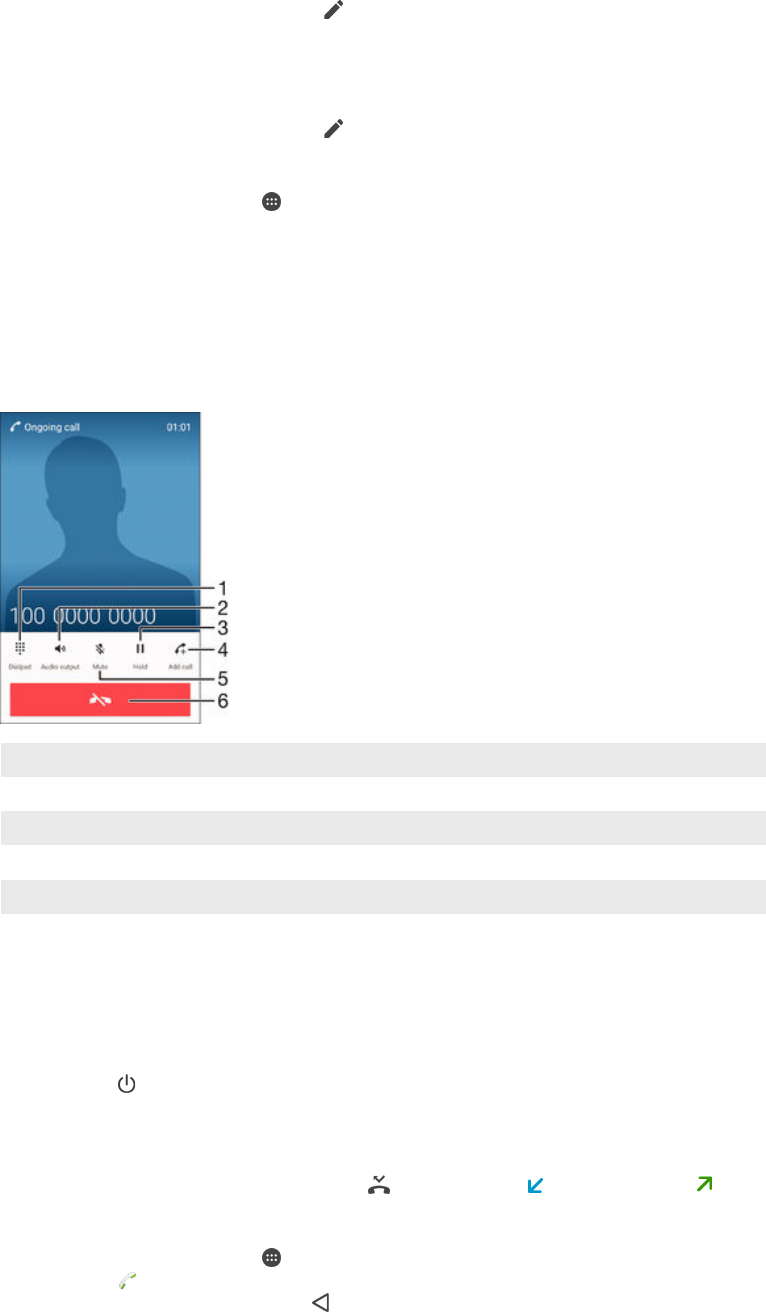
To reject a call with a text message
1When an incoming call arrives, drag Reject with message upwards.
2Select a predefined message or tap and write a new message.
To reject a second call with a text message
1When you hear repeated beeps during a call, drag Reject with message
upwards.
2Select a predefined message or tap and write a new message.
To edit the text message used to reject a call
1From your Home screen, tap .
2Find and tap Settings > Call > Reject call with message.
3Tap the message that you want to edit, then make the necessary changes.
4Tap OK.
Ongoing calls
1 Enter numbers during a call
2 Turn on the loudspeaker during a call
3 Put the current call on hold or retrieve a call on hold
4 Make a second call
5 Mute the microphone during a call
6 End a call
To change the ear speaker volume during a call
•Press the volume key up or down.
To activate the screen during a call
•Briefly press .
Using the call log
In the call log, you can view missed calls , received calls and dialled calls .
To open the call log
1From your Home screen, tap .
2Find and tap .
3If the call log does not appear, tap .
59
This is an Internet version of this publication. © Print only for private use.

To view your missed calls
1When you have missed a call, appears in the status bar. Drag the status bar
downwards.
2Tap Missed call.
To call a number from your call log
•Tap the number.
To edit the number before calling, touch and hold the number in the call log, then tap Edit
number before call.
To add a number from the call log to your contacts
1Touch and hold a number displayed in the call log, then tap Add to Contacts.
2Select an existing contact to which you want to add the number, or tap Create
new contact.
3Edit the contact details, then tap Done.
To view call log options
•When the call log is open, tap .
You can also access general call settings using the instruction above.
Forwarding calls
You can direct calls to a different recipient, for example, to another phone number,
another device, or an answering service.
To forward calls
1From your Home screen, tap .
2Find and tap Settings > Call.
3Tap Call forwarding and select an option.
4Enter the number to which you want to forward calls, then tap Enable.
To turn off call forwarding
1From your Home screen, tap .
2Find and tap Settings > Call > Call forwarding.
3Select an option, then tap Disable.
Restricting calls
You can block all or certain categories of incoming and outgoing calls. If you have
received a PIN2 code from your service provider, you can also use a list of Fixed
Dialling Numbers (FDNs) to restrict outgoing calls. If your subscription includes a
voicemail service, you can send all incoming calls from a specific contact directly to
voicemail. If you want to block a certain number, you can go to Google Play™ and
download applications that support this function.
FDN is not supported by all network operators. Contact your network operator to verify if your
SIM card or network service supports this feature.
To block incoming or outgoing calls
1From your Home screen, tap .
2Find and tap Settings > Call.
3Tap Call Barring, then select an option.
4Enter the password and tap Enable.
When you set up call barring for the first time, you need to enter a password to activate the call
barring function. You must use this same password later if you want to edit call barring
settings.
60
This is an Internet version of this publication. © Print only for private use.

To enable or disable fixed dialling
1From your Home screen, tap .
2Find and tap Settings > Call > Fixed dialling numbers.
3Tap Activate fixed dialling or Deactivate fixed dialling.
4Enter your PIN2 and tap OK.
To access the list of accepted call recipients
1From your Home screen, tap .
2Find and tap Settings > Call > Fixed dialling numbers > Fixed dialling numbers.
To change the SIM card PIN2
1From the Home screen, tap .
2Find and tap Settings > Call.
3Tap Fixed dialling numbers > Change PIN2.
4Enter the old SIM card PIN2 and tap OK.
5Enter the new SIM card PIN2 and tap OK.
6Confirm the new PIN2 and tap OK.
To send incoming calls from a specific contact directly to voicemail
1From your Home screen, tap .
2Find and tap .
3Select the contact for which you want to direct all incoming calls automatically
to voicemail.
4Tap > .
5Mark the checkbox beside All calls to voicemail.
6Tap Done.
Multiple calls
If you have activated call waiting, you can handle multiple calls at the same time.
When it is activated, you will be notified by a beep if you receive another call.
To activate or deactivate call waiting
1From your Home screen, tap .
2Find and tap Settings > Call > Additional settings.
3To activate or deactivate call waiting, tap Call waiting.
To answer a second call and put the ongoing call on hold
•When you hear repeated beeps during a call, drag to the right.
To reject a second call
•When you hear repeated beeps during a call, drag to the left.
To make a second call
1During an ongoing call, tap . The call log is displayed.
2Tap to display the dialpad.
3Enter the number of the recipient and tap . The first call is put on hold.
To answer a third call and end the ongoing call
•When the third call comes in, tap End current call and answer.
To reject a third call
•When the third call comes in, tap Decline incoming call.
To switch between multiple calls
•To switch to another call and put the current call on hold, tap Switch to this
call.
61
This is an Internet version of this publication. © Print only for private use.
Conference calls
With a conference or multiparty call, you can have a joint conversation with two or
more persons.
For details about the number of participants that you can add to a conference call, contact
your network operator.
To make a conference call
1During an ongoing call, tap . The call log appears.
2To display the dialpad, tap .
3Dial the number of the second participant and tap . The first participant is put
on hold temporarily.
4To add the second participant to the call and start the conference, tap .
5To add more participants to the call, repeat the relevant steps as described
above.
To have a private conversation with a conference call participant
1During an ongoing conference call, tap Manage conference.
2Tap the telephone number of the participant with whom you want to have a
private conversation.
3To end the private conversation and return to the conference call, tap .
To release a participant from a conference call
1During an ongoing conference call, tap Manage conference.
2Tap next to the participant you want to release.
To end a conference call
•During the call, tap .
Voicemail
If your subscription includes a voicemail service, callers can leave voice messages for
you when you can't answer calls. Your voicemail service number is normally saved on
your SIM card. If not, you can get the number from your service provider and enter it
manually.
To enter your voicemail number
1From the Home screen, tap .
2Find and tap Settings > Call > Voicemail > Voicemail settings > Voicemail
number.
3Enter your voicemail number.
4Tap OK.
To call your voicemail service
1Open the dialpad.
2Touch and hold 1 until your voicemail number is dialed.
The first time you call your voicemail number, your network operator’s voicemail system
normally prompts you to set up your voicemail. For example, you may be asked to record a
greeting and set a password.
Emergency calls
Your device supports international emergency numbers, for example, 112 or 911.
You can normally use these numbers to make emergency calls in any country, with or
without a SIM card inserted if you are within range of a network.
62
This is an Internet version of this publication. © Print only for private use.

To make an emergency call
1Open the dialpad.
2Enter the emergency number, then tap .
You can make emergency calls even when no SIM card is inserted or when all outgoing calls
are blocked.
To make an emergency call while the SIM card is locked
1Tap Emergency call.
2Enter the emergency number and tap .
To make an emergency call while the screen is locked
1From the lock screen, drag the phone icon to the right.
2If the active screen lock type is Swipe, tap to display the dialpad, then enter
the emergency number and tap .
3If your screen is locked with a pattern, PIN or password, tap Emergency call,
then enter the emergency number and tap .
63
This is an Internet version of this publication. © Print only for private use.

Contacts
Transferring contacts
There are several ways to transfer contacts to your new device. You can sync
contacts from an online account or import contacts directly from another device.
Transferring contacts using a computer
Xperia™ Transfer is an application that helps you to collect contacts from your old
device and transfer them to your new device. Xperia™ Transfer, which you can
access from within the Xperia™ Companion software, supports mobile devices that
run on iOS/iCloud and Android™. If you are switching from an iOS device, the App
Matching feature suggests the Android equivalents of your iOS apps.
To use Xperia™ Transfer, you need:
•An Internet-connected computer.
•Your new Android™ device.
•A USB cable for your new Android™ device.
•Your old device.
•A USB cable for your old device.
You may not need your old device. For iOS devices, you can connect directly to iCloud or use
a local backup. For previously owned Sony devices you can use local backups.
To transfer contacts to your new device
1Search and download Xperia™ Companion for Windows at
http://support.sonymobile.com/tools/xperia-companion or Xperia™
Companion for Mac at
http://support.sonymobile.com/tools/xperia-companion-mac if the software is
not already installed.
2Using a USB cable, connect your device to the computer.
3After successful installation, open the Xperia™ Companion software if it is not
automatically launched, then click
Xperia™ Transfer
and follow the relevant
instructions to transfer your contacts.
Transferring contacts using an online account
If you sync the contacts in your old device or your computer with an online account,
for example, Google Sync™, Facebook™ or Microsoft® Exchange ActiveSync®, you
can transfer your contacts to your new device using that account.
To synchronise contacts to your new device using a synchronisation account
1From your Home screen, tap , then tap .
2Tap , then tap Settings > Accounts & sync.
3Select the account that you want to sync your contacts with, then tap > Sync
now.
You need to be signed in to the relevant sync account before you can sync your contacts with
it.
Other methods for transferring contacts
There are several other ways to transfer contacts from your old device to your new
device. For example, you can copy contacts to a memory card, use Bluetooth®
technology, or save contacts to a SIM card. For more specific information about
transferring the contacts from your old device, refer to the relevant User guide.
64
This is an Internet version of this publication. © Print only for private use.
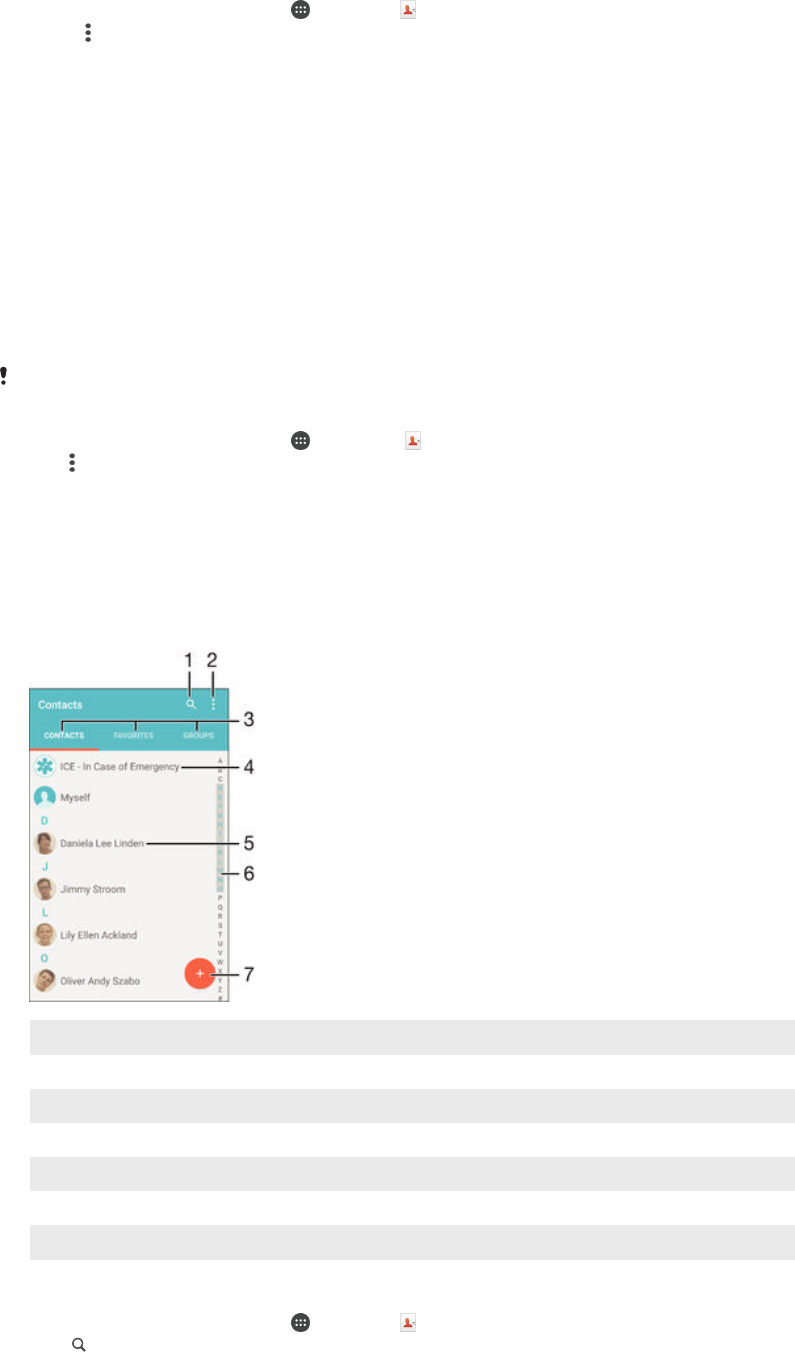
To import contacts from a memory card
1From your Home screen, tap , then tap .
2Press , then tap Import contacts > SD card.
3Select the files that you want to import and tap OK.
To import contacts using Bluetooth® technology
1Make sure you have the Bluetooth® function turned on and that your device is
set to visible.
2When you are notified of an incoming file to your device, drag the status bar
downwards and tap the notification to accept the file transfer.
3Tap Accept to start the file transfer.
4Drag the status bar downwards. When the transfer is complete, tap the
notification.
5Tap the received file.
To import contacts from a SIM card
You may lose information or get multiple contact entries if you transfer contacts using a SIM
card.
1From your Home screen, tap , then tap .
2Tap , then tap Import contacts > SIM card.
3To import an individual contact, find and tap the contact. To import all
contacts, tap Import all.
Searching and viewing contacts
1 Search for contacts
2 View more options
3 Contacts, Favourites and Groups tabs
4 Edit and view medical and emergency contact information
5 View contact details
6 Jump to contacts starting with the selected letter
7 Add a contact
To search for a contact
1From your Home screen, tap , then tap .
2Tap and enter a phone number, name or other information in the Search
contacts field. The result list is filtered as you enter each character.
65
This is an Internet version of this publication. © Print only for private use.
To select which contacts to display in the Contacts application
1From your Home screen, tap , then tap .
2Press , then tap Filter.
3In the list that appears, mark or unmark the desired options. If you have
synchronised your contacts with a synchronisation account, that account
appears in the list. To further expand the list of options, tap the account.
Adding and editing contacts
To add a contact
1From your Home screen, tap , then tap .
2Tap .
3If you have synchronised your contacts with one or more accounts and you are
adding a contact for the first time, you must select the account to which you
want to add this contact. Alternatively, tap No backup if you only want to use
and save this contact on your device.
4Enter or select the desired information for the contact.
5When you are finished, tap Done.
After you select a synchronisation account in step 3, that account will show as the default
account offered the next time you add a contact. When you save a contact to a particular
account, that account will show as the default account to save to the next time you add a
contact. If you have saved a contact to a particular account and want to change it, you need to
create a new contact and select a different account to save it to.
If you add a plus sign and the country code before a contact's phone number, you do not
have to edit the number again when you make calls from other countries.
To edit a contact
1From your Home screen, tap , then tap .
2Tap the contact that you want to edit, then tap .
3Edit the desired information.
4When you are finished, tap Done.
Some synchronisation services do not allow you to edit contact details.
To associate a picture with a contact
1From your Home screen, tap , then tap .
2Tap the contact that you want to edit, then tap .
3Tap and select a method for adding the contact picture.
4After you add the picture, tap Done.
You can also add a picture to a contact directly from the Album application. If you want to
add a picture that is saved to an online account, you must download the picture first.
To personalise the ringtone for a contact
1From your Home screen, tap , then tap .
2Tap the contact that you want to edit, then tap .
3Tap > Set ringtone.
4Select an option from the list or tap to select a music file saved to your
device, then tap Done.
5Tap Done.
To delete contacts
1From your Home screen, tap , then tap .
2Touch and hold the contact that you want to delete.
3To delete all contacts, tap the downwards arrow to open the drop down menu,
then select Mark all.
4Tap , then tap Delete.
66
This is an Internet version of this publication. © Print only for private use.
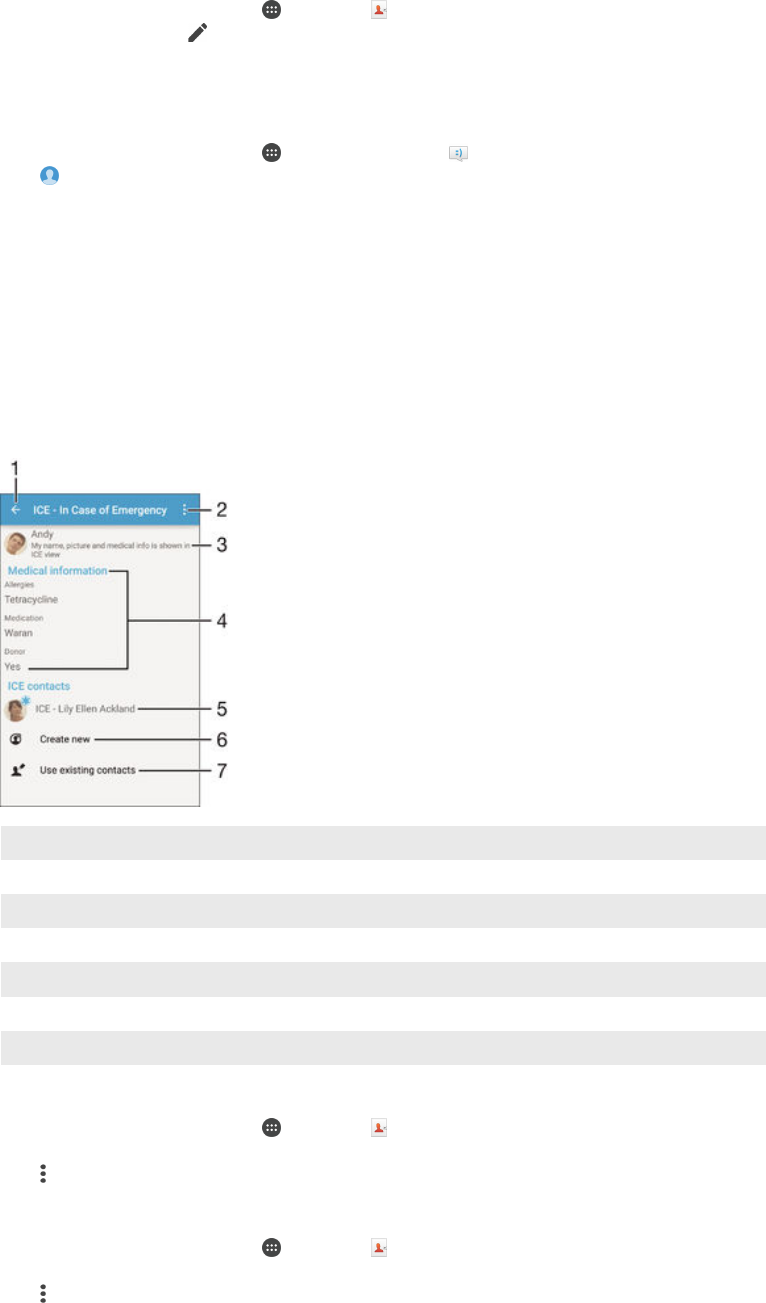
To edit contact information about yourself
1From your Home screen, tap , then tap .
2Tap Myself, then tap .
3Enter the new information or make the changes you want.
4When you are done, tap Done.
To create a new contact from a text message
1From your Home screen, tap , then find and tap .
2Tap > Save.
3Select an existing contact, or tap Create new contact.
4Edit the contact information and tap Done.
Adding medical and emergency contact information
You can add and edit ICE (In Case of Emergency) information in the Contacts
application. You can enter medical details, such as allergies and medications that you
are using, plus information about relatives and friends who can be contacted in case
of emergency. After setup, your ICE information can be accessed from the security
lock screen. This means that even if the screen is locked, for example, by a PIN,
pattern or password, emergency personnel can still retrieve your ICE information.
1 Go back to the main Contacts screen
2 View more options
3 Show your medical and personal information as part of the ICE information
4 Medical information
5 ICE contact list
6 Create new ICE contacts
7 Use existing contacts as ICE contacts
To show your medical and personal information as part of the ICE information
1From your Home screen, tap , then tap .
2Tap ICE – In Case of Emergency.
3Tap , then mark the Show personal information checkbox.
To enter your medical information
1From your Home screen, tap , then tap .
2Tap ICE – In Case of Emergency.
3Tap , then tap Edit medical info.
4Edit the desired information.
5When you are finished, tap Done.
67
This is an Internet version of this publication. © Print only for private use.

To add a new ICE contact
1From your Home screen, tap , then tap .
2Tap ICE – In Case of Emergency, then tap .
3If you have synchronised your contacts with one or more accounts and you are
adding a contact for the first time, you must select the account to which you
want to add this contact. Alternatively, tap No backup if you only want to use
and save this contact on your device.
4Enter or select the desired information for the contact.
5When you are finished, tap Done.
The ICE contact must have at least a phone number to which emergency personnel can make
a call. If your device is locked by a security screen lock, emergency personnel can only see the
phone number of the ICE contact, even if there is other information entered in the Contacts
application about the contact.
To use existing contacts as ICE contacts
1From your Home screen, tap , then tap .
2Tap ICE – In Case of Emergency, then tap .
3Mark the contacts that you want to use as ICE contacts.
4When you are finished, tap Done.
The ICE contacts that you select must have at least a phone number to which emergency
personnel can make a call. If your device is locked by a security screen lock, emergency
personnel can only see the phone number of the ICE contacts, even if there is other
information entered in the Contacts application about the contacts.
To make your ICE information visible from the security lock screen
1From your Home screen, tap , then tap .
2Tap ICE – In Case of Emergency.
3Tap , then tap Settings.
4Mark the ICE in lock screen checkbox.
Your ICE information is visible from the security lock screen by default.
To enable calls to ICE contacts from the security lock screen
1From your Home screen, tap , then tap .
2Tap ICE – In Case of Emergency.
3Tap , then tap Settings.
4Mark the Enable calling in ICE checkbox.
Some network operators may not support ICE calls.
Favourites and groups
You can mark contacts as favourites so that you can get quick access to them from
the Contacts application. You can also assign contacts to groups, to get quicker
access to a group of contacts from within the Contacts application.
To mark or unmark a contact as a favourite
1From the Home screen, tap , then tap .
2Tap the contact you want to add to or remove from your favourites.
3Tap .
To view your favourite contacts
1From your Home screen, tap , then tap .
2Tap Favourites.
68
This is an Internet version of this publication. © Print only for private use.
To assign a contact to a group
1In the Contacts application, tap the contact that you want to assign to a group.
2Tap , then tap the bar directly under Groups.
3Mark the checkboxes for the groups to which you want to add the contact.
4Tap Done.
Sending contact information
To send your business card
1From your Home screen, tap , then tap .
2Tap Myself.
3Tap , then tap Share.
4Select an available transfer method and follow the on-screen instructions.
To send a contact
1From your Home screen, tap , then tap .
2Tap the contact whose details you want to send.
3Tap , then tap Share.
4Select an available transfer method and follow the on-screen instructions.
To send several contacts at once
1From your Home screen, tap , then tap .
2Press , then tap Mark several.
3Mark the contacts you want to send, or select all if you want to send all
contacts.
4Tap , then select an available transfer method and follow the on-screen
instructions.
Avoiding duplicate entries in the Contacts application
If you synchronise your contacts with a new account or import contact information in
other ways, you could end up with duplicate entries in the Contacts application. If this
happens, you can join such duplicates to create a single entry. And if you join entries
by mistake, you can separate them again later.
To link contacts
1From your Home screen, tap , then tap .
2Tap the contact that you want to link with another contact.
3Press , then tap Link contact.
4Tap the contact whose information you want to join with the first contact, then
tap OK to confirm. The information from the first contact is merged with the
second contact, and the linked contacts are displayed as one contact in the
Contacts list.
To separate linked contacts
1From your Home screen, tap , then tap .
2Tap the linked contact that you want to edit, then tap .
3Tap Unlink contact > Unlink.
Backing up contacts
You can use a memory card, a SIM card or a USB storage device to back up
contacts. See
Transferring contacts
on page 64 for more information about how to
restore contacts to your device.
To export all contacts to a memory card
1From your Home screen, tap , then tap .
2Press , then tap Export contacts > SD card.
3Tap OK.
69
This is an Internet version of this publication. © Print only for private use.

To export contacts to a SIM card
When you export contacts to a SIM card, not all information may get exported. This is due to
memory limitations on SIM cards.
1From your Home screen, tap , then tap .
2Press , then tap Export contacts > SIM card.
3Mark the contacts you want to export, or tap Mark all if you want to export all
your contacts.
4Tap Export.
5Select Add contacts if you want to add the contacts to existing contacts on
your SIM card, or select Replace all contacts if you want to replace the existing
contacts on your SIM card.
To export all contacts to a USB storage device
When you export contacts using this method, you must first connect your device to a USB
storage device, for example, a flash drive or an external hard drive, using a
USB Host adapter cable. See
Connecting your device to USB mass storage devices
on
page 110 for more information about how to connect your device to a USB storage device.
1From your Home screen, tap , then tap .
2Tap , then tap Export contacts > USB storage.
3Tap OK.
70
This is an Internet version of this publication. © Print only for private use.
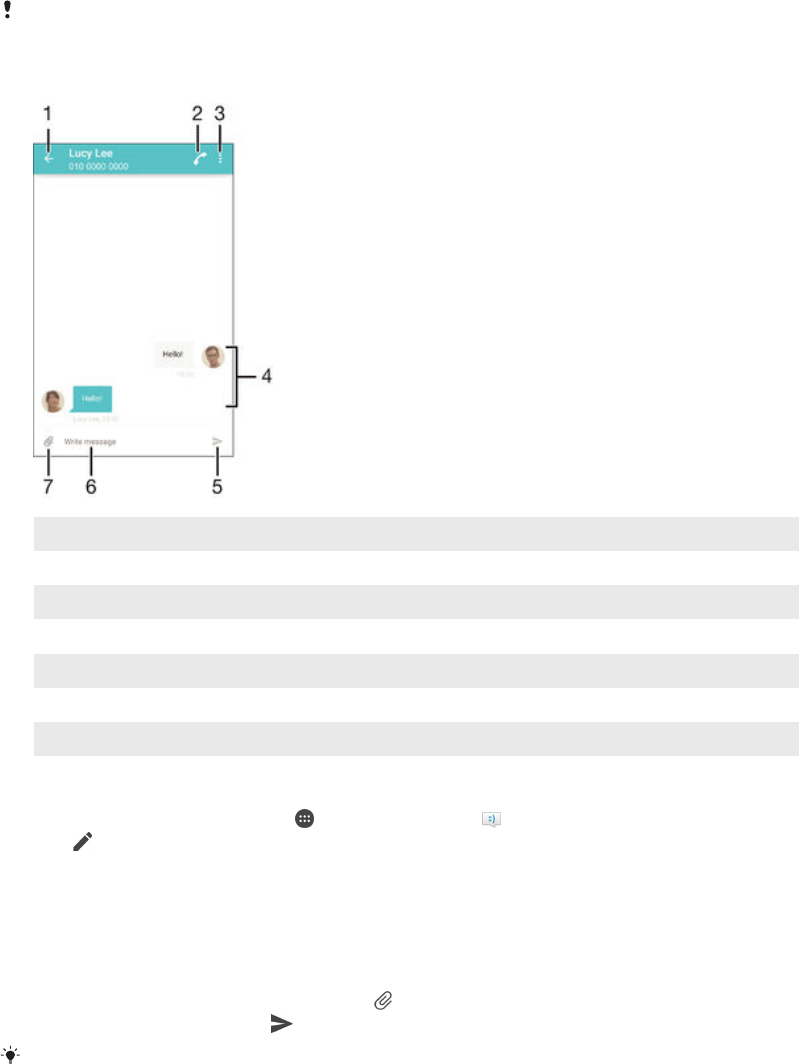
Messaging and chat
Reading and sending messages
The Messaging application shows your messages as conversations, which means
that all messages to and from a particular person are grouped together. To send
multimedia messages, you need the correct MMS settings on your device. See
Internet and MMS settings
on page 30 .
The number of characters that you can send in a single message varies depending on the
operator and the language you use. The maximum size of a multimedia message, which
includes the size of added media files, is also operator dependent. Contact your network
operator for more information.
1 Go back to the list of conversations
2 Call the message sender
3 View more options
4 Sent and received messages
5 Send a completed message
6 Text entry field
7 Add attachments
To create and send a message
1From your Home screen, tap , then find and tap .
2Tap .
3Enter the recipient’s name or phone number, or other contact information that
you have saved about the recipient, then select from the list that appears. If the
recipient is not listed as a contact, enter the recipient's number manually.
4If you want to send a group message, repeat the procedure described above
to add more recipients.
5Tap Write message and enter your message text.
6If you want to add an attachment, tap and select an option.
7To send the message, tap .
If you exit a message before sending, it gets saved as a draft. The conversation gets tagged
with the word Draft:.
71
This is an Internet version of this publication. © Print only for private use.

To read a received message
1From your Home screen, tap , then find and tap .
2Tap the desired conversation.
3If the message is not yet downloaded, tap and hold the message, then tap
Download message.
All received messages are saved by default to the device memory.
To reply to a message
1From your Home screen, tap , then find and tap .
2Tap the conversation containing the message.
3Enter your reply and tap .
To forward a message
1From your Home screen, tap , then find and tap .
2Tap the conversation containing the message that you want to forward.
3Touch and hold the message that you want to forward, then tap Forward
message.
4Enter the recipient’s name or phone number, or other contact information that
you have saved about the recipient, then select from the list that appears. If the
recipient is not listed as a contact, enter the recipient's number manually.
5Edit the message, if necessary, then tap .
To save a file contained in a message you receive
1From your Home screen, tap , then find and tap .
2Tap the conversation you want to open.
3If the message has not been downloaded yet, tap and hold the message, then
tap Download message.
4Touch and hold the file you want to save, then select the desired option.
Organising your messages
To delete a message
1From your Home screen, tap , then find and tap .
2Tap the conversation containing the message you want to delete.
3Touch and hold the message you want to delete, then tap Delete message >
Delete.
To delete conversations
1From your Home screen, tap , then find and tap .
2Tap , then tap Delete conversations.
3Mark the checkboxes for the conversations that you want to delete, then tap
> Delete.
To star a message
1From your Home screen, tap , then find and tap .
2Tap the conversation that you want to open.
3Touch and hold the message that you want to star, then tap Add star.
4To unstar a message, touch and hold the starred message, then tap Delete
star.
To view starred messages
1From your Home screen, tap , then find and tap .
2Tap , then tap Starred messages.
3All starred messages appear in a list.
72
This is an Internet version of this publication. © Print only for private use.

To search for messages
1From your Home screen, tap , then find and tap .
2Tap , then tap Search.
3Enter your search keywords. The search results appear in a list.
Calling from a message
To call a message sender
1From your Home screen, tap , then find and tap .
2Tap a conversation and tap , then tap .
To save a sender's number as a contact
1From your Home screen, tap , then find and tap .
2Tap > Save.
3Select an existing contact, or tap Create new contact.
4Edit the contact information and tap Save.
Messaging settings
To change your message notification settings
1From your Home screen, tap , then find and tap .
2Tap , then tap Settings.
3To set a notification sound, tap Notification sound, then select an option or tap
and select a music file that is saved to your device.
4To confirm, tap Done.
5For other notification settings, check or uncheck the relevant checkboxes.
To turn the delivery report function on or off for outgoing messages
1From your Home screen, tap , then find and tap .
2Tap , then tap Settings.
3Mark or unmark the Delivery report checkbox as desired.
After the delivery report function is turned on, a check mark is displayed in messages that have
been successfully delivered.
Instant messaging and video chat
You can use the Google Hangouts™ instant messaging and video chat application on
your device to chat with friends who also use the application on computers,
Android™ devices and other devices. You can turn any conversation into a video call
with several friends, and you can send messages to friends even when they are
offline. You can also view and share photos easily.
Hangouts™ requires Internet access and a Google™ account. Go to http://
support.google.com/hangouts and click the "Hangouts on your Android" link to get
more detailed information about how to use this application.
The video call function only works on devices with a front camera.
To use the Hangouts™ application
1From your Home screen, tap .
2Find and tap Hangouts.
73
This is an Internet version of this publication. © Print only for private use.
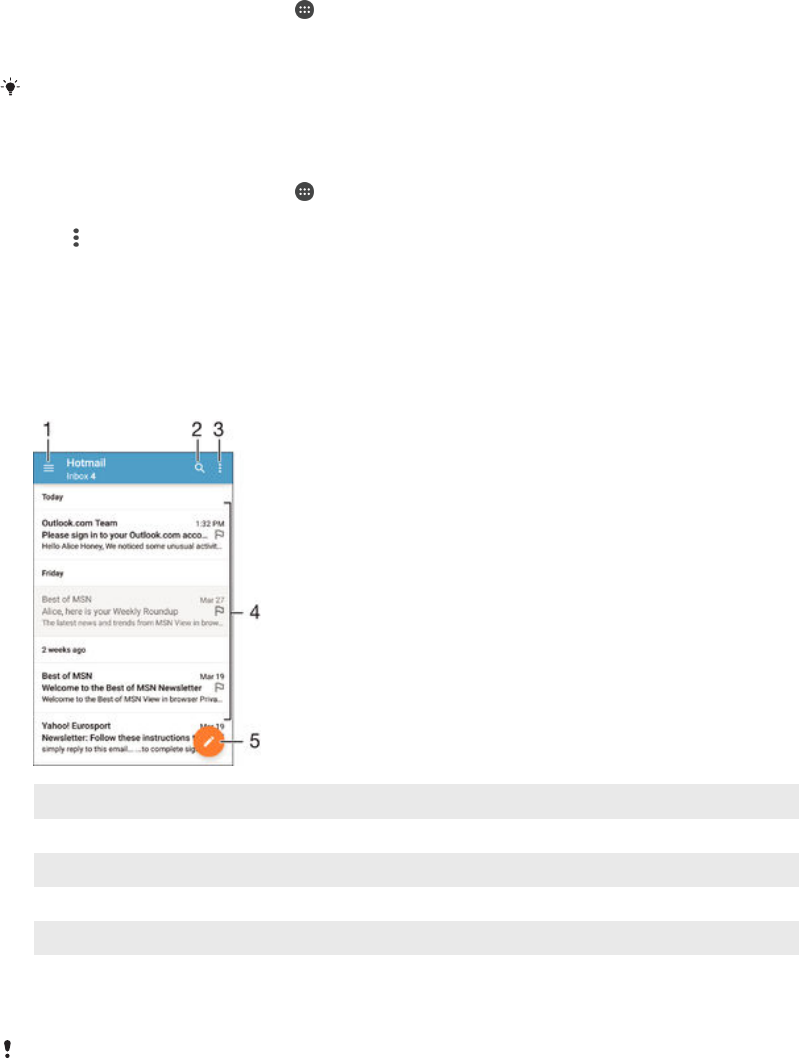
Email
Setting up email
Use the email application in your device to send and receive email messages through
your email accounts. You can have one or several email accounts at the same time,
including corporate Microsoft Exchange ActiveSync accounts.
To set up an email account
1From your Home screen, tap .
2Find and tap Email.
3Follow the instructions that appear on the screen to complete the setup.
For some email services, you may need to contact your email service provider for information
on detailed settings for the email account.
To add an extra email account
1From your Home screen, tap .
2Find and tap Email.
3Tap , then tap Settings > Add account.
4Enter the email address and password, then tap Next. If the settings for the
email account cannot be downloaded automatically, complete the setup
manually.
5When you are finished, tap Next.
Sending and receiving email messages
1 View a list of all email accounts and recent folders
2 Search for email messages
3 Access settings and options
4 List of email messages
5 Write an email message
To download new email messages
•When the email inbox is open, swipe downwards on the message list.
Before trying to download new email messages, make sure that you have a working data
connection. For more information about ensuring successful data connections, see
Internet
and MMS settings
on page 30 .
74
This is an Internet version of this publication. © Print only for private use.

To read your email messages
1From your Home screen, tap .
2Find and tap Email.
3If you are using several email accounts, drag the left edge of the screen to the
right and select the account that you want to check. If you want to check all
your email accounts at once, drag the left edge of the screen to the right, then
tap Combined inbox.
4In the email inbox, scroll up or down and tap the email message that you want
to read.
To create and send an email message
1From your Home screen, tap , then find and tap Email.
2If you are using several email accounts, drag the left edge of the screen to the
right and select the account from which you want to send the email.
3Tap , then type the recipient's name or email address and select one or more
recipients from the drop down list.
4Enter the email subject and message text, then tap .
To reply to an email message
1In your email inbox, find and tap the message that you want to reply to, then
tap Reply or Reply all.
2Enter your reply, then tap .
To forward an email message
1In your email inbox, find and tap the message that you want to forward, then
tap Forward.
2Enter the recipient's name or email address, then select one or more recipients
from the drop down list.
3Enter your message text, then tap .
To view an email message attachment
1Find and tap the email message containing the attachment that you want to
view. Email messages with attachments are indicated by .
2After the email message opens, tap Load. The attachment starts to download.
3After the attachment finishes downloading, tap View.
To save a sender's email address to your contacts
1Find and tap a message in your email inbox.
2Tap the name of the sender, then tap OK.
3Select an existing contact, or tap Create new contact.
4Edit the contact information, if desired, then tap Done.
Organising your email messages
To sort your emails
1From your Home screen, tap .
2Find and tap Email.
3If you are using several email accounts, drag the left edge of the screen to the
right and select the account with the email that you want to sort. If you want to
sort email in all your email accounts at once, drag the left edge of the screen to
the right, then tap Combined inbox.
4Tap , then tap Sort.
5Select a sorting option.
75
This is an Internet version of this publication. © Print only for private use.

To search for emails
1From your Home screen, tap , then find and tap Email.
2If you are using several email accounts, drag the left edge of the screen to the
right and select the account that you want to search. If you want to search all
your email accounts at once, drag the left edge of the screen to the right, then
tap Combined inbox.
3Tap .
4Enter your search text, then tap on the keyboard.
5The search result appears in a list sorted by date. Tap the email message that
you want to open.
To view all folders for one email account
1From your Home screen, tap , then find and tap Email.
2Drag the left edge of the screen to the right, then select the account that you
want to check.
3Under the account that you want to check, select Show all folders.
To delete an email message
•In your email inbox, flick the message that you want to delete to the right.
To move an email message to another folder
1In your email inbox, flick the message that you want to move to the left.
2Tap Move, then select a folder.
Email account settings
To remove an email account from your device
1From your Home screen, tap .
2Find and tap Email.
3Press , then tap Settings.
4Select the account you want to remove.
5Tap Delete account > OK.
To change the inbox check frequency
1From your Home screen, tap .
2Find and tap Email.
3Tap , then tap Settings.
4Select the account for which you want to change the inbox check frequency.
5Tap Check frequency > Check frequency and select an option.
To set an Out of Office auto-reply in an Exchange Active Sync account
1From your Home screen, tap , then find and tap Email.
2Press , then tap Settings.
3Select the EAS (Exchange Active Sync) account for which you want to set an
Out of Office auto-reply.
4Tap Out of office.
5Drag the slider beside Out of office to the right to turn on the function.
6If needed, mark the Set time range checkbox and set the time range for the
auto reply.
7Enter your Out of Office message in the body text field.
8Tap OK to confirm.
Gmail™
If you have a Google™ account, you can use the Gmail™ application to read and
write email messages.
76
This is an Internet version of this publication. © Print only for private use.
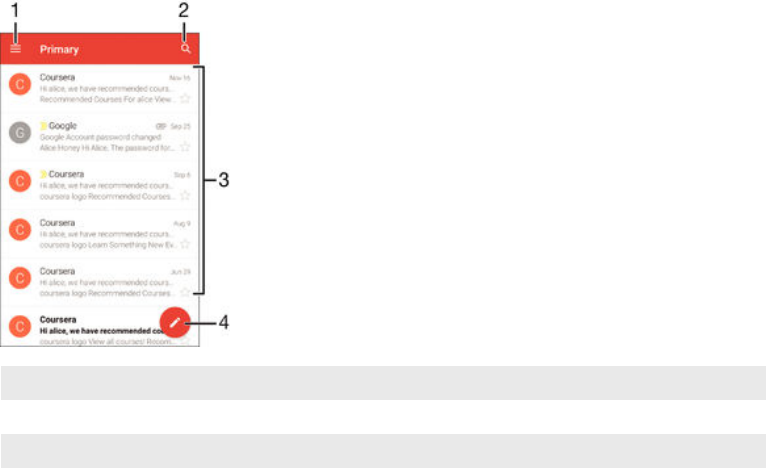
1 View a list of all Gmail accounts and folders
2 Search for email messages
3 List of email messages
4 Write an email message
To learn more about Gmail™
•When the Gmail application is open, drag the left edge of the screen to the
right, then find and tap Help.
77
This is an Internet version of this publication. © Print only for private use.
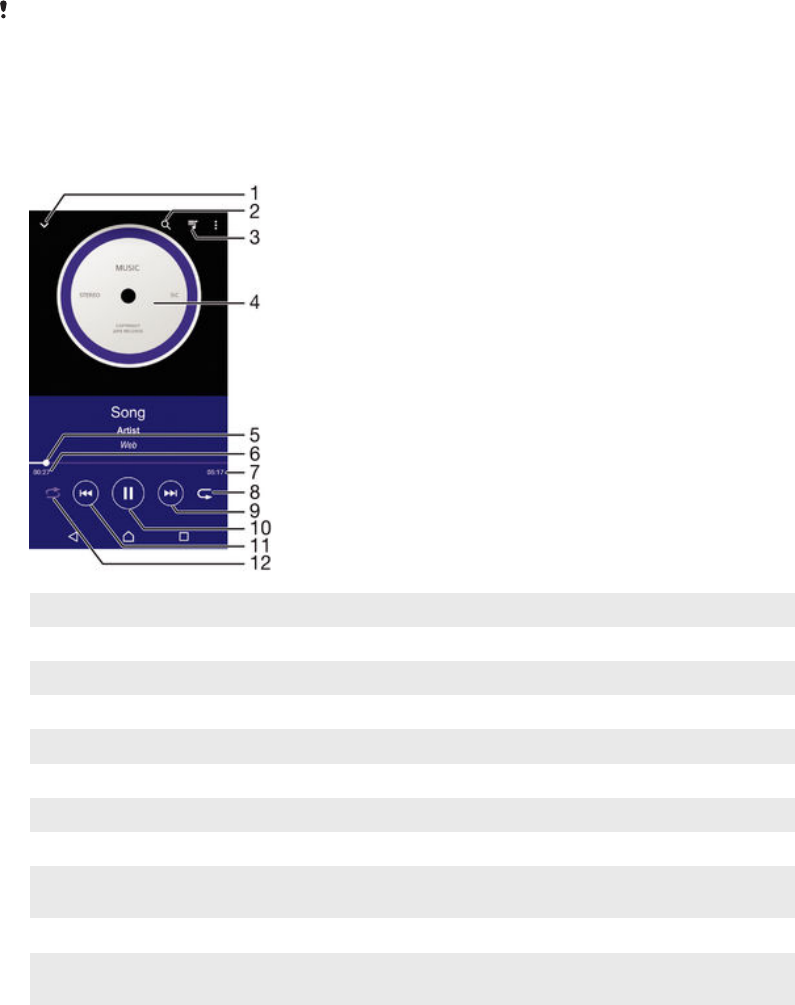
Music
Transferring music to your device
There are different ways to transfer music from a computer to your device:
•For Windows® only: Connect the device and computer using a USB cable and then
drag and drop the music files directly into the file manager application on the
computer. See
Managing files using a computer
on page 131 .
•You can use the Xperia™ Companion software to transfer your media files between
the computer and your device. Learn more and download Xperia™ Companion for
Windows at http://support.sonymobile.com/tools/xperia-companion or Xperia™
Companion for Mac at http://support.sonymobile.com/tools/xperia-companion-mac .
The Music application may not support all music file formats. For more information about
supported file formats and the use of multimedia (audio, image and video) files, download the
White Paper for your device at
www.sonymobile.com/support
.
Listening to music
Use the Music application to listen to your favourite music and audio books.
1 Go to the Music home screen
2 Search all songs saved to your device
3 View the current play queue
4 Album art (if available)
5 Progress indicator – Drag the indicator or tap along the line to fast forward or rewind
6 Elapsed time of current song
7 Total time length of current song
8 Repeat all songs in the current play queue
9 Tap to go to the next song in the play queue
Touch and hold to fast forward within the current song
10 Play or pause a song
11 Tap to go to the previous song in the play queue
Touch and hold to rewind within the current song
12 Shuffle songs in the current play queue
78
This is an Internet version of this publication. © Print only for private use.
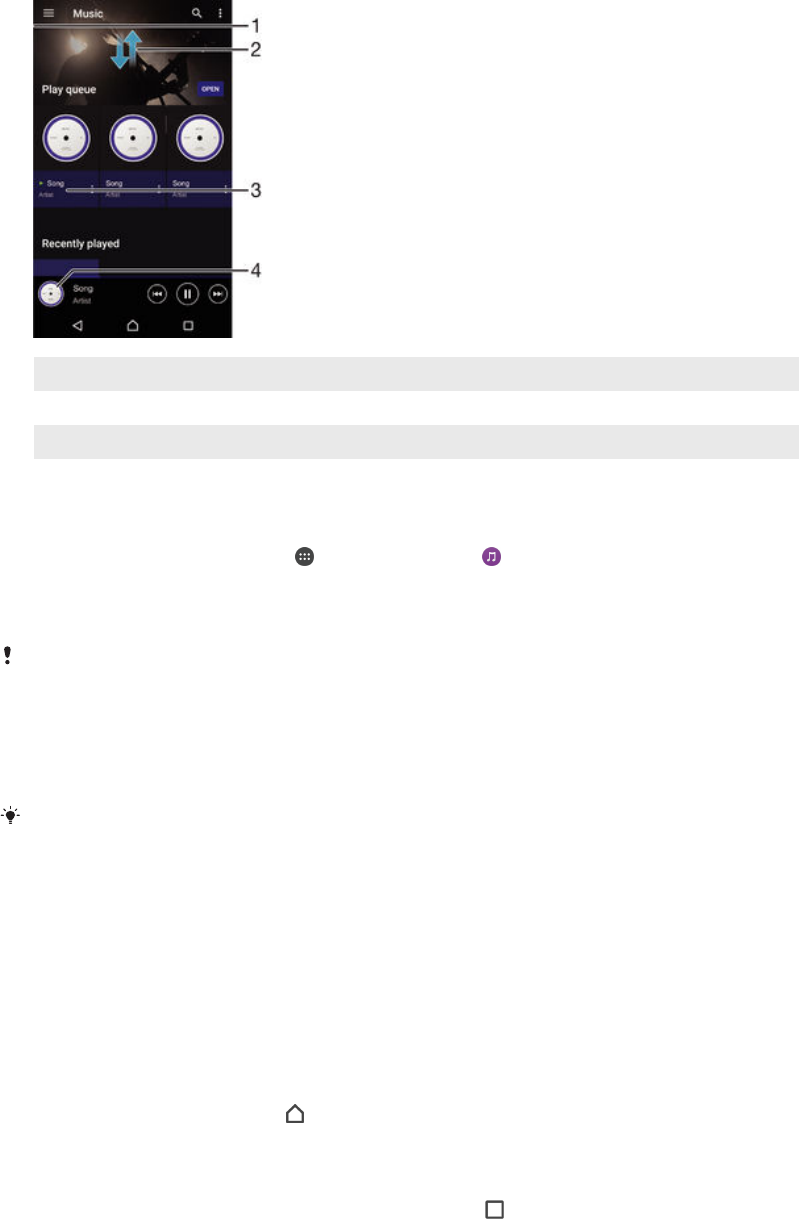
Music home screen
1 Drag the left edge of the screen to the right to open the Music home screen menu
2 Scroll up or down to view content
3 Play a song using the Music application
4 Return to the music player screen
To play a song using the Music application
1From your Home screen, tap , then find and tap .
2Drag the left edge of the screen to the right.
3Select a music category.
4Tap a song to play it.
You might not be able to play copyright-protected items. Verify that you have necessary rights
in material that you intend to share.
To find song-related information online
•While a song is playing in the Music application, tap the Album art and then tap
More about this.
Online resources related to the song can include videos on YouTube™, song lyrics, and artist
information on Wikipedia.
To edit music information
1From the Music application, tap the Album art and then tap Edit music info.
2Edit the information as desired.
3When you are finished, tap Save.
To adjust the audio volume
•Press the volume key.
To minimise the Music application
•When a song is playing, tap to go to the Home screen. The Music
application stays playing in the background.
To open the Music application when it is playing in the background
1While a song is playing in the background, tap the to open the recently used
applications window.
2Tap the Music application.
79
This is an Internet version of this publication. © Print only for private use.
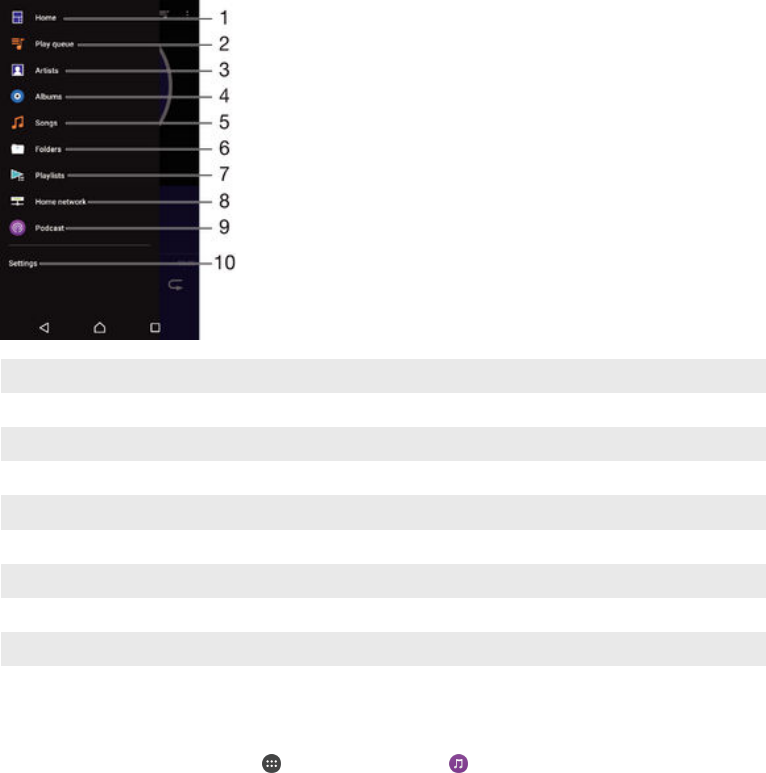
Music home screen menu
The Music home screen menu gives you an overview of all the songs on your device.
From here you can manage your albums and playlists, and you can organise your
music by mood and tempo using SensMe™ channels.
1 Return to the Music home screen
2 View the current play queue
3 Browse all artists
4 Browse all albums
5 Browse all songs
6 Browse your music library and filter by artist, album or song name
7 Browse all playlists
8 Play a shared music file on another device
9 View all subscribed or downloaded files in Podcast
10 Open the settings menu for the Music application
To open the Music home screen menu
1From your Home screen, tap , then find and tap .
2Drag the left edge of the screen to the right.
To return to the Music home screen
•When the Music home screen menu is open, tap Home.
•When the Music home screen menu is open, tap on the screen to the right of
the menu.
To update your music with the latest information
1From the Music home screen menu, tap Settings.
2Tap Download music info > Start. Your device searches online and downloads
the latest available album art and song information for your music.
To delete a song
1From the Music home screen menu, browse to the song that you want to
delete.
2Touch and hold the song title, then tap Delete in the list that appears.
3Tap Delete again to confirm.
Playlists
On the Music home screen, you can create your own playlists from the music that is
saved on your device.
80
This is an Internet version of this publication. © Print only for private use.

To create your own playlists
1From the Music home screen, touch and hold the name of the album or song
that you want to add to a playlist.
2In the menu that opens, tap Add to playlist > Create new playlist.
3Enter a name for the playlist and tap OK.
You can also tap the album art and then tap Add to playlist to create a new playlist.
To play your own playlists
1Open the Music home screen menu, then tap Playlists.
2Under Playlists, select the playlist that you want to open.
3If you want to play all songs, tap Shuffle all.
To add songs to a playlist
1From the Music home screen, browse to the song or album that you want to
add to a playlist.
2Touch and hold the song or the album title, then tap Add to playlist.
3Tap the name of the playlist to which you want to add the album or song. The
album or song is now added to the playlist.
To remove a song from a playlist
1In a playlist, touch and hold the title of the song that you want to delete.
2Tap Delete from playlist.
You might not be able to delete a song that is saved on the memory card or on your device's
internal storage.
To delete a playlist
1Open the Music home screen menu, then tap Playlists.
2Touch and hold the playlist that you want to delete.
3Tap Delete.
4Tap Delete again to confirm.
You cannot delete smart playlists.
Sharing music
To share a song
1From the Music home screen, browse to the song or album that you want to
share.
2Touch and hold the song title, then tap Share.
3Select an application from the list, then follow the on-screen instructions.
You can also share albums and playlists in the same way.
Enhancing the sound
To improve the sound quality using the Equaliser
1Open the Music home screen menu, then tap Settings > Audio settings >
Sound effects > Equaliser.
2To adjust the sound manually, drag the frequency band buttons up or down.
To adjust the sound automatically, tap and select a style.
To turn on the Surround sound feature
1Open the Music home screen menu, then tap Settings > Audio settings >
Sound effects > Surround sound (VPT).
2Flick left or right to select a setting, then tap OK to confirm.
81
This is an Internet version of this publication. © Print only for private use.
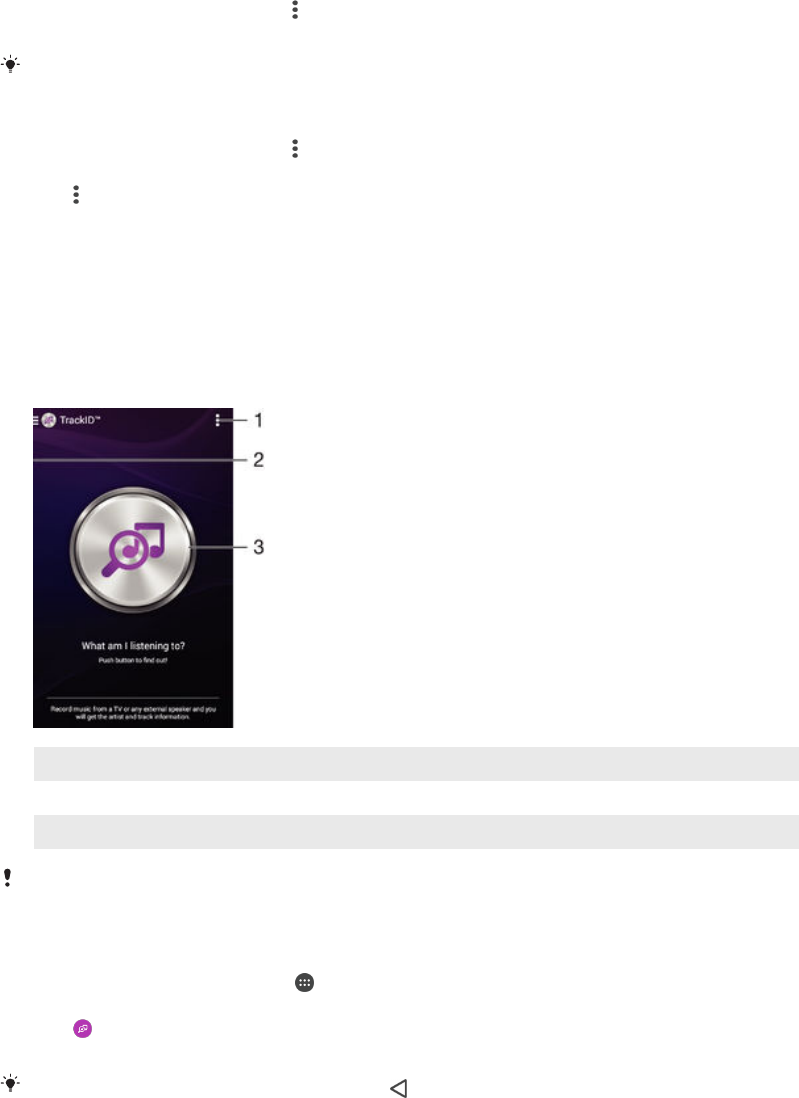
Visualiser
The Visualiser adds visual effects to your songs as you play them. The effects for
each song are based on the characteristics of the music. They change, for example,
in response to changes in the music’s loudness, rhythm and frequency level. You can
also change the background theme.
To turn on the Visualiser
1In the Music application, tap .
2Tap Visualiser.
Tap the screen to switch to full screen view.
To change the background theme
1In the Music application, tap , then tap Visualiser.
2Tap the screen to display the controls.
3Tap > Theme, then select a theme.
Recognising music with TrackID™
Use the TrackID™ music recognition service to identify a song you hear playing in
your surroundings. Just record a short sample of the song and you’ll get artist, title
and album info within seconds. You can purchase song identified by TrackID™ and
you can view TrackID™ charts to see what TrackID™ users around the globe are
searching for. For best results, use TrackID™ in a quiet area.
1 View TrackID™ options
2 Drag the left edge of the screen to the right to open the TrackID™ home screen menu
3 Identify the music that you are listening to
The TrackID™ application and the TrackID™ service are not supported in all countries/regions
or by all networks and/or service providers in all areas.
To identify music using TrackID™ technology
1From your Home screen, tap .
2Find and tap TrackID™, then hold your device close to the music source.
3Tap . If the song is recognised by the TrackID™ service, the results appear
on the screen.
To return to the TrackID™ start screen, tap .
To view artist information for a song
•After a song has been recognised by the TrackID™ application, tap Artist info.
82
This is an Internet version of this publication. © Print only for private use.
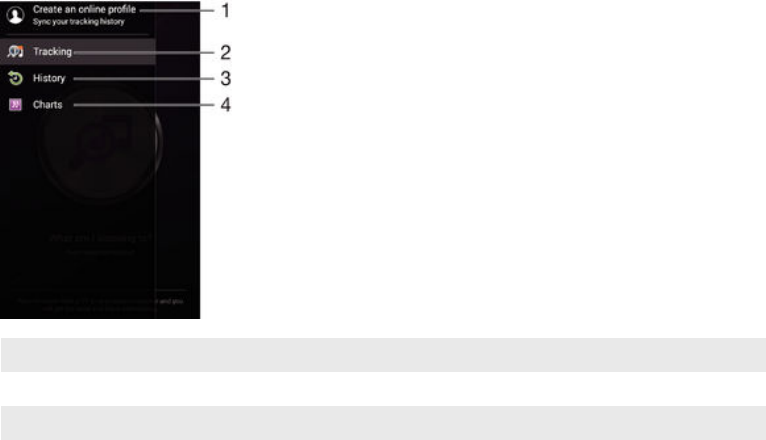
TrackID™ home screen menu
The TrackID™ home screen menu gives you an overview of all the songs that you
have recorded and identified using the TrackID™ service. From here you can also
view your songs based on current music charts and search history.
1 Create an online TrackID™ profile
2 Open the TrackID™ application
3 View the search result history
4 View current music charts
To delete song from the track history
1Open the TrackID™ application, then tap History.
2Touch and hold the name of the song that you want to delete, then tap Delete.
83
This is an Internet version of this publication. © Print only for private use.
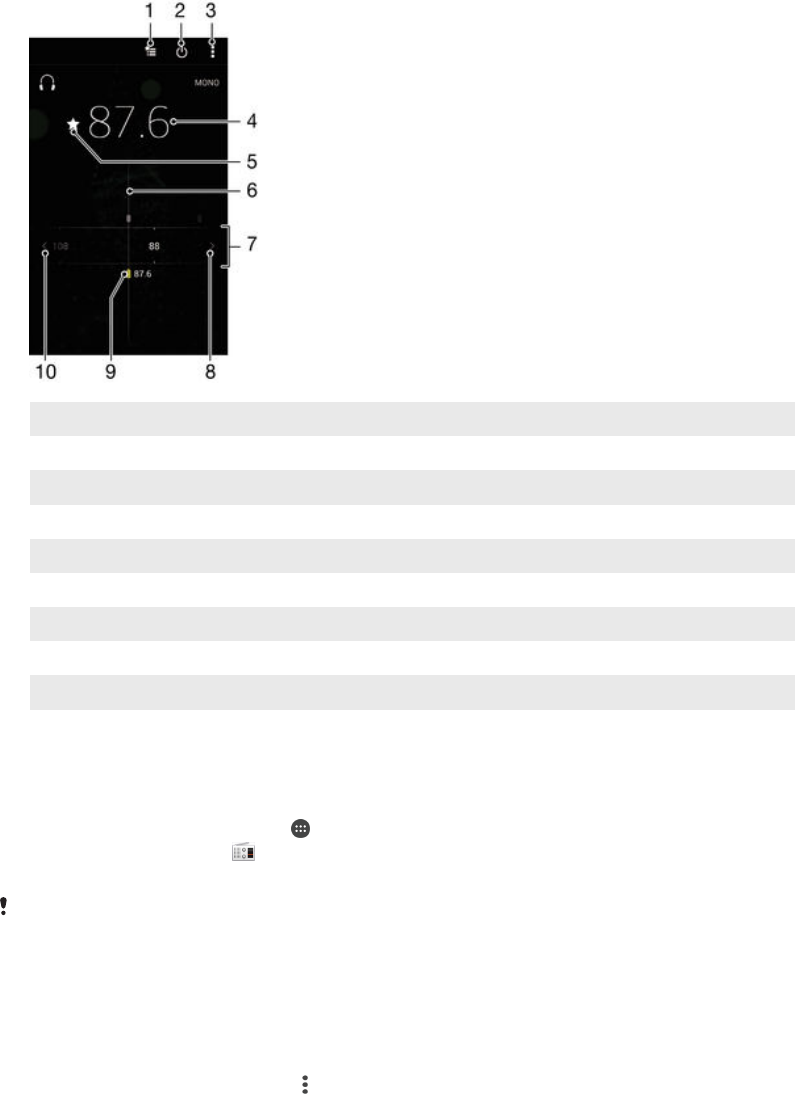
FM radio
Listening to the radio
The FM radio in your device works like any FM radio. For example, you can browse
and listen to FM radio stations and save them as favourites. You must connect a
wired headset or headphones to your device before you can use the radio. This is
because the headset or headphones act as an antenna. After one of these devices is
connected, you can then switch the audio to the speaker, if desired.
1 Favourites list
2 Radio on/off button
3 View menu options
4 Tuned frequency
5 Save or remove a channel as a favourite
6 Tuning dial
7 Frequency band – drag left or right to move between channels
8 Move up the frequency band to search for a channel
9 A saved favourite channel
10 Move down the frequency band to search for a channel
To listen to the FM radio
1Connect a headset or a set of headphones to your device.
2From your Home screen, tap .
3Find and tap FM radio . The available channels appear as you scroll through
the frequency band.
When you start the FM radio, available channels appear automatically. If a channel has RDS
information, it appears a few seconds after you start listening to the channel.
To move between radio channels
•Drag the frequency band left or right.
To start a new search for radio channels
1When the radio is open, press .
2Tap Search for channels. The radio scans the whole frequency band, and all
available channels are displayed.
84
This is an Internet version of this publication. © Print only for private use.

To switch the radio sound to the speaker
1When the radio is open, press .
2Tap Play in speaker.
To switch the sound back to the wired headset or headphones, press and tap Play in
headphones.
To identify a song on the FM radio using TrackID™
1While the song is playing on your device's FM radio, tap , then select
TrackID™.
2A progress indicator appears while the TrackID™ application samples the
song. If identification is successful, you are presented with a result or a list of
possible results.
3To return to the FM Radio, tap .
The TrackID™ application and the TrackID™ service are not supported in all countries/regions,
or by all networks and/or service providers in all areas.
Favourite radio channels
To save a channel as a favourite
1When the radio is open, navigate to the channel that you want to save as a
favourite.
2Tap .
3Enter a name and select a colour for the channel, then press Save.
To listen to a favourite radio channel
1Tap .
2Select an option.
To remove a channel as a favourite
1When the radio is open, navigate to the channel that you want to remove.
2Tap , then tap Delete.
Sound settings
To switch between mono and stereo sound mode
1When the radio is open, press .
2Tap Enable stereo sound.
3To listen to the radio in mono sound mode again, press and tap Force mono
sound.
To select the radio region
1When the radio is open, press .
2Tap Set radio region.
3Select an option.
To adjust the Visualiser
1When the radio is open, tap .
2Tap Visualiser.
3Select an option.
85
This is an Internet version of this publication. © Print only for private use.
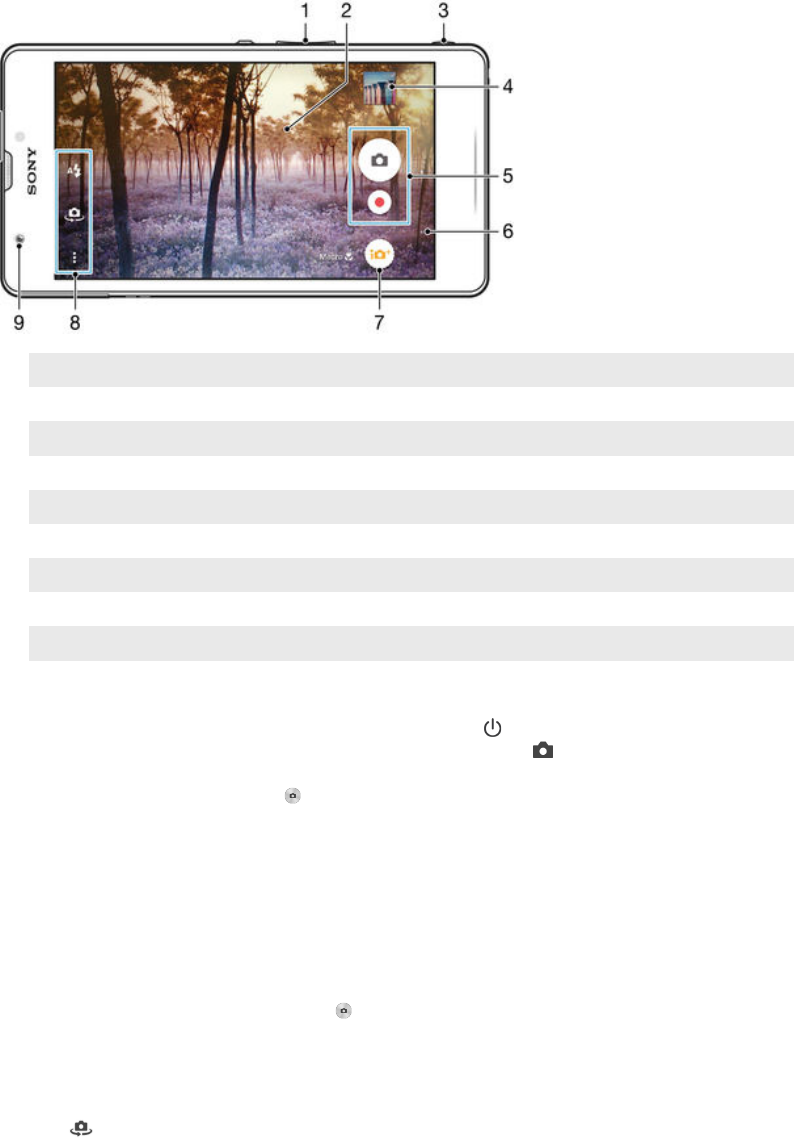
Camera
Taking photos and recording videos
1 Zoom in or out
2 Main camera screen
3 Camera key – Activate the camera/Take photos/Record videos
4 View photos and videos
5 Take photos or record video clips
6 Go back a step or exit the camera
7 Capturing mode settings icon
8 Camera settings icon and shortcut icons
9 Front camera lens
To take a photo from the lock screen
1To activate the screen, briefly press the power key .
2To activate the camera, touch and hold the camera icon , then drag it to the
left.
3After the camera opens, tap .
To take a photo using the camera key
1Activate the camera.
2Press the camera key fully down.
To take a photo by tapping the on-screen camera button
1Activate the camera.
2Point the camera towards the subject.
3Tap the on-screen camera button . The photo is taken as soon as you
release your finger.
To take a self-portrait using the front camera
1Activate the camera.
2Tap .
3To take the photo, press the camera key. The photo is taken as soon as you
release your finger.
86
This is an Internet version of this publication. © Print only for private use.
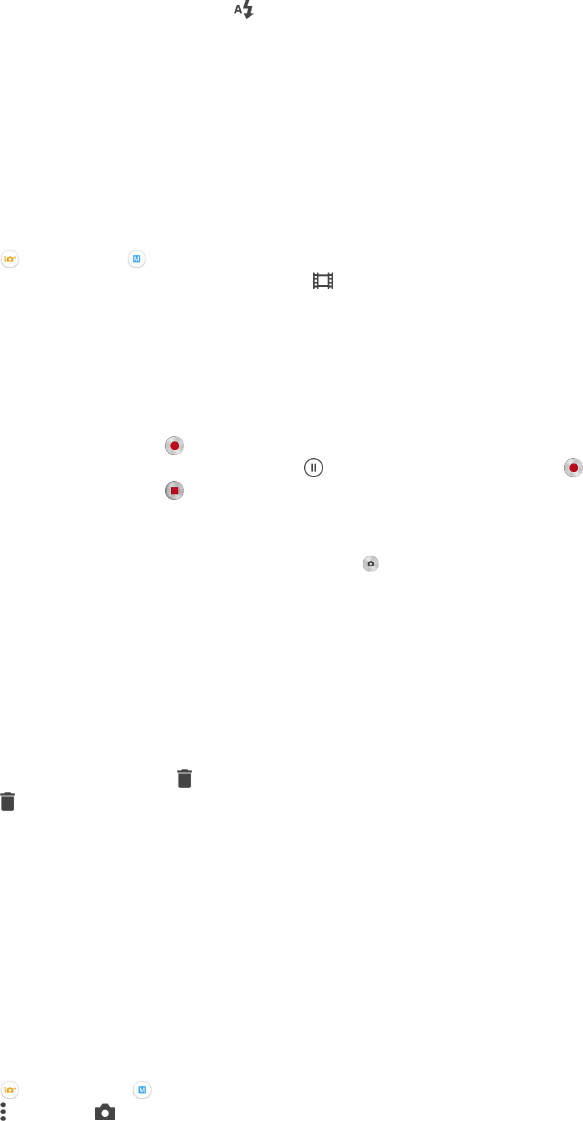
To use the still camera flash
1When the camera is open, tap .
2Select your desired flash setting.
3Take the photo.
To use the zoom function
•When the camera is open, press the volume key up or down.
•When the camera is open, pinch in or pinch out on the camera screen.
To record a video using the camera key
1Activate the camera.
2Tap , and select .
3If the video camera is not selected, tap .
4To start recording a video, press the camera key.
5To stop recording, press the camera key again.
To record a video
1Activate the camera.
2Point the camera towards the subject.
3To start recording, tap .
4To pause when recording a video, tap . To resume recording, tap .
5To stop recording, tap .
To take a photo when recording a video
•To take a photo when recording a video, tap . The photo is taken as soon as
you release your finger.
To view your photos and videos
1Activate the camera, then tap a thumbnail to open a photo or video.
2Flick left or right to view your photos and videos.
To delete a photo or recorded video
1Browse to the photo or video that you want to delete.
2Tap the screen to make appear.
3Tap .
4Tap Delete to confirm.
Face detection
You can use face detection to bring an off-centre face into focus. The camera
automatically detects up to five faces, indicated by white frames. A coloured frame
shows which face has been selected for focus. Focus is set to the face closest to the
camera. You can also tap one of the frames to select which face should be in focus.
To turn on face detection
1Activate the camera.
2Tap , then select .
3Tap , then tap .
4Tap Focus mode > Face detection.
To take a photo using face detection
1When the camera is open and Face detection turned on, point the camera at
your subject. Up to five faces can be detected, and each detected face is
framed.
2Press the camera key halfway down. A coloured frame shows which face is in
focus.
3To take the photo, press the camera key fully down.
87
This is an Internet version of this publication. © Print only for private use.

Using Smile Shutter™ to capture smiling faces
Use Smile Shutter™ technology to photograph a face just as it smiles. The camera
detects up to five faces and selects one face for smile detection and auto focus.
When the selected face smiles, the camera automatically takes a photo.
To turn on Smile Shutter™
1Activate the camera.
2Tap , then tap
3Tap Smile Shutter and select a smile level.
To take a photo using Smile Shutter™
1When the camera is open and Smile Shutter™ is turned on, point the camera
at your subject. The camera selects which face to focus on.
2The face selected appears inside a coloured frame and the photo is taken
automatically.
3If no smile is detected, press the camera key to take the photo manually.
Adding the geographical position to your photos
Turn on geotagging to add the approximate geographical location (a geotag) to
photos when you take them. The geographical location is determined either by
wireless networks or GPS technology.
When appears on the camera screen, geotagging is turned on but the
geographical position has not been found. When appears, geotagging is turned on
and the geographical location is available, so your photo can get geotagged. When
neither of these two symbols appears, geotagging is turned off.
To turn on geotagging
1From your Home screen, tap .
2Tap Settings > Location.
3Tap the on-off switch.
4Activate the camera.
5Tap , then tap .
6Drag the slider beside Geotagging to the right.
General camera settings
Capturing mode settings overview
Superior auto
Optimise your settings to suit any scene.
Manual
Adjust camera settings manually.
Sound Photo
Take photos with background sound.
Creative effect
Apply effects to photos or videos.
Sweep Panorama
Use this setting to take wide-angle and panoramic photos.
Superior auto
Superior auto mode detects the conditions in which you are shooting and
automatically adjusts the settings to ensure that you take the best photo possible.
88
This is an Internet version of this publication. © Print only for private use.

Manual mode
Use Manual mode when you want to manually adjust your camera settings for taking
photos and videos.
Creative effect
You can apply different effects on your photos or videos. For example, you can add a
Nostalgic effect to make photos look older or a Sketch effect for a more fun image.
Sweep Panorama
You can take wide-angle and panoramic photos from the horizontal or vertical
direction in an easy press-and-sweep motion.
To take a panoramic photo
1Activate the camera.
2Tap , then select .
3To select a shooting direction, tap .
4Press the camera key and move the camera slowly and steadily to the direction
of movement indicated on the screen.
Downloading camera applications
You can download free or paid camera applications from Google Play™ or other
sources. Before you start downloading, make sure that you have a working Internet
connection, preferably over Wi-Fi® to limit data traffic charges.
To download camera applications
1Open the camera application.
2Tap , then tap DOWNLOADABLE .
3Select the application that you want to download, and follow the instructions to
complete the installation.
Quick launch
Use Quick launch settings to launch the camera when the screen is locked.
Launch only
When this setting is activated, you can launch the camera when the screen is locked by pressing and
holding down the camera key.
Launch and capture
When this setting is activated, you can launch the camera and capture a photo automatically when the
screen is locked by pressing and holding down the camera key.
Launch and record video
When this setting is activated, you can launch the camera and start capturing video when the screen is
locked by pressing and holding down the camera key.
Off
Geotagging
Tag photos with details of where you took them.
Touch capture
Identify a focus area, and then touch the camera screen with your finger. The photo is
taken as soon as you release your finger.
Sound
Choose to turn on or turn off the shutter sound.
89
This is an Internet version of this publication. © Print only for private use.

Data storage
You can choose to save your data either to a removable SD card or to your device's
internal storage.
Internal storage
Photos or videos are saved on the device memory.
SD card
Photos or videos are saved on the SD card.
Touch Block
Activate to disable the touch operation to avoid unintentional touches.
White balance
This function adjusts the colour balance according to the lighting conditions. The
white balance setting icon is available on the camera screen.
Auto
Adjusts the colour balance automatically to suit the lighting conditions.
Incandescent
Adjusts the colour balance for warm lighting conditions, such as under light bulbs.
Fluorescent
Adjusts the colour balance for fluorescent lighting.
Daylight
Adjusts the colour balance for sunny outdoor conditions.
Cloudy
Adjusts the colour balance for a cloudy sky.
This setting is only available in Manual capturing mode.
Still camera settings
To adjust the still camera settings
1Activate the camera.
2To display all settings, tap .
3Select the setting that you want to adjust, then edit as desired.
Still camera settings overview
Resolution
Choose between several resolutions and aspect ratios before taking a photo. A photo
with a higher resolution requires more memory.
13MP
4128×3096(4:3)
13 megapixel resolution with 4:3 aspect ratio. Suitable for photos that you want to view on non-
widescreen displays or print in high resolution.
9MP
3920×2204(16:9)
9 megapixel resolution with 16:9 aspect ratio. Suitable for photos that you want to view on widescreen
displays.
5MP
2592×1944(4:3)
5 megapixel resolution with 4:3 aspect ratio. Suitable for photos that you want to view on non-
widescreen displays or print in high resolution.
2MP
1920×1080(16:9)
90
This is an Internet version of this publication. © Print only for private use.

2 megapixel resolution with 16:9 aspect ratio. Suitable for photos that you want to view on widescreen
displays.
This setting is only available in Manual capturing mode.
Self-timer
With the self-timer, you can take a photo without holding the device. Use this
function to take self-portraits or group photos where everyone can be in the photo.
You can also use the self-timer if you want to avoid shaking the camera when taking
photos.
On (10 s.)
Set a 10-second delay from when you tap the camera screen until the photo is taken.
On (2 s.)
Set a 2-second delay from when you tap the camera screen until the photo is taken.
On (0.5 s.)
Set a half-second delay from when you tap the camera screen until the photo is taken.
Off
The photo is taken as soon as you tap the camera screen.
Smile Shutter™
Use the Smile Shutter™ function to determine what kind of smile the camera reacts
to before taking a photo.
Focus mode
The focus function controls which part of a photo should be sharp. When continuous
autofocus is on, the camera keeps adjusting focus so that the area within the yellow
focus frame stays sharp.
Single auto focus
The camera automatically focuses on the selected subject. Continuous autofocus is on. Touch and hold
the camera screen until the yellow focus frame turns blue, indicating that the focus is set. The photo is
taken when you release your finger.
Multi auto focus
The focus is automatically set on several areas of the image. Touch and hold the camera screen until the
yellow focus frame turns blue, indicating that the focus is set. The photo is taken when you release your
finger. Continuous autofocus is off.
Face detection
The camera automatically detects up to five human faces, indicated by frames on the screen. The
camera automatically focuses on the nearest face. You can also select which face to focus on by tapping
it on the screen. When you tap the camera screen, a blue frame shows which face is selected and in
focus. Face detection cannot be used for all scene types. Continuous autofocus is on.
Touch focus
Touch a specific area on the camera screen to set the area of focus. Continuous autofocus is off. Touch
and hold the camera screen until the yellow focus frame turns blue, indicating that the focus is set. The
photo is taken when you release your finger.
Object tracking
When you select an object by touching it in the viewfinder, the camera tracks it for you.
This setting is only available in Manual capturing mode.
HDR
Use the HDR (High Dynamic Range) setting to take a photo against strong back light
or in conditions where the contrast is sharp. HDR compensates for the loss of detail
and produces a picture that is representative of both dark and bright areas.
This setting is only available in Manual capturing mode.
91
This is an Internet version of this publication. © Print only for private use.

ISO
You can reduce image blurring caused by dark conditions or moving subjects by
increasing the ISO sensitivity.
Auto
Sets the ISO sensitivity automatically.
100
Sets the ISO sensitivity to 100.
200
Sets the ISO sensitivity to 200.
400
Sets the ISO sensitivity to 400.
800
Sets the ISO sensitivity to 800.
1600
Sets the ISO sensitivity to 1600.
This setting is only available in Manual capturing mode.
Metering
This function automatically determines a well-balanced exposure by measuring the
amount of light striking the image you want to capture.
Centre
Adjusts the exposure to the centre of the image.
Average
Calculates the exposure based on the amount of light striking the whole image.
Spot
Adjusts the exposure in a very small part of the image that you want to capture.
This setting is only available in Manual capturing mode.
Image stabiliser
When taking a photo, it can be difficult to hold the device steady. The stabiliser helps
you by compensating for small movements of the hand.
This setting is only available in Manual capturing mode.
Preview
You can choose to preview photos or videos just after you shoot them.
Unlimited
The preview of the photo or video appears after you shoot it.
5 seconds
The preview of the photo or video apears for 5 seconds after you shoot it.
3 seconds
The preview of the photo or video appears for 3 seconds after you shoot it.
Edit
The photo or video opens for editing after you shoot it.
Off
The photo or video is saved after you shoot it, and no preview appears.
92
This is an Internet version of this publication. © Print only for private use.

Flash
Use the flash to take photos when lighting conditions are poor or when there is a
backlight. The following options are available when you tap the flash icon on the
camera screen:
Auto
The camera automatically determines if the lighting conditions require the use of a flash.
Fill flash
Use this setting when the background is brighter than the subject. This setting removes unwanted
dark shadows.
Red-eye reduction
Reduces the red colour of eyes when taking a photo.
Off
The flash is turned off. Sometimes photo quality can be better without the flash, even if lighting
conditions are poor. Taking a good photo without using the flash requires a steady hand. Use the
self-timer to avoid blurred photos.
Torch
The flash light is turned on when you take photos.
Scene selection
Use the Scene selection feature to quickly set up the camera for common situations
using pre-programmed scenes. The camera determines a number of settings for you
to fit the selected scene, ensuring the best possible photo.
Off
The Scene selection feature is off and you can take photos manually.
Soft Skin
Take photos of faces using an enhanced beauty effect.
Soft snap
Use for shooting photos against a soft background.
Anti motion blur
Use for minimising camera shake when shooting a slightly dark scene.
Landscape
Use for landscape photos. The camera focuses on distant objects.
Backlight correction HDR
Use to improve details in high contrast shots. The built-in backlight correction analyses the image
and automatically adjusts it to give you a perfectly lit shot.
Night portrait
Use for portrait photos taken at night or in poorly lit environments. Due to long exposure time, the
camera must be held still or placed on a stable surface.
Night scene
Use when taking photos at night or in poorly lit environments. Due to long exposure time, the
camera must be held still or placed on a stable surface.
Hand-held twilight
Use for taking hand-held low-light photos with reduced noise and blur.
High sensitivity
Use for taking photos without a flash under low light conditions. Reduces blur.
Gourmet
Use for shooting food arrangements in bright colour.
Pet
Use for taking photos of your pet. Reduces blur and red eyes.
Beach
Use for taking photos of seaside or lakeside scenes.
Snow
Use in bright environments to avoid overexposed photos.
Party
93
This is an Internet version of this publication. © Print only for private use.

Use for indoor photos in poorly lit environments. This scene picks up indoor background lighting
or candlelight. Due to long exposure time, the camera must be held still or placed on a stable
surface.
Sports
Use for photos of fast-moving objects. Short exposure time minimises motion blurring.
Document
Use for photos of text or drawings. Gives the photo increased, sharper contrast.
Fireworks
Use for taking photos of fireworks in all their splendour.
This setting is only available in Manual capturing mode.
Video camera settings
To adjust the video camera settings
1Activate the camera.
2Tap one of the settings icons on the screen.
3To display all settings, tap .
4Select the setting that you want to adjust, then make your changes.
Video camera settings overview
Video resolution
Adjust the video resolution for different formats.
Full HD
1920×1080(16:9)
Full HD (Full High Definition) format with 16:9 aspect ratio.
HD
1280×720(16:9)
HD (High Definition) format with 16:9 aspect ratio.
VGA
640×480(4:3)
VGA format with 4:3 aspect ratio.
MMS
Record videos suitable for sending in multimedia messages. The recording time of this video format is
limited so that video files can fit in a multimedia message.
These settings are only available in Manual capturing mode.
Self-timer
With the self-timer, you can record a video without holding the device. Use it to
record group videos where everyone can be in the video. You can also use the self-
timer if you want to avoid shaking the camera when recording videos.
On (10 s.)
Set a 10-second delay from when you tap the camera screen until the video begins to record.
On (2 s.)
Set a 2-second delay from when you tap the camera screen until the video begins to record.
On (0.5 s.)
Set a half-second delay from when you tap the camera screen until the video begins to record.
Off
The video begins to record as soon as you tap the camera screen.
94
This is an Internet version of this publication. © Print only for private use.

Smile Shutter™(video)
Use the Smile Shutter™ function to determine what kind of smile the camera reacts
to before recording a video.
Focus mode
The focus setting controls which part of a video should be sharp. When continuous
autofocus is on, the camera keeps adjusting focus so that the area within the white
focus frame stays sharp.
Single auto focus
The camera automatically focuses on the selected subject. Continuous autofocus is on.
Face detection
The camera automatically detects up to five human faces, indicated by frames on the screen. The
camera automatically focuses on the nearest face. You can also select which face to focus on by tapping
it on the screen. When you tap the camera screen, a yellow frame shows which face is selected and in
focus. Face detection cannot be used for all scene types. Continuous autofocus is on.
Object tracking
When you select an object by touching it in the viewfinder, the camera tracks it for you.
This setting is only available in Manual capturing mode.
HDR video
Use the video HDR (High-Dynamic Range) setting to record a video against strong
back light or in conditions where the contrast is sharp. Video HDR compensates for
the loss of detail and produces a picture that is representative of both dark and bright
areas.
This setting is only available in Manual capturing mode.
Metering
This function automatically determines a well-balanced exposure by measuring the
amount of light striking the image you want to capture.
Centre
Adjusts the exposure to the centre of the image.
Average
Calculates the exposure based on the amount of light striking the whole image.
Spot
Adjusts the exposure in a very small part of the image that you want to capture.
This setting is only available in Manual capturing mode.
Video stabiliser
When recording a video, it can be difficult to hold the device steady. The stabiliser
helps you by compensating for small movements of the hand.
Microphone
Select whether to pick up the surrounding sound when recording videos.
Preview
You can choose to preview videos just after you shoot them.
On
The preview of the video appears after you shoot it.
Edit
95
This is an Internet version of this publication. © Print only for private use.

The video opens for editing after you shoot it.
Off
The video is saved after you shoot it, and no preview appears.
Flash
Use the flash light to record videos when lighting conditions are poor or when there is
a backlight. The video flash icon is only available on the video camera screen.
Note that the video quality can sometimes be better without a light even if lighting
conditions are poor.
On
Off
Scene selection
The Scene selection feature helps you to quickly set up the camera for common
situations using pre-programmed video scenes. The camera determines a number of
settings for you to fit the selected scene, ensuring the best possible video.
Off
The Scene selection feature is off and you can shoot videos manually.
Soft snap
Use for shooting videos against soft backgrounds.
Landscape
Use for videos of landscapes. The camera focuses on distant objects.
Night
When turned on, light sensitivity is increased. Use in poorly lit environments. Videos of fast-
moving objects may get blurred. Hold your hand steady, or use a support. Turn off night mode
when lighting conditions are good, to improve the video quality.
Beach
Use for videos of seaside or lakeside scenes.
Snow
Use in bright environments to avoid overexposed videos.
Sports
Use for videos of fast-moving objects. Short exposure time minimises motion blurring.
Party
Use for indoor videos in poorly lit environments. This scene picks up indoor background lighting
or candlelight. Videos of fast-moving objects may get blurred. Hold your hand steady, or use a
support.
This setting is only available in Manual capturing mode.
96
This is an Internet version of this publication. © Print only for private use.
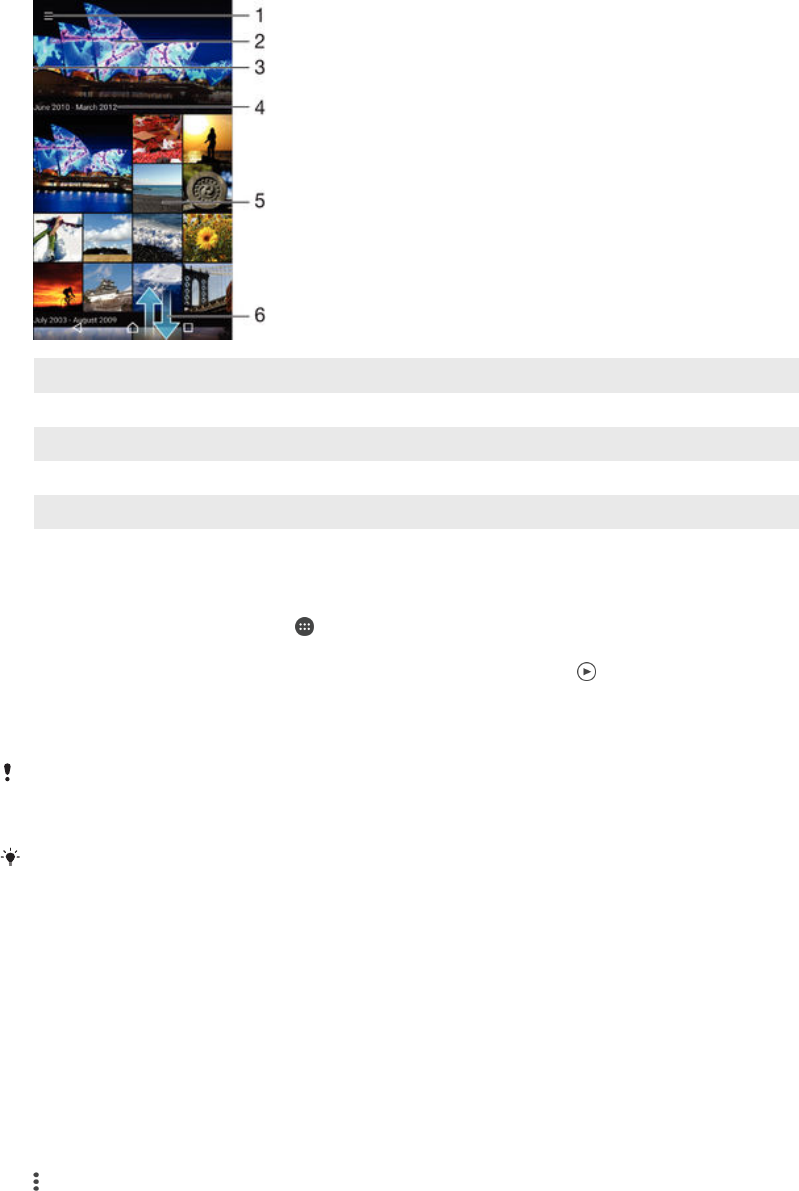
Photos and videos in Album
Viewing photos and videos
Use the Album application to view photos and play videos that you’ve taken with your
camera, or to view similar content that you've saved to your device. All photos and
videos are displayed in a chronologically ordered grid.
1 Tap the icon to open the Album home screen menu
2 View a slideshow of all images or just the ones you've added to your favourites
3 Drag the left edge of the screen to the right to open the Album home screen menu
4 The date range of items in the current group
5 Tap a photo or video to open it in full screen view
6 Scroll up or down to view content
To view photos and videos
1From your Home screen, tap .
2Find and tap Album.
3Tap a photo or video that you want to view. If prompted, tap > Video >
JUST ONCE.
4Flick left to view the next photo or video. Flick right to view the previous photo
or video.
If you want to change an application that you have chosen as the default to always open
videos, tap Settings > Apps and swipe over to the All tab, then select the application and tap
CLEAR DEFAULTS under Launch by default.
If the screen orientation does not change automatically when you turn your device sideways,
tap Rotate the contents of the screen under Settings > Display > When device is rotated.
To change the size of the thumbnails
•When viewing thumbnails of photos and videos in Album, spread two fingers
apart to zoom in, or pinch two fingers together to zoom out.
To zoom a photo
•When you are viewing a photo, spread two fingers apart to zoom in, or pinch two
fingers together to zoom out.
To watch a slideshow of your photos
1When you are viewing a photo, tap the screen to display the toolbars, then tap
> Slideshow to start playing all the photos in an album.
2Tap a photo to end the slideshow.
97
This is an Internet version of this publication. © Print only for private use.

To play a video
1In Album, find and tap the video that you want to play.
2Tap , then tap Video > JUST ONCE.
3If the playback controls are not displayed, tap the screen to display them. To
hide the controls, tap the screen again.
To pause a video
1When a video is playing, tap the screen to display the controls.
2Tap .
To fast forward and rewind a video
1When a video is playing, tap the screen to display the controls.
2Drag the progress bar marker left to rewind, or right to fast forward.
To adjust the volume of a video
•Press the volume key.
Sharing and managing photos and videos
You can share photos and videos that you’ve saved on your device. You can also
manage them in different ways. For example, you can work with photos in batches,
delete photos and link them to contacts. If you have lots of photos saved on your
device, it’s a good idea to regularly transfer them to a computer or to an external
storage device in order to avoid any unpredictable loss of data. Doing so also frees
up more space of your device. See
Managing files using a computer
on page 131 .
You might not be able to copy, send or transfer copyright-protected items. Also, some items
may not send if the file size is too large.
To share a photo or video
1In Album, find and tap the photo or video that you want to share.
2Tap the screen to display the toolbars, then tap .
3Tap the application that you want to use to share the photo, then follow the
steps to send it.
To use a photo as a contact picture
1When you are viewing a photo, tap the screen to display the toolbars, then tap
> Use as > Contact picture.
2Select a contact, then edit photo as desired.
3Tap Done.
To use a photo as wallpaper
1When you are viewing a photo, tap the screen to display the toolbars, then tap
> Use as > Wallpaper.
2Follow the instructions on the screen.
To rotate a photo
1When you are viewing a photo, tap the screen to display the toolbars, then tap
.
2Select Rotate. The photo is saved in the new orientation.
To delete a photo or video
1When you are viewing a photo, tap the screen to display the toolbars, then tap
.
2Tap Delete.
98
This is an Internet version of this publication. © Print only for private use.

To work with batches of photos or videos in Album
1When viewing thumbnails of photos and videos in Album, touch and hold an
item until it is highlighted.
2Tap other items that you want to work with to select them. If you want to select
all items, tap , then tap Select all.
3Use the tools in the toolbar to work with your selected items.
Analysing photos with faces in Album
You can analyse any photos on your device that feature people's faces. Once
activated, the photo analysis feature stays on, and new photos get analysed as they
are added. After running an analysis, you can then group all photos of the same
person in one folder.
To turn on the photo analysis feature
1From your Home screen, tap .
2Find and tap Album.
3Drag the left edge of the Album home screen to the right, then tap Faces. All
photos on your device get analysed and grouped in the Unnamed faces folder.
To name a face
1In the Faces tile, tap the Unnamed faces folder, then browse to the Other faces
folder and choose the face that you want to name.
2Tap Add name.
3Type a name, then tap Done > Add as new person.
To edit a face name
1When you are viewing a face in full screen view, tap the screen to display the
toolbars, then tap > Edit name tags.
2Tap OK.
3Tap the name of the face that you want to edit.
4Edit the name, then tap Done >Add as new person.
Editing photos with the Photo editor application
You can edit and apply effects to original photos that you’ve taken with your camera.
For example, you can change the light effects. After you save the edited photo, the
original unchanged version of the photo remains on your device.
To edit a photo
•When you are viewing a photo, tap the screen to display the toolbars, then tap
.
To crop a photo
1When you are viewing a photo, tap the screen to display the toolbars, then tap
.
2If prompted, select Photo editor.
3Tap > Crop.
4Tap Crop to select an option.
5To adjust the crop frame, touch and hold the edge of the crop frame. When the
squares at the edges disappear, drag inward or outward to resize the frame.
6To resize all sides of the crop frame at the same time, touch and hold one of
the four corners to make the squares at the edges disappear, then drag the
corner accordingly.
7To move the crop frame to another area of the photo, touch and hold inside the
frame, then drag it to the desired position.
8Tap .
9To save a copy of the photo as you cropped it, tap Save.
99
This is an Internet version of this publication. © Print only for private use.

To apply special effects to a photo
1When you are viewing a photo, tap the screen to display the toolbars, then tap
.
2If prompted, select Photo editor.
3Tap , then select an option.
4Edit the photo as desired, then tap Save.
To improve a photo using advanced settings
1When you are viewing a photo, tap the screen to display the toolbars, then tap
.
2If prompted, select Photo editor.
3Tap , then select an option.
4To save a copy of the edited photo, tap Save.
To adjust the light settings for a photo
1When you are viewing a photo, tap the screen to display the toolbars, then tap
.
2If prompted, select Photo editor.
3Tap , then select an option and edit as desired.
4To save a copy of the edited photo, tap Save.
To set the saturation level of colours in a photo
1When you are viewing a photo, tap the screen to display the toolbars, then tap
.
2If prompted, select Photo editor.
3Tap , then select an option.
4To save a copy of the edited photo, tap Save.
Editing videos with the Movie Creator application
You can edit videos that you’ve taken with your camera. For example, you can trim a
video to the desired length or adjust the speed of a video. After you save the edited
video, the original unchanged version of the video remains on your device.
To trim a video
1In Album, find and tap the video that you want to play.
2Tap the screen to display the toolbars, then tap > Trim.
3To move the trim frame to another part of the timeline, touch and hold the edge
of the trim frame and drag it to the desired position, then tap Apply.
4To save a copy of the trimmed video, tap Save.
To adjust the speed of a video
1In Album, find and tap the video that you want to play.
2Tap the screen to display the toolbars, then tap > Speed.
3Select an option, then touch and hold the edge of the timeline and drag it to
the desired position and tap Apply.
4To save a copy of the edited video, tap Save.
Hiding photos and videos
You can hide any photos and videos from the Album home screen. Once photos and
videos are hidden from the Album home screen, they can only be viewed from the
Hidden folder.
To hide a photo or video
1In Album, find and tap the photo or video that you want to hide.
2Tap the screen to display the toolbars, then tap .
3Tap Hide > OK.
100
This is an Internet version of this publication. © Print only for private use.
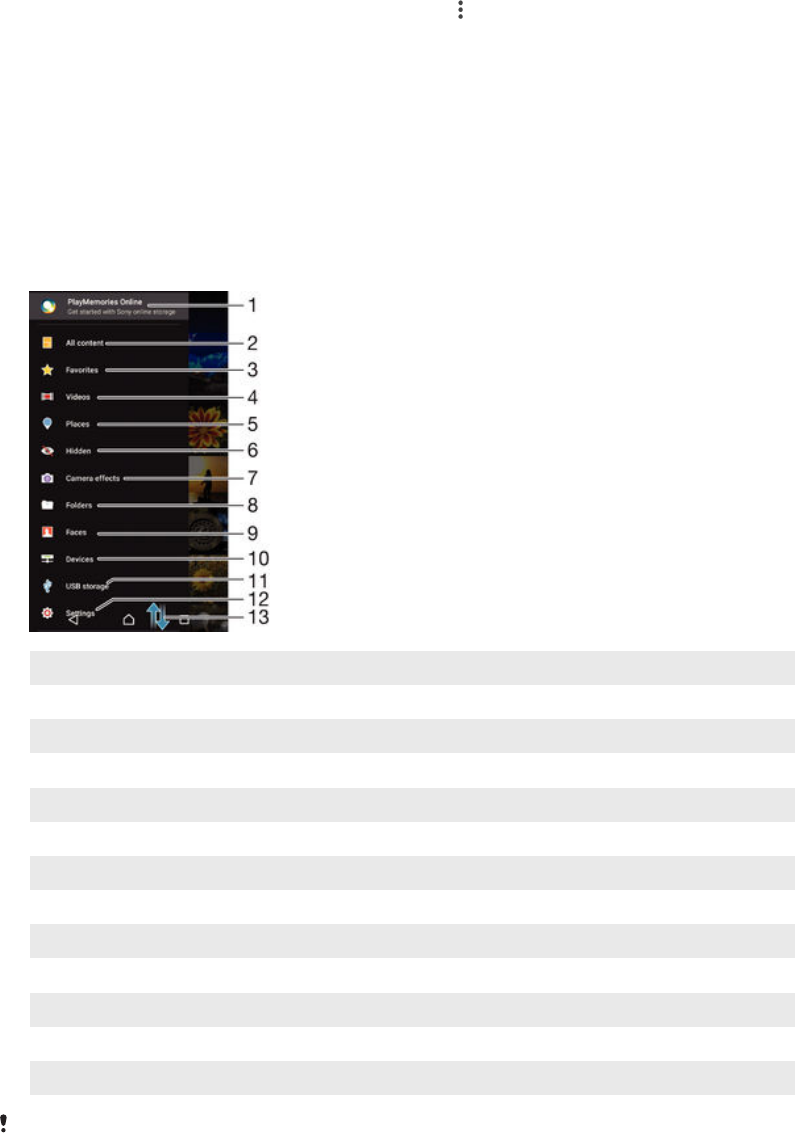
To view your hidden photos and videos
1In Album, drag the left edge of the Album home screen to the right, then tap
Hidden.
2Tap a photo or video to view it.
3Flick left to view the next photo or video. Flick right to view the previous photo
or video.
To unhide a photo or video
1In Album, drag the left edge of the Album home screen to the right, then tap
Hidden.
2Tap a photo or video that you want to unhide.
3Tap the screen to display the toolbars, then tap .
4Tap Don't hide.
Album home screen menu
Through the Album home screen menu you can browse to all your photo albums,
including photos and videos taken by your device's camera using special effects, as
well as content that you share online via services such as PlayMemories Online,
Picasa™ and Facebook. Once you are logged in to such services, you can manage
content and view online images. From the Album application, you can also add
geotags to photos, perform basic editing tasks, and use methods such as
Bluetooth® wireless technology and email to share content.
1 View photos and videos using the PlayMemories Online service
2 Return to the Album application home screen to view all content
3 View your favourite photos and videos
4 View all videos saved to your device
5 View your photos on a map or in Globe view
6 View photos and videos that you have hidden from view
7 View all photos and videos taken by your device's camera using special effects
8 View all photos and videos saved to your device in different folders
9 View all photos with faces
10 View photos and videos on devices in the same network
11 View all photos and videos saved to your USB storage
12 Open the settings menu for the Album application
13 Scroll up or down to view content
The PlayMemories Online service is not available in all countries or regions.
101
This is an Internet version of this publication. © Print only for private use.
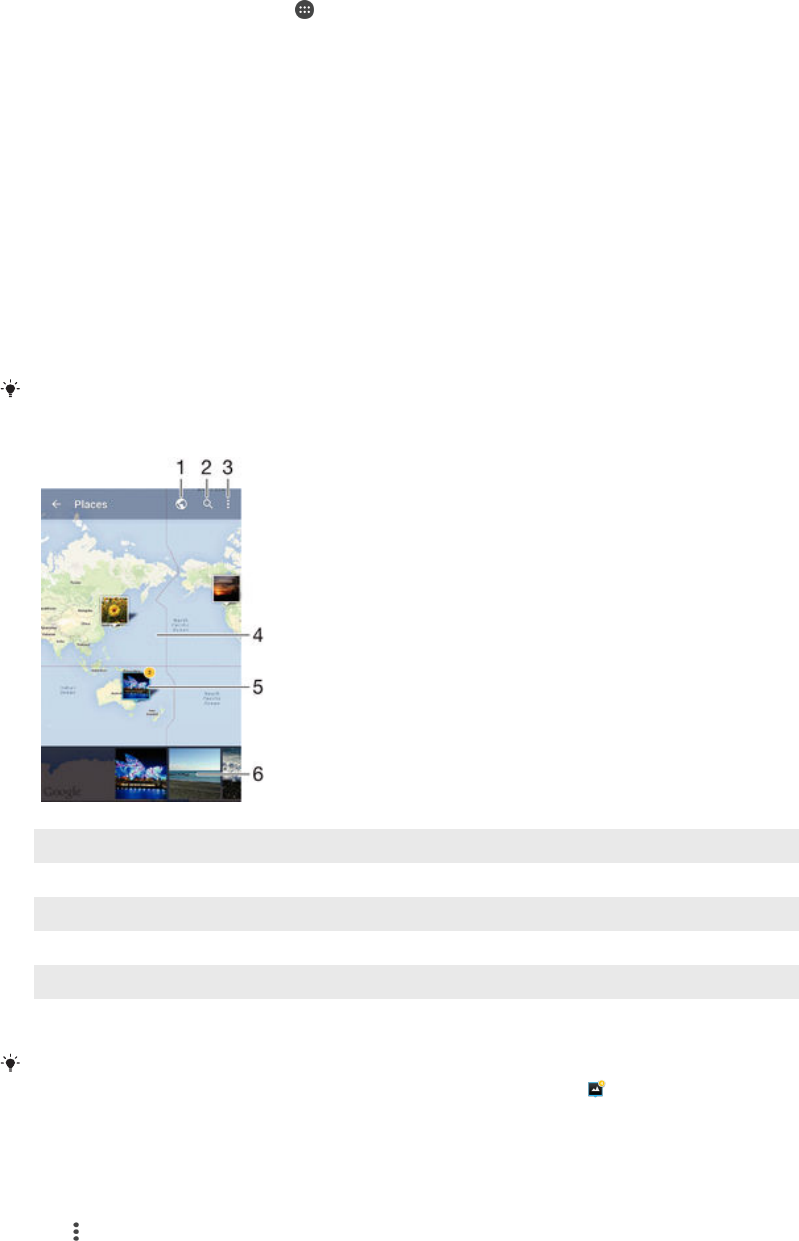
To view photos from online services in Album
1From your Home screen, tap .
2Find and tap Album, then drag the left edge of the Album home screen to the
right.
3Tap the desired online service, then follow the on-screen instructions to get
started with it. All available online albums that you have uploaded to the
service are displayed.
4Tap any album to view its content, then tap a photo in the album.
5Flick left to view the next photo or video. Flick right to view the previous photo
or video.
Viewing your photos on a map
Adding location information to photos is referred to as geotagging. You can view and
tag your photos on a map and show friends and family where you were when you
took a particular photo. See
Adding the geographical position to your photos
on
page 88 for more information.
If you have turned on location detection and activated geotagging in the camera, you can tag
your photos directly for map viewing at a later stage.
1 View geotagged photos in Globe view
2 Search a location on the map
3 View menu options
4 Double tap to zoom in. Pinch to zoom out. Drag to view different parts of the map
5 A group of photos and/or videos geotagged with the same location
6 Thumbnails of the selected group of photos and/or videos. Tap an item to view it in full screen
If several photos were taken at the same location, only one of them appears on the map. The
total number of photos appears in the top right corner, for example, . To view all photos in
the group, tap the cover photo and then tap one of the thumbnails at the bottom of the
screen.
To add a geotag to a photo
1When you are viewing a photo, tap the screen to display the toolbars.
2Tap , then tap Add geotag to open the map screen.
3Tap on the map to set the location for the photo.
4To reset the location for the photo, tap the new location on the map.
5When you are finished, tap OK.
102
This is an Internet version of this publication. © Print only for private use.

To view geotagged photos on a map
1From your Home screen, tap .
2Find and tap Album.
3Drag the left edge of the Album home screen to the right, then tap Places.
4Tap the photo that you want to view on a map.
To view geotagged photos on a globe
1From your Home screen, tap .
2Find and tap Album.
3Drag the left edge of the Album home screen to the right, then tap Places > .
4Tap the photo that you want to view on a globe.
To change the geotag of a photo
1When viewing a photo on the map in Album, touch and hold the photo until its
frame turns blue, then tap the desired location on the map.
2Tap OK.
To change the map view
•When viewing the map in Album, tap , then select Classic view or Satellite view.
103
This is an Internet version of this publication. © Print only for private use.
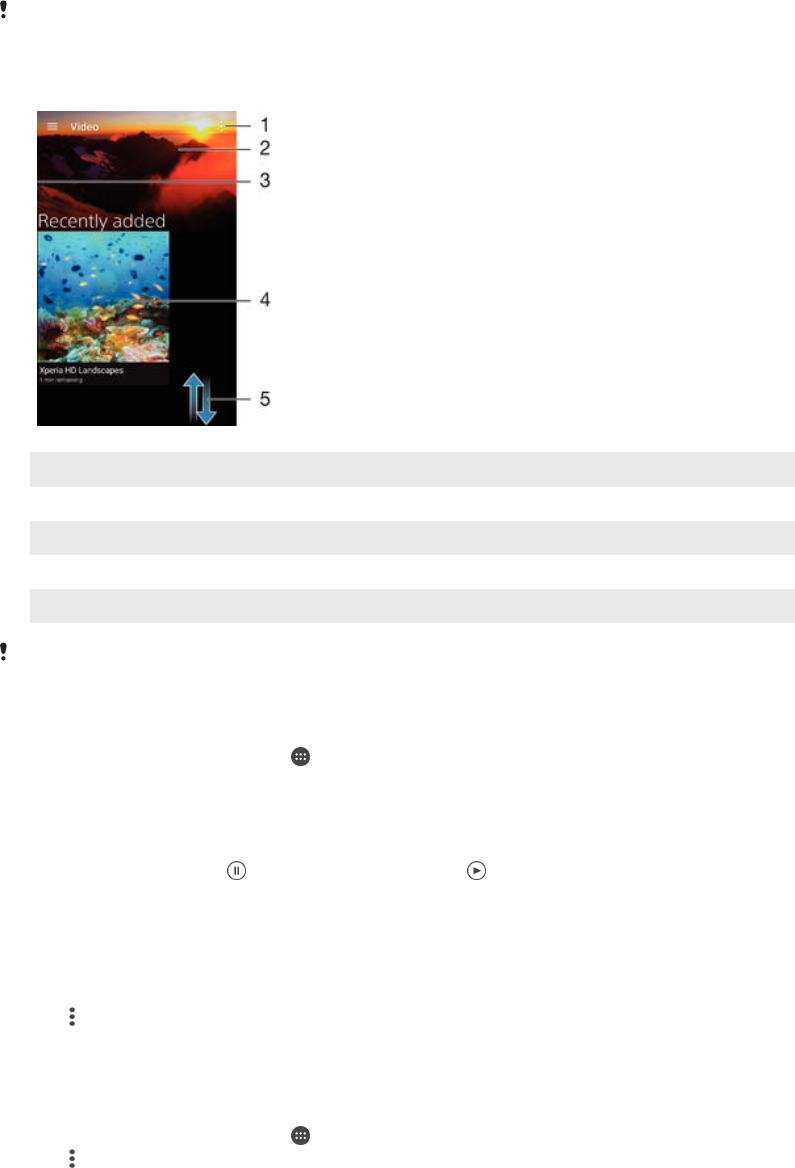
Videos
Watching videos in the Video application
Use the Video application to play movies and other video content that you’ve saved
or downloaded to your device. The Video application also helps you get poster art,
plot summaries, genre info and director details for each movie. You can also play
your movies on other devices that are connected to the same network.
Some video files may not be playable in the Video application.
1 View menu options
2 Display the most recently played video
3 Drag the left edge of the screen to the right to browse all downloaded and saved videos
4 Tap to play saved or downloaded video files
5 Scroll up or down to view content
Sony Entertainment Network with PS Video is not available in every market. Additional terms
and conditions apply.
To play a video in Video
1From your Home screen, tap , then find and tap Video.
2Find and tap the video that you want to play. If the video is not displayed on
the screen, drag the left edge of the screen to the right to open the Video home
screen menu, then find and tap the video that you want to play.
3To display or hide the controls, tap the screen.
4To pause playing, tap . To resume playing, tap .
5To rewind, drag the progress bar marker to the left. To fast forward, drag the
progress bar marker to the right.
To play a video on an external device
1When the video is playing, tap the screen to display all the controls.
2Tap > Throw.
3Select an external device on which to play the video. If there is no external
device available, follow the on-screen instructions to add one.
To change settings in Video
1From your Home screen, tap , then find and tap Video.
2Tap > Settings, then change the settings as desired.
104
This is an Internet version of this publication. © Print only for private use.

To change the sound settings while a video is playing
1While a video is playing, tap the screen to display the controls.
2Tap > Audio settings, then change the settings as desired.
3When you're finished, tap OK.
To share a video
1When a video is playing, tap , then tap Share.
2Tap the application that you want to use to share the selected video, then
follow the relevant steps to send it.
Transferring video content to your device
Before you start using the Movies application, it’s a good idea to transfer movies, TV
shows and other video content to your device from other devices, such as a
computer. There are several ways to transfer your content:
•For Windows® only: Connect your device to a computer using a USB cable and drag
and drop the video files directly using the file manager application on the computer.
See
Managing files using a computer
on page 131 .
•If you have a PC or an Apple® Mac® computer, use the Xperia™ Companion
software to organise content and transfer video files to your device.
Managing video content
To get movie information manually
1Make sure that your device has an active data connection.
2From your Home screen, tap , then find and tap Video.
3Drag the left edge of the screen to the right to open the Video home screen
menu, then browse through the different categories and to the video file that
you want to get information.
4Touch and hold the thumbnail for the video, then tap Search for info.
5In the search field, enter keywords for the video, then tap the confirm key on
the keyboard. All matches are displayed in a list.
6Select a search result, then tap Done. The download of the information begins.
You can get information about newly added videos automatically every time the Video
application opens if you activate the Get video details button under Settings.
If the downloaded information is not correct, search again using different keywords.
To clear information about a video
1From your Home screen, tap , then find and tap Video.
2Drag the left edge of the screen to the right to open the Video home screen
menu, then browse through the different categories and to the video file that
you want to edit.
3Touch and hold the video thumbnail, then tap Clear info.
To delete a video
1From your Home screen, tap , then find and tap Video.
2Drag the left edge of the screen to the right to open the Video home screen
menu, then browse through the different categories and to the video file that
you want to delete.
3Touch and hold the video thumbnail, then tap Delete from the list that appears.
4Tap Delete again to confirm.
Movie Creator
The Xperia™ Movie Creator automatically creates short videos of around 30 seconds
in length using existing photos and videos. The application automatically determines
the timeline to create its movie. For example, it could take a selection of photos and
105
This is an Internet version of this publication. © Print only for private use.

videos from a Saturday afternoon outing or from a random seven-day period and
create a movie for you. When this highlight-style movie is ready, you get notified. You
can then edit it as desired. For example, you can edit the title, delete scenes, change
the music or add more photos and videos.
To open Movie Creator
1From your Home screen, tap .
2Find and tap Movie Creator.
If no photos or videos are saved on your device, no functionality is available when you open
the Movie Creator application.
To turn off Movie Creator notifications
1From your Home screen, tap .
2Find and tap Movie Creator.
3Tap , then tap Settings and deactivate Notifications.
To disable Movie Creator
1From your Home screen, tap .
2Find and tap Settings > Apps > All.
3Find and tap Movie Creator > Disable.
PS Video service
Use the PS Video service to buy and rent movies or TV shows that you can view not
only on your Android™ device, but also on a PC, PlayStation® Portable (PSP®),
PlayStation® 3, PlayStation® 4 or PlayStation® Vita. Select your pick from the latest
Hollywood releases, action movies, comedies, classics, and a range of other
categories.
You need to create a Sony Entertainment Network account if you want to buy or rent
movies through the PS Video service. If you already have a PlayStation® network
account, then you can use that account instead.
If you are using a device with multiple users, you must log in as the owner, that is, the primary
user, to use the PS Video service.
Sony Entertainment Network with PS Video is not available in every market. Additional terms
and conditions apply.
To get started with PS Video
1From your Home screen, tap .
2Find and tap , then follow the on-screen instructions to get started with PS
Video.
106
This is an Internet version of this publication. © Print only for private use.

Connectivity
Mirroring the screen of your device on a TV using a cable
You can connect your device to a compatible TV set using an MHL cable and mirror
the screen of your device on the TV screen.
MHL and HDMI™ cables and adaptors are sold separately.
Sony does not guarantee that all types of MHL and HDMI™ cables and adaptors are
supported by your device.
To view content from your device on a TV which supports MHL input
1Connect your device to the TV using an MHL cable. appears in your
device's status bar after a connection is established.
2The TV displays the screen of your device.
To view content from your device on a TV which supports HDMI™ input
1Connect your device to an MHL adaptor, and connect the adaptor to a
powered USB port.
2Connect the adaptor to a TV using an HDMI™ cable. appears in your
device's status bar after a connection is established.
3The TV displays the screen of your device.
To view help about using a TV remote control
1While your device is connected to the TV set, drag the status bar downwards
to open the Notification panel.
2Tap MHL connected. The MHL settings appear on the TV screen.
3Select Remote control usage.
You can select Video Output Size to adjust the size of the output on the TV screen. If the TV
already has an auto scaling option enabled, this setting does not appear under the MHL
settings.
You can also press the yellow button on the TV remote control to open the Notification panel.
To disconnect your device from a TV set
•Disconnect the MHL cable or the MHL adaptor from your device.
Mirroring the screen of your device wirelessly on a TV
You can use Screen mirroring feature to show the screen of your device on a TV or
other large display without using a cable connection. Wi-Fi Direct™ technology
creates a wireless connection between the two devices, so you can sit back and
enjoy your favourite photos from the comfort of your couch. You can also use this
feature to listen to music from your device via the TV's speakers.
Your TV must support screen mirroring based on Wi-Fi CERTIFIED Miracast™ for the
functionality described above to work. If your TV does not support screen mirroring, you may
need to purchase a wireless display adapter separately.
When using screen mirroring, the image quality may sometimes be negatively impacted if there
is interference from other Wi-Fi® networks.
107
This is an Internet version of this publication. © Print only for private use.

To mirror the screen of your device on a TV screen
1TV: Follow the instructions in the User guide of your TV to turn on the screen
mirroring function.
2Your device: From your Home screen, tap .
3Find and tap Settings > Xperia™ Connectivity > Screen mirroring.
4Tap Start.
5Tap OK and select a device.
When using screen mirroring, do not cover the Wi-Fi antenna area of your device.
Your TV must support screen mirroring based on Wi-Fi CERTIFIED Miracast™ for the
functionality described above to work.
To stop screen mirroring between devices
1From your Home screen, tap .
2Find and tap Settings > Xperia™ Connectivity > Screen mirroring.
3Tap Disconnect, then tap OK.
Sharing content with DLNA Certified™ devices
You can view or play media content saved to your device on other devices such as a
TV or a computer. These devices must be on the same wireless network and can be
Sony TVs or speakers, or products that are DLNA Certified™ by the Digital Living
Network Alliance. You can also view or play content from other DLNA Certified™
devices on your device.
After you set up media sharing between devices, you can, for example, listen to
music files stored on your home computer from your device, or view photos taken
with your device's camera on a large-screen TV.
Playing files from DLNA Certified™ devices on your device
When you play files from another DLNA Certified™ device on your device, this other
device acts as a server. In other words, it shares content over a network. The server
device must have its content sharing function enabled and give access permission to
your device. It also must be connected to the same Wi-Fi® network as your device.
To play a shared music track on your device
1Make sure the devices that you want to share files with are connected to the
same Wi-Fi® network as your device.
2From your Home screen, tap , then find and tap .
3Drag the left edge of the Music home screen to the right, then tap Home
network.
4Select a device from the list of connected devices.
5Browse the folders of the connected device and select the track that you want
to play. Once selected, the track starts playing automatically.
To play a shared video on your device
1Make sure the devices that you want to share files with are connected to the
same Wi-Fi® network as your device.
2From your Home screen, tap , then find and tap Video.
3Drag the left edge of the Video home screen to the right, then tap Devices.
4Select a device from the list of connected devices.
5Browse the folders of the connected device and select the video that you want
to play.
108
This is an Internet version of this publication. © Print only for private use.

To view a shared photo on your device
1Make sure the devices that you want to share files with are connected to the
same Wi-Fi® network as your device.
2From your Home screen, tap , then find and tap Album.
3Drag the left edge of the Album home screen to the right, and tap Devices.
4Select a device from the list of connected devices.
5Browse the folders of the connected device and select a photo to view it.
Playing files from your device on DLNA Certified™ devices
Before you can view or play media files from your device on other DLNA Certified™
devices, you must set up file sharing on your device. The devices that you share
content with are called client devices. For example, a TV, computer or tablet can act
as client devices. Your device works as a media server when it makes content
available to client devices. When you set up file sharing on your device, you must
also give access permission to client devices. After you do so, such devices appear
as registered devices. Devices that are waiting for access permission are listed as
pending devices.
To set up file sharing with other DLNA Certified™ devices
1Connect your device to a Wi-Fi® network.
2From your Home screen, tap , then find and tap Settings > Xperia™
Connectivity > Media server.
3Drag the slider beside Share media to the right.
4Use your computer or other DLNA™ client devices on the same Wi-Fi®
network to connect to your device.
5A notification appears in the status bar of your device. Open the notification
and set access permissions for each client device attempting to connect to
your device.
The steps for accessing media on your device using a DLNA™ client differ between client
devices. Refer to your client device User guide for more information. If your device is
inaccessible to a client on the network, check if your Wi-Fi® network is working.
You can also access the Media server menu in the Music application by dragging the left
edge of the Music home screen to the right, then tapping Settings > Media server.
To stop sharing files with other DLNA Certified™ devices
1From your Home screen, tap .
2Find and tap Settings > Xperia™ Connectivity > Media server.
3Drag the slider beside Share media to the left.
To set access permissions for a pending device
1From your Home screen, tap .
2Find and tap Settings > Xperia™ Connectivity > Media server.
3Select a device from the Pending devices list.
4Select an access permission level.
To change the name of a registered device
1From your Home screen, tap .
2Find and tap Settings > Xperia™ Connectivity > Media server.
3Select a device from the Registered devices list, then select Change name.
4Enter a new name for the device.
To change the access level of a registered device
1From your Home screen, tap .
2Find and tap Settings > Xperia™ Connectivity > Media server.
3Select a device from the Registered devices list.
4Tap Change access level and select an option.
109
This is an Internet version of this publication. © Print only for private use.

To get help about sharing content with other DLNA Certified™ devices
1From your Home screen, tap .
2Find and tap Settings > Xperia™ Connectivity > Media server.
3Tap and then tap Help.
Displaying files on another device using Throw
Using DLNA™ technology, you can push or “Throw” media content from your device
to another device connected to the same Wi-Fi® network. The receiving device must
be able to function as a Digital Media Renderer (DMR) device and play content
received from your device. A TV that supports DLNA™ or a PC running Windows® 7
or later are examples of DMR devices.
The steps for playing shared media may vary depending on the client device. Refer to the user
guide of the DMR device for more information.
Content secured with Digital Rights Management (DRM) cannot be played on a Digital Media
Renderer device using DLNA™ technology.
To display photos or videos on a client device using Throw
1Make sure that you have correctly set up the DMR or DLNA™ client device and
that it is connected to the same Wi-Fi® network as your device.
2From your Home screen, tap .
3Find and tap Album.
4Browse and open the photos or videos that you want to view.
5Tap the screen to display the toolbar, then tap and select the device that you
want to share your content with.
6To stop sharing the photo or video to a client device, tap and select
Disconnect.
You can also share a video from the Video application on your device by tapping the video
and then tapping .
To play a music track on a client device using Throw
1Make sure that you have correctly set up the DMR or DLNA™ client device and
that it is connected to the same Wi-Fi® network as your device.
2From your Home screen, tap , then find and tap .
3Select a music category and browse to the track that you want to share, then
tap the track.
4Tap and select a client device to share your content with. The track starts
playing on the device that you select.
5To disconnect from the client device, tap .
Connecting your device to USB mass storage devices
You can use a USB Host adapter to connect your device to USB mass storage
devices.
USB Host adapters are sold separately. Sony does not guarantee that all USB mass storage
devices are supported by your device.
To connect a USB accessory using a USB host adapter
•Attach the USB Host adapter to your device, then connect the adapter to the
USB accessory.
Additional steps or software may be required to set up game controllers, USB audio and USB
Ethernet accessories. Sony does not guarantee that all USB accessories are supported by
your device.
110
This is an Internet version of this publication. © Print only for private use.

To access content on a USB mass storage device using a USB Host adapter
1Attach the USB Host adapter to your device, then connect the adapter to the
USB mass storage device.
2To access files and folders on the USB storage device, use a file manager app
such as File Commander.
You can also open the relevant media application on your device to view content directly. For
example, you can open the Album application to view photos stored on the USB mass
storage device.
To disconnect a USB mass storage device
1To open the Notification Panel, drag the status bar downwards, then tap USB
storage connected.
2Tap OK.
3Detach the USB Host adapter from your device.
To connect a USB accessory using a micro USB connector
•Attach the micro USB connector of the USB accessory to your device.
Sony does not guarantee that all USB accessories with a micro USB connector are supported
by your device.
Connecting your device to a DUALSHOCK™ series wireless
controller
You can play games stored on your device using a DUALSHOCK™ series wireless
controller. You can also mirror your device on a TV or other display. For more
information about Screen mirroring, refer to the relevant section of the User guide.
To set up a connection with a DUALSHOCK™3 wireless controller
1From your Home screen, tap .
2Find and tap Settings > Xperia™ Connectivity > DUALSHOCK™3 wireless
controller.
3Follow the on-screen instructions to pair your controller with your device.
NFC
Use Near Field Communications (NFC) to share data with other devices, such as a
video, photo, web page address, music file or contact. You can also use NFC to scan
tags that give you more information about a product or service as well as tags that
activate certain functions on your device.
NFC is a wireless technology with a maximum range of one centimetre, so the
devices sharing data must be held close to each other. Before you can use NFC, you
must first turn on the NFC function, and the screen of your device must be active.
NFC may not be available in all countries and/or regions.
To turn on the NFC function
1From your Home screen, tap .
2Find and tap Settings > More.
3Tap the on-off switch beside NFC.
111
This is an Internet version of this publication. © Print only for private use.
To share a contact with another device using NFC
1Make sure that both devices have the NFC function turned on, and that both
screens are active.
2To view contacts, go to your Home screen, tap , then tap .
3Tap the contact that you want to share.
4Hold your device and the receiving device back to back so that the NFC
detection areas of each device touch each other. When the devices connect, a
thumbnail of the contact appears.
5Tap the thumbnail to start the transfer.
6When the transfer is done, the contact information is displayed on the screen
of the receiving device and is also saved on the receiving device.
To share a music file with another device using NFC
1Make sure that both your device and the receiving device have the NFC
function turned on, and that both screens are active.
2To open the Music application, tap , then find and tap .
3Select a music category and browse to the track you want to share.
4Tap the track to play it. You can then tap to pause the track. The transfer
works whether the track is playing or paused.
5Hold your device and the receiving device back to back so that the NFC
detection areas of each device touch each other. When the devices connect, a
thumbnail of the track appears.
6Tap the thumbnail to start the transfer.
7When the transfer is done, the music file plays immediately on the receiving
device. At the same time, the file is saved on the receiving device.
To share a photo or video with another device using NFC
1Make sure that both devices have the NFC function turned on, and that both
screens are active.
2To view photos and videos in your device, go to your Home screen, tap ,
then find and tap Album.
3Tap the photo or video that you want to share.
4Hold your device and the receiving device back to back so that the NFC
detection areas of each device touch each other. When the devices connect, a
thumbnail of the track appears.
5Tap the thumbnail to start the transfer.
6When the transfer is done, the photo or video is displayed on the screen of the
receiving device. At the same time, the item is saved on the receiving device.
To share a web address with another device using NFC
1Make sure that both devices have the NFC function turned on, and that both
screens are active.
2From your Home screen, tap .
3To open the web browser, find and tap .
4Load the web page that you want to share.
5Hold your device and the receiving device back to back so that the NFC
detection areas of each device touch each other. When the devices connect, a
thumbnail appears.
6Tap the thumbnail to start the transfer.
7When the transfer is done, the web page is displayed on the screen of the
receiving device.
Scanning NFC tags
Your device can scan various kinds of NFC tags. For example, it can scan embedded
tags on a poster, on a billboard advertisement, or beside a product in a retail store.
You can receive additional information, such as a web address.
112
This is an Internet version of this publication. © Print only for private use.

To scan an NFC tag
1Make sure that your device has the NFC function turned on and that the screen
is active.
2Place your device over the tag so that the NFC detection area touches it. Your
device scans the tag and displays the content collected. Tap the content of the
tag to open it.
Connecting to an NFC compatible device
You can connect your device to other NFC compatible devices produced by Sony,
such as a speaker or a headphone. When establishing this kind of connection, refer
to the User guide of the compatible device for more information.
You may need to have Wi-Fi® or Bluetooth® activated on both devices for the connection to
work.
Bluetooth® wireless technology
Use the Bluetooth® function to send files to other Bluetooth® compatible devices, or
to connect to handsfree accessories. Bluetooth® connections work better within 10
metres (33 feet), with no solid objects in between. In some cases you have to
manually pair your device with other Bluetooth® devices.
Interoperability and compatibility among Bluetooth® devices can vary.
If you are using a device with multiple users, each user can change the Bluetooth® settings,
and the changes affect all users.
To turn on the Bluetooth® function
1From your Home screen, tap .
2Find and tap Settings > Bluetooth.
3Tap the on-off switch beside Bluetooth so that the Bluetooth® function is
turned on. Your device is now visible to nearby devices and a list of available
Bluetooth® devices appears.
Naming your device
You can give your device a name. This name is shown to other devices after you
have turned on the Bluetooth® function and your device is set to visible.
To give your device a name
1Make sure that the Bluetooth® function is turned on.
2From your Home screen, tap .
3Find and tap Settings > Bluetooth.
4Tap > Rename this device.
5Enter a name for your device.
6Tap Rename.
Pairing with another Bluetooth® device
When you pair your device with another device, you can, for example, connect your
device to a Bluetooth® headset or a Bluetooth® car kit and use these other devices to
share music.
Once you pair your device with another Bluetooth® device, your device remembers
this pairing. When pairing your device with a Bluetooth® device, you may need to
enter a passcode. Your device will automatically try the generic passcode 0000. If
this does not work, refer to the user guide for your Bluetooth® device to get the
113
This is an Internet version of this publication. © Print only for private use.

device passcode. You do not need to re-enter the passcode the next time you
connect to a previously paired Bluetooth® device.
Some Bluetooth® devices, for example, most Bluetooth® headsets, require you to both pair
and connect with the other device.
You can pair your device with several Bluetooth® devices, but you can only connect to one
Bluetooth® profile at the same time.
To pair your device with another Bluetooth® device
1Make sure that the device you want to pair with has the Bluetooth® function
activated and is visible to other Bluetooth® devices.
2From your device’s Home screen, tap .
3Find and tap Settings > Bluetooth .
4Drag the slider beside Bluetooth to turn on the Bluetooth® function. A list of
available Bluetooth® devices appears.
5Tap the Bluetooth® device that you want to pair with.
6Enter a passcode, if required, or confirm the same passcode on both devices.
To connect your device to another Bluetooth® device
1From your Home screen, tap .
2Find and tap Settings > Bluetooth.
3Tap the Bluetooth® device to which you want to connect.
To unpair a Bluetooth® device
1From your Home screen, tap .
2Find and tap Settings > Bluetooth.
3Under Paired devices, tap beside the name of the device that you want to
unpair.
4Tap Forget.
Sending and receiving items using Bluetooth® technology
Use Bluetooth® technology to share items with other Bluetooth® compatible devices
such as phones or computers. You can send and receive the following kinds of items:
•Photos and videos
•Music and other audio files
•Web pages
To send items using Bluetooth®
1Receiving device: Make sure the Bluetooth® function is turned on and that the
device is visible to other Bluetooth® devices.
2Sending device: Open the application which contains the item that you want to
send, and scroll to the item.
3Depending on the application and on the item that you want to send, you may
need to, for example, touch and hold the item, open the item, and press .
Other ways to send an item may exist.
4Select Bluetooth.
5Turn on Bluetooth® if you are asked to do so.
6Tap the name of the receiving device.
7Receiving device: If asked, accept the connection.
8Sending device: If asked, confirm the transfer to the receiving device.
9Receiving device: Accept the incoming item.
114
This is an Internet version of this publication. © Print only for private use.

To receive items using Bluetooth®
1Make sure that the Bluetooth® function is on and is visible to other Bluetooth®
devices.
2The sending device now starts sending data to your device.
3If prompted, enter the same passcode on both devices, or confirm the
suggested passcode.
4When you are notified of an incoming file to your device, drag the status bar
downwards and tap the notification to accept the file transfer.
5Tap Accept to start the file transfer.
6To view the progress of the transfer, drag the status bar downwards.
7To open a received item, drag the status bar downwards and tap the relevant
notification.
To view files you have received using Bluetooth®
1From your Home screen, tap .
2Find and tap Settings > Bluetooth.
3Press and select Show received files.
One-touch setup
You can use the One-touch setup function to automatically launch the setup of
several features that work wirelessly between two Xperia™ devices. For example, you
can use One-touch setup to launch the configuration of basic settings for Screen
mirroring and Xperia Link™. Once you’ve completed the setup, you then only need
one touch every time to launch these features.
The One-touch setup function is activated using NFC. For more information about
setting up Screen mirroring, Media Server, NFC and Bluetooth® on your device, refer
to the relevant sections of the User guide.
To start One-touch setup on your device
1From your Home screen, tap .
2Find and tap Settings > Xperia™ Connectivity > One-touch setup. The NFC
function is automatically turned on.
3Make sure the NFC function on the other Xperia™ device is turned on.
4Make sure the screens of both devices are unlocked and active.
5Hold the two devices together so that the NFC detection area of each device
touches the other. The one-touch setup function launches automatically.
Both devices must support the One-touch setup function.
115
This is an Internet version of this publication. © Print only for private use.
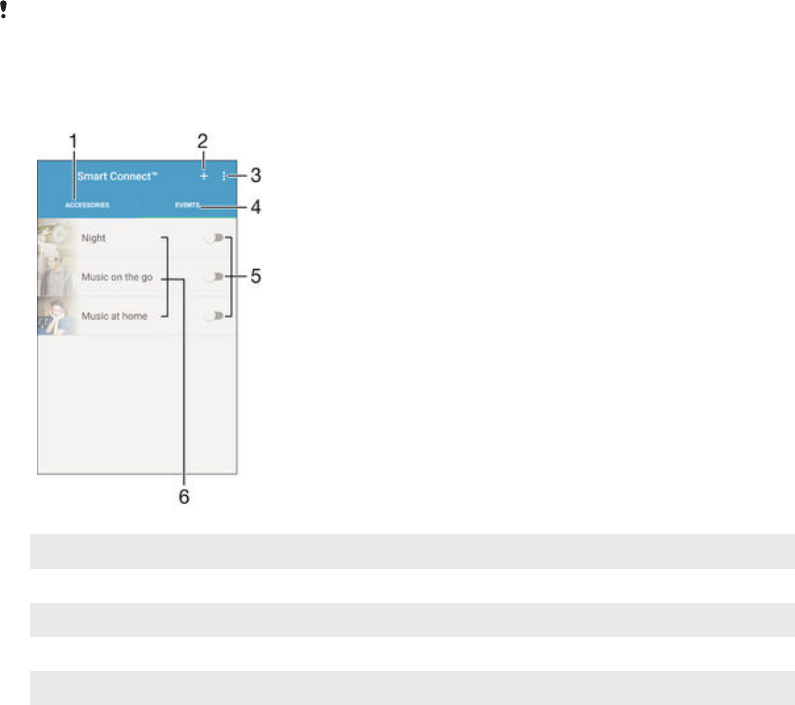
Smart apps and features that save you
time
Controlling accessories and settings with Smart Connect™
Use the Smart Connect™ application to set what happens in your device when you
connect or disconnect an accessory. For example, you can decide to always start the
FM radio application when you connect a headset.
You can also set Smart Connect™ to read out incoming text messages. Or you can
use the application to set a specific action or a group of actions to launch on your
device at certain times of the day. For example, when you connect your headset
between 7am and 9am, you can decide that:
•The FM radio application starts.
•Your favourite social networking app opens, for example, Facebook.
•The ring volume is set to vibrate.
With Smart Connect™, you can also manage accessories such as Xperia™
SmartTags or a watch from the Sony SmartWatch series. Refer to the User guide of
the specific accessory for more information.
If you are using a device with multiple users, you must log in as the owner, that is, the primary
user, to use the Smart Connect™ application.
1 Tap to display available accessories
2 Add an accessory or an event
3 View menu options
4 Tap to display all events
5 Tap to activate an event
6 Tap to view details of an event
116
This is an Internet version of this publication. © Print only for private use.

To create a Smart Connect™ event
1From your Home screen, tap , then find and tap .
2If you are opening Smart Connect™ for the first time, tap OK to close the
introduction screen.
3On the Events tab, tap .
4If you are creating an event for the first time, tap OK again to close the
introduction screen.
5Add conditions under which you want to trigger the event. A condition could be
the connection with an accessory, or a specific time interval, or both.
6Tap to continue.
7Add what you want to happen when you connect an accessory, and set other
settings as desired.
8Tap to continue.
9Set an event name, then tap Finish.
To add a Bluetooth® accessory, you have to first pair it with your device.
To edit a Smart Connect™ event
1Start the Smart Connect™ application.
2On the Events tab, tap an event.
3If the event is switched off, drag the slider to the right to turn it on.
4Tap Edit event, then adjust the settings as desired.
To delete an event
1Start the Smart Connect™ application.
2On the Events tab, touch and hold the event that you want to delete, then tap
Delete event.
3Tap Delete to confirm.
You can also open the event that you want to delete, then tap > Delete event > Delete.
To set Smart Connect™ to read out incoming text messages
1Start the Smart Connect™ application.
2Tap , then tap Settings.
3Mark the checkbox beside Text to speech, then confirm activation, if
necessary.
If this feature is turned on, all incoming messages are read aloud. To protect your privacy, you
may need to turn off this feature if you are using your device in a public place or at work, for
example.
Managing accessories
Use the Smart Connect™ application to manage a range of smart accessories that
you can connect to your device, including SmartTags, SmartWatch and Smart
Wireless Headset pro from Sony. Smart Connect™ downloads any necessary
applications and also finds third-party applications, when available. Previously
connected accessories show in a list that allows you to get more information about
the features of each accessory.
To pair and connect an accessory
1Start the Smart Connect™ application. If you are opening Smart Connect™ for
the first time, tap OK to close the introduction screen.
2Tap Accessories, then tap .
3Turn on the Bluetooth® function if it is not already on, then tap the name of the
accessory that you want to pair and connect with.
4If required, enter a passcode, or confirm the same passcode on both your
device and the accessory.
117
This is an Internet version of this publication. © Print only for private use.

To adjust the settings for a connected accessory
1Pair and connect the accessory with your device.
2Start the Smart Connect™ application.
3Tap Accessories, then tap the name of the connected accessory.
4Adjust the desired settings.
Using your device as a wallet
Use your device as a wallet to pay for goods without reaching for your real wallet. All
of your installed payment services are put together to be viewed and managed. Note
that when making a payment, you must first turn on the NFC function before your
device touches a card reader. For more information about NFC, see
NFC
on
page 111 .
Mobile payment services may not yet be available in all regions.
To manage payment services
1From your Home screen, tap .
2Find and tap Settings > Tap & pay. A list of payment services appears.
3Manage the payment services as desired, for example, change your default
payment service.
118
This is an Internet version of this publication. © Print only for private use.
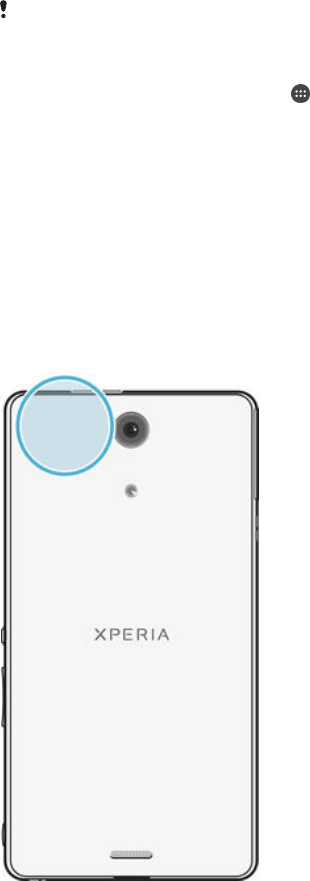
Travel and maps
Using location services
Location services allow applications such as Maps and the camera to use information
from mobile and Wi-Fi® networks as well as Global Positioning System (GPS)
information to determine your approximate location. If you're not within a clear line of
sight to GPS satellites, your device can determine your location using the Wi-Fi®
function. And if you're not within range of a Wi-Fi® network, your device can
determine your location using your mobile network.
In order to use your device to find out where you are, you need to enable location
services.
You may incur data connection charges when you connect to the Internet from your device.
To enable or disable location services
1From your Home screen, tap .
2Find and tap Settings > Location, then tap the on-off switch accordingly to
enable or disable location services.
3If you selected to enable location services in step 2, tap Agree to confirm.
Improving GPS accuracy
The first time you use the GPS function in your device, it can take 5 to 10 minutes for
your location to be found. To help the search, make sure you have a clear view of the
sky. Stand still and don't cover the GPS antenna (the highlighted area in the image).
GPS signals can pass through clouds and plastic, but not through most solid objects
such as buildings and mountains. If your location isn't found after a few minutes,
move to another location.
Google Maps™ and navigation
Use Google Maps™ to track your current location, view real-time traffic situations
and receive detailed directions to your destination.
The Google Maps™ application requires an Internet connection when used online.
You may incur data connection charges when you connect to the Internet from your
119
This is an Internet version of this publication. © Print only for private use.
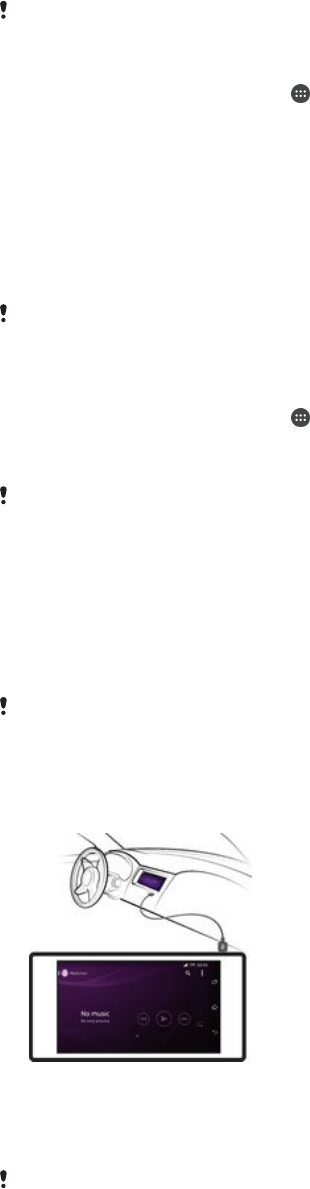
device. To get more detailed information about how to use this application, go to
http://support.google.com and click the “Maps for mobile” link.
The Google Maps™ application may not be available in every market, country or region.
To use Google Maps™
1From your Home screen, tap .
2Find and tap Maps.
Using data traffic when travelling
When you travel outside of your home mobile network, you might need to access the
Internet using mobile data traffic. In this case, you need to activate data roaming on
your device. It is recommended to check the relevant data transmission charges in
advance.
If you are using a device with multiple users, you may need to log in as the owner, that is, the
primary user, to activate or deactivate data roaming.
To activate data roaming
1From your Home screen, tap .
2Find and tap Settings > More > Mobile networks.
3Drag the slider beside Data roaming to the right.
You can’t activate data roaming when mobile data is turned off.
Using your device with a car infotainment system
Connect your device to a MirrorLink™ certified car infotainment system using a USB
cable to, for example, use a navigation app or play music from your device while
driving. When connected, you can navigate the apps using the car infotainment
system controls.
Some applications may not be available during MirrorLink™ connection. Also, protected data,
such as videos that are strictly protected under Digital Rights Management (DRM), is not made
available via MirrorLink™.
To connect your device to a car infotainment system
•Connect your device and the car infotainment system using a USB cable. The
screen of your device appears on the screen of the infotainment system.
You may need to start MirrorLink™ manually if the connection between your device and the
infotainment system is not established automatically.
120
This is an Internet version of this publication. © Print only for private use.

To start MirrorLink™ manually
1Make sure that your device is connected to the car infotainment system using
a USB cable.
2From your Home screen, tap .
3Find and tap Settings > Xperia™ Connectivity > MirrorLink™.
4Tap Start MirrorLink™, then tap OK.
5If the connection still fails, tap Network address to change to another network
address in case the same network address is being used by other services
such as Bluetooth® and Wi-Fi®, and then try again.
Airplane mode
In Airplane mode, the network and radio transceivers are turned off to prevent
disturbance to sensitive equipment. However, you can still play games, listen to
music, watch videos and other content, as long as all this content is saved on your
memory card or internal storage. You can also be notified by alarms, if alarms are
activated.
Turning on Airplane mode reduces battery consumption.
To turn on Airplane mode
1From your Home screen, tap .
2Find and tap Settings> More.
3Drag the slider beside Airplane mode to the right.
121
This is an Internet version of this publication. © Print only for private use.
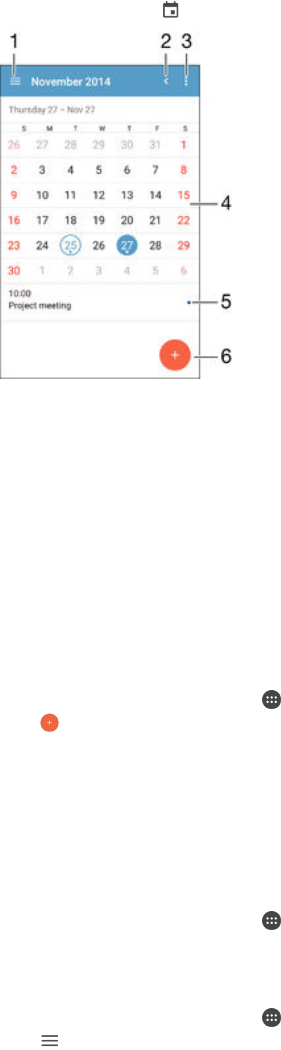
Calendar and alarm clock
Calendar
Use the Calendar application to manage your time schedule. If you have signed in to
and synchronised your device with one or several online accounts that include
calendars, for example, your Google™ account or Xperia™ with Facebook account,
then calendar events from these accounts will also appear in the Calendar
application. You can select which calendars you want to integrate into the combined
Calendar view.
When an appointment time approaches, your device plays a notification sound to
remind you. Also, appears in the status bar.
1 Select a view type and the calendars that you want to view
2 Return to the current date
3 Access settings and other options
4 Flick left or right to browse more quickly
5 Selected date
6 Agenda for the selected day
7 Add a calendar event
To create a calendar event
1From your Home screen, tap , then tap Calendar.
2Tap .
3If you have synchronised your calendar with one or more accounts, select the
account to which you want to add this event. If you only want to add this event
on your device, tap Device calendar.
4Enter or select the desired information and add attendees to the event.
5To save the event and send out invitations, tap Save.
To view a calendar event
1From your Home screen, tap , then tap Calendar.
2Tap the event that you want to view.
To view multiple calendars
1From your Home screen, tap , then find and tap Calendar.
2Tap , then mark the checkboxes for the calendars that you want to view.
To zoom the calendar view
•When the Week or the Day view is selected, pinch the screen to zoom in.
122
This is an Internet version of this publication. © Print only for private use.
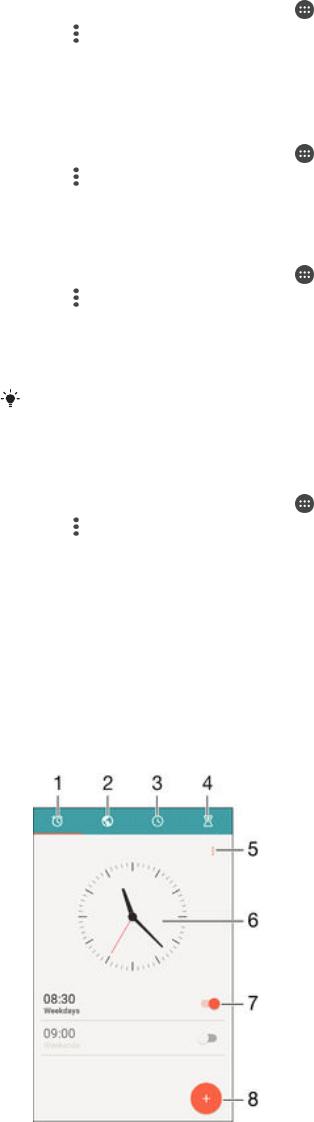
To display national holidays in the Calendar application
1From your Home screen, tap , then tap Calendar.
2Tap , then tap Settings.
3Tap National holidays.
4Select an option, or a combination of options, then tap OK.
To display birthdays in the Calendar application
1From your Home screen, tap , then tap Calendar.
2Tap , then tap Settings > Birthdays.
3Drag the slider beside Birthdays to the right.
To display weather forecasts in the Calendar application
1From your Home screen, tap , then tap Calendar.
2Tap , then tap Settings.
3Tap Weather forecast, then drag the slider beside Weather forecast to the right.
4If location services are disabled, tap Home location, then search for the city
that you want to add.
For more information about how to enable location services, see
Using location services
on
page 119 .
To change weather forecast settings in the Calendar application
1From your Home screen, tap , then tap Calendar.
2Tap , then tap Settings.
3Tap Weather forecast.
4Adjust the settings as desired.
Alarm and clock
You can set one or several alarms and use any sound saved on your device as the
alarm signal. The alarm does not sound if your device is turned off.
The alarm time format displayed is the same as the format you select for your general
time settings, for example, 12-hour or 24-hour.
1 Access the alarm home screen
2 View a world clock and adjust settings
3 Access the stopwatch function
4 Access the timer function
5 View options
6 Open date and time settings for the clock
7 Turn an alarm on or off
123
This is an Internet version of this publication. © Print only for private use.

8 Add a new alarm
To set a new alarm
1From your Home screen, tap .
2Find and tap Alarm & clock.
3Tap .
4Tap Time and select the desired value.
5Tap OK.
6If desired, edit other alarm settings.
7Tap Save.
To snooze an alarm when it sounds
•Tap Snooze.
To turn off an alarm when it sounds
•Slide to the right.
To edit an existing alarm
1Open the Alarm & clock application, then tap the alarm that you want to edit.
2Make the desired changes.
3Tap Save.
To turn on or off an alarm
•Open the Alarm & clock application, then drag the slider next to the alarm to
the on or off position.
To delete an alarm
1Open the Alarm & clock application, then touch and hold the alarm that you
want to delete.
2Tap Delete alarm, then tap Yes.
To set the sound for an alarm
1Open the Alarm & clock application, then tap the alarm that you want to edit.
2Tap Alarm sound and select an option, or tap and select a music file.
3Tap Done, then tap Save.
To adjust the volume level for an alarm
1Open the Alarm & clock application, then tap the alarm that you want to edit.
2Drag the volume slider under Alarm volume to the desired position.
3Tap Save.
To set a recurring alarm
1Open the Alarm & clock application, then tap the alarm that you want to edit.
2Tap Repeat.
3Mark the checkboxes for the relevant days, then tap OK.
4Tap Save.
To activate the vibrate function for an alarm
1Open the Alarm & clock application, then tap the alarm that you want to edit.
2Mark the Vibrate checkbox.
3Tap Save.
To set the side keys behaviour
1Open the Alarm & clock application, then select the alarm that you want to edit.
2Tap Side keys behaviour, then select the desired behaviour of side keys when
they are pressed during the alarm.
3Tap Save.
124
This is an Internet version of this publication. © Print only for private use.

Accessibility
Magnification gestures
Magnification gestures allow you to zoom in to parts of the screen by tapping an area
of the touchscreen three times in succession.
To enable or disable Magnification gestures
1From your Home screen, tap .
2Find and tap Settings > Accessibility > Magnification gestures.
3Tap the on-off switch.
To magnify an area and pan across the screen
1Make sure that Magnification gestures is enabled.
2Tap an area three times and then hold and drag your finger across the screen.
Large text
You can enable the Large text option to increase the default size of text displayed on
your device.
To enable or disable Large text
1From your Home screen, tap .
2Find and tap Settings > Accessibility.
3Drag the slider next to Large text.
Colour correction
The Colour correction setting adjusts how colours are displayed on the screen for
users who are colour blind or have difficulty distinguishing between colours.
To enable Colour correction
1From your Home screen, tap .
2Find and tap Settings > Accessibility > Colour correction.
3Tap the on-off switch.
4Tap Correction mode, then select the appropriate colour sensitivity.
Colour correction is currently an experimental feature and may affect device performance.
Hearing aid compatibility
The hearing aid compatibility option ensures that audio from your device works with
standard hearing aids.
To enable or disable hearing aid compatibility
1From your Home screen, tap .
2Find and tap Settings > Call.
3Drag the slider beside Hearing aids.
TalkBack
TalkBack is a screen reader service for visually impaired users. TalkBack uses
spoken feedback to describe any events or actions performed on your Android
device. TalkBack describes the user interface and reads out software errors,
notifications and messages.
125
This is an Internet version of this publication. © Print only for private use.

To enable TalkBack
1From your Home screen, tap .
2Find and tap Settings > Accessibility > TalkBack.
3Tap the on-off switch and then tap OK.
To change speech, feedback and touch preferences for TalkBack, tap Settings.
TalkBack launches a tutorial immediately after you enable the feature. To exit the tutorial, tap
the Exit button twice.
To disable TalkBack
1From your Home screen, double-tap .
2Find and double-tap Settings > Accessibility > TalkBack.
3Double-tap the on-off switch and then double-tap OK.
TTY (Teletypewriter) mode
The TTY (Teletypewriter) feature on your device allows people who are deaf, hard of
hearing, or who have speech or language disabilities, to communicate using a TTY
device or a relay service.
To enable TTY mode
1From your Home screen, tap .
2Find and tap Settings > Call > TTY mode.
3Select the applicable TTY mode.
Slow talk
The Slow talk feature slows down the speech of the other party while you are on a
call.
To enable or disable Slow Talk
1From your Home screen, tap .
2Find and tap Settings > Call.
3Drag the slider beside Slow talk to the on or off position.
126
This is an Internet version of this publication. © Print only for private use.

Support and maintenance
Support for your device
Use the Support application in your device to search a User guide, read
troubleshooting guides, and find information about software updates and other
product-related information.
To access the Support application
1From your Home screen, tap .
2Find and tap , then select the required support item.
For best support available, we recommend connecting to the Internet when using the Support
application.
Help in menus and applications
Some applications and settings have help available in the options menu, which is
normally indicated by in the specific applications.
Computer tool
Xperia™ Companion is available to help you connect your device to a computer and
manage content, such as camera and multimedia content, browse files on your
device, and manage your device’s software.
Xperia™ Companion
Xperia™ Companion is a computer software with a collection of tools and
applications you can use when you connect your device to a computer. With Xperia™
Companion, you can:
•Update or repair your device’s software.
•Transfer your content from an old device using Xperia™ Transfer.
•Back up and restore content on your computer.
•Sync multimedia content – camera content, music and playlists between your device
and computer.
•Browse files on your device.
To use Xperia™ Companion, you need an Internet-connected computer running one
of the following operating systems:
•Microsoft® Windows® 7 or later
•Mac OS® X 10.8 or later
Learn more and download Xperia™ Companion for Windows at
http://support.sonymobile.com/tools/xperia-companion or Xperia™ Companion for
Mac at http://support.sonymobile.com/tools/xperia-companion-mac .
Updating your device
You should update the software on your device to get the latest functionality,
enhancements and bug fixes in order to ensure optimal performance. When a
software update is available, appears in the status bar. You can also check for new
updates manually.
The easiest way to install a software update is to do it wirelessly from your device.
However, some updates are not available for wireless download. You then need to
use the Xperia™ Companion software on a PC or on an Apple® Mac® computer to
update your device.
127
This is an Internet version of this publication. © Print only for private use.

For more information about software updates, go to
www.sonymobile.com/update
.
If you are using a device with multiple users, you must log in as the owner, that is, the primary
user, to update the device.
Insufficient remaining storage capacity may prevent updates. Ensure you have sufficient
storage capacity before attempting to update.
To check for new software
1If you are using a device with multiple users, make sure you are logged in as
the owner.
2From your Home screen, tap .
3Find and tap Settings > About phone > Software update.
If no new software is available, it’s possible that you may not have enough free memory on
your device. If your Xperia™ device has less than 500 MB of free internal memory (device
memory) available, you do not receive any information about new software. The following
notification appears in the Notification panel to warn of the lack of storage space: Storage
space running out. Some system functions may not work. If you receive this notification, you
must free up internal memory (device memory) before you can get notifications about new
software being available.
To download and install a system update
1If you are using a device with multiple users, make sure you are logged in as
the owner.
2From your Home screen, tap .
3Find and tap Settings > About phone > Software update.
4If a system update is available, tap Download to download it to your device.
5When the download is finished, tap Install and follow the on-screen instructions
to complete the installation.
To download and install a system update from the Notification panel
1If you are using a device with multiple users, make sure you are logged in as
the owner.
2Drag the status bar downwards to open the Notification panel.
3Scroll down and select the desired system update, then tap Download.
4When the download is finished, open the Notification panel again if it is closed,
then tap Install and follow the on-screen instructions to complete the
installation.
Updating your device using a computer
You can download and install software updates on your device using a computer
with an Internet connection. You need a USB cable and a PC or an Apple® Mac®
computer running the Xperia™ Companion software.
If you don’t have the Xperia™ Companion software installed on the relevant computer,
connect your device to the computer using a USB cable and follow the on-screen installation
instructions.
To update your device using a computer
1Make sure you have the Xperia™ Companion software installed on your PC or
Apple® Mac® computer.
2Using a USB cable, connect your device to the computer.
3Open Xperia™ Companion, if it is not automatically launched.
4Computer: If a new software update is detected, a popup window appears.
Follow the on-screen instructions to run the relevant software updates.
When you connect the device to the computer via a USB cable, you are prompted to install the
Xperia™ Companion software, or cancel, unless you have previously selected Do not show
again.
128
This is an Internet version of this publication. © Print only for private use.
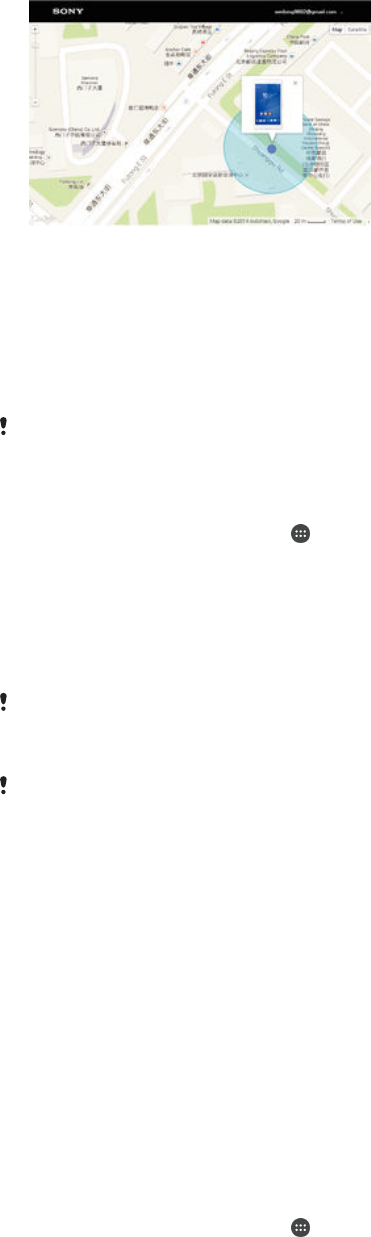
Finding a lost device
If you have a Google™ account, the “Protection by my Xperia” web service can help
you locate and secure your device if you ever lose it. If you have activated this service
on your device, you can:
•Locate your device on a map.
•Sound an alert even if the device is in silent mode.
•Remotely lock the device.
•Remotely clear the internal and external memory of the device, as a last resort.
The “Protection by my Xperia” service may not be available in all countries/regions.
To activate the Protection by my Xperia service on your device
1Make sure you have an active data connection.
2From your Home screen, tap .
3Find and tap Settings > Security > Protection by my Xperia > Activate.
4Mark the checkbox to agree with the terms and conditions of using the
Protection by my Xperia service, then tap Accept.
5If prompted, sign in to your Google™ account, or create a new one if you don’t
have one.
6Enable location services on your device if this function is not already enabled.
To verify that the Protection by my Xperia service can locate your device after you activate the
service, go to
myxperia.sonymobile.com
and sign in using the Google™ account that you have
set up on your device.
If you are using a device with multiple users, note that the Protection by my Xperia service is
only available to the user who is logged in as the owner.
Finding the identification number of your device
Your device has a unique ID (identification) number. In your device, this number is
referred to as the IMEI (International Mobile Equipment Identity). You should keep a
copy of this number. You may require it, for example, when you access the Xperia™
Care support service and need to register your device. Also, if your device is stolen,
some network providers can use this number to stop the device from accessing the
network in your country.
To view your IMEI number
•Turn off your device, then remove the battery cover and battery to view your IMEI
number.
•Open the phone dialer on your device and enter *#06#.
To view your IMEI number via the device settings
1From your Home screen, tap .
2Find and tap Settings > About phone > Status > IMEI information.
Memory and storage
Your device has different types of memory and storage options.
129
This is an Internet version of this publication. © Print only for private use.

•The internal storage is about 4.6 GB and is used to store downloaded or transferred
content along with personal settings and data. Some examples of data stored to the
internal storage are alarm, volume and language settings; emails; bookmarks;
calendar events; photos; videos and music.
•You can use a removable memory card with a storage capacity of up to 32 GB to get
more storage space. Media files and some apps (with their data) can be moved to
this type of memory to free up internal storage. Some apps, for example, the Camera
app, can save data directly to a memory card.
•The dynamic memory (RAM) is about 2 GB and cannot be used for storage. RAM is
used to handle running applications and the operating system.
You may have to purchase a memory card separately.
Read more about the use of memory in Android devices by downloading the White paper for
your device at
www.sonymobile.com/support
.
Improving memory performance
The memory in your device tends to fill up as a result of normal usage. If the device
starts to slow down, or applications suddenly shut down, you should consider the
following:
•Always have more than 100 MB of free internal storage and more than 100 MB of free
RAM available.
•Close down running applications that you are not using.
•Clear the cache memory for all applications.
•Uninstall downloaded applications that you don't use.
•Move applications to the memory card if the internal storage is full.
•Transfer photos, videos and music from the internal memory to the memory card.
•If your device can't read content on the memory card, you may need to format the
card. Note that all content on the card gets erased when you format it.
If you are using a device with multiple users, you must log in as the owner, that is, the primary
user, to be able to perform certain actions such as transferring data to the memory card and
formatting the memory card.
To view the memory status
1From your Home screen, tap .
2Find and tap Settings > Storage.
To view the amount of free and used RAM
1From your Home screen, tap .
2Find and tap Settings > Apps > Running.
To clear the cache memory for all applications
1From your Home screen, tap .
2Find and tap Settings > Storage.
3Tap Cached data > OK.
When you clear the cache memory, you don't lose any important information or settings.
To transfer media files to the memory card
1Make sure you have a memory card inserted in your device.
2From your Home screen, tap .
3Find and tap Settings > Storage > Transfer data to SD card.
4Mark the file types that you want to transfer to the memory card.
5Tap Transfer.
130
This is an Internet version of this publication. © Print only for private use.

To move apps to the memory card
1Make sure that you have a memory card inserted in your device.
2From your Home screen, tap .
3Find and tap Settings > Apps .
4Swipe across to the On SD card tab. A list appears showing the apps that can
be moved.
5Select the app that you want to move, then tap MOVE TO SD CARD. After the
app is moved, a marked checkbox appears beside the app.
To stop applications and services from running
1From your Home screen, tap .
2Find and tap Settings > Apps > Running.
3Select an application or service, then tap STOP.
To format the memory card
1From your Home screen, tap .
2Find and tap Settings > Storage > Erase SD card.
3To confirm, tap Erase SD card > Erase everything.
All content on the memory card gets erased when you format it. Make sure you make backups
of all data that you want to save before formatting the memory card. To back up your content,
you can copy it to a computer. For more information, see
Managing files using a computer
on
page 131 .
Managing files using a computer
Use a USB cable connection between a Windows® computer and your device to
transfer and manage your files. Once the two devices are connected, you can drag
and drop content between your device and the computer, or between your device's
internal storage and SD card, using the computer's file explorer.
If you have a PC or an Apple® Mac® computer, you can use Xperia™ Companion to
access the file system of your device.
USB Connection Modes
There are two USB connection modes available for you to use:
Media transfer mode
(MTP) Use MTP for managing files, updating device software and connecting via
WLAN. This USB mode is used with Microsoft® Windows® computers. MTP is
enabled by default.
Mass storage mode
(MSC) Use MSC for managing files using MAC OS® and Linux computers that don’t
have MTP support.
To change USB connection mode
1From your Home screen , tap .
2Find and tap Settings > Xperia™ Connectivity > USB Connectivity > USB
connection mode.
3Tap Media transfer mode (MTP) or Mass storage mode (MSC).
4Tap OK.
Managing files wirelessly using a computer
You can transfer files between your device and other MTP compatible devices, such
as a computer, using a Wi-Fi® connection. Before connecting, you first need to pair
the two devices.
In order to use this feature, you need a Wi-Fi® enabled device that supports Media transfer,
for example, a computer running Microsoft® Windows Vista® or Windows® 7.
131
This is an Internet version of this publication. © Print only for private use.

To prepare to use your device wirelessly with a computer
1Make sure Media transfer mode is enabled on your device. It is normally
enabled by default.
2Make sure the Wi-Fi® function is turned on.
3From your Home screen, tap .
4Find and tap Settings > Xperia™ Connectivity > USB Connectivity.
5Tap Pair with PC, then tap Next.
6Follow the on-screen instructions to complete the setup process.
To connect wirelessly to a paired device
1Make sure Media transfer mode is enabled on your device. It is normally
enabled by default.
2Make sure the Wi-Fi® function is turned on.
3From your Home screen, tap .
4Find and tap Settings > Xperia™ Connectivity > USB Connectivity.
5Select the paired device to which you want to connect, then tap Connect.
To disconnect from a paired device
1From your Home screen, tap .
2Find and tap Settings > Xperia™ Connectivity > USB Connectivity.
3Select the paired device that you want to disconnect.
4Tap Disconnect.
To remove a pairing with another device
1From your Home screen, tap .
2Find and tap Settings > Xperia™ Connectivity > USB Connectivity.
3Select the paired device that you want to remove.
4Tap Unpair.
Backing up and restoring content
Generally, you should not save photos, videos and other personal content solely on
the internal memory of your device. If something should happen with the hardware, or
if your device is lost or stolen, the data stored on its internal memory is gone forever.
It is recommended to use the Xperia™ Companion software to make backups which
save your data safely to a computer, that is, an external device. This method is
especially recommended if you are updating your device software to a newer Android
version.
Using the Backup & Restore application, you can make a quick online backup of
basic settings and data with your Google™ account. You can also use this
application to back up data locally, for example, to the SD card in your device or to
an external USB storage device.
It is very important that you remember the password that you set when you make a data
backup. If you forget the password, it may not be possible to restore important data such as
contacts and messages.
Backing up data to a computer
Use the Xperia™ Companion software to back up data from your device to a PC or
an Apple® Mac® computer. You can back up the following types of data:
•Contacts and call logs
•Text messages
•Calendar
•Settings
•Media files such as music and videos
•Photos and images
132
This is an Internet version of this publication. © Print only for private use.

To back up your data using a computer
1Make sure that Xperia™ Companion for Windows
( http://support.sonymobile.com/tools/xperia-companion ) or Xperia™
Companion for Mac OS
( http://support.sonymobile.com/tools/xperia-companion-mac ) is installed on
your PC or Mac®.
2Connect your device to the computer using a USB cable.
3Computer: Open the Xperia™ Companion software if it is not automatically
launched. After a few moments, the computer detects your device.
4Select Backup on the main screen.
5Follow the on-screen instructions to back up data from your device.
To restore your data using a computer
1Make sure that Xperia™ Companion for Windows
( http://support.sonymobile.com/tools/xperia-companion ) or Xperia™
Companion for Mac OS
( http://support.sonymobile.com/tools/xperia-companion-mac ) is installed on
your PC or Mac®.
2Connect your device to the computer using a USB cable.
3Computer: Open the Xperia™ Companion software if it is not automatically
launched.
4Click Restore .
5Select a backup file from the backup records, then tap Next and follow the on-
screen instructions to restore data to your device.
Backing up data with the Backup & Restore application
Using the Backup & Restore application, you can back up data manually or turn on
the automatic backup function to save data periodically.
The Backup & Restore application is recommended for backing up data before you
do a factory data reset. With this application you can back up the following types of
data to an SD card or to an external USB storage device that you have connected by
the USB Host adapter to your device:
•Contacts
•Conversations
•Calendar data
•Call log
•Bookmarks
To back up content using the Backup and restore application
1If you are backing up content to a USB storage device, make sure the storage
device is connected to your device using the appropriate cable. If you are
backing up to an SD card, make sure the SD card is properly inserted in your
device.
2From your Home screen, tap .
3Find and tap Backup & Restore.
4Tap Back up, then select a backup destination and the data types that you
want to back up.
5Tap Back up now.
6Enter a password for the backup, then tap OK.
133
This is an Internet version of this publication. © Print only for private use.

To restore content using the Backup and restore application
1If you are restoring content from a USB storage device, make sure the storage
device is connected to your device using the appropriate cable. If you are
restoring content from an SD card, make sure the SD card is properly inserted
in your device.
2From your Home screen, tap .
3Find and tap Backup & Restore.
4Tap Restore.
5Select the record that you want to restore from, then tap Restore now.
6Enter the password for the backup record, then tap OK.
Remember that any changes you make to your data and settings after you create a backup will
get deleted during a restore procedure.
Resetting your applications
You can reset an application or clear application data if your application stops
responding or causes issues with your device.
To reset application preferences
1From your Home screen, tap .
2Find and tap Settings > Apps.
3Tap , then tap Reset app preferences.
Resetting application preferences does not delete any application data from your device.
To clear application data
1From your Home screen, tap .
2Find and tap Settings > Apps and then swipe over to the All tab.
3Select an application or service, then tap CLEAR DATA.
When you clear application data, data for the selected application is deleted from your device
permanently.
The option to clear application data is not available for all applications or services.
To clear application cache
1From your Home screen, tap .
2Find and tap Settings > Apps and then swipe over to the All tab.
3Select an application or service, then tap CLEAR CACHE.
The option to clear the application cache is not available for all applications or services.
To clear the application default setting
1From your Home screen, tap .
2Find and tap Settings > Apps and then swipe over to the All tab.
3Select an application or service, then tap CLEAR DEFAULTS.
The option to clear the application default setting is not available for all applications or
services.
Restarting and resetting your device
You can force your device to restart or shut down in situations where it stops
responding or won't restart normally. No settings or personal data get deleted.
You can also reset your device to its original factory settings. This action is
sometimes necessary if your device stops functioning properly, but note that if you
want to keep any important data, you have to first back up this data to a memory
card or other non-internal memory. For more information, see
Backing up and
restoring content
on page 132 .
134
This is an Internet version of this publication. © Print only for private use.

If your device fails to power on or you want to reset your device’s software, you can
use Xperia™ Companion to repair your device. For more information on using
Xperia™ Companion, see
Computer tool
.
Your device may fail to restart if the battery level is low. Connect your device to a charger and
try restarting again.
If you are using a device with multiple users, you may need to log in as the owner, that is, the
primary user, to reset your device to its original factory settings.
To force your device to restart
1Press and hold down the power key .
2In the menu that opens, tap Restart. The device restarts automatically.
To force the device to shut down
1Press and hold down both the volume up key and the power key for 10
seconds.
2After your device vibrates three times, release the keys. The device turns off
automatically.
To perform a factory data reset
To avoid permanent damage to your device, do not restart your device while a reset procedure
is underway.
1Before you start, make sure to back up any important data that is saved on the
internal memory of your device to a memory card or other non-internal
memory.
2From your Home screen, tap .
3Find and tap Settings > Backup & reset > Factory data reset.
4To delete information, such as pictures and music, from your internal storage,
mark the Erase internal storage checkbox.
5Tap Reset phone.
6If required, draw your screen unlock pattern, or enter your screen unlock
password or PIN to continue.
7To confirm, tap Erase everything.
Your device does not revert to an earlier software version of Android™ when you perform a
factory data reset.
If you forget your screen unlock password, PIN or pattern, you can use the device repair
feature in Xperia™ Companion to erase the security layer. You need to provide your Google
account login details to perform this operation. By running the repair feature, you reinstall
software for your device and you may lose some personal data in the process.
To repair the device software using Xperia™ Companion
Before performing a software repair, make sure you know your Google™ credentials.
Depending on your security settings, you may need to enter them in order to start up the
device after a software repair.
1Make sure that Xperia™ Companion for Windows
( http://support.sonymobile.com/tools/xperia-companion ) or Xperia™
Companion for Mac OS
( http://support.sonymobile.com/tools/xperia-companion-mac ) is installed on
your PC or Mac®.
2Connect your device to the computer using a USB cable.
3Open the Xperia™ Companion software on the computer if it is not
automatically launched and select Software repair on the screen.
4Follow the on-screen instructions to reinstall the software and complete the
repair.
135
This is an Internet version of this publication. © Print only for private use.
Recycling your device
Got an old device lying around the house? Why not recycle it? By doing so, you will
help us reuse its materials and components, and you’ll protect the environment, too!
Find out more about the recycling options in your region at
www.sonymobile.com/recycle
.
Limitations to services and features
Some of the services and features described in this User guide are not supported in
all countries/regions or by all networks and/or service providers in all areas. Without
limitation, this applies to the GSM International Emergency Number, 112. Please
contact your network operator or service provider to determine availability of any
specific service or feature and whether additional access or usage fees apply.
Use of certain features and applications described in this guide may require access
to the Internet. You may incur data connection charges when you connect to the
Internet from your device. Contact your wireless service provider for more
information.
Legal information
Sony C5503/C5502
This User guide is published by Sony Mobile Communications Inc. or its local affiliated company, without any
warranty. Improvements and changes to this User guide necessitated by typographical errors, inaccuracies of
current information, or improvements to programs and/or equipment, may be made by Sony Mobile
Communications Inc. at any time and without notice. Such changes will, however, be incorporated into new
editions of this User guide. All illustrations are for illustration purposes only and may not accurately depict the
actual device.
All product and company names mentioned herein are the trademarks or registered trademarks of their
respective owners. All other trademarks are property of their respective owners. Any rights not expressly
granted herein are reserved. Visit
www.sonymobile.com/us/legal/
for more information.
This User guide may reference services or applications provided by third parties. Use of such programming or
services may require separate registration with the third party provider and may be subject to additional terms
of use. For applications accessed on or through a third-party website, please review such websites’ terms of
use and applicable privacy policy in advance. Sony does not warrant or guarantee the availability or
performance of any third-party websites or offered services.
Your mobile device has the capability to download, store and forward additional content, for example,
ringtones. The use of such content may be restricted or prohibited by rights of third parties, including but not
limited to restriction under applicable copyright laws. You, and not Sony, are entirely responsible for additional
content that you download to or forward from your mobile device. Prior to your use of any additional content,
please verify that your intended use is properly licensed or is otherwise authorized. Sony does not guarantee
the accuracy, integrity or quality of any additional content or any other third party content. Under no
circumstances will Sony be liable in any way for your improper use of additional content or other third party
content.
Visit
www.sonymobile.com
for more information.
This product is protected by certain intellectual property rights of Microsoft. Use or distribution of such
technology outside of this product is prohibited without a licence from Microsoft.
Content owners use Windows Media digital rights management technology (WMDRM) to protect their
intellectual property, including copyrights. This device uses WMDRM software to access WMDRM-protected
content. If the WMDRM software fails to protect the content, content owners may ask Microsoft to revoke the
software's ability to use WMDRM to play or copy protected content. Revocation does not affect unprotected
content. When you download licences for protected content, you agree that Microsoft may include a
revocation list with the licences. Content owners may require you to upgrade WMDRM to access their content.
If you decline an upgrade, you will not be able to access content that requires the upgrade.
This product is licensed under the MPEG-4 visual and AVC patent portfolio licences for the personal and non-
commercial use of a consumer for (i) encoding video in compliance with the MPEG-4 visual standard
("MPEG-4 video") or the AVC standard ("AVC video") and/or (ii) decoding MPEG- 4 or AVC video that was
encoded by a consumer engaged in a personal and non-commercial activity and/or was obtained from a video
provider licenced by MPEG LA to provide MPEG-4 and/or AVC video. No licence is granted or shall be implied
for any other use. Additional information including that relating to promotional, internal and commercial uses
and licensing may be obtained from MPEG LA, L.L.C. See
www.mpegla.com
. MPEG Layer-3 audio decoding
technology licenced from Fraunhofer IIS and Thomson.
SONY MOBILE WILL NOT BE LIABLE FOR ANY LOSS, ERASE AND/OR DATA-OVERWRITING OF PERSONAL
DATA OR FILES STORED ON YOUR DEVICE (INCLUDING BUT NOT LIMITED TO CONTACTS, MUSIC
TRACKS AND PICTURES) ARISING OUT OF ANY UPDATE OF YOUR DEVICE BY ANY OF THE METHODS
DESCRIBED IN THIS USER GUIDE OR DOCUMENTATION. IN NO EVENT SHALL SONY MOBILE’S OR ITS
SUPPLIERS’ TOTAL LIABILITY TO YOU FOR ANY AND ALL DAMAGES, LOSSES AND CAUSES OF ACTION
(WHETHER IN CONTRACT OR TORT, INCLUDING, BUT NOT LIMITED TO NEGLIGENCE OR OTHERWISE)
EXCEED THE AMOUNT ACTUALLY PAID BY YOU FOR YOUR DEVICE.
© 2015 Sony Mobile Communications Inc.
All rights reserved.
136
This is an Internet version of this publication. © Print only for private use.
