Sony VPL VW5000ES User Manual Operating Instructions 4584922041
Manual Manual_4584922041 Sony VPL-VW5000ES User Manual | Manual Device
here Manual_4584922041 Sony- 5 of 215 - Deai Manual Database
User Manual: Sony VPL-VW5000ES Operating Instructions
Open the PDF directly: View PDF  .
.
Page Count: 53
- Table of Contents
- Location of Controls
- Connections and Preparations
- Projecting
- Using the Menus
- Using Network Features
- Error Handling
- Others
Video Projector
Operating Instructions
Before operating the unit, please read this manual and supplied Quick Reference
Manual thoroughly and retain it for future reference.
VPL-VW5000
4-584-922-04 (1)
© 2016 Sony Corporation
2
Table of Contents
Location of Controls
Front/Right Side .......................................................... 3
Rear/Bottom ................................................................ 4
Remote Control ........................................................... 5
Connections and Preparations
Installing the Unit ....................................................... 6
Adjusting the Picture Position .................................... 6
Connecting to Video Equipment or a Computer ....... 10
Connecting to a VCR ........................................... 10
Connecting to a Computer ................................... 11
Projecting
Projecting the Picture ................................................ 12
Turning Off the Power ......................................... 12
Watching 3D Video Images ...................................... 12
Using the 3D Glasses ........................................... 12
Using the Picture Position ......................................... 13
Selecting the Aspect Ratio According to the Video
Signal ..................................................................... 14
Selecting the Picture Viewing Mode ......................... 16
Using the Menus
Operation through the Menus ................................... 17
Picture Menu ............................................................. 19
Advanced Picture Menu ............................................ 23
Screen Menu ............................................................. 24
Setup Menu ............................................................... 26
Function Menu .......................................................... 28
Items Locked by Settings Lock ........................... 30
Installation Menu ...................................................... 31
Information Menu ..................................................... 34
About the Preset Memory .................................... 34
Using Network Features
Displaying the Control Window of the Unit with a Web
Browser .................................................................. 35
Operating the Control Window ................................. 36
Switching the Page ............................................... 36
Setting the Access Limitation .............................. 36
Confirming the Information Regarding the
Unit ................................................................... 36
Error Handling
Troubleshooting ........................................................ 37
About Indicators ........................................................ 39
Message Lists ............................................................ 40
Others
Updating the Software .............................................. 41
About HDR (high dynamic range) ............................ 41
About DCI specification ........................................... 41
About x.v.Color ......................................................... 41
About the Simulated 3D Feature ............................... 41
NOTICES AND LICENSES FOR SOFTWARE USED
IN THIS PRODUCT .............................................. 41
Specifications ............................................................ 42
Preset Signals ....................................................... 43
Input Signals and Adjustment/Setting Items ....... 44
Compatible 3D Signals ........................................ 44
Aspect Mode ........................................................ 45
Storage Conditions of Adjustment/Setting
Items ................................................................. 45
Projection Distance and Lens Shift Range ................ 47
Dimensions ............................................................... 51
Index ......................................................................... 52
3
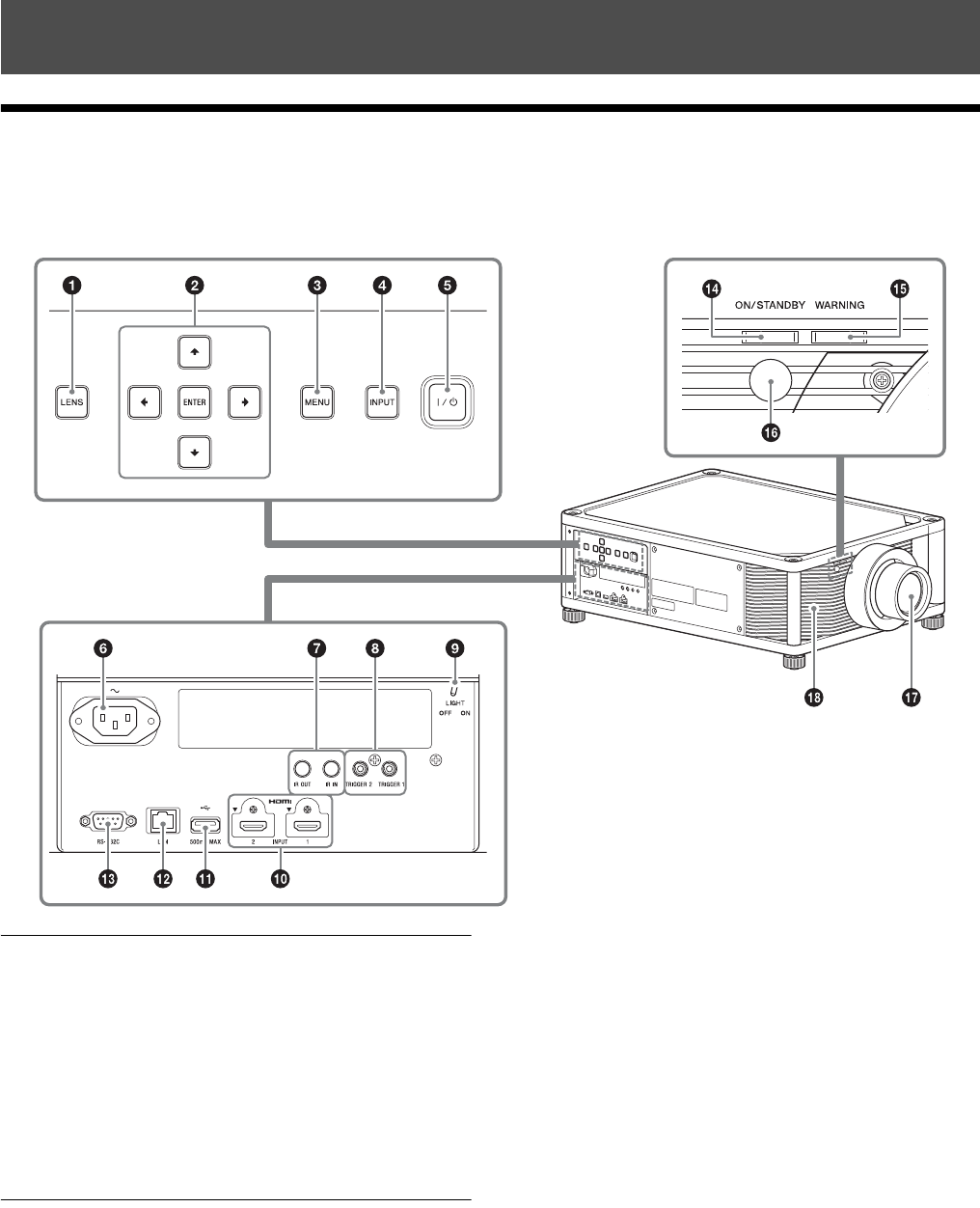
Front/Right Side
The buttons on the control panel function the same as those on the remote control.
Control panel
aLENS button (page 6)
bM/m/</, (arrow)/ENTER button (page 17)
cMENU button (page 17)
dINPUT button (page 12)
e[/1 (On/Standby) button (page 7)
Connectors
f- AC IN socket (page 7)
gIR IN/IR OUT connector
IR IN: Inputs the signals to control the projector.
When connecting to the IR IN connector, the remote
control detector does not work with the remote
control.
IR OUT: Outputs the control signals received at the
projector to the connected devices. When operating
the projector with the remote control, the connected
devices can also be operated.
hTRIGGER 1/TRIGGER 2 connector (page 31)
iConnector light switch
Turns on/off the connector lights.
jHDMI 1/HDMI 2 connector (page 10)
kUSB connector (page 41)
lLAN connector (page 35)
Location of Controls
Connectors
Control panel
4
mREMOTE connector
Connects to a computer, etc. for remote control.
Indicators and remote control detector
nON/STANDBY indicator (page 39)
oWARNING indicator (page 39)
pRemote control detector (page 6)
Others
qLens
rVentilation holes (intake)
If you look through the projection lens while the unit is
projecting, the light may damage your eyes. Take special
caution when using the unit around children.
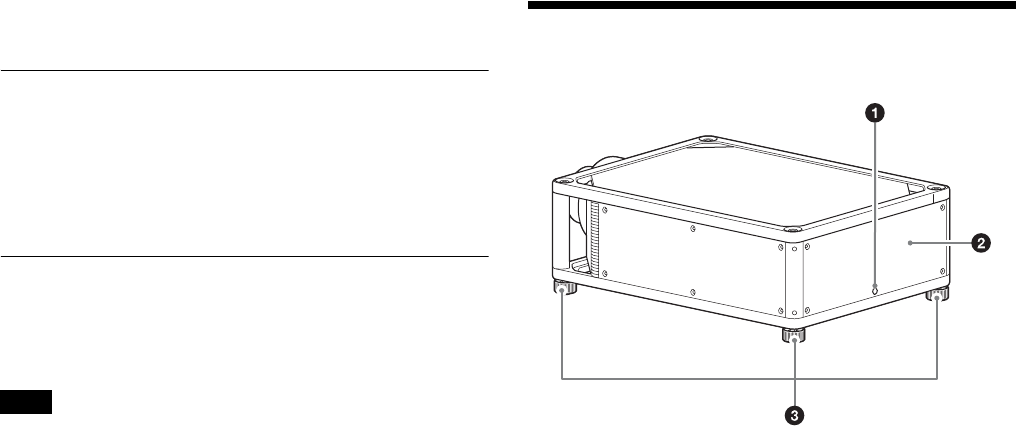
Rear/Bottom
aRemote control detector (page 6)
bVentilation holes (exhaust)
cFeet (adjustable) (page 9)
Note
5
Remote Control
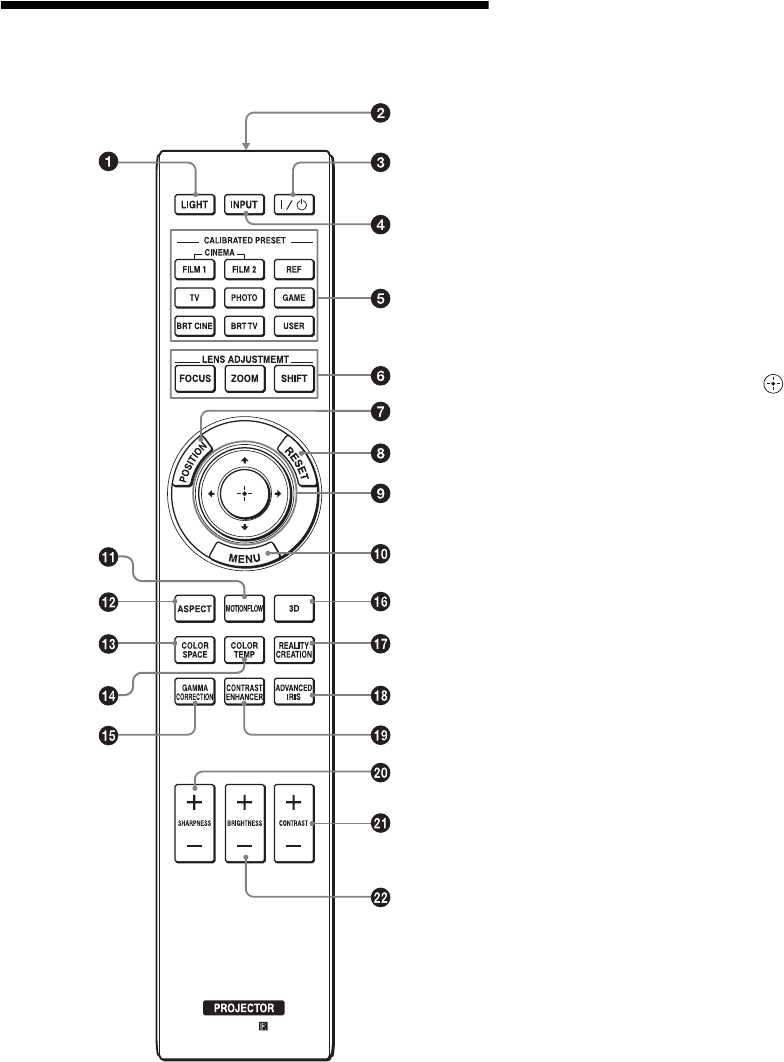
aLIGHT button
Illuminates the buttons on the remote control.
bInfrared transmitter
c?/1 (On/Standby) button (page 7)
dINPUT button (page 12)
eCALIBRATED PRESET buttons (page 16)
fLENS ADJUSTMENT buttons (page 7)
gPOSITION button (page 13)
hRESET button (page 18)
iM/m/</, (arrow)/ (enter) buttons
(page 17)
jMENU button (page 17)
kMOTIONFLOW button (page 20)
lASPECT button (page 14)
mCOLOR SPACE button (page 22)
nCOLOR TEMP button (page 20)
oGAMMA CORRECTION button (page 21)
p3D button (page 12)
qREALITY CREATION button (page 19)
rADVANCED IRIS button
This function is not provided in this projector.
sCONTRAST ENHANCER button (page 20)
tSHARPNESS button (page 20)
uCONTRAST button (page 20)
vBRIGHTNESS button (page 20)
6
This section describes how to install the unit and screen, how to connect the equipment from which you want to project
the picture, etc.
Installing the Unit
The installation distance between the unit and a screen
varies depending on the size of the screen or whether or not
you use the lens shift features. Install this unit so that it fits
the size of your screen. For details on the distance between
the unit and the screen (the projection distance) and the
size of projected video, see “Projection Distance and Lens
Shift Range” (page 47).
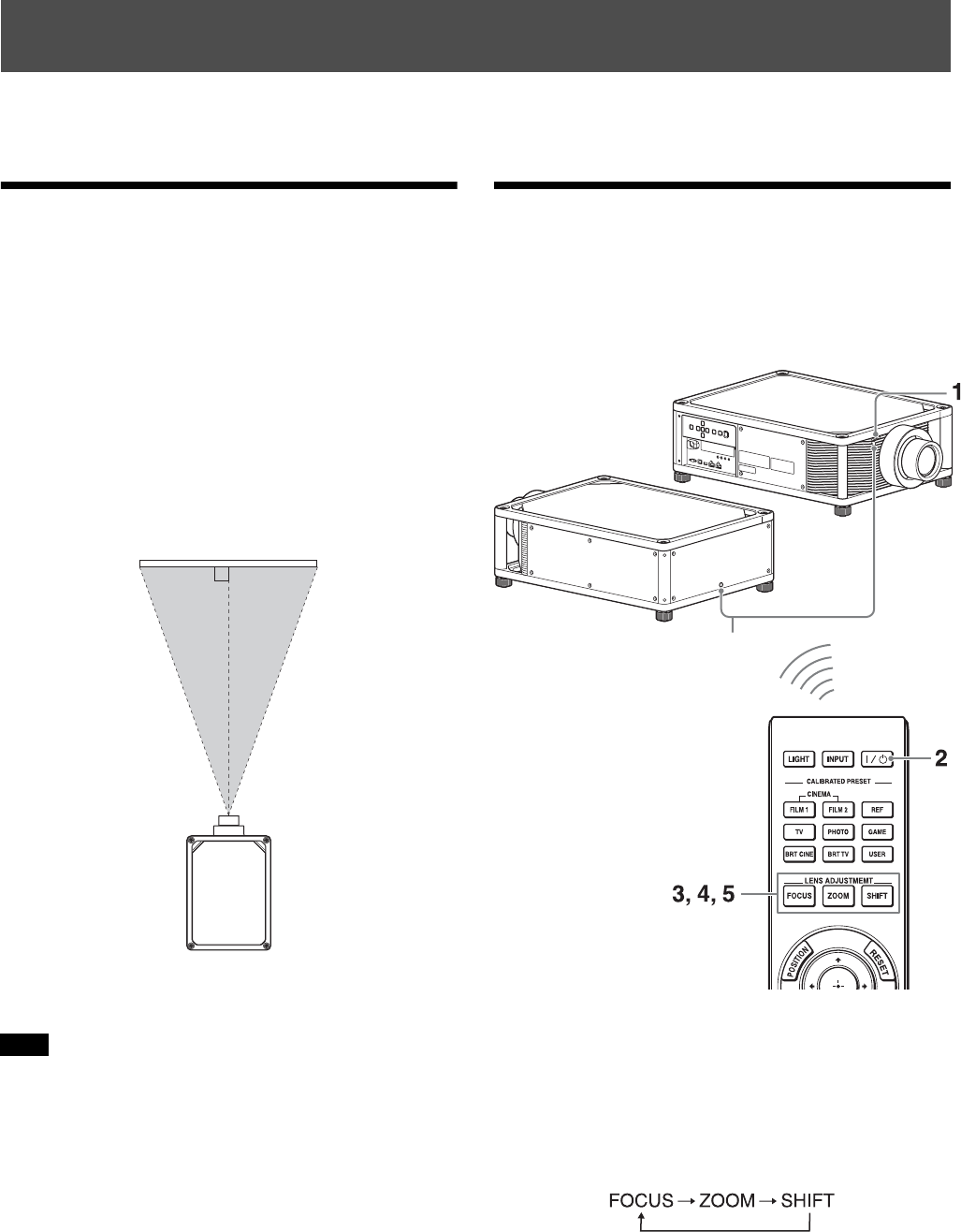
1Position the unit so that the lens is parallel to the
screen.
Top view
2Project an image on the screen and adjust the picture
so that it fits the screen (page 6).
When using a screen with an uneven surface, stripes pattern may
rarely appear on the screen depending on the distance between the
screen and the unit or the zooming magnifications. This is not a
malfunction of the unit.
Adjusting the Picture
Position
Project an image on the screen and then adjust the picture
position.
Tips
•The ?/1 (On/Standby), INPUT, MENU, and M/m/</,/
ENTER buttons on the side panel of the unit function the same as
those on the remote control. The LENS button functions in the
same way as the LENS ADJUSTMENT (FOCUS, ZOOM,
SHIFT) buttons of the remote control.
• When adjusting the lens, each time you press the LENS button on
the unit, the lens adjustment function switches between “Lens
Focus,” “Lens Zoom” and “Lens Shift.”
Connections and Preparations
Note
Screen
Remote control detector
7
Depending on the installation location of the unit, you may not be
able to control it with the remote control. In this case, point the
remote control at the remote control detector of the unit or the screen.
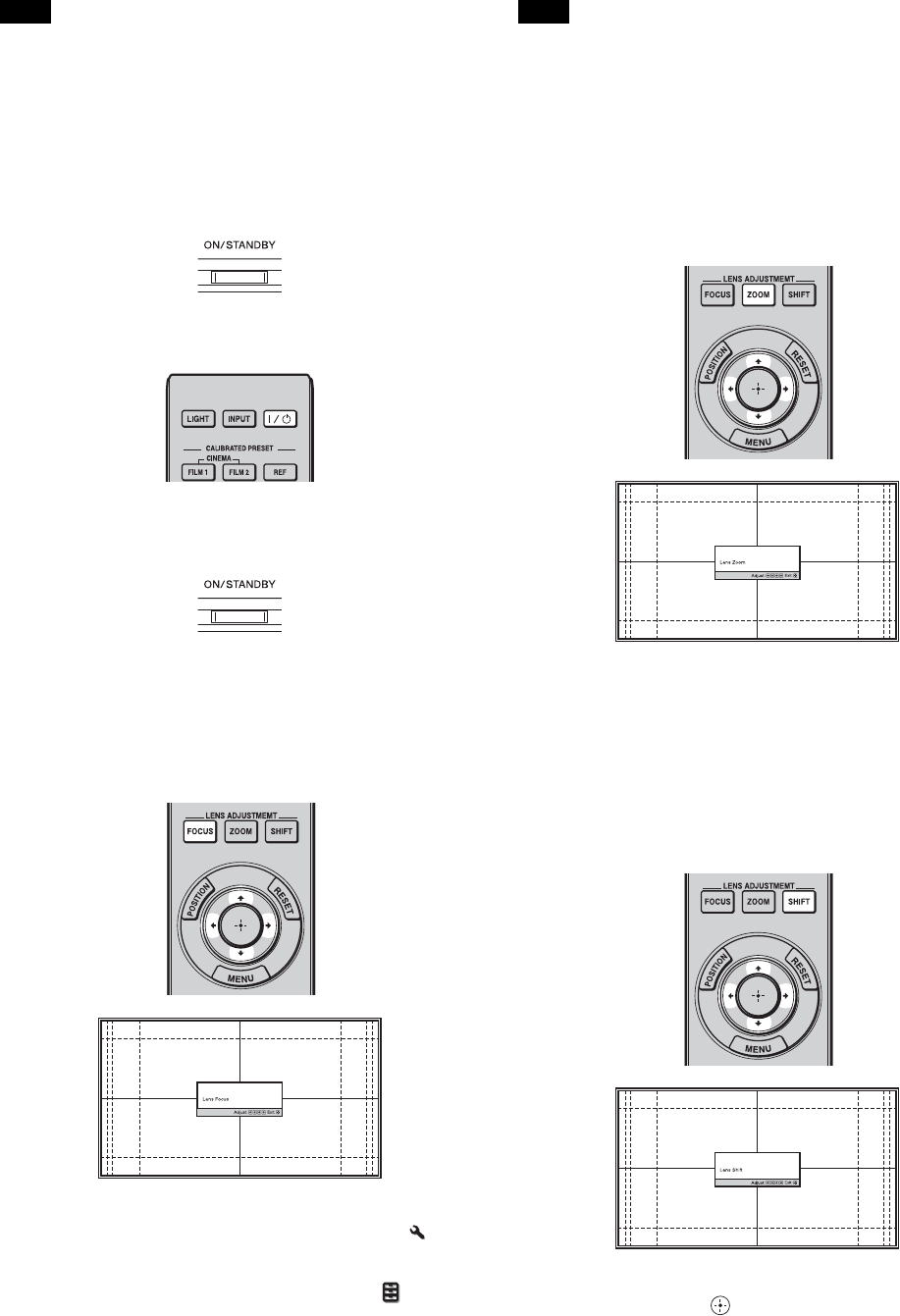
1After connecting the AC power cord to the unit, plug
the AC power cord into a wall outlet.
The ON/STANDBY indicator lights in red and the
unit goes into standby mode.
2Press the ?/1 (On/Standby) button to turn on the unit.
The ON/STANDBY indicator flashes in green, and
then lights in green.
3Adjust the focus.
Press the LENS ADJUSTMENT (FOCUS) button to
display the Lens Focus adjustment window (test
pattern). Then adjust the focus of the picture by
pressing the M/m/</, buttons.
Tips
• When “Lens Control” is set to “Off” on the Installation menu,
you cannot adjust the focus, the picture size or the proper position
by pressing the FOCUS, ZOOM or SHIFT buttons (page 31).
• When “Test Pattern” is set to “Off” on the Function menu, the
test pattern is not displayed (page 29).
Adjust the lens by using buttons on the remote control or the control
panel of the unit. Never make adjustments by directly turning the
lens with your hands, which may cause damage or malfunction to the
unit.
4Adjust the picture size.
Press the LENS ADJUSTMENT (ZOOM) button to
display the Lens Zoom adjustment window (test
pattern). Then adjust the size of the picture by
pressing the M/m/</, buttons.
To make the picture larger, press M/,.
To make the picture smaller, press m/<.
5Adjust the picture position.
Press the LENS ADJUSTMENT (SHIFT) button to
display the Lens Shift adjustment window (test
pattern). Then adjust to the proper position of the
picture by pressing the M/m/</, buttons.
Tips
• Whenever you press the button, the test pattern disappears.
Note
Lights in red.
Flashes in green for
tens of seconds and
then lights in green.
Note
8
• Press the RESET button on the remote control while the Lens Shift
adjustment window is displayed, the horizontal position returns to
the center of the lens (factory default position). The zoom and
focus are not changed.
When adjusting the picture position, do not touch the lens unit,
otherwise your fingers may be pinched by the moving parts.
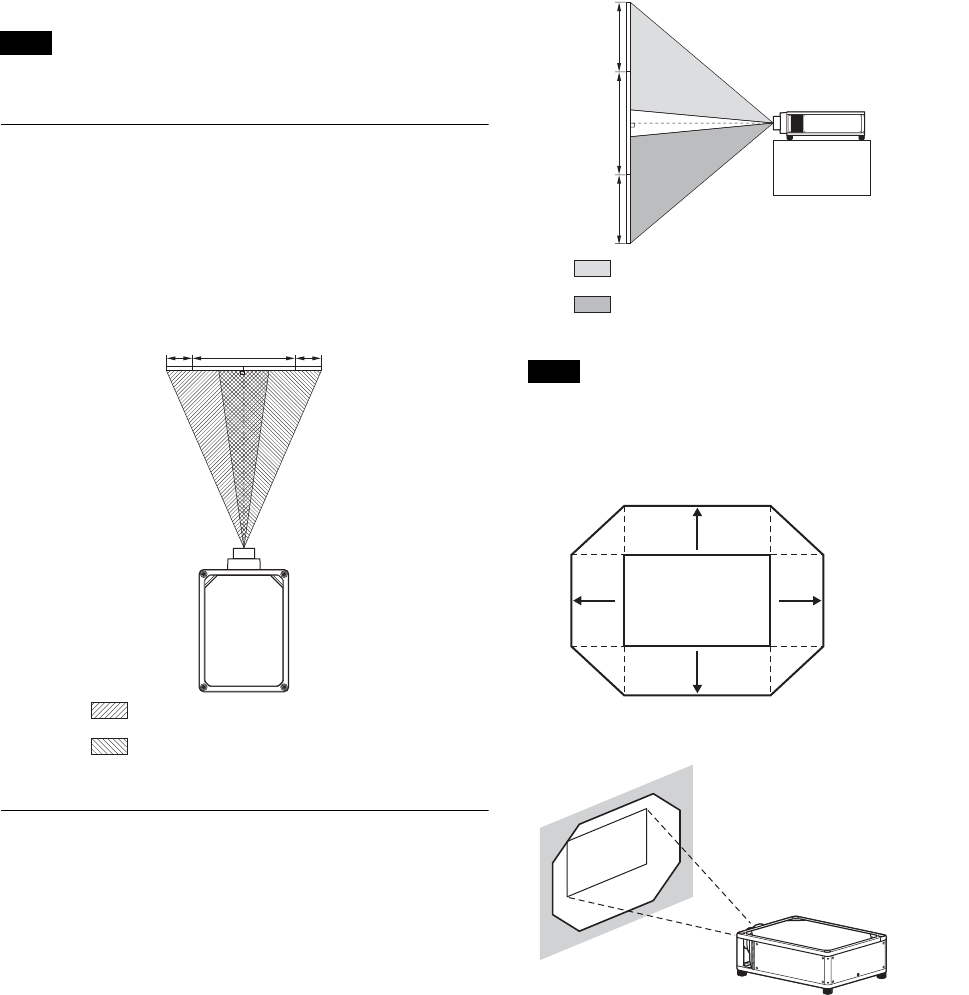
To adjust the horizontal position
Press </,.
The picture projected on the screen moves right or left by
a maximum of 31% of the screen width from the center of
the lens.
Top view
To adjust the vertical position
Press M/m.
The picture projected on the screen moves up or down by
a maximum of 80% of the screen height from the center of
the lens.
Side view
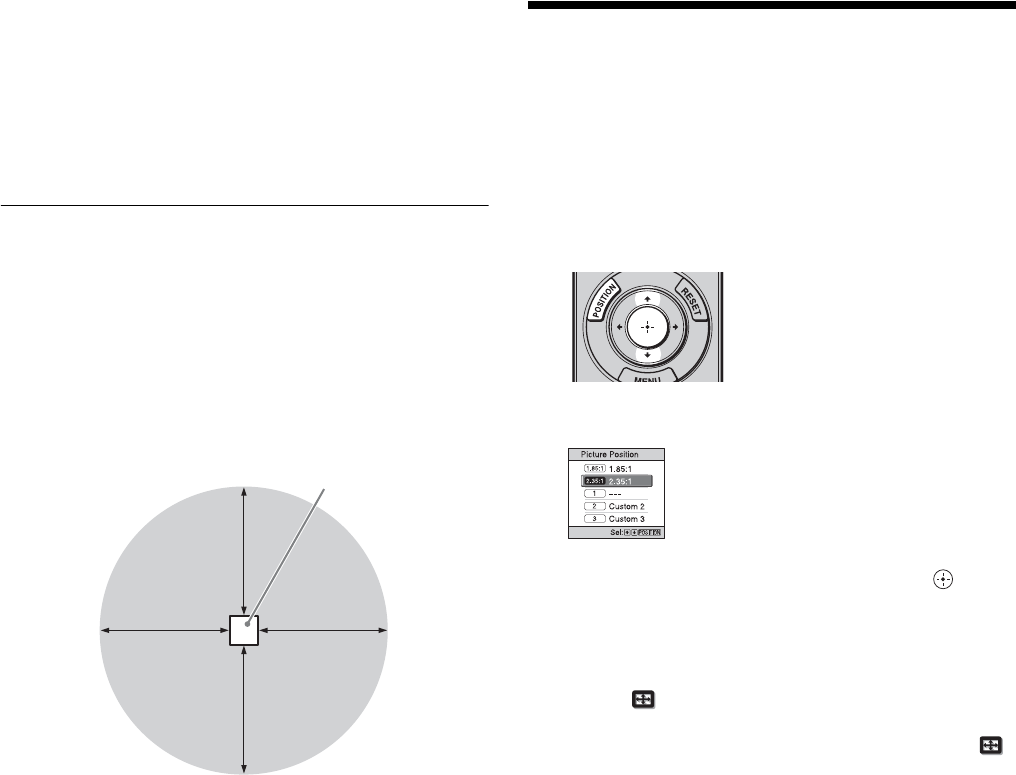
The range to move the picture projected on the screen can be
adjusted only within the octagon area illustrated below. For details,
see “Projection Distance and Lens Shift Range” (page 47).
Range of movement of the projected picture
Note
31% 31%1 screen width
: Picture position when moving the
picture to the left at maximum
: Picture position when moving the
picture to the right at maximum
Note
80%
80%
1 screen
height
: Picture position when moving the
picture upward at maximum
: Picture position when moving the
picture downward at maximum
0.8V
0.31H
H: Width of the projected picture
V: Height of the projected picture
0.31H
0.8V
Projected Picture
9
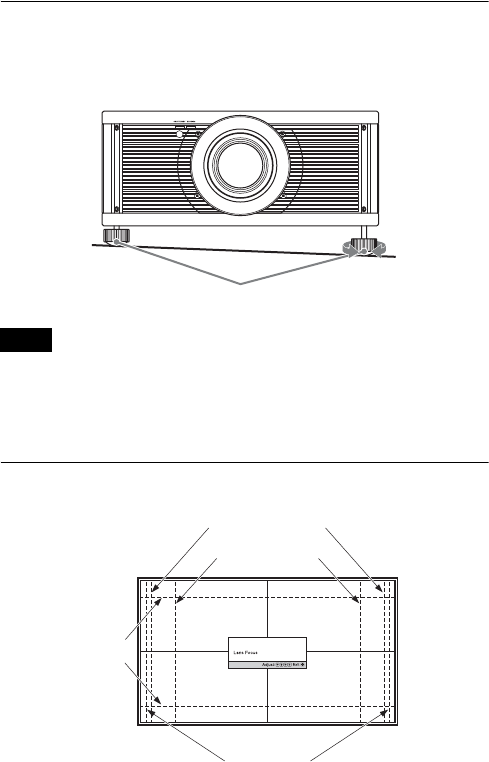
To adjust the tilt of the installation surface
If the unit is installed on an uneven surface, use the feet
(adjustable) to keep the unit level.
• If the unit is tilted up or down, the projected image may be
trapezoidal.
• Be careful not to catch your finger when turning the feet
(adjustable).
Lens adjustment window (test pattern)
Notes
Feet (adjustable)
Tu r n t o
adjust.
1.78:1 (16:9)
2.35:1
1.85:1
1.33:1 (4:3)
The dashed lines show the screen sizes of each
aspect ratio.
10
Connecting to Video Equipment or a Computer
You can enjoy high picture quality by connecting a DVD player/recorder, Blu-ray Disc player/recorder, or PlayStation®
equipped with HDMI output to the HDMI input of the unit.
When making connections, be sure to do the following:
• Turn off all equipment before making any connections.
• Use the proper cables for each connection.
• Insert the cable plugs properly; poor connection at the plugs may cause a malfunction or poor picture quality. When
pulling out a cable, be sure to pull it out from the plug, not the cable itself.
• Refer to the operating instructions of the connected equipment.
• Use a High Speed or Premium High Speed HDMI cable. With a standard HDMI cable, images of 1080p, DeepColor, 3D video and 4K video
may not be displayed properly.
• When you want to display a picture in a more detailed HDMI format, use the “Premium High Speed” type.
• When connecting an HDMI cable to the unit, make sure the V mark on the upper part of the HDMI input of the unit and the v mark on the
connector of the cable are faced at each other.
• If the picture from equipment connected to the unit with an HDMI cable is not correct, check the settings of the connected equipment.
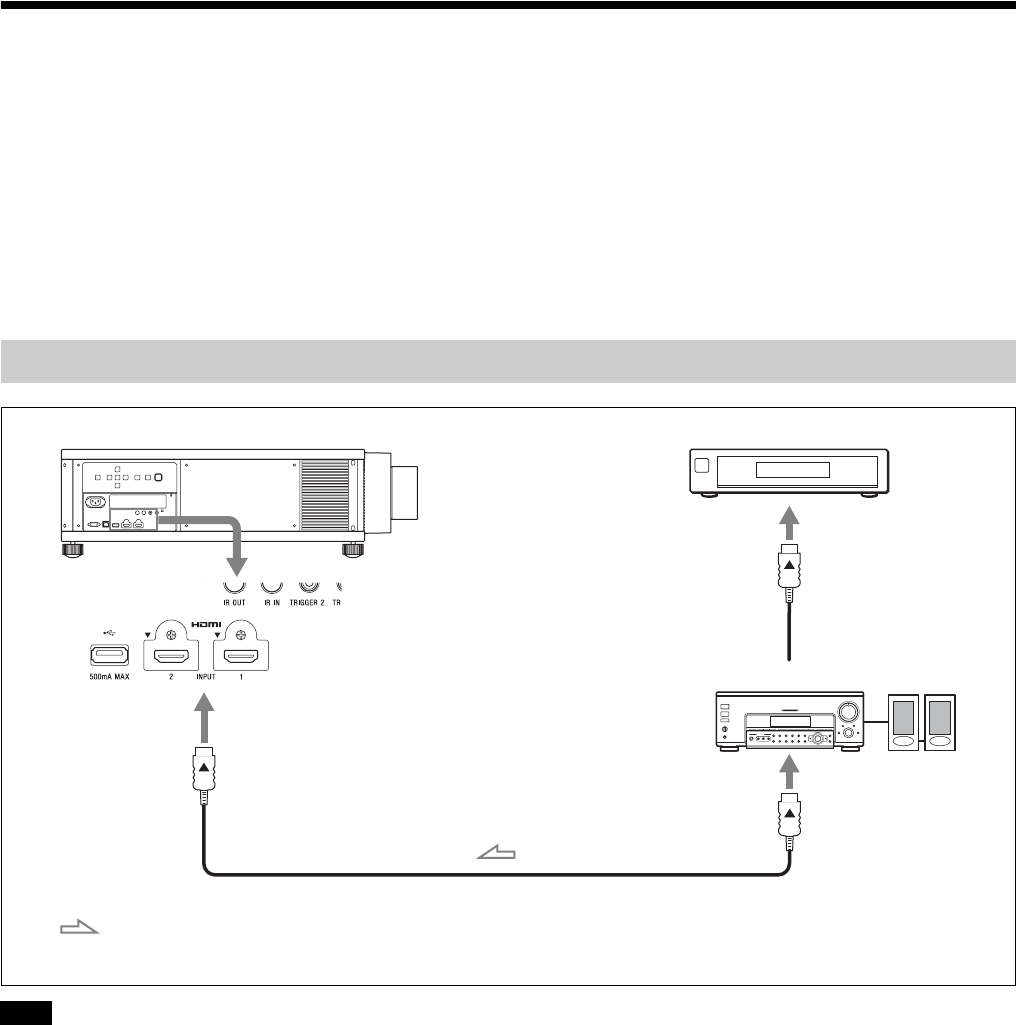
Connecting to a VCR
Notes
Right side of the unit Equipment with HDMI output connectors
Speakers
to HDMI output
HDMI cable (not supplied)
: Video signal flow Use a High Speed or Premium High Speed HDMI cable on which the
cable type logo is specified.
AV amplifier
11
• Use a High Speed or Premium High Speed HDMI cable. With a standard HDMI cable, images of 1080p, DeepColor, 3D video and 4K video
may not be displayed properly.
• When you want to display a picture in a more detailed HDMI format, use the “Premium High Speed” type.
• When connecting an HDMI cable to the unit, make sure the V mark on the upper part of the HDMI input of the unit and the v mark on the
connector of the cable are faced at each other.
• If the picture from equipment connected to the unit with an HDMI cable is not correct, check the settings of the connected equipment.
• If you set your computer, such as a notebook type, to output the signal to both computer’s display and this equipment, the picture of the
equipment may not appear properly. Set your computer to output the signal to only the external monitor. For details, refer to the computer’s
operating instructions supplied with your computer. For settings of the computer, consult with the manufacturer of the computer.
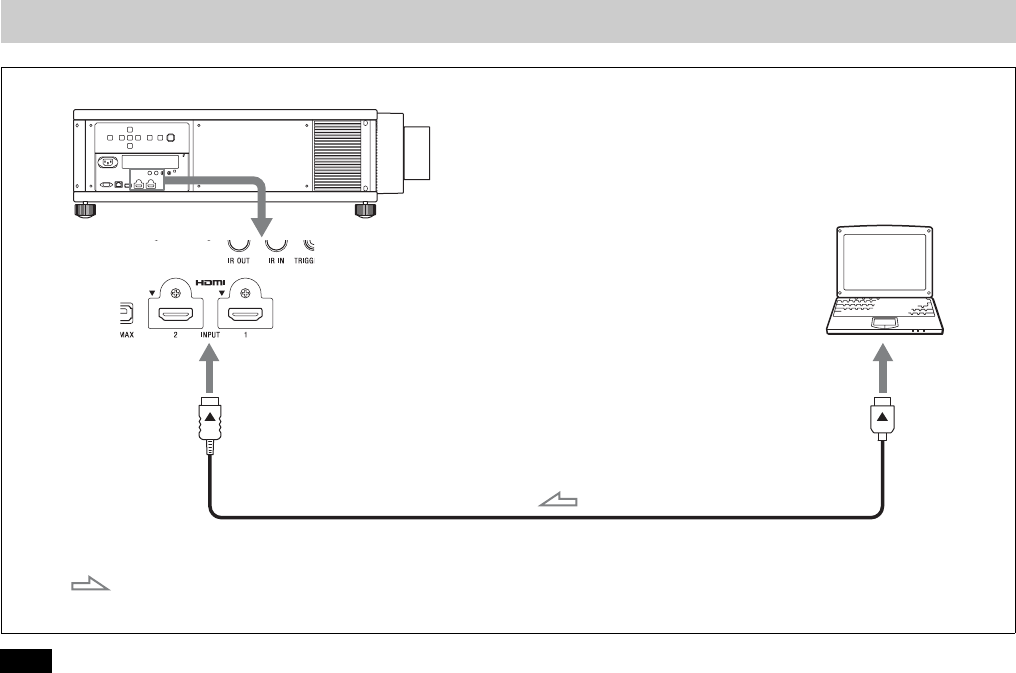
Connecting to a Computer
Notes
Right side of the unit
to monitor output
HDMI cable (not supplied)
: Video signal flow Use a High Speed or Premium High Speed HDMI cable on which the
cable type logo is specified.
Computer
12
.
This section describes how to operate the unit to view a picture from the equipment connected to the unit. It also describes
how to switch the screen size according to the picture.
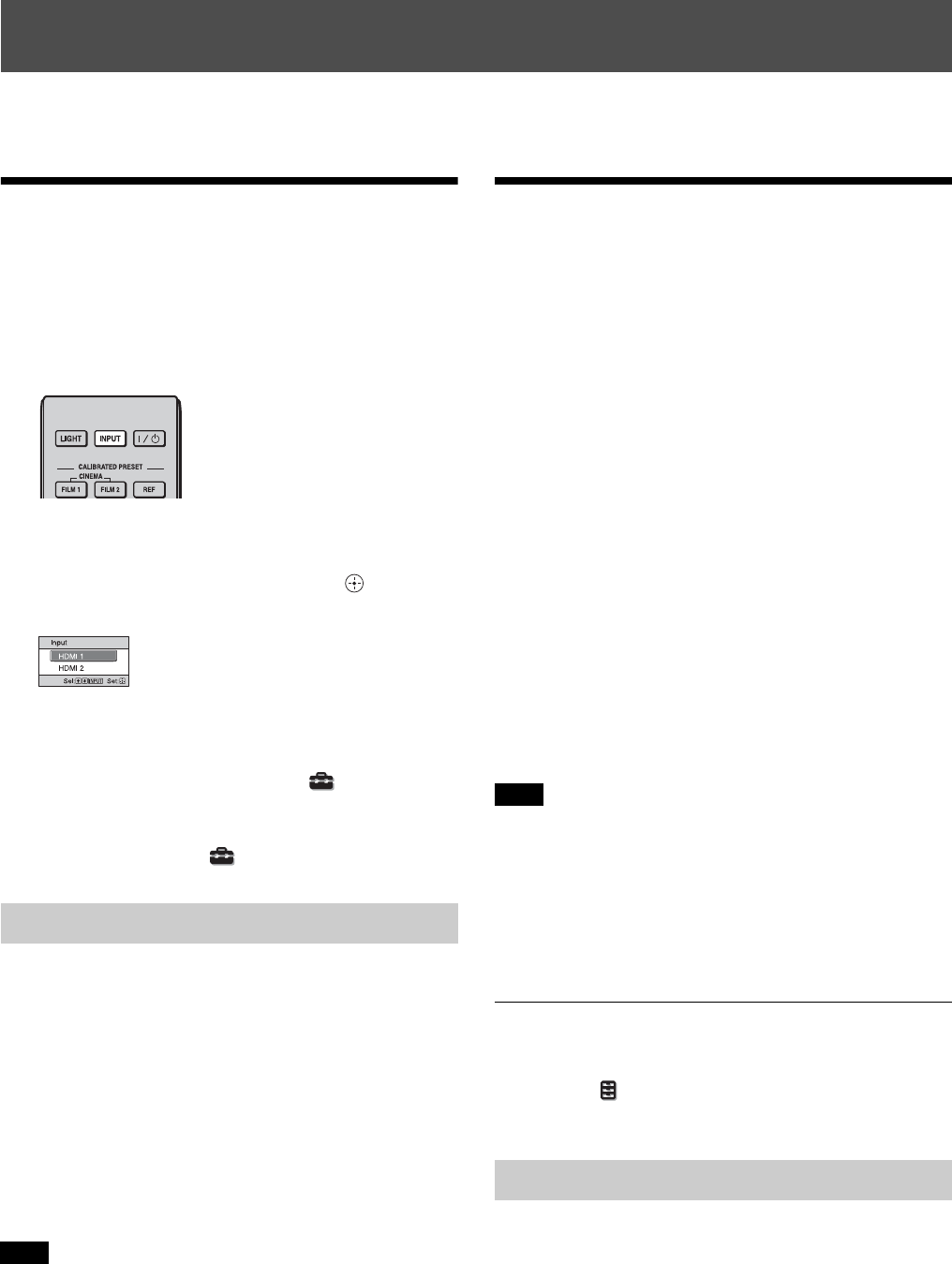
Projecting the Picture
1Turn on both the unit and the equipment connected to
the unit.
2Press INPUT to display the input palette on the
projection surface.
3Select the equipment from which you want to display
images.
Press INPUT repeatedly or press M/m/ (enter) to
select the equipment from which to project.
Tips
• When “Status” is set to “Off” on the Setup menu, the input
palette does not appear. Press the INPUT button to switch between
input terminals sequentially.
• You can change the language for the menu and on-screen displays
in “Language” on the Setup menu (page 26).
1Press the ?/1 (On/Standby) button.
The message “POWER OFF?” appears.
2Press the ?/1 (On/Standby) button again before the
message disappears.
The ON/STANDBY indicator flashes in green and the
fan continues to run to reduce the internal heat.
The fan stops and the ON/STANDBY indicator
changes from flashing green to remaining red.
You can disconnect the AC power cord.
Never disconnect the AC power cord while the unit is turned on.
You can turn off the unit by holding the ?/1 (On/Standby) button for
about 1 second, instead of performing the above steps.
Watching 3D Video
Images
You can enjoy powerful 3D video images, such as from 3D
games and 3D Blu-ray Discs, using the optional Active 3D
Glasses (TDG-BT500A).
1Turn on the HDMI equipment for 3D compatibility
connected to the unit, then play the 3D content.
For details on how to play 3D content, refer to the
operating instructions for the connected equipment.
2Turn on the unit and project the 3D video image.
For details on how to project the image, see
“Projecting the Picture” (page 12).
3Turn on the 3D glasses, and then put them on so that
they fit comfortably.
For details on how to use the 3D glasses, see “Using
the 3D Glasses” (page 12).
Tip
The factory default setting for “2D-3D Display Sel.” is “Auto” to
allow projecting 3D video images automatically when the unit
detects 3D signals.
• It may not be possible to display 3D video image, depending on
the type of signal. Set the “2D-3D Display Sel.” to “3D,” and “3D
Format” to “Side-by-Side” or “Over-Under” to suit the format of
the 3D content you want to watch (page 28).
• Use the 3D glasses within the communication range (page 13).
• There are differences in perception of 3D video images among
individuals.
• When the temperature of the usage environment is low, the 3D
effect may be diminished.
Adjusting/Setting the 3D functions
You can adjust/set the 3D functions by pressing the 3D
button on the remote control or with the “3D Settings” of
the Function menu. For details, see “3D Settings”
(page 28).
1Turn on the 3D glasses, and register them on the unit.
For details on how to register the 3D glasses, refer to
the operating instructions supplied with the 3D
glasses.
Projecting
Turning Off the Power
Note
Example: To view the picture from the video equipment
connected to the HDMI 1 connector of this unit.
Notes
Using the 3D Glasses
13
2Put on the 3D glasses.
Precautions for use
Misoperation may occur if:
• The viewing position is too far from the projector
• There are other communication devices, such as a
wireless LAN (IEEE802.11 b/g/n) or a microwave with
a bandwidth of 2.4 GHz, near the unit
3D glasses communication range
The following figure indicates the communication range of
the 3D glasses. If you try to watch 3D video images from
a distance greater than the communication range or install
the unit outside the communication range, the 3D glasses
may not be able to display the images properly. Also, the
distance varies depending on the environment of the room
and installation environment of the unit.
Top or side view
Using the Picture
Position
You can store up to five combinations of lens settings
(focus, picture size, picture position), aspect ratio, and
blanking. These settings can be recalled.
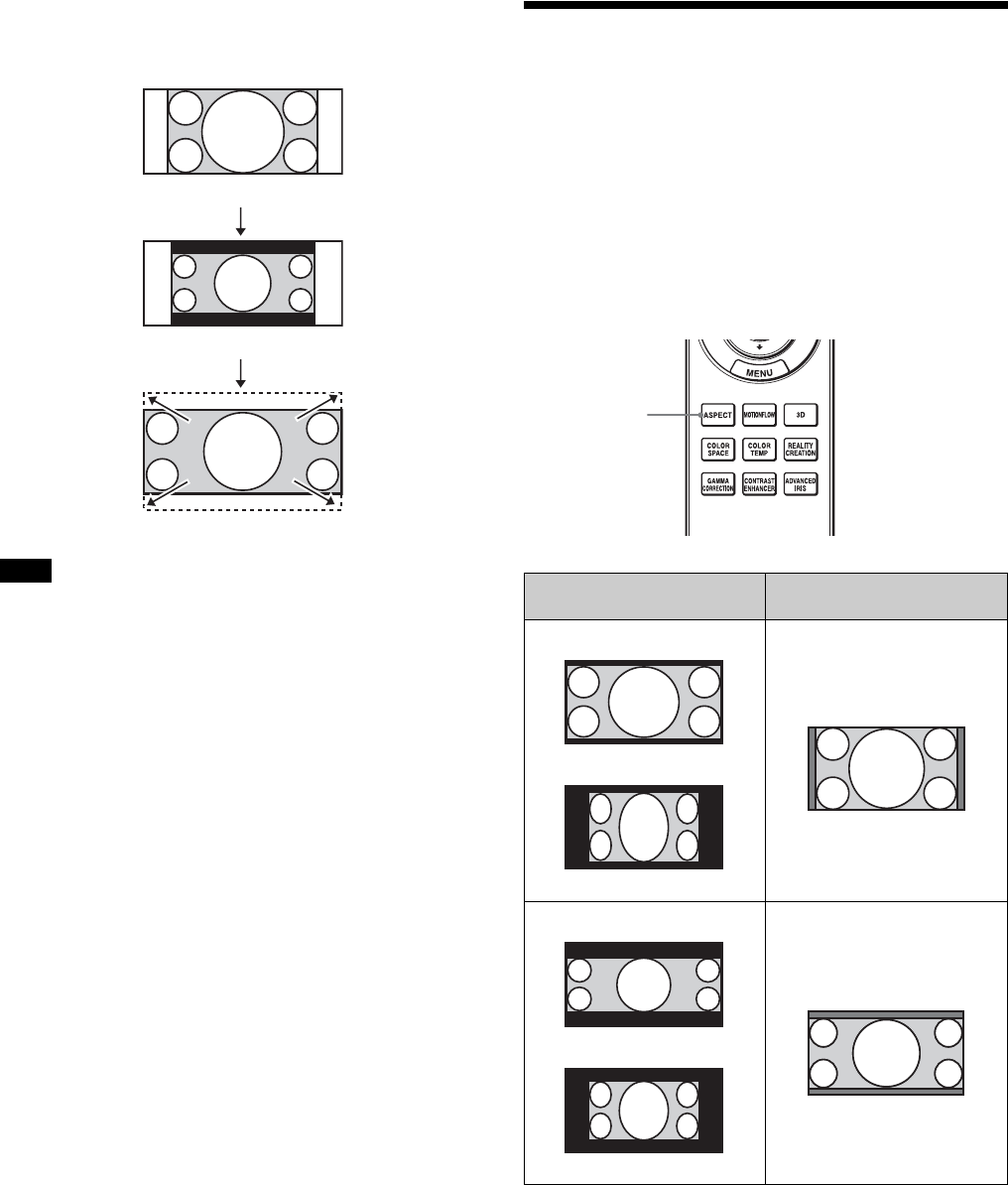
1Press POSITION.
The Picture Position selecting palette is displayed.
2Press POSITION repeatedly, or press M/m/ to
select the position.
The settings of the position selected is recalled.
Store or delete lens settings (focus, picture size,
picture position) in the “Picture Position” of the
Screen menu (page 24).
Adjust the aspect ratio or blanking in the “Aspect”
(page 25) or “Blanking” (page 25) of the Screen
menu.
The position where the lens settings are not stored is
displayed as “---.”
Projector
10 m 10 m
10 m
10 m
14
Image of the lens moving
In the example below, the images with aspect ratio of
1.78:1 (16:9) and 2.35:1 are projected on a 2.35:1 screen.
• After you have selected and confirmed the lens position, the lens
starts to move. Do not touch, or place anything near, the lens,
otherwise it may cause injury or a malfunction.
• If you press any button on the remote control or the unit while the
lens is moving, the lens stops. In this case, select the lens position
again or adjust the lens manually.
• The Picture Position function is not guaranteed to reproduce the
lens settings precisely.
• When you use the subtended screen angle of two or more aspects
using lens zoom, install the unit within the specified parameters
referring to “Projection distance” (page 48). With some setting
positions, the range of lens shift may be restricted, even though the
unit is installed within the specified parameters.
Selecting the Aspect
Ratio According to the
Video Signal
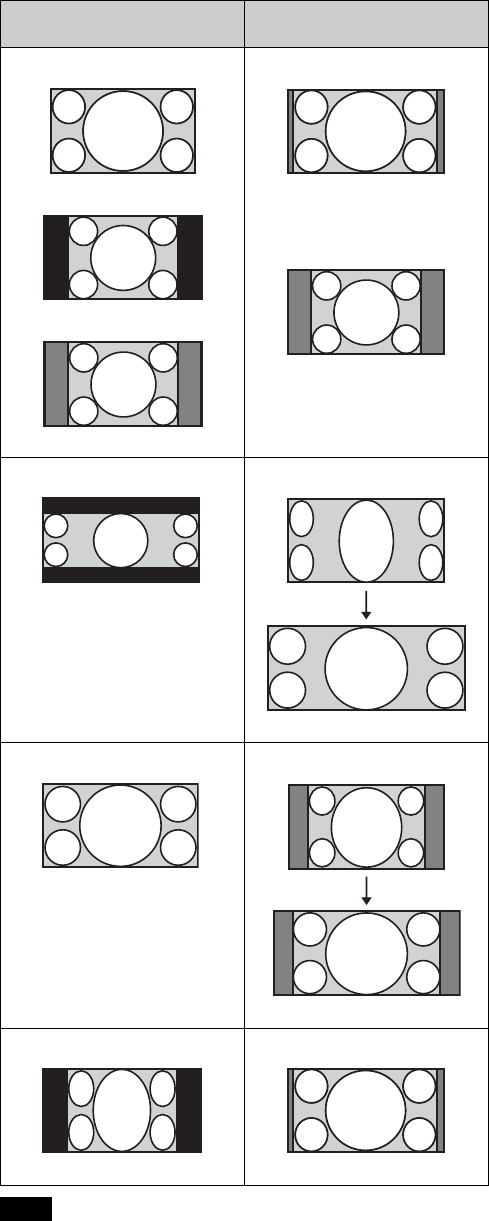
You can select an aspect ratio best suited for the video
signal received.
Press ASPECT.
Each time you press the button, you can select the “Aspect”
setting.You can also select it using the menu (page 25).
Notes
When a 1.78:1 (16:9) image is input
When a 2.35:1 image is input
Press the POSITION button.
The 2.35:1 image expands to fill the screen.
Original image (for 16:9
display)
Recommended setting and
resultant images
ASPECT
button
1.85:1
Squeezed 1.85:1
1.85:1 Zoom
2.35:1
Squeezed 2.35:1
2.35:1 Zoom
15
Selectable aspect modes vary depending on the input signal
(page 45).
Notes on switching the “Aspect” setting
• Select the aspect mode taking into account that changing
the aspect ratio of the original picture will provide a
different look from that of the original image.
• Note that if the unit is used for profit or for public
viewing, modifying the original picture by switching the
aspect may constitute an infringement of the rights of
authors or producers, which are legally protected.
Note
Original image (for 16:9
display)
Recommended setting and
resultant images
1.78:1 (16:9)
1.33:1 (4:3)
1.33:1 (4:3) with side panels
Normal
2.35:1
V Stretch
When using an anamorphic lens
16:9
Squeeze
When using an anamorphic lens
Squeezed
Stretch
16
Selecting the Picture
Viewing Mode
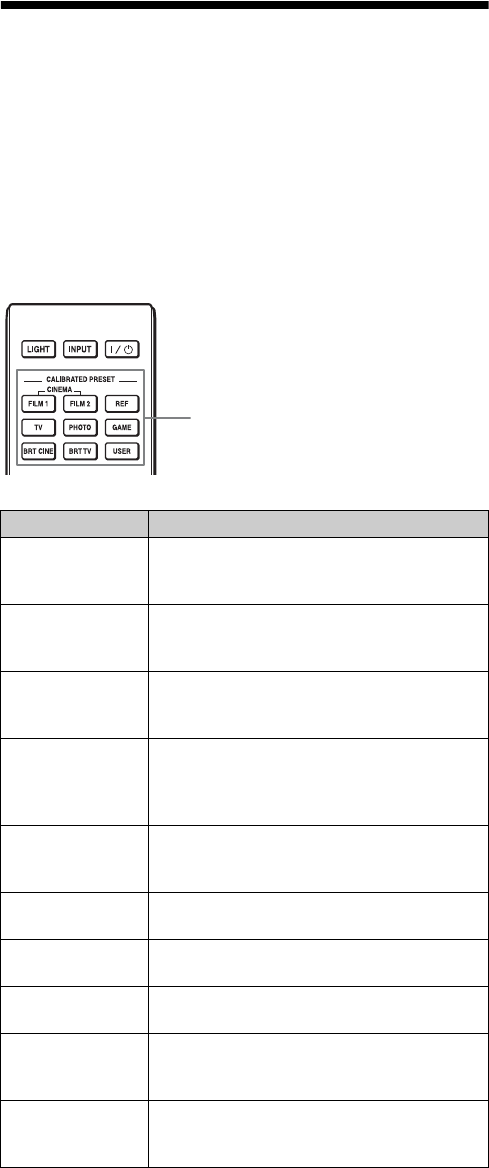
You can select the picture viewing mode that best suits the
type of video source or room conditions.
You can save and use different preset modes for 2D/3D
respectively.
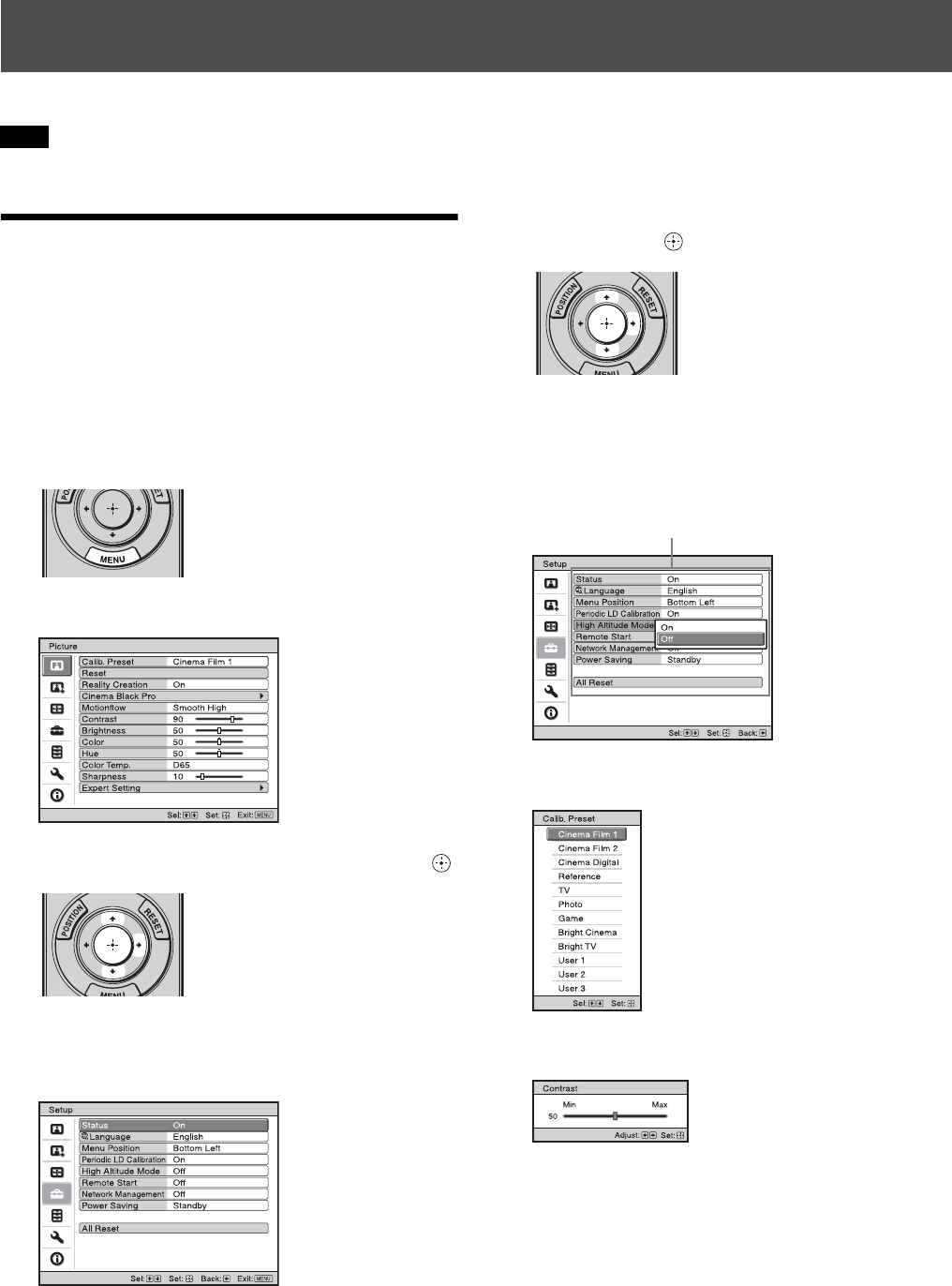
Press one of the CALIBRATED PRESET buttons.
*1: The CINEMA DIGITAL mode is not available on the remote
control.
*2: The USER1 mode is selected by pressing the USER button. The
USER2 mode and USER3 mode are not available on the remote
control.
Setting items Description
CINEMA FILM 1 Picture quality suited to reproducing the
highly dynamic and clear images typical of
master positive film.
CINEMA FILM 2 Picture quality suited to reproducing the rich
tone and color typical of a movie theater,
based on the Cinema Film 1.
CINEMA
DIGITAL *1Picture quality suited to reproducing digital
cinema-like images resembling DCI
specifications (page 41).
REF A picture quality setup suitable for when you
want to reproduce faithfully the original
image quality, or for enjoying image quality,
without any adjustment.
TV Picture quality suited for watching TV
programs, sports, concerts, and other video
images.
PHOTO Ideal for projecting still images taken with a
digital camera.
GAME Picture quality suited to gaming, with well-
modulated colors and fast response.
BRT CINE Picture quality suited for watching movies in
a bright environment.
BRT TV Picture quality suited for watching TV
programs, sports, concerts, and other video
images in a bright environment.
USER1, USER2,
USER3 *2Adjusts the picture quality to suit your taste
then saves the setting. The factory default
setting is the same as “REF.”
CALIBRATED PRESET buttons
17
This section describes how to make various adjustments and settings using the menus.
The menu displays used for the explanation may be different from the actual menu display.
Operation through the
Menus
The unit is equipped with an on-screen menu for making
various adjustments and settings. If you select an item
name followed by an arrow (B), the next menu window
with setting items appears.
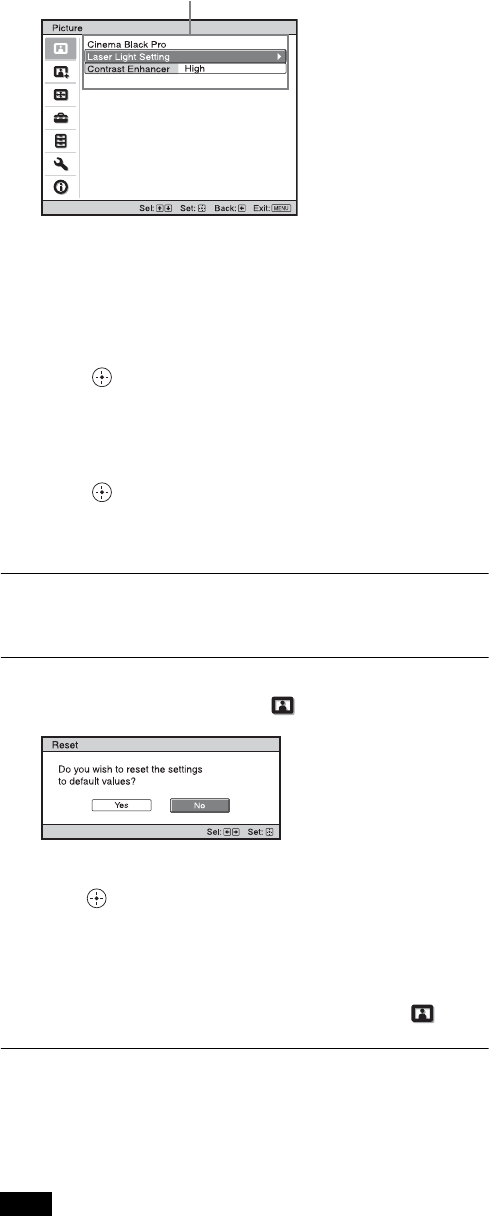
1Press MENU.
The menu window appears.
2Press M/m to select a menu item, and press , or .
The items that can be set or adjusted with the selected
menu appear. The item presently selected is shown in
white.
3Press M/m to select an item you want to set or adjust
and press , or .
The setting items are displayed in a pop-up menu, in
a setting menu, in an adjustment menu or in the next
menu window.
Pop-up menu
Setting menu
Adjustment menu
Using the Menus
Note
Setting items
18
Next menu window
4Make the setting or adjustment of an item.
When changing the adjustment level
To increase the value, press M/,.
To decrease the value, press m/<.
Press to store the setting and restore the original
menu screen.
When changing the setting
Press M/m to change the setting.
Press to restore the original screen.
You can restore the original screen using <
depending on the selected item.
To clear the menu
Press MENU.
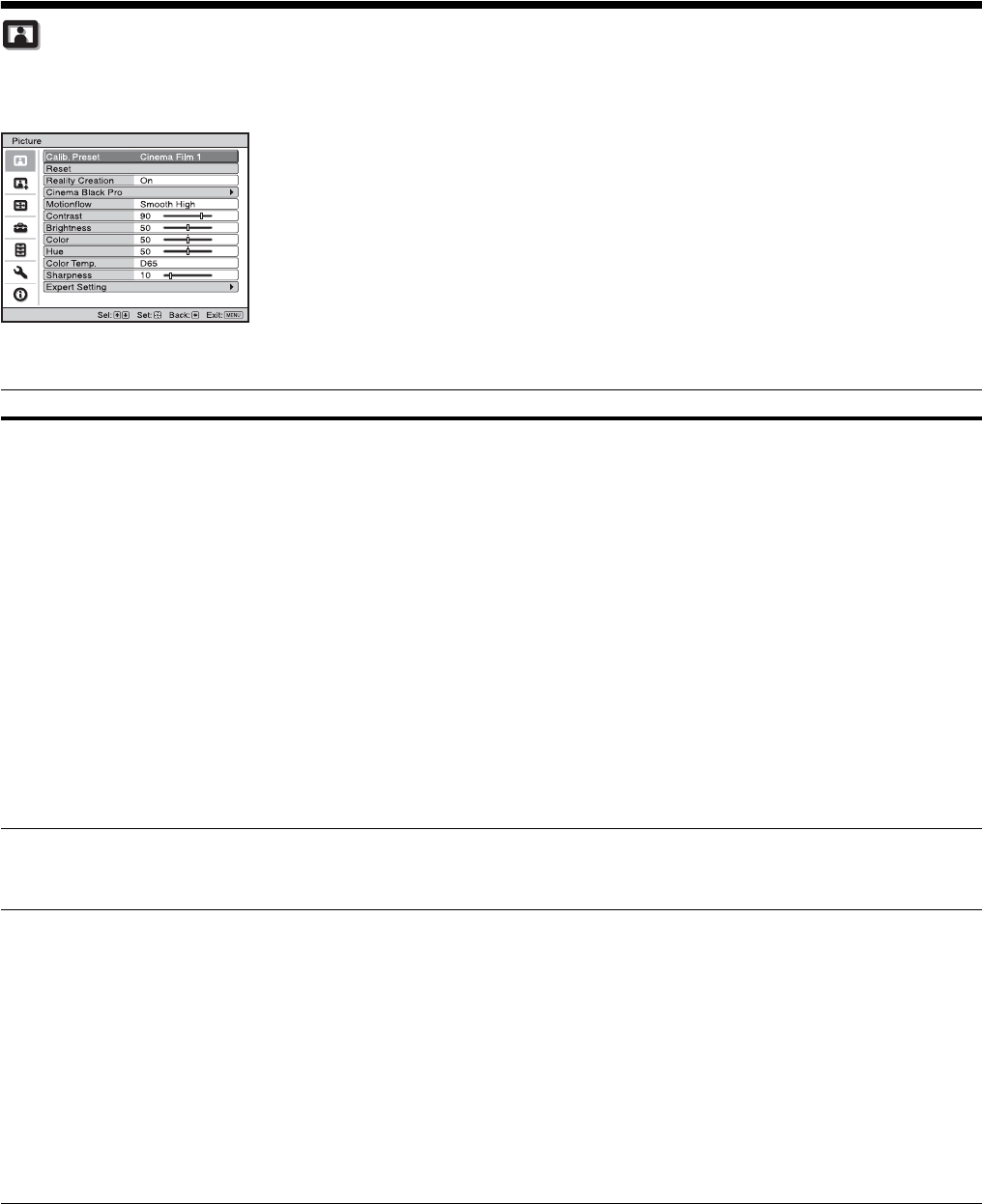
To reset the picture that has been adjusted
Select “Reset” from the Picture menu.
When the screen display appears, select “Yes” using <
and press .
All of the following settings are reset to its factory preset
value:
“Reality Creation,” “Cinema Black Pro,” “Motionflow,”
“Contrast,” “Brightness,” “Color,” “Hue,” “Color Temp.,”
“Sharpness,” and “Expert Setting” on the Picture menu
To reset the items that have been adjusted
Select an item in the menu screen, and display the pop-up
menu, the setting menu, or the adjustment menu.
Press RESET on the remote control to reset only the
selected settings to its factory preset value.
The RESET button on the remote control is available only when the
adjustment menu or the setting menu is selected.
Note
Setting items
19
Picture Menu
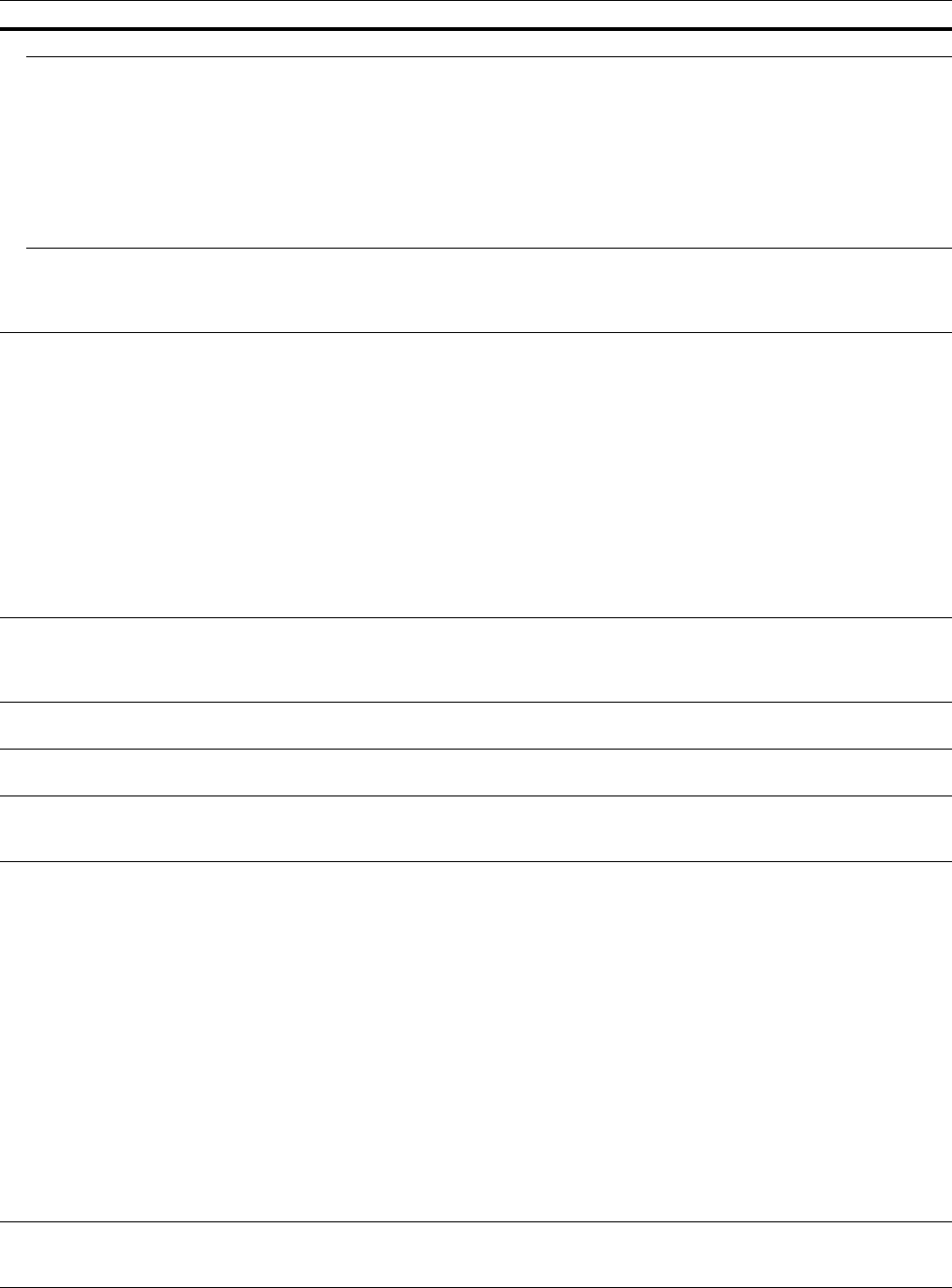
The Picture menu is used for adjusting the picture.
Item names in brackets represent those printed on the remote control.
Setting items Description
Calib. Preset [CALIBRATED
PRESET]
You can select the picture viewing mode that best suits the type of video source or the environment.
You can save and use different preset modes for 2D/3D respectively.
Cinema Film 1: Picture quality suited to reproducing the highly dynamic and clear images typical of
master positive film.
Cinema Film 2: Picture quality suited to reproducing the rich tone and color typical of a movie theater,
based on the Cinema Film 1.
Cinema Digital: Picture quality suited to reproducing digital cinema-like images resembling DCI
specifications (page 41).
Reference: A picture quality setup suitable for when you want to reproduce faithfully the original image
quality, or for enjoying image quality, without any adjustment.
TV: Picture quality suited for watching TV programs, sports, concerts, and other video images.
Photo: Ideal for projecting still images taken with a digital camera.
Game: Picture quality suited to gaming, with well-modulated colors and fast response.
Bright Cinema: Picture quality suited for watching movies in a bright environment.
Bright TV: Picture quality suited for watching TV programs, sports, concerts, and other video images in
a bright environment.
User 1, User 2, User 3: You can adjust the picture quality to suit your taste, and save the setting. The
factory default setting is the same as “Reference.”
Tip
Any adjustments to picture quality settings are saved for each input.
Reset Resets all currently selected Calib. Preset mode settings to their default values (page 18).
Tip
Reset does not affect settings saved for the Custom 1 to 5 items of “Color Temp.”
Reality Creation [REALITY
CREATION]
Adjusts the detail and noise processing of images. (Super-resolution function)
On: Adjusts the settings of “Reality Creation.”
Database: Select “Normal” or “Mastered in 4K.”
“Mastered in 4K” provides image quality suitable for Blu-ray Disc™ “Mastered in 4K” releasing
from Sony Pictures Home Entertainment.
Resolution: When you increase the setting value, the texture and detail of the picture become sharper.
Noise Filtering: When you increase the setting value, the noise (picture roughness) becomes less
prominent.
Test: On/Off: Changes “On” and “Off” at a certain frequency to check the effect of “Reality
Creation.”
Tip
The display position of status during the test works together with the “Menu Position” setting
(page 26).
Off: The “Reality Creation” function is not applied.
20
Cinema Black Pro
Laser Light Setting Dynamic Control: Adjusts the range of movement of the laser light control.
Full: Automatically optimizes the laser light control and signal processing according to the brightness
level of the input source. This results in a bright and high contrast image.
Limited: Suppresses the movement and brightness of the laser light control, making the picture
quality suitable for viewing in a dark room.
Off: The “Dynamic Control” function is not applied.
Output: The higher the setting, the brighter the picture. The lower the setting, the darker the picture.
Tip
Adjust “Output” according to the brightness of the picture.
Contrast Enhancer
[CONTRAST ENHANCER]
Corrects the level of bright and dark parts automatically to optimize contrast according to a scene.
Increases image sharpness and makes image dynamic.
High/Middle/Low: You can adjust the contrast enhancer.
Off: The contrast enhancer function is not applied.
Motionflow [MOTIONFLOW] Impulse: Reproduces original picture quality. Provides cinema-like picture, which may flicker.
Combination: Reduces motion blur while maintaining brightness for high-speed picture content.
Smooth High: Provides smoother picture movement; especially effective for film-based content.
Smooth Low: Provides smoother picture movement for standard use.
True Cinema: Images, such as a movie created in 24 frames per second, are reproduced at the original
framerate.
Off: The “Motionflow” function is not applied.
Tips
• Select “Off” if the selected “Smooth High,” “Smooth Low,” “Impulse,” “Combination,” or “True
Cinema” results in a distorted picture.
• When selecting “Impulse,” the picture becomes dark. Also, it may flicker.
• Depending on the picture content, you may not see the effect visually even if you have changed the
settings.
• Only “Off” or “Impulse” is available when a signal with a resolution of 4096 × 2160 is input.
Contrast
[CONTRAST]
Adjusts the contrast.
Higher values increase the sharpness in images, while lower values decrease the sharpness.
When the HDR signal is input with “HDR10,” “HLG,” or “Auto” set for “HDR,” “Contrast(HDR)”
appears instead of “Contrast.”
Brightness
[BRIGHTNESS]
Adjusts the brightness of the picture.
The higher the setting, the brighter the picture. The lower the setting, the darker the picture.
Color Adjusts the color density.
The higher the setting, the greater the intensity. The lower the setting, the lower the intensity.
Hue Adjusts the color tone.
The higher the setting, the more greenish the picture becomes. The lower the setting, the more reddish
the picture becomes.
Color Temp.
[COLOR TEMP]
Adjusts the color temperature.
D93: Equivalent to 9,300 K color temperature normally used in TVs. Gives white colors a blue tint.
D75: Equivalent to 7,500 K color temperature used as an ancillary standard illuminant. Gives a neutral
tint between “D93” and “D65.”
D65: Equivalent to 6,500 K color temperature used as a standard illuminant. Gives white colors a red
tint.
DCI: DCI specification (page 41) color temperature.
D55: Equivalent to 5,500 K color temperature used as an ancillary standard illuminant. Gives white
colors an even redder tint.
Custom 1 to 5: Enables you to adjust, set, and store your favorite color temperature.
The factory default settings are as follows.
Custom 1: Same as the “D93” color temperature setting.
Custom 2: Same as the “D75” color temperature setting.
Custom 3: Same as the “D65” color temperature setting.
Custom 4: Same as the “DCI” color temperature setting.
Custom 5: Setting that prioritizes brightness.
Tip
You can adjust each item to a color temperature according to your preference.
Sharpness
[SHARPNESS]
Sharpens the outline of the picture, or reduces the noise.
The higher the setting, the sharper the picture. The lower the setting, the softer the picture, thus reducing
the noise.
Setting items Description
21
Expert Setting
NR (Noise Reduction) Reduces the roughness or noise of the picture.
Auto: Detects the noise level to reduce the roughness or noise of the picture automatically.
High/Middle/Low: Select a setting according to the roughness or noise of the input signal source.
Off: The NR (noise reduction) function is not applied.
Tip
The noise level may not be detected accurately with “Auto” depending on the input signal source. If the
picture is unacceptable with “Auto,” select a setting from among “High,” “Middle,” “Low” or “Off.”
MPEG NR (MPEG Noise
Reduction)
Reduces block noise and mosquito noise, particularly in digital signals.
Auto: Detects the noise level to reduce the block noise and mosquito noise of the picture automatically.
High/Middle/Low: Select a setting according to the block noise and mosquito noise of the input signal
source.
Off: The MPEG NR (MPEG noise reduction) function is not applied.
Tip
The noise level may not be detected accurately with “Auto” depending on the input signal source. If the
picture is unacceptable with “Auto,” select a setting from among “High,” “Middle,” “Low” or “Off.”
Smooth Gradation Smooths the gradation of the flat parts of images.
High/Middle/Low: You can adjust the smooth gradation effect.
Off: The smooth gradation function is not applied.
Tip
This item is not available for 3D signals.
Film Mode According to the film source you have selected, make a setting for playback.
Auto: Suitable for reproducing the original picture movement. Normally, set this to “Auto.”
Off: Plays back the picture in progressive format without detecting video signals automatically.
Tip
This item is compatible with a 1080i signal only.
Gamma Correction
[GAMMA CORRECTION]
Adjusts the response characteristics of the tone of the picture.
Select a favorite tone from 10 options.
1.8: Bright Produces a brighter picture overall.
2.0
2.1
2.2
2.4
2.6: Dark Produces a darker picture overall.
Gamma 7: Simulates the gamma curve of film.
Gamma 8: Increases the sharpness in images. Select this when you watch in a bright environment.
Gamma 9: Produces a brighter picture than Gamma 8.
Gamma 10: Increases the sharpness in images. Select this when you watch TV programs, etc., in a
bright environment.
Off: The “Gamma Correction” function is not applied.
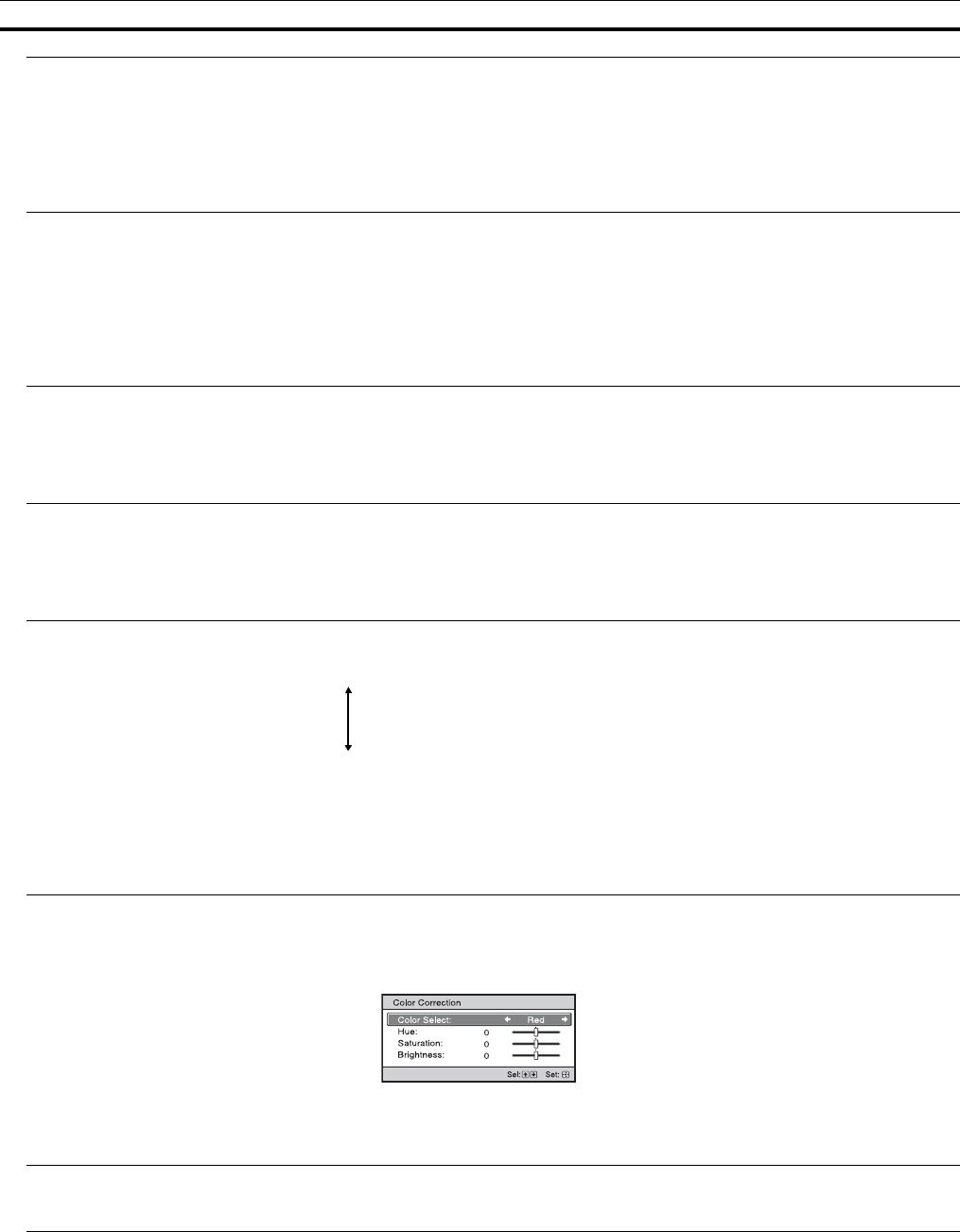
Color Correction On: Adjusts Hue, Saturation and Brightness of the selected colors.
Repeat steps 1 and 2 described below to specify the target color.
1Press M/m to select “Color Select,” then press </, to select the color you want to adjust among
“Red,” “Yellow,” “Green,” “Cyan,” “Blue,” and “Magenta.”
2Press M/m to select “Hue,” “Saturation” or “Brightness,” then adjust them to suit your taste using </
, while watching the projected picture.
Off: The “Color Correction” effect is not applied.
Clear White Emphasizes vivid whites.
High/Low: You can adjust the “Clear White” effect.
Off: The “Clear White” effect is not applied.
Setting items Description
22
x.v.Color Set this item when connecting the unit with equipment that supports x.v.Color and playing back an
x.v.Color video signal.
On: You can play back an x.v.Color video signal.
Off: The “x.v.Color” function is not applied.
For details on x.v.Color, see “About x.v.Color” (page 41).
Tip
Setting x.v.Color to “On” disables gamma adjustment.
HDR Sets how to play back HDR content.
Auto: Distinguishes HDR content automatically and applies the optimal picture quality. When an input
signal supports BT.2020, then “BT.2020” or “Color Space 2” is selectable for “Color Space”. When a
signal other than BT.2020 is input, then any mode other than “BT.2020” and “Color Space 2” is
selectable. (“BT.2020” and “Color Space 2” are not available in this case.)
HDR10: Set when playing back HDR10-compatible content.
HLG: Set when playing back HLG-compatible content.
Off: Set when playing back content other than HDR content.
All of the modes of “Color Space” are selectable when “HDR10,” “HLG,” or “Off” is selected.
If the setting is not correct for the input content, the bright and dark areas of the video may appear too
bright or too dark.
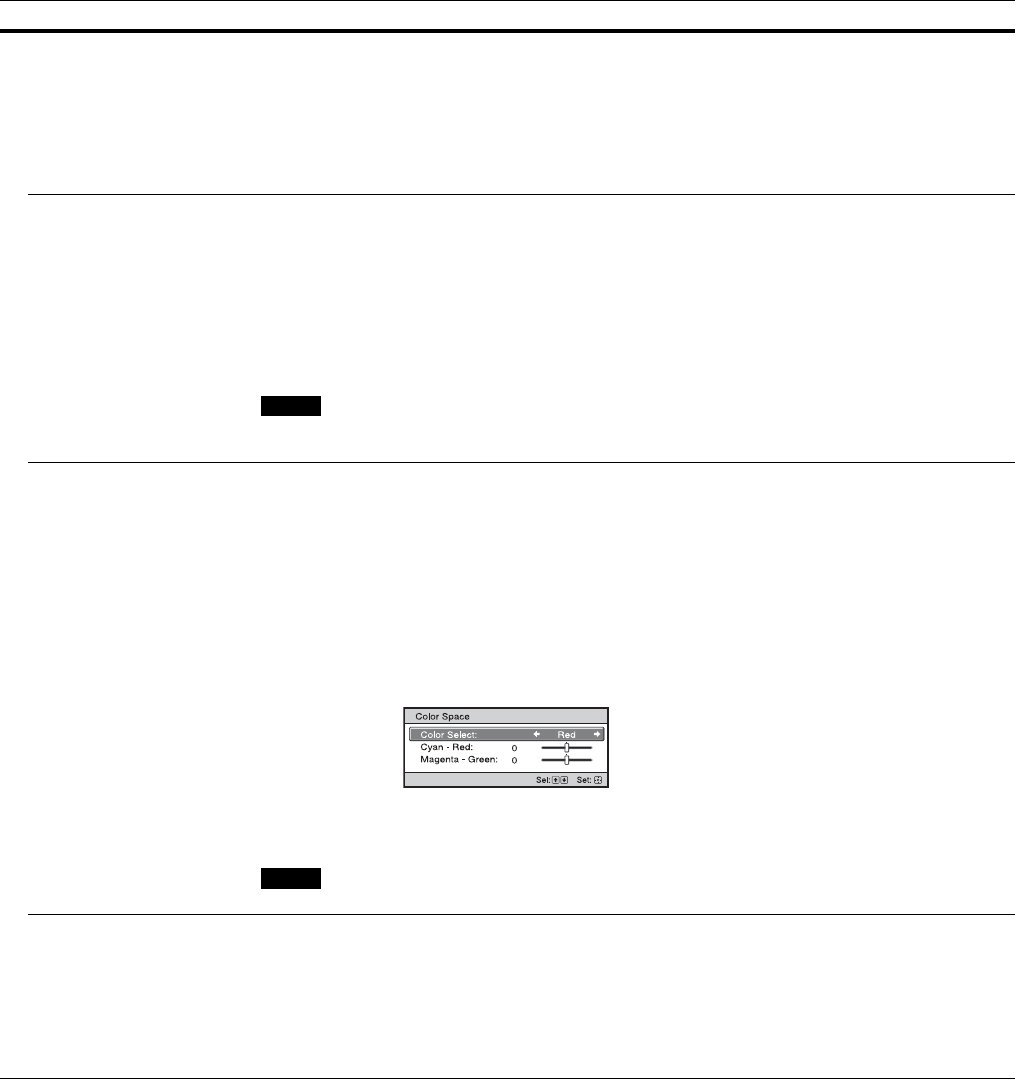
Color Space
[COLOR SPACE]
Converts the color space.
BT.709: An ITU-R BT.709 color space. The color space is equivalent to sRGB.
BT.2020: An approximated ITU-R BT.2020 color space which has a wider range of color reproduction
than BT.709. Use this setting when playing back HDR content.
DCI: A color space based on the DCI specification (page 41).
Adobe RGB: An approximated Adobe RGB color space, which has a wider range of color reproduction
than sRGB, and suited for displaying an image recorded in Adobe RGB specification.
Color Space 1: The color space suited for video images.
Color Space 2: A color space suited for watching HDR content in a bright space.
Color Space 3: A color space suited for watching movies or video images in a bright space.
Custom 1, Custom 2: You can adjust the color space setting.
Tip
You can adjust each item to a color space according to your preference.
When “HDR” is set to “Auto,” the selectable mode changes according to the signal type (page 22).
Input Lag Reduction Reduces the delay of the display for a video.
On: Shortens the time to display the input video image; effective for increasing the performance of the
display reaction speed when using an external controller, etc.
Off: Turns the Input Lag Reduction function off.
Tip
When “Input Lag Reduction” is set to “On,” the following items cannot be set:
“Combination,” “Smooth High,” “Smooth Low,” and “True Cinema” of “Motionflow”
Setting items Description
Note
Note
23
Advanced Picture Menu
You can adjust the gaps in color that have occurred after a long period of use.
• Auto Calibration results in relatively coarse calibration. The color settings are not guaranteed to be the same as the factory default values.
• The colors are projected automatically while performing “Pre Check” or “Adjust.” A similar phenomenon may occur infrequently while the
power is off to adjust the unit. Both cases are not a malfunction.
• Do not turn off the power or operate the remote control or control panel during “Pre Check” or “Adjust,” as the process may be canceled.
Tips
• dE is an indicator of changing color. The smaller the value of dE, the fewer the changes caused by the color.
• Perform the calibration after the power has been on for more than 30 minutes.
• It takes a few minutes for “Pre Check” or “Adjust” to complete.
• When “Pre Check” or “Adjust” starts, the screen position may shift as the lens returns to its factory default position. After completion, the
screen returns to its previous position automatically.
• If the environment, such as the brightness of the room, changes while performing “Pre Check” or “Adjust”, measurement may be affected.
• If the “Pre Check” or “Adjust” function fails, try it again.
Setting items Description
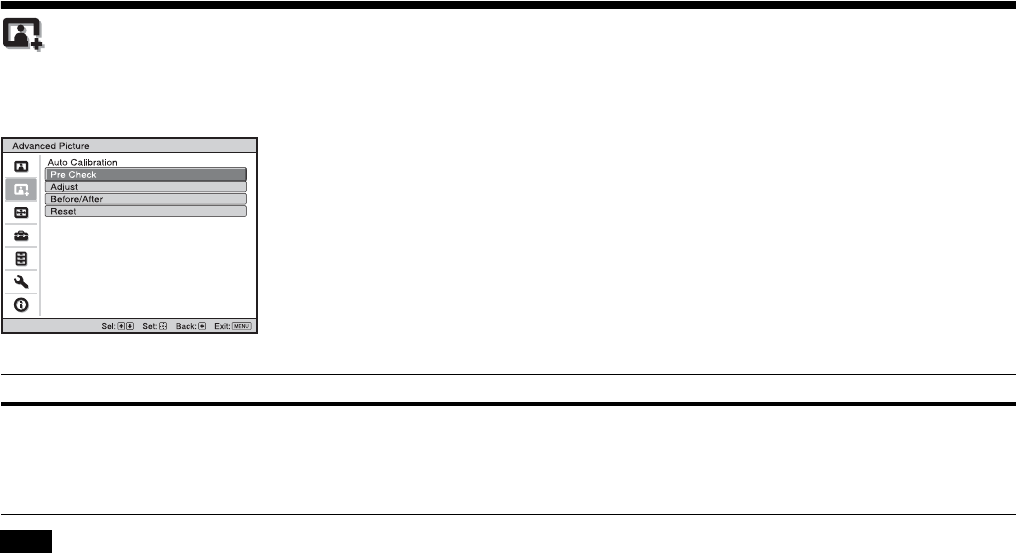
Auto Calibration Pre Check: Checks the color difference against the factory default settings, before calibration starts.
Adjust: Performs Auto Calibration.
Before/After: Toggles the factory default settings and the setting after the calibration at a certain
frequency. You can check the effect of the calibration by monitoring the actual image.
Reset: Resets the calibration results, and returns to the factory default settings.
Notes
24
Screen Menu
You can set the picture size, aspect mode, etc.
These items may not be available, depending on the type of input signal. For details, see “Input Signals and Adjustment/Setting Items”
(page 44).
Item names in brackets represent those printed on the remote control.
Note
Setting items Description
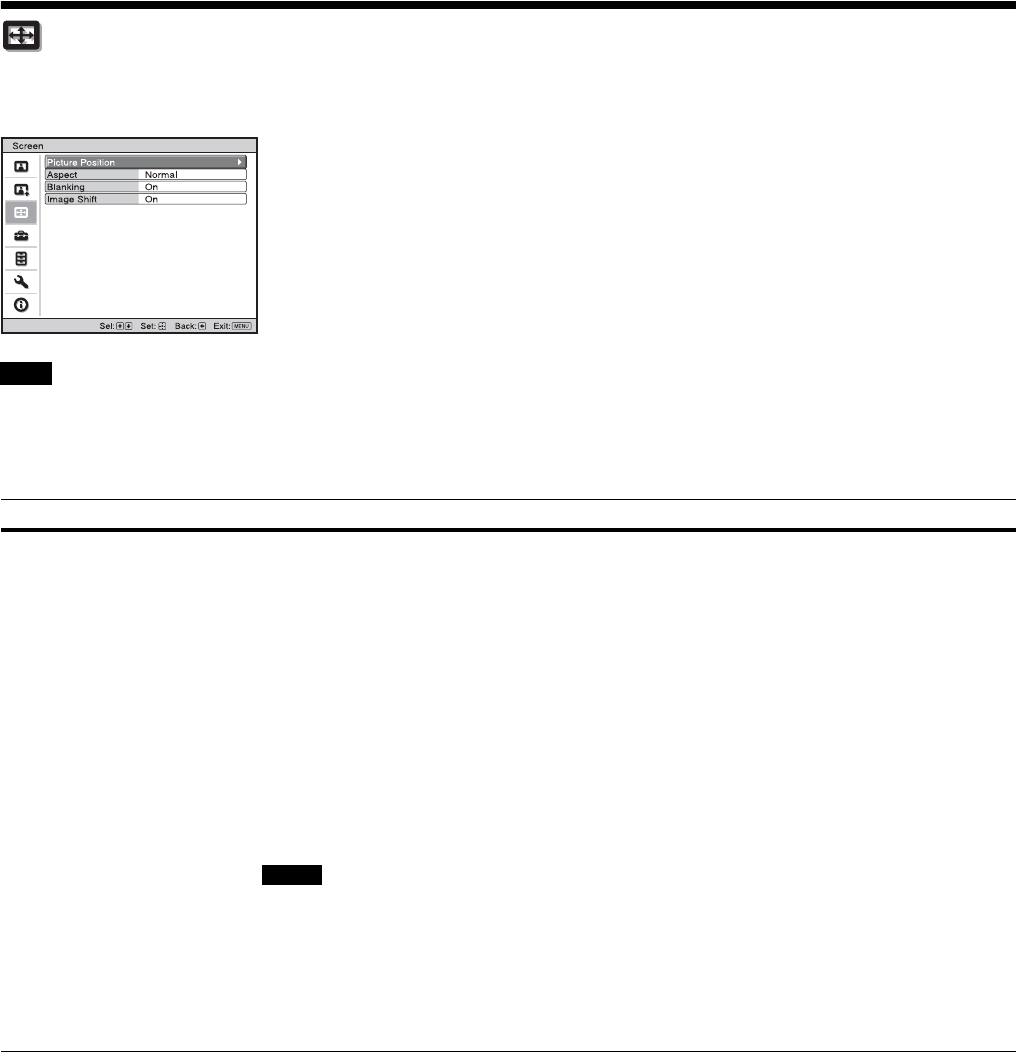
Picture Position
[POSITION]
You can store up to five combinations of lens settings, aspect ratio, and blanking.
After setting the lens (focus, picture size, picture position), select from “1.85:1,” “2.35:1,” “Custom 1,”
“Custom 2,” or “Custom 3” depending on the subtended screen angle, and after confirming, continue by
selecting “Save,” “Delete,” or “Select.”
Save: Stores the current lens settings (focus, picture size, picture position) in the selected position. If a
setting is already stored in that position, it is overwritten.
Delete: Deletes the stored setting. After the setting is deleted, “1.85:1,” “2.35:1,” “Custom 1,” “Custom
2,” or “Custom 3” in the display change to “---.”
Select: Recalls the settings of the selected position.
Tips
• The optimal aspect ratio is preset for each picture position. The aspect ratio can be changed and saved
for each picture position.
• When saving the Picture Position, temporarily move the picture from the saving point down 5 cm or
more, then move the picture up again and save. This improves the precision of the Picture Position
when calling it.
• After you have selected and confirmed the lens position, the lens starts to move. Do not touch the lens
and the area around the lens, otherwise it may cause injury or a malfunction.
• If you press any button on the remote control or the unit while the lens is moving, the lens stops. In
this case, select the lens position again or adjust the lens manually.
• When you use a 2.35:1 or a 16:9 subtended angle with the Picture Position function, make sure that
the installation position is suitable (page 13).
• The Picture Position function is not guaranteed to reproduce the lens settings precisely.
• “Picture Position” cannot be set when “Lens Control” is set to “Off.”
Notes
25
Aspect
[ASPECT]
You can set the aspect ratio of the picture to be displayed for the current input signal (page 14).
1.85:1 Zoom: A 1.85:1 aspect ratio picture is displayed in its original aspect ratio, enlarged so that black
bands do not appear at the top and bottom of the projection surface.
2.35:1 Zoom: A 2.35:1 aspect ratio picture is displayed in its original aspect ratio, enlarged so that black
bands at the top and bottom of the projection surface are as small as possible. When you select “2.35:1
Zoom” from “Trigger Select 1/2” on the Installation menu, a 12 V signal is output from the
TRIGGER 1 or TRIGGER 2 connector (page 31).
Normal: Input video is displayed in its original aspect ratio, enlarged to fill the projection surface. This
mode is suitable for viewing 1.78:1 (16:9) and 1.33:1 (4:3) video.
V Stretch: This is the most suitable mode for using a 2.35:1 screen to view 2.35:1 video with a
commercially available anamorphic lens.
When you select “V Stretch” from “Trigger Select 1/2” on the Installation menu, a 12 V signal is
output from the TRIGGER 1 or TRIGGER 2 connector (page 31).
Squeeze: With this setting, 1.78:1 (16:9) and 1.33:1 (4:3) video will be displayed in their correct aspect
ratios when you use a commercially available anamorphic lens.
Stretch: Displays video that has been squeezed to 1.33:1 (4:3) as 1.78:1 (16:9) aspect ratio.
Tips
• When you select “V Stretch” or “Squeeze,” select the anamorphic lens type from “Anamorphic Lens”
in the Installation menu.
• Selectable aspect modes vary depending on the input signal (page 45).
• Aspect setting is stored for each of the five Picture Positions. Adjust the aspect after selecting the
Picture Position. Final adjusted values are stored automatically.
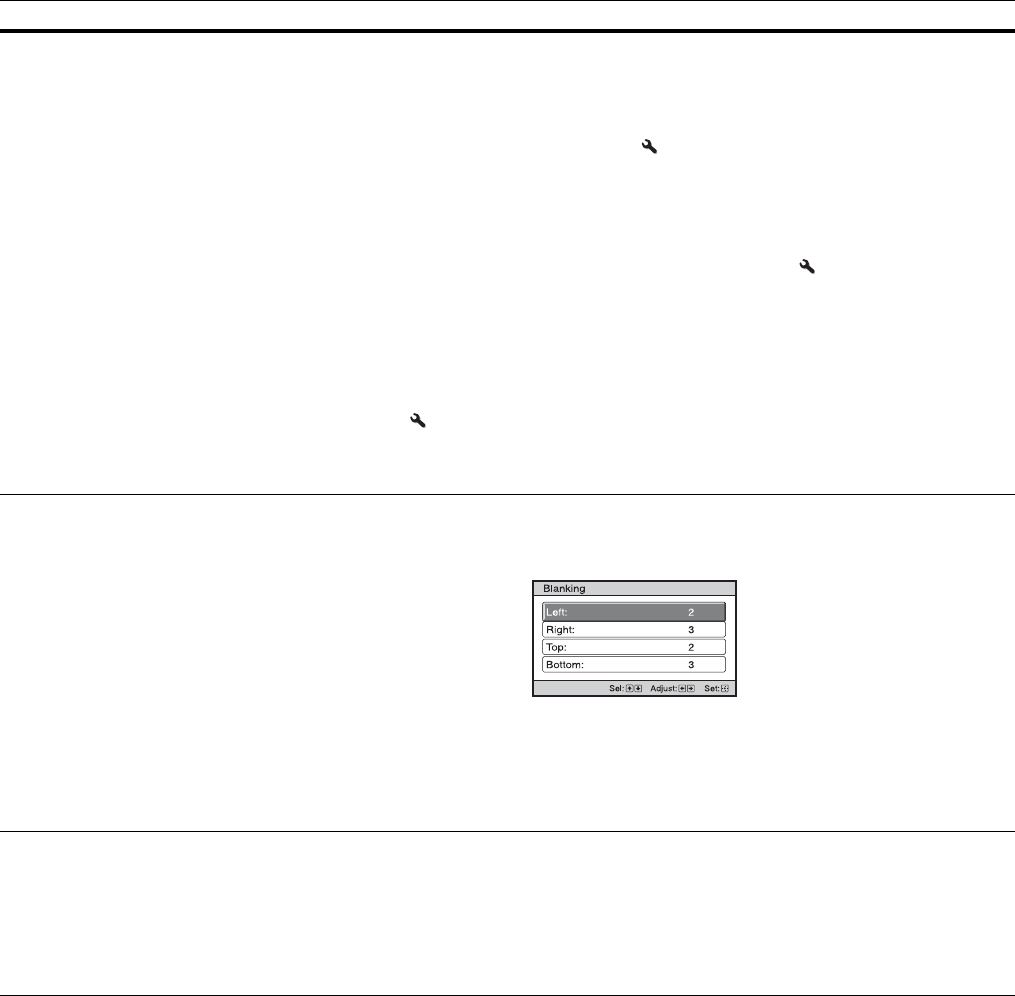
Blanking This feature allows you to adjust the displayable region within the four directions of the screen.
On: Select the edge to adjust by highlighting Left, Right, Top, or Bottom using the M/m buttons.
Adjust the amount of blanking using the </, buttons.
Off: Turns off the Blanking function.
Tips
• Depending on the aspect ratio setting, right/left blanking may not be available.
• Blanking setting is stored for each of the five Picture Positions. Adjust the blanking after selecting the
Picture Position. Final adjusted values are stored automatically.
Image Shift On: You can adjust the image position.
H: The image moves to the right as the value increases, and moves to the left as decreases.
V: The image moves up as the value increases, and moves down as decreases.
Off: You can turn off the image shift function.
Tip
When displaying one image with two projectors installed side-by-side, position both images to align
their adjoining edges.
Setting items Description
26
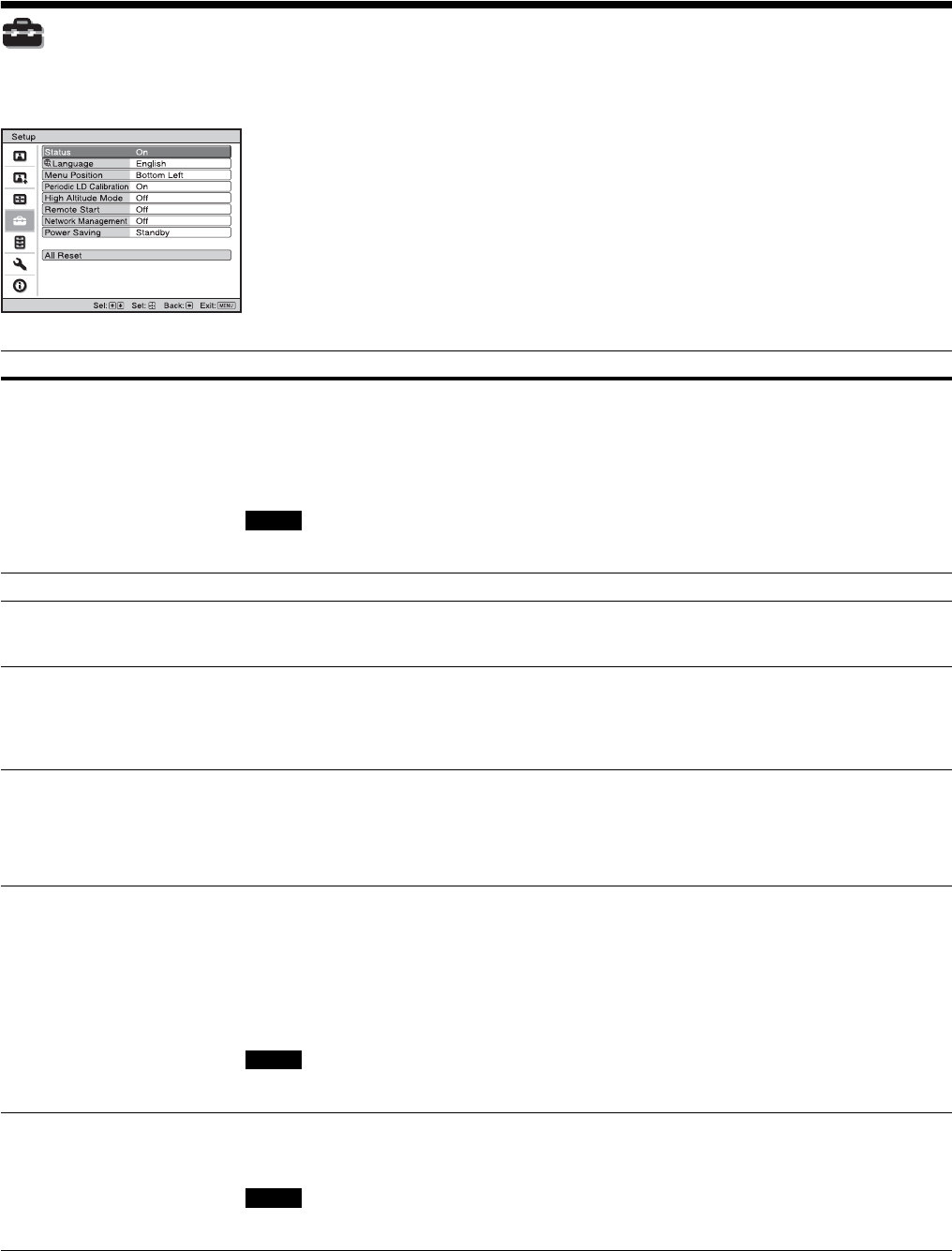
Setup Menu
The Setup menu is used to change the factory preset settings, etc.
Setting items Description
Status Sets whether or not on-screen messages or menus, etc. are displayed.
On: Displays on-screen messages and menus.
Off: Turns off the on-screen displays, other than certain menus, a message when turning off the power,
and warning messages.
All Off: Turns off the on-screen displays, other than certain menus, and a message when turning off the
power.
• When “All Off” is selected, warning message for high temperature is not displayed.
• Note that Sony is not liable for failure of the unit or any accident caused by selecting “All Off.”
Language Selects the language used in the menu and on-screen displays.
Menu Position You can change the position to display the menu on the projection surface.
Bottom Left: Displays the menu on the bottom left area of the projection surface.
Center: Displays the menu on the center of the projection surface.
Periodic LD Calibration Performs the calibration automatically after a certain period of use. At that time, the calibration starts
when the ?/1 button of the unit or the 1 button of the remote controller is pressed, and after the
calibration finishes the power turns off.
On: Performs the calibration automatically.
Off: Does not perform the calibration automatically.
High Altitude Mode Sets the unit to operate at the prevailing atmospheric pressure.
On: Use this setting when using the unit at an altitude of 1,500 m (approx. 4,900 ft) or higher.
Off: Use this setting when using the unit at normal altitudes.
Tip
When this item is set to “On,” the fan noise becomes slightly louder since the fan speed increases.
Remote Start Sets the Remote Start settings.
On: You can turn on the power from a PC or a terminal which is connected to a network.
Off: Turns off the Remote Start function.
Tips
• To use the function, the unit should be connected to the network in advance (page 32).
• To turn on the power with the Remote Start function, a special command should be sent from a PC or
a terminal. For details, consult with qualified Sony personnel.
When the Remote Start is set to “On,” the standby power requirement will increase. When Network
Management is set to “On,” Remote Start is fixed at “On” and is not displayed in the menu.
Network Management On: Set when connected to the network and continuously communicating with the projector control
equipment.
Off: Turns off the Network Management function.
When Network Management is set to “On,” the network function is continuously enabled. Set Network
Management to “Off” for normal use. If you set to “On,” the power consumption increases.
Notes
Note
Note

27
Power Saving Sets the Power Saving mode.
Standby: If no signal is input for 10 minutes, power is turned off automatically and the projector goes
into standby mode.
Off: Disables the Power Saving function.
All Reset All settings by the main unit and adjusted data by the connected devices are initialized to their factory
preset values.
Setting items Description
28
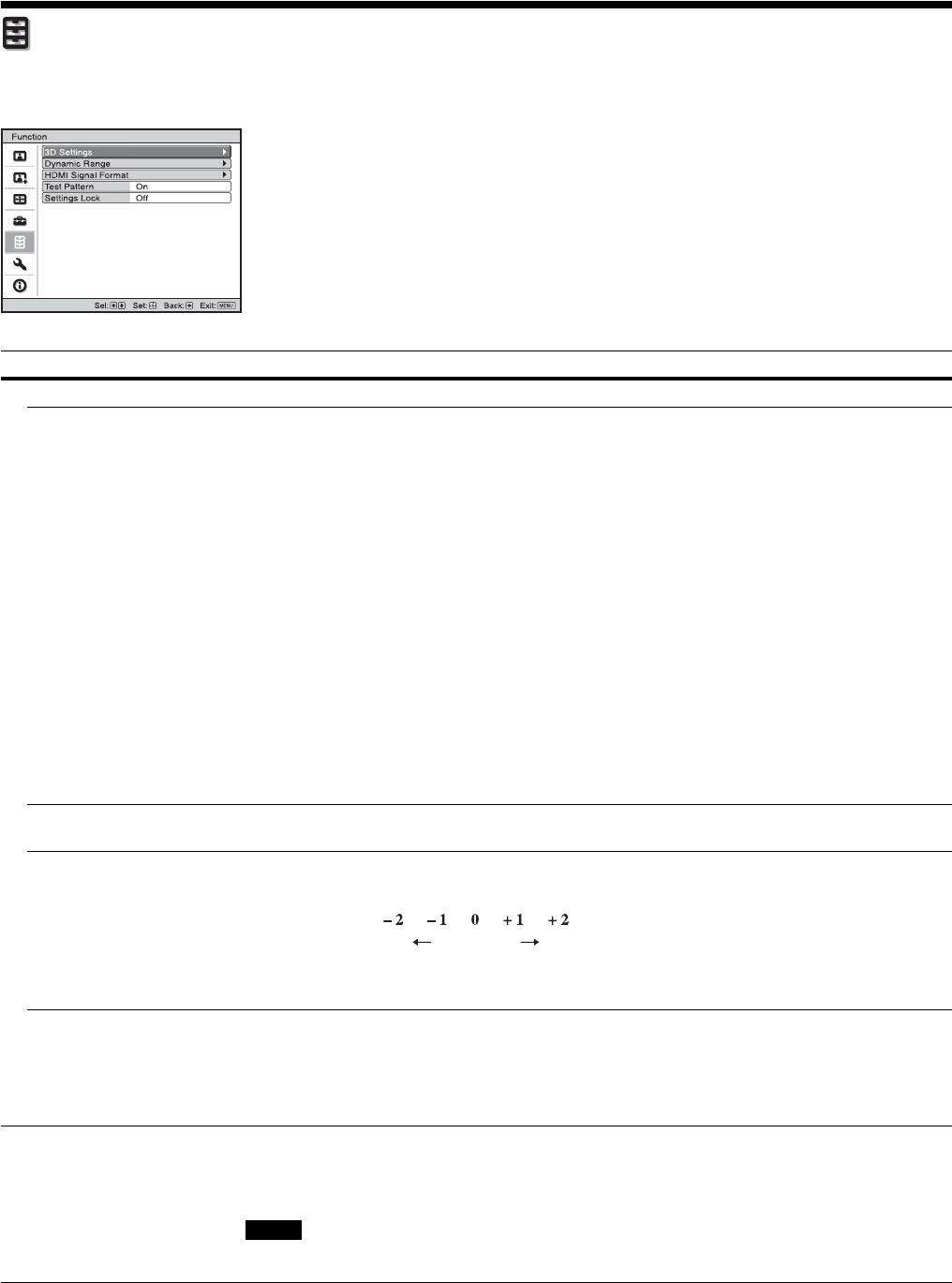
Function Menu
The Function menu is used for changing the settings of the various functions of the unit.
Setting items Description
3D Settings You can change the settings of the 3D function.
2D-3D Display Sel. For Switching the video images to “2D” or “3D.”
Auto: Displays 3D video images when HDMI signals with 3D information* are input. Displays 2D
video images when other signals are input.
3D: Displays 3D video images according to the 3D system selected in “3D Format.” However, when
HDMI signals with 3D information are input to the unit, displays 3D video images according to the 3D
system of those HDMI signals.
3D Format: Set the 3D system when the input HDMI signals do not include 3D information.
Simulated 3D: Converts 2D video images to 3D video images. The setting can be made only for input
the HD signals.
The simulated 3D feature may have limited effect, depending on the video source.
There are differences in perception of 3D video images among individuals.
Side-by-Side: Select this to display 3D images as two similar images, side-by-side.
Over-Under: Select this to display 3D images as two similar images, one above the other.
Tips
• “2D-3D Display Sel.” cannot be set to “3D” for some video sources. For available 3D signals, see
“Compatible 3D Signals” (page 44).
• The simulated 3D feature may have limited effect, depending on the projection image size (100 to 120
inches recommended) and the video source.
• The menu display has a ghost while a 3D video image is displayed and is best viewed with the 3D
glasses.
3D Brightness For adjusting the brightness of the picture when watching 3D video images.
You can select the brightness from “High” or “Standard.”
3D Depth Adjust For adjusting the depth of the 3D video images on the projection surface. The setting can be made only
when a 3D Format other than “Simulated 3D” is selected.
We recommend that “3D Depth Adjust” be set to “0.” The 3D video images may be difficult to perceive,
depending on the setting of “3D Depth Adjust.”
Simulated 3D Effect For adjusting the 3D effect when 2D content is converted to 3D video images. You can select the effect
from among “High,” “Middle,” and “Low.”
Tip
There are differences in perception of 3D video images converted by the simulated 3D function among
individuals.
Dynamic Range Sets the video input level for HDMI 1 and HDMI 2 connectors.
Auto: Sets the video input level automatically.
Limited: The video input level is set for signals that are equivalent to 16-235.
Full: The video input level is set for signals that are equivalent to 0-255.
If the video output setting of the connected HDMI device is not set correctly, light and dark parts of the
video may appear too light or too dark.
Depth
NormalFront Depth
Note
29
HDMI Signal Format Switches the video signal formats for 4K.
Standard Format: Displays a picture in the standard HDMI format. Normally use this setting.
Enhanced Format: Displays a picture in a more detailed HDMI format. Use this setting only when the
corresponding devices are used.
Tips
• A picture or sound may not be output normally when “Enhanced Format” is selected. In this case, set
to “Standard Format.”
• Set “Enhanced Format” only when the corresponding devices are used.
• It may take time to display a picture after switching the video signal formats.
Test Pattern Displays a test pattern according to the setting.
On: A test pattern appears on the screen to be used when adjusting the lens with “Lens Focus,” “Lens Zoom,”
and “Lens Shift.”
Off: A test pattern does not appear.
Tip
While the test pattern is displayed, it is only displayed in green to allow you to adjust the focus easily.
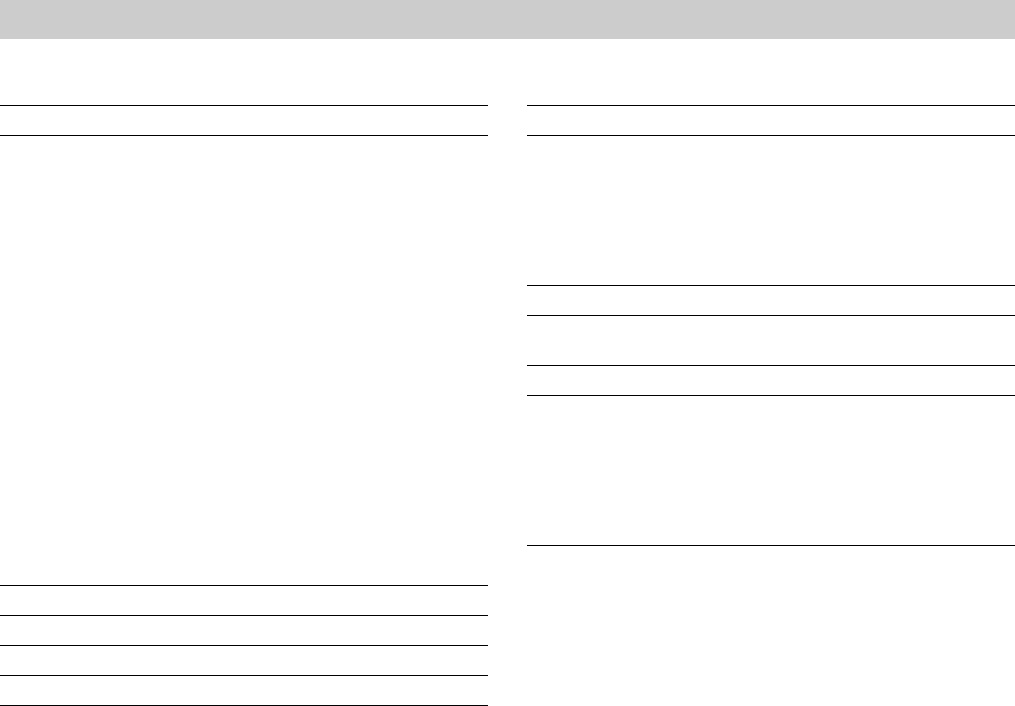
Settings Lock Locks menu item settings to prevent operational error (page 30).
Off: Cancels the Settings Lock.
Level A: Group 1 items (below) are not displayed on the menu, and are not available.
Level B: Group 1 and Group 2 items (below) are not displayed on the menus, and are not available.
Setting items Description
30
Group 1 Group 2
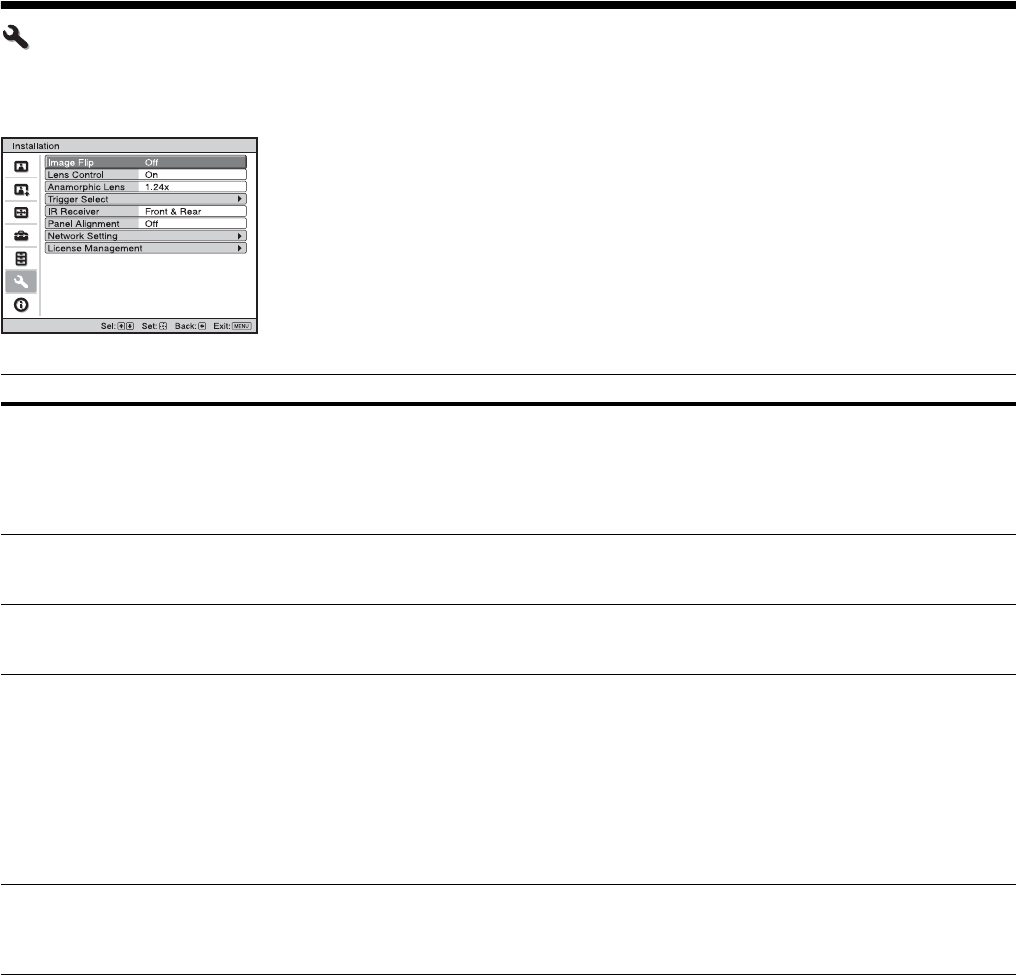
Items Locked by Settings Lock
Picture menu
Reset
Reality Creation
Laser Light Setting
Contrast Enhancer
Motionflow
Contrast
Brightness
Color
Hue
Color Temp.
Sharpness
NR
MPEG NR
Smooth Gradation
Film Mode
Gamma Correction
Color Correction
Clear White
x.v.Color
HDR
Color Space
Input Lag Reduction
Advanced Picture menu
Auto Calibration
Setup menu
Periodic LD Calibration
Setup menu
Status
Language
Menu Position
High Altitude Mode
Remote Start
Network Management
Power Saving
Function menu
Dynamic Range
Test Pattern
Installation menu
Image Flip
Lens Control
Anamorphic Lens
Trigger Select
IR Receiver
Panel Alignment
Network Setting
31
Installation Menu
The Installation menu is used for changing the installation settings.
Setting items Description
Image Flip Flips the picture on the screen horizontally and/or vertically.
HV: Flips the picture horizontally and vertically.
H: Flips the picture horizontally.
V: Flips the picture vertically.
Off: The picture does not flip.
Use this item for installation for the rear projection or ceiling installation.
Lens Control Avoids any operation of the lens such as “Lens Focus,” “Lens Zoom,” and “Lens Shift,” by mistake.
On: Enables adjustment of the lens.
Off: Prevents any adjustment of the lens.
Anamorphic Lens Select a setting to match the anamorphic lens conversion ratio.
1.24x: Select this when you use an anamorphic lens with a horizontal rate of 1.24×.
1.32x: Select this when you use an anamorphic lens with a horizontal rate of 1.32×.
Trigger Select Switches the output function of the TRIGGER 1/TRIGGER 2 connector.
Off: Turns off the TRIGGER connector function.
Power: Outputs 12 V signals from the TRIGGER 1/TRIGGER 2 connectors when the unit is on. The
TRIGGER 1/TRIGGER 2 connectors do not output any signals when the unit is in standby.
V Stretch: Works with the “Aspect” setting’s “V Stretch” (page 25) and outputs a 12 V signal from the
TRIGGER 1 or TRIGGER 2 connector.
2.35:1 Zoom: Works with the “Aspect” setting’s “2.35:1 Zoom” (page 25) and outputs a 12 V signal
from the TRIGGER 1 or TRIGGER 2 connector.
3D: Outputs a 12 V signal from the TRIGGER 1 or TRIGGER 2 connector when the 3D signal is input
or when working with “2D-3D Display Sel.” of “3D” “3D Settings” (page 28).
IR Receiver Selects the remote control detectors (IR Receiver) on the front and rear of the unit.
Front & Rear: Activates both the front and rear detectors.
Front: Activates the front detector only.
Rear: Activates the rear detector only.
32
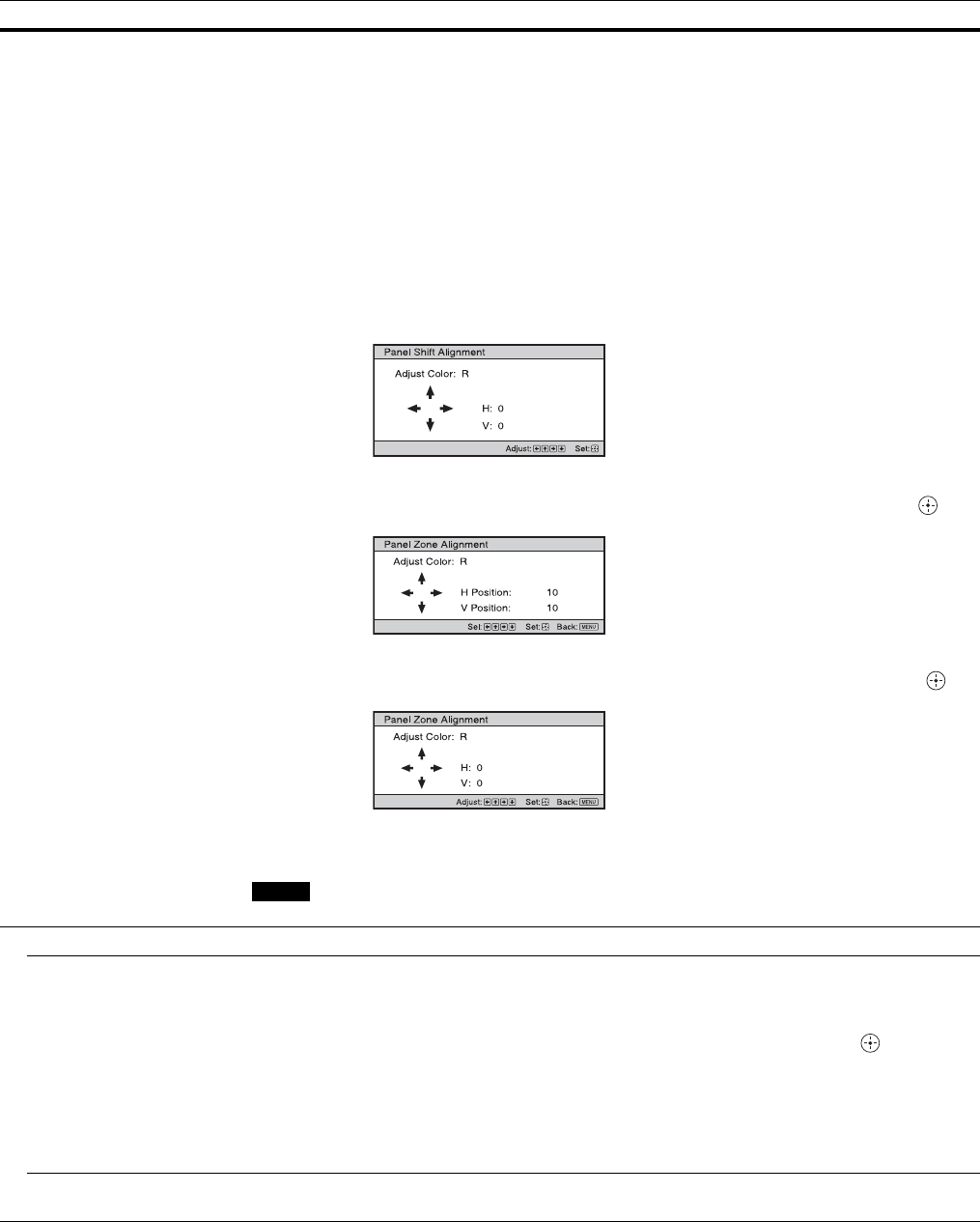
Panel Alignment This feature allows you to adjust the gaps in the color of characters or the picture on the projection
surface.
On: Adjusts the gaps in the colors selecting “Adjust Item” or “Adjust Color.”
Adjust Item: Selects how to make adjustments from below.
Shift: Shifts the whole picture and makes adjustments.
Zone: Selects the desired range and makes adjustments.
Adjust Color: Assigns the desired color to adjust the gaps in color. Select “R” (Red) or “B” (Blue) to
make adjustments based on “G” (Green).
Pattern Color: Select “R/G” (Red and Green) or “R/G/B” (White, all colors) when “Adjust Color” is
“R” (Red). Select “B/G” (Blue and Green) or “R/G/B” (White, all colors) when the “Adjust Color” is
“B” (Blue).
Adjust: The shift adjustment and zone adjustment of the color selected in “Adjust Color” can be made
with the </,, M/m buttons.
When “Shift” is selected: Assign the settings of the horizontal direction (H) with the </, buttons
and the vertical direction (V) with the M/m buttons on the shift adjustment screen.
When “Zone” is selected: Select the position to adjust with the </, buttons for the horizontal
position (H Position) and the M/m buttons for the vertical position (V Position), then press .
Set the amount to adjust with the </, buttons for the horizontal direction (H) and with the M/m
buttons for the vertical direction (V). You can select the position to adjust again by pressing .
Reset: Returns to the factory settings.
Off: The optimized data has been preset.
Depending on the adjustments made above, colors may become uneven or the resolution may change.
Network Setting Perform internet protocol settings.
IPv4 Setting IP Address Setup: Selects the IP address setting method.
Auto(DHCP): The IP address is assigned automatically from the DHCP server such as a router.
Manual: Specifies the IP address manually.
When “Manual” is selected for “IP Address Setup,” select the item with the </, buttons and input the
value with the M/m buttons. When all items are entered, select “Apply,” and then press the button. The
entered settings will be registered.
IP Address: Sets the unit’s IP address.
Subnet Mask: Sets the unit’s subnet mask.
Default Gateway: Sets the unit’s default gateway.
MAC Address: Displays the unit’s MAC address. This cannot be changed.
Apply: Enables the IP address that is set manually.
IPv6 Information Displays the IPv6 information.
When you set the IPv6 IP address, set it on a Web browser (page 35).
Setting items Description
Note
33
License Management Manages the activation (validation) status of the license.
Activate Licenses: Activates (validates) the available license.
Unique Device ID: Displays the ID number of the unit.
Tip
For details on features activated by “Activate Licenses,” refer to the following web site:
https://www.ecspert.sony.biz/
Supported Web browsers are as follows:
Windows OS: Internet Explorer 10/11, Microsoft Edge (Windows 10), Google Chrome
Mac OS: Safari
Setting items Description
Note
34
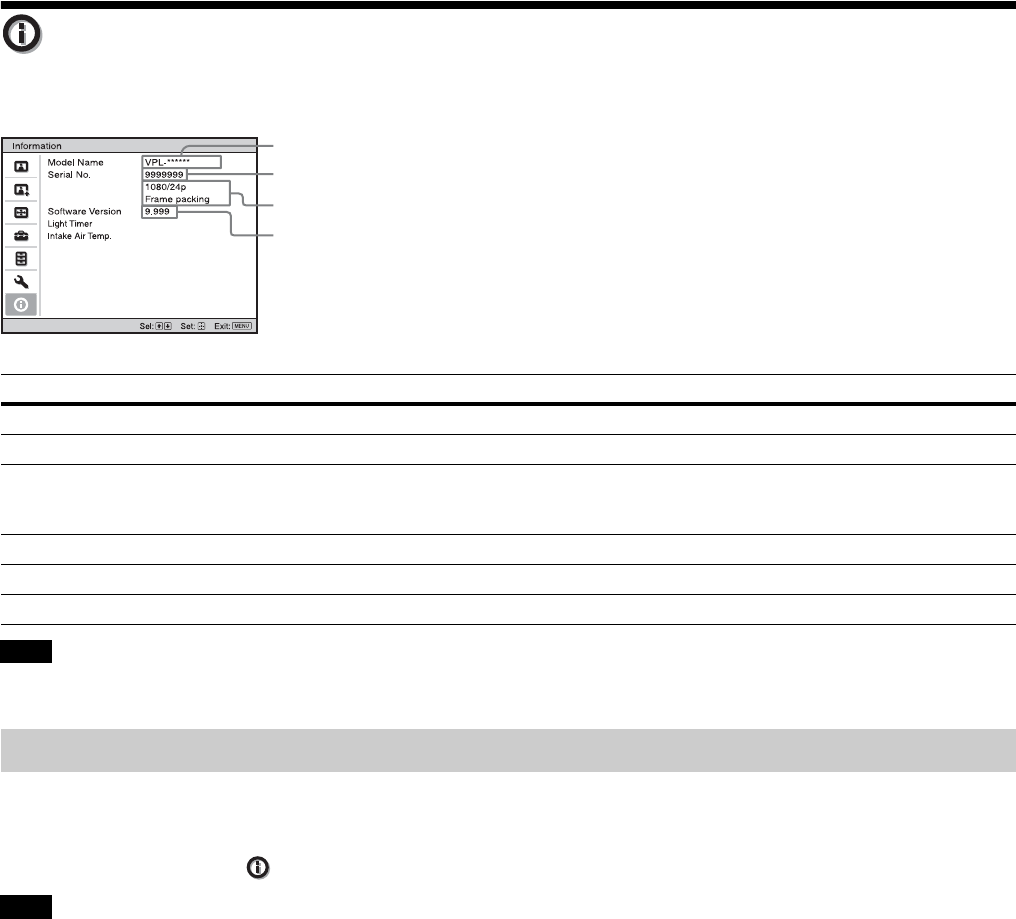
Information Menu
The Information menu displays the model name, serial number, input signal type, and software version.
You cannot adjust or change the displays listed above.
This unit has default image data to adjust preset data for input signals appropriately according to the signals shown in
“Preset Signals” (page 43) (the preset memory). When the preset signal is input, the unit automatically detects the signal
type and recalls the data for the signal from the preset memory to adjust it to an optimum picture. The signal type is
displayed in the Information menu.
Depending on the computer input signal, parts of projection image may be hidden or displayed incorrectly.
Items Description
Model Name Displays the model name
Serial No. Displays the serial number.
Signal type Displays the resolution of the video which you are watching. When input signals with 3D information
are input, the type of input signals and the 3D format are displayed. When the input signal is compatible
with HDR, “HDR(HDR10)” or “HDR(HLG)” is displayed according to the input signal.
Software Version Displays the software version.
Light Timer Displays how long the light has been turned on (total usage).
Intake Air Temp. Displays the intake air temperature.
Note
About the Preset Memory
Note
Model name
Serial No.
Software version
Signal type
35
Connection to the network allows you to operate the
following features:
• Checking the current status of the unit via a Web
browser.
• Making the network settings for the unit.
• Network monitoring and controlling with control
protocol (SDAP [Advertisement], SDCP [PJ Talk],
DDDP [AMX], Crestron RoomView, Control4).
• When connecting this projector with the network, consult with the
network administrator. The network must be secured.
• When using this projector connected with the network, access the
Control window via a Web browser and change the access
limitation of the factory preset values (page 36). It is
recommended to change the password regularly.
• When the setting on the Web browser is completed, close the Web
browser to log out.
• The menu displays used for the explanation below may be
different depending on the model you are using.
• Supported Web browsers are Internet Explorer 8/9/10/11.
• The menu displays only English.
• If the browser of your computer is set to [Use a proxy server] when
you have access to the unit from your computer, click the check
mark to set accessing without using a proxy server.
• AMX DDDP is not compatible with IPv6.
• These network functions are available when the unit is turned on.
Displaying the Control
Window of the Unit with a
Web Browser
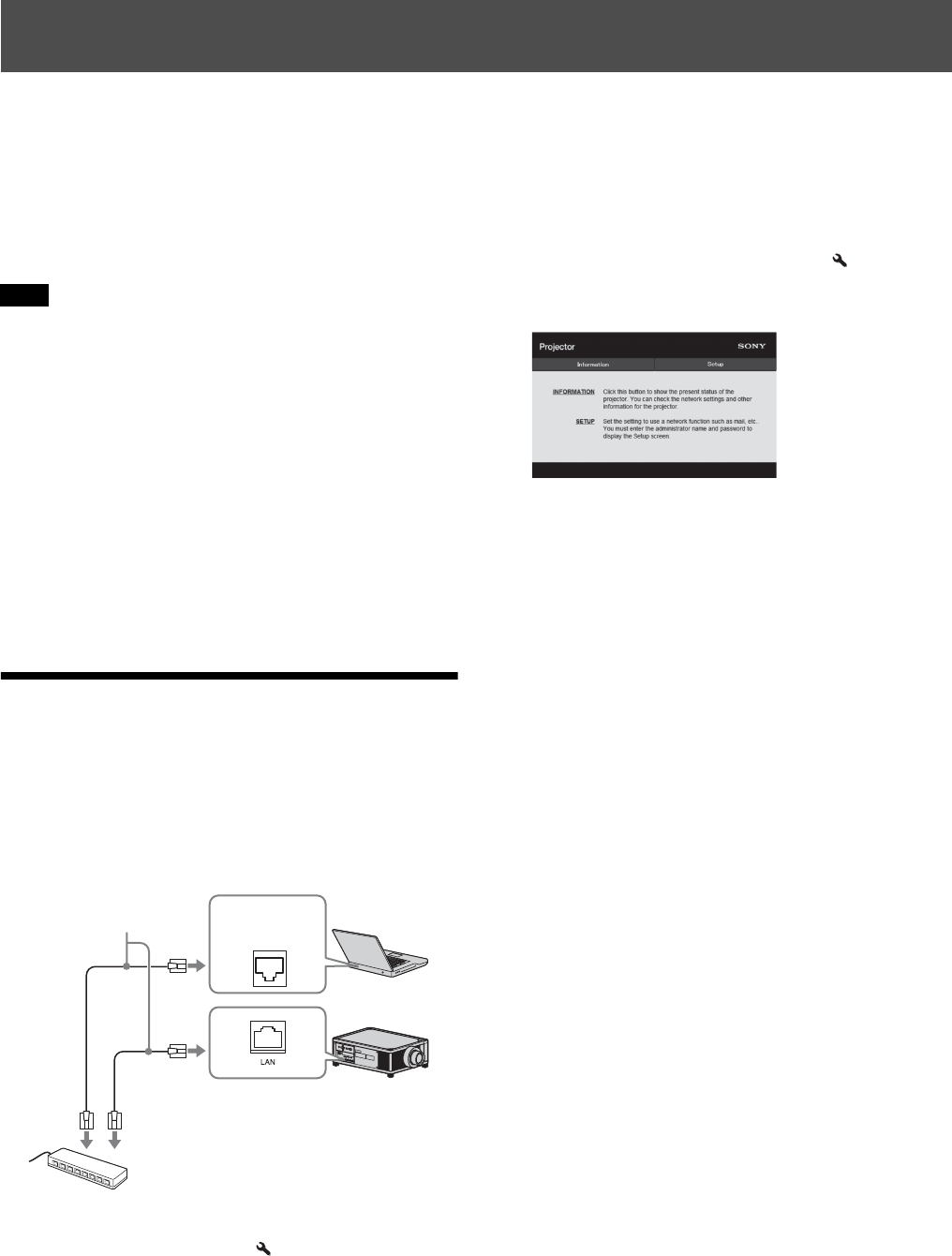
1Connect the LAN cable.
2Set the network settings for the unit using “Network
Setting” on the Installation menu (page 32).
3Start a Web browser on the computer, enter the
following in the address field, then press the Enter key
on your computer.
http://xxx.xxx.xxx.xxx
(xxx.xxx.xxx.xxx: IP address for the unit)
When connecting by the IPv6 address
http://[xxxx:xxxx:- xxxx]
You can confirm the IP address of the unit under
“Network Setting” on the Installation menu.
The following window appears in the Web browser:
Once you make the network settings, you can open the
Control window only by performing step 3 of this
procedure.
Using Network Features
Notes
LAN
Connector
LAN cable
(straight type)
(not supplied)
Hub, router, etc.
36
Operating the Control
Window
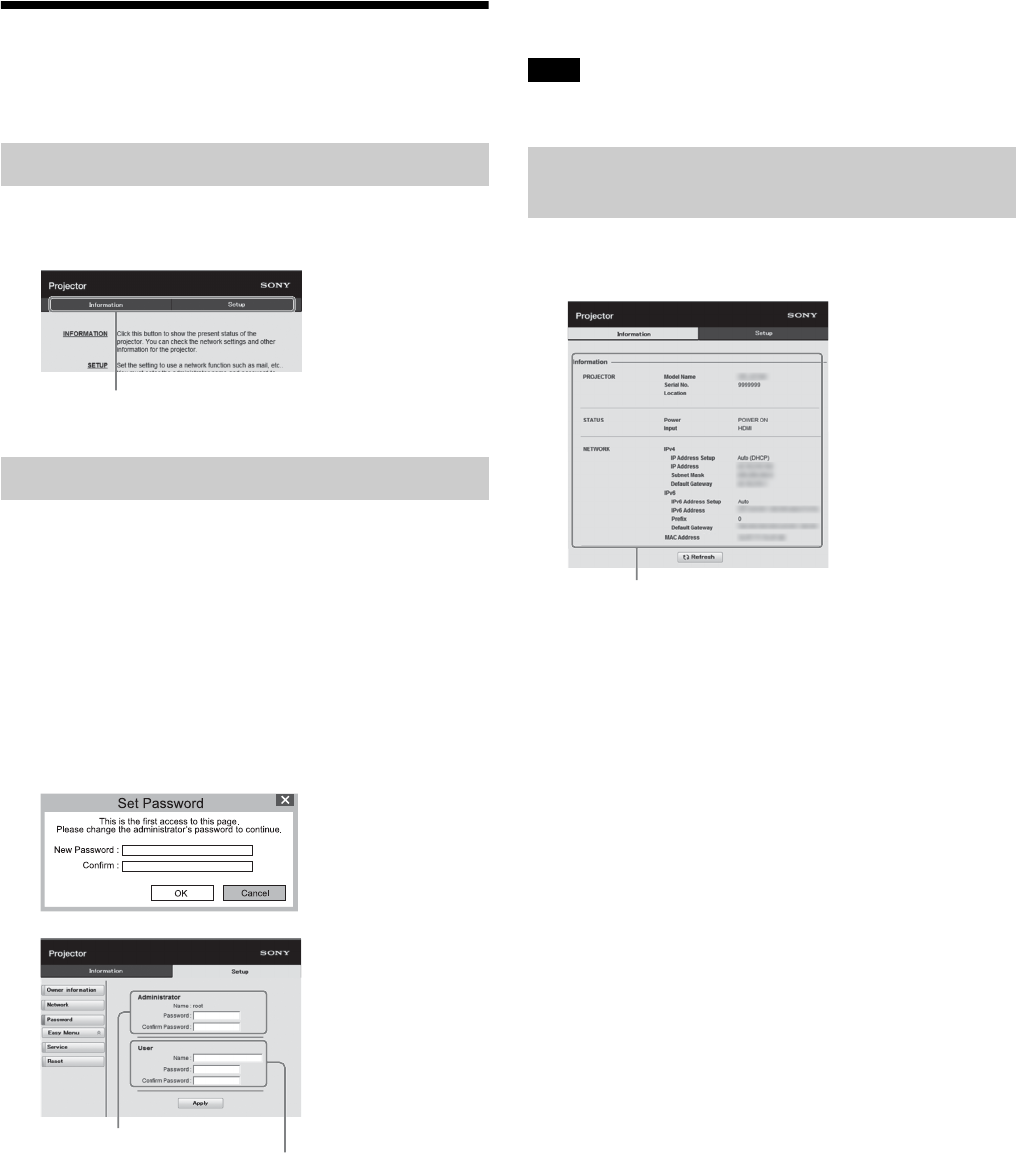
Click one of the Page Switching buttons to display the
desired setting page.
You can limit a user for accessing any particular page.
Administrator: Allowed access to all pages
User: Allowed access to all pages except the Setup
page
When you access the Setup page for the first time, input
“root” as the user name and “Projector” as the password in
the authentication dialog.
When you log in for the first time, the window that prompts
you to change the password is displayed. Follow the
instructions on the screen to change the password.
The name of the administrator is preset to “root.”
The password can be changed in the Password page in the
Setup page.
When you change the password, input a new password
after deleting the password (*****) that was set.
The password of the administrator and user should be 8 to
16 characters that includes both alphabet and numeric
characters. Alphabet is case-sensitive.
The default password “Projector” cannot be set as a new
password.
If you forget your password, consult with qualified Sony personnel.
You can confirm the current settings for the unit on the
Information page.
Switching the Page
Setting the Access Limitation
Page Switching buttons
Entry area for [Administrator]
Entry area for [User]
Note
Confirming the Information
Regarding the Unit
Information area
37
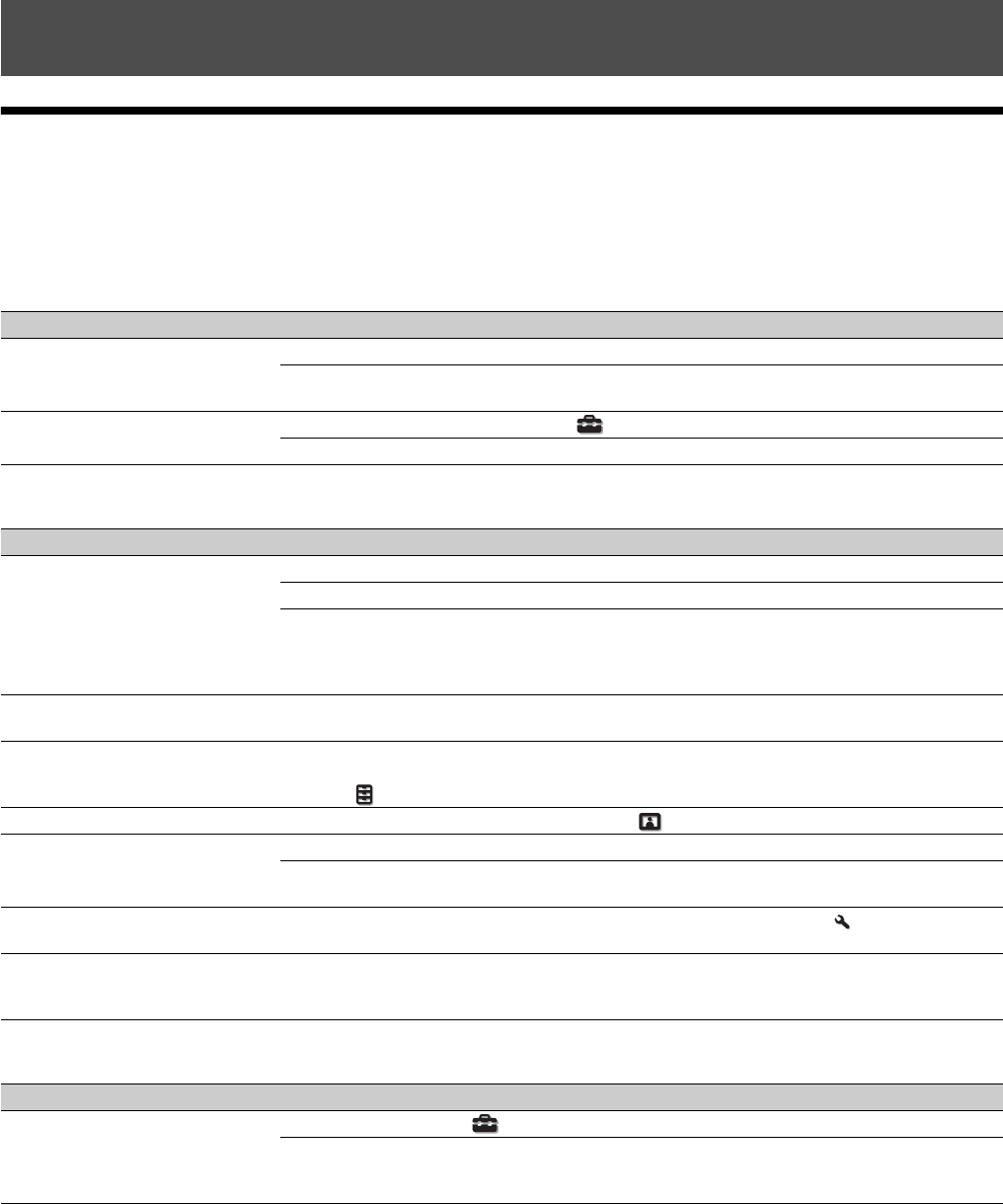
Troubleshooting
If the unit appears to be operating erratically, try to diagnose and correct the problem using the following instructions. If
the problem persists, consult with qualified Sony personnel.
Power
Picture
On-screen display
Error Handling
Symptom Cause and Remedy Page
The power is not turned on. Check the indicators. 39
After the AC power cord is connected, it may take about 10 seconds until the unit is ready
to be turned on. Wait a while then turn on the unit.
–
The power is suddenly turned off. Check that “Power Saving” in the Setup menu is set to “Standby.” 27
Set “Power Saving” to “Off.” 27
Symptom Cause and Remedy Page
No picture. Check that the connecting cable is connected to the external equipment properly. 10
Select the input source correctly using the INPUT button. 12
Check that the computer signal is set for output to an external monitor.
If a notebook computer and the signal is output to its display and an external monitor, the
external monitor’s image may not be displayed correctly. Set your computer to output the
signal to only an external monitor.
–
The picture has ghosts. Video images are displayed in 3D. Watch the 3D video images using the 3D glasses, and
set “2D-3D Display Sel.” to “3D.”
12, 28
Bright or dark area of the video
appears too bright or too dark.
This symptom may occur when a signal level other than those of HDMI standard is input.
Switch the output level of the connected equipment, or switch the Dynamic Range on the
Function menu of the unit.
28
The picture is too dark. Adjust “Contrast” or “Brightness” on the Picture menu properly. 20
The picture is not clear. Adjust the focus. 7
Condensation has accumulated on the lens. Leave the unit for about two hours with the
power on.
–
The color of characters or the picture
is not appropriate.
Select the desired color registration in “Panel Alignment” on the Installation menu. 32
Image is left on the projection image.
(Image retention)
When high contrast non-moving images are displayed for a long period of time, there may
be some image retention on the projection image. This is only a temporary condition.
Turning off the power for a while will eliminate the retained image.
–
Symptom Cause and Remedy Page
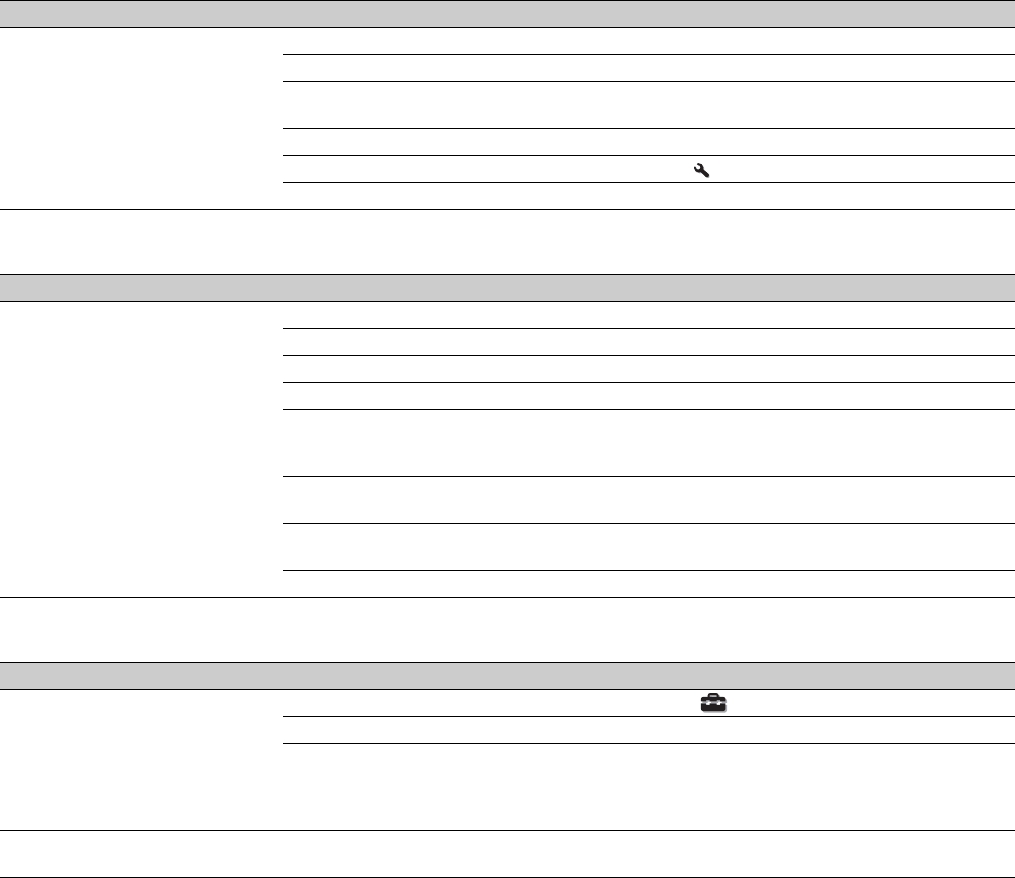
On-screen display does not appear. Set “Status” on the Setup menu to “On.” 26
Check if the ON/STANDBY indicator should light in green. When the ON/STANDBY
indicator blinks in green, the unit is starting up. Wait until it stops blinking and remains lit
in green.
7
38
Remote control
3D video images
Others
Symptom Cause and Remedy Page
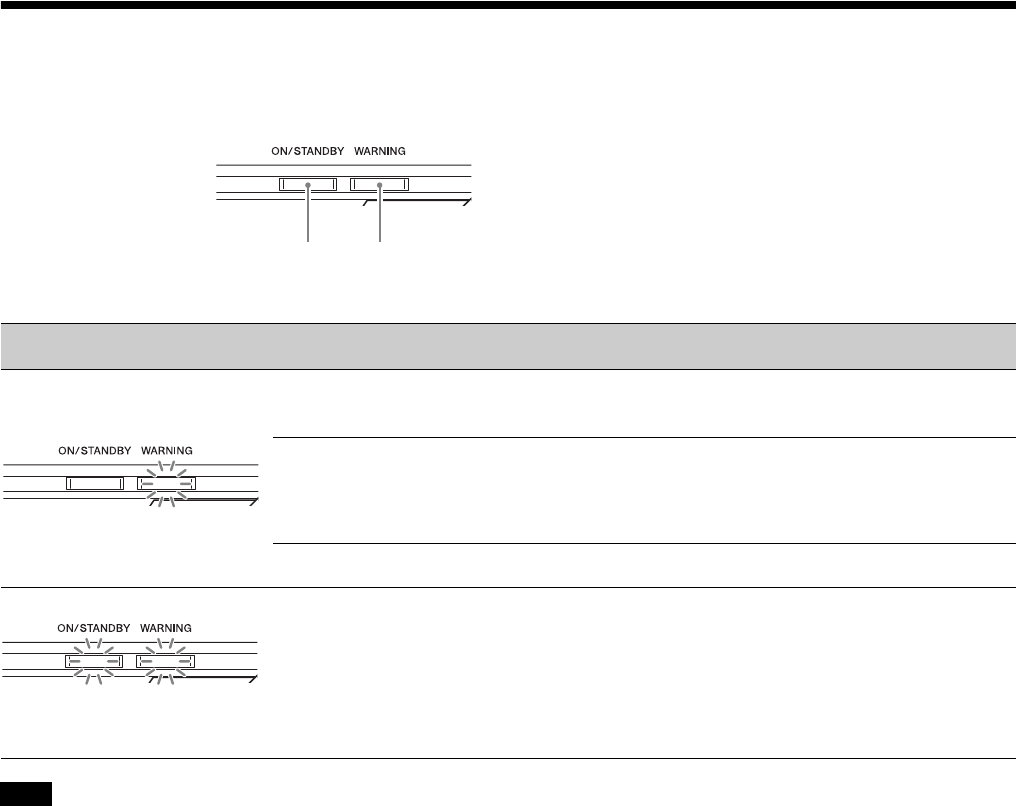
The remote control does not work. Batteries could be weak. Replace them with new batteries. –
Insert the batteries with the correct polarities. –
If there is a light source near the remote control detector, the unit may work improperly or
inadvertently.
–
Confirm the position of the remote control detector on the unit. 4
Set “IR Receiver” to “Front & Rear” on the Installation menu. 31
Make sure that the cable is not connected to the IR IN connector. 3
Symptom Cause and Remedy Page
The video image does not seem like
3D video images.
Check if the 3D glasses are turned on. 12
Make sure that the battery in the 3D glasses is sufficiently charged. –
Set “2D-3D Display Sel.” to “Auto” or “3D.” 28
Check if the input signals are compatible 3D signals. 44
The 3D signals may not be input depending on the specifications of the connected AV
selector/AV amplifier/external equipment. If the 3D signal is not input, confirm the
specifications and/or settings of the AV selector/AV amplifier/external equipment.
–
When the viewing position is too far from the unit, the 3D glasses may not be able to
display the images properly.
13
The projection image size is not appropriate. Set the zooming magnification to low or
watch the image from farther away from the projection surface.
47
For details, see “Precautions for use” of “Using the 3D Glasses.” 13
Symptom Cause and Remedy Page
The fan is noisy. Check the setting of “High Altitude Mode” on the Setup menu. 26
Make sure that the room temperature is not too high. –
Check the installation requirements of the unit.
Fan speed increases to maintain the product reliability of the projector’s components in a
room where the temperature is higher than normal. The fan noise becomes slightly louder
in these rooms. The approximate normal temperature for the unit is 25°C (77°F).
–
The lens shift cannot be adjusted. The lens shift cannot be adjusted over the range of movement. Adjust the lens shift within
the range of movement.
8, 47
39
About Indicators
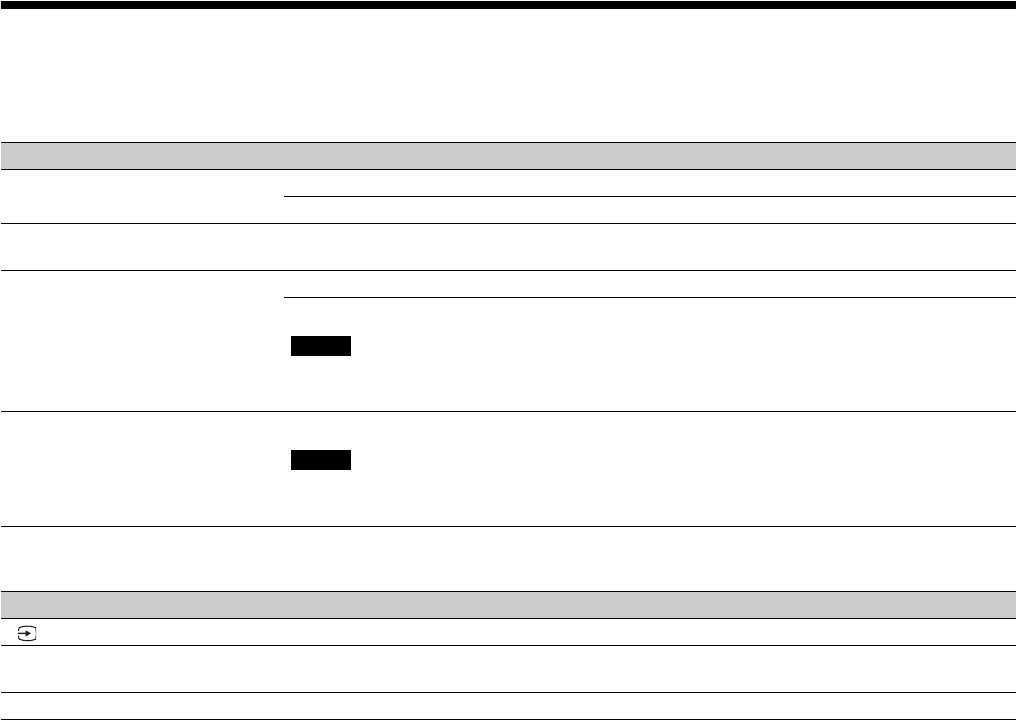
The ON/STANDBY or WARNING indicator lights up or flashes if there is any trouble with your projector.
If the indicator starts flashing in a way of other than the above, and the symptom persists even after carrying out the above methods, consult
with qualified Sony personnel.
Flashing/Lighting indicators The number of
flashes
Cause and Remedy
Three times The unit does not light properly due to an abnormality of the light source and light
source power. Turn off, then turn on the power after a while.
If the symptom persists, consult qualified Sony personnel.
Six times The unit detects a drop impact.
If there is abnormality on the unit, consult with qualified Sony personnel.
If there are no abnormalities on the unit, disconnect the AC power cord and check
that the ON/STANDBY indicator turns off, then connect the AC power cord and
turn the unit on.
Eight times The lens is not securely attached.
Twice The internal temperature is unusually high. Check to ensure that nothing is blocking
the ventilation holes and the unit is not being used at high altitudes.
Note
ON/STANDBY
indicator
WARNING
indicator
(Flashes in red)(Lights in red)
(Flashes in red) (Flashes in red)
Both indicators flash
40
Message Lists
Warning messages
Caution messages
Symptom Cause and Remedy Page
High temp.! Light off in 1 min. Turn off the power. –
Check to ensure that nothing is blocking the ventilation holes. 4
Frequency is out of range! Frequency is out of range. Input a signal that is within the acceptable frequency range of
the unit.
43
Projector temperature is high. High
Altitude Mode should be “On” if
Projector is being used at high
altitude.
Check to ensure that nothing is blocking the ventilation holes. 4
When using the unit at high altitude, set “High Altitude Mode” to “On.”
When temperature inside the unit remains high, “High Altitude Mode” is switched to “On”
in 1 minute, then the fan speed increases.
26
Power Saving Mode is set. Projector
will automatically enter Standby
Mode in 1 minute.
“Power Saving” is set to “Standby.”
If no signal is input, the power turns off after 1 minute, and the projector goes into standby
mode.
27
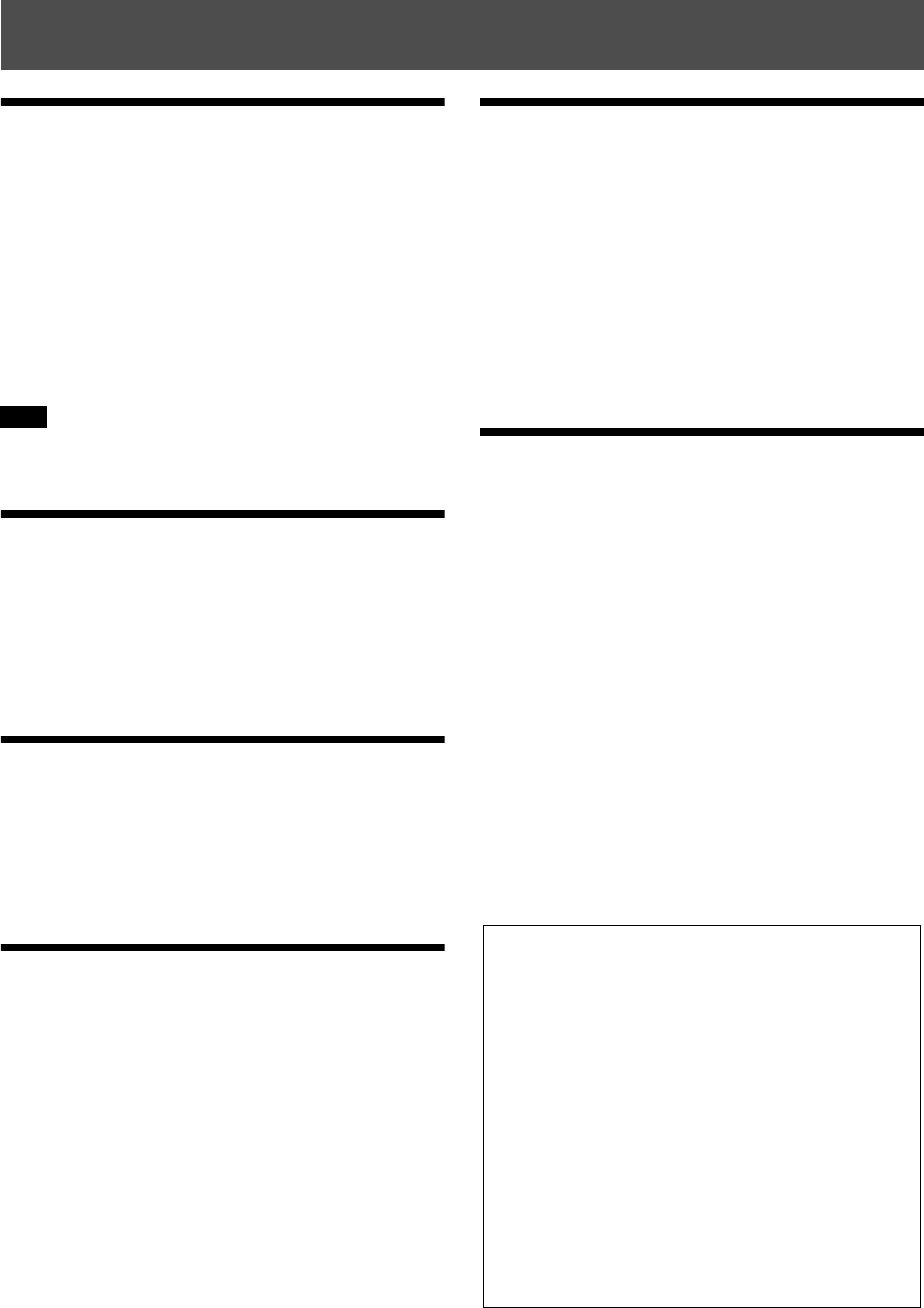
Symptom Cause and Remedy Page
No signal is input in the selected input. Check connections. 10
Not applicable! Press the appropriate button.
The operation to be activated by the button is currently prohibited.
–
Settings Lock enabled. “Settings Lock” is set to “Level A” or “Level B.” 29
Note
Note
x
41
Updating the Software
You can download files to update the software of the unit.
Copy the downloaded files to your USB memory, insert the
USB memory to the USB terminal of the unit, then
perform the update.
To use the features updated, insert a USB memory device
into a PC connected to the internet.
Download the update files from the following Sony
website:
http://www.pro.sony.eu/
The website also explains how to install the update.
Some USB memories may not be supported for use. For
details, refer to the website above.
About HDR (high dynamic
range)
HDR is a video expression which improves the ability to
express dark places and bright places compared to
previous video expressions.
About DCI specification
DCI is a specification for Digital cinema projection
systems, established by the industry standards body DCI
(Digital Cinema Initiatives), an affiliation of six major
Hollywood studios.
About x.v.Color
• “x.v.Color” is a promotion name given to the products
that have the capability to realize a wide color space
based on the xvYCC specifications and is a trademark of
Sony Corporation.
• xvYCC is an international standard of the technical
specifications of the extended-gamut color space for
video signals. The color gamut of xvYCC is wider than
the one of sRGB that is used with the current television
system.
About the Simulated 3D
Feature
• Use the simulated 3D function taking into account that
the picture will provide a different look from the original
images, because this function converts the video images.
• Note that if the unit is used for profit or for public
viewing, displaying 2D video images as 3D video
images by converting to the simulated 3D may constitute
an infringement of the rights of authors or producers,
which are legally protected.
NOTICES AND LICENSES
FOR SOFTWARE USED IN
THIS PRODUCT
Refer to “Software License Information” supplied
separately.
Others
Note
Trademark Information
• “PlayStation” is a registered trademark of Sony
Computer Entertainment Inc.
• This unit incorporates High-Definition Multimedia
Interface (HDMI®) technology.
The terms HDMI and HDMI High-Definition
Multimedia Interface, and the HDMI Logo are
trademarks or registered trademarks of HDMI
Licensing LLC in the United States and other
countries.
• “Blu-ray” and “Blu-ray Disc” are trademarks of
Blu-ray Disc Association.
.....................................................................................
This projector supports DeepColor, x.v.Color,
LipSync, computer input signal, 3D signal, 4K signal
(60P 4:4:4) and HDR of HDMI standards. It also
supports HDCP.
42
Specifications
* The 3D Glasses communicate with the projector via Bluetooth technology to display 3D signals.
• The values for mass and dimensions are approximate.
• Not all optional accessories are available in all countries and area. Please check with your local Sony Authorized Dealer.
• Information on accessories in this manual is current as of October 2016.
Design and specifications of this unit and its optional accessories are subject to change without notice.
Item Description
Display System Projection system
Display device Size of effective
display area
SXRD 0.74-inch (18.8 mm) × 3
Number of pixels 4096 × 2160 × 3 pixels
Projection lens Motorized Lens (VPLL-Z7013)
Throw Ratio 1.27:1 to 2.73:1
F2.9 to F3.9
Shift: ±80% (V), ±31% (H)
Projection image size 60-inch to 300-inch (1,524 mm to 7,620 mm)
Light source Laser diode
Accepted digital signals See “Preset Signals” (page 43).
Inputs/Outputs HDMI connectors
(HDCP 2.2)
× 2
REMOTE connector RS-232C, D-sub 9-pin
LAN connector RJ45, 10BASE-T/100BASE-TX
USB connector Type A, DC 5 V, Max. 500 mA
IR connectors IN: 1, OUT:1, mini jack
TRIGGER
connectors
× 2, mini jack, DC 12 V, Max. 100 mA
Outside dimensions (w/h/d) 550 mm × 228 mm × 750 mm (21 21/32 inches × 8 31/32 inches × 29 17/32 inches)
Mass Approx. 43 kg (95 lb) (including the lens)
Power requirements AC 220 V to 240 V, 6 A, 50/60 Hz (for Europe and China)
AC 100 V to 240 V, 12 A to 6 A, 50/60 Hz (for countries other than Europe and China)
Power consumption 1.2 kw (max.)
Standby mode power
consumption
0.5 W
Operating temperature (Operating humidity) 5°C to 40°C (41°F to 104°F) (20% to 80% (no condensation))
Storage temperature (Storage humidity) –10°C to +60°C (14°F to 140°F) (20% to 80% (no condensation))
Supplied accessories See “Checking the Supplied Accessories” on the Quick Reference Manual.
Optional accessories Active 3D Glasses: TDG-BT500A*
Projection Lens VPLL-Z7008: Motorized, Throw ratio: 0.80:1 to 1.02:1, Shift: ±50% (V),
±18% (H), F2.9, Projected image size: 60“ to 1000” (1,524 mm to 25,400 mm), Maximum
external dimensions: 134 mm × 134 mm × 309 mm (5 9/32 inches × 5 9/32 inches × 12 5/32
inches) (W × H × D), Mass: 3.7 kg (8.2 lb)
Notes
43
The following table shows the signals and video formats which you can project using this unit.
When a signal other than the preset signals shown below is input, the picture may not be displayed properly.
Preset Signals
Preset
memory
no.
Preset signal (resolution) fH (kHz) fV (Hz) Sync
5 480/60p 480/60p (Progressive NTSC) (720 × 480p) 31.470 60.000 –
6 576/50p 576/50p (Progressive PAL) (720 × 576p) 31.250 50.000 –
7 1080/60i 1035/60i (1920 × 1035i)
1080/60i (1920 × 1080i)
33.750 60.000 –
8 1080/50i 1080/50i (1920 × 1080i) 28.130 50.000 –
10 720/60p 720/60p (1280 × 720p) 45.000 60.000 –
11 720/50p 720/50p (1280 × 720p) 37.500 50.000 –
12 1080/60p 1080/60p (1920 × 1080p) 67.500 60.000 –
13 1080/50p 1080/50p (1920 × 1080p) 56.260 50.000 –
14 1080/24p 1080/24p (1920 × 1080p) 26.973 23.976 –
18 720/60p (Frame packing) 720/60p (1280 × 720/60p) 90.000 60.000 –
19 720/50p (Frame packing) 720/50p (1280 × 720/50p) 75.000 50.000 –
20 1080/24p (Frame packing) 1080/24p (1920 × 1080/24p) 53.946 23.976 –
26 640 × 480 VGA 31.469 59.940 H-Neg, V-Neg
32 800 × 600 SVGA 37.879 60.317 H-Pos, V-Pos
37 1024 × 768 XGA 48.363 60.004 H-Neg, V-Neg
45 1280 × 960 QVGA 60.000 60.000 H-Pos, V-Pos
47 1280 × 1024 SXGA 63.974 60.013 H-Pos, V-Pos
55 1280 × 768 WXGA 47.776 59.870 H-Neg, V-Pos
71 1080/60i (Frame packing) 1080/60i (1920 × 1080/60i) 67.500 60.000 –
72 1080/50i (Frame packing) 1080/50i (1920 × 1080/50i) 56.250 50.000 –
74 3840 × 2160/60p 3840 × 2160/60p (3840 × 2160) 133.293 59.988 –
75 3840 × 2160/50p 3840 × 2160/50p (3840 × 2160) 112.500 50.000 –
76 4096 × 2160/60p 4096 × 2160/60p (4096 × 2160) 133.264 59.975 –
77 4096 × 2160/50p 4096 × 2160/50p (4096 × 2160) 112.500 50.000 –
78 4096 × 2160/30p 4096 × 2160/30p (4096 × 2160) 67.500 30.000 –
79 4096 × 2160/25p 4096 × 2160/25p (4096 × 2160) 56.250 25.000 –
93 3840 × 2160/24p 3840 × 2160/24p (3840 × 2160) 53.946 23.976 –
94 3840 × 2160/25p 3840 × 2160/25p (3840 × 2160) 56.250 25.000 –
95 3840 × 2160/30p 3840 × 2160/30p (3840 × 2160) 67.433 29.970 –
44
The items in the menus available to adjust differ depending on the input signal. The following tables indicate them. The
items that cannot be adjusted/set are not displayed in the menu.
Screen menu
z: Can be adjusted/set
–: Cannot be adjusted/set
This unit accepts the following types of 3D signals.
96 4096 × 2160/24p 4096 × 2160/24p (4096 × 2160) 54.000 24.000 –
Input Signals and Adjustment/Setting Items
Item Preset memory number
5 to 8, 10 to 14, 18 to 20, 71, 72, 74 to 79, 93 to 96 26, 32, 37, 45, 47, 55
Aspect z–
Compatible 3D Signals
Resolution 3D signal format
720/60p, 720/50p Side-by-Side format
Over-Under format
Frame packing
1080/60i, 1080/50i Side-by-Side format
Frame packing
1080/24P Side-by-Side format
Over-Under format
Frame packing
1080/60p, 1080/50p Side-by-Side format
Over-Under format
Preset
memory
no.
Preset signal (resolution) fH (kHz) fV (Hz) Sync
45
Selectable items vary depending on the type of input signal or 3D format.
For details, see the tables below. Items that cannot be selected are not displayed in the menu.
2D
*: Not displayed in the menu as fixed at Normal.
3D
Each adjustable/setting item is individually stored according to the storage conditions in the following table. For further
details, see the tables below.
Aspect Mode
Acceptable signals 4096 × 2160 3840 × 2160 1920 × 1080 1280 × 720 720 × 480
720 × 576 Others
Preset memory number
(page 43) 76 to 79, 96 74, 75, 93 to 95 7, 8, 12 to 14 10, 11 5, 6 26, 32, 37, 45,
47, 55
1.85:1 Zoom – zzzz–
2.35:1 Zoom – zzzz–
Normal zzzzz
z*
V Stretch zzzzz–
Squeeze zzzzz–
Stretch – – – – z–
Acceptable signals 1920 × 1080, 1280 × 720
3D format Side-by-Side Over-Under Frame packing Simulated 3D
Preset memory number
(page 43) 7, 8, 10 to 14 10 to 14 18 to 20, 71, 72 7, 8, 10 to 14
1.85:1 Zoom zzzz
2.35:1 Zoom zzzz
Normal zzzz
V Stretch zzzz
Squeeze zzzz
Stretch ––––
Storage Conditions of Adjustment/Setting Items
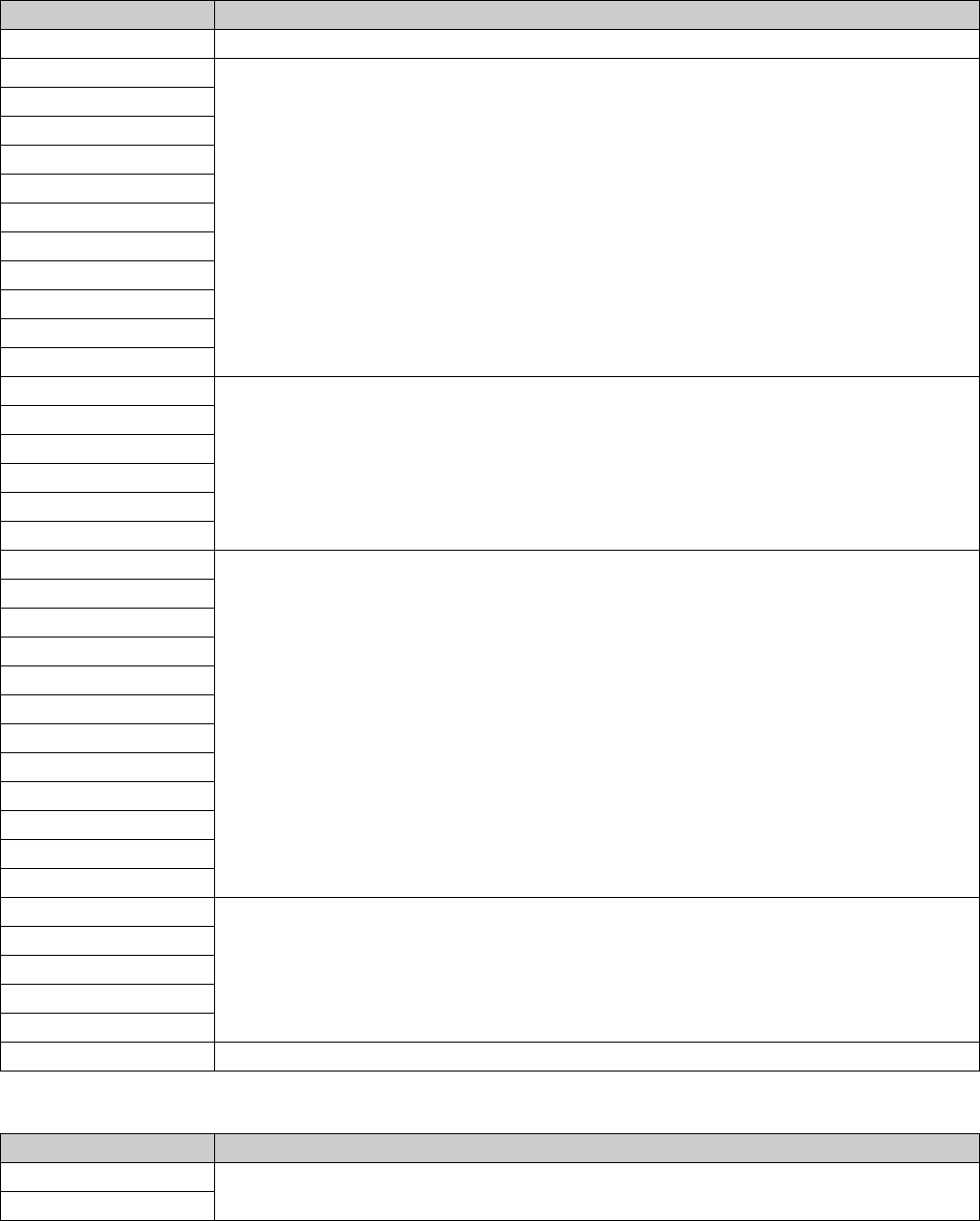
46
Picture menu
Screen menu
Item Storage conditions
Calib. Preset For each input connector and preset signal
Reset For each input connector and Calib. Preset
Reality Creation
Laser Light Setting
Contrast Enhancer
Motionflow
Contrast
Brightness
Color
Hue
Color Temp.
D93 - D55, Custom
Gain R For each Color Temp.
Gain G
Gain B
Bias R
Bias G
Bias B
Sharpness For each input connector and Calib. Preset
NR
MPEG NR
Smooth Gradation
Film Mode
Gamma Correction
Color Correction
Clear White
x.v.Color
HDR
Color Space
BT.709 - Custom
Red For each Color Space
Green
Blue
Cyan - Red
Magenta - Green
Input Lag Reduction For each input connector and Calib. Preset
Item Storage conditions
Aspect For each Picture Position
Blanking
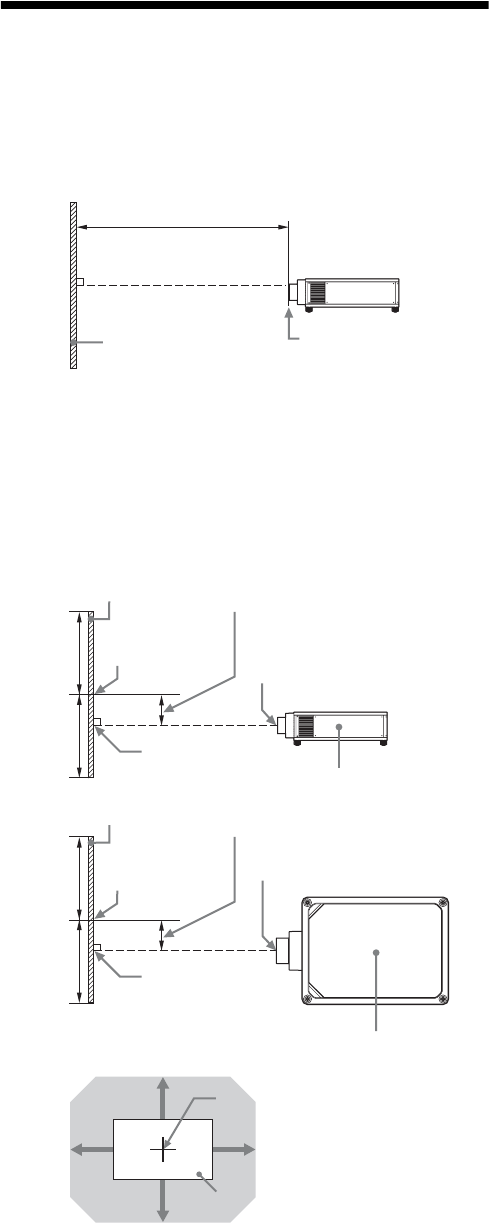
47
Projection Distance and
Lens Shift Range
The projection distance refers to the distance between the
front of the lens and the projected surface.
The lens shift range represents the distance in percent (%)
by which the lens can be shifted from the center of the
projected image. The lens shift range is regarded as 0%
when the point A in the illustration (point where a line
drawn from the center of the lens and the projected image
cross at right angles) is aligned with the center of the
projected image and full width or full height of the
projected image is regarded as 100%.
VS +:Vertical lens shift range (up) [%]
VS –:Vertical lens shift range (down) [%]
HS +:Horizontal lens shift range (right) [%]
HS –:Horizontal lens shift range (left) [%]
Projection distance L
Projected image Front of the lens
Lens shift range
Projected image
Center of the lens
50%
50%
Center of the
projected image
Side of the unit
A
Lens shift range
P
ro
j
ecte
d
i
mage
Center of the lens
50%
50%
Center of the
projected image
Top of the unit
A
Center of the lens
Projected image
VS +
VS –
HS – HS +
Shaded region: Lens shift range
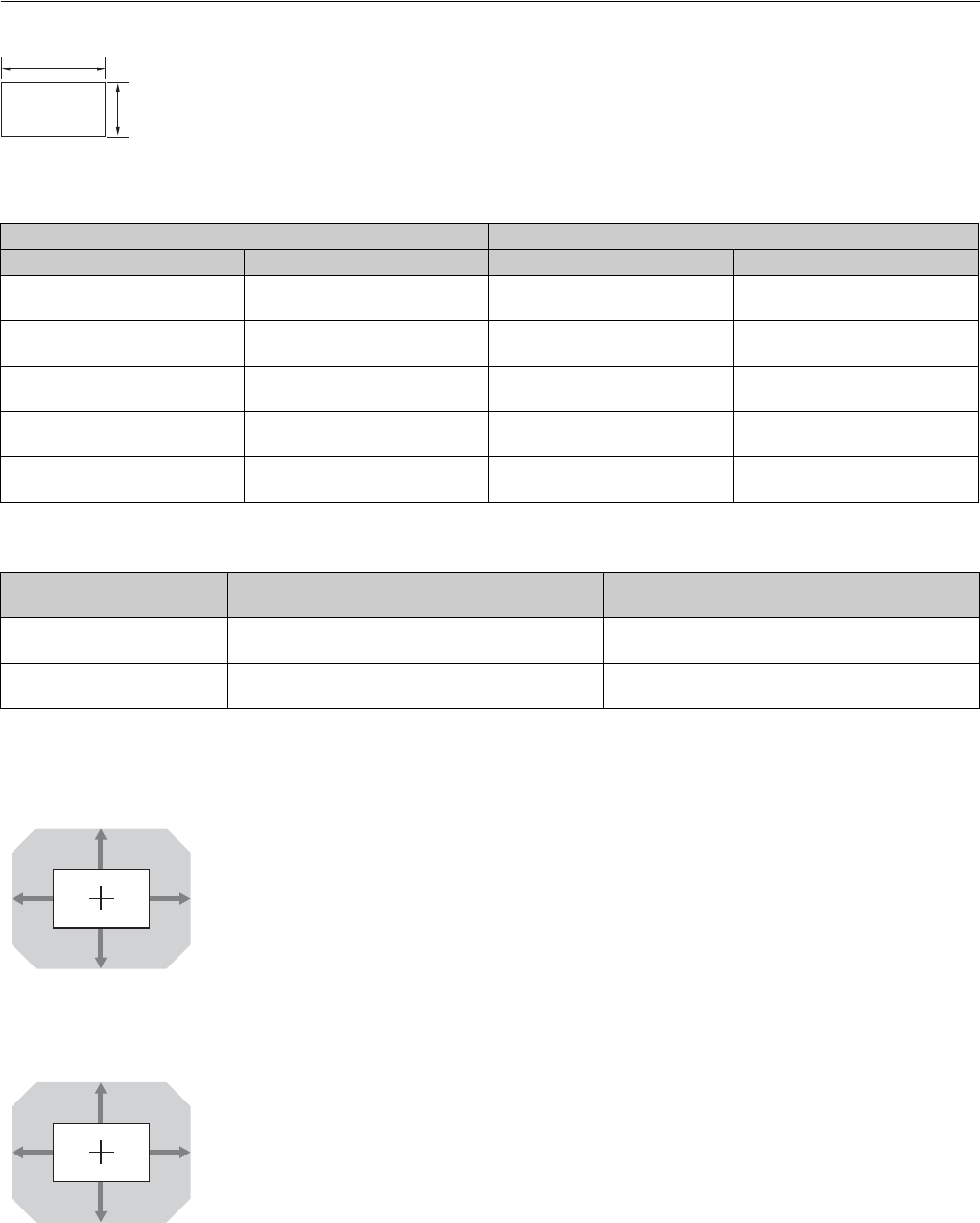
48
When projecting in 1.90:1 (Native Full Display 17:9) format
Projection distance
Unit: m (inches)
Projection distance formula
D: Projected image size (Diagonal) Unit: m (inches)
Lens shift range
VPLL-Z7008 (optional lens)
VPLL-Z7013 (standard lens)
Projection image size Projection distance L
Diagonal Width × Height VPLL-Z7008 VPLL-Z7013
80" (2.03 m) 1.80 × 0.95
(71 × 37)
1.43 – 1.82
(56 – 71)
2.23 – 4.90
(88 – 192)
100" (2.54 m) 2.25 × 1.18
(88 × 47)
1.80 – 2.29
(71 – 90)
2.81 – 6.14
(111 – 241)
120" (3.05 m) 2.70 × 1.42
(106 × 56)
2.17 – 2.76
(86 – 108)
3.39 – 7.38
(134 – 290)
150" (3.81 m) 3.37 × 1.78
(133 × 70)
2.74 – 3.47
(108 – 136)
4.25 – 9.25
(168 – 364)
200" (5.08 m) 4.49 × 2.37
(177 × 93)
3.67 – 4.65
(145 – 183)
5.70 – 12.36
(225 – 486)
Lens Projection distance L
(minimal length)
Projection distance L
(maximal length)
VPLL-Z7008 (optional lens) L = 0.018689 × D – 0.0733
(L = 0.735786 × D – 2.8875)
L = 0.023617 × D – 0.0664
(L = 0.929788 × D – 2.6152)
VPLL-Z7013 (standard lens) L = 0.028860 × D – 0.0800
(L = 1.136218 × D – 3.1491)
L = 0.062212 × D – 0.0756
(L = 2.449310 × D – 2.9775)
1.90
1
50%
50%
18% 18% VS + = VS – = 50 – 2.778 × (HS + or HS –) [%]
HS + = HS – = 18 – 0.360 × (VS + or VS –) [%]
80%
80%
31% 31% VS + = VS – = 80 – 2.581 × (HS + or HS –) [%]
HS + = HS – = 31 – 0.388 × (VS + or VS –) [%]
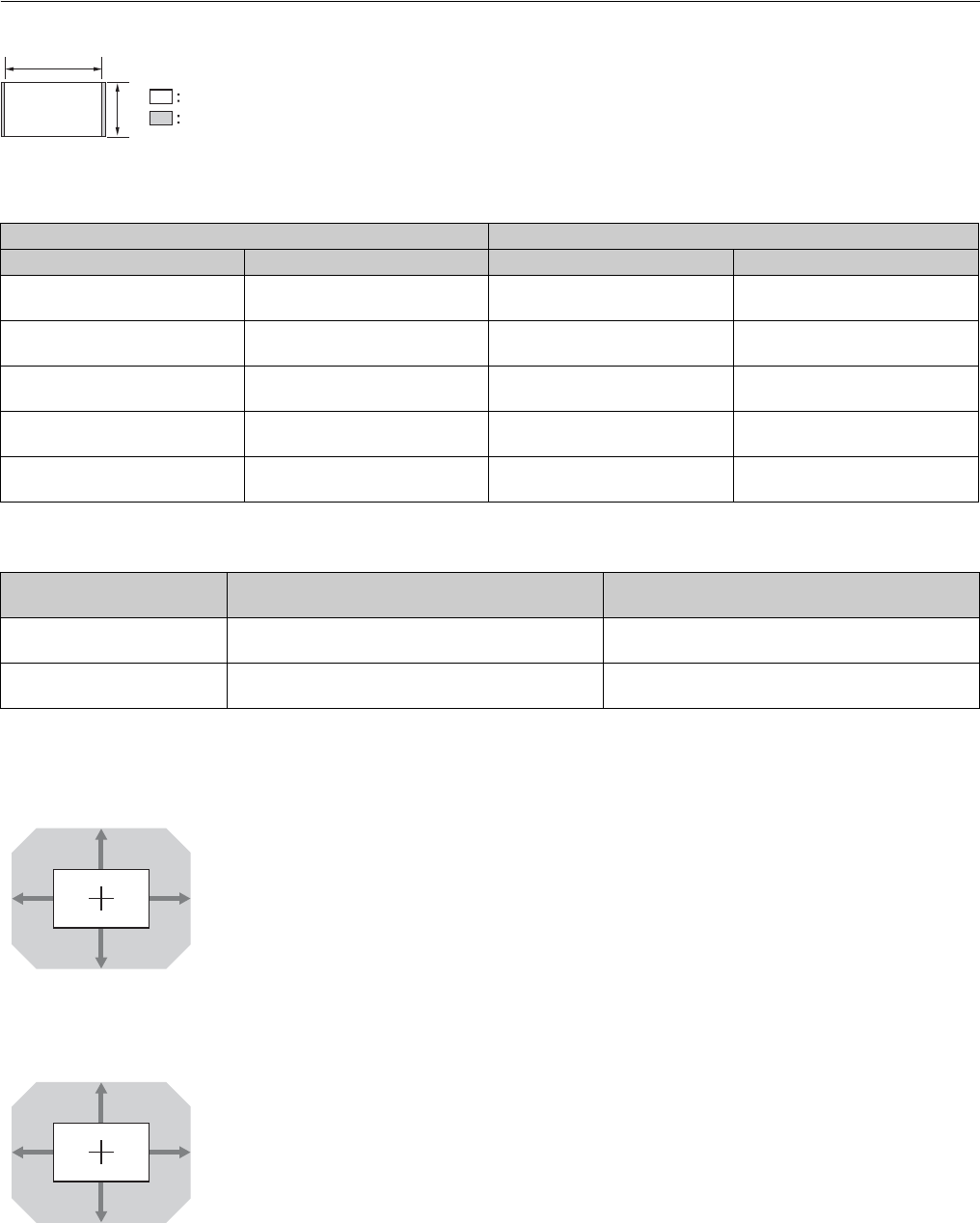
49
When projecting in 1.78:1 (16:9) format
Projection distance
Unit: m (inches)
Projection distance formula
D: Projected image size (Diagonal) Unit: m (inches)
Lens shift range
VPLL-Z7008 (optional lens)
VPLL-Z7013 (standard lens)
1.78
1Video display area
Projection area
Projection image size Projection distance L
Diagonal Width × Height VPLL-Z7008 VPLL-Z7013
80" (2.03 m) 1.77 × 1.00
(70 × 39)
1.50 – 1.91
(59 – 75)
2.35 – 5.15
(93 – 202)
100" (2.54 m) 2.21 × 1.25
(87 × 49)
1.90 – 2.41
(75 – 95)
2.96 – 6.46
(117 – 254)
120" (3.05 m) 2.66 × 1.49
(105 × 59)
2.29 – 2.91
(90 – 114)
3.56 – 7.77
(141 – 305)
150" (3.81 m) 3.32 × 1.87
(131 × 74)
2.88 – 3.65
(114 – 143)
4.47 – 9.73
(176 – 383)
200" (5.08 m) 4.43 × 2.49
(174 × 98)
3.86 – 4.89
(152 – 192)
5.99 – 13.00
(236 – 511)
Lens Projection distance L
(minimal length)
Projection distance L
(maximal length)
VPLL-Z7008 (optional lens) L = 0.019643 × D – 0.0733
(L = 0.773332 × D – 2.8875)
L = 0.024822 × D – 0.0664
(L = 0.977234 × D – 2.6152)
VPLL-Z7013 (standard lens) L = 0.030333 × D – 0.0800
(L = 1.194198 × D – 3.1491)
L = 0.065387 × D – 0.0756
(L = 2.574296 × D – 2.9775)
50%
50%
19% 19% VS + = VS – = 50 – 2.632 × (HS + or HS –) [%]
HS + = HS – = 19 – 0.380 × (VS + or VS –) [%]
80%
80%
33% 33% VS + = VS – = 80 – 2.424 × (HS + or HS –) [%]
HS + = HS – = 33 – 0.413 × (VS + or VS –) [%]
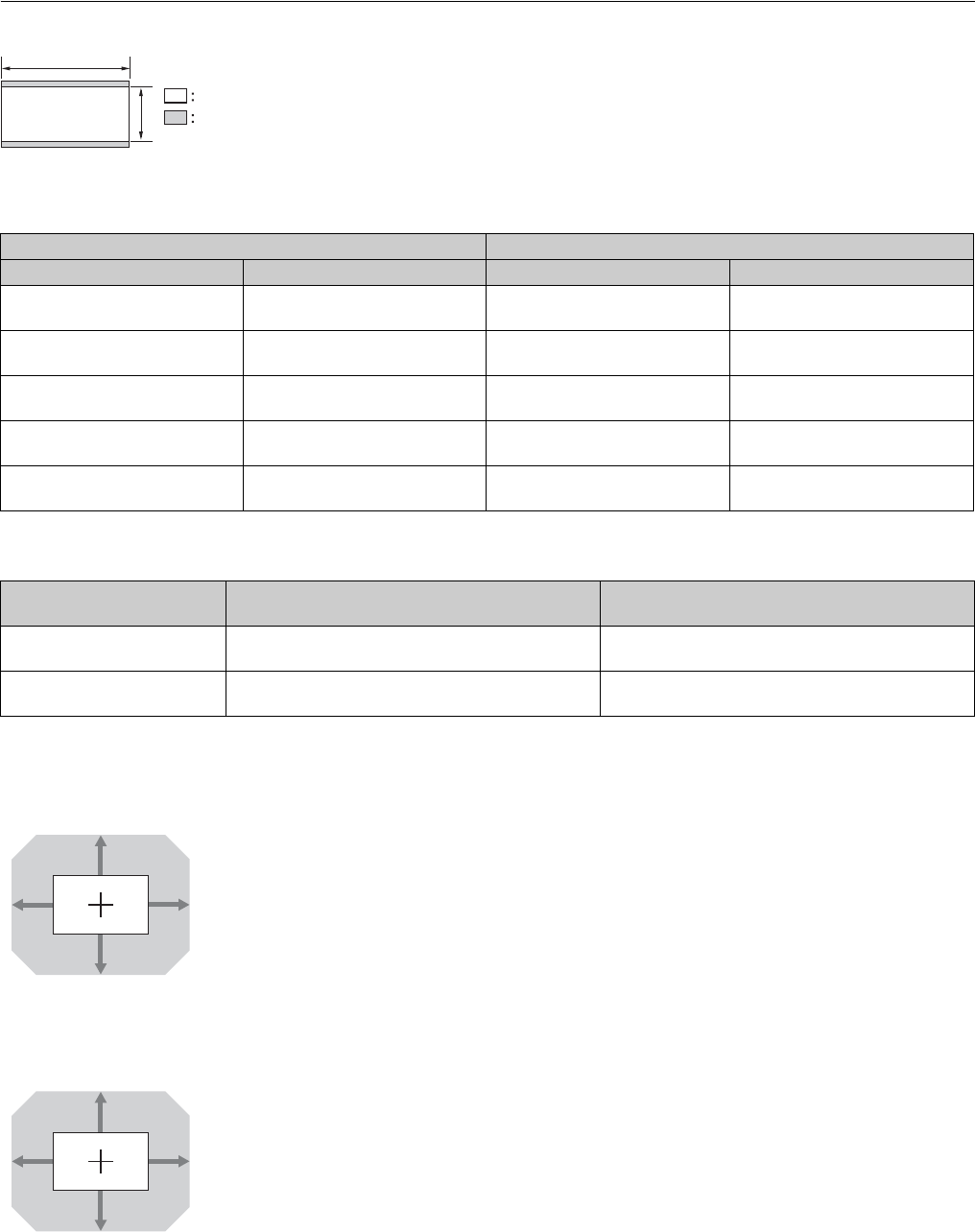
50
When projecting in 2.35:1 format
Projection distance
Unit: m (inches)
Projection distance formula
D: Projected image size (Diagonal) Unit: m (inches)
Lens shift range
VPLL-Z7008 (optional lens)
VPLL-Z7013 (standard lens)
Projection image size Projection distance L
Diagonal Width × Height VPLL-Z7008 VPLL-Z7013
80" (2.03 m) 1.87 × 0.80
(74 × 31)
1.49 – 1.89
(59 – 74)
2.33 – 5.10
(92 – 200)
100" (2.54 m) 2.34 × 0.99
(92 × 39)
1.88 – 2.39
(74 – 94)
2.93 – 6.39
(116 – 251)
120" (3.05 m) 2.80 × 1.19
(110 × 47)
2.26 – 2.88
(89 – 113)
3.53 – 7.69
(139 – 302)
150" (3.81 m) 3.51 × 1.49
(138 × 59)
2.85 – 3.61
(112 – 142)
4.43 – 9.63
(175 – 379)
200" (5.08 m) 4.67 × 1.99
(184 × 78)
3.82 – 4.84
(151 – 190)
5.93 – 12.86
(234 – 506)
Lens Projection distance L
(minimal length)
Projection distance L
(maximal length)
VPLL-Z7008 (optional lens) L = 0.019441 × D – 0.0733
(L = 0.765407 × D – 2.8875)
L = 0.024567 × D – 0.0664
(L = 0.967219 × D – 2.6152)
VPLL-Z7013 (standard lens) L = 0.030024 × D – 0.0800
(L = 1.182064 × D – 3.1491)
L = 0.064723 × D – 0.0756
(L = 2.548138 × D – 2.9775)
2.35
1
Video display area
Projection area
62%
62%
18% 18% VS + = VS – = 62 – 3.444 × (HS + or HS –) [%]
HS + = HS – = 18 – 0.290 × (VS + or VS –) [%]
100%
100%
31% 31% VS + = VS – = 100 – 3.226 × (HS + or HS –) [%]
HS + = HS – = 31 – 0.310 × (VS + or VS –) [%]
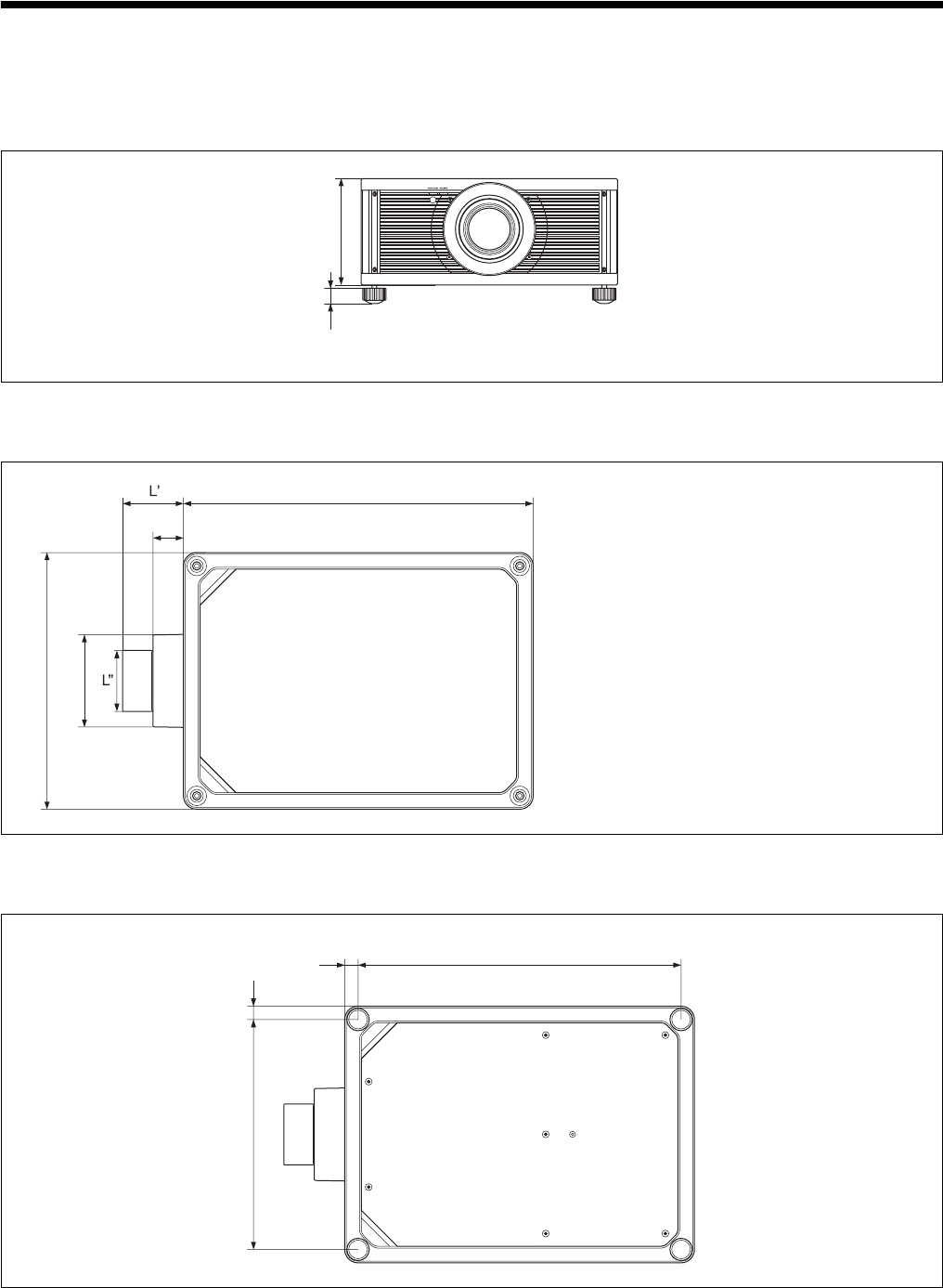
51
Dimensions
Front
Unit: mm (inches)
Top
Unit: mm (inches)
Bottom
Unit: mm (inches)
228 (8 31/32)
32 (1 1/4)
750 (29 17/32)
550 (21 21/32)
65 (2 9/16)
197 (7 3/4)
L’: The distance between the front of the lens (center) and
the front of the cabinet
VPLL-Z7008 (optional lens): 159.0 mm (6 1/4 inches) (Tele)
to 185.2 mm (7 9/32 inches) (Wide)
VPLL-Z7013 (standard lens): 130.2 mm (5 1/8 inches)
L’’: 131 (5 5/32) (VPLL-Z7013 (standard lens))
134 (5 9/32) (VPLL-Z7008 (optional lens))
692.7 (27 9/32)28.6 (1 1/8)
492.7 (19 13/32) 28.6 (1 1/8)

52
Index
Numerics
3D glasses
3D glasses communication range ...... 13
Using the 3D glasses ......................... 12
3D Settings
2D-3D Display Sel. (Select) .............. 28
3D Brightness .................................... 28
3D Depth Adjust ................................ 28
3D Format .......................................... 28
Simulated 3D Effect .......................... 28
3D video ................................................ 12
A
All Reset ................................................ 27
Anamorphic Lens .................................. 31
Aspect
1.85:1 Zoom ................................ 14, 25
2.35:1 Zoom ................................ 14, 25
Normal ......................................... 15, 25
Squeeze ........................................ 15, 25
Stretch .......................................... 15, 25
V Stretch ...................................... 15, 25
Auto Calibration .................................... 23
B
Blanking ................................................ 25
Brightness .............................................. 20
C
Calib. Preset
Bright Cinema ................................... 19
Bright TV ........................................... 19
Cinema Digital ................................... 19
Cinema Film 1 ................................... 19
Cinema Film 2 ................................... 19
Game .................................................. 19
Photo .................................................. 19
Reference ........................................... 19
TV ...................................................... 19
User .................................................... 19
Cinema Black Pro .................................. 20
Clear White ............................................ 21
Color ...................................................... 20
Color Correction .................................... 21
Color Space ........................................... 22
Color Temp. (Temperature) ................... 20
Compatible 3D signals .......................... 44
Connecting to Video equipment or a
computer ........................................ 10
Connectors ............................................... 3
Contrast ................................................. 20
Contrast Enhancer ................................. 20
Control panel ........................................... 3
D
DCI specification ................................... 41
Dimensions ............................................ 51
Dynamic Range ..................................... 28
E
Expert Setting ........................................ 21
F
Film Mode ..............................................21
Front/Right side ........................................3
G
Gamma Correction .................................21
H
HDMI Signal Format .............................29
HDR .......................................................22
High Altitude Mode ...............................26
Hue .........................................................20
I
Image Flip ..............................................31
Image Shift .............................................25
Input Lag Reduction ...............................22
Input signals and adjustable/setting items
........................................................44
Intake Air Temp. ....................................34
IR Receiver .............................................31
L
LAN connector .......................................35
Language ................................................26
Laser Light Setting .................................20
Lens adjustment window ..........................9
Lens Control ...........................................31
License Management .............................33
Light Timer ............................................34
Location of controls
Front .....................................................3
Rear/Bottom .........................................4
M
Menu
Advanced Picture ...............................23
Function ..............................................28
Information .........................................34
Installation ..........................................31
Operation ............................................17
Picture .................................................19
Screen .................................................24
Setup ...................................................26
Menu Position ........................................26
Messages
Caution ...............................................40
Warning ..............................................40
Motionflow .............................................20
MPEG NR (MPEG Noise Reduction) ....21
N
Network Features ...................................35
Network Management ............................26
Network Setting .....................................32
NR (Noise Reduction) ............................21
P
Panel Alignment .....................................32
Periodic LD Calibration .........................26
Picture Position
Picture Position ..................................24
Using the Picture Position ..................13
Picture position adjustment ......................6
Picture Viewing Mode ............................16
Power Saving .........................................27
Preset memory .......................................34
Preset mode
BRT CINE ..........................................16
BRT TV ..............................................16
CINEMA DIGITAL ...........................16
CINEMA FILM 1 ..............................16
CINEMA FILM 2 ..............................16
GAME ................................................16
PHOTO ...............................................16
REF ....................................................16
TV ......................................................16
USER .................................................16
Preset signals ..........................................43
Projecting the Picture .............................12
Projection distance .....................48, 49, 50
Projection distance and lens shift range
........................................................47
R
Reality Creation .....................................19
Remote control
Location of buttons ..............................5
Remote control detector ...........................4
Remote Start ...........................................26
Reset .......................................................19
Resetting the items .................................18
S
Settings Lock .........................................29
Sharpness ...............................................20
Signal type .............................................34
Simulated 3D feature .............................41
Smooth Gradation ..................................21
Software Version ....................................34
Specifications .........................................42
Status ......................................................26
T
Test Pattern .............................................29
Trigger Select .........................................31
Troubleshooting .....................................37
Turning off .............................................12
Turning on ................................................7
U
Updating the software ............................41
W
WARNING indicator .............................39
X
x.v.Color ...........................................22, 41

Sony Corporation
