Southwing S L CATL Hands-Free Car Kit with Bluetooth User Manual Userguide CE and FCC
Southwing S.L. Hands-Free Car Kit with Bluetooth Userguide CE and FCC
Users Manual

Note: Please read the “Safe Usage Guidelines” and “Limited Warranty” before using the Carkit
1. Introduction
Thank you for choosing a Bluetooth® product from SouthWing.
This user guide provides all the information you will need to use and care for your product.
All relevant information regarding your SouthWing product can be found on the support section of our website:
www.south-wing.com
2. Setting up
1. Plug the Car Kit into the cigarette lighter (make sure you press the 2 contact
buttons for a correct insertion in the socket).
2. Place the Car Kit’s screen facing towards you.
3. Rotate and orient the Microphone Arm [2] towards you. alternatively, you may want
to use the External Microphone [13] provided. To do so, connect the External
Microphone jack to the External Microphone Plug [11] of the Car Kit and place it
somewhere close to you.
4. Turn on the unit by pressing the Hang up button [7] for a few seconds. You will see
that the Car Kit illuminates. To switch it off, press again the Hang up button [7] for a few
seconds. When switched on, the unit will stay on while not connected to any phone,
and will automatically turn off after 15 minutes.
5. Select the language menu that you prefer by simultaneously pressing the
Answer Button [5] and Hang up Buttons [7]. You can scroll along the
language options by pressing the Answer Button [5]. When you select
the desired option, press the Select Button [6]. If you want to escape this
menu press the Hang up button [7].
1 . E N G L I S H
2 . E S P A Ñ O L
3 . F R A N Ç A I S
4 . I T A LI ANO
5 . D E U T S C H
6 . P O R T U G U E S
7 .
N
E
D
E
R
L
AND
S
2. Pairing
Before using your Car Kit you will need to pair it to your Bluetooth mobile phone. You
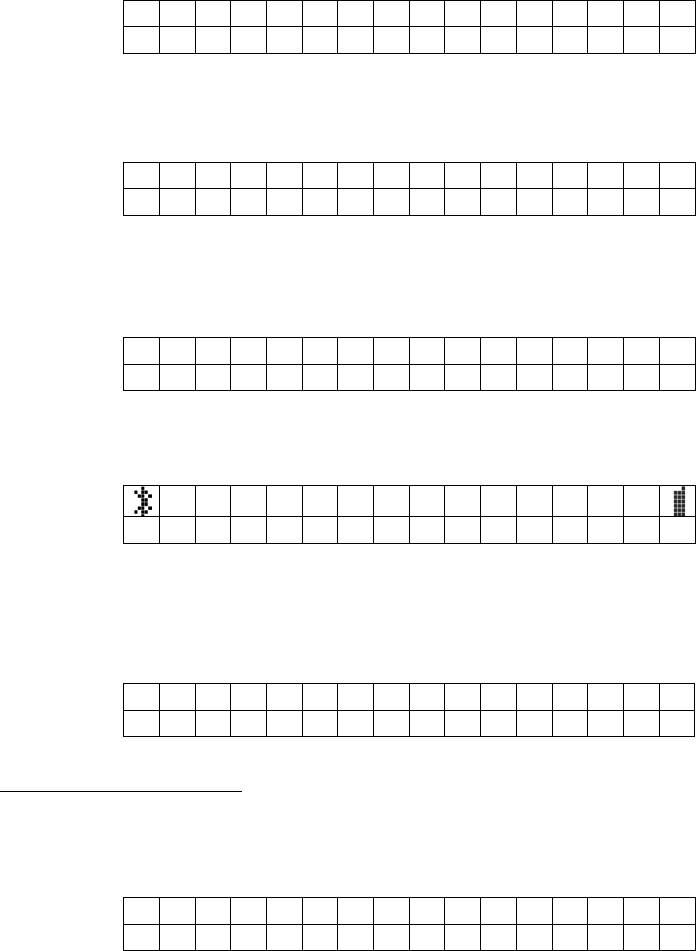
will need to repeat this process if you want to use your Car Kit with another mobile
phone. You will be able to pair your Car Kit with up to 3 devices. If you pair an
additional device to the above list of 3, one of the previous devices will be deleted.
1. Ensure the Car Kit is switched on and that the mobile phone is not too far apart
(less than 1 meter away).
2. If the Car Kit has not been paired to any device yet. The following display will
appear.
! N E ED TO PAIR
T O M O B I L E
3. Press the Select Button [6] and the display will show the following message
A C T I V A T E B T
O N M O B I L E
4. Ensure that Bluetooth is activated in your mobile phone and press the Select
Button [6]
P U T O N S E A R C H
F O R N E W D E V I C E S
5. Put your mobile phone in search for new Bluetooth devices and press the
Select Button [6]
<>
P A I R I N G
6. If you are asked for a PIN number in the mobile phone, note that the PIN
number is 1111.
7. If pairing has been completed successfully the following message will appear.
! P A I R I N G
S U CCESSFUL
3. Connecting to the phone
Everytime that you switch on the Car Kit, it will attempt connection to any of the Mobile
phones that you have it paired to. If the Car Kit is not connected to any device the display will
show the following message.
S O U T H W I N G
1 . P A I R 2 . C O N N E C
Press the Answer Button [5] if you want to pair to a new device and follow the steps indicated
in the Pairing section.
To connect to one of the devices, press the Hang up Button [7] and a list of the paired devices
will appear. Pressing again the Hang up Button [7] will take you again to the previous menu. In
the list of paired devices, press again the Answer Button [5] to scroll through the list, and select
the desired device by pressing the Select Button [6]. Once connection is established the display
menu for making and receiving calls appears.
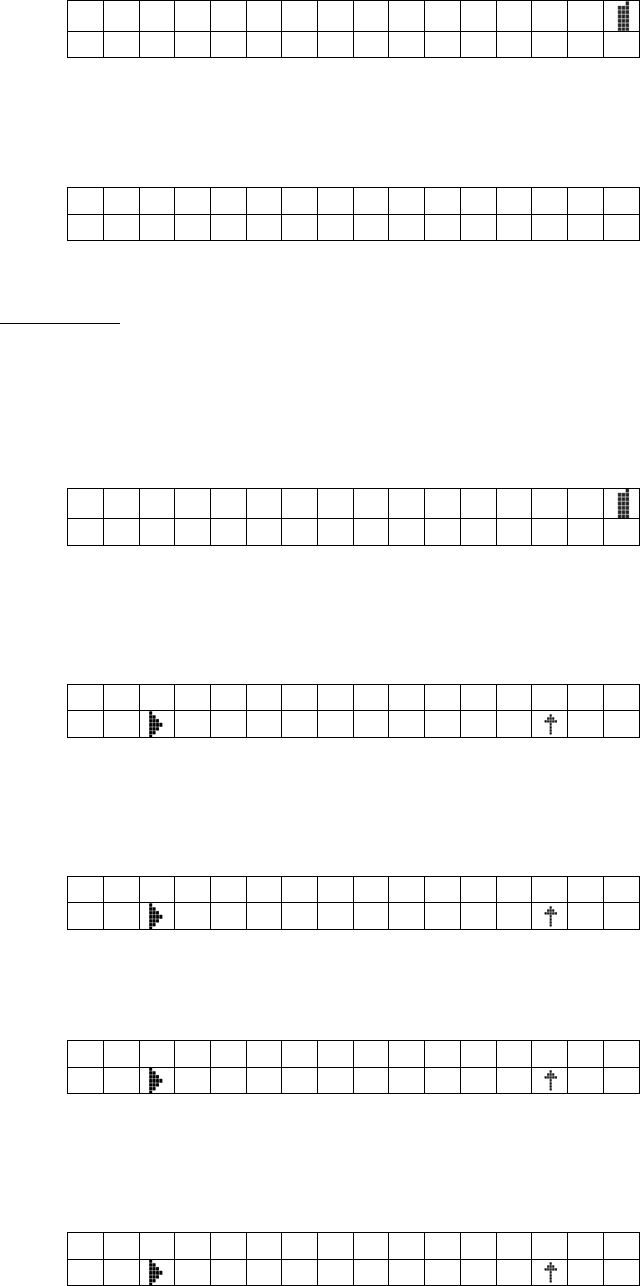
S O U T H W I N G
1 . C A L L 2 . D I S C O N
Now you can disconnect from the phone by pressing the Hang up Button [7].
If you attempt connection when no devices have been paired to the Car Kit, the following
message will appear.
! N O D E V I C E S
PAIRED
6.
Making calls
Calls may be initiated directly from your phone by simply dialing the number. Alternatively,
you may make calls from the Car Kit in 5 different ways (depending on your phone): voice dial,
redial, calling from Phone Book, calling from Received Calls list, or calling from missed calls
list.
To initiate a call from the Car Kit, while connected to a phone, press the Answer Button [5].
S O U T H W I N G
1 . C A L L 2 . D I S C O N
You will be able to scroll with the Answer Button [5] through a series of different
options shown below. Pressing the Hang-up Button [7] will take you again to the
previous menu.
1 . V O I C E D I A L
Press the Select Button [6] to initiate voice dialling. If your phone supports voice
dialling, you need to wait for a tone and then say the voice tag, which has to be
previously recorded on your phone.
2 . R E D I A L
Press the Select Button [6] to make the phone redial the last called number. Please note
that the phone must support Hands-free profile to support this feature.
3 . P
H
O N E B O O K
Press the Select Button [6] to make a call to one of the phone numbers stored in the
phone book. Refer to the phone book chapter to manage phone entries. Please note that
the phone must support Hands-free profile to support this feature.
4 . R E C E I V E D C A L L S
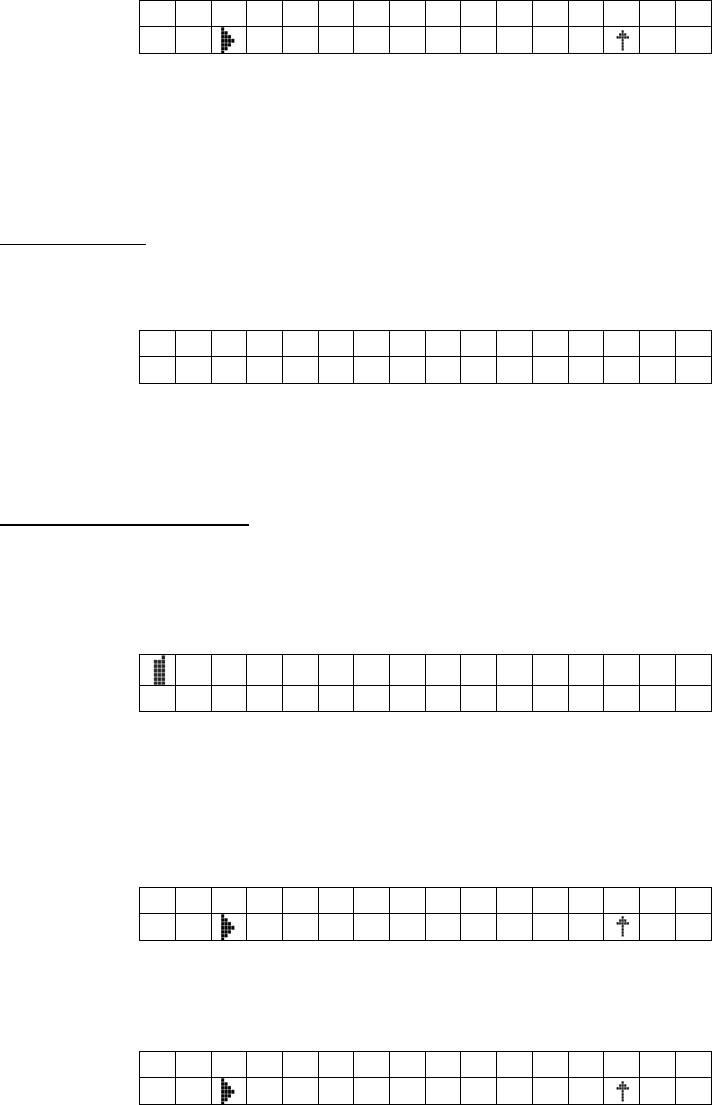
Press the Select Button [6] to make a call to one of the phone numbers stored in the
received calls list. This list has 10 items, and the last received call will always be in the
top of the list. Please note that the phone must support Hands-free profile to support this
feature.
5 . M I S SED CALLS
Press the Select Button [6] to make a call to one of the phone numbers stored in the
missed calls list. This list has 10 items, and the last missed call will always be in the top
of the list. Please note that the phone must support Hands-free profile to support this
feature.
Receiving calls
When you receive a call, if your mobile phone supports the Caller Identification feature,
you will be able to see the number of the person calling you.
< 9 3 4 5 6 7 8 9 0
1 . Y E S 2 . N O
Press the Answer Button [5] to accept the call. If your mobile phone supports Hands-
free profile you can also push the Hang-up Button [7] if you want to reject the call.
Managing conversations
Within conversations, you can press Volume Up Button [10] to increase volume level,
and press Volume Down Button [8] to decrease volume level. Press the Hang-up Button
[7] if you want to end the call.
9 3 4 5 6 7 8 9 0
1 . M E N U 2 . END
Additionally, you can press the Answer Button [5] to access a menu of options within
the conversation as shown below. In these options you may: mute the microphone,
transfer the call to your mobile phone, put the call on hold, as well as putting a call on
hold to make a new call. By pressing the Hang-up Button [7] you return to the previous
menu.
1 . M U T E M I C
Press the Select Button [6] to mute the microphone during the conversation. You can
activate the microphone again by entering the menu in the same way.
2 .
T
R A N S F E R C A L L
Press the Select Button [6] to transfer the call to the mobile phone for privacy. The
Car Kit may be disconnected from the phone after transferring the call. You can transfer
again the call to the Car Kit by entering the menu in the same way.
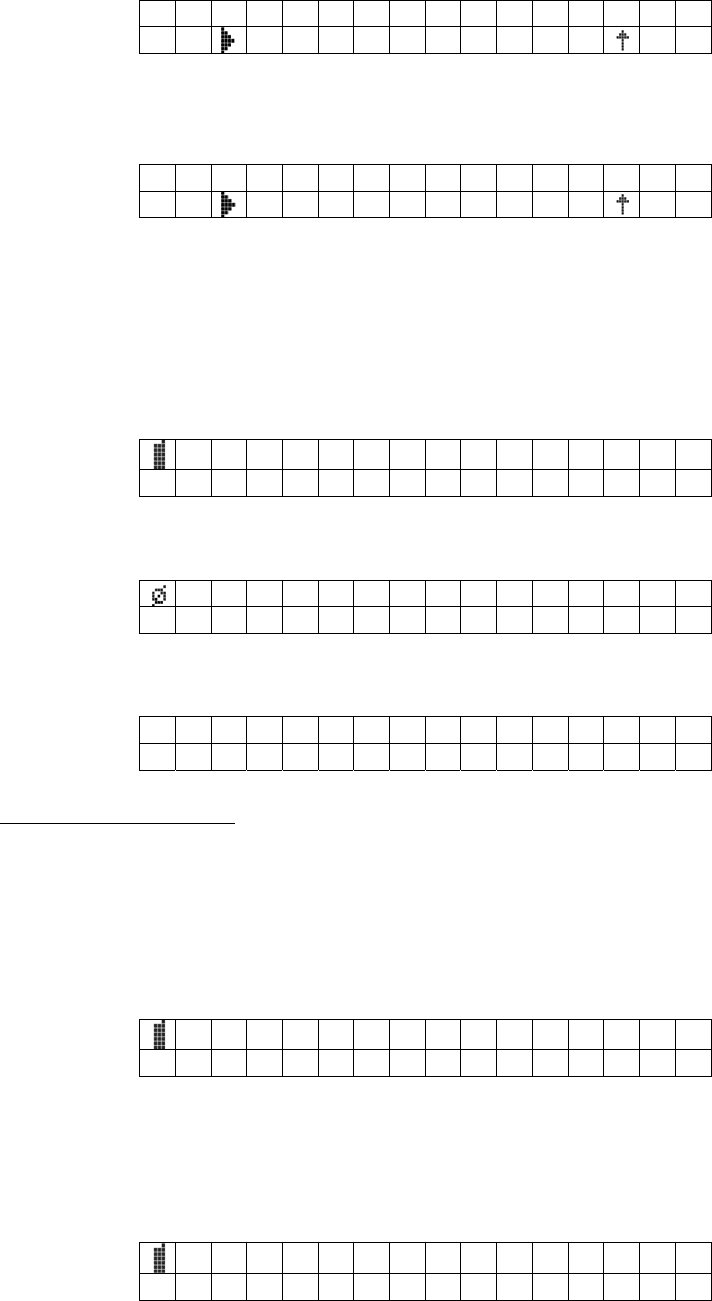
3 . H O L D C A L L
Press the Select Button [6] to put the call on hold. You can activate again the call
entering the menu in the same way.
4 . H O L D AND NE W
If your mobile phone supports Bluetooth Hands-free profile version 1.0 or later, you can
press the Select Button [6] to put the call on hold and make a new call. You will then
access the menu for call making. Refer to Multiple Calls section for managing multiple
calls.
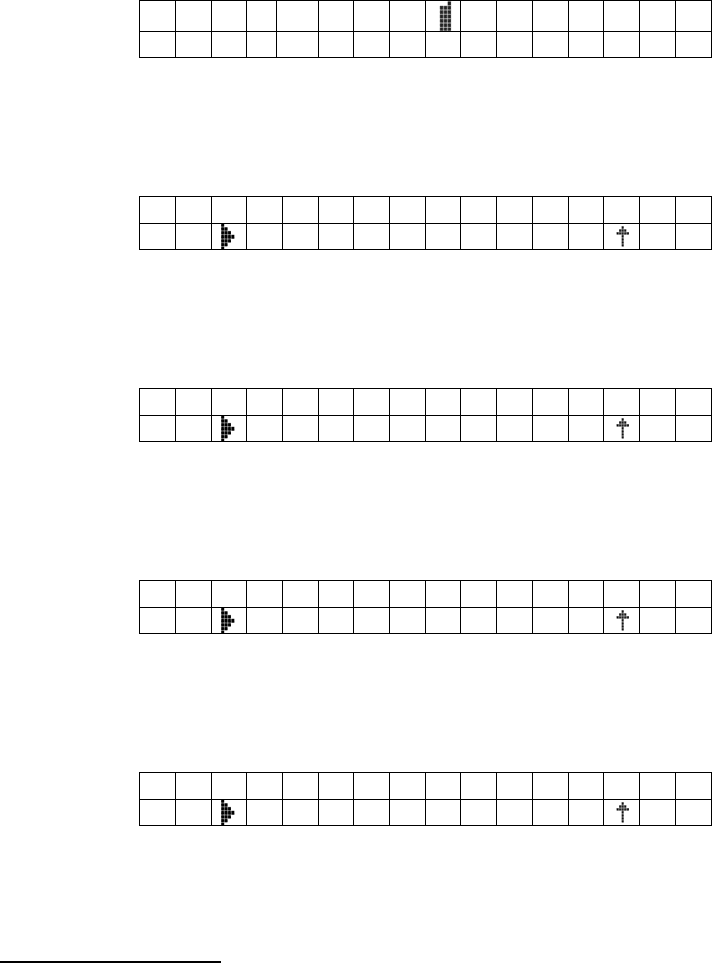
During normal conversation the Visual display [3] will show the following symbol:
9 3 4 5 6 7 8 9 0
1 . M E N U 2 . END
When the microphone is muted the Visual display [3] will show the following symbol:
9 3 4 5 6 7 8 9 0
1 . M E N U 2 . E N D
If the call is on hold, the Visual display [3] will show the following symbol:
↑ 9 3 4 5 6 7 8 9 0
1 . M E N U 2 . E N D
Managing multiple calls
If your mobile phone supports Bluetooth Hands-free profile version 1.0 or later, you can
handle multiple calls in the way indicated below.
Receiving a call during conversation
If you are within a conversation, and you receive another call, you will see a display like
the following:
9 3 4 5 6
...
<
U N K N O
W
1 .
Y
E S 2 . N O
To reject the new incoming call, press the Hang up Button [7], and you will stay in a
normal conversation. To accept new incoming call, press the Answer Button [5]. In this
case you will have two options:
9 3 4 5 6
...
<
U N K N O
W
1 . H O L D 2 . E N D
If you press the Hang up Button [7], you will end the active call and accept the new
incoming call. In this case, you will stay in a normal conversation. Alternatively, if you
press the Answer Button [5] you will accept the new incoming call and put active call
on hold.
Making a call during conversation
If you are within a conversation, and you wish to make another call, you can put the
active call on hold and make a new call, as indicated in the Managing conversations
section.
Handling several calls
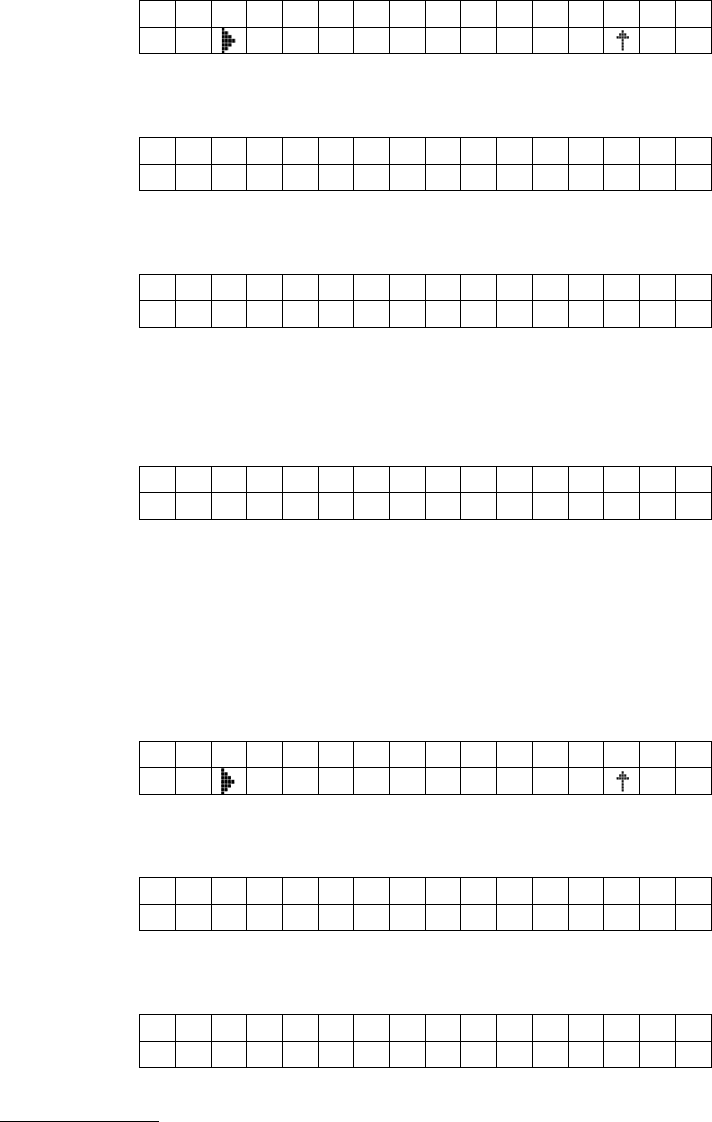
If you have two calls at the same time, one active and one on hold, an arrow up in the
display will show the call that is on hold.
↑ 9 3 4 5 6
...
U N K N O
W
1 .
M
E N U 2 . END
If you press the Hang up Button [7] you will end the active call and continue with the
call on hold as in a normal conversation. If you press the Answer Button [5] you can do
the following:
1 . M I C M U T E
Press the Select Button [6] to mute the microphone during the conversation. You can
activate the microphone again by entering the menu in the same way.
2 .
T
R A N S F E R C A L L
Press the Select Button [6] to transfer the call to the mobile phone for privacy. The Car
Kit may be disconnected from the phone after transferring the call. You can transfer
again the call to the Car Kit by entering the menu in the same way.
3 . S W I T C H
Press the Select Button [6] to switch from active call to call on hold. You can switch
again between calls by entering the menu in the same way.
4 . M U L T I P A R T Y
Press the Select Button [6] to put both calls in multiparty.
Managing Phone Book
Storing numbers in Phone Book
You can only store in the Phone Book numbers you have in the Received Calls or
Missed Calls lists. To do so, you need to go to the Making Calls menu and select one of
the lists as shown in the Making Calls section. Then, press the Answer Button [5] until
you find the number you want to store.
D . 9 3 4 5 6 7 8 9 0
Press the Select Button [6] to select the number
9 3 4 5 6 7 8 9 0
1 . D I A L 2 . S T O R E
Then press the Hang up Button [7] to store the number in the Phone Book
! N U M B E R
STORED
The Phone Book has room for a total of 10 entries. If the Phone Book is full, attempting
to store a new number will result in the following message.
! F A ILED PHONE
B O O K I S F U L L
To store additional numbers, you first have to delete some of the stored ones.
Deleting numbers from the Phone Book
If you want to delete an entry from the Phone Book, you need to go to the Making Calls
menu and select the Phone Book as shown in the Making Calls section, then, press the
Answer Button [5] until you find the number you want to delete.
B . 9 3 7 8 0 7 8 9 0
Press the Select Button [6] to select the number
9 3 4 5 6 7 8 9 0
1 . D I A L 2 . E R A S E
Then press the Hang up Button [7] to delete the number from the Phone Book
! N U M B E R
ERASED
Deleting all lists
If you push and hold for 3 seconds the Volume Up [10 ] and Volume Down [8] Buttons,
all Phone Book, Received Calls List and Missed Calls List will be deleted.

E R A S E A L L
1 . Y E S 2 . N O
Push4 Button
Your Car Kit may have been configured with a specific Push4TM call function. If this is
the case, follow the specific instructions provided. Otherwise, the Push4 Button [9] will
remain inactive.
Troubleshooting
Problem
Suggestions
Incoming call rings
only in the phone -
Outgoing calls from
the phone are not
transferred to the Car
Kit
• Make sure that not only the pairing process was completed but also that the
Car Kit is connected to the phone (for example after the Car Kit has been
turned off.).
• Check that the Bluetooth mode of your phone is switched on.
Pairing is unsuccessful • Make sure that the mobile phone is in the correct Bluetooth mode and that
Bluetooth is switched on
Voice dialling does
not work
• Check if the voice tag used works with the phone only
• If it does, make sure the Car Kit is connected to the phone.
Last number
redialling does not
work
• Make sure that your phones supports this feature
Additional Information
Contacts
Please contact SouthWing should you have any questions or suggested improvements, indicating
your product’s serial number.
Email: customerservice@south-wing.com
Please note:
For all warranty related issues, please return the product to the shop from which you
purchased it.
Safe Usage Guidelines
• It is under the driver’s responsibility to make a safe use of the Car Kit.
•Only use the product according to the directions within this User Guide. Usage of this product
contrary to these directions could cause injury. In addition, any usage of this product contrary to
this User Guide will void any warranty.
• Do not place the product in a fire as it may explode causing injury or death.
• Do not attempt to service this product yourself. If the product requires servicing, this must be
performed by an approved service person.
• If the product becomes dirty, it should be cleaned with a soft cloth. Do not use any cleaning
agents as these may damage the plastics, electronics or battery.
• As this product contains parts which may cause injury if consumed, keep it out of reach of
children.
Warranty
SouthWing provides a guarantee that this product will be free of defects in workmanship and
material for a period of 2 years. Should the product fail under normal usage within this period,
please return the product to the store from which it was purchased. At the discretion of
SouthWing, the faulty product will then be replaced or repaired at no cost according to the
conditions outlined below.
Conditions
1. To be granted, this guarantee requires the presentation of the original dated purchase
invoice/receipt as well as the serial number. SouthWing reserves the right to refuse warranty
service if this documentation is not presented.
2. Any product repaired or replaced will be covered by the same warranty conditions until the
end of the original warranty period or 90 days (whichever is later).
3. The free repair or replacement warranty does not cover failure of the product due to normal
wear and tear, misuse, use contrary to the product user guide, accident, modification or
adjustment, forces of nature, or damage resulting from contact with liquids.
4. Only service personnel who have been approved by SouthWing may repair this product.
Attempted repair by anyone else will void this warranty.
5. At the discretion of SouthWing, a faulty unit will be either repaired or replaced. If repair is
not possible, SouthWing reserves the right to replace the faulty product with another product
of equivalent value.
6. SouthWing does not offer any further express warranty, neither written nor oral. To the
extent allowed by local law, any implied warranty or condition or merchantability, satisfactory
quality, or fitness for a particular purpose is limited to the duration of the warranty described
above.
7. To the extent allowed by local law, SouthWing will not be liable for any incidental or
consequential damages of any nature whatsoever, including but not limited to lost profits or
commercial loss.
Some countries or states do not allow the exclusion or limitation of incidental or consequential
damages, or limitation of the duration of implied warranties. This may mean that the limitations or
exclusions stated above do not apply to you.
This guarantee does not affect the consumer's statutory right under applicable local laws in force,
nor the consumer's rights against the dealer arising from their sales/purchase contract.
Declaration of conformity
Hereby, Southwing S.L., declares that this Bluetooth Car Kit is in compliance with the essential
requirements and other relevant provisions of Directive 1999/5/EC.
For more information, please visit:
http://www.south-wing.com
0678
FCC Statement
(Federal Communications Commission, USA)
15.21
You are cautioned that changes or modifications not expressly approved by the part responsible
for compliance could void the user’s authority to operate the equipment.

15.105(b)
This equipment has been tested and found to comply with the limits for a Class B digital device,
pursuant to part 15 of the FCC rules. These limits are designed to provide reasonable
protection against harmful interference in a residential installation. This equipment
generates, uses and can radiate radio frequency energy and, if not installed and used in
accordance with the instructions, may cause harmful interference to radio communications.
However, there is no guarantee that interference will not occur in a particular installation. If
this equipment does cause harmful interference to radio or television reception, which can
be determined by turning the equipment off and on, the user is encouraged to try to correct
the interference by one or more of the following measures:
-Reorient or relocate the receiving antenna.
-Increase the separation between the equipment and receiver.
-Connect the equipment into an outlet on a circuit different from that to which the receiver is
connected.
-Consult the dealer or an experienced radio/TV technician for help.
Operation is subject to the following two conditions:
1) this device may not cause interference and
2) this device must accept any interference, including interference that may cause undesired
operation of the device.
FCC RF Radiation Exposure Statement:
This equipment complies with FCC radiation exposure limits set forth for an uncontrolled
environment. End users must follow the specific operating instructions for satisfying RF
exposure compliance. This transmitter must not be co-located or operating in conjunction
with any other antenna or transmitter.