Southwing S L GUEL NeoVoice USB Bluetooth Wireless Headset User Manual English Manual V2

Southwing S.L. NeoVoice USB Bluetooth Wireless Headset English Manual V2

users manual

NederlandsDanskEspañolDeutschFrançaisItalianoNorskPortuguêsSuomiSvenskaEnglishUser GuideBluetooth®Wireless HeadsetUSBEnglish Manual V2.qxd  20/11/2003  12:39  PÆgina 1
IndexIntroduction .....................................................................3What is Bluetooth®? .......................................................4First steps .........................................................................5Charging .......................................................5Pairing ...........................................................6Wearing the Headset ......................................................7General Usage .................................................................7Resetting your Headset ................................................10Advanced Features in Hands-free mode ..................11Troubleshooting ............................................................12Additional Information ...............................................13Declaration of Conformity .........................................16Commands Summary Table ........................................18 Note: Please read the "Safe usage guidelines" on page 13 and"Warranty" on page 14 before using the Headset.EnglishUser GuideBluetooth®Wireless HeadsetUSBEnglish Manual V2.qxd  20/11/2003  12:39  PÆgina 2
Introdu ctionThank you for choosing to buy a Bluetooth®(*)SouthWing Headset. We hope you enjoy using it asmuch as we did developing it.This User Guide provides all the information youwill need on how to use and look after your product.* Bluetooth is a registered trademark owned byBluetooth SIG, Inc. U.S.A. and licensed to SouthWing.SouthWin g  SouthWing was founded in December 2000 and isheadquartered in Barcelona, Spain. Our experiencedteam is focused on developing the future generation ofwireless headsets.Should you wish to learn more about the company,please visit our web site at:www.south-wing.comIf you have any comments or suggestions on this orany other SouthWing product, we would love to hearfrom you.Introduction 3English Manual V2.qxd  20/11/2003  12:39  PÆgina 3
4What is Bluetooth  ?What  is  Blueto oth  ?Bluetooth is a short-range cord replacement techno-logy that allows the seamless interconnection of manydifferent devices such as mobile phones, portable com-puting devices, and mobile phone headsets without thecomplication of cables.Industry collaboration has meant that Bluetooth hasbecome a highly interoperable, affordable, and widelydeployed wireless connectivity standard.What  do  I  need?As this Headset is a qualified Bluetooth product sup-porting the Bluetooth Headset and Bluetooth Hands-free profiles, it can connect to any other qualifiedBluetooth product supporting at least one of theseprofiles. Today, nearly every mobile phone with inte-grated Bluetooth supports one or both of these profi-les.As a Bluetooth mobile phone will most commonlybe used with your Bluetooth Headset, references to amobile phone are used throughout this User Guide.®®English Manual V2.qxd  20/11/2003  12:39  PÆgina 4
First  StepsWhen you first receive your SouthWing BluetoothWireless Headset you will need to charge the batteryand pair the Headset to your mobile phone.Charging  (Fig.-2: Charging)Your Bluetooth Headset has an internal rechargeablebattery and USB Charging Socket. To charge this bat-tery, follow these steps: CAUTION!1. Always first plug the connector of the power supply intothe USB Charging socket [6] Headset (Fig.-1: Overview-Headset), with the arrow facing down (Drawing B), that is,never with the arrow facing up (Drawing A). Make sure thatthe connector enters smoothly.2. Plug the power supply into a power point.3. The Headset Indicator Light will turn green to indicate theHeadset battery is charging.4. Once the Headset Indicator Light turns off, the Headsetis fully charged and can be removed from the power supply.Please Note: - If the Headset Indicator Light [2] remains off whenyou plug the power supply into the Headset, the bat-tery is already fully charged and does not require fur-ther charging.- Thanks to its USB charging facility, the Headset bat-tery can alternatively be charged from any USB port,such as those found on a PC or laptop. TheSouthWing USB cable adaptor accessory is required(www.south-wing.com)- To maximise battery life, do not leave the powersupply plugged into the Headset for extended periodsof time.- Full battery capacity will be achieved after two orthree full charge/discharge cycles.First Steps 5Drawing A                          Drawing BWRONG                       RIGHT        English Manual V2.qxd  20/11/2003  12:39  PÆgina 5
6First StepsPairingBefore using your Headset you will need to pair it toyour Bluetooth mobile phone. You will need to repeatthis process if you want to use your Headset with ano-ther mobile phone. Pairing is a feature of yourBluetooth Headset that prevents anyone else eaves-dropping on your phone conversations. This productsupports both the Headset and Hands-free profiles,which ensures compatibility with a larger number ofBluetooth mobile phone models. The addition of theHands-free profile offers access to a wider range ofphone functions.1. Ensure the Headset is off (see below on how to turnyour headset on and off) and that the mobile phone withwhich you wish to pair is not too far apart (less than 1meter of separation will ensure most reliable pairing).2. Put the mobile phone into pairing mode (see the instruc-tions which came with your phone).3. Press and hold the Multi-function Dial [1] forabout 5 seconds until the Headset Indicator Light[2] alternates between red and green (youwill also hear a series of high tones). Nowthe Headset is ready for pairing inHeadset mode. 4. If your mobile phone supports the Hands-free mode, justbriefly push once again the Multi-function Dial and theHeadset will attempt pairing in Hands-free mode (you willhear a series of low tones). Briefly pushing the button willallow you to alternate between Headset and Hands-freemodes. You now need to wait several seconds while bothdevices attempt to pair.5. If you are asked for a PIN number, note that the defaultPIN number for the SouthWing Bluetooth Headset is 1111.Please Note:- If pairing is successful, the HeadsetIndicator Light [2] will begin flashing green.You can now start using your Headset.GREEN REDGREEN5 sec.English Manual V2.qxd  20/11/2003  12:39  PÆgina 6
Wearing  the  Headse t (Fig.-3: Wearing the Headset)You will find it is easy to place the Headset on your ear(even with just one hand). These directions will helpand over time you will find your own way of wearingthe Headset.1. Using two fingers, extend the Flexible Ear loop [3] awayfrom the main part of the Headset.2. Place the Headset around your ear ensuring the Speaker[4] is positioned correctly over your ear canal.3. Release the Flexible Ear loop and allow it to naturallyspring back to grip the top of your ear.4. Gently press the Headset into your ear to ensure that itis correctly positioned.Please Note:- To find the most comfortable position for theHeadset, try rotating it forwards or backwards once onthe ear.General  UsageTurning  the  Headse t  onPress and hold the Multi-function Dial [1] forabout 2 seconds until an audio tone is heard.The Headset Indicator Light [2] will flickergreen for approximately one second and willstart flashing.Turning  the  Headset  offWith the Headset on, press and hold theMulti-function Dial [1] for about 2 secondsuntil an audio tone is heard.The Headset Indicator Light will flicker redfor approximately one second.Wearing the Headset /General Usage 7GREENRED2sec.2sec.English Manual V2.qxd  20/11/2003  12:39  PÆgina 7
8General UsageReceiving/a nswering  a  callWhen the phone rings (ring tone can be heardin Headset), press the Multi-function Dial [1]briefly to answer the call.Ending  a  callPress the Multi-function Dial [1] briefly duringa call and the call will be ended. The Headsetis now ready to receive or initiate another call.Auto-ssleepTo conserve battery life, your Headset features anauto-sleep function. This function switches theHeadset off after 4 hours of inaction. Once yourHeadset has entered auto-sleep, it can be turned onagain normally.Changing  VolumeThe Headset will remember all volume settings evenwhen it is switched off. The method of changingthese settings is described below.To change the sound volume, rotate theMulti-function Dial [1] forwards to increasethe volume.Rotate the Multi-function Dial [1] backwardsto decrease the volume.Making  a  callA call can be initiated by the mobile phone or withthe Headset itself (depending on the capabilities ofyour mobile phone).Initi ating   a  call  from  your  mobil e  phone1. Ensure your Headset is switched on.2. Ensure that your mobile phone has been correctly pairedto your Headset and that the Bluetooth mode has beenenabled.3. Make a call as usual with your phone. Your phone willtransfer the call to your Headset.11English Manual V2.qxd  20/11/2003  12:39  PÆgina 8
Initi ating  a  call  from  your  Heads etDepending on your mobile phone, you may beable to initiate phone calls from your Headset(your phone will need to support voice dialling).To activate, briefly press the Multi-function Dial [1]on the Headset. If supported, you will then be able tospeak the name of the person you wish to call, resul-ting in the call being initiated.Low  Batter y  WarningThe Headset will produce a warning tonewhen the battery has only 10% charge remaining.To visually indicate this, the Headset IndicatorLight will flash red rather than green. In addi-tion, several tones will be heard.Muting  the  microphoneDuring conversation, it is possible to mute themicrophone.During a call, briefly push the Multi-functionDial [1] twice, and audio tones will indicatethat the microphone is muted. A tone will beheard every 2 seconds during the call to remind youthat the microphone is muted.Two additional presses of the Multi-function Dial [1]will turn the mute function off.Select ing  Ring  TonesYour Headset is programmed with 12 different ringtones from which you can choose.With the Headset turned on, if you rotate andhold the Multi-function dial (either forward orbackward), for about 5 seconds, you will enterthe ring tones menu (you will also hear the current ringtone). Then do the following:General Usage 9RED15 sec.2English Manual V2.qxd  20/11/2003  12:39  PÆgina 9
10 General Usage /Resetting your Headset1. Rotate the Multi-function Dial [1] forward tomove up in the ring tone list.2. Rotate the Multi-function Dial [1] backward tomove down in the ring tone list.3. Push briefly the Multi-function Dial once toselect your ring tone.Please Note:- Some mobile phones will play their own ring tonesover the headset, replacing the user selected ring tonefrom the Headset.Automati c  call  pick  upIf you wish to have all of your calls automaticallyanswered (without any button presses), you can enablethe automatic call pick up mode.To turn on the automatic call pick up, enterthe ring tone menu and briefly push twice onthe ring tone you select.Now, when incoming calls arrive, your headsetwill automatically answer the call after 2seconds.To turn off the automatic call pick up, enterthe ring tone menu and briefly push once toselect a ring tone as usual.Resett ing  your  Headset  Should your Headset stop responding the batterymay require charging. If this fails, you may need toreset your Headset:1. Take a thin rigid item such as a paper clip end.2. Introduce the item carefully in the Reset Button Hole [7]of your Headset and push the inner button gently. Your Headset should now function again as normal.15 sec.25 sec.1English Manual V2.qxd  20/11/2003  12:39  PÆgina 10
11Advanced Features in Hands-free modeAdvanced  Featu res  in  Hands-ffree  modeIf your mobile phone supports the Hands-freemode, you may be able to benefit from the followingfeatures:Reject ing  a  callIn Hands-free mode, you can reject a call bybriefly pushing the Multi-function Dial [1]twice on the Headset when the ring tone isheard.Trans ferring  a  call  to  the  phoneIn Hands-free mode, during conversation, youcan transfer the conversation to the mobilephone by pushing the Multi-function Dial [1]three times on the Headset.Pushing the Multi-function Dial [1] once againwill transfer the conversation back to theHeadset.Last  number  rediallingIn Hands-free mode, you can make yourphone redial the last number. To do so, brieflypush the Multi-function Dial [1] twice on theHeadset.Disconnecting  from  the  phoneSome mobile phones are permanently connected tothe Headset. This may reduce battery life. In theHands-free mode, you can disconnect from the phone,without losing your pairing settings.To do so, push the Multi-function Dial [1]three times on the Headset when it is not inan active call.If you want to pick up a call, you first need tore-connect the Headset. To do so, push theMulti-function Dial [1] once again on theHeadset.321231English Manual V2.qxd  20/11/2003  12:39  PÆgina 11
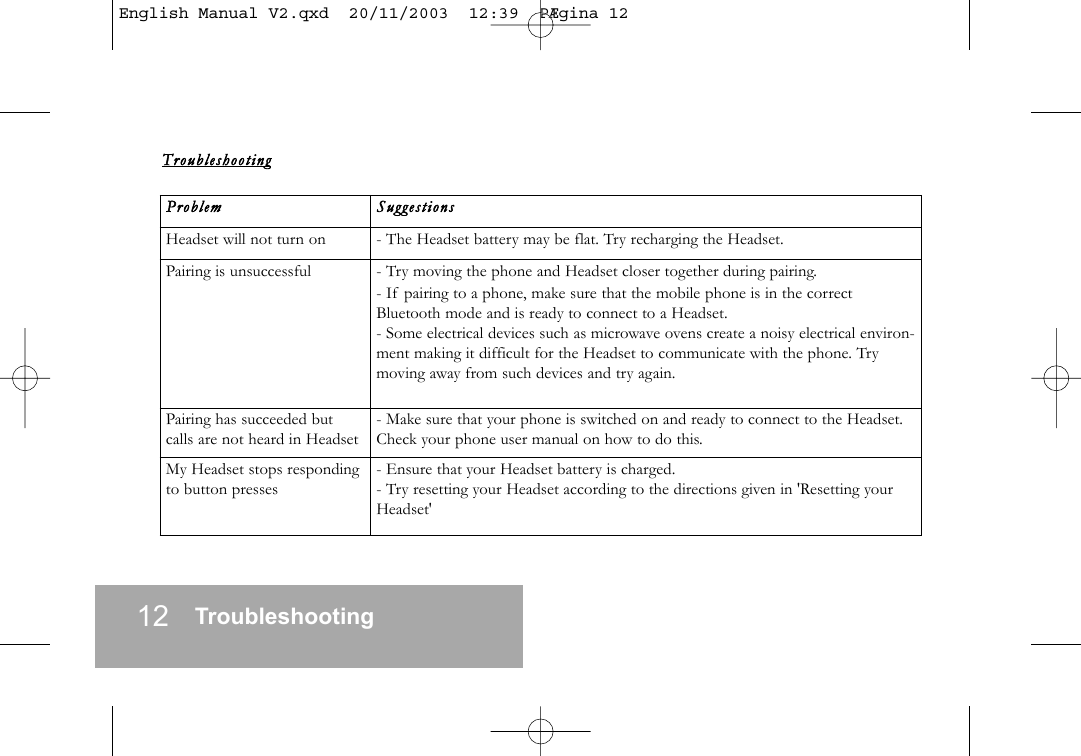
12 TroubleshootingTroubl eshooti ngProblem    SuggestionsHeadset will not turn on - The Headset battery may be flat. Try recharging the Headset.Pairing is unsuccessful   - Try moving the phone and Headset closer together during pairing.- If pairing to a phone, make sure that the mobile phone is in the correctBluetooth mode and is ready to connect to a Headset.- Some electrical devices such as microwave ovens create a noisy electrical environ-ment making it difficult for the Headset to communicate with the phone. Trymoving away from such devices and try again.Pairing has succeeded butcalls are not heard in Headset- Make sure that your phone is switched on and ready to connect to the Headset.Check your phone user manual on how to do this.My Headset stops respondingto button presses - Ensure that your Headset battery is charged.- Try resetting your Headset according to the directions given in 'Resetting yourHeadset'English Manual V2.qxd  20/11/2003  12:39  PÆgina 12
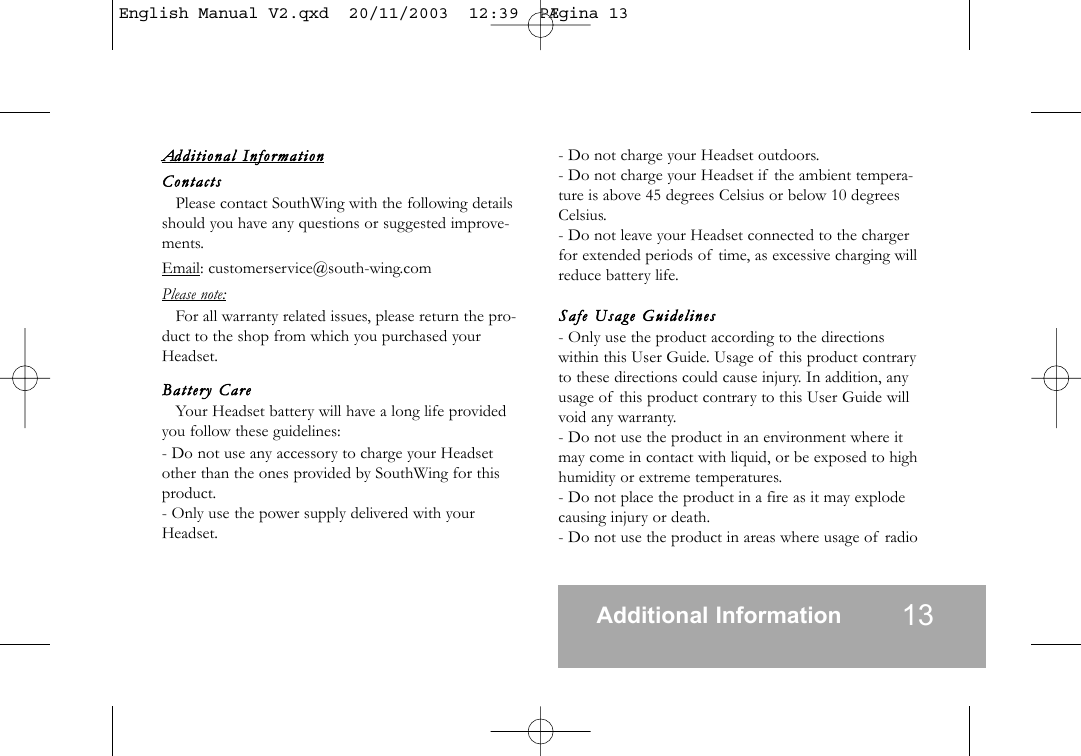
Addition al  InformationContactsPlease contact SouthWing with the following detailsshould you have any questions or suggested improve-ments.Email: customerservice@south-wing.comPlease note:For all warranty related issues, please return the pro-duct to the shop from which you purchased yourHeadset.Battery   CareYour Headset battery will have a long life providedyou follow these guidelines:- Do not use any accessory to charge your Headsetother than the ones provided by SouthWing for thisproduct.- Only use the power supply delivered with yourHeadset.- Do not charge your Headset outdoors.- Do not charge your Headset if the ambient tempera-ture is above 45 degrees Celsius or below 10 degreesCelsius.- Do not leave your Headset connected to the chargerfor extended periods of time, as excessive charging willreduce battery life.Safe  Usage  Guidelines- Only use the product according to the directionswithin this User Guide. Usage of this product contraryto these directions could cause injury. In addition, anyusage of this product contrary to this User Guide willvoid any warranty.- Do not use the product in an environment where itmay come in contact with liquid, or be exposed to highhumidity or extreme temperatures.- Do not place the product in a fire as it may explodecausing injury or death.- Do not use the product in areas where usage of radioAdditional Information 13English Manual V2.qxd  20/11/2003  12:39  PÆgina 13
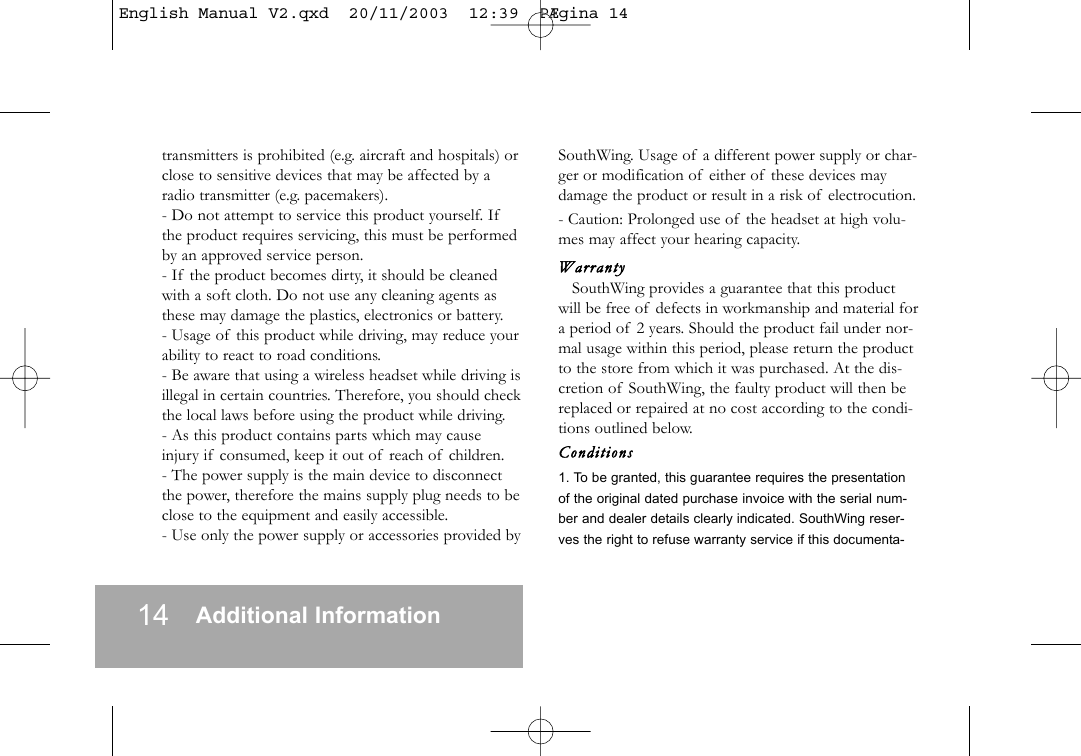
14 Additional Informationtransmitters is prohibited (e.g. aircraft and hospitals) orclose to sensitive devices that may be affected by aradio transmitter (e.g. pacemakers).- Do not attempt to service this product yourself. Ifthe product requires servicing, this must be performedby an approved service person.- If the product becomes dirty, it should be cleanedwith a soft cloth. Do not use any cleaning agents asthese may damage the plastics, electronics or battery.- Usage of this product while driving, may reduce yourability to react to road conditions.- Be aware that using a wireless headset while driving isillegal in certain countries. Therefore, you should checkthe local laws before using the product while driving.- As this product contains parts which may causeinjury if consumed, keep it out of reach of children.- The power supply is the main device to disconnectthe power, therefore the mains supply plug needs to beclose to the equipment and easily accessible.- Use only the power supply or accessories provided bySouthWing. Usage of a different power supply or char-ger or modification of either of these devices maydamage the product or result in a risk of electrocution.- Caution: Prolonged use of the headset at high volu-mes may affect your hearing capacity.WarrantySouthWing provides a guarantee that this productwill be free of defects in workmanship and material fora period of 2 years. Should the product fail under nor-mal usage within this period, please return the productto the store from which it was purchased. At the dis-cretion of SouthWing, the faulty product will then bereplaced or repaired at no cost according to the condi-tions outlined below.Conditions1. To be granted, this guarantee requires the presentationof the original dated purchase invoice with the serial num-ber and dealer details clearly indicated. SouthWing reser-ves the right to refuse warranty service if this documenta-English Manual V2.qxd  20/11/2003  12:39  PÆgina 14
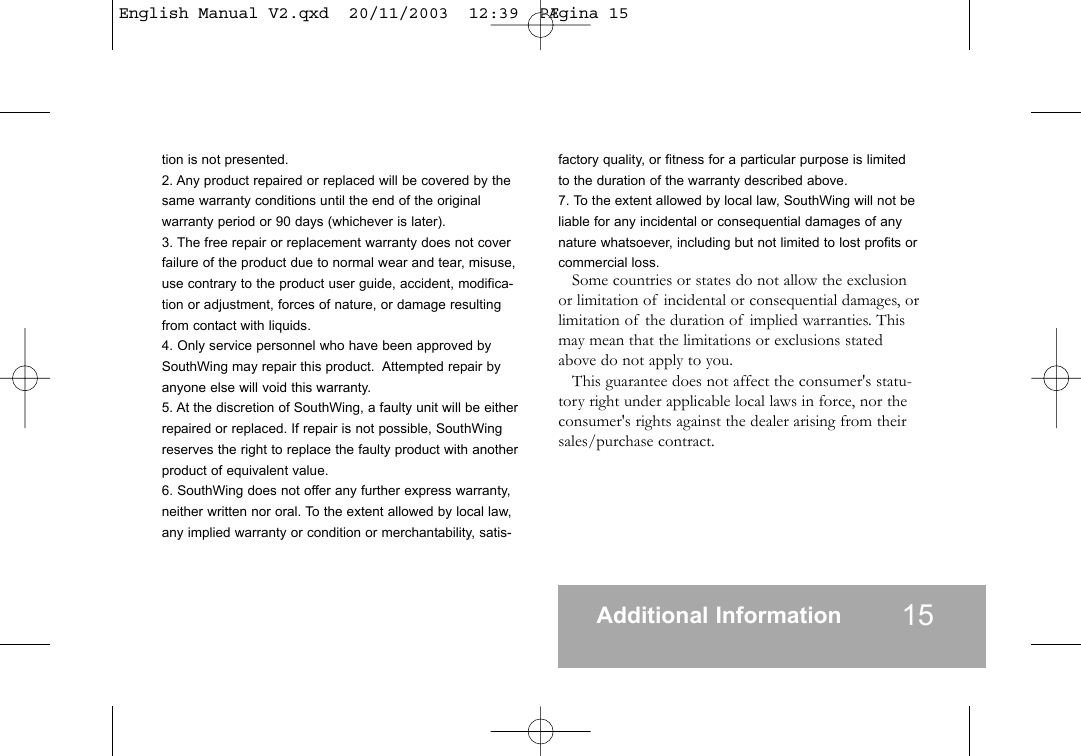
tion is not presented.2. Any product repaired or replaced will be covered by thesame warranty conditions until the end of the originalwarranty period or 90 days (whichever is later).3. The free repair or replacement warranty does not coverfailure of the product due to normal wear and tear, misuse,use contrary to the product user guide, accident, modifica-tion or adjustment, forces of nature, or damage resultingfrom contact with liquids.4. Only service personnel who have been approved bySouthWing may repair this product.  Attempted repair byanyone else will void this warranty.5. At the discretion of SouthWing, a faulty unit will be eitherrepaired or replaced. If repair is not possible, SouthWingreserves the right to replace the faulty product with anotherproduct of equivalent value.6. SouthWing does not offer any further express warranty,neither written nor oral. To the extent allowed by local law,any implied warranty or condition or merchantability, satis-factory quality, or fitness for a particular purpose is limitedto the duration of the warranty described above.7. To the extent allowed by local law, SouthWing will not beliable for any incidental or consequential damages of anynature whatsoever, including but not limited to lost profits orcommercial loss.Some countries or states do not allow the exclusionor limitation of incidental or consequential damages, orlimitation of the duration of implied warranties. Thismay mean that the limitations or exclusions statedabove do not apply to you.This guarantee does not affect the consumer's statu-tory right under applicable local laws in force, nor theconsumer's rights against the dealer arising from theirsales/purchase contract.Additional Information 15English Manual V2.qxd  20/11/2003  12:39  PÆgina 15
16 Declaration of ConformityDeclaration   of  ConformityWe, Southwing S.L., declare under our sole responsi-bility that our product:NeoVoice USB Bluetooth Headset (Neo-102)Is in conformity with the appropriate standards EN300328, EN 60950, following the provisions of RadioEquipment and Telecommunication TerminalEquipment directive 99/5/EC with requirements cove-ring EMC directive 89/336 EEC, and Low Voltagedirective 73/23/EEC.FCC  Statement    (Federal CommunicationsCommission, USA)This device complies with Part 15 of the FCC Rules.Operation is subject to the following two conditions: (1)this device may not cause harmful interference, and (2)this device must accept any interference received, inclu-ding interference that may cause undesired operation.To identify this product, refer to the Part, Series, orModel number found on the product.The FCC requires the user to be notified that anychanges or modifications made to this device that arenot expressly approved by SouthWing may void theuser's authority to operate the equipment.This equipment has been tested and found tocomply with the limits for a Class B digital device, pur-suant to Part 15 of the FCC Rules. These limits aredesigned to provide reasonable protection againstharmful interference in a residential installation. Thisequipment generates, uses, and can radiate radio fre-quency energy and, if not installed and used in accor-dance with the instructions, may cause harmful interfe-rence to radio communications. However, there is noguarantee that interference will not occur in a particu-lar installation. If this equipment does cause harmfulinterference to radio or television reception, which canbe determined by turning the equipment off and on,the user is encouraged to try to correct the interferenceEnglish Manual V2.qxd  20/11/2003  12:39  PÆgina 16
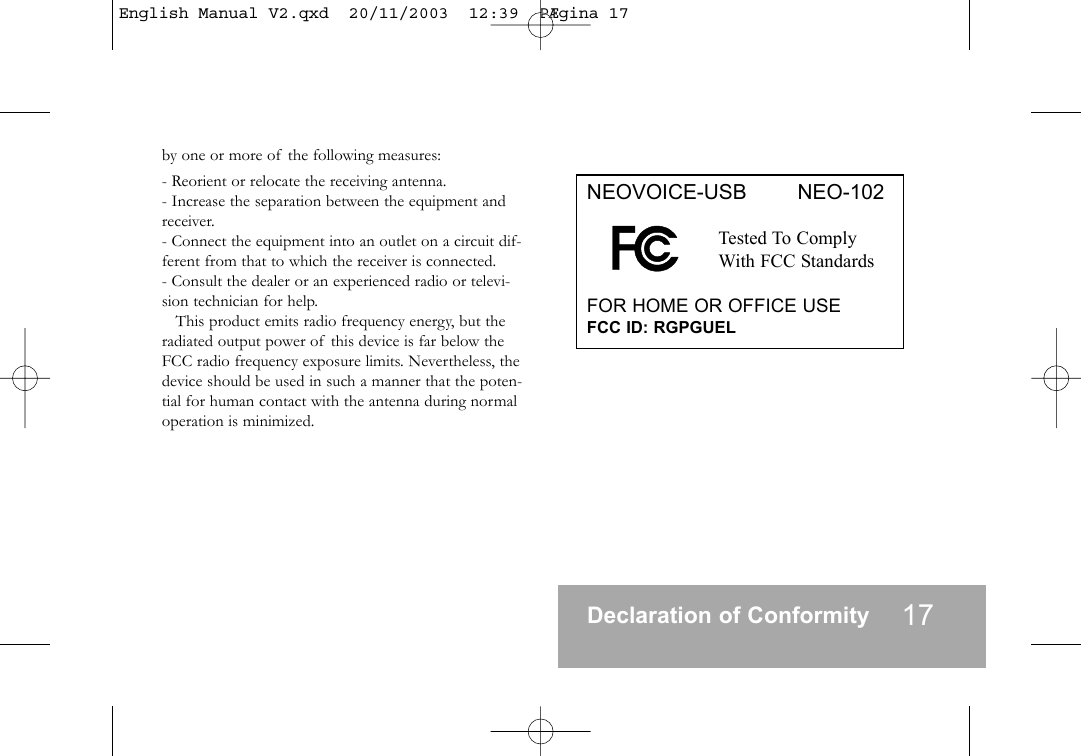
by one or more of the following measures:- Reorient or relocate the receiving antenna.- Increase the separation between the equipment andreceiver.- Connect the equipment into an outlet on a circuit dif-ferent from that to which the receiver is connected.- Consult the dealer or an experienced radio or televi-sion technician for help.This product emits radio frequency energy, but theradiated output power of this device is far below theFCC radio frequency exposure limits. Nevertheless, thedevice should be used in such a manner that the poten-tial for human contact with the antenna during normaloperation is minimized.Declaration of Conformity 17NEOVOICE-USB        NEO-102Tested To ComplyWith FCC StandardsFOR HOME OR OFFICE USEFCC ID: RGPGUELEnglish Manual V2.qxd  20/11/2003  12:39  PÆgina 17
HOW  TO DO? ACTION HEADSET RESPONSEPairing Mode Headset Profile In OFF state press and hold Button for 5 sec and see thepairing instructions of your phoneHeadset light flashes red and green and a series of high tonescan be heard Pairing Mode Hands-free Profile In OFF state press and hold Button for 5 sec and press but-ton once, then see the pairing instructions of your phoneHeadset light flashes red and green and a series of low tonescan be heard Power On In OFF state press and hold Button for 2 sec Headset turns on and light flashes green Power Off In ON state press and hold Button for 2 sec Light flashes red and Headset turns offAccept call During incoming call press Button once Headset picks call up End Call During a call press Button once Headset hangs up the current callHOW TO DO? ACTION HEADSET RESPONSEVoice Dialling 1In ON state press Button once Mobile initiates voice dialling commandLast Number Redial 2In ON state press Button twice Mobile RedialsDisconnect from phone 2In ON state press Button 3 times Headset disconnects from phone Reject Call 2During incoming call press Button twice Headset rejects callMuting microphone During a call press Button twice Microphone is muted Transfer call to mobile 2During a call press Button 3 times Call continues in mobileTransfer call back to Headset 2During a call in the mobile press Button once Call continues in HeadsetSelect Ring tone menu Press and hold Vol+ or Vol- for 5 sec Enters ring tone listCheck different ring tones In ring tone menu press Vol+ press Vol- Up and Down in the ring tone listSelect ring tone In ring tone menu press Button once Selects ring tone in Headset normal answer modeAutomatic call pick up activation In ring tone menu press Button twice Selects ring tone in Automatic call pick up mode 18 Commands Summary TableCommands  Summary  Table1Only with mobile phones supporting voice dialling  2Only with mobile phones supporting Hands-free modeEnglish Manual V2.qxd  20/11/2003  12:39  PÆgina 18

Navigation menu