Spectec Computer MINISDW11BG Mini SDIO Wireless 11b/g User Manual wlan card spectec brand user s manual070503 indd
Spectec Computer Co., Ltd Mini SDIO Wireless 11b/g wlan card spectec brand user s manual070503 indd
Contents
- 1. User Manual 1
- 2. User Manual 2
User Manual 1
1b
TM
Wireless/Internet
SDIO WLAN card
SDIO WLAN Card
User’s Manual
ver. 1.40
1b
TM
TM
WLAN-11b
802.11b
TM
www.spectec.com.tw
Wireless/Internet
SDIO WLAN card
TM
WLAN-11b
0012E6000506
FCC ID:S2YMINIWLAN11B
WLAN-11b/g
SDIO WLAN Card
www.spectec.com.tw

Content
Inside Package ................................................................................................P.1
System Requirements & Installation Description...........................................P.1
Installation Procedure .................................................................................P.2~5
Inserting the SDIO WLAN Card into a PDA .................................................P.6
Removing the SDIO WLAN Card from a PDA ............................................P.6
How to check Connect status ........................................................................P.7~8
How to Connect Ad-hoc..............................................................................P.9
How to Remove Settings...............................................................................P.9
Wireless/Internet Speed Dial ........................................................................P.10~11
How to Select Networks Manually ...............................................................P.12
Inside CD ........................................................................................................P.13
How to Install Software with CAB file............................................................P.14
AP Compatibility List ......................................................................................P.15
Frequently Ask Question ...............................................................................P.16
1
Thank you for choosing SDIO WLAN card, it is the smallest SDIO Wireless/Internet
WLAN card available on the market today. It is easy to install and use, and pro-
vides unlimited online usage and connectivity wherever you are.
Inside Package
System Requirements & Installation Description
1. This SPECTEC SDIO Wi-Fi card can only be used in
Pocket PCs with Windows Mobile 2003 or newer
versions of this operation system.
2. This SPECTEC SDIO Wi-Fi card can only be used on
PDAs with the SDIO drive.
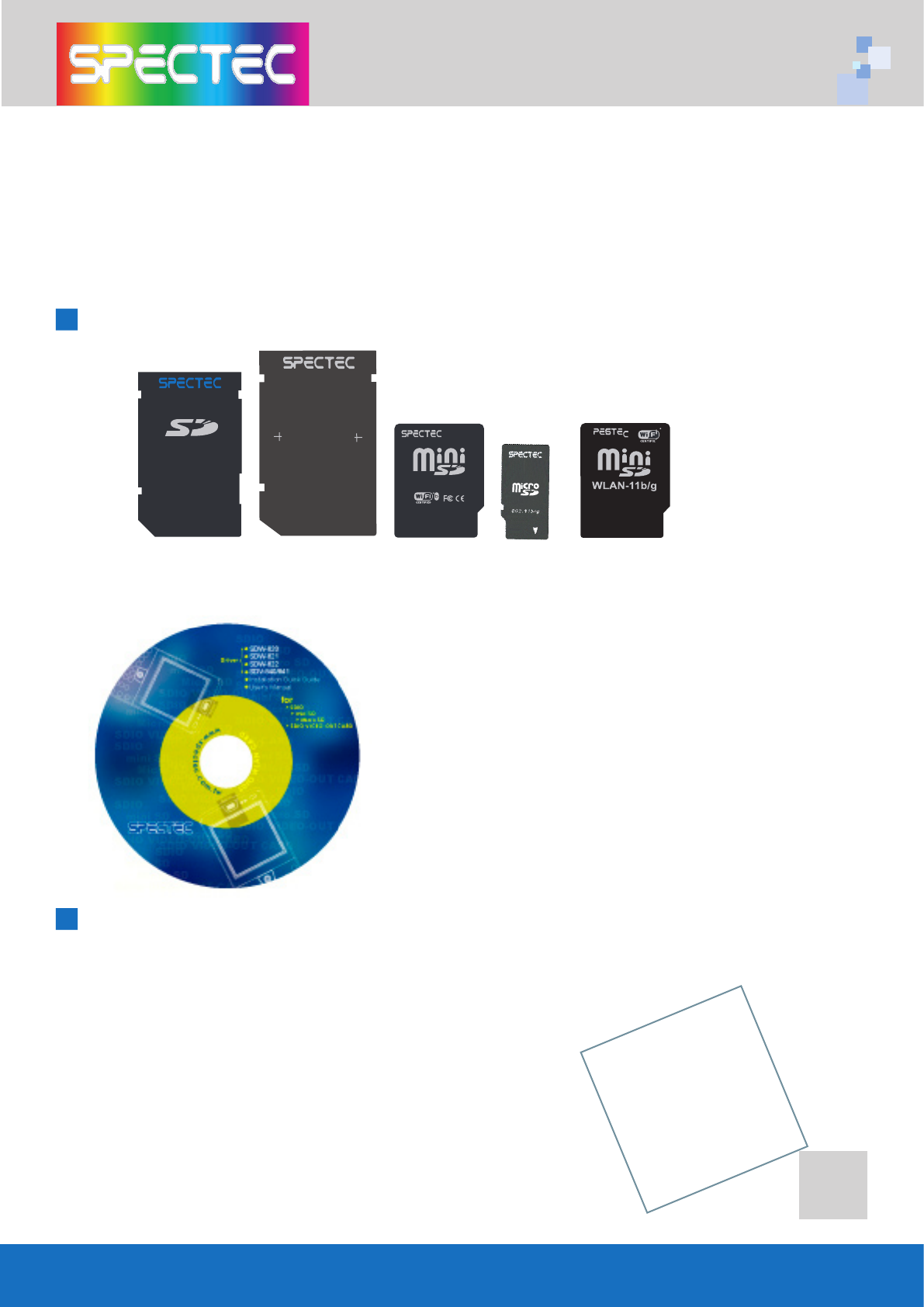
Driver & User Guide CD
WLAN-11b
802.11b
TM
www.spectec.com.tw WLAN-11b
0012E6000506
FCC ID:S2YMINIWLAN11B
WLAN-11b/g
SDIO
WLAN
Card
www.spectec.com.tw
SDW-820 SDW-821SDW-822SDW-823
SDW-825
2
Installation Procedure
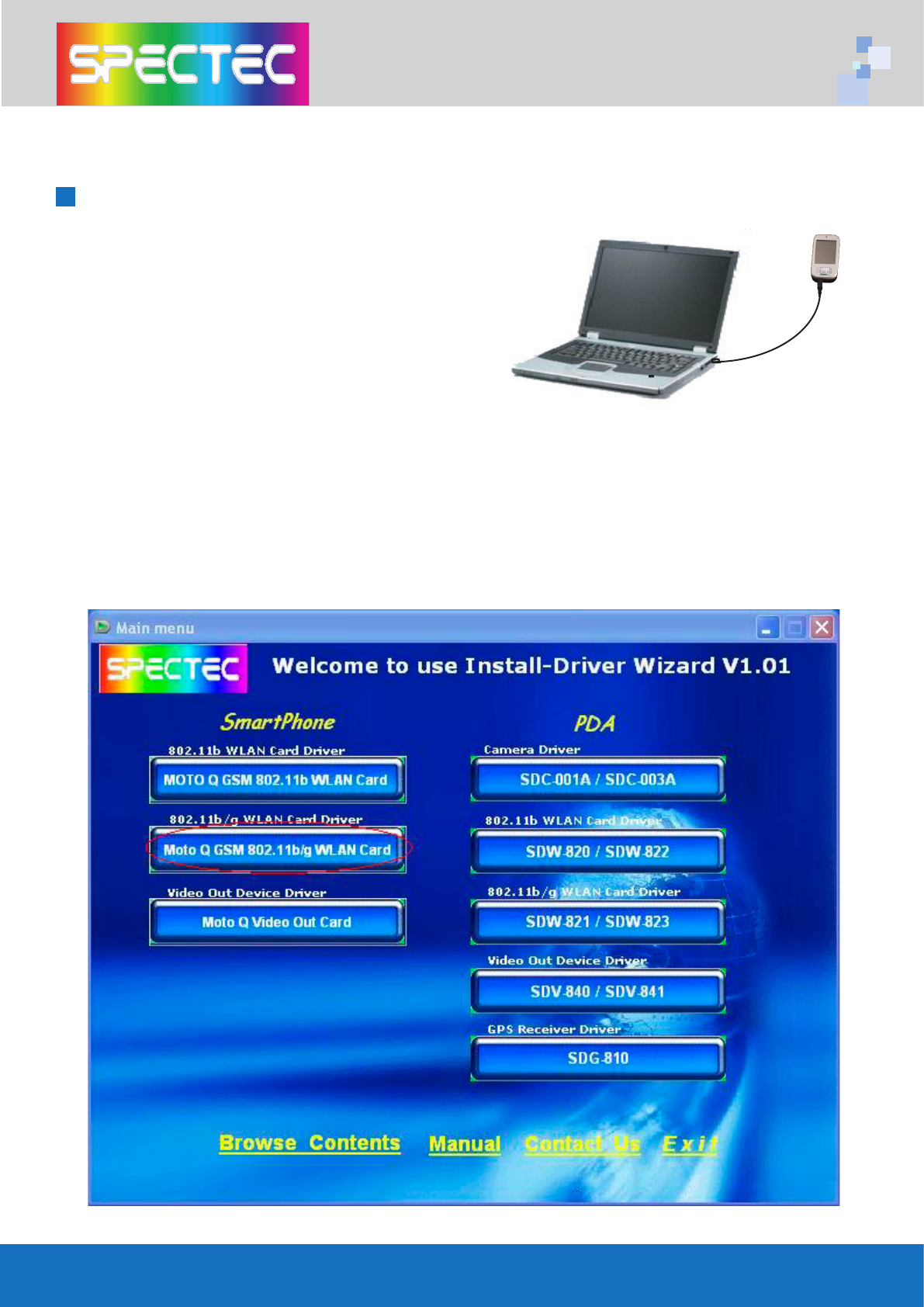
< First, connect PDA to your computer
with a USB wire.
< Main menu window will pop-up when
you insert the "Spectec SDIO Series"
Installation CD by autorun:
<click the Moto Q GSM 802.11b/g WLAN Card item for SDW-825.
3
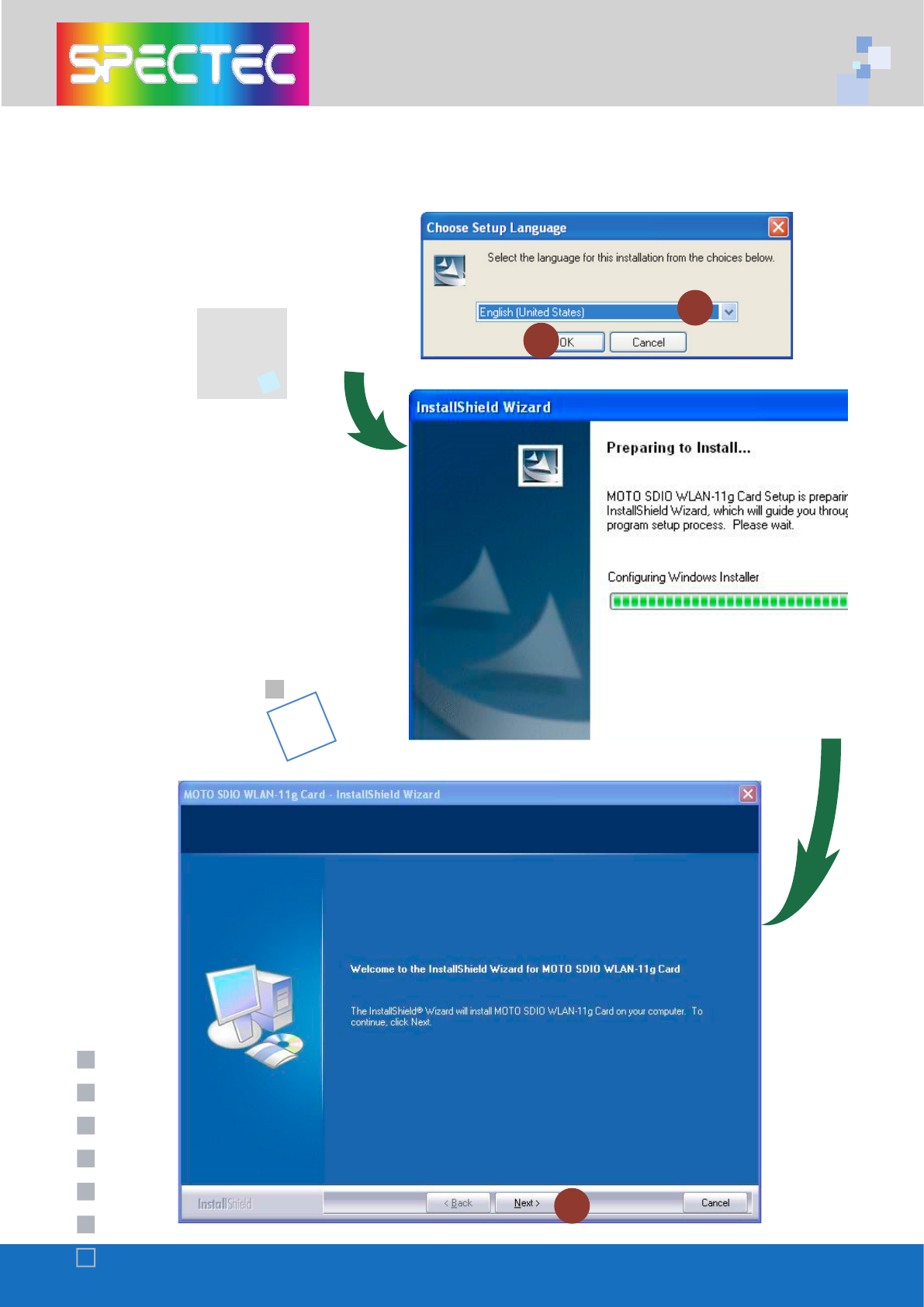
< Choose the desired
Language, then click OK.
< The Installation menu will
automatically appear on
the screen.
< Click Next
1
2
3
4
4
5
6
7
8
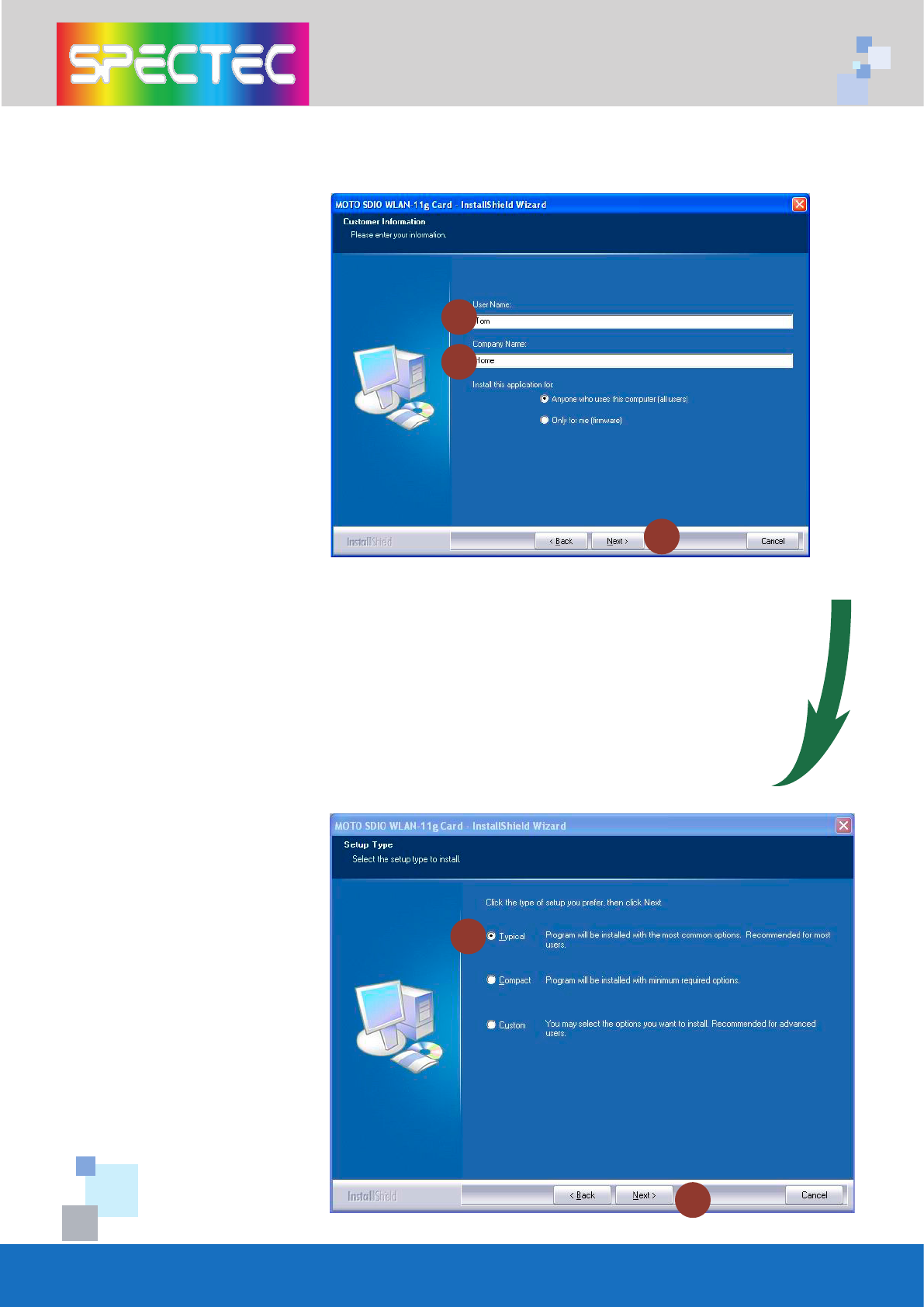
< Enter user information,
then click Next.
< Chose Setup type, then
click Next
5
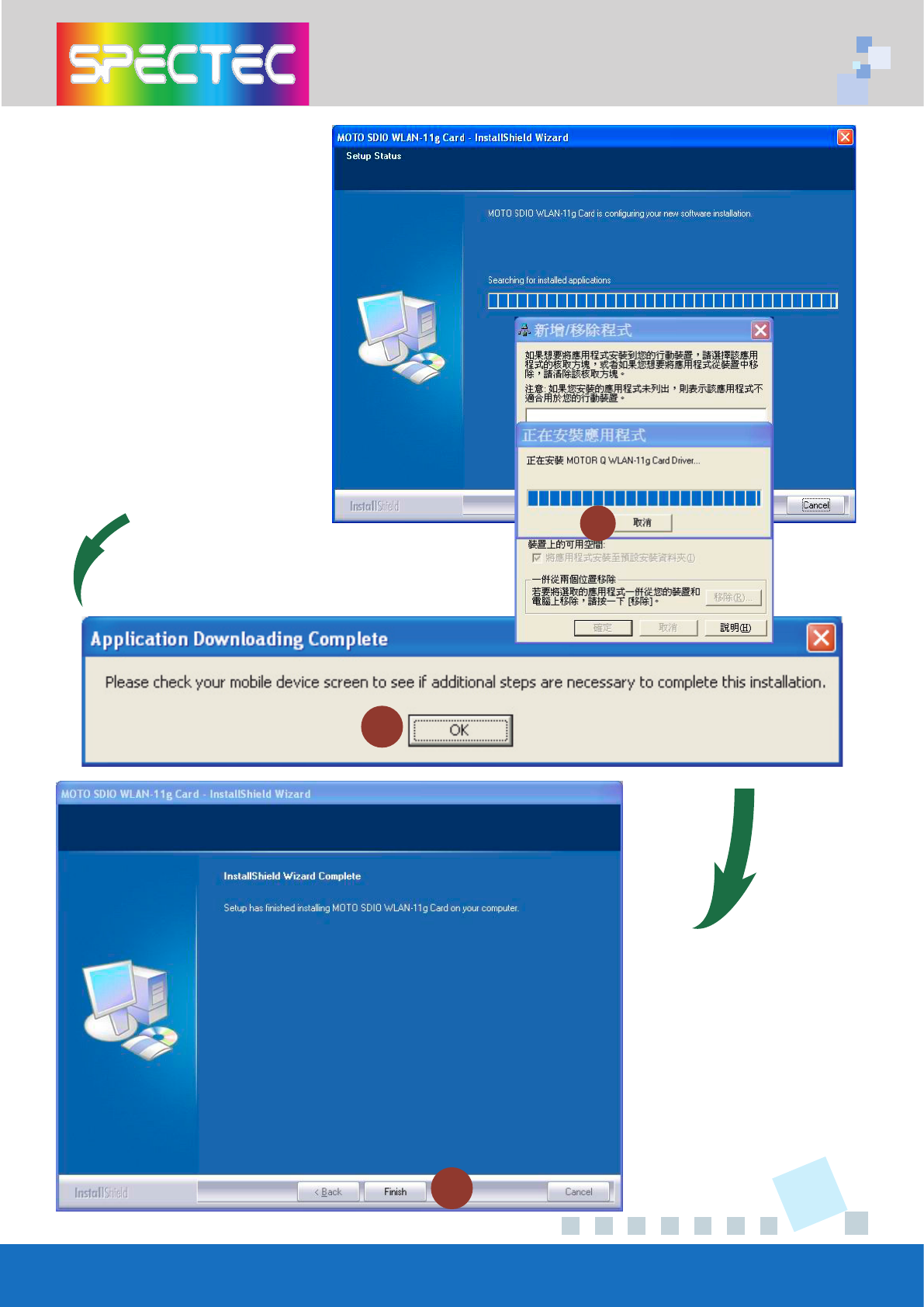
< The driver will be installed
automatically.
< Click Yes to proceed with
installation. Click OK to
finish installation.
< Click Finish to complete
the driver installation
process.
10
11
9
WLAN-11b
802.11b
TM
www.spectec.com.tw
WLAN-11b
0012E6000506
FCC ID:S2YMINIWLAN11B
6
How to take a SDIO WLAN card out of a PDA
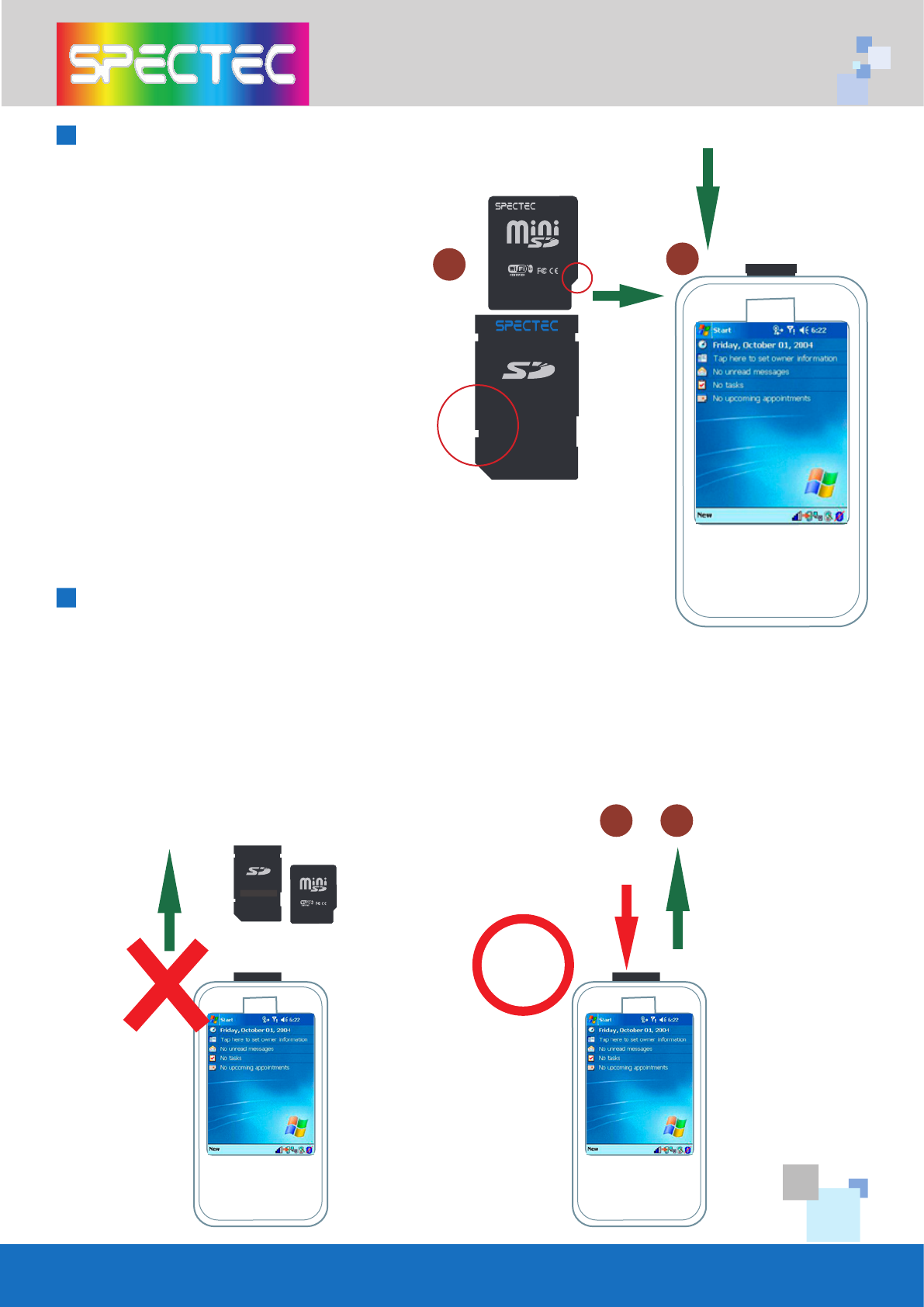
< Check the direction of the card.
Insert the card with the label side
facing the front of the PDA until it
clicks.
# Different PDAs may have different
drives. Make sure the direction is
correct to avoid damaging the
PDA’s SD drive.
< When removing the SDIO WLAN
card from a PDA, simply press
down on the card until it clicks. The
card will rise up for easy removal.
DO NOT PULL by force, or the slot
may be damaged.
< This card is designed to be locked
into the slot. Forcefully pulling the
card out will not only damage this
auto pop-out function, but also
the slot and the wireless card.
Pull out
Card rises, then
pull out
Press
down
Inserting the SDIO WLAN Card into a PDA
* Please do not keep inserting & removing the card, different
PDAs needs an interval of 5 to 7 seconds to process.
12
1 2
B
WLAN-11b
802.11b
TM
www.spectec.com.tw
WLAN-11b
802.11b
TM
www.spectec.com.tw
WLAN-11b
0012E6000506
FCC ID:S2YMINIWLAN11B
WLAN-11b
802.11b
TM
www.spectec.com.tw
WLAN-11b
802.11b
TM
www.spectec.com.tw
7
How to check Connect Status
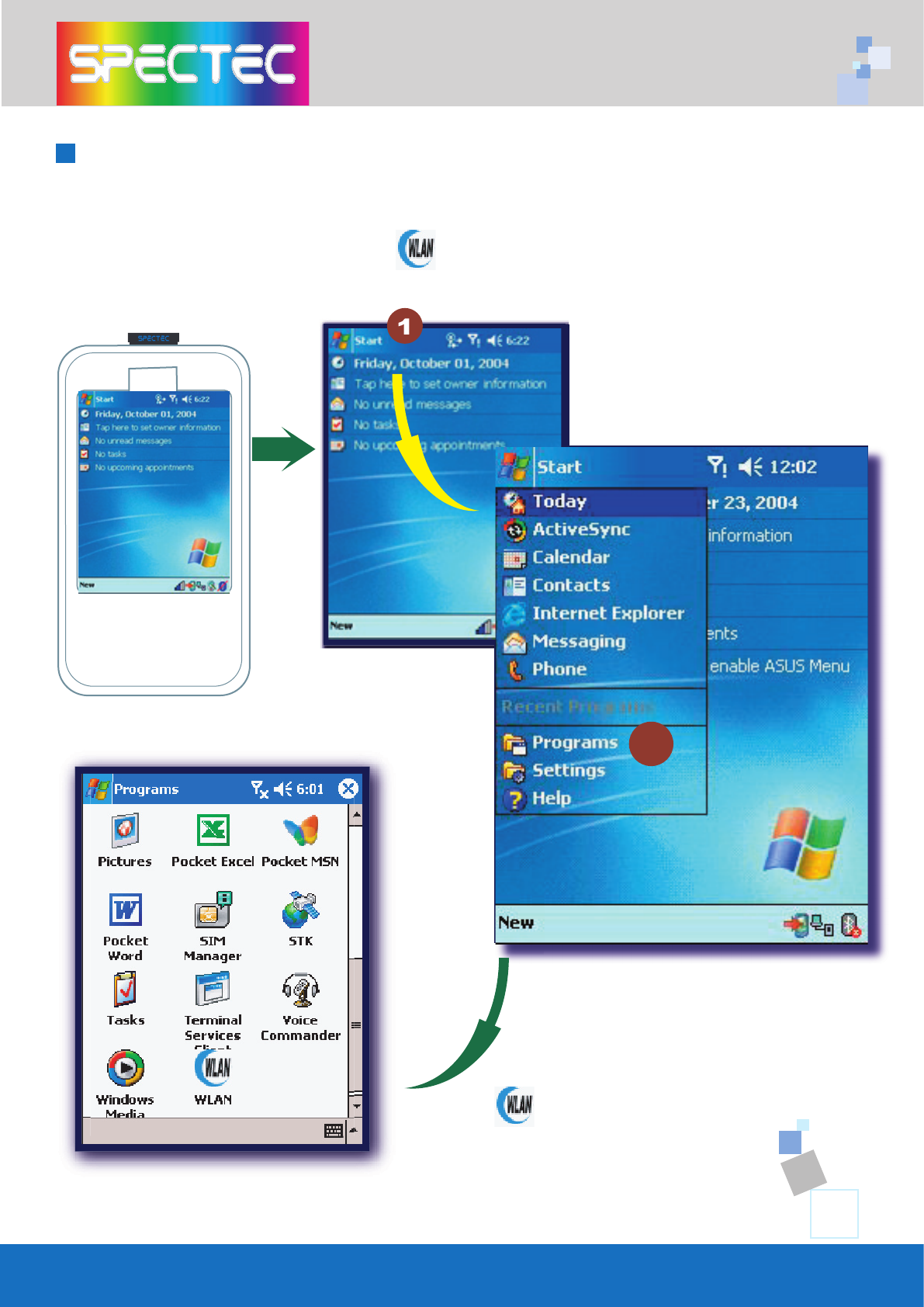
< After install the software, start path as Start\Programs.
< After inserting the card into the PDA, click Start. Click Programs on the
pull-down menu, then select .(Only built-in 11b card for PCC2003)
< Click to open the WLAN
Utility window.
2
WLAN-11b
802.11b
TM
www.spectec.com.tw
8
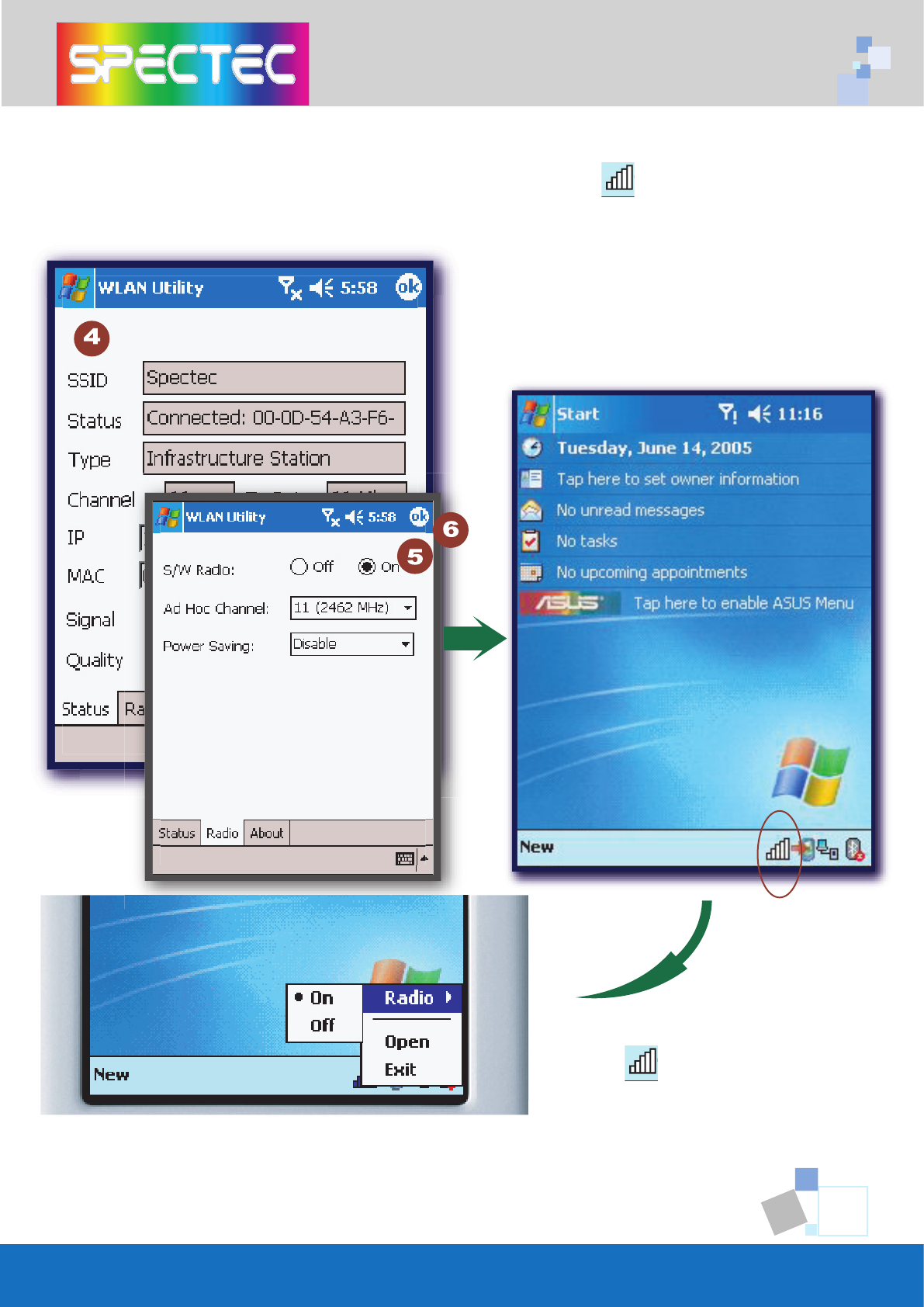
In “Radio” page of WLAN Utility, you may check S/W Radio Off/on for Enable/
Disable Wi-Fi card, or you can also find a shortcut icon at the lower right hand
corner of the screen.
< Click , shortcut icon to
switch on/off Wi-Fi radio
* Note : The WLAN Utility can be only compatibility on PPC 2003(CE4.X) and few
windows mobile 5.0(CE5.0) OS
9
How to Connect Ad-hoc
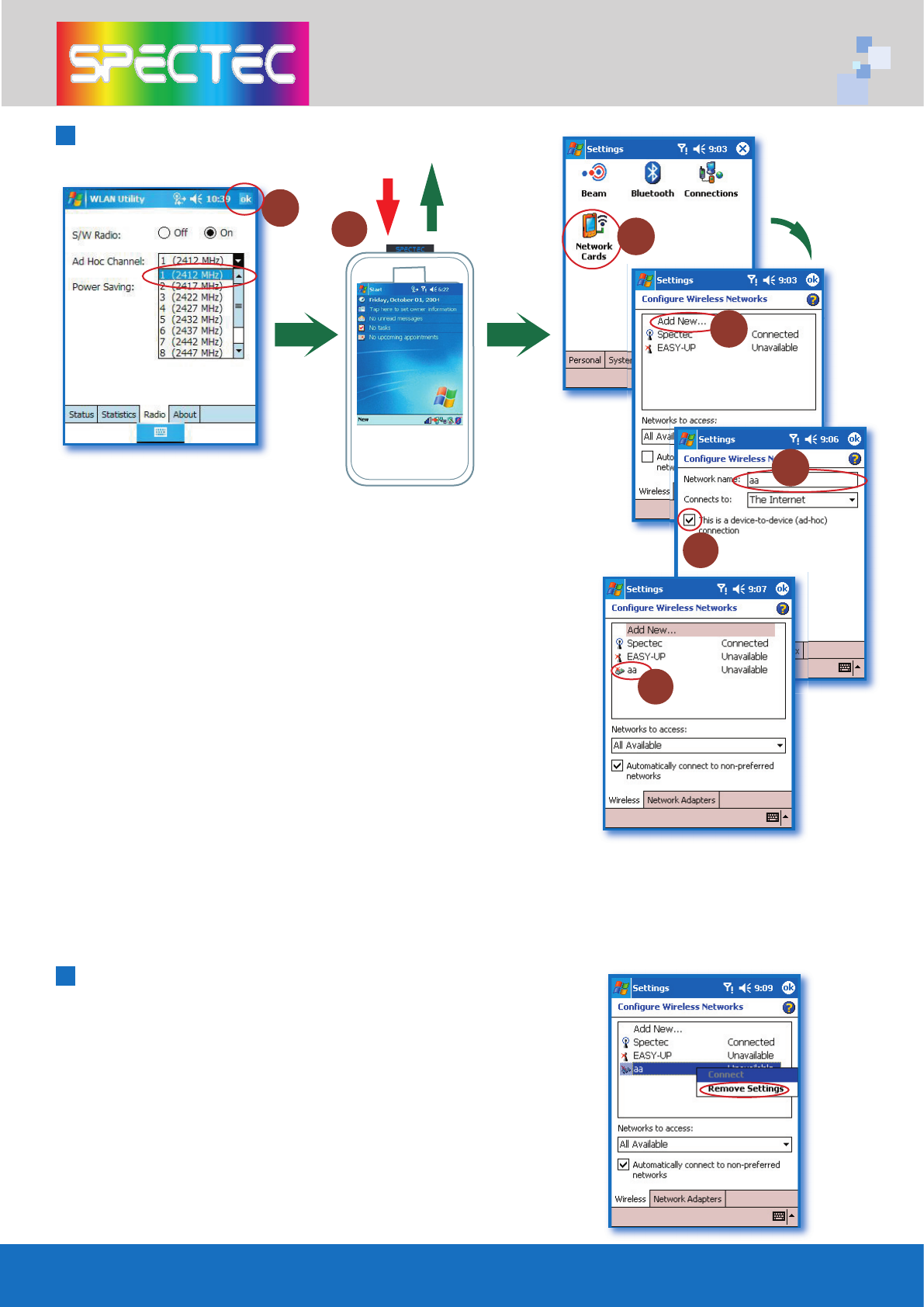
1. In WLAN Utility, select Ad-Hoc Channel (must be
channel1).
2. Click OK to exit WLAN Utility.
3. Remove the card from PDA, then re-insert the
card.
4. Go to PDA system: Settings\Connections\
Network Cards.
5. Click Add New.
6. Type in the name (ex. aa).
7. Check the “This is a device-to-device (ad-hoc)
connection” box.
8. Click OK. The input name (ex. aa) will be
added to the Network Address.
*Ad-hoc channel is a “Point-to-point” network segment. It
provides you with a temporary LAN environment.
In Settings, select the network name that
you would like to remove. Wait 2 seconds
for the ‘Remove Settings’ pop-up window
to appear.
How to Remove Settings
1
PS: Channe 12 is the channel in America
2
4
5
6
7
8
3
WLAN-11b
802.11b
TM
www.spectec.com.tw