Speed Dragon Multimedia BSA2-S1 SATA-IDE Bi-directional Adapter User Manual Introduction

Speed Dragon Multimedia Ltd SATA-IDE Bi-directional Adapter Introduction

user manual

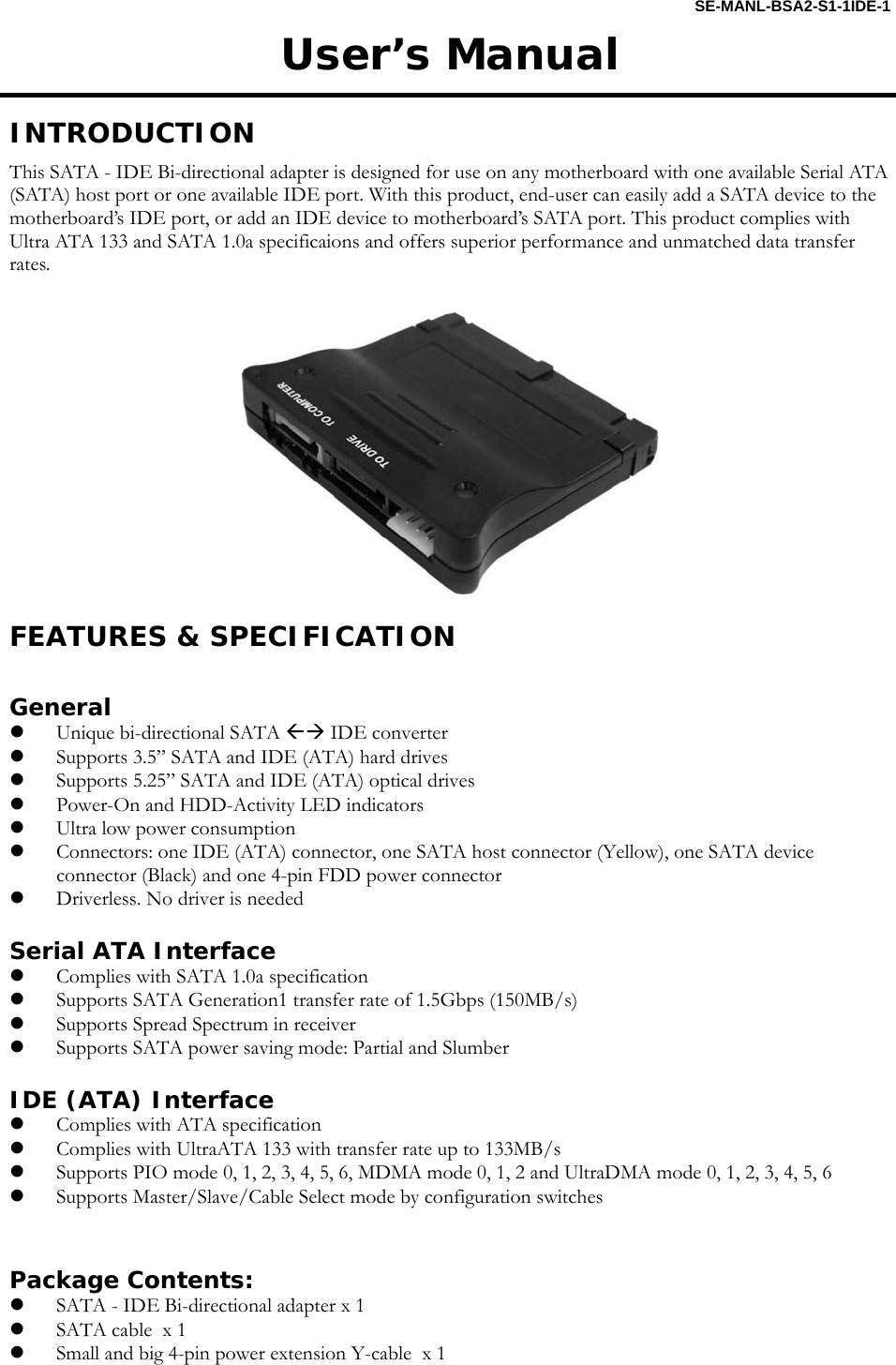
 SE-MANL-BSA2-S1-1IDE-1 User’s Manual  INTRODUCTION This SATA - IDE Bi-directional adapter is designed for use on any motherboard with one available Serial ATA (SATA) host port or one available IDE port. With this product, end-user can easily add a SATA device to the motherboard’s IDE port, or add an IDE device to motherboard’s SATA port. This product complies with Ultra ATA 133 and SATA 1.0a specificaions and offers superior performance and unmatched data transfer rates.     FEATURES & SPECIFICATION  General z Unique bi-directional SATA ÅÆ IDE converter z Supports 3.5” SATA and IDE (ATA) hard drives z Supports 5.25” SATA and IDE (ATA) optical drives z Power-On and HDD-Activity LED indicators z Ultra low power consumption z Connectors: one IDE (ATA) connector, one SATA host connector (Yellow), one SATA device connector (Black) and one 4-pin FDD power connector z Driverless. No driver is needed  Serial ATA Interface z Complies with SATA 1.0a specification z Supports SATA Generation1 transfer rate of 1.5Gbps (150MB/s) z Supports Spread Spectrum in receiver z Supports SATA power saving mode: Partial and Slumber  IDE (ATA) Interface z Complies with ATA specification z Complies with UltraATA 133 with transfer rate up to 133MB/s z Supports PIO mode 0, 1, 2, 3, 4, 5, 6, MDMA mode 0, 1, 2 and UltraDMA mode 0, 1, 2, 3, 4, 5, 6 z Supports Master/Slave/Cable Select mode by configuration switches   Package Contents: z SATA - IDE Bi-directional adapter x 1 z SATA cable  x 1 z Small and big 4-pin power extension Y-cable  x 1
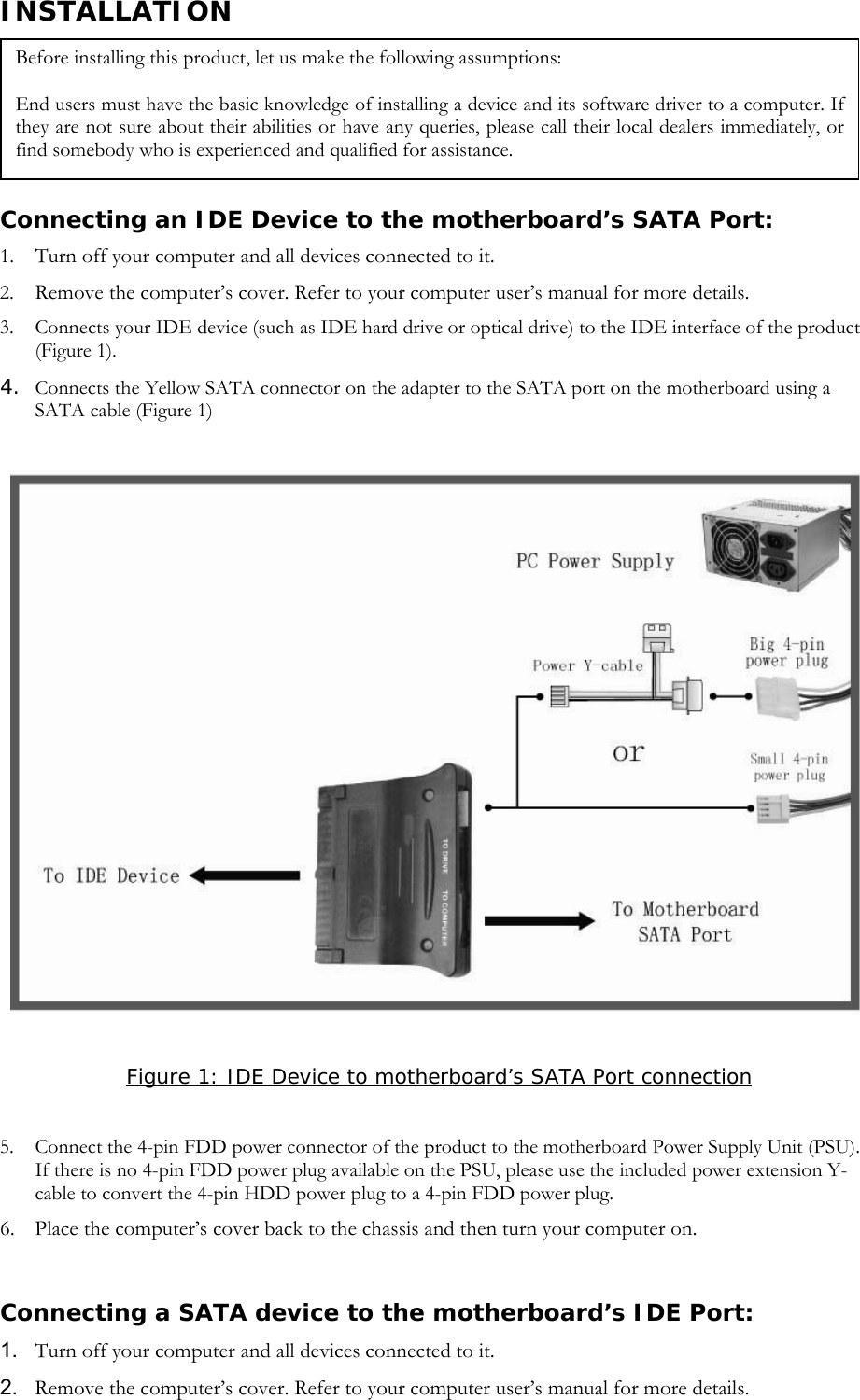
INSTALLATION   Connecting an IDE Device to the motherboard’s SATA Port: 1. Turn off your computer and all devices connected to it. 2. Remove the computer’s cover. Refer to your computer user’s manual for more details. 3. Connects your IDE device (such as IDE hard drive or optical drive) to the IDE interface of the product (Figure 1). 4. Connects the Yellow SATA connector on the adapter to the SATA port on the motherboard using a SATA cable (Figure 1)   Before installing this product, let us make the following assumptions: End users must have the basic knowledge of installing a device and its software driver to a computer. If they are not sure about their abilities or have any queries, please call their local dealers immediately, or find somebody who is experienced and qualified for assistance.   Figure 1: IDE Device to motherboard’s SATA Port connection  5. Connect the 4-pin FDD power connector of the product to the motherboard Power Supply Unit (PSU). If there is no 4-pin FDD power plug available on the PSU, please use the included power extension Y-cable to convert the 4-pin HDD power plug to a 4-pin FDD power plug. 6. Place the computer’s cover back to the chassis and then turn your computer on.    Connecting a SATA device to the motherboard’s IDE Port: 1.  Turn off your computer and all devices connected to it. 2.  Remove the computer’s cover. Refer to your computer user’s manual for more details.
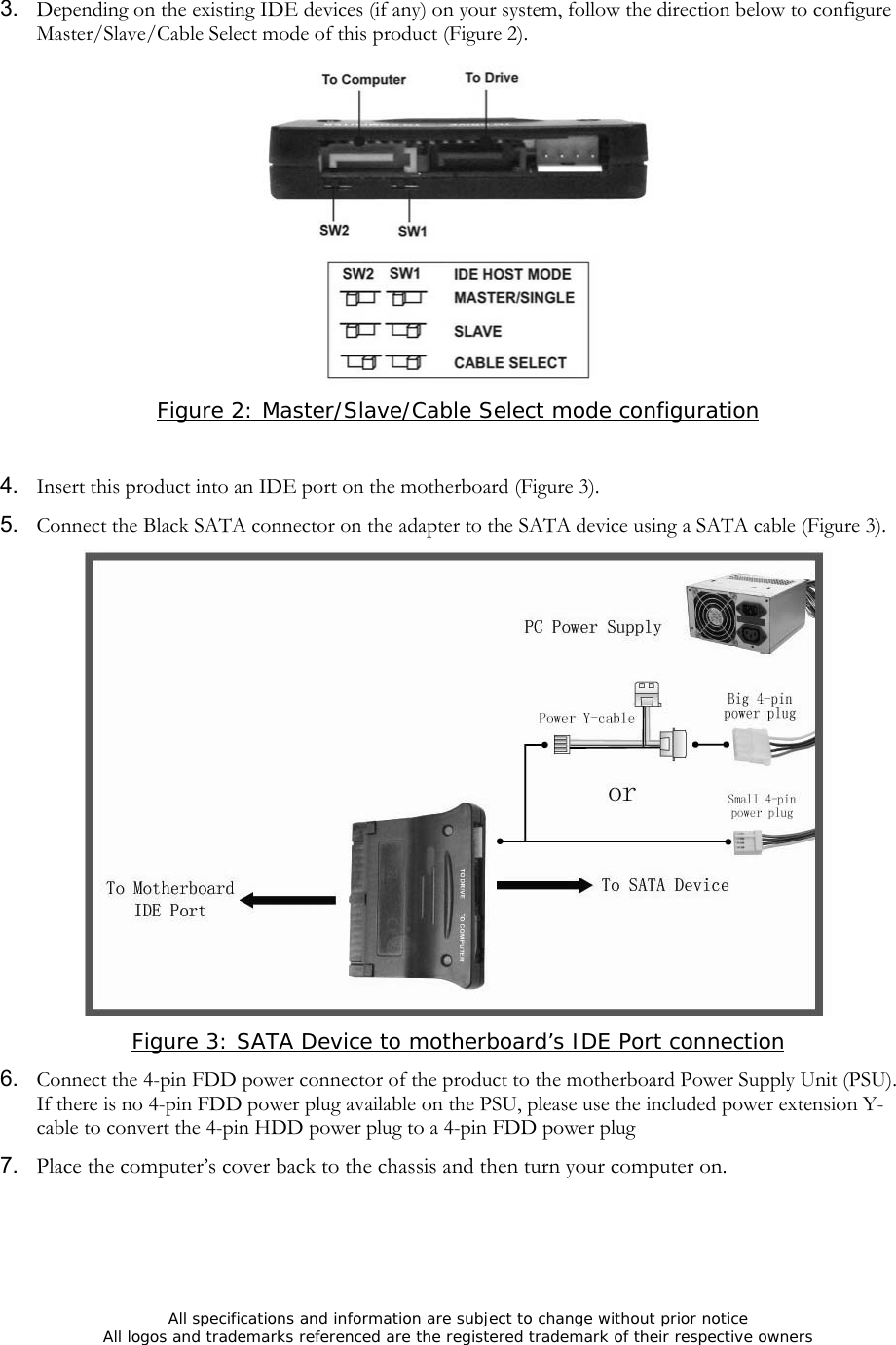
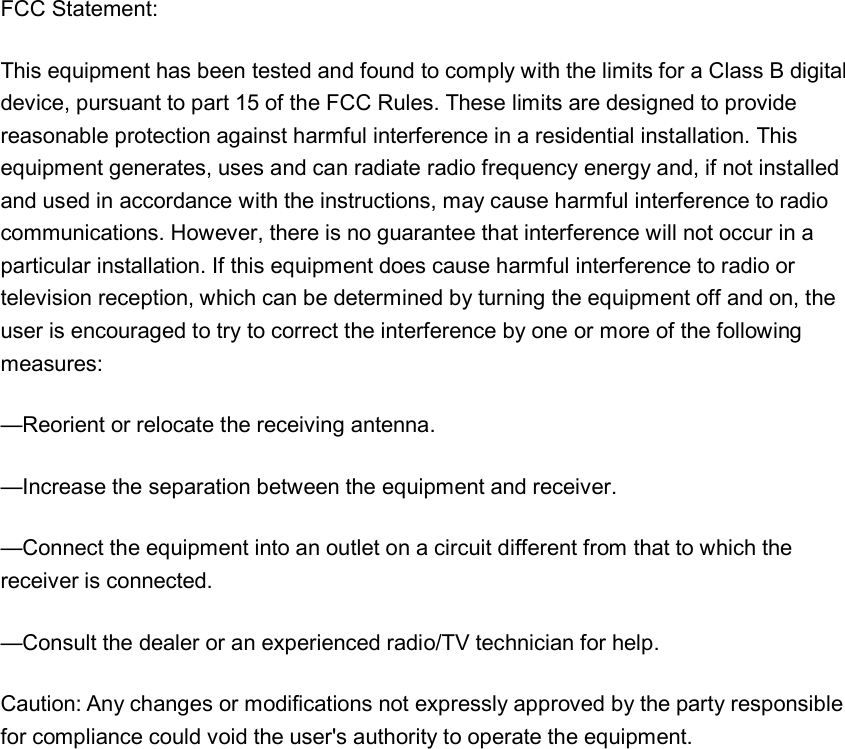
3.  Depending on the existing IDE devices (if any) on your system, follow the direction below to configure Master/Slave/Cable Select mode of this product (Figure 2).  Figure 2: Master/Slave/Cable Select mode configuration  4.  Insert this product into an IDE port on the motherboard (Figure 3). 5.  Connect the Black SATA connector on the adapter to the SATA device using a SATA cable (Figure 3).   Figure 3: SATA Device to motherboard’s IDE Port connection 6.  Connect the 4-pin FDD power connector of the product to the motherboard Power Supply Unit (PSU). If there is no 4-pin FDD power plug available on the PSU, please use the included power extension Y-cable to convert the 4-pin HDD power plug to a 4-pin FDD power plug 7.  Place the computer’s cover back to the chassis and then turn your computer on.      All specifications and information are subject to change without prior notice All logos and trademarks referenced are the registered trademark of their respective owners
 FCC Statement:This equipment has been tested and found to comply with the limits for a Class B digital device, pursuant to part 15 of the FCC Rules. These limits are designed to provide reasonable protection against harmful interference in a residential installation. This equipment generates, uses and can radiate radio frequency energy and, if not installed and used in accordance with the instructions, may cause harmful interference to radio communications. However, there is no guarantee that interference will not occur in a particular installation. If this equipment does cause harmful interference to radio or television reception, which can be determined by turning the equipment off and on, the user is encouraged to try to correct the interference by one or more of the following measures: —Reorient or relocate the receiving antenna. —Increase the separation between the equipment and receiver. —Connect the equipment into an outlet on a circuit different from that to which the receiver is connected. —Consult the dealer or an experienced radio/TV technician for help. Caution: Any changes or modifications not expressly approved by the party responsible for compliance could void the user's authority to operate the equipment.

Navigation menu