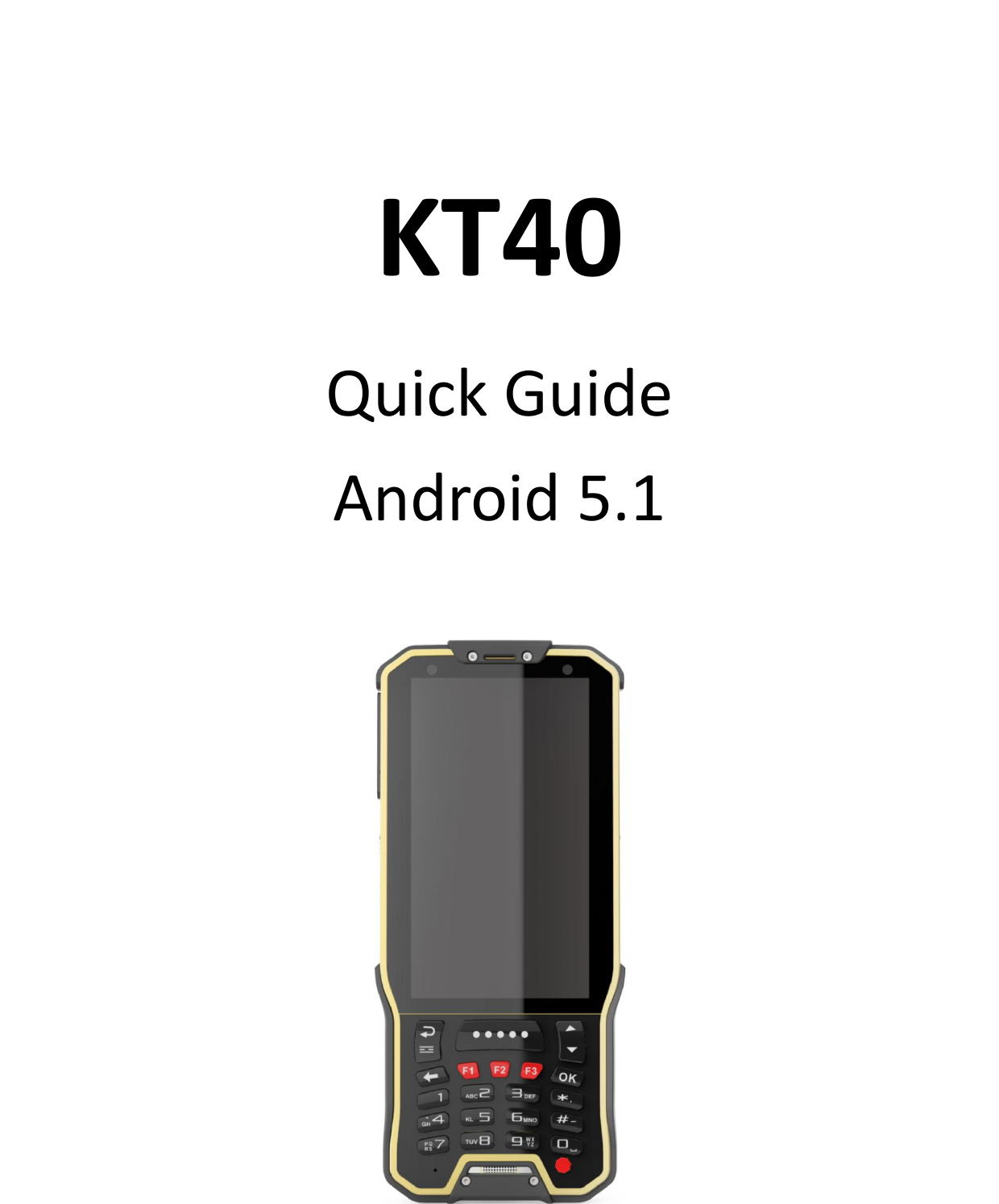
Speedata Group KT40 Handheld terminal User Manual

Speedata Group LTD Handheld terminal

User manual

KT40Quick GuideAndroid 5.1
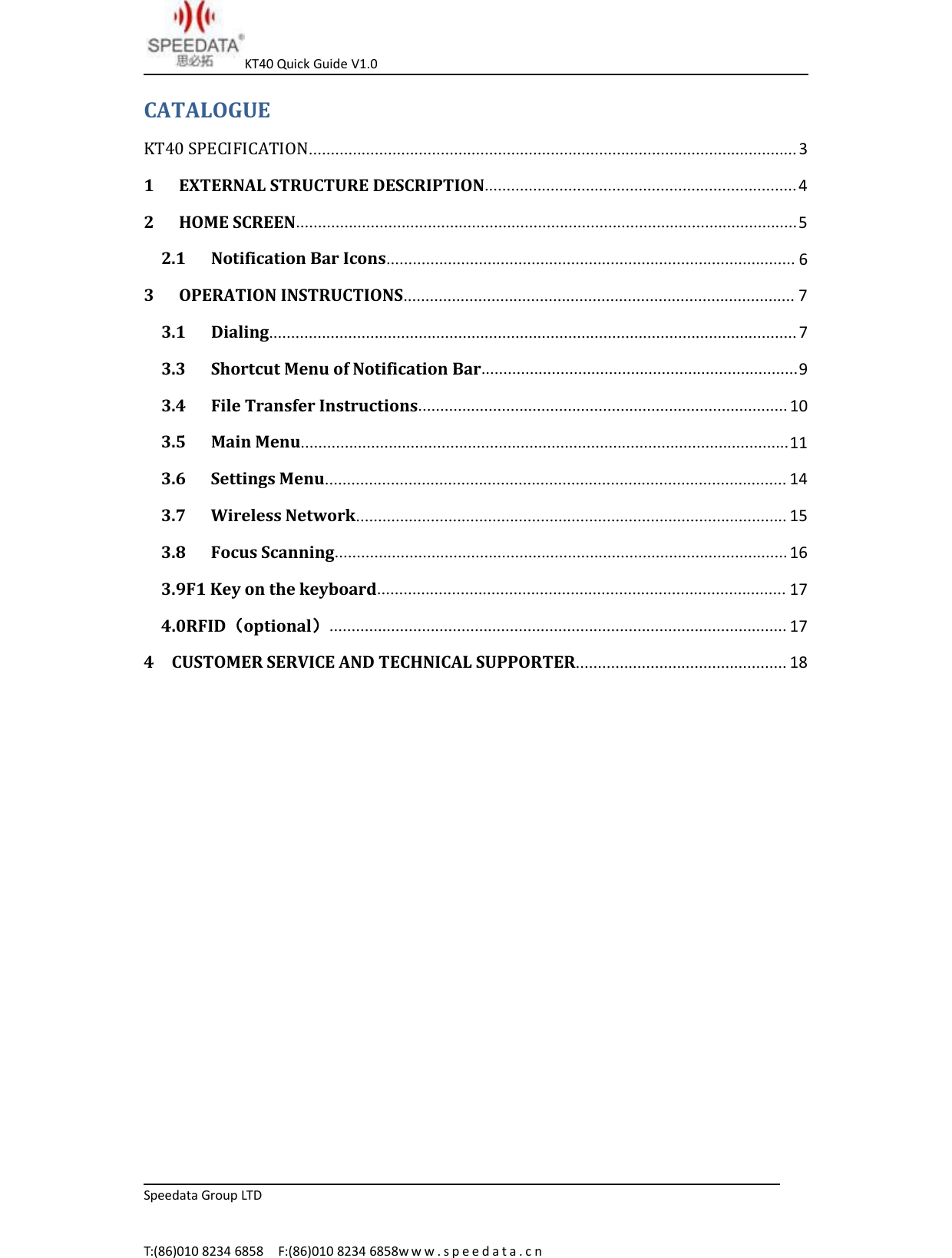
KT40 Quick Guide V1.0Speedata Group LTDT:(86)010 8234 6858 F:(86)010 8234 6858w w w . s p e e d a t a . c nCATALOGUEKT40 SPECIFICATION...............................................................................................................31 EXTERNAL STRUCTURE DESCRIPTION.......................................................................42 HOME SCREEN..................................................................................................................52.1 Notification Bar Icons............................................................................................. 63 OPERATION INSTRUCTIONS......................................................................................... 73.1 Dialing........................................................................................................................ 73.3 Shortcut Menu of Notification Bar........................................................................93.4 File Transfer Instructions.................................................................................... 103.5 Main Menu...............................................................................................................113.6 Settings Menu......................................................................................................... 143.7 Wireless Network.................................................................................................. 153.8 Focus Scanning....................................................................................................... 163.9F1 Key on the keyboard............................................................................................. 174.0RFID(optional)........................................................................................................ 174 CUSTOMER SERVICE AND TECHNICAL SUPPORTER................................................ 18
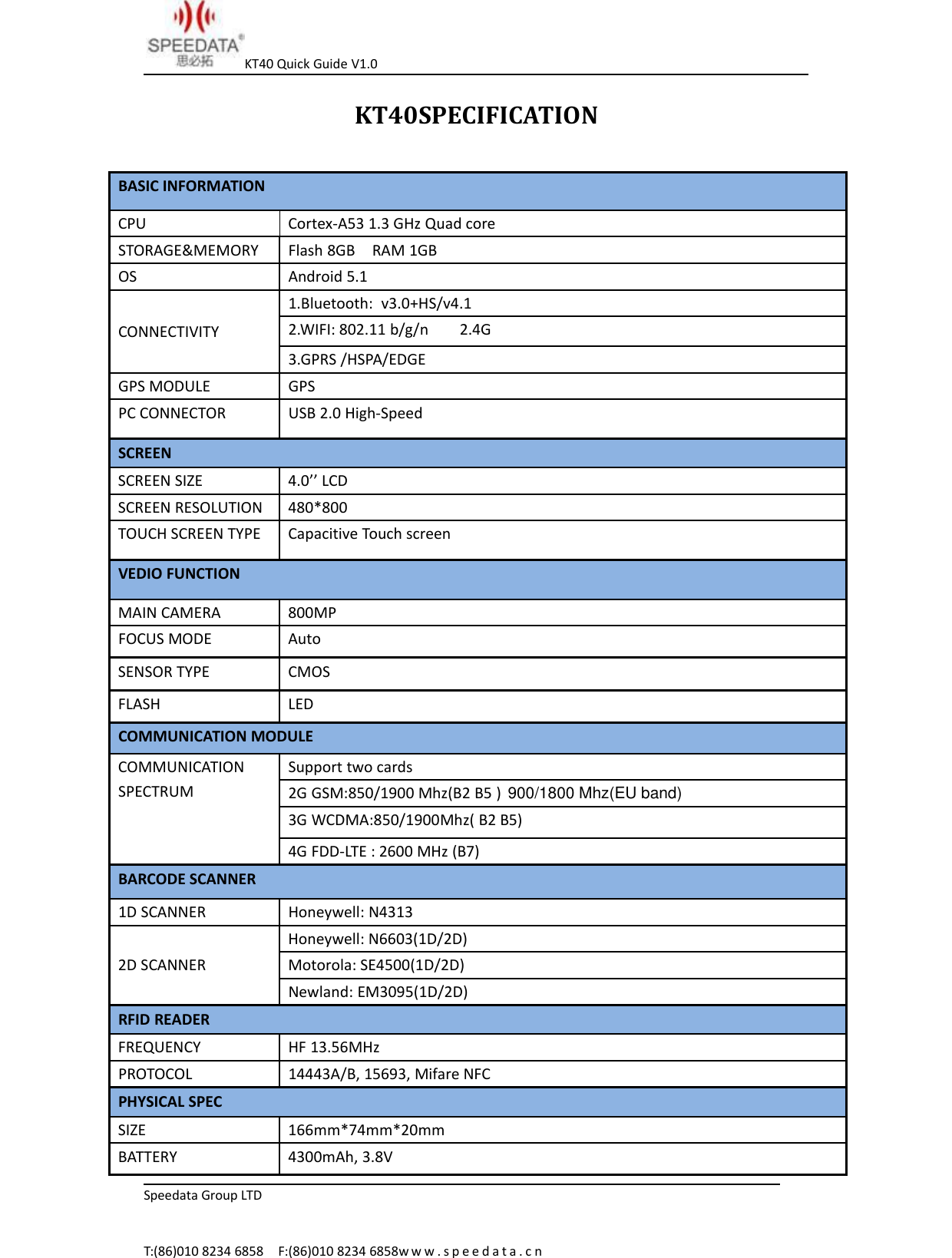
KT40 Quick Guide V1.0Speedata Group LTDT:(86)010 8234 6858 F:(86)010 8234 6858w w w . s p e e d a t a . c nKT40SPECIFICATIONBASIC INFORMATIONCPU Cortex-A53 1.3 GHz Quad coreSTORAGE&MEMORY Flash 8GB RAM 1GBOS Android 5.1CONNECTIVITY1.Bluetooth: v3.0+HS/v4.12.WIFI: 802.11 b/g/n 2.4G3.GPRS /HSPA/EDGEGPS MODULE GPSPC CONNECTOR USB 2.0 High-SpeedSCREENSCREEN SIZE 4.0’’ LCDSCREEN RESOLUTION 480*800TOUCH SCREEN TYPE Capacitive Touch screenVEDIO FUNCTIONMAIN CAMERA 800MPFOCUS MODE AutoSENSOR TYPE CMOSFLASH LEDCOMMUNICATION MODULECOMMUNICATIONSPECTRUMSupport two cards2G GSM:850/1900 Mhz(B2 B5 )3G WCDMA:850/1900Mhz( B2 B5)4G FDD-LTE : 2600 MHz (B7)BARCODE SCANNER1D SCANNER Honeywell: N43132D SCANNERHoneywell: N6603(1D/2D)Motorola: SE4500(1D/2D)Newland: EM3095(1D/2D)RFID READERFREQUENCY HF 13.56MHzPROTOCOL 14443A/B, 15693, Mifare NFCPHYSICAL SPECSIZE 166mm*74mm*20mmBATTERY 4300mAh, 3.8V900/1800 Mhz(EU band)
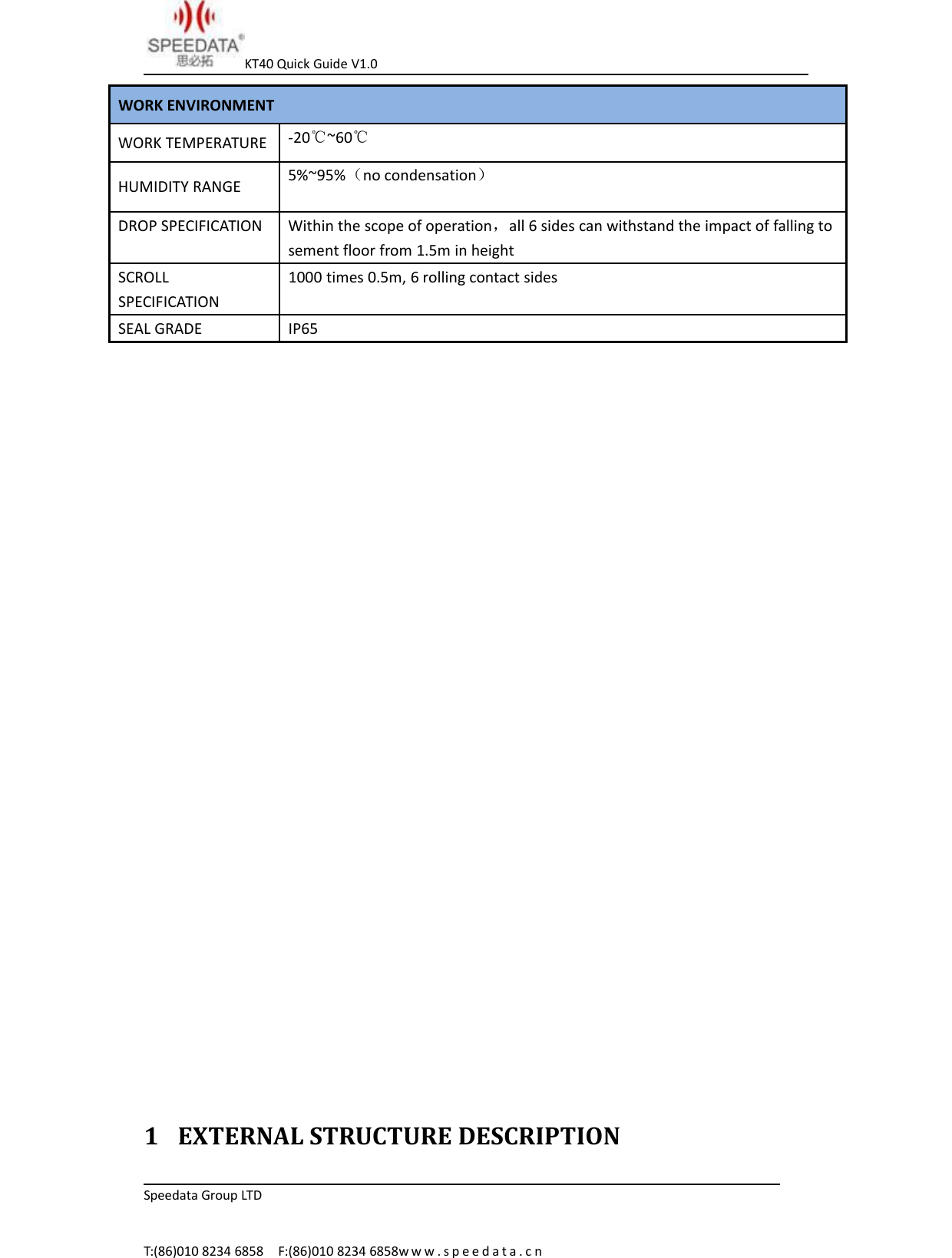
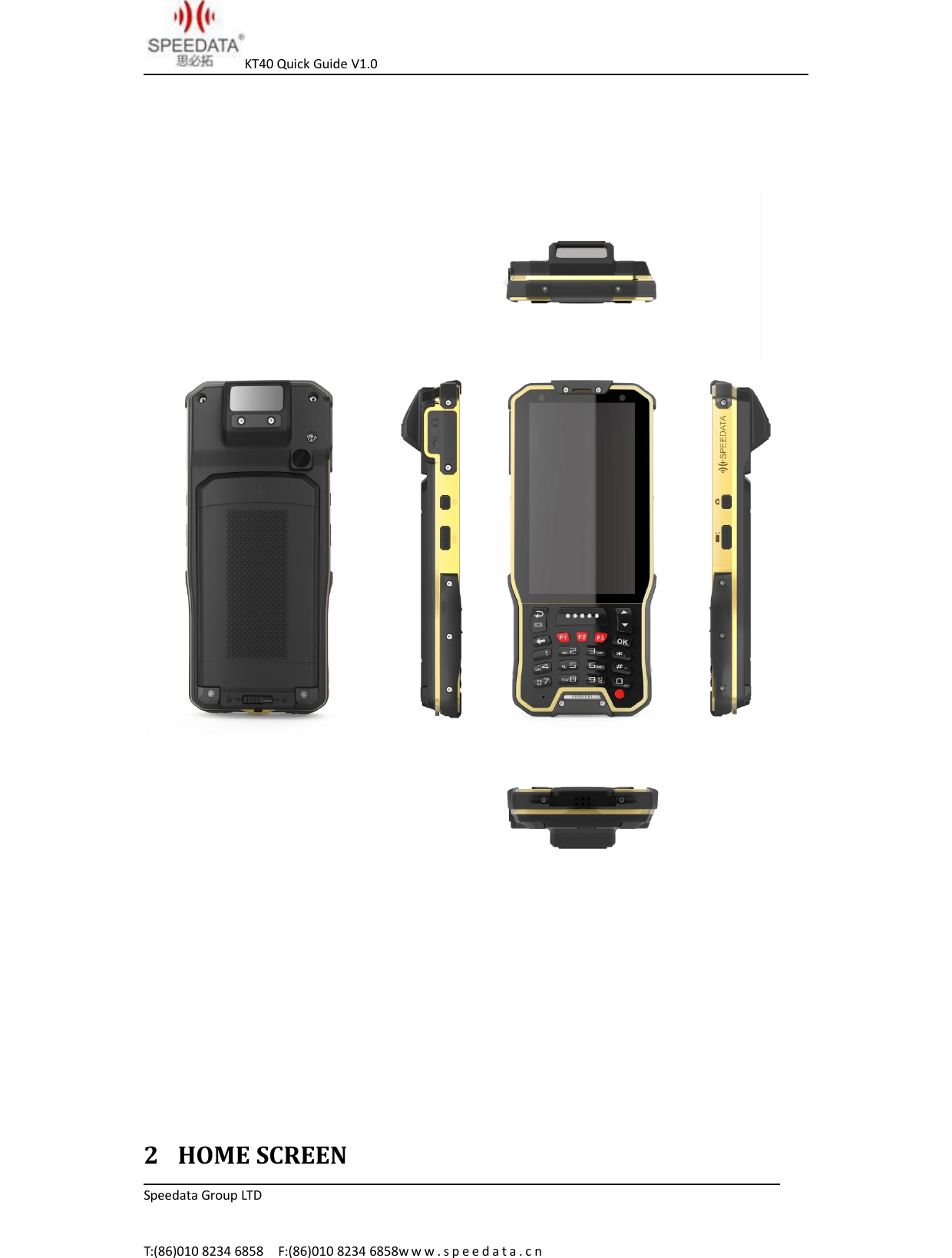
KT40 Quick Guide V1.0Speedata Group LTDT:(86)010 8234 6858 F:(86)010 8234 6858w w w . s p e e d a t a . c nWORK ENVIRONMENTWORK TEMPERATURE -20℃~60℃HUMIDITY RANGE 5%~95%(no condensation)DROP SPECIFICATION Within the scope of operation,all 6 sides can withstand the impact of falling tosement floor from 1.5m in heightSCROLLSPECIFICATION1000 times 0.5m, 6 rolling contact sidesSEAL GRADE IP651 EXTERNAL STRUCTURE DESCRIPTION
KT40 Quick Guide V1.0Speedata Group LTDT:(86)010 8234 6858 F:(86)010 8234 6858w w w . s p e e d a t a . c n2 HOME SCREEN
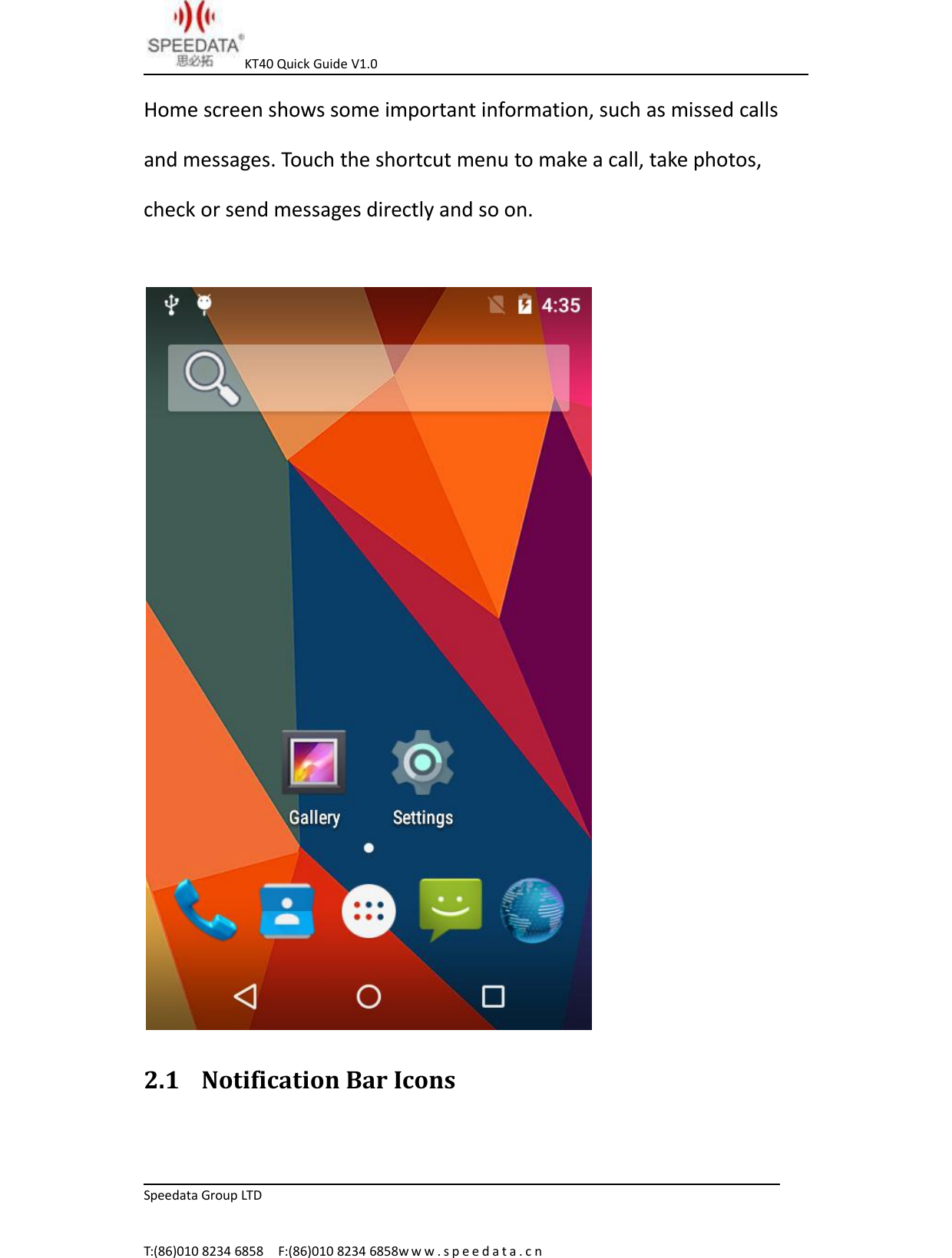
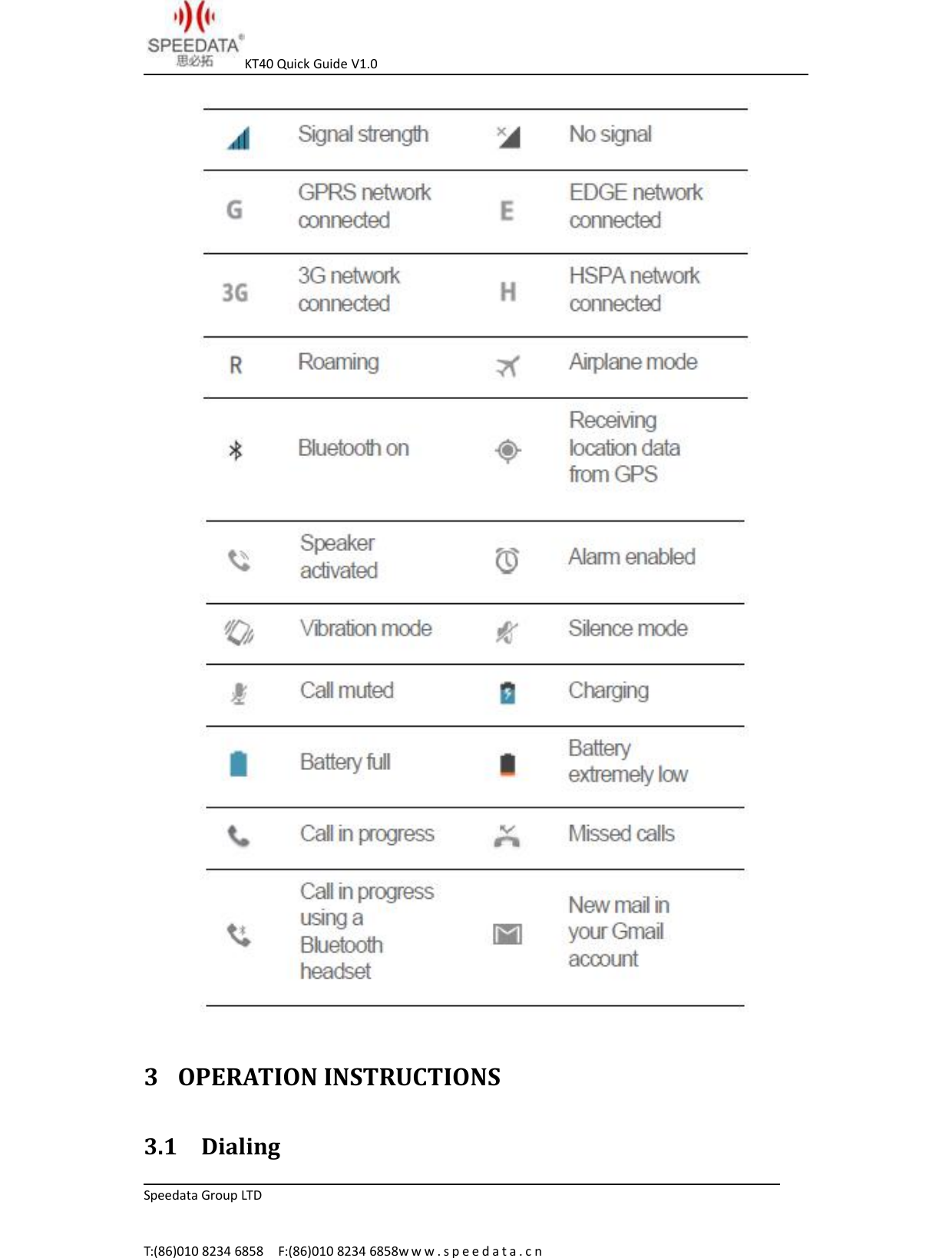
KT40 Quick Guide V1.0Speedata Group LTDT:(86)010 8234 6858 F:(86)010 8234 6858w w w . s p e e d a t a . c nHome screen shows some important information, such as missed callsand messages. Touch the shortcut menu to make a call, take photos,check or send messages directly and so on.2.1 Notification Bar Icons
KT40 Quick Guide V1.0Speedata Group LTDT:(86)010 8234 6858 F:(86)010 8234 6858w w w . s p e e d a t a . c n3 OPERATION INSTRUCTIONS3.1 Dialing
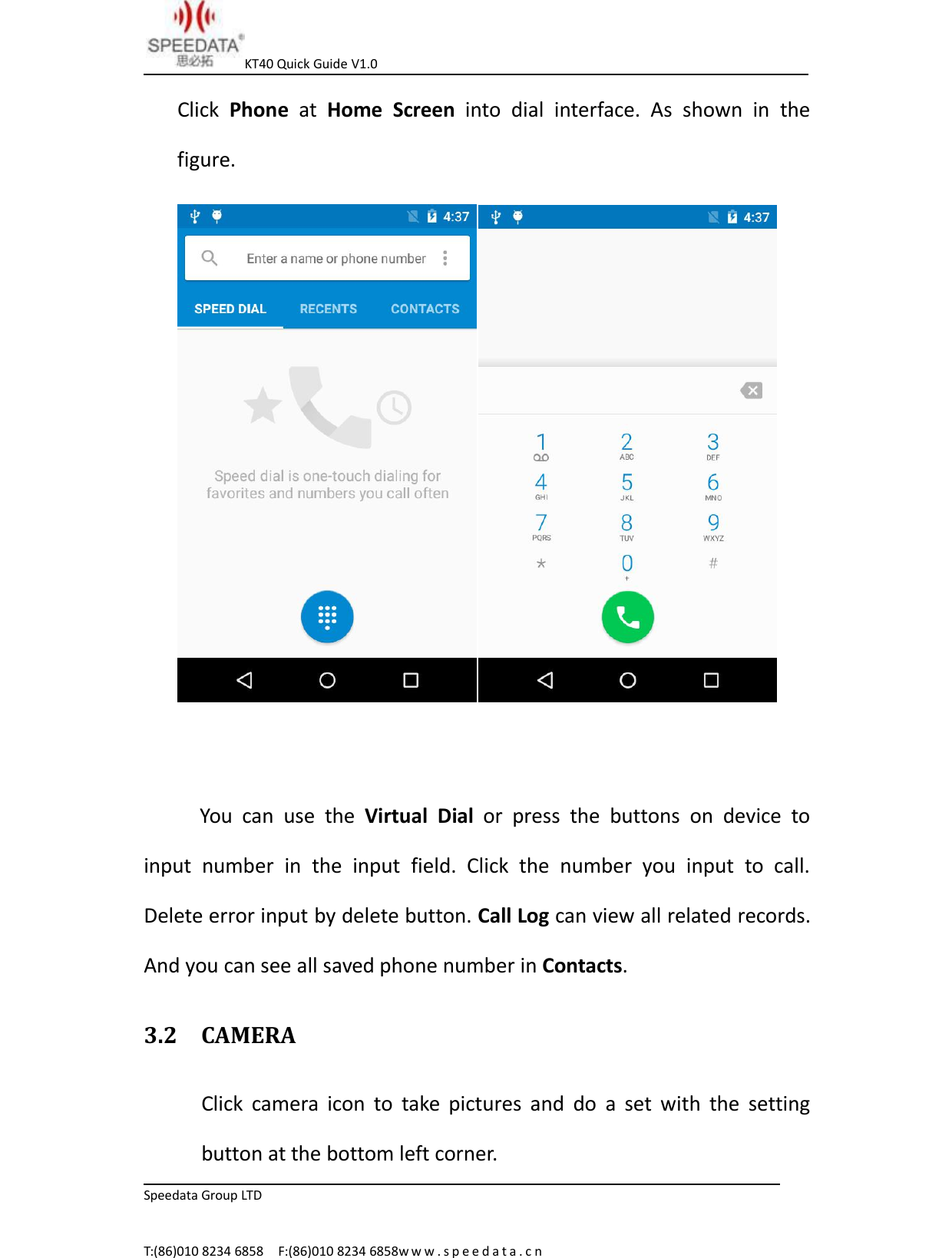
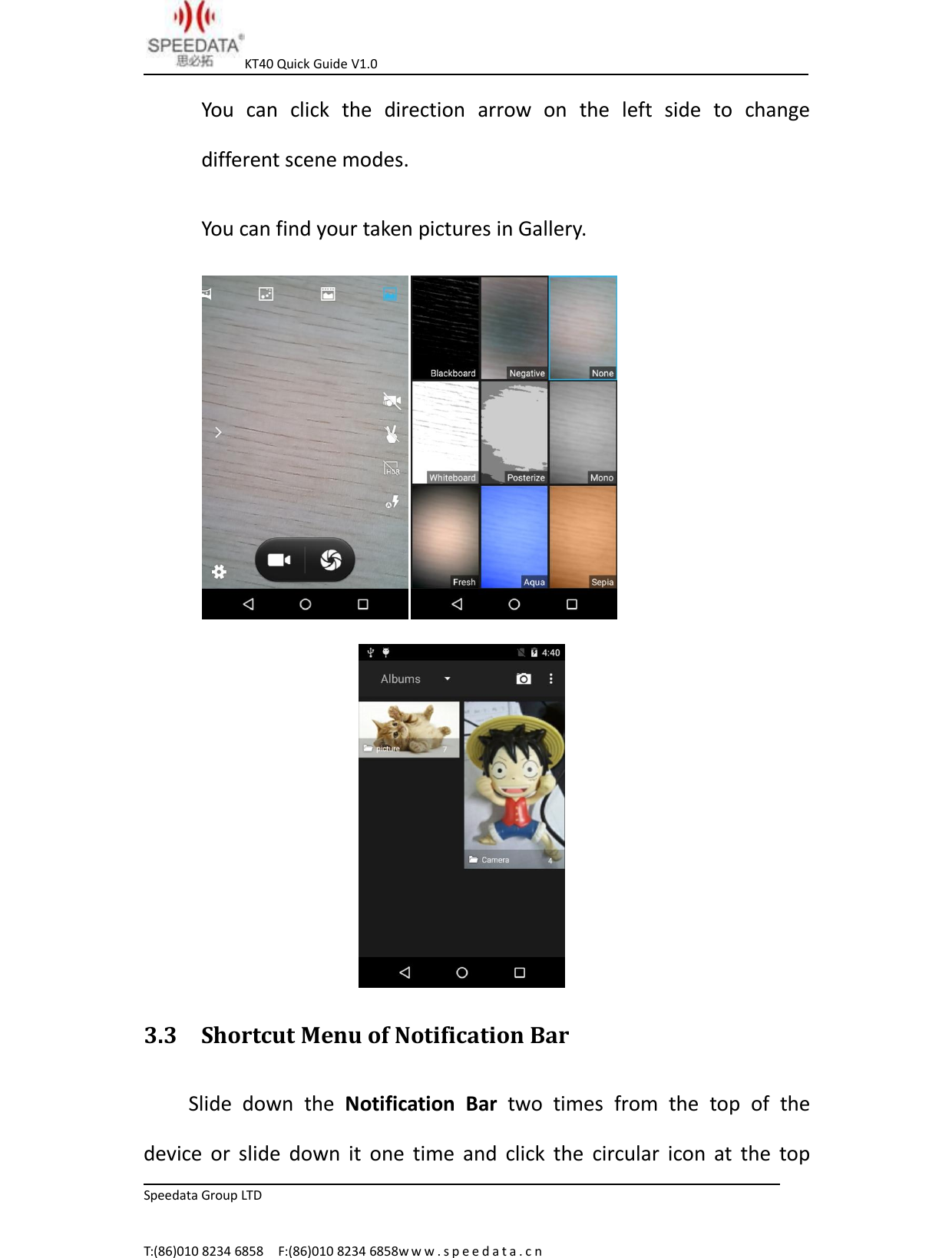
KT40 Quick Guide V1.0Speedata Group LTDT:(86)010 8234 6858 F:(86)010 8234 6858w w w . s p e e d a t a . c nClick Phone at Home Screen into dial interface. As shown in thefigure.You can use the Virtual Dial or press the buttons on device toinput number in the input field. Click the number you input to call.Delete error input by delete button. Call Log can view all related records.And you can see all saved phone number in Contacts.3.2 CAMERAClick camera icon to take pictures and do a set with the settingbutton at the bottom left corner.
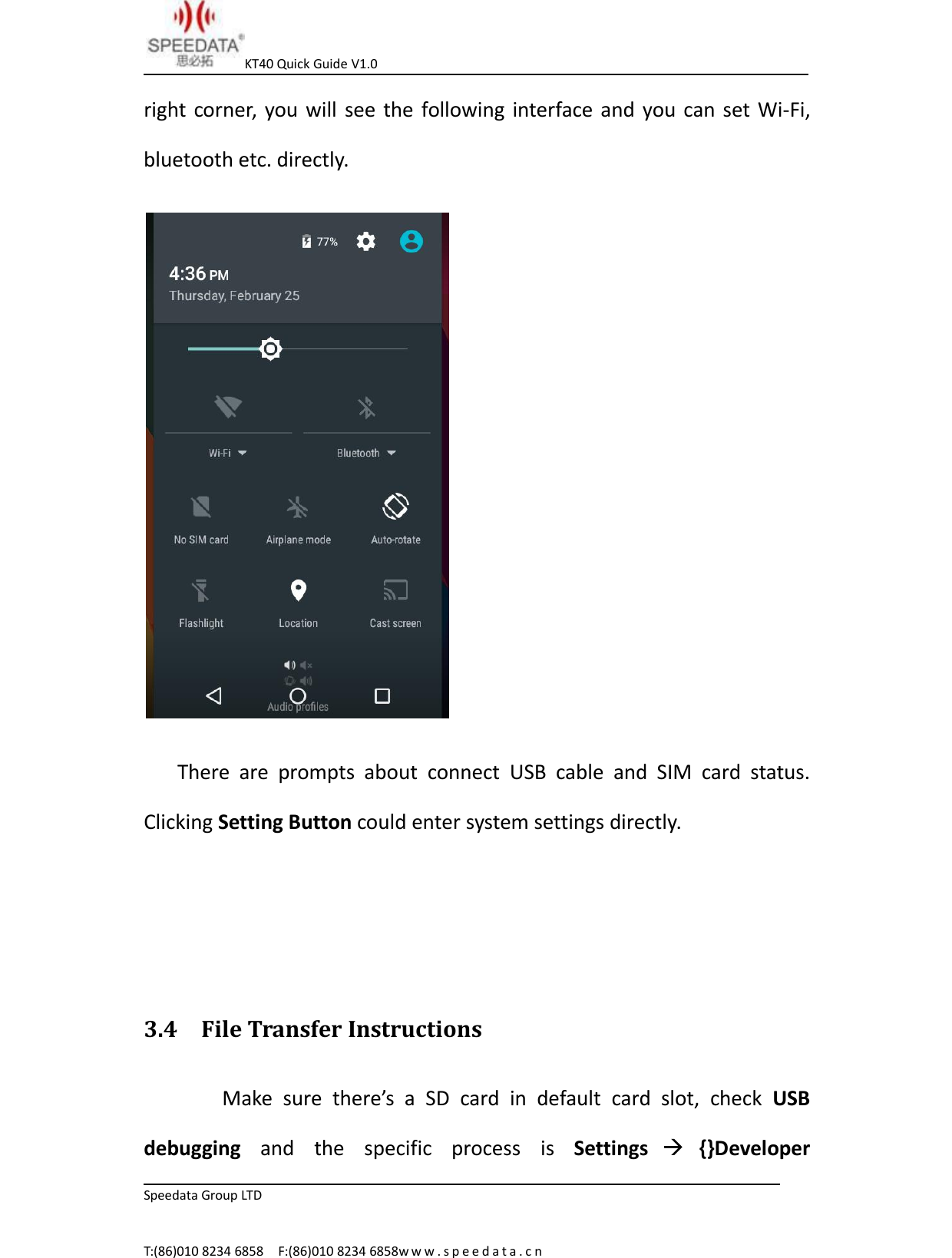
KT40 Quick Guide V1.0Speedata Group LTDT:(86)010 8234 6858 F:(86)010 8234 6858w w w . s p e e d a t a . c nYou can click the direction arrow on the left side to changedifferent scene modes.You can find your taken pictures in Gallery.3.3 Shortcut Menu of Notification BarSlide down the Notification Bar two times from the top of thedevice or slide down it one time and click the circular icon at the top
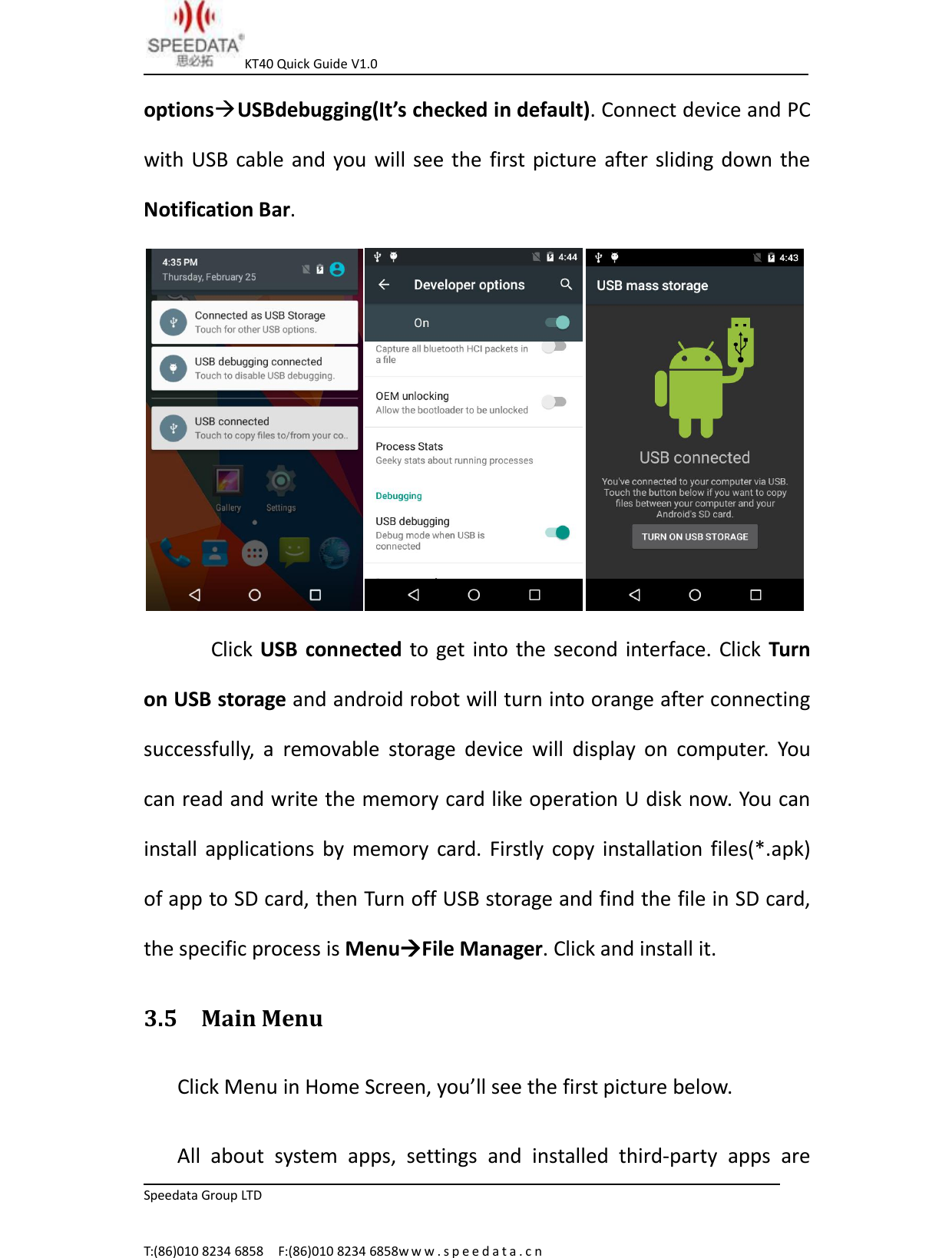
KT40 Quick Guide V1.0Speedata Group LTDT:(86)010 8234 6858 F:(86)010 8234 6858w w w . s p e e d a t a . c nright corner, you will see the following interface and you can set Wi-Fi,bluetooth etc. directly.There are prompts about connect USB cable and SIM card status.Clicking Setting Button could enter system settings directly.3.4 File Transfer InstructionsMake sure there’s a SD card in default card slot, check USBdebugging and the specific process is Settings {}Developer
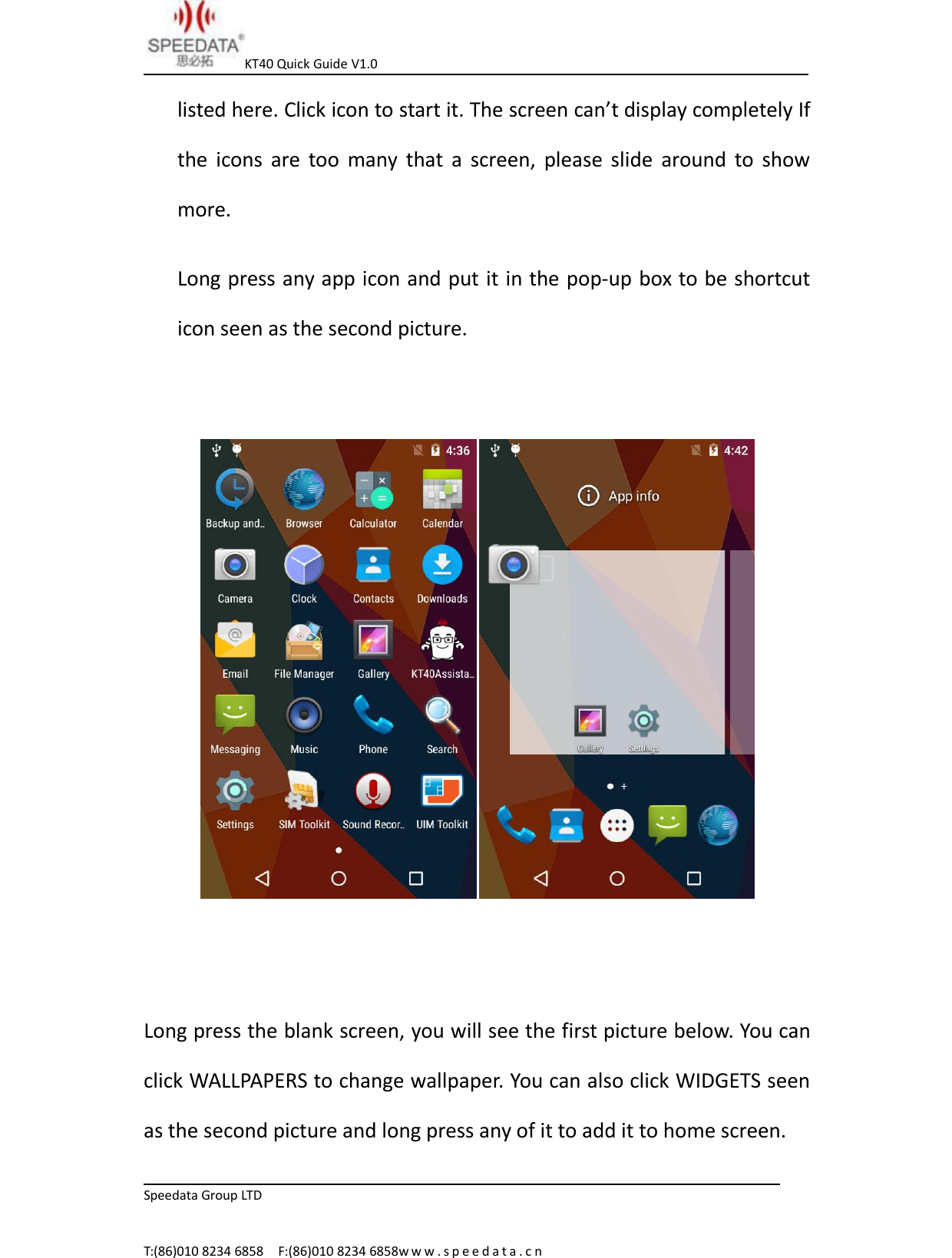
KT40 Quick Guide V1.0Speedata Group LTDT:(86)010 8234 6858 F:(86)010 8234 6858w w w . s p e e d a t a . c noptionsUSBdebugging(It’s checked in default). Connect device and PCwith USB cable and you will see the first picture after sliding down theNotification Bar.Click USB connected to get into the second interface. Click Turnon USB storage and android robot will turn into orange after connectingsuccessfully, a removable storage device will display on computer. Youcan read and write the memory card like operation U disk now. You caninstall applications by memory card. Firstly copy installation files(*.apk)of app to SD card, then Turn off USB storage and find the file in SD card,the specific process is MenuFile Manager. Click and install it.3.5 Main MenuClick Menu in Home Screen, you’ll see the first picture below.All about system apps, settings and installed third-party apps are
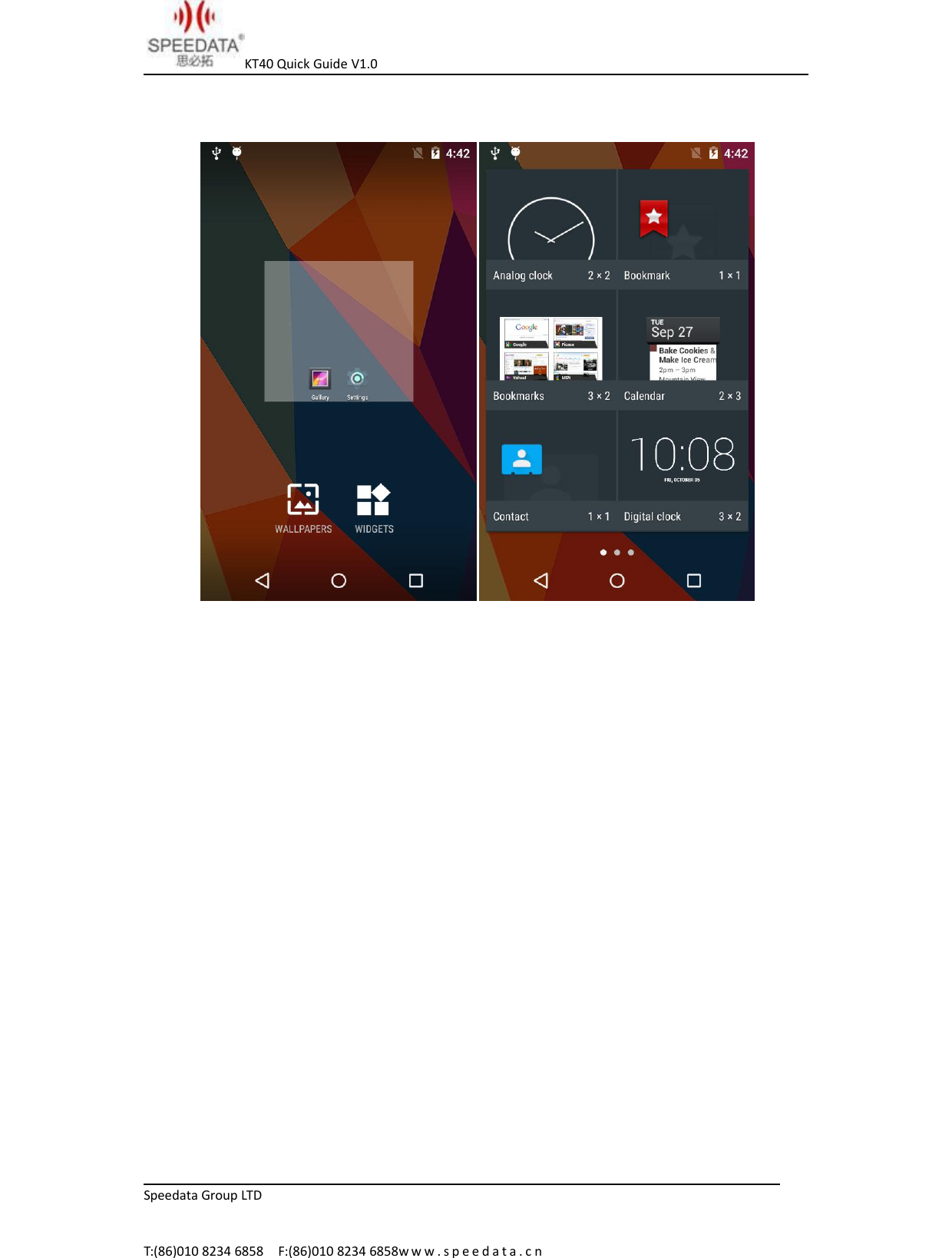
KT40 Quick Guide V1.0Speedata Group LTDT:(86)010 8234 6858 F:(86)010 8234 6858w w w . s p e e d a t a . c nlisted here. Click icon to start it. The screen can’t display completely Ifthe icons are too many that a screen, please slide around to showmore.Long press any app icon and put it in the pop-up box to be shortcuticon seen as the second picture.Long press the blank screen, you will see the first picture below. You canclick WALLPAPERS to change wallpaper. You can also click WIDGETS seenas the second picture and long press any of it to add it to home screen.
KT40 Quick Guide V1.0Speedata Group LTDT:(86)010 8234 6858 F:(86)010 8234 6858w w w . s p e e d a t a . c n
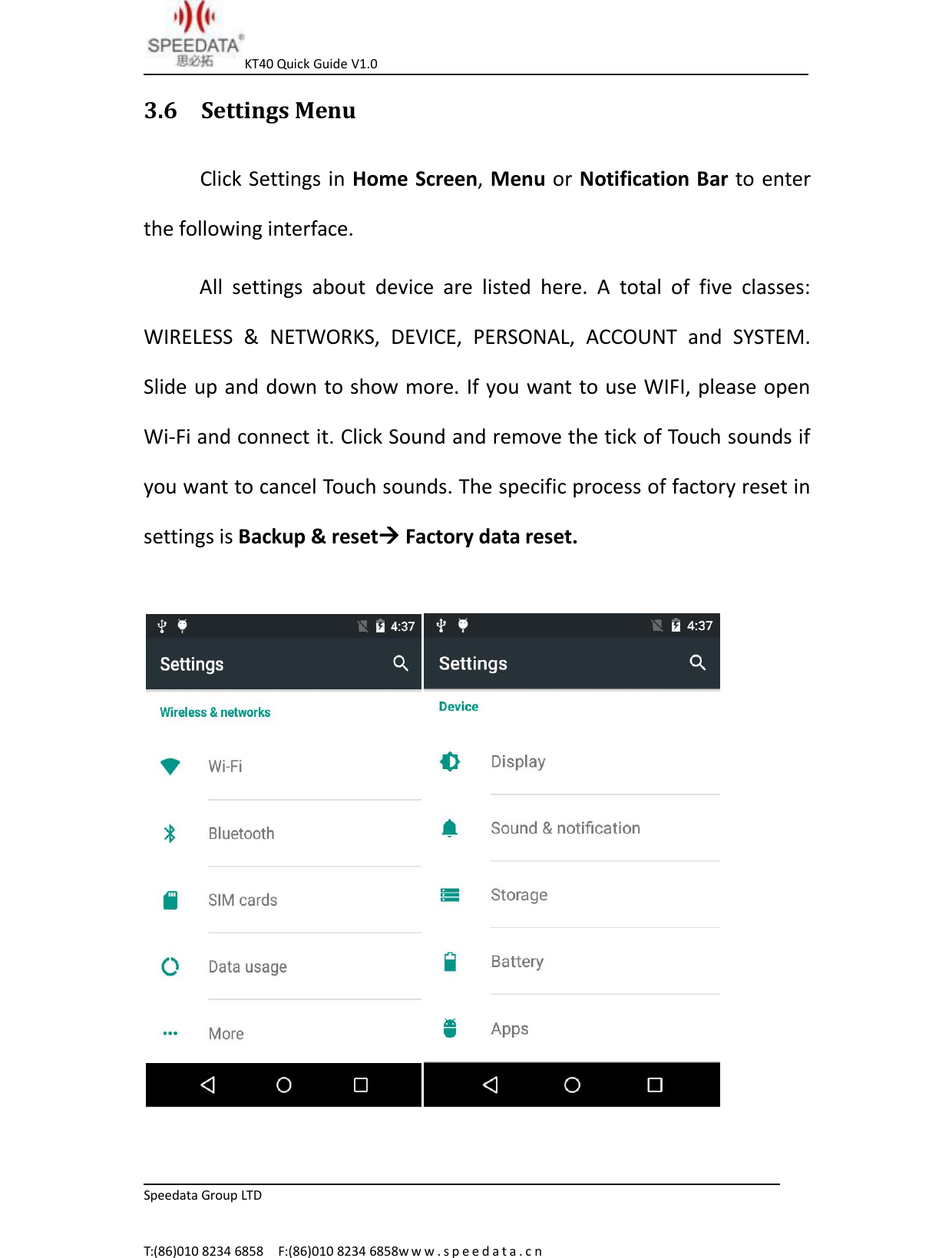
KT40 Quick Guide V1.0Speedata Group LTDT:(86)010 8234 6858 F:(86)010 8234 6858w w w . s p e e d a t a . c n3.6 Settings MenuClick Settings in Home Screen,Menu or Notification Bar to enterthe following interface.All settings about device are listed here. A total of five classes:WIRELESS & NETWORKS, DEVICE, PERSONAL, ACCOUNT and SYSTEM.Slide up and down to show more. If you want to use WIFI, please openWi-Fi and connect it. Click Sound and remove the tick of Touch sounds ifyou want to cancel Touch sounds. The specific process of factory reset insettings is Backup & resetFactory data reset.
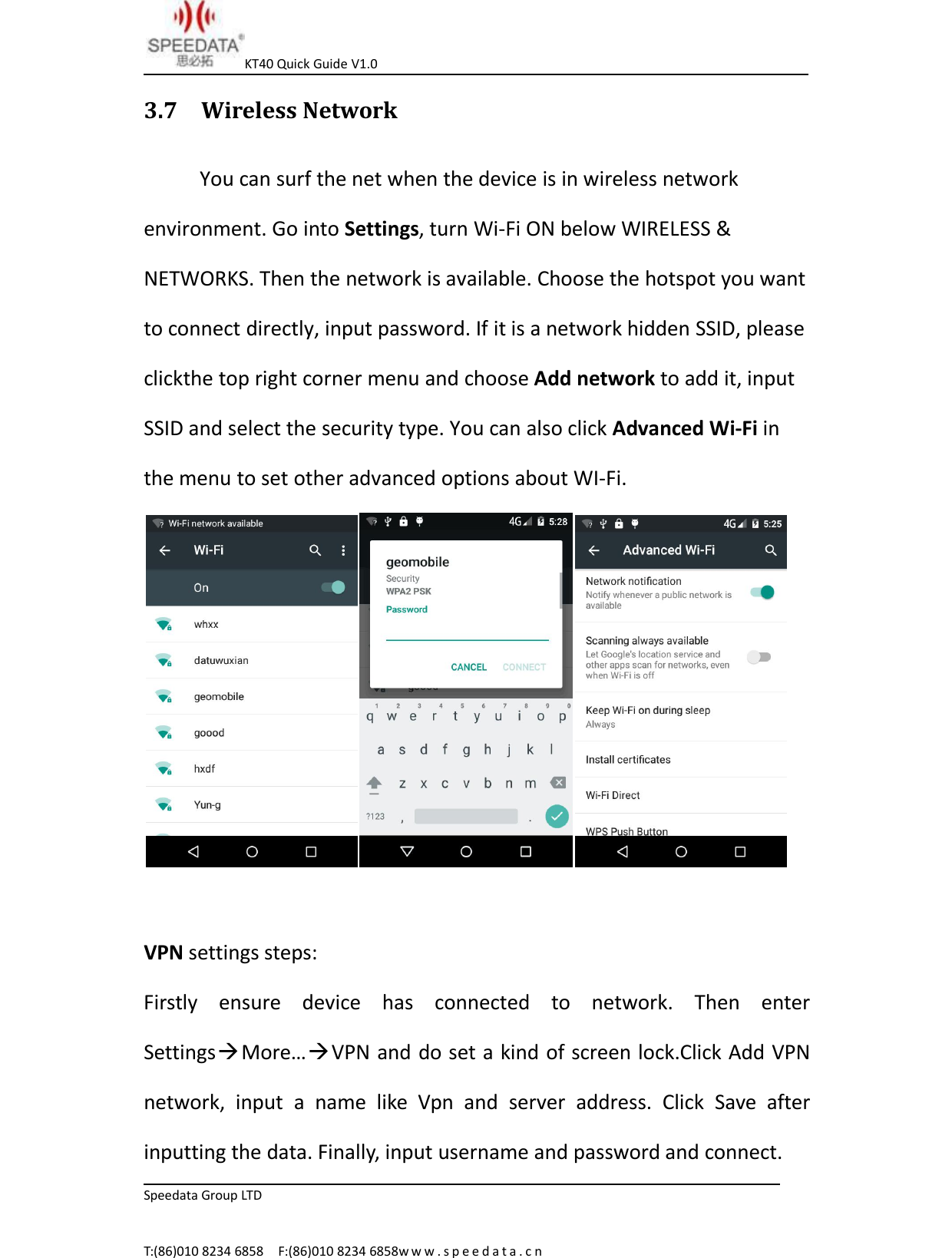
KT40 Quick Guide V1.0Speedata Group LTDT:(86)010 8234 6858 F:(86)010 8234 6858w w w . s p e e d a t a . c n3.7 Wireless NetworkYou can surf the net when the device is in wireless networkenvironment. Go into Settings, turn Wi-Fi ON below WIRELESS &NETWORKS. Then the network is available. Choose the hotspot you wantto connect directly, input password. If it is a network hidden SSID, pleaseclickthe top right corner menu and choose Add network to add it, inputSSID and select the security type. You can also click Advanced Wi-Fi inthe menu to set other advanced options about WI-Fi.VPN settings steps:Firstly ensure device has connected to network. Then enterSettingsMore…VPN and do set a kind of screen lock.Click Add VPNnetwork, input a name like Vpn and server address. Click Save afterinputting the data. Finally, input username and password and connect.
KT40 Quick Guide V1.0Speedata Group LTDT:(86)010 8234 6858 F:(86)010 8234 6858w w w . s p e e d a t a . c n3.8 Focus ScanningThe cursor is in an input status, the device can scan barcode and inputthe result to where cursor is by pressing SCAN KEY. Before implement it,you should do a setting. Go into Settings Scan, and check EnableKeyreport Scan just like the pictures below. Then you can use FocusScanning. Check Enable Keyreport Scan with warning tone to hear achime after scanning successfully and you can click Add Keyvalue tochoose different turning results.Note: 1. You should designate the position of cursor before using FocusScanning, or you won’t see the messages about barcode.2. The Add Keyvalue under Enable Keyreport Scan is an option for FocusScanning. You can choose one to add nothing, a table or an enter afterthe barcode messages.
KT40 Quick Guide V1.0Speedata Group LTDT:(86)010 8234 6858 F:(86)010 8234 6858w w w . s p e e d a t a . c n3.9 F1 Key on the keyboardYou can input numbers, uppercase letters and lowercase letters withhardware keyboard by pressing F1 key to switch. For example, it inputsnumbers at present time, you can press F1 key one time and then youcan input lowercase letters.4.0 RFID(optional)If the phone has RFID module ,open RFID application. Place aMifare One card to the reader range, input a sector number and clickDEMO. The screen will display the information after reading and writingthis sector.When develop application is related to RFID Please contact the phonemanufacturer to get more information.
KT40 Quick Guide V1.0Speedata Group LTDT:(86)010 8234 6858 F:(86)010 8234 6858w w w . s p e e d a t a . c n4 CUSTOMER SERVICE AND TECHNICAL SUPPORTERCustomer service 010 – 82346858 - 801Technical supporter Skype: Android.SpeedataEmail:support02@speedatagroup.com
 FCC Warning: This equipment has been tested and found to comply with the limits for a Class B digital device, pursuant to part  15  of  the  FCC  Rules.  These  limits  are  designed  to  provide  reasonable  protection  against  harmful interference  in  a  residential  installation.  This  equipment  generates,  uses  and  can  radiate  radio  frequency energy and, if not installed and used in accordance with the instructions, may cause harmful interference to radio  communications.  However,  there  is  no  guarantee  that  interference  will  not  occur  in  a  particular installation. If this equipment does cause harmful interference to radio or television reception, which can be determined by turning the equipment off and on, the user is encouraged to try to correct the interference by one or more of the following measures: •  Reorient or relocate the receiving antenna. •  Increase the separation between the equipment and receiver. •  Connect the equipment into an outlet on a circuit different from that to which the receiver is connected. •  Consult the dealer or an experienced radio/TV technician for help. Caution:  Any  changes  or  modifications  to  this  device  not  explicitly  approved  by  manufacturer  could  void your authority to operate this equipment. This  device  complies  with  part  15  of  the  FCC  Rules.  Operation  is  subject  to  the  following  two conditions:  (1)  This  device  may  not  cause  harmful  interference,  and  (2)  this  device  must  accept  any interference received, including interference that may cause undesired operation.
Specific Absorption Rate (SAR) information: This  Handheld  terminal  meets  the  government's  requirements  for  exposure  to  radio  waves.  The  guidelines  are  based  on standards that were developed by independent scientific organizations through periodic and thorough evaluation of scientific studies. The standards include a substantial safety margin designed to assure the safety of all persons regardless of age or health. FCC RF Exposure Information and Statement the SAR limit of USA (FCC) is 1.6 W/kg averaged over one gram of tissue. Device types: Smart phone (FCC ID: 2AJO5KT40) has also been tested against this SAR limit. This device was tested for typical body-worn operations with the back of the phone kept 10mm from the body. To maintain compliance with FCC RF exposure requirements, use accessories that maintain a 10mm separation distance between the user's body and the back of the phone. The use of belt clips, holsters and similar  accessories  should  not  contain  metallic  components  in  its  assembly.  The  use  of  accessories  that  do  not  satisfy  these requirements may not comply with FCC RF exposure requirements, and should be avoided.

Navigation menu