Speedata Group KT45Q Handheld terminal User Manual

Speedata Group LTD Handheld terminal

User manual

KT45Q-B2-C13M-SE45SR-KTCS1G-PE48S  Handheld terminal   Quick Guide  Android 5.1
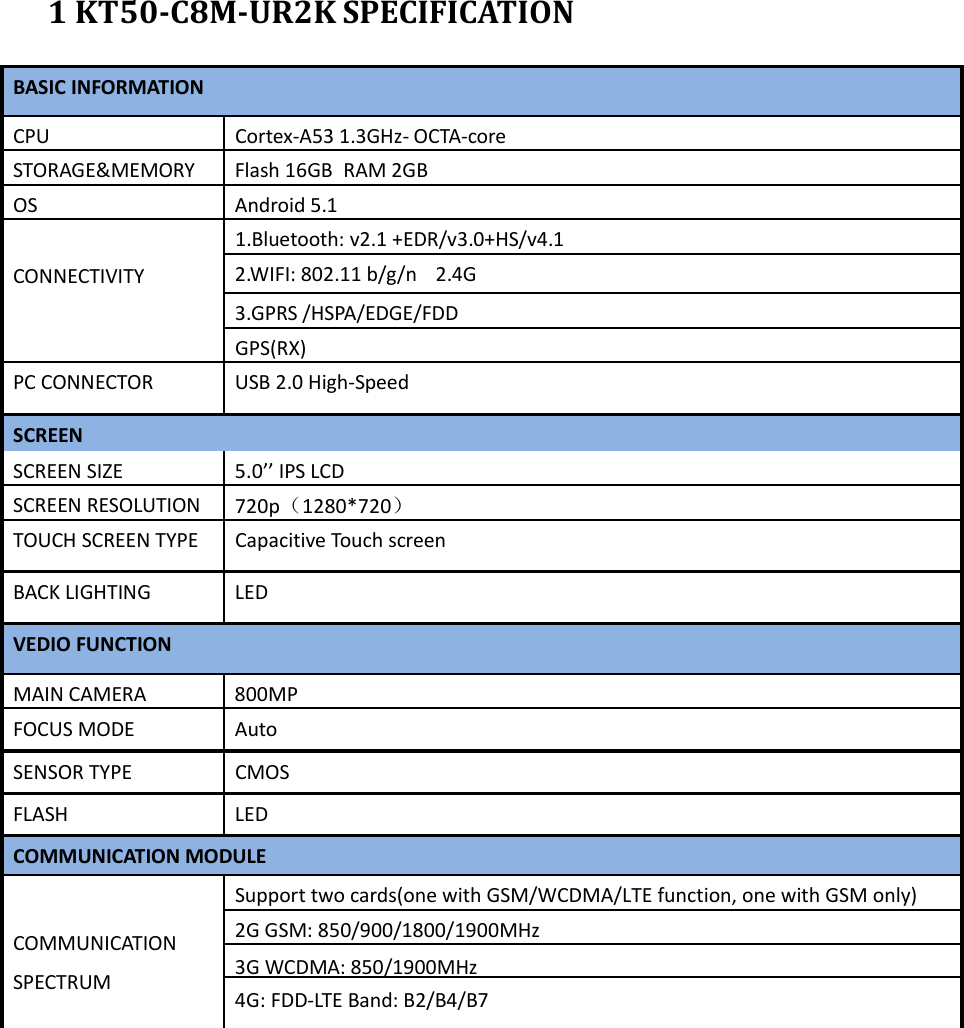
 1 KT50-C8M-UR2K SPECIFICATION BASIC INFORMATION CPU Cortex-A53 1.3GHz- OCTA-coreSTORAGE&MEMORY Flash 16GB RAM 2GBOS Android 5.1   CONNECTIVITY 1.Bluetooth: v2.1 +EDR/v3.0+HS/v4.12.WIFI: 802.11 b/g/n  2.4G 3.GPRS /HSPA/EDGE/FDD GPS(RX) PC CONNECTOR  USB 2.0 High-Speed SCREEN SCREEN SIZE  5.0’’ IPS LCD SCREEN RESOLUTION  720p(1280*720)TOUCH SCREEN TYPE  Capacitive Touch screen BACK LIGHTING  LED VEDIO FUNCTION MAIN CAMERA  800MP FOCUS MODE  Auto SENSOR TYPE  CMOS FLASH LED COMMUNICATION MODULE   COMMUNICATION SPECTRUM Support two cards(one with GSM/WCDMA/LTE function, one with GSM only) 2G GSM: 850/900/1800/1900MHz 3G WCDMA: 850/1900MHz4G: FDD-LTE Band: B2/B4/B7
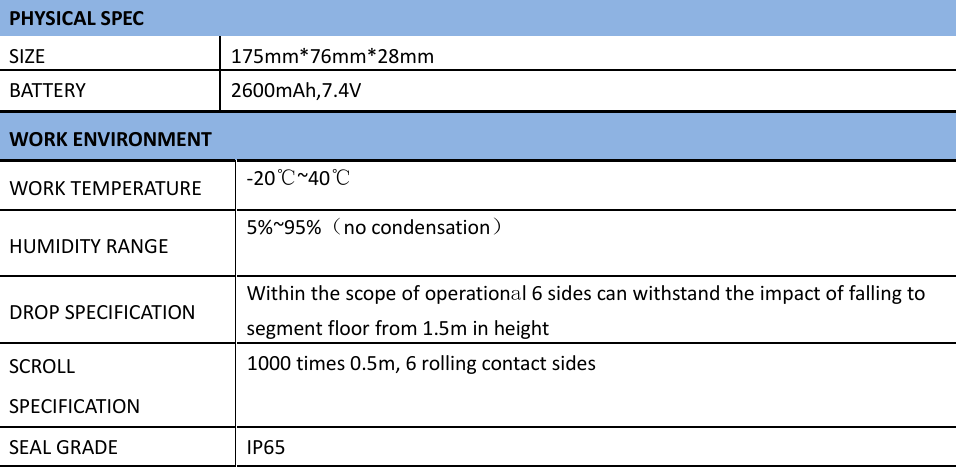
 PHYSICAL SPEC SIZE 175mm*76mm*28mmBATTERY 2600mAh,7.4V WORK ENVIRONMENT WORK TEMPERATURE  -20℃~40℃  HUMIDITY RANGE  5%~95%(no condensation)  DROP SPECIFICATION  Within the scope of operational 6 sides can withstand the impact of falling to segment floor from 1.5m in heightSCROLL SPECIFICATION 1000 times 0.5m, 6 rolling contact sides SEAL GRADE  IP65
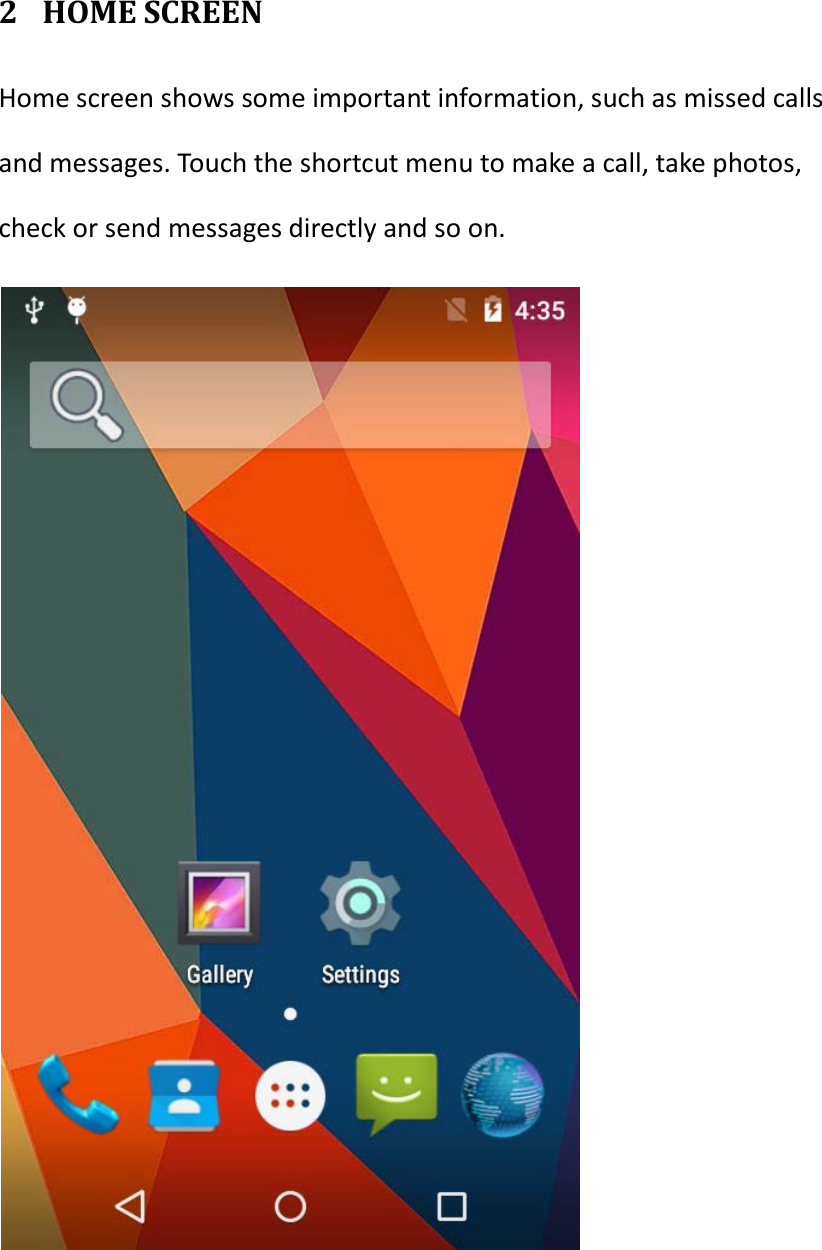
 2 HOME SCREEN Home screen shows some important information, such as missed calls and messages. Touch the shortcut menu to make a call, take photos, check or send messages directly and so on.
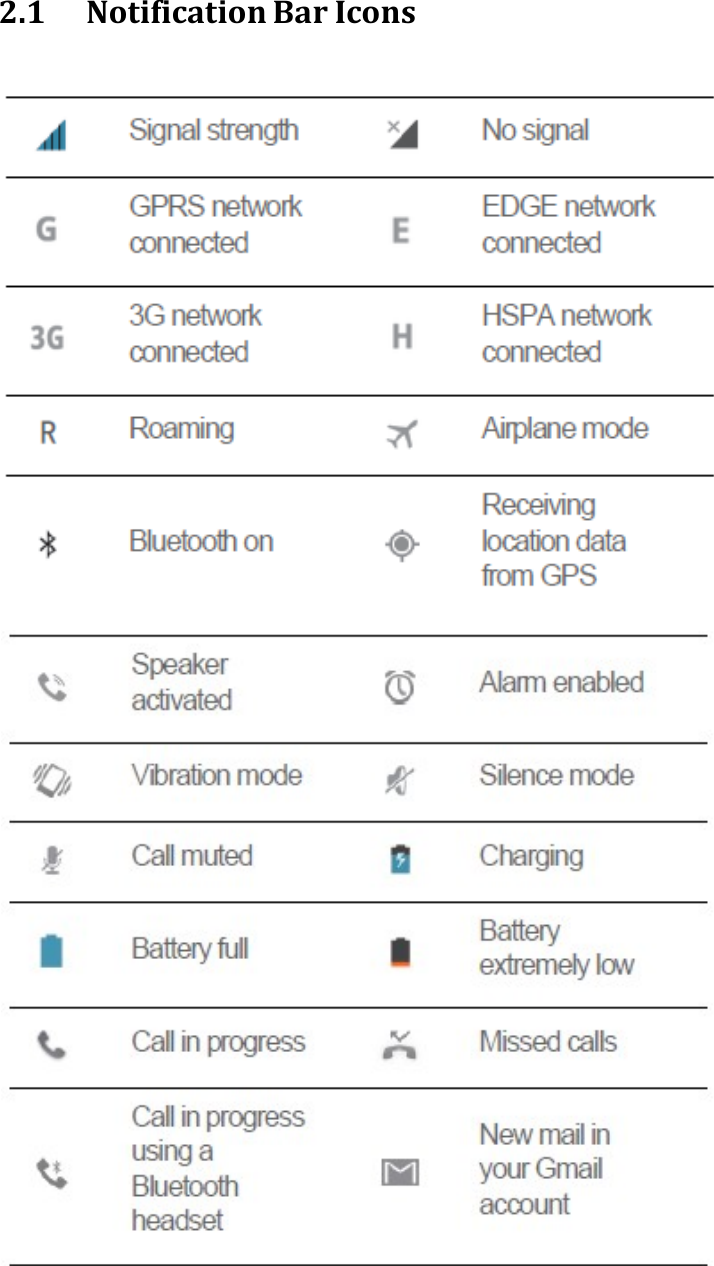
 2.1 Notification Bar Icons
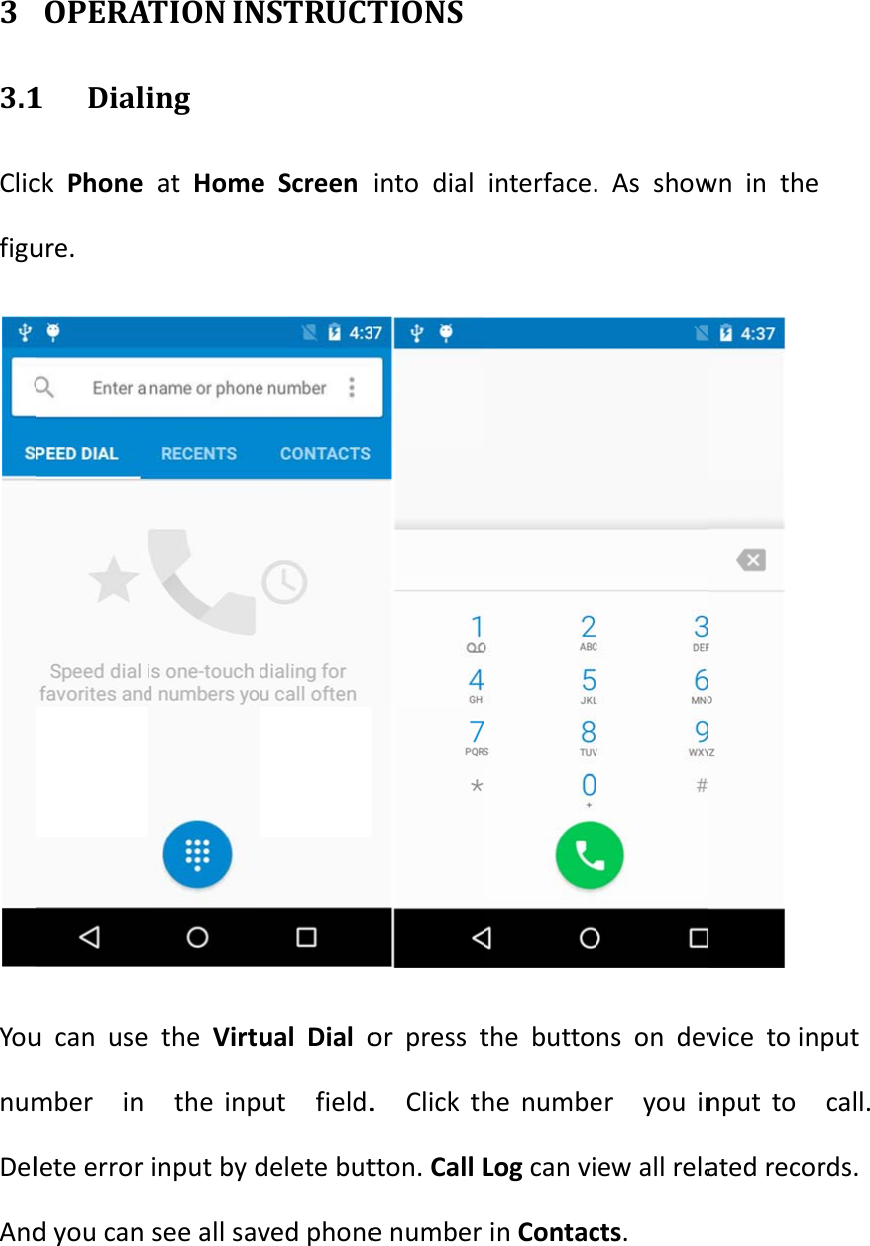
 3 3.1ClicfiguYounumDelAndOPERA1 Dialick  Phone ure. u can usember  in lete error d you can ATION INing at  Home the Virtu the inpinput by dsee all savNSTRUCTe Screen ual Dial out  field.delete butved phoneTIONS into dialor press t.  Click thtton. Call Le number interface.the buttohe numbeLog can viin Contac. As showns on dever  you inew all relacts. wn in the  vice to innput to   ated recorput  call. rds.
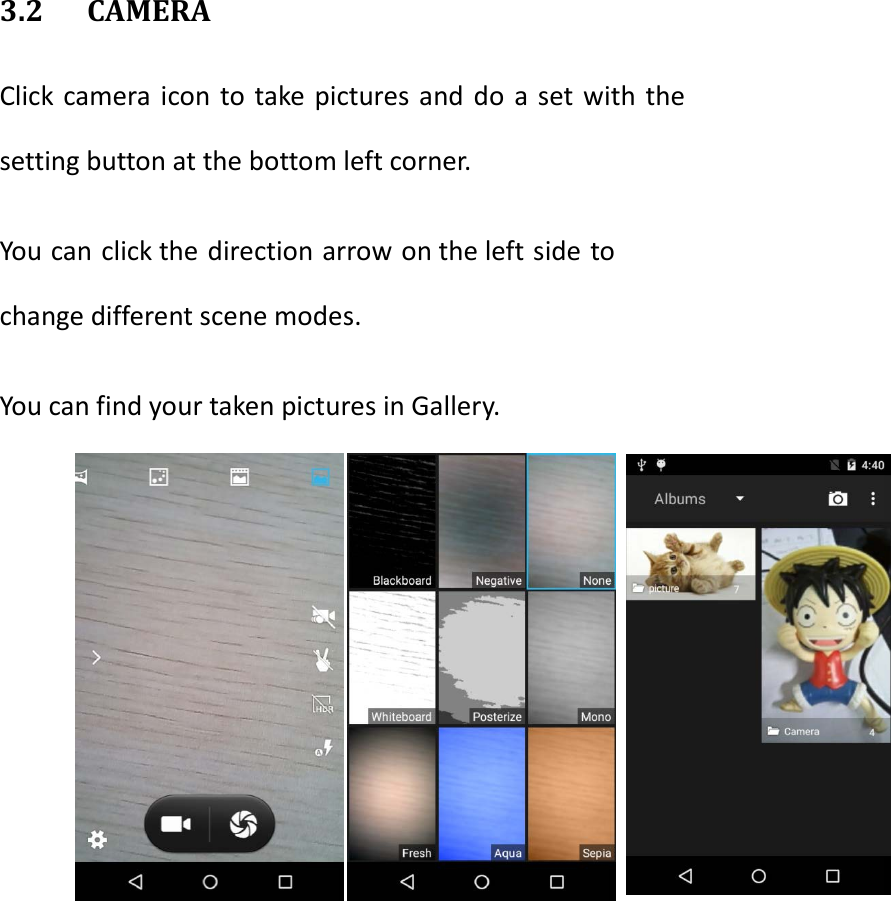
  3.2 CAMERA Click camera icon to take pictures and do a set with the setting button at the bottom left corner.  You can click the direction arrow on the left side to   change different scene modes.  You can find your taken pictures in Gallery.
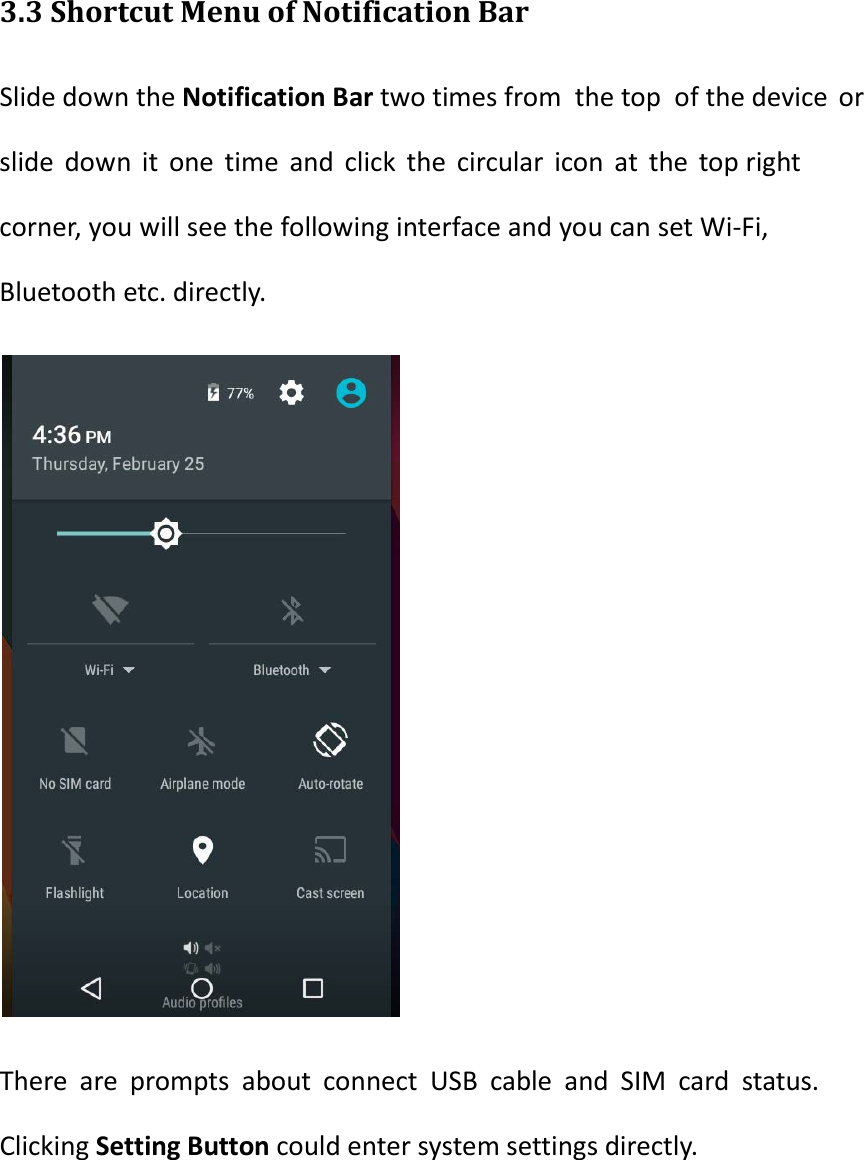
 3.3 Shortcut Menu of Notification Bar Slide down the Notification Bar two times from the top of the device or slide down it one time and click the circular icon at the top right corner, you will see the following interface and you can set Wi-Fi, Bluetooth etc. directly.  There are prompts about connect USB cable and SIM card status. Clicking Setting Button could enter system settings directly.
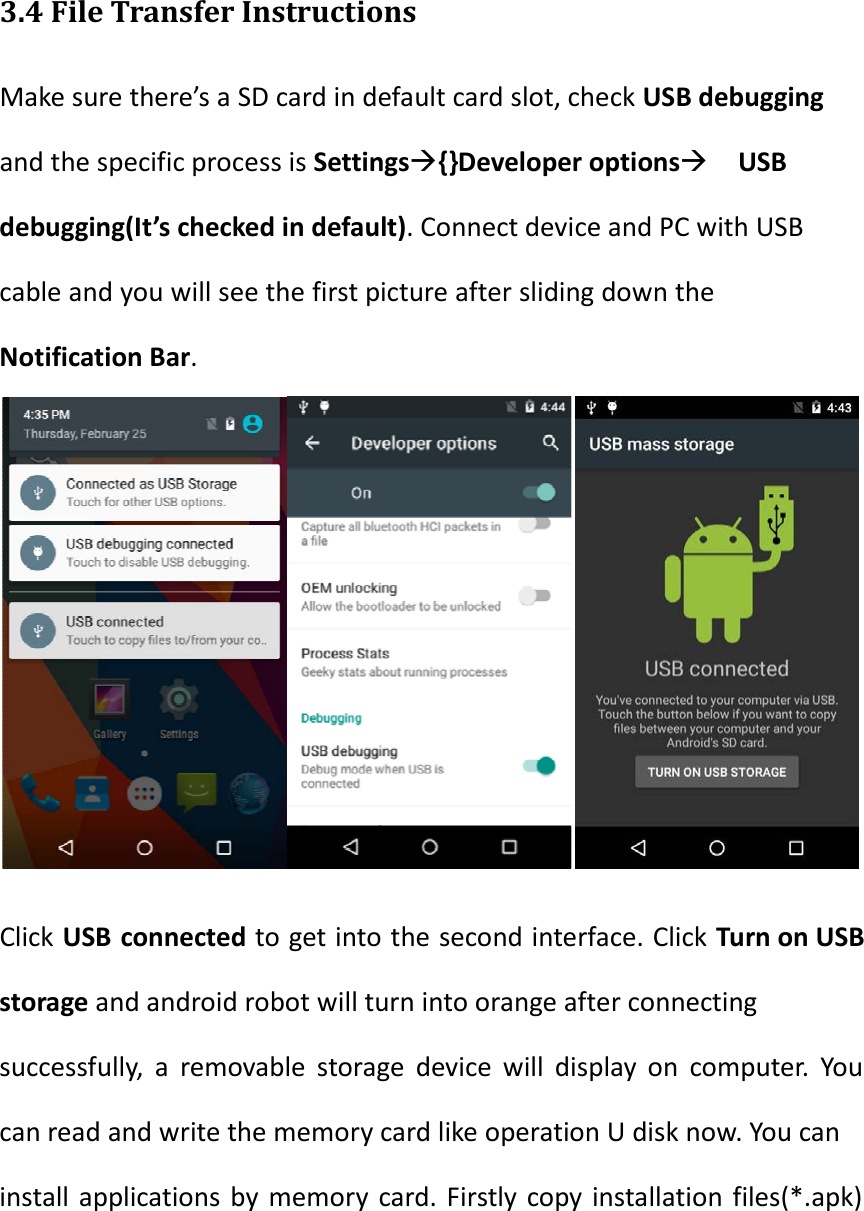
  3.4 File Transfer Instructions Make sure there’s a SD card in default card slot, check USB debugging and the specific process is Settings{}Developer options USB debugging(It’s checked in default). Connect device and PC with USB cable and you will see the first picture after sliding down the Notification Bar.      Click USB connected to get into the second interface. Click Turn on USB storage and android robot will turn into orange after connecting successfully, a removable storage device will display on computer. You can read and write the memory card like operation U disk now. You can install applications by memory card. Firstly copy installation files(*.apk)
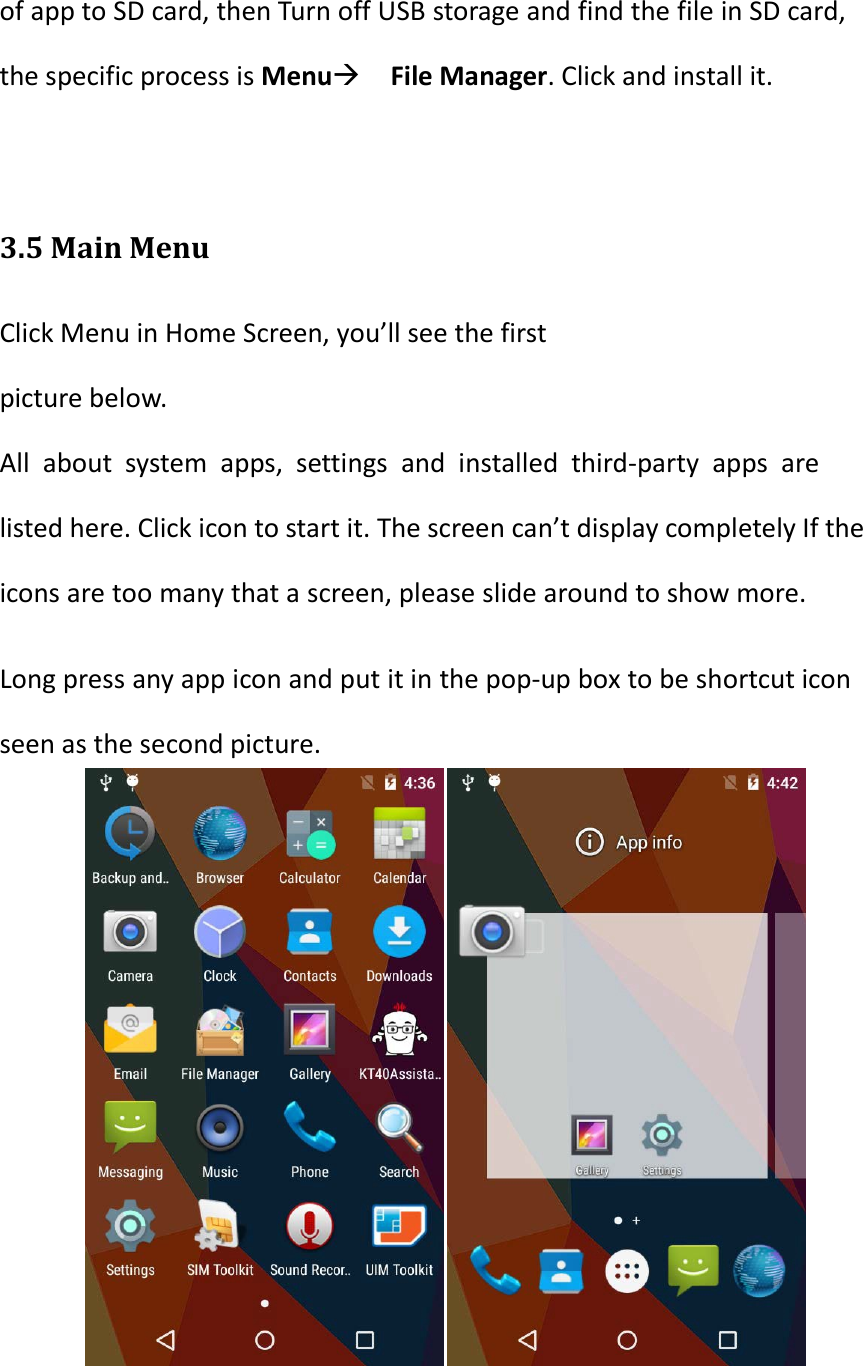
of app to SD card, then Turn off USB storage and find the file in SD card, the specific process is Menu File Manager. Click and install it.  3.5 Main Menu Click Menu in Home Screen, you’ll see the first picture below. All about system apps, settings and installed third-party apps are listed here. Click icon to start it. The screen can’t display completely If the icons are too many that a screen, please slide around to show more. Long press any app icon and put it in the pop-up box to be shortcut icon seen as the second picture.
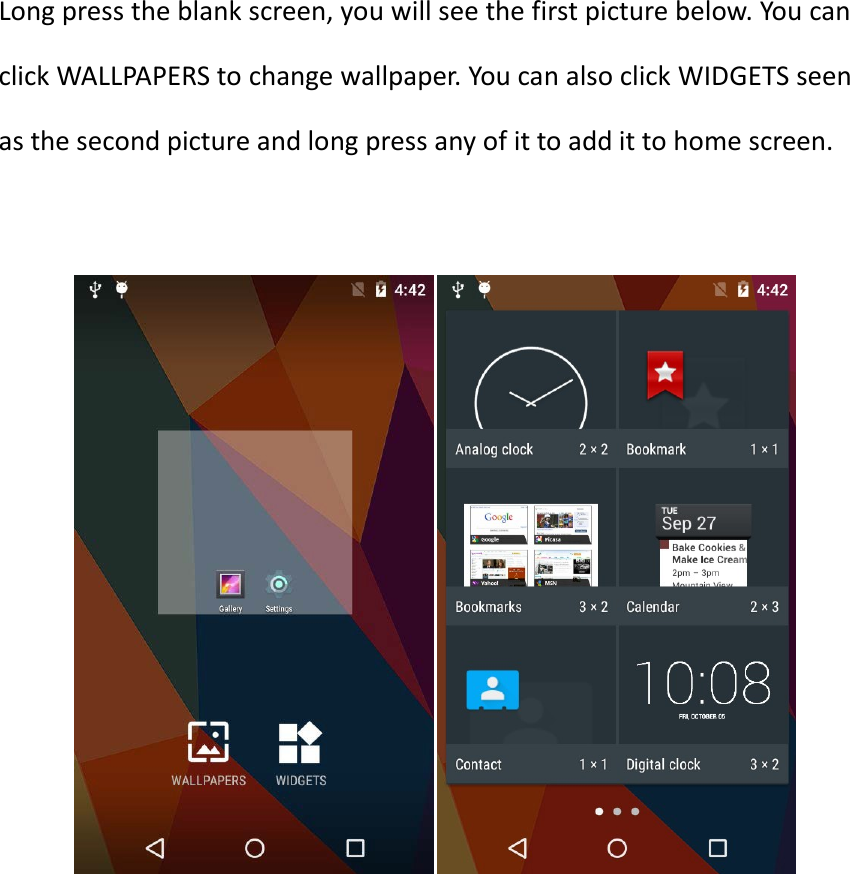
Long press the blank screen, you will see the first picture below. You can click WALLPAPERS to change wallpaper. You can also click WIDGETS seen as the second picture and long press any of it to add it to home screen.
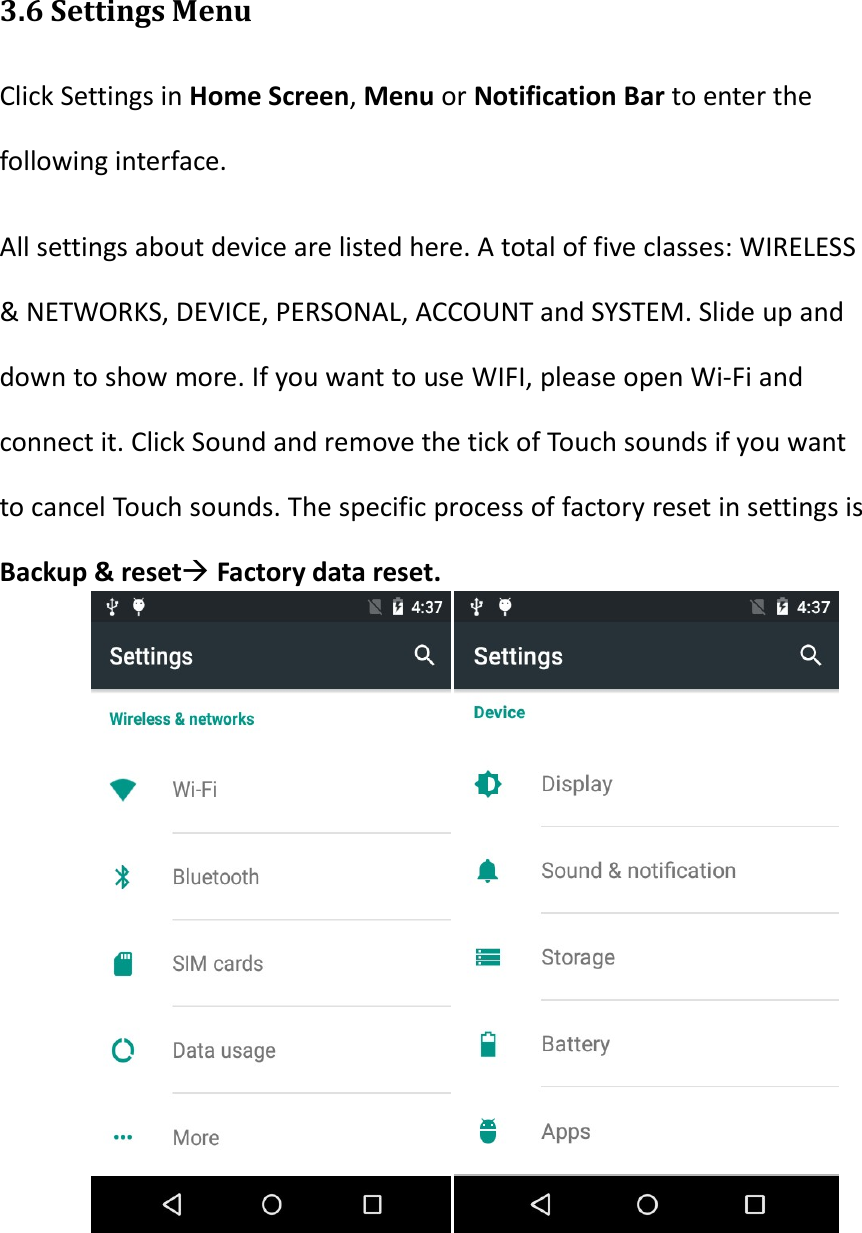
  3.6 Settings Menu Click Settings in Home Screen, Menu or Notification Bar to enter the following interface. All settings about device are listed here. A total of five classes: WIRELESS & NETWORKS, DEVICE, PERSONAL, ACCOUNT and SYSTEM. Slide up and down to show more. If you want to use WIFI, please open Wi-Fi and connect it. Click Sound and remove the tick of Touch sounds if you want to cancel Touch sounds. The specific process of factory reset in settings is Backup & reset Factory data reset.
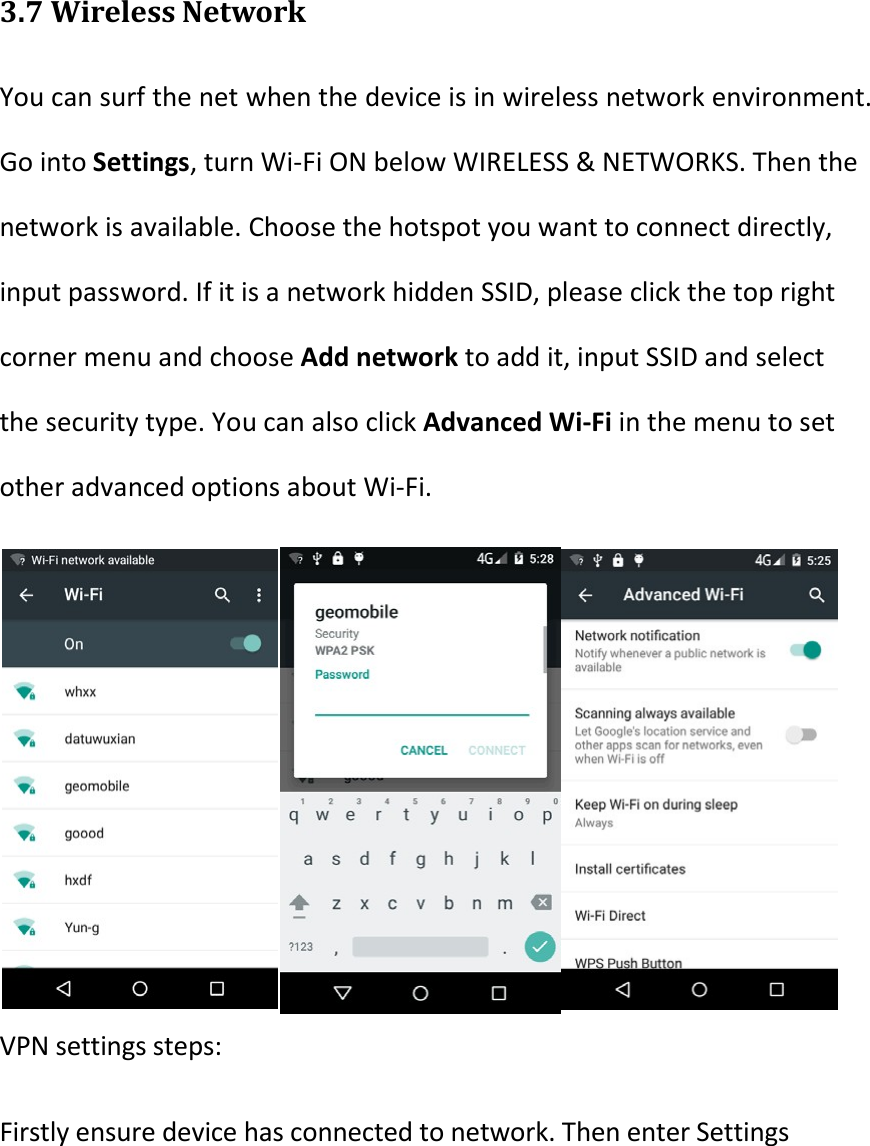
  3.7 Wireless Network You can surf the net when the device is in wireless network environment. Go into Settings, turn Wi-Fi ON below WIRELESS & NETWORKS. Then the network is available. Choose the hotspot you want to connect directly, input password. If it is a network hidden SSID, please click the top right corner menu and choose Add network to add it, input SSID and select the security type. You can also click Advanced Wi-Fi in the menu to set other advanced options about Wi-Fi.     VPN settings steps: Firstly ensure device has connected to network. Then enter Settings
More…VPN and do set a kind of screen lock. Click Add VPN network, input a name like VPN and server address. Click Save after inputting the data. Finally, input username and password and connect.
3.8 F1 Key on the keyboard You can input numbers, uppercase letters and lowercase letters with hardware keyboard by pressing F1 key to switch. For example, it inputs numbers at present time, you can press F1 key one time and then you can input lowercase letters.
4 SPECIAL CUSTOMIZATION INSTRUCTIONS This phone has many reserved port to meet the customization. It can connect with RS232, I2C, RS485 and other interface’s peripherals or some function modules. Please contact the phone manufacturer to get more information.
5 CUSTOMER SERVICE AND TECHNICAL SUPPORTER Customer service  010 – 82346858 – 801 Technical supporter Skype:  Android.Speedata QQ: 287601031
FCC Warning: This equipment has been tested and found to comply with the limits for a Class B digital device, pursuant to part 15 of the FCC Rules. These limits are designed to provide reasonable protection against harmful interference in a residential installation. This equipment generates, uses and can radiate radio frequency energy and, if not installed and used in accordance with the instructions, may cause harmful interference to radio communications. However, there is no guarantee that interference will not occur in a particular installation. If this equipment does cause harmful interference to radio or television reception, which can be determined by turning the equipment off and on, the user is encouraged to try to correct the interference by one or more of the following measures: •  Reorient or relocate the receiving antenna. •  Increase the separation between the equipment and receiver. •  Connect the equipment into an outlet on a circuit different from that to which the receiver is connected. •  Consult the dealer or an experienced radio/TV technician for help. Caution: Any changes or modifications to this device not explicitly approved by manufacturer could void your authority to operate this equipment. This device complies with part 15 of the FCC Rules. Operation is subject to the following two conditions: (1) This device may not cause harmful interference, and (2) this device must accept any interference received, including interference that may cause undesired operation.
Specific Absorption Rate (SAR) Information SAR tests are conducted using standard operating positions accepted by the FCC with the Phone transmitting at its highest certified power level in all tested frequency bands, although the SAR is determined at the highest certified power level, the actual SAR level of the phone While operating can be well below the maximum value, in general, the closer you are to a Wireless base station antenna, the lower the power output. Before a new model phone is an available for sale to the public, it must be tested and certified to the FCC that it does not exceed the exposure limit established by the FCC, Tests for each the FCC that it does not exceed the exposure limit established by the FCC, Tests for each required by the FCC. For body worn operation, this model phone has been tested and meets the FCC RF exposure guidelines when used with an accessory designated for this product or when used with an accessory that contains no metal and that positions the handset a minimum of 0 mm from the body. Non-compliance with the above restrictions may result in violation of RF exposure guidelines.

Navigation menu