Star Systems RANGER-HRD1800 Desktop USB Reader User Manual

Star Systems International Limited Desktop USB Reader

user manual

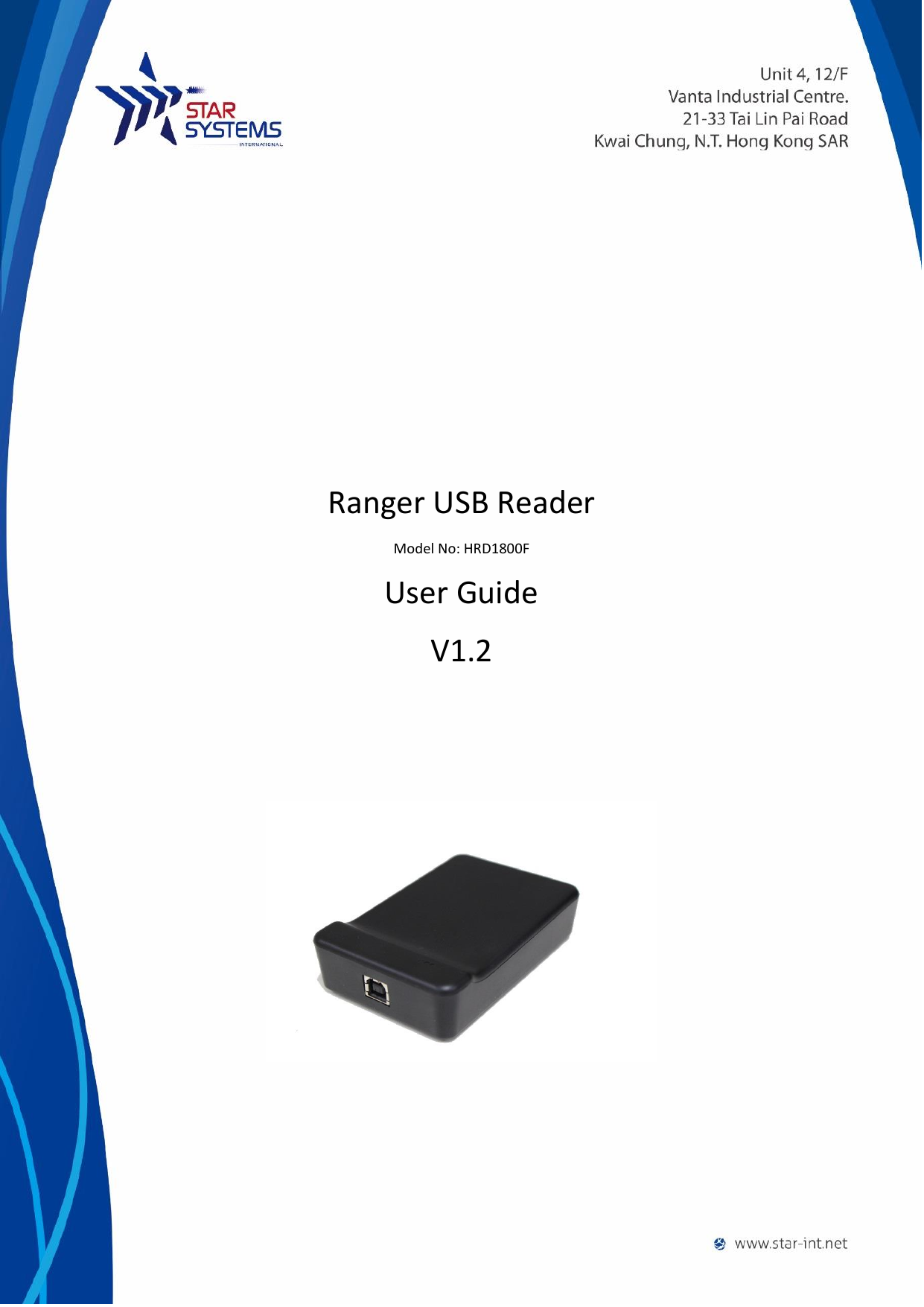
          Ranger USB Reader  Model No: HRD1800F User Guide V1.2
 1  Document History  Table of Content Reader Overview ............................................................................................................................... 2 Package Content ............................................................................................................................... 3 Installing the reader .......................................................................................................................... 3 Mechanical installation......................................................................................................... 3 Software installation ............................................................................................................ 3 System requirement .................................................................................................................. 4 Driver installation ...................................................................................................................... 4 Ensure the reader is connected properly .................................................................................. 4 Troubleshooting ........................................................................................................................ 5 Using the reader ............................................................................................................................... 5 Tag placement ............................................................................................................................... 5 Running the demo software ......................................................................................................... 5 Reading tags in Inventory Mode ............................................................................................... 7 Tag Memory Management ........................................................................................................ 7 Reader Settings ........................................................................................................................ 9 Communication setting ........................................................................................................... 10 Q-Value Setting ....................................................................................................................... 10 Frequency Power Setting ........................................................................................................ 10 Reader Specification ....................................................................................................................... 11 Warranty Terms ............................................................................................................................... 11 Disclaimer and Limitation of Liability .............................................................................................. 12 Regulatory Compliance ............................................................................................................... 12   Date Ver Description Edit by 2015/09/20 V1.0 Draft Jet 2015/09/29 V1.1 Minor amendment Jet 2015/10/08 V1.2 Added Photos to package content Jet
 2   Reader Overview The Ranger is a new compact, full-featured ISO18000-6C/EPC C1G2 reader which is perfect for use in a variety of tag reading, writing and programming applications. Ranger is powered by a standard USB connection (requires USB 2.0 or above), no additional power supply is needed.  Its small size allows it to easily be used on a desktop or where space is limited.   The Ranger Reader is very user friendly and extremely easy to set up read and write tags with its standard free software.   It also comes with a SDK to allow you to create your own custom programs to interface and drive the Ranger Reader.  The Ranger reader’s features provides a powerful, and very economical way to implement UHF RFID technology in just about any application. Possible Applications:  Point of Sale RFID reading and writing  Commissioning/Activation of RFID Tags  Parking and Access Control  Production / WIP checkpoints  Document Tracking and Management  Library Management  Catering Management  Healthcare/Pharmaceutical Applications  The reader has 2 LEDs as status indicators. The LEDs provide indication for the following: Status \ LEDS Blue Red Connected to Host Off On Tag read/write operation Flash On
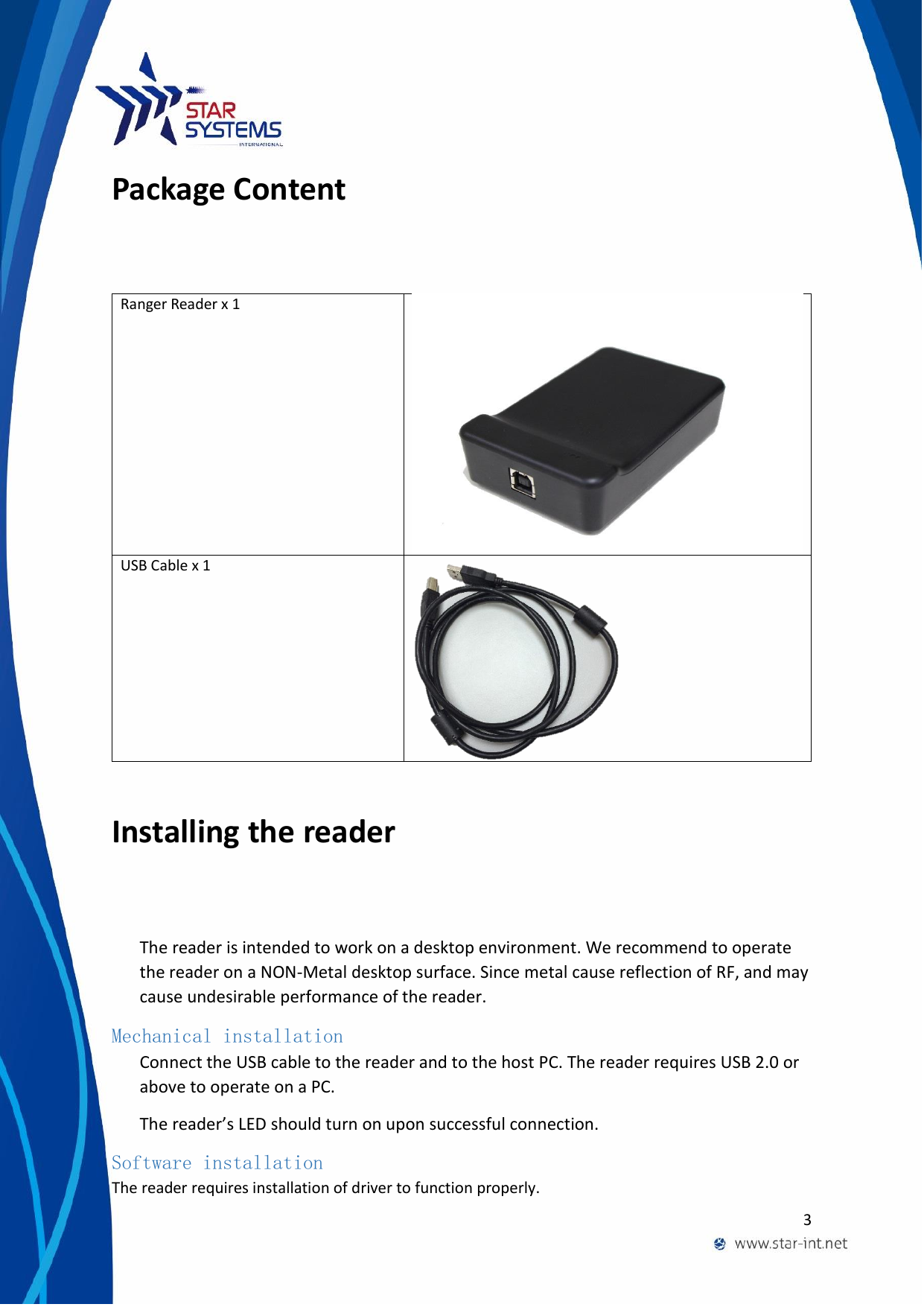
 3  Package Content Ranger Reader x 1  USB Cable x 1   Installing the reader The reader is intended to work on a desktop environment. We recommend to operate the reader on a NON-Metal desktop surface. Since metal cause reflection of RF, and may cause undesirable performance of the reader. Mechanical installation Connect the USB cable to the reader and to the host PC. The reader requires USB 2.0 or above to operate on a PC. The reader’s LED should turn on upon successful connection. Software installation The reader requires installation of driver to function properly.
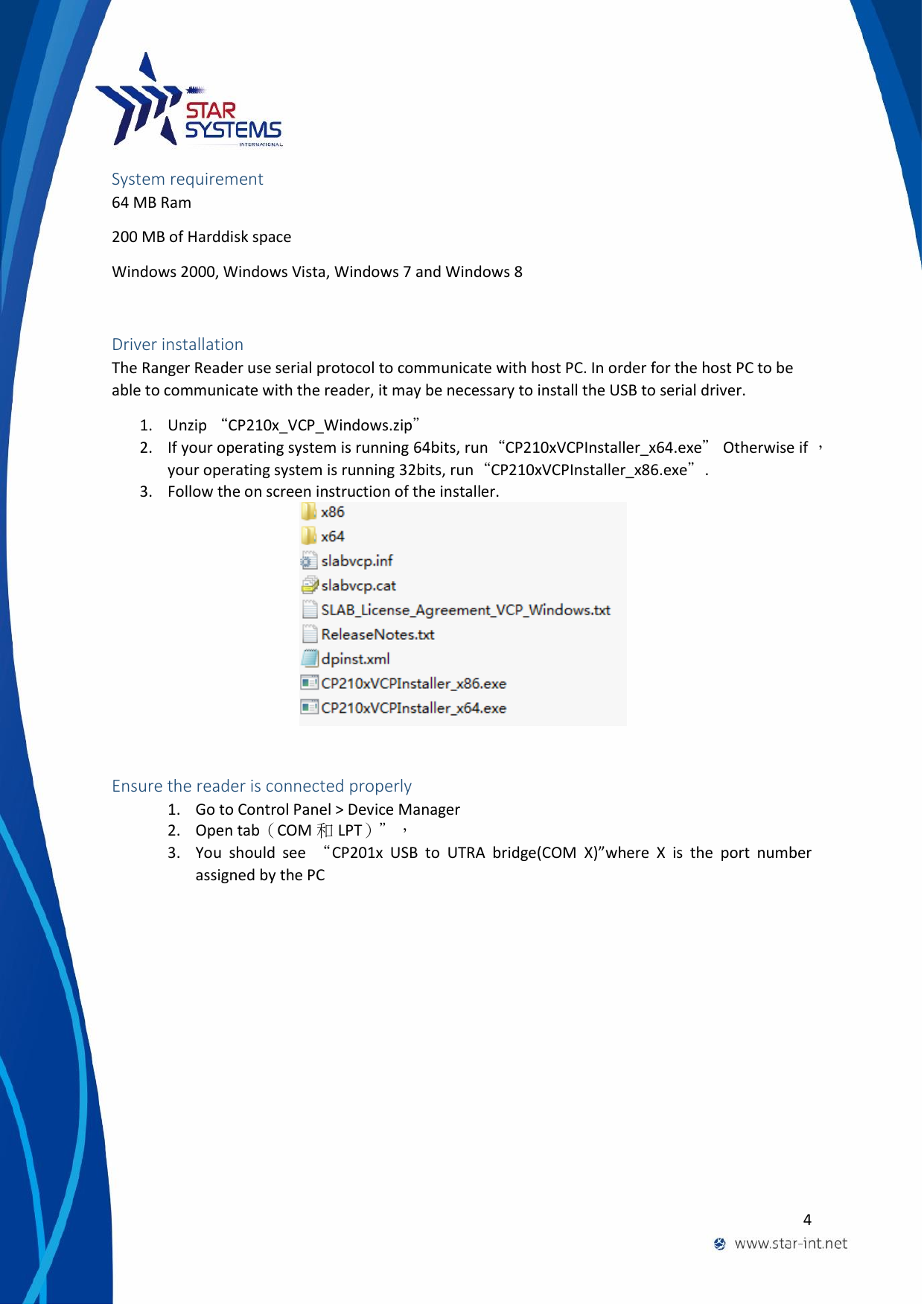
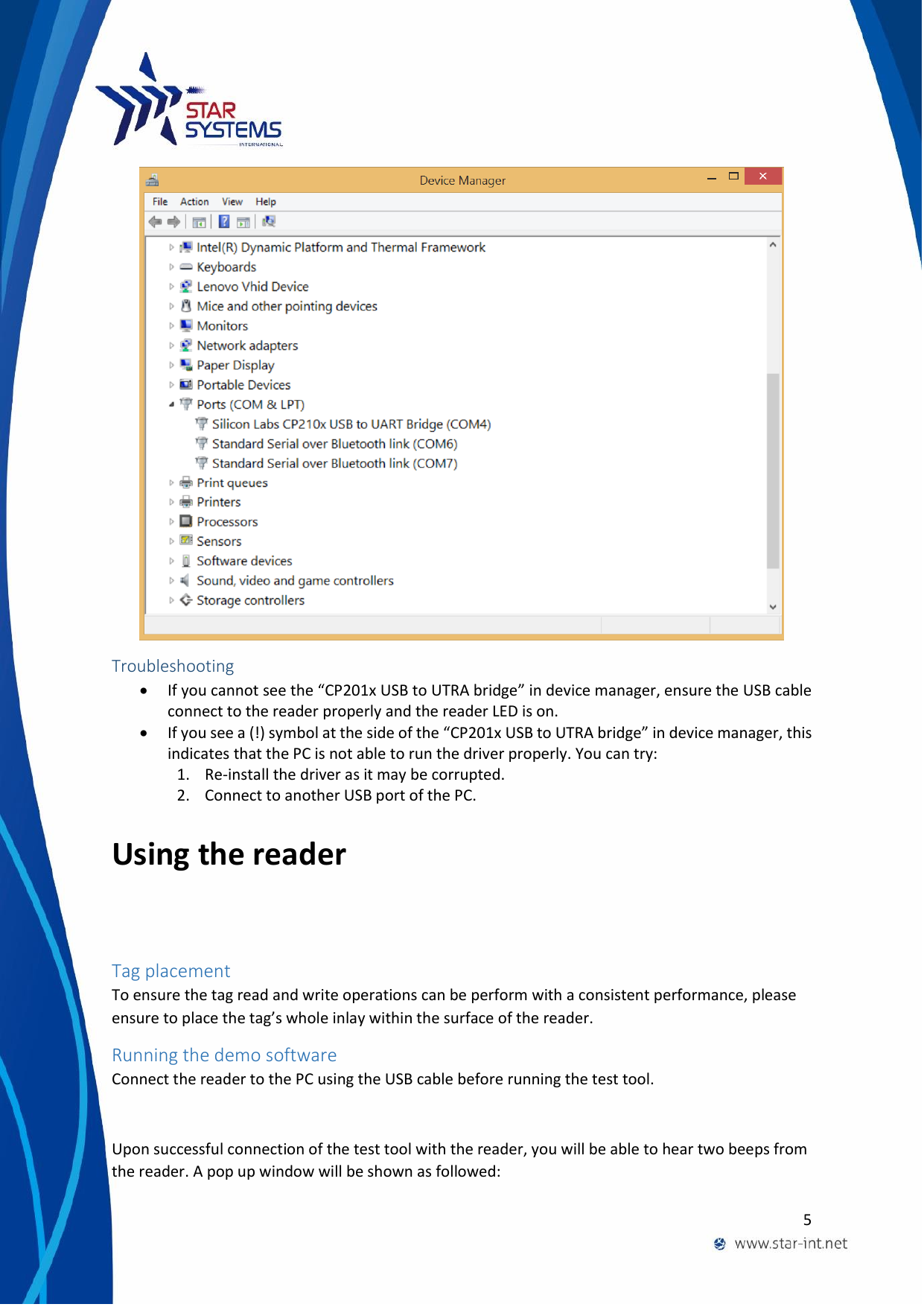
 4  System requirement 64 MB Ram 200 MB of Harddisk space Windows 2000, Windows Vista, Windows 7 and Windows 8  Driver installation The Ranger Reader use serial protocol to communicate with host PC. In order for the host PC to be able to communicate with the reader, it may be necessary to install the USB to serial driver. 1. Unzip “CP210x_VCP_Windows.zip” 2. If your operating system is running 64bits, run“CP210xVCPInstaller_x64.exe” Otherwise if ,your operating system is running 32bits, run“CP210xVCPInstaller_x86.exe”. 3. Follow the on screen instruction of the installer.                                                                  Ensure the reader is connected properly 1. Go to Control Panel > Device Manager 2. Open tab(COM 和LPT)”, 3. You  should  see  “CP201x  USB  to  UTRA  bridge(COM  X)”where  X  is  the  port  number assigned by the PC
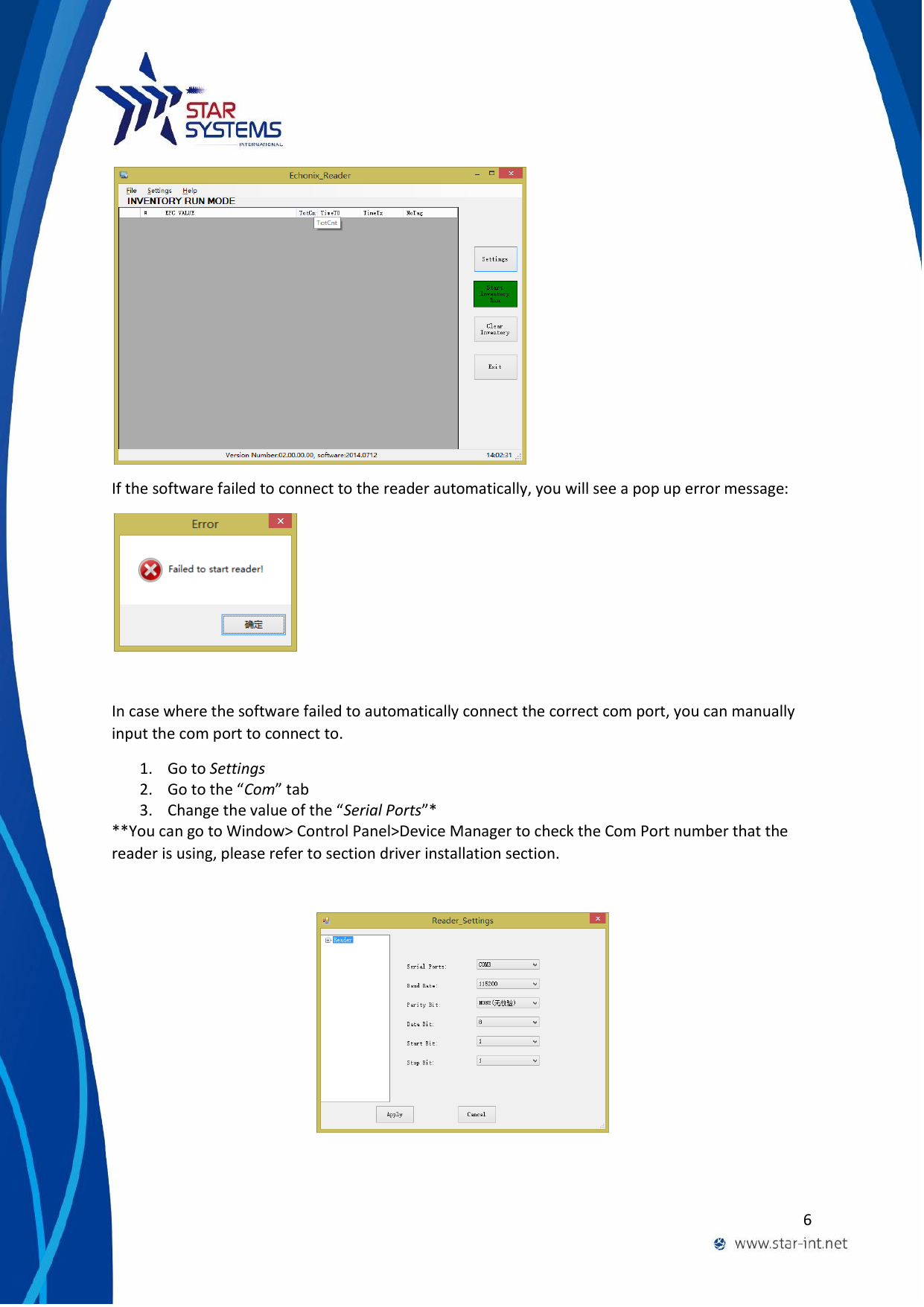
 5   Troubleshooting  If you cannot see the “CP201x USB to UTRA bridge” in device manager, ensure the USB cable connect to the reader properly and the reader LED is on.  If you see a (!) symbol at the side of the “CP201x USB to UTRA bridge” in device manager, this indicates that the PC is not able to run the driver properly. You can try: 1. Re-install the driver as it may be corrupted. 2. Connect to another USB port of the PC. Using the reader Tag placement To ensure the tag read and write operations can be perform with a consistent performance, please ensure to place the tag’s whole inlay within the surface of the reader.  Running the demo software Connect the reader to the PC using the USB cable before running the test tool.  Upon successful connection of the test tool with the reader, you will be able to hear two beeps from the reader. A pop up window will be shown as followed:
 6   If the software failed to connect to the reader automatically, you will see a pop up error message:   In case where the software failed to automatically connect the correct com port, you can manually input the com port to connect to. 1. Go to Settings 2. Go to the “Com” tab 3. Change the value of the “Serial Ports”* **You can go to Window> Control Panel>Device Manager to check the Com Port number that the reader is using, please refer to section driver installation section.
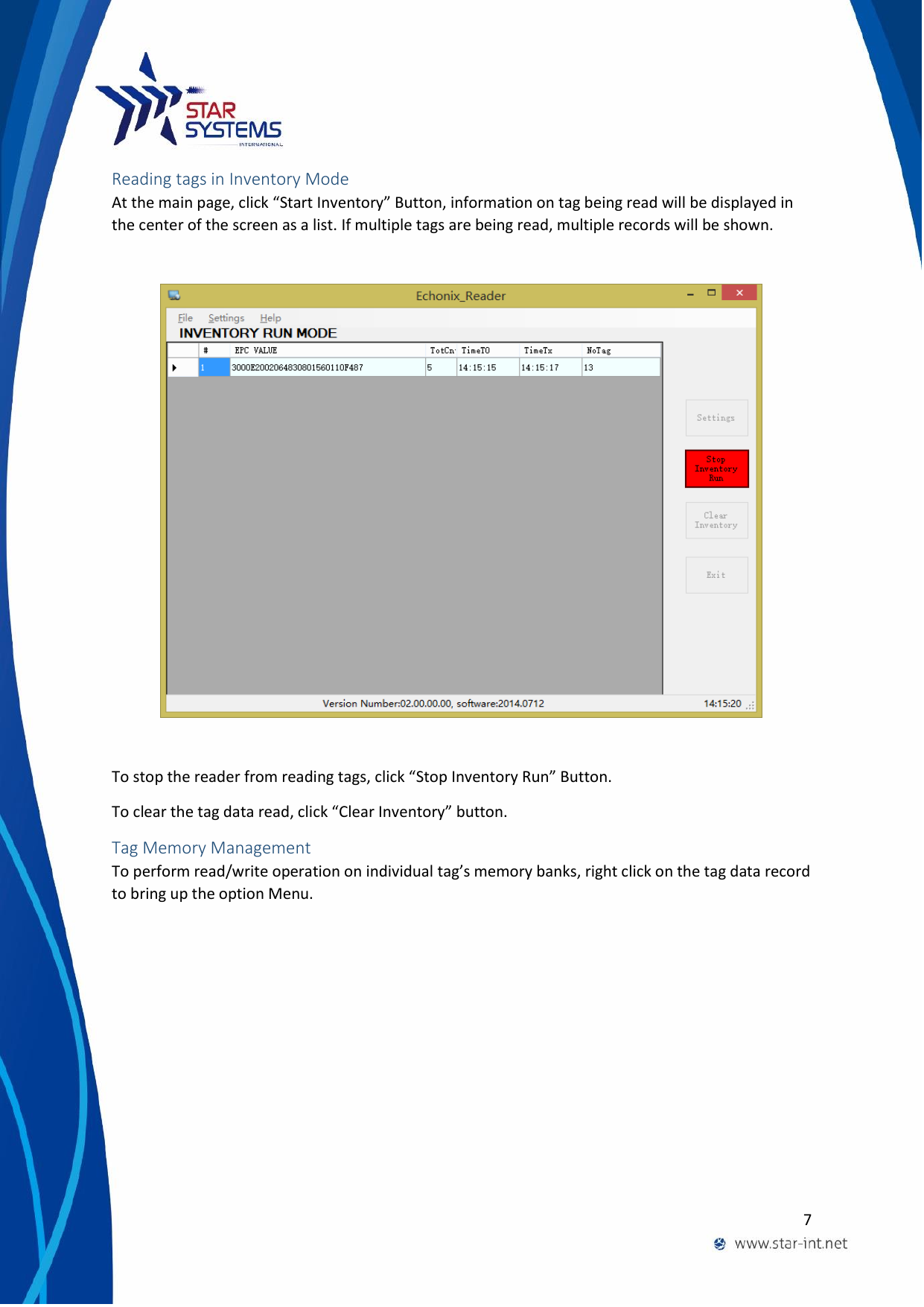
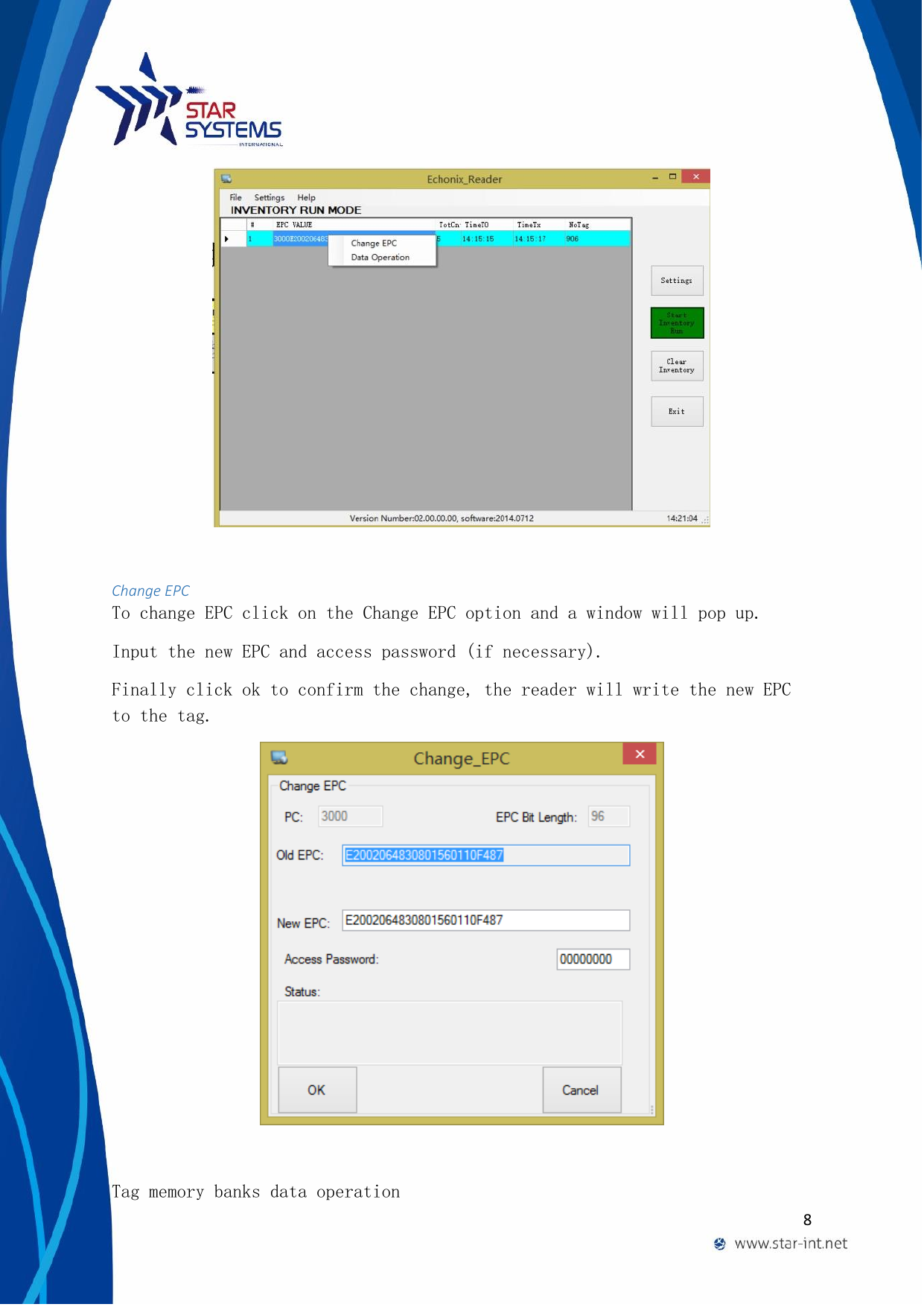
 7  Reading tags in Inventory Mode At the main page, click “Start Inventory” Button, information on tag being read will be displayed in the center of the screen as a list. If multiple tags are being read, multiple records will be shown.    To stop the reader from reading tags, click “Stop Inventory Run” Button. To clear the tag data read, click “Clear Inventory” button. Tag Memory Management To perform read/write operation on individual tag’s memory banks, right click on the tag data record to bring up the option Menu.
 8     Change EPC To change EPC click on the Change EPC option and a window will pop up. Input the new EPC and access password (if necessary). Finally click ok to confirm the change, the reader will write the new EPC to the tag.    Tag memory banks data operation
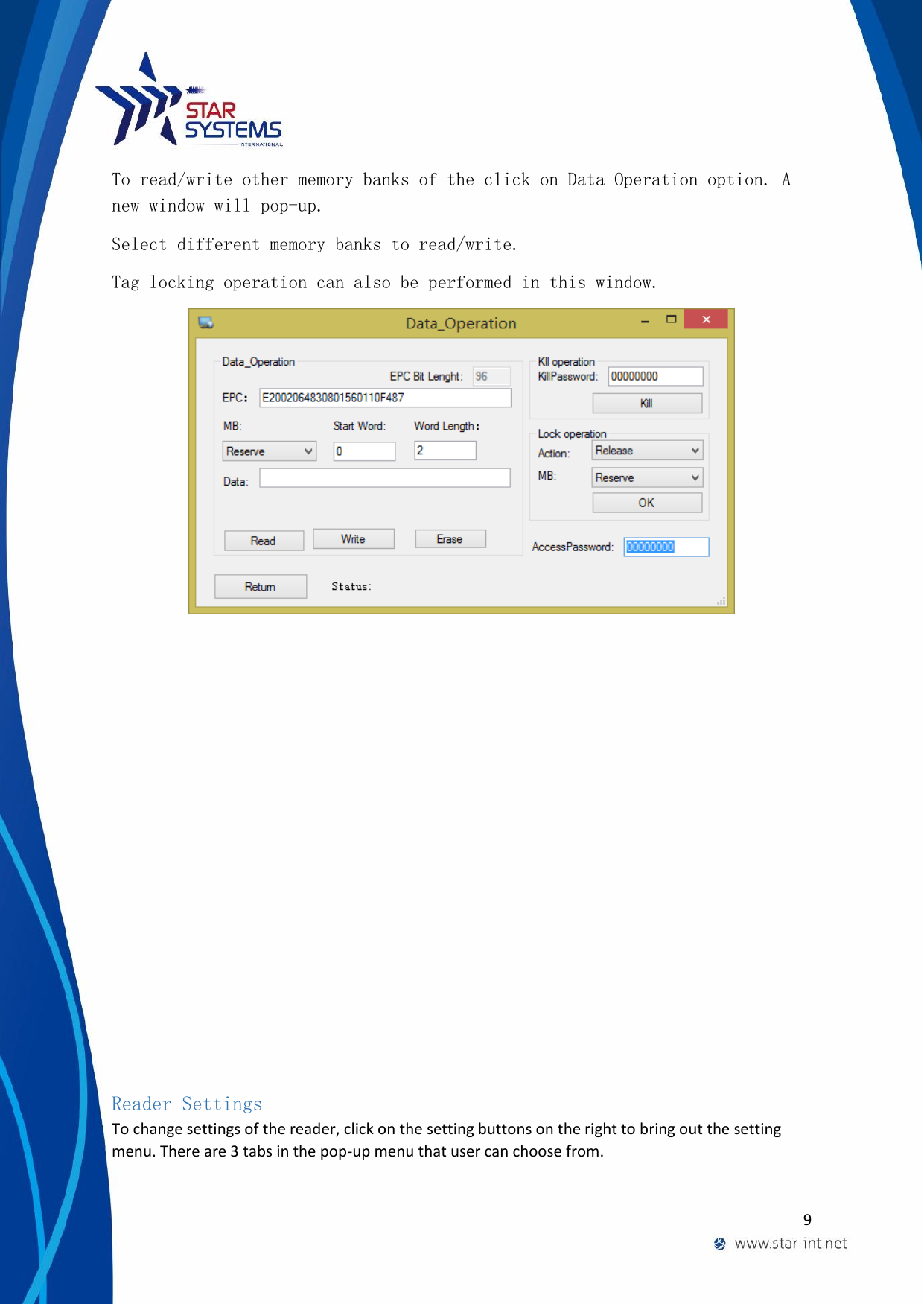
 9  To read/write other memory banks of the click on Data Operation option. A new window will pop-up. Select different memory banks to read/write. Tag locking operation can also be performed in this window.              Reader Settings To change settings of the reader, click on the setting buttons on the right to bring out the setting menu. There are 3 tabs in the pop-up menu that user can choose from.
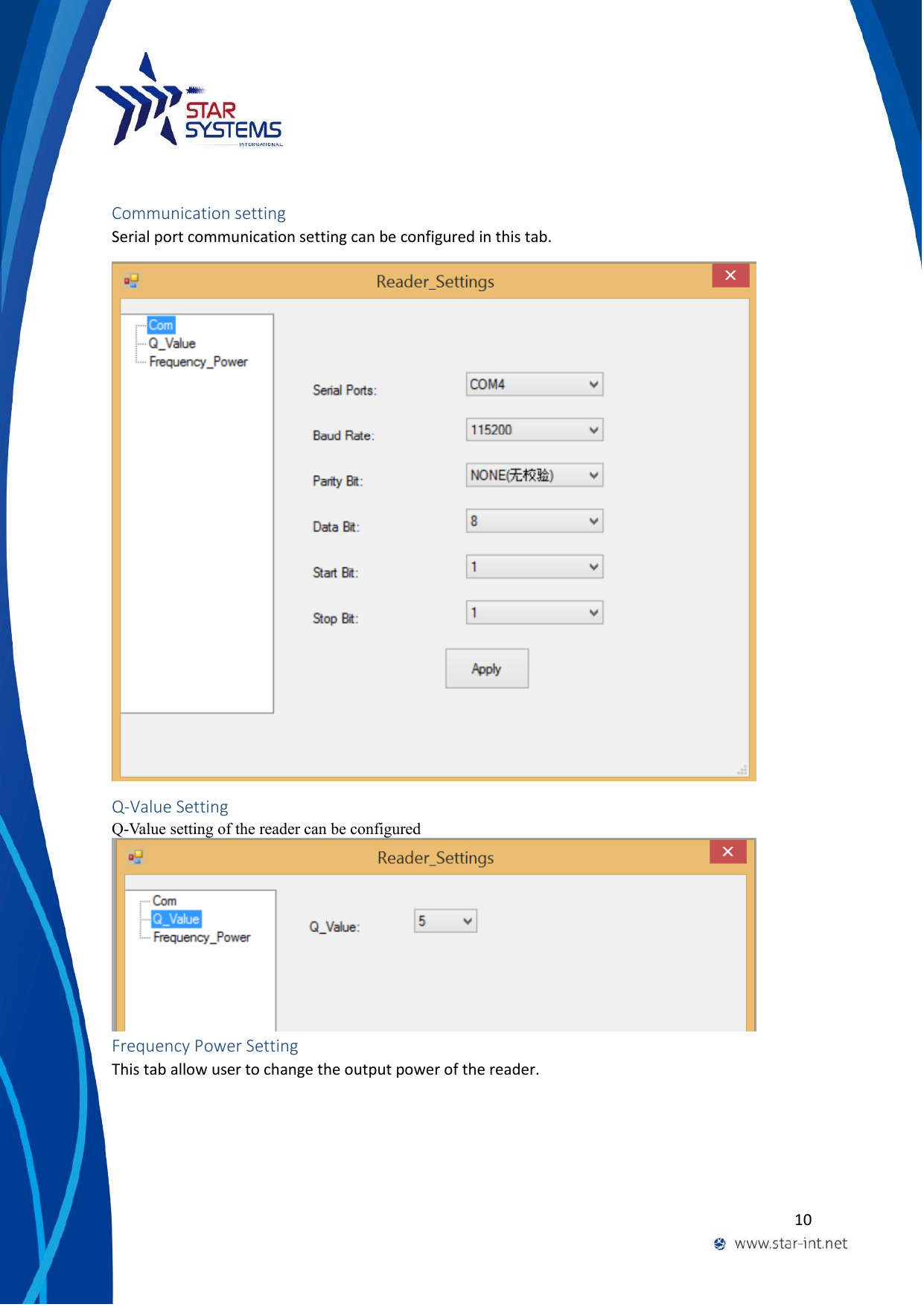
 10   Communication setting Serial port communication setting can be configured in this tab.  Q-Value Setting Q-Value setting of the reader can be configured  Frequency Power Setting This tab allow user to change the output power of the reader.
 11  Reader Specification  Power: 5V , no battery (USB power) Working Frequency: 902-928MHz Input Voltage: DC 5V Maximum Power Output: 20mW Storage Temperature: -45°C~ +95°C Operating Temperature: -20°C~ +65°C Dimensions: 105 * 70 * 25mm Weight: 75g Regulatory Compliance: FCC Supported protocol: ISO 18000 6C, EPC C1G2 Warranty Terms The warranties for GTSYS products are set forth in the limited warranty terms accompanying such products. Nothing herein should be construed as constituting an additional warranty. The warranty is valid, if and only if the user of the product operate it as instructed by this document or otherwise by Star System International Limited’s personnel. Failure to comply with the instructions may cause damage to the product or harm to the users. Usage of third party accessories (including USB cable) may cause the reader to not function as intended. In circumstances where but not limited to: damage is caused by misuse of the reader, unauthorized modification of the reader, warranty may be void.
 12  Disclaimer and Limitation of Liability Under no circumstance that Star System International Limited shall be responsible for the damage caused by misuse of the product or usage of the product in applications that it is not designed for. This product is not designed, intended, authorized or warranted to be suitable for life support applications or any other life critical applications which could involve potential risk of death, personal injury, property damage, or environmental damage.  Star System International Limited shall not be liable for technical or editorial errors or omissions contained herein of for incidental or consequential damages in connection with the furnishing, performance, or use of this material.  Microsoft, Windows, the Windows logo are trademarks of Microsoft Corporation in the U.S. and other countries. All other products names mentioned herein may be trademarks of their respective companies. Regulatory Compliance Changes or modifications to this unit not expressly approved by the party responsible for compliance could void the user’s authority to operate the equipment.  NOTE:   This equipment has been tested and found to comply with the limits for a Class Bdigital device, pursuant to Part 15 of the FCC Rules.  These limits are designed to provide reasonable protection against harmful interference in a residential installation.  This equipment generates, uses and can radiate radio frequency energy and, if not installed and used in accordance with the instructions, may cause harmful interference to radio communications.   However, there is no guarantee that interference will not occur in a particular installation.  If this equipment does cause harmful interference to radio or television reception, which can be determined by turning the equipment off and on, the user is encouraged to try to correct the interference by one or more of the following measures:   Reorient or relocate the receiving antenna.
 13  Increase the separation between the equipment and receiver. Connect the equipment into an outlet on a circuit different from that to which the receiver is connected. Consult the dealer or an experienced radio/TV technician for help.  This device complies with Part 15 of the FCC Rules.   Operation is subject to the following two conditions:  (1) This device may not cause harmful interference, and  (2) This device must accept any interference received, including interference that may cause undesired operation.                 Star Systems International Ltd. +852 3691 9925  sales@star-int.net Unit 04, 12/F Vanta Industrial Centre 21-33 Tai Lin Pai Road, Kwai Chung Hong Kong          - End -

Navigation menu