Starix Technology P0029B One-Port DWA (Device Wire Adapter) User Manual P0029BUser sManual R2

Realtek Semiconductor Corp. - Wionics Research One-Port DWA (Device Wire Adapter) P0029BUser sManual R2

Users Manual

P0029BUser'sManual_R2.doc 1 All Rights Reserved by Wionics Research     P0029B User’s Manual  Rev 2       Child K. Sun
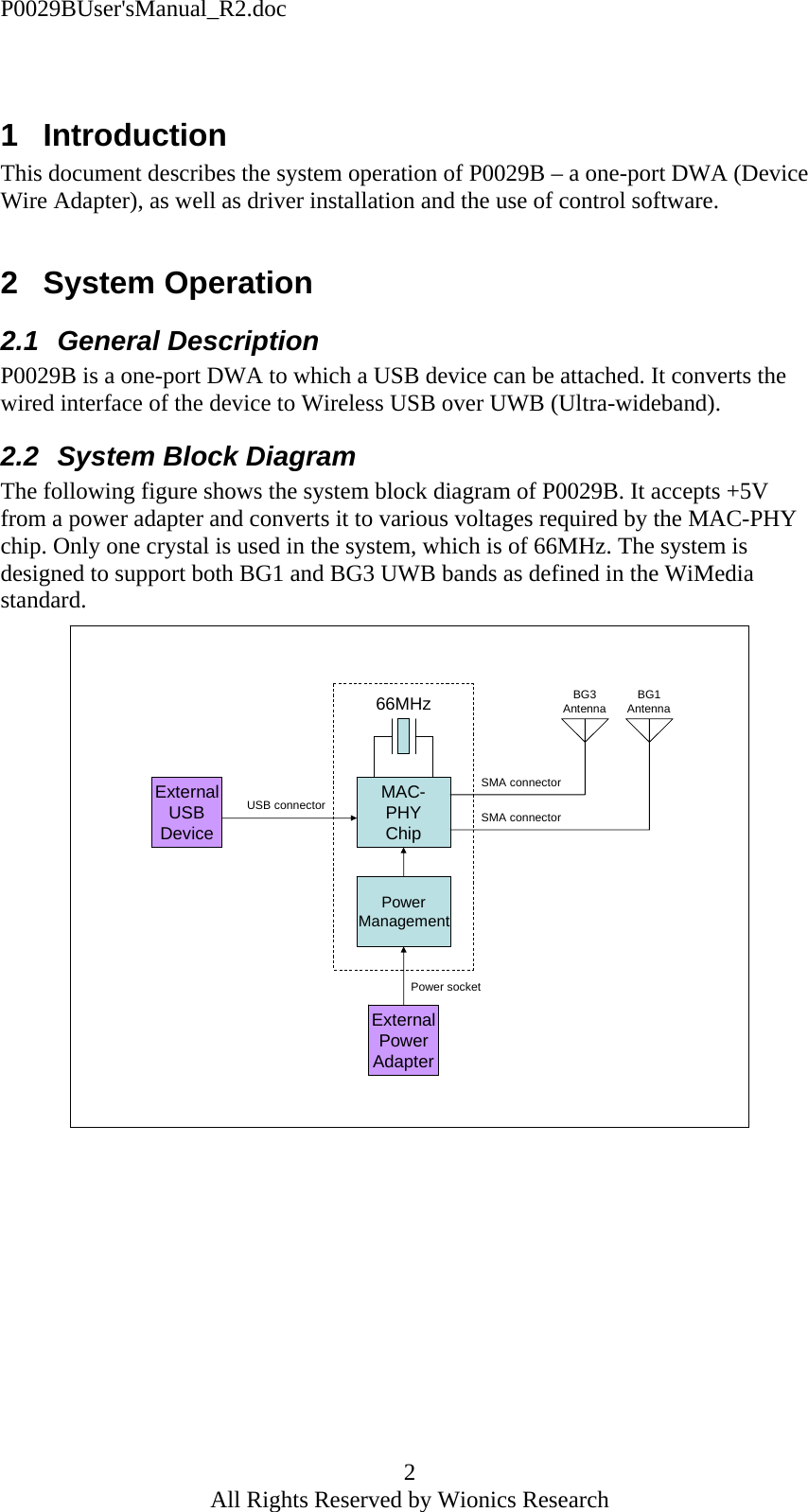
P0029BUser'sManual_R2.doc 2 All Rights Reserved by Wionics Research  1 Introduction This document describes the system operation of P0029B – a one-port DWA (Device Wire Adapter), as well as driver installation and the use of control software.  2 System Operation 2.1 General Description P0029B is a one-port DWA to which a USB device can be attached. It converts the wired interface of the device to Wireless USB over UWB (Ultra-wideband). 2.2  System Block Diagram The following figure shows the system block diagram of P0029B. It accepts +5V from a power adapter and converts it to various voltages required by the MAC-PHY chip. Only one crystal is used in the system, which is of 66MHz. The system is designed to support both BG1 and BG3 UWB bands as defined in the WiMedia standard. MAC-PHYChip66MHzExternalUSBDeviceUSB connectorExternalPowerAdapterPower socketBG3Antenna BG1AntennaSMA connectorSMA connectorPowerManagement
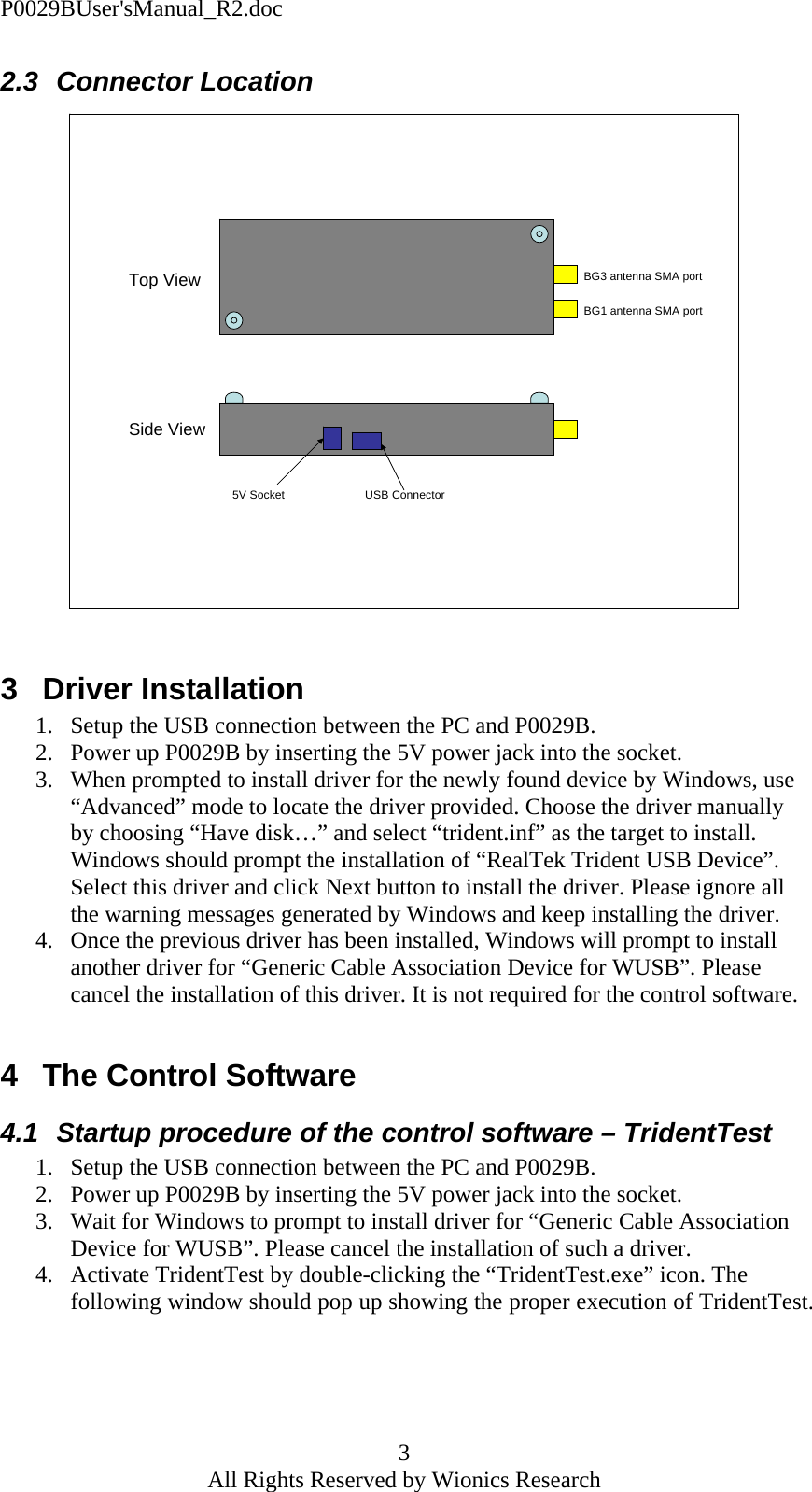
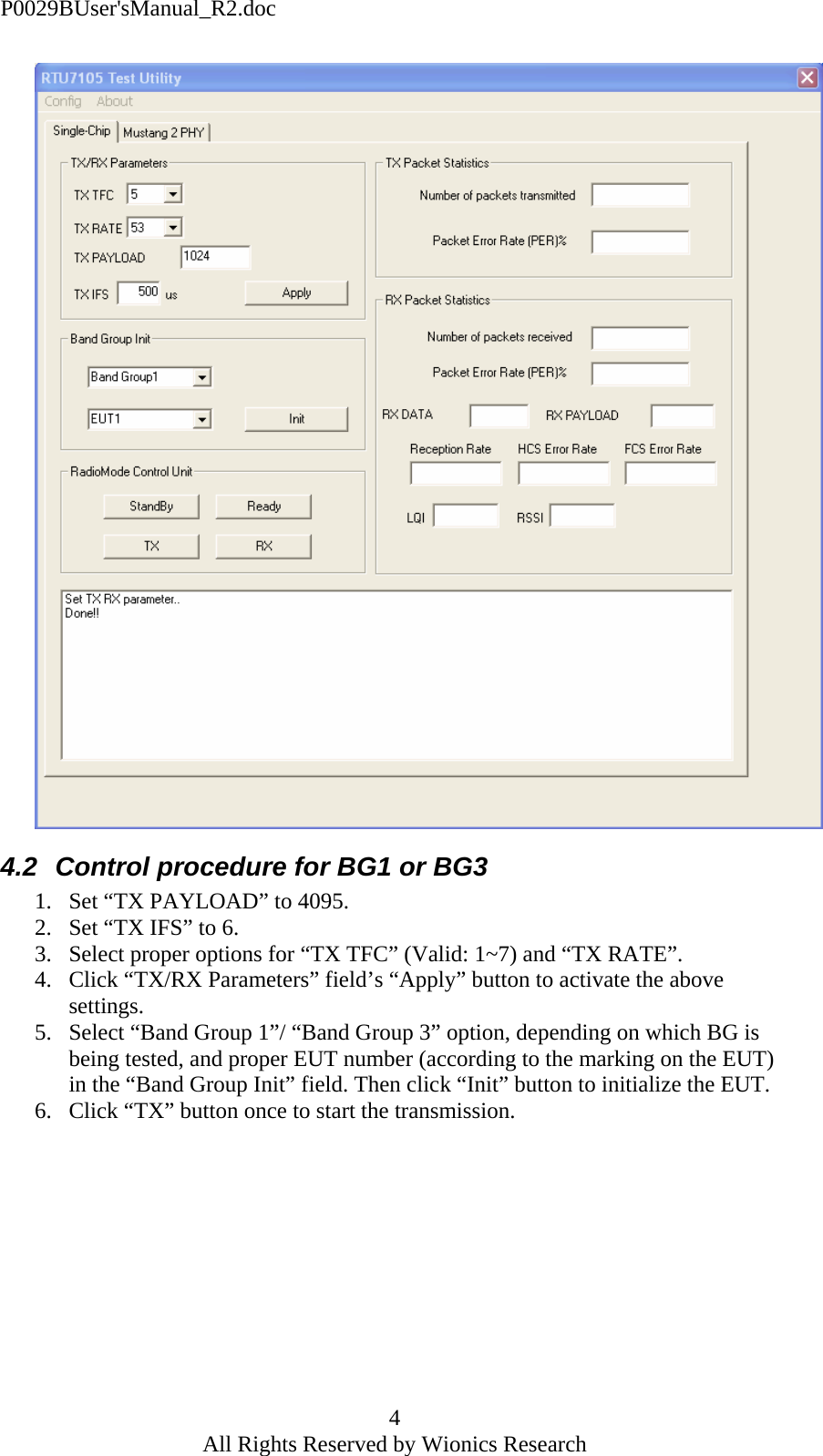
P0029BUser'sManual_R2.doc 3 All Rights Reserved by Wionics Research 2.3 Connector Location BG3 antenna SMA portBG1 antenna SMA portTop ViewSide View5V Socket USB Connector  3 Driver Installation 1. Setup the USB connection between the PC and P0029B. 2. Power up P0029B by inserting the 5V power jack into the socket. 3. When prompted to install driver for the newly found device by Windows, use “Advanced” mode to locate the driver provided. Choose the driver manually by choosing “Have disk…” and select “trident.inf” as the target to install. Windows should prompt the installation of “RealTek Trident USB Device”. Select this driver and click Next button to install the driver. Please ignore all the warning messages generated by Windows and keep installing the driver. 4. Once the previous driver has been installed, Windows will prompt to install another driver for “Generic Cable Association Device for WUSB”. Please cancel the installation of this driver. It is not required for the control software.  4  The Control Software 4.1  Startup procedure of the control software – TridentTest 1. Setup the USB connection between the PC and P0029B. 2. Power up P0029B by inserting the 5V power jack into the socket. 3. Wait for Windows to prompt to install driver for “Generic Cable Association Device for WUSB”. Please cancel the installation of such a driver. 4. Activate TridentTest by double-clicking the “TridentTest.exe” icon. The following window should pop up showing the proper execution of TridentTest.
P0029BUser'sManual_R2.doc 4 All Rights Reserved by Wionics Research  4.2  Control procedure for BG1 or BG3 1. Set “TX PAYLOAD” to 4095. 2. Set “TX IFS” to 6. 3. Select proper options for “TX TFC” (Valid: 1~7) and “TX RATE”. 4. Click “TX/RX Parameters” field’s “Apply” button to activate the above settings. 5. Select “Band Group 1”/ “Band Group 3” option, depending on which BG is being tested, and proper EUT number (according to the marking on the EUT) in the “Band Group Init” field. Then click “Init” button to initialize the EUT. 6. Click “TX” button once to start the transmission.

Navigation menu