Steinberg Cubase AI – Getting Started 5.0 QSG
User Manual: Steinberg AI - 5.0 - Getting Started Free User Guide for Cubase Software, Manual - page1
Open the PDF directly: View PDF  .
.
Page Count: 55

Getting Started
Tutorials by Steve Kostrey
Revision and Quality Control: Cristina Bachmann, Heiko Bischoff, Marion Bröer, Sabine Pfeifer, Heike Schilling
The information in this document is subject to change without notice and does not represent a commitment on the part
of Steinberg Media Technologies GmbH. The software described by this document is subject to a License Agreement
and may not be copied to other media except as specifically allowed in the License Agreement. No part of this publica-
tion may be copied, reproduced or otherwise transmitted or recorded, for any purpose, without prior written permission
by Steinberg Media Technologies GmbH.
All product and company names are ™ or ® trademarks of their respective owners. Windows XP is a trademark of
Microsoft Corporation. Windows Vista is either a registered trademark or trademark of Microsoft Corporation in the
United States and/or other countries. The Mac logo is a trademark used under license. Macintosh and Power Macintosh
are registered trademarks.
Release Date: June 04, 2009
© Steinberg Media Technologies GmbH, 2009.
All rights reserved.
Table of Contents
4
Table of Contents
5Introduction
6Welcome
6About the manuals and the help
7About the program versions
7Key command conventions
7How you can reach us
8System requirements and installation
9About this chapter
9Minimum requirements
11 Hardware installation
11 Installing Cubase AI
12 Defragmenting the hard disk (Windows only)
12 License activation and registration
13 Setting up your system
14 Setting up audio
18 Setting up MIDI
19 Connecting a synchronizer
20 Setting up video
20 Optimizing audio performance
22 Tutorial 1: Recording audio
23 Creating a new project
24 Setting up the VST connections
25 Level settings and recording
27 Playback
28 Recording modes with cycle off
29 Cycle recording
31 Tutorial 2: Editing audio
32 Event operations
36 Processing audio
38 Tutorial 3: Recording and editing MIDI
39 Introduction
39 Creating an instrument track
40 Browsing sounds
40 MIDI recording
41 MIDI playback
42 Recording modes with cycle off
42 Cycle recording
43 The Key Editor
44 The Controller lane
45 Tutorial 4: Mixing and effects
46 Introduction
46 Setting levels
46 Setting panorama
47 Mute and solo
48 Adding EQ
49 Audio effects
51 About automation
52 Exporting
54 Index
1
Introduction
6
Introduction
Welcome
Congratulations and thank you for your purchase of Stein-
berg Cubase AI. 2009 marks the 25th anniversary of
Steinberg Media Technologies GmbH and our key mes-
sage “Creativity First” has never had more meaning than
today. Over many years and many product generations
Cubase has grown from a classic MIDI sequencer to pos-
sibly the most powerful music production software money
can buy. And as a Cubase AI user, you have now become
a member of the largest community of music software us-
ers on the planet!
With Cubase AI you have chosen a music production sys-
tem which will take you from the very first idea to the final
mix. Whether you’re a keyboard player, a songwriter, an
instrumentalist or a mixing engineer – Cubase AI has it all
covered and gives you the tools you need to record, edit,
mix and master your music. The introduction of industry
standards like VST and ASIO are good examples for how
Steinberg technology has always driven music technology
and paved ways for others to follow.
Designed by the software engineers at Steinberg and the
hardware experts at Yamaha, Steinberg Advanced Inte-
gration hardware is the ideal choice for you as a valued
Cubase AI customer. Full plug&play connectivity and True
Integrated Monitoring™ are only two of the many advan-
tages that come with hardware and software that have
been made for each other.
Don’t forget to register at MySteinberg and get access to
online support offers and additional exclusive services.
We also welcome you to the Cubase community at our
online forum cubase.net.
See you around! Your Steinberg Cubase AI Team
About the manuals and the help
The Cubase AI documentation is divided into several sec-
tions, as listed below. Some of the documents are in Adobe
Acrobat format (extension “.pdf”) – these can be accessed
in the following ways:
• You can open the pdf documents from the Documentation
submenu on the Help menu in the program.
• Under Windows you can also open these documents from the
Cubase AI Documentation subfolder on the Start menu.
• Under Mac OS X the pdf documents are located in the folder
“/Library/Documentation/Steinberg/Cubase AI 5”.
ÖTo read the pdf documents, you need to have a suit-
able pdf reader application installed on your computer.
An installer for Adobe Reader is provided on the program DVD.
The Getting Started manual
This is the manual you are reading now. It covers the fol-
lowing areas:
• Computer requirements.
• Installation issues.
• Setting up your system for audio, MIDI and/or video work.
• Tutorials describing the most common procedures for record-
ing, playing back, mixing and editing in Cubase AI.
In other words, this manual does not go into detail on any
Cubase AI windows, functions or procedures.
The Operation Manual
The Operation Manual is the main Cubase AI reference
documentation, with detailed descriptions of Cubase AI op-
erations, parameters, functions and techniques. You should
be familiar with the concepts and methods described in the
Getting Started manual before moving on to the Operation
Manual.
Plug-in Reference
This manual describes the features and parameters of the
included VST plug-ins, realtime audio effects and the VST
Instrument HALionOne.
Remote Control Devices
This pdf document lists the supported MIDI remote control
devices.
Menu Reference
This pdf document provides a list of all menus and their
options with a brief description, for quick reference.
The dialog help
To get information about the active dialog, click its Help
button.
7
Introduction
About the program versions
The documentation covers two different operating systems
or “platforms”; Windows and Mac OS X.
Some features and settings are specific to one of the plat-
forms, Windows or Mac OS X. This is clearly stated in the
applicable cases. In other words:
ÖIf nothing else is said, all descriptions and procedures
in the documentation are valid for both Windows and Mac
OS X.
The screenshots are taken from the Windows version.
Key command conventions
Many of the default key commands in Cubase AI use mod-
ifier keys, some of which are different depending on the
operating system. For example, the default key command
for Undo is [Ctrl]-[Z] under Windows and [Command]-[Z]
under Mac OS X.
When key commands with modifier keys are described in
this manual, they are shown with the Windows modifier
key first, in the following way:
[Win modifier key]/[Mac modifier key]-[key]
For example, [Ctrl]/[Command]-[Z] means “press [Ctrl] un-
der Windows or [Command] under Mac OS X, then press
[Z]”. Similarly, [Alt]/[Option]-[X] means “press [Alt] under
Windows or [Option] under Mac OS X, then press [X]”.
ÖPlease note that this manual often refers to “right-
clicking”, e.g. to open context menus. If you are using a
Macintosh computer with a single-button mouse, hold
down [Ctrl] and click.
How you can reach us
On the Help menu in Cubase AI you will find items for get-
ting additional information and help:
•On the “Steinberg on the Web” submenu, you can find
links to various Steinberg web sites. Selecting one will au-
tomatically launch your browser application and open the
page.
You can find support and compatibility information, answers to frequently
asked questions, links for downloading new drivers, etc. This requires
that you have a web browser application installed on your computer, and
a working Internet connection.
2
System requirements and installation

9
System requirements and installation
About this chapter
This chapter describes the requirements and installation
procedures for the Windows version and the Mac version
of Cubase AI.
Minimum requirements
To use Cubase AI, your computer must meet the following
minimum requirements:
Windows
• Windows XP (Home or Professional, Service Pack 2),
or Windows Vista (32-bit – see below)
• 2 GHz processor (Dual Core processor recommended)
•1024MB RAM
• Windows DirectX compatible audio hardware;
ASIO compatible audio hardware recommended for low
latency performance.
• Display resolution of 1280x800 pixels recommended
• 4GB of free hard disk space
• DVD ROM drive with dual layer support required for installation
• Internet connection required for license activation and regis-
tration
Macintosh
• Mac OS X 10.5.5
• PowerPC G5 (Intel Core Duo processor recommended)
•1024MB RAM
• CoreAudio compatible audio hardware
• Display resolution of 1280x800 pixels
• 4GB of free hard disk space
• DVD ROM drive with dual layer support required for installation
• Internet connection required for license activation and regis-
tration
General notes on how to set up your system
•RAM – There is a direct relation between the amount of
available RAM and the number of audio channels that you
can have running.
The amount of RAM specified above is the minimum requirement, but as
a general rule “the more the better” applies.
•Hard disk size – The size of the hard disk determines
how many minutes of audio you will be able to record.
Recording one minute of stereo CD quality audio requires 10 MB of hard
disk space. That is, eight stereo tracks in Cubase AI use up at least 80
MB of disk space per recording minute.
•Hard disk speed – The speed of the hard drive also
determines the number of audio tracks you can run.
That is the quantity of information that the disk can read, usually expressed
as “sustained transfer rate”. Again, “the more the better” applies.
•Wheel mouse – Although a mouse without a wheel will
work fine with Cubase AI, we recommend that you use a
wheel mouse.
This will speed up value editing and scrolling considerably.
MIDI requirements
If you intend to use the MIDI features of Cubase AI, you
need the following:
• A MIDI interface to connect external MIDI equipment to your
computer.
•A MIDI instrument.
• Any audio equipment required to listen to the sound from your
MIDI devices.
!!
On the Steinberg web site, under “Support–DAW
Components”, you can find detailed information on
what to consider when setting up a computer system
dedicated to audio work.

10
System requirements and installation
Audio hardware
Cubase AI will run with audio hardware that meets the fol-
lowing specifications:
•Stereo.
•16 bit.
• Support of at least the 44.1kHz sampling rate.
• Windows – The audio hardware must be supplied with a spe-
cial ASIO driver, or a DirectX compatible driver, see below.
• Windows Vista only – If there is no dedicated ASIO driver avail-
able, you can also use the Generic Low Latency ASIO Driver.
• Mac – The audio hardware must be supplied with Mac OS X-
compatible drivers (CoreAudio or ASIO).
Using the built-in audio hardware of the Macintosh
(Mac only)
As of this writing, all current Macintosh models provide at
least built-in 16 bit stereo audio hardware. For detailed in-
formation, refer to the documentation describing your com-
puter.
Depending on your preferences and requirements, using
the built-in audio hardware may be sufficient for use with
Cubase AI. It is always available for selection in Cubase AI
– you don’t need to install any additional drivers.
About drivers
A driver is a piece of software that allows a program to
communicate with a certain piece of hardware. In this
case, the driver allows Cubase AI to use the audio hard-
ware. For audio hardware, there are two different cases,
requiring different driver configurations:
If the audio hardware has a specific ASIO driver
Professional audio cards often come with an ASIO driver
written especially for the card. This allows for communica-
tion directly between Cubase AI and the audio card. As a
result, audio cards with specific ASIO drivers can provide
lower latency (input-output delay), which is crucial when
monitoring audio via Cubase AI or using VST instruments.
The ASIO driver may also provide special support for rout-
ing, synchronization, etc.
Audio card-specific ASIO drivers are provided by the card
manufacturers. Make sure to check the manufacturer’s
web site for the latest driver versions.
If the audio card communicates via the Generic Low
Latency ASIO driver (Windows Vista only)
If you are working with Windows Vista, you can use the
Generic Low Latency ASIO driver. This is a generic ASIO
driver that provides ASIO support for all audio cards sup-
ported by Windows Vista, thus allowing for low latency.
The Generic Low Latency ASIO driver provides the Win-
dows Vista Core Audio technology in Cubase AI. No addi-
tional driver is needed.
ÖThough the Generic Low Latency ASIO driver pro-
vides low latency for all audio cards, you might get better
results with on-board audio cards than with external USB
audio devices.
If the audio card communicates via DirectX
(Windows only)
DirectX is a Microsoft “package” for handling various types
of multimedia data under Windows. Cubase AI supports
DirectX, or to be more precise, DirectSound, which is a part
of DirectX used for playing back and recording audio. This
requires two types of drivers:
• A DirectX driver for the audio card, allowing it to communicate
with DirectX. If the audio card supports DirectX, this driver
should be supplied by the audio card manufacturer. If it isn’t
installed with the audio card, please check the manufacturer’s
web site for more information.
• The ASIO DirectX Full Duplex driver, allowing Cubase AI to
communicate with DirectX. This driver is included with Cu-
base AI, and does not require any special installation.
!!
If your audio hardware comes with a specific ASIO
driver we strongly recommend that you use this.
11
System requirements and installation
Hardware installation
Installing the audio hardware and its driver
1. Install the audio card and related equipment in the
computer, as described in the card’s documentation.
2. Install the driver for the card.
Depending on the operating system of your computer, there are different
types of drivers that could apply: card-specific ASIO drivers, the Generic
Low Latency ASIO Driver (Windows Vista only), DirectX drivers (Win-
dows) or Mac OS X (Mac) drivers.
Specific ASIO drivers
If your audio card has a specific ASIO driver, it may be in-
cluded with the audio card, but you should always make
sure to check the audio card manufacturer’s web site for
the most recent drivers. For details on how to install the
driver, refer to the manufacturer’s instructions.
Generic Low Latency ASIO Driver (Windows Vista only)
On Windows Vista systems, you can also use the Generic
Low Latency ASIO Driver if there is no specific ASIO driver
available. This driver is included with Cubase AI and does
not require any special installation.
DirectX drivers (Windows only)
If your audio card is DirectX compatible, its DirectX drivers
will most likely be installed when you install the card. If you
have downloaded special DirectX drivers for the audio
card, you should follow the manufacturer’s installation in-
structions.
Mac OS X drivers (Mac only)
If you are using a Macintosh computer, make sure you are
using the latest Mac OS X drivers for your audio hardware.
Follow the manufacturer’s instructions to install the driver.
Testing the card
To make sure the audio card will work as expected, perform
the following two tests:
•Use any software included with the audio card to make
sure you can record and play back audio without problems.
•If the card is accessed via a standard operating system
driver, try playing back audio using the computer’s standard
audio application (e.g. Windows Media Player or Apple
iTunes).
Installing a MIDI interface/synthesizer card
Installation instructions for a MIDI interface should be in-
cluded with the product. However, here’s an outline of the
necessary steps:
1. Install the interface (or MIDI synthesizer card) inside
your computer or connect it to a “port” (connector) on the
computer.
Which is right for you depends on which type of interface you have.
2. If the interface has a power supply and/or a power
switch, turn it on.
3. Install the driver for the interface, as described in the
documentation that comes with the interface.
You should also make sure to check the manufacturer’s web site for the
latest driver updates.
Installing Cubase AI
The installation procedure puts all files in the right places,
automatically.
Depending on your system, the Cubase AI 5 Start Center
program on the DVD may start automatically. If no interac-
tive start screen appears, open the DVD and double-click
the file “Cubase AI 5 Start Center” to launch the interactive
start screen. From there you can start the installation of Cu-
base AI and browse through the additional options and in-
formation presented there.
In case you don’t want to install Cubase AI via the interac-
tive start screen, follow the procedure below:
Windows
1. Double-click the file called Setup.exe.
2. Follow the instructions on screen.
Macintosh
1. Double-click the file called “Cubase AI 5.mpkg”.
2. Follow the instructions on screen.

12
System requirements and installation
About the tutorials
The program DVD also contains several tutorial project files
and videos. These are not installed during the installation,
but can be added manually from the DVD.
The tutorial chapters in this manual all refer to these tutorial
projects. So, to be able to follow the instructions in this
manual, you have to drag the files to your computer.
You will find the tutorial projects in the folder “Additional
Content”.
Defragmenting the hard disk
(Windows only)
If you plan to record audio on a hard disk where you have
already stored other files, now is the time to defragment it.
Defragmentation reorganizes the physical allocation of
space on the hard disk in order to optimize its performance.
It is done with a special defragmentation program.
License activation and registration
Cubase AI uses a software-based copy protection scheme.
The so-called Soft-eLicenser is installed automatically with
your version of Cubase AI and allows you to use the pro-
gram out-of-the-box for 300 program starts. After this pe-
riod, you will have to register your program and activate
your license, otherwise, Cubase AI will not run anymore.
Proceed as follows:
1. Open the Syncrosoft License Control Center (which
can be found in the Start menu on Windows systems or in
the Applications folder on a Mac).
2. Write down the number of the eLicenser for Cubase
AI displayed in the Syncrosoft License Control Center.
3. Launch Cubase AI and select the Registration option
from the Help menu.
The “My Steinberg” section on the Steinberg web site is opened.
4. Follow the instructions on the web site to create a user
account.
You will receive an e-mail asking you to confirm the creation of your ac-
count in order to activate it. Just click on the confirmation link in the e-mail.
After the confirmation, you will be able to log in to the Steinberg customer
area.
5. Go back to “My Steinberg” on the Steinberg web site,
log in to your account and enter the number of the
eLicenser for Cubase AI.
You will receive an e-mail with the activation code for Cubase AI.
6. In the Syncrosoft License Control Center open the
Wizards menu and select the “License Download” option.
Follow the instructions and enter your Cubase AI activation code.
7. Congratulations! You have successfully licensed and
registered your program and are now entitled to technical
support and kept aware of updates and other news regard-
ing Cubase AI.
!!
It is crucial to the audio recording performance that
your hard disk is optimized (defragmented). You
should make sure to defragment regularly.
3
Setting up your system
14
Setting up your system
Setting up audio
Connecting audio
Exactly how to set up your system depends on many dif-
ferent factors, e.g. the kind of project you wish to create,
the external equipment you want to use, or the computer
hardware available to you. Therefore, the following sec-
tions can only serve as examples.
How you connect your equipment, i.e. whether you use
digital or analog connections, also depends on your indi-
vidual setup.
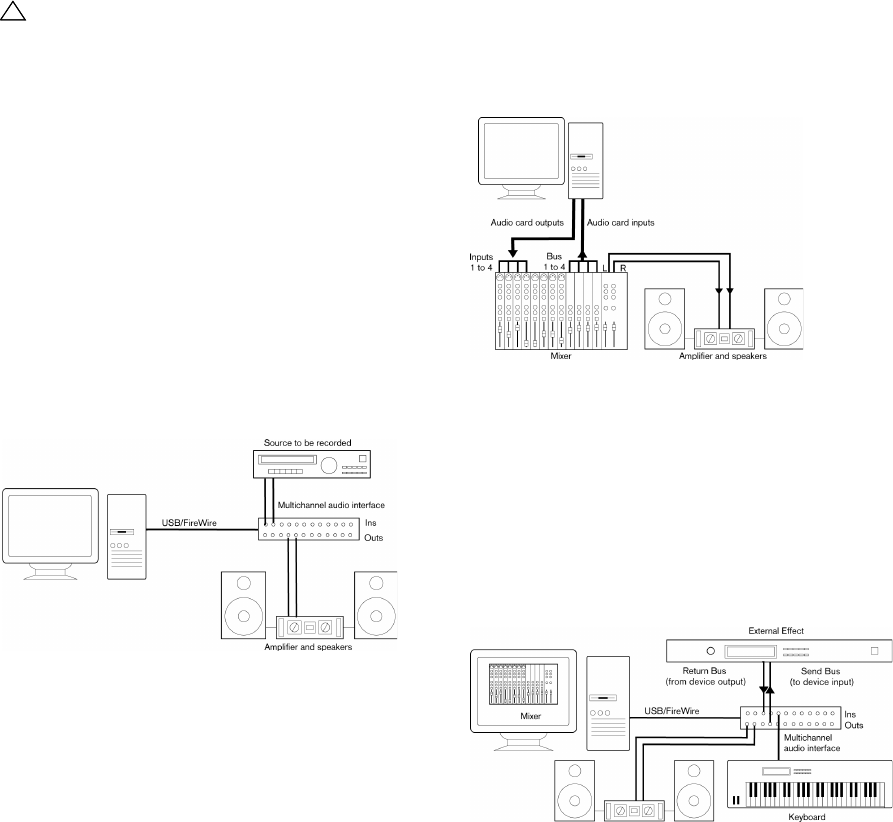
Stereo input and output – the simplest connection
If you only use a stereo input and output from Cubase AI,
you can connect your audio hardware, e.g. the inputs of
your audio card or your audio interface, directly to the input
source and the outputs to a power amplifier and speaker.
A simple stereo audio setup
This is probably the simplest of all setups – once you have
set up the internal input and output busses, you can con-
nect your audio source, e.g. a microphone, to your audio
interface and start recording.
Multi-channel input and output
Most likely however, you will have other audio equipment
that you want to integrate with Cubase AI, using several
input and output channels. Depending on the equipment
available to you, there are two ways to go: either mixing
using an external mixing desk, or mixing using the mixer in-
side Cubase AI.
•External mixing means having a hardware mixing device
with a group or bus system that can be used for feeding
inputs on your audio hardware.
In the example below, four busses are used for feeding signals to the au-
dio hardware’s inputs. The four outputs are connected back to the mixer
for monitoring and playback. Remaining mixer inputs can be used for
connecting audio sources like microphones, instruments, etc.
A multi-channel audio setup using an external mixer
ÖWhen connecting an input source (like a mixer) to the
audio hardware, you should use output busses, sends or
similar that are separate from the mixer’s master output to
avoid recording what you are playing back. You may also
have mixing hardware that can be connected via FireWire.
•When using the Mixer inside Cubase AI, you can use the
inputs on your audio hardware to connect microphones
and/or external devices. Use the outputs to connect your
monitoring equipment.
Mixing inside Cubase AI
!!
Make sure that all equipment is turned off before
making any connections!

15
Setting up your system
Recording from a CD player
Most computers come with a CD-ROM drive that can also
be used as a regular CD player. In some cases the CD
player is internally connected to the audio hardware so
that you can record the output of the CD player directly
into Cubase AI (consult the audio hardware documenta-
tion if you are uncertain).
• All routing and level adjustments for recording from a CD (if
available) are done in the audio hardware setup application
(see below).
Word Clock connections
If you are using a digital audio connection, you may also
need a word clock connection between the audio hard-
ware and external devices. Please refer to the documenta-
tion that came with the audio hardware for details.
About recording levels and inputs
When you connect your equipment, you should make sure
that the impedance and levels of the audio sources and in-
puts are matched. Typically, different inputs may be de-
signed for use with microphones, consumer line level
(-10dBV) or professional line level (+4dBV), or you may
be able to adjust input characteristics on the audio inter-
face or in its control panel. Please check the audio hard-
ware documentation for details.
Using the correct types of input is important to avoid dis-
tortion or noisy recordings.
Making settings for the audio hardware
Most audio cards come with one or more small applica-
tions that allow you to configure the inputs of the hard-
ware to your liking. This includes:
• Selecting which inputs/outputs are active.
• Setting up word clock synchronization (if available).
• Turning monitoring via the hardware on/off (see “About moni-
toring” on page 18).
• Setting levels for each input. This is very important!
• Setting levels for the outputs, so that they match the equip-
ment you use for monitoring.
• Selecting digital input and output formats.
• Making settings for the audio buffers.
In many cases all available settings for the audio hardware
are gathered in a control panel, which can be opened from
within Cubase AI as described below (or opened sepa-
rately, when Cubase AI isn’t running). In some cases, there
may be several different applications and panels – please
refer to the audio hardware documentation for details.
Plug and Play support for ASIO devices
The Steinberg MR816 hardware series supports Plug and
Play in Cubase AI. These devices can be plugged in and
switched on while the application is running. Cubase AI
will automatically use the driver of the MR816 series and
will re-map the VST connections accordingly.
•Please note that Steinberg cannot guarantee that this
will work with other hardware. If you are unsure of whether
your device supports plug and play, please consult its
documentation.
!!
It is very important that word clock synchronization is
done correctly or there might be clicks and crackles
in recordings that you make!
!!
Cubase AI does not provide any input level adjust-
ments for the signals coming in to your audio hard-
ware, since these are handled differently for each
card. Adjusting input levels is either done in a special
application included with the hardware or from its
control panel (see below).
!!
If a device that does not support Plug and Play is
connected/disconnected while the computer is run-
ning, it may get damaged.
16
Setting up your system
Selecting a driver and making audio settings
in Cubase AI
The first thing you need to do is select the correct driver in
Cubase AI to make sure that the program can communi-
cate with the audio hardware:
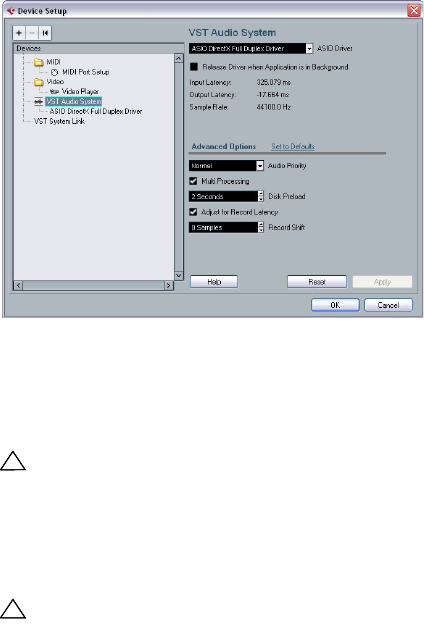
1. Launch Cubase AI, select Device Setup from the De-
vices menu and click on VST Audio System in the Devices
list to the left.
The VST Audio System page in the Device Setup dialog
2. Select your audio hardware driver from the ASIO
Driver menu.
There may be several options here that all refer to the same audio hard-
ware. When you have selected a driver, it is added to the Devices list.
3. Select the driver in the Devices list to open the driver
settings for your audio hardware.
4. Bring up the control panel for the audio hardware and
adjust the settings as recommended by the audio hard-
ware manufacturer.
•Under Windows, you open the control panel by clicking
the Control Panel button.
The control panel that appears when you click this button is provided
by the audio hardware manufacturer – not Cubase AI (unless you use
DirectX, see below). Hence it will be different for each audio card brand
and model.
The control panels for the ASIO DirectX driver and the Generic Low La-
tency ASIO Driver (Windows Vista only) are exceptions, in that they are
provided by Steinberg and described in the dialog help, opened by click-
ing the Help button in the dialog. See also the notes on DirectX below.
•Under Mac OS X, the control panel for your audio hard-
ware is opened by clicking the “Open Config App” button
on the settings page for your audio device in the Device
Setup dialog.
Note that this button is available only for some hardware products. If
“Open Config App” is not available in your setup, refer to the documen-
tation that came with your audio hardware for information on where to
make hardware settings.
5. If you plan to use several audio applications simulta-
neously, you may want to activate the option “Release
Driver when Application is in Background” on the VST
Audio System page. This will allow another application to
play back via your audio hardware even though Cubase AI
is running.
The application that is currently active (i.e. the “top window” on the desk-
top) will get access to the audio hardware. Make sure that any other au-
dio application accessing the audio hardware is also set to release the
ASIO (or Mac OS X) driver so Cubase AI can use it when it becomes the
active application again.
6. If your audio hardware and its driver support ASIO
Direct Monitoring, you may want to activate the Direct
Monitoring checkbox on the page for the driver.
Read more about monitoring later in this chapter and in the chapter “Re-
cording” in the Operation Manual.
7. Click Apply and then OK to close the dialog.
!!
Under Windows, we strongly recommend that you ac-
cess your hardware via an ASIO driver written specifi-
cally for the hardware, if available. If no ASIO driver is
installed, we recommend that you check with your au-
dio hardware manufacturer if they have an ASIO driver
available, for example for download via the Internet.
!!
On Windows Vista systems, you can also use the
Generic Low Latency ASIO driver if no specific
ASIO driver is available.
17
Setting up your system
If you are using audio hardware with a DirectX driver
(Windows only)
Cubase AI comes with a driver called ASIO DirectX Full
Duplex, available for selection on the ASIO Driver pop-up
menu (VST Audio System page).
ÖTo be able to take full advantage of DirectX Full Duplex,
the audio hardware must support WDM (Windows Driver
Model) in combination with DirectX version 8.1 or higher.
In all other cases, the audio inputs will be emulated by DirectX (see the
dialog help for the ASIO DirectX Full Duplex Setup dialog for details
about how this is reported).
ÖDuring the installation of Cubase AI, the latest DirectX
version will be installed on your computer.
When the ASIO DirectX Full Duplex driver is selected in
the Device Setup dialog, you can open the ASIO Control
Panel and adjust the following settings (for more details,
click the Help button in the control panel):
•Direct Sound Output and Input Ports
In the list on the left in the window, all available Direct Sound output and
input ports are listed. In many cases, there will be only one port in each
list. To activate or deactivate a port in the list, click the checkbox in the
left column. If the checkbox is ticked, the port is activated.
•You can edit the Buffer Size and Offset settings in this
list if necessary, by double-clicking on the value and typ-
ing in a new value.
In most cases, the default settings will work fine. Audio buffers are used
when audio data is transferred between Cubase AI and the audio card.
While larger buffers ensure that playback will occur without glitches, the
latency (the time between the moment Cubase AI sends out the data and
when it actually reaches the output) will be higher.
•Offset
If a constant offset is audible during playback of Audio and MIDI record-
ings, you can adjust the output or input latency time using this value.
Setting up the input and output ports
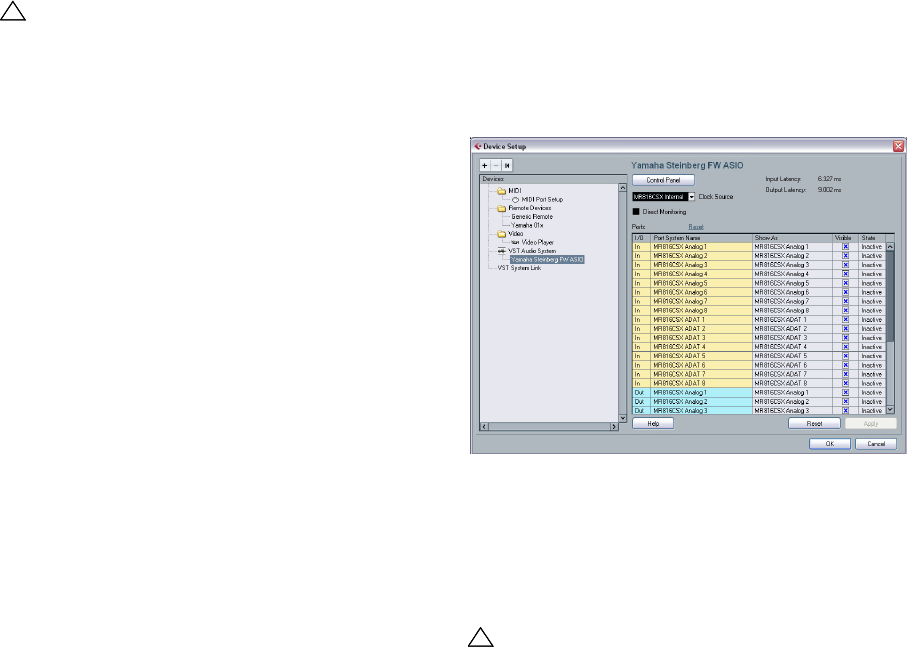
Once you have selected the driver and made the settings
as described above, you need to specify which inputs and
outputs should be used and name these:
1. In the Device Setup dialog, select your driver in the De-
vices list on the left to display the driver settings for your
audio hardware.
All input and output ports on the audio hardware are listed.
2. To hide a port, click in the “Visible” column for the port
(deselecting the checkbox).
Ports that aren’t visible cannot be selected in the VST Connections win-
dow where you set up your input and output busses – see “Setting up
the VST connections” on page 24 and the chapter “VST Connections:
Setting up input and output busses” in the Operation Manual.
3. To rename a port, click on its name in the “Show as”
column and type in a new name.
ÖIt is a good idea to give your ports names that are re-
lated to the channel configuration (rather than to the ac-
tual hardware model)!
4. Click OK to close the Device Setup dialog and apply
your changes.
!!
If your audio hardware does not have a specific ASIO
driver and your Windows version does not support the
Generic Low Latency ASIO driver, a DirectX driver is
the next best option.
!!
If you attempt to hide a port that is already used by a
bus you will be asked whether this is really what you
want – note that this will disable the port!
18
Setting up your system
About monitoring
In Cubase AI, monitoring means listening to the input sig-
nal while preparing to record or while recording. There are
three ways to monitor:
External monitoring
External monitoring (listening to the input signal before it
goes into Cubase AI) requires an external mixer for mixing
the audio playback with the input signal. This can be a
classic mixing desk or a mixer application for your audio
hardware, if this has a mode in which the input audio is
sent back out again (usually called “Thru”, “Direct Thru” or
similar).
Via Cubase AI
In this case, the audio passes from the input into Cubase
AI, possibly through Cubase AI effects and EQ and then
back to the output. You control monitoring via settings in
Cubase AI.
This allows you to control the monitoring level from Cu-
base AI and add effects to the monitored signal only.
ASIO Direct Monitoring
If your audio hardware is ASIO 2.0 compatible, it may sup-
port ASIO Direct Monitoring (this feature may also be avail-
able for audio hardware with Mac OS X drivers). In this
mode, the actual monitoring is done in the audio hardware,
by sending the input signal back out again. However, moni-
toring is controlled from Cubase AI. This means that the au-
dio hardware’s direct monitoring feature can be turned on
or off automatically by Cubase AI.
Monitoring is described in detail in the chapter “Record-
ing” in the Operation Manual. However, when setting up,
there’s one thing to note:
•If you want to use the external monitoring via your audio
hardware, make sure the corresponding functions are ac-
tivated in the card’s mixer application.
ÖIf you are using RME Audio Hammerfall DSP audio
hardware, make sure that the pan law is set to -3dB in the
card’s preferences.
Setting up MIDI
This section describes how to connect and set up MIDI
equipment. If you have no MIDI equipment, you can skip
this section. Note that this is only an example – you might
need or want to hook things up differently!
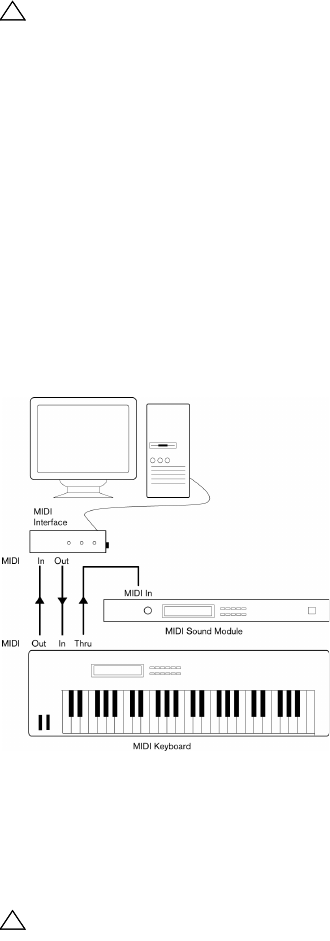
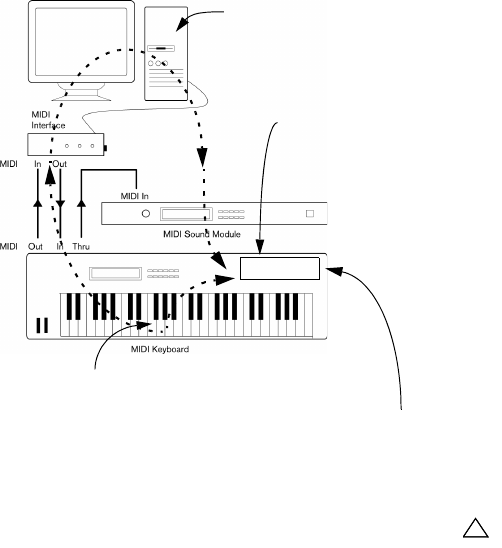
Connecting the MIDI equipment
In this example we assume that you have a MIDI keyboard
and an external MIDI sound module. The keyboard is used
both for feeding the computer with MIDI messages for re-
cording and for playing back MIDI tracks. The sound mod-
ule is used for playback only. Using Cubase AI’s MIDI Thru
feature (described later) you will be able to hear the cor-
rect sound from the sound module while playing the key-
board or recording.
A typical MIDI Setup
If you want to use even more instruments for playback, sim-
ply connect MIDI Thru on the sound module to MIDI In on
the next instrument, and so on. In this hook-up, you will al-
ways play the first keyboard when recording. But you can
still use all your devices for providing sounds on playback.
!!
Make sure that all equipment is turned off before
making any connections!
!!
If you plan to use more than three sound sources, we
recommend that you either use an interface with
more than one output, or a separate MIDI Thru box
instead of the Thru jacks on each unit.
19
Setting up your system
Setting MIDI Thru and Local On/Off
On the MIDI page in the Preferences dialog (located on the
File menu under Windows and on the Cubase AI menu un-
der Mac OS X), you will find a setting called “MIDI Thru Ac-
tive”. This is related to a setting in your instrument called
“Local On/Off” or “Local Control On/Off”.
• If you use a MIDI keyboard instrument, as described earlier in
this chapter, MIDI Thru should be activated and that instrument
should be set to Local Off (sometimes called Local Control Off
– see the instrument’s operation manual for details). The MIDI
signal from the keyboard will be recorded in Cubase AI and at
the same time be re-routed back to the instrument so that you
hear what you are playing, without the keyboard “triggering” its
own sounds.
• If you use a separate MIDI keyboard – one that does not pro-
duce any sounds itself – MIDI Thru in Cubase AI should also
be activated, but you don’t need to look for any Local On/Off
setting in your instruments.
• The only case where MIDI Thru should be deactivated is if you
use Cubase AI with only one keyboard instrument and that in-
strument cannot be set to Local Off mode.
• MIDI Thru will be active only for MIDI tracks that are record en-
abled and/or have the Monitor button activated. See the chap-
ter “Recording” in the Operation Manual for more information.
Setting up MIDI ports in Cubase AI
The Device Setup dialog lets you set up your MIDI system
in the following ways:
ÖWhen you change MIDI port settings in the Device
Setup dialog, these are automatically applied.
Showing or hiding MIDI Ports
The MIDI ports are listed in the Device Setup dialog on the
MIDI Port Setup page. By clicking in the “Visible” column
for a MIDI input or output, you can specify whether or not it
should be listed on the MIDI pop-up menus in the program.
If you are trying to hide a MIDI port which is already se-
lected for a track or a MIDI device, a warning message will
appear, allowing you to hide – and disconnect – the port
or to cancel the operation and keep the MIDI port visible.
Setting up the “All MIDI Inputs” option
When you record MIDI in Cubase AI, you can specify which
MIDI input each recording MIDI track should use. However,
you can also select the “In ‘All MIDI Inputs’” option for an in-
put port, which causes any MIDI data from any MIDI input to
be recorded.
The “In ‘All MIDI Inputs’” option on the MIDI Port Setup
page allows you to specify which inputs should be included
when you select All MIDI Inputs for a MIDI track. This can be
especially useful if your system provides several instances
of the same physical MIDI input – by deactivating the dupli-
cates you make sure only the desired MIDI data is recorded.
ÖIf you have a MIDI remote control unit connected, you
should also make sure to deactivate the “In ‘All MIDI In-
puts’” option for that MIDI input.
This will avoid accidentally recording the data from the remote control
when the “All MIDI Inputs” option is selected as input for a MIDI track.
Connecting a synchronizer
When using Cubase AI with external tape transports, you
will most likely need to add a synchronizer to your system.
All connections and setup procedures for synchronization
are described in the chapter “Synchronization” in the Op-
eration Manual.
When “MIDI Thru” is active in
Cubase AI, MIDI data received is
immediately “echoed” back out.
When you press a key, it is sent out via MIDI to Cubase AI.
MIDI data coming in to
the instrument is played
by the “Synth” inside it.
When Local Control is turned on in the instrument, the keys you press
will be played by the “Synth” inside the instrument. When Local Control
is turned off, this connection is cut off.
“Synth”
!!
Make sure that all equipment is turned off before
making any connections!

20
Setting up your system
Setting up video
Cubase AI plays back video files in a number of formats, in-
cluding AVI, QuickTime or MPEG. Under Windows, video
can be played back using one of the following playback en-
gines: Video for Windows, DirectShow or QuickTime. This
ensures compatibility with as wide a range of video files as
possible. Under Mac OS X, QuickTime is always used as
playback engine. Which formats can be played back de-
pends on the video player and the installed codecs.
Generally there are two ways to play back video:
•Without any special hardware at all, using the computer
CPU.
In this case, the “codec” is in software. While this will be fine in many sit-
uations it does put a limit on the size of the video window as well as the
quality of the image.
•Using video hardware that for example connects to an
external monitor.
Mac OS X: Using a FireWire port, you can play back video on an external
monitor using a DV-to-analog converter or a DV camera (see also the
chapter “Video” in the Operation Manual). This is valid for DV video and
QuickTime is used for playback.
Windows: Multi-head graphics cards which support overlay functionality
can be used to display the video picture on an external monitor. The fol-
lowing manufacturers have working (and tested) solutions available:
nVIDIA and Matrox.
If you plan to use special video hardware, install it and set
it up as recommended by the manufacturer.
Before you use the video hardware with Cubase AI, you
should test the hardware installation with the utility applica-
tions that came with the hardware and/or the Windows Me-
dia Player or QuickTime Player (Mac OS X) applications.
Optimizing audio performance
This section gives you some hints and tips on how to get
the most out of your Cubase AI system, performance-
wise. Some of this text refers to hardware properties and
can be used as a guide when upgrading your system. This
text is very brief. Look for details and current information
on the Cubase AI web site (see “How you can reach us”
on page 7)!
Two aspects of performance
There are two distinct aspects of performance with re-
spect to Cubase AI.
Tracks and effects
Simply put: the faster your computer, the more tracks, ef-
fects and EQ you will be able to play. Exactly what consti-
tutes a “fast computer” is almost a science in itself, but
some hints are given below.
Short response times (latency)
Another aspect of performance is response time. The term
“latency” refers to the “buffering”, i.e. the temporary stor-
ing, of small chunks of audio data during various steps of
the recording and playback process on a computer. The
more and larger those chunks, the higher the latency.
High latency is most irritating when playing VST Instru-
ments and when monitoring through the computer, i.e.
when listening to a live audio source via the Cubase AI
mixer and effects. However, very long latency times (several
hundred milliseconds) can also affect other processes like
mixing, e.g. when the effect of a fader movement is heard
only after a noticeable delay.
While Direct Monitoring and other techniques reduce the
problems associated with very long latency timwes, a sys-
tem that responds fast will always be more convenient to
work with.
•Depending on your audio hardware, it may be possible
to “trim” your latency times, usually by lowering the size
and the number of buffers.
For details, refer to the audio hardware documentation, or, if you are us-
ing a DirectX driver under Windows, the dialog help.
System factors that affect performance
CPU and processor cache
It goes without saying that the faster the computer proces-
sor, the better. But there are a number of factors that affect
the apparent speed of a computer: the bus speed and type
(PCI is strongly recommended), the processor cache size
and of course, the processor type and brand. Cubase AI re-
lies heavily on floating point calculations. When shopping
for a processor, please make sure you get one that is pow-
erful in calculating floating point arithmetics.
!!
Always make all connections with all equipment
turned off!

21
Setting up your system
Note also that Cubase AI features full support for multi-
processor systems. So, if you own a computer system with
more than one processor, Cubase AI can take advantage
of the total capacity and evenly distribute the processing
load to all available processors. See “The advanced opti-
ons” on page 21.
Hard disk and controller
The number of hard disk tracks you can record and play
back at the same time also depends on the speed of your
hard disk and hard disk controller. If you use E-IDE disks
and controllers, make sure that the transfer mode is DMA
Busmaster. Under Windows, you can check the current
mode by launching the Windows Device Manager and
looking for properties of the IDE ATA/ATAPI Controller’s
primary and secondary channel. DMA transfer mode is en-
abled by default, but may be turned off by the system
should hardware problems occur.
Audio hardware and driver
The hardware and its driver can have some effect on re-
gular performance. A badly written driver can reduce the
performance of your computer. But where the hardware
driver design makes the most difference is with latency.
This is especially true when using Cubase AI for Windows:
•Under Windows, ASIO drivers written specifically for
the hardware are more efficient than the Generic Low La-
tency ASIO Driver or a DirectX driver and produce shorter
latency times.
•Under Mac OS X, audio hardware with properly written
Mac OS X (Core Audio) drivers can be very efficient and
produce very low latency times.
However, there are additional features currently only available with ASIO
drivers, such as the ASIO Positioning Protocol.
Optimizing processor scheduling (Windows only)
To get the lowest possible latencies when using ASIO un-
der Windows XP (on a single-CPU system), the “system
performance” has to be optimized for background tasks:
1. Open the Windows Control Panel from the Start menu
and select System.
2. Select the Advanced tab and click the Settings button
in the Performance section.
The Performance Options dialog appears.
3. Select the Advanced tab.
4. In the Processor Scheduling section, select “Adjust
for best performance of: Background services”.
5. Click OK to close the dialogs.
Making settings that affect performance
Audio buffer settings
Audio buffers affect how audio is sent to and from the audio
hardware. The size of the audio buffers affects both the la-
tency and the audio performance. Generally, the smaller the
buffer size, the lower the latency. On the other hand, work-
ing with small buffers can be demanding for the computer.
If the audio buffers are too small, you may get clicks, pops
or other audio playback problems.
•Under Mac OS X, you can adjust the size of the buffers
on the VST Audio System page in the Device Setup dialog.
You may also find buffer settings in the control panel for the audio hard-
ware.
•Under Windows, you adjust the buffer size settings in
the control panel for the audio hardware (opened by click-
ing the Control Panel button on the driver page in the De-
vice Setup dialog).
The advanced options
On the VST Audio System page you will find the “Ad-
vanced options” section. Here you find advanced settings
for the VST Engine, including a Multi Processing option.
When this is activated and there is more than one CPU in
your system, the processing load is distributed evenly to
all available CPUs, allowing Cubase AI to make full use of
the combined power of the multiple processors. See the
dialog help for details.
!!
Again, we strongly recommend that you use audio
hardware for which there is a specific ASIO driver!
4
Tutorial 1: Recording audio
23
Tutorial 1: Recording audio
Creating a new project
In this section we are going to explain how to create a new
project, save a project and open a saved project.
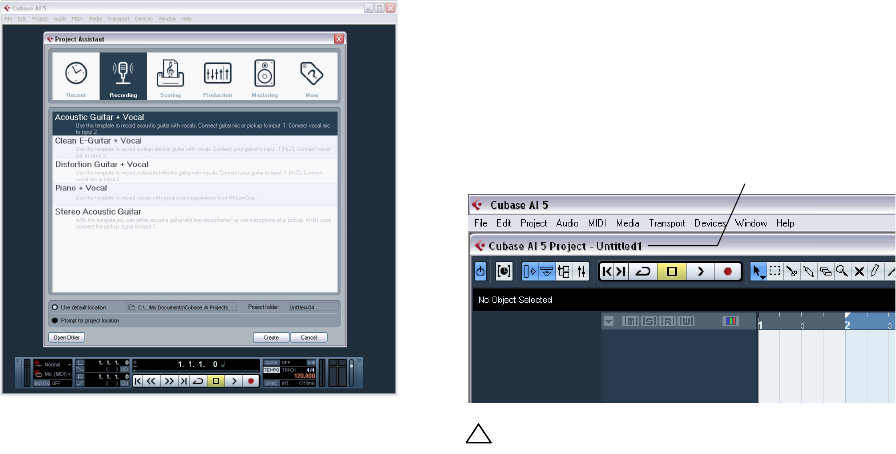
When you first open Cubase AI, the Project Assistant dia-
log is opened which allows you to create a new, empty
project, or a new project based on a project template, and
to open an existing project.
ÖBy default, the Project Assistant dialog opens when you
launch the program for the first time. You can change this
behaviour using the On Startup setting in the Preferences
dialog (General page). For more information about this and
the Project Assistant dialog, see the chapter “File Handling”
in the Operation Manual.
To create a new project
In the following description we assume that the Project
Assistant dialog is already open. If that is not the case, you
need to select the “New Project…” command from the
File menu first.
Proceed as follows:
1. Make sure that “Use default location” is activated.
In Cubase AI you can set a default location for all your projects, i.e. spec-
ify a path where all your projects will be stored, each in its own subfolder.
2. In the “Project folder” field, enter a name that will be
used for the project folder. Let’s use “My first project”.
We recommend to enter a name here. Otherwise your project will be
saved in a folder named “Untitled”.
3. To create a blank new project that is not based on a
preconfigured template, simply click Create.
An empty project is created automatically if you do not select a recent
project or a project template in the Project Assistant dialog.
ÖYou are not saving the project at this point! You are
creating a folder on the hard drive that your project will get
saved into later. This will be explained very shortly.
4. You should be looking at your very first project in Cu-
base AI now. Congratulations!
If you look at the top of the window in Cubase AI (called the Project win-
dow) you’ll see the name of this project is “Untitled1”.
To save a project
1. Select “Save” from the File menu.
If you select the Save command for a project that has not been saved be-
fore, this opens the Save As dialog, where you can change the project
path and name, if needed. The difference between Save and Save As is
discussed in the chapter “File Handling” in the Operation Manual.
2. You will notice that Cubase AI is in the “My First
Project” folder that you created earlier. This is where you
want to save your project. Type in a name for your project
– you can use “My First Cubase AI Project” for example.
3. Click “Save” – and that’s it!
!!!
You’re not done yet!
So far we’ve created a blank Cubase AI project. We
have a folder sitting on the hard drive but we haven’t
saved the actual Cubase AI project yet.
The name of the project
24
Tutorial 1: Recording audio
To close a project
1. Make sure the Project window is selected.
The Project window is the main window that you work in. See the chapter
“The Project window” in the Operation Manual.
2. Select Close from the File menu.
If you have made any changes to the project since you last saved it, you
will be prompted to “Save”, “Don’t Save” or “Cancel”. Click Save if you
want your changes saved.
To open a project
Now that we have saved and closed your project, let’s
show you how to open it.
Open a project using the “Open” command
1. Select “Open…” from the File menu.
Here you can navigate to the folder that has the project you wish to open.
2. Once you have found the project click “Open” and the
project will load.
Open a project using the “Recent Projects” submenu
Cubase AI remembers recently opened projects and lists
them in the “Recent Projects” submenu of the File menu.
1. Select “Recent Projects” from the File menu.
2. Select the project you wish to open by clicking on it.
ÖYou will also find these projects in the Recent cate-
gory in the Project Assistant dialog.
Setting up the VST connections
The VST Connections window allows you to set up the in-
put and output signals of Cubase AI to your audio card.
Cubase AI calls these “busses”. This section will show
you how to set the busses up so that you can get playback
and recording working.
Make sure you read the chapters “System requirements
and installation” on page 8 and “Setting up your system”
on page 13, so that your audio hardware is properly set up
before proceeding.
ÖBy default, the tutorial projects are not installed during
the installation of Cubase AI. You will find these projects on
the program DVD, in the folder “Additional Content”.
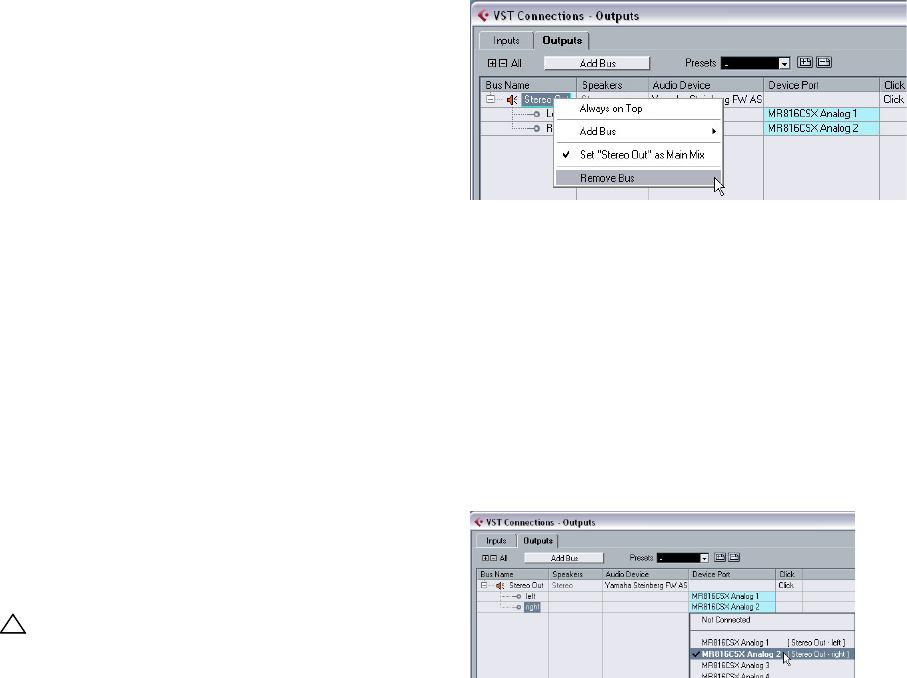
Adding outputs
1. Open the Devices menu and select “VST Connections”.
The default key command for this is [F4].
•You’ll see several tabs at the top of the window. We’re
only going to cover Input and Output right now. See the
chapter “VST Connections” in the Operation Manual for
more details.
2. Let’s choose “Output” first. We want to start from
scratch and remove anything that is currently there, just in
case it’s set up incorrectly. If you see anything in the “Bus
Name” column, right-click with the mouse and select “Re-
move Bus”.
3. Now click the “Add Bus” button. Choose “Stereo” for
configuration and “1” for count and click OK.
This has now added a new stereo bus (Left and Right) allowing us to
have audio in Cubase AI routed to our audio hardware.
4. Since we mainly listen to our music as a stereo mix, all
we need is a stereo output.
5. Depending on your audio hardware, your outputs
should be set up now. You can however select the outputs
of your choice from the “Device Port” pull down menu.
Normally you’ll want to choose the main stereo outputs of your audio card.
More sophisticated setups may require you to choose different outputs
and even add more busses.
!!!
Load the project called “VST Connections” found in
the “Tutorial 1” folder.
25
Tutorial 1: Recording audio
Adding Inputs
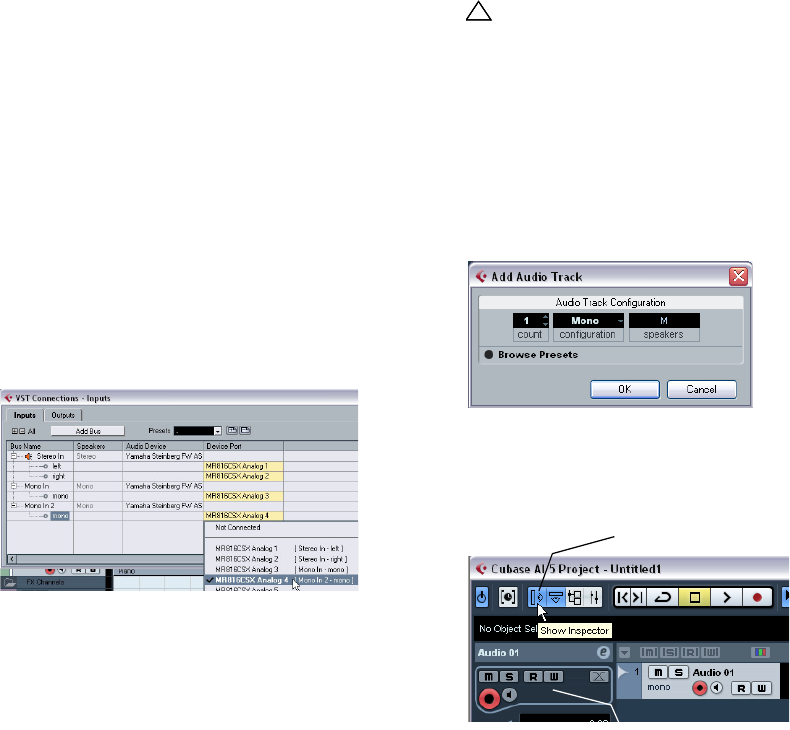
Now let’s open the “Input” tab and set up the inputs we
are going to use for recording into Cubase AI.
1. Do the same as mentioned above for the outputs.
Right-click and select “Remove Bus”.
2. Click the “Add Bus” button. Choose “Stereo” for con-
figuration and “1” for count and click “OK”.
This has now added a new stereo bus (Left and Right) allowing us to have
audio from our audio card’s input routed to Cubase AI for recording.
•Having a stereo input is useful for recording audio with
two channels. An example of this is recording a keyboard
with a left and right audio channel. If we wanted to record
in mono or with one channel we can make separate bus-
ses. Let’s do this now.
1. Click the “Add Bus” button. Choose “Mono” for con-
figuration and “2” for count and click “OK”.
This has now added two new mono busses allowing us to have audio
from our audio card’s input routed to Cubase AI for recording.
2. Next, click in the “Device Port” column to select the
audio inputs of your audio card for the stereo and mono
inputs.
That’s it! You should now be ready to record audio in Cu-
base AI and then play it back.
Level settings and recording
For this section, we are going to record a bass guitar in
mono from the input “Mono In”. Make sure you have your
audio card set up and you have read through the section
“Setting up the VST connections” on page 24.
Adding a mono track
1. Now let’s add an audio track to record to. Open the
Project menu and choose “Audio” from the “Add Track”
submenu.
2. Choose “Mono” for Configuration and “1” for Count.
Click “OK”.
This adds a mono audio track to our Project window.
3. Click on the new track you’ve created and make sure
the Inspector is shown.
The Inspector allows us to see and manipulate a lot of information for the
selected track.
!!!
Load the project called “Recording” found in the
“Tutorial 1” folder.
…to open the Inspector.
Click here…
26
Tutorial 1: Recording audio
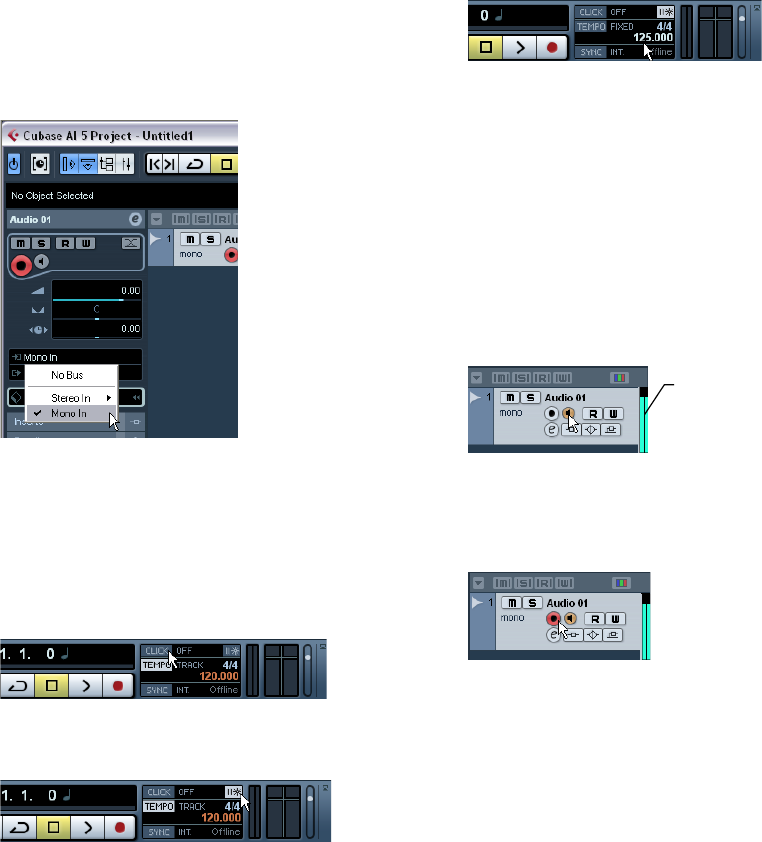
4. Make sure that “Mono In” is selected for the audio
track’s input and that “Stereo Out” is selected for the au-
dio tracks output.
You may have different inputs and outputs depending on your audio
hardware. See the chapter “VST Connections” in the Operation Manual
for more detailed information. By setting “Mono In”, we will be able to
record the audio from the left input of our audio card into a track in Cu-
base AI. Setting the output to “Stereo Out” allows us to hear what we are
recording.
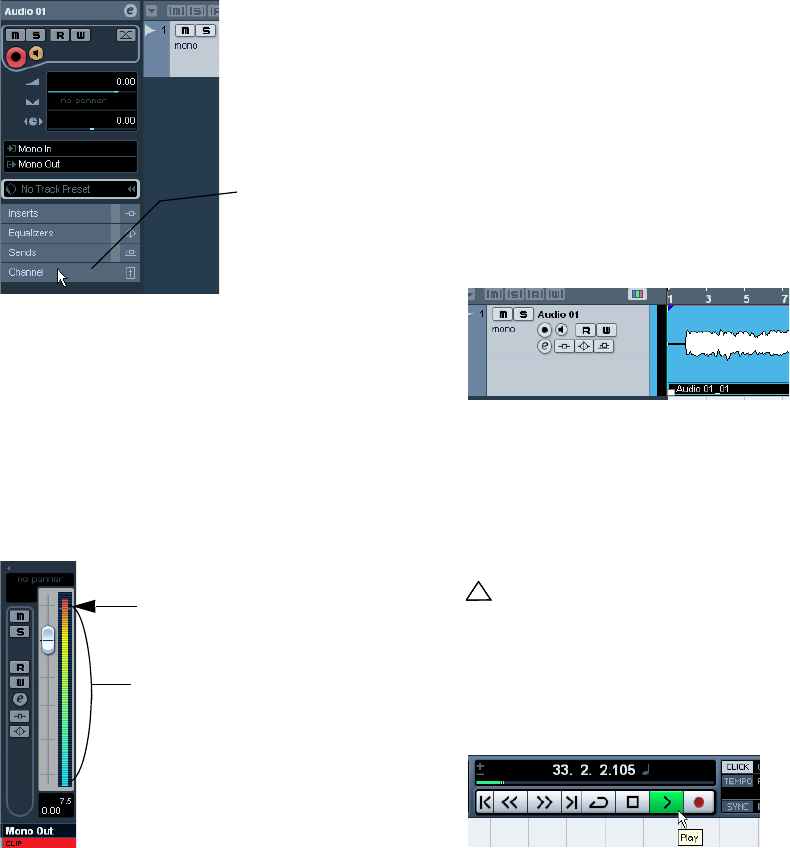
Turning on the metronome click
We’ll want to have a click or metronome play in the back-
ground as we record the bass guitar so that what we
record aligns with the bars and beats in Cubase AI.
1. Activate the “Metronome/Click” button on the Trans-
port panel.
2. If you would like a two bar count in before you record,
also activate the “Precount/Click” button.
3. We now need to set the speed or the tempo of our
project. This will directly affect how fast the click plays.
You can set the tempo just below the click.
In this picture, we have a setting of 125, which means 125bpm (beats
per minute).
Setting levels
We have a bass guitar playing through an amplifier with a
microphone in front of the amplifier’s speaker. This micro-
phone is plugged directly into the audio card’s input. We
have set the level so that we have enough volume without
clipping.
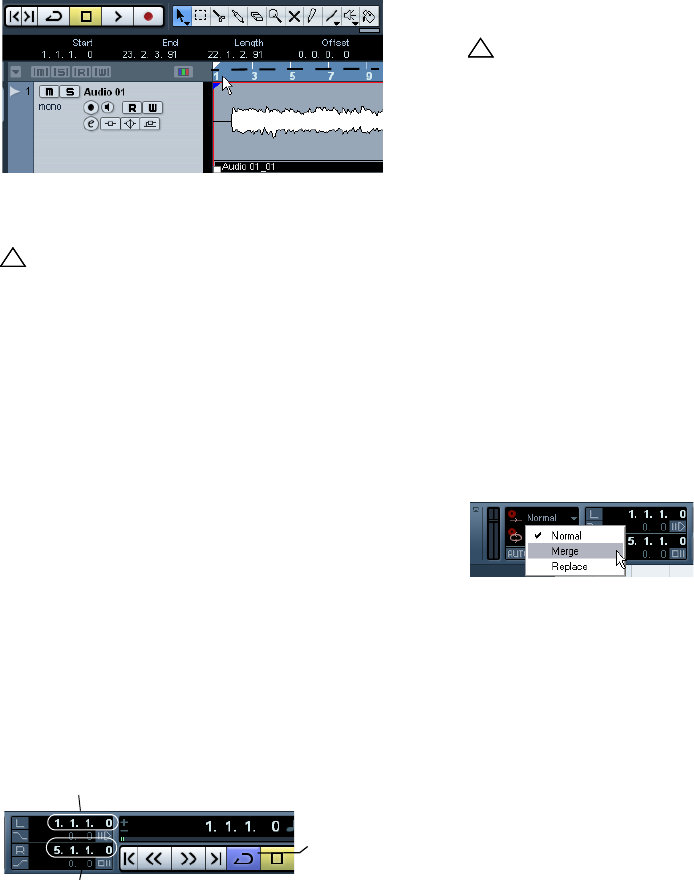
1. Clicking the Monitor button will allow us to hear the
bass guitar.
You should see and hear the audio coming in to the right of the track.
2. Now click the “Record Enable” button on the track.
Setting the track to Record Enable lets Cubase AI know that you want to
record on this track and no other one. You can have many tracks Record
Enabled at a time.
Audio coming into
this track.
27
Tutorial 1: Recording audio
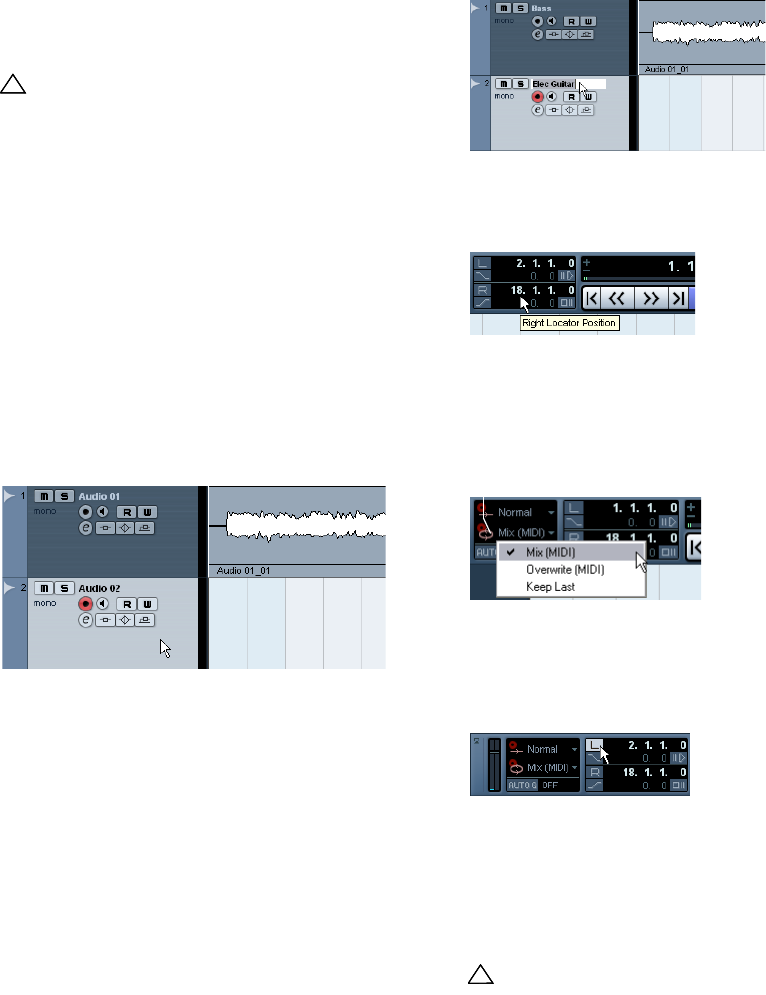
3. In the Inspector, open the “Channel” tab.
This will display the channel fader for the selected track.
•Do the best you can to send the maximum amount of
volume to the audio inputs of your audio card before you
hear any distortion. Most audio cards show some kind of
level or volume indication. If yours doesn’t, don’t worry, we
can change the amount here.
4. Move the fader up or down so that the volume is loud
enough without going into the red on the channel meter. If
you go into the red you may cause clipping or distortion.
You will see a line near the top of the channel meter – make
sure the level does not go over this line!
•Once the level is set, you are ready to record!
Recording bass guitar
1. Position the cursor at the beginning of the project.
This will make sure we start recording on bar 1.
2. Click the Record button to record the bass guitar.
Since the “Precount/Click” button is activated, we’ll hear two bars of
click before recording begins.
3. Click “Stop” when you are finished.
4. Turn off the Monitor and Record Enable buttons on the
track so that we don’t hear the input or record on the track
any more.
Congratulations! You have just recorded your first piece of
audio in Cubase AI. Move ahead to the next section to
learn how to play back audio.
Playback
We are going to learn how to play back audio in Cubase
AI. You might think this is very simple – just hit “Play”. It is
actually this simple but there are a few tricks to learn so
that you’ll be playing back what you want with precision.
To start playback
There are a few ways you can play back in Cubase AI:
•Click the “Play” button on the Transport panel.
•Press [Space] on your computer keyboard.
This toggles between start and stop.
•Press the [Enter] key of the numerical computer keypad.
Click here to display the
channel fader.
This is the safe area for recording.
Do not allow the audio level to go
past this line!
!!!
Load the project called “Playback” found in the
“Tutorial 1” folder.
28
Tutorial 1: Recording audio
•Double-click in the lower half of the ruler.
•Select the event and choose “Loop Selection” from the
Transport menu.
To stop playback
•Click the “Stop” button on the Transport panel.
•Clicking the “Stop” button twice moves the cursor to
the position in the project where you started playback.
•Press [Space] on your computer keyboard.
This toggles between stop and start.
•Press the “0” key of the numerical computer keypad.
Cycle playback
Cubase AI has the ability to loop or cycle a section of your
project. To set the cycle location you need to use the left
and right locator.
1. On the Transport panel, set the left locator to “1” and
the right locator to “5”.
This tells Cubase AI that we want to loop or cycle between bars 1 and 5.
Meaning we will have a 4 bar loop since the end of bar 4 is the beginning
of bar 5.
2. Make sure that the “Cycle” button is activated.
3. Click the Play button on the Transport panel and Cu-
base AI will play looping over and over until you click
“Stop”.
Recording modes with cycle off
There are three different modes for recording when the
cycle is turned off. This is called linear recording. The
three modes are:
•Normal
•Merge
•Replace
When recording audio, “Normal” and “Merge” are the
same. Selecting either of these will allow you to record
over the top of another audio event and it will appear as an
overlap. You can then select between the overlapping
events and determine which one will play. This is dis-
cussed in the following section.
When recording in “Replace” mode, audio that was previ-
ously recorded on the same track is cut or split to make
room for the new audio data. However, the “old” recording
that is being replaced is not permanently deleted. It is only
cut or trimmed away allowing you to recover it later.
!!!
The default key command for this is [Shift]-[G]. This
is the quickest way to loop an audio event and start
playback!
The left locator set to “1”.
The right locator set to “5”.
Cycle activated.
!!!
Don’t forget – you can set the locators to encom-
pass the selected event, turn on “Cycle” and begin
playback all by the key command [Shift]-[G].
29
Tutorial 1: Recording audio
Cycle recording
You can record audio while “cycle” is on.
So far we’ve shown you how to add tracks, record and
playback. Now we are going to add an electric guitar to
our bass guitar using cycle recording. Recording with cy-
cle on allows us to make multiple passes of our recording
and then pick the best take.
If you haven’t reviewed the previous sections in this tuto-
rial, please do as we are going to move a little faster now.
Recording electric guitar
1. Let’s add another “Mono” audio track.
This is described in the section “Adding a mono track” on page 25.
2. You can see now that we have a track called “Audio
01” and “Audio 02”. Up to now we haven’t been con-
cerned about naming the tracks but let’s do this now.
3. Double-click on “Audio 01” and rename it “Bass”.
4. Double-click on “Audio 02” and rename it “Elec Gui-
tar”. That looks a lot better now.
•It’s always good to name your tracks before you start to
record. This way the audio event too will take this name.
Since “Audio 01” was the name of our first track the audio
event is named “Audio 01_01”. The suffix “_01” being the
first event recorded on the “Audio 01” track. We’ll show
you how to rename your audio files in the chapter “Tutorial
2: Editing audio” on page 31.
5. Make sure “Cycle” is activated, set the left locator to 2
and the right locator to 18.
This will loop or cycle between bars 2 and 18.
6. On the Transport panel, make sure “Mix (MIDI)” is se-
lected for the “Cycle Record Mode”.
This will allow us to record the electric guitar, and as each cycle repeats
a new take will be created. We will then choose the best take to keep as
our guitar line.
7. Activate the Record Enable and Monitor buttons on
the “Elec Guitar” track.
8. Click the “L” button on the Transport panel once.
This will make sure we start recording at the left locator.
9. Click the “Record” button on the Transport panel.
As you record the guitar, let the cycle repeat three times so we have
three different guitar takes.
10. Click “Stop” when you’re finished. We’ve just recorded
three different guitar takes. Now let’s figure out how to se-
lect the best sounding one.
!!!
Load the project called “Cycle Recording” found in
the “Tutorial 1” folder.
!!!
Load the tutorial called “Cycle Recording 2” found in
the “Tutorial 1” folder.
Cycle Record Mode
30
Tutorial 1: Recording audio
Selecting different takes
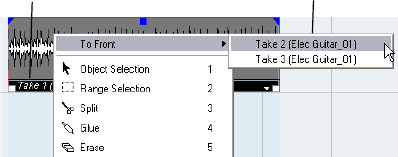
1. Holding [Alt]/[Option], right-click on the new guitar au-
dio event that we just recorded and choose a take from the
“To Front” submenu.
If you right-click without holding a modifier key, you will see the toolbox
instead of the context menu. This behavior is determined by the “Popup
Toolbox on Right Click” option in the Preferences dialog (Editing–Tools
page).
Cubase AI has recorded all of the passes we made when
we were recording in loop mode (Cycle Recording). These
passes are called “Takes”. In our example we have three
different guitar takes. We can pick between them and
choose which one sounds best.
2. Listen to the different takes and when you are done,
choose “Take 1”.
Current take Available takes
5
Tutorial 2: Editing audio
32
Tutorial 2: Editing audio
Event operations
In this section we’ll learn how to edit events or parts. This
includes rename, resize, split, glue, move, copy, repeat,
mute, erase and adding a fade.
Renaming
If we look at the audio events that we recorded earlier, we
notice that the bass track has an audio event on it called
“Audio 01_01”. This is because the name of the track was
originally “Audio 01” and the suffix “_01” means that it is
the 1st audio file to be recorded on the track. The second
audio file would be called “Audio 01_02”.
Naming your audio files keeps your project clean and easy
to understand. Let’s rename “Audio 01_01” to “Bass”:
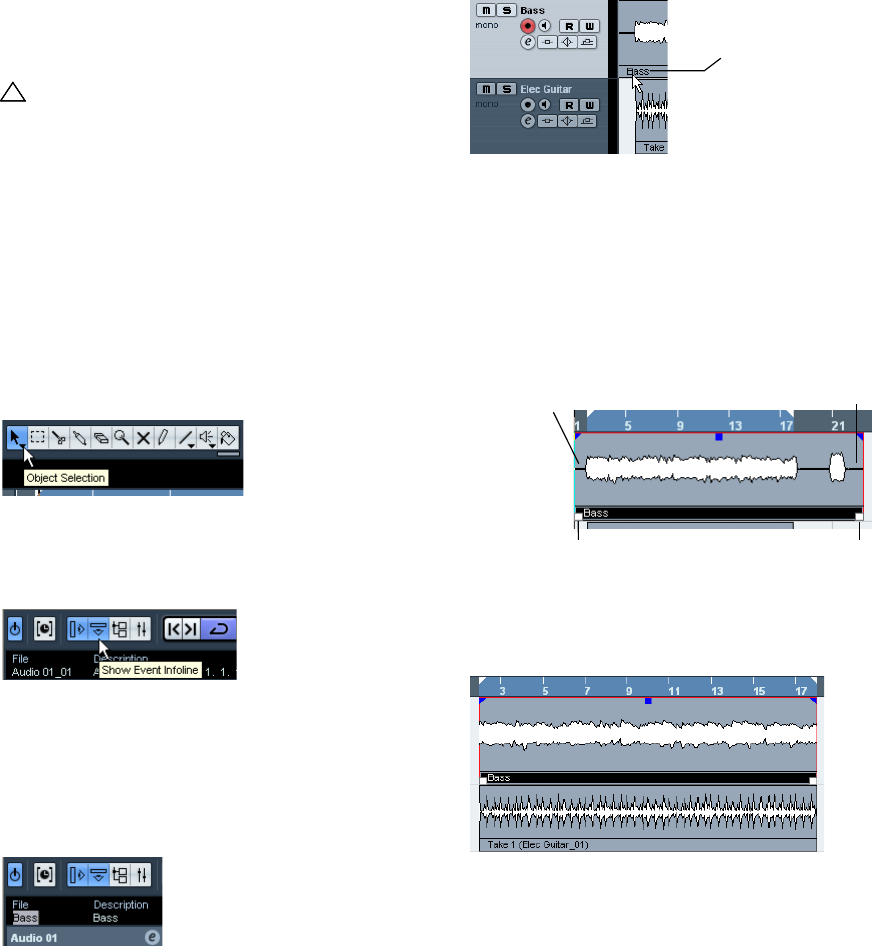
1. Choose the Object Selection tool.
2. Click on the event “Audio 01_01”.
3. Make sure “Show Event Info Line” is activated on the
toolbar.
•The “Event Info Line” gives us detailed information
about an object or objects that are currently selected in
the event display.
4. Change “Audio 01_01” to “Bass” underneath the
word “File”.
This changes the audio file’s name directly on the hard drive – easy!
5. Notice that our audio event now says “Bass”.
Resizing
You resize an event by adjusting the start and/or end of
the event. Used in combination with the split tool this is
usually all the editing you’ll need.
1. Choose the Object Selection tool.
2. Click on the event you wish to resize.
In our case let’s change the “Bass” event.
3. Position the mouse pointer over one of the squares at
the bottom right or bottom left of the event. Click and adjust
the “Bass” event so that it lines up with “Elec Guitar_01”.
!!!
Load the project called “Event Operations” found in
the “Tutorial 2” folder.
The name has changed from
“Audio 01_01” to “Bass”.
There is extra space on either side of the Bass audio event that we
don’t want.
White squares appear on the bottom left and bottom right of the event.
Resize the event with these.
33
Tutorial 2: Editing audio
Splitting
Splitting is used to cut events. You can split or cut an event
wherever you want or split them evenly to bars and beats.
Splitting with “Snap” off
Splitting with “Snap” off allows you to cut anywhere with-
out locking to any kind of reference like bars and beats.
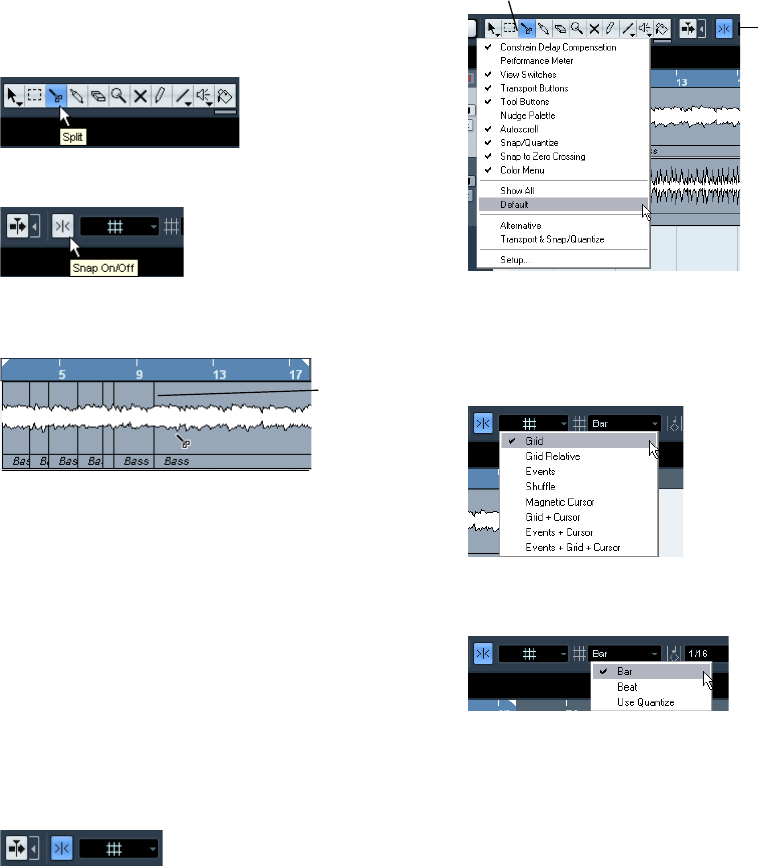
1. Choose the Split tool.
2. Make sure “Snap” is off (not highlighted).
3. You can now split or cut the audio anywhere by click-
ing on the event.
4. Undo your actions by choosing “Undo Split” from the
Edit menu as many times as you used the Split tool.
Make sure there are no splits in the “Bass” event any more.
Splitting with “Snap” on
Having “Snap” on allows you to split or cut to a time refer-
ence. For example, if you want to cut the “Elec Guitar”
track to bars or beats.
1. Choose the Split tool.
2. Make sure “Snap” is on.
Snap allows you to edit to various time frames. The most common one is
bars and beats. Meaning you can cut exactly to the bar with “Snap” turned
on. With it turned off you can cut anywhere. See more about “Snap” in the
chapter “The Project window” in the Operation Manual.
3. If you are having trouble seeing anything beyond the
“Tool Buttons”, right-click in the toolbar (the top bar that
the “Tool Buttons” are on).
This allows you to change what you see at the top of the Project window.
Customization is in the heart of Cubase AI.
4. Choose “Default” so that if you changed anything it
will return to the default settings.
5. Choose “Grid” from the Snap mode pop-up menu to
the right of the Snap button.
This means we’ll be snapping to a grid.
6. Next choose “Bar” as the “Grid Type”.
This means you will split to bars.
The vertical blue
lines indicate
where the Bass
event was split.
There is more to see
but your screen resolu-
tion may prevent you
from seeing everything.
Right-click in the toolbar.
34
Tutorial 2: Editing audio
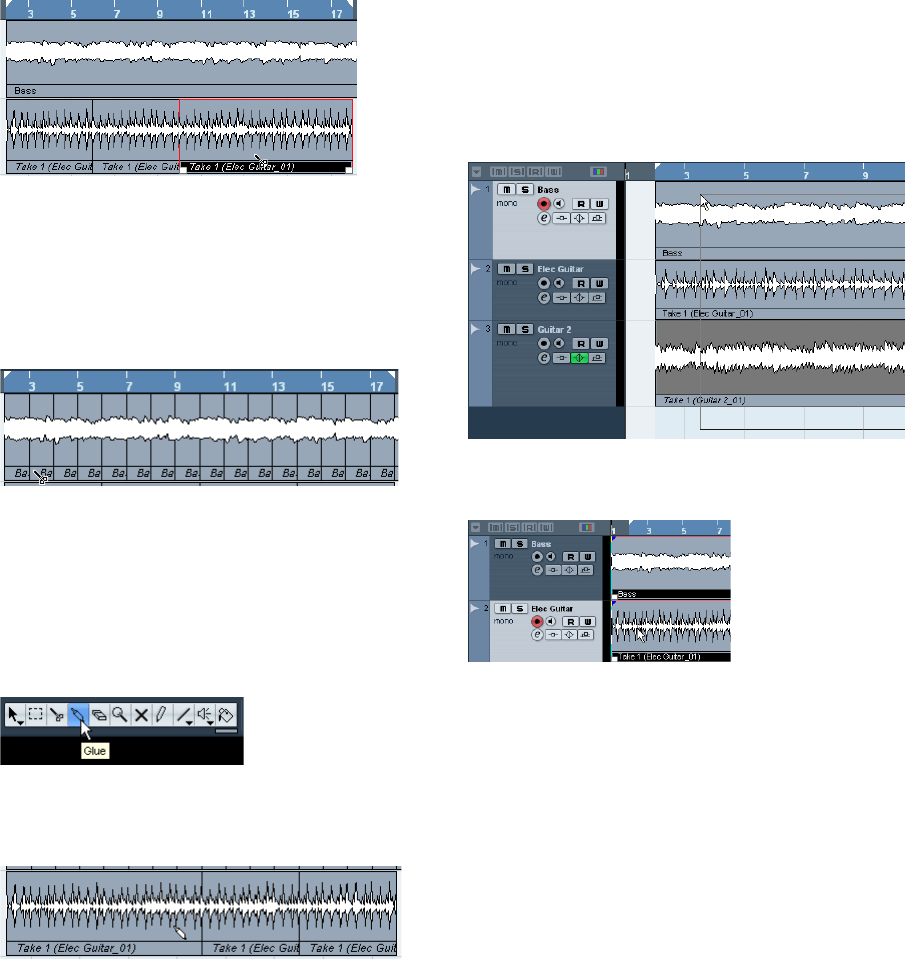
7. You can now split the “Elec Guitar_01” event precisely
to the bar. Cut on bars 6, 10 and 14.
Splitting with [Alt]/[Option]
1. Choose the Split tool.
2. Hold down [Alt]/[Option] and click on the bass event
at bar 3 and the length of the split will be repeated until
the end of the event.
You can try this with “Snap” on or off.
3. Select “Undo Split” from the Edit menu and return the
bass to the way it was.
Gluing or joining events
Using the Glue tool allows you to join events together that
have been cut using the Split tool.
1. Choose the Glue tool.
2. Glue together the split events in the “Elec Guitar”
track by clicking just before each split.
Let’s make sure we glue all of them.
Moving events
Let’s now move all the events in the Project window from
bar 2 to bar 1.
1. Choose the Object Selection tool.
2. Click and hold the mouse on an empty area of the
Project window. Drag to create a selection of all the events.
When you release the mouse button, all the events will be
selected.
3. With all the events selected, click and drag them to
bar 1.
4. Click on an empty area of the Project window so that
no event is selected.
35
Tutorial 2: Editing audio
Copying events
Copying can be used to copy an event to another area in
the Project window. If you want to make several copies in
one go, see “Repeating” on page 35.
Using Copy and Paste
1. To copy an audio event, click on the desired event and
choose “Copy” from the Edit menu.
In our case let’s choose the “Elec Guitar_01” event.
2. Position the cursor at the point in the project that you
wish the copy to be made.
We’ll put our cursor at bar 17.
3. Make sure you click on the track that you want the
copied event to be copied to. Choose “Paste” from the
Edit menu.
It is possible that you may have another track selected. If so the “Paste”
command would paste it to a different track. Always note the track you
have selected before choosing “Paste”.
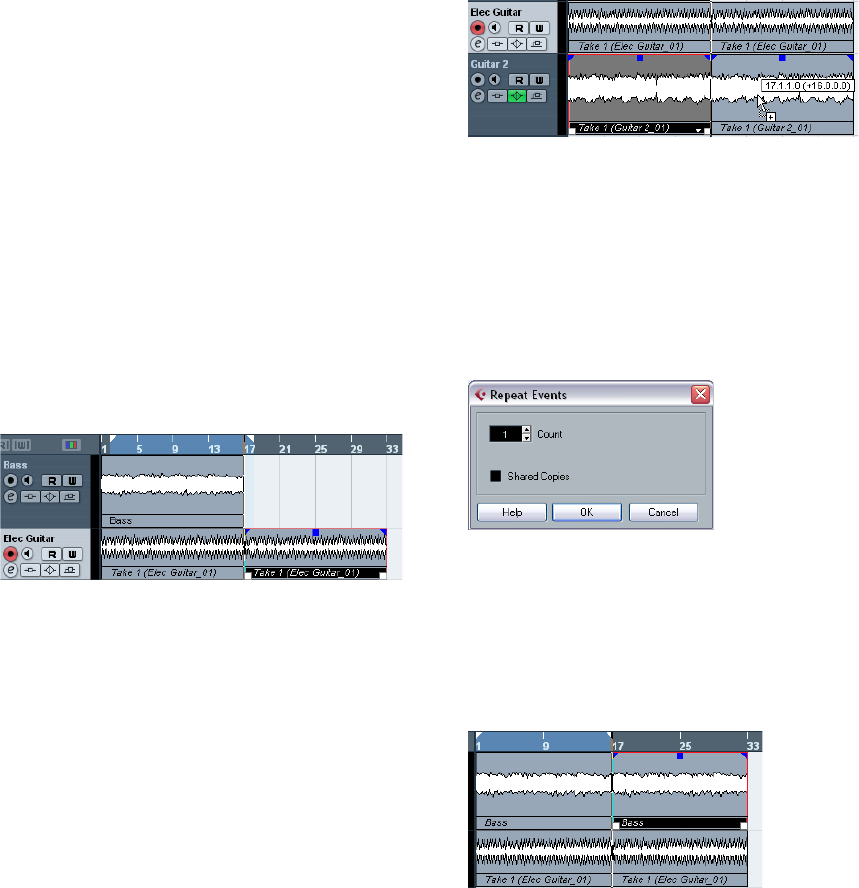
4. Now we have two guitar events.
Using the [Alt]/[Option] key
1. Choose the Object Selection tool and hold down [Alt]/
[Option].
2. We are going to copy the “Guitar 2” events. Remem-
ber that there are three events. Select all of the “Guitar 2”
events by clicking and dragging as described above.
3. Click and hold the selected events and drag to the po-
sition you wish the copy to be made. Then release the
mouse button.
Don’t worry about the “Scissor” icon that appears. As soon as you click
and hold on the event you are copying it switches to an arrow with a “+”
sign indicating that you are copying.
Repeating
Repeats are great for repeating something over and over
directly after the event you want to repeat.
1. Click the bass event with the Object Selection tool.
2. Choose “Repeat…” from the Edit menu.
3. In the dialog that opens, choose how many copies you
wish to make by increasing the value in the “Count” field.
•You can choose to select “Shared Copies” if you want.
Shared copies allow you to make aliases to the original
event. This means that if you make changes to the original
event (such as processing or editing), the copies will re-
flect those changes. This is a big time saver!
4. Click “OK” and the repeat will be placed directly after
the Bass event.
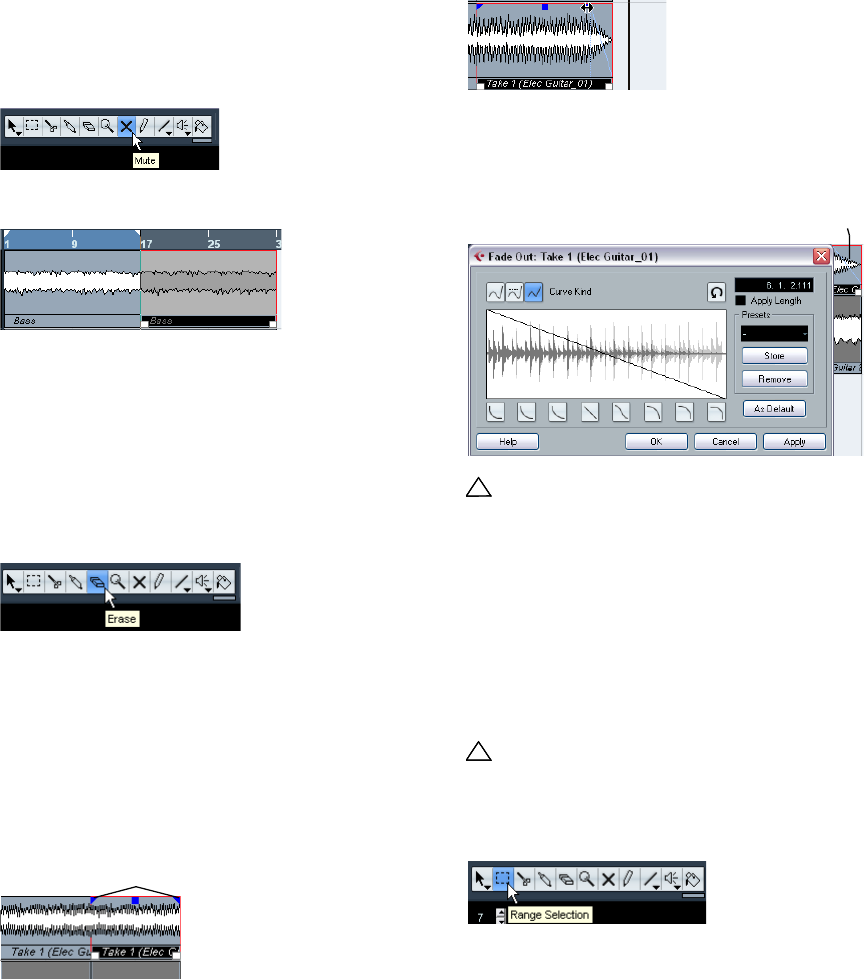
36
Tutorial 2: Editing audio
Muting
Muting an event stops you from hearing just that event.
You may want to mute events on a track so that the track
continues to play except for the events you mute. Note
that this is different from muting a track.
1. Choose the Mute tool.
2. Click on the event you wish to mute.
3. To unmute an event, click on the muted event with the
Mute tool again and it returns to normal.
•If you drag with the Mute tool you can mute a number of
events at a time. Equally this will unmute events that are
muted.
Erasing
1. Choose the Erase tool.
2. Click on the events you wish to erase.
Adding a fade
You can add a fade to an event to give the effect that the
event is fading in or fading out.
1. Choose the Object Selection tool.
2. Click on the event you wish to add a fade to.
3. Click on one of the blue triangles and move it so that a
fade appears.
4. For more advanced fades you can double-click on the
fade area to open up the fade dialog. See the chapter
“Fades and Crossfades” in the Operation Manual for more
information.
Processing audio
Cubase AI has the ability to make changes to the audio in
more ways than splitting and resizing. You can normalize,
reverse and time stretch, to name a few. For a full explana-
tion on processing audio, see the chapter “Audio pro-
cessing and Functions” in the Operation Manual.
You can process the whole audio event or use the Range
Selection tool and select just the section of audio you want.
Let’s show you how to Normalize and Reverse an audio
event.
Notice the blue triangles that appear at the top left
and top right of the event.
!!!
Load the project called “Event Operations 2” found
in the “Tutorial 2” folder. This project has all the event
operation changes you’ve learned so far.
!!!
Load the project called “Processing Audio” found in
the “Tutorial 2” folder.
Double-click in this area to open the fade dialog.
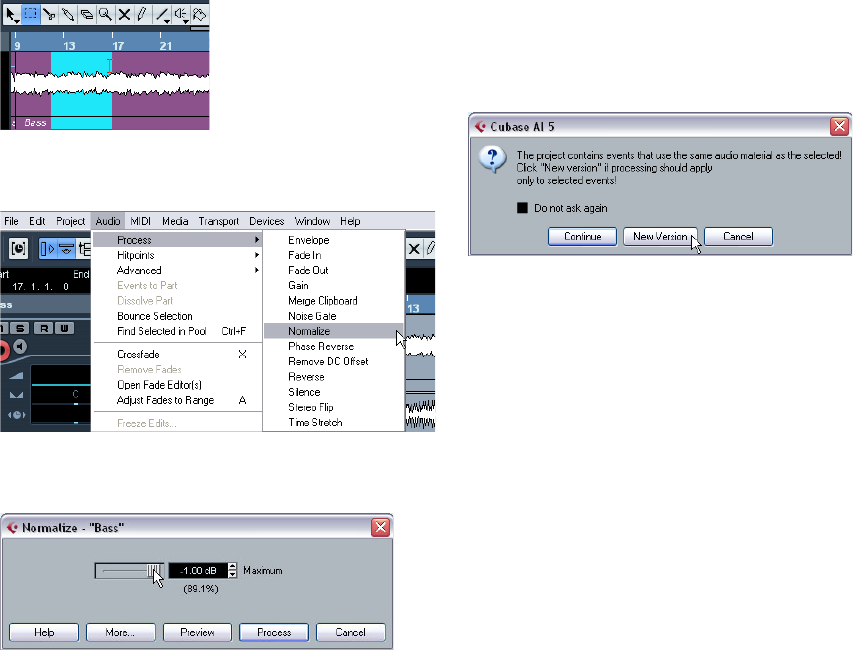
37
Tutorial 2: Editing audio
Normalize
Normalize raises the volume of the audio to the desired
amount. Usually you adjust the slider to “0” dB or “-1” dB
so that you get the maximum volume without clipping your
audio. A common use for Normalizing is to raise the level
of audio that was recorded at too low an input level.
ÖPlease note that in some situations, this function may
lead to distortion. Therefore, you should use it carefully
and listen to the audio material afterwards, to make sure it
sounds as intended.
1. With the Object Selection tool, click on the audio
event you wish to change. Let’s pick the Bass audio event.
You can also use the Range Selection tool and select the section of audio
you want.
2. On the Audio menu–Process submenu, select “Nor-
malize”.
3. Adjust the slider to the amount you desire. A setting of
“0” db or “-1” db is common.
4. Click the Process button and your audio is now nor-
malized.
For a description of the “More” and “Preview” buttons, see the chapter
“Audio Processing and Functions” in the Operation Manual.
Reverse
The “Reverse” command reverses the audio selection.
This will sound as if you were playing a tape backwards.
1. With the Object Selection tool, click on the audio
event you wish to change. In our case, let’s pick the bass
audio event.
You can also use the “Range Selection” tool and select the section of
audio you want.
2. On the Audio menu–Process submenu, select “Re-
verse”.
3. If you have copied events in the Project window, this di-
alog box will open. It asks if you want all the copied events
changed (Continue) or if a new version is to be created so
that only your selection is affected (New Version).
4. Clicking either “Continue” or “New Version” will re-
verse your audio.
6
Tutorial 3: Recording and editing MIDI
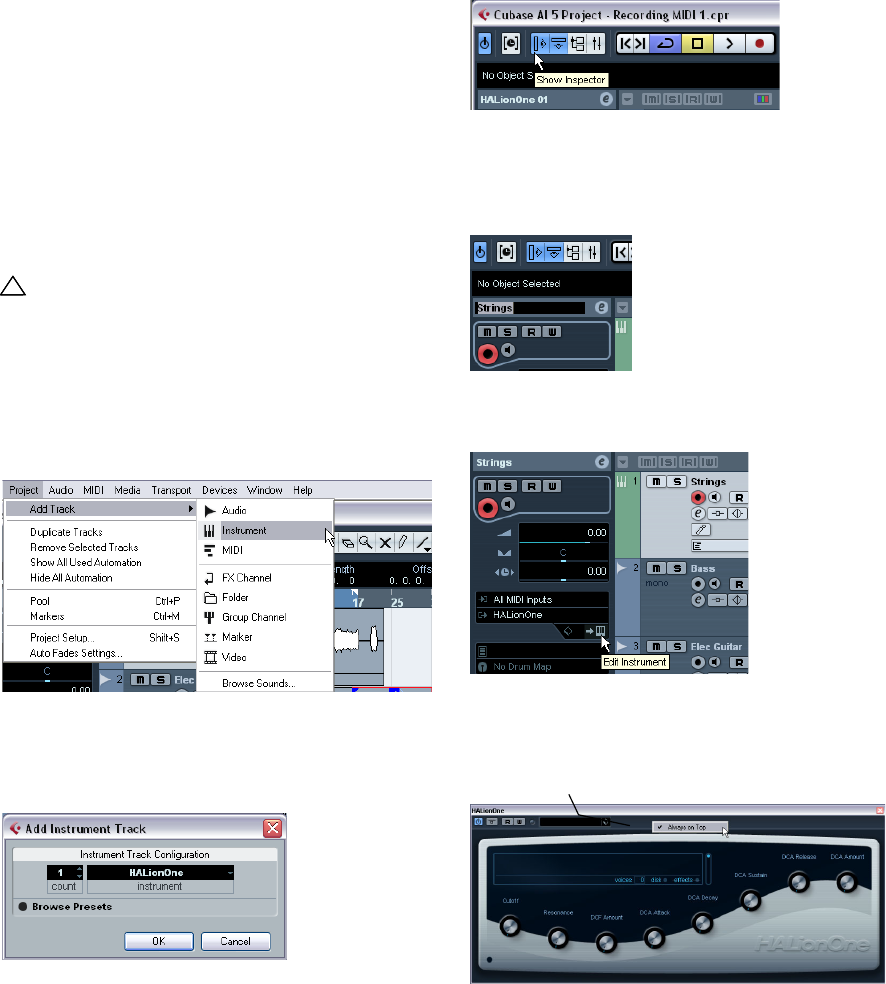
39
Tutorial 3: Recording and editing MIDI
Introduction
In this chapter, we are going to add some more instru-
ments to our song. In the previous tutorials, we have re-
corded audio. Now we are going to record using MIDI.
There are two ways in which we can have MIDI sounds
appear in Cubase AI: via virtual instruments, that is a syn-
thesizer inside your computer or through the use of a tra-
ditional hardware keyboard.
This tutorial will focus on virtual instruments.
Creating an instrument track
1. Let’s start by adding a string part to our song. From the
Project menu on the Add Track submenu, select “Instru-
ment”.
In previous versions of Cubase AI, you needed a MIDI track routed to a vir-
tual instrument found in the “VST Instruments” window. You can still use
this method but instrument tracks are far more convenient.
2. From the “Instrument” pop-up menu, choose “HALion-
One”, then click “OK”.
An instrument track is created below the selected track in the Project
window.
3. Make sure the Inspector is shown.
4. Click in the name field of the instrument track. It should
be the only instrument track you created, so the name
should be “HALionOne 01”. We can double-click on this
and change it to “Strings”.
5. Click on the “Edit Instrument” button to open the con-
trol panel for “HALionOne”.
6. If you want “HALionOne” to stay always on top while
you are working you can right-click on the bar near the top
of the instrument and select “Always on Top”.
!!!
Load the project called “Recording MIDI 1” found in
the “Tutorial 3” folder.
Right-click here to select “Always on Top”.
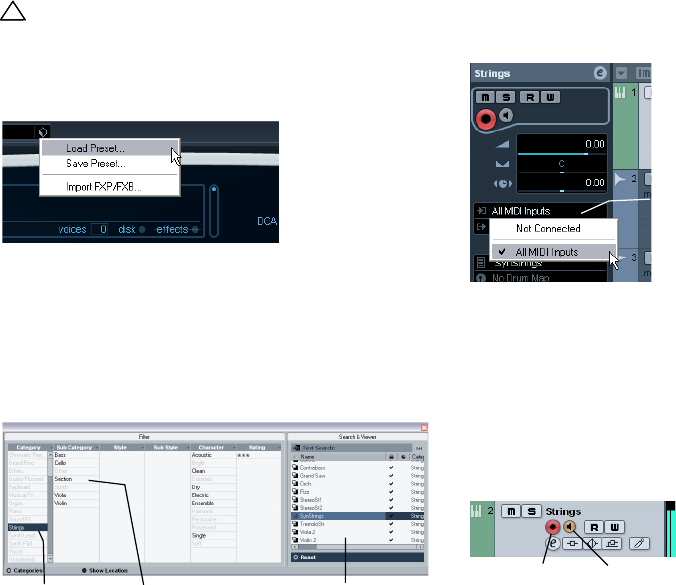
40
Tutorial 3: Recording and editing MIDI
Browsing sounds
We are now going to load sounds into our virtual instrument
“HALionOne”.
1. Click the “Preset” button in “HALionOne” and choose
“Load Preset” from the pop-up menu.
2. In the window that appears, click the Categories but-
ton to display the Filter section.
3. In the “Category” section, make sure only “Strings” is
selected by deselecting anything else and clicking on
“Strings”. You have filtered the list to only show strings.
Choose a string sound from the list on the right.
MIDI recording
Now that we have our sound, let’s record something. Re-
cording MIDI is very similar to recording audio, see the
chapter “Tutorial 1: Recording audio” on page 22.
1. Make sure you have a MIDI keyboard connected to your
computer either directly through USB or a MIDI interface.
See the chapter “Setting up your system” on page 13 for information on
setting up MIDI in your computer.
2. We want to have our MIDI keyboard routed to this
track and play “HALionOne”. Make sure the Inspector is
shown so we can see our MIDI input and output routing.
3. Next, on the Input Routing pop-up menu, choose the
MIDI input you wish to use.
Most people leave this on “All MIDI Inputs” since you don’t have to
worry about which input is which. “All MIDI Inputs” takes the MIDI sig-
nal from all your inputs and routes it to this track. There are some cases
where you wouldn’t want this but for 99% of the time you’ll be safe
with this option selected.
4. Below the MIDI Input Routing pop-up menu, you can
set the MIDI output. This is set to our virtual instrument
“HALionOne”. If for any reason you need to change this to
another instrument you can do this here.
5. Activate the Record Enable and Monitor buttons on
the track and play some notes on your MIDI keyboard.
You should see and hear the MIDI signals coming in to the right of the
track.
Record enabling the track lets Cubase AI know that you want to record
on this track. You can have many tracks record enabled at a time.
6. Set the left locator to bar “1” and the right locator to
bar “57”.
7. Make sure Cycle is turned off.
We are going to record without looping. We’ll cover MIDI cycle recording
in the section “Cycle recording” on page 42.
8. Press [1] on the numeric keypad of your computer
keyboard.
This will move the cursor to the left locator.
9. Click the Record button and record a few bars of
music.
10. Click the Stop button when you are finished.
!!!
Load the project called “Recording MIDI 2” found in
the “Tutorial 3” folder.
Category Sub Category Filtered List
The MIDI Input Routing
pop-up menu
Record Enable Monitor
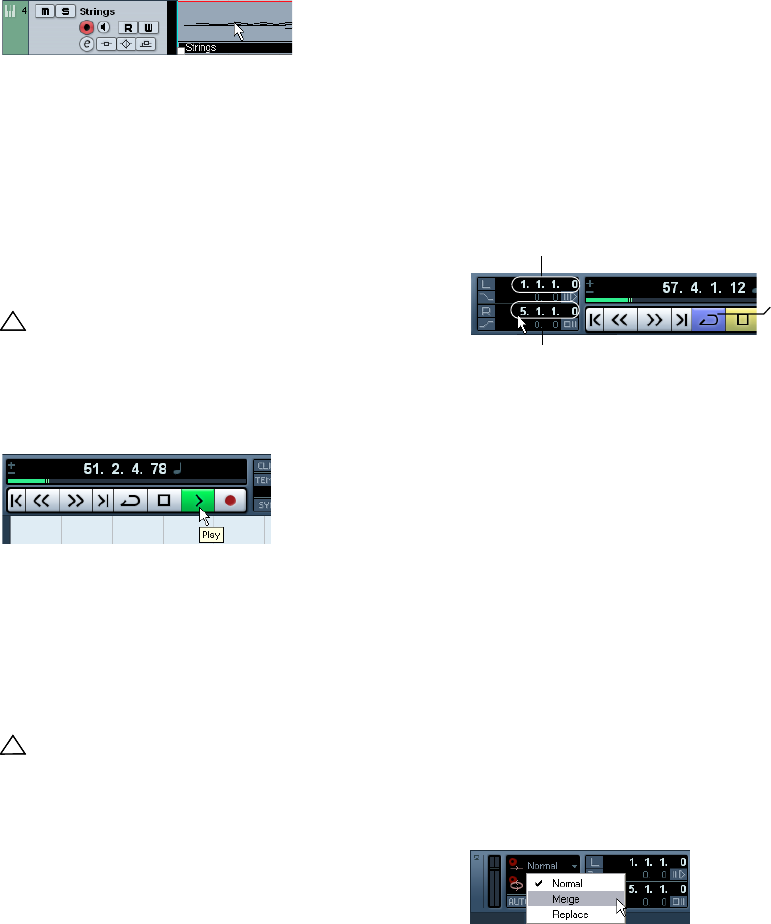
41
Tutorial 3: Recording and editing MIDI
11. Turn off the Monitor and Record Enable buttons on the
track so that we don’t hear the input or record on the track
any more.
Congratulations! You have just created your first MIDI re-
cording in Cubase AI. Move ahead to the next section to
learn how to play back MIDI.
MIDI playback
We are now going to learn how to play back MIDI in Cu-
base AI. You might think this is very simple – just hit “Play”.
It is actually this simple, but there are a few tricks to learn so
that you’ll be playing back what you want with precision.
To start playback
•Click the Play button on the Transport panel.
•Press [Space] on your computer keyboard.
This toggles between start and stop.
•Press the [Enter] key of the numerical computer keypad.
•Double-click in the lower half of the ruler.
•Select the MIDI event and choose “Loop Selection”
from the Transport menu.
To stop playback
•Click the Stop button on the Transport panel.
•Clicking the Stop button twice moves the cursor to the
position in the project, where you started playback.
•Press [Space] on your computer keyboard.
This toggles between stop and start.
•Press the “0” key of the numerical computer keypad.
Cycle playback
Cubase AI has the ability to loop or cycle a section of your
project. To set the cycle location you need to use the left
and right locator.
1. On the Transport panel, set the left locator to “1” and
the right locator to “5”.
This tells Cubase AI that we want to loop or cycle between bars 1 and 5.
Meaning we will have a 4 bar loop since the end of bar 4 is the beginning
of bar 5.
2. Make sure that the Cycle button is activated.
3. Click the Play button on the Transport panel and Cu-
base AI will play looping over and over until you click Stop.
Recording modes with cycle off
There are three different modes for recording when the
cycle is turned off. This is called linear recording.
•Normal
“Normal” allows you to record on top of previously recorded MIDI. You
will be able to see both MIDI parts on the screen overlapping each other.
•Merge
“Merge” joins or merges any MIDI data previously recorded on the track.
An example of this is when recording drums – adding the kick drum on
one pass and then the snare drum on another pass. The MIDI data is
then joined together as one MIDI part.
•Replace
“Replace” mode will replace or overwrite any previous MIDI recording
that was on the track.
!!!
For this section, make sure you load the project
“MIDI Playback” found in the “Tutorial 3” folder.
!!!
The default key command for this is [Shift]-[G]. This
is the quickest way to loop the selected MIDI event
and start playback!
The left locator set to “1”.
The right locator set to “5”.
Cycle activated
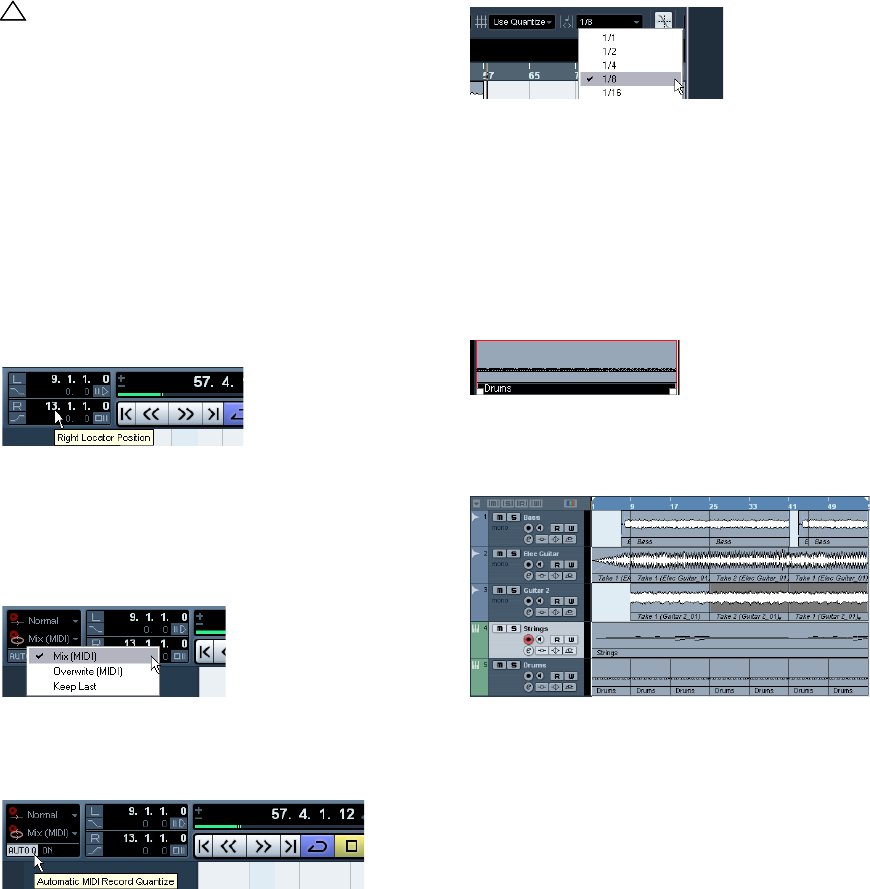
42
Tutorial 3: Recording and editing MIDI
Cycle recording
You can record MIDI while the Cycle is activated.
Recording MIDI drums
1. Let’s add another “Instrument” track and choose
“HALionOne” as our instrument.
This is described in the section “Creating an instrument track” on page
39.
2. Click in the program field in the Inspector and load a
drum sound of your choice found under the category
“Drums&Perc”, sub-category “Drumset”.
3. Rename this new track to “Drums”.
4. Make sure the Cycle button is activated and set the
left locator to “9” and the right locator to “13”.
This will loop or cycle between bars 9 and 13.
5. On the Transport panel, make sure “Mix (MIDI)” is se-
lected for the “Cycle Record Mode”.
This will allow us to record the drums, and as each cycle repeats, the MIDI
will mix together into one part. This makes it easy to create complex drum
rhythms.
6. Activate the “AUTO Q” button. This is the automatic
quantize function which will lock our MIDI to the beat as
we record it. Great if we play off time a bit.
7. Next we have to set the value of our quantize. This is so
Cubase AI knows what to lock our MIDI notes to. Choose
“1/8” notes from the “Quantize Type” pop-up menu.
8. Activate the Record Enable and Monitor buttons on
the “Drums” track.
9. Click the “L” button on the Transport panel once.
This will make sure we start recording at the left locator.
10. Activate the Record button on the Transport panel and
let’s record hi-hat on the first pass, kick on the second
pass and then finally snare on the third.
11. Hit “Stop” when you’re finished.
12. Now move and copy this drum part so that the rest of
the song has a drum beat.
This is described in the chapter “Tutorial 2: Editing audio” on page 31.
13. Glue all the parts together as one.
This is described in the chapter “Tutorial 2: Editing audio” on page 31.
!!!
Load the project called “Cycle Recording MIDI”
found in the “Tutorial 3” folder.
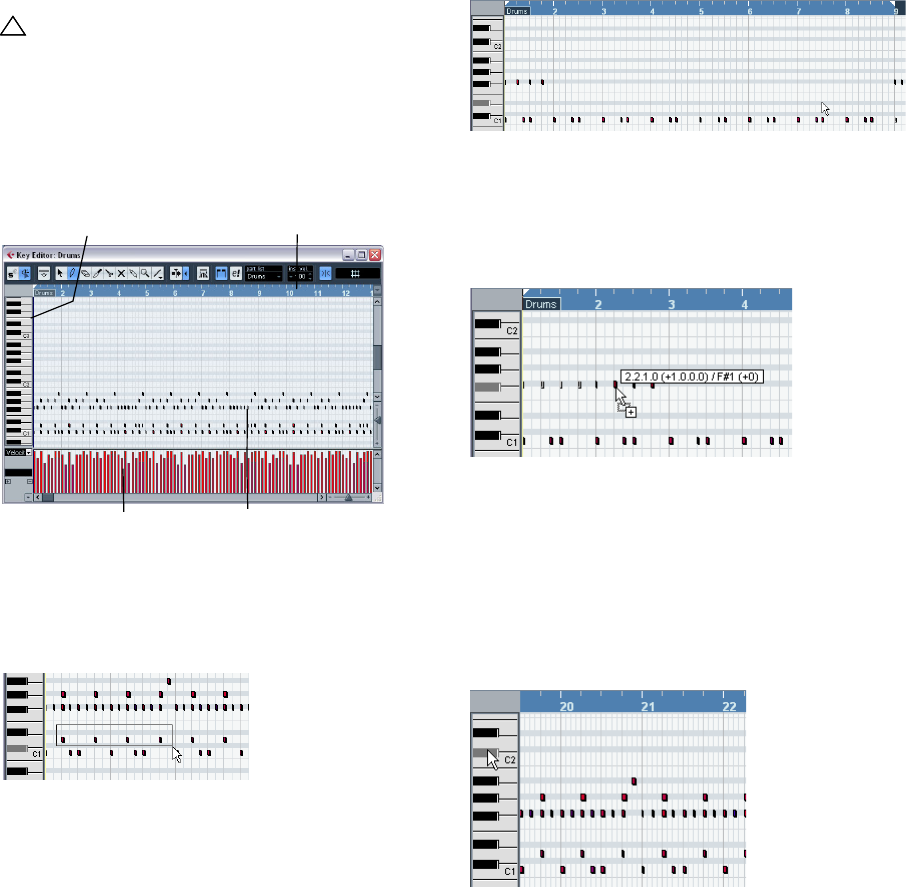
43
Tutorial 3: Recording and editing MIDI
The Key Editor
In the Key Editor we can make changes to our MIDI data.
Erasing MIDI notes
1. Double-click on the “Drums” to open the Key Editor.
Here we can see our drum notes lined up with a keyboard on the left. At
the bottom we have the velocity of each of the MIDI notes and at the top
we can see the time ruler.
2. We want the song to start off with hi-hat and kick drum.
Erase the snare by clicking once and holding the mouse
while dragging a selection over the snare drum. Make your
selection from bars 1 through 8.
A common term for this is to “lasso” the notes.
3. Press the [Delete] key to delete the snare notes.
4. Zoom in on the bar 1 and delete all the hit-hat notes
with the Erase tool of the Key Editor so that you only hear
1/4 notes.
5. Now erase all the other hi-hat notes from bar 2 through
8 using any method you like.
Copying MIDI notes
Let’s copy the MIDI notes in bar 1 to bars 2 through 8.
1. Lasso the hi-hat notes in bar 1. Hold down [Alt]/[Option]
and drag the notes in bar 1 to bar 2. This copies them.
2. Continue copying until bar 9.
Creating or drawing in MIDI notes
Now we need to draw in a cymbal crash in bar 25.
1. Scroll over to bar 25 and click on the piano roll on the
left hand side of the Key Editor. Click on the notes until you
hear a crash cymbal that you like. There is a good one at
C#2.
!!!
Load the project called “Key Editor” found in the
“Tutorial 3” folder.
The Drum MIDI notesThe Drum MIDI velocities
Keyboard notes Time ruler
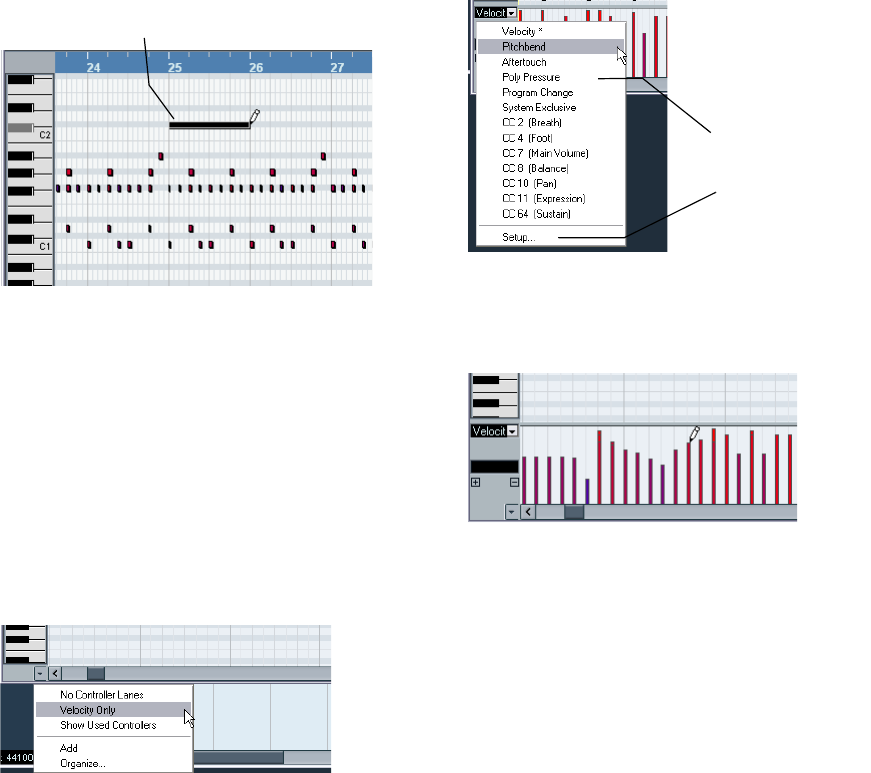
44
Tutorial 3: Recording and editing MIDI
2. Select the Pencil tool of the Key Editor and draw in the
crash cymbal note at bar 25 by clicking and dragging for a
full bar.
The Controller lane
The “Controller Lane” allows us to add in or modify MIDI
data such as velocity and controller information. The most
common use for this is to edit velocity, pitchbend and con-
troller numbers for things like filter etc.
If you find that the MIDI velocity is too loud or quiet on cer-
tain notes, you can view and edit them at the bottom of the
Key Editor.
1. Make sure you can see the Controller Lane by clicking
on the “Controller Lane Presets” button at the bottom left
of the Key Editor.
2. Choose “Velocity Only” to view the velocity.
3. You can choose the MIDI information you wish view or
change from the pop-up menu.
4. You can also select “Setup…” to view more control-
lers.
5. Click and drag in the Controller lane to draw in new
velocities for the notes.
You can even draw in curves and ramps using the Line tool in its various
modes.
Click and drag with the Pencil tool.
Pick one from the list or
choose “Setup…” for
more controllers.
7
Tutorial 4: Mixing and effects
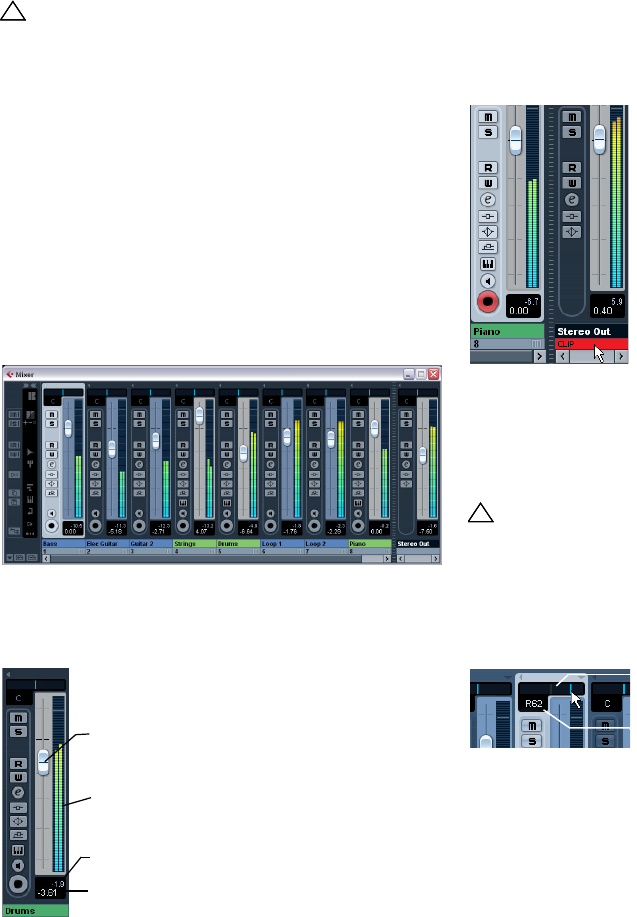
46
Tutorial 4: Mixing and effects
Introduction
In this section we’ll draw from the last tutorials and finally
get a mix ready with proper levels, EQs and effects. Auto-
mation will be added and then we’ll export the audio.
Setting levels
The first thing we want to do is to set the levels for our
project. This helps us get a preliminary balance of the mix
so we can add EQ and effects later.
1. Select the Mixer from the Devices menu.
The default key command for this is [F3].
2. Click the Play button on the Transport panel and listen
to your mix.
3. Move the faders for each track so that you can hear all
of the mix the way you like it.
4. If for any reason you need to get the fader back to 0dB
(default setting), you can [Ctrl]/[Command]-click directly
in the fader area.
5. You can also change the fader setting by double-click-
ing in the “Channel Level” area and entering the level man-
ually.
6. Be careful when it comes to how loud you raise the
faders. Make sure you keep levels at a good volume so
that they are as loud as possible without clipping. You will
always know when you are clipping: when the “CLIP” indi-
cator lights up on the output channel. If it does, lower your
levels and click on “CLIP”. This will reset the warning light.
•That’s it for setting the levels. Let’s look at the panorama
next.
Setting panorama
1. Setting the panorama (pan) for each track moves its po-
sition in the stereo mix. It will either keep the signal balanced
in the middle of the left and right speaker, lean to the left or
lean to the right or be completely in the left or right speaker.
•To get the panner back to the center (the default posi-
tion), [Ctrl]/[Command]-click anywhere in the panner area.
!!!
Load the project called “Mixing 1” found in the “Tuto-
rial 4” folder.
Channel meters
Channel fader
Channel Level
Peak Meter Value
!!!
Load the project called “Mixing 2” found in the “Tuto-
rial 4” folder.
Panner
Pan amount
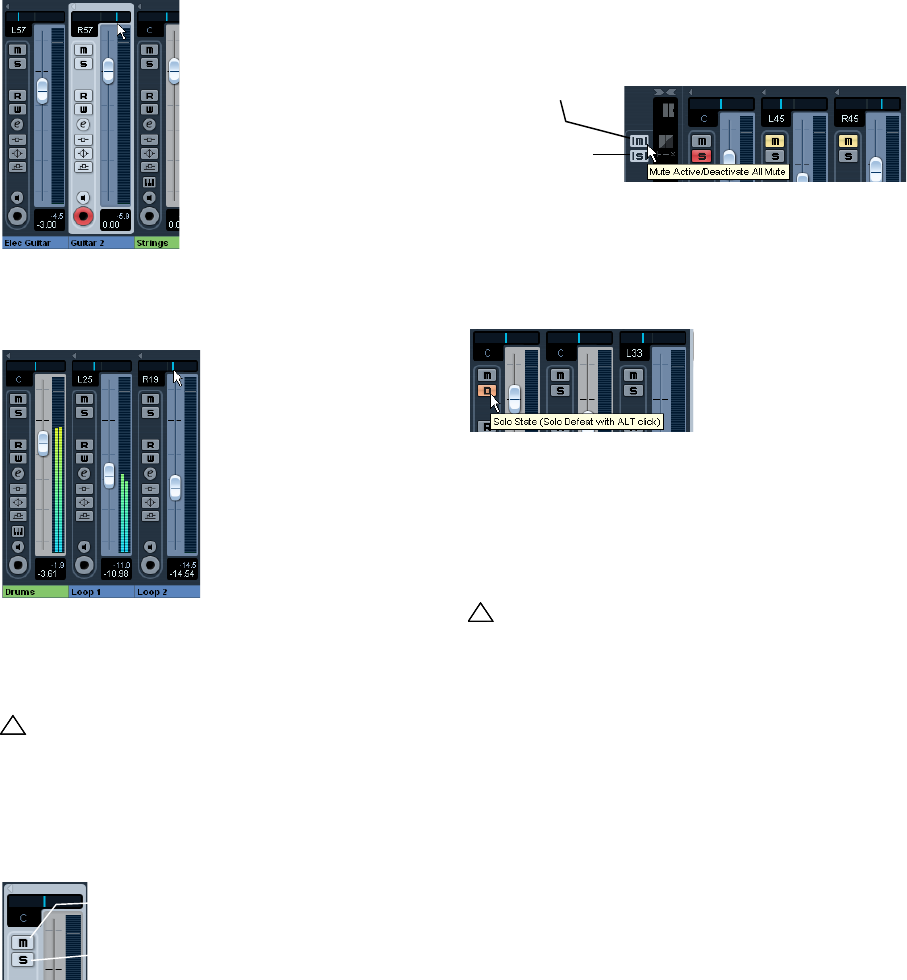
47
Tutorial 4: Mixing and effects
2. Let’s pan our two guitars slightly left and slightly right.
This will spread them out a bit.
3. Keep the “Drums” track in the middle but let’s move
“Loop 1” a bit to the left and “Loop 2” a bit to the right.
This will give our rhythm section a larger, more spacious sound.
That’s it for pan, let’s move on to Mute and Solo.
Mute and solo
•For each track there is an “M” for mute and “S” for solo
button. Mute will prevent you from hearing the track and
solo will only play that track or tracks which have “S” high-
lighted.
•You can have several tracks muted or soloed at a time.
•When you solo a track, the other tracks become muted.
•If you want to clear or deactivate all the mutes or solos,
click on the “Deactivate all Mute” or “Deactivate all Solo”
buttons in the common panel to the left of the Mixer.
•There may be times when you want certain tracks to al-
ways play even if another track has solo active. If you [Alt]/
[Option]-click on the “S” button, this will place the track in
“Solo Defeat” mode. This allows the track to always play
even if you solo another track.
•To take a track out of “Solo Defeat” mode simply [Alt]/
[Option]-click it again.
That’s it for mute and solo, let’s move on to adding EQ.
Adding EQ
EQ or equalization amplifies or attenuates frequencies so
that we can place each instrument correctly in the mix. EQ
is subjective and can be influenced greatly by the style of
music that you are mixing.
We’re going to run through the EQ features that Cubase
AI has to offer, but feel free to experiment and try out the
different presets on your mix.
!!!
Load the project called “Mixing 3” found in the “Tuto-
rial 4” folder.
Solo
Mute
!!!
Load the project called “Mixing 4” found in the “Tuto-
rial 4” folder.
Deactivate all Mute
Deactivate all Solo
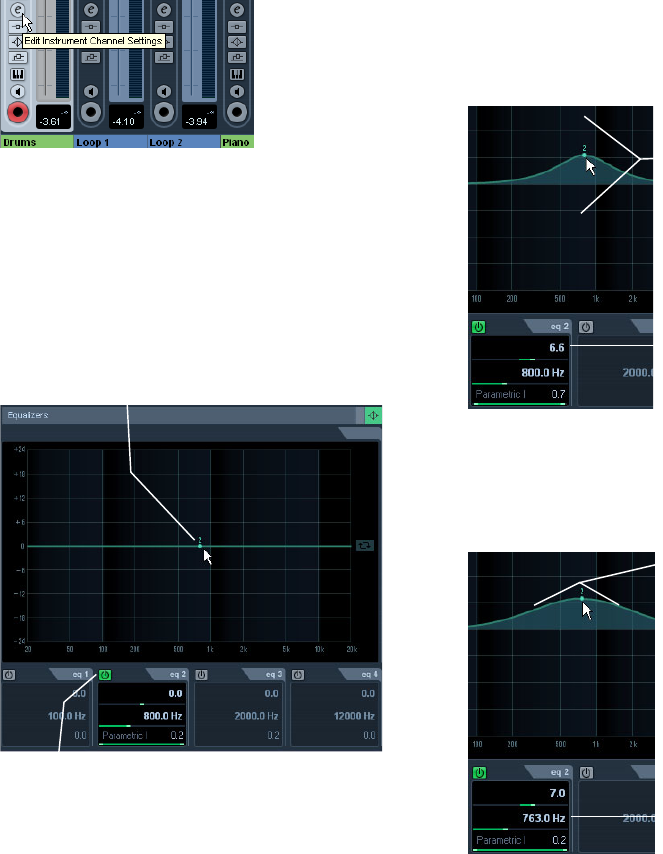
48
Tutorial 4: Mixing and effects
1. Solo the Drums track and click the “Edit Instrument
Channel Settings” button.
2. This will open the Channel Settings window, where
you can e.g. make EQ settings. Make sure you have a
section of music looping so that you can hear the EQ
changes you are making.
•There are four bands of EQ on each track.
3. In the Equalizers section, click the “EQ Band Active”
button for each of the EQs to turn them on. You can also
click in the EQ curve area to turn on an EQ.
4. Click and move the EQ point up, down, right or left.
Moving the EQ point up or down raises or lowers the gain
of the EQ. The gain makes that particular EQ louder or
softer. The “EQ Band Gain” at the bottom of the EQ win-
dow gives you the value of gain.
If you hold down [Ctrl]/[Command], you can restrict the movement of the
EQ to just up and down.
5. Moving the EQ point right or left changes the frequency
of the EQ. The “EQ Band Freq” setting at the bottom of the
EQ window gives you the value of the frequency.
If you hold down [Alt]/[Option], you can restrict the movement of the EQ
to just right or left.
Click the “EQ Band Active” button to turn on an EQ.
Click in the EQ curve area to turn on an EQ.
Move the EQ up or down to
raise or lower the gain.
“EQ Band Gain” amount
“EQ Band Freq” amount
Move the EQ left or right to
change the frequency.
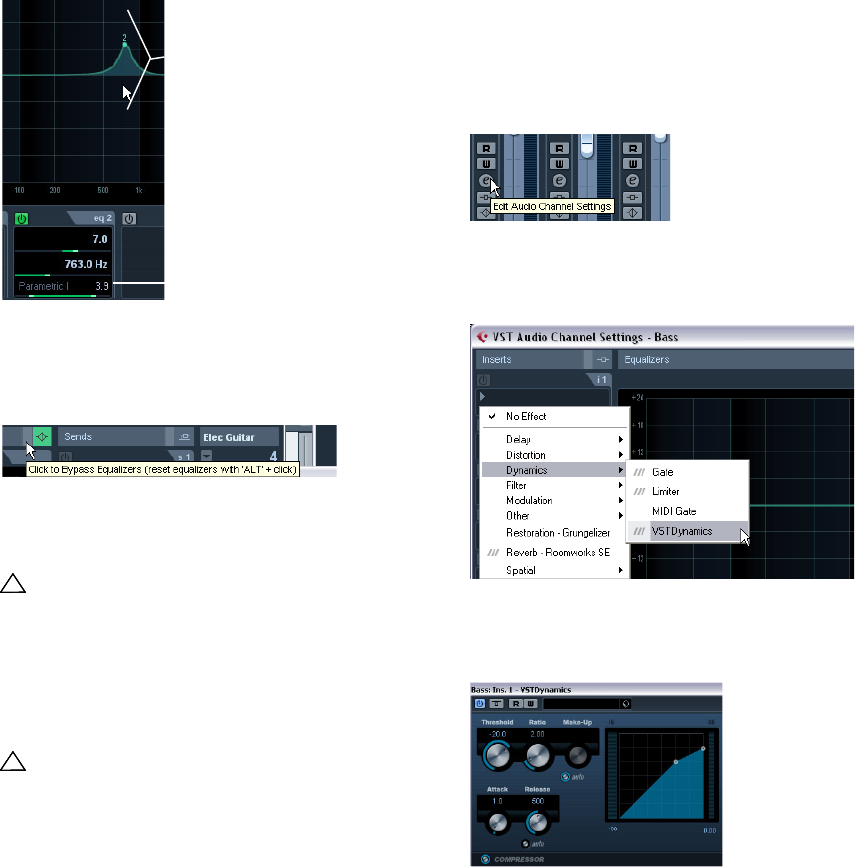
49
Tutorial 4: Mixing and effects
6. Holding down [Shift] while moving the EQ point up or
down changes the quality (Q) of the EQ. Many people re-
fer to this as the width of the EQ. The “EQ Band Q” set-
ting at the bottom of the EQ window gives you the value of
the quality.
7. You can bypass the EQs by clicking on the “Bypass
Equalizers” button. If you [Alt]/[Option]-click, you can reset
the EQ. A dialog window will open to confirm if you are sure
you want to reset the EQs. If you are sure, click “Yes”.
Experiment with the EQs on all your tracks in this tutorial.
A good tip when using EQ is that it’s usually better to take
away EQ (lower the gain) than to add it.
Now let’s move on to effects.
Audio effects
Now let’s start using some effects. We can add effects by
inserting the effect directly on a track or we can create an
FX channel and use the auxiliary sends of each track to
send to that FX channel.
Insert effects
1. Make sure the Mixer is open.
You can open the Mixer from the Devices menu or by pressing [F3].
2. Begin playback and loop or cycle a section of music
so that you can hear everything.
The tutorial project has its locators and cycle already set for this. Feel
free to change this if you like.
3. Click on the “Edit Audio Channels Settings” button on
the Bass track to open the VST Audio Channel Settings
window.
4. Let’s add compression to the Bass track to smooth it
out. Click on the “Select Insert Type 1” slot and choose
“VSTDynamics” from the Dynamics submenu.
5. Make changes to the settings in the Compressor sec-
tion. At the end of this section, you can load the next tuto-
rial that will contain all of the changes we have made.
!!!
We’ve made a whole bunch of EQ changes to this
tutorial. Listen and see the changes by loading the
project “Mixing 5” found in the “Tutorial 4” folder.
!!!
Load the project called “Mixing 6” found in the “Tuto-
rial 4” folder.
“EQ Band Q” amount
Moving the EQ up or down while
holding down [Shift] changes the Q.
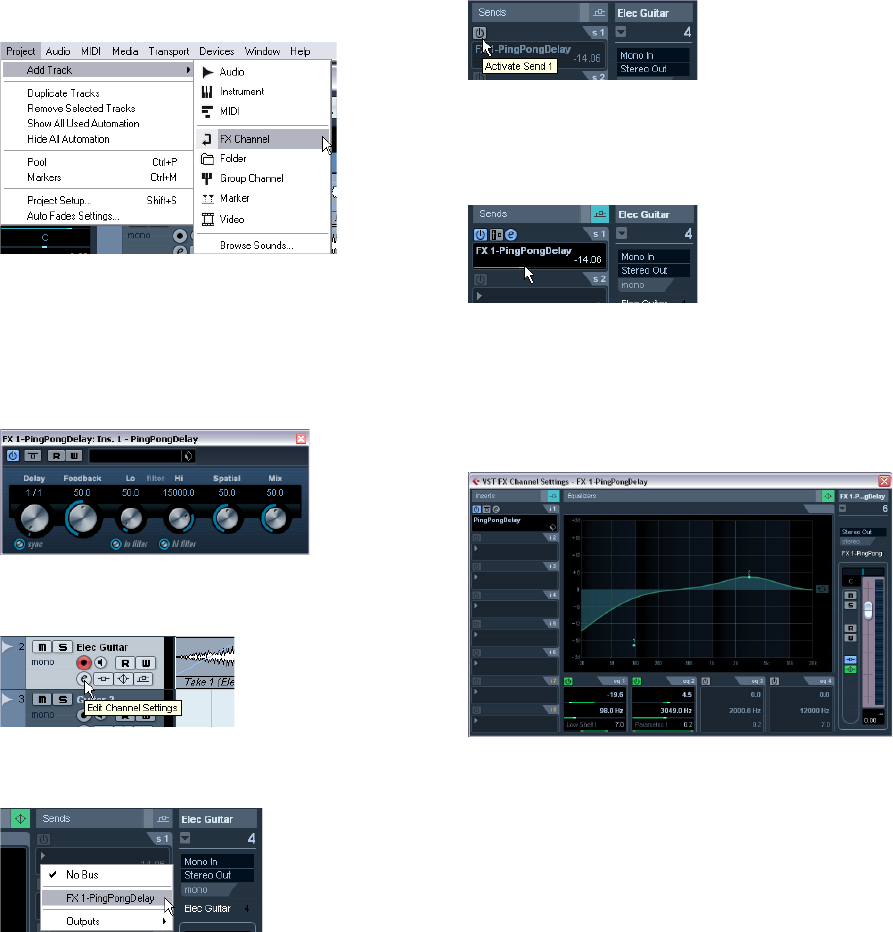
50
Tutorial 4: Mixing and effects
FX channels
Now let’s show you how to create and use FX channels.
1. Close the Mixer and choose “FX Channel” from the
Add Track submenu of the Project menu.
2. Choose “Stereo” for “Configuration”, select the “Ping-
PongDelay” effect and click OK.
3. We are going to put delay on the “Elec Guitar” track.
Experiment until you find the best effect settings.
The included effects are described in detail in the separate pdf document
Plug-In Reference.
4. With the delay set, click the “Edit Channels Settings”
button of the “Elec Guitar” track.
5. Select “FX 1-PingPongDelay” from the “Select Send
Destination” pop-up menu.
6. Click the “Activate Send 1” button to turn on the send.
This will allow you to send the guitar to the “PingPong-
Delay”.
7. Move the slider to the right to raise the level of the
send to the “PingPongDelay” effect. You will begin to hear
the guitar being delayed. Clicking the “S” (solo) button on
the track will allow you to hear this more clearly.
8. The great thing about FX Channels is that the channel
looks and feels just like a regular audio channel. When you
set an EQ for an FX Channel, only this effect will be
changed by the EQ. In our case changing the EQ on the
“FX 1–PingPongDelay” FX channel will only change the
EQ of the delay.
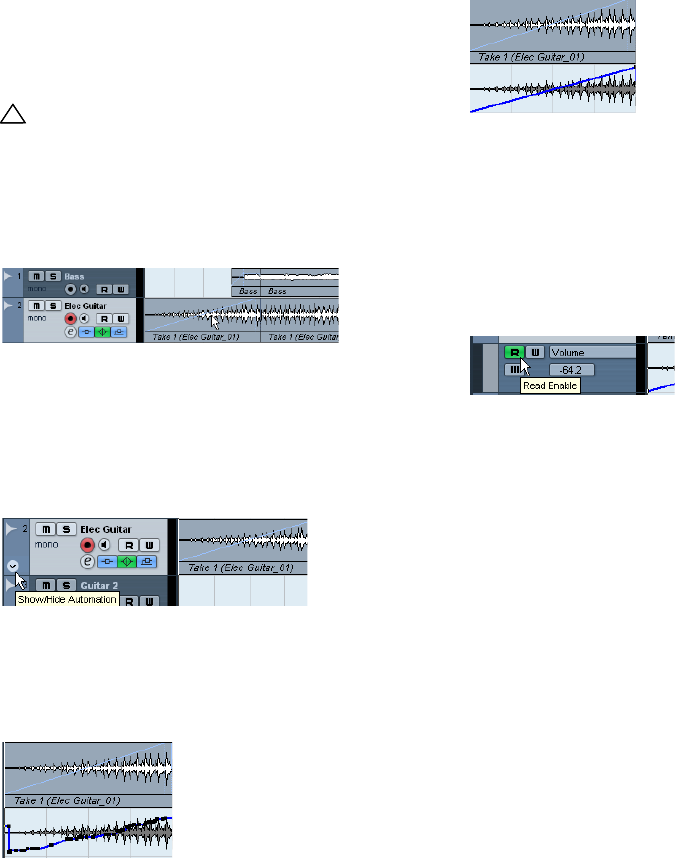
51
Tutorial 4: Mixing and effects
About automation
Automation allows us to make objects such as faders and
knobs move by themselves. This is very handy in that we
can tell Cubase AI to make changes over a period of time
and those changes will be remembered and will occur
again without our attention.
1. We created a fade-in on the “Elec Guitar” track earlier.
Let’s remove the fade on this audio event and create some
automation instead. Zoom in so that you can see the first
audio event more clearly.
2. Select the event and choose “Remove Fades” from
the Audio menu.
3. Click the “Show/Hide Automation” button at the far
left of the track.
You may need to hover your mouse over the far left bottom area until you
see the button appear as this is only shown when you need it.
4. Select the Pencil tool.
5. In the subtrack that appears below the audio event use
the Pencil tool to draw in automation so that it resembles a
fade in.
6. You can also use the “Line” tool to draw in automation
in a straight line. Perfect for fade in automation.
7. Listen to the fade in automation we created.
•You may have noticed that when we used the Pencil
tool to place in automation, the “R” button (Read Enable)
for the track became highlighted. This means that the au-
tomation on this track is being read or played back. You
can turn this off and the automation will not be read. In our
case we drew in volume automation, and so in turning it off
the volume will not fade in but stay at one level.
There are so many examples to show when it comes to au-
tomation. For example we could have automated our effects
or our send levels. We could have even automated objects
while Cubase AI was playing back. The automation can be
placed into write mode and moving almost any thing will
create automation that we can edit for fine tuning later!
Make sure you read the chapter “Automation” in the Opera-
tion Manual to fully realize how exciting automation can be.
!!!
Load the project called “Mixing 7” found in the “Tuto-
rial 4” folder.
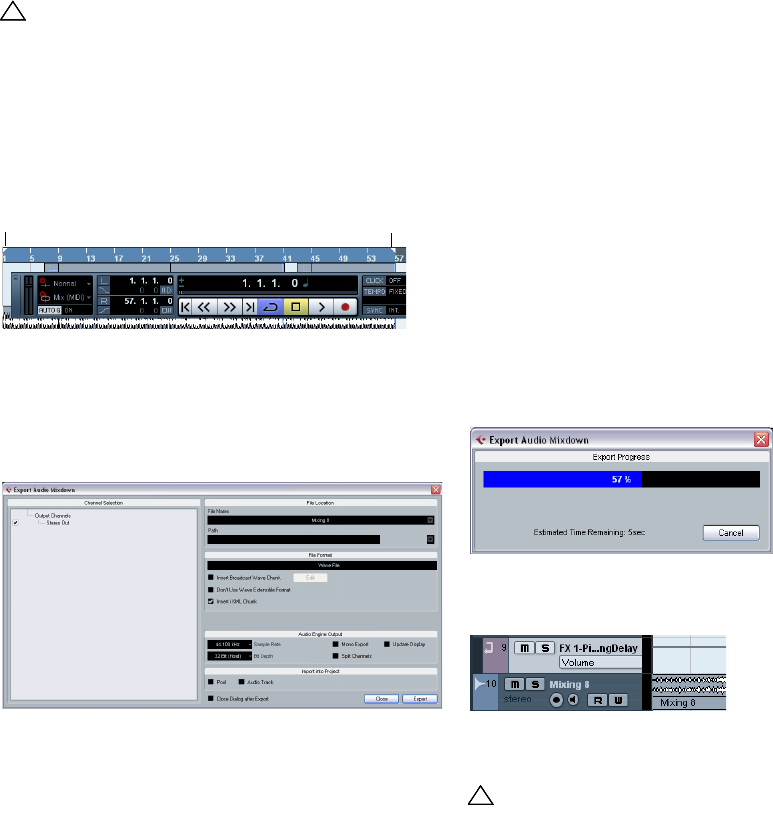
52
Tutorial 4: Mixing and effects
Exporting
Now that we have our project mixed we will want to export
it so that we can import it into another program such as a
CD burning application.
•Before we can export our mix we need to tell Cubase AI
how many bars to export. We accomplish this by setting
the locators.
1. On the Transport panel, make sure that the left and
right locators are set to bar 1 and 57, respectively. This will
ensure we have all the music for export.
2. Open the File menu, and on the Export submenu se-
lect “Audio Mixdown…”.
3. The “Export Audio Mixdown” dialog opens.
This dialog is described in detail in the chapter “Export Audio Mixdown” in
the Operation Manual.
4. “Name” is for naming the file for export. Let’s name
our’s “Mixing Mixdown”.
5. The “Path” is where you wish to save the exported file
on your computer. Open the “Path Options” pop-up menu
to the right of the Path field and select “Choose…” to nav-
igate to the folder you wish to save to. For convenience
there is the option “Use Project Audio Folder” which will
store the exported file in your project’s audio folder. This is
one of the best places to keep it so it won’t accidentally
become erased or lost. Make sure “Use Project Audio
Folder” is activated for this export.
6. Normally you’ll want to save your exported file as a
“Wave File” under “File Format”. This of course chiefly de-
pends on what file format the other application such as a
CD burning program requires.
7. In the Channel Selection section choose the main out-
put channel “Stereo Out” for export.
The exported file will be generated through the main stereo output that
you can see in the Mixer.
8. In the Audio Engine Output section, choose the “Sam-
ple Rate” and “Bit Depth” that will be required for your ex-
port. 44.100 kHz and 16 bit are common for CD burning.
9. Activate the “Pool” and “Audio Track” options at the
bottom of the dialog, as these will import the audio back
into Cubase AI after you export it and automatically create
an audio track. If you activate the “Close dialog after Ex-
port” option, the “Export Audio Mixdown” window will also
close after export.
10. When you are done making all the settings, click the
Export button.
11. You will now see the exported stereo mix on a new
stereo track.
12. You can check to see if the audio mixdown sounds the
way you want it by soloing the mixdown track.
!!!
Load the project “Mixing 8” found in the “Tutorial 4”
folder.
Left Locator Right Locator
!!!
Load the project called “Mixing 9” found in the “Tuto-
rial 4” folder to see the results of this export.
Index
54
Index
A
Adding
EQ 48
Fades 36
Mono Track 25
Advanced settings 21
All MIDI Inputs 19
ASIO 2.0 18
ASIO Direct Monitoring 18
ASIO driver
About 10
DirectX 10
DirectX Setup 10, 17
Generic Low Latency driver 10
Installing 11
Audio
Editing 31
Processing 36
Recording 22
Audio buffer size 21
Audio hardware
Connections 14
Setup application 15
Automation
About 51
C
Click
Activating 26
Close
Project 24
Connecting
Audio 14
MIDI 18
Controller lane 44
Copying 35
MIDI notes 43
Cycle
Playback 28
Recording (Audio) 29
Recording (MIDI) 42
D
Defragmenting
Windows 12
E
Editing
Adding a fade 36
Audio 31
Copying 35
Erasing 36
Gluing 34
MIDI 38
Moving 34
Muting 36
Renaming 32
Repeating 35
Resizing 32
Splitting 33
Effects 49
About 45
FX channels 50
Insert 49
EQ 48
Equalization 48
Erasing 36
Event operations
About 32
Adding a fade 36
Copying 35
Erasing 36
Gluing 34
Moving 34
Muting 36
Renaming 32
Repeating 35
Resizing 32
Splitting 33
Export
Mixdown 52
F
FX channels 50
G
Generic Low Latency driver 10
Gluing 34
H
Hard disk
Considerations 21
Hardware setup
Control panel (Mac) 16
Control panel (Win) 16
I
Input
Adding 25
Input level 15
Input ports 17
Insert effects 49
Instrument Track
Creating 39
J
Joining 34
K
Key command conventions 7
Key Editor
About 43
L
Latency 20
Levels
Setting 25, 26, 46
License activation 12
Loading Sounds 40
Local On/Off 19
M
Metronome click
Activating 26
MIDI
Copying notes 43
Cycle playback 41
Cycle recording 42
Editing 38
Erasing notes 43
Playback 41
Quantizing 42
Recording 38, 40
Recording modes (Cycle off) 42
MIDI input
Setting 40
55
Index
MIDI interface
Connecting 18
Installing 11
MIDI notes
Creating 44
Drawing 44
MIDI ports
Setting up 19
MIDI Thru Active 19
Mixing
About 45
Modifier keys 7
Monitoring
About 18
Moving 34
Mute (Button) 47
Muting 36
N
New Project
Create 23
Save 23
Normalize 37
O
Open
Project 24
Recent Projects 24
Open Config App 16
Optimizing the Hard Disk
Windows 12
Output
Adding 24
Output ports 17
P
Pan
Setting 46
Playback
About 27
Cycle 28
MIDI 41
Play 27
Plug and Play
ASIO devices 15
Popup Toolbox on Right Click 30
Processing
Audio 36
Normalize 37
Reverse 37
Project
Close 24
Open 24
Q
Quantizing 42
R
Recent Projects 24
Recording
Audio 22
Cycle 29
Level Settings 25
MIDI 38, 40
Modes 28
Recording levels 15
Registration 12
Release Driver when Application is in
Background 16
Rename 32
Repeating 35
Resizing 32
Reverse 37
S
Save
New Project 23
Setting levels 26, 46
Setting Pan 46
Solo (Button) 47
Splitting 33
Syncrosoft License Control
Center 12
T
Toolbox
Popup on right click 30
Track
Adding 25
V
VST
Input ports 17
Output ports 17
VST Audio System 16
VST Connections 24
