Stratos Technologies STRCD01A Stratos Card User Manual Stratos Users Manual Draft
Stratos Technologies, Inc Stratos Card Stratos Users Manual Draft
Users Manual
Please visit us at support.stratoscard.com for more information.
Getting Started
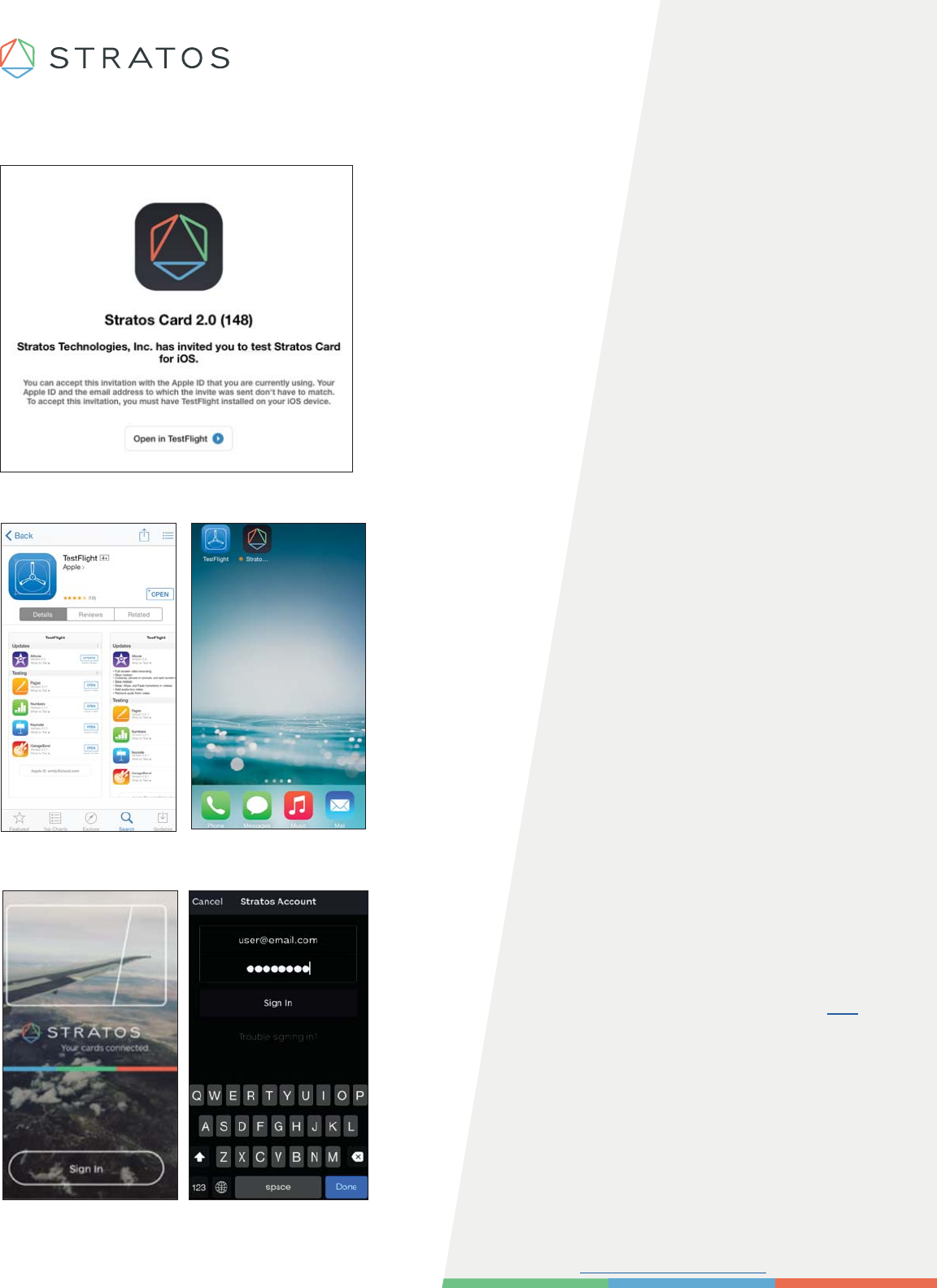
Step 1: Get TestFlight
Step 2: Download the Stratos App
Look for an email from the iTunes Store to download
the TestFlight app.
TestFlight only works on Apple Mail or Gmail.
TestFlight does not work with Outlook.
Check to make sure your iPhone is 5 or higher with
iOS 8.1.1 and above.
Once the Stratos App has downloaded, you should see
it on your mobile device screen. Open the App.
Step 3: Log Into Your App
Click on Sign in. Enter your Stratos email
ID and login password.
You will need to setup your password. Click this link
and submit the email address provided to Stratos. You
will receive an email with a link you can use to securely
set your password.
Please visit us at support.stratoscard.com for more information.
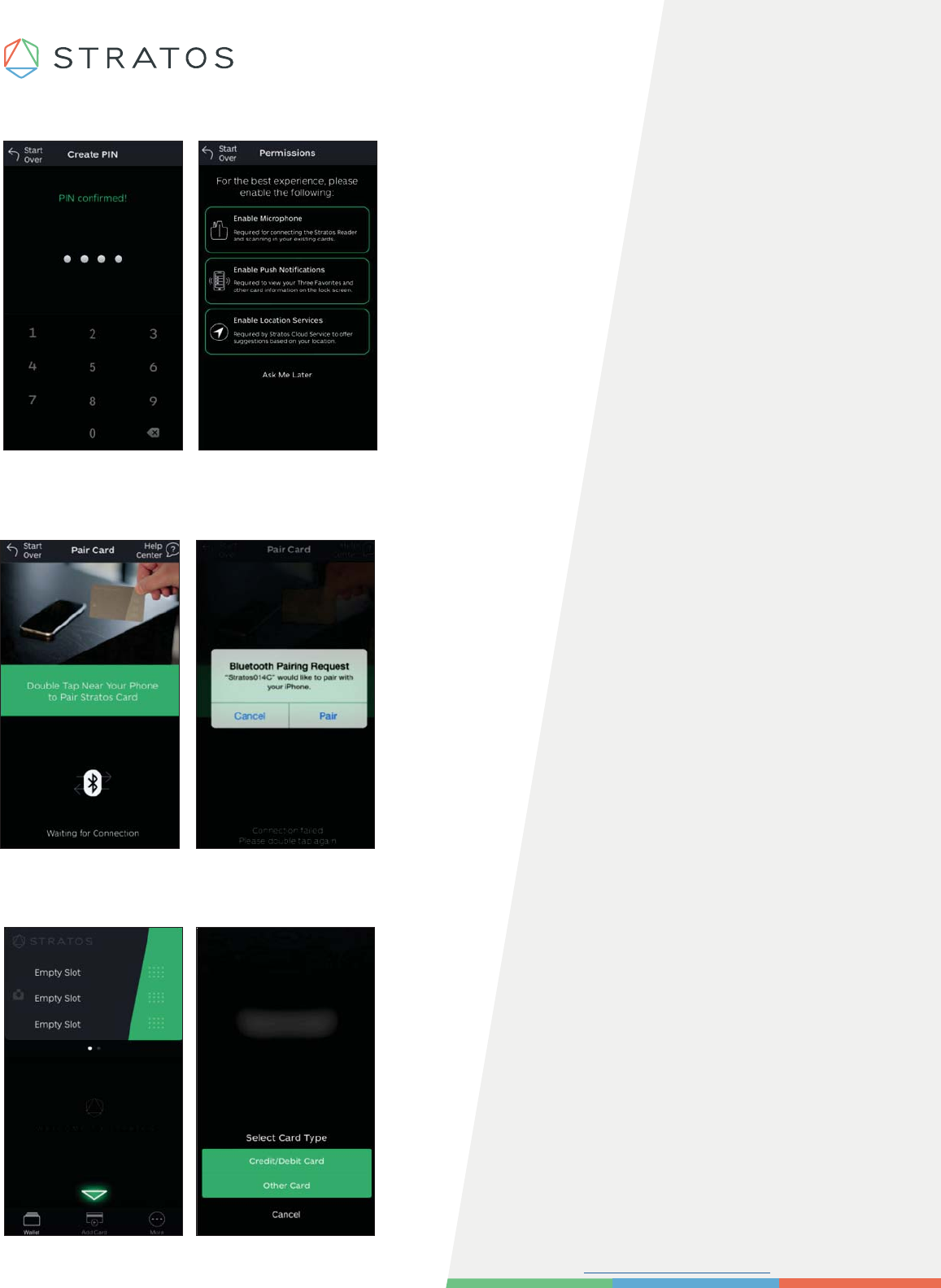
Step 4: Set Your PIN & Your Permissions
When you first log into the app, you will set a PIN.
You will be asked to reenter the PIN.
Set Permissions in order to use the Stratos Reader,
to receive mobile notifications and to turn on
location services for best experience.
Step 5: Pair Stratos With Your Mobile Device
Double tap your Stratos and select pair from the
Bluetooth Pairing request.
Step 6: Adding Your Cards
Select Add Card on the bottom menu of the
Wallet View to add your cards.
You will be asked to select the type of card you
are going to load.
Please visit us at support.stratoscard.com for more information.
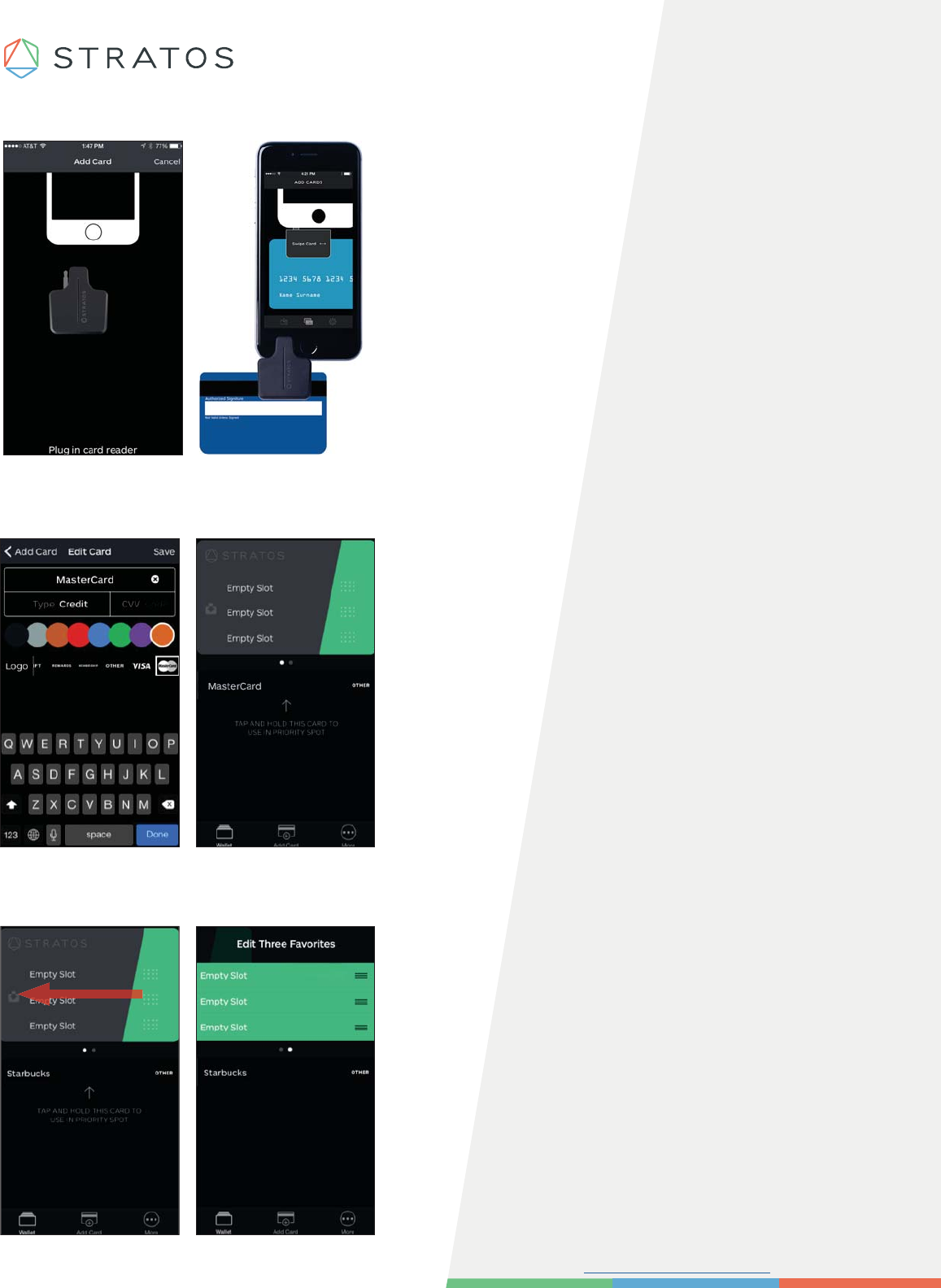
Step 7: Swipe In A Card
Step 8: Enter Your Card Information
Put in the card CVC. Choose a name, pick a card color
and card type. Select save to store your card
on your Stratos Wallet.
Repeat steps 6-8 to add more cards.
Step 9: Add Your Top 3 Favorites
Swipe left on the wallet view to access the
Edit Favorites screen.
Remove the clear plastic tab from the Stratos Reader
and plug into your mobile device.
Swipe your card quickly through the reader.
Please visit us at support.stratoscard.com for more information.
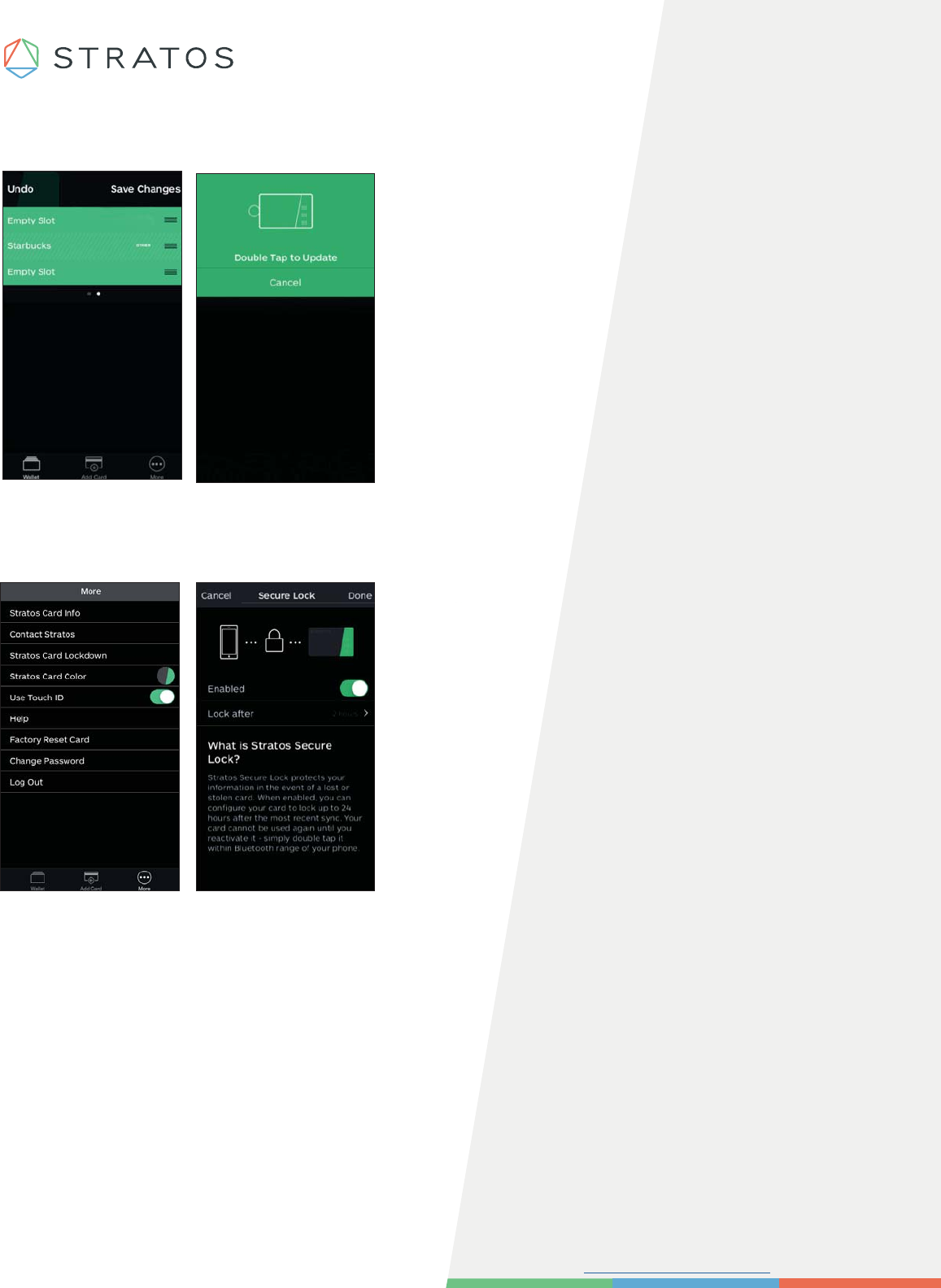
Step 10: Rearranging Your Top 3 Favorites
Step 11: Set Card LockDown (Optional)
In your Stratos Mobile App, go to the More tab on the
bottom menu and tap on “ Stratos Card LockDown”.
Select enable to turn on LockDown.
Set your LockDown time interval and Tap “Done”
when you’re ready.
Hold down and then drag a card into
a favorite spot.
Save changes and double tap your
Stratos Card to sync.
Repeat steps 9-10 to add two more favorites.
Please visit us at support.stratoscard.com for more information.
Using Daily
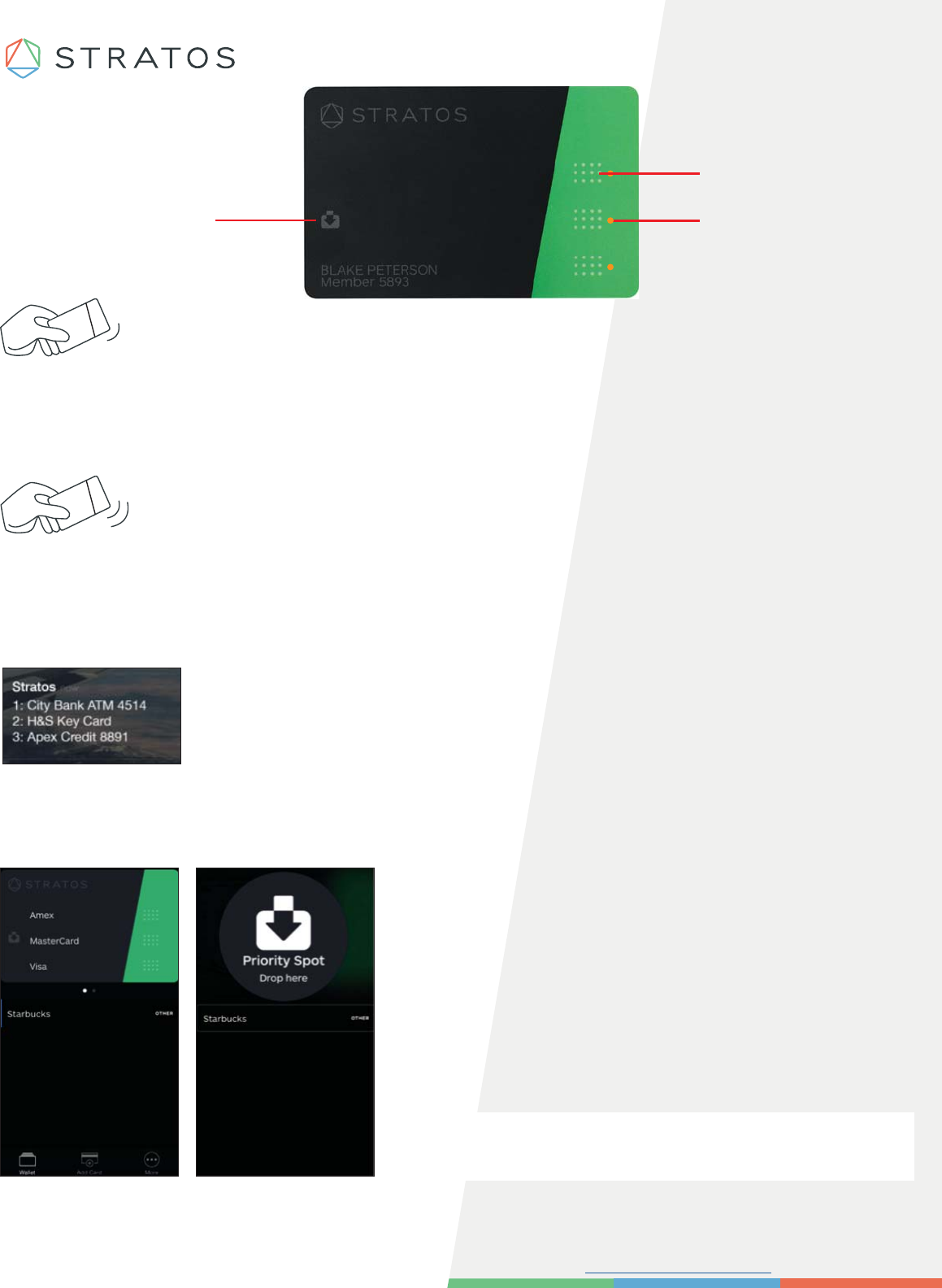
Single tap your card before swiping. A single tap wakes up your Stratos Card. A flashing amber
LED indicates which card is ready to use. Your Stratos defaults to the last card used.
Tap twice on your Stratos Card to change your top 3, the LED’s will flash in an amber waterfall
pattern -- until you select one of the three touch sensors.
Tap twice to see what is in your top 3 favorites on your mobile lock screen.
The Priority Spot on your Stratos Card gives you quick access to the rest of your cards in your
Stratos App other than your top 3.
Priority Spot LED
Touch Sensors
LEDs
Single Tap
Double Tap
Priority Spot
Add a card to the Priority Spot by dragging a card up
from your card list view into the Priority Spot icon.
Double tap to sync this change to your Stratos Card. An
amber LED should flash in the Priority Spot icon.
Note: This card is now selected for use until you clear it
with a double tap.
This device complies with part 15 of the FCC Rules. Operation is subject to the following two conditions: (1) This device may not cause
harmful interference, and (2) this device must accept any interference received, including interference that may cause undesired operation.
Any changes or modifications not expressly approved by the party
responsible for compliance could void the user's authority to operate
this equipment.