Sunchip Technology V5K Sunchip VR Mobile All-in-One User Manual
Shenzhen Sunchip Technology Co., Ltd Sunchip VR Mobile All-in-One
User Manual

1
VR All-in-one user manual
The instructions in the picture for reference only , in kind prevail

Please read the instructions first
2
Please read the instructions first
·Please refer to this manual before using VR to ensure safe and
proper use.
• Some languages or content may not be available for certain
areas or networks.
·Read and follow all of the VR settings and operating
instructions. Before starting the virtual reality experience,
Should be adjusted according to the individual
circumstances of each user, and use the configuration
software (if available) to calibrate the non-compliance of
this directive may increase the risk of discomfort.

Please read the instructions first
3
Matters needing attention
Do not drop the charger or device, or cause a
collision.
Do not disassemble, refit or repair the device, any
changes or modifications to the device, the
manufacturer will not warranty.
Do not allow the conductor connector contact device, such as
liquid, dust, metal filings and pencil.
Do not bite or suck devices, children or animals will choke due
to swallowing small parts.
Please use the manufacturer approved batteries, chargers,
accessories and supplies, will not be responsible for the safety
of the user's use of non - original parts or accessories.
A contact conductor may cause short circuit or corrosion at the

Please read the instructions first
4
connector and cause an explosion, fire, or damage to the
device.
If the device is broken or damaged, do not continue to use,
broken glass may hurt your hands and face.
When cleaning device, please note the following
items
·Please use a clean soft cloth or cotton wipe brush device and
its lens.
·Do not use chemicals or cleaning agents. Otherwise, it may
cause the casing to fade or corrode.
Special population
If you are pregnant, elderly or suffer from binocular vision
abnormalities, mental illness, poor heart condition or other
serious diseases, we recommend that you consult a doctor

Please read the instructions first
5
before using VR .
Children under 13 should not use VR. Children (at least 13
years old) using VR should be supervised by adults. Pay
attention to the following symptoms, limit the time of children
using VR and make sure that children take rests during using.
Pleas avoid prolonged use.

Getting Started
6
Packing/package
Check the following items in the packing box:
• VR、USB adapter、micro USB cable, headphone, headband,
main strap and User’s Manual.
• The provided items and available accessories may vary
depending on your region or service provider.
• The provided items are designed for this device only, and
may be incompatible with other devices.
• The appearance and specifications are subject to change
without notice.
• Use only factory approved accessories; use of unapproved
accessories may cause performance problems and failures,
which are not covered by the warranty.

Getting Started
7
• Whether the accessories are available depend on the
manufacturer.
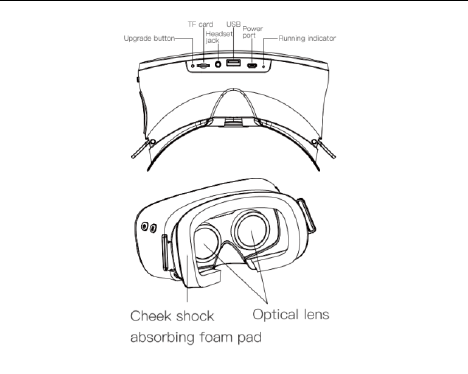
Getting Started
8
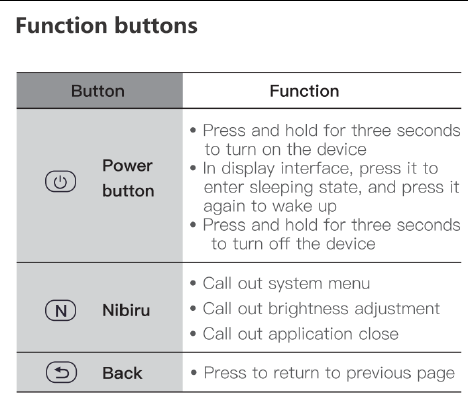
Getting Started
9
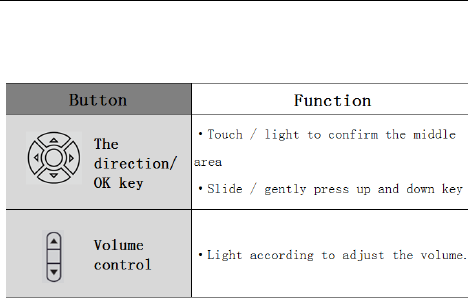
Getting Started
10

Getting Started
11
Wearing VR
• When you are wearing glasses, do not wear VR. Doing so may
lead to facial injuries. If you need vision correction lenses, it
is recommended that you wear contact lenses when using
VR.
• Keep the lens clean and prevent scratches. If the lens is dirty
or fogged, clean with lens cleaning cloth.
• If your face sweats when you are wearing VR, foam pad may
become dirty or degrade. When wearing VR, please make
sure that your face is clean and dry.
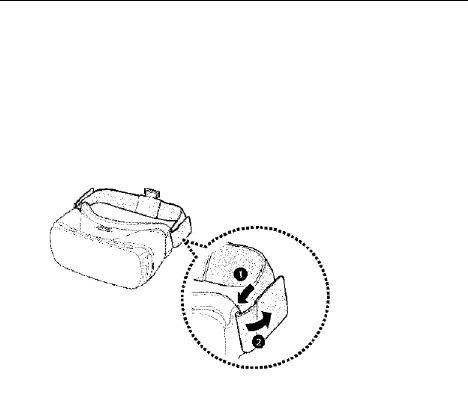
Getting Started
12
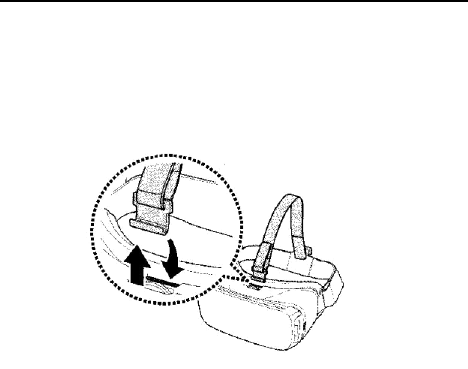
1. Place the main strap properly with the ring at the top. Then,
pass both end of the main strap through the ring in VR and
fix with Velcro firmly.
Getting Started
13
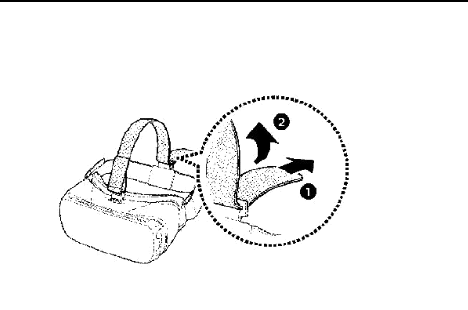
2.Buckle the hook to the top of front frame of VR, and pull up
until it is firmly locked.
Getting Started
14
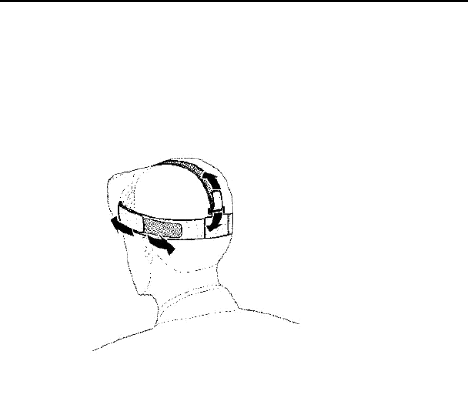
3. Slide the end of the headband through the ring in the main
strap, and fix with Velcro firmly.
Getting Started
15
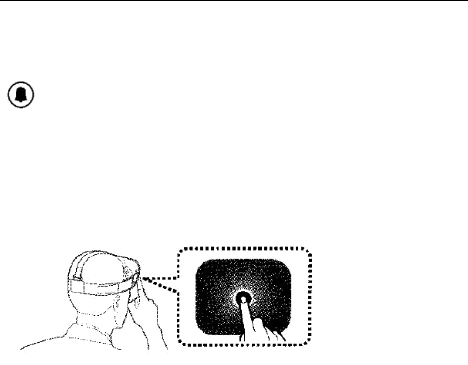
4.Fix VR to your head with strap, and wear it on the face
comfortably.
5.Adjust the length of the top headband and the main strap.
Operation instructions
16
Operating instruction
The touch-pad does not work when not wearing VR.
Operation for confirmation:
Move your head then let the cursor aimed at the menu that
you need, next, please click OK.
Operation instructions
17
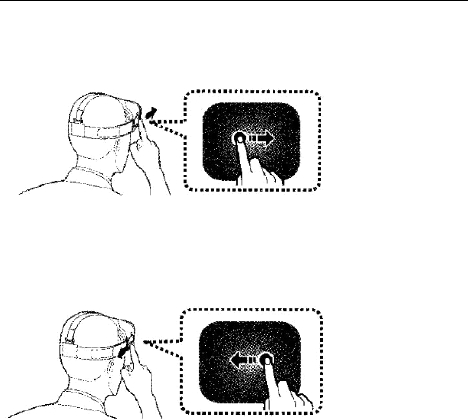
Moving:
To move to the next item, swipe forward on the touch-pad/
according to the right direction.
To move to the previous item, swipe backwards on the
touch-pad/ gently press the left arrow key
Operation instructions
18
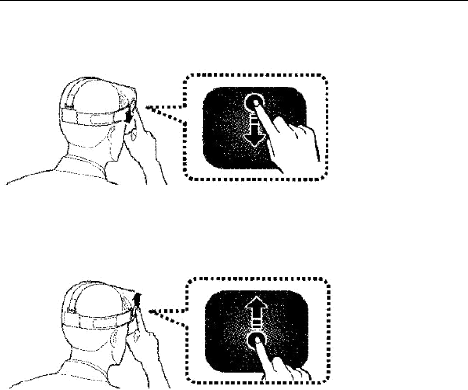
To move to the next item, swipe downwards on the
touch-pad/gently press the direction key.
To move to the previous item, swipe upwards on the
touch-pad/light on the direction key.

Operation instructions
19
Some applications may not support upward or downward
swiping.
Touch-pad, Back button and Nibiru button on Mobile
All-in-one are universal
1.Press the Back button on Home page to exit the application;
in the secondary page, press the Back button to return to
previous page.
2.Press Nibiru button to call out system menu, including
brightness adjusting and close button.
3. Some applications and pages may not support page
adjustment operation with touch-pad of the Mobile All-in-one.

Operation instructions
20
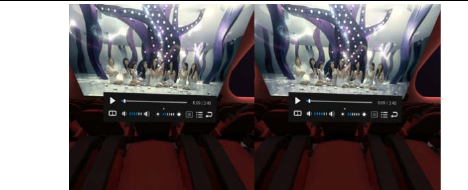
Playback page and menu page operation mode
1. In Playback page, turn head perspective downwards to show
the playback progress bar;
2.The playback page has six function options and the progress
bar, i.e. switch pause and playback mode, switch loop mode,
adjust brightness and volume, adjust video playback progress,
enter menu page, and return to the list page.
3.In Playback page, press the Back button of Mobile All-in-one
to return to previous page.
Operation instructions
21

22
Application:
Install the application:
1.Enter the application market to choose application then
download it, the system will automatically install the APK after
downloading
2. By PC or TF card, copy APK into the machine. Enter the file
manager->APK option->to choose application that you need.
System will automatically install it.
Delete the application:
On local page, select the bottom row of the icon “ ”to be
red, then checked the application that need to be uninstalled,
click the upper right corner of the" x " on the application, then
you can delete the application software.

23
Set the language:
If you want to change language, please touch
setting->common->language, then select the language you
want to set.
Simple troubleshooting
1. The image on the screen are moving randomly
Make the machine restart, put the all-in-one lens placed in a
flat on the table until entering the system calibration, then it
can be picked up.
2. Unable to boot
Please check whether it has run out of power or not.

24
FCC Statement
This equipment has been tested and found to comply with
the limits for a Class B digital device, pursuant to Part 15
of the FCC Rules. These limits are designed to provide
reasonable protection against harmful interference in a
residential installation. This equipment generates uses
and can radiate radio frequency energy and, if not
installed and used in accordance with the instructions,
may cause harmful interference to radio communications.
However, there is no guarantee that interference will not
occur in a particular installation. If this equipment does
cause harmful interference to radio or television reception,
which can be determined by turning the equipment off and

25
on, the user is encouraged to try to correct the
interference by one or more of the following measures:
-- Reorient or relocate the receiving antenna.
-- Increase the separation between the equipment and
receiver.
-- Connect the equipment into an outlet on a circuit
different from that to which the receiver is connected.
-- Consult the dealer or an experienced radio/TV
technician for help.
Changes or modifications not expressly approved by the
party responsible for compliance could void the user's
authority to operate the equipment.