Super Micro Computer A Server 2022G Urf Users Manual
2022G-URF to the manual d51ca7df-957b-45aa-a09c-20627c572981
2015-02-02
: Super-Micro-Computer Super-Micro-Computer-A-Server-2022G-Urf-Users-Manual-448809 super-micro-computer-a-server-2022g-urf-users-manual-448809 super-micro-computer pdf
Open the PDF directly: View PDF  .
.
Page Count: 112 [warning: Documents this large are best viewed by clicking the View PDF Link!]
®
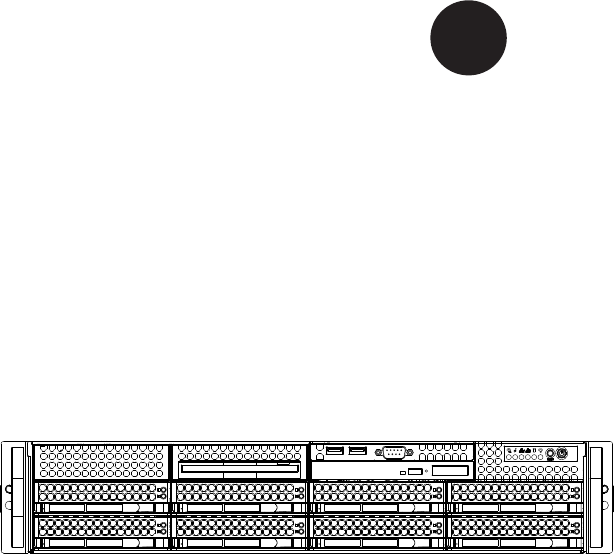
A+ SERVER 2022G-URF
SUPER
USER’S MANUAL
Revision 1.0f
The information in this User’s Manual has been carefully reviewed and is believed to be accurate.
The vendor assumes no responsibility for any inaccuracies that may be contained in this document,
makes no commitment to update or to keep current the information in this manual, or to notify any
person or organization of the updates. Please Note: For the most up-to-date version of this
manual, please see our web site at www.supermicro.com.
Super Micro Computer, Inc. ("Supermicro") reserves the right to make changes to the product
described in this manual at any time and without notice. This product, including software and
documentation, is the property of Supermicro and/or its licensors, and is supplied only under a
license. Any use or reproduction of this product is not allowed, except as expressly permitted by
the terms of said license.
IN NO EVENT WILL SUPERMICRO BE LIABLE FOR DIRECT, INDIRECT, SPECIAL, INCIDENTAL,
SPECULATIVE OR CONSEQUENTIAL DAMAGES ARISING FROM THE USE OR INABILITY TO
USE THIS PRODUCT OR DOCUMENTATION, EVEN IF ADVISED OF THE POSSIBILITY OF
SUCH DAMAGES. IN PARTICULAR, SUPERMICRO SHALL NOT HAVE LIABILITY FOR ANY
HARDWARE, SOFTWARE, OR DATA STORED OR USED WITH THE PRODUCT, INCLUDING THE
COSTS OF REPAIRING, REPLACING, INTEGRATING, INSTALLING OR RECOVERING SUCH
HARDWARE, SOFTWARE, OR DATA.
Any disputes arising between manufacturer and customer shall be governed by the laws of Santa
Clara County in the State of California, USA. The State of California, County of Santa Clara shall
be the exclusive venue for the resolution of any such disputes. Super Micro's total liability for all
claims will not exceed the price paid for the hardware product.
FCC Statement: This equipment has been tested and found to comply with the limits for a Class
A digital device pursuant to Part 15 of the FCC Rules. These limits are designed to provide
reasonable protection against harmful interference when the equipment is operated in a commercial
environment. This equipment generates, uses, and can radiate radio frequency energy and, if not
installed and used in accordance with the manufacturer’s instruction manual, may cause harmful
interference with radio communications. Operation of this equipment in a residential area is likely
to cause harmful interference, in which case you will be required to correct the interference at your
own expense.
California Best Management Practices Regulations for Perchlorate Materials: This Perchlorate
warning applies only to products containing CR (Manganese Dioxide) Lithium coin cells. “Perchlorate
Material-special handling may apply. See www.dtsc.ca.gov/hazardouswaste/perchlorate”
WARNING: Handling of lead solder materials used in this
product may expose you to lead, a chemical known to
the State of California to cause birth defects and other
reproductive harm.
Manual Revision 1.0f
Release Date:March 10, 2014
Unless you request and receive written permission from Super Micro Computer, Inc., you may not
copy any part of this document.
Information in this document is subject to change without notice. Other products and companies
referred to herein are trademarks or registered trademarks of their respective companies or mark
holders.
Copyright © 2014 by Super Micro Computer, Inc.
All rights reserved.
Printed in the United States of America
Preface
iii
Preface
About This Manual
This manual is written for professional system integrators and PC technicians. It
provides information for the installation and use of the A+ SERVER 2022G-URF.
Installation and maintainance should be performed by experienced technicians
only.
The A+ SERVER 2022G-URF is a high-end server based on the SC825TQ-R720UB
2U rackmount chassis and the H8DGU-F dual processor serverboard.
Manual Organization
Chapter 1: Introduction
The rst chapter provides a checklist of the main components included with the
server system and describes the main features of the H8DGU-F serverboard and
the SC825TQ-R720UB chassis.
Chapter 2: Server Installation
This chapter describes the steps necessary to install the A+ SERVER 2022G-URF
into a rack and check out the server conguration prior to powering up the system.
If your server was ordered without processor and memory components, this chapter
will refer you to the appropriate sections of the manual for their installation.
Chapter 3: System Interface
Refer here for details on the system interface, which includes the functions and
information provided by the control panel on the chassis as well as other LEDs
located throughout the system.
Chapter 4: Warning Statements for AC Systems
You should thoroughly familiarize yourself with this chapter for a general overview
of safety precautions that should be followed when installing and servicing the A+
SERVER 2022G-URF.
Chapter 5: Advanced Serverboard Setup
Chapter 5 provides detailed information on the H8DGU-F serverboard, including the
locations and functions of connections, headers and jumpers. Refer to this chapter
when adding or removing processors or main memory and when reconguring the
serverboard.
A+ SERVER 2022G-URF User's Manual
iv
Chapter 6: Advanced Chassis Setup
Refer to Chapter 6 for detailed information on the SC825TQ-R720UB server chassis.
You should follow the procedures given in this chapter when installing, removing
or reconguring SAS/SATA or peripheral drives and when replacing system power
supply units and cooling fans.
Chapter 7: BIOS
The BIOS chapter includes an introduction to BIOS and provides detailed information
on running the CMOS Setup Utility.
Appendix A: BIOS Error Beep Codes
Appendix B: Installing Windows
Appendix C: System Specications
Preface
v
Contents
Chapter 1 Introduction
1-1 Overview ......................................................................................................... 1-1
1-2 Serverboard Features ..................................................................................... 1-2
Processors ...................................................................................................... 1-2
Memory ........................................................................................................... 1-2
UIO .................................................................................................................. 1-2
Serial ATA ....................................................................................................... 1-2
Onboard Controllers/Ports .............................................................................. 1-2
Graphics Controller ......................................................................................... 1-3
Other Features ................................................................................................ 1-3
1-3 Server Chassis Features ................................................................................ 1-3
System Power ................................................................................................. 1-3
Hard Drive Subsystem .................................................................................... 1-3
PCI Expansion Slots ....................................................................................... 1-3
Front Control Panel ......................................................................................... 1-4
I/O Backplane .................................................................................................. 1-4
Cooling System ............................................................................................... 1-4
1-4 Contacting Supermicro .................................................................................... 1-6
Chapter 2 Server Installation
2-1 Overview ......................................................................................................... 2-1
2-2 Unpacking the System .................................................................................... 2-1
2-3 Preparing for Setup ......................................................................................... 2-1
Choosing a Setup Location ............................................................................. 2-1
2-4 Warnings and Precautions .............................................................................. 2-2
Rack Precautions ............................................................................................ 2-2
Server Precautions .......................................................................................... 2-2
Rack Mounting Considerations ....................................................................... 2-3
Ambient Operating Temperature ................................................................ 2-3
Reduced Airow ......................................................................................... 2-3
Mechanical Loading ................................................................................... 2-3
Circuit Overloading ..................................................................................... 2-3
Reliable Ground ......................................................................................... 2-3
2-5 Installing the System into a Rack ................................................................... 2-4
Identifying the Sections of the Rack Rails ...................................................... 2-4
Locking Tabs ................................................................................................... 2-5
Releasing the Inner Rail ................................................................................. 2-5
A+ SERVER 2022G-URF User's Manual
vi
Installing The Inner Rails on the Chassis ....................................................... 2-6
Installing the Outer Rails on the Rack ............................................................ 2-7
Standard Chassis Installation ......................................................................... 2-8
2-6 Checking the Serverboard Setup .................................................................... 2-9
2-7 Checking the Drive Bay Setup .......................................................................2-11
Chapter 3 System Interface
3-1 Overview ......................................................................................................... 3-1
3-2 Control Panel Buttons ..................................................................................... 3-1
Reset ............................................................................................................... 3-1
Power .............................................................................................................. 3-1
3-3 Control Panel LEDs ........................................................................................ 3-2
Power Fail ....................................................................................................... 3-2
Information LED .............................................................................................. 3-2
NIC1 ................................................................................................................ 3-3
NIC2 ................................................................................................................ 3-3
HDD ................................................................................................................. 3-3
Power .............................................................................................................. 3-3
3-4 Drive Carrier LEDs .......................................................................................... 3-4
Chapter 4 Standardized Warning Statements for AC Systems
4-1 About Standardized Warning Statements ....................................................... 4-1
Warning Denition ........................................................................................... 4-1
Installation Instructions .................................................................................... 4-4
Circuit Breaker ................................................................................................ 4-5
Power Disconnection Warning ........................................................................ 4-6
Equipment Installation ..................................................................................... 4-8
Restricted Area ................................................................................................ 4-9
Battery Handling ............................................................................................ 4-10
Redundant Power Supplies .......................................................................... 4-12
Backplane Voltage ........................................................................................ 4-13
Comply with Local and National Electrical Codes ........................................ 4-14
Product Disposal ........................................................................................... 4-15
Hot Swap Fan Warning ................................................................................. 4-16
Power Cable and AC Adapter ...................................................................... 4-18
Chapter 5 Advanced Serverboard Setup
5-1 Handling the Serverboard ............................................................................... 5-1
Precautions ..................................................................................................... 5-1
Unpacking ....................................................................................................... 5-1
Preface
vii
5-2 Processor and Heatsink Installation................................................................ 5-2
Installing a Passive CPU Heatsink ................................................................. 5-4
5-3 Connecting Cables .......................................................................................... 5-5
Connecting Data Cables ................................................................................. 5-5
Connecting Power Cables .............................................................................. 5-5
Connecting the Control Panel ......................................................................... 5-5
5-4 I/O Ports .......................................................................................................... 5-6
5-5 Installing Memory ............................................................................................ 5-7
DIMM Module Population Conguration .................................................... 5-8
5-6 Adding PCI Expansion Cards ....................................................................... 5-10
5-7 Serverboard Details .......................................................................................5-11
H8DGU(-F) Quick Reference ........................................................................ 5-12
5-8 Connector Denitions .................................................................................... 5-13
5-9 Jumper Settings ............................................................................................ 5-20
Explanation of Jumpers ................................................................................ 5-20
5-10 Onboard Indicators ........................................................................................ 5-22
5-11 SATA Drive Connections ............................................................................... 5-23
5-12 Enabling SATA RAID ..................................................................................... 5-24
Serial ATA (SATA).......................................................................................... 5-24
Installing the OS/SATA Driver ....................................................................... 5-24
Building a Driver Diskette ......................................................................... 5-24
Enabling SATA RAID in the BIOS ................................................................. 5-25
Using the Adaptec RAID Utility ..................................................................... 5-26
Installing the RAID Driver During OS Installation ......................................... 5-26
5-13 Installing Software ......................................................................................... 5-27
SuperDoctor III .............................................................................................. 5-28
5-14 Serverboard Battery ...................................................................................... 5-30
Chapter 6 Advanced Chassis Setup
6-1 Static-Sensitive Devices .................................................................................. 6-1
Precautions ..................................................................................................... 6-1
Unpacking ....................................................................................................... 6-1
6-2 Control Panel .................................................................................................. 6-2
6-3 System Fans ................................................................................................... 6-3
System Fan Failure ......................................................................................... 6-3
Replacing System Fans .................................................................................. 6-4
A+ SERVER 2022G-URF User's Manual
viii
6-4 Drive Bay Installation/Removal ....................................................................... 6-4
Accessing the Drive Bays ............................................................................... 6-4
SAS/SATA Drive Installation ............................................................................ 6-5
Hard Drive Backplane ..................................................................................... 6-6
DVD-ROM Installation ..................................................................................... 6-7
6-5 Power Supply .................................................................................................. 6-8
Power Supply Failure ...................................................................................... 6-8
Removing/Replacing the Power Supply .......................................................... 6-8
Chapter 7 BIOS
7-1 Introduction ...................................................................................................... 7-1
Starting the Setup Utility ................................................................................. 7-1
7-2 Main Menu ...................................................................................................... 7-1
System Time/System Date ............................................................................. 7-2
7-3 Advanced Settings Menu ................................................................................ 7-2
7-4 Security Menu ............................................................................................... 7-13
7-5 Boot Menu ..................................................................................................... 7-14
7-6 Exit Menu ...................................................................................................... 7-15
Appendix A BIOS Error Beep Codes
Appendix B Installing Windows
B-1 Installing the Windows OS for a RAID System ..............................................B-1
B-2 Installing the Windows OS for a Non-RAID System .......................................B-2
Appendix C System Specications
Chapter 1
Introduction
1-1 Overview
The A+ SERVER 2022G-URF is a high-end server comprised of two main
subsystems: the SC825TQ-R720UB 2U server chassis and the H8DGU-F dual
processor serverboard. Please refer to our web site for information on operating
systems that have been certied for use with the system (www.supermicro.com).
In addition to the serverboard and chassis, various hardware components have
been included with the 2022G-URF, as listed below:
•One (1) Slim SATA DVD kit (MCP-220-81502-0N)
•One (1) Slim DVD-ROM drive (DVM-TEAC-DVD-SBT or DVM-PNSC-DVD-
SBT)
•One (1) SATA to USB adapter for slim DVD-ROM drive (CDM-USATA-G)
•One (1) Internal USB cable for DVD-ROM drive (CBL-0341L)
•Two (2) 2U Passive CPU HS for AMD Socket G34 (SNK-P0043P)
•One (1) Air shroud (MCP-310-28001-0N)
•One (1) Riser card (RSC-R2UU-UA3E8+)
•SAS/SATA Accessories
One (1) SAS/SATA backplane (BPN-SAS-825TQ)
Two (2) iPass to SATA cables (CBL-0188L)
Eight (8) Drive carriers (MCP-220-00001-01)
•One (1) Rackmount kit (MCP-290-00053-0N)
Note: For your system to work properley, please follow the links below to download
all necessary drivers/utilities and the user’s manual for your server.
•Product manuals: http://www.supermicro.com/support/manuals/
•Product drivers and utilities: ftp://ftp.supermicro.com
Chapter 1: Introduction
1-1
1-2
A+ SERVER 2022G-URF User's Manual
•Product safety information:
http://super-dev/about/policies/safety_information.cfm
For support, email support@supermicro.com.
1-2 Serverboard Features
At the heart of the A+ SERVER 2022G-URF lies the H8DGU-F, a dual processor
serverboard based on the AMD SR5670/SP5100 chipset. Below are the main
features of the H8DGU-F. (See Figure 1-1 for a block diagram of the chipset).
Processors
The H8DGU-F supports single or dual AMD Opteron 6100 Series processors in
Socket G34 type sockets. Please refer to our web site for a complete listing of
supported processors (www.supermicro.com).
Memory
The H8DGU-F has sixteen single/dual/tri/quad channel 240-pin DIMM sockets
that can support up to 128 GB of ECC/Non-ECC Unbuffered, 512 GB of
ECC Low-prole Registered LRDIMM, or 512 GB of ECC Registered DIMM
DDR3-1600/1333/1066 Mhz speed, SDRAM memory. Please refer to Chapter 5
for installing memory.
UIO
The H8DGU-F is a specially-designed serverboard that features Supermicro's UIO
(Universal I/O) technology. UIO serverboards have a PCI Express x8 slot that can
support any one of several types of UIO card types to add SAS ports, additional
LAN ports, etc. to the serverboard. This allows the user to tailor the serverboard
to their own needs.
Note: the server does not come with a UIO card installed.
Serial ATA
An on-chip (SP5100) SATA controller is integrated into the H8DGU-F to provide
a six-port, 3 Gb/sec SATA subsystem, which is RAID 0, 1, and 10 supported. The
SATA drives are hot-swappable units.
Note: You must have RAID set up to enable the hot-swap capability of the SATA
drives. Documentation on RAID setup guidelines can be found on our web site.
Chapter 1: Introduction
1-3
Onboard Controllers/Ports
The color-coded I/O ports include two COM ports (one header and one port), a VGA
(monitor) port, Seven USB 2.0 ports (2x rear, 4x header, 1x type A), PS/2 mouse
and keyboard ports, two gigabit Ethernet ports and one dedicated IPMI LAN port.
Graphics Controller
The H8DGU-F features an integrated Matrox G200eW graphics chip, which includes
16 MB of DDR2 memory.
Other Features
Other onboard features that promote system health include onboard voltage
monitors, auto-switching voltage regulators, chassis and CPU overheat sensors,
virus protection and BIOS rescue.
1-3 Server Chassis Features
The 2022G-URF is built upon the SC825TQ-R720UB chassis. Details on the chassis
and on servicing procedures can be found in Chapter 6. The following is a general
outline of the main features of the chassis.
System Power
The SC825TQ-R720UB features a redundant 720W power supply consisting of
two power modules. The system does not need to be shut down when replacing or
removing a single power supply module.
Hard Drive Subsystem
The SC825TQ-R720UB chassis was designed to support eight hot-swap SATA or
SAS hard drives. (Requires UIO controller card - not included with system.)
Note: A SAS or SATA UIO card must be installed to support SAS or SATA drives.
PCI Expansion Slots
A riser card (RSC-R2UU-UA3E8+) on the left side of the chassis can support a
AOC-PG-i2+ add-on card to provide two additional Gb LAN ports. Alternately, this
slot can instead support either a UIO card, one PCI-E x16 card, or four SAS/SATA
drives with an optional UIO SAS card. See our web site for details (http://www.
supermicro.com/products/nfo/UIO.cfm). See section 5-6 for further details.)
1-4
A+ SERVER 2022G-URF User's Manual
Front Control Panel
The control panel on the A+ SERVER 2022G-URF provides you with system
monitoring and control. LEDs indicate system power, HDD activity, network activity,
system overheat and power supply failure. A main power button and a system reset
button are also included. In addition, two USB ports have been incorporated into
the control panel to provide front side USB access.
I/O Backplane
The SC825TQ-R720UB is an ATX form factor chassis designed to be used in a 2U
rackmount conguration. The I/O backplane provides four standard-size add-on card
slots, one COM port, a VGA port, two USB 2.0 ports, PS/2 mouse and keyboard
ports, a dedicated IPMI LAN port and two gigabit Ethernet ports.
Cooling System
The SC825TQ-R720UB chassis has an innovative cooling design that includes three
8-cm hot-plug system cooling fans located in the middle section of the chassis. An
air shroud channels the airow from the system fans to efciently cool the processor
area of the system. The power supply module also includes a cooling fan.
Chapter 1: Introduction
1-5
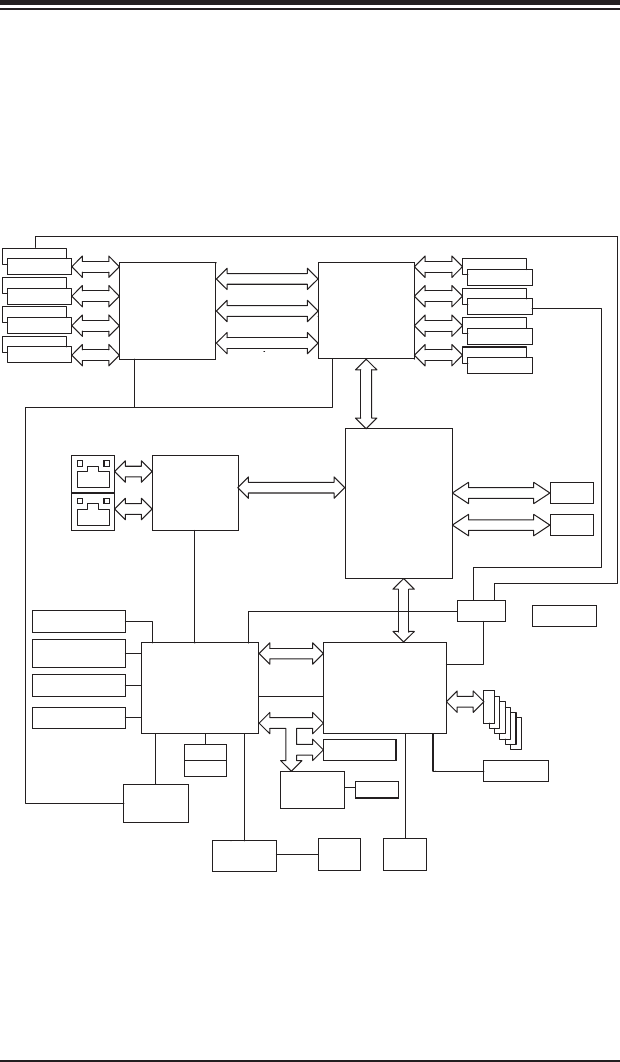
Figure 1-1. AMD SR5670/SP5100 Chipset:
System Block Diagram
Note: This is a general block diagram. Please see Chapter 5 for details.
AMD
Socket G34
CPU2
DIMM A0
DIMM A1
DIMM A1
DIMM A0
HT3 Link
(8+8)x(8+8)-3.2GT/s
HT3 Link
16x16-5.2GT/s
HT3 Link
16x16-3.2GT/s
DIMM B0
DIMM B1
DIMM C0
DIMM C1
DIMM D0
DIMM D1
DIMM B0
DIMM B1
DIMM C0
DIMM C1
DIMM D0
DIMM D1
MUX
SATA x6
PCI-E GEN2 x16
Slot1
PCI-E GEN2 X4
INTEL
KAWELA
RJ45
A-Link
SP5100
BMC
VGA
WPCM450-R
PCI
LPC
SMBus
SIO
W83527
HWM
W83795G
SPI Flash
KB/MS
RMII
DDR2 SDRAM
64Mb X16bit
PSU I2C
IPMB
FE PHY
RTL8201N
VGA
RJ45 7xUSB
Clock Gen
TPM (/OPT)
RJ45
PCI-E GEN2 x8 (in x4)
Slot3
COM2
COM1
SR5670
HT3 Link
16x16-3.2GT/s
AMD
Socket G34
CPU1
1-6
A+ SERVER 2022G-URF User's Manual
1-4 Contacting Supermicro
Headquarters
Address: Super Micro Computer, Inc.
980 Rock Ave.
San Jose, CA 95131 U.S.A.
Tel: +1 (408) 503-8000
Fax: +1 (408) 503-8008
Email: marketing@supermicro.com (General Information)
support@supermicro.com (Technical Support)
Web Site: www.supermicro.com
Europe
Address: Super Micro Computer B.V.
Het Sterrenbeeld 28, 5215 ML
's-Hertogenbosch, The Netherlands
Tel: +31 (0) 73-6400390
Fax: +31 (0) 73-6416525
Email: sales@supermicro.nl (General Information)
support@supermicro.nl (Technical Support)
rma@supermicro.nl (Customer Support)
Asia-Pacic
Address: Super Micro Computer, Inc.
4F, No. 232-1, Liancheng Rd.
Chung-Ho 235, Taipei County
Taiwan, R.O.C.
Tel: +886-(2) 8226-3990
Fax: +886-(2) 8226-3991
Web Site: www.supermicro.com.tw
Technical Support:
Email: support@supermicro.com.tw
Tel: 886-2-8228-1366, ext.132 or 139
Chapter 2: Server Installation
2-1
Chapter 2
Server Installation
2-1 Overview
This chapter provides a quick setup checklist to get your A+ SERVER 2022G-URF
up and running. Following these steps in the order given should enable you to have
the system operational within a minimum amount of time. This quick setup assumes
that your system has come to you with the processors and memory preinstalled. If
your system is not already fully integrated with a serverboard, processors, system
memory etc., please turn to the chapter or section noted in each step for details on
installing specic components.
2-2 Unpacking the System
You should inspect the box the A+ SERVER 2022G-URF was shipped in and note
if it was damaged in any way. If the server itself shows damage you should le a
damage claim with the carrier who delivered it.
Decide on a suitable location for the rack unit that will hold the A+ SERVER
2022G-URF. It should be situated in a clean, dust-free area that is well ventilated.
Avoid areas where heat, electrical noise and electromagnetic elds are generated.
You will also need it placed near a grounded power outlet. Read the Rack and
Server Precautions in the next section.
2-3 Preparing for Setup
The box the A+ SERVER 2022G-URF was shipped in should include two sets of
rail assemblies, two rail mounting brackets and the mounting screws you will need
to install the system into the rack. Follow the steps in the order given to complete
the installation process in a minimum amount of time. Please read this section in
its entirety before you begin the installation procedure outlined in the sections that
follow.
Choosing a Setup Location
•Leave enough clearance in front of the rack to enable you to open the front door
completely (~25 inches) and approximately 30 inches of clearance in the back
of the rack to allow for sufcient airow and ease in servicing.
2-2
A+ SERVER 2022G-URF User's Manual
•This product is for installation only in a Restricted Access Location (dedicated
equipment rooms, service closets and the like).
•This product is not suitable for use with visual display work place devices
acccording to §2 of the the German Ordinance for Work with Visual Display
Units.
2-4 Warnings and Precautions
Rack Precautions
•Ensure that the leveling jacks on the bottom of the rack are fully extended to
the oor with the full weight of the rack resting on them.
•In single rack installation, stabilizers should be attached to the rack. In multiple
rack installations, the racks should be coupled together.
•Always make sure the rack is stable before extending a component from the
rack.
•You should extend only one component at a time - extending two or more si-
multaneously may cause the rack to become unstable.
Server Precautions
•Review the electrical and general safety precautions in Chapter 4.
•Determine the placement of each component in the rack before you install the
rails.
•Install the heaviest server components on the bottom of the rack rst, and then
work up.
•Use a regulating uninterruptible power supply (UPS) to protect the server from
power surges, voltage spikes and to keep your system operating in case of a
power failure.
•Allow any hot plug drives and power supply modules to cool before touching
them.
•Always keep the rack's front door and all panels and components on the servers
closed when not servicing to maintain proper cooling.
Chapter 2: Server Installation
2-3
Rack Mounting Considerations
Ambient Operating Temperature
If installed in a closed or multi-unit rack assembly, the ambient operating
temperature of the rack environment may be greater than the ambient temperature
of the room. Therefore, consideration should be given to installing the equipment
in an environment compatible with the manufacturer’s maximum rated ambient
temperature (Tmra).
Reduced Airow
Equipment should be mounted into a rack so that the amount of airow required
for safe operation is not compromised.
Mechanical Loading
Equipment should be mounted into a rack so that a hazardous condition does not
arise due to uneven mechanical loading.
Circuit Overloading
Consideration should be given to the connection of the equipment to the power
supply circuitry and the effect that any possible overloading of circuits might have
on overcurrent protection and power supply wiring. Appropriate consideration of
equipment nameplate ratings should be used when addressing this concern.
Reliable Ground
A reliable ground must be maintained at all times. To ensure this, the rack
itself should be grounded. Particular attention should be given to power supply
connections other than the direct connections to the branch circuit (i.e. the use of
power strips, etc.).
Warning! To prevent bodily injury when mounting or servicing this unit in a
rack, you must take special precautions to ensure that the system remains
stable. The following guidelines are provided to ensure your safety:
•This unit should be mounted at the bottom of the rack if it is the only unit in
the rack.
•When mounting this unit in a partially lled rack, load the rack from the bottom
to the top with the heaviest component at the bottom of the rack.
•If the rack is provided with stabilizing devices, install the stabilizers before
mounting or servicing the unit in the rack.
2-4
A+ SERVER 2022G-URF User's Manual
2-5 Installing the System into a Rack
This section provides information on installing the chassis into a rack unit with the
rails provided. There are a variety of rack units on the market, which may mean
that the assembly procedure will differ slightly from the instructions provided. You
should also refer to the installation instructions that came with the rack unit you are
using. Note: This rail will t a rack between 26.5" and 36.4" deep.
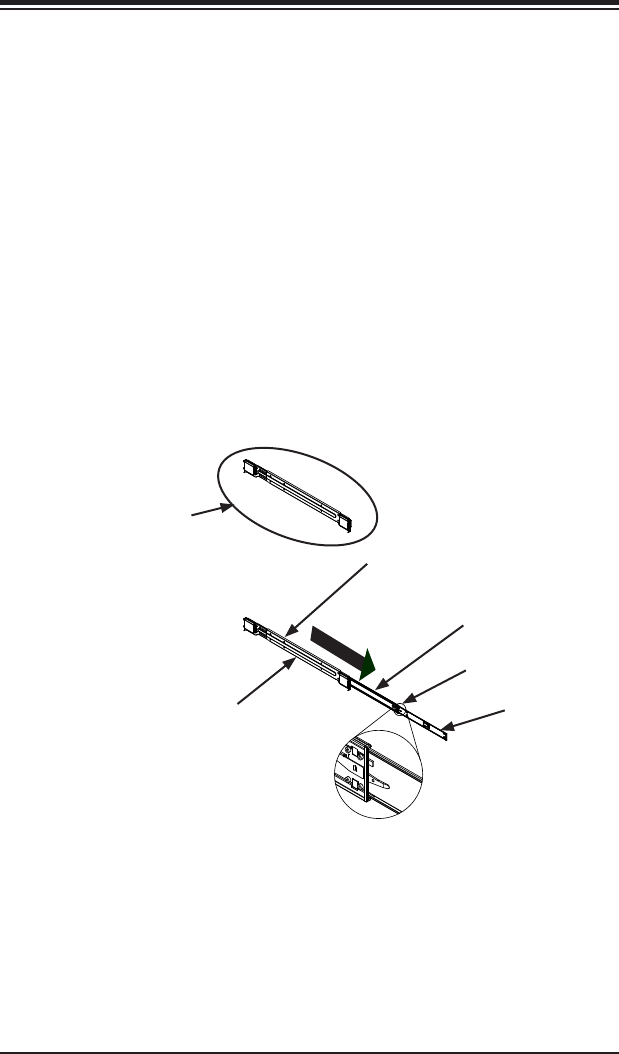
Identifying the Sections of the Rack Rails
The chassis package includes two rail assemblies in the rack mounting kit. Each
assembly consists of three sections: An inner chassis rail which secures directly to
the chassis, an outer rail that secures to the rack, and a middle rail which extends
from the outer rail. These assemblies are specically designed for the left and right
side of the chassis.
Figure 2-1. Identifying the Outer Rail, Middle Rail and Inner Rails
(Left Rail Assembly Shown)
Inner Rail
Rail Assembly
(Shown with Rails
Retracted)
This Side Faces
Outward
Locking Tab
Middle Rail
Outer Rail
Chapter 2: Server Installation
2-5
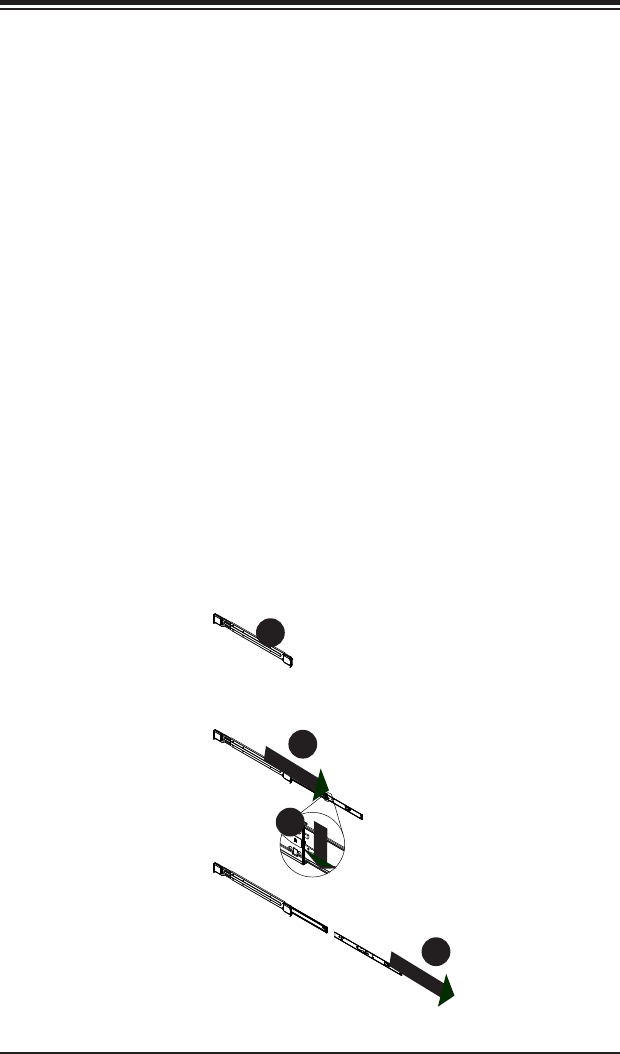
Figure 2-2. Extending and Releasing the Inner Rail
Locking Tabs
Each inner rail has a locking tab. This tab locks the chassis into place when installed
and pushed fully into the rack. These tabs also lock the chassis in place when fully
extended from the rack. This prevents the server from coming completely out of
the rack when when the chassis is pulled out for servicing.
Releasing the Inner Rail
Use the procedure below to release the inner rails from the outer rails.
Releasing Inner Rail from the Outer Rails
1. Identify the left and right outer rail assemblies as described previously..
2. Pull the inner rail out of the outer rail until it is fully extended as illustrated
below.
3. Press the locking tab down to release the inner rail.
4. Pull the inner rail all the way out.
5. Repeat for the other outer rail.
1
2
1
1
1
3
1
4
2-6
A+ SERVER 2022G-URF User's Manual
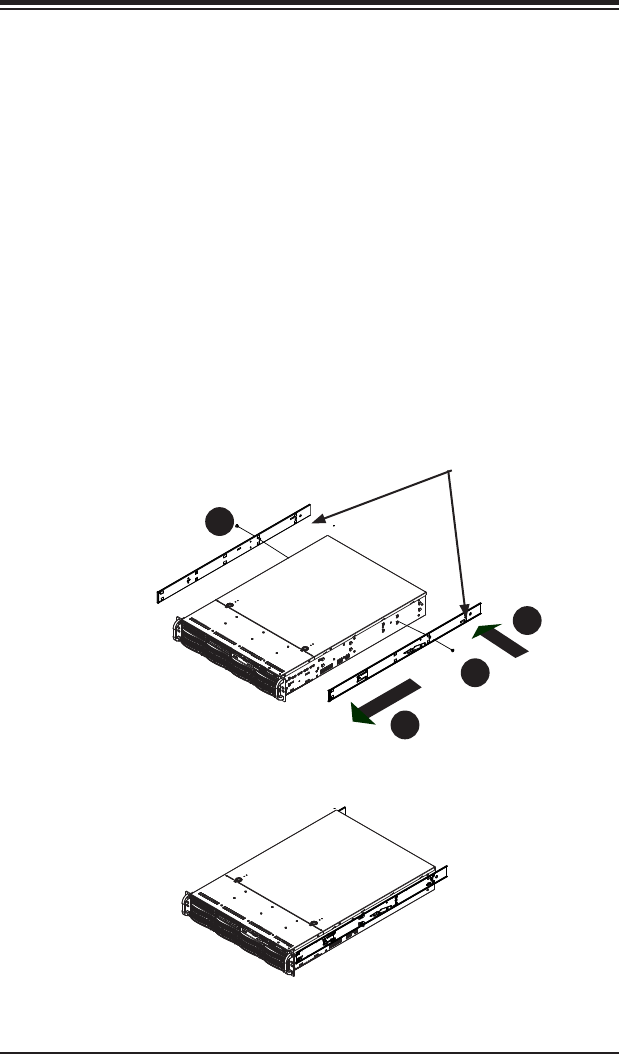
Figure 2-3. Installing the Inner Rails
Installing The Inner Rails on the Chassis
Installing the Inner Rails
1. Conrm that the left and right inner rails have been correctly identied.
2. Place the inner rail rmly against the side of the chassis, aligning the hooks
on the side of the chassis with the holes in the inner rail.
3. Slide the inner rail forward toward the front of the chassis until the rail clicks
into the locked position, which secures the inner rail to the chassis.
4. Secure the inner rail to the chassis with the screws provided.
5. Repeat for the other inner rail.
Figure 2-4. Inner Rails Installed on the Chassis
1
3
1
4
1
4
1
2
Inner Rails
Chapter 2: Server Installation
2-7
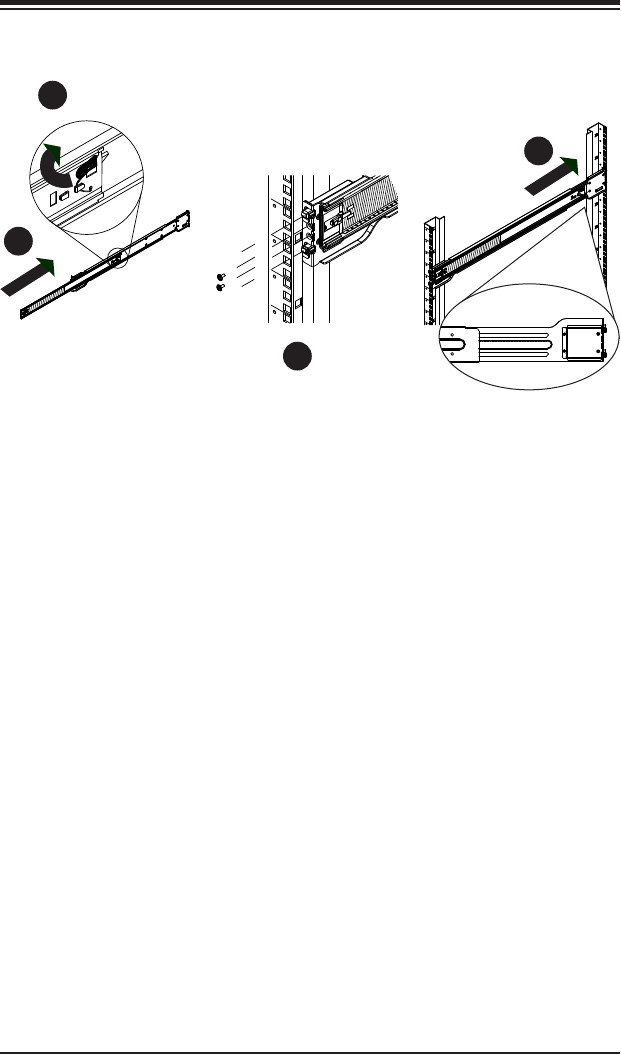
Figure 2-5. Extending and Releasing the Outer Rails
1
1
1
2
1
3
1
4
21D01
L-min=676.00(26.61")(outer rail)
Installing the Outer Rails on the Rack
Installing the Outer Rails
1. Press upward on the locking tab at the rear end of the middle rail.
2. Push the middle rail back into the outer rail.
3. Hang the hooks of the front of the outer rail onto the slots on the front of
the rack. If necessary, use screws to secure the outer rails to the rack, as
illustrated above.
4. Pull out the rear of the outer rail, adjusting the length until it ts within the
posts of the rack.
5. Hang the hooks of the rear portion of the outer rail onto the slots on the rear
of the rack. If necessary, use screws to secure the rear of the outer rail to the
rear of the rack.
6. Repeat for the other outer rail.
2-8
A+ SERVER 2022G-URF User's Manual
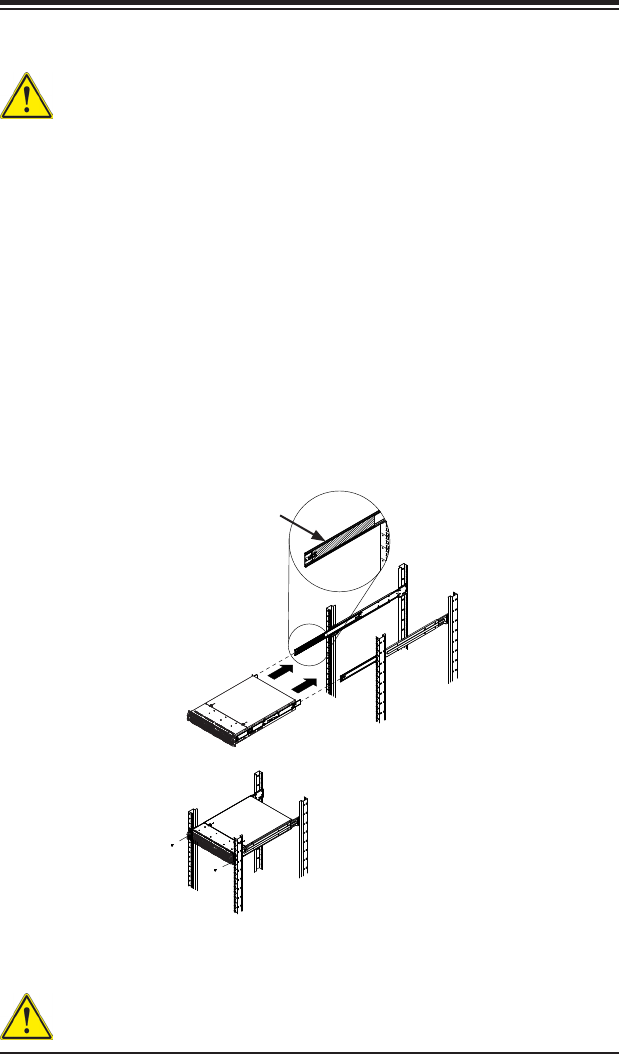
Figure 2-6. Installing into a Rack
Ball-Bearing
Shuttle
Standard Chassis Installation
Stability hazard. The rack stabilizing mechanism must be in place, or the rack
must be bolted to the oor before you slide the unit out for servicing. Failure
to stabilize the rack can cause the rack to tip over.
Installing the Chassis into a Rack (Figure 2-6)
1. Extend the outer rails as illustrated above.
2. Align the inner rails of the chassis with the outer rails on the rack.
3. Slide the inner rails into the outer rails, keeping the pressure even on both
sides. When the chassis has been pushed completely into the rack, it should
click into the locked position.
4. Optional screws may be used to secure the to hold the front of the chassis to
the rack
Note: The gure above is for illustrative purposes only. Always install servers to
the bottom of the rack rst.
Caution: Do not pick up the server with the front handles. They are designed
to pull the system from a rack only.
Chapter 2: Server Installation
2-9
2-6 Checking the Serverboard Setup
After you install the 2022G-URF in the rack, you will need to open the unit to make
sure the serverboard is properly installed and all the connections have been made.
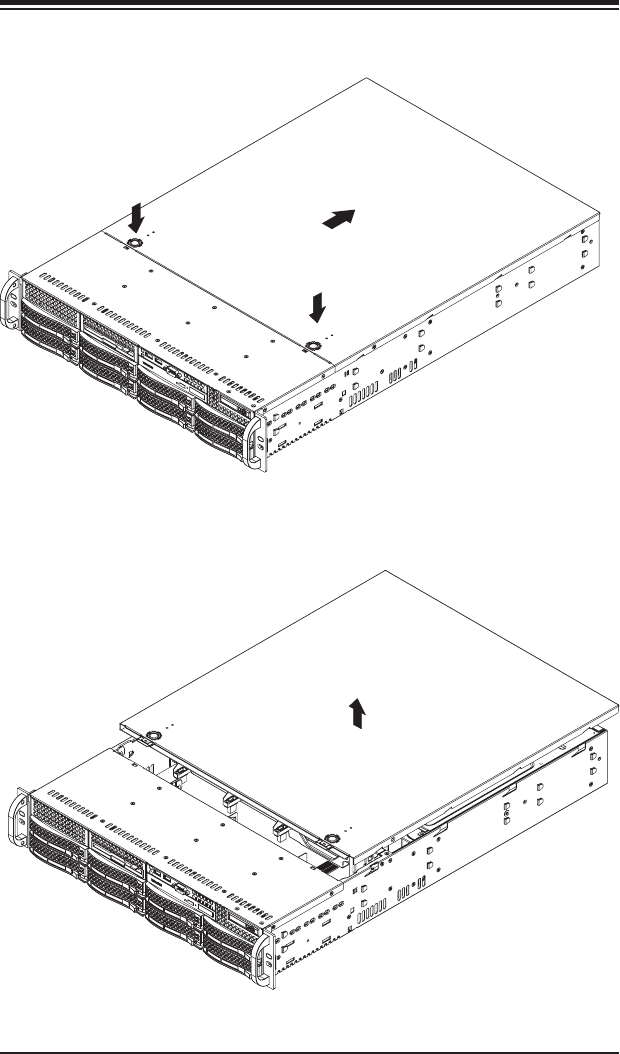
Accessing the inside of the System
1. First, grasp the two handles on either side and pull the unit straight out until it
locks (you will hear a "click").
2. Next, depress the two buttons on the top of the chassis to release the top
cover.
3. You can then lift the top cover from the chassis to gain full access to the
inside of the server.
Checking the Components and Setup
1. You may have one or two processors already installed into the serverboard.
Each processor needs its own heat sink. See Chapter 5 for instructions on
processor and heat sink installation.
2. Your 2022G-URF server system may have come with system memory already
installed. Make sure all DIMMs are fully seated in their slots. For details on
adding system memory, refer to Chapter 5.
3. If desired, you can install add-on cards to the system. See Chapter 5 for
details on installing PCI add-on cards.
4. Make sure all power and data cables are properly connected and not blocking
the chassis airow. Also make sure that no cables are positioned in front of
the fans. See Chapter 5 for details on cable connections.
2-10
A+ SERVER 2022G-URF User's Manual
Figure 2-7. Accessing the Inside of the System
Chapter 2: Server Installation
2-11
2-7 Checking the Drive Bay Setup
Next, you should check to make sure the peripheral drives and the SAS/SATA drives
have been properly installed and all connections have been made.
Checking the Drives
1. All drives are accessable from the front of the server. For servicing the DVD-
ROM, you will need to remove the top chassis cover. The hard drives can be
installed and removed from the front of the chassis without removing the top
chassis cover.
2. A slim DVD-ROM may be preinstalled in your server. Refer to Chapter 6 if
you need to install a DVD-ROM drive to the system.
3. Depending upon your system's conguration, your system may have one or
more drives already installed. If you need to install hard drives, please refer to
Chapter 6.
Checking the Airow
1. Airow is provided by three hot-swappable 8-cm chassis cooling fans. The
system component layout was carefully designed to direct sufcient cooling
airow to the components that generate the most heat.
2. Note that all power and data cables have been routed in such a way that they
do not block the airow generated by the fans.
Providing Power
1. Plug the power cord(s) from the power supply unit(s) into a high-quality
power strip that offers protection from electrical noise and power surges. It is
recommended that you use an uninterruptible power supply (UPS).
2. Depress the power on button on the front of the chassis.
2-12
A+ SERVER 2022G-URF User's Manual
Notes
Chapter 3: System Interface
3-1
Chapter 3
System Interface
3-1 Overview
There are several LEDs on the control panel as well as others on the drive carriers
to keep you constantly informed of the overall status of the system as well as
the activity and health of specic components. There are also two buttons on the
chassis control panel.
3-2 Control Panel Buttons
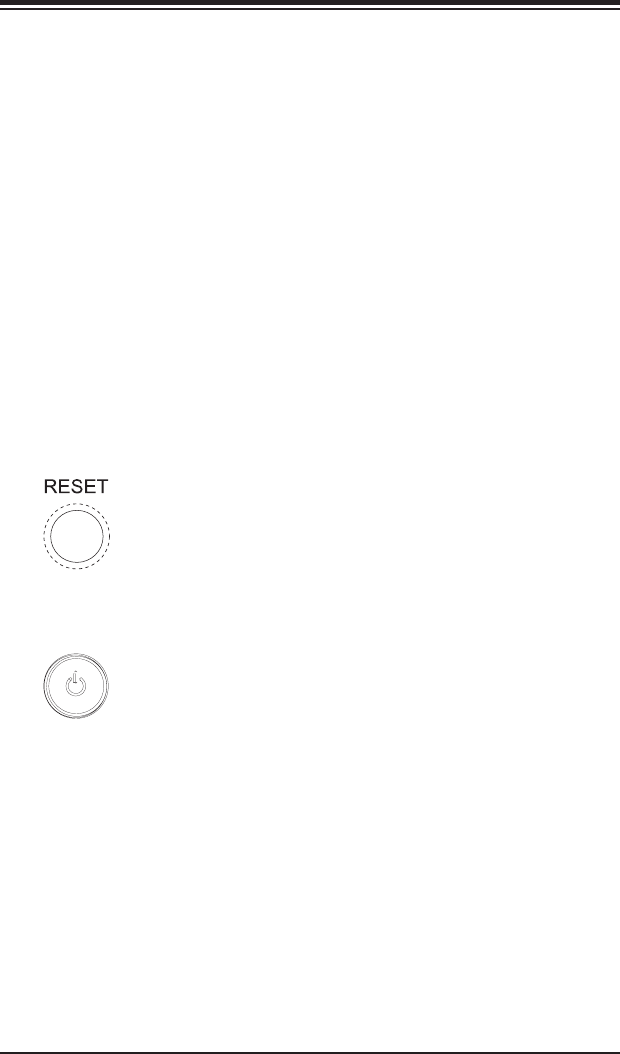
There are two buttons located on the front of the chassis: a reset button and a
power on/off button.
Reset
Use the reset button to reboot the system.
Power
This is the main power button, which is used to apply or turn off the main system
power. Turning off system power with this button removes the main power but keeps
standby power supplied to the system.
A+ SERVER 2022G-URF User's Manual
3-2
3-3 Control Panel LEDs
The control panel located on the front of the chassis has several LEDs. These
LEDs provide you with critical information related to different parts of the system.
This section explains what each LED indicates when illuminated and any corrective
action you may need to take.
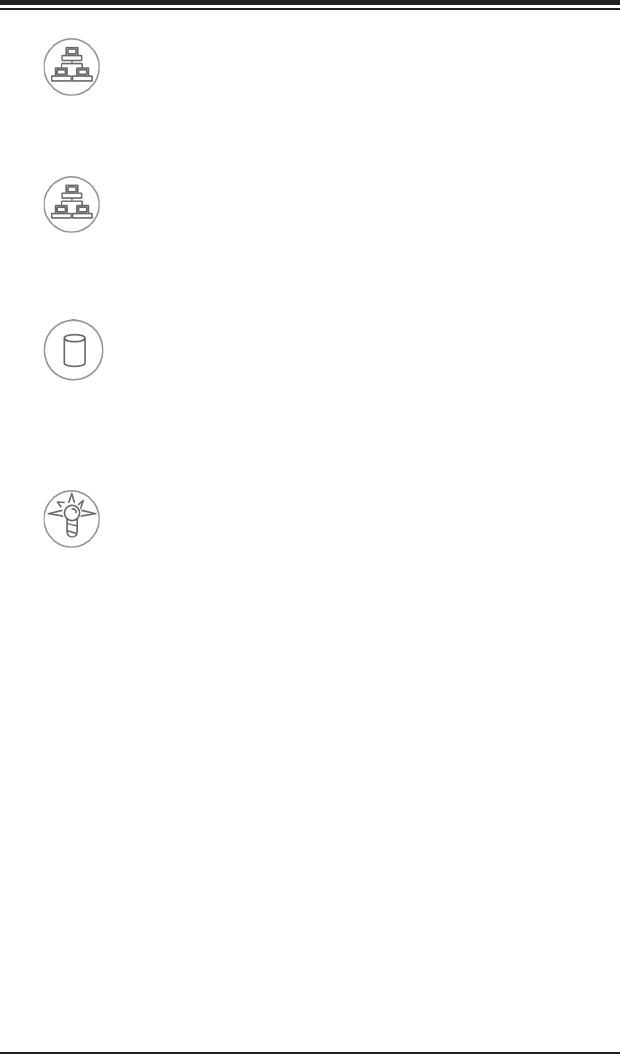
Power Fail
Indicates a power supply module has failed. The second power supply module will
take the load and keep the system running but the failed module will need to be
replaced. Refer to Chapter 6 for details on replacing the power supply. This LED
should be off when the system is operating normally.
Information LED
Alerts operator of several states, as noted in the table below.
Informational LED
Status Description
Continuously on and red An overheat condition has occured.
(This may be caused by cable congestion.)
Blinking red (1Hz) Fan failure, check for an inoperative fan.
Blinking red (0.25Hz) Power failure, check for a non-operational power supply.
Solid blue Local UID has been activated. Use this function to locate
the server in a rack mount environment.
Blinking blue Remote UID is on. Use this function to identify the
server from a remote location.
Chapter 3: System Interface
3-3
1
2
NIC1
Indicates network activity on the LAN1 port when ashing.
NIC2
Indicates network activity on the LAN2 port when ashing.
HDD
On the A+ SERVER 2022G-URF, this LED indicates hard drive and/or DVD-ROM
drive activity when ashing.
Power
Indicates power is being supplied to the system's power supply units. This LED
should normally be illuminated when the system is operating.
A+ SERVER 2022G-URF User's Manual
3-4
3-4 Drive Carrier LEDs
Each drive carrier has two LEDs:
SATA Drives
•Green: When illuminated, the green LED on the SATA drive carrier indicates
drive activity. A connection to the SATA backplane enables this LED to blink
on and off when that particular drive is being accessed. Please refer to Chapter
6 for instructions on replacing failed SATA drives.
•Red: When this LED ashes it indicates the drive is rebuilding. When solid on
it indicates a SATA drive failure. If a drive fails, you should be notied by your
system management software. Please refer to Chapter 6 for instructions on
replacing failed drives.
SAS Drives
•Green: When illuminated, the green LED on the drive carrier indicates the SAS
drive is powered on. If this LED is not lit, it means no power is being provided
for the drive. Please refer to Chapter 6 for instructions on replacing failed drives.
•Red: When this LED ashes it indicates the drive is rebuilding. When solid on
it indicates a SAS drive failure. If a drive fails, you should be notied by your
system management software. Please refer to Chapter 6 for instructions on
replacing failed drives.
4-1
Chapter 4: Warning Statements for AC Systems
Chapter 4
Standardized Warning Statements for AC Systems
4-1 About Standardized Warning Statements
The following statements are industry standard warnings, provided to warn the user
of situations which have the potential for bodily injury. Should you have questions
or experience difficulty, contact Supermicro's Technical Support department
for assistance. Only certied technicians should attempt to install or congure
components.
Read this appendix in its entirety before installing or conguring components in the
Supermicro chassis.
These warnings may also be found on our web site at http://www.supermicro.com/
about/policies/safety_information.cfm.
Warning!
This warning symbol means danger. You are in a situation that could cause bodily
injury. Before you work on any equipment, be aware of the hazards involved with
electrical circuitry and be familiar with standard practices for preventing accidents.
Warning Denition
警告の定義
この警 告サインは危険を意 味します。
人身事故につながる可能性がありますので、いずれの機器でも動作させる前に、
電気回路に含まれる危険性に注意して、標準的な事故防止策に精通して下さい。
此警告符号代表危险。
您正处于可能受到严重伤害的工作环境中。在您使用设备开始工作之前,必须充分
意识到触电的危险,并熟练掌握防止事故发生的标准工作程序。请根据每项警告结
尾的声明号码找到此设备的安全性警告说明的翻译文本。
此警告符號代表危險。
您正處於可能身體可能會受損傷的工作環境中。在您使用任何設備之前,請注意觸
電的危險,並且要熟悉預防事故發生的標準工作程序。請依照每一注意事項後的號
碼找到相關的翻譯說明內容。
4-2
A+ SERVER 2022G-URF User's Manual
Warnung
WICHTIGE SICHERHEITSHINWEISE
Dieses Warnsymbol bedeutet Gefahr. Sie benden sich in einer Situation, die zu
Verletzungen führen kann. Machen Sie sich vor der Arbeit mit Geräten mit den
Gefahren elektrischer Schaltungen und den üblichen Verfahren zur Vorbeugung
vor Unfällen vertraut. Suchen Sie mit der am Ende jeder Warnung angegebenen
Anweisungsnummer nach der jeweiligen Übersetzung in den übersetzten
Sicherheitshinweisen, die zusammen mit diesem Gerät ausgeliefert wurden.
BEWAHREN SIE DIESE HINWEISE GUT AUF.
INSTRUCCIONES IMPORTANTES DE SEGURIDAD
Este símbolo de aviso indica peligro. Existe riesgo para su integridad física. Antes
de manipular cualquier equipo, considere los riesgos de la corriente eléctrica y
familiarícese con los procedimientos estándar de prevención de accidentes. Al
nal de cada advertencia encontrará el número que le ayudará a encontrar el texto
traducido en el apartado de traducciones que acompaña a este dispositivo.
GUARDE ESTAS INSTRUCCIONES.
IMPORTANTES INFORMATIONS DE SÉCURITÉ
Ce symbole d'avertissement indique un danger. Vous vous trouvez dans une
situation pouvant entraîner des blessures ou des dommages corporels. Avant
de travailler sur un équipement, soyez conscient des dangers liés aux circuits
électriques et familiarisez-vous avec les procédures couramment utilisées pour
éviter les accidents. Pour prendre connaissance des traductions des avertissements
gurant dans les consignes de sécurité traduites qui accompagnent cet appareil,
référez-vous au numéro de l'instruction situé à la n de chaque avertissement.
CONSERVEZ CES INFORMATIONS.
ןונקת תורהצהאהרהז
ןה תואבה תורהצהא ינפמ שמתשמה תא ריהזהל תנמ לע ,היישעתה ינקת יפ לע תורהז הלבח
ה וא תולאש שיו הדימב .תירשפא תיזיפי ,יהשלכ היעבב תולקתרוציל שי הכימת תקלחמ םע רשק
רידגהל וא ןיקתהל םיאשר דבלב םיכמסומ םיאנכט .ורקימרפוס לש תינכט תאה .םיביכר
אורקל שי .ורקימרפוס יזראמב םיביכרה תרדגה וא תנקתה ינפל ואולמב חפסנה תא
4-3
Warning Statements for AC Systems
안전을 위한 주의사항
경고!
이 경고 기호는 위험이 있음을 알려 줍니다. 작업자의 신체에 부상을 야기 할 수
있는 상태에 있게 됩니다. 모든 장비에 대한 작업을 수행하기 전에 전기회로와
관련된 위험요소들을 확인하시고 사전에 사고를 방지할 수 있도록 표준
작업절차를 준수해 주시기 바랍니다.
해당 번역문을 찾기 위해 각 경고의 마지막 부분에 제공된 경고문 번호를
참조하십시오
BELANGRIJKE VEILIGHEIDSINSTRUCTIES
Dit waarschuwings symbool betekent gevaar. U verkeert in een situatie die
lichamelijk letsel kan veroorzaken. Voordat u aan enige apparatuur gaat werken,
dient u zich bewust te zijn van de bij een elektrische installatie betrokken risico's
en dient u op de hoogte te zijn van de standaard procedures om ongelukken te
voorkomen. Gebruik de nummers aan het eind van elke waarschuwing om deze te
herleiden naar de desbetreffende locatie.
BEWAAR DEZE INSTRUCTIES
. !
4-4
A+ SERVER 2022G-URF User's Manual
Installation Instructions
Warning!
Read the installation instructions before connecting the system to the power source.
Warnung
Vor dem Anschließen des Systems an die Stromquelle die Installationsanweisungen
lesen.
¡Advertencia!
Lea las instrucciones de instalación antes de conectar el sistema a la red de
alimentación.
Attention
Avant de brancher le système sur la source d'alimentation, consulter les directives
d'installation.
設置手順書
システムを電源に接続する前に、設置手順書をお読み下さい。
אורקל שי רוקמל תכרעמה רוביח ינפל הנקתה תוארוה תאחתמ.
시스템을 전원에 연결하기 전에 설치 안내를 읽어주십시오.
Waarschuwing
Raadpleeg de installatie-instructies voordat u het systeem op de voedingsbron
aansluit.
警告
将此系统连接电源前,请先阅读安装说明。
警告
將系統與電源連接前,請先閱讀安裝說明。
4-5
Chapter 4: Warning Statements for AC Systems
Circuit Breaker
Warning!
This product relies on the building's installation for short-circuit (overcurrent)
protection. Ensure that the protective device is rated not greater than: 250 V, 20 A.
サーキット・ブレーカー
この製品は、短絡(過電流)保護装置がある建物での設置を前提としています。
保護装置の定格が250 V、20 Aを超えないことを確認下さい。
Warnung
Dieses Produkt ist darauf angewiesen, dass im Gebäude ein Kurzschluss-
bzw. Überstromschutz installiert ist. Stellen Sie sicher, dass der Nennwert der
Schutzvorrichtung nicht mehr als: 250 V, 20 A beträgt.
¡Advertencia!
Este equipo utiliza el sistema de protección contra cortocircuitos (o sobrecorrientes)
del edicio. Asegúrese de que el dispositivo de protección no sea superior a: 250
V, 20 A.
Attention
Pour ce qui est de la protection contre les courts-circuits (surtension), ce produit
dépend de l'installation électrique du local. Vériez que le courant nominal du
dispositif de protection n'est pas supérieur à :250 V, 20 A.
לע ךמתסמ הז רצומנגהה תעינמל םינבמב תנקתומה יכ אדוול שי .ילמשח רצק
רצקה ינפמ ןגמה רישכמה ילמשחהמ רתוי אל אוה-250 V, 20 A
20A, 250V :
警告
此产品的短路(过载电流)保护由建筑物的供电系统提供,确保短路保护设备的额定电
流不大于250V,20A。
警告
此產品的短路(過載電流)保護由建築物的供電系統提供,確保短路保護設備的額定電
流不大於250V,20A。
4-6
A+ SERVER 2022G-URF User's Manual
Power Disconnection Warning
電源切断の警告
システムコンポーネントの取り付けまたは取り外しのために、シャーシー内部にアクセス
するには、
システムの電源はすべてのソースから切断され、電源コードは電源モジュールから取り
外す必要があります。
警告
在你打开机箱并安装或移除内部器件前,必须将系统完全断电,并移除电源线。
警告
在您打開機殼安裝或移除內部元件前,必須將系統完全斷電,並移除電源線。
Warnung
Das System muss von allen Quellen der Energie und vom Netzanschlusskabel
getrennt sein, das von den Spg.Versorgungsteilmodulen entfernt wird, bevor es
auf den Chassisinnenraum zurückgreift, um Systemsbestandteile anzubringen oder
zu entfernen.
Warning!
The system must be disconnected from all sources of power and the power cord
removed from the power supply module(s) before accessing the chassis interior to
install or remove system components.
경고!
이 제품은 전원의 단락(과전류)방지에 대해서 전적으로 건물의 관련 설비에
의존합니다. 보호장치의 정격이 반드시 250V(볼트), 20A(암페어)를 초과하지
않도록 해야 합니다.
Waarschuwing
Dit product is afhankelijk van de kortsluitbeveiliging (overspanning) van
uw electrische installatie. Controleer of het beveiligde aparaat niet groter
gedimensioneerd is dan 220V, 20A.
4-7
Chapter 4: Warning Statements for AC Systems
¡Advertencia!
El sistema debe ser disconnected de todas las fuentes de energía y del cable
eléctrico quitado de los módulos de fuente de alimentación antes de tener acceso
el interior del chasis para instalar o para quitar componentes de sistema.
Attention
Le système doit être débranché de toutes les sources de puissance ainsi que de
son cordon d'alimentation secteur avant d'accéder à l'intérieur du chassis pour
installer ou enlever des composants de systéme.
ילמשח קותינ ינפמ הרהזא
!הרהזא
למשחה תורוקמ לכמ תכרעמה תא קתנל שי ריסהל שיו קפסהמ ילמשחה לבכ תא
נקתה ךרוצל זראמה לש ימינפה קלחל השיג ינפלת רסה ואת .םיביכר
경고!
시스템에 부품들을 장착하거나 제거하기 위해서는 섀시 내부에 접근하기 전에
반드시 전원 공급장치로부터 연결되어있는 모든 전원과 전기코드를 분리해주어야
합니다.
Waarschuwing
Voordat u toegang neemt tot het binnenwerk van de behuizing voor het installeren
of verwijderen van systeem onderdelen, dient u alle spanningsbronnen en alle
stroomkabels aangesloten op de voeding(en) van de behuizing te verwijderen
4-8
A+ SERVER 2022G-URF User's Manual
Equipment Installation
機器の設置
トレーニングを受け認定された人だけがこの装置の設置、交換、またはサービスを許可
されています。
Warning!
Only trained and qualied personnel should be allowed to install, replace, or service
this equipment.
Warnung
Das Installieren, Ersetzen oder Bedienen dieser Ausrüstung sollte nur geschultem,
qualiziertem Personal gestattet werden.
¡Advertencia!
Solamente el personal calicado debe instalar, reemplazar o utilizar este equipo.
Attention
Il est vivement recommandé de confier l'installation, le remplacement et la
maintenance de ces équipements à des personnels qualiés et expérimentés.
!הרהזא
שר דבלב ךמסומ תווצתא ףילחהל ,ןיקתהל יא .דויצה רובע תוריש תתל וא דויצה
경고!
훈련을 받고 공인된 기술자만이 이 장비의 설치, 교체 또는 서비스를 수행할 수
있습니다.
警告
只有经过培训且具有资格的人员才能进行此设备的安装、更换和维修。
警告
只有經過受訓且具資格人員才可安裝、更換與維修此設備。
4-9
Chapter 4: Warning Statements for AC Systems
アクセス制限区域
このユニットは、アクセス制限区域に設置されることを想定しています。
アクセス制限区域は、特別なツール、鍵と錠前、その他のセキュリティの手段を用いての
み出入りが可能です。
Warning!
This unit is intended for installation in restricted access areas. A restricted access
area can be accessed only through the use of a special tool, lock and key, or other
means of security. (This warning does not apply to workstations).
Restricted Area
Waarschuwing
Deze apparatuur mag alleen worden geïnstalleerd, vervangen of hersteld door
geschoold en gekwaliceerd personeel.
Warnung
Diese Einheit ist zur Installation in Bereichen mit beschränktem Zutritt vorgesehen.
Der Zutritt zu derartigen Bereichen ist nur mit einem Spezialwerkzeug, Schloss und
Schlüssel oder einer sonstigen Sicherheitsvorkehrung möglich.
¡Advertencia!
Esta unidad ha sido diseñada para instalación en áreas de acceso restringido.
Sólo puede obtenerse acceso a una de estas áreas mediante la utilización de una
herramienta especial, cerradura con llave u otro medio de seguridad.
Attention
Cet appareil doit être installée dans des zones d'accès réservés. L'accès à une
zone d'accès réservé n'est possible qu'en utilisant un outil spécial, un mécanisme
de verrouillage et une clé, ou tout autre moyen de sécurité.
警告
此部件应安装在限制进出的场所,限制进出的场所指只能通过使用特殊工具、锁和
钥匙或其它安全手段进出的场所。
警告
此裝置僅限安裝於進出管制區域,進出管制區域係指僅能以特殊工具、鎖頭及鑰匙
或其他安全方式才能進入的區域。
4-10
A+ SERVER 2022G-URF User's Manual
Battery Handling
Warning!
There is the danger of explosion if the battery is replaced incorrectly. Replace the
battery only with the same or equivalent type recommended by the manufacturer.
Dispose of used batteries according to the manufacturer's instructions
תלבגומ השיג םע רוזא
!הרהזא
תרזעב תנתינ השיגה .השיג תלבגה םהב שיש םירוזאב הדיחיה תא ןיקתהל שי
.)'דכו לוענמ ,חתפמ( דבלב החטבא ילכ
.
경고!
이 장치는 접근이 제한된 구역에 설치하도록 되어있습니다. 특수도구, 잠금 장치 및
키, 또는 기타 보안 수단을 통해서만 접근 제한 구역에 들어갈 수 있습니다.
Waarschuwing
Dit apparaat is bedoeld voor installatie in gebieden met een beperkte toegang.
Toegang tot dergelijke gebieden kunnen alleen verkregen worden door gebruik te
maken van speciaal gereedschap, slot en sleutel of andere veiligheidsmaatregelen.
電池の取り扱い
電池交換が正しく行われなかった場合、破裂の危険性があります。 交換する電池はメー
カーが推奨する型、または同等のものを使用下さい。 使用済電池は製造元の指示に従
って処分して下さい。
警告
电池更换不当会有爆炸危险。请只使用同类电池或制造商推荐的功能相当的电池更
换原有电池。请按制造商的说明处理废旧电池。
警告
電池更換不當會有爆炸危險。請使用製造商建議之相同或功能相當的電池更換原有
電池。請按照製造商的說明指示處理廢棄舊電池。
4-11
Chapter 4: Warning Statements for AC Systems
Warnung
Bei Einsetzen einer falschen Batterie besteht Explosionsgefahr. Ersetzen Sie die
Batterie nur durch den gleichen oder vom Hersteller empfohlenen Batterietyp.
Entsorgen Sie die benutzten Batterien nach den Anweisungen des Herstellers.
Attention
Danger d'explosion si la pile n'est pas remplacée correctement. Ne la remplacer
que par une pile de type semblable ou équivalent, recommandée par le fabricant.
Jeter les piles usagées conformément aux instructions du fabricant.
¡Advertencia!
Existe peligro de explosión si la batería se reemplaza de manera incorrecta.
Reemplazar la batería exclusivamente con el mismo tipo o el equivalente
recomendado por el fabricante. Desechar las baterías gastadas según las
instrucciones del fabricante.
!הרהזא
תנכס תמייקץוציפ .הניקת אל ךרדב הפלחוהו הדימב הללוסה לש ףילחהל שי
גוסב הללוסה תא מ םאותה תרבחלמומ ןרציתצ.
תוללוסה קוליס תושמושמה עצבל שי .ןרציה תוארוה יפל
경고!
배터리가 올바르게 교체되지 않으면 폭발의 위험이 있습니다. 기존 배터리와
동일하거나 제조사에서 권장하는 동등한 종류의 배터리로만 교체해야 합니다.
제조사의 안내에 따라 사용된 배터리를 처리하여 주십시오.
Waarschuwing
Er is ontplofngsgevaar indien de batterij verkeerd vervangen wordt. Vervang de
batterij slechts met hetzelfde of een equivalent type die door de fabrikant aanbevolen
wordt. Gebruikte batterijen dienen overeenkomstig fabrieksvoorschriften afgevoerd
te worden.
4-12
A+ SERVER 2022G-URF User's Manual
Warnung
Dieses Gerät kann mehr als eine Stromzufuhr haben. Um sicherzustellen, dass
der Einheit kein trom zugeführt wird, müssen alle Verbindungen entfernt werden.
¡Advertencia!
Puede que esta unidad tenga más de una conexión para fuentes de alimentación.
Para cortar por completo el suministro de energía, deben desconectarse todas las
conexiones.
Attention
Cette unité peut avoir plus d'une connexion d'alimentation. Pour supprimer toute
tension et tout courant électrique de l'unité, toutes les connexions d'alimentation
doivent être débranchées.
Redundant Power Supplies
Warning!
This unit might have more than one power supply connection. All connections must
be removed to de-energize the unit.
冗長電源装置
このユニットは複数の電源装置が接続されている場合があります。
ユニットの電源を切るためには、すべての接続を取り外さなければなりません。
דחא קפסמ רתוי םייק םא
!הרהזא
.קפס לש דחא רוביחמ רתוי שי הדחיל תא ריסהל שי
ןקורל תנמ לע םירוביחה לכ
חיה תאי.הד
警告
此部件连接的电源可能不止一个,必须将所有电源断开才能停止给该部件供电。
警告
此裝置連接的電源可能不只一個,必須切斷所有電源才能停止對該裝置的供電。
4-13
Chapter 4: Warning Statements for AC Systems
Backplane Voltage
バックプレーンの電圧
システムの稼働中は危険な電圧または電力が、バックプレーン上にかかっています。
修理する際には注意ください。
警告
当系统正在进行时,背板上有很危险的电压或能量,进行维修时务必小心。
警告
當系統正在進行時,背板上有危險的電壓或能量,進行維修時務必小心。
Warnung
Wenn das System in Betrieb ist, treten auf der Rückwandplatine gefährliche
Spannungen oder Energien auf. Vorsicht bei der Wartung.
¡Advertencia!
Cuando el sistema está en funcionamiento, el voltaje del plano trasero es peligroso.
Tenga cuidado cuando lo revise.
Attention
Lorsque le système est en fonctionnement, des tensions électriques circulent sur
le fond de panier. Prendre des précautions lors de la maintenance.
Warning!
Hazardous voltage or energy is present on the backplane when the system is
operating. Use caution when servicing.
.
경고!
이 장치에는 한 개 이상의 전원 공급 단자가 연결되어 있을 수 있습니다. 이 장치에
전원을 차단하기 위해서는 모든 연결 단자를 제거해야만 합니다.
Waarschuwing
Deze eenheid kan meer dan één stroomtoevoeraansluiting bevatten. Alle
aansluitingen dienen verwijderd te worden om het apparaat stroomloos te maken.
4-14
A+ SERVER 2022G-URF User's Manual
Comply with Local and National Electrical Codes
Warning!
Installation of the equipment must comply with local and national electrical codes.
地方および国の電気規格に準拠
機器の取り付けはその地方および国の電気規格に準拠する必要があります。
Warnung
Die Installation der Geräte muss den Sicherheitsstandards entsprechen.
¡Advertencia!
La instalacion del equipo debe cumplir con las normas de electricidad locales y
nacionales.
경고!
시스템이 동작 중일 때 후면판 (Backplane)에는 위험한 전압이나 에너지가 발생
합니다. 서비스 작업 시 주의하십시오.
Waarschuwing
Een gevaarlijke spanning of energie is aanwezig op de backplane wanneer het
systeem in gebruik is. Voorzichtigheid is geboden tijdens het onderhoud.
ירוחאה לנפב חתמ
זא!הרה
ךלהמב רהזיהל שי .תכרעמה לועפת ןמזב ירוחאה לנפב חתמ תנכס תמייק
.הדובעה
警告
设备安装必须符合本地与本国电气法规。
警告
設備安裝必須符合本地與本國電氣法規。
4-15
Chapter 4: Warning Statements for AC Systems
Product Disposal
Warning!
Ultimate disposal of this product should be handled according to all national laws
and regulations.
יצראה למשחה יקוח םואית
!הרהזא
תנקתה םייצראהו םיימוקמה למשחה יקוחל תמאות תויהל תבייח דויצה.
Attention
L'équipement doit être installé conformément aux normes électriques nationales
et locales.
경고!
현 지역 및 국가의 전기 규정에 따라 장비를 설치해야 합니다.
Waarschuwing
Bij installatie van de apparatuur moet worden voldaan aan de lokale en nationale
elektriciteitsvoorschriften.
製品の廃棄
この製品を廃棄処分する場合、国の関係する全ての法律・条例に従い処理する必要が
あります。
警告
本产品的废弃处理应根据所有国家的法律和规章进行。
警告
本產品的廢棄處理應根據所有國家的法律和規章進行。
Warnung
Die Entsorgung dieses Produkts sollte gemäß allen Bestimmungen und Gesetzen
des Landes erfolgen.
4-16
A+ SERVER 2022G-URF User's Manual
Waarschuwing
De uiteindelijke verwijdering van dit product dient te geschieden in overeenstemming
met alle nationale wetten en reglementen.
¡Advertencia!
Al deshacerse por completo de este producto debe seguir todas las leyes y
reglamentos nacionales.
Attention
La mise au rebut ou le recyclage de ce produit sont généralement soumis à des
lois et/ou directives de respect de l'environnement. Renseignez-vous auprès de
l'organisme compétent.
Warning!
The fans might still be turning when you remove the fan assembly from the chassis.
Keep ngers, screwdrivers, and other objects away from the openings in the fan
assembly's housing.
Hot Swap Fan Warning
רצומה קוליס
!הרהזא
ו תויחנהל םאתהב תויהל בייח הז רצומ לש יפוס קוליס.הנידמה יקוח
ファン・ホ ットス ワップ の 警 告
シャーシから冷却ファン装置を取り外した際、ファンがまだ回転している可能性がありま
す。 ファンの開口部に、指、ドライバー、およびその他のものを近づけないで下さい。
警告
当您从机架移除风扇装置,风扇可能仍在转动。小心不要将手指、螺丝起子和其他
物品太靠近风扇
경고!
이 제품은 해당 국가의 관련 법규 및 규정에 따라 폐기되어야 합니다.
4-17
Chapter 4: Warning Statements for AC Systems
Warnung
Die Lüfter drehen sich u. U. noch, wenn die Lüfterbaugruppe aus dem Chassis
genommen wird. Halten Sie Finger, Schraubendreher und andere Gegenstände
von den Öffnungen des Lüftergehäuses entfernt.
¡Advertencia!
Los ventiladores podran dar vuelta cuando usted quite ell montaje del ventilador
del chasis. Mandtenga los dedos, los destornilladores y todos los objetos lejos de
las aberturas del ventilador
Attention
Il est possible que les ventilateurs soient toujours en rotation lorsque vous retirerez
le bloc ventilateur du châssis. Prenez garde à ce que doigts, tournevis et autres
objets soient éloignés du logement du bloc ventilateur.
!הרהזא
יקלח תא םיריסמ רשאכ שי .םידבוע ןיידע םיררוואמהו ןכתי ,זראמהמ ררוואמה
קיחרהללררוואמה ךותב םיחתפהמ םינוש הדובע ילכו תועבצאה תא חוטב קחרמ
.
경고!
섀시로부터 팬 조립품을 제거할 때 팬은 여전히 회전하고 있을 수 있습니다. 팬
조림품 외관의 열려있는 부분들로부터 손가락 및 스크류드라이버, 다른 물체들이
가까이 하지 않도록 배치해 주십시오.
Waarschuwing
Het is mogelijk dat de ventilator nog draait tijdens het verwijderen van het
ventilatorsamenstel uit het chassis. Houd uw vingers, schroevendraaiers
en eventuele andere voorwerpen uit de buurt van de openingen in de
ventilatorbehuizing.
警告
當您從機架移除風扇裝置,風扇可能仍在轉動。小心不要將手指、螺絲起子和其他
物品太靠近風扇。
4-18
A+ SERVER 2022G-URF User's Manual
Warning!
When installing the product, use the provided or designated connection cables,
power cables and AC adaptors. Using any other cables and adaptors could cause
a malfunction or a re. Electrical Appliance and Material Safety Law prohibits the
use of UL or CSA -certied cables (that have UL/CSA shown on the code) for any
other electrical devices than products designated by Supermicro only.
Power Cable and AC Adapter
Warnung
Bei der Installation des Produkts, die zur Verfügung gestellten oder benannt
Anschlusskabel, Stromkabel und Netzteile. Verwendung anderer Kabel und Adapter
kann zu einer Fehlfunktion oder ein Brand entstehen. Elektrische Geräte und
Material Safety Law verbietet die Verwendung von UL-oder CSA-zertizierte Kabel,
UL oder CSA auf der Code für alle anderen elektrischen Geräte als Produkte von
Supermicro nur bezeichnet gezeigt haben.
¡Advertencia!
Al instalar el producto, utilice los cables de conexión previstos o designados, los
cables y adaptadores de CA. La utilización de otros cables y adaptadores podría
ocasionar un mal funcionamiento o un incendio. Aparatos Eléctricos y la Ley de
Seguridad del Material prohíbe el uso de UL o CSA cables certicados que tienen
UL o CSA se muestra en el código de otros dispositivos eléctricos que los productos
designados por Supermicro solamente.
電源コードとACアダプター
製品を設置する場合、提供または指定された接続ケーブル、電源コードとACアダプター
を使用下さい。 他のケーブルやアダプタを使用すると故障や火災の原因になることがあ
ります。 電気用品安全法は、ULまたはCSA認定のケーブル(UL/CSEマークがコードに表
記)を Supermicroが指定する製品以外に使用することを禁止しています。
警告
安装此产品时,请使用本身提供的或指定的连接线,电源线和电源适配器.使用其它线
材或适配器可能会引起故障或火灾。除了Supermicro所指定的产品,电气用品和材
料安全法律规定禁止使用未经UL或CSA认证的线材。(线材上会显示UL/CSA符号)。
警告
安裝此產品時,請使用本身提供的或指定的連接線,電源線和電源適配器.使用其它線
材或適配器可能會引起故障或火災。除了Supermicro所指定的產品,電氣用品和材
料安全法律規定禁止使用未經UL或CSA認證的線材。(線材上會顯示UL/CSA符號)。
4-19
Chapter 4: Warning Statements for AC Systems
Attention
Lors de l'installation du produit, utilisez les bables de connection fournis ou désigné.
L'utilisation d'autres cables et adaptateurs peut provoquer un dysfonctionnement
ou un incendie. Appareils électroménagers et de loi sur la sécurité Matériel interdit
l'utilisation de UL ou CSA câbles certiés qui ont UL ou CSA indiqué sur le code
pour tous les autres appareils électriques que les produits désignés par Supermicro
seulement.
אתמו םיילמשחמ יAC
!הרהזא
םימאתמו םיקפס ,םילבכב שמתשהל שי ,רצומה תא םיניקתמ רשאכAC רשא
וא הלקתל םורגל לוכי רחא םאתמ וא לבכ לכב שומיש .ךכ םשל וקפוסו ודעונ
טב יקוחו למשח ירישכמב שומיש יקוח יפ לע .ילמשח רצק רוסיא םייק ,תוחי
ב םיכמסומה םילבכב שמתשהל-
UL ב וא- CSA לש דוק םהילע עיפומ ראשכ(
UL/CSA) רחא ילמשח רצומ לכ רובע.דבלב ורקימקרפוס ידי לע ןיוצ אלש
. .
UL CSA
Supermicro
(UL/CSA )
경고!
제품을 설치할 때에는 제공되거나 지정된 연결케이블과 전원케이블, AC어댑터를
사용해야 합니다. 그 밖의 다른 케이블들이나 어댑터들은 고장 또는 화재의 원인이
될 수 있습니다. 전기용품안전법 (Electrical Appliance and Material Safety
Law)은 슈퍼마이크로에서 지정한 제품들 외에는 그 밖의 다른 전기 장치들을
위한 UL또는 CSA에서 인증한 케이블(전선 위에 UL/CSA가 표시)들의 사용을
금지합니다.
Waarschuwing
Bij het installeren van het product, gebruik de meegeleverde of aangewezen kabels,
stroomkabels en adapters. Het gebruik van andere kabels en adapters kan leiden
tot een storing of een brand. Elektrisch apparaat en veiligheidsinformatiebladen wet
verbiedt het gebruik van UL of CSA gecerticeerde kabels die UL of CSA die op
de code voor andere elektrische apparaten dan de producten die door Supermicro
alleen.
4-20
A+ SERVER 2022G-URF User's Manual
Notes
Chapter 5: Advanced Serverboard Setup
5-1
Chapter 5
Advanced Serverboard Setup
This chapter covers the steps required to install processors and heatsinks to the
H8DGU-F serverboard, connect the data and power cables and install add-on
cards. All serverboard jumpers and connections are described and a layout and
quick reference chart are included in this chapter. Remember to close the chassis
completely when you have nished working on the serverboard to protect and cool
the system sufciently.
5-1 Handling the Serverboard
Static electrical discharge can damage electronic com ponents. To prevent damage
to printed circuit boards, it is important to handle them very carefully (see Chapter 4).
Also note that the size and weight of the serverboard can cause it to bend if handled
improperly, which may result in damage. To prevent the serverboard from bending,
keep one hand under the center of the board to support it when handling.
The following measures are generally sufcient to protect your equipment from
static discharge.
Precautions
•Use a grounded wrist strap designed to prevent static discharge.
•Touch a grounded metal object before removing any board from its antistatic
bag.
•Handle a board by its edges only; do not touch its components, peripheral chips,
memory modules or gold contacts.
•When handling chips or modules, avoid touching their pins.
•Put the serverboard, add-on cards and peripherals back into their antistatic
bags when not in use.
Unpacking
The serverboard is shipped in antistatic packaging to avoid static damage. When
unpacking the board, make sure the person handling it is static protected.
5-2
A+ SERVER 2022G-URF User's Manual
5-2 Processor and Heatsink Installation
IMPORTANT! Always connect the power cord last and remove it rst before
adding, removing or changing any hardware components. Make sure that you
install the processor into the CPU socket before you install the heatsink and fan.
The H8DGU-F can support either one or two processors. If installing one processor
only, install it into the CPU1 socket.
Note: When purchasing a CPU or when receiving a serverboard with a CPU pre-
installed, make sure that the CPU plastic cap is in place and none of the CPU pins
are bent; otherwise, contact the retailer immediately.
When handling the processor, avoid placing direct pressure on the label area of the
fan. Also, do not place the serverboard on a conductive surface, which can damage
the BIOS battery and prevent the system from booting up.
Installing the Processors
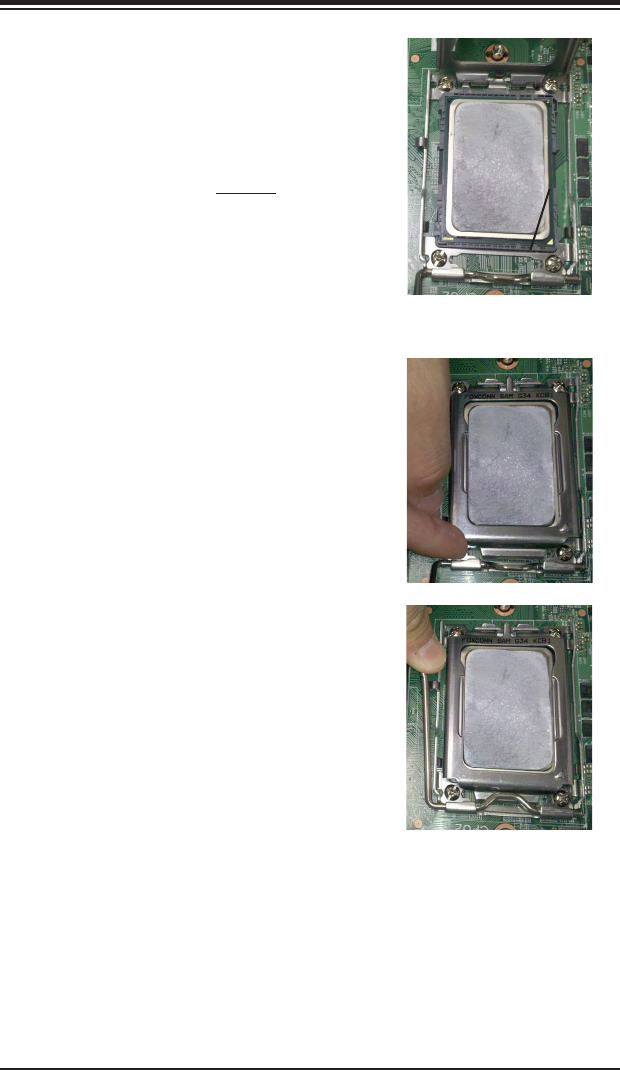
1. Begin by removing the cover plate that
protects the CPU. Lift the lever on the
CPU socket until it points straight up.
2. With the lever raised, lift open the silver
CPU retention plate.
Chapter 5: Advanced Serverboard Setup
5-3
Triangle
3. Use your thumb and your index nger
to hold the CPU. Locate and align pin
1 of the CPU socket with pin 1 of the
CPU. Both are marked with a triangle.
4. Align pin 1 of the CPU with pin 1 of the
socket. Once aligned, carefully place
the CPU into the socket. Do not drop
the CPU on the socket, move the CPU
horizontally or vertically or rub the CPU
against the socket or against any pins
of the socket, which may damage the
CPU and/or the socket.
5. With the CPU inserted into the socket,
inspect the four corners of the CPU to
make sure that it is properly installed
and ush with the socket. Then, gently
lower the silver CPU retention plate into
place.
6. Carefully press the CPU socket lever
down until it locks into its retention
tab. For a dual-CPU system, repeat
these steps to install another CPU into
the CPU#2 socket (and into CPU#2,
#3 and #4 sockets for a quad-CPU
conguration).
Note: in single and dual-CPU congurations, memory must be installed in the DIMM
slots associated with the installed CPU(s). Memory is limited to a maximum of 128
for single CPU and 256 GB for dual CPU congurations.
5-4
A+ SERVER 2022G-URF User's Manual
Installing a Passive CPU Heatsink
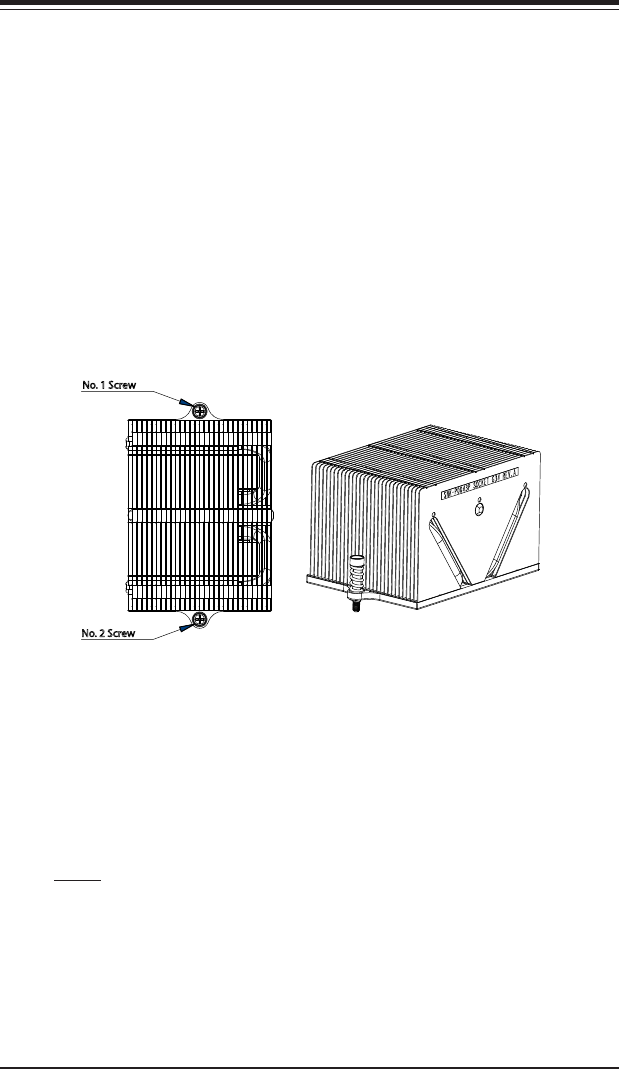
1. Do not apply any thermal grease to the heatsink or the CPU die -- the
required amount has already been applied.
2. Place the heatsink directly on top of the CPU so that the heat sink screws are
aligned with the mounting holes on the back plate.
3. Make sure the screwdriver torgue setting is no more than 5.0 Kgf-cm (4.3 lbf-
in) and keep the heat sink direction vertical.
4. Tighten each screw a few turns at a time while alternating between the two
until fully tightened.
Figure 5-3. SNK-0043P Heatsink
No. 1 Screw
No. 2 Screw
Removing the Heatsink
Warning: We do not recommend removing the CPU or the heatsink. However, if
you do need to remove the heatsink, please follow the instructions below to prevent
damage to the CPU or other components.
1. Unscrew the heatsink screws from the motherboard a few turns at a time,
alternating between the two until the screws can be removed.
2. Gently wriggle the heatsink to loosen it from the CPU. (Do not use excessive
force when wriggling the heatsink!)
3. Once the CPU is loose, remove the it from the CPU socket.
4. Clean the surface of the CPU and the heatsink, removing the used thermal
grease. Reapply the proper amount of thermal grease on the surface before
re-installing the CPU and the heatsink.
Chapter 5: Advanced Serverboard Setup
5-5
5-3 Connecting Cables
Now that the processors are installed, the next step is to connect the cables to the
serverboard. These include the data (ribbon) cables for the peripherals and control
panel and the power cables.
Connecting Data Cables
The cables used to transfer data from the peripheral devices have been carefully
routed in precongured systems to prevent them from blocking the ow of cooling
air that moves through the system from front to back. If you need to disconnect any
of these cables, you should take care to reroute them as they were originally after
reconnecting them (make sure the red wires connect to the pin 1 locations). If you
are conguring the system, keep the airow in mind when routing the cables.
The following data cables (with their connector locations noted) should be connected.
See the serverboard layout diagram in this chapter for connector locations.
•DVD-ROM drive cable (USB4)
•SAS cables (connect to optional UIO SAS controller card)
•Control Panel cable (JF1, see next page)
Connecting Power Cables
The H8DGU-F has a 20-pin primary power supply connector designated "JPW1"
for connection to the ATX power supply. Connect the appropriate connector from
the power supply to JPW1 to supply power to the serverboard. See the Connector
Denitions section in this chapter for power connector pin denitions.
In addition, your power supply must be connected to the 8-pin Processor Power
connectors at JPW2 and JPW3.
Connecting the Control Panel
JF1 contains header pins for various front control panel connectors. See Figure 5-1
for the pin locations of the various front control panel buttons and LED indicators.
Even and odd numbered pins are on opposite sides of each header.
All JF1 wires have been bundled into single keyed ribbon cable to simplify their
connection. The red wire in the ribbon cable plugs into pin 1 of JF1. Connect the
other end of the cable to the Control Panel printed circuit board, located just behind
the system status LEDs in the chassis.
See the Connector Denitions section in this chapter for details and pin descriptions
of JF1.
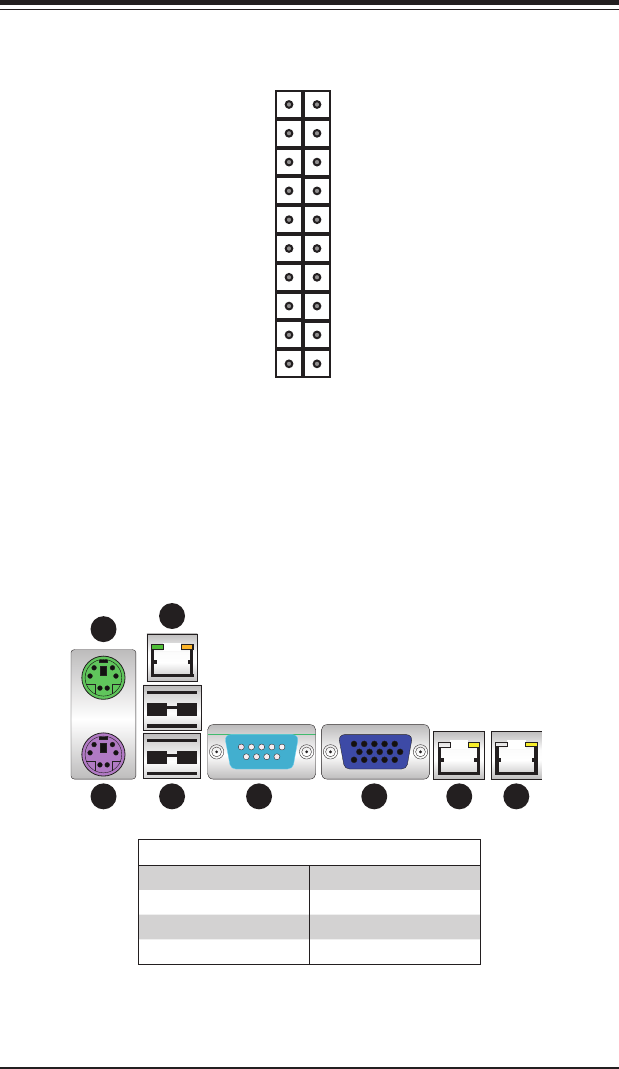
5-6
A+ SERVER 2022G-URF User's Manual
Figure 5-1. Front Control Panel Header Pins (JF1)
5-4 I/O Ports
The I/O ports are color coded. See Figure 5-2 below for the colors and locations
of the various I/O ports.
Figure 5-2. Rear Panel I/O Ports
1
2
5
4
3 6 7 8
Rear I/O Ports
1. Keyboard 5. COM1
2. PS/2 Mouse 6. VGA Port
3. USB0/1 7. LAN1
4. IPMI LAN (H8DGU-F only 8. LAN2
NMI
x (key)
Vcc
Vcc
NIC1 (Activity) LED
NIC2 (Activity) LED
Vcc
Vcc
Reset
Power
Ground
x (key)
Power LED
HDD LED
NIC1 (Link) LED
NIC2 (Link) LED
OH/Fan Fail LED
Power Fail LED
Ground
Ground
2 1
20 19
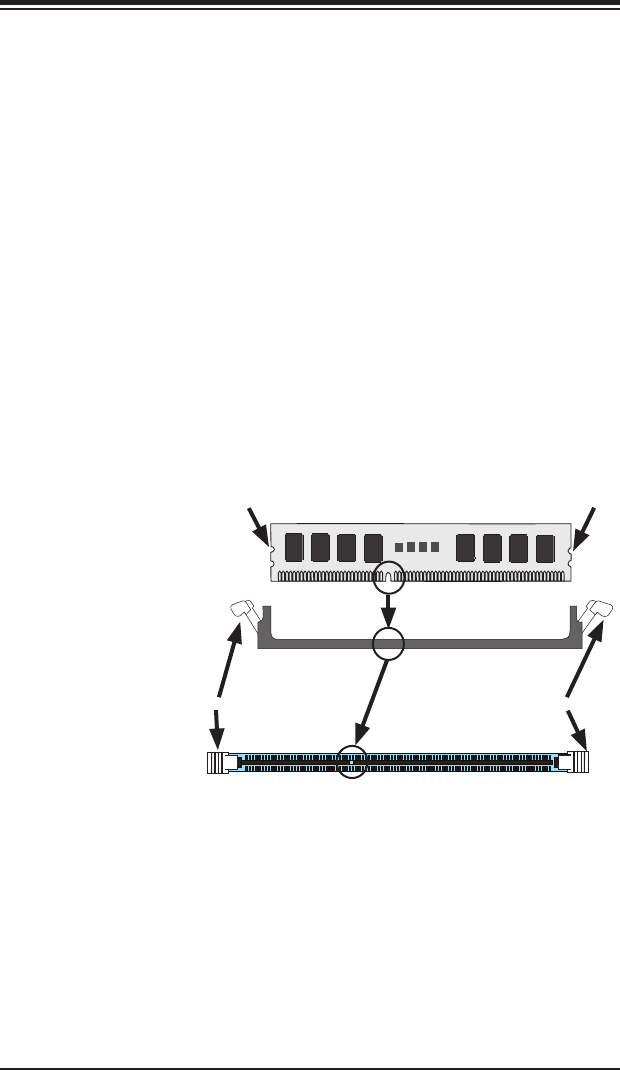
Chapter 5: Advanced Serverboard Setup
5-7
5-5 Installing Memory
Figure 5-3. Installing DIMM into Slot
Caution: Exercise extreme care when installing or removing DIMM modules to
prevent any possible damage.
Installing Memory Modules
1. Insert the desired number of DIMMs into the memory slots, starting with
DIMM 1A. For best memory performance, please install memory modules
of the same type and same speed on the memory slots as indicated on the
tables below.
2. Insert each DIMM module vertically into its slot. Pay attention to the notch
along the bottom of the module to avoid installing incorrectly (see Figure 5-3).
3. Gently press down on the DIMM module until it snaps into place in the slot.
Repeat for all modules.
To Install: Insert
module vertically and
press down until it
snaps into place. Pay
attention to the align-
ment notch at the
bottom.
To Remove: Use
your thumbs to gen-
tly push the release
tabs near both ends
of the module. This
should release it from
the slot.
Top View of DDR3 Slot
Release Tab Release Tab
Note: Notch should align with
the receptive key point on
the slot.
Notch Notch
Front View
Note: 1 GB, 2 GB, 4 GB, 8 GB, 16 GB or 32 GB size memory modules are
supported. It is highly recommended that you remove the power cord from the
system before installing or changing memory modules. Please refer to our web site
for memory that has been tested on the H8DGU(-F) serverboard.
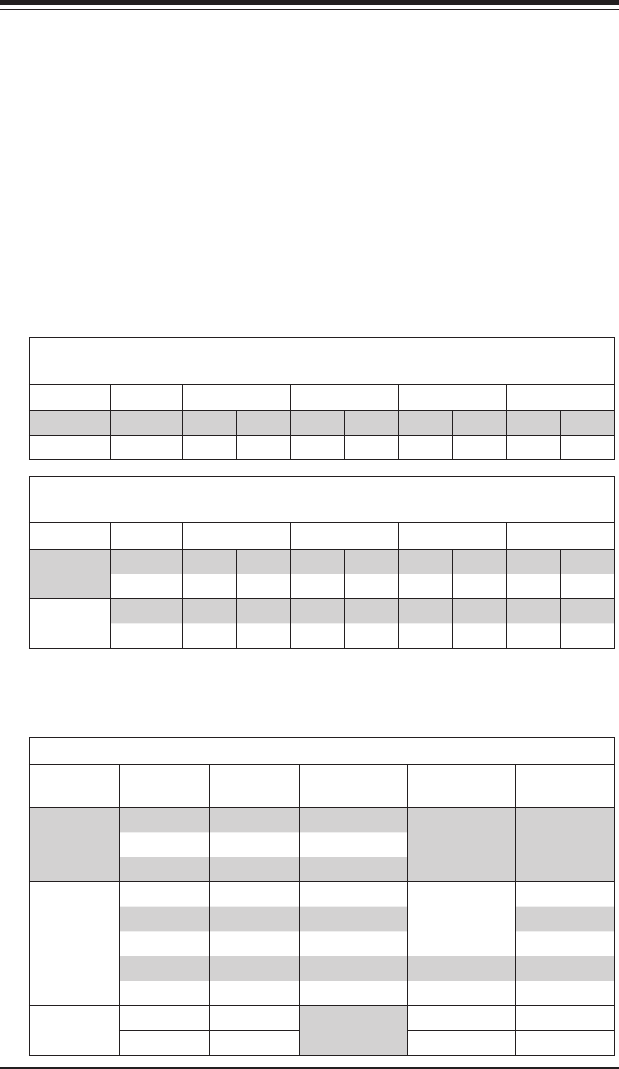
5-8
A+ SERVER 2022G-URF User's Manual
Memory Support
The H8DGU(-F) serverboard supports single/dual/tri/quad-channel,
DDR3-1600/1333/1066 Mhz registered ECC/Unbuffered ECC/non-ECC SDRAM.
Populating four adjacent slots at a time with memory modules of the same size and
type will result in interleaved (128-bit) memory, which is faster than non-interleaved
(64-bit) memory.
Maximum Memory
The H8DGU(-F) serverboard supports up to 128 GB of ECC/Non-ECC Unbuffered,
512 GB of Low-prole ECC Registered LRDIMM, or 512 GB of ECC Registered
DIMM SDRAM in sixteen (16) slots.
Memory Population for Optimal Performance
-For a Motherboard with One CPU (CPU1) Installed
# DIMMS CPU Channel 1 Channel 2 Channel 3 Channel 4
4 DIMMs CPU1 P1-1A P1-2A P1-3A P1-4A
8 DIMMs CPU1 P1-1A P1-1B P1-2A P1-2B P1-3A P1-3B P1-4A P1-4B
Memory Population for Optimal Performance
-For a Motherboard with Two CPUs (CPU1 & CPU2) Installed
# DIMMS CPU Channel 1 Channel 2 Channel 3 Channel 4
8 DIMMs CPU1 P1-1A P1-2A P1-3A P1-4A
CPU2 P2-1A P2-2A P2-3A P2-4A
16 DIMMs CPU1 P1-1A P1-1B P1-2A P1-2B P1-3A P1-3B P1-4A P1-4B
CPU2 P2-1A P2-1B P2-2A P2-2B P2-3A P2-3B P2-4A P2-4B
DIMM Module Population Conguration
For memory to work properly, follow the tables below for memory installation:
Per Channel DIMM Populations Options
DIMM Type DIMM A DIMM B Max. MHz,
1.5V DIMMs
Max. MHz,
1.35V DIMMs
Max. GB/
Channel
UDIMM
SR or DR Empty 1600 MHz
1333 MHz
8 GB
SR SR 1600 MHz 8 GB
DR DR 1333 MHz 16 GB
RDIMM
SR or DR Empty 1600 MHz
1333 MHz
16 GB
SR SR 1600 MHz 16 GB
DR DR 1600 MHz 32 GB
QR Empty 1333 MHz 1066 MHz 32 GB
QR QR 1066 MHz 800 MHz 64 GB
LRDIMM QR Empty 1333 MHz 32 GB
QR QR 1333 MHz 64 GB
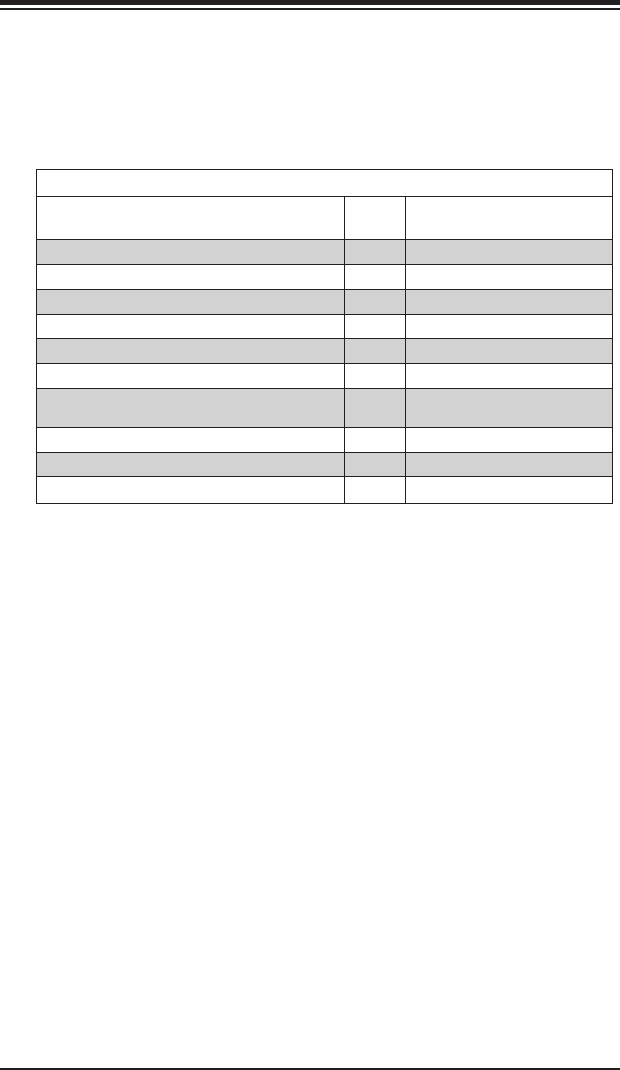
Chapter 5: Advanced Serverboard Setup
5-9
Note 1: Due to OS limitations, some operating systems may not show more than
4 GB of memory.
Note 2: Due to memory allocation to system devices, the amount of memory that
remains available for operational use will be reduced when 4 GB of RAM is used.
The reduction in memory availability is disproportional.
Possible System Memory Allocation & Availability
System Device Size Physical Memory Available
(4 GB Total System Memory)
Firmware Hub ash memory (System BIOS) 1 MB 3.99 GB
Local APIC 4 KB 3.99 GB
Area Reserved for the chipset 2 MB 3.99 GB
I/O APIC (4 Kbytes) 4 KB 3.99 GB
PCI Enumeration Area 1 256 MB 3.76 GB
PCI Express (256 MB) 256 MB 3.51 GB
PCI Enumeration Area 2 (if needed) - aligned on
256 MB boundary
512 MB 3.01 GB
VGA Memory 16 MB 2.85 GB
TSEG 1 MB 2.84 GB
Memory available for the OS & other applications 2.84 GB
5-10
A+ SERVER 2022G-URF User's Manual
5-6 Adding PCI Expansion Cards
PCI Expansion Slots
One riser card is used to support PCI expansion cards in the system. The RSC-
R2UU-UA3E8+ riser card can support one UIO card and three full-height, full-length
PCI-Express x8 expansion cards.
Installing a PCI Add-on Card
1. Remove the chassis cover.
2. Release the locking tab that corresponds to the PCI slot shield for the slot
you wish to populate.
3. Insert the expansion card into the riser card, pushing down with your thumbs
evenly on both sides of the card.
4. Slide the add-on card into the riser card and attach the add-on card bracket
in place of the PCI slot shield.
5. Secure the add-on card by closing the PCI slot shield lever.
6. Connect cables to the add-on card as necessary.
Note: If the left side riser is with 2 or more x8 PCI-E slots make sure an installed
card on the left side riser is detected. If it is not, then go to the system’s BIOS
Setup and in Advanced/ PCI/PnP Conguration /SXB1 Conguration BIOS setting
select the [2x8] option. Then save the BIOS setting changes and reboot the system.
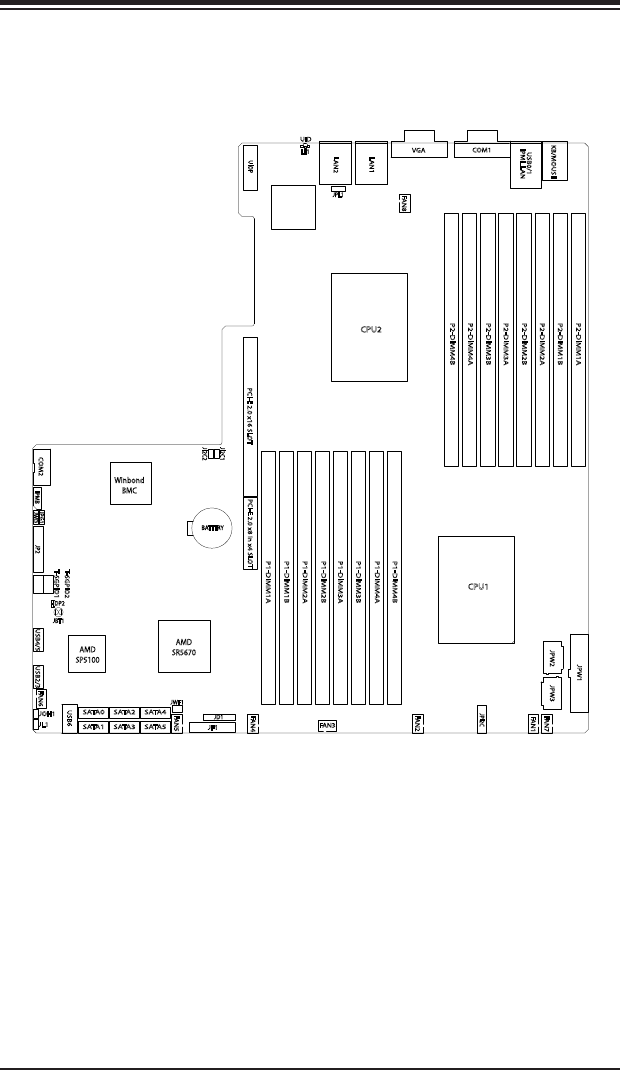
Chapter 5: Advanced Serverboard Setup
5-11
Figure 5-4. SUPER H8DGU-F Layout
(not drawn to scale)
5-7 Serverboard Details
Notes:
Jumpers not indicated are for test purposes only.
When LE1 LED is on, the onboard power connection is on. Make sure to unplug
the power cables before removing or installing components.
IPMI (Intelligent Platform Management Interface) 2.0 is supported by the H8DGU-F.
For more information on IPMI conguration, refer to the Embedded BMC IPMI User
Guide @http://www.supermicro.com/support/manuals/.
Warning
To provide adequate power to the add-on cards installed on the serverboard,
please connect the UIOP PWR connector to the power supply for these cards to
work properly.
JD1
JPW1
JF1
JI2C1
JI2C2
JOH1
JL1
JWF1
JPL1
JWD
JPG1
FAN3
FAN8
FAN2
FAN1
FAN7
FAN4
FAN5
FAN6
LE1
UIOP
JPW2 JPW3
IPMB
JPI2C
DP2
BATTERY
SATA5
SATA0
SATA1
SATA2
SATA3
SATA4
T-SGPIO2
T-SGPIO1
UID
P1-DIMM4A
P2-DIMM1B
P1-DIMM4B
P2-DIMM1A
USB0/1
USB6
USB4/5 USB2/3
P1-DIMM3A
P2-DIMM2B
P1-DIMM3B
P2-DIMM2A
P1-DIMM2A
P2-DIMM3B
COM1
IPMI_LAN
PCI-E 2.0 x8 in x4 SLOT
P1-DIMM2B
P2-DIMM3A
KB/MOUSE
LAN2
LAN1
P1-DIMM1A
COM2
P1-DIMM1B
P2-DIMM4A
CPU1
CPU2
VGA
JBT1
PCI-E 2.0 x16 SLOT
Winbond
BMC
AMD
SR5670
AMD
SP5100
P2-DIMM4B
JP2
5-12
A+ SERVER 2022G-URF User's Manual
H8DGU(-F) Quick Reference
Jumper Description Default Setting
JBT1 CMOS Clear (See Section 5-9)
JI2C1/JI2C2 I2C to PCI-E Slot Enable/Disable Both Open (Disabled)
JPG1 VGA Enable/Disable Pins 1-2 (Enabled)
JPL1 LAN 1/2 Enable/Disable Pins 1-2 (Enabled)
JWD Watch Dog Pins 1-2 (Reset)
LED Description
LAN Ports LEDs for the LAN Ethernet ports
Dedicated IPMI LAN LEDs for the dedicated IPMI LAN Ethernet port
LE1 LED for UID Button
DP1 LED for BMC Heartbeat
DP2 LED for Serverboard Power-On
Connector Description
COM1/COM2 COM1 Serial Port/Header
FAN 1-8 Chassis/CPU Fan Headers
IPMB System Management Bus Header for the IPMI Slot
IPMI LAN Dedicated IPMI LAN Port (H8DGU-F only)
JD1 Speaker Header
JF1 Front Panel Connector
JL1 Chassis Intrusion Header
JOH1 Overheat Warning Header
JPW1 20-pin Main ATX Power Connector
JPW2/3 +12V 8-pin CPU Power Connectors
JTPM1 TPM Connector
JWF1 Compact Flash Card Power Connector
LAN1/2 Gigabit Ethernet (RJ45) Ports
PS2 Mouse/Keyboard PS2 Mouse/Keyboard connectors
SATA0~SATA5 SATA Ports
T-SGPIO-1/TSGPIO-2 Serial General Purpose Input/Output Header for SATA
UID Unit Identier Button
UIOP Universal I/O Power Connector
USB0/1, USB2/3, USB4/5, USB6 Universal Serial Bus (USB) Ports, Headers and Type-A Port
VGA VGA Connector
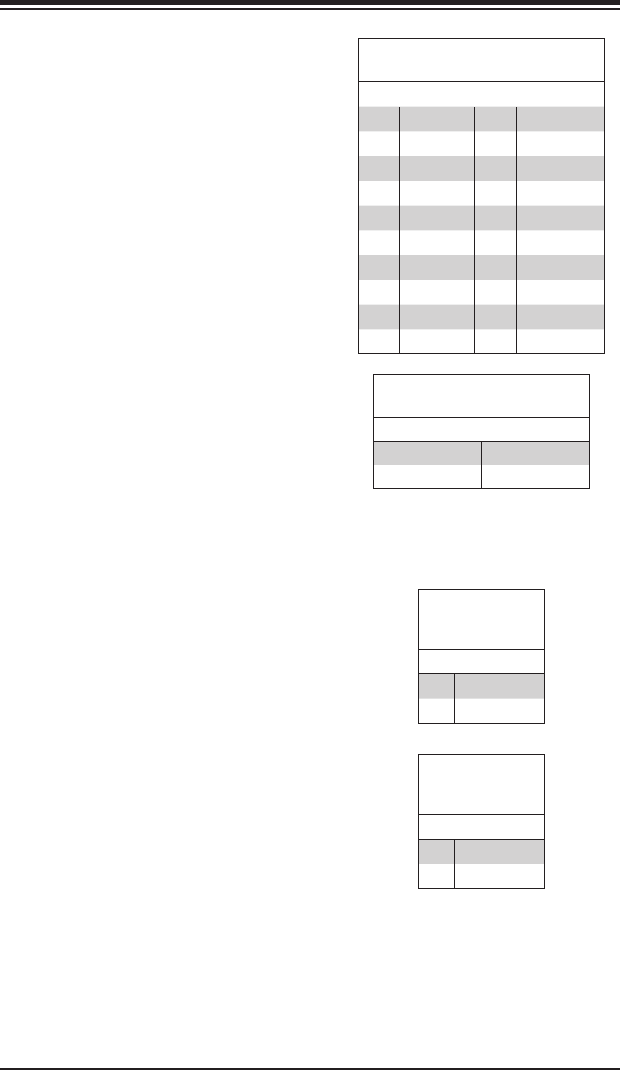
Chapter 5: Advanced Serverboard Setup
5-13
5-8 Connector Denitions
Power Connectors
A 20-pin main power supply connector(JPW1)
and two 8-pin CPU PWR connectors
(JPW2/JPW3) on the motherboard. These
power connectors meet the SSI EPS 12V
specication. In addition to the 20-pin ATX
power connector, the 12V 8-pin CPU PWR
connectors at JPW2/JPW3 must also be
connected to your power supply. See the
table on the right for pin denitions.
Warning: To prevent damage to the power
supply or motherboard, please use a power
supply that contains a 20-pin and two 8-pin
power connectors. Be sure to connect these
connectors to the 20-pin (JPW1) and the two
8-pin (JPW2,JPW3) power connectors on the
motherboard. Failure in doing so will void the
manufacturer warranty on your power supply
and motherboard.
Reset Connector
The reset connector is located on pins 3 and
4 of JF1 and attaches to the reset switch on
the computer chassis. See the table on the
right for pin denitions.
PW_ON Connector
The PW_ON connector is on pins 1 and 2 of
JF1. This header should be connected to the
chassis power button. See the table on the
right for pin denitions.
12V 8-pin PWR Connector
Pin Denitions (JPW2/JPW3)
Pins Denition
1 through 4 Ground
5 through 8 +12V
Required Connection
Reset Button
Pin Denitions
(JF1)
Pin# Denition
3 Reset
4 Ground
Power Button
Pin Denitions
(JF1)
Pin# Denition
1 PW_ON
2 Ground
ATX Power 20-pin Connector
Pin Denitions (JPW1)
Pin# Denition Pin # Denition
11 +3.3V 1 +3.3V
12 -12V 2 +3.3V
13 COM 3 COM
14 PS_ON 4 +5V
15 COM 5 COM
16 COM 6 +5V
17 COM 7 COM
18 NC 8 PWR_OK
19 +5V 9 5VSB
20 +5V 10 +12V
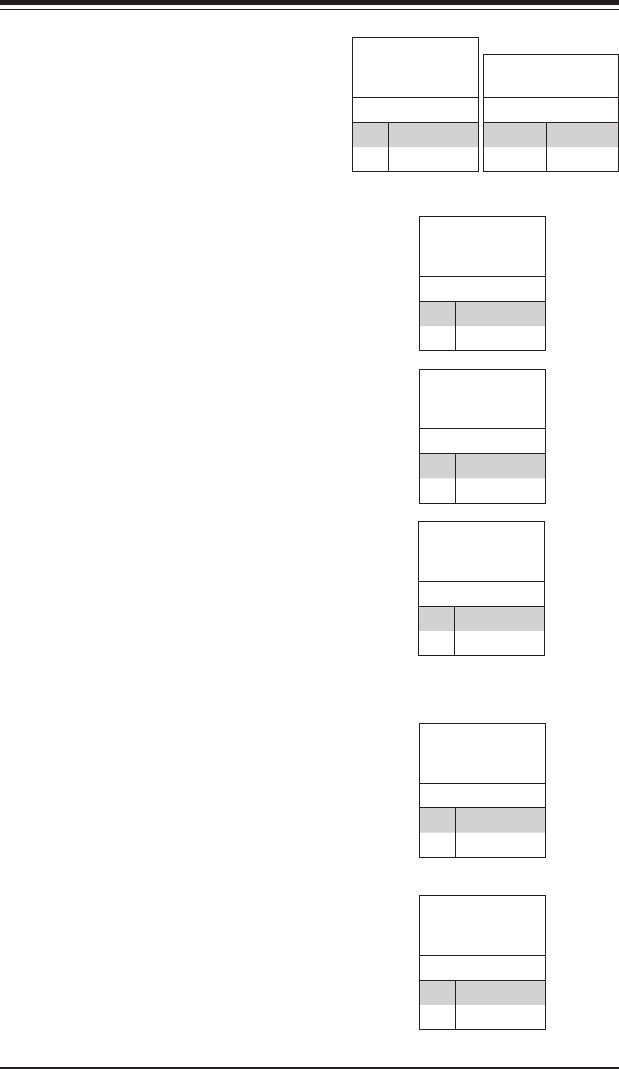
5-14
A+ SERVER 2022G-URF User's Manual
NIC2 (LAN2) LED
The LED connections for LAN2 are on pins
9 and 10 of JF1. Attach LAN LED cables to
display network activity. See the table on the
right for pin denitions.
HDD LED
The HDD LED connection is located on pins
13 and 14 of JF1. Attach the hard drive LED
cable here to display disk activity (for any
hard drives on the system, including SAS,
Serial ATA and IDE). See the table on the
right for pin denitions
NIC1 LED
Pin Denitions
(JF1)
Pin# Denition
11 Activity
12 Link
NIC2 LED
Pin Denitions
(JF1)
Pin# Denition
9 Activity
10 Link
NIC1 (LAN1) LED
The LED connections for LAN1 are on pins
11 and 12 of JF1. Attach LAN LED cables to
display network activity. See the table on the
right for pin denitions.
Power On LED
The Power On LED connector is located
on pins 15 and 16 of JF1. This connection
is used to provide LED indication of power
being supplied to the system. See the table
on the right for pin denitions.
Power LED
Pin Denitions
(JF1)
Pin# Denition
15 5V Stby
16 Control
NMI Button
The non-maskable interrupt button header is
located on pins 19 and 20 of JF1. Refer to the
table on the right for pin denitions.
NMI Button
Pin Denitions
(JF1)
Pin# Denition
19 Control
20 Ground
Overheat/Fan Fail LED (OH)
Connect an LED to the OH connection on
pins 7 and 8 of JF1 to provide advanced
warning of chassis overheating or fan
failure. Refer to the table on the right for pin
denitions and status indicators.
OH/Fan Fail LED
Pin Denitions
(JF1)
Pin# Denition
7 Vcc
8 Control
OH/Fan Fail
LED Status
State Indication
Solid Overheat
Blinking Fan fail
HDD LED
Pin Denitions
(JF1)
Pin# Denition
13 Vcc
14 HD Active
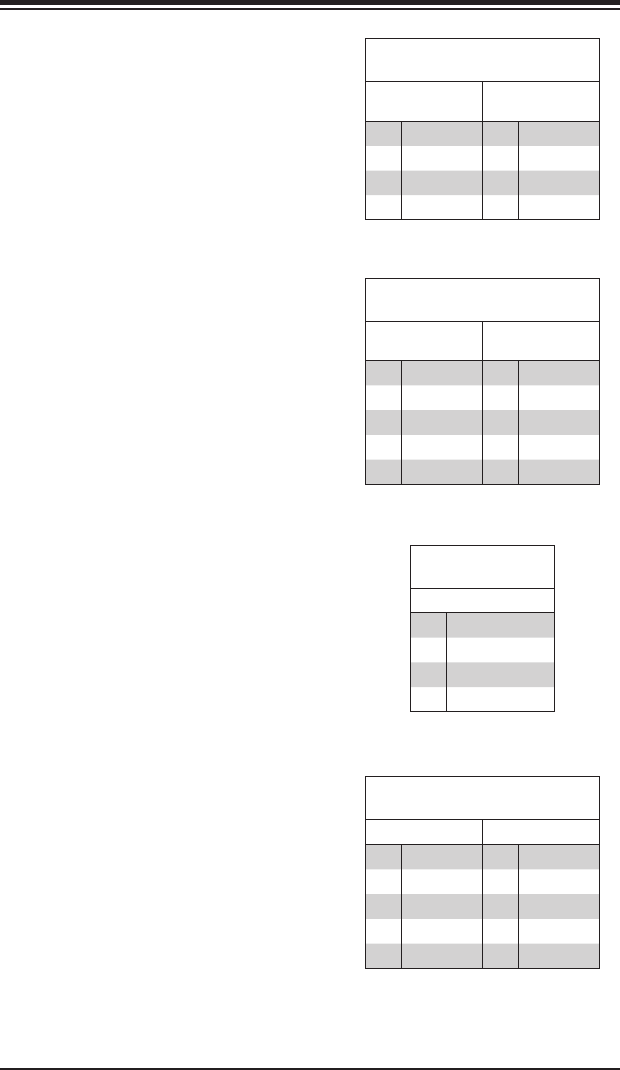
Chapter 5: Advanced Serverboard Setup
5-15
Universal Serial Bus Ports
Two Universal Serial Bus ports (USB 2.0) are
located beside the Keyboard and Mouse PS2
ports. One additional Type A port (USB6) is
included on the motherboard. See the table
on the right for pin denitions.
Universal Serial Bus Ports
Pin Denitions (USB0/1, USB6)
USB0
Pin # Denition
USB1
Pin # Denition
1 +5V 1 +5V
2 PO- 2 PO-
3 PO+ 3 PO+
4 Ground 4 Ground
USB Headers
Four USB 2.0 headers (USB2/3 and USB4/5)
are also included on the motherboard. These
may be connected to provide front side
access. A USB cable (not included) is needed
for the connection. See the table on the right
for pin denitions.
Universal Serial Bus Headers
Pin Denitions (USB4/5)
USB2
Pin # Denition
USB3
Pin # Denition
1 +5V 1 +5V
2 PO- 2 PO-
3 PO+ 3 PO+
4 Ground 4 Ground
5 Key 5 NC
Fan Header
Pin Denitions
Pin# Denition
1 Ground
2 +12V
3 Tachometer
4 PWR Modulation
Fan Headers
This motherboard has eight fan headers
(Fan1 to Fan8). These 4-pin fans headers
are backward compatible with 3-pin fans.
However, fan speed control is available
for 4-pin fans only. The fan speeds are
controlled by the BIOS. See the table on the
right for pin denitions
Note: NC indicates no connection.
Serial Ports
The COM1 serial port is located beside the
VGA port. Refer to the motherboard layout
for the location of the COM2 header. See the
table on the right for pin denitions.
Note: NC indicates no connection.
Serial Port Pin Denitions
(COM1/COM2)
Pin # Denition Pin # Denition
1 DCD 6 DSR
2 RXD 7 RTS
3 TXD 8 CTS
4 DTR 9 RI
5 Ground 10 NC
5-16
A+ SERVER 2022G-URF User's Manual
T-SGPIO
The T-SGPIO1/ T-SGPIO2 (Serial General
Purpose Input/Output) headers provide
a bus between the SATA controller and
the backpane to provide SATA enclosure
management functions. Connect the
appropriate cable from the backplane
to the T-SGPIO1 header to utilize SATA
management functions on your system.
SGPIO Header Pin Denitions
(T-SGPIO1/T-SGPIO2)
Pin# Denition Pin# Denition
1 NC 2 Data In
3 Ground 4 Data Out
5 Load 6 Ground
7 Clock 8 NC
Note: NC indicates no connection.
UIO Power Connector
A Universal I/O (UIO) Power connector is
located next to the UID switch. Connect this
connector to the power supply to provide
adequate power to the UIO device installed
on the slot for this device to function properly.
UIO Power Connector
Pin Denitions (UIOP)
Pin# Denition Pin# Denition
B1 5V_1 A1 3V3_1
B2 5V_2 A2 3V3_2
B3 5V_3 A3 3V3_3
B4 5V_4 A4 3V3_4
B5 5V_5 A5 3V3_5
B6 5V_6 A6 3V3_6
B7 5V_7 A7 3V3_7
B8 5V_8 A8 3V3_8
B9 5V_9 A9 3V3_9
B10 5V_10 A10 3V3_10
B11 N12V A11 3V3
B12 3V3_STBY A12 3V3
B13 3V3_STBY A13 P12V_2
B14 GND A14 P12V
B15 GND A15 P12V
B16 GND_1 A16 P12V
B17 GND_2 A17 P12V
B18 GND_3 A18 GND_7
IPMB
A System Management Bus header for the
IPMI slot is located at IPMB. Connect the
appropriate cable here to use the IPMB I2C
connection on your system.
IPMB
Pin Denitions
Pin# Denition
1 Data
2 Ground
3 Clock
4 No Connection
Chapter 5: Advanced Serverboard Setup
5-17
ATX PS/2 Keyboard and PS/2 Mouse
Ports
The ATX PS/2 keyboard and PS/2 mouse are
located next to the Back Panel USB Ports
0~3 on the motherboard. See the table at
right for pin denitions.
PS/2 Keyboard/Mouse Pin
Denitions
PS2 Keyboard PS2 Mouse
Pin# Denition Pin# Denition
1 KB Data 1 Mouse Data
2 No
Connection
2 No
Connection
3 Ground 3 Ground
4 Mouse/KB
VCC (+5V)
4 Mouse/KB
VCC (+5V)
5 KB Clock 5 Mouse Clock
6 No
Connection
6 No
Connection
VCC: with 1.5A PTC (current limit)
Power LED/Speaker
On the JD1 header, pins 1~3 are used for
power LED indication, and pins 4-7 are for
the speaker. See the tables on the right for
pin denitions. If you wish to use the onboard
speaker, you should close pins 6~7 with a
jumper. Connect a cable to pins 4~7 of JD1
to use an external speaker. Speaker Connector
Pin Denitions
Pin Setting Denition
Pins 4~7 External Speaker
Pins 6~7 Internal Speaker
PWR LED Connector
Pin Denitions
Pin Setting Denition
Pin 1 Anode (+)
Pin2 Cathode (-)
Pin3 NA
Chassis Intrusion
A Chassis Intrusion header is located at JL1.
Attach the appropriate cable to inform you of
a chassis intrusion.
Chassis Intrusion
Pin Denitions
(JL1)
Pin# Denition
1 Battery voltage
2 Intrusion signal
Overheat LED
Connect an LED to the JOH1 header to
provide warning of chassis overheating. See
the table on the right for pin denitions.
Overheat LED
Pin Denitions
(JOH1)
Pin# Denition
1 3.3V
2OH Active
5-18
A+ SERVER 2022G-URF User's Manual
Compact Flash Card PWR Connector
A Compact Flash Card Power Connector
is located at JWF1. For the Compact Flash
Card to work properly, you will need to enable
with JCF1 and connect a Compact Flash
Card power cable to JWF1 rst.
UID Button
Pin Denitions
Pin# Denition
1 Ground
2 Ground
3 Button In
4 Ground
Unit Identier Button
In addition to the UID (Unit Identier) button
on the rear I/O panel, there is another UID
button located on the control panel. When
you push either UID button, both Rear
UID and Front Panel UID Indicators will
illuminate. Push either button again to turn off
both indicators. These UID indicators provide
easy identication of a system unit that may
be in need of service.
LAN1/2 (Ethernet Ports)
Two Gigabit Ethernet ports (designated
LAN1 and LAN2) are located beside the
VGA port. Additionally, there is a dedicated
LAN for IPMI on top of the two rear USB
ports. These Ethernet ports accept RJ45
type cables.
LAN Ports (LAN1/2)
Pin Denition
Pin# Denition Pin# Denition
1 P2V5SB 10 SGND
2 TD0+ 11 Act LED
3 TD0- 12 P3V3SB
4 TD1+ 13 Link 100 LED
(Yellow, +3V3SB)
5 TD1- 14 Link 1000 LED
(Yellow, +3V3SB)
6 TD2+ 15 Ground
7 TD2- 16 Ground
8 TD3+ 17 Ground
9 TD3- 18 Ground
NC indicates no connection.
Chapter 5: Advanced Serverboard Setup
5-19
Trusted Platform Module Header
The JTPM1 header is used to connect a
Trusted Platform Module (TPM), available
separately from a third-party vendor. A TPM
is a security device that allows encryption
and authentication of hard drives, disallowing
access if the TPM associated with it is not
installed in the system. See the table on the
right for pin denitions.
Trusted Platform Module Header
Pin Denitions (JTPM1)
Pin# Denition Pin# Denition
1 LCLK 2 GND
3 LFRAME 4 No Pin
5 LRESET 6 VCC5
7 LAD3 8 LAD2
9 VCC3 10 LAD1
11 LAD0 12 GND
13 RSV0 14 RSV1
15 SB3V 16 SERIRQ
17 GND 18 CLKRUN
19 LPCPD 20 RSV2
Video Connector
A Video (VGA) connector is located below
the COM Port on the IO backplane. This
connector is used to provide video and CRT
display.
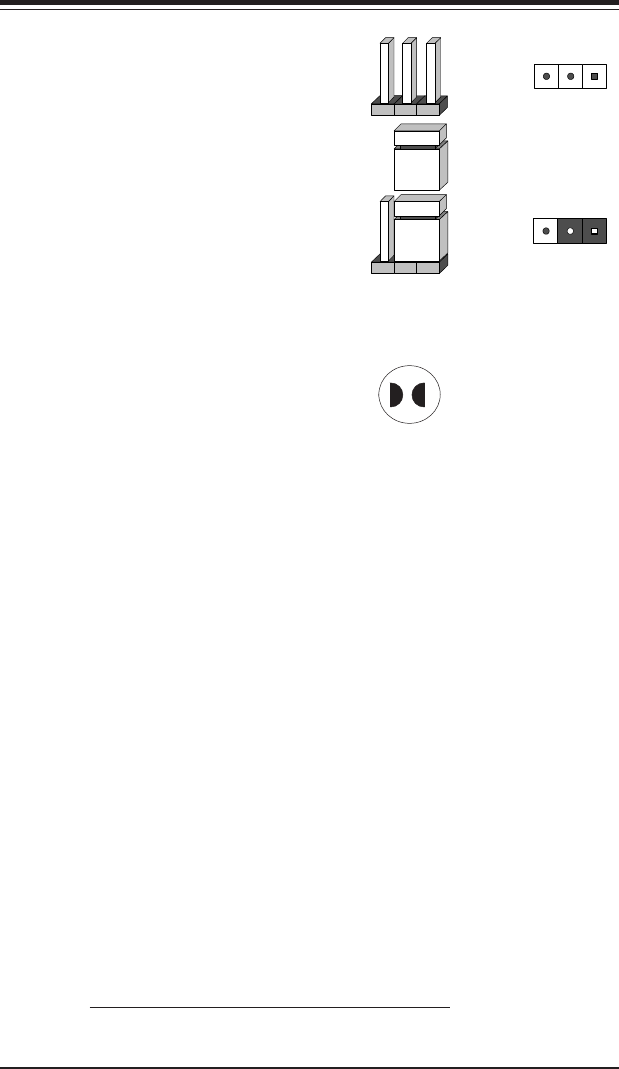
5-20
A+ SERVER 2022G-URF User's Manual
5-9 Jumper Settings
Explanation of Jumpers
To modify the operation of the motherboard,
jumpers can be used to choose between
optional settings. Jumpers create shorts
between two pins to change the function
of the connector. Pin 1 is identied with
a square solder pad on the printed circuit
board. See the diagram at right for an
example of jumping pins 1 and 2. Refer
to the motherboard layout page for jumper
locations.
Note: On two-pin jumpers, "Closed" means
the jumper is on and "Open" means the
jumper is off the pins.
Connector
Pins
Jumper
Setting
3 2 1
3 2 1
CMOS Clear
JBT1 is used to clear CMOS, which will also clear any passwords. Instead of pins,
this jumper consists of contact pads to prevent accidentally clearing the contents
of CMOS.
To Clear CMOS
1. First power down the system and unplug the power cord(s). It is also
recommended that you remove the onboard battery from the serverboard.
2. With the power disconnected, short the CMOS pads with a metal object such
as a small screwdriver.
3. Remove the screwdriver (or shorting device).
4. Reconnect the power cord(s) and power on the system.
Note 1. For an ATX power supply, you must completely shut down the system,
remove the AC power cord, and then short JBT1 to clear CMOS.
Note 2. Be sure to remove the onboard CMOS Battery before you short JBT1 to
clear CMOS.
Note 3. Clearing CMOS will also clear all passwords.
Note 4: Do not use the PW_ON connector to clear CMOS.
JBT1 Contact Pads
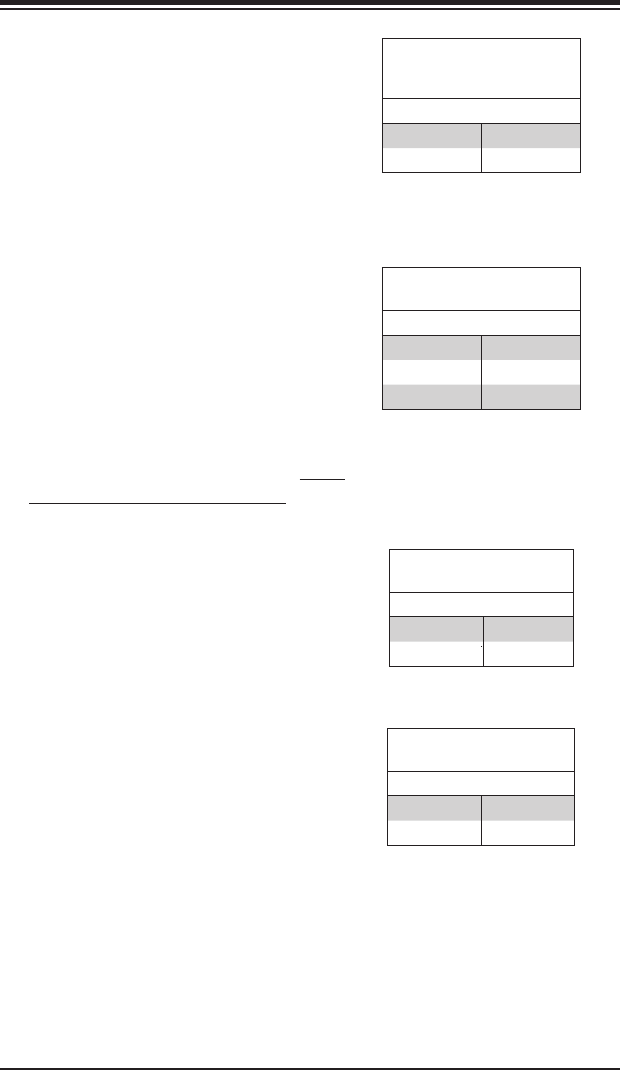
Chapter 5: Advanced Serverboard Setup
5-21
VGA Enable/Disable
JPG1 allows you to enable or disable the
VGA port. The default position is on pins 1
and 2 to enable VGA. See the table on the
right for jumper settings.
VGA Enable/Disable
Jumper Settings (JPG1)
Jumper Setting Denition
Pins 1-2 Enabled
Pins 2-3 Disabled
I2C to PCI-Express Slot
JI2C1/JI2C2 allows you to enable the I2C bus
to communicate with the PCI-Express slot.
For the jumpers to work properly, please set
both jumpers to the same setting. If enabled,
both jumpers must be enabled. If disabled,
both jumpers must be disabled. See the table
on the right for jumper settings.
I2C to PCI-Express Slot
Jumper Settings
(JI2C1/JI2C2)
Jumper Setting Denition
Closed Enabled
Open Disabled
Watch Dog Enable/Disable
JWD enables the Watch Dog function, a
system monitor that takes action when a
software application freezes the system.
Jumping pins 1-2 will have WD reboot the
system if a program freezes. Jumping pins
2-3 will generate a non-maskable interrupt
for the program that has frozen. See the
table on the right for jumper settings. Watch
Dog must also be enabled in BIOS.
Note: When Watch Dog is enabled,
the user must write their own
application software to disable the
Watch Dog Timer.
Watch Dog
Jumper Settings (JWD)
Jumper Setting Denition
Pins 1-2 Reset
Pins 2-3 NMI
Open Disabled
LAN1/2 Enable/Disable
Change the setting of jumper JPL1 to enable
or disable the LAN1 and LAN2 Ethernet
ports. See the table on the right for jumper
settings. The default setting is enabled.
LAN1/2 En/Disable
Jumper Settings (JPL1)
Jumper Setting Denition
Pins 1-2 Enabled
Pins 2-3 Disabled
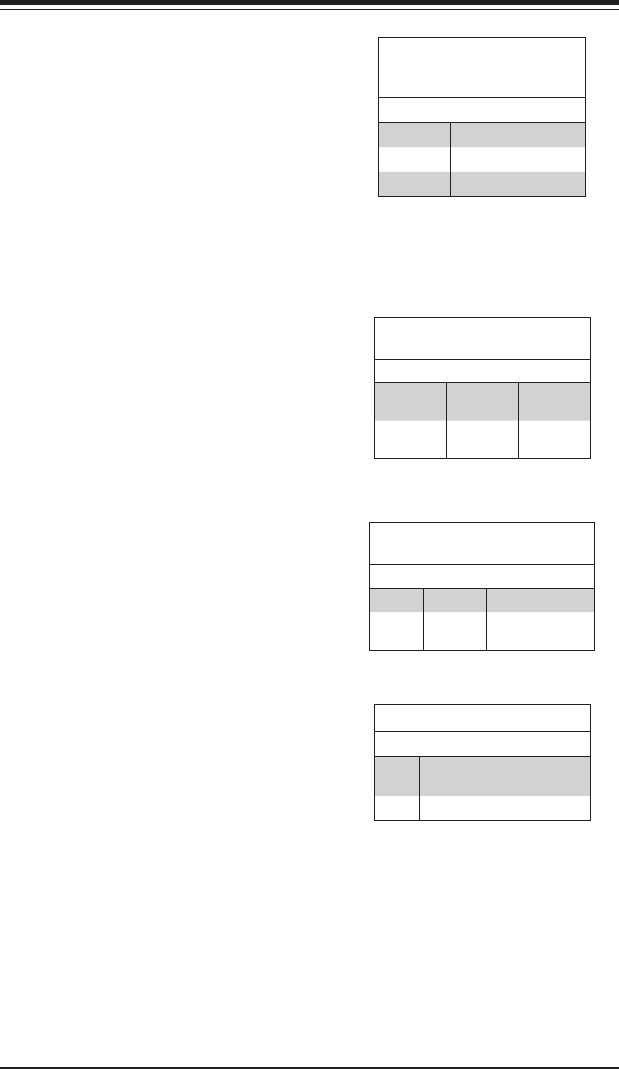
5-22
A+ SERVER 2022G-URF User's Manual
5-10 Onboard Indicators
LAN1/LAN2 LEDs
The Ethernet ports (located beside the VGA
port) have two LEDs. On each Gb LAN port,
one LED blinks to indicate activity while the
other may be green, amber or off to indicate
the speed of the connection. See the table
on the right for the functions associated with
the connection speed LED.
LAN LED
(Connection Speed
Indicator)
LED Color Denition
Off 10 MHz
Green 100 MHz
Amber 1 GHz
Dedicated IPMI LAN LEDs
A dedicated IPMI LAN is also included on the
H8DGU-F serverboard. The amber LED on
the right indicates activity, while the green
LED on the left indicates the speed of the
connection. See the table at right for more
information.
IPMI LAN Link LED (Left) &
Activity LED (Right)
Color Status Denition
Green:
Solid
Link
(Left)
100 Mb/s
Amber:
Blinking
Activity
(Right)
Active
UID LED (LE1)
A rear UID LED Indicator, located at LE1,
works in conjunction with the rear UID switch
to provide easy identication for a unit that
might be in need of service. Refer to Page
2-15 for further UID details.
Power LED
DP2 is an Onboard Power LED. When
this LED is lit, it means power is present
on the serverboard. Be sure to turn off the
system and unplug the power cord(s) before
removing or installing components.
Power LED (DP2)
State System Status
On Standby power present on
motherboard
Off No power connected
BMC Heartbeat (DP1)
LED Settings
Color Status Denition
Green Blinking BMC: Normal
Off Off Not functioning
normally
BMC Heartbeat LED
A BMC (Baseboard Management Control)
Heartbeat LED is located at DP1 on the
motherboard. When DP1 is on, the BMC
Controller functions normally. See the tables
at right for more information.
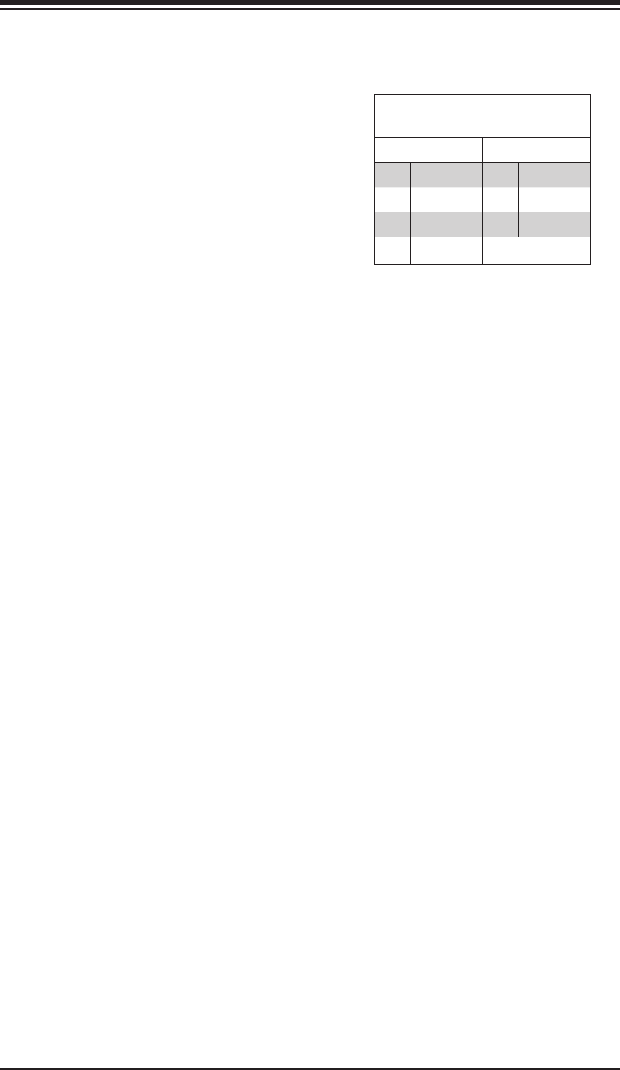
Chapter 5: Advanced Serverboard Setup
5-23
5-11 SATA Drive Connections
SATA Ports
There are no jumpers to congure the SATA
ports, which are designated SATA0 through
SATA5. See the table on the right for pin
denitions.
SATA Ports Pin Denitions
(SATA0-SATA3)
Pin # Denition Pin # Denition
1 Ground 5 RXN
2 TXP 6 RXP
3 TXN 7 Ground
4 Ground
5-24
A+ SERVER 2022G-URF User's Manual
5-12 Enabling SATA RAID
Now that the hardware is set up, you must install the operating system and the
SATA RAID drivers, if you wish to use RAID with your SATA drives. The installation
procedure differs depending on whether you wish to have the operating system
installed on a RAID array or on a separate non-RAID drive. See the instructions
below for details.
Serial ATA (SATA)
Serial ATA (SATA) is a physical storage interface that employs a single cable with a
minimum of four wires to create a point-to-point connection between devices. This
connection is a serial link that supports a SATA transfer rate from 150 MBps. The
serial cables used in SATA are thinner than the traditional cables used in Parallel
ATA (PATA) and can extend up to one meter in length, compared to only 40 cm for
PATA cables. Overall, SATA provides better functionality than PATA.
Installing the OS/SATA Driver
Before installing the OS (operating system) and SATA RAID driver, you must decide
if you wish to have the operating system installed as part of a bootable RAID array
or installed to a separate non-RAID hard drive. If on a separate drive, you may
install the driver either during or after the OS installation. If you wish to have the
OS on a SATA RAID array, you must follow the procedure below and install the
driver during the OS installation.
Building a Driver Diskette
You must rst build a driver diskette from Supermicro drivers for your system.
Drivers can be found at ftp://ftp.supermicro.com. (You will have to create this disk
on a computer that is already running and with the OS installed.)
Note: Window’s Vista, Windows 2008 or later Windows OS systems can use a USB
stick instead of a oppy. For older systems, you must have an external USB oppy
when building the driver diskette.
Building a Driver Diskette
1. Install your system drives from the FTP website. A display as shown in Figure
5-8 will appear.
2. Click on the icon labeled “Build Driver Diskettes and Manuals” and follow the
instructions to create a oppy disk with the drivers on it.
3. Once it’s been created, remove the oppy and insert the installation CD-ROM
for the Windows Operating System you wish to install into the CD drive of the
new system you are about to congure.
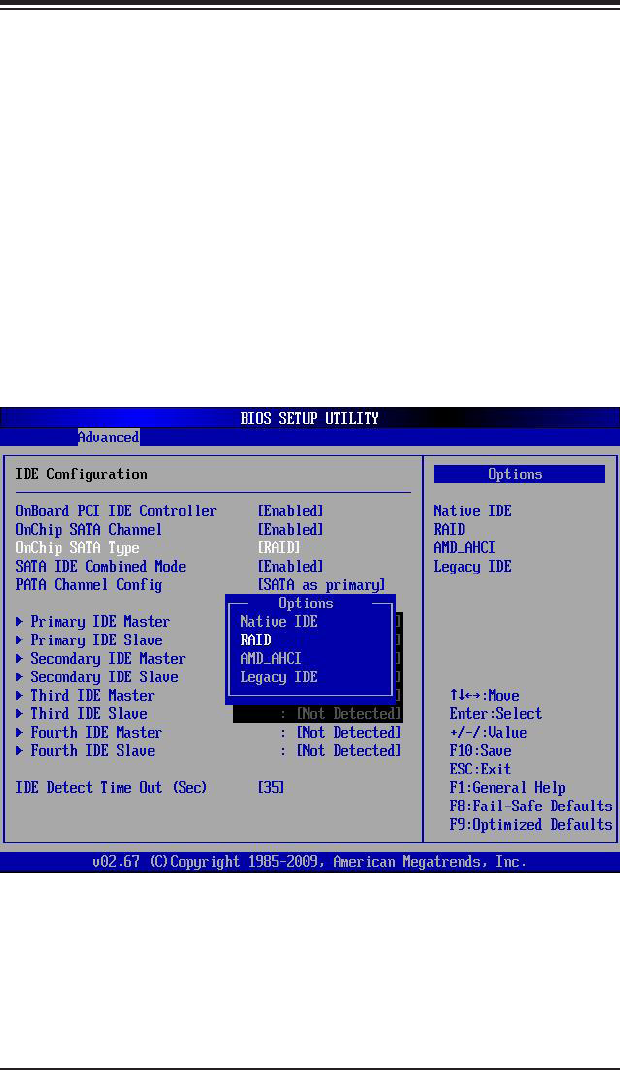
Chapter 5: Advanced Serverboard Setup
5-25
Figure 5-5. BIOS Setup Screen
Enabling SATA RAID in the BIOS
Before installing the Windows operating system, you must change some settings
in the BIOS. Boot up the system and hit the <Delete> key to enter the BIOS Setup
Utlility. After the setup utility loads,
1. Use the arrow keys to move to the "Exit" menu. Scroll down using the arrow
keys to "Load Optimal Defaults" and press <Enter>. Select "OK" to conrm,
then <Enter> to load the default settings.
2. Use the arrow keys to move to the "Advanced" menu, then scroll down to
"IDE conguration". On this submenu, scroll down to "OnChip SATA Type"
and choose the "RAID" option (Figure 5-5). “RAID Codebase” submenu
appears. This setting allows you to select the codebase for your RAID setup.
Options are either Adaptec or DotHill.
3. Press the <Esc> key twice and scroll to the "Exit" menu. Select "Save
Changes and Exit" and press <Enter>, then press <Enter> again to verify.
4. After exiting the BIOS Setup Utility, the system reboots. When prompted
during the startup, to use the DotHilll RAID Utility program press <CTRL+R>
(Figure 5-6), or to use the Adaptec RAID Utility program press <CTRL+A>
(Figure 5-7).
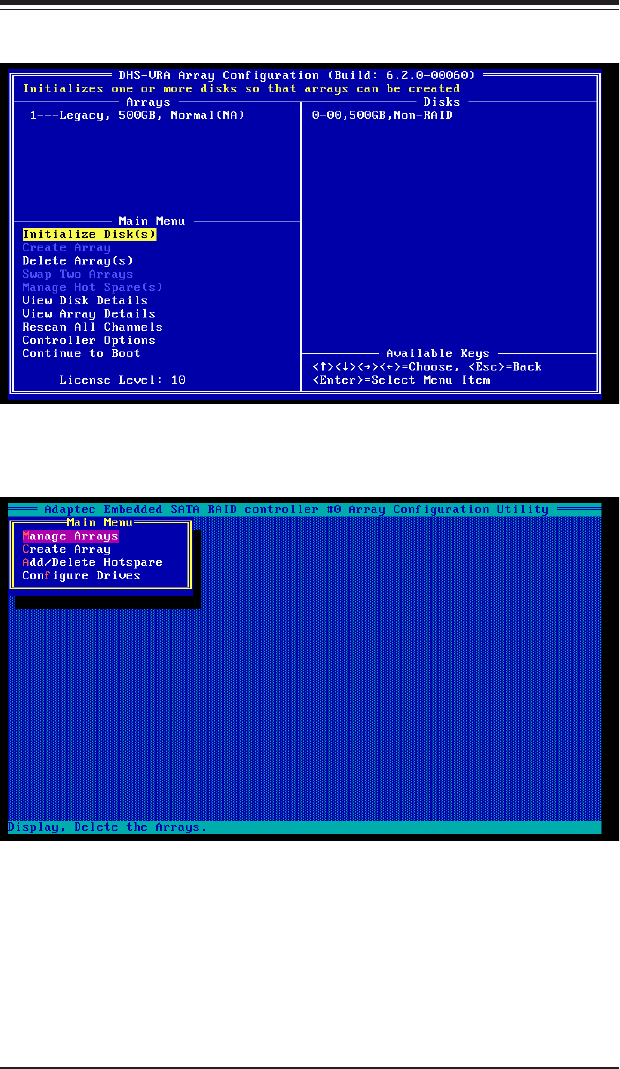
5-26
A+ SERVER 2022G-URF User's Manual
Figure 5-7. Adaptec RAID Utility Program Screen
Using the DotHill and Adaptec RAID Utility
The RAID Utility program allows you to dene the drives you want to include in the
RAID array and the mode and type of RAID.
Figure 5-6. DotHill RAID Utility Program Screen
Chapter 5: Advanced Serverboard Setup
5-27
Installing the RAID Driver During OS Installation
You may also use the procedure below to install the RAID driver during the Windows
OS installation:
1. With the Windows OS installation CD-ROM in the CD drive, restart the
system.
2. Press <Enter> again to continue with the Windows setup.
3. When you see the prompt, hit the <F6> key to enter Windows setup.
4. Eventually a blue screen will appear with a message that begins “Windows
could not determine the type of one or more storage devices . . .” When you
see the screen, hit the <S> key to “Specify Additional Device”, then insert the
driver diskette you just created into the oppy drive.
5. Highlight “Manufuacturer Supplied Hardware Support Disk” and hit the
<Enter> key.
6. Highlight the rst “Adaptec RAID” driver shown and press the <Enter> key to
install it.
5-13 Installing Software
The Supermicro ftp site contains drivers and utilities for your system at ftp://ftp.
supermicro.com. Some of these must be installed, such as the chipset driver.
After accessing the ftp site, go into the CDR_Images directory and locate the ISO
le for your motherboard. Download this le to create a CD/DVD of the drivers and
utilities it contains. (You may also use a utility to extract the ISO le if preferred.)
Another option is to go to the Supermicro Website at http://www.supermicro.com/
products/. Find the product page for your motherboard here, where you may
download individual drivers and utilities.
After creating a CD/DVD with the ISO les, insert the disk into the CD/DVD drive
on your system and the display shown in Figure 5-8 should appear.
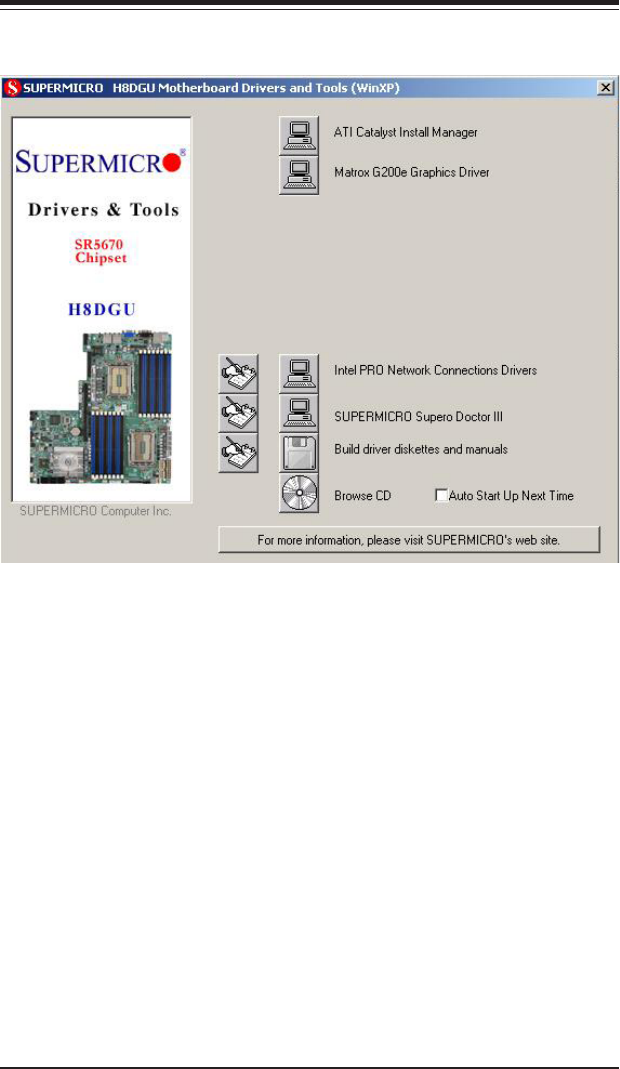
5-28
A+ SERVER 2022G-URF User's Manual
Figure 5-8. Driver/Tool Installation Display Screen
Note: Click the icons showing a hand writing on paper to view the readme les for
each item. Click the computer icons to the right of these items to install each item
(from top to the bottom) one at a time. After installing each item, you must reboot
the system before moving on to the next item on the list. The bottom icon with a
CD on it allows you to view the entire contents.
SuperDoctor III
The SuperDoctor® III program is a web-based management tool that supports
remote management capability. It includes Remote and Local Management tools.
The local management is called SD III Client. The SuperDoctor III program allows
you to monitor the environment and operations of your system. SuperDoctor III
displays crucial system information such as CPU temperature, system voltages
and fan status. See the gures below for examples of the SuperDoctor III interface.
Note: The default User Name and Password for SuperDoctor III is ADMIN / ADMIN.
Note: When SuperDoctor III is rst installed, it adopts the temperature threshold
settings that have been set in BIOS. Any subsequent changes to these thresholds
must be made within SuperDoctor III, as the SuperDoctor III settings override the
BIOS settings. To set the BIOS temperature threshold settings again, you would
rst need to uninstall SuperDoctor III
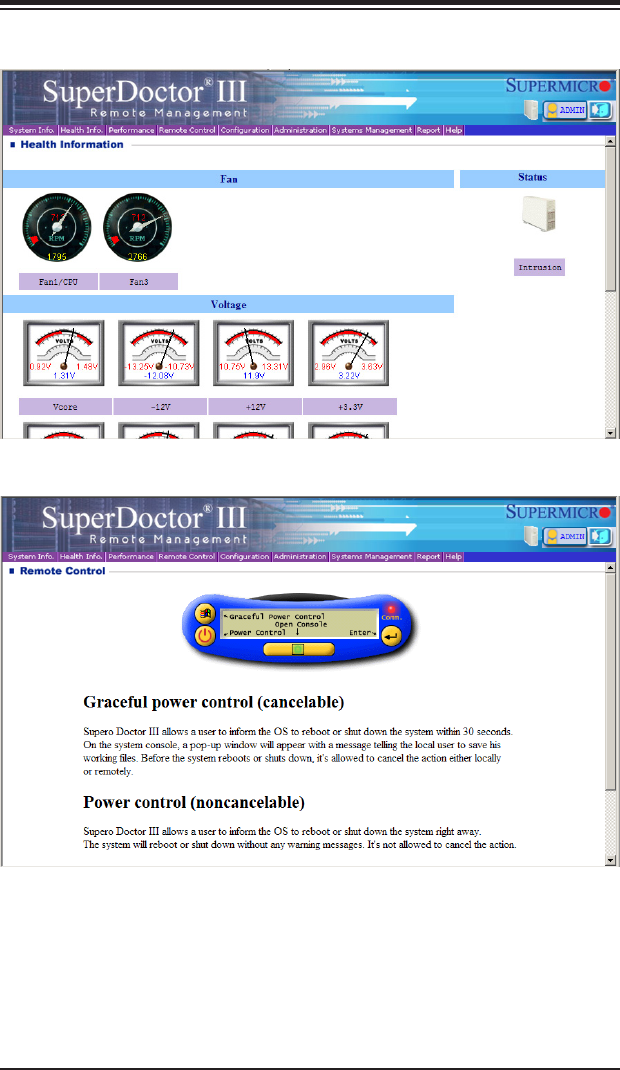
Chapter 5: Advanced Serverboard Setup
5-29
Figure 5-9. SuperDoctor III Interface Display Screen (Health Information)
Note: The SuperDoctor III program and User’s Manual can be downloaded from the
Supermicro web site at http://www.supermicro.com/products/accessories/software/
SuperDoctorIII.cfm. For Linux, we recommend that you use the SuperDoctor II
application instead.
Figure 5-10. SuperDoctor III Interface Display Screen (Remote Control)
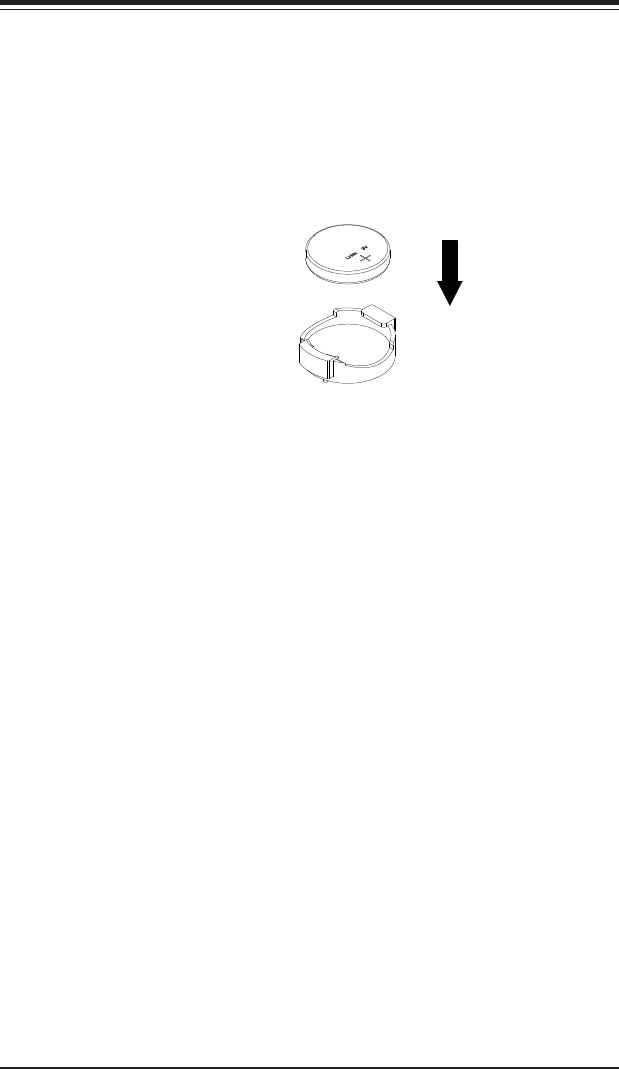
5-30
A+ SERVER 2022G-URF User's Manual
5-14 Serverboard Battery
Caution: There is a danger of explosion if the onboard battery is installed upside
down, which will reverse its polarites (see Figure 5-11). This battery must be replaced
only with the same or an equivalent type recommended by the manufacturer
(CR2032). Dispose of used batteries according to the manufacturer's instructions.
Figure 5-11. Installing the Onboard Battery
LITHIUM BATTERY
BATTERY HOLDER
Please handle used batteries carefully. Do not damage the battery in any way; a
damaged battery may release hazardous materials into the environment. Do not
discard a used battery in the garbage or a public landll. Please comply with the
regulations set up by your local hazardous waste management agency to dispose
of your used battery properly.
Chapter 6: Advanced Chassis Setup
6-1
Chapter 6
Advanced Chassis Setup
This chapter covers the steps required to install components and perform
maintenance on the SC825TQ-R720UB chassis. For component installation, follow
the steps in the order given to eliminate the most common problems encountered.
If some steps are unnecessary, skip ahead to the step that follows.
Tools Required: The only tool you will need to install components and perform
maintenance is a Philips screwdriver.
6-1 Static-Sensitive Devices
Electrostatic discharge (ESD) can damage electronic com ponents. To prevent
damage to any printed circuit boards (PCBs), it is important to handle them very
carefully. The following measures are generally sufcient to protect your equipment
from ESD damage.
Precautions
•Use a grounded wrist strap designed to prevent static discharge.
•Touch a grounded metal object before removing any board from its antistatic
bag.
•Handle a board by its edges only; do not touch its components, peripheral chips,
memory modules or gold contacts.
•When handling chips or modules, avoid touching their pins.
•Put the serverboard, add-on cards and peripherals back into their antistatic
bags when not in use.
•For grounding purposes, make sure your computer chassis provides excellent
conductivity between the power supply, the case, the mounting fasteners and
the serverboard.
Unpacking
The serverboard is shipped in antistatic packaging to avoid static damage. When
unpacking the board, make sure the person handling it is static protected.
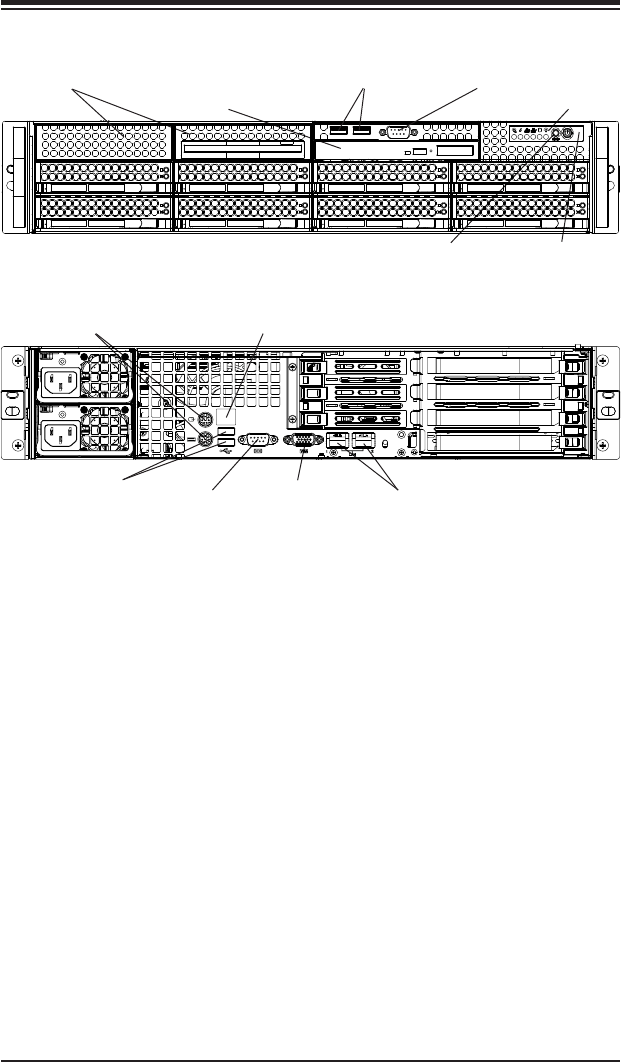
6-2
A+ SERVER 2022G-URF User's Manual
Figure 6-1. Front and Rear Chassis Views
6-2 Control Panel
The control panel (located on the front of the chassis) must be connected to the
JF1 connector on the serverboard to provide you with system status indications. A
ribbon cable has bundled these wires together to simplify the connection. Connect
the cable from JF1 on the serverboard to the Control Panel PCB (printed circuit
board). Make sure the red wire plugs into pin 1 on both connectors. Pull all excess
cabling out of the airow path. The LEDs inform you of system status.
See Chapter 3 for details on the LEDs and the control panel buttons. Details on
JF1 can be found in Chapter 5.
System Reset
Control Panel
Main Power
Slim DVD-ROM Drive
3.5" Drive Bays (2)
SAS/SATA Drives (8)
Ethernet Ports
USB Ports
Keyboard/Mouse Ports
COM1 Port
4 Standard Size PCI SlotsIPMI LAN
VGA Port
USB Ports (2) COM Port
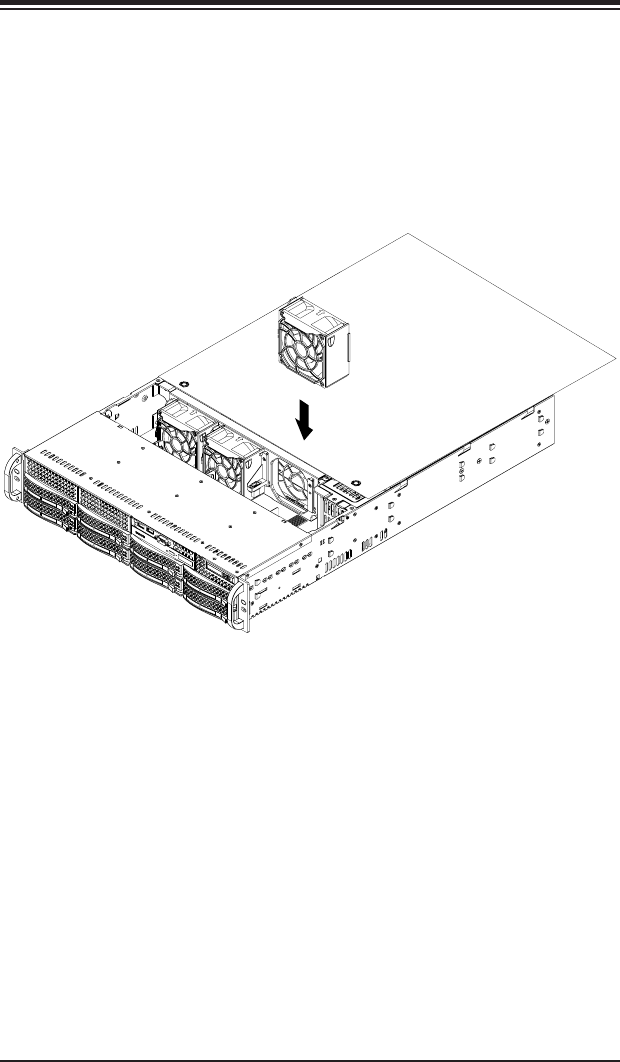
Chapter 6: Advanced Chassis Setup
6-3
6-3 System Fans
Three 8-cm hot-swap fans provide the cooling for the system. It is very important
that the chassis top cover is properly installed and making a good seal in order for
the cooling air to circulate properly through the chassis and cool the components.
See Figure 6-2.
Figure 6-2. Removing System Cooling Fans
System Fan Failure
Fan speed is controlled by system temperature via a BIOS setting. If a fan fails,
the remaining fans will ramp up to full speed and the overheat/fan fail LED on
the control panel will turn on. Replace any failed fan at your earliest convenience
with the same type and model (the system can continue to run with a failed fan).
Remove the top chassis cover while the system is still running to determine which
of the fans has failed.
6-4
A+ SERVER 2022G-URF User's Manual
Warning! Enterprise level hard disk drives are recommended for use in Supermicro
chassis and servers. For information on recommended HDDs, visit the Supermicro
Web site at http://www.supermicro.com/products/nfo/files/storage/SAS-1-
CompList-110909.pdf
Replacing System Fans
Removing a Fan
1. Remove the chassis cover.
2. Press the tabs on the sides of the fan to unlock and remove the fan and its
housing. The fan's power connections will automatically detach.
3. System power does not need to be shut down since the fans are hot-
pluggable.
Installing a New Fan
1. Replace the failed fan with an identical 8-cm, 12 volt fan (available from
Supermicro, p/n FAN-0094L4).
2. Position the new fan into the space vacated by the failed fan previously
removed. A "click" can be heard when the fan is fully installed in place and
the power connections are made.
3. If the system power is on, the hot-plug feature will cause the fan to start
immediately upon being connected to its header on the serverboard.
6-4 Drive Bay Installation/Removal
Accessing the Drive Bays
SAS/SATA Drives: You do not need to access the inside of the chassis or remove
power to replace or swap SAS/SATA drives. Proceed to the next step for instructions.
You must use standard 1" high, SAS/SATA drives in the system.
Note: Refer to the following ftp site for setup guidelines: <ftp://ftp.supermicro.com/
driver/SAS/LSI/LSI_SAS_EmbMRAID_SWUG.pdf> and Supermicro's web site for
additional inmformation < http://www.supermicro.com/support/manuals/>.
DVD-ROM: For installing/removing the DVD-ROM drive, you will need to gain
access to the inside of the server by removing the top cover of the chassis. Proceed
to the "DVD-ROM Installation" section later in this chapter for instructions.
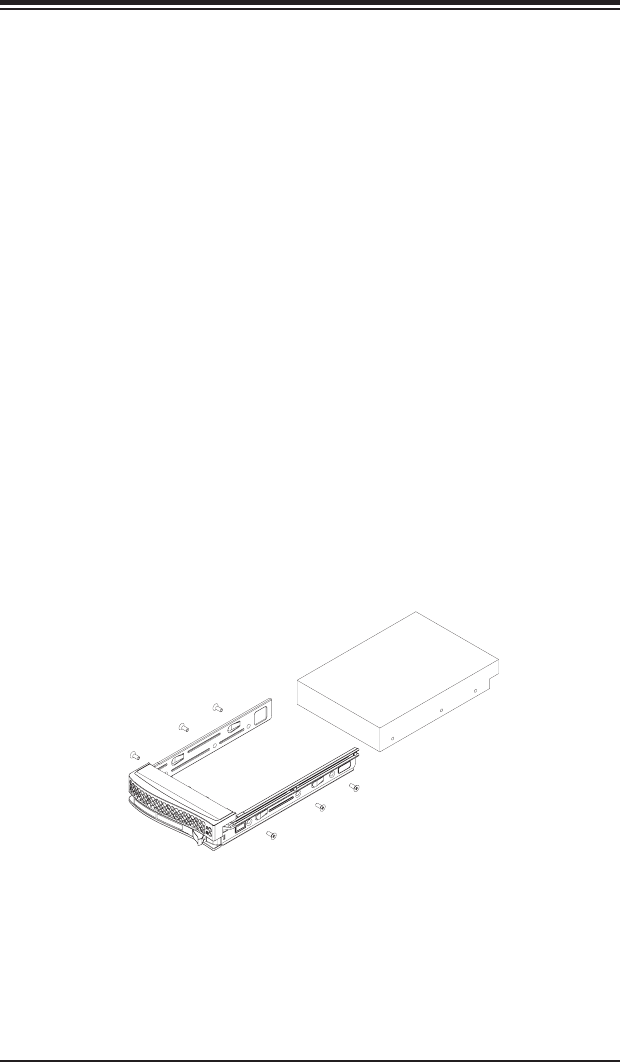
Chapter 6: Advanced Chassis Setup
6-5
SAS/SATA Drive Installation
These drives are mounted in carriers to simplify their installation and removal from
the chassis. The carriers also help promote proper airow for the drives. For this
reason, even empty carriers without hard drives installed must remain in the chassis.
Note: SAS drives are supported only with a SAS UIO controller card installed.
Mounting a SAS/SATA Drive in a Drive Carrier
1. To add a new SAS/SATA drive, install the drive into the carrier with the printed
circuit board side facing down so that the mounting holes align with those in
the carrier.
2. Secure the drive to the carrier with four screws, as shown in Figure 6-3.
Installing/Removing Hot-swap SAS/SATA Drives
1. Push the release button located beside the drive's LEDs.
2. Swing the handle fully out and use it to pull the drive carrier straight out (see
Figure 6-4).
Note: Your operating system must have RAID support to enable the hot-plug
capability of the drives.
Figure 6-3. Mounting a SAS/SATA Drive in a Carrier
Important: Regardless of how many hard drives are installed, all drive carriers must
remain in the drive bays to maintain proper airow.
Use caution when working around the backplane. Do not touch the backplane with
any metal objects and make sure no ribbon cables touch the backplane or obstruct
the holes, which aid in proper airow.
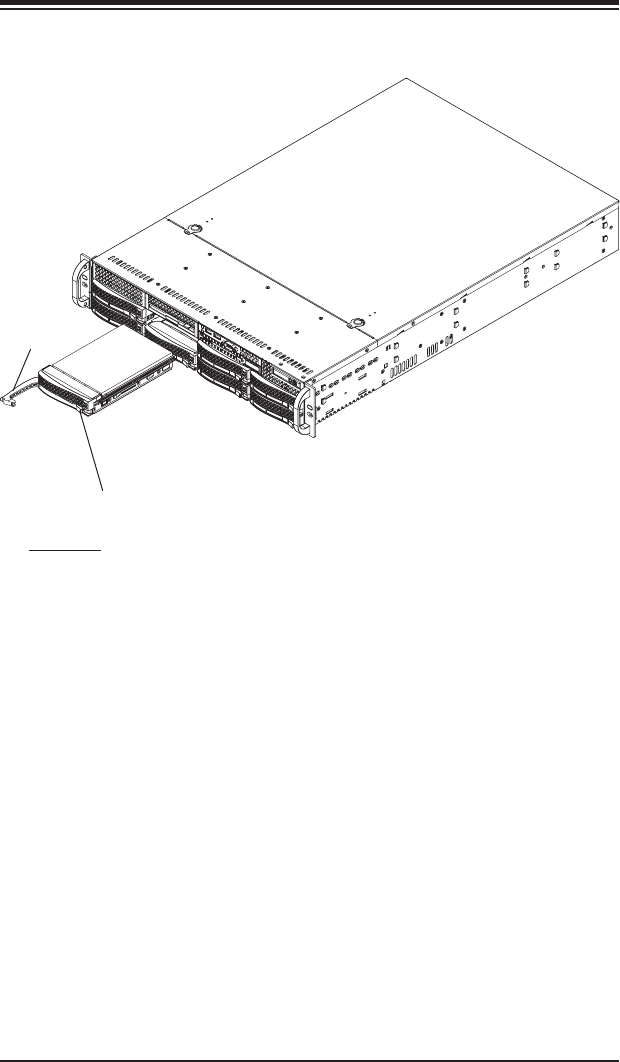
6-6
A+ SERVER 2022G-URF User's Manual
Figure 6-4. Removing a SAS/SATA Drive Carrier
Important: All of the drive carriers must remain in the drive bays to maintain proper
cooling airow.
Release Button
Hard Drive Backplane
The hard drives plug into a backplane that provides power, drive ID and bus
termination. A RAID controller can be used with the backplane to provide data
security. The operating system you use must have RAID support to enable the
hot-swap capability of the hard drives. The backplane is already precongured, so
no jumper or switch congurations are required.
Handle
Chapter 6: Advanced Chassis Setup
6-7
DVD-ROM Installation
The top cover of the chassis must be opened to gain full access to the DVD-ROM
drive bay. The 2022G-URF accomodates only slim type DVD-ROM drives. Side
mounting brackets are typically needed to mount a slim DVD-ROM drive in the
server.
Accessing the Inside of the Chassis
1. Grasp the two handles on either side and pull the unit straight out until it
locks (you will hear a "click").
2. Next, depress the two buttons on the top of the chassis to release the top
cover and at the same time, push the cover away from you until it stops. You
can then lift the top cover from the chassis to gain full access to the inside of
the server.
6-8
A+ SERVER 2022G-URF User's Manual
6-5 Power Supply
The A+ SERVER 2022G-URF has a 720 watt redundant power supply consisting
of two power modules. Each power supply module has an auto-switching capability,
which enables it to automatically sense and operate at a 100V - 240V input
voltage.
Power Supply Failure
If either of the two power supply modules fail, the other module will take the full load
and allow the system to continue operation without interruption. The PWR Fail LED
will illuminate and remain on until the failed unit has been replaced. Replacement
units can be ordered directly from Supermicro (see contact information in the
Preface). The power supply units have a hot-swap capability, meaning you can
replace the failed unit without powering down the system.
Removing/Replacing the Power Supply
You do not need to shut down the system to replace a power supply unit. The
backup power supply module will keep the system up and running while you replace
the failed hot-swap unit. Replace with the same model (see part number in the
Appendix), which can be ordered directly from Supermicro.
Removing the Power Supply
1. First unplug the AC power cord from the failed power supply module.
2. Depress the locking tab on the power supply module.
3. Use the handle to pull it straight out with the rounded handle.
Installing a New Power Supply
1. Replace the failed hot-swap unit with another identical power supply unit.
2. Push the new power supply unit into the power bay until you hear a click.
3. Secure the locking tab on the unit.
4. Finish by plugging the AC power cord back into the unit.
Chapter 7: BIOS
7-1
Chapter 7
BIOS
7-1 Introduction
This chapter describes the AMI BIOS Setup Utility for the A+ SERVER 2022G-URF.
The AMI ROM BIOS is stored in a Flash EEPROM and can be easily updated.
This chapter describes the basic navigation of the AMI BIOS Setup Utility setup
screens.
Starting the Setup Utility
To enter the BIOS Setup Utility, hit the <Delete> key while the system is booting-up.
(In most cases, the <Delete> key is used to invoke the BIOS setup screen. There
are a few cases when other keys are used, such as <F1>, <F2>, etc.) Each main
BIOS menu option is described in this manual.
The Main BIOS screen has two main frames. The left frame displays all the options
that can be congured. “Grayed-out” options cannot be congured. The right frame
displays the key legend. Above the key legend is an area reserved for a text
message. When an option is selected in the left frame, it is highlighted in white. Often
a text message will accompany it. (Note that BIOS has default text messages built
in. We retain the option to include, omit, or change any of these text messages.)
Settings printed in Bold are the default values.
A " " indicates a submenu. Highlighting such an item and pressing the <Enter>
key will open the list of settings within that submenu.
The BIOS setup utility uses a key-based navigation system called hot keys. Most
of these hot keys (<F1>, <F10>, <Enter>, <ESC>, <Arrow> keys, etc.) can be used
at any time during the setup navigation process.
7-2 Main Menu
When you rst enter AMI BIOS Setup Utility, you will see the Main Menu screen.
You can always return to the Main Menu by selecting the Main tab on the top of
the screen with the arrow keys.
The Main Menu screen provides you with a system overview, which includes the
version, built date and ID of the AMIBIOS, the type, speed and number of the
processors in the system and the amount of memory installed in the system.
7-2
A+ SERVER 2022G-URF User's Manual
System Time/System Date
You can edit this eld to change the system time and date. Highlight System Time
or System Date using the <Arrow> keys. Enter new values through the keyboard.
Press the <Tab> key or the <Arrow> keys to move between elds. The date must
be entered in DAY/MM/DD/YYYY format. The time is entered in HH:MM:SS format.
Please note that time is in a 24-hour format. For example, 5:30 A.M. appears as
05:30:00 and 5:30 P.M. as 17:30:00.
7-3 Advanced Settings Menu
Boot Feature
Quick Boot
If Enabled, this option will skip certain tests during POST to reduce the time
needed for the system to boot up. The options are Enabled and Disabled.
Quiet Boot
If Disabled, normal POST messages will be displayed on boot-up. If Enabled,
this display the OEM logo instead of POST messages.
Add On ROM Display Mode
This option sets the display mode for Option ROM. The options are Force BIOS
or Keep Current.
Bootup Num Lock
This option selects the power-on state for the NUM lock to either On or Off.
PS/2 Mouse Support
Use this option to select support for the PS/2 mouse. Options are Disabled,
Enabled or Auto.
Wait for F1 if Error
This setting controls the system response when an error is detected during the
boot sequence. When enabled, BIOS will stop the boot sequence when an error
is detected, at which point you will need to press the F1 button to re-enter the
BIOS setup menu. The options are Enabled and Disabled.
Hit 'DEL' Message Display
Use this option to Enable or Disable the "Press DEL to run setup" message in
POST.
Chapter 7: BIOS
7-3
Watch Dog Function
Allows system to restart when system is inactive more than 5-minutes. The
options are Enabled and Disabled.
Power Button Function
This sets the function of the power button when you turn off the system. Options
include 4-second Overide and Instant Off.
Restore on AC Power Loss
This sets the action that occurs when an AC power loss occurs. Options include
Power Off, Power On and Last State.
Interrupt 19 Capture
Select Enabled to allow ROMs to trap Interrupt 19. The options are Enabled
and Disabled.
EUP Support
This setting allows you to enable or disable supplied standby power in S5. Set to
Enabled to for EUP requirements and set to Disabled for wakening capability.
Processor and Clock Options
CPU Conguration
This displays static information on the Module Version, Physical Count and
Logical Count for the system's processor(s) and clock.
CPU Information
The information for the installed processor includes Revision, Cache L1/L2/L3,
Speed, NB CLK, Able to Change Frequency and uCode Patch Level.
GART Error Reporting
This option should remain disabled for normal operation. The driver developer
may enable this option for testing purposes. Options are Enabled or Disabled.
Microcode Update
This setting Enables or Disables microcode updating.
Secure Virtual Machine Mode
This setting is used to Enable or Disable SVM.
Power Now
This setting is used to Enable or Disable the AMD Power Now feature.
7-4
A+ SERVER 2022G-URF User's Manual
Power Cap
This option can decide the highest P-state in the OS. Options include P-state
0 through P-state 4.
ACPI SRAT Table
This option Enables or Disables the building of the ACPI SRAT Table.
CPU Down Core
This option sets down core support for the CPU. Options include Disabled, 2
Cores through 10 Cores in even numbered increments.
C1E Support
This option enables C1E support. Options include Enabled and Disabled.
Clock Speed Spectrum
This option enables or disables spread spectrum modulation.
Advanced Chipset Control
NorthBridge Conguration
Memory Conguration
Bank Interleaving
Select Auto to automatically enable a bank-interleaving memory scheme
when this function is supported by the processor. The options are Auto
and Disabled.
Node Interleaving
This option enables node memory interleaving. Options include Auto or
Disabled.
Channel Interleaving
This option enables channel memory interleaving. Options include Auto
or Disabled.
CS Sparing
This setting will reserve a spare memory rank in each node when enabled.
Options are Enabled and Disabled.
Chapter 7: BIOS
7-5
Bank Swizzle Mode
This setting Enables or Disables the bank swizzle mode.
ECC Conguration
ECC Mode
This submenu affects the DRAM scrub rate based on its setting. Options
include Disabled, Basic, Good, Super, Max and User. Selecting User
activates the other options for user setting.
DRAM ECC Enable
This setting allows hardware to report and correct memory errors au-
tomatically, maintaining system integrity. Options are Enabled or Dis-
abled. This is option is only active if ECC Mode above is set to User.
DRAM Timing Conguration
DRAM Timing Cong
This option allows you to set the DRAM timing conguration for the system.
Options include Auto or Manual.
Memory Timing Parameters
This selects the which node's timing parameters to display. Options are CPU
Node 0 or CPU Node 1.
IOMMU
This setting is used to enable or disable or set the GART size in systems without
AGP. Options include Enabled and Disabled.
OHCI/EHCI HC Device Functions
These settings allow you to either Enable or Disable functions for OHCI or EHCI
bus devices.
USB 2.0 Controller Mode
Use this setting to congure the USB 2.0 Controller in either Hi-Speed (480
Mps) or Full Speed (12 Mps) mode. Options include Enabled (Hi-Speed Mode)
or Disabled (Full Speed Mode).
7-6
A+ SERVER 2022G-URF User's Manual
Legacy USB Support
Select "Enabled" to enable the support for USB Legacy. Disable Legacy support
if there are no USB devices installed in the system. "Auto" disabled Legacy
support if no USB devices are connected. The options are Disabled, Enabled
and Auto.
IDE Conguration
Onboard PCI IDE Controller
This setting allows you to Enable or Disable the PCI IDE controller.
OnChip SATA Channel
This setting allows you to Enable or Disable the OnChip SATA channel.
OnChip SATA Type
Use this setting to set the OnChip SATA type. Options include
Native IDE, RAID, AMD-AHCI and Legacy IDE.
RAID Codebase
This submenu appears when you choose "RAID" from the "OnChip SATA
Type" setting above. This setting allows you to select the codebase for your
RAID setup. Options are either Adaptec or DotHill.
SATA IDE Combined Mode
This setting allows you to Enable or Disable the SATA IDE combined mode.
PATA Channel Conguration
This allows you to set PATA channel conguration. Options include SATA as
Primary or SATA as secondary.
Primary/Secondary/Third/Fourth IDE Master/Slave
LBA/Large Mode
LBA (Logical Block Addressing) is a method of addressing data on a disk
drive. The options are Disabled and Auto.
Block (Multi-Sector Transfer)
Block mode boosts IDE drive performance by increasing the amount of data
transferred. Only 512 bytes of data can be transferred per interrupt if block
mode is not used. Block mode allows transfers of up to 64 KB per interrupt.
Chapter 7: BIOS
7-7
Select "Disabled" to allow the data to be transferred from and to the device
one sector at a time. Select "Auto" to allows the data transfer from and to the
device occur multiple sectors at a time if the device supports it. The options
are Auto and Disabled.
PIO Mode
PIO (Programmable I/O) mode programs timing cycles between the IDE drive
and the programmable IDE controller. As the PIO mode increases, the cycle
time decreases.
The options are Auto, 0, 1, 2, 3, and 4. Select Auto to allow BIOS to auto
detect the PIO mode. Use this value if the IDE disk drive support cannot be
determined. Select 0 to allow BIOS to use PIO mode 0, which has a data
transfer rate of 3.3 MBs. Select 1 to allow BIOS to use PIO mode 1, which
has a data transfer rate of 5.2 MBs. Select 2 to allow BIOS to use PIO mode
2, which has a data transfer rate of 8.3 MBs. Select 3 to allow BIOS to use
PIO mode 3, which has a data transfer rate of 11.1 MBs. Select 4 to allow
BIOS to use PIO mode 4, which has a data transfer rate of 16.6 MBs. This
setting generally works with all hard disk drives manufactured after 1999.
For other disk drives, such as IDE CD-ROM drives, check the specications
of the drive.
DMA Mode
Selects the DMA Mode. Options are Auto, SWDMA0, SWDMA1, SWDMA2,
MWDMA0. MDWDMA1, MWDMA2, UDMA0. UDMA1, UDMA2, UDMA3,
UDMA4 and UDMA5. (SWDMA=Single Word DMA, MWDMA=Multi Word
DMA, UDMA=UltraDMA.)
S.M.A.R.T.
Self-Monitoring Analysis and Reporting Technology (SMART) can help predict
impending drive failures. Select "Auto" to allow BIOS to auto detect hard
disk drive support. Select "Disabled" to prevent AMI BIOS from using the
S.M.A.R.T. Select "Enabled" to allow AMI BIOS to use the S.M.A.R.T. to sup-
port hard drive disk. The options are Disabled, Enabled, and Auto.
32-Bit Data Transfer
Select "Enabled" to activate the function of 32-Bit data transfer. Select "Dis-
abled" to deactivate the function. The options are Enabled and Disabled.
IDE Detect Timeout (Sec)
Use the +/- keys to adjust and select the time out for detecting ATA/ATAPI
devices. The default value is 35.
7-8
A+ SERVER 2022G-URF User's Manual
PCI/PnP Conguration
Clear NVRAM
Select Yes to clear NVRAM during boot-up. The options are Yes and No.
Plug & Play O/S
Select Yes to allow the OS to congure Plug & Play devices. (This is not required
for system boot if your system has an OS that supports Plug & Play.) Select No
to allow AMIBIOS to congure all devices in the system.
PCI Latency Timer
This option sets the latency of all PCI devices on the PCI bus. Select a value
to set the PCI latency in PCI clock cycles. Options are 32, 64, 96, 128, 160,
192, 224 and 248.
ROM Scan Ordering
This setting determines which kind of option ROM activates prior to another.
Options include Onboard First and Addon First.
SXB1 Slot/SXB2 Slot
These settings Enable or Disable the specied PCI slot in your system.
Onboard LAN Option ROM Select
This setting allows you to select the onboard LAN option ROM for iSCSI or
PXE.
Load Onboard LAN 1 Option ROM
This option allows you to Enable or Disable the onboard LAN 1 option ROM.
Load Onboard LAN 2 Option ROM
This option allows you to Enable or Disable the onboard LAN 2 option ROM.
Primary Video Controller
This option species the primary video controller for Onboard VGA or Other.
Chapter 7: BIOS
7-9
SuperIO Device Conguration
Serial 1 Address
This option species the base I/O port address and Interrupt Request address
of serial port 1. Select "Disabled" to prevent the serial port from accessing any
system resources. When this option is set to Disabled, the serial port physically
becomes unavailable. Select "3F8/IRQ4" to allow the serial port to use 3F8 as its
I/O port address and IRQ 4 for the interrupt address. Options include Disabled,
3F8/IRQ4, 3E8/IRQ4 and 2E8/IRQ3
Serial 2 Address
This option species the base I/O port address and Interrupt Request address
of serial port 2. Select "Disabled" to prevent the serial port from accessing any
system resources. When this option is set to "Disabled", the serial port physically
becomes unavailable. Select "2F8/IRQ3" to allow the serial port to use 2F8 as its
I/O port address and IRQ 3 for the interrupt address. Options include Disabled,
2F8/IRQ3, 3E8/IRQ4 and 2F8/IRQ3.
Serial Port 2 Attribute
This option allows you to set COM2 as a normal serial port or as virtual COM
for SOL. Options are SOL or COM.
Remote Access Conguration
Remote Access
Use this option to Enable or Disable Remote Access in your system. If enabled,
the settings below will appear.
Serial Port Number
Use this setting to select the serial port for console redirection. Options include
COM1, COM2*. The displayed base address and IRQ for the serial port changes
to reect the selection you make.
Note: Make sure the selected port is enabled.
Serial Port Mode
Selects the serial port settings to use. Options are (115200 8, n, 1), (57600 8,
n, 1), (38400 8, n, 1), (19200 8, n, 1) and (09600 8, n, 1).
Flow Control
Selects the ow control to be used for console redirection. Options are None,
Hardware and Software.
7-10
A+ SERVER 2022G-URF User's Manual
Redirection After BIOS POST
Options are Disable (no redirection after BIOS POST), Boot Loader (redirection
during POST and during boot loader) and Always (redirection always active).
Note that some OS's may not work with this set to Always.
Terminal Type
Selects the type of the target terminal. Options are ANSI, VT100 and VT-
UTF8.
VT-UTF8 Combo Key Support
Allows you to Enable or Disable VT-UTF8 combination key support for ANSI/
VT100 terminals.
Sredir Memory Display Delay
Use this setting to set the delay in seconds to display memory information.
Options are No Delay, 1 sec, 2 secs and 4 secs.
Hardware Health Conguration
CPU Overheat Alarm
This setting allows you to specify the type of alarm for CPU overheating. Options
include The Early Alarm and The Default Alarm.
Fan Speed Control
This feature allows the user to determine how the system will control the speed
of the onboard fans. The options are Full Speed/FS (Max Cooling), Performance/
PF (Better Cooling), Balanced/BL (Balance between performance and energy
saving), Energy Saving/ES (Lower Power and Noise).
Other items in the submenu are systems monitor displays for the following
information:
CPU Temperature, CPU1 Temperature, CPU2 Temperature, NB Temperature,
VRD1 Temperature, VRD2 Temperature, System Temperature, Air Temperature,
Fan 1-8 Reading, CPU1 VCore, CPU2 VCore, CPU1 Mem VTT, CPU2 Mem
VTT, CPU1 Mem, CPU2 Mem, 1.1V, 1.8V, 5V +12V, -12V, 3.3 Vcc, 3.3 VSB,
VBAT and HT Voltage.
Chapter 7: BIOS
7-11
ACPI Conguration
PS2 KB/MS Wakeup
This setting allows you to Enable or Disable PS2 keyboard and mouse
wakeup.
ACPI Aware O/S
This setting Enables or Disables ACPI support for the system's operating system.
Options include Yes (enabled) or No (disabled).
ACPI APIC Support
Determines whether to include the ACPI APIC table pointer in the RSDT pointer
list. The available options are Enabled and Disabled.
Headless Mode
Use this setting to Enable or Disable headless operation mode through ACPI.
ACPI Version Features
Use this setting the determine which ACPI version to use. Options are ACPI
v1.0, ACPI v2.0 and ACPI v3.0.
IPMI Conguration
This menu shows static information about the IPMI rmware revision and status of
the BMC, as well as options for IPMI conguration.
View BMC System Event Log
Pressing the Enter key will open the following settings. Use the "+" and "-" keys
to navigate through the system event log.
Clear BMC System Event Log
Selecting this and pressing the Enter key will clear the BMC system event log.
Set LAN Conguration
Use the "+" and "-" keys to choose the desired channel number. This displays
Channel Number and Channel Number Status information.
This menu contains options for inputing settings for the SET LAN Conguration
Command. See IPMI 1.5 Specication, table 11.1 for details. Use the "+" and
"-" keys to choose the desired channel number.
Note: Each question in this group may take a considerable amount of time.
7-12
A+ SERVER 2022G-URF User's Manual
IP Address Source
Select the source of this machine's IP address. If Static is selected, you will
need to know and enter manually the IP address of this machine below. If
DHCP is selected, the BIOS will search for a DHCP (Dynamic Host Congu-
ration Protocol) server in the network it is attached to, and request the next
available IP address. The options are DHCP and Static.
The following items are assigned IP addresses automatically if DHCP is
selected under IP Address Source above:
IP Address
This submenu sets the IP address source as either Static or DHCP. Selecting
Static allows you to manually set the IP Address, Subnet Mask and Gateway
Address.
In the eld provided here enter the IP address in the decimal form of xxx.xxx.
xxx.xxx with xxx having a value of less than 256 and in decimal form only The
IP address and current IP address in the BMC are shown.
Subnet Mask
In the eld provided here enter the Subnet address in the decimal form of
xxx.xxx.xxx.xxx with xxx having a value of less than 256 and in decimal form
only. The current subnet address in the BMC is shown.
Gateway Address
In the eld provided here enter the Gateway address in the decimal form of
xxx.xxx.xxx.xxx with xxx having a value of less than 256 and in decimal form
only. The current Gateway address in the BMC is shown.
MAC Address
In the eld provided here enter the MAC address in the hex form of xx.xx.xx.xx.
xx.xx with xx in hex form only. The current MAC address in the BMC is shown.
BMC Watch Dog Timer Action
This setting is used to set the Watch Dog function, which allows the BMC to reset
or powerdown the system if the OS crashes or hangs. Options include Disabled,
Reset System, Power Down and Power Cycle.
Chapter 7: BIOS
7-13
Event Log Conguration
View Event Log
Pressing the Enter key will open the event log. Use the "h" and "i" keys to
navigate through the system event log.
Mark All Events as Read
Selecting this and pressing the Enter key marks all events as read in the event
log.
Clear Event Log
Selecting this and pressing the Enter key clears the system event log.
SR56x0 (RD890S) PCIE Error Log
This setting allows you set an error log for PCIE errors. Options include Yes
or No.
7-4 Security Menu
AMI BIOS provides a Supervisor and a User password. If you use both passwords,
the Supervisor password must be set rst.
Change Supervisor Password
Select this option and press <Enter> to access the sub menu, and then type in
the password.
Change User Password
Select this option and press <Enter> to access the sub menu, and then type in
the password.
Boot Sector Virus Protection
This option is near the bottom of the Security Setup screen. Select "Disabled" to
deactivate the Boot Sector Virus Protection. Select "Enabled" to enable boot sector
protection. When "Enabled", AMI BIOS displays a warning when any program (or
virus) issues a Disk Format command or attempts to write to the boot sector of the
hard disk drive. The options are Enabled and Disabled.
7-14
A+ SERVER 2022G-URF User's Manual
7-5 Boot Menu
Boot Device Priority
This feature allows you to prioritize the boot sequence from the list of available
devices. A device that is in parenthesis has been disabled in the corresponding
type menu.
Hard Disk Drives
This feature allows you to specify the boot sequence from the list of available hard
disk drives. A device that is in parenthesis has been disabled in the corresponding
type menu.
CD/DVD Drives
This feature allows you to specify the boot sequence from the list of available CD/
DVD drives. A device that is in parenthesis has been disabled in the corresponding
type menu.
Retry Boot Devices
This option allows you to retry boot devices. Options include Enabled and
Disabled.
Chapter 7: BIOS
7-15
7-6 Exit Menu
Select the Exit tab from AMI BIOS Setup Utility screen to enter the Exit BIOS Setup
screen.
Save Changes and Exit
When you have completed the system conguration changes, select this option
to leave BIOS Setup and reboot the computer, so the new system conguration
parameters can take effect. Select Save Changes and Exit from the Exit menu and
press <Enter>.
Discard Changes and Exit
Select this option to quit BIOS Setup without making any permanent changes to the
system conguration and reboot the computer. Select Discard Changes and Exit
from the Exit menu and press <Enter>.
Discard Changes
Select this option and press <Enter> to discard all the changes and return to AMI
BIOS Utility Program.
Load Optimal Defaults
To set this feature, select Load Optimal Defaults from the Exit menu and press
<Enter>. Then Select "OK" to allow BIOS to automatically load the Optimal Defaults
as the BIOS Settings. The Optimal settings are designed for maximum system
performance, but may not work best for all computer applications.
Load Fail-Safe Defaults
To set this feature, select Load Fail-Safe Defaults from the Exit menu and press
<Enter>. The Fail-Safe settings are designed for maximum system stability, but not
maximum performance.
7-16
A+ SERVER 2022G-URF User's Manual
Notes
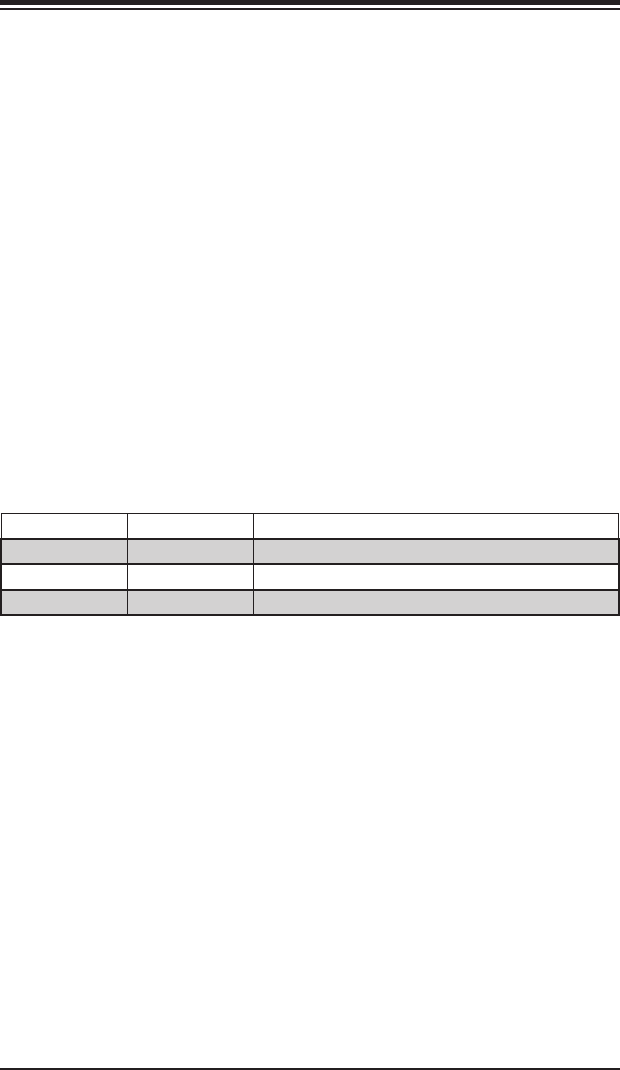
A-1
Appendix A: BIOS Error Beep Codes
Appendix A
BIOS Error Beep Codes
During the POST (Power-On Self-Test) routines, which are performed each time
the system is powered on, errors may occur.
Non-fatal errors are those which, in most cases, allow the system to continue the
boot-up process. The error messages normally appear on the screen.
Fatal errors are those which will not allow the system to continue the boot-up
procedure. If a fatal error occurs, you should consult with your system manufacturer
for possible repairs.
These fatal errors are usually communicated through a series of audible beeps. The
numbers on the fatal error list (on the following page) correspond to the number
of beeps for the corresponding error. All errors listed, with the exception of Beep
Code 8, are fatal errors.
A-1 AMIBIOS Error Beep Codes
Beep Code Error Message Description
1 beep Refresh Circuits have been reset (Ready to power up)
5 short, 1 long Memory error No memory detected in system
1 long, 8 short Video error Video adapter disabled or missing
A-2
A+ SERVER 2022G-URF User's Manual
Notes
Appendix B: Installing Windows
B-1
Appendix B
Installing Windows
After all hardware components have been installed, you must rst congure Intel
South Bridge RAID Settings before you install the Windows OS and other software
drivers. To congure RAID settings, please refer to RAID Conguration User Guides
posted on our web site at www.supermicro.com/support/manuals.
B-1 Installing the Windows OS for a RAID System
1. Insert Microsoft's Windows XP/2003/2008/Vista Setup CD in the CD driver
and the system will start booting up from CD.
2. Press the <F6> key when the message "Press F6 if you need to install a third
party RAID driver" displays.
3. When the Windows OS Setup screen appears, press "S" to specify additional
device(s).
4. Insert the driver diskette "ITE RAID Windows XP/2003/2008/Vista Driver for
IDE" into the oppy drive and press the <Enter> key.
5. When the Windows OS Setup screen appears, press "S" to specify additional
device(s).
6. Insert the driver diskette into the drive and press the <Enter> key.
7. Choose the LSI SAS RAID driver indicated in the Windows OS Setup screen,
and press the <Enter> key.
8. Press the <Enter> key to continue the installation process. (If you need to
specify any additional devices to be installed, do so at this time.) Once all
devices are specied, press the <Enter> key to continue with the installation.
9. From the Windows OS Setup screen, press the <Enter> key. The Windows
OS Setup will automatically load all device les and then, continue the
Windows OS installation.
10. After the Windows OS Installation is completed, the system will automatically
reboot.
B-2
A+ SERVER 2022G-URF User's Manual
B-2 Installing the Windows OS for a Non-RAID System
1. Insert Microsoft's Windows XP/Windows 2003/Windows 2008/Windows Vista
Setup CD in the CD drive, and the system will start booting up from CD.
2. Continue with the OS installation. The Windows OS Setup screen will display.
3. From the Windows OS Setup screen, press the <Enter> key. The Windows
OS Setup will automatically load all device les and then continue with the
OS installation.
4. After the Windows OS Installation is complete, the system will automatically
reboot.
5. Insert the Supermicro Setup CD that came with your serverboard into the CD
drive during system boot, and the main screen will display.
Appendix C: System Specications
C-1
Appendix C
System Specications
Processors
Dual AMD Opteron 6000 series (AMD Socket G34 type) processors
Note: You must install at least two processors for full functions to be supported.
Note: Please refer to our web site for a complete listing of supported processors.
Chipset
One AMD SR5670 chipset and one SP5100 Southbridge chipset
BIOS
16 Mb AMI BIOS® SPI Flash ROM
Memory Capacity
Sixteen (sixteen (16)) single/dual/tri/quad channel DIMM slots supporting up to
128 GB of ECC/Non-ECC Unbuffered, 512 GB of ECC Low-prole Registered
LRDIMM, or 512 GB of ECC Registered DIMM DDR3-1600/1333/1066 Mhz speed,
SDRAM memory
Note: See the memory section in Chapter 5 for details.
SATA Controller
AMD SP5100 on-chip controller for six-port Serial ATA (RAID 0, 1 and 10
supported)
Drive Bays
Eight hot-swap drive bays to house eight SATA or SAS drives (SAS requires
optional UIO SAS controller card)
Peripheral Drive Bays
One (1) slim DVD-ROM drive
C-2
A+ SERVER 2022G-URF User's Manual
Expansion Slots
One UIO controller card slot and three PCI Express 2.0 x8 slots for standard
size add-on cards
Serverboard
H8DGU-F (Proprietary form factor)
Dimensions: 12.28" x 13.05" (312 x 331 mm)
Chassis
SC825TQ-R700UBP(2U rackmount)
Dimensions: (WxHxD) 16.8 x 3.5 x 25.5 in. (427 x 89 x 648 mm)
Weight
Gross (Bare Bone): 57 lbs. (25.9 kg.)
System Cooling
Three 8-cm system cooling fans
System Input Requirements
AC Input Voltage: 100-240V AC auto-range
Rated Input Current: 9A - 4A
Rated Input Frequency: 50 to 60 Hz
Efciency: 80+ (Gold Level)
Power Supply
Rated Output Power: 720W (Part# PWS-721P-1R)
Rated Output Voltages: +12V (59A), +5Vsb (4A)
Operating Environment
Operating Temperature: 10º to 35º C (50º to 95º F)
Non-operating Temperature: -40º to 70º C (-40º to 158º F)
Operating Relative Humidity: 20% to 95% (non-condensing)
Non-operating Relative Humidity: 5 to 95% (non-condensing)
Appendix C: System Specications
C-3
Regulatory Compliance
Electromagnetic Emissions: FCC Class A, EN 55022 Class A, EN 61000-3-2/-
3-3, CISPR 22 Class A
Electromagnetic Immunity: EN 55024/CISPR 24, (EN 61000-4-2, EN 61000-4-3,
EN 61000-4-4, EN 61000-4-5, EN 61000-4-6, EN 61000-4-8, EN 61000-4-11)
Safety: CSA/EN/IEC/UL 60950-1 Compliant, UL or CSA Listed (USA and
Canada), CE Marking (Europe)
California Best Management Practices Regulations for Perchlorate Materials:
This Perchlorate warning applies only to products containing CR (Manganese
Dioxide) Lithium coin cells. “Perchlorate Material-special handling may apply.
See www.dtsc.ca.gov/hazardouswaste/perchlorate”
C-4
A+ SERVER 2022G-URF User's Manual
(continued from front)
The products sold by Supermicro are not intended for and will not be used in life support systems,
medical equipment, nuclear facilities or systems, aircraft, aircraft devices, aircraft/emergency
communication devices or other critical systems whose failure to perform be reasonably expected
to result in signicant injury or loss of life or catastrophic property damage. Accordingly, Supermicro
disclaims any and all liability, and should buyer use or sell such products for use in such ultra-
hazardous applications, it does so entirely at its own risk. Furthermore, buyer agrees to fully
indemnify, defend and hold Supermicro harmless for and against any and all claims, demands,
actions, litigation, and proceedings of any kind arising out of or related to such ultra-hazardous
use or sale.
