Swalle Technology SMB01 Multi-Function wrist bracelet User Manual
Swalle Technology CO.,Ltd Multi-Function wrist bracelet
User Manual
User Guide Requirements
I. Cover: User Guide for Smart BT Intelligent Bluetooth Bracelet
II. Foreword: Dear customer, thank you for your trust in our products! Please read the User
Guide for Smart BT Intelligent Bluetooth Bracelet carefully. This user guide introduces the
product features, operation methods and other notes of the bracelet for your convenient use and
better experience!
The wireless SMART BT Intelligent Bluetooth Bracelet will bring you a more wonderful, more
convenient and safer life, and improve the quality of your life......
III. Menu Functions Description:
1. Time display (in 24 hours, hour/minute)
2. Step counting (calorie, mile)
3. Multiple languages (English, Simplified Chinese, Traditional Chinese, Korean, Russian,
Spanish, French, German, Italian, Portuguese, Arabic, Japanese)
4. Phonebook (check and download the address book)
5. Caller ID (displayed with the mobile phone synchronously)
6. Phone conversation ( phone conversation through headset)
7. Music play (music play platform)
8. Connection to two mobile phones at the same time
9. Touch screen (touch the screen for step counting and menu rolling)
10. Water-proof (prevent the water bubble from entering the bracelet when you're washing your
hands)
IV. Usage:
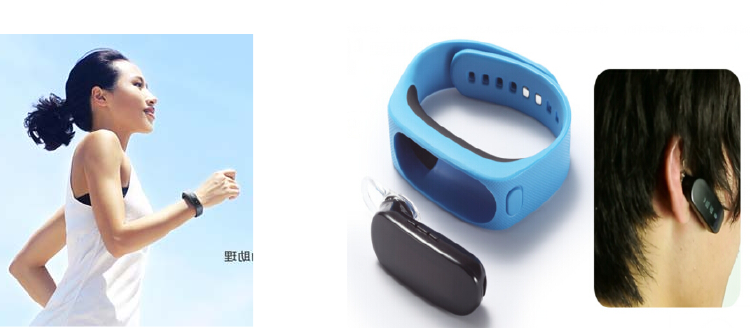
1: Key functions description (pictures)
2: How to wear the bracelet (pictures)
V. Specific operations
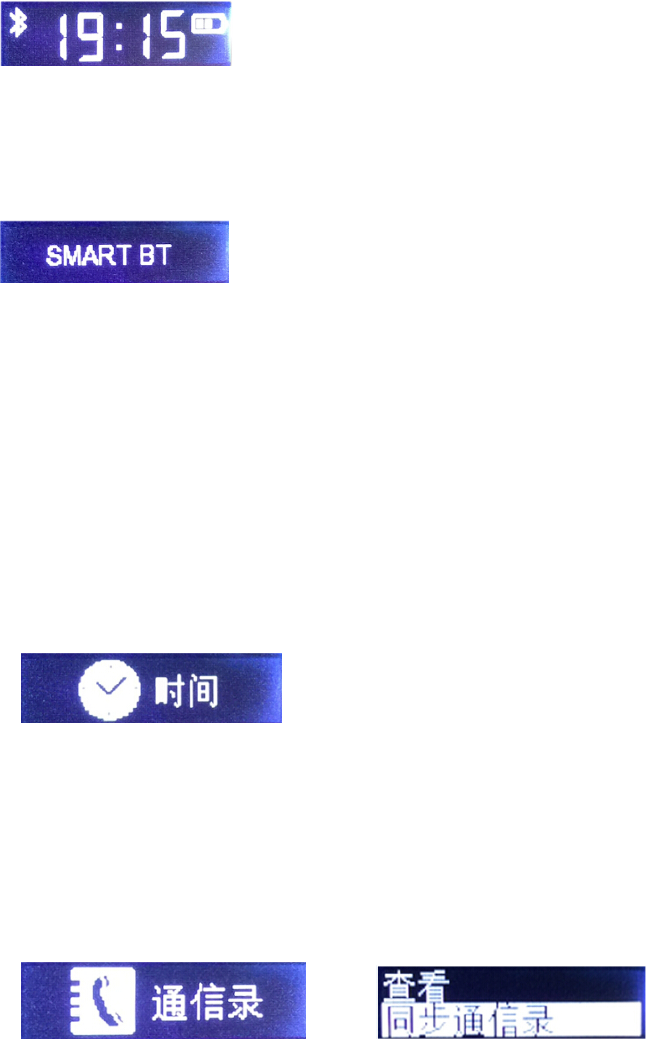
1-1 Pairing and connection: Exert a long press on MFB of headphones and release it until the
display screen suggests "pairing". Then, search "Smart BT" with your Bluetooth and click to
connect it. Some mobile phones need the user to enter the password. At this time, the user may
enter "0000". After the connection, the Bluetooth icon will be displayed on the time screen, as
shown in Fig.1.
Fig. 1
1-2 Bluetooth connection: Make sure the Bluetooth in your mobile phone is opened, press the
MFB of the bracelet. Release your hand when seeing the screen flash. In the meantime, SMART
BT will be displayed on the screen, as shown in Fig.2. Thus, the bracelet Bluetooth will be
automatically connected to the mobile phone Bluetooth.
Fig. 2
1-3 Connection to two mobile phones at the same time: After being connected to the first
mobile phone, turn off the Bluetooth of the first phone and then pair the second phone in
accordance with the methods presented in 1.1. After that, turn off the bracelet and turn on the
Bluetooth of the first phone. Restart the bracelet and SMART BT will be displayed on the screen
(Fig.2). Release your hand and you will find that the bracelet connects to two phones.
2-1 Time setting: Set the time on the time setting interface (Fig.3). Press MFB to enter the
interface of time setting. At this time, you can see the clock flashing. Move upwards to increase
the time and downwards to decrease the time. After the hour is set, press MFB and the system will
automatically switch to the minute setting interface. After the setting, press "OK" on MFB.
Fig. 3
3-1 Check and synchronization of address book: Enter the address book (Fog.4) and then the
check and synchronization of address book (Fig. 5). After the synchronization, you can check the
address book. Without the synchronization, the user cannot check the address book. When
confirming the synchronization, a hint (address book synchronization) will be displayed on the
mobile phone. Click OK.
Fig. 4 Fig. 5
4-1 Language setting: To set your favorite language, you can enter the menu in Fig.6 and select
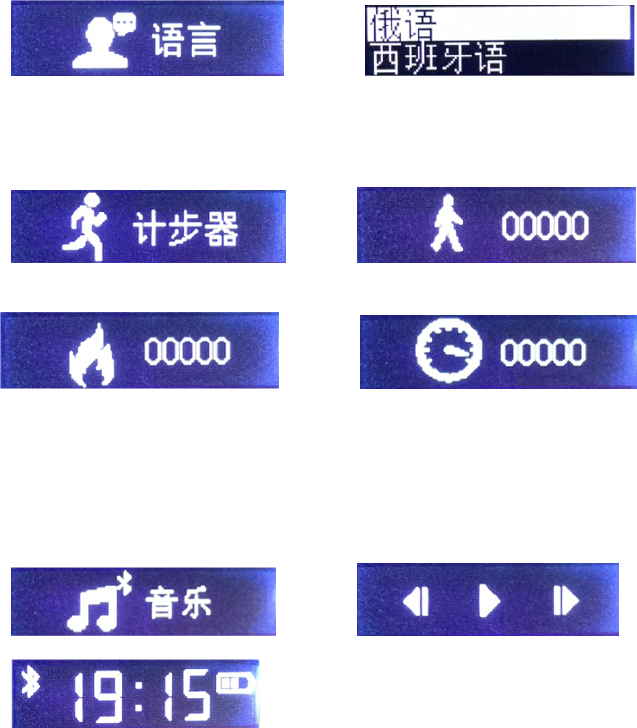
the language (as shown in Fig.7).
Fig. 6 Fig. 7
5-1 Step counter: Enter the step counter (Fig.8), click "OK" on MFB, and step counting will start.
The figure will flash (Fig.9), and calorie (Fig.10) and distance (Fig.11) will be displayed.
Fig. 8 Fig. 9
Fig. 10 Fig. 11
6-1 Music play: Enter the music interface (Fig.12), keys like Stop, Play, Previous and Next
(Fig.13) will be displayed on the interface. If you want to adjust the music volume, check the time
interface (Fig.14). Exert a long press on the forward key to increase the volume and the backward
key to decrease the volume. Adjust the volume to the degree you desire.
Fig. 12 Fig. 13
Fig. 14
7-1 Touch usage:
1. When the screen is closed, touch the screen to check the time. Each touch will cause the screen
to automatically roll over.
2. Touch the screen for 4-5 seconds, start the step counter quickly and the system will
automatically enter the step counting mode. Exert another touch to automatically exit the step
counter. If the step counting is suspended, a long press on the screen will make it continue with the
counting.
3. Press the key to check the address book; you may also do this by touching the screen.
8-1 Step counter reset: Enter the step counting. If the figure does not flash, press MFB and the
step counter will reset.
9-1: call buttons using method:
1 in the time display interface, double-click the MFB key, the end number of redial
2 to the phone, click the MFB button to answer the phone, and then click the MFB button, hang up
the phone
3 calls, double-click the MFB button, voice switch and mobile phone switching
4 to the phone, the phone number, double-click the MFB button, refused to answer the phone

5, in the call, press the forward button to press the forward button, press the back button to
increase the volume
V. Charging:
1-1 If the bracelet is not used for a long time, please charge it once a month at least in case that the
battery may be damaged. The charging will be done within 120 minutes.
VI. Technical parameters:
1>Adopt 0.91 inch 128X32 OLED display screen
2> Battery capacity: 120MAH
3> 5V DC charging with common MICRO USB socket
4> Product weight: 120g (wrist strap + headphones)
5>Support all Android phones, Apple, Nokia, HTC, Samsung (not limited by the mobile platform)
6> Bluetooth version: Version 4.1 HFP HSP A2DP AVRCP
7> Wrist strap: TPU Wrist strap bearing: PC+ABS Headphones: PC+ABS
8> Standby time: 72H
VII. Packing accessories: Charging line, ear cap, user guide
§ 15.19 Labelling requirements.
This device complies with part 15 of the FCC Rules. Operation is subject to the
following two conditions: (1) This device may not cause harmful interference, and (2)
this device must accept any interference received, including interference that may
cause undesired operation.
§ 15.21 Information to user.
Any Changes or modifications not expressly approved by the party responsible for
compliance could void the user's authority to operate the equipment.
§ 15.105 Information to the user.
Note: This equipment has been tested and found to comply with the limits for a Class
B digital device, pursuant to part 15 of the FCC Rules. These limits are designed to
provide reasonable protection against harmful interference in a residential installation.
This equipment generates uses and can radiate radio frequency energy and, if not
installed and used in accordance with the instructions, may cause harmful interference
to radio communications. However, there is no guarantee that interference will not
occur in a particular installation. If this equipment does cause harmful interference to
radio or television reception, which can be determined by turning the equipment off
and on, the user is encouraged to try to correct the interference by one or more of the
following measures:
-Reorient or relocate the receiving antenna.
-Increase the separation between the equipment and receiver.
-Connect the equipment into an outlet on a circuit different from that to which the
receiver is connected.
-Consult the dealer or an experienced radio/TV technician for help.
* RF warning for Portable device:
The device has been evaluated to meet general RF exposure requirement. The device
can be used in portable exposure condition without restriction.