Swann Retail Security Kit Users Manual SW244 SK4_ESG_01
Automobile Alarm to the manual 2953be67-c1a9-4827-b41c-1429c13ebfb0
2015-02-05
: Swann Swann-Swann-Retail-Security-Kit-Users-Manual-359376 swann-swann-retail-security-kit-users-manual-359376 swann pdf
Open the PDF directly: View PDF  .
.
Page Count: 2
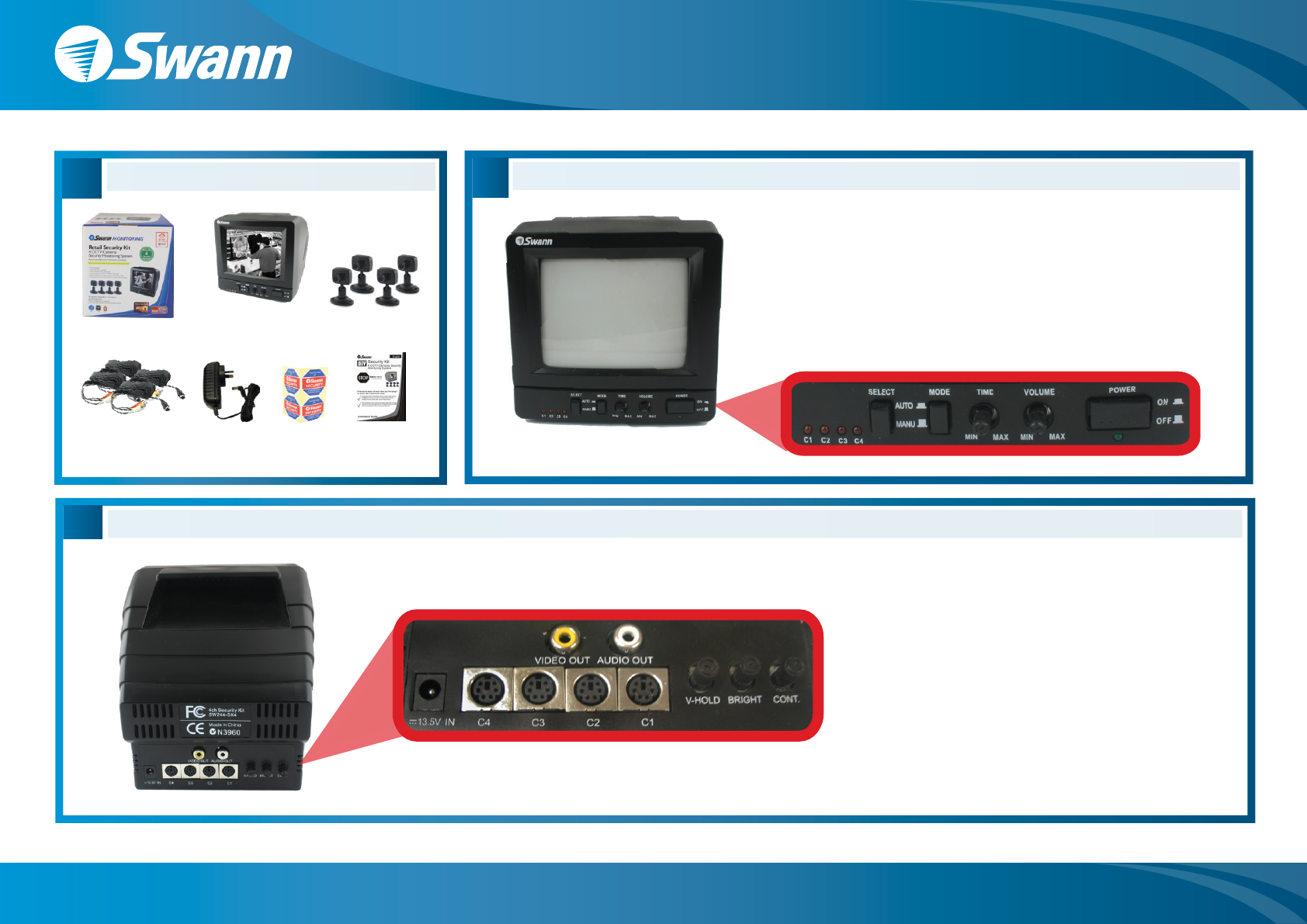
Rear Control Panel
C
1234 5 6
1. Power Supply Input -
Use only provided
power supply with this
product
2. Camera Extension
Cable Inputs
3. Video and Audio
Output to VCR
4. V-Hold Dial -
Controls / adjusts
rolling image
5. Brightness Control Dial -
Brightens or darkens
image
6. Contrast Control Dial -
Intesifies darker or lighter
images
BFront Control Panel
1
1. Channel Indicator 4. Time Dial -
Length of time between
changing cameras
5. Volume Dial
6. Monitor Power Button
7. Power Indicator
2. Select Button -
Change channels/cameras
3. Mode Button -
Auto mode switches
between cameras and
Manual displays 1 camera
2346
5
7
Package Contents
A
Manual
Monitor
Packaging Cameras x 4
Extension Cables x 4 Security
Stickers
Power
Supply
Retail Security Kit - Easy Setup Guide
www.swannsecurity.com
Swann Communications • Toll Free Technical Support: USA - 1-800-627-2799, 1-877-274-3695, Australia - 1300 13 8324 • Email: tech@swann.com.au
Input
Output
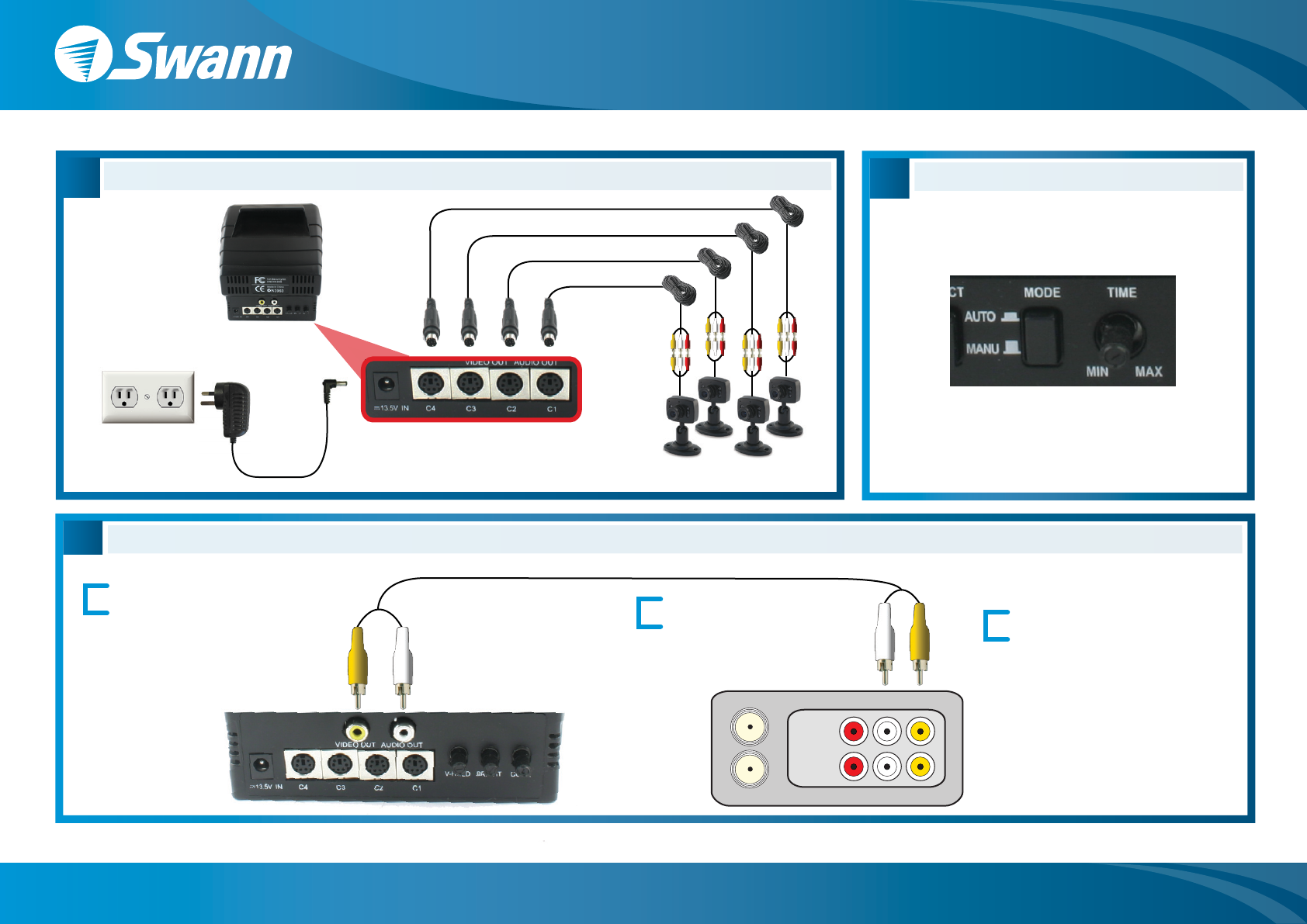
Connecting the Monitor to a VCR or DVD Recorder
F
3Tune your VCR to the correct ‘Input,’
This is sometimes marked as L1,
INPUT, SOURCE, A/V etc. Consult
your VCR or recording device’s
manual for specific information on
your recorder
DConnecting Cameras to the Monitor
Back of VCR
Back of Monitor
1Connect an A/V Cable* to the
Yellow and White ‘Video Out’
and ‘Audio Out’ Connectors
on the back of the monitor
Depress the ‘Mode’ Button to turn Auto Switching on/off
The Monitor will automatically switch cameras based on
the ‘Time’ setting
Turn the ‘Time’ Dial to set the length of pause between
switching cameras - Min = 1 second - Max = 20 Seconds
2Connect the other end
of the A/V Cable to your
VCR or DVD video ‘Input’
*Not Included
C1
Connect Cameras to
Extension Cable
Connect Extension Cable
to Camera Inputs on Back
of Monitor
C2
C3
C4
Plug Power Supply
to Power Point
Auto Switching Mode
E
Retail Security Kit - Easy Setup Guide
www.swannsecurity.com
Swann Communications • Toll Free Technical Support: USA - 1-800-627-2799, 1-877-274-3695, Australia - 1300 13 8324 • Email: tech@swann.com.au
