Swissvoice L7TAM 1.9GHz Digital Modulation Cordless Phone with Digital Answering Machine User Manual

Swissvoice SA 1.9GHz Digital Modulation Cordless Phone with Digital Answering Machine

User Manual

    cordlesstelephonewithansweringmachineModel: 20407982, 20407984
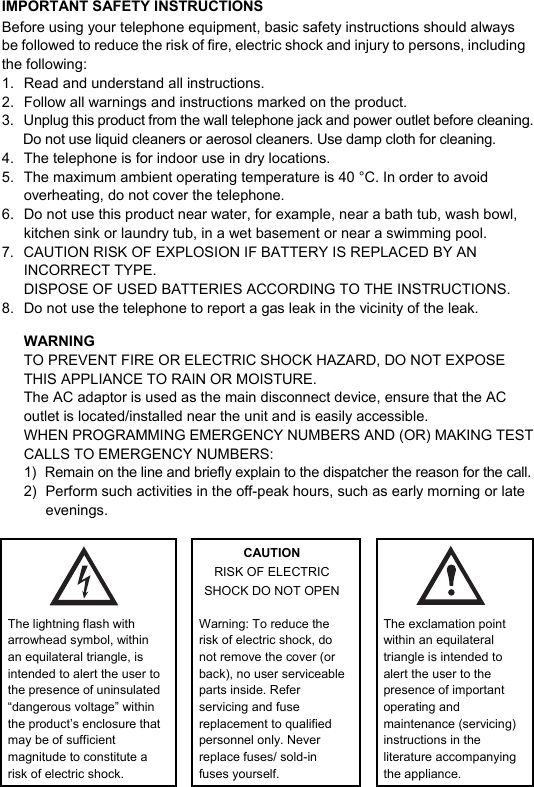
 IMPORTANT SAFETY INSTRUCTIONSBefore using your telephone equipment, basic safety instructions should always be followed to reduce the risk of fire, electric shock and injury to persons, including the following: 1.  Read and understand all instructions. 2.  Follow all warnings and instructions marked on the product. 3.  Unplug this product from the wall telephone jack and power outlet before cleaning. Do not use liquid cleaners or aerosol cleaners. Use damp cloth for cleaning. 4.  The telephone is for indoor use in dry locations. 5.  The maximum ambient operating temperature is 40 °C. In order to avoid overheating, do not cover the telephone. 6.  Do not use this product near water, for example, near a bath tub, wash bowl, kitchen sink or laundry tub, in a wet basement or near a swimming pool. 7.  CAUTION RISK OF EXPLOSION IF BATTERY IS REPLACED BY AN INCORRECT TYPE. DISPOSE OF USED BATTERIES ACCORDING TO THE INSTRUCTIONS. 8.  Do not use the telephone to report a gas leak in the vicinity of the leak. WARNING TO PREVENT FIRE OR ELECTRIC SHOCK HAZARD, DO NOT EXPOSE THIS APPLIANCE TO RAIN OR MOISTURE. The AC adaptor is used as the main disconnect device, ensure that the AC outlet is located/installed near the unit and is easily accessible. WHEN PROGRAMMING EMERGENCY NUMBERS AND (OR) MAKING TEST CALLS TO EMERGENCY NUMBERS: 1)  Remain on the line and briefly explain to the dispatcher the reason for the call. 2)  Perform such activities in the off-peak hours, such as early morning or late evenings.   CAUTION RISK OF ELECTRIC SHOCK DO NOT OPEN   The lightning flash with arrowhead symbol, within an equilateral triangle, is intended to alert the user to the presence of uninsulated “dangerous voltage” within the productʼs enclosure that may be of sufficient magnitude to constitute a risk of electric shock.  Warning: To reduce the risk of electric shock, do not remove the cover (or back), no user serviceable parts inside. Refer servicing and fuse replacement to qualified personnel only. Never replace fuses/ sold-in fuses yourself.  The exclamation point within an equilateral triangle is intended to alert the user to the presence of important operating and maintenance (servicing) instructions in the literature accompanying the appliance.
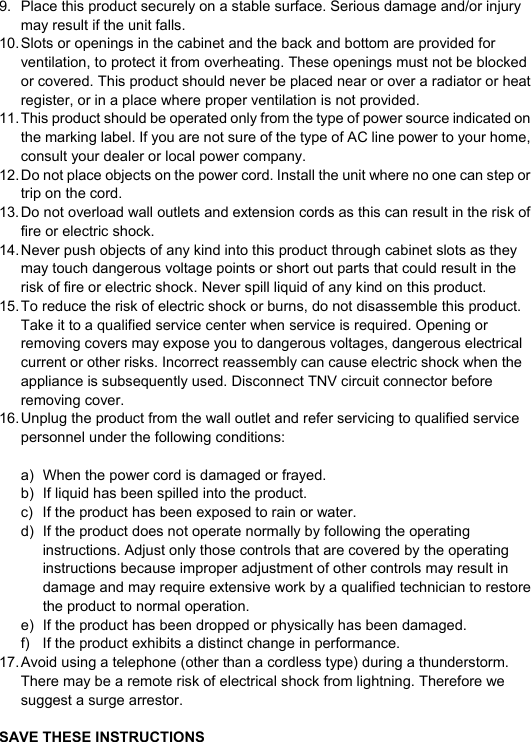
 9.  Place this product securely on a stable surface. Serious damage and/or injury may result if the unit falls. 10. Slots or openings in the cabinet and the back and bottom are provided for ventilation, to protect it from overheating. These openings must not be blocked or covered. This product should never be placed near or over a radiator or heat register, or in a place where proper ventilation is not provided. 11. This product should be operated only from the type of power source indicated on the marking label. If you are not sure of the type of AC line power to your home, consult your dealer or local power company. 12. Do not place objects on the power cord. Install the unit where no one can step or trip on the cord. 13. Do not overload wall outlets and extension cords as this can result in the risk of fire or electric shock. 14. Never push objects of any kind into this product through cabinet slots as they may touch dangerous voltage points or short out parts that could result in the risk of fire or electric shock. Never spill liquid of any kind on this product. 15. To reduce the risk of electric shock or burns, do not disassemble this product. Take it to a qualified service center when service is required. Opening or removing covers may expose you to dangerous voltages, dangerous electrical current or other risks. Incorrect reassembly can cause electric shock when the appliance is subsequently used. Disconnect TNV circuit connector before removing cover. 16. Unplug the product from the wall outlet and refer servicing to qualified service personnel under the following conditions:  a)  When the power cord is damaged or frayed. b)  If liquid has been spilled into the product. c)  If the product has been exposed to rain or water. d)  If the product does not operate normally by following the operating instructions. Adjust only those controls that are covered by the operating instructions because improper adjustment of other controls may result in damage and may require extensive work by a qualified technician to restore the product to normal operation. e)  If the product has been dropped or physically has been damaged. f)  If the product exhibits a distinct change in performance. 17. Avoid using a telephone (other than a cordless type) during a thunderstorm. There may be a remote risk of electrical shock from lightning. Therefore we suggest a surge arrestor.  SAVE THESE INSTRUCTIONS
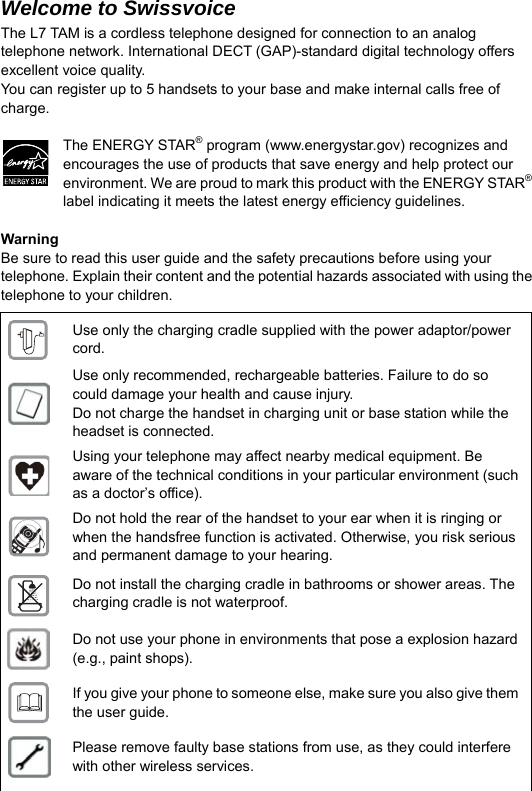
 Welcome to Swissvoice The L7 TAM is a cordless telephone designed for connection to an analog telephone network. International DECT (GAP)-standard digital technology offers excellent voice quality. You can register up to 5 handsets to your base and make internal calls free of charge.   The ENERGY STAR® program (www.energystar.gov) recognizes and encourages the use of products that save energy and help protect our environment. We are proud to mark this product with the ENERGY STAR®label indicating it meets the latest energy efficiency guidelines.  Warning Be sure to read this user guide and the safety precautions before using your telephone. Explain their content and the potential hazards associated with using the telephone to your children.  Use only the charging cradle supplied with the power adaptor/power cord.  Use only recommended, rechargeable batteries. Failure to do so could damage your health and cause injury. Do not charge the handset in charging unit or base station while the headset is connected.  Using your telephone may affect nearby medical equipment. Be aware of the technical conditions in your particular environment (such as a doctorʼs office).  Do not hold the rear of the handset to your ear when it is ringing or when the handsfree function is activated. Otherwise, you risk serious and permanent damage to your hearing.  Do not install the charging cradle in bathrooms or shower areas. The charging cradle is not waterproof.  Do not use your phone in environments that pose a explosion hazard (e.g., paint shops).  If you give your phone to someone else, make sure you also give them the user guide.  Please remove faulty base stations from use, as they could interfere with other wireless services.
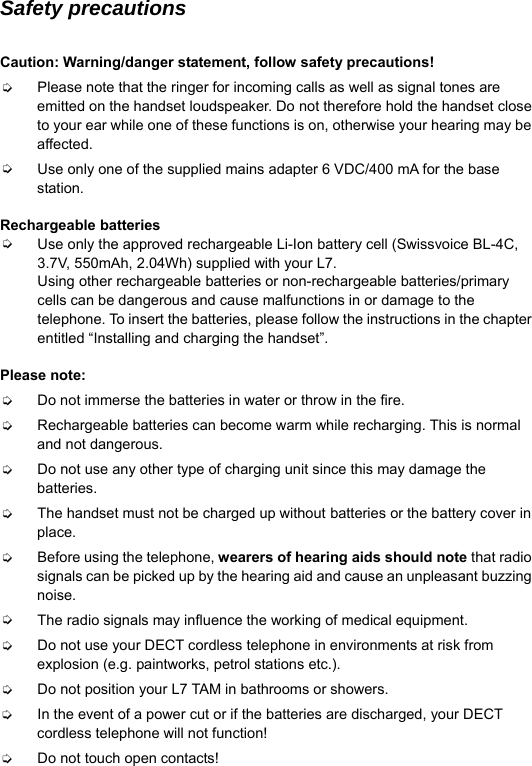
 Safety precautions  Caution: Warning/danger statement, follow safety precautions! ➭ Please note that the ringer for incoming calls as well as signal tones are emitted on the handset loudspeaker. Do not therefore hold the handset close to your ear while one of these functions is on, otherwise your hearing may be affected. ➭ Use only one of the supplied mains adapter 6 VDC/400 mA for the base station.  Rechargeable batteries ➭ Use only the approved rechargeable Li-Ion battery cell (Swissvoice BL-4C, 3.7V, 550mAh, 2.04Wh) supplied with your L7.   Using other rechargeable batteries or non-rechargeable batteries/primary cells can be dangerous and cause malfunctions in or damage to the telephone. To insert the batteries, please follow the instructions in the chapter entitled “Installing and charging the handset”.  Please note: ➭ Do not immerse the batteries in water or throw in the fire. ➭ Rechargeable batteries can become warm while recharging. This is normal and not dangerous. ➭ Do not use any other type of charging unit since this may damage the batteries. ➭ The handset must not be charged up without batteries or the battery cover in place. ➭ Before using the telephone, wearers of hearing aids should note that radio signals can be picked up by the hearing aid and cause an unpleasant buzzing noise. ➭ The radio signals may influence the working of medical equipment. ➭ Do not use your DECT cordless telephone in environments at risk from explosion (e.g. paintworks, petrol stations etc.). ➭ Do not position your L7 TAM in bathrooms or showers. ➭ In the event of a power cut or if the batteries are discharged, your DECT cordless telephone will not function! ➭ Do not touch open contacts!
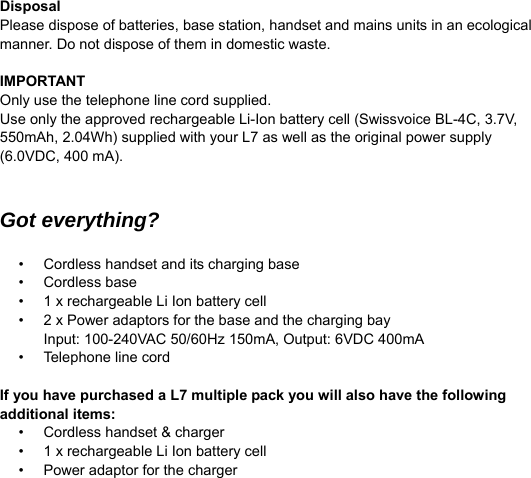
 Disposal Please dispose of batteries, base station, handset and mains units in an ecological manner. Do not dispose of them in domestic waste.  IMPORTANT Only use the telephone line cord supplied. Use only the approved rechargeable Li-Ion battery cell (Swissvoice BL-4C, 3.7V, 550mAh, 2.04Wh) supplied with your L7 as well as the original power supply (6.0VDC, 400 mA).   Got everything?  •  Cordless handset and its charging base • Cordless base •  1 x rechargeable Li Ion battery cell •  2 x Power adaptors for the base and the charging bay Input: 100-240VAC 50/60Hz 150mA, Output: 6VDC 400mA • Telephone line cord  If you have purchased a L7 multiple pack you will also have the following additional items: •  Cordless handset & charger •  1 x rechargeable Li Ion battery cell •  Power adaptor for the charger
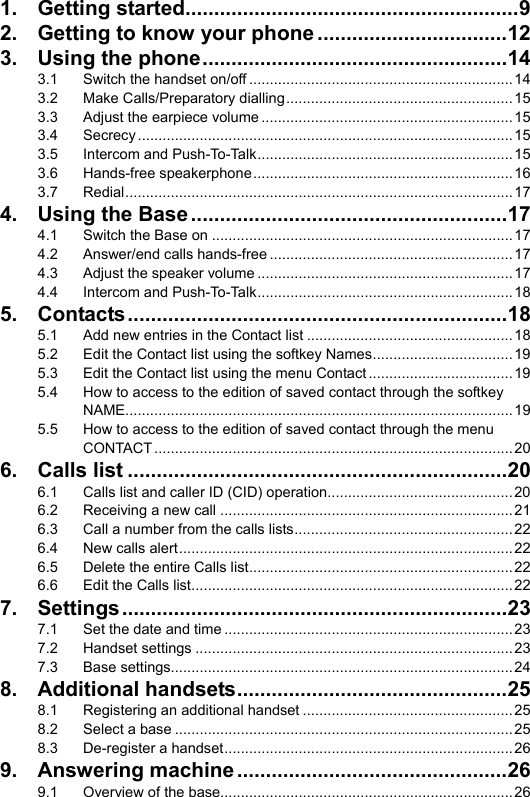
  1. Getting started..........................................................9 2. Getting to know your phone .................................12 3. Using the phone.....................................................14 3.1 Switch the handset on/off ................................................................14 3.2 Make Calls/Preparatory dialling.......................................................15 3.3 Adjust the earpiece volume .............................................................15 3.4 Secrecy...........................................................................................15 3.5 Intercom and Push-To-Talk..............................................................15 3.6 Hands-free speakerphone...............................................................16 3.7 Redial..............................................................................................17 4. Using the Base.......................................................17 4.1 Switch the Base on .........................................................................17 4.2 Answer/end calls hands-free ...........................................................17 4.3 Adjust the speaker volume ..............................................................17 4.4 Intercom and Push-To-Talk..............................................................18 5. Contacts..................................................................18 5.1 Add new entries in the Contact list ..................................................18 5.2 Edit the Contact list using the softkey Names..................................19 5.3 Edit the Contact list using the menu Contact ...................................19 5.4 How to access to the edition of saved contact through the softkey NAME..............................................................................................19 5.5 How to access to the edition of saved contact through the menu CONTACT....................................................................................... 20 6. Calls list ..................................................................20 6.1 Calls list and caller ID (CID) operation.............................................20 6.2 Receiving a new call .......................................................................21 6.3 Call a number from the calls lists.....................................................22 6.4 New calls alert.................................................................................22 6.5 Delete the entire Calls list................................................................22 6.6 Edit the Calls list..............................................................................22 7. Settings...................................................................23 7.1 Set the date and time ......................................................................23 7.2 Handset settings .............................................................................23 7.3 Base settings...................................................................................24 8. Additional handsets...............................................25 8.1 Registering an additional handset ...................................................25 8.2 Select a base ..................................................................................25 8.3 De-register a handset......................................................................26 9. Answering machine...............................................26 9.1 Overview of the base.......................................................................26
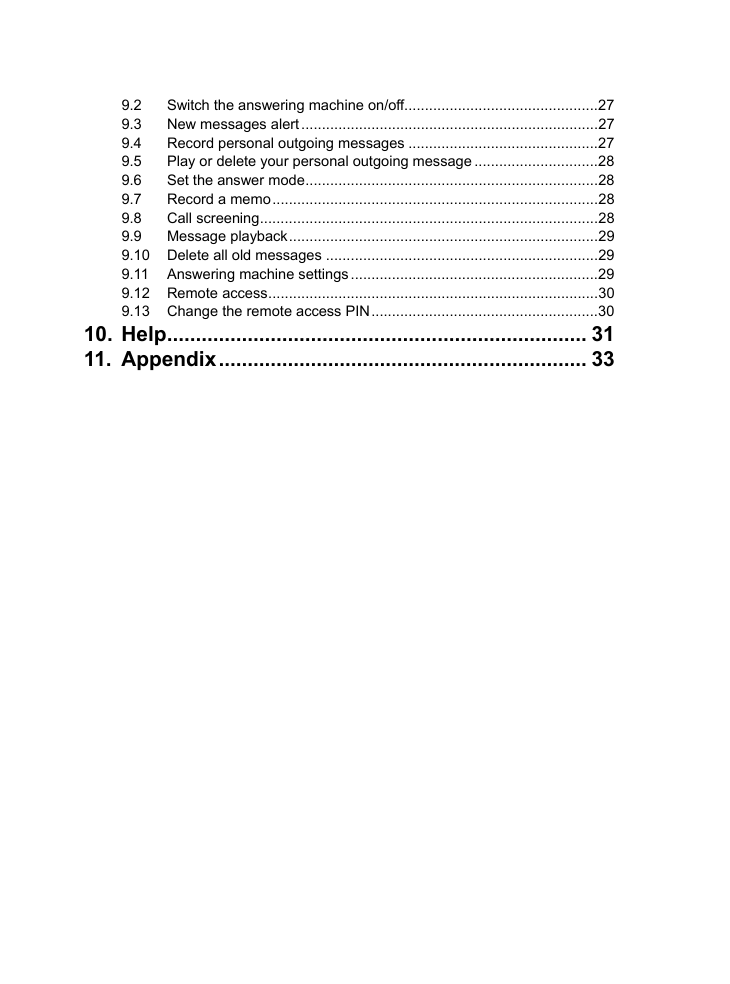
  9.2 Switch the answering machine on/off...............................................27 9.3 New messages alert ........................................................................27 9.4 Record personal outgoing messages ..............................................27 9.5 Play or delete your personal outgoing message ..............................28 9.6 Set the answer mode.......................................................................28 9.7 Record a memo...............................................................................28 9.8 Call screening..................................................................................28 9.9 Message playback...........................................................................29 9.10 Delete all old messages ..................................................................29 9.11 Answering machine settings ............................................................29 9.12 Remote access................................................................................30 9.13 Change the remote access PIN.......................................................30 10. Help......................................................................... 31 11. Appendix................................................................ 33
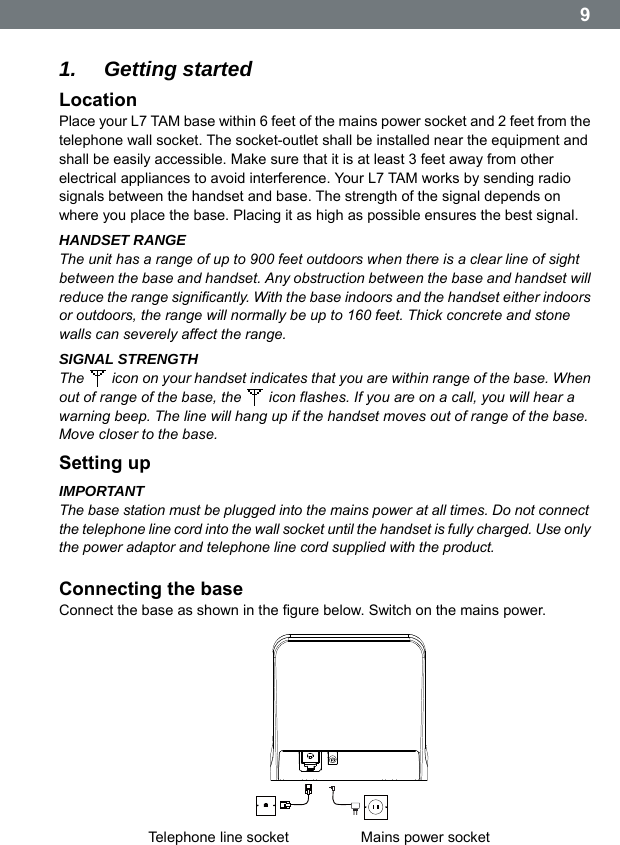
 9  1.  Getting started Location Place your L7 TAM base within 6 feet of the mains power socket and 2 feet from the telephone wall socket. The socket-outlet shall be installed near the equipment and shall be easily accessible. Make sure that it is at least 3 feet away from other electrical appliances to avoid interference. Your L7 TAM works by sending radio signals between the handset and base. The strength of the signal depends on where you place the base. Placing it as high as possible ensures the best signal. HANDSET RANGE The unit has a range of up to 900 feet outdoors when there is a clear line of sight between the base and handset. Any obstruction between the base and handset will reduce the range significantly. With the base indoors and the handset either indoors or outdoors, the range will normally be up to 160 feet. Thick concrete and stone walls can severely affect the range. SIGNAL STRENGTH The    icon on your handset indicates that you are within range of the base. When out of range of the base, the    icon flashes. If you are on a call, you will hear a warning beep. The line will hang up if the handset moves out of range of the base. Move closer to the base. Setting up IMPORTANT The base station must be plugged into the mains power at all times. Do not connect the telephone line cord into the wall socket until the handset is fully charged. Use only the power adaptor and telephone line cord supplied with the product.  Connecting the base Connect the base as shown in the figure below. Switch on the mains power. Telephone line socket Mains power socket
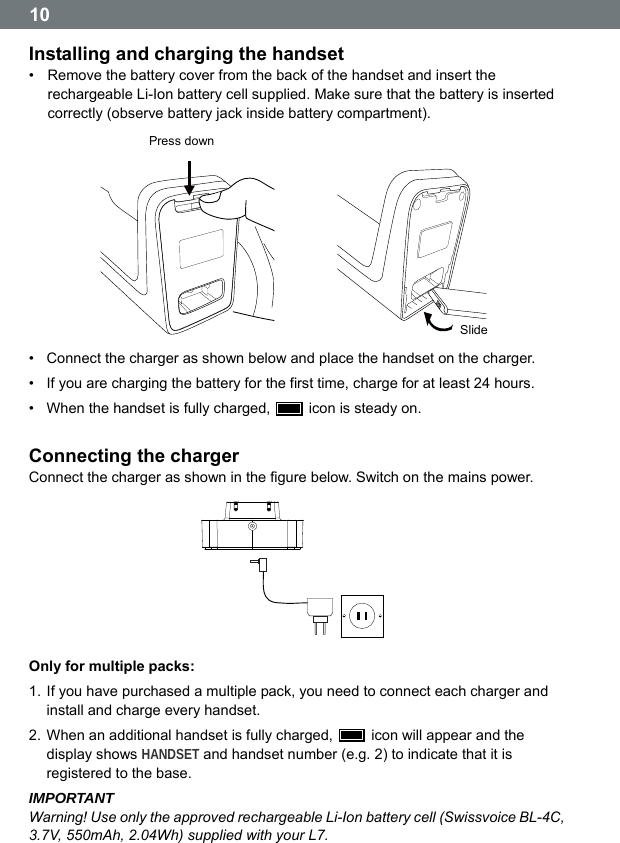
 10 Installing and charging the handset •  Remove the battery cover from the back of the handset and insert the rechargeable Li-Ion battery cell supplied. Make sure that the battery is inserted correctly (observe battery jack inside battery compartment).  Press down  Slide •  Connect the charger as shown below and place the handset on the charger. •  If you are charging the battery for the first time, charge for at least 24 hours. •  When the handset is fully charged,    icon is steady on.  Connecting the charger Connect the charger as shown in the figure below. Switch on the mains power.   Only for multiple packs: 1. If you have purchased a multiple pack, you need to connect each charger and install and charge every handset. 2. When an additional handset is fully charged,    icon will appear and the display shows HANDSET and handset number (e.g. 2) to indicate that it is registered to the base. IMPORTANT Warning! Use only the approved rechargeable Li-Ion battery cell (Swissvoice BL-4C, 3.7V, 550mAh, 2.04Wh) supplied with your L7.
 11BATTERY LOW WARNING If you hear a warning beep every 30 seconds during a call, you need to recharge the handset before you can use it again. When charging,    icon will scroll on the display. BATTERY PERFORMANCE In ideal conditions, fully charged batteries should give up to 10 hours talk time or up to 150 hours standby time on a single charge.1 Note that new batteries do not reach their full capacity until they have been put to normal use for several days. To keep your batteries in the best condition, leave the handset off the base for a few hours at a time. Running the batteries right down at least once a week will help them last as long as possible. The charge capacity of rechargeable batteries will reduce with time as they wear out, giving the handset less talk/standby time. Eventually they will need to be replaced. After charging your handset for the first time, subsequent charging time is about 6–8 hours a day.  Date and time If you have subscribed to a Caller ID Service, the date and time is set automatically for all handsets when you receive your first call. If you do not have a Caller ID service, you can set the date and time manually (see chapter “Settings, Set the date and time”).  Your L7 TAM is now ready for use.                                                                                1All talk and standby times are approximate and depend on features selected and usage pattern.
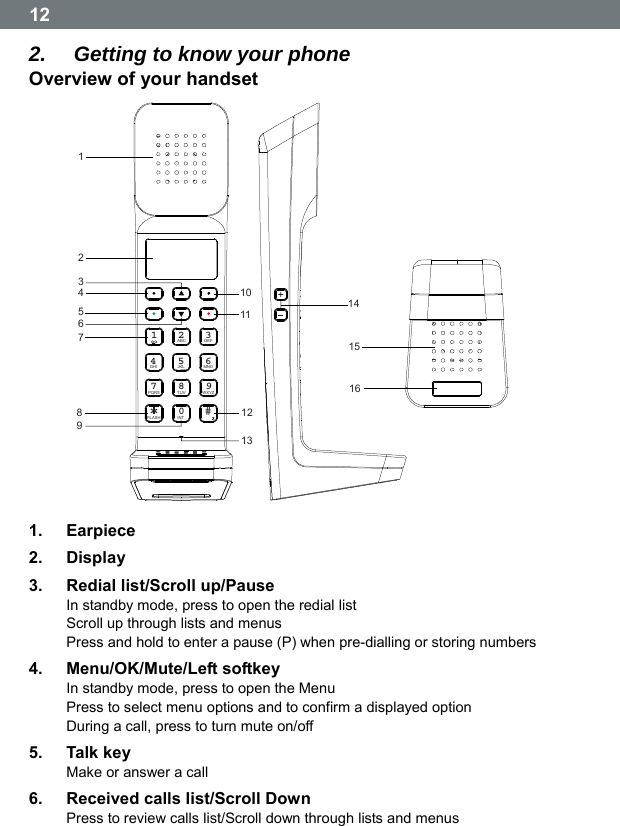
 12 2.  Getting to know your phone Overview of your handset 1412301411567ABC DEFGHI JKL MNOZYXWSRQP TUVINTFLASH1234567890# 2181315916 1. Earpiece 2. Display 3.  Redial list/Scroll up/Pause In standby mode, press to open the redial list Scroll up through lists and menus Press and hold to enter a pause (P) when pre-dialling or storing numbers 4. Menu/OK/Mute/Left softkey In standby mode, press to open the Menu Press to select menu options and to confirm a displayed option During a call, press to turn mute on/off 5. Talk key Make or answer a call 6.  Received calls list/Scroll Down   Press to review calls list/Scroll down through lists and menus
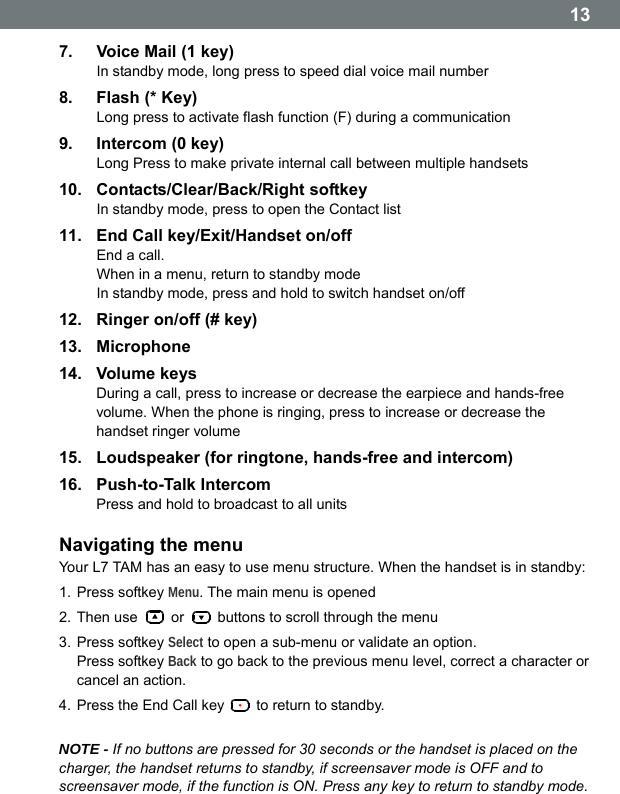
 137.  Voice Mail (1 key) In standby mode, long press to speed dial voice mail number 8. Flash (* Key) Long press to activate flash function (F) during a communication 9. Intercom (0 key) Long Press to make private internal call between multiple handsets 10. Contacts/Clear/Back/Right softkey In standby mode, press to open the Contact list 11.  End Call key/Exit/Handset on/off End a call. When in a menu, return to standby mode In standby mode, press and hold to switch handset on/off 12.  Ringer on/off (# key) 13. Microphone 14. Volume keys During a call, press to increase or decrease the earpiece and hands-free volume. When the phone is ringing, press to increase or decrease the handset ringer volume 15.  Loudspeaker (for ringtone, hands-free and intercom) 16. Push-to-Talk Intercom Press and hold to broadcast to all units  Navigating the menu Your L7 TAM has an easy to use menu structure. When the handset is in standby: 1. Press softkey Menu. The main menu is opened 2. Then use   or    buttons to scroll through the menu 3. Press softkey Select to open a sub-menu or validate an option. Press softkey Back to go back to the previous menu level, correct a character or cancel an action. 4. Press the End Call key    to return to standby.  NOTE - If no buttons are pressed for 30 seconds or the handset is placed on the charger, the handset returns to standby, if screensaver mode is OFF and to screensaver mode, if the function is ON. Press any key to return to standby mode.
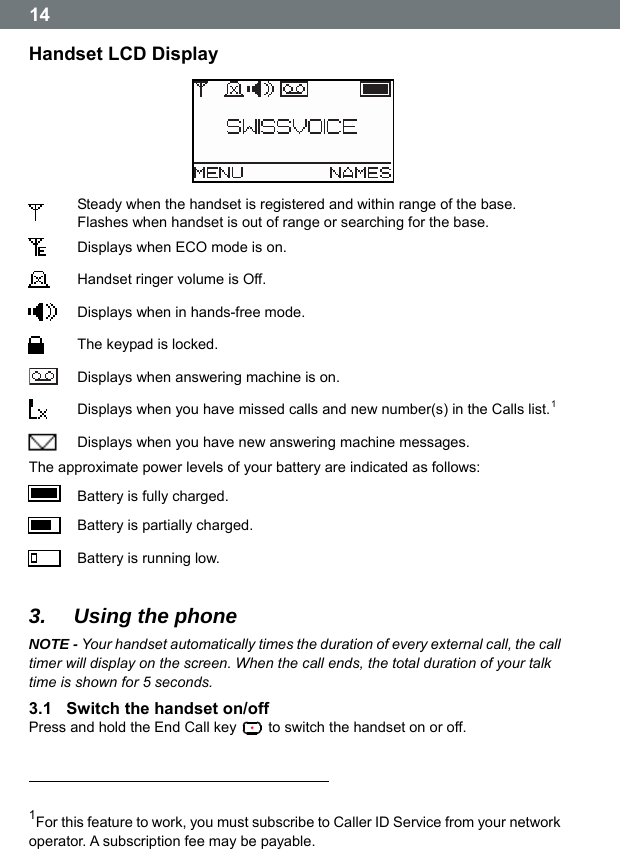
 14 Handset LCD Display   Steady when the handset is registered and within range of the base. Flashes when handset is out of range or searching for the base.  Displays when ECO mode is on.  Handset ringer volume is Off.  Displays when in hands-free mode.  The keypad is locked.   Displays when answering machine is on.  Displays when you have missed calls and new number(s) in the Calls list.1   Displays when you have new answering machine messages. The approximate power levels of your battery are indicated as follows:  Battery is fully charged.  Battery is partially charged.  Battery is running low.  3.  Using the phone NOTE - Your handset automatically times the duration of every external call, the call timer will display on the screen. When the call ends, the total duration of your talk time is shown for 5 seconds. 3.1  Switch the handset on/off Press and hold the End Call key    to switch the handset on or off.                                                                              1For this feature to work, you must subscribe to Caller ID Service from your network operator. A subscription fee may be payable.
 153.2  Make Calls/Preparatory dialling 3.2.1  Make a call 1. Press the Talk key  . 2. When you hear the dial tone, dial the number. 3.2.2  Preparatory dialling 1. Dial the number first. If you make a mistake press Clear to delete the last digit. 2. Press the Talk key    to dial the number. NOTE - To enter a pause (P) when pre-dialling, see chapter “Contacts, Add new entries in the Contact list”. 3.2.3  Make a call using Fast Call keys Press and hold the relevant keypad number to dial the pre-stored number directly. NOTE - To store a Fast Call number, see chapter “Contacts, Edit the Contact list using the menu Contact”. 3.2.4  End a call Press the End Call key    or place the handset back on the base or charger. 3.2.5  Receive a call When you receive an external call, the phone rings and External Call appears. If the handset is off the base press the Talk key    to answer the call, if the handset is on the base simply lift the handset to answer the call. NOTE - If you prefer to press the Talk key    when you lift up the handset to answer a call, you need to switch Auto Talk off, see chapter “Settings, Handset settings”. 3.3  Adjust the earpiece volume During a call, press   or    to increase or decrease the volume (8 levels). 3.4  Secrecy You can mute your handset so that you can talk to someone nearby without your caller hearing. 1. During a call, press Mute. Mute On appears and your caller cannot hear you. 2. Press Off to resume your call. 3.5  Intercom and Push-To-Talk 3.5.1  Make an internal call If you have more than one handset registered to the base, you can make internal calls between two handsets. Internal Call and Handset X displays to indicate an internal call. 1. Long Press    followed by the number of the handset you want to call. 2. Press OK.
 16 3. In starting intercom, when there is no answer from other handset, the intercom can be ended by press the END Call key  . 3.5.2  Receive an internal call When you receive an internal call, Internal Call and Handset X is displayed. Press the Talk key    to answer the call. 3.5.3  Transfer a call You can transfer an external call to another handset registered to the base. During an external call: 1. Long press    followed by the handset number that you want to transfer to. 2. Press OK. 3. When the other handset answers, press the End Call key   to complete the transfer. NOTE - If there is no answer from the other handset and you wish to return to your external caller, press  . 3.5.4  3-way conference call You can hold a 3-way conference call between 2 internal callers and 1 external caller. During a call with an external caller: 1. Long press    followed by the handset number (1-5) that you want to establish a conference call. 2. Press OK. 3. When the other handset answers, press Join to connect all three callers to begin the conference call. 4. If there is no answer from the other handset, press    to return to your external caller. 5. Press the End Call key    to end the call. 3.5.5  Push-To-Talk – Internal broadcasting voice This Push-To-Talk feature allows you to broadcasts to the base and every L7 handset. Using PTT is a one way communication.   Message cannot be heard from non L7 handsets. 1.  Press and hold PTT key. Wait 2 seconds while units connect (tone will play). 2.  Begin speaking. Release PTT key to finish the broadcast. 3.6  Hands-free speakerphone Hands-free lets you talk to your caller without holding the handset. It also enables other people in the room to listen to the conversation.
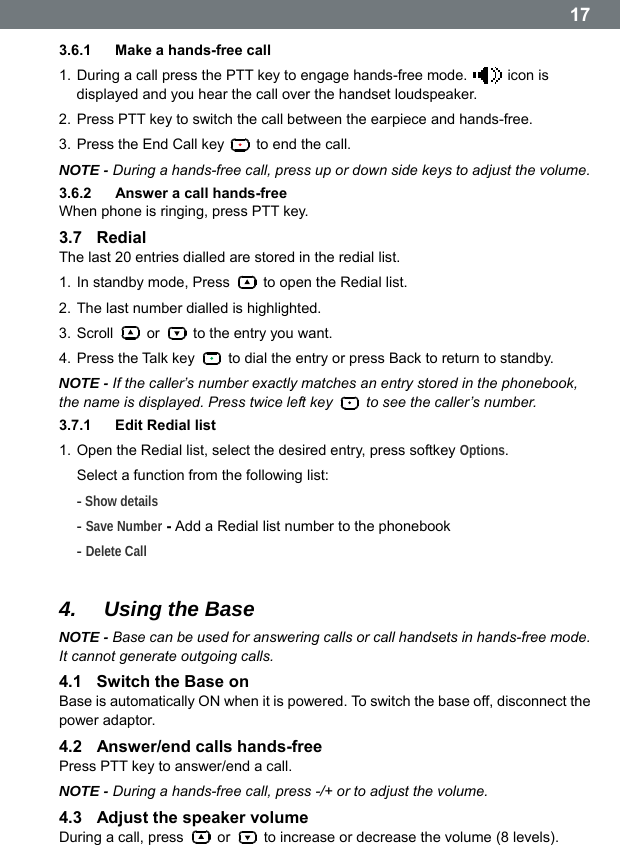
 173.6.1  Make a hands-free call 1. During a call press the PTT key to engage hands-free mode.   icon is displayed and you hear the call over the handset loudspeaker. 2. Press PTT key to switch the call between the earpiece and hands-free. 3. Press the End Call key    to end the call. NOTE - During a hands-free call, press up or down side keys to adjust the volume. 3.6.2  Answer a call hands-free When phone is ringing, press PTT key. 3.7  Redial The last 20 entries dialled are stored in the redial list. 1. In standby mode, Press    to open the Redial list. 2. The last number dialled is highlighted. 3. Scroll   or    to the entry you want. 4. Press the Talk key    to dial the entry or press Back to return to standby. NOTE - If the callerʼs number exactly matches an entry stored in the phonebook, the name is displayed. Press twice left key    to see the caller’s number. 3.7.1  Edit Redial list 1. Open the Redial list, select the desired entry, press softkey Options.  Select a function from the following list: - Show details - Save Number - Add a Redial list number to the phonebook - Delete Call  4.  Using the Base NOTE - Base can be used for answering calls or call handsets in hands-free mode. It cannot generate outgoing calls. 4.1  Switch the Base on Base is automatically ON when it is powered. To switch the base off, disconnect the power adaptor. 4.2  Answer/end calls hands-free Press PTT key to answer/end a call. NOTE - During a hands-free call, press -/+ or to adjust the volume. 4.3  Adjust the speaker volume During a call, press   or    to increase or decrease the volume (8 levels).
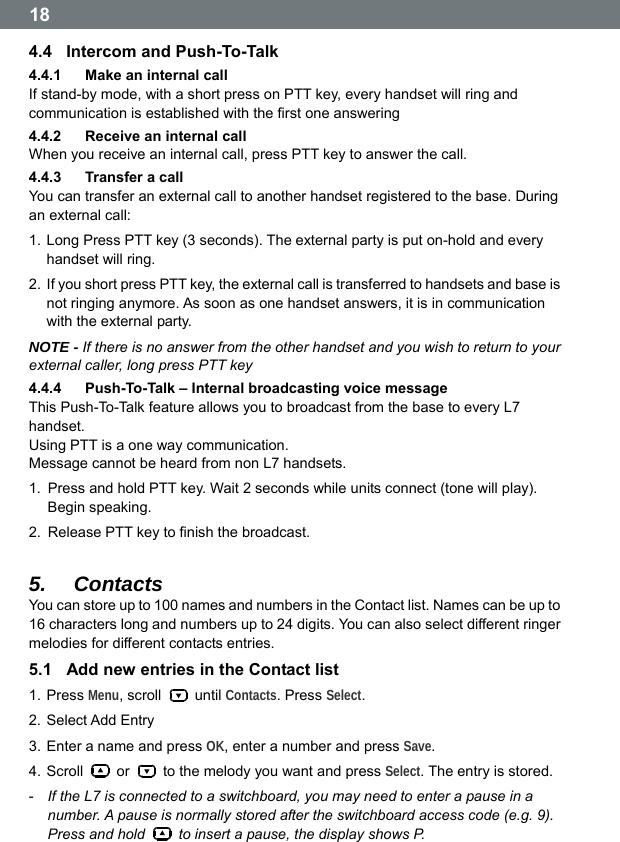
 18 4.4  Intercom and Push-To-Talk 4.4.1  Make an internal call If stand-by mode, with a short press on PTT key, every handset will ring and communication is established with the first one answering 4.4.2  Receive an internal call When you receive an internal call, press PTT key to answer the call. 4.4.3  Transfer a call You can transfer an external call to another handset registered to the base. During an external call: 1. Long Press PTT key (3 seconds). The external party is put on-hold and every handset will ring. 2.  If you short press PTT key, the external call is transferred to handsets and base is not ringing anymore. As soon as one handset answers, it is in communication with the external party. NOTE - If there is no answer from the other handset and you wish to return to your external caller, long press PTT key 4.4.4  Push-To-Talk – Internal broadcasting voice message This Push-To-Talk feature allows you to broadcast from the base to every L7 handset. Using PTT is a one way communication.   Message cannot be heard from non L7 handsets. 1.  Press and hold PTT key. Wait 2 seconds while units connect (tone will play). Begin speaking. 2.  Release PTT key to finish the broadcast.  5.  Contacts You can store up to 100 names and numbers in the Contact list. Names can be up to 16 characters long and numbers up to 24 digits. You can also select different ringer melodies for different contacts entries. 5.1  Add new entries in the Contact list 1. Press Menu, scroll   until Contacts. Press Select. 2. Select Add Entry 3. Enter a name and press OK, enter a number and press Save. 4. Scroll   or    to the melody you want and press Select. The entry is stored. -  If the L7 is connected to a switchboard, you may need to enter a pause in a number. A pause is normally stored after the switchboard access code (e.g. 9). Press and hold    to insert a pause, the display shows P.
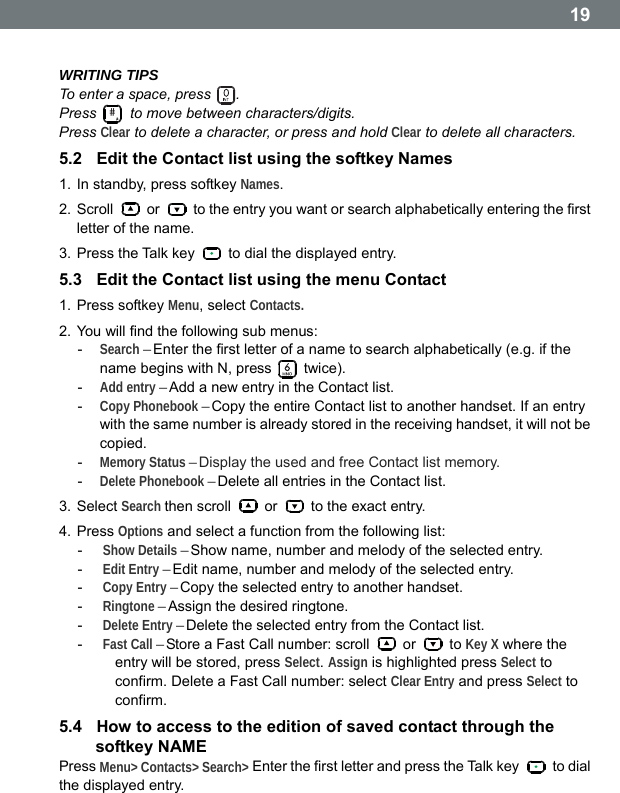
 19 WRITING TIPS To enter a space, press  . Press # to move between characters/digits. Press Clear to delete a character, or press and hold Clear to delete all characters. 5.2  Edit the Contact list using the softkey Names 1. In standby, press softkey Names. 2. Scroll   or    to the entry you want or search alphabetically entering the first letter of the name. 3. Press the Talk key    to dial the displayed entry. 5.3  Edit the Contact list using the menu Contact 1. Press softkey Menu, select Contacts. 2. You will find the following sub menus: -  Search – Enter the first letter of a name to search alphabetically (e.g. if the name begins with N, press   twice). -  Add entry – Add a new entry in the Contact list. -  Copy Phonebook – Copy the entire Contact list to another handset. If an entry with the same number is already stored in the receiving handset, it will not be copied. -  Memory Status – Display the used and free Contact list memory. -  Delete Phonebook – Delete all entries in the Contact list. 3. Select Search then scroll   or    to the exact entry. 4. Press Options and select a function from the following list: -  Show Details – Show name, number and melody of the selected entry. -  Edit Entry – Edit name, number and melody of the selected entry. -  Copy Entry – Copy the selected entry to another handset. -  Ringtone – Assign the desired ringtone. -  Delete Entry – Delete the selected entry from the Contact list. -  Fast Call – Store a Fast Call number: scroll   or   to Key X where the entry will be stored, press Select. Assign is highlighted press Select to confirm. Delete a Fast Call number: select Clear Entry and press Select to confirm. 5.4  How to access to the edition of saved contact through the softkey NAME Press Menu> Contacts> Search> Enter the first letter and press the Talk key   to dial the displayed entry.
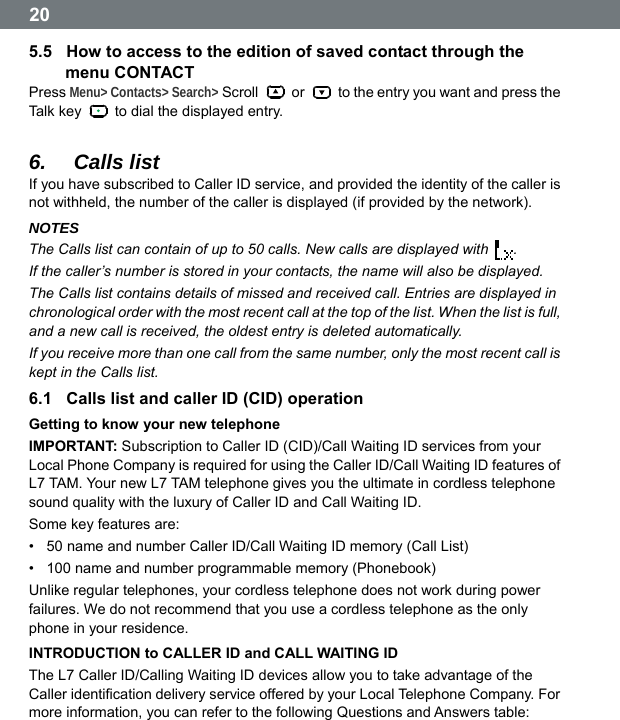
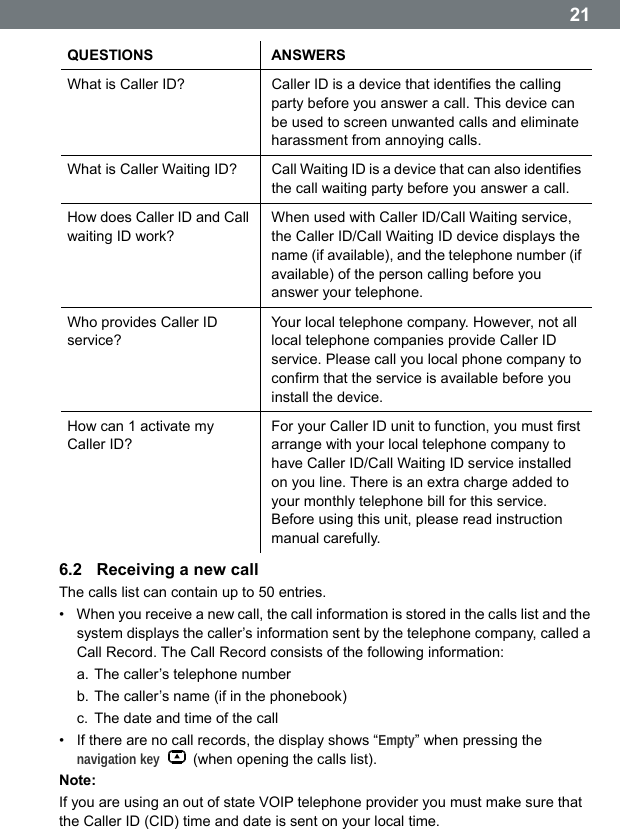
 20 5.5  How to access to the edition of saved contact through the menu CONTACT Press Menu> Contacts> Search> Scroll   or    to the entry you want and press the Tal k k ey    to dial the displayed entry.  6.  Calls list If you have subscribed to Caller ID service, and provided the identity of the caller is not withheld, the number of the caller is displayed (if provided by the network). NOTES The Calls list can contain of up to 50 calls. New calls are displayed with  . If the caller’s number is stored in your contacts, the name will also be displayed. The Calls list contains details of missed and received call. Entries are displayed in chronological order with the most recent call at the top of the list. When the list is full, and a new call is received, the oldest entry is deleted automatically. If you receive more than one call from the same number, only the most recent call is kept in the Calls list. 6.1  Calls list and caller ID (CID) operation Getting to know your new telephone IMPORTANT: Subscription to Caller ID (CID)/Call Waiting ID services from your Local Phone Company is required for using the Caller ID/Call Waiting ID features of L7 TAM. Your new L7 TAM telephone gives you the ultimate in cordless telephone sound quality with the luxury of Caller ID and Call Waiting ID. Some key features are: •  50 name and number Caller ID/Call Waiting ID memory (Call List) •  100 name and number programmable memory (Phonebook) Unlike regular telephones, your cordless telephone does not work during power failures. We do not recommend that you use a cordless telephone as the only phone in your residence. INTRODUCTION to CALLER ID and CALL WAITING ID The L7 Caller ID/Calling Waiting ID devices allow you to take advantage of the Caller identification delivery service offered by your Local Telephone Company. For more information, you can refer to the following Questions and Answers table:
 21QUESTIONS ANSWERS What is Caller ID?  Caller ID is a device that identifies the calling party before you answer a call. This device can be used to screen unwanted calls and eliminate harassment from annoying calls. What is Caller Waiting ID?  Call Waiting ID is a device that can also identifies the call waiting party before you answer a call. How does Caller ID and Call waiting ID work? When used with Caller ID/Call Waiting service, the Caller ID/Call Waiting ID device displays the name (if available), and the telephone number (if available) of the person calling before you answer your telephone. Who provides Caller ID service? Your local telephone company. However, not all local telephone companies provide Caller ID service. Please call you local phone company to confirm that the service is available before you install the device. How can 1 activate my Caller ID? For your Caller ID unit to function, you must first arrange with your local telephone company to have Caller ID/Call Waiting ID service installed on you line. There is an extra charge added to your monthly telephone bill for this service. Before using this unit, please read instruction manual carefully. 6.2  Receiving a new call The calls list can contain up to 50 entries. •  When you receive a new call, the call information is stored in the calls list and the system displays the callerʼs information sent by the telephone company, called a Call Record. The Call Record consists of the following information: a. The caller’s telephone number b. The caller’s name (if in the phonebook) c.  The date and time of the call •  If there are no call records, the display shows “Empty” when pressing the navigation key   (when opening the calls list). Note: If you are using an out of state VOIP telephone provider you must make sure that the Caller ID (CID) time and date is sent on your local time.
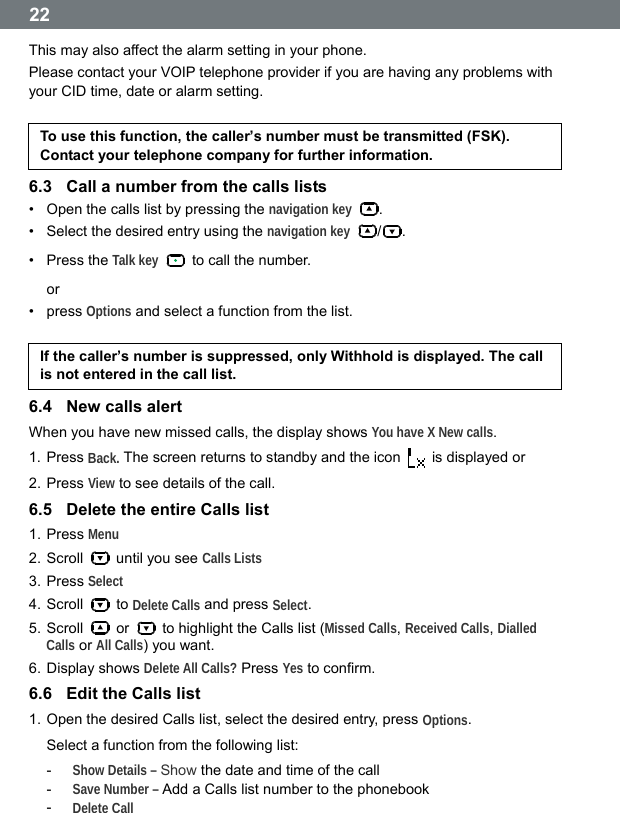
 22 This may also affect the alarm setting in your phone. Please contact your VOIP telephone provider if you are having any problems with your CID time, date or alarm setting.  To use this function, the callerʼs number must be transmitted (FSK). Contact your telephone company for further information. 6.3  Call a number from the calls lists •  Open the calls list by pressing the navigation key . •  Select the desired entry using the navigation key /. • Press the Talk key   to call the number. or • press Options and select a function from the list.  If the callerʼs number is suppressed, only Withhold is displayed. The call is not entered in the call list. 6.4  New calls alert When you have new missed calls, the display shows You have X New calls. 1. Press Back. The screen returns to standby and the icon    is displayed or 2. Press View to see details of the call. 6.5  Delete the entire Calls list 1. Press Menu 2. Scroll    until you see Calls Lists 3. Press Select 4. Scroll   to Delete Calls and press Select. 5. Scroll   or    to highlight the Calls list (Missed Calls, Received Calls, Dialled Calls or All Calls) you want. 6. Display shows Delete All Calls? Press Yes to confirm. 6.6  Edit the Calls list 1. Open the desired Calls list, select the desired entry, press Options. Select a function from the following list: -  Show Details – Show the date and time of the call -  Save Number – Add a Calls list number to the phonebook -  Delete Call
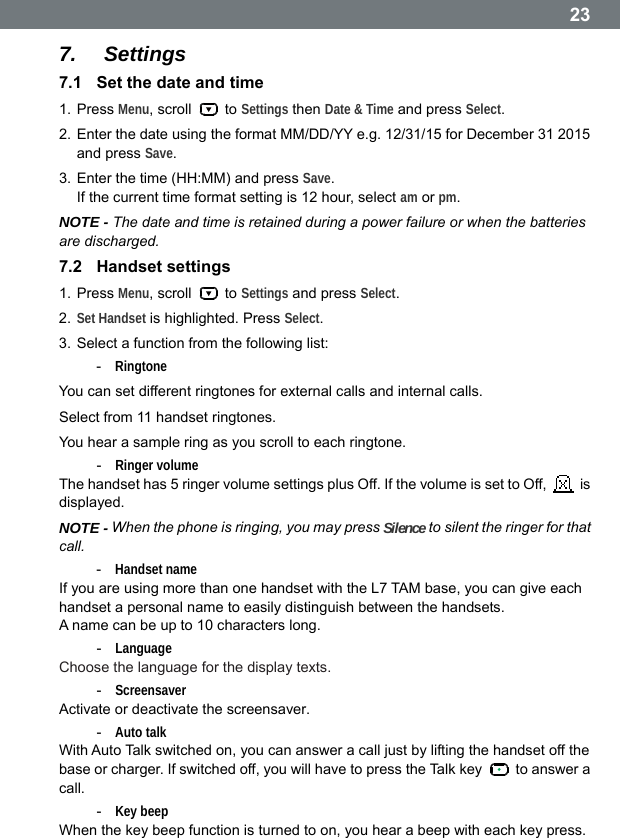
 237.  Settings 7.1  Set the date and time 1. Press Menu, scroll   to Settings then Date & Time and press Select. 2. Enter the date using the format MM/DD/YY e.g. 12/31/15 for December 31 2015 and press Save. 3. Enter the time (HH:MM) and press Save. If the current time format setting is 12 hour, select am or pm. NOTE - The date and time is retained during a power failure or when the batteries are discharged. 7.2  Handset settings 1. Press Menu, scroll   to Settings and press Select. 2. Set Handset is highlighted. Press Select. 3. Select a function from the following list: -  Ringtone  You can set different ringtones for external calls and internal calls. Select from 11 handset ringtones. You hear a sample ring as you scroll to each ringtone. -  Ringer volume The handset has 5 ringer volume settings plus Off. If the volume is set to Off,   is displayed. NOTE - When the phone is ringing, you may press Silence to silent the ringer for that call. -  Handset name If you are using more than one handset with the L7 TAM base, you can give each handset a personal name to easily distinguish between the handsets. A name can be up to 10 characters long. -  Language Choose the language for the display texts. -  Screensaver Activate or deactivate the screensaver. -  Auto talk With Auto Talk switched on, you can answer a call just by lifting the handset off the base or charger. If switched off, you will have to press the Talk key    to answer a call. -  Key beep When the key beep function is turned to on, you hear a beep with each key press.
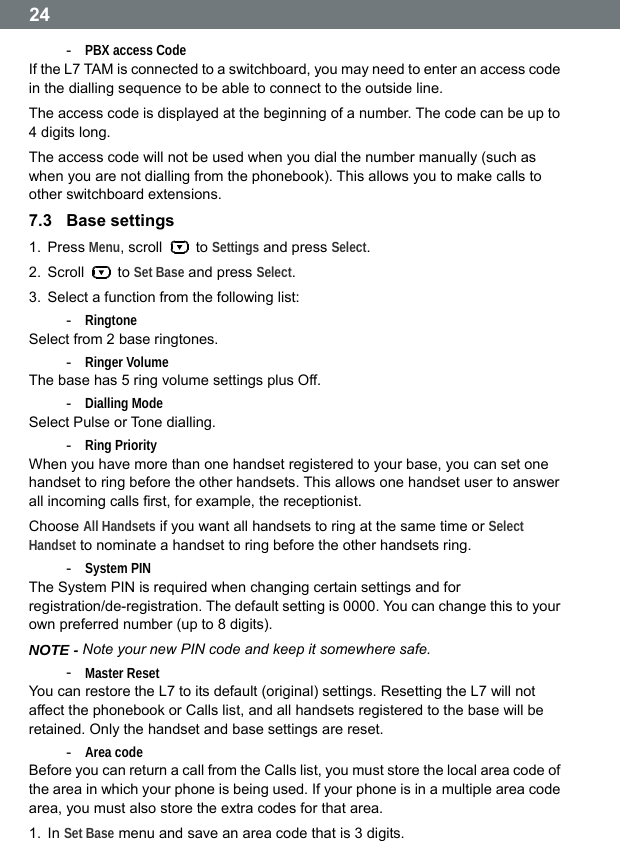
 24 -  PBX access Code If the L7 TAM is connected to a switchboard, you may need to enter an access code in the dialling sequence to be able to connect to the outside line. The access code is displayed at the beginning of a number. The code can be up to 4 digits long. The access code will not be used when you dial the number manually (such as when you are not dialling from the phonebook). This allows you to make calls to other switchboard extensions. 7.3  Base settings 1. Press Menu, scroll   to Settings and press Select. 2. Scroll   to Set Base and press Select. 3.  Select a function from the following list: -  Ringtone Select from 2 base ringtones. -  Ringer Volume The base has 5 ring volume settings plus Off. -  Dialling Mode Select Pulse or Tone dialling. -  Ring Priority When you have more than one handset registered to your base, you can set one handset to ring before the other handsets. This allows one handset user to answer all incoming calls first, for example, the receptionist. Choose All Handsets if you want all handsets to ring at the same time or Select Handset to nominate a handset to ring before the other handsets ring. -  System PIN The System PIN is required when changing certain settings and for registration/de-registration. The default setting is 0000. You can change this to your own preferred number (up to 8 digits). NOTE - Note your new PIN code and keep it somewhere safe. -  Master Reset You can restore the L7 to its default (original) settings. Resetting the L7 will not affect the phonebook or Calls list, and all handsets registered to the base will be retained. Only the handset and base settings are reset. -  Area code Before you can return a call from the Calls list, you must store the local area code of the area in which your phone is being used. If your phone is in a multiple area code area, you must also store the extra codes for that area. 1. In Set Base menu and save an area code that is 3 digits.
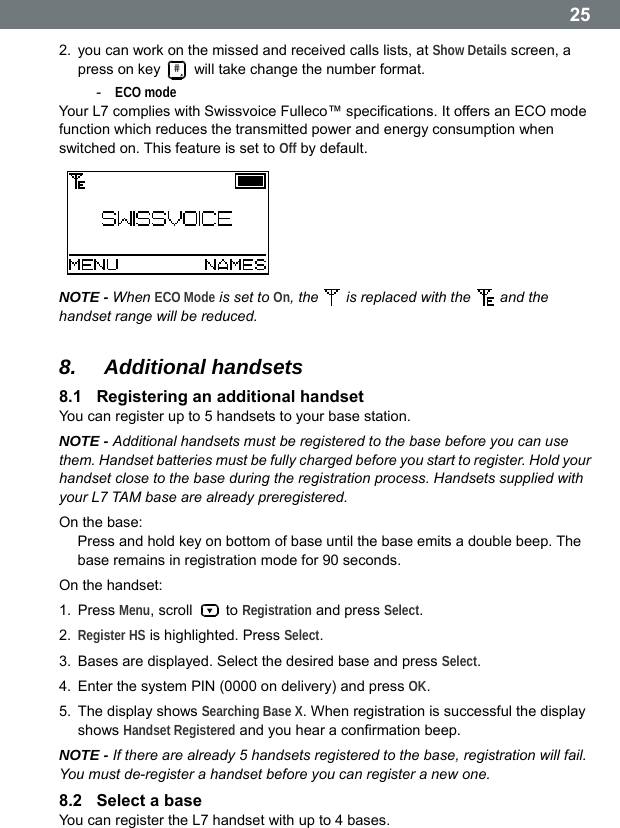
 252.  you can work on the missed and received calls lists, at Show Details screen, a press on key #  will take change the number format. -  ECO mode Your L7 complies with Swissvoice Fulleco™ specifications. It offers an ECO mode function which reduces the transmitted power and energy consumption when switched on. This feature is set to Off by default.   NOTE - When ECO Mode is set to On, the    is replaced with the   and the handset range will be reduced.  8.  Additional handsets 8.1  Registering an additional handset You can register up to 5 handsets to your base station. NOTE - Additional handsets must be registered to the base before you can use them. Handset batteries must be fully charged before you start to register. Hold your handset close to the base during the registration process. Handsets supplied with your L7 TAM base are already preregistered. On the base: Press and hold key on bottom of base until the base emits a double beep. The base remains in registration mode for 90 seconds. On the handset: 1. Press Menu, scroll   to Registration and press Select. 2.  Register HS is highlighted. Press Select. 3.  Bases are displayed. Select the desired base and press Select. 4.  Enter the system PIN (0000 on delivery) and press OK. 5.  The display shows Searching Base X. When registration is successful the display shows Handset Registered and you hear a confirmation beep. NOTE - If there are already 5 handsets registered to the base, registration will fail. You must de-register a handset before you can register a new one. 8.2  Select a base You can register the L7 handset with up to 4 bases.
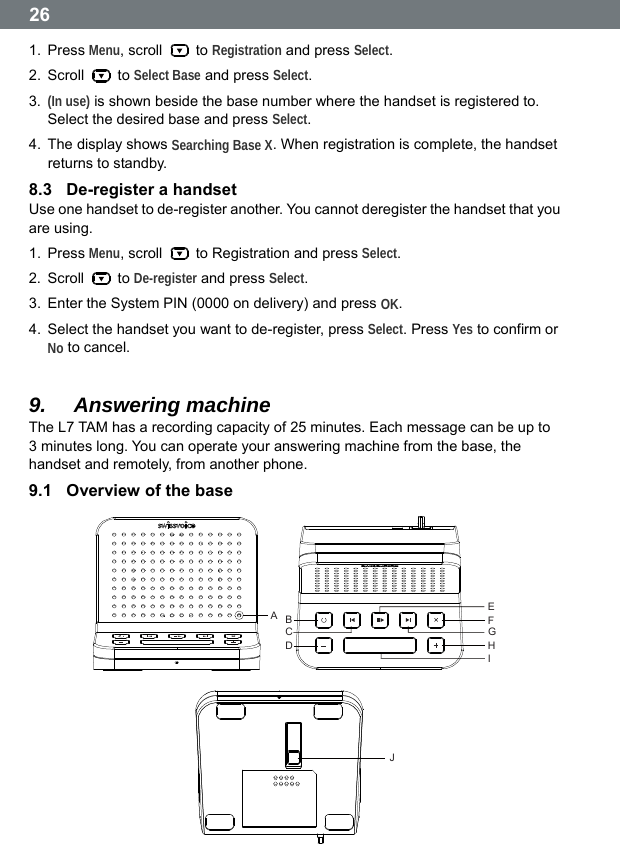
 26 1. Press Menu, scroll   to Registration and press Select. 2. Scroll   to Select Base and press Select. 3.  (In use) is shown beside the base number where the handset is registered to. Select the desired base and press Select. 4.  The display shows Searching Base X. When registration is complete, the handset returns to standby. 8.3  De-register a handset Use one handset to de-register another. You cannot deregister the handset that you are using. 1. Press Menu, scroll    to Registration and press Select. 2. Scroll   to De-register and press Select. 3.  Enter the System PIN (0000 on delivery) and press OK. 4.  Select the handset you want to de-register, press Select. Press Yes to confirm or No to cancel.  9.  Answering machine The L7 TAM has a recording capacity of 25 minutes. Each message can be up to 3 minutes long. You can operate your answering machine from the base, the handset and remotely, from another phone. 9.1  Overview of the base ABCDHIJFGE
 27A. LED  –  Indicates when the answering machine is on or off, and when you have new messages (LED is blinking) B. Answering machine On / Off – Switches the answering machine on / off Press and hold to enter the outgoing message selection mode.   Then press key C to select Answer & Record outgoing message or key G to select Answer Only outgoing message. Press key F to delete personal OGM during OGM playback. The pre-recorded OGM is selected and played. C. Skip back – Repeat message/Press twice to return to previous message D. Volume Down – Decrease speaker volume during message playback E. Play / Stop – Play or stop playback of recorded messages F. Delete – Delete current message / Personal Outgoing message during playback (deleting a personal outgoing message automatically reinstates the pre-recorded outgoing message) G. Skip forward – Press to next message H. Volume  Up  –  Increase speaker volume during message playback I.  Intercom and Push-To-Talk – In standby, short press to call the handset(s). Press and hold to broadcast to every L7 handset J.  Bottom key Page and Register key – Press and hold to enter registration mode when registering handsets 9.2  Switch the answering machine on/off 1. Press Menu, the display shows Answer Machine, press Select. 2. Scroll   to Answer On/Off and press Select. Select Off or On and press Select. 9.3  New messages alert When you have new messages, the display shows You have X new messages. If you press Back, the screen returns to standby and the icon   is displayed. Press Play and scroll   or    to the message you want to play. Press Play to hear the highlighted message. 9.4  Record personal outgoing messages The L7 TAM comes with 2 pre-recorded outgoing messages in different languages. You can record personal outgoing messages (up to 3 minutes long). You can select 2 operating modes: Answer & Record: your caller can leave a message Answer Only: your caller cannot leave a message 1. Press Menu, the display shows Answer Machine, press Select. 2. Scroll   to Outgoing Message and press Select.
 28 3.  Record is highlighted, press Select. 4. Select Answer & Record or Answer Only and press Select. 5.  Speak your message after the tone. Press Save to end recording. 6.  Your outgoing message is played back. If you want to delete it, press Delete during playback. 9.5  Play or delete your personal outgoing message Deleting a personal outgoing message automatically reinstates the pre-recorded outgoing message. You cannot delete a pre-recorded message. 1. Press Menu, the display shows Answer Machine, press Select. 2. Scroll   to Outgoing Message and press Select. 3. Scroll   to Play and press Select. 4. Scroll   or   to Answer & Record or Answer Only then press Select. 5. Scroll   to Personal OGM and press Select. 6.  The message is played. Press OK to stop playback or press Delete to delete the message. 9.6  Set the answer mode See chapter “Answering machine settings” 9.7  Record a memo You can record a memo which is stored on your answering machine and played back like a normal message. 1. Press Menu, the display shows Answer Machine, press Select. 2. Scroll   to Record Memo and press Select. 3.  The display shows Please speak after the tone. 4.  After your hear the tone, speak your memo then press Save to end recording. 5.  Your memo is played back. Press Delete during playback, to delete the memo or press Save to save it. 9.8  Call screening When the answering machine is on and takes a call, you can use the loudspeaker to listen to identify the caller and decide whether to take the call in person. 1.  When the handset rings, wait for the answering machine to take the call. When the caller begins leaving a message, the display shows Recording.   Press Screen to hear the caller. 2.  To interrupt and speak to the caller directly, press the End Call key  . NOTE - While screening, you can adjust the volume by pressing   or  .
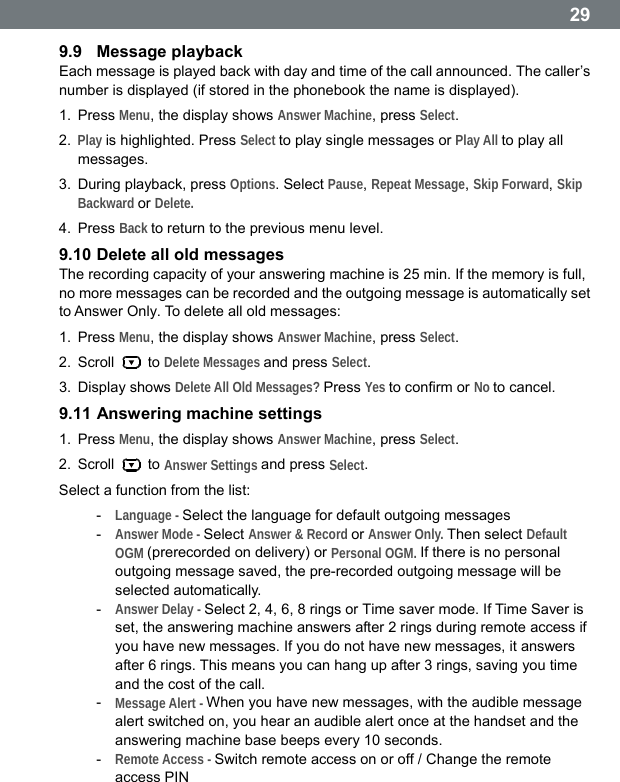
 299.9  Message playback Each message is played back with day and time of the call announced. The caller’s number is displayed (if stored in the phonebook the name is displayed). 1. Press Menu, the display shows Answer Machine, press Select. 2.  Play is highlighted. Press Select to play single messages or Play All to play all messages. 3.  During playback, press Options. Select Pause, Repeat Message, Skip Forward, Skip Backward or Delete. 4. Press Back to return to the previous menu level. 9.10 Delete all old messages The recording capacity of your answering machine is 25 min. If the memory is full, no more messages can be recorded and the outgoing message is automatically set to Answer Only. To delete all old messages: 1. Press Menu, the display shows Answer Machine, press Select. 2. Scroll   to Delete Messages and press Select. 3. Display shows Delete All Old Messages? Press Yes to confirm or No to cancel. 9.11 Answering machine settings 1. Press Menu, the display shows Answer Machine, press Select. 2. Scroll   to Answer Settings and press Select. Select a function from the list: -  Language - Select the language for default outgoing messages -  Answer Mode - Select Answer & Record or Answer Only. Then select Default OGM (prerecorded on delivery) or Personal OGM. If there is no personal outgoing message saved, the pre-recorded outgoing message will be selected automatically. -  Answer Delay - Select 2, 4, 6, 8 rings or Time saver mode. If Time Saver is set, the answering machine answers after 2 rings during remote access if you have new messages. If you do not have new messages, it answers after 6 rings. This means you can hang up after 3 rings, saving you time and the cost of the call. -  Message Alert - When you have new messages, with the audible message alert switched on, you hear an audible alert once at the handset and the answering machine base beeps every 10 seconds. -  Remote Access - Switch remote access on or off / Change the remote access PIN
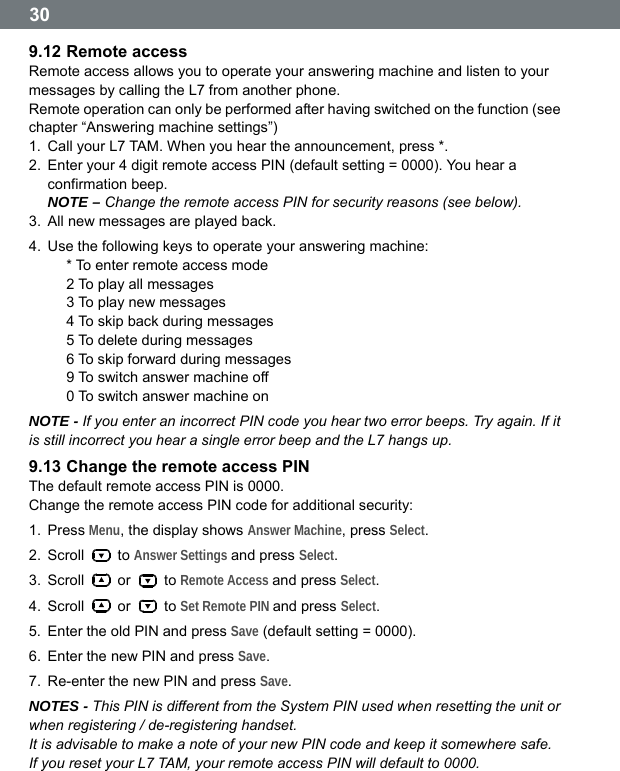
 30 9.12 Remote access Remote access allows you to operate your answering machine and listen to your messages by calling the L7 from another phone. Remote operation can only be performed after having switched on the function (see chapter “Answering machine settings”)   1.  Call your L7 TAM. When you hear the announcement, press *. 2.  Enter your 4 digit remote access PIN (default setting = 0000). You hear a confirmation beep. NOTE – Change the remote access PIN for security reasons (see below).   3.  All new messages are played back. 4.  Use the following keys to operate your answering machine: * To enter remote access mode 2 To play all messages 3 To play new messages 4 To skip back during messages 5 To delete during messages 6 To skip forward during messages 9 To switch answer machine off 0 To switch answer machine on NOTE - If you enter an incorrect PIN code you hear two error beeps. Try again. If it is still incorrect you hear a single error beep and the L7 hangs up. 9.13 Change the remote access PIN The default remote access PIN is 0000. Change the remote access PIN code for additional security: 1. Press Menu, the display shows Answer Machine, press Select. 2. Scroll   to Answer Settings and press Select. 3. Scroll   or   to Remote Access and press Select. 4. Scroll   or   to Set Remote PIN and press Select. 5.  Enter the old PIN and press Save (default setting = 0000). 6.  Enter the new PIN and press Save. 7.  Re-enter the new PIN and press Save. NOTES - This PIN is different from the System PIN used when resetting the unit or when registering / de-registering handset. It is advisable to make a note of your new PIN code and keep it somewhere safe. If you reset your L7 TAM, your remote access PIN will default to 0000.
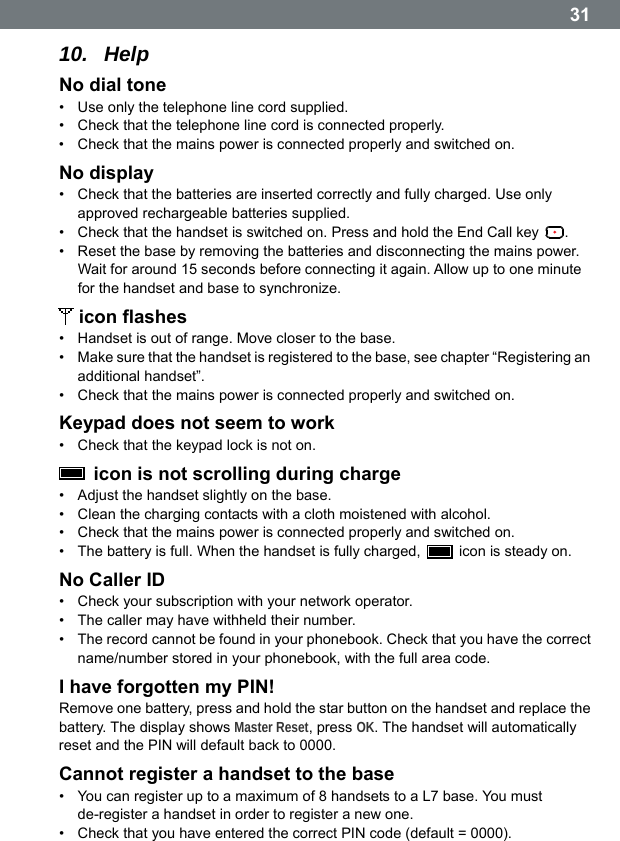
 3110.  Help No dial tone •  Use only the telephone line cord supplied. •  Check that the telephone line cord is connected properly. •  Check that the mains power is connected properly and switched on. No display •  Check that the batteries are inserted correctly and fully charged. Use only approved rechargeable batteries supplied. •  Check that the handset is switched on. Press and hold the End Call key  . •  Reset the base by removing the batteries and disconnecting the mains power. Wait for around 15 seconds before connecting it again. Allow up to one minute for the handset and base to synchronize.  icon flashes •  Handset is out of range. Move closer to the base. •  Make sure that the handset is registered to the base, see chapter “Registering an additional handset”. •  Check that the mains power is connected properly and switched on. Keypad does not seem to work •  Check that the keypad lock is not on.   icon is not scrolling during charge •  Adjust the handset slightly on the base. •  Clean the charging contacts with a cloth moistened with alcohol. •  Check that the mains power is connected properly and switched on. •  The battery is full. When the handset is fully charged,    icon is steady on. No Caller ID •  Check your subscription with your network operator. •  The caller may have withheld their number. •  The record cannot be found in your phonebook. Check that you have the correct name/number stored in your phonebook, with the full area code. I have forgotten my PIN! Remove one battery, press and hold the star button on the handset and replace the battery. The display shows Master Reset, press OK. The handset will automatically reset and the PIN will default back to 0000. Cannot register a handset to the base •  You can register up to a maximum of 8 handsets to a L7 base. You must de-register a handset in order to register a new one. •  Check that you have entered the correct PIN code (default = 0000).
 32  •  Check that you are at least one meter away from other electrical equipment to avoid interference when registering. Handset does not ring •  The handset ringer volume may be set to Off. Base unit does not ring •  The base ringer volume may be set to Off. Noise interference on my phone or on other electrical equipment nearby •  Place your L7 TAM at least one meter away from electrical appliances or any metal obstructions to avoid any risk of interference. Delete all the voicemail record •  In Call lists Delete sub menu, select Delete Voicemail calls, VMWI icon will be cleared. If Voicemail calls menu is hidden.
 33 11.  Appendix Using Internet/cable telephone adapters on an analog port When using an analog telephone on the analog connection of an Internet or cable telephone adapter, not all the described features (in particular calling line display) may function in the same way as with a standard analog telephone line. This does not cause the L7 to malfunction.  Several factors can cause a failure of specific features to function: •  The Internet/cable telephony provider may not provide the function on its Internet/cable telephony connection. •  The adapter used to convert Internet/cable telephony to analog telephony (usually supplied by the provider) may not forward the functions to connected telephones or may forward them in a non-analog format. If this happens, please check the L7 TAM on an analog fixed line and/or contact your Internet/cable telephony provider. Industry Canada Certification Operation is subject to the following two conditions: (1) this device may not cause interference, and (2) this device must accept any interference, including interference that may cause undesired operation of the device. Privacy of communications may not be ensured when using this telephone. NOTICE: The Industry Canada label identifies certified equipment. This certification means that the equipment meets certain telecommunications network, protective, operational and safety requirements as prescribed in the appropriate Terminal Equipment Technical Requirements document(s). The Department does not guarantee the equipment will operate to the userʼs satisfaction. Before installing this equipment, users should ensure that it is permissible to be connected to the facilities of the local telecommunications company. The equipment must also be installed using an acceptable method of connection. The customer should be aware that compliance with the above conditions may not prevent degradation of service in some situations. Repairs to certified equipment should be coordinated by a representative designated by the supplier. Any repairs or alterations made by the user to this equipment, or equipment malfunctions, may give the telecommunications company cause to request the user to disconnect the equipment. Users should ensure for their own protection that the electrical ground connections of the power utility, telephone lines and internal metallic water pipe system, if present, are connected together. This precaution may be particularly important in rural areas.
 34  NOTE: Users should not attempt to make such connections themselves, but should contact the appropriate electric inspection authority, or electrician, as appropriate. This product meets the applicable Industry Canada technical specifications. The Ringer Equivalence Number is an indication of the maximum number of devices allowed to be connected to a telephone interface. The termination of an interface may consist of any combination of devices subject only to the requirement that the sum of the RENs of all devices does not exceed five. This Class B digital apparatus complies with Canadian ICES-003. Caution: To maintain the compliance with the Industry Canada's RF exposure guideline, place the base unit at least 20 cm from nearby persons. FCC/ACTA Information Warning: Changes or modifications to this equipment not expressly approved by the party responsible for compliance could void the user’s authority to operate the equipment. This includes the addition of any external antenna device. This equipment complies with Part 68 of the FCC rules and the requirements adopted by the ACTA. On the bottom of the base station is a label that contains, among other information, a product identifier in the format US:AAAEQ##TXXXX. If requested, this number must be provided to the telephone company. A plug and jack used to connect this equipment to the premises wiring and telephone network must comply with the applicable FCC Part 68 rules and requirements adopted by the ACTA. A compliant telephone cord and modular plug is provided with this product. It is designed to be connected to a compatible modular jack that is also compliant. See installation instructions for details. The REN is used to determine the number of devices that may be connected to a telephone line. Excessive RENs on a telephone line may result in the devices not ringing in response to an incoming call. In most but not all areas, the sum of RENs should not exceed five (5.0). To be certain of the number of devices that may be connected to a line, as determined by the total RENs, contact the local telephone company. For products approved after July 23, 2001, the REN for this product is part of the product identifier that has the format US:AAAEQ##TXXXX. The digits represented by ## are the REN without a decimal point (e.g., 03 is a REN of 0.3). For earlier products, the REN is separately shown on the label. If this equipment causes harm to the telephone network, the telephone company will notify you in advance, that temporary discontinuance of service may be required. But if advance notice isnʼt practical, the telephone company will notify the customer as soon as possible. Also, you will be advised of your right to file a complaint with the FCC if you believe it is necessary. The telephone company may make changes in its facilities, equipment, operations or procedures that could affect the operation of the equipment.
 35 If this happens the telephone company will provide advance notice in order for you to make necessary modifications to maintain uninterrupted service. If you experience trouble with this telephone system, disconnect it from the network until the problem has been corrected or until you are sure that the equipment is not malfunctioning. If trouble is experienced with this equipment, for repair or warranty information, please contact Support at 1-866-8238920. If the equipment is causing harm to the telephone network, the telephone company may request that you disconnect the equipment until the problem is resolved. This equipment is of a type that is not intended to be repaired by the Customer (user). This telephone system may not be used on coin service provided by the telephone company. Connection to party line service is subject to state tariffs. Contact the state public utility commission, public service commission or corporation commission for information. If your home has specially wired alarm equipment connected to the telephone line, ensure the installation of this equipment does not disable your alarm equipment. If you have questions about what will disable alarm equipment, consult your telephone company or a qualified installer. FCC Part 15 This device complies with part 15 of the FCC Rules. Operation is subject to the following two conditions: (1) This device may not cause harmful interference, and (2) this device must accept any interference received, including interference that may cause undesired operation. Privacy of communications may not be ensured when using this phone. Changes or modifications not expressly approved by the party responsible for compliance could void the userʼs authority to operate the equipment. Note: This equipment has been tested and found to comply with the limits for a Class B digital device, pursuant to part 15 of the FCC Rules. These limits are designed to provide reasonable protection against harmful interference in a residential installation. This equipment generates, uses and can radiate radio frequency energy and, if not installed and used in accordance with the instructions, may cause harmful interference to radio communications. However, there is no guarantee that interference will not occur in a particular installation. If this equipment does cause harmful interference to radio or television reception, which can be determined by turning the equipment off and on, the user is encouraged to try to correct the interference by one or more of the following measures: ‐  Reorient or relocate the receiving antenna. ‐  Increase the separation between the equipment and receiver. ‐  Connect the equipment into an outlet on a circuit different from that to which the receiver is connected. ‐  Consult the dealer or an experienced radio/TV technician for help. Privacy of communications may not be ensured when using this telephone!
 36  Some cordless telephones operate at frequencies that may cause interference to nearby TVs and VCRs. To minimize or prevent such interference, the base of the cordless telephone should not be placed near or on top of a TV or VCR. If interference is experienced, move the cordless telephone further away from the TV or VCR. This will often reduce, or eliminate, interference. Operating near 2.4GHz electrical appliances may cause interference. Move away from the electrical appliances. Notice for Direct Inward Dialing (“DID”) ALLOWING THIS EQUIPMENT TO BE OPERATED IN SUCH A MANNER AS TO NOT PROVIDE FOR PROPER ANSWER SUPERVISION IS A VIOLATION OF PART 68 OF THE FCCʼS RULES. Notice to Hearing Aid Wearers: This phone system is compatible with inductively coupled hearing aids. CAUTION: To comply with FCC RF exposure requirements, the base unit should be installed with its antenna located at 20 cm or more from persons. 1.  This equipment is hearing aid compatible as defined by the FCC in 47 CFR-Section 68.316. 2.  Environment — do not place the unit in a room where the temperature is less than 5°C (41°F) or greater than 40°C (104°F). Allow 10 cm (4") clearance around the unit for proper ventilation. Avoid excessive smoke, dust, mechanical vibration, shock, or direct sunlight. 3.  Medical — consult the manufacturer of any personal medical devices, such as pacemakers or hearing aids, to determine if they are adequately shielded from external RF (radio frequency) energy. (The unit operates in the frequency range of 1920MHz to 1930MHz, and the power output level can range 0.04 watts to 0.40 watts.) Do not use the unit in health care facilities if any regulations posted in the area instruct you not to do so. Hospitals or health care facilities may be using equipment that could be sensitive to external RF (radio frequency) energy. 4.  Routine care — wipe the unit with a soft cloth. Do not use benzine, thinner, or any abrasive powder. When you leave the unit unused for a long period of time, unplug the AC adaptor from the outlet. 5.  If there is any trouble — disconnect the unit from the telephone line and connect a known working phone. If the known working phone operates properly, have your unit repaired by a Factory Service center or other Authorized Servicer. If the known working phone does not operate properly, consult your telephone company.  When you hold the phone to your ear, noise might be heard in your Hearing Aid. Some Hearing Aids are not adequately shielded from external RF (radio frequency) energy. If noise occurs, use an optional headset accessory or
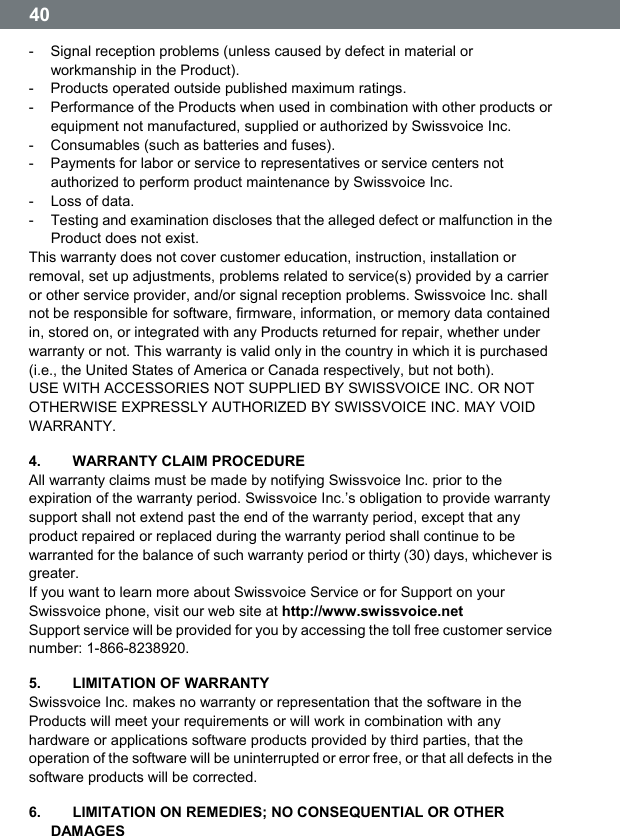
 37the speakerphone option (if applicable) when using this phone. Consult with your audiologist or Hearing Aid manufacturer about the availability of Hearing Aids which provide adequate shielding to RF energy commonly emitted by digital devices. Power Outage: In the event of a power outage, your cordless telephone will not operate. The cordless telephone requires electricity for operation. You should have a telephone that does not require electricity available for use during power outages. Notice: To maintain the compliance with the FCC’s RF exposure guideline, place the base unit at least 20 cm (8 inches) from nearby persons. Contact with liquid   If the handset should come into contact with liquid: 1.  Switch the handset off and remove the battery immediately. 2.  Allow the liquid to drain from the handset. 3.  Pat all parts dry, then place the handset with the battery compartment open and the keypad facing down in a dry, warm place for at least 72 hours (not in a microwave, oven etc.). 4.  Do not switch on the handset again until it is completely dry. When it has fully dried out, you will usually be able to use it again. Care Your telephone is a sophisticated product in terms of design and construction, and should therefore be handled with care. To clean the telephone, wipe first with an antistatic cloth or a damp, soft leather cloth and then dry using a dry cloth. Recycling (environmental protection)  At the end of the productʼs life cycle, the telephone must not be disposed of in normal domestic waste. Please take it to a collection point for processing electrical and electronic equipment: see symbol on the product, in the user manual and/or packaging.  Some materials used in this product can be recycled if you take it to a recycling depot. By recycling parts or raw materials from used products you will be making an important contribution to environmental protection. Please contact your local authority if you require information about collection points in your neighbourhood. BATTERY SAFETY PRECAUTIONS To reduce the risk of fire, injury or electric shock, and to properly dispose of batteries, please read and understand the following instructions.
 38  BATTERY MUST BE RECYCLED OR DISPOSED OF PROPERLY. DO NOT DISPOSE OF IN MUNICIPAL WASTE. 1.  Only use the batteries specified for use with this product. 2.  DO NOT USE NICKEL CADMIUM OR NICKEL METAL HYDRIDE BATTERIES, or mix batteries of different sizes or from different manufacturers in this product. DO NOT USE NONRECHARGEABLE BATTERIES. 3.  Do not dispose of the batteries in a fire; the cells may explode. Do not expose batteries to water. Check with local codes for special disposal instructions. 4.  Do not open or mutilate the batteries. Released electrolyte is corrosive and may cause damage to the eyes or skin. The electrolyte may be toxic if swallowed. 5.  Exercise care in handling the batteries in order not to short the batteries with conducting materials such as rings, bracelets, and keys. The batteries or conducting material may overheat and cause burns or fire. 6.  Charge the batteries provided with, or identified for use with, this product only in accordance with the instructions and limitations specified in the userʼs manual. Do not attempt to charge the batteries with any means other than that specified in the users manual. 7.  Periodically clean the charge contacts on both the charger and handset. For pluggable equipment, the socket-outlet (power adaptor) shall be installed near the equipment and shall be easily accessible. Service (Customer Care) If you face any issue with your cordless phone, please first visit our website www.swissvoice.net/L7, FAQ section. The most current issues are described and this will help you to solve your trouble. If after having visited our FAQ you are still facing this issue, and for any Customer Care warranty service, product operation information or problem resolution, please call: Toll free: 1-866-8238920 or send an email to helpline@swissvoice.net End-user limited warranty This product is covered by a one year limited warranty. Any repair replacement or warranty service, and all questions about this product should be directed to: 1-866-8238920. This limited, non-transferable warranty is provided to the original buyer/end-consumer (“you”) for systems, handsets and accessories (collectively, “Product”) provided by Swissvoice Inc. Swissvoice Inc. warrants to you that at the date of purchase, the Product is free of defects in workmanship and materials and the software included in the Product will perform in substantial compliance to its program specifications.
 39 1. WARRANTY PERIOD The Product warranty period is one (1) year from the original date of purchase by you. Proof of purchase (e.g., sales slip or invoice) must be provided with any Product returned during the warranty period. Batteries supplied with the Products are warranted to be free from defects at the time of purchase only. 2. EXCLUSIVE REMEDY Swissvoice Inc. entire liability and your exclusive remedy if the Product is defective in materials or workmanship during the warranty period and is returned shall be that the Product will be repaired or replaced as set forth in Section 4 below. Reconditioned replacement components, parts or materials may be used in the replacement or repair. Data in the memory of the Product may be lost during repair. 3.  THIS LIMITED WARRANTY DOES NOT COVER AND IS VOID WITH RESPECT TO THE FOLLOWING: -  Cosmetic damage, physical damage to the surface of the Product, including, without limitation, breakage, cracks, dents, scratches or adhesive marks on the LCD screen or outside casing of the Product. -  Products which have been repaired, maintained or modified (including the antenna) by anyone other than Swissvoice Inc. or a Swissvoice Inc.-approved repair facility, or that have been improperly installed. -  Cost of installation, removal or reinstallation. -  Damage due to any telephone, electronic, hardware or software program, network, Internet or computer malfunctions, failures, or difficulties of any kind, including without limitation, server failure or incomplete, incorrect, garbled or delayed computer transmissions. -  Equipment and components not manufactured, supplied or authorized by Swiss-voice Inc. -  Modification of the Productʼs components, or operation of the Product in an unsuitable environment or in a manner for which it is not intended, including but not limited to failures or defects caused by misuse, abuse, accidents, physical damage, abnormal operation, improper handling or storage, neglect, alterations, unauthorized installation, removal or repairs, failure to follow instructions, problems caused by the carrierʼs network coverage, exposure to fire, water or excessive moisture or dampness, floods, or extreme changes in climate or temperature, acts of God, riots, acts of terrorism, spills of food or liquids, viruses or other software flaws introduced into the Product or other acts which are not the fault of Swissvoice Inc. and which the Product is not specified to tolerate, including damage caused by mishandling or blown fuses. -  Products which have had warranty stickers, electronic serial number and/or serial number label removed, altered, rendered illegible or fraudulently applied to other equipment.
 40  -  Signal reception problems (unless caused by defect in material or workmanship in the Product). -  Products operated outside published maximum ratings. -  Performance of the Products when used in combination with other products or equipment not manufactured, supplied or authorized by Swissvoice Inc. -  Consumables (such as batteries and fuses). -  Payments for labor or service to representatives or service centers not authorized to perform product maintenance by Swissvoice Inc. - Loss of data. -  Testing and examination discloses that the alleged defect or malfunction in the Product does not exist. This warranty does not cover customer education, instruction, installation or removal, set up adjustments, problems related to service(s) provided by a carrier or other service provider, and/or signal reception problems. Swissvoice Inc. shall not be responsible for software, firmware, information, or memory data contained in, stored on, or integrated with any Products returned for repair, whether under warranty or not. This warranty is valid only in the country in which it is purchased (i.e., the United States of America or Canada respectively, but not both). USE WITH ACCESSORIES NOT SUPPLIED BY SWISSVOICE INC. OR NOT OTHERWISE EXPRESSLY AUTHORIZED BY SWISSVOICE INC. MAY VOID WARRANTY. 4.   WARRANTY CLAIM PROCEDURE All warranty claims must be made by notifying Swissvoice Inc. prior to the expiration of the warranty period. Swissvoice Inc.ʼs obligation to provide warranty support shall not extend past the end of the warranty period, except that any product repaired or replaced during the warranty period shall continue to be warranted for the balance of such warranty period or thirty (30) days, whichever is greater. If you want to learn more about Swissvoice Service or for Support on your Swissvoice phone, visit our web site at http://www.swissvoice.net Support service will be provided for you by accessing the toll free customer service number: 1-866-8238920. 5.    LIMITATION OF WARRANTY Swissvoice Inc. makes no warranty or representation that the software in the Products will meet your requirements or will work in combination with any hardware or applications software products provided by third parties, that the operation of the software will be uninterrupted or error free, or that all defects in the software products will be corrected. 6.    LIMITATION ON REMEDIES; NO CONSEQUENTIAL OR OTHER DAMAGES
 41 Your exclusive remedy for any breach of this limited warranty is as set forth above. Except for any refund elected by Swissvoice Inc., YOU ARE NOT ENTITLED TO ANY DAMAGES, INCLUDING BUT NOT LIMITED TO CONSEQUENTIAL DAMAGES, if the Product does not meet the limited warranty and, to the maximum extent allowed by applicable law, even if any remedy fails of its essential purpose. The terms below (“Exclusion of Incidental, Consequential and Certain Other Damages”) are also incorporated into this limited warranty. Some states/jurisdictions/provinces do not allow the exclusion or limitation of incidental or consequential damages, so the above limitation or exclusion may not apply to you. This limited warranty gives you specific legal rights. You may have others which vary from state/jurisdiction/province to state/jurisdiction/province. 7.   DISCLAIMER OF WARRANTIES SWISSVOICE INC. AND ITS SUPPLIERS PROVIDE THE PRODUCT AND SUPPORT SERVICES (IF ANY) AS IS AND WITH ALL FAULTS. THE LIMITED WARRANTY IS IN LIEU OF ANY OTHER EXPRESS WARRANTIES (IF ANY) CREATED BY ANY DOCUMENTATION OR PACKAGING EXCEPT FOR THE LIMITED WARRANTY, AND TO THE MAXIMUM EXTENT PERMITTED BY APPLICABLE LAW IS IN LIEU OF ANY IMPLIED OR STATUTORY WARRANTIES, INCLUDING, BUT NOT LIMITED TO, THE IMPLIED WARRANTIES OF MERCHANTABILITY AND FITNESS FOR A PARTICULAR PURPOSE, OF ACCURACY OR COMPLETENESS OR RESPONSES, OF RESULTS, OF WORKMANLIKE EFFORT, OF LACK OF VIRUSES AND OF LACK OF NEGLIGENCE, ALL WITH REGARD TO THE PRODUCT, AND THE PROVISION OF OR FAILURE TO PROVIDE SUPPORT SERVICES. ALSO, THERE IS NO WARRANTY OR CONDITION OF TITLE, QUIET ENJOYMENT, QUIET POSSESSION, OR CORRESPONDENCE TO DESCRIPTION OR NONINFRINGEMENT WITH REGARD TO THE PRODUCT. Some states/jurisdictions/provinces do not allow limitations on how long an implied warranty lasts or the exclusion or limitation of incidental or consequential damages, so the above exclusions or limitations may not apply to you. If an implied warranty or condition is created by your state/ province and federal or state/provincial law prohibits disclaimer of it, you also have an implied warranty or condition, BUT ONLY AS TO DEFECTS DISCOVERED DURING THE PERIOD OF THIS LIMITED WARRANTY (ONE YEAR). AS TO ANY DEFECTS DISCOVERED AFTER THE ONE YEAR PERIOD, THERE IS NO WARRANTY OR CONDITION OF ANY KIND. This limited warranty gives you specific legal rights, and you may also have other rights which vary from state to state/province to province. In no event shall Swissvoice Inc.ʼs liability exceed the cost of repairing or replacing defective Products as provided herein, and any such liabilities will terminate upon expiration of the warranty period. Any supplements or updates to the Product or the software in the Product, including without limitation, any (if any) software fixes or upgrades
 42  or bug fixes provided to you after the expiration of the one year limited warranty period are not covered by any warranty or condition, express, implied or statutory. 8.  EXCLUSION OF INCIDENTAL, CONSEQUENTIAL AND CERTAIN OTHER DAMAGES TO THE MAXIMUM EXTENT PERMITTED BY APPLICABLE LAW, IN NO EVENT SHALL SWISSVOICE INC., SELLER OR THEIR SUPPLIERS BE LIABLE FOR ANY SPECIAL, INCIDENTAL, INDIRECT, OR CONSEQUENTIAL DAMAGES WHATSOEVER (INCLUDING, BUT NOT LIMITED TO, DAMAGES FOR LOSS OF PROFITS OR CONFIDENTIAL OR OTHER INFORMATION, FOR BUSINESS INTERRUPTION, FOR PERSONAL INJURY, FOR LOSS OF PRIVACY, FOR FAILURE TO MEET ANY DUTY INCLUDING OF GOOD FAITH OR OF REASONABLE CARE, FOR NEGLIGENCE, AND FOR ANY OTHER PECUNIARY OR OTHER LOSS WHATSOEVER) ARISING OUT OF OR IN ANY WAY RELATED TO THE USE OF OR INABILITY TO USE THE PRODUCT, THE PROVISION OF OR FAILURE TO PROVIDE SUPPORT SERVICES, OR OTHERWISE UNDER OR IN CONNECTION WITH ANY PROVISION OF THIS LIMITED WARRANTY, EVEN IN THE EVENT OF THE FAULT, TORT (INCLUDING NEGLIGENCE), STRICT LIABILITY, BREACH OF CONTRACT OR BREACH OF WARRANTY OF SWISSVOICE INC. OR SELLER OR ANY SUPPLIER, AND EVEN IF SWISSVOICE INC. OR SELLER OR ANY SUPPLIER HAS BEEN ADVISED OF THE POSSIBILITY OF SUCH DAMAGES. REPAIR OR REPLACEMENT, AS PROVIDED UNDER THE WARRANTY, IS YOUR SOLE AND EXCLUSIVE REMEDY FOR BREACH OF THE LIMITED WARRANTY. 9.  LIMITATION OF LIABILITY AND REMEDIES NOTWITHSTANDING ANY DAMAGES THAT YOU MIGHT INCUR FOR ANY REASON WHATSOEVER (INCLUDING, WITHOUT LIMITATION, ALL DAMAGES REFERENCED ABOVE AND ALL DIRECT OR GENERAL DAMAGES), THE ENTIRE LIABILITY OF SWISSVOICE INC., SELLER AND ANY OF THEIR SUPPLIERS UNDER ANY PROVISION OF THIS LIMITED WARRANTY AND YOUR EXCLUSIVE REMEDY FOR ALL OF THE FOREGOING (EXCEPT FOR ANY REMEDY OF REPAIR OR REPLACEMENT ELECTED BY SWISSVOICE INC. OR SELLER OR SUPPLIER WITH RESPECT TO ANY BREACH OF THE LIMITED WARRANTY) SHALL BE LIMITED TO THE GREATER OF THE AMOUNT ACTUALLY PAID BY YOU FOR THE PRODUCT OR FIVE DOLLARS ($5.00 USD/CAN).  THE FOREGOING LIMITATIONS, EXCLUSIONS AND DISCLAIMERS SHALL APPLY TO THE MAXIMUM EXTENT PERMITTED BY APPLICABLE LAW, EVEN IF ANY REMEDY FAILS ITS ESSENTIAL PURPOSE.
  4310. GOVERNING  LAW If this Product was purchased in the United States of America this limited warranty will be governed by the laws of Texas, and exclude the United Nations Convention on Contracts for the International Sale of Goods. If this Product was purchased in Canada this limited warranty will be governed by the laws of the Province of Ontario and the federal laws of Canada applicable therein, and exclude the United Nations Convention on Contracts for the International Sale of Goods.  If you want to learn more about Swissvoice Service or for Support on your Swissvoice phone, visit our web site at http://www.swissvoice.net or send an email to helpline@swissvoice.net or please call 1-866-8238920.  Issued by Swissvoice SA 1, chemin des Muriers, CH-1170 Aubonne  © Swissvoice SA 2015 All rights reserved. Subject to availability. Rights of modifications reserved. Product attributes subject to change. We reserve the right, to make changes without notice in equipment design and/or components. 20407988us_ba_a0 SV 20407988 © Copyright 2015
                        www.swissvoice.net  © Swissvoice SA 2015 All rights as well as delivery possibilities and technical changes reserved. 20407988us_ba_a0

Navigation menu