Sylvania DVC850 User Manual DVD/VCR Manuals And Guides L0212135
SYLVANIA DVD/VCR Combo Manual L0212135 SYLVANIA DVD/VCR Combo Owner's Manual, SYLVANIA DVD/VCR Combo installation guides
SRD2900 L0212135
User Manual: Sylvania DVC850 DVC850 SYLVANIA DVD/VCR - Manuals and Guides View the owners manual for your SYLVANIA DVD/VCR #DVC850. Home:Electronics Parts:Sylvania Parts:Sylvania DVD/VCR Manual
Open the PDF directly: View PDF  .
.
Page Count: 48
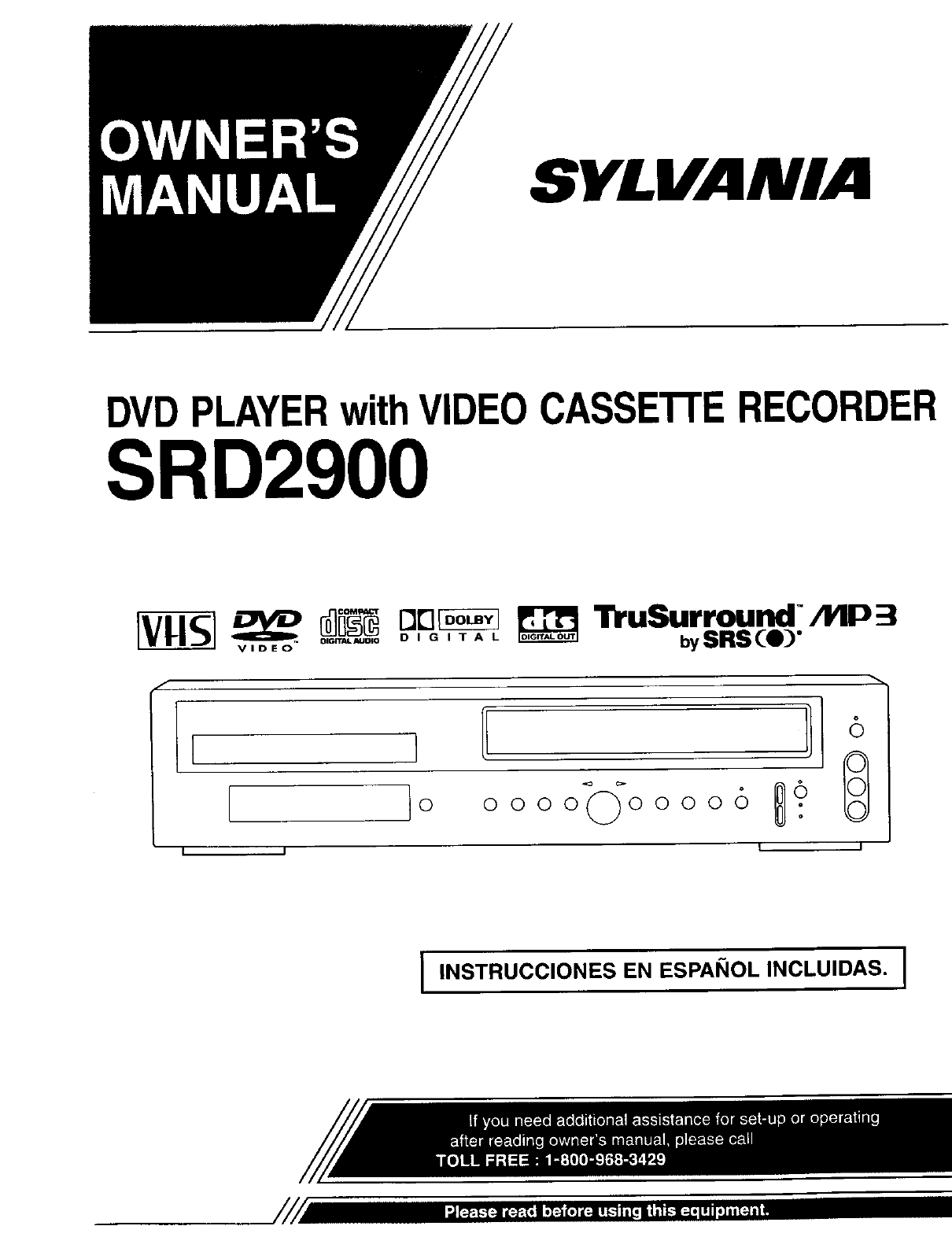
SYLVANIA
DVDPLAYERwithVIDEOCASSE'I-I'ERECORDER
SRD2900
[VHS_ _'_
OIG_JDIO
VIDEO
DIGITAL TruSurround AYlP 3
bySRS Ce_)"
o oooo ooooo 6.
o
jI
8
G
I
I INSTRUCCIONES EN ESPANOL INCLUIDAS. I
WARNING:
TO REDUCE THE RISK OF FIRE OR ELECTRIC SHOCK, DO NOT EXPOSE THIS APPLIANCE TO
RAIN OR MOISTURE.
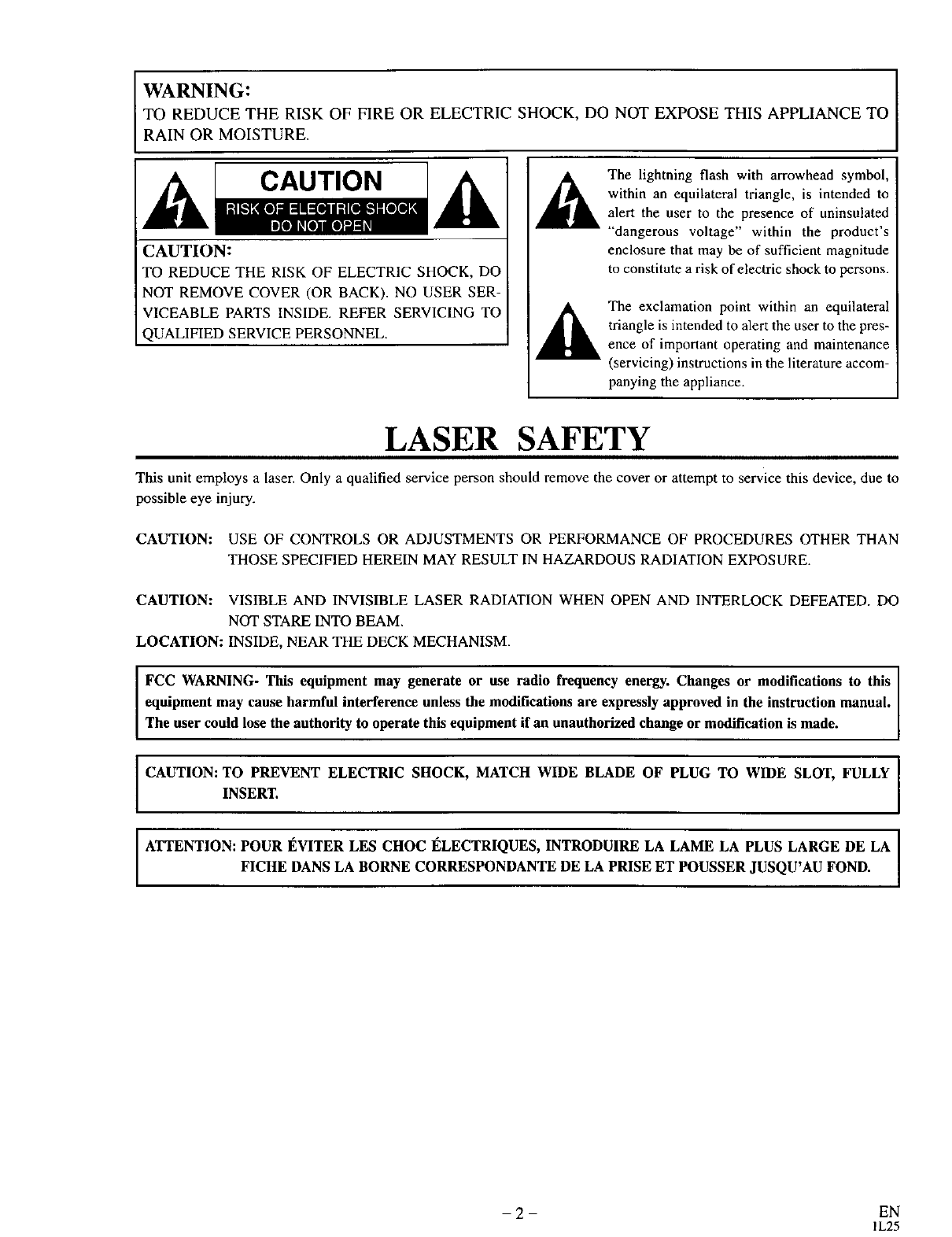
kCAUTION J
[CAUTION:
TO REDUCE THE RISK OF ELECTRIC SHOCK, DO
NOT REMOVE COVER (OR BACK). NO USER SER-
VICEABLE PARTS INSIDE. REFER SERVICING TO
QUALIFIED SERVICE PERSONNEL.
The lightning flash with arrowhead symbol,
within an equilateral triangle, is intended to
alert the user to the presence of uninsulated
"dangerous voltage" within the product's
enclosure that may be of sufficient magnitude
to constitute a risk of electric shock to persons.
The exclamation point within an equilateral
triangle is intended to alert the user to the pres-
ence of important operating and maintenance
(servicing) instructions in the literature accom-
panying the appliance.
LASER SAFETY
This unit employs a laser. Only a qualified service person should remove the cover or attempt to service this device, due to
possible eye injury.
CAUTION: USE OF CONTROLS OR ADJUSTMENTS OR PERFORMANCE OF PROCEDURES OTHER THAN
THOSE SPECIFIED HEREIN MAY RESULT IN HAZARDOUS RADIATION EXPOSURE.
CAUTION: VISIBLE AND INVISIBLE LASER RADIATION WHEN OPEN AND INTERLOCK DEFEATED. DO
NOT STARE INTO BEAM.
LOCATION: INSIDE, NEAR THE DECK MECHANISM.
I
I
FCC WARNING- This equipment may generate or use radio frequency energy. Changes or modifications to this I
equipment may cause harmful interference unless the modifications are expressly approved in the instruction manual.
The user could lose the authority to operate this equipment if an unauthorized change or modification s made.
CAUTION: TOINSERT.PREVENT ELECTRIC SHOCK, MATCH WIDE BLADE OF PLUG TO WIDE SLOT, FULLY
ATTENTION: POUR I_VITER LES CHOC I_LECTRIQUES, INTRODUIRE LA LAME LA PLUS LARGE DE LA
FICHE DANS LA BORNE CORRESPONDANTE DE LA PRISE ET POUSSER JUSQU'AU FOND.
-2- EN
1L25
IMPORTANT SAFEGUARDS
I. Read Instructions - All the safety and operating instruc-
tions should be read before the appliance is operated.
2. Retain Instructions- The safety and operating instructions
should be retained for future reference.
3. Heed Warnings - All warnings on the appliance and in the
operating instructions should be adhered to.
4. Follow Instructions All operating and use instructions
should be followed.
5. Cleaning - Unplug this video product from the wall outlet
before cleaning. Do not use liquid cleaners or aerosol
cleaners. Use a damp cloth for cleaning.
EXCEPTION: A product that is meant for uninterrupted
service and, that for some specific reason, such as the pos-
sibility of the loss of an authorization code for a CATV
converter, is not intended to be unplugged by the user for
cleaning or any other purpose, may exclude the reference
to unplugging the appliance in the cleaning description
otherwise required in item 5.
6. Attachments - Do not use attachments not recommended by
the video product manufacturer as they may cause hazards.
7. Water and Moisture- Do not use this video product near
water, for example, near a bath tub, wash bowl, kitchen
sink, or laundry tub, in a wet basement, or near a swim
ming pool, and the like.
8. Accessories - Do not place this video product on _,,_,_
an unstable cart, stand, tripod, bracket, or table.
The video product may fall, causing serious 1[ _]_
injury to a child or adult, and serious damage to
the appliance. Use only with acart, stand, tripod, _,_
bracket, or table recommended by the manufacturer, or sold
with the video product. Any mounting of the appliance
should follow the manufacturer's instructions and should use
a mounting accessory recommended by the manufacturer.
An appliance and cart combination should be moved with
care. Quick stops, excessive force, and uneven surfaces may
cause the appliance and cart combination to overturn.
9. Ventilation - Slots and openings in the cabinet are provid-
ed for ventilation and to ensure reliable operation of the
video product and to protect it from overheating, and these
openings must not be blocked or covered. The openings
should never be blocked by placing the video product on a
bed, sofa, rug, or other similar surface. This video product
should not be placed in a built-in installation such as a
bookcase or rack unless proper ventilation is provided or
the manufacturer's instructions have been adhered to.
10. Power Sources - This video product should be operated
only from the type of power source indicated on the mark-
ing label. If you are not sure of the type of power supply
to your home, consult your appliance dealer or local power
company. For products intended to operate from battery
power, or other sources, refer to the operating instructions.
II. Grounding or Polarization - This video product is
equipped with apolarized alternating-current line plug (a
plug having one blade wider than the other). This plug will
fit into the power outlet only one way. This is a safety fea-
ture. If you are unable to insert the plug fully into the out-
let, try reversing the plug. If the plug should still fail to fit,
contact your electrician to replace your obsolete outlet. Do
not defeat the safety purpose of the polarized plug.
12. Power Cord Protection - Power supply cords should be
routed so that they are not likely to be walked on or
pinched by items placed upon or against them, paying par
ticular attention to cords at plugs, convenience receptacles,
and the point where they exit from the appliance.
13. Outdoor Antenna Grounding - If an outside antenna or
cable system is connected to the video product, be sure the
antenna or cable system is grounded so as to provide some
protection against voltage surges and built-up static
charges. Article 810 of the National Electrical Code,
ANSI/NFPA No. 70, provides information with regard to
-3-
proper grounding of the mast and supporting structure,
grounding of the lead-in wire to an antenna discharge unit,
size of grounding conductors, location of antenna-dis-
charge unit, connection to grounding electrodes, and
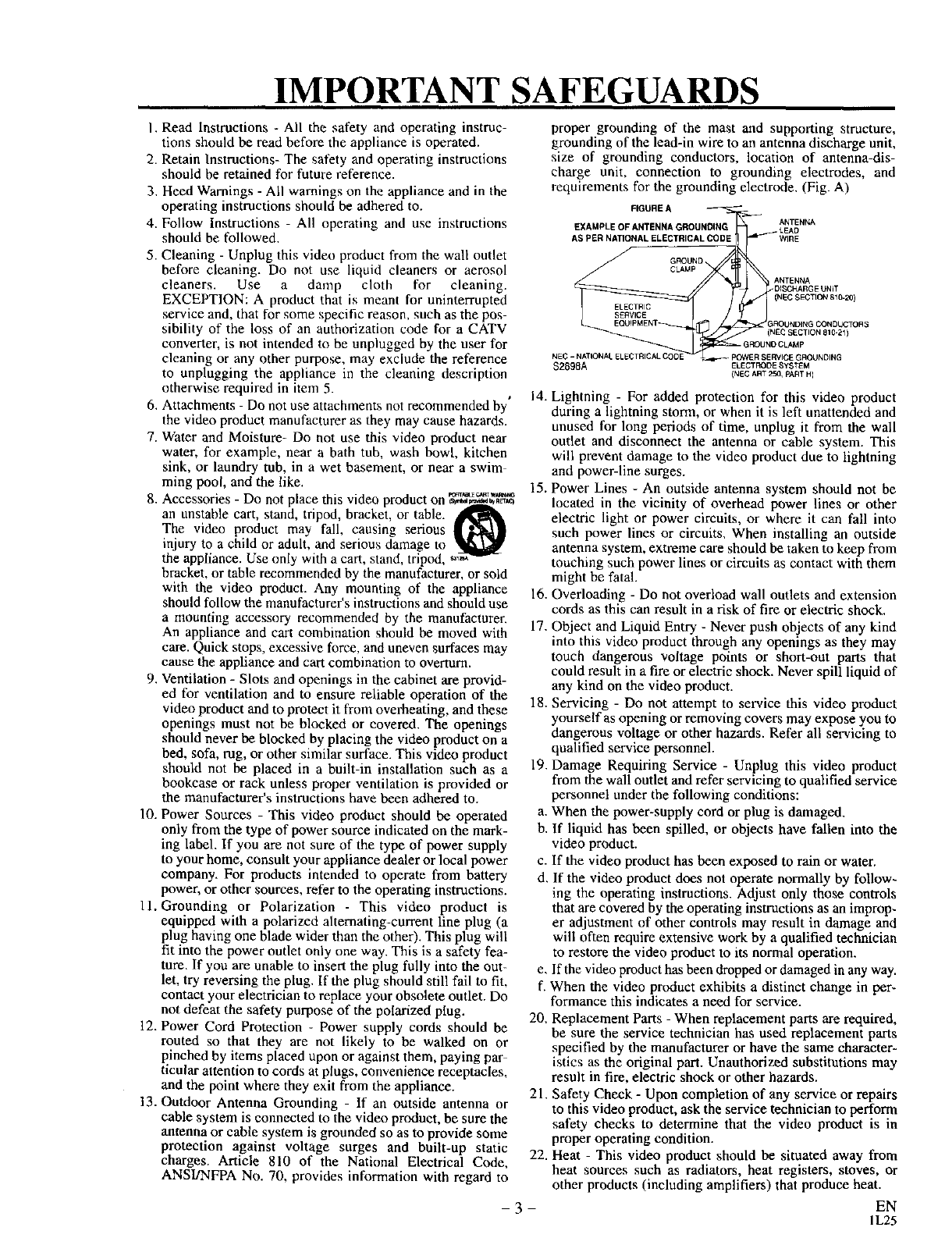
requirements for the grounding electrode. (Fig. A)
FIGURE A _ --
EXAMPLE OF ANTENNA GROUNDING ANTENNA
LEAD
AS PER NATIONAL ELECTRICAL CODE _WIRE
GROUND
CLAMP
_GG ANTENNA
DISCHARGE UNiT
(NEC SECTICN 810-20)
ROUNDING CONDUCTORS
(NEC SECTION 810-21 )
NEC-NA',O 22U; 222.O0°O,.O
$2898A ELECT RODE SYSTEM
(NED ART 250, PART H)
14. Lightning - For added protection for this video product
during a lightning storm, or when it is left unattended and
unused for long periods of time, unplug it from the wall
outlet and disconnect the antenna or cable system. This
will prevent damage to the video product due to lightning
and power-line surges.
15. Power Lines -An outside antenna system should not be
located in the vicinity of overhead power lines or other
electric light or power circuits, or where it can fall into
such power lines or circuits, When installing an outside
antenna system, extreme care should be taken to keep from
touching such power lines or circuits as contact with them
might be fatal.
16. Overloading - Do not overload wall outlets and extension
cords as this can result in a risk of fire or electric shock,
17. Object and Liquid Entry - Never push objects of any kind
into this video product through any openings as they may
touch dangerous voltage points or short-out parts that
could result in a fire or electric shock, Never spill liquid of
any kind on the video product.
18. Servicing - Do not attempt to service this video product
yourself as opening or removing covers may expose you to
dangerous voltage or other hazards. Refer all servicing to
qualified service personnel.
19. Damage Requiring Service - Unplug this video product
from the wall outlet and refer servicing to qualified service
personnel under the following conditions:
a. When the power-supply cord or plug is damaged.
b. If liquid has been spilled, or objects have fallen into the
video product.
c. If the video product has been exposed to rain or water.
d, If the video product does not operate normally by follow-
ing the operating instructions. Adjust only those controls
that are covered by the operating instructions as an improp-
er adjustment of other controls may result in damage and
will often require extensive work by a qualified technician
to restore the video product to its normal operation.
e, If the video product has been dropped or damaged in any way.
f. When the video product exhibits a distinct change in per-
formance this indicates a need for service.
20. Replacement Parts - When replacement parts are required,
be sure the service technician has used replacement parts
specified by the manufacturer or have the same character-
istics as the original part. Unauthorized substitutions may
result in fire, electric shock or other hazards.
21. Safety Check - Upon completion of any service or repairs
to this video product, ask the service technician to perform
safety checks to determine that the video product is in
proper operating condition.
22. Heat - This video product should be situated away from
heat sources such as radiators, heat registers, stoves, or
other products (including amplifiers) that produce heat.
EN
1L25
A NOTE ABOUT RECYCLING
This product's packaging materials are recyclable and can be reused. Please dispose of all materials in
accordance with your local recycling regulations.
Batteries should never be thrown away or incinerated but disposed of in accordance with your local
regulations concerning chemical wastes.
The serial number of this product may be found on the back of the DVD/VCR COMBINATION UNITS. This
serial number is unique to your machine. You should record the number and other vital information here and
retain this book as a permanent record of your purchase to aid identification in case of theft. Serial numbers are
not kept on file.
Date of Purchase
Dealer Purchase from
Dealer Address
Dealer Phone No.
Model No.
Serial No.
Unauthorized copying, broadcasting, public performance and lending of discs are prohibited.
This product incorporates copyright protection technology that is protected by claims of certain U.S. patents and
other intellectual property rights owned by Macrovision Corporation and other rights owners. Use of this copy-
right protection technology must be authorized by Macrovision Corporation, and is intended for home and other
limited viewing uses only unless otherwise authorized by Macrovision Corporation. Reverse
engineering or disassembly is prohibited.
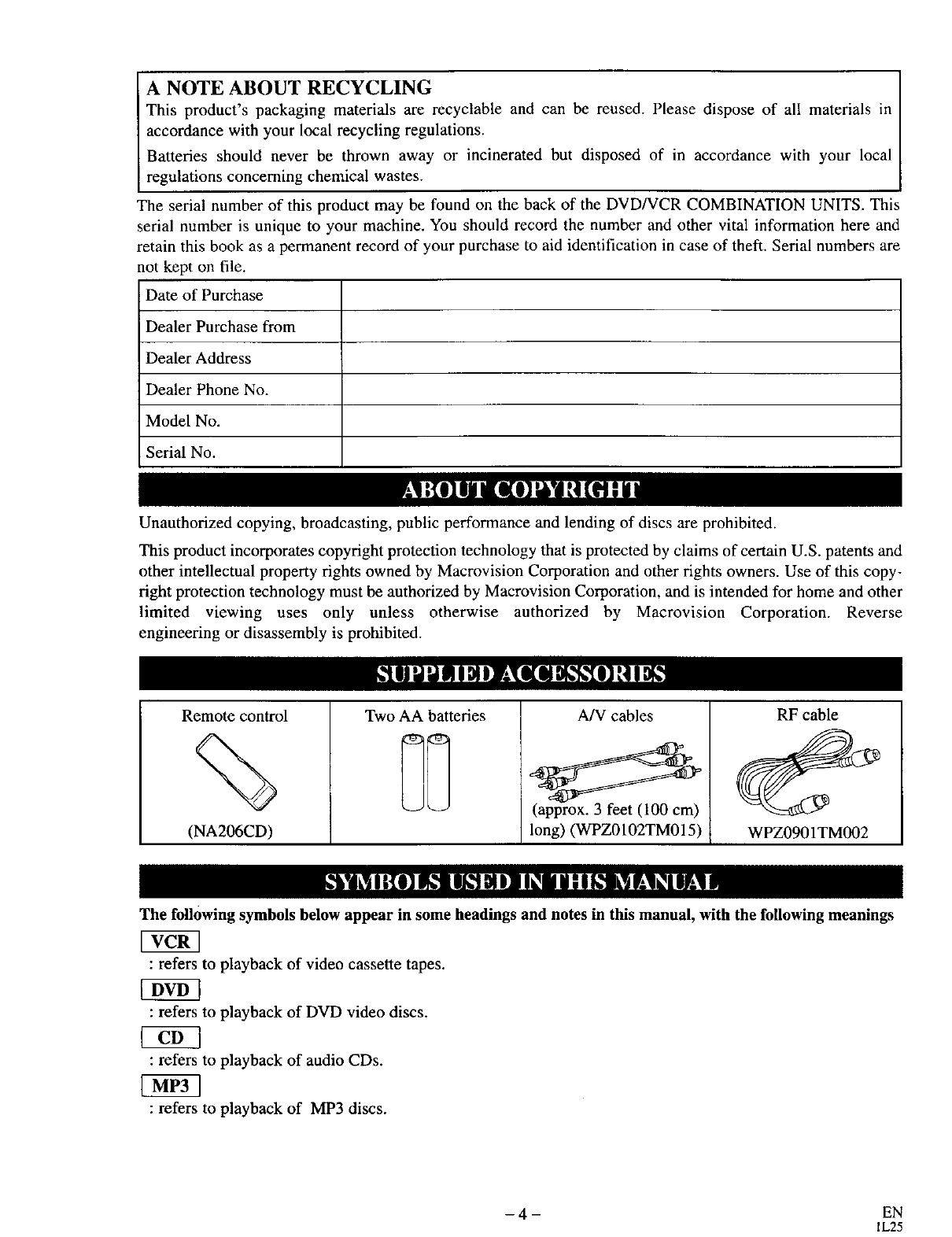
Remote control
%
(NA206CD)
Two AA batteries A/V cables
long) (WPZ0102TM015)
RF cable
WPZ0901TM002
The following symbols below appear in some headings and notes in this manual, with the following meanings
: refers to playback of video cassette tapes.
:refers to playback of DVD video discs.
: refers to playback of audio CDs.
:refers to playback of MP3 discs.
-4- EN
IL25
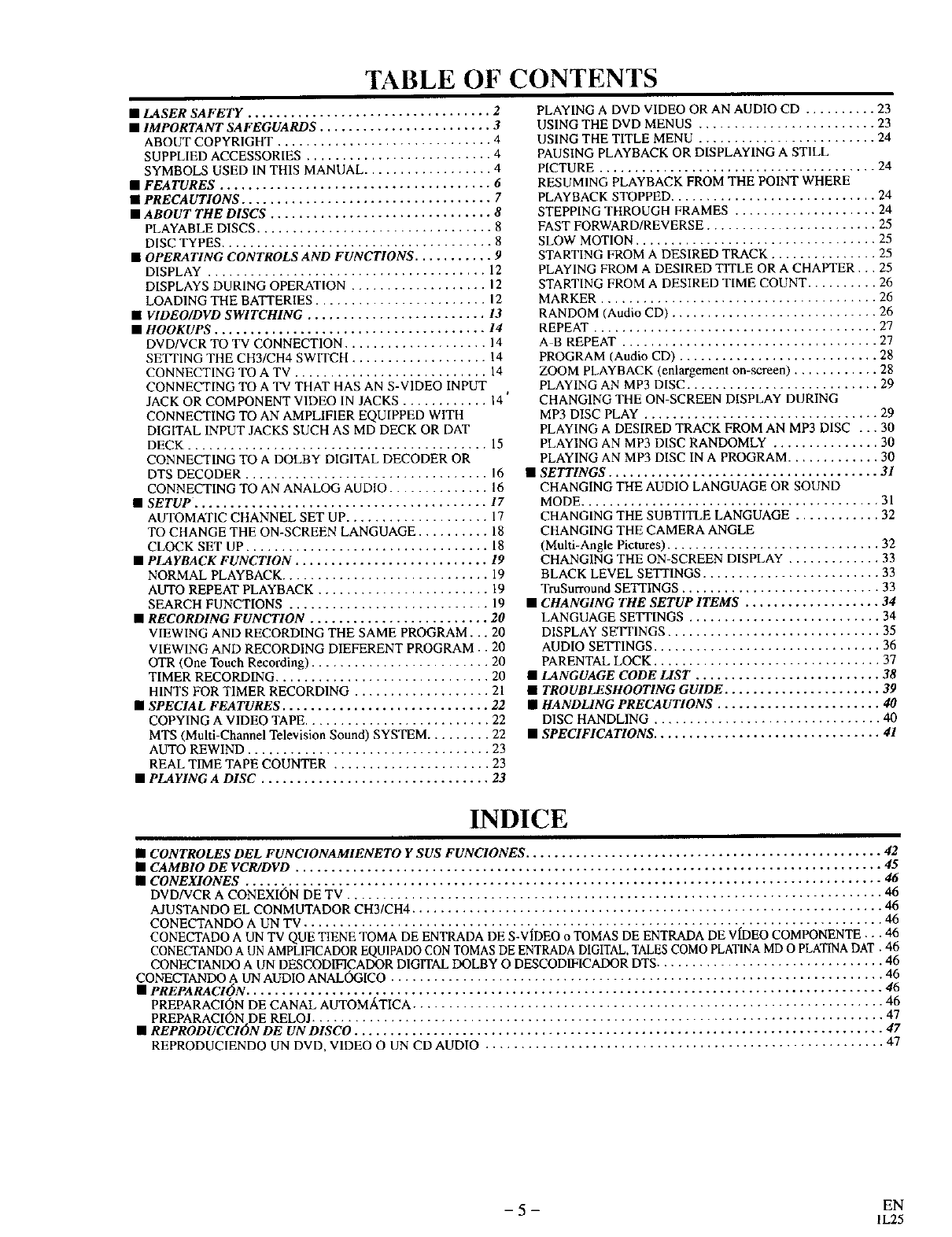
TABLE OF
• LASER SAFETY .................................. 2
• IMPORTANT SAFEGUARDS ........................ 3
ABOUT COPYRIGHT .............................. 4
SUPPLIED ACCESSORIES .......................... 4
SYMBOLS USED IN THIS MANUAL .................. 4
• FEATURES ...................................... 6
• PRECAUTIONS ................................... 7
• ABOUT THE DISCS ............................... 8
PLAYABLE DISCS ................................. 8
DISC TYPES ...................................... 8
• OPERATING CONTROLS AND FUNCTIONS ........... 9
DISPLAY ....................................... 12
DISPLAYS DURING OPERATION ................... 12
LOADING THE BATTERIES ........................ 12
• VIDEO/DVD SWITCHING ......................... 13
• HOOKUPS ...................................... 14
DVD/VCR TO TV CONNECTION .................... 14
SETI'ING THE CH3/CH4 SWITCH ................... 14
CONNECTING TO A TV ........................... 14
CONNECTING TO A TV THAT HAS AN S-VIDEO INPUT
JACK OR COMPONENT VIDEO IN JACKS ............ 14 '
CONNECTING TO AN AMPLIFIER EQUIPPED WITH
DIGITAL INPUT JACKS SUCH AS MD DECK OR DAT
DECK .......................................... 15
CONNECTING TO A DOLBY DIGITAL DECODER OR
DTS DECODER .................................. 16
CONNECTING TO AN ANALOG AUDIO .............. 16
• SETUP ......................................... 17
AUTOMATIC CHANNEL SET UP .................... 17
TO CHANGE THE ON-SCREEN LANGUAGE .......... 18
CLOCK SET UP .................................. 18
• PLAYBACK FUNCTION ........................... 19
NORMAL PLAYBACK ............................. 19
AUTO REPEAT PLAYBACK ........................ 19
SEARCH FUNCTIONS ............................ 19
•RECORDING FUNCTION ......................... 20
VIEWING AND RECORDING THE SAME PROGRAM... 20
VIEWING AND RECORDING DIEFERENT PROGRAM.. 20
OTR (One Touch Recording) ......................... 20
TIMER RECORDING .............................. 20
HINTS FOR TIMER RECORDING ................... 21
• SPECIAL FEATURES ............................. 22
COPYING A VIDEO TAPE .......................... 22
MTS (Multi-Channel Television Sound) SYSTEM ......... 22
AUTO REWIND .................................. 23
REAL TIME TAPE COUNTER ...................... 23
• PLAYING A DISC ................................ 23
CONTENTS
PLAYING A DVD VIDEO OR AN AUDIO CD .......... 23
USING THE DVD MENUS ......................... 23
USING THE TITLE MENU ......................... 24
PAUSING PLAYBACK OR DISPLAYING A STILL
PICTURE ....................................... 24
RESUMING PLAYBACK FROM THE POINT WHERE
PLAYBACK STOPPED ............................. 24
STEPPING THROUGH FRAMES .................... 24
FAST FORWARD/REVERSE ........................ 25
SLOW MOTION .................................. 25
STARTING FROM A DESIRED TRACK ............... 25
PLAYING FROM A DESIRED TITLE OR A CHAPTER... 25
STARTING FROM A DESIRED TIME COUNT .......... 26
MARKER ....................................... 26
RANDOM (Audio CD) ............................. 26
REPEAT ........................................ 27
A B REPEAT .................................... 27
PROGRAM (Audio CD) ............................ 28
ZOOM PLAYBACK (enlargement on-screen) ............ 28
PLAYING AN MP3 DISC ........................... 29
CHANGING THE ON-SCREEN DISPLAY DURING
MP3 DISC PLAY ................................. 29
PLAYING A DESIRED TRACK FROM AN MP3 DISC ... 30
PLAYING AN MP3 DISC RANDOMLY ............... 30
PLAYING AN MP3 DISC IN APROGRAM ............. 30
•SETTINGS ...................................... 31
CHANGING THE AUDIO LANGUAGE OR SOUND
MODE .......................................... 31
CHANGING THE SUBTITLE LANGUAGE ............ 32
CHANGING THE CAMERA ANGLE
(Multi-Angle Pictures) .............................. 32
CHANGING THE ON-SCREEN DISPLAY ............. 33
BLACK LEVEL SETTINGS ......................... 33
TruSurround SETTINGS ............................ 33
•CHANGING THE SETUP ITEMS ................... 34
LANGUAGE SETTINGS ........................... 34
DISPLAY SETTINGS .............................. 35
AUDIO SEqq'INGS ................................ 36
PARENTAL LOCK ................................ 37
•LANGUAGE CODE LIST .......................... 38
• TROUBLESHOOTING GUIDE ...................... 39
• HANDLING PRECAUTIONS ....................... 40
DISC HANDLING ................................ 40
•SPECIFICATIONS ................................ 41
INDICE
•CONTROLES DEL FUNCIONAMIENETO Y SUS FUNCIONES .................................................. 42
•CAMBIO DE VC_DVD .................................................................................. 45
•CONEXIONES ......................................................................................... 46
DVD/VCR A CONEXION DE TV ........................................................................... 46
AIUSTANDO EL CONMUTADOR CH3/CH4 .................................................................. 46
CONECTANDO A UN TV ................................................................................. 46
CONECTADO A UN TV QUE TIENE TOMA DE ENTRADA DE S-V(DEO o TOMAS DE ENTRADA DE VIDEO COMPONENTE •••46
CONECTANDO A UN AMPLIFICADOR EQU1PADO CON TOMAS DE ENTRADA DIGITAL. TALES COMO PLATINA MD O PLATINA DAT. 46
CONECTANDO A UN DESCODIFICADOR DIGITAL DOLBY O DESCOD1FICADOR DTS ................................ 46
CONECTANDO A UN AUDIO ANALOGICO ..................................................................... 46
•PREPARACION ......................................................................................... 46
PREPARACION DE CANAL AUTOMATICA .................................................................. 46
PREPARACION DE RELOJ ................................................................................ 47
•REPRODUCCI6N DE UN DISCO .......................................................................... 47
REPRODUCIENDO UN DVD, VIDEO O UN CD AUDIO ........................................................ 47
-5- EN
IL25
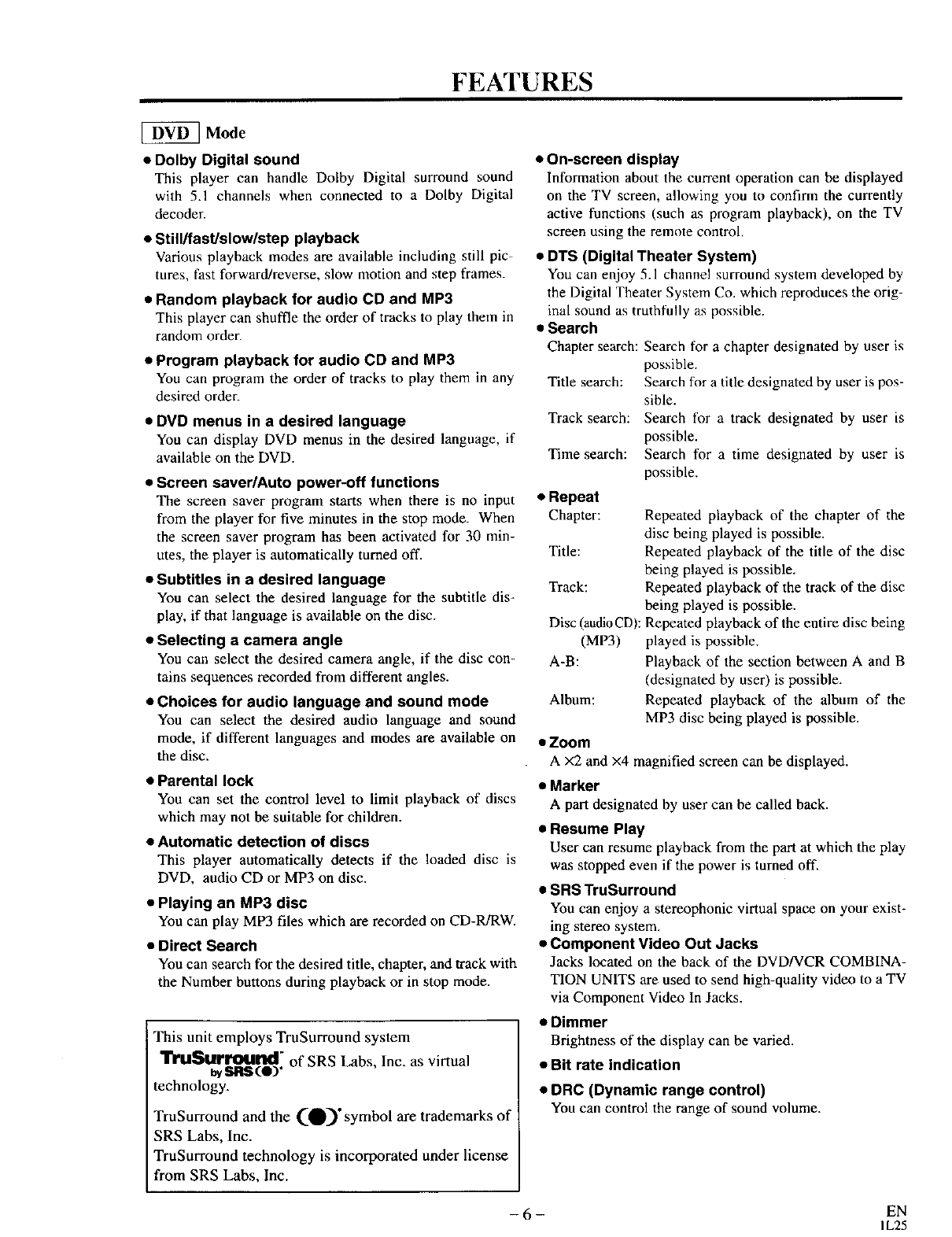
FEATURES
Mode
•Dolby Digital sound
This player can handle Dolby Digital surround sound
with 5.1 channels when connected to a Dolby Digital
decode_
•Still/fastJslow/step playback
Various playback modes are available including still pic
tures, fast forward/reverse, slow motion and step frames.
•Random playback for audio CD and MP3
This player can shuffle the order of tracks to play them in
random order.
•Program playback for audio CD and MP3
You can program the order of tracks to play them in any
desired order.
•DVD menus in a desired language
You can display DVD menus in the desired language, if
available on the DVD.
•Screen saver/Auto power-off functions
The screen saver program starts when there is no input
from the player for five minutes in the stop mode. When
the screen saver program has been activated for 30 min-
utes, the player is automatically turned off.
•Subtitles in a desired language
You can select the desired language for the subtitle dis-
play, if that language is available on the disc.
•Selecting a camera angle
You can select the desired camera angle, if the disc con-
tains sequences recorded from different angles.
•Choices for audio language and sound mode
You can select the desired audio language and sound
mode, if different languages and modes are available on
the disc.
•Parental lock
You can set the control level to limit playback of discs
which may not be suitable for children.
•Automatic detection of discs
This player automatically detects if the loaded disc is
DVD, audio CD or MP3 on disc.
•Playing an MP3 disc
You can play MP3 files which are recorded on CD-R/RW.
•Direct Search
You can search for the desired title, chapter, and track with
the Number buttons during playback or in stop mode.
This unit employs TruSurround system
"rrMSurround" of SRS Labs, Inc. as virtual
i_/SIRIS(e)"
technology.
TruSurround and the (Q)" symbol are trademarks of
SRS Labs, Inc.
TruSurround technology is incorporated under license
from SRS Labs, Inc.
•On-screen display
Information about the current operation can be displayed
on the TV screen, allowing you to confirm the currently
active functions (such as program playback), on the TV
screen using the remote control.
•DTS (Digital Theater System)
You can enjoy 5.1 channel surround system developed by
the Digital Theater System Co. which reproduces the orig-
inal sound as truthfully as possible.
•Search
Chapter search: Search tor a chapter designated by user is
possible.
Title search: Search for a title designated by user is pos-
sible.
Track search: Search for a track designated by user is
possible.
Time search: Search for a time designated by user is
possible.
•Repeat
Chapter:
Title:
Track:
Repeated playback of the chapter of the
disc being played is possible.
Repeated playback of the title of the disc
being played is possible.
Repeated playback of the track of the disc
being played is possible.
Disc (audio CD): Repeated playback of the entire disc being
(MP3) played is possible.
A-B: Playback of the section between A and B
(designated by user) is possible.
Album: Repeated playback of the album of the
MP3 disc being played is possible.
•Zoom
A X2 and x4 magnified screen can be displayed.
•Marker
A part designated by user can be called back.
•Resume Play
User can resume playback from the part at which the play
was stopped even if the power is turned off.
•SRS TruSurround
You can enjoy a stereophonic virtual space on your exist-
ing stereo system.
•Component Video Out Jacks
Jacks located on the back of the DVD/VCR COMBINA-
TION UNITS are used to send high-quality video to a TV
via Component Video In Jacks.
•Dimmer
Brightness of the display can be varied.
•Bit rate indication
•DRC (Dynamic range control)
You can control the range of sound volume.
- 6 - EN
I L25
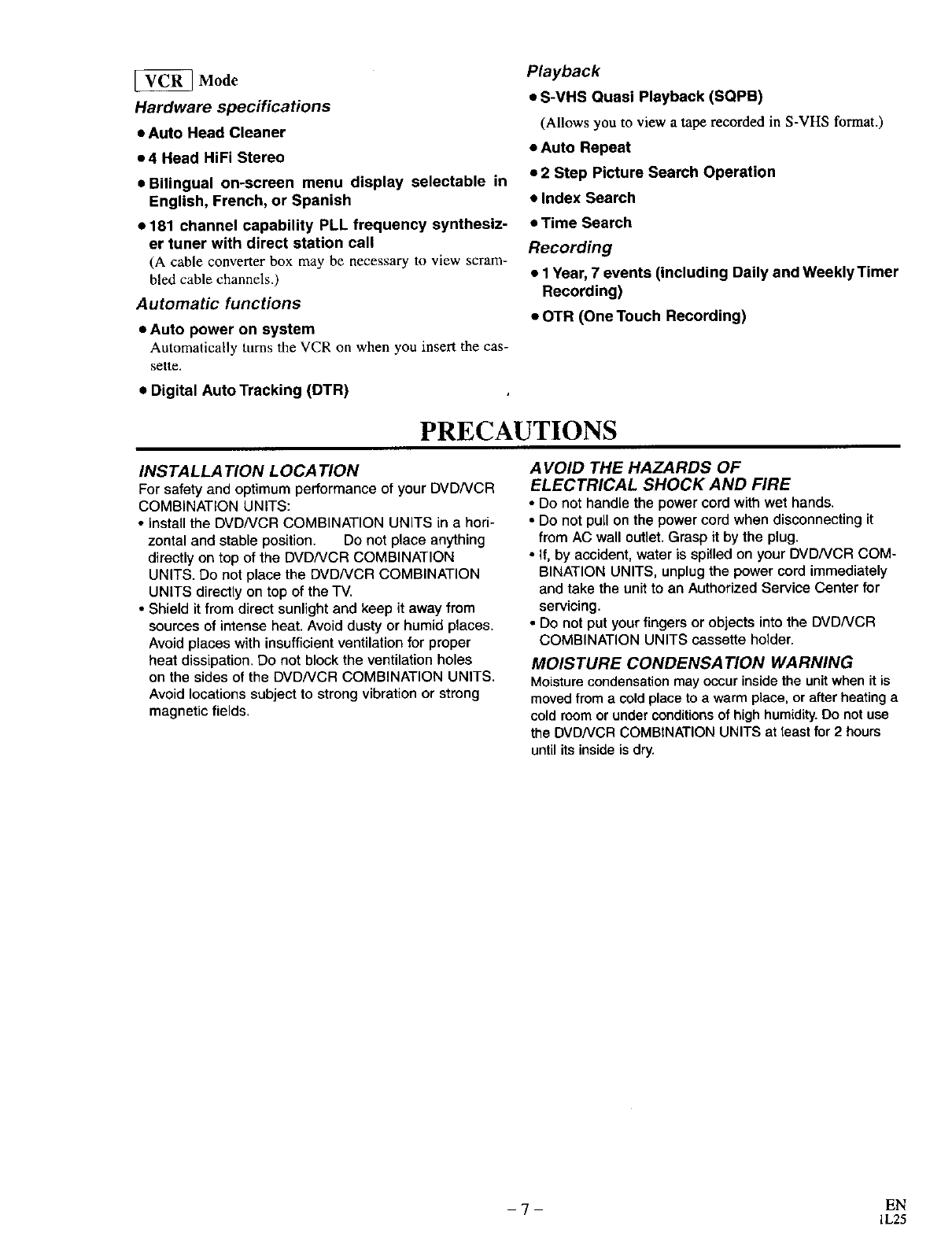
@Mode
Hardware specifications
• Auto Head Cleaner
e4 Head HiFi Stereo
•Bilingual on-screen menu display selectable in
English, French, or Spanish
•181 channel capability PLL frequency synthesiz-
er tuner with direct station call
(A cable converter box may be necessary to view scram-
bled cable channels.)
Automatic functions
•Auto power on system
AutomaticaLly turns the VCR on when you insert the cas-
sette.
•Digital Auto Tracking (DTR)
Playback
•S-VHS Quasi Playback (SQPB)
(Allows you to view a tape recorded in S-VHS format.)
•Auto Repeat
•2 Step Picture Search Operation
•Index Search
•Time Search
Recording
•1 Year, 7 events (including Daily and Weekly Timer
Recording)
•OTR (One Touch Recording)
PRECAUTIONS
INSTALLATION LOCATION
For safety and optimum performance of your DVDNCR
COMBINATION UNITS:
•Install the DVD/VCR COMBINATION UNITS in a hori-
zontal and stable position. Do not place anything
directly on top of the DVD/VCR COMBINATION
UNITS. Do not place the DVD/VCR COMBINATION
UNITS directly on top of the TV.
•Shield it from direct sunlight and keep it away from
sources of intense heat. Avoid dusty or humid places.
Avoid places with insufficient ventilation for proper
heat dissipation. Do not block the ventilation holes
on the sides of the DVD/VCR COMBINATION UNITS.
Avoid locations subject to strong vibration or strong
magnetic fields.
AVOID THE HAZARDS OF
ELECTRICAL SHOCK AND FIRE
• Do not handle the power cord with wet hands.
•Do not pull on the power cord when disconnecting it
from AC wall outlet. Grasp it by the plug.
•If, by accident, water is spilled on your DVD/VCR COM-
BINATION UNITS, unplug the power cord immediately
and take the unit to an Authorized Service Center for
servicing.
• Do not put your fingers or objects into the DVDNCR
COMBINATION UNITS cassette holder.
MOISTURE CONDENSATION WARNING
Moisture condensation may occur inside the unit when it is
moved from a cold place to a warm place, or after heating a
cold room or under conditions of high humidity, Do not use
the DVDNCR COMBINATION UNITS at least for 2 hours
until its inside is dry.
-7- EN
IL25
ABOUT THE DISCS
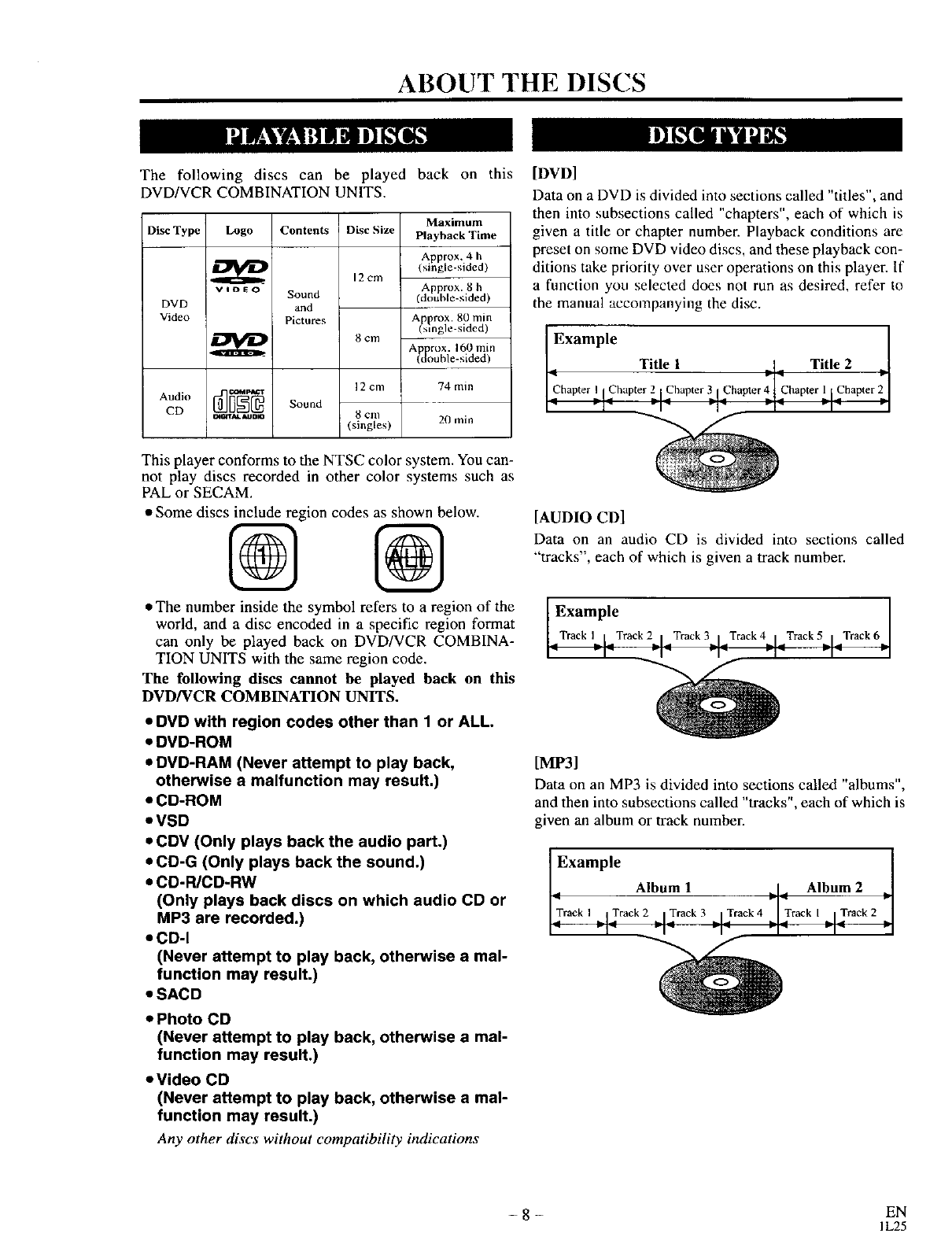
The following discs can be played back on this
DVD/VCR COMBINATION UNITS.
Maximum
Disc Type Logo Contents Disc Size Playback "rime
Approx. 4 h
(single-sided)
12cm
Approx. 8 h
vIoEoSound (double-sided)
DVD and
Video Pictures Approx. 80 rain
(_mgle-sided)
_-i 8cm A rtl×. 160 min
g_m ble- sided)
12 cm 74 rain
Audio _ Sound
CD _tJm 8 cm 20 min
(singles)
This player conforms to the NTSC color system. You can-
not play discs recorded in other color systems such as
PAL or SECAM.
•Some discs include region codes as shown below.
% %
• The number inside the symbol refers to a region of the
world, and a disc encoded in a specific region format
can only be played back on DVD/VCR COMBINA-
TION UNITS with the same region code.
The following discs cannot be played back on this
DVD/VCR COMBINATION UNITS.
•DVD with region codes other than 1 or ALL.
•DVD-ROM
•DVD-RAM (Never attempt to play back,
otherwise a malfunction may result.)
•CD-ROM
•VSD
•CDV (Only plays back the audio part.)
•CD-G (Only plays back the sound.)
•CD-WCD-RW
(Only plays back discs on which audio CD or
MP3 are recorded.)
•CD-I
(Never attempt to play back, otherwise a mal-
function may result.)
•SACD
•Photo CD
(Never attempt to play back, otherwise a mal-
function may result.)
•Video CD
(Never attempt to play back, otherwise a mal-
function may result.)
Any other discs without compatibility indications
[DVD]
Data on a DVD is divided into sections called "titles", and
then into subsections called "chapters", each of which is
given a title or chapter number. Playback conditions are
preset on some DVD video discs, and these playback con-
ditions take priority over user operations on this player. If
a function you selected does not run as desired, refer to
the manual accompanying the disc.
Example
Title 1 Title 2
[AUDIO CD]
Data on an audio CD is divided into sections called
"tracks", each of which is given a track number.
Example
Track I[Track 2ITrack 3 I Track4 I Track5 I Track6 I
_I_ _l_ _1_ _1_ _1_ _1
[MP3]
Data on an MP3 is divided into sections called "albums",
and then into subsections called "tracks", each of which is
given an album or track number.
Example
Album 1 Album 2
-8- EN
IL25
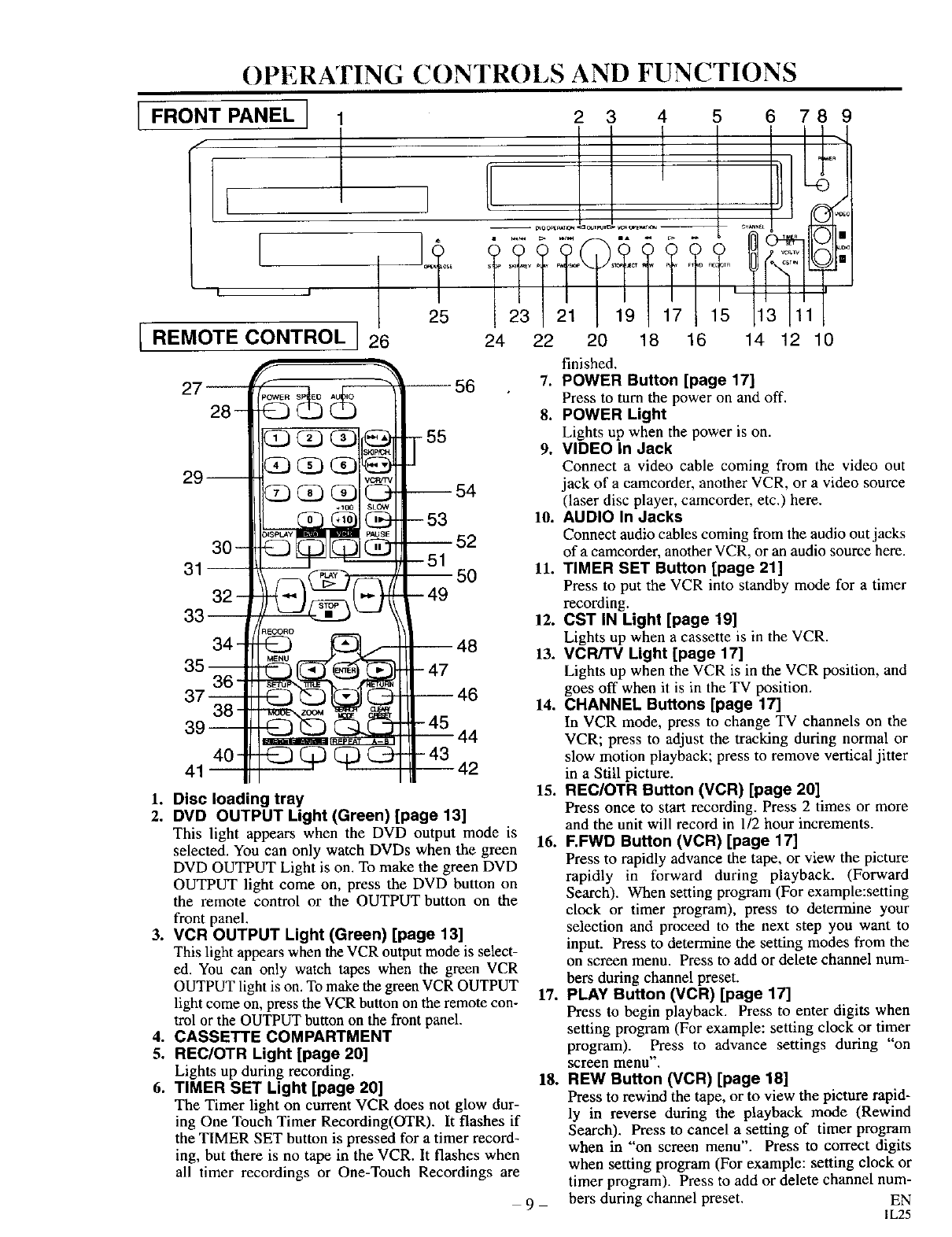
OPERATING CONTROLS AND FUNCTIONS
[ FRONT PANEL ]
[
25 23
2 3 4 5
l;:£tl!7Tit,
6 789
I,'3I,',I
[REMOTE CONTROL I 26
27 _ "_
QQ
(23 Q
29-- (_) (_) +(_ _.
30- _
31
_ECORO
34- -@_@_
85--86-
87--
38"
39--
40-.4_3 (_ I_ (_
41
-55
56
-- 54
--53
-- 52
--51 50
149
-- 48
- 47
-- 46
-45
--44
- 43 42
24 22 20 18 16 14 12 10
1. Disc loading tray
2. DVD OUTPUT Light (Green) [page 13]
This light appears when the DVD output mode Is
selected. You can only watch DVDs when the green
DVD OUTPUT Light is on. To make the green DVD
OUTPUT light come on, press the DVD button on
the remote control or the OUTPUT button on the
front panel.
3. VCR OUTPUT Light (Green) [page 13]
This light appears when the VCR output mode is select-
ed. You can only watch tapes when the green VCR
OUTPUT light is on. To make the green VCR OUTPUT
light come on, press the VCR button on the remote con-
trol or the OUTPUT button on the front panel.
4. CASSETTE COMPARTMENT
5. REC/OTR Light [page 20]
Lights up during recording.
6. TIMER SET Light [page 20]
The Timer light on current VCR does not glow dur-
ing One Touch Timer Recording(OTR). It flashes if
the TIMER SET button is pressed for a timer record-
ing, but there is no tape in the VCR. It flashes when
all timer recordings or One-Touch Recordings are
finished.
7. POWER Button [page 17]
Press to turn the power on and off.
8. POWER Light
Lights up when the power is on.
9. VIDEO In Jack
Connect a video cable coming from the video out
jack of a camcorder, another VCR, or a video source
(laser disc player, camcorder, etc.) here.
10. AUDIO In Jacks
Connect audio cables coming from the audio out jacks
of a camcorder, another VCR, or an audio source here.
11. TIMER SET Button [page 21]
Press to put the VCR into standby mode for a timer
recording.
12. CST IN Light [page 19]
Lights up when a cassette is in the VCR.
13. VCR/I"V Light [page 17]
Lights up when the VCR is in the VCR position, and
goes off when it is in the TV position.
14. CHANNEL Buttons [page 17]
In VCR mode, press to change TV channels on the
VCR; press to adjust the tracking during normal or
slow motion playback; press to remove vertical jitter
in a Still picture.
15. REC/OTR Button (VCR) [page 20]
Press once to start recording. Press 2 times or more
and the unit will record in 1/2 hour increments.
16. F.FWD Button (VCR) [page 17]
Press to rapidly advance the tape, or view the picture
rapidly in forward during playback. (Forward
Search). When setting program (For example:setting
clock or timer program), press to detennine your
selection and proceed to the next step you want to
input. Press to determine the setting modes from the
on screen menu. Press to add or delete channel num-
bers during channel preset.
17. PLAY Button (VCR) [page 17]
Press to begin playback. Press to enter digits when
setting program (For example: setting clock or timer
program). Press to advance settings during "on
screen menu".
18. REW Button (VCR) [page 18]
Press to rewind the tape, or to view the picture rapid-
ly in reverse during the playback mode (Rewind
Search). Press to cancel a setting of timer program
when in "'on screen menu". Press to correct digits
when setting program (For example: setting clock or
timer program). Press to add or delete channel num-
9 bers during channel preset. EN
I L25
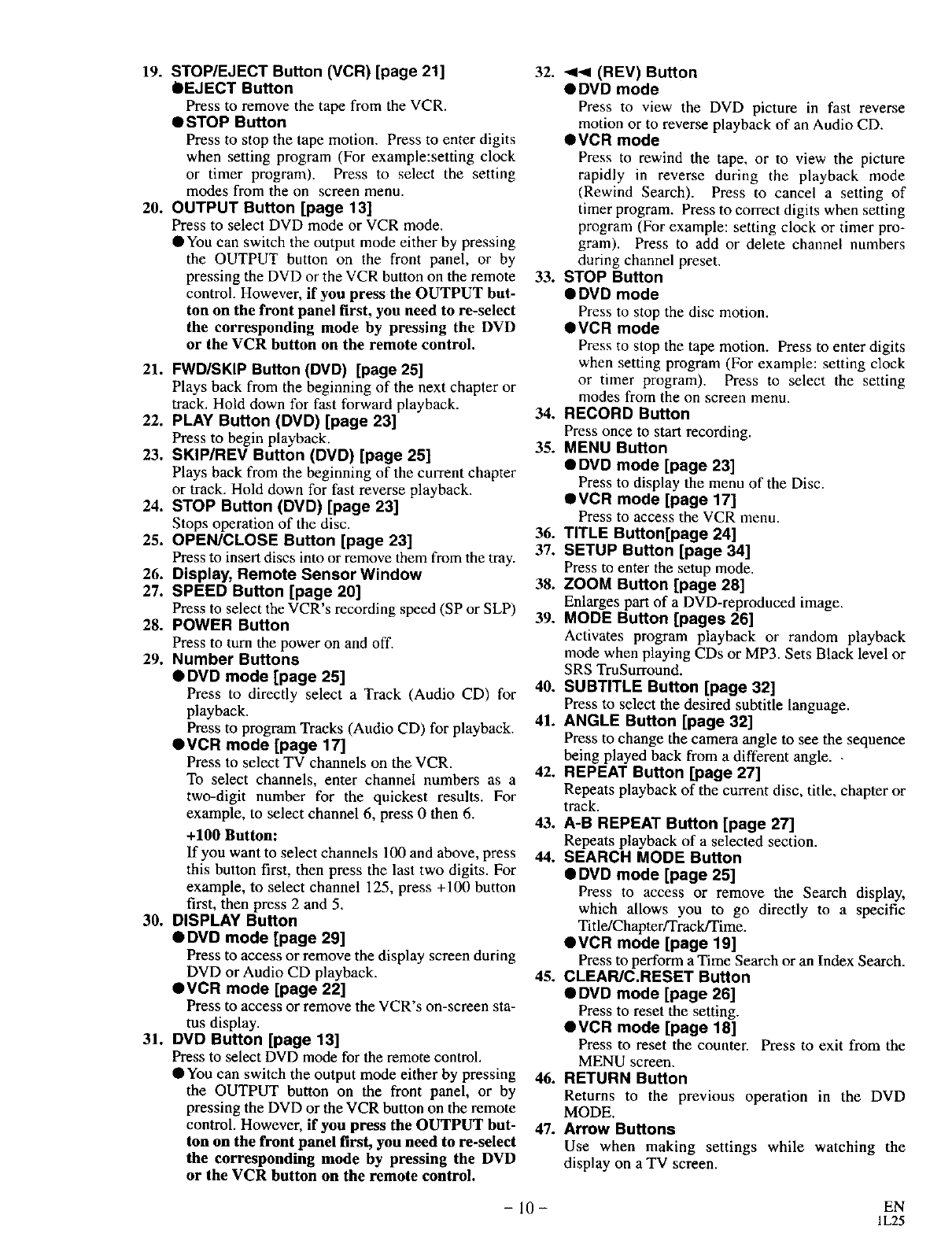
19. STOP/EJECT Button (VCR) [page 21]
• EJECT Button
Press to remove the tape from the VCR.
• STOP Button
Press to stop the tape motion. Press to enter digits
when setting program (For example:setting clock
or timer program). Press to select the setting
modes from the on screen menu.
20. OUTPUT Button [page 13]
Press to select DVD mode or VCR mode.
•You can switch the output mode either by pressing
the OUTPUT button on the front panel, or by
pressing the DVD or the VCR button on the remote
control. However, if you press the OUTPUT but-
ton on the front panel first, you need to re-select
the corresponding mode by pressing the DVD
or the VCR button on the remote control.
21. FWD/SKIP Button (DVD) [page 25]
Plays back from the beginning of the next chapter or
track. Hold down for fast forward playback.
22. PLAY Button (DVD) [page 23]
Press to begin playback.
23. SKIP/REV Button (DVD) [page 25]
Plays back from the beginning of the current chapter
or track. Hold down for fast reverse playback.
24. STOP Button (DVD) [page 23]
Stops operation of the disc,
25. OPEN/CLOSE Button [page 23]
Press to insert discs into or remove them from the tray.
26. Display, Remote SensorWindow
27. SPEED Button [page 20]
Press to select the VCR's recording speed (SP or SLP)
28. POWER Button
Press to turn the power on and off.
29. Number Buttons
• DVD mode [page 25]
Press to directly select a Track (Audio CD) for
playback.
Press to program Tracks (Audio CD) for playback.
•VCR mode [page 17]
Press to select TV channels on the VCR.
To select channels, enter channel numbers as a
two-digit number for the quickest results. For
example, to select channel 6, press 0 then 6.
+100 Button:
If you want to select channels 100 and above, press
this button first, then press the last two digits. For
example, to select channel 125, press +100 button
first, then press 2 and 5.
30. DISPLAY Button
•DVD mode [page 29]
Press to access or remove the display screen during
DVD or Audio CD playback.
•VCR mode [page 22]
Press to access or remove the VCR's on-screen sta-
tus display.
31. DVD Button [page 13]
Press to select DVD mode for the remote control.
• You can switch the output mode either by pressing
the OUTPUT button on the front panel, or by
pressing the DVD or the VCR button on the remote
control. However, if you press the OUTPUT but-
ton on the front panel first, you need to re-select
the corresponding mode by pressing the DVD
or the VCR button on the remote control.
32. << (REV) Button
• DVD mode
Press to view the DVD picture in fast reverse
motion or to reverse playback of an Audio CD.
• VCR mode
Press to rewind the tape, or to view the picture
rapidly in reverse during the playback mode
(Rewind Search). Press to cancel a setting of
timer program. Press to correct digits when setting
program (For example: setting clock or timer pro-
gram). Press to add or delete channel numbers
during channel preset.
33. STOP Button
ODVD mode
Press to stop the disc motion.
• VCR mode
Press to stop the tape motion. Press to enter digits
when setting program (For example: setting clock
or timer program). Press to select the setting
modes from the on screen menu.
34. RECORD Button
Press once to start recording.
35. MENU Button
• DVD mode [page 23]
Press to display the menu of the Disc.
• VCR mode [page 17]
Press to access the VCR menu.
36. TITLE Button[page 24]
37. SETUP Button [page 34]
Press to enter the setup mode.
38. ZOOM Button [page 28]
Enlarges part of a DVD-reproduced image.
39. MODE Button [pages 26]
Activates program playback or random playback
mode when playing CDs or MP3. Sets Black level or
SRS TruSurround.
40. SUBTITLE Button [page 32]
Press to select the desired subtitle language.
41. ANGLE Button [page 32]
Press to change the camera angle to see the sequence
being played back from a different angle. •
42. REPEAT Button [page 27]
Repeats playback of the current disc, title, chapter or
track.
43. A-B REPEAT Button [page 27]
Repeats playback of aselected section.
44. SEARCH MODE Button
•DVD mode [page 25]
Press to access or remove the Search display,
which allows you to go directly to a specific
Title/Chapter/Track/Time.
•VCR mode [page 19]
Press to perform aTime Search or an Index Search.
45. CLEAR/C.RESET Button
•DVD mode [page 26]
Press to reset the setting.
OVCR mode [page 181
Press to reset the counter. Press to exit from the
MENU screen.
46. RETURN Button
Returns to the previous operation in the DVD
MODE.
47. Arrow Buttons
Use when making settings while watching the
display on a TV screen.
- 10- EN
IL25
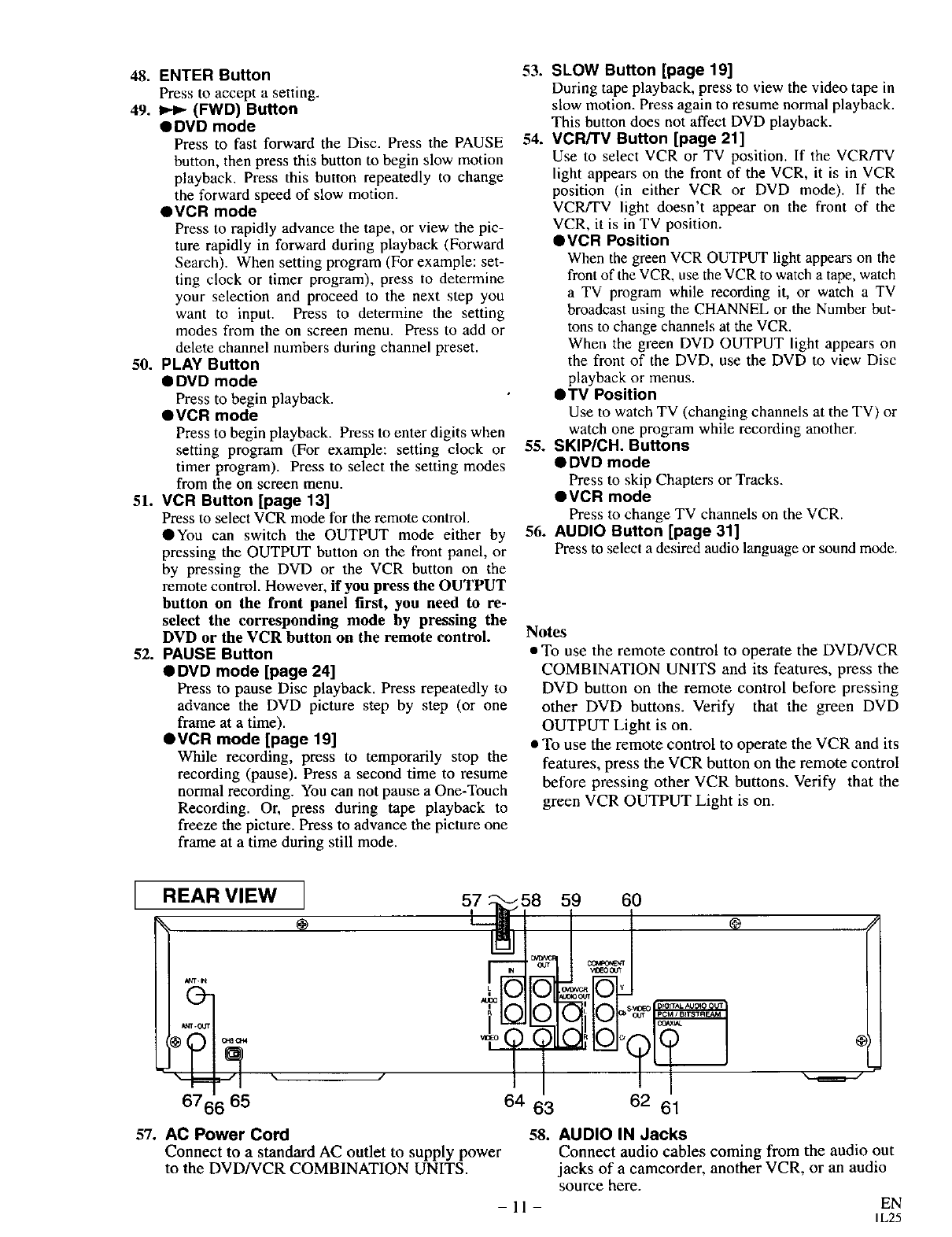
48. ENTER Button
Press to accept a setting.
49. I_ (FWD) Button
ODVD mode
Press to fast forward the Disc. Press the PAUSE
button, then press this button to begin slow motion
playback. Press this button repeatedly to change
the forward speed of slow motion.
OVCR mode
Press to rapidly advance the tape, or view the pic-
ture rapidly in forward during playback (Forward
Search). When setting program (For example: set-
ting clock or timer program), press to determine
your selection and proceed to the next step you
want to input. Press to determine the setting
modes from the on screen menu. Press to add or
delete channel numbers during channel preset.
50. PLAY Button
• DVD mode
Press to begin playback.
• VCR mode
Press to begin playback. Press to enter digits when
setting program (For example: setting clock or
timer program). Press to select the setting modes
from the on screen menu.
51. VCR Button [page 13]
Press to select VCR mode for the remote control.
•You can switch the OUTPUT mode either by
pressing the OUTPUT button on the front panel, or
by pressing the DVD or the VCR button on the
remote control. However, if yon press the OUTPUT
button on the front panel first, you need to re-
select the corresponding mode by pressing the
DVD or the VCR button on the remote control.
52. PAUSE Button
•DVD mode [page 24]
Press to pause Disc playback. Press repeatedly to
advance the DVD picture step by step (or one
frame at a time).
• VCR mode [page 19]
While recording, press to temporarily stop the
recording (pause). Press a second time to resume
normal recording. You can not pause a One-Touch
Recording. Or, press during tape playback to
freeze the picture. Press to advance the picture one
frame at a time during still mode.
53. SLOW Button [page 19]
During tape playback, press to view the video tape in
slow motion. Press again to resume normal playback.
This button does not affect DVD playback.
54. VCR/TV Button [page 21]
Use to select VCR or TV position. If the VCRFFV
light appears on the front of the VCR, it is in VCR
position (in either VCR or DVD mode). If the
VCRFFV light doesn't appear on the front of the
VCR, it is in TV position.
• VCR Position
When the green VCR OUTPUT light appears on the
front of the VCR, use the VCR to watch a tape, watch
a TV program while recording it, or watch a TV
broadcast using the CHANNEL or the Number but-
tons to change channels at the VCR.
When the green DVD OUTPUT light appears on
the front of the DVD, use the DVD to view Disc
playback or menus.
•TV Position
Use to watch TV (changing channels at the TV) or
watch one program while recording another.
55. SKIP/CH. Buttons
• DVD mode
Press to skip Chapters or Tracks.
• VCR mode
Press to change TV channels on the VCR.
56. AUDIO Button [page 31]
Press to select a desired audio language or sound mode.
Notes
•To use the remote control to operate the DVD/VCR
COMBINATION UNITS and its features, press the
DVD button on the remote control before pressing
other DVD buttons. Verify that the green DVD
OUTPUT Light is on.
• To use the remote control to operate the VCR and its
features, press the VCR button on the remote control
before pressing other VCR buttons. Verify that the
green VCR OUTPUT Light is on.
IREAR VIEW I
67 65
57 ::58 59
64 63
60
°J °c
62 61
57. AC Power Cord 58. AUDIO IN Jacks
Connect to a standard AC outlet to supply power Connect audio cables coming from the audio out
to the DVD/VCR COMBINATION UNITS. jacks of a camcorder, another VCR, or an audio
source here.
- 11 - EN
IL25
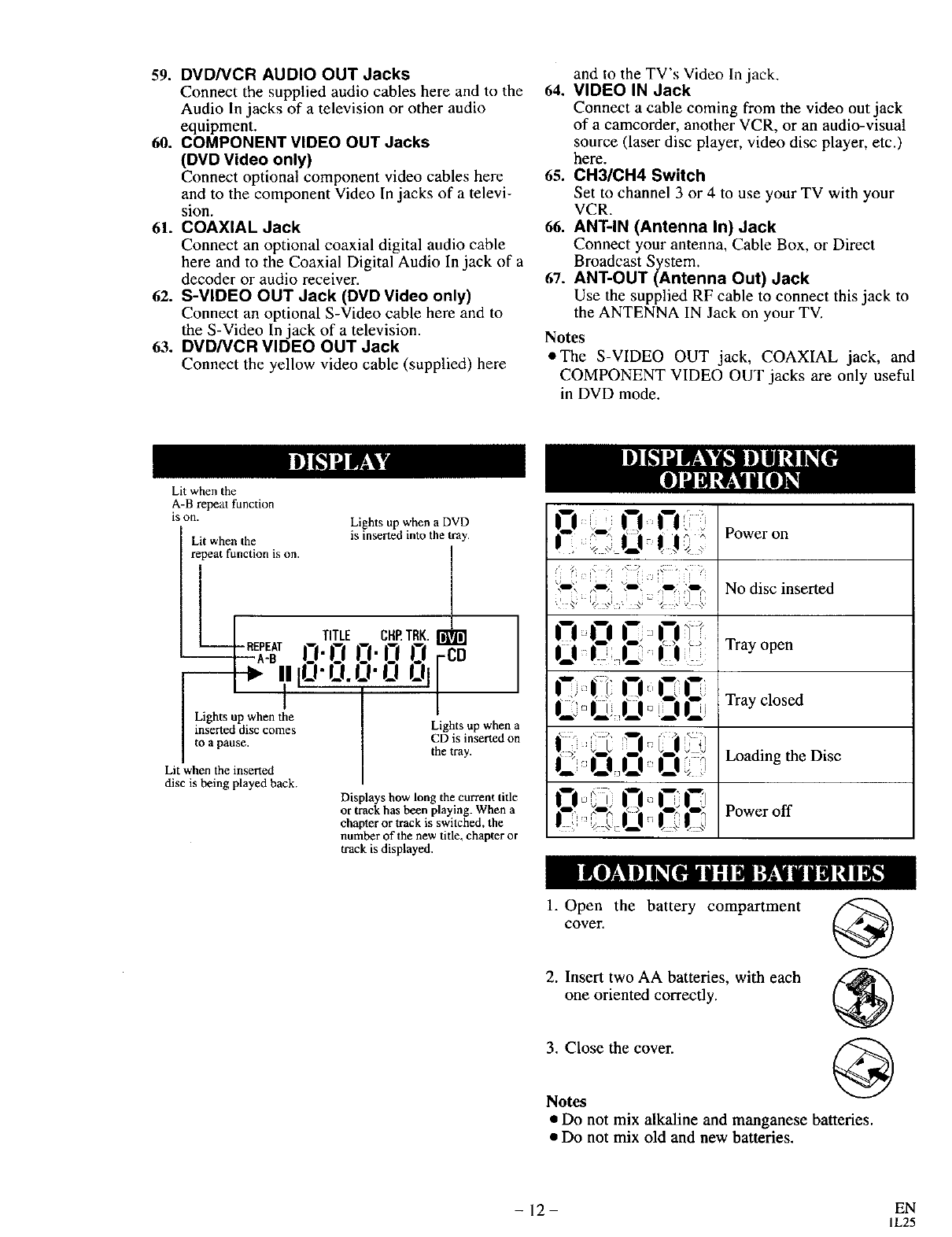
59. DVD/VCR AUDIO OUT Jacks
Connect the supplied audio cables here and to the
Audio In jacks of a television or other audio
equipment.
60. COMPONENT VIDEO OUT Jacks
(DVD Video only)
Connect optional component video cables here
and to the component Video In jacks of a televi-
sion.
61. COAXIAL Jack
Connect an optional coaxial digital audio cable
here and to the Coaxial Digital Audio In jack of a
decoder or audio receiver.
62. S-VIDEO OUT Jack (DVD Video only)
Connect an optional S-Video cable here and to
the S-Video In jack of a television•
63. DVD/VCR VIDEO OUT Jack
Connect the yellow video cable (supplied) here
and to the TV's Video In jack.
64. VIDEO IN Jack
Connect a cable coming from the video out jack
of a camcorder, another VCR, or an audio-visual
source (laser disc player, video disc player, etc.)
here.
65. CH3/CH4 Switch
Set to channel 3 or 4 to use your TV with your
VCR.
66. ANT-IN (Antenna In) Jack
Connect your antenna, Cable Box, or Direct
Broadcast System.
67. ANT-OUT (Antenna Out) Jack
Use the supplied RF cable to connect this jack to
the ANTENNA IN Jack on your TV.
Notes
eThe S-VIDEO OUT jack, COAXIAL jack, and
COMPONENT VIDEO OUT jacks are only useful
in DVD mode.
Lit when the
A-B repeat function
is on. Lights up when a DVD
Lit when the is inserted into the tray.
repeat function is on. |
i ] TITLE CI'II_TRK.L
O"CaCa.Ca0 red
mmlO-O.O'Oui/
--I i /
Lights up when the .
inserted disc comes Lights up when a
to a pause CD is inserted on
Lit when the inlened the tray.
disc is being played hack.
Displays how long the current title
or track has been playing. When a
chapter or track is switched, the
number of the new title, chapter or
track is displayed.
Oi..l-g,ri
"_--', ,,_, X-.', _ 'jt_ No disc inserted
O J |m_'| |_ Trayopen
l,i !li rl, C C
|=: It O _[6| |_J Tray closed
|" " |61J._ I _ O _ _ Loading the Disc
0';.O"!Z;C
• 3 i _ n
_;llt t i 81II lY;Ii I 11! I I
1. Open the battery compartment
cover. @
2. Insert two AA batteries, with each
one oriented correctly.
3. Close the cover.
Notes
• Do not mix alkaline and manganese batteries.
• Do not mix old and new batteries.
- 12 EN
IL25
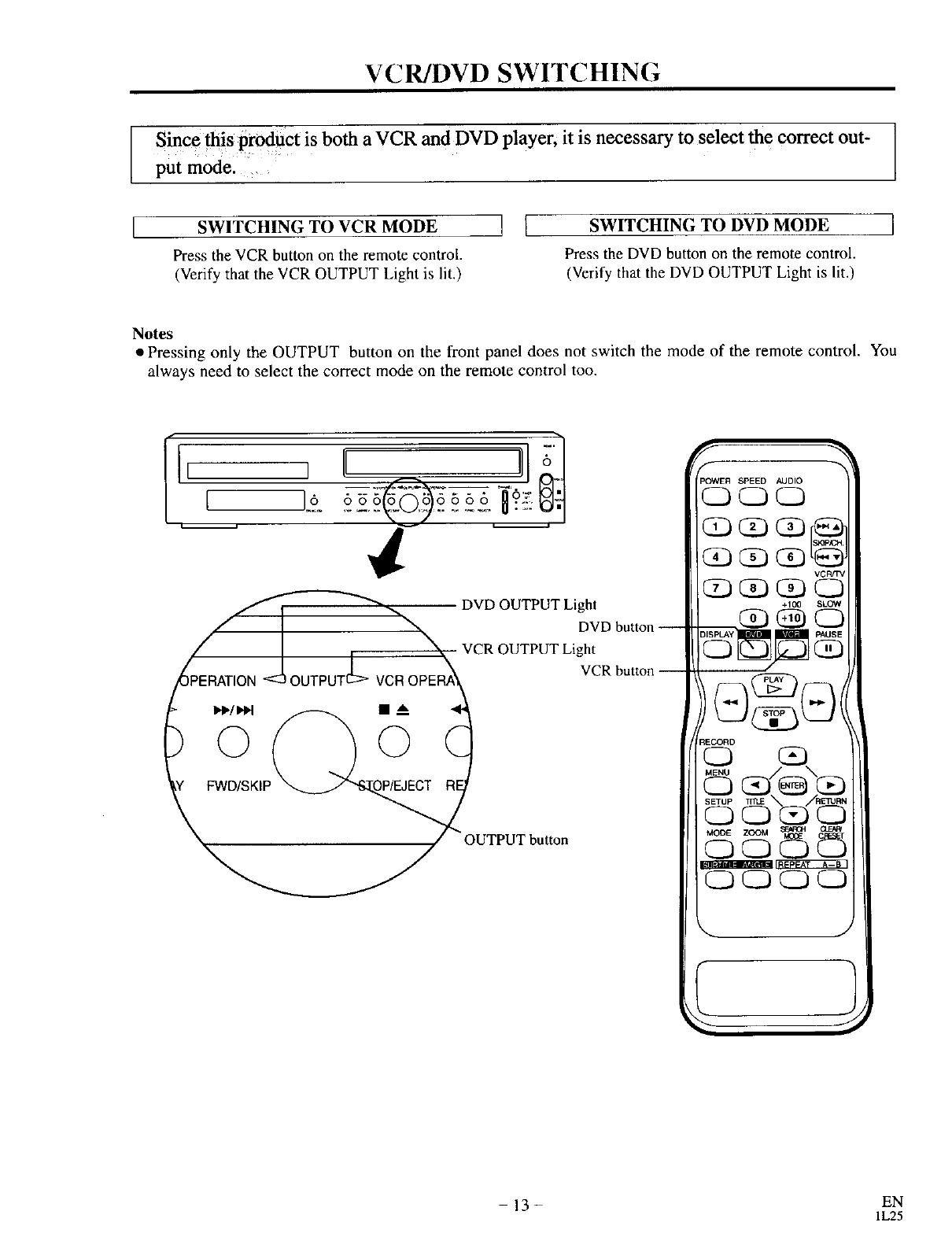
VCR/DVD SWITCHING
Since this product is both aVCR and DVD player, it is necessary to select the correct out-
put mode:
SWITCHING TO VCR MODE
Press the VCR button on the remote controL.
(Verify that the VCR OUTPUT Light is lit.)
SWITCHING TO DVD MODE
Press the DVD button on the remote control.
(Verify that the DVD OUTPUT Light is lit.)
Notes
• Pressing only the OUTPUT button on the front panel does not switch the mode of the remote control. You
always need to select the correct mode on the remote control too.
II,I 'oIoo 'Jl
]" ==--'=_ "it;6
DVD OUTPUT Light
OUTPUT button
DVD button --
ght
VCR button
f
_OWER SPEED AUDIO
O(D(D
(2DQ VCFIHV
Q(2)_ Q
+100 SLOW
_CORD
CD _
ME.U /. \
OQ_C3
5 gg
QQO0
k. J
-13 - EN
IL25
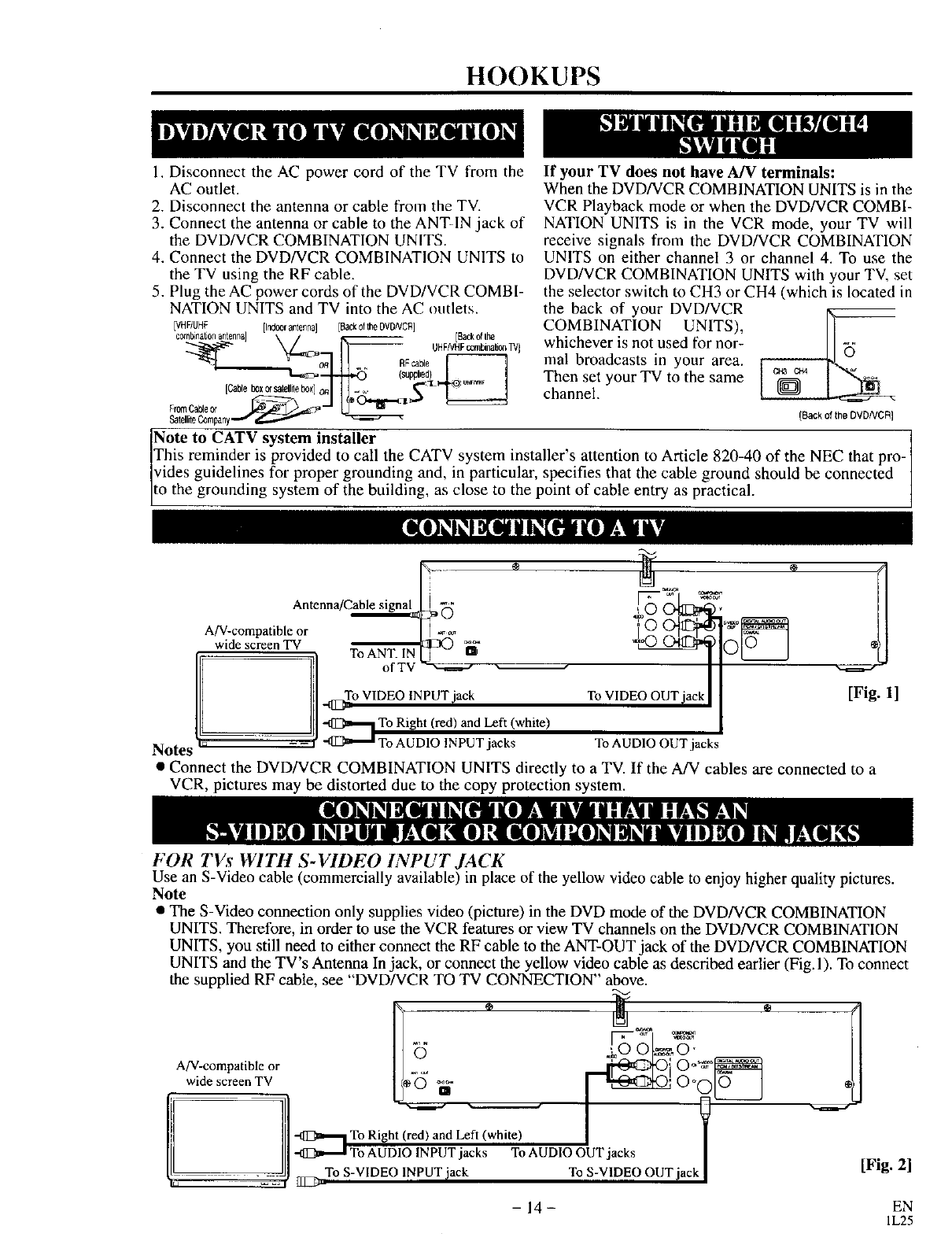
HOOKUPS
If your TV does not have A/V terminals:
When the DVD/VCR COMBINATION UNITS is in the
VCR Playback mode or when the DVD/VCR COMBI-
NATION UNITS is in the VCR mode, your TV will
receive signals from the DVD/VCR COMBINATION
UNITS on either channel 3 or channel 4. To use the
DVD/VCR COMBINATION UNITS with your TV, set
the selector switch to CH3 or CH4 (which is located in
the back of your DVD/VCR IK_
COMBINATION UNITS),
whichever is not used for nor-
mal broadcasts in your area.
Then set your TV to the same
channel.
1. Disconnect the AC power cord of the TV from the
AC outlet.
2. Disconnect the antenna or cable from the TV.
3. Connect the antenna or cable to the ANT-IN jack of
the DVD/VCR COMBINATION UNITS.
4. Connect the DVD/VCR COMBINATION UNITS to
the TV using the RF cable.
5. Plug the AC power cords of the DVD/VCR COMBI-
NATION UNITS and TV into the AC outlets.
[VHF/UHF [Indoorantenna] [Backoflhe DVDNCR]
¢omlmnal+onantenna] % /_- [BackofIhe
" '_ 11 U+NHF_+n.,o.rVl
_mz,,+.-I-.._],_ (stJpplm¢I 1
[c++_+,++s+to,,eb+,]o.1 II -_. _.._<+_+.F_ l
pan,/ [Back of the DVDNCR]
Note to CATV system installer , I
This reminder is provided to call the CATV system installer sattention to Article 820-40 of the NEC that pro- ]
rides guidelines for proper grounding and, in particular, specifies that the cable ground should be connected
to the grounding system of the building, as close to the point of cable entry as practical.
Antenna,+ *00
A/V-compatible or I .
wide screen TV _ _ _1Ot_
t---_-- _ ToANqLINI I-
/1_ I11._o VIDEO IgPUT)aek To VIDEO OUT)ack
Notes _ _ _ [ _ To AUDIO INPUT jacks To AUDIO OUT jacks
• Connect the DVD/VCR COMBINATION UNITS directly to a TV. If the A/V cables are connected to a
VCR, pictures may be distorted due to the copy protection system.
[Fig. 1]
FOR TVs WITH S-VIDEO INI'UT JACK
Use an S-Video cable (commercially available) in place of the yellow video cable to enjoy higher quality pictures.
Note
• The S-Video connection only supplies video (picture) in the DVD mode of the DVD/VCR COMBINATION
UNITS. Therefore, in order to use the VCR features or view TV channels on the DVD/VCR COMBINATION
UNITS, you still need to either connect the RF cable to the ANT-OUT jack of the DVD/VCR COMBINATION
UNITS and the TV's Antenna In jack, or connect the yellow video cable as described earlier (Fig. 1). To connect
the supplied RF cable, see "DVD/VCR TO TV CONNECTION" above.
A/V-compatible or H ._ 0_'_
wide screen TV _l/_° _- oooio I
I//-0---, ToRight(red)andLeft<white> /
III III +o UOiO,+U+jook+ToAUDIOOUTjacks I
-_J9 [IlS_aT° S-VIDEO INPUTiack To S-VIDEO OUT)ack| [Fig. 2]
-14- EN
IL25
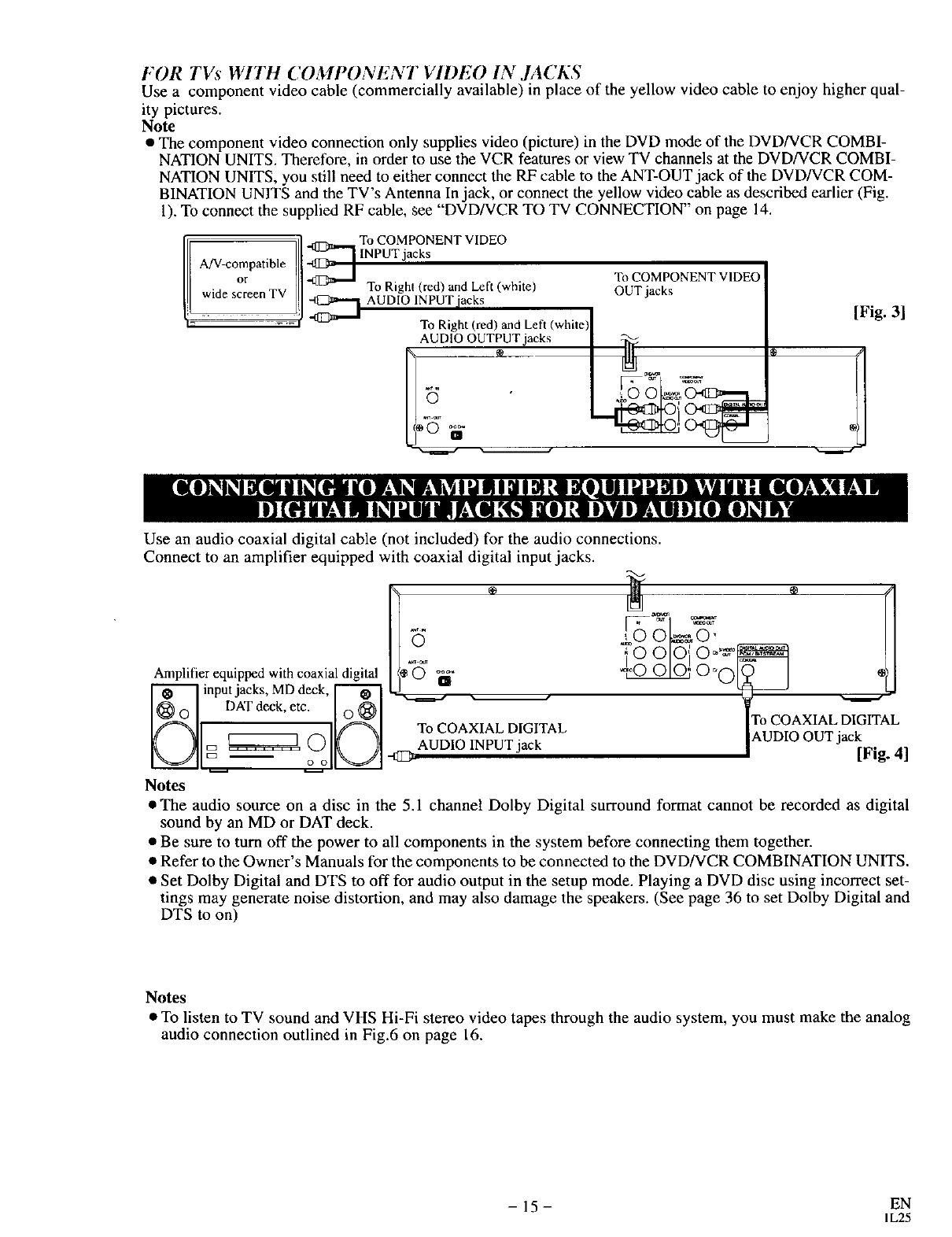
FOR TVs WITH COMPONENT VIDEO IN JACKS
Use a component video cable (commercially available) in place of the yellow video cable to enjoy higher qual-
ity pictures.
Note
• The component video connection only supplies video (picture) in the DVD mode of the DVD/VCR COMBI-
NATION UNITS. Therefore, in order to use the VCR features or view TV channels at the DVD/VCR COMBI-
NATION UNITS, you still need to either connect the RF cable to the ANT-OUT jack of the DVD/VCR COM-
BINATION UNITS and the TV's Antenna In jack, or connect the yellow video cable as described earlier (Fig.
1). To connect the supplied RF cable, gee "DVD/VCR TO TV CONNECTION" on page 14.
II ill To COMPONENT VIDEO
.. or _., //1_ To Right (red) and Left (white)
w,oosorooo.v/] Auo oINPUT,iack
To COMPONENT VIDEO
OUT jacks
To Right (red) and Left (white) I
Use an audio coaxial digital cable (not included) for the audio connections.
Connect to an amplifier equipped with coaxial digital input jacks.
[Fig. 3]
1oo/oi
Amplifier equipped withcoaxial digital ]/_ 0 _ --,0 010_ 0 °0
input jacks, MD deck, _ I._ ._... ¢
1_O ] DATdeck, etc. I ®1
If_'_,ll I1_-"_ ITo COAXIAL DIGITAL
_ _ _oC)o___BLAUDIOINPUTj ack
Notes
I'o COAXIAL DIGITAL
AUDIO OUT jack
Wig. 4]
•The audio source on a disc in the 5.1 channel Dolby Digital surround format cannot be recorded as digital
sound by an MD or DAT deck.
• Be sure to turn off the power to all components in the system before connecting them together.
• Refer to the Owner's Manuals for the components to be connected to the DVD/VCR COMBINATION UNITS.
• Set Dolby Digital and DTS to off for audio output in the setup mode. Playing a DVD disc using incorrect set-
tings may generate noise distortion, and may also damage the speakers. (See page 36 to set Dolby Digital and
DTS to on)
Notes
• To listen to TV sound and VHS Hi-Fi stereo video tapes through the audio system, you must make the analog
audio connection outlined in Fig.6 on page 16.
- 15 - EN
1L25
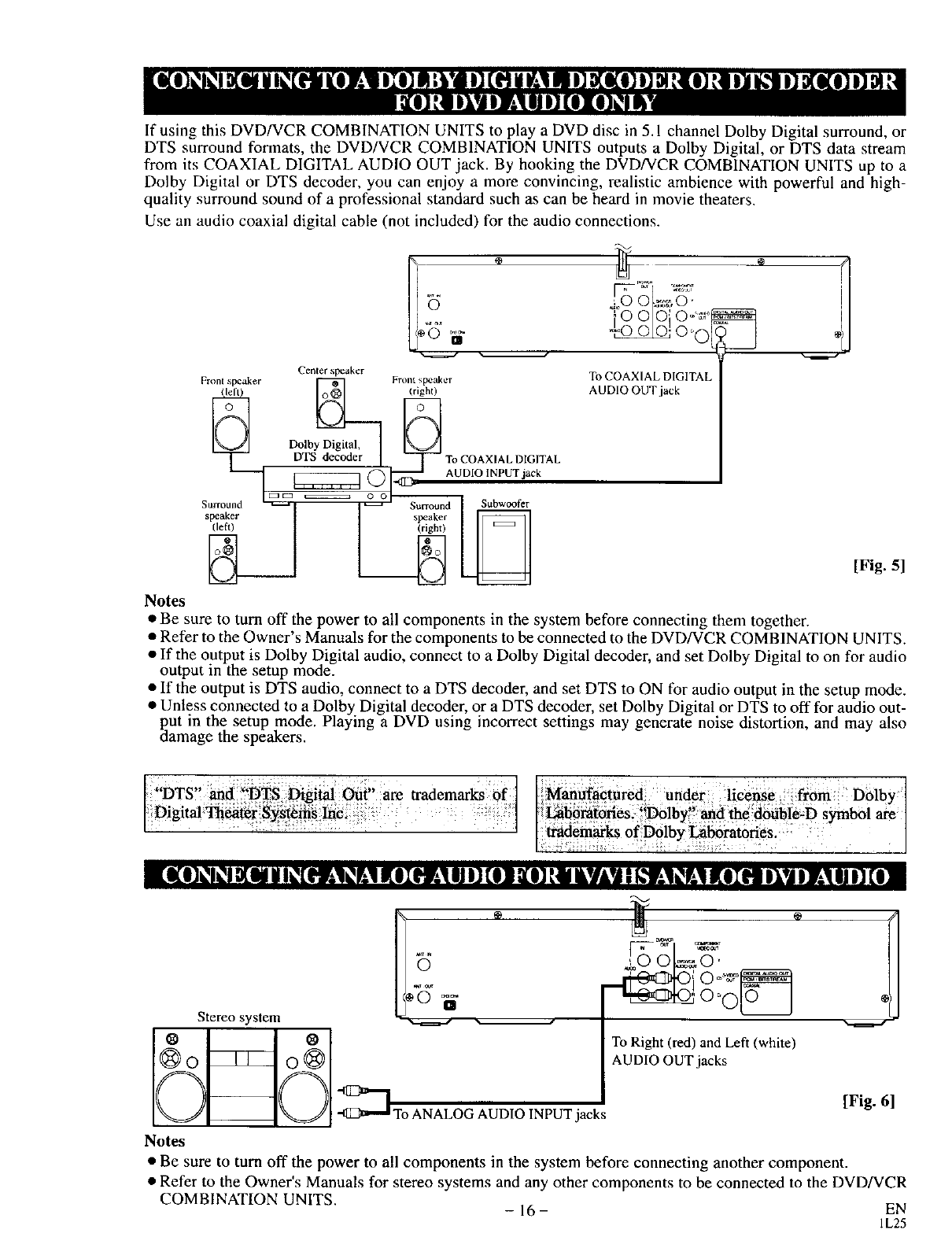
If using this DVD/VCR COMBINATION UNITS to play a DVD disc in 5.1 channel Dolby Digital surround, or
DTS surround formats, the DVD/VCR COMBINATION UNITS outputs a Dolby Digital, or DTS data stream
from its COAXIAL DIGITAL AUDIO OUT jack. By hooking the DVD/VCR COMBINATION UNITS up to a
Dolby Digital or DTS decoder, you can enjoy a more convincing, realistic ambience with powerful and high-
quality surround sound of a professional standard such as can be heard in movie theaters.
Use an audio coaxial digital cable (not included) for the audio connections.
Center speaker
Front speaker Fronl speaker
left (righ0
DTS To COAXIAL DIGITAL
---1 o AUol°INPUT "°k
• I c_Ea _ o o i- T_T'_
Surround _ _ Su_ound Subwo_fer
speaker speaker
_'O_0_00O[Oi 0 °'_'°l
To COAXIAL DIGITAL
AUDIO OUT jack
[Fig. 5]
Notes
•Be sure to turn off the power to all components in the system before connecting them together.
• Refer to the Owner's Manuals for the components to be connected to the DVD/VCR COMBINATION UNITS.
• If the output is Dolby Digital audio, connect to a Dolby Digital decoder, and set Dolby Digital to on for audio
output in the setup mode.
• If the output is DTS audio, connect to a DTS decoder, and set DTS to ON for audio output in the setup mode.
• Unless connected to a Dolby Digital decoder, or a DTS decoder set Dolby Digital or DTS to off for audio out-
put in the setup mode. Playing a DVD using incorrect settings may generate noise distortion, and may also
damage the speakers.
:"DT :' :: ......
S and _TS _,_Out are trademarks of ] [IVIafi_t'abtured under iice_se fr0m Dblby]
Digital_Sy(_ :_: [_b_i_fdries;_D6ibyi!_dfiada6abi_-D s_boi _/
[ I I ofDOiby bbrat0ri s: /
t 7 : : •
Stereo system
To Right (red) and Left (white)
AUDIO OUT jacks
l'o ANALOG AUDIO INPUT jacks [Fig. 6]
Notes
• Be sure to turn off the power to all components in the system before connecting another component.
• Refer to the Owner's Manuals for stereo systems and any other components to be connected to the DVD/VCR
COMBINATION UNITS. - 16- EN
IL25
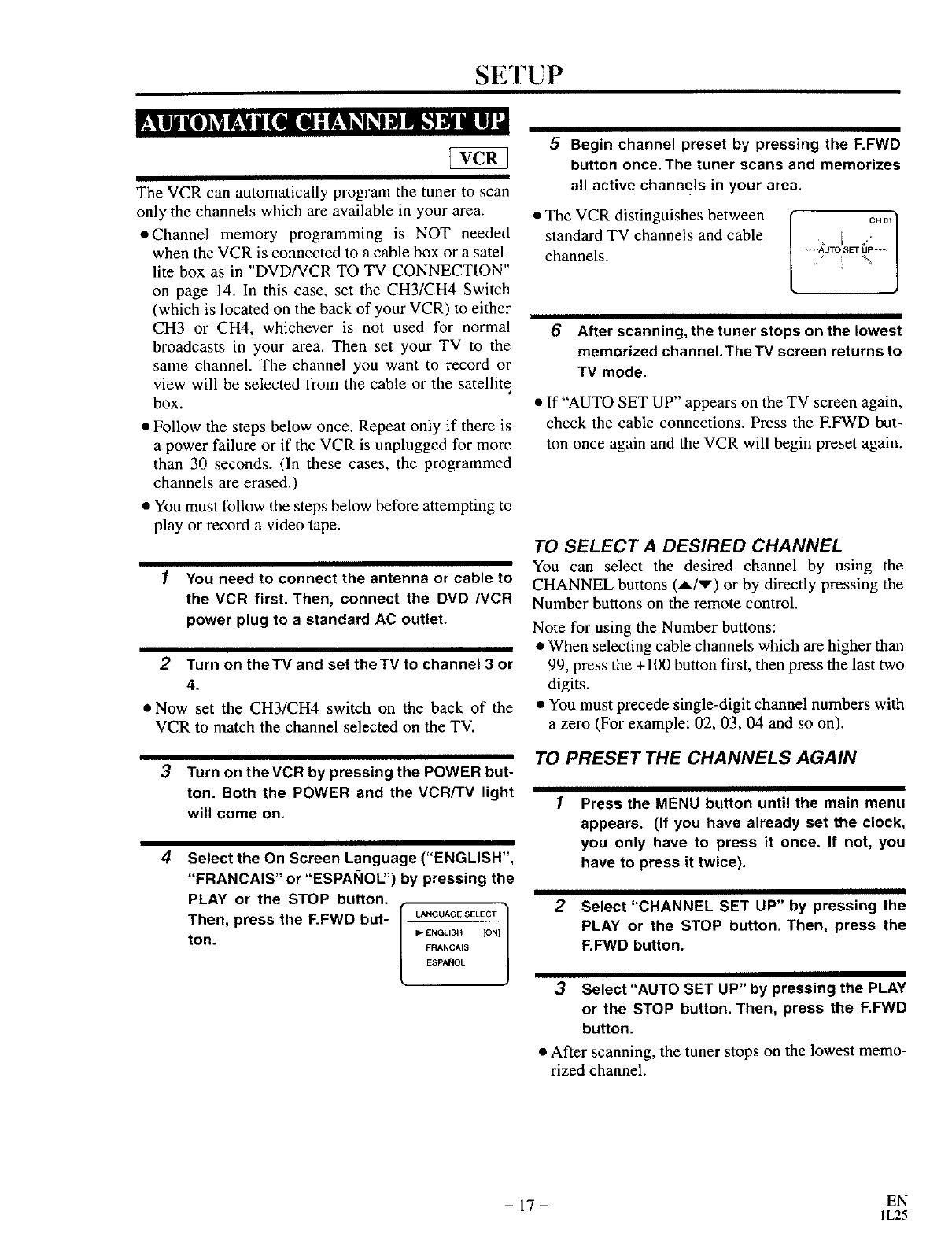
SETUP
The VCR can automatically program the tuner to scan
only the channels which are available in your area.
oChannel memory programming is NOT needed
when the VCR is connected to a cable box or a satel-
lite box as in "DVD/VCR TO TV CONNECTION"
on page 14. In this case, set the CH3/CH4 Switch
(which is located on the back of your VCR) to either
CH3 or CH4, whichever is not used for normal
broadcasts in your area. Then set your TV to the
same channel. The channel you want to record or
view will be selected from the cable or the satellite
box.
• Follow the steps below once. Repeat only if there is
a power failure or if the VCR is unplugged for more
than 30 seconds. (In these cases, the programmed
channels are erased.)
• You must follow the steps below before attempting to
play or record a video tape.
1You need to connect the antenna or cable to
the VCR first. Then, connect the DVD /VCR
power plug to a standard AC outlet.
2Turn on theTV and set the TV to channel 3 or
4.
• Now set the CH3/CH4 switch on the back of the
VCR to match the channel selected on the TV.
3Turn on the VCR by pressing the POWER but-
ton. Both the POWER and the VCR/TV light
will come on.
4Select the On Screen Language ("ENGLISH",
"FRANCAIS" or "ESPAI_IOL") by pressing the
PLAY or the STOP button.
LANGUAGE St'LECT 1
Then, press the F.FWD but- -- --
I1_ ENGLISH ION1
ton. FRANCAIS
ESPANOL
5Begin channel preset by pressing the F.FWD
button once, The tuner scans and memorizes
all active channels in your area,
• The VCR distinguishes between
standard TV channels and cable
channels.
CH01}
AUTO SET UP _
%
6After scanning, the tuner stops on the lowest
memorized channeI.TbeTV screen returns to
TV mode.
• If "AUTO SET UP" appears on the TV screen again,
check the cable connections. Press the EFWD but-
ton once again and the VCR will begin preset again.
TO SELECT A DESIRED CHANNEL
You can select the desired channel by using the
CHANNEL buttons (A/v) or by directly pressing the
Number buttons on the remote control.
Note for using the Number buttons:
• When selecting cable channels which are higher than
99, press the +100 button first, then press the last two
digits.
• You must precede single-digit channel numbers with
a zero (For example: 02, 03, 04 and so on).
TO PRESET THE CHANNELS AGAIN
Press the MENU button until the main menu
appears. (If you have already set the clock,
you only have to press it once. If not, you
have to press it twice).
2Select "CHANNEL SET UP" by pressing the
PLAY or the STOP button. Then, press the
F.FWD button.
3Select"AUTO SET UP" by pressing the PLAY
or the STOP button. Then, press the F.FWD
button.
• After scanning, the tuner stops on the lowest memo-
rized channel.
- 17 - EN
IL25
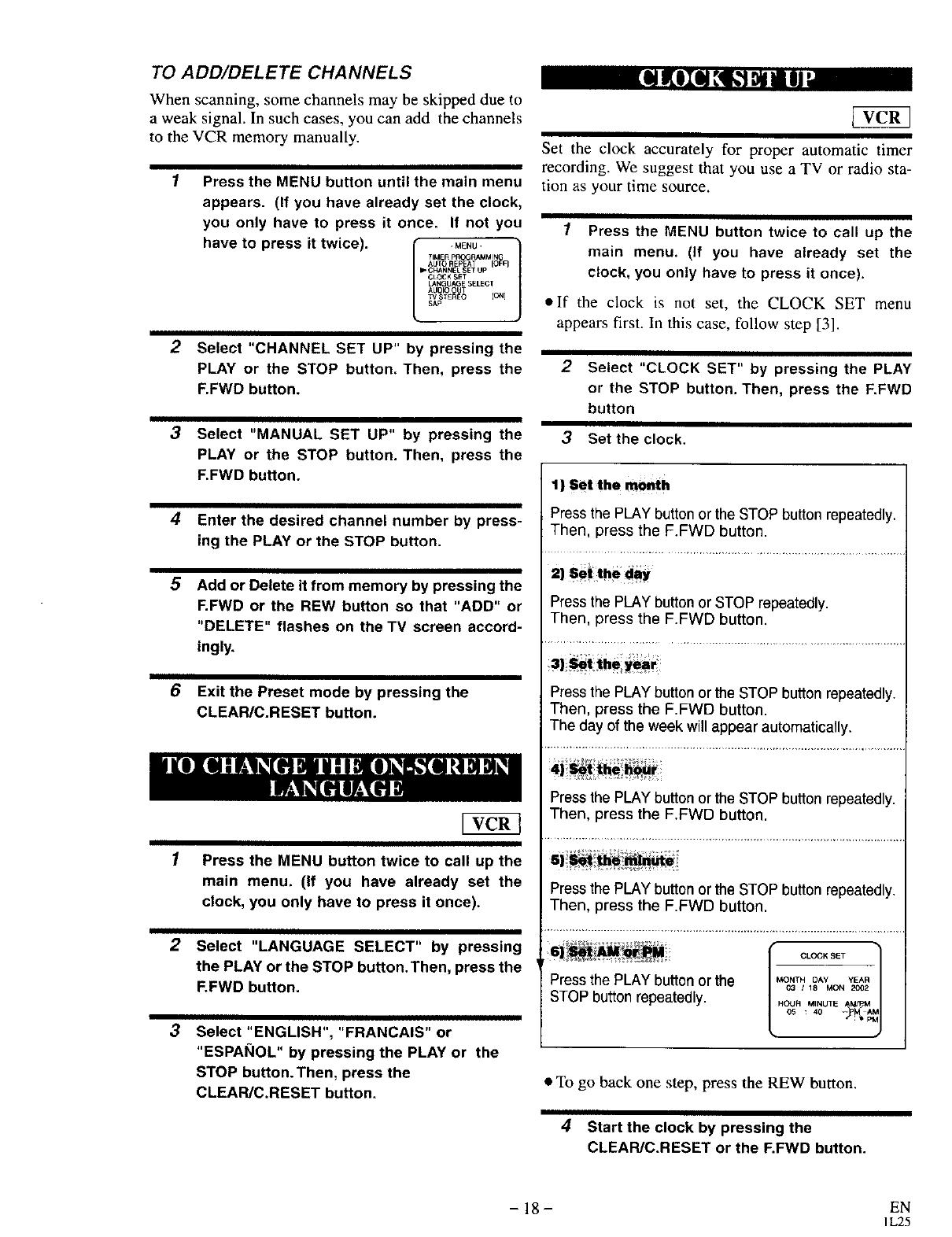
TO ADD/DELETE CHANNELS
When scanning, some channels may be skipped due to
a weak signal. In such cases, you can add the channels
to the VCR memory manually.
1Press the MENU button until the main menu
appears. (If you have already set the clock,
you only have to press it once. If not you
have to press it twice). .._,u.
TIMER pROGRAMMIN
AUTO REPEAT O_F)
_*CHANNE SETUP
CLOCK SET
LA_UAGE SELECT
AUDIO OUT
W$'rEREO [ON]
SAp
Select "CHANNEL SET UP" by pressing the
PLAY or the STOP button. Then, press the
F.FWD button.
3Select "MANUAL SET UP" by pressing the
PLAY or the STOP button. Then, press the
F.FWD button.
4
5
6
Enter the desired channel number by press-
ing the PLAY or the STOP button.
Add or Delete it from memory by pressing the
F.FWD or the REW button so that "ADD" or
"DELETE" flashes on the TV screen accord-
ingly.
Exit the Preset mode by pressing the
CLEAR/C.RESET button.
1
2
3
Press the MENU button twice to call up the
main menu. (If you have already set the
clock, you only have to press it once).
Select "LANGUAGE SELECT" by pressing
the PLAY or the STOP button.Then, press the
F.FWD button.
Select "ENGLISH", "FRANCAIS" or
"ESPAI_IOL" by pressing the PLAY or the
STOP button. Then, press the
CLEAR/C.RESET button.
Set the clock accurately for proper automatic timer
recording. We suggest that you use a TV or radio sta-
tion as your time source.
1Press the MENU button twice to call up the
main menu. (If you have already set the
clock, you only have to press it once).
•If the clock is not set, the CLOCK SET menu
appears first. In this case, follow step [3].
2Select "CLOCK SET" by pressing the PLAY
or the STOP button. Then, press the F.FWD
button
3Set the clock.
1) Set the mn|h
Press the PLAY button or the STOP button repeatedly.
Then, press the F.FWD button.
Press the PLAY button or STOP repeatedly.
Then, press the F.FWD button.
3) _t _he year
Press the PLAY button or the STOP button repeatedly.
Then, press the F.FWD button.
The day of the week will appear automatically.
Press the PLAY button or the STOP button repeatedly.
Then, press the F.FWD button.
Press the PLAY button or the STOP button repeatedly.
Then, press the F.FWD button. IC--T1
Press the PLAY button or the Mo._ o^v yEA,
03 /18 MON 2002
STOP button repeatedly. .ou..,.UTE
• To go back one step, press the REW button.
4Start the clock by pressing the
CLEAR/C.RESET or the F.FWD button.
- 18- EN
IL25
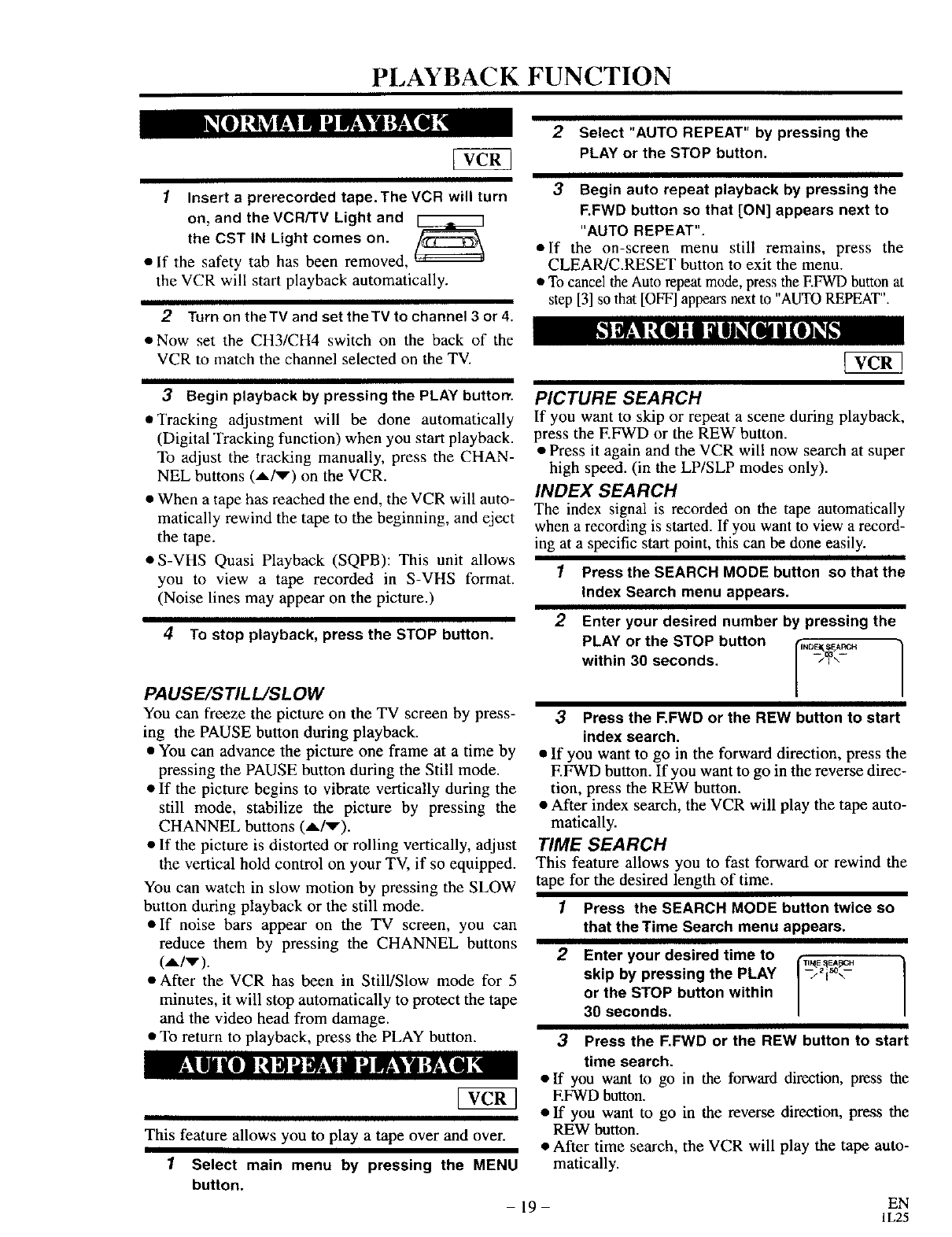
PLAYBACK FUNCTION
2Select "AUTO REPEAT" by pressing the
PLAY or the STOP button.
IInsert a prerecorded tape.The VCR will turn
on, and the VCR/TV Light and
the CST IN Light comes on.
•If the safety tab has been removed,
the VCR will start playback automatically.
2Turn on theTV and set theTV to channel 3 or 4.
• Now set the CH3/CH4 switch on the back of the
VCR to match the channel selected on the TV.
3Begin auto repeat playback by pressing the
F.FWD button so that [ON] appears next to
"AUTO REPEAT".
oIf the on-screen menu still remains, press the
CLEAR/C.RESET button to exit the menu.
• To cancel the Auto repeat mode, press the EFWD button at
step [3] so that [OFF] appears next to "AUTO REPEAT".
3Begin playback by pressing the PLAY buttorr.
o Tracking adjustment will be done automatically
(Digital Tracking function) when you start playback.
To adjust the tracking manually, press the CHAN-
NEL buttons (A/v) on the VCR.
•When a tape has reached the end, the VCR will auto-
matically rewind the tape to the beginning, and eject
the tape.
• S-VHS Quasi Playback (SQPB): This unit allows
you to view a tape recorded in S-VHS format.
(Noise lines may appear on the picture.)
4To stop playback, press the STOP button.
PAUSE/STILL/SLOW
You can freeze the picture on the TV screen by press-
ing the PAUSE button during playback.
• You can advance the picture one frame at a time by
pressing the PAUSE button during the Still mode.
• If the picture begins to vibrate vertically during the
still mode, stabilize the picture by pressing the
CHANNEL buttons (A/v).
• If the picture is distorted or rolling vertically, adjust
the vertical hold control on your TV, if so equipped.
You can watch in slow motion by pressing the SLOW
button during playback or the still mode.
• If noise bars appear on the TV screen, you can
reduce them by pressing the CHANNEL buttons
(A/v).
• After the VCR has been in Still/Slow mode for 5
minutes, it will stop automatically to protect the tape
and the video head from damage.
• To return to playback, press the PLAY button.
PICTURE SEARCH
If you want to skip or repeat a scene during playback,
press the EFWD or the REW button.
• Press it again and the VCR will now search at super
high speed. (in the LP/SLP modes only).
INDEX SEARCH
The index signal is recorded on the tape automatically
when a recording is started. If you want to view a record-
ing at a specific start point, this can be done easily.
1Press the SEARCH MODE button so that the
index Search menu appears.
2Enter your desired number by pressing the
PLAY or the STOP button rN "1
within 30 seconds, /
3Press the F.FWD or the REW button to start
index search.
•If you want to go in the forward direction, press the
EFWD button. If you want to go in the reverse direc-
tion, press the REW button.
• After index search, the VCR will play the tape auto-
matically.
TIME SEARCH
This feature allows you to fast forward or rewind the
tape for the desired length of time.
1Press the SEARCH MODE button twice so
that the Time Search menu appears.
2Enter your desired time to C_,_E_e.
skip by pressing the PLAY /-_2i_°_-
or the STOP button within
30 seconds.
3Press the F,FWD or the REW button to start
This feature allows you to play a tape over and over.
1Select main menu by pressing the MENU
button.
-19-
time search.
•If you want to go in the forward direction, press the
EFWD button.
• If you want to go in the reverse direction, press the
REW button.
• After time search, the VCR will play the tape auto-
matically.
EN
IL25
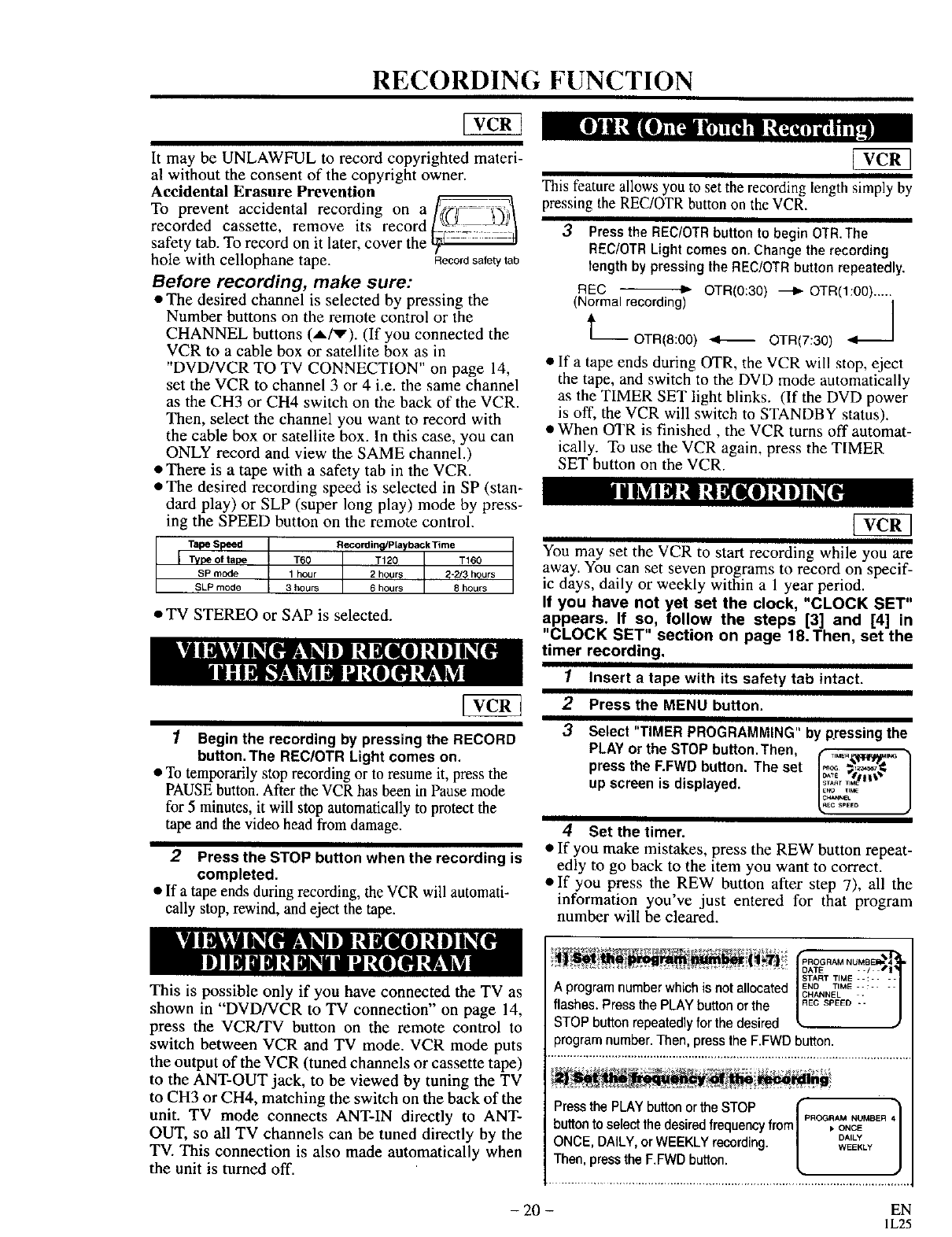
RECORDING FUNCTION
It may be UNLAWFUL to record copyrighted materi-
al without the consent of the copyright owner.
Accidental Erasure Prevention
To prevent accidental recording on a]_fif-_S.i' I
recorded cassette, remove its record
safety tab. To record on it later, cover the
hole with cellophane tape. Recordsafetytab
Before recording, make sure:
•The desired channel is selected by pressing the
Number buttons on the remote control or the
CHANNEL buttons (A/v). (If you connected the
VCR to a cable box or satellite box as in
"DVD/VCR TO TV CONNECTION" on page 14,
set the VCR to channel 3 or 4 i.e. the same channel
as the CH3 or CH4 switch on the back of the VCR.
Then, select the channel you want to record with
the cable box or satellite box. In this case, you can
ONLY record and view the SAME channel.)
• There is a tape with a safety tab in the VCR.
• The desired recording speed is selected in SP (stan-
dard play) or SLP (super long play) mode by press-
ing the SPEED button on the remote control.
Tape speed RecordinQ/Playback Time
ITVCe of tal)e T60 T120 T160
SP mode 1 hour 2 hours 2-2/3 hours
SLP mode 3 hours 6 hours 8 hours
• TV STEREO or SAP is selected.
1Begin the recording by pressing the RECORD
button.The REC!OTR Light comes on.
• To temporarily stop recording or to resume it, press the
PAUSE button. After the VCR has been in Pause mode
for 5 minutes, it will stop automatically to protect the
tape and the video head from damage.
2Press the STOP button when the recording is
completed.
• If a tape ends during recording, the VCR will automati-
cally stop, rewind, and eject the tape.
This feature allows you to set the recording length simply by
pressing the REC/OTR button on the VCR.
3Press the REC/OTR button to begin OTR.The
RECiOTR Light comes on. Change the recording
length by pressing the REC/OTR button repeatedly.
REC ---"_ OTR(0:30) _ OTR(I:00) .....
(Normalrecording) 4"_
' OTR(8:OO) <11 OTR(7:30)
•If a tape ends during OTR, the VCR will stop, eject
the tape, and switch to the DVD mode automatically
as the TIMER SET light blinks. (If the DVD power
is off, the VCR will switch to STANDBY status).
• When OTR is finished, the VCR turns off automat-
ically. To use the VCR again, press the TIMER
SET button on the VCR.
You may set the VCR to start recording while you are
away. You can set seven programs to record on specif-
ic days, daily or weekly within a 1 year period.
If you have not yet set the clock, "CLOCK SET"
appears. If so, follow the steps [3] and [4] in
"CLOCK SET" section on page 18.Then, set the
timer recording.
1Insert a tape with its safety tab intact,
2Press the MENU button.
3Select "TIMER PROGRAMMING"by p,ressing the
PLAYor the STOP button.Then, _
pressthe F.FWDbutton. The set o,_, • •
up screen is displayed. I
_EL
4Set the timer.
•If you make mistakes, press the REW button repeat-
edly to go back to the item you want to correct.
• If you press the REW button after step 7), all the
information you've just entered for that program
number will be cleared.
This is possible only if you have connected the TV as
shown in "DVD/VCR to TV connection" on page 14,
press the VCR/I'V button on the remote control to
switch between VCR and TV mode. VCR mode puts
the output of the VCR (tuned channels or cassette tape)
to the ANT-OUT jack, to be viewed by tuning the TV
to CH3 or CH4, matching the switch on the back of the
unit. TV mode connects ANT-IN directly to ANT-
OUT, so all TV channels can be tuned directly by the
TV. This connection is also made automatically when
the unit is turned off.
RR°GnAMNUMBE_!l
DATE --/ /I
START TIME .. : ....
Aprogram number which is not allocated END TIME"': ....
CHANNEL
flashes. Press the PLAY button or the ECSPEED-.
STOP button repeatedly for the desired
program number. Then, press the F.FWD button.
Press the PLAY button or the STOP (•
btt n '* " iPROGRAM NUMBER 4
u o tosenecttnedesuredfrequencyfrom/ ,ONCE
ONCE, DAILY, orWEEKLY recording. | ,_LYLy
Then, press the F.FWD button. L,
- 20 - EN
1L25
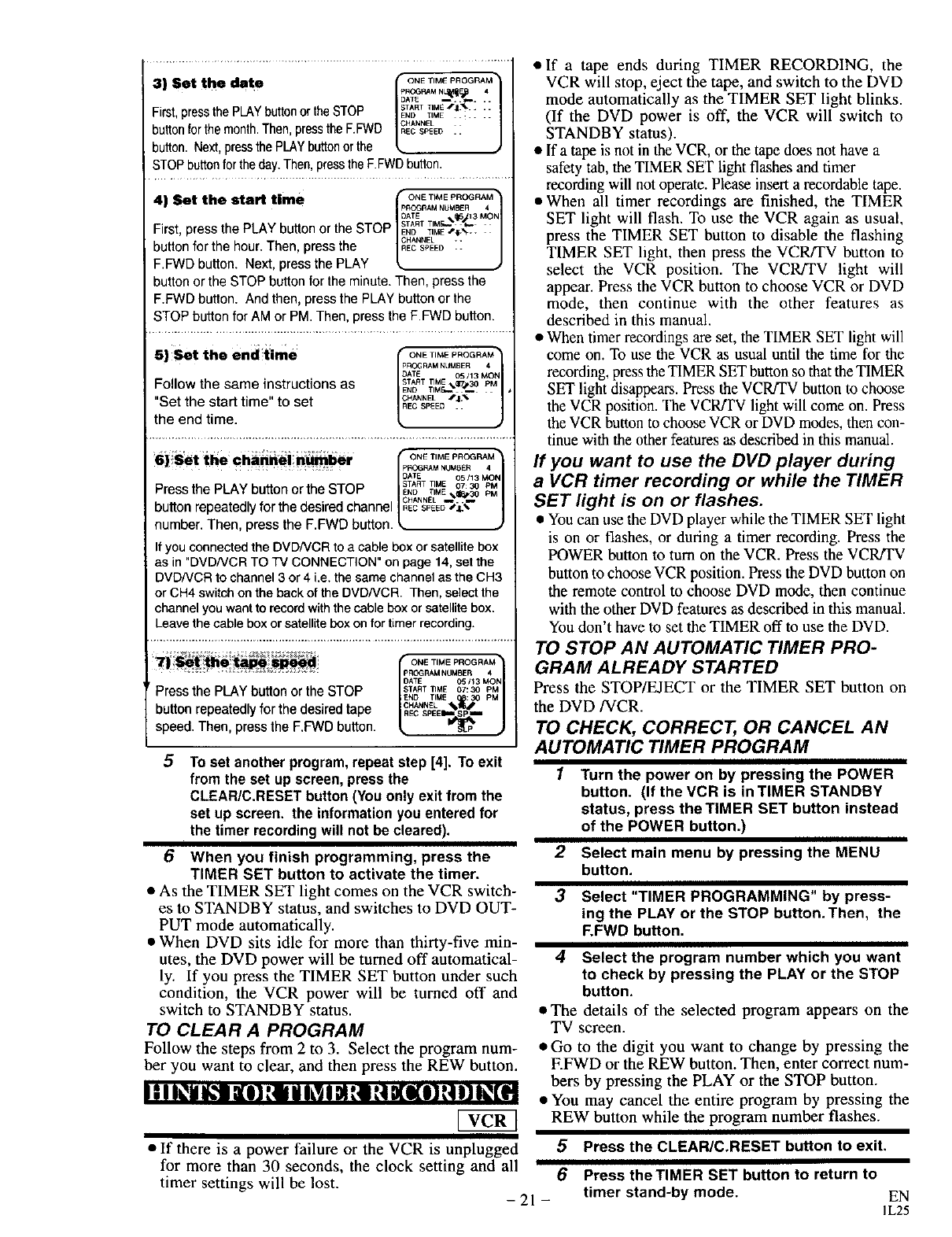
3) Set the date fp._.°NE",MENL_IIF_P"OGRAM,,•
First,pressthePLAYbuttonor theSTOP I_T_Tr,.E'_i_'_ ::
ND TIME . : ....
buttonforthe month.Then,presstheF.FWD CHANNEL
button. Next,pressthePLAYbuttonor the ECS_EO.. •
STOPbuttonforthe day.Then,pressthe F.FWDbutton.
el the start time ONET_MEPROGRAM"
41S _ppOGRAMNUMBER4
IDATE %_13 MON
First, press the PLAY button or the STOP IEs_RTTI_E_;_._; ::
button for the hour. Then, press the I._"_Eo ::
F.FWD button. Next, press the PLAY _.
button or the STOP button for the minute• Then, press the
F.FWD button. And then, press the PLAY button or the
STOP button for AM or PM. Then, press the F.FWD button.
5) Set the end time I_RO_"M_"A_"
.. I_ ATE 05/13 MOP
Follow the same instructions as IE_RTTTIMM_;_tT/30 pM
"Set the start time" to set IC_pELED/:l_
the end time. L, ,
6| S'etthe ch_iinei n_imber Ii ONETIMEpROGRAtMMN]
;pROGRAM NUMhER 4
{)ATE 05/13 _,_:)N
Press the PLAY button or the STOP rNAoRTrrl_ ,,_._ pP
•CHANNEL _.._
button repeatedly for the desired channel ICECSP_ED/_ |
number. Then, press the F.F'WD button, k J
If you connected the DVDNCR to a cable box or satellite box
as in "DVDNCR TO TV CONNECTION" on page 14, set the
DVD/VCR to channel 3 or 4 i.e. the same channel as the CH3
or CH4 switch on the back of the DVD/VCR. Then, select the
channel you want to record with the cable box or satellite box.
Leave the cable box or satellite box on for timer recording.
Pressthe PLAY button or the STOP
button repeatedly for the desiredtape
speed. Then, press the F.FWD button.
ONE TIME PRO%_RAMt
pROGRAM NUMBER 4
DATE 05 I13 MOp
START TIME 07:30 pM
END TIME : 30 PM
HANNEL " j
5To set anotherprogram,repeat step [4]. To exit
from the set up screen, press the
CLEAR/C.RESET button (You only exit from the
set up screen, the information you entered for
the timer recordingwill not be cleared).
6When you finish programming, press the
TIMER SET button to activate the timer.
•As the TIMER SET light comes on the VCR switch-
es to STANDBY status, and switches to DVD OUT-
PUT mode automatically.
• When DVD sits idle for more than thirty-five min-
utes, the DVD power will be turned off automatical-
ly. If you press the TIMER SET button under such
condition, the VCR power will be turned off and
switch to STANDBY status.
TO CLEAR A PROGRAM
Follow the steps from 2 to 3. Select the program num-
ber you want to clear, and then press the PEW button.
I -"I I_i I_1 ll} _i i Ik_ I N tl t! P[I[I] _! I] I_[H
• If a tape ends during TIMER RECORDING, the
VCR will stop, eject the tape, and switch to the DVD
mode automatically as the TIMER SET light blinks.
(If the DVD power is off, the VCR will switch to
STANDBY status).
•If a tape is not in the VCR, or the tape does not have a
safety tab, the TIMER SET light flashes and timer
recording will not operate. Please insert a recordable tape.
• When all timer recordings are finished, the TIMER
SET light will flash. To use the VCR again as usual,
press the TIMER SET button to disable the flashing
TIMER SET light, then press the VCR/TV button to
select the VCR position. The VCR/TV light will
appear. Press the VCR button to choose VCR or DVD
mode, then continue with the other features as
described in this manual.
• When timer recordings are set, the TIMER SET light will
come on. To use the VCR as usual until the time for the
recording, press the TIMER SET button so that the TIMER
SET light disappears. Press the VCRfI'V button to choose
the VCR position. The VCRFi?V light will come on. Press
the VCR button to choose VCR or DVD modes, then con-
tinue with the other features as described in this manual.
If you want to use the DVD player during
a VCR timer recording or while the TIMER
SET light is on or flashes.
•You can use the DVD player while the TIMER SET light
is on or flashes, or during a timer recording. Press the
POWER button to turn on the VCR. Press the VCRFFV
button to choose VCR position. Press the DVD button on
the remote control to choose DVD mode, then continue
with the other DVD features as described in this manual.
You don't have to set the TIMER off to use the DVD.
TO STOP AN AUTOMATIC TIMER PRO-
GRAM ALREADY STARTED
Press the STOP/EJECT or the TIMER SET button on
the DVD/VCR.
TO CHECK, CORRECT, OR CANCEL AN
AUTOMATIC TIMER PROGRAM
1Turn the power on by pressing the POWER
button. (If the VCR is in TIMER STANDBY
status, press the TIMER SET button instead
of the POWER button.)
2Select main menu by pressing the MENU
button.
3Select "TIMER PROGRAMMING" by press-
ing the PLAY or the STOP button. Then, the
F.FWD button.
4Select the program number which you want
to check by pressing the PLAY or the STOP
button.
•The details of the selected program appears on the
TV screen.
*Go to the digit you want to change by pressing the
EFWD or the PEW button. Then, enter correct num-
bers by pressing the PLAY or the STOP button.
• You may cancel the entire program by pressing the
REW button while the program number flashes.
•If there is a power failure or the VCR is unplugged
for more than 30 seconds, the clock setting and all
timer settings will be lost. -21 -
5Press the CLEAR/C,RESET button to exit.
6Press theTIMER SET button to return to
timer stand-by mode. EN
I L25
SPECIAL FEATURES
You can make copies of video tapes made by friends or
relatives for your enjoyment.
Warning:
Unauthorized recordings of copyrighted video tapes
may be an infringement of copyright laws.
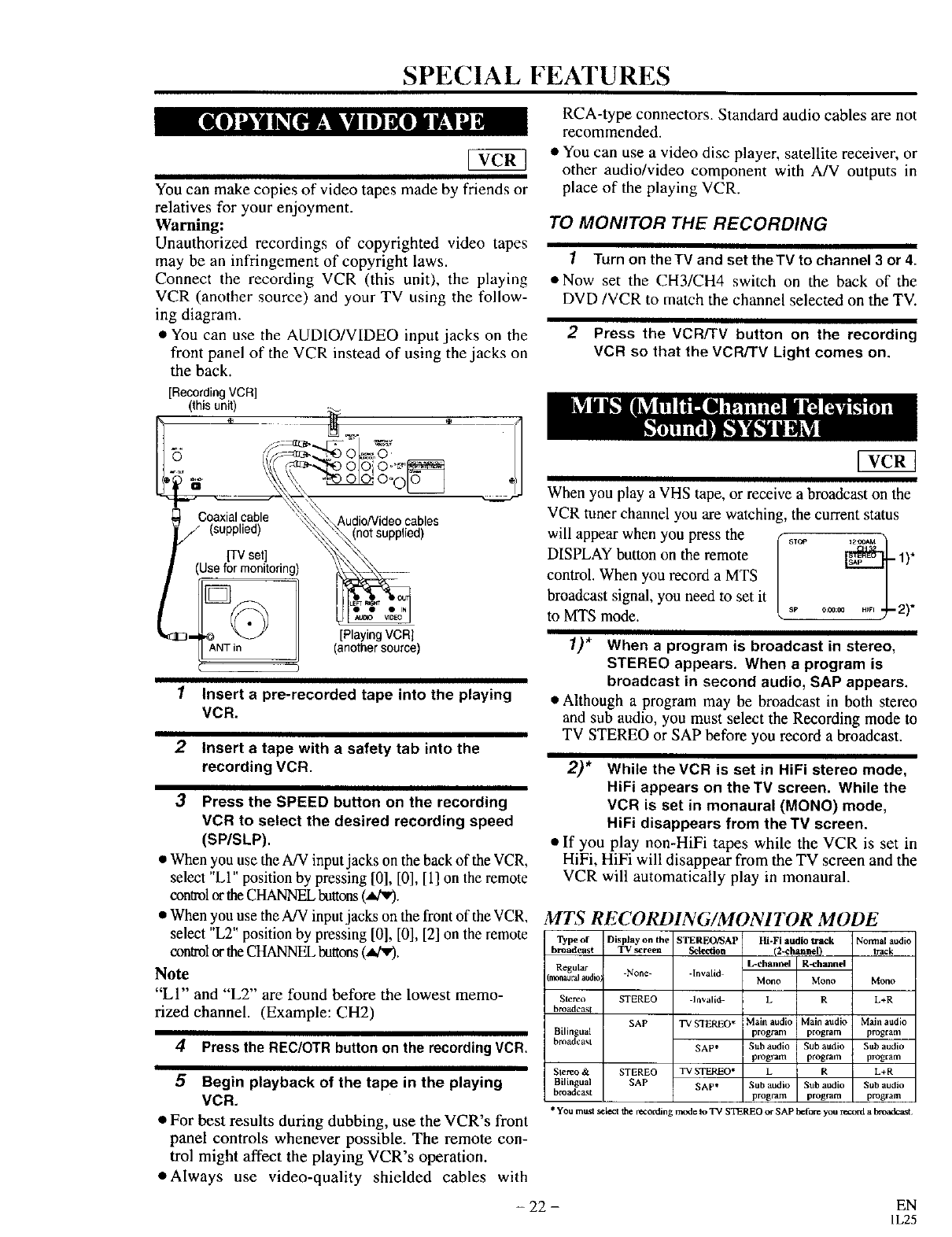
Connect the recording VCR (this unit), the playing
VCR (another source) and your TV using the follow-
ing diagram.
• You can use the AUDIO/VIDEO input jacks on the
front panel of the VCR instead of using the jacks on
the back.
[Recording VCR]
(this unit) ._
II o,
I] ._ /\_(r-_-..",,e olo ioo'_°_
, _ _ "-_oo 0
Coaxial cable _AudioNideo cables
F (sepphed) \_,not supplied)
I _ [TV set] \&_ _
(Use for monitoring) _;_x_
1Insert apre-recorded tape into the playing
VCR.
2Insert atape with asafety tab into the
recording VCR.
3Press the SPEED button on the recording
VCR to select the desired recording speed
(SP/SLP),
• When you use the A/V input jacks on the back of the VCR,
select "L1" position by pressing [0], [0], [1] on the remote
conaol or theCHANNEL buttons (,i_v).
RCA-type connectors. Standard audio cables are not
recommended.
• You can use a video disc player, satellite receiver, or
other audio/video component with A/V outputs in
place of the playing VCR.
TO MONITOR THE RECORDING
1Turn on theTV and set theTV to channel 3 or 4.
• Now set the CH3/CH4 switch on the back of the
DVD/VCR to match the channel selected on the TV.
2Press the VCRFFV button on the recording
VCR so that the VCR/TV Light comes on.
When you play a VHS tape, or receive a broadcast on the
VCR tuner channel you are watching, the current status
wa earw e ou s/........
DISPLAY button on the remote t)
control. When you record a MTS
broadcast signal, you need to set it o0_.... _-2)
to MTS mode. _
1)* When a program is broadcast in stereo,
STEREO appears. When a program is
broadcast in second audio, SAP appears,
• Although a program may be broadcast in both stereo
and sub audio, you must select the Recording mode to
TV STEREO or SAP before you record a broadcast.
2)* While the VCR is set in HiFi stereo mode,
HiFi appears on theTV screen. While the
VCR is set in monaural (MONO) mode,
HiFi disappears from the TV screen.
• If you play non-HiFi tapes while the VCR is set in
HiFi, HiFi will disappear from the TV screen and the
VCR will automatically play in monaural.
• When you use the A/V input jacks on the front of the VCR, MTSRECORDING/MONITORMODE
select "L2" position by pressing [0], [0], [2] on the remote
controlor theCHANNEL buttons(_'v).
Note
"LI" and "'L2" are found before the lowest memo-
rized channel. (Example: CH2)
4Press the REC/OTR buttonon the recording VCR.
5Begin playback of the tape in the playing
VCR.
•For best results during dubbing, use the VCR's front
panel controls whenever possible. The remote con-
trol might affect the playing VCR's operation.
*Always use video-quality shielded cables with
'I_pe of Display on the STERFX)/SA P Hi-Fi audio track Normal audio
broadcast TV screen Sdettion (2-channel) track
L-channel R-channel
Regular None- -Invalid
monaural audg Mono Mono Mono
Slereo STEREO Invalid L R L+R
broadcast
SAP
Bilingual
broadcast
Stereo & STEREO
Bilingual SAP
broadcast
•You must _:1_1 the recorthn
TVS'I_REO* Mathaudio Mainaudio Mainaudio
program program program
SAP* Sub audio Sub audio Sub audio
program program program
TV STEREO* L R L+R
SAP* Sub audio Sub audio Sub audio
program program program
mode to TV STEREO or SAP betide you record a I_tmdcz.st
- 22 - EN
IL25
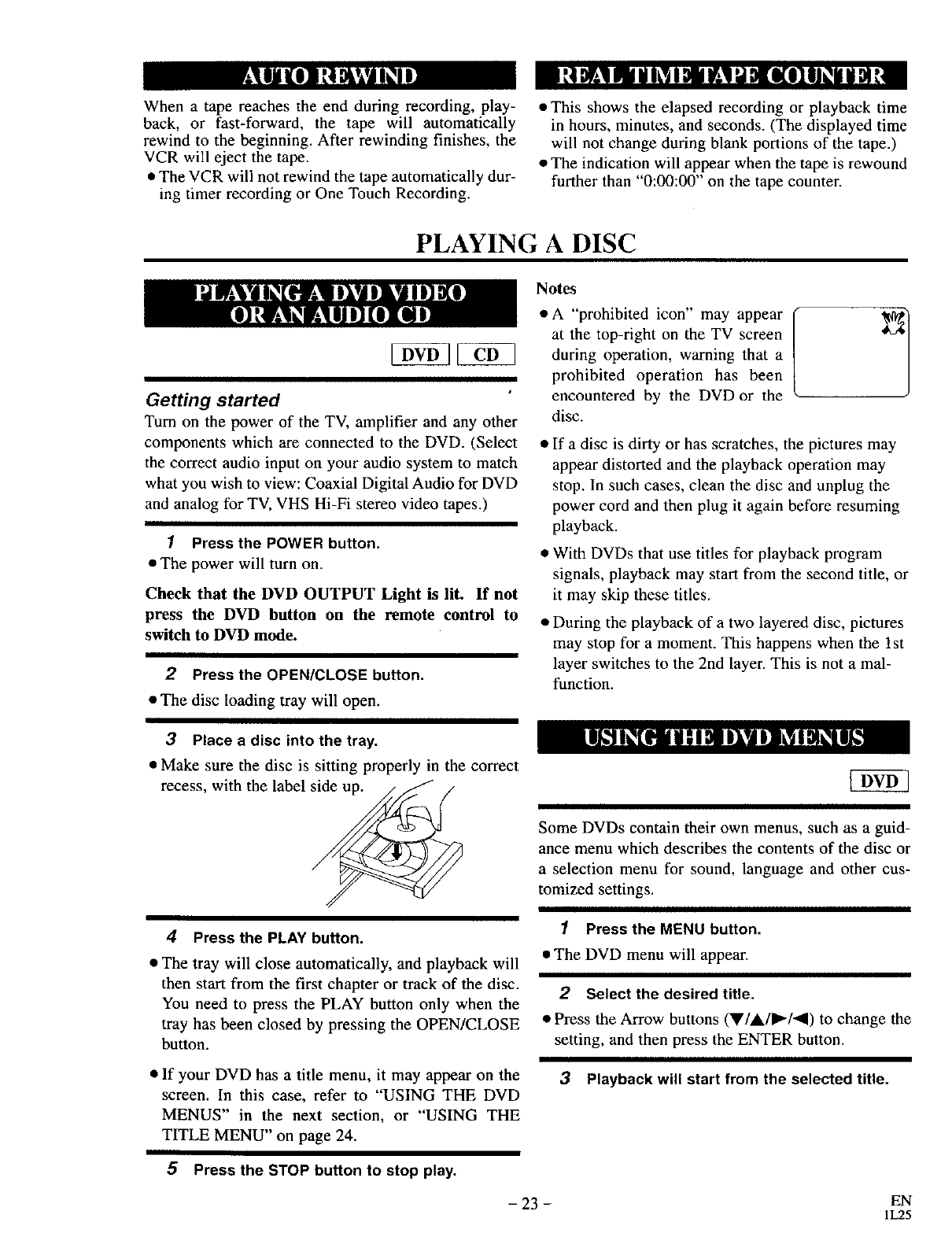
When a tape reaches the end during recording, play-
back, or fast-forward, the tape will automatically
rewind to the beginning. After rewinding finishes, the
VCR will eject the tape.
• The VCR will not rewind the tape automatically dur-
ing timer recording or One Touch Recording.
• This shows the elapsed recording or playback time
in hours, minutes, and seconds. (The displayed time
will not change during blank portions of the tape.)
•The indication will appear when the tape is rewound
further than "0:00:00" on the tape counter.
PLAYING A DISC
Getting started
Turn on the power of the TV, amplifier and any other
components which are connected to the DVD. (Select
the correct audio input on your audio system to match
what you wish to view: Coaxial Digital Audio for DVD
and analog for TV, VHS Hi-Fi stereo video tapes.)
1Press the POWER button.
• The power will turn on.
Check that the DVD OUTPUT Light is lit. If not
press the DVD button on the remote control to
switch to DVD mode.
Press the OPEN/CLOSE button.
• The disc loading tray will open.
3Place a disc into the tray.
• Make sure the disc is sitting properly in the correct
recess, with the label sideup. / / /
4Press the PLAY button.
• The tray will close automatically, and playback will
then start from the first chapter or track of the disc.
You need to press the PLAY button only when the
tray has been closed by pressing the OPEN/CLOSE
button.
•If your DVD has a title menu, it may appear on the
screen. In this case, refer to "USING THE DVD
MENUS" in the next section, or "USING THE
TITLE MENU" on page 24.
5Press the STOP button to stop play.
Notes
• A "prohibited icon" may appear
at the top-right on the TV screen
during operation, warning that a
prohibited operation has been
encountered by the DVD or the
disc.
•If adisc is dirty or has scratches, the pictures may
appear distorted and the playback operation may
stop. In such cases, clean the disc and unplug the
power cord and then plug it again before resuming
playback.
• With DVDs that use titles for playback program
signals, playback may start from the second title, or
it may skip these titles.
• During the playback of a two layered disc, pictures
may stop for a moment. This happens when the 1st
layer switches to the 2nd layer. This is not a mal-
function.
Some DVDs contain their own menus, such as a guid-
ance menu which describes the contents of the disc or
a selection menu for sound, language and other cus-
tomized settings.
1Press the MENU button.
•The DVD menu will appear.
2Select the desired title.
•Press the Arrow buttons (V/&/I_/41) to change the
setting, and then press the ENTER button.
3Playback will start from the selected title.
- 23 - EN
1L25
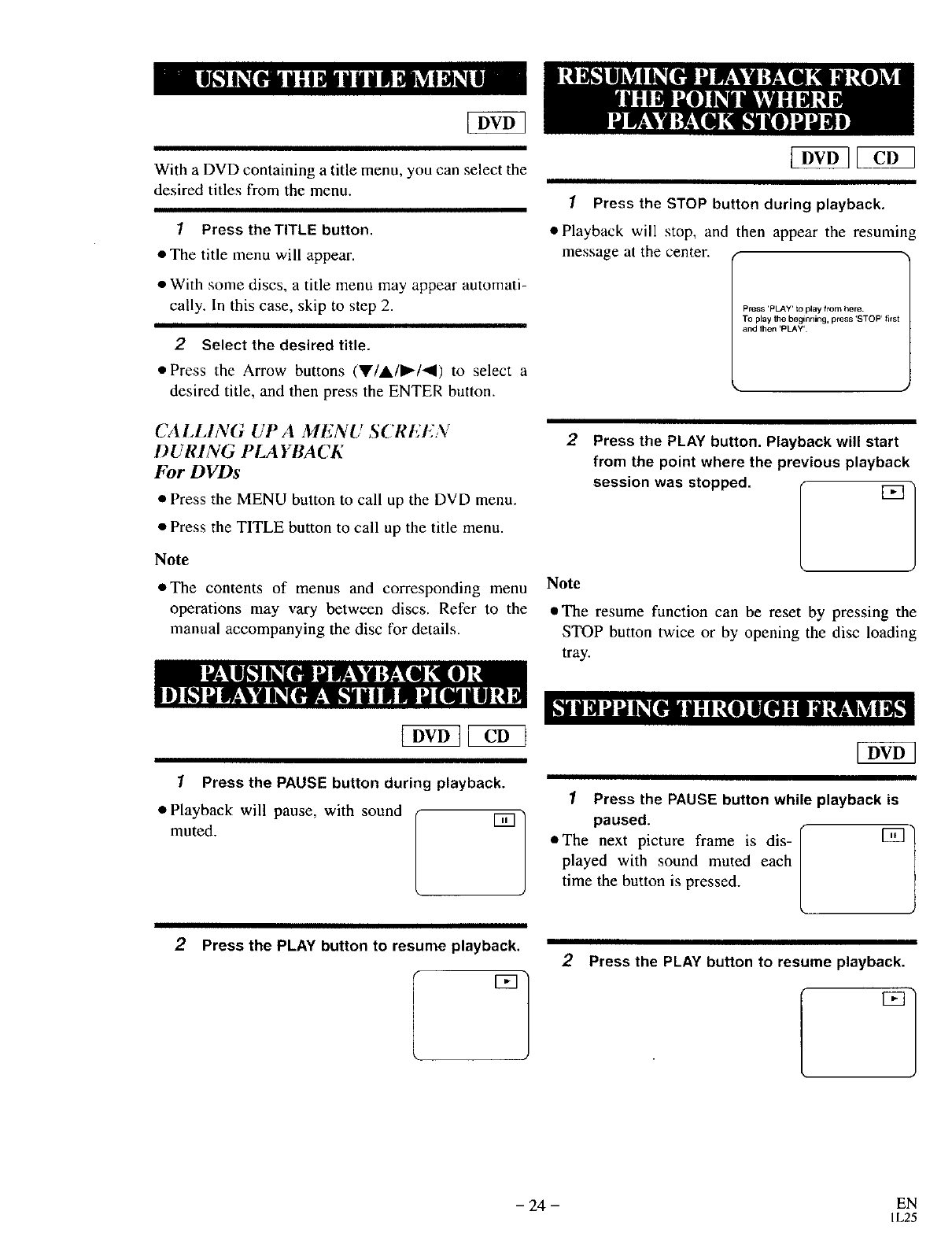
With a DVD containing a title menu, you can select the
desired titles from the menu.
1Press theTITLE button.
• The title menu will appear.
• With some discs, a title menu may appear automati-
cally. In this case, skip to step 2.
2Select the desired title.
• Press the Arrow buttons (V/A/I_/I) to select a
desired title, and then press the ENTER button.
CALLING UPA MENL SCREI?N
DURING PLA YBA CK
For DVDs
• Press the MENU button to call up the DVD menu.
• Press the TITLE button to call up the title menu.
Note
• The contents of menus and corresponding menu
operations may vary between discs. Refer to the
manual accompanying the disc for details.
1Press the PAUSE button during playback.
1Press the STOP button during playback.
•Playback will stop, and then appear the resuming
message at the center.
press 'pLAy' to play from here•
TO play the beginning, press 'STOP' firs1
and then 'PLAY'
2Press the PLAY button. Playback will start
from the point where the previous playback
session was stopped.
Note
• The resume function can be reset by pressing the
STOP button twice or by opening the disc loading
tray.
• Playback will pause, with sound
muted. ! °]
2Press the PLAY button to resume playback.
1Press the PAUSE button while playback is
paused.
• The next picture frame is dis- l [_]]
played with sound muted each
time the button is pressed.
2Press the PLAY button to resume playback.
- 24 - EN
IL25
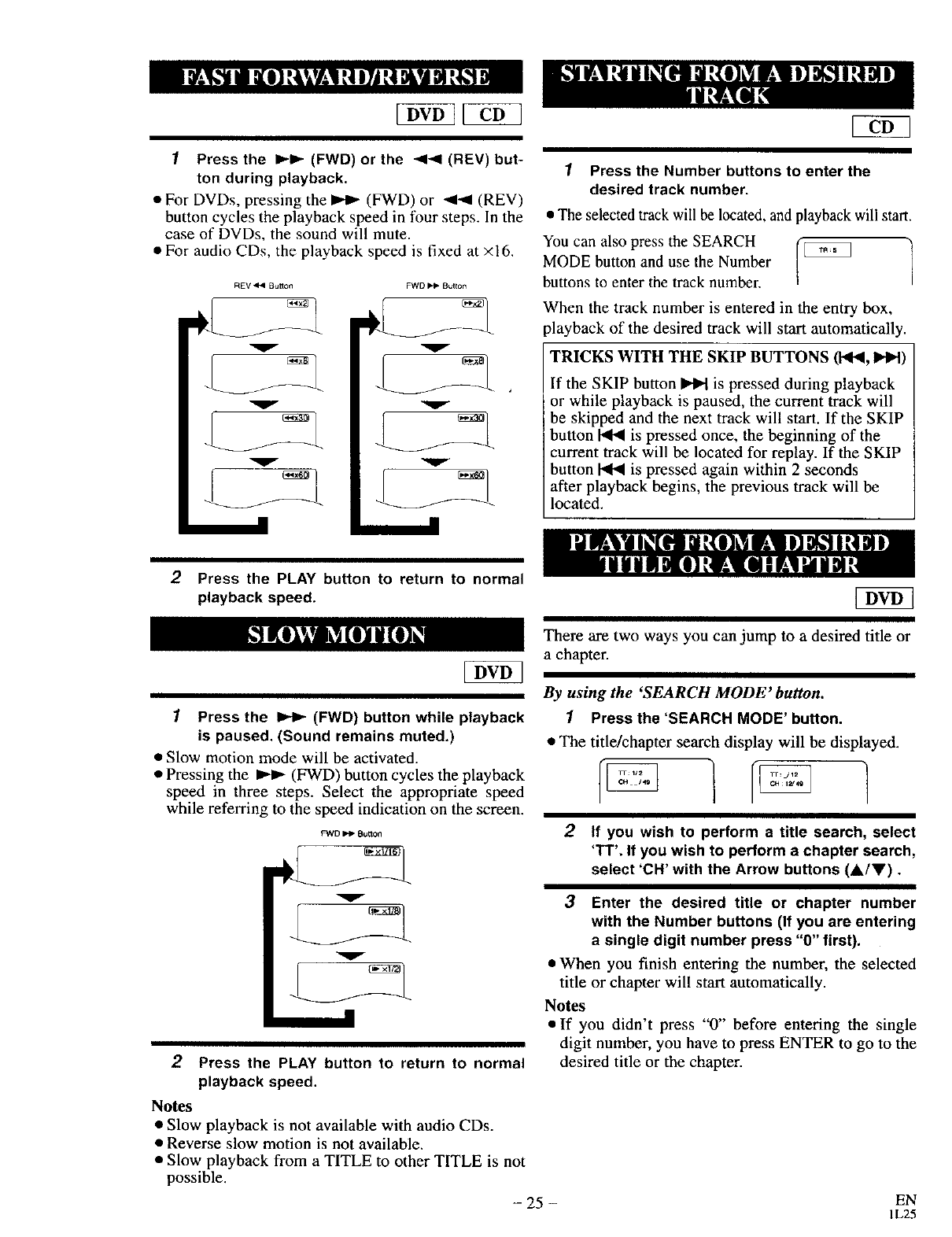
1Press the I_1_ (FWD) or the _1_1 (REV) but-
ton during playback.
•For DVDs, pressing the _ (FWD) or -,11-,11(REV)
button cycles the playback speed in four steps. In the
case of DVDs, the sound will mute.
• For audio CDs, the playback speed is fixed at ×16.
REV_BuMon
V
v
v
v
v
v
1Press the Number buttons to enter the
desired track number.
•The selected track will be located, and playback will start.
You can also press the SEARCH (_ ]
MODE button and use the Number L b
buttons to enter the track number.
When the track number is entered in the entry box,
playback of the desired track will start automatically.
TRICKS WITH THE SKIP BUTTONS (1"4_, I1,_1)
If the SKIP button _ is pressed during playback
or while playback is paused, the current track will
be skipped and the next track will start. If the SKIP
button _ is pressed once, the beginning of the
current track will be located for replay. If the SKIP
button _ is pressed again within 2 seconds
after playback begins, the previous track will be
located.
2Press the PLAY button to return to normal
playback speed.
1Press the _ (FWD) button while playback
is paused, (Sound remains muted.)
•Slow motion mode will be activated.
• Pressing the _ (FWD) button cycles the playback
speed in three steps. Select the appropriate speed
while referring to the speed indication on the screen.
FWD _Button
v
V
2Press the PLAY button to return to normal
playback speed.
Notes
• Slow playback is not available with audio CDs.
• Reverse slow motion is not available.
• Slow playback from a TITLE to other TITLE is not
possible.
- 25 -
7OVaq
There are two ways you can jump to a desired title or
a chapter.
By using the 'SEARCH MODE' button.
1Press the 'SEARCH MODE' button.
• The title/chapter search display will be displayed.
/
2If you wish to perform atitle search, select
'TT'. If you wish to perform a chapter search,
select 'CH' with the Arrow buttons (A/V).
3Enter the desired title or chapter number
with the Number buttons (If you are entering
a single digit number press "0" first).
•When you finish entering the number, the selected
title or chapter will start automatically.
Notes
• If you didn't press "0" before entering the single
digit number, you have to press ENTER to go to the
desired title or the chapter.
EN
IL25
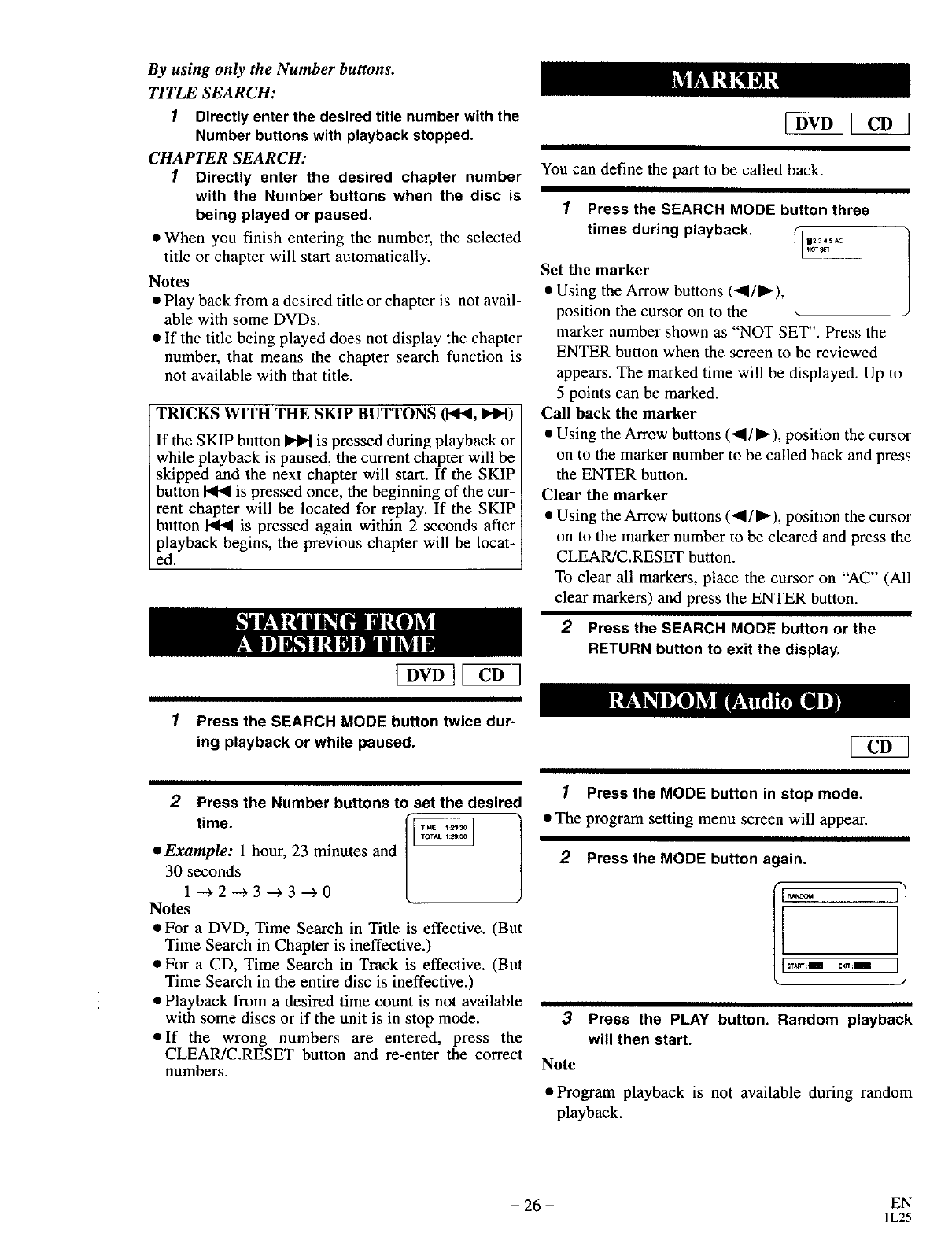
By using only the Number buttons.
TITLE SEARCH:
1Directly enter the desired title number with the
Number buttons with playback stopped.
CHAPTER SEARCH:
1Directly enter the desired chapter number
with the Number buttons when the disc is
being played or paused.
•When you finish entering the number, the selected
title or chapter will start automatically.
Notes
• Play back from a desired title or chapter is not avail-
able with some DVDs.
• If the title being played does not display the chapter
number, that means the chapter search function is
not available with that title.
TRICKS WITH THE SKIP BUTTONS (1_t_1,l_llH)
If the SKIP button _ is pressed during playback or
: while playback is paused, the current chapter will be
skipped and the next chapter will start. If the SKIP
button _ is pressed once, the beginning of the cur-
rent chapter will be located for replay. If the SKIP
button _ is pressed again within 2 seconds after
playback begins, the previous chapter will be locat-
ed.
[3h 3 7vffq
E 3Y3
You can define the part to be called back.
1
times during playback.
Press the SEARCH MODE button three
Set the marker
• Using the Arrow buttons (_1/1_),
position the cursor on to the
marker number shown as "NOT SET". Press the
ENTER button when the screen to be reviewed
appears. The marked time will be displayed. Up to
5 points can be marked.
Call back the marker
• Using the Arrow buttons (<1/1_), position the cursor
on to the marker number to be called back and press
the ENTER button.
Clear the marker
• Using the Arrow buttons (_1/1_), position the cursor
on to the marker number to be cleared and press the
CLEAR/C.RESET button.
To clear all markers, place the cursor on "AC'" (All
clear markers) and press the ENTER button.
2Press the SEARCH MODE button or the
RETURN button to exit the display.
1Press the SEARCH MODE button twice dur-
ing playback or while paused.
2
time.
•Example: 1 hour, 23 minutes and
30 seconds
1 --->2 --> 3 --->3 --->0
Notes
Press the Number buttons to set the desired
•For a DVD, Time Search in Title is effective. (But
Time Search in Chapter is ineffective.)
• For a CD, Time Search in Track is effective. (But
Time Search in the entire disc is ineffective.)
• Playback from a desired time count is not available
with some discs or if the unit is in stop mode.
• If the wrong numbers are entered, press the
CLEAR/C.RESET button and re-enter the correct
numbers.
1Press the MODE button in stop mode.
•The program setting menu screen will appear.
2Press the MODE button again.
Exnm
3Press the PLAY button. Random playback
will then start.
Note
• Program playback is not available during random
playback.
- 26 - EN
IL25
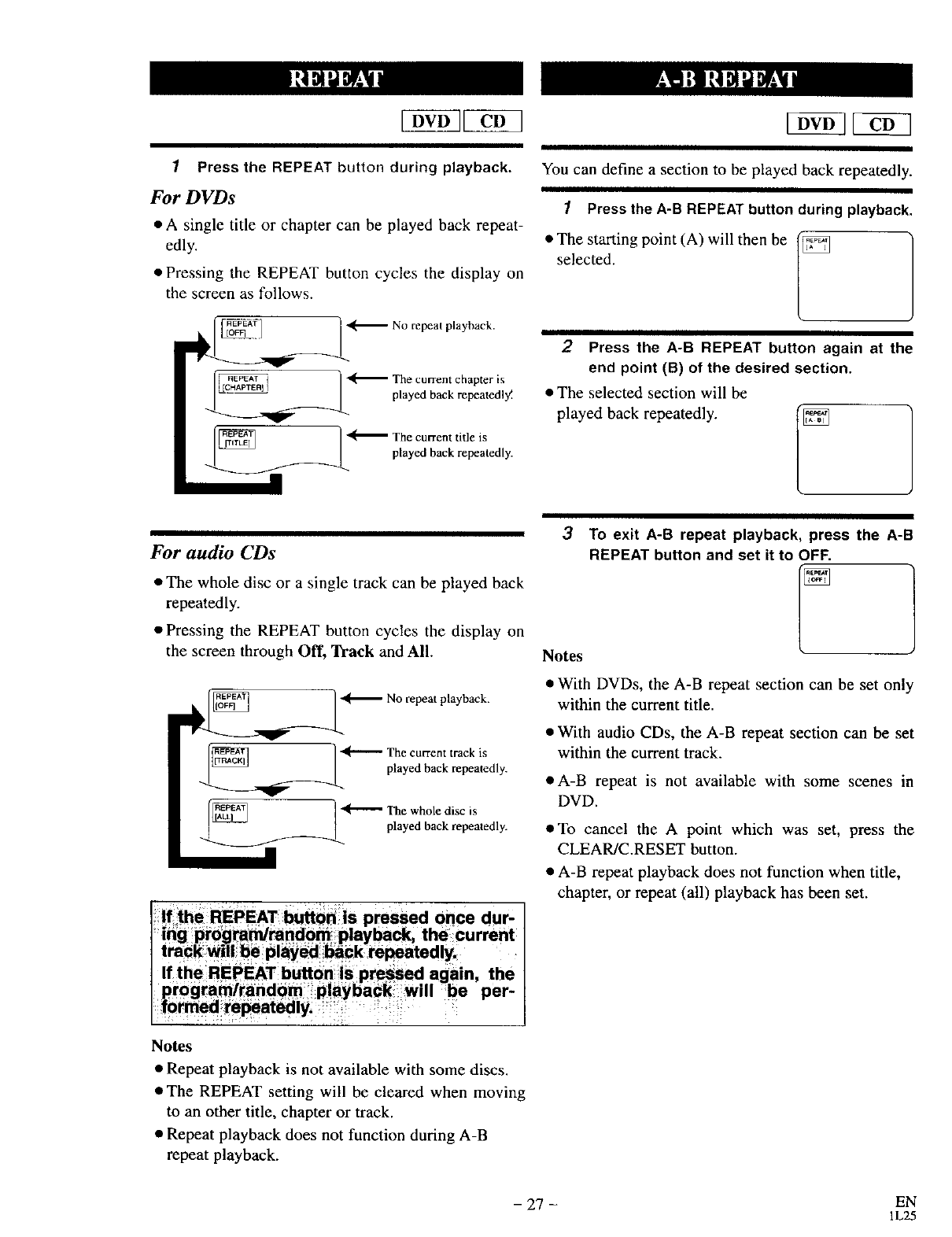
1Press the REPEAT button during playback,
For DVDs
•A single title or chapter can be played back repeat-
edly.
• Pressing the REPEAT button cycles the display on
the screen as follows.
No repeat playback.
The current chapter is
played back repeatedly_
The current title is
played back repeatedly.
You can define a section to be played back repeatedly.
1Press the A-B REPEAT button during playback.
• The starting point (A) will then be
selected.
2Press the A-B REPEAT button again at the
end point (B) of the desired section.
• The selected section will be
played back repeatedly. (_
For audio CDs
• The whole disc or a single track can be played back
repeatedly.
• Pressing the REPEAT button cycles the display on
the screen through Off, 3h'ack and All.
'4r'-'--- No repeat playback.
I_ ] 4[----- The current track is
played back repeatedly.
played back repeatedly.
Notes
3To exit A-B repeat playback, press the A-B
REPEAT button and set it to OFF,
?
• With DVDs, the A-B repeat section can be set only
within the current title.
• With audio CDs, the A-B repeat section can be set
within the current track.
• A-B repeat is not available with some scenes in
DVD.
• To cancel the A point which was set, press the
CLEAR/C.RESET button.
• A-B repeat playback does not function when title,
chapter, or repeat (all) playback has been set.
Notes
• Repeat playback is not available with some discs.
• The REPEAT setting will be cleared when moving
to an other title, chapter or track.
• Repeat playback does not function during A-B
repeat playback.
- 27 - EN
1L25
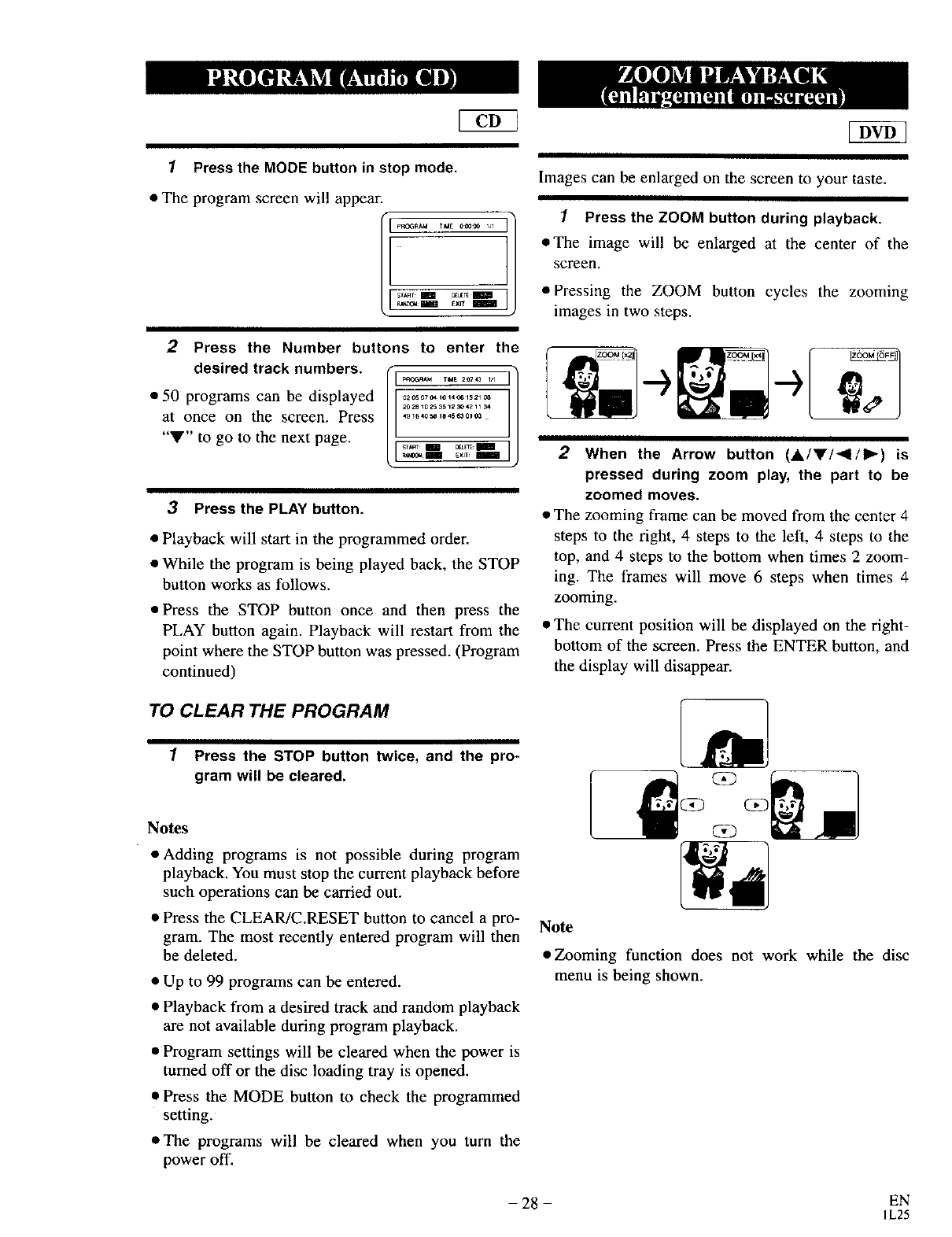
1Press the MODE button in stop mode.
• The program screen will appear.
_ROaR_ TlUE 00_0 I/1
Images can be enlarged on the screen to your taste.
1Press the ZOOM button during playback.
•The image will be enlarged at the center of the
screen.
•Pressing the ZOOM button cycles the zooming
images in two steps.
2Press the Number buttons to enter the
desired track numbers.
•50 programs can be displayed
at once on the screen. Press
"V" to go to the next page.
3Press the PLAY button.
•Playback will start in the programmed order.
• While the program is being played back, the STOP
button works as follows.
• Press the STOP button once and then press the
PLAY button again. Playback will restart from the
point where the STOP button was pressed. (Program
continued)
When the Arrow button (A/Y!'41/I_) is
pressed during zoom play, the part to be
zoomed moves.
• The zooming frame can be moved from the center 4
steps to the right, 4 steps to the left, 4 steps to the
top, and 4 steps to the bottom when times 2 zoom-
ing. The frames will move 6 steps when times 4
zooming.
• The current position will be displayed on the right-
bottom of the screen. Press the ENTER button, and
the display will disappear.
TO CLEAR THE PROGRAM
"/ Press the STOP button twice, and the pro-
gram will be cleared.
Notes
• Adding programs is not possible during program
playback. You must stop the current playback before
such operations can be carried out.
• Press the CLEAR/C.RESET button to cancel a pro-
gram. The most recently entered program will then
be deleted.
• Up to 99 programs can be entered.
• Playback from a desired track and random playback
are not available during program playback.
• Program settings will be cleared when the power is
turned off or the disc loading tray is opened.
• Press the MODE button to check the programmed
setting.
• The programs will be cleared when you turn the
power off.
(Z3 0_3
Note
•Zooming function does not work while the disc
menu is being shown.
- 28 - EN
IL25
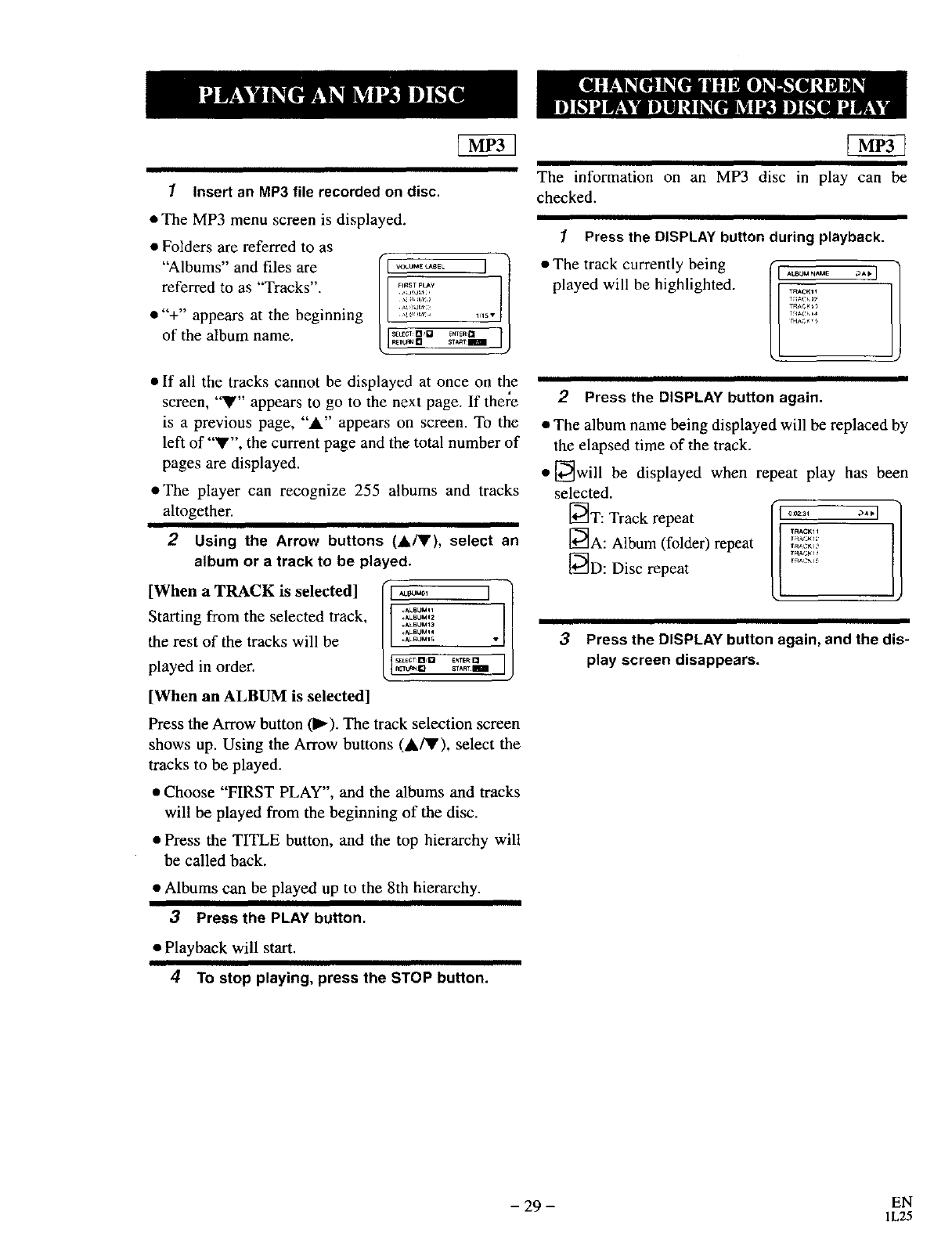
1Insert an MP3 file recorded on disc.
• The MP3 menu screen is displayed.
• Folders are referred to as
"Albums" and files are
referred to as "Tracks".
•"+" appears at the beginning
of the album name.
1 OLUME _EL ]
FI_T pLAy
L_ ST_SEleCT O_ ENTER _
•If all the tracks cannot be displayed at once on the
screen, "V" appears to go to the next page. If there
is a previous page, "A" appears on screen. To the
left of "Y", the current page and the total number of
pages are displayed.
• The player can recognize 255 albums and tracks
altogether.
2Using the Arrow buttons (A/T), select an
album or a track to be played.
[When a TRACK is selected]
Starting from the selected track,
the rest of the tracks will be
played in order.
[When an ALBUM is selected]
I.......1
*ALBUM14
_ALBUM15 •
S_tECTnsD E_RCI
L:L%°.....-]
Press the Arrow button (1_). The track selection screen
shows up. Using the Arrow buttons (_/V), select the
tracks to be played.
• Choose "FIRST PLAY", and the albums and tracks
will be played from the beginning of the disc.
• Press the TITLE button, and the top hierarchy wilt
be called back.
•Albums can be played up to the 8th hierarchy.
3Press the PLAY button.
• Playback will start.
4To stop playing, press the STOP button.
The information on an MP3 disc in play can be
checked.
1Press the DISPLAY button during playback.
• The track currently being
played will be highlighted.
_¢K1_
i
2Press the DISPLAY button again.
• The album name being displayed will be replaced by
the elapsed time of the track.
• [_will be displayed when repeat play has been
selected.
_T: Track repeat
[_A: Album (folder) repeat
_D: Disc repeat
0¸09:31 _ _I
TR_CKll
3Press the DISPLAY button again, and the dis-
play screen disappears.
- 29 - EN
1L25
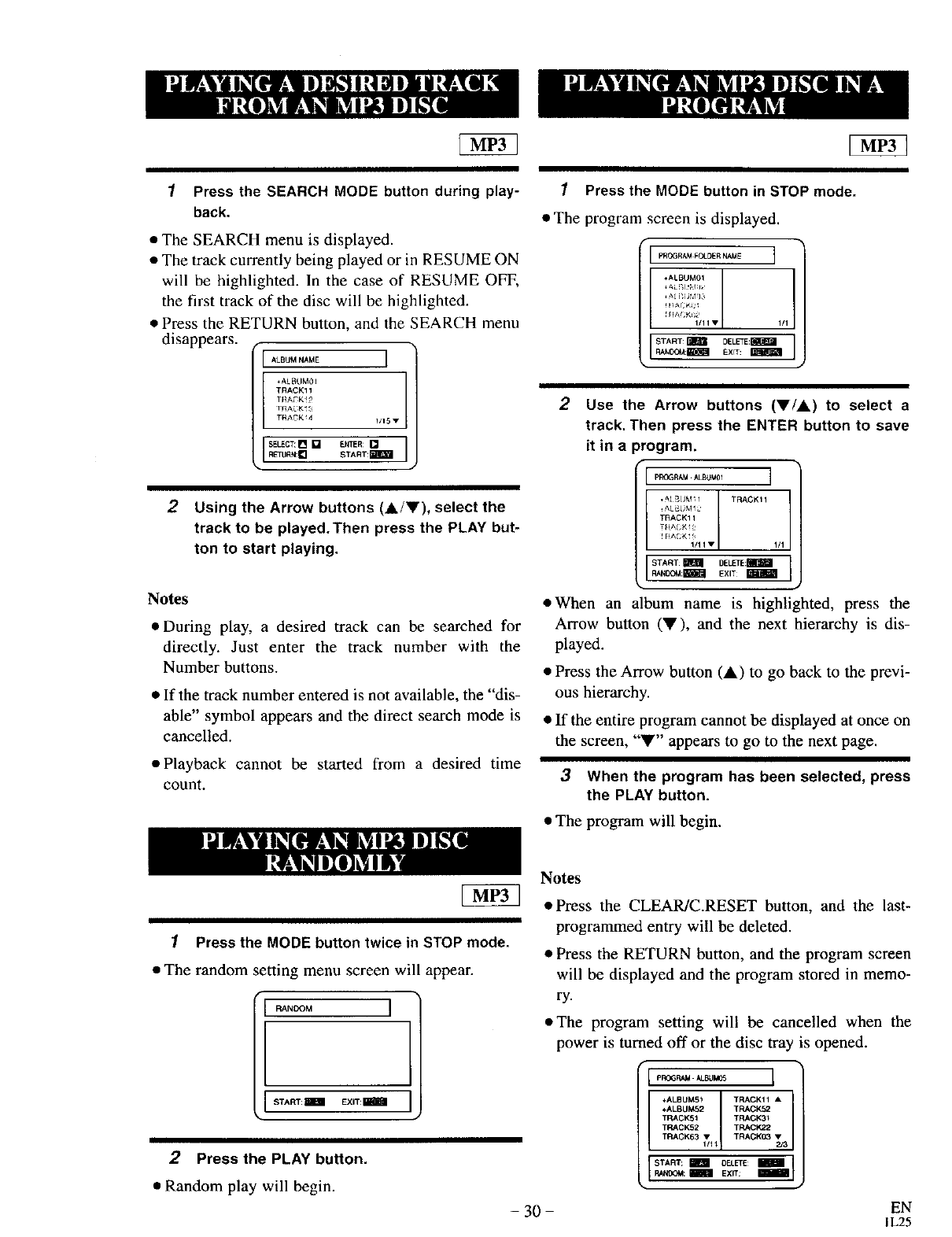
IPress the SEARCH MODE button during play-
back.
•The SEARCH menu is displayed.
•The track currently being played or in RESUME ON
will be highlighted. In the case of RESUME OFF,
the first track of the disc will be highlighted.
•Press the RETURN button, and the SEARCH menu
disappears, rI I
TRACK11
T_LGK_2
T_3AGK_3
TN,'_CK 4 1/15 v
SELECT:[] []
IREIU_I:krIENTER:[]START mlW=
2Using the Arrow buttons (A/V), select the
track to be played. Then press the PLAY but-
ton to start playing,
Notes
•During play, a desired track can be searched for
directly. Just enter the track number with the
Number buttons.
•If the track number entered is not available, the "dis-
able" symbol appears and the direct search mode is
cancelled.
•Playback cannot be started from a desired time
count.
1Press the MODE button in STOP mode,
•The program screen is displayed.
3
PROGRAM FOLDER NAME J
+ALBUM01 [1/1
START: m DELF'E:I_ JgAND_,!:_I EXrT: _
2Use the Arrow buttons (V/A) to select a
track, Then press the ENTER button to save
it in aprogram.
/
pROGRAM. ALBUM01 J
*_l _LJM_ 1 [ TRACK11
, AL,_UM _
TRACK11
R_CK13
1/1 I • 1/1
START m DELETE:I_
RANOOM:_ EXIT I
• When an album name is highlighted, press the
Arrow button (_), and the next hierarchy is dis-
played.
• Press the Arrow button (_) to go back to the previ-
ous hierarchy.
• If the entire program cannot be displayed at once on
the screen, "V" appears to go to the next page.
3When the program has been selected, press
the PLAY button.
• The program will begin.
1Press the MODE button twice in STOP mode.
• The random setting menu screen will appear.
RANDOM I
START: _EXIT:I_
2Pres• the PLAY button.
• Random play will begin.
Notes
• Press the CLEAR/C.RESET button, and the last-
programmed entry will be deleted.
• Press the RETURN button, and the program screen
will be displayed and the program stored in memo-
ry.
• The program setting will be cancelled when the
power is turned off or the disc trm _s opened.
+ALBUM5_ TRACK11 •
+ALBUM52 TRACK52
TRACK51 TRACK31
TRACK52 TRACK22
TRACK63 _/11 TRACK03 _d3
: EXIT:
- 30 - EN
IL25
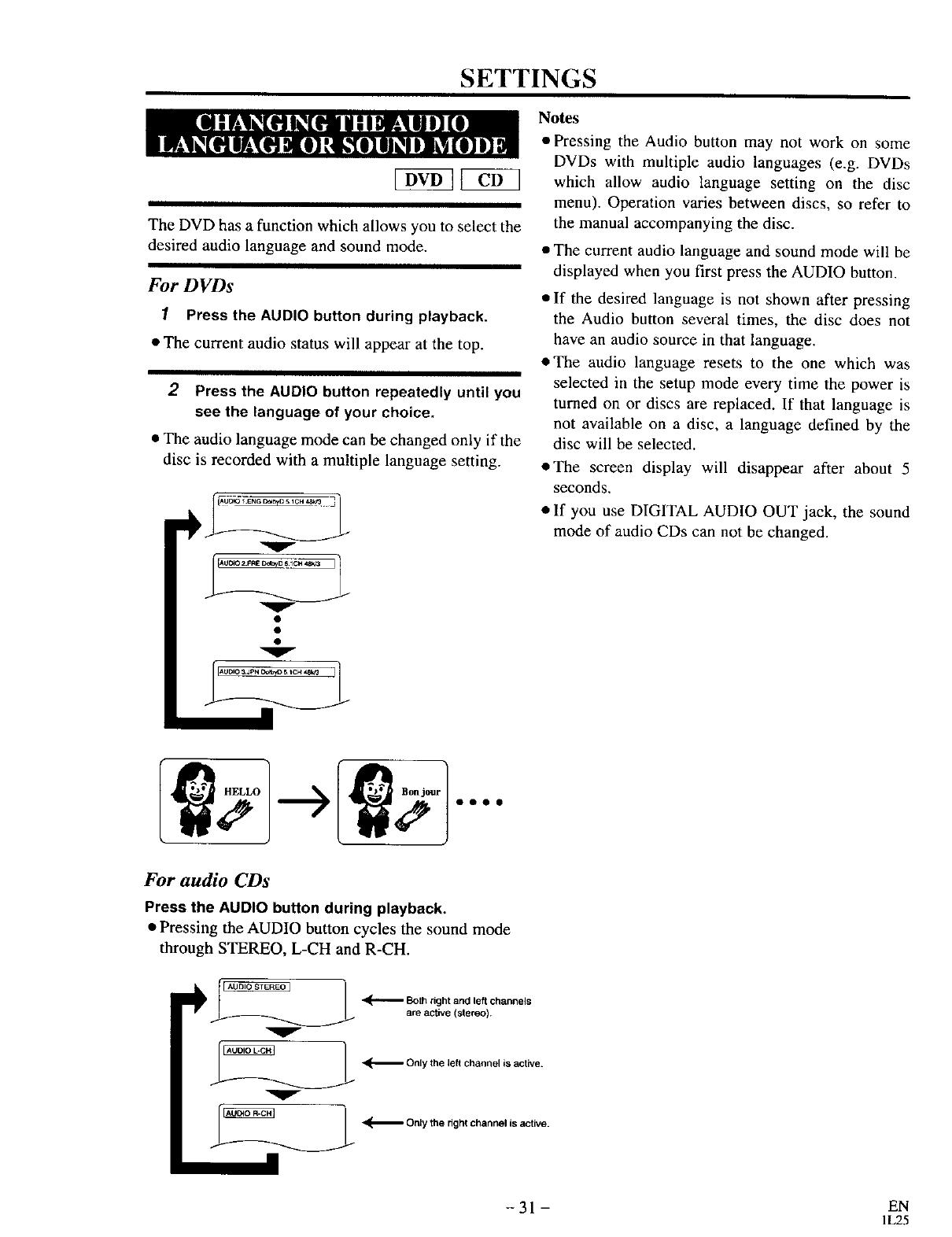
SETTINGS
The DVD has a function which allows you to select the
desired audio language and sound mode.
For DVDs
1Press the AUDIO button during playback.
•The current audio status will appear at the top.
2Press the AUDIO button repeatedly until you
see the language of your choice.
•The audio language mode can be changed only if the
disc is recorded with a multiple language setting.
*Fuo4iTE_ ] ]
v
Notes
• Pressing the Audio button may not work on some
DVDs with multiple audio languages (e.g. DVDs
which allow audio language setting on the disc
menu). Operation varies between discs, so refer to
the manual accompanying the disc.
• The current audio language and sound mode will be
displayed when you first press the AUDIO button.
• If the desired language is not shown after pressing
the Audio button several times, the disc does not
have an audio source in that language.
*The audio language resets to the one which was
selected in the setup mode every time the power is
turned on or discs are replaced. If that language is
not available on a disc, a language defined by the
disc will be selected.
*The screen display will disappear after about 5
seconds.
• If you use DIGITAL AUDIO OUT jack, the sound
mode of audio CDs can not be changed.
For audio CDs
Press the AUDIO button during playback.
• Pressing the AUDIO button cycles the sound mode
through STEREO, L-CH and R-CH.
Both right and left channels
are active (stereo).
V
.___._ _ Only the left channel is active.
_._ Onlythe dght channel is active.
-31- EN
IL25
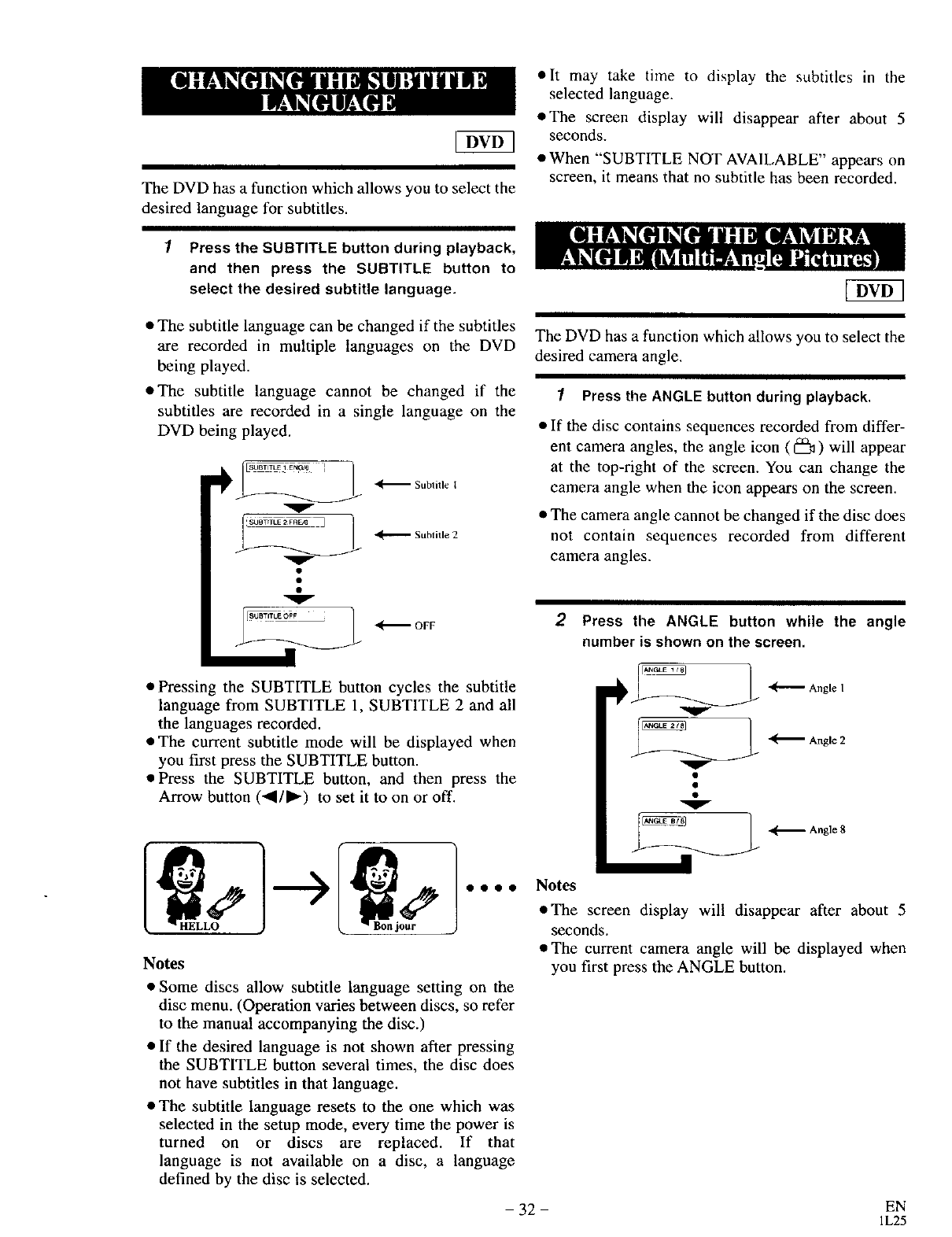
The DVD has a function which allows you to select the
desired language for subtitles.
o It may take time to display the subtitles in the
selected language.
•The screen display wilt disappear after about 5
seconds.
•When "'SUBTITLE NOT AVAILABLE" appears on
screen, it means that no subtitle has been recorded.
1Press the SUBTITLE button during playback,
and then press the SUBTITLE button to
select the desired subtitle language.
• The subtitle language can be changed if the subtitles
are recorded in multiple languages on the DVD
being played.
•The subtitle language cannot be changed if the
subtitles are recorded in a single language on the
DVD being played.
V
V
_'_ OFF
The DVD has a function which allows you to select the
desired camera angle.
/Press the ANGLE button during playback.
• If the disc contains sequences recorded from differ-
ent camera angles, the angle icon ( _ ) will appear
at the top-right of the screen. You can change the
camera angle when the icon appears on the screen.
• The camera angle cannot be changed if the disc does
not contain sequences recorded from different
camera angles.
Press the ANGLE button while the angle
number is shown on the screen.
• Pressing the SUBTITLE button cycles the subtitle
language from SUBTITLE 1, SUBTITLE 2 and all
the languages recorded.
• The current subtitle mode will be displayed when
you first press the SUBTITLE button.
• Press the SUBTITLE button, and then press the
Arrow button ('ql/l_) to set it to on or off.
0000 Notes
Notes
• Some discs allow subtitle language setting on the
disc menu. (Operation varies between discs, so refer
to the manual accompanying the disc.)
• If the desired language is not shown after pressing
the SUBTITLE button several times, the disc does
not have subtitles in that language.
• The subtitle language resets to the one which was
selected in the setup mode, every time the power is
turned on or discs are replaced. If that
language is not available on a disc, a language
defined by the disc is selected.
- 32 -
_ _ Angle I
_ Angle 2
_ Angle 8
eThe screen display will disappear after about 5
seconds.
• The current camera angle will be displayed when
you first press the ANGLE button.
EN
1L25
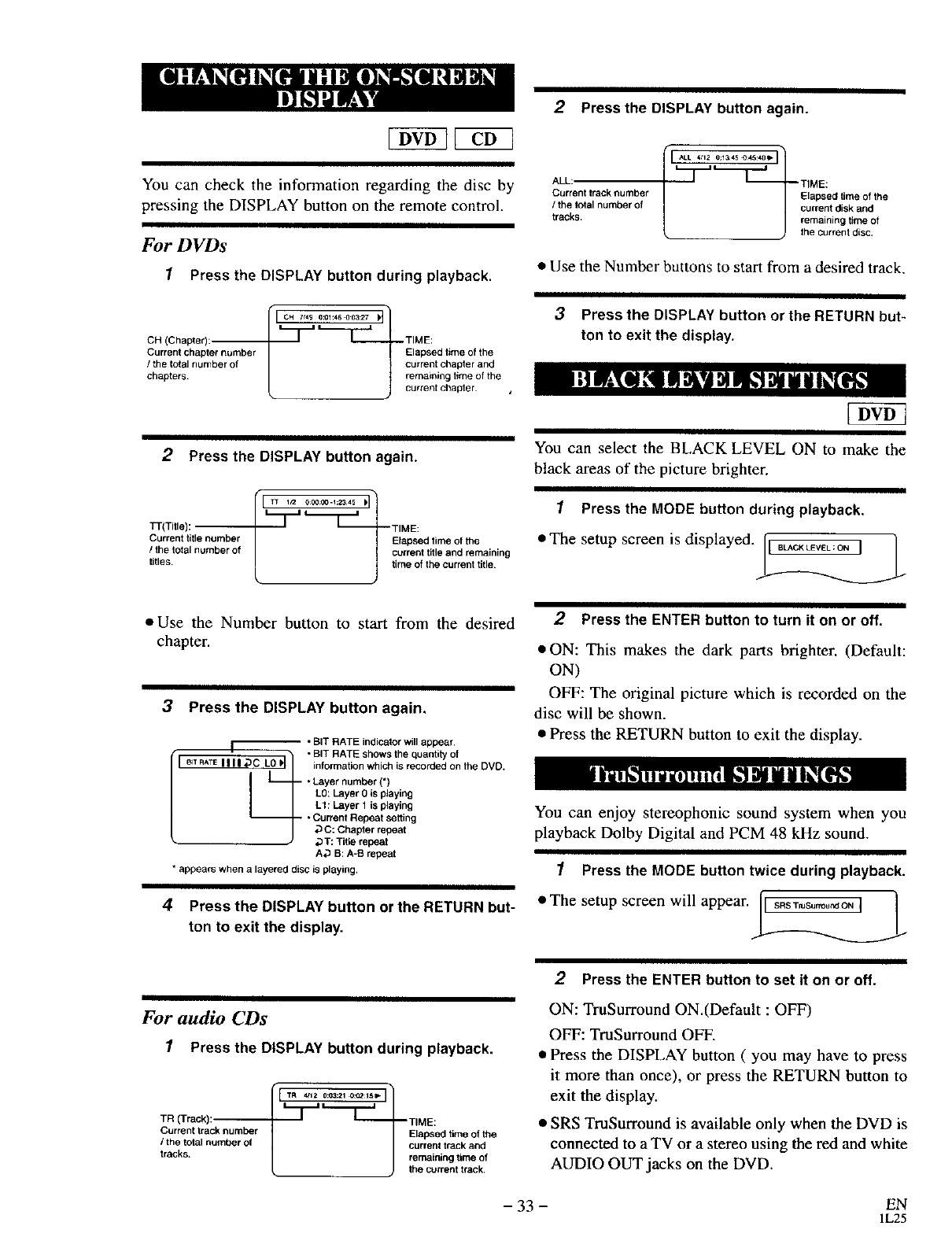
You can check the information regarding the disc by
pressing the DISPLAY button on the remote control.
For DVDs
1Press the DISPLAY button during playback.
2Press the DISPLAY button again.
Current chapter number !_lapsed time of the
/the total number of current chapter and
chapters, remaining time ol the
current chapter
ALL:
Current track number
/the total number of
tr_Cl_S
r....... .11
_TIME:
• Use the Number buttons to start from a desired track,
3Press the DISPLAY button or the RETURN but-
ton to exit the display.
2Press the DISPLAY button again.
TT(TiIle_:
Current title number
/the total number of
titles.
Elapsed time of the
current title and remaining
time of the current title.
• Use the Number button to start from the desired
chapter.
3Press the DISPLAY button again.
•StT RATE i_¢.e,t(_ will e,pp_a;
• BIT RATE shows the quantity of
I _rRATE1111,gC LOH information which is recorded onthe DVD.
•Layer number (*)
LO:LaVe{ 0is _layi_
LI: Layer 1 is playing
. •Current Repeat setting
_C: Chapter repeat
_T: Title repeat
A_ B: A-B repeat
•appears when _1layered disc is playing,
4Press the DISPLAY button or the RETURN but-
ton to exit the display.
You can select the BLACK LEVEL ON to make the
black areas of the picture brighter.
1Press the MODE button during playback.
•The setup screen is displayed. [ I_LACKLEVEL:ONI]
/
2Press the ENTER button to turn it on or off.
• ON: This makes the dark parts brighter. (Default:
ON)
OFF: The original picture which is recorded on the
disc will be shown.
• Press the RETURN button to exit the display.
You can enjoy stereophonic sound system when you
playback Dolby Digital and PCM 48 kHz sound.
1Press the MODE button twice during playback.
"The setup screen will appear II _s"'s_"°'_°"' ]
For audio CDs
1Press the DISPLAY button during playhaek.
TR (Track):__[ _'__ TIME:
Current track number Elapsed time of the
ithe total number of current track and
tracks, remaining time of
the current track.
2Press the ENTER button to set it on or off.
ON: TruSurround ON (Default : OFF)
OFF: TruSurround OFF.
• Press the DISPLAY button ( you may have to press
it more than once), or press the RETURN button to
exit the display.
• SRS TruSurround is available only when the DVD is
connected to a TV or a stereo using the red and white
AUDIO OUT jacks on the DVD,
- 33 - EN
IL25
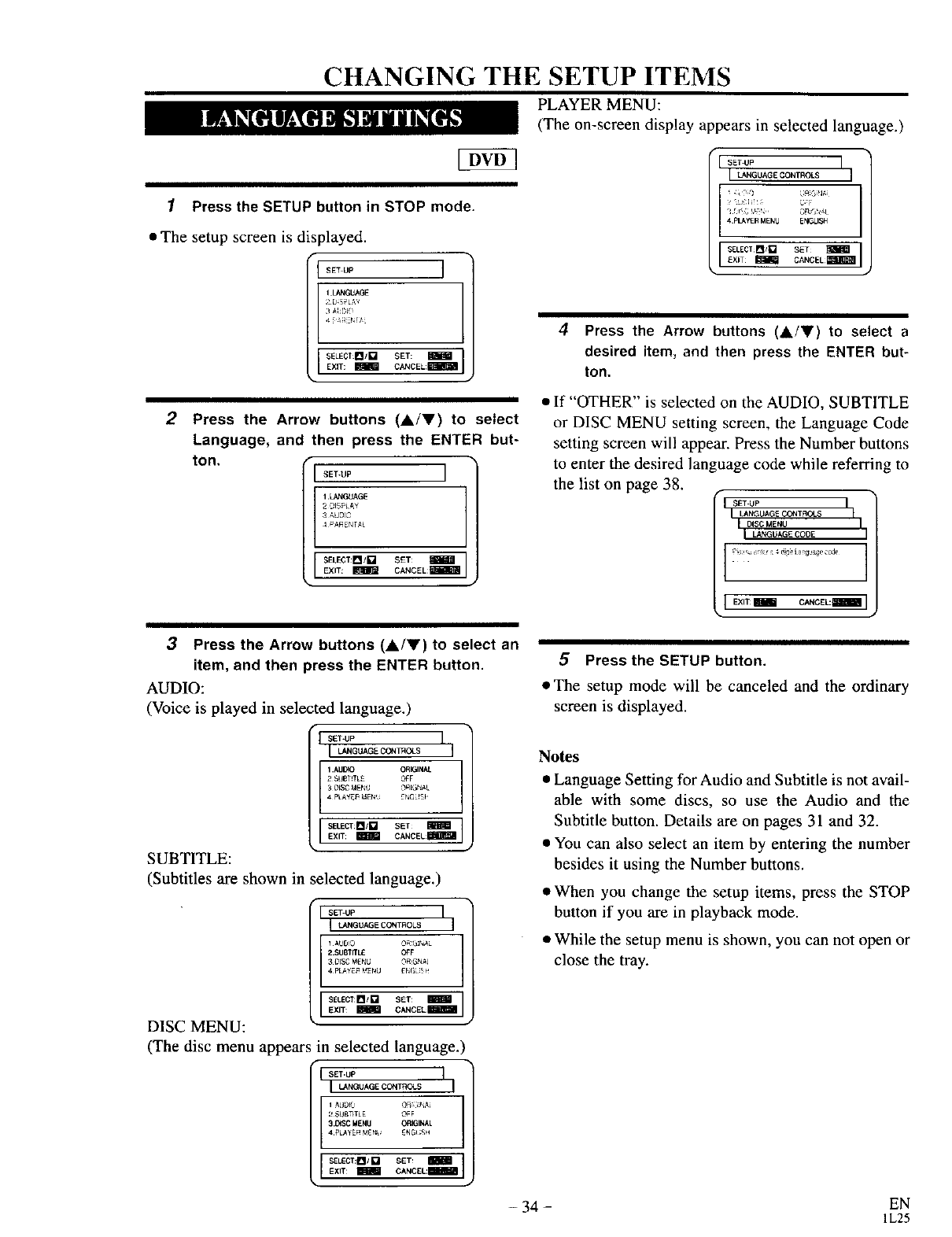
CHANGING THE SETUP ITEMS
PLAYER MENU:
(The on-screen display appears in selected language.)
1Press the SETUP button in STOP mode.
•The setup screen is displayed.
f- [SE%UP J
ILANGUAGE
h =Lky
SET: I
I SELECTM'DEXIT:_ C_CEL:_ I
2Press the Arrow buttons (A/V) to select
Language, and then press the ENTER but-
ton, r[ SET-UP i
1 LANGUAGE
3AUOIO
4 P_R NTA{
SELECT:[]/[] SET:
EXIT: _CANCEL _
• J
SET UP ]
I_NGUAGE CONTR_S I
I _2HZ
4 pLAyeR MENU ENGLISH
4Press the Arrow buttons (&IV) to select a
desired item, and then press the ENTER but-
ton.
• If "OTHER" is selected on the AUDIO, SUBTITLE
or DISC MENU setting screen, the Language Code
setting screen will appear. Press the Number buttons
to enter the desired language code while referring to
the list on page 38.
ISETUP I
I LANGUAGE CONTROLS I
DISC MENU I
i L_GUAGEC_E I
IEXIT _ CANCEL:_ I
3Press the Arrow buttons (_,/Y) to select an
item, and then press the ENTER button.
AUDIO:
(Voice is played in selected language.)
SET-UP 1
I L_GU,GE_O_S I
1,AU[_O ORIGINAL
2 $UST TLE OFF
30_SC M£N_ O_EGN,_L
4pLAyE_ _r_ E_GLr_F
EXIT: BI_ CANe EL:_ml_l
)
SUBTITLE:
(Subtitles are shown in selected language.)
]I
SET UP
ILANGUAGE CONTROLS
1 _UO!O Or_GiriAL
2.SU_ffkL OFF
3 D_S_ MENt, '_R_GNAL
4 pL_ El_ L_NU _r,_GUt H
SE_CT:[/n SET: m
EXIT: m CANCELm
DISC MENU:
(The disc menu appears in selected language.)
SET.UP
I LANGUAGECONT_GLS I
]_L]D!Ij O_r _I_
2 SUgT_TLE OFF
3.D_SC MENU ORIGINAL
4 PLA_E_ M_f_! [NG! ;Sii
EXIT _ EL:
5Press the SETUP button.
The setup mode will be canceled and the ordinary
screen is displayed.
Notes
• Language Setting for Audio and Subtitle is not avail-
able with some discs, so use the Audio and the
Subtitle button. Details are on pages 31 and 32.
• You can also select an item by entering the number
besides it using the Number buttons.
• When you change the setup items, press the STOP
button if you are in playback mode.
• While tbe setup menu is shown, you can not open or
close the tray.
- 34 - EN
1L25
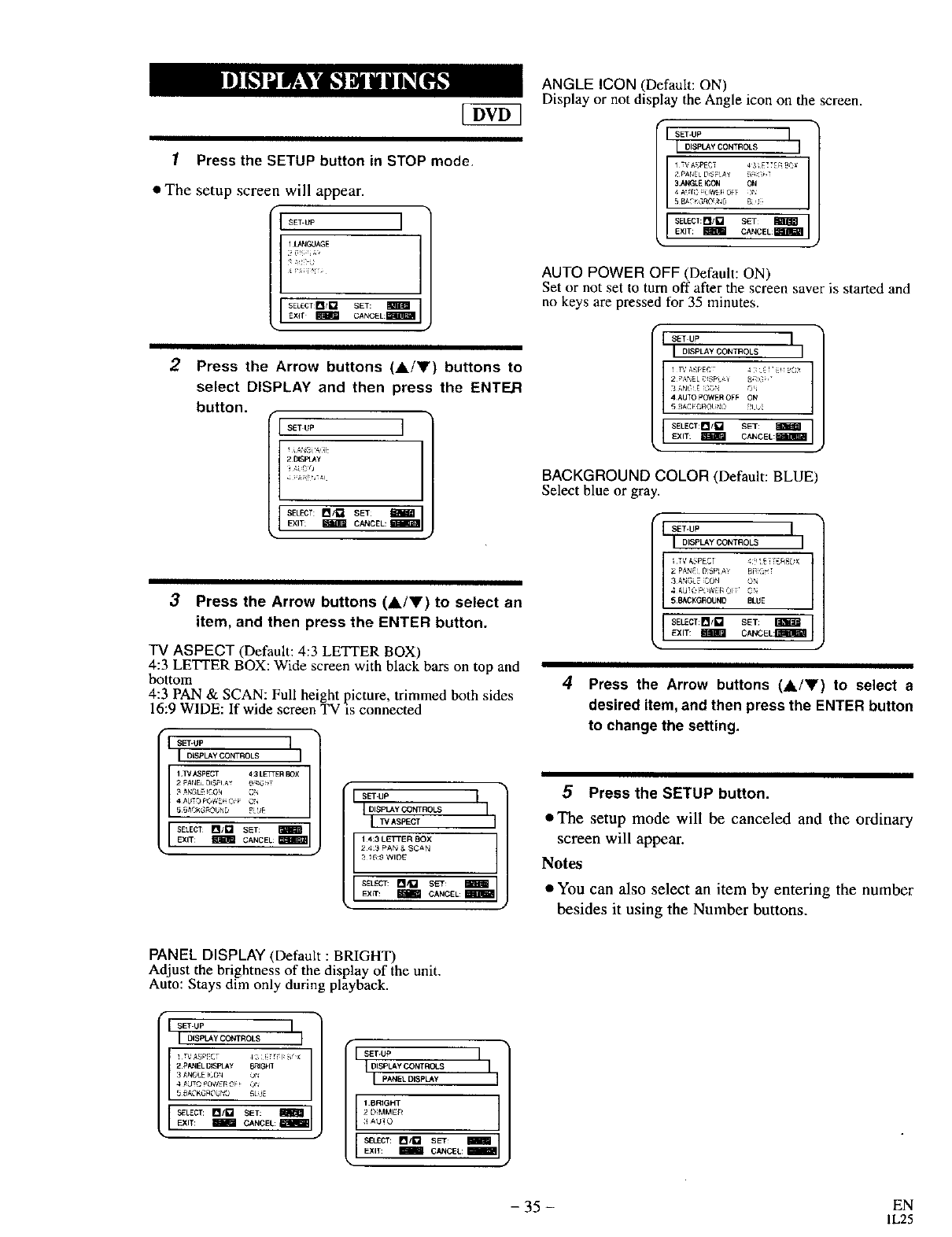
1Press the SETUP button in STOP mode.
• The setup screen will appear.
SET UP
1LANGUAGE
20!; [A,
;
SELECT I_/D SET:
EXIT _CANCeL:i
2Press the Arrow buttons (A/Y) buttons to
select DISPLAY and then press the ENTER
button.
SET UP ]
2 IIfSPt_y
i:_L"2Q
SELECT: M/I_ SET:
EXIT _ CANCEL:
3Press the Arrow buttons (A/V) to select an
item, and then press the ENTER button.
"IV ASPECT (Default: 4:3 LETTER BOX)
4:3 LETTER BOX: Wide screen with black bars on top and
bottom
4:3 PAN & SCAN: Full height picture, trimmed both sides
16:9 WIDE: If wide screen TV is connected
SET'UP I
I DISPLAY CONTROLS I
I.WASPECT 4 3 tETTER BOX
2 FANELDiS_'-!A¥ _R GHT
3 _NGLE !_ON _?i
4_dr0 P(_¥E ( F
BEI.ECT I_1/M SET:
EXIT: _ CANCEL:
I SET-Up
I DISPLAy CONTROLS
ASPECT I
14:3 LETTER BOX
243 PAN & SCAN
31(_9 WIDE
SET m
ANGLE ICON (Default: ON)
Display or not display the Angle icon on the screen.
¢- I s_.uP I
I OISPLAY CONTROLS I
1 T'_ApEC? 4 3 E_ _ BOX
&ANGLE ICON ON
4 A _IB ; li_,EF_OFF 3N
5 BA ,G_OUND ,2
ISELECT: i_/t. 2 S_TEXIT _CANCEL:_
AUTO POWER OFF (Default: ON)
Set or not set to turn off after the screen saver is started and
no keys are pressed for 35 minutes.
t"
I DiSpLAy CONTROLS I
I v A_F)EC 4: :(x
2 P#NEL CISpL :__ g ;-
4AUTO pOWEROFF ON
SELECT:I_/r7 SET
EXIT: _ CANCEL:BIIB:II
BACKGROUND COLOR (Default: BLUE)
Select blue or gray.
I DISpLAy CONTROLS I
3 AN2_LE :_Otl
4 AU_ 3 k ¢_E]_ :)1 [
5flACKGROUND BLUE
ISELECT:I_/k'_ SET:EXIT: _ CANCEL:r_I_I
4Press the Arrow buttons (A/V) to select a
desired item, and then press the ENTER button
to change the setting.
5Press the SETUP button.
•The setup mode will be canceled and the ordinary
screen will appear.
Notes
• You can also select an item by entering the number
besides it using the Number buttons.
PANEL DISPLAY (Default : BRIGHT)
Adjust the brightness of the display of the unit.
Auto: Stays dim only during playback.
SET UP ]
IDISPLAy CONI ROLS I
S_LECT: D/t'_ SET: _]
EXIT: _ CANCEL
ISET'UP I
I DISPLAY CONTROLS
pANEL DISPLAy I
1BRIGHT
2D MMEFI
3 AU_ O
[ S_L£CT: MID set _lllEXIT: _CANCEL:
- 35 - EN
IL25
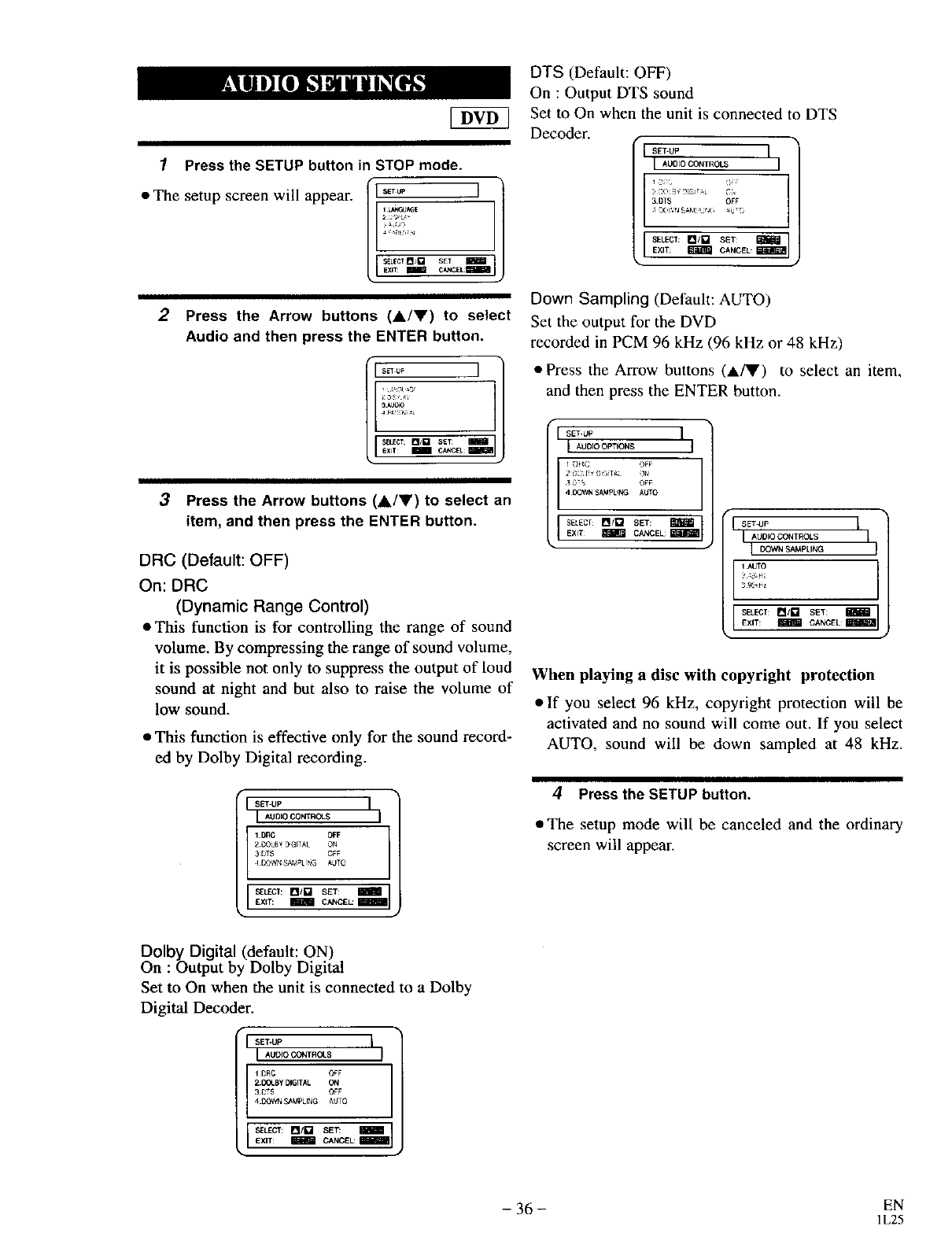
1Press the SETUP button in STOP mode.
• The setup screen will appear. /I .... I]
/+" /
2Press the Arrow buttons (&IV) to select
Audio and then press the ENTER button.
_°" ]/
3A_
!i i!L
3Press the Arrow buttons (A/Y) to select an
item, and then press the ENTER button.
DRC (Default: OFF)
On: DRC
(Dynamic Range Control)
• This function is for controlling the range of sound
volume. By compressing the range of sound volume,
it is possible not only to suppress the output of loud
sound at night and but also to raise the volume of
low sound.
•This function is effective only for the sound record-
ed by Dolby Digital recording.
S ET'UP ]
I,.umoco.m_s J
1DPC OFF
2 DOLly DGIT_L ON
+r©w_ SA_mL_iG_ro
•1 c El.
DTS (Default: OFF)
On : Output DTS sound
Set to On when the unit is connected to DTS
Decoder. •
ISETUP I
IAU0[OCONTROLS I
SET
Ira?+:.=,°,.CANCEl .
)
Down Sampling (Default: AUTO)
Set the output for the DVD
recorded in PCM 96 kHz (96 kHz or 48 kHz)
• Press the Arrow buttons (A/V) to select an item,
and then press the ENTER button.
rI SET'UP I
LAUOIO OPTIONS J
II)HC OFF
_)5 OFF
4 C_WN SAMPLING AUTO
I SELECI I_/k':l SET:EXIT _CANCEl_ I SETUP I
I AU.,_CO.r.OLS I
IDOWN SAMPLING I
1AUTO ]
3 _Hz
[ SELECI': I_l/l'_ SET: _1EXIT: _CANCEL:
When playing a disc with copyright protection
•If you select 96 kHz, copyright protection will be
activated and no sound will come out. If you select
AUTO, sound will be down sampled at 48 kHz.
4Press the SETUP button.
• The setup mode will be canceled and the ordinary
screen will appear.
Dolby Digital (default: ON)
Or= :Output by Dolby Digital
Set to On when the unit is connected to a Dolby
Digital Decoder.
SET-UP I
IAUDIO CONTROl'S I
iDRC (]_F
2.C_t By DIGITAL ON
3OTS OFF
4 DOWN _MPLI_G AUTO
EXIT: _ : :
-36 - EN
1L25
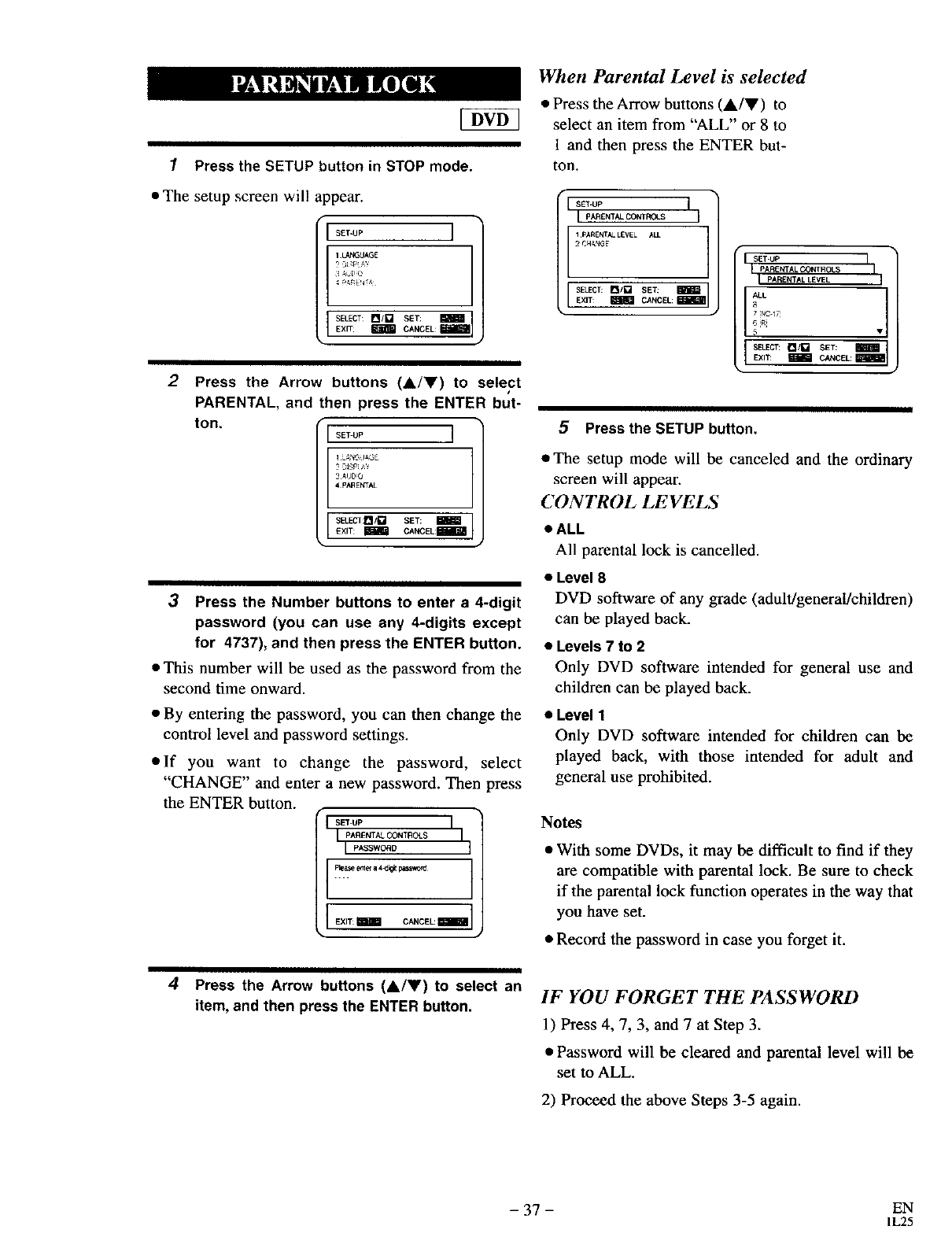
1Press the SETUP button in STOP mode.
• The setup screen will appear.
SET'UP ]
1 LANGUAGE
SELECT: n/g SET:
]EXff IIm CANCEL:Im_'_l]
S •
2Press the Arrow buttons (A/Y) to select
PARENTAL, and then press the ENTER but-
ton.
SET UP ]
2_ISPi
3AIJD_
4 PAREkrTAL
SELECT:I_/L'_ SET: _1
EXIT: _ CANCEL:I
k'
3Press the Number buttons to enter a 4-digit
password (you can use any 4-digits except
for 4737), and then press the ENTER button.
• This number will be used as the password from the
second time onward.
• By entering the password, you can then change the
control level and password settings.
e If you want to change the password, select
"CHANGE" and enter a new password. Then press
the ENTER button. ¢
ISET'UP
pARENTAL CONTROLS I
Ip_swo_o I
I
] EXIT: mmlB CANCEL: II
When Parental Level is selected
•Press theArrow buttons (&IV) to
select an item from "ALL" or 8 to
1 and then press the ENTER but-
ton.
SET'UP I
IPARENTALCONTI_3LS I
1PARENTALLEVEL ALL
2CHANGE
SELECT: n/l_ SET: IEXIT: _ CANCEL: I
_F_IAL CQNTROLS
IPARENTAL LEVEL
ALL
• 7 [I_c17
5•
SELECT: I_/[] SET:
EXIT: _ CANCEL: m_l
5Press the SETUP button.
• The setup mode will be canceled and the ordinary
screen will appear.
CONTROL LEVELS
• ALL
All parental lock is cancelled.
•Level 8
DVD software of any grade (adult!general!children)
can be played back.
•Levels 7 to 2
Only DVD software intended for general use and
children can be played back.
•Level 1
Only DVD software intended for children can be
played back, with those intended for adult and
general use prohibited.
Notes
• With some DVDs, it may be difficult to find if they
are compatible with parental lock. Be sure to check
if the parental lock function operates in the way that
you have set.
• Record the password in case you forget it.
4Press the Arrow buttons (&/V) to select an
item, and then press the ENTER button. IF YOU FORGET THE PASSWORD
1) Press 4, 7, 3, and 7 at Step 3.
•Password will be cleared and parental level will be
set to ALL,
2) Proceed the above Steps 3-5 again.
- 37 - EN
1L25
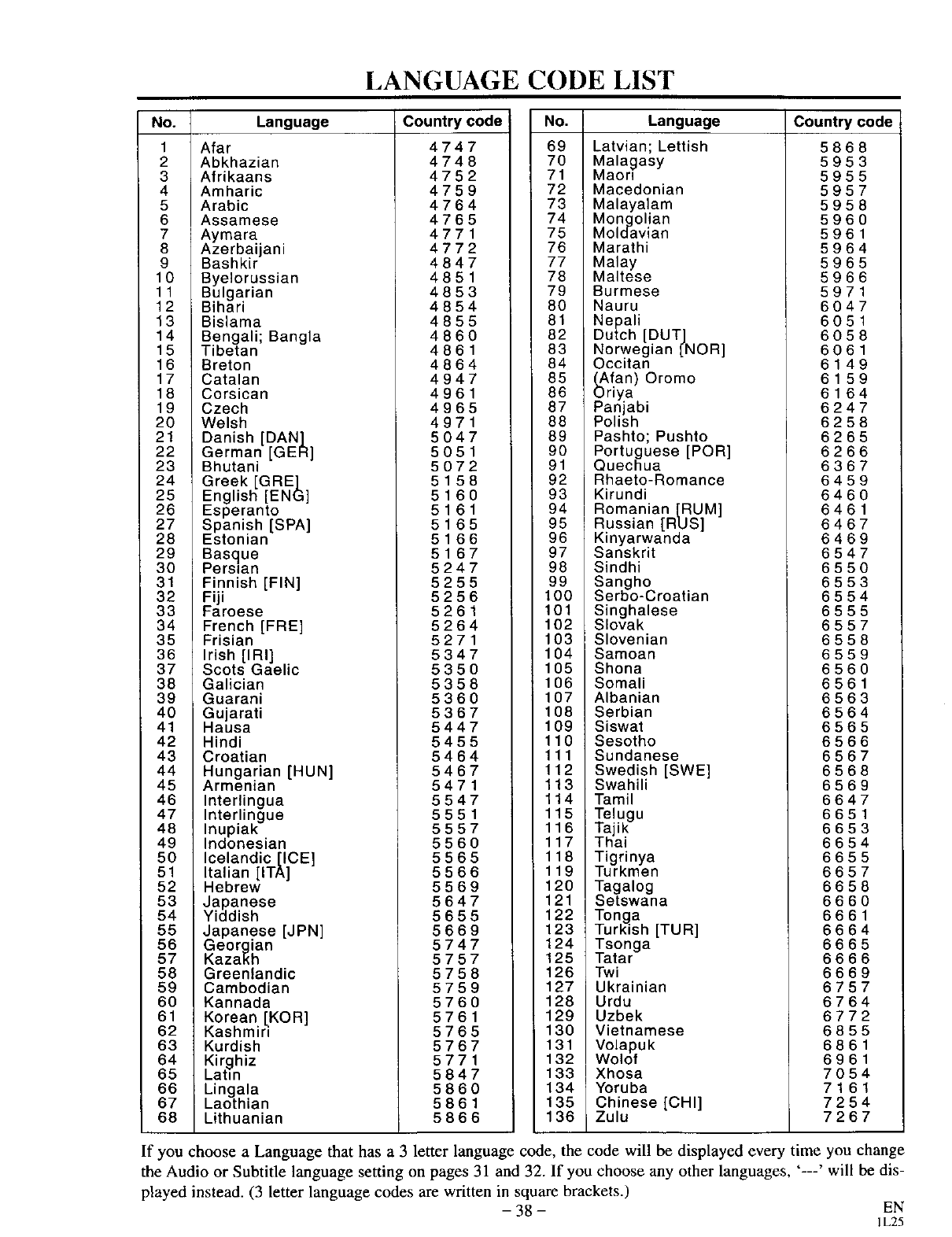
LANGUAGE CODE LIST
No. Language Country code
1
2
3
4
5
6
7
8
9
10
11
12
13
14
15
16
17
18
19
20
21
22
23
24
25
26
27
28
29
30
31
32
33
34
35
36
37
38
39
40
41
42
43
44
45
46
47
48
49
50
51
52
53
54
55
56
57
58
59
60
61
62
63
64
65
66
67
68
Afar
Abkhazian
Afrikaans
Amharic
Arabic
Assamese
Aymara
Azerbaijani
Bashkir
Byelorussian
Bulgarian
Bihari
Bislama
Bengali; Bangla
Tibetan
Breton
Catalan
Corsican
Czech
Welsh
Danish [DAN]
German [GER]
Bhutani
Greek [GRE]
English [ENG]
Esperanto
Spanish [SPA]
Estonian
Basque
Persian
Finnish [FIN]
Fiji
Faroese
French [FRE]
Frisian
Irish [IRI]
Scots Gaelic
Galician
Guarani
Gujarati
Hausa
Hindi
Croatian
Hungarian [HUN]
Armenian
Interlingua
Interlingue
Inupiak
Indonesian
Icelandic[ICE
Italian [iTA]
Hebrew
Japanese
Yiddish
Japanese [JPN]
Georgian
Kazakh
Greenlandic
Cambodian
Kannada
Korean [KOR
Kashm n
Kurdish
Kirghiz
Latin
Lingala
Laothian
Lithuanian
4747
4748
4752
4759
4764
4765
4771
4772
4847
4851
4853
4854
4855
4860
4861
4864
4947
4961
4965
4971
5047
5051
5072
5158
5160
5161
5165
5166
5167
5247
5255
5256
5261
5264
5271
5347
5350
5358
5360
5367
5447
5455
5464
5467
5471
5547
5551
5557
5560
5565
5566
5569
5647
5655
5669
5747
5757
5758
5759
5760
5761
5765
5767
5771
5847
5860
5861
5866
No. Language Country code
69 Latvian; Lettish
70 Malagasy
71 Maon
72 Macedonian
73 Malayalam
74 Mongolian
75 Moldavian
76 Marathi
77 Malay
78 Maltese
79 Burmese
80 Nauru
81 Nepali
82 Dutch [DUT]
83 Norwegian [NOR
84 Occitan
85 _..Afan) Oromo
86 uriya
87 Pan abi
88 Po sh
89 Pashto; Pushto
90 Portuguese [POR]
91 Quechua
92 Rhaeto-Romance
93 Kirundi
94 Romanian [RUM]
95 Russian [RUS]
96 Kinyarwanda
97 Sanskrit
98 Sindhi
99 Sangho
100 Serbo-Croatian
101 Singhalese
102 Slovak
103 Slovenian
104 Samoan
105 Shona
106 Somali
107 Albanian
108 Serbian
109 Siswat
110 Sesotho
111 Sundanese
112 Swedish [SWE]
113 Swahili
114 Tamil
115 Telugu
116 Taik
117 Tha
118 Tigrinya
119 Turkmen
120 Tagalog
121 Setswana
122 Tonga
123 Turkish [TUR]
124 Tsonga
125 Tatar
126 Twi
127 Ukrainian
128 Urdu
129 Uzbek
130 Vietnamese
131 Volapuk
132 Wolof
133 Xhosa
134 Yoruba
135 Chinese [CHI]
136 Zulu
5868
5953
5955
5957
5958
596O
5961
5964
5965
5966
5971
6047
6051
6058
6061
6149
6159
6164
6247
6258
6265
6266
6367
6459
6460
6461
6467
6469
6547
6550
6553
6554
6555
6557
6558
6559
6560
6561
6563
6564
6565
6566
6567
6568
6569
6647
6651
6653
6654
6655
6657
6658
6660
6661
6664
6665
6666
6669
6757
6764
6772
6855
6861
6961
7054
7161
7254
7267
If you choose a Language that has a 3 letter language code, the code will be displayed every time you change
the Audio or Subtitle language setting on pages 31 and 32. If you choose any other languages, '---' will be dis-
played instead. (3 letter language codes are written in square brackets.)
- 38 - EN
1L25
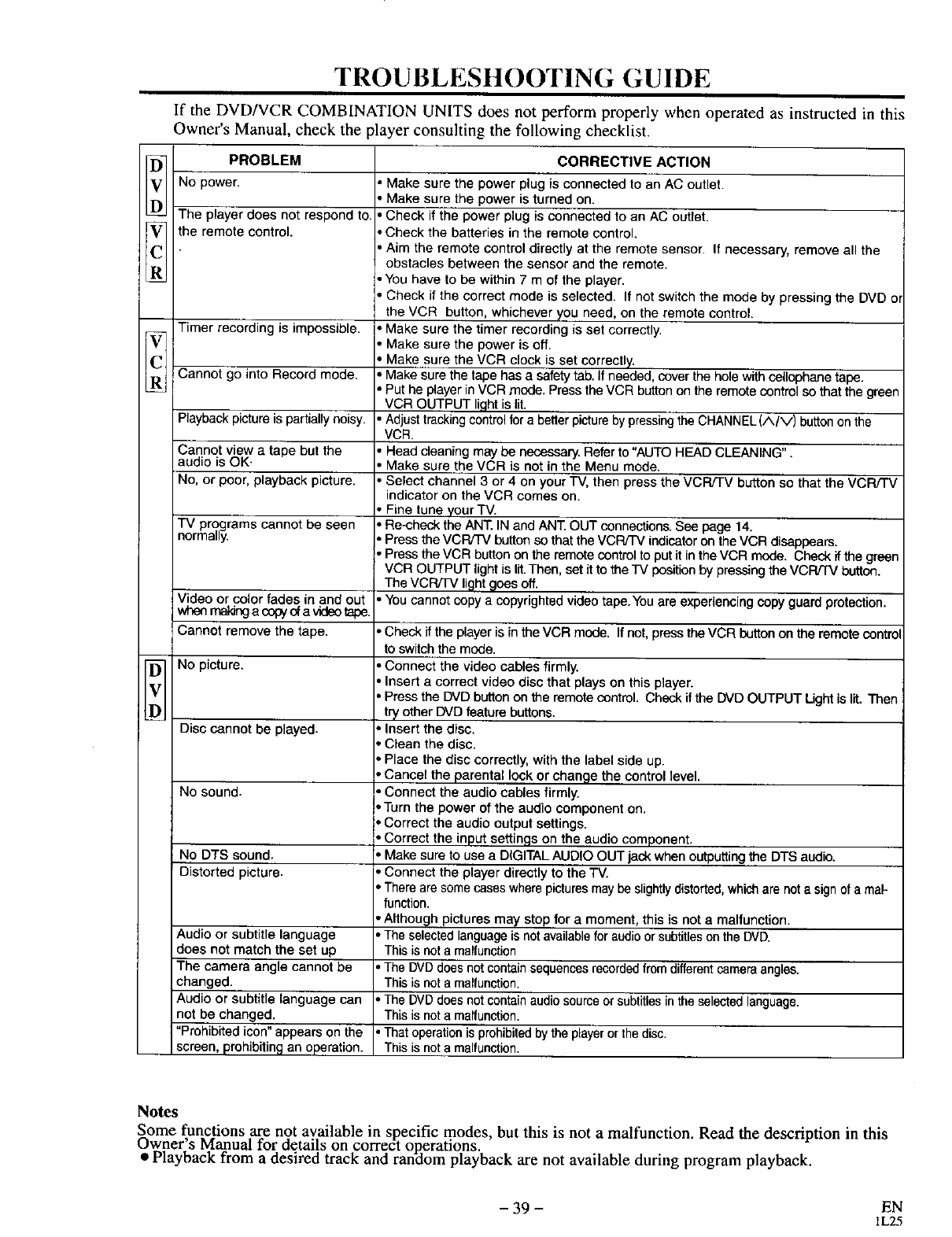
V
D
V
C
R
V
C
R
V
T _
ROUBLESHOOTING GUIDE
If the DVD/VCR COMBINATION UNITS does not perform properly when operated as instructed in this
Owner's Manual, check the player consulting the following checklist.
PROBLEM
No power.
The player does not respond to.
the remote control.
Timer recording is impossible.
Cannot go into Record mode.
Playback picture is partially noisy.
Cannot view a tape but the
audio is OK.
No, or poor, playback picture.
TV programs cannot be seen
normally.
Video or color fades in and out
when rnaldnga cepyof a videotape.
Cannot remove the tape.
No picture.
Disc cannot be played.
No sound.
No DTS sound.
Distorted picture.
Audio or subtitle language
does not match the set up
The camera angle cannot be
changed.
Audio or subtitle language can
not be changed.
"Prohibited icon" appears on the
screen, prohibiting an operation.
CORRECTIVE ACTION
• Make sure the power plug is connected to an AC outlet.
•Make sure the power is turned on.
• Check if the power plug is connected to an AC outlet.
• Check the batteries in the remote control.
• Aim the remote control directly at the remote sensor. If necessary, remove all the
obstacles between the sensor and the remote.
•You have to be within 7 mof the player.
• Check if the correct mode is selected. If not switch the mode by pressing the DVD or
the VCR button, whichever you need, on the remote control.
•Make sure the timer recordingis set correctly.
•Make sure the power is off.
• Make sure the VCR clock is set correctly.
•Make sure the tape hasa safetytab.If needed,coverthe hole withcellophanetape.
•Put he playerinVCR mode. PresstheVCR button on the remotecontrolso that the green
VCR OUTPUT lightis lit.
Adjust trackingcontrolfor a betterpicturebypressingtheCHANNEL(/k/V) buttononthe
VCR.
Head cleaning may be necessary. Refer to "AUTO HEAD CLEANING".
Make sure the VCR is not in the Menu mode.
Select channel 3 or 4 on your TV, then press the VCR/TV button so that the VCR/TV
indicator on the VCR comes on.
Fine tune your TV.
Re-check the ANT IN and ANT.OUT connections. See page 14.
Press the VCR/TV button sothat the VCR/TV indicator on the VCR disappears.
Press the VCR button on the remote control to put it in the VCR mode. Check ifthe green
VCR OUTPUT light is lit.Then, set it to the TV position by pressing the VCR/T'V button.
The VCR/1-V light goes off.
You cannot copy a copyrighted video tape.You are experiencing copy guard protection.
• Check ifthe player is in the VCR mode. Ifnot, press the VCR I_tton on the remotecontrol
to switch the mode.
• Connect the video cables firmly.
Insert a correct video disc that plays on this player.
•Pressthe DVD buttonon the remote control. Check if the DVD OUTPUT Lightis lit. Then
tryother DVD feature buttons.
Insert the disc.
•Clean the disc.
•Place the disc correctly,with the label side up.
• Cancel the parental lock or change the controllevel.
• Connect the audio cables firmly.
•Turn the power of the audio component on.
•Correct the audio output settings.
• Correct the input settings on the audio component.
•Make sure to use a DIGITAL AUDIO OUT jack when outputtingthe DTS audio.
•Connect the player directly to the TV.
•Thereare somecaseswherepicturesmaybe slightlydistorted,whicharenot a signof a mal-
function.
•Although pictures may stopfor a moment, this is not a malfunction.
•The selectedlanguageis not availablefor audio orsubtitlesontheDVD.
Thisis nota malfunction
•The DVDdoesnotcon_in sequencesrecordedfromdifferentcameraangles.
Thisis nota malfunction.
•The DVDdoesnotcontainaudiosourceorsubtitlesintheselectedlanguage.
Thisis nota malfunction.
•Thatoperationisprohibitedbythe playerorthedisc.
Thisis nota malfunction.
Notes
Some functions are not available in specific modes, but this is not a malfunction. Read the description in this
Owner s Manual for details on correct operations.
•Playback from a desired track and ran_om playback are not available during program playback.
- 39 - EN
lL25
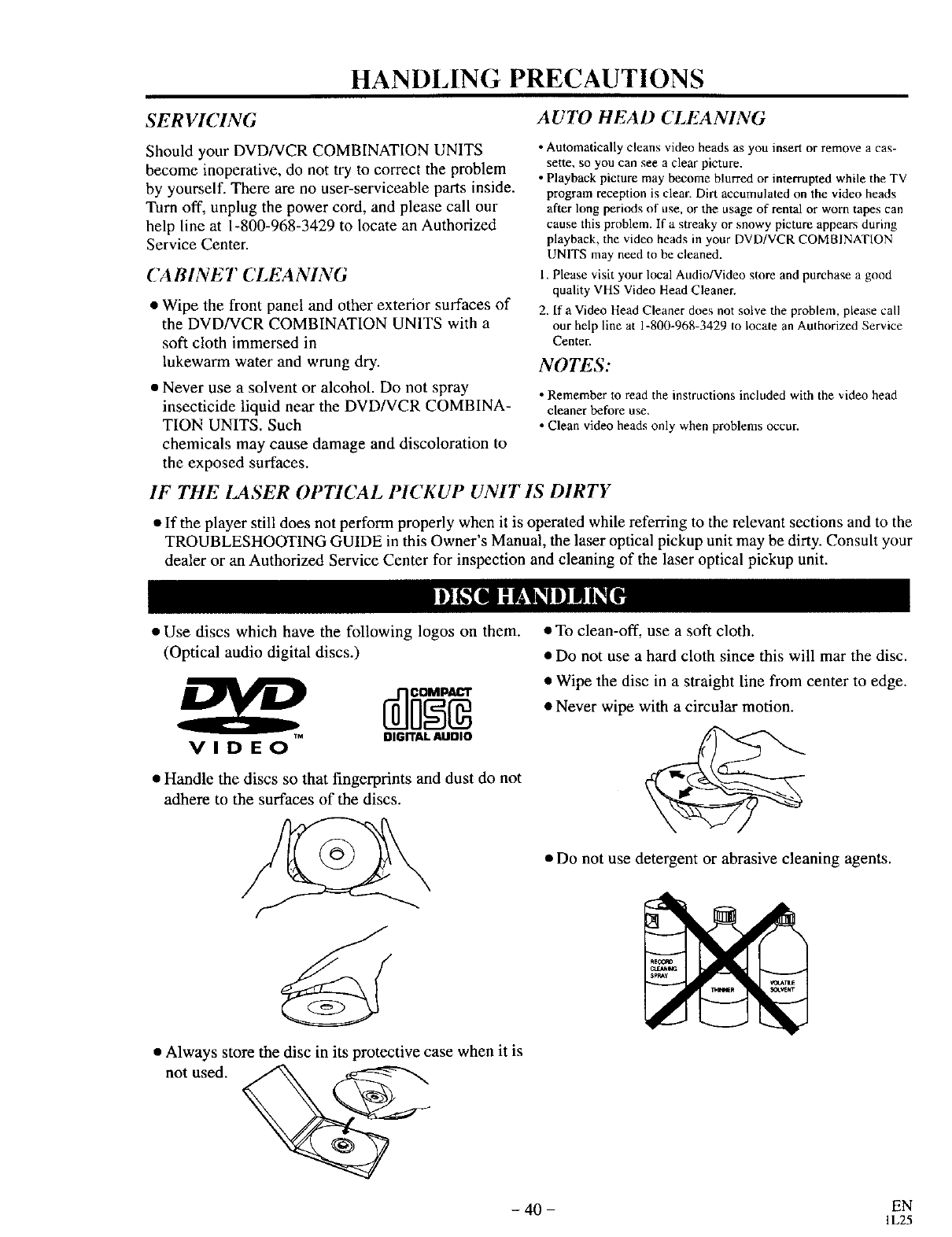
HANDLING PRECAUTIONS
SERVICING " HE " •
AUTO _AD (_LEANING
Should your DVD/VCR COMBINATION UNITS
become inoperative, do not try to correct the problem
by yourself. There are no user-serviceable parts inside.
Turn off, unplug the power cord, and please call our
help line at 1-800-968-3429 to locate an Authorized
Service Center.
(ABINEI (_LEAAIAG
• Wipe the front panel and other exterior surfaces of
the DVD/VCR COMBINATION UNITS with a
soft cloth immersed in
lukewarm water and wrung dry.
• Never use a solvent or alcohol. Do not spray
insecticide liquid near the DVD/VCR COMBINA-
TION UNITS. Such
chemicals may cause damage and discoloration to
the exposed surfaces.
• Automatically cleans video heads as you insert or remove a cas-
sette, so you can see a clear picture.
• Playback picture may become blurred or interrupted while the TV
program reception is clear. Dirt accumulated on the video heads
after long periods of use, or the usage of rental or worn tapes can
cause this problem. If a streaky or snowy picture appears during
playback, the video heads in your DVD/VCR COMBINATION
UNITS may need to be cleaned.
1. Please visit your local Audio/Video store and purchase a good
quality VHS Video Head Cleaner.
2. If a Video Head Cleaner does not solve the problem, please call
our help line at 1-800-968 3429 to locate an Authorized Service
Center.
NOTES:
• Remember to read the instructions included with the video head
cleaner before use.
• Clean video heads only when problems occur.
IF THE lASER OPTICAL PICKUP UNIT IS DIRTY
• If the player still does not perform properly when it is operated while referring to the relevant sections and to the
TROUBLESHOOTING GUIDE in this Owner's Manual, the laser optical pickup unit may be dirty. Consult your
dealer or an Authorized Service Center for inspection and cleaning of the laser optical pickup unit.
• Use discs which have the following logos on them.
(Optical audio digital discs.)
•¢M
VIDEO DIGITAL AUDIO
•Handle the discs so that fingerprints and dust do not
adhere to the surfaces of the discs.
• To clean-off, use asoft cloth.
•Do not use a hard cloth since this will mar the disc.
• Wipe the disc in a straight line from center to edge.
•Never wipe with a circular motion.
•Do not use detergent or abrasive cleaning agents.
•Always storethe discin its
not used. _
_rotective case when it is
s_v
f
- 40 - EN
1L25
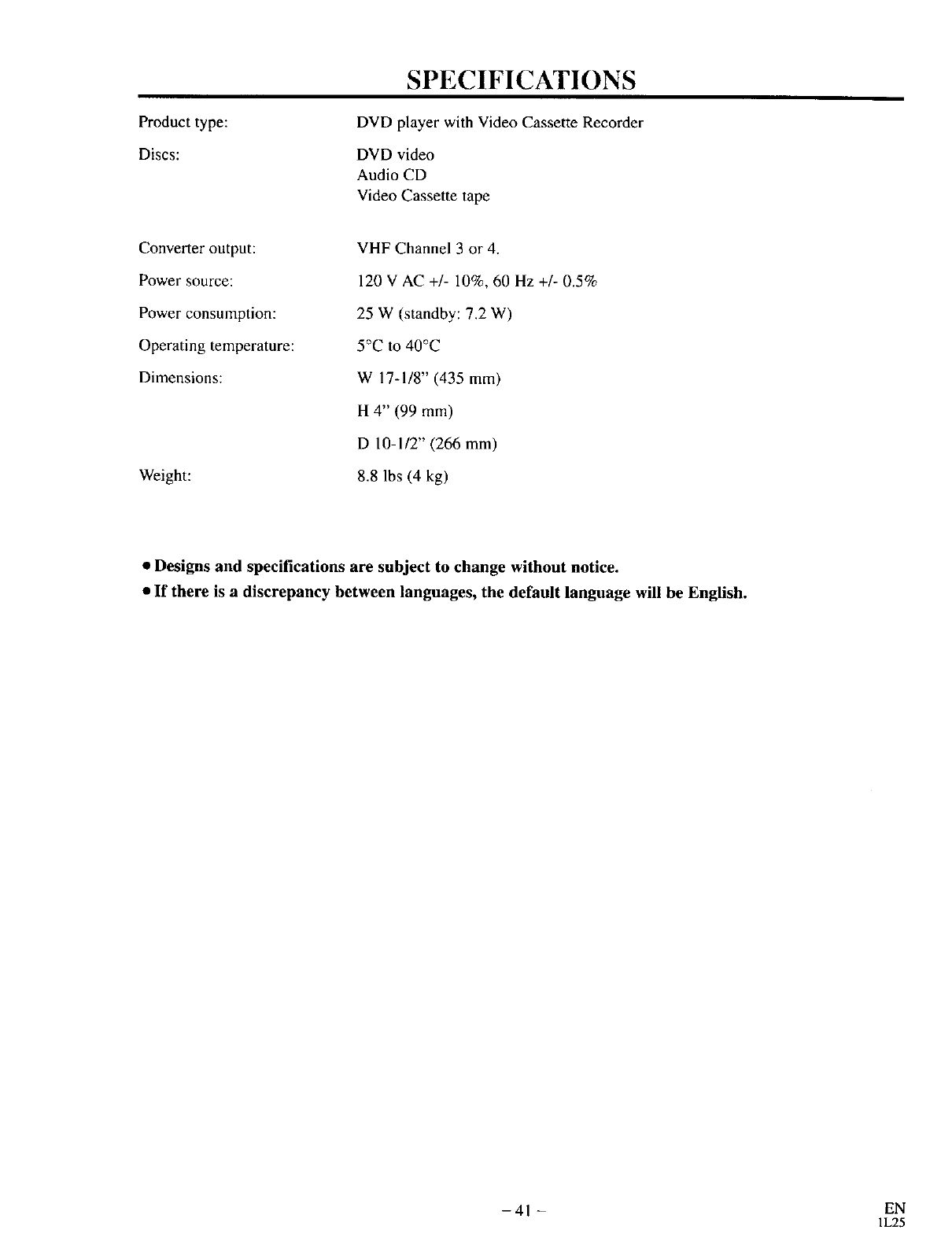
Product type:
Discs:
Converter output:
Power source:
Power consumption:
Operating temperature:
Dimensions:
Weight:
SPECIFICATIONS
DVD player with Video Cassette Recorder
DVD video
Audio CD
Video Cassette tape
VHF Channel 3 or 4.
120 V AC +/- 10%, 60 Hz +/- 0.5%
25 W (standby: 7.2 W)
5°C to 40°C
W 17-1/8" (435 mm)
H 4" (99 mm)
D 10-1/2" (266 mm)
8.8 lbs (4 kg)
•Designs and specifications are subject to change without notice.
•If there is a discrepancy between languages, the default language will be English.
- 41 - EN
1L25
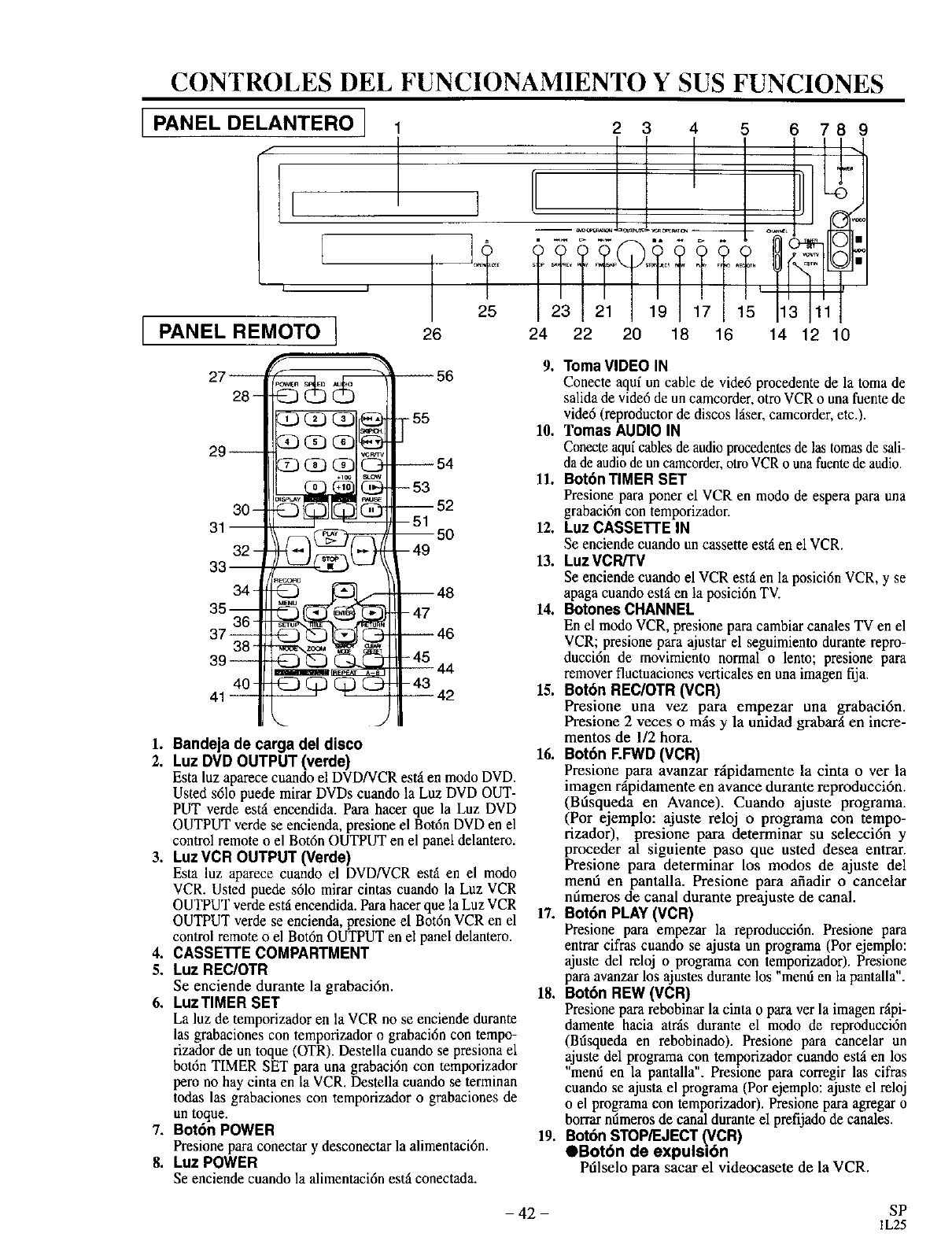
CONTROLES DEL FUNCIONAMIENTO Y SUS FUNCIONES
[PANEL DELANTERO ]
f
2 3 4 5 6 789
I!I T!?:!T!7T:I; l
24 22 20 18 16 14 12 10
L.J
I PANEL REMOTO I
1
25
26
27--
28-
29--
30-
31--
32-
33
34-
35--
36-
37--38-
39--
40-
41--
1. Bandeja de carga del disco
2. Luz DVD OUTPUT (verde)
Esta luz aparece cuando el DVD/VCR est_ en modo DVD.
Usted s61opuede mirar DVDs cuando la Luz DVD OUT-
PUT verde est_iencendida. Para hacer que la Luz DVD
OUTPUT verde se encienda, presione el Bot6n DVD en el
control remote o el Bot6n OUTPUT en el panel delantero.
3. Luz VCR OUTPUT (Verde)
Esta luz aparece cuando el DVD/VCR est_ en el modo
VCR. Usted puede s61omirar cintas cuando la Luz VCR
OUTPUT verde est_iencendida. Para hacer que la Luz VCR
OUTPUT verde se encienda, presione el Bot6n VCR en el
control remote o el Bot6n OUTPUT en el panel delantero.
4. CASSETTE COMPARTMENT
5. Luz REC/OTR
Se enciende durante la grabaci6n.
6. LuzTIMER SET
La luz de temporizador en la VCR no se enciende durante
las grabaciones con temporizador o grabaci6n con tempo-
rizador de un toque (OTR). Destella cuando se presiona el
bot6n TIMER SET para una grabaci6n con temporizador
pero no hay cinta en la VCR. Destella cuando se terminan
todas las grabaciones con temporizador o grabaciones de
un toque.
7. Bot6n POWER
Presione para conectar y desconectar la alimentaci6n.
8. Luz POWER
Se enciende cuando la alimentaci6n est_iconectada.
9. Toma VIDEO IN
Conecte aqui un cable de vide6 procedente de la toma de
salida de vide6 de un camcorder, otro VCR o una fuente de
vide6 (reproductor de discos hiser,camcorder, etc.).
10. Tomas AUDIO IN
Couecteaqufcables de audioprocedentesde las tomas de sali-
da de audiode un camcorder,otro VCR o una fuentede audio.
11. Bot6nTIMER SET
Presione para poner el VCR en modo de espera para una
grabaci6n con temporizador.
12. Luz CASSETTE IN
Se enciende cuando un cassette est_ en el VCR.
13. Luz VCR/rV
Se enciende cuando el VCR est_ien la posici6n VCR, y se
apaga cuando es_ en la posici6n TV.
14. Botones CHANNEL
En el modo VCR, presione para cambiar canales TV en el
VCR; presione para ajustar el seguimiento durante repro-
ducci6n de movimiento normal o lento; presioue para
remover fluctuaciones verticales en una imagen fija.
15. Bot6n REC/OTR (VCR)
Presione una vez para empezar una grabaci6n.
Presione 2 veces o m_s y la unidad grabard en incre-
mentos de 1/2 hora.
16. Bot6n F.FWD (VCR)
Presione para avanzar r_ipidamente la cinta over la
imagen rdpidamente en avance durante reproducci6n.
(Bdsqueda en Avance). Cuando ajuste programa.
(Por ejemplo: ajuste reloj o programa con tempo-
rizador), presione para determinar su selecci6n y
proceder al siguiente paso que usted desea entrar.
Presione para determinar los modos de ajuste del
mend en pantalla. Presione para afiadir o cancelar
ndmeros de canal durante preajuste de canal.
17. Bot6n PLAY (VCR)
Presione para empezar la reproducci6n. Presione para
entrar cifras cuando se ajusta un programa (Por ejemplo:
ajuste del reloj o programa con temporizador). Presione
para avanzar Ins ajustes durante los "mend en la pantalla".
18. Bot6n REW (VCR)
Presione para rebobinar la cinta o para ver la imagen r@i-
damente hacia atr',is durante el modo de reproducci6n
(Btisqueda en rebobinado). Presione para cancelar un
ajuste del programa con temporizador cuando est_ien Ins
"mend en la pantalla". Presione para corregir las cifras
cuando se ajusta el programa (Por ejemplo: ajuste el reloj
o el programa con temporizador). Presione para agregar o
borrar nfimeros de canal durante el prefijado de canales.
19. Bot6n STOP/EJECT I_CR)
OBot6n de expulsion
Pdlselo para sacar el videocasete de la VCR.
- 42 - SP
IL25
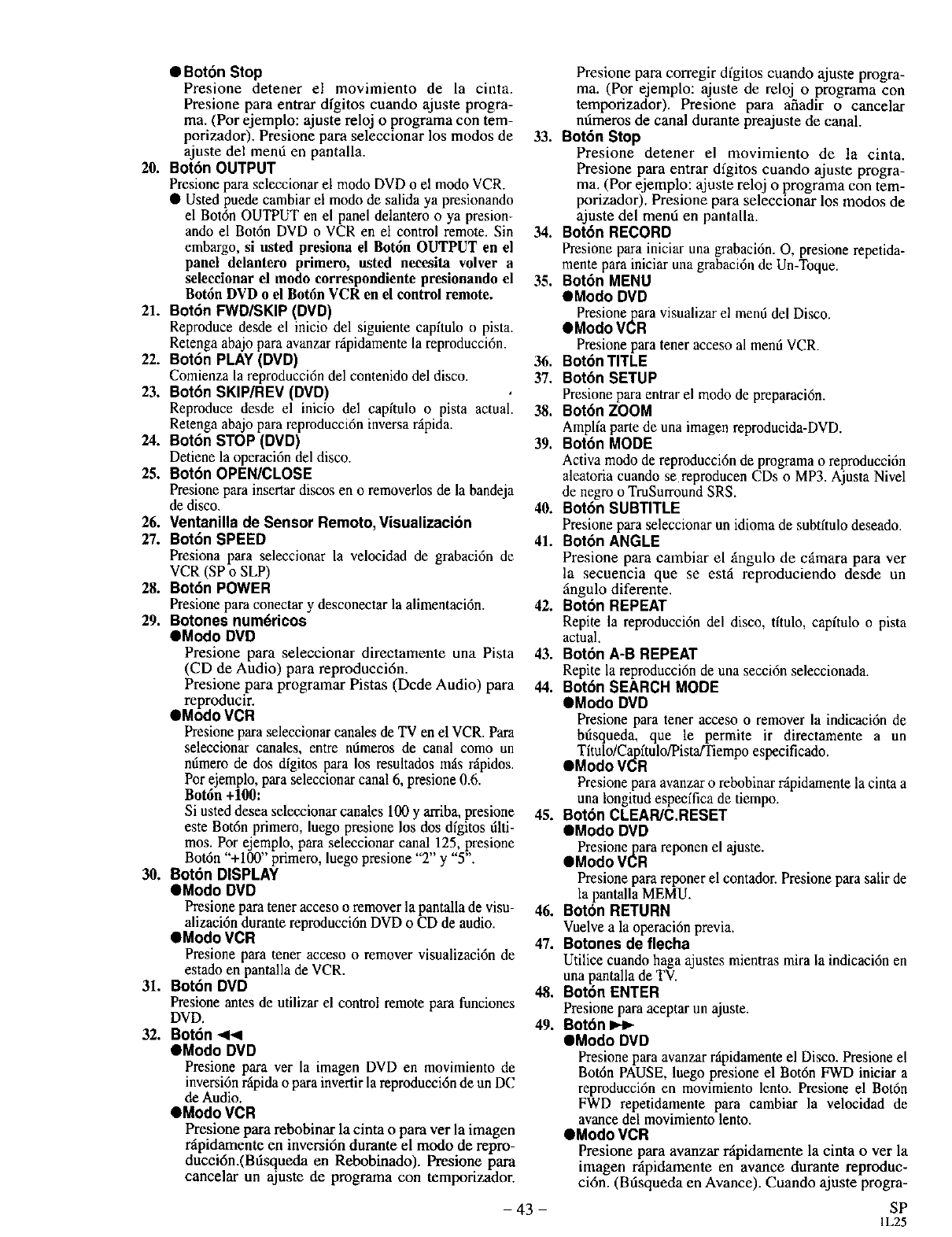
•Bot6n Stop
Presione detener el movimiento de la cinta.
Presione para entrar dfgitos cuando ajuste progra-
ma. (Por ejemplo: ajuste reloj o programa con tem-
porizador). Presione para seleccionar los modos de
ajuste del mend en pantalla.
20. Bot6n OUTPUT
Presione para seleccionar el rood• DVD o el modo VCR.
• Usted puede cambiar el modo de salida ya presionando
el Bot6n OUTPUT en el panel delantero o ya presion-
and• el Bot6n DVD o VCR en el control remote. Sin
embargo, si usted presiona el Bot6n OUTPUT en el
panel delantero primero, usted neceslta volver a
seleccionar el modo correspondiente presionando el
Bot6n DVD o el Bot6n VCR en el control remote.
21. Bot6n FWD/SKIP (DVD)
Reproduce desde el inicio del siguiente capftulo o pista.
Retenga abajo para avanzar rfipidamente la reproduccidn.
22. Bot6n PLAY (DVD)
Comienza la reproducci6n del contenido del disco.
23. Bot6n SKIP/REV (DVD)
Reproduce desde el inicio del capftulo o pista actual.
Retenga abajo para reproducci6n inversa r_ipida.
24. Boton STOP (DVD)
Detiene la operaci6n del disco.
25. Bot6n OPEN/CLOSE
Presione para insertardiscos en o removerlos de la bandeja
de disco.
26. Ventanilla de Sensor Remoto, Visualizaci6n
27. Bot6n SPEED
Presiona para seleccionar la velocidad de grabaci6n de
VCR (SP o SLP)
28. Bot6n POWER
Presione para conectar y desconectar la alimentaci6n.
29. Botones num6ricos
•Modo DVD
Presione para seleccionar directamente una Pista
(CD de Audio) para reproducci6n.
Presione para programar Pistas (Dcde Audio) para
reproducir.
• Modo VCR
Presione para seleccionar canales de TV en el VCR. Para
seleccionar canales, entre ndmeros de canal como un
ndmero de dos dfgitos para los resultados m_isnlpidos.
Pot ejemplo, para seleccionar canal 6, presione 0.6.
Bot6n +100:
Si usted desea seleccionar canales 100 y arriba, presione
este Bot6n primer•, luego presione los dos dfgitos dlti-
mos. Por ejemplo, para seleccionar canal 125, presione
Bot6n "+ 100" primero, luego presione "2" y "5".
30. Bot6n DISPLAY
•Modo DVD
Presione para tener acceso o remover la pantalla de visu-
alizaci6n durante reproducci6n DVD o CD de audio.
• Modo VCR
Presione para tener acceso o remover visualizaci6n de
estado en pantalla de VCR.
31. Bot6n DVD
Presione antes de utilizar el control remote para funciones
DVD.
32. Bot6n <<
• Modo DVD
Presione para ver la imagen DVD en movimiento de
inversi6n r_ipidao para invertir la reproducci6n de un DC
de Audio.
• Modo VCR
Presione para rebobinar la cinta o para ver la imagen
rdpidamente en inversi6n durante el modo de repro-
ducci6n.(Bdsqueda en Rebobinado). Presione para
cancelar un ajuste de programa con temporizador.
Presione para corregir digitos cuando ajuste progra-
ma. (Por ejemplo: ajuste de reloj o programa con
temporizador). Presione para afiadir o cancelar
ndmeros de canal durante preajuste de canal.
33. Bot6n Stop
Presione detener el movimiento de la cinta.
Presione para entrar dfgitos cuando ajuste progra-
ma. (Por ejemplo: ajuste reloj o programa con tem-
porizador). Presione para seleccionar los modos de
ajuste del mend en pantalla.
34. Bot6n RECORD
Presione para iniciar una grabaci6n. O, presione repetida-
mente para iniciar una grabaci6n de Un-Toque.
35. Bot6n MENU
eModo DVD
Presionepara visualizar el men6 del Disco.
• Modo VCR
Presione para teneracceso al mend VCR.
36. Bot6n TITLE
37. Bot6n SETUP
Presione para entrar el modo de preparaci6n.
38. Bot6n ZOOM
Amplfa parte de una imagen reproducida-DVD.
39. Bot6n MODE
Activa modo de reproducci6n de programa o reproducci6n
aleatoria cuando se reproducen CDs o MP3. Ajusta Nivel
de negro o TruSurround SRS.
40. Bot6n SUBTITLE
Presione para seleccionar un idioma de subtftulo deseado.
41. Bot6n ANGLE
Presione para cambiar el _ingulo de c_.mara para ver
la secuencia que se est_i reproduciendo desde un
_ingulo diferente.
42. Boton REPEAT
Repite la reproduccidn del disco, tftulo, capftulo o pista
actual.
43. Bot6n A-B REPEAT
Repite la reproducci6n de una secci6n seleccionada.
44. Bot6n SEARCH MODE
lModo DVD
Presione para tener acceso o remover la indicaci6n de
bdsqueda, que le permite ir directamente a un
Tftulo/Cap ftulo/Pista/Tiempo especificado.
• Modo VCR
Presione para avanzar o rebobinar rfi.pidamentela cinta a
una longitud especffica de tiempo.
45. Bot6n CLEAR/C.RESET
eModo DVD
Presionepara reponen el ajuste.
eModo VCR
Presione para reponer el contador. Presionepara salir de
la pantalla MEMU.
46. Boton RETURN
Vuelve a la operaci6nprevia.
47. Botones de flecha
Utilice cuando haga ajustes mientras mira la indicaci6n en
una pantalla de TV.
48. Bot6n ENTER
Presione para aceptar un ajuste.
49. Boton
eModo DVD
Presionepara avanzarr_ipidamenteel Disco. Presione el
Bot6n PAUSE, luego presione el Bot6n FWD iniciar a
reproduccidn en movimiento lento. Presione el Bot6n
FWD repetidamente para cambiar la velocidad de
avance del movimiento lento.
eModo VCR
Presione para avanzar rfipidamente la cinta over la
imagen r_ipidamento en avance durante reproduc-
ci6n. (Bdsqueda en Avance). Cuando ajuste progra-
- 43 - SP
IL25
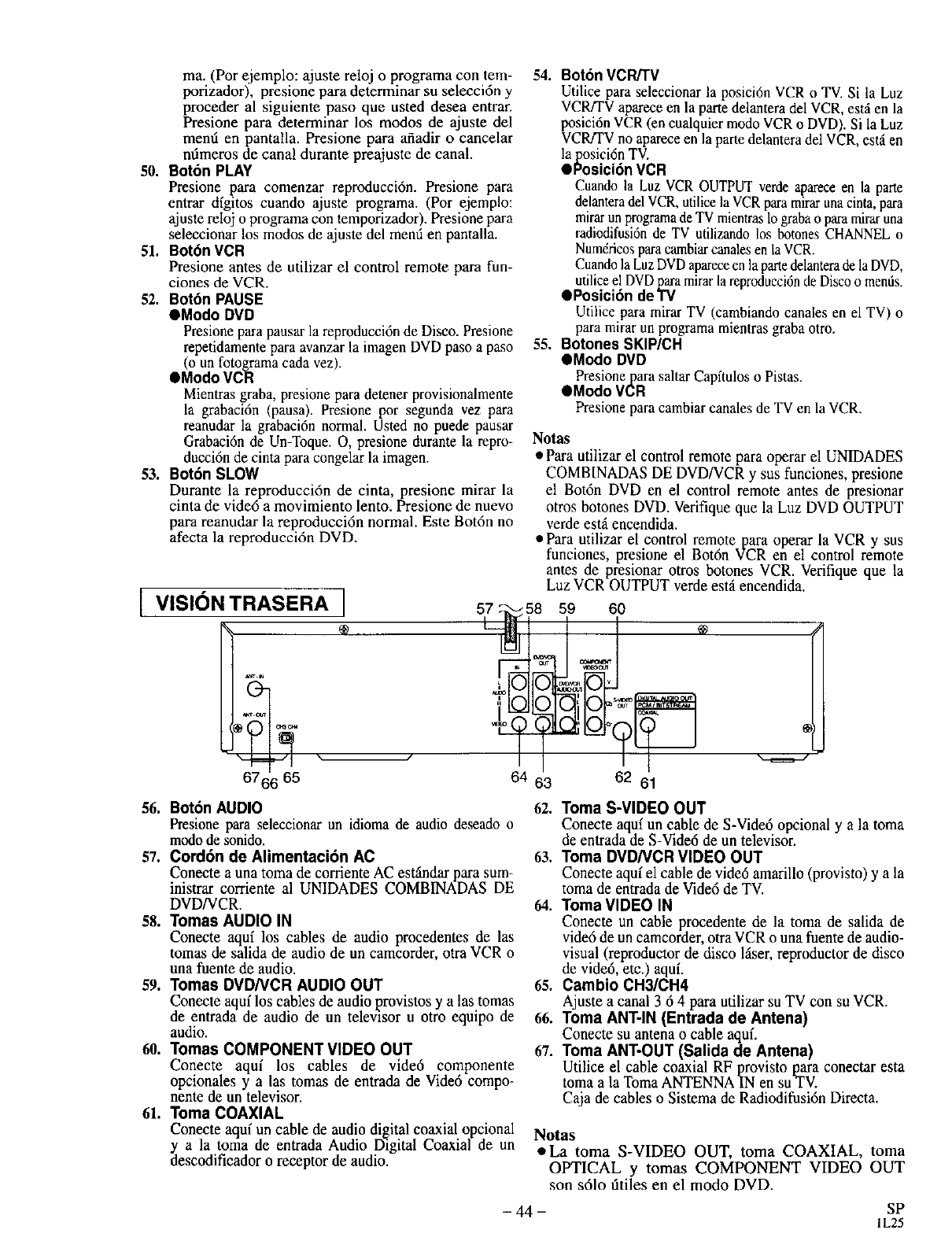
ma. (Por ejemplo: ajuste reloj o programa con tem-
porizador), presione para determinar su selecci6n y
proceder al siguiente paso que usted desea entrar.
Presione para determinar los modus de ajuste del
mend en pantalla. Presione para afiadir o cancelar
ndmeros de canal durante preajuste de canal.
50. Bot6n PLAY
Presione para comenzar reproducci6n. Presione para
entrar dfgitos cuando ajuste programa. (Por ejemplo:
ajuste reloj o programa con temporizador). Presione para
seleccionar los modus de ajuste del mend en pantalla.
51. Bot6n VCR
Presione antes de utilizar el control remote para fun-
ciones de VCR.
52. Bot6n PAUSE
OModo DVD
Presione para pausar la reproducci6n de Disco. Presione
repetidamente para avanzar la imagen DVD paso a paso
(o un fotograma cada vez).
OModo VCR
Mientras graba, presione para detener provisionalmente
la grabaci6n (pausa). Presione por segunda vez para
reanudar la grabaci6n normal. Usted no puede pausar
Grabaci6n de Un-Toque. O, presione durante la repro-
ducci6n de cinta para congelar la imagen.
53. Bot6n SLOW
Durante la reproducci6n de cinta, presione mirar la
cinta de vide6 a movimiento lento. Presione de nuevo
para reanudar la reproducci6n normal. Este Bot6n no
afecta la reproducci6n DVD.
[VISIONTRASERA ]57
\ /
64 63
54. Bot6n VCR/TV
Utilice para seleccionar la posici6n VCR oTV. Si la Luz
VCRFFVaparece en la parte delantera del VCR, est_ien la
posici6n VCR (en cualquier modo VCR o DVD). Si la Luz
VCR/TV no aparece en la parte delantera del VCR, est_ien
la posici6n TV.
OPosici6n VCR
Cuando la Luz VCR OUTPUT verde aparece en la parte
delanteradel VCR, utilice la VCR para mirar unacinta, para
mirar un programade TV mientras1ograbao para mirar una
radiodifusi6nde TV utilizando los botones CHANNEL o
Num6ricosparacambiarcanales en la VCR.
Cuandola LuzDVDapareceen la partedelanterade la DVD,
utiliceel DVDpara mirar la reproducci6nde Discoo mentis.
@Posici6n doTV
Utilice para mirar TV (cambiando canales en el TV) o
para mirar un programa mientras graba otro.
55. Botones SKIP/CH
OModo DVD
Presionepara saltar Capftulos oPistas.
OModo VCR
Presione para cambiar canales de TV en la VCR.
Notas
* Para utilizar el control remote para operar el UNIDADES
COMBINADAS DE DVD/VCR y sus funciones, presione
el Bot6n DVD en el control remote antes de presionar
otros botones DVD. Verifique que la Luz DVD OUTPUT
verde est,. encendida.
• Para utilizar el control remotepara operar la VCR y sus
funciones, presione el Bot6n VCR en el control remote
antes de presionar otros botones VCR. Verifique que la
Luz VCR OUTPUT verde esui encendida.
59 60
oJ °
62 61
56. Bot6n AUDIO
Presione para seleccionar un idioma de audio deseado o
modo de sonido.
57. Cord6n de Alimentaci6n AC
Conecte a una toma de corriente AC est_dar para sum-
inistrar corriente al UNIDADES COMBINADAS DE
DVD/VCR.
58. Tomas AUDIO IN
Conecte aquf los cables de audio procedentes de las
tomas de salida de audio de un camcorder, otra VCR o
una fuente de audio.
59. Tomas DVD/VCR AUDIO OUT
Conecte aqaf los cables de audio provistos y alas tomas
de entrada de audio de un televisor u otro equipo de
audio.
60. Tomas COMPONENT VIDEO OUT
Conecte aquf los cables de vide6 componente
opcionales y alas tomas de entrada de Vide6 compo-
nente de un televisor.
61. Toma COAXIAL
Conecte aquf un cable de audio digital coaxial opcional
y a la toma de entrada Audio Digital Coaxial de un
descodificador o receptor de audio.
62. Toma S-VIDEO OUT
Conecte aquf un cable de S-Vide6 opcional y a la toma
de entrada de S-Vide6 de un televisor.
63. Toma DVD/VCR VIDEO OUT
Conecte aquf.el cable de vide6 amarillo (provisto) y a la
toma de entrada de Vide6 de TV.
64. Toma VIDEO IN
Conecte un cable procedente de la toma de salida de
vide6 de un camcorder, otra VCR o una fuente de audio-
visual (reproductor de disco hlser, reproductor de disco
de vide6, etc.) aqu(.
65. Cambio CH3/CH4
Ajuste a canal 3 6 4 para utilizar su TV con su VCR.
66. Toma ANT-IN (Entrada de Antena)
Conecte su antena o cable aquL
_17. Toma ANT-OUT (Salida de Antena)
Utilice el cable coaxial RF provisto para conectar esta
toma a la Toma ANTENNA IN en suTV.
Caja de cables o Sistema de Radiodifusi6n Directa.
Notas
•La toma S-VIDEO OUT, toma COAXIAL, toma
OPTICAL y tomas COMPONENT VIDEO OUT
son s61o fitiles en el modo DVD.
- 44 - SP
1L25
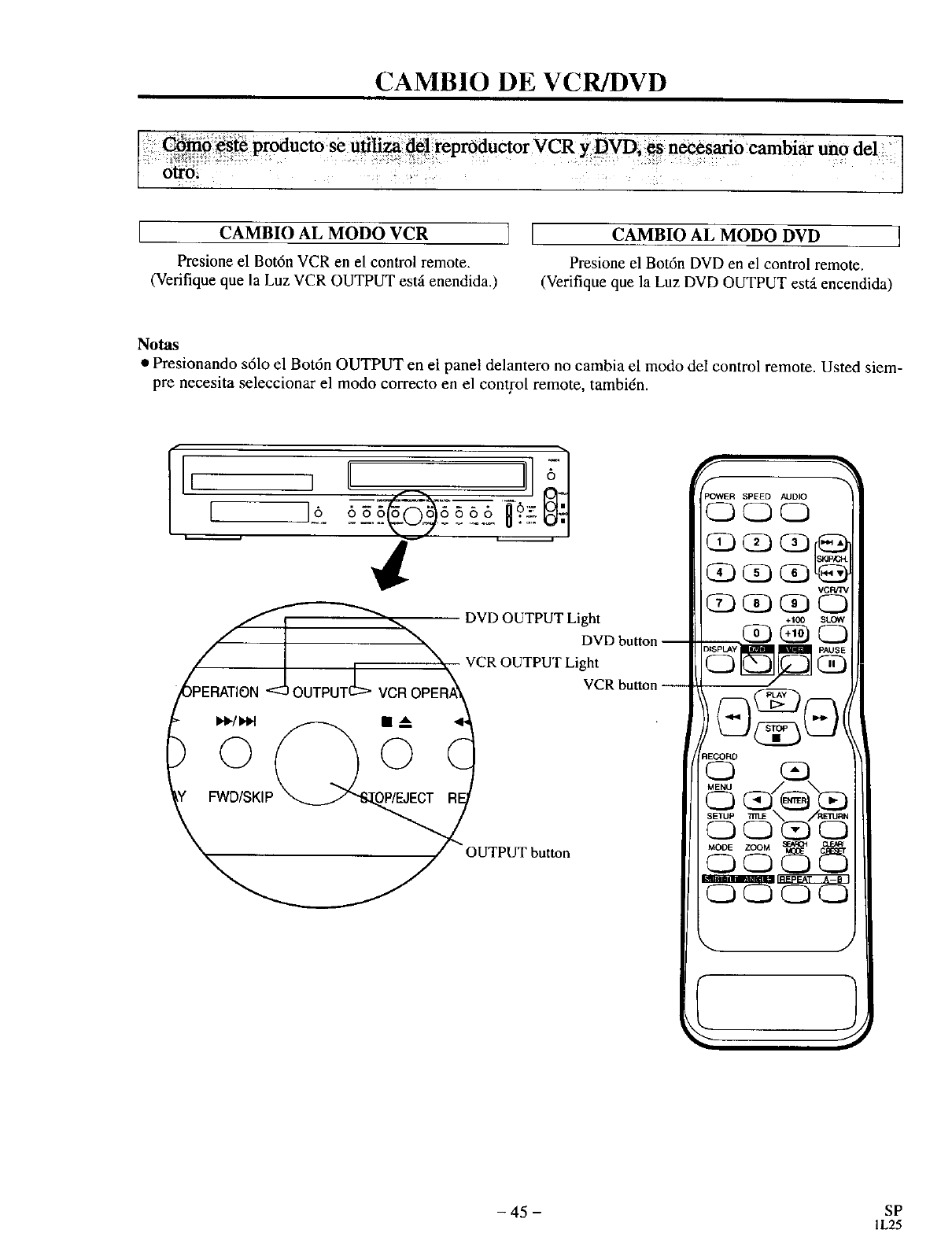
CAMBIO DE VCR/DVD
::_e Producto se tltili_ de ! reprOductor VCR y DVD,:_ necesario cambiar tmo del
CAMBIO AL MODO VCR
Presione el Bot6n VCR en el control remote.
(Verifique que la Luz VCR OUTPUT estfi enendida.)
[CAMBIO AL MODO DVD
Presione el Bot6n DVD en el control remote.
(Verifique que la Luz DVD OUTPUT estfi encendida)
Notas
• Presionando s61o el Bot6n OUTPUT en el panel delantero no cambia el modo del control remote. Usted siem-
pre necesita seleccionar el modo correcto en el control remote, tambi6n.
,/
€/_'_"'_ _. DVD OUTPUT Light
OVOhutton--
/II_. VCR OUTPUT Light
/SKIP
X_/ OUTPUT button
f
pC_NER SPEED AUDIO
(2DOQ
VCFVTV
Q_3 C)
_3_CD
MODE ZOOM _
- 45 - SP
1L25
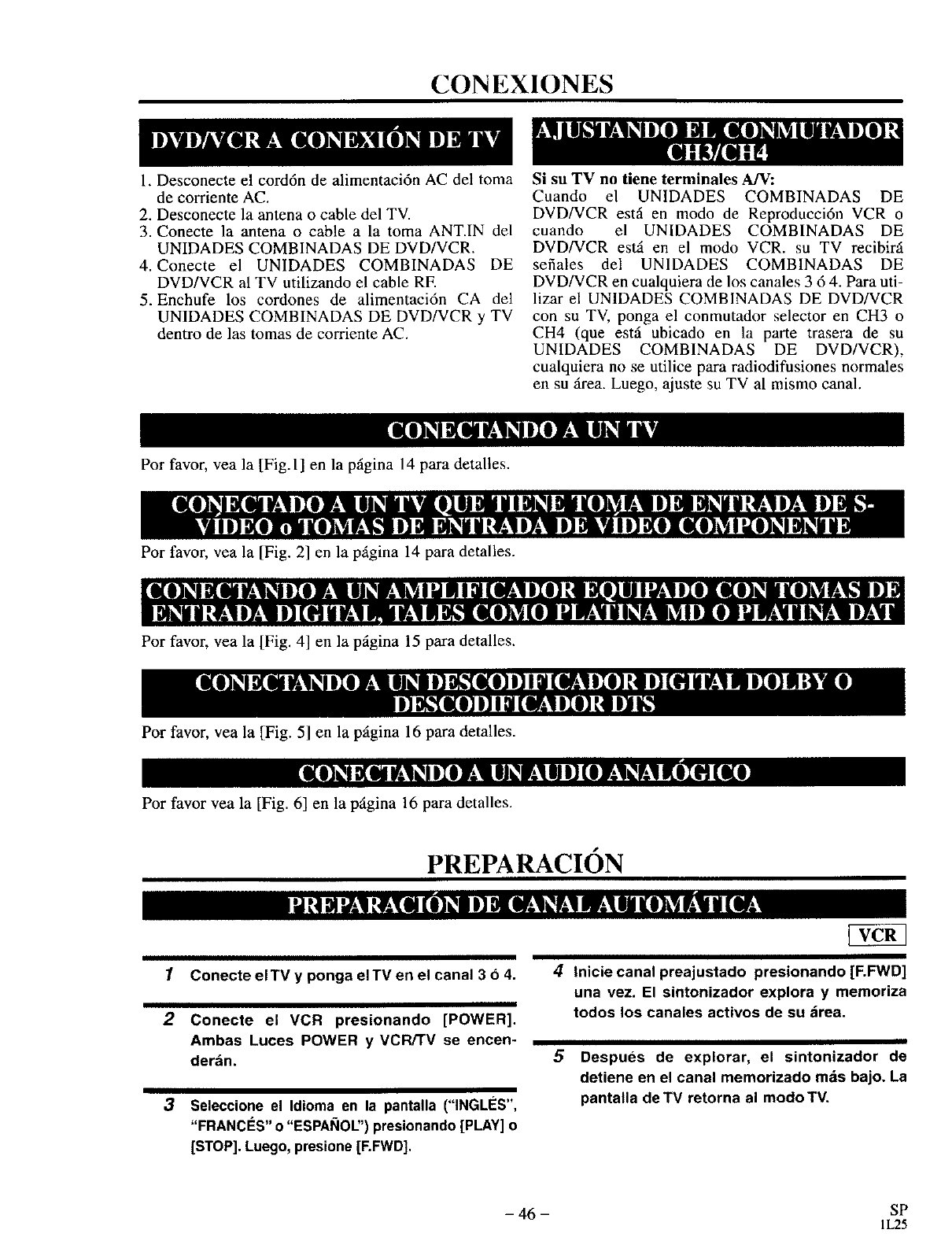
CONEXIONES
l. Desconecte el cord6n de alimentaci6n AC del toma
de corriente AC.
2. Desconecte la antena o cable del TV.
3. Conecte la antena o cable a la toma ANT.IN del
UNIDADES COMBINADAS DE DVD/VCR.
4. Conecte el UNIDADES COMBINADAS DE
DVD/VCR al TV utilizando el cable RE
5. Enchufe los cordones de alimentaci6n CA del
UNIDADES COMBINADAS DE DVD/VCR y TV
dentro de las tomas de corriente AC.
Por favor, vea la [Fig.l] en la pfigina 14 para detaltes.
Por favor, vea la [Fig. 2] en la pfigina 14 para detalles.
Por favor, vea la [Fig. 4] en la p_igina 15 para detalles.
Por favor, vea la [Fig. 5] en la p_igina 16 para detalles.
Por favor vea la [Fig. 6] en la p_igina 16 para detalles.
Si su TV no tiene terminales A/V:
Cuando el UNIDADES COMBINADAS DE
DVD/VCR est_i en modo de Reproducci6n VCR o
cuando el UNIDADES COMBINADAS DE
DVD/VCR est_ en el modo VCR. su TV recibirfi
sefiales del UN1DADES COMBINADAS DE
DVD/VCR en cualquiera de los canales 3 6 4. Para uti-
lizar el UNIDADES COMBINADAS DE DVD/VCR
con su TV, ponga el conmutador selector en CH3 o
CH4 (que est_i ubicado en la parte trasera de su
UNIDADES COMBINADAS DE DVD/VCR),
cualquiera no se utilice para radiodifusiones normales
en su _ea. Luego, ajuste su TV al mismo canal.
PREPARACION
1Conecte eITV y ponga eITV en el canal 3 64.
2Conecte el VCR presionando [POWER].
Ambas Luces POWER y VCR,'TV se encen-
derdn.
3Seleccione el Idioma en la pantalla ("INGLES',
"FRANCI_S" o"ESPANOL") presionando[PLAY]o
[STOP].Luego, presione [F.FWD],
4Inicie canal preajustado presionando [F.FWD]
una vez. El sintonizador explora y memoriza
todos los canales activos de su _irea.
5Despues de explorar, el sintonizador de
detiene en el canal memorizado mds bajo. La
pantalla de TV retorna al modo TV,
- 46 - SP
IL25
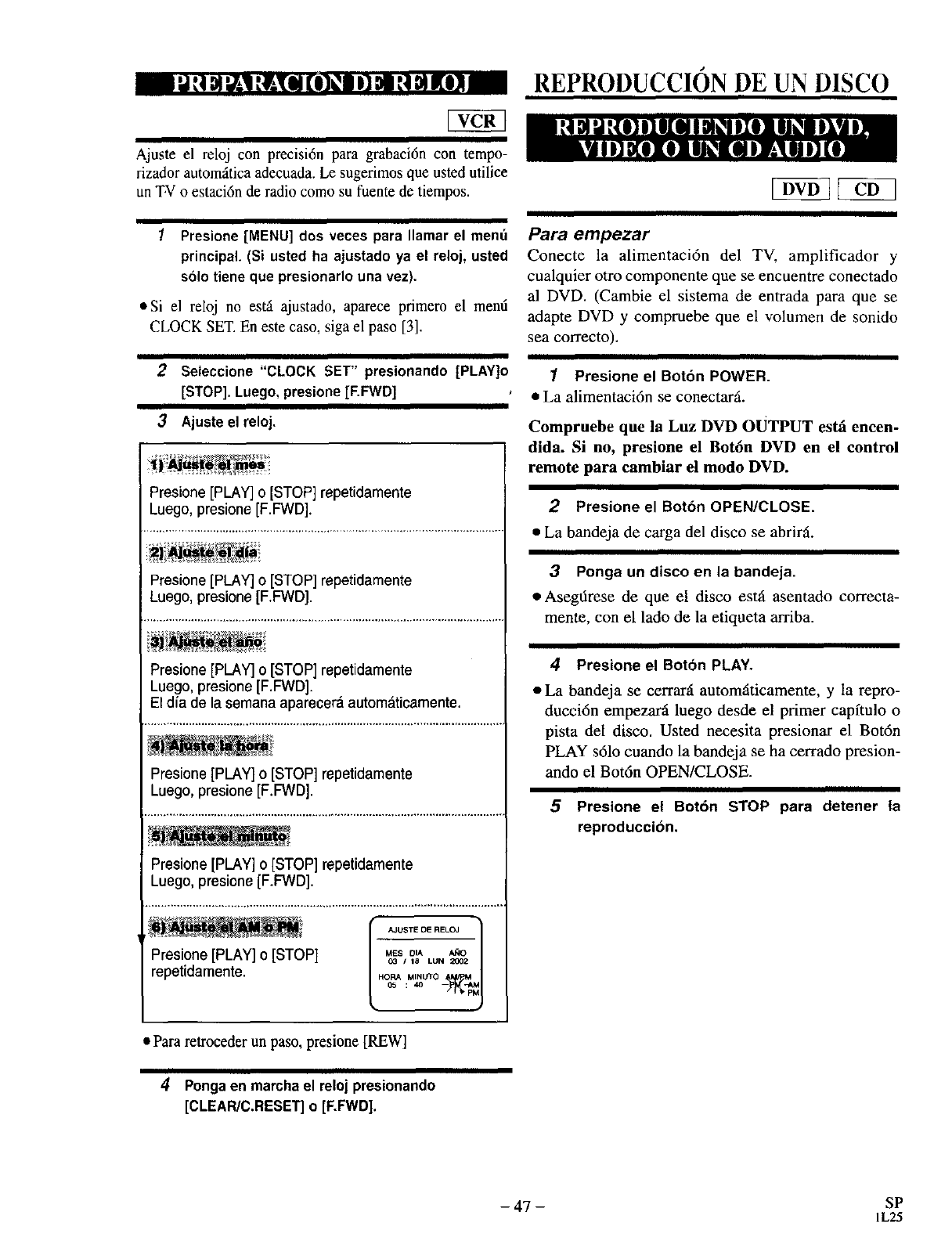
Ajuste el reloj con precisi6n para grabaci6n con tempo-
rizador autom_itica adecuada. Le sugerimos que usted utilice
un T¥ o estaci6n de radio como su fuente de tiempos.
REPRODUCCION DE UN DISCO
IPresione [MENU] dos veces para Ilamar el mend
principal. (Si usted ha ajustado ya el reloj, usted
solo tiene que presionarlo una vez),
•Si el reloj no est_i ajustado, aparece primero el mend
CLOCK SET. En este caso, siga el paso [3].
2Seleccione "CLOCK SET" presionando [PLAY]o
[STOP]. Luego, presione [F.FWD]
3Ajuste el reloj,
Presione [PLAY]o [STOP] repetidamente
Luego, presione [F.FWD].
Presione [PLAY] o[STOP] repetidamente
Luego, presione [F.FWD].
Presione [PLAY] o[STOP] repetidamente
Luego, presione [F.FWD].
El dia de la semana aparecera autom_iticamente.
Presione [PLAY] o [STOP] repetidamente
Luego, presione [F.FWD].
Presione [PLAY] o[STOP] repetidamente
Luego, presione [F.FWD].
_ ,.U_TEOE.EL_____1
Presione [PLAY] o [STOP] MESO,A _ao
0_ I18 LUN 2002
repetidamente. HO_.,,_ro
115 . 411
•Para retroceder un paso, presione [REW]
Para empezar
Conecte la alimentaci6n del TV, amplificador y
cualquier otro componente que se encuentre conectado
al DVD. (Cambie el sistema de entrada para que se
adapte DVD y compruebe que el volumen de sonido
sea correcto).
1Presione el Boton POWER.
•La alimentacidn se conectar_.
Compruebe que la Luz DVD oUTPUT esld encen-
dida. Si no, presione el Bot6n DVD en el control
remote para cambiar el modo DVD.
2Presione el Botdn OPEN/CLOSE.
•La bandeja de carga del disco se abrir_i.
3Ponga un disco en la bandeja.
•Asegdrese de que el disco estfi asentado correcta-
mente, con el lado de la etiqueta arriba.
4presione el Boton PLAY.
•La bandeja se cerrarll automfiticamente, y la repro-
ducci6n empezar_i luego desde el primer capftulo o
pista del disco. Usted necesita presionar el Bot6n
PLAY s61o cuando la bandeja se ha cerrado presion-
ando el Bot6n OPEN/CLOSE.
5Presione el Bot6n STOP para detener la
reproduccibn.
4Pongaen marchael reloj presionando
[CLEAR/C.RESET] o [RFWD].
-47- SP
IL25
it fixed, ,vou,_rhome orours!
Your Home
For repair- in your home-of all major brand appliances•
_ lawn and garden equipment, or heating and cooling systems,
!no matter who made it, no matter who sold it!
For the replacement parts, accessories and
owner's manuals that you need to do-it-yourself.
For Sears professional installation of home appliances
and items like garage door openers and water heaters.
1-800-4-MY-HOME ®(1-800-469-4663)
Y; Call anytime, day or night (U.S.A. and Canada)
www.sears.com www.seafs.ca
Our Home
@
For repair of carry-in items like vacuums, lawn equipment,
and electronics, call or go on-line for the location of your nearest
Sears Parts & Repair Center.
1-800-488-1222
Call anytime, day or night (U.S.A. only)
www.sears.com
To purchase a protection agreement on a product serviced by Sears:
!il
1-800-827-6655 (U.S.A.) 1-800-361-6665 (Canada) i
Para pedir servicio de reparaci6n
a domicilio, y para ordenar piezas:
1-888-SU-HOGAR s_
(1-888-784-6427)
Au Canada pour service en fran_ais:
1-800-LE-FOYER _
(1-800-533-6937)
www.sears.ca
Registered Trademark I_Trademark /s_ S_vic e Mark Of Sears, Roeb_k and Co
OMama Regist rada /TM Ma_a de F_brica /'_ Mar¢_ de Se_icio de Sea_, Roebuck and C_.
_c Marque de commerce /M0 Marque d_pos_e de Sears, Ro_b_k and Co © Sears, RoebUCkand Co.
LIMITED 90 DAY WARRANTY
If this (product) experiences any failure due to a defect in material or workmanship within 90 clays
from the date of purchase, return it to your nearest Sears Service Center, and Sears will repair it
free of charge.
After 90 days and until one (1) year from the date of purchase, Sears will replace defective parts
free of charge. You pay for labor•
This warranty applies only if this (product) is used for private household purposes.
This warranty gives you specific legal rights, and you may also have other rights which vary from
state to state.
Sears, Roebuck and Co., D/817WA, Hoftman Estates, IL 60179
Sears Roebuck and Co., Dept. 817WA Hoffman Estates, IL 60179
For the location of a Sears Service Center in your area : 1-800-488-1222
Printed in China 0VMN03219
H9228UD "__'k_'_"
