Sylvania Ht6051F Users Manual E61TAUD_ENSP.qx33
HT6051FB HT6051FB
HT6051F HT6051F
HT6051F pdf_14817
HT6051FB to the manual bed4e1bb-55c1-4663-bddb-9b607ac8a91b
2015-02-04
: Sylvania Sylvania-Ht6051F-Users-Manual-389520 sylvania-ht6051f-users-manual-389520 sylvania pdf
Open the PDF directly: View PDF  .
.
Page Count: 28
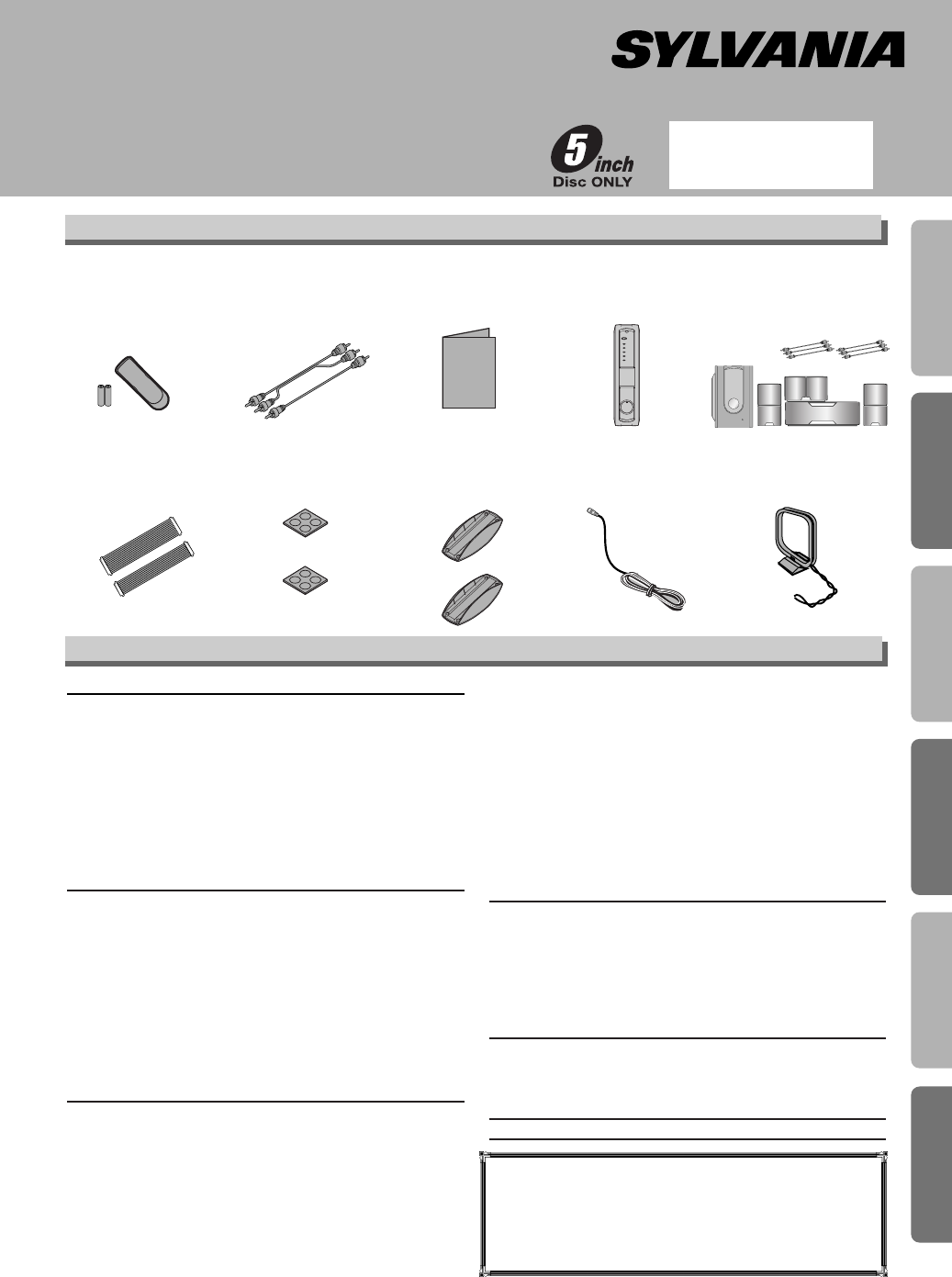
•
BUS
cables
8 Pin: (WX1X6000-007) and
10 Pin: (WX1X6000-006)
• Foot x 2
(1VM421328)
•
Stand x 2
(Silver:
1VM422542
)
(Black:
1VM422733
)
• FM wire
antenna
(
WX1E9000-081)
• AM loop
antenna
(
UANTAMALH002)
Precautions
Functions
SetupAV ReceiverInformation
Owner’s Manual
Please read before using this system.
DVD/CD Player with AV Receiver
HT6051F / HT6051FB
INSTRUCCIONES EN
ESPAÑOL INCLUIDAS.
If you need additional operating assistance after
reading this owner’s manual, please call
TOLL FREE : 1-800-968-3429
or visit our web site at
http://www.SylvaniaConsumerElectronics.com
Table of Contents
•
Remote control with
two AA batteries
(Silver: NB140UD)
(Black: NB144UD)
• Audio/Video cables
(WPZ0102TM015/
WPZ0102LTE01/
WPZ0102CAB01)
• Owner’s Manual
(1VMN21407)
• AV Receiver
(Silver: X6000UD)
(Black: X6003UD)
• Speaker Unit
(Silver: USPUSPKHYE07)
(Black: USPUSPKHYE09)
Supplied Accessory
Owner's Manual
POWER
ROCK
POPS
CLASSIC
JAZZ
BASS
BOOST
VOLUME
Precautions
Laser Safety. . . . . . . . . . . . . . . . . . . . . . . . . . . . . . . . . . . . . . . . 2
■ IMPORTANT SAFEGUARDS . . . . . . . . . . . . . . . . . . . . . . . . . . . 3
Avoid the Hazards of Electrical Shock and Fire. . . . . . . . . . . . . . 4
Moisture Condensation Warning . . . . . . . . . . . . . . . . . . . . . . . . . 4
Installation Location . . . . . . . . . . . . . . . . . . . . . . . . . . . . . . . . . . 4
About Copyright . . . . . . . . . . . . . . . . . . . . . . . . . . . . . . . . . . . . . 4
Notice for Progressive Scan Outputs . . . . . . . . . . . . . . . . . . . . . 4
Symbols Used in This Manual . . . . . . . . . . . . . . . . . . . . . . . . . . 4
Maintenance . . . . . . . . . . . . . . . . . . . . . . . . . . . . . . . . . . . . . . . 4
■ About the Discs . . . . . . . . . . . . . . . . . . . . . . . . . . . . . . . . . . . . 5
Playable Discs . . . . . . . . . . . . . . . . . . . . . . . . . . . . . . . . . . . . . . 5
Unplayable Discs . . . . . . . . . . . . . . . . . . . . . . . . . . . . . . . . . . . . 5
Setup
■ Functional Overview. . . . . . . . . . . . . . . . . . . . . . . . . . . . . . . . . 6
Front / Rear Panel Controls . . . . . . . . . . . . . . . . . . . . . . . . . . . . 6
Setting the DVD/CD Player (the AV Receiver). . . . . . . . . . . . . . . 7
Speaker Setup . . . . . . . . . . . . . . . . . . . . . . . . . . . . . . . . . . . . . . 7
■ About the Remote Control . . . . . . . . . . . . . . . . . . . . . . . . . . . . 7
Installing the Batteries for the Remote Control . . . . . . . . . . . . . . 7
Remote Control Operation for the DVD/CD Player . . . . . . . . . . . 8
Remote Control Operation for the AV Receiver . . . . . . . . . . . . . . 8
■ Connections . . . . . . . . . . . . . . . . . . . . . . . . . . . . . . . . . . . . . . . 9
Connection to the AV Receiver and the Speaker Unit . . . . . . . . . 9
Connection to a TV. . . . . . . . . . . . . . . . . . . . . . . . . . . . . . . . . . 10
RF Modulator Connection
(If Your TV Does Not Have A/V Input Jacks.) . . . . . . . . . . . . . . 11
Functions
■ Playback . . . . . . . . . . . . . . . . . . . . . . . . . . . . . . . . . . . . . . . . . 12
■ MP3/WMA Playback . . . . . . . . . . . . . . . . . . . . . . . . . . . . . . . . 13
■ Search Function . . . . . . . . . . . . . . . . . . . . . . . . . . . . . . . . . . . 13
Using Track Search . . . . . . . . . . . . . . . . . . . . . . . . . . . . . . . . . 13
Using Title / Chapter Search. . . . . . . . . . . . . . . . . . . . . . . . . . . 13
Using Time Search. . . . . . . . . . . . . . . . . . . . . . . . . . . . . . . . . . 13
■ On-Screen Display . . . . . . . . . . . . . . . . . . . . . . . . . . . . . . . . . 14
■ Marker Setup. . . . . . . . . . . . . . . . . . . . . . . . . . . . . . . . . . . . . . 14
■ Repeat / Random / Programmed Playback . . . . . . . . . . . . . . 15
Repeat Playback . . . . . . . . . . . . . . . . . . . . . . . . . . . . . . . . . . . 15
Random Playback . . . . . . . . . . . . . . . . . . . . . . . . . . . . . . . . . . 15
Programmed Playback . . . . . . . . . . . . . . . . . . . . . . . . . . . . . . . 15
■ Special Settings . . . . . . . . . . . . . . . . . . . . . . . . . . . . . . . . . . . 16
Subtitle Language . . . . . . . . . . . . . . . . . . . . . . . . . . . . . . . . . . 16
Audio Language. . . . . . . . . . . . . . . . . . . . . . . . . . . . . . . . . . . . 16
Camera Angles . . . . . . . . . . . . . . . . . . . . . . . . . . . . . . . . . . . . 16
Black Level Setting. . . . . . . . . . . . . . . . . . . . . . . . . . . . . . . . . . 16
Stereo Sound Mode . . . . . . . . . . . . . . . . . . . . . . . . . . . . . . . . . 16
Dolby Pro Logic II. . . . . . . . . . . . . . . . . . . . . . . . . . . . . . . . . . . 16
■ DVD Setup. . . . . . . . . . . . . . . . . . . . . . . . . . . . . . . . . . . . . . . . 17
SETUP Menu. . . . . . . . . . . . . . . . . . . . . . . . . . . . . . . . . . . . . . 17
LANGUAGE Setting . . . . . . . . . . . . . . . . . . . . . . . . . . . . . . . . . 18
DISPLAY Setting . . . . . . . . . . . . . . . . . . . . . . . . . . . . . . . . . . . 18
AUDIO Setting . . . . . . . . . . . . . . . . . . . . . . . . . . . . . . . . . . . . . 19
PARENTAL Setting . . . . . . . . . . . . . . . . . . . . . . . . . . . . . . . . . . 20
OTHERS Setting . . . . . . . . . . . . . . . . . . . . . . . . . . . . . . . . . . . 20
AV Receiver
■ AM/FM Radio. . . . . . . . . . . . . . . . . . . . . . . . . . . . . . . . . . . . . . 21
To Connect AM/FM Antenna. . . . . . . . . . . . . . . . . . . . . . . . . . . 21
Preset Radio Stations. . . . . . . . . . . . . . . . . . . . . . . . . . . . . . . . 21
Selecting Radio Stations . . . . . . . . . . . . . . . . . . . . . . . . . . . . . 21
■ Sound Setting . . . . . . . . . . . . . . . . . . . . . . . . . . . . . . . . . . . . . 22
Digital Sound . . . . . . . . . . . . . . . . . . . . . . . . . . . . . . . . . . . . . . 22
Bass Boost. . . . . . . . . . . . . . . . . . . . . . . . . . . . . . . . . . . . . . . . 22
Surround Sound. . . . . . . . . . . . . . . . . . . . . . . . . . . . . . . . . . . . 22
Information
■ Specifications . . . . . . . . . . . . . . . . . . . . . . . . . . . . . . . . . . . . . 22
■ Troubleshooting Guide . . . . . . . . . . . . . . . . . . . . . . . . . . . . . . 23
■ Language Code List . . . . . . . . . . . . . . . . . . . . . . . . . . . . . . . . 24
■ Limited Warranty. . . . . . . . . . . . . . . . . . . . . . . . . . . . . . . . . . . 24
Español . . . . . . . . . . . . . . . . . . . . . . . . . . . . . . . . . . . . . . . . . .25
Quick Use Guide . . . . . . . . . . . . . . . . . . . . . . . . . . . . . . . . . .27
Español
E61TAUD_ENSP.qx33 05.8.9 10:50 AM Page 1
–2–EN
Precautions
This unit employs a laser. Only a qualified service person should remove the cover or attempt to service this device, due to possible
eye injury.
CAUTION: USE OF CONTROLS OR ADJUSTMENTS OR PERFORMANCE OF PROCEDURES OTHER THAN THOSE SPECI-
FIED HEREIN MAY RESULT IN HAZARDOUS RADIATION EXPOSURE.
CAUTION: VISIBLE AND INVISIBLE LASER RADIATION WHEN OPEN AND INTERLOCK DEFEATED. DO NOT STARE INTO
BEAM.
LOCATION: INSIDE, NEAR THE DECK MECHANISM.
WARNING:TO REDUCE THE RISK OF FIRE OR ELECTRIC SHOCK, DO NOT EXPOSE THIS
APPLIANCE TO RAIN OR MOISTURE.
RADIO-TV INTERFERENCE
This equipment has been tested and found to comply with the limits for a Class B digital device, pursuant to Part
15 of the FCC Rules. These limits are designed to provide reasonable protection against harmful interference in
a residential installation. This equipment generates, uses, and can radiate radio frequency energy and, if not
installed and used in accordance with the instructions, may cause harmful interference to radio communications.
However, there is no guarantee that interference will not occur in a particular installation. If this equipment does
cause harmful interference to radio or television reception, which can be determined by turning the equipment off
and on, the user is encouraged to try to correct the interference by one or more of the following measures:
1) Reorient or relocate the receiving antenna.
2) Increase the separation between the equipment and receiver.
3) Connect the equipment into an outlet on a circuit different from that to which the receiver is connected.
4) Consult the dealer or an experienced radio/TV technician for help.
This Class B digital apparatus complies with Canadian ICES-003.
Cet appareil numérique de la classe B est conforme à la norme NMB-003 du Canada.
FCC WARNING- This equipment may generate or use radio frequency energy. Changes or modifications to
this equipment may cause harmful interference unless the modifications are expressly approved in the man-
ual. The user could lose the authority to operate this equipment if an unauthorized change or modification
is made.
CAUTION: TO PREVENT ELECTRIC SHOCK, MATCH WIDE BLADE OF PLUG TO WIDE SLOT, FULLY INSERT.
ATTENTION: POUR ÉVITER LES CHOC ÉLECTRIQUES, INTRODUIRE LA LAME LA PLUS LARGE DE LA
FICHE DANS LA BORNE CORRESPONDANTE DE LA PRISE ET POUSSER JUSQU’AU FOND.
A NOTE ABOUT RECYCLING
This product’s packaging materials are recyclable and can be reused. Please dispose of any materials in accordance with your
local recycling regulations.
Batteries should never be thrown away or incinerated but disposed of in accordance with your local regulations concerning
chemical wastes.
Precautions
Laser Safety
For Customer Use:
Read carefully the information located at the bottom of this unit and enter below the Serial No. Retain this information for
future reference.
Model No. _____________________
Serial No. _____________________
Make your contribution to the environment!!!
• Used up batteries do not belong in the dust bin.
• You can dispose of them at a collection point for used up batteries or special waste.
Contact your council for details.
The lightning flash with arrowhead symbol, within an
equilateral triangle, is intended to alert the user to the
presence of uninsulated “dangerous voltage” within the
product’s enclosure that may be of sufficient magnitude
to constitute a risk of electric shock to persons.
The exclamation point within an equilateral triangle is
intended to alert the user to the presence of important
operating and maintenance (servicing) instructions in
the literature accompanying the appliance.
CAUTION:
TO REDUCE THE RISK OF ELECTRIC SHOCK, DO NOT REMOVE
COVER (OR BACK). NO USER SERVICEABLE PARTS INSIDE. REFER
SERVICING TO QUALIFIED SERVICE PERSONNEL.
CAUTION
RISK OF ELECTRIC SHOCK
DO NOT OPEN
E61TAUD_ENSP.qx33 05.8.9 10:50 AM Page 2
–3–EN
Precautions
IMPORTANT SAFEGUARDS
1) Read Instructions - All the safety and operating
instructions should be read before the product is
operated.
2) Retain Instructions - The safety and operating
instructions should be retained for future reference.
3) Heed Warnings - All warnings on the product and in
the operating instructions should be adhered to.
4) Follow Instructions - All operating and use instruc-
tions should be followed.
5) Cleaning - Unplug this product from the wall outlet
before cleaning. Do not use liquid cleaners or
aerosol cleaners. Use a damp cloth for cleaning.
6) Attachments - Do not use attachments not recom-
mended by the product manufacturer as they may
cause hazards.
7) Water and Moisture - Do not use this product near
water - for example, near a bath tub, wash bowl,
kitchen sink, or laundry tub; in a wet basement; or
near a swimming pool; and the like.
8) Accessories - Do not place this product on an
unstable cart, stand, tripod, bracket, or table. The
product may fall, causing serious injury to a child or
adult, and serious damage to the product. Use only
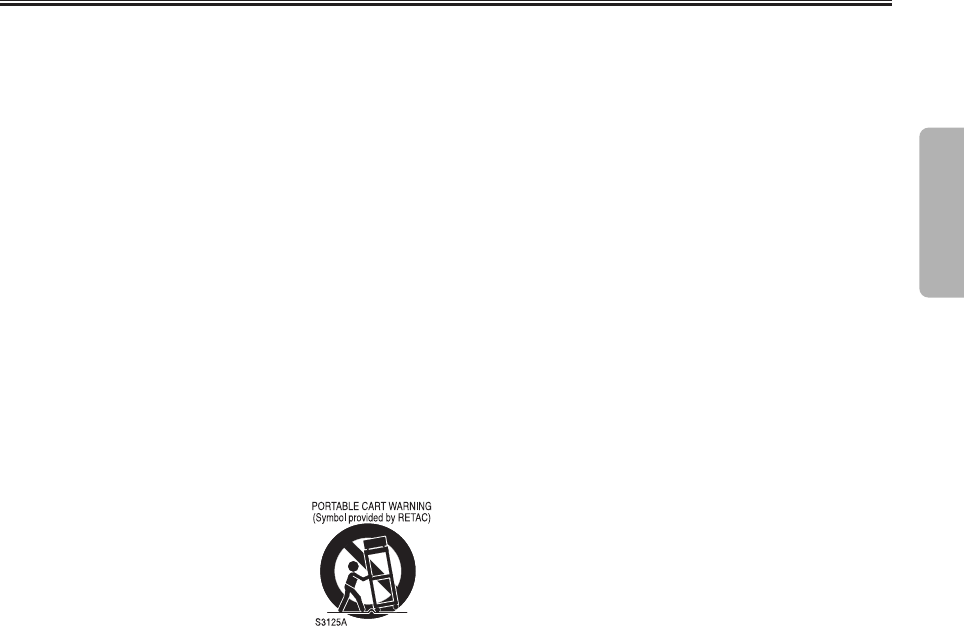
with a cart, stand, tripod, bracket,
or table recommended by the man-
ufacturer, or sold with the product.
Any mounting of the product should
follow the manufacturer’s instruc-
tions, and should use a mounting
accessory recommended by the
manufacturer.
9) A product and cart combination should be moved
with care. Quick stops, excessive force, and uneven
surfaces may cause the product and cart combina-
tion to overturn.
10)Ventilation - Slots and openings in the cabinet are
provided for ventilation and to ensure reliable oper-
ation of the product and to protect it from overheat-
ing, and these openings must not be blocked or
covered. The openings should never be blocked by
placing the product on a bed, sofa, rug, or other
similar surface.This product should not be placed in
a built-in installation such as a bookcase or rack
unless proper ventilation is provided or the manu-
facturer's instructions have been adhered to.
11)Power Sources - This product should be operated
only from the type of power source indicated on the
marking label. If you are not sure of the type of
power supply to your home, consult your product
dealer or local power company. For products intend-
ed to operate from battery power, or other sources,
refer to the operating instructions.
12)Grounding or Polarization - This product may be
equipped with a polarized alternating-current line
plug (a plug having one blade wider than the other).
This plug will fit into the power outlet only one way.
This is a safety feature. If you are unable to insert
the plug fully into the outlet, try reversing the plug. If
the plug should still fail to fit, contact your electrician
to replace your obsolete outlet. Do not defeat the
safety purpose of the polarized plug.
13)
Power-Cord Protection - Power-supply cords should
be routed so that they are not likely to be walked on
or pinched by items placed upon or against them,
paying particular attention to cords at plugs, conve-
nience receptacles, and the point where they exit
from the product.
14)Lightning - For added protection for this product
during a lightning storm, or when it is left unattend-
ed and unused for long periods of time, unplug it
from the wall outlet. This will prevent damage to the
product due to lightning and power-line surges.
15)Power lines - An outside antenna system should not
be located in the vicinity of overhead power lines or
other electric light or power circuits, or where it can
fall into such power lines or circuits. When installing
an outside antenna system, extreme care should be
taken to keep from touching such power lines or cir-
cuits as contact with them might be fatal.
16)Overloading - Do not overload wall outlets, exten-
sion cords, or integral convenience receptacles as
this can result in a risk of fire or electric shock.
17)Object and Liquid Entry - Never push objects of any
kind into this product through openings as they may
touch dangerous voltage points or short-out parts
that could result in a fire or electric shock. Never
spill liquid of any kind on the product.
18)Servicing - Do not attempt to service this product
yourself as opening or removing covers may
expose you to dangerous voltage or other hazards.
Refer all servicing to qualified service personnel.
19)Damage Requiring Service - Unplug this product
from the wall outlet and refer servicing to qualified
service personnel under the following conditions:
a) When the power-supply cord or plug is damaged,
b) If liquid has been spilled, or objects have fallen
into the product,
c) If the product has been exposed to rain or water,
d) If the product does not operate normally by fol-
lowing the operating instructions. Adjust only
those controls that are covered by the operating
instructions as an improper adjustment of other
controls may result in damage and will often
require extensive work by a qualified technician
to restore the product to its normal operation,
e)
If the product has been dropped or damaged in any
way.
f) When the product exhibits a distinct change in
performance - this indicates a need for service.
20)Replacement Parts - When replacement parts are
required, be sure the service technician has used
replacement parts specified by the manufacturer or
have the same characteristics as the original part.
Unauthorized substitutions may result in fire, elec-
tric shock, or other hazards.
21)Safety Check - Upon completion of any service or
repairs to this product, ask the service technician to
perform safety checks to determine that the product
is in proper operating condition.
22)Heat - The product should be situated away from
heat sources such as radiators, heat registers,
stoves, or other products (including amplifiers) that
produce heat.
E61TAUD_ENSP.qx33 05.8.9 10:50 AM Page 3
–4–EN
Precautions
Unauthorized copying, broadcasting, public performance
and lending of discs are prohibited.
This product incorporates copyright protection technology
that is protected by U.S. patents and other intellectual
property rights. Use of this copyright protection
technology must be authorized by Macrovision, and is
intended for home and other limited viewing uses only
unless otherwise authorized by Macrovision. Reverse
engineering or disassembly is prohibited.
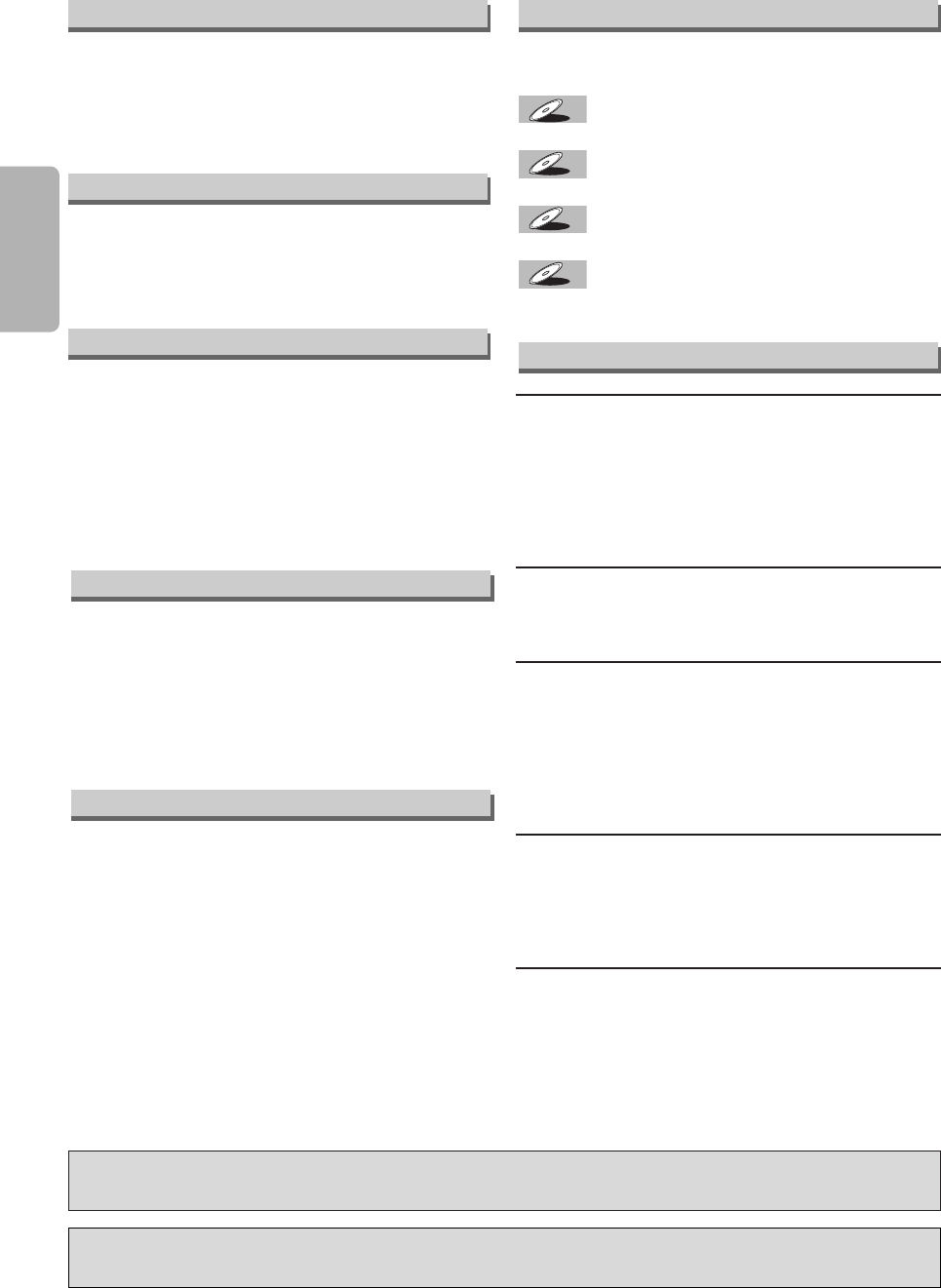
The following symbols appear in some head-
ings in this manual.
:Description refers to playback of DVD-Video discs.
:Description refers to playback of Audio CDs.
:Description refers to playback of MP3 files.
:Description refers to playback of discs formatted
with WMA.
WMAWMA
WMA
MP3MP3
MP3
CDCD
CD
DVD-V
DVD-V
For safety and optimum performance of this unit:
• Do not place anything directly on top of the unit. Do
not place the unit directly on top of the TV.
• Shield it from direct sunlight and keep it away from
sources of intense heat. Avoid dusty or humid
places. Avoid places with insufficient ventilation for
proper heat dissipation. Avoid locations subject to
strong vibration or strong magnetic fields.
• Be sure to remove the disc and unplug the AC
power cord from the outlet before carrying the unit.
Installation Location
About Copyright
Symbols Used in This Manual
“WMA” (Windows Media Audio) is a new audio codec developed by Microsoft®in the United States of
America.
SERVICING
¡Please refer to relevant topics on the “Troubleshooting
Guide” on page 23 before returning the product.
¡If this unit becomes inoperative, do not try to correct
the problem by yourself. There are no user-service-
able parts inside. Turn off, unplug the power plug,
and please call our help line mentioned on the front
page to locate an Authorized Service Center.
CLEANING THE CABINET
¡Use a soft cloth slightly moistened with a mild deter-
gent solution. Do not use a solution containing alco-
hol, spirits, ammonia or abrasive.
CLEANING DISCS
¡When a disc becomes dirty, clean it with a cleaning
cloth. Wipe the disc from the center out. Do not wipe
in a circular motion.
¡Do not use solvents such as benzine, thinner, com-
mercially available cleaners, detergent, abrasive
cleaning agents or antistatic spray intended for ana-
log records.
CLEANING THE DISC LENS
¡
If this unit still does not perform properly although you refer
to the relevant sections and to “Troubleshooting Guide” in
this Owner’s Manual, the laser optical pickup unit may be
dirty. Consult your dealer or an Authorized Service Center
for inspection and cleaning of the laser optical pickup unit.
DISC HANDLING
¡When you handle a disc hold it by its edge and try not
to touch the surface of the disc.
¡Always store a disc in its protective case when it is
not used.
¡
If the disc’s peripheral edge is rough, rub it with pen or
pencil stem in order to fine the rough completely. If not,
the disc may not be inserted correctly, or the plastic frag-
ments may stick on the disc and cause skips of playback.
Maintenance
Consumers should note that not all high definition
television sets are fully compatible with this product and
may cause artifacts to be displayed in the picture. In case
of picture problems with 525 progressive scan output, it is
recommended that the user switch the connection to the
‘standard definition’ output. If there are questions
regarding your TV set compatibility with this 525p DVD
player, please contact our customer service center.
Notice for Progressive Scan Outputs
Avoid the Hazards of Electrical Shock and Fire
• Do not handle the power cord with wet hands.
• Do not pull on the power cord when disconnecting it
from AC wall outlet. Grasp it by the plug.
• If, by accident, water is spilled on this unit, unplug
the power cord immediately and take the unit to our
Authorized Service Center for servicing.
Moisture Condensation Warning
Moisture condensation may occur inside the unit
when it is moved from a cold place to a warm place,
or after heating a cold room or under conditions of
high humidity. Do not use this unit at least for 2 hours
until its inside gets dry.
Manufactured under license from Dolby Laboratories.
“Dolby”, “Pro Logic II” and the double-D symbol are trademarks of Dolby Laboratories.
E61TAUD_ENSP.qx33 05.8.9 10:50 AM Page 4
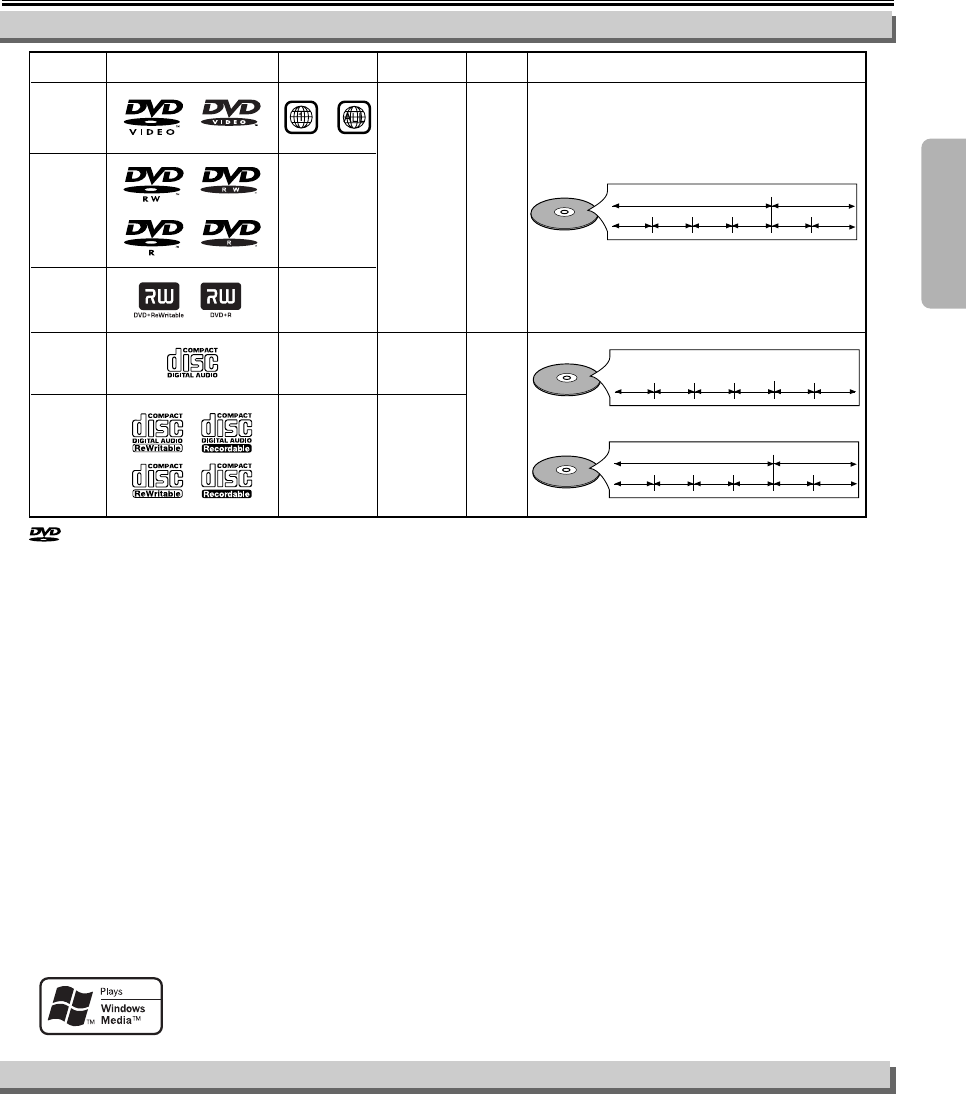
–5–EN
Precautions
If you cannot play back a disc which bears one of the marks above, check the following notes.
*1:
This player conforms to the NTSC color system. Discs recorded in other color systems such as PAL cannot be played back.
*2:
Certain DVD-Video discs do not operate as described in this manual due to the intentions of the disc’s producers.
*3: Discs recorded in the VR (Video Recording) format cannot be played back.
*4: Scratched or stained discs may not be played back.
*5: Some discs cannot be played back because of incompatible recording conditions, characteristics of the recorder or spe-
cial properties of discs.
*6: You can play back discs which bear the marks above. If you use nonstandardized discs, this player may not play them
back. Even if they are played back, the sound or video quality will be compromised.
*7: You may play back the unfinalized DVD-R/RW disc recorded in the video format on our brand’s DVD recorder. However,
depending on the recording status of a disc, the disc may not be played back at all or normally (the picture or sound may
not be smooth, etc.). In this case, you need to finalize the disc with the DVD recorder. Refer to the manual accompanying
the DVD recorder.
*8: Only the discs recorded in the video format and finalized can be played back.
Unfinalized discs cannot be played back. Depending on the recording status of a disc, the disc may not be played back at
all or normally (the picture or sound may not be smooth, etc.).
*9:
If there is too much recording space left on a disc (the used portion is less than 2 3/16 inches (55 mm) across), it may not
play back properly.
*10: Do not glue paper or put stickers on to the disc. These may damage the disc and the unit may not read it correctly.
*11: This player cannot playback the disc contents protected by Windows Media Digital Rights Management (DRM).
Windows Media and the Windows logo are trademarks or registered trademarks of Microsoft
Corporation in the United States and/or other countries.
This unit is not compatible with Multiple Bit Rate (MBR: a file that contains the same content encod-
ed at several different bit rates).
DVD-Video
* 1, 2, 4, 6, 10
* 1, 3, 4, 5,
6, 8, 9, 10
* 1, 3, 4, 5,
6, 7, 9, 10
* 4, 6, 10
* 4, 5, 6,
9, 10
or
DVD-RW
DVD-R
DVD+RW
DVD+R
Audio CD
CD-RW
CD-R
Digital video
(MPEG2)
-
-
-
Region code
Mark (logo)
Playable
discs Recorded
signals Disc size Disc types
5 inches
(12 cm)
Example Title 1 Title 2
Chapter 1 Chapter 2 Chapter 1 Chapter 2
Chapter 3 Chapter 4
Digital audio
or
MP3/
WMA *11
5 inches
(12 cm) Example Group 1 Group 2
Tra ck 1 Tra ck 2 Track 5 Tra ck 6
Tra ck 3 Tra ck 4
Example
Tra ck 1 Tra ck 2 Trac k 5 Track 6
Tra ck 3 Trac k 4
Audio CD
MP3/WMA
Digital audio
-
About the Discs
Playable Discs
¡NEVER play back the following discs. Otherwise, malfunction may result!
DVD-RAM/CD-I/Photo CD/Video CD / DVD with region codes other than 1 or ALL
DTS-CD / DVD-ROM for personal computers / CD-ROM for personal computers
• Never insert a disc which is broken or whose form is abnormal (other than 5 inch (12 cm) round disc).
NOTE: Do not use any CD adaptor which covers 3 inch (8 cm) round disc to standard size.
¡On the following disc, the sound MAY NOT be heard.
Super Audio CD
NOTE: Only the sound recorded on the normal CD layer can be delivered.
The sound recorded on the high density Super Audio CD layer cannot be delivered.
¡Any other discs without compatibility indications
Unplayable Discs
is a trademark of DVD Format/Logo Licensing Corporation.
E61TAUD_ENSP.qx33 05.8.9 10:50 AM Page 5
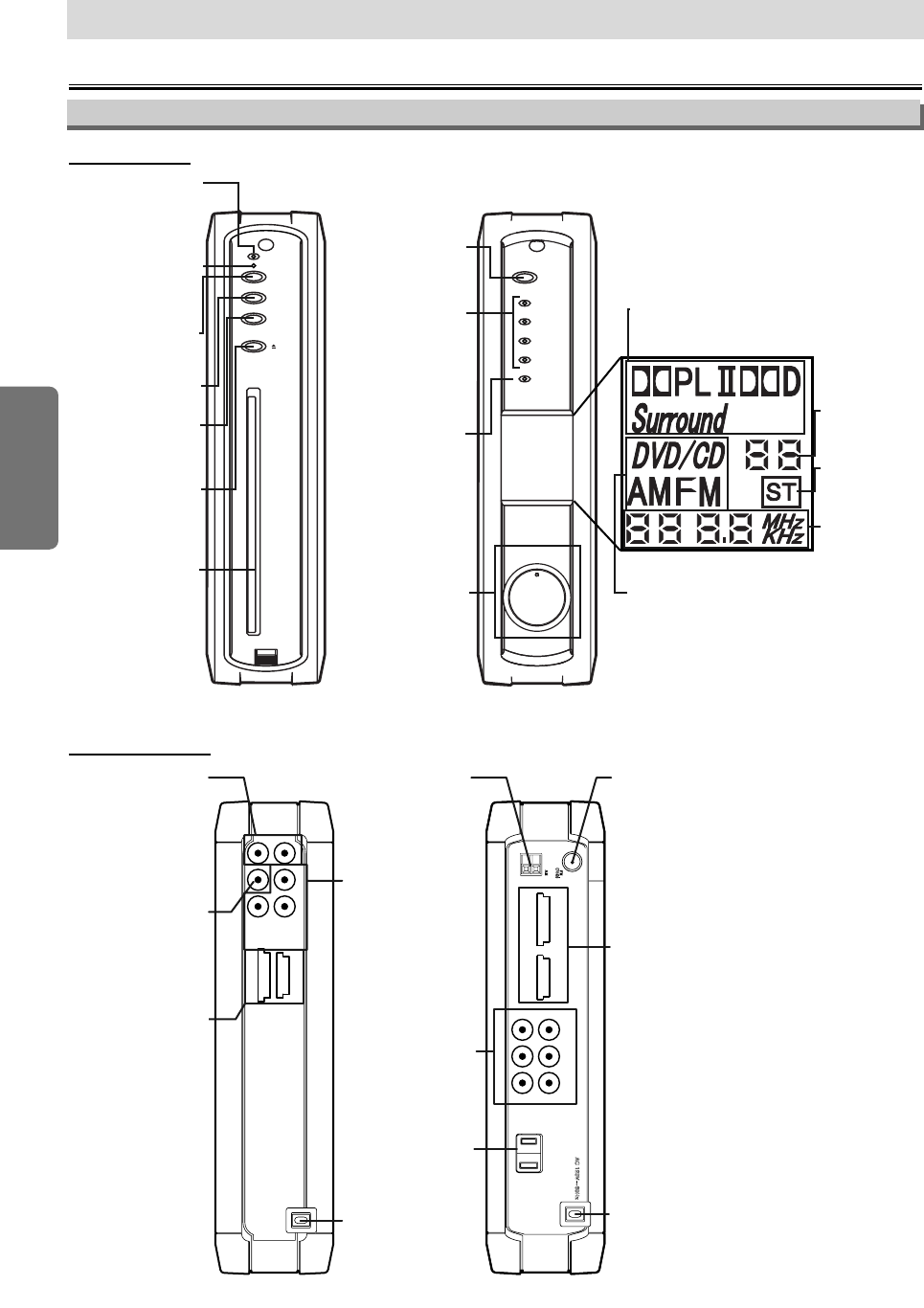
–6–EN
Setup
Setup
Functional Overview
PROGRESSIVE
POWER
C STOP
EJECT
B
PLAY
PROGRESSIVE
POWER
ROCK
POPS
CLASSIC
JAZZ
BASS
BOOST
VOLUME
Progressive scan
indicator
Lights up when the
"PROGRESSIVE"
mode is selected.
Power indicator
Lights up when
power is on.
STOP button
To stop playback.
POWER button
To turn the player
on or off.
PLAY button
To begin disc
playback.
EJECT button
To remove a disc
from the player.
Disc tray
Sound mode
indicator
Selected sound
mode will light up.
BASS BOOST
indicator
Lights up when
BASS BOOST
is selected.
POWER button
To turn the receiver
on or off.
VOLUME knob
To adjust the volume.
Indicates a
stereo
broadcast.
(FM)
Displays the
preset number
of the radio
station.
AUDIO status display
Displays the audio information
of an inserted disc.
Displays the mode of the receiver
(DVD/CD, AM or FM).
Displays the
radio frequency
or the volume
level.
Front / Rear Panel Controls
DVD/CD Player AV Receiver
AUDIO
OUT
R
L
Y
CR/PR
CB/PB
VIDEO
OUT
COMPONENT
VIDEO OUT BUS 2
BUS 1
BUS 1 BUS 2
100W 0.8A MAX
AC OUTLET
SL
SR
FL
FR
CENCEN
SUB
AUDIO OUT jacks
Use to connect an
audio equipment with
standard audio
cables (supplied).
AM jack
Connect the AM
antenna (supplied).
FM jack
Connect the FM
antenna
(supplied).
AC outlet
Connect the AC
power cord of
the player.
Speaker jacks
Connect the
supplied
Subwoofer.
VIDEO OUT jack
Use to connect a
video equipment with
a standard video
cable (supplied).
BUS 1, 2 connecters
Connect the AV
Receiver with the
8 pin and the
10 pin bus cables
(supplied).
COMPONENT
VIDEO OUT jacks
Use to connect a
video equipment
with a component
video cable
(not supplied).
AC power cord
BUS 1, 2 connecters
Connect the DVD/CD Player
with the 8 pin and the 10 pin
bus cables (supplied).
AC power cord
DVD/CD Player AV Receiver
Front Panels:
Rear Terminals:
E61TAUD_ENSP.qx33 05.8.9 10:50 AM Page 6
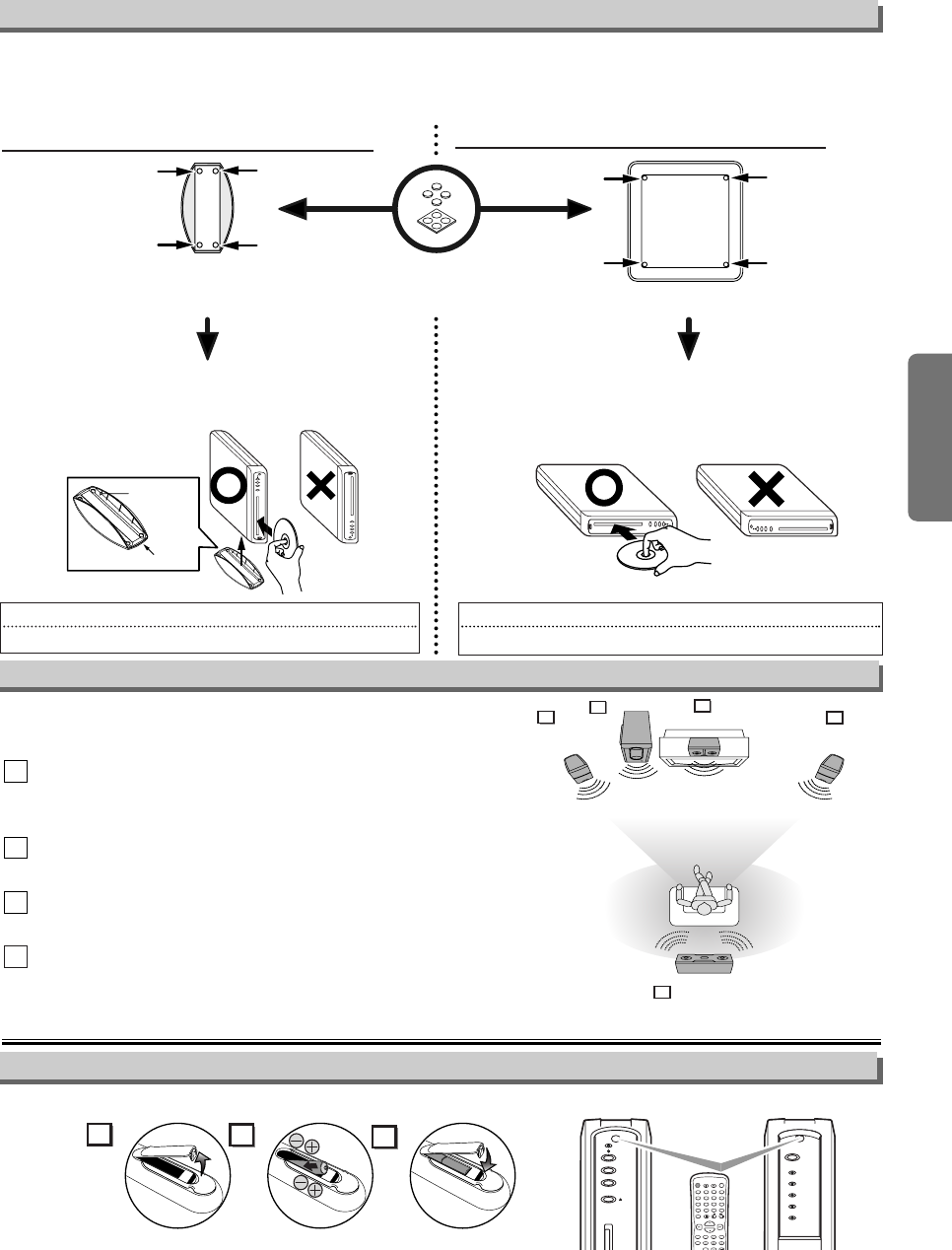
VIEWING AREA
Center Speaker
Subwoofer
Front
Speaker
(Left)
Wireless
Rear Speaker
Front
Speaker
(Right)
TV
11
2
3
4
Catch
Front
label
Stand
Bottom of the player
Foot
(supplied)
Stand
(supplied)
Setup
Setting the DVD/CD Player (the AV Receiver)
label
Hint
Hint
•Insert a disc with the label facing up.
Hint
Hint
•Insert a disc with its label facing to the left.
Place the player as the POWER button comes on
your right.
You can install the DVD/CD Player horizontally or vertically. Attach the Foot to the bottom of the player (for
Horizontal installation) or bottom of the Stand (for Vertical installation).
The AV Receiver can be used in standing position only. Setup the receiver by following
“Vertical installation” below.
Vertical installation (standing position): Horizontal installation (laying position):
Speaker Setup
Place the player (the receiver) as its dent matches the
catch of the Stand. Place the player (the receiver) as
the POWER button is at the top.
Connect all the speakers and set up the system properly
in order to enjoy the Home Cinema experience.
Place the FRONT Left and Right speakers at equal
distances from the TV and at a 45-degree angle from
the listening position.
Place the CENTER speaker above or below the TV to
localize the sound.
Place the REAR (Wireless) speakers at normal
listening ear level behind the listening position.
Place the Subwoofer on the floor, near the TV.
4
4
3
3
2
2
1
1
About the Remote Control
Installing the Batteries for the Remote Control
Keep in mind the following when using the remote control:
• Make sure that there is no obstacle between the remote control and the remote sensor on the player (the receiver).
• The maximum operable ranges from the player (the receiver) are as follows.
- Beeline:approx. 23 feet (7m) - Either side of the center:approx. 16 feet (5m) within 30°
- Above:approx. 16 feet (5m) within 15° - Below:approx. 10 feet (3m) within 30°
2
13
PROGRESSIVE
POWER
C STOP
EJECT
B
PLAY
PROGRESSIVE
POWER
ROCK
POPS
CLASSIC
JAZZ
BASS
BOOST
DISPLAY
AUDIO
SUBTITLE
ANGLE
DVD POWER
CLEAR
SEARCH
MODE
PAUSE
MODE
TOP MENU
REPEAT/BAND
MENU
ENTER
SETUP
RETURN
SKIP
AMP POWER
DVD TUNER
123
456
789
0+10
PLAY
STOP
Install two AA batteries (supplied) matching the polarity indicated inside battery compartment of the remote control.
–7–EN
E61TAUD_ENSP.qx33 05.8.9 10:50 AM Page 7
–8–EN
Setup
DISPLAY
AUDIO
SUBTITLE
ANGLE
DVD POWER
CLEAR
SEARCH
MODE
PAUSE
MODE
TOP MENU
REPEAT/BAND
MENU
ENTER
SETUP
RETURN
SKIP
AMP POWER
DVD TUNER
123
456
789
0+10
PLAY
STOP
SURROUNDBASS BOOST
MUTE SOUND
TUNING
VOL.
TUNER button
To activate the AV Receiver and
the remote control in Tuner mode.
AMP POWER button
To turn the AV Receiver on or off.
BASS BOOST button
To turn BASS BOOST on or off.
SURROUND button
To turn SURROUND Sound on or off.
SOUND button
To select Digital Sound.
MUTE button
To mute the sound.
SKIP H / G buttons
To select preset radio stations.
To select preset number in
Preset Radio Stations.
DVD button
To activate the AV Receiver and
the remote control in DVD mode.
CLEAR button
To delete preset radio station
in Preset Radio Stations.
SETUP button
Press and hold to enter channel
preset mode for radio stations.
REPEAT/BAND button
To select FM or AM in Tuner mode.
TUNING buttons
To increase or decrease the frequency.
Hold 2 seconds to seek radio stations.
VOL. buttons
To adjust the volume.
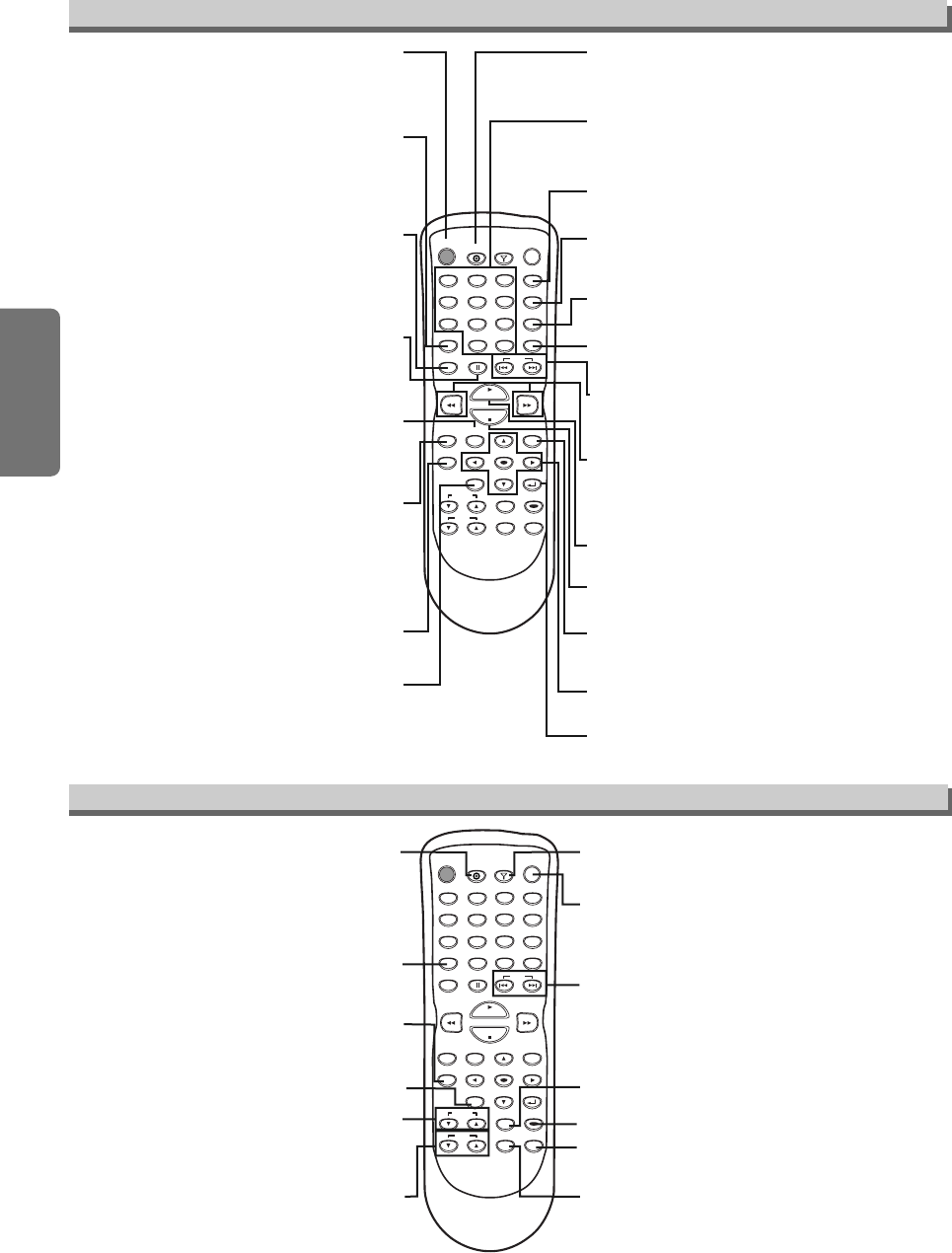
Remote Control Operation for the DVD/CD Player
DISPLAY
AUDIO
SUBTITLE
ANGLE
DVD POWER
CLEAR
SEARCH
MODE
PAUSE
MODE
TOP MENU
REPEAT/BAND
MENU
ENTER
SETUP
RETURN
SKIP
AMP POWER
DVD TUNER
123
456
789
0+10
PLAY
STOP
SURROUNDBASS BOOST
MUTE SOUND
TUNING
VOL.
SKIP H / G buttons
To skip chapters (DVD) or tracks
(CD/MP3/WMA).
ENTER / K / L / s / B buttons
To move the cursor and determine its position.
STOP C button
To stop playback.
FWD g / REV h buttons
To search forward / backward through a disc.
To begin slow forward / reverse playback
during the pause mode. (DVD)
DVD button
To activate the AV Receiver and
the remote control in DVD mode.
DISPLAY button
To display the current disc mode.
AUDIO button
To select audio languages on a disc. (DVD)
To select STEREO, L-ch or R-ch. (CD)
SUBTITLE button
To select subtitles on a disc. (DVD)
ANGLE button
To select camera angles on a disc. (DVD)
RETURN button
To return to the previous operation in menu.
MENU button
To call up the Menu on a disc. (DVD)
To call up the file list. (MP3/WMA)
SETUP button
To call up the DVD setup menu.
(DVD)
DVD POWER button
To turn the
DVD/CD Player
on or off.
To activate the AV Receiver and
the remote control in DVD mode.
CLEAR button
To clear the markers (DVD/CD)
and numbers entered incorrectly.
To remove status number in
program input. (CD/MP3/WMA)
PAUSE
k
button
To pause disc playback.
To advance playback one
frame at a time. (DVD)
PLAY B button
To begin disc playback.
TOP MENU button
To call up the Top Menu on a disc. (DVD)
To return to the top file of the highest hierarchy
in the program and file list. (MP3/WMA)
NUMBER buttons
To select chapter or title directly. (DVD)
To select track directly. (CD/MP3/WMA)
SEARCH MODE button
To search chapter, title or time. (DVD)
To set or search the markers
(DVD/CD) and time (CD).
To search track. (CD/MP3/WMA)
REPEAT/BAND button
To play a chapter or title repeatedly. (DVD)
To play a track or disc repeatedly. (CD)
To play a track, group or disc
repeatedly. (MP3/WMA)
MODE button
To set rapid play off /x1.3 /x0.8
and black level on/off. (DVD)
To set Dolby Pro Logic II on/off.
To arrange the playing order or
play randomly. (CD/MP3/WMA)
Remote Control Operation for the AV Receiver
E61TAUD_ENSP.qx33 05.8.9 10:50 AM Page 8
Hint
Hint
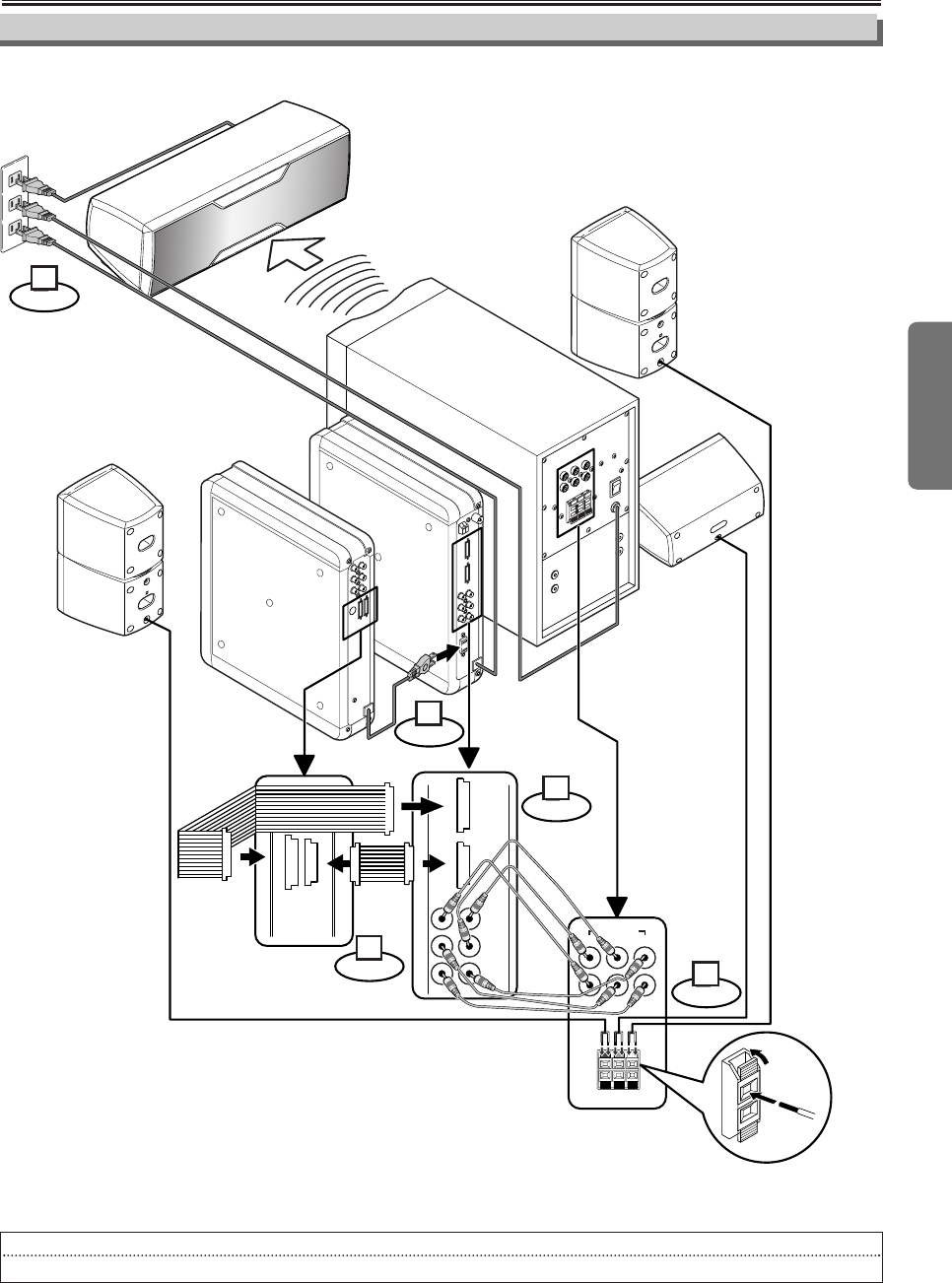
•Be sure to remove the disc from the player and unplug the AC power cords from the outlets before connecting the system.
Connections
Setup
EN
Connection to the AV Receiver and the Speaker Unit
–9–
FL
SL CEN
FR
SR
FR CEN FL
SUB
SPEAKER OUTER
AUDIO INPUT
BUS 1 BUS 2
BUS 2
BUS 1
120V
SL
SR
FL
FR
CEN
SUB
Center Speaker
Front Speaker (left)
Aerial signal
Subwoofer
Wireless Rear Speaker
AC
DVD/CD
Player
AV Receiver
Bus cables
(Supplied)
Audio
Cables
(Supplied)
Front Speaker
(right)
Connect
1
Connect
2
Connect
3
Connect
4
Connect
5
When you finish all connections:
1) Turn on the switches of the Subwoofer (back of the unit) and the Wireless Rear speaker (back of the unit).
2) Press
[AMP POWER] to turn on the AV Receiver. The DVD/CD Player should turn on and off along with the
AV Receiver.
•
Match the colors of
the cables (wires) to
the colors on the
jacks.
See the illustration below and connect the DVD/CD Player, the AV Receiver and the Speaker Unit by following
the steps 1 to 5.
E61TAUD_ENSP.qx33 05.8.9 10:50 AM Page 9
–10 –EN
Setup
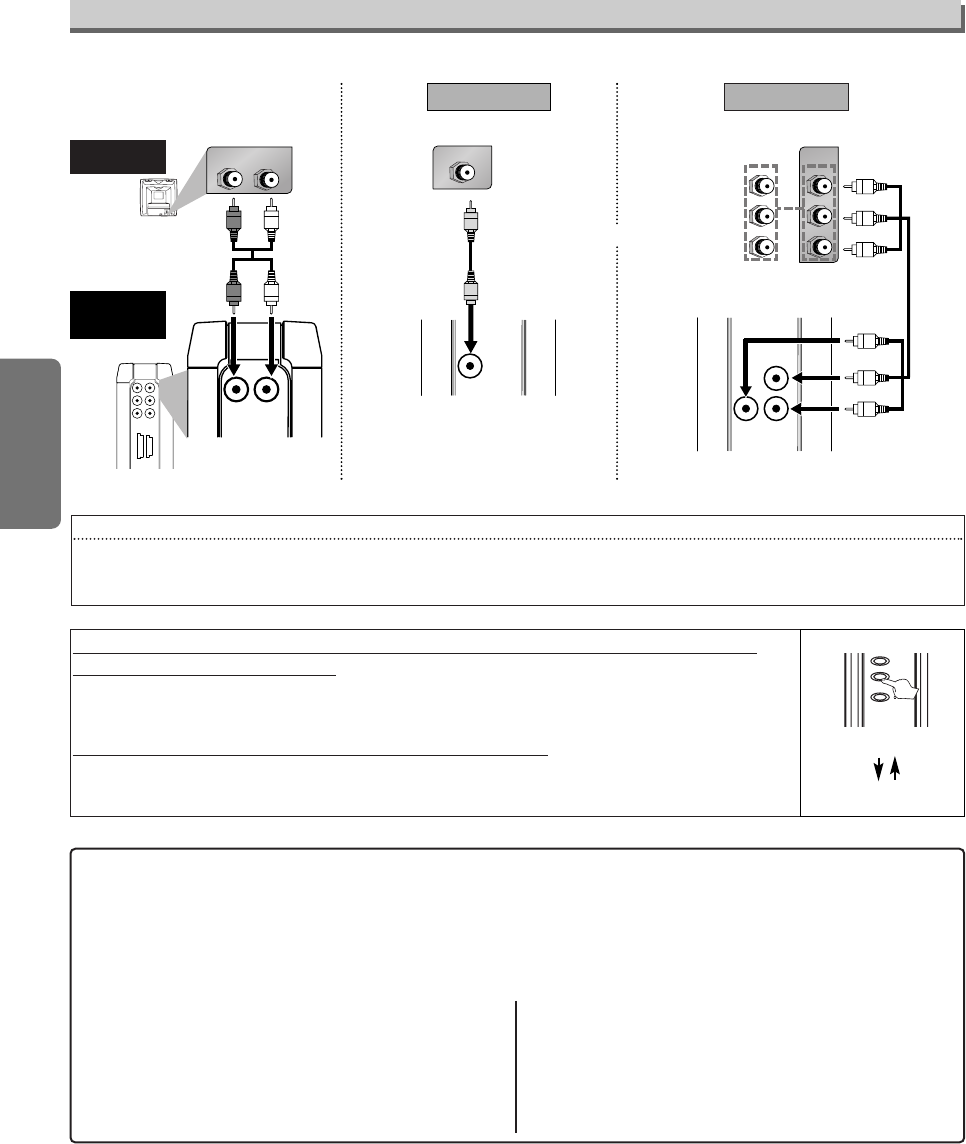
If your TV is compatible with 525p (480p) progressive scanning and you want to
enjoy that high quality picture;
You must select the connection Method 2 above and progressive scanning mode. To set the mode,
press and hold [PLAY BB]on the front panel of the player for more than 5 seconds, so that
PROGRESSIVE indicator will light up.
If your TV is not compatible with progressive scanning;
Use this player in interlace mode. Make sure that PROGRESSIVE indicator is off. If not, press and hold
[PLAY B]on the front panel of the player for more than 5 seconds, so that PROGRESSIVE indicator
will light off.
After you have completed connections
•Press the input selector button (usually TV/VIDEO, INPUT or AUX) on your TV to switch an appropriate external input
channel (usually near channel 0) for viewing the picture from this player. If the picture does not appear, also refer to the
manual accompanying your TV.
INPUT MODES FOR COMMON TV BRANDS (Example)
•Listed below are inputs for common brand name TV’s.
Admiral: AUX
Curtis Mathis: LINE1, LINE2, 00, 90, 91, 92, 93
GE: INPUT, TV/VCR, 00, 90, 91, 92, 93
Hitachi: INPUT, AUX
JVC: VIDEO, VIDEO1, VIDEO2, VIDEO3
Kenwood: AUX
LXI-Series: 00
Magnavox: AUX CHANNEL
Panasonic: TV/VIDEO
RCA: INPUT, TV/VCR, 00, 90, 91, 92, 93
Samsung: TV/VIDEO
Sanyo: VIDEO
Sharp: 00
Sony: VIDEO1, VIDEO2, VIDEO3
Toshiba: TV/GAME
Zenith: 00
Connection to a TV
If your TV has AUDIO/VIDEO input jacks, see the following instructions.
Hint
Hint
•Connect this player directly to the TV. If the Audio/Video cables are connected to a VCR, pictures may be distorted
due to the copy protection system.
•When progressive scanning mode is selected, no video signal will be output from the VIDEO OUT jack.
(INPUT)
AUDIO
OUT
R
L
Y
CR/PR
CB/PB
VIDEO
OUT
COMPONENT
VIDEO OUT BUS 2
BUS 1
AUDIO
OUT
R
L
RL
AUDIO IN
VIDEO IN
VIDEO
OUT
AUDIO OUT
(Analog) VIDEO OUT
TV
Method 1
Good pictureBasic Audio
Video
cable
(supplied)
Audio cable
(supplied)
DVD/CD
Player
or
(OUTPUT)
Y
CR/PR
CB/PB
COMPONENT
VIDEO OUT
C
B
Y
C
R
COMPONENT
VIDEO IN
or
P
B
Y
P
R
Method 2
Best picture
COMPONENT VIDEO OUT
Component Video cables
(commercially available)
IN
OUT
IN
OUT
IN
OUT
C STOP
EJECT
B
PLAY
PROGRESSIVE
[DVD/CD Player]
more than 5 seconds
[Interlace mode]
[Progressive scanning
mode]
E61TAUD_ENSP.qx33 05.8.9 10:50 AM Page 10
–11 –EN
–11 –EN
Setup
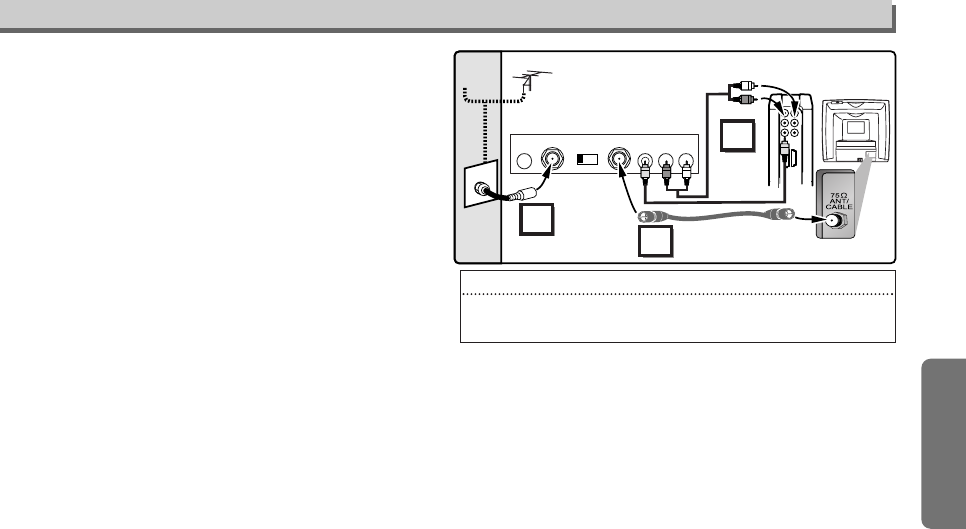
RF Modulator Connection (If Your TV Does Not Have A/V Input Jacks.)
If your TV has Antenna in jack only, it is still possible to
connect this player to your TV by using a STEREO
AUDIO/VIDEO RF Modulator (commercially available).
In this case, follow the instructions below.
1) Connect the AUDIO/VIDEO output jacks of this player to
the AUDIO/VIDEO input jacks of your RF Modulator by
audio and video cables.
2) The antenna input jack of your TV may have been already
occupied. If so, disconnect the RF cable from your TV, and
then connect the RF cable to your RF Modulator (usually
marked “ANT IN”).
3)
Connect your RF modulator to your TV by another RF cable.
4) Set your RF modulator’s channel 3/4 switch to either 3 or
4, whichever the TV channel is least used in your area. If
your RF modulator has a Modulator/Antenna switch, set it
according to your RF modulator’s manual.
5) Turn on your TV and choose the same channel as you set
the RF modulator’s channel 3/4 switch to. For more details,
follow the instructions supplied with the RF Modulator.
Hint
Hint
•The quality of picture may become poor if the player is
connected to an RF Modulator.
AUDIO
OUT
R
L
Y
CR/PR
CB/PB
VIDEO
OUT
COMPONENT
VIDEO OUT BUS 2
BUS 1
Stereo Audio/Video RF Modulator
(commercially available)
TO TVCHANNEL VIDEO AUDIO
RL34
ANT IN
AC 120V
(Back of TV)
Audio/Video
Cables
(Supplied)
(Back of the
DVD/CD Player)
RF Cable (Not supplied)
Antenna
Cable
Signal
3
2
1
Antenna in jack
E61TAUD_ENSP.qx33 05.8.9 10:50 AM Page 11
Hint
Hint
•For playing back an MP3/WMA file, see page 13.
•A “prohibited icon” may appear at the top-right on the TV
screen when the operation is prohibited by the disc or
this player.
•Some DVDs may start playback from title 2 or 3 due to specific pro-
grams.
•During the playback of a two-layered disc, pictures may stop for a
moment. This happens while the 1st layer is being switched to the
2nd layer. This is not a malfunction.
•Don't leave the disc exiting halfway from the slot.
Normal Playback
(
⇒Page 13
)
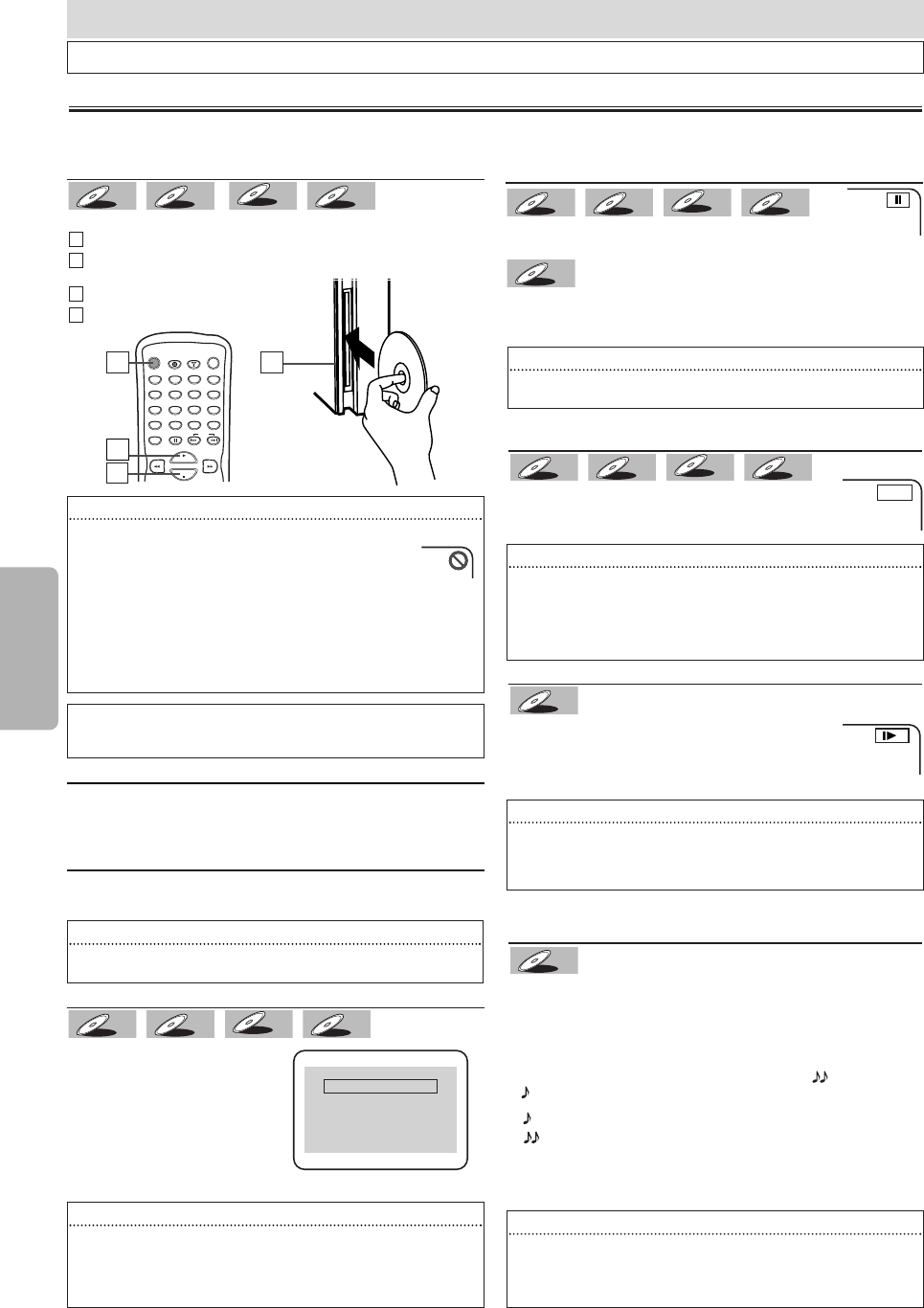
Press [DVD POWER] to turn on the DVD/CD Player.
Insert a disc with label facing to the left (facing up for
horizontal installation).
Press [PLAY B]to start playback.
Press [STOP C]to stop playback.
4
4
3
3
2
2
1
1
WMAWMA
WMA
MP3MP3
MP3
CDCD
CD
DVD-V
DVD-V
–12 –EN
Functions
Hint
Hint
•Slow forward or reverse speed is different, depending on the disc.
Approximate speed is 1(1/16), 2(1/8) and 3(1/2).
•Set “STILL MODE” to “FIELD” in the Display menu if pictures in the
slow playback mode are blurred. (Refer to pages 17-18.)
Fast Forward/Reverse Search
Press [FWD gg]or [REV hh] repeatedly during play-
back to select the required forward or reverse speed.
To continue playback, press [PLAY B].
Slow Forward/Slow Reverse
Press [FWD gg] or [REV hh] repeatedly
during the pause mode to select the required
forward or reverse speed.
To continue playback, press [PLAY B].
DVD-V
DVD-V
WMAWMA
WMA
MP3MP3
MP3
CDCD
CD
DVD-V
DVD-V
DISPLAY
AUDIO
SUBTITLE
ANGLE
DVD POWER
CLEAR
SEARCH
MODE
PAUSE SKIP
AMP POWER
DVD TUNER
123
456
789
0+10
PLAY
STOP
Before: Turn on the TV, the Subwoofer, the Wireless rear speaker and other equipment which are connected to the DVD/CD
Player. Make sure the TV is set to the correct channel.
4
4
3
3
label
DVD menu
Some discs contain menus which allow you to customize
DVD playback. Use [KK/ LL/ ss/ BB] to select an item, then
press [ENTER] (or [PLAY BB]), to select.
Calling Up a Menu Screen During Playback
•Press [MENU] to call up the DVD menu.
•Press [TOP MENU] to call up the title menu.
E 1
1
1
1
Functions
Operations described in this section are mainly based on the remote control use. Some operations can be carried out on the front panel.
TIP:
You can change the On-Screen language in “PLAYER MENU” set-
ting. (Refer to pages 17-18.)
Paused and Step-by-Step Playback
Press [PAUSE FF] during playback.
To continue playback, press [PLAY B].
The disc goes forward by one frame each time [PAUSE FF]
is pressed during the pause mode.
To continue playback, press [PLAY B].
DVD-V
DVD-V
WMAWMA
WMA
MP3MP3
MP3
CDCD
CD
DVD-V
DVD-V
Hint
Hint
•On DVDs, set “STILL MODE” to “FIELD” in the Display menu if pic-
tures in the pause mode are blurred. (Refer to pages 17-18.)
Hint
Hint
•Menu operations may vary depending on the disc. Refer to the
manual accompanying the disc for more details.
Resume
Press [STOP CC].Resume
message will appear on the TV
screen.
Press [PLAY BB], playback will
resume from the point at which
playback was stopped.
WMAWMA
WMA
MP3MP3
MP3
CDCD
CD
DVD-V
DVD-V
Press 'PLAY' to play from here.
To play the beginning,
press 'STOP' first and then 'PLAY'.
Resume ON
Hint
Hint
•To cancel resume, press [STOP CC]one more time during the stop
mode.
•For MP3/WMA, playback will resume from the beginning of the
track at which playback was stopped.
•
The resume information will be kept even when the power is turned off.
Rapid Play
Rapid Play function is available only during playback.
Available only on discs recorded in the Dolby Digital format,
Rapid Play plays back in a slightly faster/ slower speed while
keeping the sound quality just as normal playback.
•Press [MODE] during the normal playback.
•Use [ENTER] or [ss/ BB] to switch among (x1.3),
(x0.8) and OFF.
•
Press
[PLAY BB]
to continue the normal playback
.
DVD-V
DVD-V
Hint
Hint
•For DVDs, fast forward or reverse search speed is different
depending on the disc. Approximate speed is 1(x2), 2(x8), 3(x20),
4(x50) and 5(x100).
•For Audio CDs, approximate speed is 1(x2), 2(x8) and 3(x30).
•For MP3/WMA, approximate speed is 1(x2), 2(x8) and 3(x30).
Hint
Hint
•Audio (language) setting cannot be changed while using this mode.
•Dolby Pro Logic II and Black Level settings cannot be changed
while using this mode.
•This feature may not work at some point in a disc.
<Example : DVD>
Playback
:Plays back approximately at 0.8 times of normal playback.
:Plays back approximately at 1.3 times of normal playback.
OFF : No effects.
2
2
E61TAUD_ENSP.qx33 05.8.9 10:50 AM Page 12
2
2
1
1
2
2
1
1
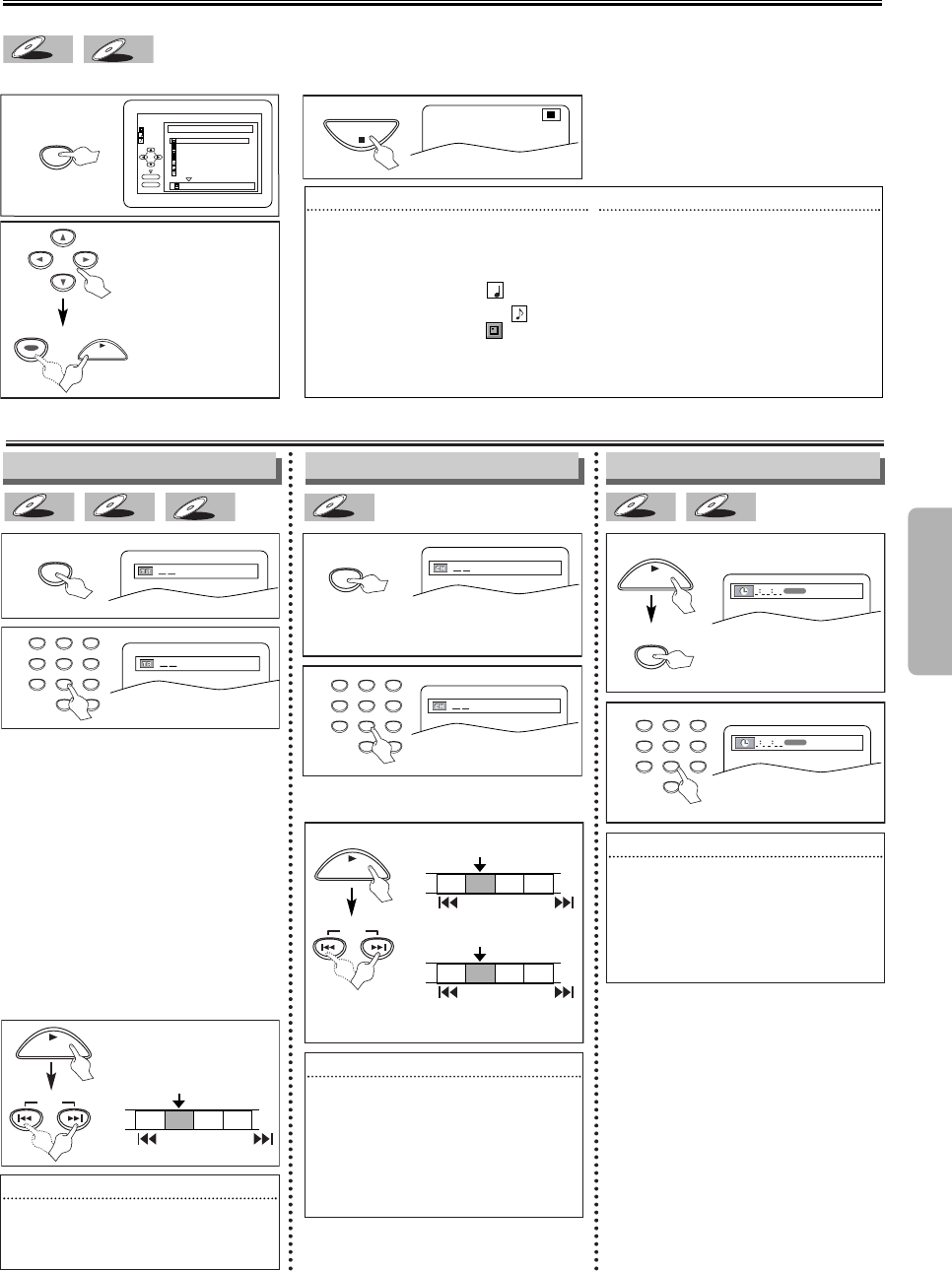
Search Function
Using Time Search
CDCD
CD
DVD-V
DVD-V
2
2
within 30 seconds
1:29:00
TOTAL
1
1
1:29:00
TOTAL
SEARCH
MODE
PLAY
Press repeatedly until
the Time Search display
appears.
Using Track Search
WMAWMA
WMA
MP3MP3
MP3
CDCD
CD
within 30 seconds
/29
/29
Using Title / Chapter Search
DVD-V
DVD-V
1
1
2
2
within 30 seconds
/12
/12
Press once for the chapter search.
Press twice for the title search.
123
456
789
0
+1 0
SEARCH
MODE
SEARCH
MODE
1
1
PLAY
TR 1 TR 2 TR 3 TR 4
Current Track
(TR)
SKIP SKIP
Using [SKIP
Using [SKIP HH
HH/
/GG
GG]
]
Using [SKIP
Using [SKIP HH
HH/
/GG
GG]
]
SKIP
SKIP
Hint
Hint
•When there is no need to enter a number,
“0” appears automatically.
For example, “0 : 0-:--”appears in the
Time Search display if the total time of the
title or track is less than 10 minutes.
•Press [CLEAR] to erase the incorrect
input at step 2.
Hint
Hint
•Depending on the disc being played, this
function can also be performed by directly
entering the desired chapter number with
the Number buttons.Refer to the manual
accompanying the disc.
•For CDs and MP3/WMA, Track Search is
not available for Programmed or Random
Playback.
PLAY
123
456
789
0
123
456
789
0
+1 0
3
3
STOP
MP3/WMA Playback
Insert an MP3/WMA-format disc, then press [MENU] to call up the file list on the TV screen.
WMAWMA
WMA
MP3MP3
MP3
1
1
folder name 4
folder name 1
folder name 3
folder name 2
folder name 1
DISC NAME
FILE LIST
FOLDER
WMA
MP3
ENTER
PLAY
file name 3
file name 2
file name 1
1/ 2
3
3
3
ENTERENTERENTER
When selecting the folder:
•
Press [BB] when you
want to go to the
next hierarchy.
•
Press [ss]when you
want to go back to
the previous hierar-
chy (except for the
top hierarchy).
MENU
MP3/WMA are methods of compressing files.You can copy MP3/WMA files on CD-R/RWs from the computer and play the files on this player.
Refer to “Resume” on page 12.
PLAY
or
•For the disc with less than 10 tracks,
press the track number directly.
•For discs with more than 10 but less
than 99 tracks, to play single-digit
track, press [0] first, then the track
number (e.g. for track 3, press [0],
[3]). To play a double-digit track, press
the track number.
•
For discs with more than 100 tracks, to
play a single or a double-digit track,
press [0] first, then the track number
(e.g. for track 3, press [0], [0], [3], and
for track 26, press [0], [2], [6]). To play a
triple-digit track, press the track number.
CH 1 CH 2 CH 3 CH 4
Current Chapter
(CH)
or
SKIP
TT 1 TT2 TT3 TT4
Current Title
(TT)
SKIP
SKIP
SKIP
(If the disc has no chapters)
Hint
Hint
•
[+10] button can also bring the Track Search
display, except for the disc with less than 10
tracks. For such a disc, track search can be
done by just pressing the track number.
–13 –EN
Functions
Hint
Hint
•
Some selections may take a while to be recognized.
•
Press [TOP MENU] to return to the first item.
• Folders are known as Groups; files are
known as Tracks.
•
MP3 files are accompanied by icon.
• WMA files are accompanied by icon.
•
Folders are accompanied by icon.
• A maximum of 255 folders can be
recognized.
• A maximum of 999 files can be recognized.
• Up to 8 hierarchies can be created.This
player recommends the files recorded under
the following circumstances:
•
Sampling frequency: 44.1kHz or 48kHz
(MP3/WMA)
• Constant bit rate: 32kbps ~ 320kbps (MP3)
48kbps ~ 192kbps (WMA)
•
For MP3/WMA file recorded in Variable Bit
Rate(VBR), the player may not display the actual
elapsed time.
• Copyright protected WMA files will not play
on this player.
3
E61TAUD_ENSP.qx33 05.8.9 10:51 AM Page 13
–14 –EN
Functions
1
1
Marker Setup
This feature allows you to assign a specific
point on a disc to be called back later.
T
To set a marker
o set a marker
CDCD
CD
DVD-V
DVD-V
1
1
SEARCH
MODE
Press repeatedly until
the marker display
appears.
2
2
3
3
ENTERENTERENTER
T
To return to the marker
o return to the marker
later
later
SEARCH
MODE
PLAY
Press repeatedly until
the marker display
appears.
2
2
3
3
ENTERENTERENTER
at the desired marker
• Playback will restart from the specific point
which you set.
T
To e
o exit the marker displa
xit the marker display
y
1
1
RETURN
PLAY
or
or
Hint
Hint
•The Marker display will disappear in about
30 seconds when there is no output.
•To clear a marker, select the marker to be
cleared at step 2 in the section “To set a
marker” or “To return to the marker later”
and then press [CLEAR].
•Removing the disc or turning off the power
will erase all markers.
•Selecting “AC” at step 2 in the section “To
set a marker” or “To return to the marker
later” will also erase all markers.
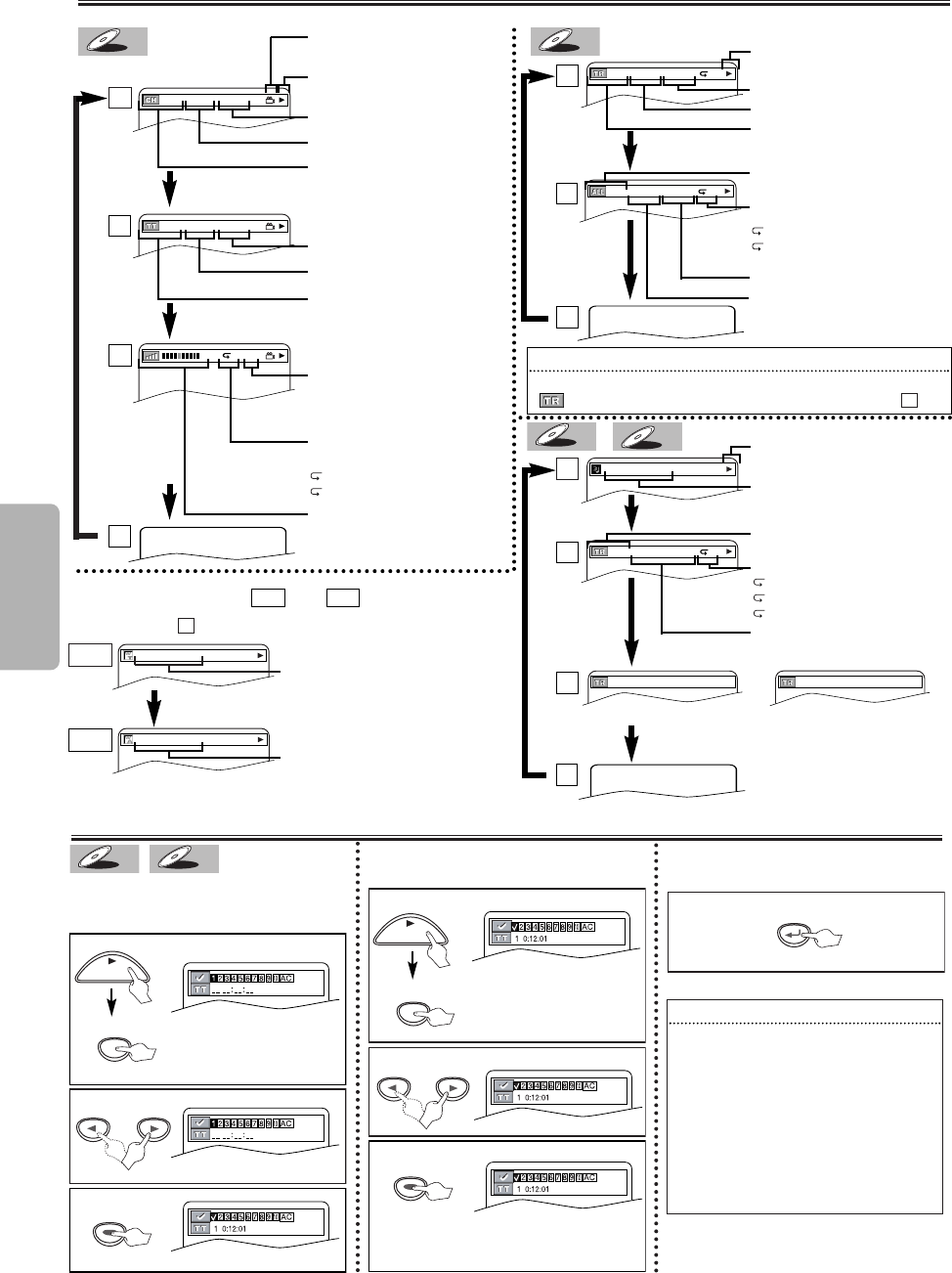
On-Screen Display
You can check the information about the current disc by pressing [DISPLAY] on the remote control.
DVD-V
DVD-V
CDCD
CD
4/12 0:03:21 - 0:02:15 T
4/12 0:13:45 - 0:45:40 T
CH(Chapter):
Current chapter number / Total chap-
ters
TT(Title):
Current title number / Total titles
Current repeat setting appears only
when the repeat setting is active
C: Chapter repeat
T: Title repeat
TR(Track):
Current track number / Total tracks
Current repeat setting appears only
when the repeat setting is active
T:Track repeat
A:All Tracks repeat
11/16 0:00:00 - 0:03:30
1/3 0:00:00 - 1:23:45
TL1
BIT RATE: The amount of audio
and video data currently being
read
ALL:
Current track number / Total tracks
Elapsed time of the current chapter
Remaining time of the current chapter
Elapsed time of the current title
Remaining time of the current title
Layer numbers, appears only when
playing a two-layered Disc
L0: Layer 0 is playing
L1: Layer 1 is playing
Elapsed time of the current track
Remaining time of the current track
Elapsed time of the entire disc
Remaining time of the entire disc
Current playback status
1
1
2
2
4
4
3
3
1
1
2
2
3
3
Hint
Hint
•When you are playing a disc in PROGRAM or RANDOM mode,
PROGRAM (or RANDOM) will be displayed instead of .
2
2
WMA
WMA
WMA
MP3
MP3
MP3
TRACK 01
1/36 0:01:15 T
The name of the file currently
in play will be displayed.
Current repeat setting, if active
T:Track repeat
G:Group (folder) repeat
A:Disc repeat
Elapsed playing time of the current
track
PROGRAM RANDOM
or
TR(Track):
Current track number / Total tracks
Current playback status
1
1
2
2
3
3
4
4
(Only when you are playing a disc in PROGRAM or RANDOM mode.)
Current playback status
Angle icon, appears only when
available on the DVD
ARTIST NAME
TITLE NAME
1-A
1-A
1-B
1-B
Title name based on tag infor-
mation currently in play will be
displayed.
Artist name based on tag infor-
mation currently in play will be
displayed.
NOTE: For WMA files, and will be displayed
after .
1
1
1-B
1-B
1-A
1-A
E61TAUD_ENSP.qx33 05.8.9 10:51 AM Page 14
2
2
1
1
1
1
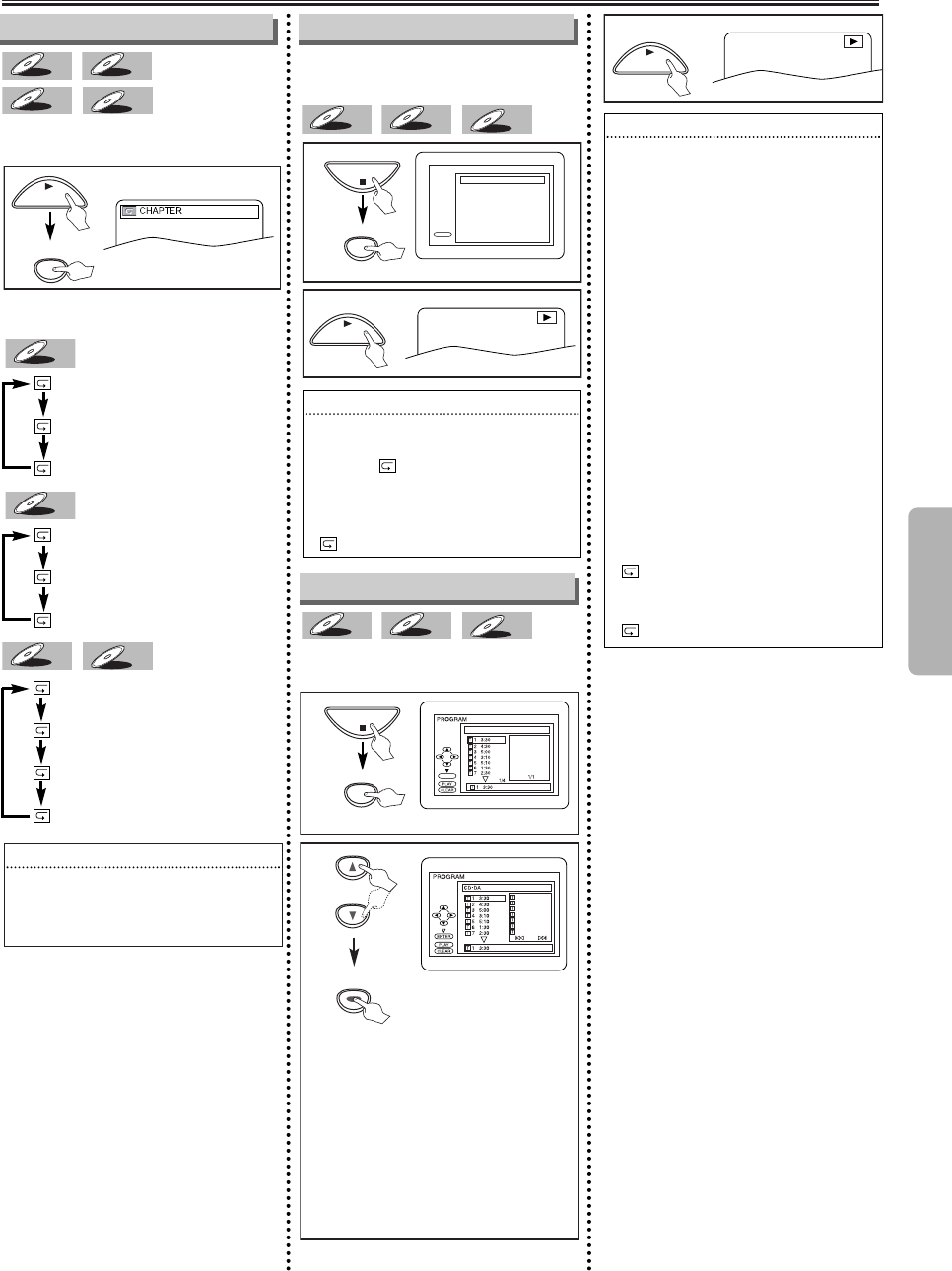
Repeat / Random / Programmed Playback
CHAPTER
TITLE
OFF
(current chapter repeat)
(current title repeat)
(repeat off)
Each time you press [REPEAT/BAND],
repeat function changes as example below.
DVD-V
DVD-V
Repeat function is available only during
playback.
WMAWMA
WMA
MP3MP3
MP3
CDCD
CD
DVD-V
DVD-V
You may determine the order in which
tracks will play.
WMAWMA
WMA
MP3MP3
MP3
CDCD
CD
1
1
REPEAT/BAND
TRACK
ALL
OFF
(current track repeat)
(entire disc repeat)
(repeat off)
CDCD
CD
Repeat Playback
Programmed Playback
Random Playback
2
2
or
3
3
PLAY
CD-DA TOTAL 0:45:55
RANDOM PROGRAM
--no indication--
RANDOM
This function shuffles the playing order
of tracks instead of playback in the
sequence.
WMAWMA
WMA
MP3MP3
MP3
CDCD
CD
MODE
Press twice.
Press once.
CD-DA TOTAL 0:00:00
ENTER
Hint
Hint
•Repeat setting will be cleared when mov-
ing to another title, chapter, track or group.
•Repeat playback may not function with
some discs.
Hint
Hint
•To repeat the current track in the random
selections, press [REPEAT/BAND] repeat-
edly until “ TRACK” appears during
playback.
•To repeat the entire random selections,
press [REPEAT/BAND] repeatedly until
“ALL” appears during playback.
Hint
Hint
•Press [CLEAR] at step 2 to erase the
most recently entered track.
•To erase all programmed tracks at once,
select “ALL CLEAR’’ and press [ENTER] at
step 2.
•While a program is being played back,
[STOP CC] works as follows;
⇒Press [STOP CC] and [PLAY BB] next, so
that the programmed playback restarts.
(CD playback restarts from the current
point. MP3/WMA playback restarts from
the beginning of the current track.)
⇒Press [STOP CC] twice and [PLAY BB]
next, so that playback restarts from the
first track in the original order. However,
your programmed playback can be
restarted when you follow the above
steps. (Your programs are still stored
until either the disc is removed or power
is turned off.)
•To repeat the current track in the program,
press [REPEAT/BAND] repeatedly until
“TRACK’’ appears during playback.
•To repeat the entire program, press
[REPEAT/BAND] repeatedly until
“ALL’’ appears during playback.
PLAY
PLAY
STOP
MODE
STOP
ENTER
ENTER
ENTER
PLAY
• Up to 99 tracks can be
ordered.
• If eight or more tracks
were in a program, use
[SKIP HH / GG] to see all
the tracks.
• While an MP3/WMA folder
is open:
– Press [BB]when you
want to go to the next
hierarchy.
– Press [ss ]when you
want to go back to the
previous hierarchy
(except for the top
hierarchy).
TOTAL
1/4 2/3
1 3:30
5 5:10
10 4:20
11 3:00
12 3:20
17 4:10
22 2:50
1:03:30
TRACK
GROUP
ALL
OFF
(current track repeat)
(current group repeat)
(entire disc repeat)
(repeat off)
WMAWMA
WMA
MP3MP3
MP3
<Example : CD>
<Example : CD>
–15 –EN
Functions
E61TAUD_ENSP.qx33 05.8.9 10:51 AM Page 15
–16 –EN
Functions
1
1
1
1
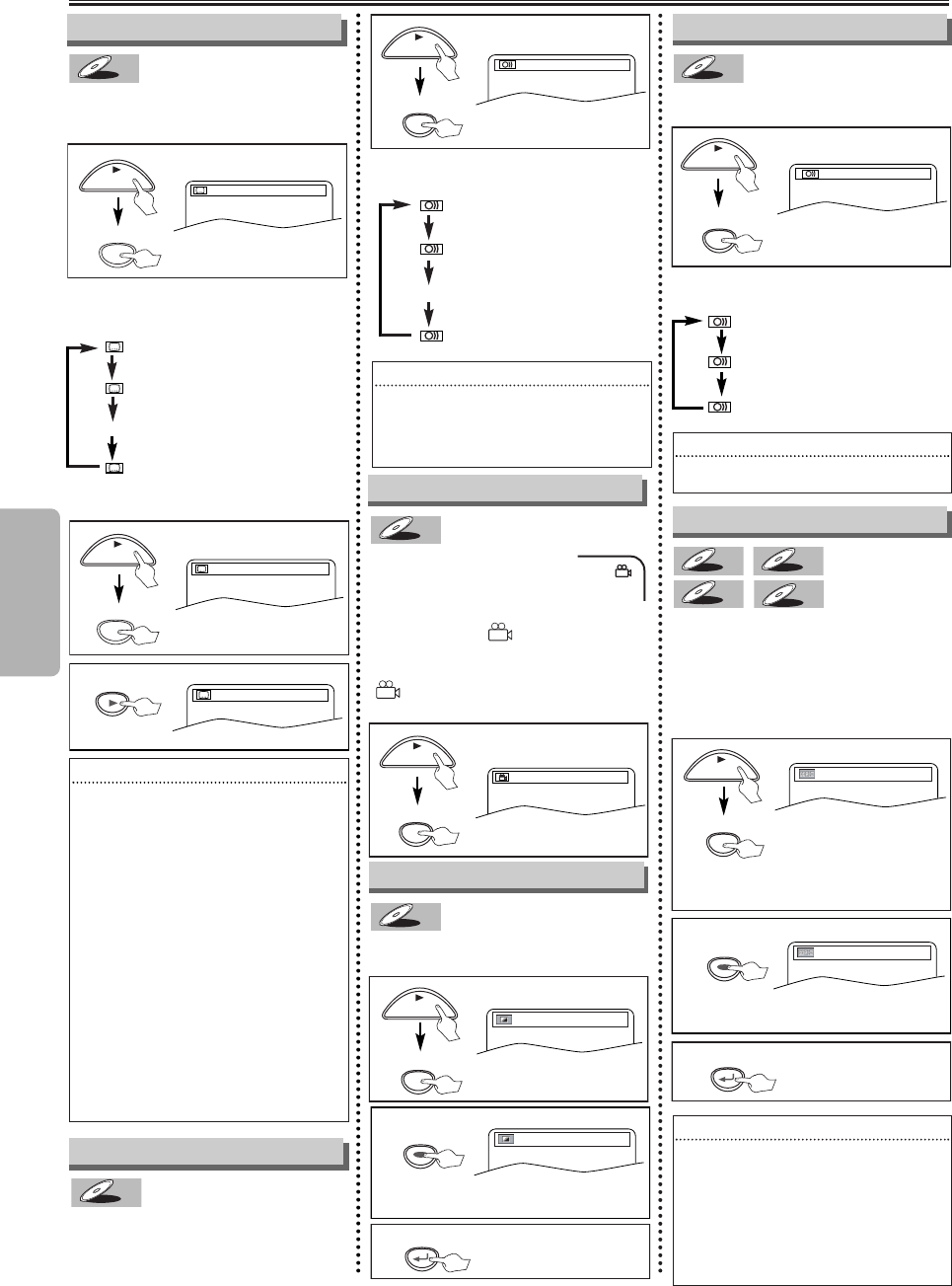
Special Settings
Each time you press [
AUDIO]
, audio
language changes as example below.
This player allows you to select a subti-
tle language (if available) during DVD
playback.
DVD-V
DVD-V
1.ENG/6
ENG
FRE
OFF
(English subtitles)
(French subtitles)
(no subtitles)
Each time you press [SUBTITLE],
subtitle language changes as example
below.
Subtitle Language
SUB TITLE
...
To set subtitle ON/OFF
1.ENG/6
2
2
OFF
Hint
Hint
•If your language is not shown after press-
ing [AUDIO] or [SUBTITLE] several times,
the disc may not have that language.
However, some discs allow audio language
or subtitle language setting on the disc
menu. (Operation varies depending on the
disc, so refer to the manual along with the
disc.)
•When “NOT AVAILABLE” appears on the
TV screen, it means no subtitle is recorded
on the scene.
•If you choose a language that has a three-
letter-language code, the code will be dis-
played every time you change the subtitle
language setting. If you choose any other
languages, ‘---’ will be displayed instead.
(Refer to page 24.)
•Some discs will only allow you to change
the subtitle from the disc menu. Refer to the
manual accompanying the discs for details.
PLAY
PLAY
SUB TITLE
Dolby Pro Logic II
Dolby Pro Logic II creates five full-band-
width output channels from two-channel
sources. This is done using an advanced,
high-purity matrix surround decoder that
extracts the spatial properties of the orig-
inal recording without adding any new
sounds or tonal colorations.
WMAWMA
WMA
MP3MP3
MP3
CDCD
CD
DVD-V
DVD-V
1
1
OFF
2
2
ON
ON: Effects.
OFF:No effects (original sound).
3
3
MODE
Press three times.
(once for CD and MP3/WMA)
Hint
Hint
•Dolby Pro Logic II is effective for only the 2
channel stereo system running.
•On CDs, Dolby Pro Logic II will not be
effective if the sound mode is set to some-
thing other than STEREO. Refer to “Stereo
Sound Mode”.
•This function cannot be used during Rapid
play.
RETURN
ENTERENTERENTER
PLAY
STEREO
L-ch
R-ch
(right and left channels
are active)
(left channel is active)
(right channel is active)
This player allows you to select a
sound mode during CD playback.
CDCD
CD
1
1
STEREO
Each time you press [
AUDIO]
, sound
mode changes as example below.
Stereo Sound Mode
PLAY
AUDIO
ENG
SPA
FRE
(English audio)
(Spanish audio)
(French audio)
...
Hint
Hint
•
Some discs will only allow you to change the
audio setting from the disc menu. Refer to the
manual accompanying the discs for details.
•Audio language selection cannot be made
during Rapid play.
1
1
Camera Angles
Some DVD discs may con-
tain scenes which have been
shot simultaneously from var-
ious angles.You can change the cam-
era angle if the ( ) icon appears on
the screen. If the “ANGLE ICON” set-
ting is “OFF” in the OTHERS menu, the
() icon will not appear. (Refer to
pages 17-20.)
DVD-V
DVD-V
1
1
1 / 8
ANGLE
ON
Black Level Setting
Adjust the Black Level Setting to make
the dark areas of the TV picture brighter.
DVD-V
DVD-V
PLAY
PLAY
MODE
Press twice.
Audio Language
This player allows you to select an audio
language (if multiple languages are
available on disc) during DVD playback.
DVD-V
DVD-V
1
1
1.ENG Dolby D 3/2.1ch 48k/3
AUDIO
PLAY
2
2
OFF
ON: Makes the dark areas brighter.
OFF: Shows the original picture as recorded.
3
3
RETURN
ENTERENTERENTER
Hint
Hint
•
Dolby Pro Logic II cannot be changed when the
sound mode is set to either L-ch. or R-ch.
E61TAUD_ENSP.qx33 05.8.9 10:51 AM Page 16
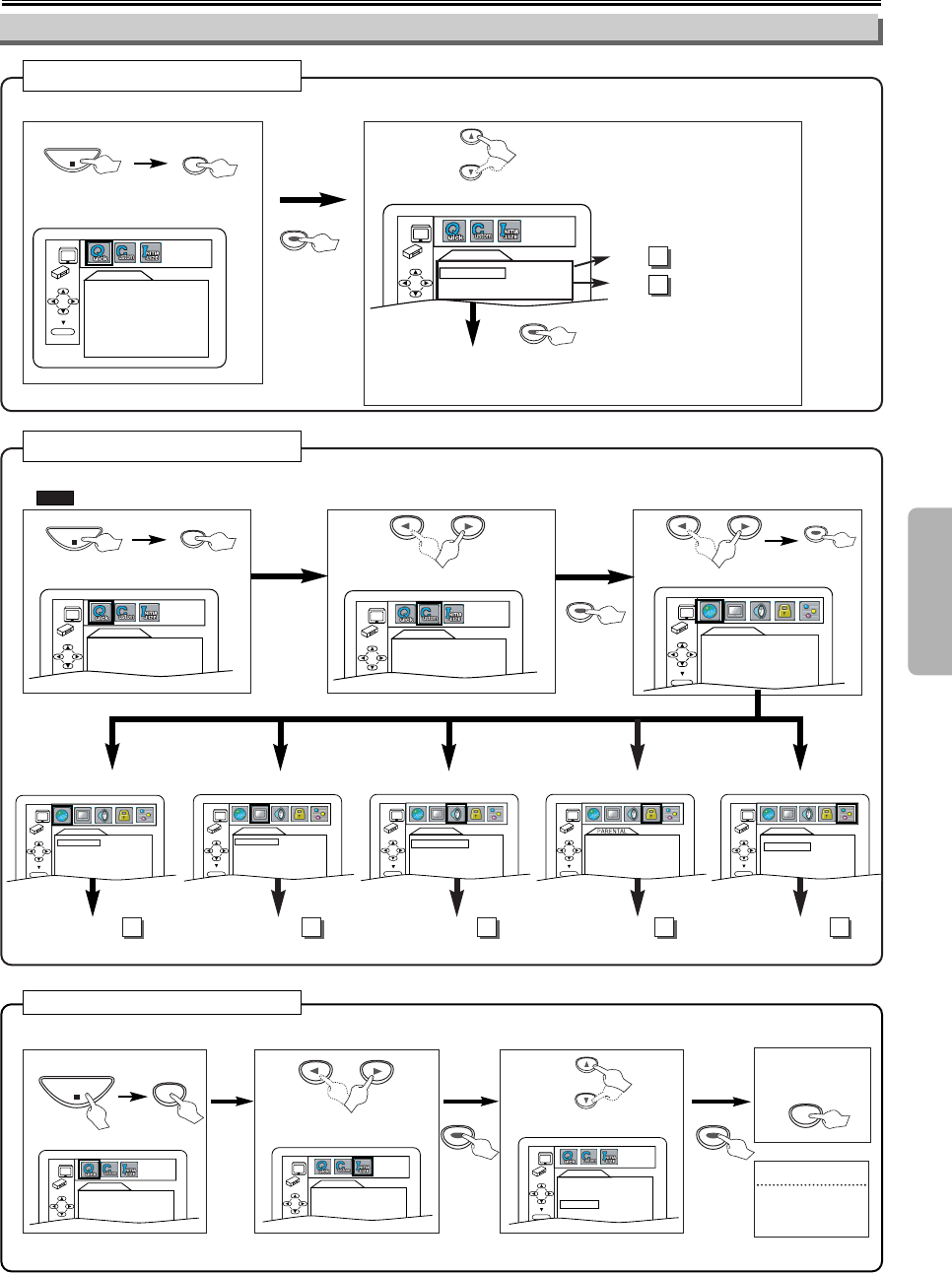
3
3
ENTER
AUDIO ORIGINAL
SUBTITLE OFF
DISC MENU ENGLISH
PLAYER MENU ENGLISH
LANGUAGE
INITIALIZE Men
INITIALIZE Menu
u
–17 –EN
2
2
Select the desired item.
1
1
QUICK SETUP
PLAYER MENU ENGLISH
TV ASPECT
4:3 LETTER BOX
ENTER
SETUP
STOP
QUICK SETUP
PLAYER MENU ENGLISH
TV ASPECT
4:3 LETTER BOX
Q
QUICK SETUP Men
UICK SETUP Menu
u
<SETUP MENU>
Confirm that “QUICK” is selected.
You can select the “PLAYER MENU” or “TV ASPECT” from the QUICK SETUP menu quickly.
ENTERENTERENTER
DVD Setup
P18 Step 5
P18 Step 5
A
B
ENTERENTERENTER
or
2
2
Select “CUSTOM”.
QUICK SETUP
PLAYER MENU ENGLISH
TV ASPECT
4:3 LETTER BOX
OK
Select the desired item.
1
1
ENTERENTERENTER
CUST
CUSTOM Men
OM Menu
u
ENTERENTERENTER
SETUP
STOP
OTHERS
ENTER
ANGLE ICON ON
AUTO POWER OFF
ON
AUDIO
DRC
ON
DELAY TIME
BALANCE
ENTER
DISPLAY
TV ASPECT 4:3 LETTER BOX
STILL MODE AUTO
ENTER
ENTER
AUDIO ORIGINAL
SUBTITLE OFF
DISC MENU ENGLISH
PLAYER MENU ENGLISH
LANGUAGE
You can change the settings of the player.
•on page 18 indicates DVD Setup menus also accessible from the QUICK SETUP menu.
QUICK
<SETUP MENU>
LANGUAGE menu AUDIO menu
DISPLAY menu OTHERS menu
page 18
A
page 18
B
page 19
C
page 20
E
ENTER
PARENTAL LEVEL ALL
PARENTAL menu
page 20
D
QUICK SETUP
PLAYER MENU ENGLISH
TV ASPECT
4:3 LETTER BOX
OK
or or
–17 –EN
Functions
Hint
Hint
•
When you cancel
to initialize at step
3, select “NO”.
2
24
4
3
3
1
1
Select “INITIALIZE”.
QUICK SETUP
PLAYER MENU ENGLISH
TV ASPECT
4:3 LETTER BOX
OK
Select “YES”.
INITIALIZE
Initialize?
NO
YES
ENTER
<SETUP MENU>
SETUP
To exit
the menu.
Press
twice.
SETUP
QUICK SETUP
PLAYER MENU ENGLISH
TV ASPECT
4:3 LETTER BOX
STOP
ENTERENTERENTER
ENTERENTERENTER
or
or
SETUP Menu
•
Refer to the sections “PLAYER MENU”,
“TV ASPECT” on page 18.
You can
reset the default setting of the player. (Except PARENTAL Setting.)
E61TAUD_ENSP.qx33 05.8.9 10:51 AM Page 17
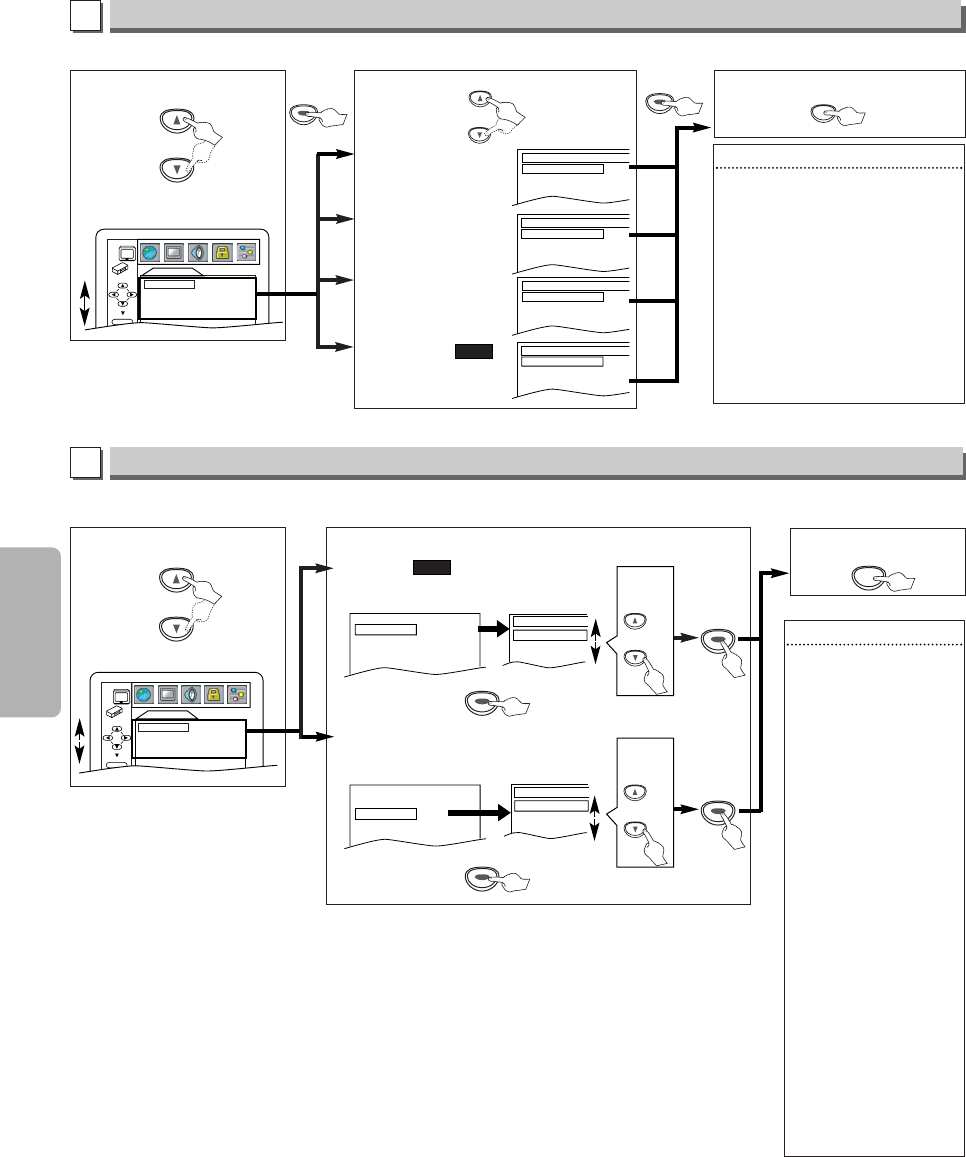
–18 –EN
Functions
ENTERENTERENTER
Hint
Hint
∗1
• Language options are not available
with some discs.
• If OTHER is selected in the AUDIO,
SUBTITLE or DISC MENU screen,
press four-digit number to enter the
code for the desired language. (Refer
to the language code list on page 24.)
• Only the languages supported by the
disc can be selected.
∗2
• Language setting for Audio and
Subtitle are not available with some
discs. Then press [AUDIO] and
[SUBTITLE].Details are on page 16.
LANGUAGE Setting
Follow steps 1 to 3 in the “CUSTOM Menu” section on page 17.
4
4Select the desired item. 6
6 To exit the menu.
5
5
AUDIO ∗∗1 ∗∗2
(Default: ORIGINAL)
Sets the audio language.
SUBTITLE: ∗∗1 ∗∗2
(Default: OFF)
Sets the subtitle language.
DISC MENU: ∗∗1
(Default: ENGLISH)
Sets the language in DVD
menu.
PLAYER MENU:
(Default: ENGLISH)
Sets the language for the
On-Screen Display.
QUICK
ENTERENTERENTER
SETUP
Select the desired language.
AUDIO
ORIGINAL
ENGLISH
FRENCH
SUBTITLE
OFF
ENGLISH
FRENCH
DISC MENU
ENGLISH
FRENCH
SPANISH
PLAYER MENU
ENGLISH
FRANÇAIS
ESPAÑOL
A
LANGUAGE menu
ENTER
AUDIO ORIGINAL
SUBTITLE OFF
DISC MENU ENGLISH
PLAYER MENU ENGLISH
LANGUAGE
or
or
5
5
DISPLAY Setting
You can change the display functions. Follow steps 1 to 3 in the “CUSTOM Menu” section on page 17.
4
4Select the desired item.
B
DISPLAY menu
6
6 To exit the menu.
TV ASPECT:
(Default: 4:3 LETTER BOX)
See Hint on the right.
QUICK
TV ASPECT
4:3
LETTER BOX
4:3
PAN & SCAN
16:9
WIDE
TV ASPECT
4:3 LETTERBOX
STILL MODE
AUTO
Select the
desired
setting.
or
STILL MODE:
(Default: AUTO)
See Hint on the right.
TV ASPECT
4:3 LETTERBOX
STILL MODE
AUTO
STILL MODE
AUTO
FIELD
FRAME
SETUP
ENTERENTERENTER
ENTERENTERENTER
Select the
desired
setting.
or
ENTERENTERENTER
ENTERENTERENTER
DISPLAY
TV ASPECT 4:3 LETTER BOX
STILL MODE AUTO
ENTER
or
Hint
Hint
TV ASPECT:
• Select “4:3 LETTER BOX”,
so that black bars may
appear on the top and
bottom of the screen.
• Select “4:3 PAN & SCAN”
for a full height picture
with both sides adjusted.
• Select “16:9 WIDE” if a
wide-screen TV is con-
nected to this player.
STILL MODE:
• Select “AUTO” usually.
• If you select AUTO, auto-
matically select the best
resolution setting (FRAME
or FIELD) based on the
data characteristics of the
pictures. (default)
• If you select “FIELD”, the
picture in the still mode
will be stabilized.
• If you select “FRAME”, the
picture in the still mode
will be highly defined.
• An individual picture on
TV screen is called a
“frame”, which consists of
two separate images
called a “field”.
Some pictures may be
blurred at the AUTO set-
ting in still mode due to
their data characteristics.
E61TAUD_ENSP.qx33 05.8.9 10:51 AM Page 18
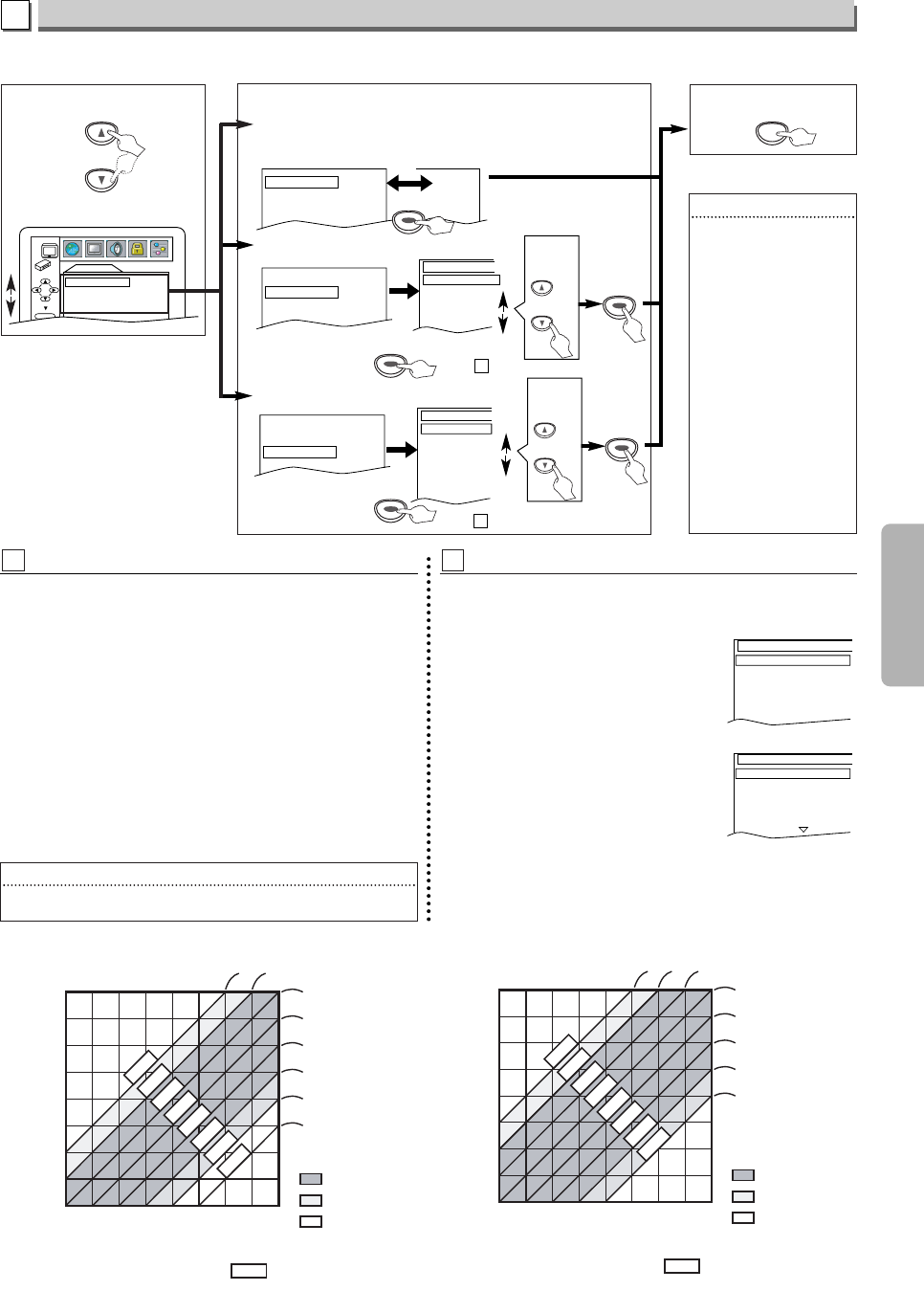
ENEN
Functions
5 ms
10 ms
10 ms
10 ms
10 ms
15 ms20 ms
0
5
10
15
20
25
30
35
40
05101520 25 30 35 40
DISTANCE FROM FRONT SPEAKERS (FEET)
USABLE SPEAKER PLACEMENT RANGE WITH XX ms DELAY TIME
10 ms
10 ms
10 ms
10 ms
15 ms
20 ms
25 ms
25 ms
PREFERRED
ACCEPTABLE
NOT RECOMMENDED
DIFFERENTIAL
ARRIVAL TIME
DISTANCE FROM REAR SPEAKERS (FEET)
25 ms
-10 ms
-5 ms
0 ms
0 ms
0 ms
0 ms
5 ms10 ms
0
5
10
15
20
25
30
35
40
051015 20 25 30 35 40
DISTANCE FROM FRONT SPEAKERS (FEET)
USABLE SPEAKER PLACEMENT RANGE WITH XX ms DELAY TIME
0 ms
0 ms
0 ms
5 ms
10 ms
15 ms
15 ms
15 ms
PREFERRED
ACCEPTABLE
NOT RECOMMENDED
DIFFERENTIAL
ARRIVAL TIME
DISTANCE FROM REAR SPEAKERS (FEET)
AUDIO Setting
C
5
5
4
4
AUDIO
DRC
ON
DELAY TIME
BALANCE
ENTER
Choose the appropriate audio settings for your equipment. It only affects during the playback of DVD discs. Follow steps 1 to
3 in the “CUSTOM Menu” section on page 17.
Select the desired item.
AUDIO menu
6
6 To exit the menu.
SETUP
DRC (Dynamic Range Control):
(Default: ON)
Set to “ON” to compress the range between soft and loud sounds.
BALANCE:
DRC ON
DELAY TIME
BALANCE
OFF
DELAY TIME:
DRC ON
DELAY TIME
BALANCE
BALANCE
TEST
FRONT(L) 0db
CENTER 0db
FRONT(R) 0db
SUB WOOFER
0db
SURROUND(R)
0db
SURROUND(L)
0db
DRC ON
DELAY TIME
BALANCE
DELAY TIME
DISTANCE FEET
FRONT(L/R)
10ft
CENTER 10ft
SURROUND
10ft
DEFAULT ON
Hint
Hint
DELAY TIME:
• It is not possible to adjust
this item if CENTER and
SURROUND have been
set to “NONE” in the
SPEAKER SIZE setting.
• When “DEFAULT” is
selected and [ENTER] is
pressed, all the items are
restored to their factory
default settings.
BALANCE:
• While the test tone is
being output, the channel
balance adjustment can
not be made.
• When test is selected, no
test tone will be output
from Subwoofer.
ENTERENTERENTER
ENTERENTERENTER
ENTERENTERENTER
or
Select the
desired
setting.
or
ENTERENTERENTER
Select the
desired
setting.
or
ENTERENTERENTER
-1 : DELAY TIME
With 5.1-channel surround sound, ideally the distance between
the listening position and all the speakers (exclude Subwoofer).
The delay time setting can be used to make the sound from the
different speakers reach the listening position at the same time.
Use [KK/ LL] to select the setting item, then press [ENTER].
•Using [KK/ LL]select the speaker to set, then press [ENTER].
DISTANCE (Default :FEET):
•METERS (when [ENTER] is pressed):
The Speaker Unit of distance is set to meters (“m”).
•FEET (when [ENTER] is pressed):
The Speaker Unit of distance is set to feet (“ft”).
FRONT(L/R), CENTER, SURROUND (DEFAULT : 10FT):
•FRONT(L/R):
The distance can be set within the range of 0 to 60 feet.
•CENTER, SURROUND:
These are depends on the setting value of FRONT (L/R).
C-2 : BALANCE
When the channel level differs from each speaker, the
adjustment can be made in the player of dB (-12dB to 0dB).
TEST:
•Use [KK/ LL] to select “TEST”, then
press [ENTER].The test tone will out-
put from each speaker in turn.
CHANNEL LEVEL:
•Use [KK/ LL] to select the speaker to
set, then press [ENTER].
•Use [KK/ LL] to select the desired level
for each to select the desired level for
each speaker, then press [ENTER].
C
TEST
FRONT(L) 0db
CENTER
0db
FRONT(R) -1db
SUB WOOFER
0db
SURROUND(R)
-2db
SURROUND(L)
-5db
FRONT(L)
0db
-1db
-2db
-3db
-4db
-5db
«
DELAY TIME setting for Dolby Digital
»
(See -1 below for more details.)
C
(See -2 below for more details.)
C
–19 –
«
DELAY TIME setting for Dolby Pro Logic II
»
Hint
Hint
• The wireless transfer time of the rear speaker may affect the delay
time setting.
E61TAUD_ENSP.qx33 05.8.9 10:51 AM Page 19
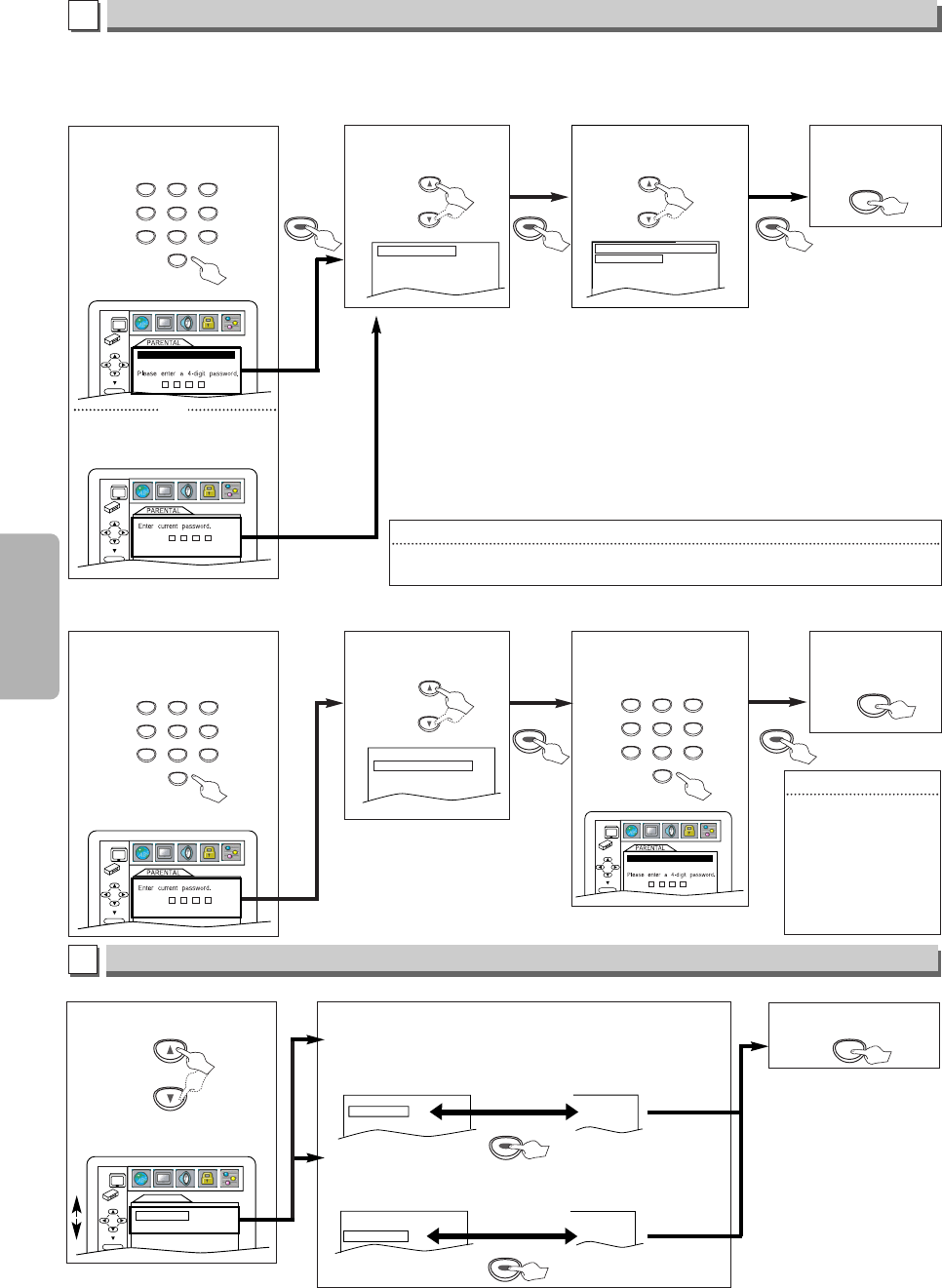
–20 –EN
Functions
6
6
4
4
4
4
Hint
Hint
•
Record the password in
case you forget it.
• I
f you forget the pass-
word, press [4], [7], [3],
[7] at step 4, then enter
your new password.
•
Password will be cleared
and parental levels will be
set to “ALL”.
ENTER
PASSWORD
ENTER
5
5
PARENTAL Setting
Parental Control limits the disc viewing that exceed your settings. (An incorrect password will be not acceptable.)
This feature prevents your children from viewing inappropriate materials.
P
Parental
arental Le
Levels
vels
Parental Level allows you to set the rating levels of your DVD discs. Playback will stop if the ratings exceed the levels you set.
Follow steps 1 to 3 in the “CUSTOM Menu” section on page 17.
T
To Chang
o Change the P
e the Pass
assw
wor
ord f
d for P
or Parental Contr
arental Controls
ols
You can change your password for parental controls. Follow steps 1 to 3 in the “CUSTOM Menu” section on page 17.
ENTERENTERENTER
ENTERENTERENTER
Select “PARENTAL
LEVEL”.
Enter your desired four-
digit password (except
for 4737).
D
PARENTAL menu
PASSWORD CHANGE
PARENTAL LEVEL ALL
7
7
SETUP
6
6Select the
desired level.
PARENTAL LEVEL
ALL
8
7 [NC-17]
6 [R]
To exit
the menu.
5
5
Select “PASSWORD
CHANGE”.
PASSWORD CHANGE
PARENTAL LEVEL ALL
7
7
Enter your new
four-digit password
(except for 4737).
To exit
the menu.
ENTER
Enter your desired four-
digit password (except
for 4737).
or
PASSWORD
ENTER
PARENTAL menu
If you have set a password already,
enter the current four-digit
password.
or
or
or
ENTERENTERENTER
123
456
789
0
ENTERENTERENTER
ENTERENTERENTER
SETUP
123
456
789
0
123
456
789
0
CONTROL LEVELS
• ALL: All parental locks are cancelled.
• Level 8: DVD softwares of any grades (adult/general/children) can be played back.
• Levels 7 to 2: Only DVD softwares intended for general use and children can be played
back.
• Level 1: Only DVD softwares intended for children can be played back, with those
intended for adult and general use prohibited.
TIPS FOR LEVELS
• 7 [NC-17]: No one under 17 admitted
• 6 [R]: Restricted; under 17 requires accompanying parent or adult guardian
• 4 [PG13]: Unsuitable for children under 13
• 3 [PG]: Parental Guidance suggested
• 1 [G]: General Audience
Hint
Hint
• DVD-Video discs may not respond to the parental lock settings. Make sure this function
works with your DVD-Video discs.
ENTERENTERENTER
5
5
OTHERS Setting
You can change the other functions. Follow steps 1 to 3 in the “CUSTOM Menu” section on page 17.
4
4Select the desired item.
E
OTHERS menu
6
6 To exit the menu.
ANGLE ICON:
(Default: ON)
Set to “ON” to show the angle icon when multiple camera
angles are available during DVD playback.
AUTO POWER OFF:
(Default: ON)
Set to “ON” to turn this player off automatically
after 30 minutes of no use.
ANGLE ICON ON
AUTO POWER OFF
ON
ON
OFF
ANGLE ICON ON
AUTO POWER OFF
ON
OFF
ON
OTHERS
ENTER
ANGLE ICON ON
AUTO POWER OFF
ON
SETUP
ENTERENTERENTER
or
E61TAUD_ENSP.qx33 05.8.9 10:51 AM Page 20
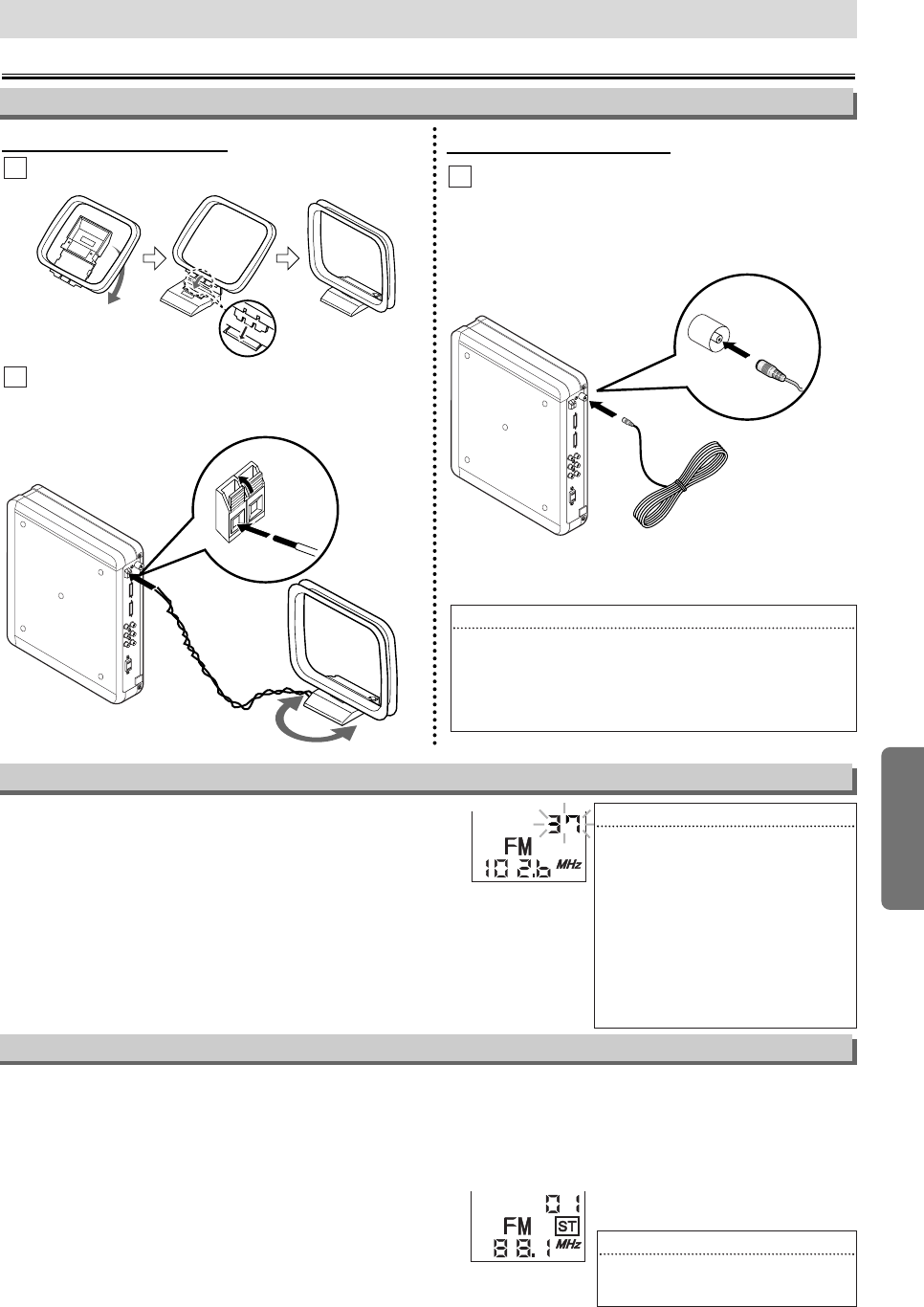
–21 –EN
AV Receiver
AV Receiver
1 Press [AMP POWER] to turn on the AV Receiver.
2 Press [TUNER] to select Tuner mode. The current radio frequency
(station number) will appear on the display.
3 Press [REPEAT/BAND] to select FM or AM.
4 Use [SKIP HH
HH/GG
GG]to select a preset radio station.
5 Use [TUNING o/ p]to change the radio frequency.
6
Press and hold
[TUNING o/ p]
for 2 seconds for search
mode. The next available station will be tuned.
Selecting Radio Stations
Hint
Hint
• [SKIP HH
HH/GG
GG]will not function if there
is no preset radio station.
1 Press [AMP POWER] to turn on the AV Receiver.
2 Press [TUNER] to select Tuner mode. The current
radio frequency (station number) will appear on the
display of the AV Receiver.
3 Press [REPEAT/BAND] to select FM or AM.
4 Use [TUNING o/ p]to select the station you want to preset.
5 Press [SETUP] for 1 second. Preset number will flash.
6 Use [SKIP HH
HH/ GG
GG]and select a preset number, then press
[SETUP].
AM / FM Radio
Preset Radio Stations
To Connect AM/FM Antenna
To connect AM Antenna:
Fix the antenna holder as shown.
1
1
Hint
Hint
•
Do not place the AM antenna on top of the player, the
receiver or the speakers. Keep it as far as possible from
other equipment.
•For better FM reception, connect an outdoor FM
antenna (not supplied) to the FM jack (75Ω).
To connect FM Antenna:
Connect the supplied FM antenna to the FM jack
on back of the AV Receiver. Extend the FM
antenna wire and fix its end to the wall.
1
1
Connect the supplied AM antenna to the
AM jack on back of the AV Receiver, then
position it to receive the clearest sound.
2
2
AV Receiver
AV Receiver
AM Antenna
FM Antenna
Hint
Hint
•
You can store up to 40 preset radio stations.
•
If you want to delete a preset radio station, use
[SKIP HH
HH/GG
GG]to select the preset number,
press and hold [SETUP].When the preset
number flashes, press [CLEAR].
•
If the sound is distorted during AM recep-
tion, use [TUNING oo/pp] on the remote
control to reduce the noise. This is effective
only for the current AM station.This does
not work for every situation. There may be
interference from other electrical appliance
or weak AM signals.
E61TAUD_ENSP.qx33 05.8.9 10:51 AM Page 21
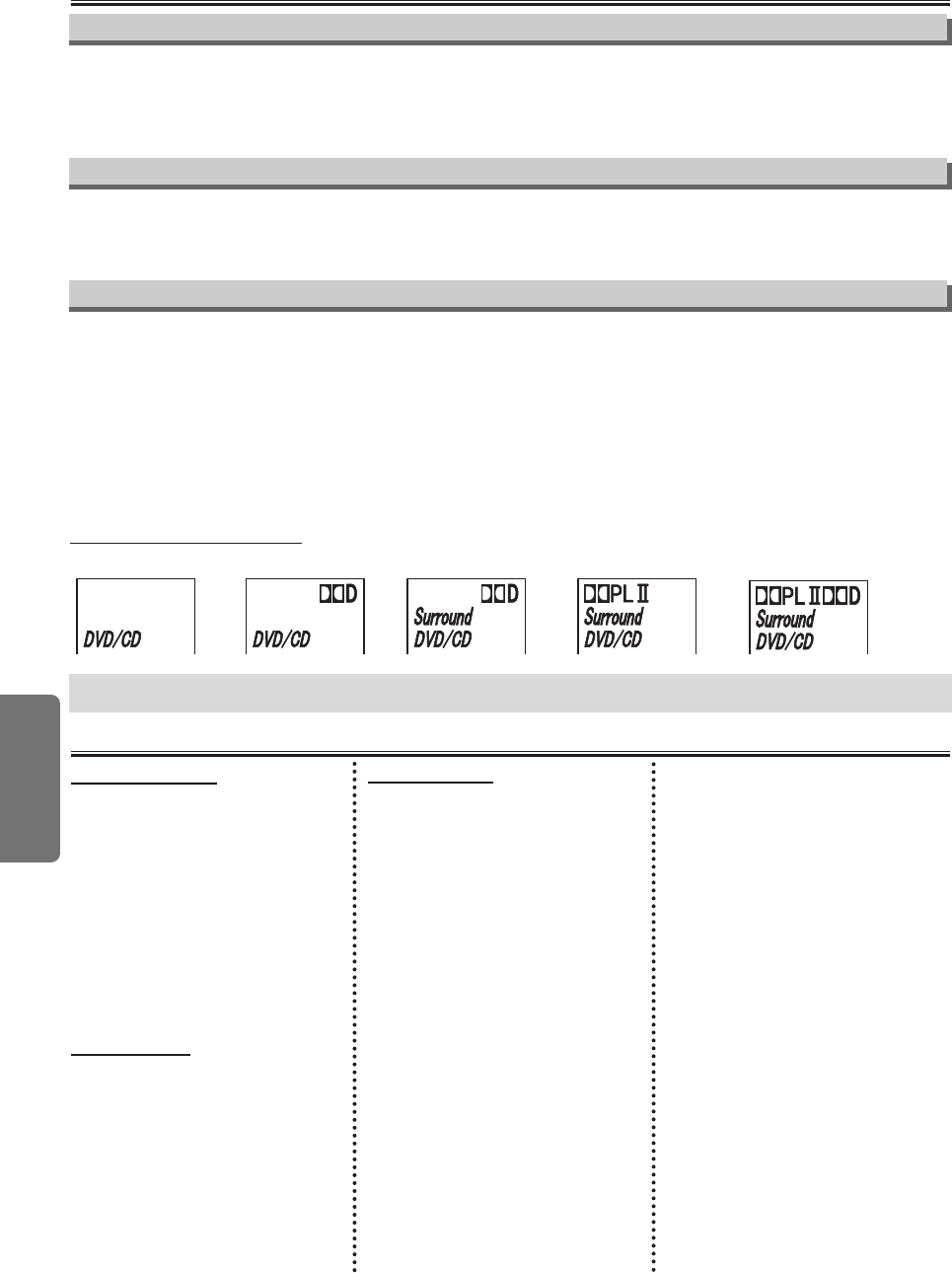
–22 –EN
AV Receiver
DVD/CD Player :
Output signal format:
NTSC color
Power source:
120 V AC +/- 10%,
60 Hz +/- 0.5%
Power consumption:
10 W (standby: 0.8 W)
Operating temperature:
41°F (5°C) to 104°F (40°C)
Dimensions (Vertical installation):
W : 2 1/2" (62 mm)
H : 9 13/16" (249 mm)
D : 9 7/16" (239 mm)
Weight : Approx 2.9 lbs. (1.3 kg)
AV Receiver :
Power source:
120 V AC +/
-
10%,
60 Hz +/- 0.5%
Power consumption:
4 W (standby: 0.9 W)
Operating temperature:
41°F (5°C) to 109°F (40°C)
Dimensions:
W : 2 1/2" (62 mm)
H : 9 13/16" (249 mm)
D : 9 7/16" (239 mm)
Weight : Approx 1.9 lbs. (0.9 kg)
Speaker Unit :
Amplifier
Output Power (8Ω, 1kHz, 10%THD)
100W total
Front Speakers : 12W/ch
Rear Speakers : 12W/ch
Center Speaker: 12W/ch
Subwoofer : 40W/ch (4Ω)
Frequency Response
20Hz - 20kHz
Signal -to- Noise Ratio
80db (One channel driven Sat Power =
10w at 1kHz, WF Power = 30W at
100HZ)
Dimensions (w x h x d)
Front Speakers:
3 15/16" x 7 3/16" x 4 9/16"
100 x 182 x 115 mm
1.8 lbs. (0.8 kg)
Rear Speakers:
12 5/8" x 4 3/16" x 4 9/16"
320 x 105 x 115 mm
3.6 lbs. (1.6 kg)
Center Speaker:
7 1/8" x 4 3/16" x 4 9/16"
180 x 105 x 115 mm
1.6 lbs. (0.7 kg)
Subwoofer:
6 1/8" x 10 1/8" x 12 13/16"
155x 257 x 325 mm
11.5 lbs. (5.2 kg)
NOTE: Designs and specifications are
subject to change without notice.
Specifications
Information
For proper Surround Sound, connect the speakers and Subwoofer correctly. Details are on page 9.
The Center and Rear speakers only operate when Surround is on. The Discs or TV programs must be
recorded or broadcast in Surround Sound.
1
Press [SURROUND] to set Surround to on or off. When Surround is on, the “Surround” will be
displayed on the display of the AV Receiver. When Surround is off, the “Surround” will disappear.
Programs broadcast in Stereo will produce some surround sound effects when played in a surround
mode. However, non-Stereo programs will not have any sound at the Rear speakers.
The following Surround Sound modes may be broadcast by DVDs or TV stations. You cannot alter
these Surround Sound options at the receiver.
Surround Sound Display
Surround Sound
Digital Sound
Digital Sound lets you enjoy special sound effects that have preset equalizer settings, providing the best
music reproduction.
1 Press [SOUND] repeatedly to select ROCK, POPS, CLASSIC, JAZZ or off. The selected Digital
Sound indicator will light up on front of the AV Receiver.
2ch:
Sound Setting
Dolby 2ch: Dolby 5.1ch:
Dolby Pro Logic II: Dolby 2ch Pro Logic II:
Bass Boost
You can emphasize the bass sound.
1 Press [BASS BOOST] to set Bass boost to on or off. When Bass boost is on, the Bass boost indi-
cator will light up on front of the AV Receiver.
E61TAUD_ENSP.qx33 05.8.9 10:51 AM Page 22
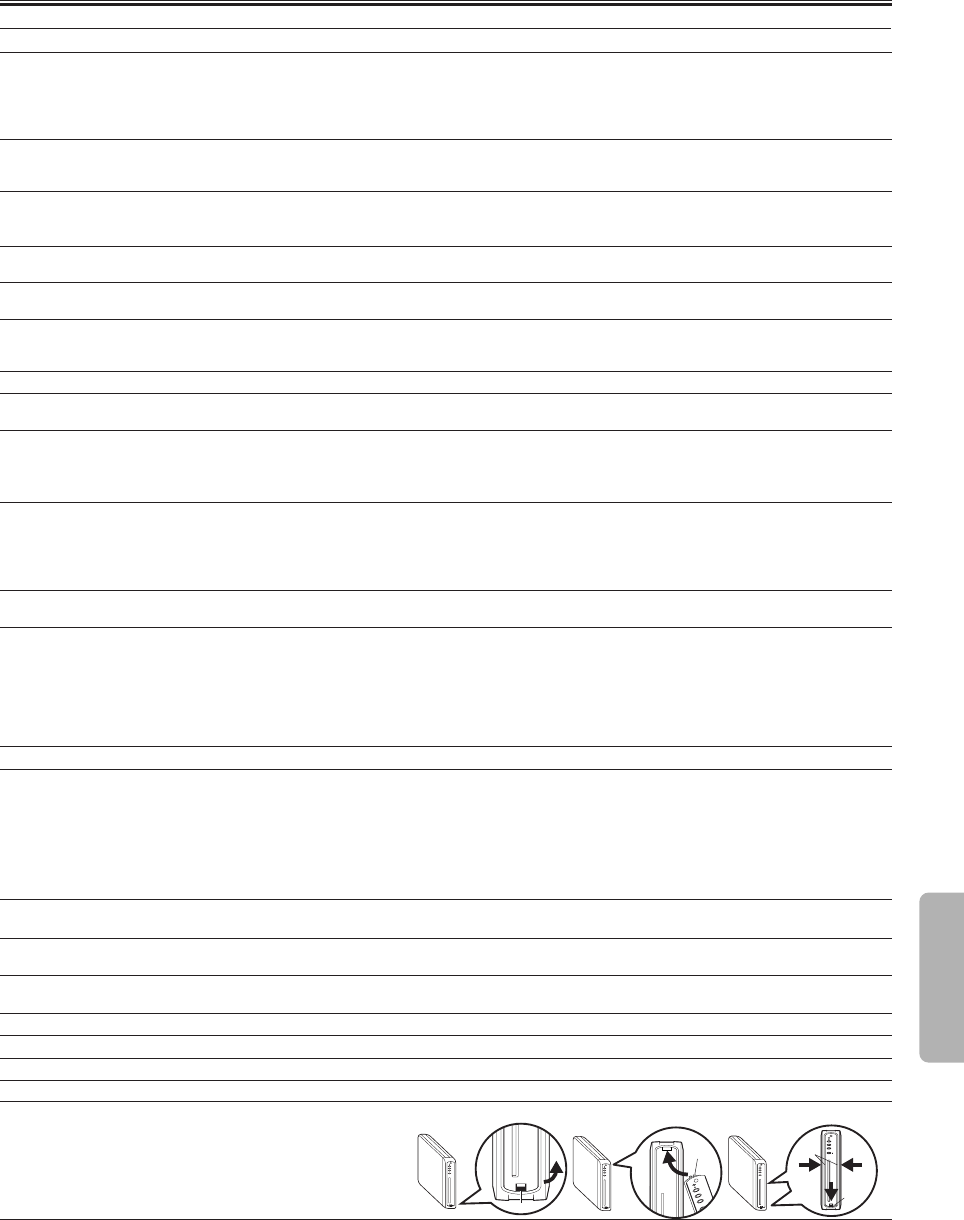
–23 –EN
Troubleshooting Guide
If the system does not perform properly when operated as instructed in this Owner's Manual, check the system consulting the following checklist.
Problem Solution
No picture. –Check if the TV is switched on.
–Check the video connection.
–
Check the Video cable connection to the TV (See “Connection to a TV”).
–
Set progressive scanning mode correctly. Set it on only if your TV is compatible
with Progressive Scan and you are using the Component Video connections.
Distorted picture. –Sometimes a small amount of picture distortion may appear. This is
not a malfunction.
–Connect the player directly to the TV.
Completely distorted picture or black/white picture –Connect the player directly to the TV.
with DVD. –Make sure the disc is compatible with the player.
–
Check if the INTERLACE/PROGRESSIVE mode is set correctly. (See page 10.)
Picture freezes momentarily during playback. –Check the disc for fingerprints, scratches and clean with a soft cloth
wiping from center to edge.
No sound or distorted sound. –Adjust the volume.
–
Check that the AV Receiver and the Speaker Unit are connected correctly.
No audio at digital output. –Check the digital connections.
–Check if the audio format of the selected language matches your
receiver capabilities.
No DTS audio is output. –This system does not support DTS audio. This is not a malfunction.
Low hum or buzz sound. –Place speakers as far away as possible from electrical devices that
may be causing interference.
There is no sound from the center and –Make sure the center and rear speakers are connected correctly.
rear speakers. –Press [SURROUND] to select a correct surround setting.
–Make sure the source you are playing is recorded or broadcast in
surround sound (Dolby Pro Logic II, Dolby Digital, etc.).
Radio reception is poor. –Tune in to the correct frequency.
–If the signal is too weak, adjust the antenna or connect an external
antenna for better reception.
–Place the antenna farther away from any equipment that may be
causing the noise.
No power. –Check if the AC power cord is properly connected.
–
Unplug outlets once and wait for 5-10 seconds and then plug in again.
Disc cannot be played. –Clean the disc.
–Ensure the disc is inserted correctly.
–Check if the disc is defective by trying another disc.
–Cancel the parental lock or change the control level.
–Insert a correct disc that plays on this player.
–Handle a disc with special care so that it does not have fingerprints,
scratches or dusts on its surface.
No return to start-up screen when disc is removed. –Reset the player by switching off, then turn on again.
The player/receiver does not respond –
Aim the remote control directly at the sensor on the front of the player/receiver.
to the remote control. –Reduce the distance to the player/receiver.
–Replace the batteries in the remote control.
–Re-insert the batteries with their polarities (+/
-
signs) as indicated.
–
Tune your radio to an empty AM station so that you hear a lot of noises. Then,
turn the volume up. If you hear some signal sound from the radio by pressing
buttons on the remote control, the remote control is working.
Buttons do not work or the player/receiver –Unplug the AC cord from the AC outlet for 5-10 seconds to reset the
stops responding. system completely.
The player cannot read CDs/DVDs. –Use a commonly available CD/DVD cleaner and clean the lens
before sending the player for repair.
Angle does not switch. –The angle cannot be switched which do not contain multiple angles.
In some cases multiple angles are only recorded for specific scenes.
Playback does not start when the title is selected. –Check the “PARENTAL” setting.
Forgot the password for the parental lock. –
Enter the default password “4737”.Your forgotten password will be cleared.
Disc cannot be inserted. –
Check if any disc is already in.
Disc cannot be taken out. –
Press and hold [EJECT A]on the front panel for more than 5 seconds.
The player cannot operate with the front panel buttons.
–
Follow the illustration below and attach the panel correctly.
The front panel of the DVD/CD Player came off.
Stopper
Click!
Click!
PROGRESSIVE
POWER
C STOP
EJECT
B
PLAY
Catch
PROGRESSIVE
POWER
C STOP
EJECT
B
PLAY
NOTES:
•Some functions are not available in specific modes, but this is not a malfunction. Read the description in this Owner’s Manual
for more details on correct operations.
•Playback from a desired track and random playback are not available during program playback.
•Some functions are prohibited on some discs.
Information
E61TAUD_ENSP.qx33 05.8.9 10:51 AM Page 23
–24 –EN
LIMITED WARRANTY
FUNAI CORP. will repair this SYLVANIA product, free of charge in the USA
in the event of defect in materials or workmanship as follows:
DURATION:
PARTS: FUNAI CORP. will provide parts to replace defective parts
without charge for one (1) year from the date of original retail
purchase. Certain parts are excluded from this warranty.
LABOR: FUNAI CORP. will provide the labor without charge for a peri-
od of ninety (90) days from the date of original retail pur-
chase.
LIMITS AND EXCLUSIONS:
This warranty is extended only to the original retail purchaser. A purchase
receipt or other proof of original retail purchase will be required together with
the product to obtain service under this warranty.
This warranty shall not be extended to any other person or transferee.
This warranty is void and of no effect if any serial numbers on the product are
altered, replaced, defaced, missing or if service was attempted by an unau-
thorized service center. This SYLVANIA Limited warranty does not apply to
any product not purchased and used in the United States.
This product is produced for home use and this warranty only covers failures
due to defects in material or workmanship which occurs during normal use. It
does not cover damage which occurs in shipment, or failures which are caused
by repairs, alterations or product not supplied by FUNAI CORP., or damage
which results from accident, misuse, abuse, mishandling, misapplication, alter-
ation, faulty installation, improper maintenance, commercial use such as hotel,
rental or office use of this product or damage which results from fire, flood, light-
ning or other acts of God.
THIS WARRANTY DOES NOT COVER PACKING MATERIALS, ANY
ACCESSORIES (EXCEPT REMOTE CONTROL), ANY COSMETIC
PARTS, COMPLETE ASSEMBLY PARTS, DEMO OR FLOOR MODELS.
FUNAI CORP. AND ITS REPRESENTATIVES OR AGENTS SHALL IN NO
EVENT BE LIABLE FOR ANY GENERAL, INDIRECT OR CONSEQUEN-
TIAL DAMAGES ARISING OUT OF OR OCCASIONED BY THE USE OF
OR THE INABILITY TO USE THIS PRODUCT. THIS WARRANTY IS MADE
IN LIEU OF ALL OTHER WARRANTIES, EXPRESS OR IMPLIED, AND OF
ALL OTHER LIABILITIES ON THE PART OF FUNAI, ALL OTHER WAR-
RANTIES INCLUDING THE WARRANTY OF MERCHANTABILITY, AND
FITNESS FOR A PARTICULAR PURPOSE, ARE HEREBY DISCLAIMED
BY FUNAI AND ITS REPRESENTATIVES IN THE UNITED STATES. ALL
WARRANTY INSPECTIONS AND REPAIRS MUST BE PERFORMED BY A
FUNAI AUTHORIZED SERVICE CENTER. THIS WARRANTY IS VALID
WHEN THE UNIT IS CARRIED-IN TO A FUNAI AUTHORIZED SERVICE
CENTER.
IMPORTANT:
THIS LIMITED WARRANTY GIVES YOU SPECIFIC LEGAL RIGHTS. YOU
MAY HAVE OTHER RIGHTS THAT VARY FROM STATE TO STATE. IF, AT
ANY TIME DURING THE WARRANTY PERIOD, YOU ARE UNABLE TO
OBTAIN SATISFACTION WITH THE REPAIR OF THIS PRODUCT, PLEASE
CONTACT FUNAI CORP.
ATTENTION:
FUNAI CORP. RESERVES THE RIGHT TO MODIFY ANY DESIGN OF
THIS PRODUCT WITHOUT PRIOR NOTICE.
To locate your nearest AUTHORIZED SERVICE CENTER or for general
service inquiries, please contact us at :
FUNAI CORPORATION
Customer Service
Tel :1-800-968-3429
http://www.SylvaniaConsumerElectronics.com
19900 Van Ness Avenue, Torrance, CA 90501
✄
Language Code List
A-B
Abkhazian 4748
Afar 4747
Afrikaans 4752
Albanian 6563
Amharic 4759
Arabic 4764
Armenian 5471
Assamese 4765
Aymara 4771
Azerbaijani 4772
Bashkir 4847
Basque 5167
Bengali;Bangla 4860
Bhutani 5072
Bihari 4854
Bislama 4855
Breton 4864
Bulgarian 4853
Burmese 5971
Byelorussian 4851
C-E
Cambodian 5759
Catalan 4947
Chinese [CHI] 7254
Corsican 4961
Croatian 5464
Czech 4965
Danish [DAN] 5047
Dutch [DUT] 6058
English [ENG] 5160
Esperanto 5161
Estonian 5166
F-H
Faroese 5261
Fiji 5256
Finnish [FIN] 5255
French [FRE] 5264
Frisian 5271
Galician 5358
Georgian 5747
German [GER] 5051
Greek [GRE] 5158
Greenlandic 5758
Guarani 5360
Gujarati 5367
Hausa 5447
Hebrew 5569
Hindi 5455
Hungarian [HUN] 5467
I-K
Icelandic [ICE] 5565
Indonesian 5560
Interlingua 5547
Interlingue 5551
Inupiak 5557
Irish [IRI] 5347
Italian [ITA] 5566
Japanese [JPN] 5647
Javanese 5669
Kannada 5760
Kashmiri 5765
Kazakh 5757
Kinyarwanda 6469
Kirghiz 5771
Kirundi 6460
Korean [KOR] 5761
Kurdish 5767
L-N
Laothian 5861
Latin 5847
Latvian;Lettish 5868
Lingala 5860
Lithuanian 5866
Macedonian 5957
Malagasy 5953
Malay 5965
Malayalam 5958
Maltese 5966
Maori 5955
Marathi 5964
Moldavian 5961
Mongolian 5960
Nauru 6047
Nepali 6051
Norwegian [NOR] 6061
O-R
Occitan 6149
Oriya 6164
Oromo(Afan) 6159
Panjabi 6247
Pashto;Pushto 6265
Persian 5247
Polish 6258
Portuguese [POR] 6266
Quechua 6367
Rhaeto-Romance 6459
Romanian [RUM] 6461
Russian [RUS] 6467
S
Samoan 6559
Sangho 6553
Sanskrit 6547
Scots Gaelic 5350
Serbian 6564
Serbo-Croatian 6554
Sesotho 6566
Setswana 6660
Shona 6560
Sindhi 6550
Singhalese 6555
Siswat 6565
Slovak 6557
Slovenian 6558
Somali 6561
Spanish [SPA] 5165
Sundanese 6567
Swahili 6569
Swedish [SWE] 6568
T
Tagalog 6658
Tajik 6653
Tamil 6647
Tatar 6666
Telugu 6651
Thai 6654
Tibetan 4861
Tigrinya 6655
Tonga 6661
Tsonga 6665
Tur kish [TUR] 6664
Tur kmen 6657
Twi 6669
U-Z
Ukrainian 6757
Urdu 6764
Uzbek 6772
Vietnamese 6855
Volapuk 6861
Welsh 4971
Wolof 6961
Xhosa 7054
Yiddish 5655
Yo r uba 7161
Zulu 7267
Language Code Language Code Language Code Language Code
If you choose a Language that has a 3 letter language code, the code will be displayed every time you change the Audio or Subtitle language
setting on page 16. If you choose any other languages, ‘---’ will be displayed instead. (3 letter language code is written in bracket.)
Information
E61TAUD_ENSP.qx33 05.8.9 10:51 AM Page 24
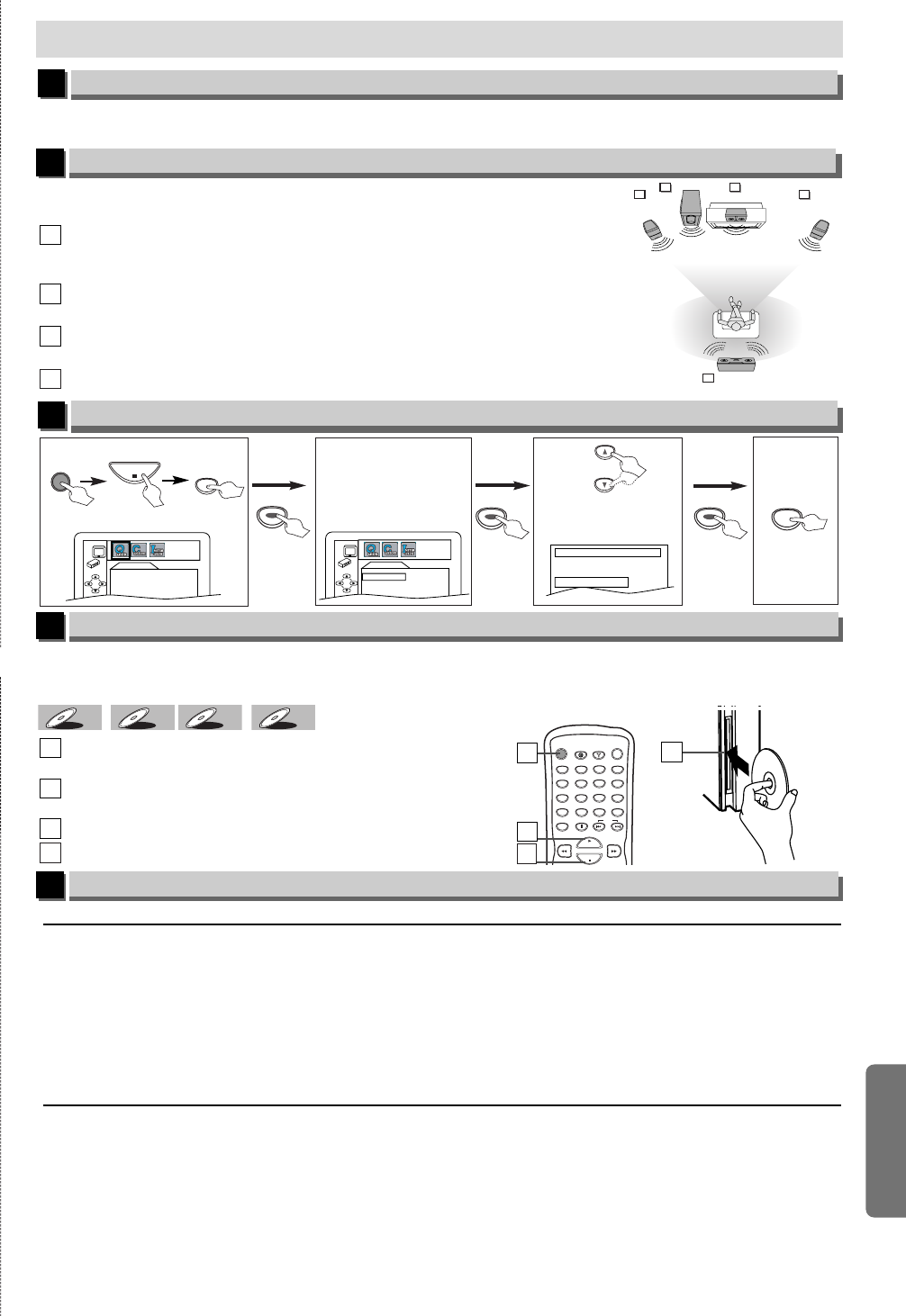
✄
Si su televisor tiene entradas de AUDIO/VIDEO vea la sección “Connection to a TV” en la página 10 en el Manual
de Manejo. En caso contrario, vea la sección “RF Modulator Connection” en la página 11 en el Manual de Manejo.
Español
Conexiones
1
ÁREA DE VISIÓN
Altavoz central
Subgraves
Altavoz
delantero
(Izquierdo)
Altavoz
trasero
inalámbrico
Altavoz
delantero
(Derecho)
TV
11
2
3
4
Conecte todos los altavoces y ajuste correctamente el sistema para
disfrutar de la experiencia del Cine en el Hogar.
Coloque los altavoces DELANTEROS Izquierdo y Derecho a las
mismas distancias del TV y a un ángulo de 45 grados de la
posición de escucha.
Coloque el altavoz CENTRAL encima o debajo del TV para
localizar el sonido.
Coloque los altavoces TRASEROS (Inalámbricos) al nivel de
escucha normal detrás de la posición de escucha.
Coloque el altavoz de subgraves en el piso, cerca del TV.
4
4
3
3
2
2
1
1
Ajustes de altavoz
2
Radio AM/FM
5
Selección de emisoras de radio
1 Presione [AMP POWER] para activar el sintamplificador AV.
2 Presione [TUNER] para seleccionar el modo de sintonizador. La frecuencia de radio actual
(número de emisora) aparecerá en la pantalla.
3 Presione [REPEAT/BAND] para seleccionar FM o AM.
4 Utilice [SKIP HH
HH/GG
GG]para seleccionar una emisora de radio prefijada.
5 Utilice [TUNING o/ p]para cambiar la frecuencia de radio.
6 Mantenga presionado [TUNING o/ p]para durante 2 segundos para el modo de búsqueeda.
Se sintonizará la siguiente emisora disponible. (Vea la página 21 para más detalles.)
Para cambiar el idioma en la pantalla
3
3
3
1
1
Seleccione el idioma
deseado para las
indicaciones en la pantalla.
PLAYER MENU
ENGLISH
FRANÇAIS
ESPAÑOL
Confirme que ha seleccionado
“QUICK”.
SETUP
STOP
DVD POWER
QUICK SETUP
PLAYER MENU ENGLISH
TV ASPECT
4:3 LETTER BOX
2
24
4
SETUP
Para salir
del menú.
ENTERENTERENTER
ENTERENTERENTER
o
ENTERENTERENTER
Confirme que ha
seleccionado
“PLAYER MENU”.
QUICK SETUP
PLAYER MENU ENGLISH
TV ASPECT
4:3 LETTER BOX
Reproducción
4
Antes:
¡
Encienda el televisor, amplificador y otros equipos conectados a esta reproductor. Asegúrese que
el televisor y el sintonizador de audio (de venta en los comercios) están en el canal correcto.
WMAWMA
WMA
MP3MP3
MP3
CDCD
CD
DVD-V
DVD-V
Presione [DVD POWER] para encender el reproductor
de DVD/CD.
Coloque un disco con la etiqueta mirando a la
izquierda (arriba si la instalación es horizontal).
Presione [PLAY B]para empezar a reproducir.
Presione [STOP C]para parar la reproducción.
4
4
3
3
2
2
1
1
DISPLAY
AUDIO
SUBTITLE
ANGLE
DVD POWER
CLEAR
SEARCH
MODE
PAUSE SKIP
AMP POWER
DVD TUNER
123
456
789
0+10
PLAY
STOP
3
3
etiqueta
1
12
2
Prefijado de estaciones de radio
1 Presione [AMP POWER] para activar el sintamplificador AV.
2 Presione [TUNER] para seleccionar el modo de sintonizador. La frecuencia de radio actual
(número de emisora) aparecerá en la pantalla.
3 Presione [REPEAT/BAND] para seleccionar FM o AM.
4 Utilice [TUNING o/ p]para seleccionar la emisora que desea prefijar.
5 Presione [SETUP] durante 1 segundo. Destellar á el número prefijado.
6 Utilice [SKIP HH
HH/GG
GG]y seleccione un número prefijado y presione [SETUP].
(Vea la página 21 para más detalles.)
–25 –ES
Español
4
4
E61TAUD_ENSP.qx33 05.8.9 10:51 AM Page 25
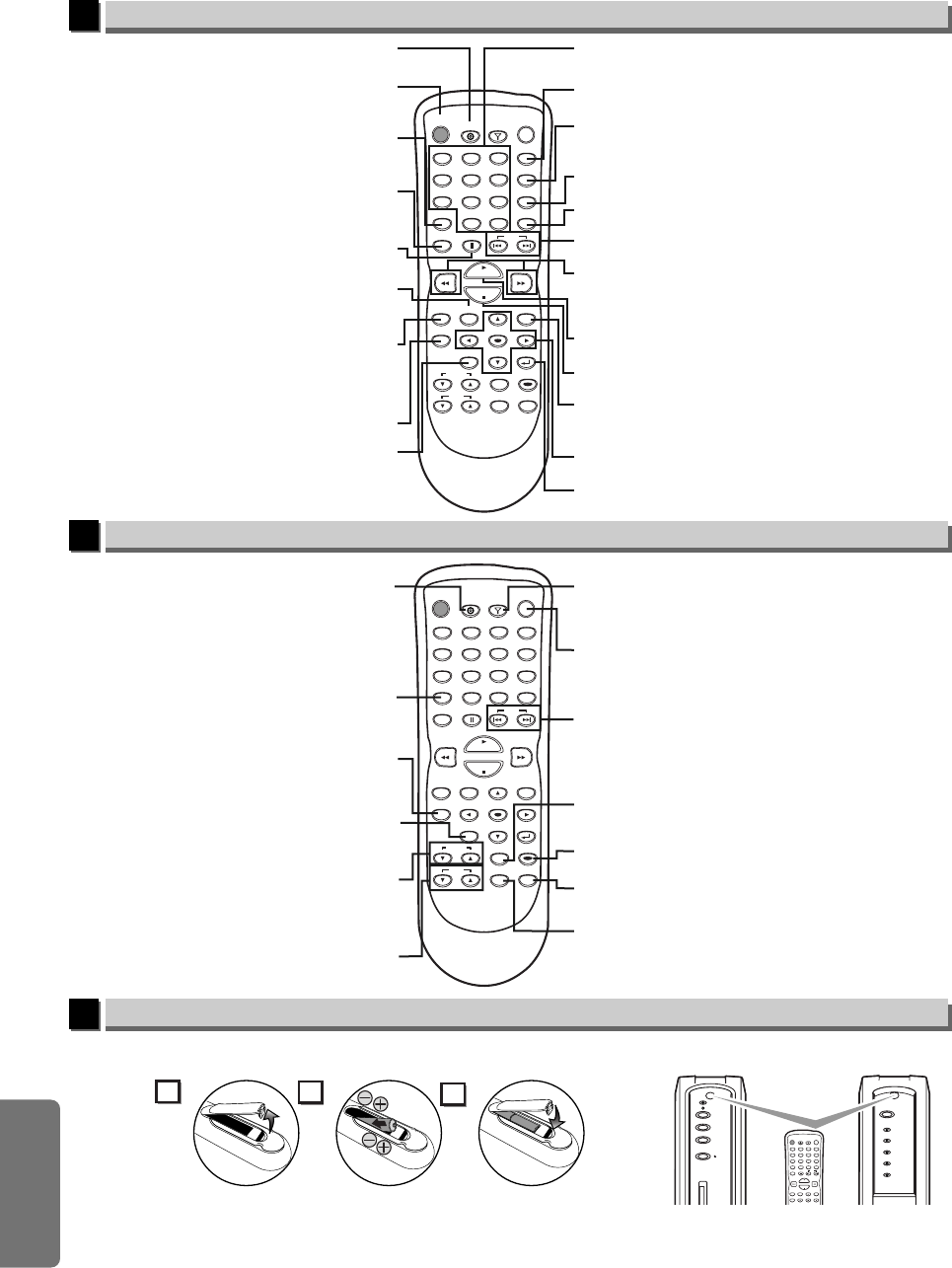
–26 –ES
✄
Funcionamiento con el control remoto para DVD/CD Player
6
Funcionamiento con el control remoto para AV Receiver
7
Instalación de las pilas para el mando a distancia
8
DISPLAY
AUDIO
SUBTITLE
ANGLE
DVD POWER
CLEAR
SEARCH
MODE
PAUSE
MODE
TOP MENU
REPEAT/BAND
MENU
ENTER
SETUP
RETURN
SKIP
AMP POWER
DVD TUNER
123
456
789
0+10
PLAY
STOP
SURROUNDBASS BOOST
MUTE SOUND
TUNING
VOL.
Botones SKIP H / G
Para saltar capítulos. (DVD) o canciones. (CD/MP3/WMA).
Botones ENTER / K / L / s / B
Para mover el cursor y determinar la posición.
Botón STOP C
Para parar la reproducción.
Botones FWD g / REV h
Para buscar en avance/retroceso por un disco.
Para empezar la reproducción en avance lento/
retroceso durante el modo de pausa.
(DVD)
Botón DVD
Para activar el sintoamplificador AV
y el control remoto en el modo DVD.
Botón DISPLAY
Para mostrar el modo de disco actual.
Botón AUDIO
Para seleccionar idiomas de audio en un disco. (DVD)
Para seleccionar ESTÉREO L-ch o R-ch. (CD)
Botón SUBTITLE
Para seleccionar subtítulos en un disco. (DVD)
Botón ANGLE
Para seleccionar los ángulos de cámara en un disco. (DVD)
Botón RETURN
Para volver a la operación anterior en el menú.
Botón MENU
Para llamar el Menú en un disco. (DVD)
Para llamar la lista de archivo. (MP3/WMA)
Botón SETUP
Para llamar el menú de ajustes de DVD.
(DVD)
Botón DVD POWER
Para activar y desactivar el reproductor de DVD.
Para activar el sintoamplificador AV
y el control remoto en el modo DVD.
Botón CLEAR
Para borrar los marcadores (DVD/CD) y los números mal entrados.
Para eliminar el Nº de estado en la
entrada de programa.
(CD/MP3/WMA)
Botón PAUSE F
Para hacer una pausa en la reproducción.
Para avanzar la reproducción un cuadro cada vez. (DVD)
Botón PLAY B
Para empezar la reproducción del disco.
Botón TOP MENU
Para llamar el menú inicial en un disco. (DVD)
Para volver al archivo superior de la jerarquia más
alta en el programa y en la lista de archivo. (MP3/WMA)
Botones NUMBER
Para seleccionar directamente el capítulo o título.
(DVD)
Para seleccionar directamente la canción.
(CD/MP3/WMA)
Botón SEARCH MODE
Para buscar un capítulo, título o tiempo. (DVD)
Para colocar o buscar los marcadores (DVD/CD) y tiempo (CD).
Para buscar una canción. (CD/MP3/WMA)
Botón REPEAT/BAND
Para reproducir repetidamente un capítulo o título. (DVD)
Para reproducir repetidamente una canción o disco. (CD)
Para reproducir repetidamente una
canción, grupo o disco. (MP3/WMA)
Botón MODE
Para des activar /x1,3 /x0,8 el reproduccìón rápid
y el nivel del negro. (DVD)
Para activar/desactivar el Dolby Pro Logic II.
Para disponer el orden de reproducción o
la reproducción aleatoria. (CD/MP3/WMA)
DISPLAY
AUDIO
SUBTITLE
ANGLE
DVD POWER
CLEAR
SEARCH
MODE
PAUSE
MODE
TOP MENU
REPEAT/BAND
MENU
ENTER
SETUP
RETURN
SKIP
AMP POWER
DVD TUNER
123
456
789
0+10
PLAY
STOP
SURROUNDBASS BOOST
MUTE SOUND
TUNING
VOL.
Botón TUNER
Para activar el sintoamplificador AV
y el control remoto en el modo de sintonizador.
Botón AMP POWER
Para activar o desactivar el sintamplificador AV.
Botón BASS BOOST
Para activar o desactivar el refuerzo de graves.
Botón SURROUND
Para activar o desactivar el sonido envolvnte.
Botón SOUND
Para seleccionar el sonido digital.
Botón MUTE
Para silenciar el sonido.
Botones SKIP H / G
Para seleccionar emisoras de radio prefijadas.
Para seleccionar el número prefijado
en el Prefijado de emisoras de radio.
Botón DVD
Para activar el sintoamplificador AV
y el control remoto en el modo DVD.
Botón CLEAR
Para borrar emisoras de radio prefijadas
en el Prefijado de emisoras de radio.
Botón SETUP
Mantenga presionado para entrar en el modo
de prefijado de canal para las emisoras de radio.
Botón REPEAT/BAND
Para seleccionar FM o AM
en el modo de sintonizador.
Botones TUNING
Para subir o bajar la frecuencia.
Mantenga presionado 2 segundos
para buscar emisoras de radio.
Botones VOL.
Para ajustar el volumen.
Recuerde lo siguiente cuando utilice el mando a distancia:
•
Asegúrese que no haya obstáculos entre el mando a distancia y el sensor remoto en la unidad.
• Las máximas distancias de funcionamiento de la unidad son las siguientes.
-
Línea directa:
aprox. 7m (23 pies) - A un lado del centro:
aprox. 5m (16 pies) ángulo de menos de 30°)
- Arriba:
aprox. 5m (16 pies) en un ángulo de menos de 15°
- Abajo:
Aprox. 3m (10 pies) en un ángulo de menos de 30°
2
13
PROGRESSIVE
POWER
C STOP
EJECT
B
PLAY
PROGRESSIVE
POWER
ROCK
POPS
CLASSIC
JAZZ
BASS
BOOST
DISPLAY
AUDIO
SUBTITLE
ANGLE
DVD POWER
CLEAR
SEARCH
MODE
PAUSE
MODE
TOP MENU
REPEAT/BAND
MENU
ENTER
SETUP
RETURN
SKIP
AMP POWER
DVD TUNER
123
456
789
0+10
PLAY
STOP
Instale dos pilas AA (entregadas) de forma que las polaridades coincidan con las indicadas dentro del compartimiento de
pilas del mando a distancia.
Español
E61TAUD_ENSP.qx33 05.8.9 10:51 AM Page 26
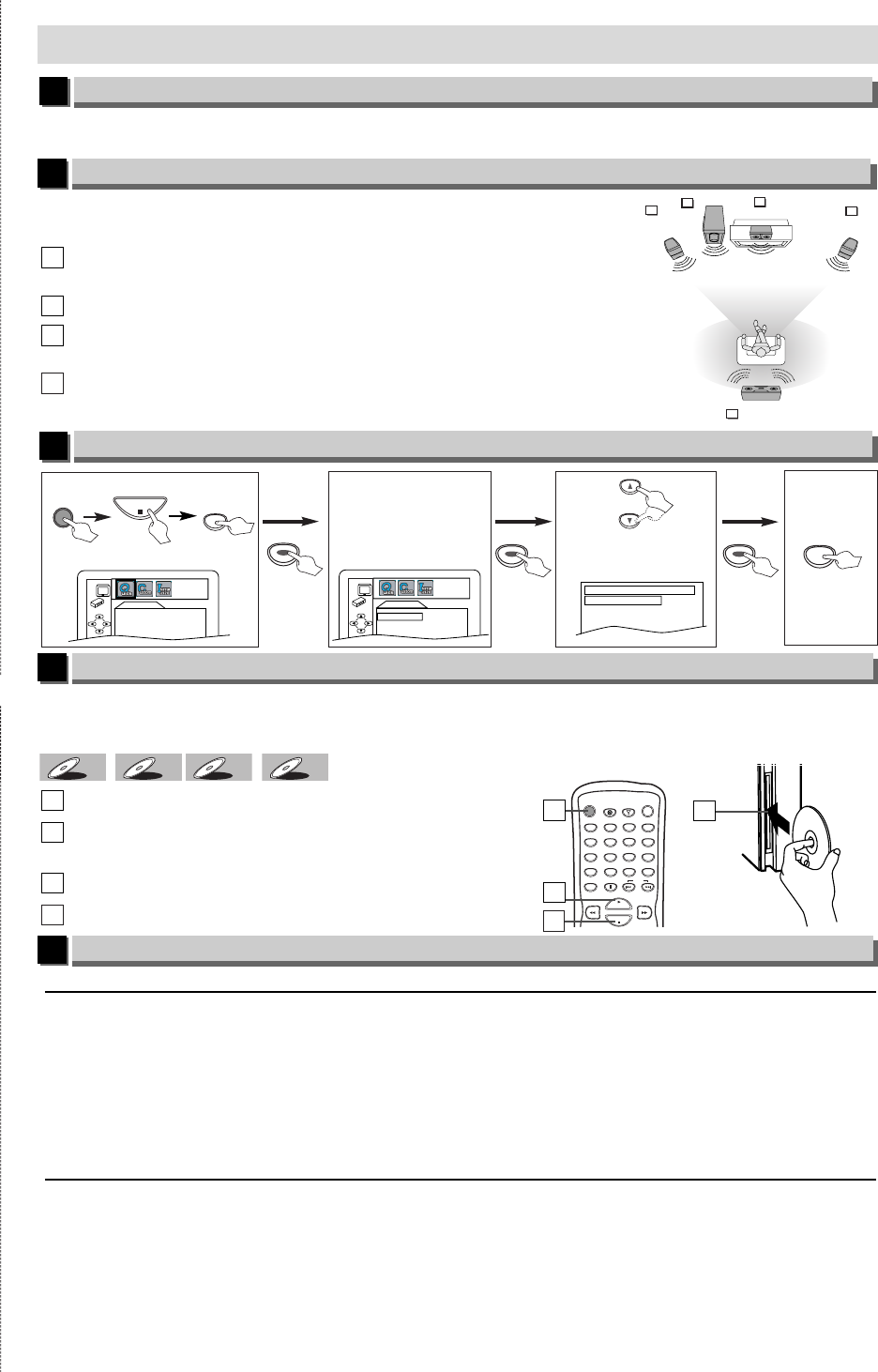
✄
1
2
If your TV has AUDIO/VIDEO input jacks, see the section “Connection to a TV” on page 10 of the
Owner’s Manual. If not, see the section “RF Modulator Connection” on page 11 of the Owner’s Manual.
Quick Use Guide
Connections
VIEWING AREA
Center Speaker
Subwoofer
Front
Speaker
(Left)
Wireless
Rear Speaker
Front
Speaker
(Right)
TV
11
2
3
4
Connect all the speakers and set up the system properly in order to
enjoy the Home Cinema experience.
Place the FRONT Left and Right speakers at equal distances from
the TV and at a 45-degree angle from the listening position.
Place the CENTER speaker above or below the TV to localize the sound.
Place the REAR (Wireless) speakers at normal listening ear level
behind the listening position.
Place the Subwoofer on the floor, near the TV.
4
4
3
3
2
2
1
1
Speaker Setup
4
5
Playback
Before:
¡Turn on the TV, amplifier and any other equipment which are connected to this player. Make sure
the TV and audio receiver (commercially available) are set to the correct channel.
WMAWMA
WMA
MP3MP3
MP3
CDCD
CD
DVD-V
DVD-V
Press [DVD POWER] to turn on the DVD/CD Player.
Insert a disc with label facing to the left (facing up for
horizontal installation).
Press [PLAY B]to start playback.
Press [STOP C]to stop playback.
4
4
3
3
2
2
1
1
To Change the On-Screen Language
3
1
1
Select the desired language
for the On-Screen Display.
PLAYER MENU
ENGLISH
FRANÇAIS
ESPAÑOL
Confirm that “QUICK” is selected.
SETUP
STOP
DVD POWER
QUICK SETUP
PLAYER MENU ENGLISH
TV ASPECT
4:3 LETTER BOX
2
24
4
SETUP
To exit
the menu.
ENTERENTERENTER
ENTERENTERENTER
or
ENTERENTERENTER
3
3
Confirm that “PLAYER
MENU” is selected.
QUICK SETUP
PLAYER MENU ENGLISH
TV ASPECT
4:3 LETTER BOX
AM /FM Radio
Preset Radio Stations
1 Press [AMP POWER] to turn on the AV Receiver.
2
Press [TUNER] to select Tuner mode. The current radio frequency (station number) will appear on the display.
3 Press [REPEAT/BAND] to select FM or AM.
4 Use [TUNING o/ p]to select the station you want to preset.
5 Press [SETUP] for 1 second. Preset number will flash.
6 Use [SKIP HH
HH/GG
GG]and select a preset number, then press [SETUP].
(See page 21 for more details.)
Selecting Radio Stations
1 Press [AMP POWER] to turn on the AV Receiver.
2
Press [TUNER] to select Tuner mode. The current radio frequency (station number) will appear on the display.
3 Press [REPEAT/BAND] to select FM or AM.
4 Use [SKIP HH
HH/GG
GG]to select a preset radio station.
5 Use [TUNING o/ p]to change the radio frequency.
6
Press and hold [TUNING o/ p]for 2 seconds for search mode. The next available station will be tuned.
(See page 21 for more details.)
DISPLAY
AUDIO
SUBTITLE
ANGLE
DVD POWER
CLEAR
SEARCH
MODE
PAUSE SKIP
AMP POWER
DVD TUNER
123
456
789
0+10
PLAY
STOP
4
4
3
3
label
1
12
2
–27 –EN
E61TAUD_ENSP.qx33 05.8.9 10:51 AM Page 27
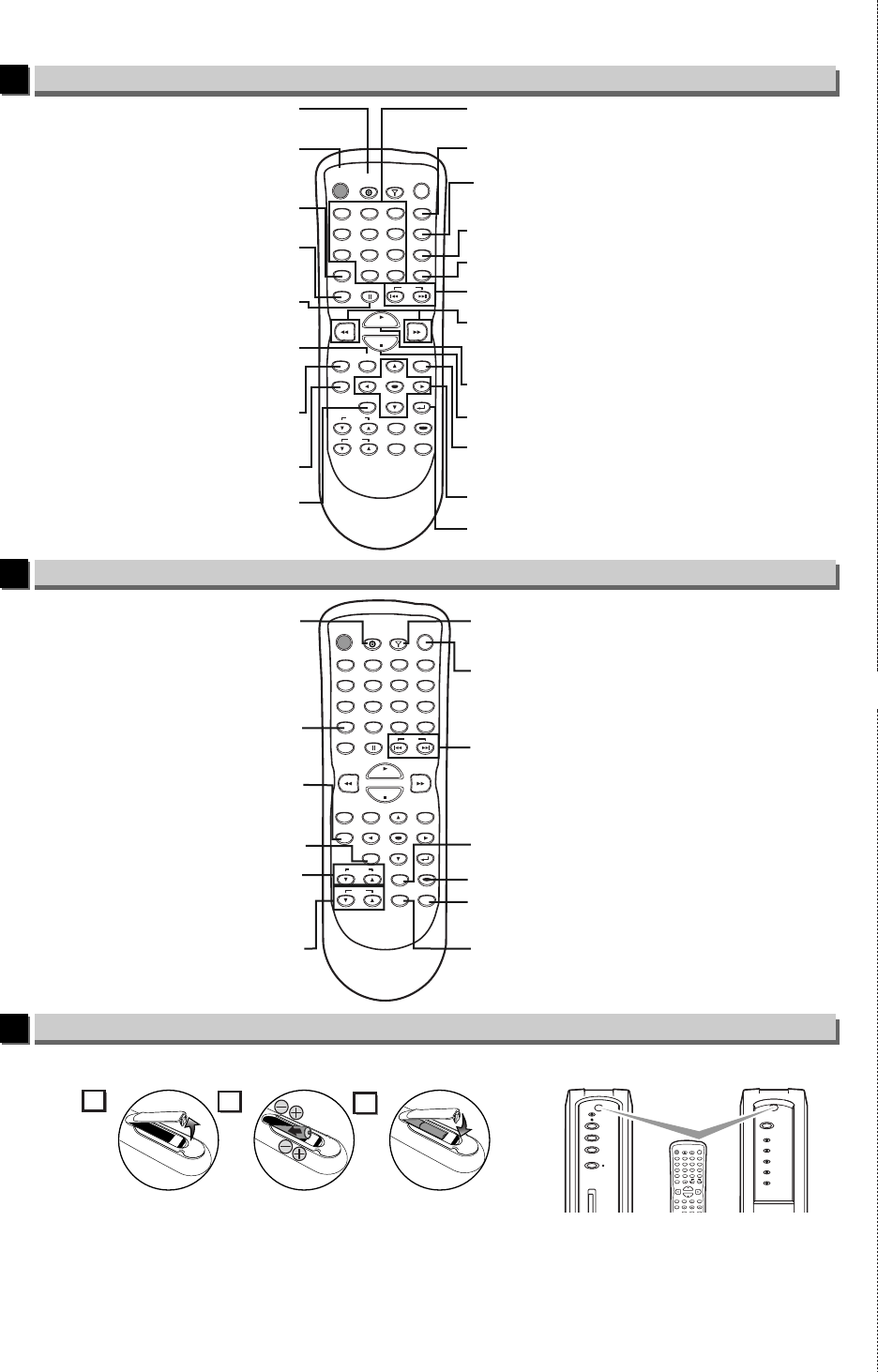
1VMN21407 / E61TAUD / E61TBUD ★★★★★
✄
Printed in China
Remote Control operation for the DVD/CD Player
6
Remote Control operation for the AV Receiver
7
Installing the Batteries for the Remote Control
8
DISPLAY
AUDIO
SUBTITLE
ANGLE
DVD POWER
CLEAR
SEARCH
MODE
PAUSE
MODE
TOP MENU
REPEAT/BAND
MENU
ENTER
SETUP
RETURN
SKIP
AMP POWER
DVD TUNER
123
456
789
0+10
PLAY
STOP
SURROUNDBASS BOOST
MUTE SOUND
TUNING
VOL.
SKIP H / G buttons
To skip chapters (DVD) or tracks (CD/MP3/WMA).
ENTER / K / L / s / B buttons
To move the cursor and determine its position.
STOP C button
To stop playback.
FWD g / REV h buttons
To search forward / backward through a disc.
To begin slow forward / reverse playback
during the pause mode. (DVD)
DVD button
To activate the AV Receiver and
the remote control in DVD mode.
DISPLAY button
To display the current disc mode.
AUDIO button
To select audio languages on a disc. (DVD)
To select STEREO, L-ch or R-ch. (CD)
SUBTITLE button
To select subtitles on a disc. (DVD)
ANGLE button
To select camera angles on a disc. (DVD)
RETURN button
To return to the previous operation in menu.
MENU button
To call up the Menu on a disc. (DVD)
To call up the file list. (MP3/WMA)
SETUP button
To call up the DVD setup menu.
(DVD)
DVD POWER button
To turn the
DVD/CD Player
on or off.
To activate the AV Receiver and
the remote control in DVD mode.
CLEAR button
To clear the markers (DVD/CD) and numbers entered incorrectly.
To remove status number in program input. (CD/MP3/WMA)
PAUSE k button
To pause disc playback.
To advance playback one frame at a time. (DVD)
PLAY B button
To begin disc playback.
TOP MENU button
To call up the Top Menu on a disc. (DVD)
To return to the top file of the highest hierarchy
in the program and file list. (MP3/WMA)
NUMBER buttons
To select chapter or title directly. (DVD)
To select track directly. (CD/MP3/WMA)
SEARCH MODE button
To search chapter, title or time. (DVD)
To set or search the markers (DVD/CD) and time (CD).
To search track. (CD/MP3/WMA)
REPEAT/BAND button
To play a chapter or title repeatedly. (DVD)
To play a track or disc repeatedly. (CD)
To play a track, group or disc repeatedly. (MP3/WMA)
MODE button
To set rapid play off /x1.3 /x0.8 and black level on/off. (DVD)
To set
Dolby Pro Logic II on/off.
To arrange the playing order or play randomly. (CD/MP3/WMA)
DISPLAY
AUDIO
SUBTITLE
ANGLE
DVD POWER
CLEAR
SEARCH
MODE
PAUSE
MODE
TOP MENU
REPEAT/BAND
MENU
ENTER
SETUP
RETURN
SKIP
AMP POWER
DVD TUNER
123
456
789
0+10
PLAY
STOP
SURROUNDBASS BOOST
MUTE SOUND
TUNING
VOL.
TUNER button
To activate the AV Receiver and
the remote control in Tuner mode.
AMP POWER button
To turn the AV Receiver on or off.
BASS BOOST button
To turn BASS BOOST on or off.
SURROUND button
To turn SURROUND Sound on or off.
SOUND button
To select Digital Sound.
MUTE button
To mute the sound.
SKIP H / G buttons
To select preset radio stations.
To select preset number in
Preset Radio Stations.
DVD button
To activate the AV Receiver and
the remote control in DVD mode.
CLEAR button
To delete preset radio station
in Preset Radio Stations.
SETUP button
Press and hold to enter channel
preset mode for radio stations.
REPEAT/BAND button
To select FM or AM in Tuner mode.
TUNING buttons
To increase or decrease the frequency.
Hold 2 seconds to seek radio stations.
VOL. buttons
To adjust the volume.
Keep in mind the following when using the remote control:
• Make sure that there is no obstacle between the remote control and the remote sensor on the player (the receiver).
• The maximum operable ranges from the player (the receiver) are as follows.
- Beeline:approx. 23 feet (7m) - Either side of the center:approx. 16 feet (5m) within 30°
- Above:approx. 16 feet (5m) within 15° - Below:approx. 10 feet (3m) within 30°
2
13
PROGRESSIVE
POWER
C STOP
EJECT
B
PLAY
PROGRESSIVE
POWER
ROCK
POPS
CLASSIC
JAZZ
BASS
BOOST
DISPLAY
AUDIO
SUBTITLE
ANGLE
DVD POWER
CLEAR
SEARCH
MODE
PAUSE
MODE
TOP MENU
REPEAT/BAND
MENU
ENTER
SETUP
RETURN
SKIP
AMP POWER
DVD TUNER
123
456
789
0+10
PLAY
STOP
Install two AA batteries (supplied) matching the polarity indicated inside battery compartment of the remote control.
E61TAUD_ENSP.qx33 05.8.9 10:51 AM Page 28
