Symantec Critical System Users Manual Install
Critical System to the manual 0600e237-4870-4603-ab15-ce182aceac12
2015-02-02
: Symantec Symantec-Critical-System-Users-Manual-490651 symantec-critical-system-users-manual-490651 symantec pdf
Open the PDF directly: View PDF  .
.
Page Count: 122 [warning: Documents this large are best viewed by clicking the View PDF Link!]
- Symantec™ Critical System Protection Installation Guide
- Technical Support
- Contents
- Introducing Symantec™ Critical System Protection
- Planning the installation
- About planning the installation
- About network architecture and policy distribution
- System requirements
- Disabling Windows XP firewalls
- About using firewalls with Symantec Critical System Protection
- About name resolution
- About IP routing
- About intrusion prevention
- About simple failover
- About the Windows NT agent installation
- About log files
- What to do after installation
- Installing Symantec Critical System Protection on Windows
- About installing Symantec Critical System Protection on Windows
- About installing a database to a SQL Server instance
- Configuring the temp environment variable
- Installing the management server
- Installing and configuring the management console
- Installing a Windows agent
- Unattended agent installation
- Installing the Windows NT policy
- Uninstalling Symantec Critical System Protection
- Temporarily disabling Windows agents
- Reinstalling Windows agents
- Installing UNIX agents
- Migrating to the latest version
- Migrating legacy installations of Symantec Critical System Protection
- Migrating other legacy agent installations
- Checklist for migrating from Symantec Intruder Alert
- Checklist for migrating from Symantec Host IDS
- Migrating legacy agent software
- Preparing for detection policy migration
- Migrating legacy detection policy files
- Index

Symantec™ Critical System
Protection Installation Guide
Symantec™ Critical System Protection
Installation Guide
The software described in this book is furnished under a license agreement and may be
used only in accordance with the terms of the agreement.
Documentation version 5.1.3
Legal Notice
Copyright © 2007 Symantec Corporation.
All rights reserved.
Federal acquisitions: Commercial Software - Government Users Subject to Standard
License Terms and Conditions.
Symantec, the Symantec Logo, Norton, Norton AntiVirus, and LiveUpdate are trademarks
or registered trademarks of Symantec Corporation or its affiliates in the U.S. and other
countries. Other names may be trademarks of their respective owners.
The product described in this document is distributed under licenses restricting its use,
copying, distribution, and decompilation/reverse engineering. No part of this document
may be reproduced in any form by any means without prior written authorization of
Symantec Corporation and its licensors, if any.
THE DOCUMENTATION IS PROVIDED “AS IS” AND ALL EXPRESS OR IMPLIED
CONDITIONS, REPRESENTATIONS AND WARRANTIES, INCLUDING ANY IMPLIED
WARRANTY OF MERCHANTABILITY, FITNESS FOR A PARTICULAR PURPOSE OR NON-
INFRINGEMENT, ARE DISCLAIMED, EXCEPT TO THE EXTENT THAT SUCH
DISCLAIMERS ARE HELD TO BE LEGALLY INVALID. SYMANTEC CORPORATION SHALL
NOT BE LIABLE FOR INCIDENTAL OR CONSEQUENTIAL DAMAGES IN CONNECTION
WITH THE FURNISHING PERFORMANCE, OR USE OF THIS DOCUMENTATION. THE
INFORMATION CONTAINED IN THIS DOCUMENTATION IS SUBJECT TO CHANGE
WITHOUT NOTICE.
Symantec Corporation
20330 Stevens Creek Blvd.
Cupertino, CA 95014 USA
http://www.symantec.com
Technical Support
Symantec Technical Support maintains support centers globally. Technical
Support’s primary role is to respond to specific queries about product feature
and function, installation, and configuration. The Technical Support group also
authors content for our online Knowledge Base. The Technical Support group
works collaboratively with the other functional areas within Symantec to
answer your questions in a timely fashion. For example, the Technical Support
group works with Product Engineering and Symantec Security Response to
provide alerting services and virus definition updates.
Symantec’s maintenance offerings include the following:
■A range of support options that give you the flexibility to select the right
amount of service for any size organization
■Telephone and Web-based support that provides rapid response and up-to-
the-minute information
■Upgrade insurance that delivers automatic software upgrade protection
■Global support that is available 24 hours a day, 7 days a week worldwide.
Support is provided in a variety of languages for those customers that are
enrolled in the Platinum Support program
■Advanced features, including Technical Account Management
For information about Symantec’s Maintenance Programs, you can visit our
Web site at the following URL:
www.symantec.com/techsupp/ent/enterprise.html
Select your country or language under Global Support. The specific features that
are available may vary based on the level of maintenance that was purchased
and the specific product that you use.
Contacting Technical Support
Customers with a current maintenance agreement may access Technical
Support information at the following URL:
www.symantec.com/techsupp/ent/enterprise.html
Select your region or language under Global Support.
Before contacting Technical Support, make sure you have satisfied the system
requirements that are listed in your product documentation. Also, you should be
at the computer on which the problem occurred, in case it is necessary to
recreate the problem.
When you contact Technical Support, please have the following information
available:
■Product release level
■Hardware information
■Available memory, disk space, NIC information
■Operating system
■Version and patch level
■Network topology
■Router, gateway, and IP address information
■Problem description:
■Error messages and log files
■Troubleshooting that was performed before contacting Symantec
■Recent software configuration changes and network changes
Licensing and registration
If your Symantec product requires registration or a license key, access our
technical support Web page at the following URL:
www.symantec.com/techsupp/ent/enterprise.html.
Select your region or language under Global Support, and then select the
Licensing and Registration page.
Customer service
Customer service information is available at the following URL:
www.symantec.com/techsupp/ent/enterprise.html
Select your country or language under Global Support.
Customer Service is available to assist with the following types of issues:
■Questions regarding product licensing or serialization
■Product registration updates such as address or name changes
■General product information (features, language availability, local dealers)
■Latest information about product updates and upgrades
■Information about upgrade insurance and maintenance contracts
■Information about Symantec Value License Program
■Advice about Symantec's technical support options
■Nontechnical presales questions
■Issues that are related to CD-ROMs or manuals
Maintenance agreement resources
If you want to contact Symantec regarding an existing maintenance agreement,
please contact the maintenance agreement administration team for your region
as follows:
■Asia-Pacific and Japan: contractsadmin@symantec.com
■Europe, Middle-East, and Africa: semea@symantec.com
■North America and Latin America: supportsolutions@symantec.com
Additional enterprise services
Symantec offers a comprehensive set of services that allow you to maximize
your investment in Symantec products and to develop your knowledge,
expertise, and global insight, which enable you to manage your business risks
proactively.
Additional services that are available include the following:
To access more information about Enterprise Services, please visit our Web site
at the following URL:
www.symantec.com
Select your country or language from the site index.
Symantec Early Warning
Solutions
These solutions provide early warning of cyber attacks,
comprehensive threat analysis, and countermeasures to
prevent attacks before they occur.
Managed Security
Services
These services remove the burden of managing and monitoring
security devices and events, ensuring rapid response to real
threats.
Consulting services Symantec Consulting Services provide on-site technical
expertise from Symantec and its trusted partners. Symantec
Consulting Services offer a variety of prepackaged and
customizable options that include assessment, design,
implementation, monitoring and management capabilities,
each focused on establishing and maintaining the integrity and
availability of your IT resources.
Educational Services These services provide a full array of technical training,
security education, security certification, and awareness
communication programs.

Contents
Technical Support
Chapter 1 Introducing Symantec™ Critical System Protection
About Symantec Critical System Protection ................................................... 11
Components of Symantec Critical System Protection ...................................12
How Symantec Critical System Protection works ..........................................13
About the policy library ...................................................................................... 13
Where to get more information ......................................................................... 14
Chapter 2 Planning the installation
About planning the installation ........................................................................15
About network architecture and policy distribution .....................................15
System requirements ..........................................................................................16
Operating system requirements ................................................................17
Solaris packages ................................................................................... 18
Linux kernel driver support ...............................................................19
Hardware requirements ..............................................................................20
Disabling Windows XP firewalls ........................................................................ 21
Disabling Internet Connection Firewall ...................................................21
Disabling Windows Firewall ...................................................................... 22
About using firewalls with Symantec Critical System Protection ............... 22
About name resolution ....................................................................................... 23
About IP routing ..................................................................................................24
About intrusion prevention ............................................................................... 24
About simple failover ..........................................................................................25
How simple failover works .........................................................................25
About the fail back interval ........................................................................ 26
Specifying the management server list for an agent ............................. 27
About the Windows NT agent installation ......................................................27
About log files ......................................................................................................28
What to do after installation .............................................................................. 29
Chapter 3 Installing Symantec Critical System Protection on Windows
About installing Symantec Critical System Protection on Windows .......... 32
About port number mapping .....................................................................32

8Contents
Bypassing prerequisite checks .................................................................. 33
About installing a database to a SQL Server instance ................................... 34
About SQL Server installation requirements .......................................... 34
About installing on computers that run Windows 2000 ....................... 35
Configuring the temp environment variable .................................................. 36
Installing the management server .................................................................... 36
About installation types and settings ....................................................... 36
Installing the management server into a database instance
previously used for Symantec Critical System Protection .... 37
Management server installation settings and options .................. 38
Installing evaluation installation that runs MSDE on the local
system .................................................................................................... 42
Installing evaluation installation using existing MS SQL instance ..... 44
Installing production installation with Tomcat and database schema 45
Installing Tomcat component only ........................................................... 47
Installing and configuring the management console .................................... 48
Installing the management console .......................................................... 48
Configuring the management console ..................................................... 49
Installing a Windows agent ................................................................................ 51
About the SSL certificate file ..................................................................... 51
About the installation settings and options ............................................ 51
Installing the Windows agent software ................................................... 55
Unattended agent installation ........................................................................... 59
Displaying InstallShield commands ......................................................... 59
Microsoft Windows Installer commands ................................................. 60
Installation properties ................................................................................ 61
Installing the Windows NT policy ..................................................................... 64
Uninstalling Symantec Critical System Protection ....................................... 65
Uninstalling an agent using Add or Remove Programs ........................ 66
Unattended uninstallation of an agent .................................................... 66
Uninstalling the management console .................................................... 67
Uninstalling the management server and database .............................. 67
Temporarily disabling Windows agents .......................................................... 68
Temporarily disabling Windows 2000, Windows Server 2003,
or Windows XP Professional agents ................................................. 68
Resetting the prevention policy to the built-in Null policy .......... 68
Temporarily disabling Windows NT agents ............................................ 69
Reinstalling Windows agents ............................................................................ 71
Chapter 4 Installing UNIX agents
About installing UNIX agents ............................................................................ 73
Bypassing prerequisite checks .................................................................. 77
Installing an agent in verbose mode ................................................................. 78

9Contents
Installing an agent in silent mode ..................................................................... 79
Uninstalling agents using package commands ...............................................84
Uninstalling agents manually ...........................................................................85
Uninstalling Solaris agents manually ...................................................... 85
Uninstalling Linux agents manually ........................................................ 87
Uninstalling HP-UX agents manually ...................................................... 88
Uninstalling AIX agents manually ............................................................89
Uninstalling Tru64 agents manually ........................................................90
Disabling and enabling UNIX agents ................................................................ 91
Disabling and enabling Solaris agents ..................................................... 91
Temporarily disabling the IPS driver ...............................................91
Permanently disabling Solaris agents .............................................. 92
Enabling a disabled Solaris agent ...................................................... 93
Disabling and enabling Linux agents ........................................................ 93
Temporarily disabling the IPS driver ...............................................93
Permanently disabling Linux agents ................................................93
Enabling a disabled Linux agent ........................................................ 94
Disabling and enabling HP-UX agents ..................................................... 94
Temporarily disabling HP-UX agents ...............................................94
Permanently disabling HP-UX agents .............................................. 95
Enabling a disabled HP-UX agent ...................................................... 95
Disabling and enabling AIX agents ........................................................... 95
Temporarily disabling AIX agents .................................................... 96
Permanently disabling AIX agents .................................................... 96
Enabling a disabled AIX agent ...........................................................96
Disabling and enabling Tru64 agents .......................................................97
Temporarily disabling Tru64 agents ................................................ 97
Permanently disabling Tru64 agents ............................................... 97
Enabling a disabled Tru64 agent ....................................................... 98
Monitoring and restarting UNIX agents .......................................................... 98
Troubleshooting agent issues ............................................................................ 99
Chapter 5 Migrating to the latest version
Migrating legacy installations of Symantec Critical System Protection ..101
Providing scspdba password during management server upgrade ...102
Unattended Windows agent migration ..................................................103
Specifying the management server list for an agent ...........................103
Migrating other legacy agent installations ...................................................105
Checklist for migrating from Symantec Intruder Alert ..............................106
Checklist for migrating from Symantec Host IDS ........................................108
Migrating legacy agent software .....................................................................109
Preparing for detection policy migration ......................................................109
Installing the authoring environment and policy conversion utility 110

10 Contents
Copying files required for the policy conversion utility ......................110
Migrating legacy detection policy files ..........................................................111
Converting legacy detection policy files ................................................111
Importing the zip file ................................................................................113
Creating a new policy ................................................................................113
Validating your rules ................................................................................114
Validating rule types and criteria ...........................................................115
Configuring an option group ...................................................................116
Compiling a policy .....................................................................................116
Applying policies created and compiled
in the authoring environment .........................................................117
Index

Chapter 1
Introducing Symantec™
Critical System Protection
This chapter includes the following topics:
■About Symantec Critical System Protection
■Components of Symantec Critical System Protection
■How Symantec Critical System Protection works
■About the policy library
■Where to get more information
About Symantec Critical System Protection
Symantec™ Critical System Protection provides policy-based behavior control
and detection for desktop and server computers. Symantec Critical System
Protection provides a flexible computer security solution that is designed to
control application behavior, block port traffic, and provide host-based
intrusion protection and detection. Symantec Critical System Protection
provides this security by controlling and monitoring how processes and users
access resources.
Symantec Critical System Protection agents control behavior by allowing and
preventing specific actions that an application or user might take. For example,
a Symantec Critical System Protection prevention policy can specify that an
email application may not spawn other processes, including dangerous
processes like viruses, worms, and Trojan horses. However, the email
application can still read and write to the directories that it needs to access.

12 Introducing Symantec™ Critical System Protection
Components of Symantec Critical System Protection
Symantec Critical System Protection agents detect behavior by auditing and
monitoring processes, files, log data, and Windows® registry settings. For
example, a Symantec Critical System Protection detection policy can specify to
monitor the Windows registry keys that the Welchia worm changes during
infection and send an alert. As a result, Windows registry security-related
events can be put into context and appropriate measures taken.
Components of Symantec Critical System
Protection
Symantec Critical System Protection includes management console and server
components, and includes agent components that enforce policies on
computers. The management server and management console run on Windows®
operating system. The agents run on Windows and UNIX operating systems.
The major components of Symantec Critical System Protection are as follows:
Management console Coordinate, distribute, and manage policies and agents
The management console lets you manage Symantec Critical
System Protection policies and agents, and perform
administrative tasks such as creating user accounts, restricting
the functions that they can access, modifying policies,
configuring alerts, and running reports.
Management server Store and correlate agent events and the policy library
The management server stores policies in a central location and
provides an integrated, scalable, flexible, agent and policy
management infrastructure. The management server
coordinates policy distribution, and manages agent event logging
and reporting.
Agent Enforce policy on the endpoints
Each Symantec Critical System Protection agent enforces rules
that are expressed in policies, thereby controlling and
monitoring application (process) and user behavior.
Authoring
environment
Edit the policy library
The authoring environment lets users author prevention and
detection policies.

13Introducing Symantec™ Critical System Protection
How Symantec Critical System Protection works
How Symantec Critical System Protection works
Symantec Critical System Protection controls and monitors what programs and
users can do to computers. Agent software at the endpoints controls and
monitors behavior based on policy. There are two types of policies: prevention
and detection. An agent enforces one prevention policy at a time. An agent can
enforce one or more detection policies simultaneously.
For example, prevention policies can contain a list of files and registry keys that
no program or user can access. Prevention policies can contain a list of UDP and
TCP ports that permit and deny traffic. Prevention policies can deny access to
startup folders. Prevention policies also define the actions to take when
unacceptable behavior occurs.
Detection policies can contain a list of files and registry keys that when deleted,
generate an event in the management console. Detection policies can also be
configured to generate events when known, vulnerable CGI scripts are run on
Microsoft Internet Information Server (IIS), when USB devices are inserted and
removed from computers, and when network shares are created and deleted.
Communication between the management server and the management console
is secured with Secure Sockets Layer X.509 certificate-based channel
encryption.
About the policy library
Symantec Critical System Protection provides a policy library that contains pre-
configured prevention and detection policies, which you can use and customize
to protect your network. A prevention policy is a collection of rules that governs
how processes and users access resources. A detection policy is a collection of
rules that are configured to detect specific events and take actions.

14 Introducing Symantec™ Critical System Protection
Where to get more information
Where to get more information
Product manuals for Symantec Critical System Protection are available on the
Symantec Critical System Protection installation CD. Updates to the
documentation are available from the Symantec Technical Support and
Platinum Support Web sites.
The Symantec Critical System Protection product manuals are as follows:
You can obtain additional information from the following Symantec Web sites:
Installation Guide Install the Symantec Critical System Protection
components.
Administration Guide Manage policies and agents, and perform basic
administrative tasks such as creating user
accounts for accessing the management console
and authoring environment.
Policy Override Guide Use the policy override tool to override prevention
policy enforcement on Windows, Solaris, or Linux
agent computers.
Prevention Policy Reference Guide Description of Symantec Critical System
Protection prevention policies.
Detection Policy Reference Guide Description of Symantec Critical System
Protection detection policies.
Policy Authoring Guide Author prevention and detection policies.
Agent Event Viewer Guide Use the agent event viewer to display recent
events that were reported by a Symantec Critical
System Protection agent.
Release Notes Description of new features and enhancements for
the latest version of Symantec Critical System
Protection.
Public Knowledge Base
Releases and updates
Manuals and other documentation
Contact options
http://www.symantec.com/techsupp/enterprise/
Virus and other threat information
and updates
http://securityresponse.symantec.com
Product news and updates http://enterprisesecurity.symantec.com
Platinum Support Web access https://www-secure.symantec.com/platinum/

Chapter 2
Planning the installation
This chapter includes the following topics:
■About planning the installation
■About network architecture and policy distribution
■System requirements
■Disabling Windows XP firewalls
■About using firewalls with Symantec Critical System Protection
■About name resolution
■About IP routing
■About intrusion prevention
■About simple failover
■About the Windows NT agent installation
■About log files
About planning the installation
You can install the management console and management server on the same
computer or on separate computers. You can install agents on any computer. All
computers must run a supported operating system.
About network architecture and policy distribution
When you install Symantec Critical System Protection for the first time for
testing purposes, you do not need to consider network architecture and policy
distribution. You can install a management server and management console,

16 Planning the installation
System requirements
along with a few agents, and become familiar with Symantec Critical System
Protection operations. When you are ready to roll out policies to your
production environment, you can roll out different policies that are based on
computing needs, and prevention and detection levels.
Areas where computing needs and prevention and detection levels might differ
include the following:
■Local workstations
■Remote annex workstations
■Computers that run production databases
■Computers that are located in demilitarized zones (DMZ) such as Web
servers, mail proxy servers, public DNS servers
Prevention policies pushed to local and remote workstations would most likely
be less restrictive than prevention policies pushed to production databases and
DMZ servers.
Detection policies pushed to local workstations, production databases, and DMZ
servers would also differ. Detection policies pushed to production databases and
DMZ servers are more likely to offer more signatures than policies pushed to
workstations.
You can distribute different policies to different computers by creating agent
groups with the management console and then associating the agents with one
or more groups during agent installation. You first create the groups using the
management console, set the different policies for the groups, and then
associate the agents with the groups during installation. It is not necessary,
however, to associate an agent with a group during installation. You can
perform this operation after installation.
See the Symantec Critical System Protection Administration Guide for details on
how to create agent groups.
System requirements
System requirements fall into the following categories:
■Operating system requirements
■Hardware requirements

17Planning the installation
System requirements
Operating system requirements
Table 2-1 lists Symantec Critical System Protection component operating
system requirements:
Table 2-1 Operating system requirements
Component Operating system Service pack Kernel version
Management console Windows 2000 Professional/Server/
Advanced Server
SP4
Windows XP Professional SP1 or later
Windows Server™ 2003 Standard/
Enterprise 32-bit
Windows Server 2003 Standard/
Enterprise 64-bit
SP1, R2
Management server Windows Server 2003 Standard/
Enterprise 32-bit
SP1, R2
Windows Server 2003 Standard/
Enterprise x64
SP1, R2
Agent Windows 2000 Professional/Server/
Advanced Server
SP4 or later
Windows XP Professional SP1 or later
Windows Server 2003 Standard/
Enterprise x64
SP1, R2
Windows Server 2003 Standard/
Enterprise 32-bit
SP1, R2
Windows NT® Server 4, patch 6a
Sun™ Solaris™ 8.0/9.0/10.0
See “Solaris packages” on page 18.
32-bit and 64-bit kernel
Red Hat® Enterprise Linux ES 3.0
See “Linux kernel driver support” on
page 19.
2.4.21-20 (update 3,
released 2004-09)
2.4.21-27 (update 4,
released 2004-12)
2.4.21-32 (update 5,
released 2005-05)
2.4.21-37 (update 6,
released 2005-09)

18 Planning the installation
System requirements
Solaris packages
The agent installation checks for the presence of Solaris system packages.
The following core system packages are required for computers running Solaris
8.0, Solaris 9.0, and Solaris 10.0 operating systems:
■SUNWcar Core Architecture, (Root)
Red Hat Enterprise Linux ES 4.0 2.6.9-5.EL
2.6.9-11.EL (update 1,
released 2005-06)
2.6.9-22.EL (update 2,
released 2005-10)
2.6.9-34.EL (update 3,
released 2006-03)
SUSE® Enterprise Linux 8
See “Linux kernel driver support” on
page 19.
2.4.21-304 (SP4, released
2005-03)
2.4.21-306 (kernel
update, released 2006-02)
SUSE Enterprise Linux 9 2.6.5-7.97
2.6.5-7.139 (SP1, released
2005-01)
2.6.5-7.191 (SP2, released
2005-07)
2.6.5-7.244 (SP3, released
2006-04)
2.6.5-7.252 (kernel
update)
Hewlett-Packard® HP-UX® 11.11 (11i v1)
11.23 (11i v2) PA-RISC (IDS only)
64-bit kernel
Hewlett-Packard HP-UX 11.23 (v2)/11.31
(v3) on Itanium 2® Processor (IDS only)
Hewlett-Packard Tru64 UNIX® 5.1B-3
(IDS only)
IBM® AIX® 5.1/5.2/5.3 PowerPC® (IDS
only)
32-bit and 64-bit kernel
Table 2-1 Operating system requirements
Component Operating system Service pack Kernel version

19Planning the installation
System requirements
■SUNWkvm Core Architecture, (Kvm)
■SUNWcsr Core Solaris, (Root)
■SUNWcsu Core Solaris, (Usr)
■SUNWcsd Core Solaris Devices
■SUNWcsl Core Solaris Libraries
■SUNWloc System Localization
The following extended system packages are required for computers running
Solaris 8.0, Solaris 9.0, and Solaris 10.0 operating systems:
■SUNWxcu4, XCU4 Utilities
Utilities conforming to XCU4 specifications (XPG4 utilities)
■SUNWesu Extended System Utilities
■SUNWuiu8 Iconv modules for UTF-8 Locale
Linux kernel driver support
Symantec Critical System Protection agent supports the Linux kernel for Red
Hat Enterprise Linux ES 3.0 and ES 4.0 and SUSE Enterprise Linux 8 and Linux 9
SP4. The agent comes packaged with precompiled drivers that support the latest
stock kernel versions.
The Linux stock kernel versions are as follows:
Red Hat Enterprise
Linux ES 3.0
The kernel versions are as follows:
■2.4.21-4.EL
■2.4.21-9.EL
■2.4.21-15.EL
■2.4.21-20.EL
■2.4.21-27.EL
■2.4.21-32.EL
■2.4.21-37.EL
Red Hat Enterprise
Linux ES 4.0
The kernel versions are as follows:
■2.6.9-5.EL
■2.6.9-11.EL
■2.6.9-22.EL
■2.6.9-34.EL
SUSE Enterprise
Linux 8
The kernel versions are as follows:
■2.4.21-304
■2.4.21-306

20 Planning the installation
System requirements
If a system is configured with a different kernel, the agent will attempt to load the
latest version available for the system during boot.
Hardware requirements
Table 2-2 lists the recommended hardware for Symantec Critical System
Protection components.
SUSE Enterprise
Linux 9
The kernel versions are as follows:
■2.6.5-7.97
■2.6.5-7.139
■2.6.5-7.191
■2.6.5-7.244
■2.6.5-7.252
Table 2-2 Recommended hardware
Component Hardware Specific OS (if applicable)
Management console 150MB free disk space
256 MB RAM
Pentium III 1.2 GHz
Management server 1GB free disk space (all platforms and
databases
1 GB RAM
Pentium III 1.2 GHz
EM64T Windows Server 2003 Standard/Enterprise x64
AMD™64 Windows Server 2003 Standard/Enterprise x64
Agent 100MB free disk space (all platforms)
256 MB RAM
Pentium III 1.2 GHz
Sun SPARC™ 450 MHz Sun Solaris 8, 9, 10
Sun SPARC32, SPARC64 Sun Solaris 10
Hewlett-Packard PA-RISC 450 MHz HP-UX on PA-RISC
IBM PowerPC® (CHRP) 450 MHz AIX

21Planning the installation
Disabling Windows XP firewalls
Disabling Windows XP firewalls
Windows XP and Windows 2003 Server contain firewalls that are enabled by
default. If these firewalls are enabled, you might not be able to establish network
communications between the management console, management server, and
agents.
Disabling Internet Connection Firewall
Windows XP with Service Pack 1 includes a firewall called Internet Connection
Firewall that can interfere with network communications. If any of your
computers run Windows XP, you can disable the Windows XP firewall before or
after you install Symantec Critical System Protection components.
To disable Internet Connection Firewall
1On the Windows XP taskbar, click Start > Control Panel.
2In the Control Panel window, double-click Network Connections.
3In the Network Connections window, right-click the active connection, and
then click Properties.
x86 Windows NT Server
Windows Server 2003 32-bit
Windows XP Professional
Red Hat Enterprise Linux ES 3.0, 4.0
SUSE Linux Enterprise 8, 9
Sun Solaris 10 (IDS only in non-global zone)
EM64T Windows Server 2003 Standard/Enterprise x64
Red Hat Enterprise Linux ES 3.0, 4.0
SUSE Linux Enterprise 9
Sun Solaris 10 (IDS only in non-global zone)
AMD™64 Windows Server 2003 Standard/Enterprise x64
Red Hat Enterprise Linux ES 3.0, 4.0
SUSE Linux Enterprise 8, 9
Sun Solaris 10 (IDS only in non-global zone)
IA32 SUSE Linux Enterprise 8
IA64 HP-UX on Itanium 2
Alpha Tru64 5.1B-3
Table 2-2 Recommended hardware
Component Hardware Specific OS (if applicable)

22 Planning the installation
About using firewalls with Symantec Critical System Protection
4On the Advanced tab, under Internet Connection Firewall, uncheck Protect
my computer and network by limiting or preventing access to this
computer from the Internet.
5Click OK.
Disabling Windows Firewall
Windows XP with Service Pack 2 and Windows 2003 Server include a firewall
called Windows Firewall that can interfere with network communications. If any
of your computers run Windows XP with Service Pack 2 or Windows Server
2003, you can disable Windows Firewall before or after you install Symantec
Critical System Protection components.
To disable Windows Firewall
1On the Windows XP taskbar, click Start > Control Panel.
2In Control Panel, double-click Network Connections.
3In the Network Connections window, right-click the active connection, and
then click Properties.
4On the Advanced tab, under Internet Connection Firewall, click Settings.
5In the Windows Firewall window, on the General tab, uncheck On
(recommended).
6Click OK.
About using firewalls with Symantec Critical System
Protection
To use Symantec Critical System Protection with a firewall, you need to
configure the firewall to support communications by opening ports, or by
specifying trusted services.
Note: All ports are default settings that you can change during installation.
You should note the following about using firewalls with Symantec Critical
System Protection:
■The management server uses UDP port 1434 to query the MS SQL Server
system and find the port used by the Symantec Critical System Protection
instance. Once the MS SQL Server system returns the port for the Symantec
Critical System Protection instance, the management server then connects

23Planning the installation
About name resolution
to the instance using that port. Thus, your firewall must allow traffic from
the management server to the MS SQL Server system on UDP port 1434 and
on the TCP port used by the Symantec Critical System Protection instance.
You can get more information about MS SQL Server's use of ports at
http://support.microsoft.com/default.aspx?scid=kb;EN-US;823938.
■The bulk log transfer feature of the Symantec Critical System Protection
agent is implemented by the bulklogger.exe. If you have a host-based
firewall that allows specific programs to access the Internet, you must allow
bulklogger.exe as well as SISPISService.exe to access the Internet. The
bulklogger.exe program uses the same ports as SISIPSService.exe. If you do
not use the bulk log transfer feature, bulklogger.exe will not run.
Table 2-3 lists the services that you can permit to send and receive traffic
through your firewalls.
About name resolution
To verify proper name resolution for the management server, use a utility, such
as nslookup, to look up the host name for the management server. If you cannot
resolve the host name of the management server, you will need to modify the
DNS database or the host file that the client uses to look up host names.
Table 2-3 Components, services, and traffic
Component Service Traffic
Management
console
Console.exe Communicates with the management
server using remote TCP ports 4443, 8006,
and 8081.
Management server SISManager.exe Communicates with the management
console using local TCP ports 4443, 8006,
and 8081.
Communicates with the agents using local
TCP port 443.
Communicates with remote production SQL
servers using the remote TCP port that the
SQL server uses for the server instance.
Agent SISIPSService.exe
sisipsdaemon
bulklogger.exe
Communicates with the management
server using local TCP port 2222, and
remote TCP port 443.

24 Planning the installation
About IP routing
About IP routing
As bastion hosts, firewalls traditionally incorporate some form of network
address translation (NAT) between the two networks that the firewall bridges.
For example, the management server may be on an internal network while the
Agents are in a DMZ network, with a firewall between the two networks.
Typically, the internal network IP addresses are hidden from the DMZ network,
and are not routable from the DMZ network.
To allow the agents in the DMZ network to communicate with the management
server on the internal network, use a DMZ IP address to represent the
management server. Then, configure the firewall or router to forward requests
for this IP address and port to the real, internal IP address of the management
server. Open the agent port only if the agents are in a DMZ. Finally, configure
the name database on the DMZ network to return the DMZ IP address for the
management server instead of the internal IP address.
About intrusion prevention
The Symantec Critical System Protection agent installation kit includes an
enable intrusion prevention option. When the enable intrusion prevention
option is selected, the prevention features of Symantec Critical System
Protection are enabled for the agent. The IPS drivers are loaded on the agent
computer, and the agent accepts prevention policies from the management
console.
When the enable intrusion prevention option is not selected, the prevention
features of Symantec Critical System Protection are completely disabled for the
agent. The IPS drivers are not loaded on the agent computer, and the agent does
not accept prevention policies from the management console.
Symantec strongly recommends that you enable the intrusion prevention option
when installing agents. Changing this option after installation (to disable or re-
enable it) requires logging on to the agent computer, running the Agent Config
Tool, and rebooting the agent computer.
If you are only interested in the detection features of Symantec Critical System
Protection, Symantec recommends that you select the enable intrusion
prevention option during agent installation, and use the Null prevention policy
to avoid any blocking. If you later decide to use the prevention features of
Symantec Critical System Protection, then you simply apply one of the
prevention policies that are included with the product. Applying a policy
requires no logging onto the agent computer, no running the agent config tool,
no rebooting the agent computer.

25Planning the installation
About simple failover
By default, the enable intrusion prevention option is selected during Symantec
Critical System Protection agent installation.
Symantec Critical System Protection supports intrusion prevention on
computers that run Windows, Solaris, and Linux operating systems.
About simple failover
Symantec Critical System Protection includes simple failover. Should the
primary management server fail, simple failover lets agents automatically
switch to the next management server in an ordered list of alternate servers.
Simple failover enables you to deploy a set of front-end Tomcat servers without
reconfiguring your IT infrastructure. The ordered list of management server
host names or IP addresses is maintained by the Symantec Critical System
Protection agent configuration.
Another use for simple failover is static load balancing. With static load
balancing, you manually assign a set of agents to each Tomcat server. Each
agent can fail to a different Tomcat server if its primary server becomes
inaccessible.
How simple failover works
Simple failover works as follows:
■When the IPS Service starts up, it uses the first server in the ordered list of
management servers. The first server in the ordered list is considered the
primary management server; the remaining servers are alternate servers.
The IPS Service uses server #1 as long as communication with the server is
successful.
■At startup, the IPS Service always uses the first server in the ordered list of
management servers, regardless of which server was in use when the IPS
Service was shut down.
■When the ordered list of management servers changes, the IPS Service
immediately attempts to connect to the first server in the new list.
■When communication with a server fails, the IPS Service uses the next
server in the ordered list of management servers. When communication
with the last server fails, the IPS Service uses the first server in the list. The
IPS Service loops through the ordered list of management servers
indefinitely.
■When the IPS Service switches to a new management server, it logs the
action.

26 Planning the installation
About simple failover
■Once the IPS Service fails away from the first server in the ordered list, it
periodically checks if server #1 is back, based on the fail back interval.
See “About the fail back interval” on page 26.
■When the fail back interval expires, the IPS Service checks if server #1 is
available. If server #1 is available, the IPS Service starts using it
immediately. If server #1 is not available, the IPS Service continues to use
the current alternate server; the IPS Service does not traverse the entire
ordered list of management servers.
Simple failover with static load balancing works as described in the following
example:
■Suppose you have two Tomcat servers pointing to a single database, and
two agents.
■You initially configure Agent1 with a management server list of Tomcat1,
Tomcat2. You initially configure Agent2 with a management server list of
Tomcat2, Tomcat1.
■After installation completes, Agent1 should be talking to Tomcat1, and
Agent2 should be talking to Tomcat2.
■Take Tomcat1 off the network.
■Agent1 should fail talking to Tomcat1 and switch to Tomcat2. Now both
agents are talking to Tomcat2.
■Put Tomcat1 back on the network.
■Wait longer than the fail back interval.
■Agent1 should fail back to Tomcat1. Agent2 continues to use Tomcat2.
Everything is back to the initial state; both agents should be communicating
successfully with their original Tomcat servers.
About the fail back interval
Once an agent fails away from the first server in an ordered list, the agent
periodically checks if the first server is back. The agent uses a fail back interval
to determine when to perform this server check. By default, the agent performs
the server check every 60 minutes.
For example, suppose you configured three management servers. The primary
server #1 and alternate server #2 have failed; alternate server #3 is working.
When the fail back interval expires, the agent checks if server #1 is available. If
server #1 is available, the agent immediately starts using server #1. If server #1
is not available, the agent continues to use server #3; it does not recheck the
ordered list of servers. The agent resets the fail back interval, so it can perform
future server checks.

27Planning the installation
About the Windows NT agent installation
Specifying the management server list for an agent
To use simple failover for an agent, you must provide the list of primary and
alternate management servers using one of the following methods:
■If you are installing Symantec Critical System Protection for the first time,
you provide the list of primary and alternate management servers during
agent installation.
■If you are upgrading to Symantec Critical System Protection 5.1.1 or higher,
you provide the list of primary and alternate management servers using the
agent config tool.
To use simple failover, you must upgrade the management server,
management console, and agent to version 5.1.1 or higher.
See “Migrating legacy installations of Symantec Critical System Protection”
on page 101.
The primary and alternate management server host names or IP addresses
configured for a single agent must be Tomcat servers that talk to a single
Symantec Critical System Protection database. Using multiple databases can
result in unexpected agent behavior.
The primary and alternate management servers must use the same server
certificate and agent port.
About the Windows NT agent installation
You can install the Symantec Critical System Protection agent on computers
that run Windows NT Server.
The Windows NT agent differs from the other the Windows agents in the
following ways:
■The Windows NT agent has a separate installation kit
(agent-windows-nt.exe).
■All Windows NT agents must use the Windows NT prevention policy. The
Windows NT prevention policy has significantly fewer PSETs and options
than the other Windows prevention policies. The Windows NT prevention
policy only works with Windows NT agents.
■The Windows NT policy is not part of the Symantec Critical System
Protection installation. You must install the Windows NT policy separately.
See “Installing the Windows NT policy” on page 64.
■Windows NT Server does not provide a safe mode startup to allow booting a
Windows NT agent without the Symantec Critical System Protection

28 Planning the installation
About log files
drivers. To temporarily disable agents that run on Windows NT Server, you
create an alternate hardware profile with the drivers disabled.
See “Temporarily disabling Windows NT agents” on page 69.
■Symantec Critical System Protection services (IPS Service, IDS Service, Util
Service) do not automatically restart after aborting.
About log files
Symantec Critical System Protection uses log files to record events and
messages related to agent and management server activity.
Multiple versions of a log file may exist, as old versions are closed and new
versions are opened. The versions are denoted by a number (for example,
SISIDSEvents23.csv, sis-console.3.log).
See the Symantec Critical System Protection Administration Guide for more
information on log files.
Table 2-4 lists the Symantec Critical System Protection agent log files.
Table 2-4 Agent log files
File name Description Default location
SISIPSService.log This log file contains events that are related to
the following:
■Agent service operation
■Applying policies and configuration
settings
■Communication with the management
server
Windows:
Program Files\Symantec\Critical
System Protection\Agent\scsplog\
UNIX:
/var/log/scsplog/
SISIDSEvents*.csv This log file contains all events recorded by
the Symantec Critical System Protection
agent.
The asterisk in the file name represents a
version number.
Windows:
Program Files\Symantec\Critical
System Protection\Agent\scsplog\
UNIX:
/var/log/scsplog/

29Planning the installation
What to do after installation
Table 2-5 lists the management server log files.
What to do after installation
You can begin enforcing the Symantec Critical System Protection policies on
agents immediately after agent installation and registration with the
management server.
Symantec recommends that you first apply a policy to a few agents, and then
verify that the agent computers are functioning properly with the applied
policy.
See the Symantec Critical System Protection Administration Guide for
information about applying policies to agents.
Table 2-5 Management server log files
File name Description Default location
sis-agent.*.log This log file is used for agent activity.
The asterisk in the file name represents a
version number.
Windows:
Program Files\Symantec\Critical System
Protection\Server\Tomcat\logs
sis-alert.*.log This log file is used for alert activity.
The asterisk in the file name represents a
version number.
Windows:
Program Files\Symantec\Critical System
Protection\Server\Tomcat\logs
sis-console.*.log This log file is used for console activity.
The asterisk in the file name represents a
version number.
Windows:
Program Files\Symantec\Critical System
Protection\Server\Tomcat\logs
sis-server.*.log This log file is used for general server
messages.
The asterisk in the file name represents a
version number.
Windows:
Program Files\Symantec\Critical System
Protection\Server\Tomcat\logs

30 Planning the installation
What to do after installation

Chapter 3
Installing Symantec
Critical System Protection
on Windows
This chapter includes the following topics:
■About installing Symantec Critical System Protection on Windows
■About installing a database to a SQL Server instance
■Configuring the temp environment variable
■Installing the management server
■Installing and configuring the management console
■Installing a Windows agent
■Unattended agent installation
■Installing the Windows NT policy
■Uninstalling Symantec Critical System Protection
■Temporarily disabling Windows agents
■Reinstalling Windows agents

32 Installing Symantec Critical System Protection on Windows
About installing Symantec Critical System Protection on Windows
About installing Symantec Critical System
Protection on Windows
If this is a first-time installation, you should install, configure, and test
Symantec Critical System Protection components in a test environment.
You should install the Symantec Critical System Protection in the order listed:
■Management server
■Management console
■Agent
You can install the management console and management server on the same
computer or on separate computers. You can install agents on any computer. All
computers must run a supported operating system.
The management server and management console are supported on Windows
operating system.
Note: The installation directory names for the management console and
management server must contain printable ASCII characters only. Multi-byte,
double-byte, hi-ASCII and non-printable ASCII characters are not supported.
About port number mapping
When you install the Symantec Critical System Protection components, you
must specify port numbers through which the components communicate. In a
few instances, these port numbers must match.
Table 3-1 shows the Symantec Critical System Protection component port
numbers that must match.
Table 3-1 Port number mapping
Management server Management console Agent
Agent Port Agent Port
Console Port Port
Web server
Administration Port
Admin Port

33Installing Symantec Critical System Protection on Windows
About installing Symantec Critical System Protection on Windows
Bypassing prerequisite checks
The Windows installation kit lets you bypass some of the prerequisite checks for
agent and management server installation. You can use this feature if you know
the installation kit is incorrectly failing a prerequisite.
When you use the bypass prerequisite checks feature, the installation kit
displays all errors and warnings about prerequisite check failures. However,
instead of terminating the installation, you may choose to continue.
When you run the installation kit in interactive mode, you are asked if you want
to continue. When you run the installation kit in silent mode, the prerequisite
failure is logged and the installation continues.
To enable the bypass prerequisite checks feature, do the following:
■(Agent only) For silent installs, set the ENABLE_BYPASS_CHECKS variable
to a nonzero value.
■For interactive installs, the presence of the file scsp-check-bypass.txt,
either in the installer directory or %temp% folder will confirm the bypass
enabling.
The Windows installation kit does not remove the scsp-check-bypass.txt file
upon successful installation.
You can bypass the following checks when installing the Symantec Critical
System Protection agent:
■Agent install disk space checks that are performed apart from MSI engine
■Service user account (allow domain users or local users even though the
installer can not confirm the required rights and privileges)
■Existence of AppFire 4.5
You can bypass the following checks when installing the Symantec Critical
System Protection management server:
■Existence of AppFire 4.5
■Disk space checks
■User privilege and rights check for service user account
■MDAC version

34 Installing Symantec Critical System Protection on Windows
About installing a database to a SQL Server instance
About installing a database to a SQL Server instance
The Symantec Critical System Protection installation lets you locally install an
MSDE evaluation database, and also lets you locally or remotely install an
evaluation or production database to an instance of SQL Server. All installations
allocate 100 MB for the database. MSDE and SQL Server automatically allocate
more space when it is needed.
If you elect to install a database to an instance of SQL Server, Symantec
recommends that you first install a new instance of SQL Server that conforms to
the installation requirements. You can install a database to an older, existing
instance, but the instance must be configured properly or your database
installation will fail. For example, if the authentication configuration is not set
to Mixed Mode, your installation will fail.
About SQL Server installation requirements
You can install the SQL Server on the same machine that you plan to install
Symantec Critical System Protection management server, or on a different
machine.
The management server supports the following versions of Microsoft SQL
Server:
■Microsoft SQL Server 2000 Standard and Enterprise Editions with SP4
■Microsoft SQL Server 2005 SP1 (32-bit)
The following information applies to the SQL Server software.
When you install the instance of SQL Server, do the following:
■Do not accept the default instance name. Use SCSP (the default when you
install Symantec Critical System Protection management server), or some
other name. Type the same name when installing Symantec Critical System
Protection management server.
A database named scspdb, the default, will be created in this instance when
you install Symantec Critical System Protection management server.
■Set authentication configuration to Mixed Mode (Windows authentication
and SQL Server authentication).
■Set the sa password when you set Mixed Mode authentication. You will type
this password when you install Symantec Critical System Protection
management server.

35Installing Symantec Critical System Protection on Windows
About installing a database to a SQL Server instance
After you install the instance of SQL Server, you must do the following:
■(SQL Server 2000) Apply SQL Server Service Pack 4.
■Select to authenticate using SQL Server credentials.
■Register the instance.
Registering the instance also starts the instance.
When you register the instance of SQL Server, you must do the following:
■Set the authentication mode to SQL Server authentication.
■Configure the connection option to log on automatically through SQL
authentication with the sa account, and type the sa password.
■If registration fails due to authentication failure, display the properties
available from the server messages dialog box, and type the sa password
again.
After you register the instance, you must do the following:
■Use the networking utility to verify that NamedPipes and TCP/IP are
enabled protocols. If they are not enabled, enable them.
You are then ready to install Symantec Critical System Protection management
server.
About installing on computers that run Windows 2000
If you want to install Microsoft SQL Server and Symantec Critical System
Protection management server on different computers, and if the computer on
which you want to install Symantec Critical System Protection management
server runs Windows 2000 Professional or Server, you must first upgrade the
Microsoft Data Access Components (MDAC) version on that computer. If you do
not upgrade the MDAC version, your installation will fail.
By default, Windows 2000 Professional and Server with Service Pack 4 install
MDAC version 2.5 Service Pack 3. You must upgrade MDAC on that computer to
version 2.7 SP1 or higher to be compatible with the MDAC version installed by
Microsoft SQL Server.
If the MDAC version is less than the required minimum, the installation will
direct you to the MDAC installer on the installation CD, and then abort the
installation. You must install the minimum version of MDAC, and then restart
the management server installation.
You can also download the latest MDAC version from the Microsoft Web site.
The Web site also makes an MDAC Component Checker available for download
that tells you what version of MDAC is on your computers.

36 Installing Symantec Critical System Protection on Windows
Configuring the temp environment variable
Configuring the temp environment variable
The installation packages unpack installation files into the directory that is
specified by the TEMP environment variable. The volume that contains this
directory must have at least 200 MB of available disk space. If this volume does
not have the required disk space, you must change your TEMP environment
variable or your installation will fail.
Note: After successful management server and management console
installation, SISManagerSetup.log and SISConsoleSetup.log appear in the
\Server and \Console directories respectively. If installation is not successful or
cancelled, the log files appear in the directory specified by the TEMP
environment variable.
To configure the temp environment variable
1At a command prompt, type set, and then press Enter.
2Write down the value that appears for TEMP.
3Check the disk space for the volume that is specified for TEMP.
4If the volume does not contain enough disk space, in a command prompt,
type the following command to change the volume and directory:
set temp=<volume>.\<directory path>
5Press Enter.
Installing the management server
The management server coordinates events from agents, and provides database
access to the Symantec Critical System Protection authoring environment and
management console. The management server secures communication with
other components by using SSL to encrypt the communication channel.
You must log on to an Administrator account to install the management server.
About installation types and settings
When installing the management server, you can install the following
installation types:
■Evaluation installation that runs MSDE on the local system
You can install an evaluation installation on MSDE. The CD installs the
server and database automatically.

37Installing Symantec Critical System Protection on Windows
Installing the management server
■Evaluation installation using existing MS SQL instance
You can install an evaluation installation on SQL Server. The SQL Server
instance must exist and be running before you perform the installation. The
SQL Server can be local or remote.
■Production installation with Tomcat and database schema
You can install a production installation that installs Tomcat and creates
the database schema. This option installs on SQL Server. The SQL Server
instance must exist and be running before you perform the installation. The
SQL Server can be local or remote.
■Tomcat component only
You can install a production installation that only installs the Tomcat
component, and points to a remote database. This option requires that you
provide the file paths to a server.xml file and a server-cert.ssl file from an
installed management server.
Warning: The management server installation makes network connections to
populate both the evaluation and production databases. For local installations,
these connections are internal. Quite often, host-based firewalls either block
these connections or display messages that prompt you to decide whether to
allow the connections. In both situations, the connections time out and the
database is not set up correctly.
Before starting the management server installation, do one of the following:
■Permit all programs to initiate connections on port 1433 or your site-
specific SQL Server port. Several programs connect to the database during
the installation process.
■Disable all host-based firewalls on the management server computer and on
the database server if it is on a remote computer. You can enable the
firewalls after installation completes.
Installing the management server into a database instance
previously used for Symantec Critical System Protection
If you are installing the Symantec Critical System Protection management
server into an existing SQL Server (or MSDE) instance that contained a previous
Symantec Critical System Protection server database, you must clean the
previous Symantec Critical System Protection database and user accounts from
the instance.

38 Installing Symantec Critical System Protection on Windows
Installing the management server
Using the SQL Server Enterprise Manager, do the following:
■Drop the Symantec Critical System Protection database.
■Select the Security folder of the instance, click Logins, select the Symantec
Critical System Protection user accounts, and then right-click Delete.
You must delete the following accounts:
■scsp_ops
■scsp_guest
■scsp_plugin
■scspdba
Once you have cleaned up the database from the previous installation, you can
install the new management server. If you fail to clean up these items, you will
get a Database Population Failed error during the new installation.
Management server installation settings and options
Installation prompts you to enter a series of values consisting of port numbers,
user names, passwords, and so forth. Each database that you can install uses
different default settings and options for the management server and database.
Also, some settings for evaluation installation are hard-coded, while the same
settings for production are variables that you can change. For example, the
database name scspdb is hard-coded for evaluation installation, but is a variable
that you can change for production installation.
Table 3-2 describes the management server installation settings and options.
Table 3-2 Management server installation settings
Setting Default/options Description
Installation type Evaluation Installation, Install
MSDE on the local system
You have the following options:
Evaluation installation
■Install MSDE on the local
system
■Use an existing MS SQL
instance
Production installation
■Install Tomcat and create the
database schema
■Install Tomcat Component
ONLY
Select the type of installation.
If you install a database on SQL Server, the instance
must be running.
The Install Tomcat Component Only option requires
that you provide the file path to the following files
from an installed management server:
■server.xml
■server-cert.ssl

39Installing Symantec Critical System Protection on Windows
Installing the management server
Destination Folder C:\Program Files\Symantec
\Critical System Protection\Server
The directory location for the management server.
Agent port 443 The port that is used to communicate with the agent.
If you are installing on a computer that runs a Web
server, you must either stop the Web server from
running permanently, or enter a different port
number.
This number maps to the Agent Port number that is
used when installing the agent.
See Table 3-4, “Windows agent installation settings,”
on page 51.
See Table 3-1, “Port number mapping,” on page 32.
Console port 4443 The port that is used to communicate with the
management console.
This number maps to the Port number that is used
when configuring the management console.
See Table 3-3, “Management console configuration
settings,” on page 49.
See Table 3-1, “Port number mapping,” on page 32.
Web server
shutdown port
8006 The port that is used to shut down the management
server.
Web server
administration port
8081 The port that is used to administer the management
server.
This number maps to the Admin Port number that is
used when configuring the management console.
See Table 3-3, “Management console configuration
settings,” on page 49.
See Table 3-1, “Port number mapping,” on page 32.
MSDE Install Path C:\Program Files\
Symantec\Critical System
Protection\Server
You have the following options:
■MSDE Eval: variable
■SQL Eval: NA
■SQL Prod: NA
The directory in which to install the MSDE server.
Table 3-2 Management server installation settings
Setting Default/options Description

40 Installing Symantec Critical System Protection on Windows
Installing the management server
MSDE Data Path C:\Program Files\
Symantec\Critical System
Protection\Server
You have the following options:
■MSDE Eval: variable
■SQL Eval: NA
■SQL Prod: NA
The directory in which to install the MSDE database.
Service user name LocalSystem
You have the following options:
■MSDE Eval: hard-coded
■SQL Eval: hard-coded
■SQL Prod: variable
The account that will be used to start the management
server services.
For a SQL Production installation, you can specify a
different account that exists on the computer. This
account must have administrator privileges. Enter the
account using <domain>\<username> format.
Host name Current host IP address
You have the following options:
■MSDE Eval: hard-coded
■SQL Eval: variable
■SQL Prod: variable
The IP address or fully qualified host name of the
computer on which you install the MSDE or SQL
database.
Database Instance SCSP
You have the following options:
■MSDE Eval: hard-coded
■SQL Eval: variable
■SQL Prod: variable
The name of the SQL Server instance.
The instance must be running.
sa Username sa
You have the following options:
■MSDE Eval: hard-coded
■SQL Eval: variable
■SQL Prod: variable
The user name for the SQL Server built-in sa account.
You can accept the default and proceed with the
normal installation, or you can specify the password
for a privileged user account.
Table 3-2 Management server installation settings
Setting Default/options Description

41Installing Symantec Critical System Protection on Windows
Installing the management server
sa password none
You have the following options:
■MSDE Eval: variable
■SQL Eval: Must match
existing password
■SQL Prod: Must match
existing password
The password that is associated with the database sa
account.
The password must be 8 to 19 characters long, not
begin with _ and contain at least two two-letter
characters. The password must contain only letters,
numbers, #, @, and _. The password cannot contain =.
If you install a SQL database, you must type the same
sa password that is used on the SQL Server.
Database name SCSPDB
You have the following options:
■MSDE Eval: hard-coded
■SQL Eval: hard-coded
■SQL Prod: variable
The name of the SQL Server instance.
If you install to a production database, the instance
name must exist.
Enable Unicode
Storage
enabled This option is used by production installation, install
Tomcat and create the database schema.
The option is for use with international operating
systems.
SCSP Database
Owner user name
scspdba
You have the following options:
■MSDE Eval: hard-coded
■SQL Eval: hard-coded
■SQL Prod: variable
The name of the account that is used to administer the
database.
The installation creates this account and password.
SCSP Database
Owner user
password
none
You have the following options:
■MSDE Eval: hard-coded to the
sa password that you type
■SQL Eval: hard-coded to the
sa password that you type
■SQL Prod: variable
The password that is associated with the database
owner user account, which is used for installations
and upgrades.
The password must be 8 to 19 characters long, not
begin with _ and contain at least two two-letter
characters. The password must contain only letters,
numbers, #, @, and _. The password cannot contain =.
SCSP Database
Guest user name
scspdba
You have the following options:
■MSDE Eval: NA
■SQL Eval: NA
■SQL Prod: variable
The name of the account that is used to access the
database with read-only guest privileges.
Table 3-2 Management server installation settings
Setting Default/options Description

42 Installing Symantec Critical System Protection on Windows
Installing the management server
Installing evaluation installation that runs MSDE on the local
system
This evaluation installation option installs a management server that runs a
local MSDE evaluation database.
Before performing the installation, you should note the following:
■The management server installation installs the server and database
automatically.
■During the management server installation, you must create and enter a
password that will be associated with the database sa account.
To install evaluation installation that runs MSDE on the local system
1Insert and display the installation CD, and then double-click server.exe.
2In the Welcome panel, click Next.
3In the License Agreement panel, select I accept the terms in the license
agreement, and then click Next.
SCSP Database
Guest user password
none
You have the following options:
■MSDE Eval: NA
■SQL Eval: NA
■SQL Prod: variable
The password that is associated with the database
guest user account.
The password must be 8 to 19 characters long, not
begin with _ and contain at least two two-letter
characters. Also, the password must contain only
letters, numbers, #, @, and _. The password cannot
contain =.
Table 3-2 Management server installation settings
Setting Default/options Description
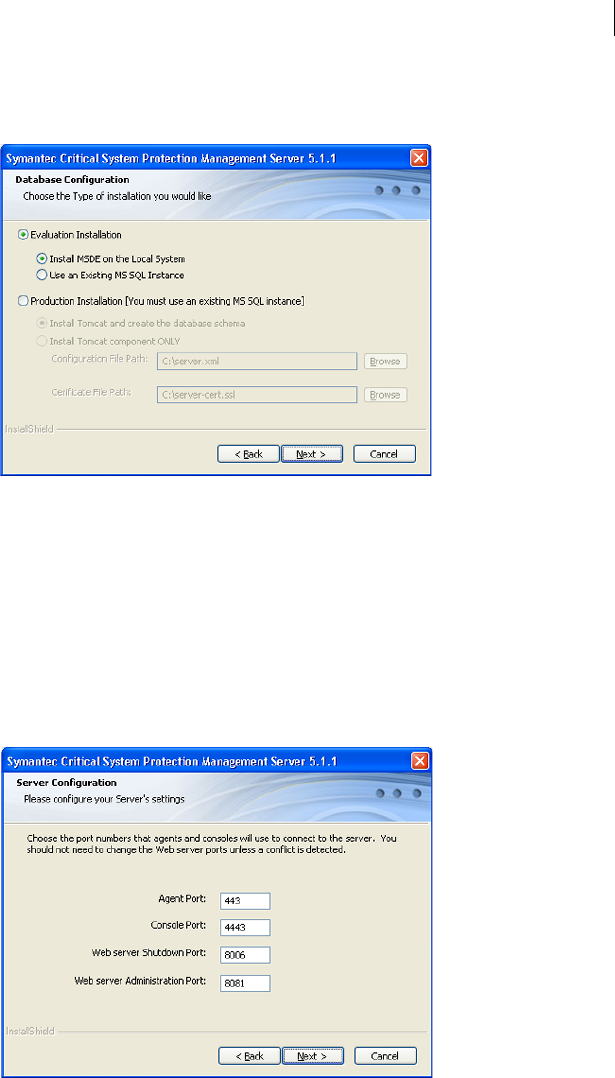
43Installing Symantec Critical System Protection on Windows
Installing the management server
4In the Installation Type panel, click Evaluation Installation, click Install
MSDE on the Local System, and then click Next.
5In the Destination Folder panel, change the folder if necessary, and then
click Next.
The directory name must contain printable ASCII characters only. Multi-
byte, double-byte, hi-ASCII and non-printable ASCII characters are not
supported.
6In the Server Configuration panel, accept or type new port values, and then
click Next.
If you enter port numbers that are in use, error messages appear until you
enter port numbers that are not in use.
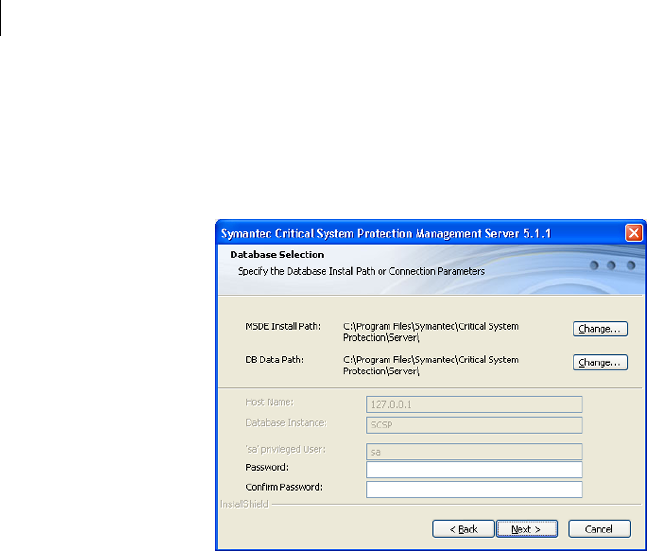
44 Installing Symantec Critical System Protection on Windows
Installing the management server
7In the Database Selection panel, change the default server and database
directory locations if necessary.
The directory name must contain printable ASCII characters only. Multi-
byte, double-byte, hi-ASCII and non-printable ASCII characters are not
supported.
8In the Database Selection panel, in the Password and Confirm Password
boxes, type the password that will be associated with the database sa
account, type the password again to confirm, and then click Next.
9In the Ready to Install the Program panel, click Install.
10 When the InstallShield Wizard Completed panel appears, click Finish.
Installing evaluation installation using existing MS SQL instance
This evaluation installation option installs the management server with a local
or remote evaluation database on SQL Server.
Before performing the installation, you should note the following:
■Your SQL Server instance must exist and be running before you start the
installation.
■The sa account must already exist and you must provide the accurate
password for the sa account during the management server installation.
To install evaluation installation that uses existing MS SQL instance
1Insert and display the installation CD, and then double-click server.exe.
2In the Welcome panel, click Next.

45Installing Symantec Critical System Protection on Windows
Installing the management server
3In the License Agreement panel, select I accept the terms in the license
agreement, and then click Next.
4In the Installation Type panel, click Evaluation Installation, then click Use
an Existing MS SQL Instance, and then click Next.
5In the Destination Folder panel, change the folder if necessary, and then
click Next.
The directory name must contain printable ASCII characters only. Multi-
byte, double-byte, hi-ASCII and non-printable ASCII characters are not
supported.
6In the Server Configuration panel, accept or type new port values, and then
click Next.
If you enter port numbers that are in use, error messages appear until you
enter port numbers that are not in use.
7In the Database Selection panel, specify the database parameters, and then
click Next.
8In the Ready to Install the Program panel, click Install.
9When the InstallShield Wizard Completed panel appears, click Finish.
Installing production installation with Tomcat and database schema
This production installation option installs Tomcat and creates the database
schema. The option installs the management server with a local or remote
production database on SQL Server.
Before performing the installation, you should note the following:
■Your SQL Server instance must exist and be running before you start the
installation.
■The sa account must already exist and you must provide the accurate
password for the sa account during the management server installation.
Host Name Type the IP address or fully qualified domain name of the
SQL Server.
Database Instance Type the name of the existing SQL Server instance on which
you want to install the database.
sa Privileged User Accept or change the sa user name.
Password
Confirm Password
Type the same password that is used on the SQL Server, type
the password again to confirm.

46 Installing Symantec Critical System Protection on Windows
Installing the management server
■All other accounts (owner, guest, and internal accounts) must not exist in
the instance. The management server installation creates these accounts
and aborts if it cannot create them.
■The database name that you enter into the management server installation
must not exist in the instance. The management server installation creates
these accounts and aborts if it cannot create them.
To install production installation with Tomcat and database schema
1Insert and display the installation CD, and then double-click server.exe.
2In the Welcome panel, click Next.
3In the License Agreement panel, select I accept the terms in the license
agreement, and then click Next.
4In the Installation Type panel, click Production Installation, click Install
Tomcat and create the database schema, and then click Next.
5In the Destination Folder panel, change the folder if necessary, and then
click Next.
The directory name must contain printable ASCII characters only. Multi-
byte, double-byte, hi-ASCII and non-printable ASCII characters are not
supported.
6In the Server Configuration panel, accept or type new port values, and then
click Next.
If you enter port numbers that are in use, error messages appear until you
enter port numbers that are not in use.
7In the Service User Configuration panel, do one of the following:
Click Use Local System Account, and then click Next.
Click Use an alternate Account, type a user name in the Username box
using <domain>\<username> format, type the same password in the
Password and Confirm Password boxes, and then click Next.
8In the Database Selection panel, specify the database parameters, and then
click Next.
Host Name Type the IP address or fully qualified domain name of the
SQL Server.
Database Instance Type the name of the existing SQL Server instance on which
you want to install the database.
sa Privileged User Accept or change the sa user name.
Password
Confirm Password
Type the same password that is used on the SQL Server, type
the password again to confirm.

47Installing Symantec Critical System Protection on Windows
Installing the management server
9In the Database Configuration panel, specify the database parameters, and
then click Next.
10 In the Ready to Install the Program panel, click Install.
11 When the InstallShield Wizard Completed panel appears, click Finish.
Installing Tomcat component only
This production installation option installs only the Tomcat component. You
can use this option to point multiple Tomcat servers to a single management
server database on a dedicated system. The Tomcat only option is useful if you
want to create a set of identical Tomcat servers for load balancing or failover.
The Tomcat only option requires that you provide the file path to the following
files from an installed management server:
■server.xml file
■server-cert.ssl
These files are located in the default management server installation directory:
C:\Program Files\Symantec\Critical System Protection\Server
Database Name Type the name of the database to install.
Enable Unicode
Storage
The option is for use with international operating systems.
SCSP Database
Owner
Under SCSP Database Owner, do the following:
■In the User name box, type the name of the SCSP
Database Owner.
■In the Password and Confirm Password boxes, type the
password that is associated with the SCSP Database
Owner, and then type the password again to confirm.
SCSP Database Guest
User
To create an SCSP database guest user, do the following
under SCSP Database Guest User:
■Select Create a Guest User.
■In the User name box, type the guest User name.
■In the Password and Confirm Password boxes, type the
password that is associated with the SCSP Database
Guest User, and then type the password again to
confirm.

48 Installing Symantec Critical System Protection on Windows
Installing and configuring the management console
Note: If the management server database is on a Tomcat system instead of a
dedicated system, you must specify the real IP (not localhost) for the initial
installation.
To install Tomcat component only
1Insert and display the installation CD, and then double-click server.exe.
2In the Welcome panel, click Next.
3In the License Agreement panel, select I accept the terms in the license
agreement, and then click Next.
4In the Installation Type panel, click Production Installation, click Install
Tomcat component ONLY.
5In the Installation Type panel, specify the file paths to server.xml and
server-cert.ssl from an installed management server, and then click Next.
6In the Destination Folder panel, change the folder if necessary, and then
click Next.
The directory name must contain printable ASCII characters only. Multi-
byte, double-byte, hi-ASCII and non-printable ASCII characters are not
supported.
7In the Service User Configuration panel, do one of the following:
Click Use Local System Account, and then click Next.
Click Use an alternate Account, type a user name in the Username box
using <domain>\<username> format, type the same password in the
Password boxes, and then click Next.
8In the Ready to Install the Program panel, click Install.
9When the InstallShield Wizard Completed panel appears, click Finish.
Installing and configuring the management console
After you install the management console, you must configure the management
console before you can use it.
You must log on to an Administrator account to install the management console.
Installing the management console
Management console installation also installs the authoring environment. By
default, the management console and the authoring environment are installed
in the following directory:

49Installing Symantec Critical System Protection on Windows
Installing and configuring the management console
C:/Program Files/Symantec/Critical System Protection/Console
Management console installation does not prompt you to enter port numbers or
server names. You enter this information after installation.
To install the management console
1On the installation CD, double-click console.exe.
2In the initial installation panel, click Next.
3In the License Agreement panel, select I accept the terms in the license
agreement, and then click Next.
4In the Destination Folder panel, change the folder if necessary, and then
click Next.
The installation directory name must contain printable ASCII characters
only. Multi-byte, double-byte, hi-ASCII and non-printable ASCII characters
are not supported.
5In the Ready to Install the Program panel, click Install.
6When the InstallShield Wizard Completed panel appears, click Finish.
Configuring the management console
Configuration prompts you to enter a series of values consisting of port
numbers, passwords, and a server name. In a few instances, the port numbers
must match the port numbers that were specified during management server
installation.
Table 3-3 describes the management console configuration settings and options.
Table 3-3 Management console configuration settings
Setting Default Description
Server name Localhost Server The name of the management server that you want to manage from the
management console.
This value is used for user interface identification purposes only, and
appears on the Login window. The name can be any value.
Host local host The IP address or fully qualified host name of the management server
computer that you want to manage from the management console.
Port 4443 The Console Port number that was used during management server
installation.
See Table 3-2, “Management server installation settings,” on page 38.
See Table 3-1, “Port number mapping,” on page 32.

50 Installing Symantec Critical System Protection on Windows
Installing and configuring the management console
To configure the management console
1Click Start > Programs > Symantec Critical System Protection >
Management Console.
2In the Login window, click the green plus sign.
3In the New Server Configuration panel, replace New Server with the name
that you want to use to identify your server.
4In the New Server Configuration panel, specify the server configuration
parameters, and then click OK.
5In the Login window, type symadmin in the User name box, select the new
server that you added, and then click Login.
6In the Verify Server Certificate panel, select Always accept this certificate,
and then click OK.
7In the Set Password panel, in the Password and Confirm Password boxes,
type the password to associate with the symadmin user name, type the
password again to confirm, and then click OK.
Admin port 8081 The Web server Administration Port number that was used during
management server installation.
See Table 3-2, “Management server installation settings,” on page 38.
See Table 3-1, “Port number mapping,” on page 32.
Use encrypted
communications
Enabled Select this check box to use Secure Sockets Layer (SSL) X.509
certificate-based channel encryption for Symantec Critical System
Protection.
SSL X.509 certificate-based channel encryption secures communication
between the management console and the management server, and
between the agent and the management server.
If you feel that your system provides adequate firewall security and you
do not want to use SSL X.509 certificate-based channel encryption for
Symantec Critical System Protection, clear this check box. If you clear
this check box, you must edit the server.xml file, found on the
management server, in the <Server_Install_Root>\tomcat\conf
directory. See the Symantec Critical System Protection Administration
Guide for instructions on editing server.xml.
Password none The password that is associated with the symadmin user name, which
you create the first time you start the management console.
Table 3-3 Management console configuration settings
Setting Default Description

51Installing Symantec Critical System Protection on Windows
Installing a Windows agent
Installing a Windows agent
The Symantec Critical System Protection agent enforces policy on the
endpoints. Each agent enforces rules that are expressed in policies, thereby
controlling and monitoring application (process) and user behavior.
You must log on to an Administrator account to install a Windows agent.
About the SSL certificate file
The Windows agent installation requires access to a copy of the SSL certificate
file that was created during management server installation. The certificate file
is named Agent-cert.ssl, and is located in the management server installation
directory. The default management server installation directory is as follows:
C:\Program Files\Symantec\Critical System Protection\Server
To place the certificate on a computer that does not run the management server,
do the following:
■On the management server that will be used to manage the agent, locate the
server installation directory and copy Agent-cert.ssl to removable media.
Optionally, you can copy the file from mapped network drives or network
shares.
■On the computer on which the agent will be installed, create a directory and
then copy Agent-cert.ssl into the directory.
About the installation settings and options
Installation prompts you to enter a series of Windows agent values consisting of
port numbers, management server name, and so forth.
Note: The agent does not support IP aliases. If your network card is bound to
more than one IP address, the agent uses the first IP address on the network
card.
Table 3-4 describes the Windows agent installation settings and options.
Table 3-4 Windows agent installation settings
Setting Default Description
Installation
Directory
C:\Program Files\Symantec
\Critical System Protection
\Agent
The installation directory for the agent.

52 Installing Symantec Critical System Protection on Windows
Installing a Windows agent
Logs File
Directory
C:\Program Files\Symantec
\Critical System Protection
\Agent
The installation directory prefix for the <prefix dir>/scsplogs
subdirectory.
The installation creates an scsplog folder under the folder that
you specify.
Agent Name Host name of agent
computer
The agent name.
After installation, you can change the agent name using the
management console.
Polling Interval 300 seconds The interval that the agent uses to poll the management server
for policy and configuration updates.
Enable Intrusion
Prevention
Enabled Indicates whether to enable intrusion prevention.
When enabled, the prevention features of Symantec Critical
System Protection are enabled for the agent. The IPS drivers are
loaded on the agent computer, and the agent accepts prevention
policies from the management console.
If you disable intrusion prevention and want to enable it in the
future, you must run the sisipsconfig.exe tool in the
\Agent\IPS\bin directory with the -i option, and restart the
computer. The -i option toggles the intrusion prevention service
on and off.
Symantec strongly recommends that you enable intrusion
prevention.
Enable Real-time
Notification
Enabled Indicates whether to enable real-time notification.
In addition to using the polling interval, agents can use real-time
notification to obtain configuration changes. With real-time
notification, the management server sends a real-time
notification message to an agent as configuration changes occur.
Upon receiving the notification, the agent queries the
management server for the changes.
When real-time notification is disabled, the management server
does not send any messages to the agent and relies on the polling
interval to update the agent.
Notification port 2222 The port that is used to receive real-time notifications from the
management server.
You can change this port after installation by using the
management console to change the agent properties.
Table 3-4 Windows agent installation settings
Setting Default Description

53Installing Symantec Critical System Protection on Windows
Installing a Windows agent
Primary
Management
Server
localhost The IP address or fully qualified host name of the management
server that will manage the agent.
Agent Port 443 The Agent Port number that was used during management
server installation.
See Table 3-2, “Management server installation settings,” on
page 38.
See Table 3-1, “Port number mapping,” on page 32.
Alternate
Management
Servers
none An ordered list of optional alternate management servers used
for failover.
For each alternate management server, specify the IP address or
fully qualified host name. Specify the servers in a comma-
separated list.
See “About simple failover” on page 25.
Management
Server
Certificate
none The directory location of the SSL certificate file, Agent-cert.ssl.
The installation requires access to a copy of the SSL certificate
file that was created during management server installation. The
file is located in the management server installation directory.
All primary and alternate management servers must use the
same certificate file.
See “About the SSL certificate file” on page 51.
Common
Configuration
Group
none The name of an existing common configuration group for this
agent to join.
An agent is placed in the default common configuration group
(named Common Configuration), unless you specify another
configuration group that already exists in the management
console.
After installation, you can change the group assignment using
the management console.
Prevention
Configuration
Group
none The name of an existing prevention configuration group for this
agent to join.
An agent is placed in the default prevention configuration group
(named Configuration), unless you specify another configuration
group that already exists in the management console.
After installation, you can change the group assignment using
the management console.
Table 3-4 Windows agent installation settings
Setting Default Description

54 Installing Symantec Critical System Protection on Windows
Installing a Windows agent
Prevention
Policy Group
none The name of an existing prevention policy group for this agent to
join.
An agent is placed in the default prevention policy group (named
Policy), unless you specify another policy group that already
exists in the management console.
After installation, you can change the group assignment using
the management console.
Detection
Configuration
Group
none The name of an existing detection configuration group for this
agent to join.
An agent is placed in the default detection configuration group
(named Configuration), unless you specify another configuration
group that already exists in the management console.
After installation, you can change the group assignment using
the management console.
Detection Policy
Group
Windows The name of an existing detection policy group for this agent to
join. You can specify multiple groups by using commas between
the group names.
You may optionally include the name of an existing detection
policy domain in the group path/name. You may include the
domain name with or without the group name.
An agent is placed in the default Policy/Windows detection
policy group, unless you specify another policy group that
already exists in the management console.
After installation, you can change the group assignment using
the management console.
Table 3-4 Windows agent installation settings
Setting Default Description

55Installing Symantec Critical System Protection on Windows
Installing a Windows agent
Installing the Windows agent software
The installation CD contains the following executables for installing the agent
software:
To install the Windows agent software
1On the installation CD, double-click agent.exe or agent-windows-nt.exe.
2In the Welcome panel, click Next.
3In the License Agreement panel, select I accept the terms in the license
agreement, and then click Next.
Use LocalSystem
account
Use an alternate
account
Use LocalSystem account The service user name account that registers services for the
agent.
Do one of the following:
■Select Use LocalSystem account to accept the default
LocalSystem account.
■Select Use an alternate account to select a different
account. In the Username box, type the user name for the
alternate account. In the Password boxes, type the
password twice. The alternate account must have
Administrator privileges. If the account does not exist, it
will be created. If a domain account is specified, type the
user name in the format <domain>/<username>.
Consult your system administrator before selecting an alternate
account.
Table 3-4 Windows agent installation settings
Setting Default Description
agent.exe Use agent.exe to install the agent software on computers that
run supported Windows operating systems, except Windows
NT Server.
agent-windows-nt.exe Use agent-windows-nt.exe to install the agent software on
computers that run Windows NT Server operating system.
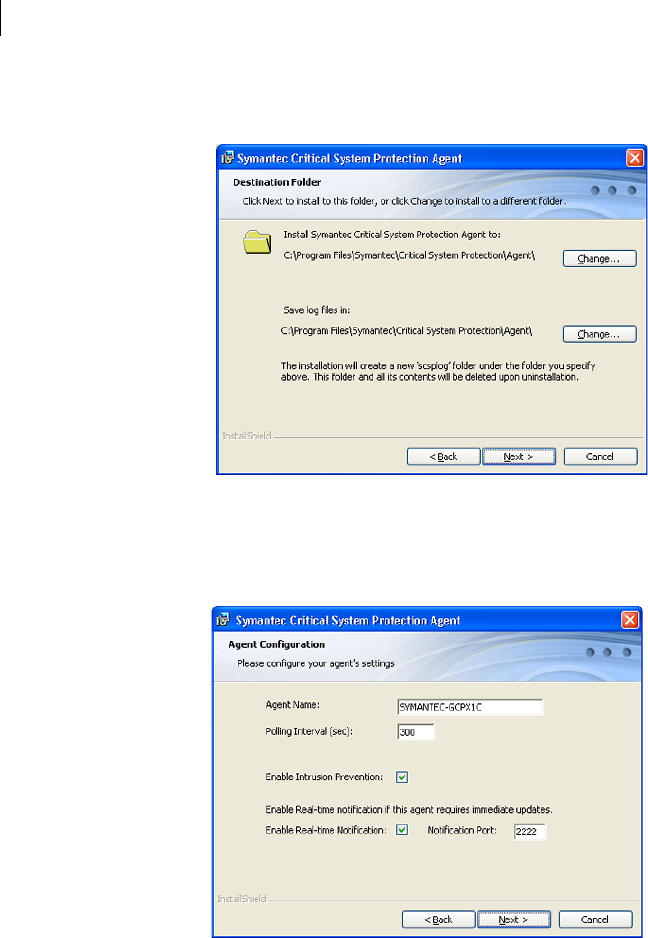
56 Installing Symantec Critical System Protection on Windows
Installing a Windows agent
4In the Destination Folder panel, change the folders if necessary, and then
click Next.
5In the Agent Configuration panel, accept or change the default settings, and
then click Next.
Symantec strongly recommends that you do not clear the Enable Intrusion
Prevention check box.
6In the Management Server Configuration panel, in the Primary
Management Server box, type the fully qualified host name or IP address of
the primary server that is used to manage this agent.
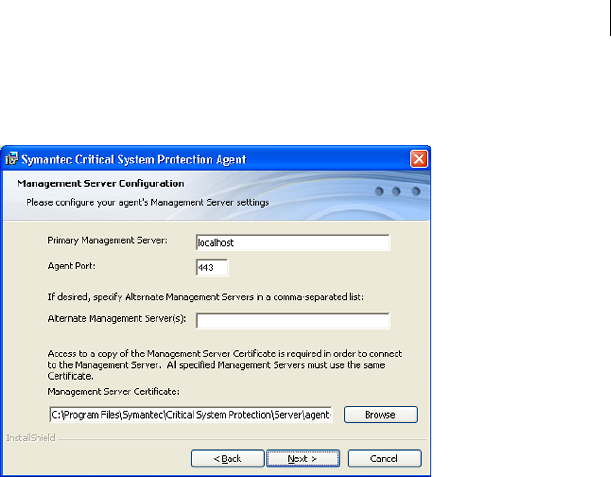
57Installing Symantec Critical System Protection on Windows
Installing a Windows agent
If you changed the Agent Port setting during management server
installation, in the Agent Port box, type a port number that matches.
7(Optional) In the Management Server Configuration panel, in the Alternate
Management Servers box, type the fully qualified host name or IP address
of the alternate servers that are used for failover for this agent.
Type the servers in a comma-separated list.
8In the Management Server Configuration panel, accept the directory for the
SSL certificate Agent-cert.ssl, or click Browse to browse to and locate
Agent-cert.ssl.
Access to a copy of the SSL certificate Agent-cert.ssl is required to connect
to the management server. All primary and alternate management servers
must use the same certificate.
9In the Management Server Configuration panel, click Next.
10 (Optional) In the Agent Group Configuration panel, in the group boxes, type
the group names that you created with the management console.
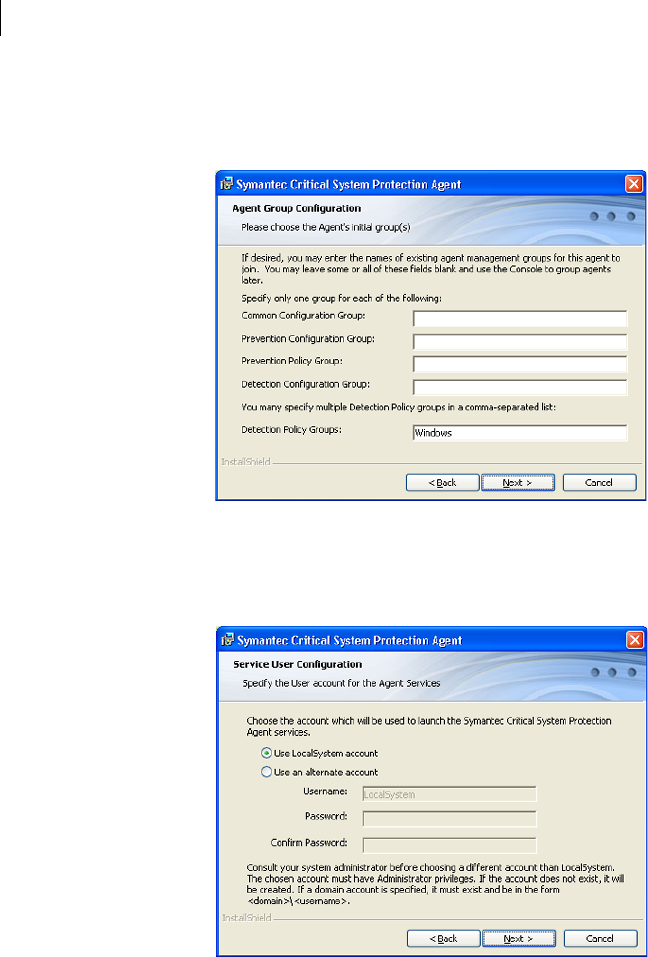
58 Installing Symantec Critical System Protection on Windows
Installing a Windows agent
You may add multiple detection policy group names separated with
commas. You may include the name of an existing detection policy domain
in the group path/name.
11 In the Agent Group Configuration panel, click Next.
12 In the Service User Configuration panel, accept the default LocalSystem
account or specify an alternate account, and then click Next.
13 In the Ready to Install the Program panel, confirm the installation
parameters, and then click Install.
14 When the installation completes, click Finish.
A message displays if the intrusion prevention driver requires a restart.

59Installing Symantec Critical System Protection on Windows
Unattended agent installation
Unattended agent installation
You must log on to an Administrator account to install a Windows agent.
You can perform an unattended installation of Windows agents using the
agent.exe or agent-windows-nt.exe executable and InstallShield and Windows
Installer commands. The following command structure shows the sequencing:
agent.exe <InstallShield commands> “<Windows Installer commands>
<installation properties>”
or
agent-windows-nt.exe <InstallShield commands> “<Windows Installer
commands> <installation properties>”
The following examples show a command string:
agent.exe /s /v”MANAGEMENT_SERVER=192.168.1.103
SSL_CERT_FILE=c:\Agent-cert.ssl
-l*v+! %temp%\SISAgentSetup.log /qn”
or
agent-windows-nt.exe /s /v”MANAGEMENT_SERVER=192.168.1.103
SSL_CERT_FILE=c:\Agent-cert.ssl
-l*v+! %temp%\SISAgentSetup.log /qn”
You create command strings by using the following:
■InstallShield commands
■Microsoft Windows Installer commands
■Installation properties
Displaying InstallShield commands
For a list of InstallShield commands, you can display Help for the agent
installation command. The important commands are /s, which suppresses the
initialization dialog, and /v, which specifies that the values that follow are
Windows Installer commands.
Note: You must enclose the command string that follows /v in quotations.
To display InstallShield commands
1Insert the installation CD into your computer.
2Display a command prompt, and navigate to the agent installation
directory.

60 Installing Symantec Critical System Protection on Windows
Unattended agent installation
3Type and run one of the following commands:
agent.exe ?
or
agent-windows-nt.exe ?
Microsoft Windows Installer commands
See the Microsoft documentation for information about standard Microsoft
Windows Installer commands and additional logging levels.
Table 3-5 describes the optional basic commands that are used for installations.
Table 3-5 Optional Installer commands
Command Default Description
/qn none Install silently
-l*v+! <log filename> none Log all events except for the v argument (*), create a
verbose log file (v), append to the existing log file (+),
flush each line to the log (!), to a file named <log
filename> that either exists or is created.
If the path includes spaces, use quotation marks.
INSTALLDIR=<path> C:\Program Files\Symantec
\Critical System Protection
\Agent
Designate a custom path on the target computer where
<path> is the specified target directory.
If the path includes spaces, use quotation marks. Escape
the internal quotation marks, as in the following
example:
agent-windows-nt.exe /s /v”INSTALLDIR=\"E:
\Program Files\....Symantec
\System Critical Protection
\Agent\" -l*v+! c:\agent-install.log /qn”
REBOOT=<val> Based on operating system Whether or not to restart a computer after installation,
where <val> is a valid argument.
Valid arguments are as follows:
■Suppress (prevents most restarts)
■ReallySuppress (prevents all restarts as part of the
installation process)
Note: The Force argument is not supported.

61Installing Symantec Critical System Protection on Windows
Unattended agent installation
Installation properties
Table 3-6 describes the Windows agent installation settings and options.
Table 3-6 Windows agent installation settings
Setting Default Description
MANAGEMENT_SERVER=
<val>
localhost The IP address or fully qualified host name of the
management server that will manage the agent.
Required
ALT_MANAGEMENT_
SERVERS=
<server1,server2,...>
none An ordered list of alternate management servers
for failover. For each alternate management server,
specify the IP address or fully qualified host name.
Specify the servers in a comma-separated list.
Optional
See “About simple failover” on page 25.
SSL_CERT_FILE=<val> none The installation path and name of the SSL
certificate file.
For example, C:\Agent\Agent-cert.ssl. The
installation path must not contain spaces.
Optional
ENABLE_BYPASS_CHECKS none Indicates whether to enable the bypass prerequisite
checks feature. To enable, set the variable to a
nonzero value.
Optional
NOTIFICATION_ENABLE=
<val>
True Indicates whether to enable notification, where
<val> is a valid argument (True, False).
Optional
AGENT_NAME=<name> Host name of agent
computer
The agent name.
After installation, you can modify the agent name
using the management console.
Optional
AGENT_PORT=<val> 443 The Agent Port number that was used during
management server installation.
See Table 3-2, “Management server installation
settings,” on page 38.
See Table 3-1, “Port number mapping,” on page 32.
Optional

62 Installing Symantec Critical System Protection on Windows
Unattended agent installation
LOG_DIR=<val> C:\Program Files\Symantec
\Critical System Protection
\Agent
The installation directory prefix for the <prefix
dir>/scsplogs subdirectory.
Optional
POLLING_INTERVAL=<val> 300 seconds The interval that the agent uses to poll the
management server for policy and configuration
updates.
Optional
IPS_ENABLE=<val> True The switch for enabling or disabling intrusion
prevention, where <val> is a valid argument (True,
False).
Optional
When enabled, the prevention features of
Symantec Critical System Protection are enabled
for the agent. The IPS drivers are loaded on the
agent computer, and the agent accepts prevention
policies from the management console.
If you disable intrusion prevention and want to
enable it in the future, you must run the
sisipsconfig.exe tool in the \Agent\IPS\bin
directory with the -i option, and restart the
computer. The -i option toggles the intrusion
prevention service on and off.
Symantec strongly recommends that you enable
intrusion prevention.
NOTIFICATION_PORT=
<val>
2222 The port that is used to receive broadcast alerts
from the management server, where <val> is a valid
port number.
This property is only used when
NOTIFICATION_ENABLE is True.
Optional
Table 3-6 Windows agent installation settings
Setting Default Description

63Installing Symantec Critical System Protection on Windows
Unattended agent installation
COMMON_CONFIG_GROUP
=<val>
Common Configuration The name of an existing common configuration
group for this agent to join.
An agent is placed in the default common
configuration group, unless you specify another
configuration group that already exists in the
management console.
After installation, you can change the group
assignment using the management console.
Optional
IPS_CONFIG_GROUP=<val> Configuration The name of an existing prevention configuration
group for this agent to join.
An agent is placed in the default prevention
configuration group, unless you specify another
configuration group that already exists in the
management console.
After installation, you can change the group
assignment using the management console.
Optional
IPS_POLICY_GROUP=<val> Policy The name of an existing prevention policy group
for this agent to join.
An agent is placed in the default prevention policy
group, unless you specify another policy group that
already exists in the management console.
After installation, you can change the group
assignment using the management console.
Optional
IDS_CONFIG_GROUP=<val> Configuration The name of an existing detection configuration
group for this agent to join.
An agent is placed in the default detection
configuration group, unless you specify another
configuration group that already exists in the
management console.
After installation, you can change the group
assignment using the management console.
Optional
Table 3-6 Windows agent installation settings
Setting Default Description

64 Installing Symantec Critical System Protection on Windows
Installing the Windows NT policy
Installing the Windows NT policy
The Windows NT prevention policy is not part of the Symantec Critical System
Protection installation; the policy must be installed separately. You can obtain
the policy from the Symantec Critical System Protection installation CD, and
then manually import the policy into the policy library.
Before installing the Windows NT prevention policy, you should note the
following:
■The Windows NT prevention policy is only for use with Windows NT agents.
■The Windows NT policy is stored on the installation CD, in the file
sym_winnt_protection_sbp.zip.
IDS_POLICY_GROUP=<val> Windows The name of an existing detection policy group for
this agent to join. You can specify multiple groups
by using commas between the group names.
You can optionally include the name of an existing
detection policy domain in the group path/name.
You can include the domain name with or without
the group name.
An agent is placed in the default Windows
detection policy group in the default Policy domain,
unless you specify another domain/policy group
that already exists in the management console.
After installation, you can change the group
assignment using the management console.
Optional
SERVICE_USER=<val>
SERVICE_PW=<val>
SERVICE_CONFPW=<val>
LocalSystem
none
none
SERVICE_USER is the account that registers
services for the agent. If you change the default of
LocalSystem, use the format <domain>\<user
name>.
SERVICE_PW is the password for SERVICE_USER.
SERVICE_CONFPW is the confirmation of the
password for SERVICE_USER.
Note: If you use any of these properties, you must
use all three properties.
Table 3-6 Windows agent installation settings
Setting Default Description

65Installing Symantec Critical System Protection on Windows
Uninstalling Symantec Critical System Protection
■You must install the Symantec Critical System Protection management
server, and install and configure the management console, before you
install the Windows NT policy.
See “Installing the management server” on page 36.
See “Installing and configuring the management console” on page 48.
■After importing the Windows NT policy into the policy library, you must
create a new prevention policy that is based on the Windows NT policy. You
should store this new policy in a separate policy folder (for example, name
the policy folder Symantec NT policy). Storing the policy separately from
the other Windows prevention policies will help ensure that the Windows
NT policy is only applied to Windows NT agents.
To install the Windows NT policy
1Insert and display the installation CD.
2Log on to the management console.
3In the management console, click Prevention View.
4In the Prevention view, click Policies.
5On the Policies page, click File > Import Policy.
6In the Import dialog, browse the installation CD and select the policy file
sym_winnt_protection_sbp.zip.
7Click Import to import the Windows NT policy into the policy library.
8In the Policies pane, create a folder for the Windows NT policy.
For example, name the policy folder Symantec NT policy.
9In the Windows NT policy folder that you created, create a workspace policy
that is based on the Windows NT policy.
See the Symantec Critical System Protection Administration Guide for
instructions on creating workspace policies.
Uninstalling Symantec Critical System Protection
To uninstall Symantec Critical System Protection, you need to uninstall each
component separately. You can uninstall the components in any order. If the
agent runs on a computer that also runs the management server or management
console, disable policy prevention on the agent by setting the Null policy or by
using the policy override tool.

66 Installing Symantec Critical System Protection on Windows
Uninstalling Symantec Critical System Protection
Uninstalling an agent using Add or Remove Programs
Agent uninstallation uses the Windows Add or Remove Programs utility.
If the agent enforces policy prevention, it prevents you from removing agent-
related files, the management server, and management console. If a service user
account was created during installation, the account is not removed during
uninstallation.
Use one of the following methods to disable policy prevention on the agent:
■Start the management console, and set the policy for the target agent to the
Null prevention policy (sym_win_null_sbp).
■If the policy on the computer that runs the agent is not Null and permits
policy override, use the policy override tool to disable policy prevention.
See the Symantec Critical System Protection Policy Override Guide.
To uninstall an agent
1Disable policy prevention on the agent computer.
2On the computer that runs the agent, click Start > Settings >
Control Panel > Add/Remove Programs.
3Click Symantec Critical System Protection Agent, and then click Remove.
4Follow and complete the prompts until uninstallation completes.
5Restart the agent computer.
Unattended uninstallation of an agent
You can perform an unattended (silent) uninstallation of an agent using the
agent.exe or agent-windows-nt.exe executable and InstallShield and Windows
Installer commands. The following command structure shows the sequencing:
MsiExec.exe /X{<PRODUCT CODE>} /qn /l*v!+ <UNINSTLL LOG FILE>
The <PRODUCT CODE> is the Symantec Critical System Protection uninstall
string necessary for MsiExec.exe. It can be found in the following directory:
HKLM\SOFTWARE\Microsoft\Windows\CurrentVersion\Uninstall
Browse the list of IDs. Locate the Symantec Critical System Protection agent
application by looking at the properties in the right pane. Note the
UinstallString string, and copy and modify it. For example:
MsiExec.exe /X{3D24482F-98BD-48DD-AA62-8B24BFDE7329} /qn /l*v!+
C:\SISAgentUninstall.log
The system reboot is suppressed after the uninstallation.

67Installing Symantec Critical System Protection on Windows
Uninstalling Symantec Critical System Protection
See “Unattended agent installation” on page 59.
Uninstalling the management console
Management console uninstallation uses the Windows Add or Remove
Programs utility.
If the computer that runs the management console also runs the agent, use one
of the following methods to disable policy prevention on the agent:
■Start the management console, and set the policy for the target agent to the
Null prevention policy (sym_win_null_sbp).
■If the policy on the computer that runs the agent is not Null and permits
policy override, use the policy override tool to disable policy prevention.
See the Symantec Critical System Protection Policy Override Guide.
To uninstall the management console and database
1Disable policy prevention on the agent computer.
2Click Start > Settings > Control Panel > Add/Remove Programs.
3Click Symantec Critical System Protection Management Console, and
then click Remove.
4Follow and complete the prompts until uninstallation completes.
Uninstalling the management server and database
Management server uninstallation uses the Windows Add or Remove Programs
utility.
If the computer that runs the management server also runs the agent, disable
policy prevention on the agent. The management server may also use an MSDE
database to store data.
Use one of the following methods to disable policy prevention on the agent:
■Start the management console, and set the policy for the target agent to the
Null prevention policy (sym_win_null_sbp).
■If the policy on the computer that runs the agent is not Null and permits
policy override, use the policy override tool to disable policy prevention.
See the Symantec Critical System Protection Policy Override Guide.
To uninstall the management server and database
1Disable policy prevention on the agent computer.
2Click Start > Settings > Control Panel > Add/Remove Programs.

68 Installing Symantec Critical System Protection on Windows
Temporarily disabling Windows agents
3Click Symantec Critical System Protection Management Server, and then
click Remove.
4Follow and complete the prompts until uninstallation completes.
5(Optional) Do one of the following:
If you installed the evaluation database, click Microsoft SQL Server
Desktop Engine (SCSP), and then click Remove.
If you installed the evaluation or production database on SQL Server, drop
the database that you created during installation, which is scspdb by
default.
6Follow and complete the prompts until uninstallation completes.
7Delete the C:\Program Files\Symantec\Critical System Protection\Server
directory.
8Restart the computer.
Temporarily disabling Windows agents
You can temporarily disable Symantec Critical System Protection Windows
agents.
Temporarily disabling Windows 2000, Windows Server 2003,
or Windows XP Professional agents
To temporarily disable agents that run on Windows 2000, Windows Server 2003,
or Windows XP Professional, you must boot the agent computer in safe mode
and then reset the prevention policy to the built-in Null policy.
Warning: You should perform these procedures only in emergency situations.
To temporarily disable Windows 2000, Windows 2003, or Windows XP agents
1Boot the agent computer in safe mode.
Refer to your Microsoft Windows documentation for instructions on
booting in safe mode.
2Reset the prevention policy to the built-in Null policy.
Resetting the prevention policy to the built-in Null policy
Run the sisipsconfig.exe tool with the -r option to reset the prevention policy to
the built-in Null policy. On Windows, sisipsconfig.exe is located the following
directory:

69Installing Symantec Critical System Protection on Windows
Temporarily disabling Windows agents
C:\Program Files\Symantec\Critical System Protection\Agent\IPS\bin
To reset the prevention policy
1On the agent computer, open a command prompt.
2At a command prompt, type the following command, and then press Enter:
sisipsconfig -r
------------------------------------------------
Agent Configuration Tool version 5.0.0.240
------------------------------------------------
The agent will now use the built-in policy
c:\>
3Reboot the agent computer, and then start the management console.
In the management console, on the Assets page, the agent is marked with an
exclamation point (!) to indicate a policy error. When you select the agent,
the following message appears in the Details pane, on the Policies tab:
! Policy Errors:
** Policy error has occurred at 17-Nov-2005 05:55:56 EST
Driver is using the built-in policy and not the assigned policy.
4In the management console, apply the desired policy to the agent, and then
give appropriate permissions to the desired programs.
Temporarily disabling Windows NT agents
Because Windows NT Server does not provide a safe mode startup, you cannot
temporarily disable agents that run on Windows NT Server by booting the agent
computer in safe mode and then resetting the prevention policy.
To temporarily disable agents that run on Windows NT Server, you create an
alternate hardware profile with the following drivers disabled:
■Symantec IPS driver
■Symantec IPS TCP filter driver
■Symantec IDS Registry driver
Warning: Use the alternate hardware profile method only if you cannot disable
intrusion prevention using other methods. You must create the alternate
hardware profile before using Symantec Critical System Protection with
intrusion prevention enabled.
To temporarily disable Windows NT agents, you must disable intrusion
prevention on the agent.

70 Installing Symantec Critical System Protection on Windows
Temporarily disabling Windows agents
Use one of the following methods to disable intrusion prevention on the agent:
■Start the management console, and set the policy for the target agent to the
Null prevention policy (sym_win_null_sbp).
■If the policy on the computer that runs the agent is not Null and permits
policy override, use the policy override tool to disable policy prevention.
See the Symantec Critical System Protection Policy Override Guide.
■On the agent computer, run the sisipsconfig.exe tool with the -r option, and
then restart the computer.
See “Resetting the prevention policy to the built-in Null policy” on page 68.
To temporarily disable Windows NT agents
1Disable intrusion prevention on the agent computer.
2To create a new hardware profile on the agent computer, do the following:
Click Start > Settings > Control Panel > System.
Click Hardware Profiles.
In the Available Hardware Profiles pane, select Original Configuration, and
then click Copy.
Type a name for the new hardware profile, and then click OK.
3To disable the Symantec IPS driver for the new hardware profile, do the
following:
Click Start > Settings > Control Panel > Devices.
Select Symantec IPS Driver, and then click HW Profiles.
Select the new hardware profile that you created, and then click Disable.
Click OK.
4To disable the Symantec IPS TCP filter driver for the new hardware profile,
do the following:
Click Start > Settings > Control Panel > Devices.
Select Symantec IPS TCP Filter, and then click HW Profiles.
Select the new hardware profile that you created, and then click Disable.
Click OK.
5To disable the Symantec IDS Registry driver for the new hardware profile,
do the following:
Click Start > Settings > Control Panel > Devices.
Select Symantec IDS Registry Driver, and then click HW Profiles.
Select the new hardware profile that you created, and then click Disable.
Click OK.
6Boot the agent computer using the new hardware profile.

71Installing Symantec Critical System Protection on Windows
Reinstalling Windows agents
Reinstalling Windows agents
You can perform an unattended reinstall of Windows agents using the agent.exe
or agent-windows-nt.exe executable and InstallShield and Windows Installer
commands. Reinstalling a Windows agent is useful if an agent becomes
corrupted. Reinstalling a Windows agent is equivalent to uninstalling an agent
and then installing the same version of that agent.
The following examples show a command string:
agent.exe /s /v"/qn /l*v!+ %temp%\SISAgentSetup.log"
or
agent-windows-nt.exe /s /v"/qn /l*v!+ %temp%\SISAgentSetup.log"
See “Unattended agent installation” on page 59.
See “Unattended Windows agent migration” on page 103.

72 Installing Symantec Critical System Protection on Windows
Reinstalling Windows agents

Chapter 4
Installing UNIX agents
This chapter includes the following topics:
■About installing UNIX agents
■Installing an agent in verbose mode
■Installing an agent in silent mode
■Uninstalling agents using package commands
■Uninstalling agents manually
■Disabling and enabling UNIX agents
■Monitoring and restarting UNIX agents
■Troubleshooting agent issues
About installing UNIX agents
Installation prompts you to enter a series of values.
Please note the following UNIX agent installation requirements:
■UNIX agents do not support IP aliases. If your network card is bound to
more than one IP address, the agent uses the first IP address on the network
card.
■You must install UNIX agents as root. UNIX agents require root privileges
to run.
■If you transfer UNIX agent installation .bin files from a Windows computer
to a UNIX computer using FTP or some other file transport method, you
must use binary transfer mode. Otherwise the installation files will be
corrupted.

74 Installing UNIX agents
About installing UNIX agents
■If you are installing a Solaris, Linux, HP-UX, AIX, or Tru64 agent on a
system that supports non-English character sets, the destination directory
that you choose for the agent must contain only ASCII characters. If you
include any non-ASCII characters in the path, the installation will fail.
Table 4-1 describes the agent installation settings.
Table 4-1 UNIX agent installation settings
Setting Default Description
Installation
Directory
/opt/Symantec The Installation directory prefix for the
<prefix dir>/scspagent subdirectory.
Logs File Directory /var/log The installation directory prefix for the
<prefix dir>/scsplogs subdirectory.
Primary
Management Server
127.0.0.1 The IP address or fully qualified host name
of the primary management server that will
manage the agent.
Alternate
Management
Servers
none A comma-separated list of alternate
management servers. For each alternate
management server, specify the IP address
or fully qualified host name.
Optional
See “About simple failover” on page 25.
Management Server
Certificate
/tmp/agent-cert.ssl The directory location of the SSL certificate
file, agent-cert.ssl, obtained from the
Symantec Critical System Protection
management server installation directory.
You must copy this file from the
management server to the specified
location before starting the installation.
All primary and alternate management
servers must use the same certificate file.
Required
Agent Name Host name of agent
computer
The name of the agent computer.
After installation, you can change the agent
name through the management console.
Agent Locale POSIX® Symantec Critical System Protection agent
locale setting.

75Installing UNIX agents
About installing UNIX agents
Agent Port 443 The Agent Port number that was used
during management server installation.
See Table 3-2, “Management server
installation settings,” on page 38.
Agent Polling
Interval
300 seconds The interval that the agent uses to poll the
management server for policy and
configuration updates.
Notification Port 2222 The port that is used to receive alerts from
the management server.
You can also change this port after
installation by using the management
console to change the properties of the
agent.
Agent Notifications Enable When enabled, the agent listens on the
Notification port to alerts from the
management server.
The alerts instruct the agent to
immediately update to a new policy or
configuration. This feature requires an
unblocked notification port.
Util Service Port 2323 This installation setting supports the policy
override tool for Solaris and Linux. You use
the policy override tool to override
prevention policy enforcement. You can
change this value during installation.
Enable IPS Feature Enable When enabled, prevention is enabled on the
agent.
Table 4-1 UNIX agent installation settings
Setting Default Description

76 Installing UNIX agents
About installing UNIX agents
Common Config
Group
none The name of an existing common
configuration group for this agent to join.
You use common configuration groups to
apply communication and event logging
parameters to agents.
An agent is placed in the default common
configuration group, unless you specify
another configuration group that already
exists in the management console.
After installation, you can change the
group assignment using the management
console.
Prevention Config
Group
none The name of an existing prevention
configuration group for this agent to join.
You use prevention configuration groups to
apply log rules to agents.
An agent is placed in the default prevention
configuration group, unless you specify
another configuration group that already
exists in the management console.
After installation, you can change the
group assignment using the management
console.
Prevention Policy
Group
none The name of an existing prevention policy
group for this agent to join.
You use prevention policy groups to apply
prevention policies to agents.
An agent is placed in the default prevention
policy group, unless you specify another
policy group that already exists in the
management console.
After installation, you can change the
group assignment using the management
console.
Table 4-1 UNIX agent installation settings
Setting Default Description

77Installing UNIX agents
About installing UNIX agents
Bypassing prerequisite checks
The UNIX installation kit lets you bypass some of the prerequisite checks for
agent installation. You can use this feature if you know the installation kit is
incorrectly failing a prerequisite.
To enable the bypass prerequisite checks feature, run Touch as superuser:
touch /etc/scsp-check-bypass
Detection
Configuration Group
none The name of an existing detection
configuration group for this agent to join.
You use detection configuration groups to
apply detection parameters and log rules to
agents.
An agent is placed in the default detection
configuration group, unless you specify
another configuration group that already
exists in the management console.
After installation, you can change the
group assignment using the management
console.
Detection Policy
Group
One of the following:
■AIX
■HP-UX
■Linux
■Solaris
■Windows
■Tru64
The name of an existing detection policy
group for this agent to join. You can specify
multiple groups by using commas between
the group names.
You can optionally include the name of an
existing detection policy domain in the
group path/name. You can include the
domain name with or without the group
name.
An agent is placed in one of the default OS-
specific detection policy groups in the
default Policy domain, unless you specify
another domain/policy group that already
exists in the management console.
After installation, you can change the
group assignment using the management
console.
Table 4-1 UNIX agent installation settings
Setting Default Description

78 Installing UNIX agents
Installing an agent in verbose mode
You can use the bypass prerequisite checks feature to bypass the following
prerequisite checks:
■Verify that the installation kit is being run by the root user
■Perform OS platform and version checks
■Perform package dependencies checks
■Perform file system/disk space usage checks
When the bypass prerequisite checks feature is used, the installation kit
displays all errors and warnings about prerequisite check failures. However,
instead of terminating the installation, you may choose to continue.
When you run the installation kit in interactive mode, you are asked if you want
to continue. When you run the installation kit in silent mode, the prerequisite
failure is logged and the installation continues.
The installation kit removes the /etc/scsp-check-bypass file upon a successful
installation. Thus, creating the file enables the feature for one installation only.
Warning: Use of the bypass prerequisite checks feature does not guarantee that
the installation will be successful if a non-recoverable error is bypassed. Please
use this feature with caution.
Installing an agent in verbose mode
Ports that are used for communications between an agent and the management
server must be available on the agent computer and must match the values used
during management server installation. The default settings are 443 and 2222.
After agent installation, you should assign a prevention policy and one or more
detection policies to the agent using the management console.
See the Symantec Critical System Protection Administration Guide for
information on assigning policies.
Before you install an agent, you need to place the SSL certificate on the
computer that is targeted for installation. The certificate file is on the
management server in the \Symantec\Critical System Protection\Server
directory. The file is named agent-cert.ssl.
To place the certificate on the computer that is targeted for installation, do the
following:
■On the management server that will be used to manage the agent, locate the
file named agent-cert.ssl in the \Server directory.

79Installing UNIX agents
Installing an agent in silent mode
■On the computer on which the agent will be installed, create a directory and
then copy the file agent-cert.ssl into the directory using FTP in binary mode
or some other protocol.
The directory path name cannot contain spaces.
To install an agent in verbose mode
1Open a Terminal window and become superuser.
2Insert the installation CD and if necessary, mount the volume.
3Type and run the following command:
cd /mnt/cdrom
4Type and run one of the following commands:
5Please indicate whether you agree to the license agreement.
6Follow the prompts until the installation completes.
7On Solaris or Linux, restart the computer if prevention was enabled.
Installing an agent in silent mode
You can use the silent installation for UNIX installations.
Note: The required options for silent installation are -silent, -server, and -cert.
Sun Solaris 8.0/9.0 ./agent-solaris-sparc.bin
Sun Solaris 10 SPARC ./agent-solaris10-sparc.bin
Sun Solaris 10 x86 ./agent-solaris10-x86.bin
Red Hat Enterprise Linux ES 3.0 ./agent-linux-rhel3.bin
Red Hat Enterprise Linux ES 4.0 ./agent-linux-rhel4.bin
SUSE Enterprise Linux 8 ./agent-linux-sles8.bin
SUSE Enterprise Linux 9 ./agent-linux-sles9.bin
HP-UX on PA-RISC ./agent-hpux-hppa.bin
HP-UX on Itanium 2 ./agent-hpux-ia64.bin
AIX ./agent-aix.bin
Tru64 UNIX ./agent-tru64.bin

80 Installing UNIX agents
Installing an agent in silent mode
Table 4-2 describes the settings that are used with the installation commands.
Table 4-2 UNIX agent installation settings
Setting Default Description
-help none You can run the installer with the –help
switch to get a list of all the switches.
-version none Displays the installation package version
information. Installation does not occur.
-silent Interactive Installs silently without user prompts.
Uses default settings if they are not set
by installation options.
Required
-reboot No reboot Initiates an automatic restart after
installation completes if intrusion
prevention is enabled after installation.
-server=<addr> 127.0.0.1 The management server IP address or
fully qualified host name.
Required
-altservers=
<server1,server2,...>
none A comma-separated list of alternate
management servers. For each alternate
management server, specify the IP
address or fully qualified host name.
Optional
See “About simple failover” on page 25.
-prefix=<dir> /opt/Symantec The installation directory prefix for the
<prefix dir>/scspagent subdirectory.
-logdir=<dir> /var/log/scsplog The installation directory prefix for the
<prefix dir>/scsplog subdirectory. If the
directory does not exist, it is created.

81Installing UNIX agents
Installing an agent in silent mode
-cert=<file> /tmp/agent-cert.ssl The directory location of the SSL
certificate file, agent-cert.ssl, obtained
from the Symantec Critical System
Protection management server
installation directory.
You must copy this file from the
management server to the specified
location before starting the installation.
All primary and alternate management
servers must use the same certificate
file.
Required
-agentname=<name> Host name of agent
computer
The name of the agent computer.
After installation, you can change the
agent name through the management
console.
-locale=<locale
setting>
POSIX Symantec Critical System Protection
agent locale setting.
-comCfgGrp=<group> none The name of an existing common
configuration group for this agent to
join.
The group must exist and appear in the
management console.
-ipsCfgGrp=<group> none The name of an existing prevention
configuration group for this agent to
join.
The group must exist and appear in the
management console.
-ipsPolGrp=<group> none The name of an existing prevention
policy group for this agent to join.
The group must exist and appear in the
management console.
-idsCfgGrp=<group> none The name of an existing detection
configuration group for this agent to
join.
The group must exist and appear in the
management console.
Table 4-2 UNIX agent installation settings
Setting Default Description

82 Installing UNIX agents
Installing an agent in silent mode
-idsPolGrp=<group> OS-specific group
The OS-specific
group is one of the
following:
■AIX
■HP-UX
■Linux
■Solaris
■Tru64
■Windows
The name of an existing detection policy
group for this agent to join. You can
specify multiple groups by using
commas between the group names.
You can optionally include the name of
an existing detection policy domain in
the group path/name . You can include
the domain name with or without the
group name.
An agent is placed in one of the default
OS-specific detection policy groups in
the default Policy domain, unless you
specify another domain/policy group
that already exists in the management
console.
After installation, you can change the
group assignment using the
management console.
-agentport=<port> 443 The Agent Port number that was used
during management server installation.
See Table 3-2, “Management server
installation settings,” on page 38.
-notifyport=<port> 2222 The notification port that is used to
receive broadcast alerts from the
management server.
You can also change this port after
installation by using the management
console to change the properties of the
agent.
-notify=<0|1> 1 (Enable) Indicates whether to enable notification.
When enabled, the agent listens on the
notification port to broadcast alerts
from the management server. The
broadcast alerts instruct the agent to
immediately update to a new policy. This
feature requires an unblocked
notification port.
Table 4-2 UNIX agent installation settings
Setting Default Description

83Installing UNIX agents
Installing an agent in silent mode
Use the -silent option and other options to perform a silent installation.
The following command string shows an example of a silent installation:
./agent-aix.bin -silent -prefix=/opt/Symantec
-server=192.168.1.1 -cert=/var/tmp/agent-cert.ssl -agentport=443
-poll=<sec> 300 The polling interval, in seconds, that the
agent uses to poll the management
server for policy updates.
-svcport=<port> 2323 This installation setting supports the
policy override tool for Solaris and
Linux. You use the policy override tool to
override prevention policy enforcement.
You can change this value during silent
install using the -svcport switch.
-disableIps Enable Indicates whether to enable intrusion
prevention for Solaris or Linux agents.
When enabled, the prevention features
of Symantec Critical System Protection
are enabled for the agent. The IPS
drivers are loaded on the agent
computer, and the agent accepts
prevention policies from the
management console.
To disable intrusion prevention, include
the -disableIps installation option in the
command string.
If you disable intrusion prevention and
want to enable it in the future, you must
run the sisipsconfig.exe tool in the
\Agent\IPS\bin directory with the -i
option, and restart the computer. The -i
option toggles the intrusion prevention
service on and off.
Symantec strongly recommends that
you enable intrusion prevention.
Table 4-2 UNIX agent installation settings
Setting Default Description

84 Installing UNIX agents
Uninstalling agents using package commands
To install an agent in silent mode
1Follow the procedures and steps that are used to install an agent in verbose
mode, up to and including mounting the installation CD drive.
See “Installing an agent in verbose mode” on page 78.
2Type and run the following command after replacing <os> with solaris-
sparc, solaris10-sparc, solaris10-x86, linux-rhel3, linux-rhel4, linux-sles8,
linux-sles9, hpux-hppa, hpux-ia64, aix, or tru64:
./agent-<os>.bin -silent <additional options>
3If you did not specify the -reboot option, restart the computer if intrusion
prevention is enabled on Solaris or Linux.
If the agent fails to install correctly, review the /var/log/scsplog/
agent_install.log file.
Uninstalling agents using package commands
You can uninstall the agents by using native operating system package
commands. The package name for the agent is SYMCcsp.
When the uninstaller completes, it reports an uninstall status.
To uninstall agents using package commands
1(Solaris/Linux) Start the management console, and set the policy for the
agent to uninstall to the Null policy.
The agent prevents you from installing and removing agent-related files if
it is enforcing a restrictive prevention policy.
If the Solaris or Linux agent is not communicating with the management
console, disable the agent, and then continue with the uninstall.
See “Disabling and enabling Solaris agents” on page 91.
See “Disabling and enabling Linux agents” on page 93.
2Open a Terminal window on the computer that runs the agent to uninstall,
and become superuser.
3On Solaris, type and run the following command:
pkgrm SYMCcsp
4On Linux, type and run the following command:
rpm -e SYMCcsp
5On AIX, type and run the following command:
installp –u

85Installing UNIX agents
Uninstalling agents manually
6On HP-UX, type and run the following command:
swremove SYMCcsp
7On Tru64, type and run the following command:
setld -d SYMCSP513
8(Solaris and Linux) If the uninstall completes successfully, run the
following command to restart the computer:
init 6
Computers running HP-UX and AIX do not need to be restarted.
Uninstalling agents manually
If an agent installation is canceled or an error occurs during installation, the
installation might be corrupted, and might prevent you from uninstalling an
agent using the native package commands.
The agent runs the following daemons:
■sisipsdaemon
■sisidsdaemon
■sisipsutildaemon (Solaris and Linux)
Uninstalling Solaris agents manually
You can manually uninstall Solaris agents.
To uninstall Solaris agents manually
1Start the management console, and set the policy for the agent to uninstall
to the Null policy.
The agent prevents you from installing and removing agent-related files if
it enforces a restrictive prevention policy.
If the Solaris agent is not communicating with the management console,
disable the agent, and then continue with the uninstall.
See “Disabling and enabling Solaris agents” on page 91.
2Open a Terminal window on the computer that runs the agent to uninstall
and become superuser.
3Run the following command to determine the agent daemons PIDs:
ps -ef | grep sis
4(Optional) If the daemon PIDs do not appear, do the following to display the
daemon PIDs and stop the agent daemons:
Run the following commands:

86 Installing UNIX agents
Uninstalling agents manually
pgrep -U sisips -P1 -f sisipsdaemon
pgrep -U sisips -P1 -f sisipsutildaemon
pgrep -U root -P1 -f sisidsdaemon
If the agent daemons are not running, continue with the next numbered
step.
If the agent daemons are running, run the following command to stop each
agent daemon:
kill -KILL <agent_PID>
5Type and run the following commands:
rem_drv sisips; rem_drv sisipsne;
find /kernel -name '*sisips*' | xargs rm -f
6Type and run the following commands to remove the installation files:
rm -rf /opt/Symantec/scspagent (default directory)
rmdir /opt/Symantec (default directory)
rm -rf /etc/sisips
rm -f /etc/Symantec.conf
rm -f /etc/sisips.conf
rm -f /etc/init.d/sisips*
rm -f /etc/init.d/sisids*
rm -f /etc/rc?.d/*sisids*
rm -f /etc/rc?.d/*sisips*
rm -rf /etc/symantec/sis
rm -rf /var/log/scsplog (default directory)
rm -f /var/run/sisipsdaemon.pid
rm -f /var/run/sisips*utildaemon.pid
rm -f /var/run/sisidsdaemon.pid
7Type and run the following commands to remove the agent user and group:
userdel sisips
groupdel sisips
8Remove the line “forceload: drv/sisips” from file /etc/system.
9Type and run the following command to remove the definitions from the
native package database:
rm -rf /var/sadm/pkg/SYMCcsp
10 Run the following command to restart the computer:
init 6

87Installing UNIX agents
Uninstalling agents manually
Uninstalling Linux agents manually
You can manually uninstall Linux agents.
To uninstall Linux agents manually
1In the management console, set the policy for the agent to uninstall to the
Null prevention policy.
If the Linux agent is not communicating with the management console,
disable the agent, and then continue with the uninstall.
See “Disabling and enabling Linux agents” on page 93.
2Open a Terminal window on the computer that runs the agent to uninstall,
and become superuser.
3Run the following command to determine the agent process ID:
cat /var/run/sisipsdaemon.pid
cat /var/run/sisipsutildaemon.pid
cat /var/run/sisidsdaemon.pid
4(Optional) If the process IDs do not appear, do the following to display the
process IDs and stop the agent processes:
Run the following command:
pgrep -U sisips -P1 -f sisipsdaemon
pgrep -U sisips -P1 -f sisipsutildaemon
pgrep -U root -P1 -f sisidsdaemon
If the agent process is not running, continue with the next numbered step.
If either agent process is running, run the following command to stop the
agent process:
kill -KILL <agent_PID>
5Type and run the following commands to remove the installation files:
rm -rf /opt/Symantec/scspagent (your installation directory)
rmdir /opt/Symantec
rm -rf /etc/sisips
rm -f /etc/sisips.conf
rm -f /etc/init.d/sisi?s*
rm -f /etc/init.d/rc?.d/*sisi?s*
rm -rf /etc/symantec/sis
rm -rf /var/log/scsplog
6Type and run the following commands to remove the agent user and group:
userdel sisips
groupdel sisips

88 Installing UNIX agents
Uninstalling agents manually
7Remove the following lines from the initialization scripts:
Remove the lines (including comments) between
# Begin SIS IPS and # End SIS IPS in files /etc/init.d/boot.local
and /etc/init.d/halt.local.
8Type and run the following command to remove the definitions from the
native package database:
rpm -e SYMCcsp --noscripts
9Run the following command to reboot the computer:
init 6
Uninstalling HP-UX agents manually
You can manually uninstall HP-UX agents.
To uninstall HP-UX agents manually
1Open a Terminal window on the computer that runs the agent to uninstall,
and become superuser.
2Run the following command to determine the agent process IDs:
cat /var/run/sisipsdaemon.pid
cat /var/run/sisidsdaemon.pid
3(Optional) If the process IDs do not appear, do the following to display the
process IDs and stop the agent process:
Run the following commands:
ps -ef | grep sisipsdaemon
ps -ef | grep sisidsdaemon
If the agent processes are not running, continue with the next numbered
step.
If either agent process is running, run the following command to stop the
agent process:
kill -KILL <agent_PID>
4Type and run the following commands to remove the installation files:
rm -rf /opt/Symantec/scspagent (default directory)
rmdir /opt/Symantec (default directory)
rm -rf /etc/sisips
rm -f /etc/Symantec.conf
rm -f /etc/sisips.conf
rm -f /sbin/init.d/sisips*
rm -f /sbin/init.d/sisids*
rm -f /sbin/rc?.d/*sisips*
rm -f /sbin/rc?.d/*sisids*

89Installing UNIX agents
Uninstalling agents manually
rm -rf /var/log/scsplog (default directory)
rm -f /var/run/sisipsdaemon.pid
rm -f /var/run/sisidsdaemon.pid
5Type and run the following commands to remove the agent user and group:
userdel sisips
groupdel sisips
Uninstalling AIX agents manually
You can manually uninstall AIX agents.
To uninstall AIX agents manually
1Open a Terminal window on the computer that runs the agent to uninstall,
and become superuser.
2Run the following command to determine the agent process IDs:
cat /var/run/sisipsdaemon.pid
cat /var/run/sisidsdaemon.pid
3(Optional) If the process IDs do not appear, do the following to display the
process IDs and stop the agent process:
Run the following commands:
ps -ef | grep sisipsdaemon
ps -ef | grep sisidsdaemon
If the agent processes are not running, continue with the next numbered
step.
If either agent process is running, run the following command to stop the
agent process:
kill -KILL <agent_PID>
4Type and run the following commands to remove the installation files:
rm -rf /opt/Symantec/scspagent (default directory
rmdir /opt/Symantec (default directory
rm -rf /etc/sisips
rm -f /etc/Symantec.conf
rm -f /etc/sisipsdaemon.pid
rm -f /etc/sisidsdaemon.pid
rm -f /etc/sisips.conf
rm -f /etc/rc.sisipsagent
rm -f /etc/rc.sisidsagent
rm -rf /etc/symantec/sis
rm -rf /var/log/scsplog (default directory

90 Installing UNIX agents
Uninstalling agents manually
5Type and run the following commands to remove the agent user and group:
userdel sisips
rmgroup sisips
6Run the following commands to remove entries from inittab:
rmitab rcsisipsagent
rmitab rcsisidsagent
Uninstalling Tru64 agents manually
You can manually uninstall Tru64 agents.
To uninstall Tru64 agents manually
1Open a Terminal window on the computer that runs the agent to uninstall,
and become superuser.
2Run the following command to determine the agent process IDs:
cat /var/run/sisipsdaemon.pid
cat /var/run/sisidsdaemon.pid
3(Optional) If the process IDs do not appear, do the following to display the
process IDs and stop the agent process:
Run the following commands:
ps -ef | grep sisipsdaemon
ps -ef | grep sisidsdaemon
If the agent processes are not running, continue with the next numbered
step.
If either agent process is running, run the following command to stop the
agent process:
kill -KILL <agent_PID>
4Type and run the following commands to remove the installation files:
rm -rf /opt/Symantec/scspagent (default directory)
rmdir /cluster/members/\{memb\}/Symantec (default directory)
rm -rf /var/log/scsplog (default directory)
rm -f /var/run/sisipsdaemon.pid
rm -f /var/run/sisidsdaemon.pid
5If the machine is a member of a TruCluster, and the agent is installed on
multiple cluster members (with a shared physical disk), perform the
following actions:
Remove the cluster member directories and files:
rm -rf /cluster/members/\{memb\}/etc/sisips
rm -f /cluster/members/\{memb\}/sbin/init.d/sisi?sagent
rm -f /cluster/members/\{memb\}/usr/.smdb./SYMCSP513.*

91Installing UNIX agents
Disabling and enabling UNIX agents
Edit and remove the line from /etc/symantec/sis/sis.conf:
SisInstalledClsId=<cluster_member_id>
Get the Cluster Member ID by running the following command:
/sbin/sysconfig -q generic | grep memberid
6If the machine not is a member of a TruCluster, or it is configured as a
single member cluster, perform the following actions:
Type and run the following commands to remove the agent user and group:
userdel sisips
groupdel sisips
Remove the cluster member directories and CDSLs (cluster dependent
symbolic links):
rm -rf /cluster/members/\{memb\}/etc/sisips
rm -f /cluster/members/\{memb\}/sbin/init.d/sisi?sagent
rm -f /etc/sisips(CDSL)
rm -f /sbin/init.d/sisi?sagent (CDSL)
rm -f /opt/Symantec(CDSL)
rm -rf /etc/symantec
rm -f /etc/sisips.conf
rm -f /sbin/rc?.d/*sisips*
rm -f /sbin/rc?.d/*sisids*
rm -f /usr/.smdb./SYMCSP513.*
Disabling and enabling UNIX agents
You can temporarily and permanently disable UNIX agents. If you permanently
disable an agent, the agent daemons stop immediately and disable startup upon
restart. It does not disable the agent daemons. Upon restart, the agent daemons
continue to load and enforce the currently-applied policies.
Disabling and enabling Solaris agents
This section describes how to disable and enable Solaris agents.
Temporarily disabling the IPS driver
If you have performance issues with Solaris agents, you may need to
temporarily disable the intrusion prevention driver. You should do this only if
there are serious performance issues that you suspect are being caused by the
IPS driver, or if you have applied a prevention policy that is not allowing you to
access the system in any way.

92 Installing UNIX agents
Disabling and enabling UNIX agents
After you disable the driver, apply the Null prevention policy or a prevention
policy in which prevention was disabled. Reboot the system.
Warning: You should perform these procedures only in emergency situations.
To temporarily disable the IPS driver
1Interrupt the boot cycle with a Stop-a or break sequence.
2At the ok prompt, type and run the following command:
boot -as
You must include the s switch in the boot command to boot into single-user
mode. If you omit the s switch, then once the system boots into multi-user
mode, it will enable the Symantec Critical System Protection driver.
3When the boot sequence asks for the location of your /etc/system file, type
one of the following:
/etc/system-pre-sisips
/dev/null
Permanently disabling Solaris agents
If you have performance issues with Solaris agents, you may need to
permanently disable them.
The following procedure disables an agent, not the driver. The driver will still be
running.
Warning: You should perform these procedures only in emergency situations.
To permanently disable Solaris agents
1Open a Terminal window and become superuser.
2Type and run the following commands:
/etc/init.d/sisipsagent stop
/etc/init.d/sisidsagent stop
3Type and run the following commands to rename the agent scripts, which
temporarily break any symbolic links in the rc#.d startup scripts:
mv /etc/init.d/sisipsagent /etc/init.d/sisipsagentOFF
mv /etc/init.d/sisidsagent /etc/init.d/sisidsagentOFF

93Installing UNIX agents
Disabling and enabling UNIX agents
Enabling a disabled Solaris agent
You can enable a Solaris agent that was previously disabled.
To enable a disabled Solaris agent
1Open a Terminal window and become superuser.
2Type and run the following commands, which rename the sisipsgent
scripts:
mv /etc/init.d/sisipsagentOFF /etc/init.d/sisipsagent
mv /etc/init.d/sisidsagentOFF /etc/init.d/sisidsagent
3Type and run the following command to restart the computer:
init 6
Disabling and enabling Linux agents
This section describes how to disable and enable Linux agents.
Temporarily disabling the IPS driver
If you have performance issues with Linux agents, you may need to temporarily
disable the intrusion prevention driver. You should do this only if there are
serious performance issues that you suspect are being caused by the IPS driver,
or if you have applied a prevention policy that is not allowing you to access the
system in any way.
After you disable the driver, apply the Null prevention policy or a prevention
policy in which prevention was disabled. Reboot the system.
Warning: You should perform these procedures only in emergency situations.
To temporarily disable the IPS driver
◆During the boot cycle, add the string SISIPSNULL to the boot options. The
agent and kernel mode driver do not load, and the policy is not enforced.
Permanently disabling Linux agents
If you have performance issues with Linux agents, you may need to permanently
disable them.
The following procedure disables an agent, not the driver. The driver will still be
running.

94 Installing UNIX agents
Disabling and enabling UNIX agents
Warning: You should perform these procedures only in emergency situations.
To permanently disable Linux agents
1Open a Terminal window and become superuser.
2Type and run the following commands:
/etc/init.d/sisipsagent stop
/etc/init.d/sisidsagent stop
3Type and run the following commands to rename the agent scripts, which
temporarily break any symbolic links in the rc#.d startup scripts:
mv /etc/init.d/sisipsagent /etc/init.d/sisipsagentOFF
mv /etc/init.d/sisidsagent /etc/init.d/sisidsagentOFF
Enabling a disabled Linux agent
You can enable a Linux agent that was previously disabled.
To enable a disabled Linux agent
1Open a Terminal window and become superuser.
2Type and run the following commands, which rename the sisipsgent
scripts:
mv /etc/init.d/sisipsagentOFF /etc/init.d/sisipsagent
mv /etc/init.d/sisidsagentOFF /etc/init.d/sisidsagent
3Type and run the following command to restart the computer:
init 6
Disabling and enabling HP-UX agents
This section describes how to disable and enable HP-UX agents.
Temporarily disabling HP-UX agents
Warning: You should perform these procedures only in emergency situations.
To temporarily disable HP-UX agents
1Open a Terminal window and become superuser.
2Type and run the following commands:
/sbin/init.d/sisipsagent stop

95Installing UNIX agents
Disabling and enabling UNIX agents
/sbin/init.d/sisidsagent stop
Permanently disabling HP-UX agents
If you have performance issues with HP-UX agents, you may need to
permanently disable them.
Warning: You should perform these procedures only in emergency situations.
To permanently disable HP-UX agents
1Open a Terminal window and become superuser.
2Type and run the following commands:
/sbin/init.d/sisipsagent stop
/sbin/init.d/sisidsagent stop
3Type and run the following commands to rename the agent scripts, which
temporarily break any symbolic links in the rc#.d startup scripts:
mv /sbin/init.d/sisipsagent /sbin/init.d/sisipsagentOFF
mv /sbin/init.d/sisidsagent /sbin/init.d/sisidsagentOFF
Enabling a disabled HP-UX agent
You can enable a HP-UX agent that was previously disabled.
To enable a permanently disabled HP-UX agent
1Open a Terminal window and become superuser.
2Type and run the following commands, which rename the sisipsgent
scripts:
mv /sbin/init.d/sisipsagentOFF /sbin/init.d/sisipsagent
mv /sbin/init.d/sisidsagentOFF /sbin/init.d/sisidsagent
3Type and run the following commands to start the agents:
/sbin/init.d/sisipsagent start
/sbin/init.d/sisidsagent start
Disabling and enabling AIX agents
This section describes how to disable and enable AIX agents.

96 Installing UNIX agents
Disabling and enabling UNIX agents
Temporarily disabling AIX agents
Warning: You should perform these procedures only in emergency situations.
To temporarily disable AIX agents
1Open a Terminal window and become superuser.
2Type and run the following commands:
/etc/rc.sisipsagent stop
/etc/rc.sisidsagent stop
Permanently disabling AIX agents
If you have performance issues with AIX agents, you may need to permanently
disable them.
Warning: You should perform these procedures only in emergency situations.
To permanently disable AIX agents
1Open a Terminal window and become superuser.
2Type and run the following commands:
/etc/rc.sisipsagent stop
/etc/rc.sisidsagent stop
3Comment the agent startup commands from the /etc/inittab file by adding a
colon (:) at the front of the rcsisipsagent and rcsisidsagent lines.
This causes the agents to not start at the next reboot.
Enabling a disabled AIX agent
You can enable an AIX agent that was previously disabled.
To enable a permanently disabled AIX agent
1Open a Terminal window and become superuser.
2Uncomment the agent startup commands from the /etc/inittab file by
removing the colon (:) at the front of the rcsisipsagent and rcsisidsagent
lines.
This causes the agents to start at the next reboot. The lines should look like
the following:
rcsisipsagent:23456789:wait:/etc/rc.sisipsagent start >/dev/
console 2>&1

97Installing UNIX agents
Disabling and enabling UNIX agents
rcsisidsagent:23456789:wait:/etc/rc.sisidsagent start >/dev/
console 2>&1
3Type and run the following commands to restart the agents:
/sbin/init.d//sisipsagent start
/sbin/init.d//sisidsagent start
Disabling and enabling Tru64 agents
This section describes how to disable and enable Tru64 agents.
Temporarily disabling Tru64 agents
Warning: You should perform these procedures only in emergency situations.
To temporarily disable Tru64 agents
1Open a Terminal window and become superuser.
2Type and run the following commands:
/sbin/init.d/sisipsagent stop
/sbin/init.d/sisidsagent stop
Permanently disabling Tru64 agents
If you have performance issues with Tru64 agents, you may need to
permanently disable them.
Warning: You should perform these procedures only in emergency situations.
To permanently disable Tru64 agents
1Open a Terminal window and become superuser.
2Type and run the following commands:
/sbin/init.d/sisipsagent stop
/sbin/init.d/sisidsagent stop
3Type and run the following commands to rename the agent scripts, which
temporarily break any symbolic links in the rc#.d startup scripts:
If the machine is a member of a TruCluster, and the agent is installed on
multiple cluster members (with a shared physical disk), perform the
following actions to disable the agent on a single cluster:
cd /cluster/members/\{memb\}/sbin/init.d/

98 Installing UNIX agents
Monitoring and restarting UNIX agents
mv sisipsagent sisipsagentOFF
mv sisidsagent sisidsagentOFF
If the machine not is a member of a TruCluster, is configured as a single
member cluster, or if you want to disable the agent on all clusters, perform
the following actions:
mv /sbin/init.d/sisipsagent /sbin/init.d/sisipsagentOFF
mv /sbin/init.d/sisidsagent /sbin/init.d/sisidsagentOFF
Enabling a disabled Tru64 agent
You can enable a Tru64 agent that was previously disabled.
To enable a permanently disabled Tru64 agent
1Open a Terminal window and become superuser.
2Type and run the following commands, which rename the sisipsgent
scripts:
If the machine is a member of a TruCluster, and the agent is installed on
multiple cluster members (with a shared physical disk), perform the
following actions to re-enable the agent on a single cluster:
cd /cluster/members/\{memb\}/sbin/init.d/
mv sisipsagentOFF sisipsagent
mv sisidsagentOFF sisidsagent
If the machine not is a member of a TruCluster, is configured as a single
member cluster, or if you want to re-enable the agent on all clusters,
perform the following actions:
mv /sbin/init.d/sisipsagentOFF /sbin/init.d/sisipsagent
mv /sbin/init.d/sisidsagentOFF /sbin/init.d/sisidsagent
3Type and run the following commands to start the agents:
/sbin/init.d/sisipsagent start
/sbin/init.d/sisidsagent start
Monitoring and restarting UNIX agents
The Health Check feature monitors and restarts UNIX agents in the event of an
unexpected termination. This feature is available through the use of a crontab
entry, which calls the daemon startup scripts at regular intervals with a
health_check parameter.
For example, to monitor the UNIX agents every hour, add the following lines to
the crontab file:
0 * * * * /etc/init.d/sisipsagent health_check

99Installing UNIX agents
Troubleshooting agent issues
0 * * * * /etc/init.d/sisidsagent health_check
0 * * * * /etc/init.d/sisipsutil health_check (Solaris and Linux Only)
Use the appropriate crontab file for the UNIX platform:
■AIX
Crontab: /var/spool/cron/cronttabs/root
Scripts: /etc/rc.sisidsagent, /etc/rc.sisipsagent
■HP-UX
Crontab: /var/spool/cron/crontab.root
Scripts: /sbin/init.d/sisidsagent, /sbin/init.d/sisipsagent
■Linux
Crontab: /var/spool/cron/tabs/root
Scripts: /etc/init.d/sisidsagent, /etc/init.d/sisipsagent, /etc/init.d/sisipsutil
■Solaris
Crontab: /var/spool/cron/crontabs/root
Scripts: /etc/init.d/sisidsagent, /etc/init.d/sisipsagent, /etc/init.d/sisipsutil
■Tru64
Crontab: /var/spool/cron/crontabs/root
Scripts: /sbin/init.d/sisidsagent, /sbin/init.d/sisipsagent
Note: The scripts keep the last five core files generated in the agent’s respective
home directory (/opt/Symantec/scspagent/IDS/bin and /opt/Symantec/
scspagent/IPS). To change this setting, modify the MAX_CORES=5 value in the
scripts.
Troubleshooting agent issues
ISSUE: An NFS server that does not respond on an agent computer causes the
agent installation to hang.
SOLUTION: Press Ctrl+C to exit the installation, and then run df -k. If this
causes the agent computer to hang, and you are sure that a mounted share is
causing the problem, forcefully unmount the share that is not responding by
typing and running the following command:
umount -f <mount-point>

100 Installing UNIX agents
Troubleshooting agent issues

Chapter 5
Migrating to the latest
version
This chapter includes the following topics:
■Migrating legacy installations of Symantec Critical System Protection
■Migrating other legacy agent installations
■Checklist for migrating from Symantec Intruder Alert
■Checklist for migrating from Symantec Host IDS
■Migrating legacy agent software
■Preparing for detection policy migration
■Migrating legacy detection policy files
Migrating legacy installations of Symantec Critical
System Protection
You can migrate legacy installations for the following Symantec Critical System
Protection software:
■Symantec Critical System Protection 5.0.0 (server, console, agent)
■Symantec Critical System Protection 5.0.1 (server, console, agent)
■Symantec Critical System Protection 5.0.5 (server, console, agent)
■Symantec Critical System Protection 5.1.0 (server, console, agent)

102 Migrating to the latest version
Migrating legacy installations of Symantec Critical System Protection
When migrating legacy installations for Symantec Critical System Protection,
you should note the following:
■If you upgrade the management server, then you must also upgrade the
management console to the same version, and vice versa. The management
server and management console must be the same version.
■Upgrading the agent is optional; you can use agent 5.0.0, agent 5.0.1, agent
5.0.5, or agent 5.1 with the latest version of the management server and
management console. However, if you upgrade the agent to the latest
version, then you must also upgrade the management server and
management console.
■To use simple failover, you must upgrade the management server,
management console, and agent to version 5.1.1 or higher.
After upgrading, you use the agent config tool to specify the alternate
management servers for the agent.
See “Specifying the management server list for an agent” on page 103.
■You cannot upgrade Symantec Critical System Protection 4.5. You must
uninstall the Symantec Critical System Protection 4.5 software (server,
console, and agent) and then install the latest version.
See “Unattended Windows agent migration” on page 103.
Software migration is straightforward. When you install the Symantec Critical
System Protection software (server, console, and agent), the installation kit
automatically detects legacy installations and migrates the Symantec Critical
System Protection software to the latest version.
Providing scspdba password during management server upgrade
During a management server upgrade, you are asked for the password to the
scspdba account. If you chose the Evaluation installation when you initially
installed the management server, the scspdba password is the same as the sa
account password that you specified during the installation. Enter that same
password during the upgrade. If you chose the Production installation, you
entered the password for this account (the Database Owner account) during the
initial installation of the management server. Enter that same password during
the upgrade.
If you do not remember the scspdba password, you should change it in the
database using SQL Server tools. This account is used strictly for upgrading the
software; it is not used operationally by the management server. So changing
the password in the database is safe—there is no corresponding change needed
for the management server.

103Migrating to the latest version
Migrating legacy installations of Symantec Critical System Protection
If you changed the name of the database owner account during a Production
installation, you should enter that account name during the upgrade as well.
You should not use the sa account during the upgrade.
Unattended Windows agent migration
You can perform an unattended migration of Windows agents using the
agent.exe or agent-windows-nt.exe executable and InstallShield and Windows
Installer commands.
The following examples show a command string:
agent.exe /s /v"/qn /l*v!+ %temp%\SISAgentSetup.log"
or
agent-windows-nt.exe /s /v"/qn /l*v!+ %temp%\SISAgentSetup.log"
See “Unattended agent installation” on page 59.
Specifying the management server list for an agent
This section explains how to use the agent config tool to specify the primary
management server and optional alternate management servers for an agent.
See “About simple failover” on page 25.
You use the agent config tool to do the following:
■After upgrading to Symantec Critical System Protection agent 5.1.1 or
higher, add alternate management servers to an agent’s configuration
■Change the primary or alternate management servers used by an agent
■Change the fail back interval used by an agent
■Display the current management server list and fail back interval used by
an agent
■Test the connection information for a management server
The agent config tool is located in the following directories on an agent
computer:
■On Windows, sisipsconfig.exe is located in the agent/ips/bin directory.
■On UNIX-based operating systems, the sisipsconfig tool is named
sisipsconfig.sh. It is located in the agent/ips directory.

104 Migrating to the latest version
Migrating legacy installations of Symantec Critical System Protection
Table 5-1 lists the management server-related agent config tool commands:
Table 5-1 Agent config tool commands
Command Syntax Description
-host Windows: sisipsconfig -host
primary[,alternate1,alternate2,...]
UNIX: sisipsconfig.sh –host
primary[,alternate1,alternate2,...]
Set the IP address or fully qualified host name of
the primary management server and optional
alternate management servers used by the agent.
The list of management servers must comprise the
primary management server, which is always the
first server in the list. The remaining optional
servers in the list are considered alternate servers.
You may specify any number of optional alternate
management servers.
The management server list that you specify will
replace the current management server list used by
the agent. You cannot reorder or edit an existing
management server list.
The management server host names or IP
addresses configured for a single agent must be
Tomcat servers that talk to a single Symantec
Critical System Protection database. Using
multiple databases can result in unexpected agent
behavior.
The management servers must use the same server
certificate and agent port.
-failbackinterval Windows: sisipsconfig
-failbackinterval num_mins
UNIX: sisipsconfig.sh
-failbackinterval num_mins
num_mins = number of minutes
Default: 60 minutes
Set the fail back interval, in minutes, for the agent
to try to communicate with the primary
management server.
Once an agent fails away from the first (primary)
server in the management server list, the agent
periodically checks if the first server is back. The
agent uses a fail back interval to determine when to
perform this server check.
-view Windows: sisipsconfig -view
UNIX: sisipsconfig.sh -view
Display all values that are configurable through
the agent config tool. The configurable values
include the management server list and fail back
interval.

105Migrating to the latest version
Migrating other legacy agent installations
To specify the management server list for an agent
1At a command prompt, locate the folder that contains the agent config tool,
and then navigate to that directory.
2At a command prompt, type sisipsconfig -host (Windows) or
sisipsconfig.sh -host (UNIX), followed by a comma-separated list of
server host names or IP addresses, and then press Enter.
Migrating other legacy agent installations
You can migrate legacy software agent installations for the following software:
■Symantec Intruder Alert™ 3.6 and higher
■Symantec Host Intrusion Detection System (Symantec Host IDS) 4.0 and
higher
Agent software migration is straightforward. When you install Symantec
Critical System Protection agents, the installation kit automatically detects
legacy agents, uninstalls the legacy software, and installs the latest version.
Note: You cannot migrate server or management software. If an agent runs on a
computer that also runs a legacy server or manager, you must first uninstall the
legacy software before you migrate the agent.
You can migrate legacy customized detection policy files for the following
software:
■Symantec Intruder Alert 3.6 and higher
■Symantec Host IDS 4.1 and higher
It is not necessary to migrate uncustomized stock policy files. The new stock
policy files are migrated for you.
-test To test first server in list (default):
■Windows: sisipsconfig -t
■UNIX: sisipsconfig.sh -t
To test nth server in list:
■Windows: sisipsconfig -t n
■UNIX: sisipsconfig.sh -t n
Test the connection information for a server in the
management server list.
Table 5-1 Agent config tool commands
Command Syntax Description

106 Migrating to the latest version
Checklist for migrating from Symantec Intruder Alert
Policy migration involves using a policy conversion utility that converts legacy
.pol and .ini files to XML files and places them in a .zip file, and then using the
authoring environment to compile the converted legacy policies to the latest
version. The utility runs on Windows only, but will convert UNIX policy files.
You should not migrate policies until you are comfortable working with the
Symantec Critical System Protection management console and authoring
environment.
Symantec Critical System Protection implements rules differently than
Symantec Intruder Alert and Symantec Host IDS, so you must validate your
rules before compiling your policies.
Checklist for migrating from Symantec Intruder
Alert
Symantec Critical System Protection contains an IDS component similar in
functionality to Symantec Intruder Alert. Migrating from Symantec Intruder
Alert to Symantec Critical System Protection is a fairly straightforward process.
Before starting the migration process, you should note the following:
■The Symantec Critical System Protection management server only runs on
Windows, while the Symantec Intruder Alert server is multi-platform.
You may want to run Symantec Intruder Alert and Symantec Critical
System Protection in parallel, migrating over agents from Symantec
Intruder Alert to Symantec Critical System Protection in bunches, until
potentially all Symantec Intruder Alert agents are migrated to Symantec
Critical System Protection, and the Symantec Intruder Alert server can be
retired.
Symantec Intruder Alert supports agent platforms that are not supported
by Symantec Critical System Protection, so you might require a small
continuing Symantec Intruder Alert presence to service those platforms. If
you install the Symantec Critical System Protection management server on
a separate computer from the Symantec Intruder Alert server, you might
want to reuse the same communication ports that the Symantec Intruder
Alert server uses to communicate with its agents, to simplify your firewall
changes. The Symantec Critical System Protection installation process lets
you specify which ports you want to use.
■The policy conversion utility migrates your custom Symantec Intruder
Alert policies to Symantec Critical System Protection.
Use the policy conversion utility to convert your custom Symantec Intruder
Alert policies into XML that can be imported into the Symantec Critical

107Migrating to the latest version
Checklist for migrating from Symantec Intruder Alert
System Protection authoring environment (and eventually conditionally
applied to your Symantec Critical System Protection agents).
See “Migrating legacy detection policy files” on page 111.
The policy conversion process automatically migrates your existing
Symantec Intruder Alert registry and event log settings, but you will need to
manually reenter any custom files under observation into the file lists in
the following policies:
■Host_IDS_File_Tampering policy
■Template_FileWatch policy
■Your own custom file-watching policy
■The following features of the Symantec Intruder Alert agent are not
supported in Symantec Critical System Protection:
■SNMP, email, and pager alerts (SNMP and email alerts can be
configured in the Symantec Critical System Protection management
console, whereas pager is no longer supported)
■Global flags
■Logging to files on other agents
■Shared actions
■C2 and Process Accounting collectors
■Plan how to migrate your Symantec Intruder Alert agents to Symantec
Critical System Protection.
As previously noted, you cannot migrate Symantec Intruder Alert agents
that run on client platforms not supported by Symantec Critical System
Protection. You should record the policy settings for each group of agents
(and each ungrouped agent), noting the stock policies and the custom
policies that are applied. You should be able to find equivalent Symantec
Critical System Protection policies for the Symantec Intruder Alert stock
policies that you applied.
Uninstall the Symantec Intruder Alert agent, and install the Symantec
Critical System Protection agent on each client to be migrated. You should
have pre-configured your Symantec Critical System Protection groups
using the Symantec Critical System Protection management console,
placing the appropriate stock and custom policies in each group and
configuring the policy option settings.
■If you were performing event forwarding in Symantec Intruder Alert,
perhaps you can configure the Symantec Critical System Protection
database to do this for you.

108 Migrating to the latest version
Checklist for migrating from Symantec Host IDS
Checklist for migrating from Symantec Host IDS
Symantec Critical System Protection contains an IDS component similar in
functionality to Symantec Host IDS. Migrating from Symantec Host IDS to
Symantec Critical System Protection is a fairly straightforward process.
Before starting the migration process, you should note the following:
■The Symantec Critical System Protection management server only runs on
Windows, while the SESA server is multi-platform.
You may want to run Symantec Host IDS and Symantec Critical System
Protection in parallel, migrating over agents from Symantec Host IDS to
Symantec Critical System Protection in bunches, until potentially all
Symantec Host IDS agents are migrated to Symantec Critical System
Protection, and the SESA server can be retired.
Symantec Host IDS supports agent platforms that are not supported by
Symantec Critical System Protection, so you might require a small
continuing Symantec Host IDS presence to service those platforms. If you
install the Symantec Critical System Protection management server on a
separate computer from the SESA server, you might want to reuse the same
communication ports that the SESA server uses to communicate with its
agents, to simplify your firewall changes. The Symantec Critical System
Protection installation process lets you specify which ports you want to use.
■The policy conversion utility migrates your custom Symantec Host IDS
policies to Symantec Critical System Protection.
Use the policy conversion utility to convert your custom Symantec Host IDS
policies into XML that can be imported into the Symantec Critical System
Protection authoring environment (and eventually conditionally applied to
your Symantec Critical System Protection agents).
See “Migrating legacy detection policy files” on page 111.
The policy conversion process automatically migrates your existing
Symantec Host IDS registry and event log settings, but you will need to
manually reenter any custom files under observation into the file lists in
the following policies:
■Host_IDS_File_Tampering policy
■Template_FileWatch policy
■Your own custom file-watching policy
■Plan how to migrate your Symantec Host IDS agents to Symantec Critical
System Protection.
As previously noted, you cannot migrate Symantec Host IDS agents that
run on client platforms not supported by Symantec Critical System
Protection. You should record the policy settings for each group of agents

109Migrating to the latest version
Migrating legacy agent software
(and each ungrouped agent), noting the stock policies and the custom
policies that are applied. You should be able to find equivalent Symantec
Critical System Protection policies for the Symantec Host IDS stock policies
that you applied.
Uninstall the Symantec Host IDS agent, and install the Symantec Critical
System Protection agent on each client to be migrated. You should have
pre-configured your Symantec Critical System Protection groups using the
Symantec Critical System Protection management console, placing the
appropriate stock and custom policies in each group and configuring the
policy option settings.
■If you were performing event forwarding in Symantec Host IDS, perhaps
you can configure the Symantec Critical System Protection database to do
this for you.
Migrating legacy agent software
Before you migrate agent software, install the latest version of Symantec
Critical System Protection management server and management console, and
then log on to the management console. When you log on to the management
console for the first time, you are prompted to create the default administrator
login credentials. The default user name is symadmin; you create the password
the first time that you log on to the management console.
To migrate legacy agent software
◆Install the latest version of Symantec Critical System Protection agent on
the computers that run the legacy agent software.
See “Installing a Windows agent” on page 51.
The installation routine automatically uninstalls the legacy software and
installs the latest software.
Preparing for detection policy migration
The following procedures are necessary to prepare for migrating legacy
detection files:
■Installing the authoring environment and policy conversion utility
■Copying files required for the policy conversion utility

110 Migrating to the latest version
Preparing for detection policy migration
Installing the authoring environment and policy conversion utility
The Symantec Critical System Protection authoring environment and the policy
conversion utility were automatically installed during management console
installation. No separate installation is required.
See “Installing and configuring the management console” on page 48.
Copying files required for the policy conversion utility
When you installed the management console and authoring environment, you
also installed the policy conversion utility, ITAHIDSpolicyMigration.exe, and
four files that the conversion utility requires. All files were installed in the
following directory:
C:/Program Files/Symantec/Critical System Protection/Console
The four required files are as follows:
■xerces-c_2_5_0.dll
■zlib1.dll
■msvcr71.dll
■msvcp71.dll
Computers that run Windows 2000 require all four files, and computers that run
Windows XP/2003 require xerces-c_2_5_0.dll and zlib1.dll only. The other two
files are automatically installed with Windows XP/2003.
Note: If you plan to run the policy conversion utility from the \Console
directory, you do not need to copy files.
To copy files required for the policy conversion utility
◆Do one of the following:
Copy the required files to the directory where you will run the policy
conversion utility. You can run the policy conversion utility from this
directory only.
Copy the required files to a system folder like \WinNT or
\WinNT\System32. You can run the policy conversion utility from any
directory.

111Migrating to the latest version
Migrating legacy detection policy files
Migrating legacy detection policy files
Your legacy detection policy files may have both enabled and disabled rules. The
enabled and disabled status of the rules is also migrated.
Migration involves understanding the following processes and concepts:
■Converting legacy detection policy files
■Importing the zip file
■Creating a new policy
■Validating your rules
■Validating rule types and criteria
■About configuring an option group
■Compiling your policy
■Applying policies created and compiled in the authoring environment
Before attempting migration, you should be comfortable with using the
Symantec Critical System Protection authoring environment.
See the Symantec Critical System Protection Authoring Guide for instructions
creating and compiling detection policies.
You must also understand rule types, which is a new feature.
Converting legacy detection policy files
You run the policy conversion utility from a command prompt. The syntax is as
follows:
ITAHIDSpolicyMigration.exe <sourceFolderPath> <destFolderPath>
The policy conversion utility eliminates spaces in policy and rule names, and
supports conversion to policy files. This is accomplished using command line
switches.
The -p switch converts legacy detection policy files to Symantec Critical System
Protection detection policy files, and creates option groups for the policy so that
you can see the policy rules with the management console. The OS switches
convert OS-specific policies; if you do not specify an OS switch, then the
migrating ITA policies will be converted as Windows policies.

112 Migrating to the latest version
Migrating legacy detection policy files
Table 5-2 lists the policy conversion utility command line switches.
Note: To check for additional supported arguments, run the policy conversion
utility without arguments, and browse Readme.txt on the installation CD.
The policy conversion utility processes legacy files in a source directory, and
places the converted files into a destination directory. All legacy files are placed
in one .zip file in the destination directory.
To convert legacy detection policy files
1Create source and destination directories.
2Copy your legacy .pol and .ini files to your source directory.
3At a command prompt, change to the directory location of
ITAHIDSpolicyMigration.exe.
By default, ITAHIDSpolicyMigration.exe is installed in the following
directory:
C:\Program Files\Symantec\Critical System Protection\Console
Table 5-2 Command line switches
Switch Default setting Description
-p no switch (converts
policy files to policy
files)
Converts legacy detection policy files to
Symantec Critical System Protection detection
policy files, and creates option groups for the
policy so that you can see the policy rules with
the management console.
Optional
Recommended
-solaris no switch Converts Solaris policy files. Required for proper
Solaris policy file conversion.
-linux no switch Converts Linux policy files. Required for proper
Linux policy file conversion.
-aix no switch Converts IBM AIX policy files. Required for
proper AIX policy file conversion.
-hpux no switch Converts Hewlett Packard HP-UX policy files.
Required for proper HP-UX policy file
conversion.
-tru64 no switch Converts Hewlett Packard Tru64 policy files.
Required for proper Tru64 policy file conversion.

113Migrating to the latest version
Migrating legacy detection policy files
4Type ITAHIDSpolicyMigration.exe, type the names of your source and
destination directories, and run the command.
Importing the zip file
The zip file in the destination directory contains the legacy policies.
To import the zip file
1On the computer that runs the Symantec Critical System Protection
management console, click Start > Programs > Symantec Critical System
Protection > Authoring Tool.
2In the Login dialog, type your user name and password.
3In the Server box, select a management server, and then click OK.
4In the authoring environment console, click the Library tab, and then click
the Add Folder icon.
5Click inside the name of the new folder and rename the folder to a
descriptive name such as ITA_Policies or HIDS_Policies.
6Click File > Import.
7In the Import dialog, navigate to and select the .zip file that contains your
converted policies, and then click Import.
8In the Import To dialog, in the lower pane, double-click Library, double-
click the name of your new folder, and then click Import.
The yellow icons identify rulesets.
Creating a new policy
When you import your legacy policies, they appear in the authoring
environment as rulesets. If the -p switch was used, your imported legacy policies
appear in the authoring environment as policy files.
The next procedure is to create a new policy and add one of the legacy rulesets
that you imported. Symantec recommends that you follow a one ruleset per
policy association to reduce complexity.
To create a new policy
1On the Library tab, click File > New.
2In the New dialog, click Detection Policy, and then click Open.

114 Migrating to the latest version
Migrating legacy detection policy files
3In the right pane, on the General tab, in the Name box, type a name for your
detection policy.
You might want to use a name that reflects the ruleset.
4Click File > Save.
5In the Save As dialog, select the folder that you created for converted
policies, and then click Save As.
6On the Outline tab, select Detection Rulesets in your new policy, click the
Add icon, and then click Browse.
7Expand the folder that contains your converted policy, select the converted
ruleset that you want for your new policy, and then click Include.
8Click File > Save All.
9On the Library tab, expand the folder that you created, if it is not expanded,
and then select the name of your new policy.
The blue policy icon indicates an uncompiled policy.
10 Click Tools > Validate.
Validating your rules
In Symantec Host IDS and Symantec Intruder Alert, rules are not typed. In
Symantec Critical System Protection, rules are typed such as event log, registry,
etc. When you validated your new policy, you validated that the initial
conversion was successful. You must now validate your rules by using visual
inspection because the conversion routine used a best guess to determine the
type of each migrated rule. As a result, you need to check that each migrated
rule has the correct rule type and select criteria.
The following rule types and items are parsed for select criteria:
Event Log Windows event log .evt files
Text Log User-specified text logs
Registry User-specified registry keys
Filewatch User-specified files and subdirectories
Syslog Named pipe as specified in /etc/syslog.conf
WTMP WTMP file on UNIX-based operating systems (and BTMP file on some
operating systems)
Generic All parsed items in all rules in all policies installed on an Agent
Error Symantec Critical System Protection agent error messages

115Migrating to the latest version
Migrating legacy detection policy files
You should also check other migrated rule elements such as patterns and
actions for accuracy. Note that OR'ing of select clauses is no longer supported,
so rules with OR'ed select clauses are split into multiple rules. You should also
check this split for accuracy.
Some of the more advanced IDS policy features from Symantec Intruder Alert
and Symantec Host IDS have not been carried forward to Symantec Critical
System Protection, and are not migrated.
Symantec did not implement the following Symantec Intruder Alert features:
■OR'ing of selects within a rule
■Select on another Rule as select or Ignore criteria
■Shared Action, which allows user to reuse the same Action(s) in different
policies or rules
■Start and Cancel Timer actions
■Pager Action
Symantec changed the following Symantec Intruder Alert features:
■Select on System is changed due to architecture limitations.
■Email and SNMP is implemented at the management server side.
■Append to file action is limited to the local file system. With Symantec
Intruder Alert, you can specify to append to
c:\temp\log.txt@anotherITAgentname.
Validating rule types and criteria
The policy conversion utility typically types migrated rules as Generic.
See the Symantec Critical System Protection Policy Authoring Guide for complete
details about rule types and criteria.
To validate rule types and criteria
1On the Library tab, display your migrated rulesets.
2Double-click a ruleset that contains the rules to validate.
3On the Outline tab, click the Source icon.
4Read the source code for each rule to discover the rule type to which it was
converted and note any rules that need to be changed.
5In the right corner of the right pane, click the arrow icon.
Status Symantec Critical System Protection agent status messages

116 Migrating to the latest version
Migrating legacy detection policy files
6For rules that need to be changed, on the Rules tab, right-click the rule and
then select the correct conversion menu item.
7Verify that all other criteria, actions, and values are correctly set for your
rules.
8Click Tools > Validate.
If an error prompt appears, troubleshoot the error.
Configuring an option group
By configuring an option group for your policy, you can view your migrated
rules when you display the policy in the management console. When you view
the rules in the management console, you can also enable and disable the rules.
If you do not configure an option group for your converted policy, you cannot
view your migrated rules when you display the policy in the management
console. Also, the migrated rules retain their original, pre-migrated enabled or
disabled value. Configuring option groups is optional.
To use option groups, you must remove all spaces in rule names because you
must type your rule using the format RuleSetName.RuleName with no spaces.
You should also validate your policies after configuring option groups.
See the Symantec Critical System Protection Policy Authoring Guide for details on
how to configure an option group for detection policies.
Compiling a policy
Once you verify that your rules are properly migrated, you are ready to compile
your policy.
To compile a policy
1On the Library tab, select your new policy, and then click the Compile icon.
2Expand the folder that contains your policy.
The red policy icon indicates a compiled policy.

117Migrating to the latest version
Migrating legacy detection policy files
Applying policies created and compiled
in the authoring environment
You use the management console to apply a policy that you created and
compiled in the authoring environment.
Using the management console, you do the following:
■Create a workspace policy that is based on your compiled policy.
■Verify the policy option configuration.
■Test the workspace policy.
■Apply the workspace policy to your agents and policy groups.
See the Symantec Critical System Protection Administration Guide for
instructions on applying policies created and compiled in the authoring
environment.

118 Migrating to the latest version
Migrating legacy detection policy files

Index
A
agent
alternate management servers 27, 103
fail back interval 26
failover 25, 74
groups
common configuration 53, 63, 76, 81
detection configuration 54, 63, 77, 81
detection policy 54, 64, 77, 82
prevention configuration 53, 63, 76, 81
prevention policy 54, 63, 76, 81
hardware requirements 20
name of 52
operating system requirements 17
primary management server 27, 103
UNIX
bypassing prerequisite checks 77
disabling and enabling 91
installing 73
uninstalling 84
uninstalling manually 85
Windows
bypassing prerequisite checks 33
disabling 68, 69
installing 51
reinstalling 71
unattended installation 59
uninstalling 66
agent config tool 103
AIX agents
disabling and enabling 95
monitoring and restarting 98
uninstalling manually 89
authoring environment
installing 48, 110
D
domain, detection policy 54, 58, 77, 82
F
fail back interval 26, 103, 104
failover 25, 74, 103
firewall, using with Symantec Critical System
Protection 22
H
HP-UX agents
disabling and enabling 94
monitoring and restarting 98
uninstalling manually 88
I
installation
authoring environment 48, 110
components
agent 12
authoring environment 12
management console 12
management server 12
MSI properties 61
planning 15
UNIX
agent 73
Windows
agent 51, 59
first install 32
Installer commands 60
management console 49
management server 36
MDAC requirements 35
removing Symantec Critical System
Protection 65
SQL server 34
TEMP environment variable 36
InstallShield commands 59
intrusion prevention
enabling for Linux agents 83
enabling for Solaris agents 83
enabling for Windows agents 52, 62

120 Index
IP routing 24
L
Linux agents
disabling and enabling 93
kernel driver support 19
monitoring and restarting 98
uninstalling manually 87
log files
agent 28
management server 28
M
management console
configuring 49
configuring server 50
hardware requirements 20
installing 49
operating system requirements 17
setting up initial password 50
uninstalling 67
using encrypted communications 50
verifying server certificate 50
management server
alternate 74, 103
database 67
evaluation installation
MSDE 42
SQL 44
hardware requirements 20
installation settings 38
installation type 38
installing 36
installing into database instance previously
used for Symantec Critical System
Protection 37
operating system requirements 17
primary 74, 103
production installation
Tomcat and database schema 45
Tomcat only 47
uninstalling 67
Web server administration port 39
Web server shutdown port 39
management server certificate 53
MDAC requirements 35
migration
applying policies to agents 117
compiling policies 116
configuring option group 116
conversion utility files 110
creating new policies 113
detection policies 109
legacy agent software 105, 109
legacy Symantec Critical System Protection
software 101
migrating detection policy files 111
policy conversion utility 111
providing scspdba password during
management server upgrade 102
silent Windows agent migration 103
Symantec Host IDS 108
Symantec Intruder Alert 106
validating rule types and criteria 115
validating rules 114
MSDE installation 42
MSI
installation commands 60
installation properties 61
N
name resolution 23
network architecture 15
notification port 52, 62, 82
P
policy files, converting legacy 111
policy override tool 66, 67, 70
polling interval 52, 83
port numbers 32
R
reinstallation
Windows agents 71
S
server.xml, editing 50
service user name 40
alternate account 55, 64
LocalSystem account 55, 64
Solaris agents
disabling and enabling 91
monitoring and restarting 98
required system packages 18
uninstalling manually 85

121Index
SQL server
evaluation installation 44
installation requirements 34
installing to existing 34
MDAC requirements 35
production database installation 45
SSL certificate 51, 53, 61, 81
Symantec Host IDS, migrating from 108
Symantec Intruder Alert, migrating from 106
system requirements
hardware
agent 20
management console 20
management server 20
operating system
agent 17
management console 17
management server 17
T
TEMP environment variable 36
Tru64 agents
disabling and enabling 97
uninstalling manually 90
U
uninstallation
AIX agents 89
HP-UX agents 88
Linux agents 87
management console 67
management server 67
Solaris agents 85
Tru64 agents 90
UNIX agents using package commands 84
Windows agents 66
UNIX
agent installation 78
unattended installation options 79
upgrade Symantec Critical System Protection 101
W
Windows Installer, commands 60
Windows NT policy, installing 64
Windows XP firewalls
disabling 21
Internet connection firewall 21
Windows firewall 22

122 Index
