SynapSense 1156 802.15.4 Wireless Intelligent Gateway User Manual SynapSense Intelligent Gateway Installation Guide

SynapSense Corporation 802.15.4 Wireless Intelligent Gateway SynapSense Intelligent Gateway Installation Guide

Users Manual

               SynapSense Intelligent Gateway Installation Guide December 17, 2013
SynapSense Intelligent Gateway Installation Guide © 2013 SynapSense Corporation. All Rights Reserved  This documentation is protected by United States and international copyright and other intellectual and industrial property laws. It is solely owned by SynapSense Corporation and its licensors and is distributed under a restrictive license. This product, or any portion thereof, may not be used, copied, modified, reverse assembled, reverse compiled, reverse engineered, distributed, or redistributed in any form by any means without the prior written authorization of SynapSense Corporation.  RESTRICTED RIGHTS: Use, duplication, or disclosure by the U.S. Government is subject to restrictions of FAR 52.227-14(g) (2)(6/87) and FAR 52.227-19(6/87), or DFAR 252.227-7015 (b)(6/95) and DFAR 227.7202-3(a), and any and all similar and successor legislation and regulation.  SynapSense Corporation 340 Palladio Parkway, Suite 530 Folsom, CA 95630-8598 Tel: (916) 294-0110 Fax: (916) 294-0270 www.SynapSense.com
SynapSense Intelligent Gateway Installation Guide December 17, 2013    ii    Trademarks SynapSense®, the SynapSense logo and SynapSoft™ are registered trademarks or trademarks of SynapSense Corporation. Additional trademark applications are pending for SynapSense Active Control™, P3 SmartPlug™, LiveImaging™, PowerImaging™, SmartLink™. All third-party brand and product names are the trademarks of their respective owners and are used solely for informational purposes. Disclaimer This documentation is provided “as is” without warranty of any kind, either expressed or implied, including but not limited to, the implied warranties of merchantability or fitness for a particular purpose. This documentation might include technical inaccuracies or other errors. Corrections and improvements might be incorporated in new versions of the documentation. SynapSense does not assume any liability arising out of the application or use of any products or services and specifically disclaims any and all liability, including without limitation consequential or incidental damages. SynapSense products are not designed for use in life support appliances, devices, or other systems where malfunction can reasonably be expected to result in significant personal injury to the user, or as a critical component in any life support device or system whose failure to perform can be reasonably expected to cause the failure of the life support device or system, or to affect its safety or effectiveness. SynapSense customers using or selling these products for use in such applications do so at their own risk and agree to fully indemnify and hold SynapSense and its officers, employees, subsidiaries, affiliates, and distributors harmless against all claims, costs, damages, and expenses, and reasonable attorney fees arising out of, directly or indirectly, any claim of personal injury or death associated with such unintended or unauthorized use, even if such claim alleges that SynapSense was negligent regarding the design or manufacture of its products. SynapSense reserves the right to make corrections, modifications, enhancements, improvements, and other changes to its products or services at any time and to discontinue any product or service without notice. Customers should obtain the latest relevant information before placing orders and should verify that such information is current and complete. All products are sold subject to SynapSense Corporation's terms and conditions of sale supplied at the time of order acknowledgment or sale. SynapSense does not warrant or represent that any license, either express or implied, is granted under any SynapSense patent right, copyright, mask work right, or other SynapSense intellectual property right relating to any combination, machine, or process in which SynapSense products or services are used. Information published by SynapSense regarding third-party products or services does not constitute a license from SynapSense to use such products or services or a warranty or endorsement thereof. Use of such information may require a license from a third party under the patents or other intellectual property of the third party, or a license from SynapSense under the patents or other intellectual property of SynapSense.
SynapSense Intelligent Gateway Installation Guide December 17, 2013    iii    Regulatory Information Notice to Users: This equipment has been tested and found to comply with the limits for Class B digital device, pursuant to Part 15 of the FCC rules. These limits are designed to provide reasonable protection against harmful interference in a residential installation. This equipment generates, uses, and can radiate radio frequency energy and, if not installed and used in accordance with the instructions, may cause harmful interference to radio communications. However, there is no guarantee that interference will not occur in a particular installation. If the equipment does cause harmful interference to radio or television reception, which can be determined by turning the equipment off and on, the user is encouraged to try to correct the interference by one or more of the following measures: • Reorient or relocate the receiving antenna. • Increase the separation between the equipment and the receiver. • Plug the equipment into an outlet on a circuit different from that which the receiver is plugged. • Consult the dealer or an experienced radio/TC technician for help. This product works using a radio frequency, so use on an airplane may be restricted due to interference. FCC Statement: This device complies with part 15 of the FCC Rules. Operation is subject to the following two conditions: (1) This device may not cause harmful interference, and (2) this device must accept any interference received, including interference that may cause undesired operation. Changes or modifications not expressly approved by the party responsible for compliance could void the user's authority to operate the equipment. The antenna(s) used for this transmitter must not be co-located or operating in conjunction with any other antenna or transmitter. CE Statement: This equipment has been tested and found to comply with the limits of the European Council Directive on the approximation of the law of the member states relating to electromagnetic compatibility (89/336/EEC) according to EN 55022 Class B. Industry Canada Equipment Notice: The Industry Canada certification identifies certified equipment. This certification means that the equipment meets certain telecommunications network protective, operational and safety requirements as prescribed in the appropriate Terminal Equipment Technical Document(s). The Department does not guarantee the equipment will operate to the user's satisfaction. Before installing this equipment, users should ensure that it is permissible to be connected to the facilities of the local telecommunications company. The equipment must also be installed using an acceptable method of connection. The customer should be aware that compliance with the above conditions may not prevent degradation of service in some situations. Repairs to certified equipment should be coordinated by a representative designated by the supplier. Any repairs or alterations made by the user to this equipment, or equipment malfunctions, may give the telecommunications company cause to request the user to disconnect the equipment. Users should ensure, for their own protection, that the electrical ground connectors of the power utility, telephone lines and internal metallic water pipe system, if present, are connected together. This presentation may be particularly important in rural areas. Caution: Users should not attempt to make such connections themselves, but should contact the appropriate electric inspection authority or electrician, as appropriate. This device complies with Industry Canada licence-exempt RSS standard(s). Operation is subject to the following two conditions: (1) this device may not cause interference, and (2) this device must accept any interference, including interference that may cause undesired operation of the device. Le présent appareil est conforme aux CNR d'Industrie Canada applicables aux appareils radio exempts de licence. L'exploitation est autorisée aux deux conditions suivantes : (1) l'appareil ne doit pas produire de
SynapSense Intelligent Gateway Installation Guide December 17, 2013    iv    brouillage, et (2) l'utilisateur de l'appareil doit accepter tout brouillage radioélectrique subi, même si le brouillage est susceptible d'en compromettre le fonctionnement. Warranty Information Limited One Year Warranty Our company warrants that for one year from the date of purchase, it will replace this product if found to be defective in materials or workmanship. For a prompt, no charge replacement of equivalent product, contact technical support at support@synapsense.com or by phone. Technical Support Center Telephone: +1.916.294.0110 option 2 Email: support@synapsense.com 340 Palladio Parkway, Suite 530 Folsom, CA 95630 United States of America This replacement is the company's sole obligation under this warranty. SynapSense Corporation will not be responsible for any incidental or consequential damages or for any loss arising in connection with the use or inability to use this product. Some states/provinces do not allow the exclusion or limitation of incidental or consequential damages, so the above limitation or exclusion may not apply to you. This warranty excludes defects or damage due to misuse, abuse, or neglect. This warranty gives you specific legal rights, and you may also have other rights, which vary from state to state/province to province.
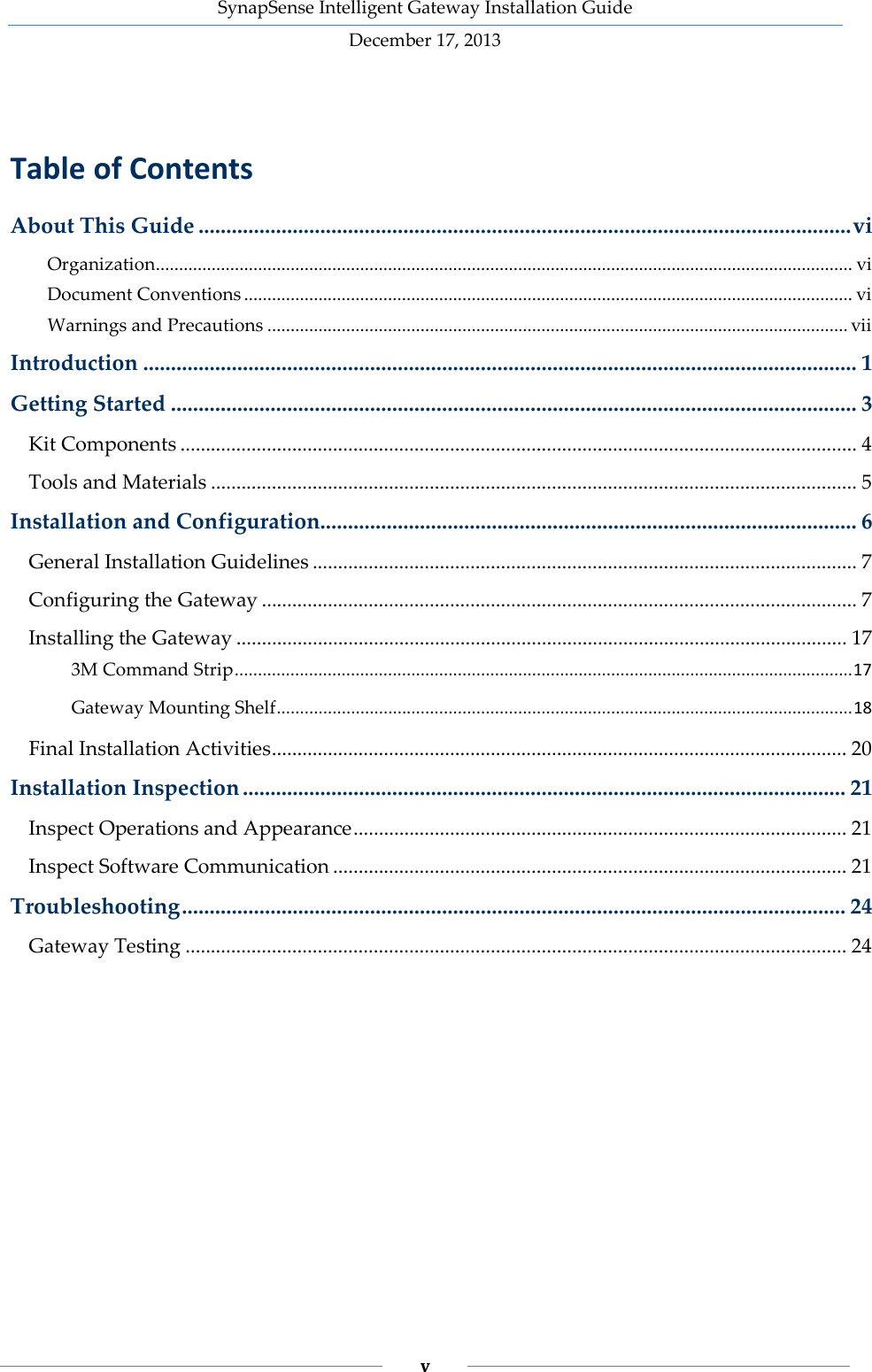
SynapSense Intelligent Gateway Installation Guide December 17, 2013    v     Table of Contents About This Guide ...................................................................................................................... vi Organization ...................................................................................................................................................... vi Document Conventions ................................................................................................................................... vi Warnings and Precautions ............................................................................................................................. vii Introduction ................................................................................................................................. 1 Getting Started ............................................................................................................................ 3 Kit Components ..................................................................................................................................... 4 Tools and Materials ............................................................................................................................... 5 Installation and Configuration................................................................................................. 6 General Installation Guidelines ........................................................................................................... 7 Configuring the Gateway ..................................................................................................................... 7 Installing the Gateway ........................................................................................................................ 17 3M Command Strip ..................................................................................................................................... 17 Gateway Mounting Shelf ............................................................................................................................ 18 Final Installation Activities ................................................................................................................. 20 Installation Inspection ............................................................................................................. 21 Inspect Operations and Appearance ................................................................................................. 21 Inspect Software Communication ..................................................................................................... 21 Troubleshooting ........................................................................................................................ 24 Gateway Testing .................................................................................................................................. 24
SynapSense Intelligent Gateway Installation Guide December 17, 2013    vi    About This Guide This document provides guidelines and instructions for installing and configuring the SynapSense Intelligent Gateway device. The intended audience for this document consists of customers or partners of SynapSense Corporation or a SynapSense installer (or installation team). Customers, partners, or installers should receive training from SynapSense prior to installing the hardware detailed in this document. Organization Although we prefer the entire document to be read in order of presentation, we realize that readers may jump to a particular section. The table below describes the chapters and summarizes their content. Table 1 – Chapter Summary Chapter Description Introduction Provides an overview of the device, its capabilities, and minimum requirements for use. Installation & Configuration Provides detailed steps for installing and configuring the device. Installation Inspection Provides the steps to verify proper installation and device connectivity. Troubleshooting Provides information about correcting problems that may occur during installation, configuration, or use of the device. Document Conventions The table below defines the style conventions used throughout this document. Table 2 – Installation Guide Style Conventions Item Description Bold and Blue This style is used for anything a user types, clicks, presses, or taps. The style also highlights SynapSense products.  For example, Click OK. NOTE: Exceptions to the rule and other important information will be set off with this note style.  This triangular red exclamation mark icon denotes a WARNING.  This triangular yellow electrical icon denotes a SAFETY WARNING of a physical or electrical nature.
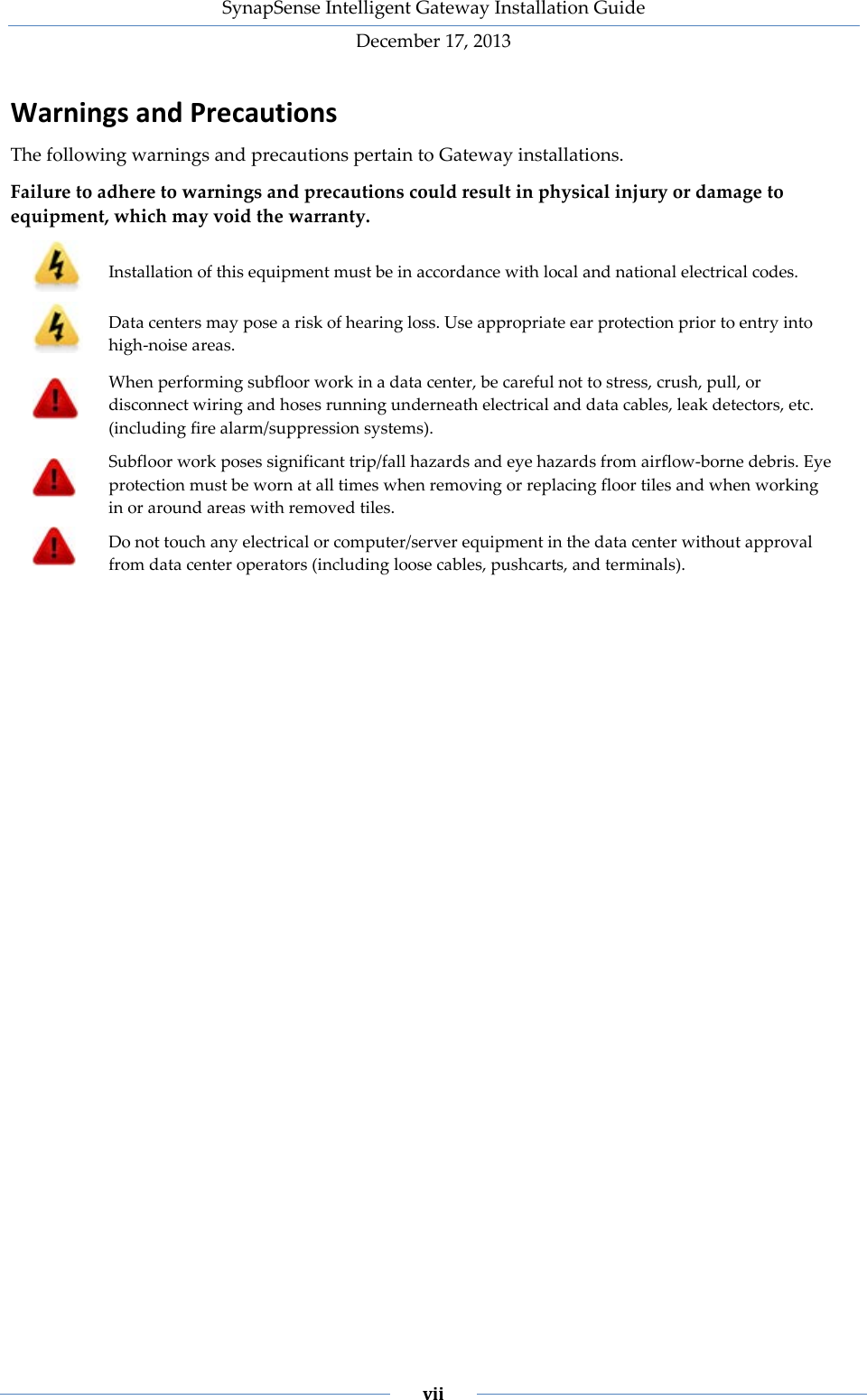
SynapSense Intelligent Gateway Installation Guide December 17, 2013    vii    Warnings and Precautions The following warnings and precautions pertain to Gateway installations.  Failure to adhere to warnings and precautions could result in physical injury or damage to equipment, which may void the warranty.  Installation of this equipment must be in accordance with local and national electrical codes.  Data centers may pose a risk of hearing loss. Use appropriate ear protection prior to entry into high-noise areas.  When performing subfloor work in a data center, be careful not to stress, crush, pull, or disconnect wiring and hoses running underneath electrical and data cables, leak detectors, etc. (including fire alarm/suppression systems).  Subfloor work poses significant trip/fall hazards and eye hazards from airflow-borne debris. Eye protection must be worn at all times when removing or replacing floor tiles and when working in or around areas with removed tiles.  Do not touch any electrical or computer/server equipment in the data center without approval from data center operators (including loose cables, pushcarts, and terminals).
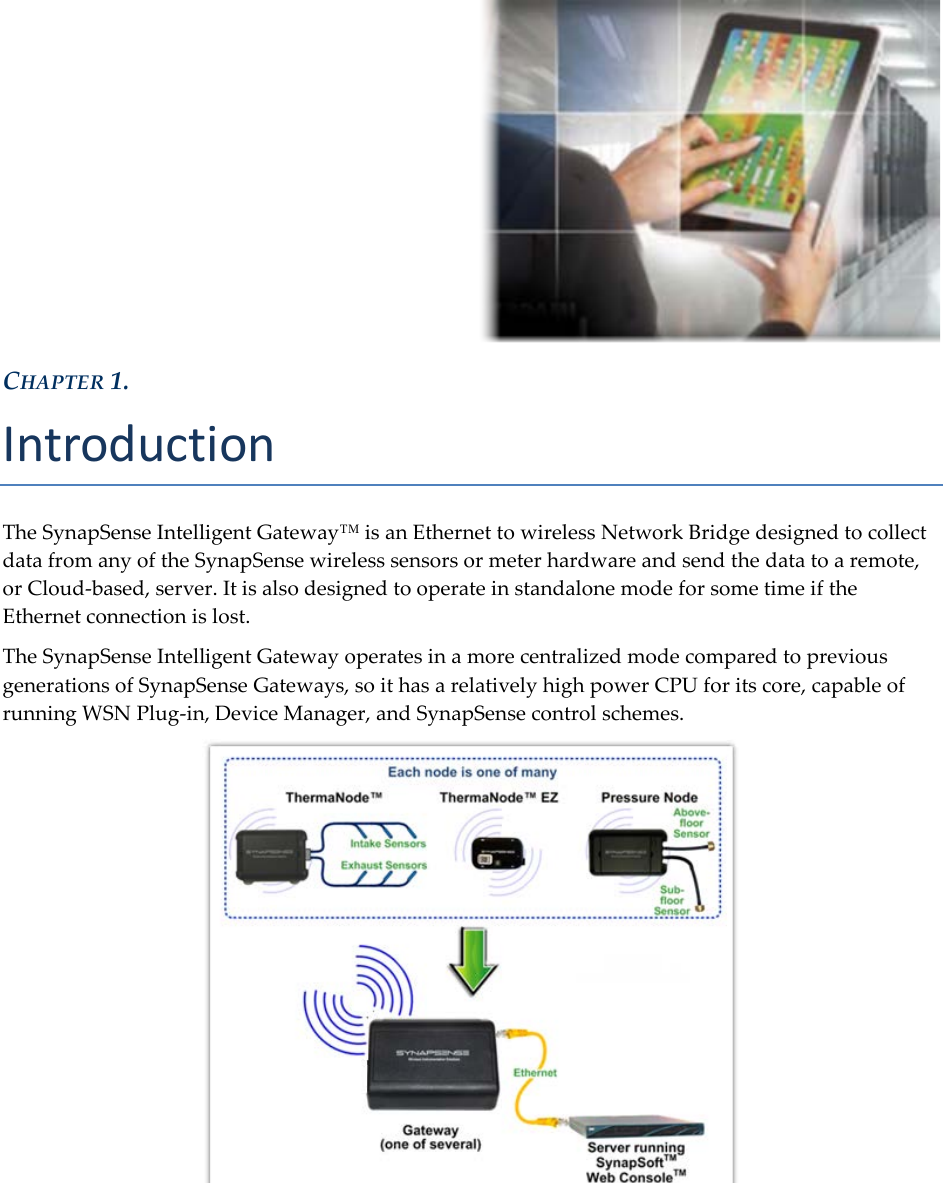
  CHAPTER 1. Introduction The SynapSense Intelligent Gateway™ is an Ethernet to wireless Network Bridge designed to collect data from any of the SynapSense wireless sensors or meter hardware and send the data to a remote, or Cloud-based, server. It is also designed to operate in standalone mode for some time if the Ethernet connection is lost. The SynapSense Intelligent Gateway operates in a more centralized mode compared to previous generations of SynapSense Gateways, so it has a relatively high power CPU for its core, capable of running WSN Plug-in, Device Manager, and SynapSense control schemes.
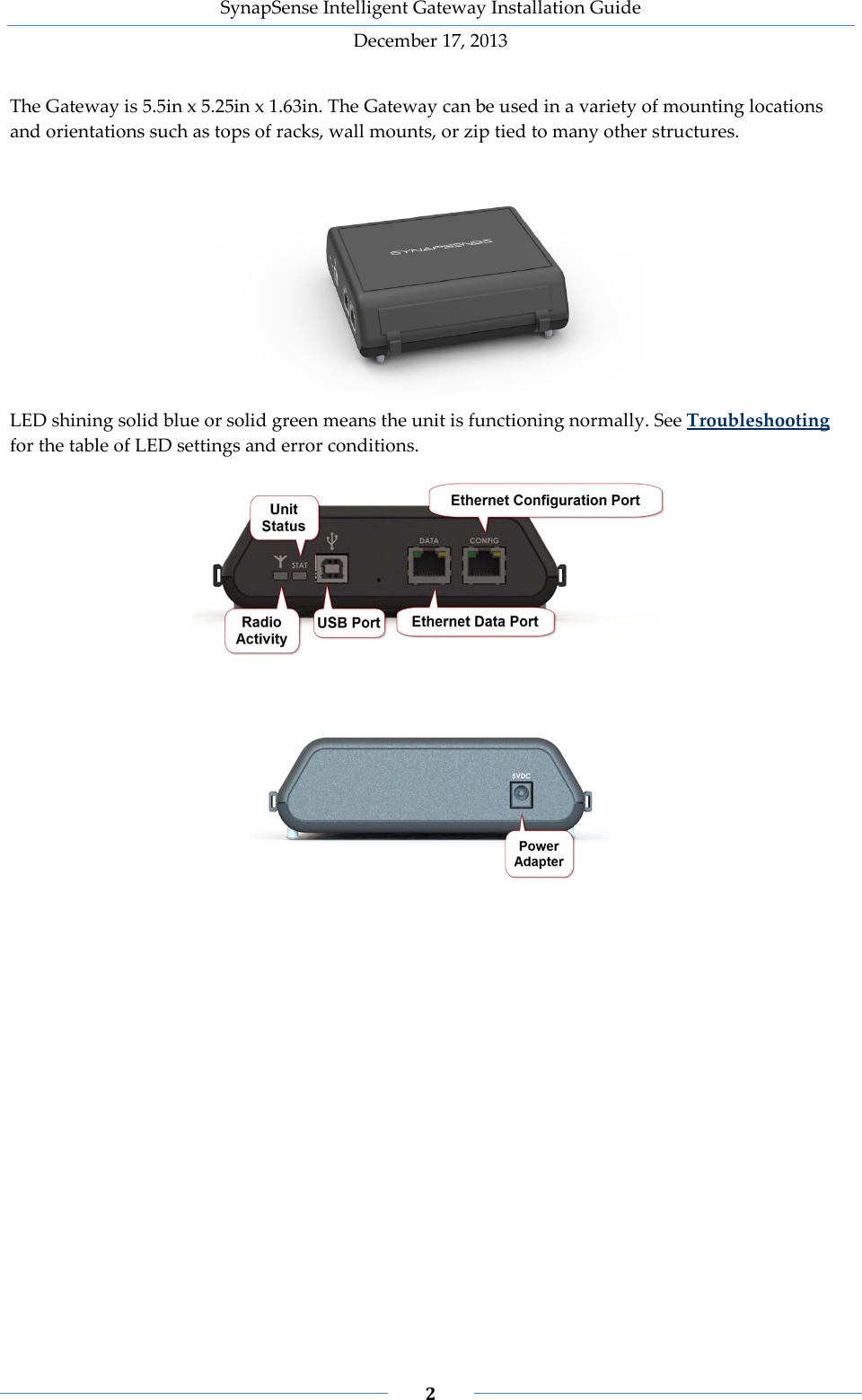
SynapSense Intelligent Gateway Installation Guide December 17, 2013    2    The Gateway is 5.5in x 5.25in x 1.63in. The Gateway can be used in a variety of mounting locations and orientations such as tops of racks, wall mounts, or zip tied to many other structures.  LED shining solid blue or solid green means the unit is functioning normally. See Troubleshooting for the table of LED settings and error conditions.
SynapSense Intelligent Gateway Installation Guide December 17, 2013    3     CHAPTER 2. Getting Started Before entering the facility to install and configure the Gateway devices, ensure the completion of the following preparatory steps. 1. Review all warnings and precautions. 2. Unpack Gateway kit(s) from boxes. Count and verify quantities. At least two Gateways are required for redundancy. 3. Verify that one 110VAC or 220VAC power outlet is available within a few feet of each Gateway’s intended installation location. 4. Verify that the data center operators have provided one static IP address and two open ports for each Gateway to be installed (configuration uses port 80, data uses port 10001). Installation and testing cannot begin without these address and port assignments. 5. Verify you have the latest SynapSense firmware and software, and applicable documentation. 6. Verify that the install team has all of the required tools and materials.  Two ports per Gateway IP address must be open:    Port 80 = Configuration via the Gateway’s web page.    Port 10001 = Data received from SynapSense wireless sensors.
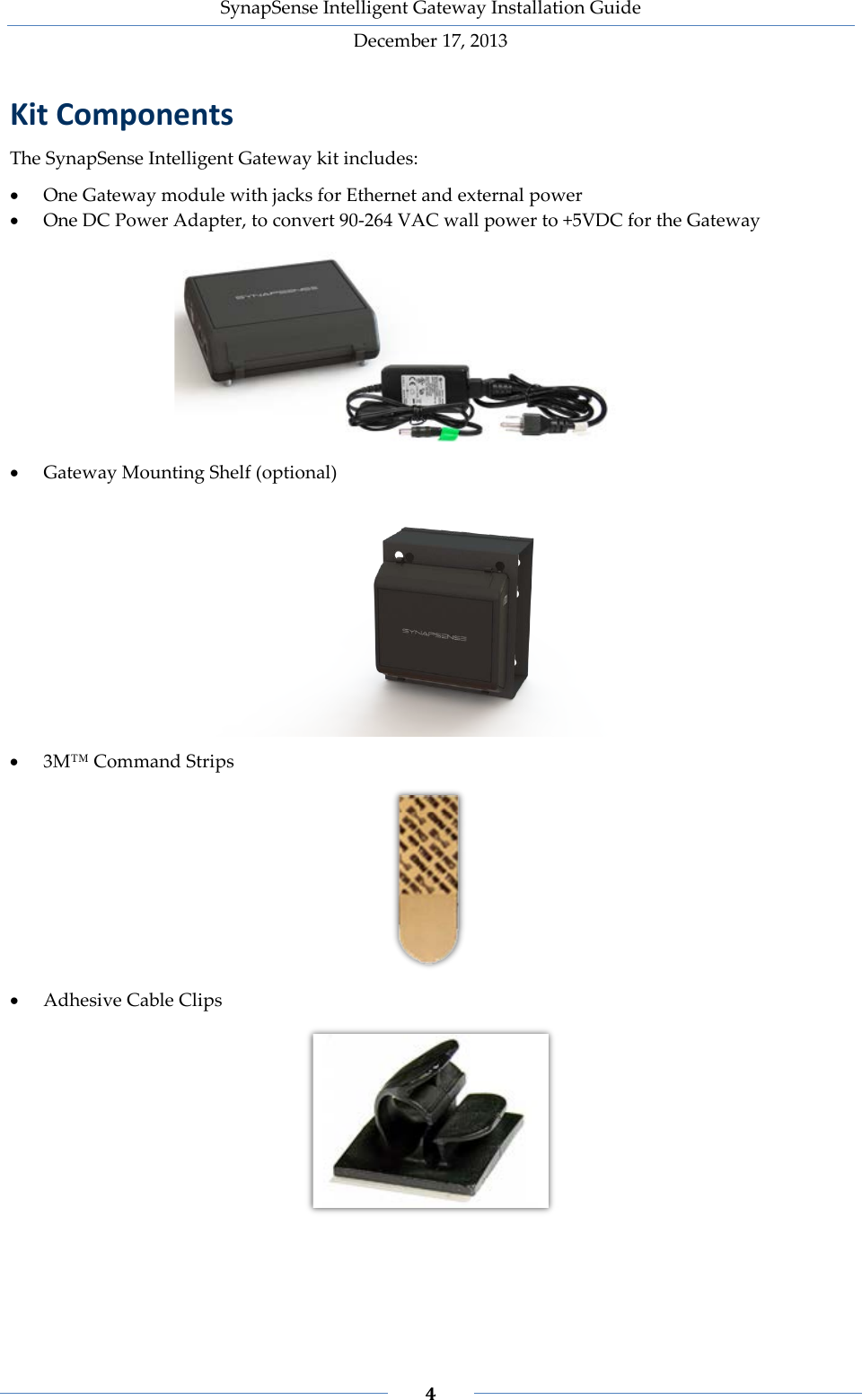
SynapSense Intelligent Gateway Installation Guide December 17, 2013    4    Kit Components The SynapSense Intelligent Gateway kit includes: • One Gateway module with jacks for Ethernet and external power • One DC Power Adapter, to convert 90-264 VAC wall power to +5VDC for the Gateway   • Gateway Mounting Shelf (optional)  • 3M™ Command Strips  • Adhesive Cable Clips
SynapSense Intelligent Gateway Installation Guide December 17, 2013    5    Tools and Materials The table below lists the minimum tools and additional material requirements that SynapSense Field Engineers (FEs) and contracted electricians must bring to the job site. Table of Tools and Materials Item Description/Comments Attire Proper dress and shoes for performing work in a data center (including areas inside the sub-floor and above ceiling tiles) Ladder or step stool Ladder or step stool of sufficient height to reach all Gateway installation locations (typically placed well above the height of all server cabinets in their service radius) Laptop Laptop computer with supported browser installed (Internet Explorer, Firefox, or Chrome) Spares Spare Gateway modules. Materials Plenum-rated Zip-ties Adhesive Sensor Clips Cable Clips 3M Command Strips Alcohol Wipes Tools Multi-Meter Flashlight Diagonal cutters Utility knife Scissors Screwdrivers Torque wrench Pliers Wire strippers Drill/bits Drill pilot holes for enclosure mounting Label maker Create identification labels for wires Documentation This installation document Printed MapSense layout of the data center (shows where Gateways will be located in the data center) Identification Photo ID to present to data center security personnel
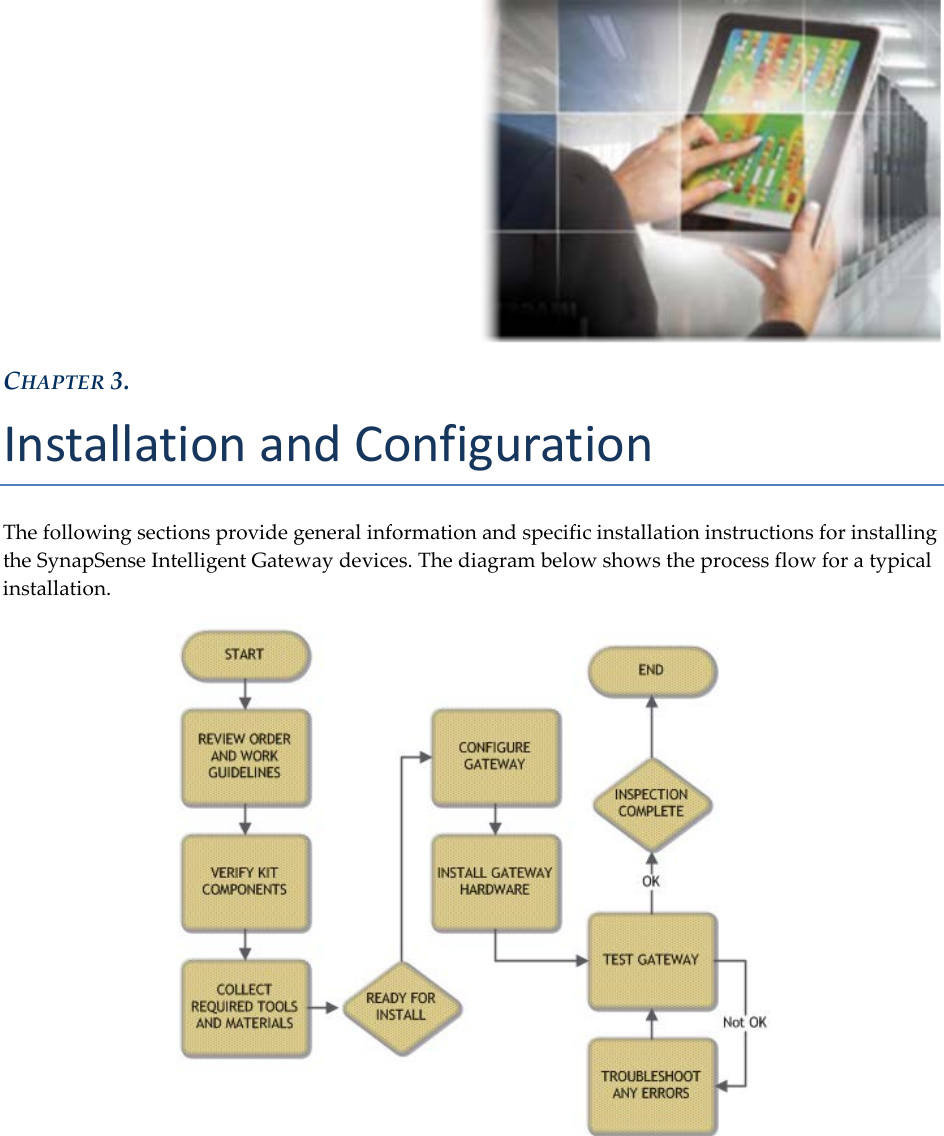
  CHAPTER 3. Installation and Configuration The following sections provide general information and specific installation instructions for installing the SynapSense Intelligent Gateway devices. The diagram below shows the process flow for a typical installation.
SynapSense Intelligent Gateway Installation Guide December 17, 2013    7    General Installation Guidelines Be consistent. All installations should match in appearance where possible (including centering, location, method for securing extra wire, etc.). Be neat. Ensure installation is straight and vertical or horizontal as much as possible. • Install Gateways on flat smooth surfaces such as the tops of server cabinets. Gateways should not be installed in hot aisles or in any location that violates environmental specifications. • Use adhesive cable clips to keep cable and AC Power Adapter wires neat and contained. • Each Gateway installation location should have a 110/240VAC outlet and an Ethernet port within a few feet. • Ensure Gateway installations should not be in areas where concrete walls, support pillars, large cable bundles, air ducting, or other metal enclosures can block the signals at close range.  Keep installation area clean. NOTE:  To save time, it is best to configure all Gateway devices first, and then mount the Gateways in the desired locations in the data center. Configuring the Gateway Prior to mounting each Gateway module in its assigned position in the data center, take a laptop, Ethernet cable and all the Gateways to a comfortable location near a power outlet (e.g. break room, data center IT office) and configure the Gateway IP addresses and subnet masks. NOTE: SynapSense may have performed the Gateway configuration prior to shipment. If configuration is complete, proceed to Installing the Gateway.  If configuration is not complete, or to change an IP address, perform all installation activities.  Static IP addresses and open ports for each of the Gateways should already be assigned by the data center’s IT department and ready for use. To connect the gateway to the laptop 1. Connect the Power Adaptor cord to the Gateway. Plug into an outlet. 2. With an Ethernet cable, connect the Gateway Configuration Port to a laptop that is loaded with an Internet browser. 3. The Radio Activity LED should be OFF and the Unit Status LED will blink RED continuously to indicate the unit is ON.
SynapSense Intelligent Gateway Installation Guide December 17, 2013    8    To change the laptop Host IP address On the laptop, change the Host IP Address setting (temporarily) to enable communication with the Gateway. The exact steps vary, depending on the operating system (the goal is to find and open the Local Area Network Properties dialog box). The instructions below are for Microsoft Windows 7: 1. Open the Control Panel and select the Network and Sharing Center. 2. In the Access type connections box, select the Local Area Connection link.  3. In the Local Area Connection Status dialog, click Properties.
SynapSense Intelligent Gateway Installation Guide December 17, 2013    9    4. Click to highlight Internet Protocol Version (TCP/IPv4 or IPv6), then select Properties.  5. Change the IP address field (network address of the laptop) to “Obtain an IP address automatically”.  6. Click OK.
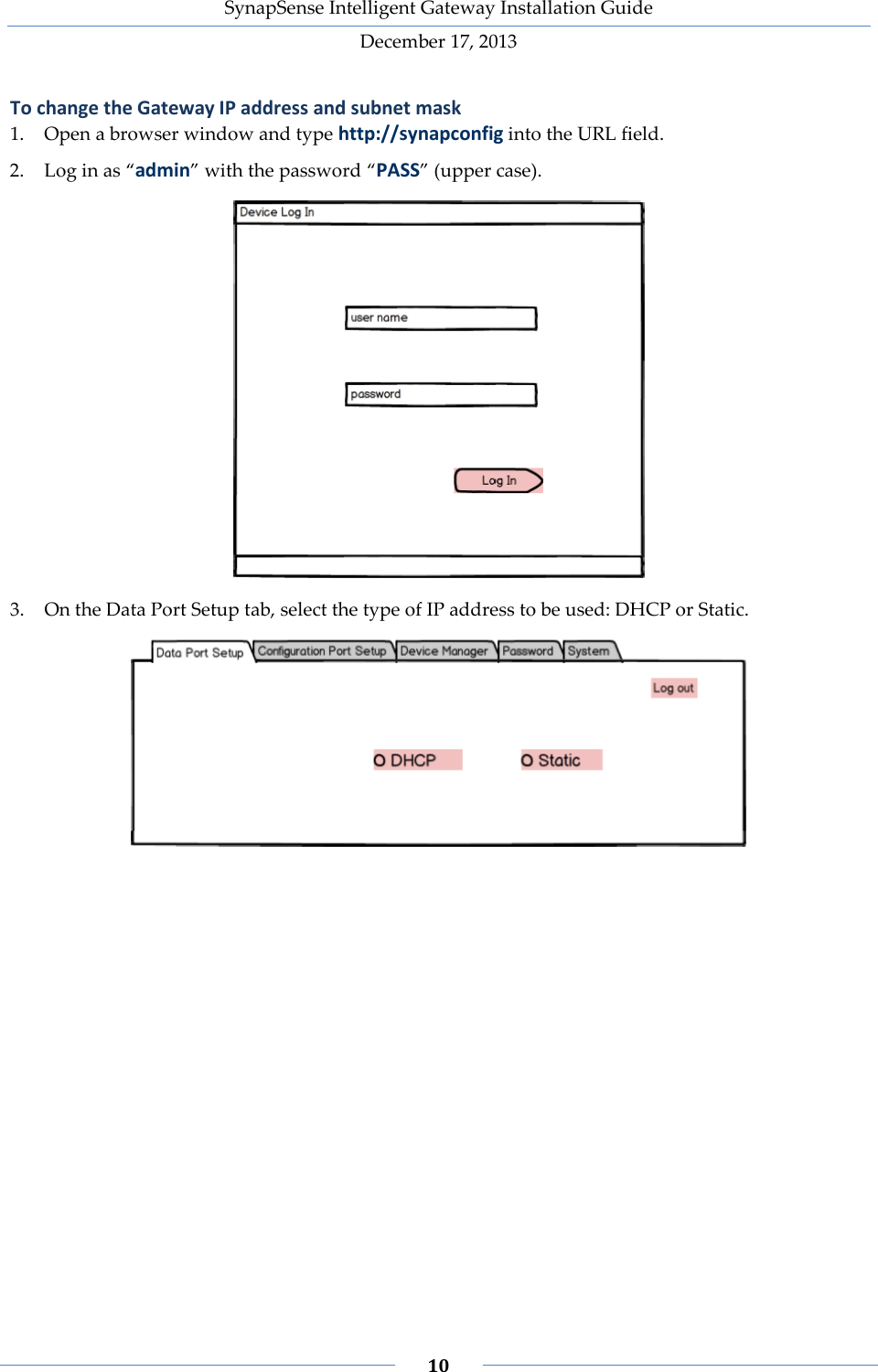
SynapSense Intelligent Gateway Installation Guide December 17, 2013    10    To change the Gateway IP address and subnet mask 1. Open a browser window and type http://synapconfig into the URL field. 2. Log in as “admin” with the password “PASS” (upper case).  3. On the Data Port Setup tab, select the type of IP address to be used: DHCP or Static.
SynapSense Intelligent Gateway Installation Guide December 17, 2013    11    4. For Static IPv4, do the following: a. Select the Static radio button. b. Enter the appropriate information in the fields provided. c. Click Check Connectivity to ping the device. d. Click Apply.
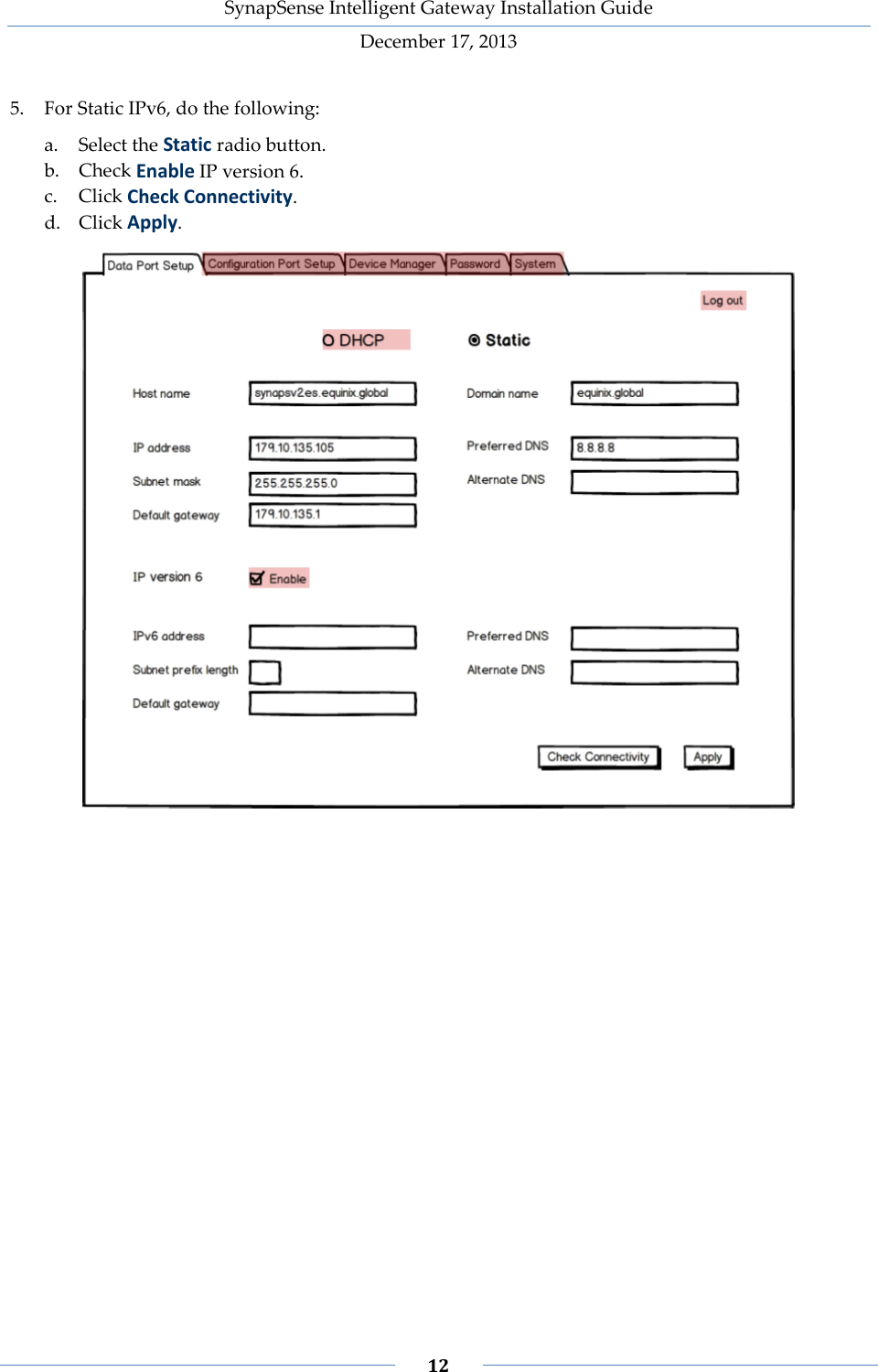
SynapSense Intelligent Gateway Installation Guide December 17, 2013    12    5. For Static IPv6, do the following: a. Select the Static radio button. b. Check Enable IP version 6. c. Click Check Connectivity. d. Click Apply.
SynapSense Intelligent Gateway Installation Guide December 17, 2013    13    6. For DHCP, do the following: a. Select the DHCP radio button. b. Enter the appropriate Host and Domain names. c. Click Check Connectivity. d. Click Apply.  7. On the Configuration Port Setup tab, enter the local IP address and local DHCP server information, then click Apply.
SynapSense Intelligent Gateway Installation Guide December 17, 2013    14    8. On the Device Manager tab, enter the IP address for the SynapSense Environment Server and its server port, then click Apply.  9. Check Enabled to start Device Manager. If Device Manager starts properly but does not yet have connectivity to the SynapSense Environment Server, the Status LED on the Gateway will blink Red and Blue.
SynapSense Intelligent Gateway Installation Guide December 17, 2013    15    To change the user password Use the Password tab to change the user password. The User Name is predefined. The default password is “PASS”.
SynapSense Intelligent Gateway Installation Guide December 17, 2013    16    To setup the System tab All of the information on the System tab auto-populates and is Read-Only.
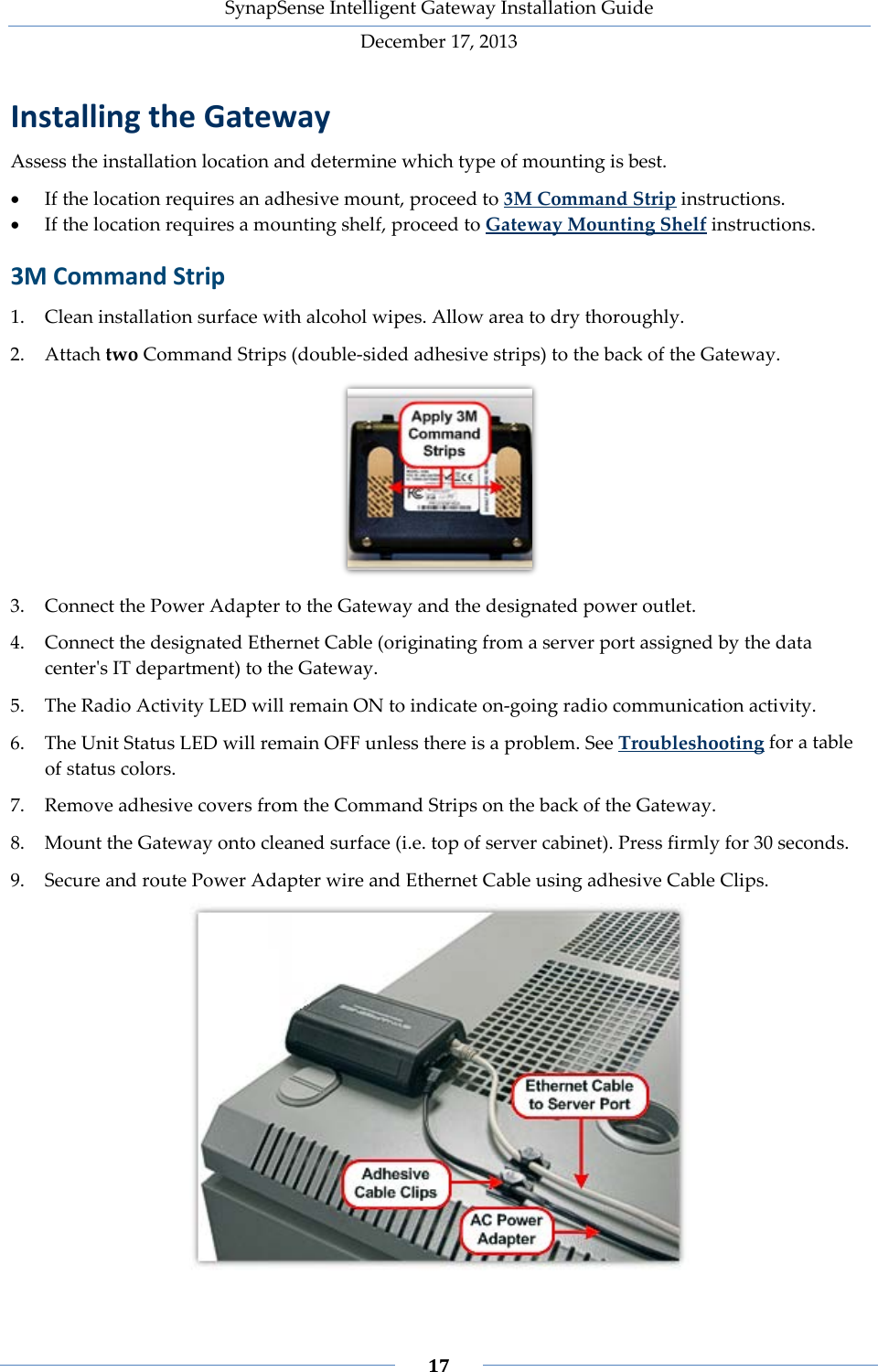
SynapSense Intelligent Gateway Installation Guide December 17, 2013    17    Installing the Gateway Assess the installation location and determine which type of mounting is best. • If the location requires an adhesive mount, proceed to 3M Command Strip instructions. • If the location requires a mounting shelf, proceed to Gateway Mounting Shelf instructions. 3M Command Strip 1. Clean installation surface with alcohol wipes. Allow area to dry thoroughly. 2. Attach two Command Strips (double-sided adhesive strips) to the back of the Gateway.  3. Connect the Power Adapter to the Gateway and the designated power outlet. 4. Connect the designated Ethernet Cable (originating from a server port assigned by the data center's IT department) to the Gateway. 5. The Radio Activity LED will remain ON to indicate on-going radio communication activity.  6. The Unit Status LED will remain OFF unless there is a problem. See Troubleshooting for a table of status colors.  7. Remove adhesive covers from the Command Strips on the back of the Gateway. 8. Mount the Gateway onto cleaned surface (i.e. top of server cabinet). Press firmly for 30 seconds. 9. Secure and route Power Adapter wire and Ethernet Cable using adhesive Cable Clips.
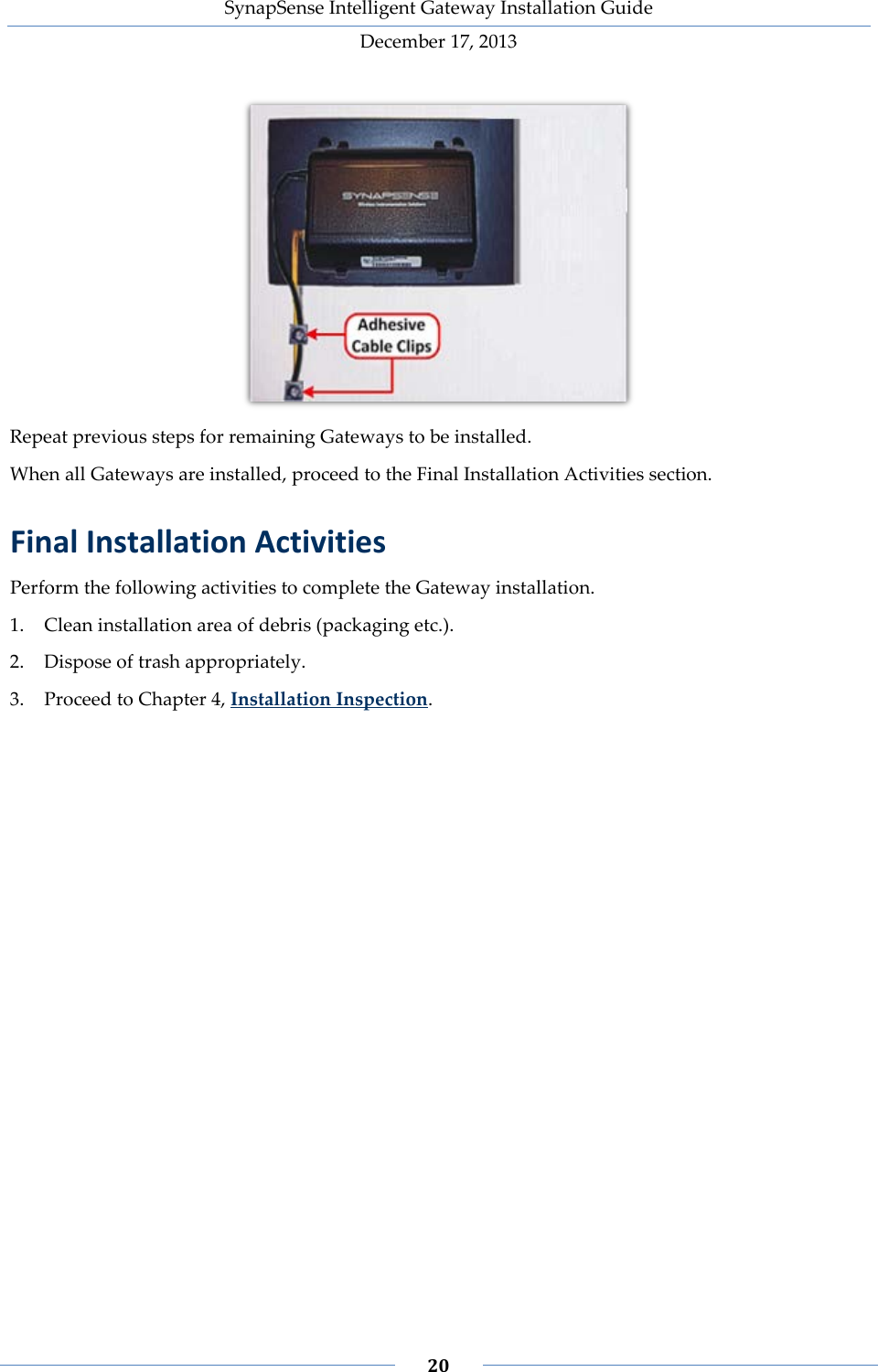
SynapSense Intelligent Gateway Installation Guide December 17, 2013    18    10. Repeat previous steps for remaining Gateways to be installed. When all Gateways are installed, proceed to the Final Installation Activities section. Gateway Mounting Shelf NOTE:  Screws and other associated hardware for mounting the Gateway Mounting Shelf are not included in the SynapSense Gateway kits and must be supplied by the customer. 1. Using the Gateway Mounting Shelf mounting holes as a template, position the shelf in the desired location (i.e. wall or pillar), and mark the holes to be drilled with a pencil.  2. Using a drill and the appropriate drill bit, drill the four mounting holes marked on the installation surface.  3. Install appropriate-sized screws in the drilled mounting holes. Do not tighten screws completely.
SynapSense Intelligent Gateway Installation Guide December 17, 2013    19    4. Insert Gateway Mounting Shelf on screws. Insert screwdriver through front mounting holes and tighten screws to secure shelf to surface.   5. Connect the Power Adapter to the Gateway and the designated power outlet. 6. Connect the designated Ethernet Cable (originating from a server port assigned by the data center's IT department) to the Gateway. The Radio Activity LED will remain OFF  The Unit Status LED will blink RED continuously when the unit is ON. 7. Insert the Gateway’s mounting spacers in the shelf’s front mounting holes and slide the Gateway downward to bottom of mounting hole slots.  8. Secure and route Power Adapter wire and Ethernet Cable using adhesive Cable Clips.
SynapSense Intelligent Gateway Installation Guide December 17, 2013    20     Repeat previous steps for remaining Gateways to be installed. When all Gateways are installed, proceed to the Final Installation Activities section. Final Installation Activities Perform the following activities to complete the Gateway installation. 1. Clean installation area of debris (packaging etc.). 2. Dispose of trash appropriately. 3. Proceed to Chapter 4, Installation Inspection.
  CHAPTER 4. Installation Inspection Inspections ensure installations are correct and Gateway devices communicate with SynapSense Web Console™.  Inspect Operations and Appearance 1. Verify all installed Gateway devices are connected properly (Power Adapter, Ethernet Cable, etc.) and receiving power. 2. Verify Gateway devices are installed in areas in which there is a clear line of sight for wireless sensor’s radio transmissions. 3. Verify Ethernet cables and Power Adapter wires are secured where needed. Inspect Software Communication Perform the following steps to confirm Gateway operations and communications (Figure 26 corresponds with steps 1 through 4). Refer to the Web Console User Guide for detailed information. 1. Access the SynapSoft Web Console software and select the appropriate data center from the Sites list. 2. Click the Floor plan tab in the Data Center section. 3. Select the slide-out menu on the right of the screen then select Wireless Sensor Network. 4. Select the appropriate settings for the network as needed (Network: and Hop Level: dropdown lists, and associated checkboxes).
SynapSense Intelligent Gateway Installation Guide December 17, 2013    22     Figure 1 – Accessing Web Console Data Center Floor plan The screen refreshes and displays the wireless sensor network (including Gateways) for the data center. Place your cursor over a Gateway device on the display. The name and status of the device displays next the Gateway graphic representation (see Figure 2).  Figure 2 – Web Console: Gateway Master and Slave Syncs NOTE:  In a data center with multiple Gateway devices, one Gateway device is designated the “master”, and the remaining Gateway devices are designated as “slaves”.
SynapSense Intelligent Gateway Installation Guide December 17, 2013    23    If the rollover display states “Master, sync” or “Slave, sync”, the Gateway is communicating with the software. If the rollover display states “Master, not sync” or “Slave, not sync”, the Gateway is not communicating with the software. Refer to Troubleshooting for tips on resolving connectivity and communication issues. When issues are resolved, perform the previous steps in this procedure to confirm the Gateways are communicating properly.
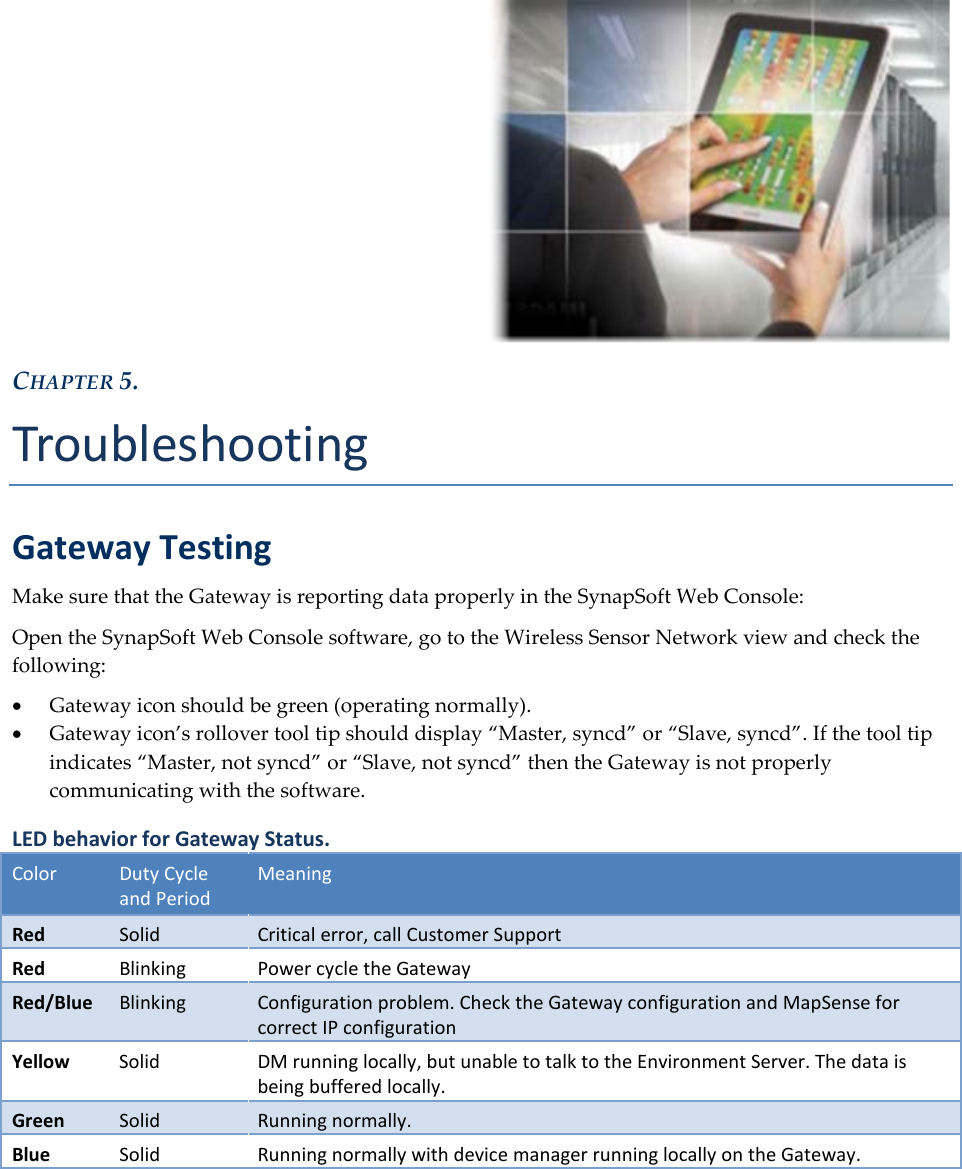
  CHAPTER 5. Troubleshooting Gateway Testing Make sure that the Gateway is reporting data properly in the SynapSoft Web Console: Open the SynapSoft Web Console software, go to the Wireless Sensor Network view and check the following: • Gateway icon should be green (operating normally). • Gateway icon’s rollover tool tip should display “Master, syncd” or “Slave, syncd”. If the tool tip indicates “Master, not syncd” or “Slave, not syncd” then the Gateway is not properly communicating with the software. LED behavior for Gateway Status. Color Duty Cycle and Period Meaning Red Solid Critical error, call Customer Support Red Blinking Power cycle the Gateway Red/Blue Blinking Configuration problem. Check the Gateway configuration and MapSense for correct IP configuration Yellow Solid DM running locally, but unable to talk to the Environment Server. The data is being buffered locally. Green Solid Running normally. Blue Solid Running normally with device manager running locally on the Gateway.
SynapSense Intelligent Gateway Installation Guide December 17, 2013    25    LED behavior for Radio Activity. COLOR Duty Cycle and Period Meaning RED SOLID Critical Error (Boot fail) GREEN / YELLOW Toggle Noise scan GREEN Blink Time not synchronized in App mode GREEN SOLID Time synchronized in App mode GREEN / CYAN Cyan blink Received WSN traffic in App mode BLUE Blink Time not synchronized in SMOTA mode BLUE SOLID Time synchronized in SMOTA mode BLUE / CYAN Cyan blink Received WSN traffic in SMOTA mode MAGENTA SOLID Diagnostic mode none  Not running
                    SynapSense Technical Support Telephone: (916) 294-0110, option 2 Email: support@SynapSense.com Web: http://www.SynapSense.com

Navigation menu