Coachnow Mobile User Guide
2018-04-06
: Sz Coachnow-Mobile-User-Guide coachnow-mobile-user-guide en
Open the PDF directly: View PDF  .
.
Page Count: 24
A guide to better coaching
Mobile apps — updated 3/28/18
A guide to better coaching
Mobile apps — updated 3/28/18


Getting started
3
Selecting your role
Coach
CoachNow is perfect for
Coaches who are working with
Teams or working with
athletes 1:1. Setup private
Spaces, give real time
feedback and help Athletes
develop faster to reach their
goals by creating a Coach
account.
Athlete
Your Spaces in CoachNow are
a place to keep all of your
Athletic/Developmental notes
and media. Your private Space
doubles as a record for
tracking progress and
collaborating with your Coach
and other Athletes.
Member
Anyone can be invited to a
Space as a general Member.
Often, Parents, Friends,
other Coaches and Recruit-
ers will join a Space to keep
up with an Athlete’s Progress
and Routines. The Owner of a
Space can determine who is
eligible or ineligible to post
content in any given Space in
the respective Spaces settings.

Signing up
4
Creating a new account is the first step towards better
Coaching and Athlete Development. CoachNow is accessible
on any Android or iOS mobile devices and on your computer
by visiting coachnow.io/signup. If you were invited to join and
have an activation code, jump to the next page of this User
Guide.
To get started, install CoachNow on your Mobile Device and
open the App, or visit coachnow.io. Select the option to Sign
Up and enter your name, email address and password, then
select Sign Up. Be sure to add a photo so others can recognize
your account and TrainingSpace easily. Next, just select your
Role as the Coach, Athlete Fan or Other and hit Done to create
your account.
I was invited
5
If you were invited to CoachNow, you will receive an Activation
Code in your inbox to get started. CoachNow is accessible on
any Android or iOS mobile devices and on your computer by
visiting coachnow.io.
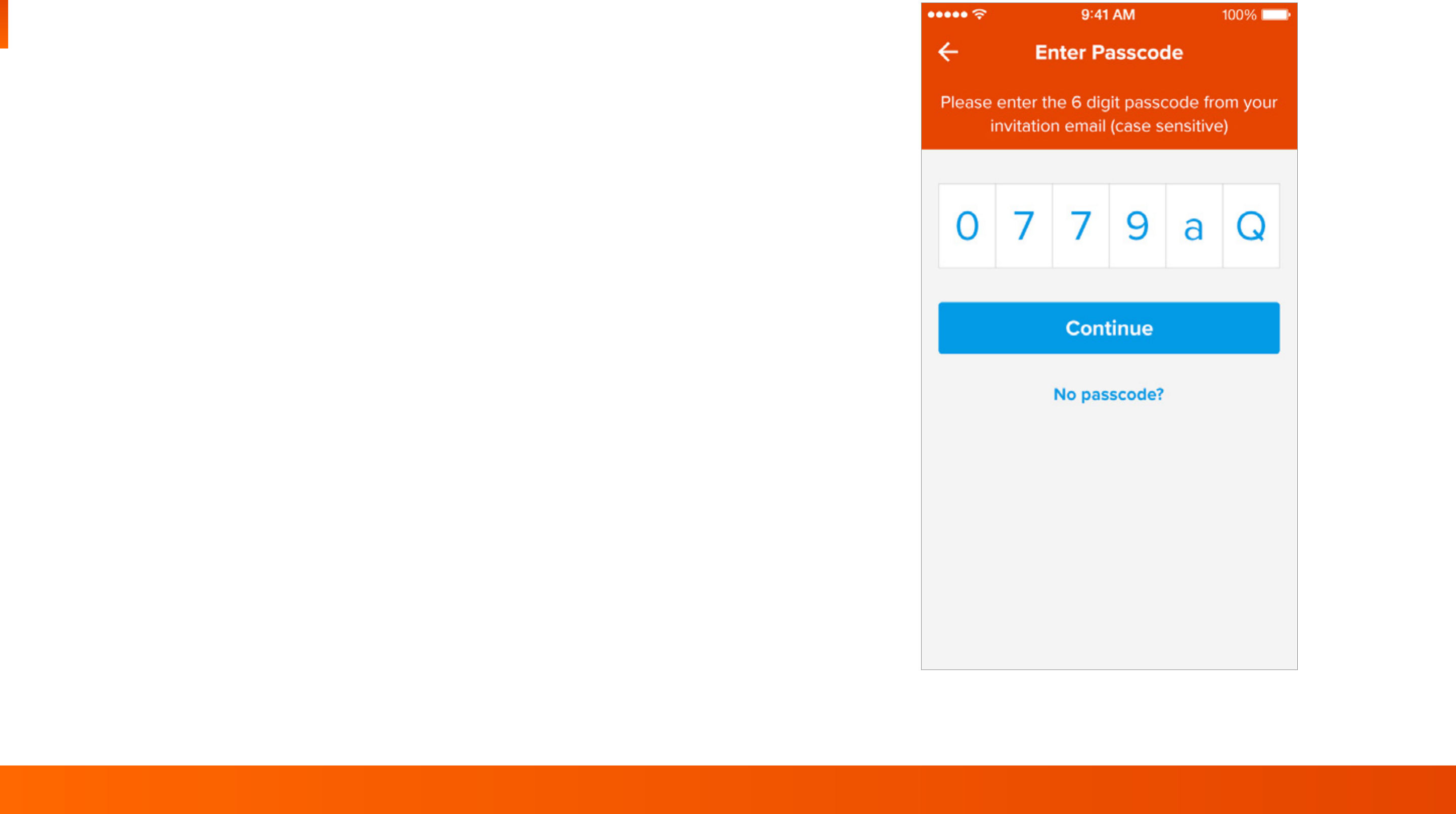
Once you install CoachNow, open the app and select the “I was
invited” button, then enter your unique Activation Code.
Enter your Name, verify your email address, and add a
Password. Once you are finished setting up your account with
your Activation Code, you can gain access to your new Space
or Team.
Spaces
6
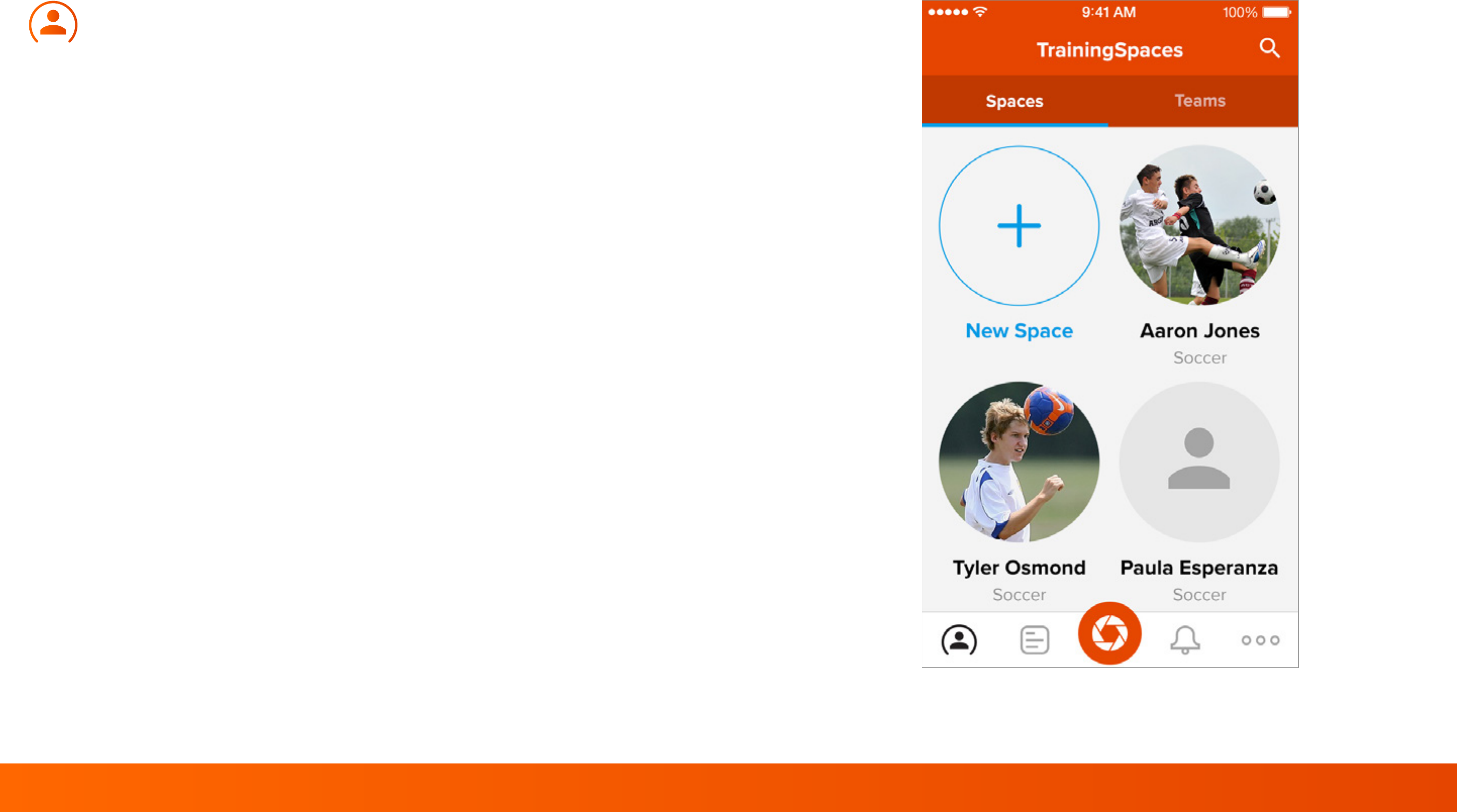
Spaces are intended for working with a specific Athlete on their
individual programming and personal development. Creating
this private Space oers a hub for both you and the Athlete to
collaborate, share videos, photos and notes, as well as track an
Athlete’s Development and analyze their performance.
Get started by selecting the ‘+’ button on the Space screen to
create a new Space. Choose a Sport and Athlete to work with,
also be sure to add any other Coaches, Fans or Scouts that are
interested in the success of your Athlete.
Utilize the notification settings during Space creation to set
your preferences for collaboration.
Once you select ‘Create’, invitations will be sent to the selected
Athlete and Members.
Teams
7
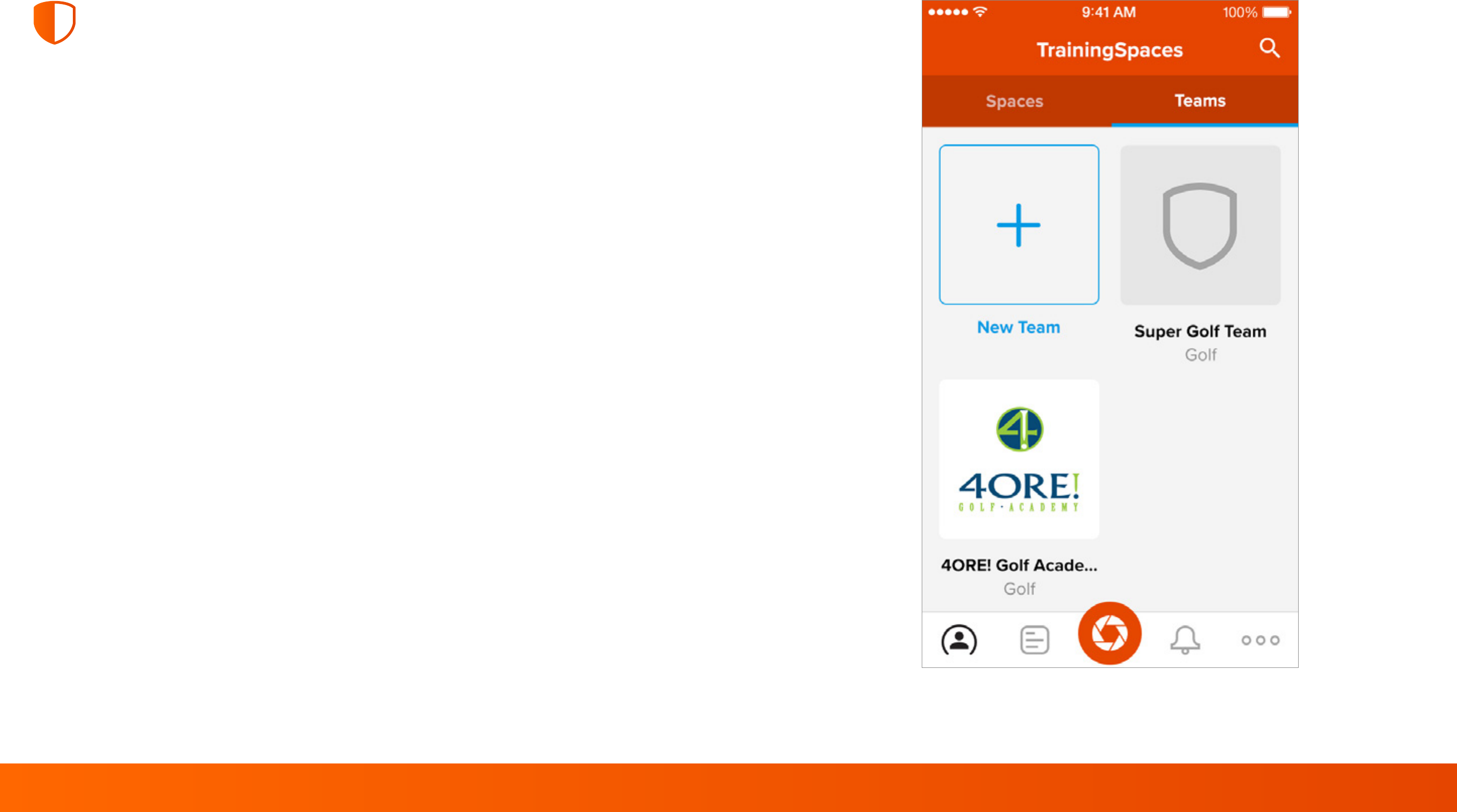
Unlike individual Spaces, which are intended for focus on
specific Athletes, Teams are intended for Coaches who are
working with groups of athletes. Creating a Team will ensure
that all of your communication is shared with everyone, in one
place. Choose the Private or Public setting to allow members to
share this content elsewhere, or keep it within your group.
To create your first Team, go to Teams and select the ‘Create a
Team’ button. Select your Sport, then add all of the Athletes on
that Team. Be sure to add a Team Name, Logo and Contact
information. Add Team Managers, who will have access to
Admin Features for the Team. Assistant Coaches and Specialty
Coaches are good examples of ocials to be added as
Managers.
Set your Notification preferences for the Team and select
“Create” to finish creating the Team.
Space/Team Settings
8
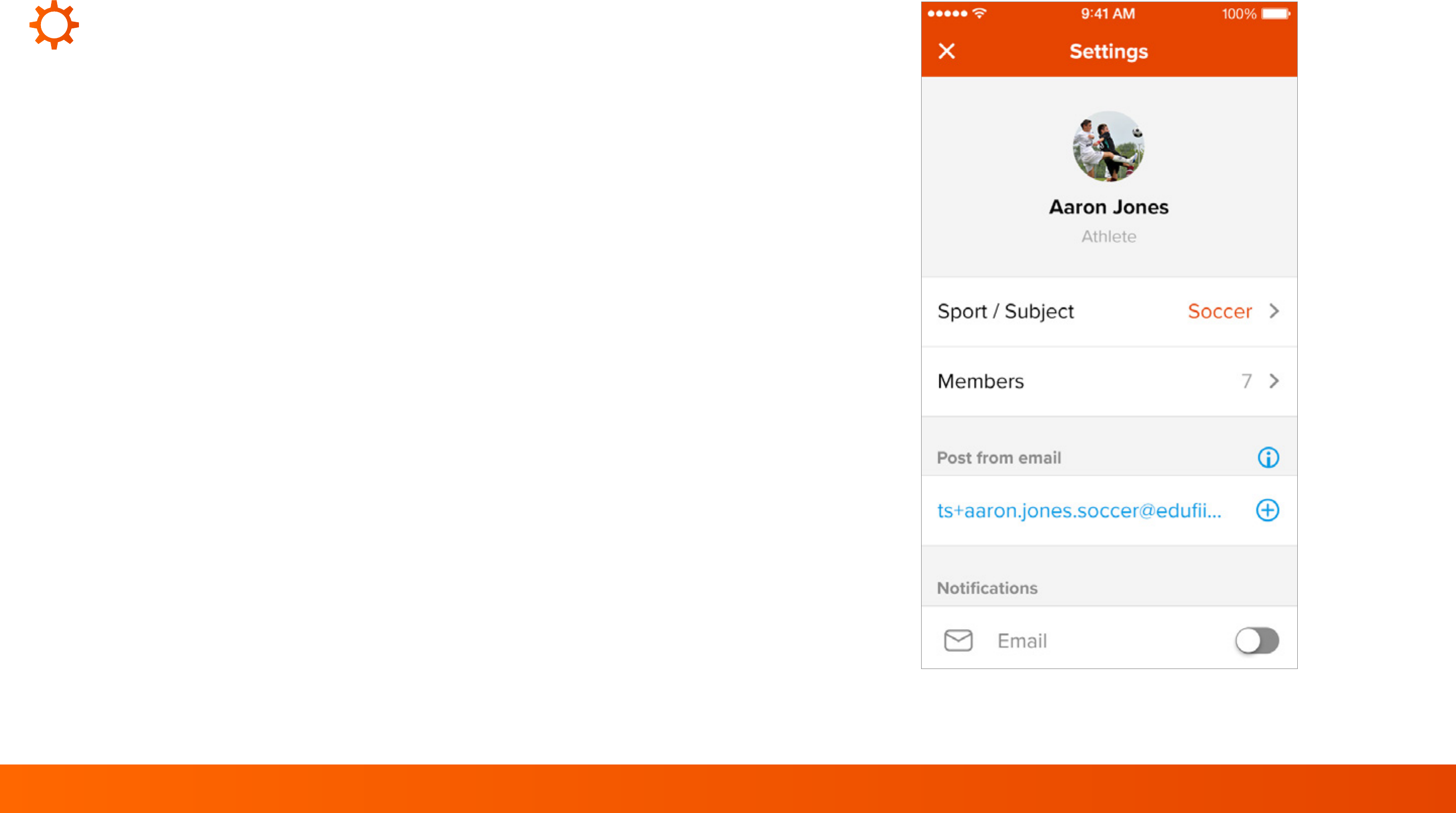
While viewing a Space or a Team, select the Settings icon in the upper
right corner.
Space Settings
Here, you can update the Sport, add or remove Members, adjust your
Notification Settings and Delete or Leave the Space. Individual Spaces
can only be deleted from a Coach account if the Athlete has not yet
accepted their invitation to the Space. Once the Athlete accepts the
invitation, ownership of the Space is granted to the Athlete.
Team Settings
In settings you can update the name of your Team and/or the Contact
info. You can also add or remove members from your Team by selecting
“Members” on this screen. Team settings also allow you to control
Member Permissions, change the Team from Public to Private or even
delete the Team from your account entirely. As the creator of the Team,
you are the Owner of that team. You can assign a dierent Coach as the
Owner, but only the Owner can Delete the Team.
Feed
9
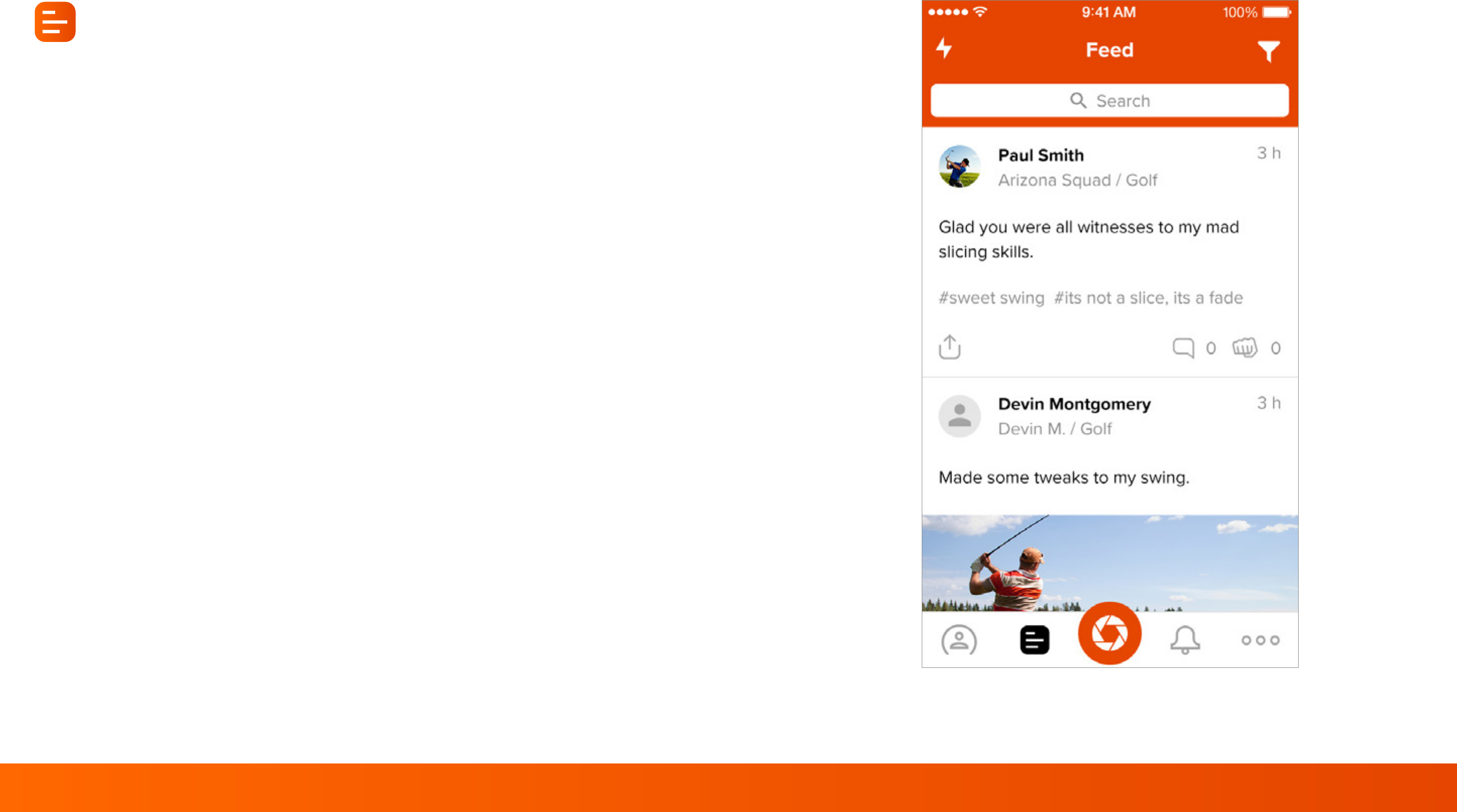
Select the Feed button to view posts from all of the Spaces you
are part of.
While viewing the Feed, select the Filter option at the top right
corner to sort posts. This feature can help you locate a post
based on a Specific Author, Media Types, Tags or Publish/Post
Date.
Pending Posts can be viewed by selecting the Lightning Bolt at
the top Left corner of the Feed. Posts that have been paused
while uploading can be resumed by selecting the Lightning
Bolt, then select that post to resume the upload.

Viewing posts
10
Posts appear in chronological order on the Feed, in Spaces
and in Teams. Each posts displays the Author, Space and a time
stamp. Select any post to view it in its Space.
Select the Comment or Reply button on the bottom of any post
to engage with others. Reply to posts with comments, or even a
Photo or Video.
Some posts can be shared externally by selecting the Share
Icon located on the bottom left corner of any post. This setting
can be managed by a Team owner to protect any content that
needs to be private.
Creating posts
11
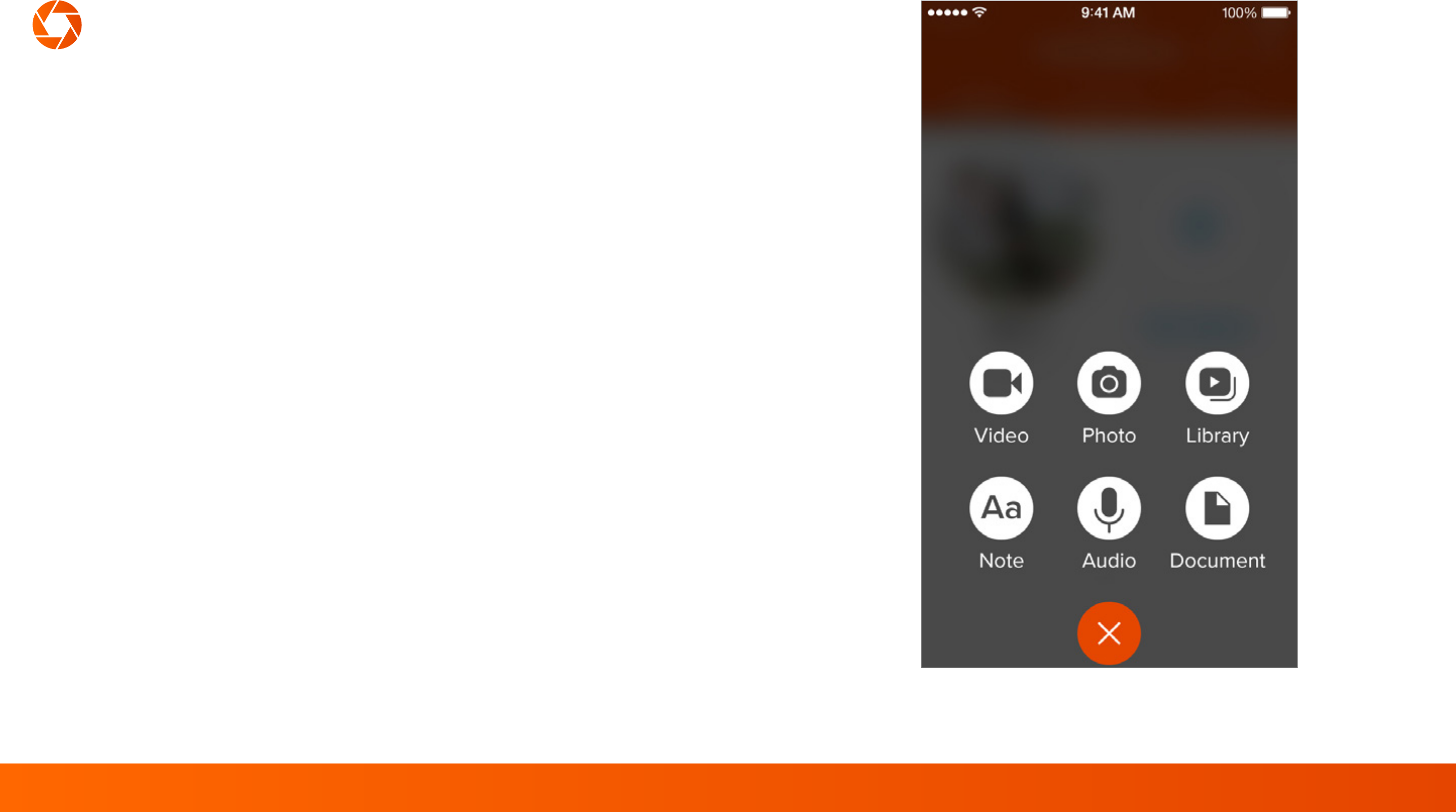
At anytime, select the Orange Post button on the bottom center of the
screen to create a new post. Choose from the media options to create
your content.
Video: Capture New Video to post in CoachNow.
Photo: Capture New Photos to post in CoachNow.
Note: Add a quick Note to share with others or share formally written
messages.
Audio: Captures Audio to Post in a Space.
Library: Select any existing Media from your Device or your CoachNow
Library.*
Document: Import Documents from Dropbox, Google Drive, iCloud, etc.
* CoachNow+ upgrade feature
Video/image analysis
12
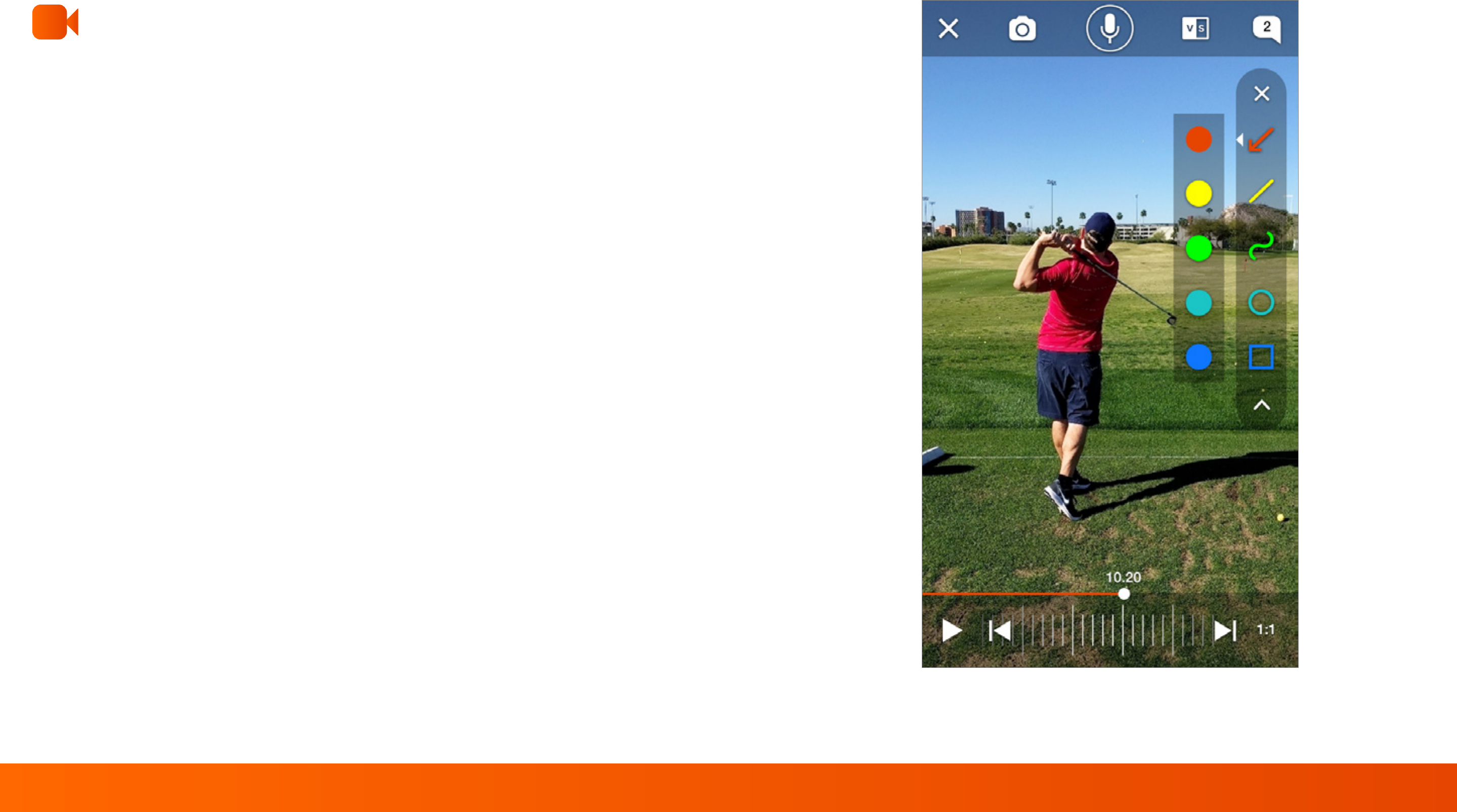
CoachNow oers a range of tools and features to Edit Photo/Video
Content before you post it. Adding Illustrations to Photos and Videos is
a great way to help with Athlete Development and ensure that your
direction is preserved for the Athlete.
Zoom: Use two fingers to zoom on an image or video and highlight the
area of focus.
Illustrate: Expand the Tool Panel on the right to select a Drawing Tool.
Double Tap a tool to change the color. Press the camera icon to save.
SloMo: Select the Playback Speed icon in the bottom right corner to
choose playback speed. Playback Speed options are 1:1, 1:2, 1:4 or 1:8.
Compare: Select the V/S button at the top to select a second Video/
Photo and compare the two on one screen.
Record: Select the Record option to record audio over the video
playback. Annotations are also recorded in real time with this feature.
Video recording
13
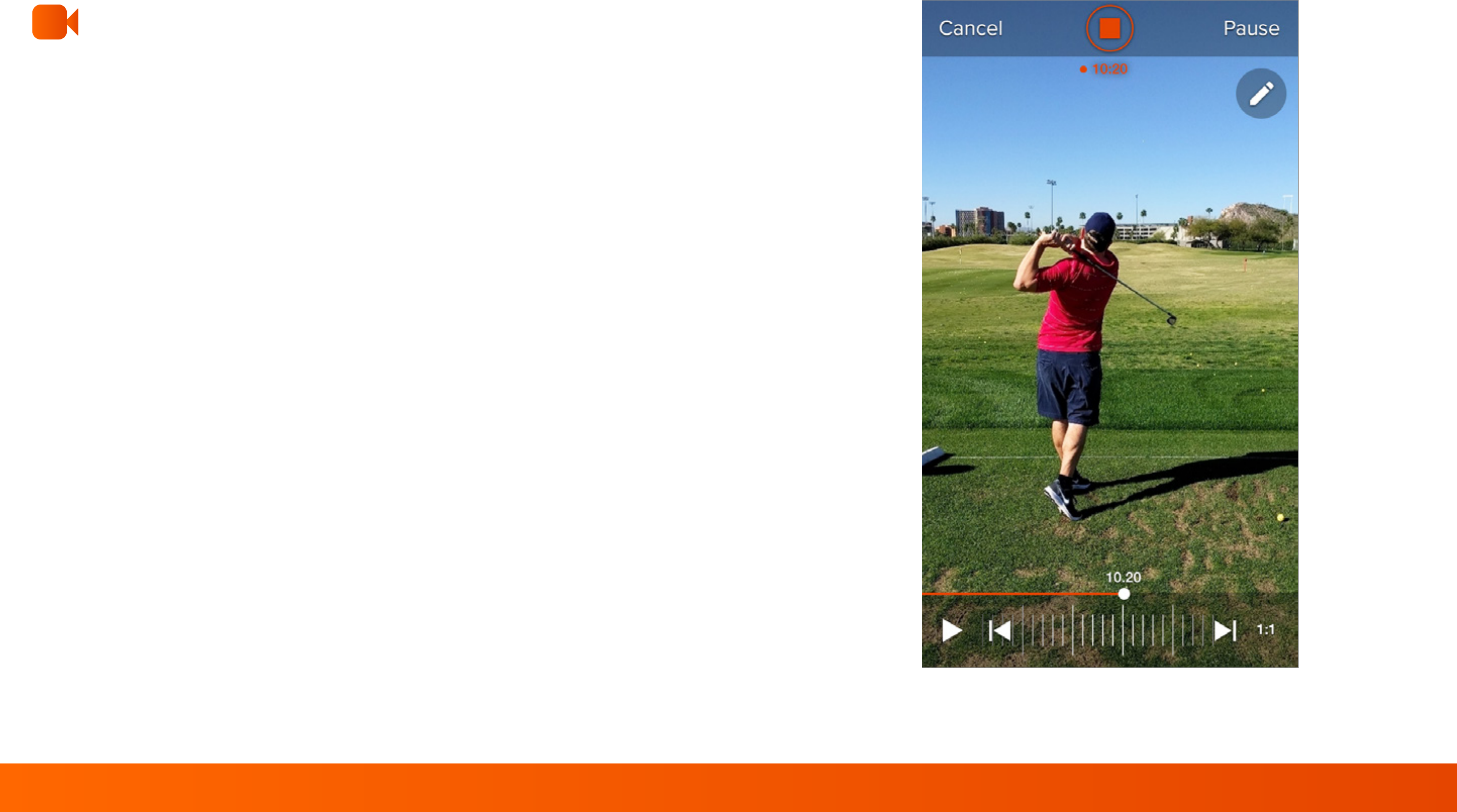
Using CoachNow for Video Analysis is quick and easy. While
executing Video Analysis, you can record any Audio and
Illustrations you want to include in your feedback.
Recording - Select the Record button at the Top Center of the
screen. This feature records Audio, Illustrations and the Video
Playback all at once; everything you see on the screen will
be recorded in addition to anything you say while it is
recording. You can record in Slo-Mo by changing the playback
speed in the bottom right corner.
Record in Slow-Mo - Videos captured at 30fps-240fps can be
posted in CoachNow. You can also change the PlayBack Speed
of any video in CoachNow to 1:2, 1:4 and 1:8 speeds while
recording over an existing video.

Posting and Tags
14
After selecting your Video/Photo/Media, select a Space or
Spaces to post it in. You can also add comments and Tags
before you post.
Tips for Posting
Utilize the Tags feature to mark important posts, or posts
that deal with specific topics. Later, use the filter option
to locate posts using that unique Tag.
Add Comments to your post. Adding comments to your
post is a great way to ensure your post has context.
People are more likely to engage with posts when you
add comments.

Notifications
15
Notifications: Notifications are alerts that inform you of
activity in your CoachNow Spaces. Select the Notification but-
ton to view all notifications.
Notification Settings: CoachNow Users can manage which
Spaces send you notifications and email notifications. Open
CoachNow and select the Notifications button > Select The
Settings Icon in the top right corner> Select Spaces or Teams
to enable/disable notifications and emails for any particular
Space.
Invitations
16
Sending Invitations: Invitations can be sent when you create a
new Space or Team. When creating a new Space, the Coach/
Athlete you select will receive an invitation, as well as any
members you add. You can also send invitations after a Team
or Space has been created. To send an invitation for an existing
Space, just open the Space> Tap Settings> Tap Members and
follow the steps to invite more collaborators.
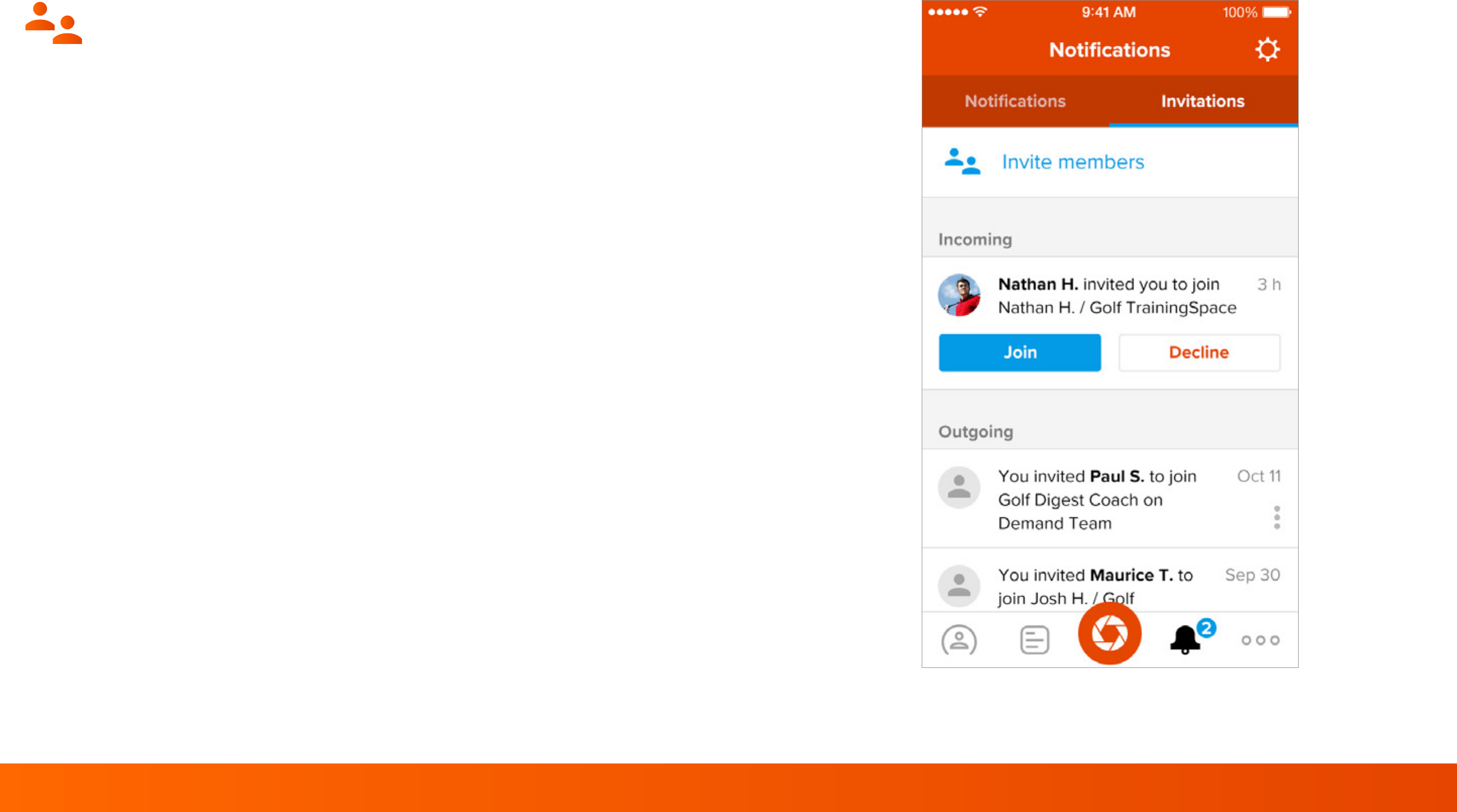
Receiving Invitations: When you receive an invitation, tap on
the notifications button> Select Invitations. Here, you can ac-
cept an invitation to join your Space or Team.
Editing: You can edit invitations and resend from the Web or
in the CoachNow app. It is helpful to choose “edit” so that you
can see if the email address entered is correct. If the invitation
was sent to an incorrect email address, you can simply edit the
address to resend the invite. You can also resend invitations
every 24 hours if members have not received or accepted
them.
Library
17
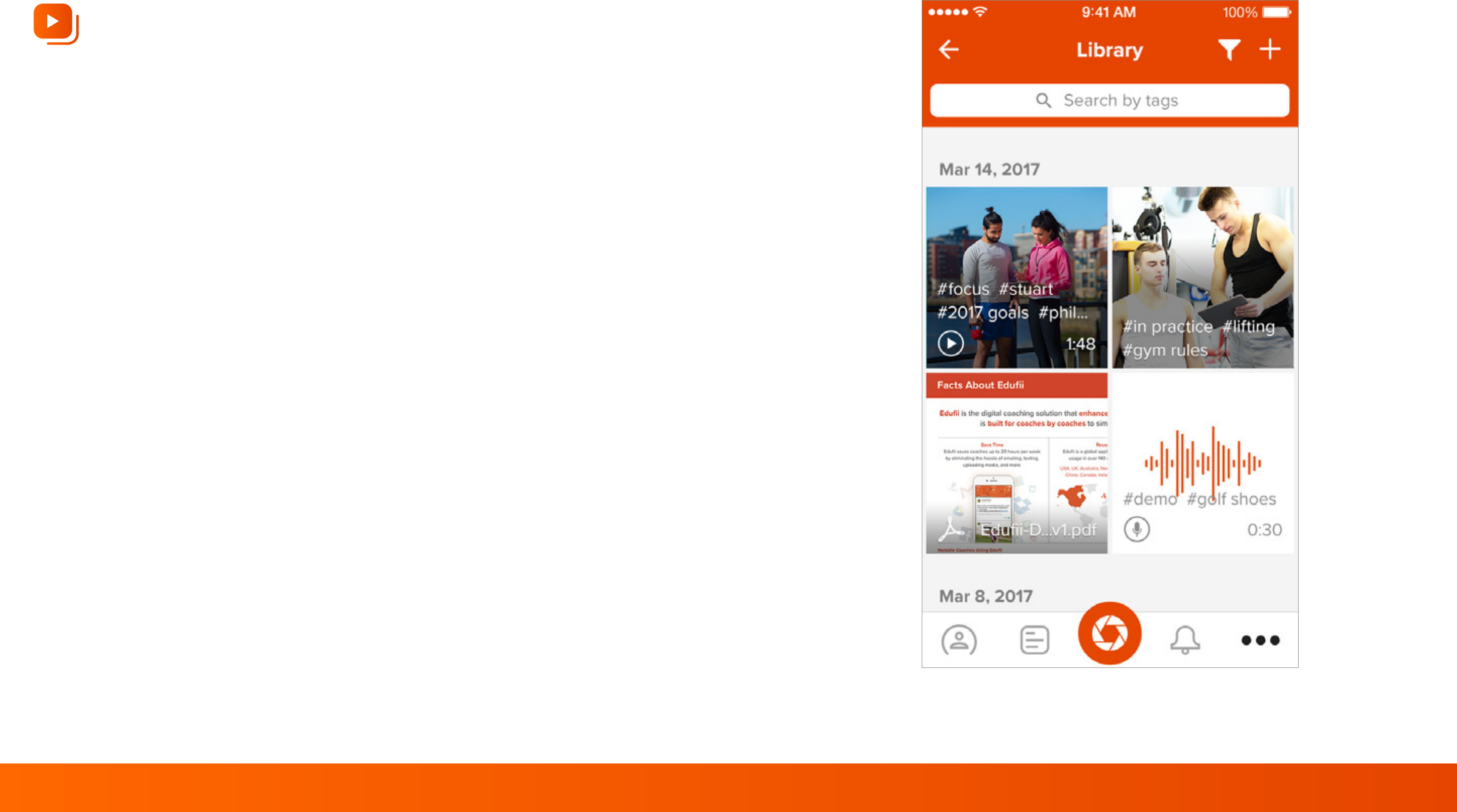
The CoachNow Library* is where Coaches can store and locate
media files. This is a great place to store content that you
intend to share with multiple Athletes. Photos, Video, Audio
and Documents can be saved to the
CoachNow Library.
Select the ‘+’ to add new media to your CoachNow Library.
Search for media in the Library by entering text into the Library
Search Bar or use the Filter option to sort specific media types,
like Photos or Videos.
* CoachNow+ upgrade feature
Segments
18
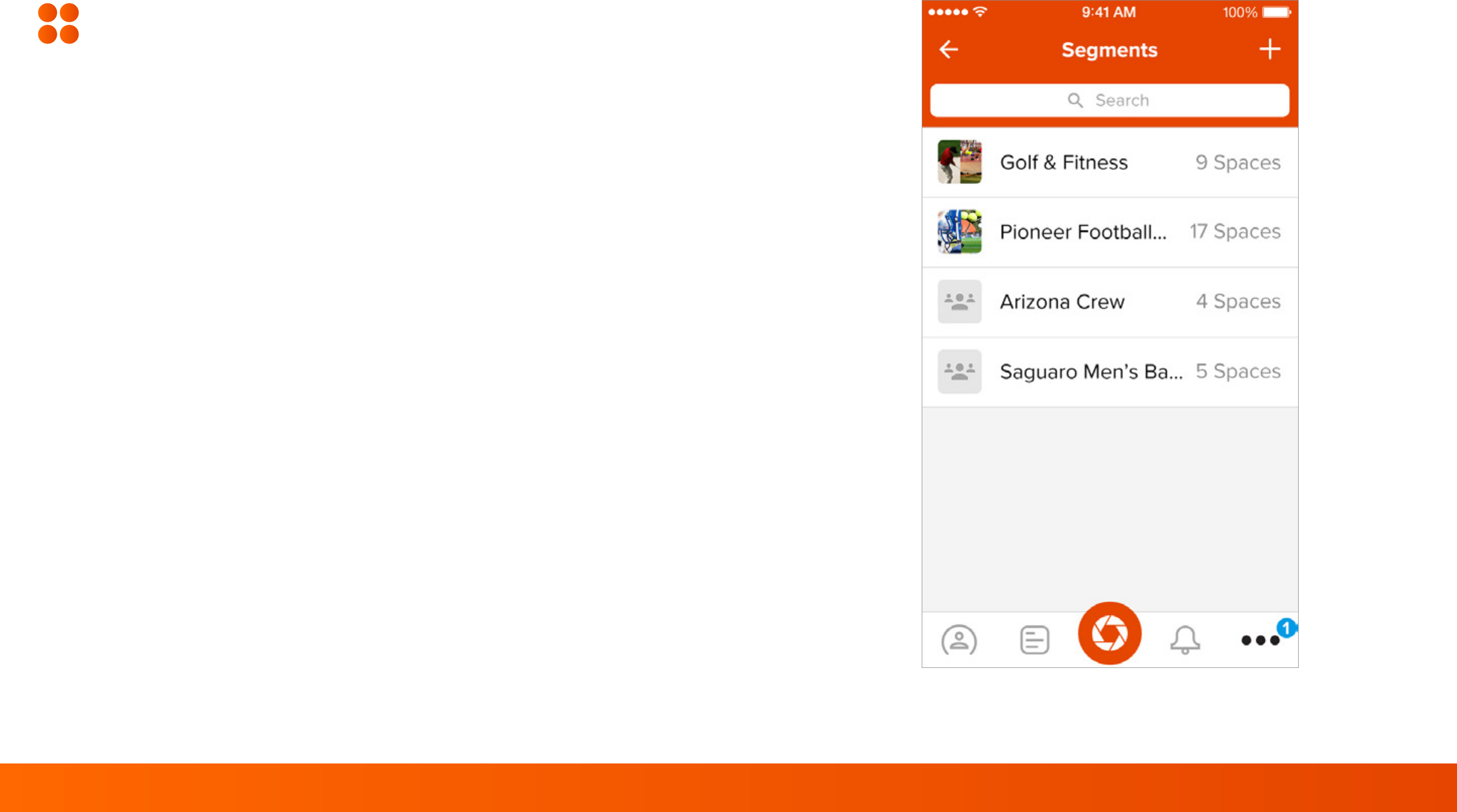
Segments* is a group messaging feature that allows you to
separate your athletes/clients into groups and send messages
directly to those individual Spaces.
From here, you will be able to group message selected
Athletes/Clients. Select “Create Segment” and create a Title
in the “Name your Segment” field then select the Spaces you
would like to message.
* CoachNow+ upgrade feature
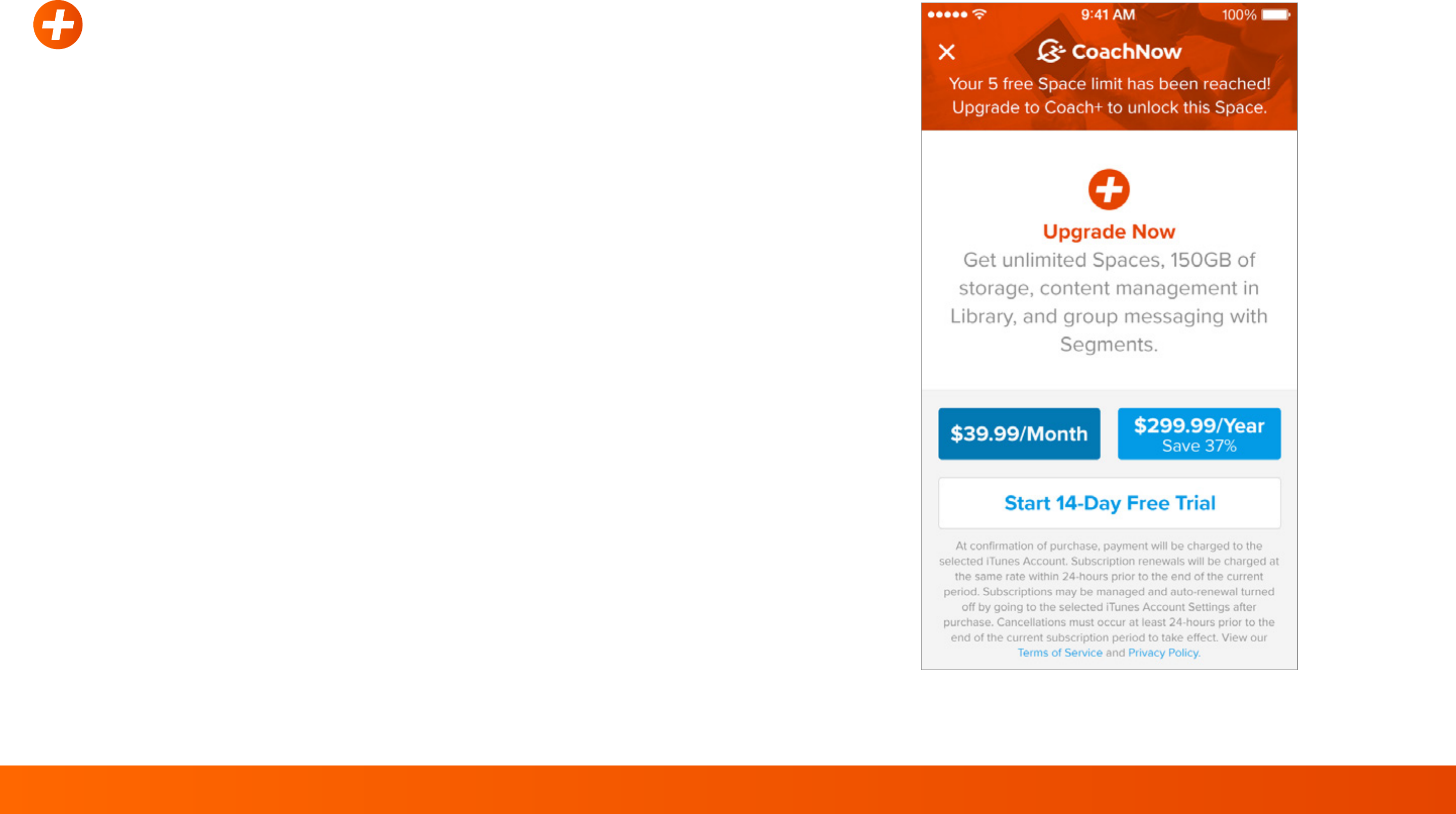
CoachNow+
19
Upgrade to CoachNow+ in-app for $39.99/month, $299.99/
year, or start a 14-day free trial and gain access to:
Unlimited Spaces/Teams: Communicate better and
develop your athletes and teams with as many Individual and
Team Spaces as you need.
150 GB of Storage: Keep thousands of photos, documents,
audio files, and hours of video organized and accessible with
150 GB of online storage.
Library: Easily store, edit, and share media with multiple
Spaces/Teams. Have material that you’re consistently sharing?
Keep it all stored and accessible to avoid digging around.
Segments: Send the same material to multiple Spaces/Teams
at once. Have a new workout or change in the schedule? Send
a message to the people who need to know.

Support & FAQs
20
From the Support & FAQ section, you will be able to start a
Chat conversation with our Support Team. You can also Visit
the Help Center to access our FAQ articles.
21
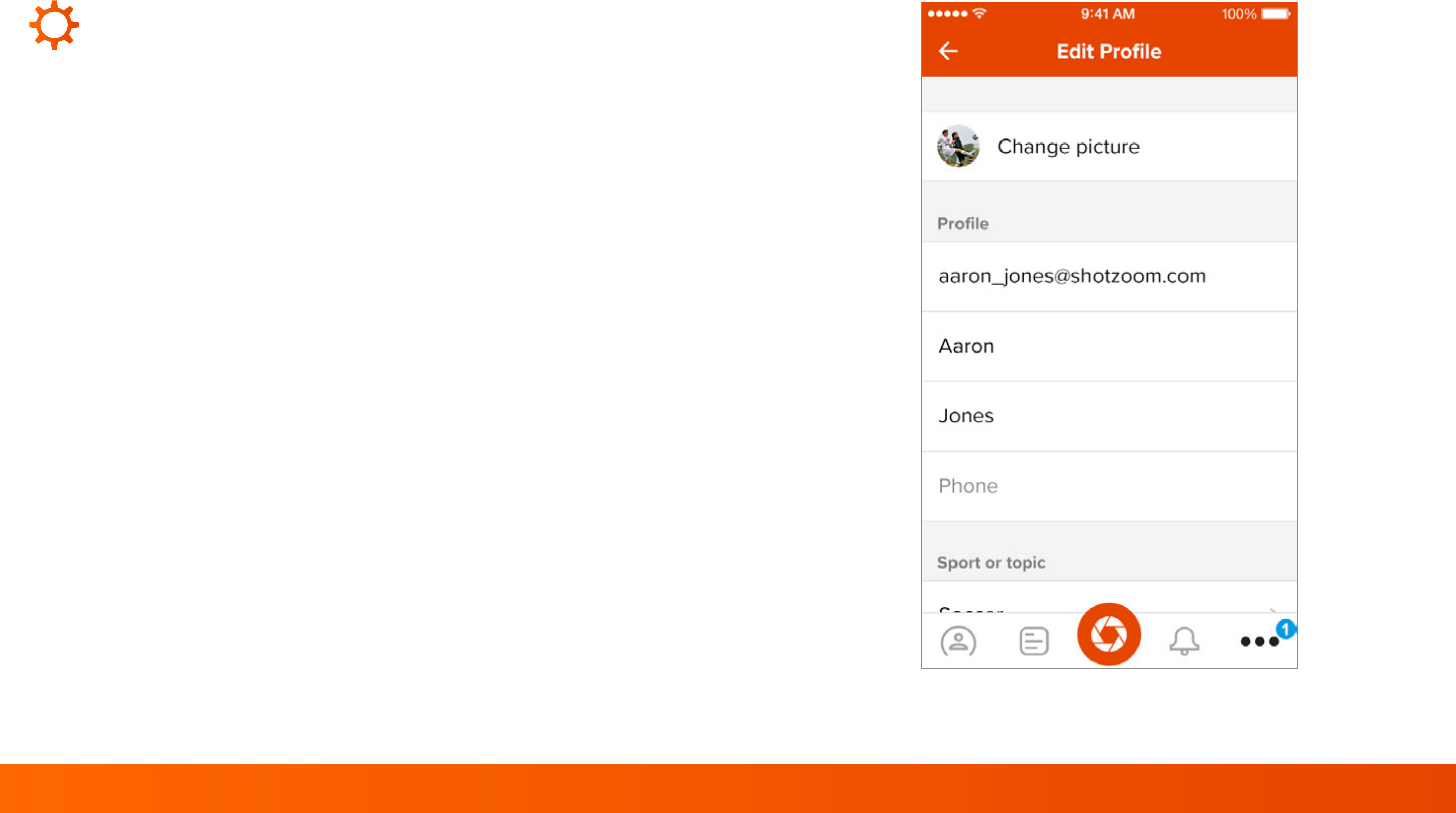
Edit Your Profile: On the settings Screen, you can view your
current membership Status, or click on “Edit your profile” to
make changes to your Profile Photo, email address, name, add
a Phone number, update your sport or change the password on
your account.
Support & FAQs: From the Support & FAQ section, you will be
able to start a Chat conversation with our Support Team; our
team can aslo be contacted at support@coachnow.com
You can also Visit the Help Center to access our FAQ articles.
Settings
22
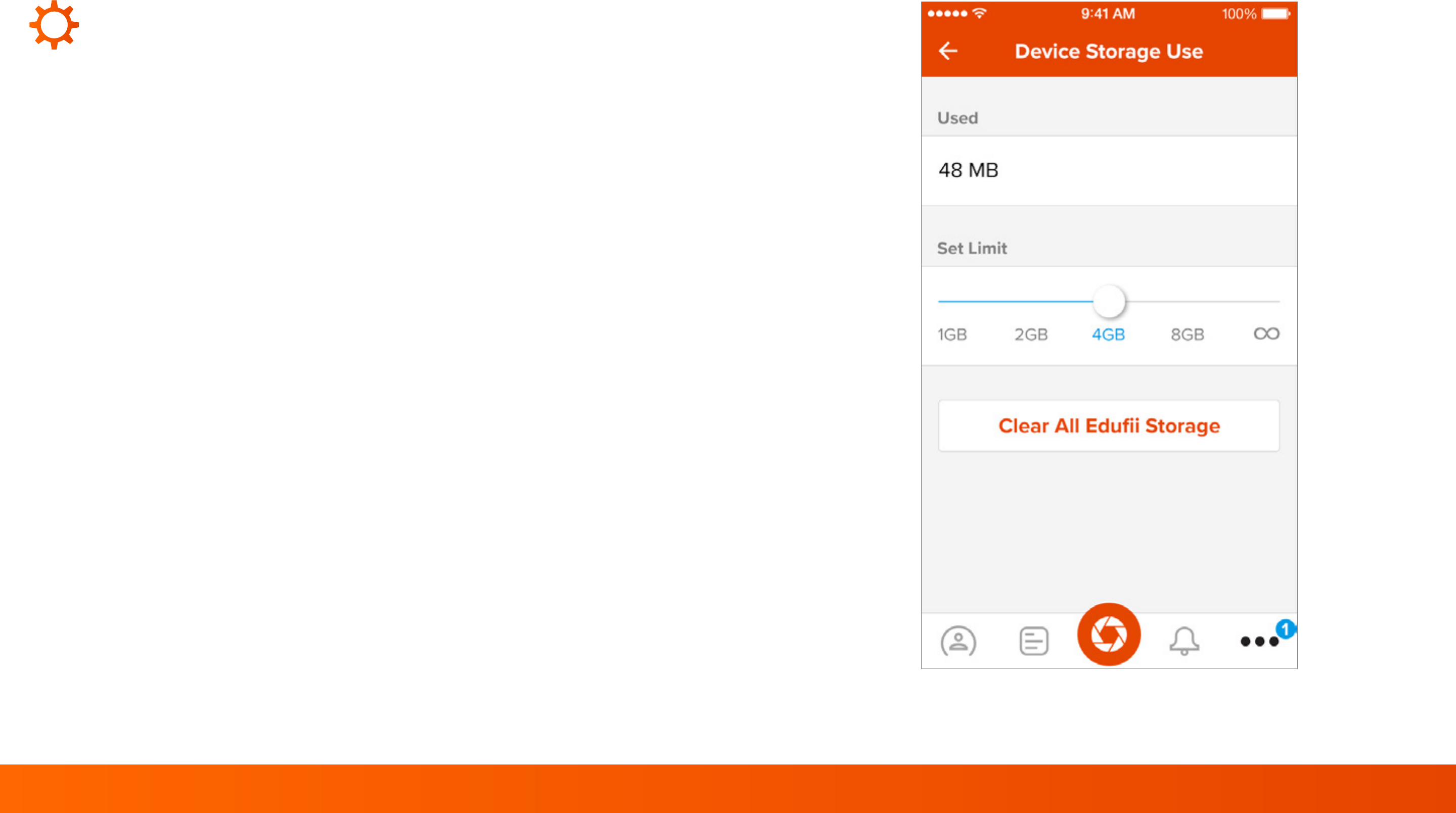
Device storage usage
Select “On Device Memory Usage” which will allow you to view
how much device storage CoachNow is currently utilizing, set a
limit on how much space it uses, or clear your current
CoachNow Storage.
CoachNow storage only refers to the media that is being stored
on your Device, but all content is also stored on the CoachNow
Servers. Clearing your CoachNow Storage will clear the
storage on your device, but won’t remove them from your
CoachNow Account. Posts will be reloaded to your device
when you view them again in CoachNow.

23
Glossary
Spaces: Spaces allow you to connect with other coaches, athletes and fans in
CoachNow. They are a place to capture, organize, share and store all your data
and media.
Teams: Spaces for a group of athletes. Team Spaces allow you to share with an
entire group at one time.
Segments*: Segments is a group messaging feature that allows you to separate
your athletes/clients into groups and post directly to those individual Spaces.
Library*: Stores your important media files for quick reference.
Owner: The owner of a Space or Team. They can remove and add members to
the Space. This person can also delete the Space or Team.
Manager: Refers to manager of a Team. They can remove or add members to a
Team Space.
* CoachNow+ upgrade feature

24
Glossary
Feed: The Feed is a historical view of all posts and communication from Spaces.
Tags: Enables members to tag content for identification and repurposing. Tags
make it easy to find content by using the Filter option in the Feed or a Space.
Templates*: Allow Coaches to pre-populate a Space to quickly onboard new
Athletes. Add a Welcome Message or some Best Practices to a template so
users see content the moment they join a Space.
Role: CoachNow Members can select a Role as an Athlete, Coach or Fan. This
lets other people in a Space know what your Role is.
Device Storage Use: In Settings, Device Storage Use indicates how much
Storage CoachNow is using on your device. CoachNow stores information on
your device, and on our servers. You can clear CoachNow Storage to Save
Space on your device without losing any content.
* CoachNow+ upgrade feature
