TECHSCAN KOREA TSK-6000 Wireless Barcode Scanner User Manual TSK 6000 user guide

Techscan Korea Co.,Ltd. Wireless Barcode Scanner TSK 6000 user guide

User manual

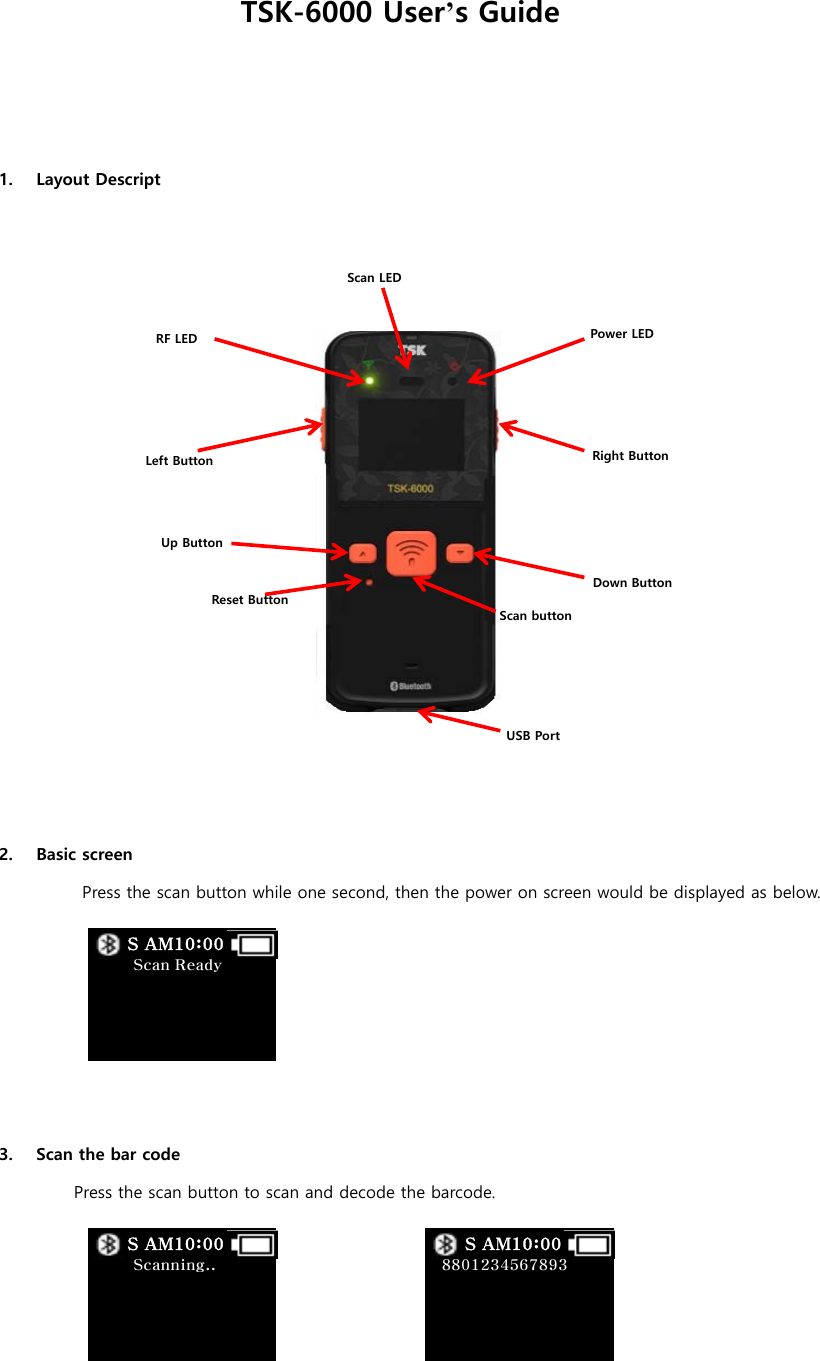
TSK-6000 User’s Guide    1. Layout Descript                         2. Basic screen Press the scan button while one second, then the power on screen would be displayed as below.       3. Scan the bar code Press the scan button to scan and decode the barcode.     Scan Ready         S AM10:00  Scanning..         S AM10:00   8801234567893         S AM10:00 Power LED     RF LED Up Button Left Button Down Button Right Button Scan LED Reset Button USB Port Scan button
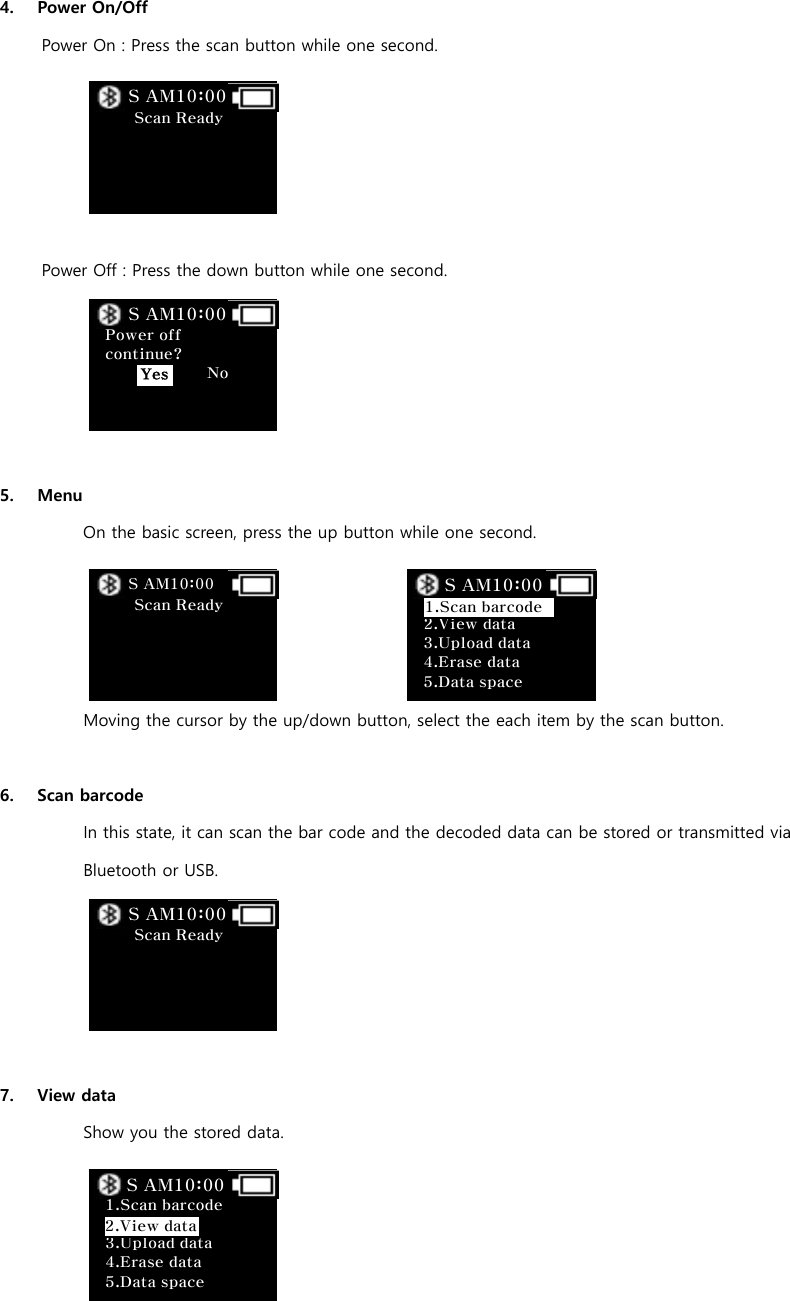
 4. Power On/Off Power On : Press the scan button while one second.      Power Off : Press the down button while one second.          5. Menu   On the basic screen, press the up button while one second.     Moving the cursor by the up/down button, select the each item by the scan button.  6. Scan barcode In this state, it can scan the bar code and the decoded data can be stored or transmitted via Bluetooth or USB.      7. View data Show you the stored data.      Scan Ready         S AM10:00  Power off continue?              No     S AM10:00 Yes  Scan Ready         S AM10:00     2.View data   3.Upload data 4.Erase data 5.Data space S AM10:00 1.Scan barcodeS AM10:00  Scan Ready         S AM10:00  1.Scan barcode   3.Upload data 4.Erase data 5.Data space S AM10:00 2.View data
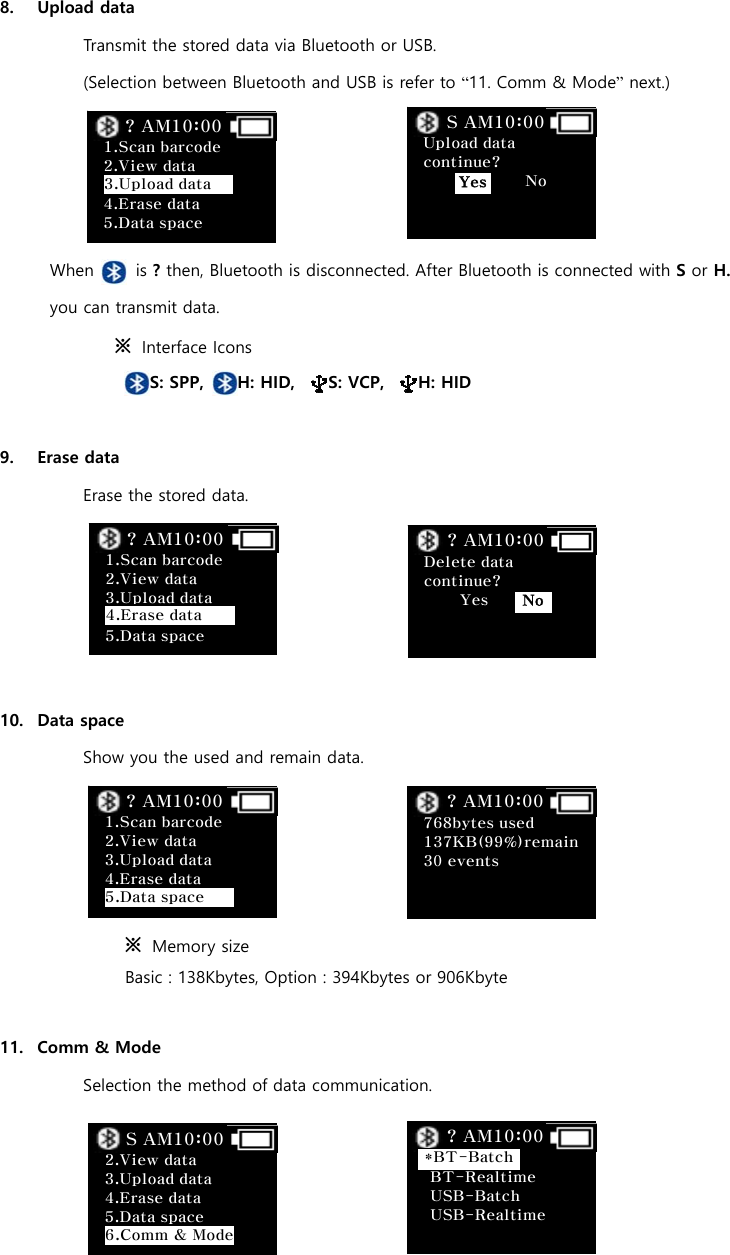
 8. Upload data Transmit the stored data via Bluetooth or USB.   (Selection between Bluetooth and USB is refer to “11. Comm & Mode” next.)     When     is ? then, Bluetooth is disconnected. After Bluetooth is connected with S or H. you can transmit data. ※  Interface Icons                        S: SPP,    H: HID,    S: VCP,    H: HID  9. Erase data Erase the stored data.      10. Data space Show you the used and remain data.     ※  Memory size     Basic : 138Kbytes, Option : 394Kbytes or 906Kbyte  11. Comm & Mode Selection the method of data communication.                                  Upload data continue?              No     S AM10:00 Yes Delete data continue?     Yes     ? AM10:00 No 768bytes used 137KB(99%)remain30 events        ? AM10:00   BT-Realtime USB-Batch USB-Realtime   ? AM10:00 *BT-Batch 1.Scan barcode   2.View data    4.Erase data 5.Data space ? AM10:00 3.Upload data  1.Scan barcode   2.View data   3.Upload data  5.Data space ? AM10:00 4.Erase data  1.Scan barcode   2.View data   3.Upload data 4.Erase data  ? AM10:00 5.Data space  2.View data   3.Upload data 4.Erase data 5.Data space S AM10:00 6.Comm & Mode
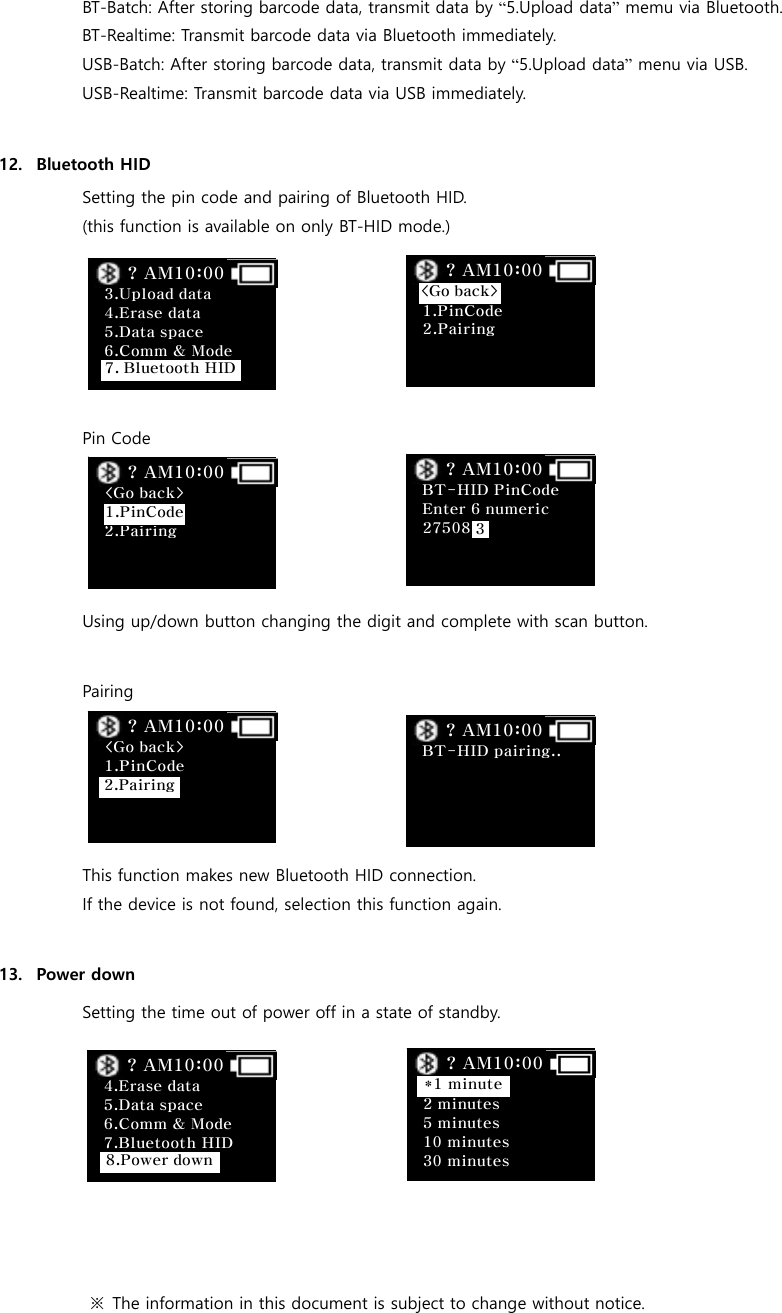
BT-Batch: After storing barcode data, transmit data by “5.Upload data” memu via Bluetooth. BT-Realtime: Transmit barcode data via Bluetooth immediately. USB-Batch: After storing barcode data, transmit data by “5.Upload data” menu via USB. USB-Realtime: Transmit barcode data via USB immediately.  12. Bluetooth HID Setting the pin code and pairing of Bluetooth HID. (this function is available on only BT-HID mode.)      Pin Code     Using up/down button changing the digit and complete with scan button.  Pairing     This function makes new Bluetooth HID connection. If the device is not found, selection this function again.  13. Power down Setting the time out of power off in a state of standby.        ※  The information in this document is subject to change without notice.   2 minutes 5 minutes 10 minutes 30 minutes ? AM10:00 *1 minute 3.Upload data 4.Erase data 5.Data space 6.Comm & Mode  ? AM10:00 7. Bluetooth HID   1.PinCode 2.Pairing   ? AM10:00 <Go back> <Go back>  2.Pairing    ? AM10:00 1.PinCode  BT-HID PinCode Enter 6 numeric 27508   ? AM10:00 3 <Go back> 1.PinCode     ? AM10:00 2.Pairing  BT-HID pairing..       ? AM10:00  4.Erase data 5.Data space 6.Comm & Mode 7.Bluetooth HID   ? AM10:00 8.Power down
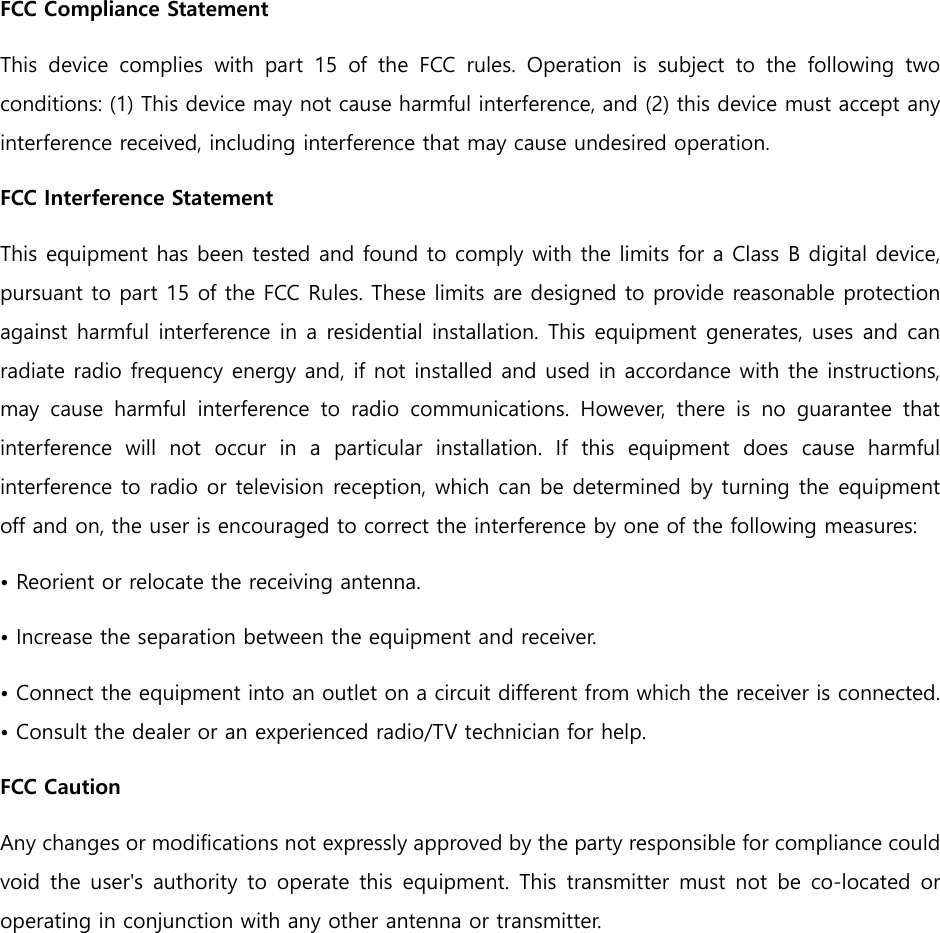
FCC Compliance Statement This  device  complies  with  part  15  of  the  FCC  rules.  Operation  is  subject  to  the  following  two conditions: (1) This device may not cause harmful interference, and (2) this device must accept any interference received, including interference that may cause undesired operation.   FCC Interference Statement  This equipment has been tested and found to comply with the limits for a Class B digital device, pursuant to part 15 of the FCC Rules. These limits are designed to provide reasonable protection against harmful interference in a residential installation. This equipment generates, uses and can radiate radio frequency energy and, if not installed and used in accordance with the instructions, may  cause  harmful  interference  to  radio  communications.  However,  there  is  no  guarantee  that interference  will  not  occur  in  a  particular  installation.  If  this  equipment  does  cause  harmful interference to radio or television reception, which can be determined by turning the equipment off and on, the user is encouraged to correct the interference by one of the following measures: • Reorient or relocate the receiving antenna. • Increase the separation between the equipment and receiver.   • Connect the equipment into an outlet on a circuit different from which the receiver is connected. • Consult the dealer or an experienced radio/TV technician for help.   FCC Caution   Any changes or modifications not expressly approved by the party responsible for compliance could void  the  user's authority  to  operate  this equipment. This transmitter  must not  be  co-located  or operating in conjunction with any other antenna or transmitter.

Navigation menu