TECHVIEW R150S Router inalambrico N150 User Manual Part Two

TECHVIEW,INC Router inalambrico N150 Users Manual Part Two

Contents

Users Manual Part Two

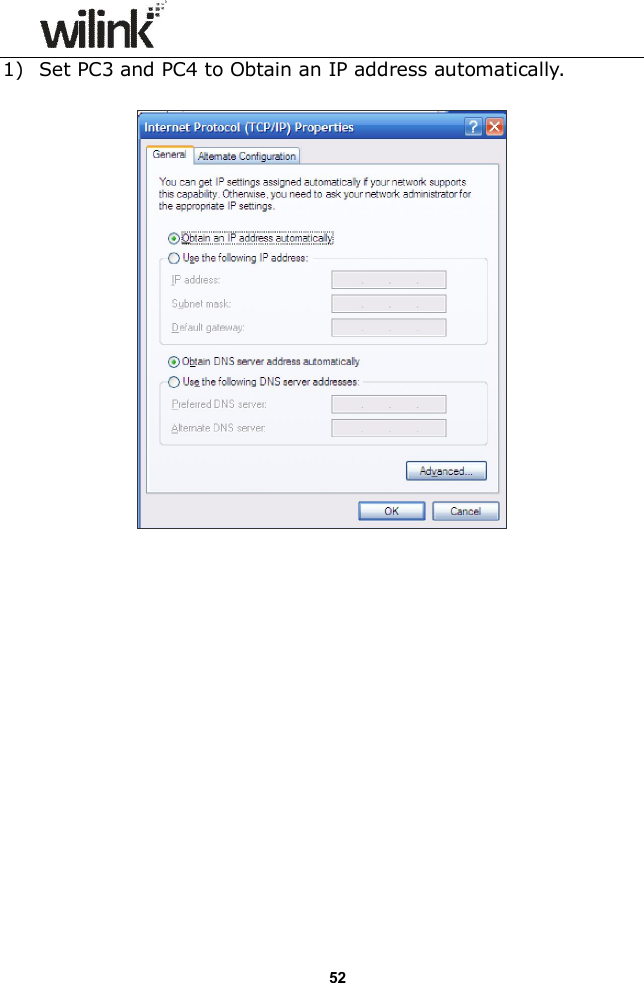
                 52 1) Set PC3 and PC4 to Obtain an IP address automatically.
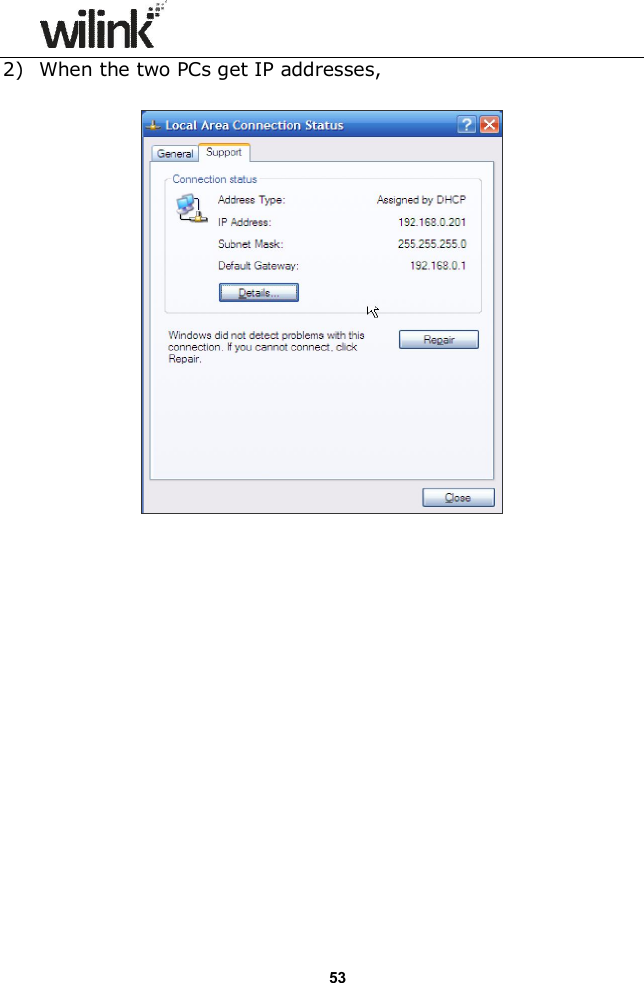
                 53 2) When the two PCs get IP addresses,
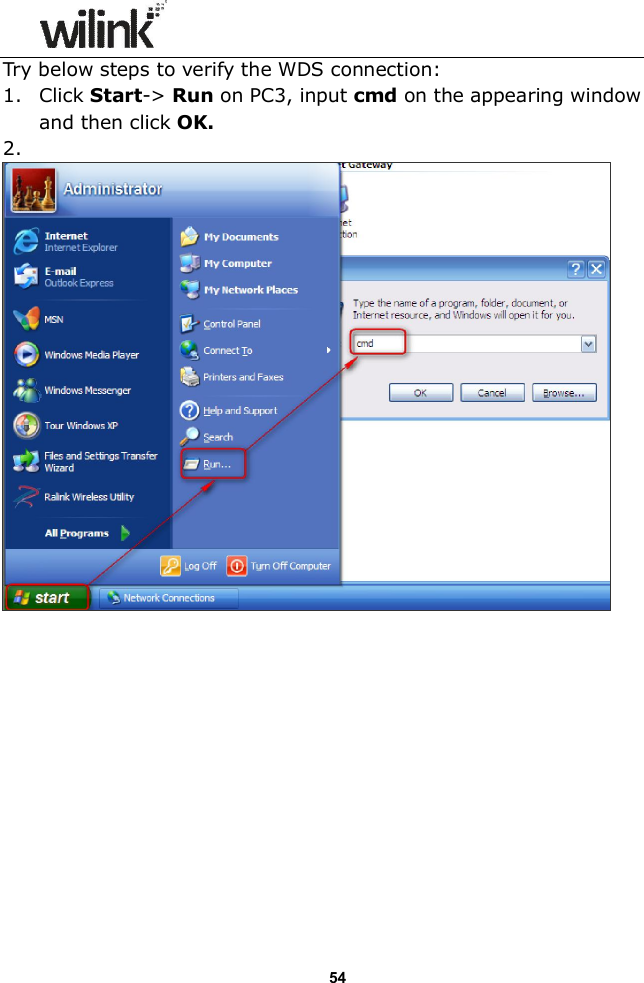
                 54 Try below steps to verify the WDS connection: 1. Click Start-> Run on PC3, input cmd on the appearing window and then click OK. 2.
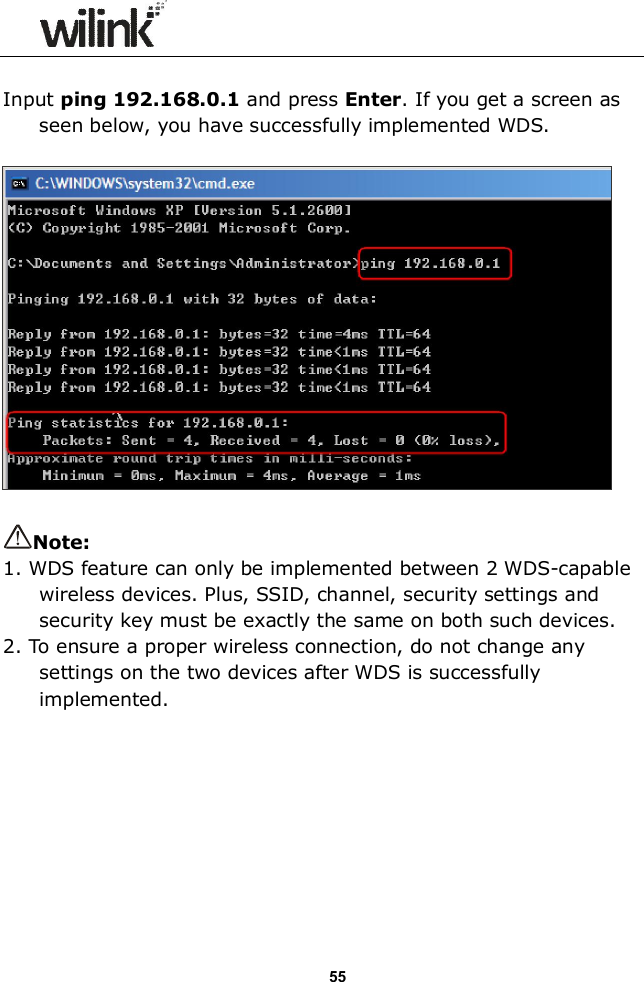
                 55  Input ping 192.168.0.1 and press Enter. If you get a screen as seen below, you have successfully implemented WDS.    Note:   1. WDS feature can only be implemented between 2 WDS-capable wireless devices. Plus, SSID, channel, security settings and security key must be exactly the same on both such devices. 2. To ensure a proper wireless connection, do not change any settings on the two devices after WDS is successfully implemented.
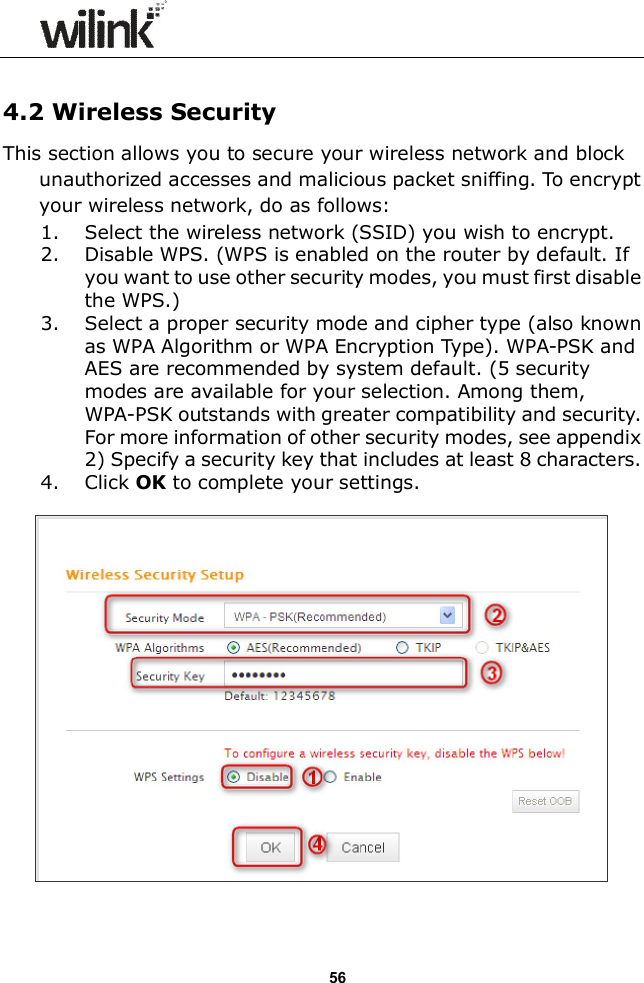
                 56  4.2 Wireless Security This section allows you to secure your wireless network and block unauthorized accesses and malicious packet sniffing. To encrypt your wireless network, do as follows: 1. Select the wireless network (SSID) you wish to encrypt. 2. Disable WPS. (WPS is enabled on the router by default. If you want to use other security modes, you must first disable the WPS.) 3. Select a proper security mode and cipher type (also known as WPA Algorithm or WPA Encryption Type). WPA-PSK and AES are recommended by system default. (5 security modes are available for your selection. Among them, WPA-PSK outstands with greater compatibility and security. For more information of other security modes, see appendix 2) Specify a security key that includes at least 8 characters. 4. Click OK to complete your settings.
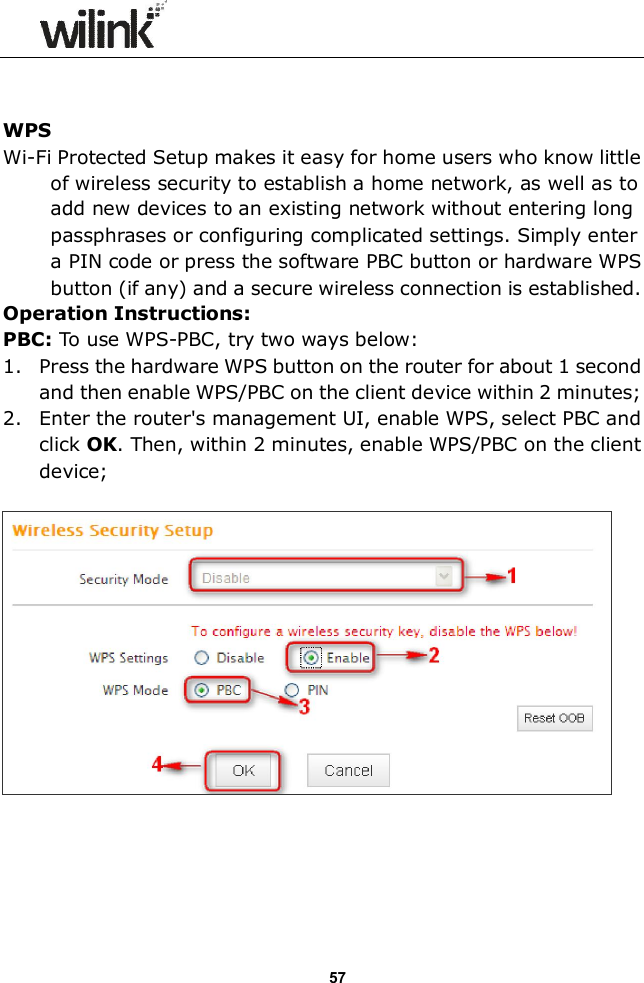
                 57   WPS Wi-Fi Protected Setup makes it easy for home users who know little of wireless security to establish a home network, as well as to add new devices to an existing network without entering long passphrases or configuring complicated settings. Simply enter a PIN code or press the software PBC button or hardware WPS button (if any) and a secure wireless connection is established.   Operation Instructions: PBC: To use WPS-PBC, try two ways below: 1. Press the hardware WPS button on the router for about 1 second and then enable WPS/PBC on the client device within 2 minutes; 2. Enter the router's management UI, enable WPS, select PBC and click OK. Then, within 2 minutes, enable WPS/PBC on the client device;
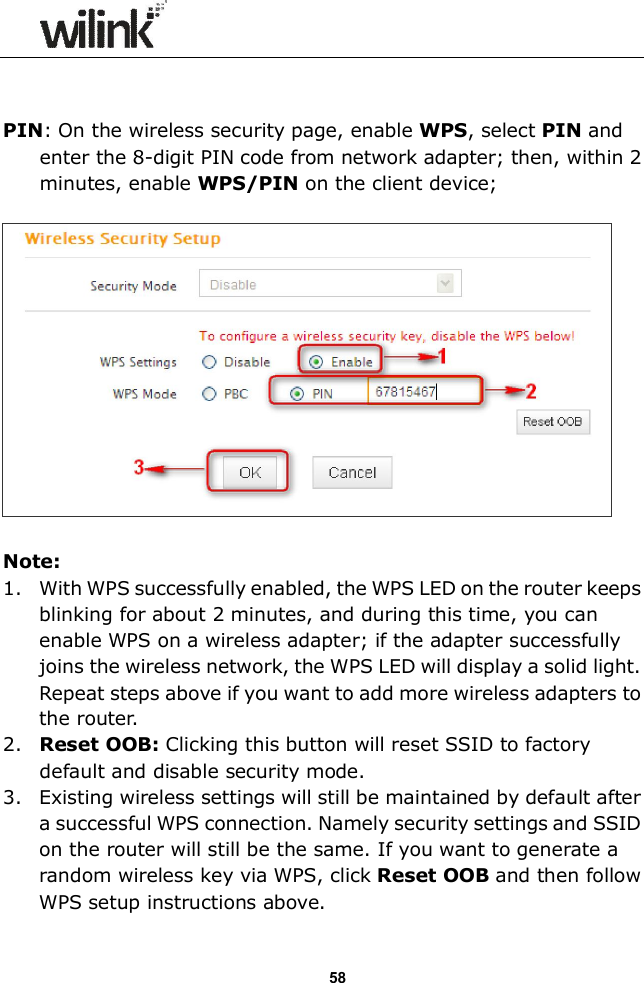
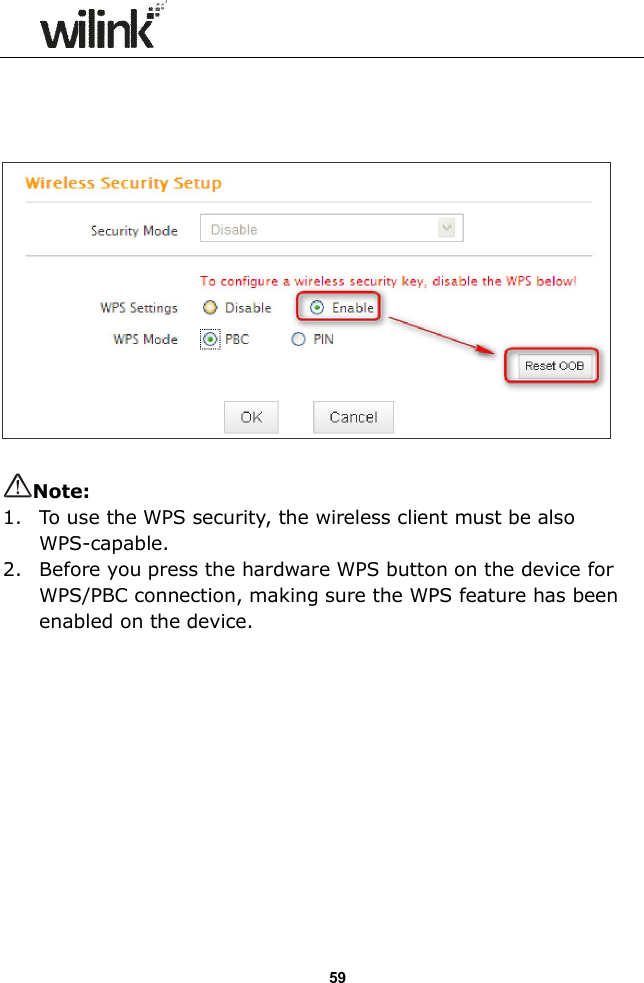
                 58   PIN: On the wireless security page, enable WPS, select PIN and enter the 8-digit PIN code from network adapter; then, within 2 minutes, enable WPS/PIN on the client device;    Note: 1. With WPS successfully enabled, the WPS LED on the router keeps blinking for about 2 minutes, and during this time, you can enable WPS on a wireless adapter; if the adapter successfully joins the wireless network, the WPS LED will display a solid light. Repeat steps above if you want to add more wireless adapters to the router. 2. Reset OOB: Clicking this button will reset SSID to factory default and disable security mode. 3. Existing wireless settings will still be maintained by default after a successful WPS connection. Namely security settings and SSID on the router will still be the same. If you want to generate a random wireless key via WPS, click Reset OOB and then follow WPS setup instructions above.
                 59       Note:   1. To use the WPS security, the wireless client must be also WPS-capable. 2. Before you press the hardware WPS button on the device for WPS/PBC connection, making sure the WPS feature has been enabled on the device.
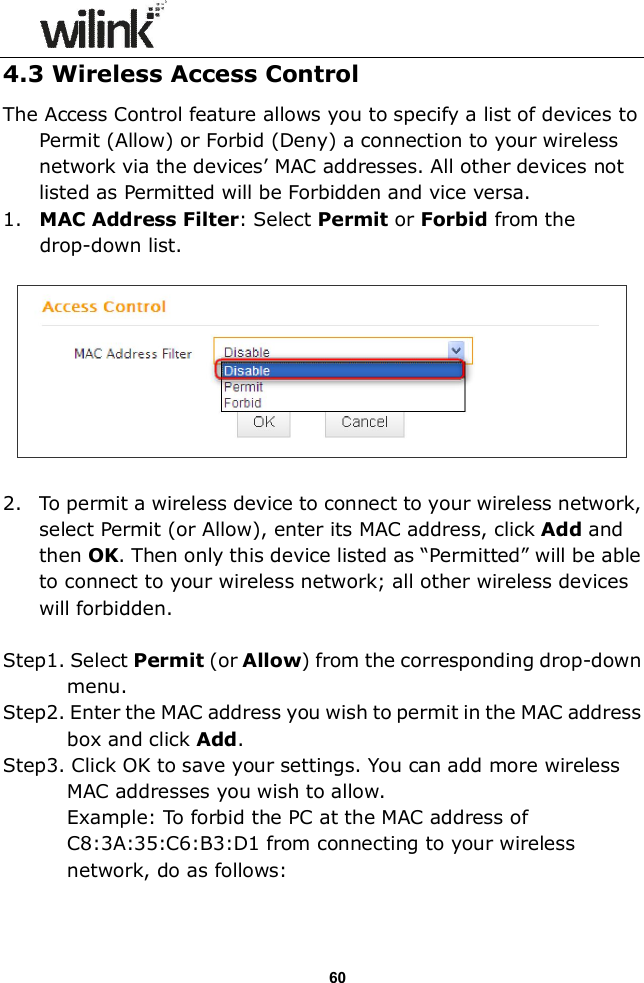
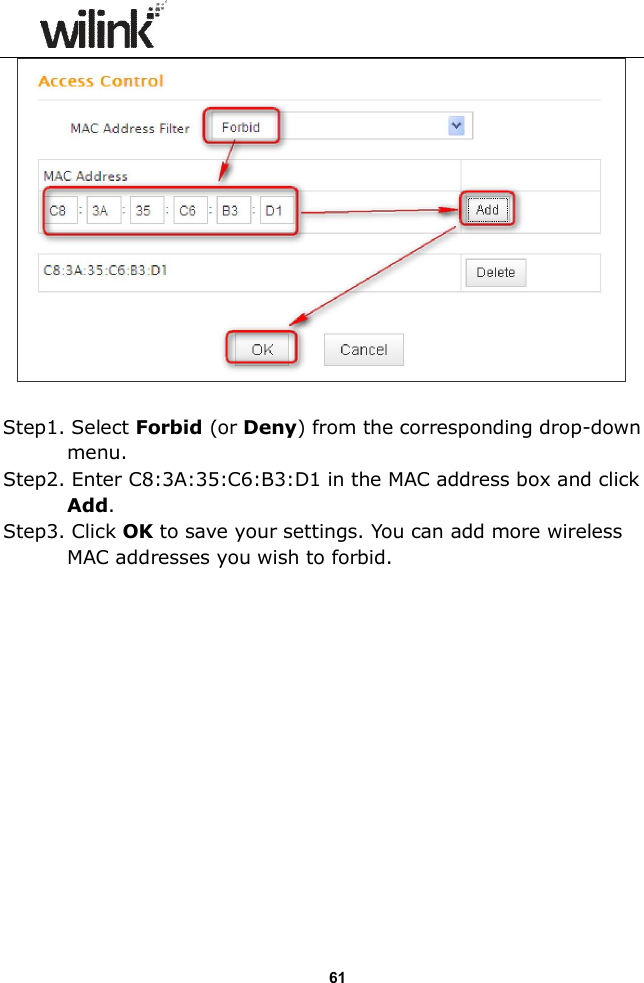
                 60 4.3 Wireless Access Control The Access Control feature allows you to specify a list of devices to Permit (Allow) or Forbid (Deny) a connection to your wireless network via the devices’ MAC addresses. All other devices not listed as Permitted will be Forbidden and vice versa. 1. MAC Address Filter: Select Permit or Forbid from the drop-down list.    2. To permit a wireless device to connect to your wireless network, select Permit (or Allow), enter its MAC address, click Add and then OK. Then only this device listed as “Permitted” will be able to connect to your wireless network; all other wireless devices will forbidden.    Step1. Select Permit (or Allow) from the corresponding drop-down menu. Step2. Enter the MAC address you wish to permit in the MAC address box and click Add. Step3. Click OK to save your settings. You can add more wireless MAC addresses you wish to allow.   Example: To forbid the PC at the MAC address of C8:3A:35:C6:B3:D1 from connecting to your wireless network, do as follows:
                 61   Step1. Select Forbid (or Deny) from the corresponding drop-down menu. Step2. Enter C8:3A:35:C6:B3:D1 in the MAC address box and click Add. Step3. Click OK to save your settings. You can add more wireless MAC addresses you wish to forbid.
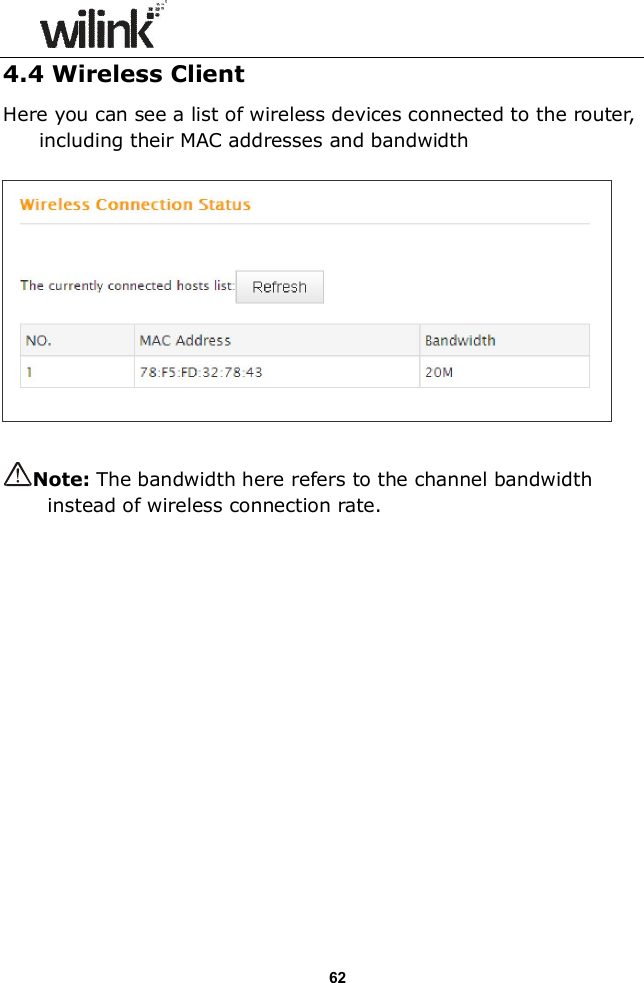
                 62 4.4 Wireless Client Here you can see a list of wireless devices connected to the router, including their MAC addresses and bandwidth    Note: The bandwidth here refers to the channel bandwidth instead of wireless connection rate.
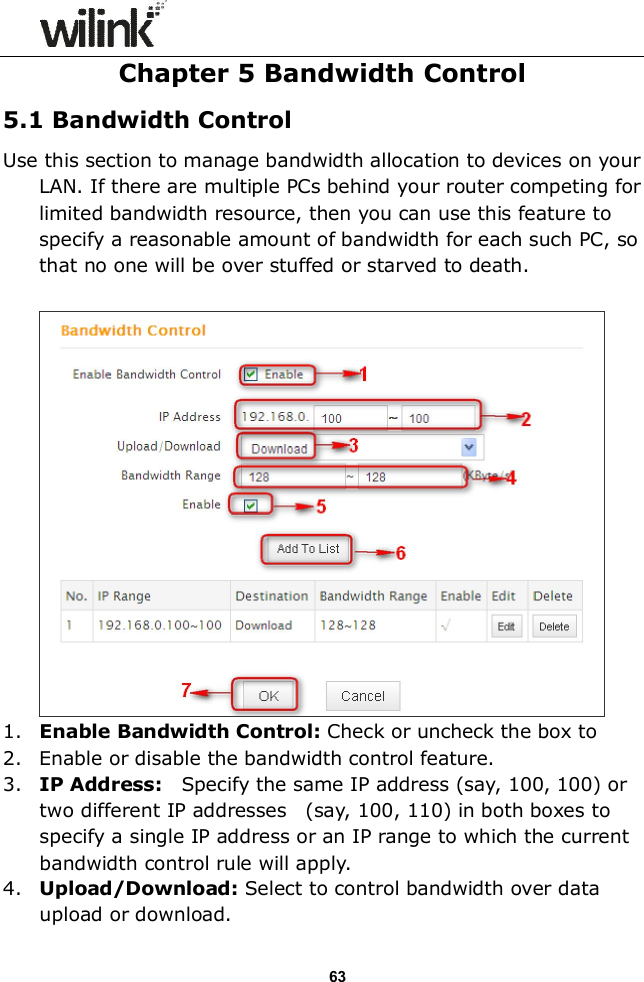
                 63 Chapter 5 Bandwidth Control 5.1 Bandwidth Control Use this section to manage bandwidth allocation to devices on your LAN. If there are multiple PCs behind your router competing for limited bandwidth resource, then you can use this feature to specify a reasonable amount of bandwidth for each such PC, so that no one will be over stuffed or starved to death.   1. Enable Bandwidth Control: Check or uncheck the box to  2. Enable or disable the bandwidth control feature. 3. IP Address:    Specify the same IP address (say, 100, 100) or two different IP addresses    (say, 100, 110) in both boxes to specify a single IP address or an IP range to which the current bandwidth control rule will apply. 4. Upload/Download: Select to control bandwidth over data upload or download.
                 64 5. Bandwidth Range:    Specify an upload/download bandwidth range limit on specified PC(s). The unit is KByte/s. 1M=128KByte/s. Note that maximum upload/download bandwidth should not exceed your router's WAN bandwidth limit. (Consult your ISP if you are not clear.). 6. Enable: Check to enable current rule. (When disabled, corresponding entry will not take effect though existing in fact.) 7. Add to List: Click to add current rule to the rule list. 8. OK: Click to activate your settings. For example: If you are sharing a 4M broadband connection with a neighbor, who always exhausts the bandwidth resource downloading data, this feature will help. Simply specify half of the 4M bandwidth for your neighbor's PC (say,    192.168.0.100) and you will no longer need to struggle for bandwidth and your neighbor will only get up to 2M bandwidth. To do so, follow instructions below: 11.. CChheecckk  EEnnaabbllee..  22. Input "192.168.0.100" in both IP address boxes. 33..  Select Download. 44..  Enter "256" in both bandwidth range fields. 55..  Check Enable. 66..  Click Add To List 77..  Click OK.
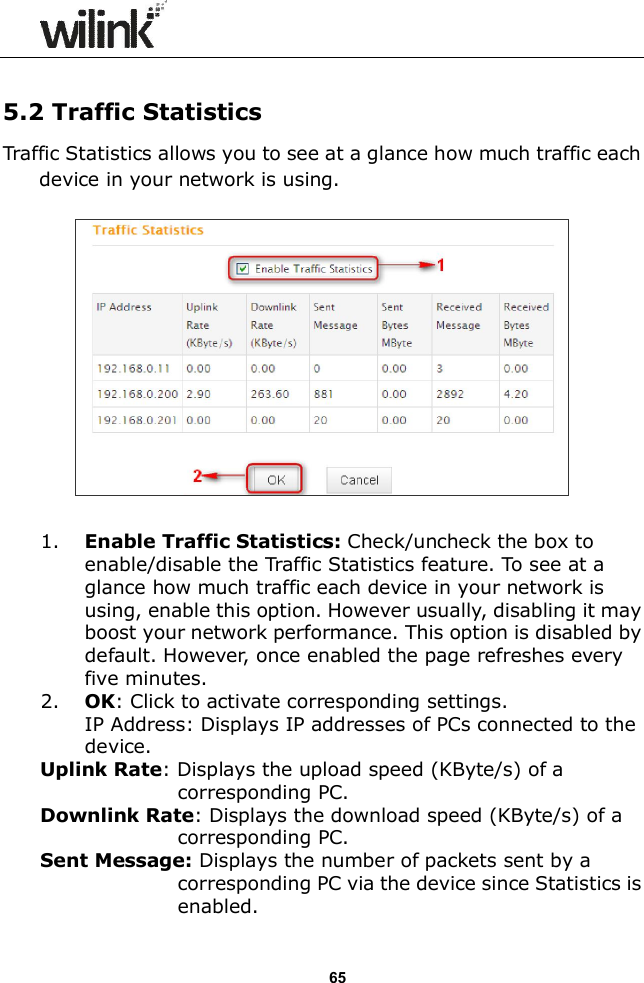
                 65  5.2 Traffic Statistics Traffic Statistics allows you to see at a glance how much traffic each device in your network is using.      1. Enable Traffic Statistics: Check/uncheck the box to enable/disable the Traffic Statistics feature. To see at a glance how much traffic each device in your network is using, enable this option. However usually, disabling it may boost your network performance. This option is disabled by default. However, once enabled the page refreshes every five minutes. 2. OK: Click to activate corresponding settings. IP Address: Displays IP addresses of PCs connected to the device. Uplink Rate: Displays the upload speed (KByte/s) of a corresponding PC. Downlink Rate: Displays the download speed (KByte/s) of a corresponding PC. Sent Message: Displays the number of packets sent by a corresponding PC via the device since Statistics is enabled.
                 66 Sent Bytes: Displays the number of Bytes sent by a corresponding PC via the device since Statistics is enabled. The unit is MByte. Received Message: Displays the number of packets received by a corresponding PC via the device since Statistics is enabled. Received Bytes: Displays the number of Bytes received by a corresponding PC via the device since Statistics is enabled. The unit is MByte.
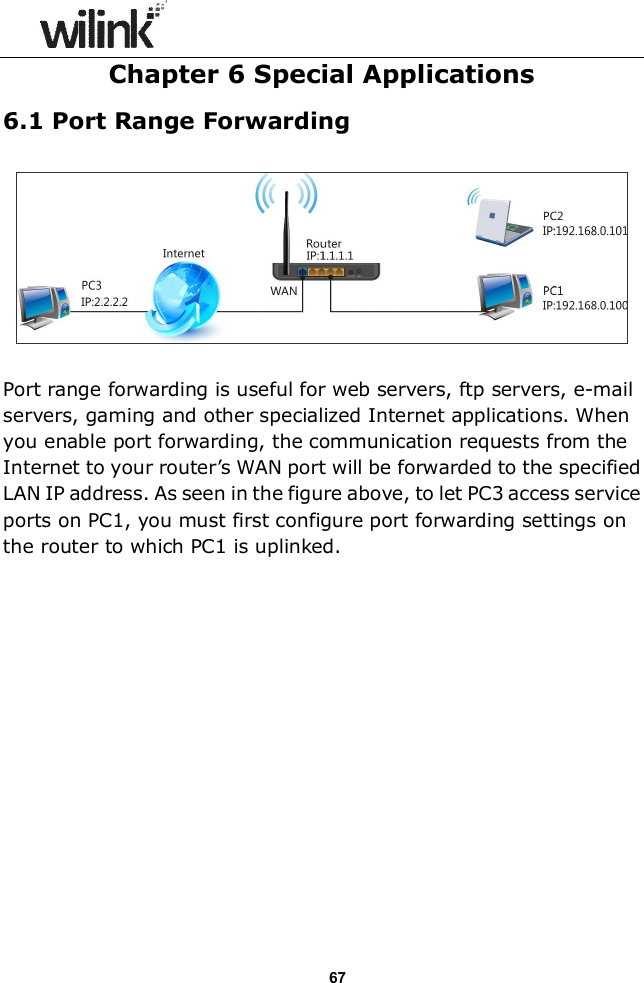
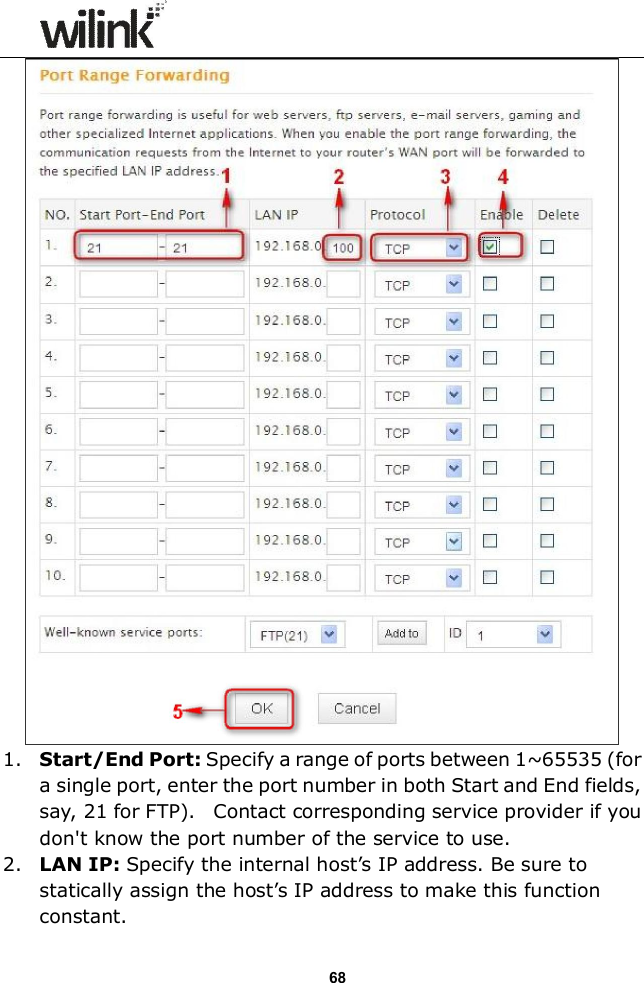
                 67 Chapter 6 Special Applications   6.1 Port Range Forwarding    Port range forwarding is useful for web servers, ftp servers, e-mail servers, gaming and other specialized Internet applications. When you enable port forwarding, the communication requests from the Internet to your router’s WAN port will be forwarded to the specified LAN IP address. As seen in the figure above, to let PC3 access service ports on PC1, you must first configure port forwarding settings on the router to which PC1 is uplinked.
                 68  1. Start/End Port: Specify a range of ports between 1~65535 (for a single port, enter the port number in both Start and End fields, say, 21 for FTP).   Contact corresponding service provider if you don't know the port number of the service to use. 2. LAN IP: Specify the internal host’s IP address. Be sure to statically assign the host’s IP address to make this function constant.
                 69 3. Protocol: Specify the protocol required for the service utilizing the port(s). 4. Enable: Check to enable current settings. 5. OK: Click to activate your settings. Now, your friends only need to enter ftp://xxx.xxx.xxx.xxx:21 in their browsers to access your FTP server xxx.xxx.xxx.xxx is the router's WAN IP address. Assuming it is 172.16.102.89, and then your friends need to enter ftp://172.16.102.89:21 in their browsers.  For example: You want to share some large files with your friends who are not in your LAN; however it is not convenient to transfer such large files across network. Then, you can set up your own PC as a FTP server and use the Port (Range) Forwarding feature to let your friends access these files. Assuming that the static IP address of the FTP server (Namely, your PC) is 192.168.0.10, you want your friends to access this FTP server through default port of 21 using the TCP protocol, then do as follows: 1. Start/End Port: Enter 21 in both Start Port and End Port fields. 2. LAN IP: Enter 192.168.0.10 3. Protocol: Select TCP. 4. Enable: Check to enable current settings. 5. OK: Click to activate your settings.  Note: If you include port 80 on this section, you must set the port for remote (web-based) management to a different number than 80, such as 8080, otherwise the virtual server feature may not take effect.
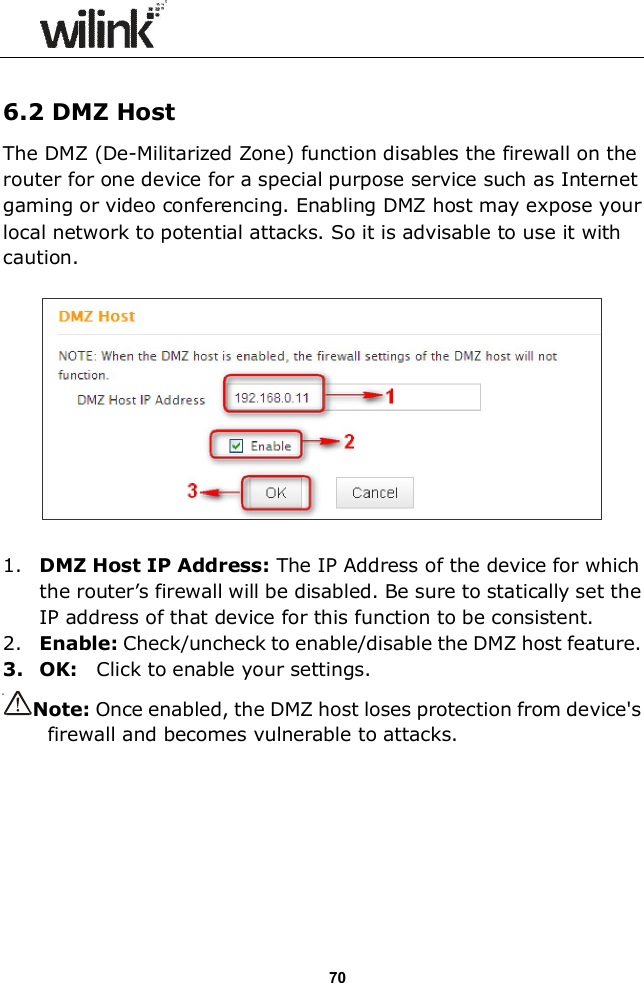
                 70  6.2 DMZ Host The DMZ (De-Militarized Zone) function disables the firewall on the router for one device for a special purpose service such as Internet gaming or video conferencing. Enabling DMZ host may expose your local network to potential attacks. So it is advisable to use it with caution.      1. DMZ Host IP Address: The IP Address of the device for which the router’s firewall will be disabled. Be sure to statically set the IP address of that device for this function to be consistent. 2. Enable: Check/uncheck to enable/disable the DMZ host feature. 3. OK:    Click to enable your settings. Note: Once enabled, the DMZ host loses protection from device's firewall and becomes vulnerable to attacks.
                 71  6.3 DDNS Dynamic DNS or DDNS is a term used for the updating in real time of Internet Domain Name System (DNS) name servers. Dynamic DNS or DDNS is a term used for the updating in real time of Internet Domain Name System (DNS) name servers. We use a numeric IP address allocated by Internet Service Provider (ISP) to connect to Internet; the address may either be stable ("static"), or may change from one session on the Internet to the next ("dynamic"). However, a numeric address is inconvenient to remember; an address which changes unpredictably makes connection impossible. The DDNS provider allocates a static host name to the user; whenever the user is allocated a new IP address this is communicated to the DDNS provider by software running on a computer or network device at that address; the provider distributes the association between the host name and the address to the Internet's DNS servers so that they may resolve DNS queries. Thus, uninterrupted access to devices and services whose numeric IP address may change is maintained. (You need to have an account with one of the Service Providers in the drop-down menu first.)
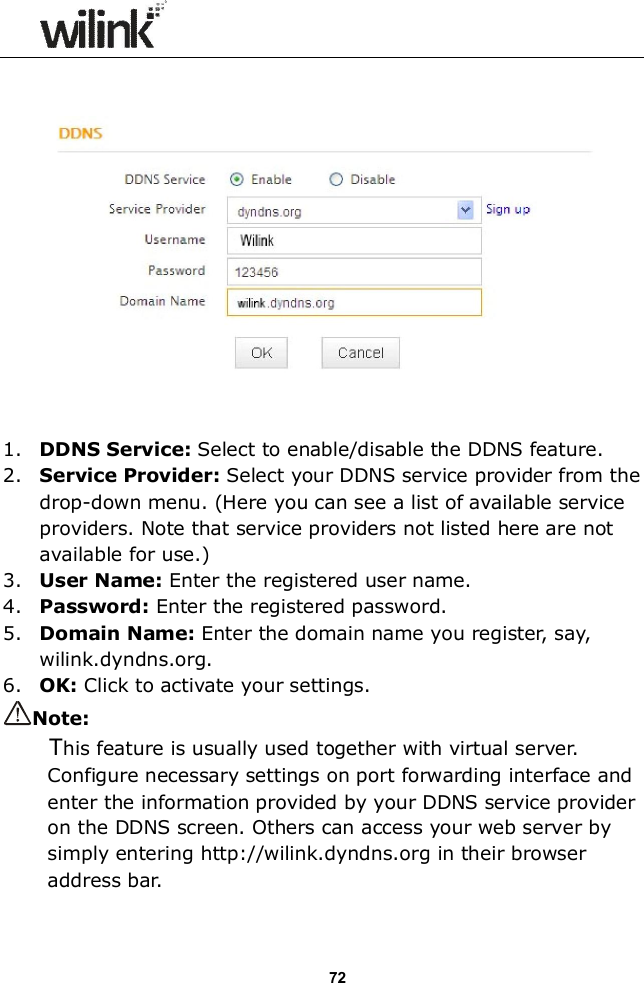
                 72     1. DDNS Service: Select to enable/disable the DDNS feature. 2. Service Provider: Select your DDNS service provider from the drop-down menu. (Here you can see a list of available service providers. Note that service providers not listed here are not available for use.) 3. User Name: Enter the registered user name. 4. Password: Enter the registered password. 5. Domain Name: Enter the domain name you register, say, wilink.dyndns.org. 6. OK: Click to activate your settings. Note:     This feature is usually used together with virtual server. Configure necessary settings on port forwarding interface and enter the information provided by your DDNS service provider on the DDNS screen. Others can access your web server by simply entering http://wilink.dyndns.org in their browser address bar.
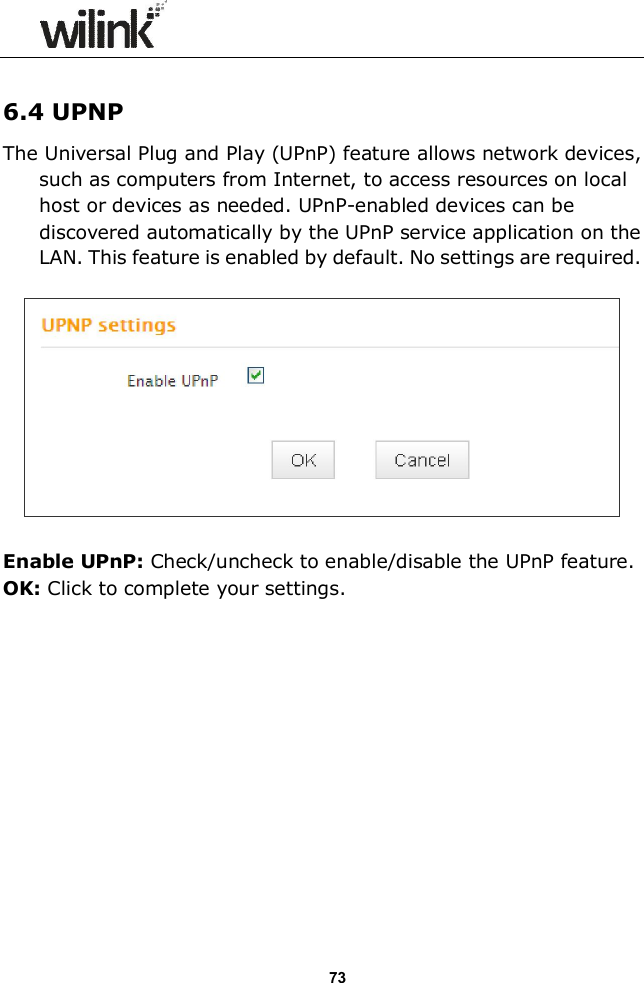
                 73  6.4 UPNP The Universal Plug and Play (UPnP) feature allows network devices, such as computers from Internet, to access resources on local host or devices as needed. UPnP-enabled devices can be discovered automatically by the UPnP service application on the LAN. This feature is enabled by default. No settings are required.    Enable UPnP: Check/uncheck to enable/disable the UPnP feature. OK: Click to complete your settings.
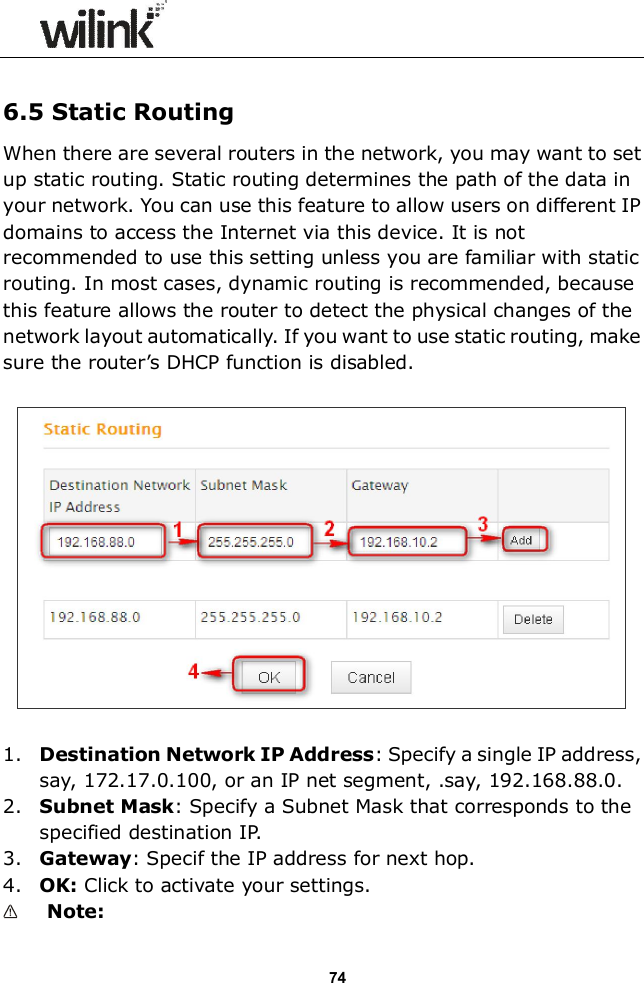
                 74  6.5 Static Routing When there are several routers in the network, you may want to set up static routing. Static routing determines the path of the data in your network. You can use this feature to allow users on different IP domains to access the Internet via this device. It is not recommended to use this setting unless you are familiar with static routing. In most cases, dynamic routing is recommended, because this feature allows the router to detect the physical changes of the network layout automatically. If you want to use static routing, make sure the router’s DHCP function is disabled.    1. Destination Network IP Address: Specify a single IP address, say, 172.17.0.100, or an IP net segment, .say, 192.168.88.0. 2. Subnet Mask: Specify a Subnet Mask that corresponds to the specified destination IP. 3. Gateway: Specif the IP address for next hop. 4. OK: Click to activate your settings.  Note:
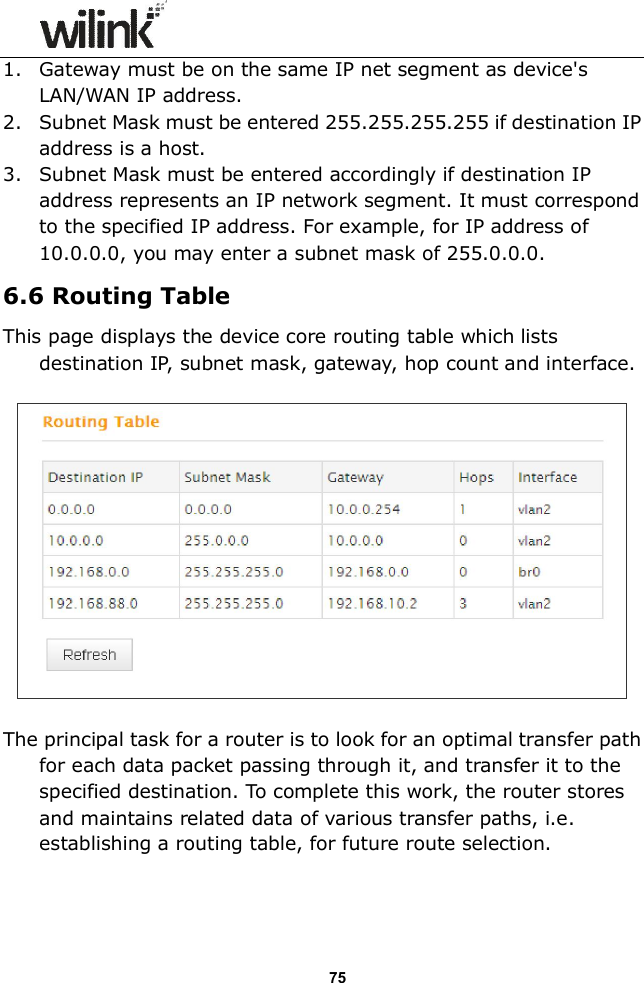
                 75 1. Gateway must be on the same IP net segment as device's LAN/WAN IP address. 2. Subnet Mask must be entered 255.255.255.255 if destination IP address is a host. 3. Subnet Mask must be entered accordingly if destination IP address represents an IP network segment. It must correspond to the specified IP address. For example, for IP address of 10.0.0.0, you may enter a subnet mask of 255.0.0.0. 6.6 Routing Table This page displays the device core routing table which lists destination IP, subnet mask, gateway, hop count and interface.    The principal task for a router is to look for an optimal transfer path for each data packet passing through it, and transfer it to the specified destination. To complete this work, the router stores and maintains related data of various transfer paths, i.e. establishing a routing table, for future route selection.
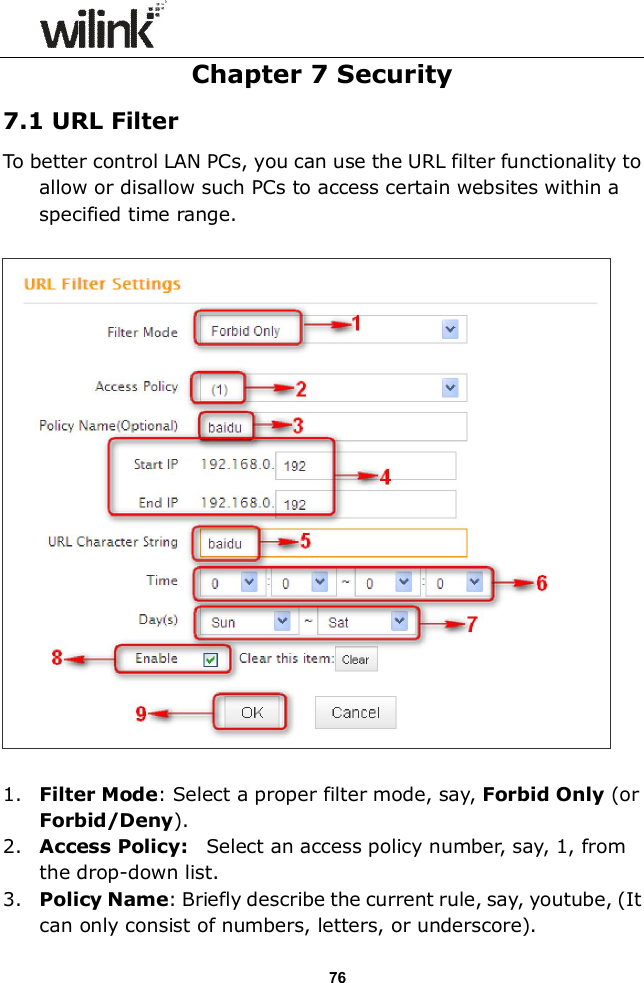
                 76 Chapter 7 Security 7.1 URL Filter To better control LAN PCs, you can use the URL filter functionality to allow or disallow such PCs to access certain websites within a specified time range.      1. Filter Mode: Select a proper filter mode, say, Forbid Only (or Forbid/Deny). 2. Access Policy:    Select an access policy number, say, 1, from the drop-down list. 3. Policy Name: Briefly describe the current rule, say, youtube, (It can only consist of numbers, letters, or underscore).
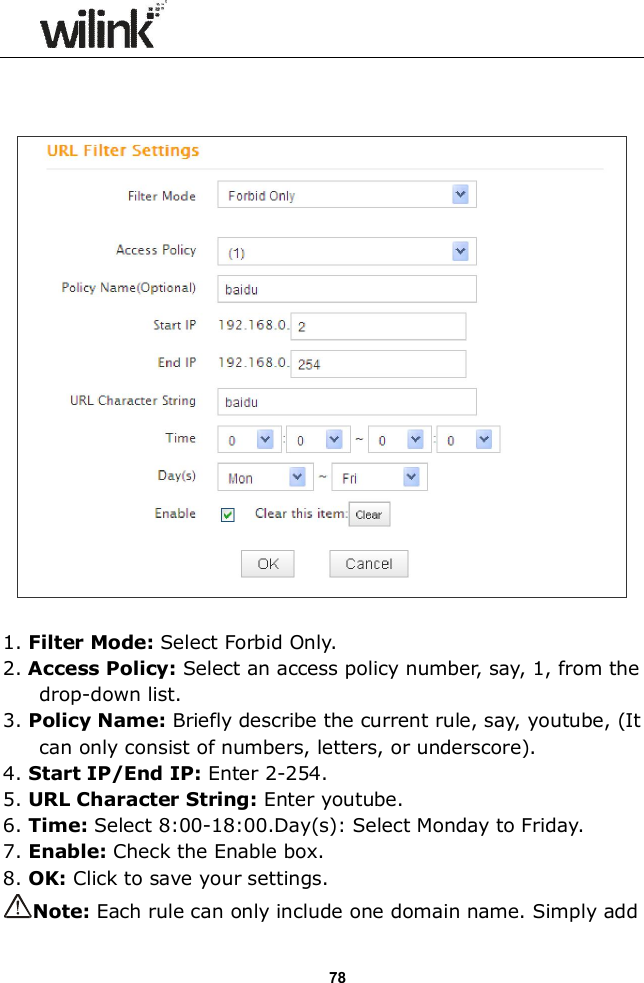
                 77 4. Start IP/End IP: Enter the same IP address or 2 different IP addresses in both boxes to specify a single PC or a range of PCs for the current rule to apply to. 5. URL Character String: Enter the domain name you wish to filter out, say, youtube. 6. Time: Specify a time period for a current rule to take effect. If the field is set to 0:00-0:00, the rule will be applied 24hrs/day. 7. Day(s): Select a day or several days for a current rule to take effect. If Sun-Sat is selected, the rule will apply 7days/week. 8. Enable: Check/uncheck to enable/disable the feature. 9. OK: Click to activate your settings. Example: If you want to disallow all computers on your LAN to access youtube.com from 8:00 to 18:00 during working days: Monday- Friday, then do as follows:
                 78      1. Filter Mode: Select Forbid Only. 2. Access Policy: Select an access policy number, say, 1, from the drop-down list. 3. Policy Name: Briefly describe the current rule, say, youtube, (It can only consist of numbers, letters, or underscore). 4. Start IP/End IP: Enter 2-254. 5. URL Character String: Enter youtube. 6. Time: Select 8:00-18:00.Day(s): Select Monday to Friday.     7. Enable: Check the Enable box.  8. OK: Click to save your settings. Note: Each rule can only include one domain name. Simply add
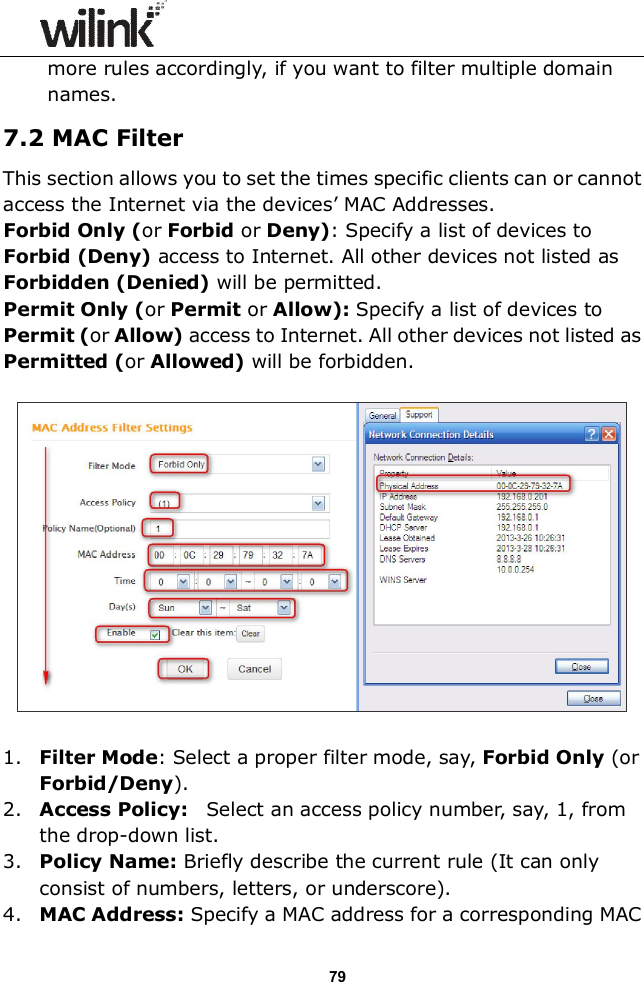
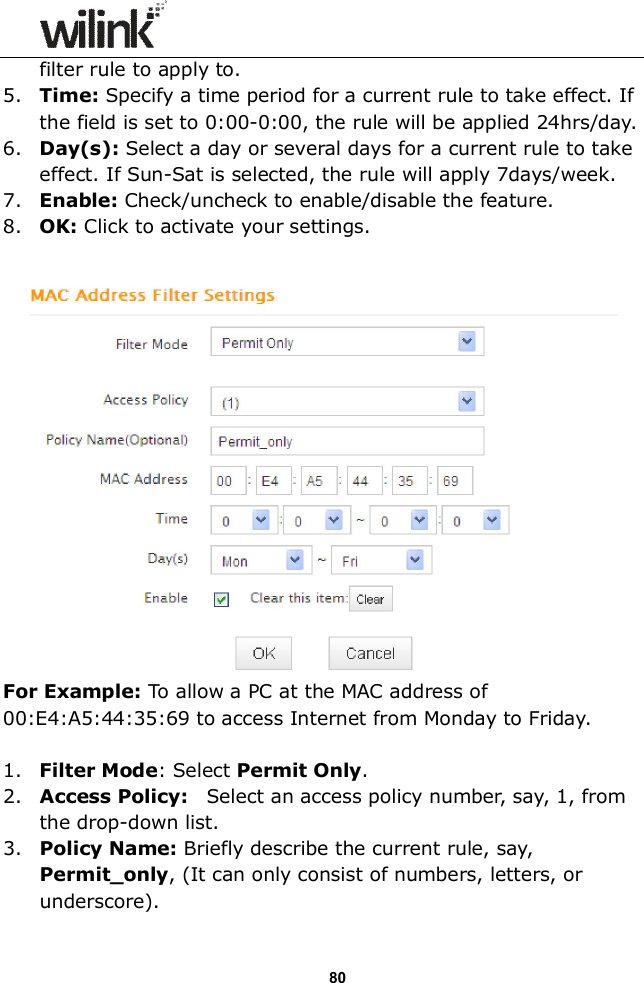
                 79 more rules accordingly, if you want to filter multiple domain names. 7.2 MAC Filter This section allows you to set the times specific clients can or cannot access the Internet via the devices’ MAC Addresses. Forbid Only (or Forbid or Deny): Specify a list of devices to Forbid (Deny) access to Internet. All other devices not listed as Forbidden (Denied) will be permitted. Permit Only (or Permit or Allow): Specify a list of devices to Permit (or Allow) access to Internet. All other devices not listed as Permitted (or Allowed) will be forbidden.     1. Filter Mode: Select a proper filter mode, say, Forbid Only (or Forbid/Deny). 2. Access Policy:    Select an access policy number, say, 1, from the drop-down list. 3. Policy Name: Briefly describe the current rule (It can only consist of numbers, letters, or underscore). 4. MAC Address: Specify a MAC address for a corresponding MAC
                 80 filter rule to apply to. 5. Time: Specify a time period for a current rule to take effect. If the field is set to 0:00-0:00, the rule will be applied 24hrs/day. 6. Day(s): Select a day or several days for a current rule to take effect. If Sun-Sat is selected, the rule will apply 7days/week. 7. Enable: Check/uncheck to enable/disable the feature. 8. OK: Click to activate your settings.   For Example: To allow a PC at the MAC address of  00:E4:A5:44:35:69 to access Internet from Monday to Friday.  1. Filter Mode: Select Permit Only. 2. Access Policy:    Select an access policy number, say, 1, from the drop-down list. 3. Policy Name: Briefly describe the current rule, say, Permit_only, (It can only consist of numbers, letters, or underscore).
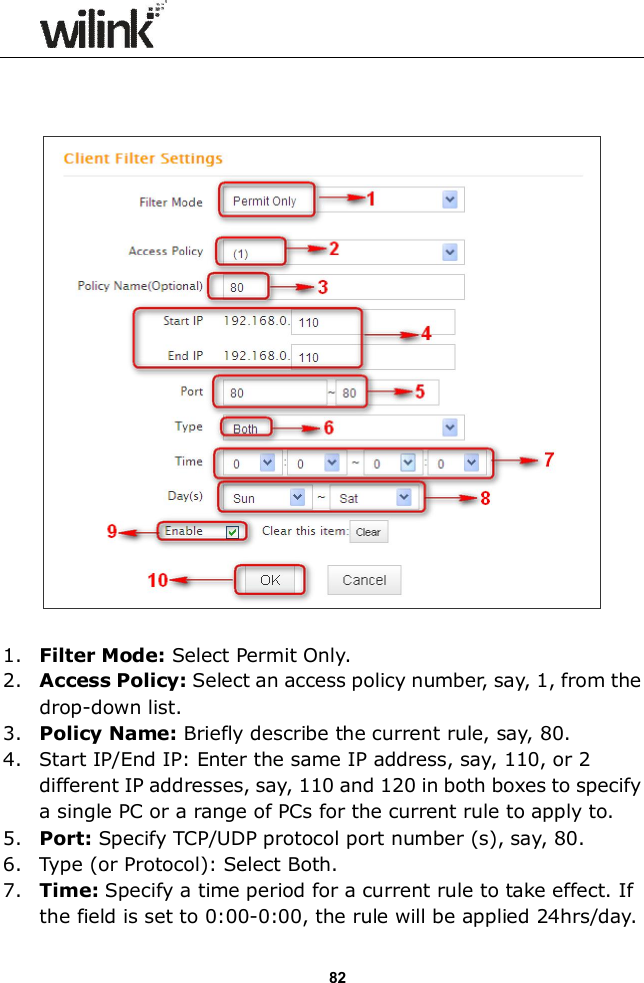
                 81 4. MAC Address: Enter 00:E4:A5:44:35:69. 5. Time: Select 0 for all fields to apply the rule 24hrs/day. 6. Day(s): Select Monday to Friday. 7. Enable: Check the Enable box. 8. OK: Click to save your settings. 7.3 Client Filter This section allows you to set the times specific clients can or cannot access the Internet via the devices’ assigned IP addresses and service port. Forbid Only (or Deny/Forbid):    Only PCs listed as Forbidden (or Denied)    will be forbidden    from accessing specified services; others are not restricted; Permit Only (or Permit/Allow): Only PCs listed as permitted (or allowed) will be permitted to access specified services; others will be forbidden.
                 82      1. Filter Mode: Select Permit Only. 2. Access Policy: Select an access policy number, say, 1, from the drop-down list. 3. Policy Name: Briefly describe the current rule, say, 80. 4. Start IP/End IP: Enter the same IP address, say, 110, or 2 different IP addresses, say, 110 and 120 in both boxes to specify a single PC or a range of PCs for the current rule to apply to. 5. Port: Specify TCP/UDP protocol port number (s), say, 80. 6. Type (or Protocol): Select Both. 7. Time: Specify a time period for a current rule to take effect. If the field is set to 0:00-0:00, the rule will be applied 24hrs/day.
                 83 8. Day(s): Specify a day or several days for a current rule to take effect. 9. Enable: Check/uncheck to enable/disable the feature. 10. OK: Click to activate your settings. For example: If you want to prohibit PCs within the IP address range of 192.168.0.100--192.168.0.120 from accessing Internet, do as follows:    1. Filter Mode: Select Forbid Only. 2. Access Policy: Select an access policy number, say, 1, from the drop-down list. 3. Policy Name: Briefly describe the current rule, say, 123. 4. Start IP: Enter 100.
                 84 5. End IP: Enter 120. 6. Port: Enter 1-65535 to forbid all Internet services and applications. 7. Type (or Protocol): Select Both. 8. Time: Select 0 for all fields to apply the rule 24hrs/day. 9. Day(s): Select Sun-Sat to apply the rule 7days/week. 10. Enable: Check the Enable box. 11. OK: Click to activate your settings.
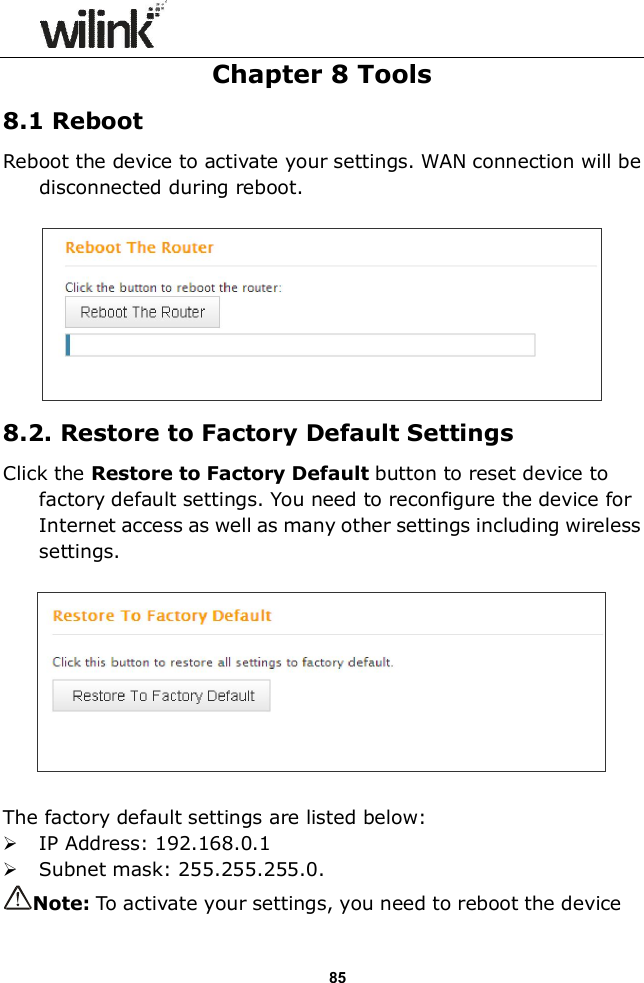
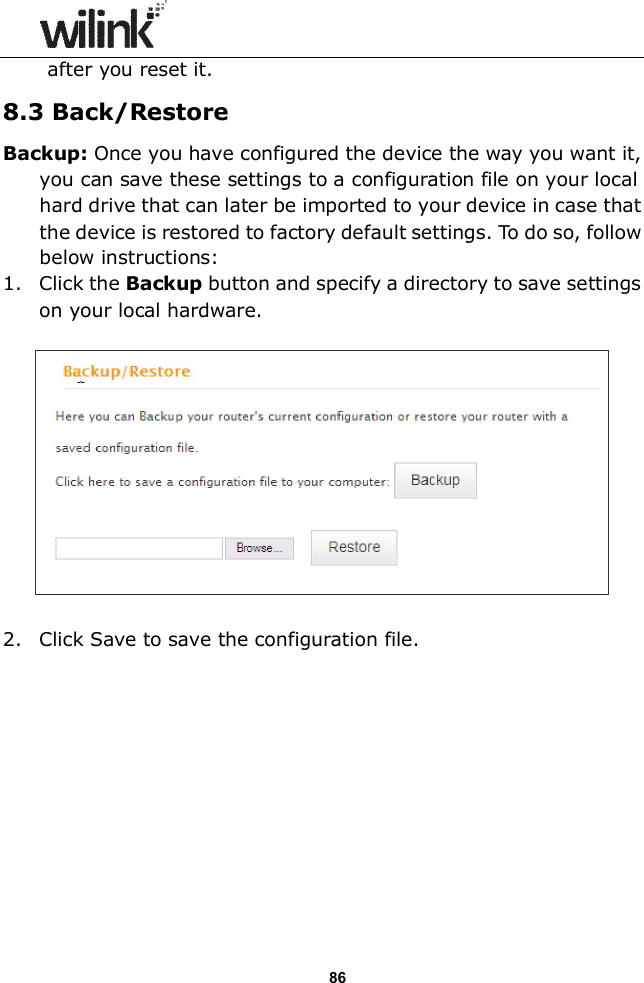
                 85 Chapter 8 Tools 8.1 Reboot Reboot the device to activate your settings. WAN connection will be disconnected during reboot.   8.2. Restore to Factory Default Settings Click the Restore to Factory Default button to reset device to factory default settings. You need to reconfigure the device for Internet access as well as many other settings including wireless settings.    The factory default settings are listed below:  IP Address: 192.168.0.1  Subnet mask: 255.255.255.0. Note: To activate your settings, you need to reboot the device
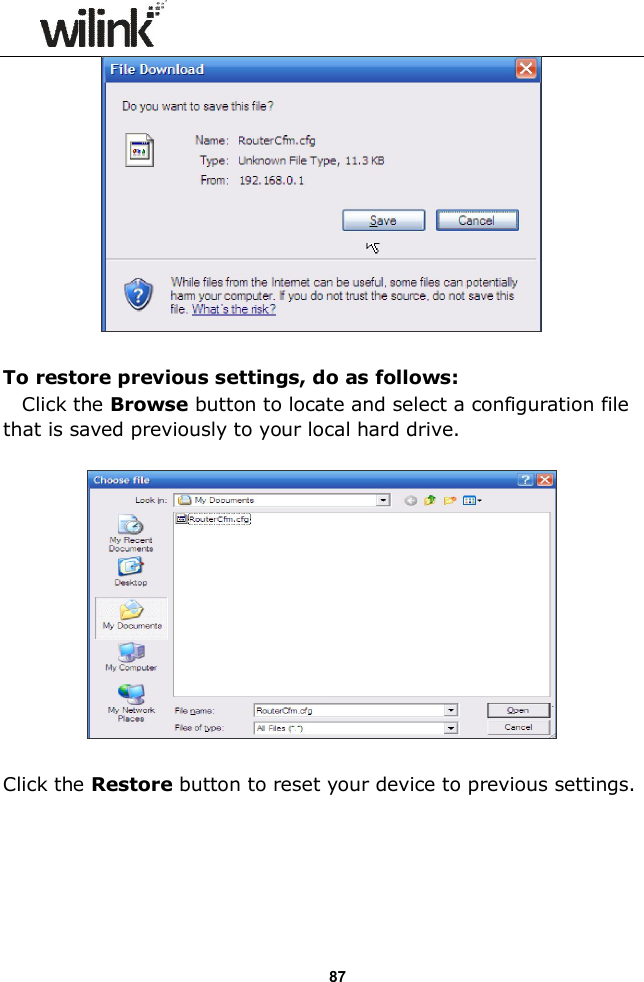
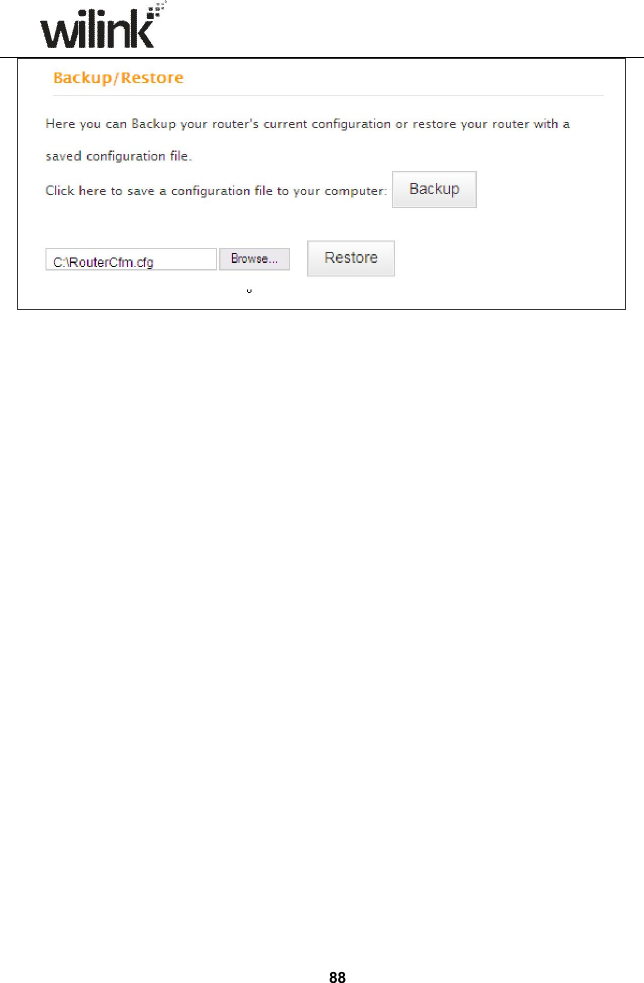
                 86 after you reset it. 8.3 Back/Restore Backup: Once you have configured the device the way you want it, you can save these settings to a configuration file on your local hard drive that can later be imported to your device in case that the device is restored to factory default settings. To do so, follow below instructions: 1. Click the Backup button and specify a directory to save settings on your local hardware.    2. Click Save to save the configuration file.
                 87   To restore previous settings, do as follows:   Click the Browse button to locate and select a configuration file that is saved previously to your local hard drive.    Click the Restore button to reset your device to previous settings.
                 88
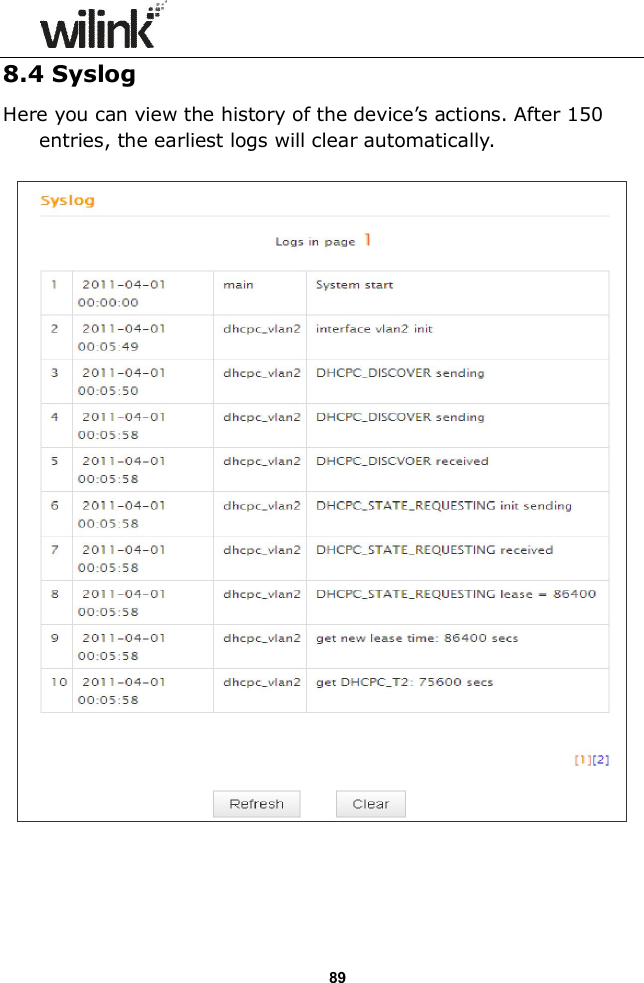
                 89 8.4 Syslog Here you can view the history of the device’s actions. After 150 entries, the earliest logs will clear automatically.
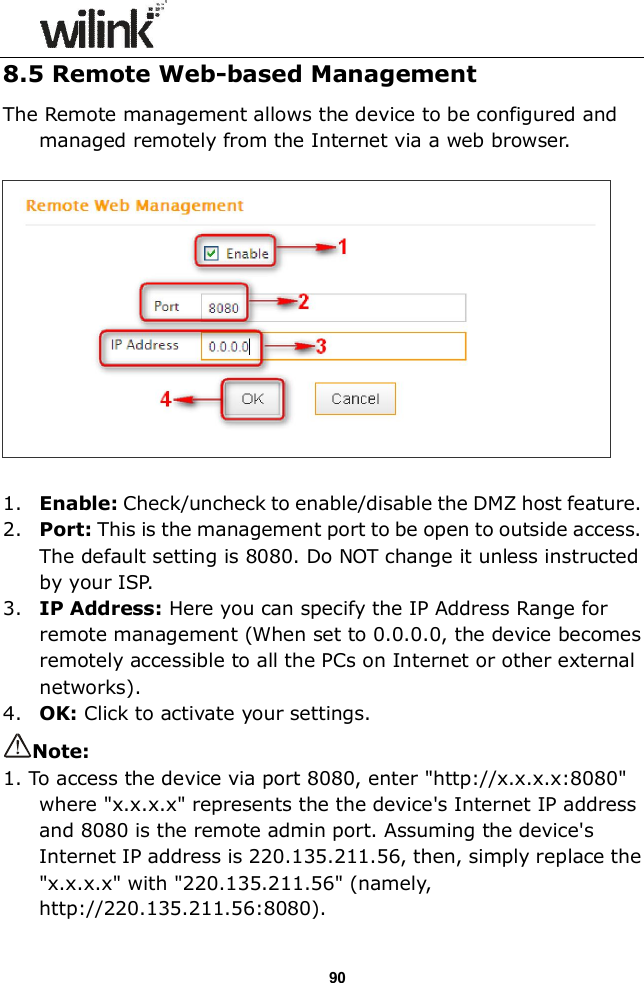
                 90 8.5 Remote Web-based Management The Remote management allows the device to be configured and managed remotely from the Internet via a web browser.      1. Enable: Check/uncheck to enable/disable the DMZ host feature. 2. Port: This is the management port to be open to outside access. The default setting is 8080. Do NOT change it unless instructed by your ISP. 3. IP Address: Here you can specify the IP Address Range for remote management (When set to 0.0.0.0, the device becomes remotely accessible to all the PCs on Internet or other external networks). 4. OK: Click to activate your settings. Note:   1. To access the device via port 8080, enter "http://x.x.x.x:8080" where "x.x.x.x" represents the the device's Internet IP address and 8080 is the remote admin port. Assuming the device's Internet IP address is 220.135.211.56, then, simply replace the "x.x.x.x" with "220.135.211.56" (namely, http://220.135.211.56:8080).
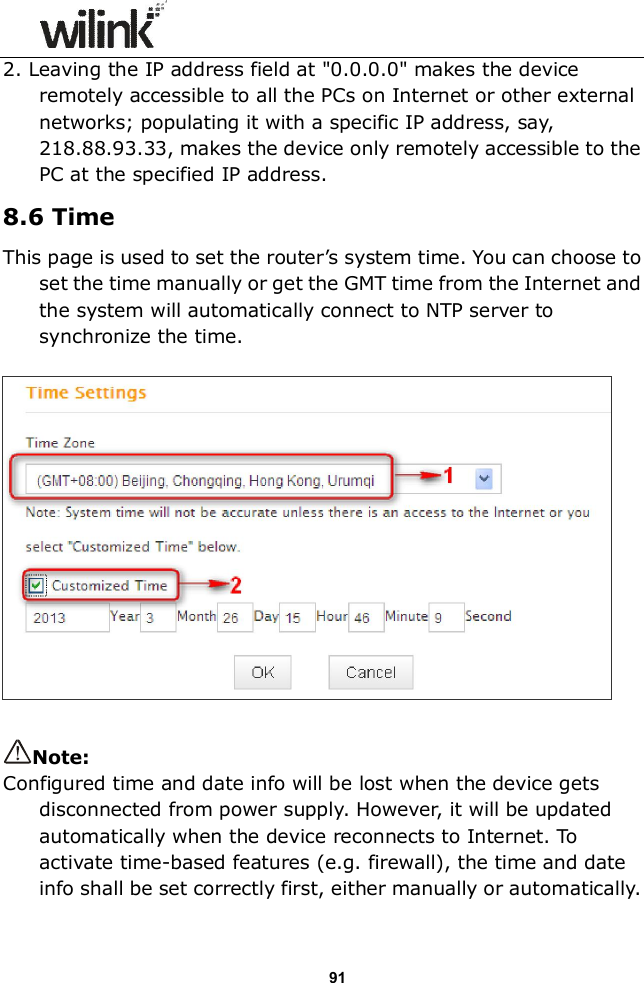
                 91 2. Leaving the IP address field at "0.0.0.0" makes the device remotely accessible to all the PCs on Internet or other external networks; populating it with a specific IP address, say, 218.88.93.33, makes the device only remotely accessible to the PC at the specified IP address. 8.6 Time This page is used to set the router’s system time. You can choose to set the time manually or get the GMT time from the Internet and the system will automatically connect to NTP server to synchronize the time.    Note: Configured time and date info will be lost when the device gets disconnected from power supply. However, it will be updated automatically when the device reconnects to Internet. To activate time-based features (e.g. firewall), the time and date info shall be set correctly first, either manually or automatically.
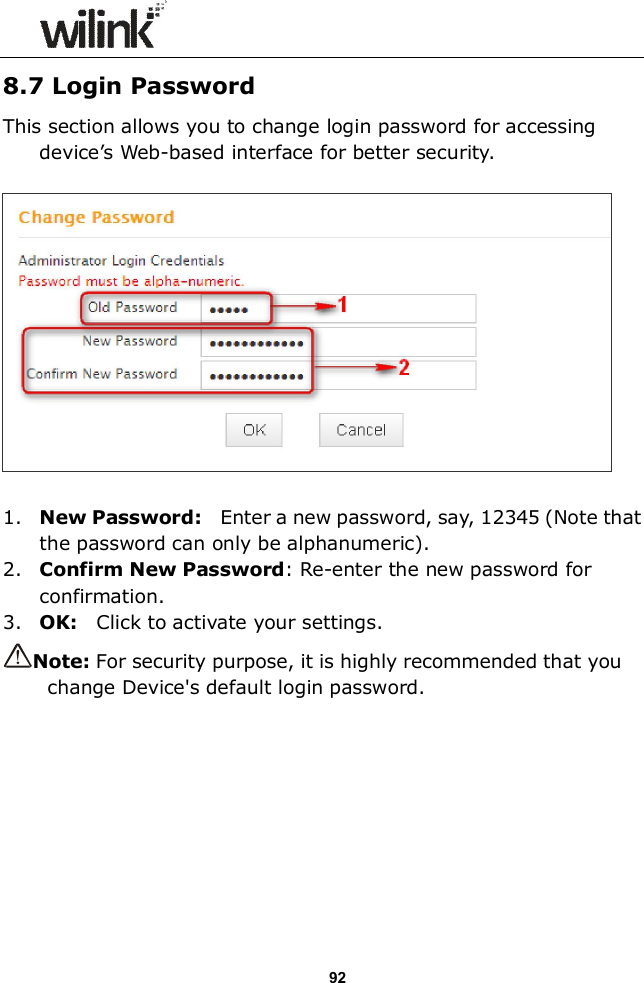
                 92 8.7 Login Password This section allows you to change login password for accessing device’s Web-based interface for better security.    1. New Password:    Enter a new password, say, 12345 (Note that the password can only be alphanumeric). 2. Confirm New Password: Re-enter the new password for confirmation. 3. OK:    Click to activate your settings. Note: For security purpose, it is highly recommended that you change Device's default login password.
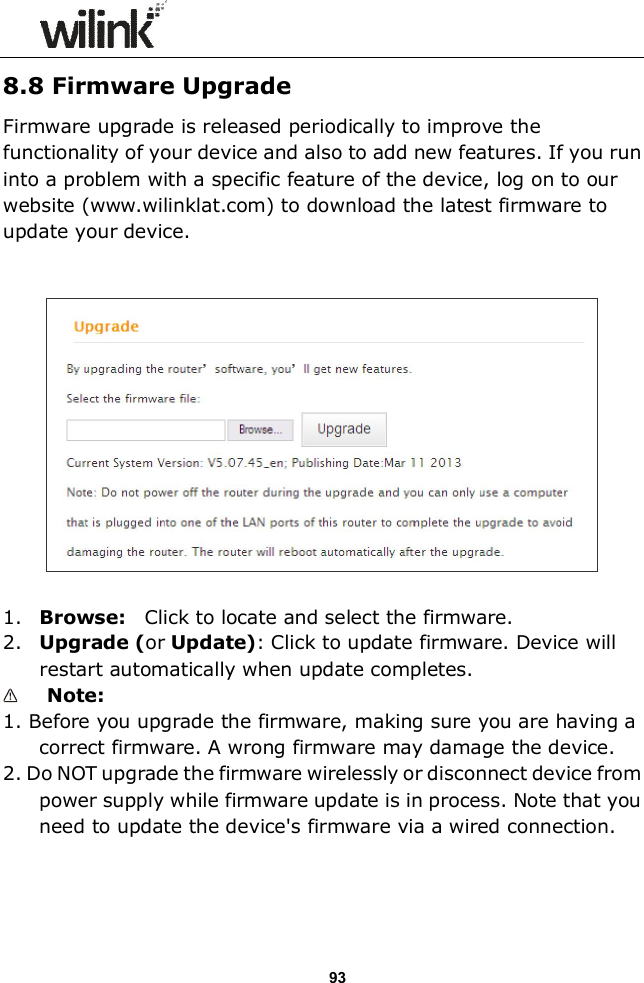
                 93 8.8 Firmware Upgrade Firmware upgrade is released periodically to improve the functionality of your device and also to add new features. If you run into a problem with a specific feature of the device, log on to our website (www.wilinklat.com) to download the latest firmware to update your device.      1. Browse:   Click to locate and select the firmware. 2. Upgrade (or Update): Click to update firmware. Device will restart automatically when update completes.  Note:   1. Before you upgrade the firmware, making sure you are having a correct firmware. A wrong firmware may damage the device. 2. Do NOT upgrade the firmware wirelessly or disconnect device from power supply while firmware update is in process. Note that you need to update the device's firmware via a wired connection.
                 94 Appendix 1 Glossary Channel A communication channel, also known as channel, refers either to a physical transmission medium such as a wire or to a logical connection over a multiplexed medium such as a radio channel. It is used to transfer an information signal, such as a digital bit stream, from one or more transmitters to one or more receivers. If there is only one AP in the range, select any channel you like. The default is Auto. If there are several APs coexisting in the same area, it is advisable that you select a different channel for each AP to operate on, minimizing the interference between neighboring APs. For example, if 3 American- standard APs coexist in one area, you can set their channels respectively to 1, 6 and 11 to avoid mutual interference.  SSID   Service set identifier (SSID) is used to identify a particular 802.11 wireless LAN. It is the name of a specific wireless network. To let your wireless network adapter roam among different APs, you must set all APs’ SSID to the same name.  WPA/WPA2 The WPA protocol implements the majority of the IEEE 802.11i standard. It enhances data encryption through the Temporal Key Integrity Protocol (TKIP) which is a 128-bit per-packet key, meaning that it dynamically generates a new key for each packet. WPA also includes a message integrity check feature to prevent data packets from being hampered with. Only authorized network users can access the wireless network. The later WPA2 protocol features compliance with the full IEEE 802.11i standard and uses Advanced Encryption Standard (AES) in addition to TKIP encryption protocol to guarantee better security than that
                 95 provided by WEP or WPA. Currently, WPA is supported by Windows XP SP1.  IEEE 802.1X Authentication IEEE 802.1X Authentication is an IEEE Standard for port-based Network  Access  Control  (PNAC).  It  is  part  of  the  IEEE  802.1 group  of  networking  protocols.  It  provides  an  authentication mechanism to devices wishing to attach to a LAN or WLAN.IEEE 802.1X defines  the  encapsulation  of  EAP  over  LAN  or  EAPOL. 802.1X authentication involves three parties: a  supplicant,  an authenticator, and an authentication server. The supplicant is a client  device  (such  as  a  laptop)  that  wishes  to  attach  to  the LAN/WLAN  -  though  the  term  'supplicant'  is  also  used interchangeably  to  refer  to  the software  running  on the  client that provides credentials to the authenticator. The authenticator is  a  network  device,  such  as  an  Ethernet  switch  or  wireless access  point; and the authentication server is typically  a  host running software supporting the RADIUS and EAP protocols. The authenticator acts like a security guard to a protected network. The supplicant (i.e. client device) is not allowed access through the authenticator to the protected side of the network until the supplicant’s  identity  has  been  validated  and  authorized.  With 802.1X  port-based  authentication,  the  supplicant  provides credentials, such as user name / password or digital certificate, to  the  authenticator,  and  the  authenticator  forwards  the credentials  to  the  authentication server  for  verification.  If  the authentication server determines the credentials are valid, the supplicant (client device) is allowed to access resources located on the protected side of the network.
                 96  PPPOE The Point-to-Point Protocol over Ethernet (PPPoE) is a network protocol for encapsulating PPP frames inside Ethernet frames. Integrated PPP protocol implements authentication, encryption, and  compression  functions  that  traditional  Ethernet  cannot provide and can also be used in the cable modem and digital subscriber line (DSL) and Ethernet that provide access service to the users. Essentially, it is a protocol that allows to establish a point-to-point tunnel between two Ethernet interfaces within an Ethernet broadcast domain. DNS       The Domain Name System (DNS) is a hierarchical distributed naming  system  for  computers,  services,  or  any  resource connected  to  the  Internet  or  a  private  network.  It  associates various information with domain names assigned to each of the participating entities. A Domain Name Service resolves queries for these names into  IP addresses  for  the purpose  of locating computer  services  and  devices  worldwide.  An  often-used analogy to explain the Domain Name System is that it serves as the phone  book for the Internet by translating human-friendly computer hostnames into IP addresses.   WDS             A wireless distribution system (WDS) is a system enabling the wireless  interconnection  of  access  points  in  an  IEEE  802.11 network.  It  allows  a  wireless  network  to  be  expanded  using multiple access points without the traditional requirement for a wired  backbone  to  link  them.  All  base  stations  in  a  wireless distribution system must be  configured  to use the same  radio channel,  method  of  encryption  (none,  WEP,  or  WPA)  and  the same  encryption  keys.  They  may  be  configured  to  different service set identifiers. WDS also requires every base station to be configured to forward to others in the system. WDS may also
                 97 be considered a repeater mode because it appears to bridge and accept  wireless  clients  at  the  same  time  (unlike  traditional bridging).WDS may be incompatible between different products (even occasionally from the same vendor) since it is not certified by the Wi-Fi Alliance. WDS may provide two modes of wireless AP-to-AP connectivity: Wireless  bridging,  in  which  WDS  APs  communicate  only  with each other and don't allow wireless clients or stations (STA) to access them. Wireless repeating, in which APs communicate with each other and with wireless STAs.  DMZ             In  computer  security,  a  DMZ  (sometimes  referred  to  as  a perimeter networking) is a physical or logical subnetwork that contains and exposes an organization's external-facing services to a larger untrusted network, usually the Internet. The purpose of  a  DMZ  is  to  add  an  additional  layer  of  security  to  an organization's  local  area  network  (LAN);  an  external  attacker only has access to equipment in the DMZ, rather than any other part of the network. Hosts in the DMZ have limited connectivity to  specific  hosts  in  the  internal  network,  although communication with other hosts in the DMZ and to the external network  is  allowed.  This  allows  hosts  in  the  DMZ  to  provide services  to  both  the  internal  and  external  network,  while  an intervening firewall controls the traffic between the DMZ servers and  the  internal  network  clients.  Any  services  such  as  Web servers, Mail servers, FTP servers and VoIP servers, etc. that are being provided to users on the external network can be placed in the DMZ.
                 98 Appendix 2 FAQs  This section provides solutions to problems that may occur during installation and operation of the device. Read the following if you are running into problems. If your problem is not covered here, please feel free to go to www.wilinklat.com to find a solution or email  your  problems  to:  soporte@wilinklat.com.  We  will  be more than happy to help you out as soon as possible. 1.  Q:  I  entered  the  device’s  LAN  IP  address  in  the  web browser but cannot access the utility. What should I do? 1) Check  whether  device  is  functioning  correctly.  The  SYS  LED should blink a few seconds after device is powered up. If it does not light up, then some internal faults may have occurred. 2) Verify physical connectivity by checking whether a corresponding port’s link LED lights up. If not, try a different cable. Note that an illuminated  light  does  NOT  ALWAYS  indicate  successful connectivity. 3) Run the "ping 192.168.0.1" command. If you get replies from 192.168.0.1, open your browser and verify that Proxy server is disabled.  In  case  that  ping  fails,  press and  hold  the  "RESET" button on your device for 7 seconds to restore  factory default settings, and then run "ping192.168.0.1" again. 4) Contact our technical support for help if the problem still exists after you tried all the above. 2. Q: What should I do if I forget the login password to my device? A: Reset your device by pressing the Reset button for over 7 seconds. Note: All settings will be deleted and restored to factory defaults once you pressed the Reset button. 3. Q: My computer shows  an IP address conflict error  after having connected to the device. What should I do? 1) Check if there  are other DHCP servers present in your LAN. If there are other DHCP servers except your router, disable them
                 99 immediately. 2) The default IP address of the device is 192.168.0.1; make sure this address is not used by another PC or device. In case that two computers  or  devices  share  the  same  IP  addresses,  change either to a different address. 4. Q: I cannot access Internet and send/receive emails; what should I do? This  problem  mainly  happens  to  users  who  use  the  PPPoE  or Dynamic IP Internet  connection type. You need to change the MTU size (1492 by default). In this case, go to “WAN Settings” to change the MTU value from default 1480 to 1450 or 1400, etc.     5. Q: How do I share resources on my computer with users on Internet through the device? To let Internet users access internal servers on your LAN such as e-mail  server,  Web,  FTP,  via  the  device,  use  the  "Virtual  Server" feature. To do so, follow steps below: Step 1: Create your internal server, make sure the LAN users can access these servers and you need to know related service ports, for example, port number for Web server is 80; FTP is 21; SMTP is 25 and POP3 is 110. Step 2: Enter Port Forwarding (also called Port Range Forwarding on some products) screen from device web UI. Step 3: Complete the Start Port (also called External/Ext Port on some products) and End Port  (also known as Internal/Int  Port  on some products) fields, say, 80-80. Step  5:  Input  the  internal  server’s  IP  address.  For  example, assuming that your Web server’s IP address is 192.168. 0.10, then simply input it. Select a proper protocol type: TCP, UDP, or Both depending on which protocol(s) your internal host is using. Click Enable and save your settings. For  your  reference,  we  collected  a  list  of  some  well-known service ports as follows:
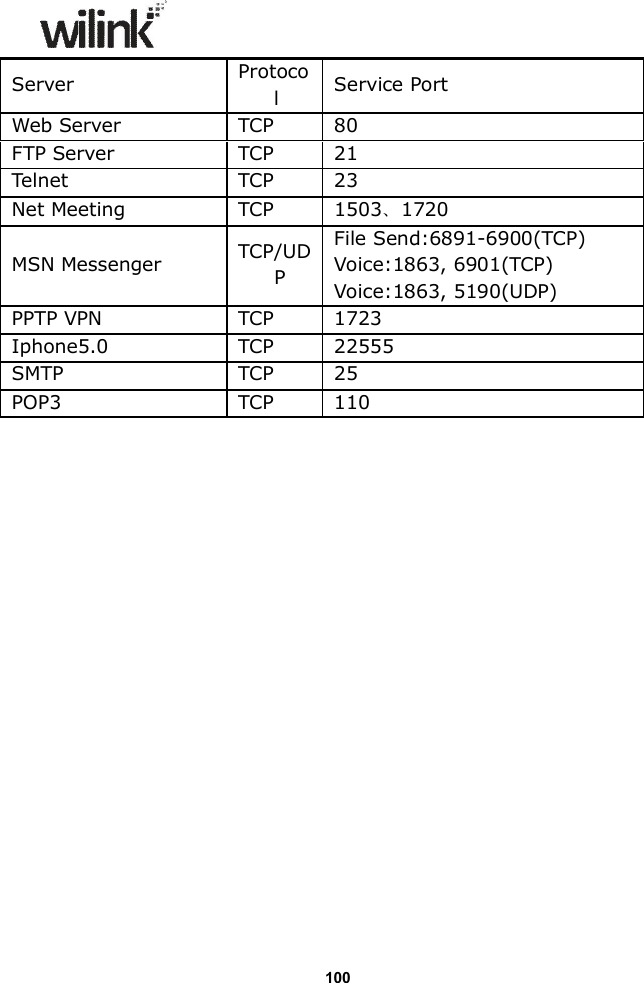
                 100Server Protocol  Service Port Web Server TCP 80 FTP Server TCP 21 Telnet TCP 23 Net Meeting  TCP  1503、1720 MSN Messenger  TCP/UDP File Send:6891-6900(TCP) Voice:1863, 6901(TCP) Voice:1863, 5190(UDP) PPTP VPN TCP 1723 Iphone5.0 TCP 22555 SMTP TCP 25 POP3 TCP 110
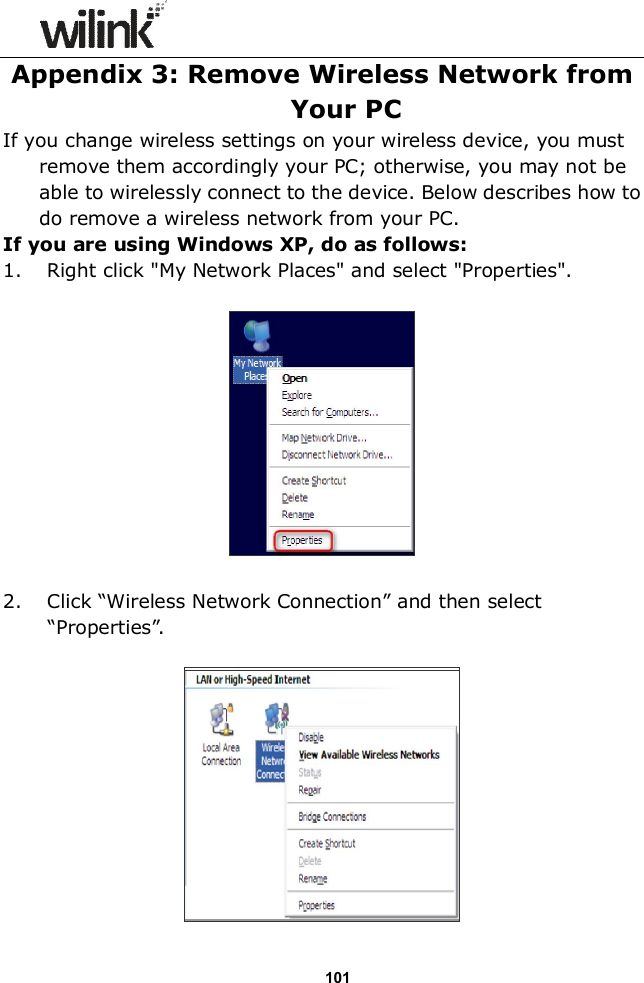
                 101Appendix 3: Remove Wireless Network from Your PC If you change wireless settings on your wireless device, you must remove them accordingly your PC; otherwise, you may not be able to wirelessly connect to the device. Below describes how to do remove a wireless network from your PC. If you are using Windows XP, do as follows: 1. Right click "My Network Places" and select "Properties".    2. Click “Wireless Network Connection” and then select “Properties”.
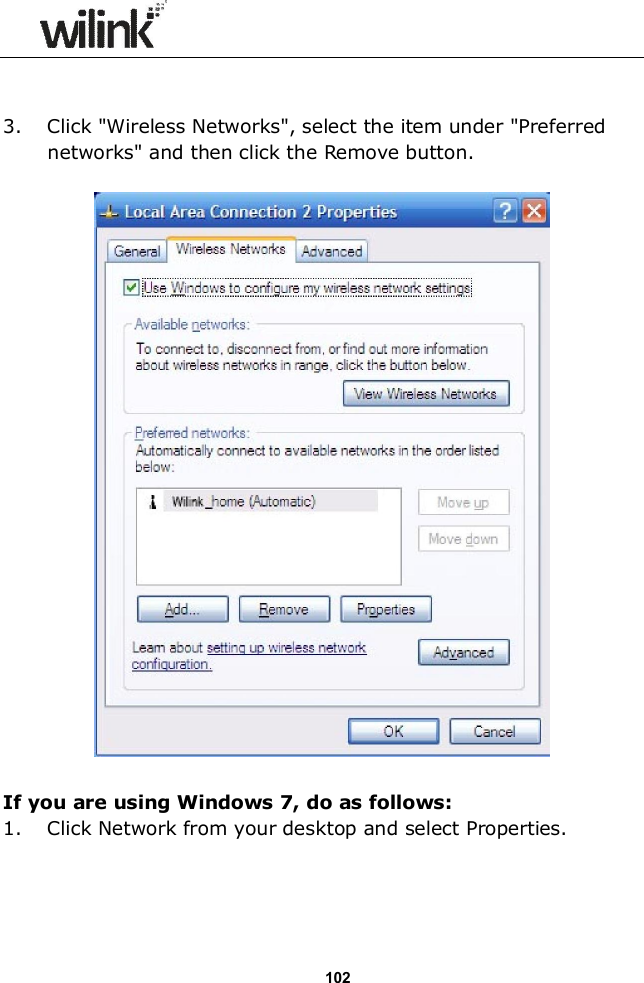
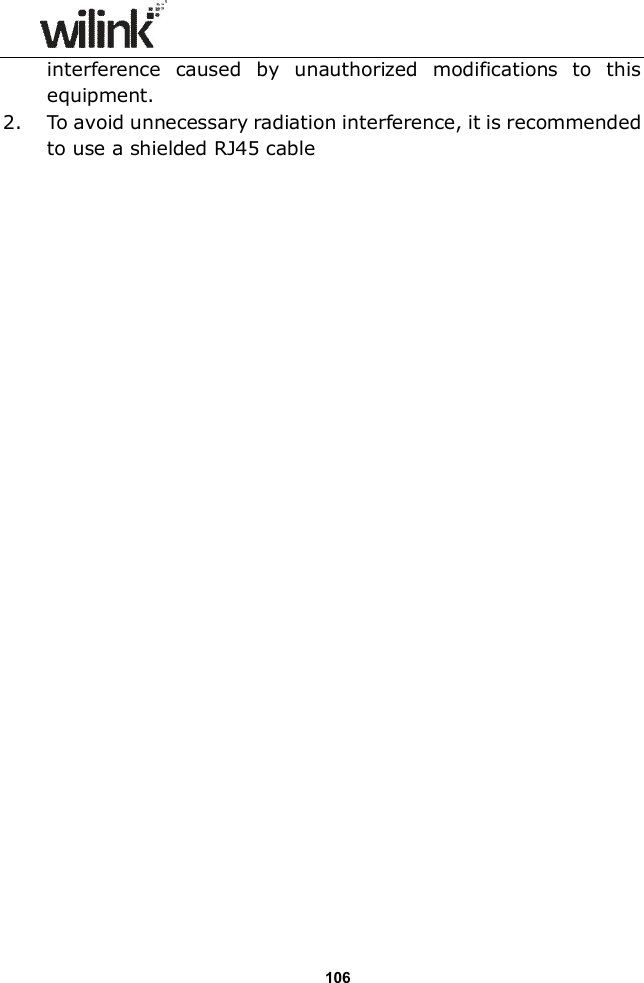
                 102  3. Click "Wireless Networks", select the item under "Preferred networks" and then click the Remove button.    If you are using Windows 7, do as follows: 1. Click Network from your desktop and select Properties.
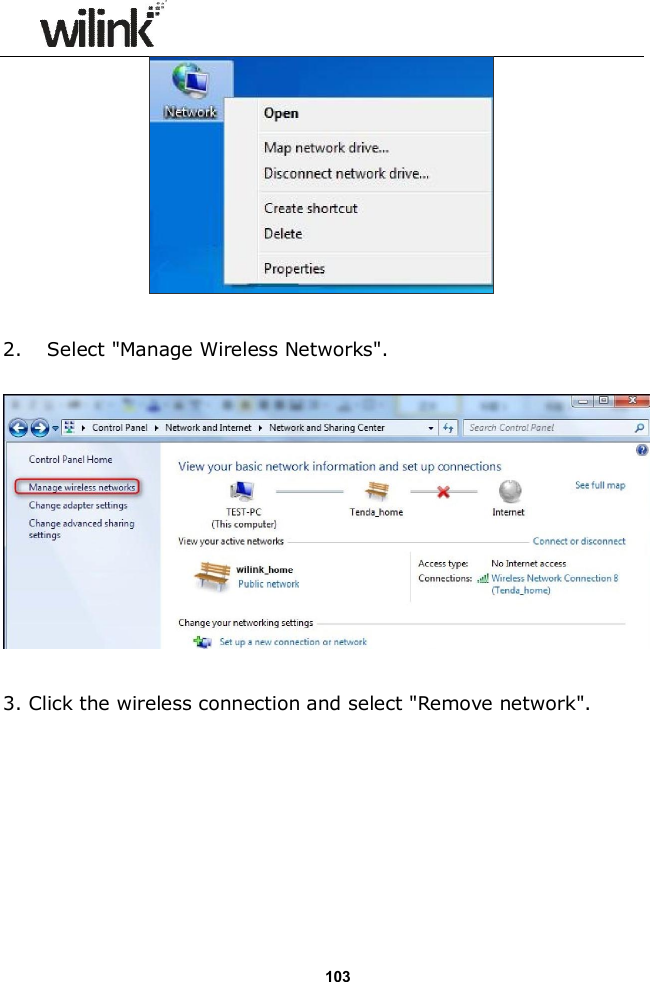
                 103  2. Select "Manage Wireless Networks".    3. Click the wireless connection and select "Remove network".
                 104   Appendix 4 Safety and Emission Statement  CE Mark Warning This is a Class B product in a domestic environment, this product may cause radio interference,  in which  case the  user  may be required to take adequate measures. This device complies with EU 1999/5/EC. FCC Statement This device complies with Part 15 of the FCC Rules. Operation is subject to the following two conditions: (1) This device may not cause harmful interference, and (2) this device must accept any interference  received,  including  interference  that  may  cause undesired operation.  This equipment has been tested and found to comply with the limits for a Class B digital device, pursuant to Part 15 of the FCC Rules.  These  limits  are  designed  to  provide  reasonable
                 105protection  against  harmful  interference  in  a  residential installation.  This  equipment  generates,  uses  and  can  radiate radio  frequency  energy  and,  if  not  installed  and  used  in accordance  with  the  instructions,  may  cause  harmful interference  to  radio  communications.  However,  there  is  no guarantee  that  interference  will  not  occur  in  a  particular installation. If this equipment does cause harmful interference to radio or television reception, which can be determined by turning the equipment off and on, the user is encouraged to try to correct the interference by one of the following measures: - Reorient or relocate the receiving antenna. - Increase the separation between the equipment and receiver. - Connect the equipment into an outlet on a circuit different from that to which the receiver is connected. - Consult  the  dealer  or  an  experienced  radio/TV  technician  for help. FCC  Caution:  Any  changes  or  modifications  not  expressly approved by the party responsible for compliance could void the user's authority to operate this equipment.  This  transmitter  must  not  be  co-located  or  operating  in conjunction with any other antenna or transmitter. The  manufacturer  is  not  responsible  for  any  radio  or  TV interference  caused  by  unauthorized  modifications  to  this equipment. Radiation Exposure Statement This equipment complies with FCC radiation exposure limits set forth for  an  uncontrolled  environment.  This  equipment  should  be installed  and  operated  with  minimum  distance  20cm  between the radiator & your body.  NOTE: 1. The  manufacturer  is  not  responsible  for  any  radio  or  TV
                 106interference  caused  by  unauthorized  modifications  to  this equipment. 2. To avoid unnecessary radiation interference, it is recommended to use a shielded RJ45 cable

Navigation menu