TOMTOP Technology DC29 Wireless 802.11AC Dual band USB Adapter User Manual Wireless 11AC USB Adapter

Shenzhen TOMTOP Technology Co., Ltd Wireless 802.11AC Dual band USB Adapter Wireless 11AC USB Adapter

Contents

Users Manual

Wirleess 802.11AC Dual band USB AdapterQuick install guideModel: DC29REV.1.0AC
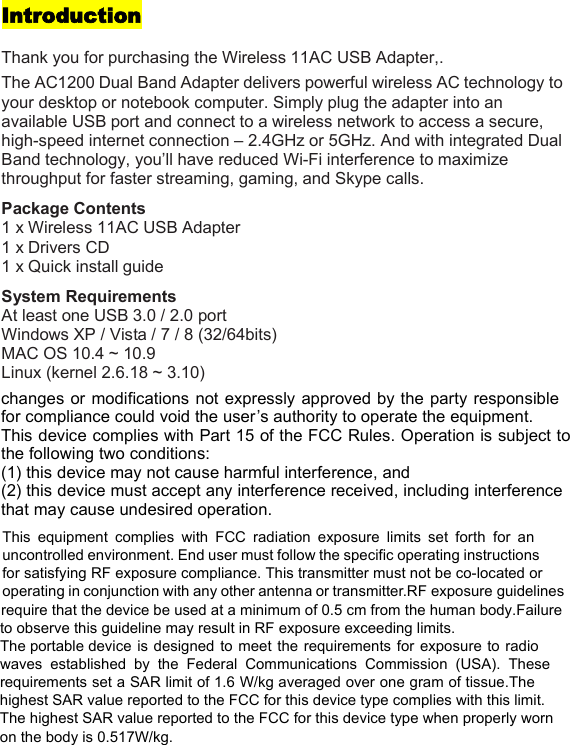
IntroductionThank you for purchasing the Wireless 11AC USB Adapter,.The AC1200 Dual Band Adapter delivers powerful wireless AC technology toyour desktop or notebook computer. Simply plug the adapter into anavailable USB port and connect to a wireless network to access a secure,high-speed internet connection – 2.4GHz or 5GHz. And with integrated DualBand technology, you’ll have reduced Wi-Fi interference to maximizethroughput for faster streaming, gaming, and Skype calls.Package Contents1 x Wireless 11AC USB Adapter1 x Drivers CD1 x Quick install guideSystem RequirementsAt least one USB 3.0 / 2.0 portWindows XP / Vista / 7 / 8 (32/64bits)MAC OS 10.4 ~ 10.9Linux (kernel 2.6.18 ~ 3.10) changes or modifications not expressly approved by the party responsiblefor compliance could void the user’s authority to operate the equipment.This device complies with Part 15 of the FCC Rules. Operation is subject tothe following two conditions:(1) this device may not cause harmful interference, and(2) this device must accept any interference received, including interferencethat may cause undesired operation.This equipment complies with FCC radiation exposure limits set forth for anuncontrolled environment. End user must follow the specific operating instructionsfor satisfying RF exposure compliance. This transmitter must not be co-located oroperating in conjunction with any other antenna or transmitter.RF exposure guidelinesrequire that the device be used at a minimum of 0.5 cm from the human body.Failureto observe this guideline may result in RF exposure exceeding limits.  The portable device isdesigned to meet the requirements for exposure to radiowaves established by the Federal Communications Commission (USA). Theserequirements set a SAR limit of 1.6 W/kg averaged over one gram of tissue.Thehighest SAR value reported to the FCC for this device type complies with this limit.  The highest SAR value reported to the FCC for this device type when properly worn  on the body is 0.517W/kg.
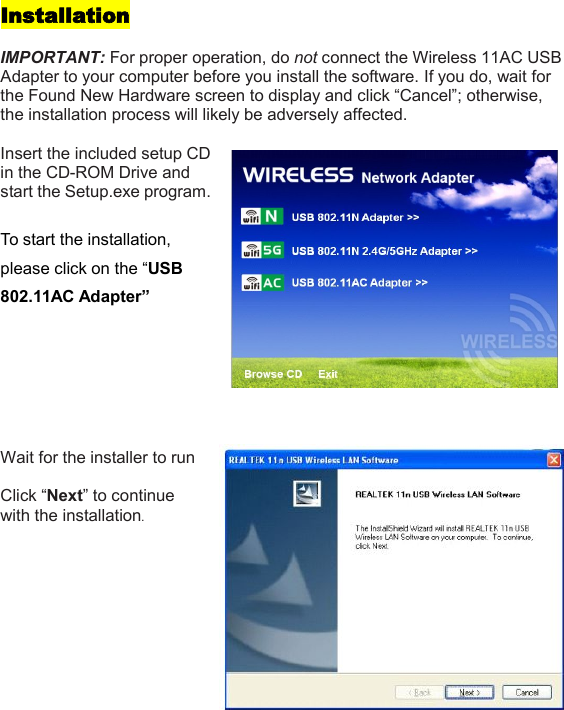
InstallationIMPORTANT: For proper operation, do not connect the Wireless 11AC USBAdapter to your computer before you install the software. If you do, wait forthe Found New Hardware screen to display and click “Cancel”; otherwise,the installation process will likely be adversely affected.Insert the included setup CDin the CD-ROM Drive andstart the Setup.exe program.To start the installation,please click on the “USB802.11AC Adapter”Wait for the installer to runClick “Next” to continuewith the installation.
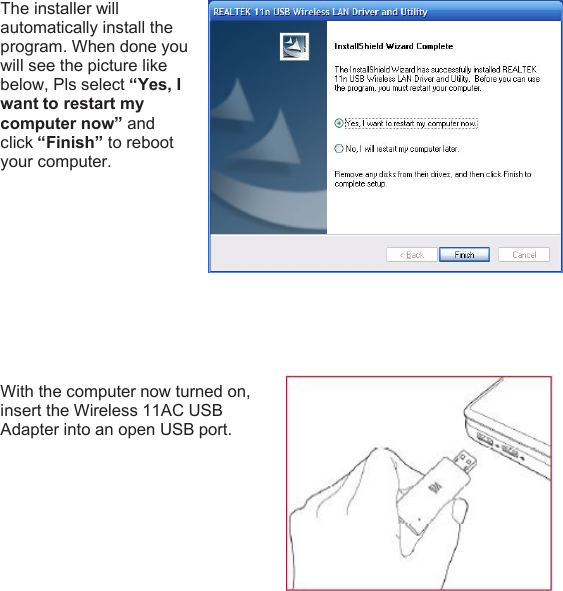
The installer willautomatically install theprogram. When done youwill see the picture likebelow, Pls select “Yes, Iwant to restart mycomputer now” andclick “Finish” to rebootyour computer.With the computer now turned on,insert the Wireless 11AC USBAdapter into an open USB port.
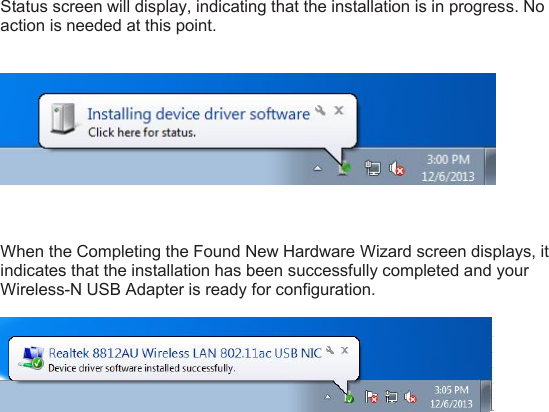
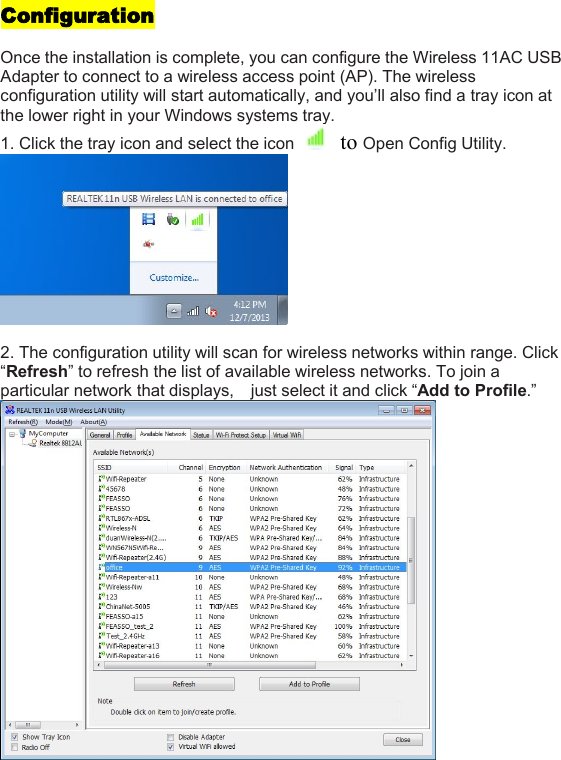
Status screen will display, indicating that the installation is in progress. Noaction is needed at this point.When the Completing the Found New Hardware Wizard screen displays, itindicates that the installation has been successfully completed and yourWireless-N USB Adapter is ready for configuration.
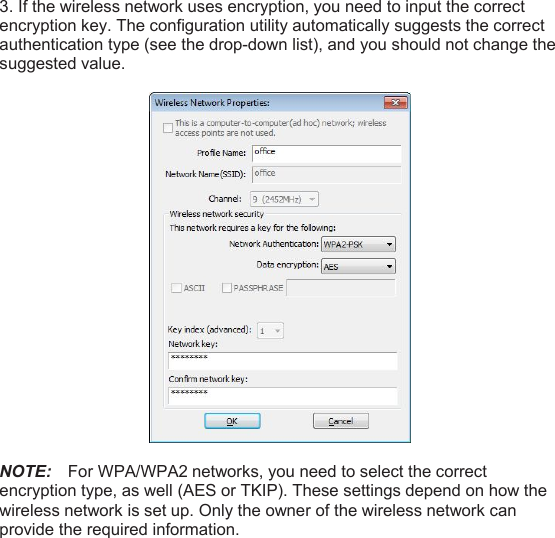
ConfigurationOnce the installation is complete, you can configure the Wireless 11AC USBAdapter to connect to a wireless access point (AP). The wirelessconfiguration utility will start automatically, and you’ll also find a tray icon atthe lower right in your Windows systems tray.1. Click the tray icon and select the icon to Open Config Utility.2. The configuration utility will scan for wireless networks within range. Click“Refresh” to refresh the list of available wireless networks. To join aparticular network that displays, just select it and click “Add to Profile.”
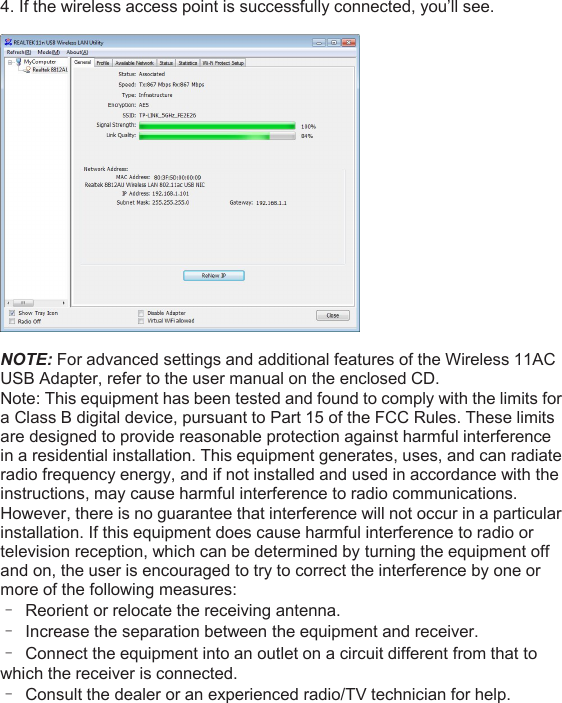
3. If the wireless network uses encryption, you need to input the correctencryption key. The configuration utility automatically suggests the correctauthentication type (see the drop-down list), and you should not change thesuggested value.NOTE: For WPA/WPA2 networks, you need to select the correctencryption type, as well (AES or TKIP). These settings depend on how thewireless network is set up. Only the owner of the wireless network canprovide the required information.
4. If the wireless access point is successfully connected, you’ll see.NOTE: For advanced settings and additional features of the Wireless 11ACUSB Adapter, refer to the user manual on the enclosed CD.Note: This equipment has been tested and found to comply with the limits fora Class B digital device, pursuant to Part 15 of the FCC Rules. These limitsare designed to provide reasonable protection against harmful interferencein a residential installation. This equipment generates, uses, and can radiateradio frequency energy, and if not installed and used in accordance with theinstructions, may cause harmful interference to radio communications.However, there is no guarantee that interference will not occur in a particularinstallation. If this equipment does cause harmful interference to radio ortelevision reception, which can be determined by turning the equipment offand on, the user is encouraged to try to correct the interference by one ormore of the following measures:–Reorient or relocate the receiving antenna.–Increase the separation between the equipment and receiver.–Connect the equipment into an outlet on a circuit different from that towhich the receiver is connected.–Consult the dealer or an experienced radio/TV technician for help.

Navigation menu