TOPHEAD TM150AK TFT LCD Monitor User Manual

TOPHEAD Co., Ltd. TFT LCD Monitor

User Manual

                                                                                      - 1 -TM-150AK User’s ManualUUsseerr’’ss  MMaannuuaall  FFoorr        TTFFTT  LLCCDD  MMoonniittoorrTOPHEAD SUPER MONITORMODEL : TM-150AKAug. 2001                                                                                    2F. ILDONG Pharmaceutical building , 60                                                         Yangjae-Dong Seocho-Gu, Seoul, Korea, #137-130Tophead Co., Ltd                                   Tel. +82-2-3462-1550                                   Fax. +82-2-3462-1560
                                       - 2 -TM-150AK User’s ManualINDEX1.  General Description 2.  Usage Notices3.  Packing Check List4.  Installtion5.  Operation          6. Applicable Timming7. Appendice8. Specification
                                       - 3 -TM-150AK User’s ManualFCC NOTICE  NOTE: This equipment has been tested and found to comply with the limits for a Class B digitaldevice, pursuant to Part 15 of the FCC Rules.These limits are designed to provide reasonable protection against harmful interference in aresidential installation.This equipment generates, uses and can radiate radio frequency energy and, if not installedand used in accordance with the instructions, may cause harmful interference to radiocommunications.However, there is no guarantee that interference will not occur in a particular installation.  Ifthis equipment does cause harmful interference to radio or television reception,        which can be determined by turning the equipment off and on, the user is encouraged to try tocorrect the interference by one or more of the following measures:       -Reorient or relocate the receiving antenna.       -Increase the separation between the equipment and receiver.       -Connect the equipment into an outlet on a circuit different from that to which the receiver isconnected.       -Consult the dealer or an experienced radio/TV technician for help. NOTE: The manufacturer is not responsible for any radio or TV interference caused by unauthorizedmodifications to this equipment.Such modifications could void the user's authority to operate the equipment.
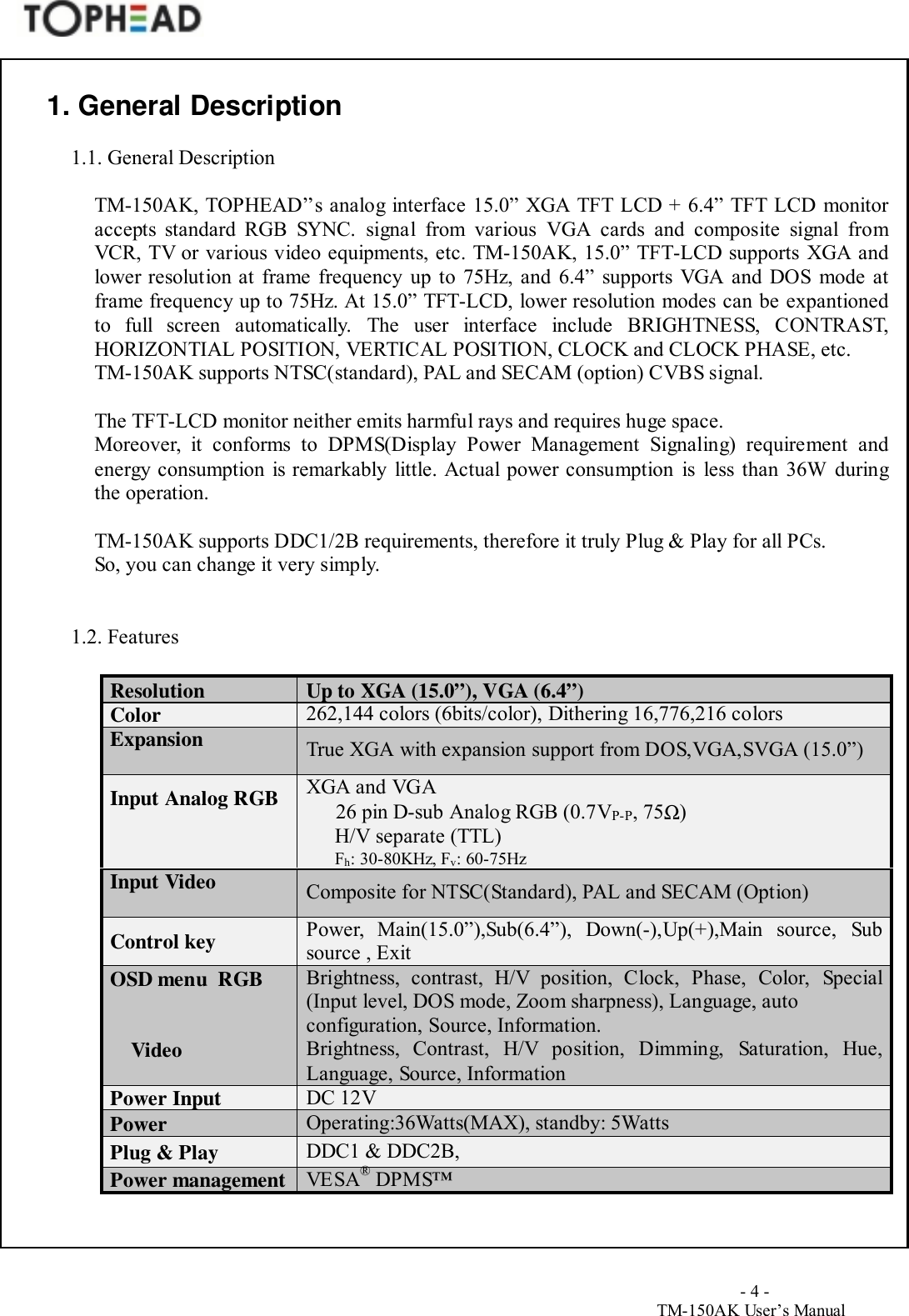
                                       - 4 -TM-150AK User’s Manual1. General Description1.1. General DescriptionTM-150AK, TOPHEAD’’s analog interface 15.0” XGA TFT LCD + 6.4” TFT LCD monitoraccepts standard RGB SYNC. signal from various VGA cards and composite signal fromVCR, TV or various video equipments, etc. TM-150AK, 15.0” TFT-LCD supports XGA andlower resolution at frame frequency up to 75Hz, and 6.4” supports VGA and DOS mode atframe frequency up to 75Hz. At 15.0” TFT-LCD, lower resolution modes can be expantionedto full screen automatically. The user interface include BRIGHTNESS, CONTRAST,HORIZONTIAL POSITION, VERTICAL POSITION, CLOCK and CLOCK PHASE, etc.TM-150AK supports NTSC(standard), PAL and SECAM (option) CVBS signal.The TFT-LCD monitor neither emits harmful rays and requires huge space.Moreover, it conforms to DPMS(Display Power Management Signaling) requirement andenergy consumption is remarkably little. Actual power consumption is less than 36W duringthe operation.TM-150AK supports DDC1/2B requirements, therefore it truly Plug & Play for all PCs.So, you can change it very simply.1.2. FeaturesResolution Up to XGA (15.0”), VGA (6.4”)Color 262,144 colors (6bits/color), Dithering 16,776,216 colorsExpansion True XGA with expansion support from DOS,VGA,SVGA (15.0”)Input Analog RGB XGA and VGA26 pin D-sub Analog RGB (0.7VP-P, 75Ω)H/V separate (TTL)Fh: 30-80KHz, Fv: 60-75HzInput Video Composite for NTSC(Standard), PAL and SECAM (Option)Control key Power, Main(15.0”),Sub(6.4”), Down(-),Up(+),Main source, Subsource , ExitOSD menu  RGBVideoBrightness, contrast, H/V position, Clock, Phase, Color, Special(Input level, DOS mode, Zoom sharpness), Language, autoconfiguration, Source, Information.Brightness, Contrast, H/V position, Dimming, Saturation, Hue,Language, Source, InformationPower Input DC 12VPower Operating:36Watts(MAX), standby: 5WattsPlug & Play DDC1 & DDC2B,Power management VESA® DPMS™
                                       - 5 -TM-150AK User’s Manual2. Usage NoticesWarningPlease do not open or disassemble the products, it may cause electric shock.Please be advised all warnings, precautions and maintenance advice as recommended in this user’smanual in order to maximize the life of your display.DoTurn off the display before cleaning its surface.Periodically wipe its surface with a soft and dry cloth.Use only the quality & safety-approved AC/DC adapter.Disconnect the power plug from the AC outlet, when the product is not in use for a long period of time.Don’tExpose the display to ;Extremely hot, cold or humid environments during operation (10° C to 40 °C, Humidity:10% ~ 80%)Area susceptible to dust   Direct sunlight   Abrasive cleaners, waxes or solventsIMPORTANT NOTE- FRAME FREQUENCY (or REFRESH RATE) SETTINGTM-150AK is designed to run under the frame frequency (or refresh rate) up to 75Hz.It is highly recommended for you to change the frame frequency of your PC to 60Hz, because TFTLCD monitor shows best performance in frame frequency 60Hz.In order to change it, you can use the diskette or CD-ROM that is included in the product.When you install the TM-150AK with your computer system, which is installed Windows 95/98already, you may have difficulty due to no display (black screen).This could be caused by the display setting differences between TM-150AK and your previousmonitor.  In this case, please start the installation from the Safe mode of Windows 95/98.You can enter Safe mode as follows.1. Press F8 key on the keyboard before Windows starting logo displays.2. There will be selection menus on the DOS mode and then select “Safe mode” by using up/down cursor key or number key on the keyboard.3.  Press enter key to continue. Then, you will be entered into the Safe mode.4. Start the installation process by using “Add New Hardware Wizard” or “Display Propertiesdialogs” as described on the following section.
                                       - 6 -TM-150AK User’s ManualINSTALLATION of TOPHEAD TFT LCD Monitor Display Driver in Windows 95 / 98Installation instructions using the Add New Hardware Wizard1. Start Windows 95 or 98.2. Insert the labeled TOPHEAD.INF disk into the floppy drive or CD-ROM into the CR-Rom drive.3. Click the Start button. Click the Setting and Control Panel menu item.4. From the Control Panel folder select the Add New Hardware icon.5. Follow the instructions.   When you are asked to 'Select the type of hardware you want to install’, please select Monitors.6. Press the Have disk button from the next dialog.7. Select the ‘A’ drive or  CD-Rom drive from the dialog, then press OK. The wizard willautomatically install the Display Drivers.8. Follow the additional instructions given by the wizard.Installation instructions using the Display Properties dialogs1. Click the Right mouse button on the empty Desktop area.2. Select the Settings property dialog. Press the Advanced Properties button.3. From the Advanced Display Properties dialog select the Change buttons.4. Press the Have disk button from the next dialog.5. Select the ‘A’ drive or CD-ROM drive from the dialog, then press OK. The wizard willautomatically install the Display Drivers.6. Follow the additional instructions given by the wizard.Some video cards may not accept this setting. In this case, you can change the frequency in the‘advanced property’ of ‘display setting’ window.Installation instructions using the Plug & Play1.Connect the Video cable and turn on the monitor before turn on the computer.2. Turn on the computer.3. After Windows 95/98 starts, there will be a window message “New Hardware Found”.  If this message is not displayed, please install the monitor driver with other message.4. Select item ”Driver Disk Provided by Manufacturer” and Press OK button to go to next window“Have Disk”.5. Please insert TM-150AK Windows driver floppy disk into floppy drive or CD-ROM into cd-romdrive and Press OK.6. On the device selection menu, select “TM-150AK” and press OK.7. Windows will automatically install the driver.3. Packing Check ListTM-150AK TFT-LCD monitor with 26pin VGA signal cablePower CordAC/DC Power AdapterUSB CameraCD-ROM and DisketteUser’s ManualVGA card
                                       - 7 -TM-150AK User’s Manual4. Installation∙∙  Turn off all equipment first.∙  Connect the jack plug of the AC/DC adapter with the power socket at the rear of the display.Insert one end of the power cord into the AC/DC adapter and the other end into the AC outlet.∙  Connect the computer source;    After plug a VGA card and than, connect the display and the computer with the 26-pin signal cable.∙  Connect the video source.  Connect the video cable to the video output of the video processor. (VCR, TV, etc)∙  Push on the power switch.  When the whole computer system is installed properly, the green LED will be illuminated and animage will be displayed on the screen.∙  Adjust the picture. (Please refer to page 7 ~ 14 of this manual for image adjustment.)5. Operation5.1. OSD (On Screen Display) menu enables user to manipulate the image and settings.                                                                   5.1.1 Analog RGB Mode    5.1.2 Video Mode5.2 OSD setting procedure5.2.1. Brightness and Contrast Adjustment
                                       - 8 -TM-150AK User’s ManualPress MENU button to display OSD menu.Move to Brightness or Contrast and then press MENU button. (The status bar change to RED)Pressing ‘DOWN’ or ‘UP’ button, you can adjust your image.Press MENU button to save current setting . (The status bar recover to GREEN)Or Press EXIT button to save current setting & exit MENU.5.2.2. Horizontal and Vertical Position AdjustmentPress MENU button to display OSD menu.Move to Horizontal or Vertical Position and then press MENU button. (The status bar change to RED)Pressing ‘DOWN’ or ‘UP’ button, you can locate your image at the center.Press MENU button to save current setting. (The status bar recover to GREEN)Or Press EXIT button to save current setting & exit OSD MENU.You can use Auto Configuration to adjust the image size and position in Windows modeautomatically.• Some kinds of VGA card have different timing. The Ad board cannot adjustscreen position. At this time you can adjust the screen position manully.
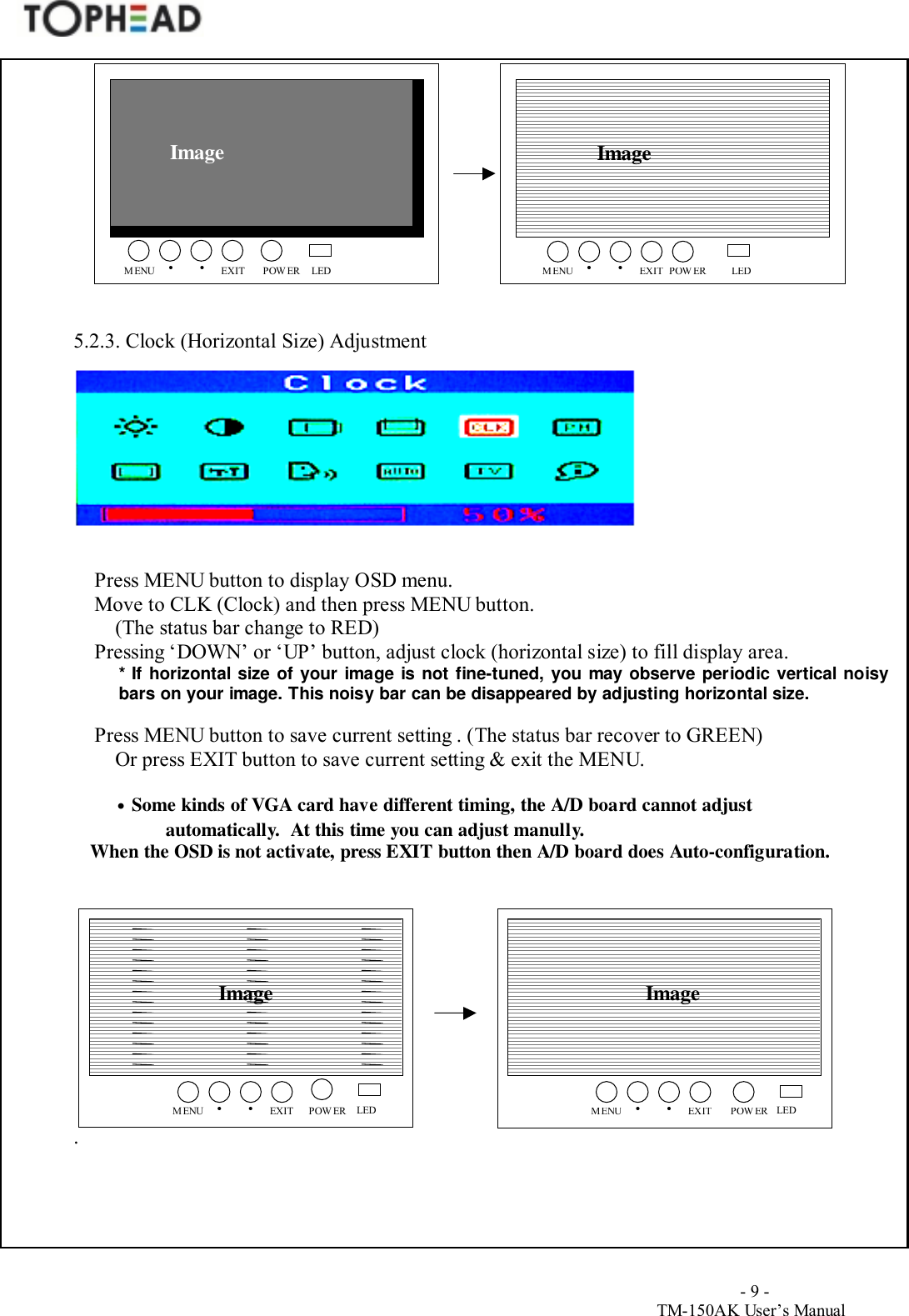
                                       - 9 -TM-150AK User’s Manual5.2.3. Clock (Horizontal Size) AdjustmentPress MENU button to display OSD menu.Move to CLK (Clock) and then press MENU button.(The status bar change to RED)Pressing ‘DOWN’ or ‘UP’ button, adjust clock (horizontal size) to fill display area.* If horizontal size of your image is not fine-tuned, you may observe periodic vertical noisybars on your image. This noisy bar can be disappeared by adjusting horizontal size.Press MENU button to save current setting . (The status bar recover to GREEN)Or press EXIT button to save current setting & exit the MENU.• Some kinds of VGA card have different timing, the A/D board cannot adjustautomatically.  At this time you can adjust manully.            When the OSD is not activate, press EXIT button then A/D board does Auto-configuration..Image ImageMENUEXIT•POWER•LEDMENU EXIT•POWER•LEDImageMENUEXIT•POWER•LEDMENU EXIT•POWER•LEDImage
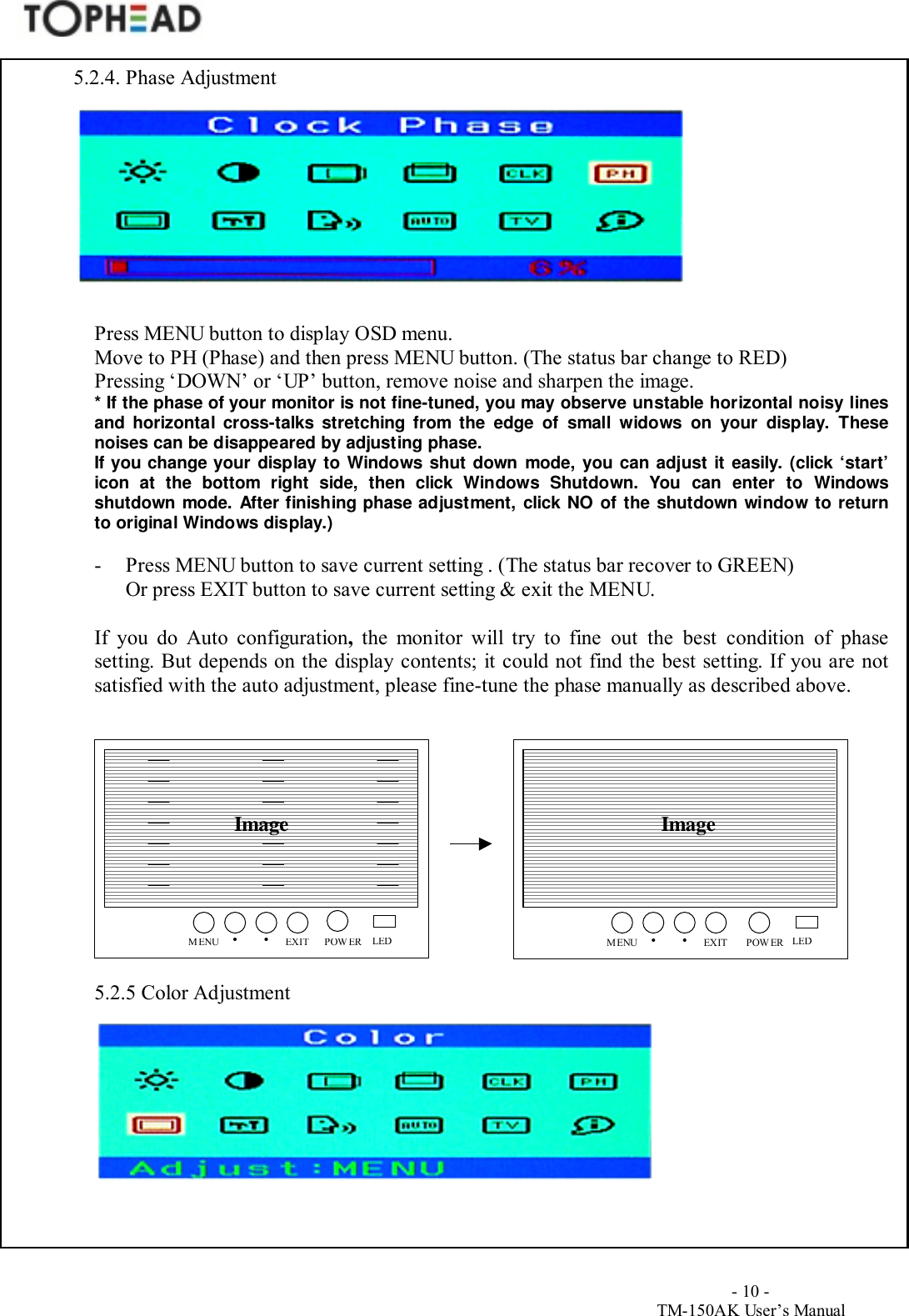
                                       - 10 -TM-150AK User’s Manual5.2.4. Phase AdjustmentPress MENU button to display OSD menu.Move to PH (Phase) and then press MENU button. (The status bar change to RED)Pressing ‘DOWN’ or ‘UP’ button, remove noise and sharpen the image.* If the phase of your monitor is not fine-tuned, you may observe unstable horizontal noisy linesand horizontal cross-talks stretching from the edge of small widows on your display. Thesenoises can be disappeared by adjusting phase.If you change your display to Windows shut down mode, you can adjust it easily. (click ‘start’icon at the bottom right side, then click Windows Shutdown. You can enter to Windowsshutdown mode. After finishing phase adjustment, click NO of the shutdown window to returnto original Windows display.)- Press MENU button to save current setting . (The status bar recover to GREEN)Or press EXIT button to save current setting & exit the MENU.If you do Auto configuration, the monitor will try to fine out the best condition of phasesetting. But depends on the display contents; it could not find the best setting. If you are notsatisfied with the auto adjustment, please fine-tune the phase manually as described above.5.2.5 Color AdjustmentImage ImageMENU EXIT•POWER•LEDMENUEXIT•POWER•LED
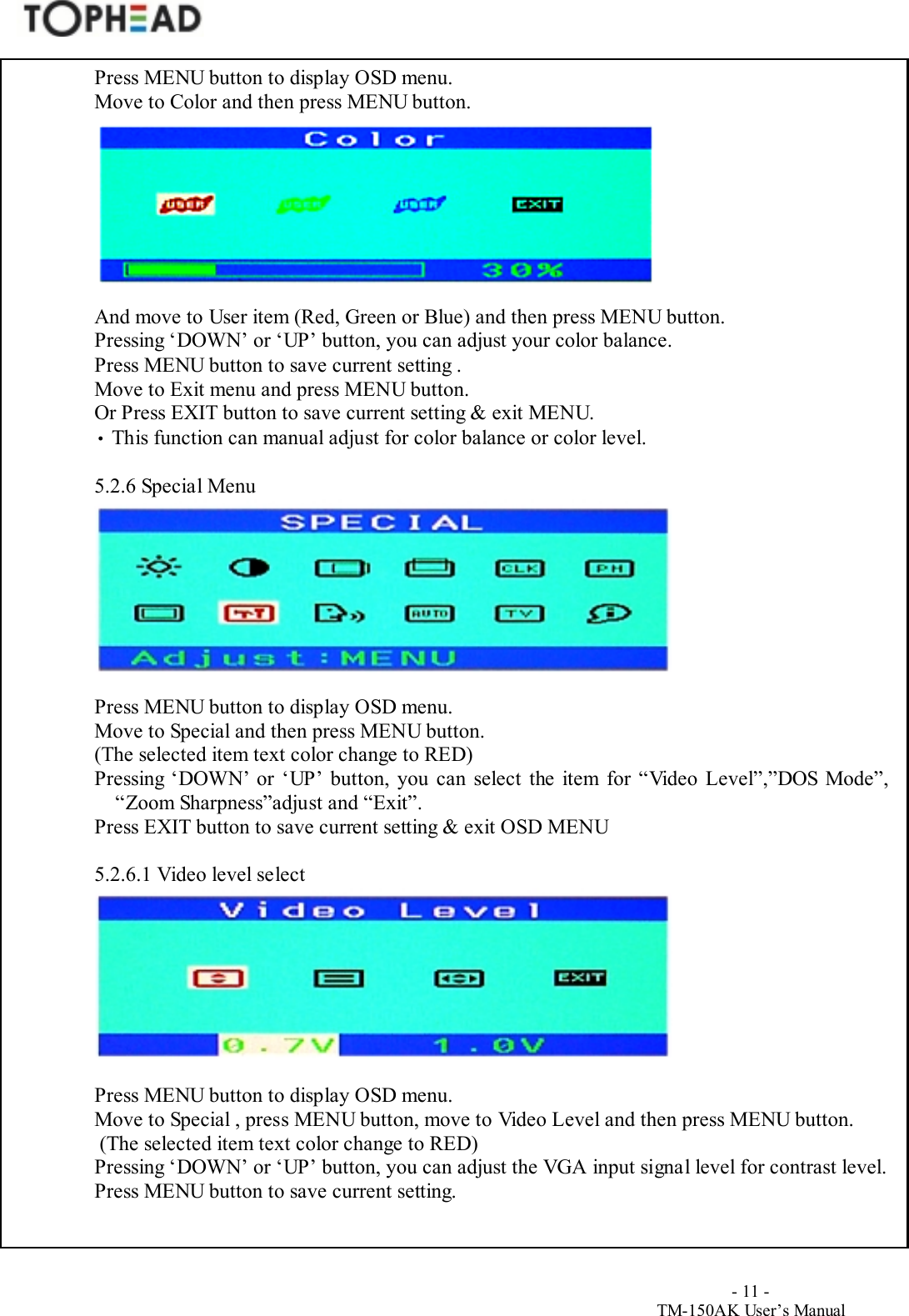
                                       - 11 -TM-150AK User’s ManualPress MENU button to display OSD menu.Move to Color and then press MENU button.And move to User item (Red, Green or Blue) and then press MENU button.Pressing ‘DOWN’ or ‘UP’ button, you can adjust your color balance.Press MENU button to save current setting .Move to Exit menu and press MENU button.Or Press EXIT button to save current setting & exit MENU.• This function can manual adjust for color balance or color level.5.2.6 Special MenuPress MENU button to display OSD menu.Move to Special and then press MENU button.(The selected item text color change to RED)Pressing ‘DOWN’ or ‘UP’ button, you can select the item for “Video Level”,”DOS Mode”,“Zoom Sharpness”adjust and “Exit”.Press EXIT button to save current setting & exit OSD MENU5.2.6.1 Video level selectPress MENU button to display OSD menu.Move to Special , press MENU button, move to Video Level and then press MENU button. (The selected item text color change to RED)Pressing ‘DOWN’ or ‘UP’ button, you can adjust the VGA input signal level for contrast level.Press MENU button to save current setting.
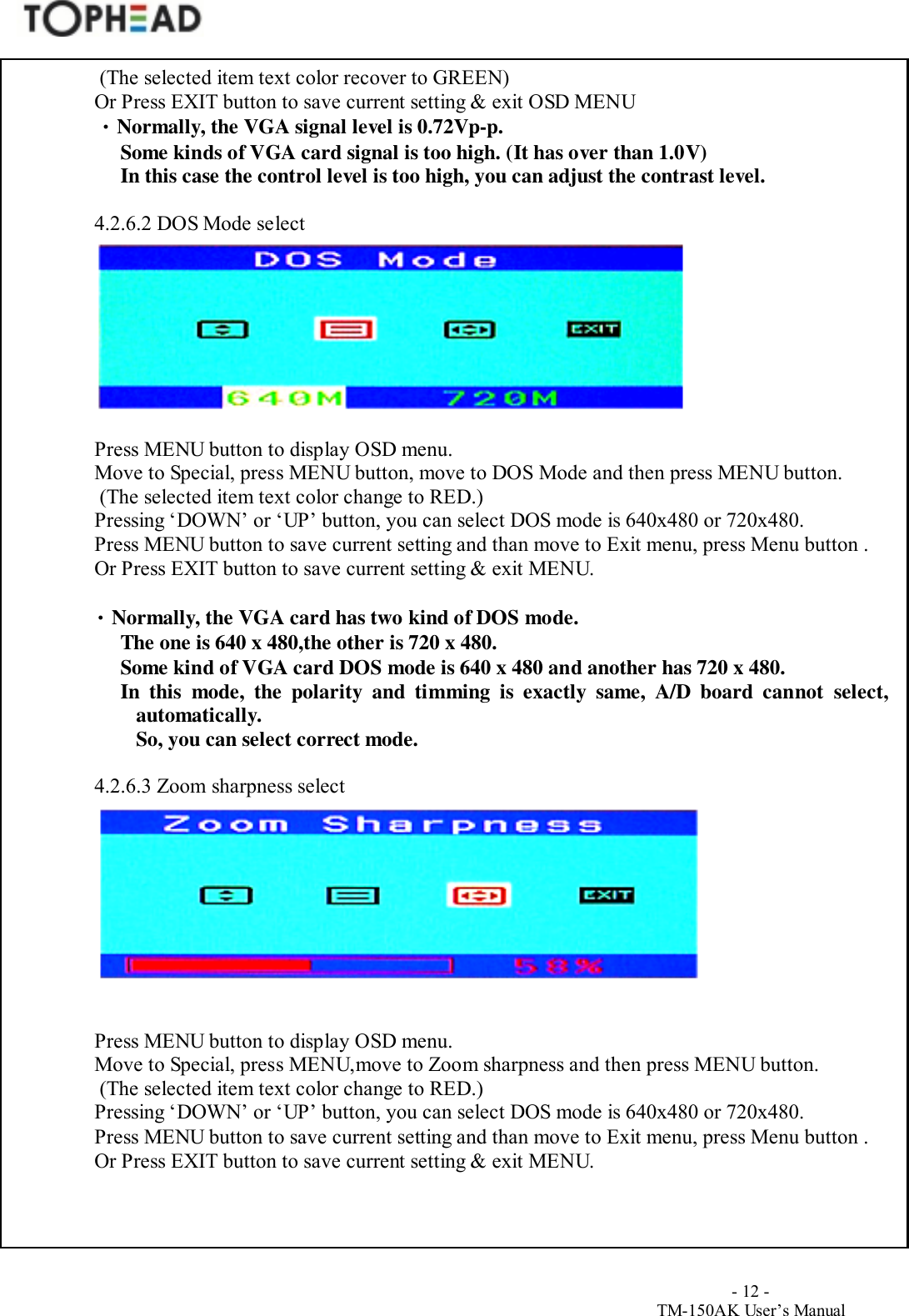
                                       - 12 -TM-150AK User’s Manual (The selected item text color recover to GREEN)Or Press EXIT button to save current setting & exit OSD MENU • Normally, the VGA signal level is 0.72Vp-p. Some kinds of VGA card signal is too high. (It has over than 1.0V) In this case the control level is too high, you can adjust the contrast level.4.2.6.2 DOS Mode selectPress MENU button to display OSD menu.Move to Special, press MENU button, move to DOS Mode and then press MENU button. (The selected item text color change to RED.)Pressing ‘DOWN’ or ‘UP’ button, you can select DOS mode is 640x480 or 720x480.Press MENU button to save current setting and than move to Exit menu, press Menu button .Or Press EXIT button to save current setting & exit MENU.• Normally, the VGA card has two kind of DOS mode. The one is 640 x 480,the other is 720 x 480. Some kind of VGA card DOS mode is 640 x 480 and another has 720 x 480. In this mode, the polarity and timming is exactly same, A/D board cannot select,automatically.So, you can select correct mode.4.2.6.3 Zoom sharpness selectPress MENU button to display OSD menu.Move to Special, press MENU,move to Zoom sharpness and then press MENU button. (The selected item text color change to RED.)Pressing ‘DOWN’ or ‘UP’ button, you can select DOS mode is 640x480 or 720x480.Press MENU button to save current setting and than move to Exit menu, press Menu button .Or Press EXIT button to save current setting & exit MENU.
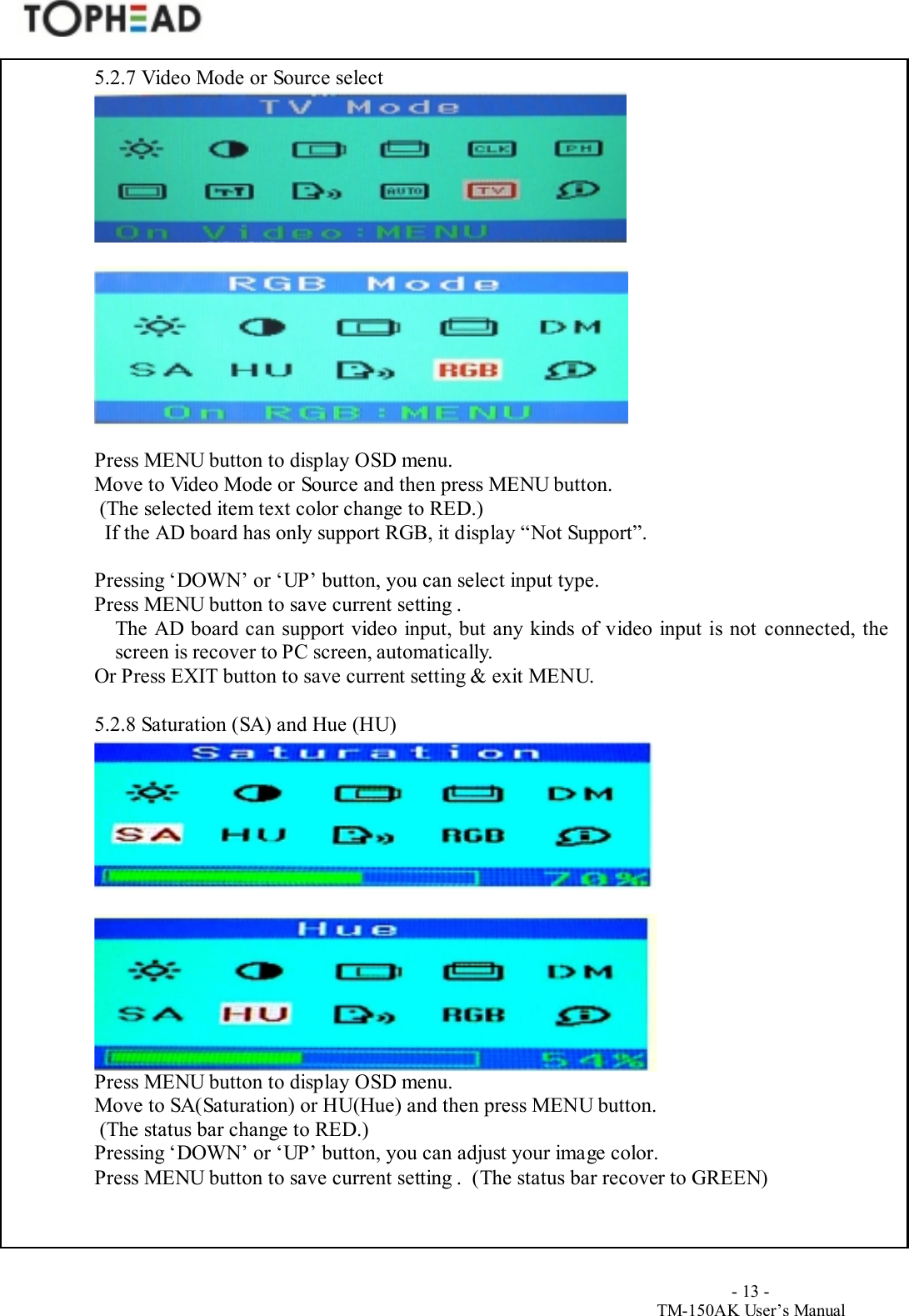
                                       - 13 -TM-150AK User’s Manual5.2.7 Video Mode or Source selectPress MENU button to display OSD menu.Move to Video Mode or Source and then press MENU button. (The selected item text color change to RED.)  If the AD board has only support RGB, it display “Not Support”.Pressing ‘DOWN’ or ‘UP’ button, you can select input type.Press MENU button to save current setting .The AD board can support video input, but any kinds of video input is not connected, thescreen is recover to PC screen, automatically.Or Press EXIT button to save current setting & exit MENU.5.2.8 Saturation (SA) and Hue (HU)Press MENU button to display OSD menu.Move to SA(Saturation) or HU(Hue) and then press MENU button. (The status bar change to RED.)Pressing ‘DOWN’ or ‘UP’ button, you can adjust your image color.Press MENU button to save current setting .  (The status bar recover to GREEN)
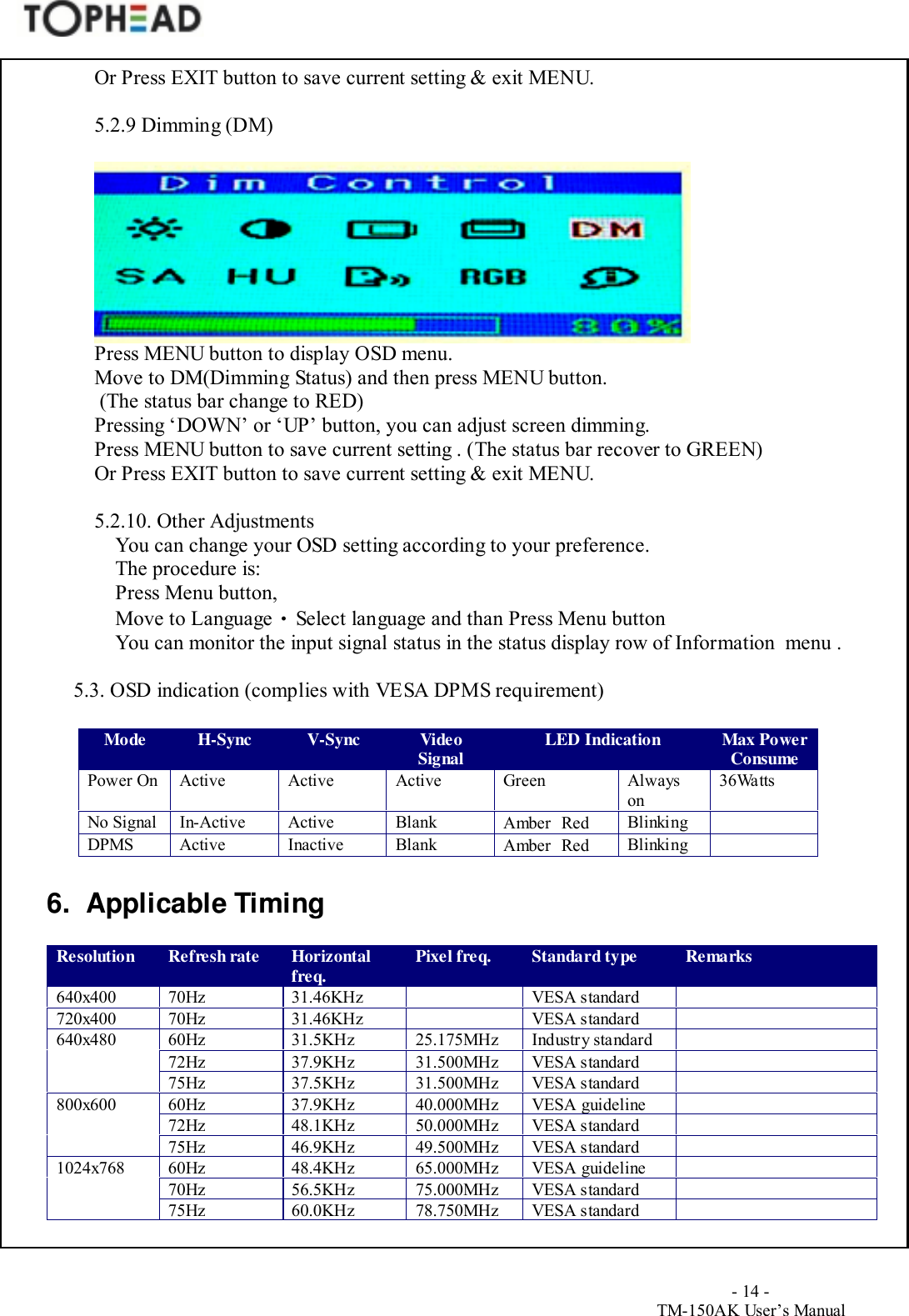
                                       - 14 -TM-150AK User’s ManualOr Press EXIT button to save current setting & exit MENU.5.2.9 Dimming (DM)Press MENU button to display OSD menu.Move to DM(Dimming Status) and then press MENU button. (The status bar change to RED)Pressing ‘DOWN’ or ‘UP’ button, you can adjust screen dimming.Press MENU button to save current setting . (The status bar recover to GREEN)Or Press EXIT button to save current setting & exit MENU.5.2.10. Other AdjustmentsYou can change your OSD setting according to your preference.The procedure is:Press Menu button,Move to Language • Select language and than Press Menu buttonYou can monitor the input signal status in the status display row of Information  menu .5.3. OSD indication (complies with VESA DPMS requirement)Mode H-Sync V-Sync VideoSignal LED Indication Max PowerConsumePower On Active Active Active Green Alwayson36WattsNo Signal In-Active Active Blank Amber Red Blinki ngDPMS Active Inactive Blank Amber Red Blinki ng6.  Applicable TimingResolution Refresh rate Horizontalfreq. Pixel freq. Standard type Remarks640x400 70Hz 31.46KHz VESA standard720x400 70Hz 31.46KHz VESA standard60Hz 31.5KHz 25.175MHz Industry standard72Hz 37.9KHz 31.500MHz VESA standard640x48075Hz 37.5KHz 31.500MHz VESA standard60Hz 37.9KHz 40.000MHz VESA guideline72Hz 48.1KHz 50.000MHz VESA standard800x60075Hz 46.9KHz 49.500MHz VESA standard60Hz 48.4KHz 65.000MHz VESA guideline70Hz 56.5KHz 75.000MHz VESA standard1024x76875Hz 60.0KHz 78.750MHz VESA standard
                                       - 15 -TM-150AK User’s Manual7.  AppendicesTroubleshootingWarning : Please do not open the TM-150AK, because it may cause electric shock. Also, TOPHEAD’swarranty program can not support the damages, which are caused by such reasons. When problemspersist in spite of trying the following troubleshooting advice, please contact the Service Center listedon the back of this manual.Problems and Check points :No image appears on the screen.∙  Check if the display is in power saving mode.∙  Check if the display is switched on and the power cable is correctly connected.∙  If the power LED is red color, check if the signal cable is securely connected.   Also, make sure the pins of connectors are not crooked or broken.Image is unstable (flicker, interference, noise, etc.,)∙  Check if signal cable is secured.∙  Check if the frame frequency of video signal is lower than 75Hz. This monitor can not run over 75Hz. In this case, please change the settings of control panel of Windows to lower than 75 Hz.∙  You can adjust screen position, clock and clock phase by auto configuration or manually.   (Horizontal Position, Vertical Position, Clock and Phase)8. SpecificationLCD Technologies∙ Active matrix color TFT LCD.∙ 15.0" (381mm),  6.4”(162mm) diagonal size∙ 15.0” : 1024 x 768 , 6.4” : 640x 480 addressable pixels.∙ 15.0” : 0.297(H)mm x 0.297(W)mm, 6.4” : 0.204(H)mm x 0.204(W)mm pixel pitch.∙ 15.0” : 250cd/m2, 6.4” : 150cd/m2 Typical brightness∙ 15.0” : 4 CCFLs,  6.4” : 1CCFL∙ 15.0” : 300:1, 6.4” : 250:1 Typical contrast ratio.Display Resolution ∙ 15.0” : 1024 horiz. By 768 vert. Pixels∙ 6.4” : 640 horiz. By 480 vert. PixelsActive Display area(H X V) ∙ 15.0” 11.97" x 8.98" (304.13mm x 228.1mm) ∙ 6.4” : 5.14" x 3.85" (130.56mm x 97.92mm)Displayable color∙ 262,144 colorsHorizontal Scan∙ 15.0” : 30KHz to 80KHz∙ 6.4”  : 30KHz to 37.9KHzFrame Frequency (Refresh rate)
                                       - 16 -TM-150AK User’s Manual∙ 60Hz (Typical, Recommended) ~ 75Hz (Maximum)Input Signal∙ Video : Analog R.G.B, 0.7Vp-p.∙ Sync.: Separate sync. TTL level.              Composite sync. TTL level.Plug & Play∙ VESA DDC1/2B.       ∙ Composite Video signal (NTSC (Standard), PAL,SECAM (Option))I/O Connectors∙ DC power in, VGA 26-pin D-sub.∙ Composite InPower Saving∙ VESA DPMS standard.Power Consumption (Max.)∙ 36 Watts (Operating)∙ 5 Watts (Stand-by)AC/DC Adapter∙ Input : universal AC 100-250V.∙ Output : DC 12V.∙ UL, CSA, CE Approved.Environmental∙ Operating  Temperature : 10° C to 40 °C  Humidity:10% ~ 80%∙ Storage    Temperature : -20°C to 60°C  Humidity : 90% max.

Navigation menu