TRENDnet 3 UG TPL 422E E2K(v1.0R)
UG_TPL-422E_E2K(v1.0R) .trendnet.com - /TPL-422E/manual/
User Manual: TRENDnet .trendnet.com - /TPL-422E2K/manual/
Open the PDF directly: View PDF  .
.
Page Count: 26
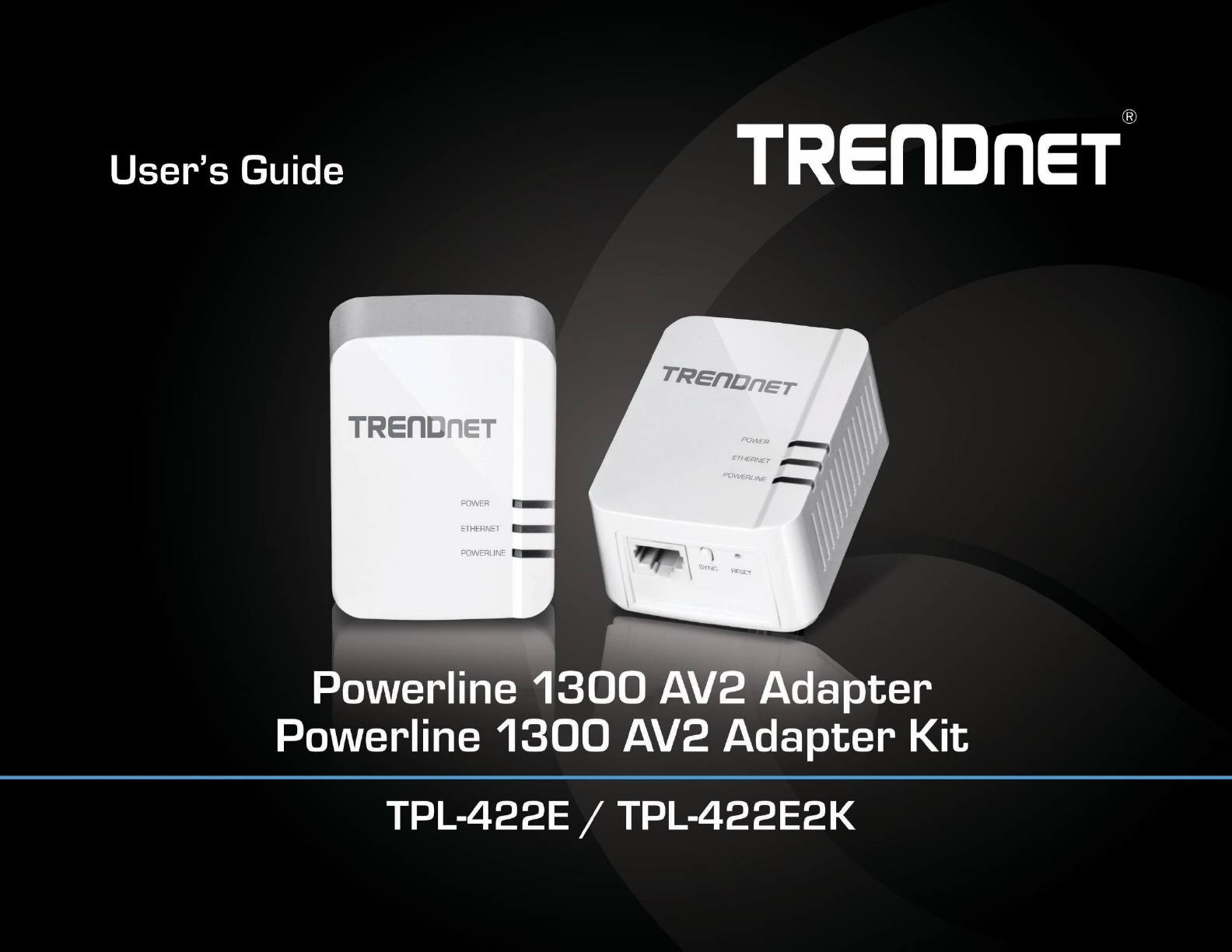
TRENDnet User’s Guide
Cover Page

© Copyright 2018 TRENDnet. All Rights Reserved.
TRENDnet User’s Guide
Table of Contents
i
Contents
Product Overview ........................................................................... 1
Package Contents .......................................................................................................... 1
Features ......................................................................................................................... 1
Product Hardware Features........................................................................................... 2
Expanding a Powerline Network ...................................................... 3
Basic Installation ............................................................................................................ 4
Installing your Powerline Adapters .................................................. 5
Powerline Security ......................................................................................................... 5
Before you Install ........................................................................................................... 5
Connect a Powerline adapter to your router ................................................................ 6
Add adapters to your network ...................................................................................... 6
Securing your Powerline Network ................................................... 7
Scramble your Network Name and Encryption ............................................................. 7
The Powerline Utility ....................................................................... 8
Powerline Utility System Requirements ........................................................................ 8
Software Installation ..................................................................................................... 8
Using the Utility ........................................................................................................... 12
Powerline Utility – Map View ........................................................ 13
Powerline Utility – Detailed View .................................................. 15
Powerline Utility – Device Setup ................................................... 16
Powerline Utility – Advanced ........................................................ 17
Powerline Utility – Options ........................................................... 18
Powerline Utility – About .............................................................. 19
Technical Specifications ................................................................ 20
Troubleshooting ........................................................................... 21
Appendix ...................................................................................... 22
© Copyright 2018 TRENDnet. All Rights Reserved.
TRENDnet User’s Guide
TPL-422E / TPL-422E2K
1
Product Overview
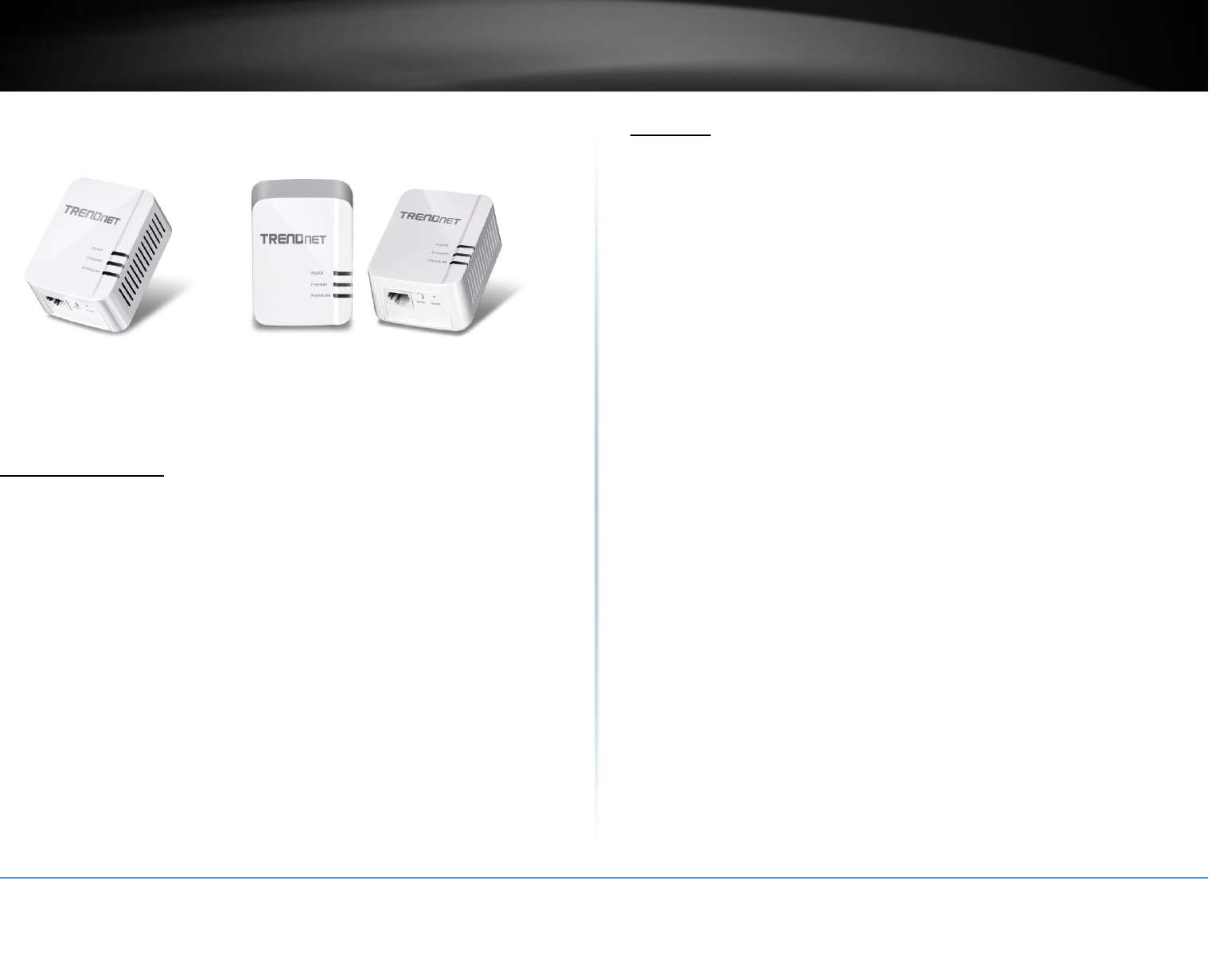
TPL-422E TPL-422E2K
Package Contents
TPL-422E package includes:
TPL-422E
Quick Installation Guide
CD-ROM (Utility & User’s Guide)
Network cable (1.5 m / 5 ft.)
TPL-422E2K package includes:
2 x TPL-422E
Quick Installation Guide
CD-ROM (Utility & User’s Guide)
2 x network cables (1.5 m / 5 ft.)
If any package contents are missing or damaged, please contact the retail store, online
retailer, or reseller/distributor from which the product was purchased.
Features
Powerline 1300 AV2 Adapter (TPL-422E)
TRENDnet’s Powerline 1300 AV2 Adapter, model TPL-422E, creates a high-speed
Powerline 1300 network using your home’s existing electrical system. Two adapters are
needed to start a network. TRENDnet adapters are protected with 128-bit AES
Encryption. Plug in the first adapter and network it to your existing router. Plug in other
adapters on the same electrical system and they auto-connect to the first adapter for
instant internet access.
Powerline 1300 AV2 Adapter Kit (TPL-422E2K)
TRENDnet’s Powerline 1300 AV2 Adapter Kit, model TPL-422E2K, comes with two
Powerline adapters to create a high-speed Powerline 1300 network using your home’s
existing electrical system. Two adapters are needed to start a network. TRENDnet
adapters are protected with 128-bit AES Encryption. Plug in the first adapter and
network it to your existing router. Plug in other adapters on the same electrical system
and they auto-connect to the first adapter for instant internet access.
Sync Button
Press the Sync button to change existing Powerline encryption keys
Powerline 1300
Powerline 1300 technology delivers fast and stable networking to seamlessly connect
devices and stream 4K video.
Gigabit Port
Gigabit port for computers, smart TVs, or other network enabled devices
Cross Compatibility
Cross compatible with Powerline 1200, 600, 500, and 200 adapters
© Copyright 2018 TRENDnet. All Rights Reserved.
TRENDnet User’s Guide
TPL-422E / TPL-422E2K
2
MIMO with Beamforming Technology
Multiple Input Multiple Output (MIMO) Powerline with Beamforming technology uses
live, neutral, and ground wires to increase performance between adapters.
Expandable
Use up to 8 adapters on a single Powerline network
Easy Installation
TRENDnet adapters auto-connect out of the box
128-bit AES Encryption
Powerline communication is protected with 128-bit AES encryption
Note:
* Maximum of 8 adapters (nodes) recommended for streaming video across your
network.
** 1.3Gbps is the maximum theoretical Powerline data rate when connected to another
Powerline 1300 device. Data throughput may vary by circuit wire conditions.
*** Powerline communication works on a single electrical system. (Usually controlled by
a single distribution panel). Power strip, GFCI outlets, and AFCI circuit breakers may
degrade Powerline network signals.
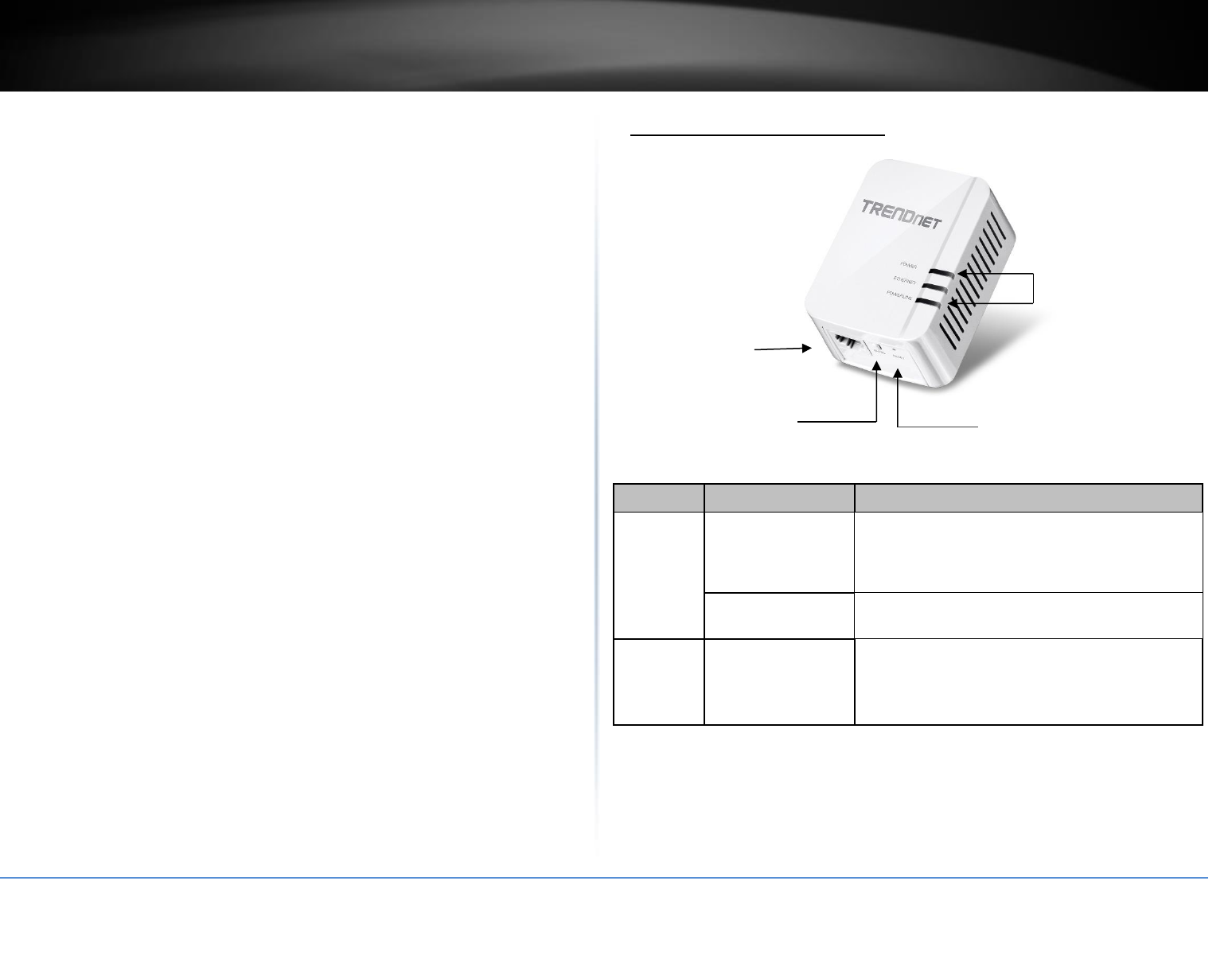
Product Hardware Features
Power Save Mode: The Powerline adapter will automatically going into standby mode
to reduce power usage when there is no network traffic for more than 10~20 minutes.
All LEDs are going off. It can be wake up automatically when the network traffic is
coming again. It will take a couple of seconds to wake up and resume back to full speed
of service.
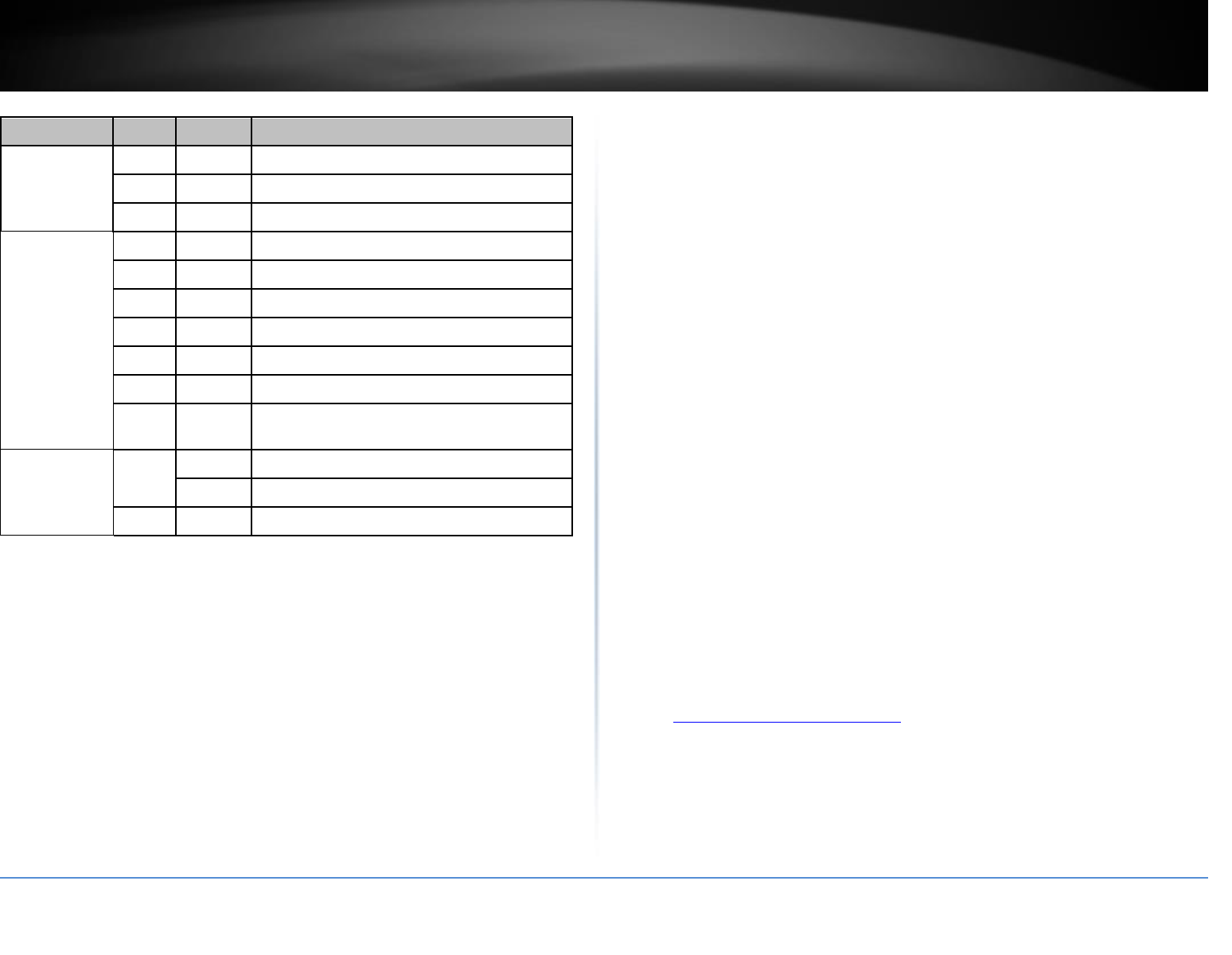
Button
Action
Function
Sync
Press for 3 seconds
Begins synchronization session. The POWER LED will
begin to blink for 2 minutes. Press the Sync button on
additional adapters within the time frame to
synchronize to the powerline network.
Press for 15 seconds
Generates a new random network name and encryption
key (All LEDs will turn off and on again).
Reset
Press for 1 second
Resets device to factory defaults settings (All LEDs will
turn off and on again).
Note: Will reset to the factory default private network
name “HomePlug AV”.
Network Port
LED Indicators
Sync Button
Reset Button
© Copyright 2018 TRENDnet. All Rights Reserved.
TRENDnet User’s Guide
TPL-422E / TPL-422E2K
3
Powerline Connections: Powerline LED color indicates the strength and quality of the
Powerline connection through the electrical system. The following factors may affect
the Powerline network’s connection quality:
Ground Wire - Adapters should use all 3 wire sockets to boost up the Powerline
communication speed to gigabit.
Noise – Generated by appliances which use your electrical system (e.g.
Microwaves, ovens, hair dryer, irons, dishwashers, etc.). The quality of your
household electrical wiring may also cause additional noise on your electrical
system.
Distance – Long lengths of electrical wiring through your electrical system
between connected Powerline adapters.
Expanding a Powerline Network
What is a network?
A network is a group of computers or devices that can communicate with each other. A
home network of more than one computer or device also typically includes Internet
access, which requires a router.
A typical home network may include multiple computers, a media player/server, a
printer, a modem, and a router. A large home network may also have a switch,
additional routers, access points, and many Internet-capable media devices such as TVs,
game consoles, and Internet cameras.
Modem – Connects a computer or router to the Internet or ISP (Internet Service
Provider).
Router – Connects multiple devices to the Internet.
Switch –Connect several wired network devices to your home network. Your
router has a built-in network switch (the LAN port 1-4). If you have more wired
network devices than available Ethernet ports on your router, you will need an
additional switch to add more wired connections.
How to expand a home network
Wireless Access Points add or extend wireless connectivity to an existing network.
Integrated Powerline technology allows you to further extend your network using your
existing electrical system in your home using multiple powerline adapters.
Where to find more help
In addition to this User’s Guide, you can find help below:
http://www.trendnet.com/support (documents, downloads, and FAQs are
available from this Web page)
LED
Color
Sequence
Definition
Power
Green
Solid
Device is powered on
Green
Blinking
Powerline synchronization in progress
N/A
Off
Device is powered off or in sleep mode
Powerline
Green
Solid
Powerline connected (Best)
Green
Blinking
Data transmitting over powerline (Best)
Amber
Solid
Powerline connected (Good)
Amber
Blinking
Data transmitting over powerline (Good)
Red
Solid
Powerline connected
Red
Blinking
Data transmitting over powerline
N/A
Off
Powerline is not connected or synchronized, or the
adapter is in sleep mode
Ethernet
Green
Solid
Network connection established
Blinking
Network transmitting over Ethernet port
N/A
Off
No Ethernet connection or adapter is in sleep mode
© Copyright 2018 TRENDnet. All Rights Reserved.
TRENDnet User’s Guide
TPL-422E / TPL-422E2K
4
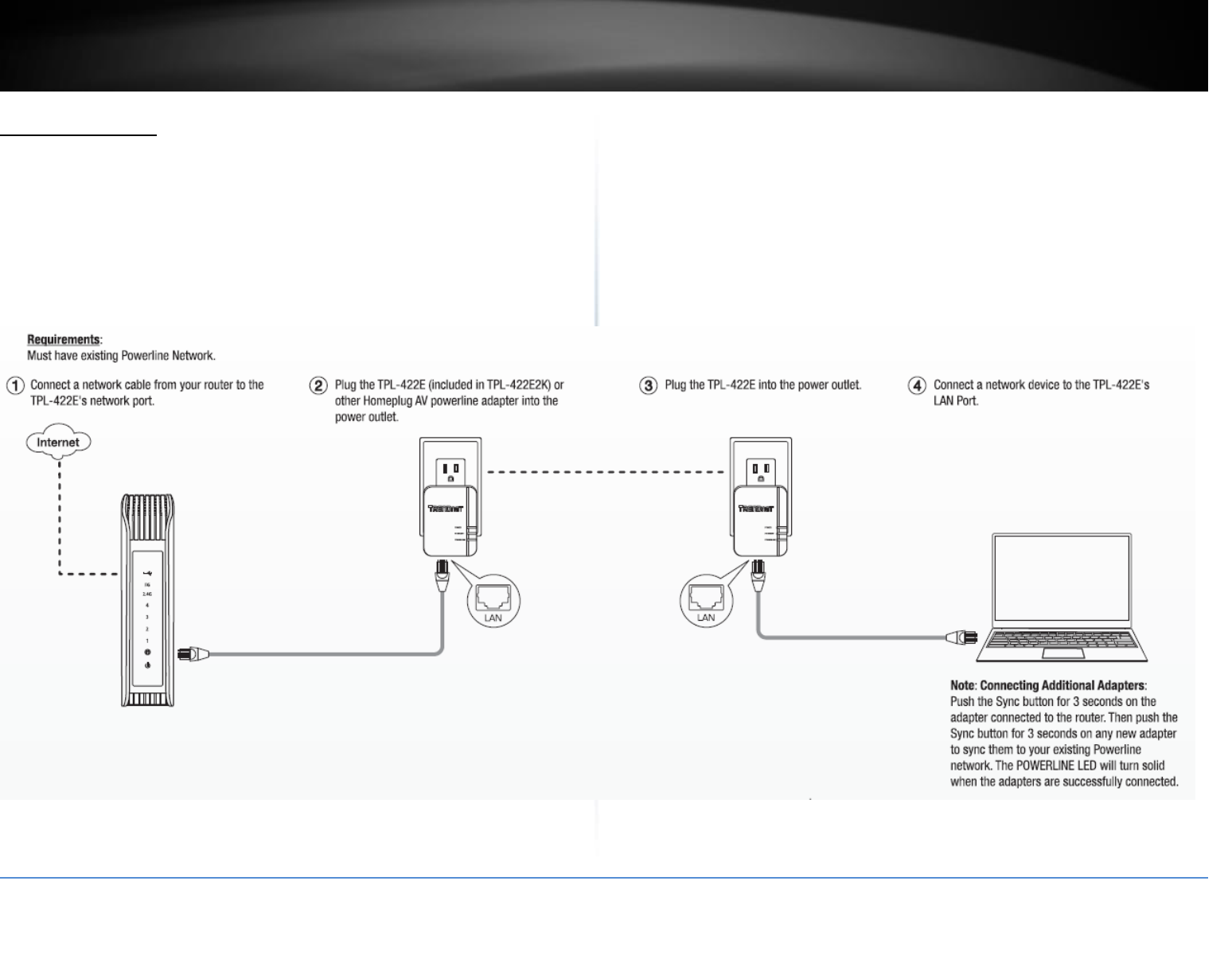
Basic Installation
Note: It is recommended to plug the adapters into nearby outlets before installing the devices to the desired locations.
Note: If you are connecting the adapters to a third-party powerline device other than TRENDnet and encounter issues, please refer to the manufacturer’s documentation for the
appropriate sync button procedure.
Note: The sync button procedure steps below demonstrate using TRENDnet powerline model TPL-422E, but the same procedure applies to TRENDnet powerline models TPL-406E / TPL-
407E / TPL-420E / TPL-421E / TPL-422E / TPL-423E / TPL-331EP.
Connecting the adapters using Powerline

© Copyright 2018 TRENDnet. All Rights Reserved.
TRENDnet User’s Guide
TPL-422E / TPL-422E2K
5
Installing your Powerline Adapters
Powerline Security
All out-of-the-box TRENDnet HomePlugAV Powerline adapters can be connected to each
other without further configuration. To add additional network security to your
network, you can change your Powerline network name away from the factory default.
With a customized private network name, no one can connect to your Powerline
network with an out-of-the-box HomePlugAV adapter.
TRENDnet HomePlugAV certified Powerline adapters have the same default network
name “HomePlugAV”. TRENDnet recommends that you change the Powerline network
name away from the factory default to increase network security. Once configured, the
Powerline network name will be saved on device. You can freely unplug the adapter and
moved to the other location within its operating range. If a mistake is made in the
settings, the adapter can be reset to the factory default settings by pressing the Reset
button for 1 second.
If you want to use the default network name for easy connection, skip the
synchronization steps and go directly to Connect a Powerline adapter to your router on
page 6.
Scramble your Network Name Away from the Factory Default
There are two ways to change the default network name:
1. (Recommended) Use the physical Sync button on your Powerline adapter to generate
a random private network name.
OR
2. Create a customized private network name for your Powerline network by using the
included Powerline Utility. See The Powerline Utility on page 8.
* If the Powerline adapter settings have been changed, the adapter must be reset to the
factory default settings to be recognized by Powerline Utility.
Before you Install
1. Before you proceed with the installation, verify the following:
You already have a router already installed.
You already have Internet access through your existing network.
An Ethernet port (also called LAN port) is available on your router.
Verify that you have at least two Powerline adapters. You will need at least
two Powerline adapters to create a Powerline network.
2. Plan the location of where you will install your Powerline adapters.
Avoid plugging the adapters into power strips, extension cords, or surge
protectors as this may prevent the adapter from functioning correctly or
degrade performance.
Avoid plugging the adapters into wall power outlets that are controlled by a
light switch to prevent the Powerline adapter from being turned off
accidentally.
Avoid plugging the adapters into wall power outlets that are located near
appliances that consume a lot of power (e.g. refrigerators, washers, dryers) as
this may degrade performance.
Make sure there are available wall power outlets in the room where the router
is installed and the room where you want to extend network connectivity.
For AV2 1300 Powerline adapters, make sure your electric network has 3 wires
properly installed.
© Copyright 2018 TRENDnet. All Rights Reserved.
TRENDnet User’s Guide
TPL-422E / TPL-422E2K
6
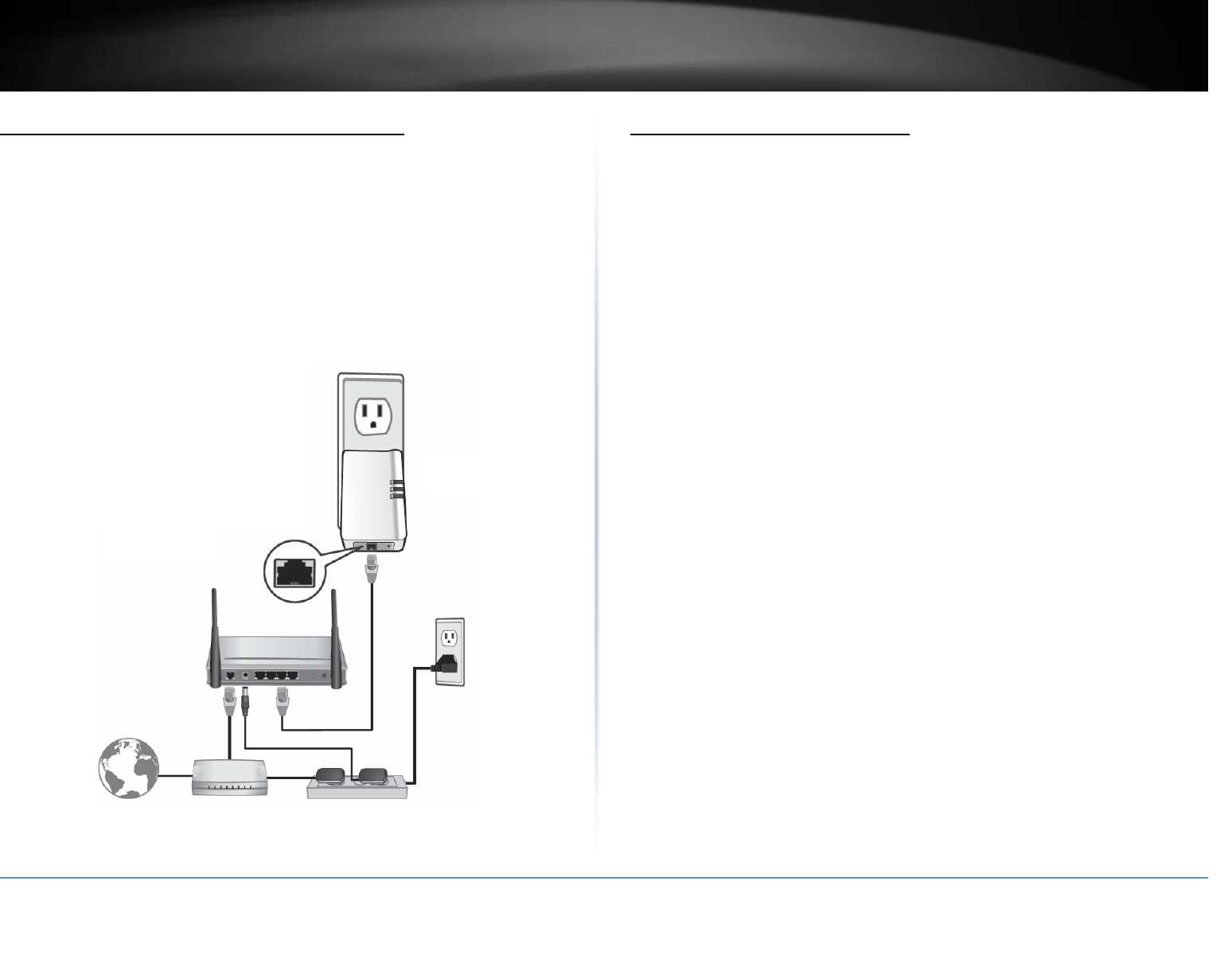
Connect a Powerline adapter to your router
1. Plug the Powerline adapter into an available wall power outlet near your router.
Note: This will allow devices connected to your Powerline network to access the Internet
and other devices connected to your network.
2. Connect the included Ethernet cable (also called network cable) from the Ethernet
port (also called network port) of your Powerline adapter to an available Ethernet port
(also called LAN port) on your router.
3. Once the Powerline adapter is installed and connected to your router, verify that the
Power LED is on or blinking and the Ethernet LED is on or blinking.
Add adapters to your network
Once you have installed and connected the first Powerline adapter to your router, you
can easily extend your network to other rooms by adding additional Powerline adapters.
To extend your network using an additional Powerline adapter:
1. First, make sure the first Powerline adapter is installed and connected to your router.
Note: This will allow devices connected to your Powerline network to access the Internet
and other devices connected to your network.
2. Plug the additional Powerline adapter into an available wall power outlet in another
room near a computer or network device (e.g. game consoles, network-enabled TVs,
network attached storage, network media server/players, etc.) that you would like to
connect to your network.
3. Connect the included Ethernet cable from the Ethernet port on your Powerline
adapter to the to the Ethernet port of your computers or network devices.
4. After the additional Powerline adapter is connected and installed to your computer or
network device, wait for the POWERLINE LED to turn on. After the POWERLINE LED
turns on, verify that the Power LED is on, the POWERLINE LED is on or blinking, and the
Ethernet LED is on or blinking.
Note: To verify that your Powerline adapters are connected successfully to your network,
you can check if the computer(s) or network device(s) can access the Internet through
your Powerline network.
To install additional Powerline adapters in other rooms, repeat the steps above for
each adapter.

© Copyright 2018 TRENDnet. All Rights Reserved.
TRENDnet User’s Guide
TPL-422E / TPL-422E2K
7
Securing your Powerline Network
Powerline networks consist of two or more Powerline devices connected together using
the same encryption key. TRENDnet Powerline adapters automatically connect to each
other over a secure encrypted signal and share the same encryption key (Default
encryption key: HomePlugAV).
In order for your Powerline devices to connect to the same Powerline network, the
same encryption key must be assigned to all Powerline devices in that network.
Powerline devices that are not assigned the same encryption key will not be able to
connect to the Powerline network.
For additional security, TRENDnet recommends changing adapter default encryption key
to prevent a neighbor with a Powerline adapter and the same default encryption key
from gaining access to your network.
Note: After the default encryption key has been changed and the Powerline adapters
have been connected using a new encryption key, the Powerline adapters will retain
their security settings when they are unplugged and moved to a new location. No
additional reconfiguration of the Powerline adapters is needed after the default
encryption has been changed.
To change the default encryption key:
Use the physical Sync/Link button on your Powerline adapter to generate a
random encryption key.
****Recommended method****
Scramble your Network Name and Encryption
TRENDnet adapters auto-connect out of the box over a pre-encrypted Powerline signal.
The following optional steps are recommended to secure your powerline network.
1. Make sure your TPL-422E is powered on and not in sleep mode.
2. The physical Sync button on the Powerline adapter provides an easy way to change
the network name. Push and hold the Sync button for 15 seconds. All LEDs will turned
off and then turned on again. This will generate a new random network name for your
Powerline adapter.
3. Push the Sync button on each adapter within the powerline network for 3 seconds to
re-sync to the new network name and encryption. The POWERLINE LEDs will turn solid
when devices have successfully reconnected.
Note: Powerline networks can also be secured by creating a customized private network
name for your Powerline network using the included Powerline Utility. See The
Powerline Utility on page 8.
© Copyright 2018 TRENDnet. All Rights Reserved.
TRENDnet User’s Guide
TPL-422E / TPL-422E2K
8
The Powerline Utility
The Powerline Utility allows you doing following jobs:
1. Create a customized network name for your powerline network and apply it to
multiple Powerline adapters at the same time.
2. View Powerline adapters connected to your network (using the MAC address)
and the approximate connection quality and speed of each Powerline adapter.
3. View and upgrade Powerline adapter firmware.
Note: Link speed displayed in the utility of your Powerline adapters to another
through your electrical system is estimated. Actual link speed may vary.
Powerline Utility System Requirements
• Windows® 10, 8.1, 8, 7, Vista, XP
• Microsoft® .NET Framework 3.5 installed
Software Installation
1. Insert the included CD-ROM into your computer’s CD-ROM drive.
2. At the CD Autorun Prompt window, click Run Autorun.exe
Note: If the Autorun prompt does not appear automatically, open the CD
contents and double-click Autorun.exe.
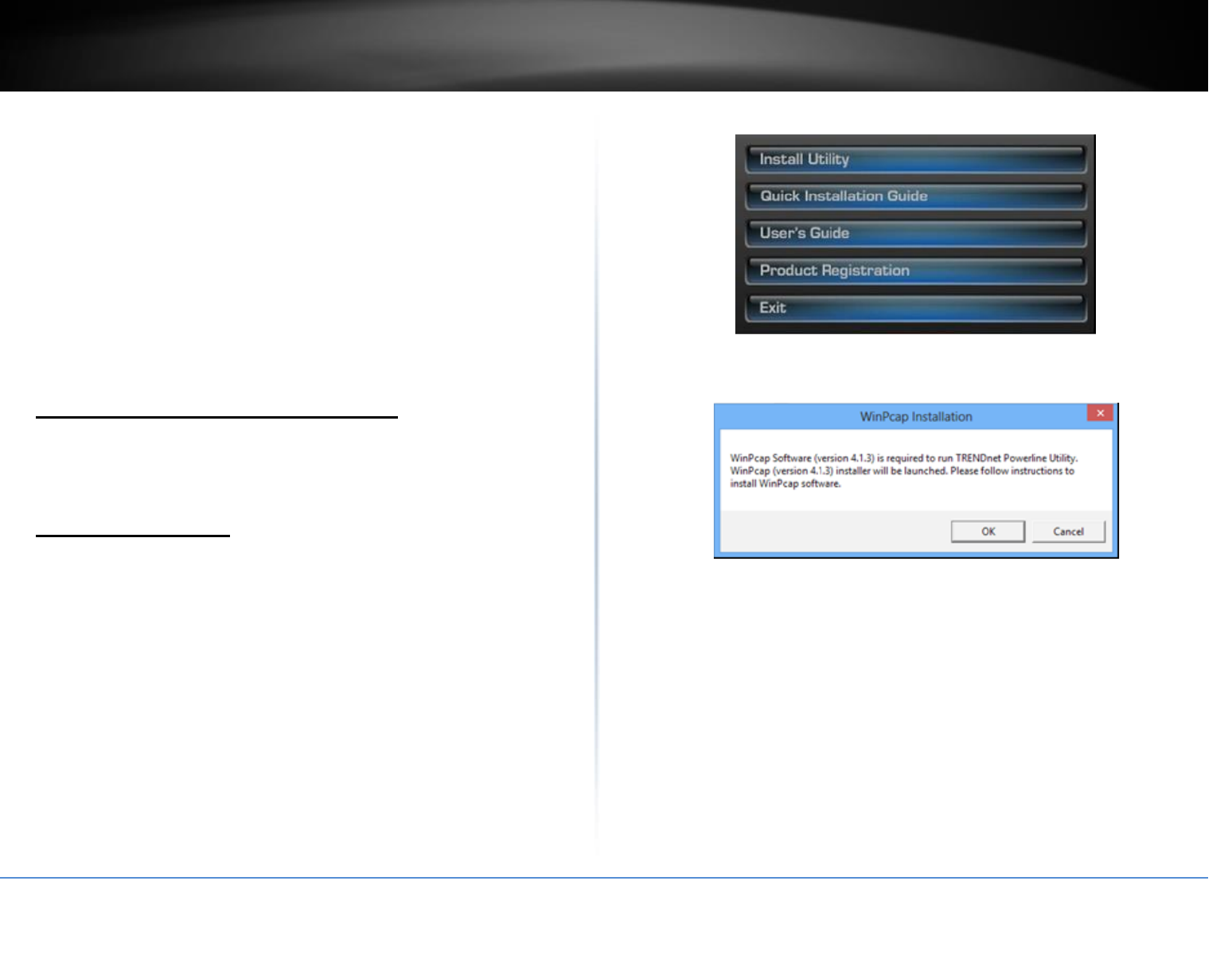
3. At the CD-ROM main menu, click Install Utility.
The installer will check if you have a previous WinPcap utility.
4. Click OK.
Note: The Powerline Utility requires WinPcap as a base application. If this prompt does
not appear, you may already have the WinPcap application installed. Windows 8 require
WinPcap 4.1.3. Windows 7 and older will work with previous versions of WinPcap. If you
have installed a previous version of WinPcap, please uninstall it manually. And then,
start the installation from the beginning.
© Copyright 2018 TRENDnet. All Rights Reserved.
TRENDnet User’s Guide
TPL-422E / TPL-422E2K
9
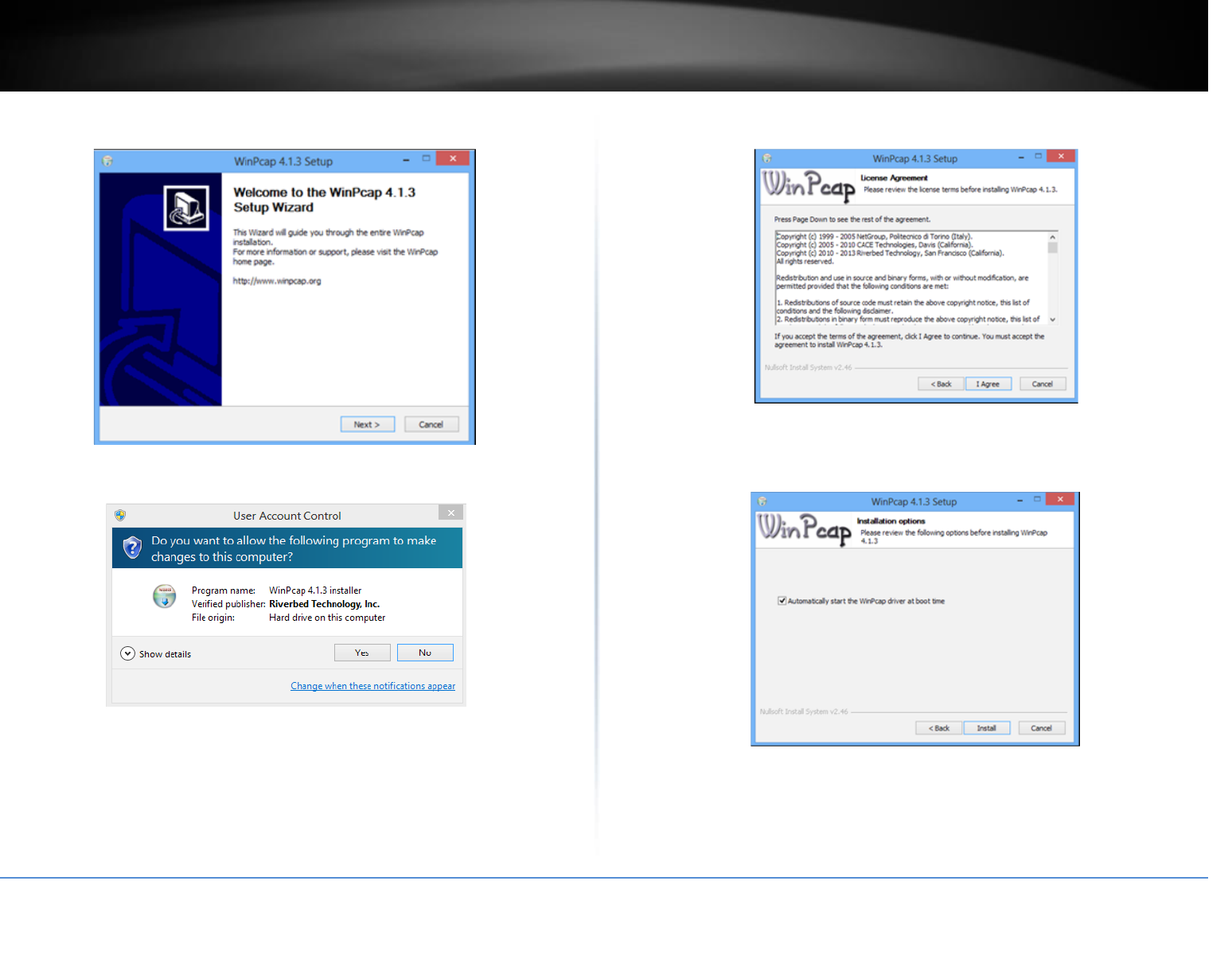
5. At the WinPcap installer window, click Next.
6. Click Yes to allow installation.
7. Review the license agreement and click I Agree.
8. In the Installation Options window, leave the Automatically start the WinPcap driver
at boot time checked and click Install.
© Copyright 2018 TRENDnet. All Rights Reserved.
TRENDnet User’s Guide
TPL-422E / TPL-422E2K
10
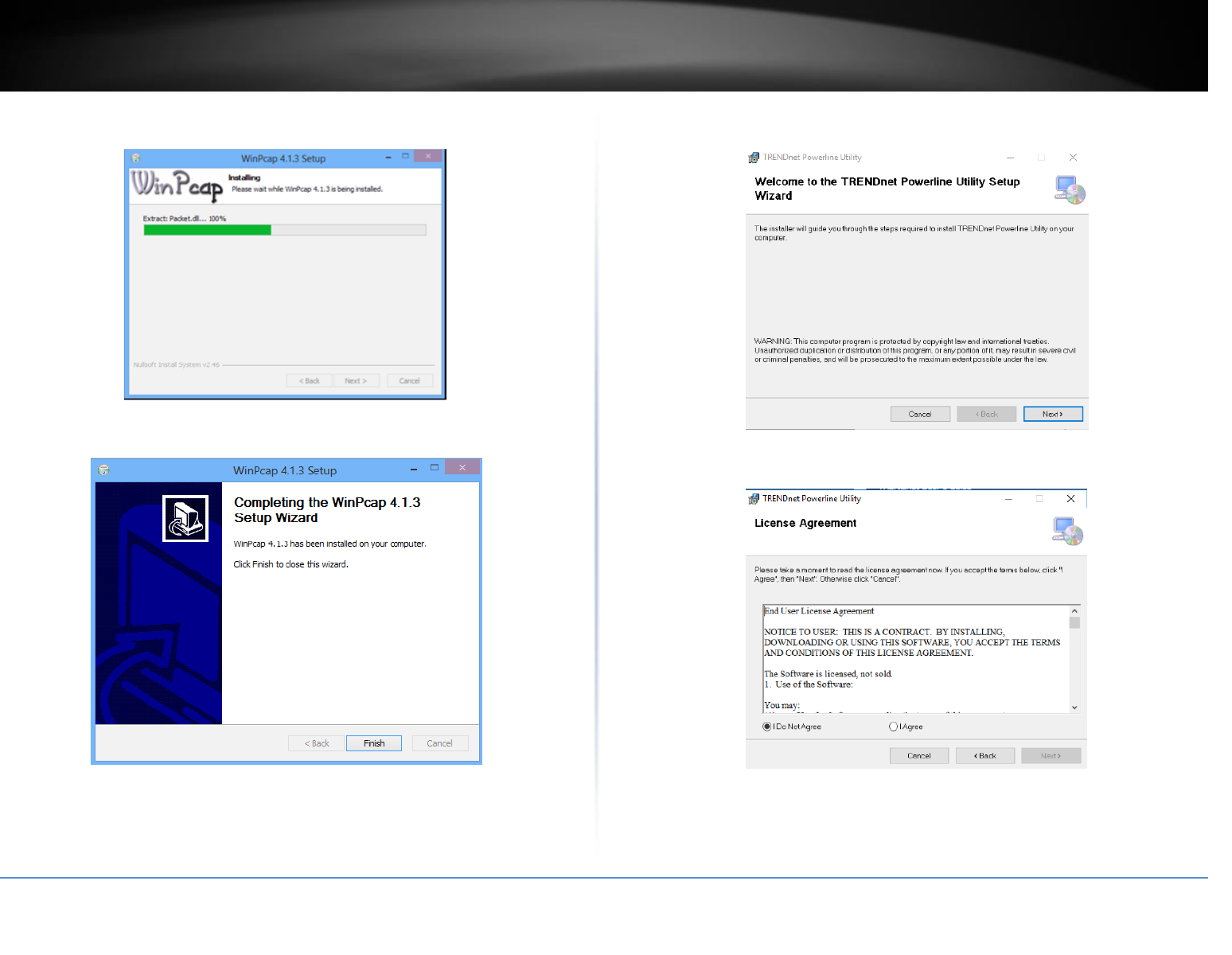
9. Wait for the WinPcap installation to complete.
10. After the process has been completed, click Finish.
11. At the TRENDnet Powerline Utility Setup Wizard, click Next.
12. In the License Agreement window, click I Agree, and then click Next.
© Copyright 2018 TRENDnet. All Rights Reserved.
TRENDnet User’s Guide
TPL-422E / TPL-422E2K
11
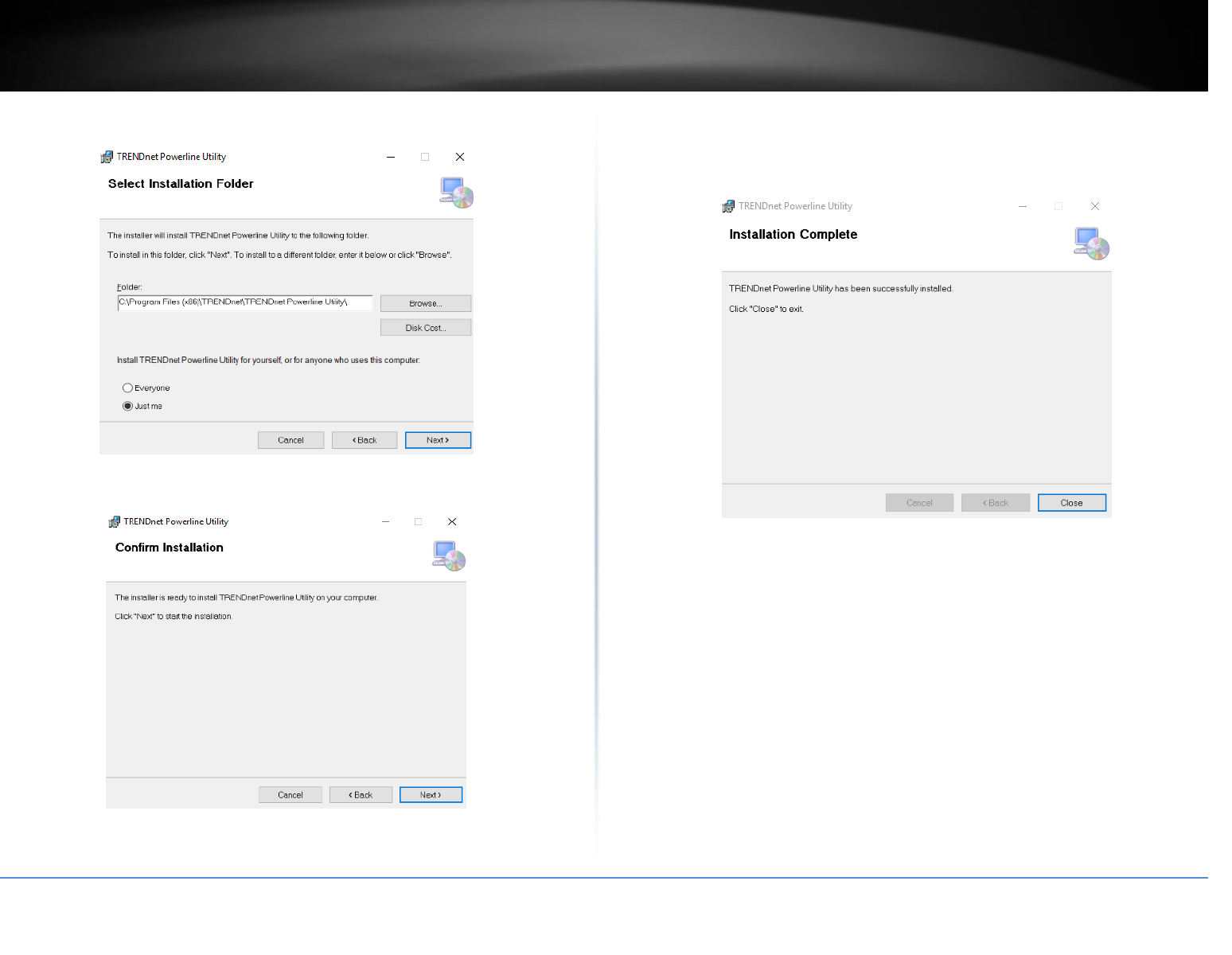
13. In the Select Installation Folder window, click Next.
14. In the Confirm Installation window, click Next.
15. Wait for the Powerline Utility installation to complete. At the Installation Complete
window, click Close.
© Copyright 2018 TRENDnet. All Rights Reserved.
TRENDnet User’s Guide
TPL-422E / TPL-422E2K
12
Using the Utility
Before using the utility, please do the following:
1. Write down the Device Password (DPW) (16-digit characters A-Z only) and
MAC Address (12-digit characters a-f, A-F, 0-9) of each Powerline adapter
as this will be required to change the network name for multiple Powerline
adapters. Both the DPW and MAC Address can be found on the device
label on the back of each powerline device.
2. Make sure the computer in which you are installing the utility is connected
to your network and your Powerline adapters are also connected to your
network.
3. If you have changed your network name using the Sync button and you are
creating a customized network name, it is required to reset all powerline
devices to defaults using the physical Reset button on your Powerline
adapter first before using the utility. See Product Outlook on page 2.
4. Please ensure that your Powerline adapters are already installed and
connected and the Ethernet port on each adapter is connected to a device
powered on.
Upon completing the software installation, a desktop shortcut is automatically created.
Double-click the icon to start the utility or open the utility if it is already running. Closing
the utility will exit the application.
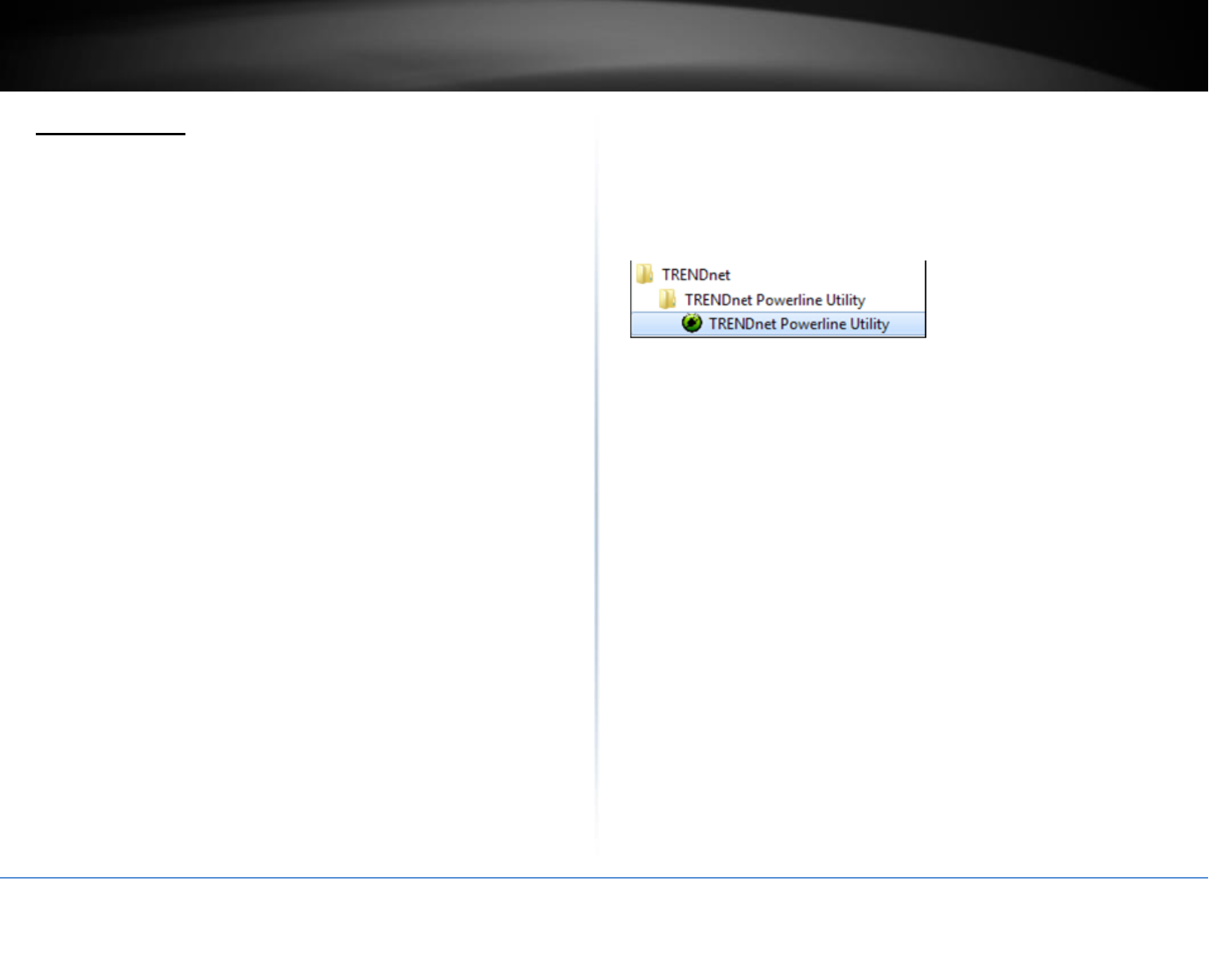
You can also launch the utility from Start Menu. Start > Programs (or All Programs) >
TRENDnet > TRENDnet Powerline Utility.
© Copyright 2018 TRENDnet. All Rights Reserved.
TRENDnet User’s Guide
TPL-422E / TPL-422E2K
13
Powerline Utility – Map View
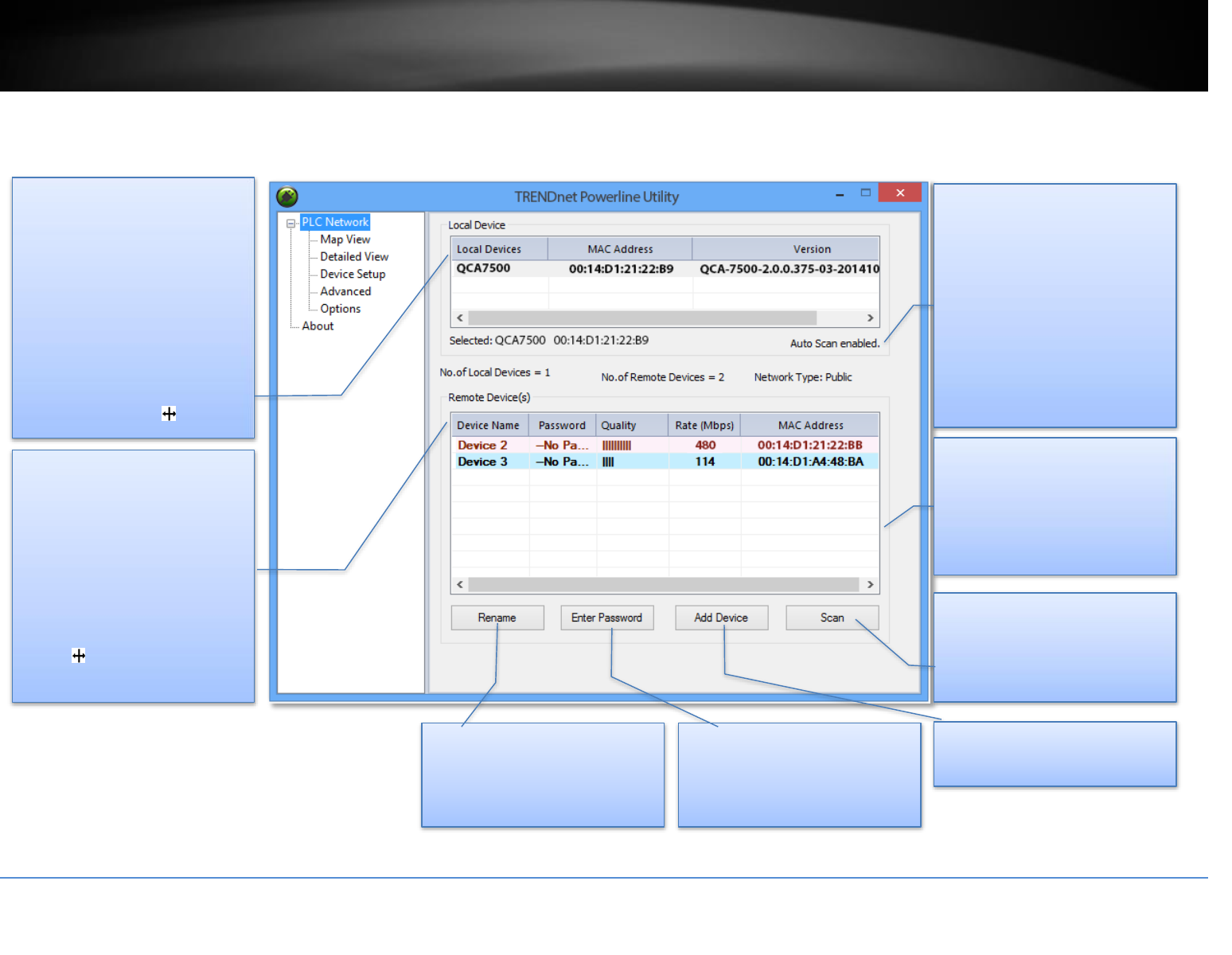
Local Device
All Powerline adapters
connected to the same network
as your computer will be listed
here.
The default device name is main
chip number, followed by the
MAC address and firmware
version number. You can mouse
over the header and adjust
column width by clicking and
dragging this cursor .
Remote Devices
These are Powerline adapters
in remote locations connected
to a selected local Powerline
adapter on the electrical
system.
You can mouse over the header
and adjust the column width by
clicking and dragging this
cursor to see more
information.
Auto Scan
Auto Scan is selected by default.
The utility will scan for remote
devices in specific intervals
(default: 2 sec, you can change
it from 2 to 60 secs). Auto scan
can be disabled by deselecting
it. Remote adapters can be
scanned manually by clicking
the Scan button below.
Network Type
The default network type is
public. When the network name
is customized and changed, it
becomes private.
Rename
Change device name to
meaningful names such as
“living room”
Enter Password
Enter device DPW here. You
can manage the remote adapter
if only you enter the DPW.
Scan
Manually scan remote
Powerline devices which have
the same network name
Add Device
Add remote Powerline adapter
Manage your device
Highlight a device by clicking the row and
click buttons below
* DPW (Device Password) is shown on device label
** TPL-422E has a Power Save Mod. The device setting can only be changed when the device is active. To keep remote Powerline adapter in an active state, you can power cycle the device or
connect it to a network device, such as a router or a computer.
© Copyright 2018 TRENDnet. All Rights Reserved.
TRENDnet User’s Guide
TPL-422E / TPL-422E2K
14
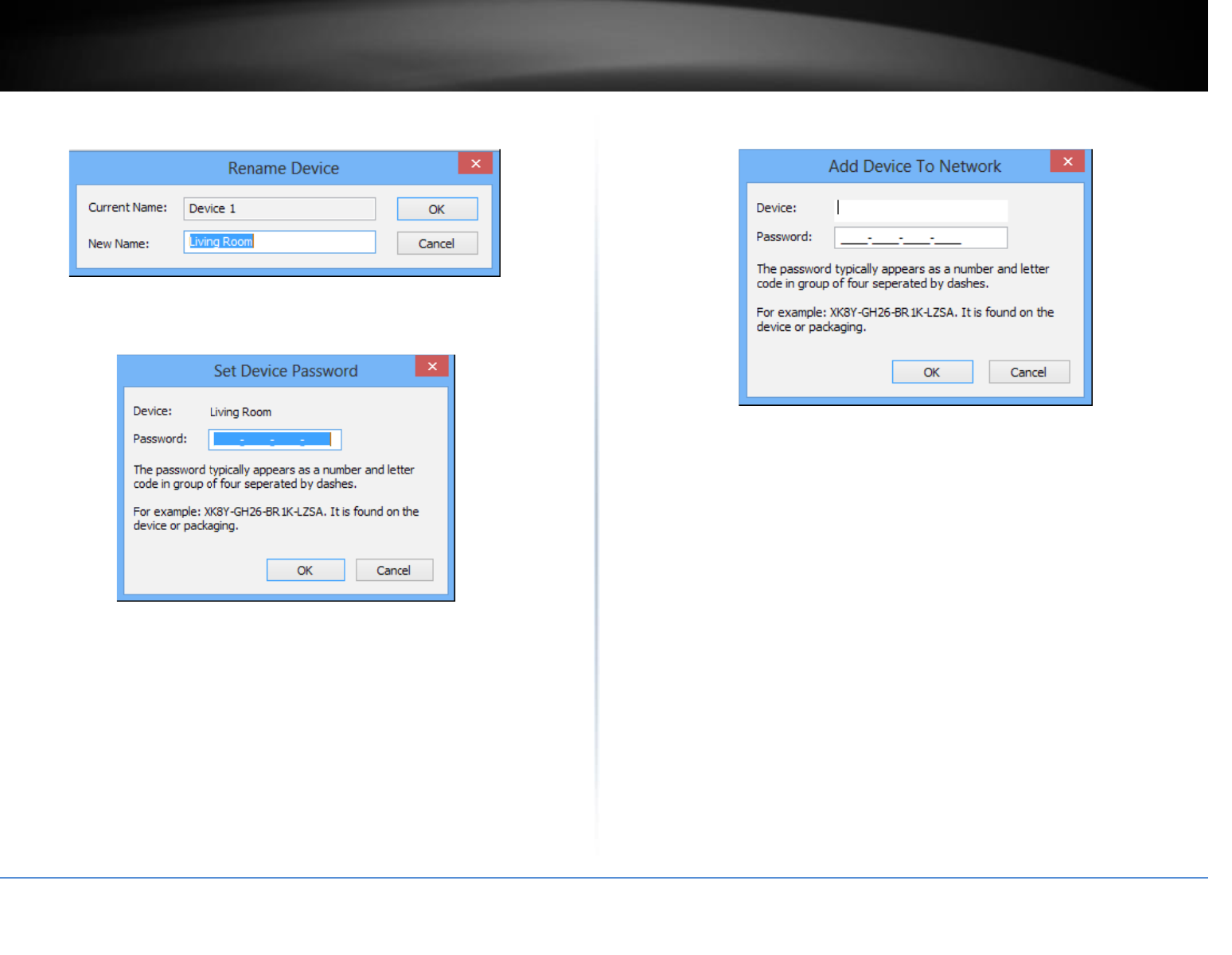
Rename remote device
(Click and select a remote device and then click Rename button in Map View)
Enter Password
(Click and select a remote device and then click the Enter Password button in Map
View)
The device password (DPW) can be found on the device label. You have to enter the
DPW in order to manage the Powerline adapter remotely.
Add Device
(Click the Add Device button in Map View)
Enter the device name and DPW to add an adapter manually
Scan
Click Scan button in Map View to scan other Powerline adapters manually.
© Copyright 2018 TRENDnet. All Rights Reserved.
TRENDnet User’s Guide
TPL-422E / TPL-422E2K
15
Powerline Utility – Detailed View
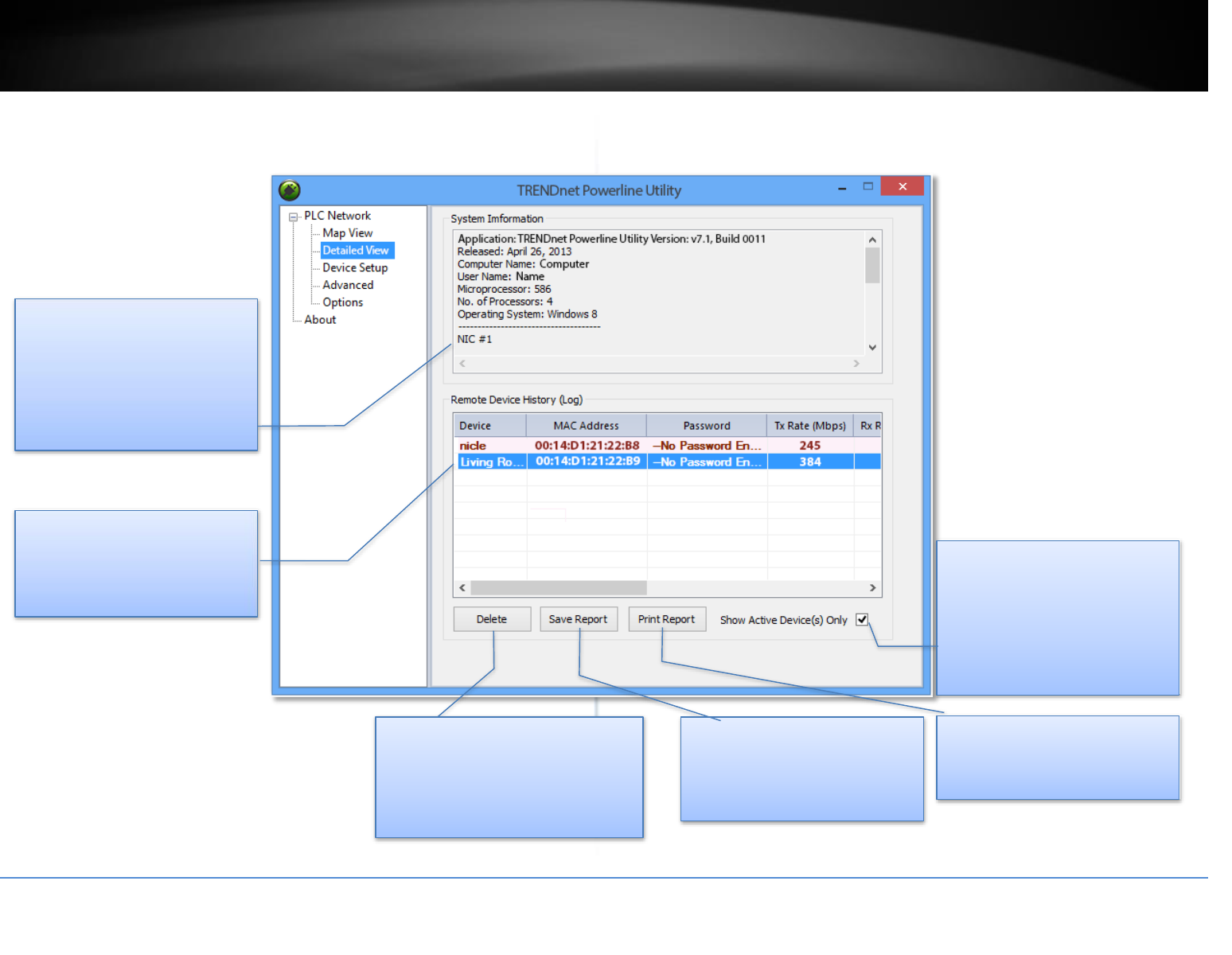
System Information
System Information section
shows this utility version, your
computer information, and
network adapters installed on
your computer.
Remote Devices
Powerline adapters in remote
locations connect to your
network are shown here.
Delete
Delete the device from status
report (Un-select auto scan in
About section to prevent
deleting).
Save Report
Click this button to save above
information for later use.
Show Active Device(s)
Only
Unchecking this checkbox
displays all device information
on the network, even if the
adapter is not in an active state.
Print Report
Click this button to print
Remove device history log.
Manage your report
Highlight the device by clicking the row and
click buttons below to manage.
* DPW (Device Password) is shown on the device label
© Copyright 2018 TRENDnet. All Rights Reserved.
TRENDnet User’s Guide
TPL-422E / TPL-422E2K
16
Powerline Utility – Device Setup
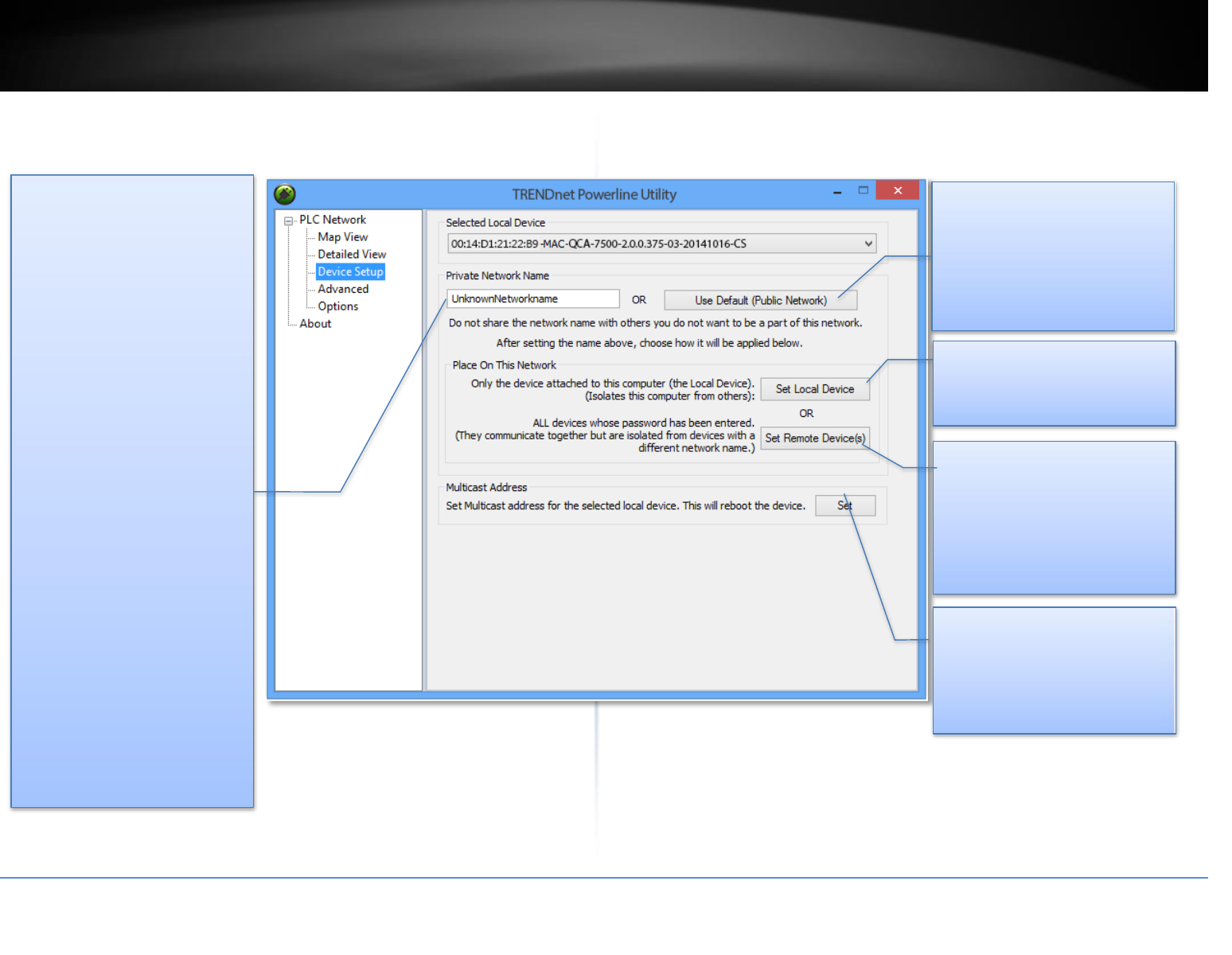
Private Network Name
This is the network name of
your powerline network. The
default network name is
“HomePlugAV”. When a
network name is set to
“HomePlugAV”, it is considered
a public network because most
out of box Powerline adapters
can join this network.
Powerline adapters can only
connect to each other when the
network name is the same.
Change the network name to
make your network private
(recommended to increase
network security).
You have to remember your
network name (Private
Network Name). It will be
encrypted and saved to device.
Even the TRENDnet Powerline
Utility cannot read it in plain
text again. When you visit this
Private Settings again and the
Private Network Name shows
UnknownNetworkName, it
means the network name is
private.
Use Default
If you don’t remember what
network name you set
previously, you can set the
network public. Then set it
back to private later.
Set Local Device
Change network name on
device selected above.
Set Remote Devices
All devices currently connected
locally to your computer or
connected remotely through
powerline network will set to
the new network name.
Multicast Address
Click this button to synchronize
multicast address on all
adapters on same powerline
network.
© Copyright 2018 TRENDnet. All Rights Reserved.
TRENDnet User’s Guide
TPL-422E / TPL-422E2K
17
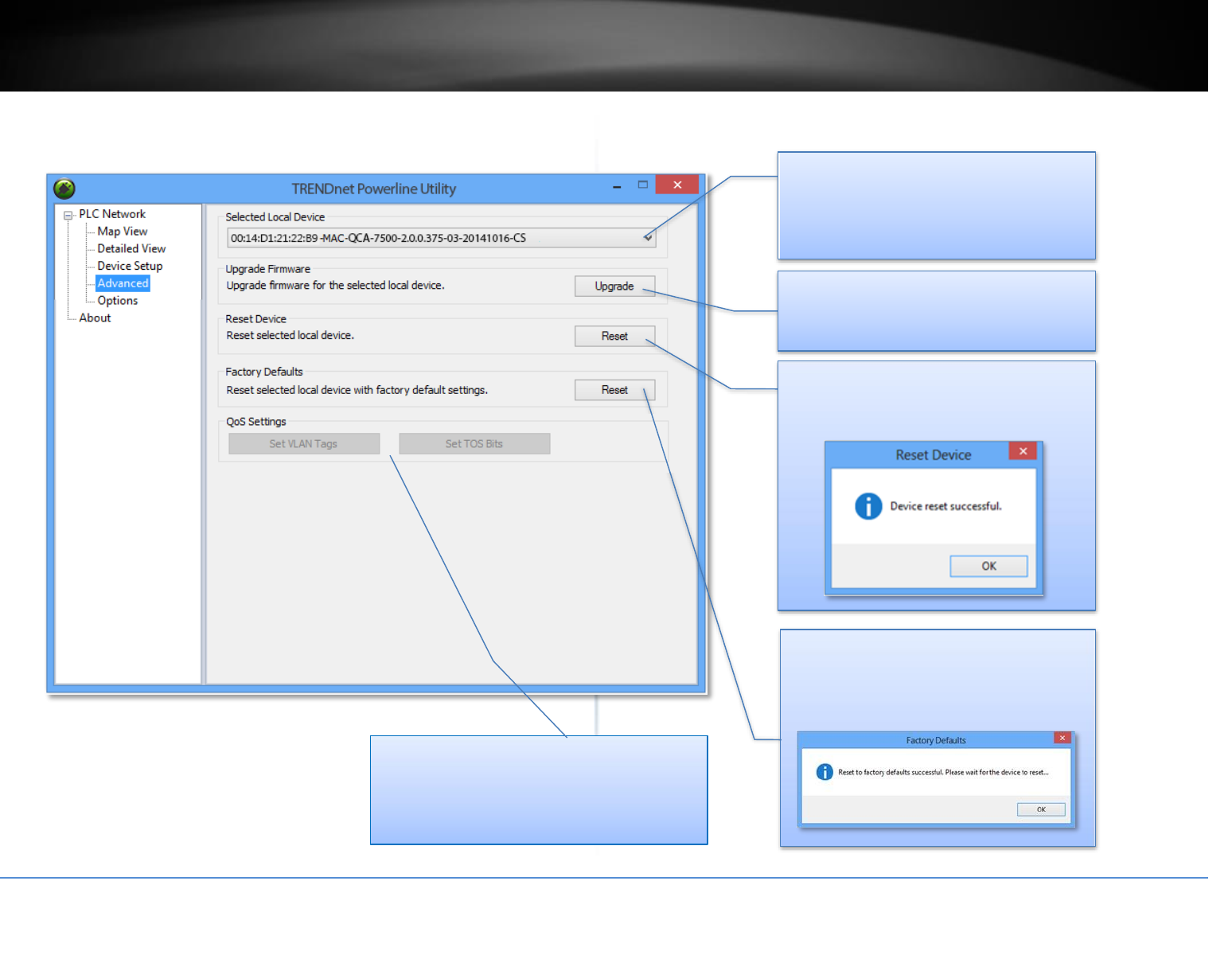
Powerline Utility – Advanced
Select Local Device
This advanced feature supports local
devices only. Choose one of your local
device and proceed the advance setting.
Upgrade Firmware
Click this button to upgrade device
firmware.
Reset Device
Reset the selected device and start fresh
again.
Factory Defaults
Clean up all your settings on adapter.
Always click this button after you
upgrade firmware.
QoS Settings
This section allows users to select between
VLAN Tags or TOS Bits for Quality of Service
(QoS) traffic prioritization.
© Copyright 2018 TRENDnet. All Rights Reserved.
TRENDnet User’s Guide
TPL-422E / TPL-422E2K
18
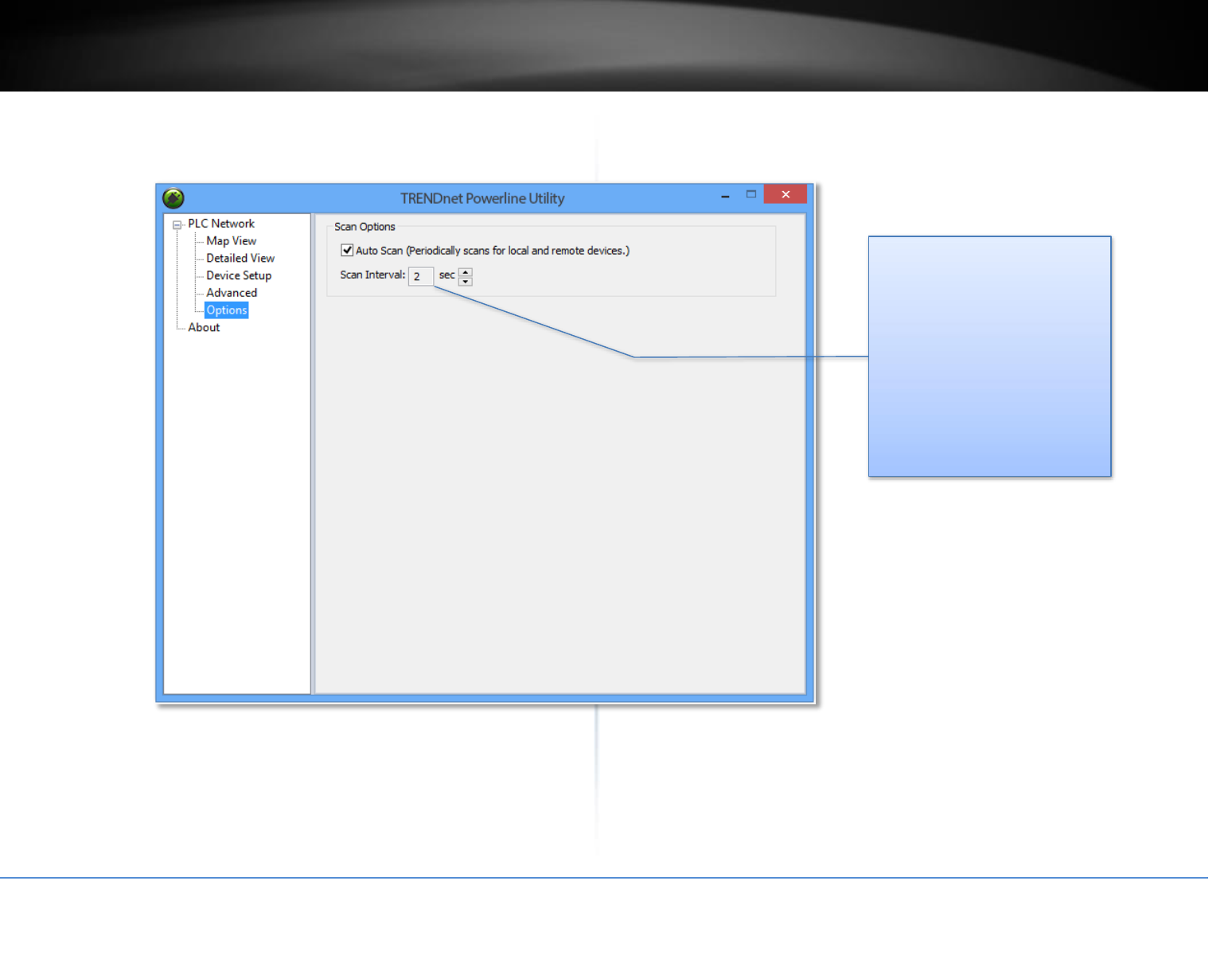
Powerline Utility – Options
Scan Options
By default, the Powerline
Utility scans adapters attached
to the network every 2
seconds. You can change the
scanning frequency from 2
seconds up to 60 seconds or
stop auto scan. You can then
scan devices manually by
clicking Scan button in Map
View.
© Copyright 2018 TRENDnet. All Rights Reserved.
TRENDnet User’s Guide
TPL-422E / TPL-422E2K
19
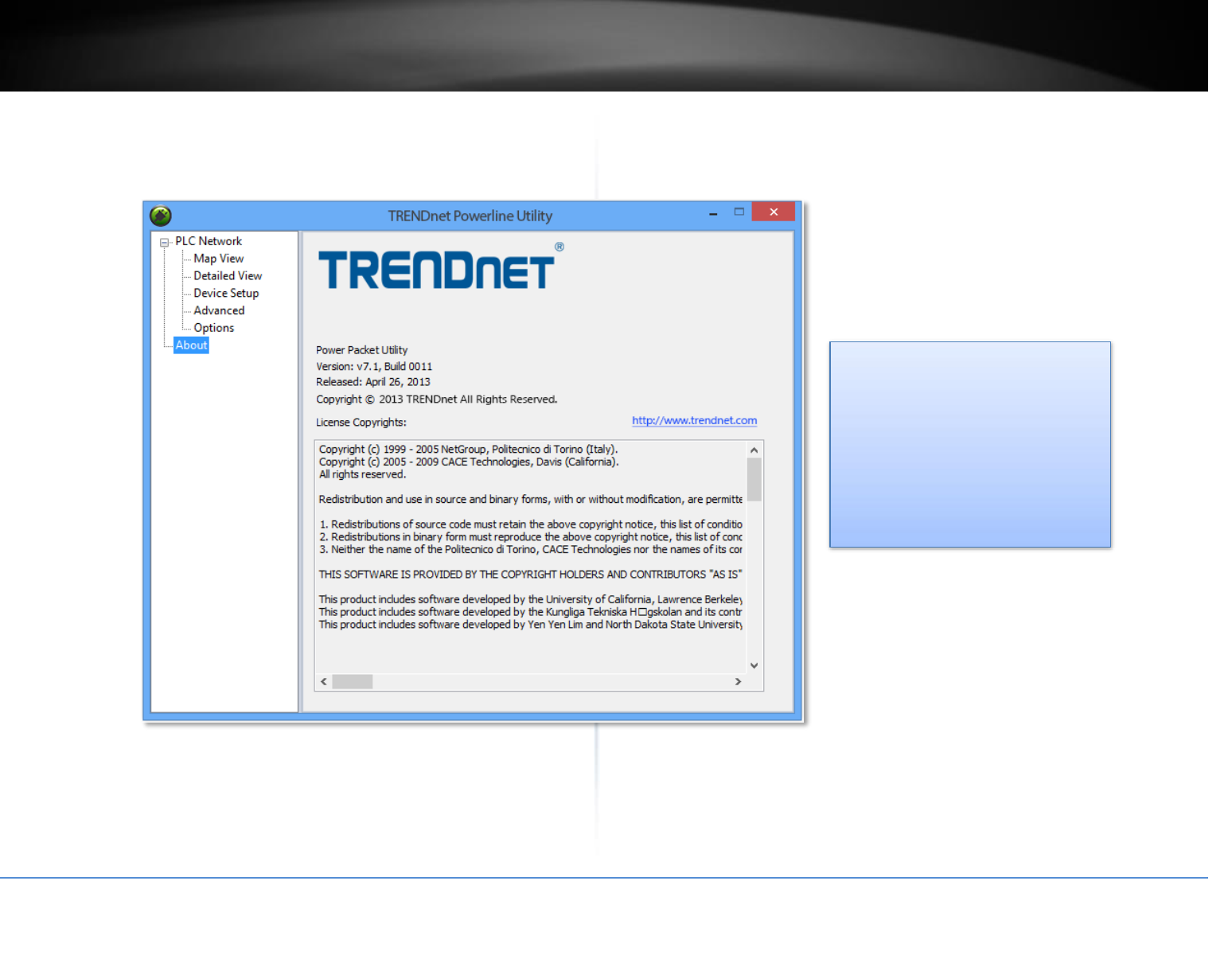
Powerline Utility – About
About Powerline Utility
This Powerline Utility manages
TPL-422E and most legacy
HomePlug certified Powerline
adapters.
For more information, please visit
our website www.trendnet.com

© Copyright 2018 TRENDnet. All Rights Reserved.
TRENDnet User’s Guide
TPL-422E / TPL-422E2K
20
Technical Specifications
Standards
IEEE 802.3
IEEE 802.3u
IEEE 802.3x
IEEE 802.3ab
IEEE 1901
IEEE 1905.1
Device Interface
1 x Gigabit LAN port
Sync button
Reset button
LED indicators
Power Plug
North America Type B (NEMA 5–15)
Frequency Band
2 – 67.5MHz
Modulation/Protocol
OFDM, 4096/1024/256/64/16/8-QAM, QPSK, BPSK, ROBO, HS-ROBO, Mini-
ROBO
CSMA/CA
Data PHY Rate
Up to 1300Mbps
Networking Distance
Powerline: Up to 300m (980ft.) linear distance over electrical power
lines***
Encryption
128-Bit AES (Advanced Encryption Standard)
Powerline Nodes
Up to 8 (max.)
Overlapping Powerline Networks
Up to 4 (per electrical system)
Special Features
Auto-connects to other TRENDnet Powerline adapters
IPv6 support
IGMP / MLDv2 Streams
Optional Utility: OS Compatibility
Windows 10, 8.1, 8, 7, Vista, XP
Power
Input: 100 - 240V AC, 50-60Hz
Consumption: Active mode: 4W (max.); Standby mode: 0.5W (max.)
Operating Temperature
0 – 50C (32 – 122F)
Operating Humidity
Max. 90 % non-condensing
Certifications
FCC
IC
ETL
Dimensions
58 x 77 x 65 mm (2.3 x 3.0 x 2.6 in.)
Weight
108g (3.8 oz.)
Warranty
3 year limited
© Copyright 2018 TRENDnet. All Rights Reserved.
TRENDnet User’s Guide
TPL-422E / TPL-422E2K
21
Troubleshooting
Please reference the items below if you continue to experience difficulty with installing
and using your Powerline adapters.
• Do not plug the Powerline adapters into a power strip. Make sure to plug the
adapters directly into a power outlet and not through power strip. Using
adapters through a power strip may negatively affect Powerline connectivity
and performance.
• Do not use the Sync button for more than 2 Powerline adapters to connect
simultaneously. Wait for each Powerline adapter to connect to your Powerline
network one at a time before connecting the next adapter. Using more than
one adapter to Sync simultaneously may cause some of your adapters not to
Sync and establish connection to your Powerline network.
• Power-cycle the Powerline adapters by disconnecting them from their power
outlets for 15 seconds and then reconnect them.
• If the Powerline (PL) LED is red, try plugging the Powerline adapter into another
available power outlet. The quality of the connection may be better in a
different power outlet.
• If you are having issues connecting the Powerline adapters after changing the
encryption key using the Sync button or Powerline utility, reset the Powerline
adapters to defaults using the physical Reset button.
• Using a pin or paperclip; press and hold the Reset button for 1 second on each
Powerline adapter. All LEDs will turn off then turn back on. This will reset the
Powerline adapters to their default settings. The default encryption key is
HomePlugAV.
• The Powerline adapters can provide better connectivity and performance when
plugged directly into a power outlet. Connecting the Powerline adapters to a
power strip or surge protector may degrade or block Powerline signals.
• Avoid using the Powerline adapters on GFI protected outlets and electrical
systems with AFCI circuit breakers. They may degrade or block Powerline
signals.
• The Powerline adapters should not be used in areas with excessive heat.
• Florescent and incandescent lighting can generate significant Powerline
interference.
• If your building has more than one circuit breaker box, the Powerline adapter
may not be able to establish connectivity between them. In this case, connect a
Powerline adapter into a power outlet located on each of the circuit breaker
boxes. Then connect an Ethernet cable between the Powerline adapters to
bridge the two circuits together.
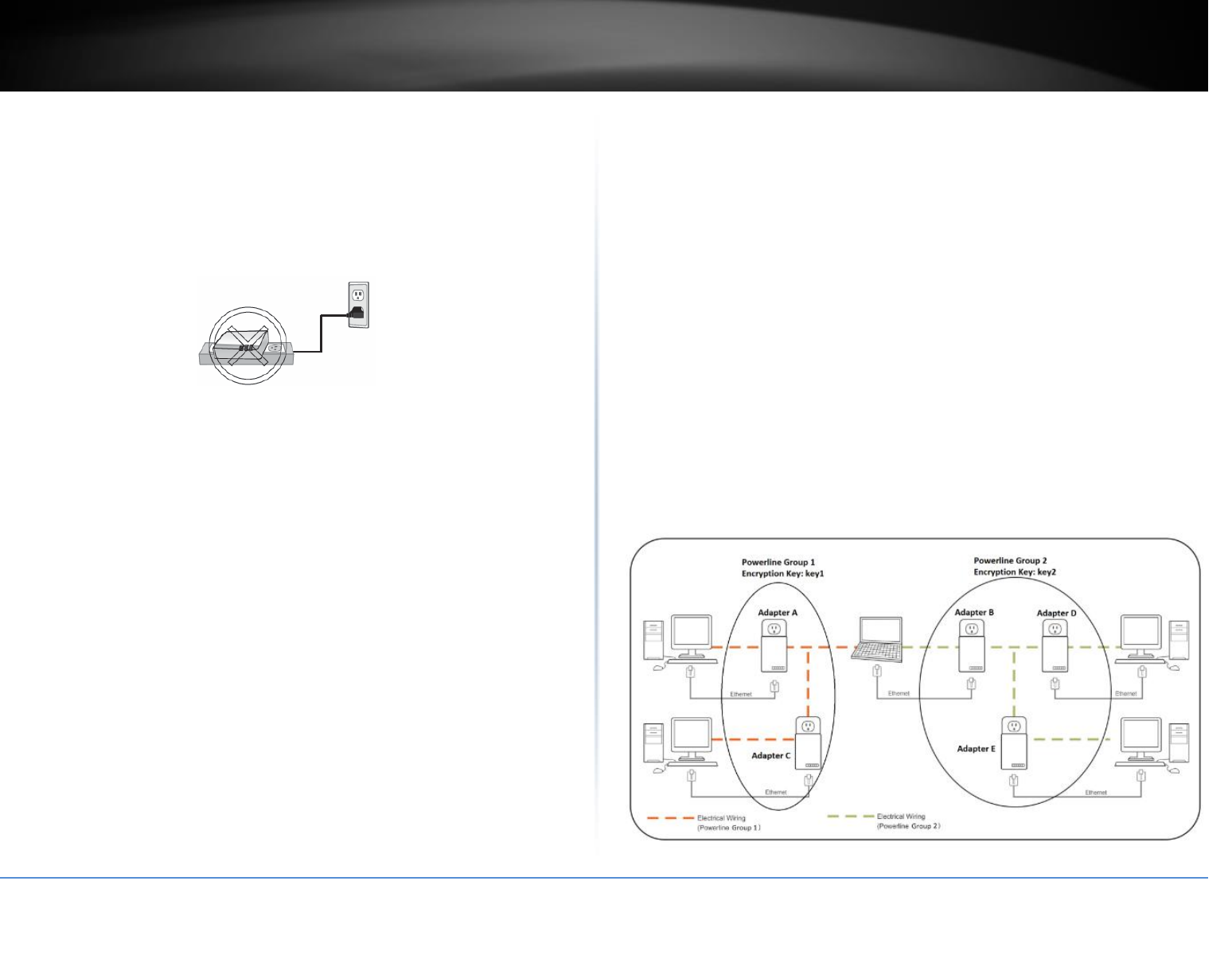
Overlapping Powerline Networks
It is possible to create multiple Powerline networks on the same electrical system
separated and grouped by different network encryption keys. The Powerline networks
will work and communicate independently of each other which can provide security
between different groups of Powerline adapters. For example, if you have five
powerline adapters (Adapter A, Adapter B, Adapter C, Adapter D, Adapter E), you can
group Adapters A, B, and C together on one powerline network and group Adapters D
and E on a different Powerline network. Each group will use a different encryption key.
Note: It is recommended that only a maximum of up to 4 Powerline networks can be
created per electrical system. Any additional Powerline networks above the
recommended may result in significant degradation in Powerline performance.
© Copyright 2018 TRENDnet. All Rights Reserved.
TRENDnet User’s Guide
TPL-422E / TPL-422E2K
22
Appendix
Federal Communication Commission Interference Statement
This equipment has been tested and found to comply with the limits for a Class B digital
device, pursuant to Part 15 of the FCC Rules. These limits are designed to provide reasonable
protection against harmful interference in a residential installation. This equipment
generates, uses and can radiate radio frequency energy and, if not installed and used in
accordance with the instructions, may cause harmful interference to radio communications.
However, there is no guarantee that interference will not occur in a particular installation. If
this equipment does cause harmful interference to radio or television reception, which can
be determined by turning the equipment off and on, the user is encouraged to try to correct
the interference by one of the following measures:
Reorient or relocate the receiving antenna.
Increase the separation between the equipment and receiver.
Connect the equipment into an outlet on a circuit different from that to which the
receiver is connected.
Consult the dealer or an experienced radio/TV technician for help.
FCC Caution: Any changes or modifications not expressly approved by the party responsible
for compliance could void the user’s authority to operate this equipment.
This device complies with Part 15 of the FCC Rules. Operation is subject to the following two
conditions: (1) This device may not cause harmful interference, and (2) this device must accept
any interference received, including interference that may cause undesired operation.
For product, available in the USA/Canada market, only channel 1~11 can be operated.
Selection of other channels is not possible.
This device and its antennas(s) must not be co-located or operating in conjunction with any
other antenna or transmitter except in accordance with FCC multi-transmitter product
procedures.
IMPORTANT NOTE:
FCC Radiation Exposure Statement:
This equipment complies with FCC radiation exposure limits set forth for an uncontrolled
environment. This equipment should be installed and operated with minimum distance 20cm
between the radiator & your body.
RoHS
This product is RoHS compliant.
Industry Canada (IC)
CAN ICES-3 (B)/NMB-3(B)
IC: ICES/NMB – 006
complies with IC: ICES - 006; en conformité avec IC: NMB – 006

© Copyright 2018 TRENDnet. All Rights Reserved.
TRENDnet User’s Guide
TPL-422E / TPL-422E2K
23
Limited Warranty
TRENDnet warrants its products against defects in material and workmanship, under
normal use and service, for the following lengths of time from the date of purchase.
TPL-422E / TPL-422E2K – 3 Years Warranty
AC/DC Power Adapter, Cooling Fan, and Power Supply carry 1 year warranty.
If a product does not operate as warranted during the applicable warranty period,
TRENDnet shall reserve the right, at its expense, to repair or replace the defective
product or part and deliver an equivalent product or part to the customer. The
repair/replacement unit’s warranty continues from the original date of purchase. All
products that are replaced become the property of TRENDnet. Replacement products
may be new or reconditioned. TRENDnet does not issue refunds or credit. Please
contact the point-of-purchase for their return policies.
TRENDnet shall not be responsible for any software, firmware, information, or memory
data of customer contained in, stored on, or integrated with any products returned to
TRENDnet pursuant to any warranty.
There are no user serviceable parts inside the product. Do not remove or attempt to
service the product by any unauthorized service center. This warranty is voided if (i) the
product has been modified or repaired by any unauthorized service center, (ii) the
product was subject to accident, abuse, or improper use (iii) the product was subject to
conditions more severe than those specified in the manual.
Warranty service may be obtained by contacting TRENDnet within the applicable
warranty period and providing a copy of the dated proof of the purchase. Upon proper
submission of required documentation, a Return Material Authorization (RMA) number
will be issued. An RMA number is required in order to initiate warranty service support
for all TRENDnet products. Products that are sent to TRENDnet for RMA service must
have the RMA number marked on the outside of return packages and sent to TRENDnet
prepaid, insured and packaged appropriately for safe shipment. Customers shipping
from outside of the USA and Canada are responsible for return shipping fees. Customers
shipping from outside of the USA are responsible for custom charges, including but not
limited to, duty, tax, and other fees.
WARRANTIES EXCLUSIVE: IF THE TRENDNET PRODUCT DOES NOT OPERATE AS
WARRANTED ABOVE, THE CUSTOMER’S SOLE REMEDY SHALL BE, AT TRENDNET’S
OPTION, REPAIR OR REPLACE. THE FOREGOING WARRANTIES AND REMEDIES ARE
EXCLUSIVE AND ARE IN LIEU OF ALL OTHER WARRANTIES, EXPRESSED OR IMPLIED,
EITHER IN FACT OR BY OPERATION OF LAW, STATUTORY OR OTHERWISE, INCLUDING
WARRANTIES OF MERCHANTABILITY AND FITNESS FOR A PARTICULAR PURPOSE.
TRENDNET NEITHER ASSUMES NOR AUTHORIZES ANY OTHER PERSON TO ASSUME FOR
IT ANY OTHER LIABILITY IN CONNECTION WITH THE SALE, INSTALLATION MAINTENANCE
OR USE OF TRENDNET’S PRODUCTS.
TRENDNET SHALL NOT BE LIABLE UNDER THIS WARRANTY IF ITS TESTING AND
EXAMINATION DISCLOSE THAT THE ALLEGED DEFECT IN THE PRODUCT DOES NOT EXIST
OR WAS CAUSED BY CUSTOMER’S OR ANY THIRD PERSON’S MISUSE, NEGLECT,
IMPROPER INSTALLATION OR TESTING, UNAUTHORIZED ATTEMPTS TO REPAIR OR
MODIFY, OR ANY OTHER CAUSE BEYOND THE RANGE OF THE INTENDED USE, OR BY
ACCIDENT, FIRE, LIGHTNING, OR OTHER HAZARD.
LIMITATION OF LIABILITY: TO THE FULL EXTENT ALLOWED BY LAW TRENDNET ALSO
EXCLUDES FOR ITSELF AND ITS SUPPLIERS ANY LIABILITY, WHETHER BASED IN
CONTRACT OR TORT (INCLUDING NEGLIGENCE), FOR INCIDENTAL, CONSEQUENTIAL,
INDIRECT, SPECIAL, OR PUNITIVE DAMAGES OF ANY KIND, OR FOR LOSS OF REVENUE OR
PROFITS, LOSS OF BUSINESS, LOSS OF INFORMATION OR DATE, OR OTHER FINANCIAL
LOSS ARISING OUT OF OR IN CONNECTION WITH THE SALE, INSTALLATION,
MAINTENANCE, USE, PERFORMANCE, FAILURE, OR INTERRUPTION OF THE POSSIBILITY
OF SUCH DAMAGES, AND LIMITS ITS LIABILITY TO REPAIR, REPLACEMENT, OR REFUND
OF THE PURCHASE PRICE PAID, AT TRENDNET’S OPTION. THIS DISCLAIMER OF LIABILITY
FOR DAMAGES WILL NOT BE AFFECTED IF ANY REMEDY PROVIDED HEREIN SHALL FAIL
OF ITS ESSENTIAL PURPOSE.
Governing Law: This Limited Warranty shall be governed by the laws of the state of
California.
Some TRENDnet products include software code written by third party developers.
These codes are subject to the GNU General Public License ("GPL") or GNU Lesser
General Public License ("LGPL").
Go to http://www.trendnet.com/gpl or http://www.trendnet.com Download section
and look for the desired TRENDnet product to access to the GPL Code or LGPL Code.
These codes are distributed WITHOUT WARRANTY and are subject to the copyrights of
the developers. TRENDnet does not provide technical support for these codes. Please go
to http://www.gnu.org/licenses/gpl.txt or http://www.gnu.org/licenses/lgpl.txt for
specific terms of each license.
2018/12/1