TandD RTR5X 900 MHz Data Recorder User Manual 1
TandD Corporation 900 MHz Data Recorder Users Manual 1
UserManual.wiki
>
TandD
>
RTR5X User Manual
>
Users Manual 1
Contents
1.
Users Manual 1
2.
Users Manual 2
Users Manual 1
Navigation menu
Upload a User Manual
Namespaces
Wiki Guide
HTML
PDF
Info
Views
User Manual
Discussion / Help
Navigation
![3It is possible to carry out some operations such as recording start settings or changes, and downloading recorded data via communication with an RTR-57C unit without connecting to a computer. For details, please see the RTR-57C User’s Manual.メイン メニュー WL データスイアゲ WL コキ ケンサク WL オンド モニターデータ スイアゲデータ ソウサ・リストキロク カイシ■Optical CommunicationBy using the communication cable, you can carry out direct communication with a computer or with an RTR-57C unit.Communication with Data Loggersメイン メニュー WL データスイアゲ WL コキ ケンサク WL オンド モニターデータ スイアゲデータ ソウサ・リストキロク カイシCollect List1.Using the supplied communication cable, connect the RTR-57C to your computer.2.To carry out communication, place the data logger face down on the RTR-57C.There are two methods to communicate with RTR-51/52/53, RVR-52 data loggers; they are [Optical Communication] and [Wireless Communication].メイン メニュー WL データスイアゲ WL コキ ケンサク WL オンド モニターデータ スイアゲデータ ソウサ・リストキロク カイシConnect to ComputerPlace the data logger face down.](https://usermanual.wiki/TandD/RTR5X.Users-Manual-1/User-Guide-502078-Page-8.png)
![Installing the Software■Install the Software (T&D Recorder for Windows)1.Start Windows.2.Place the CD-ROM in the appropriate drive, and the 「Install Program」 window will automatically open.●If that window does not open automatically, open the 「My Computer」 window and double-click on the icon for the CD-ROM.●Is Windows working properly?If Windows is not activated properly, it may be impossible to install and run T&D Recorder for Windows.●Quit all applications.If you are running other applications, make sure to quit them before installation. If you have any permanently active software, such as a virus check or scan program in your computer, make sure to also quit it.53.Select [Install T&D Recorder for Windows] and by clicking on the [START] button the installation will begin.4.Conrming the contents as you go, install the software according to the directions.After installation is completed, an icon for [T&D Recorder for Windows] will appear in the Start Menu.[START]button[Install T&D Recorder for Windows]](https://usermanual.wiki/TandD/RTR5X.Users-Manual-1/User-Guide-502078-Page-10.png)
![6Operating the Software■Opening the SoftwareOpen the software by clicking on [T&D Recorder for Windows] from the list of programs in the Start Menu.●Menu BarIn the Menu Bar are Menus containing an array of commands. Click on the desired menu in the menu bar to set or display functions for each type of device.By clicking [Display]-[ Change Icon Layout ] or [Change Icon Size], you can select how you wish the Main Window to appear.●ToolbarCan choose to view or hide icons. You can also make this setting from the Menu Bar by clicking [Start]-[Select Menu].●IconsBy clicking on an icon, the graph or communication display will appear for that type of unit. The graph and communication displays for each type of unit can also be viewed by clicking on that unit’s type name in [Start] of the Menu Bar.■Main WindowUpon opening T&D Recorder for Windows, a launcher window in which icons are displayed will appear. By clicking an icon, the graph, settings, and / or communication screen for that type of unit will be displayed.Menu BarIconToolbar](https://usermanual.wiki/TandD/RTR5X.Users-Manual-1/User-Guide-502078-Page-11.png)
![7〔Contents〕By clicking the mark of the classied topic, an explanation will be displayed.〔Index〕Select a key word from the key word list and by clicking the [Display] button, the explanation will be displayed.〔Search〕Enter the key word you wish to search for and click the [Start Search] button and the topic in which the key word is included will be displayed. Then select the topic and click the [Display] button to have the explanation displayed.●Click on the [Help] button in any dialog box and explanations about the dialog box will be displayed.●In the graph display window, after clicking on the in the toolbar, you can click on any Menu, any Icon, or any part of the Main window and an explanation will be displayed.■See the Help Menu of the software for more detailed information about how to use the software.●To search for unclear words or terms, click the [Help] Menu that appears in the Menu Bar and then click on one of the tabs [Contents], [Index] or [Search].Contents Index Search](https://usermanual.wiki/TandD/RTR5X.Users-Manual-1/User-Guide-502078-Page-12.png)
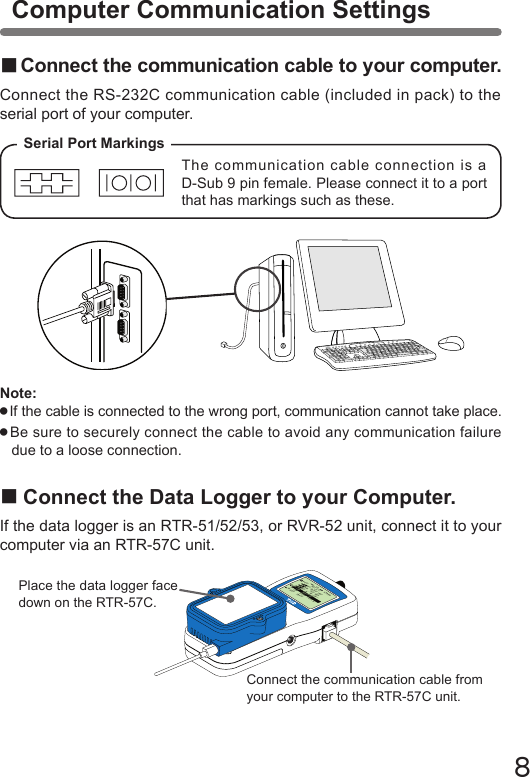
![9[Auto Detection]■Setting Up the Serial PortSet the serial port to be used for communication with the data logger. There are two ways to set up the serial port [Auto Detect] and [Select a Port].●When you wish to use the same COM port to carry out communication with different types of units.Check [Set Common COM Port for All Types] and click the [OK] button to complete at once the port setting for all types of units. 1.In the main window, open the setting, communication display of the type of data logger connected to the computer and click the [Serial Port Settings] tab.2.Click the [Auto Detect] button to start the detection process.3.When the detection is completed, a message will be displayed in the [Detection Results] section.4.By clicking the [OK] button, the setting process will be nished and the port to which the data logger is connected will be set.5.By clicking the [Close] button, the setting will be completed.[Close]button[OK] button[Auto Detect] buttonWhen setting up more than one type at the same timeDetectionResults[Serial Port Settings] tab](https://usermanual.wiki/TandD/RTR5X.Users-Manual-1/User-Guide-502078-Page-14.png)
![10[Selecting a Port]1.Click the [Serial Port Settings] tab in the settings / communication display of the data logger to be used.2.From the [Possible COM Ports] list box choose and check the port to which the data logger is connected.3.Click [OK] button to nish set-up and close the dialog box.4.By clicking the [Close] button, the setting will be completed.[Serial Port Settings] tab[OK]button[Close]buttonWhen setting up more than one type at the same timePossible COM Ports](https://usermanual.wiki/TandD/RTR5X.Users-Manual-1/User-Guide-502078-Page-15.png)
![11■Registering a Remote Unit1.By selecting the icon [Remote Unit Registration], a message will be displayed.※Remote unit registration can be carried out for each type of unit from the setting / communication menu for that unit [Communication]- [Remote Unit Registration].This function allows you to collect all remote unit registration info in the RTR-57C. That info (Group Name / Remote Unit Number / Remote Unit Name) will be displayed in a list. In order to delete, change or register any groups or remote units in an RTR-57C, it is necessary to connect that RTR-57C to your computer and carry out the [Collect Registration Info] before proceeding.Collect Registration InfoRemote Unit Registration2.By clicking the [Yes] button, collection of the registration info will begin and a list will be displayed.[Yes] button《Enlarged Message》The default setting for the registered group name is [Group 1].Remote unit registration into [Group 1] is possible.](https://usermanual.wiki/TandD/RTR5X.Users-Manual-1/User-Guide-502078-Page-16.png)
![12●Group NamesGroup Names can be entered with up to 8 letters.You can also select an already registered group name and make slight changes to make a new name.●If the registration info has not been collected or you wish to collect again, click [Collect Registration Info] button in the [Registration Contents] window to collect the registration info.[Collect Registration Info] button3.Click the [Register] tab, and set the Group Name, Remote Name, and Communication Frequency Channel.[Register] tab[Close]button[Register]buttonRemote Unit NameGroup NameCommunicationFrequency Channel](https://usermanual.wiki/TandD/RTR5X.Users-Manual-1/User-Guide-502078-Page-17.png)
![13●Remote NamesRemote Names can be entered with up to 8 letters. You can also select an already registered remote name and make slight changes to create a new name.●Communication Frequency ChannelBy clicking the [Set] check box you can select a channel number.One Frequency Channel (0-3) can be set for each Group.●The default frequency channel setting for Group 1 is ‘0’●If no settings are chosen, an unused frequency channel will be automatically assigned.NOTE:●A frequency channel setting can only be made when registering a new group.●Once a channel has been set for a group it cannot be changed.●The specied frequency channel will be used for all communication with remote units in that group. If another RTR-57C is using the same channel in the same area, communication may become unstable.4.By clicking the [Register] button, registration will be completed. ●If you are registering a number of remote units to the same group, place each one on top of the RTR-57C and carry out the registration into the same group.●If you are registering units to different group names, please follow the above steps over again.《Remote Registration Display》](https://usermanual.wiki/TandD/RTR5X.Users-Manual-1/User-Guide-502078-Page-18.png)
![14●By clicking on a Group Name, the Frequency Channel for that group, as well as, the Remote Unit Names and Numbers for that group will be displayed.5.Upon completion the [Registration Contents] will be displayed and by clicking [Close] the registration will be nished and the window closed.《[Registration Contents] display enlargement》Frequency ChannelNumber of Possible RegistrationsRemote Number and Name[Close]button](https://usermanual.wiki/TandD/RTR5X.Users-Manual-1/User-Guide-502078-Page-19.png)
![15For details, see the RTR-57C User’s Manual.■Position the remote unit(s)in the place(s)where you want to measure and check if communication is possible.From an RTR-57C unit, it is possible to nd any registered Remote Unit and make sure communication can be carried out.1.In the Main Window, activate [Find Remotes].2.Choose the range in which to search and activate.●If you choose [All Groups], the search for remotes in all registered groups will begin immediately.●If you choose [Specify Group], select the desired group from the list to start the search.3.After the search has been completed, a list of possible Remote Units for communication will appear in a list.●Remote Units for which communication is possible will be marked with an before its name.](https://usermanual.wiki/TandD/RTR5X.Users-Manual-1/User-Guide-502078-Page-20.png)
![16Other Remote UnitRegistration FunctionsThe following operations can be carried out in the Remote Registration Window. Be sure to connect the RTR-57C to your computer and collect the registration info of RTR-57C before carrying out these operations.■「File」Menu: [Save Registration Contents]You can save the Group and Remote Unit Registration Info to a le.NOTE:●You cannot edit the contents of registration info from a saved le.●You cannot send text le.1. From the [File] Menu, choose [Save Registration Contents to File].2. Designate the saving location and enter a le name.3. Click the [Save] button to save the le.[Return to Original]button[Send] button[Collect Registration Info] button[File] Menu[Set Number of Possible Registrations]button](https://usermanual.wiki/TandD/RTR5X.Users-Manual-1/User-Guide-502078-Page-21.png)
![17■[File] Menu: [Save as Text File]You can save the Group and Remote Unit Registration Info as a text le.NOTE: You cannot edit the contents of registration info from a saved le.1. From the [File] Menu, choose [Save as Text File].2. Designate the saving location and enter a le name.3. Click the [Save] button to save the le.NOTE: If changes are made to the pattern, the Remote Unit Registration Contents saved in the RTR-57C will be automatically returned to the original default contents. Please be careful.■[Set Number of Possible Registrations] ButtonThere are two patterns for setting and registering the largest number of groups and remotes into one RTR-57C.・Pattern 1: <Group Numbers: 60 /Remote Numbers in 1 Group: 64>・Pattern 2: <Group Numbers: 15 /Remote Numbers in 1 Group: 250>The Default Setting is: Pattern 1: <Group Numbers: 60 / Remote Numbers in 1 Group: 64>1. Select a pattern. 2. Click [OK] button to complete the change.[OK]buttonCheck one](https://usermanual.wiki/TandD/RTR5X.Users-Manual-1/User-Guide-502078-Page-22.png)
![18■[Remote Registration Contents] – [Return to Original] ButtonAll info saved in the RTR-57C will be erased and will be returned to as it was when it left the factory: Group Name: Group 1 / Remote Unit: NONE / Communication Frequency: 01. Connect the RTR-57C unit you wish to return to the factory settings.2. Click the [Return to Original] button, and the process will begin. ■[Remote Registration Contents] – [Send] ButtonIf the Registration Contents are the same in a number of RTR-57C Units, communication is possible between 1 Remote Unit and any number of RTR-57C Units. To make the contents the same, it is possible to transmit them to a number of RTR-57C Units.NOTE: ●By sending, you will delete all prior registration contents.●If the number of les to be sent is over the number of possible registrations, it will be impossible to transmit them. Please see p.17 for details about the possible number of registrations.1. Save the registration contents you wish to send. (See p. 16 for details)2. Click [Open] from the [File] Menu and open those Remote Registration Files you wish to send.3. The contents of those les will be displayed in the Remote Registration Contents Window.4. Click the [Send] button to begin transmission.](https://usermanual.wiki/TandD/RTR5X.Users-Manual-1/User-Guide-502078-Page-23.png)
![19■「Change /Delete」You can make changes to a registered Remote Unit Name or delete a Group or Remote Unit.[Change] Button…Only for Remote Names1. Select the Group in which the Remote you wish to change is registered.2. Select the Remote Number or Name and enter the new Remote Name for the unit.3. Click the [Change] button to send the new information.[Delete Group] ButtonBy deleting a Group, all Remote Units registered to that Group will be automatically deleted.1. Select the Group Name you wish to delete.2. Click [Delete Group] to begin the process.[Delete Remote] Button1. Select the Group Name in which the remote you wish to delete is registered, then select the Remote Number(s) or Name(s).2. Click [Delete Remote Unit] to begin the process.[Change] button[Delete Group] button[Delete Remote Unit]button](https://usermanual.wiki/TandD/RTR5X.Users-Manual-1/User-Guide-502078-Page-24.png)
![20●RTR-57C Registration Status:If remotes are registered in the presently connected RTR-57C: existIf remotes are not registered in the presently connected RTR-57C: Not existIf registration info has not been collected from presently connected RTR-57C:-●Wireless Recording StartIf forbidden to start recording: FORBIDIf permission to start recording: PERMIT■「Remote Unit Info」This allows you to view the registration contents of any Remote Unit presently connected to the RTR-57C. The Registration Contents of units registered to a different RTR-57C can be viewed as well.1. Place the Remote Unit from which you wish to collect remote info face down on the RTR-57C.2. Click the [Collect Remote Unit Contents] button and the info will appear for that unit.[Collect Remote Unit Contents]button](https://usermanual.wiki/TandD/RTR5X.Users-Manual-1/User-Guide-502078-Page-25.png)
![21RTR-51/52: Start Recording1.In the main display, click the icon [RTR-51/52].2.Click the [Start Recording] tab and make recording settings.●Recording Start Date / Time: <Select: Programmed Start / Immediate Start>Select the Recording Start Method・Programmed Start: Recording will begin on the day and time entered.・Immediate Start: Recording will begin as soon as settings are completed. ●Recording Interval: <Select from: 1,2,5,10,15,20,30 seconds or 1,2,5,10, 15,20,30,60 minutes>By clicking ▼you can select from the recording interval list.●Recording Mode: <Select from: One-time / Endless>One-time: When the number of readings has reached 16,000, the unit display will read FULL and recording will automatically stop. Endless: When the number of readings reaches 16,000, the next one will overwrite the oldest or rst reading.●Temperature Unit: <Select from: Celsius [℃] or Fahrenheit [。F] >Change the display of temperature on the Thermo Recorder between [℃] and [。F] .※By clicking the [Get Settings] button, registration contents and remaining battery life will be displayed.3.After making all the desired settings, click the [Start Recording] button to transmit them. 4.After transmission has been completed the communication result will appear. By clicking [OK], the set-up process will be nished. By clicking [Close], you can close the window.「Start Recording」tab[Start Recording]button[Close]button[Detailed Settings] button[Stop Recording] button[Get Settings] button](https://usermanual.wiki/TandD/RTR5X.Users-Manual-1/User-Guide-502078-Page-26.png)
![22■[Stop Recording] ButtonStop current recording of data logger.■[Get Settings] ButtonThe Remote Unit recording settings, registration contents, and remaining battery life are displayed.●Registration contents: If a settings transmission was received it displays the Group and Remote Name(s).●Remaining battery life: If a settings transmission was received it displays the remaining battery life.■[Detailed Settings] Button●Start Wireless Communication: Restrict the permission to start recording by wireless communication.1.If you wish to forbid the starting of recording by wireless communication, check [FORBID]; to allow, check [PERMIT].2.Click [OK] to complete and close.●Upper and Lower Limits: To check whether or not the data downloaded into the RTR-57C falls within a certain set range.1.By checking the [Set Limits] box, you will be able to enter an upper and lower limit.2.Click [OK] to complete and close.By checking, you can make entries.Check one[OK]button](https://usermanual.wiki/TandD/RTR5X.Users-Manual-1/User-Guide-502078-Page-27.png)
![23■Connect the RTR-51/52 unit for communication with your computer.※See P.3 or P.8 for about how to connect.RTR-51/52: Downloading Recorded Data■Download Recorded Data.1.In the main window, click the icon [RTR-51/52].2.Click the [Download Recorded Data] tab.3.After selecting the downloading range, click the [Download] button to start downloading.4.When downloading has been completed a graph will be displayed.If you have checked [After downloading, specify le in which to save data] in the Detailed Settings, please view the graph after specifying the le in which you wish to save the downloaded data.[Close]button[Download] buttonSelect thedownloading range[Download Recorded Data] tab[Detailed Settings] button](https://usermanual.wiki/TandD/RTR5X.Users-Manual-1/User-Guide-502078-Page-28.png)
![24■[Detailed Settings] ButtonYou can make settings for the processing of the downloaded recorded data.1. Select the desired processing method.2. Click [OK] button to complete the setting.Check one[OK]button](https://usermanual.wiki/TandD/RTR5X.Users-Manual-1/User-Guide-502078-Page-29.png)
![25RTR-53: Start Recording1.In the main window, click the icon [RTR-53].2.Click the [Start Recording] tab and set the recording conditions.●Recording Start Date / Time: <Select: Programmed Start / Immediate Start>Select the Recording Start Method・Programmed Start: Recording will begin on the day and time entered.・Immediate Start: Recording will begin as soon as settings are completed. ●Recording Interval: <Select from: 1,2,5,10,15,20,30 seconds or 1,2,5,10, 15,20,30,60 minutes>By clicking ▼you can select from the recording interval list.●Recording Mode: <Select from: One-time / Endless>One-time: When the number of readings has reached 8000, the unit display will read FULL and recording will automatically stop. Endless: When the number of readings reaches 8000, the next one will overwrite the oldest or rst reading.●Temperature Unit: <Select from: Celsius [℃] or Fahrenheit [。F] >Change the display of temperature on the Thermo Recorder between [℃] and [。F] .※By clicking the [Get Settings] button, registration contents and remaining battery life will be displayed.3.After making all the desired settings, click the [Start Recording] button to transmit them. 「Start Recording」tab[Start Recording]button[Close]button[Detailed Settings] button[Stop Recording] button[Get Settings] button[Main Unit Display Settings] button](https://usermanual.wiki/TandD/RTR5X.Users-Manual-1/User-Guide-502078-Page-30.png)
![264.After transmission has been completed the communication result will appear. By clicking [OK], the set-up process will be nished. By clicking [Close], you can close the window.■[Get Settings] ButtonThe Remote Unit recording settings, registration contents, and remaining battery life are displayed.●Registration contents: If a settings transmission was received it displays the Group and Remote Name(s).●Remaining battery life: If a settings transmission was received it displays the remaining battery life.■[Main Unit Display Settings] ButtonSet the desired unit of measurement display for the RTR-53 unit LCD display.1.Select the unit of display you wish to set.2.Click the [Send] button to complete the setting.Check one[SEND]button](https://usermanual.wiki/TandD/RTR5X.Users-Manual-1/User-Guide-502078-Page-31.png)
![27■[Stop Recording] ButtonStop current recording of data logger.●Start Wireless Communication: Restrict the permission to start recording by wireless communication.1.If you wish to forbid the starting of recording by wireless communication, check [FORBID]; to allow, check [PERMIT].2.Click [OK] to complete and close.●Upper and Lower Limits: To check whether or not the data downloaded into the RTR-57C falls within a certain set range.1.By checking the [Set Limits] box, you will be able to enter an upper and lower limit.2.Click [OK] to complete and close.■[Detailed Settings] ButtonCheck oneBy checking, you can make entries.[OK]button](https://usermanual.wiki/TandD/RTR5X.Users-Manual-1/User-Guide-502078-Page-32.png)
![28■Connect the RTR-53 unit for communication with your computer.※See P.3 or P.8 for about how to connect.■Download Recorded Data.1.In the main window, click the icon [RTR-53].2.Click the [Download Recorded Data] tab.3.After selecting the downloading range, click the [Download] button to start downloading.4.When downloading has been completed a graph will be displayed.If you have checked [After downloading, specify le in which to save data] in the Detailed Settings, please view the graph after specifying the le in which you wish to save the downloaded data.■[Detailed Settings] ButtonYou can make settings for the processing of the downloaded recorded data.1. Select the desired processing method.2. Click [OK] button to complete the setting.[OK]buttonCheck oneRTR-53: Downloading Recorded Data[Close]button[Download] buttonSelect thedownloading range[Download RecordedData] tab[Detailed Settings] button](https://usermanual.wiki/TandD/RTR5X.Users-Manual-1/User-Guide-502078-Page-33.png)
![29RVR-52: Start Recording1.In the main display, click the icon [RVR-52].2.Click the [Start Recording] tab and make recording settings.●Recording Start Date / Time: <Select: Programmed Start / Immediate Start>Select the Recording Start Method・Programmed Start: Recording will begin on the day and time entered.・Immediate Start: Recording will begin as soon as settings are completed. ●Recording Interval: <Select from: 1,2,5,10,15,20,30 seconds or 1,2,5,10, 15,20,30,60 minutes>By clicking ▼you can select from the recording interval list.※In event recording, the interval is always 1 second.●Recording Mode: <Select from: One-time / Endless>One-time: When the number of readings has reached 16,000, the unit display will read FULL and recording will automatically stop. Endless: When the number of readings reaches 16,000, the next one will overwrite the oldest or rst reading.※In event recording, the number of readings is 8,000.●Measurement Mode: <Select: Voltage / Pulse> Voltage/Instantaneous Value: R eco rd th e v olt age me asu rem ent as th e instantaneous value for each recording interval span.「Start Recording」tab [Get Settings] button[Stop Recording] button[Detailed Settings] button[Close]button[Start Recording]button](https://usermanual.wiki/TandD/RTR5X.Users-Manual-1/User-Guide-502078-Page-34.png)
![303.After making all the desired settings, click the [Start Recording] button to transmit them. 4.After transmission has been completed the communication result will appear. By clicking [OK], the set-up process will be nished. By clicking [Close], you can close the window.■[Get Settings] ButtonThe Remote Unit recording settings, registration contents, and remaining battery life are displayed.●Registration contents: If a settings transmission was received it displays the Group and Remote Name(s).●Remaining battery life: If a settings transmission was received it displays the remaining battery life. Voltage/Average Value: Record as the average value for each recording interval span. The average value for recording intervals under 15 seconds will be calculated as the average of the measurements from every 1 second. The average for intervals over 20 seconds will be calculated as the average of the measurements from every 2 seconds. Pulse/ Lo→Hi: Record the number of signals rising within the recording interval you have set. Pulse/ Hi→Lo: Record the number of signals falling within the recording interval you have set. Pulse/ Event: Record the time of any event; a rising (Lo to Hi) or falling (Hi to Lo) waveform that occurs for more than 1 second at an input voltage range of between 0-30V. ※By clicking the [Get Settings] button, registration contents and remaining battery life will be displayed.](https://usermanual.wiki/TandD/RTR5X.Users-Manual-1/User-Guide-502078-Page-35.png)
![31■[Stop Recording] ButtonStop current recording of data logger.■[Detailed Settings] Button●Start Wireless Communication: Restrict the permission to start recording by wireless communication.1.If you wish to forbid the starting of recording by wireless communication, check [FORBID]; to allow, check [PERMIT].2.Click [OK] to complete and close.●Upper and Lower Limits: To check whether or not the data downloaded into the RTR-57C falls within a certain set range.1.By checking the [Set Limits] box, you will be able to enter an upper and lower limit.2.Click [OK] to complete and close.By checking, you can make entries.Check one[OK]button](https://usermanual.wiki/TandD/RTR5X.Users-Manual-1/User-Guide-502078-Page-36.png)
![32■Connect the RVR-52 unit for communication with your computer.※See P.3 or P.8 for about how to connect.■Download Recorded Data.1.In the main window, click the icon [RVR-52].2.Click the [Download Recorded Data] tab.3.After selecting the downloading range, click the [Download] button to start downloading.4.When downloading has been completed, a Graph or Event Viewer will be displayed.If you have checked [After downloading, specify le in which to save data] in the Detailed Settings, please view the graph or Event Viewer after specifying the le in which you wish to save the downloaded data.■[Detailed Settings] ButtonYou can make settings for the processing of the downloaded recorded data.1. Select the desired processing method.2. Click [OK] button to complete the setting.RVR-52: Downloading Recorded Data[OK]buttonCheck one[Close]button[Download] buttonSelect thedownloading range[Download RecordedData] tab[Detailed Settings] button](https://usermanual.wiki/TandD/RTR5X.Users-Manual-1/User-Guide-502078-Page-37.png)
![33RTR-57C: Downloading Recorded Data■Connect RTR-57C to your computer to carry out communication.※For details about how to connect, see the user’s manual for RTR-57C.■Collect RTR-57C Data Info.1.In the main window, click the icon [RTR-57C].2.Click the [Download Recorded Data] tab.[Download Recorded Data] tab[Collect Data Info]button3.By clicking the [Collect Data Info] button, communication will be started and the data list saved in RTR-57C will be displayed.Data List[Quit CollectingData Info] button](https://usermanual.wiki/TandD/RTR5X.Users-Manual-1/User-Guide-502078-Page-38.png)
![34【Quit collecting data info while in progress】By clicking [Quit Collecting Data Info], the collection will be stopped.②①①Collection of data info has been completed. All operations are possible.②Data downloading and deletion can be done, but data info cannot be displayed.■Download Recorded Data.1.Select the data to be downloaded from the data list.※To download several sets of data at one time, see p.36-37 for details.Select data](https://usermanual.wiki/TandD/RTR5X.Users-Manual-1/User-Guide-502078-Page-39.png)
![35●By clicking the [Cancel Downloading] button, you can stop downloading at any time.2.By clicking the [Download] button, downloading will be started.[Cancel Downloading]button3.When downloading has been completed, the graph will be displayed.※If you have checked [After downloading, specify le in which to save data] in the Detailed Settings, please view the graph after specifying the le in which you wish to save the downloaded data.■[Detailed Settings] ButtonYou can make settings for the processing of the downloaded recorded data.1.Select the desired processing method.2.Click [OK] button to complete the setting.[OK]buttonCheck one](https://usermanual.wiki/TandD/RTR5X.Users-Manual-1/User-Guide-502078-Page-40.png)
![36■Downloading Several Sets of Data at One TimeYou can make settings for the processing of the downloaded recorded data.1.While holding down the [Shift] key or [Ctrl] key, click on those sets of data you wish to download.(For Example)●If you wish to download les not in a row, such as No.1 and No.3, hold down the [Ctrl] key and click on les for No.1 and No.3.●If you wish to download les in a row, such as No.1, No.2 and No.3, hold down the [Shift] key and click on the les for No.1 to No.3.2.Click on the [Download] button, and downloading will be started.3.When downloading has been completed, a graph will be displayed.※If you have checked [After downloading, specify le in which to save data] in the Detailed Settings, please view the graph after specifying the le in which you wish to save the downloaded data.[Cancel Downloading]buttonUse the [Shift]key to selectUse the [Ctrl]key to select](https://usermanual.wiki/TandD/RTR5X.Users-Manual-1/User-Guide-502078-Page-41.png)
![37●If you have checked [After downloading, specify le in which to save data] and you have selected several sets of data, at the end of the specied le name of every recorded data will appear the list number (No.1→001, No.2→002,No.3→003…)●If you have checked [After downloading, automatically show graph] and have selected several sets of data, it is possible to display the selected data in the same graph. Moreover, in the graph display by entering which le you wish the data to be saved, it is possible to save several sets of data into one le.※Each kind of data is displayed in the following graphs:Temperature/Humidity data: Temperature/Humidity GraphVoltage/Pulse data: Multi-scale GraphEvent data: Event ViewerFile Name List NumberExtension Code trx : Universal Thermo Recorder type le vtc : Voltage Recorder type le pv5 : RVR-52 voltage, pulse data le rp7 : RVR-52 event data le](https://usermanual.wiki/TandD/RTR5X.Users-Manual-1/User-Guide-502078-Page-42.png)
![38①[Data Info Display] ButtonDisplays info about data for all selected data from the list.【Other Button Functions】②[Delete Data] ButtonDeletes selected data saved in the RTR-57C from the software.③[Delete All Data] ButtonDeletes all data saved in the RTR-57C from the software.④[Select All] ButtonSelects all data in list to be downloaded at the same time. ①② ③ ④](https://usermanual.wiki/TandD/RTR5X.Users-Manual-1/User-Guide-502078-Page-43.png)
![393.Select setting method and by clicking the [Set Clock] button, the setting will be transmitted.4.Click [Close] button to complete the setting.●Set specied time If checked: The date/time you enter will be set as the date/time in the RTR-57C. If not checked: The current date/time of your computer will be set as the date/time in the RTR-57C.[Set Clock]button[Close]button[Set Clock] tabSetting the RTR-57C ClockSet the RTR-57C clock from your computer.1.In the main window, click the icon [RTR-57C].2.Click the [Set Clock] tab](https://usermanual.wiki/TandD/RTR5X.Users-Manual-1/User-Guide-502078-Page-44.png)