Tascam Bb 1000Cd Users Manual Owner's
BB-1000CD Tascam_BB1000CD_Manual
BB-1000CD to the manual 55676aea-2e42-430b-b91c-c1e2c19b031e
2015-02-03
: Tascam Tascam-Bb-1000Cd-Users-Manual-462781 tascam-bb-1000cd-users-manual-462781 tascam pdf
Open the PDF directly: View PDF  .
.
Page Count: 56
- IMPORTANT SAFETY PRECAUTIONS
- What you can do with the unit
- Contents
- 1–Introduction
- 2–Quick start guide
- 3–Part Names and Functions
- 4–Preparation
- 5–Screen Overview
- 6–Connection
- 7–Playback
- 8–Recording
- 9–For practicing musical instruments
- 10–Other useful functions
- 11–Managing recording media
- 12–Environmental settings
- 13–Messages
- 14–Troubleshooting
- 15–Specifications
D01061020A
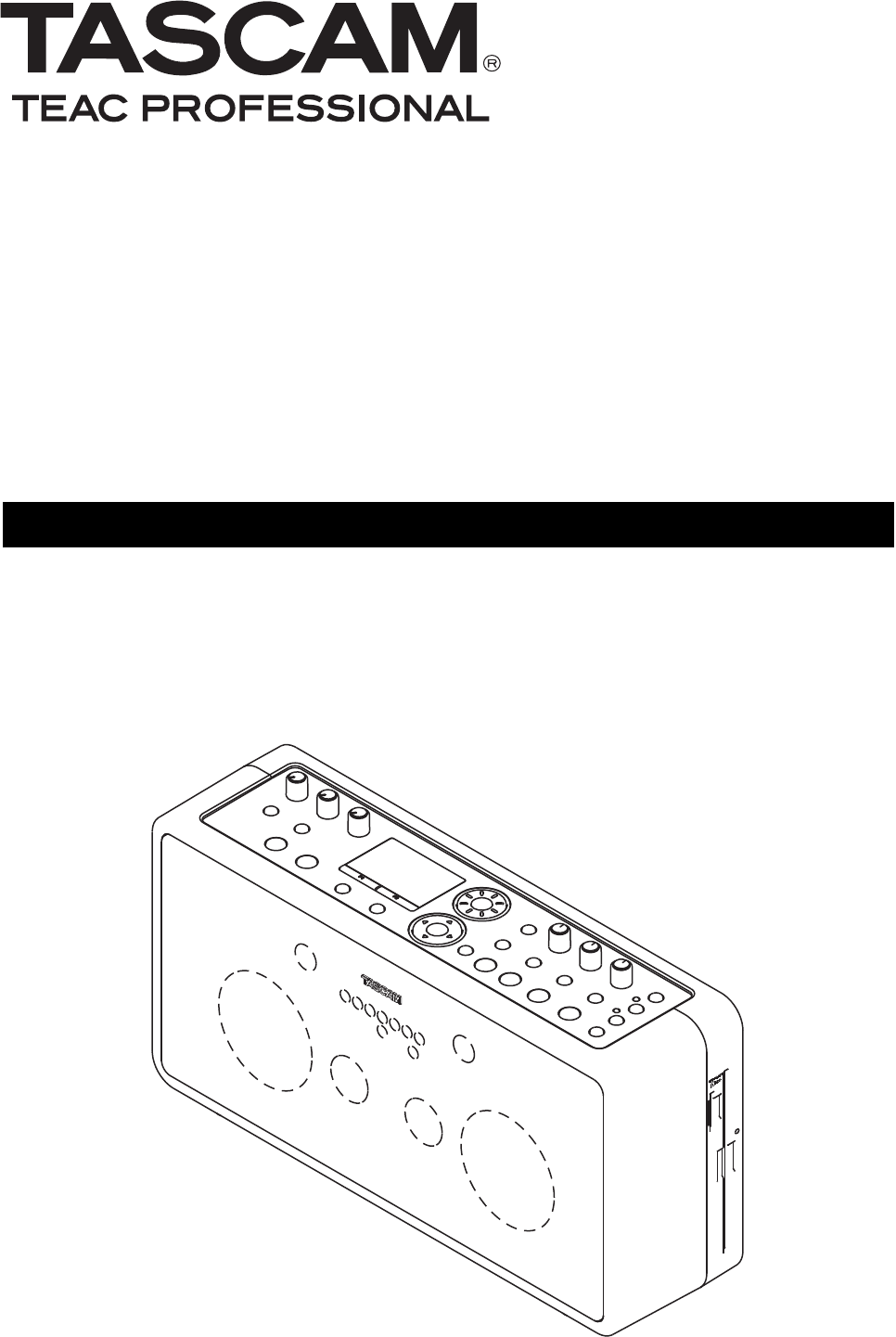
BB-1000CD
Portable CD/SD Recorder
OWNER'S MANUALOWNER'S MANUAL
BB-1000CD_En.indd 1BB-1000CD_En.indd 1 09.2.3 2:19:28 PM09.2.3 2:19:28 PM
2 TASCAM BB-1000CD
IMPORTANT SAFETY PRECAUTIONS
The exclamation point within an equilateral triangle is intended to alert the user to
the presence of important operating and maintenance (servicing) instructions in
the literature accompanying the appliance.
The lightning flash with arrowhead symbol, within equilateral triangle, is intended
to alert the user to the presence of uninsulated “dangerous voltage” within the
product’s enclosure that may be of sufficient magnitude to constitute a risk of
electric shock to persons.
CAUTION: TO REDUCE THE RISK OF ELECTRIC SHOCK, DO NOT REMOVE
COVER (OR BACK). NO USER-SERVICEABLE PARTS INSIDE. REFER SERVICING
TO QUALIFIED SERVICE PERSONNEL.
WARNING: TO PREVENT FIRE OR SHOCK
HAZARD, DO NOT EXPOSE THIS
APPLIANCE TO RAIN OR MOISTURE.
This appliance has a serial number located
on the rear panel. Please record the model
number and serial number and retain them for
your records.
Model number
Serial number
TO THE USER
This equipment has been tested and found to comply with
the limits for a Class B digital device, pursuant to Part 15
of the FCC Rules. These limits are designed to provide
reasonable protection against harmful interference in a
residential installation. This equipment generates, uses, and
can radiate radio frequency energy and, if not installed and
used in accordance with the instruction manual, may cause
harmful interference to radio communications. However, there
is no guarantee that interference will not occur in a particular
installation. If this equipment does cause harmful interference
to radio or television reception, which can be determined by
turning the equipment off and on, the user is encouraged to
try to correct the interference by one or more of the following
measures.
a) Reorient or relocate the receiving antenna.
b) Increase the separation between the equipment and
receiver.
c) Connect the equipment into an outlet on a circuit different
from that to which the receiver is connected.
d) Consult the dealer or an experienced radio/TV technician
for help.
CAUTION
Changes or modifications to this equipment not expressly
approved by TEAC CORPORATION for compliance could void
the user's authority to operate this equipment.
For U.S.A.
BB-1000CD_En.indd 2BB-1000CD_En.indd 2 09.2.3 2:19:28 PM09.2.3 2:19:28 PM
TASCAM BB-1000CD 3
IMPORTANT SAFETY INSTRUCTIONS
1 Read these instructions.
2 Keep these instructions.
3 Heed all warnings.
4 Follow all instructions.
5 Do not use this apparatus near water.
6 Clean only with dry cloth.
7 Do not block any ventilation openings. Install in
accordance with the manufacturer's instructions.
8 Do not install near any heat sources such as radiators,
heat registers, stoves, or other apparatus (including
amplifi ers) that produce heat.
9 Do not defeat the safety purpose of the polarized or
grounding-type plug. A polarized plug has two blades
with one wider than the other. A grounding type plug
has two blades and a third grounding prong. The wide
blade or the third prong are provided for your safety. If
the provided plug does not fi t into your outlet, consult
an electrician for replacement of the obsolete outlet.
10 Protect the power cord from being walked on
or pinched particularly at plugs, convenience
receptacles, and the point where they exit from the
apparatus.
11 Only use attachments/accessories specified by the
manufacturer.
12 Use only with the cart, stand, tripod, bracket, or
table specifi ed by the manufacturer, or sold with the
apparatus. When a cart is used, use caution when
moving the cart/apparatus combination to avoid injury
from tip-over.
13 Unplug this apparatus during lightning storms or when
unused for long periods of time.
14 Refer all servicing to qualified service personnel.
Servicing is required when the apparatus has been
damaged in any way, such as power-supply cord or
plug is damaged, liquid has been spilled or objects
have fallen into the apparatus, the apparatus has
been exposed to rain or moisture, does not operate
normally, or has been dropped.
Do not expose this apparatus to drips or splashes.
•
Do not place any objects filled with liquids, such as
•
vases, on the apparatus.
Do not install this apparatus in a confined space such
•
as a book case or similar unit.
The apparatus draws nominal non-operating power
•
from the AC outlet with its POWER or STANDBY/ON
switch not in the ON position.
The apparatus should be located close enough to the
•
AC outlet so that you can easily grasp the power cord
plug at any time.
The main plug is used as the disconnect device, the
•
disconnect device shall remain readily operable.
An apparatus with Class I construction shall be
•
connected to an AC outlet with a protective grounding
connection.
Batteries (battery pack or batteries installed) should not
•
be exposed to excessive heat such as sunshine, fire or
the like.
Excessive sound pressure from earphones and head-
•
phones can cause hearing loss.
BB-1000CD_En.indd 3BB-1000CD_En.indd 3 09.2.3 2:19:29 PM09.2.3 2:19:29 PM

4 TASCAM BB-1000CD
Cautions about Batteries
This product uses batteries. Misuse of batteries could
cause a leak, rupture or other trouble. Always abide by the
following precautions when using batteries.
Never recharge non-rechargeable batteries. The batter-
•
ies could rupture or leak, causing fire or injury.
When installing batteries, pay attention to the
•
polarity
indications (plus/minus (+/–) orientation), and install
them correctly in the battery compartment as indicated.
Putting them in backward could make the batteries
rupture or leak, causing fire, injury or stains around
them.
When throwing used batteries away, follow the disposal
•
instructions indicated on the batteries and the local
disposal laws. When you store or dispose batteries, isorate
their terminals with insulation tape or something like that
to prevent them from contacting other batteries or metalic
objects.
Do not use batteries other than those specified. Do not
•
mix and use new and old batteries or different types of
batteries together. The batteries could rupture or leak,
causing fire, injury or stains around them.
Do not carry or store batteries together with small metal
•
objects. The batteries could short, causing leak, rupture
or other trouble.
Do not heat or disassemble batteries. Do not put them
•
in fire or water. Batteries could rupture or leak, causing
fire, injury or stains around them.
If the battery fluid leaks, wipe away any fluid on the
•
battery case before inserting new batteries. If the
battery fluid gets in an eye, it could cause loss of
eyesight. If fluid does enter an eye, wash it out thor-
oughly with clean water without rubbing the eye and
then consult a doctor immediately. If the fluid gets on a
person’s body or clothing, it could cause skin injuries or
burns. If this should happen, wash it off with clean water
and then consult a doctor immediately.
The unit power should be off when you install and
•
replace batteries.
Remove the batteries if you do not plan to use the unit
•
for a long time. Batteries could rupture or leak, caus-
ing fire, injury or stains around them. If the battery fluid
leaks, wipe away any fluid on the battery compartment
before inserting new batteries.
Small children may mistakenly swallow a lithium coin •
battery and it is very dangerous. Keep the battery and
the remote control out of the reach of small children. In
the event a battery is swallowed, immediately consult a
physician.
IMPORTANT SAFETY PRECAUTIONS
BB-1000CD_En.indd 4BB-1000CD_En.indd 4 09.2.3 2:19:29 PM09.2.3 2:19:29 PM
TASCAM BB-1000CD 5
IMPORTANT SAFETY PRECAUTIONS
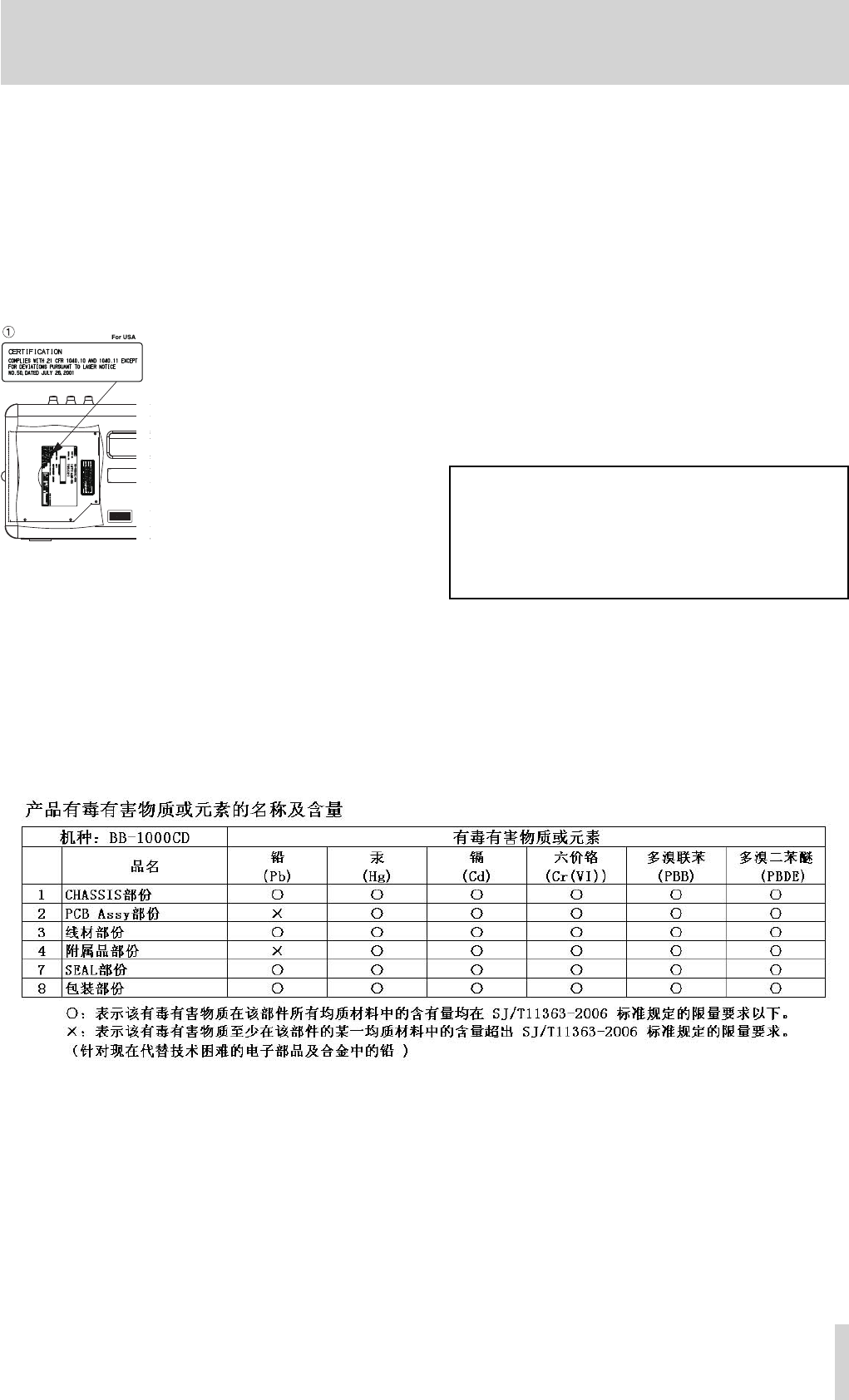
This product has been designed and manufactured accord-
ing to FDA regulations “title 21, CFR, chapter 1, subchap-
ter J, based on the Radiation Control for Health and Safety
Act of 1968”, and is classified as a class 1 laser product.
There is no hazardous invisible laser radiation during
operation because invisible laser radiation emitted inside of
this product is completely confined in the protective hous-
ings.
The label required in this regulation is shown at 1.
CAUTION
DO NOT REMOVE THE PROTECTIVE HOUSING •
USING A SCREWDRIVER.
USE OF CONTROLS OR ADJUSTMENTS •
OR PERFORMANCE OF PROCEDURES
OTHER THAN THOSE SPECIFIED HEREIN
MAY RESULT IN HAZARDOUS RADIATION
EXPOSURE.
IF THIS PRODUCT DEVELOPS TROUBLE, •
CONTACT YOUR NEAREST QUALIFIED
SERVICE PERSONNEL, AND DO NOT USE THE
PRODUCT IN ITS DAMAGED STATE.
CLASS 1M INVISIBLE LASER RADIATION •
WHEN OPEN AND INTERLOCKS DEFEATED.
DO NOT VIEW DIRECTLY WITH OPTICAL
INSTRUMENTS.
Optical pickup
Type : HOP- 6201TC
Manufacturer : Hitachi Media Electronics Co,Ltd.
Laser output : Less than 75 mW on the objective lens (record)
Wavelength : 777 to 787 nm
BB-1000CD_En.indd 5BB-1000CD_En.indd 5 09.2.3 2:19:29 PM09.2.3 2:19:29 PM

6 TASCAM BB-1000CD
Playback
Listening to a disc
When playing back a disc, insert it and press the CD key.
You can use the unit when...
listening to a commercially available audio CD.
•
listening to a disc on which you recorded
• .
« page 19 “Playing back a disc (commercially available audio CD)”
page 36 “Playback”
Listening to les on an SD card
When playing back an audio file on an SD card, insert it and press the SD key.
You can use the unit when...
playing back an SD card containing WAV files and MP3 files.
•
playing back an SD card on which you recorded.
•
« page 30 “Inserting an SD card”
page 36 “Playback”
What types of files can this unit play back?
MP3 files and WAV files on an SD card can be played back.
« page 36 “Playable file format”
To select files to play back on an SD card
The unit plays only files in a folder which contains the currently playing file when you are using an SD card. You can select a
folder to playback on an SD card on the BROWSE screen.
« page 48 “Browsing an SD card”
What you can do with the unit
BB-1000CD_En.indd 6BB-1000CD_En.indd 6 09.2.3 2:19:29 PM09.2.3 2:19:29 PM

TASCAM BB-1000CD 7
Recording
Di erence between a disc and SD card
Same as a commercially available audio CD, sound is recorded on a disc in the CD-DA format. The disc can be played back
on a standard CD player.
You can record sound on an SD card on the WAV or MP3 format. You can record for a longer period of time by using the MP3
format though the sound quality is inferior to a CD's.
In addition, you can edit audio files on the SD card such as dividing them.
Recording on a disc
« page 38 “Recording”
What disc is recordable?
You can use a CD-R or CD-RW for recording.
« page 17 “About CD-R and CD-RW discs”
What is finalization?
To playback a disc recorded on the unit on another device, the process called finalization is required. You cannot record on a
CD-R disc any more after finalization. You can make a finalized CD-RW disc recordable again by unfinalizing it.
« page 47 “Finalizing a disc”
page 47 “Unfinalizing a CD-RW”
Recording on an SD card
« page 38 “Recording”
To record in higher sound quality
You can record in the same sound quality as that of a commercially available CD.
It is useful when...
recording a live performance, concert or recital.
•
« page 45 “Long time recording”
To record for a longer period of time
You can record longer in less file size by using the MP3 format.
It is useful when...
recording for many hours in a conference or event.
•
« page 45 “Long time recording”
What you can do with the unit
BB-1000CD_En.indd 7BB-1000CD_En.indd 7 09.2.3 2:19:29 PM09.2.3 2:19:29 PM

8 TASCAM BB-1000CD
Recording with the built-in microphones
To record sounds all around the unit by using the front and rear microphones
You can record sounds around the unit by using the built-in microphones on the front and rear. It is suitable when recording
the music played in a circle, placing the unit at the center of the circle. Select FRNT/REAR at SOURCE in the INPUT screen to
record sound using the front and rear microphones.
It is useful when...
recording sound of a small orchestra surrounding the unit.
•
recording sound of a band in a sound room placing the unit at its center.
•
recording a meeting.
•
« page 38 “Selecting the input”
To record sound using the front microphones only
It is suitable when recording a small band or solo play. Select FRNT/REAR at SOURCE in the INPUT screen and turn the
REAR MIC knob down to the minimum to record by the front microphones only.
It is useful when...
sound source exists in front of the unit only, such as in a private lesson or solo play.
•
recording sound of a big orchestra at a position such as the conductor's.
•
« page 38 “Selecting the input”
Recording with external microphones
When using external microphones, connect them to the EXT MIC jacks on the left side and select EXT/REAR at SOURCE in
the INPUT screen. Turn the REAR MIC knob down to the minimum. Slide the PHANTOM switch to ON when using condenser
microphones in addition.
It is useful when...
recording in high quality with using high-performance condenser microphones.
•
« page 35 “Connecting to the EXT MIC jacks”
page 38 “Selecting the input”
Recording the sound from an external device
To record the sound of a tape recorder or record player
You can record the playback sound of an external device such as a tape recorder or record player. Connect a device to the
LINE IN jack on the left side and select FRNT/LINE at SOURCE in the INPUT screen. Turn the FRONT MIC knob down to the
minimum.
You can give numbers to tracks automatically by using the auto recording function (page 44).
It is useful when...
copying sound on a cassette tape or MD on to a CD or SD card.
•
recording sound on media unplayable on this unit.
•
recording sound through the line output of an electric instrument.
•
« page 35 “Connecting to the LINE IN jack”
page 38 “Selecting the input”
What you can do with the unit
BB-1000CD_En.indd 8BB-1000CD_En.indd 8 09.2.3 2:19:30 PM09.2.3 2:19:30 PM

TASCAM BB-1000CD 9
Settings for exible recording
Adjusting recording level automatically
The recorded sound may distort when the input level is too high and it may become noisy when the level is too low. The level
control functions on the unit adjust the input level automatically according to the strength of input signals to get appropriate
volume.
It is useful when...
some speakers speak loudly and others low in a meeting or conference.
•
a loud sound comes out suddenly such as in a live performance.
•
« page 38 “Adjusting the input settings”
Adjusting recording level manually
Automatic adjustment of input level by the level control functions may result in a little bit unnatural sound volume. It is rec-
ommended to adjust the recording level manually to get better sound.
« page 39 “Ordinary recording”
Starting recording automatically
You can start recording automatically as sound comes in from microphones by using the automatic recording function.
It is useful when...
starting recording as sound comes out in a event or conference.
•
« page 44 “Auto recording”
Skipping silence while recording
You can set the unit to pause recording automatically when no sound comes in from microphones by using the automatic
recording function.
It is useful when...
you do not want to record silence in a meeting.
•
« page 44 “Auto recording”
Dividing recording les automatically
You can set the unit to make a new recording file as it detect silence for a certain moment by using the automatic recording
function.
It is useful when...
dividing recording files as presenters change in a conference.
•
dividing files per tracks without stopping playback during recording sound from a cassette tape or record.
•
« page 44 “Auto recording”
What you can do with the unit
BB-1000CD_En.indd 9BB-1000CD_En.indd 9 09.2.3 2:19:30 PM09.2.3 2:19:30 PM

10 TASCAM BB-1000CD
Assisting practice of an instrument
Tuning of an instrument
You can use the unit as a chromatic tuner or oscillator.
« page 41 “Using the Tuner”
Practicing with the metronome
You can use the unit as a metronome.
« page 41 “Using the Metronome”
Changing the playback speed
You can change the playback speed of a CD or SD card without changing the key.
It is useful when...
practicing in slow speed at first and gradually increasing the speed.
•
copying a quick musical phrase.
•
« page 42 “Changing the playback speed”
Changing the playback key
You can change the playback key without changing the playback speed.
It is useful when...
practicing in a higher or lower key.
•
« page 42 “Changing the playback key”
playing back a certain part of a song repeatedly
You can specify a section and play back it repeatedly.
It is useful when...
practicing a new phrase repeatedly.
•
listening to a difficult phrase repeatedly.
•
« page 37 “Loop playback (I-O LOOP)”
Skipping a track a little backward
You can skip back a few second while playing back a track by pressing the FLASHBACK key. The skip back time is adjustable
(1-5 seconds).
It is useful when...
missing an important phrase.
•
« page 36 “Skipping a track a little backward (FLASH BACK)”
page 50 “Adjusting the time of FLASH BACK”
What you can do with the unit
BB-1000CD_En.indd 10BB-1000CD_En.indd 10 09.2.3 2:19:30 PM09.2.3 2:19:30 PM

TASCAM BB-1000CD 11
Reducing the volume of a certain part
You can select a certain position and reduce the sound volume from the position.
It is useful when...
practicing a song reducing the vocal sound on a CD.
•
practicing a certain instrument in an orchestra by reducing the part on a CD.
•
« page 42 “Reducing sound of a certain location (PART CANCEL)”
Overdubbing on a playback sound
You can mix up the playback sound of a disc or SD card and that from microphones and the LINE IN jack and record the
mixed sound on to an SD card,
Easy overdubbing
You can mix up sound casually with the playback sound from speakers. Both the playback sound and your sound are recorded
through microphone.
It is useful when...
overdubbing the play of two or more people on the playback sound.
•
overdubbing sound of an acoustic instrument such as strings or horn.
•
« page 39 “Mixing up the playback sound and your play (OVERDUB)”
Recording sound in high quality
Overdub a new sound monitoring the playback sound with headphones. The playback sound is recorded directly as digital
signals and you can record sound in high quality.
It is useful when...
overdubbing the sound of instruments which need line input such as an electric guitar.
•
« page 40 “Overdubbing in higher sound quality (DIRECT MIX)”
Editing an audio le
You can edit files on an SD card only. You cannot edit tracks on a disc.
Dividing a le
You can divide a WAV file recorded on an SD card into two or more files. You cannot divide an MP3 file.
It is useful when...
deleting silent parts of an audio file.
•
dividing a long recording file of a meeting at certain points.
•
dividing a file recording a whole concert song by song.
•
« page 46 “Editing a file”
What you can do with the unit
BB-1000CD_En.indd 11BB-1000CD_En.indd 11 09.2.3 2:19:30 PM09.2.3 2:19:30 PM

12 TASCAM BB-1000CD
Changing the playback order of les
You can change the playback order of audio files on an SD card.
It is useful when...
changing the order as you like.
•
changing the order following your practice order.
•
« page 46 “Editing a file”
Deleting les
You can delete unnecessary audio files on an SD card.
« page 46 “Editing a file”
Copying music les
Copying tracks on a disc on to an SD card
You can copy selected tracks on a disc on to an SD card. You can save file size by using the MP3 format when copying.
It is useful when...
copying only your favorite tracks from discs.
•
« page 43 “Copying a CD onto an SD card”
Copying les on an SD card on to a disc
You can copy music files on an SD card on to a disc. You can arrange the order of the selected files when copying. You can
play the disc on standard CD players.
It is useful when...
copying and distributing discs containing a playing sample to your students for their practice.
•
« page 43 “Writing files on an SD card onto a disc”
Backing up a disc
You can make a backup of a disc by copying its whole contents on to an SD card and copy them on a blank disc.
« page 44 “Duplicating an audio CD”
Other useful functions
Making a CD-RW recordable again
You can remove finalization on a finalized CD-RW for additional recording.
« page 47 “Unfinalizing a CD-RW”
Formatting an SD card
When using a new SD card or one used on another device on the unit, it is recommended to format the card before starting to
use it. The possibility of recording error may become higher when using an SD card formatted on another device.
All the folders and files recorded on an SD card are erased by formatting.
« page 49 “Formatting an SD card”
What you can do with the unit
BB-1000CD_En.indd 12BB-1000CD_En.indd 12 09.2.3 2:19:30 PM09.2.3 2:19:30 PM

TASCAM BB-1000CD 13
Contents
IMPORTANT SAFETY PRECAUTIONS .................... 2
What you can do with the unit ..............................6
1–Int roduction ..................................................... 15
Main features ....................................................................................... 15
Included items...................................................................................... 15
Note about this manual ........................................................................ 15
Trademarks, copyrights, and disclaimers ............................................. 15
Cautions on installation ....................................................................... 16
Beware of condensat ion ....................................................................... 16
Cleaning the unit .................................................................................. 16
About SD cards ..................................................................................... 16
Precautions for use ........................................................................................ 16
About Discs........................................................................................... 16
Cau tions .......................................................................................................... 16
About CD-R and CD-RW discs ........................................................................ 17
Inserting a disc into the slot-loading drive ........................................... 17
2-Quick start guide .............................................. 18
Preparation .......................................................................................... 18
Turning the power on and off ............................................................... 18
Playing back a disc
(commercially available audio CD) ..............................
19
Loading a disc ................................................................................................ 19
Selecting the playback media.........................................................................19
Playing back....................................................................................................19
Adjusting the volume .....................................................................................19
Using the special playback control functions
(changing pitch and speed of playback) ............................................... 19
Recording ............................................................................................. 20
Inserting an SD card ...................................................................................... 20
Recording on an SD card ................................................................................ 20
Recording on a disc ........................................................................................ 21
3–Part Names and Functions .............................. 23
Top panel ............................................................................................. 23
Front Panel ........................................................................................... 25
Rear Panel ............................................................................................ 25
Left side panel ...................................................................................... 26
Right side panel ................................................................................... 27
Remote control unit (RC-BB1000) ......................................................... 27
4 –Preparation ...................................................... 28
Powering the unit ................................................................................ 28
Connecting the AC adapter ............................................................................ 28
Installing the batteries .................................................................................. 28
Remote control unit ..............................................................................28
Installing the battery ......................................................................................28
Battery replacement .......................................................................................28
Precautions concerning batteries ...................................................................29
Precautions using remote control unit ...........................................................29
Turning the power on and off ................................................................29
Setting the date and time .....................................................................29
Inserting an SD card ............................................................................. 30
Removing the SD card .................................................................................... 30
When using a new SD card ............................................................................ 30
Write protection ............................................................................................ 30
Loading a disc ....................................................................................... 30
Ejecting a disc ................................................................................................ 31
Selecting the recording/playback media .............................................. 31
5–Screen Overview .............................................. 32
Home screen ........................................................................................ 32
Record screen ........................................................................................33
Setting screens ..................................................................................... 33
Setting screen structure ................................................................................ 33
Operation basics ............................................................................................ 33
Operation example ........................................................................................ 34
Setting screen list .......................................................................................... 34
6–Connection .......................................................35
Connecting monitor s ............................................................................ 35
Connecting external microphones and an audio device ....................... 35
Connecting to the EXT MIC jacks .................................................................... 35
Connecting to the LINE IN jack ....................................................................... 35
7–Playback ........................................................... 36
Playable file format .............................................................................. 36
Playback ............................................................................................... 36
Skipping a track a little backward (FLASH BACK) .......................................... 36
Playback from marked points ........................................................................ 36
Repeat playback ............................................................................................ 37
Loop playback (I–O LOOP) ............................................................................. 37
Adjusting the volume .................................................................................... 37
8 –Re cording ......................................................... 38
Recording environment........................................................................ 38
Selecting the input ........................................................................................ 38
Adjusting the input settings .......................................................................... 38
Volume balance adjustment ................................................................ 38
Adjusting the balance of microphones .......................................................... 38
Adjusting the level of playback signal ........................................................... 38
Ordinary recording ............................................................................... 39
Overdubbing ........................................................................................ 39
Preparation for overdubbing ......................................................................... 39
Overdub recording ......................................................................................... 40
Overdubbing in higher sound quality (DIRECT MIX) ............................. 40
9–For practicing musical instruments ............... 41
Using the Tuner .................................................................................... 41
Prep arat ion .................................................................................................... 41
Chromatic tuner mode ................................................................................... 41
Oscillator mode .............................................................................................. 41
Using the Metronome .......................................................................... 41
Setting the metronome ................................................................................. 41
Starting and stopping the metronome.......................................................... 42
Practicing with CD/SD playback ........................................................... 42
Changing the playback key ............................................................................ 42
Changing the playback speed ........................................................................ 42
Reducing sound of a certain location (PART CANCEL) .................................... 42
Practicing a certain phrase repeatedly ...........................................................42
Recording the practice with CD/SD ....................................................... 42
10–Other useful functions .................................. 43
Copying audio files ............................................................................... 43
Copying a CD on to an SD card ....................................................................... 43
Writing files on an SD card onto a disc ........................................................... 43
Duplicating an audio CD ................................................................................ 44
Changing recording settings ................................................................ 44
Auto recording ............................................................................................... 44
Long time recording ...................................................................................... 45
About the recording time .............................................................................. 45
Editing a file ......................................................................................... 46
11–Managing recording media .......................... 47
Finalizing a disc .................................................................................... 47
Unfinalizing a CD-RW ........................................................................... 47
Deleting tracks on a CD-RW ................................................................. 47
Browsing an SD card ............................................................................. 48
Screen navigation .......................................................................................... 48
Icons on the BROWSE screen .......................................................................... 48
File operations ............................................................................................... 48
Folder operations........................................................................................... 49
Formatting an SD card.......................................................................... 49
BB-1000CD_En.indd 13BB-1000CD_En.indd 13 09.2.3 2:19:30 PM09.2.3 2:19:30 PM

14 TASCAM BB-1000CD
Contents
12–Environmental settings ................................ 50
Backlight Auto OFF setting ................................................................... 50
Adjust the display contrast ................................................................... 50
Adjusting the time of FLASH BACK ....................................................... 50
Setting the date and time .................................................................... 50
13– Messages ........................................................ 51
14–Troubleshooting ............................................ 53
15–Specifications ................................................ 54
Specifications ....................................................................................... 54
CD recorder .................................................................................................... 54
Audio input and out put ........................................................................ 54
Audio performance .............................................................................. 54
General ................................................................................................. 54
Dimensions........................................................................................... 55
BB-1000CD_En.indd 14BB-1000CD_En.indd 14 09.2.3 2:19:30 PM09.2.3 2:19:30 PM
TASCAM BB-1000CD 15
1–Introduction
Thank you very much for purchasing the TASCAM BB-
1000CD Portable CD/SD Recorder. Please read this Own-
er’s Manual carefully in order to maximize your use of all
the unit’s features. We hope that you will enjoy using this
recorder for many years to come. After you have finished
reading this manual, keep it in a safe place.
Main features
Boom box style Portable
• CD/SD Recorder
Directly recording to CD-R/RW and SD (SDHC)
•
CD: CD-DA (16-bit / 44.1 kHz)
SD: WAV (16-bit / 44.1 kHz), MP3 (High (192 kbps),
Mid (128 kbps), Low (64 kbps) / 44.1 kHz)
Copy from SD(WAV, MP3) to CD
• (CD-DA) / CD
(CD-DA) to SD (WAV, MP3)
VSA (Variable Speed Audition) changes playback speed
•
without pitch change, and changes pitch without speed
change
Easy operation with dedicated knobs and keys
•
5 W + 5 W digital amplifier (Class D Delta-Sigma
•
modulation with 512 times over-sampling by 1-bit
amplifier technology)
Two pairs of stereo microphones on the front and
•
rear for 360-degree recording for band recording and
minutes recording
Over-dub recording
•
Powered through 8 x AA batteries or AC power adapter
•
Wireless remote control unit
•
2 x XLR mic inputs with +48 V phantom power
•
Included items
The included items are listed below.
Take care when opening the package not to damage the
items. Keep the package materials for transportation in the
future.
Please contact the store where you purchased this unit if
any of these items are missing or have been damaged dur-
ing transportation.
Main unit 1
•
AC adapter [PS-1225L] 1
•
Remote control [RC-BB1000] 1
•
Lithium coin battery [CR2025] 1
•
Warranty card 1
•
Owner's manual (this manual) 1
•
CAUTION
Be sure to use the supplied PS-1225L AC adapter and power cable.
Also, do not use the supplied AC adapter and power cable with
other devices. It may cause malfunctions, the fi re and electric shock.
Note about this manual
Descriptions as below will be used on this manual.
Keys and terminals on the unit and external devices and
•
messages on the displays are written like this: MENU.
The CD-DA format may also be mentioned as "audio
•
CD" format. In addition, discs on which tracks are
recorded in the audio CD format may be mentioned as
an "audio CD".
Additional information is introduced in the styles below
•
when needed:
TIP
Useful hints when using the unit.
NOTE
Explanation of actions in special situation and supplement.
CAUTION
Instructions that should be followed to avoid injury, damage to the
unit or other equipment, and loss of recording data.
Trademarks, copyrights, and disclaimers
SDHC Logo is a trademark.
MPEG Layer-3 audio coding technology licensed from
Fraunhofer IIS and Thomson.
Supply of this product does not convey a license nor imply
any right to distribute MPEG Layer-3 compliant content
created with this product in revenue-generating broadcast
systems (terrestrial, satellite, cable and/or other distribution
channels), streaming applications (via Internet, intranets
and/or other networks), other content distribution systems
(pay-audio or audio-on-demand applications and the like)
or on physical media (compact discs, digital versatile discs,
semiconductor chips, hard drives, memory cards and the
like). An independent license for such use is required. For
details, please visit http://mp3licensing.com.
Other company names, product names and logos in this
document are the trademarks or registered trademarks of
their respective owners.
BB-1000CD_En.indd 15BB-1000CD_En.indd 15 09.2.3 2:19:30 PM09.2.3 2:19:30 PM
16 TASCAM BB-1000CD
1–Introduction
Note
Any data, including, but not limited to information, de-
scribed herein are intended only as illustrations of such
data and/or information and not as the specifications for
such data and/or information. TEAC CORPORATION
disclaims any warranty that any use of such data and/or
information shall be free from infringement of any third
party’s intellectual property rights or other proprietary
rights, and further, assumes no liability of whatsoever
nature in the event of any such infringement, or arising
from or connected with or related to the use of such data
and/or information.
This product is designed to help you record and repro-
duce sound works to which you own the copyright, or
where you have obtained permission from the copyright
holder or the rightful licensor. Unless you own the
copyright, or have obtained the appropriate permission
from the copyright holder or the rightful licensor, your
unauthorized recording, reproduction or distribution
thereof may result in severe criminal penalties under
copyright laws and international copyright treaties. If
you are uncertain about your rights, contact your legal
advisor. Under no circumstances will TEAC Corpora-
tion be responsible for the consequences of any illegal
copying performed using the recorder.
Cautions on installation
The nominal operating temperature should be between
•
5˚C and 35˚C.
Do not install in places as below. It may deteriorate
•
sound quality and/or cause malfunctions:
a place susceptible to vibration or unstable
a place exposed to direct sunlight, such as by a window
a place excessively hot such as by a heater
a place excessively cold
a place with bad ventilation or excessively damp
Hum noise may be generated when using the unit near
•
a device which has a large transformer such as a power
amplifier. Take a distance from such devices and turn
the unit around to stop the noise.
Using the unit near a TV or radio may cause picture
•
deterioration or noise. Take a distance from such devic-
es.
Using wireless applications such as a cellular phone near
•
the unit may cause noise, especially at incoming and
outgoing of a call and during speaking over the phone.
Take a distance from such devices or turning them off.
Do not use the unit with the front panel down or side
•
panels down. It may cause malfunctions of CD record-
ing and playback. Install it with the operation panel up.
Beware of condensation
If the unit is moved from a cold to a warm place, or used
after a sudden temperature change, there is a danger of
condensation; vapor in the air could condense on the inter-
nal mechanism, making correct operation impossible. To
prevent this, or if this occurs, let the recorder sit for one or
two hours at the new room temperature before using.
Cleaning the unit
To clean the unit, wipe gently with a soft dry cloth. Do
not use any benzene, paint thinner, ethyl alcohol or other
chemical agents to clean the unit as they could damage the
surface.
About SD cards
This unit uses SD cards for recording and playback. You
can use 64 MB - 2 GB SD cards and 4 GB - 32 GB SDHC
cards with this unit. A list of SD cards that have been tested
with this unit can be found on the TASCAM web site (www.
tascam.com).
Precautions for use
SD cards are delicate media. In order to avoid damaging
•
a card or the card slot, please take the following precau-
tions when handling them.
Do not leave them in extremely hot or cold places.
•
Do not leave them in extremely humid places.
•
Do not let them get wet.
•
Do not put things on top of them or twist them.
•
Do not hit them.
•
About Discs
The built-in CD drive on this unit can record/play back CD
in the CD-DA format.
Cautions
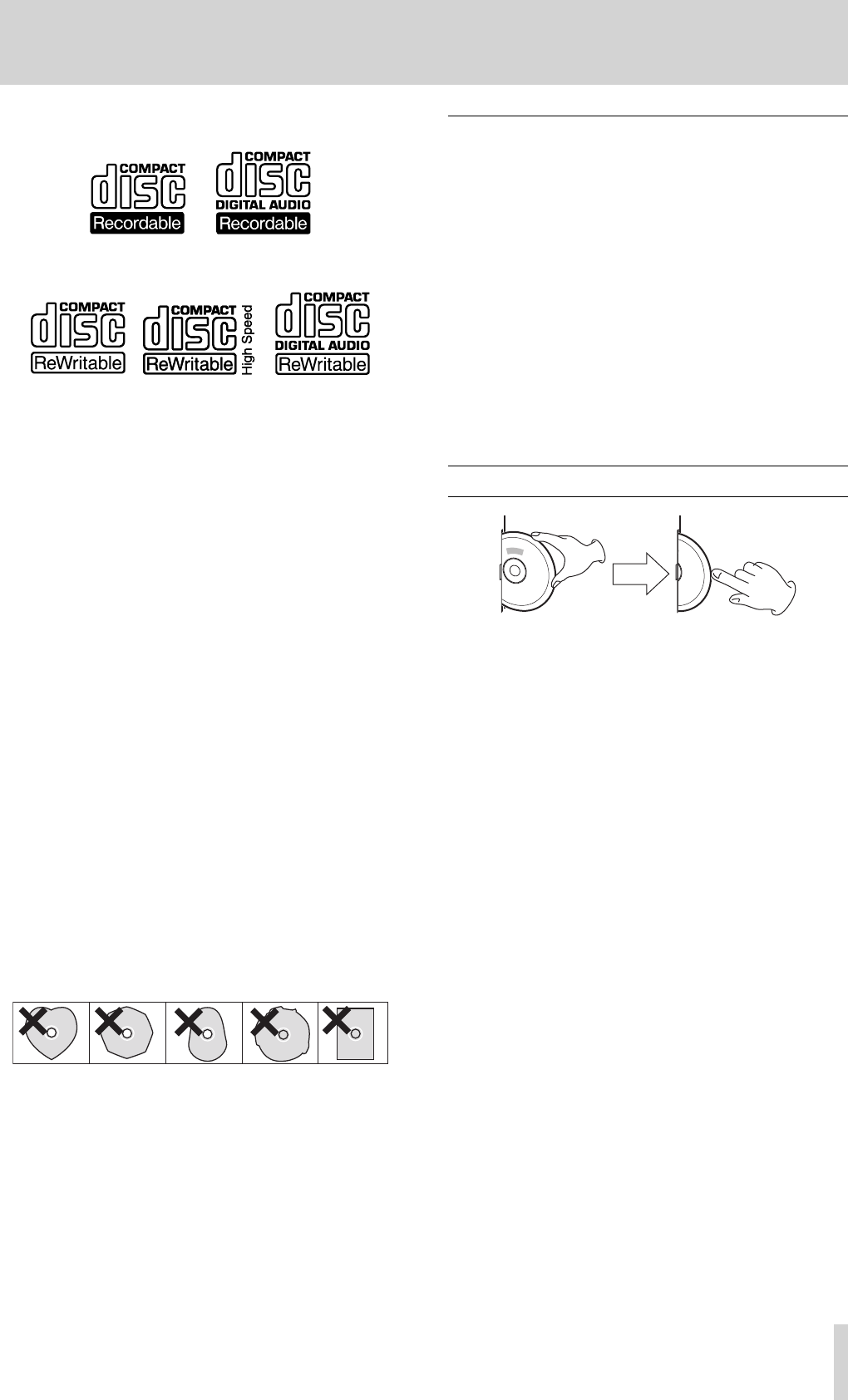
Please use CD, CD-R and CD-RW discs bearing the
•
following logos.
BB-1000CD_En.indd 16BB-1000CD_En.indd 16 09.2.3 2:19:31 PM09.2.3 2:19:31 PM
TASCAM BB-1000CD 17
1–Introduction
CD-R
CD-RW
Always insert the disc into the slot with the label side
•
toward you. (Compact discs can be played or recorded
only on one side.)
To remove a disc from its storage case, press down on
•
the center of the case and lift the disc out, holding it
carefully by the edges.
Avoid getting fingerprints on the signal side (the non-
•
label side). Grime and dust may cause skipping.
Should the disc become dirty, wipe the surface radially
•
(from the center hole outward towards the outer edge)
with a soft, dry cloth:
Discs should be returned to their cases after use to avoid
•
dust and scratches that could cause the laser pickup to
“skip.”
Never use such chemicals as record sprays, antistatic
•
sprays or fluid, benzine or thinner to clean the discs.
Such chemicals will do irreparable damage to the disc’s
plastic surface.
Do not affix any labels or stickers to the label side of the
•
disc. Do not insert discs that have adhesive remaining
from tape or stickers that have been removed. If they are
inserted into the player, they could stick to the internal
mechanism, requiring removal by a technician.
Never use a stabilizer. Using commercially available CD
•
stabilizers with this unit will damage the mechanism
and cause them to malfunction.
Do not use cracked discs.
•
Do not use CDs with an irregular shape (octagonal,
•
heart shaped, business card size, etc.). CDs of this sort
can damage the unit:
Copy-protected discs and other discs which do not
•
conform to the CD standard may not play back correctly
in this player. If you use such discs in this unit, TEAC
Corporation and its subsidiaries cannot be responsible
for any consequences or guarantee the quality of repro-
duction. If you experience problems with such non-stan-
dard discs, you should contact the producers of the disc.
About CD-R and CD-RW discs
CD-R discs can be recorded once only. Once they have
been used for recording, they cannot be erased or re-
recorded. However, if space is available on the disc (and
the disc has not been finalized), additional material can be
recorded.
By contrast, a CD-RW disc can be used in much the same
way as a CD-R disc, but the last track or tracks recorded
can be erased, and the space on the disc can be re-used for
other recordings.
However, you should note that an audio CD created using
a CD-RW disc may not play back satisfactorily on every
audio CD player.
CD-R, by contrast, may be played satisfactorily on the
majority of audio CD players.
Inserting a disc into the slot-loading drive
1. Insert a disc halfway into the slot by holding the disc
edge and facing the label side front, as illustrated.
2. Push the disc into the slot until the disc is automati-
cally brought in.
When a disc is not loaded properly
When a disc is not loaded properly, draw out the disc and
press the øEJECT key, then try to load it again. DO NOT
push the disc in forcedly. It may damage the unit and the
disc.
BB-1000CD_En.indd 17BB-1000CD_En.indd 17 09.2.3 2:19:31 PM09.2.3 2:19:31 PM
18 TASCAM BB-1000CD
2–Quick start guide
Here introduces preparation of the unit and basic operations
from playback to recording.
Preparation
Powering the unit
You can use the supplied AC adapter or separately purchased
AA batteries
. Connect the AC adapter or install the batter-
ies before use.
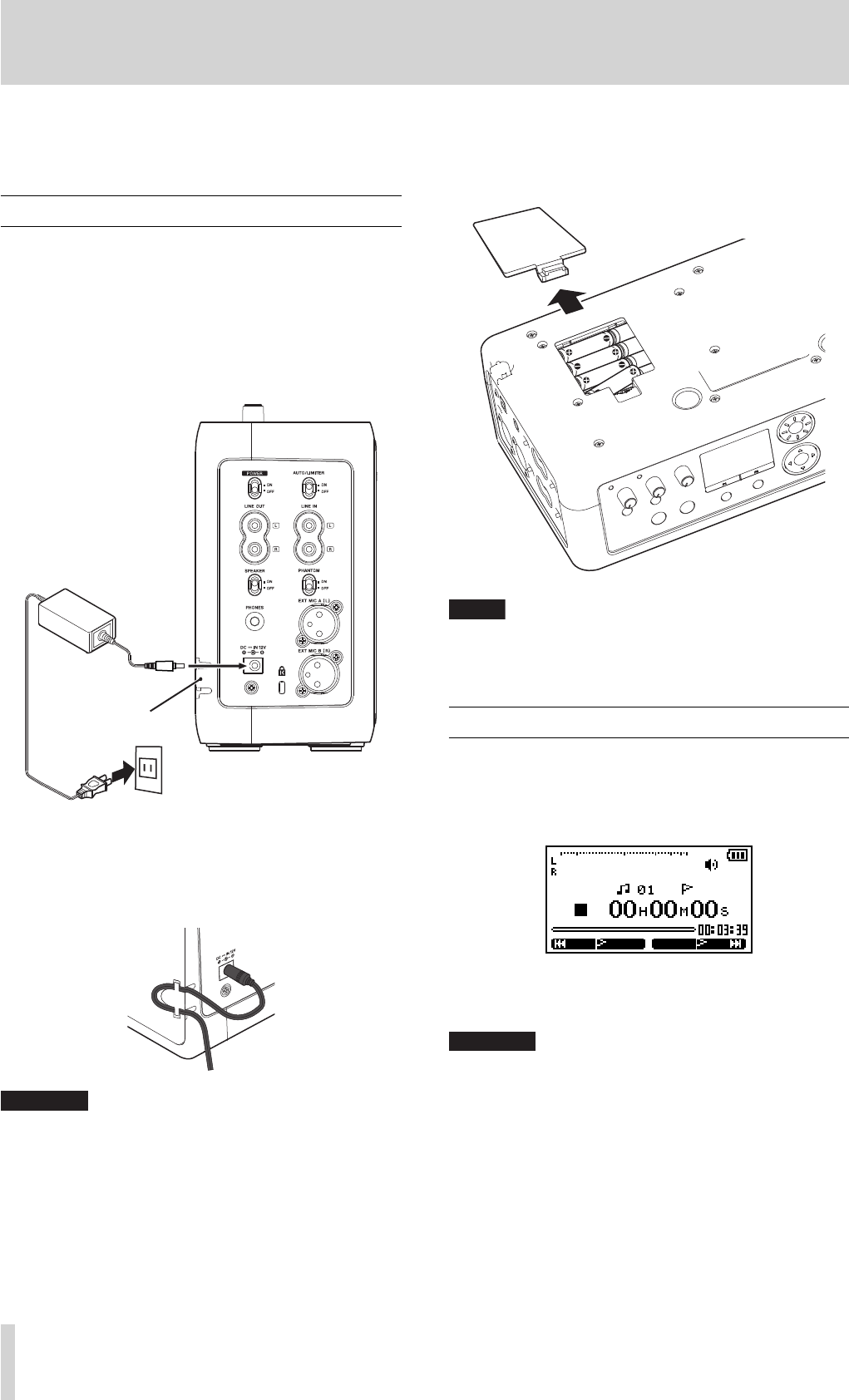
Connecting the AC adapter
Connect the power cable to the AC adapter, the adapter to
the unit, then connect the power cable to the AC outlet.
The left side panel of the unit has a dent for holding the
cable of the AC adapter–the AC cord holder. Hook the
cord in to the clipping of the holder to prevent unexpected
disconnection of the cord.
CAUTION
DO NOT hook the AC cord in forcedly. It may damage the cord.•
Uninstall the batteries when using the supplied AC adapter to •
keep the battery life longer.
Installing the batteries
Take off the battery case cover and install separately pur-
chased eight AA batteries observing the ± and — marks on
the case.
NOTE
Batteries are not supplied with this product. It is recommended to
use Ni-MH or alkaline batteries.
Turning the power on and off
Turning on the power
Slide the POWER switch on the left side of the unit to ON.
The Home screen will be displayed after the start-up screen
disappears.
Turning o the power
Slide the POWER switch to OFF.
CAUTION
Do not turn off the power while the CD or SD indicator is fl ashing
(during writing data).
TASCAM PS -1225L
DC plug
AC cord holder
AC outlet
BB-1000CD_En.indd 18BB-1000CD_En.indd 18 09.2.3 2:19:31 PM09.2.3 2:19:31 PM

TASCAM BB-1000CD 19
2–Quick start guide
Playing back a disc (commercially available audio CD)
Loading a disc
NOTE
You can load a disc while the unit is turned on.
1. Insert a disc halfway into the slot facing the label side
front, as illustrated.
2. Push the disc into the slot until the disc is automati-
cally brought in.
CAUTION
You cannot insert a disc when the unit is turned off .•
When a disc is not loaded properly, draw out the disc and press •
the øEJECT key, then try to load it again. DO NOT push the disc
in forcedly. It may damage the unit and the disc.
Ejecting a disc
Press the øEJECT key.
The disc is ejected halfway. Draw it out by holding its edge.
Use the keys on the top of the unit to control playback.
CAUTION
You cannot eject a disc when the unit is turned off .
Selecting the playback media
Press the CD key on the unit while the Home screen is
displayed to select it.
The recording/playback media is changed and the indicator
of the selected media lights up.
Playing back
Use the keys on the top of the unit to operate the
BB-1000CD.
Press the PLAY/READY [¥/π] key to start playback.
Press the PLAY/READY [¥/π] key again to pause playback.
Press the STOP key to stop playback.
Press the ≤ key to skip to the beginning of the next track.
Press the μ key to skip to the beginning of the current
track. Pressing it within the 1 seconds from the beginning
of a track skips to the beginning of the previous track.
Press and hold the ≤/μ key during playback/pause to
search tracks forward/backward.
Press the FLASH BACK key during playback (or pause) to
skip 2-second back the track.
NOTE
You can change the skip-back time when pressing the FLASH BACK
key ( ∑ page 50 “Adjusting the time of FLASH BACK”.)
Adjusting the volume
Turn the VOLUME knob on the top of the unit to adjust the
volume.
Using the special playback control functions
(changing pitch and speed of playback)
Turn the knobs on the top of the unit to adjust pitch and
speed of playback.
Turn the SPEED knob to adjust the playback speed without
changing pitch.
Turn the KEY knob to adjust the playback pitch without
changing speed.
For fine adjustment of pitch, use the FINE PITCH knob.
BB-1000CD_En.indd 19BB-1000CD_En.indd 19 09.2.3 2:19:31 PM09.2.3 2:19:31 PM
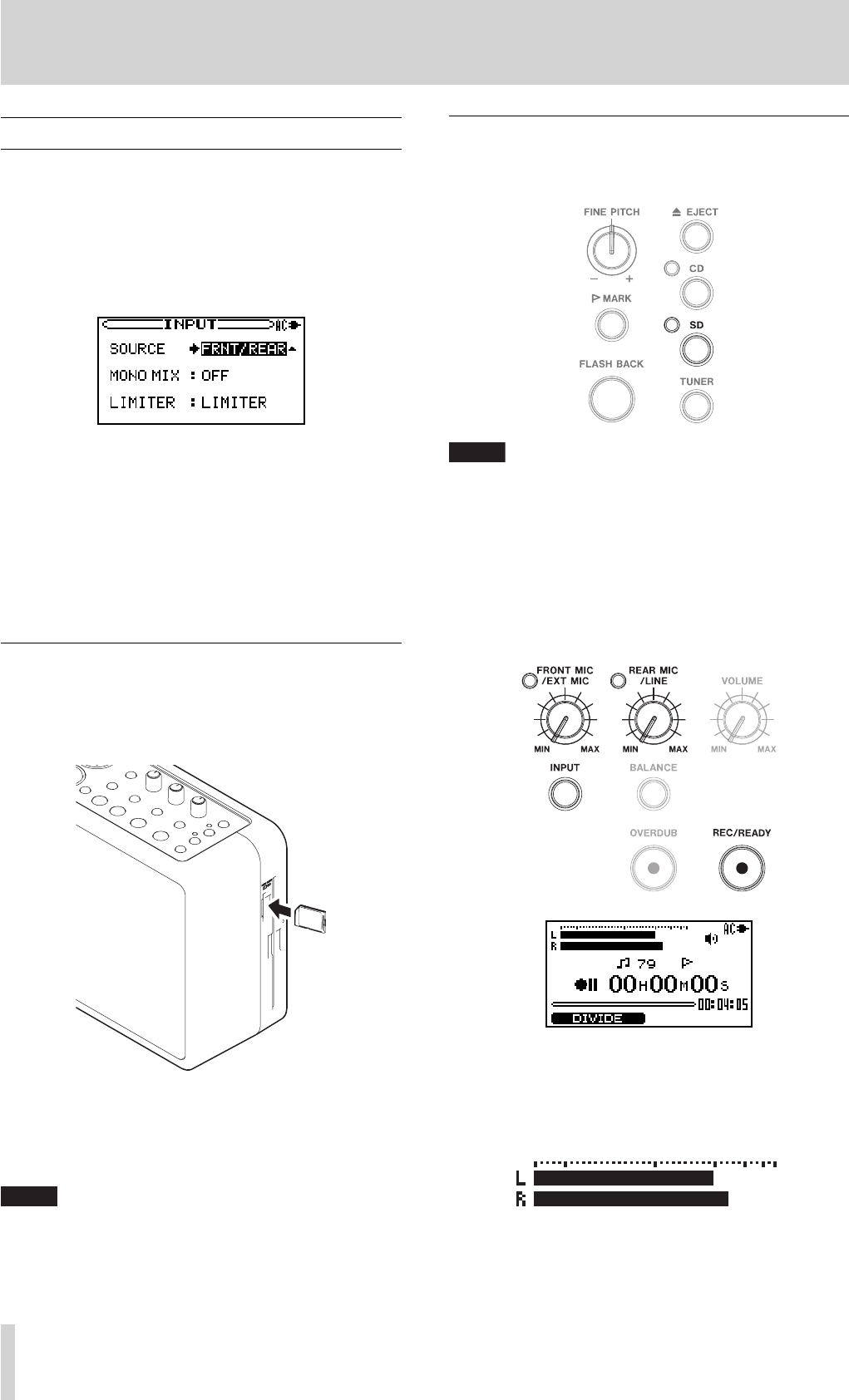
20 TASCAM BB-1000CD
Recording on an SD card
Before recording, insert an SD card into the unit and press
the SD key to change the recording media to SD card.
NOTE
It is recommended to format an SD card on the unit before record-
ing on the card (∑ page 49 “Formatting an SD card”).
Using an SD card formatted on other devices or a PC may increase
the possibility of recording errors.
1. Press the REC/READY [º] key.
The unit becomes on standby for recording. The
Record screen appears and REC/READY [º] key
flashes.
2. Check the level meter and adjust the input level by
turning the FRONT MIC/EXT MIC knob and the REAR
MIC/LINE knob.
The input level is indicated on the L/R meter.
The indicators upper left of the knobs light when the
input is too loud. Set the input level a little less than
that makes the indicators lit at inputting maximum
volume.
Recording
Recording by using the built-in microphones is explained
in the example below.
You can also use external microphones connected to the
EXT MIC A(L)/EXT MIC B(R) terminals and audio equip-
ment connected to the LINE IN terminal on the left side of
the unit as recording sources.
1. Press the INPUT key to open the INPUT screen.
2. Press the CURSOR [§/¶] key to select the SOURCE
item.
3. Turn the DATA wheel to select "FRNT/REAR".
The built-in microphones on the front and rear
(FRONT MIC and REAR MIC) are set to the recording
source.
4. Press the INPUT key to return to the Home screen.
Inserting an SD card
The SD card slot and the CD slot are equipped on the right
side of the unit.
Insert an SD card in the SD card slot and push it until it
clicks fully into place.
Removing the SD card
Press the inserted SD card in gently and it will disengage
from the unit so that you can completely pull it out.
NOTE
Do not remove the SD card during recording and playback, and
while the SD indicator is fl ashing (writing data).
2–Quick start guide
BB-1000CD_En.indd 20BB-1000CD_En.indd 20 09.2.3 2:19:31 PM09.2.3 2:19:31 PM
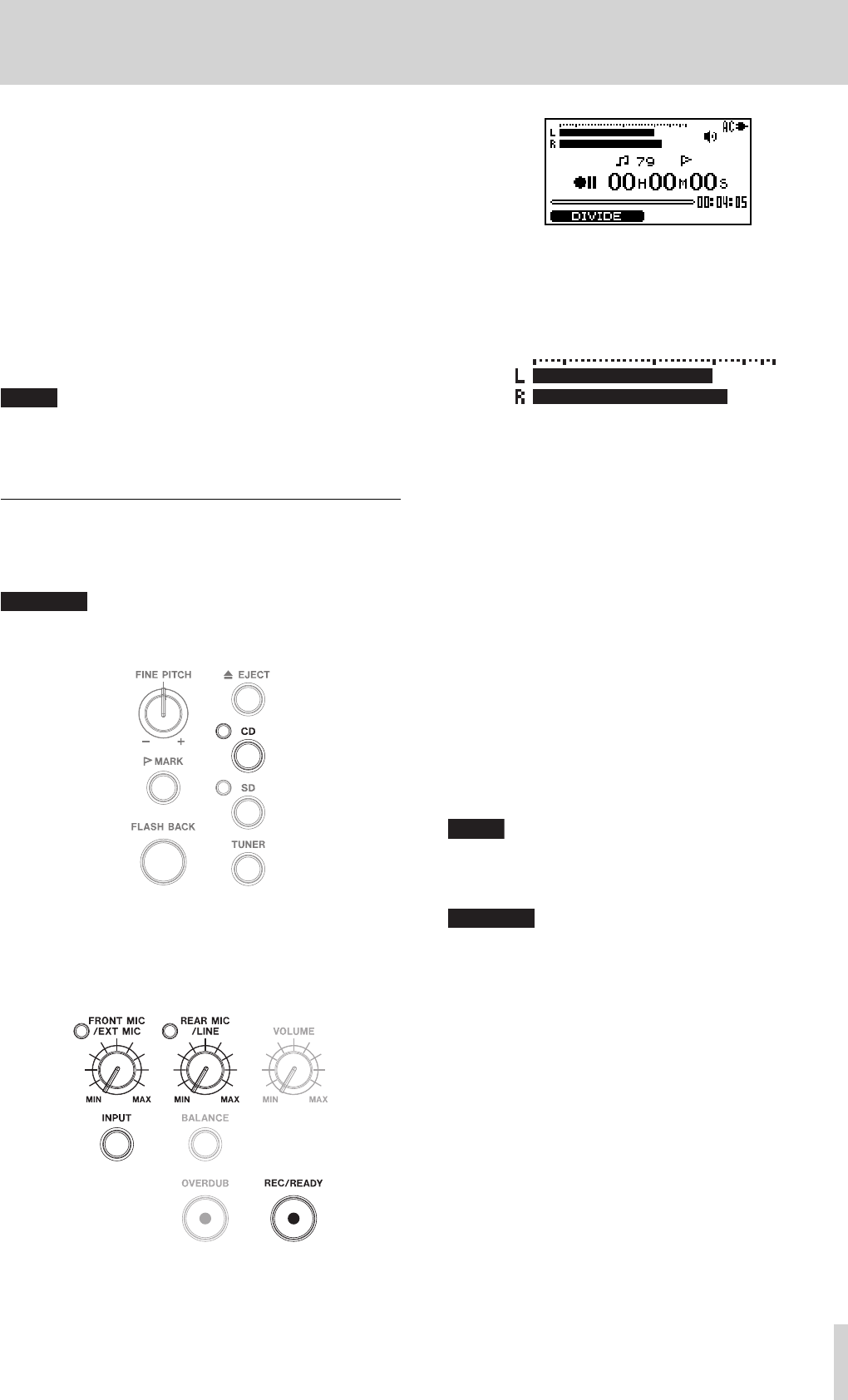
TASCAM BB-1000CD 21
3. Press the REC/READY [º] key to start recording.
The
REC/READY [º] key lights during recording.
4. Recording stops when pressing the STOP key during
recording or recording-on-standby. The REC/READY
[º] key goes off.
• Pressing the
REC/READY [º] key during recording
returns the unit on standby for recording. The REC/
READY key flashes during recording-on-standby.
Recording on a new track starts as you press the
REC/READY [º] key again. The REC/READY [º] key
lights steadily.
NOTE
You can play the last recorded fi le if you press the PLAY/READY
[¥/π] key directly after stopping recording by pressing the STOP
key.
Recording on a disc
Before recording, load a CD-R or CD-RW into the unit and
press the CD key to change the recording media to CD.
CAUTION
You cannot record on a disc when using the unit with battery
power. Supply the power through the AC adapter.
1. Press the REC/READY [º] key.
The unit becomes on standby for recording. The
Record screen appears and REC/READY [º] key
flashes.
2–Quick start guide
2. Check the level meter and adjust the input level by
turning the FRONT MIC/EXT MIC knob and the REAR
MIC/LINE knob.
The input level is indicated on the L/R meter.
The indicators upper left of the knobs light when the
input is too loud. Set the input level a little less than
that makes the indicators lit at inputting maximum
volume.
3. Press the REC/READY [º] key to start recording.
The
REC/READY [º] key lights during recording.
4. Recording stops when pressing the STOP key during
recording or recording-on-standby. The REC/READY
[º] key goes off.
• Pressing the
REC/READY [º] key during recording
returns the unit on standby for recording. The REC/
READY key flashes during recording-on-standby.
Recording on a new track starts as you press the
REC/READY [º] key again. The REC/READY [º] key
lights steadily.
NOTE
You can play the last recorded track if you press the PLAY/READY
[¥/π] key directly after stopping recording by pressing the STOP
key.
CAUTION
To playback a disc recorded on the unit on another device, you need
to fi nalize it.
BB-1000CD_En.indd 21BB-1000CD_En.indd 21 09.2.3 2:19:32 PM09.2.3 2:19:32 PM
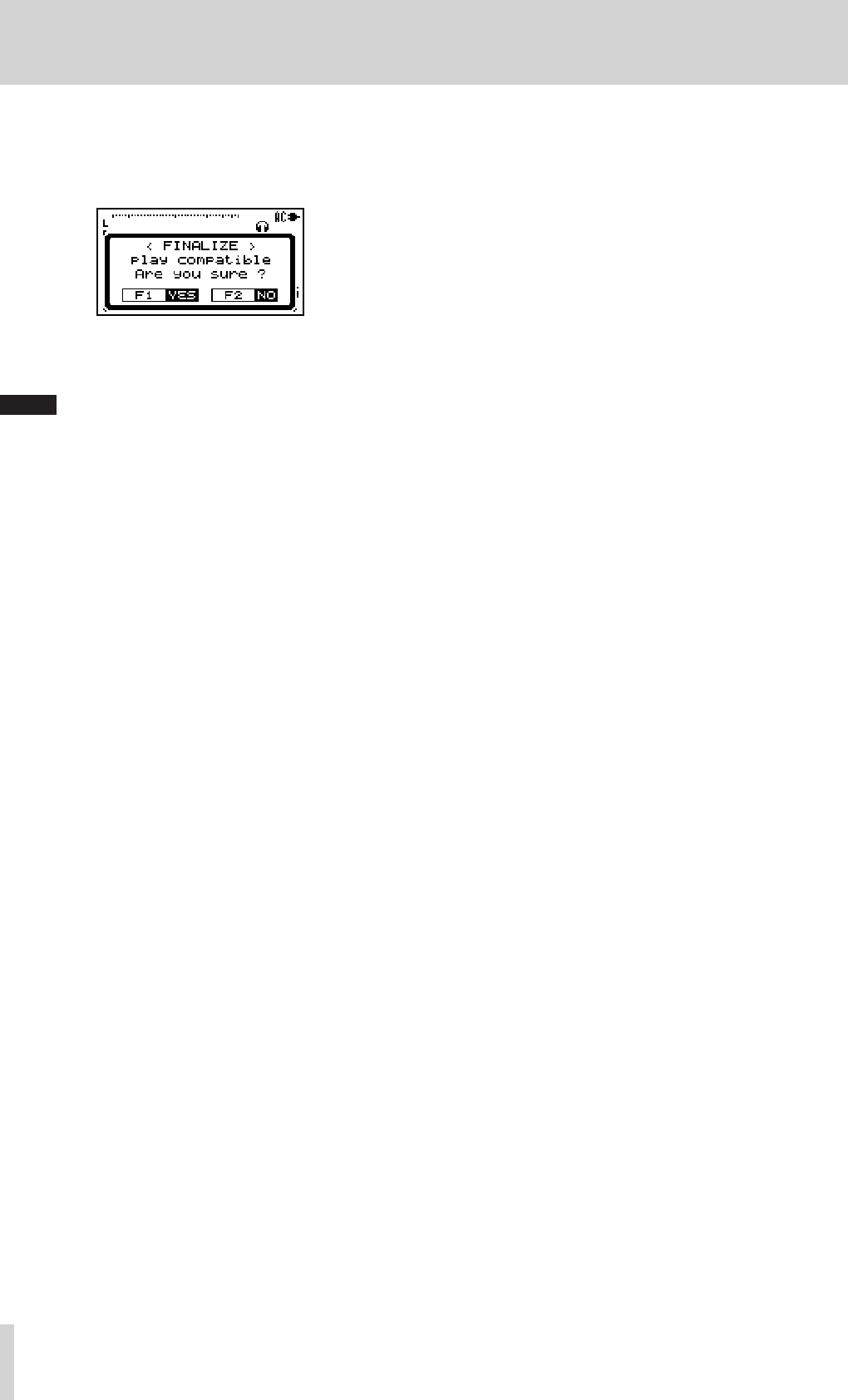
22 TASCAM BB-1000CD
Ejecting a disc
Press the ø EJECT key to eject a disc. A finalization con-
firmation message appears when ejecting a disc not final-
ized yet.
Press the F1 key to finalize it. Press the F2 key to eject it
without finalization.
NOTE
You can fi nalize a disc without its ejection (∑ page 47 “Finalizing a
disc”).
Recordable discs:
You can use a CD-R or CD-RW disc for recording. CD-R
discs can be recorded once only. Once they have been
used for recording, they cannot be erased or re-recorded.
However, if space is available on the disc (and the disc has
not been finalized), additional material can be recorded. A
recorded CD-R disc can be played on a standard CD play-
ers after finalization (some CD players may not play back
the disc even after finalization).
CD-RW discs can be reused even after fully recorded by
erasing the existing tracks. The erasable track is the final
one/ones; you cannot erase the track/tracks-in-between
only. CD-RW discs may be unplayable on some players
even after finalization.
2–Quick start guide
BB-1000CD_En.indd 22BB-1000CD_En.indd 22 09.2.3 2:19:32 PM09.2.3 2:19:32 PM
TASCAM BB-1000CD 23
3–Part Names and Functions
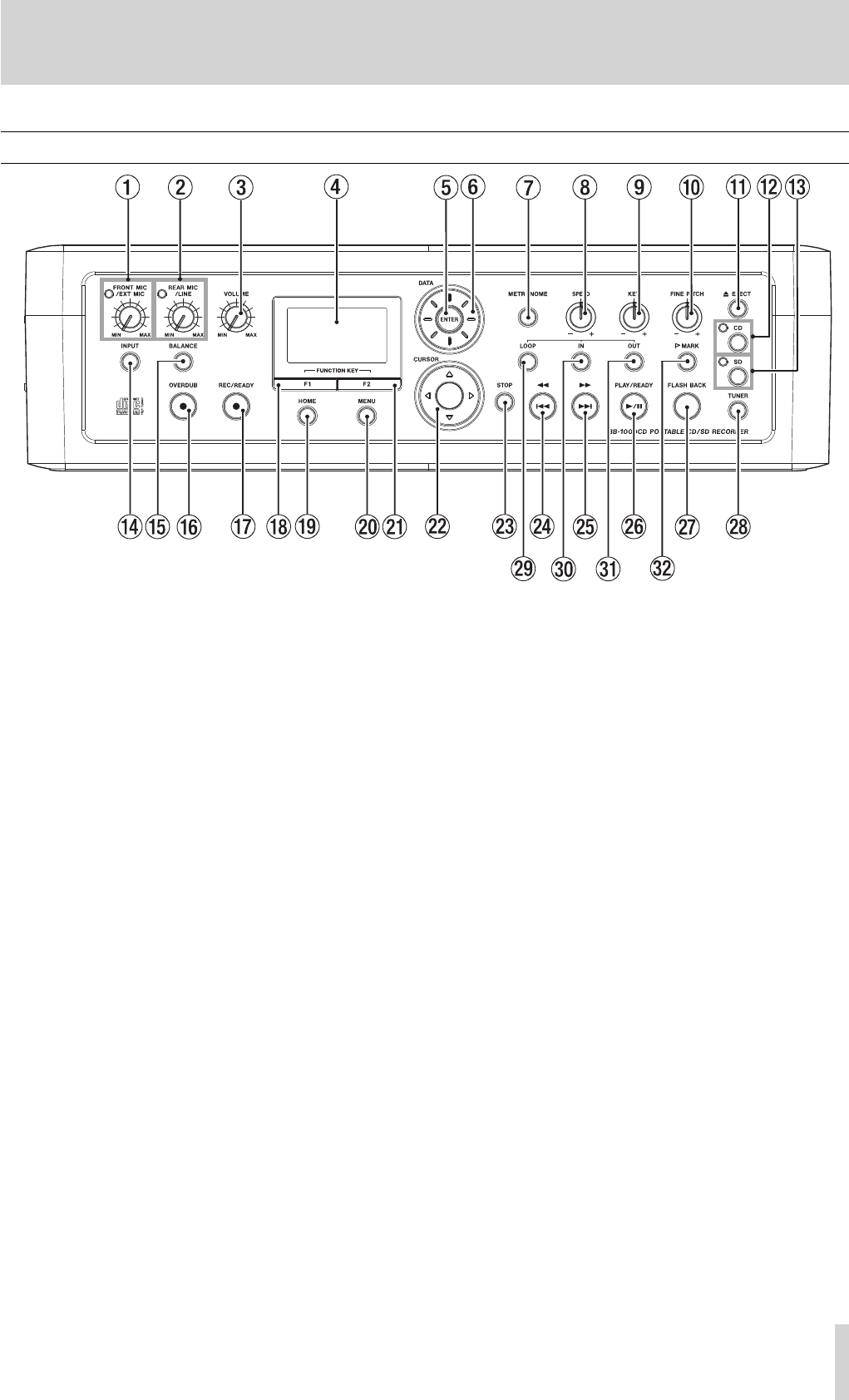
1 FRONT MIC/EXT MIC knob/Excessive input indicator
Use this knob to adjust the input level of the front built-
in microphones (FRONT MIC) or external microphones.
The indicator on the upper left lights when the input
level is too high.
2 REAR MIC/LINE knob/Excessive input indicator
Use this knob to adjust the input level of the rear built-
in microphones (REAR MIC) or the signal from the
LINE IN terminal.
The indicator on the upper left lights when the input
level is too high.
3 VOLUME knob
Use this knob to adjust the speaker volume and the
output level of headphones and lineout signals.
4 Display
This shows various information such as the selected
media, recording/playback signal level, data transfer
status, setting menus, etc.
5 ENTER key
Use this key to confirm the selection during operations
on the setting screen.
6 DATA wheel
When a setting screen is open, use the wheel to change
the setting of the selected item.
When the Home screen is open, use the wheel to adjust
the file playback position.
7 METRONOME key
Press this key to use the metronome function
(METRONOME screen.)
When the METRONOME screen is displayed, press this
key to return to the Home screen.
8 SPEED knob
Use this knob to adjust playback speed.
9 KEY knob
Use this knob to adjust the playback pitch of playback.
0 FINE PITCH knob
Use this knob for fine adjustment of playback pitch.
q ø EJECT key
Press this key to eject a disc.
w CD key/CD indicator
When the Home screen is displayed, press this key to
change the recording/playback media to CD.
The indicator lights when CD is selected.
e SD key/SD indicator
When the Home screen is displayed, press this key to
change the recording/playback media to SD card.
The indicator lights when SD card is selected.
r INPUT key
Press this key to open the Input Setting (INPUT) screen.
When the INPUT screen is displayed, press this key to
return to the Home screen.
t BALANCE key
Press this key to open the Input Balance Setting
(BALANCE) screen.
When the BALANCE screen is displayed, press this key
to return to the Home screen.
Top panel
BB-1000CD_En.indd 23BB-1000CD_En.indd 23 09.2.3 2:19:32 PM09.2.3 2:19:32 PM

24 TASCAM BB-1000CD
3–Part Names and Functions
y OVERDUB key
Press this key when recording a mixed sound of CD/SD
playback and other input signals (overdubbing).
The unit becomes on standby for overdubbing by
pressing the key and the key lights during on standby.
u REC/READY [º] key
Press this key to make the unit on standby for
recording. The key is flashing while on standby. The
key lights during recording.
During recording, press this key to make the unit on
standby for recording.
i F1 key
This key works variously depending on the status
of the unit; confirming of the selection, returning to
the previous step. etc. The function of the F1 key is
indicated on left bottom of the display.
o HOME key
Press this key to return to the Home screen while
displaying another screen.
p MENU key
When the Home screen is displayed, press this key to
open the menu list (MENU screen).
When a setting screen is displayed, press this key to
return to the MENU screen.
a F2 Key
This key works variously depending on the status
of the unit; confirming of the selection, returning to
the previous step. etc. The function of the F2 key is
indicated on right bottom of the display.
s CURSOR [§/¶/˙/¥] key
Press this key to move the cursor (highlighted area) on
a setting screen.
d STOP key
Press this key to stop playback. The track returns to its
beginning.
f Â/Ô key
Press this key within 1 seconds from the beginning of
a track to skip to the beginning of the previous track.
Pressing it at more than 1 seconds after the beginning
of a track skips to the beginning of the current track.
Press and hold this key to fast-reverse the tracks.
Pressing this key during loop playback slides the end
point of the loop back to its start point, keeping the
time length of the loop.
g ¯/ key
Press this key to skip to the next track.
Press and hold this key to fast-forward the tracks.
Pressing this key during loop playback slides the start
point of the loop forward to its end point, keeping the
time length of the loop.
h PLAY/READY [Á/π] key
When the Home screen is displayed and playback is
stopped, press this key to start playback.
During playback, press this key to pause it.
j FLASH BACK key
Press this key to skip a few seconds back the track
during playback (or pause). You can adjust the skip
back time at the SET UP screen (∑ page 36 “Skipping a
track a little backward (FLASH BACK)”).
k TUNER key
Press this key to open the TUNER screen. You can use
the unit as a chromatic tuner for instrument (∑ page 41
“Chromatic tuner mode”).
When the TUNER screen is displayed, press this key to
return to the Home screen.
l LOOP key
Use this key to activate/deactivate the loop playback
when the start point and end point of playback has been
set (∑ page 37 "Loop playback (I–O LOOP)”).
Use this key to activate/deactivate repeat playback
when the points are not set (∑ page 37 “Repeat
playback” ).
Press IN/OUT/MARK key while pressing and
holding this key to clear the start/end/marker point,
respectively.
; IN key
Use this key to set the start point of the loop playback.
Press this key while pressing and holding the LOOP key
to clear the start point (∑ page 37 "Loop playback (I–O
LOOP)”).
z OUT key
Use this key to set the end point of the loop playback.
Press this key while pressing and holding the LOOP key
to clear the end point (∑ page 37 "Loop playback (I–O
LOOP)”).
x MARK key
Use this key to set the marker point where playback
starts. Press this key while pressing and holding the
LOOP key to clear the marker point on the Home
screen. (∑ page 36 “Playback from marked point”).
BB-1000CD_En.indd 24BB-1000CD_En.indd 24 09.2.3 2:19:32 PM09.2.3 2:19:32 PM
TASCAM BB-1000CD 25
3–Part Names and Functions
Front Panel
Rear Panel
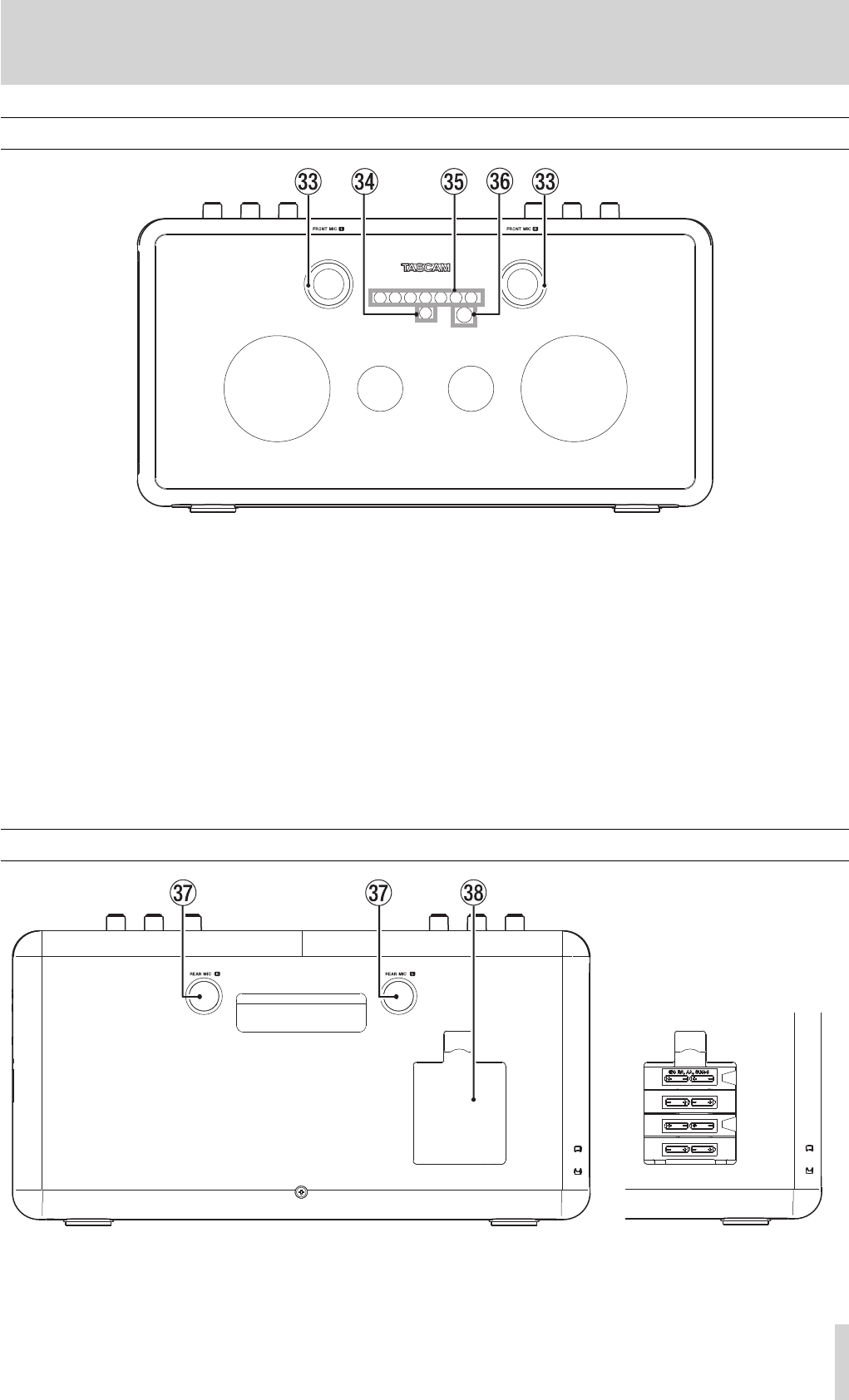
c FRONT MIC L/R
Built-in stereo microphones.
The left microphone also functions as the tuning
microphone.
v Power indicator
The indicator lights when the unit is turned on.
b Volume/playback/recording indicator
When adjusting the volume, the indicator shows the
volume by the number of green lights.
The center LED lights in green during playback.
The center LED lights in red during recording.
m REAR MIC L/R
Built-in stereo microphones.
While using the metronome function, the green light
moves left and right along with its time.
While using the chromatic tuner function, the LED
indicates the pitch difference from the reference tone.
n Remote sensor
This receives the signals from the supplied remote
control unit (RC-BB1000). Aim the head of the remote
control unit to the sensor when operating the unit with
it (∑ page 27 “Remote control unit (RC-BB1000)”).
, Battery case
The case holds 8 AA batteries.
Inside of the battery case
BB-1000CD_En.indd 25BB-1000CD_En.indd 25 09.2.3 2:19:32 PM09.2.3 2:19:32 PM
26 TASCAM BB-1000CD
3–Part Names and Functions
Left side panel
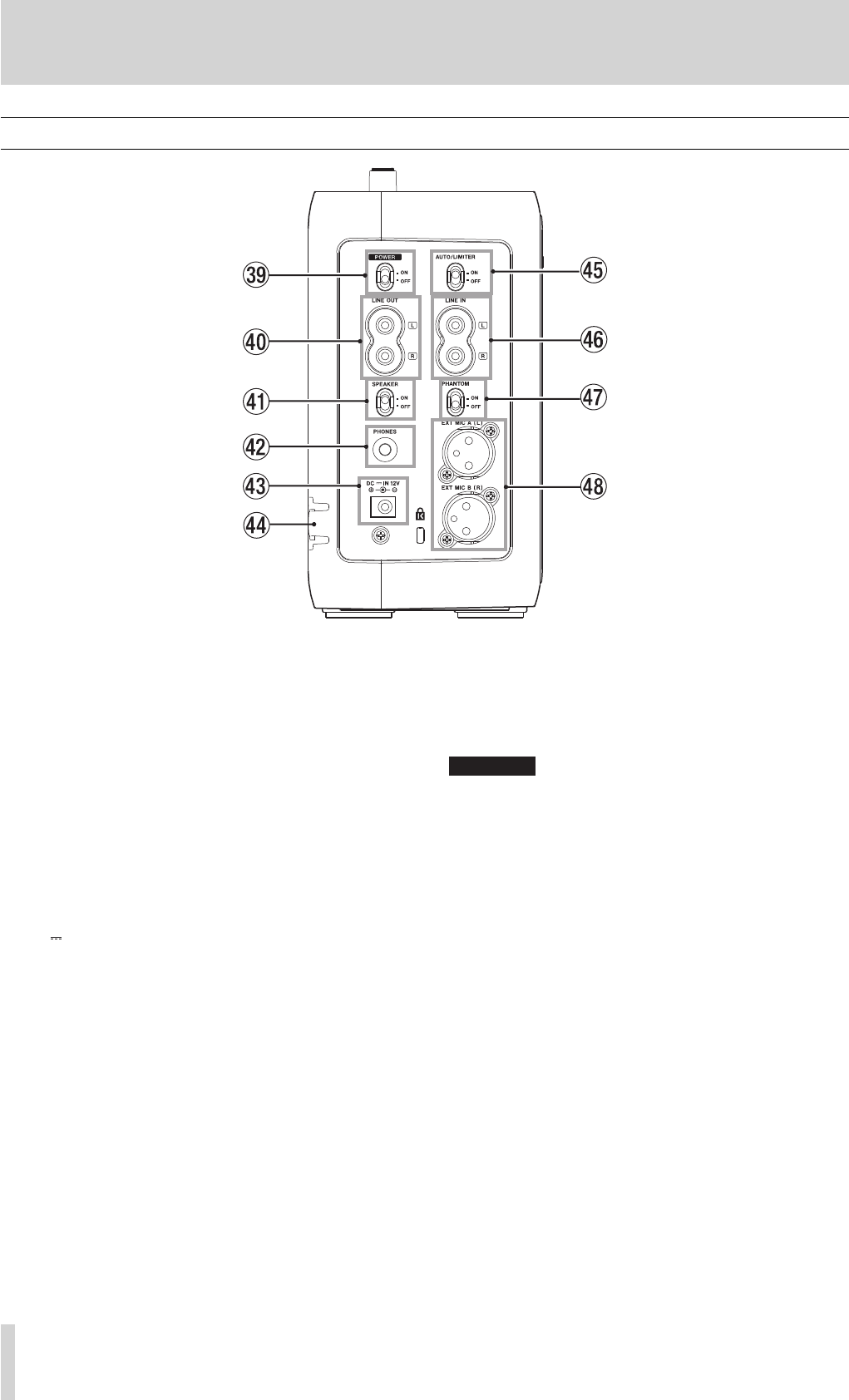
. POWER switch
Use this switch to turn on/off the power.
/ LINE OUT jack
Use this to connect an electronic instrument with
speakers, audio equipment, powered speakers, etc.
! SPEAKER switch
Use this switch to turn on/off the built in speakers.
@ PHONES jack
Use this to connect headphones.
# DC IN 12V jack
Connect the supplied AC adapter to this jack.
$ AC cord holder
This holds the AC cord to prevent unexpected
disconnection of the cord.
% AUTO/LIMITER switch
Use this to activate/deactivate the LIMITER function.
^ LINE IN jack
Use this to connect with the line out jack on an
electronic instrument or an external audio device such
as a CD player.
& PHANTOM switch
Slide this switch to ON when supplying the power (+48
V) to the microphones connected to the EXT MIC jacks.
CAUTION
Do not connect/disconnect a microphone when the PHANTOM
switch is ON.
* EXT MIC A(L)/EXT MIC B(R) jacks
Use the XLR jacks to connect external microphones.
The pin configuration of the XLR connector is:
#1=ground, #2=hot, #3=cold.
BB-1000CD_En.indd 26BB-1000CD_En.indd 26 09.2.3 2:19:33 PM09.2.3 2:19:33 PM
TASCAM BB-1000CD 27
Right side panel
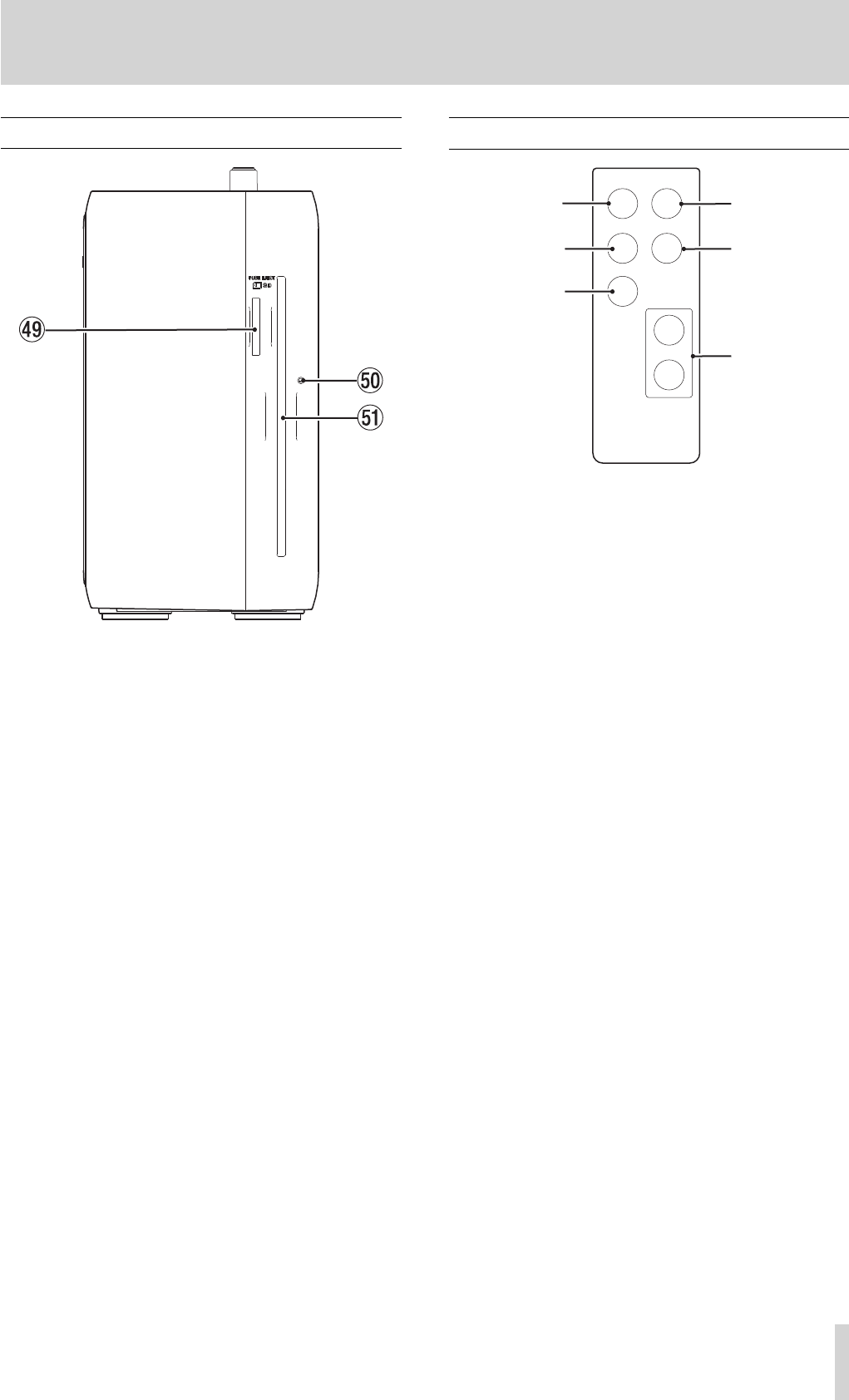
( SD card slot
Insert an SD card into this slot.
) Force disc ejection hole
Use this to eject a disc when the CD drive malfunctions
and cannot eject the disc (∑ page 31 “Ejecting a disc
forcibly”).
Q CD slot
Insert a CD into this slot.
Remote control unit (RC-BB1000)
‰
RC-BB1000
STOP
Ô
RECORD
PLAY/READY
˚
ª
Â
º
¥/π
¯
VOLUME
ー
+
25
4
1
3
6
1 Ô / Â key
Press this key within 1 seconds from the beginning of
a track to skip to the beginning of the previous track.
Pressing it at more than 1 seconds after the beginning
of a track skips to the beginning of the current track.
Press and hold this key to fast-reverse the tracks.
Pressing this key during loop playback slides the end
point of the loop back to its start point, keeping the
time length of the loop.
2 STOP [ª] key
Press this key to stop playback. The track returns to its
beginning.
3 RECORD [º] key
Press this key to make the unit on standby for
recording.
Press this key to start recording while on standby for
recording.
4 / ¯ key
Press this key to skip to the next track.
Press and hold this key to fast-forward the tracks.
Pressing this key during loop playback slides the start
point of the loop forward to its end point, keeping the
time length of the loop.
5 PLAY/READY [Á/π] key
When the Home screen is displayed and playback is
stopped, press this key to start playback.
During playback, press this key to pause it.
6 VOLUME [+/–] keys
Use these keys to adjust the volume.
3–Part Names and Functions
BB-1000CD_En.indd 27BB-1000CD_En.indd 27 09.2.3 2:19:33 PM09.2.3 2:19:33 PM

28 TASCAM BB-1000CD
Powering the unit
You can use the supplied AC adapter or separately pur-
chased AA batteries as the power source. Connect the AC
adapter or install the batteries before use.
CAUTION
You cannot record on a disc when using the unit with battery
power. Supply the power through the AC adapter.
Connecting the AC adapter
Connect the power cable to the AC adapter, the adapter to
the unit, then connect the power cable to the AC outlet.
The left side panel of the unit has a dent for holding the
cable of the AC adapter–the AC cord holder. Hook the
cord in to the clipping of the holder to prevent unexpected
disconnection of the cord.
CAUTION
DO NOT hook the AC cord in forcedly. It may damage the cord.•
Uninstall the batteries when using the supplied AC adapter to •
keep the battery life longer.
Installing the batteries
Take off the battery case cover and install separately pur-
chased eight AA batteries observing the ± and — marks on
the case.
NOTE
Batteries are not supplied with this product. It is recommended to
use Ni-MH or alkaline batteries.
Remote control unit
Installing the battery
1. Pull out the battery holder.
2. Install a lithium coin battery (CR2025) facing the +
side up.
3. Put in the battery holder.
Battery replacement
Replace the battery when the operatable range decreases or
the unit becomes unoperatable through the remote control
unit.
Use a lithium coin battery (CR2025) for replacement.
4–Preparation
TASCAM PS -1225L
DC plug
AC cord holder
AC outlet
BB-1000CD_En.indd 28BB-1000CD_En.indd 28 09.2.3 2:19:33 PM09.2.3 2:19:33 PM
TASCAM BB-1000CD 29
Turning the power on and off
Turning of the power
Slide the POWER switch on the left side of the unit to ON.
The Home screen will be displayed after the start-up screen
disappears.
Turning o the power
Slide the POWER switch to OFF.
CAUTION
Do not turn off the power while a media indicator (CD or SD) are
fl ashing (during writing data).
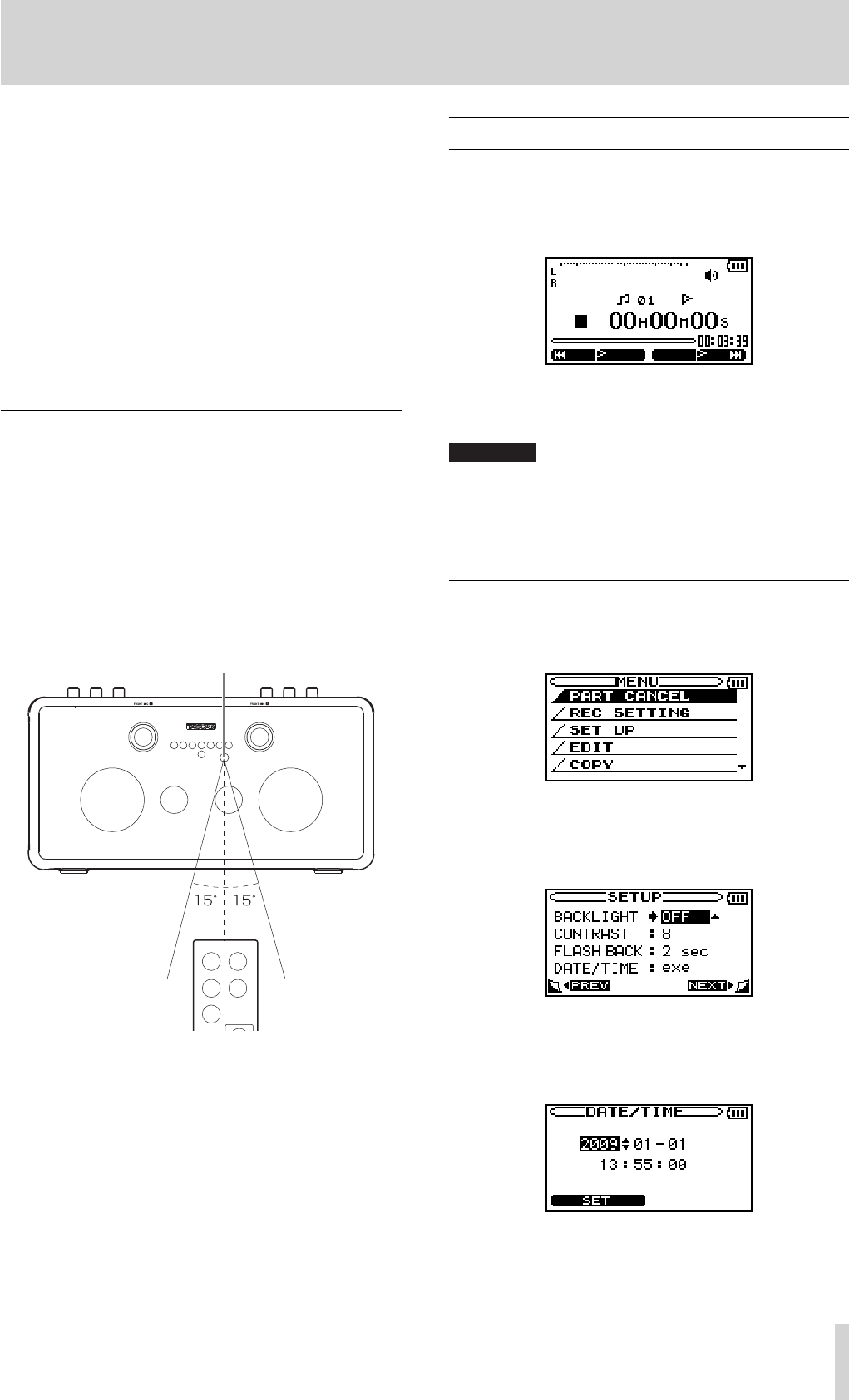
Setting the date and time
Set the date and time of the built-in clock. The time infor-
mation of the files made by this unit is based on the clock.
1. Press the MENU key to open the MENU screen.
2. Use the CURSOR [§/¶] key to select SETUP and
press the ENTER key.
The SETUP screen appears.
3. Use the CURSOR [§/¶] key to select DATE/TIME and
press the ENTER key.
The
DATE/TIME screen appears.
The clock stops while this screen is displayed.
Precautions concerning batteries
Small children may mistakenly swallow a lithium coin
•
battery and it is very dangerous. Keep the battery and
the remote control out of the reach of small children. In
the event a battery is swallowed, immediately consult a
physician.
Install batteries with matching the polarity correctly.
•
Do not charge the battery.
•
Do not heat or disassemble batteries. Do not put them in
•
fire or water.
Do not carry or store batteries together with small metal
•
objects. The batteries could short, causing leak, rupture
or other trouble.
Precautions using the remote control unit
Remove the batteries if you do not plan to use the
•
remote control for a long time (longer than a month).
If the battery fluid leaks, wipe away any fluid on the
•
battery case before inserting a new battery.
Using the remote control unit while other equipment
•
controllable with infrared ray is turned on may cause
misfunction of the equipment.
Aim the remote control unit at the remote sensor.
•
An obstacle may interfere operations through the remote
control unit.
STOP
Ô
RECORD
PLAY/READY
˚
ª
Â
º
¥/π
¯
Operating distance
Head-on to the sensor: 7 m
15° left/right from the sensor: 4 m
4–Preparation
Remote sensor
BB-1000CD_En.indd 29BB-1000CD_En.indd 29 09.2.3 2:19:33 PM09.2.3 2:19:33 PM
30 TASCAM BB-1000CD
4–Preparation
4. Use the DATA wheel to adjust the value and press the
CURSOR [¥] key .
The cursor moves to the next place.
5. After making the setting, press the F1 key to restart
the clock from the newly set value.
The display returns to the SETUP screen.
NOTE
You cannot see the time and date information of audio fi les on the
unit.
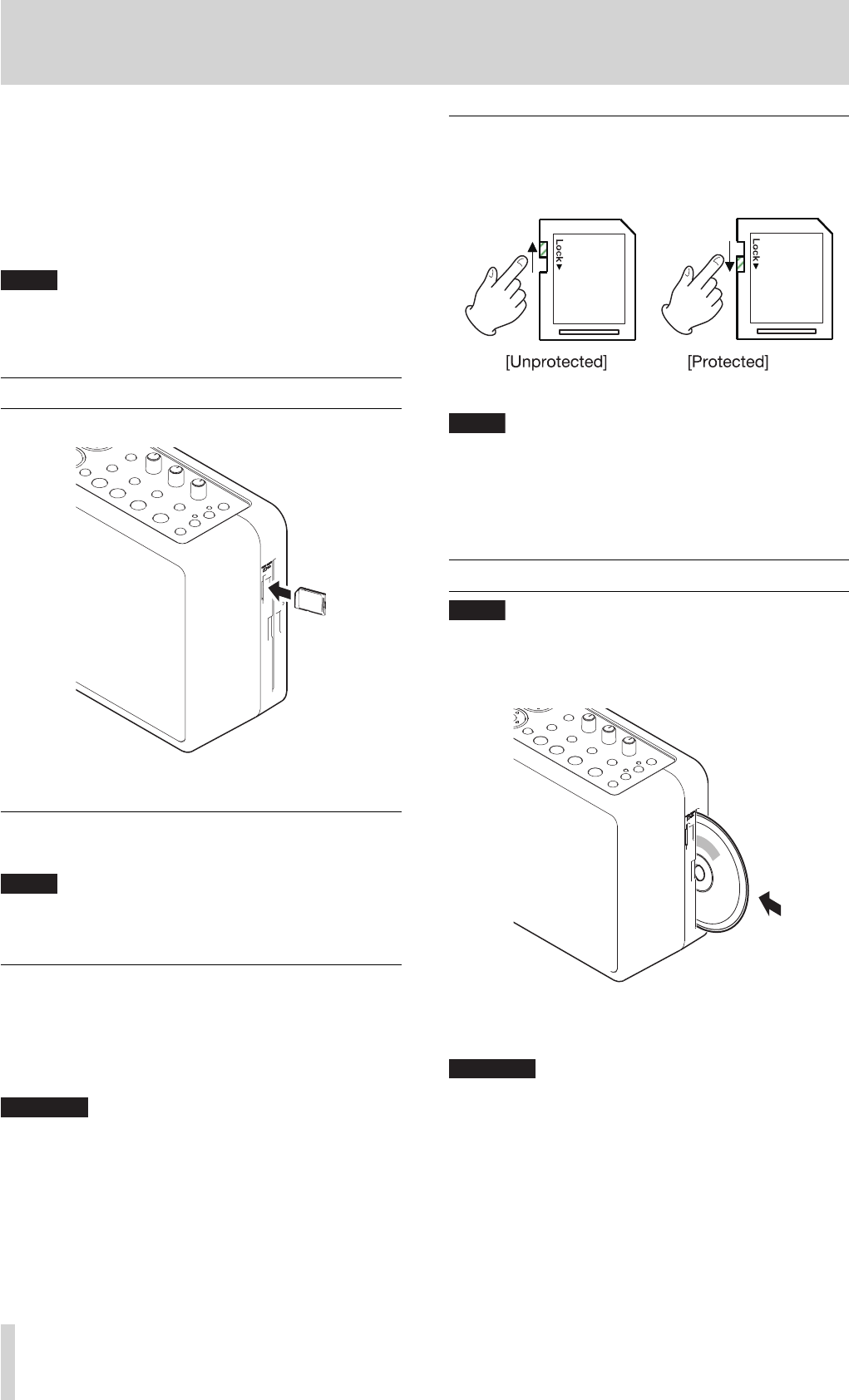
Inserting an SD card
Insert an SD card and push it until it clicks fully into place.
Removing the SD card
Press the inserted SD card.
NOTE
Do not remove the SD card during recording and playback, and
while the SD indicator is fl ashing (writing data).
When using a new SD card
When using a new SD card, it is recommended to format it
on the unit before starting to use it. (∑ page 49 “Formatting
an SD card”).
Using an SD card formatted on other devices or a PC may
increase the possibility of recording errors.
CAUTION
Take enough care when formatting as all the data on an SD card,
including those written by other equipment, will be erased.
Write protection
An SD card has the write protection switch. When you try
to record on a protected card, the error message “Protected
Card” appears and you cannot record on it.
NOTE
The error message appears only when you try to record on a
protected SD card. No message appears when the unit tries and fails
to write information such as the order of audio fi les and the position
of markers on the protected SD card.
Loading a disc
NOTE
You can load a disc while the unit is turned on.
1. Insert a disc halfway into the slot facing the label side
front, as illustrated.
2. Push the disc into the slot until the disc is automati-
cally brought in.
CAUTION
You cannot insert a disc when the unit is turned off .•
When a disc is not loaded properly, draw out the disc and press •
the øEJECT key, then try to load it again. DO NOT push the disc
in forcedly. It may damage the unit and the disc.
BB-1000CD_En.indd 30BB-1000CD_En.indd 30 09.2.3 2:19:33 PM09.2.3 2:19:33 PM

TASCAM BB-1000CD 31
Ejecting a disc
Press the øEJECT key.
The disc is ejected halfway. Draw it out by holding its edge.
CAUTION
You cannot eject a disc when the unit is turned off .
NOTE
A fi nalization confi rmation message appears when ejecting a disc
not fi nalized yet.
Ejecting a disc forcibly
You can eject a disc forcibly by using the hole for force
eject when the øEJECT key does not work because of
malfunction of the disc drive.
To eject a disc forcibly, Turn off the unit and follow the
procedure below.
1. Prepare a long pin such as a stretched paper clip.
2. Insert the pin into the hole for force eject and push it
in several times.
3. Pull the disc out by hand when it is pushed halfway
out.
CAUTION
DO NOT eject a disc forcibly by using the hole for force eject when
the unit is turned on.
Selecting the recording/playback media
Select a recording/playback media (disc or SD card) before
you start using the unit.
Press the CD key or the SD key on the unit while the Home
screen is displayed and playback is stopped to select it.
The recording/playback media is changed and the indicator
of the selected media lights up.
4–Preparation
BB-1000CD_En.indd 31BB-1000CD_En.indd 31 09.2.3 2:19:33 PM09.2.3 2:19:33 PM
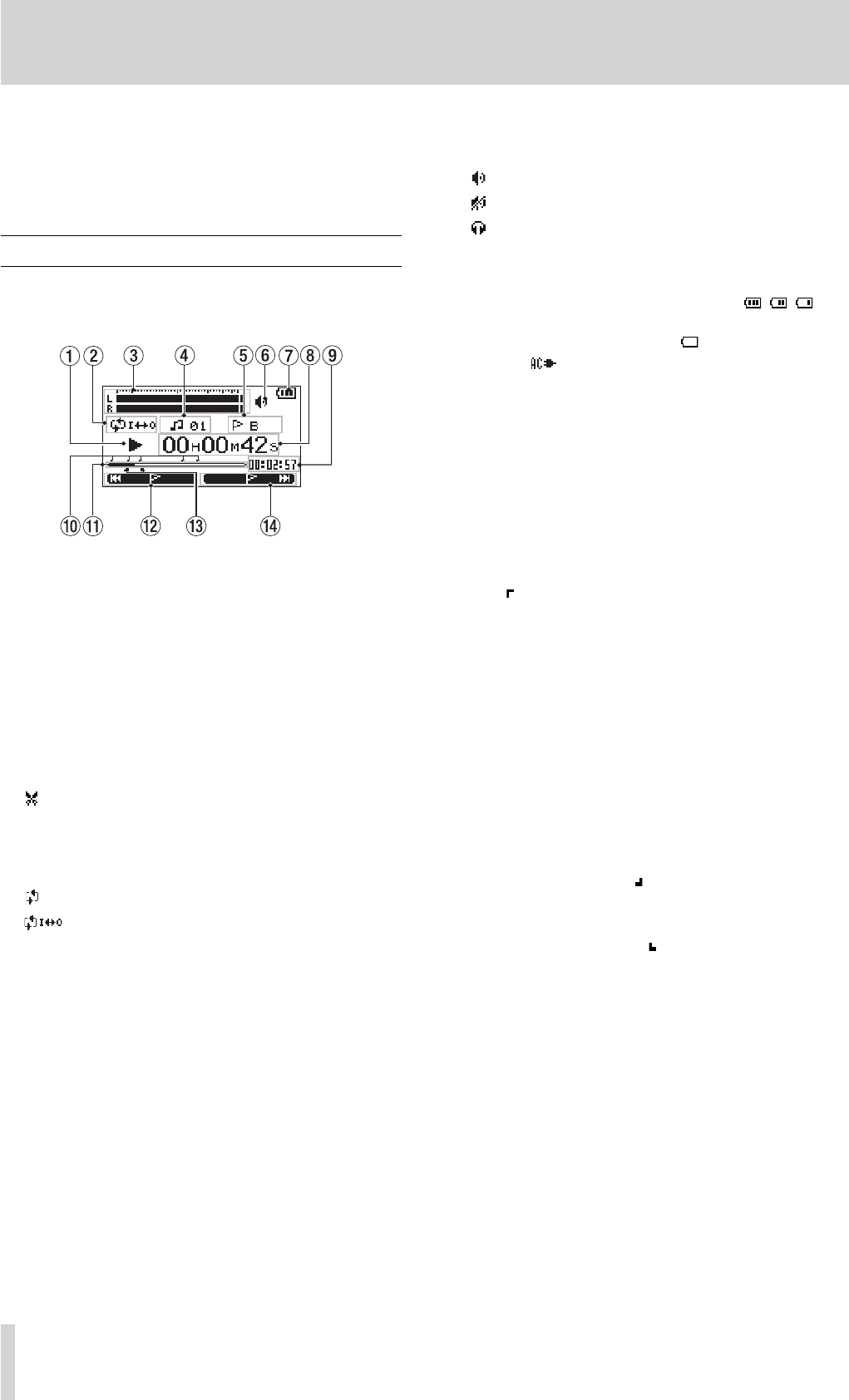
32 TASCAM BB-1000CD
5–Screen Overview
When the unit is ordinarily playing or stopped, the Home
screen appears on the display. Setting screens appear when
making various settings, and the Record screen appears
when the unit is recording or in recording standby.
Home screen
The items that appear on the Home screen are explained
below. See the explanations later in this chapter for the set-
ting screens and the Record screen.
1 Unit status
This icon show the current operation status.
¥ Track playing
π File stopped in progress (paused)
· File stopped at its beginning
˚ Fast forwarding
Δ Fast rewinding
≤ Skipping to the beginning of the next track
μ Skipping to the beginning of the current or
previous track
: File dividing mode
2 Loop/repeat setting status
The following icons appear depending on the current
loop/repeat setting.
Repeat playback
Loop repeat active
3 Level meter
During playback, the signal level of the playback track
is indicated.
The right end of the meter lights up for a while when
the signal level is too high.
4 File number
The number of the file currently played back is
indicated.
5 Marker name
The name of the nearest marker of those which position
previous of the current playback position is indicated.
6 Speaker output status
The speaker output status is indicated.
: Built-in speakers ON
: Built-in speakers OFF
: Headphones connected
7 Battery status
When batteries are being used, a battery icon shows
the amount of power remaining in bars ( , , ).
The batteries are almost dead and the power will soon
turn off if the icon has no bars . When using the AC
adapter appears.
8 Elapsed time
Shows the elapsed time (hours: minutes: seconds) of the
currently playing track.
9 Remaining time
Shows the remaining playback time of the current track
(hours: minutes: seconds).
0 Marker positions
The positions of markers are indicated.
The icons on the playback position display bar
indicates the positions of markers.
q Playback position display bar
This bar shows the current playback position. The bar
darkens from the left as playback proceeds.
w Current function of the F1 key
This shows the function currently assigned to the F1
key. On the Home screen, pressing it skips playback to
the nearest previous marker.
e Status of loop IN and OUT points
This shows the status of the IN and OUT point settings
for loop playback.
If an IN point is set, the icon appears under the
display bar at the position equivalent to the playback
location.
If an OUT point is set, the icon appears under the
display bar at the position equivalent to the playback
location.
r Current function of the F2 key
This shows the function currently assigned to the F2
key. On the Home screen, pressing it skips playback to
the next marker.
BB-1000CD_En.indd 32BB-1000CD_En.indd 32 09.2.3 2:19:34 PM09.2.3 2:19:34 PM
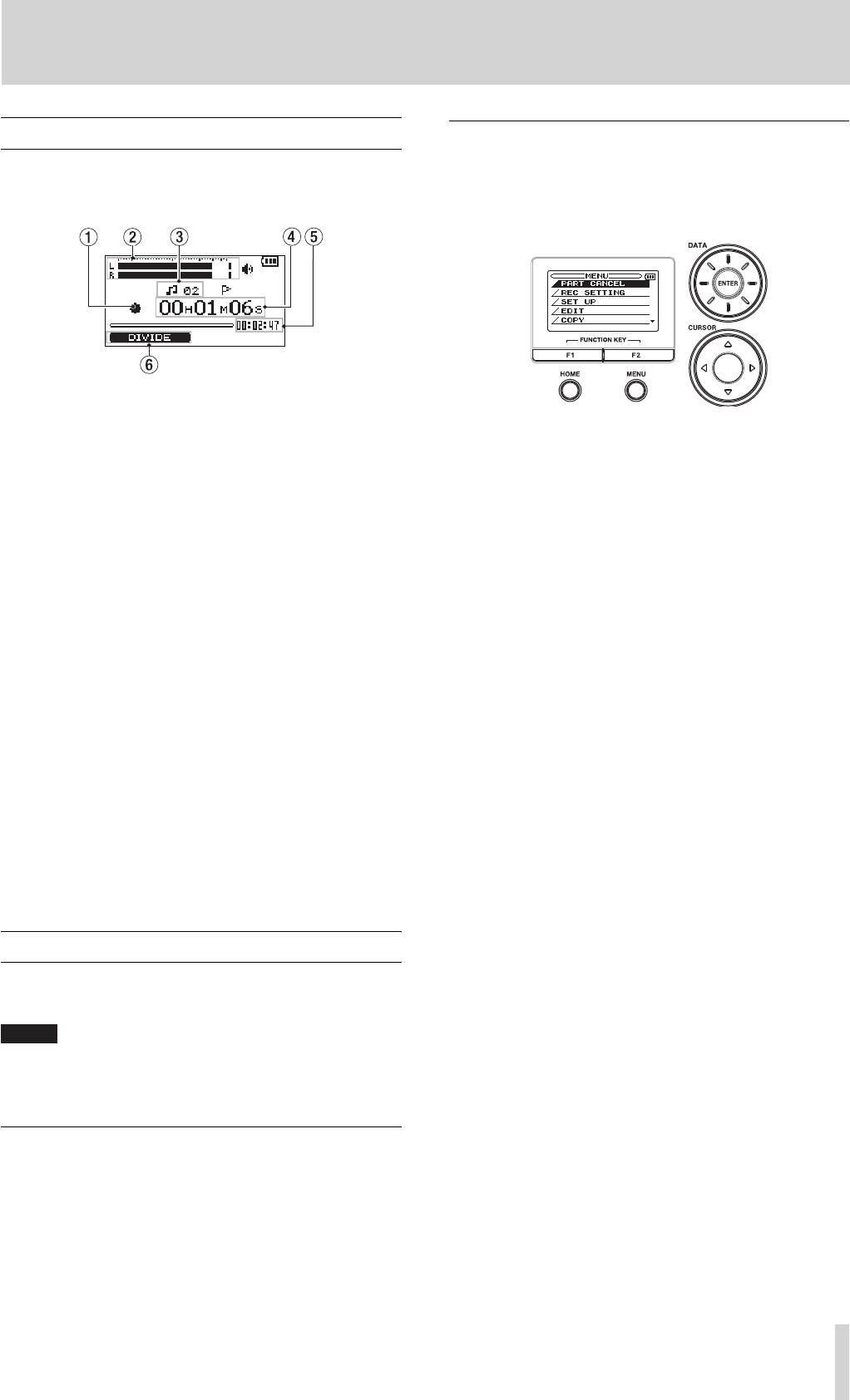
TASCAM BB-1000CD 33
Record screen
This screen opens when you press the REC/READY [º] key
to start recording standby mode and stays open when you
press the REC/READY [º] key again to start recording.
1 Recorder operation
º Recording
π Recording paused
ª Recording stopped
2 Record level meter
The input signal level of the selected input appears as
separate L and R channels. The right end of the meter
lights up for a while when the signal level is too high.
3 File number
The number of the file currently recorded is indicated.
4 Elapsed recording time
The elapsed recording time appears in hours: minutes:
seconds.
5 Remaining recording time
The remaining recording time appears in hours:
minutes: seconds.
6 Current function of the F1 key
This shows the function currently assigned to the F1
key. On the Recording screen, pressing it divides the
recording file.
Setting screens
Use this unit’s various setting screens to make various set-
tings, conduct operations and show information.
NOTE
Although the various setting screens are also used to execute func-
tions and display information, for example, in addition to making
settings, we call them “setting screens” in this manual.
Setting screen structure
Most of the setting screens are accessed by first press-
ing the MENU button to open the MENU screen, but some
screens can also be accessed directly using dedicated keys.
See also the setting screen list on the next page.
O p e r a t i o n b a s i c s
Use the MENU, CURSOR [§/¶/˙/¥], ENTER, F1, F2 and
HOME keys and the DATA wheel to conduct most opera-
tions on the various setting screens.
The keys have the following functions.
MENU key:
Press this key to open the MENU screen (except when the
MENU screen is already open or the Record screen is open).
When the MENU screen is open, press this key to return to
the Home screen. This key is inoperative when the Record
screen is open.
CURSOR [§/¶] key:
Use this key to select an item.
CURSOR [˙] key:
When a setting screen is open, moves the cursor (part high-
lighted in inverse) to the left within the screen.
CURSOR [¥] key:
When a setting screen is open, moves the cursor (part high-
lighted in inverse) to the right within the screen. In many
cases, the ENTER key can also be used this way.
ENTER key:
Use this key to confirm the selection.
F1/F2 key:
Use these keys to switch a setting screen to another and to
select YES/NO or BACK/NEXT for answering a confirma-
tion message.
HOME key:
When a setting screen is open, press to return to the Home
screen.
DATA Wheel:
Use this to change the value of the selected item.
5–Screen Overview
BB-1000CD_En.indd 33BB-1000CD_En.indd 33 09.2.3 2:19:34 PM09.2.3 2:19:34 PM
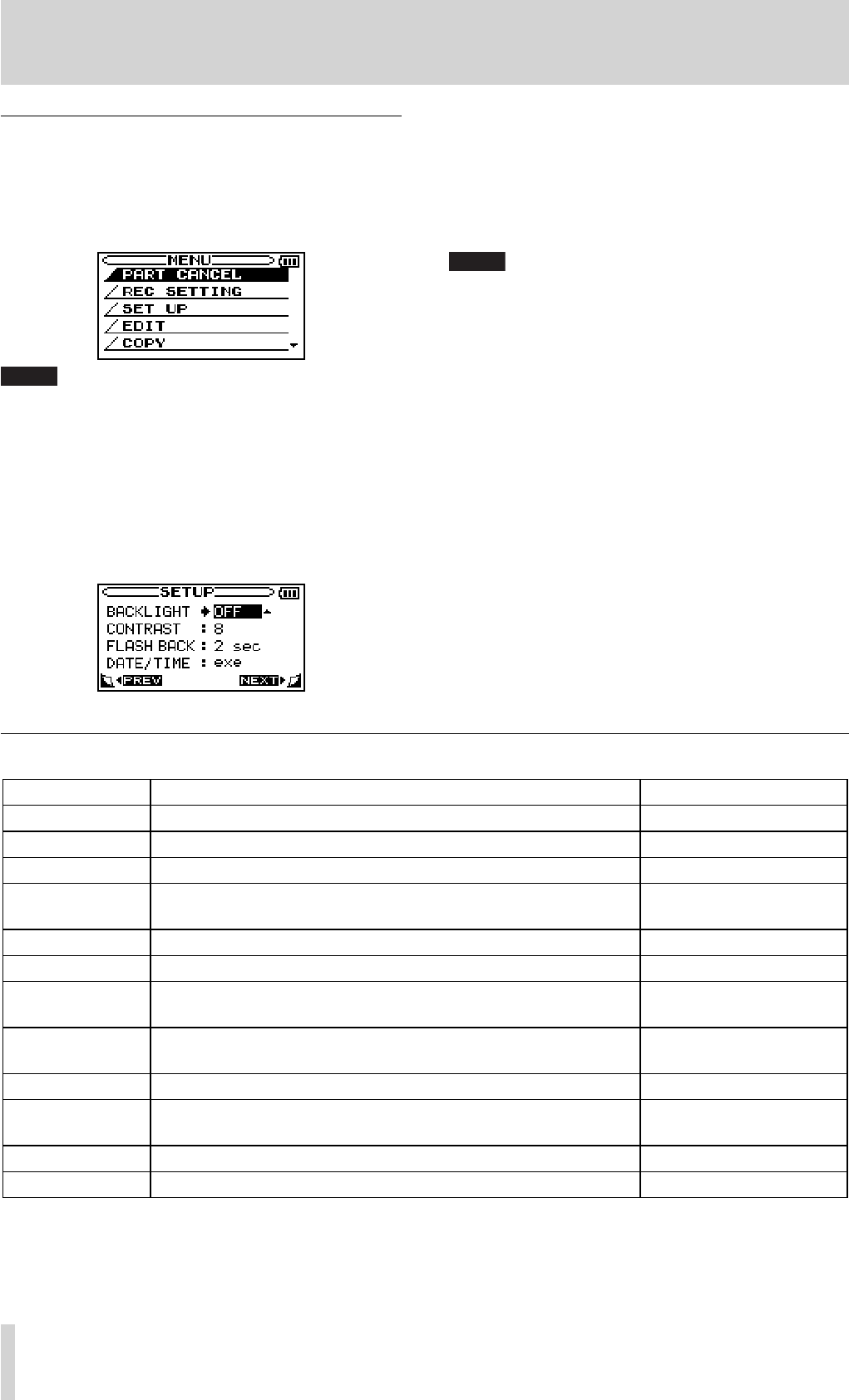
34 TASCAM BB-1000CD
Operation example
See an operation example below: changing “FLASH BACK
time” on the SETUP menu.
1. When the Home screen is displayed, press the MENU
key to open the MENU screen.
NOTE
When the ¶ icon appears in the lower right part of the screen, as
shown in the preceding image, there is additional information for
the current screen below what is shown on the display.
When the § icon appears, there is additional information for the
current screen above what is shown on the display.
2. Press the CURSOR [§/¶] key to select SET UP (high-
lighted in inverse), and press the ENTER key to open
the SETUP screen.
5–Screen Overview
Setting screen list
Screen Overview Access method
PART CANCEL Decreasing the sound of vocal and guitar. MENU key → MENU screen
REC SETTING Adjusting recording settings such as auto-recording and file format. MENU key → MENU screen
SET UP Adjusting environmental settings MENU key → MENU screen
DATE/TIME Adjusting the built-in clock MENU key → MENU
screen → SET UP screen
EDIT Editing files: dividing, moving, and deleting MENU key → MENU screen
COPY Copying files between a disc and an SD card MENU key → MENU screen
MEDIA Finalizing and unfinalizing a disc, deleting tracks, browsing files on an
SD card, formatting an SD card
MENU key → MENU screen
BROWSE Browsing audio files and folders, playing/deleting files, making/select-
ing a folder
MENU key → MENU
screen → MEDIA screen
INPUT Selecting an input and adjusting the input settings INPUT key
BALANCE Adjusting left and right balance of input signals and setting the volume
of the playback signal
BALANCE key
METRONOME Set and operate metronome functions METRONOME key
TUNER Access tuner and oscillator functions TUNER key
3. Use the CURSOR [§/¶] key to select FLASH BACK
and show the current setting value (the factory
setting is “2sec”) highlighted in inverse.
4. Turn the DATA wheel to select the desired setting. The
setting is changed immediately, so there is no need to
press the ENTER key again to confirm it.
NOTE
When the § icon appears to the right of a setting value, you can
change that value by turning it to the right. When the ¶ icon
appears to the right of a setting value, you can change that value
by turning it to the left.
BB-1000CD_En.indd 34BB-1000CD_En.indd 34 09.2.3 2:19:34 PM09.2.3 2:19:34 PM
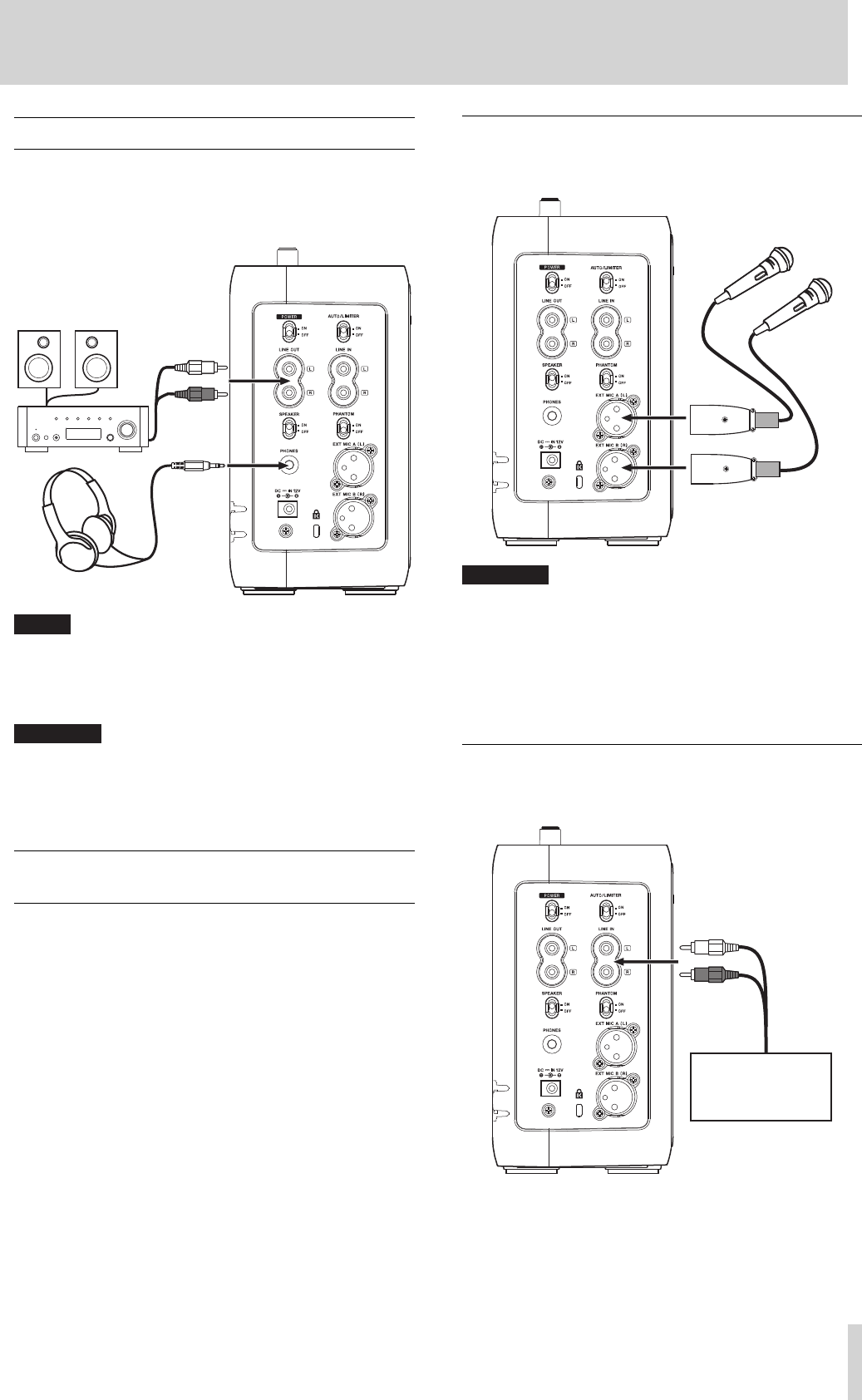
TASCAM BB-1000CD 35
6–Connection
Connecting monitors
You can connect headphones to the PHONES jack (stereo
mini jack) and an external audio device (powered speak-
ers, audio system, etc) to the LINE OUT jack (RCA jack) for
monitoring.
NOTE
Slide the SPEAKER switch to OFF to deactivate the built-in speak-
ers. The built-in speakers are automatically deactivated as head-
phones are connected to the PHONES jack regardless of the switch's
position.
CAUTION
The sound through microphones (both built-in and external) does
not come out of the built-in speakers. Use headphones when you
want to monitor it.
Connecting external microphones and an audio
device
The unit can record sounds from external audio equipment
as well as the built-in stereo microphones and you can
record sounds using them. You can connect the equipment
to the LINE IN jack and the external microphone jacks. See
below how to connect them (For settings of the connections
and input level, see “8-Recording”).
Connecting to the EXT MIC jacks
You can connect microphones to the EXT MIC A (L) and
EXT MIC B (R) jacks (XLR jacks) on the left side of the unit.
CAUTION
Slide the PHANTOM switch to ON after connecting microphones •
which need power supply, such as condenser microphones. Turn
the switch off when using other types of microphones, such as
dynamic ones. Otherwise the microphones may be damaged.
Refer to the manual of the microphones for details.
Do not connect/disconnect a microphone when the PHANTOM •
switch is ON.
Connecting to the LINE IN jack
You can connect the line output of an audio device to the
LINE IN jack (RCA jack).
Powered speakers,
stereo system, etc.
Headphones
Microphones
Audio device or
external sound
source
BB-1000CD_En.indd 35BB-1000CD_En.indd 35 09.2.3 2:19:34 PM09.2.3 2:19:34 PM
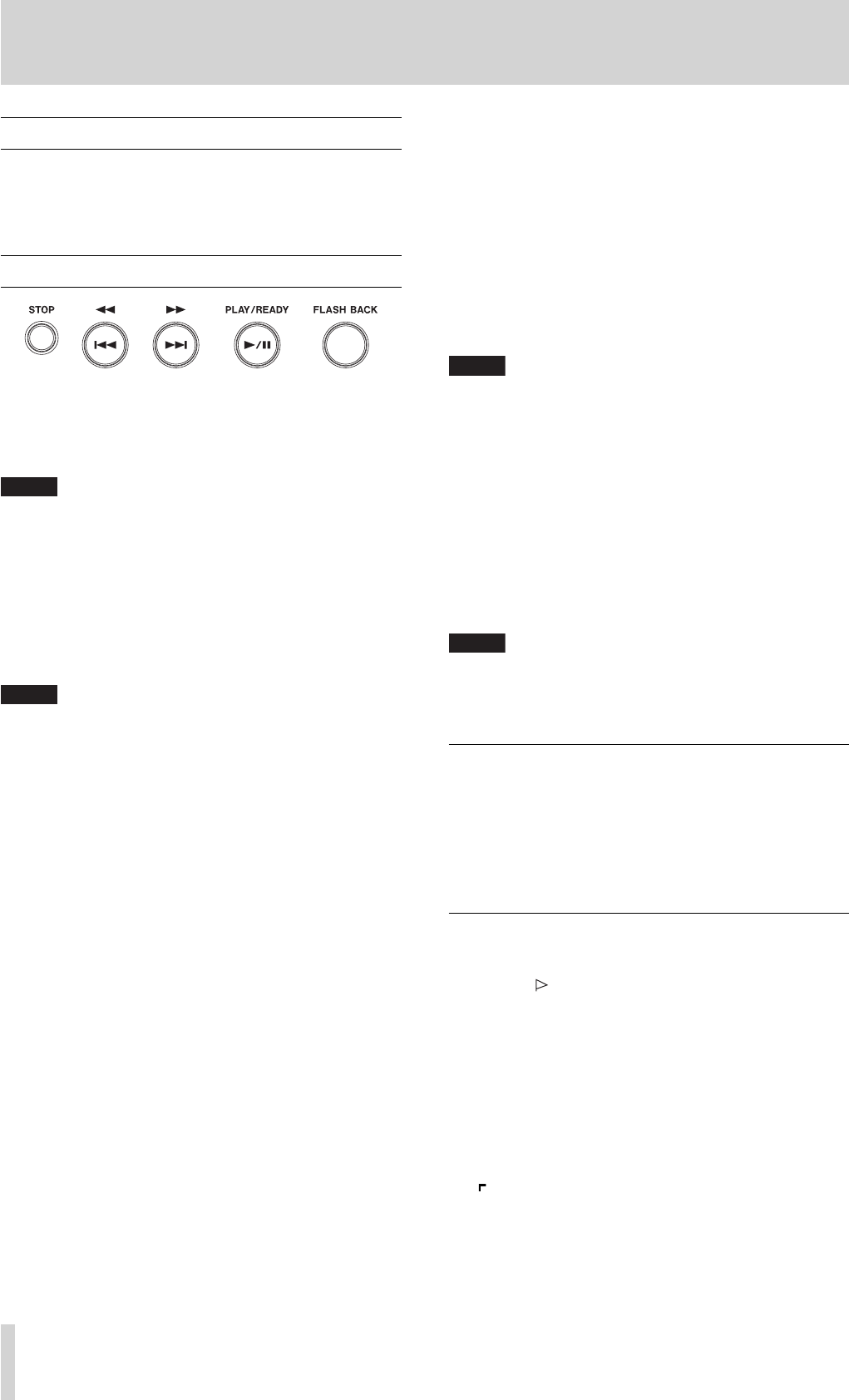
36 TASCAM BB-1000CD
7–Playback
Playable file format
This unit can play back audio CDs and MP3 files (32 - 320
kbps, 44.1 kHz) and WAV files (44.1 kHz, 16 bit) on an SD
card.
Playback
When the Home screen is displayed, use the PLAY/READY
[¥/π ], μ and ≤ keys to operate the BB-1000CD as you
would with an ordinary CD player or other audio device.
Use the DATA wheel to change the playback position.
NOTE
When the Home screen is not displayed, these keys and the DATA
wheel have diff erent functions.
Changing the recording/playback media
Press the CD key to change the recording/playback media
to CD.
Press the SD key to change the recording/playback media
to SD card.
The indicator of the selected source lights.
NOTE
Stop playback before changing the media. You cannot change •
the media during playback, recording, and pause.
The unit plays only fi les in a folder which contains the currently •
playing fi le when you are using an SD card. To play a fi le in
another folder, select the folder on the BROWSE screen (∑ page
48 “Browsing an SD card").
Play a track
When playback is stopped, press the PLAY/READY [¥/π]
key to start playback.
Pause playback
During playback, press the PLAY/READY [¥/π] key to
pause it at the current position.
Stop playback
Press the STOP key to stop playback. The track returns to
its beginning.
Selecting tracks
Use the μ and ≤ keys to select tracks both during play-
ing and when playback is stopped.
During playback or when a track is stopped in the middle,
press the μ key to return to the beginning of the current
track.
Pressing the μ key within the 1 seconds from the begin-
ning of a track skips to the beginning of the previous track.
When stopped at the beginning of a track, press the μ key
to skip to the beginning of the previous track, or press the
≤ key to skip to the beginning of the next track.
NOTE
The ·icon appears on the display when playback is stopped at
the beginning a track, and the π icon appears when playback is
stopped in the middle of a track (paused).
Search forward and backward
Press and hold the μ key to search backwards or the ≤
key to search forwards.
Using the DATA wheel to change the playback position
You can use the DATA wheel to adjust the playback position
within a track. When you turn the wheel, the position in the
playback position display bar changes, so you can visually
confirm that the playback position has been moved.
NOTE
Playback continues normally while the DATA wheel is moving when
you move it during playback. The playback skips to the position the
wheel assigned as it stops.
Skipping a track a little backward (FLASH BACK)
Press the FLASH BACK key to skip a few seconds back the
track during playback (or pause). You can adjust the skip
back time from 1 to 5 seconds by changing the FLASH
BACK setting on the SET UP screen (∑ page 50 “Adjusting
the time of FLASH BACK").
Playback from marked points
You can give markers to a track and play it from them.
1. Press the MARK key at a position you want to mark
during playback (or pause).
The current position is marked.
2. Press the F1 key to go back to the previous marker.
Press it repeatedly to go back further.
Press the
F2 key to go to the next marker.
The markers are named “A, B, C,...” from the older.
•
You can use up to 26 markers from A to Z.
“
• ” is indicated on the playback position display bar to
show the position of a marker. The name of the previous
BB-1000CD_En.indd 36BB-1000CD_En.indd 36 09.2.3 2:19:35 PM09.2.3 2:19:35 PM
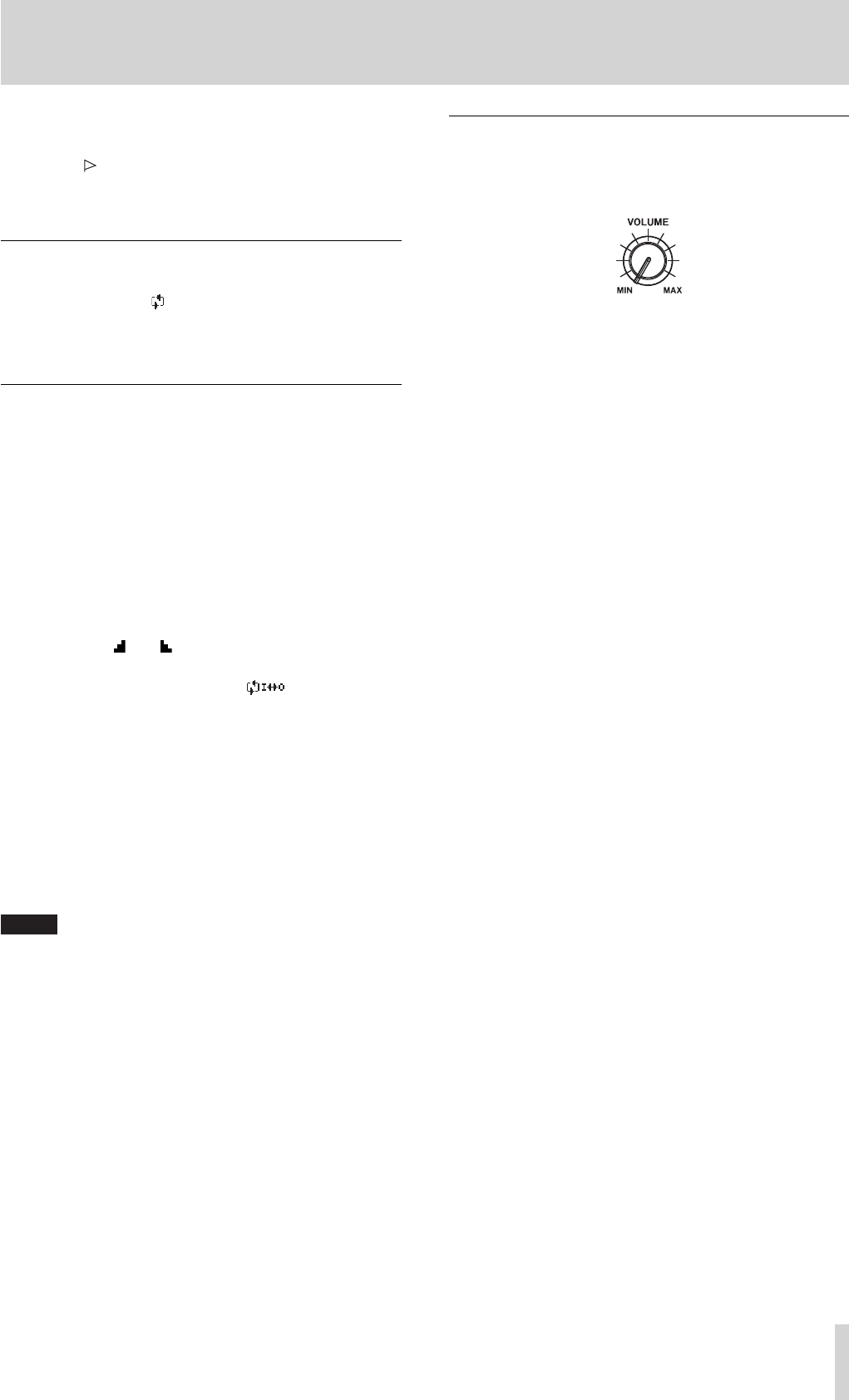
TASCAM BB-1000CD 37
7–Playback
nearest marker is indicated on the right side of the track
number.
Press the
• MARK key while pressing and holding the
LOOP key to delete the marker whose name is currently
indicated.
Repeat playback
You can play a track repeatedly.
Press the LOOP key. “ ” appears and the current track is
played back repeatedly.
To stop the repeat playback, press the LOOP key.
Loop playback (I–O LOOP)
With this function, you can continuously repeat the play-
back of a selection that you make (loop playback).
1. Press the IN key during playback to set the point
when you want to start loop playback. The current
position is set as the IN point.
2. Press the OUT key at the point when you want loop
playback to stop. The current position is set as the
OUT point, and loop playback begins between the IN
and OUT points.
The current positions of the
• IN and OUT points are
shown by the and icons that appear below the play-
back position display bar in the lower part of the Home
screen. During loop playback the indicator also
appears.
Pressing the
• ¯ key during loop playback slides the
start point of the loop forward to its end point, keeping
the time length of the loop.
Pressing the  key during loop playback slides the
end point of the loop back to its start point, keeping the
time length of the loop.
Press
• IN key or OUT key while pressing and holding the
LOOP key to clear the start point or end point, respec-
tively.
NOTE
When the
• OUT point is not set, the part from the IN
point to the end of the track is played back repeatedly.
When the
• IN point is not set, from the beginning of the
track to the OUT point is played back repeatedly.
When the
• IN and OUT points is not set, the whole track
is played back repeatedly.
To cancel the Loop playback, press the LOOP key. The IN
point and the OUT point remain and the loop playback of
the section starts again by pressing the LOOP key again.
Adjusting the volume
Use the VOLUME knob to adjust the output volume of the
built-in speaker/PHONES jack/LINE OUT jack. The volume
indicator on the front panel lights during the adjustment.
BB-1000CD_En.indd 37BB-1000CD_En.indd 37 09.2.3 2:19:35 PM09.2.3 2:19:35 PM
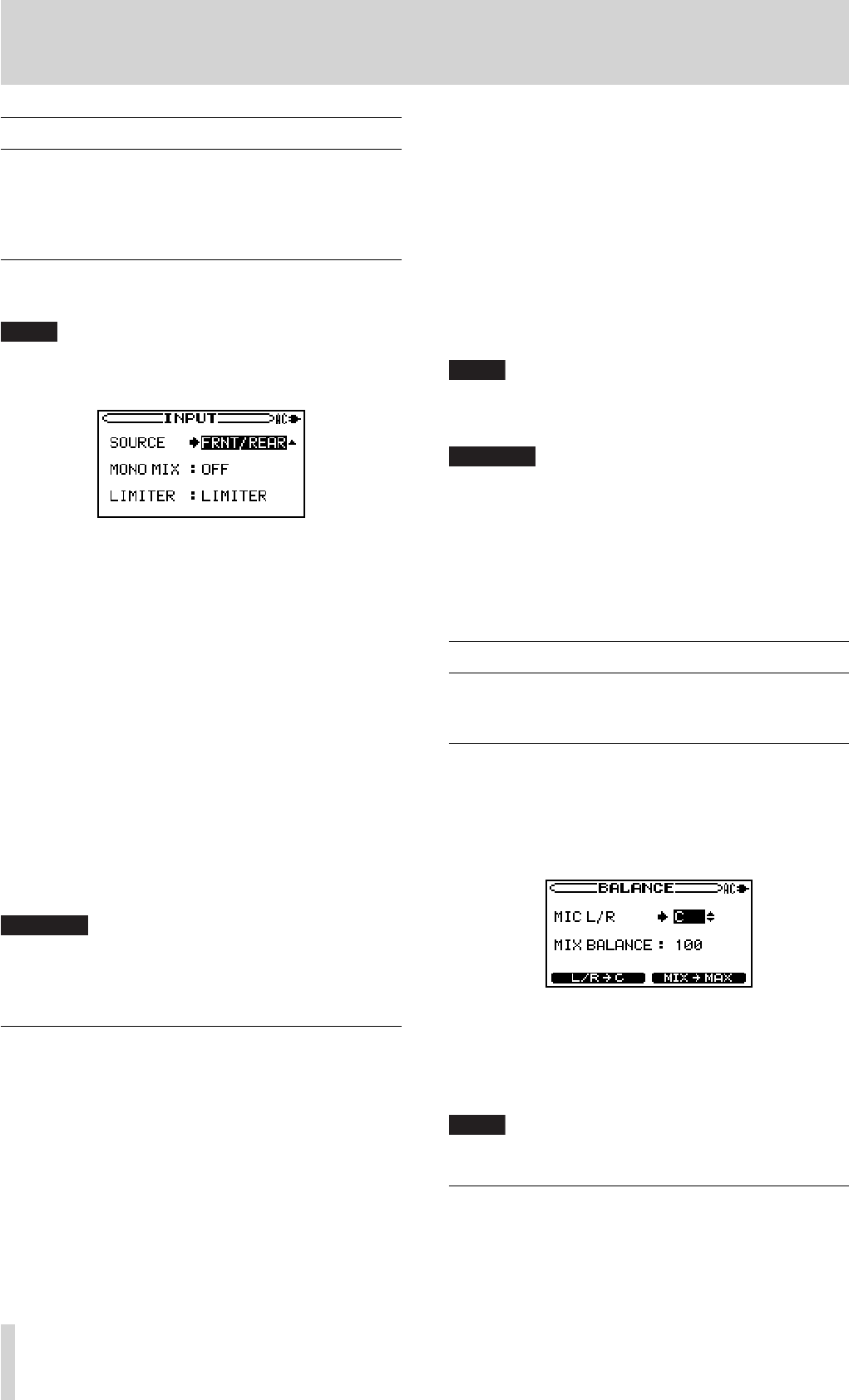
38 TASCAM BB-1000CD
8–Recording
Recording environment
The two pairs of built-in stereo microphones on the front
and rear enable you to record 360° sound. You can also
record sound using external equipment connected to the
LINE IN jack or the EXT MIC A/B (L/R) jacks.
Selecting the input
Follow these procedures to select the input.
NOTE
The signals from the selected input are recorded when recording.
1. Press the INPUT key to open the INPUT screen.
2. Press the CURSOR [§/¶] key to select the SOURCE .
3. Turn the DATA wheel to select the input you want.
FRNT/REAR:
•
Select this when you want to record the sound all around
the unit.
FRNT/LINE:
•
Select this when you want to record the sound in front of
the unit or that through the LINE IN jack. You can also
mix them up.
EXT/REAR:
•
Select this when you want to record the sound from ex-
ternal microphones or that behind the unit. You can also
mix them up.
EXT/LINE:
•
Select this when you want to record the sound from the
external microphones or that through the LINE IN jack.
You can also mix them up.
CAUTION
You do not have to take care of howling as sound from micro-
phones does not come out of the built-in speakers. Use headphones
or output from the LINE OUT jack to monitor the sound.
Adjusting the input settings
You can adjust the input settings on the INPUT screen.
Slide the AUTO/LIMITER switch on the left side to ON to
set the LIMITER setting effective.
MONO MIX
•
The signals of the left and right channels are mixed into
a monaural signal. Select “ON” when using one monau-
ral microphone only.
LIMITER
•
Use this to select the function activated when the AUTO/
LIMITER switch is “ON”.
LIMITER
•
The input gain changes automatically according to
the input signal level to prevent distortion caused by
excessively loud sound.
AGC HIGH/AGC LOW
•
The input gain changes automatically according to the
input signal level to keep the input signal in a certain
level. Useful when recording conversations such as in
meetings and conferences.
Select AGC HIGH when input level is weak, and AGC
LOW when strong.
NOTE
When recording live performances and in other situations where
unexpected loud sounds might occur, set this function to LIMITER to
prevent input clipping and allow recording without distortion.
CAUTION
The input signal level may largely diff er depending on the type •
of the external microphone you use. Generally, the level is higher
when using a condenser microphone and lower when using a
dynamic microphone. Especially, you may not get enough signal
strength when using a low-sensitive dynamic microphone.
The input level adjustment using the FRONT MIC/EXT MIC and •
REAR MIC/LINE knobs is ineff ective when using AGC.
Volume balance adjustment
You can adjust the volume levels of microphones and vol-
ume balance of playback signal on the BALANCE screen.
Adjusting the balance of microphones
You can adjust the L/R balance of the microphone input.
Use this to adjust the volume balance of the left and right
channels when using two external microphones.
1. Press the BALANCE key to open the BALANCE screen.
2. Press the CURSOR [§/¶] key to select the MIC L/R
item.
3. Turn the DATA wheel to adjust the balance.
The adjustable range is L50 - C (center) - R50.
NOTE
Pressing the F1 key returns the balance to C immediately.
Adjusting the level of playback signal
You can adjust the balance between the playback volume
of media and that of input. Use this to adjust the balance
between the playback volume and instrument volume when
overdubbing.
BB-1000CD_En.indd 38BB-1000CD_En.indd 38 09.2.3 2:19:35 PM09.2.3 2:19:35 PM
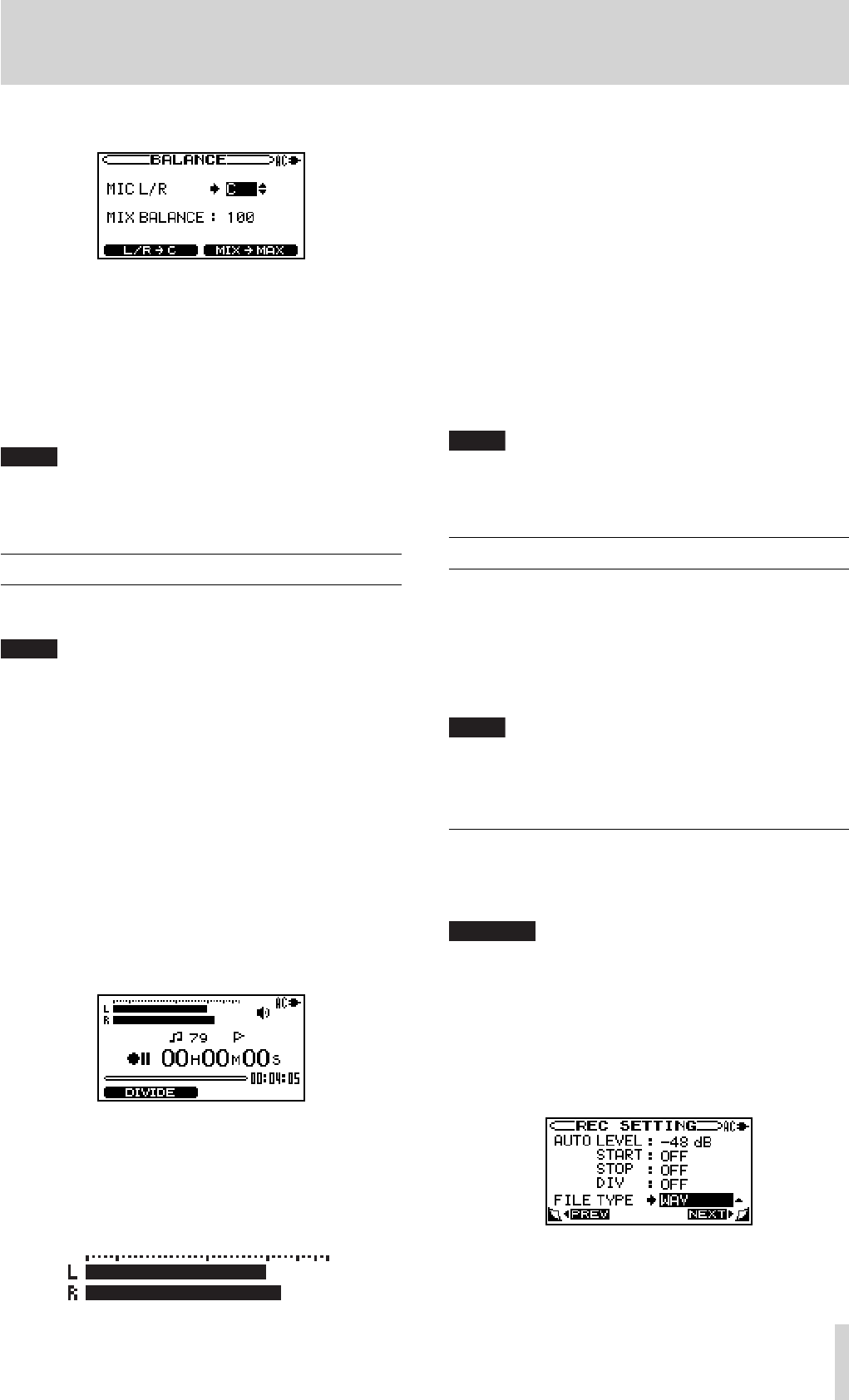
TASCAM BB-1000CD 39
8–Recording
1. Press the BALANCE key to open the BALANCE screen.
2. Press the CURSOR [§/¶] key to select the MIX
BALANCE item.
3. Use the DATA wheel to adjust the playback volume of
the media.
Set the volume between 10 and 100. The maximum
playback volume at 100.
NOTE
Press the F2 key to set MIX BALANCE to 100 immediately. Use it while
playback stops or after turning down the output volume.
Ordinary recording
Set the recording media and change the target media
(source) to it before recording.
NOTE
It is recommended to select an SD card as the recording media •
when recording the sound through the built-in microphones as
they may pick up rotation noise of during recording on a disc.
You can record up to 99 tracks on a disc.•
You can select a fi le format when recording on an SD card (• ∑
page 45 “Long time recording").
The maximum sum total of fi les and folders you can make on an •
SD card is 999. You can make up to 99 fi les in a folder within the
limit.
1. Press the REC/READY [º] key.
The Record screen appears and the unit becomes on
standby for recording.
The
REC/READY [º] key flashes.
2. Adjust the input level by turning the FRONT MIC/EXT
MIC knob and the REAR MIC/LINE knob.
The input level is indicated on the L/R meter. The
indicators upper left of the knobs light when the
input is too loud.
Check the L/R meter and adjust the level so that the
signal peak does not go over the second scale from the
right.
3. Press the REC/READY [º] key to start recording.
The REC/READY [º] key lights during recording.
4. Recording stops when pressing the STOP key during
recording or recording-on-standby. The REC/READY
[º] key goes off.
Pressing the
• REC/READY [º] key during recording
returns the unit on standby for recording. The REC/
READY [º] key flashes during recording-on-standby.
Recording on a new file starts as you press the REC/
READY [º] key again. The REC/READY [º] key lights
steadily.
NOTE
Press the F1 key during recording to continue the recording on a new
track without stopping.
Overdubbing
You can mix up the CD/SD card playback sound and that
from other sources such as your singing or playing an in-
strument and record the mixed-up sound on the SD card.
Normally, the playback sound is recorded through micro-
phones along with your playing or singing sound. The play-
back sound can be recorded directly in the unit by using the
DIRECT MIX mode.
NOTE
Be sure to insert an SD card before overdubbing as the recording
media for overdubbing is fi xed to an SD card regardless of playback
media.
Preparation for overdubbing
Follow these procedures to prepare for overdubbing.
Set the file type to WAV.
CAUTION
Only WAV fi les can be created by overdubbing.
1. Press the MENU key to open the MENU screen.
2. Press the CURSOR [§/¶] key to select REC SETTING
(highlighted in inverse) and press the ENTER key.
3. Press the CURSOR [§/¶] key to select FILE TYPE.
4. Use the DATA wheel to select WAV.
5. Press HOME to return to the Home screen.
BB-1000CD_En.indd 39BB-1000CD_En.indd 39 09.2.3 2:19:35 PM09.2.3 2:19:35 PM
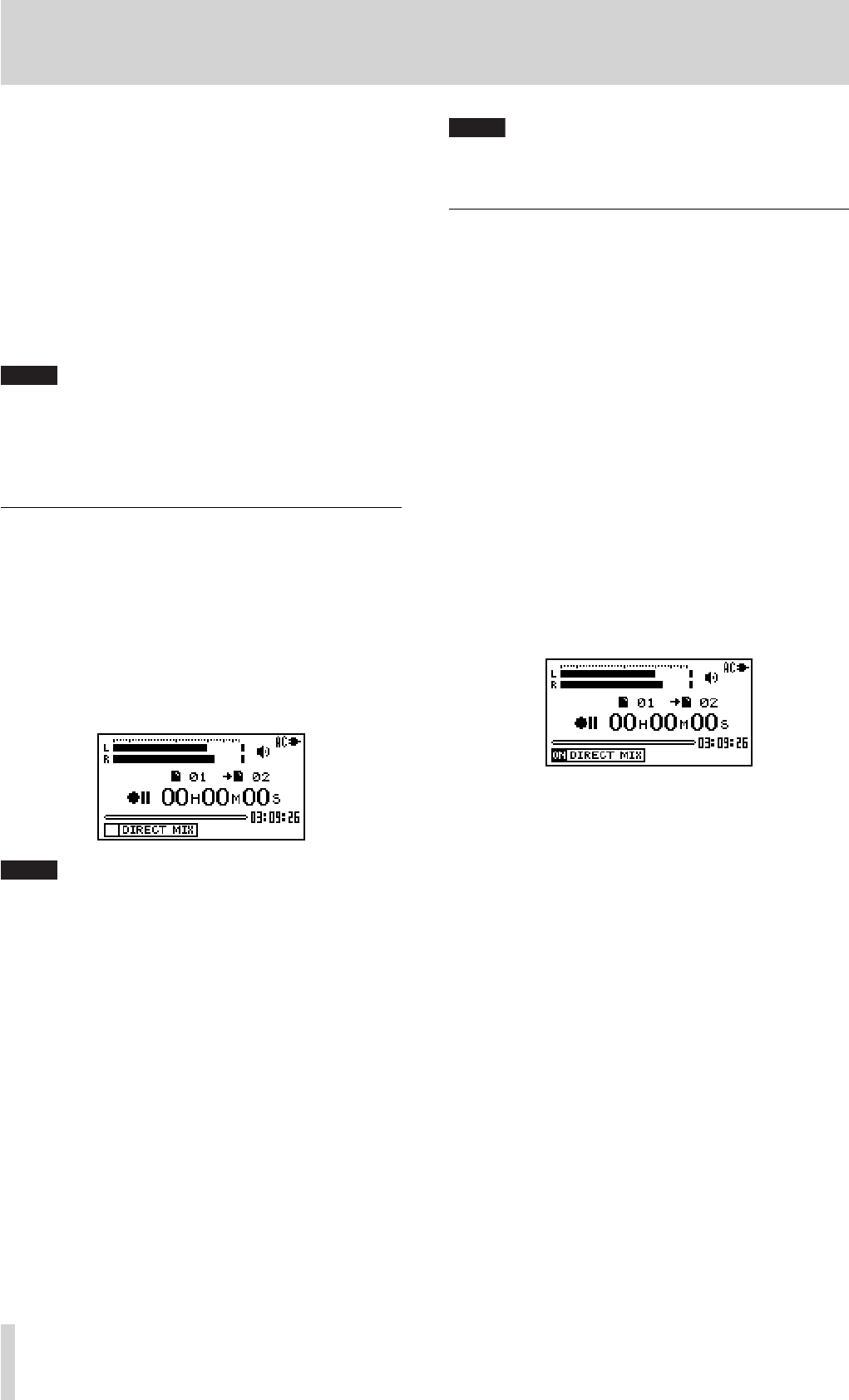
40 TASCAM BB-1000CD
8–Recording
Adjust the balance between the playback volume of media
and that of input to record.
1. Select the playback media and press the Â/¯ keys
to select a playback track.
2. Press the PLAY/READY [¥/π ] key to start playback,
and check the volume balance between the playback
and the input sounds.
3. Use the BALANCE keys as necessary to adjust the
balance by increasing or decreasing the playback
signal volume. ( ∑ page 38 “Volume balance
adjustment”)
TIP
When overdubbing the sound of an electric instrument through the
LINE IN jack, activate the DIRECT MIX mode described later.
However, DIRECT MIX mode is automatically activated when you
use the headphones for monitoring.
Overdub recording
Finish the settings above before starting overdub record-
ing: Select the input and playback source, finish input level
adjustment, and set the recording file type to WAV.
1. Slide the SPEAKER switch to ON and disconnect the
headphones.
2. Press the OVERDUB key to make the unit on standby
for overdubbing. You can start overdubbing during
playback.
NOTE
On the overdub screen, the playback fi le number and the record-•
ing fi le number are indicated instead of the recording fi le number
and the marker name on the Recording screen, respectively.
Press the PLAY/READY [• Á/π] key during recording-on-standby,
you can start playback without recording. You can also fast-
forward/reverse by pressing and holding the Â/¯ key.
3. Press the REC/READY [º] key to start overdubbing.
The REC/READY [º] key lights during recording.
4. Recording stops when pressing the STOP key during
recording or recording-on-standby. The REC/READY
[º] key goes off.
Pressing the
• REC/READY [º] key during recording
returns the unit on standby for recording. The REC/
READY [º] key flashes during recording-on-standby.
Recording on a new file starts as you press the REC/
READY [º] key again. The REC/READY [º] key stops
flashing.
NOTE
When using external microphones, set them at the same distance
from the unit and the instrument's part that sound comes out.
Overdubbing in higher sound quality (DIRECT MIX)
In ordinary overdubbing, both the playback sound of a disc
or SD card and your playing sound are recorded through
the microphones.
In the DIRECT MIX mode, the playback sound is recorded
directly in the unit and you can mix sounds in higher qual-
ity.
However, headphones are required for monitoring to pre-
vent the microphones from picking up the playback sound.
The DIRECT MIX mode is automatically activated as heac-
phones are connected.
When you overdub the sound of an electric instrument
through the LINE IN jack, you can activate the DIRECT
MIX mode manually and overdub sounds in higher quality
without using headphones for monitoring.
Follow the steps below to activate the DIRECT MIX mode
manually.
1. Press the OVERDUB key to make the unit on standby
for overdubbing.
2. Press the F1 key to activate the DIRECT MIX mode.
Execute the same procedure as ordinary overdubbing after
pressing the F1 key.
BB-1000CD_En.indd 40BB-1000CD_En.indd 40 09.2.3 2:19:36 PM09.2.3 2:19:36 PM
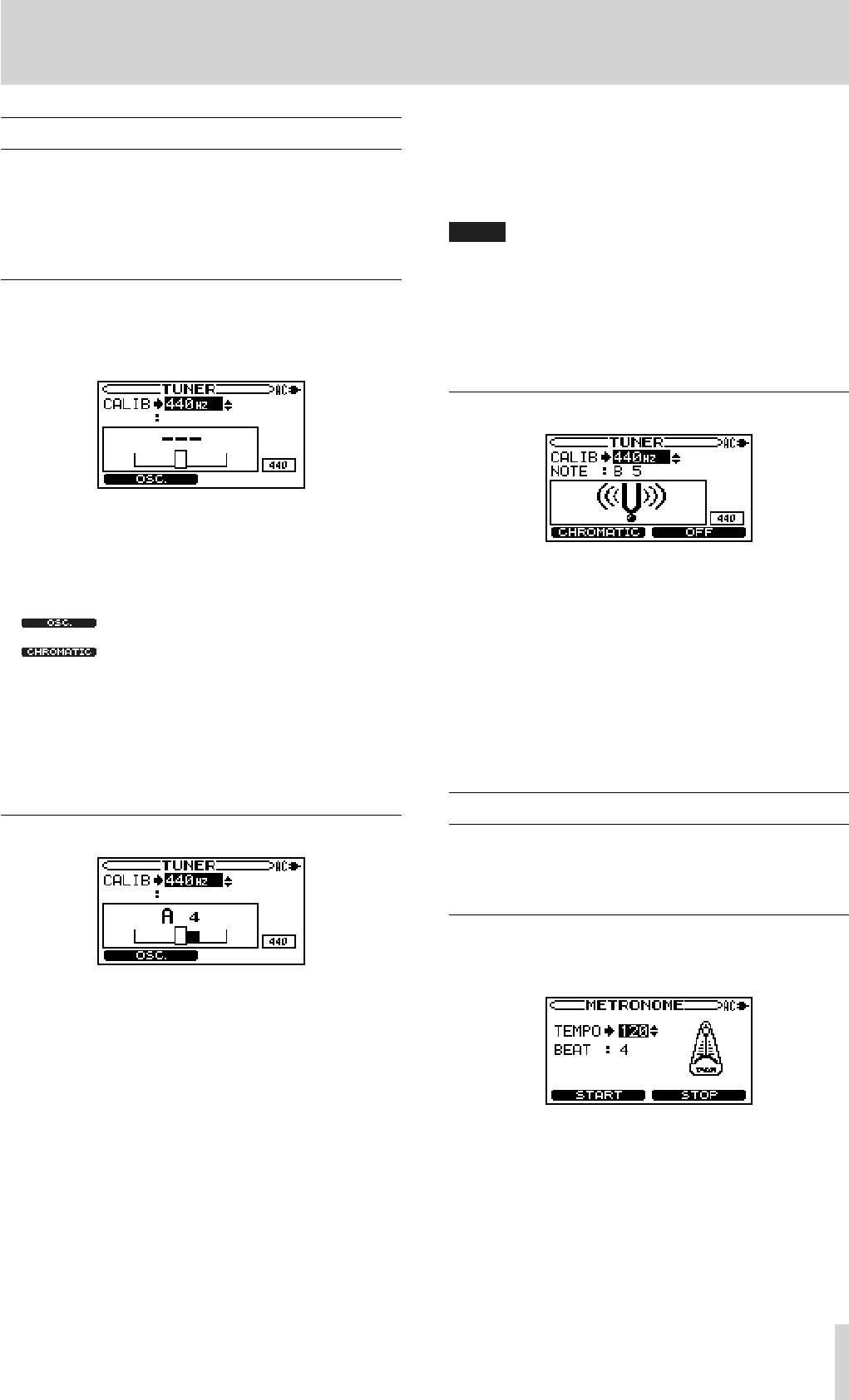
TASCAM BB-1000CD 41
9–For practicing musical instruments
Using the Tuner
The BB-1000CD has a built-in tuner. By using a mic to
input the sound of an instrument, you can use the tuning
meter on the display to tune that instrument accurately. In
addition, you can output a tuner sound to, for example, tune
multiple instruments simultaneously.
P r e p a r a t i o n
1. Press the TUNER key to open the Tuner screen.
The screen of chromatic tuner mode appears.
2. Press the F1 key to select a tuner mode.
Each time you press the key, the mode changes
between the chromatic tuner mode and the oscillator
mode.
Changes to the oscillator mode
Changes to the chromatic tuner mode
3. Use the CALIB item to set the frequency of A above
middle C (A4) between 435 Hz and 445 Hz.
The set value appears in the lower right part of the
screen. This setting affects both tuner modes.
Use of the two tuner modes is explained below.
Chromatic tuner mode
This is the default mode. Use the tuning meter on the
BB-1000CD’s screen to tune your instrument.
The tuning meter and input signal pitch appear on the
screen. ("– – –" appears when no sound is input or the input
sound is out of the measurable range.)
1. The input is automatically changed to the left micro-
phone on the front panel and the input setting is
changed to AGC.
2. Input the sound of the instrument you are tuning
through the microphone. The name of the closest
pitch appears in the upper part of the meter.
3. Tune the instrument until the desired pitch is shown
and the center of the meter is highlighted. A bar
appears to the left if the tuning is too low and a bar
appears to the right if it is too high. The longer the
bar is the more out of tune the instrument is.
TIP
You can check the diff erence of the pitch also at the volume/play-
back/recording indicator.
The center LED lights up in green when the tuning is fi ne.
The center LED lights up in red and green LEDs show the degree of
pitch diff erence when out of tune.
Oscillator mode
The built-in oscillator can output a sine wave of a pitch in
the three octaves between C3 and B5 through the built-in
speakers.
In addition to the CALIB item described above, you can
change oscillation pitch on the NOTE item.
NOTE
Set the output pitch (C3–B5).
Press the F2 key to turn the oscillator sound ON/OFF.
Using the Metronome
The BB-1000CD has a built-in metronome that outputs its
sound. The volume/playback/recording indicator lights up
along with its time.
Setting the metronome
To use the metronome, press the METRONOME key to
open the METRONOME screen.
You can set the following items on the METRONOME
screen.
TEMPO
Set the speed to a value between 20 and 250 beats per min-
ute (BPM).
BEAT
Set the accent frequency between 0 and 9. There is no ac-
cent when set to 0. For example, set this to 4 if you want
4/4 time.
BB-1000CD_En.indd 41BB-1000CD_En.indd 41 09.2.3 2:19:36 PM09.2.3 2:19:36 PM
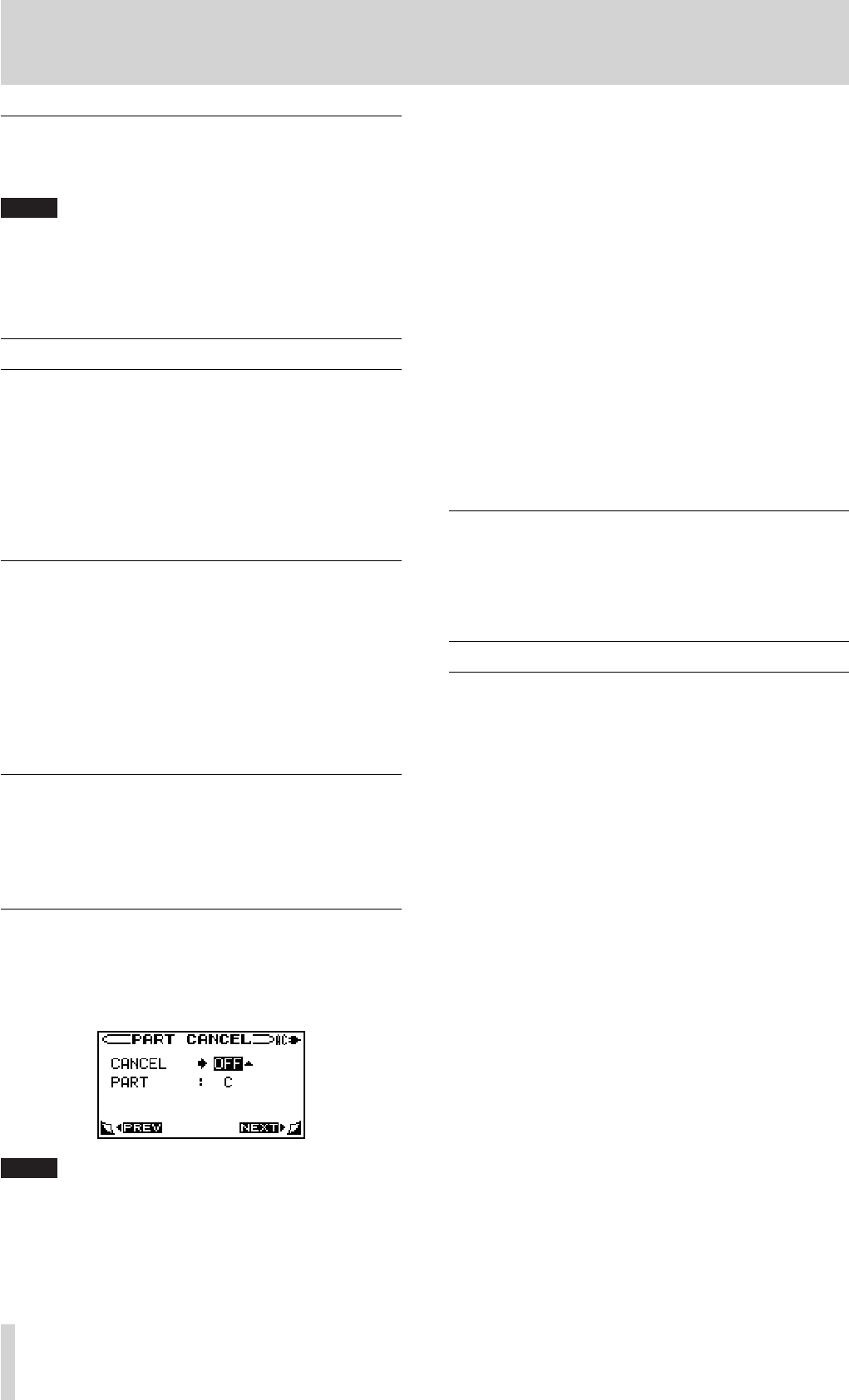
42 TASCAM BB-1000CD
9–For practicing musical instruments
Starting and stopping the metronome
On the metronome screen, press the F1/F2 key to start/stop
the metronome.
NOTE
The indicator on the front panel lights along with the time of the •
metronome.
When using the metronome, you cannot return to the Home •
screen .
Practicing with CD/SD playback
Not only can you use the unit to change the tempo of track
playback, you can even do this without changing the pitch.
You can also change the playback pitch of a track without
changing the tempo.
Furthermore, you can also reduce (cancel) the sound of
a voice or solo instrument on a track. You can use these
playback control functions effectively to practice and learn
parts.
Changing the playback key
You can change the key (pitch) of playback sound without
changing playback speed by using the KEY knob and the
FINE PITCH knob.
Use the KEY knob to adjust the pitch up or down by semi-
tone (b6 - #6).
Use the FINE PITCH knob to adjust the pitch finely by a
cent (1/100 of a semitone). The adjustable range is –50 -
+50.
Changing the playback speed
Use the SPEED knob to control the playback speed.
Since the speed adjustment range is –50% to +16% (in 1%
increments), the slowest speed setting is half the original
speed.
Reducing sound of a certain location (PART CANCEL)
You can select a certain position and reduce the sound
volume from the position. For example, selecting C (center)
on a commercially available audio CD reduces vocal sound
(part cancel function).
NOTE
The eff ect diff ers depending on the characteristic of the sound
source.
1. Press the MENU key to open the MENU screen.
2. Press the CURSOR [§/¶] key to select the PART
CANCEL item and press the ENTER key.
3. Turn the DATA wheel to select an item and adjust it.
The adjustable items are the two below:
CANCEL (the factory setting is OFF)
Set the CANCEL item to ON to turn the part cancel func-
tion ON.
Depending on the music, the part cancel function may not
reduce the recorded vocal or solo instrument sound suffi-
ciently. If this is the case, changing the PART setting might
make the reduction more effective. Listen to the music as
you adjust the settings to achieve the best effect.
PART (the factory setting is C)
Adjust this setting to match the stereo position of the sound
that you want to reduce (L10-C -R10).
Practicing a certain phrase repeatedly
You can continuously repeat the playback of a selection that
you make (loop playback).
( ∑ page 37 “Loop playback (I–O LOOP)”)
Recording the practice with CD/SD
This unit can mix and record its playback track and the
sounds from microphones and the LINE IN jack.
( ∑ page 39 “Overdubbing” on “8-Recording”)
BB-1000CD_En.indd 42BB-1000CD_En.indd 42 09.2.3 2:19:36 PM09.2.3 2:19:36 PM
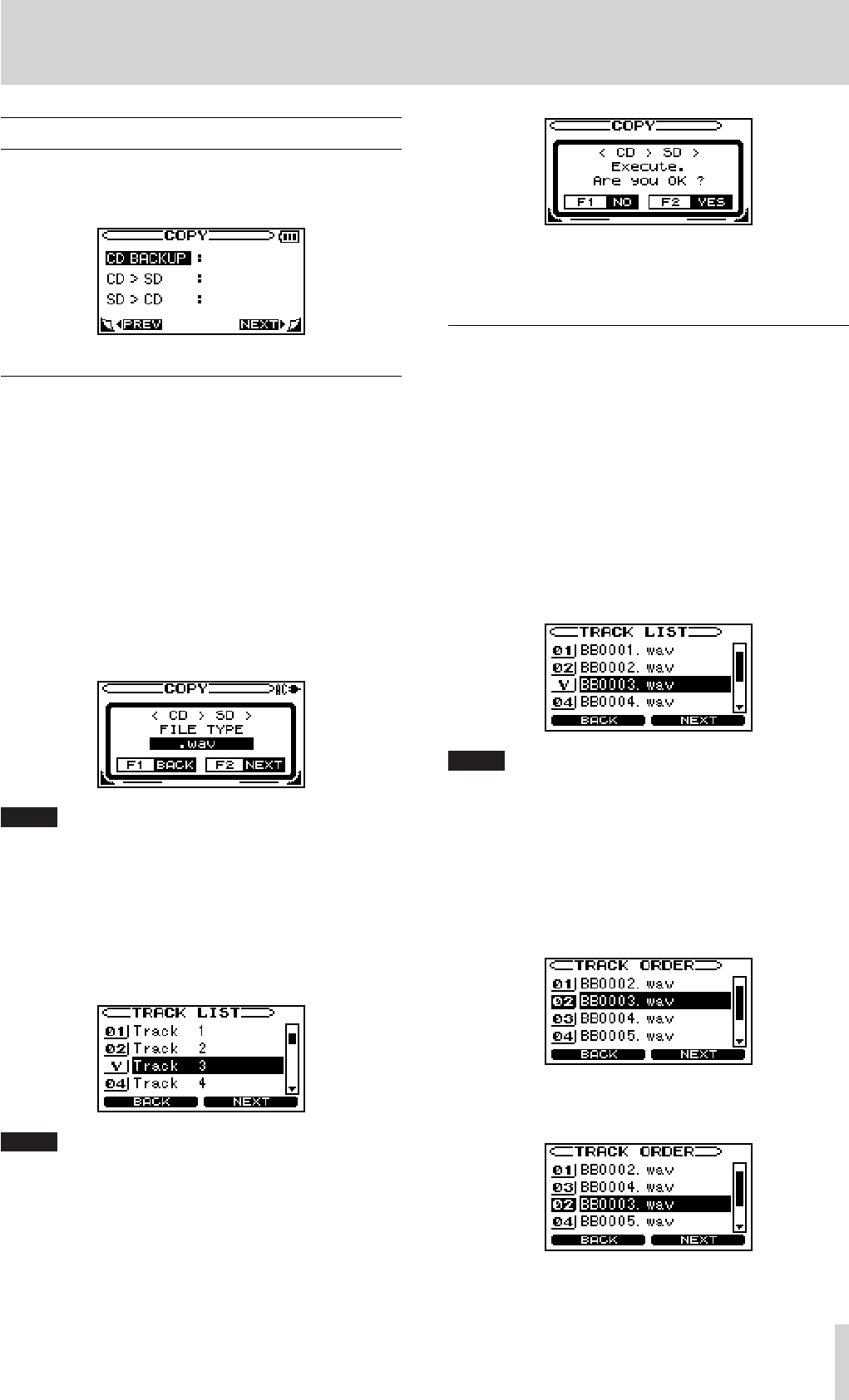
TASCAM BB-1000CD 43
10–Other useful functions
Backing up audio files
You can copy tracks on a CD into an SD card as audio files
and write files on an SD card on to a disc on the COPY
screen.
Copying a CD onto an SD card
You can copy tracks on a CD onto an SD card. The tracks
are copied into the folder currently used. If you want to
copy them into another folder, select it on the BROWSE
screen before copying ( ∑ page 48 “Browsing an SD card”).
1. Press the MENU key to open the MENU screen.
2. Press the CURSOR [§/¶] key to select COPY and
press the ENTER key.
3. Press the CURSOR [§/¶] key to select CD>SD and
press the ENTER key.
4. Press the CURSOR [§/¶] key to select a file format to
record onto the SD card and press the F2 key.
NOTE
You can select a format from WAV, MP3 (low), MP3 (normal), and
MP3 (high). The recording time is longer in the following order: WAV
< MP3 (high) < MP3 (normal) < MP3 (low). The longer the recording
time is, the worse the sound quality becomes.
5. Press the CURSOR [§/¶] key to select the target track
and press the ENTER key.
The check mark is indicated by the selected track.
NOTE
Select the track again and press the ENTER key to uncheck it.
6. Repeat step 5 until all the target tracks are checked
and press the F2 key.
The confirmation screen appears.
7. Press the F2 key to start copying.
The
COPY screen appears after copying is finished.
Writing files on an SD card onto a disc
1. Press the MENU key to open the MENU screen.
2. Press the CURSOR [§/¶] key to select COPY and
press the ENTER key.
3. Press the CURSOR [§/¶] key to select SD>CD and
press ENTER.
The
TRACK LIST screen appears and show the files
recorded on the SD card.
4. Press the CURSOR [§/¶] key to select the target file
and press the ENTER key.
The check mark is indicated by the selected file.
NOTE
Select the fi le again and press the ENTER key to uncheck it.
5. Repeat step 4 until all the target files are checked and
press the F2 key.
6. Press the CURSOR [§/¶] key to select a file you want
to change the order of and press the ENTER key.
The selected file is highlighted and you can change its
order in the disc.
7. Press the CURSOR [§/¶] key to move the file and
press the ENTER key.
8. Repeat step 7 until you finish changing the order of
files and press the F2 key.
BB-1000CD_En.indd 43BB-1000CD_En.indd 43 09.2.3 2:19:36 PM09.2.3 2:19:36 PM
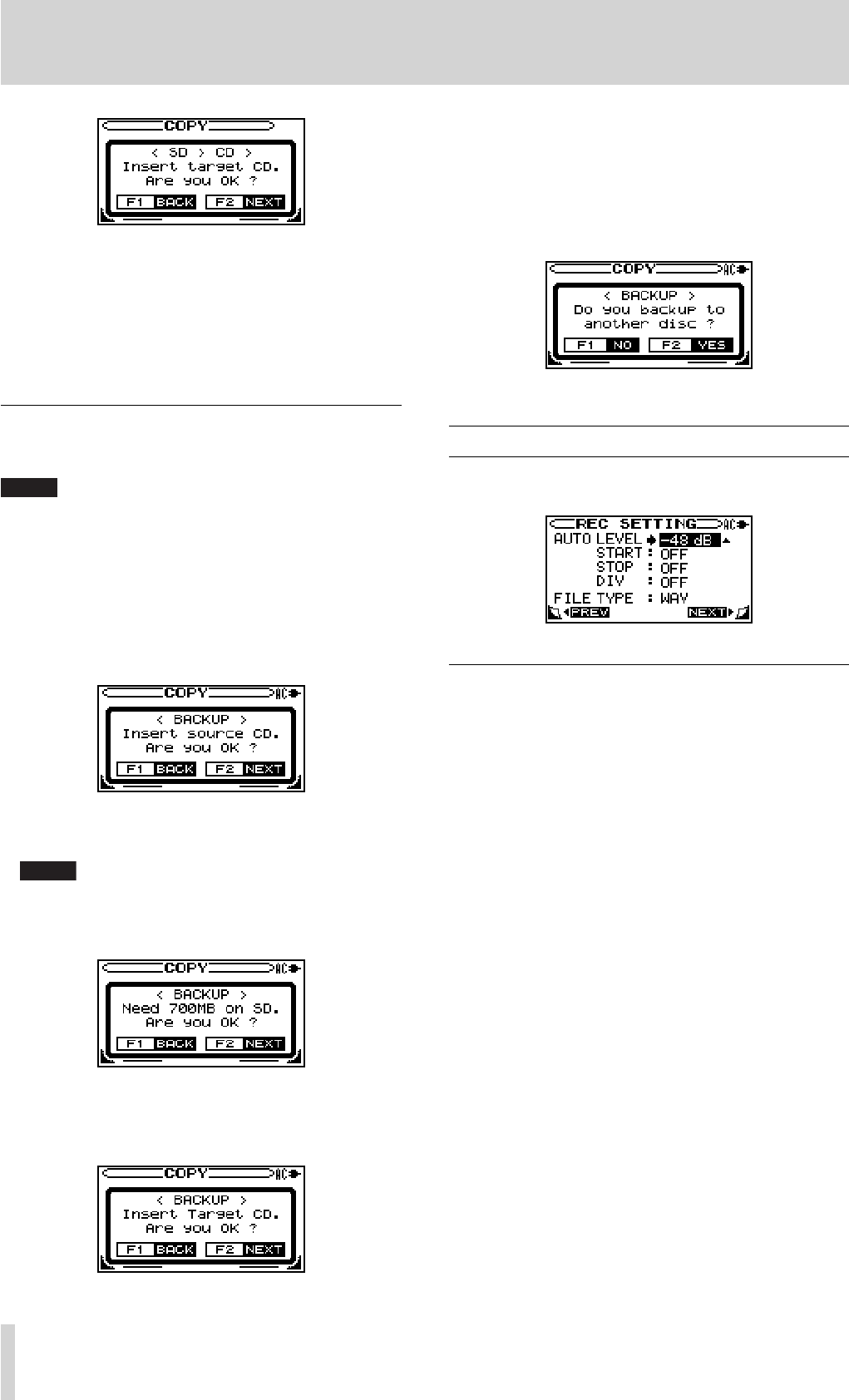
44 TASCAM BB-1000CD
10–Other useful functions
9. Load a blank disc and press the F2 key.
The selected files are written onto the disc. If you
want to make another copy, load a new blank disc
following the messages on the screen after finishing
and press the F2 key. Press the F1 key to finish and
return to the COPY screen.
Backing up an audio CD
You can create a backup disc of an audio CD.
NOTE
An SD card which has free space enough to copy the contents of
the CD is required for duplicating it.
1. Press the MENU key to open the MENU screen.
2. Press the CURSOR [§/¶] key to select COPY and
press the ENTER key.
3. Press the CURSOR [§/¶] key to select CD BACKUP
and press the ENTER key.
4. Load the SD card and the target CD and press the F2
key. The temporary copy to the SD card starts.
NOTE
A caution appears when the capacity is not enough. Insert an
SD card with enough space and press the F2 key to proceed to
the next step.
The CD is automatically ejected as the unit finish
copying it onto the SD card and the message to
prompt to insert a blank disc appears.
5. Load a blank disc and press the F2 key.
The duplication starts. The disc is automatically
ejected after finishing duplication. If you want to
make another copy, load a new blank disc and press
the F2 key. Press the F1 key to finish and return to
the COPY screen.
Changing recording settings
You can change the various settings relating to recording
on the REC SETTING screen.
Auto recording
You can set the unit to start/stop recording automatically
from recording-on-standby depending on the status of input
signals. It is convenient when you need to start recording
from the position far from the unit.
1. Press the MENU key to open the MENU screen.
2. Press the CURSOR [§/¶] key to select REC SETTING
and press the ENTER key.
3. Adjust the four settings below.
AUTO LEVEL:
Set the signal level at which recording starts/stops auto-
matically.
START:
While set to ON, recording automatically starts as the
unit is on-standby for recording and detects an input sig-
nal whose level is higher than that set on AUTO LEVEL.
STOP:
Set the time from detecting the input signal level lower
than that set on AUTO LEVEL to stopping recording to
on-standby.
DIVIDE:
When setting this to ON, the recording file is divided
as the input signal level becomes higher than that set on
AUTO LEVEL again after 2 second or more declining
signal level.
BB-1000CD_En.indd 44BB-1000CD_En.indd 44 09.2.3 2:19:36 PM09.2.3 2:19:36 PM
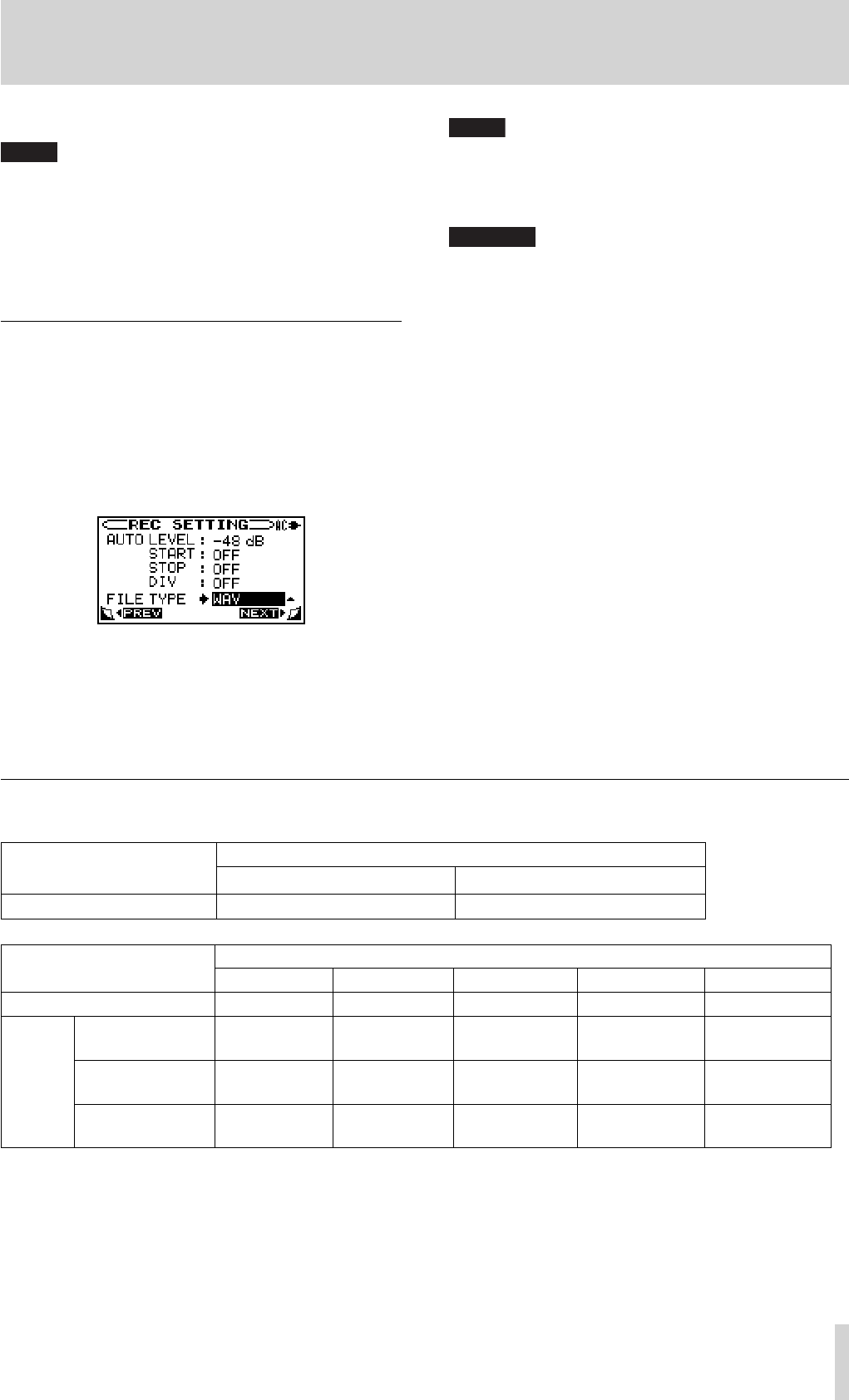
TASCAM BB-1000CD 45
10–Other useful functions
4. Press the HOME key to return to the Home screen.
TIP
You can skip unnecessary silent moments during recording by •
setting START and STOP above. If you want to divide recording
fi les at each silence but require no skipping silence, activate
DIVIDE only.
By the combination of START, STOP and DIVIDE, you can set the •
unit to record sounds skipping silence longer than 5 seconds
(time set on STOP) and dividing fi les at each silence, for example.
Long time recording
You can change the recording file format to make the re-
cording time longer.
1. Press the MENU key to open the MENU screen.
2. Press the CURSOR [§/¶] key to select REC SETTING
and press the ENTER key.
3. Press the CURSOR [§/¶] key to select FILE TYPE.
4. Turn the DATA wheel to select a file format and press
the ENTER.
About the recording time
The following tables show the recording times for each recording format and media capacity.
Recording format CD / capacity
650MB 700MB
CD-DA 16 Bit, 44.1 kHz 1 hour 14 minutes 1hour 20 minutes
Recording format
(FILE TYPE)
SD/SDHC card capacity
1GB 2GB 4GB 8GB 16GB
WAV 16 Bit, 44.1 kHz 1 hour 39 minutes 3 hours 18 minutes 6 hours 36 minutes 13 hours 12 minutes 26 hours 24 minutes
MP3 Low
(44.1 kHz, 64 kbps)
35 hours 50 minutes 71 hours 40 minutes
143 hours 20 minutes
286 hours 40 minutes 573 hours 20 minutes
Normal
(44.1 kHz, 128 kbps)
17 hours 55 minutes 35 hours 50 minutes 71 hours 40 minutes 143 hours 20 minutes 286 hours 40 minutes
High
(44.1 kHz, 192 kbps)
11 hours57 minutes 23 hours 54 minutes 47 hours 48 minutes 95 hours 36 minutes 191 hours 12 minutes
The recording times on the table above is approximate ones. Actual recording time may vary depending on the SD/SDHC
•
card you use.
The recording times on the table above show total time recordable on an SD/SDHC card, not the maximum continuous
•
recording time.
You cannot record continuously for more than 23 hours and 59 minutes. The maximum size of a single recording file is 2
•
GB.
NOTE
You can select a format from WAV, MP3 (low), MP3 (normal), and
MP3 (high). The recording time is longer in the following order: MP3
(low)>MP3 (normal)>MP3 (high)>WAV. The longer the recording
time is, the worse the sound quality becomes.
CAUTION
Select WAV when you use overdubbing or you want to edit the fi le
using the DIVIDE function on the EDIT screen after recording. ( ∑
page 39 “Overdubbing” on “8-Recording”)
5. Press the HOME key to return to the Home screen.
BB-1000CD_En.indd 45BB-1000CD_En.indd 45 09.2.3 2:19:36 PM09.2.3 2:19:36 PM
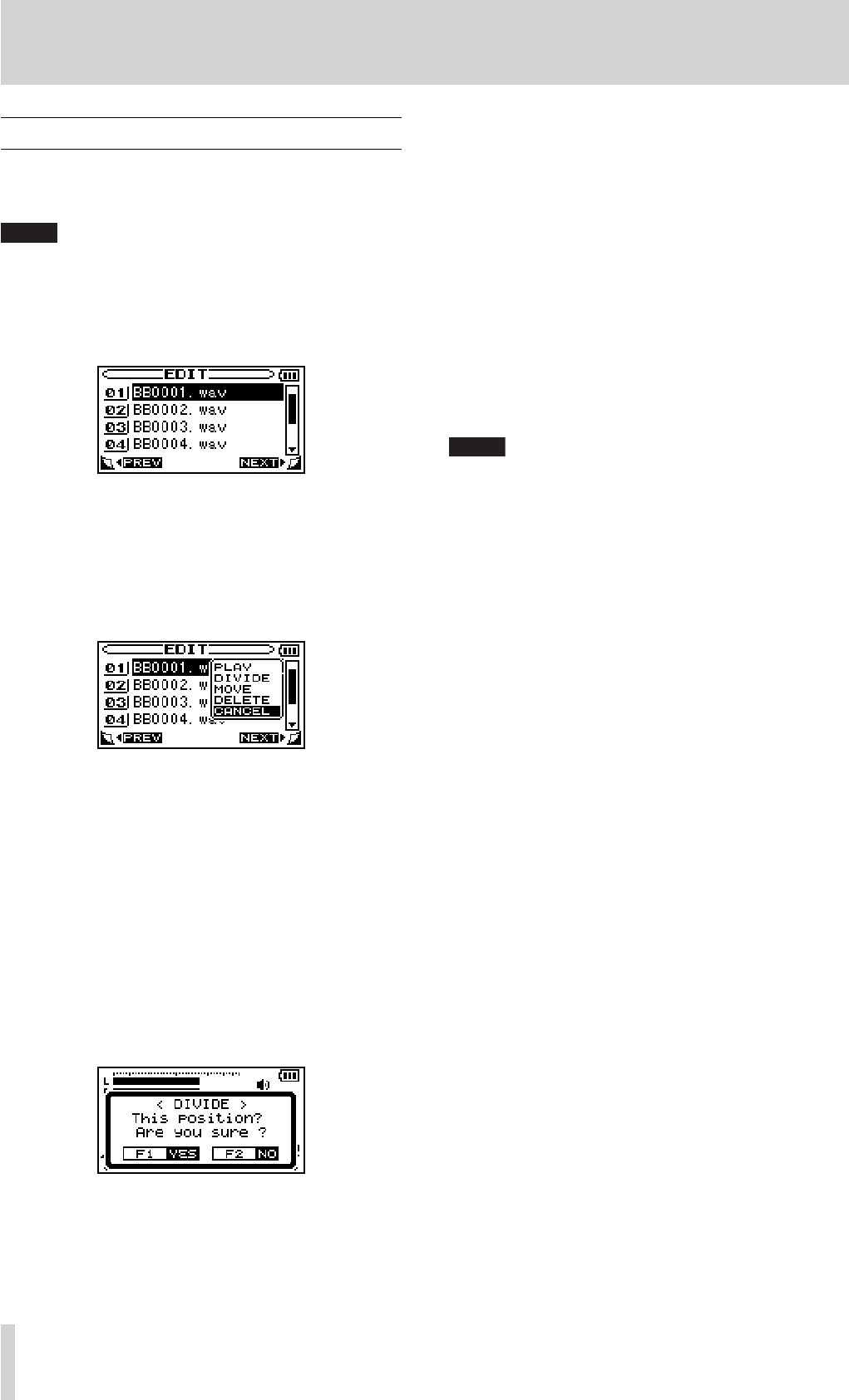
46 TASCAM BB-1000CD
Editing a file
You can edit files on an SD card on the EDIT screen.
Change the recording/playback media to SD and insert an
SD card before editing.
NOTE
You cannot edit fi les on a disc.
1. Press the MENU key to open the MENU screen.
2. Press the CURSOR [§/¶/˙/¥] key to select EDIT and
press the ENTER key.
The contents of the folder that contains the file that was
selected on the Home screen before the EDIT screen was
opened appears on the display.
3. Press the CURSOR [§/¶] key to select a file you want
to edit and press the ENTER key.
A pop-up window appears as below.
4. Select an operation you want to apply to the selected
file.
PLAY
Return to the Home screen and playback the selected
file.
DIVIDE
Select this to divide the file.
The screen changes to the Home screen and playback
of the selected file starts. Press the ENTER key at the
position you want to divide the file at. The confirma-
tion message appears and the unit plays back 2 seconds
from the selected position repeatedly. Press the F1 key
to divide it at the position. To cancel, press the F2 key.
Close the confirmation message and press the MENU
key to return to the EDIT screen.
MOVE
Select this to change the playback order of files. Press
the CURSOR [§/¶] key to move the selected file and
press the ENTER key at the position you want.
DELETE
Select this to delete the file. The confirmation message
appears. Press the F1 key to delete the file. To cancel,
press the F2 key.
CANCEL
Select this to cancel the operation to the file.
Press the
• PLAY/READY [Á/π] key to return to the Home
screen and start playback of the file currently selected.
NOTE
You can open the EDIT screen directly by pressing the ENTER key
during playback/pause. The fi le currently played back is selected
when the screen is opened..
Pressing the ENTER key without changing the fi le selection and
selecting DIVIDE will start 2-second repeat playback at the position
played back or paused and the confi rmation message of DIVIDE will
appear.
10–Other useful functions
BB-1000CD_En.indd 46BB-1000CD_En.indd 46 09.2.3 2:19:37 PM09.2.3 2:19:37 PM
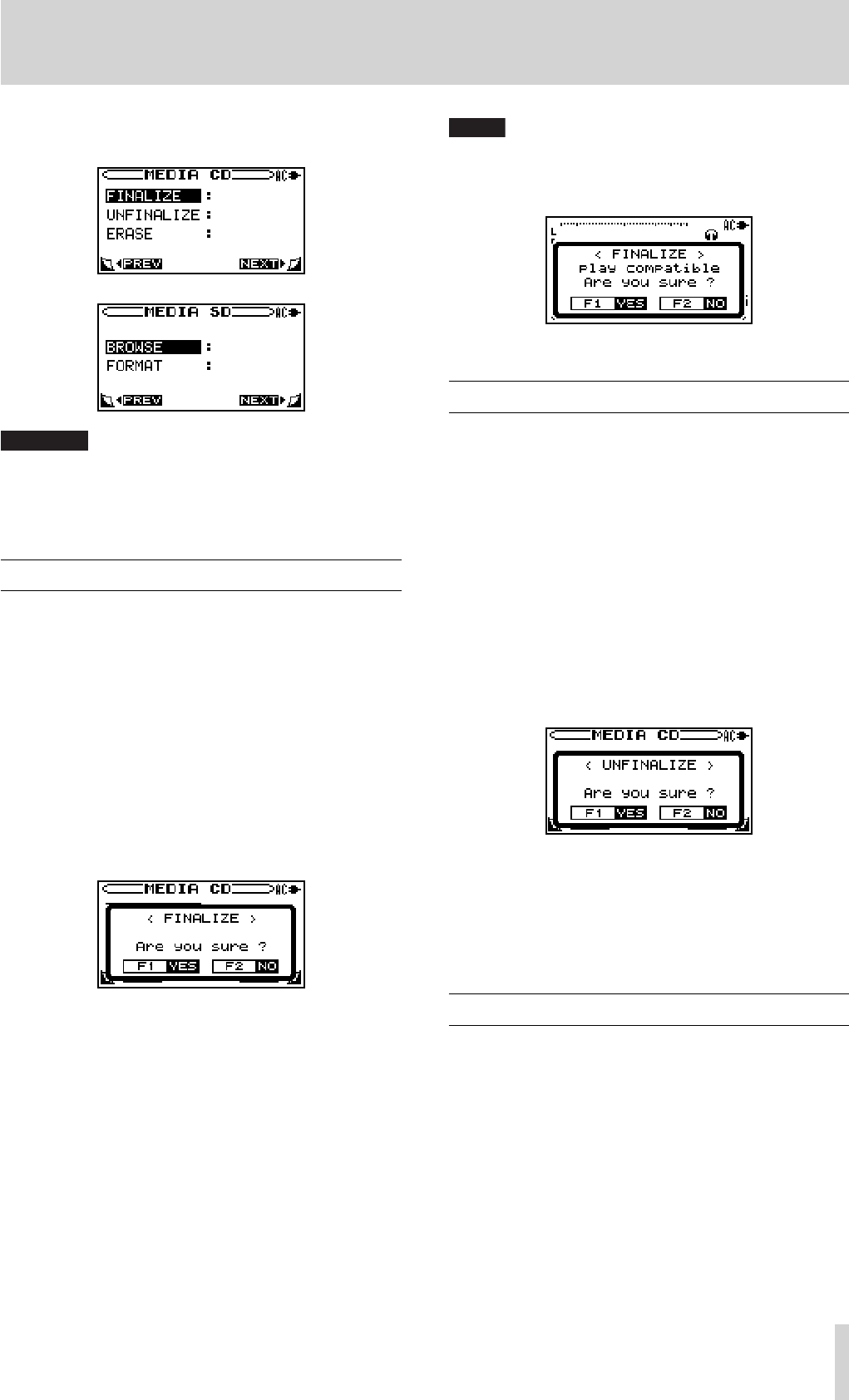
TASCAM BB-1000CD 47
11–Managing recording media
You can finalize/unfinalize a disc, delete tracks on a CD-
RW, browse and format an SD card on the MEDIA screen.
CAUTION
You cannot handle a disc on the MEDIA screen when the unit
is running by battery power. Supply the power through the AC
adapter.
Finalizing a disc
To playback a disc recorded on the unit on another device,
you need to finalize it manually.
Change the source to CD and load a disc to finalize before
starting the operations below.
1. Press the MENU key to open the MENU screen.
2. Press the CURSOR [§/¶] key to select MEDIA and
press the ENTER key.
The
MEDIA CD screen appears.
3. Press the CURSOR [§/¶] key to select FINALIZE and
press the ENTER key.
The confirmation message appears
4. Press the F1 key.
Finalization starts.
The MEDIA CD screen appears after finishing finalization.
NOTE
A fi nalization confi rmation message appears when ejecting a disc
not fi nalized yet. Press the F1 key to fi nalize it. Press the F2 key to eject
it without fi nalization.
Unfinalizing a CD-RW
You can record additional files on a finalized CD-RW after
unfinalizing it using UNFINALIZE.
Change the source to CD and load a CD-RW to unfinalize
before starting the operations below ( ∑ page 31 “Loading
a disc”).
1. Press the MENU key to open the MENU screen.
2. Press the CURSOR [§/¶] key to select MEDIA and
press the ENTER key.
The
MEDIA CD screen appears.
3. Press the CURSOR [§/¶] key to select UNFINALIZE
and press the ENTER key.
The confirmation message appears
4. Press the F1 key.
Unfinalization starts.
The MEDIA CD screen appears after finishing unfinaliza-
tion.
Deleting tracks on a CD-RW
You can delete tracks on a CD-RW. All tracks or the last
track is deletable.
Change the recording/playback to CD and load a CD-RW
containing tracks to delete before starting the operations
below.
1. Press the MENU key to open the MENU screen.
2. Press the CURSOR [§/¶] key to select MEDIA and
press the ENTER key.
The
MEDIA CD screen appears.
BB-1000CD_En.indd 47BB-1000CD_En.indd 47 09.2.3 2:19:37 PM09.2.3 2:19:37 PM
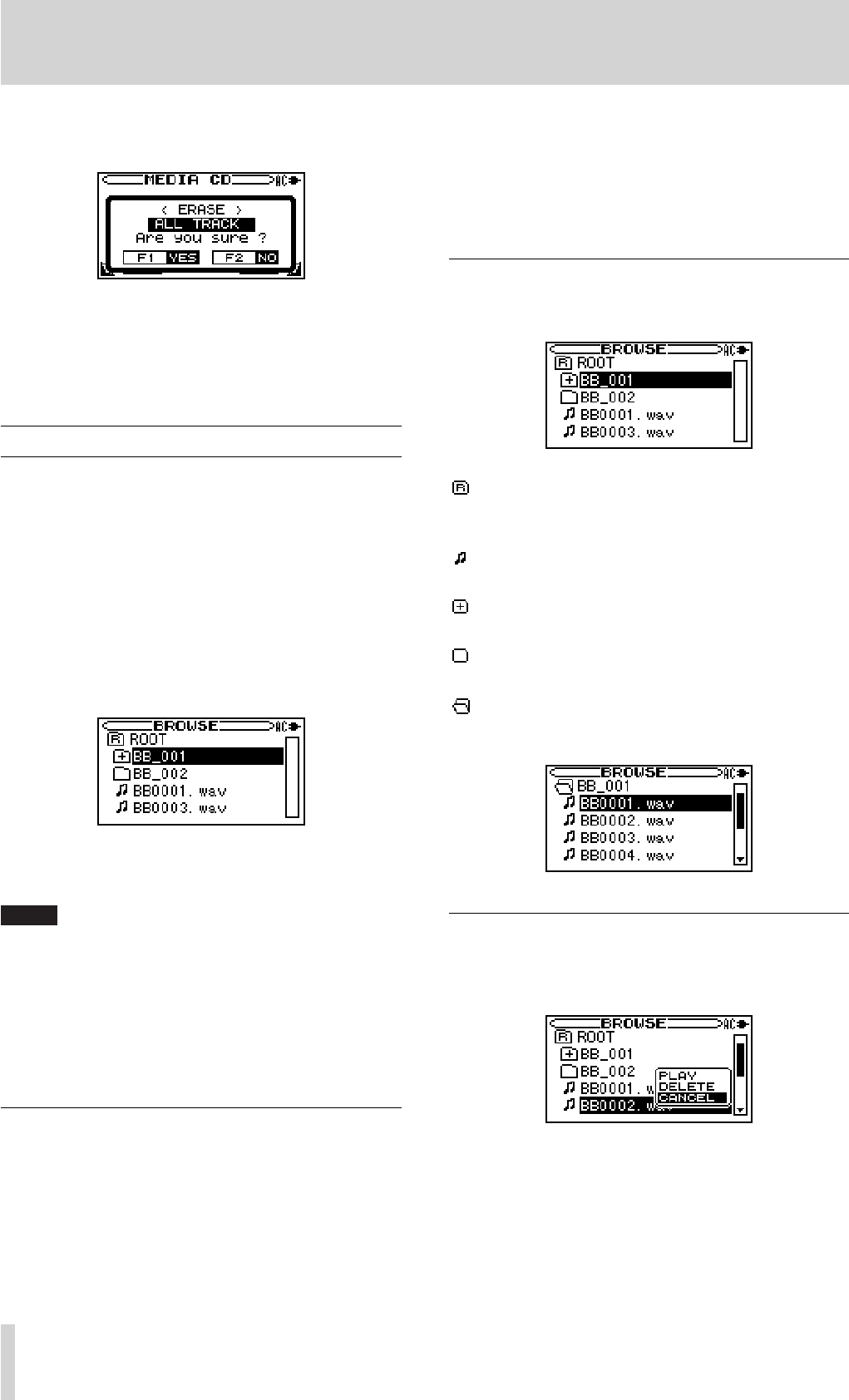
48 TASCAM BB-1000CD
11–Managing recording media
3. Press the CURSOR [§/¶] key to select ERASE and
press the ENTER key.
4. Use the DATA wheel to select LAST TRACK or ALL
TRACK and press the F1 key.
The selected tracks are deleted.
Press F2 key to cancel the operation.
Browsing an SD card
You can see folders and audio files on an SD card and
select a folder to playback on the BROWSE screen.
To open to the BROWSE screen
Change the source to SD and insert an SD card before
starting the operations below.
1. Press the MENU key to open the MENU screen.
2. Press the CURSOR [§/¶] key to select MEDIA and
press the ENTER key.
3. Press the CURSOR [§/¶] key to select BROWSE and
press the ENTER key.
The contents of the folder that contains the file that was
selected on the Home screen before the BROWSE screen
was opened appears on the display.
NOTE
The maximum sum total of fi les and folders on an SD card the •
unit can recognize is 999. A folder can contain up to 99 fi les
within the limit.
The fi le order listed on the BROWSE screen is diff erent from the •
actual playback order. Open the EDIT screen to check the play-
back order ( ∑ page 46 “Editing a fi le”).
You can change the playback order of fi les using the MOVE func-•
tion ( ∑ page 46 “Editing a fi le”).
Screen navigation
On the BROWSE screen, folders and music files appear in
a hierarchical structure much like they would appear on a
computer. On the BB-1000CD, folders can only be used to
two levels.
Press the
• CURSOR [§/¶] key to select files and folders.
When a folder is selected, press the
• CURSOR [¥] key to
show the contents of that folder.
When a file or folder is selected, press the
• CURSOR [˙]
key to exit the currently open folder and go to a higher
level in the folder structure.
Icons on the BROWSE screen
The meanings of icons that appear on the BROWSE screen
are as follows.
ROOT folder
The ROOT Folder is the highest (root) level folder in the
hierarchy shown on the BROWSE screen.
Audio le
This icon appears before the names of music files.
Plus folder
This icon shows folders that contain subfolders.
Plain folder
This icon shows folders that do not contain subfolders.
Open folder
The contents of the folder marked with this icon currently
appear on this screen.
File operations
Select the desired audio file on the BROWSE screen and
press the ENTER key to open the pop-up window that is
shown below.
Press the CURSOR [§/¶] key to select the item you want
from the list to the right and press the ENTER key to ex-
ecute it.
PLAY
Return to the Home screen and playback the selected file.
BB-1000CD_En.indd 48BB-1000CD_En.indd 48 09.2.3 2:19:37 PM09.2.3 2:19:37 PM
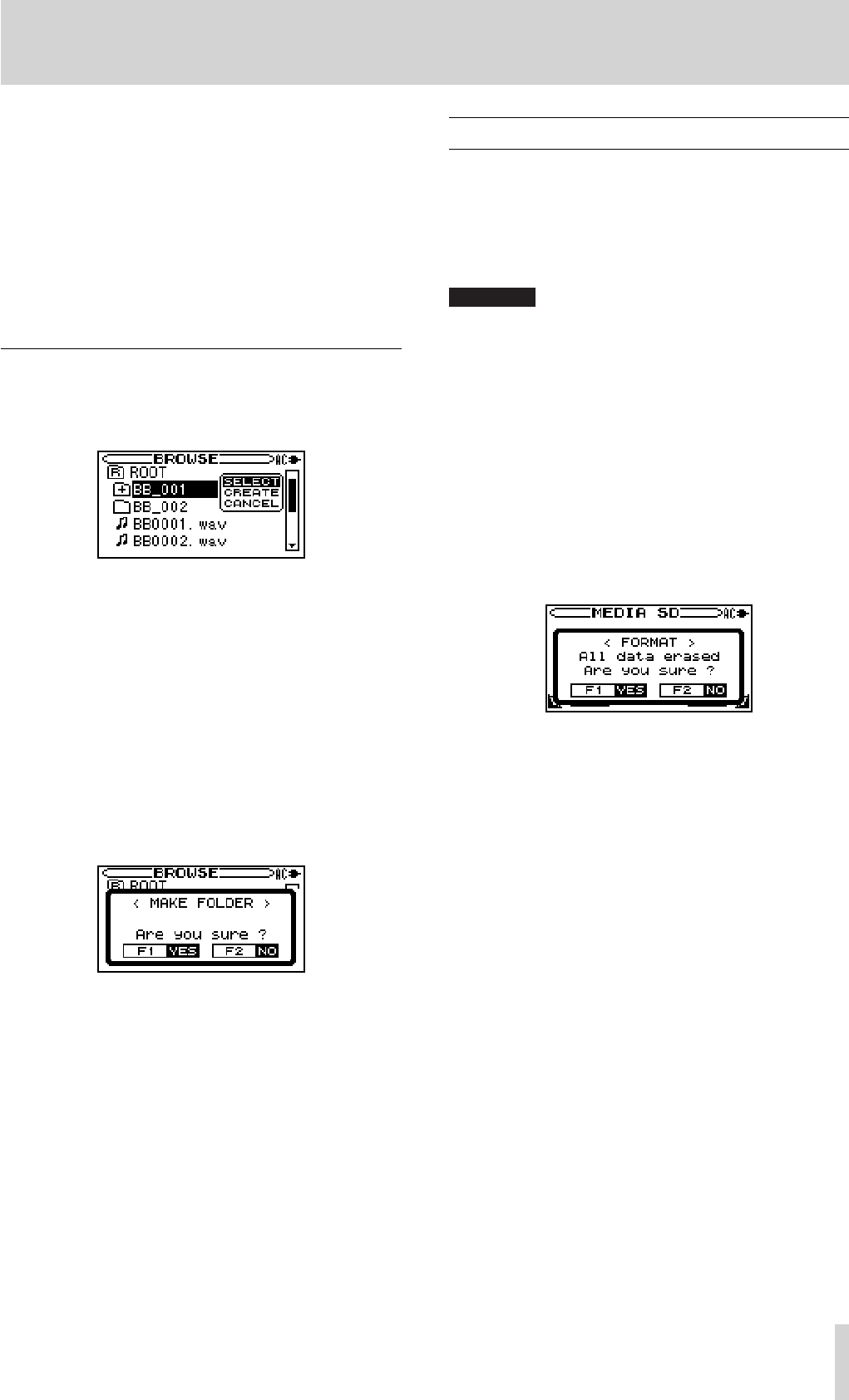
TASCAM BB-1000CD 49
DELETE
A message appears to confirm that you want to delete the
file. Press the F1 key to erase the file and the F2 key to
cancel the deletion operation.
CANCEL
No operation is conducted and the selected file is
left as is.
Press the
• PLAY/READY [Á/π] key to return to the Home
screen and start playback of the file currently selected.
Folder operations
Select the desired folder on the BROWSE screen and press
the ENTER key to open the pop-up window that is shown
below.
Press the CURSOR [§/¶/˙/¥] key to select the item you
want from the list to the right and press the ENTER key to
execute it.
SELECT
Returns to the Home screen and selects the first file in the
folder. This folder becomes the new playback area regard-
less of the previous playback area setting. When recording,
files are created in this folder.
CREATE
A pop-up appears to confirm that you want to create a new
folder. Press the F1 key to create a new folder, or press the
F2 key to cancel the operation. You can make first level
subfolders.
However, if you try to create a new folder inside a second
level subfolder the message “Layer too deep.” appears and
the folder is not made.
CANCEL
No operation is conducted and the selected folder is left as
is.
Formatting an SD card
You can format an SD card when SD is selected as the
source and playback or recording is stopped.
It is recommended to format an SD card on the unit when
you record sound on the SD card using the unit.
Using an SD card formatted on other devices may increase
the possibility of recording errors.
CAUTION
All the folders and fi les recorded on an SD card are erased by •
formatting.
Use the AC adapter or install new batteries when formatting •
an SD card. Formatting cannot be fi nished properly when the
batteries run out during formatting.
1. Press the MENU key to open the MENU screen.
2. Press the CURSOR [§/¶] key to select MEDIA and
press the ENTER key.
The MEDIA SD screen appears.
3. Press the CURSOR [§/¶] key to select FORMAT and
press the ENTER key.
The confirmation message appears.
4. Press the F1 key.
Formatting starts.
The MEDIA SD screen appears after finishing format.
11–Managing recording media
BB-1000CD_En.indd 49BB-1000CD_En.indd 49 09.2.3 2:19:38 PM09.2.3 2:19:38 PM
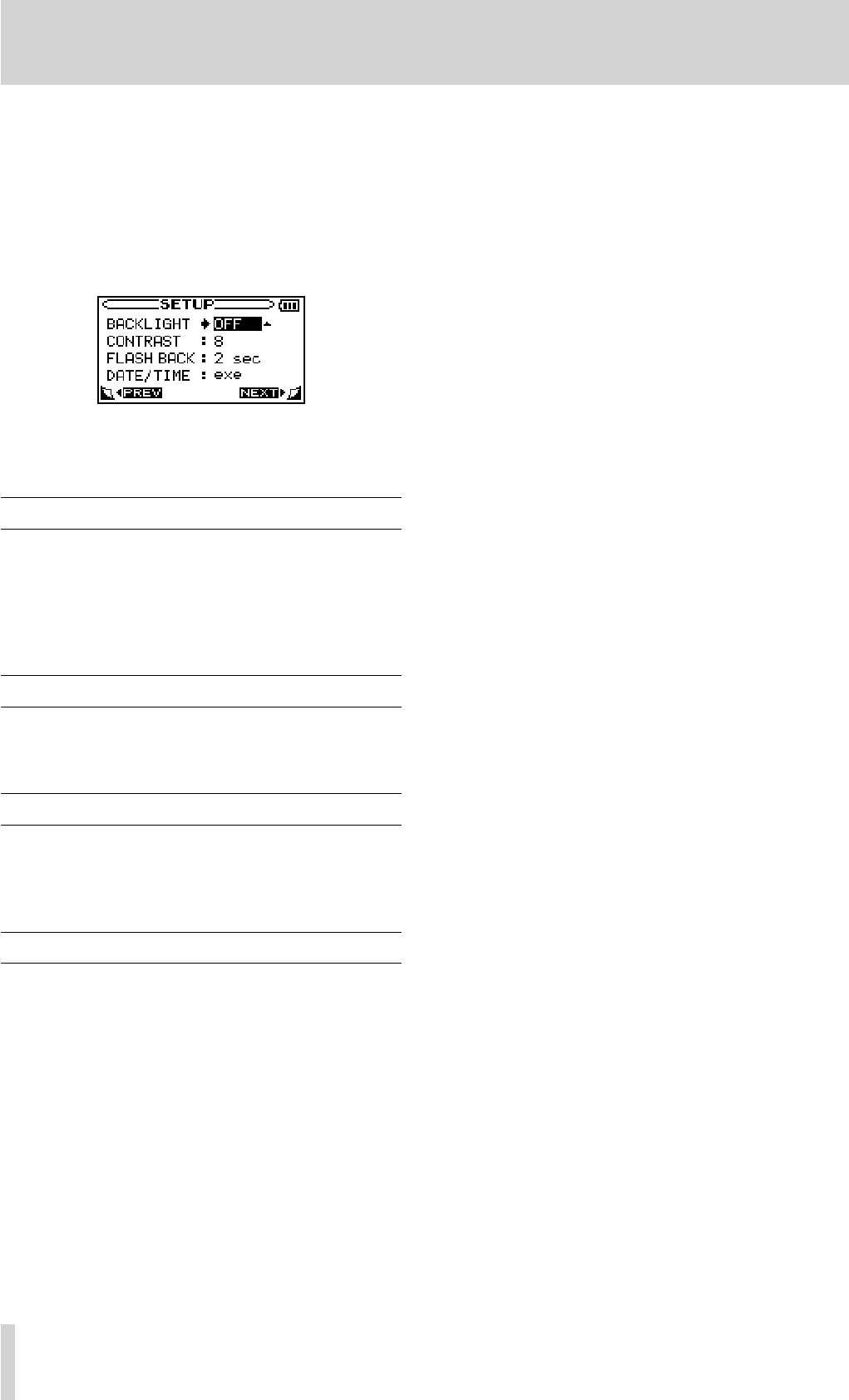
50 TASCAM BB-1000CD
12–Environmental settings
On the SET UP screen, you can change various settings ac-
cording to the environmental conditions for your comfort-
able use of the unit.
To open the SET UP screen
1. Press the MENU key to open the MENU screen.
2. Press the CURSOR [§/¶] key to select SET UP and
press the ENTER key.
The following settings can be made for the items on the
SET UP screen.
Backlight Auto OFF setting
Use BACKLIGHT to set the time until the backlight auto-
matically turns OFF after the last operation when powered
by the internal batteries.
Options: OFF (backlight always on), 5 sec (factor y setting),
10 sec, 15 sec, 30 sec
Adjust the display contrast
Use CONTRAST to adjust the display contrast.
Options: 1 – 20 (factory setting: 8)
Adjusting the time of FLASH BACK
Use FLASH BACK to adjust the time to skip back by the
flash back function.
Options: 1 sec – 5 sec (factor y setting: 2 sec)
Setting the date and time
Use DATE/TIME to adjust the built-in clock. ( ∑ page 29
“Setting the date and time” on “4-Preparation”)
BB-1000CD_En.indd 50BB-1000CD_En.indd 50 09.2.3 2:19:38 PM09.2.3 2:19:38 PM

TASCAM BB-1000CD 51
13–Messages
The following popup messages alert you to conditions that may arise while you are using the unit. Consult this table if you see
something you do not understand.
Messages Meaning and remedy
File not found The audio file cannot be found or is corrupted. Check the file (using a computer).
Non-Supported The audio file is not a supported format. Check the file format (using a computer).
Battery Empty The battery is almost out of power.
Turn off the power and replace the battery or supply the power through the AC adapter.
I/O Too Short When using the IN or OUT key, the IN and OUT points are too close together to start loop
playback. Reset the IN and OUT points and try again.
Write Timeout Writing to the card timed out.
Backup files on the card to your computer, and format the card using the unit.
Media Full Erase unnecessary files or move them to your computer to make open space.
Max File Size The size of a file reaches 2 GB or recording continues for 24 hours.
File Full The total number of files in a folder is already 99 or the total number of folders and files is already
999. Erase unnecessary files or move them to your computer
No Card No SD card is found at recording. Insert a recordable SD card and try again.
Protected Card This appears when the card in the unit during startup is a protected card without the necessary Music
Folder and other folders and files.
Battery Low Try to record when batteries will soon run out. Replace the batteries or supply the power through the
AC adapter.
No CD No disc is found at recording. Insert a recordable disc and try again.
Not Audio CD An incompatible disc is found at recording. Insert a recordable disc and try again.
CD is CLOSED A finalized disc is found at recording. Insert a recordable disc or, if the disc is a finalized CD-RW,
unfinalize it ( ∑ page 47 “Unfinalizing a CD-RW”) and try again.
Format is MP3 The recording format is set to MP3 at overdubbing. Change the format to WAV at FILE TYPE on REC
SETTING ( ∑ page 45 “Long time recording”).
No PB File No playback file/track is found at overdubbing. If the playback media is CD, insert an audio CD con-
taining tracks and try again. If the playback media is an SD card, add an audio file to it and try again.
Layer too Deep You cannot make any folder at the current hierarchy. Make one at a hierarchy above.
File Protected This appears when trying to delete or divide a read-only file. You cannot delete or divide the file on
the unit.
File Num Full
Recording on to an SD card is stopped as the unit tried to make a new recording file automatically at
reaching the limit of one single recording file but cannot because 99 files had already been made in
the recording.
Over 74 minute The total time of selected files is more than 74 minutes when copying files on an SD card on to a disc.
Use a disc with 80-minute capacity or deselect some files.
Over 80 minute The total time of selected files is more than 80 minutes when copying files on an SD cards on to a
disc. You cannot copy all the selected files even on 80-minute disc. Deselect some files.
Over track. More than 99 files/tracks are selected when copying files/tracks. You cannot select no more files/
tracks. Deselect some files/tracks to select others.
Cannot Execute
This appears when trying to execute the operations below:
Try to execute
• ERASE on a disc other than audio CD or CD-RW.
Try to execute
• FINALIZE on a disc other than audio CD or CD-R/RW.
Try to execute
• UNFINALIZE on a disc other than audio CD or CD-RW.
Finalized Disc You tried to execute FINALIZE on a finalized disc. You do not have to finalize it.
Not Finalized You tried to execute UNFINALIZE on an unfinalized disc. You do not have to unfinalize it.
BB-1000CD_En.indd 51BB-1000CD_En.indd 51 09.2.3 2:19:39 PM09.2.3 2:19:39 PM

52 TASCAM BB-1000CD
Messages Meaning and remedy
Execute Failed The unit failed to execute FINALIZE/UNFINALIZE/ERASE for some reasons. Check dirt or scratch on
the media.
Cannot DIVIDE
less than 2sec
This appears when you try to divide a WAV file whose length is 2 seconds or less. You cannot execute
DIVIDE on files whose length are 2 seconds or shorter.
MBR Error
Init CARD
There is a problem with the Master Boot Record. The card is not formatted properly or the format-
ting is broken. When “Are you Sure?” appears, press the ENTER key to format the entire card in FAT
format.
Format Error
Format CARD The FAT formatting of the card is abnormal or broken.
Invalid Card
Change Card This appears when SD-card errors occur at turning on the unit.
Card Error There was some sort of error with the card. Turn off the power and replace the card with a working
card.
Disc Error The unit failed to writing data on a disc. Check dirt and scratch on the disc.
CD Drive Error
If any of these errors occur, turn the BB-1000CD power OFF and restart the unit. Disconnect the AC
adapter or uninstall the batteries if you cannot turn the power off. If the error message continues to
appear, contact a TEAC Repair Center
Not Continued
File Error
Player Error
Device Error
Writing Failed
Sys Rom Err
System Err 50
System Err 1
System Err 2
System Err 3
System Err 4
System Err 5
System Err 6
System Err 7
System Err 8
System Err 9
13–Messages
BB-1000CD_En.indd 52BB-1000CD_En.indd 52 09.2.3 2:19:39 PM09.2.3 2:19:39 PM

TASCAM BB-1000CD 53
14–Troubleshooting
If you experience any problems with the unit, please take a
moment to look through this chart and see if you can solve
the problem yourself before you call your dealer or a TEAC
service center.
No power
Check the connection to the AC power source.
•
Check the polarity of the batteries.
•
Remote control doesn't work.
Check the battery. Change it if exhausted.
•
No sound
Disconnect headphones.
•
Slide the
• SPEAKER switch to ON.
Check the connection to the monitor system.
•
Check the volume level.
•
The sound to record hears distorted.
The setting of
• FRONT MIC/EXT MIC knob or REAR
MIC/LINE knob is too high.
The input signal level is too high.
•
The sound is noisy.
Check the connection of cables.
•
Will not play a CD.
If the disc is dirty, clean the surface of the disc.
•
BB-1000CD_En.indd 53BB-1000CD_En.indd 53 09.2.3 2:19:39 PM09.2.3 2:19:39 PM

54 TASCAM BB-1000CD
15–Specifications
Specifications
CD recorder
Media type
CD-DA
CD playback speci cations
Sampling frequency: 44.1 kHz
Quantization bit rate: 16 bit
Channel: 2 channels
Audio input and output
LINE INPUT(L/R) [UNBALANCED]
Analog, unbalanced
Jack: RCA pin
Maximum input level: +6 dBV
Normal input level: -10 dBV
Minimum input level: -22 dBV
Input impedance: 20 kΩ
EXT MIC A/B(L/R) [BALANCED]
Analog, balanced
Jack: XLR-3-32 correspondent
(1=ground, 2=hot, 3=cold)
Maximum input level: +3 dBu
Normal input level: -13 dBu
Minimum input level: -55 dBu
Input impedance: 2.4 kΩ
Build-in microphone
Front: Omnidirectional L/R
Rear: Omnidirectional L/R
LINE OUTPUT(L/R) [UNBALANCED]
Analog, unbalanced
Jack: RCA pin
Normal output level: -10 dBV
Maximum output level: +6 dBV
Output impedance: 200 Ω
PHONES
Headphone output
Jack: Stereo mini jack (3.5 mm dia.)
Rated output: more than 30 mW + 30 mW
(THD+N less than 1.0%, 32Ω load)
SPEAKERS
3 inch x 2
AMPLIFIERS
5 W + 5 W Digital amplifiers
Audio performance
Frequency response
20-20 kHz (±1 dB)
Distortion (THD+N)
0.05% (1 kHz LPF 20 kHz)
Signal to noise ratio
85 dB (1 kHz, LPF 20 kHz A-Weighted)
General
Recording media:
SD card (64 MB to 2 GB) and SDHC card (4 GB to 32 GB)
File system
FAT partition: FAT16/32
Controllable range of the remote control:
Head-on to the sensor: 7 m
15° left/right from the sensor: 4 m
Battery life (Continuous operation):
About 1.5 hours: (CD playback, Speaker output mode)
About 2.5 hours:
(SD record/playback, Speaker output mode)
About 4.5 hours:
(SD record/playback, headphone output mode)
Operating temperature:
5 to 35°C
Power:
AC adapter input: AC100 - 240V, 50 - 60 Hz
AC adapter output: 12V DC
AC adapter output current: 2.5 A
Power consumption:
30 W (when playing back CD, Line In: +6 dBV input,
Maximum speaker output)
Dimensions (W x H x D):
380 x 204.7 x 107 mm
Weight:
3.4 kg
* Illustrations may differ slightly from production models.
* Design and specifications are subject to change without
notice.
BB-1000CD_En.indd 54BB-1000CD_En.indd 54 09.2.3 2:19:39 PM09.2.3 2:19:39 PM
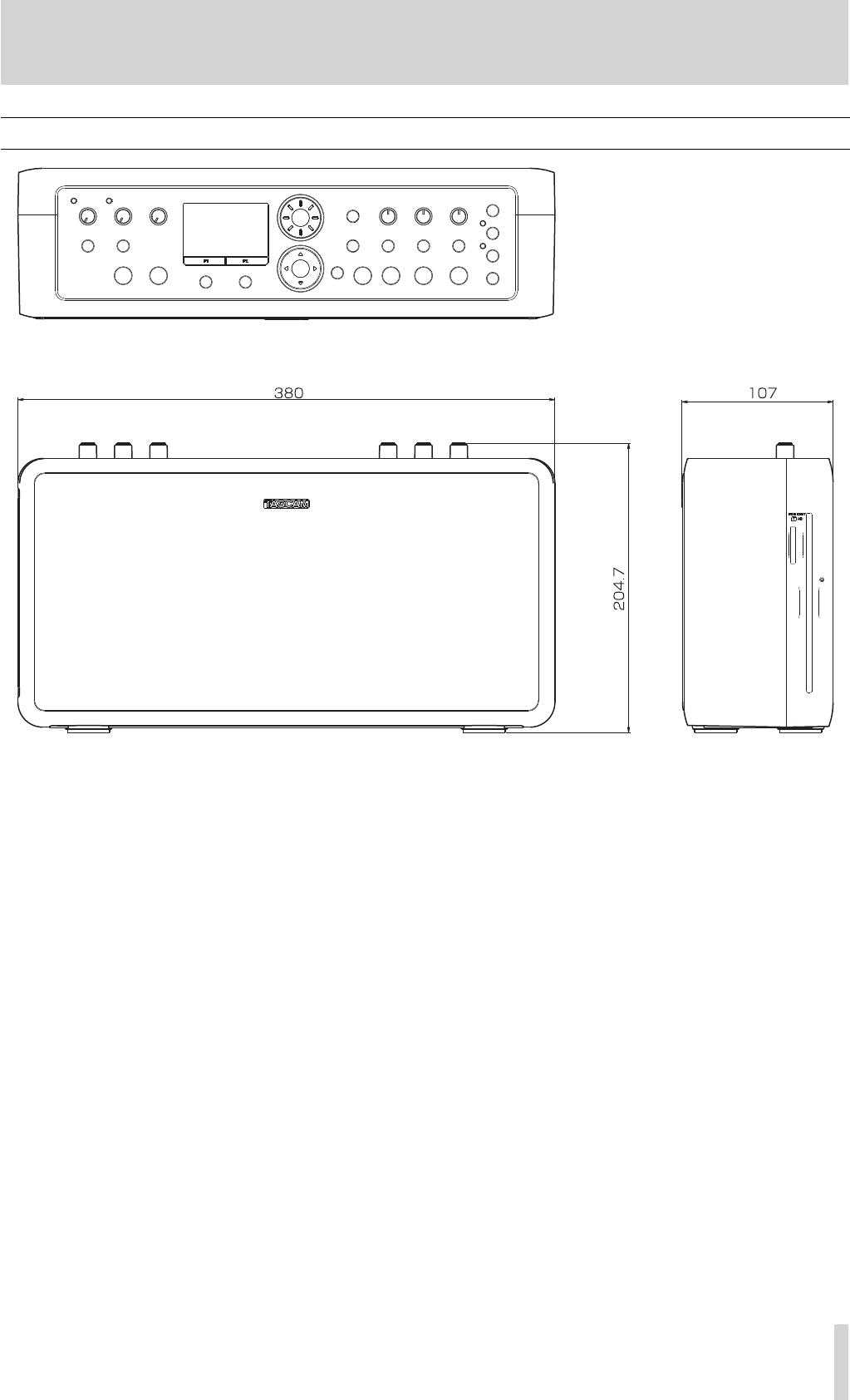
TASCAM BB-1000CD 55
15–Specifications
Dimensions
BB-1000CD_En.indd 55BB-1000CD_En.indd 55 09.2.3 2:19:39 PM09.2.3 2:19:39 PM

TEAC CORPORATION
Phone: +81-42-356-9143 www.tascam.jp
1-47 Ochiai, Tama-shi, Tokyo 206-8530 Japan
TEAC AMERICA, INC.
Phone: +1-323-726-0303 www.tascam.com
7733 Telegraph Road, Montebello, California 90640 U.S.A.
TEAC CANADA LTD.
Phone: +1905-890-8008 Facsimile: +1905-890-9888 www.tascam.com
5939 Wallace Street, Mississauga, Ontario L4Z 1Z8, Canada
TEAC MEXICO, S.A. de C.V.
Phone: +52-55-5010-6000 www.teacmexico.net
Río Churubusco 364, Colonia Del Carmen, Delegación Coyoacán, CP 04100, México DF, México
TEAC UK LIMITED
Phone: +44-8451-302511 www.tascam.co.uk
Suites 19 & 20, Building 6, Croxley Green Business Park, Hatters Lane, Watford, Hertfordshire. WD18 8TE, U.K.
TEAC EUROPE GmbH
Phone: +49-611-71580 www.tascam.de
Bahnstrasse 12, 65205 Wiesbaden-Erbenheim, Germany
Printed in China
BB-1000CD
BB-1000CD_En.indd 56BB-1000CD_En.indd 56 09.2.3 2:19:39 PM09.2.3 2:19:39 PM
