Tekxon Technology K3 Users Manual MANUAL_EN
K3 to the manual 1c6df8c6-d089-ce84-0de6-cdcae8d11b8b
2015-02-03
: Tekxon-Technology Tekxon-Technology-K3-Users-Manual-464299 tekxon-technology-k3-users-manual-464299 tekxon-technology pdf
Open the PDF directly: View PDF  .
.
Page Count: 39
Digital Camera K3
USER MANUAL

2

1
Table of contents
Thank you for choosing our product. Please read the manual carefully to make best use of all
functions of the product and to guarantee a long service life. Please store the manual in a
safe place for later reference.
Table of contents................................................................ 1
1 Contents of package ....................................................... 3
2 Introduction...................................................................... 4
2.1 Product properties................................................................................................... 4
2.2 Five operating modes ............................................................................................. 4
3 Getting started................................................................. 5
3.1 Parts of your camera............................................................................................... 5
3.2 Inserting the batteries ............................................................................................. 6
3.3 Inserting and removing the SD/MMC card.............................................................. 7
3.4 Attaching the carrying strap .................................................................................... 8
4 Basic operation................................................................ 9
4.1 Switching the camera on and off............................................................................. 9
4.2 Using the mode buttons ........................................................................................ 10
4.3 Taking photographs .............................................................................................. 11
4.3.1 LCD descriptions display.............................................................................................. 11
4.3.2 Snapshot ....................................................................................................................... 12
4.4 Recording audio .................................................................................................... 13
4.5 Making video clips................................................................................................. 15
4.5.1 LCD descriptions .......................................................................................................... 15
4.5.2 Making a video clip ....................................................................................................... 15
4.6 Playing images, audio and videos ........................................................................ 16
4.6.1 LCD descriptions .......................................................................................................... 16
4.6.2 Viewing photos, videos and listening to sound recordings........................................ 16
4.7 Deleting photos ..................................................................................................... 18
5 Advanced operation...................................................... 19
5.1 Using the flash ...................................................................................................... 19
5.2 Using direct access buttons .................................................................................. 19
5.3 Changing menu options ........................................................................................ 20
5.4 List of menu options .............................................................................................. 21
5.5 Exposure compensation ....................................................................................... 23
5.6 Selecting a language ............................................................................................ 23
5.7 Setting the image resolution ................................................................................. 24
5.8 Setting image quality............................................................................................. 24
5.9 Setting image effects ............................................................................................ 24
5.10 Setting the driver ................................................................................................... 25
5.11 Protecting photos against accidental deletion ...................................................... 26
5.12 Viewing images on a television set ....................................................................... 26
5.13 Setting the date and time ...................................................................................... 27
5.14 Setting the LOGO ................................................................................................. 28
6 Installing the software................................................... 29

2
6.1 Supported operating systems ................................................................................29
6.2 Installing the driver.................................................................................................29
6.2.1 Installing the driver in MASS mode..............................................................................29
6.2.2 Installing the driver in TWAIN mode ............................................................................31
7 Transferring files to your PC........................................ 32
8 Specifications ................................................................ 33
9 Memory requirement ..................................................... 34
10 Troubleshooting....................................................... 35
11 Further information.................................................. 36
11.1 Safety instructions .................................................................................................36
11.2 Maintenance and care ...........................................................................................36
11.3 Photo tips ...............................................................................................................36
11.4 Battery tips .............................................................................................................37

3
1 Contents of package
Please ensure that the following items are included in the box:
1x digital camera
1x user manual
2x AAA batteries
1x USB cable
1x audio cable
1x CD-ROM (driver and application software)
1x carrying case
1x wrist strap

4
2 Introduction
This product is a digital imaging device with an integrated digital camera, digital video
recorder, digital audio recorder and PC camera. It allows you to take digital photographs and
videos, make voice recordings or use it as a webcam.
2.1 Product properties
• High resolution photographs, various resolutions can be selected, interpolated output.
• Images can be saved internally or externally.
• High-sensitivity wide-angle flash, three flash modes can be selected.
• Colour TFT LCD monitor for viewing menus and images.
• Three photography modes: single image, self-timer and burst
• TV output: NTS C or PAL
• digital sound recording
• Simple user interface
• Individual start interface for convenient operation
• Special picture effects such as conversion to black and white or nostalgic images
• Fast data transfer thanks to mini-USB connector
• Automatic shutdown conserves batteries
2.2 Five operating modes
• Still image mode – for taking digital images/photographs
• Video mode – for taking high-quality videos with sound
• Recording mode – for sound recordings
• Play mode – for watching/listening to all recordings
• Configuration mode – for setting the operating parameters
5
3 Getting started
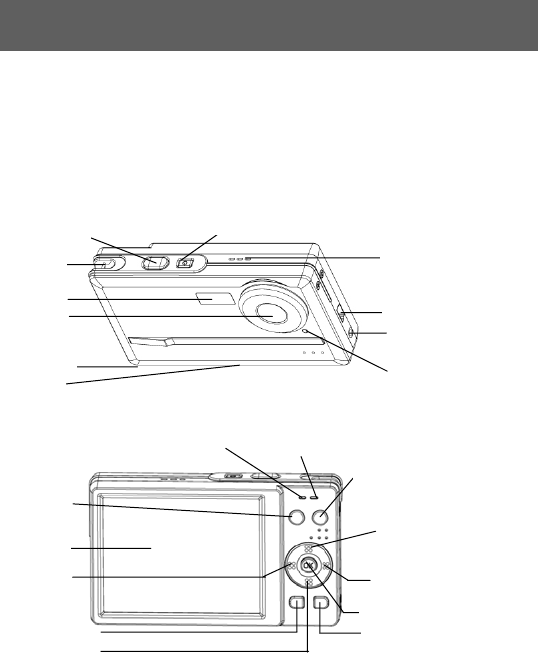
3.1 Parts of your camera
Familiarise yourself with the parts of your camera before use. That makes it easier to operate
the camera.
Operating status
Flash status
indicator
LCD
Menu button LCD on/of
f
Photo/Video/
Sound
recordingcon
-figuration
button
Play mode button
Up button
Right button
Confirm button
Down button
Left button
Shutter release On/off button
TV output
Microphone
USB terminal
Strap eye
Indicator of
self-timer
Flash
Lens
Battery slot
Card slot
6
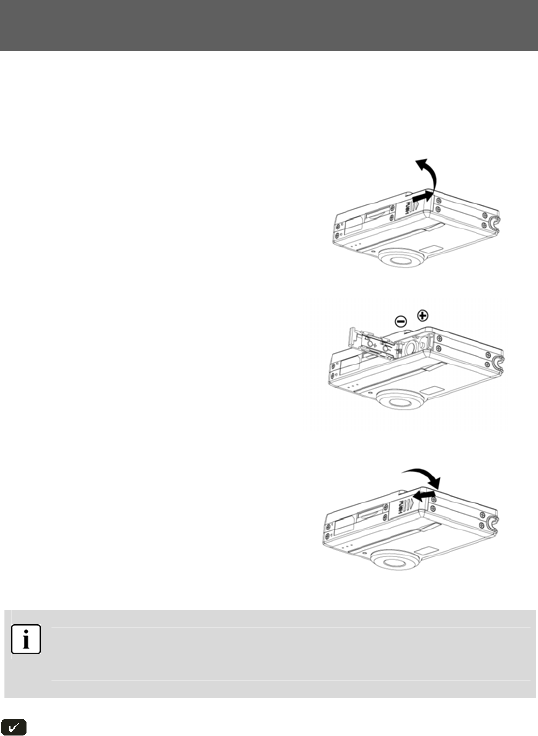
3.2 Inserting the batteries
Use two AAA (micro) batteries.
1 Push the cover of the battery
compartment in the direction
indicated to open the compartment.
2 Open the cover of the battery
compartment.
3 Insert the batteries into the battery
compartment and ensure that the
polarity is correct. Close the cover of
the battery compartment by closing it
over and pushing it back into place.
1. We recommend that you use rechargeable 1.2V NiMH batteries as they have a
longer battery life.
2. You can also use 1.5V alkaline batteries.
See the “Battery tips” section on page 38 for details on the battery life.
7
3.3 Inserting and removing the SD/MMC card
You can use SD or MMC cards to increase the memory capacity. Switch off the camera
before inserting the card. Insert the card as follows (photographs, sound and video recordings
are no longer
stored in the internal memory, but stored on the card).
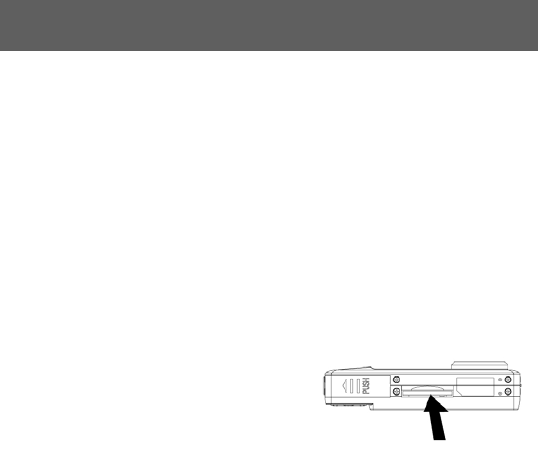
Inserting the card
1 Open the cover of the card slot.
2 Insert the card in the card slot until it
locks into place.
3 Close the cover of the card slot.
Removing the card
Open the cover of the card slot. Press the card downwards briefly to unlock it. Remove or
change the card and close the card slot cover again.
8
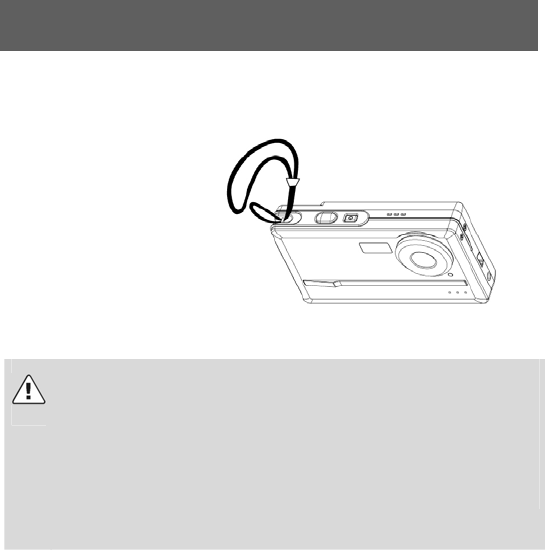
3.4 Attaching the carrying strap
Attach the carrying strap for your convenience and for safety reasons.
1 Pass the loop of the
carrying strap through the
eye as shown in the
illustration.
2 Pull the other end of the
carrying strap through the
loop of the thin cord and
pull the carrying strap tight.
Caution
1. Do not hang the camera around your neck using the carrying strap to
avoid danger. This applies to children in particular.
2. When carrying the camera on the strap, ensure that you do not hit
the camera against anything.
3. When attaching the carrying strap, place the camera on a solid
surface to ensure that it cannot fall down and be damaged.
9
4 Basic operation
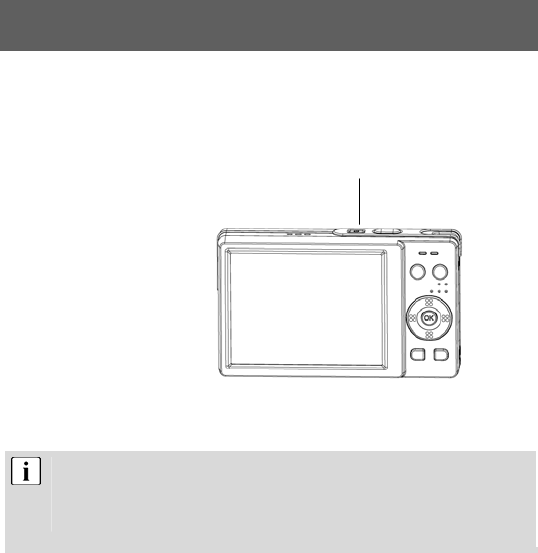
4.1 Switching the camera on and off
Switching the camera on
Press the On/Off button for 1-
2 seconds to switch the
camera on. If the camera is
not switched on, check the
polarity of the batteries
and ensure that they are
charged.
Switching the camera off
Press and hold the main
switch for several seconds to
switch
the cameral off. The LCD
goes blank.
If the camera is idle for more than three minutes, it is switched off
automatically to save battery power. Press the On/Off button for 1-2
seconds to switch the camera on again.
Automatic deactivation is not active in USB or record mode.
On/off button
10
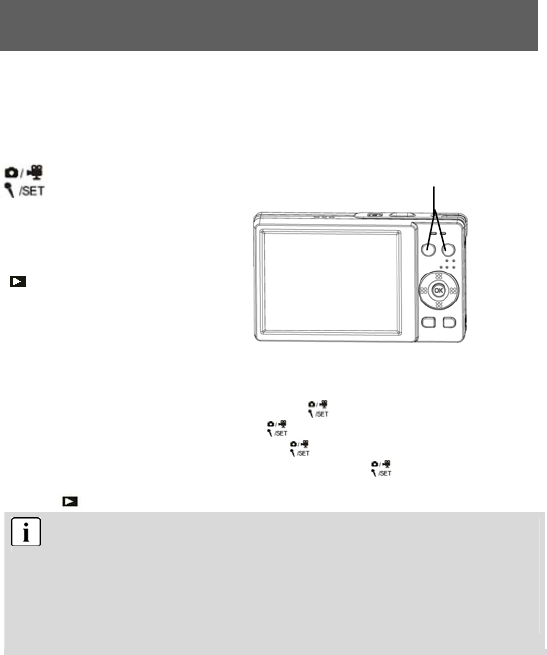
4.2 Using the mode buttons
The camera features five operating modes. When the camera is switched on,If USB is
disconnected, it is automatically in still photograph mode. Press the following mode buttons
to select the required mode.
Selects the photography
mode,Video
mode,Recording mode
and setting mode
Play mode
When the camera is in photography mode, press the button to access the video mode.
When the camera is in video mode, press the button to access the recording mode.
When the camera is in recording mode, press the button to access the setting mode.
When the camera is in the setting mode or play mode, press the button to return to the
photography mode.
Press the button to acess the play mode.
When the camera driver type is MASS,If USB is connected,the camera automatically
enter PC-MASS Mode. In PC-MASS Mode,all mode buttons is
disable,you can press the menu button and select Twain driver type to access the
photography mode.if select MASS driver type or press menu button again,the
camera retrun PC-MASS Mode.
If you want to enter PC-MASS Mode from other modes,you can activate the setting
mode,select the MASS driver type.
Mode buttons
11
4.3 Taking photographs
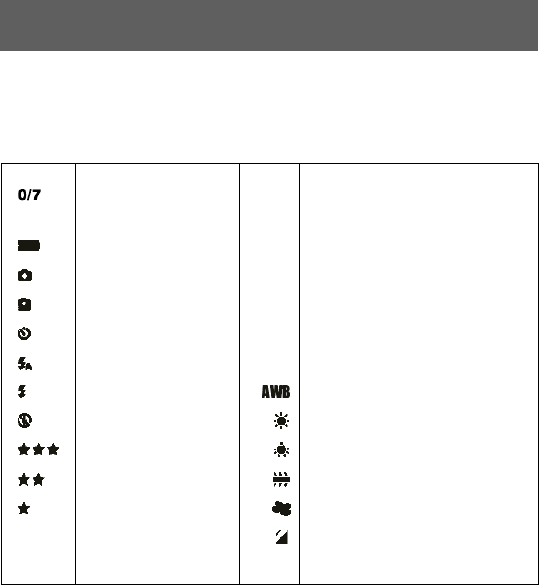
4.3.1 LCD descriptions display
Status symbols in the photography mode
Number of photographs
taken, number of
photographs available
0.5M
0.5 megapixel image mode
Battery status 2.0M 2.0 megapixel image mode
Single shot mode 3.0M 3.0 megapixel image mode
Burst mode 4.0M 4.0 megapixel image mode
Self-timer mode 5.0M 5.0 megapixel image mode
Automatic flash 12M 12 megapixel image mode
Flash always on Automatic white balance
Flash off Daylight white balance
Best image quality Tungsten white balance
Medium image quality Fluorescent white balance
Standard image quality Cloudy white balance
Using external memory card
12
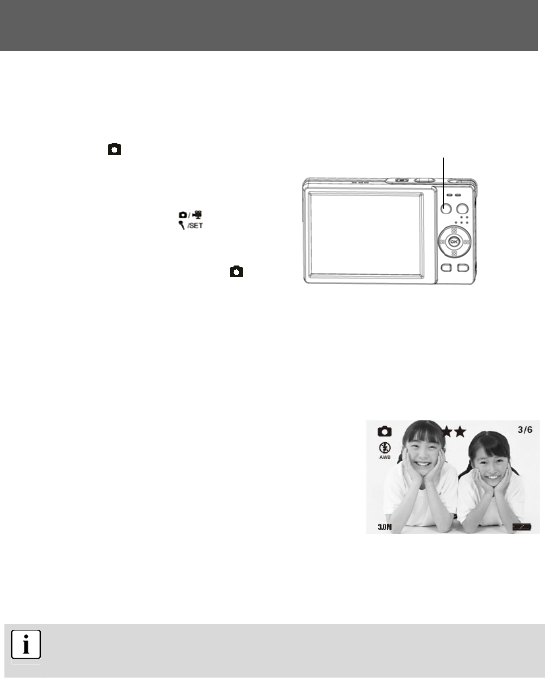
4.3.2 Snapshot
Press the On/Off button to switch the camera on.
1 Select single
shot mode
When the camera is switched on, it is
automa-
tically in still photograph mode. If this is
not the case, press the mode
button to select the photography mode.
Photo-
graphy mode is active when the
symbol appears in the upper corner of
the LCD display.
2 Zooming in or out digitally
Use the LCD to frame the image and press the up button to zoom in or the down
button to zoom out.
3 LCD
You can now view the image on the
LCD. The meaning of the status
symbols shown on the LCD is explained
in the table on page 11.
4 Taking a photograph
Press the shutter release down fully to take a photgraph.
A sound signals that the photograph has been taken.
Photographs taken with the camera are saved as JPEG files.
When you press the menu button in photography mode, the following menu functions are
available for selection:
Page1:
• Capture Mode
• Strobe
Photo/Video/sound
recording/configuration mode button
13
• Resolution
• Photo Quality
• Photo Effect
Page 2:
• WB
• EV
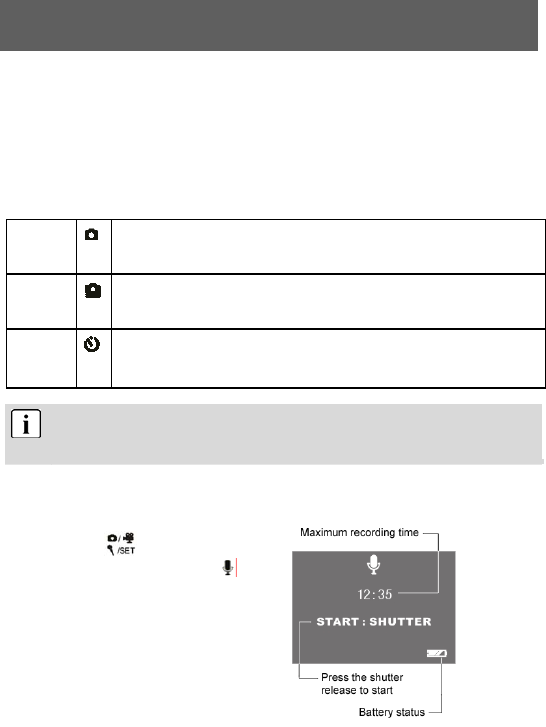
You can choose between three different image modes in the “Capture Mode” menu function:
Single
When the shutter release is pressed, a single photograph is taken.
Sequence
When the shutter release is pressed, a series of three photographs is
taken.
SelfTimer
The photograph is taken 10 seconds after the release is pressed.
The photography mode is preset to single-shot.
The LCD can be switched off using the sleep button
(LCD on/off) to save power.
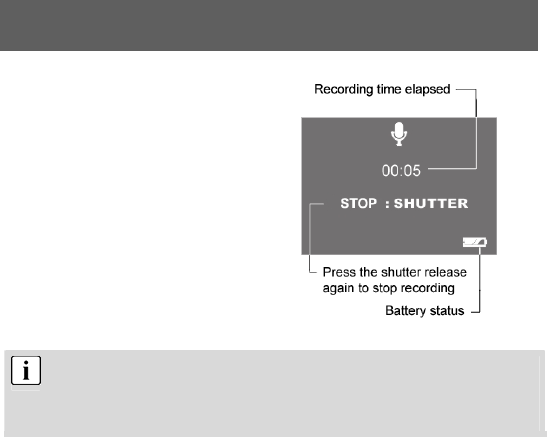
4.4 Recording audio
1 Press the button to activate the
digital recording function. The
symbol is shown on the LCD. Before
recording, the information shown at
right is displayed. Press the shutter
release once to start sound recording.
14
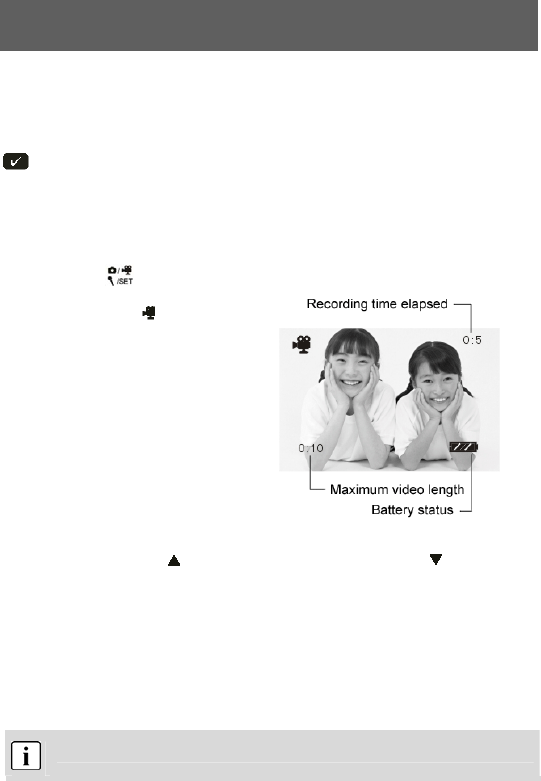
2 The information shown here
is displayed when recording was
started using the shutter release. Press
the shutter release again to stop sound
recording.
The sound is recorded as a WAV file. The length available depends on
the size of the memory.
The LCD display can be switched off using the sleep button
(LCD on/off) to save power.
15
4.5 Making video clips
4.5.1 LCD descriptions
The elapsed time is shown at the top right. The remaining time is shown at the bottom left.
The display is not changed during recording and is not updated until
recording is complete.
4.5.2 Making a video clip
Switch the camera on.
1 Press the button for the
video mode. Video mode is
active when the symbol
appears in the upper corner of
the LCD display.
2 Press the shutter release to start
recording a video. Press the
shutter release again to stop
recording. The information
shown at right is displayed on the
LCD during video recording.
3 Press the up button ( ) to zoom in digitally and the down bottom ( ) to zoom out.
When you press the menu button in photography mode, the following menu functions are
available for selection:
• VGA
• CIF
The video is recorded as an AVI file (with sound).
16
4.6 Playing images, audio and videos
4.6.1 LCD descriptions
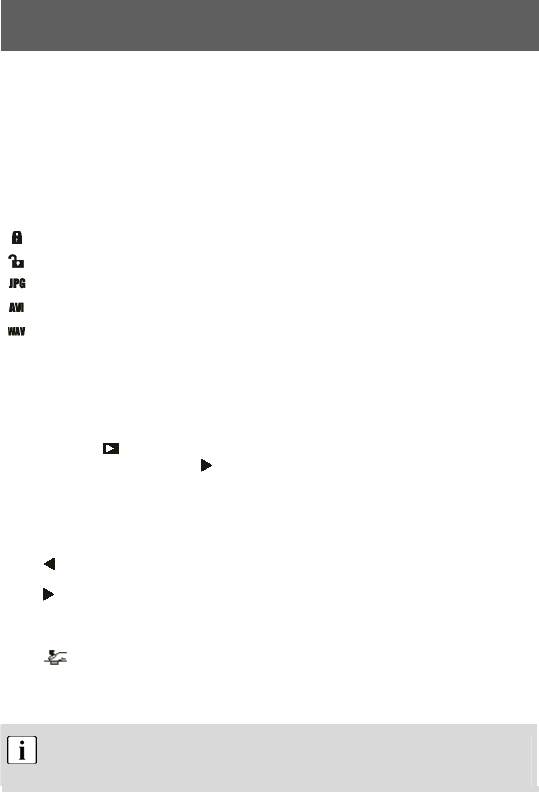
Status symbols in play mode
2007:02:11
12:02:47
01/10
Current system time: 11.02.2007, 12:02:47
Number of photographs taken / total photographs
Photo is protected
Photo is not protected
Current file is a photograph (jpg)
Current file is a video (avi)
Current file is a sound recording (wav)
4.6.2 Viewing photos, videos and listening to sound recordings
1 Press the button to activate play mode. You can now play photographs, videos
and sound recordings. The symbol is shown on the LCD.
The following buttons are used to browse the photos/videos/sound recordings in play
mode:
Goes to the previous photo, video or sound recording
Goes to the next photo, video or sound recording
OK Start/close thumbnail view.
2
Press the shutter release to start videos or sound recordings from the
thumbnail view. Press the shutter release again to stop playing.
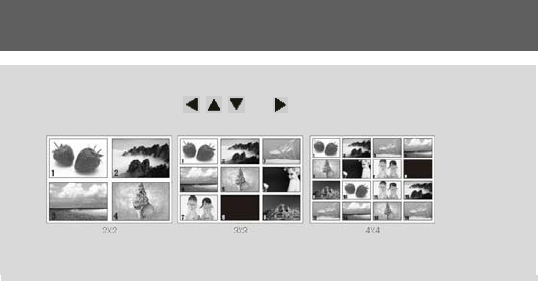
Thumbnail view
While playing photos, videos and sound recordings, you can open the thumbnail
view by pressing the confirm button (OK button). This mode allows you to view
17
several photos, videos or sound recordings at once.
Use the control buttons , , and to select a file and press OK to play the
file.
There are three thumbnail modes: 2x2, 3x3 and 4x4, so that four, nine or sixteen
thumbnails can be shown on the LCD.
18
4.7 Deleting photos
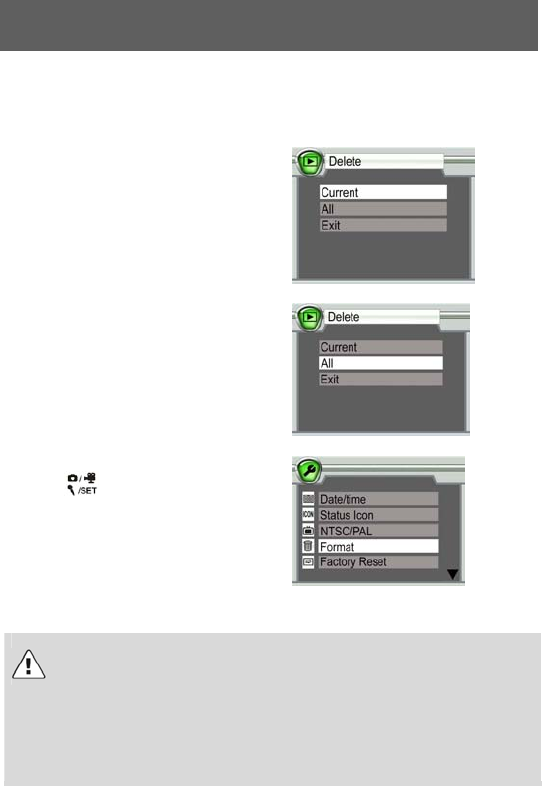
You can delete unrequired photos. Either single photos or all photos can be deleted. To do so,
you must be in playback mode.
Deleting a single photo
Select the photo to be deleted in playback
mode. Then press the menu button and
select “Delete” and “Current” to erase the
photo.
Deleting all photos
To delete all photos, press the menu button
and select “Delete” and “All”. All photos are
now deleted.
Formatting the memory
Press the button to open the
configuration mode. Select “Format”, press
the OK button and select “YES” to start
formatting. The menu is displayed again after
formatting.
The method described above can also be used to delete video clips and sound recordings.
Caution
Protected data is not deleted but can be formatted. See page 26 for instructions on
protecting and unprotecting data.
SD cards can be write-protected using an integrated lock. The current status of the
SD card is also shown via a symbol in the LCD. If the SD card in the camera is
write-protected, you cannot save images, videos or sound recordings to it, delete
existing data or format the card. The data can only be played back.
19
5 Advanced operation
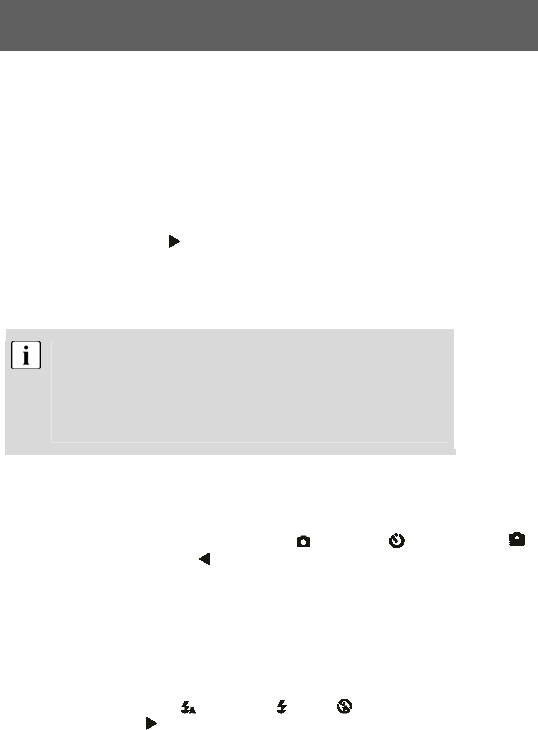
5.1 Using the flash
If there is not enough available light for your photo, the built-in flash can provide the additional
light required.
1 Switch the camera on and select the photo mode (single shot or self-
timer mode).
2 Press the right button once or repeatedly to set one of three flash
modes. The flash mode changes from “Auto” to “Always on” to “Off”
each time you press the button. The corresponding status symbol for
the flash mode is shown in the upper left corner of the LCD.
The flash is activated automatically when the light level is too low if
the flash is set to “Auto”. When “Always on” is set the flash is used
for every shot. When “Off” is selected, the flash is deactivated.
The flash only works in single shot mode and self-timer mode.
It does not work in burst and video mode.
Please note that using the flash increases battery consumption.
5.2 Using direct access buttons
Selecting photography mode directly
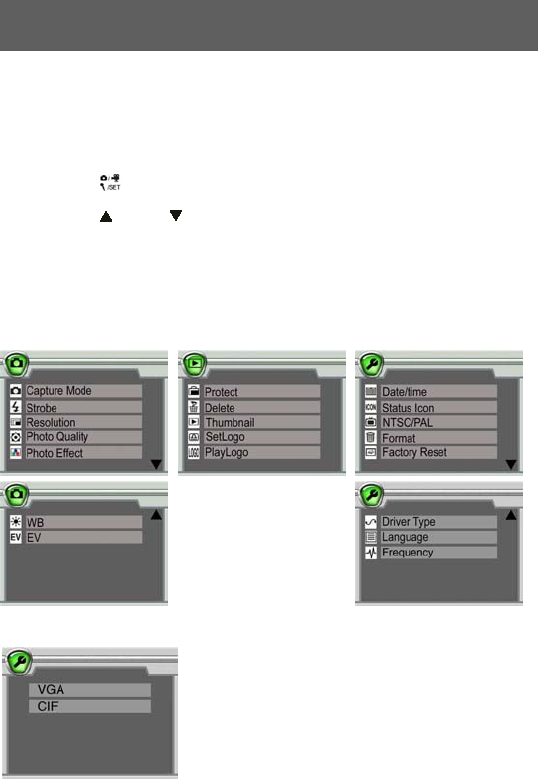
In photography mode, you can access the “Single” , “SelfTimer” and “Sequence”
modes by pressing the left button repeatedly. The corresponding symbol is displayed at
the top left of the LCD.
Selecting the resolution directly
In photography mode, the OK button can be used to select the resolution progressively. The
current resolution is displayed at the top left of the LCD.
Accessing the flash mode directly
You can set the flash to “Auto” , “Always on” or “Off” by
pressing the right button in single shot and self-timer modes.
The corresponding symbol is displayed on the LCD.
20
5.3 Changing menu options
The camera features image, playback and configuration menus.
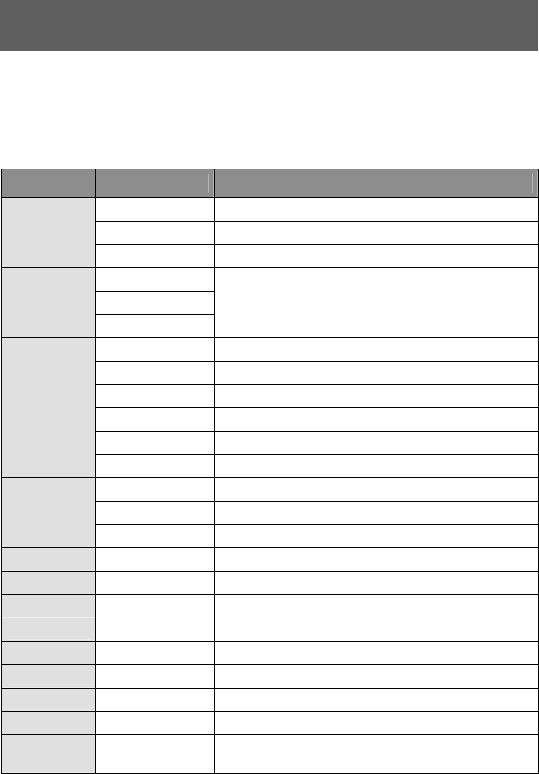
1 Press the menu button to select Photography and Playback menus from the
photography, playback mode.
Press the button to open the configuration menu.
2 Press the (up) and (down) buttons to select the corresponding option and
press the OK button to confirm.
The respective option selected is highlighted in colour.
Photography mode menu Playback mode menu Configuration mode menu
Video mode menu
21
5.4 List of menu options
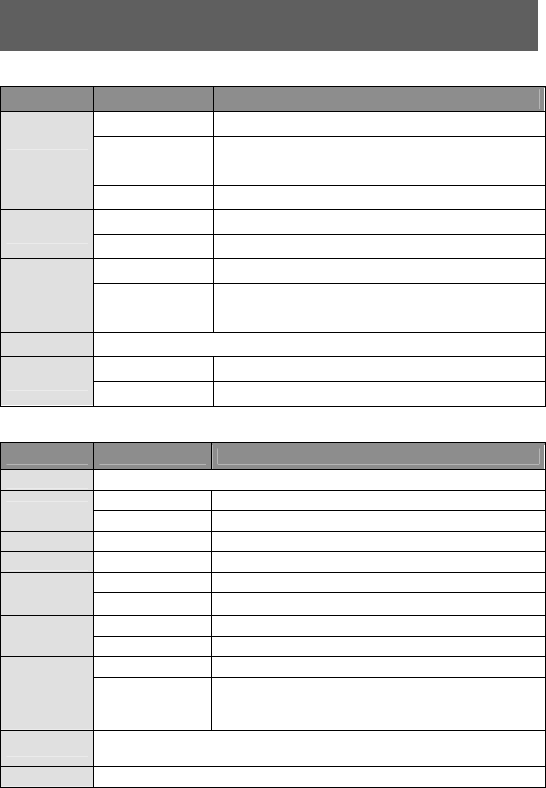
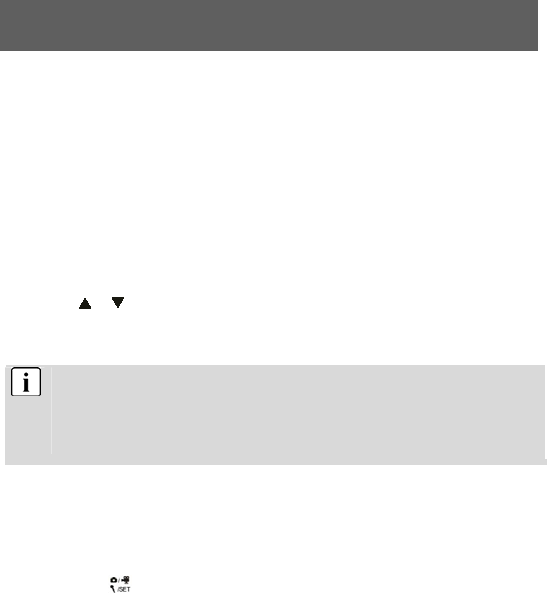
The menu contents vary in accordance with the operating mode. The menu contents may
vary in accordance with the camera model. See “Specifications” on page 34 for further details.
Photography mode
Menu Setting Description
Single Take a single photograph
Sequence Takes a series of three photos
Capture Mode
SelfTimer 10 seconds self-timer
AUTO
Force
Strobe
Forbidden
See page 18 for further details on the setting.
12 mega 12 million pixels
5 mega 5 million pixels
4 mega 4 million pixels
3 mega 3 million pixels
2 mega 2 million pixels
Resolution
0.5 mega 0.5 million pixels
Superfine Best image quality
Fine Medium image quality
Photo Quality
Economy Normal image quality
Photo Effect Normal Normal photo mode
B/W Black and white
Sepia Photos with a nostalgic brown tone
WB Auto Automatic white balance
Daylight White balance for daylight mode
Tungsten White balance for tungsten mode
Fluorescent White balance for fluorescent mode
Cloudy White balance for cloudy mode
EV −2.0 EV to +2.0
EV
Eight -step exposure compensation
22
Playback mode
Menu Setting Description
Lock Current Protect current photo to prevent accidental deletion
Unlock Current Cancel protection for current photo
Lock All Protect all photos to prevent accidental deletion
Protect
Unlock All Cancel protection for all photos
Current Delete current photo
Delete
All Delete all photos
2 x 2 Show 4 thumbnails simultaneously
3 x 3 Show 9 thumbnails simultaneously
Thumbnail
4 x 4 Show 16 thumbnails simultaneously
Set Logo Use the current photo as the start-up image
Enable Select current photo as the start-up image
Play Logo
Disable Use the preset image as the start-up image
Configuration mode
Menu Setting Description
Date&Time Set date and time for current photo
On Display symbol for current status
Status ICON Off Hide symbol for current status
NTSC/PAL NTSC Set TV output to NTSC
PAL Set TV output to PAL
Yes Format internal/external memory
Format No Cancel format
Yes Reset values to factory settings
Factory
Reset No Cancel factory reset
TWAIN Set camera to TWAIN mode, use as webcam
Driver Type MASS Set camera to MASS mode. In this mode, functions
such as downloading, copying and cutting can be
used.
Language Select the menu language (menu contents may vary in various
models).
Frequency 50HZ ; 60HZ
23
5.5 Exposure compensation
By correcting the exposure value (EV), you can adjust images which appear too light or too
dark.
1 Selecting the image mode
Press the menu button in photography mode.
2 Selecting EV
Select the EV item in the menu and press OK to open the exposure option.
3 Selecting an EV value
Press or to select a suitable exposure compensation and press OK to confirm.
The value can be set in eight steps between -2.0 EV and +2.0 EV.
Exposure compensation can be very useful. In dark conditions or in backlighting
conditions set the value to a positive number and in bright conditions to a negative
value.
Do not use exposure compensation if the subject is in a very bright or very dark
area, or if the flash is used.
5.6 Selecting a language
When you use the camera for the first time, the texts on the LCD may not be displayed in
your language. However, the LCD language can be changed easily.
1 Press the button to open the configuration menu.
2 Select the “Language” menu item and press OK to confirm.
3 Select the required language.

24
5.7 Setting the image resolution
The basic setting for the image resolution is 5.0 megapixels.
1 Press the menu button in photography mode.
2 Press or to select the “Resolution” option and press OK to confirm.
3 You can select one of six resolution settings:
12 megapixels, 5.0 megapixels, 4.0 megapixels, 3.0 megapixels, 2.0 megapixels and
0.5 megapixels. At the 12 megapixel settings, pixels are interpolated – no image
bursts can be captured in these resolutions.
5.8 Setting image quality
The default image quality setting when the camera is switched on is “Fine”.
1 Press the menu button in photography mode.
2 Select the “Photo quality” item in the menu and press OK to confirm.
3 Press “up” or "down” to select the “Exposure” option and press OK to confirm.
• “Super fine” is the best quality which requires most memory,
• “Fine” is medium quality with a medium memory requirement and
• “Economy” is normal quality with a low memory requirement.
5.9 Setting image effects
The standard image effect setting when the camera is switched on is “Normal”.
1 Press the button to activate photography mode and press the menu button.
25
2 Select the “Photo Effect” item in the menu and press OK to confirm.
3 Press “up” or “down” to select the photo effect option and press OK to confirm.
• “Normal”: No special photo effect.
• “Black and white”: Images are recorded in black and white.
• “Sepia”: Images are recorded in a nostalgic brown tone.
Sepia: Brown/amber simulates the brown tone of old photos caused by oxidation of
the chemical components of the photograph. Sepia shifts the brown tones of the
digital image to the dark brown range to give the impression of an old photo.
5.10 Setting the driver
The default driver setting is MASS.
If the camera is in PC-MASS Mode
1 Press the menu button to activate the driver select menu.
2 Press or to select the required driver type and press OK to confirm.
If the camera isn’t in PC-MASS Mode
1 Press the button to activate the configuration menu.
2 Select the “Drive Type” item in the menu and press OK to confirm.
26
3 Press or to select the required driver type and press OK to confirm.
5.11 Protecting photos against accidental deletion
This camera offers a protect function to prevent selected images being accidentally deleted.
1 Press the button to start the playback mode. Open the photo to be protected.
Press the menu button and select the “Protect” item.
2 Select the required option from the list displayed.
The list contains four options: “Lock Current”, “Unlock Current”, “Lock All”, “Unlock All” (see
also list of menu options on page 22).
The symbol appears on the image in the LCD if the image is protected against accidental
deletion. The symbol appears when the protection option is cancelled for the photo.
Note
Protected photos cannot be deleted but can be formatted.
5.12 Viewing images on a television set
1 Connect the TV output of the camera to the video input of the television set using the
cable supplied.
2 Connect the audio input of the TV to the headphone jack of the camera. The camera
automatically recognises the television set and switches to TV.
When still images are played on a TV, black pixels may appear around
the image.
27
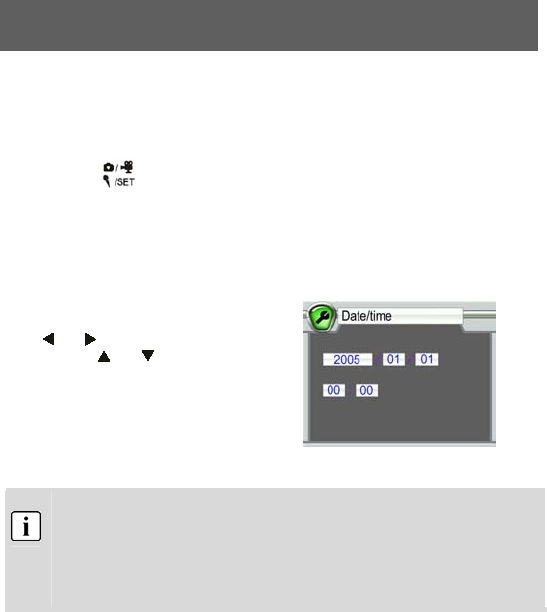
5.13 Setting the date and time
Your digital camera can save the date and time each photo was taken and display this
information in playback mode.
However, you must first set the date and the time for the camera.
1 Press the button to activate the configuration menu.
2 Select the “Date&Time” item in the menu and press OK to confirm.
3 Now change the time setting. Select the
setting required using the control buttons
and , and then change the value
using the and control buttons.
Press OK to confirm the values after you
have finished making the settings.
The date and time can only be displayed by the camera in playback
mode. They cannot be printed.
The time settings are saved by an internal backup battery. Therefore, the
time settings are not lost when the two replaceable AAA batteries are
removed. The settings are not lost until the internal backup battery is flat.

28
5.14 Setting the LOGO
The LOGO is the startup image which is shown on the display when the camera is activated.
This allows the user to define individual images. To do so, proceed as follows:
1 Press the button to start playback mode. Open the required photo Press the menu
button and select the “Set Logo” item.
2 After setting the logo, select the option “Play Logo” in the playback mode menu. There
are two options:
• Enable: The image selected by the user is used as the startup image.
• Disable: The preset image is the startup image.
The startup image is not deleted when images are deleted or the memory
is formatted. To set another startup image, you must repeat the
procedure described above.
29
6 Installing the software
6.1 Supported operating systems
• Windows 98 (including Second Edition)
• Windows Me
• Windows 2000
• Windows XP
Microsoft Windows 98, Windows 98 SW, Windows 2000 Professional, Windows ME or
Windows XP systems are pre-installed.
6.2 Installing the driver
Driver installation is similar for the various Windows systems. When specifying the path, you
must simply select the driver in the CD-ROM drive.
The camera has two USB driver modes: TWAIN and MASS. MASS is the default setting. The
procedure for installing the drivers for each of the two modes is described below.
6.2.1 Installing the driver in MASS mode
When the camera is in MASS mode, Windows ME, 2000 and
XP automatically recognise the camera and no driver must be installed.
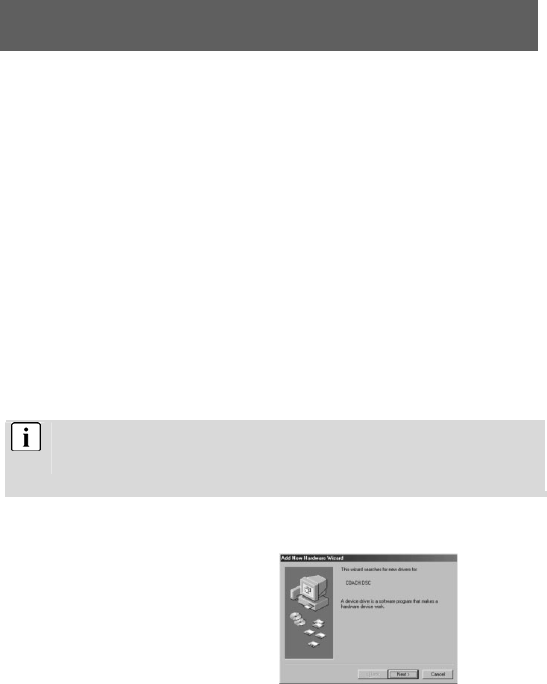
The description of the driver installation procedure refers to Windows 98.
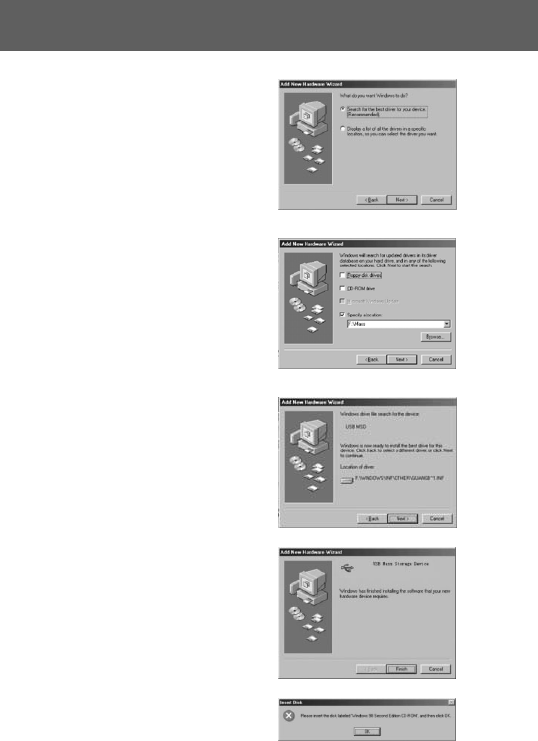
1.
When the camera is connected to the
computer in MASS mode, the Found New
Hardware Wizard appears on your PC
monitor.
Click “Next” to open the next window
30
2.
Select “Search for the best driver for your
device” and click “Next”.
3.
Select “Specify a location” and click
“Browse”. Specify the driver CD in your
drive.
4.
Now click “Next”. The system installs the
driver and the following window appears:
5.
Click “Finish” to complete installation.
6.
You may be prompted to insert the
Windows 98 CD during the installation
process:
31
6.2.2 Installing the driver in TWAIN mode
1.
Connect the camera to the computer. The system should automatically recognise that a
new device has been connected.
2.
In TWAIN mode, the driver must be installed for all systems. The procedure is similar to
that described for Mass mode.
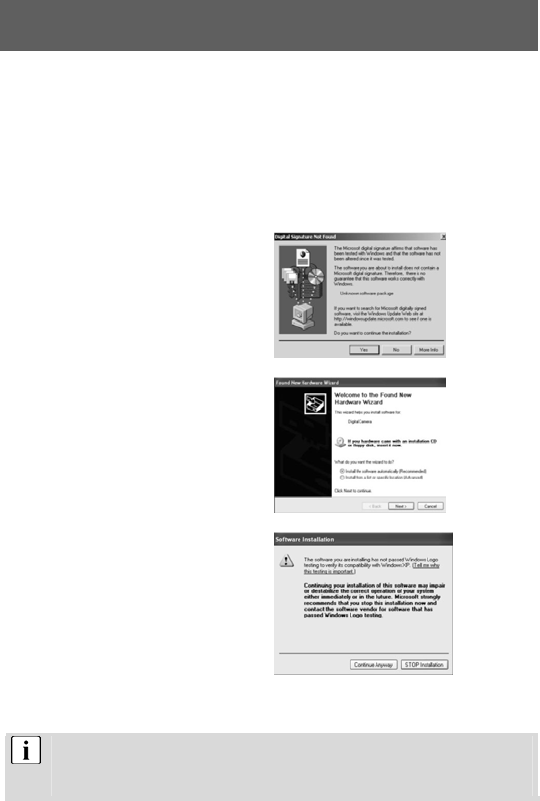
3.
Under Windows 2000, you may be asked
about the digital signature of the driver.
Click “Yes” to install the driver.
4.
When installing the driver on Windows
XP the Found New Hardware Wizard
appears. Select “Install the software
automatically” (recommended).
The following window may appear. Click
“Continue” and wait until the installation
is complete.
5. The installation procedure under Windows ME is similar.
Either of two driver modes can be selected for the camera.
TWAIN mode uses the video components for the PC (WebCam).
In MASS mode, the internal memory is used as mobile memory. It can be treated
like a hard drive. You can copy, delete, cut and download photos and videos from

32
the camera.
Location of the drivers on the CD:
(Example: “X:\ ” as the CD-ROM drive)
X: \ Driver\mass: MASS driver for Win 98
X: \Driver\PC_CAM \win98_2k: TWAIN driver for Win 98 / 2000
X: \Driver\PC_CAM\WinMe_XP: TWAIN driver for Win ME / XP
Photos should be downloaded directly in MASS mode. To select the correct driver
mode before installing the driver.
7 Transferring files to your PC
After you install the drivers, you can transfer your photos, videos and sound recordings to the
PC using the USB cable, and view, play and edit them on your PC. The camera switches to
USB mode.
1 Switch your PC on. Set your camera’s driver mode to MASS.
2 Connect the digital camera to your PC by inserting the end of the supplied USB cable
into the USB port of your PC and connecting the other end of the USB cable to the
USB terminal of your camera.the camera enter PC-MASS Mode.
3 If the driver was installed correctly, the camera is identified by the computer as a mass
storage device (removable media). If you use Windows XP, you can access the
contents of the camera memory immediately. In other Windows versions, open the
Windows Explorer or double-click My Computer. Double-click the media symbol for the
camera and, where applicable, the folders within it to view the files.
4 Now press and hold the left mouse button to drag the required files (images, sound or
video) to a suitable folder on your PC, e.g. the “My Files” folder. You can also select
the files and use the “Copy” and “Paste” Windows commands.
The files have now been transferred and saved to your PC. You can now view, play and edit
the files using the application software.
USB power supply and webcam function
The camera is supplied with power via the USB port. This allows you to transfer data from the
camera to the PC using the USB cable even when there are no batteries in the camera. You
can use the camera as a webcam if you set the driver type of the camera to TWAIN. This
allows you to use functions such as video capture, video monitoring or internet video
conferences (netmeeting).
When the data is transferring between the camera and PC,Please don’t operate the
camera.

33
8 Specifications
Sensor 1/2.5" CMOS
Pixels 5.1 million
Effective resolution 2560x1920,2304x1728,2048x1536, 1600x1200, 800x600
Interpolated resolution 4000x3000
Photo: JPEG (EXIF 2.1 Version)
Video: AVI/Motion JPEG
File formats
Sound: WAV format
Special effects Standard, black and white, sepia modes
Zoom factor 8x digital zoom
LCD monitor 3.0 inch TFT monitor
Compatible systems Windows 98/2000/ME /XP
Focal length F = 8.7 mm
Aperture F2.8
Focus range 1m ~ infinity
Exposure Auto and manual
Exposure compensation -2.0 EV to +2.0 EV in eight steps
Date terminal Mini USB terminal, two driver modes: MASS and TWAIN
Integrated wide angle flash with three modes:
Auto, always on and off
Flash
Flash range 2 m
White balance Automatic white balance and four manual modes:
Daylight, tungsten, fluorescent, cloudy
Burst Series of three photos
Self-timer 10 seconds
NTSC and PAL system available
Video output
TV output signal
sound recordings
Memory can be expanded
Webcam for internet chat and conference
Other functions
Customisable startup image
34
Power supply via USB port
Memory medium 32MB internal (including system memory), SD or MMC card
9 Memory requirement
Resolution Quality Image size 8M
B 16MB 32MB 64MB 128MB
Superfine approx. 830kB 4 8 16 32 64
Fine approx. 600kB 5 10 20 40 80
2560x1920
Economy approx. 510kB 6 12 24 48 96
Superfine approx. 620kB 5 10 20 40 80
Fine approx. 480kB 7 14 28 56 112
2304x1728
Economy approx. 400kB 8 16 32 64 128
Superfine approx. 530kB 6 12 24 48 96
Fine approx. 400kB 8 16 32 64 128
2048x1536
Economy approx. 310kB 10 20 40 80 160
Superfine approx. 310kB 10 20 40 80 160
Fine approx. 250kB 14 28 56 112 224
1600x1200
Economy approx. 200kB 17 34 68 136 272
Superfine approx. 150kB 26 52 104 208 416
Fine approx. 110kB 34 68 136 272 544
1024x768
Economy approx. 90kB 43 86 172 344 688
Superfine approx. 85kB 42 84 168 336 672
Fine approx. 70kB 54 108 216 432 864
800x600
Economy approx. 55kB 68 136 272 544 1088
Video --- --- ~10
sec
~30
sec
~70
sec ~150 sec ~3 min
The actual number of stored images can vary depending on the resolution and colour
richness (up to ± 30%).

35
10 Troubleshooting
If your camera does not work properly, please check the following items. If the problem still
exists please contact your dealer.
Symptoms Cause and solution
Cause: Not enough light
Error A
Camera does not take photos Solution: Change angle of camera to include more light
or use automatic flash.
Cause: Weak batteries
Error B
Photos disappear from the LCD
after a period Solution: Insert two fresh batteries.
Cause: The PC does not have enough free RAM.
Error C
Not all images can be
downloaded to the PC Solution:
Close all other applications before downloading.
If the problem persists, download the images
one at a time to the PC and save them there
before transferring the next image.
Cause: Camera shuts down automatically.
Error D
Camera switches off after 5
minutes. LCD switches off. Solution: Restart camera.
Cause: The PC’s USB port is deactivated in the BIOS.
Error E
When the camera is connected to
the PC for the first time, no new
hardware is found. Solution: Activate the port in the PC’s BIOS.
Cause: It is normal for the shutter speed to be slower in
dark conditions.
Error F
The shot to shot time is longer
when taking pictures in dark
conditions. Solution: Change the camera angle or improve the light
conditions.
Cause: PC or camera is busy and there is no
connection between the two.
Error G
The camera does not start after
connection to the PC. The
camera display lights up and
LCD shows all symbols. Solution: Disconnect the USB cable from the PC, check
why the PC is busy and insert the cable again.
Note: This table contains possible causes of error. Some of these are normal phenomena.

36
11 Further information
11.1 Safety instructions
Although this product is safe, please observe the following information and warnings.
Caution
1. Do not modify or dismantle the camera.
2. Contact your dealer for repairs and inspections.
3. Do not shake the camera or subject it to hard knocks. The camera
may be damaged if it falls.
4. Ensure that no water or moisture enters the camera. This can cause
short circuits and accidents.
Note
When using the flash, do not look directly into it, as this can damage the
eyes.
11.2 Maintenance and care
Please clean the body, lens and LCD as follows:
• Do not use thinning or cleaning agents which contain petrol. This could damage the
camera.
• Clean the camera body with a soft cloth.
• Lens: First remove dust with a lens brush. Then clean with a soft cloth.
• Do not use powerful cleaning agents on the body and lens (contact your dealer if dirt
cannot be removed).
• Do not apply pressure to the LCD or use hard objects to clean it.
11.3 Photo tips
For excellent photographs, please observe the following tips:
• Do not move the camera quickly to prevent the photos being out of focus. Hold the camera
steady when pressing the shutter release. Do not move the camera immediately after
pressing the shutter release. Wait until you hear the sound signal before moving the
camera.
• Look at the subject through the viewfinder before pressing the shutter release.
• Check the angle if the subject is backlit. Move to the side to reduce the backlighting.
• In dark conditions, the flash or manual exposure setting should be used.
• Move/pan the camera slowly to make good videos. Pans that are too fast result in out of
focus and blurry videos.

37
11.4 Battery tips
Incorrect handling of the batteries can cause them to leak, become hot or explode.
Observe the following safety instructions:
• Do not heat batteries or dispose of them in fires.
• Do not transport batteries with metallic objects, as they can come into contact with the
battery poles and cause damage.
• Do not expose batteries to moisture. Always store them in a dry area.
• Do not dismantle, deform or modify batteries.
• Never remove the cover of the battery.
• Do not subject the battery to hard knocks.
• Never use leaking or damaged batteries.
• Keep batteries out of reach of children.
• Ensure that the polarity is correct when inserting the batteries into the camera.
• Battery power is reduced in cold environments (−10°C or colder, applies to alkaline
batteries in particular).
• Warm up batteries before use in cold environments (e.g. in your pocket).
• When using a heat source, do not allow batteries to come into contact with it.
