User manual
Telcare
User Manual
Conventions used in this guide
In this user guide, we use the following
symbols to indicate useful and important
information:
NOTE NOTE
Notes, usage tips, or additional information
Warning Situations that could cause
injury to yourself or others
Caution Situations that could cause
damage to your device or
other equipment

1
Specifications ......................................................................................... 3
Basics ....................................................................................................... 4
In Box ............................................................................................... 4
Phone Overview ............................................................................ 4
Battery ............................................................................................. 4
MicroSD Card ................................................................................ 6
Turning Phone On or Off ............................................................ 6
Phone Options ............................................................................... 7
Touchscreen Gestures .................................................................. 7
Using the Onscreen Keyboard .................................................... 8
Editing Text .................................................................................... 9
Getting Started .................................................................................... 10
Google Account ........................................................................... 10
Getting to Know the Home Screen .......................................... 11
Customizing the Home Screen ................................................. 11
Essential Display Icons .............................................................. 13
Notifications Panel ..................................................................... 14
Opening & Switching Between Applications ....................... 14
Sleep Mode ................................................................................... 15
Adjusting Volume....................................................................... 16
Searching Your Phone and the Web ........................................ 16
Connecting Your Phone to a Computer .................................. 17
Phone Calls ........................................................................................... 18
Making Calls ................................................................................ 18
Answering or Rejecting Calls ................................................... 19
Using In-Call Options ................................................................ 20
Using Call Log ............................................................................. 20
Listening to Your Voicemail ..................................................... 21
Using Voice Dialer ...................................................................... 21
People .................................................................................................... 23
About People ................................................................................ 23
Opening Your People ................................................................. 23
Getting Started............................................................................. 23
Editing/Deleting Contacts ......................................................... 25
Communicating ........................................................................... 26
Account Setting ........................................................................... 26
Messaging ............................................................................................ 27
About Messaging ........................................................................ 27
Sending Messages ...................................................................... 27
Reading Messages ...................................................................... 29
Receiving Emergency Alerts Messages .................................. 30
Changing Messaging Settings .................................................. 31
Google ................................................................................................... 33
Gmail ............................................................................................. 33
Maps .............................................................................................. 35
Calendar ....................................................................................... 38
Play Music .................................................................................... 41
Google Play Store ....................................................................... 41
Play Books .................................................................................... 45
Web ........................................................................................................ 47
Email ............................................................................................. 47
Browser ......................................................................................... 52
YouTube ....................................................................................... 56
Wi-Fi .............................................................................................. 59
Downloads ................................................................................... 60
Bluetooth .............................................................................................. 62
Using Bluetooth .......................................................................... 62
Disconnecting or Un-pairing from a Bluetooth Device ...... 63
Connecting to a Bluetooth Headset ......................................... 63
Sending and Receiving Information Using Bluetooth ........ 64
Entertainment ...................................................................................... 66
Camera/Camcorder ..................................................................... 66
Gallery .......................................................................................... 68
Playing videos ............................................................................. 70
Sound Recorder ........................................................................... 71
Tools ...................................................................................................... 71
Clock ............................................................................................. 72
Calculator ..................................................................................... 73
Settings ................................................................................................. 74
Settings on Your Phone ............................................................. 74
Firmware Upgrade Using microSD Card ............................... 77
Safety and use ..................................................................................... 79

2
Please read before proceeding .................................................. 79
Limitation of damages ................................................................ 80
Important health information and safety precautions ......... 80
Regulatory agency identifications ........................................... 91
Hearing aid compatibility HAC for wireless
communications devices ............................................................ 94

3
Specifications
1. Display
• 4.0‛WVGA
• Capacitive Touch Screen
2. Camera
• Primary Camera:5.0MP
3. Dimensions and Weight
• Dimensions: 121x 65x 13mm
• Weight: 145 grams.
4. Memory
• 4GB (ROM)/4GB (RAM)
• External memory : Supports up to 64GB
5. Operating System
• Android 4.4.4KitKat
6. Connectivity
• BT 3.0 +EDR, Wi-Fi 802.11 b/g/n
7. Sensors
• Accelerometer, Proximity sensor, Geomagnetic sensor,
Ambient Light sensor, Orientation sensor
8. Power Management (Performance)
Battery Type
Capacity
Standby Time
Talk Time
Lithium-
Ion(Li-ion)
1800mAh
Up to 192Hours
(8Days)
Up to
240minutes
4
Basics
In Box
The Telcare comes with the following items included in the box:
1.Mobile phone
2. Micro USB cable
3. Battery cover
4. Battery
5. USB power adapter
6 .QSG
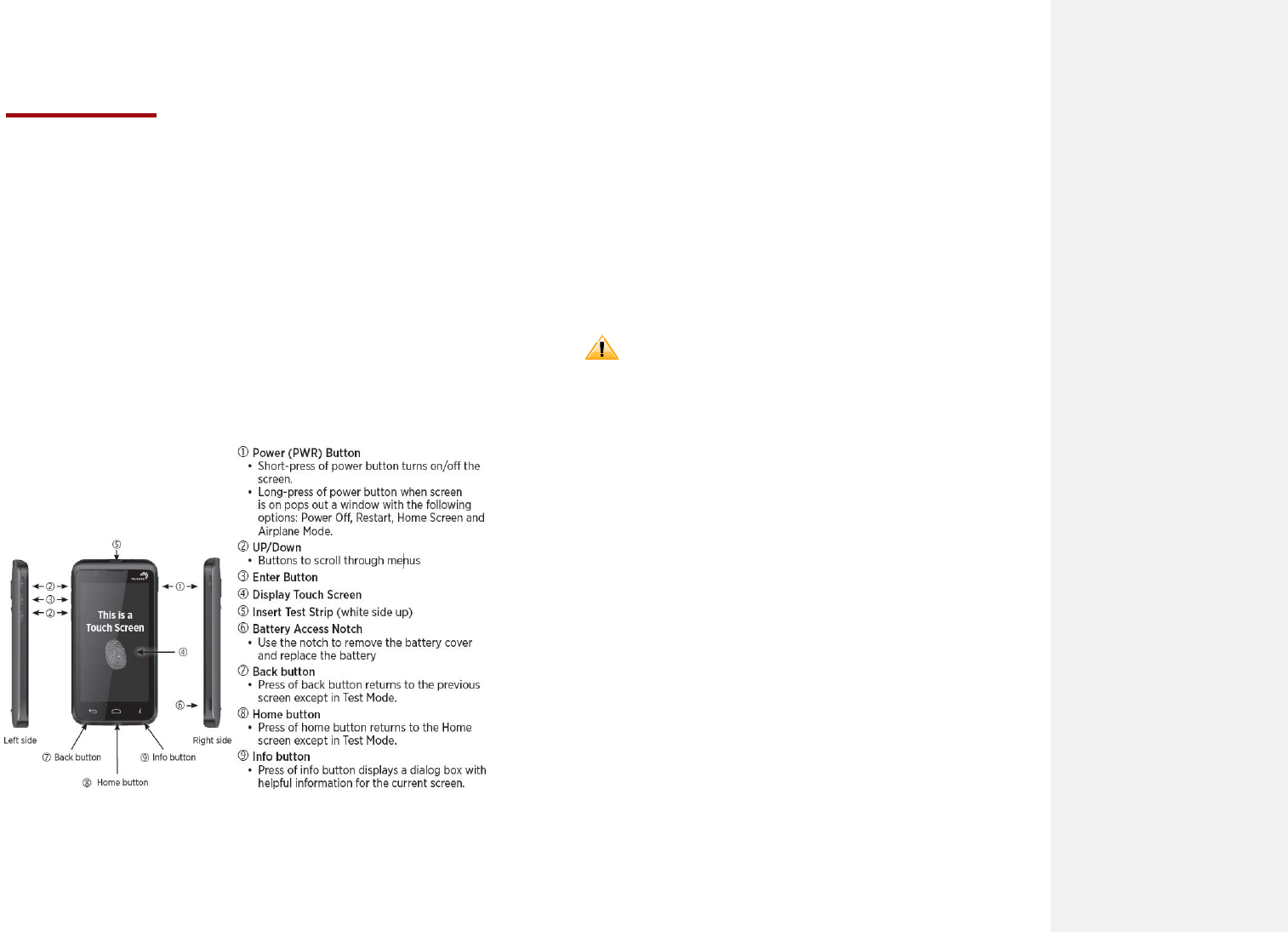
Phone Overview
Battery
Note that browsing the web frequently, extended data
usage, being in a poor signal area, or subjecting the device
to extreme temperatures will cause the battery to discharge
quicker than normal. To increase battery life, limit your
data usage, or turn off GPS and Bluetooth when not
required.
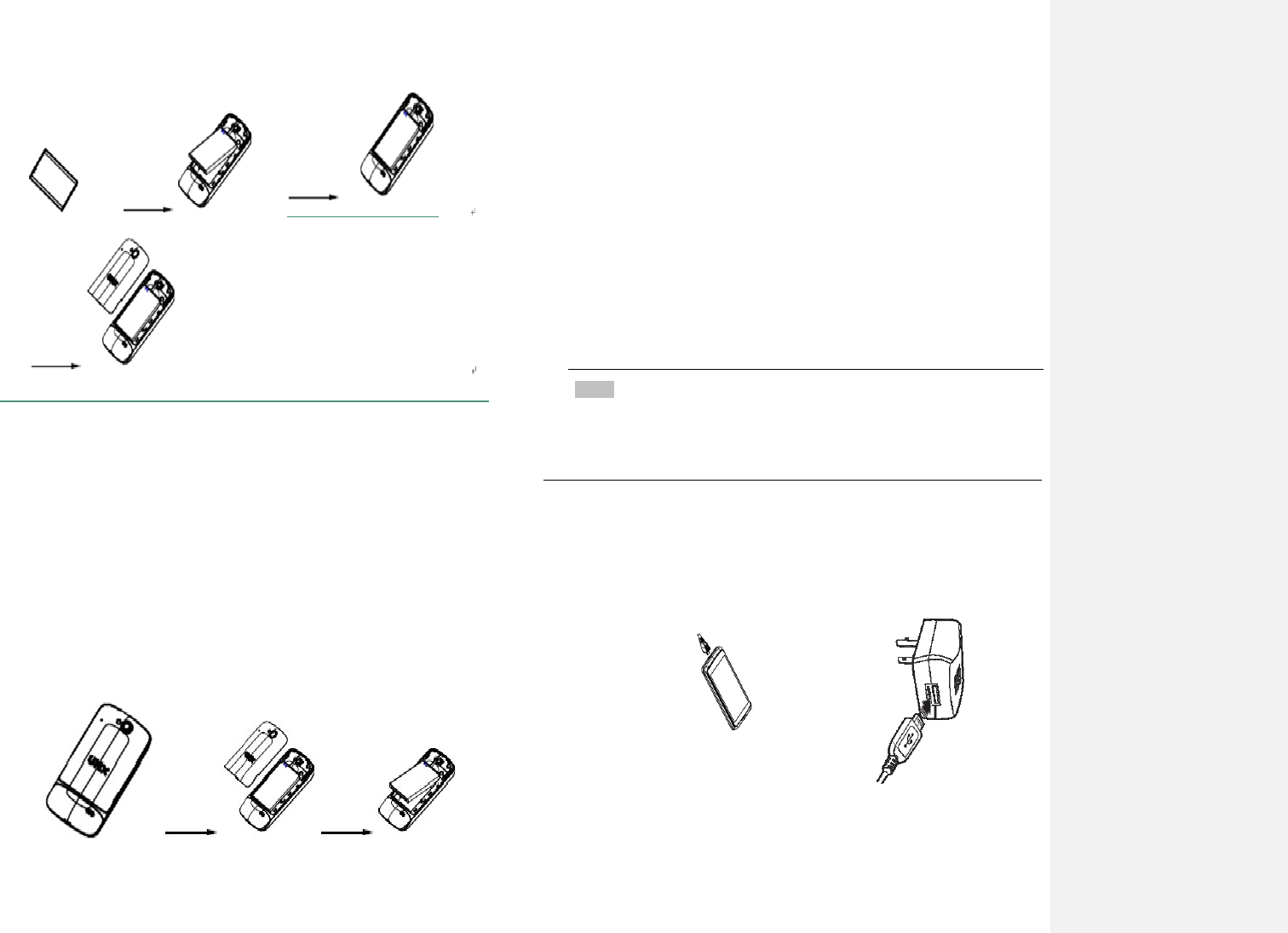
1. Installing the battery
Please use only the original batteries and accessories
you received with your phone or UMX recommended
replacements.
1.Remove the battery cover from the unit.
2. Align the battery’s exposed gold contacts with the
battery connectors inside the battery compartment.
3. Insert the battery with the contacts aligned to the
connectors.
4. Gently push the battery into the battery compartment
and press down until you hear a click. Replace
the battery door.
5
2. Removing the battery
1. Make sure that your device is turned off. To
remove the battery cover from your phone,
open the back cover using your finger at the small
opening on the left of the phone.
2. Push the bottom of the battery upwards and remove
the battery.
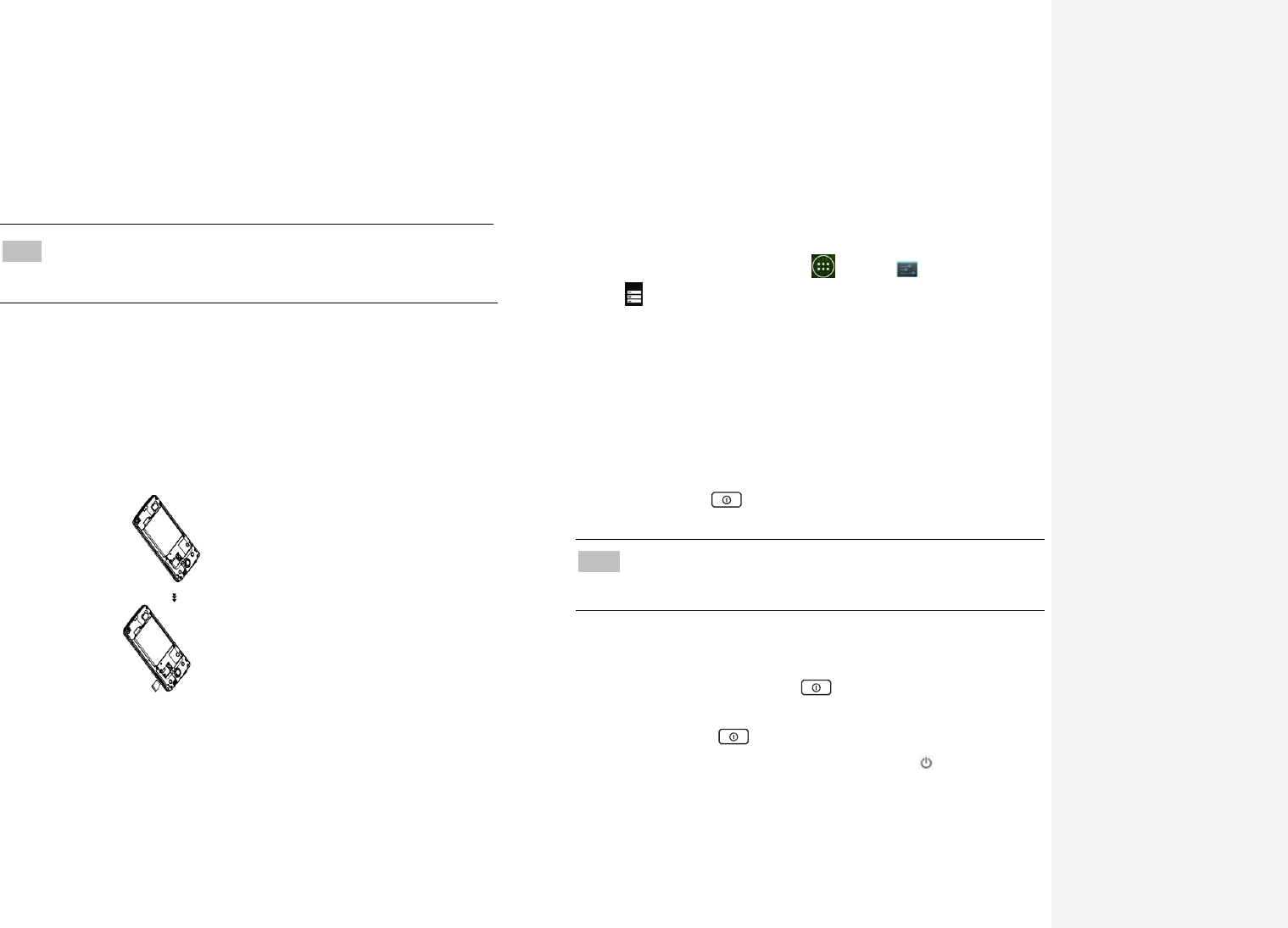
3.Charging your battery
Before you turn on your device and start using it, it is
recommended that you charge the battery.
1. Plug the USB cable into the USB power adapter.
2. Plug the power adapter into a standard outlet.
3. Locate the USB port located on the underneath of your
device.
4. Plug the other end of the USB cable into the phone’s
micro USB port.
5. The USB icon on the cable should always face up when
connecting the cable to your device as shown.
NOTE
• It is more efficient to charge the battery with your device powered
off.
• Battery operating time gradually decreases over time.
6
MicroSD Card
Use the microSD card to store your photos, videos, music
and certain apps from Google PlayTM Store. You can also
move and copy files to your computer from your device.
NOTE When you insert or remove the microSD card, you should
remove the battery cover firstly then open the TF cover.
1. Insert the microSD card
1. Locate the microSD card slot and remove the cover.
Insert the microSD card into the slot with its
gold contacts facing left above battery until it clicks
into place.
2.Removing the microSD card
1. Remove the microSD card cover.
2. Press the microSD card to eject it from the slot then
slide it out the rest of the way.
3. Removing the microSD card while
the phone is on
If you need to remove the microSD card while the
phone is on, unmount the microSD card first to
prevent corrupting or damaging the files in the
microSD card.
1. From the Home screen, tap Apps >Settings.
2. Tap Storage >Unmount SD card >OK.
3. Remove the microSD card by following the steps in ‚SD
card safe to remove‛.
Turning Phone On or Off
1.Turning your phone on
1. Press and hold Power/Lock.
NOTE The first time you use your phone you’ll need to set it up. See
the Getting Started chapter for details.
2.Turning your phone off
1. If the display is off, press Power/Lock to turn it
back on.
2. Press and hold Power/Lock for a few seconds.
3. When Phone options menu appears, tap Power
off >OK.
7
Phone Options
1.Silent mode
1. Press and hold Power/Lockto display Phone
Options.
2. Tap Silent mode.
• When you select Silent mode, is displayed in
the Status bar. Ringtones, alerts, and all audible
sounds except media and alarms are silenced.
NOTE To turn silent mode off, press and hold Power/Lock and
then tap .
2.Airplane mode
1. Press and hold Power/Lockto display Phone
Options.
2. Tap Airplane mode.
• When you set Airplane mode, is displayed in the
Status bar. Wi-Fi, Bluetooth, and mobile network
functions are all disabled.
NOTE To turn airplane mode off, press and hold Power/Lock
and then tap Airplane mode again.
Touchscreen Gestures
Tap
To select onscreen items such as application
and settings icons or press onscreen buttons,
simply touch them with your finger.
Tap andhold
To open available options for the item,
simply touch and hold your finger on the
screen over the item.
Swipe or slide
Quickly drag your finger vertically or
horizontally across the screen.
Drag
Tap and hold your finger before you start
to drag. While dragging, do not release
your finger until the item reaches your
desired location.
Flick
Flicking the screen is similar to swiping, but
you only need to swipe your finger in lighter
and quicker strokes. This finger gesture is
always in a vertical direction, such as
flicking through the contacts or the message
lists.
Rotate
For most screens, you can automatically
change the screen orientation from portrait
to landscape by turning the phone
sideways. When entering text, you can turn
the phone sideways to bring up a bigger on-
screen keyboard.
8
Using the Onscreen Keyboard
You can enter text using the onscreen keyboard.
Someapplications open the keyboard automatically.
Inothers, tap anywhere in a text field to open the
keyboard.
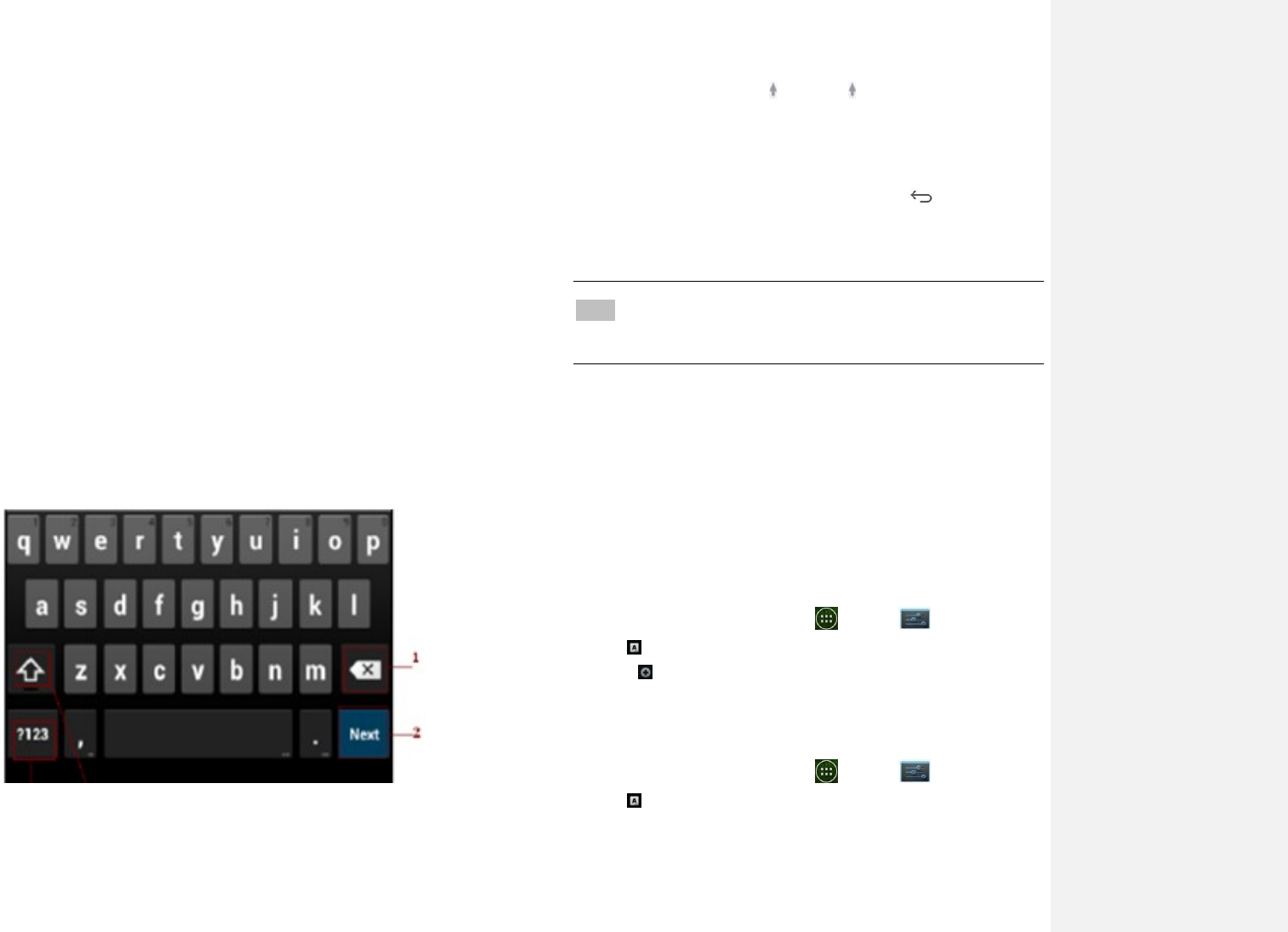
1.Tap each letter on the on-screen keypad.
2.Tap and hold a letter for additional key options (not all
keys have additional options). Additional key options
include numbers and letters with accent marks. If
options are available, you will see a box with all the
options shown. Slide your finger to select the
character you want.
3.Continueuntilyouhavefinishedtheword.
Youcanalso usethefollowingicons:
4 3
•Tap 3 while you type. When you release the key,
the lowercase letters reappear.
•Turn caps lock on. double-tap or touch & hold
•Tap 3, so it changes to . Touch shift key again
to return to lowercase.
• Tap 1 you can to delete words, tap 4 you can change to
the number and sign keyboard.
•TohidetheAndroidkeyboard,pressBack .
• When you write a new message, you can tap 2 to skip from
the receiver frame to text frame.
NOTE When you type the notification panel will have a ‚select input
method‛ you can set the input methods.
Adding, Editing or Deleting Words in the User Dictionary
Sometimes you may need to add a word to the predictive
text dictionary, for example, a name or a specialized
technical word. If you want to add a word to your User
dictionary while entering text, double tap the word to
highlight it, then tap and hold the word and select Add **
to dictionary.
Adding a word manually
1. From the Home screen, tap Apps >Settings.
2. Tap Language &input>Personal dictionary.
3. Press Add.
4. Type the word >tap OK.
Editing or deleting a word
1. From the Home screen, tap Apps >Settings.
2. Tap Language &input>Personal dictionary.
• To edit words from the dictionary, tap the word you
want to edit >Edit > Edit the word > Tap OK.
9
• To delete words from the dictionary, tap the word you
want to delete >Delete.
Editing Text
You can select, copy or cut the text you’ve entered, then
paste it in another text field within the user interface.
NOTE Some applications may offer different text editing methods.
1.Selecting text
1. Tap the text field.
2. Move the cursor to the beginning or end of the desired
text by tapping in the location you want the cursor.
3. Tap and hold the text field.
4. Tap Select word in the pop-up menu.
• Or tap Select all to select all the text in the text field.
5. Drag your finger to move the text cursor to a letter
within the text that you want to select. The selected
text is highlighted in orange.
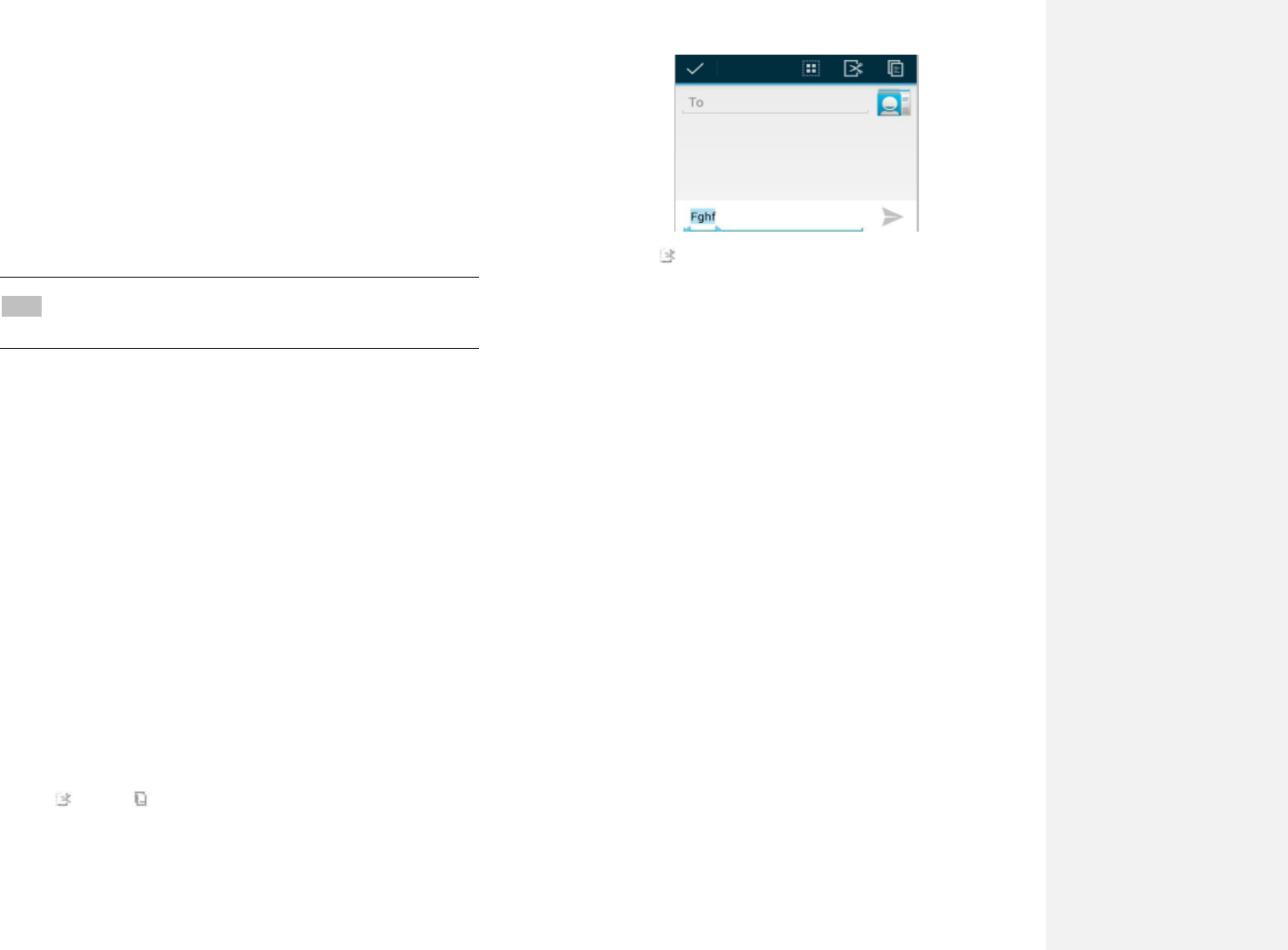
2.Cutting and copying the text
1. Double-click to select the text to cut or copy it.
2. Tap and hold the selected text.
3. Tap Cut or Copy in the menu that opens.
•If you tap Cut, the selected text is removed
from thetext field. In this case, the text is saved to
theclipboard, so that you can paste it into another
text field.
3.Pasting the text
1. Cut or copy the text to paste.
2.Tap the text field where you want to paste the text and
move the cursor to your desired location.
• You can paste text that you copied from one
application into the text field in any other application.
3. Tap and hold then select Paste in the pop up menu.
• The text is inserted after the cursor. The text also
remains in the clipboard, so you can paste that same
text into another location.

10
Getting Started
Google Account
You must sign in to a Google account to use Gmail,
Google Calendar, and other Google applications; to
download applications from Google Play Store; to back
up your settings to Google servers; and to take advantage
of other Google services on your phone.
1.Registering a Google account
Gmail, Google Play Store, and other applications require
a valid Google account for use. You will be prompted to
login intoGoogle the first time you use these applications.
1. Tap Existing>Sign in to register your Google account.
• If you don’t have a Google account, tap Newinstead.
See the next section for more details.
2. Enter your Google account Emailand Password > Tap
Sign in.
2.Creating a new Google account
1. Tap New> Enter First name, Last name and Email>
Tap Next.
2. Enter a password in to the Type a password, Confirm
password fields,then tap Next.
•Password tip: Your password must be a minimum
of 8characters in length.
3. Select Security question and enter the Answer, which
will be needed if you forget your password and then
enter aSecondary Email >Create.
4. Read through Google Terms of Service > Tap I agree,
Next.
5. Enter the letters shown on the screen > Tap Next > Tap
Finish.
3.Adding a Google account
1. From the Home screen, tap Apps >Settings.
2. Tap Accounts >Add account.
3. Tap Google > Tap Existing.
4. Tap Sign in to register your Google account.
5. Enter your Google account Emailand Password > Tap
Sign in >Finish.
• The U671Cdevicesupports multiple Google accounts.
• If you have the same contact across multiple Google
accounts, you can merge duplicates into a single
item in the contact list.
4.Add a Google account
1. From the Home screen, tap Apps >Settings.
2. Tap Add account.
11
Getting to Know the Home
Screen
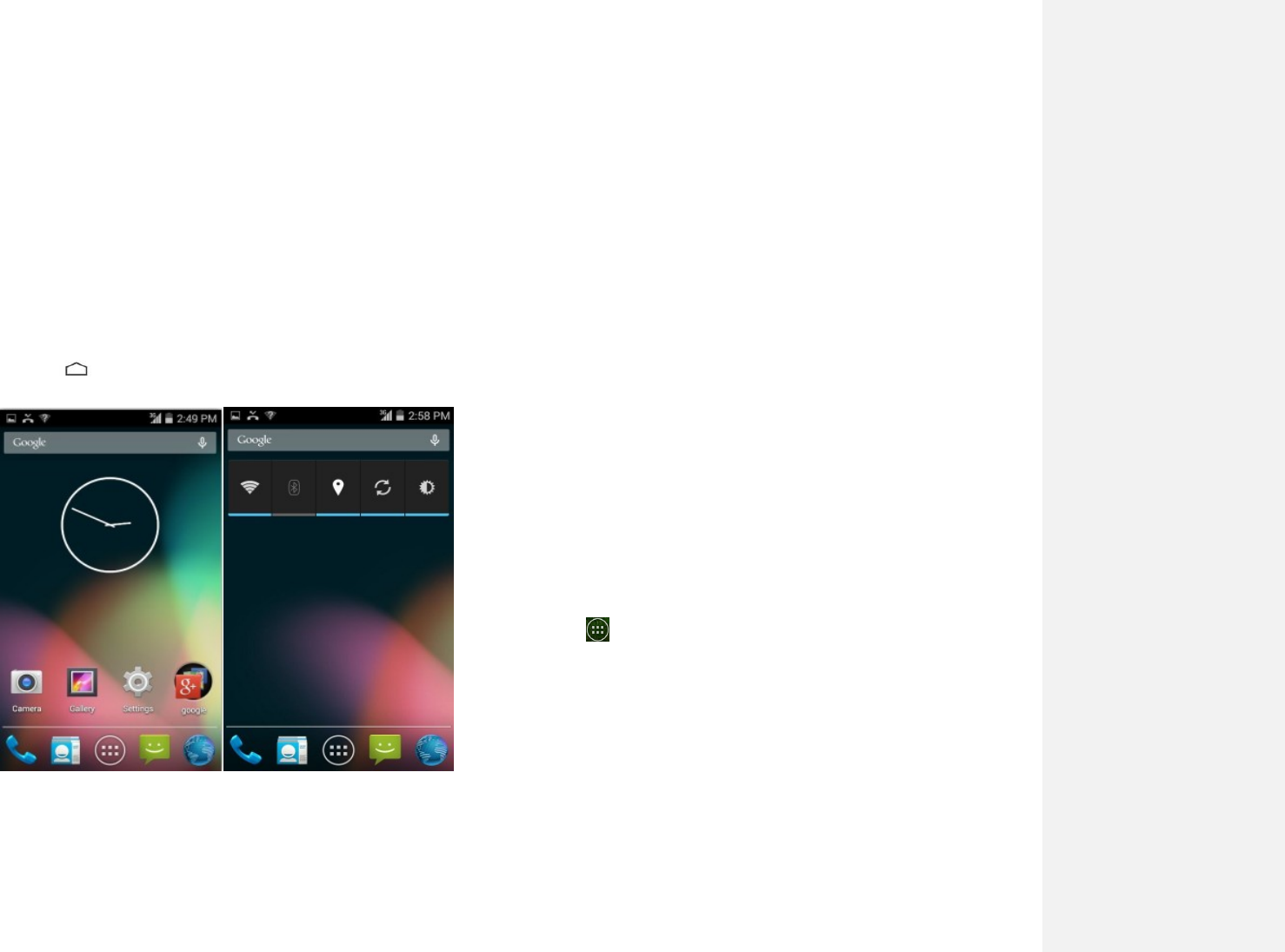
1.The Home screen is displayed when the device is in
idle mode. You can add your favorite apps, shortcuts,
folders and widgets to the Home screen so they’re only
a tap away.
2.The Home screen is actually five separate screens. Slide
your finger the left or right and you’ll
discover more space to add icons,widgets, and more.
Press Home to return to the center home screen.
1.Previewing the Home screens
1. From any Home screen, tap and hold an application.
2.When you choose a desired Home screen, the
applicationshifts to the selected Home screen.
Customizing the Home Screen
The Home screens and display wallpaper are customizable.
1. Home screen customization options
Open the Home screen you want to customize.
2. Moving an item on the Home screen
1. From the Home screen, tap and hold the item you want
to move until it vibrates. Don’t lift your finger.
2. Drag the item to a new location on the Home screen.
3. Lift your finger at the location where you want the item.
To add a shortcut for any application to a Home screen,
tap Apps, tap and hold the item, then drag it onto a
Home screen.
3.Removing an item from the Home screen
1. From the Home screen, tap and hold an item until it
vibrates. Don’t lift your finger. The × Remove icon will
appear at the top of the display.
2.Drag the item to×Remove.

12
3. When the item turns blue, lift your finger.
4.Changing the Wallpaper of the Home
screen
1. From the Home screen, tap and hold any empty area on
a Home screen long time.
2. Tap one of the following:
Gallery: Choose a photo from your
camera gallery or memory card
storage. You can crop the image
before setting it as the wallpaper.
Live wallpapers: Choose from pre-loaded
animated wallpapers. Additional
live wallpapers can be
downloaded from the Google
Play Store.
Wallpapers: Choose from the pre-loaded
animated or static wallpapers.
Additional wallpapers can be
downloaded from the Google
Play Store.
3. Tap Set wallpaper.
13
Essential Display Icons
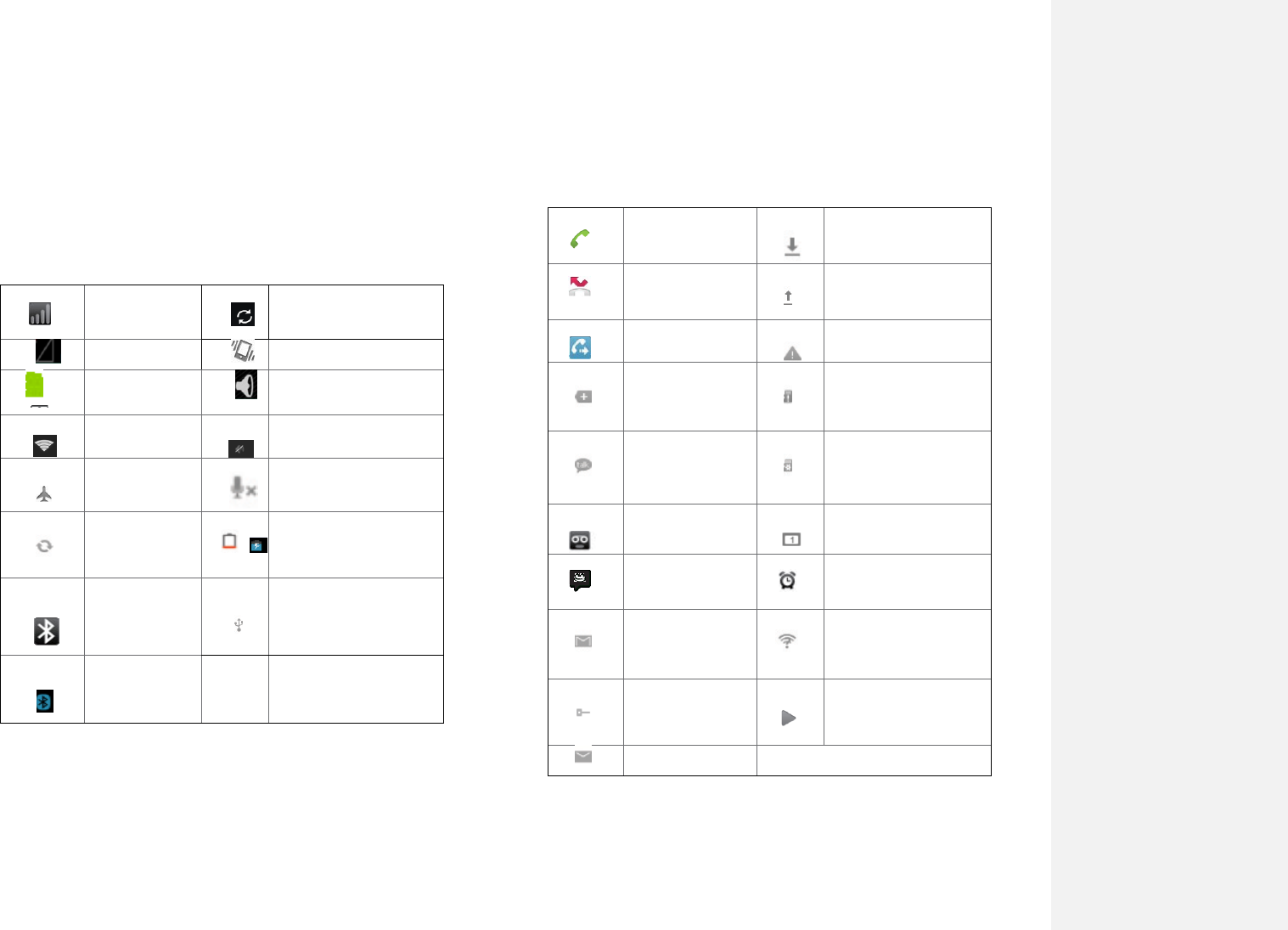
1. Status icons
You can tell a lot about your phone when you
understand the icons in the Status bar. Here’s what each
one means:
Signal strength
Synchronized with the
web
No signal
Vibrate only mode
3G network
connected
Speakerphone is on
Wi-Fi signal
strength
Silent mode-no audio
or vibration
Airplane mode
Microphone is muted
Data
synchronizing
~
It indicates that battery
is remaining
(Empty to full charge
states)
Bluetooth is on
Connected to a
computer via USB
cable
Bluetooth
device
connected
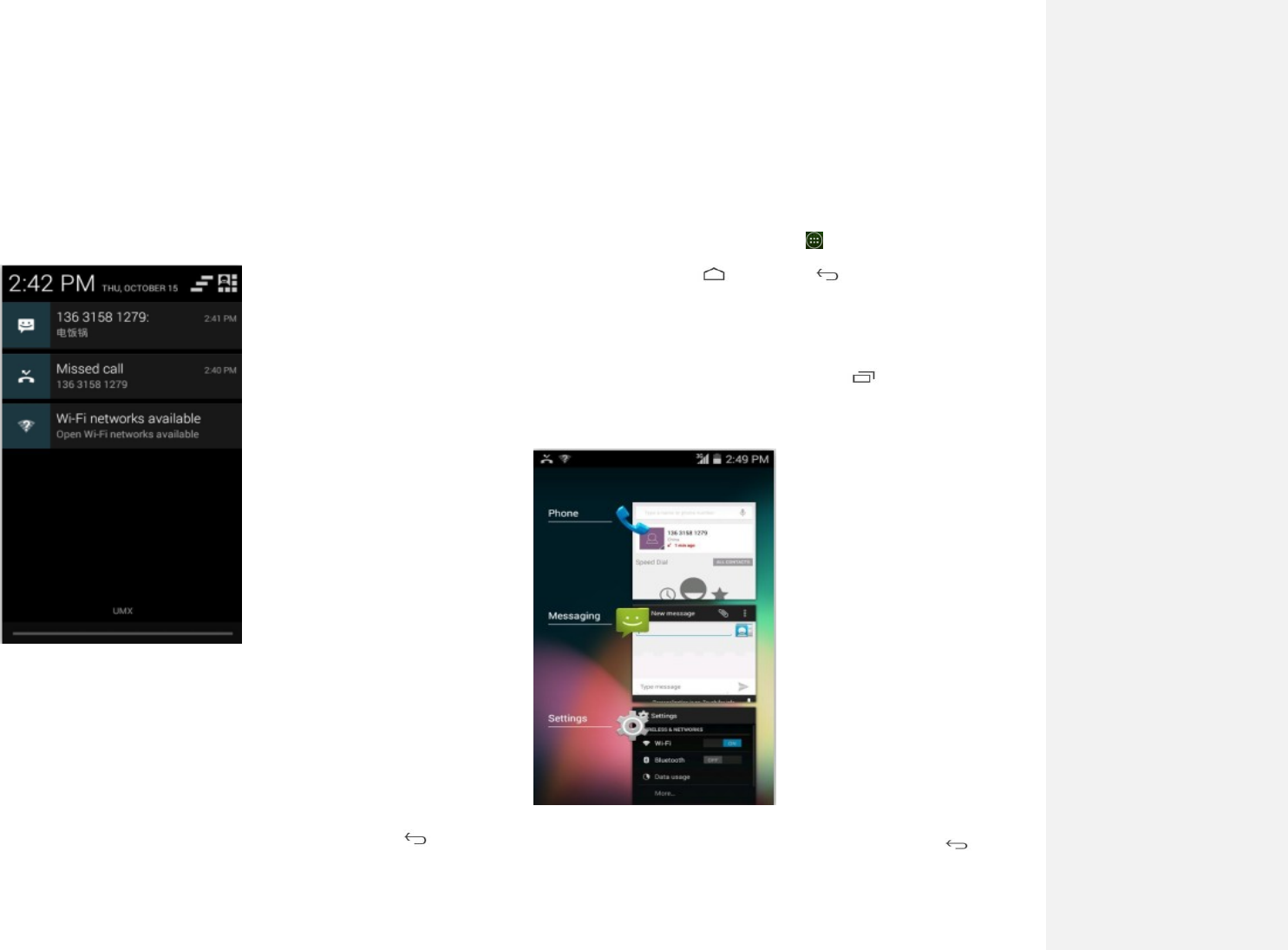
2. Notification icons
Notification icons in the Status bar alert you to items that
may require your attention such as new messages,
calendar event reminders, missed call notifications, etc.
Here’s what each one means:
Call in progress
Downloading data
Missed call
Uploading data
(animated)
Call Diverted
General Warning
Icon
More (not
displayed)
notifications
No microSD card
installed
New Google
Talk instant
message
MicroSD card is
being prepared
New voicemail
Upcoming event
New message
Alarm is set
New Gmail
Wi-Fi is on and
wireless networks are
available
Connected to or
disconnected
from VPN
Song is playing
New Email
14
Notifications Panel
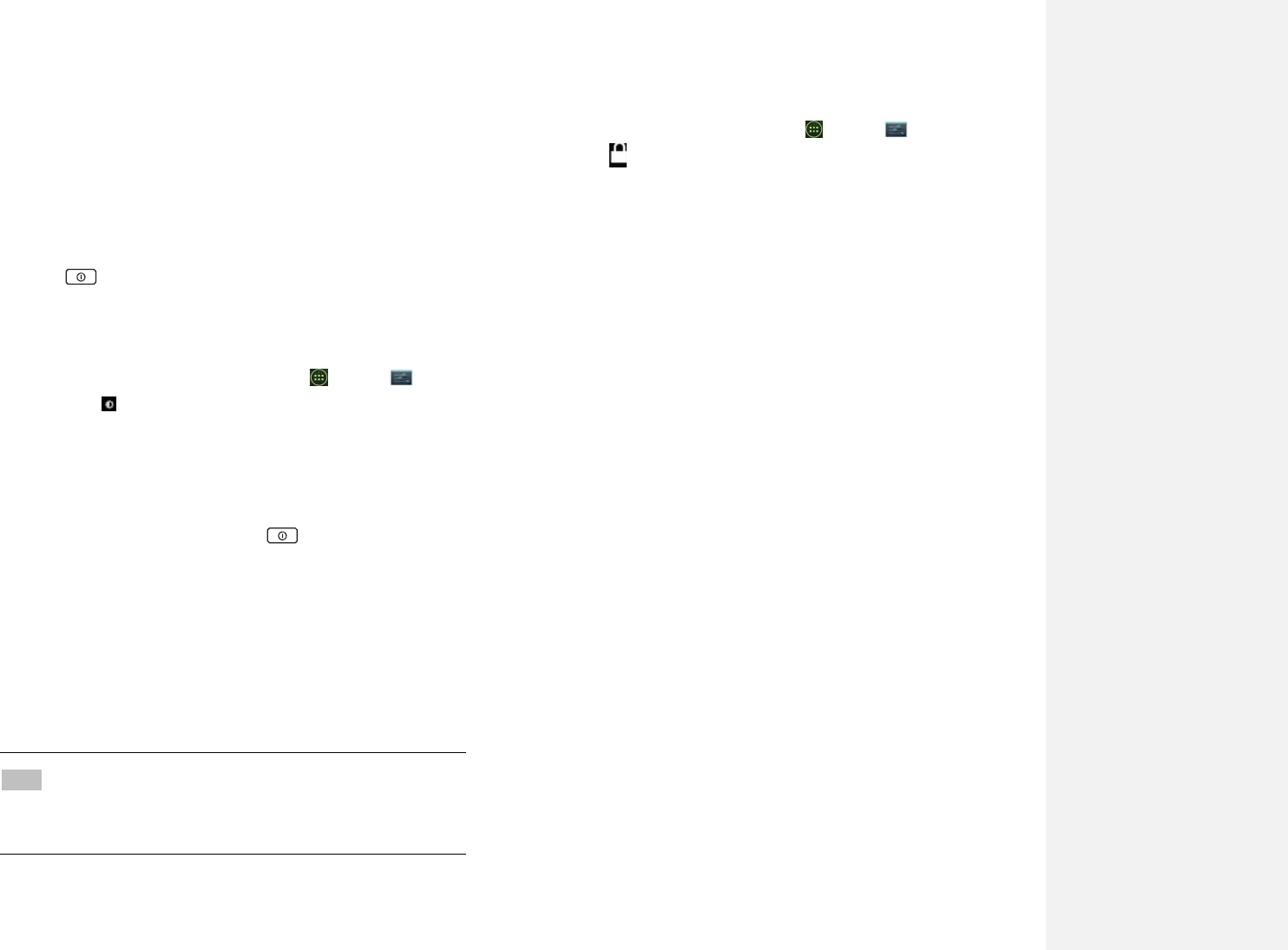
When you receive a new notification, an icon will be
displayed in your status bar at the top of your screen.
1.Viewing and responding to Notifications
1. Tap and hold Status bar, and then slide your finger
downward to open the Notifications panel.
2. If you have multiple notifications, you may need to
scroll to see them all.
3. Tap a notification to respond to it.
2.Closing the Notifications panel
Drag the bottom bar of the panel up. Or just press Back.
Opening & Switching Between
Applications
1.Opening and closing the Applications List
1. From the Home screen, tap Apps.
2. To close, press Home or Back.
2.Switching to a recently used application
1. From any screen, press and hold Recent apps.
Scroll to see all recently used application.
2.Tap an icon to open the application or press Back
to return to your previous screen.
15
Sleep Mode
Sleep mode saves battery power by turning off your display.
You will still receive messages and calls when the display is
turned off.
1. Switching to Sleep mode
1. Press Power/Lock to switch your phone to Sleep
mode.
2. Your phone automatically turns off the display after a
period of inactivity. To customize the screen timeout
settings, from theHome screen, tap Apps >
Settings >Display >Sleep.
2. Waking up from Sleep mode
1.Your phone automatically wakes up when you have an
incoming call.
2. To wake it up manually, press Power/Lock. You’ll
need to unlock the screen as described below.
3. Unlocking the screen
On the lock screen, tap the unlock icon and slide
your finger in the direction of the arrows to unlock
the screen. The screen unlocks automatically when
you answer an incoming call.
NOTE If you have set up a screen unlock pattern, pin, or password,
you will be asked to draw the pattern on the screen or
enter the PIN or password to access the phone software.
4. Activating Secure Screen Lock
1. From the Home screen, tap Apps >Settings.
2. Tap security >screen lock.
• If you have already configured the screen lock, tap
Change screen lock to change how to lock or
unlock your screen.
3. Tap Pattern, PIN, Password, or Face Unlock. Then enter
a custom pattern, PIN or password as prompted.
•If you select ‘None’, screen unlock security
iscancelled
16
Adjusting Volume
Ringtone and Media volume are independent of each other
and adjusted separately.
1. Adjusting the ringer volume
From the Home screen, press Volume up or Volume
down on the right side of the phone to
adjustthe ringer volume to your desired level.
• While in the lowest ringer volume level, press
Volume up or Volume downonce to set your phone
to Vibrate mode. To set your phone to Silent mode,
you can press Volume downonce again.
• While in the Silent mode or Vibrate mode, press
Volume up once to switch to ringtone mode.
2. Adjusting the media volume
While playing music, watching a video or using
preloaded or downloaded games or applications, press
Volume up orVolume down on the right side of the
phone to adjust the media volume.
3. Adjusting the earpiece volume for phone
calls
During a phone call, press Volume up or Volume down.
4. Adjusting the volume via Settings menu
1. From the Home screen, tap Apps >Settings.
2.Tap Sound >Volumes.
1. Drag the volume sliders left or right to adjust your
phone’s Ringtone, Media, and Alarm. Your phone
plays a sample tone at the selected volume level
while you drag the slider.
NOTE If you uncheck the option to use call volume for notifications,
you can set the notification ringtone volume independently.
2. When you’re done, tap OK.
Searching Your Phone and the
Web
The search key is a powerful part of the U671C’s device’s
software and enables you to quickly locate files, contacts,
and applications. You can also search the web using your
favorite web search service.
1. Tap Apps >Google.
2. Begin entering text, or tap a previously used search
term.
• As you enter the text, matching items on your phone
and suggestions from Google web search will appear
on the screen.
3. Tap a suggestion to go directly to that result.
17
Connecting Your Phone to a
Computer
1. Copying files to/from the microSD card
You can copy your music, photos, and other files to
the microSD card of your phone.
NOTE This option is available only when a microSD card is
inserted into the slot of your phone. While your phone is
connected to a computer, USB Mass storage mode
prevents you from using applications that access the
memory card.
1. Connect your phone to your computer using the supplied
USB cable.
2. Open the Notifications panel >tap USB connected.
3. On your computer, the connected phone is recognized as
a removable hard drive.
4. Navigate to the removable drive and open it.
5. Do one of the following:
• Copy the files from the computer to the microSD card’s
root folder.
• Copy the files from the phone’s microSD card to a folder
in your computer.
6. After copying the files, un-mount the removable drive
(that is, your phone) as required by your computer’s
operating system to safely remove your phone.
7. After you have un-mounted the removable drive, you can
disconnect the phone from the computer.

18
Phone Calls
Making Calls
The simplest way to make a call is to dial the number
directly. You can also call numbers listed in your call log or
Contacts list.
1. Making a call from the dialer screen
1. From the Home screen, tap Phone. Or tap Apps >
Phone.
2. Tap the number you want to dial.
• If you make a mistake, tap to erase a single character.
Tap and hold to erase the entire string.
3. Tap Dial.
• The Calling screen is shown and appears in the
Status bar while the call is active.
• To change the volume during a call, press Volume up
/ Volume down.
4. To end the call, tap End Call.
2. Entering a Pause/Wait
Pause and wait options can help you dial additional
numbers such as a voicemail password, or phone
banking system menus.
1. From the Home screen, tap Phone.
2. Tap the number you wish to dial >tap
Option>Add2-sec pause orAdd wait.
• Add 2-sec pause: Your phone will wait for 2 seconds
then continue to dial the remaining
numbers automatically.
• Add wait: Your phone will wait with the message,
‘Send the following tone?’ until Send is
tapped, then continue dialing the
remaining numbers.
3. Making an international call
1. From the Home screen, tap Phone.
2. Tap and hold 0 until the international prefix ‘+’ appears.
3. Tap the country code, area code, and phone number.
4. Tap Dial.
4. Calling a number from the Call log
Your phone logs all incoming and outgoing calls.
1. From the Home screen, tap Phone >MISSED Call log.
2. Tap Dial at the right of any entry to dial.
• Calls are listed with the most recent at the top.
• Calls to the same phone number are grouped together.
• Scroll up or down to view additional entries in the log.
• If you want to edit a number before calling, tap
and hold the desired number, and then tap Menu
>Edit number before call.
5. Making a call from the Contact list
1. From the Home screen, tap Phone> . Or tap
Apps >People.
2. Scroll through the contact list.
19
• To find a specific contact, you can search by tapping
Search. Enter the name of the contact you’re
searching for. As you type, contacts with matching
names appear below the search box. Or you can use
the tab on the right hand side of the screen to scroll
through the alphabetical contacts.
3. Tap the contact you want to call.
4. Tap the phone or mobile number.
6. Making an emergency call
Your phone supports international emergency
numbers such as 911. Emergency calling is supported
anywhere the phone has a network signal.
1. Making an emergency call
1. From the Home screen, tap Phone.
2.Tap the emergency number for your location.
This is usually 911, *911 or #911.
3. Tap Dial.
4. To end the emergency call, tap End Call.
2.Making an emergency call while the phone is locked
1. When your phone is no service status, Emergency call
button is displayed on the lock screen. Tap Emergency
call.
2. Tap the emergency number for your location. This is
usually 911, *911 or #911.
3. Tap Dial.
4. To end the emergency call, tap End Call.
Answering or Rejecting Calls
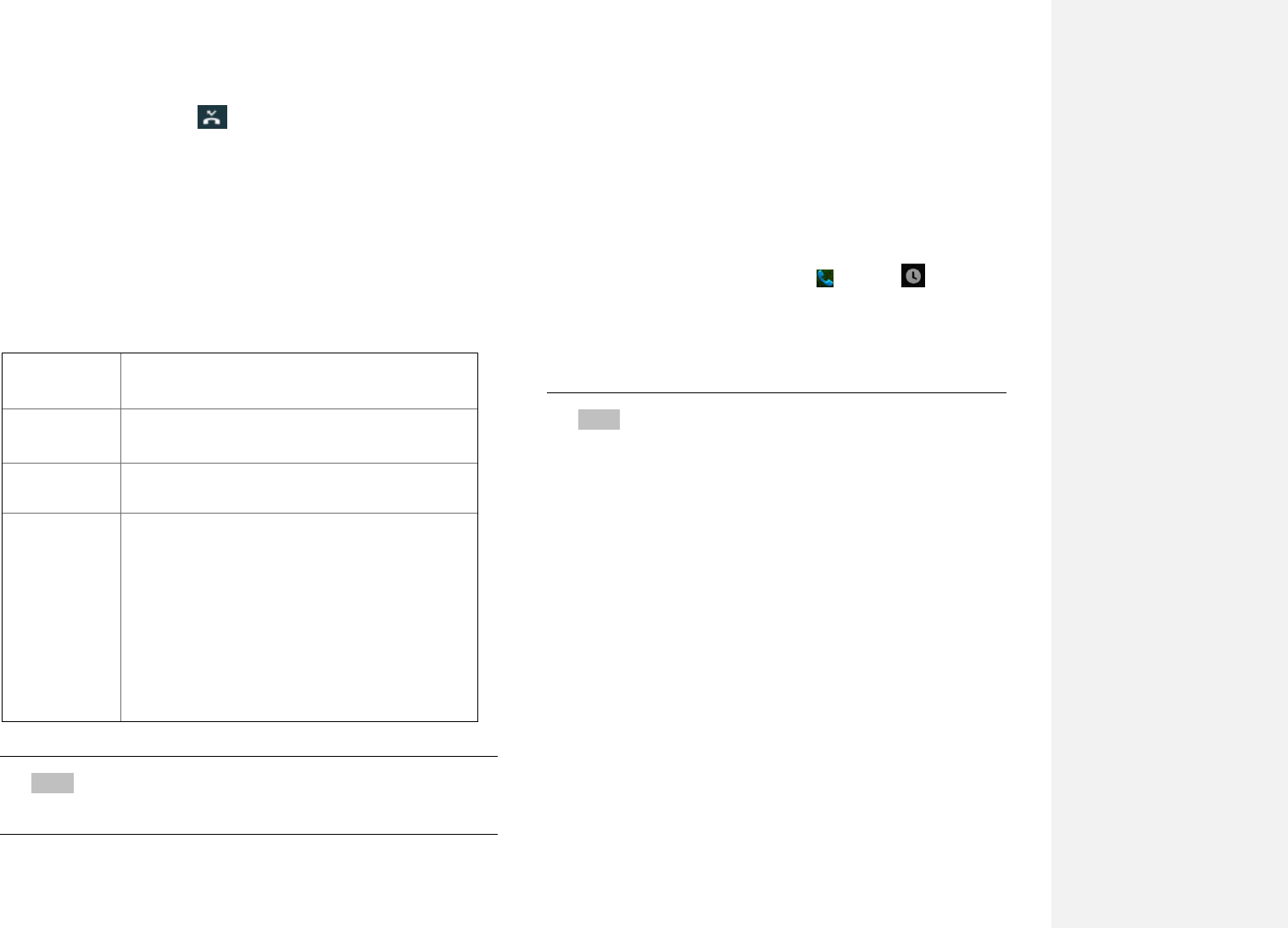
When you receive a phone call, the screen displays the
caller’s name, phone number, and caller ID icon (if stored
in Contacts). When you receive a phone call from a phone
number not stored in your Contacts, only the default
caller ID icon and phonenumber are shown.
All incoming calls are recorded in the Call log. If you miss a
call, you receive a reminder notification.
1. Answering or rejecting an incoming call
1. Drag the icon in the direction of the arrows
to answer the call.
• If you were already in a call, the first call is placed on
hold during answering the new call.
• To silence the ringer before answering the call, press
either of the volume keys.
NOTE The caller you reject is sent directly to your voicemail box to
leave a message.
20
2. Checking missed calls
• If you miss a call, is displayed in the Status bar.
• If you open the Notifications panel, you will see the
number of missed calls. Tap the notification to be
taken to the call log and view detailed information.
Using In-Call Options
When a call is in progress, the following options are
available:
NOTE To avoid damaging your hearing,do not hold the phone up to
your ear when the speakerphone is on.
Using Call Log
The phone stores the numbers of all incoming and
outgoing calls in the Call log. The Call log displays the
details of the call including time, date, and duration.
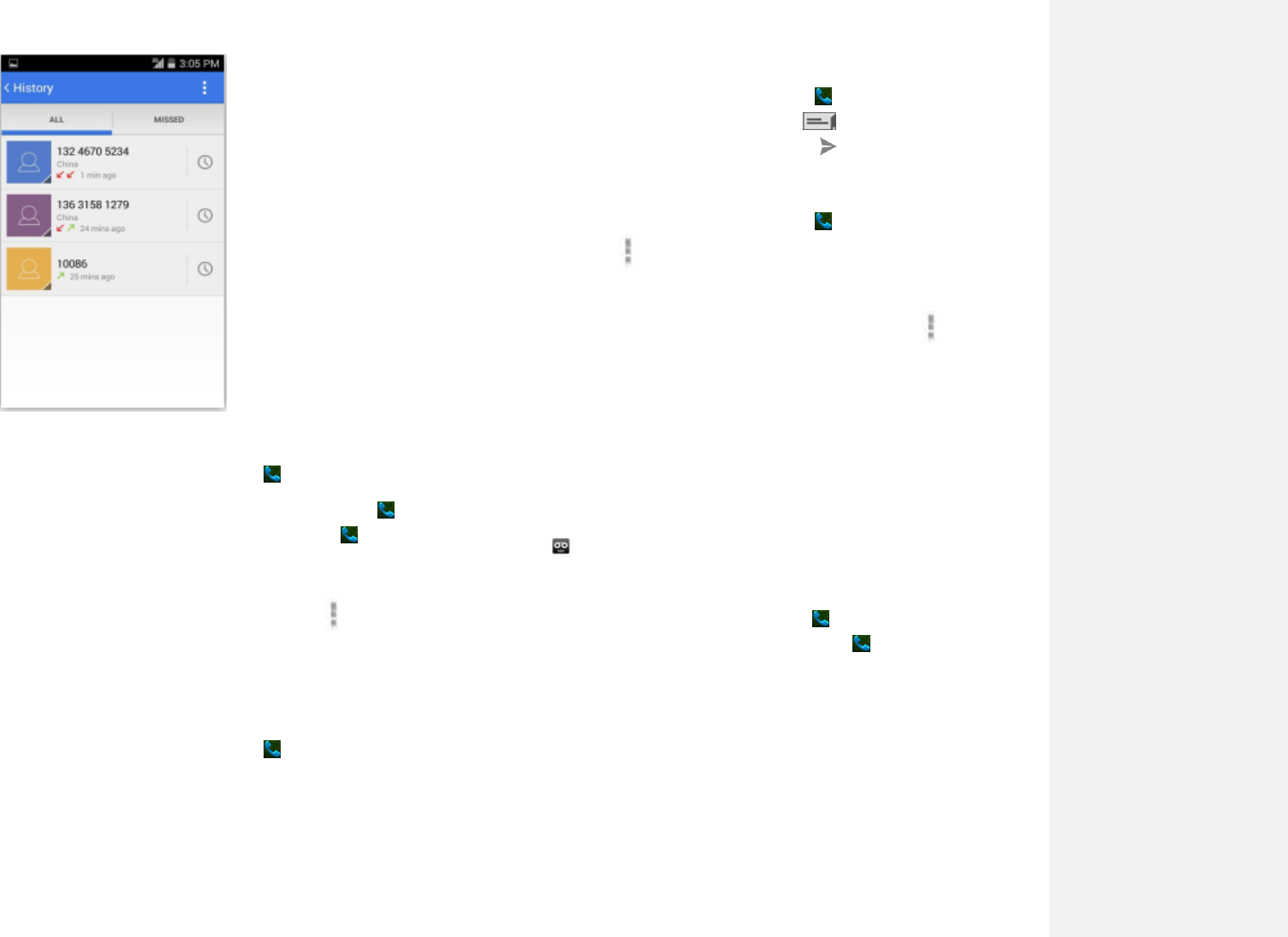
1. Opening the Call log
1. From the Home screen, tap Phone >Call log.
• Calls are listed with the most recent at the top.
Calls of the same phone number are grouped
together. Scroll to view earlier entries in the log.
NOTE You can tap and hold the desired number in the call log
list to select options such as Call, View contact, Edit
number before call, Send textmessage, Add to contacts,
Remove from call log.
Dial Pad
Tap Dial Pad to enter additional numbers
during your call.
Mute
You can unmute the microphone by tapping
Mute icon again.
Audio
You can turn the speakerphone off by tapping
the Speaker icon again.
The speaker is turned off automatically when
your current call ends.
Bluetooth
When a Bluetooth device is paired and
connected to your phone, you can conduct all
calls using Bluetooth for hands-free
conversation. When using Bluetooth headset
during a call, the current call screen has a blue
border and the Ongoing Call icon turns blue in
the Status bar.
Tap Bluetooth icon to toggle in-call audio to
and from the Bluetooth accessory.
21
2. Calling a number from the Call log
1. From the Home screen, tap Phone >MISSED Call log.
2. If you want to call a number directly ,tap at the right
of the entry.Or,select a contact > tap Dial
• If you want to edit a number before calling, tap
and hold the desired entry, and then tap Option>Edit
number before call.
3. Adding a phone number from your Call log
to your Contacts list
1. From the Home screen, tap Phone >MISSED Call log.
2. Tap and hold the desired entry >Add to contacts.
3. In the list of contacts that opens, tap Create new
contact or add to an existing contact.
4. Tap Done.
4. Sending a text message from the Call log
1. From the Home screen, tap Phone >MISSED Call log.
2. Tap and hold the contact > Send text message.
3. Enter your message and tap to Send.
5. Clearing the Call log
1. From the Home screen, tap Phone >MISSED Call log.
2. Tap Option>Clear call log >OK.
• To remove just one entry from the Call log, tap and
hold the entry. In the pop up menu, tap
Menu>Remove from call log.
Listening to Your Voicemail
Voicemail application is displayed only when phone calls
are available. When you have a new voicemail message,
appears in the Status bar.
1. Calling your voicemail from the Dial Pad
1. From the Home screen, tap Phone.
2. Tap your phone number and tap Dial.
2Calling your voicemail from the Notification
panel
1. Open the Notifications panel and tap” New voicemail”.
Using Voice Dialer
22
You can use the Voice Search application or Voice Dialer
application to place a phone call by speaking the name of a
contact or a phone number.
1. From the Home screen, tap Apps >Voice Dialer.
• If you have a Bluetooth headset that supports
‚voice-recognition‛ or ‚voice-dialing,‛ you may be
able to open Voice Search by pressing and holding
your headset’s main button and dial by voice
using your headset. For details, see your headset
manual.
2. The Voice Dialer opens, listens for your spoken
instructions, and displays some hints for how to use it.
3. Say ‚Call‛ followed by the name of the contact to call.
• Or, follow one of the suggestions for dialing a number
or controlling your phone in other ways.
23
People
About People
People give you quick and easy access to the people you
want to reach. Contacts from Google accounts are also
downloaded and synced with the Contact list.
You can manage your communications with your
contacts via phone, messaging, and email without the
need to jump from one app to another.
Opening Your People
Open People to add, view, and communicate with
your friends and acquaintances.
1. From the Home screen, tap Apps >People.
• All of your contacts are displayed alphabetically in a
scrolling list.
• You can use the tab on the right hand side of
thescreen, or flick your finger up or down to
scroll quickly.
Getting Started
1. Adding a new contact
1. From the Home screen, tap Apps >People.
2. Tap .
3. If you have more than one account, select an account
then enter the information for the contact.
• Tap > select Take photo or Choose photo from
Gallery to add a picture.
• Enter your contact’s information.
4. Tap Done.
Saving a phone number from the Dial Pad
1. From the Home screen, tap Phone.
2. Enter the number >Tap Option>Add to contacts.
3. Tap Create new contact or an existing contact.
4. Enter the information for the contact>tap Done.
Storing a contact using Call log
1. From the Home screen, tap Apps >People.
2. Tap MISSED Call log >tap the number you want to
save >Add to contacts.
3. Tap Create new contact or select an existing contact.
4. If you have more than one account, tap the account
where you want to save the contact >enter the
information for the contact > tap Done
2. Importing / Exporting / Sharing contacts
Importing contacts from your microSD card
If you have contacts stored in vCard format on
themicroSD card, you can import them into Contacts on
your phone.
1. From the Home screen, tap Apps >People.
2. Tap Option>Import/Export.
3. Tap Import from storage.
4. If you have more than one account on your phone,
select the desired account.
24
5. Tap the option to Import one vCard file, Import
multiple vCard files or Import all vCard files on the
microSD card.
6. Tap OK to confirm. The contacts are imported
Exporting contacts to your microSD card
1. From the Home screen, tap Apps >People.
2. Tap Option>Import/Export.
3. Tap Export to storage.
4. Tap OK to confirm.
• This process creates a file containing all your contacts
with a .vcf extension on your microSD card.
Sharing visible contacts
1. From the Home screen, tap Apps >People.
2. Tap Option>Import/Export.
3. Tap Share visible contacts > Select Bluetooth,
Email, Gmail.
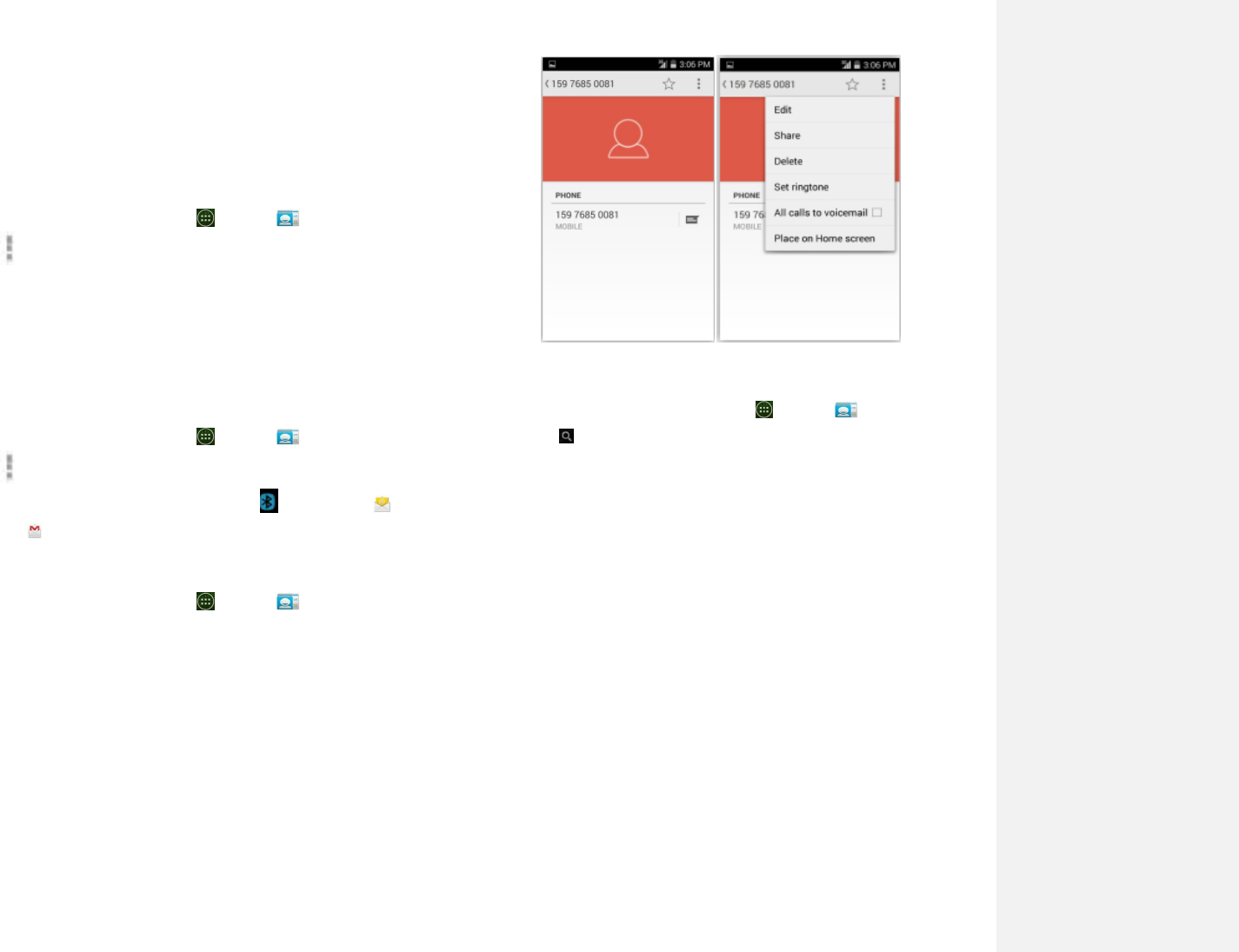
3. Viewing details about a contact
1. From the Home screen, tap Apps >People.
2. Tap the contact whose details you want to view.
3. Tap the communication icon to start dialing, texting, or
emailing the contact.
4. Search for a contact
1. From the Home screen, tap Apps >People.
2. Tap Search.
3.Start entering the contact’s name.
As you type, contacts with matching names appear
below the search box.
4. Tap the matching contact in the list to open.
25
Editing/Deleting Contacts
1. Editing contact details
1. From the Home screen, tap Apps >People.
2. Tap and hold the contact you want to edit >Tap
Option>Tap Edit contact.
3. Edit the contact information.
4. Tap Done.
2. Setting a contact’s default phone
number/email
Setting a contact’s default phone number
The default phone number is used when you initiate a
call or text message by tapping and holding a contact.
1. From the Home screen, tap Apps >People.
2. Find the desired contact > Tap and hold the phone
number to designate it as the default phone number.
3. Tap Set default.
• The default phone number is indicated with a
checkmark.
Setting a contact’s default email
The default email is used when you send an email from
the list by tapping and holding a contact.
1. From the Home screen, tap Apps >People.
2. Find the desired contact > Tap and hold the email
address to designate it as the default email address.
3. Tap Set default.
• The default email is indicated with a checkmark.
3. Setting a ringtone for a contact
1. From the Home screen, tap Apps >People.
2. Tap the desired contact.
3. Tap Option>Set ringtone.
• Tap a ringtone from the list to play when the contact
calls. A sample of the ringtone is played.
4. Tap OK.
4. Adding a contact to your favorites
1. From the Home screen, tap Apps >People.
2. Tap and hold the desired contact >Tap .
• To remove a contact from your favorites list, tap
People>tapand hold the contact .
5. Joining contacts
1. From the Home screen, tap Apps >People.
2. Tap the contact you want to save. The others will
merge into this file. This is the contact you will see in
contacts after joining.
3. Tap Option>Edit >Tap Option>Join.
4. Tap the contact you want to join with the first contact.
The information from the second contact is added to
the first contact, and the second contact is hidden.
6. Deleting a contact
1. From the Home screen, tap Apps >People.
2. Tap the contact you want to delete, tap
Option>Delete.
3. Tap OK.

26
Communicating
1. Sending text message
1. From the Home screen, tap Apps >People.
2. Tap and hold the contact you want to send >tap .
• The Primary Phone Number is used, or you
are prompted to choose a phone number.
2. Making calls
1. From the Home screen, tap Apps >People.
2. Tap and hold the contact to call >tap the number.
• The Primary Phone Number is used, or you are
prompted to choose a phone number.
3. Connecting by using Quick Contact
1. From the Home screen, tap Apps >People.
2. Tap the icon or photo next to your desired contact >tap
the desired communication method.
•Only the icons relevant to your contact’s data
are displayed.
•If there are too many icons to fit on the screen, drag
to the left or right to select an icon.
Account Setting
1. Working with Google accounts
1. From the Home screen, tap Apps >People.
2. Tap Menu>Accounts.
• After registering your Google account, your online
Google contacts are synchronized to your phone.
Changes made online or on the phone are
automatically synchronized and updated in both
locations. This address book will be used
throughout the user interface.
• If you register two or more accounts, you can merge
address books from the multiple accounts into one
address book.
2. Contact List Display Options
1. From the Home screen, tap Apps >People.
2. Tap Option>Contacts to display.
• Only contacts with phones: Only contacts with phone
numbers are shown in the contacts list.
• Sort list by: Select First name or Last name.
• View contact names as: Select First name first or Last
name first.
• Choose contacts to display: Tap an account to open its
list of groups. Check or uncheck the groups you want
to display in the contact list.
27
Messaging
About Messaging
Use Messaging to send text messages (SMS) and multimedia
messages (MMS) to other mobile phones and email addresses.
1. From the Home screen, tap Apps >Messaging.
On the Messaging screen, your sent and received
messages are neatly grouped into conversations, by
contact names or phone number. You can:
• Scroll up or down the list of conversations by flicking your
finger on the screen.
• Tap a contact name or number to view the conversation
history.
• Tap the photo or to open additional menu options.
Sending Messages
1. Sending a Text Message
NOTE Depending on your billing plan, if you exceed the single
text message character limit, you will be billed for multiple
messages.
1. From the Home screen, tap Apps >Messaging.
2. Tap Create New message.
3. Enter the phone number in the Tofield. Fill in one or more
recipients. You can:
• Enter the first few letters of a contact name or phone
number. Matching contacts are displayed. Continue typing
or tap a name or phone number from the search results.
• Tap > Select message recipients from your contact
list >Ok.
4. Tap Type message>enter your message.
• Tap Menu to see more options.
28
Add subject
Add subject.
Attach
Attach Media Files or a Slideshow
within the message.
Send
Send the message.
Insert smiley
Insert a smiley in the message.
Discard
Delete the message in progress.
Import Temple
Some default text
5. Tap to Send.
• Tap Back to save the message as a draft.
NOTE Your text message automatically becomes a multimedia message on
below condition:
• Add subject
• Attach an item
2. Sending a multimedia message (MMS)
To compose a multimedia message, start by creating a new
text message. Then simply add an attachment.
1. From the Home screen, tap Apps >Messaging.
2. Tap Create New message.
3. Enter the phone number in the Tofield. Or select recipients
from the contact list.
4. Tap Type message> enter your message. Tap to add the
message template.
5. Tap Attach > choose the type of attachment.
Pictures
Select a photo.
Capture picture
Capture a new photo.
Videos
Select a video.
Capturevideo
Record a new video.
Audio
Select an audio file.
Record audio
Record a new audio file.
Slideshow
Create a slideshow from up to 10
of your photos.
6. From the message body, tap:
• View: To view the attached item.
• Replace: To change attached files.
• Remove: To remove attached files.
7. Tap Send MMS.
29
• Tap Back to save it as a draft.
3. Resuming a draft message
1. From the Home screen, tap Apps >Messaging.
2. Tap the message indicated by ‚Draft‛ to resume editing.
3. When you finish editing, tap Send.
Reading Messages
1. From the Home screen, tap Apps >Messaging.
2. Tap a message thread.
3. Tap and hold an individual message to see more options.
Lock/Unlock message
To lock/unlock a message.
Call ***
To call the message sender. (Only
on incoming messages)
Add *** to Contacts
To save the phone number or email
address to Contacts. (Only on
incoming messages)
Forward
To forward a message. Enter a
recipient, edit the content of the
message as needed >tap Send.
Copy message text
To copy text from a message.
View message details
To view details about a message.
Delete message
To delete a message.
1. Deleting a message thread
1. From the Home screen, tap Apps >Messaging.
2. Tap and hold the message thread, tap Option
>Delete thread.
• If you want delete all message threads, tap
Option>Delete all threads.
3. Tap Delete.
2. Searching messages
1. From the Home screen, tap Apps >Messaging.
2. Tap Search to search.
3. Enter the search term >tap Search.
3. Replying to a message
1. From the Home screen, tap Apps >Messaging.
30
2. Tap the received message > tap Type message> enter your
message.
3. Tap Send.
Receiving Emergency Alerts
Messages
Emergency Alerts service allows you to receive automatic alerts
in times of crisis (e.g., earthquake, hurricanes, etc.). Wireless
Emergency Alerts (WEA), also known as CMAS, is a part of a
national alerting system called IPAWS (Integrated Public Alert
and Warning System) that enables emergency management
officials to rapidly disseminate the warnings and safety
information via text alerts to wireless phones based on the
phones’ geographic location, The Federal Emergency
Management Agency or FEMA is responsible for receiving the
alerting information and forwarding the alerts to participating
wireless carriers such as Sprint. Such alerts may come from the
President of the United States; the National Weather Service,
state or county public safety officials. This system is integrated
into the same national alerting services that serve television and
radio today.For more information regarding WEA/CMAS please
go to: FEMA website.
http://www.fema.gov/emergency/ipaws/projects.shtm#6
1. Receiving Emergency Alerts Messages
1. From the Home screen, tap Apps >Messaging.
2. Tap Emergency alerts message you want to
view.Emergency alert messages are indicated with
Emergency alert icon.
• If Emergency alert arrives on your phone during a call,
is displayed in the Status bar. If Presidential Emergency
Alert, emergency alert icon will flashes. If non-
Presidential, Emergency alert icon is static icon.
31
• Only the Presidential Emergency Alert icon is displayed
under the Time/Date on the unlock/lock screen.
• If you are on an Emergency alert message screen in
the Messaging application, the following options are
removed ordisabled :Reply, Forward, and Call.
• If you have power cycled your phone and a Presidential
Emergency Alert has not been viewed, the
PresidentialEmergency Alert icon will continue to flash
when the device is powered on again.
Changing Messaging Settings
1. From the Home screen, tap Apps >Messaging.
2. Tap Option>Settings.
1. Storage settings
Delete old
messages
Check to delete older messages in a
thread when messaging memory or
thread limits are reached. Uncheck to
keep all messages. You may need to
manually delete messages if the
messaging memorylimit is reached.
Text message
limit
Tap to set the number of messages to
save per message thread. When the limit
is reached, older textmessages are
deleted if ‘Delete old messages’ is
checked.
Multimedia
message
limit
Tap to set the number of multimedia
messages to save per message thread.
When the limit is reached,older
multimedia messages are deleted if
‘Delete old messages’ is checked.
2. Multimedia message (MMS) settings
Auto-retrieve
Uncheck to download only the heading
of multimedia messages. You will need
to tap the MMS message heading and
manually download each MMS
message. You may want to use this
feature when roamingor when
connected to a slow data network.
Number of
Retry
Attempts
Set number of retry attempts of
download if multimedia message
download fails.

32
3. Notification settings
Notifications
Check to be notified in Status bar
whenever you receive a new message.
Select ringtone
Select a ringtone to sound when you
receive new message notifications.
Vibrate
Set the phone to vibrate every time you
receive a new message notification,
only when silent mode, or never.
4. Receive Emergency Alerts
Emergency
Alerts
This setting cannot be changed.
Presidential
Presidential Emergency Alerts are always
displayed and this setting cannot be
changed.
Amber
Set to receive Amber Emergency Alerts.
Extreme me
Set to receive Extreme Emergency Alerts.
Severe alerts
Set to receive Severe Emergency Alerts.
Emergency
Alert Test
Set to receive Emergency Alert Test
message.

33
Google
Gmail
1. Opening your Inbox and Reading your Gmail
The inbox is your default Gmail view. All your received
emails are delivered to your inbox.
1. From the Home screen, tap Apps >Gmail.
2. Tap the email you want to read.
• Tap to star the email.
• If the sender is a friend in Google Talk, you can
see your friend’s online status.
• Tap Archive to archive the message.
• Tap Delete to delete the message from your inbox.
• Slid left and right to see the previous or next message in the
list.
Replying to or forwarding an email message
1. From the Home screen, tap Apps >Gmail.
2. When reading a message:
• To reply to the sender, tap .
• To reply to all message recipients, tap Option>Reply
all.
• To forward the message, tap Option> forward.
2. Sending a new email
1. From the Home screen, tap Apps >Gmail.
2. From any message list, tap .
3.Enter a name or address in the Tofield. To
send the email to several recipients,

34
separate each email address with a comma.
4. Enter a subject in the Subject field.
5. Type the message text in the Compose Mail field.
• To attach an image file, Tap Option>Attach file>select the
picture you want to attach.
6. Tap Send.
• To save the message as a draft, tap Option>Save draft.
3. Working with Multiple Email Messages
You can archive, delete or label groups of email messages at
the same time.
1. From the Home screen, tap Apps >Gmail.
2. From any message list, check the box next to the email
messages you want to work with.
Tap Archive to move messages out of your inbox without
deleting. Archived emails are assigned the All Mail label.
• Tap Delete to delete selected messages.
• Tap Labels > select the labels that you want to assign >tap
OK.
4. Switching between Google accounts
If you have set up two or more Google Accounts on your
phone, you can switch between them in Gmail.Gmail displays
only one Google Account at a time. The current account is
shown at the top right of any message list.
1. From the Home screen, tap Apps >Gmail.
2. From any message list, tap Option>Accounts.
3. Tap the account that you want to view. You can also tap
the account name at the top of the screen to see a list of
your accounts.
5.Labeling email messages
You can organize your emails by label. Gmail has preset
labels. Or you can create your own labels in Gmail when
35
viewed on a computer. (Note: Custom label colors created on
the web are not supported on your phone).
Labeling an email
1. From the Home screen, tap Apps >Gmail.
2. When reading a message, tap >Change labels.
3. Select a label > tap OK.
6. Viewing emails by label
1. From the Home screen, tap Apps >Gmail.
2. From any message list, tap >Go to labels.
3. Tap a label to view matching email messages.
7. Starring/un-starring an email message
You can star an important email to make it easy to find again.
Starred emails are assigned the Starred labels.
1. From the Home screen, tap Apps >Gmail.
2. From any message list:
• Tap to star a message.
• Tap to un-star a message.
Maps
Use Maps to find your current location and get directions. You
can search for addresses, landmarks and businesses directly on
a street map or satellite image.
NOTE You need an active mobile data or Wi-Fi connection to use Maps.To
see your location and get directions, you must turn on location
services. From the Home screen, tap Apps >Settings >
Location services. Select one or both from Use wireless networks
or Use GPS satellites.Maps may not be available for all locations.
1. Opening and viewing Maps
Viewing your location
1. From the Home screen, tap Apps >Maps.
36
2.Shows your location on the map and points north for your
reference.
Using Maps
1. From the Home screen, tap Apps >Maps.
2. While viewing a map, swipe to any direction on the screen.
2. Viewing location details
Viewing information for a location
1. From the Home screen, tap Apps >Maps.
2. While viewing a map, tap and hold a location, starred place,
or a search result on the map.
• A balloon opens over the location, with summary
information.
3. Tap the balloon to see the address or more information.
Starring or un-starring a location
Add a Star to bookmark and easily return to a map location.
1. While viewing detail information for a location,
• Tap to star the location.
• Tap to un-star the location.
Viewing a location in Street view
Street view mode provides a street-level view of the location.
Street view may not be available for all areas.
1. From the Home screen, tap Apps >Maps.
2. While viewing detailed information for a location, tap .
• To view surrounding areas, swipe the screen in any
direction.
3. Searching for a location

37
You can search Google Maps for specific locations, company
names, or business types.
1. From the Home screen, tap Apps >Maps.
2. Tap Search.
3. Enter the search criteria. As you type, suggested matches
from your contacts, the web, and previously searched
items are displayed.
• Tap to search
• Tap a suggested search term.
4. The search results are displayed as markers with letter
labels on the map.
• Tap markers and titles to view more information.
• Tap to show the search results as a list >tap each item to
see more information.
4. Viewing map layers
Initially, Google Maps opens with a street map. You can
view additional map layers, such as satellite images and
traffic information. You can also view custom Web created
Google Maps.
1. From the Home screen, tap Apps >Maps.
2. Tap Option>Layers. A dialog opens with a list
of layers.
3. Turn layers on or off by tapping the layer name. A check
mark indicates the layer is selected.
• Tap Option>Clear Map to deselect all layers.
Layers may change the map entirely or overlay additional
information.Tap icons or interactive items to explore different
layer types.
5. Getting directions

38
1. From the Home screen, tap Apps >Maps.
2. Tap >Directions.
3. Use your current location as the starting point, or enter a
location in the Start point field.
4. Enter your destination in the End point field.
5. Tap or or to select your transportation method >
tap Get directions.
Calendar
The Calendar application data on your phone syncs with the
web-based Google Calendar service. It is also compatible
withMicrosoft Exchange ActiveSync Calendar.
1. Opening Calendar
1. From the Home screen, tap Apps >Calendar.
Events are color coded to enable you to distinguish
between multiple calendars. Events times are shown
using your local time zone, which is provided by your
active mobile network. When traveling, you may want to
set a home time zone in Calendar.
2. Creating an event
Events created on your phone will be synced to Google
Calendar or Microsoft Exchange automatically.
1. From the Home screen, tap Apps >Calendar.
2. There are two ways to create an event:
• Tap Option>New event.
• In Day, Week, or Month view, tap and hold the screen at
the date and/or time you want >New event.
3. Enter the name, time, location, description, and optional
additional details for your event.
• If you have more than one calendar, choose the calendar
to which to add the event.
39
• In the Guests field, enter email addresses of anyone you
want to invite. Separate multiple addresses with commas
(,). If your invitees use Google Calendar, they’ll receive
an invitation in Calendar and by email.
• If the event occurs on a regular basis, tap the Repetition
box and choose the reoccurrence information.
• You can set multiple reminders for an event.
4. Tap Done.
3. Viewing calendar and events
Changing calendar view
When you open Calendar, Month view is shown by default.
You can also view the Calendar by Agenda, Day, or Week.
1. From the Home screen, tap Apps >Calendar.
2. Tap Option>Settings>General settings choose the type of
view that you want
Day
Displays a chart of the events of one day,in a
table of one-hour rows,ALL-day and multiday
events are displayed at the top.Each event is
displayed at the corresponding time.Swipe left or
right to change dates,and swipe up or down to
view earlier or later times.
Week
Displays one week calendar. All-day and
multiday events are displayed at the top. Swipe
left or right to change weeks, and swipe up or
down to view earlier or later times.
Month
Displays a chart of the events of the month.
Events are shown as blue bars on each calendar
date. Swipe left or right to change months.
Agenda
A list of your events in chronological order.
All-day and multiday events are listed at the
start of each day. Days without events are
not shown. Flick up or down to view earlier
or later events.
Today
Displays a chart of the events of today.
Option
You can select New event, Calendars or Settings.
40
Viewing event details
• In Day, Week, or Agenda view, tap an event.
• In Month view, tap a day to switch to Day view >
tap an event.
4. Editing or deleting an event
1. In event details view, press the event>Edit event to edit
the event.
2. Make your changes to the event > tap Done.
• To delete the event, press the event>Delete event > tap
OK.
5. Synchronizing and displaying calendars
You can select which calendars to show or hide on your
phone’s Calendar, and which ones to synchronize.
1. From the Home screen, tap Apps >Calendar.
2. Tap Option>Calendars to display.
All the calendars you’ve added or subscribed to are
displayed. (Calendars for accounts you’ve configured not
to synchronize are not included in the list.)
3. Tap the icon next to a calendar to change storage and
visibility settings.
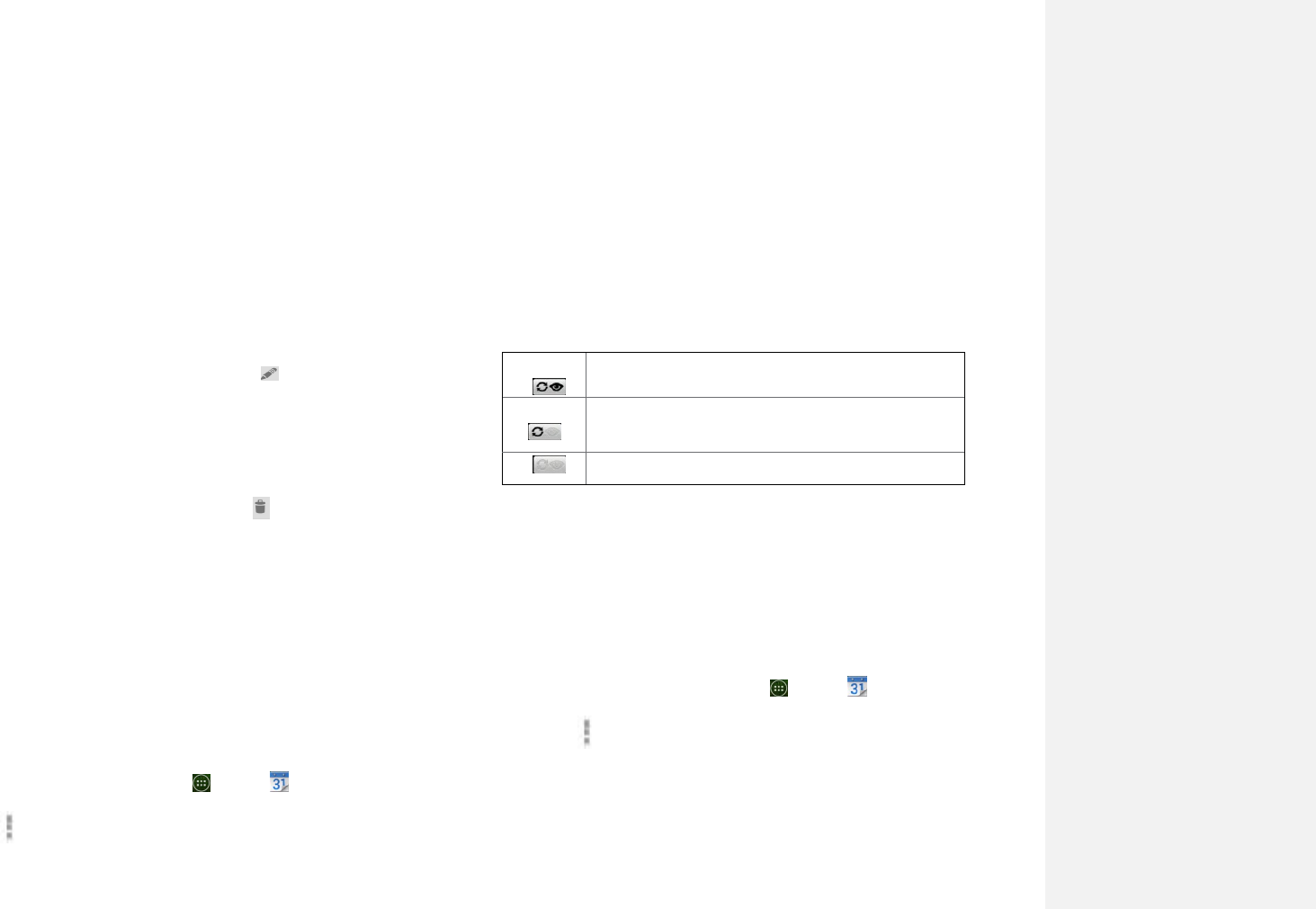
Calendar events stored on phone and visible in
Calendar.
Calendar events stored on phone but not visible
in Calendar.
Calendar events not synchronized to phone.
4. Tap OK.
6. Changing Calendar settings
1. From the Home screen, tap Apps >Calendar.
2. Tap Option>Settings.
41
Pl
ay
M
us
ic
Play
mus
ic
and
audi
o files with Music application.
NOTE You need to copy music files to your microSD card to use the Music
application.
1.Viewing your music library
1.From the Home screen, tap Apps >Play Music
2. You can select library to open at the bottom of the screen.
• You can view the lists of music in the microSD card.
Calendar
view
setting
Hide declined
events
Check if you don’t want to see
events to which you’ve declined
invitations.
Use home time
zone
Displays calendars and event
times in your home time zone
when traveling.
Home time zone
If Use home time zone is checked,
you can set home time zone.
Week
number
setting
Display week
number
Check if you want to see week
number in Calendar.
First week of
year
If Display week number is
checked, you can set first week of
year.
Reminder
settings
Set alerts &
notifications
Configure event reminders.
Select ringtone
Select which ringtone will sound
when you receive an event
reminder.
Vibrate
Configure the phone to vibrate
whenever you receive an event
reminder.
Default reminder
time
Select the default reminder time
used when creating new calendar
events.
42
• The lists are automatically organized according
information contained in the music files. To view each
list of music, you can tap the corresponding category;
Artists, Albums, Songs ,Playlists or Genres.
Google Play Store
Google Play Store provides direct access to applications and
games to download and install on your phone. To access Google
Play Store, you must first sign into your Google account using a
Wi-Fi or data connection. When you open Google Play Store for
the first time, you must read and accept the terms of service to
continue.
1.Finding applications
1.Browsing applications
You can browse and sort applications by category.
1. From the Home screen, tap Apps >Play Store.
2. Tap GAMES, BOOKS & REFERENCE, BUSINESS or
COMICS, etc. at the left of the Market screen.
• Scroll to view subcategories and tap one to explore.
3. Tap the subcategory you want.
2.Searching for applications
1. From the Home screen, tap Apps > Play Store.
2. Tap at the top right of the screen to search apps.
3. Enter the name or type of app you’re looking for >tap
to search.
3.Viewing details about an application
1. While browsing Google Play Store, or in a list of search
results, tap an application to view more details.
Application details screens include a description, ratings, and
specific information about the application. The Comments tab
43
includes comments from people who have used the application.
You can download and install an application from this screen.
2.Installing applications
1.Installing an application
1. From the Home screen, tap Apps > Play Store
2. Find the application you want to purchase and view the
application details.
3. Tap Download to download and install the application.
For paid applications, the download button is labeled with
the application’s price. Tap the price to buy the
application.The subsequent screen notifies you whether the
app will require access to your personal information or
access to certain functions or settings of your phone.
1.Tap Accept & download to begin downloading and
installing the app. If you selected a paid app, you will be
redirected to the Google Checkout screen to pay for the
app before it’s downloaded to your phone.
NOTE Be cautious when downloading apps that have access to phone
functionality or a significant amount of personal data. You’re
responsible for the results of using downloaded apps on your
phone.
2.Creating a Google Checkout account
You must have a Google Checkout account
to purchase items from Google Play Store.
You can set up a Checkout account with your first
purchase from Google Play Store.
• In a web browser, go to http://checkout.google.com to
create a Google Checkout account.
• From the phone, you will be prompted to enter your
billing and credit card information when you buy your
first application from Google Play Store.
44
NOTE Once you’ve purchased something from Google Play Store,
the phone remembers your password, so you don’t need to
enter it the next time. Be sure to secure your phone with a
password to prevent unauthorized purchases.
3. Managing your downloads
1.Viewing downloaded applications
1. From the Home screen, tap Apps > Play Store
2. Tap Option>My Apps.
In the list of the free and paid applications that opens, you
can tap an application to rate it, uninstall it, request a
refund, and more.
2. Updating an application
You can update downloaded applications.
1. From the Home screen, tap Apps > Play Store.
2. Tap Option>My Apps > tap the application to update.
3. Tap Update >Accept & download.
4. Tap the explanation that best matches why you’re
installing > tap Open or press Back.
The application is installed. You can uninstall the
application again at any time. If you paid to buy the
application, you will not be charged again.
3. Uninstalling an application
You can uninstall applications from Google Play Store. You
can also uninstall downloaded applications from the Settings.
1. From the Home screen, tap Apps > Settings> Apps.
2. TapManage apps>DOWNLOADED> tap the application to
uninstall.
3. Tap Uninstall >OK.
4. Tap the explanation that best matches why you’re
uninstalling > tap OK.

45
The application is uninstalled. You can install the application
again at any time. If you paid to buy the application, you will
not be charged again.
Play Books
You can search books you want and enjoy reading books on
your phone with Books application.If you aren’t signed in to
your Google account, you must first sign into your Google
account using a Wi-Fi or data connection to access Books.
1. Opening Books
1. From the Home screen, tap Apps >Play Books.
2. Tap the book you want to read.
• Tap Option>Sort order to sort the books by Date, Title
or Author.
• Tap Option>Manage library to remove a book from the
My eBooks shelf or manage your downloaded books.
• Tap Option>Refresh to refresh the current page.
• Tap Option>Accounts to select the desired account or
add account.
2. Finding books
1. Browsing Google Play Store
1. From the Home screen, tap Apps >Play Books.
2. Tap Option>tap shop to open Google Play Store.
3. Tap at the top right of the screen.
4. Enter the title, author or keyword of the book you want >tap
.
5. Scroll through the search results and tap a book to view
details about the book.
2. Searching for books
1. From the Home screen, tap Apps >Play Books.
2. Tap at the top right of the screen.
3. Enter the title or author of book you’re looking for >tap .
46
4. Scroll through the search results from My eBooks or Google
eBooks.
3. Reading a book
1.Viewing contents of the book
1. While reading a book, Tap Option>Contents.
2. Scroll through the contents of the book and tap the chapter
you want to read.
• Tap the screen to see the title and author of the books
on the top of the screen and the controls. Drag the
slider to go directly to a specific chapter of a book.
2. Changing reading settings
1. While reading a book, Tap Option>Settings.
2. Set Text size, Line space, Typeface, Justification, Themes
or Brightness.
3. Going to original pages
1. While reading a book, Tap Option>Original pages.
2. You can read the original pages of the book.
• Tap Option>Flowing text to return to the text mode.
4. Searching in the book
1. While reading a book, tap .
2. You can search words in the book.
5. Sharing a book
1. While reading a book, tap Option>Share.
2. Select Bluetooth, Email, Gmail.
6. Using other functions
1. While reading a book, tap Menu.
2. Tap My library or Help.
• My library:Scroll through the books you downloaded and
tap a book to read it.
• Help: Tap one of the items shown below:
Quick tips
You can see quick tips for using Google Books
on Android.
47
Help center
You can learn how to make the most of Google
Books on Android.
Contact us
You can get help with issues reading Google
Books on your Android device.
Report a
problem
You can report a problem about typo or other
error in a book.
4. Books settings
Customize your Books settings to optimize your reading
experience.
1. From the Home screen, tap Apps >Play Books.
2. Tap Option>Settings.
Storage location
Setting the location to store your
books. You can select microSD card
or internal storage.
About
Show the version of Books application on
your phone.
Terms of Service
Read the Mobile Terms of Service.
Privacy Policy
Read the Mobile Privacy Policy.
Open source
licenses
Check out license details for open source
software and fonts.
Web
Email
The Email application is used to read and send email from
services other than Gmail. The Email application includes a
wizard enabling easy setup for several popular email service
providers.
1. Email Account Setup

48
1. Initial setup
1. From the Home screen, tap Apps >Email.
2. Enter the Email address and Password for your email
account >Next.
If you're adding a second or subsequent email
address,you can also check the option to usethe new
account to send all outgoing messages.
3. Touch Next.Or if you need to enter email account
settings the wizard can't configure for you, touch
‚ Manual setup”.
If you touch Next email attempts to communicate with
your email service provider to validate your account for
sending and receiving mail, using just your email address
and password.
Depending on the service provider, you may be asked
what kind of email account you have. If you're not sure,
check the settings in the application you use to send and
receive email on your computer, or ask your email service
provider
If the wizard determines that your service provider
requires other information, or if you touched Manual
setup, you're prompted to enter your email account
details. Refer to the
settings used by your computer-based email application
or your email service provider's support resources.
4. Enter a name for the account, confirm how you want
your name to appear in outgoing mail, and touch Done.
Email starts downloading your email messages and you
can start using it to send and receive messages using the
new account.

49
2. Adding an additional email account
You can add one or more email accounts to your phone.
1. From the Home screen, tap Apps >Email.
2. Tap Option>Accounts.
3. Tap Option>Add account.
4. Repeat the steps to add an account as described in Initial
setup above.
3. Deleting an email account
1. From the Home screen, tap Apps >Email.
2. Tap Option>Accounts.
3. Tap and hold the account >Remove account.
4 .Refreshing an email account
1. From the Home screen, tap Apps >Email.
2. Tap Option>Refresh.
• If you have several email accounts, you can refresh them all
at the same time.
From any message inbox, tap
Option>Accounts >Combined Inbox >Refresh.
2. Reading an email
You can read messages in your Combined Inbox or individual
account folders.
1. From the Home screen, tap Apps >Email.
• Tap Optionto see more options.
2. Tap an email you want to read.
• Tap Optionto see more options.
1.Replying to a message
1. While reading an email, select Reply or Reply all.
• A Compose Message window opens with recipient
addresses, and subject line pre-populated. A copy of the
50
originalmessage is quoted below the message body text
box.
2. Compose your response and tap Send.
2.Forwarding a message
1. While reading an email, tap Option>Forward.
2. Address the email, enter a subject, and type your message
in the appropriate text fields.
3. Tap Send.
3. Deleting a message
1. While reading an email, tap Delete.
3. Sending a new email
1. From the Home screen, tap Apps >Email.
2. Tap to create new email.
3. Enter a name or email address in the Tofield. If you are
sending the mail to several recipients, separate the
email addresses with a comma ‚,‛.
• As you enter text, matching addresses are suggested from
your Contacts list.
• Tap Option>Add Cc/Bcc to add additional recipient field
types.
4. Enter a Subject and type your message.
• To attach an image file, tap > select the picture you want
to attach.
NOTE The attachable file size is limited to 5 MB.
5. Tap Send.
• To save an unsent email message on your phone, tap Save
as draft.
• To cancel an email message, tap Discard.
51
4. Starring/un-starring an Email
You can star an important message to find it easily later. Once
you start a message, a Starred folder is added to the Accounts
screen.
1. From any email list or while reading a message:
• Tap to star the message.
• Tap to un-star.
5.Working with Email Messages
1. Viewing starred messages
1. From the Home screen, tap Apps >Email.
2. Tap Option>Accounts >Starred.
2. Resuming a draft email message
1. From the Home screen, tap Apps >Email.
2. Tap Option>Folders or Accounts >Drafts.
3. Tap an email you want to resume > finish editing the
message.
4. Tap Send.
3. Viewing individual account folders
1. From the Home screen, tap Apps >Email.
2. Tap Option>Accounts > select to view individual account
folders. Select any folder to open, view, or edit contents.
6. Email account settings
1. From the Home screen, tap Apps >Email.
2. Tap Option>Account settings.
General
settings
Account name
The name of the account as
it appears in the Accounts
a Folders screens.
Your name
Your name shown in
outgoing messages.
Signature
Enter a signature to
append to messages sent
from this account.
52
Inbox check
frequency
Set how often the phone
will for new email sent to
this account.
Download
Options
You can select Head Only,
1k, 5k, 25k, 50k, 100k, 1M
or All.
Default
account
Check it to set this account
as the ‘default’ account for
outgoing messages.
Notification
settings
Email
notifications
Check it to receive
notifications when new
messages are received in
this account.
Select ringtone
Select a notification
ringtone.
Vibrate
Select to configure
vibration notifications
when new emails arrive in
this account.
Server settings
Incoming
settings
Configure Incoming server
settings for this account.
Outgoing
settings
Configure Outgoing server
settings for this account.
3. Press Back to save changes.
NOTE Web services (Email, Browser, YouTube, etc.) are a data-intensive
feature.
Browser
Search for information or browse webpages using the
Browser. To access the internet, you must have an active
data or Wi-Fi connection.
1. Opening Browser
1. From the Home screen, tap Apps >Browser.
• When you open the Browser, the default homepage
is displayed. If you have used the Browser recently,
your most recently viewed webpage is displayed.
• The Browser also opens when you select a web link in other
applications like email or text messaging.
2. Accessing a webpage or searching the web
1. From the Home screen, tap Apps >Browser.
2. Tap the URL field on top of the screen.

53
3. Enter the URL of a webpage or search term and tap ‚Go‛.
• As you type, suggestions of webpages and key words
will appear on the screen. Tap a suggestion to go
directly to that webpage or view search results.
3. Using Browser options
1. Stopping page loading
While webpage is loading, tap Option>Stop. Or tap on
the left of the URL field.
2. the current page
Tap Option>Refresh.
3. Finding the text on the current page
1. While viewing any webpages, tap Option>Find on page.
2. Enter the search term.
• As you type, matching characters will be highlighted.
Tap ∧or ∨to scroll to the previous or next matching
term.
4.Sharing a webpage
1. While viewing any webpages, tap Option>Share page.
2. Tap an application to send the URL. The application opens
with the URL you’ve entered.
4. Downloading files
You can download images, files, and applications from
webpages. All downloaded files are saved to the microSD card.
1. Tap and hold an image, a link or a file you want to
download.
2. Tap the desired action (Save image, View image, or Set as
wallpaper).

54
1. Navigating between webpages
• Press Back to return to the previous webpages.
Or tap Option>Forward if you pressed Back by
accident.
2. Switching between Browser windows
1. From any webpages, tap Option>Bookmarks>tap
HISTORY.
2. Tap the window to view it full screen. You can also tap to
close a window.
NOTE You can have up to 8 browser windows open at one time.
5. Using bookmarks
Browser bookmarks are stored shortcuts which allow you to
quickly access webpages without having to type in its full
address.
1. Bookmarking a webpage
1. While viewing webpages, tap Option>Save to
bookmarks.
2. Edit the name or location if needed >tap OK.
2. Opening a bookmark
1. When viewing any webpages, tap Option>Bookmarks.
2. Tap a bookmark to open it.
• If you prefer to open the webpages in a new window,
tap and hold the bookmark and tap Open in new tab.
3. Editing a bookmark
1. From any webpages, tap Option>Bookmarks.
55
2. Tap and hold the bookmark to edit >Edit bookmark.
3. Edit the name and/or location >tap OK.
4. Deleting a bookmark
1. From any webpages, tap Option>Bookmarks.
2. Tap and hold the bookmark to delete >Delete
bookmark >OK.
6. Browser settings
Customize your browser settings to optimize your browsing
experience.
1. From the Home screen, tap Apps >Browser.
2. Tap Option>Settings.
General
settings
Set home page
Select the home page
Form auto-fill
Fill out web forms with a single
touch
Auto-fill text
Set up text to auto-fill in web
forms
Clear cache
Tap it you can clear locally
cached content and databases
Privacy &
Security
Clear history
You can clear the browser
navigation history
Show security
warning
If you tap it ,it will show warning
if there’s a problem with a site’s
security
Accept cookies
Allow sites to save and read
cookie data
Privacy &
Security
Clear all cookie
data
Delete all cookie data
Remember form
data
Remember what you enter in
form fields
Clear form data
Delete all the information the
browser remembered
Enable location
Allow sites to request access to
your location
Clear location
access
Delete location access for all
websites
Remember
passwords
Save your passwords for some
webpages that require you to sign
in.
Clear passwords
Delete all saved passwords
Accessibility
settings
Force enable
zoom
Override a website’s request to
control zoom behavior
TEXT SIZE
Text scaling ,Zoom on double-tap
and Minimum font size
INVERTED
SCREEN
RENDERING
Making the black becomes white
and vice versa
Set search engine
You can choose Google, Yahoo,
Bing Etc to browse the web
56
Advanced
settings
Open in
background
Tap to open new tabs behind the
current tab
Enable
JavaScript
Allow JavaScript to run on
webpages.
Website settings
Set for individual websites.
Reset to default
Restore default settings
Bandwidth
management
Search result
preloading
Allow browser to pre load high
confidence search results in the
background
Bandwidth
management
Load images
Display images on web pages
Labs settings
Fullscreen
Use full screen mode to hide the
status bar
Slide Tab
Transitions
Swipe from the edge to reveal the
next/previous tab in the list
YouTube
YouTube is Google’s online video streaming service
for viewing, discovering, and sharing videos.
1. Opening and signing into YouTube
1. Signing into YouTube
You can discover and watch YouTube videos without a
YouTube account, but if you want to take advantage of
many YouTube features, you must sign into your
YouTube account.
1. From the Home screen, tap Apps >YouTube.
2. Tap Option>Sign in
The first time you use a YouTube feature that
requires an account, you’re prompted to sign in.
Create a new account or enter your YouTube sign in
information if you already have an account.For more
information about YouTube accounts, visit YouTube
on the web.
2. Finding videos
1. Browsing videos by category
1. From the Home screen, tap Apps >YouTube.
2. Tap YouTube Trending
3. Tap a category in the scrolling list.
57
• Tap the current time filter setting at the top of the
category screen to change the time period and reduce
the number of videos listed.
• Tap Most viewed, Top rated, Most discussed or Top
favorite.
2. Searching for videos
1. From the Home screen, tap Apps >YouTube.
2. Tap Search.
3. Enter the search criteria >tap to search.
4. Scroll through the search results and tap a video to watch it.
3. Watching videos
1. From the Home screen, tap Apps >YouTube.
2. Tap a video to begin playback.
• Tap the video to pause or resume playback.
• Tap Info, Related videos or Comments to learn more
about the video.
• Rotate your phone to watch the video in full-screen
view. You can also double-tap the video to toggle full-
screen view on and off.
Add to
Watch later
Bookmark the video to watch it later.
Favorites
Add the video to your Favorites.
New
playlist
Add your new playlist.
Share
Share the video via Bluetooth, Email, Gmail
4. Uploading videos
1. To shoot and upload a new video
1. From the Home screen, tap Apps >YouTube.
2. Tap . The Camera will open in video mode.
3. Tap to start recording > tap to stop recording.
4. Enter a title for the video and more details > tap Upload.
2. To upload an existing video
58
1. From the Home screen, tap Apps >YouTube.
2. Tap Option>Upload. The Gallery will open.
3. Tap the video you want to upload.
4. Enter the title for the video and more details >tap Upload.
5. Sharing videos
1. From the Home screen, tap Apps >YouTube.
2. Tap a video to play.
3. Tap Share.
4. Tap the application you want to use to share the video.
6. YouTube settings
You can change the following settings for YouTube on your
phone.
1. From the Home screen, tap Apps >YouTube.
2. Tap Option>Settings.
General
settings
High quality on
mobile
Check if you prefer to watch
videos in high resolution by
default when connected to
mobile networks. Watch
videos in standard mode to
reduce startup time and data
use. This setting has no effect if
you are connected to a Wi-Fi
network, where videos are
always shown in higher
resolution.
Caption font size
Set the preferred text size when
viewing video captions.
Uploads
Specify network preferences for
uploads.
Search
settings
Clear search
history
Remove previous YouTube
video search results.
SafeSearch
filtering
Select if you want Google
SafeSearch filtering to block
some results when you search
for videos. Settings are: Block
no search results (Don’t
filter), only explicit or
offensive videos (Moderate),
or both explicit and offensive
text and videos (Strict)
.
Preloading
Preload
subscriptions
Enable preload to fetch videos
in advance while on Wi-Fi and
charging, so you can enjoy
watching them later on slow
networks
Preload watch
later
Help
Open the YouTube Help Center
in your phone’s Browser.
59
About
Feedback
Open a YouTube feedback form
in your phone’s Browser.
Google Mobile
Terms of
Service
Display the Google Mobile
Terms of Service.
YouTube Terms
of Service
Display the YouTube Terms of
Service.
Google Mobile
Privacy Policy
Display the Google Mobile
Privacy Policy.
YouTube
Privacy Policy
Display the YouTube Privacy
Policy.
Application
version
The YouTube application
version number installed on
your phone.
Wi-Fi
1. Turning Wi-Fi on and connecting to a wireless
network
1. From the Home screen, tap Apps >Settings.
2. Tap Wireless & networks >Wi-Fi.
3. Select the Wi-Fi check box to turn Wi-Fi on.
4. The network names and security settings of detected Wi-Fi
networks are displayed.
5. Tap a Wi-Fi network to connect.
• If you selected a network that is secured, enter the security
key and then tap Connect. Depending on the network
type and security settings, you may also need to enter
more information or choose a security certificate.
2. Connecting to a Wi-Fi network with EAP-TLS
security
You may need to install a network certificate to your phone
before you can connect to a Wi-Fi network with EAP-
TLSauthentication protocol.
1. Save the certificate file to the root folder of the microSD card.
2. From the Home screen, tap Apps >Settings.
3. Tap security >Install from SD card.
4. Select the network certificate needed to connect to the EAP-
TLS network.

60
5. After the certificate is installed, follow the steps in the
previous section to connect to the Wi-Fi network.
3. Checking wireless network status
1. From the Home screen, tap Apps >Settings.
2. Tap Wi-Fi.
3. Tap the wireless network that the phone is currently
connected to.
A message box is then displayed showing the Wi-Fi network
name, status, speed, signal strength, and more.
4. Connecting to another Wi-Fi network
1. From the Home screen, tap Apps >Settings.
2. Tap Wi-Fi.
3. Detected Wi-Fi networks are displayed in the Wi-Fi
networks section. To manually scan for available Wi-Fi
networks, on the Wi-Fi settings screen, tap Scan.
• To set advanced settings, on the Wi-Fi settings screen, tap
Option>Advanced.
4. Tap another Wi-Fi network to connect to it.
Downloads
Images, files and other items you download in Browser,
Gmail,Email is stored on your phone. You can view, manage
or delete what you have downloaded.
1. Opening Downloads
1. From the Home screen, tap Apps >Downloads.
2. Tap an item you want to view it.
• Check the checkbox of the item you want to delete and then
tap Delete.
• Tap Option to select Sort by size or Sort by date.

61
2. Viewing a file
1. From the Home screen, tap Apps >Downloads.
2. Tap the file you want to open.
• Turn your phone left or right to view the file in upright
(portrait) or sideways (landscape) orientation.
3. Working with files
1. From the Home screen, tap Apps >Downloads.
2. Tap the file you want to manage.
3. Tap Option toShare, Delete.
• Tap Share to share the selected file.
• Tap Delete to delete the selected file.
Bluetooth
Using Bluetooth
Bluetooth is a short-range wireless communications technology
that devices can use to exchange information over a distance of

62
about 30 feet. The most common Bluetooth devices are
headphones, hands-free car kits, and portable devices,
including laptops and cell phones.
1. Turning Bluetooth on or off
1. From the Home screen, tap Apps >Settings>Bluetooth.
2. Check or uncheck Bluetooth to turn it on or off.
2. Changing the phone’s Bluetooth name
The phone name identifies your phone to other devices.
1. From the Home screen, tap Apps >Settings.
2. Tap Bluetooth.
3. If Bluetooth isn’t turned on, check Bluetooth to turn it on.
4. Tap Option>Rename phone>Enter the name for your
phone in the dialog box >OK.
3. Pairing your phone with a Bluetooth device
1. From the Home screen, tap Apps >Settings.
2. If Bluetooth isn’t turned on, check Bluetooth to turn it on.
3. Tap Bluetooth >Search for devices. A list of nearby
Bluetooth devices is displayed.
4. Tap the ID of the other device to pair them.
4. Connecting to a Bluetooth device
Once paired, your phone will automatically connect
whenever it detects a paired Bluetooth device. You can
also manually connect Bluetooth devices as follows:
1. From the Home screen, tap Apps >Settings.
2. If Bluetooth isn’t turned on, check Bluetooth to turn it on.
3. Tap Bluetooth >Search for devices.
4. When the phone and the device are connected, the device is
displayed as connected in the list.
Disconnecting or Un-pairing from
a Bluetooth Device
1. Disconnecting a Bluetooth device
63
1. From the Home screen, tap Apps >Settings.
2. Tap Bluetooth.
3. In the Bluetooth devices section, tap and hold the device
name to disconnect.
4. Tap Disconnect.
2. Un-pairing from a Bluetooth device
You can make your phone forget its pairing connection with
another Bluetooth device.
1. From the Home screen, tap Apps >Settings.
2. Tap Bluetooth .
3. In the Bluetooth devices section, tap of the device name
to un-pair.
4. Tap Un-pair.
Connecting to a Bluetooth
Headset
1. From the Home screen, tap Apps >Settings.
2. Tap Bluetooth.
3. If Bluetooth isn’t turned on, check Bluetooth to turn it on.
4. Tap Search for devices. Your phone will start to scan for
Bluetooth devices within range.
5. When you see the name of your headset displayed in
the Bluetooth devices section, tap the name.
Your phone then automatically tries to pair with the
Bluetooth device.
6. If automatic pairing fails, enter the passcode supplied with
your headset.
1. Reconnecting a headset
1. Put the Bluetooth device in pairing mode.
2. From the Home screen, tap Apps >Settings.
3. Tap Bluetooth.
4. If Bluetooth isn’t turned on, check Bluetooth to turn it on.
5. Tap the device’s name in the Bluetooth devices section.

64
6. If prompted to enter a passcode, try 0000 or 1234, or consult
the headset documentation to find the passcode.
Sending and Receiving
Information Using Bluetooth
You can use Bluetooth to transfer information between your
phone and another Bluetooth-enabled device such as a phone
or laptop computer. You can send the following types of
information, depending on the device you are sending to:
• Images and videos
• Contacts
• Audio files
To send files, your phone must have a microSD card
installed.
NOTE The first time you transfer information between your phone and
another device, you need to enter or confirm a security passcode.
Your phone and the other device are then paired, and you will
not need to exchange passcodes to transfer information in the
future.
1. On your phone, open the application that contains the item
you want to send.
2. Follow the steps for the type of the application, select Send
File or Send in the menu. Then select Bluetooth.
3. If you are prompted to turn on Bluetooth, tap Turn on.
4. Tap the name of the receiving device.
5. On the receiving device, accept the file.
1. Receiving information from another device

65
Your device is capable of receiving a wide variety of file types
with Bluetooth, including photos, music tracks, and documents
such as PDFs.
To receive files from another device, your phone must have a
microSD card installed.
1. From the Home screen, tap Apps >Settings.
2. Tap Bluetooth.
3. If Bluetooth isn’t turned on, check Bluetooth to turn it on.
4. Tap the name of the bluetooth to make the device available.
5. On the sending device, send one or more files to your phone.
6. If a Bluetooth authorization request is displayed on your
phone, enter the same passcode on both your phone and
the other device, or confirm the auto-generated passcode.
7. When your phone receives a file transfer request notification,
slide down the notifications panel, and then tap Accept.
8. When the transfer is complete, a notification is displayed.
To open the file immediately, slide down the
notifications panel, and tap the notification.
Entertainment
Camera/Camcorder
You can take pictures and shoot videos with
Camera/Camcorder.Photos and videos captured with the camera
will be stored on the internal memory.
1.Opening Camera
• From the Home screen, tap Apps >Camera.
• Or, when in Camcorder mode, tap to choose change
to camera.
2.Camera settings
66
When in Camera mode, Camera settings are displayed on
screen. Before taking the photo, you can adjust your camera
settings or leave the controls in automatic mode.
1. From the Home screen, tap Apps >Camera.
2. Tap >tap Option. The settings open over the screen.
Tap the setting you want to change.
General
settings
Exposure
+2, +1, 0, -1, -2
Picture size
3M Pixels, 2M Pixels, 1M Pixels,
VGA, QVGA
Picture quality
Super fine, Fine, Normal
Color effect
None, Mono, Sepia, Negative
Camerasettings
Restore defaults
Store
location
Off / On
Activate to use your phone’s
location-based services. Take
pictures wherever you are and tag
them with the location.
White
balance
Auto, Incandescent, Daylight,
Fluorescent, Cloudy.
Zoom
﹣/﹢
Tap the amount of zoom you
want.
3. Tap < to close the settings menus.
3. Taking a picture
1. From the Home screen, tap Apps >Camera.
2. Frame your subject on screen.
• Tap . The camera brings the image into focus. When the
image is in focus, the camera takes a picture.
The picture you just took is briefly previewed full-
screen, and then is displayed as a thumbnail in the
top right corner. Tap the thumbnail to view, share,
or work with your pictures in Gallery.
4. Opening Camcorder
•When you’re in Camera mode, tap to choose change
to camcorder.
Camcorder.
1. Camcorder settings
67
When in Camcorder mode, Camcorder settings are
displayed on screen. Before recording, you can adjust
your camcorder settings or leave them in automatic
mode.
Tap >tap Option. The settings open over the screen.
• Tap < to close the settings menus
Tap the setting you want to change.
General
settings
DIS
ON/OFF
Time lapse
ON/OFF
Video Encoder
MPEG4, H263, H264
AudioEncoder
AMRNB, AAC
Video duration
30 seconds (MMS), 10 minutes,
30 minutes
Store location
On/Off
White
balance
Auto, Incandescent, Daylight, Fluorescent,
Cloudy.
Video
quality
High (30m), Low (30m), MMS (Low, 15s), YouTube
(High, 10m), Custom
NOTE Depending on the selected video quality, not all video quality and
video encoder options may be available.
2. Recording videos
1. From the Home screen, tap Apps >Camcorder.
2. Frame the scene where you want to start recording.
3. Tap to start recording.
4. Tap to stop recording.
An image from your most recent video is displayed as a
thumbnail at the top right. Tap the thumbnail to view, share,
or work with your videos in Gallery.
Gallery
Using Gallery to view your pictures and videos. You can edit
and add effects to your photos. You can also easily add a
photo as your contact icon, location icon, or wallpaper. The
camera files is savedin the internal memory rather than the
eMMC
1. Opening Gallery and viewing album lists

68
1. Opening Gallery
• From the Home screen, tap Apps >Gallery.
• Or when you’re in Camera/Camcorder mode, tap the
thumbnail image at the top right. Your album list
isdisplayed. Albums are groups of images and videos in
folders.
2. Managing albums
1. From the Home screen, tap Apps >Gallery.
2. Check the albums you want.
3. Tap Option.
• Tap Share > tap the application to use to share the
selected albums. You can share the entire contents of
one or more albums.
• Tap Delete >tap Confirm Delete to delete selected
albums and all contents from your the internal memory.
• Tap Slideshow>you can play Slideshow.
2. Opening an album and viewing its contents
1. Viewing contents of an album
After you’ve selected an album, you can browse through
your pictures and videos. Albums open displaying the
pictures and videos they contain in a chronologically
ordered grid. The name of the album is shown at the top of
the screen.
1. From the Home screen, tap Apps >Gallery.
2. Swipe left or right across the screen to view additional
albums then tap an album to open and view its contents.
3. When you open an album,
• Swipe left or right across the screen to view more contents.
Tap a thumbnail image to view it.

69
2. Working with pictures or videos in batches
You can select one or more pictures or videos in an album to
work on them in batches.
1. From the Home screen, tap Apps >Gallery.
2. Tap the album you want to open.
3. Check the pictures or videos you want.
• Tap Share > tap the application to use to share the
selected items.
• Tap Option>tapDelete >tap Delete to delete selected
items fromthe internal memory.
• Tap Option> tap Details to get details about selected
items. The controls available depend on the mix of
selected items.
3. Viewing pictures
1.Viewing a picture
1. From the Home screen, tap Apps >Gallery.
2. Tap the album you want to open, and then tap a thumbnail
image of picture to view it.
• Swipe left or right across the screen to view the previous or
next picture in the album.
• Turn your phone left or right to view the picture in upright
(portrait) or sideways (landscape) orientation.
3. Tap the screen to see the controls.
• Tap double-tap the screen to zoom in or out.
• Tap Option>tap Slideshow to watch a slideshow of
your pictures and videos in the album. Tap the screen to
stop the slideshow.
• Scroll to upto view more options.
70
2. Working with pictures
1. From the Home screen, tap Apps >Gallery.
2. Tap the album you want to open, and then tap a thumbnail
image of the picture.
3. Tap Share >tap the application to share the picture. You
can share a picture by sending it to friends or posting it in
aPicasa web album.
• Tap Option> tap one of the icons shown below:
Details
Get details about the picture.
Set people as
Contact people
Use a picture as a contact icon.
Wallpaper
Use a picture as Home screen
wallpaper.
Crop
Crop a picture.
Rotate Left /
Rotate Right
Rotate a picture.
Delete
Delete the picture.
Edit
Edit the picture .
Slideshow
Play slideshow.
Playing videos
1. From the Home screen, tap Apps >Gallery.
2. Tap the album you want to open, and then tap a
thumbnail image of the video to view it. You can view
the video in landscape or portrait mode.
Sound Recorder
1. Opening Sound Recorder.
1. From the Home screen, tap Apps >Sound Recorder.
2. Tap to start recording a voice clip.
3. Tap to stop recording.
• To save the voice clip, enter voice record name > tap Done.
• To discard the voice clip, tap Discard.
• Tap to listen to the recording.
71
Tools
Clock
1. Opening the Clock
1. From the Home screen, tap Apps >Clock.
• The Clock application opens and displays the date, time
and other useful information.
•Tap Set alarm to set alarm.
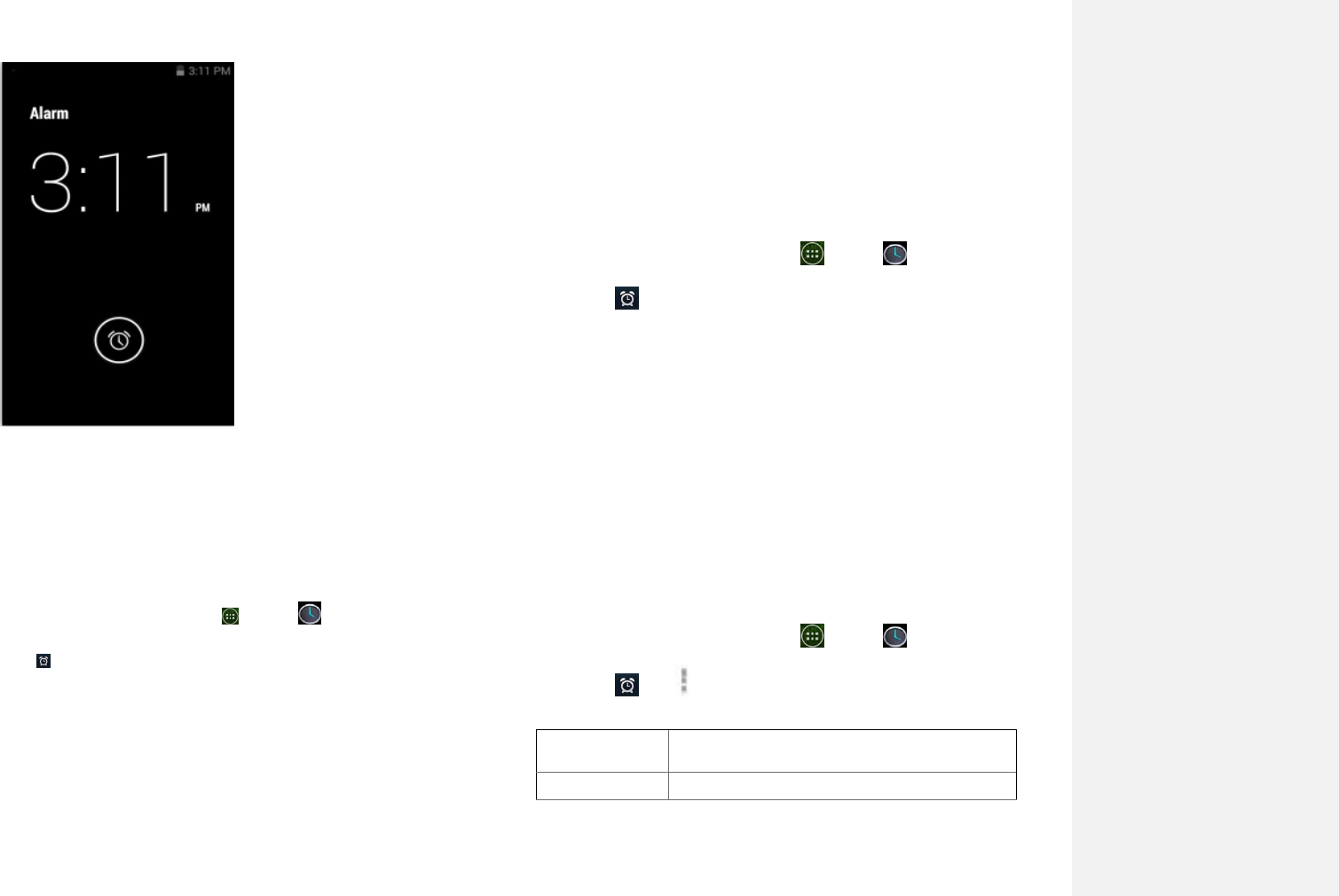
72
2. Managing Alarms
1. Adding a new alarm
1. From the Home screen, tap Apps >Clock.
2. Tap Set alarm> Add alarm.
3. To change the alarm time, scroll up and down to type the
number. Then toggle AM/PM >Set.
4. Check the checkbox, ‘Turn alarm on’.
5. Edit Turn alarm on, Time, Repeat, Ringtone, Vibrate and
Label >Ok.
2. Editing an alarm
1. From the Home screen, tap Apps >Clock.
2. Tap > Tap an existing alarm.
3. Turn the alarm on or off by checking or un-checking
the checkbox, ‘Turn alarm on’. In the alarm list, set
alarms are underlined in green.
4. Edit Time, Repeat, Ringtone, Vibrate and Label >Done.
Or tap Delete to remove the alarm >OK.
3. Changing alarm settings
1. From the Home screen, tap Apps >Clock
2. Tap >tap Option>Settings.
Alarm in silent
mode
Check to play alarms even when the phone is
in silent mode.
Alarm volume
Set the volume of alarms.
73
Snooze duration
Set how long Clock waits before playing an
alarm again.
Auto-silence
Alarm will silence after 10 minutes
Volume button
Set the side button behavior for alarms.
Set default
ringtone
Set ringtone default
4.Stopping an alarm
1. When the alarm sounds, tap Dismiss to stop the alarm.
•Tap Snooze to repeat the alarm after a specified length of
time.
Calculator
Using Calculator
1. From the Home screen, tap Apps >Calculator.
2. Enter numbers and arithmetic operators.
• Tap Option>Advanced panel.
• Tap and hold the Calculator’s display to open a text
editing menu. You can cut, copy, and select text for use
in Calculator or other Applications.
• Tap Clear historyto delete the last number or operator you
entered. Tap and hold DELETEto delete everything in the
display.
Blood Glucose meter
带格式的: 无, 缩进: 悬挂缩进: 1 字
符, 左 2 字符, 首行缩进: -1 字符
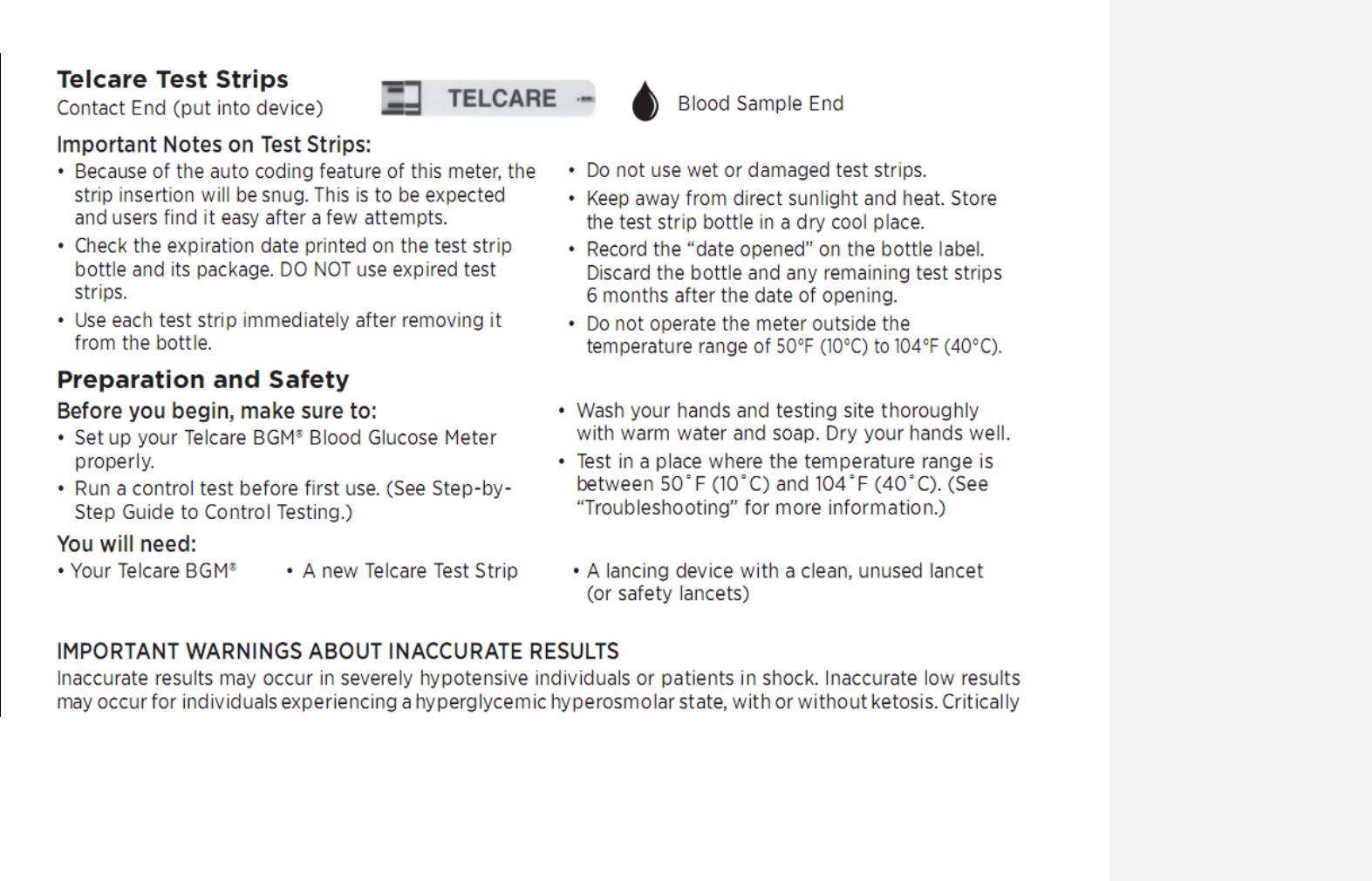
74
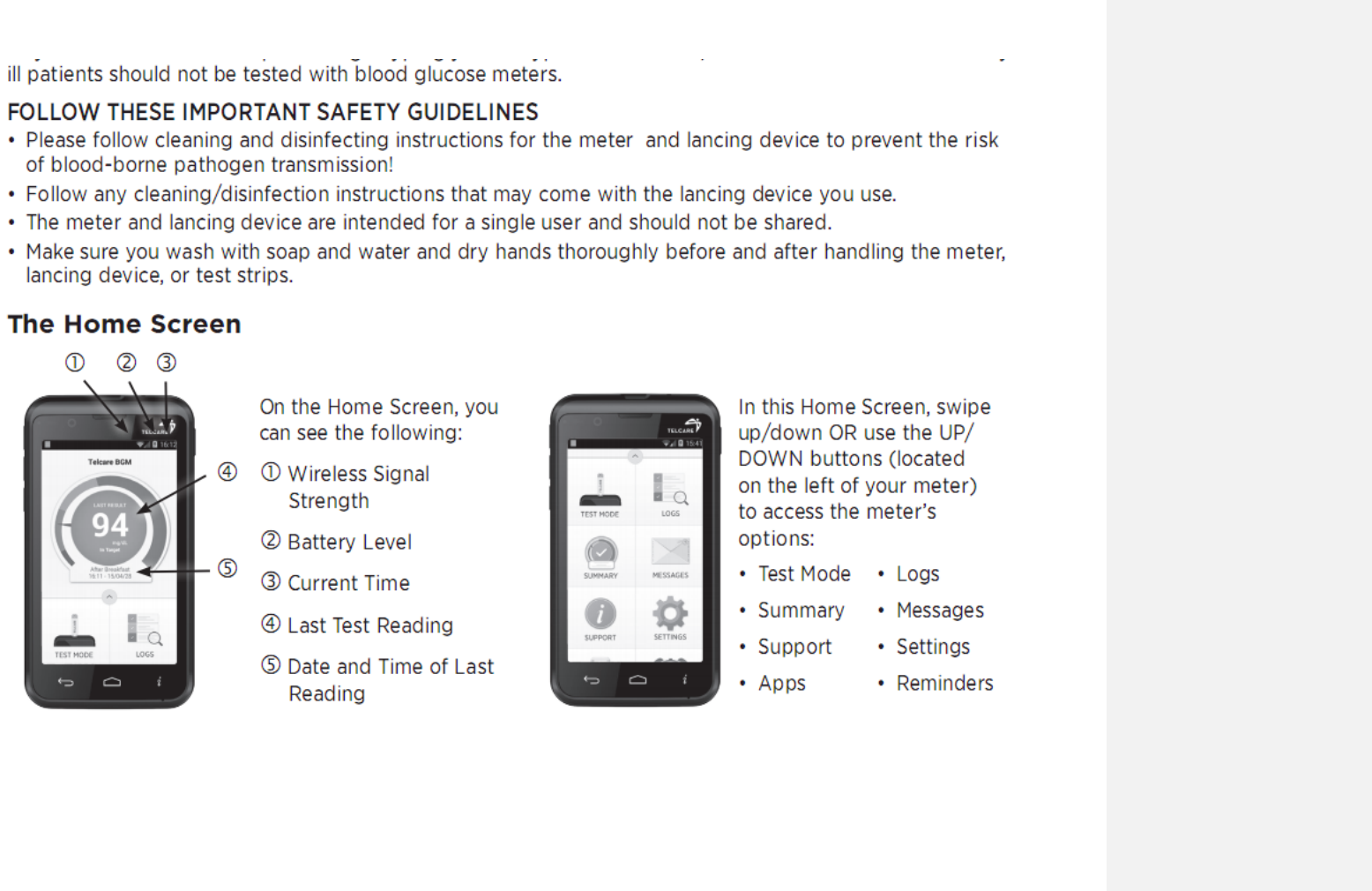
75
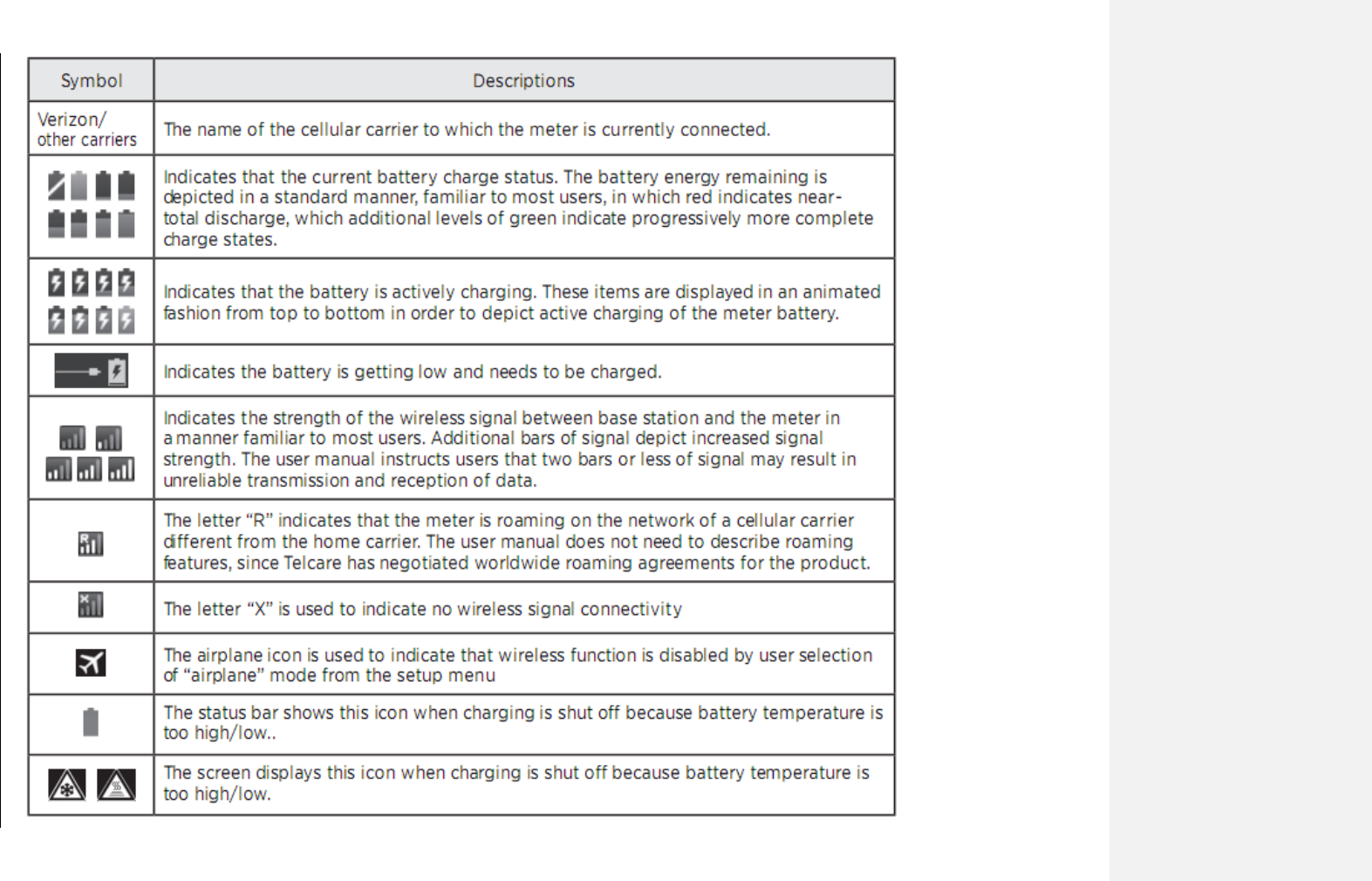
76
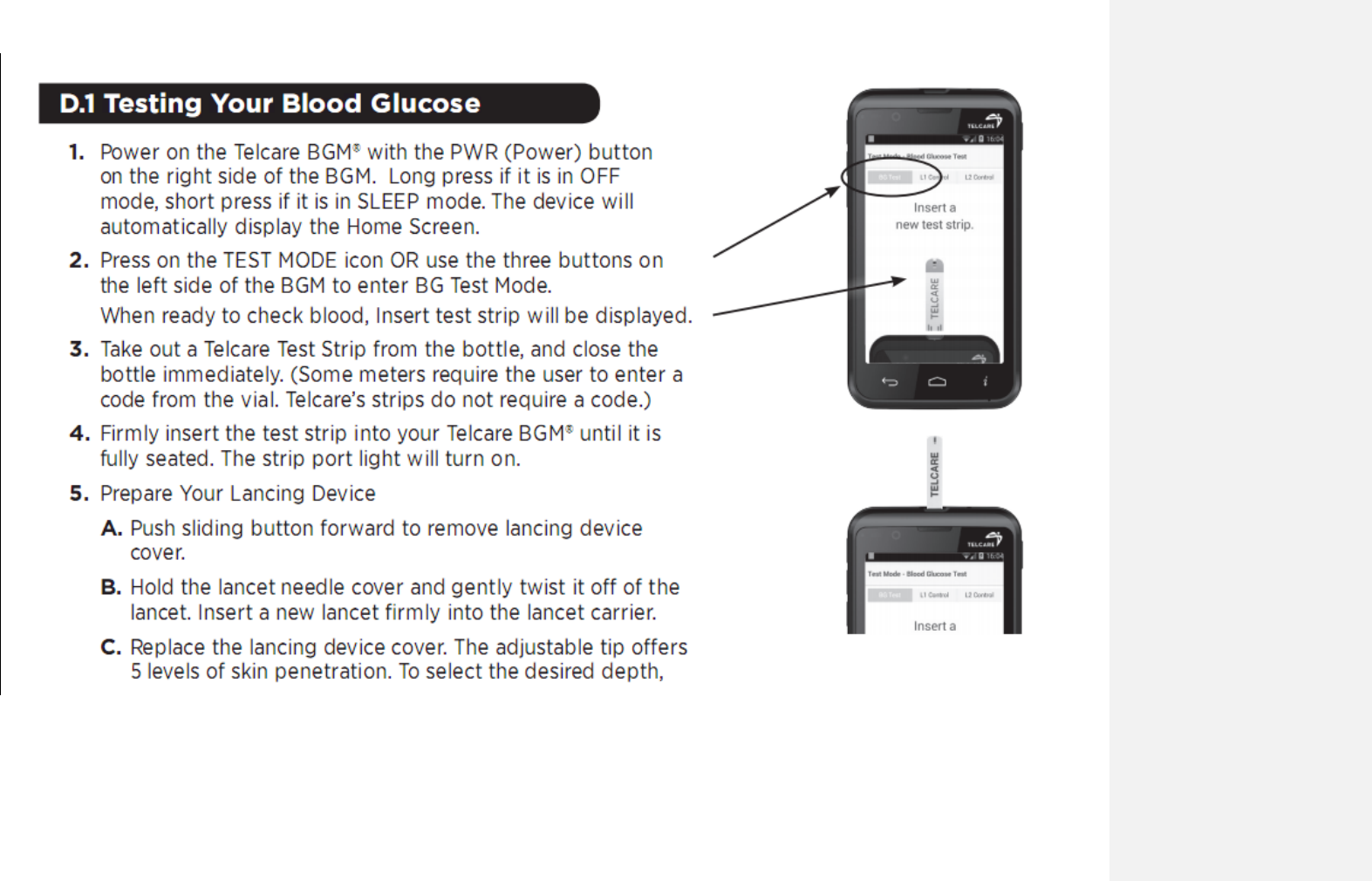
77
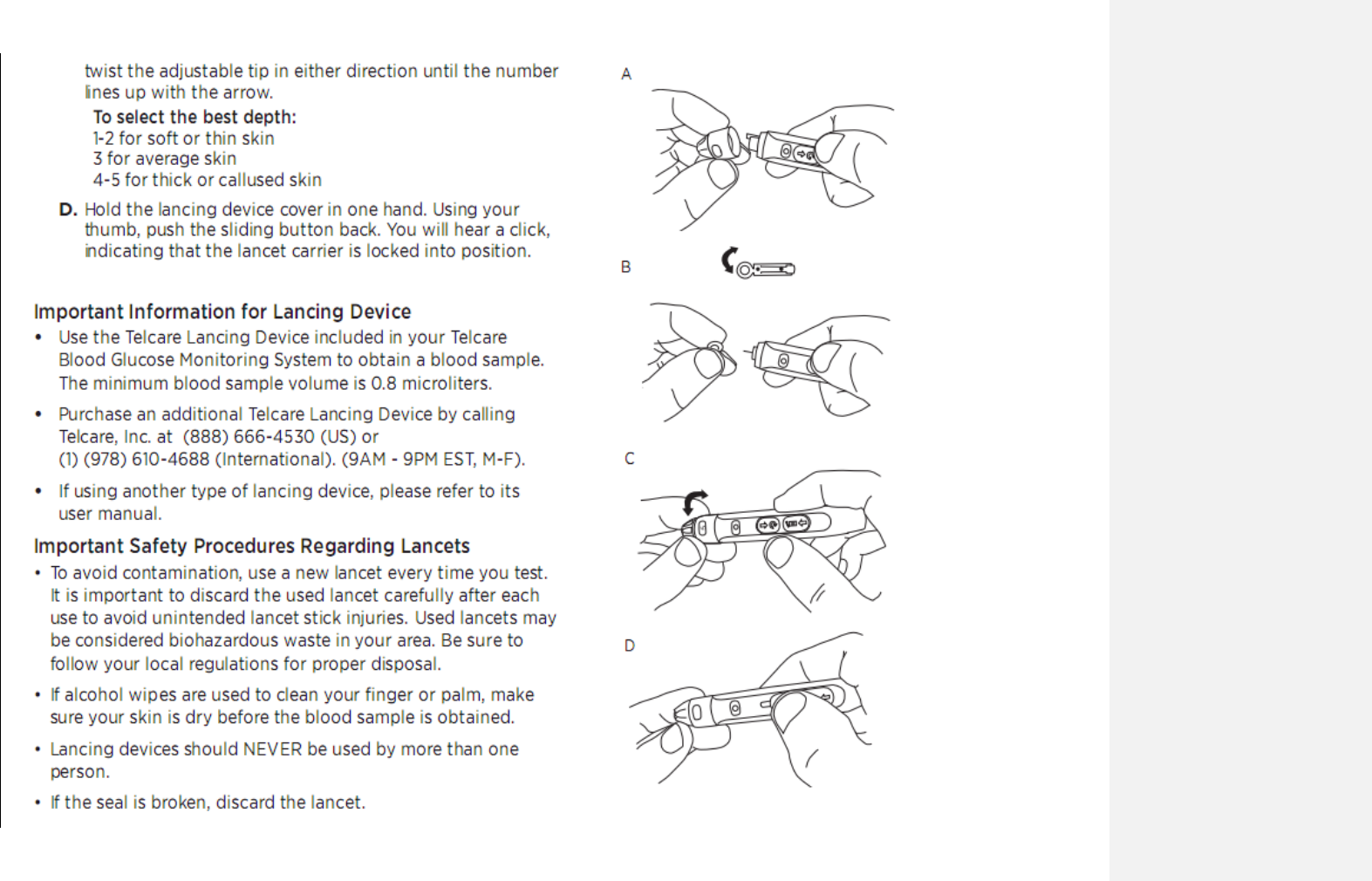
78
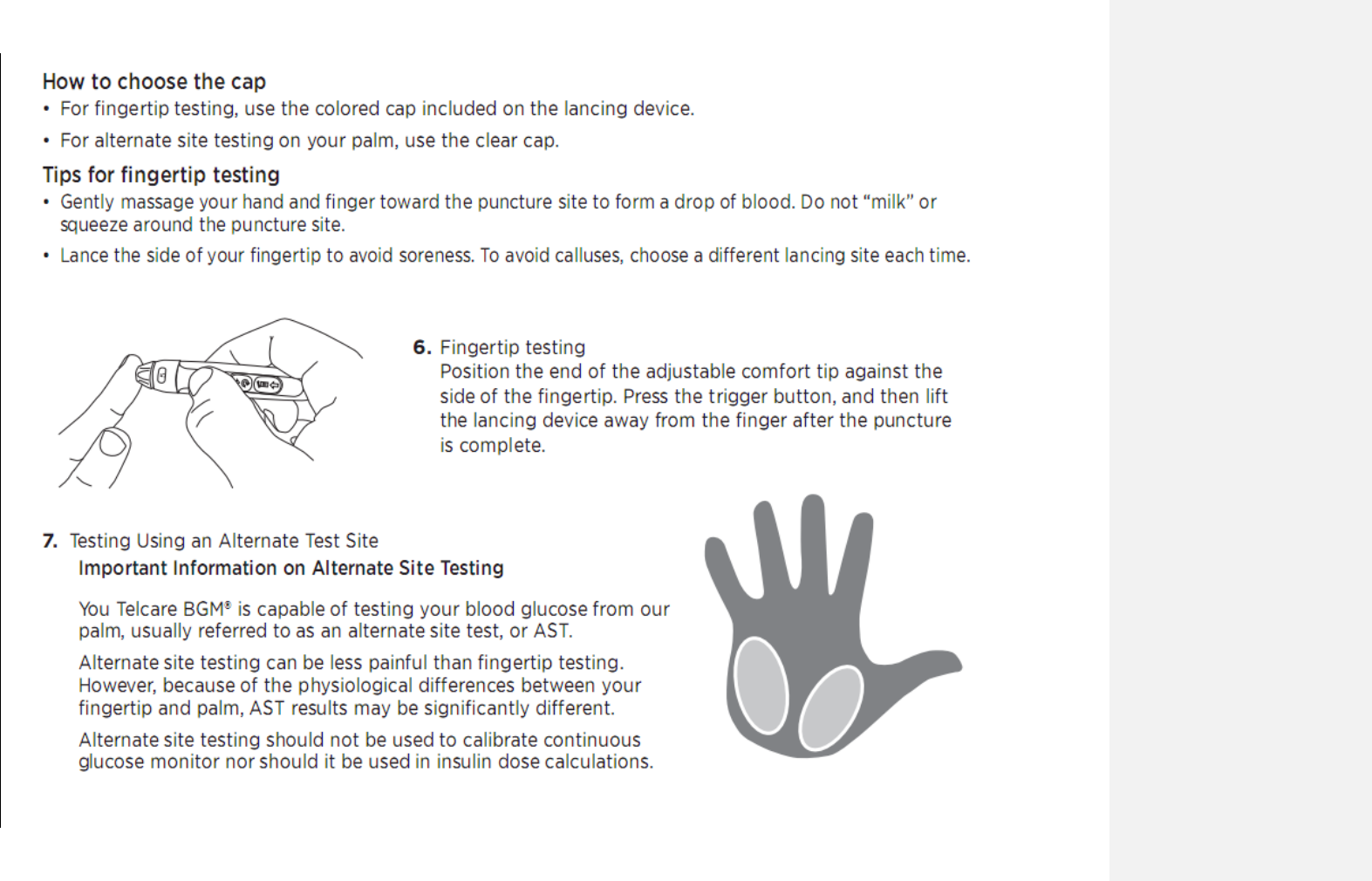
79
80
81
82
83
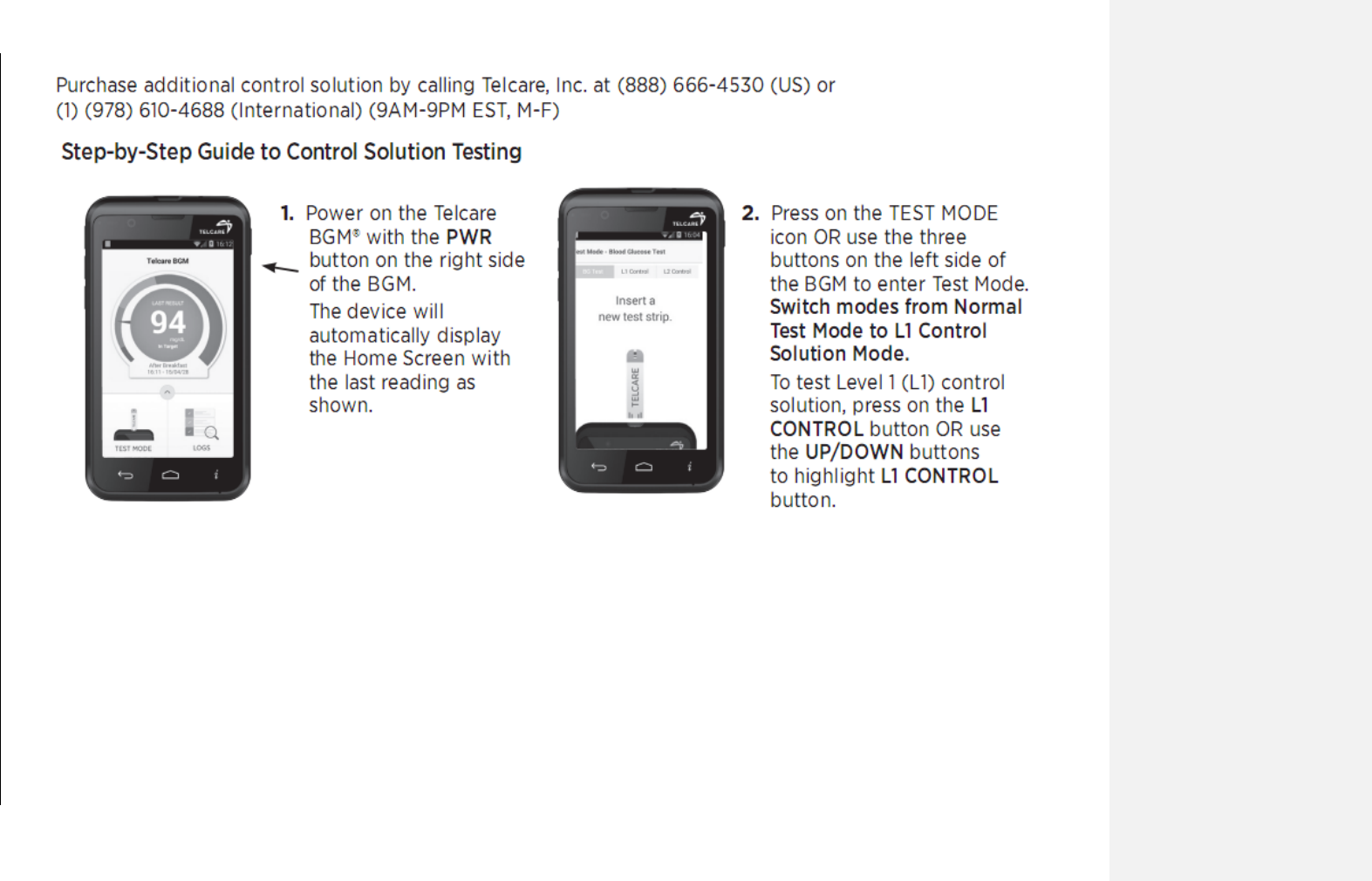
84
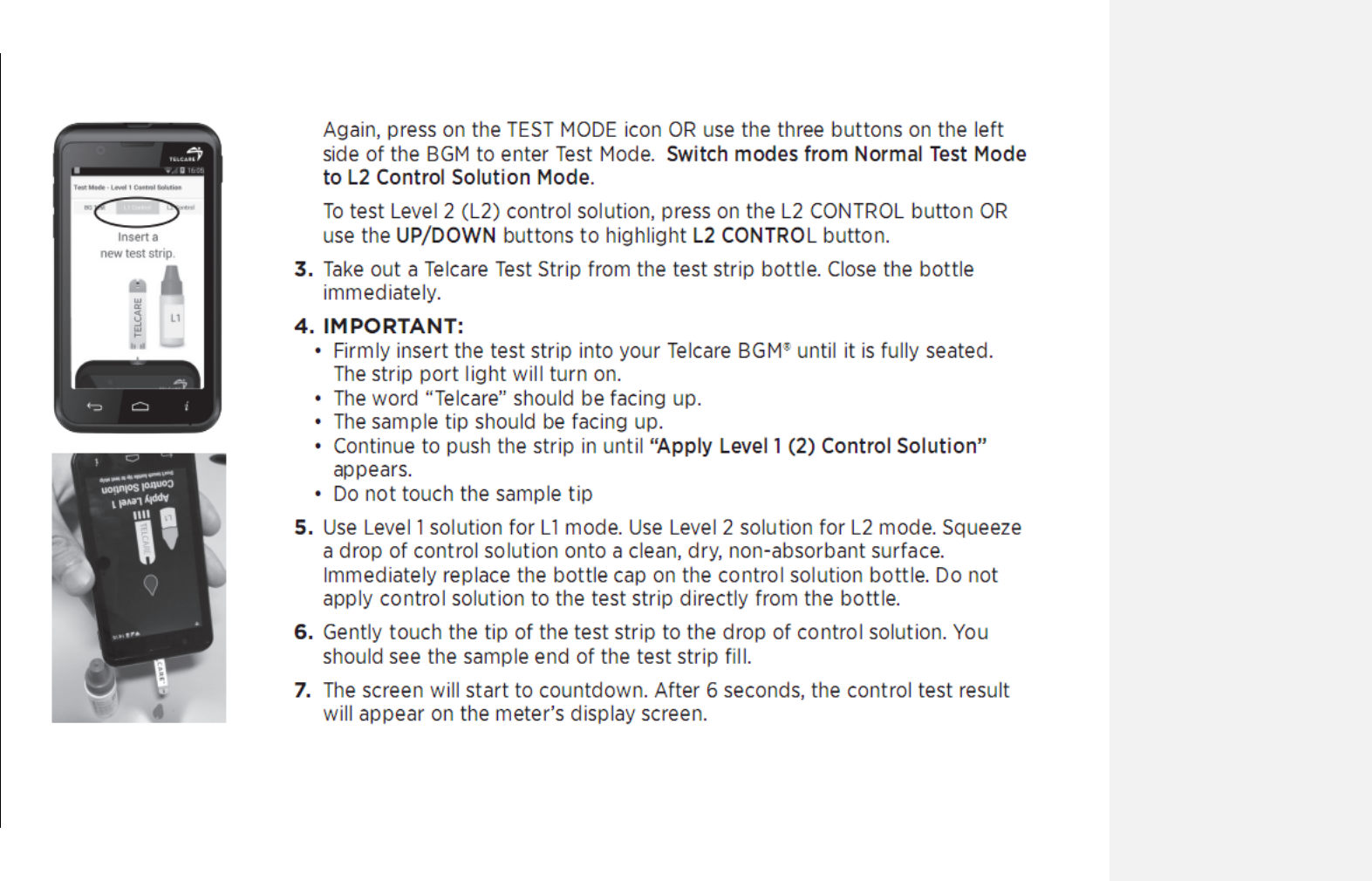
85
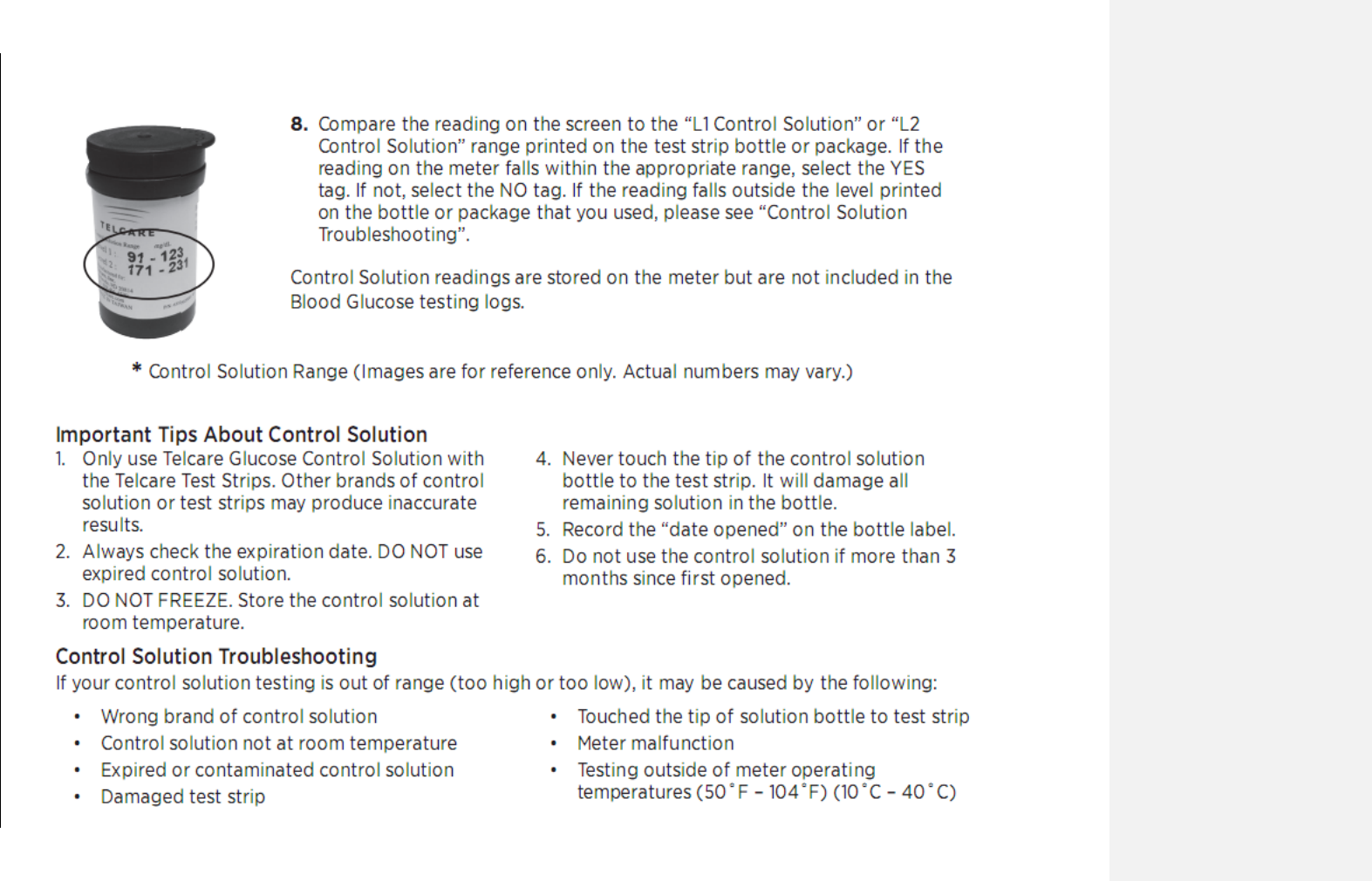
86
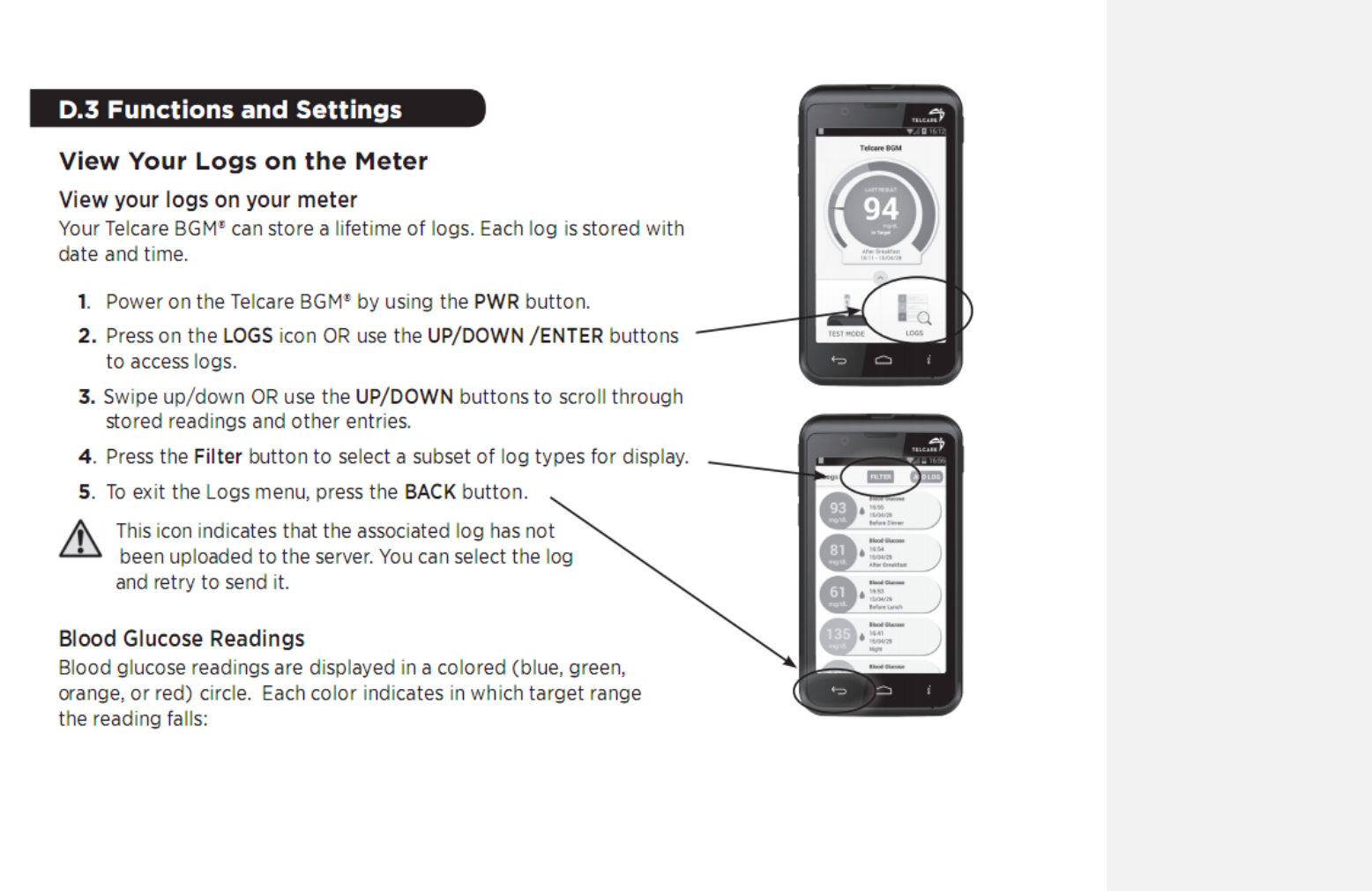
87
88
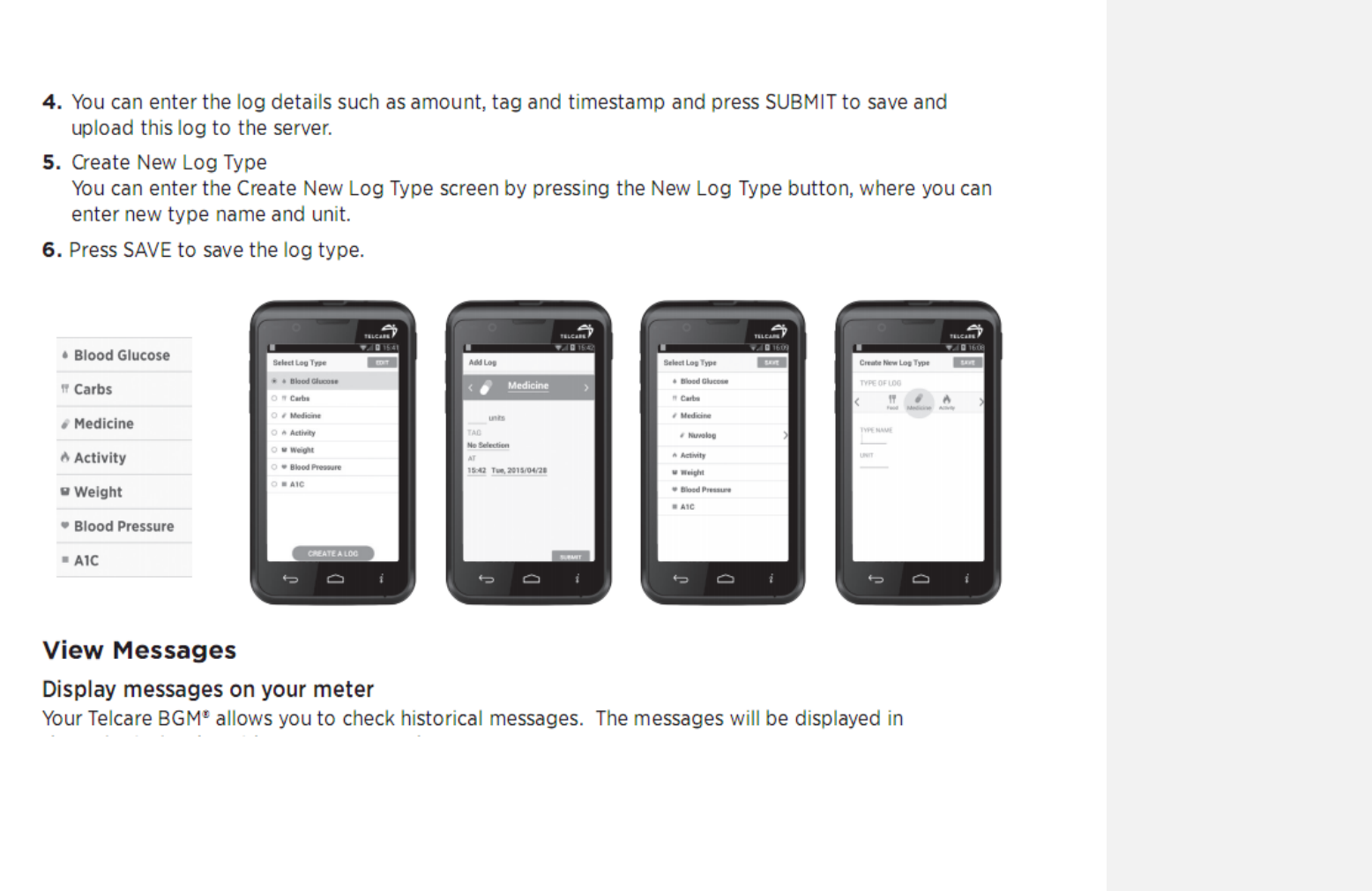
89
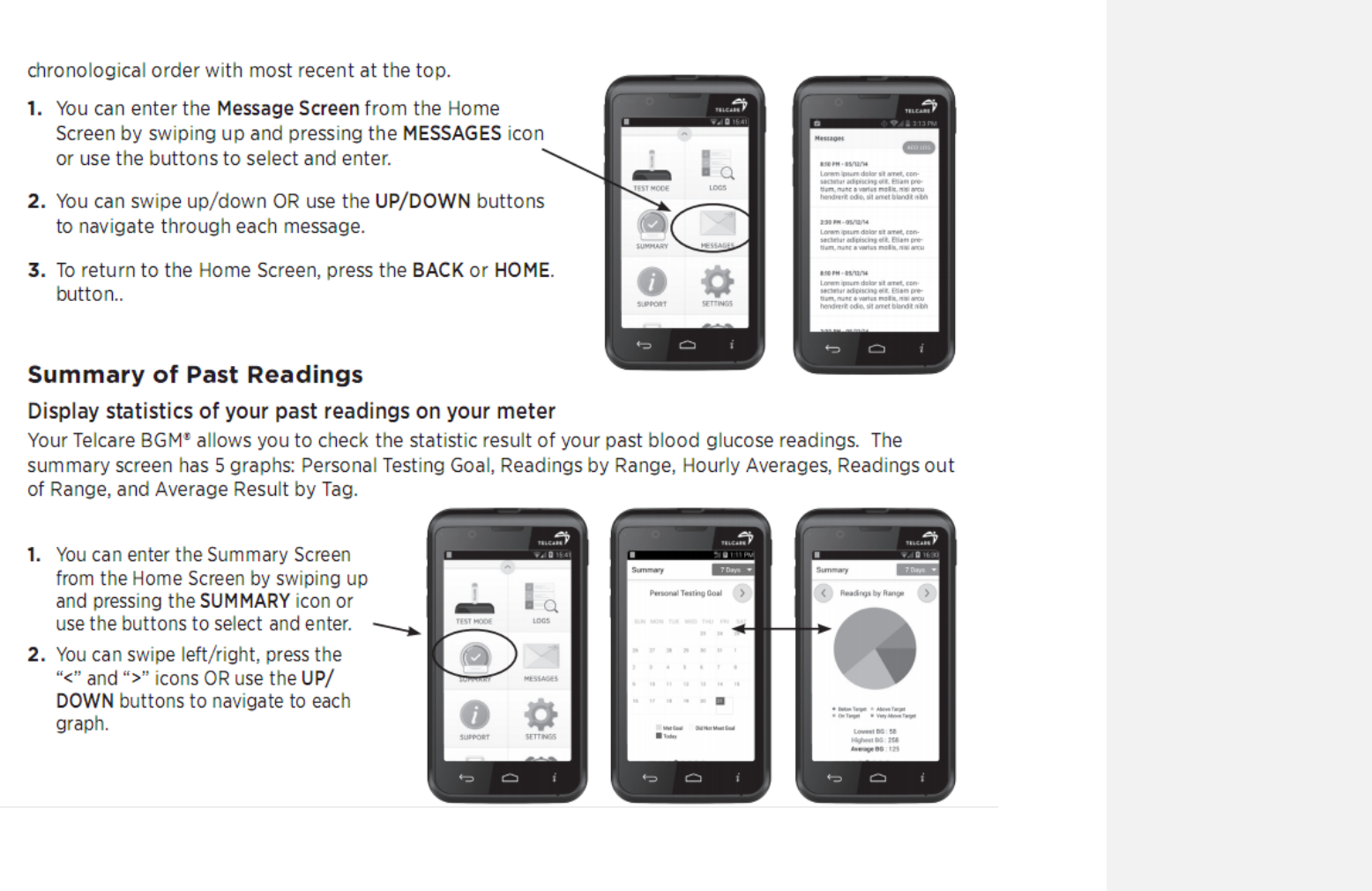
90
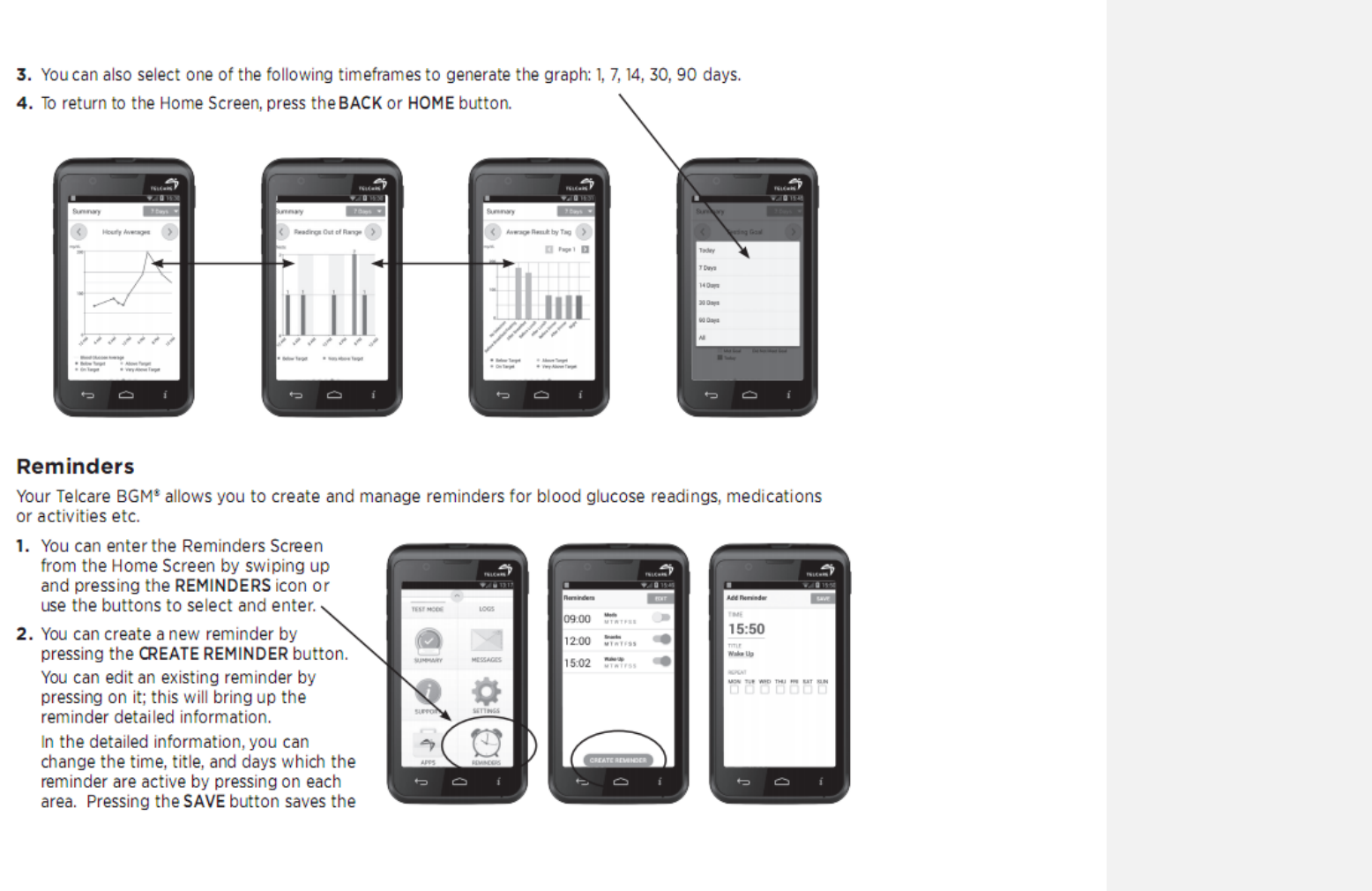
91
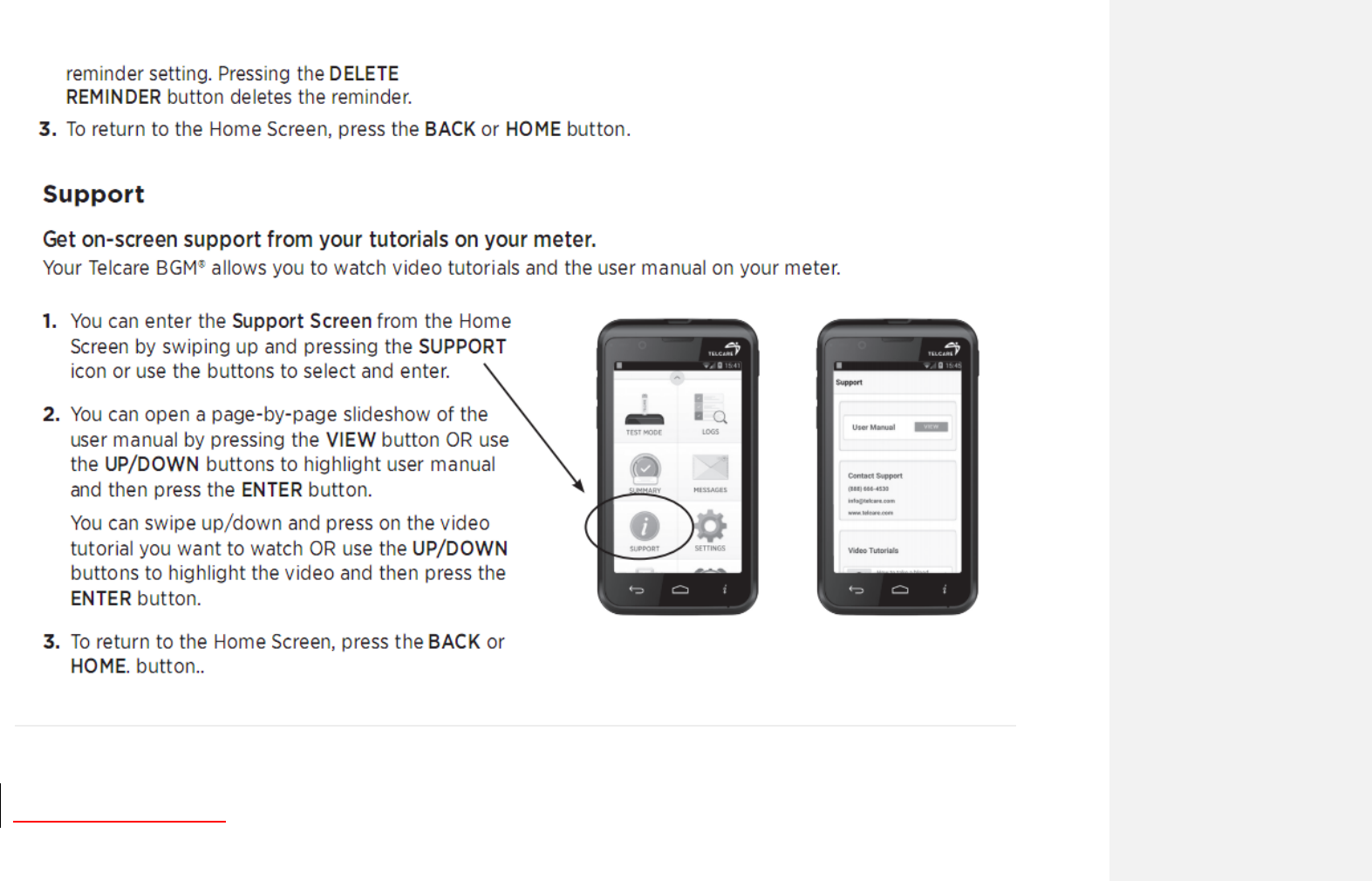
92
93
Settings
Settings on Your Phone
Control and customize phone settings on the Settings screen.
1. From the Home screen, tap Apps >Settings.
Wireless & networks
Wi-Fi/ Wi-
Fi settings
Wi-Fi On / Off.
Set up and manage Wi-Fi networks. For details
about working with these settings, see ‚Wi-Fi‛.
Bluetooth/
Bluetooth
settings
Bluetooth On / Off.
For details about working with these settings, see
‚Bluetooth‛.
Data usage
This setting you can see mobile data and wi-fi data
statistics, and you can turn on or turn off the data.
more
VPN
settings
Set up and manage Virtual Private
Networks (VPNs).
Airplane
mode
Airplane mode On / Off.
Check to turn off all the phone’s
radios that transmit voice or data.
Mobile
network
The settings include Data enable, Data
roaming, Access Point Names. And
you can choose use only 2G network
to save battery, also you can select a
network operator.
Emergency
alerts
Select the types of emergency alerts to
display
Sound
Volume
Set the volume of ringtones that sound
when you receive a phone call or
notification, media (music, videos, and so
on), and alarms.
Phone
ringtone
Select the ringtone to sound when you
receive a phone call.
Default
notification
Select the ringtone to sound when you
receive a notification.
Vibrate when
ring
Vibrate when the ringtone ring out.
Dail pad touch
tones
Check to play tones when using dial pad.
Touch sound
Check to play sound when touching the
panel.
Screen lock
sounds
Check to play sounds when locking and
unlocking the screen.
Vibrate on
touch
When touch the panel will vibrate.
带格式的: 字体: 二号, 无下划线, 下
划线颜色: 自动设置
带格式的: 无, 右侧: 0 厘米
94
Emergency
tone
Select the Emergency tone
Display
Brightness
Adjusting the brightness of the screen.
Auto-rotate
screen
Automatically switch the orientation of the
screen as you turn the phone sideways or
even upside down.
Wallpaper
You can set wallpaper.
Sleep
Adjust the delay before the screen
automatically turns off.
Font size
You can set the size of display.
Storage
Storage manager, you can see the SD card and the phone
space.
Unmount SD
card
Unmout the SD card so you can safely
remove it.
Erase SD card
Erases all data on the SD card, such as
music and photos.
Mount SD
card
Add SD card.
Erase Phone
storage
Erases all data on the phone storage,
such as music and photos.
Primary
storage
Switch primary storage.
Battery
Tap Battery you can see how much the apps using the battery
and the all battery.
Apps
Manage
apps
Manage and remove installed
applications.
Location access
Access to
my
location
Let apps that have asked your permission use
your location information.
GPS
satellites
Let apps use GPS on your phone to pinpoint
your location.
Wi-Fi &
mobile
network
location
Let apps use Google’s location service to
estimate your location faster. Anonymous
location data will be collected and sent to
Google.
Security
95
Screen lock
Configure your phone to require a pattern,
PIN, or password to unlock your screen.
Owner info
Show owner info on lock screen, you can type
text to display on the lock screen.
Make
passwords
visible
Show password characters as you enter them.
Device
administrat
ors
View or deactivate device administrators.
Unknown
sources
Check to allow installation of non-Market
applications.
Trusted
credentials
Display trusted CA certificates.
Install from
SD card
Install certificates from SD card.
Clear
ccredential
s
You can remove all credentials.
Language &input
language
Select the language to use for the text on your phone.
Personal
dictionary
Add or delete the words suggested when entering
text.
Android
keyboard
Set Vibrate on key-press, Sound on key-press,
Popup on key-press, Touch to correct words,
Auto- capitalization, Show settings key, Voice
input, Input languages, Quick fixes, Show
suggestions or Auto- complete.
For details about working with these settings, see
‚Using the onscreen keyboard‛.
Voice
search
You can set the voice search.
Text-to-
speech
output
You can set the Text-to-speech output.
Pointer
speed
You can set the speed of point.
Back&reset
Back up
my data
Back up app data, Wi-Fi passwords, and other
settings to Google servers.
Back up
account
Backing up to debug-only private cache.
Automatic
restore
When reinstalling an app, restore backed up settings
and data.
Factory
data reset
Eraser all data on phone and reset.
Add account
You can add an account for Corporate, Email, Facebook, Google,
and Twitter.
Date & time
Automatic
time zone
Use network-provided time zone.
Use 24-hour
format
Display the time using 24-hour format.
96
choose date
Format
Select the format for displaying date.
Accessibility
Talkback
When talkback is on, your device provides spoken
feedback to help blid and low-vision users. For
example, it describes what you touch, select, and
activate.
Large text
Let the word large or normal
Power button
ends call
When the icon is on, you can press power on/off
icon ends call.
Auto-rotate
screen
Let the phone auto rotate .
Speak
passwords
If you set the passwords, you can speak password
unlock the phone.
Touch &hold
delay
Set the time of touch &hold short, medium, long.
Enhance web
accessibility
If you install scripts from Google that make their
web content more accessible.
About phone
System updates
You can upgrade your system to up-to-date
version.
Status
Information about your Phone number,
signal, etc.
Legal information
Legal information about Open source
licenses and Google legal.
Model number
Check the Model number.
Android version
Check the android version.
Baseband version
Check the baseband version.
Kernel version
Check the Kernel version.
Software version
The phone’s build number.
Hardware
version
You can check hardware version.
Firmware Upgrade Using microSD
Card
1. Download ‚update.zip‛ from supporting site.
2. Insert a microSD card into a PC.
3. Copy ‚update.zip‛ to the root directory of the microSD card.
4. Make sure the target device is power on with a fully
charged battery.
5. Insert the microSD card into the card slot of the target
device.
6. Tap to go to Settings>About phone and tap System update.
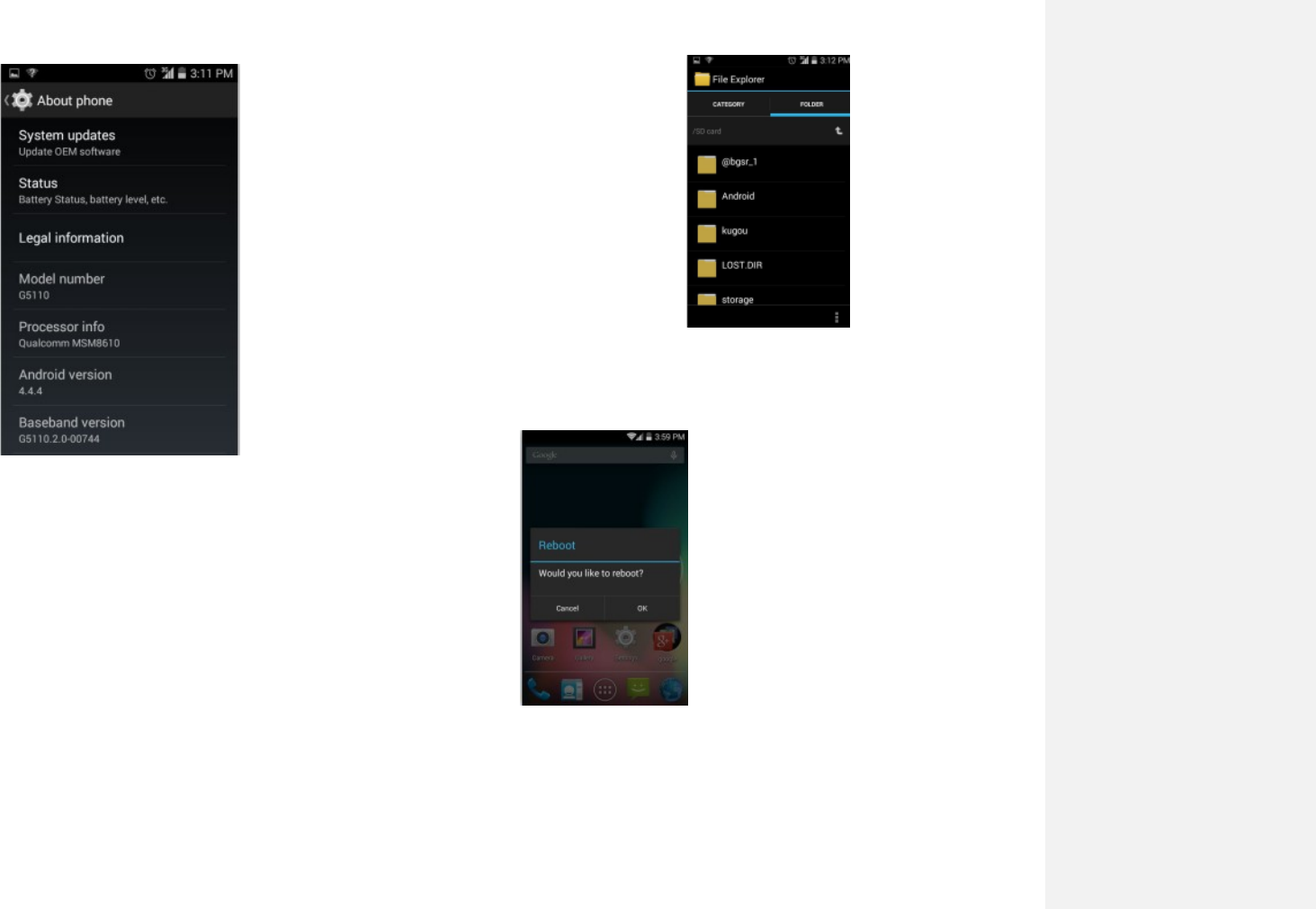
97
7. Choose the software from the SD card .
8. Tap Ok to reboot and update

98
9. During the period of update, the target device will
automatically reboot for TWO times. Please don’t operate
the device until the update is completed.
Safety and use
Please read before proceeding
THE BATTERY IS NOT FULLY CHARGED WHEN YOU
TAKE IT OUT OF THE BOX. DO NOT REMOVE THE
BATTERY PACK WHEN THE PHONE IS CHARGING.
YOUR WARRANTY IS INVALIDATED IF YOU
DISASSEMBLE OR ATTEMPT TO DISASSEMBLE THE
DEVICE.
1. Privacy restrictions
Some countries require full disclosure of recorded telephone
conversations, and stipulate that you must inform the person
with whom you are speaking that the conversation is being
recorded. Always obey the relevant laws and regulations of
your country when using the recording feature of your phone.
2. Disclaimers
ANY WEATHER, STOCK, OR OTHER INFORMATION,
DATA, OR DOCUMENTATION (‚ACCESSED
INFORMATION‛) ARE PROVIDED ‚AS IS‛ AND
WITHOUT ANY WARRANTY OR ANY TECHNICAL
SUPPORT. TO THE MAXIMUM EXTENT PERMITTED BY
APPLICABLE LAW, UNIMAX COMMUNICATIONS
MOBILETELCARE INC. AND ITS AFFILIATES expressly
disclaim any and all representations and warranties, arising

99
by law or otherwise, related to the Accessed Information,
including without limitation any express or implied
representation or warranty of merchantability, fitness for a
particular purpose, non-infringement, quality, accuracy,
completeness, effectiveness, reliability, or usefulness. Without
limiting the foregoing, it is further understood that UNIMAX
COMMUNICATIONS MobileTelcare Inc. and its Affiliates are
not responsible for any use of the Accessed Information or the
results arising from such use and that you use such information
at your own risk.
Limitation of damages
TO THE MAXIMUM EXTENT PERMITTED BY APPLICABLE
LAW, IN NO EVENT SHALL UNIMAX
COMMUNICATIONS MOBILETELCARE INC. OR ITS
AFFILIATES BE LIABLE TO YOU, ANY USER, OR THIRD
PARTY FOR ANY INDIRECT, SPECIAL, CONSEQUENTIAL,
INCIDENTAL OR PUNITIVE DAMAGES OF ANY KIND,
ARISING IN CONTRACT, TORT, OR OTHERWISE,
INCLUDING, BUT NOT LIMITED TO, INJURY, LOSS OF
REVENUE, LOSS OF GOODWILL, LOSS OF BUSINESS
OPPORTUNITY, LOSS OF DATA, AND/OR LOSS OF
PROFITS, REGARDLESS OF THE
FORESEEABILITYTHEREOF OR WHETHER UNIMAX
COMMUNICATIONS MOBILETELCARE INC. OR ITS
AFFILIATES HAVE BEEN ADVISED OF THE POSSIBILITY
OF SUCH DAMAGES. AND IN NO EVENT SHALL THE
TOTAL LIABILITY OF UNIMAX COMMUNICATIONS
MOBILETELCARE INC. OR ITS AFFILIATES EXCEED THE
AMOUNT RECEIVED FROM YOU, REGARDLESS OF THE
LEGAL THEORY UNDER WHICH THE CAUSE OF ACTION
IS BROUGHT. THE FOREGOING DOES NOT AFFECT ANY
STATUTORY RIGHTS WHICH MAY NOT BE DISCLAIMED.

100
Important health information and
safety precautions
When using this product, the safety precautions below
must be taken to avoid possible legal liabilities and
damages. Retain and follow all product safety and
operating instructions. Observe all warnings in the
operating instructions on the product.
To reduce the risk of bodily injury, electric shock, fire and
damage to the equipment, observe the following precautions.
1. Electrical safety
This product is intended for use when supplied with power
from the designated battery or power supply unit. Other
usage may be dangerous and will invalidate any approval
given to this product.
2. Safety precautions for proper grounding
installation
Connecting to improperly grounded equipment can result in an
electric shock to your device.
This product is equipped with a USB Cable for connecting with
desktop or notebook computer. Be sure your computer is
properly grounded (earthed) before connecting this product to
the computer. The power supply cord of a desktop or notebook
computer has an equipment grounding conductor and a
grounding plug. The plug must be plugged into an appropriate
outlet which is properly installed and grounded in accordance
with all local codes and ordinances.
3. Safety precautions for power supply unit
1. Use the correct external power source
A product should be operated only from the type of power
source indicated on the electrical ratings label. If you are
not sure of the type of power source required, consult your
authorized service provider or local power company. For a
product that operates from battery power or other sources,
refer to the operating instructions that are included with
the product.
101
This product should be operated only with the following
designated power supply unit(s).
Travel charge: Input: 100-240V, 50/60Hz,
0.3A Output: 5V, 2000mA
2. Handle battery packs carefully
This product contains a Lithium-ion polymer or Lithium-
ion battery. There is a risk of fire and burns if the battery
pack is handled improperly. Do not attempt to open or
service the battery pack. Do not disassemble, crush,
puncture, short external contacts or circuits, dispose of in
fire or water, or expose a battery pack to temperatures
higher than 140°F (60°C).
Danger of explosion if battery is incorrectly replaced. To reduce
risk of fire or burns, do not disassemble, crush, puncture, short
external contacts, expose to temperature above 140°F (60°C), or
dispose of in fire or water. Replace only with specified batteries.
Recycle or dispose of used batteries according to the local
regulations or reference guide supplied with your product.
3. Take extra precautions
• Keep the battery or device dry and away from water or any
liquid as it may cause a short circuit.
• Keep metal objects away so they don’t come in contact
with the battery or its connectors as it may lead to short
circuit during operation.
• The phone should only be connected to products that
bear the USB-IF logo or have completed the USB-IF
compliance program.
• Do not use a battery that appears damaged,
deformed, or discolored, or the one that has any
rust on its casing, overheats, or emits a foul odor.

102
• Always keep the battery out of the reach of babies and
small children, to avoid swallowing of the battery.
Consult the doctor immediately if the battery is
swallowed.
• Only use the battery with a charging system that has been
qualified with the system per this standard, IEEE-Std-172
5-2006. Use of an unqualified battery or charger may
present a risk of fire, explosion, leakage or other hazard.
•Replace the battery only with another battery that has been
qualified with the system per this standard, IEEE-Std-172
5-2006. Use of an unqualified battery may present a risk of
fire, explosion, leakage or other hazard.
• Avoid dropping the phone or battery. If the phone or
battery is dropped, especially on a hard surface, and
the user suspects damage, take it to a service center
for inspection.
• If the battery leaks:
• Do not allow the leaking fluid to come in contact with
skin or clothing. If already in contact, flush the affected
area immediately with clean water and seek medical
advice.
• Do not allow the leaking fluid to come in contact with
eyes. If already in contact, DO NOT rub; rinse with
clean water immediately and seek medical advice.
• Take extra precautions to keep a leaking battery away
from fire as there is a danger of ignition or explosion.
4. Safety precautions for direct sunlight
Keep this product away from excessive moisture and
extreme temperatures. Do not leave the product or its
battery inside a vehicle or in places where the temperature
may exceed 140°F (60°C), such as on a car dashboard,

103
window sill, or behind a glass that is exposed to direct
sunlight or strong ultraviolet light for extended periods of
time. This may damage the product, overheat the battery, or
pose a risk to the vehicle.
5. Prevention of hearing loss
Permanent hearing loss may occur if earphones or
headphones are used at high volume for
prolonged periods of time.
6. Safety in aircraft
Due to the possible interference caused by this product to
an aircraft’s navigation system and its communications
network, using this device’s phone function on board an
airplane is against the law in most countries. If you want to
use this device when on board an aircraft, remember to
turn off your rf on your phone by switching to Airplane
Mode.
7. Environment restrictions
Do not use this product in gas stations, fuel depots,
chemical plants or where blasting operations are in
progress, or in potentially explosive atmospheres such as
fuelling areas, fuel storehouses, below deck on boats,
chemical plants, fuel or chemical transfer or storage
facilities, and areas where the air contains chemicals or
particles, such as grain, dust, or metal powders. Please be
aware that sparks in such areas could cause an explosion
or fire resulting in bodily injury or even death.
8. Explosive atmospheres
When in any area with a potentially explosive atmosphere or
where flammable materials exist, the product should be
turned off and the user should obey all signs and instructions.
Sparks in such areas could cause an explosion or fire resulting
in bodily injury or even death. Users are advised not to use
the equipment at refueling points such as service or gas

104
stations, and are reminded of the need to observe restrictions
on the use of radio equipment in fuel depots, chemical plants,
or where blasting operations are in progress. Areas with a
potentially explosive atmosphere are often, but not always,
clearly marked. These include fueling areas, below deck on
boats, fuel or chemical transfer or storage facilities, and areas
where the air contains chemicals or particles, such as grain,
dust, or metal powders.
9. Road safety
Full attention must be given to driving at all times in order
to reduce the risk of an accident. Using a phone while
driving(even with a hands free kit) causes distraction and
can lead to an accident.You must comply with local laws
and regulations restricting the use of wireless devices while
driving.
10. Safety precautions for RF exposure
• Avoid using your phone near metal structures (for
example, the steel frame of a building).
• Avoid using your phone near strong electromagnetic
sources, such as microwave ovens, sound speakers, TV
and radio.
• Use only original manufacturer-approved accessories, or
accessories that do not contain any metal.
• Use of non-original manufacturer-approved accessories
may violate your local RF exposure guidelines and
should be avoided.
11. Interference with medical equipment
functions
This product may cause medical equipment to malfunction.
The use of this device is forbidden in most hospitals and
medical clinics.

105
If you use any other personal medical device, consult the
manufacturer of your device to determine if they are
adequately shielded from external RF energy. Your
physician may be able to assist you in obtaining this
information.
Turn your phone OFF in health care facilities when any
regulations posted in these areas instruct you to do so.
Hospitals or health care facilities may be using equipment
that could be sensitive to external RF energy.
12. Non-ionizing radiation
Your device has an internal antenna. This product should
be operated in its normal-use position to ensure the
radioactive performance and safety of the interference. As
with other mobile radio transmitting equipment, users are
advised that for satisfactory operation of the equipment
and for the safety of personnel, it is recommended that no
part of the human body be allowed to come too close to the
antenna during operation of the equipment.
Use only the supplied integral antenna. Use of
unauthorized or modified antennas may impair call
quality and damage the phone, causing loss of
performance and SAR levels exceeding the
recommended limits as well as result in non-compliance
with local regulatory requirements in your country.
To assure optimal phone performance and ensure human
exposure to RF energy is within the guidelines set forth in
the relevant standards, always use your device only in its
normal-use position. Contact with the antenna area may
impair call quality and cause your device to operate at a
higher power level than needed. Avoiding contact with the
antenna area when the phone is IN USE optimizes the
antenna performance and the battery life.

106
13. Electrical safety
Accessories
• Use only approved accessories.
• Do not connect with incompatible products or accessories.
• Take care not to touch or allow metal objects, such as coins
or key rings, to contact or short circuit the battery
terminals.
Connection to a car
Seek professional advice when connecting a phone interface to
the vehicle electrical system.
Faulty and damaged products
• Do not attempt to disassemble the phone or its accessory.
• Only qualified personnel must service or repair the phone
or its accessory.
14. General precautions
You alone are responsible for how you use your phone and
any consequences of its use. You must always switch off your
phone wherever the use of a phone is prohibited. Use of your
phone is subject to safety measures designed to protect users
and their environment.
Avoid applying excessive pressure to the device
Do not apply excessive pressure on the screen and the device
to prevent damaging them and remove the device from your
pants’ pocket before sitting down. It is also recommended
that you store the device in a protective case and only use the
device stylus or your finger when interacting with the touch
screen. Cracked display screens due to improper handling are
not covered by the warranty.
Device getting warm after prolonged use

107
When using your device for prolonged periods of time, such
as when you’re talking on the phone, charging the battery or
browsing the Web, the device may become warm. In most
cases, this condition is normal and therefore should not
beinterpreted as a problem with the device.
Heed service markings
Except as explained elsewhere in the Operating or Service
documentation, do not service any product yourself. Service
neededon components inside the device should be done by an
authorized service technician or provider.
Protect your phone
• Always treat your phone and its accessories with care and
keep them in a clean and dust-free place.
• Do not expose your phone or its accessories to open flames
or lit tobacco products.
• Do not expose your phone or its accessories to liquid,
moisture or high humidity.
• Do not drop, throw or try to bend your phone or its
accessories.
• Do not use harsh chemicals, cleaning solvents, or aerosols
to clean the device or its accessories.
• Do not paint your phone or its accessories.
• Do not attempt to disassemble your phone or its accessories,
only authorized personnel must do so.
• Do not expose your phone or its accessories to
extreme temperatures, minimum -4°F (-20°C) and
maximum 122°F (50°C).
• Please check local regulations for disposal of electronic
products.

108
• Do not carry your phone in your back pocket as it could
break when you sit down. Damage requiring service
Unplug the product from the electrical outlet and refer
servicing to an authorized service technician or provider
under thefollowing conditions:
• Liquid has been spilled or an object has fallen into the
product.
• The product has been exposed to rain or water.
• The product has been dropped or damaged.
• There are noticeable signs of overheating.
• The product does not operate normally when you follow
the operating instructions.
Avoid hot areas
The product should be placed away from heat sources such
as radiators, heat registers, stoves, or other products
(includingamplifiers) that produce heat.
Avoid wet areas
Never use the product in a wet location.
Avoid using your device after a dramatic change in
temperature
When you move your device between environments with
very different temperature and/or humidity ranges,
condensation may form on or within the device. To avoid
damaging the device, allow sufficient time for the moisture
to evaporate before using the device.
NOTICE: When taking the device from low-temperature
conditions into a warmer environment or from high-
temperature conditions into a cooler environment, allow
the device to acclimate to room temperature before
turning on power.

109
Avoid pushing objects into product
Never push objects of any kind into cabinet slots or
other openings in the product. Slots and openings are
provided for ventilation. These openings must not be
blocked or covered.
Air bags
Do not place a phone in the area over an air bag or in the
air bag deployment area. Store the phone safely before
driving your vehicle.
Mounting accessories
Do not use the product on an unstable table, cart, stand,
tripod, or bracket. Any mounting of the product should
follow the manufacturer’s instructions, and should use a
mounting accessory recommended by the manufacturer.
Avoid unstable mounting
Do not place the product with an unstable base.
Use product with approved equipment
This product should be used only with personal computers
and options identified as suitable for use with your
equipment.
Adjust the volume
Turn down the volume before using
headphones or other audio devices. Cleaning
Unplug the product from the wall outlet before cleaning. Do
not use liquid cleaners or aerosol cleaners. Use a damp cloth
forcleaning, but NEVER use water to clean the LCD screen.
Small children
Do not leave your phone and its accessories within the reach
of small children or allow them to play with it. They could
hurtthemselves or others, or could accidentally damage the
phone. Your phone contains small parts with sharp edges
that may cause an injury or which could become detached
and create a choking hazard.
Repetitive motion injuries

110
To minimize the risk of RSI, when Texting or playing games
with your phone:
• Do not grip the phone too tightly
• Press the buttons lightly
• Make use of the special features in the handset which
minimize the number of buttons which have to be pressed,
such as message templates and predictive text.
• Take lots of breaks to stretch and relax.
Operating machinery
Full attention must be given to operating the machinery in
order to reduce the risk of an accident.
Loud noise
This phone is capable of producing loud noises which may
damage your hearing.
Emergency calls
This phone, like any wireless phone, operates using radio
signals, which cannot guarantee connection in all conditions.
Therefore, you must never rely solely on any wireless phone
for emergency communications.
Regulatory agency identifications
1. FCC Regulations:
This mobile phone complies with part 15 of the FCC Rules.
Operation is subject to the following two conditions: (1) This
device may not cause harmful interference, and (2) this device
must accept any interference received, including interference
that may cause undesired operation.
This mobile phone has been tested and found to comply with
the limits for a Class B digital device, pursuant to Part 15 of the
FCC Rules. These limits are designed to provide reasonable
protection against harmful interference in a residential
installation. This equipment generates, uses and can radiated

111
radio frequency energy and, if not installed and used in
accordance with the instructions, may cause harmful
interference to radio communications. However, there is no
guarantee that interference will not occur in a particular
installation If this equipment does cause harmful interference
to radio or television reception, which can be determined by
turning the equipment off and on, the user is encouraged to try
to correct the interference by one or more of the following
measures:
-Reorient or relocate the receiving antenna.
-Increase the separation between the equipment and receiver.
-Connect the equipment into an outlet on a circuit different
from that to which the receiver is connected.
-Consult the dealer or an experienced radio/TV technician for
help.
Changes or modifications not expressly approved by the party
responsible for compliance could void the user‘s authority to
operate the equipment.
2. RF Exposure Information (SAR)
This mobile phone meets the government’s requirements for
exposure to radio waves.
This phone is designed and manufactured not to exceed the
emission limits for exposure to radio frequency (RF) energy set
by the Federal Communications Commission of the U.S.
Government.
The exposure standard for wireless mobile phones employs a
unit of measurement known as the Specific Absorption Rate, or
SAR. The SAR limit set by the FCC is 1.6W/kg. *Tests for SAR
are conducted using standard operating positions accepted by
the FCC with the phone transmitting at its highest certified
power level in all tested frequency bands. Although the SAR is
determined at the highest certified power level, the actual SAR

112
level of the phone while operating can be well below the
maximum value. This is because the phone is designed to
operate at multiple power levels so as to use only the power
required to reach the network. In general, the closer you are to
a wireless base station, the lower the power output.
The highest SAR value for the model phone as reported to the
FCC when tested for use at the ear is 1.182 W/kg and when
worn on the body, as described in this user guide, is
1.182W/kg (Body-worn measurements differ among phone
models, depending upon available accessories and FCC
requirements.) The maximum scaled SAR in hotspot mode is
1.182W/Kg.
While there may be differences between the SAR levels of
various phones and at various positions, they all meet the
government requirement.
The FCC has granted an Equipment Authorization for this
model phone with all reported SAR levels evaluated as in
compliance with the FCC RF exposure guidelines. SAR
information on this model phone is on file with the FCC and
can be found under the Display Grant section of
www.fcc.gov/oet/ea/fccid after searching on FCC ID:
YPTTELCBGM03U46-U671C.
For body worn operation, this phone has been tested and meets
the FCC RF exposure guidelines for use with an accessory that
contains no metal and the positions the handset a minimum of
1.5 cm from the body. Use of other accessories may not ensure
compliance with FCC RF exposure guidelines. If you do no t
use a body-worn accessory and are not holding the phone at
the ear, position the handset a minimum of 1.5 cm from your
body when the phone is switched on.

113
HEARING AID COMPATIBILITY HAC FOR
WIRELESS TELECOMMUNICATIONS DEVICES
THIS PHONE HAS A HAC RATING OF M4/T3
WHAT IS HEARING AID COMPATIBILITY?
The Federal Communications Commission has implemented
rules and a rating system designed to enable people who wear
hearing aids to more effectively use these wireless
telecommunications devices. The standard for compatibility of
digital wireless phones with hearing aids is set forth in
American National Standard Institute (ANSI) standard C63.19.
There are two sets of ANSI standards with ratings from one to
four (four being the best rating): an ‚M‛ rating for reduced
interference making it easier to hear conversations on the
phone when using the hearing aid microphone, and a ‚T‛
rating that enables the phone to be used with hearing aids
operating in the tele-coil mode thus reducing unwanted
background noise.
HOW WILL I KNOW WHICH WIRELESS PHONES ARE
HEARING AID COMPATIBLE?
The Hearing Aid Compatibility rating is displayed on the
wireless phone box.
A phone is considered Hearing Aid Compatible for acoustic
coupling (microphone mode) if it has an ‚M3‛ or ‚M4‛ rating. A
digital wireless phone is considered Hearing Aid Compatible for
inductive coupling (tele-coil mode) if it has a ‚T3‛ or ‚T4‛ rating.
HOW WILL I KNOW IF MY HEARING AID WILL WORK
WITH A PARTICULAR DIGITAL WIRELESS PHONE?
You’ll want to try a number of wireless phones so that you can
decide which works the best with your hearing aids. You may
also want to talk with your hearing aid professional about the
extent to which your hearing aids are immune to interference, if

114
they have wireless phone shielding, and whether your hearing
aid has a HAC rating.
FCC Hearing-Aid Compatibility (HAC)
Regulations forWireless Devices
On July 10, 2003, the U.S. Federal Communications
Commission (FCC) Report and Order inWT Docket 01-
309 modified the exception of wireless phones under the
Hearing Aid Compatibility Act of 1988 (HAC Act) to require
digital wireless phones be compatible with hearing-aids.
The intent of the HAC Act is to ensure reasonable access
to telecommunications services for persons with hearing
disabilities.While some wireless phones are used near
some hearing devices (hearing aids and cochlear implants),
users may detect a buzzing, humming, or whining noise.
Some hearing devices are more immune than others to this
interference noise, and phones also vary in the amount of
interference they generate. The wireless telephone
industry has developed a rating system for wireless phones,
to assist hearing device users find phones that may be
compatible with their hearing devices. Not all phones have
been rated. Phones that are rated have the rating on their
box or a label located on the box. The ratings are not
guarantees. Results will vary depending on the user’s
hearing device and hearing loss. If your hearing device
happens to be vulnerable to interference, you may not be
able to use a rated phone successfully. Trying out the
phone with your hearing device is the best way to evaluate
it for your personal needs.
M-Ratings: Phones rated M4 meet FCC requirements and are
likely to generate less interference to
hearing devices than phones that are not rated. M4 is the
better/higherofthetworatings. This Phones rated T3 meet FCC
requirements
and are likely to be more usable with a hearing aid’s

115
telecoil than phones that are not rated.
r hearing aid compatibility with respect to the Wi-Fi
capability. Please power off the Bluetooth function while
devices may also be rated. Your hearing device
manufacturer or hearing health professional may help you
find this rating. Higher ratings mean that the hearing device
is relatively immune to interference noise.
The hearing aid and wireless phone rating values are then
added together. A sum of 5 is considered acceptable for
normal use. A sum of 6 is considered for better use. A sum
of 8 is considered for best use. In the above example, if a
hearing aid meets the M2 level rating and the wireless
phone meets the M3 level rating, the sum of the two values
equal M5. This should provide the hearing aid user with
“normal usage” while using their hearing aid with the
particular wireless phone. “Normal usage” in this context is
defined as a signal quality that is acceptable for normal
operation. This methodology applies equally for T ratings.
The M mark is intended to be synonymous with the U mark.
The T mark is intended to be synonymous with the UT mark.
The M and T marks are
recommended by the Alliance for Telecommunications
Industries Solutions (ATIS). The U and UT
marks are referenced in Section 20.19 of the FCC Rules. The
HAC rating and measurement
procedure are described in the American National Standards
Institute (ANSI) C63.19 standard. For
information about hearing aids and digital wireless phones FCC
Hearing Aid Compatibility and
Volume Control:
http://www.fcc.gov/cgb/dro/hearing.html
Gallaudet University, RERC:
https://fjallfoss.fcc.gov/oetcf/eas/reports/GenericSearch.cfm
Your device meets the M3/T4 level rating.