Telian K1000 GSM850/PCS1900 Dual Band GPRS Terminal Equip. w/BT User Manual

Telian Corporation GSM850/PCS1900 Dual Band GPRS Terminal Equip. w/BT

User Manual

Thank you for purchasing the Kyocera K1000   Product registration is an important step toward enjoying your new product. Registering facilitates warranty service and ensures you receive any product or service updates. Registration is not required for warranty coverage. Save original product receipts for your records.  Please read the enclosed Safety Information prior to use.  Improvements and changes to this guide due to typographical errors, inaccuracies of current information, or improvements to the programs and /or equipment, may be made by at any time without notice.
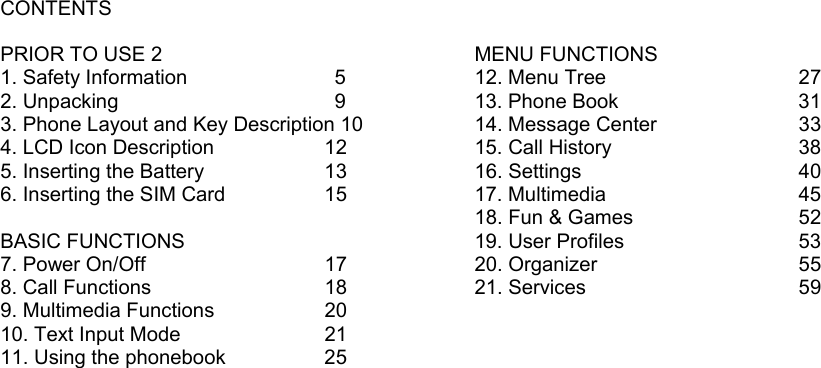
CONTENTS  PRIOR TO USE 2 1. Safety Information      5 2. Unpacking          9 3. Phone Layout and Key Description 10 4. LCD Icon Description      12 5. Inserting the Battery      13 6. Inserting the SIM Card     15  BASIC FUNCTIONS 7. Power On/Off       17 8. Call Functions       18 9. Multimedia Functions    20 10. Text Input Mode      21 11. Using the phonebook     25                                           MENU FUNCTIONS 12. Menu Tree        27 13. Phone Book            31 14. Message Center      33 15. Call History        38 16. Settings        40 17. Multimedia        45 18. Fun & Games      52 19. User Profiles            53 20. Organizer        55 21. Services        59
PRIOR TO USE - Safety Information - Unpacking - Phone Layout and Key  Description - LCD Icon Description - Inserting the Battery - Inserting the SIM card
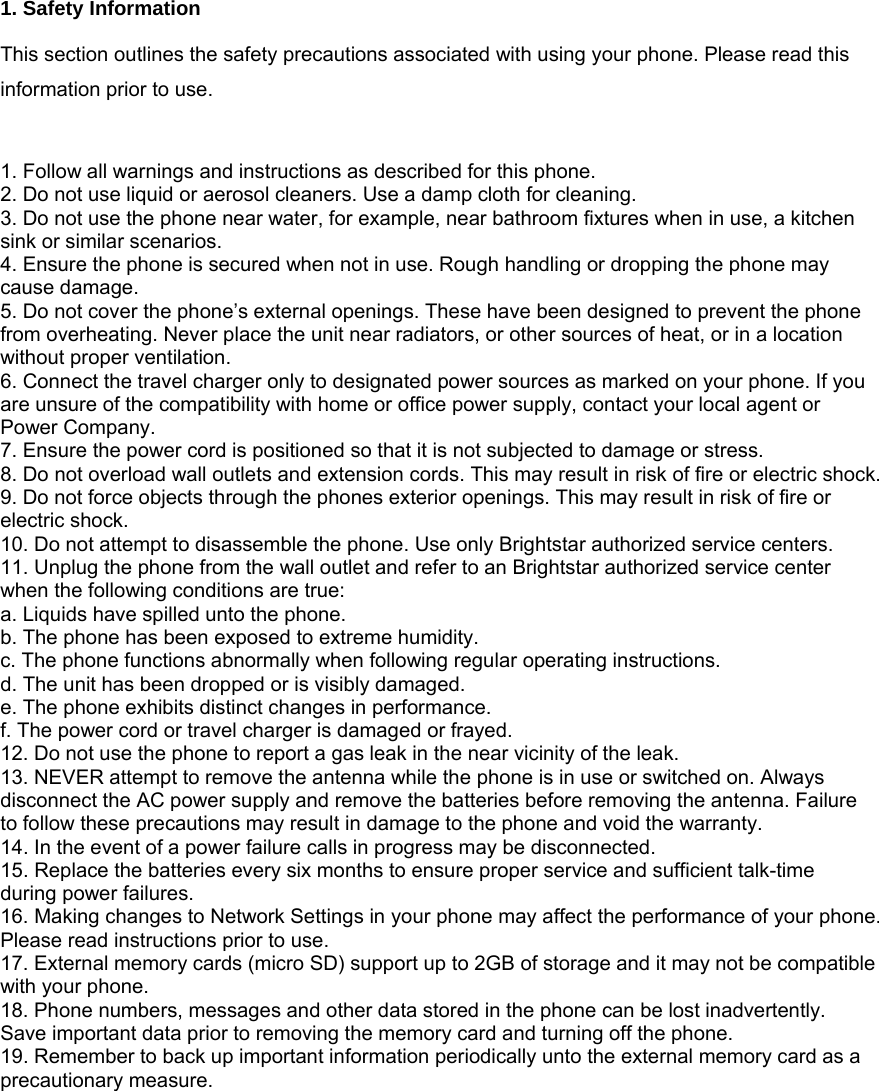
 1. Safety Information  This section outlines the safety precautions associated with using your phone. Please read this information prior to use.   1. Follow all warnings and instructions as described for this phone.   2. Do not use liquid or aerosol cleaners. Use a damp cloth for cleaning. 3. Do not use the phone near water, for example, near bathroom fixtures when in use, a kitchen sink or similar scenarios. 4. Ensure the phone is secured when not in use. Rough handling or dropping the phone may cause damage. 5. Do not cover the phone’s external openings. These have been designed to prevent the phone from overheating. Never place the unit near radiators, or other sources of heat, or in a location without proper ventilation. 6. Connect the travel charger only to designated power sources as marked on your phone. If you are unsure of the compatibility with home or office power supply, contact your local agent or Power Company. 7. Ensure the power cord is positioned so that it is not subjected to damage or stress.   8. Do not overload wall outlets and extension cords. This may result in risk of fire or electric shock. 9. Do not force objects through the phones exterior openings. This may result in risk of fire or electric shock. 10. Do not attempt to disassemble the phone. Use only Brightstar authorized service centers.   11. Unplug the phone from the wall outlet and refer to an Brightstar authorized service center when the following conditions are true: a. Liquids have spilled unto the phone. b. The phone has been exposed to extreme humidity. c. The phone functions abnormally when following regular operating instructions.   d. The unit has been dropped or is visibly damaged. e. The phone exhibits distinct changes in performance.   f. The power cord or travel charger is damaged or frayed. 12. Do not use the phone to report a gas leak in the near vicinity of the leak. 13. NEVER attempt to remove the antenna while the phone is in use or switched on. Always disconnect the AC power supply and remove the batteries before removing the antenna. Failure to follow these precautions may result in damage to the phone and void the warranty. 14. In the event of a power failure calls in progress may be disconnected. 15. Replace the batteries every six months to ensure proper service and sufficient talk-time during power failures. 16. Making changes to Network Settings in your phone may affect the performance of your phone. Please read instructions prior to use. 17. External memory cards (micro SD) support up to 2GB of storage and it may not be compatible with your phone. 18. Phone numbers, messages and other data stored in the phone can be lost inadvertently. Save important data prior to removing the memory card and turning off the phone. 19. Remember to back up important information periodically unto the external memory card as a precautionary measure.
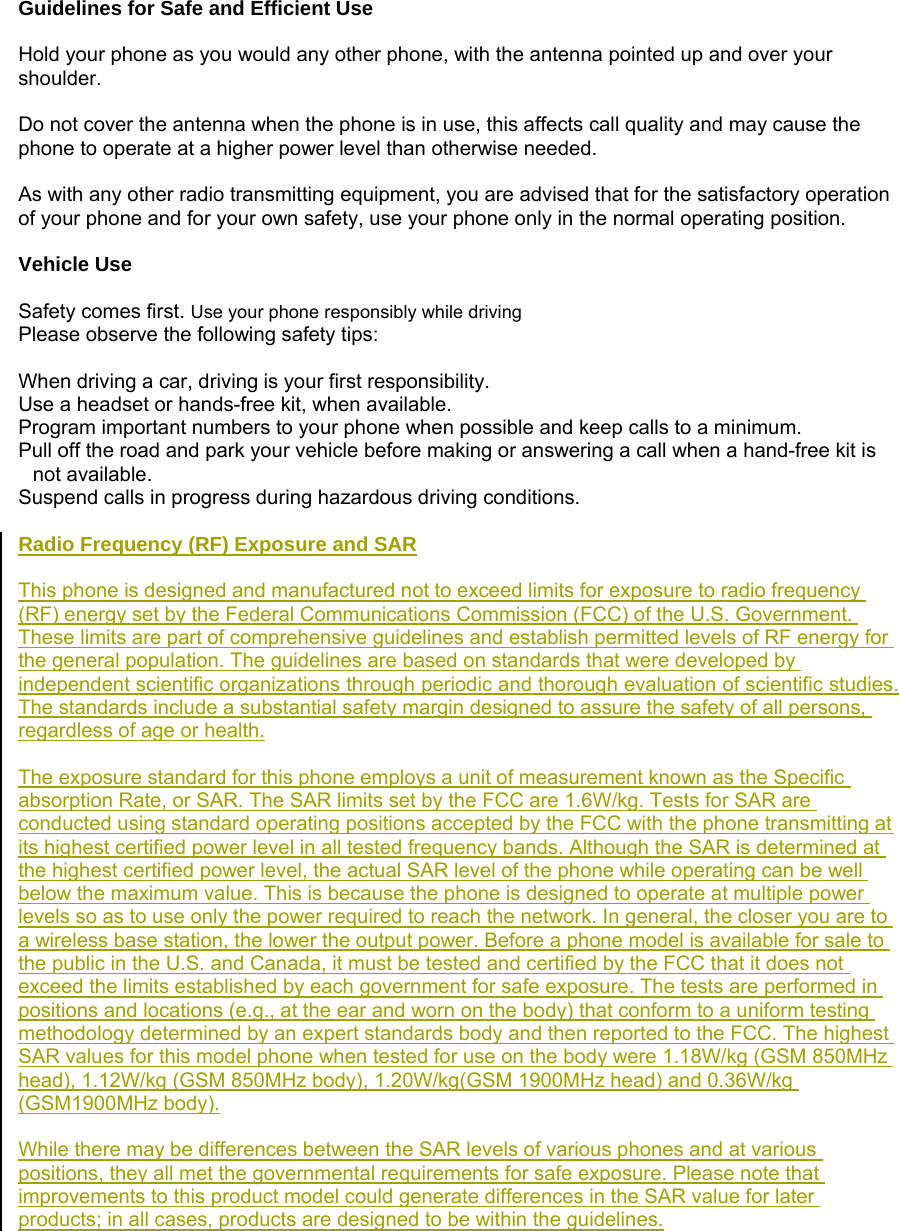
 Guidelines for Safe and Efficient Use  Hold your phone as you would any other phone, with the antenna pointed up and over your shoulder.  Do not cover the antenna when the phone is in use, this affects call quality and may cause the phone to operate at a higher power level than otherwise needed.  As with any other radio transmitting equipment, you are advised that for the satisfactory operation of your phone and for your own safety, use your phone only in the normal operating position.  Vehicle Use  Safety comes first. Use your phone responsibly while driving Please observe the following safety tips:  When driving a car, driving is your first responsibility.   Use a headset or hands-free kit, when available. Program important numbers to your phone when possible and keep calls to a minimum. Pull off the road and park your vehicle before making or answering a call when a hand-free kit is not available. Suspend calls in progress during hazardous driving conditions.  Radio Frequency (RF) Exposure and SAR  This phone is designed and manufactured not to exceed limits for exposure to radio frequency (RF) energy set by the Federal Communications Commission (FCC) of the U.S. Government. These limits are part of comprehensive guidelines and establish permitted levels of RF energy for the general population. The guidelines are based on standards that were developed by independent scientific organizations through periodic and thorough evaluation of scientific studies. The standards include a substantial safety margin designed to assure the safety of all persons, regardless of age or health.  The exposure standard for this phone employs a unit of measurement known as the Specific absorption Rate, or SAR. The SAR limits set by the FCC are 1.6W/kg. Tests for SAR are conducted using standard operating positions accepted by the FCC with the phone transmitting at its highest certified power level in all tested frequency bands. Although the SAR is determined at the highest certified power level, the actual SAR level of the phone while operating can be well below the maximum value. This is because the phone is designed to operate at multiple power levels so as to use only the power required to reach the network. In general, the closer you are to a wireless base station, the lower the output power. Before a phone model is available for sale to the public in the U.S. and Canada, it must be tested and certified by the FCC that it does not exceed the limits established by each government for safe exposure. The tests are performed in positions and locations (e.g., at the ear and worn on the body) that conform to a uniform testing methodology determined by an expert standards body and then reported to the FCC. The highest SAR values for this model phone when tested for use on the body were 1.18W/kg (GSM 850MHz head), 1.12W/kg (GSM 850MHz body), 1.20W/kg(GSM 1900MHz head) and 0.36W/kg (GSM1900MHz body).  While there may be differences between the SAR levels of various phones and at various positions, they all met the governmental requirements for safe exposure. Please note that improvements to this product model could generate differences in the SAR value for later products; in all cases, products are designed to be within the guidelines.
The SAR Body-worn testing was performed with a 15mm air gap.   The Users must be informed that they must maintain 15mm separation to the body when using body-worn accessories and the accessories must not contain metallic components.  - Caution  Modifications not expressly approved by the party responsible for compliance could void the user’s authority to operate the equipment.  FCC compliance Information  This device complies with part 15 of FCC Rules. Operation is subject to the following two conditions: 1.  This device may not cause harmful interference, and 2.  This device must accept any interference received. Including interference that may cause undesired operation.  Information to User  This equipment has been tested and found to comply with the limits for a Class B digital device, Pursuant to part 15 of the FCC Rules. These limits are designed to provide reasonable protection against harmful interference in a residential installation.  This equipment generates, uses and can radiate radio Frequency energy and, if not installed and used in accordance with the instructions, may cause harmful interference to radio communications. However, there is no guarantee that interference will not occur in a particular installation. If this equipment does cause harmful interference to radio or television reception, which can be determined by turning the equipment off and on, the user is encouraged to try to correct the interference by one or more of the following measures:  ▪ Reorient or relocate the receiving antenna. ▪ Increase the separation between the equipment and receiver ▪ Connect the equipment into an outlet on a circuit different from that to which the receiver is connected.   Pacemakers  The Health Industry Manufacturers Association recommends that a minimum separation of six (6) inches (15cm) be maintained between a cellular phone and a pacemaker to avoid potential interference with the pacemaker.    Users with pacemakers: Always keep your phone at least six (6) inches (15 cm) from your pacemakers when the phone is switched on. Do not carry your phone in your breast pocket. Do not place the phone near or around the chest. Use the ear opposite the pacemakers to minimize the potential for interference. Switch off your phone immediately if you suspect that interference is being caused.  Hearing Aids Some digital mobile phones, including your phone may interfere with some hearing aids. For more information, contact the device manufacturer.  Other Medical Devices If using any other personal medical device, consult the manufacturer of the device to determine if it is adequately shielded from external RF energy. Your physician may be able to assist you in obtaining this information.
Hospitals or health care facilities may use equipment that could be sensitive to external RF energy. Turn OFF your phone in health care facilities restricting use.  Operating Environment Remember to follow special regulations in force in the local area; power OFF your phone whenever it is prohibited from use.  Aircraft Safety Use of cellular phones on board an aircraft may cause interference to the aircraft’s navigational system.    FCC regulations prohibit using your phone while in the air. Switch off your phone before boarding an aircraft.  Explosive Atmospheres and Materials Switch off your phone in areas with a potentially explosive environment. Obey all signs and instructions in these areas. Users are advised to switch off the phone while at a refueling point or service station, below deck on boats, in chemical transfer or storage fuel facilities, and in areas where the air may contain chemicals or particles such as grain, dust or metal powders.   For Vehicles Equipped with an Air Bag Air bags deploy with great force. Do not place objects, including both installed and portable wireless equipment, in the area over the air bag. Ensure cellular phone equipment is properly installed to avoid risk of damage or danger.   Battery  Use the battery for its intended purpose only.  Do not short circuit the battery. This can occur when a metallic object (coin, keys, or clip) comes in contact with the positive and negative terminals on the battery (metal strips on the back of the battery). A short circuit may damage the battery or the object causing the short circuit.  Exercise care in handling any charged battery. Be mindful of placing a loose battery inside a pocket, purse or other container with other metal objects.  Use only Kyocera K1000 original batteries, charges and other related accessories.  - User Information regarding FCC label requirements.   The label will be visible at the time of purchase because the battery is installed by the user before the first use.
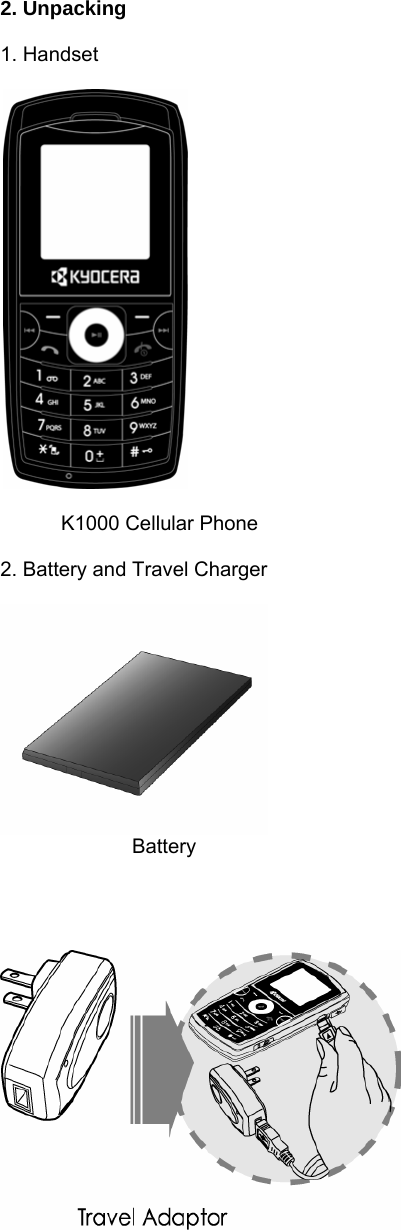
 2. Unpacking  1. Handset      K1000 Cellular Phone  2. Battery and Travel Charger          Battery
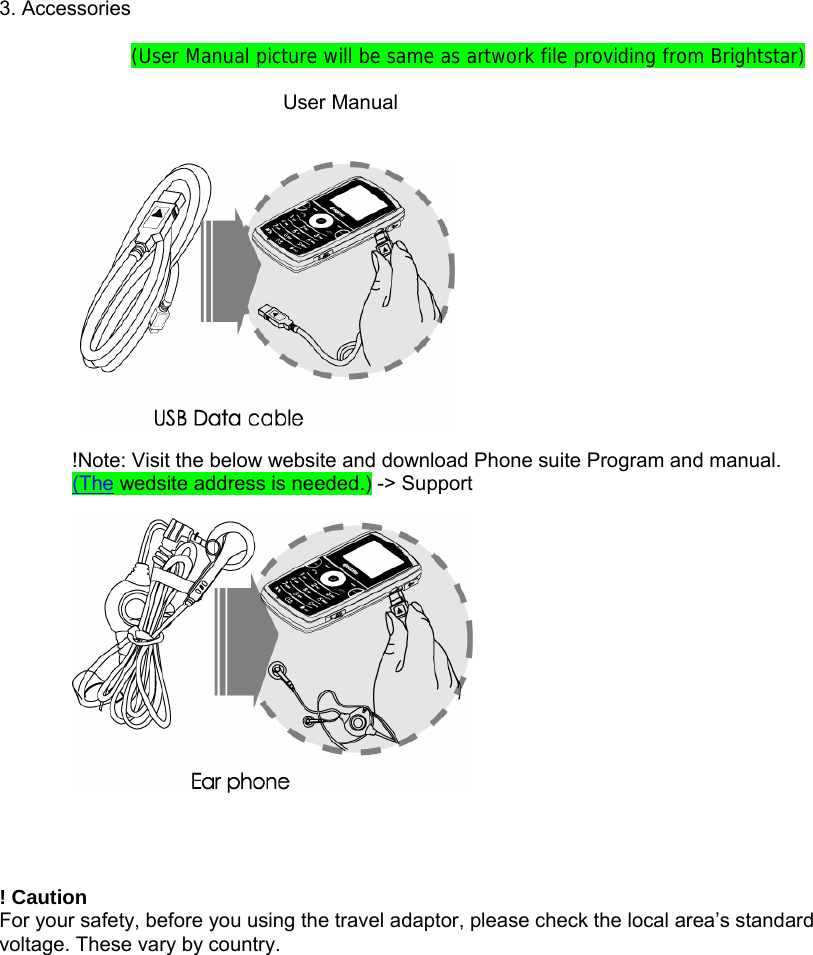
 3. Accessories  (User Manual picture will be same as artwork file providing from Brightstar)                        User Manual     !Note: Visit the below website and download Phone suite Program and manual. (The wedsite address is needed.) -> Support       ! Caution For your safety, before you using the travel adaptor, please check the local area’s standard voltage. These vary by country.
  3. Phone Layout and Key Description    Function Keys                           Description  Left Soft Key         [Basic Function] Performs the functions as indicated on   the left-bottom line of the display screen.   Usually works as a 'selection' key [Idle Mode] Enter main menu [MPEG4 Mode] Enter option menu  Right Soft Key         [Basic Function] Performs the functions as indicated on the right-bottom line of the display screen. Usually works as a ‘back’ key [Idle Mode] Enter Phonebook menu list [MPEG4 Mode] Back key   Function Keys (continued)  Makes or answers a call. In idle mode, launches the Call Logs menu.   Ends a call. Press and hold to switch   off the phone. In the menu, returns to   idle mode or cancels an input.
Navigation Keys  [Idle Mode]                Initiates the WAP browser (press and hold the OK button) Initiates the Audio Player (short press) [Text Input Mode] Switch between text input methods  [Basic Function]                 Moves the cursor up between selections [Idle Mode] Initiates the Audio Player. [Camera Mode] Zooms in, magnifying the image (Digital Zoom Function) [Audio Player Mode] Play & Pause MP3 files  [Basic Function]   Moves the cursor down between selections          [Idle Mode] Enter the Alarm menu. [Camera Mode] Zooms out, reducing the size of the image (Digital Zoom Function) [Audio Player Mode] Stop playing MP3 file  [Basic Function] Move the cursor left between selections [Idle Mode] Enter the User Profiles menu. Set up alert tones.               [Camera Mode] Adjust the Exposure Level [Audio Player Mode] Go to previous MP3 file [Video Player Mode] Rewind the video file  [Basic Function] Move the cursor right between selections [Idle Mode]               Enter the Tone Setup menu
[Camera Mode] Adjust the Exposure Level [Audio Player Mode] Go to next MP3 file [Video Player Mode] Fast forward the video file  Alphanumeric Keys                     [Press] Enter number and string [Press and Hold]  : Press and Hold '+' (international call) : On and Off silent mode (long press) [Video Play Mode] Wide screen view   Side Keys    [Basic Function] Move up between selections [Idle Mode] Increase the ring tone volume [Audio/Video Player  Mode] Increase the volume   [Basic Function] Move down between selections   [Idle Mode] Decrease the ring tone volume [Audio/Video Player Mode] Decrease the volume   [Short Press] Enter Camera mode [Press and Hold] Enter Video Recorder mode   4. LCD Icon Description  Fixed Icon Area   Network Status Area   User Setting Screen Area
 Date & Time Area  Soft Key Area    Icon     Description  RSSI Bar  Shows the signal strength. The greater the number of bars, the better the signal strength.  Battery Indicator Bar   Shows current battery charge levels.    The alarm clock has been set and activated.  GPRS session is in progress  Indicates selected phone line for outgoing calls  Phone lock is activated  Roaming  You have a missed call  You received an email message  You received a fax  You received a voice message  You received a text message  You have received a MMS message  The MMS client is busy  The phone’s microphone is in mute mode  Alert type is set to Ring  Alert type is set to Silent  Alert type is set to Vibrate  Alert type is set to Vibrate and Ring  Alert type is set to Vibrate then Ring  You have received a broadcast message  The stopwatch is in progress
5. Inserting the Battery    a. Align the battery from the top, with the copper connectors facing each other.   b. Gently push the bottom of the battery into place.  Removing the battery a. Switch off your phone. b. Slide the back cover down. c. Lift the battery up from the bottom.
 Charging the battery a. Connect the travel charger to the jack on the side of the phone. b. Connect the travel charger to the power outlet. c. The battery can also be charged by connecting the USB cable to your personal computer.  ! Note The battery power indicator on screen appears scrolling while the phone is charging.  •  Normally, a battery should charge completely within one hour. •  For a new or completely discharged battery, it may take a minimum of four (4) hours of charge time to achieve optimum performance. •  You can make calls while the phone is charging. •  Do not charge the phone without the battery in place.
6. Inserting the SIM Card  The SIM card contains a computer chip that stores your personal information, phonebook/message memory and other services provided by your service provider. Some menu options may not be activated depending on the SIM card supplied. Please contact your network service provider regarding availability of services and any associated costs.   Inserting the SIM Card  •  Power off your phone and remove the travel charger if connected. •  Face the gold chip of the SIM card towards the phone and push the SIM card into the slot   •  Insert the battery •  Replace the battery cover  Removing the SIM Card Power off your phone and remove the travel charger if connected. a. Remove the battery cover and the battery b. Slide the SIM card out  ! Note:. Always handle the SIM card with care and insert with the gold contacts facing down.
BASIC FUNCTIONS - Power On/Off - Call Functions - Multimedia Functions - Text Input Mode - Using the phonebook
7. Power On/Off  Prior to switching on your phone, ensure the battery is in place. 1. To switch ON the phone, press and hold the [END] key for at least 2 seconds.   2. To switch OFF your phone, press and hold the [END] key again for at least 2 seconds.   ! Note: Some SIM cards may be PIN protected. If prompted, enter your PIN and press [Ok}. For more details, please see Security Setup in the Settings menu.  Inserting the SD Card (Optional)
8. Call Function  Making a Call 1. Enter the area code and phone number while in standby mode   2. Press the Send key. A connect tone can be activated setting the Connect tone to ON in the Extra Tone menu  Making International Calls 1. Press and hold the number 0 key until the + symbol displays on screen. 2. Enter the country code, area code, and phone number after the symbol. 3. Press the Send key to make the call.  Edit a Phone Number  Key           Description [Press] Delete a digit on the left side of cursor [Press and Hold] Delete the whole digit                     Move cursor to the digit you want to edit     Using the Phonebook Store names and numbers in your contacts list and later retrieve to make a call. Information can be stored in both the SIM card and phone.  View the Contact List:  1. Press the right soft key in Idle mode to enter Contacts. 2. The contacts list is displayed. 3. Select a phone number using the navigation keys up or down and press the Send key to make a call. Press the left soft key to view the Option menu.  Search Contacts: You can search for a phone number from the Contacts list by inputting the first letter or name of the person. 1. Press the right soft key in Idle mode to enter Contacts. 2. The text field at the bottom of the screen displays a blinking cursor. 3. Enter a character or part of the name. All the names that contain the entered characters are displayed. 5. Press the Send key to make a call or press the left soft key to view the Option menu.  Making a Call from a Message 1. Press the left soft in Idle mode to enter Message Center. 2. Select Messages from the menu of options. 3. Select Inbox from the menu of options 4. Highlight the message you’d like to call using the navigation keys and press OK 5. Press the Send key to make the call.  Redialing the last Number The phone stores the last 30 numbers dialed. To recall any of these numbers: 1. Press the Send key to display the list of recently dialed numbers.
2. Press the navigation keys up or down to scroll through the list. Highlight the desired number. 3. Press the Send key a second time to dial the number.  Ending a Call Press the End key to end a call or close the phone.  Answering a Call  When receiving an incoming call, the phone will alert you depending on your saved sound settings and alert types. The caller’s name will appear on screen if stored in your contact list.  • Press the Send key to answer the call.   •  If the Any key Answer option is activated, press any key to answer the call except for the End key. •  To reject an incoming call, press and hold the volume keys on the side of the phone. •  End the call by closing the phone or pressing the End key.  Emergency Call •  Calls to emergency service numbers can be made under any circumstance, even if the SIM card or phone is locked.   •  To place an emergency call, dial the local emergency number and press the Send key. •  Give your location and state your emergency. Do not end the call until given permission to do so. •  End the call by pressing the End key.  Entering a “Pause” in a Dial String A pause (“P”) character may be entered into a dial string by pressing the left special function key( “*” ) two times.   Adjusting Earpiece Volume •  During a call, you can adjust the earpiece volume by pressing the side keys up or down. •  To change the ring tone level, press the side keys up or down while in Idle mode.  Using the Ear microphone •  Connect the ear microphone to the jack on the side of the phone. •  Answer or end a call by pressing the button on the ear microphone cable. •  Answer a second incoming call (Call Waiting) by pressing the button on the ear microphone cable.
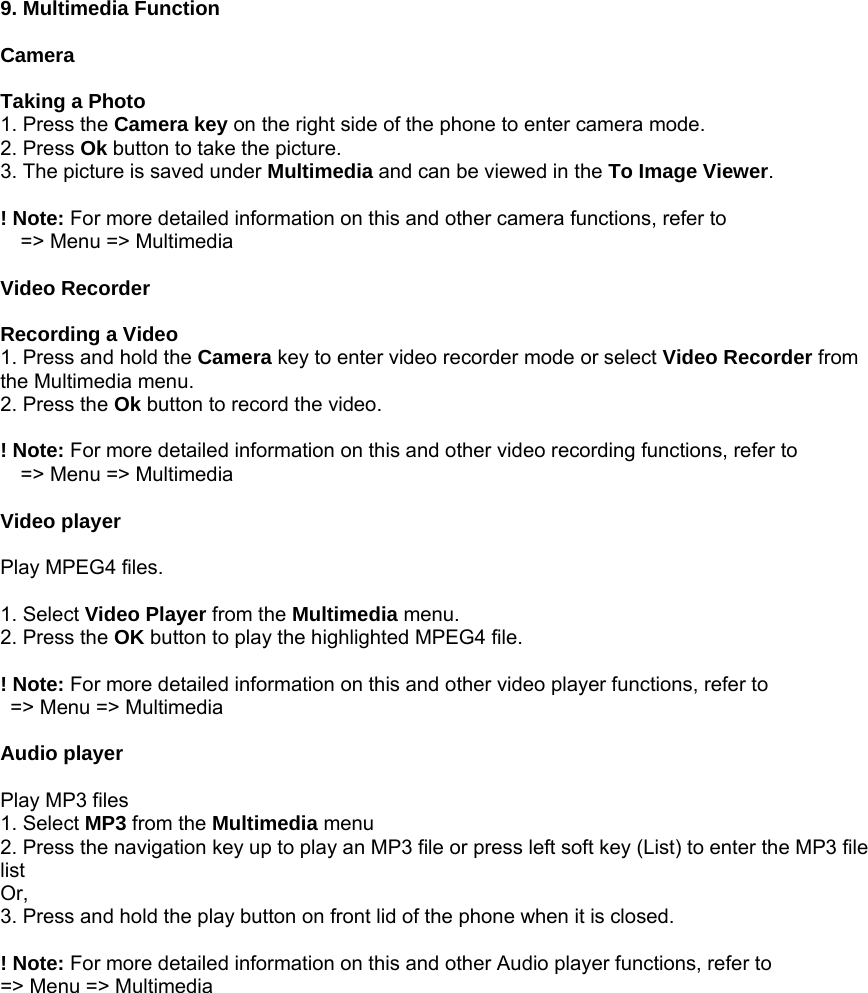
 9. Multimedia Function  Camera  Taking a Photo 1. Press the Camera key on the right side of the phone to enter camera mode. 2. Press Ok button to take the picture.   3. The picture is saved under Multimedia and can be viewed in the To Image Viewer.  ! Note: For more detailed information on this and other camera functions, refer to     => Menu => Multimedia  Video Recorder  Recording a Video 1. Press and hold the Camera key to enter video recorder mode or select Video Recorder from the Multimedia menu. 2. Press the Ok button to record the video.  ! Note: For more detailed information on this and other video recording functions, refer to       => Menu => Multimedia  Video player  Play MPEG4 files.  1. Select Video Player from the Multimedia menu. 2. Press the OK button to play the highlighted MPEG4 file.  ! Note: For more detailed information on this and other video player functions, refer to     => Menu => Multimedia  Audio player  Play MP3 files 1. Select MP3 from the Multimedia menu 2. Press the navigation key up to play an MP3 file or press left soft key (List) to enter the MP3 file list Or, 3. Press and hold the play button on front lid of the phone when it is closed.  ! Note: For more detailed information on this and other Audio player functions, refer to   => Menu => Multimedia
10. Text Input Mode  This function enables the user to write and edit text for various phones functions.   •  Write and edit a SMS/MMS message   •  Enter a Name in the Contact List •  Use the Search mode •  Add a name to photos stored in the phone •  Input web address and store favorite sites    Text Input Methods Multitap ABC Multitap abc Multitap 123 Multitap ES Multitap es T9 ABC T9 abc T9 ES T9 es   Key     Description   [Left Soft Key Options] Go to option menu screen    [Right Soft Key] Go back to the previous screen    [Press] Move the cursor to the left one character at a time [Press and Hold] Scroll left through the characters.             [Press] Move the cursor to the right one character at a time [Press and Hold] Scroll right through the characters.    [Press] Move the cursor one line up [Press and Hold] Scroll the cursor upward
  [Press] Move the cursor one line down [Press and Hold] Scroll the cursor downward   Go back to the idle screen   Insert a blank space or the number “0”   Insert symbols ( . , - ? ! ' @ : # $ / _ 1 )   Select characters from the alphanumeric keys from 2 to 9.     Select symbols    Switch between input methods.       ~
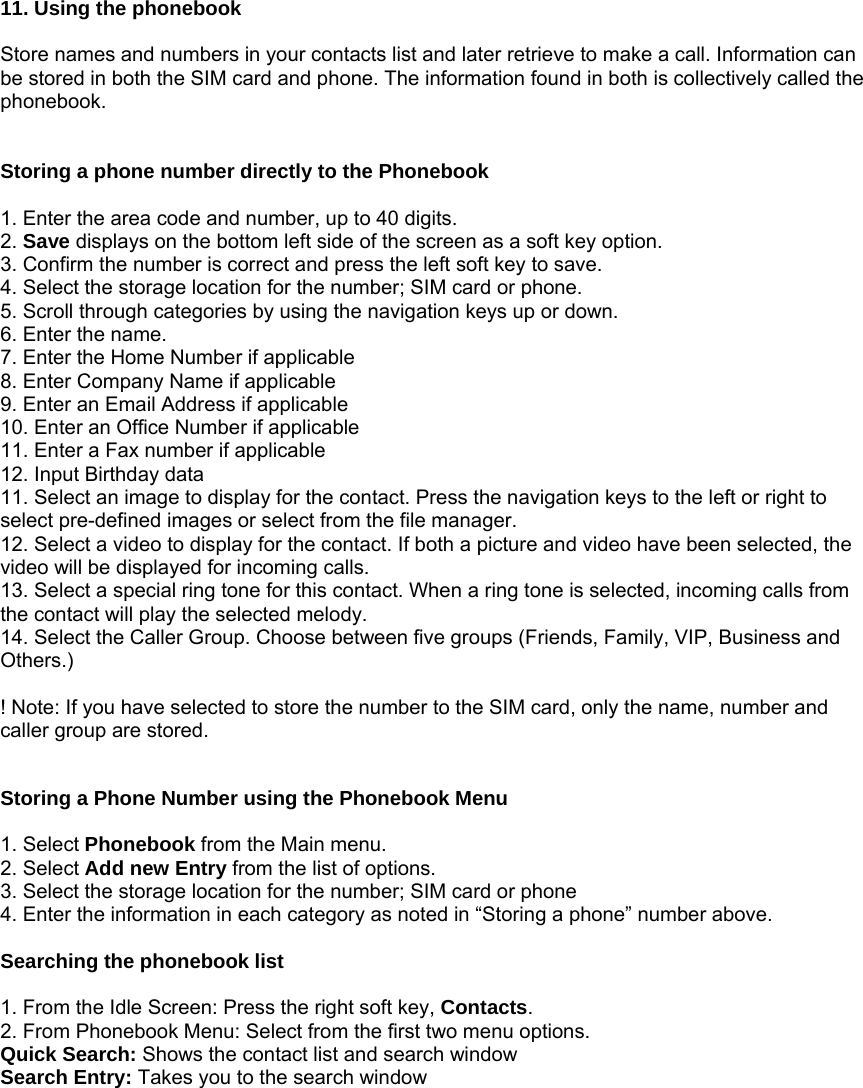
 11. Using the phonebook  Store names and numbers in your contacts list and later retrieve to make a call. Information can be stored in both the SIM card and phone. The information found in both is collectively called the phonebook.   Storing a phone number directly to the Phonebook  1. Enter the area code and number, up to 40 digits. 2. Save displays on the bottom left side of the screen as a soft key option. 3. Confirm the number is correct and press the left soft key to save. 4. Select the storage location for the number; SIM card or phone. 5. Scroll through categories by using the navigation keys up or down. 6. Enter the name. 7. Enter the Home Number if applicable 8. Enter Company Name if applicable 9. Enter an Email Address if applicable 10. Enter an Office Number if applicable 11. Enter a Fax number if applicable 12. Input Birthday data 11. Select an image to display for the contact. Press the navigation keys to the left or right to select pre-defined images or select from the file manager. 12. Select a video to display for the contact. If both a picture and video have been selected, the video will be displayed for incoming calls. 13. Select a special ring tone for this contact. When a ring tone is selected, incoming calls from the contact will play the selected melody. 14. Select the Caller Group. Choose between five groups (Friends, Family, VIP, Business and Others.)  ! Note: If you have selected to store the number to the SIM card, only the name, number and caller group are stored.   Storing a Phone Number using the Phonebook Menu  1. Select Phonebook from the Main menu. 2. Select Add new Entry from the list of options. 3. Select the storage location for the number; SIM card or phone 4. Enter the information in each category as noted in “Storing a phone” number above.  Searching the phonebook list  1. From the Idle Screen: Press the right soft key, Contacts. 2. From Phonebook Menu: Select from the first two menu options. Quick Search: Shows the contact list and search window Search Entry: Takes you to the search window
MENU FUNCTIONS - Menu Tree - Phone Book - Message Center - Call History - Settings - Multimedia - Fun & Games - User Profiles - Organizer - Services
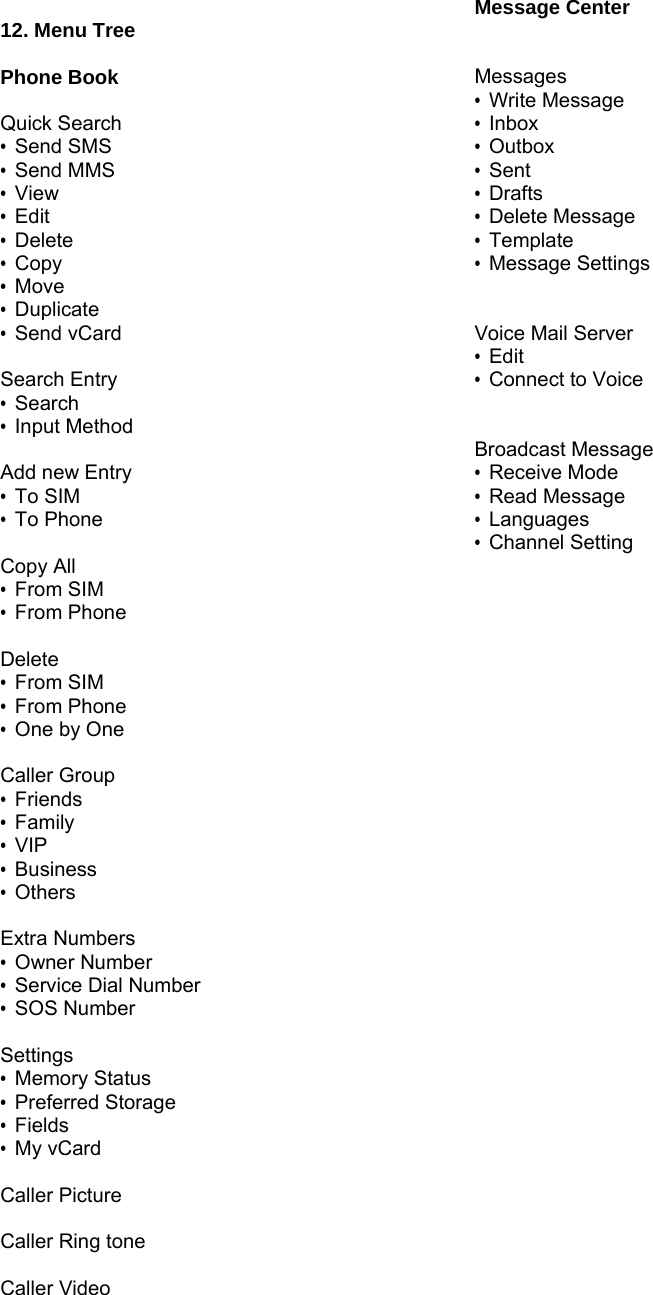
 12. Menu Tree  Phone Book  Quick Search       • Send SMS       • Send MMS • View • Edit • Delete • Copy • Move • Duplicate • Send vCard  Search Entry • Search • Input Method  Add new Entry • To SIM • To Phone  Copy All • From SIM • From Phone  Delete • From SIM • From Phone • One by One  Caller Group • Friends • Family • VIP • Business • Others  Extra Numbers • Owner Number •  Service Dial Number • SOS Number  Settings • Memory Status • Preferred Storage • Fields • My vCard  Caller Picture  Caller Ring tone  Caller Video Message Center   Messages • Write Message • Inbox • Outbox • Sent • Drafts • Delete Message • Template • Message Settings   Voice Mail Server • Edit • Connect to Voice   Broadcast Message   • Receive Mode • Read Message • Languages • Channel Setting
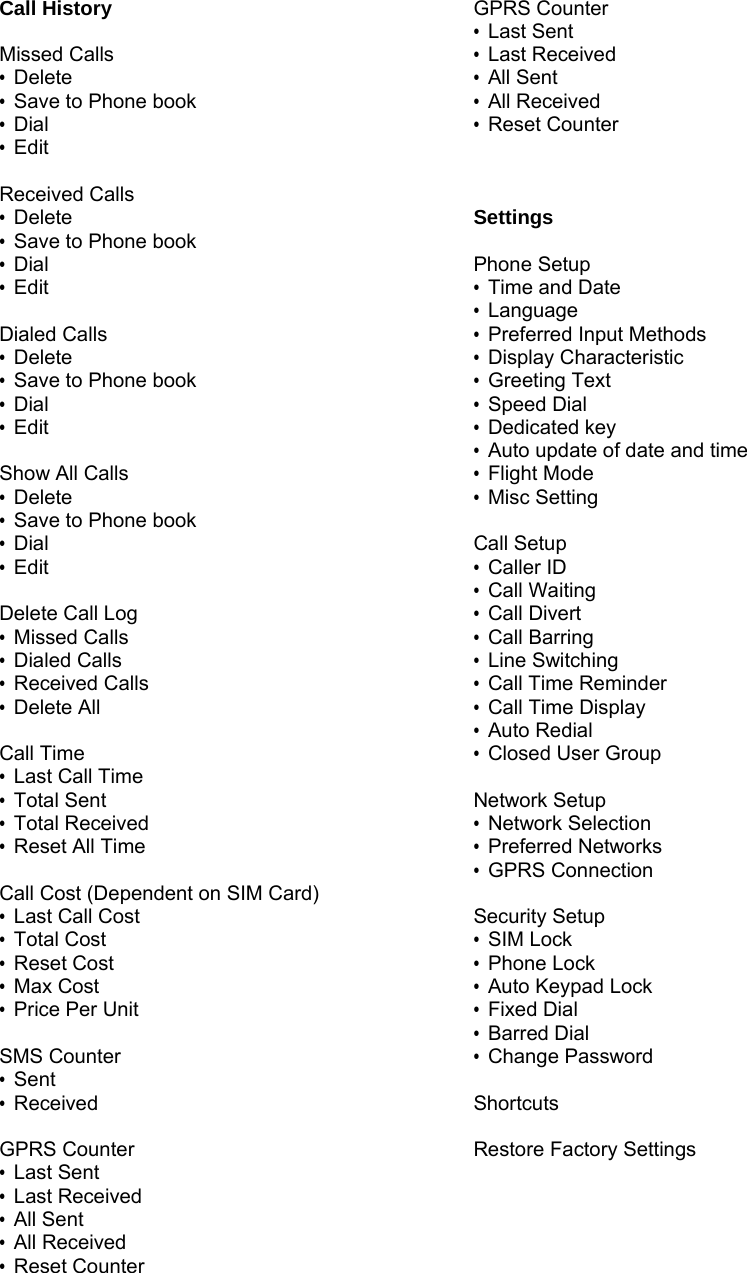
Call History  Missed Calls • Delete •  Save to Phone book • Dial • Edit  Received Calls • Delete •  Save to Phone book • Dial • Edit  Dialed Calls • Delete •  Save to Phone book • Dial • Edit  Show All Calls • Delete •  Save to Phone book • Dial • Edit  Delete Call Log • Missed Calls • Dialed Calls • Received Calls • Delete All  Call Time • Last Call Time • Total Sent • Total Received • Reset All Time  Call Cost (Dependent on SIM Card) • Last Call Cost • Total Cost • Reset Cost • Max Cost • Price Per Unit  SMS Counter • Sent • Received  GPRS Counter • Last Sent • Last Received • All Sent • All Received • Reset Counter  GPRS Counter • Last Sent • Last Received • All Sent • All Received • Reset Counter    Settings  Phone Setup •  Time and Date • Language • Preferred Input Methods • Display Characteristic • Greeting Text • Speed Dial • Dedicated key •  Auto update of date and time • Flight Mode • Misc Setting  Call Setup • Caller ID • Call Waiting • Call Divert • Call Barring • Line Switching • Call Time Reminder • Call Time Display • Auto Redial •  Closed User Group  Network Setup • Network Selection • Preferred Networks • GPRS Connection  Security Setup • SIM Lock • Phone Lock • Auto Keypad Lock • Fixed Dial • Barred Dial • Change Password  Shortcuts  Restore Factory Settings
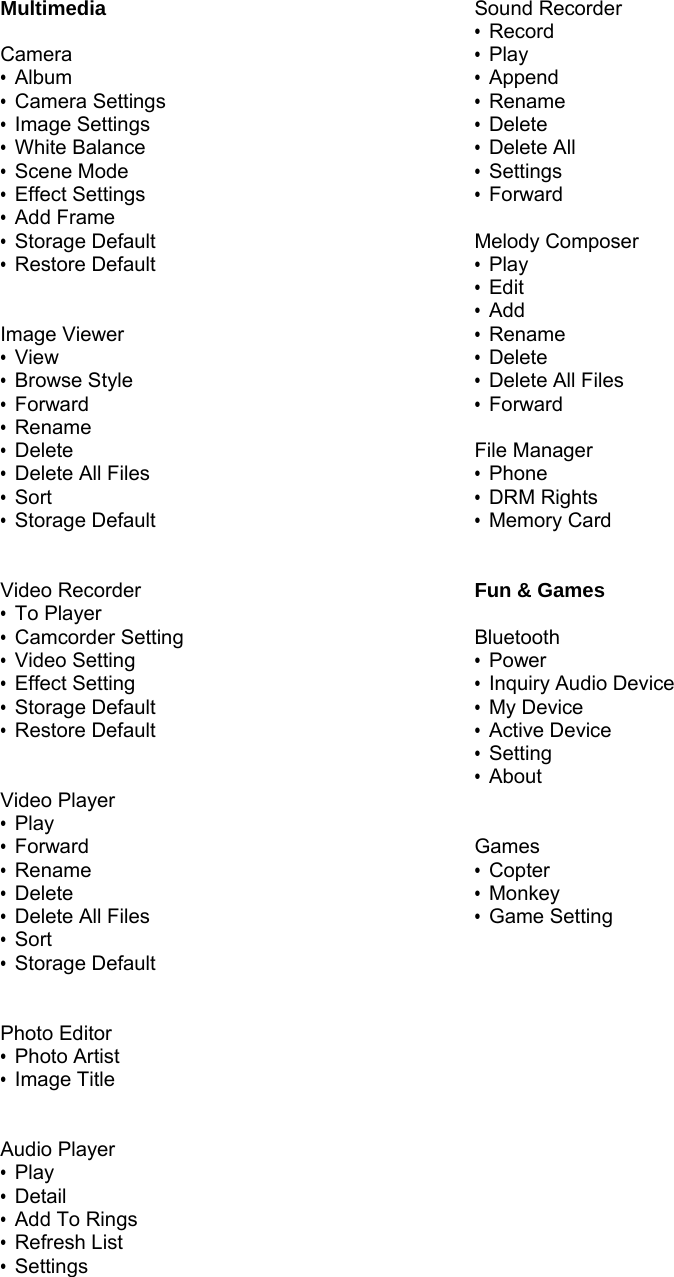
Multimedia  Camera • Album • Camera Settings • Image Settings • White Balance • Scene Mode • Effect Settings • Add Frame • Storage Default • Restore Default   Image Viewer • View • Browse Style • Forward • Rename • Delete •  Delete All Files • Sort • Storage Default   Video Recorder • To Player • Camcorder Setting • Video Setting • Effect Setting • Storage Default • Restore Default   Video Player • Play • Forward • Rename • Delete •  Delete All Files • Sort • Storage Default    Photo Editor • Photo Artist • Image Title   Audio Player • Play • Detail • Add To Rings • Refresh List • Settings  Sound Recorder • Record • Play • Append • Rename • Delete • Delete All • Settings • Forward  Melody Composer • Play • Edit • Add • Rename • Delete • Delete All Files • Forward  File Manager • Phone • DRM Rights • Memory Card   Fun & Games  Bluetooth • Power • Inquiry Audio Device • My Device • Active Device • Setting • About   Games • Copter • Monkey • Game Setting
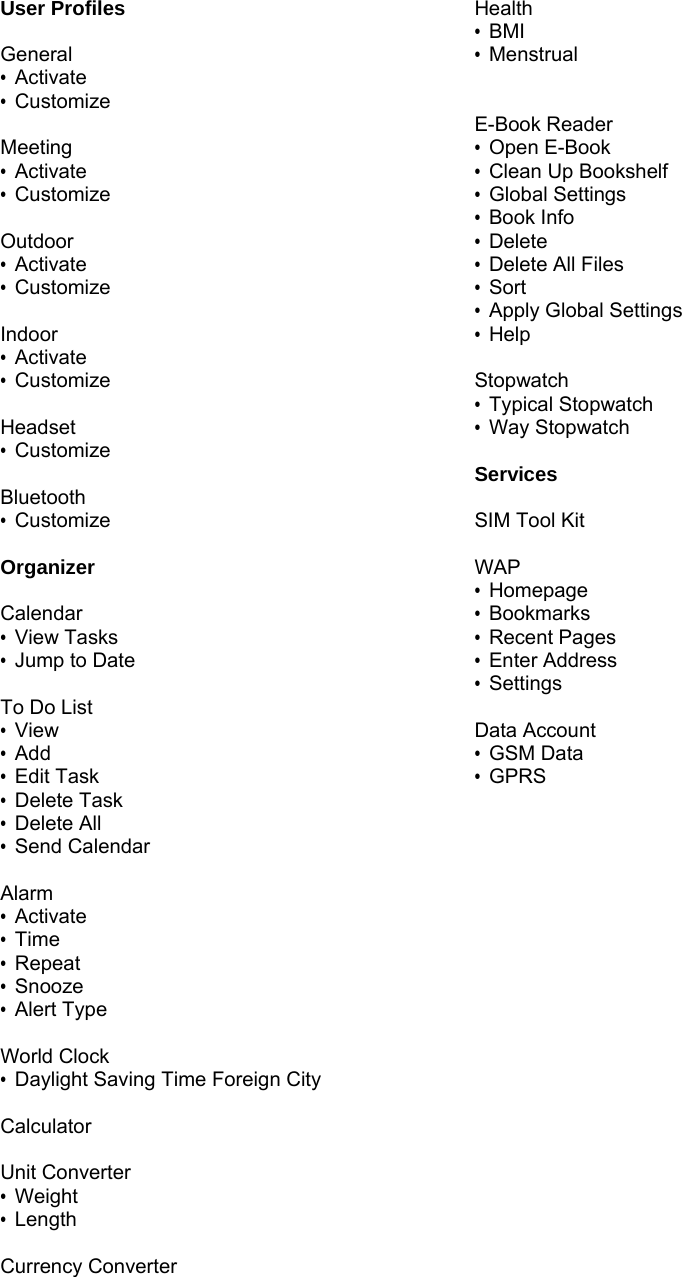
User Profiles  General • Activate • Customize  Meeting • Activate • Customize  Outdoor • Activate • Customize  Indoor • Activate • Customize  Headset • Customize  Bluetooth • Customize  Organizer  Calendar • View Tasks •  Jump to Date  To Do List • View • Add • Edit Task • Delete Task • Delete All • Send Calendar  Alarm • Activate • Time • Repeat • Snooze • Alert Type  World Clock •  Daylight Saving Time Foreign City  Calculator  Unit Converter • Weight • Length  Currency Converter  Health • BMI • Menstrual   E-Book Reader • Open E-Book •  Clean Up Bookshelf • Global Settings • Book Info • Delete • Delete All Files • Sort •  Apply Global Settings • Help  Stopwatch • Typical Stopwatch • Way Stopwatch   Services  SIM Tool Kit  WAP • Homepage • Bookmarks • Recent Pages • Enter Address • Settings  Data Account • GSM Data • GPRS
 13. Phone Book The Phonebook menu allows you to search and save new contacts, send messages direct from the phonebook, make changes and send contact information to others. To access the phonebook, select Phonebook from the Main menu.       Quick Search Select Quick Search to view the complete Contact list. Use the navigation keys to scroll through the contact list. The text field at the bottom of the screen also allows you to search for a phone number from the Contact list by inputting the first letter or name of the person. The names containing the entered characters are displayed.  Highlight the name and press the left soft key for menu options.    Send SMS:    Send an SMS to a contact. Send MMS: Send an MMS to a contact. View: View selected contact’s information. Edit: Edit contact information. Delete: Delete the contact. Copy: Copy the selected number and store from SIM to phone or vice versa.   Move: Move the selected number from SIM to phone or vice versa.   Duplicate: Duplicate the selected number to the same storage device, SIM or phone.   Send vCard: Send the selected number to others via SMS, MMS or Bluetooth.  Search Entry  • Select Search Entry to find a number by name or character. •  Enter the first few letters or numbers of the contact and press the left soft key, Options, to search for matching contacts.   •  Select a contact by using the navigation keys to highlight the number. • Press the Send key to make a call.    Highlight the contact name or number and press the left soft key for menu options.    Send SMS:    Send an SMS to a contact. Send MMS: Send an MMS to a contact. View: View selected contact’s information. Edit: Edit contact information. Delete: Delete the contact. Copy: Copy the selected number and store from SIM to phone or vice versa.   Move: Move the selected number from SIM to phone or vice versa.   Duplicate: Duplicate the selected number to the same storage device, SIM or phone.   Send vCard: Send the selected number to others via SMS, MMS or Bluetooth.  Add New Entry Please see [Storing a Number using the Phonebook Menu].
 Copy All When Copy All is selected, all phone numbers are copied from the current storage medium to the other. Use this function to back up phonebook data from SIM to phone and vice versa.  Delete Delete all phonebook data in the SIM card or Phone.  Caller Group Categorize contacts into groups. Edit Caller Group profiles as follows:   Edit Group Name: Edit the group name and press the left soft key to view the Option menu. Select “Done” to save the changes. Alert Sound: Select a unique ring tone for the caller group. Use the navigation keys to scroll through the options. Alert Picture: Select an image for the caller group. Use the navigation keys to scroll the options. Press the left soft key to view each file.   Alert Video: Select a video for the caller group. Use the navigation keys to scroll through the options. Add Member:    Add new contacts to the selected caller group. Press the left soft key and select “Add”. The contact list will display excluding members already in the group. It is possible to save a contact into multiple groups.  Special Numbers View and edit your own number, Service Dial number and emergency number.  Owner Number: displays your mobile phone number. Edit owner's name and phone number. Service Dial Number: lists SIM SDN (Service Dial Number) and allows you to access to the number by pressing the left soft key. SOS Number: Lists emergency dial numbers.  Settings View and edit Phonebook settings.  Memory Status This function displays memory usage and capacity. The SIM card and phone memory status are illustrated separately.  Preferred Storage Set your default storage medium to either SIM or Phone for new phonebook entries.  Fields Turn phonebook entry fields ON or OFF.  My vCard Edit and send your personal vCard via SMS, MMS or Bluetooth.  Voice Prompt Hear the voice prompt of a phone number listed.  Caller Picture Assign an image to a number, contact or caller group from the file manager.
 Caller Ring Tone Assign a special ring tone to a contact, number or caller group.  Caller Video Assign a video to a contact, number or caller group.
14. Message Center Use messaging to send, receive, and edit text and picture messages. The K1000 supports various messaging types including Short Messaging Service (SMS), Multimedia Message (MMS), Chat and Broadcast messages. Please note, availability is dependent on your service provider. Contact your service provider for more details.  Messages Write a Message [Text Message] Text messages are sent via SMS (Short Message Service) and are dependent on your network service provider. You can send text messages to a fax, pager, E-mail account and to another mobile phone subscriber. Contact your network service provider for service availability and messaging settings.  The text message icon appears on screen when you have received a new message.    Note: SMS service may not be available on all networks or may not function properly outside your network.  Text messaging enables the user to write and send new messages. 1. Select Text Message from the Write a Message Menu. 2. Enter the text message and press the left soft key to enter the Options menu. 3. The Options menu allows you to select or insert a Template, Object, text formatting, phonebook number and change the input method. 4. Press the left soft key when the message is complete and select Done.  5. Choose from the following message options: Send Only Save and Send Save Send to Many Send to Group 6. Input the number directly or press the left soft key to Search the phonebook.  ! Note: If you receive a call while writing a message, the message is automatically saved until the call is complete. The phone returns to the original text messaging screen after the call. Complete the message as you normally would.  [Multimedia Message] Multimedia messaging (MMS), also called Picture Messaging, is a service that enables you to send messages inclusive of images, animations and sound in addition to text.   Send messages to mobile phones and e-mail recipients. Multimedia messaging availability is dependent on your service provider. The recipient of a MMS message must also subscribe to the service.  Write a message and insert images, sound and other attachments from the file manager. 1. Select Multimedia Message from the Write a Message Menu. 2. Enter the recipient and subject information. You can also include other CC and BCC recipients, up to 20 each. 3. Press the left soft key to Edit and input your message. Add video, audio or picture files.       4. Press the left soft key when the message is complete and select Done.  5. Choose from the following message options: Send Only Save and Send Save to Drafts Send Options Exit
! Note: If you receive a call while writing a message, the message is automatically saved until the call is complete. The phone returns to the original text messaging screen after the call. Complete the message as you normally would.  Inbox Check received messages. Press the left soft key for the Options menu:  Reply: Reply to the sender. Forward: Forward the message to another recipient. Edit: Edit the message, and send or save the edited message. Delete: Delete the selected message. Delete All: Delete all messages in the Inbox. Use Number: Call the sender or save the number to the phonebook. Use URL: Use the URL of the sender. Chat: Use the number of the sender to start a chat. Advanced: Copy or move the message to phone or SIM card.  Outbox View messages on cue to be sent. Press the left soft key for the Options menu:  View: View the message Send: Resend the message. Edit: Edit the message, and send or save the edited message. Delete: Delete the selected message. Delete All: Delete all messages in the Outbox. Properties: View the message information. Use Number: Call the sender or save the number to the phonebook.  Sent View sent messages. Press the left soft key for the Options menu:  View: View the message Send: Send the message to another recipient. Edit: Edit the message, and send or save the edited message. Delete: Delete the selected message. Delete All: Delete all messages in the Sent box. Use Number: Call the sender or save the number to the phonebook. Chat: Use the number of the sender to start a chat. Use URL: Use the URL of the sender. Advanced: Copy or move the message to the phone or SIM card.  Drafts View saved draft messages. Press the left soft key for the Options menu: View: View the message Send: Send saved messages to the recipient(s). Edit: Edit the message. Delete: Delete the selected message. Delete All: Delete all messages in the Draft box. Properties: View the message information. Save Object: Save the message. Use Number: Call the sender or save the number to the phonebook.
Delete Message Delete messages from the Inbox, Outbox, Sent messages, Drafts or all Messages.  Template  [Text Message] Use stored message templates to send quick text messages or as part of a new message. Store up to 10 frequently used messages, up to 40 characters within each template.    1. Select Template from the Messages Menu 2. Select Text Message  3. Choose a message template from the list 4. Press the left soft key, OK, to accept and view options: Edit: Edit the template. Erase: Delete the template. Write Message: Write a message with the selected template ¾  Input message recipient ¾  Input the From, CC and BCC fields ¾  Input the subject heading ¾  Edit the content – allows you edit images and sound, add new attachments and slides and preview the completed message.   Message Settings  [Text Message] Set the default values for several messaging options including: Profile Settings, Common Settings, Memory Status, Preferred Storage and Preferred Bearer.    Profile Settings •  Set messaging profile settings. Consult your network service provider for availability and network settings. •  Profile Name: Edit the profile name. •  SC Address: Obtain the SC address from your service provider •  Validity Period: Set the storage period for unsent messages. Choose from maximums of    1 hour, 12 hours, 1 day or 1 week •  Message Type: choose from Fax, Page, E-mail or Text  Common Settings Set various messaging options including: delivery reports, validity reports and proxy server.     Delivery Report   Requests a status report to verify whether a message has been delivered. On: Reports whether or not the sent message was delivered. Off: Does not request a report.  Reply Path This option allows the recipient of your message to send a reply via your message center. Press On to activate. Press Off to deactivate.    Memory Status This function displays memory usage and capacity. The SIM card and phone memory status are illustrated separately.  Preferred Storage
Set the preferred storage location for SMS messages: to SIM or Phone.  Preferred Bearer Set your preferred Bearer for SMS. Bearer options include: GPRS, GSM, or GSM only.  [Multimedia Message] Set the default values for several multimedia messaging options. Set MMS related parameters for sending and retrieving the MMS messages.  Compose Set parameters when composing MMS messages.  Creation Mode: Select the creation mode. Image Resizing: Select the image size Auto Signature: Activate auto signature.  Send Set parameters when sending MMS messages.  Validity Period: Set the period the message center attempts to deliver unsent messages. When the validity period expires, the message center stops further attempts. Deliver Report: Requests a status report to verify whether a message has been delivered. On: Reports whether or not the sent message was delivered. Off: Does not request a report. Read Report: Requests a status report to verify whether a message has been read. On: Reports whether or not the sent message was read. Off: Does not request a report. Priority: Set MMS message priority. Sliding Timing: Input the MMS message timing for each file. Enter number(s) in seconds. Delivery Time: Select the delivery timeframe for MMS messages.  Retrieve Set default parameters when retrieving MMS messages. Home Network Roaming Read Report Delivery Report  Filter Select MMS filters for received messages. Anonymous Advertisement  Server Profile Select and edit server profiles.  Rename profile: edit the profile name. Homepage: Enter URL Data Account: Select data account from the list. Connection Type: WAP: Edit the IP Address HTTP: Edit the Proxy Address and Proxy Port Username: Enter your ID Password: Enter your password  Memory Status
This function displays memory usage and capacity. The SIM card and phone memory status are illustrated separately.   Voice Mail Server When receiving a new voice message, an indicator icon displays on screen.   Press and hold the voice mail speed dial if the number has been stored to a speed dial number, or input the voice message center number directly. Voice mail is dependent on your service provider. For further details, consult your service provider.  Broadcast Message A broadcast message is a network service that provides informational messages to mobile phone users such as weather and traffic. You can receive broadcast messages in a specified language (For example, when you are abroad) by changing the language selection.  ! Note: For more information about broadcast message topics, please contact your service provider.   The following options are available. Receive Mode: Turn ON or OFF by pressing the left soft key.    Read Message: The title area of the screen displays message subject. The phone updates the contents when new messages arrive.  Languages: Select the preferred language for broadcast messages. Language selection is dependent on your SIM card specifications.  Channel Setting: Select the channels from which you wish to receive broadcast messages. Select, Add, Edit and Delete menu options. Channel selections are dependent on your SIM card specifications.   ! Note: For more information, please contact your network service provider.
 15. Call History View a listing of all recent calls and separate lists for dialed, received and missed calls. Check the call timers for voice and data.  Missed Calls Displays the recent numbers for missed calls. Delete: Delete the record. Save to Phone Book: Save the number to the phonebook. Dial: Call the number. Edit: Edit the number and save to the phonebook  Received Calls Displays the recent numbers for received calls. Delete: Delete the record. Save to Phone Book: Save the number to the phonebook. Dial: Call the number. Edit: Edit the number and save to the phonebook   Dialed Calls Displays the recent numbers for dialed calls. Delete: Delete the record. Save to Phone Book: Save the number to the phonebook. Dial: Call the number. Edit: Edit the number and save to the phonebook  Show All Calls Displays all missed, received and dialed calls. Delete: Delete the record. Save to Phone Book: Save the number to the phonebook. Dial: Call the number. Edit: Edit the number and save to the phonebook  Delete Call Log Deletes call history information. Missed Call: Delete all missed calls Dialed Call: Delete all dialed calls Received Call: Delete all received calls Delete All: Delete all calls.  Call Time This menu displays the time for calls made and received. Last Call Time: Length of the last call Total Sent: Total length for all sent calls made since the last reset Total Received: Total length for all received calls since the last reset. Reset All Time: Reset the call timers  ! Note: The actual time invoiced for calls by your service provider may vary, depending on network features and rounding for billing purposes.
Call Cost You can view the cost of the last call, or of all calls. Costs are shown only if your network operator supports this service. The following options are available. Last Call Cost : Allows you to check the cost of the last call. Total Cost : Allows you to check the cost of all calls Reset Cost : Allows you to reset the call cost Max Cost : Enter PIN2 and input a limitation of the MAX Cost Price Per Unit : Enter PIN2 and input a limitation of the price per unit  ! Note: Not all SIM cards support this feature. The number of items in these lists depends on the contents of your SIM card.   SMS Counter View the number of sent and received SMS messages and reset timers.  GPRS Counter View data usage for messages received and sent via GPRS and reset timers. Last Sent: View data usage for the last GPRS messages sent. Last Received: View data usage for the last GPRS messages received. All Sent: View data usage for All GPRS messages sent. All Received: View data usage for ALL GPRS messages received. Reset Counter: Reset the GPRS Counter.
  16. Settings Customize various phone settings. Select or change: Phone options, Call Setup, Network Setup, Security features and Factory Resets.    Phone Setup Personalize your phone, setting the date, time, language and other phone options.  Time and Date Set the time and date for your phone. Set Home City: Choose a time zone by selecting the closet city to your hometown from the 57 cities listed.   Set Time/Date: Set the current time and date as displayed when in standby mode. Set Format: Select the time format: 12 Hours or 24 hours.  Schedule Power On/Off Set a time for your phone to automatically power ON or OFF. This is useful while you are sleeping and prior to your phone’s morning alarm.  Language Set your default language.  Preferred Input Methods Select your preferred text input method. Once defined, the text input mode will default to your selection.  Display Characteristic Select or change various settings for the display and backlight. These include screen Wallpaper, Sub LCD wallpaper, Screen Savers, Power on and Power off images, and menu display styles.    Greeting Text Insert a personalized greeting to display on your Idle screen.  Speed Dial Enable and set speed dial numbers from digits 2 ~ 9. 1. Edit the speed dial list by selecting Set Number from the Speed dial menu.   2. Press the left soft key, Options, to select and edit entries on the list.  Dedicated Key Set the shortcut keys for specific and often used menu functions. Choose from the navigation key positions- Up/Down/Left/Right   1. Select Dedicated Key from the Phone Set up menu. 2. Choose the navigation key position and press the left soft key to Edit. 3. Select from the list menu functions and press the left soft key, OK. ! Note: Refer to the ‘Shortcuts' menu for more information.  Auto update of Date and Time Activate this feature to have your phone automatically update the current date and time when your phone changes network. 1. Select Auto update of Date and Time from the Phone Set up menu. 2. Press the left soft key to Turn ON and OFF. ! Note: Some networks do not support this function.  Flight Mode
The flight mode function allows you to use the features of your phone without interfering with an aircraft’s navigational systems. Select and edit your Phone Book, Multi Media, File Manager, Games, Organizer and other User Profiles. Select Flight Mode from the Phone Set up menu. Press the left soft key, OK, to view the list of options. 1. Normal Mode 2. Flight Mode 3. Query When Power On  ! Note: You can not make or receive calls when the phone is in Flight Mode.   Misc. Setting Set the LCD Backlight Time and Contrast of the phone.  Call Setup Use this function to set call network services. Before using call services, check for service availability from your network service provider.    Caller ID The Caller ID feature allows you to hide or display your phone number when making a call. Select Caller ID from the Call Set up menu. Choose from the following options: Set By Network: The network will decide whether to hide or send your number. Hide ID: Hides the number. Send ID: Sends your number  ! Note: Some networks do not allow the user to change this setting.  Call Waiting This service notifies you of an incoming call while another call is in progress. Select Call Waiting from the Call Set up menu. Choose from the following options: Activate: Enables Call Waiting. Deactivate: Disables Call Waiting. Query Status: Displays Call Waiting status.  Call Divert Forward incoming calls to a specified phone number. For example, when unable to answer incoming calls or you will be out of range or service, forward all incoming calls to a colleague. You must enter a forwarding number when receiving incoming calls. Divert All Voice Calls: Diverts all voice calls. Divert If Unreachable: Diverts calls, if you are not in a coverage area of your service provider. Divert If No Answer: Diverts calls, if you do not answer the phone. Divert If Busy: Diverts calls, if you the line is busy. Divert All Data Calls: Diverts all data calls. Cancel All Divert: Cancels all call diverting options.  Call Barring Use Call Barring to restrict incoming and outgoing calls.  Outgoing Calls All Calls: All outgoing calls are restricted. International Calls: International calls cannot be initiated from your phone. Int. Calls Except to Home:    Make only international calls to a domestic phone number, where your home network is located.  Incoming Calls All Calls: Restrict all incoming calls.
When Roaming: Restrict incoming calls when roaming
Cancel All Cancel all Call Barring settings. You will be able to make and receive calls normally.  Change Barring PW   Set and change the call barring password initially obtained from your service provider. You must enter the current password before you can specify a new one.  Line Switching   Some SIM cards support having two phone lines. Switch between the two numbers in this menu.  Call Time Reminder Set call time reminders: Off, Single or Periodic.  Call Time Display Select to display the call timer on screen.  Auto Redial When this option is set, the phone automatically dials the number after an unsuccessful call attempt.   Closed User Group This network service, if available from your service provider, specifies the group of people you can call and in return can call you.    Network Setup Use this function to select and configure various network services. Before using Network Setup, check for service availability from your service provider.  Network Selection View and select available networks when roaming outside of your home area. Set your phone to select a network automatically or require manual selection. You can select a network other than your home network, only if there is a roaming agreement between the two.   New Search: Search for a new network. Select Network: Select from a list of available networks. Selection Mode: Automatic or Manual  Preferred Networks Add and set the priority for preferred networks. The phone provides a listing of available networks. The following options are available: Change Priority: Change the priority of a network by pressing navigation keys to the right or left. Delete: Delete the selected preferred network from the list.  GPRS Connection Change the setting for GPRS connectivity from Always to When Needed.  Security Setup Set security codes and passwords to restrict unauthorized use of your phone.  SIM Lock When the SIM Lock feature is activated, the phone only works with the current SIM. The phone requires a password if an unauthorized SIM is inserted.
 Phone Lock Lock a specific menu item or the phone for privacy. The default password is “0000”.  Auto Keypad Lock Prevent accidental key presses. Use this feature to protect the keypad.  Fixed Dial FDN (Fixed Dialing Numbers) if supported by your SIM card, allows you to restrict outgoing calls to a limited set of phone numbers. To use this feature you need to enter the PIN2 number. If the SIM card does not have PIN2, this feature is not supported. View and Edit: View and edit the FDN list after inputting the PIN2 password. Add: Add and FDN entry after inputting the PIN2 password. Delete: Delete an FDN entry after inputting the PIN2 password. SMS: Send an SMS to the stored FDN numbers. Short Type: Choose the short type between Number / Name / Sequence.  Barred Dial When Barred Dialing is enabled, calls are restricted and cannot be made to the barred dial list. To make a call to a barred number, you must enter the PIN2 code. If the SIM card does not have a PIN2 code, this feature is not supported.  Change Password To change the password, input the current password, and then enter the new password.   Shortcuts Configure your most often used menu options to a dedicated key. Default Shortcut Menus: •  Add New Entry • Search Entry • Caller Group • Owner Number • Memory Status • Preferred Storage • Greeting Text • Tone Setup • Volume • Alarm ! Note: Refer to the menu Phone setup =>Dedicated Key to assign Shortcut menus to the navigational keys.  Restore Factory Settings Reset the phone to original settings from factory. The default password is “0000”.
17. Multimedia  The Multimedia menu provides you several multimedia functions.  Camera Use the built in camera to take photos and record video clips of people and events. You can store saved photo and video files directly to your Photo Album.  ! Note: Before using the Camera   •  Do not take photos or video of people or subject without prior permission or appropriate authorizations. •  Do not take photos or video that may violate someone’s privacy. •  The camera sensor requires a few seconds to automatically adjust the exposure. To obtain the best results ensure both you and the subject are still. •  For best exposure, ensure the subject has better lighting than the background. •  Avoid using fluorescent lights directly on the subject. Have your back to the light source when taking a photo. •  For best results, take photos in bright indoor or outdoor environments. •  The built in camera has a fragile image sensor. Please do not drop the phone. Do not expose the camera to extreme weather condition or humidity. •  Keep the lens of the camera clean and free from dirt or lint. •  Using the Camera consumes more battery power.  To access to the Camera Preview Mode: 1. Press the camera key on the right side of the phone. 2. Or, select Multimedia from the Main Menu. Select Option 2 - Camera
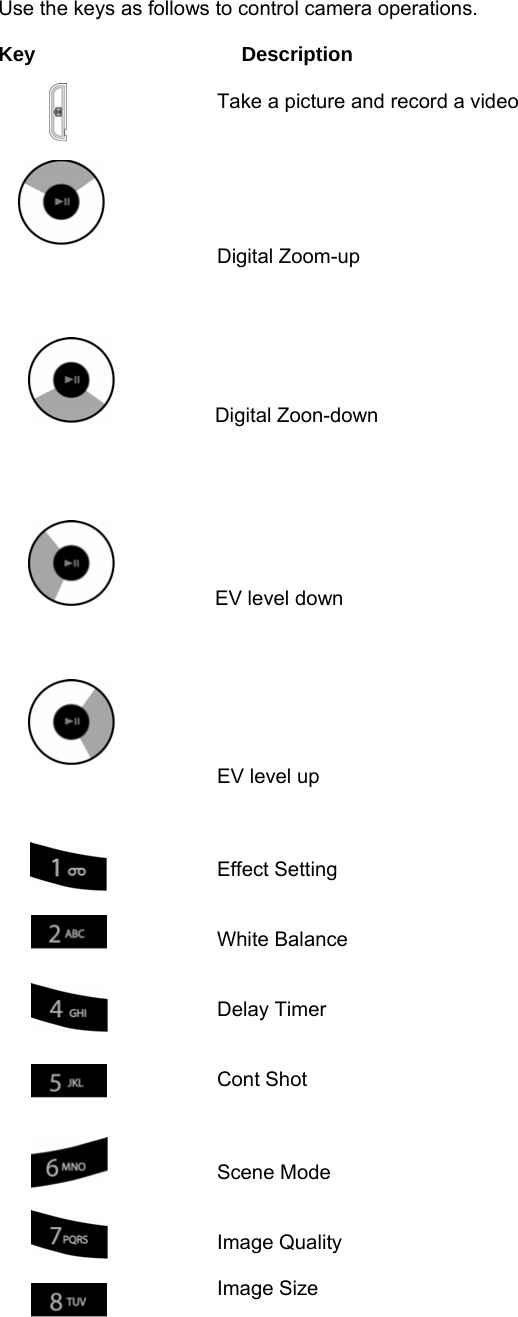
Use the keys as follows to control camera operations.  Key     Description  Take a picture and record a video    Digital Zoom-up              Digital Zoon-down               EV level down     EV level up    Effect Setting   White Balance   Delay Timer   Cont Shot    Scene Mode   Image Quality  Image Size
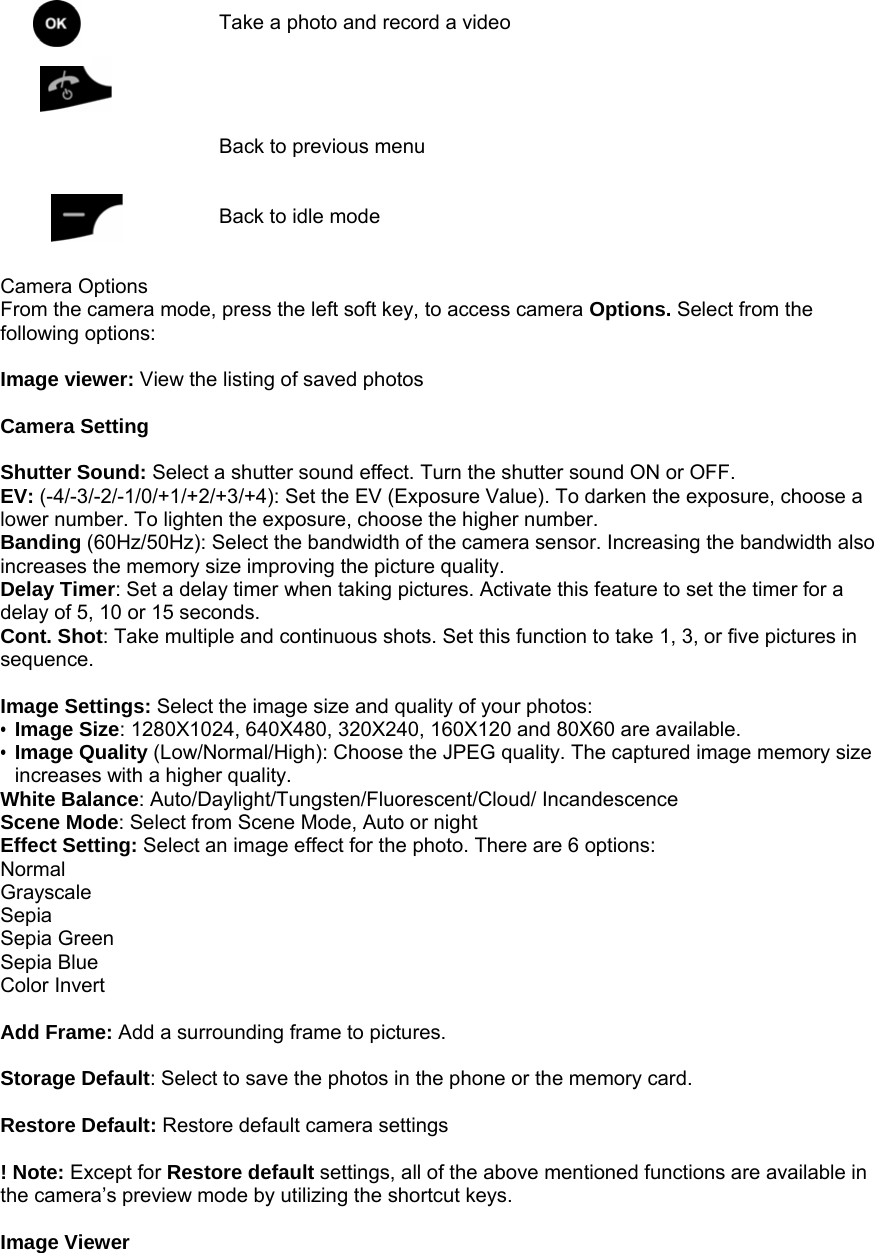
   Take a photo and record a video    Back to previous menu   Back to idle mode   Camera Options From the camera mode, press the left soft key, to access camera Options. Select from the following options:  Image viewer: View the listing of saved photos    Camera Setting  Shutter Sound: Select a shutter sound effect. Turn the shutter sound ON or OFF. EV: (-4/-3/-2/-1/0/+1/+2/+3/+4): Set the EV (Exposure Value). To darken the exposure, choose a lower number. To lighten the exposure, choose the higher number. Banding (60Hz/50Hz): Select the bandwidth of the camera sensor. Increasing the bandwidth also increases the memory size improving the picture quality. Delay Timer: Set a delay timer when taking pictures. Activate this feature to set the timer for a delay of 5, 10 or 15 seconds. Cont. Shot: Take multiple and continuous shots. Set this function to take 1, 3, or five pictures in sequence.  Image Settings: Select the image size and quality of your photos: • Image Size: 1280X1024, 640X480, 320X240, 160X120 and 80X60 are available. • Image Quality (Low/Normal/High): Choose the JPEG quality. The captured image memory size increases with a higher quality. White Balance: Auto/Daylight/Tungsten/Fluorescent/Cloud/ Incandescence Scene Mode: Select from Scene Mode, Auto or night Effect Setting: Select an image effect for the photo. There are 6 options: Normal Grayscale Sepia Sepia Green Sepia Blue Color Invert  Add Frame: Add a surrounding frame to pictures.    Storage Default: Select to save the photos in the phone or the memory card.  Restore Default: Restore default camera settings  ! Note: Except for Restore default settings, all of the above mentioned functions are available in the camera’s preview mode by utilizing the shortcut keys.  Image Viewer
View saved by selecting Image Viewer from the Multimedia menu. Photos will display as thumbnails, including the image and size.  The following options are available under the Image Viewer Menu:  View: View the image in full screen. Press the navigation key up or down to view other images. Browse Style: Select the type of browsing style: List or Matrix. Forward: Save the image to: Wallpaper, Sub Wallpaper, Screen Saver, Power on Display, Power off Display or the Phonebook. You can also share with other via MMS or Bluetooth.   Rename: Change the name of the image. Delete: Delete the selected image. Delete All Files: Delete all images. Sort: Sort images by Name, Type, Time and Size. Storage Default: Select to save the photos in the phone or the memory card  Video Recorder   Your phone supports video functions. Record memorable moments and save to your phone or memory card.    Select from the following options in the Video Recorder Menu.  To player View the saved files in the Video Player.  Camcorder Setting White Balance: Choose from: Auto/Daylight/Tungsten/Fluorescent/Cloud/ Incandescence EV: (-4/-3/-2/-1/0/+1/+2/+3/+4): Set the EV (Exposure Value). To darken the exposure, choose a lower number. To lighten the exposure, choose the higher number. Night Mode: Switch to ON or OFF Banding: (60Hz/50Hz): Select the bandwidth of the camera sensor. Increasing the bandwidth also increases the memory size improving the picture quality.  Video Setting: Set the length and file size and picture quality. Video Quality (Low/Normal/High): Choose the MPEG4 quality. The captured image memory size increases with a higher quality.  Effect Setting: Select an image effect for the photo. There are 14 options: Normal Grayscale Sepia Sepia Green Sepia Blue Color Invert Gray Invert Blackboard Whiteboard Copper Carving Blue Carving Embossment Contrast Sketch Storage Default: Select to save the recorded video in the phone or the memory card.  Restore Default: Restore default video camera settings ! Note Except for Restore default settings, all of the above mentioned functions are available in the camera’s preview mode by utilizing the shortcut keys.
 Video Player View recorded video files by selecting Video Player from the Multimedia menu. Video files are displayed as thumbnails including the video name and file size. Compatible formats are: 3gp, MP4 files. There are 5 options as following: Play: View the video files in full screen. Forward: Save the video to: Screen Saver, Power on Display, Power off Display or the Phonebook. You can also share with others via MMS or Bluetooth.   Rename: Change the name of the video file. Delete: Delete the selected video file. Delete All Files: Delete all video files. Sort: Sort video files by Name, Type, Time and Size. Storage Default: Select to save video files in the phone or the memory card  Photo Editor Edit stored images. Photo Artist: Select a file and add special effects. Image Tile: View several images together as tiles on screen. Select from 2, 4 or 9 tiles.  Audio player Enjoy your favorite music using the embedded Audio player. Acceptable files include: MP3, MIDI and WAVE music files. The following Options are available: Play: Play the file Detail: Displays the file name, size and other details. Add to Rings: Set the music file as a ring tone. Refresh List: Refresh the music list.   Settings • Play List: Select a play list from the memory card or phone. • List Auto Generation (On/Off): Select to generate the music list automatically. • Skin (Skin 1/2/3): Select Audio player skins. • Repeat (One/All/Off): Set the repeat option. When activated, it repeats the selected file or all music files.   • Shuffle (On/Off): Set the music shuffle feature. Select to listen to music in random order. • Background Play (On/Off): Set the Audio Player to play the music while you are using the phone and its features. • BT Stereo Out (SW check) • BT Stereo headset (SW check)   • Equalizer: Change the equalizer levels for the Audio player. Select from: Normal, Bass, Dance, Classical, Treble, Party, Pop and Rock.   Sound Recorder Record new sound files in AMR, AWB and WAV formats. Use recorded sound files as a voice memo or ring tone. You can also share with others via MMS and as an EMS attachment. Press the left soft key, Options to record, play and edit files. Record: Start recording Play: Play the saved sound files. Append: Continue recording in a sound file from the point the recording was stopped. Rename: Change the name of the file. Delete: Delete the selected file. Delete All: Delete all files in the sound record list. Settings: Select to store sound files in the phone or memory card. Select to record sound files in the following formats: AMR or WAV Forward
To User Profile: Send the sound file an entry for ring tones. To MMS: Write an MMS message with the selected sound file. To Bluetooth: Send the file to others via Bluetooth.  Melody Composer Create your own melody using the Melody Composer. 1. Select Melody Composer from the Main Menu 2. Press the left soft key, Add, to begin composing your melody. 3. Compose your melody using the phone’s numeric keys as representations of the music scale.    The music scale keys and other options are detailed below.      Key Description  Insert the 'C' note  Insert the 'D' note  Insert the 'E' note  Insert the 'F' note    Insert the 'G' note  Insert the 'A' note   Insert the 'B' note   Insert Vibration – The phone will vibrate at the point it is inserted.   Insert Rest – Include a pause in the composition. +  Change the note value, increasing/decreasing the beat of the note.   Add a minor or major half step. Press the numerical representation of the note followed y the (#) to add a sharp or flat note.  The following options are available while editing a composition: • Play: Play the composed file before saving. • Play Speed: Set the melody speed (Fast / Normal / Slow) • Select Instrument: Choose from the following instruments (Piano / Guitar / Violin / Saxophone / Steel Drums / Flute / Harmonica / Trumpet / Music Box / Xylophone) • Save: Save the melody  1. Press the left soft key, Option, and select “Save.”   2. Save the file name and press the left soft key again, Option and select “Done.”
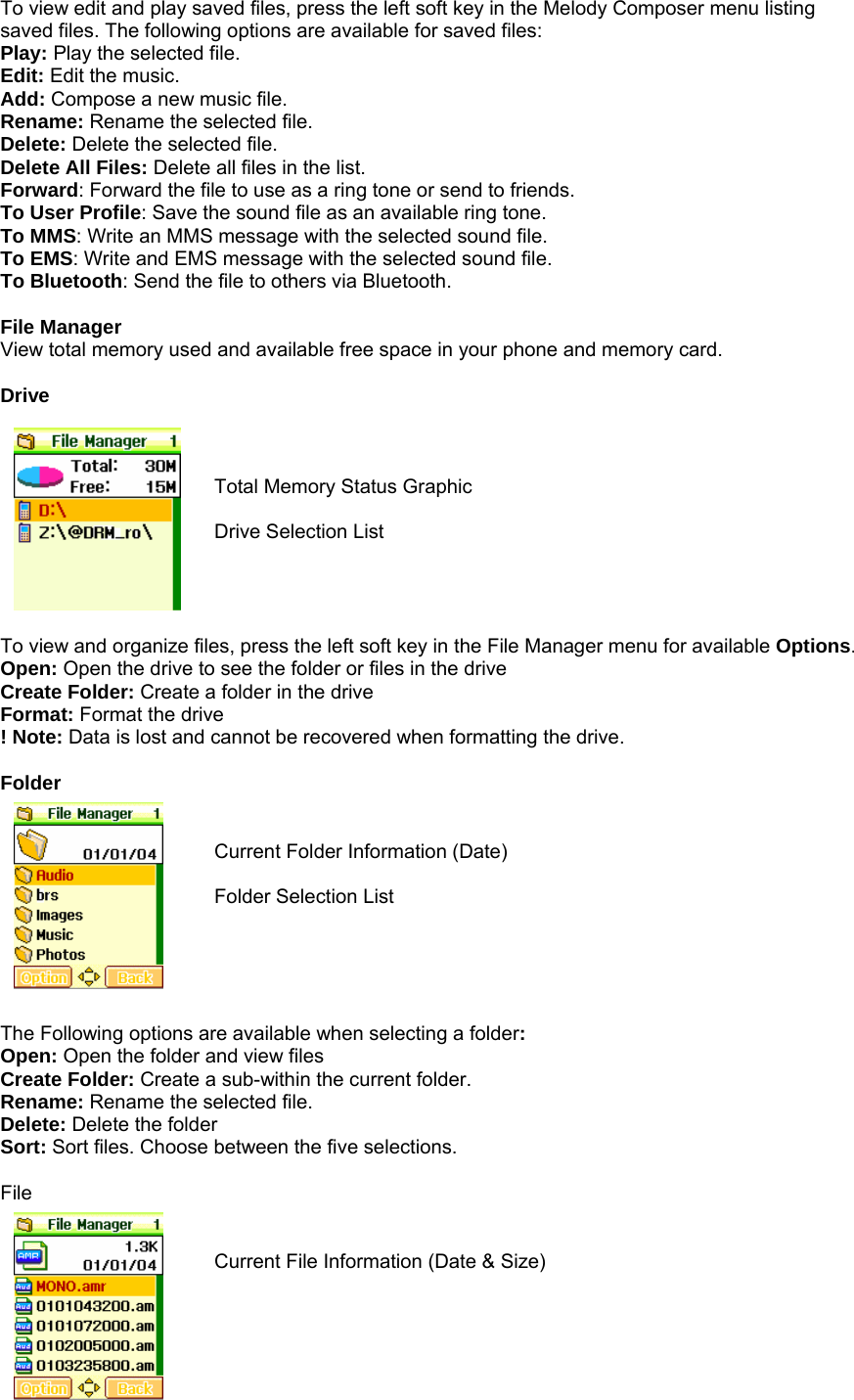
To view edit and play saved files, press the left soft key in the Melody Composer menu listing saved files. The following options are available for saved files: Play: Play the selected file. Edit: Edit the music. Add: Compose a new music file. Rename: Rename the selected file. Delete: Delete the selected file. Delete All Files: Delete all files in the list. Forward: Forward the file to use as a ring tone or send to friends.   To User Profile: Save the sound file as an available ring tone. To MMS: Write an MMS message with the selected sound file. To EMS: Write and EMS message with the selected sound file. To Bluetooth: Send the file to others via Bluetooth.  File Manager View total memory used and available free space in your phone and memory card.  Drive    Total Memory Status Graphic  Drive Selection List     To view and organize files, press the left soft key in the File Manager menu for available Options. Open: Open the drive to see the folder or files in the drive Create Folder: Create a folder in the drive Format: Format the drive ! Note: Data is lost and cannot be recovered when formatting the drive.  Folder   Current Folder Information (Date)  Folder Selection List      The Following options are available when selecting a folder: Open: Open the folder and view files Create Folder: Create a sub-within the current folder. Rename: Rename the selected file. Delete: Delete the folder Sort: Sort files. Choose between the five selections.  File   Current File Information (Date & Size)
 File Selection List     When opening a file, the following options are available: Play or View: Play a sound file or view an image or photo file  Forward  Sound File      To User Profile: Save the sound file as an available ring tone. To MMS: Write an MMS message with the selected sound file. To Bluetooth: Send the file to others via Bluetooth.  Image or Photo File To Wall paper: Set the image as wallpaper To Sub Wall paper: Set the image as wall paper on the sub display To Screen Saver: Set the image as a screen saver To Power on Display: Set the image as a display during Power on. To Power off Display: Set the image as a display during Power off. To Phonebook: Set the image to a group or contact if under 20Kbyteys) To MMS: Write an MMS message with the selected image file. To Bluetooth: Send file to others via Bluetooth.  Detail: See file information (Data & Size) Rename: Rename the selected file. Copy: Copy the file to the another folder Move: Move the file to the another folder Delete: Delete the selected file. Delete All Files: Delete all files in the list. Sort: There are five sorting ways as follows.
           18. Fun & Games  Bluetooth Bluetooth is a global standard for wireless connectivity, based on short-range radio signal. Bluetooth technology facilitates connectivity from one device to another without the need for cables. Bluetooth enabled devices can communicate with each other when they come within a range of 30 feet (10 meters). Bluetooth devices do not require a line-of-sight connection in order to communicate.  Power: Select to enable the Bluetooth. When the Power option is highlighted, it displays the current Bluetooth status.  Inquiry Audio Device: Search for other Bluetooth devices enabled for connection. Press the left soft key, OK, to activate the search.  My Device: Displays a listing of paired devices. Users can connect directly to Bluetooth enabled devices saved to your phone.   • Connect: Connect to paired devices • Rename: Rename a paired device. • Delete: Delete a device from the list. • Search: Search for new devices.  Active Device View current device connected.  Setting Configure your phones Bluetooth settings. Set the following:  Visibility: Allows your phone to be visible to other Bluetooth enabled phones or devices. Select from ON or OFF. View current status by highlighting the menu option. Change device name: Rename the device. Press the left soft key to enter into edit mode. Press the left soft key, Option, to complete. Authentication: Select to activate the security feature. Users connecting to your phone must enter a security code. Audio Path: Set the audio path to the phone or headset.    FTP Setting: - Shared Folder – Allow Access to files through a shared folder - Access Rights (Full control / Read Only)  About View information on your phone and supported services.  Games For your enjoyment, your phone comes preloaded with three games. When you access the Games menu from the Fun and Games Menu, the list of default games appears.
19. User Profiles Customize alerts and sound settings to match common environments or situation. Each profile contains editable settings for ring tones, tone volume; vibrate function, message tone alert and other phone features.    The Predefined User Profiles include: General Meeting Outdoor Indoor Headset Bluetooth ! Note: The Headset user profile does not include a sub menu option to activate the headset. The headset is automatically active once it is plugged into your phone.  To Select or edit a User Profile: 1. Select User Profile in the Main menu 2. Select the User profile you’d like to Edit or Activate. 3. Use the navigation keys to highlight a User Profile 4. Press the left soft key to for Options. 5. Choose to Activate or Customize a Profile.  Tone Setup Customize the various ring and alert tones.  Incoming Call Select a ring tone for incoming calls. Use preprogrammed ring tones or downloaded sound files from WAP or MMS.   Alarm Set the alarm alert sound. Use preprogrammed ring tones or downloaded sound files from WAP or MMS.   Power On Change the Power On tone from the ten available or set to silent. The short tone plays each time the phone is Powered On. Power Off Change the Power Off tone from the ten available or set to silent. The short tone plays each time the phone is Powered Off. Message Tone Choose an alert style for new messages received. Select from fifteen preprogrammed tones or set to silent. Keypad Tone Select a tone each time the Keypad is pressed. Set to: Silent: The keys are silent Click: Select a custom tone. Tone: The keys make the usual DMTF tone found in household phones.    Volume Set the volume for the various ring tones and alert types. Each of the mentioned tones and ring types can be set at a different volume.    Alert Type Customize the alert type for calls and messages. Change based on preference. Ring: The phone rings with the selected ring tone. Vibrating Only: The phone vibrates but does not ring. Vibrating and Ring: The phone vibrates and rings simultaneously.   Vibrating then Ring: The phone vibrates first then rings.
  Ring Type Set the ring tone to play as selected: Single: Plays the ring tones only once. Repeat: Plays the ring tone repeatedly. Ascending: Plays the ring tone starting at a low volume and increasing in volume until reaching the selected volume level.  Extra Tone Turn the following alerts On or OFF: Warning Error Camp On Connect  Answer Mode Select the default answer mode: Any Key: Answer an incoming call by pressing any key, except the End key.                                20. Organizer The Organizer allows you to set alarms, schedule appointments, view the calendar, create memos and to-do lists, perform simple calculations, check world time, perform unit conversion, set a timer and use a stopwatch and check various health measures.  Calendar
View calendar dates and input important appointments. Remind yourself of each event by setting the alarm function. 1. Choose the date you want to view by using the navigation keys to move through the calendar. 2. Go to a different month by pressing the side volume keys located on the side of the phone. 3. Press the left soft key to view the calendar Options.  View Tasks View the task list and add a task for the selected date. From the Task List, there are five options available: View: View the details of the selected task. Add: Add a task. Edit Task: Edit the selected task. Delete Task: Delete the selected task. Delete All: Delete all tasks listed on the selected date. Send a v Calendar: Send a task to others using the v Calendar format through SMS, MMS, and Bluetooth and save.  Jump to Date Go to a specific date by entering the information in the date box (YYYY / MM / DD).  To-Do List View all saved tasks. Tasks saved in the Organizer menu are also shown. The list is sorted from oldest to newest. View: View the details of the selected task. Add: Add a task. Edit Task: Edit the selected task. Delete Task: Delete the selected task. Delete All: Delete all tasks listed on the selected date. Send v Calendar: Send a task to others using the v Calendar format through SMS, MMS, and Bluetooth and save.  Alarm Set the alarm to remind you of an important event or use daily at a specific time. The following Edit options are available. Alarm (On/Off) Time (HH:MM): Insert the alarm time using the 24 hours format. Repeat (Once / Every Day / Days (S, M, T, W, T, F, S): Select the frequency of the saved alarm. Snooze: Set the snooze interval between 1 to 10 minutes. Alert Type: Select the alert type from: Vibrate and Ring/ Ring/ Vibrate only.  Once the alarm details have been set, press the right soft key, Done, to save the changes. To stop the alarm when it rings, press the left soft key labeled Stop. To use the snooze function press the right soft key labeled Snooze.
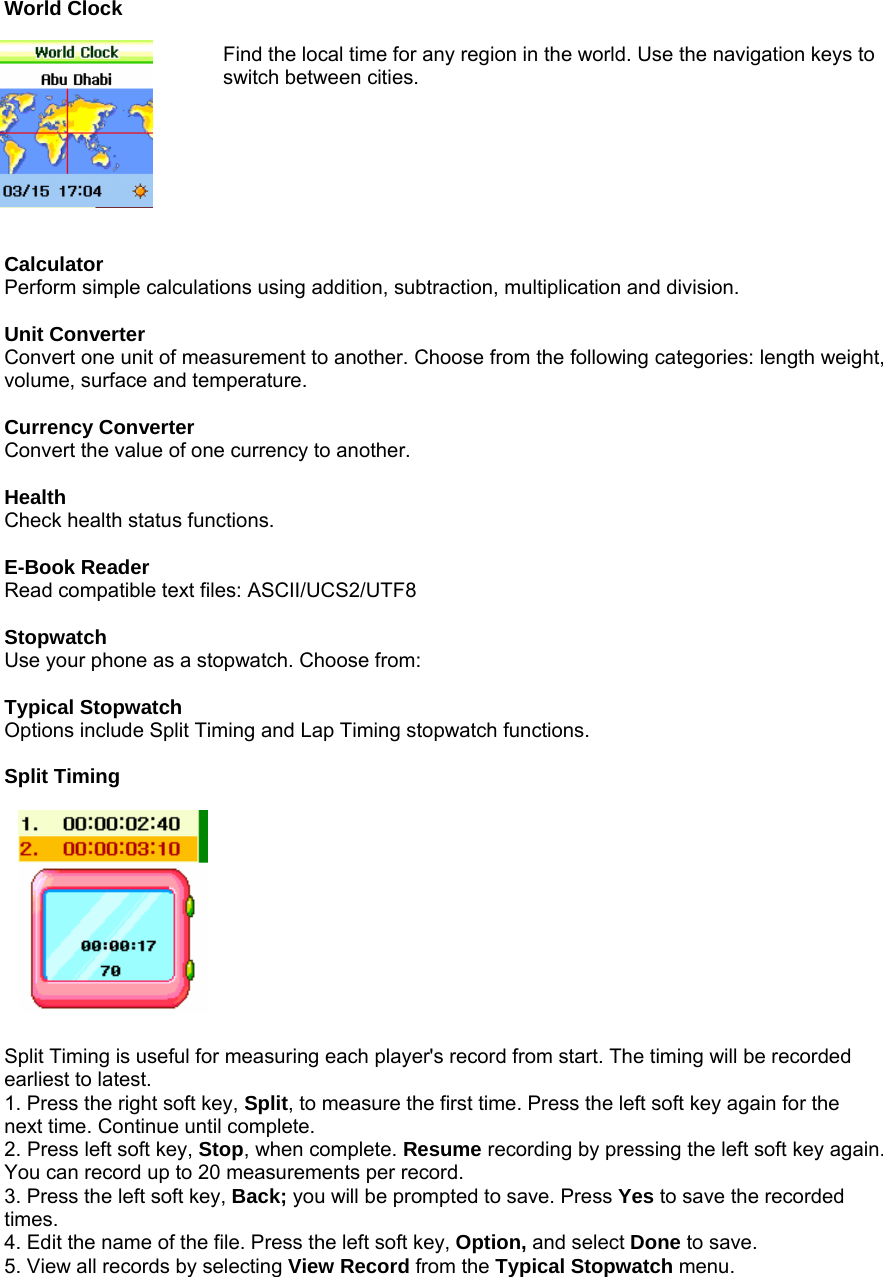
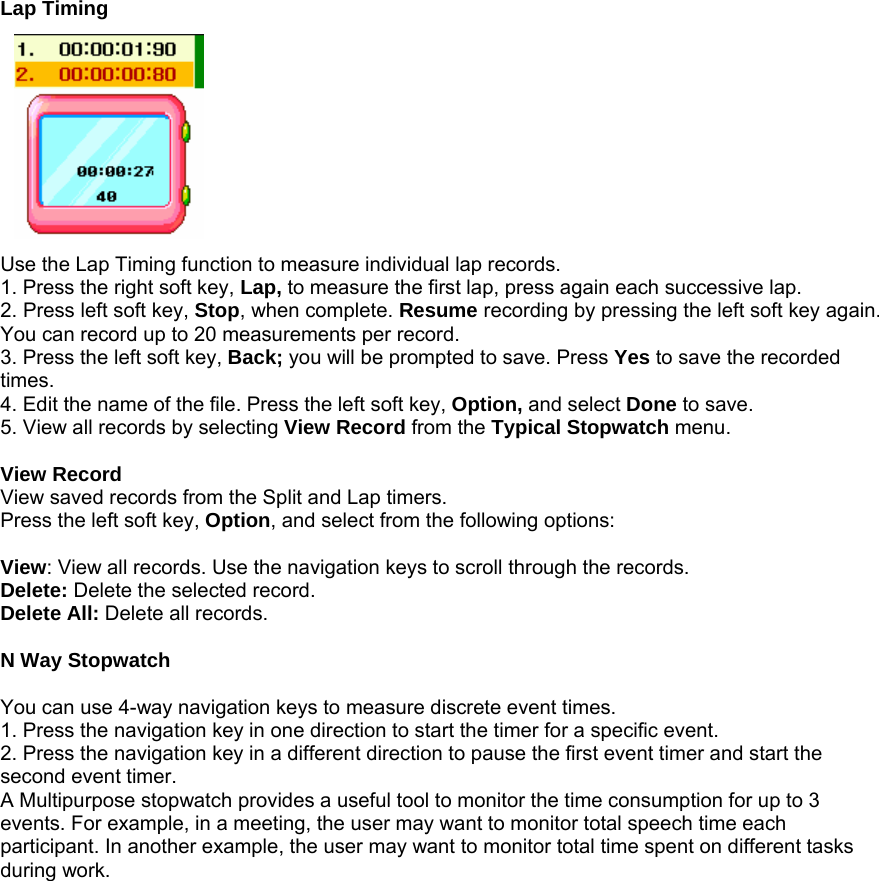
World Clock  Find the local time for any region in the world. Use the navigation keys to switch between cities.         Calculator Perform simple calculations using addition, subtraction, multiplication and division.  Unit Converter Convert one unit of measurement to another. Choose from the following categories: length weight, volume, surface and temperature.  Currency Converter Convert the value of one currency to another.  Health Check health status functions.  E-Book Reader Read compatible text files: ASCII/UCS2/UTF8  Stopwatch Use your phone as a stopwatch. Choose from:  Typical Stopwatch Options include Split Timing and Lap Timing stopwatch functions.  Split Timing            Split Timing is useful for measuring each player's record from start. The timing will be recorded earliest to latest. 1. Press the right soft key, Split, to measure the first time. Press the left soft key again for the next time. Continue until complete. 2. Press left soft key, Stop, when complete. Resume recording by pressing the left soft key again. You can record up to 20 measurements per record. 3. Press the left soft key, Back; you will be prompted to save. Press Yes to save the recorded times. 4. Edit the name of the file. Press the left soft key, Option, and select Done to save. 5. View all records by selecting View Record from the Typical Stopwatch menu.
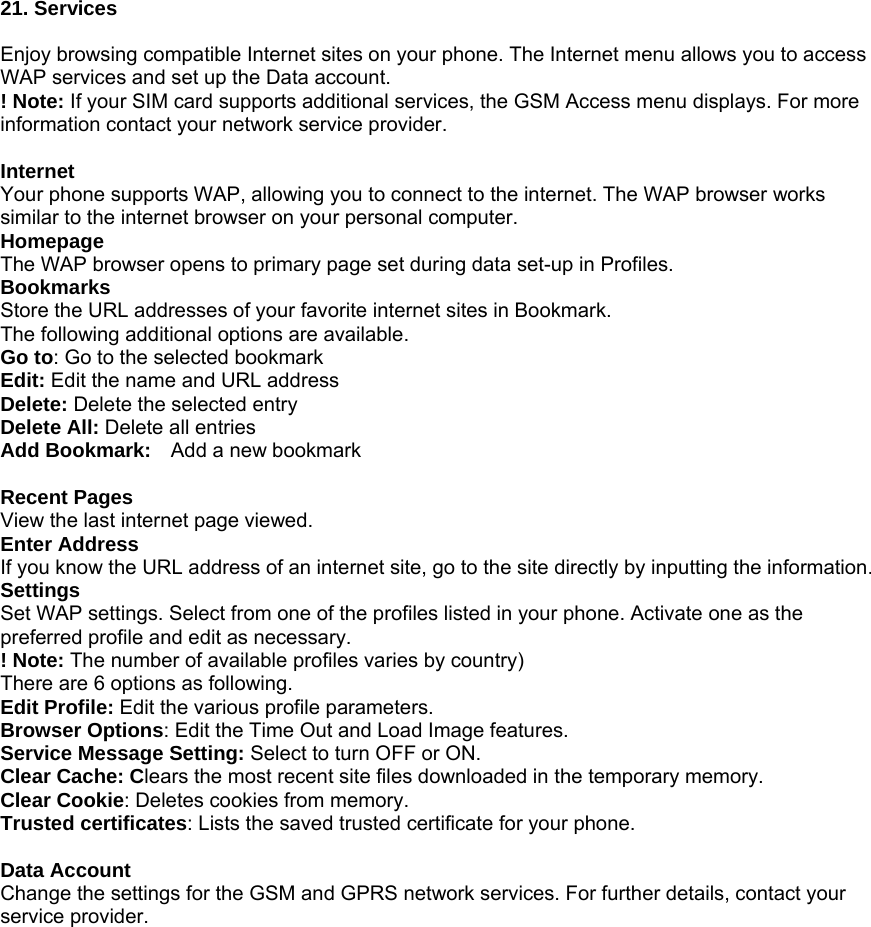
Lap Timing           Use the Lap Timing function to measure individual lap records. 1. Press the right soft key, Lap, to measure the first lap, press again each successive lap. 2. Press left soft key, Stop, when complete. Resume recording by pressing the left soft key again. You can record up to 20 measurements per record. 3. Press the left soft key, Back; you will be prompted to save. Press Yes to save the recorded times. 4. Edit the name of the file. Press the left soft key, Option, and select Done to save. 5. View all records by selecting View Record from the Typical Stopwatch menu.  View Record View saved records from the Split and Lap timers. Press the left soft key, Option, and select from the following options:  View: View all records. Use the navigation keys to scroll through the records. Delete: Delete the selected record. Delete All: Delete all records.  N Way Stopwatch  You can use 4-way navigation keys to measure discrete event times. 1. Press the navigation key in one direction to start the timer for a specific event.   2. Press the navigation key in a different direction to pause the first event timer and start the second event timer.   A Multipurpose stopwatch provides a useful tool to monitor the time consumption for up to 3 events. For example, in a meeting, the user may want to monitor total speech time each participant. In another example, the user may want to monitor total time spent on different tasks during work.
21. Services  Enjoy browsing compatible Internet sites on your phone. The Internet menu allows you to access WAP services and set up the Data account.   ! Note: If your SIM card supports additional services, the GSM Access menu displays. For more information contact your network service provider.  Internet Your phone supports WAP, allowing you to connect to the internet. The WAP browser works similar to the internet browser on your personal computer. Homepage The WAP browser opens to primary page set during data set-up in Profiles.   Bookmarks Store the URL addresses of your favorite internet sites in Bookmark. The following additional options are available. Go to: Go to the selected bookmark Edit: Edit the name and URL address Delete: Delete the selected entry Delete All: Delete all entries Add Bookmark:    Add a new bookmark  Recent Pages View the last internet page viewed. Enter Address If you know the URL address of an internet site, go to the site directly by inputting the information. Settings Set WAP settings. Select from one of the profiles listed in your phone. Activate one as the preferred profile and edit as necessary. ! Note: The number of available profiles varies by country) There are 6 options as following. Edit Profile: Edit the various profile parameters. Browser Options: Edit the Time Out and Load Image features. Service Message Setting: Select to turn OFF or ON. Clear Cache: Clears the most recent site files downloaded in the temporary memory. Clear Cookie: Deletes cookies from memory. Trusted certificates: Lists the saved trusted certificate for your phone.  Data Account Change the settings for the GSM and GPRS network services. For further details, contact your service provider.
TROUBLE SHOOTING This chapter lists some of the more common problems you may encounter while using your phone. Some problems require assistance from your dealer or service provider, but most can be easily corrected by diagnosing the problem and attempting the solutions as detailed below.  1. Enter PIN appears when powering on. PIN check is currently enabled. You must enter the PIN supplied together with your SIM card. To disable the PIN, please see Security Settings menu.  2. The Insert SIM screen appears when powering on. Please check that your SIM card is inserted adequately.  3. Enter Lock Code appears when powering on. The phone lock has been activated. You must enter the Lock Code supplied together with your phone.  4. No Service appears. You probably are in the area out of the coverage of a GSM/DCS network.  5. A tone is not generated when you press the keypad. Check to see if your phone has the Silent Mode function on. Check the Alert Type and Volume in the Key Tone menu. Check your Profiles menu.  6. There is no audible tone or alert when a call is received. Check to see if your phone has the Silent Mode function on. Check the Alert Type and Volume in the Incoming Calls menu. Check your Profiles menu.  7. There is no audible tone or alert when the alarm is active. Check to see if your phone has the Silent Mode function on.  8. Outgoing calls cannot be made. Check to see if you have barred outgoing calls.    9. Incoming calls are not received. Check to see if you have barred incoming calls.    10. SMS messages are not sent. Check the Message Centre option in Message Setup menu.  11. Audible key tones are muted and all audible alerts are changed to vibrator alert. Check to see if your phone has the Silent Mode function on.  12. If some menus relevant to the sound are not visible on the Sound Setting menu. Check to see if your phone has the Silent Mode function on.

Navigation menu