Telian MGD3080 Disney Mobile Phone User Manual

Telian Corporation Disney Mobile Phone Users Manual

Users Manual

Menu itemsThe menu provides access to many options and settings. To use the menu•  From the standby screen, press c to display the  first main menu option: Messaging.•  Then use d and e to highlight an option and press c to select it.  PhonebookView Names ................................................. pg 18My Number.................................................. pg 19Add Number .......................................... h .. pg 38Check Memory ....................................... h .. pg 41Save Nos. To ......................................... h .. pg 41Call LogsMissed Calls ................................................ pg 26Received Calls ............................................. pg 26Dialled Numbers ........................................... pg 26Virtual Timer ............................................... pg 26Call Info ............................................... h .. pg 48SettingsProfile ....................................................... pg 28Display ....................................................... pg 31Security Level ............................................ pg 34Security .............................................. h .. pg 34Restore Settings .................................. h .. pg 48Network Settings ........................................ pg 32ClockAlarm ......................................................... pg 27Time and Date ....................................... h .. pg 44School Hours ........................................ h .. pg 46[inside front cover]MessagingCreate New Messagete New Message .........................................pg 22Inbox......................................................... pg 24Sent Items ................................................. pg 24Preset Messages ........................................ pg 25Message Settings  ................................ h .. pg 41Voicemail ................................................ .... pg 26Menu options marked h are not available in normal mode.
1ContentsWelcome...  ...to the magical world of Disney®  ................. 3A note to parents and guardians ............................... 4Emergency calls ....................................................... 5Getting startedFitting your SIM card ............................................... 7Fitting and charging the battery ................................ 8Connecting the optional headset .............................. 9Changing the covers and keypad............................ 10Switching on and off .............................................. 12Your mobile display  .............................................. 12Using the menu ...................................................... 13Using your mobileMaking calls........................................................... 14Receiving calls ....................................................... 15Ending calls ........................................................... 15During a call........................................................... 16Call log .................................................................. 16Voice recording ...................................................... 17Keypad lock (12 keypad only) ................................ 17Your phonebook ..................................................... 18To use your phonebook ..................................... 18Messaging ............................................................. 20Reading messages ............................................ 20Message options ............................................... 21Creating a message ........................................... 22Managing your Inbox and Sent Items ................ 24Sending preset messages .................................. 25Voicemail (12 keypad only) .................................... 26Call logs and virtual timer  ..................................... 26Alarm clock ............................................................ 27continued
2Special stuffCustomising your mobile ....................................... 28Tones ................................................................. 28Colour patterns.................................................. 29Wallpapers and screensavers ............................ 29Vibrate ............................................................... 30Volume Control ................................................. 30Minute reminder ................................................ 30Backlight ........................................................... 31Screen contrast  ................................................ 31Language........................................................... 31Network settings ................................................ 32Parent’s section hSecurity  ................................................................. 34Phonebook configuration ....................................... 38Messaging configuration........................................ 41Administration via the website................................ 43Other settings ......................................................... 44Time .................................................................. 44Date ................................................................... 45Auto Clock Update ............................................ 45School hours ..................................................... 46Virtual timer....................................................... 47Call costs .......................................................... 48Restore settings ................................................. 48Other informationSolving problems ................................................... 49Technical specifications ......................................... 50Important safety information .................................. 51Character copyright notices.................................... 56Ringtone copyright notices..................................... 56Menu items
3Welcome... ...to the magical world of Disney® The Disney D100 mobile provides the freedom of com-munication that every child desires allied with the extra reassurance that every parent and guardian requires. Combining ease of use, unique parental controls and easily changeable keypads and covers, the Disney D100 mobile will safely keep you in touch as well as keep up with you. Please take a moment to read the important notices provided at the rear of this guide.
4School hours featureTo ensure that your child’s mobile never interferes with school lessons, you can determine the hours of every day when it should not ring.Virtual timerTo help you advise your child on limiting their calls, the virtual timer feature allows you to set a total for their call times that they should try not to exceed. No mobile internet accessFor further piece of mind, your mobile does not allow access to any mobile internet features. A note to parents and guardiansYour Disney D100 mobile has been specifically created to be expandable to meet the needs of children of vary-ing ages and manageable to provide the overall control that you require:Operation to suit Two types of keypad (4 key or 12 key) and two security levels (normal or administrator) allow you to determine the mode of operation that best suits your child. A special code is required to change between the two levels of operation. In this user guide, all features that are available only at administrator level are marked with this h icon.Call and message control The phonebook can hold up to 20 contact numbers, which are programmable only at administrator level. When your mobile is then changed to normal level, calls and messages may only be made to, or received from the contact numbers held within the phonebook. Call and message overrideAs a parent or guardian you retain an option to remotely override the call and message control, using either the d100mobile.com website or a specially-formatted text message, just in case you need to make contact when away from your usual telephone.
5Emergency callsYour mobile, like any wireless phone, operates using radio signals, wireless and landline networks, and user-programmed functions. Because of this, connec-tions in all conditions cannot be guaranteed. Therefore, you should never rely solely on any wireless phone for essential communications (e.g. medical emergencies). Remember, to make or receive any calls, your mobile must be switched on and be used in a service area that has adequate signal strength. Emergency calls might not be possible on all wireless phone networks or when certain network services and/or mobile features are in use. Check with local service providers.Note : If certain features are in use (Auto key lock, call restrictions, and so on), you might first need to turn those features off before you can make an emergency call. Consult this guide and your local service provider.When making an emergency call, remember to give all of the necessary information as accurately as possible. Remember that your mobile might be the only means of communication at the scene of an accident. Do not terminate the call until given permission to do so.To make an emergency call (4 key keypad)1  Press the 3 key three times in succession. The display will show Emergency Only. Press the a button to dial the emergency number.To make an emergency call (12 key keypad) 1  From the standby screen, enter the emergency number for your present location (for example, 112) and press the a button to dial.
6Your Disney mobilePOWER/END/CANCEL BUTTONMENU/SELECT BUTTONNAVIGATION BUTTONCHANGEABLE KEYPAD (12 KEYPAD SHOWN)MICROPHONEHEADSET & CHARGER SOCKETS2134780#*5ABCDEFGHIMNOPQRSTUVWXYZJKL12:32LANYARD LOOPEARPIECEDISPLAYSEND/OK BUTTONVOLUME BUTTONS (& VOICE RECORD)SPEAKER
7Getting startedBefore you can begin making and receiving calls, please take a moment to prepare your mobile by fol-lowing the basic steps outlined in this chapter.To remove the rear panel1  Slide the release clip towards the lanyard loop and simultaneously lift the rear cover away from the main body.Fitting your SIM cardTo insert your SIM card1  Orientate your SIM card with its gold contacts fac-ing downwards and push it fully into the holder as shown below.  2  Replace the battery and rear panel.   To remove your SIM card1  Press down lightly on the clip adjacent to the SIM card and as you do so, push the SIM card out of the holder.
8Fitting and charging the batteryImportant: To prevent injury or burns, do not allow metal objects to contact the battery terminals. Do not disassemble the battery. Use only the original battery or an approved replacement. Batteries which are no longer in use must be disposed of correctly in accordance with local regulations.To remove the battery1  Ensure that your mobile is switched off.2  Lift up the base of the battery and then pull it away from the main body.To fit the battery1  Orientate the three gold contacts at the top of the battery with those of the battery compartment.2  Press the top of the battery into the compartment and then seat the base into place.
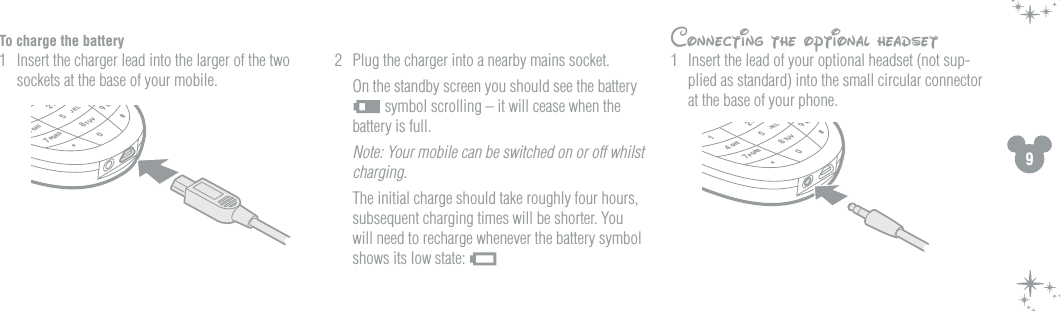
9To charge the battery1  Insert the charger lead into the larger of the two sockets at the base of your mobile. 2  Plug the charger into a nearby mains socket.   On the standby screen you should see the battery  symbol scrolling – it will cease when the battery is full.  Note: Your mobile can be switched on or off whilst charging.   The initial charge should take roughly four hours, subsequent charging times will be shorter. You will need to recharge whenever the battery symbol shows its low state: 24780#*5AGHIPQRSTUVWJKL214780#*5AGHIPQRSTUVWJKLConnecting the optional headset1  Insert the lead of your optional headset (not sup-plied as standard) into the small circular connector at the base of your phone.
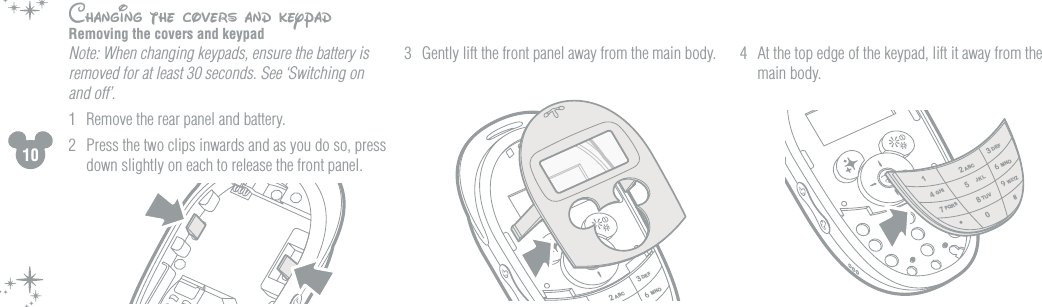
10Changing the covers and keypadRemoving the covers and keypad Note: When changing keypads, ensure the battery is removed for at least 30 seconds. See ‘Switching on and off’.1  Remove the rear panel and battery.2  Press the two clips inwards and as you do so, press down slightly on each to release the front panel.3  Gently lift the front panel away from the main body. 4  At the top edge of the keypad, lift it away from the main body.23ABCDEFMNO2134780#*5ABCDEFGHI MNOPQRSTUVWXYZJKL
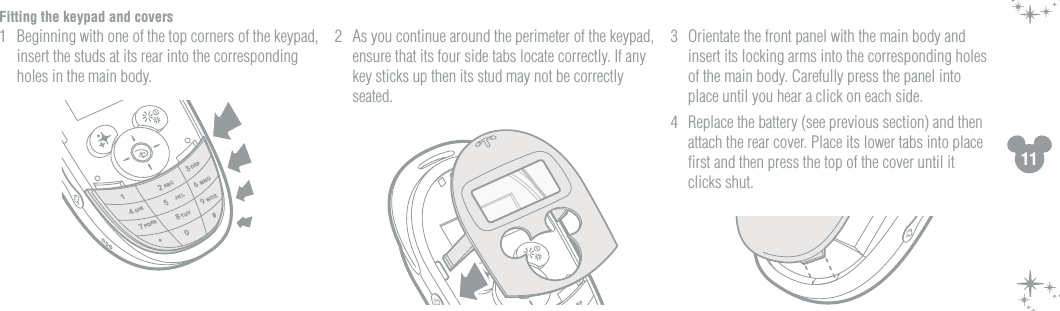
11Fitting the keypad and covers1  Beginning with one of the top corners of the keypad, insert the studs at its rear into the corresponding holes in the main body. 2  As you continue around the perimeter of the keypad, ensure that its four side tabs locate correctly. If any key sticks up then its stud may not be correctly seated.3  Orientate the front panel with the main body and insert its locking arms into the corresponding holes of the main body. Carefully press the panel into place until you hear a click on each side.4  Replace the battery (see previous section) and then attach the rear cover. Place its lower tabs into place first and then press the top of the cover until it clicks shut. 2134780#*5ABCDEFGHIMNOPQRSTUVWXYZJKLEF
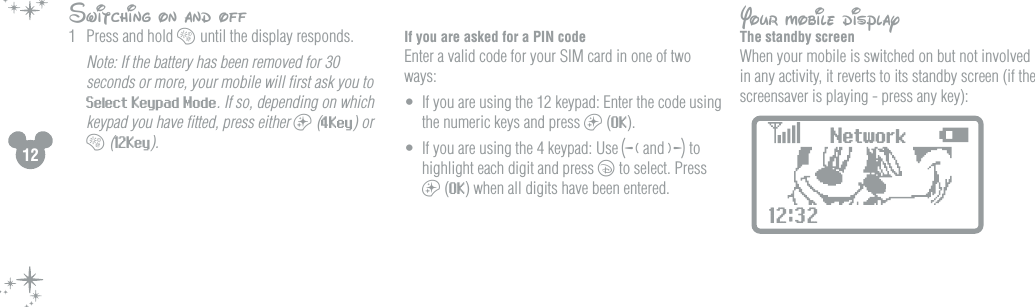
12Switching on and off1  Press and hold b until the display responds.   Note: If the battery has been removed for 30 seconds or more, your mobile will first ask you to Select Keypad Mode. If so, depending on which keypad you have fitted, press either a (4Key) or b (12Key).  If you are asked for a PIN codeEnter a valid code for your SIM card in one of two ways:•  If you are using the 12 keypad: Enter the code using the numeric keys and press a (OK).•  If you are using the 4 keypad: Use g and f to highlight each digit and press c to select. Press a (OK) when all digits have been entered.  Your mobile display The standby screenWhen your mobile is switched on but not involved in any activity, it reverts to its standby screen (if the screensaver is playing - press any key):  Network12:32
13On the standby screen you can see the current network name, the time and date as well some of the following indicators:    Signal strength indicator    Battery charge level    Roaming on another network    Unread text message(s)    New voicemail message(s)    An alarm is set  Vibrator (or   vibrator & tone) enabled    Key lock on    School hour mode active Using the menuThe menu provides access to many options and settings. To use the menu1  From the standby screen, press c to display the first main menu option: Messaging.2  Control the menu options as shown here:  PRESS TO CHANGE BETWEEN OPTIONSPRESS TO SELECTPRESS TO EXIT FROM AN OPTION
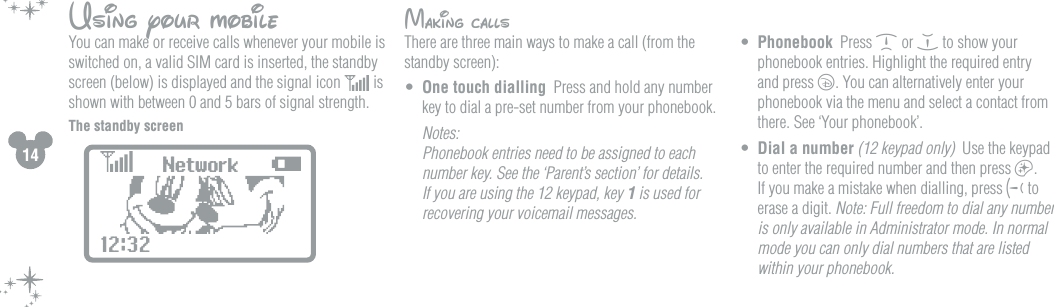
14Using your mobileYou can make or receive calls whenever your mobile is switched on, a valid SIM card is inserted, the standby screen (below) is displayed and the signal icon   is shown with between 0 and 5 bars of signal strength. The standby screenMaking callsThere are three main ways to make a call (from the standby screen):•  One touch dialling  Press and hold any number key to dial a pre-set number from your phonebook.  Notes:  Phonebook entries need to be assigned to each number key. See the ‘Parent’s section’ for details. If you are using the 12 keypad, key 1 is used for recovering your voicemail messages. •  Phonebook  Press d or e to show your phonebook entries. Highlight the required entry and press c. You can alternatively enter your phonebook via the menu and select a contact from there. See ‘Your phonebook’.•  Dial a number (12 keypad only)  Use the keypad to enter the required number and then press a. If you make a mistake when dialling, press g to erase a digit. Note: Full freedom to dial any number is only available in Administrator mode. In normal mode you can only dial numbers that are listed within your phonebook.Network12:32
15Receiving callsWhen someone calls you, your mobile will alert you in one or more of these ways: the display will light up or flash, a ringtone will be played and/or it will vibrate. The name or number of the person calling will usually be shown on the display.•  To accept the call, press a•  To reject the call, press b  •  Alternatively, you can press c and choose an option: Answer, Reject or I Am Busy. The latter option will redirect the incoming call to your voicemail, if it is configured, otherwise it will reject the call. Notes:  In normal mode you can only receive phone calls from people who are listed in your phonebook.You can change the way in which your mobile alerts you to calls - See ‘Special stuff’. You can even make it respond in special ways to different people listed in your phonebook. See ‘Your phonebook’.Your mobile has a ‘School Hours’ feature which, when active, will display the   icon and automatically switch off your ringtones during school hours. Incom-ing calls are indicated only by the display backlight. Ending callsPress b. When you end a call, the display will briefly show the duration of the call.
16During a callYou can do other things while your call is taking place.1  Press c to view the in-call menu. 2  Use d and e to highlight an option and c to select: Volume  Adjust the loudness of the earpiece. You can also use the side volume buttons. Hold  Place the current call on hold while you make another call – Note: This option requires a special service from your phone network. End All Calls  Ends all active and held calls. Mute  Switches off your microphone so that the other person cannot hear you. Use the Unmute option to switch on the microphone. DTMF Off  Prevents the key tones from being heard if you enter numbers during a call. Main Menu  Provides access to the Messaging and Phonebook options during a call.Call logYou can view the list of all recent dialled, received and missed calls.1  From the standby screen, press a. Each list entry has an icon: ¯ dialled, ° received, ± missed.2  Use d and e to highlight an entry. You can then:•  Press a to dial the entry.•  Press c to view the call time and date.  •  Press g to exit.
17Voice recordingWhen not in a call, you can record and replay short voice messages. You can even use your recordings as ringtones for your phonebook contacts (see ‘Your phonebook’).1  From the standby screen, press and hold the upper volume button on the side of your mobile. 2  From the Voice Record menu, choose Record and speak your message into the microphone near the base of your mobile.3  The recording will end and save automatically after six seconds or before that, press either a (Save) or b (Cancel).4  From the menu, choose Recorded List. Each recording is listed with its date and time. Use d and e to highlight an entry and hear its message. To delete a highlighted entry, press c and select Delete (or Delete All to remove all entries).Keypad lock (12 keypad only)You can prevent accidental dialling when carrying your mobile (when not in a call) by using the keypad lock.1  From the standby screen, press b.2  Press the # key. The   symbol will be displayed.Repeat the above process to unlock the keypad.Note: You can also choose the Keylock option to auto-matically lock the keypad after 30 seconds of inactivity. See ‘Parent’s section’ for details.
18Voicemail (12 keypad only)Voicemail allows you to retrieve messages from callers who you missed. Voicemail requires a special service from your phone network.1  From the standby screen, press and hold the 1 key until your mobile makes contact with your network. If you have any messages, they will be played to you.Your phonebookYour phonebook is where all of your usual contacts are stored. In normal mode you can only make calls to, and receive calls from phone numbers stored within your phonebook. Also, phonebook numbers cannot be altered in normal mode. For details about changing phonebook entries, please see the ‘Parents section’ later in this guide.To use your phonebook1  From the standby screen, press c. Then use e to display the Phonebook option and press c to select. In normal mode you will be given two options: View Names and My Number.2  Select View Names to display your contact names. Note: In normal mode you can only view contacts which are stored in phone memory, not the SIM card. Note: Some contact names in the list may have a number listed to the right of the name. These are special contacts and they show you the number key that, in the standby screen, you can press and hold to quickly dial the number without even needing to access your phonebook.
19Within the list of contact names you can:•  Use d and e to highlight an entry.•  Press a to call a highlighted entry.•  Press c to view options for a highlighted entry: View  Displays the number stored for the contact. Set Ringtone  Allows you to choose a ringtone (or voice recording, if available) for the contact. Highlight the required entry and press c to apply it to your contact. Set Colour Pattern  Allows you to choose a suitable screen colour pattern for your contact. Highlight the required entry and press c to apply it to your contact.The My Number option allows you to view the number of your mobile and to edit it (if required). Editing the number does not mean that your actual phone number will change, this option merely allows you to enter the number in cases where the SIM card does not automatically report it.
20MessagingYou can send and receive text messages using your mobile. In normal mode you can only send messages to, and receive messages from mobile phone numbers stored within your phonebook.To enter messaging1  From the standby screen, press c. 2  Press c again to select the first option:  Messaging. The options provided will depend upon the operation mode and keypad size fitted.Reading messagesWhen a new text message is received, your mobile will alert you by lighting up (or flashing) the display and playing a ringtone. •  The standby screen will indicate that you have received one or more new messages. •  To view your inbox: Press c. At any other time you can enter your inbox via the standard Messaging menu.•  Your inbox will show the name of the message sender (or their phone number) and also the begin-ning of the message. Unread messages are prefixed with ² whereas previously read messages are marked ³.•  To read the full message: Highlight the message and press c. •  Press and release e or d to scroll down/up one line at a time. •  Press and hold e or d to scroll down/up one page at a time.•  The ¸ icon denotes the end of the message. •  To exit from the message: Press b.
21Message optionsWhile you are viewing the message, press a to see the available options:Reply  (Not available in 4 key normal mode) Allows you to create and send a response to the original sender. See ‘Creating a message’ for details about message editing. Forward  (Not available in 4 key normal mode) Allows you to edit (if necessary) and send the received mes-sage to one or more other contacts. See ‘Creating a message’ for details about message editing.Delete  Removes the message from memory. Note: You can change the way in which your mobile alerts you to messages. You can even make it respond in special ways to different people listed in your phone-book. See ‘Special stuff’.
22Creating a messageYou can create text messages up to 160 characters in length. Note: New messages cannot be created in 4 key normal mode, however, you can send preset messages to your phonebook contacts, see ‘Sending preset mes-sages’ for details.  1  From the standby screen, press c twice to enter the Messaging menu and select the Create New Msg option.2  You can now create your message in one of two ways depending on the keypad fitted: Creating a message using the 4 keypad  Enter your message using the navigation buttons and c. Move the highlight to cover a required character among those displayed and c to add it to your mes-sage, which is shown at the foot of the display. •  To erase a character, highlight the Del option and press c.•  To enter a space, highlight the ´ option and press c.•  To change between upper and lower case, either press the 1 key or highlight the Aa option and press c. •  When your message is complete, press a (Send). Select either Enter Number to enter the phone number of your recipient or P/Book to choose a contact from your phonebook. In each case, press a to send the message.
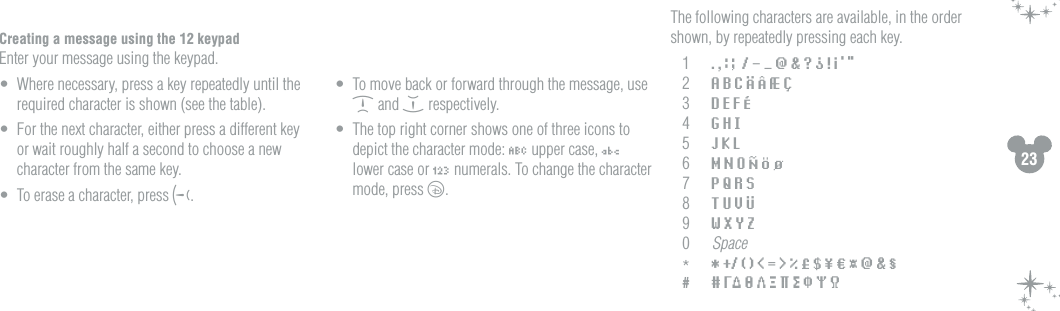
23Creating a message using the 12 keypadEnter your message using the keypad. •  Where necessary, press a key repeatedly until the required character is shown (see the table). •  For the next character, either press a different key or wait roughly half a second to choose a new character from the same key. •  To erase a character, press g. •  To move back or forward through the message, use d and e respectively. •  The top right corner shows one of three icons to depict the character mode: µ upper case, ¶ lower case or · numerals. To change the character mode, press c. The following characters are available, in the order shown, by repeatedly pressing each key.1  . , : ;  / - _ @ & ? ¿ ! ¡ ` ``    2  A B C Ä Â Æ Ç   3  D E F É    4  G H I  5  J K L   6  M N O Ñ ö ø   7  P Q R S8  T U V Ü9  W X Y Z0  Space* * +/ ( ) < = > % £ $ ¥ | ¤ @ & §#  # ΓΔ Θ Λ Ξ Τ Σ Φ Ψ Ω
24Inserting items (12 key only)While creating a message, press a (Options). You can choose from Emoticon characters, a Melody, a Phone Number from your phonebook, or Preset Messages. In each case, select the option and then use e, d and c to choose the required item.When your message is complete, press a (Options) and select the Send option. •  In normal mode your phonebook contacts will be listed for you to choose your recipient. Use e and d to highlight an entry and press c. Check that the displayed entry is correct and then press c again to send.•  In administrator mode, your mobile will display Enter Number. You can either enter the phone number using the keypad or press a (P/Book) to choose a contact from your phonebook. In either case, when ready to send to your chosen contact, press a (OK).      Managing your Inbox and Sent ItemsWhenever you receive or send a message, a copy is saved in your Inbox or Sent Items list, respectively. You can access these old messages and forward them to new recipients. Also, it is a good idea to periodically delete unwanted messages in order to provide memory space for new messages. 1  From the standby screen, press c twice to enter the Messaging menu, highlight either Inbox or Sent Items and press c. Note: To delete all messages: Use e to scroll to the bottom of the list, highlight Delete All and press c. Then press a (Delete) to confirm.
252  Use e and d to locate the required message and press c. The message will be displayed.       3  If required edit the message, otherwise press c to view the options: Reply, Forward or Delete. See ‘Reading messages’ for details.Sending preset messagesYour mobile allows you to choose from a range of preset messages and send them to your contacts.1  From the standby screen, press c twice to enter the Messaging menu, highlight Preset Messages and press c.2  Use e and d to select the most appropriate preset message and press c. The menu options offered will depend on your keypad but will offer one or more of the following: P/Book  Allows you to choose a contact from your phonebook. Send Via Message  (12 keypad only) Opens the preset message into the usual text message editor so that you can change it or add to it before sending to your contact. See ‘Creating a message’. Edit h  Allows you to edit the preset message for selection from the list in all modes. See the ‘Parent’s section’. Delete h  Allows you to remove the preset mes-sage from the list. See the ‘Parent’s section’
26Voicemail (12 keypad only)Voicemail allows you to retrieve messages from callers who you missed. Voicemail requires a special service from your phone network.Note: You also access your voicemail from the standby screen by pressing and holding the 1 key.1  From the standby screen, press c twice to enter the Messaging menu, highlight Voicemail and press c to select.2  Press c to select the Get Voicemail option. Your mobile will make contact with your network. If you have any messages, they will be played to you.Call logs and virtual timer Your mobile maintains lists of all calls.1  From the standby screen, press c, locate the Call Logs option and press c to select. 2  You have four options: Missed Calls, Received Calls, Dialled Numbers and Virtual Timer. •  For the first three of these options, select the required option to view a list of calls. Highlight a call and press c to view the time and date when the call took place.•  The Virtual Timer option maintains a total of all calls and is available to help you moderate your use of the mobile within a given time period. The allocated time is altered within administrator mode – see the ‘Parent’s section’ for details.
27Alarm clockYour mobile provides an alarm that you can set to alert you once only or on a regular basis, using a tone of your choice.1  From the standby screen, press c, locate the Clock option and press c to select.2  Choose the Alarm option. You will see four initial options (the option names will change to reflect your alarm settings)   Set Time  Choose to set the alarm time. The alarm time is edited in slightly different ways depending on your keypad:•  12 keypad: Enter the alarm time using the numeric keys and press a (OK).•  4 keypad: Use d and e to increase or decrease the hour and then press f to move to the minutes. Similarly adjust the minutes and then press a (OK). Set Tone  Choose from the list of alarm tones and then press a (OK). Once  If you need the alarm to re-occur on a regular basis, select either Everyday or Mon-Fri and then press a (OK). Alarm Off  This option will change to Alarm On when you set the alarm time. Use this option to deactivate the alarm.  When your alarm is active, the   icon will be shown in the standby screen.
28Special stuffYour mobile is adaptable and customisable so that you can make it look and operate in a way that best suits you. Customising your mobileIn addition to changing the covers and keypad (which are discussed in the ‘Getting started’ chapter), a set of stickers are supplied with your mobile so that you can make your keypad and panels even more special. You can also alter your mobile’s operation at any time to suit your tastes using the options discussed in this chapter.Tones1  From the standby screen, press c, locate the Settings option and press c to select.2  Select Profile and then select the Tones option. You can set three separate types of tone. In each case, use d, e and c to select the required tone:  Incoming Call  Sets the standard ringtone that is played when a call is received. You can also make your mobile respond in special ways to different people listed within your phonebook - See ‘Your phonebook’. Incoming SMS  Sets the tone that is played when a text message is received.  Key Tone  Sets the tone that is sounded every time you press a key.  Note: See ‘Volume control’ for details about setting the ringtone and key tone volumes.
29Colour patterns1  From the standby screen, press c, locate the Settings option and press c to select.2  Select Profile and then select the Colour Pattern option. You can set three separate instances of colour patterns. In each case, use d, e and c to select the required pattern: Incoming/Outgoing  Sets the pattern that will be shown when a call is received or sent.  Note: You can also make your mobile’s display respond in special ways to different people listed within your phonebook - See ‘Your phonebook’.  Incoming SMS  Sets the pattern that will be shown when a text message is received. Idle  Sets the pattern that will be shown when your mobile is displaying the standby screen.Wallpapers and screensavers1  From the standby screen, press c, locate the Settings option and press c to select.2  Select Profile and then select the Image & Anima-tion option. Two options are provided. In each case, use d, e and c to select the required option: Wallpaper  Sets the image that is used on the standby screen. Screensaver  Sets the animated sequence that is played after your mobile has been idle for a certain period.
30Vibrate1  From the standby screen, press c, locate the Settings option and press c to select.2  Select Profile and then select the Vibrate option. Three options are provided: Vibrate Only  Select this option to disable the ringtones for incoming calls and messages, and use the internal vibrator as your alert. Vibrate & Tone  Select this option to use both the ringtones and the internal vibrator to alert you to incoming calls and messages.   Tone Only  Select this option to disable the internal vibrator and use ringtones only.Volume Control1  From the standby screen, press c, locate the Settings option and press c to select.2  Select Profile and then select the Volume Control option. Two options are provided. In each case, use d, e and c to select the required level: Ring Tone  Sets the volume for the incoming call and message ringtones. Key Tone  Sets the volume for the tone that is issued whenever you press a key. Minute reminderWhen enabled, this option emits a short beep during every outgoing call just before every minute elapses. This provides you with a reminder of the duration of your call.1  From the standby screen, press c, locate the Settings option and press c to select.2  Select Profile and then select the Minute Reminder option. Choose Enable or Disable, as appropriate.
31Backlight1  From the standby screen, press c, locate the Settings option and press c to select.2  Select Display and then select the Backlight option. You can now choose the time for which the backlight will remain lit after the last key has been pressed. The longer the time that you select (up to 60 seconds), the greater impact it will have on overall battery life. 3  Use d, e and c to select the required option.Screen contrast 1  From the standby screen, press c, locate the Settings option and press c to select.2  Select Display and then select the Contrast op-tion. You can now choose the appropriate contrast level between the display background and the foreground characters. 3  Use d, e and c to select the required level.Language1  From the standby screen, press c, locate the Settings option and press c to select.2  Select Display and then select the Language op-tion. You can now choose the appropriate language in which to display the menu options. 3  Use d, e and c to select the required lan-guage.
32Network settings1  From the standby screen, press c, locate the Settings option and press c to select.2  Select the Network Settings option. Two options are provided: Automatic  This option automatically locates and chooses the network to use. As standard, your home network will always be chosen where coverage can be located. However, in other areas, your mobile will automatically choose an alternative network with which your home network has a roaming agreement. The   icon will be displayed on the standby screen when your mobile is roaming.  Manual  Select this option to search for all available networks so that you can choose one to use. In the resulting list, networks that you can use are prefixed with º, whereas networks that you cannot use are prefixed ¹.
33hParent’s section hYour mobile’s appearance and behaviour can be adjusted to suit children of various ages. The most important change in operation relates to the use of the phonebook as a central controlling factor. In use, the entries within the phonebook allow you to define an ‘approved’ list of up to twenty contacts. Calls and text messages may only be accepted from, or made to, contact numbers that are stored within the phonebook.Your mobile has two modes of operation: •  Administrator mode, where no restrictions are placed upon calls or messages, and also where changes can be made to any aspect of operation. •  Normal mode, where calls and messages are lim-ited to phonebook contacts and no changes may be made to important aspects, such as the phonebook.Precisely which combination of keypad and operation mode you choose to select for your child is totally up to you. For a younger child it may be appropriate to fit the 4 keypad and select normal mode. In time, they could then graduate to the 12 keypad while still retaining the normal mode restrictions. For an older child you may feel that restrictions are unnecessary, in which case using the 12 keypad in administrator mode would be suitable.
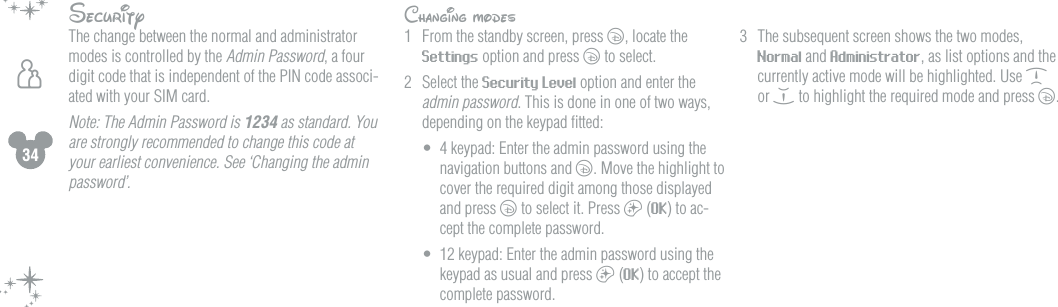
34hSecurity The change between the normal and administrator modes is controlled by the Admin Password, a four digit code that is independent of the PIN code associ-ated with your SIM card. Note: The Admin Password is 1234 as standard. You are strongly recommended to change this code at your earliest convenience. See ‘Changing the admin password’. Changing modes1  From the standby screen, press c, locate the Settings option and press c to select.2  Select the Security Level option and enter the admin password. This is done in one of two ways, depending on the keypad fitted:  •  4 keypad: Enter the admin password using the navigation buttons and c. Move the highlight to cover the required digit among those displayed and press c to select it. Press a (OK) to ac-cept the complete password.•  12 keypad: Enter the admin password using the keypad as usual and press a (OK) to accept the complete password.3  The subsequent screen shows the two modes, Normal and Administrator, as list options and the currently active mode will be highlighted. Use d or e to highlight the required mode and press c.
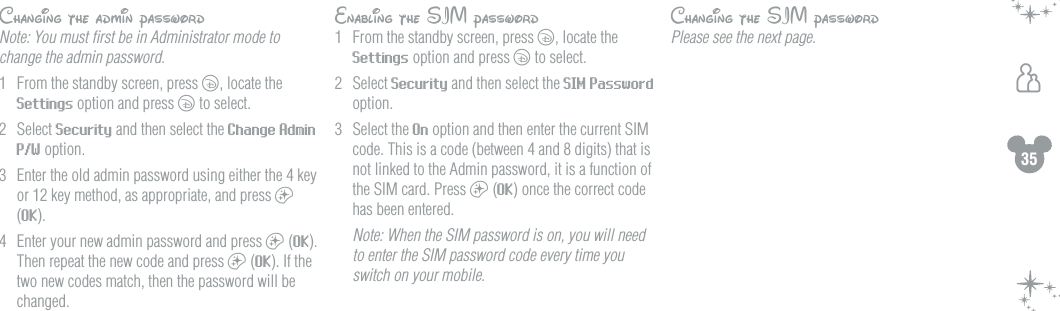
35hChanging the admin passwordNote: You must first be in Administrator mode to change the admin password.1  From the standby screen, press c, locate the Settings option and press c to select.2  Select Security and then select the Change Admin P/W option.3  Enter the old admin password using either the 4 key or 12 key method, as appropriate, and press a (OK).4  Enter your new admin password and press a (OK). Then repeat the new code and press a (OK). If the two new codes match, then the password will be changed.Enabling the SIM password1  From the standby screen, press c, locate the Settings option and press c to select.2  Select Security and then select the SIM Password option.3  Select the On option and then enter the current SIM code. This is a code (between 4 and 8 digits) that is not linked to the Admin password, it is a function of the SIM card. Press a (OK) once the correct code has been entered.  Note: When the SIM password is on, you will need to enter the SIM password code every time you switch on your mobile.Changing the SIM passwordPlease see the next page.
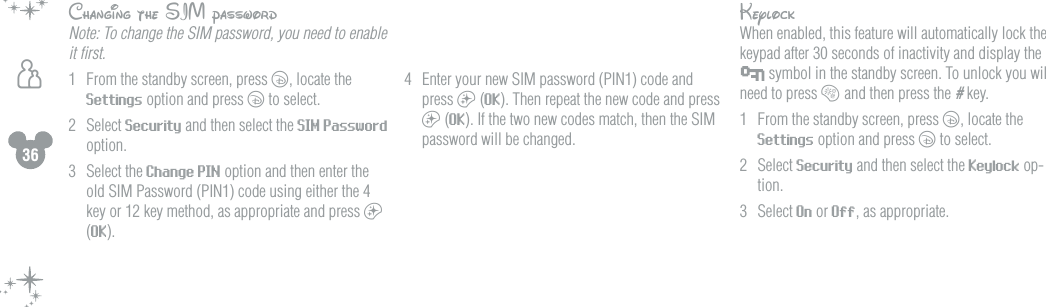
36hChanging the SIM passwordNote: To change the SIM password, you need to enable it first.1  From the standby screen, press c, locate the Settings option and press c to select.2  Select Security and then select the SIM Password option.3  Select the Change PIN option and then enter the old SIM Password (PIN1) code using either the 4 key or 12 key method, as appropriate and press a (OK).4  Enter your new SIM password (PIN1) code and press a (OK). Then repeat the new code and press a (OK). If the two new codes match, then the SIM password will be changed.KeylockWhen enabled, this feature will automatically lock the keypad after 30 seconds of inactivity and display the  symbol in the standby screen. To unlock you will need to press b and then press the # key.1  From the standby screen, press c, locate the Settings option and press c to select.2  Select Security and then select the Keylock op-tion.3  Select On or Off, as appropriate.
37hTemporary unrestrictionThere may be times when you need to contact your Disney D100 mobile from a phone that is not listed in its phonebook. You can do this by sending a specially formatted text message to the Disney D100 mobile which will temporarily suspend the controls that it uses to screen callers and outgoing calls. Note: You can also achieve this via the d100mobile.com website.To send the unrestrict messageFrom another mobile phone, create and send (to the Disney D100 mobile) a text message containing the following items:@:RA;tt;nnnn;where: •  tt is the time period for which the Disney D100 mobile should remain unrestricted (between 1 and 15 minutes).•  nnnn is the four digit admin password for the Disney D100 mobile.  For instance, to suspend call control for 12 minutes (admin password is 5678), the message would be:@:RA;12;5678;Once the special message is received and understood, the Disney D100 mobile will permit calls and messages from any phone to be received for the defined period. Outgoing calls and messages to any number can also be made. After the unrestrict period, the usual access controls will be automatically reinstated.
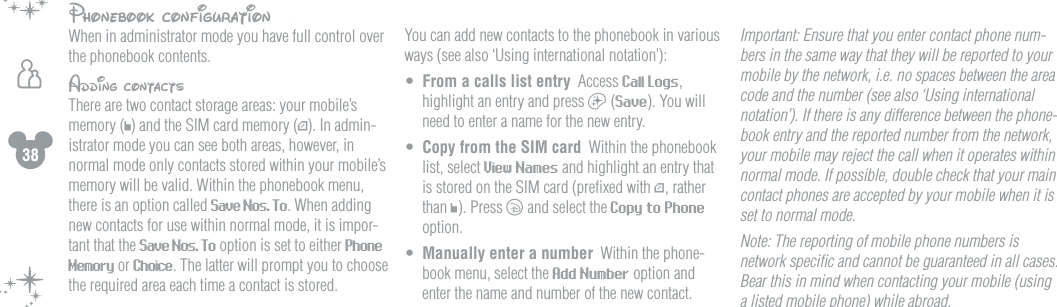
38hPhonebook configurationWhen in administrator mode you have full control over the phonebook contents. Adding contactsThere are two contact storage areas: your mobile’s memory (») and the SIM card memory (¼). In admin-istrator mode you can see both areas, however, in normal mode only contacts stored within your mobile’s memory will be valid. Within the phonebook menu, there is an option called Save Nos. To. When adding new contacts for use within normal mode, it is impor-tant that the Save Nos. To option is set to either Phone Memory or Choice. The latter will prompt you to choose the required area each time a contact is stored.   You can add new contacts to the phonebook in various ways (see also ‘Using international notation’):•  From a calls list entry  Access Call Logs, highlight an entry and press a (Save). You will need to enter a name for the new entry.  •  Copy from the SIM card  Within the phonebook list, select View Names and highlight an entry that is stored on the SIM card (prefixed with ¼, rather than »). Press c and select the Copy to Phone option. •  Manually enter a number  Within the phone-book menu, select the Add Number option and enter the name and number of the new contact.Important: Ensure that you enter contact phone num-bers in the same way that they will be reported to your mobile by the network, i.e. no spaces between the area code and the number (see also ‘Using international notation’). If there is any difference between the phone-book entry and the reported number from the network, your mobile may reject the call when it operates within normal mode. If possible, double check that your main contact phones are accepted by your mobile when it is set to normal mode.Note: The reporting of mobile phone numbers is network specific and cannot be guaranteed in all cases. Bear this in mind when contacting your mobile (using a listed mobile phone) while abroad.
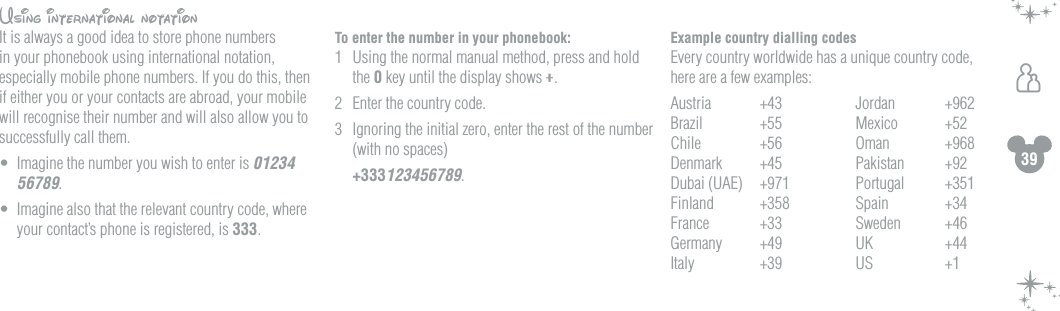
39hUsing international notationIt is always a good idea to store phone numbers in your phonebook using international notation, especially mobile phone numbers. If you do this, then if either you or your contacts are abroad, your mobile will recognise their number and will also allow you to successfully call them.•  Imagine the number you wish to enter is 01234 56789. •  Imagine also that the relevant country code, where your contact’s phone is registered, is 333. To enter the number in your phonebook:1  Using the normal manual method, press and hold the 0 key until the display shows +. 2  Enter the country code.3  Ignoring the initial zero, enter the rest of the number (with no spaces) +333123456789. Example country dialling codesEvery country worldwide has a unique country code, here are a few examples: Austria  +43Brazil  +55Chile  +56Denmark  +45Dubai (UAE)  +971Finland  +358France  +33Germany  +49Italy  +39Jordan   +962Mexico  +52Oman  +968  Pakistan  +92Portugal  +351Spain  +34 Sweden  +46UK  +44US  +1
40hOne touch diallingYou can make any of the phonebook contacts available as a one-touch dial number. One-touch key allocations depend upon the keypad fitted:•  4 keypad: You can use keys 1 to 4. •  12 keypad: You can use keys 2 to 9.Note: If your mobile is changed from a 12 keypad to a 4 keypad (i.e. after you have finished configuring it for your child), the key arrangements for only the first four one-touch contacts will be preserved and they will be moved to occupy keys 1 to 4.   1  Enter the phonebook and view the list of contact names. Any entries that already have a one-touch dialling arrangement will show their one-touch key number to the right of their name.2  Highlight the required contact name and press c.3  Highlight the 1-Touch Dialing option and press c.4  Press and hold an un-allocated key until the display responds.   Other phonebook tasksYou can also perform the following tasks within the phonebook. Highlight a contact name, press c and select from the menu:Edit name/Edit number  Edit details as necessary.Set Ringtone/Set Colour Pattern  For each contact stored in your mobile’s phone memory you have the option to set special ringtones and display colour pat-terns, these can be set in either administrator or normal modes. See ‘Your phonebook’.
41hCopy to SIM  You can copy any phonebook contact from phone memory to SIM memory.Check Memory  Allows you to determine the available space within both the phone memory and the SIM card.Save Nos To.  This option determines whether new contact entries are stored automatically in either the phone memory or the SIM card, or that you are given the choice whenever creating new entries. Messaging configurationMessage settingsMessage settings are usually preconfigured by your network operator and are taken from the SIM card, however, you can alter them, if necessary.1  Within the Messaging option, highlight Message Settings and press c. Three options are avail-able: Message Centre  This is the central number to which all outgoing messages are sent.  Keep Messages  This settings determines how long undelivered messages should be held by your network operator before being discarded. The op-tions range from 1 hour to 6 months. Delivery Receipt  When set to On, this option will notify you, by return message, when your outgoing messages have been received. There may be a charge for this service, please check with your network operator.
42hChanging preset messages1  Within the Messaging option, highlight Preset Messages and press c.2  Highlight a message (or an Empty location) and press c. If you chose an existing message, select the Edit option.3  Enter or edit the required message and then press a (Save).Voicemail settings1  Within the Messaging option, highlight Voicemail and press c.2  Highlight the Voicemail Settings option and press c. Two options are available: Local Mailbox  This entry contains the number your mobile should dial when it is connected to your home network. Roam Mailbox This entry contains the number your mobile should dial when it is roaming on an alternative network.  In either or both cases, edit the numbers according to information from your network operator and press a (OK).
43hAdministration via the websiteThanks to the d100mobile.com website, you can administrate your mobile irrespective of where you are and where it is (providing it is switched on and has network service). Using the powerful, yet intuitive features of the secure website you can:•  Update the entries within the phonebook   Allows you to amend some or all of the contacts held within your mobile’s memory. •  Change the preset messages  Lets you alter some or all of the standard messages that your child can send to their contacts.•  Send a message to the Disney D100 mobile  Using the website’s text creation feature, you can compose and send a message, if you do not have access to your own mobile phone.•  Temporarily un-restrict access to the phone  A very useful feature in situations where you do not have access to the phone that you would normally use to contact the Disney D100 mobile. Using your password-protected account on the d100mobile.com website you can remove the call restrictions for between 1 and 15 minutes in order that you can make contact from any phone. •  Manage and contact multiple phones  One child or many, the d100mobile.com site allows you to easily manage and send messages to multiple Disney D100 mobiles at once.•  New accessories  The d100mobile.com website is where you can see and order the latest special accessories for your Disney D100 mobile.  The d100mobile.com website operates using credits, of which you receive 25 free with each Disney D100 mobile that you purchase. When you use the admin-istration features of the site, credits are deducted from your account and you can purchase new credits using various payment methods. Register yourself now.
44hOther settingsTime1  Within the Clock option, highlight Time and Date and press c. 2  Select the Set Time option. The display will show the current time setting.3  Enter the correct time in one of two ways:•  If you are using the 12 keypad: Enter the time using the numeric keys and press a (OK).•  If you are using the 4 keypad: Use d and e to increase or decrease the hour and then press f to move to the minutes. Similarly adjust the minutes and then press a (OK).Note: The time is expressed in either 24 hour or 12 hour format according to the Time Format option.
45hDate1  Within the Clock option, highlight Time and Date and press c. 2  Select the Set Date option. The display will show the current day/month/year setting in a calendar grid format.3  Use g and f to move back/forward day by day or use d and e buttons to move up/down week by week until you have highlighted the correct date. Press c to select. The display will now show a grid for the chosen week with the chosen day highlighted. 4   If necessary, use the g and f to move back/for-ward day by day or use d and e buttons to move up/down week by week.5  When the selected date is correct, press a (OK).  Note: You can use the Date Format option to choose exactly how your mobile displays the date within the standby screen.Auto Clock UpdateYour mobile provides a feature that can automatically set the time and date using signals from the phone network. Note: This feature is not supported by all mobile networks.1  Within the Clock option, highlight Time and Date and press c. 2  Select the Auto Clock Update option. Two options are provided: Manual and Automatic. 3  Highlight the required setting and press c.
46hSchool hoursThe school hours feature allows you to ensure that your child’s mobile does not interfere with classwork by disabling the ringtone alerts and key tones during certain times of the day and week. When the control is active, the   icon will be displayed in the standby screen. You can control, to the nearest hour, when the school hours feature should be active.1  Within the Clock option, highlight School Hours and press c. Three options are provided:  Set Hours Use this to set the beginning and end times for the restriction period. Note: For 12 hour clock: Use d and e to change between am/pm.•  12 keypad: Enter the hours using the numeric keys and press a (OK).•  4 keypad: Use d and e to increase or decrease the hour and f to move to the next stage. Press a (OK) when complete. Set Day  Highlight each day of the week for which the school hours feature is required and press c to add or remove a tick, as necessary. Press a (OK) when complete. Enable/Disable  Use to switch the school hours feature on and off.
47hVirtual timerThis is a feature that you can optionally use to help your child to moderate their use of the mobile. The virtual timer keeps a running total of all time spent in calls and you can set a limit which they should try to keep within. For safety reasons, exceeding the limit does not prevent incoming or outgoing calls being made, it merely acts as a reminder. The time period in which they should use the allocation is down to you.1  Within the Call Logs option, highlight Virtual Timer and press c. Two options are provided: View  This is the option that your child can access and which shows the time used and the allocated time remaining.  Set Virtual Timer Use this to set the allocated call time.•  12 keypad: Enter the hours and then the minutes using the numeric keys and press a (Start).•  4 keypad: Use d and e to increase or decrease the hours, use f to move to the next stage and similarly set the minutes. Press a (Start) when complete.  Once started, you can stop the virtual timer by going back into the option and pressing a (Stop).
48hCall costsThis feature allows you to gain an indication of your expenditure on calls. This feature is dependent on support from your network operator.1  Within the Call Logs option, select the Call Info option and press c. Three options are provided: Call Costs  This option allows you set the unit cost of calls which will then be used together with the call timers to provide the cost of your Last Call and also a running total of All Calls, since you last cleared the logs. Within this option you can also set a Max Cost which will emit a warning when the call costs exceed your set limit.    Call Timers  Provides separate elapsed timings of your Last Call and also All Calls. Clear Logs  Allows you to clear all call logs.Restore settingsThis feature allows you to return all customised set-tings back to their factory defaults. Contacts within the phone memory and SIM card will remain unchanged.1  Within the Settings option, select the Restore Settings option and press c. 2  In the subsequent confirmation screen, press a (Yes) to proceed.
49Other informationSolving problemsThe display shows ‘No service’If you are outside the wireless service area, No Service will display on your mobile. No calls can be made or received, however, emergency calls may still be possible.Whenever I try to call the Disney D100 mobile (from another phone), I hear one ring and the line goes deadThe mobile is in normal mode and the number from which you are calling is not listed as a contact within the phone memory area of the phonebook.  Note: Numbers contained on the SIM card cannot be used in normal mode.I cannot make or receive callsYour mobile can make and receive calls only when it is switched on and within the wireless network’s service area. If normal mode is set, you can only receive and send calls to the numbers listed within the phonebook. The mobile does not immediately turn on after plug-ging in charger after extended period of non-use. It may be necessary to allow up to 4 hours to recharge the battery enough to turn the mobile on. The display shows ‘SIM Invalid’ Check whether you have inserted the SIM card in the mobile, and whether you have inserted it correctly.The display shows ‘Enter PUK’ This message appears if the PIN is incorrectly entered three times in a row. You need to enter the PUK (Pin UnblocKing code) – contact your network operator. Important: If the PUK is incorrectly entered more than 10 times, your SIM card will be permanently blocked, and you will need to purchase a new SIM card.
50Message “Searching” is displayed along with “No Network  When this happens in a service area, turn off your mobile for 2~3 minutes, and then turn it back on.If this continues for some time without reason (i.e. other mobile phones on the same network can gain service) contact your supplier for assistance.Technical specificationsGeneral detailsWeight  80g including batterySize (H x W x D)  51.3mm x 98.7mm x 24.2mmBattery  750mAH Lithium IonStandby Time   Up to 200 hoursTalk Time  Up to 6 hoursNetwork frequency rangesDepending upon the country where you purchased your mobile, it will supports one of the following sets of network frequencies:GSM 900 & DCS 1800Frequency Ranges  880 ~960MHz    1710 ~1880MHzGSM 850 & PCS 1900Frequency Ranges  824 ~894MHz    1850 ~1990MHz
51Important safety information Exposure to radio frequency (RF) signalsYour mobile contains a transmitter and a receiver.  When it is on, it receives and also sends out radio frequency (RF) signals. When you communicate with your mobile, the system handling your call controls the power level at which your mobile transmits.Your mobile is designed to comply with local regula-tory requirements in your country concerning exposure of human beings to RF energy.Operational precautions To assure optimal performance and make sure human exposure to RF energy is within the guidelines set forth in the relevant standards; always adhere to the follow-ing procedures.Body-worn operationTo maintain compliance with RF energy exposure guidelines, if you wear a mobile on your body when transmitting, always place the mobile in an approved clip, holder, holster, case, or body harness for this mobile.Approved accessoriesUse of unapproved accessories, including but not lim-ited to batteries and antennas, may cause your mobile to exceed RF energy exposure guidelines.  RF energy interference/compatibilitiesNote: Nearly every electronic device is susceptible to RF energy interference from external sources if in adequately shielded, designed, or otherwise configured for RF energy compatibility. In some circumstances your mobile may cause interference.
52FacilitiesTurn off your mobile in any facility where posted no-tices instruct you to do so.  These facilities may include hospitals or health care facilities that may be using equipment that is sensitive to external RF energy.Medical devicesPacemakersPacemaker manufacturers recommend that a minimum separation of 6 inches (15 centimetres) be maintained between a handheld mobile phone and a pacemaker. People with pacemakers should: •  Always keep the mobile more than 6 inches (15 centimetres) from the pacemaker when the mobile is turned on.•  Never carry the mobile in a breast pocket.•  Use the ear opposite the pacemaker to minimise the potential for interference.•  Turn off the mobile immediately if there is any reason to suspect that interference is taking place.Hearing AidsSome digital wireless phones may interfere with some hearing aids. In the event of such interference, you may want to consult your hearing aid manufacturer to discuss alternatives. Other Medical DevicesIf you use any other personal medical device, consult the manufacturer of your device to determine if it is adequately shielded from RF energy. Your physician may be able to assist you in obtaining this information. BatteriesBatteries can cause property damage and/or bodily injury such as burns if a conductive material such as jewellery, keys, or beaded chains touches exposed terminals. The conductive material may complete an electrical circuit (short circuit) and become quite hot. Exercise care in handling any charged battery, particularly when placing it inside a pocket, purse or other container with metal objects. Use only original batteries and chargers.
53Your battery or mobile may contain symbols, defined as follows. Important safety information will follow. Your battery or mobile should not be disposed of in a fire. Your battery or mobile may require recycling in accordance with local laws. Contact your local regulatory authorities for more information.  Your battery or mobile should not be thrown in the trash.VehiclesRF signals may affect improperly or inadequately shielded electronic systems in motor vehicles. Check with the manufacturer or its representative regarding your vehicle.  You should also consult the manufac-turer of any equipment that has been added to your vehicleVehicles with Air BagsAn air bag inflates with great force. DO NOT place objects, including installed or portable wireless equipment, in the area over the air bag or in the air bag deployment area. If in-vehicle wireless equipment is improperly installed and the air bag inflates, serious injury could result.Seizures/BlackoutsSome people may be susceptible to epileptic seizures or blackouts when exposed to flashing lights, such as when watching television or playing video games. These seizures or blackouts may occur even if a person never had a previous seizure or blackout.If you experienced seizures or blackouts, or if you have a family history of such occurrences, please consult with your doctor.
54Specific Absorption Rate (SAR) for GSM900/DCS1800 networksThe model wireless phone meets R&TTE requirements for exposure to radio waves. Your wireless phone is a radio transmitter and receiver. It is designed and manufactured not to exceed limits for exposure to radio frequency (RF) energy. These limits are part of compre-hensive guidelines and establish permitted levels of RF energy for the general population. The guidelines area based on standards that were developed by independ-ent scientific organizations through periodic and thorough evaluation of scientific studies. The standards include a substantial safety margin designed to assure the safety of all persons, regardless of age or health.The exposure standard for wireless phone employs a unit of measurement known as the Specific Absorption Rate, or SAR. The SAR limit recommended by the International Commission on Non-Ionizing Radiation Protection (ICNIRP), which is 2W/kg averaged over ten (10) grams of tissue. Although the SAR is determined at the highest certified power level, the actual SAR level of the phone while operating can be well below the maximum value. This is because the phone is designed to operate at multiple power levels so as to use only the power required to reach the network. In general, the closer you are to a wireless base station, the lower the power output.Before a phone model is available for sale to the public, it is tested to confirm compliance with the guidelines (e.g., at the ear) that conform to a uniform testing methodology determined by an expert standards body. The highest SAR value for this model phone when tested for use at the ear is 0.481W/kg.While there may be differences between the SAR levels of various phones and at various positions, they all met the R&TTE requirements for safe exposure. Please note that improvements to this product model could cause differences in the SAR value for later products; in all cases, products are designed to be within the guidelines.
55Specific Absorption Rate (SAR) for GSM850/PCS1900 networksThe SAR is a value that corresponds to the relative amount of RF energy absorbed in the head of a user for a wireless handset. The SAR value of a phone is the result of an extensive testing, measuring and calcula-tion process. It does not represent how much RF the phone emits. All phone models are tested at their highest value in strict laboratory settings. But when in operation, the SAR of a phone can be substantially less that the level reported to the FCC. This is because of a variety of factors including its proximity to a base sta-tion antenna, phone design and other factors. What is important to remember is that each phone meets strict federal guidelines. Variations in SAR’s do not represent a variation in safety. All phones must meet the federal standard, which incorporates a substantial margin of safety. As stated above, variations in SAR values between different model phones do not mean variations in safety. SAR values at or below the federal standard of 1.6W/kg are considered safe for use by the public. The highest reported SAR values of NPQMGD3080 are :GSM mode  Head : 0.496W/kg,    Body-worn : 0.165W/kgPCS mode  Head : 0.493W/kg,    Body-worn : 0.053W/kgBody-worn OperationThis device has been tested for body-worn operation and meets FCC RF exposure guidelines. Body-worn operation is restricted to accessories that maintain a minimum of 1.5cm separation to the body and do not contain metallic components. Use of any other body-worn accessories may not provide compliance with FCC RF exposure guidelines. For more information about RF exposure, please visit the FCC website : www.fcc.gov
56Character copyright notices© Disney  Where featured, Disney’s Winnie the Pooh characters based on the “Winnie the Pooh” works by A.A. Milne and E.H. Shepard.  Where featured, Tinker Bell from Walt Disney’s Master-piece ‘Peter Pan’. All rights reserved. All brands and product names mentioned are trademarked or registered trademarks of their respective companies.Ringtone copyright noticesFantasmic! ImaginationWords by Barnette Ricci and Music by Bruce Healey © 1992 Walt Disney Music Company (ASCAP) All Rights ReservedMickey Mouse MarchWords and Music by Jimmle Dodd © 1955 Walt Disney Music Company (ASCAP) Copyright Renewed. All Rights ReservedZip-A-Dee-Doo-DahWords by Ray Gilbert and Music by Allie Wrubel  © 1945 Walt Disney Music Company (ASCAP) Copyright Renewed. All Rights ReservedThe Wonderful Thing About TiggersWords and Music by Richard Sherman and Robert Sherman © 1964 Wonderland Music Company, Inc (BMI) Copyright Renewed. All Rights ReservedBibbidi-Bobbidi-BooWords and Music by Al Hoffman, Jerry Livingston and Mack David © 1948 Walt Disney Music Company (ASCAP)  Copyright Renewed. All Rights ReservedDocumentation by Corporate Text & Design (www.ctxd.com)Release 1.0c [THIRD DRAFT: 20th June 2006]

Navigation menu