Telo Systems TE390 Smart Phone User Manual TE390 QuickStart 20180814

Telo Systems Ltd. Smart Phone TE390 QuickStart 20180814

15_TE390 UserMan

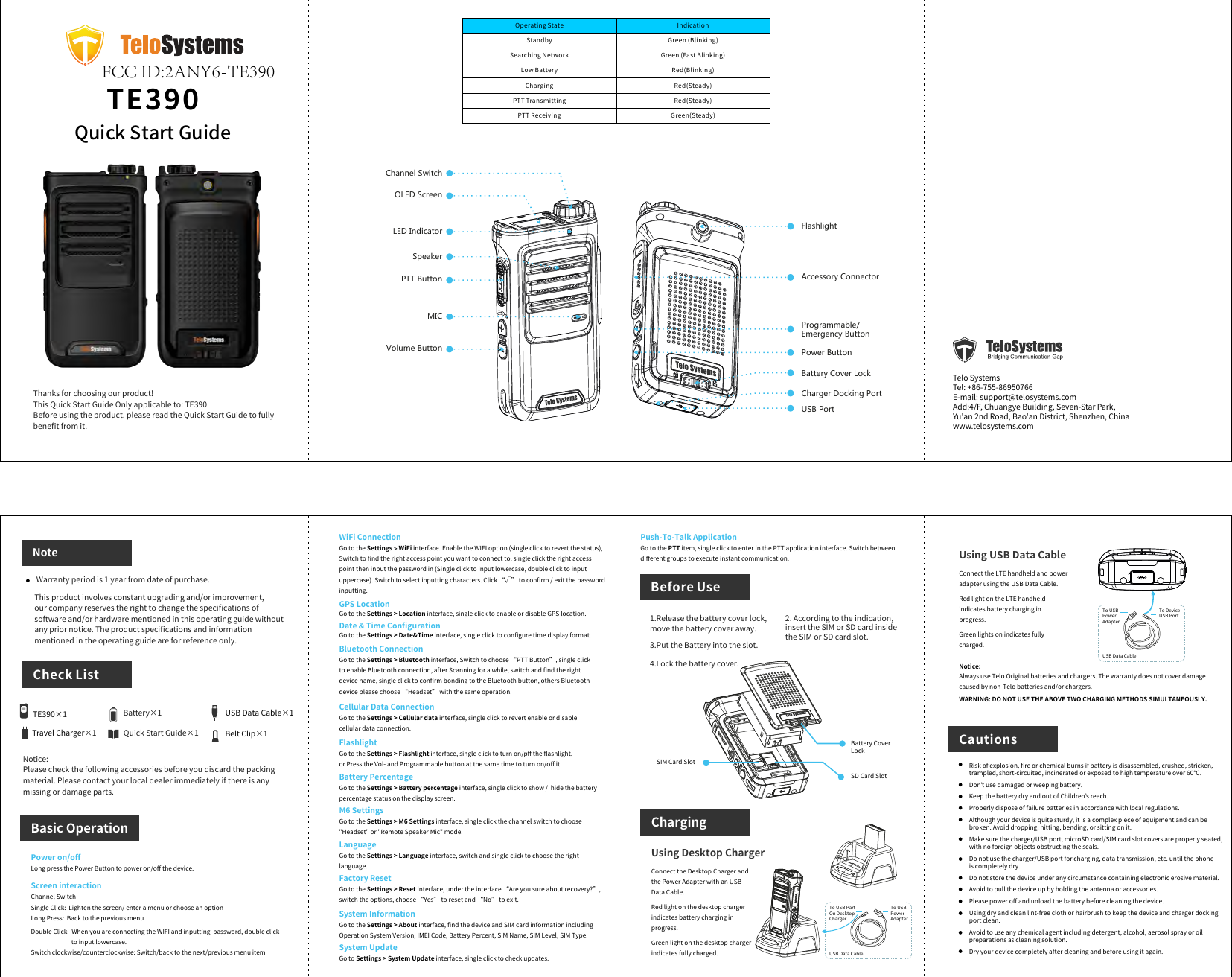
TE390CautionsRisk of explosion, fire or chemical burns if battery is disassembled, crushed, stricken, trampled, short-circuited, incinerated or exposed to high temperature over 60℃.Don’t use damaged or weeping battery.Keep the battery dry and out of Children’s reach.Properly dispose of failure batteries in accordance with local regulations.Although your device is quite sturdy, it is a complex piece of equipment and can be broken. Avoid dropping, hitting, bending, or sitting on it.Make sure the charger/USB port, microSD card/SIM card slot covers are properly seated, with no foreign objects obstructing the seals.Do not use the charger/USB port for charging, data transmission, etc. until the phone is completely dry.Do not store the device under any circumstance containing electronic erosive material.Avoid to pull the device up by holding the antenna or accessories.Please power off and unload the battery before cleaning the device.Using dry and clean lint-free cloth or hairbrush to keep the device and charger docking port clean.Avoid to use any chemical agent including detergent, alcohol, aerosol spray or oil preparations as cleaning solution.Dry your device completely after cleaning and before using it again.Telo SystemsTel: +86-755-86950766E-mail: support@telosystems.comAdd:4/F, Chuangye Building, Seven-Star Park, Yu'an 2nd Road, Bao'an District, Shenzhen, Chinawww.telosystems.comOperating StateIndicationStandbyGreen (Blinking)Searching NetworkGreen (Fast Blinking)Low BatteryRed(Blinking)ChargingRed(Steady)PTT TransmittingRed(Steady)PTT ReceivingGreen(Steady)NoteCheck ListBasic OperationTE390×1 Battery×1Travel Charger×1USB Data Cable×1Quick Start Guide×1Thanks for choosing our product!This Quick Start Guide Only applicable to: TE390.Before using the product, please read the Quick Start Guide to fully benefit from it.Notice:Please check the following accessories before you discard the packing material. Please contact your local dealer immediately if there is any missing or damage parts.Warranty period is 1 year from date of purchase.This product involves constant upgrading and/or improvement, our company reserves the right to change the specifications of software and/or hardware mentioned in this operating guide without any prior notice. The product specifications and information mentioned in the operating guide are for reference only.Power on/offQuick Start GuideChannel SwitchOLED ScreenLED IndicatorPTT ButtonSpeakerMICVolume ButtonFlashlightUSB PortCharger Docking PortBattery Cover LockProgrammable/Emergency ButtonPower ButtonAccessory ConnectorLong press the Power Button to power on/off the device.Double Click:  When you are connecting the WIFI and inputting  password, double click to input lowercase.Switch clockwise/counterclockwise: Switch/back to the next/previous menu itemScreen interactionChannel SwitchSingle Click:  Lighten the screen/ enter a menu or choose an option Long Press:  Back to the previous menuUsing USB Data CableConnect the LTE handheld and power adapter using the USB Data Cable.Red light on the LTE handheld indicates battery charging in progress.Green lights on indicates fully charged.Notice: Always use Telo Original batteries and chargers. The warranty does not cover damage caused by non-Telo batteries and/or chargers. WARNING: DO NOT USE THE ABOVE TWO CHARGING METHODS SIMULTANEOUSLY.USB Data CableTo USB Power AdapterTo Device USB PortBelt Clip×1ChargingUsing Desktop ChargerBefore Use4.Lock the battery cover.1.Release the battery cover lock, move the battery cover away.2. According to the indication, insert the SIM or SD card inside the SIM or SD card slot.3.Put the Battery into the slot.Battery CoverLockSD Card SlotSIM Card SlotConnect the Desktop Charger and the Power Adapter with an USB Data Cable.Red light on the desktop charger indicates battery charging in progress.Green light on the desktop charger indicates fully charged. USB Data CableTo USB PartOn DesktopChargerTo USB Power AdapterPush-To-Talk ApplicationGo to the PTT item, single click to enter in the PTT application interface. Switch between different groups to execute instant communication.Flashlight Go to the Settings > Flashlight interface, single click to turn on/pff the flashlight. or Press the Vol- and Programmable button at the same time to turn on/off it.Battery PercentageGo to the Settings > Battery percentage interface, single click to show /  hide the battery percentage status on the display screen. M6 SettingsGo to the Settings > M6 Settings interface, single click the channel switch to choose "Headset" or "Remote Speaker Mic" mode.WiFi ConnectionGo to the Settings > WiFi interface. Enable the WIFI option (single click to revert the status), Switch to find the right access point you want to connect to, single click the right access point then input the password in (Single click to input lowercase, double click to input uppercase). Switch to select inputting characters. Click “√” to confirm / exit the password inputting.GPS LocationGo to the Settings > Location interface, single click to enable or disable GPS location.Date & Time ConfigurationGo to the Settings > Date&Time interface, single click to configure time display format.Bluetooth ConnectionGo to the Settings > Bluetooth interface, Switch to choose “PTT Button”, single click to enable Bluetooth connection, after Scanning for a while, switch and find the right device name, single click to confirm bonding to the Bluetooth button, others Bluetooth device please choose “Headset” with the same operation.Cellular Data ConnectionGo to the Settings > Cellular data interface, single click to revert enable or disable cellular data connection. Language Go to the Settings > Language interface, switch and single click to choose the right language. Factory ResetGo to the Settings > Reset interface, under the interface “Are you sure about recovery?”, switch the options, choose “Yes” to reset and “No” to exit.System InformationGo to the Settings > About interface, find the device and SIM card information including Operation System Version, IMEI Code, Battery Percent, SIM Name, SIM Level, SIM Type. System UpdateGo to Settings > System Update interface, single click to check updates. FCC ID:2ANY6-TE390
 FCC Warning: This device complies with part 15 of the FCC Rules. Operation is subject to the following two conditions: (1) This device may not cause harmful interference, and (2) this device must accept any interference received, including interference that may cause undesired operation.  Any Changes or modifications not expressly approved by the party responsible for compliance could void the user's authority to operate the equipment.  This equipment has been tested and found to comply with the limits for a Class B digital device, pursuant to part 15 of the FCC Rules. These limits are designed to provide reasonable protection against harmful interference in a residential installation. This equipment generates uses and can radiate radio frequency energy and, if not installed and used in accordance with the instructions, may cause harmful interference to radio communications. However, there is no guarantee that interference will not occur in a particular installation. If this equipment does cause harmful interference to radio or television reception, which can be determined by turning the equipment off and on, the user is encouraged to try to correct the interference by one or more of the following measures: -Reorient or relocate the receiving antenna. -Increase the separation between the equipment and receiver. -Connect the equipment into an outlet on a circuit different from that to which the receiver is connected. -Consult the dealer or an experienced radio/TV technician for help.  The SAR limit of USA (FCC) is 1.6 W/kg averaged over one gram of tissue.   Device types TE390 (FCC ID: 2ANY6-TE390) has also been tested against this SAR limit. The highest reported SAR values for head, body-worn accessory are 0.61 W/kg, 0.88 W/kg respectively. The Max simultaneous SAR is 1.02 W/kg. This device was tested for typical body-worn operations with the back of the handset kept 10mm from the body. To maintain compliance with FCC RF exposure requirements, use accessories that maintain a 10mm separation distance between the user's body and the back of the handset. The use of belt clips, holsters and similar accessories should not contain metallic components in its assembly. The use of accessories that do not satisfy these requirements may not comply with FCC RF exposure requirements, and should be avoided. The antenna(s) used for this transmitter must not be co-located or operating in conjunction with any other antenna or transmitter.
5G  For 5150-5250 and 5725-5850 frequency band, Operations in the 5150-5250 and 5725-5850 band are restricted to indoor usage only.  5G:  Any emission is maintained within the band of operation under all conditions of normal operation. The max. frequency stability is less than 20ppm.

Navigation menu