Texa S p A NW10 VEHICLE DIAGNOSTIC SYSTEM User Manual SOMMARIO

Texa S.p.A. VEHICLE DIAGNOSTIC SYSTEM SOMMARIO

Users Manual

CONTENTS  Introduction ................................................................................................. 35 General safety precautions for operators................................................. 36 Warnings...................................................................................................... 39 Information on standards........................................................................... 42 Environmental information ........................................................................ 43 How to use NAVIGATOR Wireless correctly ............................................ 44 1 DESCRIPTION OF NAVIGATOR WIRELESS .................................. 45 1.1 View of the instrument ...................................................................... 45 1.2 Interface module............................................................................... 46 1.3 How to power NAVIGATOR Wireless............................................... 47 1.4 How to connect to the vehicle........................................................... 48 1.5 Connecting to the display unit (communication type) ....................... 49 1.6 Bluetooth communication ................................................................. 49 1.7 Serial - USB communication............................................................. 49 2 TECHNICAL SPECIFICATIONS ....................................................... 50 3 SPARE PARTS.................................................................................. 51 4 Use with IDC3 software on AXONE 3 Mobile................................. 52 5 Using IDC3 software on a PC.......................................................... 52 6 Software setup on Pocket PC ......................................................... 53 6.1 Installing “Pocket PC Installer” on PC............................................... 53 6.2 Using “Pocket PC Installer”............................................................... 55 7 GLOSSARY....................................................................................... 60             MT_NAVIGATOR Wireless_eng_00                          Texa S.p.A.                                              33/122
          MT_NAVIGATOR Wireless_eng_00                          Texa S.p.A.                                              34/122
Introduction  Dear repairer,  Thank you for choosing our equipment for your workshop.  We feel confident that you will be satisfied with it and that it will be of considerable help.  Please read the instructions in this manual with great care and keep it close at hand for consultation.   NAVIGATOR Wireless is an instrument that transforms a normal PC into a state-of-the-art diagnostic motor vehicle repair station.    Data, technical specifications and descriptions contained in this manual are supplied for informative purposes only and are not binding for the manufacturer. The manufacturer reserves the right to make any changes to the instrument, at any time, without prior notice, deemed suitable for improving the product or for manufacturing or commercial reasons.  No part of this publication may be reproduced without the prior written permission of the manufacturer.                        © copyright and database rights 2005-2006. This material is protected by copyright and database rights. All rights reserved under national law and international conventions. MT_NAVIGATOR Wireless_eng_00                          Texa S.p.A.                                              35/122
General safety precautions for operators  This product was designed and developed for use by specialised technical personnel in the automotive sector, including motor vehicle specialised electricians, mechanics, technicians and engineers. Unqualified personnel must not be allowed to use the equipment to prevent injury to people and/or damage to the instrument and/or to the electronic systems of the vehicle to which the instrument is connected. Before putting into function, connecting and utilising NAVIGATOR Wireless, it is absolutely necessary to carefully read and understand the safety, installation and use instructions in this manual. Knowledge of and compliance with the operating conditions and procedures described in the manual allow you to work safely for your own physical well-being and for the integrity of the instrument and vehicles on which it is operating.  1.  The NAVIGATOR Wireless system must be used only on vehicles supplying 12 Volt direct current and chassis connected to the negative terminal. 2.  Never position the device in the area over an airbag or near an airbag in its expansion area. Airbags deploy with great force. If positioned in an airbag expansion area when an airbag is deployed, the device could be thrown with great force and seriously injure occupants aboard. 3.  Arrange the device so that correct ventilation is ensured. Do not position the device near sources of heat or hot surfaces and/or parts.  4.  Make sure that the installation aboard does not interfere with the vehicle controls, specifically brakes, steering and safety devices in general. 5.  NAVIGATOR Wireless was tested for electromagnetic compatibility with the technology commonly employed in vehicles (e.g. engine control, ABS, airbag, climate control, navigator, sound system and hi-fi systems). Contact the vehicle retailer in the event of malfunctioning. 6.  Keep NAVIGATOR Wireless dry: rain, humidity, all fluids and condensation may damage the electronic circuits. 7.  Do not open the NAVIGATOR Wireless device. Interventions performed by unspecialised personnel may damage the device. 8.  Do not drop, knock or shake the device: the internal circuits could be damaged beyond repair. 9.  Do not use corrosive chemical products, solvents or aggressive detergents to clean the NAVIGATOR Wireless device.  Working environment  The working area must be dry, ventilated and sufficiently illuminated.  In particular, all testing with running engine must take place in areas equipped with extraction fans.  MT_NAVIGATOR Wireless_eng_00                          Texa S.p.A.                                              36/122
Remember that breathing carbon monoxide (which is odourless) is a health hazard.   When operating on engines or other parts of vehicles  -  Use proper clothing and act safely in order to avoid accidents.  -  Before starting, make sure that the vehicle gearbox is in neutral (or parking position in the case of vehicles with automatic transmission). Apply the handbrake or parking brake on the vehicle under test. Check that the wheels are locked.  -  Protect your face, hands and feet and avoid contact with hot parts such as spark plugs, exhaust pipes, radiators, and cooling system connectors.  -  Do not smoke and do not use flames while working on the vehicle.  -  Check that all electric connections are isolated and firm.  -  Do not look directly into the carburettor inlet while the engine is running. -  Keep hands and hair away from moving parts.   -  Do not wear ties, slack clothing, wrist jewellery and watches while working on a vehicle, especially when the engine is running.  -  Keep away from the fan. The cooling fan is controlled by a temperature switch which operates according to the temperature of the coolant: disconnect the fan cable whenever operating on a warm engine, so that the fan does not suddenly start up after the engine has been turned off.  -  Do not pour fuel directly into the carburettor to start the engine quickly.  -  Do not open the radiator cap before both the temperature of the engine and the pressure of the cooling system have decreased.  -  Do not touch high voltage cables while the engine is on. -  Handle portable lamps with care and use safety models only. -  Wear safety goggles to protect your eyes from fuel, dust and metal.  -  Remember that the catalytic converter can become extremely hot and cause severe injury or fires.   Take care to ensure that there is no spilt oil or any rags, paper or other easily flammable material near the catalytic converter.  When operating on car batteries, remember that:  Car batteries contain sulphuric acid and produce explosive gases. Therefore, keep the following in mind:  -  Always wear safety eyewear.  -  Do not leave instruments on batteries because they could cause short circuits. -  Before testing or charging, cover the battery inlets with a wet rag to choke any explosive gases.  -  Avoid sparks when connecting cables to the battery.  MT_NAVIGATOR Wireless_eng_00                          Texa S.p.A.                                              37/122
-  Avoid splashes of electrolyte on your skin, eyes or clothing, because it is corrosive and highly toxic.   When operating with the device connected to the mains, remember to:  -  Check that the instrument has been connected to earth.  -  Turn off power before connecting or disconnecting cables.  -  Do not touch with wet hands.  -  Work ensuring isolation from earth.   Operation of wireless devices  Arrange the unit so to ensure the correct operation of the wireless devices it contains. In particular, do not cover it with shielding materials or metals in general. Do not position it inside the boot, the engine compartment or a storage compartment. If the unit is arranged inside the passenger compartment, make sure that the vehicle’s windows are not shielded.   MT_NAVIGATOR Wireless_eng_00                          Texa S.p.A.                                              38/122
Warnings  Usage of the NAVIGATOR Wireless is conditional on acceptance of the following conditions:  1. Responsibility  The customer is responsible for the use of any instrument or software program supplied by TEXA S.p.A. and sold by retailers. The customer undertakes to indemnify and hold harmless TEXA S.p.A. and the retailer from any responsibility and damage arising from the improper use of the products and services sold by the retailer and purchased by the customer and their use that is not in conformity with all the indications, sequences and phases indicated in the programs and instruction manual. Regardless of whether data and information are obtained either from TEXA S.p.A., the retailer directly or the programs and instruction manuals, the customer must always be aware that said data and information may not be exhaustive and must always be used in addition to the repairer’s specific professional knowledge.  2. Software licence  TEXA S.p.A. gives the customer the right to utilise software contained in the products they purchase on the basis of a non-exclusive Software Licence Agreement and only for the purposes described in this instruction manual. For the purpose of the Software Licence Agreement, “software” means the program contained in the product and “licence” the right to use or access a given copy of the specific software. The licensee customer must keep the Software Licence Agreement to prove the usage right granted by Texa S.p.A. as licensor. Customers who do not intend to accept the terms of the Software Licence Agreement must immediately return the product containing the licensed software to the retailer together with all the material and documentation they have been sent.  The software contained in the products is the intellectual property of TEXA S.p.A. and its suppliers. The software structure, organisation and code constitute important commercial secrets and confidential information owned by TEXA S.p.A. and its suppliers. The software is protected by copyright laws, and international copyright treaties, as well as other laws and international treaties regarding intellectual property. For each Software Licence that is purchased the customer may only utilise one copy of the software or its previous version for the same operating system.  The customer may not: MT_NAVIGATOR Wireless_eng_00                          Texa S.p.A.                                              39/122
A) Rent, sub-license, lend, copy, modify, reproduce, translate, redesign, rewrite or disassemble the software under Software Licence or the information contained therein. B) Transmit the software or any part thereof by cable, ether or other means. C) Create works or derive others from them, based in part or entirely on the software or information contained therein, or on the information associated with it. D) Use, reproduce, print or market the software or information contained therein, in any form whatsoever, even if not contemplated in this agreement. The Software Licence Agreement is valid for the entire period that the software is utilised. It expires with the destruction of the software and all the relative documentation. Furthermore, should the customer fail to comply with the provisions of this agreement the Software Licence shall no longer be valid. On termination of utilisation, the customer undertakes to destroy all copies of the software, including those on memory card, CD-ROM, HARD DISK or other memory support and relative documentation. The rights and obligations contained in the Software Licence Agreement may not be transferred or delegated to others without the written agreement of TEXA S.p.A. The software is installed and utilised at the customer’s own risk and in no case shall TEXA S.p.A. be considered responsible for any loss or damage, including loss of profits or losses resulting from the use or incapacity to use the software, or for errors or deficiencies in the software itself, even if caused by negligence, or the use of the software in association with another program. The customer is ultimately responsible for checking for the presence of computer viruses in the products in which the software will be installed. TEXA S.p.A. assumes no responsibility for any losses, damage or costs of any nature, caused by computer viruses.  3. Warranty  HARDWARE: The retailer guarantees the product against manufacturing faults and defects ascertained and recognised by the TEXA S.p.A. service network for the period of twenty-four months commencing from the date of delivery or activation of the software. This guarantee consists of the obligation of the retailer and/or authorised service network to reinstate the functionality of the products, by substitution or free repair of the defective items. The guarantee does not cover the defects or malfunctioning that derive from: a) bad maintenance or erroneous or inadequate calibrations; b) software, interfaces, parts or consumable materials not supplied by the official service and retail network of TEXA S.p.A.; c) unauthorised modifications or misuse; d) utilisation of the products in an environment that does not satisfy the specified product operating conditions; e) erroneous preparation or maintenance of the environment where they are used, f) display units not compatible with the TEXA product. MT_NAVIGATOR Wireless_eng_00                          Texa S.p.A.                                              40/122
SOFTWARE: Although TEXA S.p.A. has taken all possible precautions to ensure the accuracy of the information contained in or visualised by the software, it does not guarantee that the software, or any information contained therein and visualised, meets the customer’s requirements, is without errors, will remain functional for an unlimited period of time or that any defects in the software can be corrected. The data and material (in various forms) contained in programs and database accessed by the programs may originate from various sources, including, for example, original material distributed by various manufacturers and material provided to Texa S.p.A. by companies specialised in the development of information of this kind. In general, the original material was written and intended for publication in Europe for use aboard vehicles according to European specifications. Users must be aware that in non-European countries, the names and descriptions of models and the respective specifications may differ from those listed and displayed in the programs and instruments to which this manual refers. The warranty does not cover problems caused by software conflicts if the software is installed on hardware platforms other than those made by Texa S.p.A. (e.g. on commonly marketed personal computers, Pocket PC, Tablet PC.). Problems not covered by warranty include but are not limited to those generated by: incompatibility between Texa programs and software environments with inadequate requirements or protected by antivirus systems which prevent the normal installation and operation; environments damaged by the presence of viruses; environments supported by inadequate hardware resources. PLACE WHERE GUARANTEE ASSISTANCE IS CARRIED OUT: All guarantee repairs, with the exception of a different written agreement, must be carried out at TEXA S.p.A.’s office or a service centre authorised by TEXA S.p.A. The customer is responsible for all expenses sustained for the transport of the product to be repaired from the customer’s office to the service centre and/or for travelling expenses of TEXA S.p.A. or service centre personnel to the customer’s address. TRANSPORT: Damage resulting from the transport and breakage, due to poor packaging by the customer, of products returned for repairs are excluded from the guarantee. MAINTENANCE  The product was carefully inspected by TEXA S.p.A. and the retailer (where applicable) before being delivered to the customer. Nevertheless the products always require ordinary maintenance, as, for example, systematic inspections of contacts in module holders and external elements (where fitted), such as antenna wires, etc. The right to servicing and repairs under guarantee may be withdrawn if the customer fails to meet the minimum maintenance requirements as set forth in the instruction manual supplied with the product. MT_NAVIGATOR Wireless_eng_00                          Texa S.p.A.                                              41/122
Information on standards  Declaration of Conformity   Hereby Texa S.p.A. declares that NAVIGATOR Wireless is in compliance with the essential requirements and other relevant provisions of Directive 1999/5/EC.  A copy of the complete Declaration of Conformity can be retrieved from:  Texa S.p.A., Via 1 Maggio 9, 31050 Monastier di Treviso (TV), Italy   Antenna  This product was designed and tested to work with the internal antenna provided. To ensure compliance with the aforesaid standards, use the device with the included antenna or with other antenna authorised by Texa S.p.A. only.     FCC  This device complies with part 15 of the FCC Rules. Operation is subject to the following two conditions: (1)  this device may not cause harmful interference, and (2) this device must accept any interference received, including interference that may cause undesired operation.   Changes or modifications not expressly approved by the party responsible for compliance could void the user's authority to operate the equipment.MT_NAVIGATOR Wireless_eng_00                          Texa S.p.A.                                              42/122
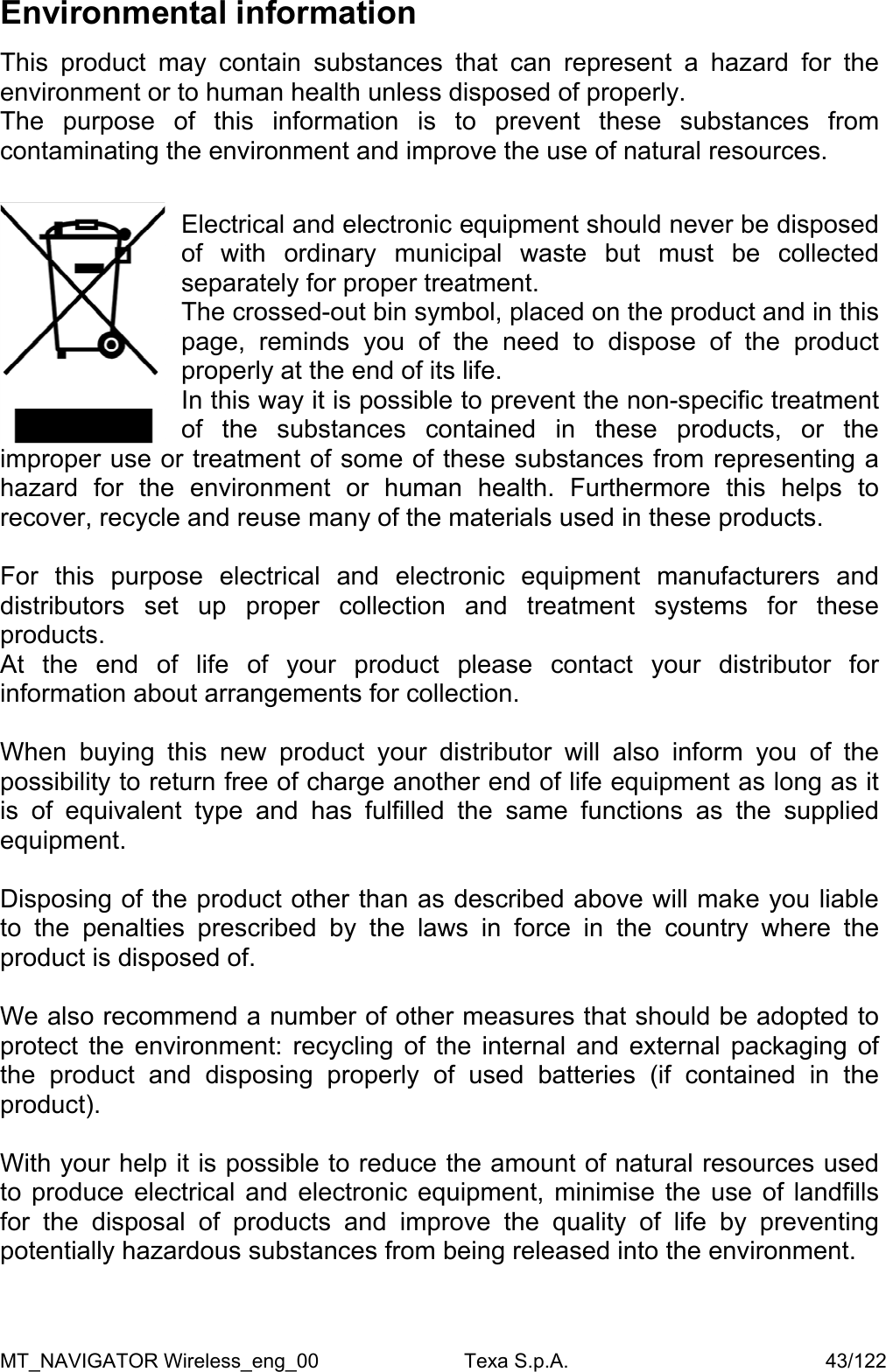
Environmental information  This product may contain substances that can represent a hazard for the environment or to human health unless disposed of properly. The purpose of this information is to prevent these substances from contaminating the environment and improve the use of natural resources.  Electrical and electronic equipment should never be disposed of with ordinary municipal waste but must be collected separately for proper treatment. The crossed-out bin symbol, placed on the product and in this page, reminds you of the need to dispose of the product properly at the end of its life. In this way it is possible to prevent the non-specific treatment of the substances contained in these products, or the improper use or treatment of some of these substances from representing a hazard for the environment or human health. Furthermore this helps to recover, recycle and reuse many of the materials used in these products.  For this purpose electrical and electronic equipment manufacturers and distributors set up proper collection and treatment systems for these products. At the end of life of your product please contact your distributor for information about arrangements for collection.  When buying this new product your distributor will also inform you of the possibility to return free of charge another end of life equipment as long as it is of equivalent type and has fulfilled the same functions as the supplied equipment.  Disposing of the product other than as described above will make you liable to the penalties prescribed by the laws in force in the country where the product is disposed of.  We also recommend a number of other measures that should be adopted to protect the environment: recycling of the internal and external packaging of the product and disposing properly of used batteries (if contained in the product).  With your help it is possible to reduce the amount of natural resources used to produce electrical and electronic equipment, minimise the use of landfills for the disposal of products and improve the quality of life by preventing potentially hazardous substances from being released into the environment.  MT_NAVIGATOR Wireless_eng_00                          Texa S.p.A.                                              43/122
How to use NAVIGATOR Wireless correctly   Adopt the following precaution to use your NAVIGATOR Wireless correctly:   -  The device must be kept in a dry place. Keep away from sources of heat. Avoid use near sources of heat. -  Protect the NAVIGATOR Wireless CPU from shocks.  -  Do not expose the NAVIGATOR WIRELESS CPU to water or other liquids.  -  Do not rest objects on the wires. Do not bend the wires at a right angle. -  Always use the battery system of the vehicle under test to power NAVIGATOR Wireless. Do not use external batteries. -  Check connection quality when using terminals and wires for connecting the vehicle to avoid loose contacts and/or accidental connections of wires with metallic parts of the vehicle. Use the rubber caps provided for protecting the terminals not in use. Follow all indications provided by the program carefully.                        MT_NAVIGATOR Wireless_eng_00                          Texa S.p.A.                                              44/122
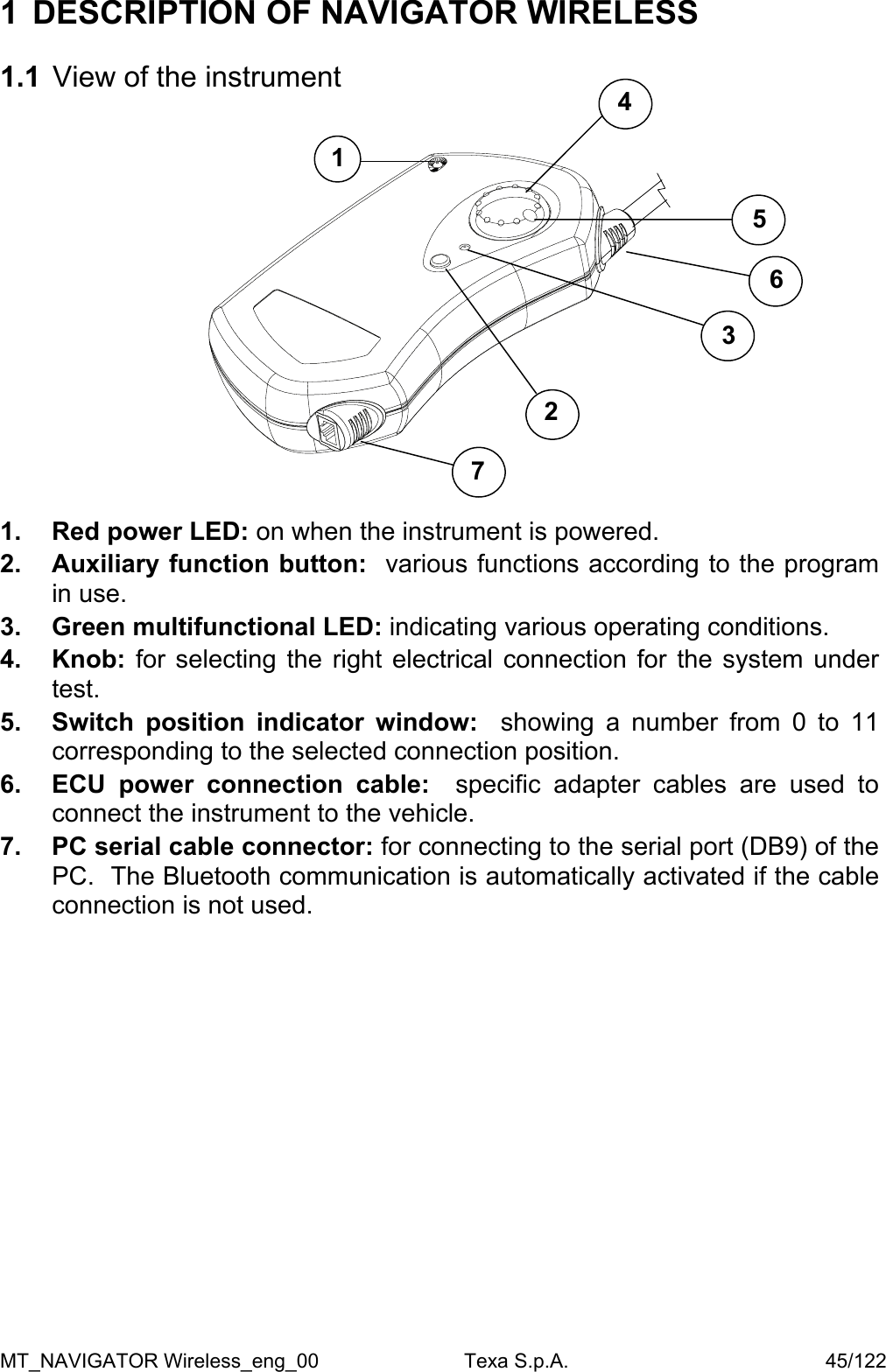
1  DESCRIPTION OF NAVIGATOR WIRELESS   1.1  View of the instrument    45 16 3 27  1.  Red power LED: on when the instrument is powered.  2.  Auxiliary function button:  various functions according to the program in use.  3.  Green multifunctional LED: indicating various operating conditions.  4. Knob: for selecting the right electrical connection for the system under test.  5.  Switch position indicator window:  showing a number from 0 to 11 corresponding to the selected connection position.  6.  ECU power connection cable:  specific adapter cables are used to connect the instrument to the vehicle. 7.  PC serial cable connector: for connecting to the serial port (DB9) of the PC.  The Bluetooth communication is automatically activated if the cable connection is not used.         MT_NAVIGATOR Wireless_eng_00                          Texa S.p.A.                                              45/122
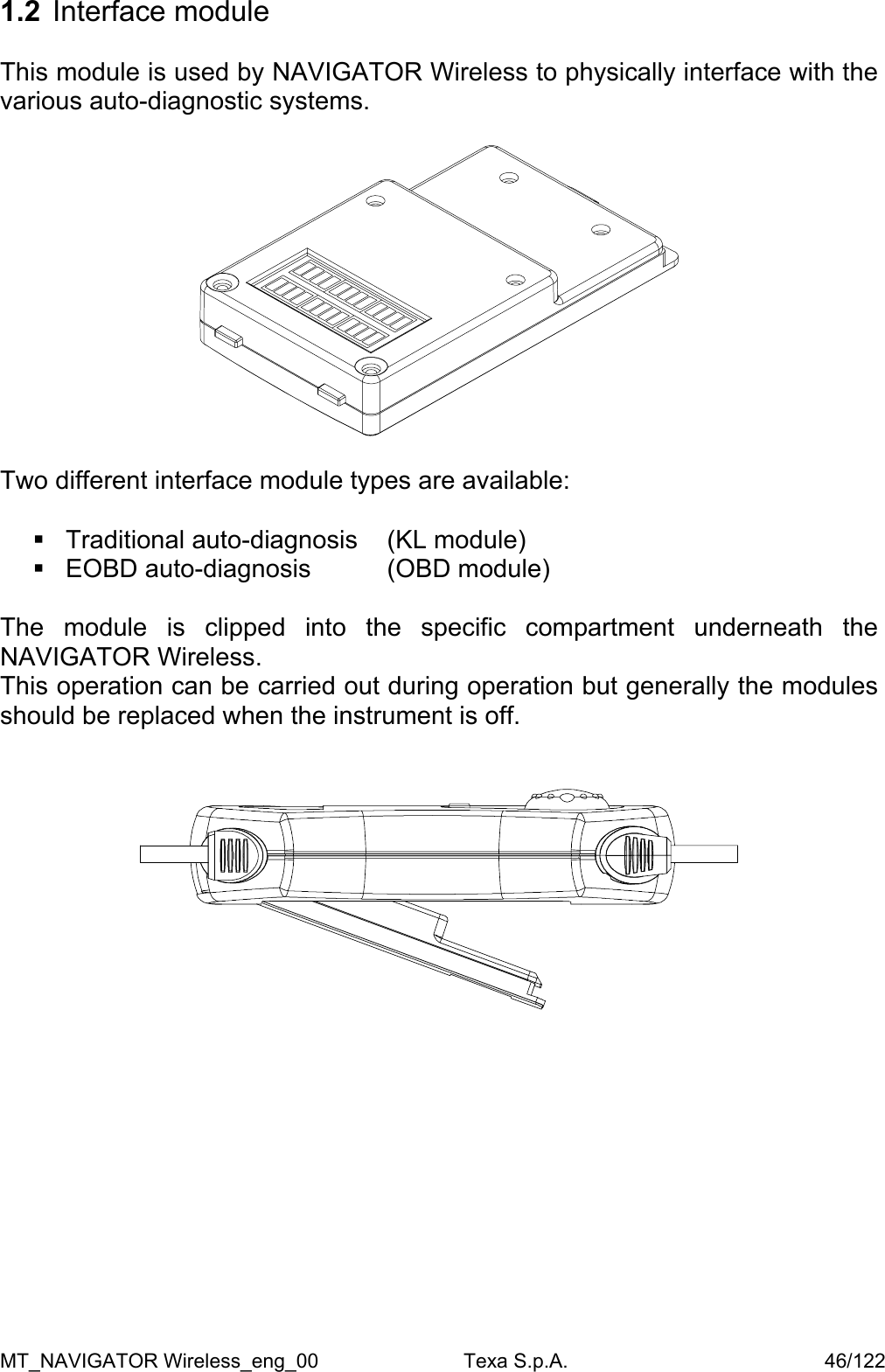
1.2  Interface module  This module is used by NAVIGATOR Wireless to physically interface with the various auto-diagnostic systems.    Two different interface module types are available:    Traditional auto-diagnosis   (KL module)  EOBD auto-diagnosis    (OBD module)  The module is clipped into the specific compartment underneath the NAVIGATOR Wireless.  This operation can be carried out during operation but generally the modules should be replaced when the instrument is off.               MT_NAVIGATOR Wireless_eng_00                          Texa S.p.A.                                              46/122
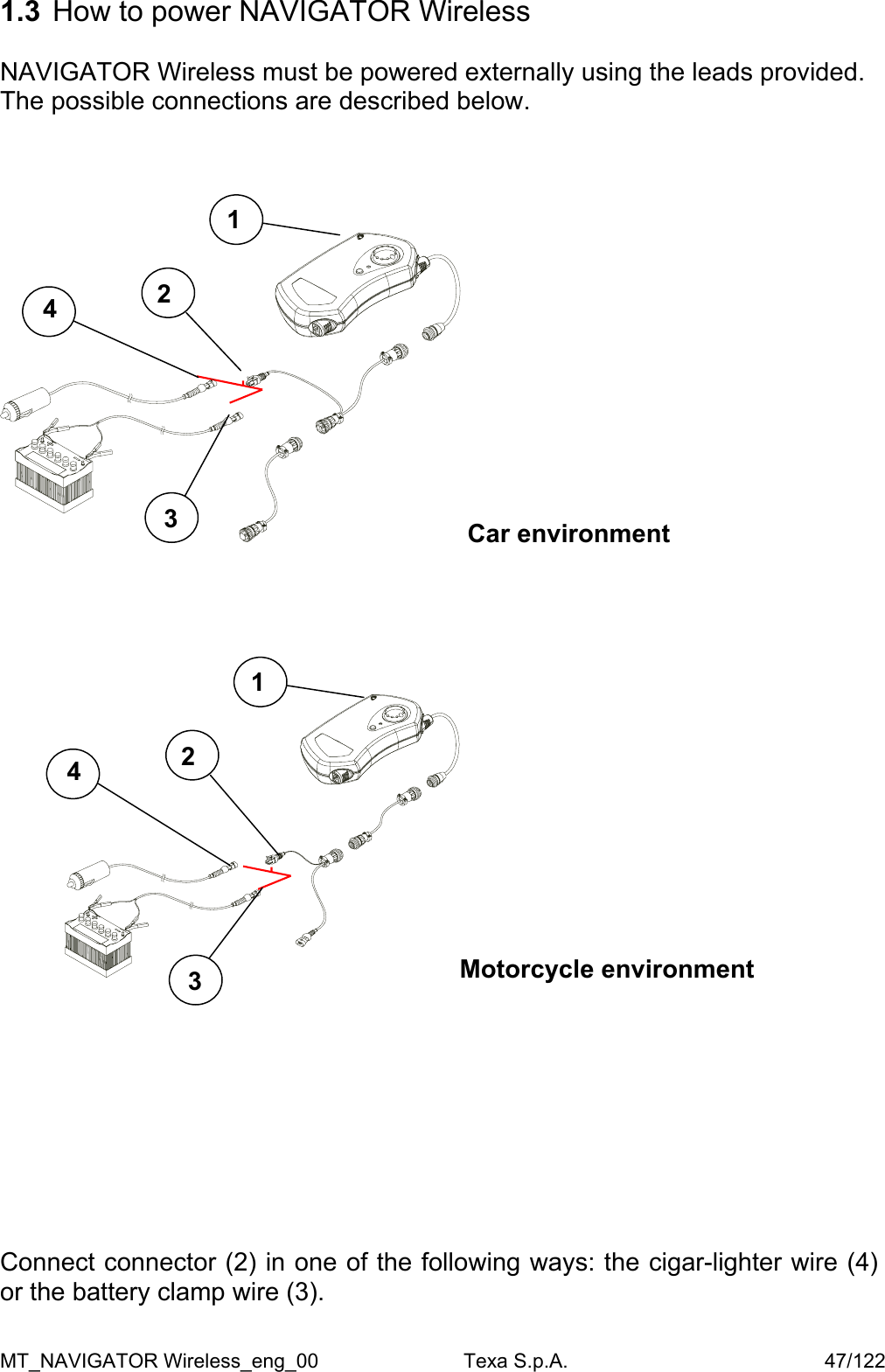
1.3  How to power NAVIGATOR Wireless   NAVIGATOR Wireless must be powered externally using the leads provided.  The possible connections are described below.       Car environment 1 2 4 3       Motorcycle environment 1 2 4 3          Connect connector (2) in one of the following ways: the cigar-lighter wire (4) or the battery clamp wire (3). MT_NAVIGATOR Wireless_eng_00                          Texa S.p.A.                                              47/122
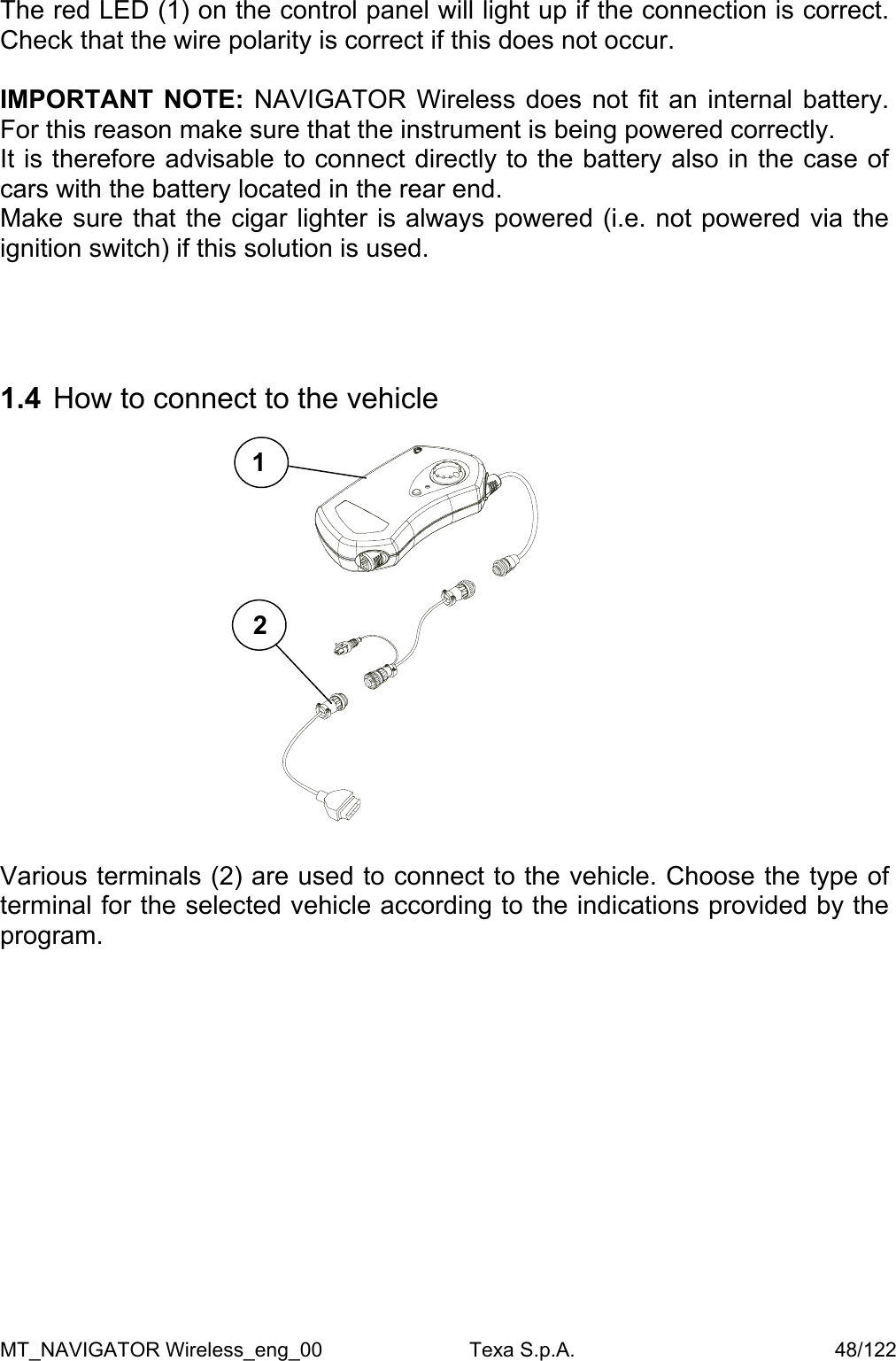
 The red LED (1) on the control panel will light up if the connection is correct.  Check that the wire polarity is correct if this does not occur.  IMPORTANT NOTE: NAVIGATOR Wireless does not fit an internal battery. For this reason make sure that the instrument is being powered correctly. It is therefore advisable to connect directly to the battery also in the case of cars with the battery located in the rear end. Make sure that the cigar lighter is always powered (i.e. not powered via the ignition switch) if this solution is used.      1.4  How to connect to the vehicle   1 2               Various terminals (2) are used to connect to the vehicle. Choose the type of terminal for the selected vehicle according to the indications provided by the program.  MT_NAVIGATOR Wireless_eng_00                          Texa S.p.A.                                              48/122
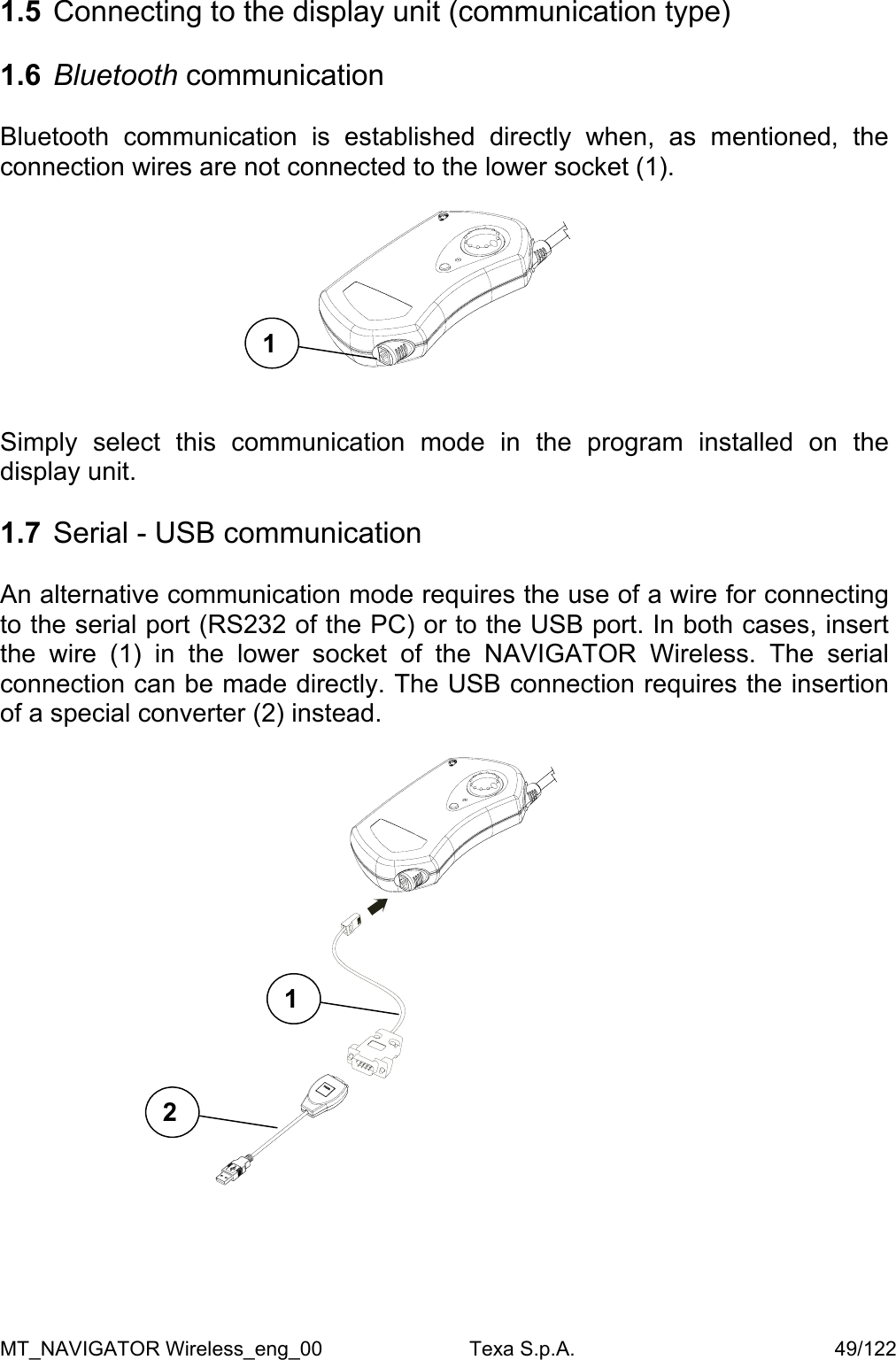
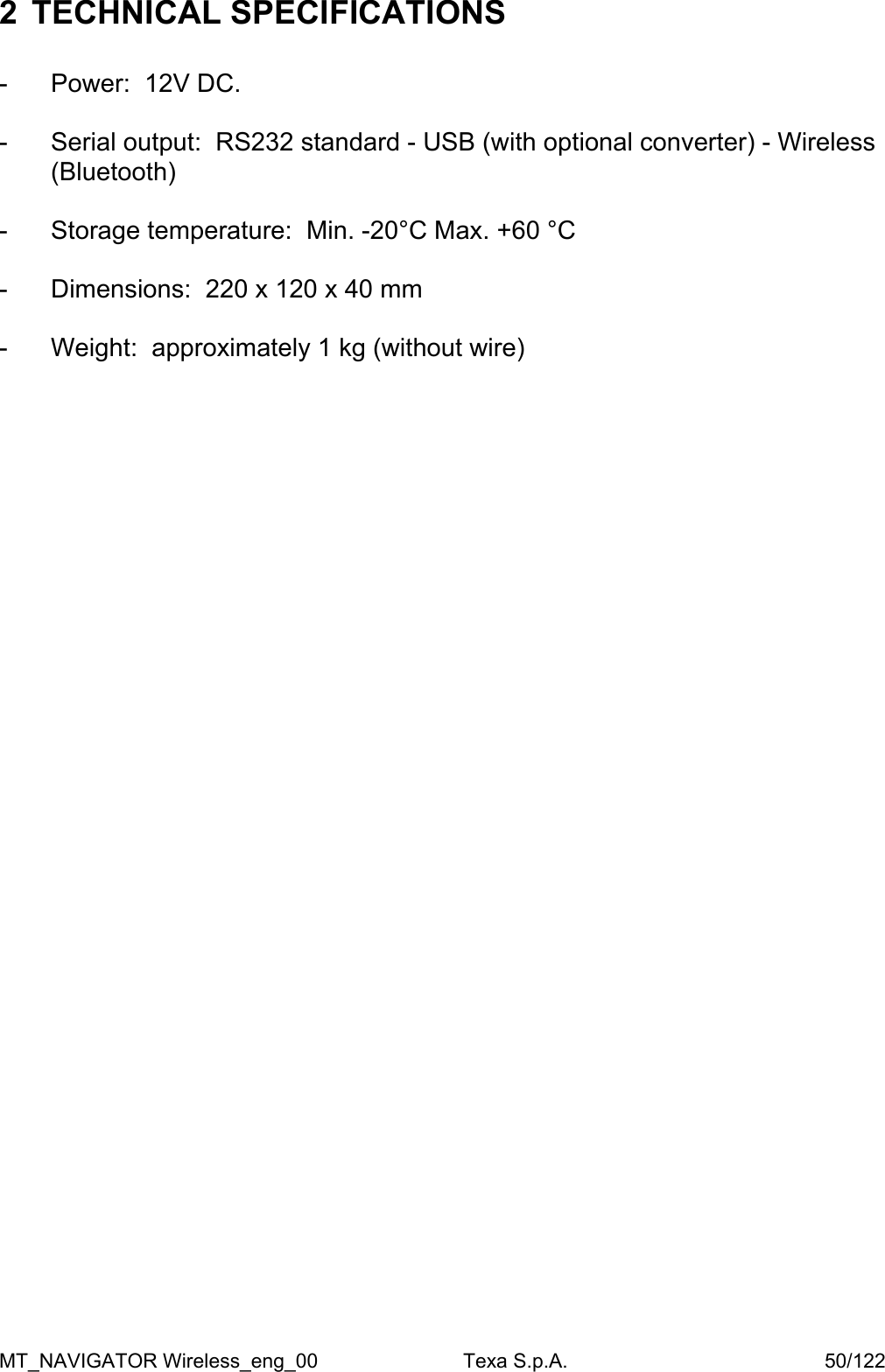
 1.5 1.6 Connecting to the display unit (communication type)  Bluetooth communication  Bluetooth communication is established directly when, as mentioned, the connection wires are not connected to the lower socket (1).   1   Simply select this communication mode in the program installed on the display unit.   1.7  Serial - USB communication  An alternative communication mode requires the use of a wire for connecting to the serial port (RS232 of the PC) or to the USB port. In both cases, insert the wire (1) in the lower socket of the NAVIGATOR Wireless. The serial connection can be made directly. The USB connection requires the insertion of a special converter (2) instead.    1  2      MT_NAVIGATOR Wireless_eng_00                          Texa S.p.A.                                              49/122
2  TECHNICAL SPECIFICATIONS   -  Power:  12V DC.  -  Serial output:  RS232 standard - USB (with optional converter) - Wireless (Bluetooth)   -  Storage temperature:  Min. -20°C Max. +60 °C  -  Dimensions:  220 x 120 x 40 mm  -  Weight:  approximately 1 kg (without wire)  MT_NAVIGATOR Wireless_eng_00                          Texa S.p.A.                                              50/122
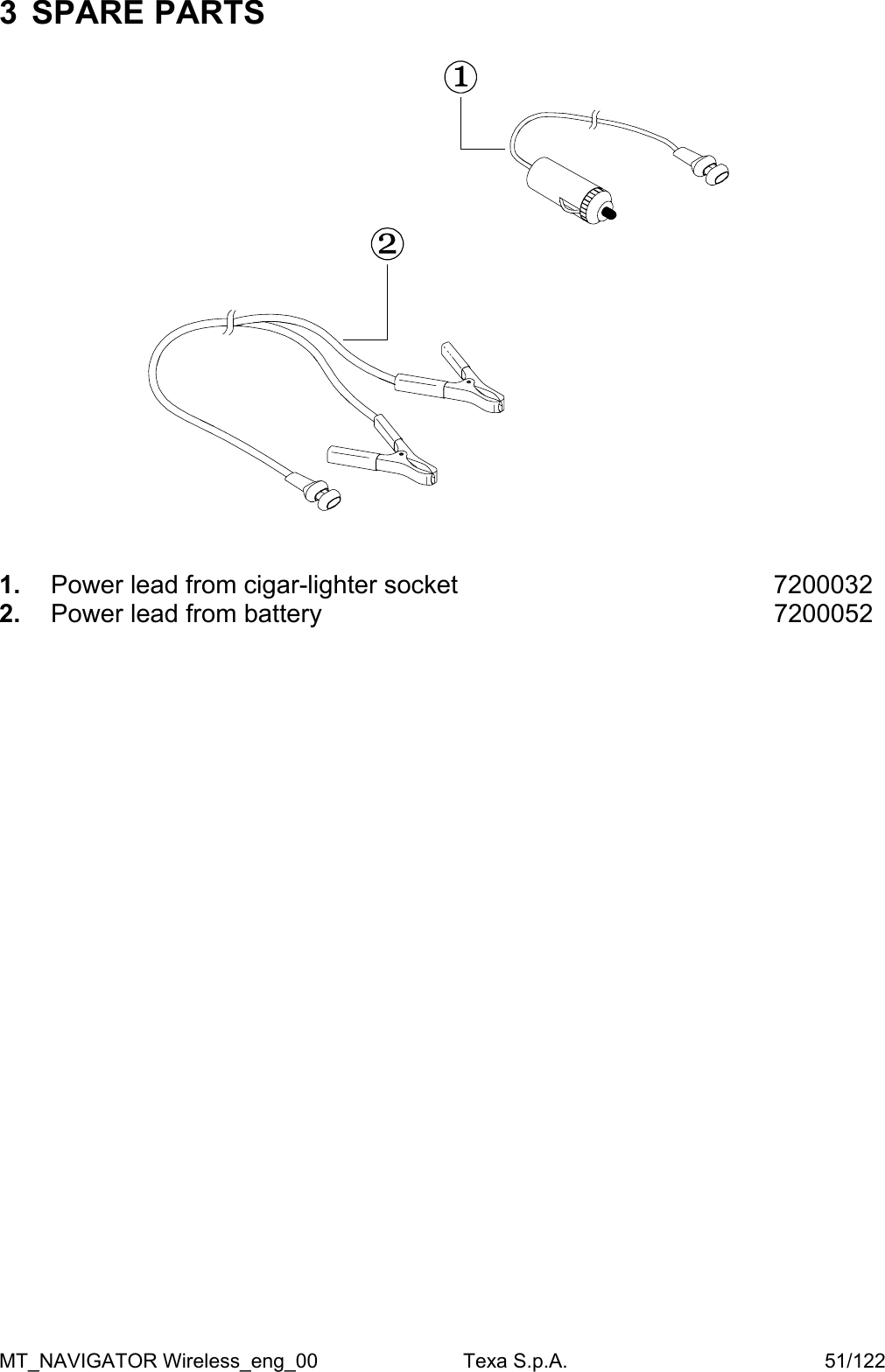
3  SPARE PARTS      1.  Power lead from cigar-lighter socket      7200032 2.  Power lead from battery       7200052 MT_NAVIGATOR Wireless_eng_00                          Texa S.p.A.                                              51/122
4  Use with IDC3 software on AXONE 3 Mobile  No special software is required to use NAVIGATOR Wireless in combination with the Axone 3 Mobile displaying and processing unit: everything you need is preinstalled. You do however need to configure the communication mode between NAVIGATOR Wireless and AXONE 3 Mobile. Follow the instructions provided by the Texa tools configuration wizard which starts automatically when the IDC3 program is started for the first time.  Refer to the SERVICE MENU chapter in the IDC3 instruction manual for more details on this topic.   5  Using IDC3 software on a PC  The IDC3 software must be installed on the PC to use NAVIGATOR Wireless. Use the DVD provided.  Insert the DVD in the PC drive. The setup program will start automatically (if this does not happen because autorun is not configured on your PC, select the DVD drive and double-click on the SETUP icon).  Follow the instructions which appear on the screen during setup.  A new icon will be created on the desktop at the end of the setup procedure.       IMPORTANT   Insert the hardware key (USB port) for enabling the program after installation. The hardware key must always be inserted in the display PC where the IDC3 program is installed.  The software runs under Win2000 and WinXp operating systems.   Follow the setup wizard for Texa tools automatically started when the IDC3 software is started for the first time to configure the communication between instrument and PC.  Refer to the SERVICE MENU chapter in the IDC3 instruction manual for more details on this topic.     MT_NAVIGATOR Wireless_eng_00                          Texa S.p.A.                                              52/122
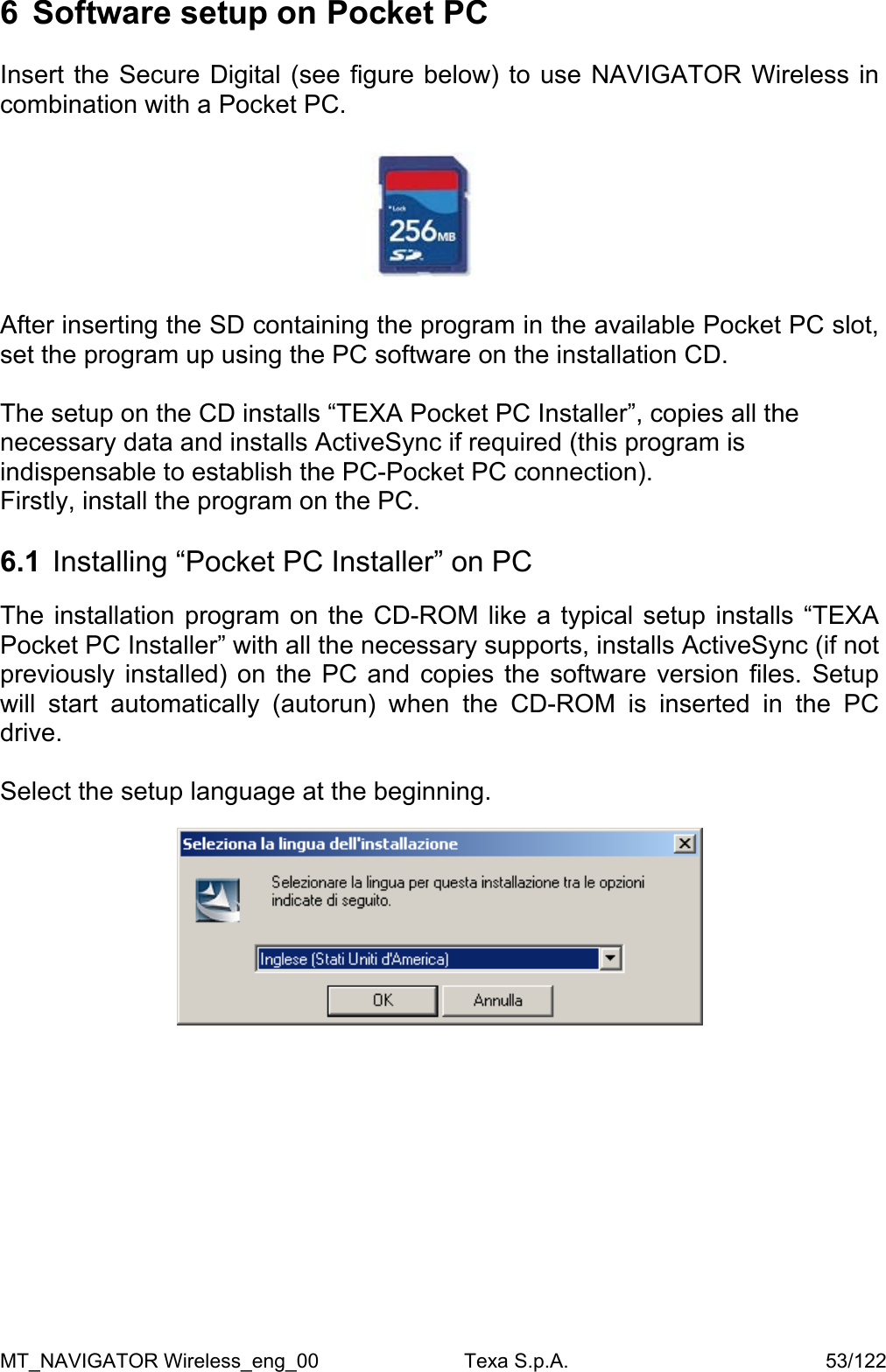
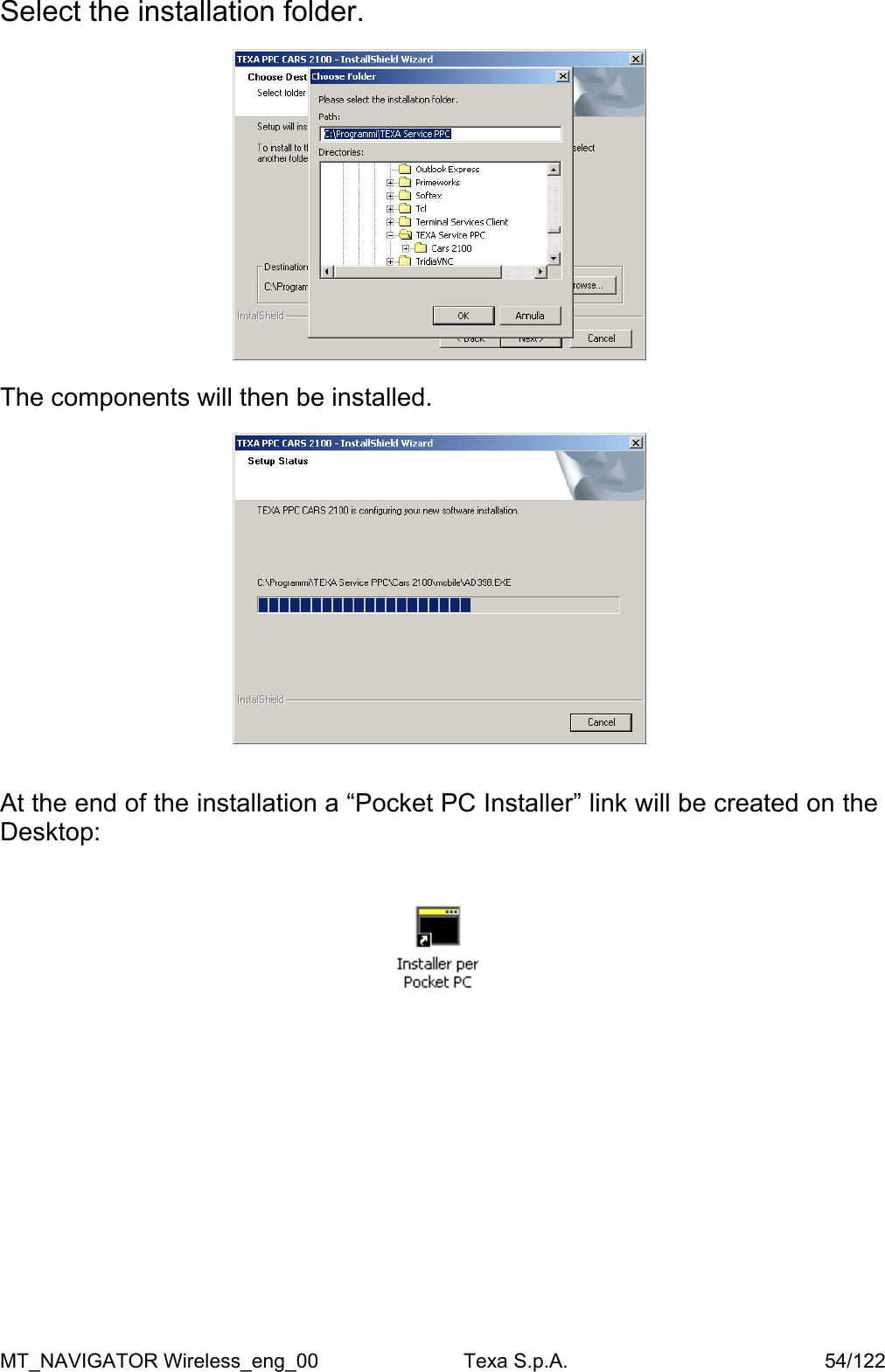
6  Software setup on Pocket PC  Insert the Secure Digital (see figure below) to use NAVIGATOR Wireless in combination with a Pocket PC.    After inserting the SD containing the program in the available Pocket PC slot, set the program up using the PC software on the installation CD.  The setup on the CD installs “TEXA Pocket PC Installer”, copies all the necessary data and installs ActiveSync if required (this program is indispensable to establish the PC-Pocket PC connection).  Firstly, install the program on the PC.  6.1  Installing “Pocket PC Installer” on PC   The installation program on the CD-ROM like a typical setup installs “TEXA Pocket PC Installer” with all the necessary supports, installs ActiveSync (if not previously installed) on the PC and copies the software version files. Setup will start automatically (autorun) when the CD-ROM is inserted in the PC drive.  Select the setup language at the beginning.    MT_NAVIGATOR Wireless_eng_00                          Texa S.p.A.                                              53/122
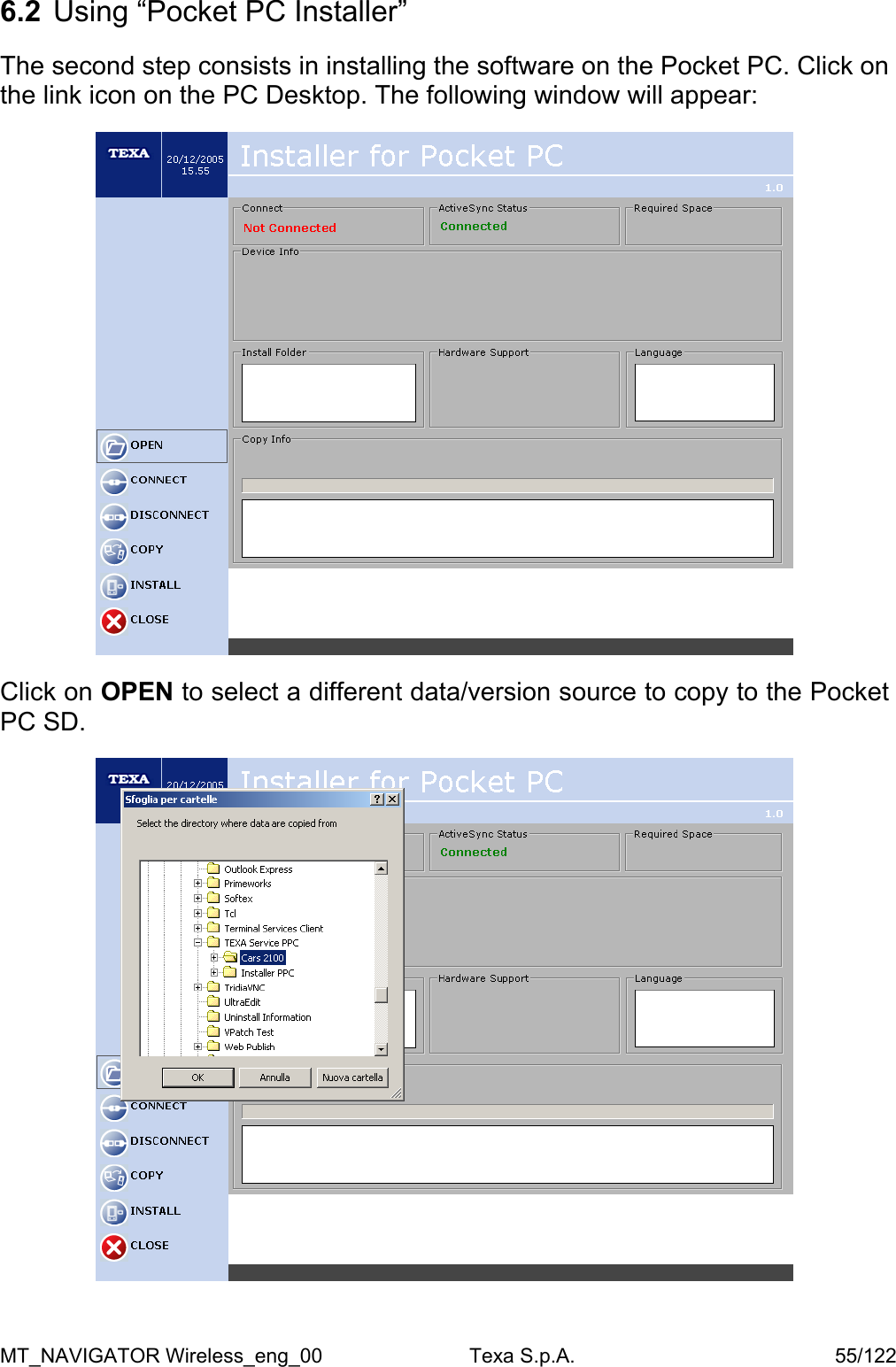
Select the installation folder.    The components will then be installed.     At the end of the installation a “Pocket PC Installer” link will be created on the Desktop:   MT_NAVIGATOR Wireless_eng_00                          Texa S.p.A.                                              54/122
 6.2  Using “Pocket PC Installer”   The second step consists in installing the software on the Pocket PC. Click on the link icon on the PC Desktop. The following window will appear:     Click on OPEN to select a different data/version source to copy to the Pocket PC SD.    MT_NAVIGATOR Wireless_eng_00                          Texa S.p.A.                                              55/122
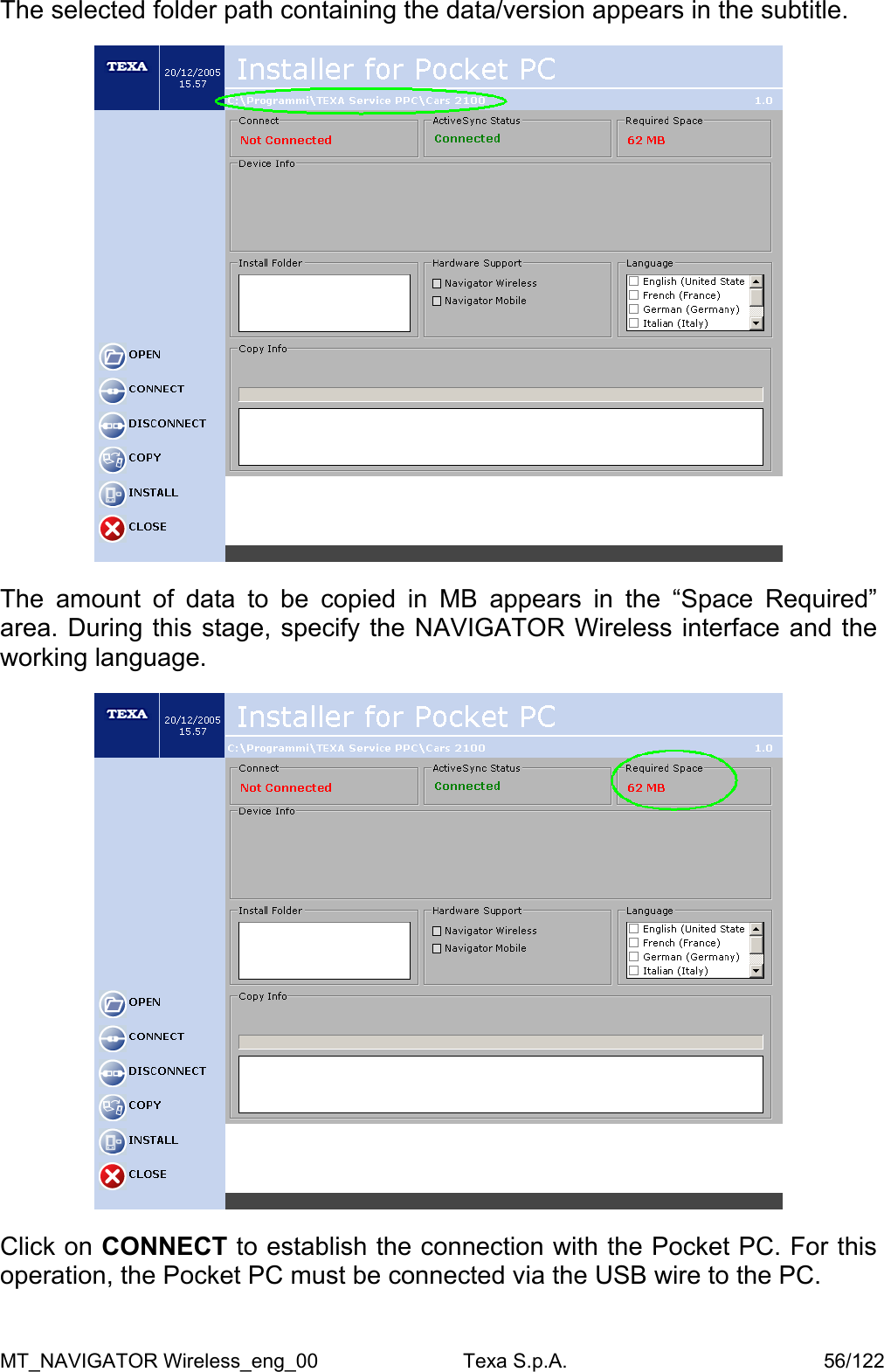
The selected folder path containing the data/version appears in the subtitle.    The amount of data to be copied in MB appears in the “Space Required” area. During this stage, specify the NAVIGATOR Wireless interface and the working language.    Click on CONNECT to establish the connection with the Pocket PC. For this operation, the Pocket PC must be connected via the USB wire to the PC. MT_NAVIGATOR Wireless_eng_00                          Texa S.p.A.                                              56/122
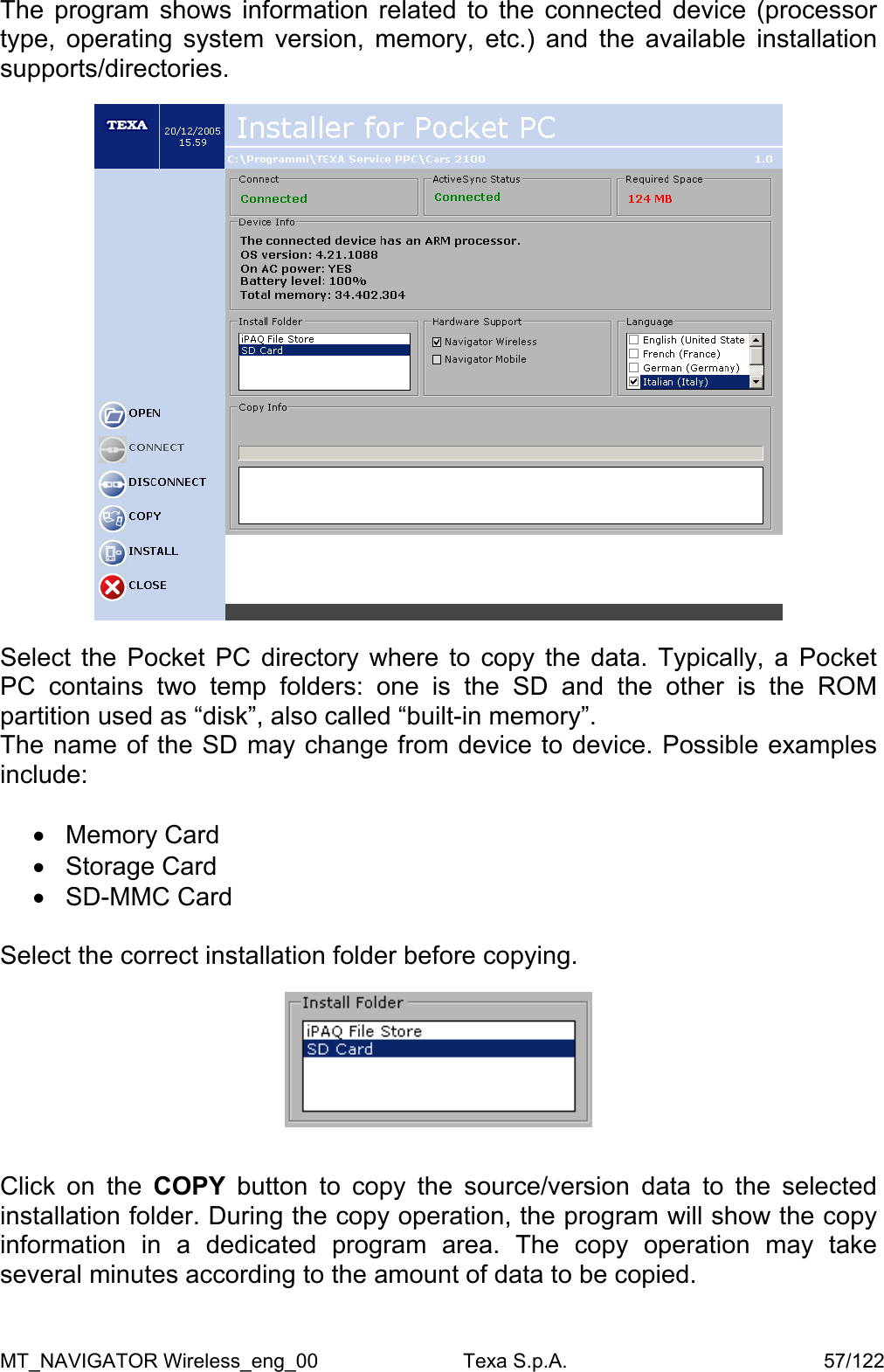
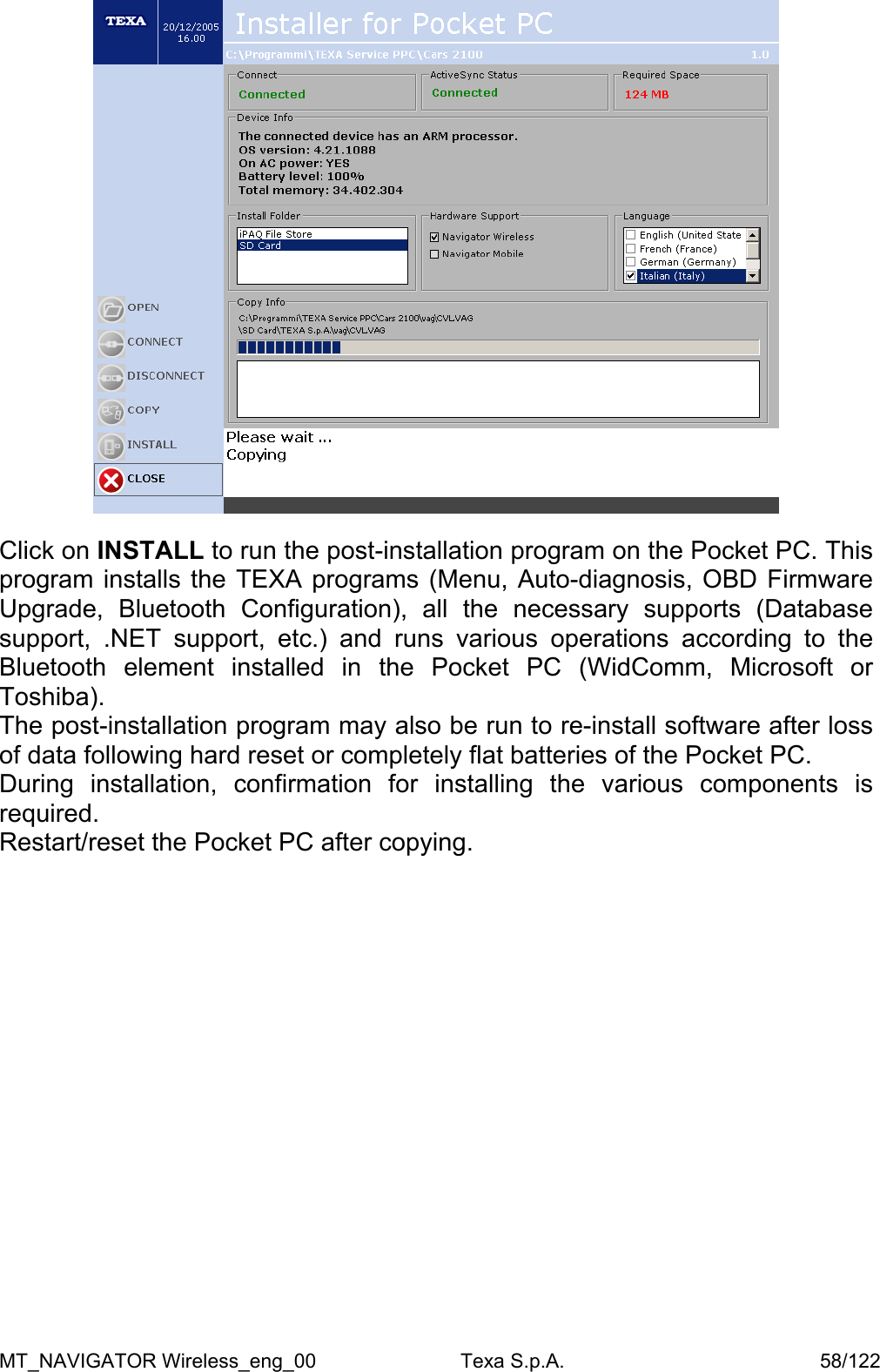
The program shows information related to the connected device (processor type, operating system version, memory, etc.) and the available installation supports/directories.    Select the Pocket PC directory where to copy the data. Typically, a Pocket PC contains two temp folders: one is the SD and the other is the ROM partition used as “disk”, also called “built-in memory”. The name of the SD may change from device to device. Possible examples include:  •  Memory Card •  Storage Card •  SD-MMC Card  Select the correct installation folder before copying.     Click on the COPY  button to copy the source/version data to the selected installation folder. During the copy operation, the program will show the copy information in a dedicated program area. The copy operation may take several minutes according to the amount of data to be copied.  MT_NAVIGATOR Wireless_eng_00                          Texa S.p.A.                                              57/122
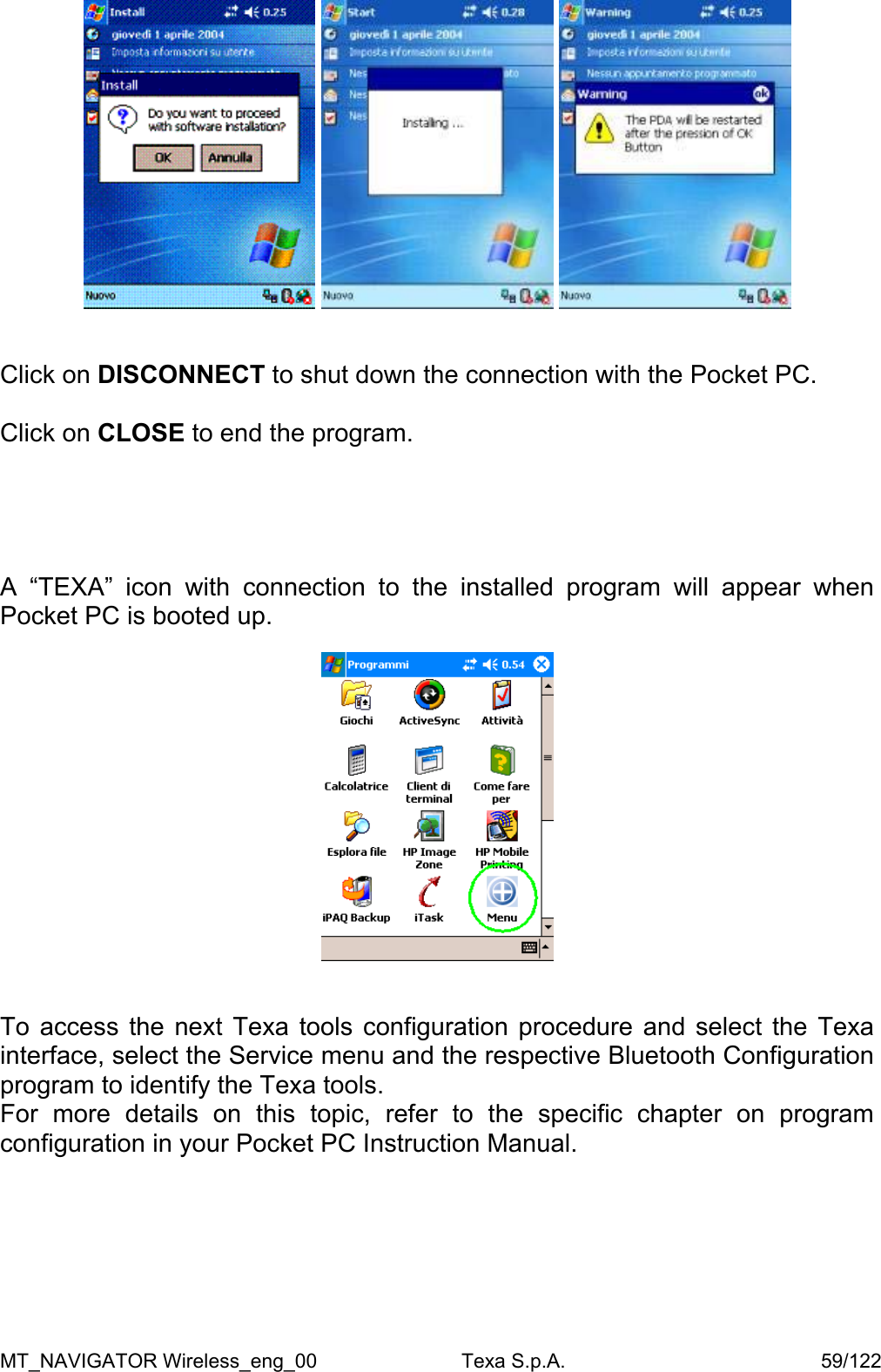
  Click on INSTALL to run the post-installation program on the Pocket PC. This program installs the TEXA programs (Menu, Auto-diagnosis, OBD Firmware Upgrade, Bluetooth Configuration), all the necessary supports (Database support, .NET support, etc.) and runs various operations according to the Bluetooth element installed in the Pocket PC (WidComm, Microsoft or Toshiba). The post-installation program may also be run to re-install software after loss of data following hard reset or completely flat batteries of the Pocket PC. During installation, confirmation for installing the various components is required. Restart/reset the Pocket PC after copying.  MT_NAVIGATOR Wireless_eng_00                          Texa S.p.A.                                              58/122
       Click on DISCONNECT to shut down the connection with the Pocket PC.  Click on CLOSE to end the program.      A “TEXA” icon with connection to the installed program will appear when Pocket PC is booted up.     To access the next Texa tools configuration procedure and select the Texa interface, select the Service menu and the respective Bluetooth Configuration program to identify the Texa tools. For more details on this topic, refer to the specific chapter on program configuration in your Pocket PC Instruction Manual.  MT_NAVIGATOR Wireless_eng_00                          Texa S.p.A.                                              59/122
MT_NAVIGATOR Wireless_eng_00                          Texa S.p.A.                                              60/122 7 GLOSSARY   •  Click, to: Action linked to pressing the left mouse button. •  Cursor: Indicator (blinking or fixed, shaped as a rectangular or a vertical line) showing the point were the characters typed in will be displayed.  •  Default:  This term refers to a configuration, a value, a setting, either basic or defined "originally" by the program. Default settings can be replaced by programmed settings.  •  Download, to: The action of transferring programs, information and data in general to the instrument. This operation generally requires an Internet connection. •  Firmware: Code (written in low level language) loaded in the hardware units (microprocessors, memory) of an electronic system. •  Hardware:  Referred to a diagnostic instrument or processing and displaying system, this indicates the electrical, electronic and mechanical part of the device. •  Icon: A small area of the screen with the appearance of a button with a symbol that suggests the associated function. •  Interface:  This term can be used in reference to both hardware and software systems and indicates an element by means of which two systems can exchange information. •  Mouse: Selection device used to position a cursor (arrow) on the screen. The device is normally provided with two buttons (one left and one right). The left button is used to select or confirm selections, options, etc. The right button is normally used to access auxiliary functions related to the selection. •  Browse, to: This in practice indicates the action of going from one function, piece of information, page or instrument to another. More in general, it indicates the path made available by the program from the home page where a search begins to the final page where the search ends. •  Peripheral: A secondary device or instrument which interfaces with the main unit by sending and receiving data. Example of peripherals are: printer, exhaust gas analyser, TRIBOX or NAVIGATOR auto-diagnosis module, DVD drive, etc. •  Pointer: Generally represented by an arrow, the pointer can be moved on the screen using the mouse to interact with program functions. •  Software:  Referred to a diagnostic instrument or processing and displaying system, this indicates the programs required to run or use the hardware part in different ways. •  Wireless:  This term indicates a connection method between two electronic systems established without using electrical wires.

Navigation menu