The Navvo Group 041086 V-SPOT User Manual
The Navvo Group, LLC V-SPOT
User manual
V-Spot Quick Start Guide Andorid
Voice Controlled Wireless Media System
The VOCO V-Spot is an all-in-one, networked media player that is as simple as
you want it to be; simply plug it in and play music and videos anytime.
You will be able to quickly access music and videos using just your smartphone
or tablet. Simply download the VOCO Controller App from Google Play®, and
you’ll have instant access to YouTube®, media content on your networked
computers (including your iTunes® library), online music services, and
thousands of FREE internet radio stations.
Simply follow the 3 easy steps below and you will be streaming
music and video in only a few moments.
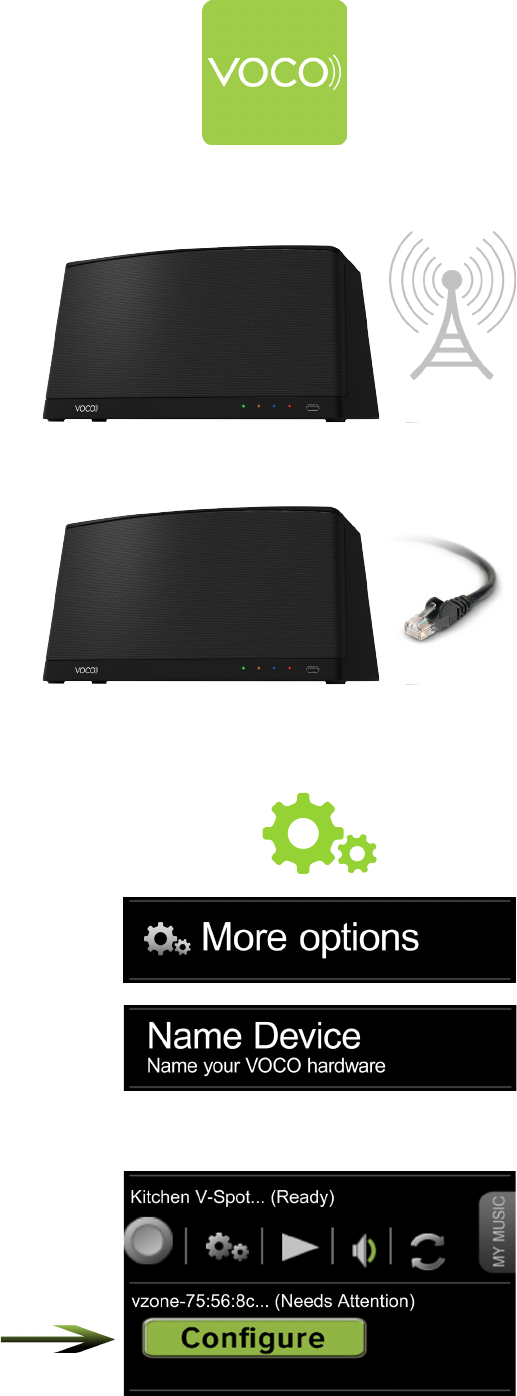
Step 1: Install the VOCO Android App
Step 2: Setup VOCO V-Zone
Step 3: Congure VOCO V-Spot
Download the VOCO Controller App from Google
Play® onto your Android smartphone or tablet.
OR
Wi
Setup V-Spot within range of your Wi network or
connect the V-Spot to your internet router using an
Ethernet cable (included). Then connect the power
cord to the back of the V-Spot and plug it in.
If you want to stream video to your TV using the
V-Spot, connect the V-Spot to your TV using an
HDMI cable (not included), but this is not required
to stream music.
Ethernet Setup:
If you are connecting your V-Spot to Ethernet, it will
setup automatically onto your network. To name
your device, open your VOCO Controller App on your
Android device then tap on the settings icon > More
options >Name device.
Wi Setup:
Ensure your Android device is on the same
Wi network that your V-Spot is on, then open the
VOCO Voice Controller App on your smartphone or
tablet. When your network recognizes your
V-Spot you will see a “Congure” button here. Tap
on the “Congure” button and the App will walk you
through a short set-up process for your V-Spot.
Your V-Spot will be ready to use when you
see the status “......Ready” next to the name
you gave to your V-Spot.
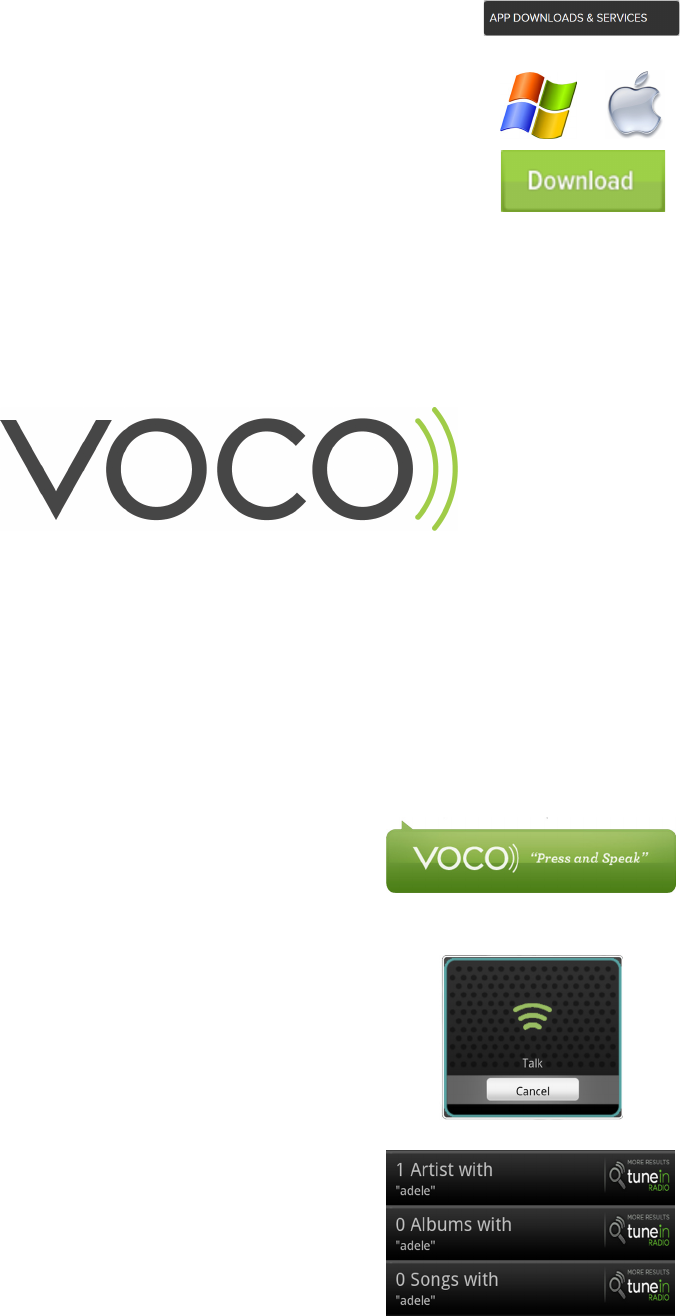
Optional: Install VOCO Computer Software
To access your music (including iTunes®) stored on your
computer, download VOCO software for either your PC or
Mac. You can do this by going to myvoco.com and clicking on
the support tab.
Get Started With
Congratulations! You are now ready to use your VOCO V-Spot to quickly access and
stream music using the power of your voice! This includes videos from YouTube®
and thousands of FREE Internet Radio Stations.
Support
Perform a Voice Search
Press and hold the VOCO “Press and Speak”
icon until a pop up window comes up then speak
the name of the Artist, Album, or Song you are
searching for. Release the icon and VOCO will search
your music library and return any matching results.
Simply tap on the returned results and select the
song you want to stream to your V-Spot.
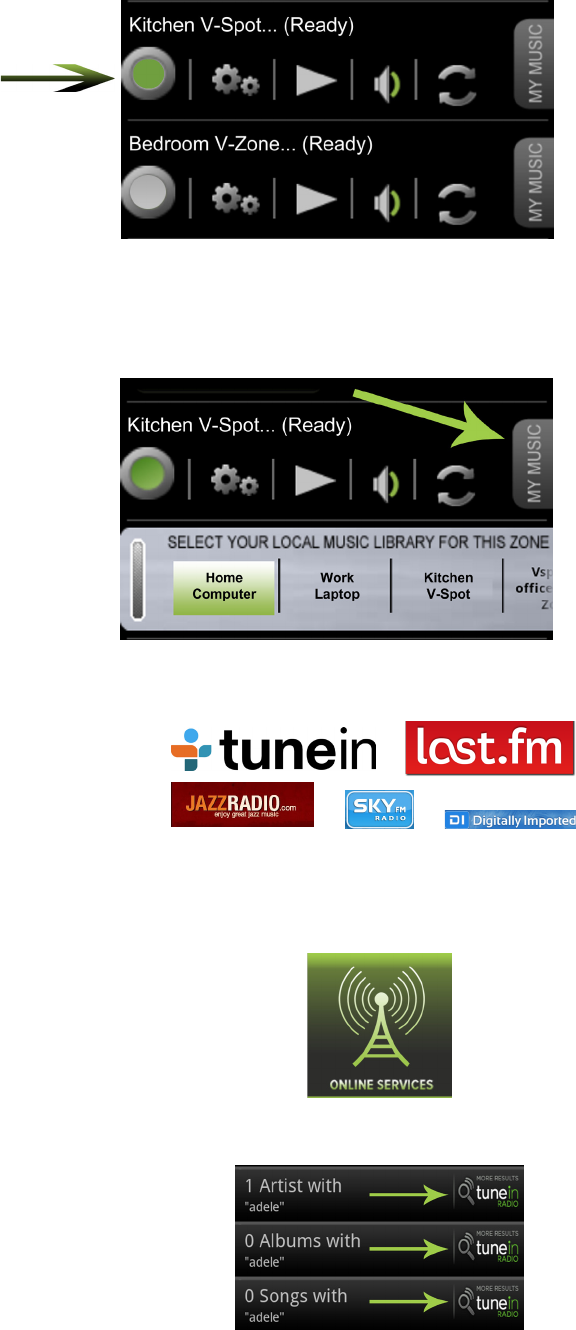
Select a “Zone”
Select a Music Source
In the Zones screen hold down the “My Music” tab
and pull it out. Available music sources will be listed.
Simply tap the music source you want to stream
music from.
Next to the name of your V-Spot, in the Zones screen
of the VOCO Voice Controller App, there is a round
button. Simply tap on that button and it will
highlight in green.......you have now selected a “Zone”
Browse Internet Radio Stations
There are 2 easy ways to use the VOCO Controller App
to easily access thousands of internet radio stations and
stream them to your V-Spot:
1.) Simply tap on the Online Services Icon at the top of the
screen and select the Free radio service you would like to
use.
2.)Perform a voice search and instead of selecting the Artist,
Album, or Song results, simply tap on the icon to the right of
any of these 3 results.
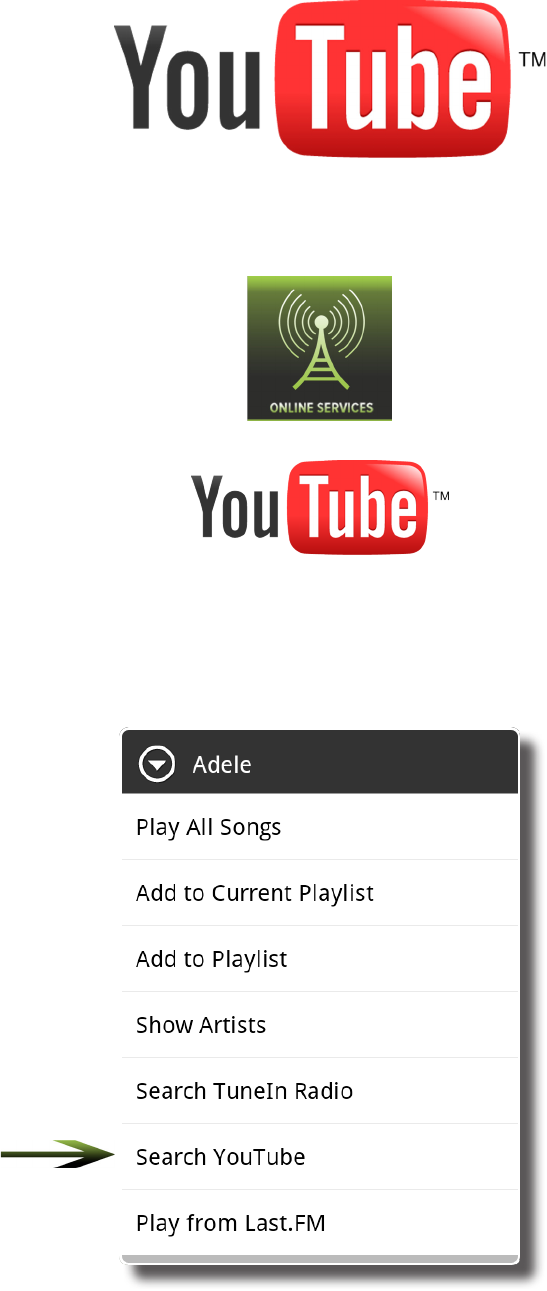
Stream YouTube® Videos
There are 2 easy ways to use the VOCO Controller
App to stream YouTube® videos to your TV using
your V-Spot:
1.) Simply tap on the Online Services Icon at the top of
the screen and then tap on the YouTube® Icon.
The VOCO Voice Controller app also allows you to
use your V-Spot to stream YouTube® videos to your
TV.
You can search YouTube® for the music videos of the
songs you currently have in your music collection or
you can simply browse YouTube® and nd the videos
you would like to stream.
2.)Simply long press on any Artist, Album, or Song
listing, or on any Artist, Album, or Song search result
and a pop-up window will come up, simply select the
“Search YouTube” option.
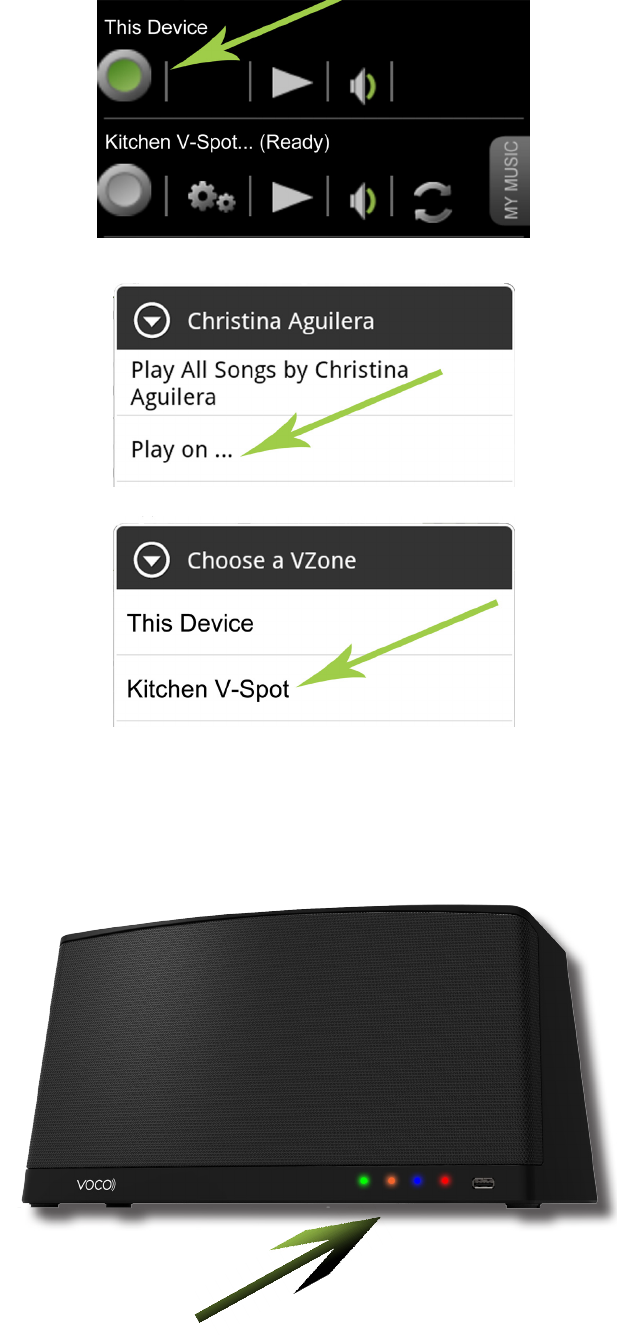
Front Indicator Lights
The lights on the front of the V-Spot provide an
indication of the current status of the V-Spot.
The dierent colors mean:
RED - Lights solid when booting up, ashes during
conguration. Lights solid and ashes while
updating.
BLUE - Lights solid while streaming music.
Periodically ashes while updating.
ORANGE - The V-Spot is connected to Ethernet
Green - Lights solid when connected to a network.
Periodically ashes when starting up and looking for
a network.
Play On Music Feature
The “Play On” feature of the VOCO Voice Controller
App allows you to stream music stored on your
Android phone or tablet to your VOCO V-Spot. To do
this select “This Device” as your Zone, then press and
hold any Artist, Album, or Song. A window will come
up, tap on the option to Play on... and in the next
window select your V-Spot.
To download the latest VOCO User Manual please visit our website at:
www.myvoco.com
If you have any questions please visit the FAQ’s section of our website by clicking on
the Support Tab, and then FAQ’s.
Or contact us at:
Email us at: support@myvoco.com
Call Us at: 888-879-VOCO (8626)
V-SPOT
FCC WARNING
This device complies with Part 15 of the FCC Rules. Operation is subject to the following two conditions:
(1) this device may not cause harmful interference, and
(2) this device must accept any interference received, including interference that may cause undesired operation.
changes or modifications not expressly approved by the party responsible for compliance
could void the user's authority to operate the equipment.
NOTE: This equipment has been tested and found to comply with the limits for a
Class B digital device, pursuant to Part 15 of the FCC Rules. These limits are
designed to provide reasonable protection against harmful interference in a
residential installation. This equipment generates, uses and can radiate radio
frequency energy and, if not installed and used in accordance with the
instructions, may cause harmful interference to radio communications. However,
there is no guarantee that interference will not occur in a particular installation.
If this equipment does cause harmful interference to radio or television reception,
which can be determined by turning the equipment off and on, the user is
encouraged to try to correct the interference by one or more of the following
measures:
-- Reorient or relocate the receiving antenna.
-- Increase the separation between the equipment and receiver.
-- Connect the equipment into an outlet on a circuit different
from that to which the receiver is connected.
-- Consult the dealer or an experienced radio/TV technician for help.
RF Exposure Statement
To maintain compliance with FCC’s RF Exposure guidelines, This equipment should be
installed and operated with minimum distance between 20cm the radiator your body: Use
only the supplied antenna.