Tianjin RoamWiFi Technology ROAMWIFI 3G Wireless Router User Manual
Tianjin RoamWiFi Technology Co., Ltd. 3G Wireless Router
User Manual
USB2.0 Cable, Instruction
Thank•you•for•ROAMWIFI(WCDMA)•wireless•data•terminal•
Description:
As for the function and the appearance of MIFI, please take it in kind prevail. The photo is for
reference only.The detailed information of the product selection, please inquire the operator. This
brochure introduces basic operations of MIFI. As to the operation of management
parametersconfiguration, please consult the managing procedures or search for the help from the
managing website.
MIFI can be used in the relatively enclosed space such as the pocket and the bag. However, if
you use it for along time, MIFI will be hot because it’s hard for it to dissipate the heat in the
enclosed space and the current temperature will rise. And at the same time, MIFI will power off or
cut off the net connection for safety precaution. When this case happened, please put it in the
ventilated area to help to dissipate the heat. And then, you can power it on.
Includes:
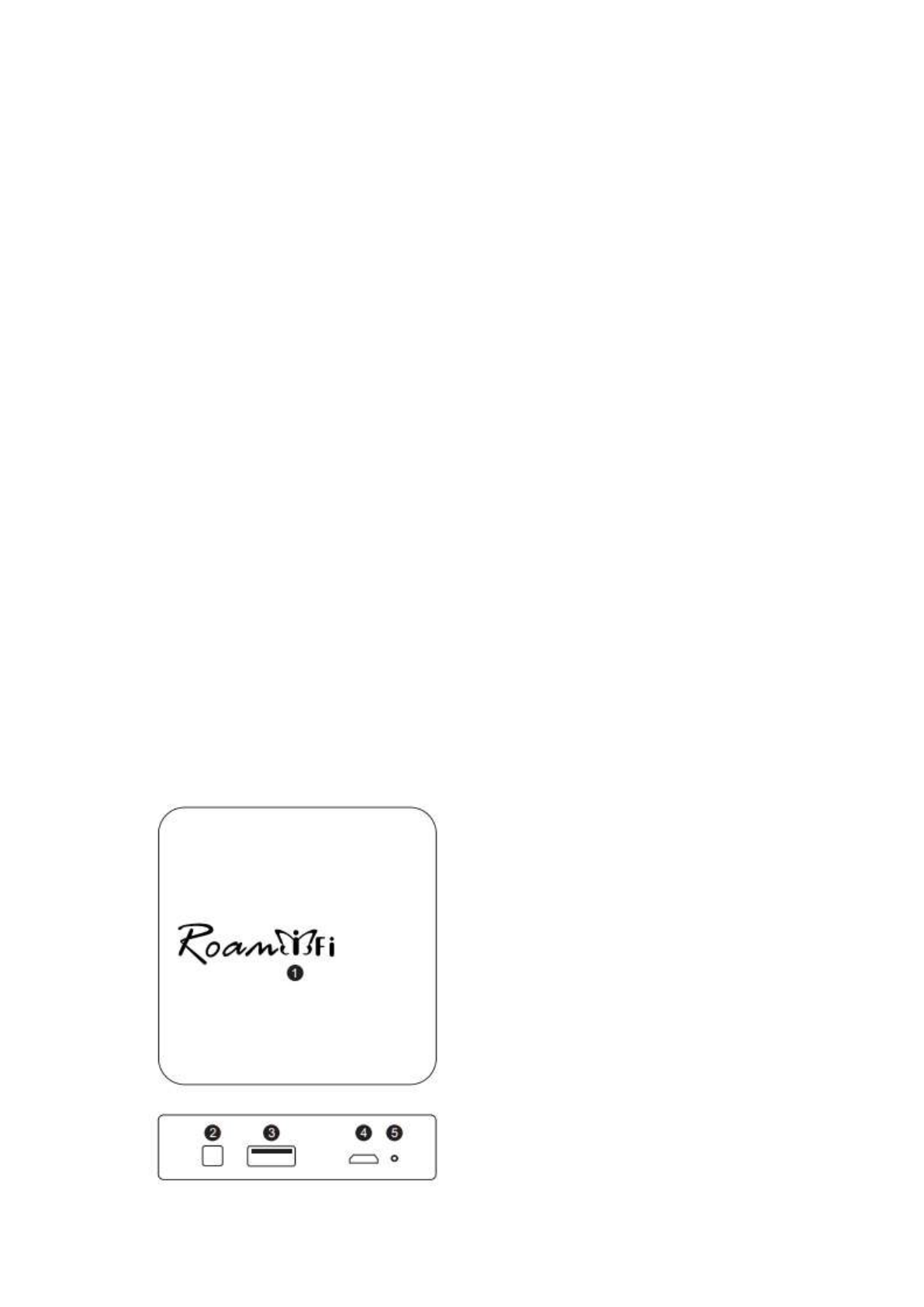
Know Your roamwifi MIFI
Roam WiFi Device, USB2.0 Cable, Instruction Manual ("Three Guarantees” Certification)

1, Status Indicator:
Start RoamWiFi, then the butterfly light will flash; if access Internet in normal way, the butterfly
light will be constant on.
2, Long press the power button for 3 second to power it on or off. Wait for about 2 minutes until
status indicator is constant light.
3, External Charge Port
As power bank, it can charge for mobile and other devices.
4, Charging Port
5, Reset Hole/Charge Indicator
Press the reset hole, the device will power off and reset. This hole also can be used as charge
indicator; it will be constant on for the process of charge.
Know about the information of the screen
Start RoamWiFi, then the butterfly light will flash; if access Internet in normal way, the butterfly
light will be constant on.
Capacity Indicator of Color Light: >70% Green Light, >30% Yellow Light, <30% Red Light
Specification Parameters:
Support Networks: HSPA,WCDMA,EDGE,GRPS
Network Speed: 14.4Mbps
Acceptable Frequencies: 850/900/1700(AWS)/1900/1200
Without SIM card, it can provide international roaming services.
Support Protocol: 802.11b/g
Transmit Brand: 2.412~2.462GHZ
Support 5 device for synchronous connect.
3.7V/5200mAh high capacity Li-ion Battery

Go into the internet by WIFI
Description: by default, MIFI have already configured parameters. You can go quickly into
the internet by the following steps. As to how to configure management parameters, please refer to
managing procedures or search for the help information on the managing page.
Step1: turn on the MIFI
Step2: set up WIFI connection or wired connection
Step3: go into the internet
I. Turning on of WIFI
Long press “ power button ” until the screen is bright, and WIFI is on; and then long press it
again until The Butterfly shape light flashes up, WIFI is on.
II. Set up WIFI connection or wired connection
1. Make sure the MiFi’s Wi-Fi function is on.
2. Select Start> Control Panel> Network Connections> Wireless Network Connection
3. Click View available wireless networks display a list of Wi-Fi .
4. Select the wireless network connection with the MiFi's SSID and click Connect. If Wi-Fi is
turned on the security mechanism , you need to enter the correct network key. SSID and network
key printed on the MiFi’s label.
III. Get into the internet
When WIFI is connected with clients, it will get into the internet automatically. ((No need of
smart SIM card)
Logging into the Managing website
1. Make sure the connection between MIFI and computer works well.
2. Open the browser, and enter http://192.168.1.1 in the address box.
3. or by downloading the APP, which can be used to manage Roam Wifi device, change
password and other attributes.
The Usage of Roam WiFi as Mobile Power
1. For charging mobile phones and other electronics
1) Using mobile power for charging through original data cable. Short press the power button to

turn on, long press to turn off.
2) Using mobile power to charge for cell phone or MP3 / MP4 through the data cable and
appropriate adapter. Short press the power button to turn on, long press to turn off.
2. Charging power for Roam WiFi
1) Charging through the original adapter of Roam WiFi
2) Charging by connecting to the computer
Tips:
If MIFI cannot work well, here are some tips and you can have a try:
1. Check the administration routine or search for the helpful information on the managing pages.
2. Reset MIFI
3. Restore factory settings
4. Consult with the operators
USB
USB A type charge port
CAUTION
Before use, please read this instruction carefully! This product does not convert voltage(AC-AC).
In order to avoid possible damage to your device or other safety hazards, please make sure the
Power outlet you intend to use has the proper voltage to run Your device BEFORE using this
adapter
Each country has its own regulations regarding the use of travel adapters, please check in each
country before use No grounding
This product is for use with unearthed or double insulated appliances only
Indoor use only
Waste electrical products should not be disposed of With household waste. Please recycle where
facilities exist. Check with your Local Authority for recycling advice.

Single Plug Safety Features
Built-In Safety Feature
Built-In Safety Shutters
LED Power Indicators
Built-In 6A Fuse
Power
When the adaptor is plugged into the wall socket, the “Power”
indicator should light on that the
AC power and USB in operation.
This product may not work with certain high power appliance such as hair dryers. Check your
appliance label to see if it requires less than 6A.
USA
Pull up USA plug and keep 1 pins in parallel state.
Australia/ New Zealand
Pull up USA plug and keep 1 pins in “/ \”
state.
United Kingdom
Take adapter apart into 2 parts, the upper part is UK socket and power charger.
Daily use
Charge up the battery
Note: If the battery hasn’t been used for a long time, please charge it before using.
The first method: charging by power adapter
1. You should use power adapter (5v, 1000mA) .
2. The power adapter is the selective accessory.
The second method: charging by connecting with the computer . Please connect MIFI and the
computer by the matched data cable.
Notes:
The pictures are for reference only, please take the products in kind prevail.
Note: adaptor is not included.

The design of your
(C95.1).
FCC RF EXPOSURE INFORMATION:
WARNING!! Read this information before using your router
In August 1986 the Federal Communications Commission (FCC) of the United States with its action
in Report and Outer FCC 96-326 adopted an updated safety standard for human exposure to radio
frequency (RF) electromagnetic energy emitted by FCC regulated transmitters. Those guidelines are
consistent with the safety standard previously set by both U.S. and international standards bodies.
The design of this router complies with the FCC guidelines and these international standards. Use
only the supplied or an approved antenna. Unauthorized antennas modifications, or attachments
could impair call quality, damage the router, or result in violation of FCC regulations. Do not use the
router with a damaged antenna. If a damaged antenna comes into contact with the skin, a minor burn
may result. Please contact your local dealer for replacement antenna.
BODY-WORN OPERATION:
This device was tested for typical body-worn operations with the back/front of the router kept 0.5cm
from the body. To comply with FCC RF exposure requirements, a minimum separation distance of
0.5cm must be maintained between the user's body and the back/front of the router, including the
antenna. Third-party belt-clips, holsters and similar accessories containing metallic components shall
not be used. Body-worn accessories
that cannot maintain 0.5cm separation distance between the user’s body and the back/front of the
router, and have not been tested for typical body-worn operations may not comply with FCC RF
exposure limits and should be avoided.
For more information about RF exposure, please visit the FCC website at www.fcc.gov
Your wireless handheld portable router is a low power radio transmitter and receiver. When it is
ON, it receives and also sends out radio frequency (RF) signals. In August, 1996, the Federal
Communications Commissions (FCC) adopted RF exposure guidelines with safety levels for hand-
held wireless router. Those guidelines are consistent with the safety standards previously set by
both U.S. and international standards bodies:
<ANSIC95.1> (1992) / <NCRP Report 86> (1986) / <ICNIRP> (1999)
Those standards were based on comprehensive and periodic evaluations of the relevant scientific
literature. For example, over 120 scientists, engineers, and physicians from universities, government
health agencies, and industry reviewed the available body of research to develop the ANSI Standard
router complies with the FCC guidelines (and those standards).
Use only the supplied or an approved replacement antenna. Unauthorized antennas, modifications,
or attachments could damage the router and may violate FCC regulations.
RF Exposure Information:
This product is compliance to FCC RF Exposure requirements and refers to FCC website
https://apps.fcc.gov/oetcf/eas/reports/GenericSearch.cfm search for FCC ID: 2ADUB-ROAMWIFI to
gain further information include SAR Values.
This device complies with part 15 of the FCC rules. Operation is subject to the following two
conditions:
(1) this device may not cause harmful interference, and
(2) this device must accept any interference received, including interference that may cause
undesired operation.
NOTE: The manufacturer is not responsible for any radio or TV interference caused by unauthorized
modifications to this equipment. Such modifications could void the user’s authority to operate the
equipment.
NOTE: This equipment has been tested and found to comply with the limits for a Class B digital
device, pursuant to part 15 of the FCC Rules. These limits are designed to provide reasonable
protection against harmful interference in a residential installation. This equipment generates uses
and can radiate radio frequency energy and, if not installed and used in accordance with the
instructions, may cause harmful interference to radio communications. However, there is no
guarantee that interference will not occur in a particular installation. If this equipment does cause
harmful interference to radio or television reception, which can be determined by turning the
equipment off and on, the user is encouraged to try to correct the interference by one or more of the
following measures:
- Reorient or relocate the receiving antenna.
- Increase the separation between the equipment and receiver.
-Connect the equipment into an outlet on a circuit different from that to which the receiver is
connected.
-Consult the dealer or an experienced radio/TV technician for help
Do not use the device with the environment which below minimum -10℃ or over maximum 50℃,
the device may not work.
Changes or modifications to this unit not expressly approved by the party responsible for
compliance could void the user’s authority to operate the equipment.
Ad Hoc function is supported but not able to operate on non-US frequencies.